You’re using Microsoft Word and suddenly the font size in your Navigation Pane has gone tiny. Here’s what to do.
Funnily enough, a similar situation inspired my very first post on this blog – What to do if your comment boxes go tiny in Word. Now we have the same situation with the Navigation Pane and its text becoming very small.
What is the navigation pane?
The navigation pane (or document map) is that area to the left (usually) of your Word document which gives you the option to view the headings and layout of your document, the pages, or search results for a term you’ve looked up. It normally looks like this:
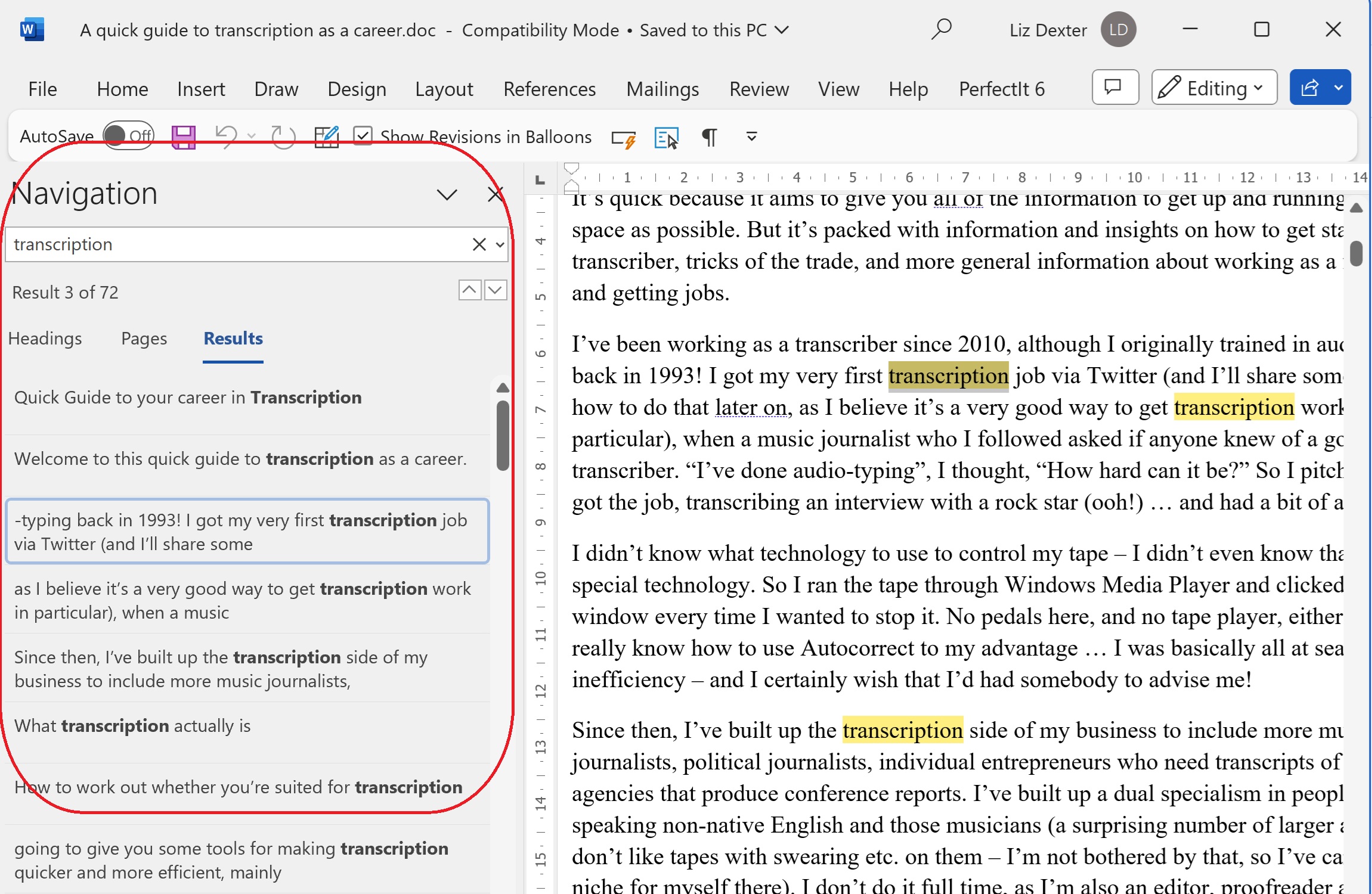
but the problem arises when, often for no reason, sometimes when you’ve got a new monitor with a higher resolution, suddenly all the text in that Navigation Pane area is in a tiny font size. How do you change that font size? The answer lies in the Styles.
How to find the Styles menu
The Styles menu is in the Home tab. You might need to widen out your Word window to find it.
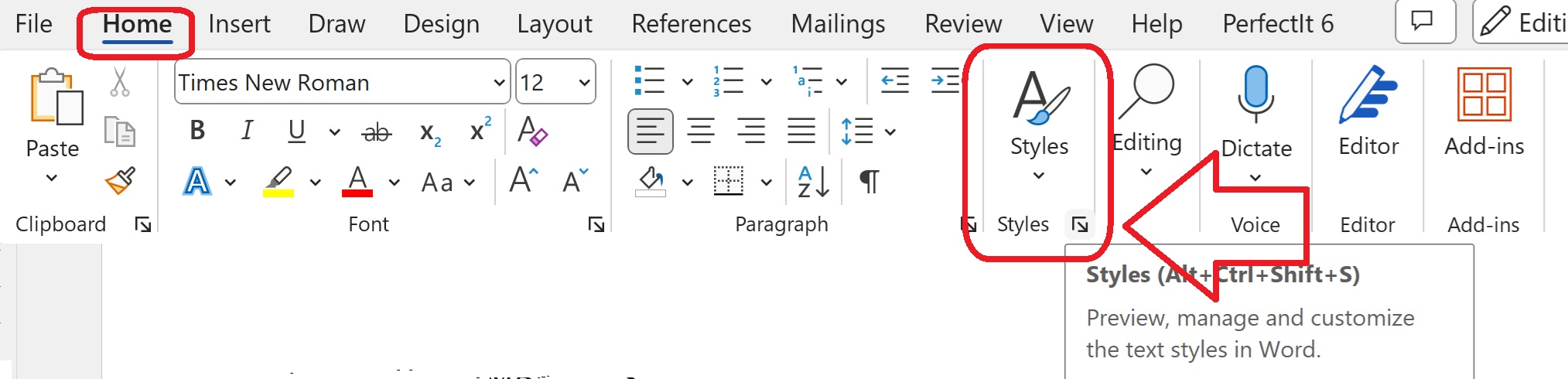
Once you’ve found Styles, click on the little arrow at the bottom right.
How to see all the styles, not just some
By default, Word will show you the styles it thinks you might need. Of course the one you want is never in the list. To see All the styles and edit the one you want …

Click on “Options” at the bottom of the window.
Then change the drop downs to “Select styles to show”: All styles and “Select how list is sorted”: Alphabetical.
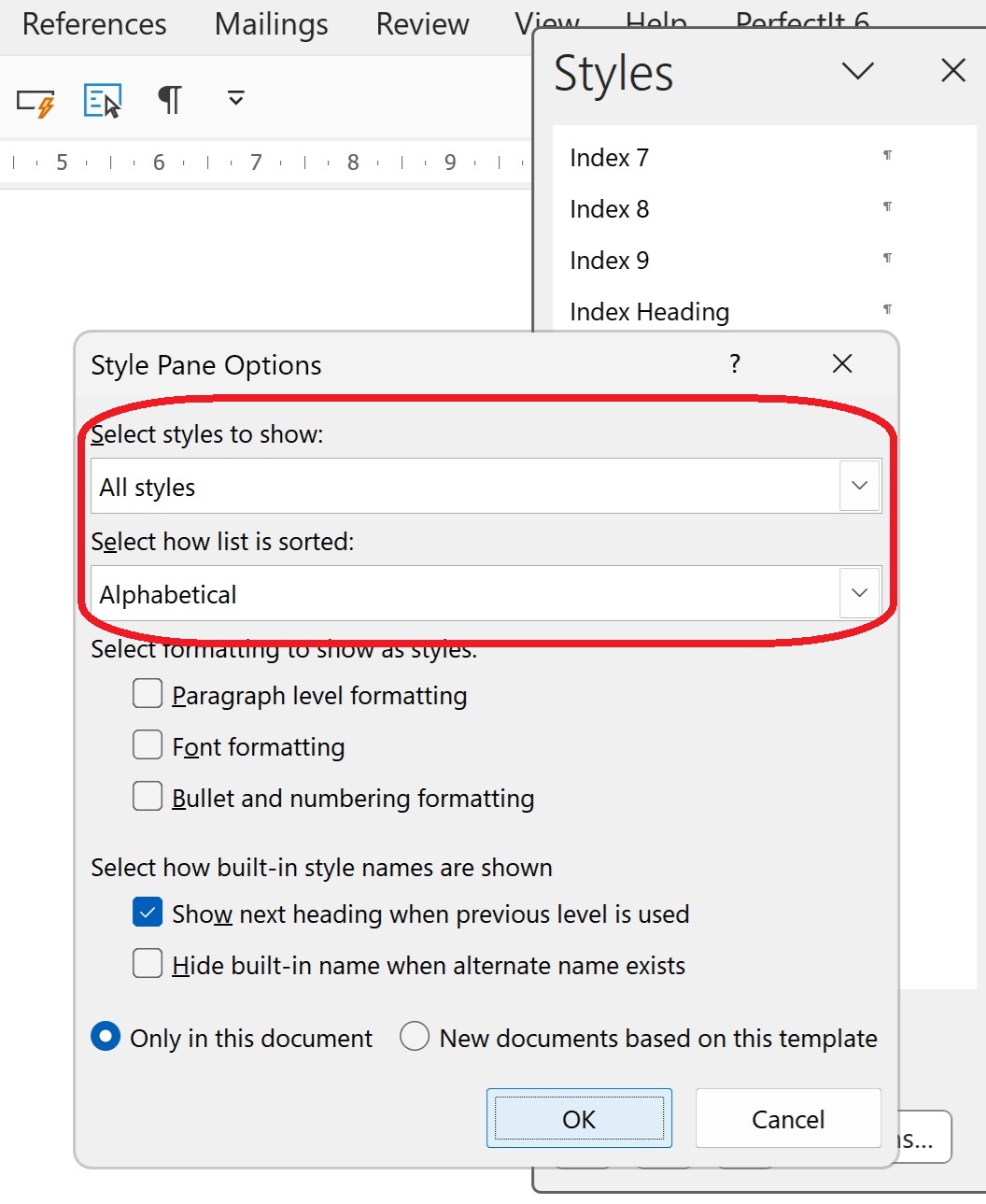
Then click OK.
How to change the Navigation Pane style using Document Map
The style that controls the Navigation Pane is called “Document Map”. I can only assume that it was once ONLY the document map, as that is still included in the Navigation Pane. Scroll down to find it …

… and click on the little arrow to the right-hand side.
How to modify the Document Map / Navigation Pane style
Click on “Modify” so you can change the font size of the Navigation Pane.

Now the Modify Style window will appear. Here you can see the style is set to be an odd-named font with a very small font size. Here you can just change the font and size to whatever you want:
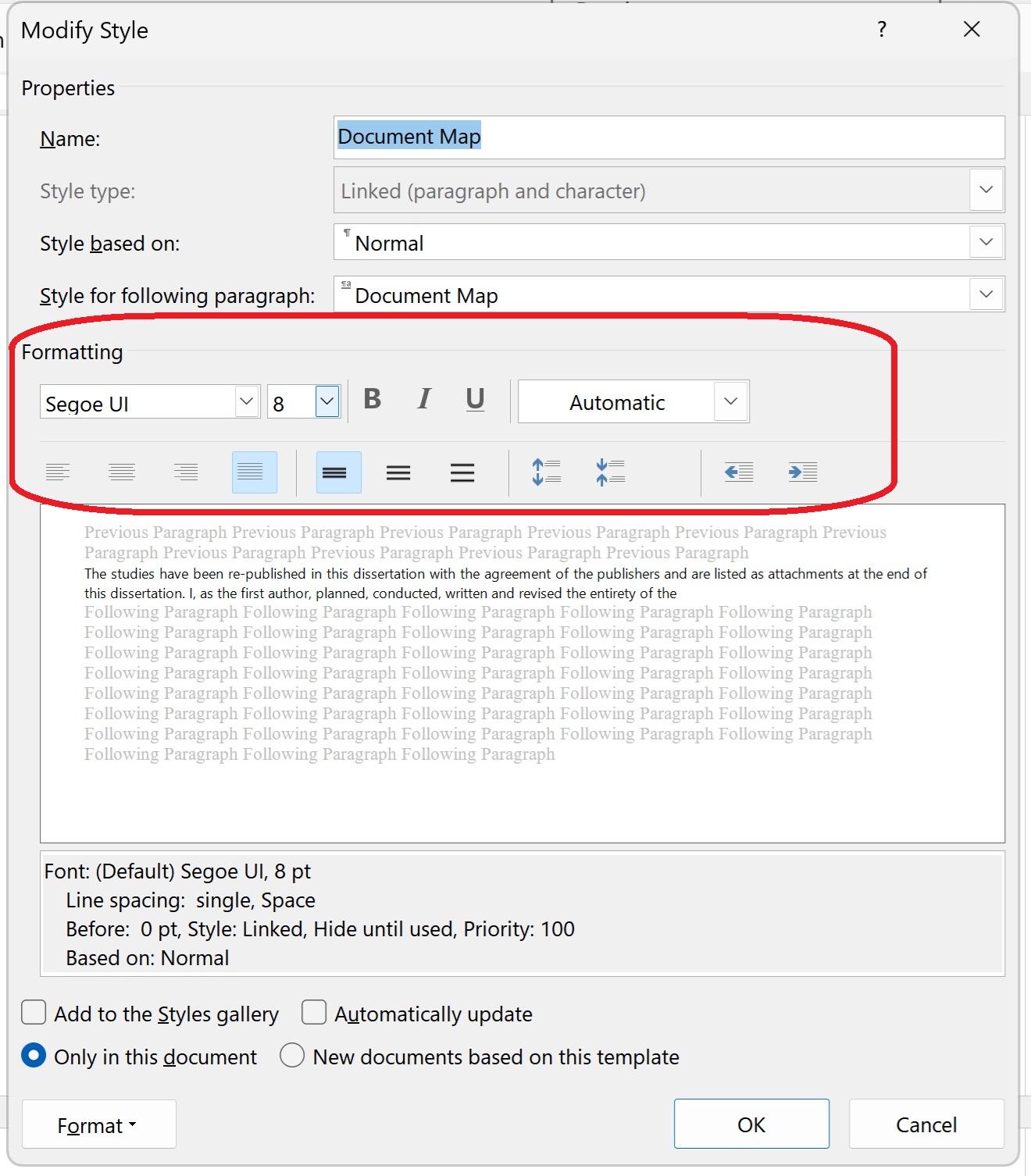
Once you’ve changed the font, and decided whether you want to add this style to the gallery (hopefully not, as you’ll never need to change it again!) and whether you only want this change for this document or all new documents based on the same template (not so useful if you only work on documents originating with other people), press “OK”.
Does this fix always work?
You may need to close and re-open your document to see the font size in the Navigation Pane change to one you can read. And it might not work, especially if you’re working with a corrupted document that has been through a lot of versions. But it should do.
Summary
In this post we have learned what to do if your Navigation Pane font size in Word suddenly becomes tiny (or, indeed, enormous)
Please note that these tips are primarily for Word 2010 and onwards, including Microsoft Office Subscription for PC. Most of them will work for Word for Mac, although you may find some menus in different places and I can’t guarantee it. This is part of my series on how to avoid time-consuming “short cuts” and use Word in the right way to maximise your time and improve the look of your documents. Find all the short cuts here …
Do let me know if this has helped you, saved your document, etc. – and do share with the buttons at the bottom of this article.
Related articles
How do I view my Navigation Pane?
How do I move text and headings using the Navigation Pane?

 LibroEditing proofreading, editing, transcription, localisation
lightning6b
May 16, 2025 at 2:49 pm
I must be missing something. When I open the Navigation panel I get every page of the document in extremely small font. I selected Styles and changed the font and nothing changed. What am I missing?
LikeLike
Liz Dexter
May 16, 2025 at 2:54 pm
OK, can you see at the top of the Navigation Pane you have Headings Pages Results? You might be on Pages, which will show you the whole document very small (useful when navigating to the page you know you put a picture on, etc.). Try clicking on Headings or Results, which should then be normal size. If not, try closing the document and opening it again. Let me know how you get on.
LikeLike
lightning6b
May 16, 2025 at 3:28 pm
Thanks for the quick response but I changed to headings and results and no change
Al
LikeLike
Liz Dexter
May 16, 2025 at 3:39 pm
And have you tried closing and re-opening the document (with the Navigation Pane closed) and Word? I had one recalcitrant document that had a lot of extra styles added and was generally unstable that took that to get it to work.
LikeLike
lightning6b
May 16, 2025 at 6:22 pm
Still no luck, Liz. I’ll keep trying though. This is one tool i will be using. I appreciate the ideas.
LikeLike
Liz Dexter
May 16, 2025 at 7:11 pm
What happens when you open another document? Or if you do the trick of copying all but the final line return and pasting into a new document?
LikeLike
lightning6b
May 16, 2025 at 7:28 pm
I’ll try that tomorrow Liz. Thanks for bearing with me.
Get Outlook for iOShttps://aka.ms/o0ukef ________________________________
LikeLike
abdessamed gtumsila
May 22, 2025 at 9:16 am
Thanks for the helpful explanation!
LikeLike