Using Twitter for your business
Twitter is an absolutely brilliant tool for business owners – if you use it in the right way. If you use in the wrong way, it can be a nightmare, as bad (or embarrassing) news travels very fast in the Twitter universe!
I personally got a lot out of Twitter in the early days, actually securing clients through using it – and long-term clients who recommended me on to more clients, too. I’d go as far as to say that it’s my number four source of work, after repeat business, personal recommendations and the Proz website. My clients still recommend me to other clients via Twitter, even several years on (the other month, a music journalist tweeted that she was looking for a transcriber. FIVE of my current clients tweeted her with my name!).
Benefits of Twitter: it’s quick and easy to use. Disadvantage: it can be a time-sink. Most important thing to remember: People only tend to see a snapshot of their tweets every day. I only know one person who reads ALL of the tweets in his timeline. This means that your tweeting strategy should be a bit different from your other social media posting strategies.
Setting up your Twitter profile
When you join Twitter, it’s very quick and easy to set up your profile. Your profile is a quick guide to who you are. Anyone clicking on it or searching for it needs to know that they’ve found the right Liz Broomfield / Libro (or whatever) and to see easily what you do.
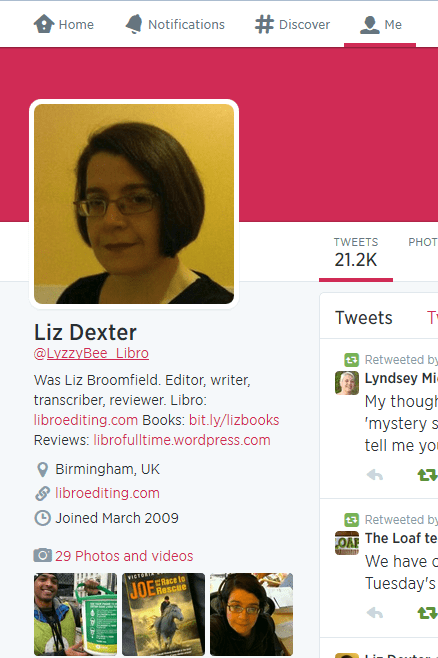
I would recommend including the following on your profile, and I’ve seen plenty of other people recommend this, too:
- Your real name when you log in, as well as your company name for your Twitter ID
- Your photograph on your profile, rather than your company logo (you can add that to your background)
- Your company URL in the field where you can provide that
- Use your 140 letters of profile to the max, including what you do and any extra URLs
As with any profile, you can change it at any point; just click on your image and choose Settings, Edit profile of in the Home Screen, click on your Twitter ID and the Edit Profile button.
Following and followers
Once you’ve set up your Twitter account, you can start following a few people. Twitter will suggest ones that you don’t really want, based on who’s popular, but you can find interesting people to follow in a variety of ways:
Ask someone for their Twitter ID when you meet them or glean it from their business card or website. Then enter that ID in the search field on Twitter. Or you can search for the person’s name or company name in the search field on Twitter.
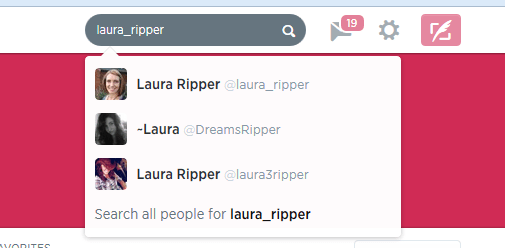
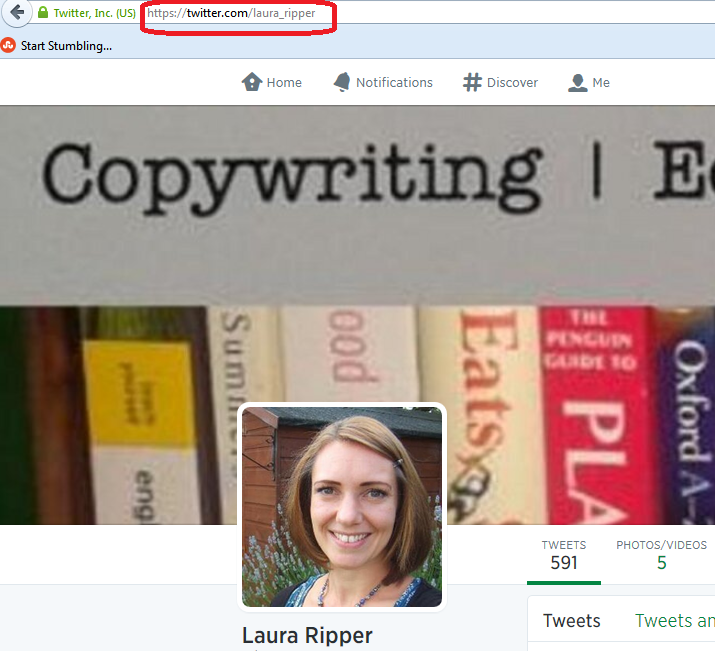
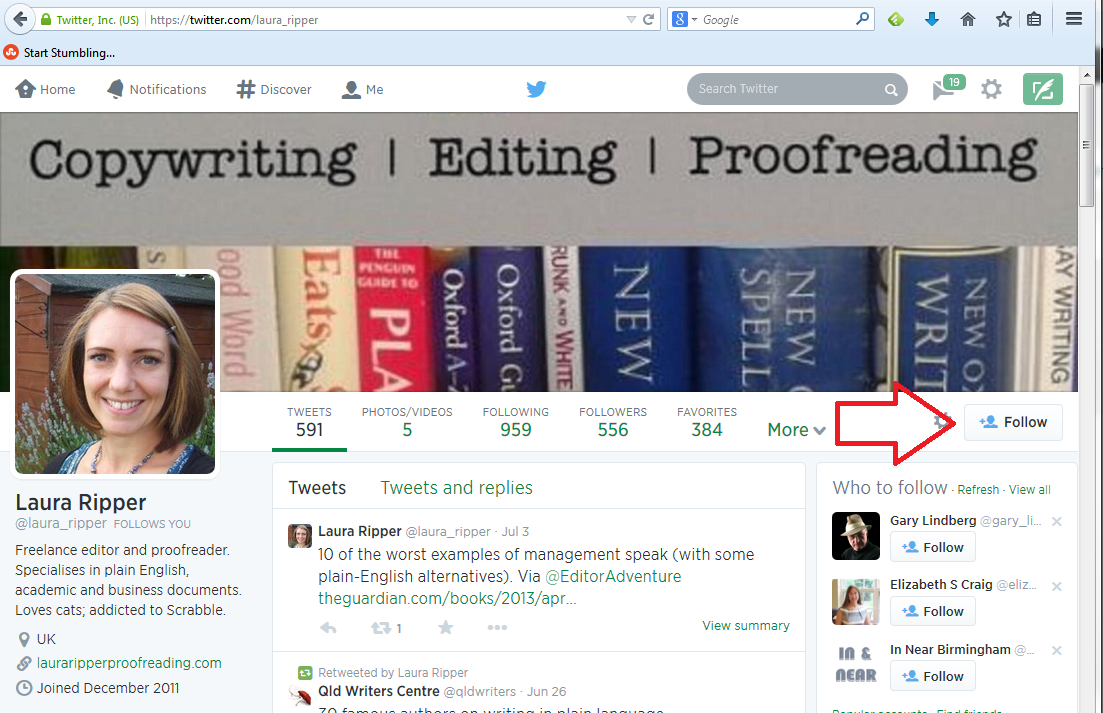
Or you can go to http://www.twitter.com/%5BID without an @ sign]:
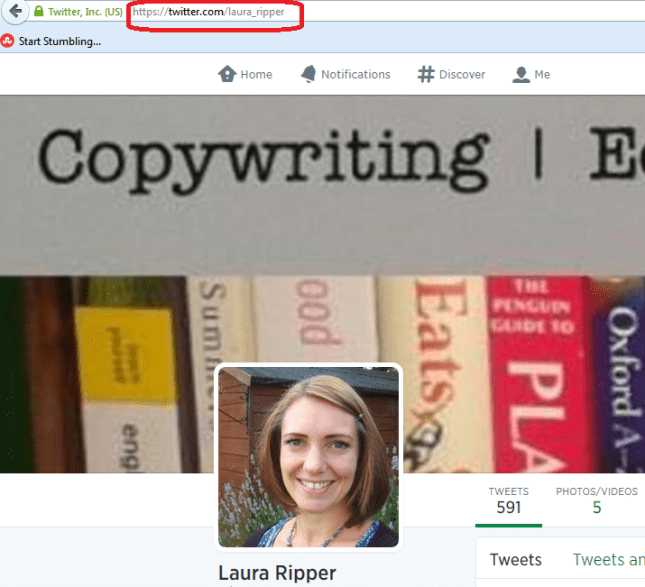
Have a look at their profile to check it’s the correct person, then press the Follow button if it is:
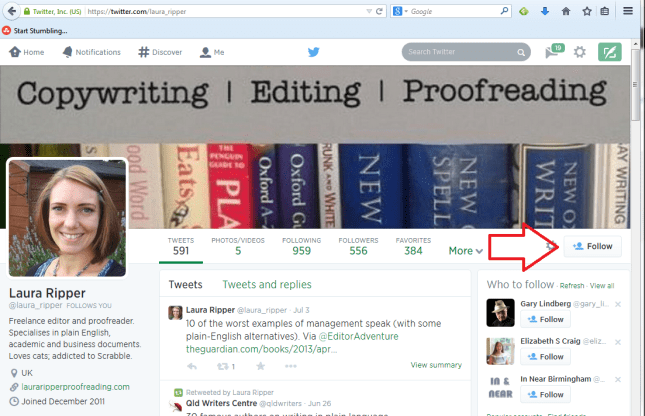
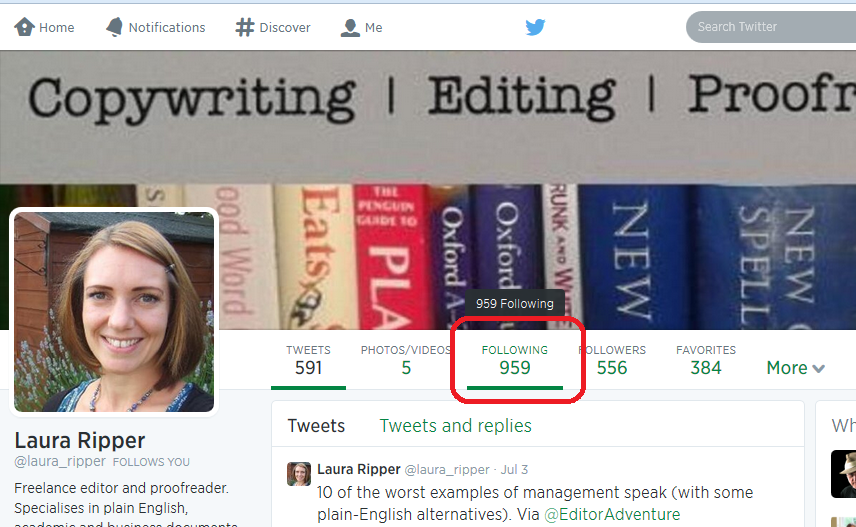
If you’re following someone in an interesting field, have a look at who they’re following. If you click on their profile, you will see links to Tweets, Following and Followers. Click on Following
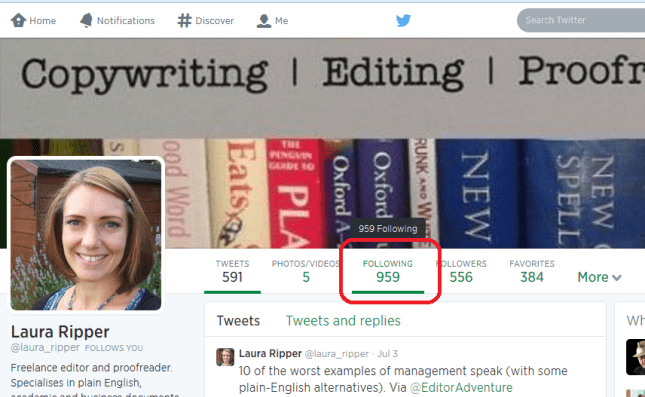
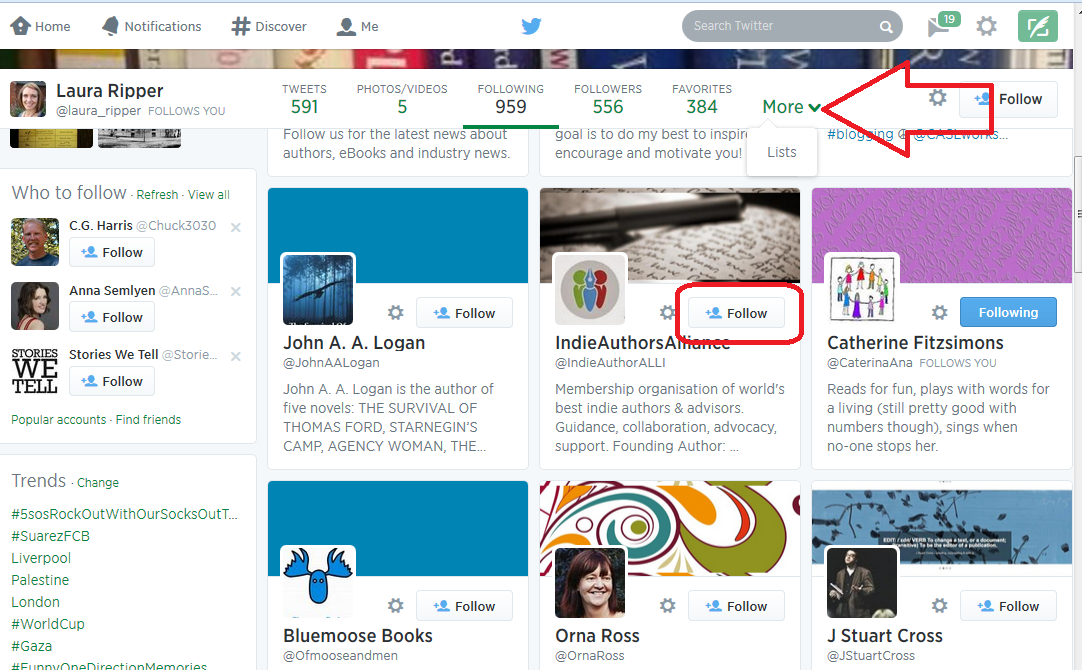
and have a look – there will be a handy Follow button by each name so you can simply follow from there (if you’re already following someone, it will be marked as such). Once you’re viewing who someone is following, you will see a dropdown button marked More which will take you to their Lists.
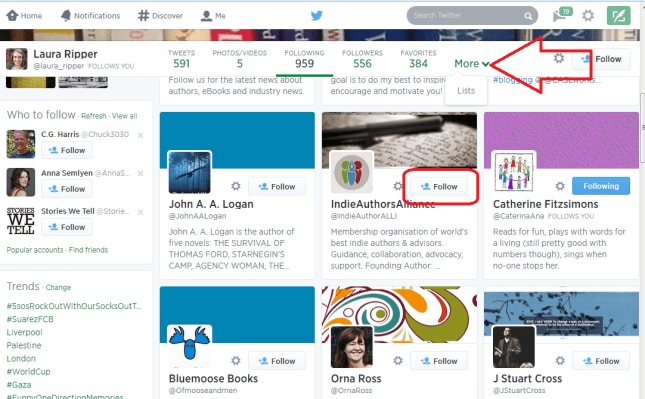
See more about Lists later on, but you can follow either an entire list or members of one by clicking on the list, and this is another good way to glean people to follow in a particular area of interest.
How do I choose who to follow?
It’s entirely up to you how many people you follow and whether you organise them in any way. When I’m deciding whether to follow people who I’ve found, or who have followed me (you don’t HAVE to follow everyone who’s followed you, but it’s polite to have a look at least), this is what I do:
- Check their profile to see whether they’re interesting to me
- Check their list of tweets to see if they tweet interesting information
- Check their tweets for the same tweet repeated over and over again – this means a lack of imagination, something akin to spamming or an automated response
- Check their tweets for regularity and date of tweeting – if someone tweets once a week or hasn’t tweeted for a number of months, unless they’re hugely important to me, I won’t bother to follow them because their tweets will get lost in the general melee
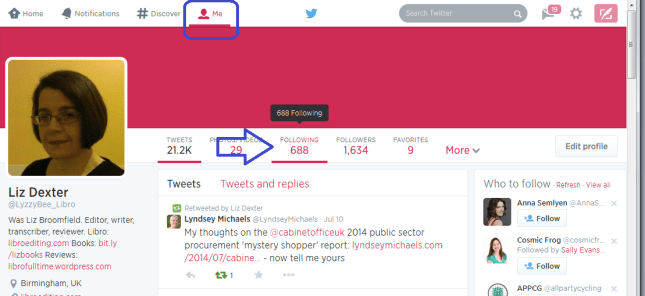
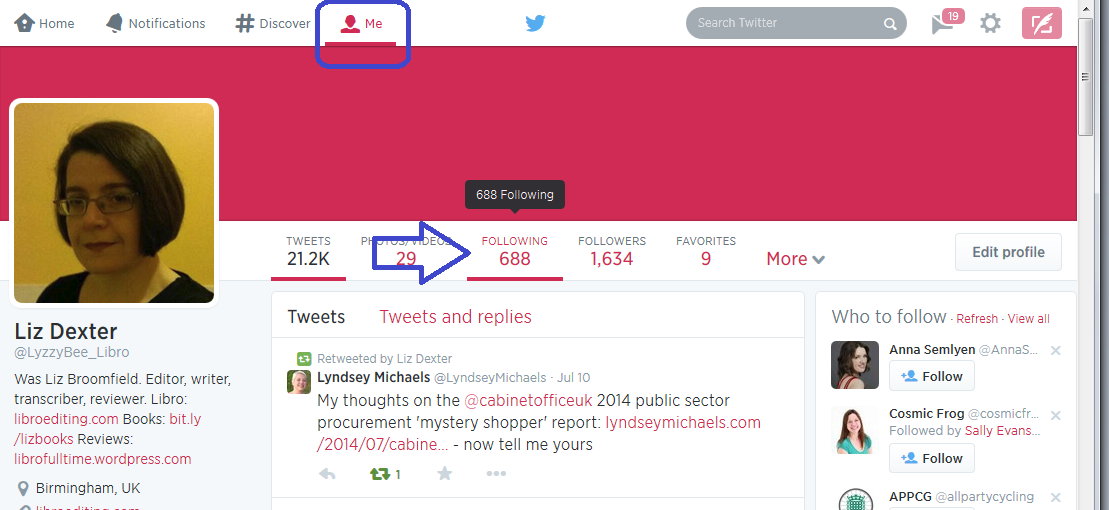
I do also regularly run a check over the people I’m following (click on Home, your own Twitter ID and Following) to make sure they’re still active. If not, I tend to cull. Sorry!
Lists
Lists are a great way to put the people who you follow into categories or filters that you can look at independently. For example, I have a “Must know” list which includes all of the real-life friends plus some news feeds that I follow, so that if I only have time for a quick dip into Twitter, I can see what’s really important. I also have a “Journos” one so that I can see what my music journalist clients and a few others are up to, for some entertainment.
To add someone to a list …
Click on their name in your timeline to view their profile …
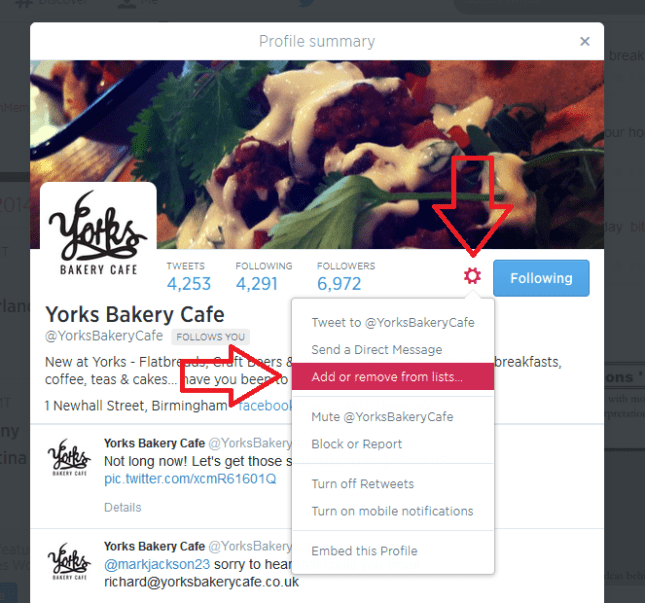
… or go to your list of accounts followed (Me – Following)
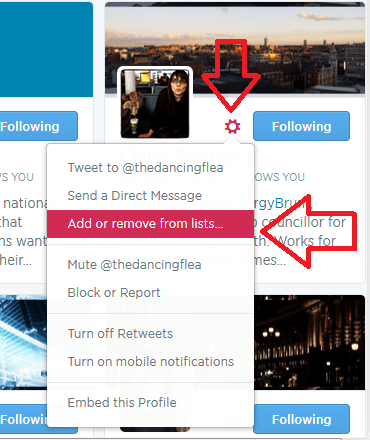
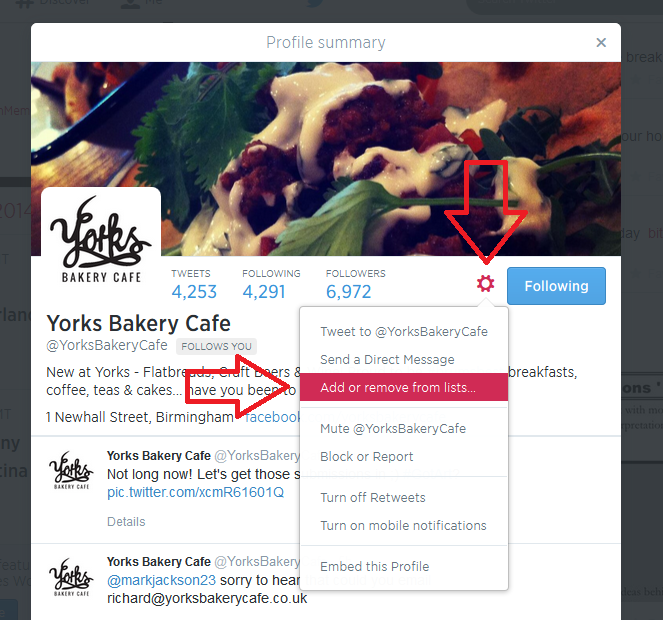
Click the User Options button (next to Following, it looks like a cog)
Click on Add or Remove From Lists
You’ll see a list of all of the lists you’ve already set up (if you have set any up) plus a button, Create a List
Either click on a list name to add that person then press the X in the top right corner to close the dialogue box:
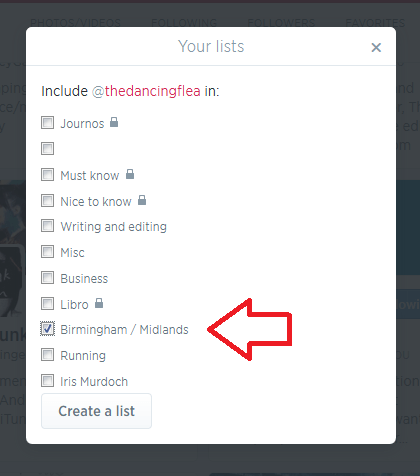
or click on Create a List
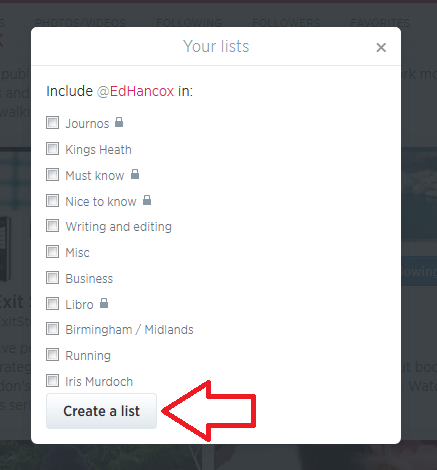
and make up a new list name to add this person to:
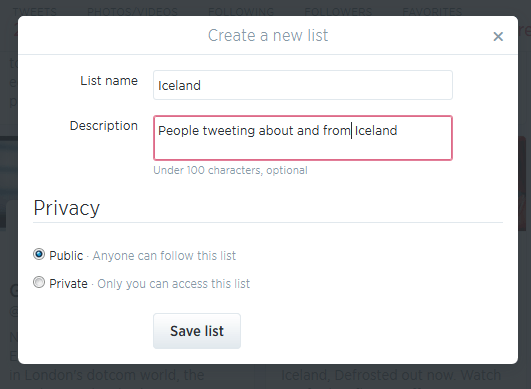
(if you make a list private, only you can see it – you’ll know when a list is private because it will have a padlock symbol next to the list name). Once you hit Save list, you will need to tick the particular list you want to add this person to:
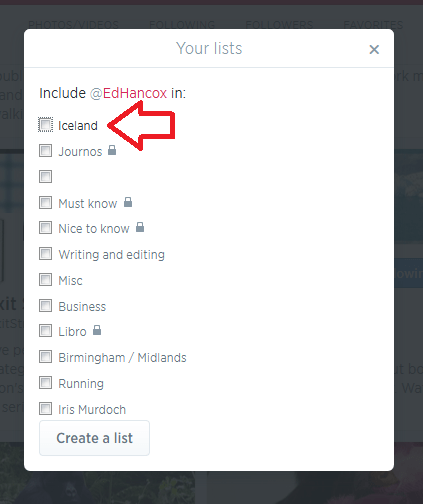
Once you have some lists, you’ll see a Lists entry under More when you click on Me. Ideas for lists include friends, particular interests, your business sector, news feeds, sport – anything you want.
You can follow other people’s lists or mine them for good accounts to follow – just click on a particular person’s Twitter ID and you’ll get their following, followers and lists.
Note – this doesn’t work exactly the same on mobile devices or third-party Twitter management dashboards as it does on the basic web-based Twitter interface. These instructions are for the latter.
How Twitter works – @ and #
One thing that you’ll see a lot of on Twitter is the symbols @ and #
@ is used in front of a Twitter ID to notify the person that you’re talking to them or to point someone else to their account. For example, someone might recommend an account for me to follow:
Megmac: @lyzzybee_libro have a look at @thecreativepenn for a good feed for writers
This makes the message appear in my Connect list (see below) and TheCreativePenn’s Connect list, so I will see the recommendation and she will see that she’s been recommended to me. If she wants, she can then reach out to me, and say thank you to the recommender.
# is used to create clickable links that will pull information on a particular topic together in one view. It’s often used at events and conferences – so, for example, #cbsms is used by people tweeting about the Central Birmingham Social Media Surgery. When you see a hashtag (as this is called) in a tweet, it will be a clickable link. Click on the hashtag and you will see all of the recent tweets with that hashtag, giving you a view of what’s going on and who’s talking about it.
Lyzzbee_libro: Off to the social media surgery to help a few people today #cbsms
It is also used to link tweets on a wider topic, e.g. #amwriting, which writers use to talk about the writing process. You can pop a hashtag on a tweet when you want it to come up in such searches, for example I might tweet about my book on transcription and add #transcription at the end, so that anyone looking at that hashtag will see my tweet.
Your Twitterstream and mentions
Whether you’re viewing Twitter online on a computer or via a phone or a third party dashboard, you will have a twitterstream and then various other views.
Your Home will show you your twitterstream: all the most recent tweets by people / companies / whatever that you’re following.
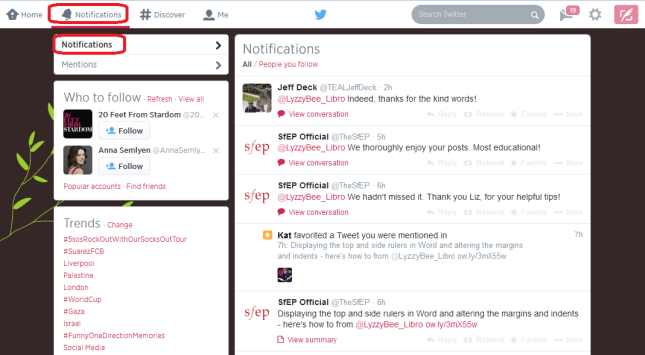
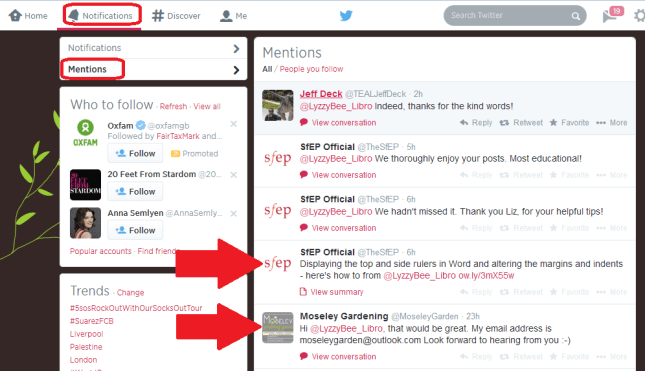
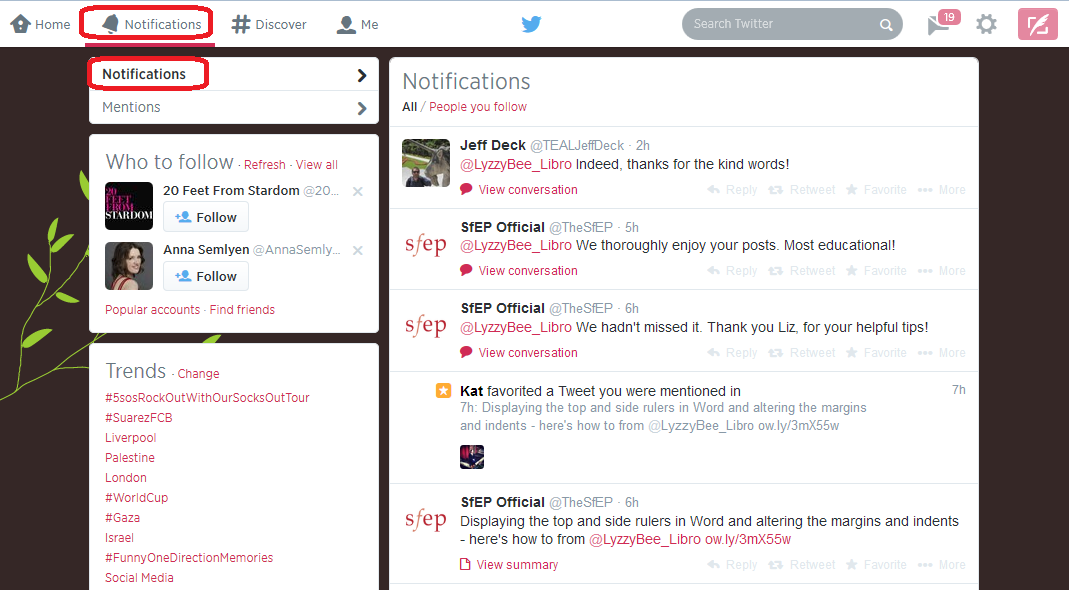
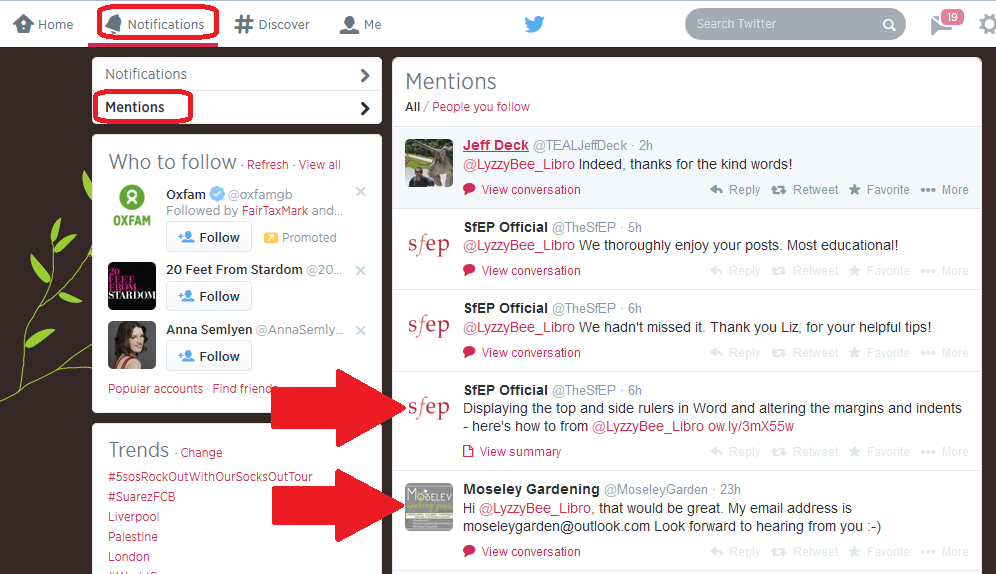
Your Notifications list will show you anything directly concerning your own Twitter account – so messages that have been sent to you with an @[your Twitter ID] as well as people who have followed you. It’s good practice to keep an eye on this so that you can reply to any messages sent to you and say thank you for recommendations and follows. Note here that Notifications gives you information on who’s followed you and favourited your messages, and any messages that start with your name:
while Mentions will also show you when you’ve been @ mentioned by someone else:
Getting rid of spammers
Everyone gets spammed by Twitter accounts, dodgy or otherwise, that are usually either looking for random followers to boost their numbers or clicks to their undesirable links. The ones with links often only have a link in the text – this is a real red flag and you should never click on a link in a tweet, even from a friend, if there’s only a link and no text (your friend could have had their account hacked).
If you receive an odd tweet or one with just a link, click on the photo or name of the sender. You will typically see that they’ve sent the same short message or no message and link to multiple people. Click on the User Actions button on their profile and you have options to Block or Report: [Note: I’m just using this chap as an example, he’s a good guy really!]
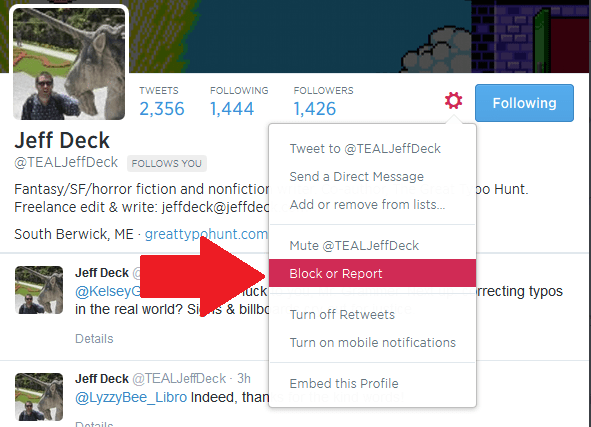
Once you’ve clicked on Block or Report you will see this screen, which allows you to tell Twitter why exactly you are blocking or reporting the person:
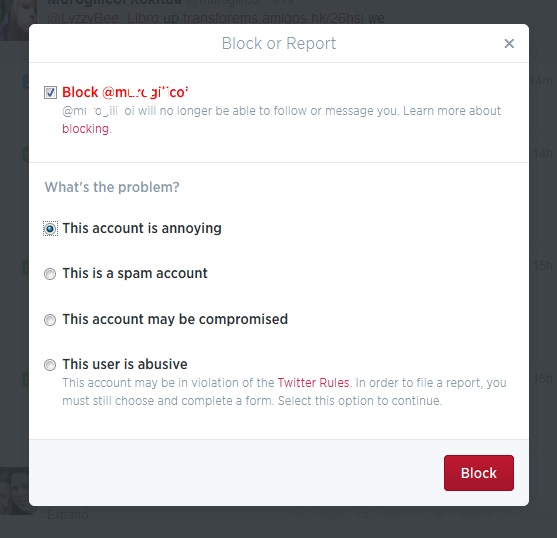
This alerts Twitter that the person is spamming, and will help to save someone not as savvy as you from clicking on a dodgy link and going who knows where in cyberspace!
If you’re just getting annoyed or bored by a Twitter account that you follow, you can click on their photo or name and press the button marked Following – this will change to Unfollow as you hover over it; click it and you’ll unfollow them and no longer see them in your Twitterstream.
Rules for using Twitter effectively
Using Twitter effectively is a matter of knowing how it works and how people view it, and being sensible and polite.
Posting multiple times
The main point about tweeting is that very few people read every single tweet on their timeline. People typically check Twitter on the way to work, at lunchtime, on the way home, and some time in the evening. Once you’re following more than about fifty people, there’s no way that you’re going to see all of their tweets – so think of people as viewing a snapshot of their Twitterstream rather than everything.
This means that it’s fine to tweet a message multiple times, where it would be seen as rude and intrustive to post a Facebook status multiple times in one day.
You also need to be aware of your markets and their time zones – if you have a lot of Australian clients, and you’re in the UK, you will need to tailor your tweets to their time zone, maybe investing in a Twitter dashboard that will allow you to pre-schedule your tweets.
Using a dashboard
It can be very useful to use a dashboard such as Tweetdeck to manage your Twitter accounts. You can view multiple accounts at a time and post as them (handy if you have, say, a personal and a work account) and view your lists in their own feeds. Some of them will also allow you to schedule your tweets to be published at a certain time or on a certain date, which can be very useful (although watch out that you still keep an eye on when these go out, as there have been numerous examples of an auto-tweet posting when it’s really not appropriate, such as after a disaster).
Sharing other people’s material
The other main rule is to be polite and reciprocate and say thank you.
If you retweet other people’s tweets, they are more likely to share your tweets with their network. To retweet, click on the word retweet underneath the tweet, or look for that ‘arrows-in-a-square’ icon which has the same effect. Some people reckon that you should share five other tweets to every one of your own that you post. I’m not that scientific, but I do try to share as much as I post.
Saying thank you and being proactive
If other people retweet or otherwise share your tweets, which you will find out about by reviewing your Connect feed, do drop them a message to say thank you.
If someone recommends your Twitter account or your services to someone else, contact the person to whom you’re being recommended with a polite “how can I help you” and a way to contact you, and say thank you to the recommender.
Not automating too much and not spamming
I’m not a big fan of the automated message when I follow someone’s Twitter account, and many other people find this annoying, too. I like to know that there’s a person behind the account. Similarly, all sales and no sharing, or all automated tweeting and no replying to @ messages will probably get people irritated.
Other useful posts
On this blog: Using Twitter to find jobs
Using LinkedIn for your business
Social media resource guide for this blog
My friend Sandy’s post on Twitter for professional development
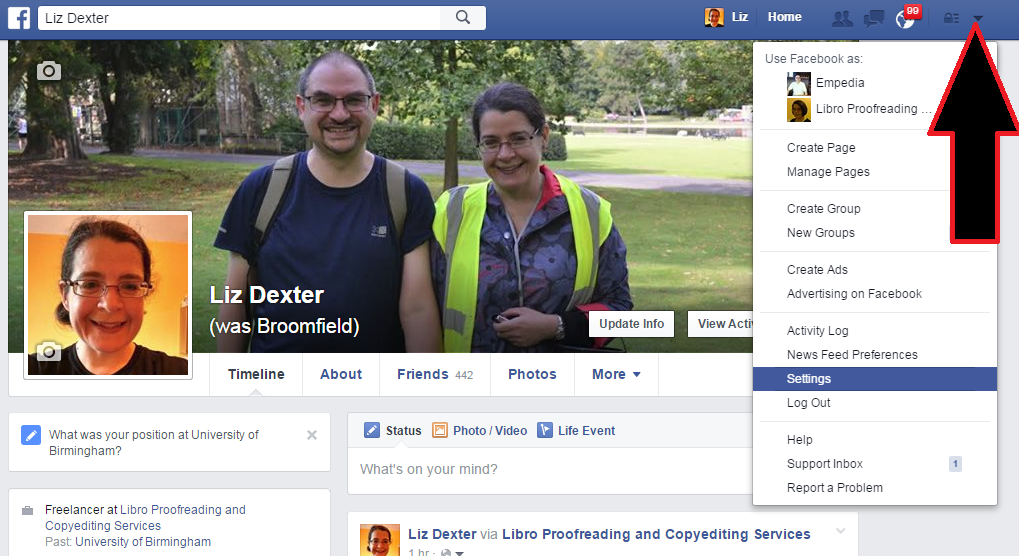

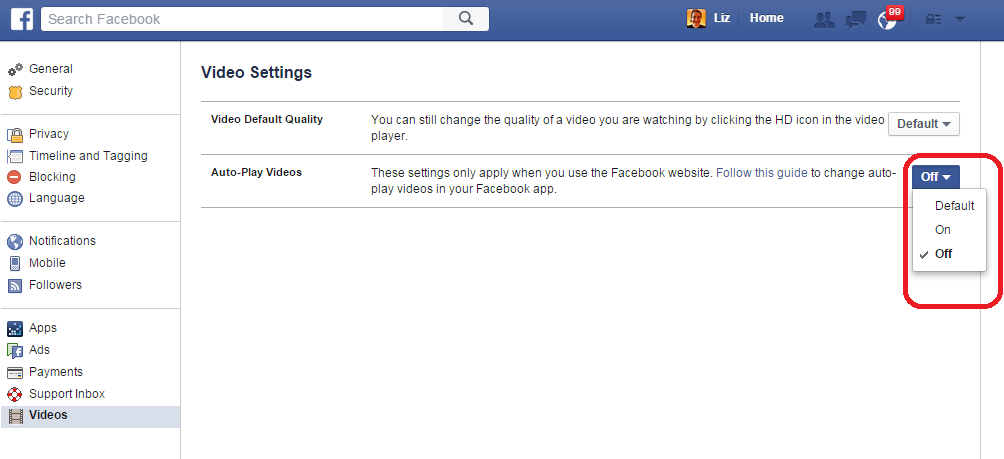
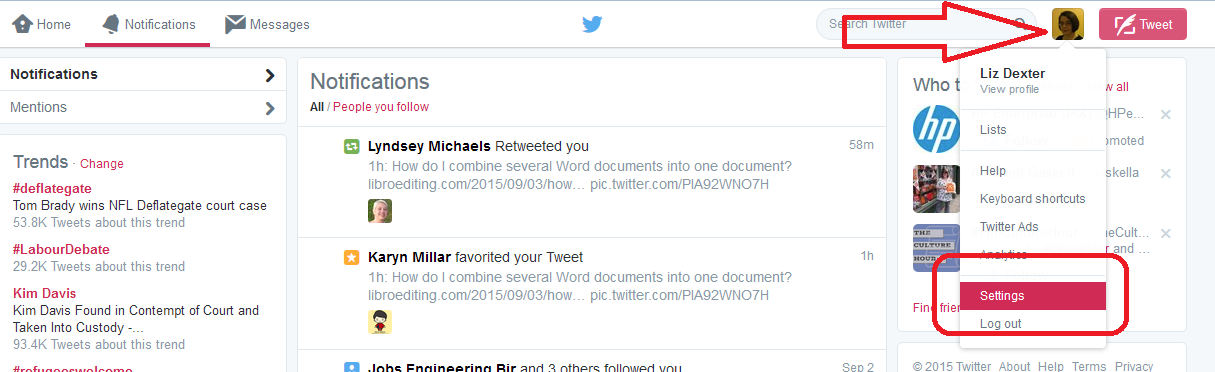
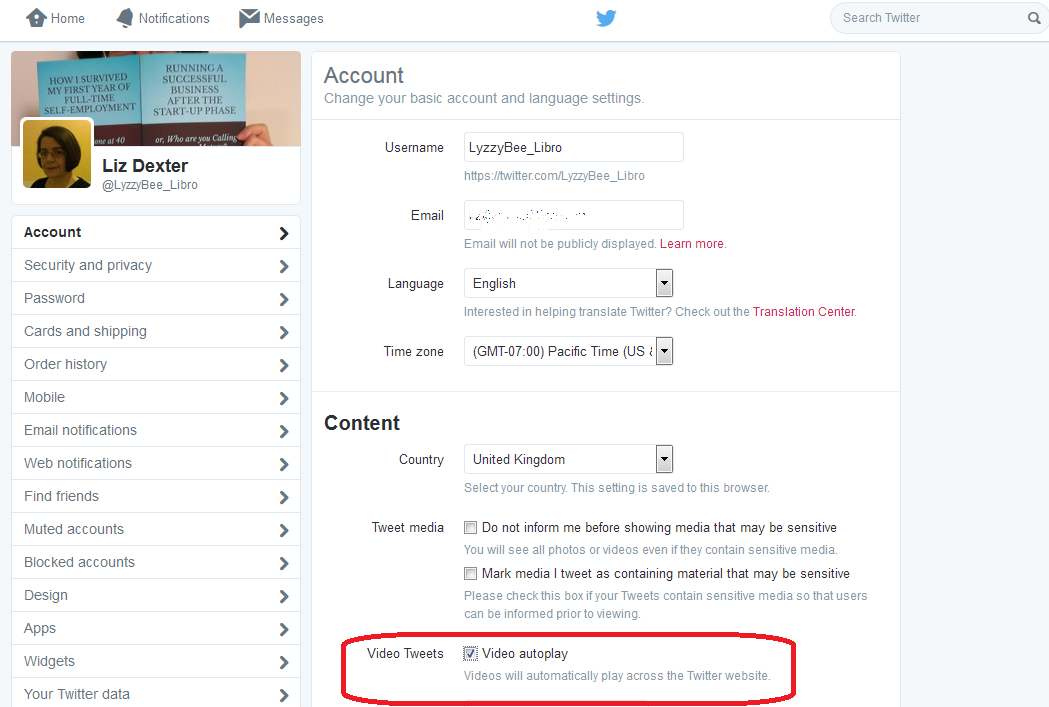
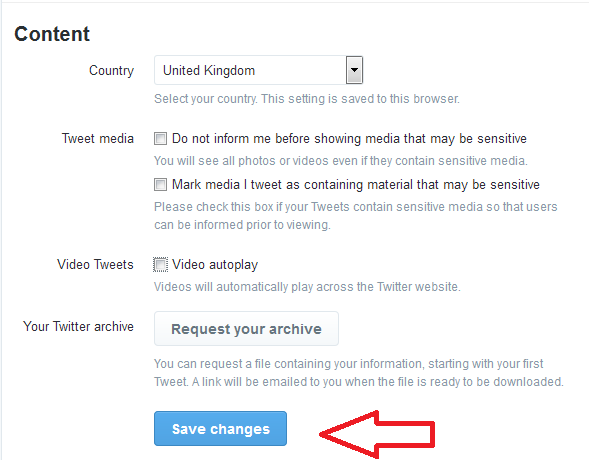 Twitter will now ask you to confirm the change by entering your password: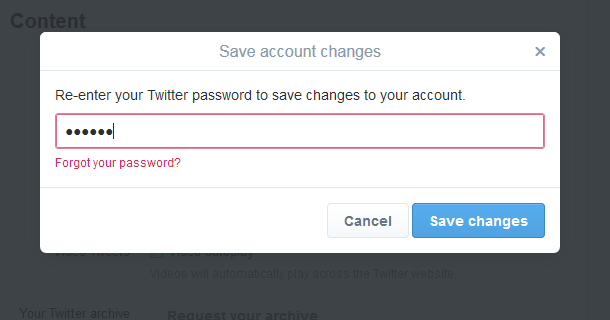


 LibroEditing proofreading, editing, transcription, localisation