RSS

Tag Archives: Facebook

How do I delete a Facebook group?

In this post we’re going to learn how to delete a Facebook Group. It’s the only way, and seems a bit weird to me – I spent ages looking for buttons to press and options to choose before finding out! So hopefully you will have found this article easily and I can help you do it more quickly!

For more basic information about using Facebook, see my article on Facebook for business.

Why might I want to delete a Facebook group?

The reason I wanted to do this is that I had a group based around a general election that there was no point keeping up with now. There are lots of reasons why you might want to delete a group, though – it might have got out of hand, you might not have time to run it, it might be time-dependent and out of date, like my one was.

If it’s a matter of not having enough time, consider making someone else the Admin for the group – you can see how to do that later on in this post, as well.

Note, you do have to be the owner or administrator of the group to delete it.

How do I delete a Facebook group?

To delete a Facebook group, you need to remove all of the members, then yourself. This makes the group go away.

In your group, locate its Members area:

Facebook group members area

Click on the Members link and here you are with your list of members:

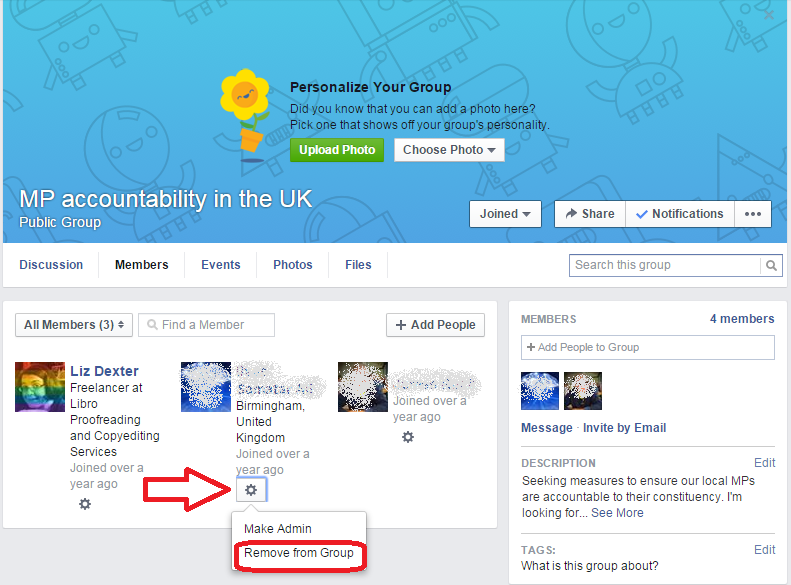
remove member of facebook group

For each member, click on the cog under the member’s name and click Remove from Group. Note that this is where you can make them an Admin instead.

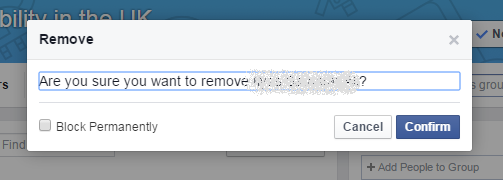
Facebook will ask you to confirm.

remove member from facebook group check

Do this for each member of the group.

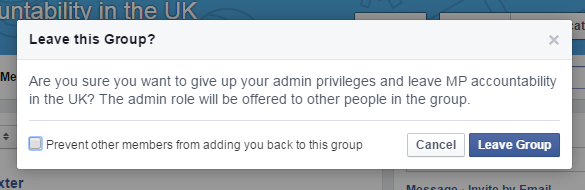
Lastly, remove yourself from the group in the same way. You will get this confirmation message:

Facebook delete group

This is the same error message whether you’re just leaving the group or you’re the last to leave – just choose Leave Group.

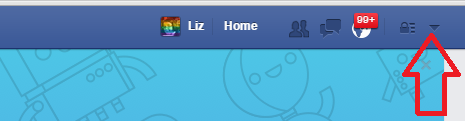
The group should now disappear. If it doesn’t, your best bet is to contact Facebook. Click on the arrow marked here:

4 report a problem

… and select Report a Problem from the dropdown.

If you’ve enjoyed this post and found it useful, please share it using the buttons below! Thank you!

You can find more resources on social media in my blog resource guide (link takes you to the social media section) and read about using social media for your business in my book on growing your business.

Related posts on this blog:

Facebook for business

How to delete posts and block users from your Facebook page

How to add an administrator to your Facebook page

 
6 Comments

Posted by on July 8, 2015 in Business, Facebook, Social media


Tags: , ,

How do I remove a member from a Facebook group?

In this post we’re going to learn how to remove a member from a Facebook Group. For more basic information about using Facebook, see my article on Facebook for business.

Why might I want to remove someone from my Facebook group?

The most common reason is that they have been spamming your group or behaving in another way that’s not acceptable.

Sometimes, a group member might not be sure how to leave a group and might ask you to remove them.

How do I remove someone from my Facebook group?

Go into your group and look for the Members area:

Facebook group members area

Click on the Members link to get into the Members area:

remove member of facebook group

Click on the cog under the member’s name and choose Remove from Group.

Facebook will ask you to confirm. At this point, as you can see, you can also block them from joining or posting to the group again:

remove member from facebook group check

And they’ve gone!

If you’ve enjoyed this post and found it useful, please share it using the buttons below! Thank you!

You can find more resources on social media in my blog resource guide (link takes you to the social media section) and read about using social media for your business in my book on growing your business.

Related posts on this blog:

Facebook for business

How to delete posts and block users from your Facebook page

How to add an administrator to your Facebook page

 
2 Comments

Posted by on July 2, 2015 in Business, Facebook, Social media


Tags: , ,

How do I delete a post or ban a user on a Facebook page?

This post follows on from my one about the basics of Facebook for business and covers two really common concerns for people with a business Facebook page:

  • How do I delete a post or comment that someone has put on my Facebook page?
  • How do I ban or block someone from commenting on my Facebook page?

In fact, the way to do the second leads on from the first … so let’s look at how to delete a comment first.

Where can I see other people’s comments on my Facebook page?

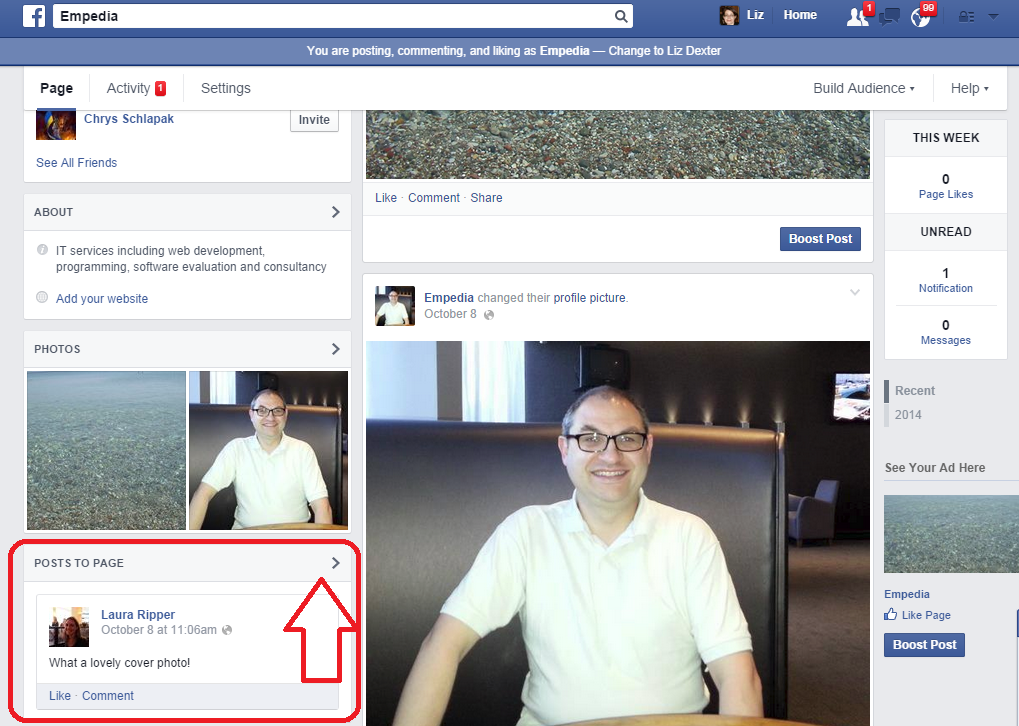
Comments move around a bit on Facebook, but if you’ve enabled people to be able to comment, you can see their comments under the heading Posts to Page:

Posts to page on Facebook page

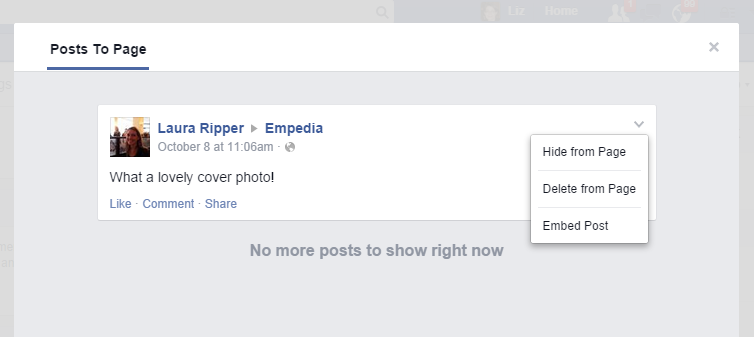
To look at all of these posts in detail or delete some, click on the arrow at the top right. You will then see just your comments:

Posts to page view Facebook

To delete this post OR to block or ban the user, click on the down arrow at the top right. You will now be presented with three options:

Delete post to Facebook page

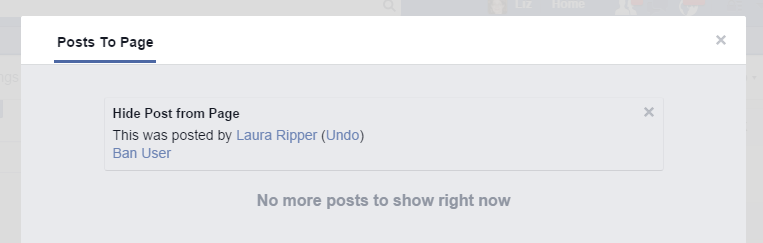
  • Hide from Page will hide the post but not delete it – no one will be able to see it. This would be useful if you suspected someone of posting inappropriately but wanted to get in touch with them to check what they meant or give them another chance / ask them to edit their post. You also have the option to ban the user at this point:

Facebook page hide post

(use Undo to backtrack from here, the x button to hide and close the dialogue box, or Ban User to ban the user from the page)

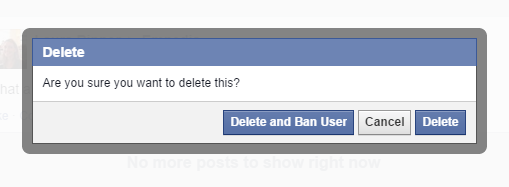
  • Delete from Page will delete the post and give you the option to ban the person who wrote the post

Delete post from Facebook pageYou can Delete the post and ban the user, Cancel if you clicked this option by mistake, or just Delete the post (you could use this option if the user had made a mistake or posted something you didn’t want on the page but you don’t actually want to ban that person from posting on your page in future.

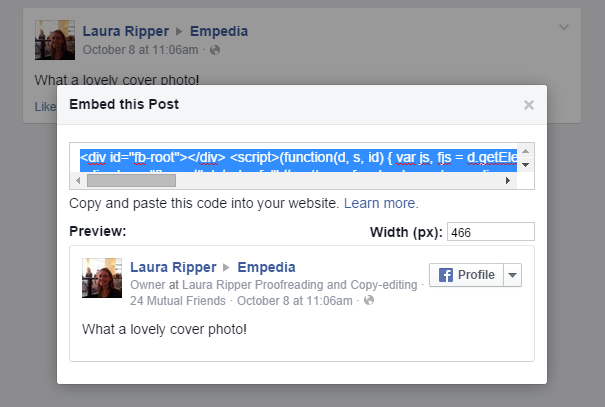
  • Embed Post will generate some HTML code that will allow you to include an image of the post on Facebook in other places such as your website or blog – useful if you have a great post from a fan or celebrity:

Facebook embed post

Copy the code that’s highlighted and use it anywhere that you can place HTML – in a blog post, on a website, in a discussion forum, etc.

How do I block someone from posting on my business’s Facebook page?

As we’ve seen above, you can use two methods: both need you to look at the post itself first. You can then …

  • Hide the post and ban the user
  • Delete the post and ban the user

How do I stop people posting on my Facebook page at all?

If you want to suppress all posts from people who are not the Facebook page’s administrators / moderators, go to Settings / General / Posting Ability. When you go to the General area, under Posting Ability you will see your current settings. If you want to change these, click Edit:

Facebook settings allowing posts

Clicking Edit will allow you to choose whether and what people can post on your business page:

Edit posting ability Facebook

Use the round buttons to choose whether you Allow other people to post to my Page timeline or Disable posts by other people on my Page timeline. The tick boxes allow you to choose whether to let people add videos or photos (useful to untick if people have been posting inappropriate photos but you still want to allow comments) and allow you to ask Facebook to send you posts by other people that you then have to approve (you’ll receive an email alerting you to the new post and allowing you to approve or reject it).

Click Save Changes to save your changes or Cancel if you want to keep your settings as they are.

Important information about allowing posting and deleting posts

I personally think it’s a good idea to allow other people to post on your business Facebook page. After all, you want to encourage interaction and conversations, not just pump out sales information, right? I get a bit frustrated if I go onto the Facebook page for a business and find I can’t place a comment about how much I loved their veggie sausages or enjoy wearing my new shoes. So, unless you are bombarded with spam and abuse, try not to use the Disable posts by other people on my timeline option if it all possible.

And a word on deleting posts. Be careful what you delete.

Posts it’s OK to delete or hide

  • Unfounded or personal abuse
  • Spam that has nothing to do with your own page (e.g. on this Empedia page for an IT consultant, a post about buying homes in West Texas)
  • Spam from rival companies in your business area who are not supporting and cooperating with you, but merely trying to get your followers to move over to them instead (for example, on my own editing page, posts from student proofreading companies just saying “For the best proofreading click here”)
  • Pornographic or other inappropriate images, text or video

Posts it’s best not to delete or hide

  • Genuine complaints and negative feedback – OK, so your first reaction will be to hide that post where someone complains the shoe they bought from your range has fallen apart. But if they’ve taken the time to find your Facebook page and complain, then they’re going to know they did that, and they’re going to notice if you delete it. What will they do then? At very least, post it again, but be assured that they will have told their friends and family, shared your page on their Facebook timeline with a note about what you’ve done, and been very unhappy altogether.

If someone posts a complaint or negative feedback on your Facebook page …

  • Think what you’d do if you encountered them in person. You wouldn’t stick a bit of tape over their mouth or turn your back on them, would you? Yet that’s what you’re doing when you hide or delete their post.
  • Address the issue at least partly in public – for example, you could post a reply along the lines of, “Sorry to read you’re experiencing problems. Please contact me at vvv@vvvvv.com or via my Contact Page [with link] so we can resolve your problem”.
  • You could go further and say something like, “I’m sorry you appear to be having a problem – you can of course return your shoes to use for a full refund” and give them information on how to do this.
  • Once the problem is resolved, pop another reply on – “I’m glad we were able to replace your shoes and hope you’re happy with the new pair – do let us  know how you’re getting on.
  • Be polite – if someone posts a little aggressively – “I’ve heard you supply slip-on shoes with fancy chains and blood diamonds on them to arms dealers: what do you say about that?” then take the polite route, and address their question in public as far as you can.
  • Don’t get into a fight in public – if it gets messy, take it offline with an offer to call them or whatever’s appropriate.
  • If the poster strays into the inappropriate, follow the steps above for deleting or hiding posts, but maybe consider putting a note on the page to explain (calmly) why you did this.

This article has hopefully helped you to deal with negative or inappropriate comments and commentators on your Facebook page. You now know how to hide or delete comments and block or ban users from your Facebook business page, and how to use the Settings to control who can post what.

Other useful posts on this blog

Facebook for business – the basics

How to add an admin or moderator to your Facebook page

Thank you to my husband, Matthew, for allowing me to set up a Facebook page on his behalf to harvest screenshots! And of course, Laura Ripper is a good friend and colleague and never posts inappropriate content on people’s Facebook pages!

If you’ve enjoyed this post or found it useful, please click one of the sharing buttons below! Thank you!

 
8 Comments

Posted by on October 13, 2014 in Business, Facebook, Social media


Tags: , , ,

Facebook for business – starting out

This post takes you through the basics of setting up a Facebook page. You may have found this page from a link in one of my e-books, if so, welcome to this extra free resource!

You can set up a page for your business on Facebook as long as you’ve got a personal page.

The slight issue with Facebook business pages is that Facebook wants you to pay for adverts and to have your posts and page promoted to other people. So do be prepared to receive lots of suggestions to pay for ads and promotion, and not a lot of interaction from other users.

How to set up a Facebook business page

You will need to be logged in to Facebook

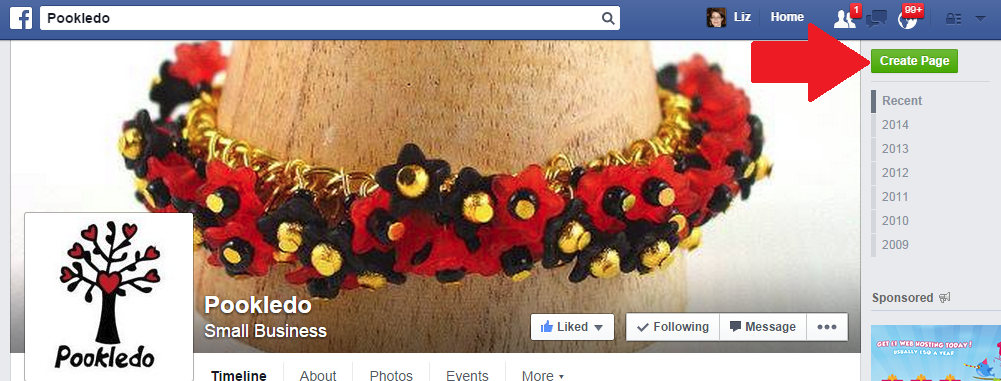
Go to www.facebook/pages/create or click on Create a page when you’re in any other Facebook page …
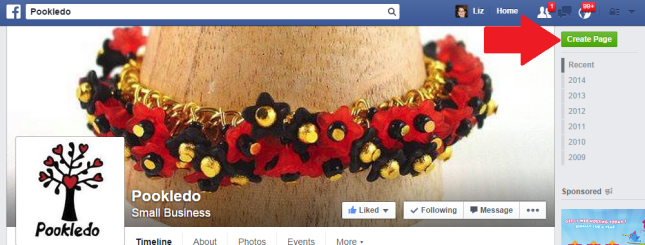
Facebook create a page button

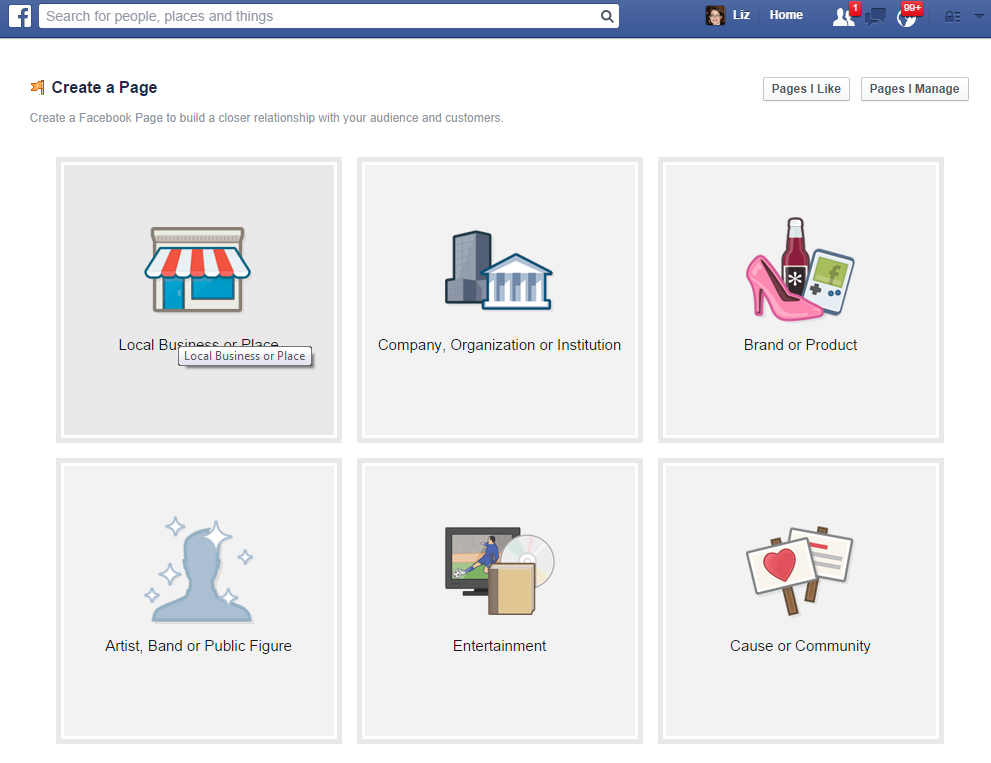
and choose a category of page to create:
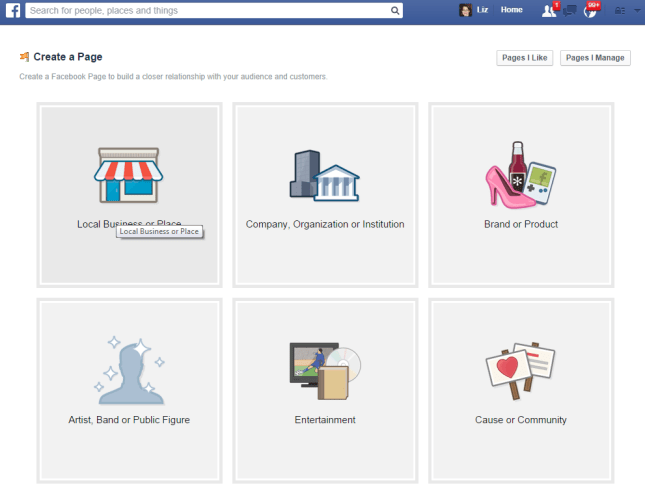
Facebook type of page

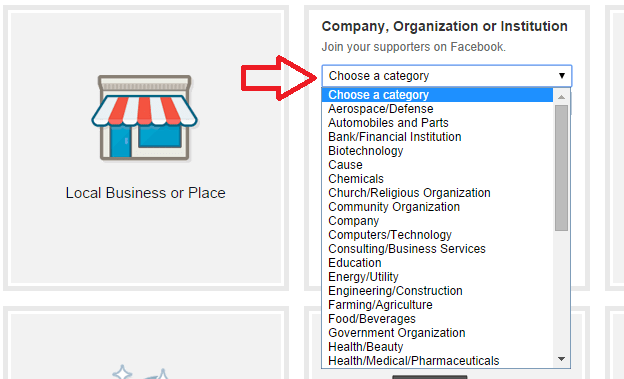
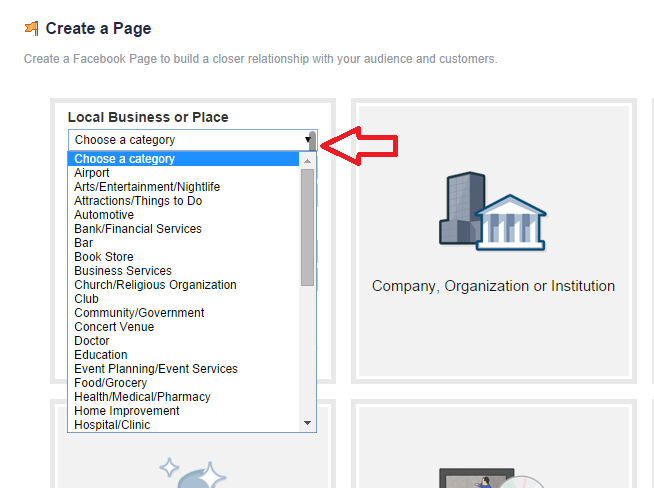
If, for example, you choose Local Business of Place or Company, Organization or Institution, you then need to choose your category, and it’s worth noting that you get different categories for Local Businesses …
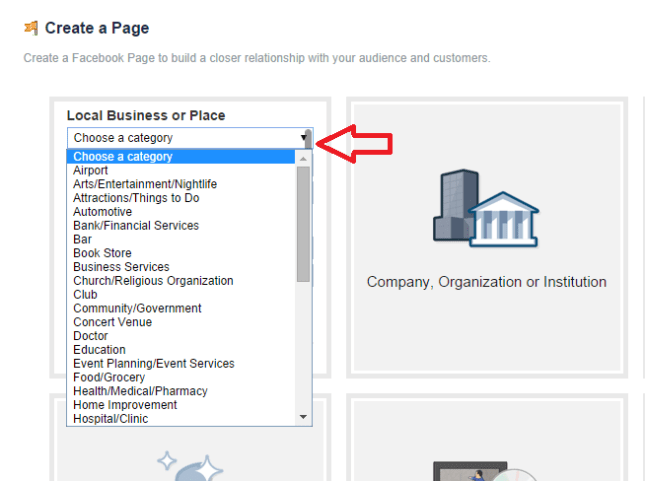
Facebook create local business page

… and Companies:

Facebook create company page

and give your page a name. If you choose local business or place, you’re given space to enter your address – good if you have a shop or need people to find you, not really recommended if you operate from your home office and don’t want all and sundry to know your address. I’m choosing Company, Organization or Institution:
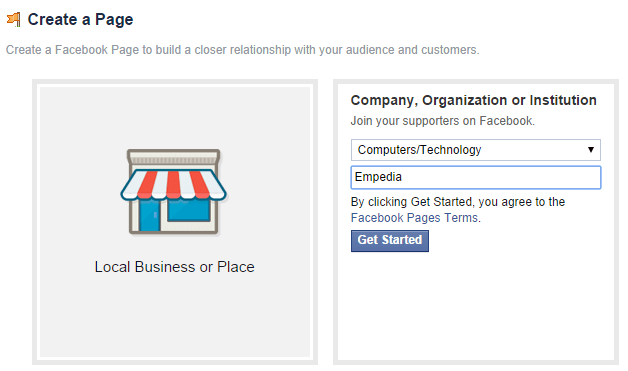
Create business page

Whatever type of page you set up, you will be asked to tick that you accept Facebook’s Page terms and conditions. These include a host of stipulations about promotions, advertising, tagging and other issues. Note that Facebook can remove admin rights and shut down your page if you don’t abide by these rules. This is why I would never suggest limiting your web presence to only a Facebook page – make sure that you have your own website, too.

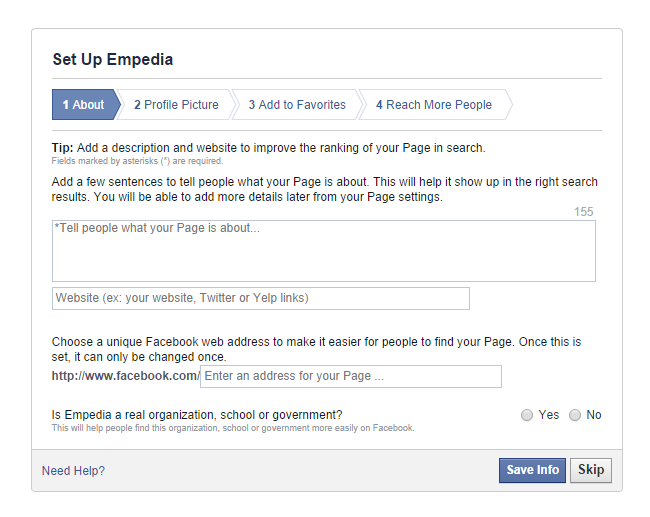
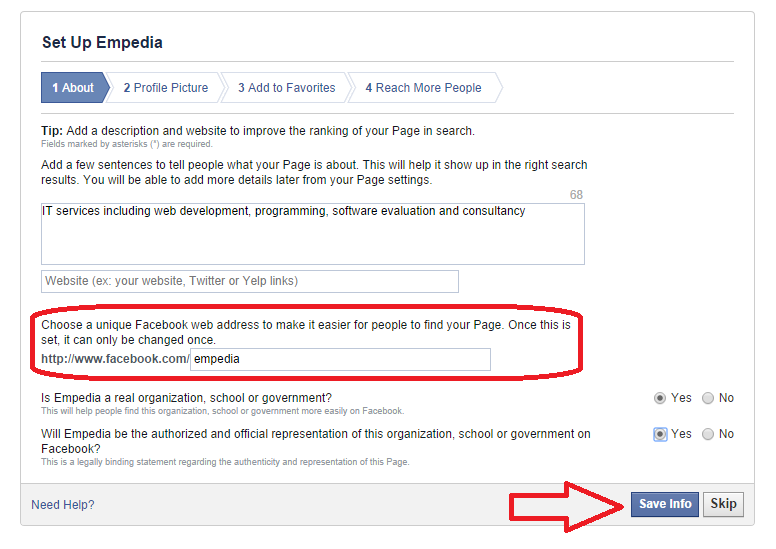
Now it’s time to set up the basic details of your page – Facebook walks you through this:
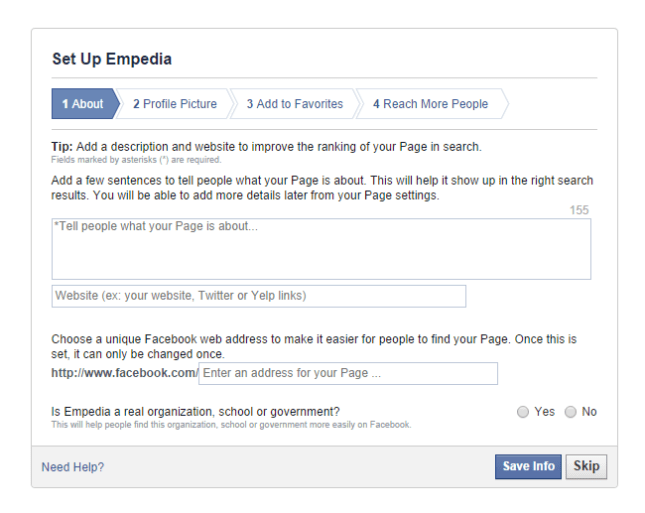
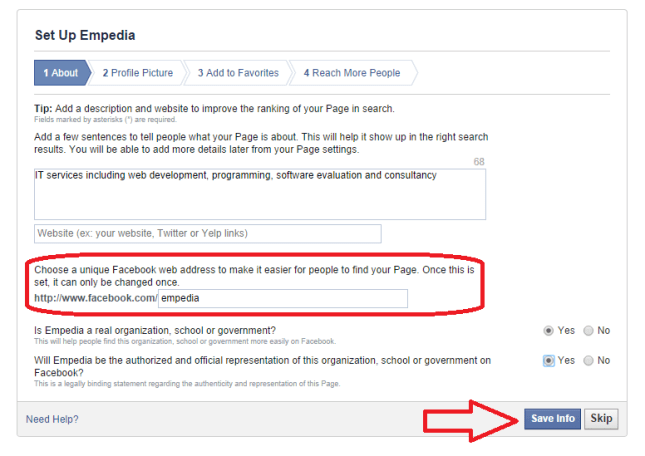
Facebook set up pageNote here that you used to have to have a certain number of Likes before you could choose a unique Facebook web address; now you can do it right away. Here’s this first screen with the info filled in. Note that once you’ve said that it’s a real organisation, you’ll get a second option to confirm that you represent the company:
Facebook page set up filled in

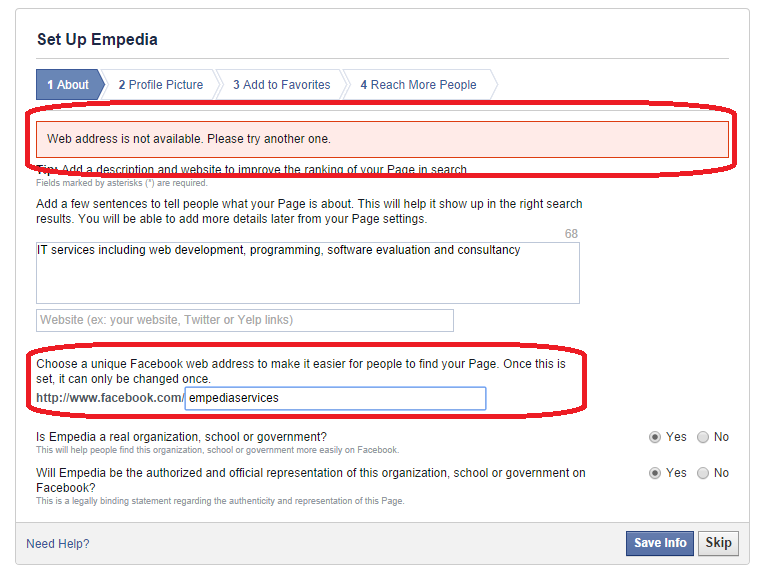
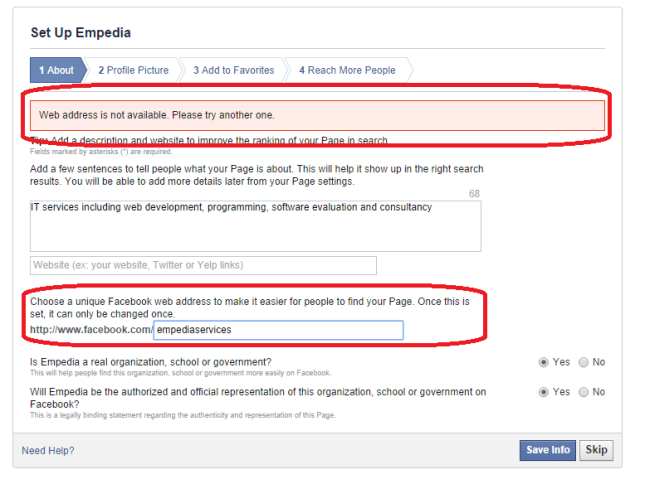
This is the point at which Facebook checks that the URL you’ve chosen is available. In our case, it isn’t (I checked, and the URL belongs to an individual with the surname Empedia), so I’ve added to the URL to try again:
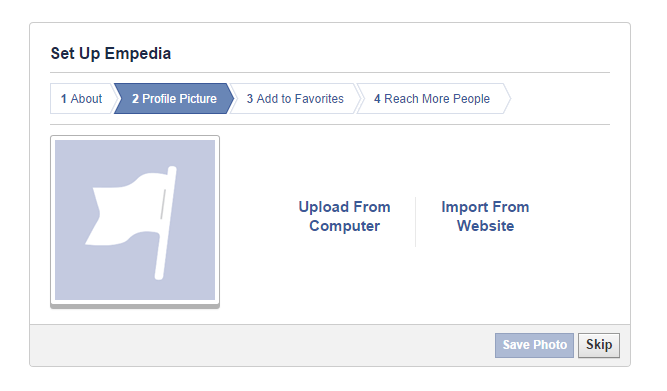
Facebook url not availableOnce you’ve saved this information, you can add a profile photo:
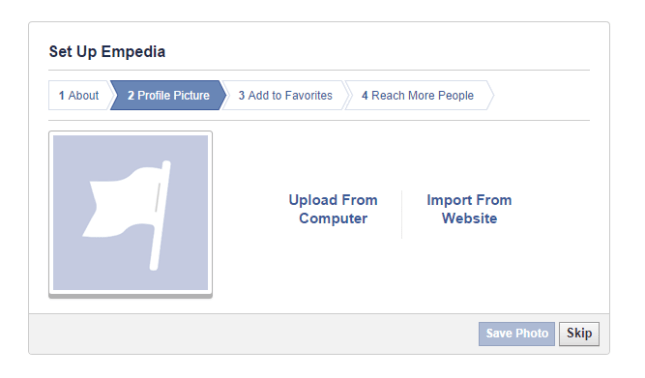
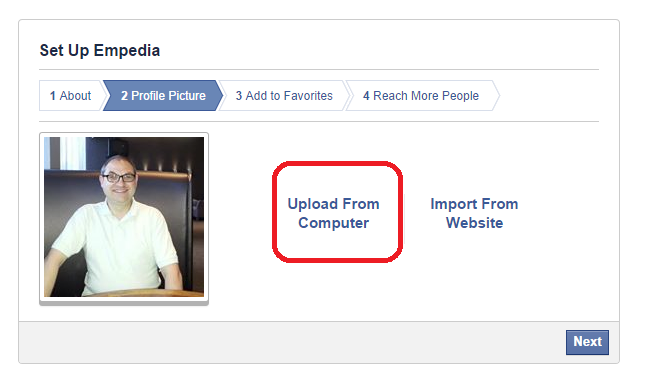
Facebook page add profile photoIf you choose Upload From Computer, you’ll be taken to your computer’s folders to find the photo you want:
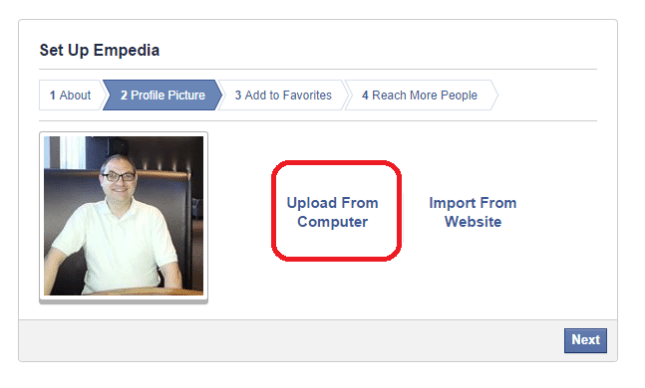
Facebook page add profile pictureYou will also be prompted to add the page to your favourites – this means that you’ll see when you (or someone else) posts to it and you will also see it in your left-hand side panel:
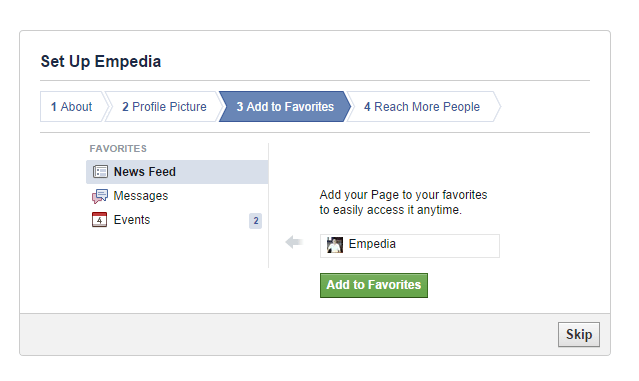
Facebook page add to favouritesThen you get a bit of hard sell with the Reach More People section:
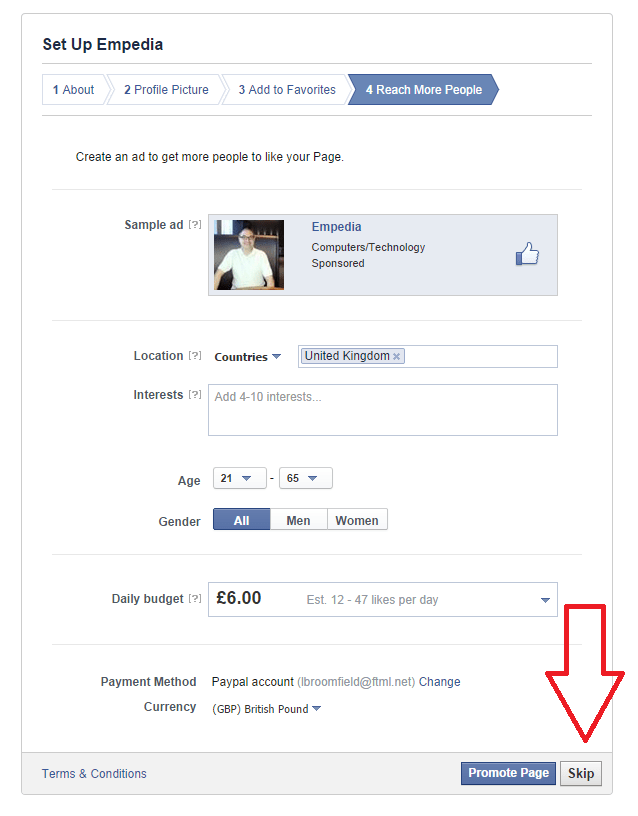
Facebook page reach more people I would certainly advise pressing the Skip button at this point, as anyone directed by an ad to Like a page that has no Likes or activity is not going to be compelled to do so!

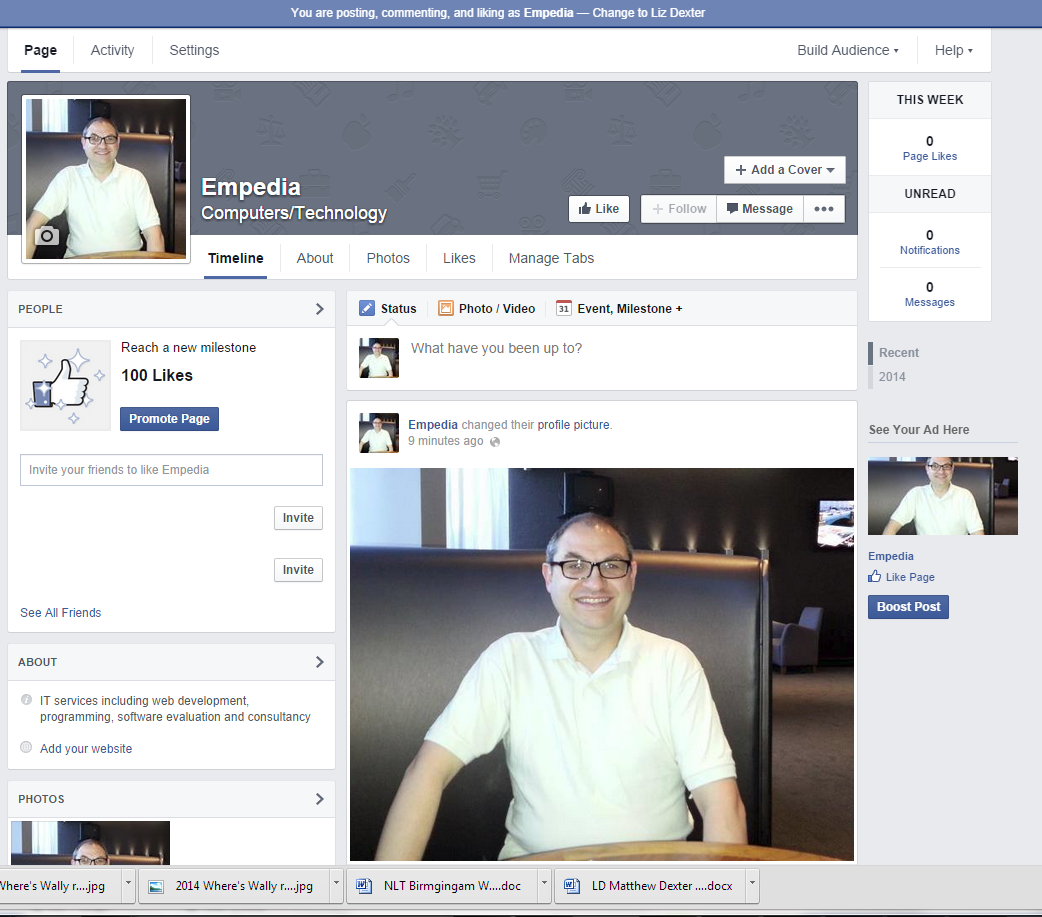
And now you have your page!
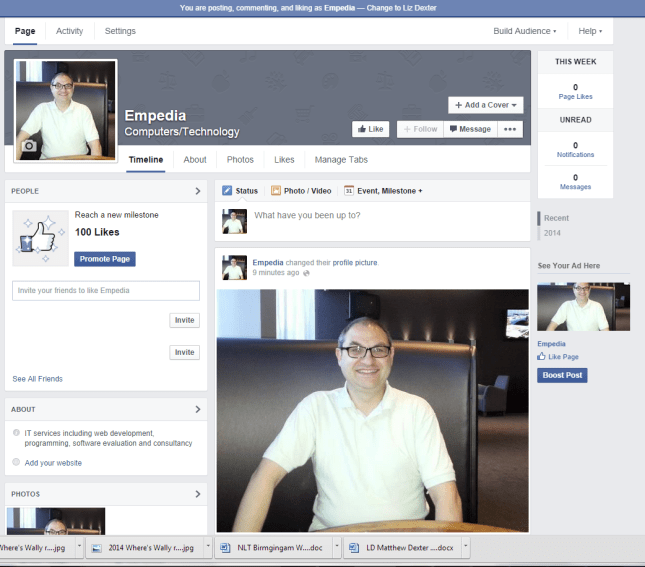
Facebook page

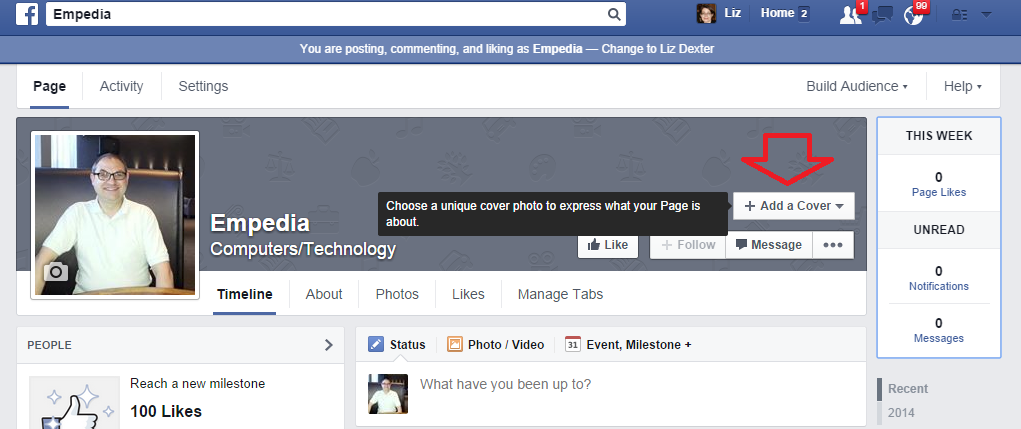
Once you’ve set up your basic page, you can set up a cover image for your page. There are all sorts of rules about what you can have here, but they change frequently, so refer to the current terms and conditions.
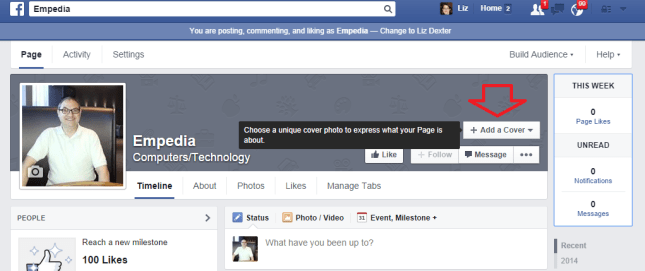
Facebook page add a cover

You can choose a photo from your albums or upload one from your own folders on your computer:

Facebook add cover

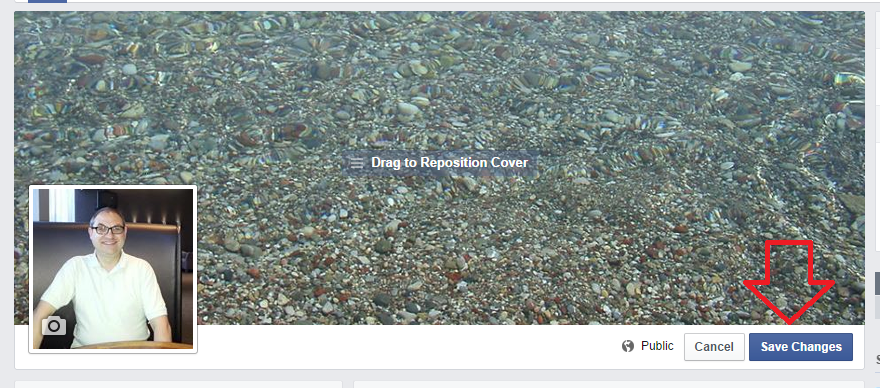
Once you have uploaded the photo, you can move it around until it’s in the right place, then Save Changes:
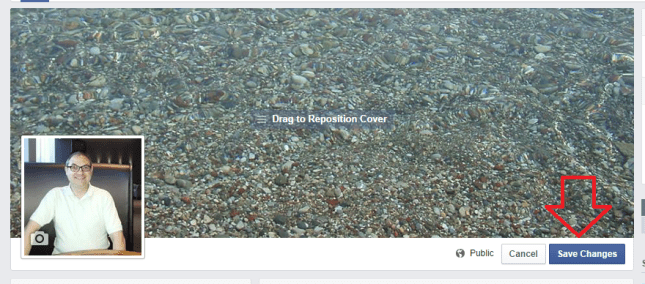
Facebook page cover

You can change these two pictures by hovering over them, at which point a button will appear offering you the opportunity to do so.
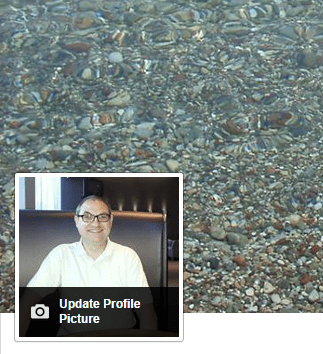
Facebook page change profile pic

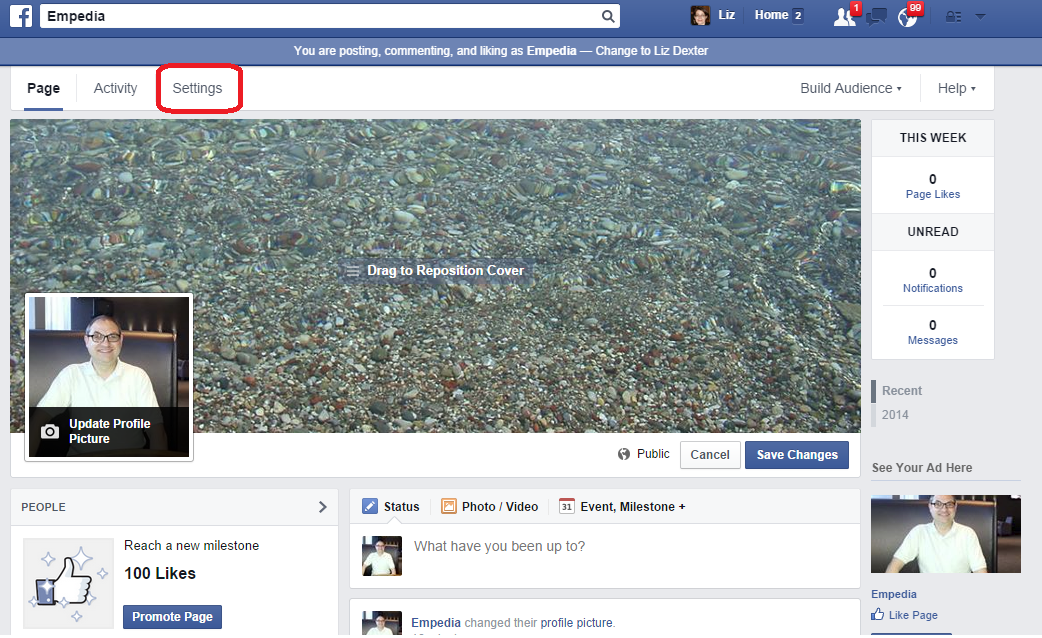
When you’ve created your basic page, you can also add information and details as you wish. Use the Settings button to access these options:
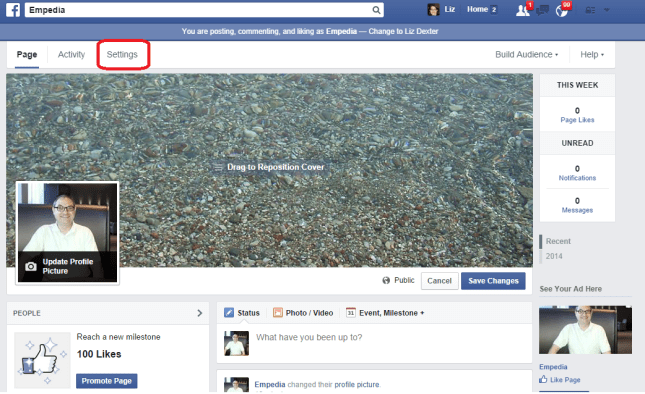
Facebook page settings

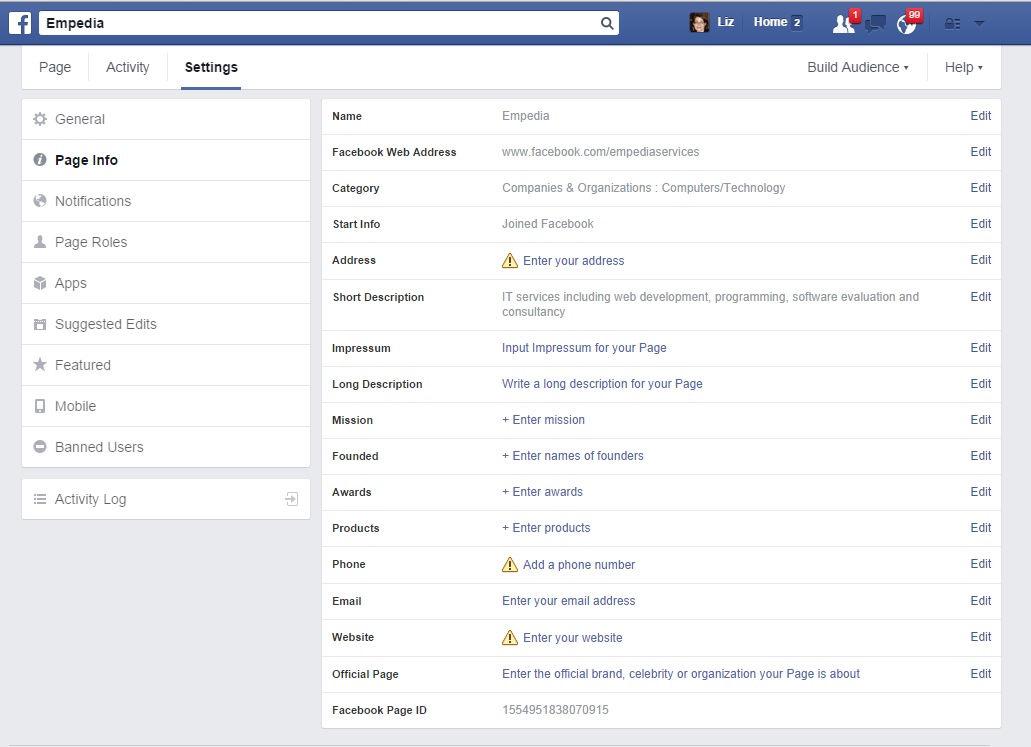
The Settings pages allow you to describe your business and add hours of operation, etc. You don’t have to fill in everything, but it is useful to add your website’s URL, for example. You can change this information at any time.
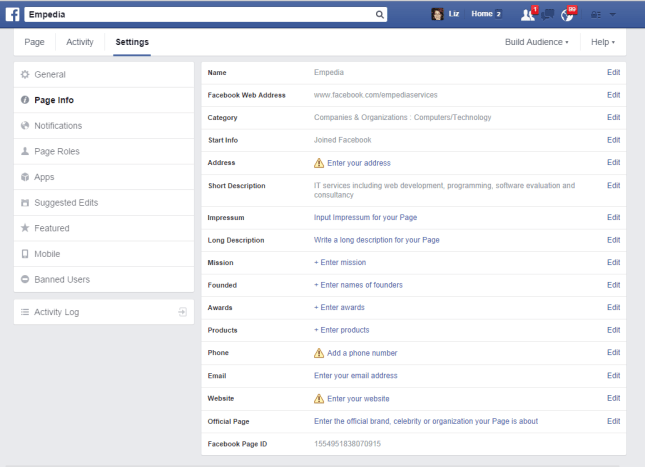
Facebook Page Info settings

General also allow you to set out who can post on the page and other features. This is useful if you have people putting spam comments, etc., on the page – you can set it so that only you can post. However, I do like to let people post and comment to foster a sense of community.  It’s worth looking at this area frequently, as what you can and can’t do does change over time.

Page roles allows you to add other people who can administrate the page – useful if you’ve set up the page but you have someone in your company who’s a social media expert. I’ve already written about this here.

You’ll see a Page button at the top of the screen which allows you to return to the page at any time.

The Activity tab lets you know how often your posts have been seen and the viewing figures. Note that these are likely to be distressingly small – see the section on paying for promotion below.

Interacting with people on your page

You can post updates on your page, including photos and notes, just like you can on your personal Facebook timeline. I send my blog post notifications to this page – but then I share them to my personal timeline, too, where they have more chance of being seen.

When you Like a page belonging to someone else, you can click on the down-arrow by Message and Like as your page – this will appear in their timeline and can lead to some nice, friendly interaction.

If you have set your page up to accept comments by others, do pop by the page to respond to these – a) it’s polite to reply to comments and b) you need to watch out for spam and complaints, and address them accordingly.

Stopping spam and dealing with complaints

It is possible to delete comments that other people make on your Facebook page. Just be aware that if you delete complaints, the complainer is liable to share the fact that you’ve done that – a bit of polite damage limitation on the page itself is often more appropriate.

If someone spams my page, I usually reply politely the first time, in case they’ve made a mistake, if someone’s just posted a link to their page and it’s vaguely relevant, otherwise they get deleted.

I will be writing a longer article about dealing with spam and blocking users – watch this space!

If you’re considering paying for promotion on Facebook …

Whenever I get tempted to advertise on Facebook, which they do promise can be targeted to your selected audience, I think about the random / odd / offensive / inappropriate adverts that I see on my Facebook timeline, and that makes me think that it’s perhaps not worth it.

If you do decide to pay for advertising, go for one of the pay per click options where you can limit how much you pay out per day. Observe how it goes very carefully, and try to assess how much business you’re actually getting for what you pay for (have a look at the articles in the Investing in Your Business section above).

The golden rule of Facebook business pages

There’s a golden rule that applies to all social media and that’s Be Yourself. Allow your own personal self to appear on those pages. Have a picture of you on the profile, and comment and respond as appropriate.

It’s also worth noting that your friends do not want to feel spammed by your business. I share my business page posts once at most onto my personal timeline. I don’t leap in to every personal conversation with “Oh, I can proofread that” or “need some transcription, just call me”. It isn’t appropriate, none of us like having that done to us, and it’s a good way to annoy those very people who might otherwise be spreading the word about your business. By all means, mix business with pleasure, but make your business page pleasurable to read and keep your personal page personal as well as businesslike.

Other useful posts on this blog

How to add an admin or moderator to your Facebook page

How to delete posts and block users from your Facebook page

Thank you to my husband, Matthew, for allowing me to set up a Facebook page on his behalf to harvest screenshots!

If you’ve enjoyed this post or found it useful, please click one of the sharing buttons below! Thank you!

 
12 Comments

Posted by on October 8, 2014 in Business, Social media


Tags: , , ,

Infographic – social media etiquette

Today I have a guest post with a difference – an infographic, for the first time on this blog. It’s from writer and infographic specialist Ivan Serrano, and talks about many different kinds of social media and how to interact with them. It acts as a complement to my more detailed social media posts.

What do you think? Should I have more infographics on this blog? Do comment below with any thoughts …

——————————————————————————-

“Have you seen what (insert important person or business here) posted on (insert social network here)?” seems to be a question that people hear quite often nowadays. Depending on how you word your message and conduct yourself on social media, it can go viral and your business can get brand recognition, or, on the flip side, it can go viral for all the wrong reasons.

That’s why it’s important for businesses to conduct themselves properly on social media. In addition to following general social media etiquette, certain social media networks have their own rules of etiquette as well. Businesses must remember that they have a reputation to consider—one inappropriate tweet or post could leave your reputation reeling, and that may take quite a while to recover from depending on how well you handle it. The infographic below gives you a guide on how to present yourself on the numerous social media networks.

social media etiquette infographic

Ivan Serrano is a writer and infographic specialist from Northern California. Ivan covers topics ranging from global business to tech and social media. He is an avid “Bay Area” sports fan and tries to attend as many games as possible.

 
7 Comments

Posted by on August 13, 2014 in Business, Social media


Tags: , , , , , , ,

How to add an admin or moderator to your Facebook business page

In this post we’re going to learn how to add someone as a moderator on your business or organisation’s Facebook page, and also what it looks like when you are added as a moderator of a page. For more basic information about setting up your Facebook page, see my article on Facebook for business.

How do I add someone as an administrator to my Facebook page?

To be added as an administrator of a page, you must Like that page first (or to be added as an administrator of a group, you must be a member of that group)

To add someone as an administrator of a page, they must Like that page first.

To add someone as a moderator, find See Likes on the Admin Panel of your page

1 likes button

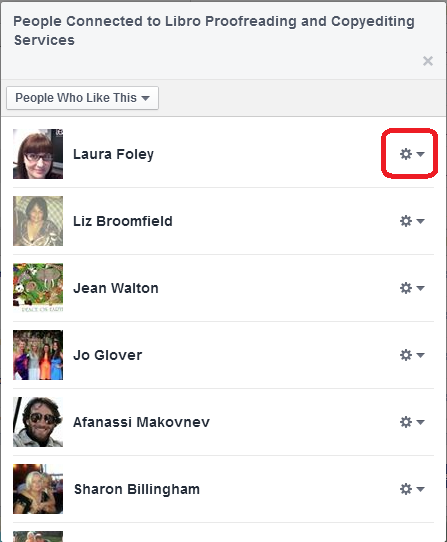
You will see a list of people who have “Liked” your page, each with a little icon to the right.

2 list of likes

Find the person you want to add, click on the icon and choose Make Admin:

3 make admin

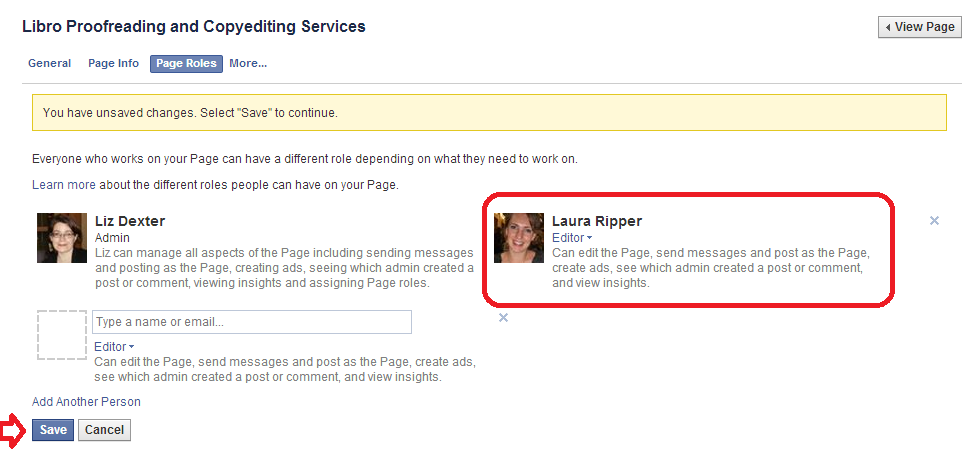
Once you’ve done that, you will get another screen which shows all of the people who are admins of that page:

4 make admin

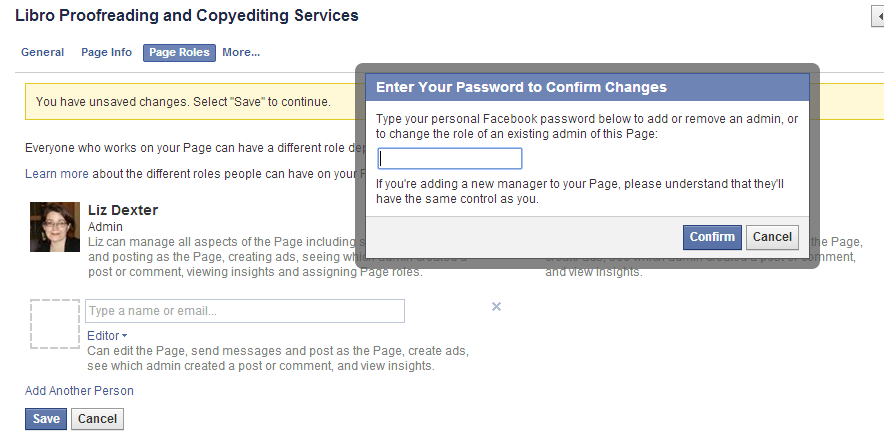
This shows that you’ve added someone to have admin rights. Note the x top right – this can be used to remove them. Press Save … and you’ll be asked for your password (just as a safety measure):

5 make admin

Add your password and there they are, an admin.

How do I access the Page Roles area to change what my moderators can do?

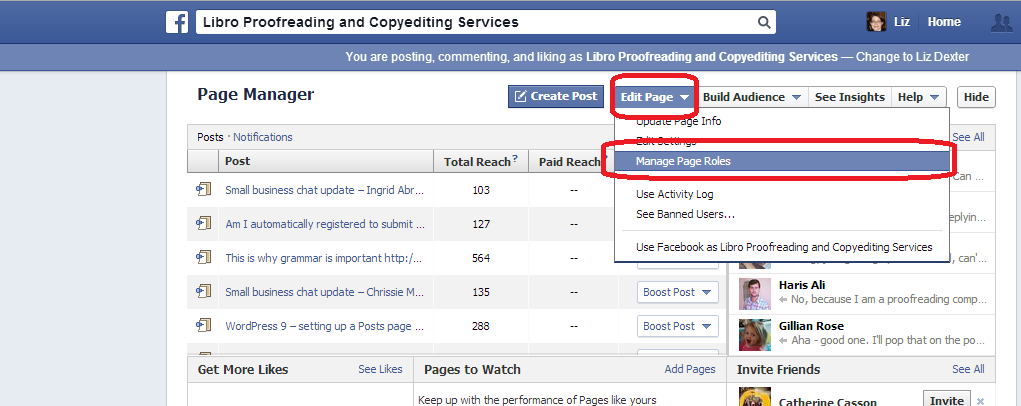
If you want to change the roles that people have in moderating your page, go into the Page roles area by choosing Edit Page in the Admin Panel, then Manage Page Roles:

Facebook page moderator page roles

What are the different Facebook page moderator levels?

You can choose different levels of moderation to give to your admin people. If you want to change these at any time, go into the Page Roles area by choosing Edit Page then Manage Page Roles (see screenshot in the previous section.

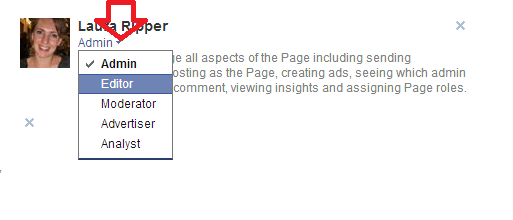
Now, click on the arrow by the role name assigned to your moderator, and you will see a list of choices. The role that the administrator currently has will have a tick next to it. Click on a role to change the privileges that the administrator has.

Facebook page role optionsAn Admin can send messages, post as the page, create ads, see which person has created a post or comment, view insights (stats etc.) and assign page roles

An Editor can do everything that an Admin can do, plus they can edit the page itself.

A Moderator can do everything that an Admin can do, plus they can delete comments on the page

An Advertiser can see who created posts and comments, view insights (stats) and create adverts

An Analyst can see who created posts and comments and view insights

What does it look like when I’m added as an Admin of a Facebook page or group?

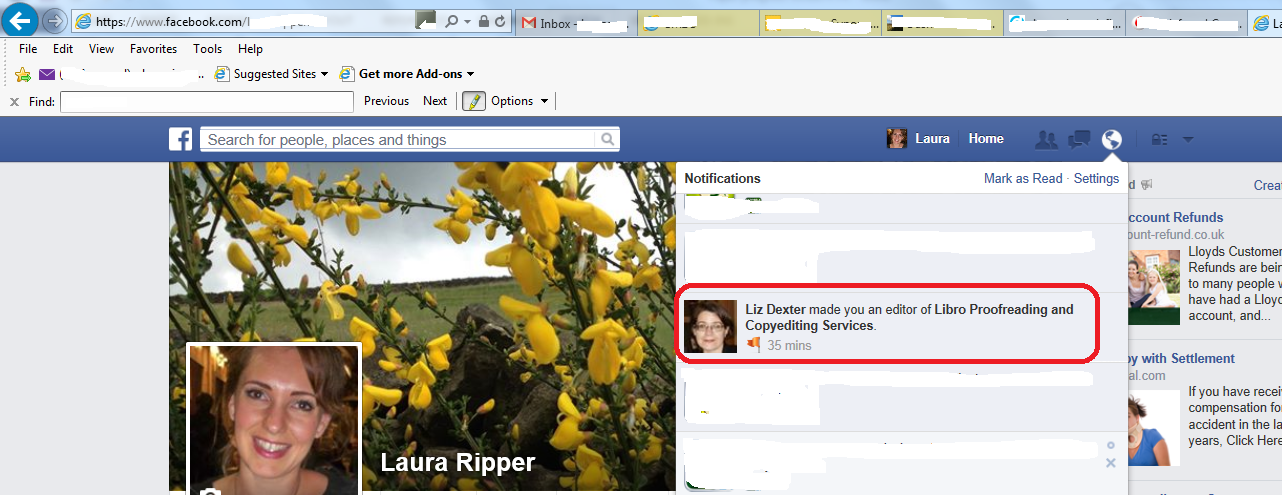
When the moderator of the page adds you as an admin, you will receive a notification. Depending on how you have notifications set up, you may receive an email – there will be a notification in your Facebook Notifications list. Here’s Laura’s which arrived after I’d added her, above:

facebook notification - added as moderator

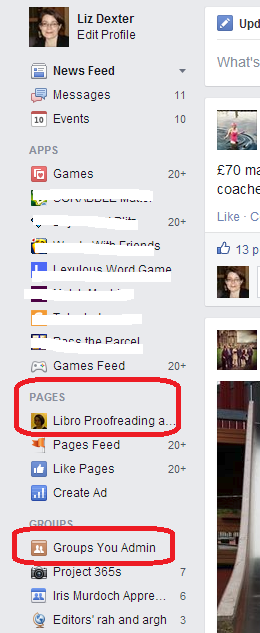
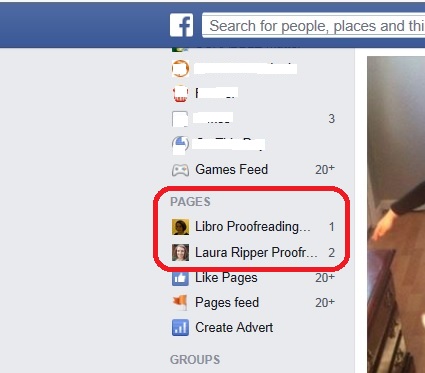
On your own Facebook feed, you will see all of the Pages you administrate under the Pages heading. For groups, there is also a section called Groups You Admin under the Groups heading.

6 groups you admin

And here’s Laura’s Facebook menu, showing that she’s now administrator of her own page and mine:

List ofFacebook pages for which you are admin

To view the page or group for which you have admin rights, click on the page or group and your view will be that of the administrator, with the Admin panel at the top:

7 admin panel

What does having moderator status for a Facebook page actually mean?

Once you’re a moderator / admin, you can do any or all of the following (see list above for the different roles): see all of the statistics for the page, who likes that page and how the posts on the page are doing; comment under the name of the page (so in my case, Laura can post on the page as if she’s called Libro Proofreading and Copyediting Services) and delete other people’s comments as appropriate; create adverts.

So, if you are the owner of a page and add admins, be careful if you’ve associated a bank account or PayPal account with the page, or make sure you choose the appropriate role level for your moderators and make sure you trust any people to whom you’ve given full roles to not to go booking millions of adverts without your say-so!

To summarise – if someone asks you to be a page administrator / moderator for their or their business’s Facebook page:

  • Make sure you ‘Like’ their page first
  • Ask them to find you in the list of people who ‘Like the page’
  • Ask them to click and make you a moderator
  • You will receive a notification and the page will appear at the top of your page list in the left-hand margin
  • Click on the page name in the left-hand margin and you will have full administrator rights

In this post, we’ve learned how to add someone as a page administrator, and what happens to that person’s view of Facebook once this has been done. Thanks to Laura Ripper for providing screen shots and being a guinea pig page admin! Her Facebook page is here and the Libro one is here.

If you’ve enjoyed this post and found it useful, please share it using the buttons below! Thank you!
You can find more resources on social media in my blog resource guide (link takes you to the social media section) and read about using social media for your business in my book on growing your business.

Related posts on this blog:

Facebook for business

How to delete posts and block users from your Facebook page

 
27 Comments

Posted by on June 4, 2014 in Business, Social media


Tags: , ,