RSS

Tag Archives: skills

My short cuts – how to create a contents page in Word

This is part of my series on how to avoid time-consuming “short cuts” and use Word in the right way to maximise your time and improve the look of your documents.

Today we’re going to look at how to create a contents page or contents list in Word. I am breaking this series up into small pieces, so we have already learned about setting up headings and then numbering them.

You will use this to save yourself time and ensure consistency when you’re setting up a large document and you want it to have a contents page. You can do it manually, but it is FAR easier to do it this way.

First, have a look at the two headings articles to make sure you understand how to assign headings and how to number them (if you want to).

Now, for the purposes of making a more interesting contents page, I’ve popped each heading onto a separate page (and we all know how to do that, don’t we!)

So the text is all set up, with headings that are also numbered, and each heading is on a separate page. Now we’re going to put our cursor at the beginning of the document, and make sure we’re in the References tab.

You can see the Table of Contents button highlighted – click on that and have a look at the box that comes up:

Here we have lots of different styles of contents page to choose between. Either double click on the one you want – I clicked on the first one – or click once to highlight it and then Insert Table of Contents. And look what appears! Magic!

You can see lots of lovely headings and their numbers, all laid out nice and clearly (imagine if this was a PhD or another long document with lots of sub-headings.

But what happens if we need to change something in the text? Look – there’s a problem with the document here …

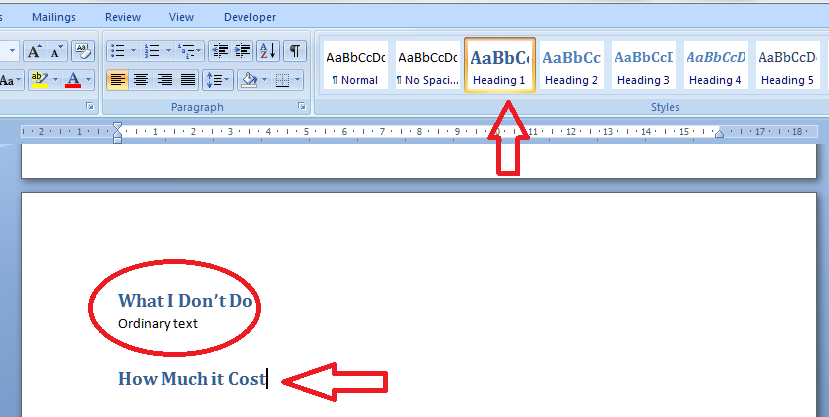
I can see that I should have typed “How Much it Costs” for section 3, and it’s on page 8 along with Section 2, when it should be on page 9. Oh no!

So let’s go to page 8, move the heading onto page 9 and amend the heading itself:
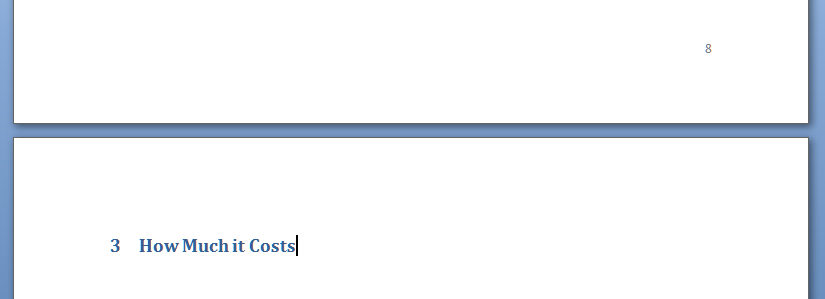
Great – so now the text is sorted out and the heading is on page 9, where it should be. How do we update the Table of Contents to reflect this change?

Go back to the Table of Contents and highlight it (it all comes up in blue if you click on one bit of it). Left click and you should find it puts everything in grey and gives you a little tab at the top like this.

You can use this to change all sorts of attributes on the contents page, or you can just click on Update Field from here or left click when you have the contents list in blue in the last step, and you get this choice:

I always choose Update entire table, just in case. And with one click, it’s updated the Contents list to match the document.

So, no more fiddling around doing a contents page by hand. As long as you set up your headers, you can insert and update your Contents page however you want and whenever you want – so much easier!

This is why, if you use my proofreading services, I will put a note on your contents page reminding you to update it at the last minute, to take into account any changes we might have made to your pagination or heading numberings. Update the Contents page at the very last stage, and it’ll be completely accurate and up to date.

If you have enjoyed this post and found it useful, please click on the “share” buttons below or tell your friends and colleagues about it! Thank you!

Please note, these hints work with versions of Microsoft Word currently in use – Word 2003, Word 2007 and Word 2010, all for PC. Mac compatible versions of Word should have similar options. Always save a copy of your document before manipulating it. I bear no responsibility for any pickles you might get yourself into!

Find all the short cuts here


Tags: , , , ,

My short cuts – headings (part 2)

This is part of my series on how to avoid time-consuming “short cuts” and use Word in the right way to maximise your time and improve the look of your documents.

Today we’re going to look at how to set up numbered headings in Word. I am breaking this series up into small pieces, so we have already learned about setting up headings and next time we’ll learn about creating contents pages, too.

You will use this to save yourself time and ensure consistency when you’re setting up a large document with lots of headings and sub-headings.

So, here’s our text with lots of headings and bits of text under them as we left it last time. We have assigned heading 1, heading 2 etc. styles to them so they make sense and are consistent. But they’re still a bit unclear and I think we would all agree that it would make things a bit clearer if we numbered the headings. But how to do that so the sub-headings have sub-numbers, etc.?

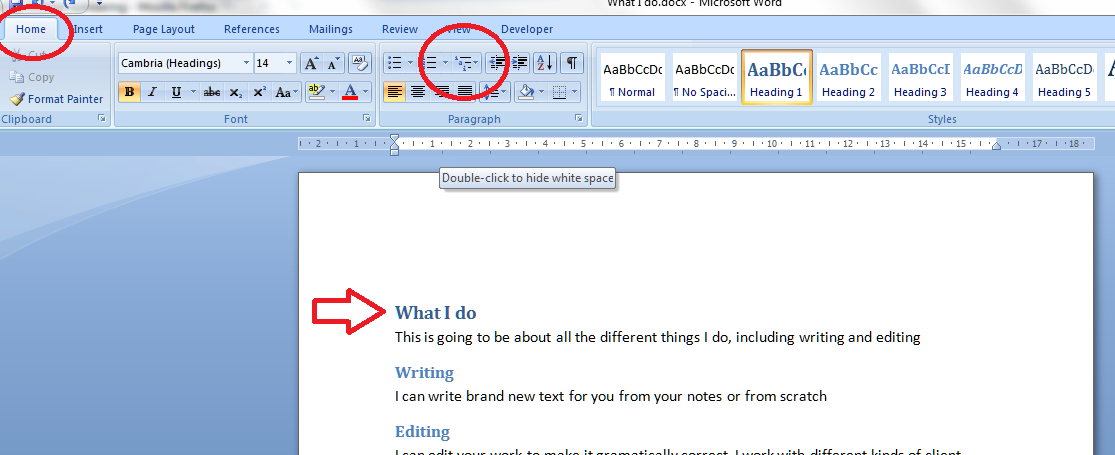
Here’s how to do it. First, make sure you’re on the Home tab in Word. Then, concentrate on the paragraph section. There should be a little icon like the one I’ve circled; when you hover the mouse over it you’ll get a note that this is the multilevel list tool. Make sure your cursor is next to the first heading and click on the multilevel list button.

Up will pop a menu which gives you lots of choices – a list library. We’d like to go for the one that gives us 1, 1.1, 1.1.1 etc. (see arrow) so we pick that and click on it.

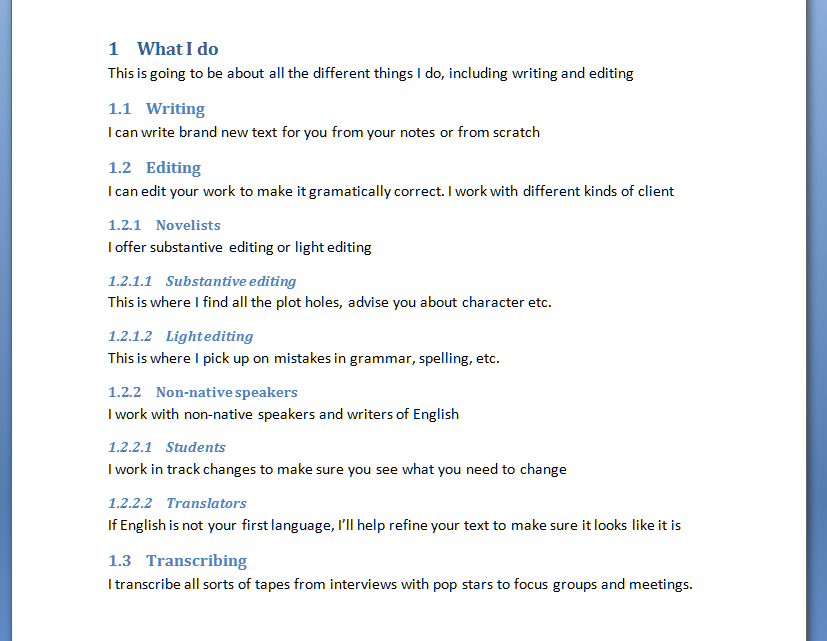
Select the kind of list you want and look back at your text. Amazing – it’s now got heading and sub-heading numbers!

And look what’s happened to your heading style buttons now you’re back in your document. The numbering style has been added to them. Note: there is a way to change the style of the headings when right-clicking on them. That’s all lovely and useful, but when you want to make your headings and their numbers behave themselves throughout your text, you need to do it the way I’ve shown you above.

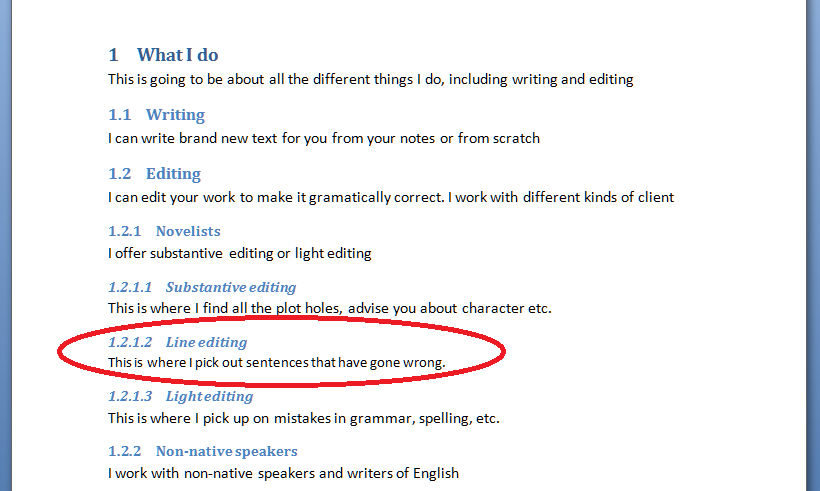
Now let’s try adding a new sub-heading in the middle of the others. In this example, I’ve added “Line editing” in between “Substantive editing” and “Light editing” which were headings 1.2.1.1 nand 1.2.1.2 respectively (look up the post to check that if you want to). I put the cursor in the space after “Line editing”, chose Heading 4, typed my heading … and not only has it assigned number 1.2.1.2 to that heading, it’s also handily moved the next heading, “Light editing” to have number 1.2.1.3 – all by itself! You can see how useful this is if you’re writing a big document and adding in sub-sections but want to keep the numbering consistent. What a nightmare it would be to do it all by hand!

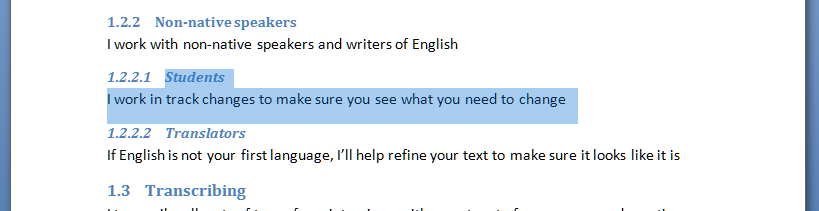
And what about if you want to remove a section with a sub-heading and make sure the numbering follows suit? Here I have highlighted 1.2.2.1 “Students”, ready to delete it. Note that “Translators” has number 1.2.2.2 at the moment …

I delete “Students”, and “Translators” now has number 1.2.2.1 instead. Magic!

So, in summary, if you have a document with lots of headings and sub-headings, and you want to number them, for example in a report, thesis or non-fiction book, use this method to apply a numbering scheme to the headings, and whatever you delete or add, as long as you tell Word that you’re adding a heading and what kind of heading it is, it will sort out all the numbering for you and ensure it makes sense. Hooray, frankly!

Next time, we’ll look at creating an automatic contents page, and how that will help make your document easy to navigate …
If you have enjoyed this post and found it useful, please click on the “share” buttons below or tell your friends and colleagues about it! Thank you!

Please note, these hints work with versions of Microsoft Word currently in use – Word 2003, Word 2007 and Word 2010, all for PC. Mac compatible versions of Word should have similar options. Always save a copy of your document before manipulating it. I bear no responsibility for any pickles you might get yourself into!

Find all the short cuts here


Tags: , , , ,

My short cuts – headings (part 1)

This is part of my series on how to avoid time-consuming “short cuts” and use Word in the right way to maximise your time and improve the look of your documents.

Today we’re going to look at how to set up headings in Word. I am breaking this series up into small pieces, so we will be learning about setting up numbered headings and creating contents pages too.

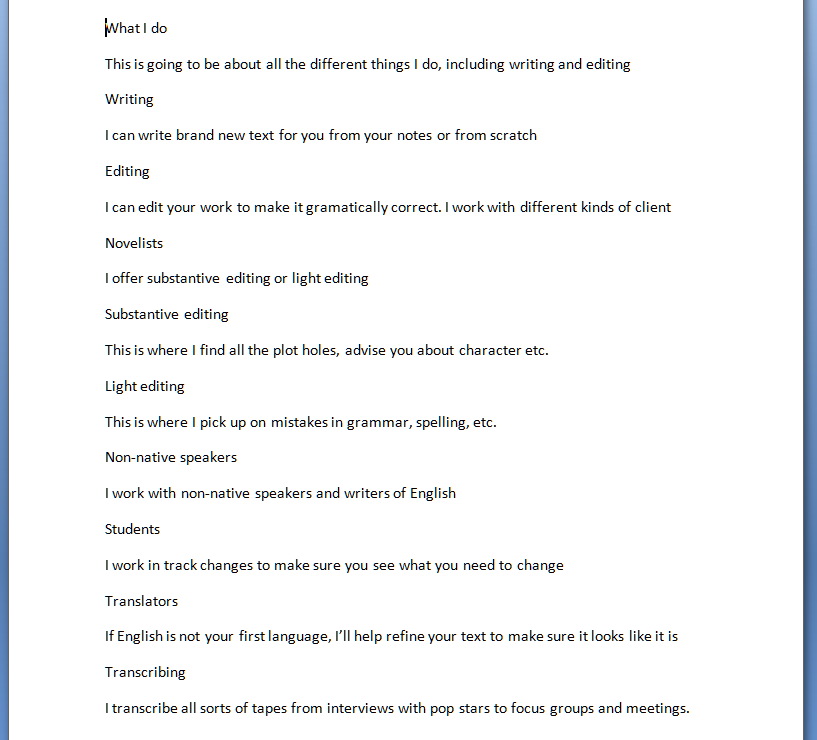
You will use this to save yourself time and ensure consistency when you’re setting up a large document with lots of headings and sub-headings. Imagine I’ve written a document about what I do in my business. I might write it up like this (you can imagine the one-word sentences are longer paragraphs if that helps!)

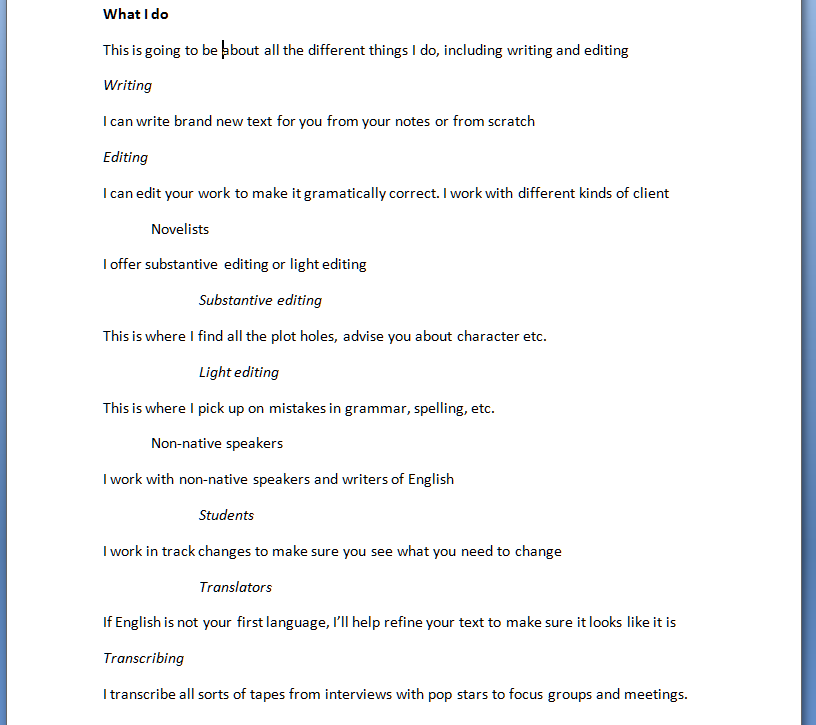
It’s not very easy to see what’s a heading and what’s the text, though. So I might think up my own styles of headings or sub-headings (yes, I might number them, too, but let’s keep it simple for now) and do this:

All well and good, but if this is a great big document: am I going to remember that I put main headings in bold, sub-headings in italics, etc., etc.? Or am I going to get in a mess and make my document confusing, so when you read it you don’t know which kind of section you’re in?

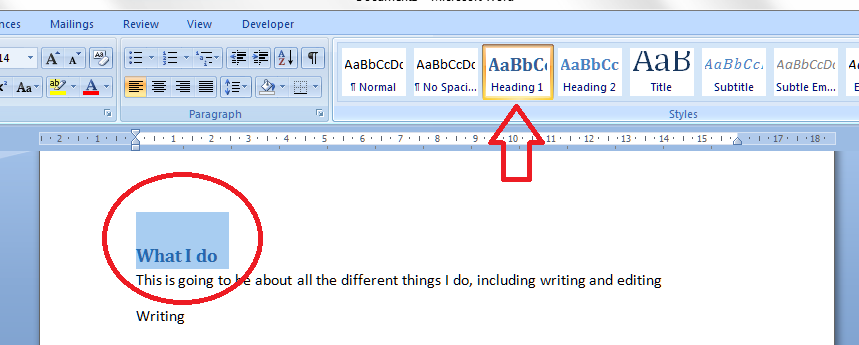
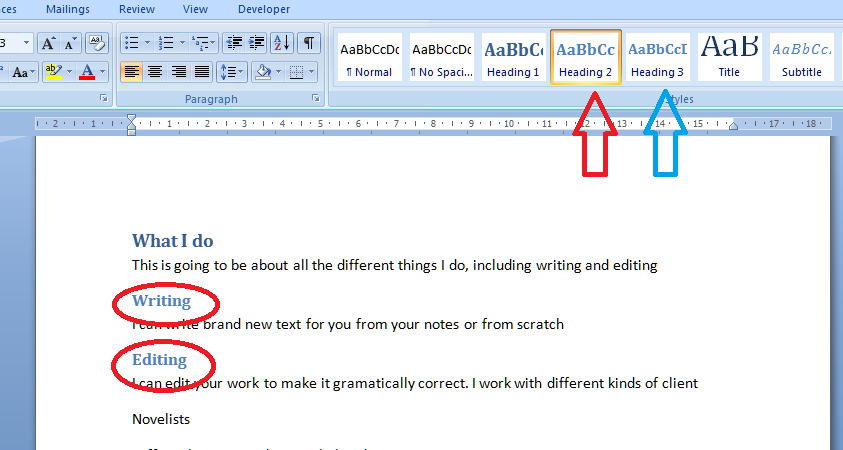
This is where the pre-set headings available in Word come into their own. If you’re using Word 2003, you’ll need to be using the formatting toolbar, then styles. If you’re using Word 2007 or Word 2010, then you’re on the Home tab of the ribbon at the top. Have a look: can you see some boxes labelled Heading 1, etc.?

I’ve circled Heading 1, and the arrow points at a scroll bar that will let you see a whole range of different things you can do.

Now you’ve located the headings buttons, you need to highlight the text you want to mark as Heading 1, and click on the Heading 1 button

And there it is, changed into blue (it doesn’t have to be blue, or that size; we’ll look at that in the next session) and every time you mark a heading as Heading 1, it will look like that.

Note: you don’t have to have all the text already written, highlight and click. You can also click Heading 1 (or whatever) when you want to type a new heading; the text on that line will adopt the Heading 1 format until you press return.

Time to do the Heading 2 level now. Oh – if you want to be clever, highlight each example of a heading you want to change to Heading 2, keeping the Control button pressed on your keyboard as you do so. This will highlight all the text you want to alter at once, saving a few clicks.

Anyway – highlight your Heading 2 text, all together or one at a time, and click on the Heading 2 button.

You’ll notice that Word has realised you’re setting levels of headings and has helpfully moved the button for Heading 3 up to the top row now, to save you looking for it (see the blue arrow). How useful!

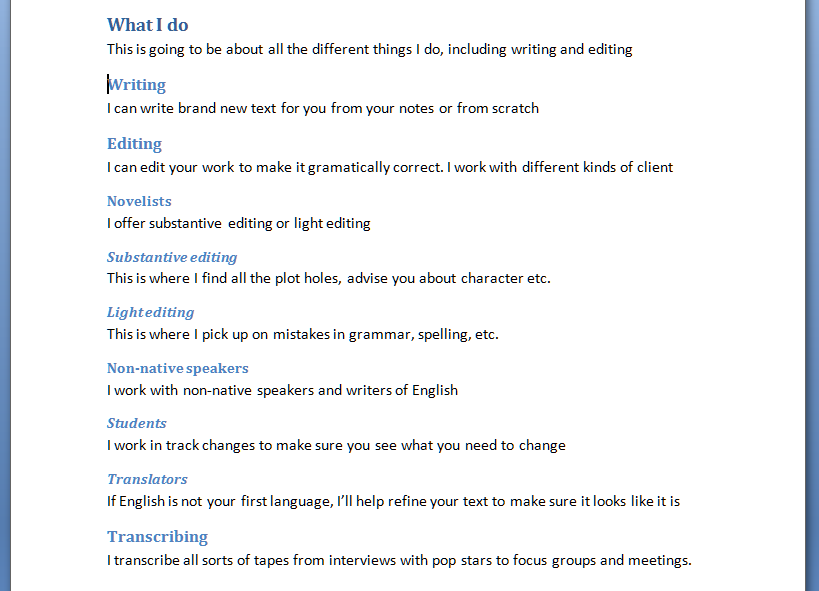
Now, carry on highlighting and choosing heading levels until the whole document is done. You’ll end up with something like this:

Now, maybe this doesn’t look very different from what we started off with. But three things make this better than what we started with:

  1. You don’t have to remember what look you’re using for each level of heading; it does it all for you
  2. If you want to number your headings, that’s going to be really easy to do, AND if you change sections, swap them around, add or delete them, the numbering will change automatically
  3. You will be able to create an automatic Table of Contents

Next time, we’ll look at assigning numbers to all the different heading levels, and how that will help make your document easy to navigate …

If you have enjoyed this post and found it useful, please click on the “share” buttons below or tell your friends and colleagues about it! Thank you!

Please note, these hints work with versions of Microsoft Word currently in use – Word 2003, Word 2007 and Word 2010, all for PC. Mac compatible versions of Word should have similar options. Always save a copy of your document before manipulating it. I bear no responsibility for any pickles you might get yourself into!

Find all the short cuts here

 
9 Comments

Posted by on February 29, 2012 in Copyediting, Errors, New skills, Short cuts, Word, Writing


Tags: , , , ,

My short cuts – top and bottom margins

This is part of my series on how to avoid time-consuming “short cuts” and use Word in the right way to maximise your time and improve the look of your documents.

I have already published instructions on how to manipulate your left and right margins, but I’ve noticed some search engine searches have come through to Libro looking for information on top and bottom margins, so here are a few words about them.

First of all, make sure you can see your rulers! If you can’t see what I’m pointing to in the screenshots, go to this post and follow the instructions on making your rulers visible. I’ll wait here while you do that …

OK, all set, and rulers visible?

So, sometimes we might want to make the area we can use on the page a bit bigger. Classic reasons include wanting to fit a whole document on one or two pages, for example if you are making up a poster and you want to use the largest print area possible. Within reason, you can extend the upper and lower margins of your text to fit in a few more words.

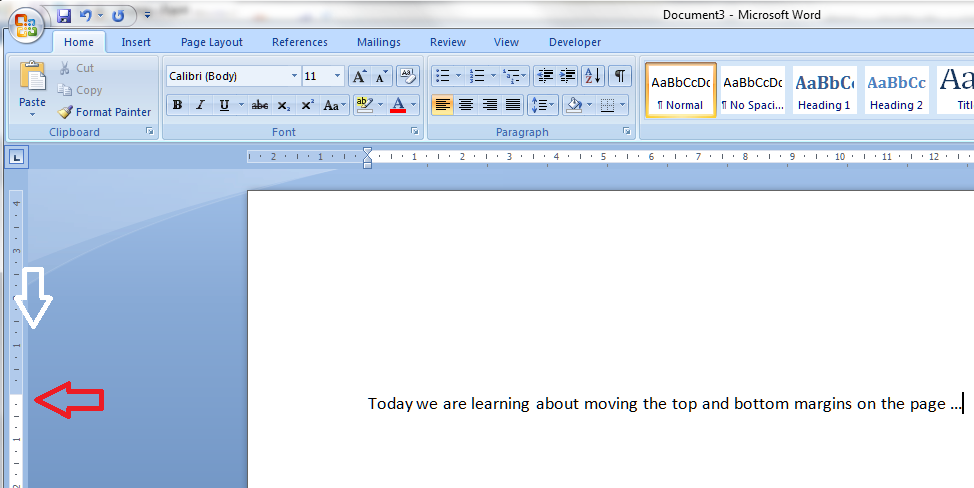
Let’s have a look at these top and bottom margins. Look over to the left-hand ruler in your document. You should see this, which you will notice looks very similar to your top ruler:

You will notice that the white section indicates the area where you can type: where the space for text starts at the top (above) and where it finishes at the bottom:

Hover your cursor over the division between blue and white and you’ll see a slider and an arrow indicating that you can move them up and down. In this example, I’ve moved the top margin down – see how the first line of text has followed it down the page …

But of course you can also move it up if you want more room to type.

Do note, that you can’t move it infinitely and eventually, when you go to print, you will get an error message telling you that you have gone outside the print margins. So be careful, but within reason this will allow you to create that little bit more space on your page.

Please note, these hints work with versions of Microsoft Word currently in use – Word 2003, Word 2007 and Word 2010, all for PC. Mac compatible versions of Word should have similar options. Always save a copy of your document before manipulating it. I bear no responsibility for any pickles you might get yourself into!

If you have enjoyed this post and /or found it useful, please click the share buttons below or comment!

Find all the short cuts here

 
3 Comments

Posted by on February 22, 2012 in Copyediting, Errors, New skills, Short cuts, Word, Writing


Tags: , , , ,

How are you motivated … really?

How are people motivated, short term and long term? How do you motivate yourself and how does your boss motivate you? Is it all about the money … ?

I started to think about this when I was playing a couple of Kinect games. Stay with me here, it is relevant!

The dancing game – at which I was pretty bad, being a) not very good at dancing or aerobics (not putting myself down here, just not good at moving fast in a coordinated manner. That’s why I’m a runner) b) not used to this kind of thing. But the avatar dance trainer stayed really, really positive, even when it was clear I was doing badly. “Yo, you nailed that move,” he shouted. Well, no, I didn’t. If anything, the move nailed me.

Moving on … I also tried out a fitness “game” – more of a set of workouts, but fun and interesting. The best thing about it was, though, that as well as getting the visual feedback on your movements that both games offered, in this one you got realistic feedback at the end. If you did well, you were told so. If you did badly, you got something along the lines of, “this wasn’t quite what we wanted, but you can do better next time!” Just the acknowledgement that it wasn’t the best go ever did motivate me a lot more.

So, realism and trustworthiness is obviously something that motivates me.

Short-term motivation and long-term motivation: chocolate or freedom?

I decided to undertake a scientific examination of this phenomenon. Well, no, I didn’t: what I actually did was as the question “what motivates you?” on Twitter, Facebook and LinkedIn. I wanted to see what real people who I actually knew said.

And the range of responses showed first of all that there is a difference between long-term and short-term motivators. The popular answer “chocolate” didn’t mean (I think) that the respondent was motivated to do a good job, to achieve and excel, by a mountain of chocolate. But yes, a little sweet reward or some such is a great motivator to get something done. And tea, cakes and, indeed deadlines work in this way too.

Although … deadlines … is that more about having a job where you do have deadlines to hit? I would like to bet that the type of deadline you have in your job – if you enjoy it – is down to the motivators that work for you. Anyway, the long-term motivators are the interesting ones: recognition, praise, kindness make one group, which covers social or personally orientated motivators. Family, and even, from one respondent, cancer, show a deeply personal motivator which is probably about life achievements more than simple workplace ones. And then there is the set including independence, achievement and freedom (that’s my one) which are more to do with the person themselves and their own interaction with their world (as opposed to interaction with people as such).

Do we see money in there? Well, it is mentioned, but it is not mentioned by anyone first.

Here’s the scientific bit: Maslow’s Hierarchy of Needs

This all comes down, in the end, to Maslow’s Hierarchy of Needs or Maslow’s Triangle. In an article written in 1943 (andl also explained well in this Wikipedia article), Abraham Maslow posited that we have a hierarchy of needs, and that the lower ones need to be fulfilled before the higher ones.  So our basic needs are the really basic ones – shelter, food, breathing, and next up are security of employment, body, health, property and family, among others. So our money need really disappears right at the bottom, or is maybe mixed into the one above.  After these basic needs come love and belonging – family and friendship ties, then esteem, which includes self-esteem and the respect of others, and at the top, self-actualisation: creativity, spontaneity, morality, problem-solving, etc.

You can see that most of the motivators my respondents talked about came from the upper levels of the triangle. Of course, when our health is threatened, we drop “down” a couple of levels, but then I suspect those who are motivated by their illness are actually reaching for esteem and self-actualisation, beating the illness and claiming their selves back.

Unpacking my motivators

So, when I “unpacked” my feelings towards my Kinect games (other consoles are available), I could see that I’m motivated by trust and truthfulness. When I was employed, I responded best to managers who were realistic but trusted me to get on with it , while speaking up if I was overwhelmed. Likewise, I wanted to trust them to give me the right work and leave me to it. I wasn’t motivated by relentless optimism, and nor am I motivated personally by being shouted at, which is why I avoid the boot camp kind of exercise regime and hate being micro-managed. Now I work for myself, I can go up to the self-actualisation motivators and enjoy being creative and in control of sorting out my own problems. Freedom is a big one, too – I love having enough work to do to keep me busy but being able to do it when I want to, within my clients’ deadlines, and being able to go to the gym (or stop and write a blog post) if I want to. Yes, I will get my head down and plough through a big project if I need to, but I know myself well enough to understand that that kind of rigidity is not healthy for me for more than a day or so at a time.

Count your blessings and Know Thyself

Of course, all those people who answered my question – and I – are lucky. We have enough money to live on (although I live happily on a lot less than I used to – I’d rather have freedom than fancy things or a car) and so our basic needs are covered, leading us to be able to be all esteemful and self-actualising. But when we’re thinking about all of this, it’s worth remembering that not everyone is so lucky, and giving something back if we can.

And: Know Thyself. Have a proper think about what motivates you. Look up Maslow and read up on him. Are you getting what motivates you out of your job, career or lifestyle? Are you in a position where you can change that? Is it worth having that chat with your boss about how you are really motivated? (although I wouldn’t recommend being asked to be paid in chocolate coins …

In summary …

So it turns out

  • we are not motivated by money … unless we really don’t have any and we work our way up a hierarchy of levels to find more fulfilment
  • short term motivators (chocolate! tea!) are different from long term motivators (family! freedom!) but both are useful
  • it’s good to sit down and have a think about what motivates you – it can be really useful in your career and life in general

I hope you enjoyed this article – please let me know by commenting, and/or using the share buttons you can see below.  Thank you to everyone who responded to my original question!

Contact me via email or via my contact form.

 
6 Comments

Posted by on February 15, 2012 in Business, Ethics, Jobs


Tags: ,

My short cuts – indents and margins

This is part of my series on how to avoid time-consuming “short cuts” and use Word in the right way to maximise your time and improve the look of your documents.

We’re looking at margins and indents today. By reading through these steps, you’ll learn how to produce tidy indented paragraphs and quotes within paragraphs, quickly and easily, without having to mess around with the space bar and enter key.

We often want to indent the beginning of a paragraph to make it look like more of a break from the last one, or have the first line of text longer and the subsequent ones indented (this is useful if you’re preparing a bibliography). Also, if you’re writing a thesis, dissertation or non-fiction book, it’s useful to indent large quotations to make them stand out as being a quotation. More often than not, I find people either don’t know how to do this using the rulers at the top of their Word document, or they’ve forgotten how to and think they can find a quick way round the issue. This leads to all sorts of formatting problems, especially if you’re going to (as is inevitable) add and remove text as you go along.

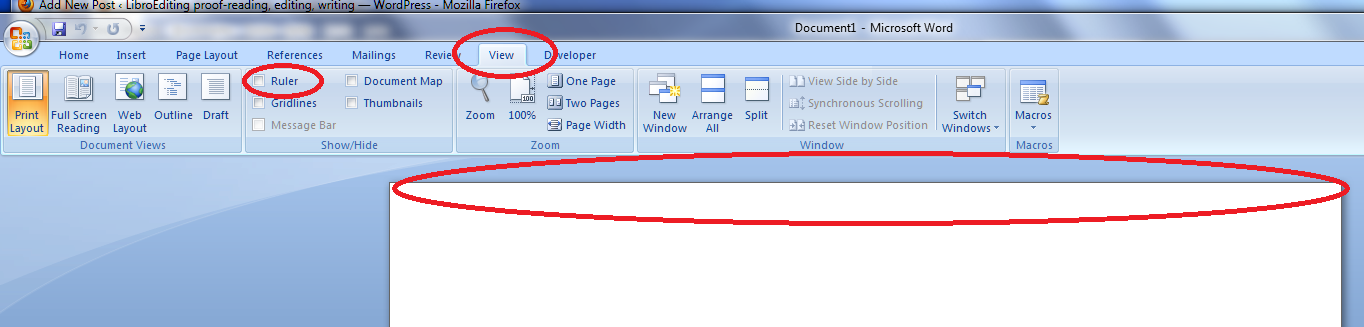
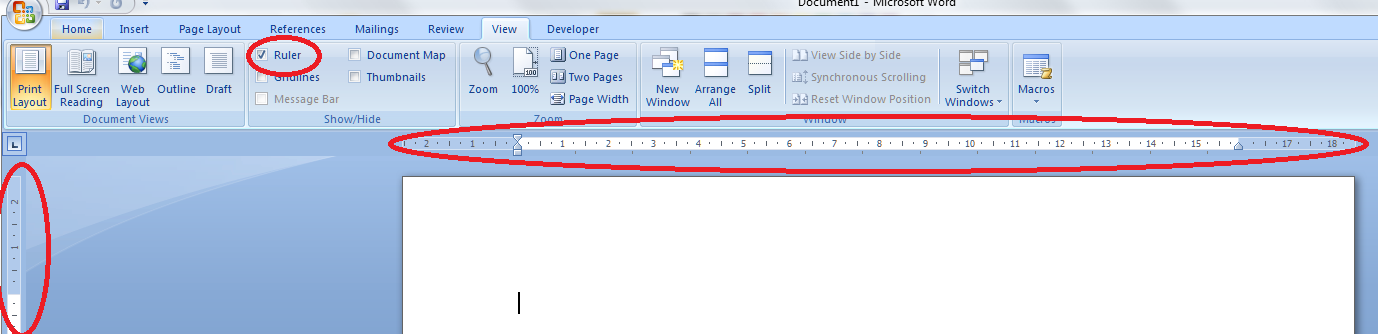
First things first: check that you can see your rulers in Word. If your document has a blank space at the top instead of a ruler, click on the “view” tab at the top of the screen:

How to make margins appear in Word

Look at “ruler” and see if the box is empty or contains a tick. If it’s empty, click on the box. Your rulers (top and side) should now appear:

making margins appear in Word

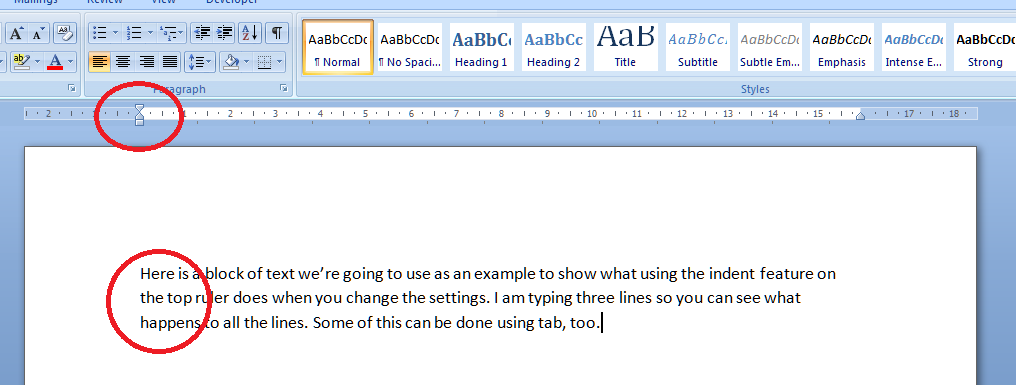
Now let’s look at setting the indents. The important thing to note here is the slider which appears at the beginning of the white part of the ruler, marking where the text starts, or the location of the left hand margin.  Note first of all that the slider’s position matches the text’s position on the page – they are both situated at the left margin.

Let’s look at how moving this slider either all in one, or the top and bottom independently, affects a block of text. First of all we take the pointer and click down on the square block at the bottom of the slider. This picks up the whole thing and, when you move your mouse (holding the button down still) the slider will move across. Very important: when you’re moving sliders or setting tabs, make sure you have highlighted the section of text you want to affect. If you don’t do this, whatever you do on the ruler will only apply to the point at which the cursor is located. You probably don’t want to do that. So: let’s move the slider across to the right a little …

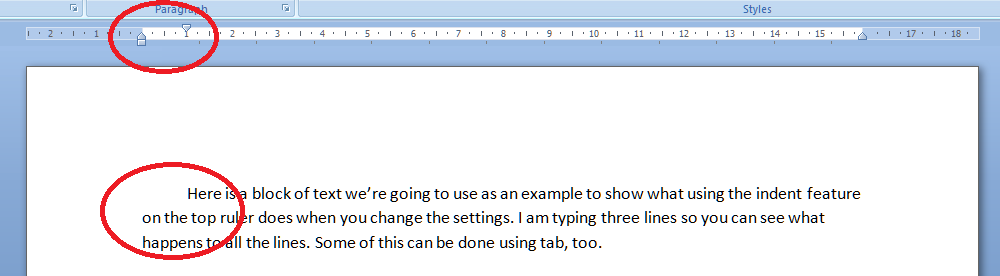
The black lines here mark the borders of the text area, and you can see that moving the slider as a whole has moved all the text across. Taking the slider back, what happens if we move just the top one across a bit?

You can do this using the tab key, too – but the useful point here is that once you’ve set it up at the beginning of a document (before you start typing), it will affect all new paragraphs in the same way, so you’ve set up a nice tidy way for your paragraphs to indent themselves throughout the text. Now what happens if we just move the bottom half of the slider?

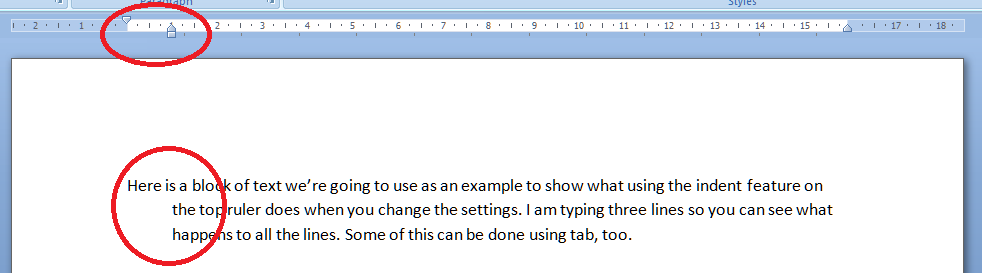
So this works the other way around: the first line of text is longer than the next ones. This looks a bit odd in a normal paragraph, but it’s very common in bibliographies.

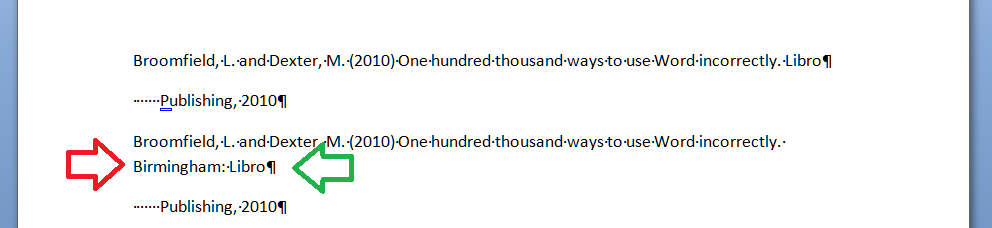
Here’s an example of how the user’s “short cuts” can actually make everything take longer, particularly if changes are involved. I noticed someone doing this in a dissertation I proofread recently, which is what inspired me to write this article.  I’ve turned “show formatting” on so you can see what they’ve done (dots are spaces and backwards Ps are line returns (enter)). In the first example, the author wants to have a hanging indent to make the author’s name more prominent, but they’ve done it by hand, hitting enter at the end of the line then spacing across to make the indent. All well and good (not really) until you need to enter some more text. Then look what happens:

Entering “Birmingham” has forced Birmingham: Libro onto a new line. But the line return at the end of Libro forces the next bit onto a new line (green arrow), and the second line of the entry isn’t even indented, because Word doesn’t know you want it to be (red arrow). Whoever entered “Birmingham” now has to delete the line return and take out the spaces before “Publishing” then re-set the hanging indent. Fine if it’s just once, but it won’t be. Contrast this with what happens if you set up the indents correctly in the first place:

Here, we’ve moved the bottom slider along so that the text automatically indents with a hanging indent on each paragraph. No spaces and only the required line return at the end of the entry. Now when we add “Birmingham” it merely pops itself onto the next line, nice and neat and tidy, and there’s nothing else to do.  Simple.

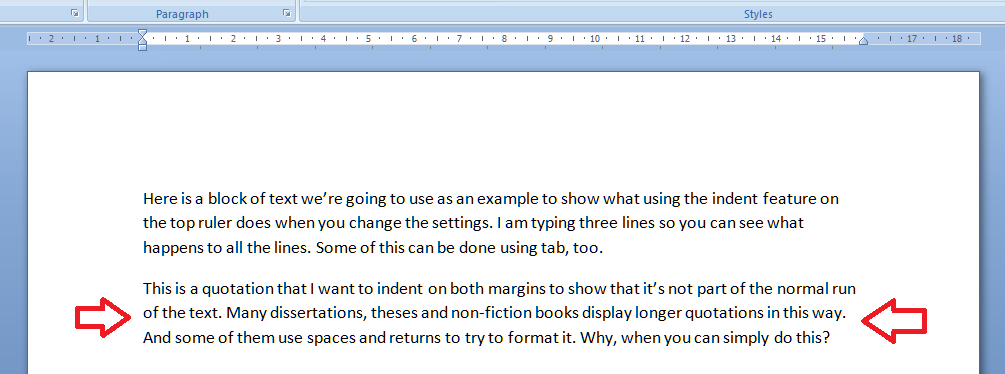
Now let’s have a quick look at indenting text from both margins. This is useful if you’ve got a chunk of quotation you want to insert into the text. Again, I’ve seen people put line returns at the end of each line and spaces across from the left. All well and good (again: not really) until you delete or add a word or character and it all goes odd. Here’s how you do it properly. Here’s the text we want to indent (marked with arrows):

Highlight the text you want to indent and move both the right and left sliders in from the margins:

The black lines show the text margins outlining the area where you can type. The grey lines show how the indented text lines up with the two sliders, one on the left, and one on the right.

One bonus bit of tidying up: if you set the justification to Full, you get nice neat margins both sides. You could not do this using line returns and the space bar.

So now we’ve learnt how to use the sliders on the rulers to make our text tidy and make it much easier to make insertions and deletions without messing up the formatting of the document. I hope you’ve found this useful: do post a comment or share this article if you did!

Note: I have added an article on the top and bottom margins.

Please note, these hints work with versions of Microsoft Word currently in use – Word 2003, Word 2007 and Word 2010, all for PC. Mac compatible versions of Word should have similar options. Always save a copy of your document before manipulating it. I bear no responsibility for any pickles you might get yourself into!

Find all the short cuts here

 
8 Comments

Posted by on February 8, 2012 in Copyediting, Errors, New skills, Short cuts, Word, Writing


Tags: , , , ,

Competition time

This competition closed in February 2012 so no further entries are being accepted!

It’s competition time! This is aimed at giving you a taste of what I do all day (in one of the areas in which I work). I’m going to give you two texts. Text 1 has a certain number of mistakes. Tell me how many on the form below! Text 2 needs to be helped to make sense. If you want to, write a new version in the form below.

Text 1

you shoul’dnt have gon eto the pub last night, it was a misstake,” She said, “how did i nkow that!’ said him.

Text 2

We need to concern about the incidences of bad spellling in the document and how they can be made made better. It influences on perception of the text in readers. However it makes it harder to understand. Because clearity is the main aim of all writing unless its v creation.

← Back

Thank you for your response. ✨


I will accept entries up until midnight in the UK on 10 February 2012. Winners will be decided by a panel of two and the prize is a Libro post-it note pad and notepad!


Tags:

My short cuts – using Tabs effectively (2)

As you will have read in my original post, I’m writing up quick guides to short cuts for formatting your Word documents, to replace workarounds you might use.

I want to show you how to do things in a more formal way which will  make things easier for you in the long run, particularly when you’re dealing with long and complex documents.

Today we’re going to follow up on my previous post on Tabs. Now we know how to use the tab button, we’re going to go a step further and set tabs using the ruler at the top of the screen. Exciting, eh? It’s called “setting tab stops” – the “stops” idea coming from when you added physical barriers to your typewriter. I actually learned to type on an elecronic typewriter, back in the olden days, by the way …

First of all, we need to check we can actually see the rulers at the top and side of the page.  Can you see a ruler at the top? If not, click on the view tab at the top of the page. See where it says ruler? Click on the box next to that so a tick appears:

Once you’ve ticked the box, the two rulers should appear, like this:

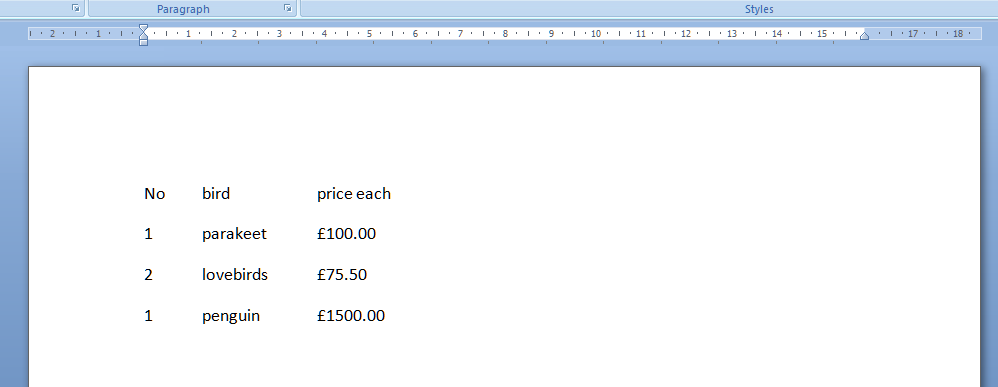
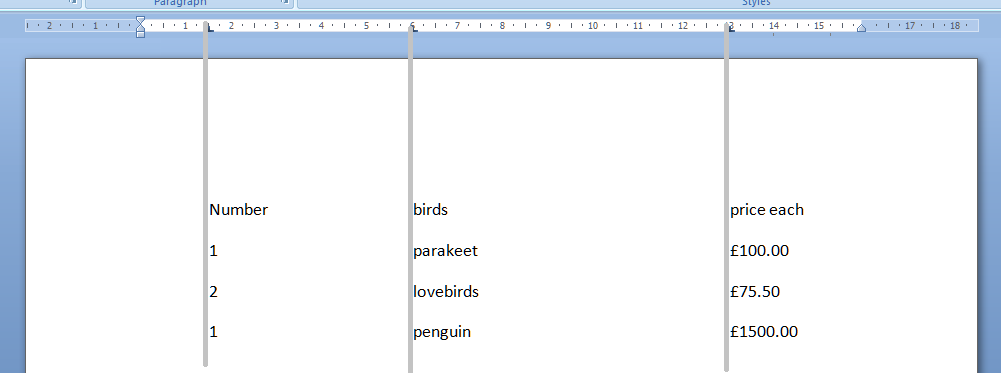
And we’re all ready to go. So, say we’ve got a little table of bird prices we want to lay out:

We can use the tab key to space across, but another way is to use the tab stops in the margin. Note that we need to highlight the text we want to apply tab stops to, or set up the tab stops before we type anything. Now, move the mouse pointer up to the top margin and click, just once, with the left mouse button, on the 1.5, 6 and 13 on the ruler. Just where the arrows are on the picture below. You’ll see a little L appear where you click. That’s L for left tab. Well, actually it shows which way the tab is facing, but we’ll come on to that later.

Now, when we type our text, using the tab key (remember, the one with 2 arrows on) will take us across to each of these tab positions that we have set up ourselves, rather than just going across by a set amount. The grey lines show how the text lines up with the tab stops we marked in the top ruler area.

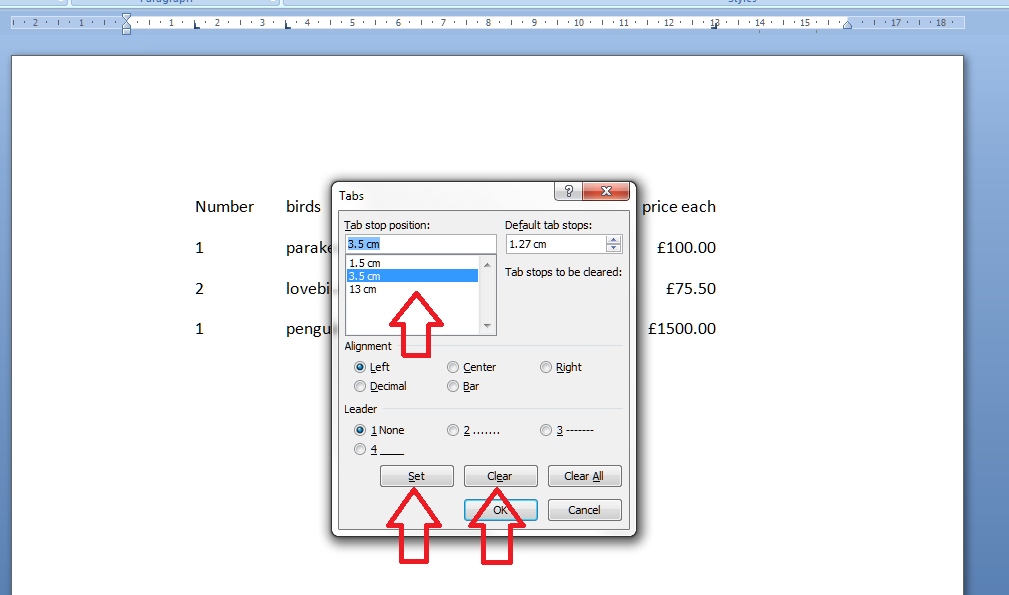
All well and good, but the prices don’t line up very neatly, do they. We can get around this, and mess around with the tab positions by highlighting the text we want to affect (remember to do this! And for this stage we want to highlight all the text so we move the column heading and the prices) and double clicking on any of the Ls we placed in the ruler. This brings up the tab dialogue box. Note: although you can click on any tab marker to bring this up, it automatically moves to working on the leftmost tab setting first, not the one you clicked on. So you can see one tab stop highlighted, and the other ones listed underneath. You can see that there are options to Clear or Set tabs. Set will set a new one at whatever position you want: if you add a third one between 6 and 13, all your text in the third column will jump across to match that. Clear will delete the tab position you have highlighted in the top box.

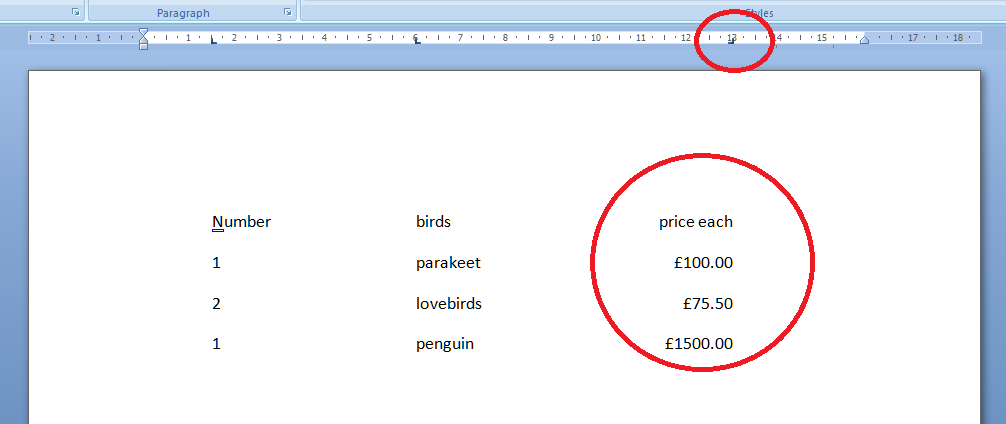
In order to line up those prices, we need to make the third tab a Right-handed one. This means the tab marker is at the right margin or, effectively, the end of the text you want to affect. So, click on the 13 in the box to bring that up as the active tab, click on the Right alignment radio button (circle).

This will make the right hand side of the column line up: lovely tidy figures and heading! Look at the tab stop at 13. It’s now a backwards L, showing that it’s keeping everything tidy to the right, not the left.

But I think the bird names want to move over a bit. Simply highlight the text, bring up the dialogue box, highlight 6 and Clear, and click Set and add a tab stop at 3.5.

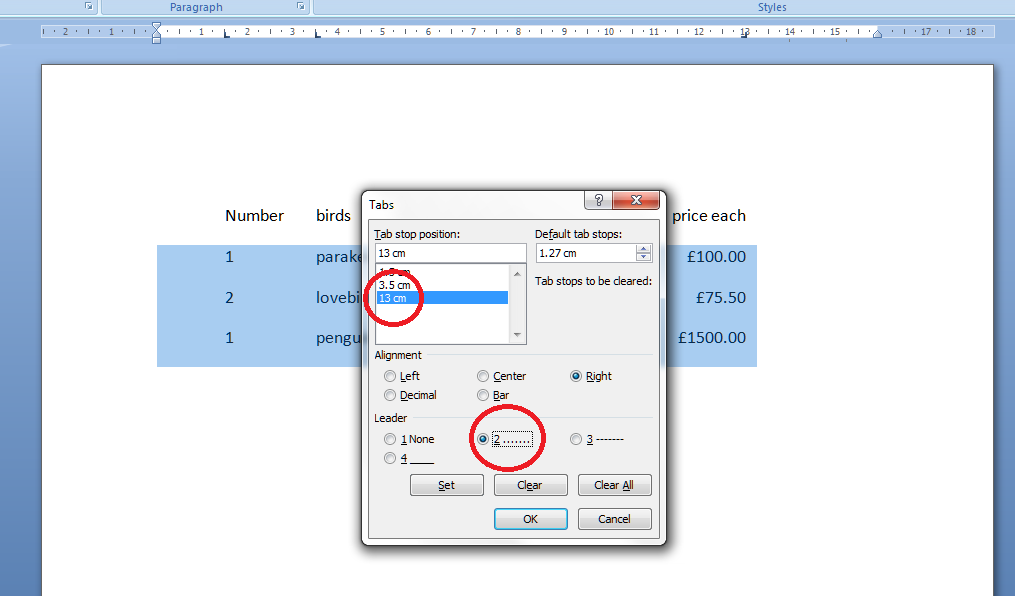
Now I fancy having a line of dots going from the name to the price. A bit odd in a list of bird prices, guaranteed, but if you want to do a quick table or a contents page (although I’ll be teaching you the proper way to do that automatically in a few weeks’ time) it works nicely and looks great. Highlight just the part that you want the dots to appear in and then double click on any of the tab stops. This time, select the 13 and choose the leader you require:

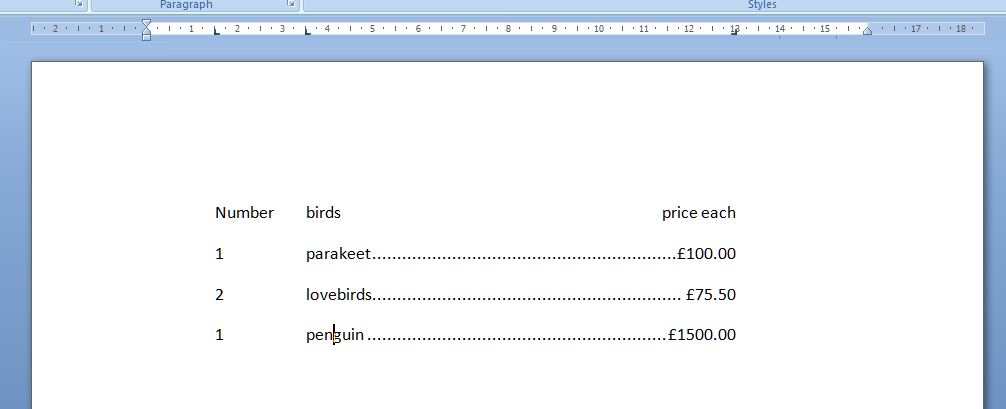
And there you go: lovely leaders between each bird name and its price. That looks tidier than scrappy columns made up of spaces and dots, now, doesn’t it!

Find my first introduction to tabs and using them to make your text nice and tidy and easy to navigate here.

Please note, these hints work with versions of Microsoft Word currently in use – Word 2003, Word 2007 and Word 2010, all for PC. Mac compatible versions of Word should have similar options. Always save a copy of your document before manipulating it. I bear no responsibility for any pickles you might get yourself into!

Find all the short cuts here

 
3 Comments

Posted by on January 19, 2012 in Copyediting, Errors, New skills, Short cuts, Word, Writing


Tags: , , , ,

My short cuts – using Tabs effectively

As promised in my original post, I’m going to write some quick guides to things you do when you’re writing documents which you think are a short cut but actually cause more trouble than they’re worth.

The idea of this series isn’t to criticise people, just to show you how to do things in a more formal way which will actually make things easier for you in the long run, particularly when you’re dealing with longer or more complicated documents.

Today we’re going to talk about using Tabs. Tabs seem to be something of a mystery, but there are easy ways to use both the tab button and tabs set in the top margin which will tidy up your document, make it easier to enter neat text in lovely columns, and reduce tension when you’re trying to line everything up.

Please note: these examples can look rather wide. I want them to be as near full-size as possible, so you can see exactly what I’m doing. If you’re looking at this post on a monitor, you should be able to scroll across to see the full image. If you’re viewing on a tablet, some of the screenshot may be cut off: hopefully you can see enough to get an idea of it, or you should be able to select the image to view it separately.

Let’s start off with using the Tab button. This is a button on your keyboard which should have two arrows on it, one facing one way and one the other. Got that? Good.

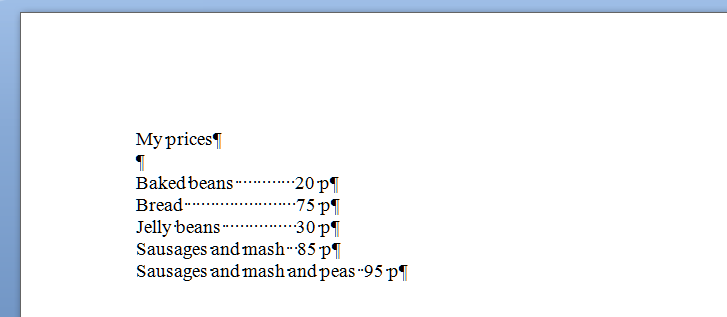
Here’s your common short cut, to start off with. You’ve got a menu you want to put on a document, with items in one column and prices in another. So you type it out, using the space bar to move along to the next column. And it looks like this:

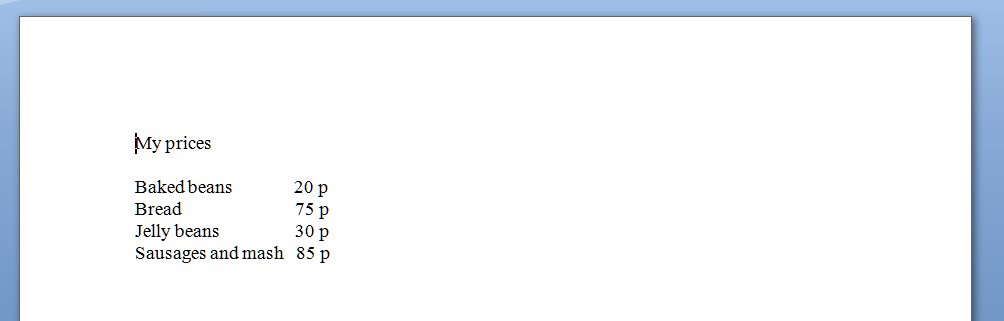
But now you want to add another item and oh dear – it’s longer than all your other ones and puts it all out of alignment (because you’ve used the space bar to make the space between one column and the next):

How do I know you’ve used the space bar? Because I’ve used that little paragraph button on Word again which shows us all the formatting, tabs, line returns, etc.

So the way you’ve achieved this spacing is by doing this (where dots are spaces and the things like a backward P are returns):

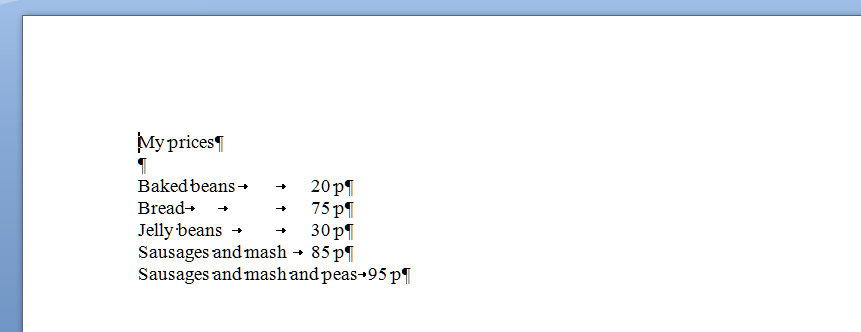
What you should have done (my short cut) instead of using space (your short cut) was to use the tab key (remember, the one with the two arrows) to space across to a set point along the horizontal ruler at the top of the screen. These tabs are represented by arrows when you’re viewing the markup:

Now, when you want to move the prices over for all the shorter items, you just need to insert one press of the tab key at the end of each item, to get them to line up perfectly.

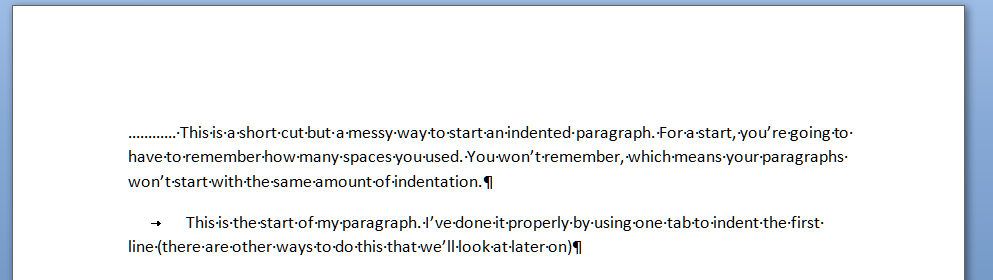
And here’s a last example. It’s very common to find people wanting to indent the first line of a paragraph, but using spaces to do so. This has its own issues – for example, you have to remember how many spaces you’ve put in and it’s likely that you’ll insert a different number each time, which will lead to indentations that don’t match. Instead, a simple press of the tab key at the beginning of your paragraph will leave everything nice and tidy

That’s enough for this session, I think. Of course, there are other ways you can format paragraphs and other indents, and you can set tab stops to wherever you want them to be across the page (and do all sorts of fancy kinds, too). But I’ll leave them for another post … (and I’ll link to them in this one when I publish them).

Please note, these hints work with versions of Microsoft Word currently in use – Word 2003, Word 2007 and Word 2010, all for PC. Mac compatible versions of Word should have similar options. Always save a copy of your document before manipulating it. I bear no responsibility for any pickles you might get yourself into!

Find all the short cuts here

 
8 Comments

Posted by on January 11, 2012 in Copyediting, Errors, New skills, Short cuts, Word, Writing


Tags: , , , ,

Top Time Management Tips: For Santa … and You!

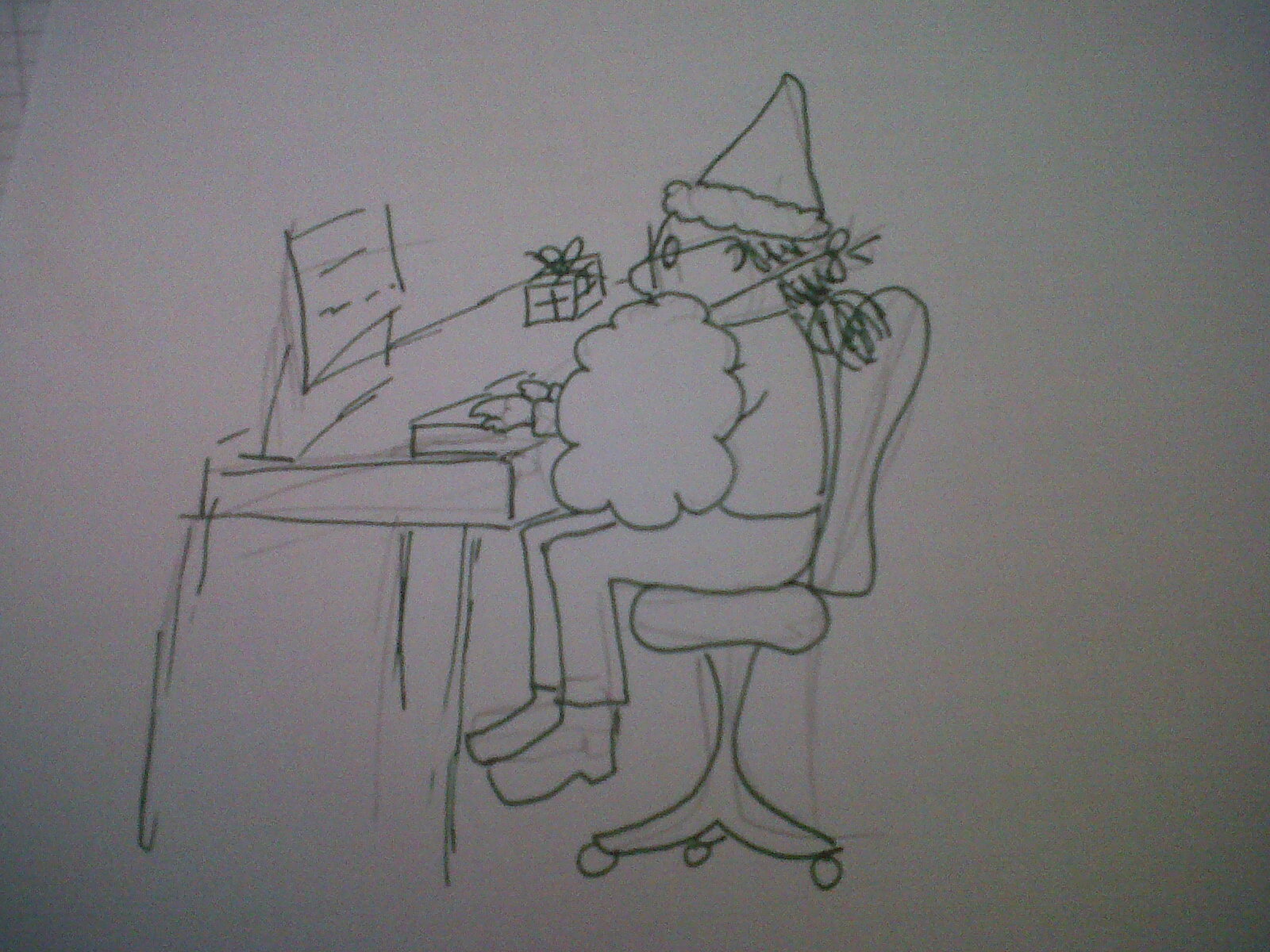
Cartoon of Liz dressed up as Santa

Liz or Santa?

This time of year is a busy one for Santa, but maybe not for you. Maybe you’re off work for the seasonal holiday now, on vacation from your studies, or your clients are on holiday so you are too, by extension. Maybe it’s time to have a bit of a think about how you’ll manage your time more successfully in the New Year. As it’s Christmas, as well as sharing some tips on time management in general, I’m going to relate them to Santa’s life, too. If you’re reading this, F. Christmas, I hope they’re helpful!

Work to your strengths

I think this and the next point are key. You should know by now when your good – and not so good – times are for concentrating and getting things done.  The key is then to arrange your day to match these peaks and troughs, aligning your work patterns to your personal patterns. This is easier when you work for yourself, but is manageable when you’re employed, too. I hope Santa’s best late at night, as his main workflow is obviously when he can zip through the dark skies! I’m best in the early mornings, so now I like to get a chunk of work done before breakfast, and when I was working, I liked to start as early as I could. I have a slight lack of concentration after breakfast, so I am scheduling in some down time or some smaller, achievable tasks for then, and I’m hopeless after lunch – but I can work fine if I have a big deadline, so I either work to a deadline there or accept it’s not a great time and do something else. People think ‘larks’ can be annoying and smug, but I’d love to be able to work late into the night. I know I will make mistakes then, as I’m not a ‘night owl’, so if I have a big project to push through, I’m more likely to get up extra early. When are your good and bad times? How can you tweak your work schedule to get the most out of them?

Blocks of time

This is the other important one, in my opinion. Say you’ve got presents to wrap, letters sent to the North Pole to read, and deliveries to make. Don’t hop from one to the other: put aside a block of time to concentrate on one thing and that thing only, whether it’s catching up with emails for half an hour, spending 15 minutes reading Twitter, or putting in an hour on that big project. When I was a training manager I learnt (from theory and experience) that people can’t concentrate for more than 45 mins to an hour at a time, so make sure you work in a 5 minute break after each hour-long block. If you have something that you don’t fancy doing, set a timer to 30 or even 15 minutes and do just that thing for at least that length of time. Often you will get into the swing of things and may be able to carry on longer.

No distractions

When you’re concentrating on one thing, don’t let the others distract you.  Santa doesn’t screech to a halt just above your chimney to answer his elf and safety hotline, and if he does, he needs to stop doing that (wear and tear on the reindeer, for a start!) There’s rarely something that won’t wait an hour. Phone calls, OK, but if you really need to concentrate, turn voicemail on, too. I keep my BlackBerry on my desk: it alerts me if an email comes in and I can very quickly check if it looks urgent without opening and reading it on my PC – works for me! Doing something wholeheartedly for that block of time will work far better than swapping to something else part way through.

Lists and priorities

It seems so obvious, but write a to-do list, either at the end of each working day, or the beginning of the next one. I split mine into work to do, work admin and other – as someone working from home there is always something like posting letters to do, and even if you work with other people you may need to pop out on an errand. As for Santa, well, his to-do list will vary according to the season, but I doubt there’s ever only one task, even on Christmas Eve (stock up on reindeer fuel, schedule toilet stops, get red suit dry-cleaned … ). I tend to write one set of lists then actually order the things for the day, with closer deadlines taking priority over more distant ones (I use a Gantt chart to record those).

Not all time is billable time

I record my billable hours in a diary every day. That’s hours I’ve worked on projects that I’m getting paid for. I can then see how much I’m making per hour, per day and per week, to make sure I’m on track with my targets. Santa needs to get a certain number of presents delivered to a certain number of houses per hour. But I’ve learnt that, just because you’re sitting at your desk for 7 hours, you’ll rarely do 7 hours of billable work (unless you’re a lawyer or suchlike and every single task is assigned a project code). You’ll have emails to answer, blog posts to write, social media to engage with, toilet breaks – and if you work at home, that mid-afternoon shower, gym session, answering the door to salespeople … Even Santa has to refuel the reindeer and restock that sleigh. So don’t beat yourself up and feel unproductive if you haven’t done 7 hours billable work in 7 hours at the desk. But do use chunks of time for the non-paid work and even take a note of it to see where you can refine the process.

Systematise

This is a posh word for putting systems in place – whether on paper or using the computer and various bits of software. Santa has a production line of elfs taking care of gift wrapping and labelling. When I do a transcription, I upload the tape into my software and create and save the Word document. Every time I finish a project, I put it on my invoice spreadsheet, generate and send the invoice (or add the line to the client’s monthly cumulative invoice) and change the colour of the red line on my Gantt chart. Morning, lunch and evening I check my bank balance and enter anything that’s come in or gone out on my spreadsheet. On the last day of the month I prepare and send my monthly invoices. If you have systems you don’t have to think about, you won’t waste time reinventing the wheel every time you come to do something.

Take advantage of other people’s peaks and troughs

I know that not many of my clients are up early, so when I’ve dealt with anything that’s come in from America or Asia overnight, I will have a good few hours without interruptions to get on with projects on which I need to concentrate. I also know that a lot of emails are likely to come in just after lunch – both from awakening North Americans and other people who seem to work hard in that hour or so. Santa, of course, needs to take advantage of his clients’ hours of sleep. So I can plan around that, and also use other phenomena, like the gym being quieter and more pleasant to visit (and more efficient to get round) in the daytime – the other Saturday I got what amounted to a free personal training session because I went early and no one else wanted the Lower Body Workshop class on the mats!  Use your knowledge and experience to take advantage of what you know about how other people work – and use it to help you be more efficient.

Build in breaks

If you’re working in an office as an employee, the Working Time Directive (or your country’s equivalent) comes into effect, telling you when to take rest breaks and how long you should work for in a day/week. If you’re a student, self-employed, or packing presents in your own Lapland factory, it’s harder to make yourself do this. But it’s vital to take breaks, to get yourself moving, get away from the screen and revitalise yourself. I recommend taking some exercise every day – be it a gym trip, a run, a walk in the park or some energetic hoovering. You’ll get a better perspective on things, too – I’ve written many blog posts while out running that I couldn’t think up in front of the computer! And get away to eat something at lunchtime, rather than snaffling a sandwich at your desk.

So, I hope these tips have helped you – and Santa – plan your time a bit more efficiently and use it more effectively. If you have any more tips, I’d love to hear about them!

 
10 Comments

Posted by on December 21, 2011 in Business, New skills, Organisation


Tags: , , ,