RSS

Category Archives: Errors

Silicon or silicone?

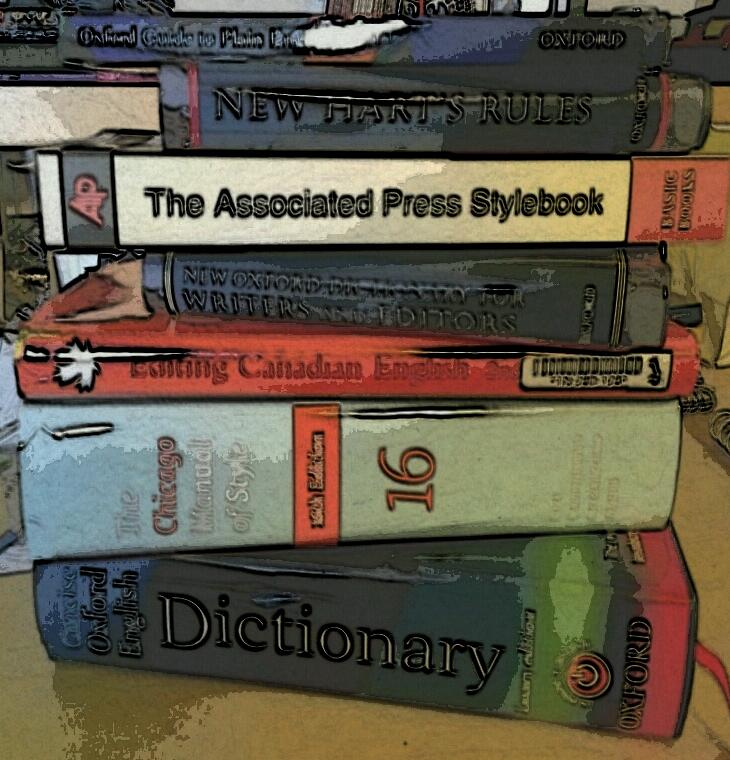
I have to admit that I hadn’t fully grasped the differences between these two. So I’m guessing lots of other people hadn’t done either. And the dictionary is quite opaque on this, talking about chemical compounds rather than the essential, understandable differences, although my trusty “New Oxford Style Manual” does better.

Silicon is a naturally occurring element (symbol Si) which is hard and durable and used in the silicon chips inside computers.

Silicone is a synthetic compound of silicon, and this is the one that’s used in breast implants and cooking utensils: it can be a liquid or gel as well as a solid.

So, actually two that it’s a good idea NOT to get mixed up!

You can find more troublesome pairs here and the index to them all so far is here.


Tags: , , ,

Pair, pear or pare?

It’s homonym time in Libro Towers, with this classic easily confused trio …

A pair is a set of two things which are joined together or otherwise considered as a unit – including people or animals which are considered together – a pair of naughty boys; a pair of horses used to pull a carriage; a pair of wires twisted together to conduct your home phone signal.

A pear is an edible fruit or the tree that bears that fruit.

To pare (notice that this one’s a verb where the others are nouns) is to trim something by cutting the outer edges off, so you might pare an apple to take the skin off – it also has a more metaphorical meaning around reducing or diminishing something in stages rather than all at once, like taking the outer then inner layers off a piece of fruit, so you might pare down staffing levels gradually rather than sacking everyone at once.

So, if you had two pieces of fruit and you wanted to remove the skin from them, you might pare a pair of pears!

You can find more troublesome pairs here and the index to them all so far is here.

 
1 Comment

Posted by on December 14, 2012 in Errors, Language use, Troublesome pairs, Writing


Tags: , , ,

Lightning, lightening or lighting?

Several people have mentioned this trio to me, so it’s time to set it all out and explain it …

Lighting is the system or arrangement of lights, in a home or a theatre or film studio or wherever there are lights, or the effect that this arrangement has – “The lighting in the scene gives a feeling of doom”.

Lightening means becoming lighter in weight – “He was lightening the balloon by throwing out the ballast, and we went up, up and away!” or paler in colour – “She’s been lightening her hair again”. It also  has a technical, gynaecological meaning to do with wombs: you can look that up yourselves, as I think that’s one of those terms that you will know if you need to know it.

Lightning is the visual presentation of the electrical discharge between clouds, or between clouds and objects, during a thunderstorm. As a modifier, it also means very quick, linking of course to the very quick nature of lightning itself, as in, “His lightning reflexes meant he caught the pint glass before it hit the floor”.

You can find more troublesome pairs here and the index to them all so far is here.

 
11 Comments

Posted by on December 7, 2012 in Errors, Language use, Troublesome pairs, Writing


Tags: , , ,

Homonym, homophone or homograph?

A timely post, as I was discussing this, with examples, at home yesterday evening. Yes, that’s how we like to have fun here at Libro Towers: a bit of etymology of an evening …

We’ve already had one pair where I explain the difference between homo and hetero, so we know that the prefix “homo” will essentially introduce a word that’s all about two things being the same. But what happens when those words themselves all look horribly similar?

These three are quite similar-looking technical words used in English literature and linguistics. It is important to know the difference if you are working in these fields.

Homonyms have the same spelling or pronunciation but different meanings (the word comes from the Greek – having the same name), for example, pole and Pole, pear and pare, but also bass and bass. The homonym is the main class of words, divided into homophones and homographs.

Homophones have the same pronunciation but different meanings, origins or spellings, new and knew, beat and beet, fair and fare.

Homographs have the same spelling but different meanings, with either different pronunciations or the same pronunciation – for example bass (the deep singer) and bass (the fish), or cleave (separate) and cleave (join together).

You can find more troublesome pairs here and the index to them all so far is here.

 
1 Comment

Posted by on November 26, 2012 in Errors, Language use, Troublesome pairs, Writing


Tags: , , ,

Annex or annexe?

I’ve been working on a document that described a number of buildings with annexes, and I have to admit that I had to look this up, just to check. Well, to be honest, I look up a lot of things to check them, as I’d always rather get it right, oddly enough (one of these days I’ll write a post about a word that I’ve always thought is a word, but doesn’t actually exist …)

So, to annex is a verb, never has an e on the end, and means to add as an extra part or to appropriate territory. I can’t give an example of the latter without getting all political, but you could have a set of tables and a document they refer to, and decide to annex the tables to the document rather than present them separately. That’s an acceptable, discrete verb form, not one that’s been oddly made out of a noun (like “to inbox” – ugh) as far as I know.

An annexe, the noun, is an addition to a document or building. Now, I have to admit that I thought the difference lay here, and that the e was only added for a building. But all of my good old Oxford sources say no, it’s used for both. So, “The table was added as Annexe 1 to our document”; “Coffee will be served in the annexe to the church”.

Or, you can just skip the e there altogether. But you know me: I like to maintain different forms of words to preserve the variety of our language. So I say verb: no e; noun: add that e. Add it as an annexe, if you will!

You can find more troublesome pairs here and the index to them all so far is here.

 
2 Comments

Posted by on November 23, 2012 in Errors, Language use, Troublesome pairs, Writing


Tags: , , ,

Bullet points – how and when to use them

It’s Word Tips time and today I’m going to talk about bullet points – why we use them and how to use and format them. Next week, I’m going to treat you to some tips about how the language and punctuation of bullet pointed text works. But for now …

Why do we use bullet points?

Bullet points help to make what you’re saying more clear. They break up blocks of text into tidy chunks so the reader can take in what you’re saying. They present lists in a clear format so people can see it’s a list. They emphasise points you want to emphasise. They show the organisation of things. In short:

  • They’re useful
  • They’re tidy
  • They’re good at emphasising things
  • They make sure the reader knows this is a list

How do I use bullet points in Word?

In Word, you want to be in the Home Tab. Then, look at the Paragraph section and you’ll find a set of useful little buttons. One has a list of dots, one has a list of numbers, one has an indenting list of numbers, and two have paragraphs and arrows:

These are the buttons you need to make your bullet pointed lists.

So, here’s a plain list without any bullet points. To make a list bulleted, you need to highlight the areas you need to change. So in this example, we want to leave the first line alone and highlight the other ones:

Once we have the lines highlighted, we can click on the bullets button (just in the middle of the button for the time being) to make the highlighted lines into bullet points:

You can do the same but hit the number button to the right of the bullets button – now we get a numbered list:

How do I create sub-bullet points?

What if you want nested bullet points in sub-categories? That’s fine – put your list into bullets, then select just the line you want to change and click on the Increase Indent key to move it along one. You’ll see the bullet point itself (or the number) change when you do this.

There’s another way to do this (of course there is!) – get your cursor just before the first letter of the first word of the line you want to indent and hit the Tab key on your keyboard. You will get the same effect.

How do I customise my bullets and numbering?

You may not like the standard bullet points you’re given by Word. That’s fine, because you can customise them.

The bullet and number button each have a tiny arrow on the right-hand side of the button. Try clicking on the one on the bullet button …

… and you’ll get a choice of different bullet markers you can use. If you click on Define New Bullet, you can even upload your own images to use as bullet points: useful if you’re creating a document that needs to be on brand with the rest of your brand identity, for example.

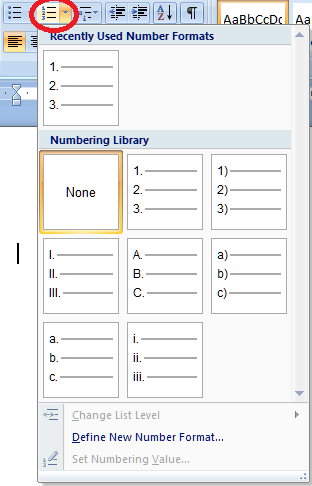
You can do this with the numbers, too, allowing you to choose between letters, Arabic numbers and Roman numerals:

Again, you can define your own new number format if you want to.

Customising the list style

To go just that little bit deeper into customisation, you can also fully customise how the sub-bullets work and even set a new Style for this document or all future documents.

To do this, we use the Multilevel List button. This one’s a bit of a swizz, I think – it gives you a tiny arrow on the right, but it doesn’t actually matter where on the button you click; you will still get the same menu.

So this gives you the chance to choose between different multi-level list formats and to define your own.

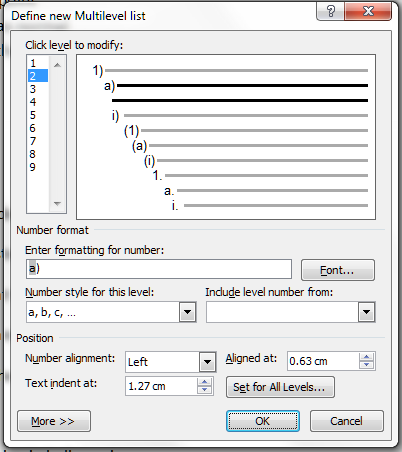
If you select Define New Mulitlevel List you will be given a new set of options. Choose this if you just want to change one list in your document.

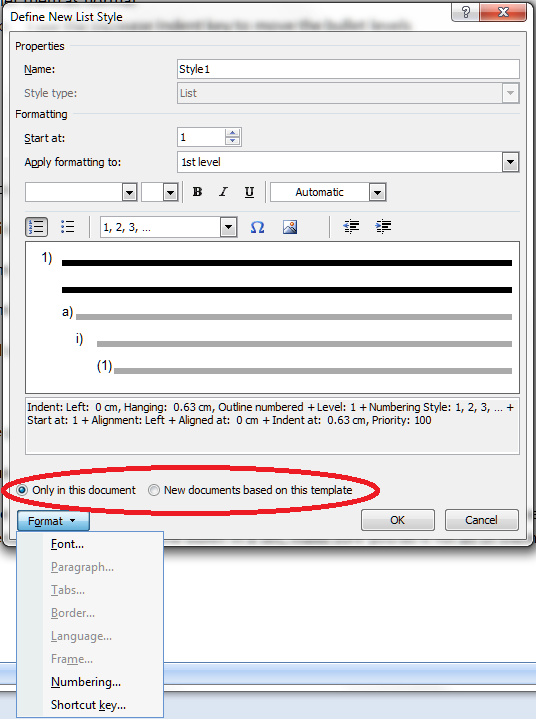
If you want to define a style for all of the lists in your document, or a new List Style to use in all documents forever, choose Define New List Style.

Then you can go ahead and crate a new list style that will appear in your Styles on your Home tab, and can be used for lists in just this document, or documents from now on.

We’ve learned how to set up and customise bulleted and numbered lists.

Next week, we’ll look at the text you write in lists and how to make sure that works clearly and appropriately.

This is part of my series on how to avoid time-consuming “short cuts” and use Word in the right way to maximise your time and improve the look of your documents. Find all the short cuts here

Do let me know if this has helped you – and do share with the buttons at the bottom of this article.

 
7 Comments

Posted by on November 21, 2012 in Copyediting, Errors, New skills, Short cuts, Word, Writing


Tags: , , , ,

Invite or invitation?

I have come across this rather more times than I’d like recently. If anyone remembers the short-lived Libro character, Ranting Ron, who turned out to be too negative for this nice, friendly, supportive blog, he would have been ranting about this one ..

Invite is a verb. It means to ask someone to go somewhere or do something, and can be informal (“she invited me to go for a coffee after yoga”) or formal (“Mr and Mrs Perkins invite you to the wedding of their daughter, Polly”). It can also be used to refer to eliciting a response of some kind – “I would like to invite questions from the audience”. Full stop.

Invitation is a noun. It’s a written or verbal request inviting someone to go somewhere or do something. It’s the bit of card that is used to do this, which Mr and Mrs Perkins will send to you when they want to invite you to their daughter’s wedding. Invitation is the noun to invite’s verb.

Now, I have to admit that the esteemed Oxford dictionaries do admit that there is an Informal use of invite to mean invitation. But I don’t think we need that, do we? Let’s keep the distinction and keep it all nice. OK?

You can find more troublesome pairs here and the index to them all so far is here.

 
2 Comments

Posted by on November 16, 2012 in Errors, Language use, Troublesome pairs, Writing


Tags: , , ,

Ocular or oscular

Is it the eyes or is it the mouth? I have to admit that this is a bit of a cheeky one, inspired by the ramblings of a group of vision scientists who were discussing vision and kissing … but what’s the point of having even a fairly serious work blog if you can’t be cheeky occasionally. So this one is dedicated to Matt, Arthur, Dicle, Matthew, Aidan and their chums …

Ocular means of or related to the eyes or vision.

Oscular, in its “humorous” sense (according to the Oxford dictionaries, whose sense of humour may be slightly ponderous) refers to kissing. In its zoological sense, it means something related to the osculum. And the osculum, dear readers, is a large aperture in a sponge from which water is expelled (from Latin os, mouth: diminutive, osculum, little mouth). Now, if that hasn’t killed the romance, I don’t know what will …

You can find more troublesome pairs here and the index to them all so far is here.


Tags: , , ,

Waste or waist?

Another troublesome pair that I’ve seen a few times recently: another of these homonyms, or words that sound the same, which I suppose is where the problem arises. Because we all know the difference, don’t we?

A waste occurs when you have something left over that has to be thrown away, or you don’t use something and it goes off, or you spend too much – it’s all about using something carelessly or extravagantly, or not accounting for what you need. So you can waste a bag of apples if you don’t eat them in time and they go rotten and have to be thrown away, or you waste money if you pay for a gym membership and don’t ever go to the gym.

A waist is the middle of something, where it’s nipped in, particularly in the human body, where it’s the big between the ribs and the hips, but also in other creatures, and inanimate objects, like a violin.

“I wasted a lot of satin making her wedding dress, because I didn’t measure the size of her waist so I had to trim lots of pieces off the original pattern.”

You can find more troublesome pairs here and the index to them all so far is here.


Tags: , , ,

My short cuts – the line space button

Today we’re finding out all about the wonder that is the Line Space button. Do you know what it does? Did you know it was even there? And did you know how many ways there are to get to the Paragraph menu …? All this and more in today’s Short Cuts!

What is line spacing and why do I need to know about it?

Line spacing defines a large portion of what your document looks like on the page. It’s all about the gaps between the lines you type. Too close together, and your document can be hard to read. Too far apart, and there aren’t enough words on the page, with all that white space glaring at you. Of course, sometimes you’re told that your work must be presented in a particular way – double line spaced is popular for both academic work and fiction being submitted to a publisher or magazine.

It’s also really useful to be able to insert a gap between paragraphs automatically, to save you having to insert one manually – and if you find you’re working on a document that has odd spacing (or, worse, inconsistent spacing!) between lines and paragraphs, this is how you sort it out.

How do I alter the spaces between lines in my document?

We’re in Word 2007 or Word 2010 now, with that handy “ribbon” containing hundreds of little square buttons. Make sure you’re in the Home tab and have a look at the Paragraph section. You should find a button with up and down arrows to the side and lines of text in the middle: the Line Space button. There’s a big version at the top of this post, and you can find it here:

When using this button, or indeed anything that changes the word, line, paragraph, page or whole document that you are working on, make sure you’ve highlighted the text to which you want the change to apply first. Then click on the button and see what choices you are presented with:
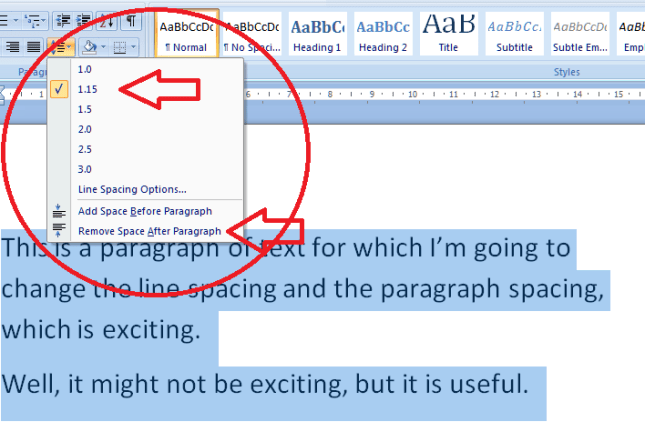
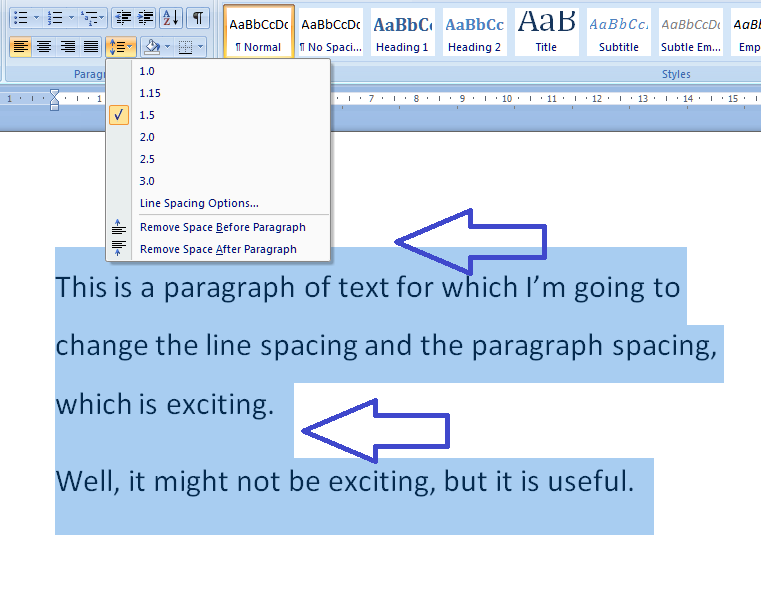
The first thing you’ll notice is that one of the line spacing options (in the top half of the box) is already ticked, and you have an option to Remove Space After Paragraph (in the bottom part of the box) which, you can see by comparing it to the line above it, implies that there is a space set to appear after each paragraph at the moment. So one useful feature here is that clicking on the paragraph and then the line space button will tell you what is already set up for that part of the document. In this case, the spacing is 1.15 (just a little bigger than single line spacing) and there’s an extra line space after each paragraph.

Let’s try changing something …
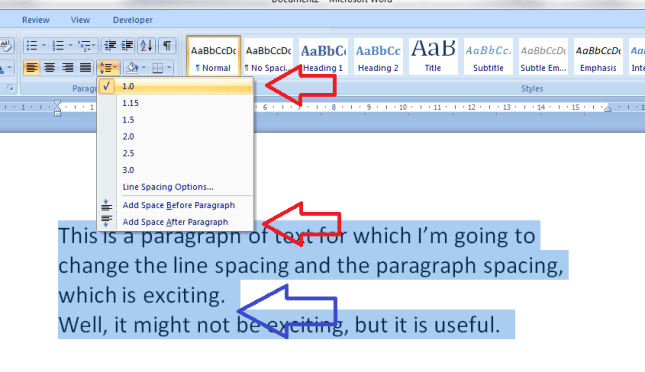
Here, we’ve changed the line spacing to 1 and clicked on Remove Space After Paragraph, so it’s flipped to saying Add Space After Paragraph (red arrows). And look what’s happened (immediately) to our highlighted text. All of the lines are closer together, and the space between the paragraphs has disappeared (blue arrow).

We can change it back and go the other way, too …
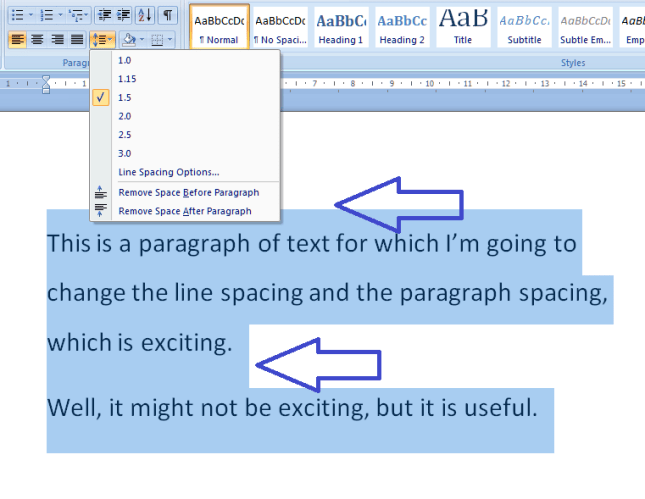
This image is at the same scale as all of the other ones, but you can see that changing the line spacing to 1.5 and adding spaces before and after the paragraphs has really spaced it out, and moved it further down the page to start off with.

Now, there’s one line in the dialogue box we haven’t looked at yet: Line Spacing Options… What does that do?

How do I use Line Spacing Options?

The Line Spacing Options … erm, option can be found between the line spacing and paragraph spacing choices:
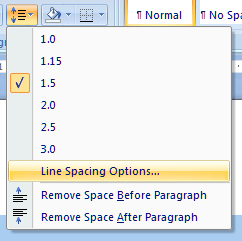
When you click it, you’ll be given a new dialogue box, which is actually the standard Paragraph options box. It has two tabs, and the first one is Indents and Spacing:
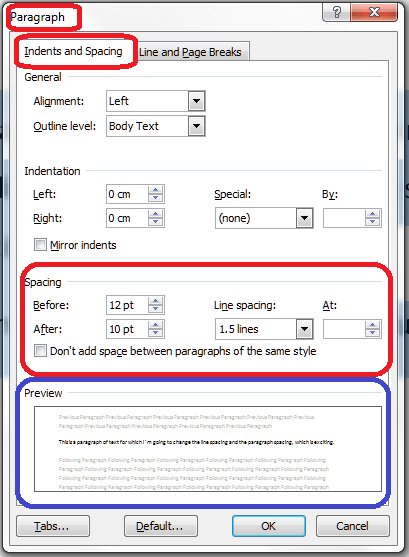
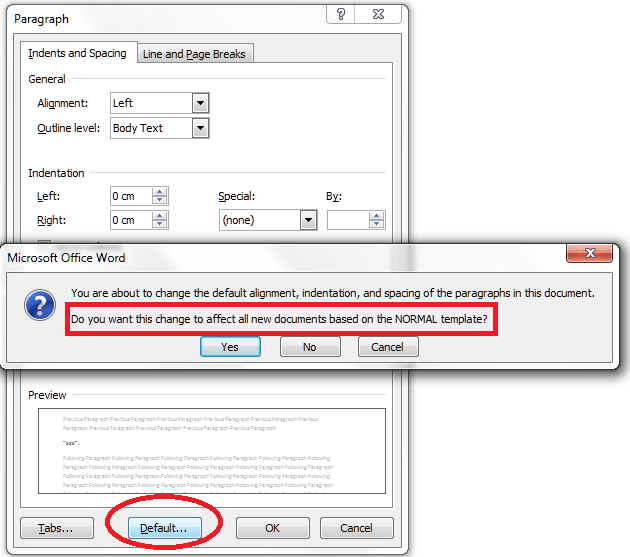
If you want to customise your document completely, this is where you come to set the paragraph indent, and the actual distance between paragraphs. There’s a handy Preview pane at the bottom which will show you the effect of any changes you make on some sample text (circled in blue). You can also work with Tabs from here – we talked about Tabs in another session. And, if you wish, you can change everything on here and then set it as being your default setting for paragraphs for this documents, or all documents based on this template that you ever work on:
The other tab on this dialogue box is all about Line and Page Breaks:
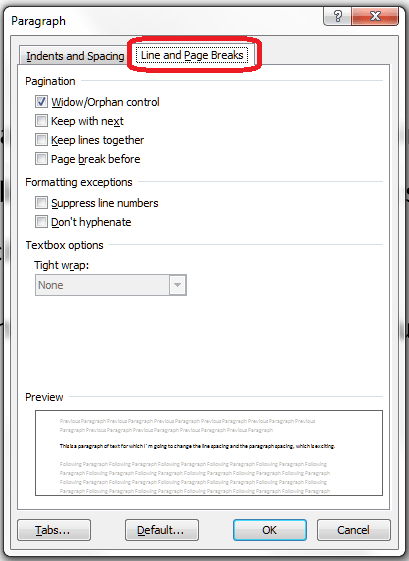
These are topics in themselves, so I’ll write about them in another session (if I forget to come back and put a link in here, use the Search box in the right hand column of this blog, or look it up in my index).

When you’ve finished with all of these options, just press the OK or Cancel buttons to accept your changes or go back to the document.

How do I access the Paragraph menu?

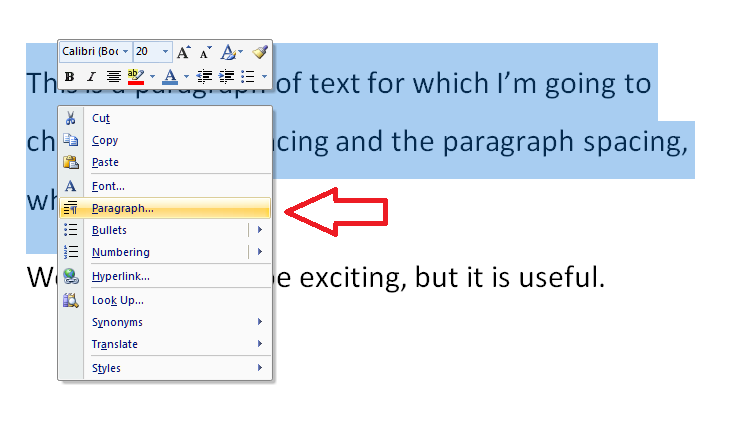
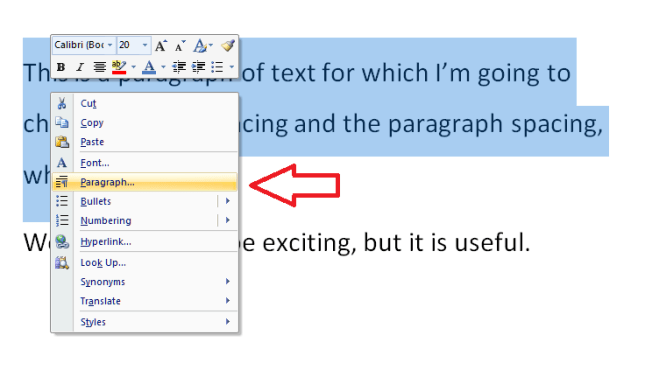
This being Word, you will find the same Paragraph menu we’ve just been looking at popping up on other routes through the software. If you just need the Paragraph menu and not the Line Spacing options in particular, you can access it from any Word document by highlighting your text, clicking with the right mouse button and selecting Paragraph from the selection that appears:
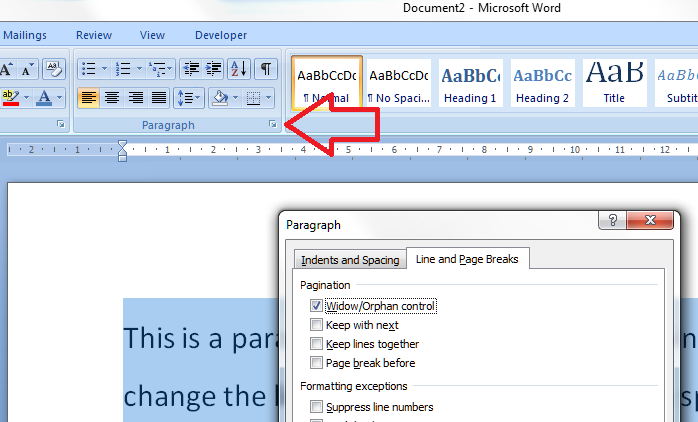
Or you can access it by clicking on the little tiny arrow at the bottom of the Paragraph title bar (if that’s what it’s called!) on the ribbon (I talk about these little arrows elsewhere, too):

I hope you’ve found these hints helpful! Do pop a comment on this post if I’ve helped you learn something new or solved a tricky problem for you, and do explore the rest of my blog if this is your first visit!

Please note, these hints work with versions of Microsoft Word currently in use – Word 2007 and Word 2010, all for PC. Mac compatible versions of Word should have similar options. Always save a copy of your document before manipulating it. I bear no responsibility for any pickles you might get yourself into!

This is part of my series on how to avoid time-consuming “short cuts” and use Word in the right way to maximise your time and improve the look of your documents. Find all the short cuts here

 
2 Comments

Posted by on October 24, 2012 in Copyediting, Errors, New skills, Short cuts, Word, Writing


Tags: , , , ,