RSS

Category Archives: Errors

Cite, sight or site?

I come across site and sight being mixed up quite a lot, and citing is on my mind as it’s dissertation editing season at the moment … so here goes with this troublesome trio!

Let’s get the easy one out of the way first. To cite is to refer to – you might cite a reference in a document, or use the word to refer to something that has come before, usually a precedent: “to cite precedent, we have let a man into our women’s tennis club before, and so we will have to do so again”.

A site is the place where something is located, whether that’s the piece of land where something is built or the location where something happens. To site something is to place it in the location where it is going to stay or take place.

Sight is the power or faculty of seeing, as well as the more metaphorical extensions like foresight, where you are not physically seeing something, but perceiving something in the future. A sight is something that you see.

When you see the sights, you are, literally, seeing them with your sight. Therefore they are sights, not sites.

But sites can also be sights that a sightseer would view! “The main sights of the trip are the sites of the Pyramids and army encampments”. We see the touristic sights, but they are all sited somewhere.

If it’s a feature, phenomenon or building, etc.,  that you see, it’s a sight. If it’s the place where that thing is situated, it’s the site of that thing. And if you refer to an essay about the phenomenon, you might cite it!

“Jeremy cited the newspaper article about the argument over the site for the new ‘see the sights of the world’ exhibition in his report on the controversy”.

You can find more troublesome pairs here and the index to them all so far is here.


Tags: , , ,

Unmeasurable or immeasurable?

This is one that came up in something I was editing a few days ago. And, I admit, one that I had to check in the dictionary. I was pretty sure the writer wanted unmeasurable (I was right), and I wasn’t sure that immeasurable was a word (I learned something, notably that SpellChecker doesn’t think it’s a word, which is why we still use dictionaries!).

Unmeasurable means, specifically not able to be measured objectively. We use this one in the literal sense: “the immense lizard was unmeasurable with the tiny ruler in the standard lizard measuring kit”; “the sea trench in which the angler fish lived was of an unmeasurable depth”.

Immeasurable means, a bit less specifically, I suppose, too large, extensive or extreme to measure. We should reserve this one for the more figurative sense (otherwise there’s no point in having two different words, is there, and where would THAT leave us?): ” the immeasurable mercy of their god”; “he had immeasurable ambition”.

“I experienced immeasurable relief when I discovered that the width of the lake, filling and evaporating as it did, was actually unmeasurable.”

You can find more troublesome pairs here and the index to them all so far is here.

 
18 Comments

Posted by on August 24, 2012 in Errors, Language use, Troublesome pairs, Writing


Tags: , , ,

My short cuts – automatic formatting as you type (and how to get rid of it)

My short cuts – automatic formatting as you type (and how to get rid of it)

In this post we looked at AutoCorrect, and automatic formatting is really an aspect of AutoCorrect – although I find it’s more annoying than useful, I have to admit. In this post I’ll show you where to find auto formatting, what it does, and how to turn it off.

This is part of my series on how to avoid time-consuming “short cuts” and use Word in the right way to maximise your time and improve the look of your documents.

What is automatic formatting?

Automatic formatting is basically Word trying to be helpful. Instead of a Paperclip Man or cartoon dog popping up in the corner of your screen, it will try to guess what you’re doing and format it to what it thinks you want. This can be very useful, or it can drive you mad, depending on context.

Where do I find the AutoFormat menus?

AutoFormat lives on a set of tabbed menus alongside AutoCorrect. For full instructions on how to access AutoCorrect, see my article on AutoCorrect and where to find it, or if you’re confident, do this:

  • Word 2003: Tools – AutoCorrect Options
  • Word 2007: Office button – Word Options – Proofing – AutoCorrect Options
  • Word 2010: File tab – Options – Proofing – AutoCorrect Options

When you’ve done that, you should see a window that looks like this:
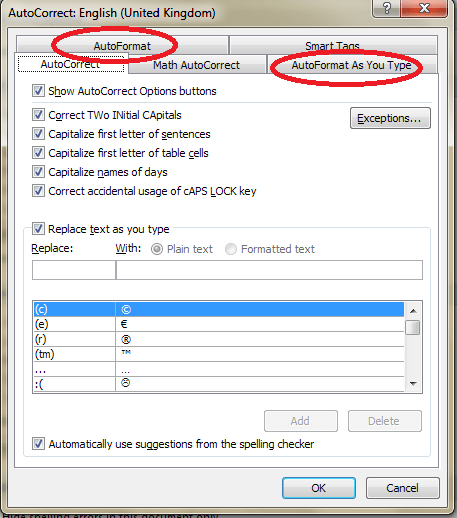
AutoFormat tabs in the Autocorrect window

The two features we’re interested in are AutoFormat and AutoFormat As You Type.

What is the AutoFormat menu for?

Let’s look at the AutoFormat menu first. Click on the relevant tab in the AutoCorrect Options window and you’ll see this:
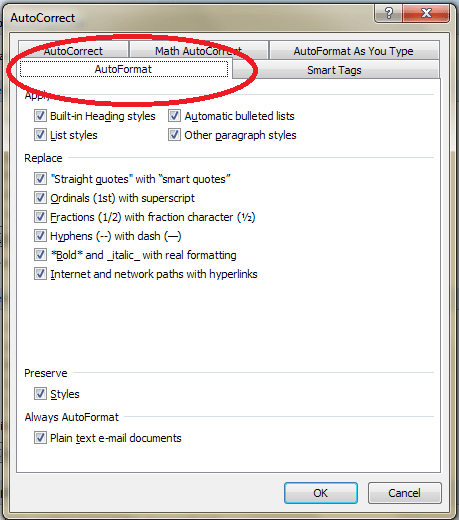
AutoFormat menu

This is how you tell Word what you want to automatically format – however, whatever you change here doesn’t affect AutoFormat as you type. In fact, if you search on Google or in Word’s own help menus, it’s hard to find out what to do with this menu. I can tell you, after exhaustive research, that this menu is used to format your document after the event, at the end, when the document has already been created.

By pressing OK, you will apply all of the automatic formats that you have ticked to the document in question. You can pick and choose which ones you apply, and they are all pretty self explanatory, and you can ask it to retain the styles already set up in the document if you want to.

What is the difference between AutoFormat and AutoFormat As You Type?

AutoFormat is used to format the document after it’s been written. This is particularly useful if you’re sent a document to use which has the “wrong” quote marks, etc. AutoFormat As You Type is used when you’re creating a new document, so you can automate the format and make it consistent as you go along.

What is the AutoFormat As You Type Menu For?

The AutoFormat As You Type menu allows you to choose what Word helpfully automatically formats for you. Let’s have a look at the menu: just click the relevant tab if you’re looking at AutoCorrect or AutoFormat.
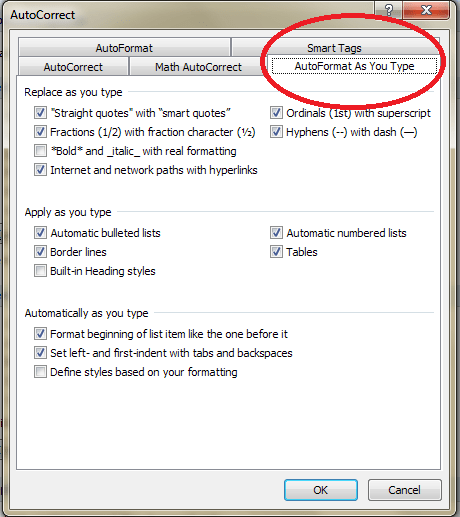
AutoFormat As You Type menu

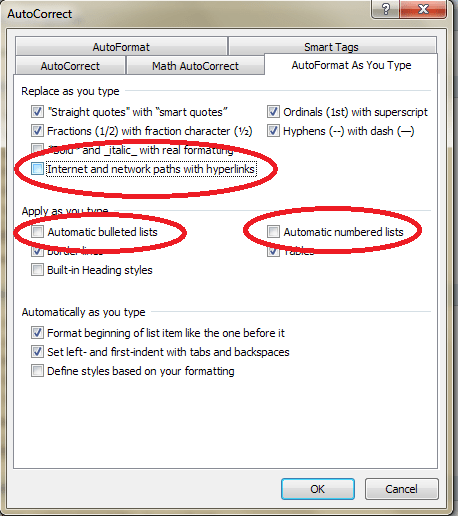
You can see that there are lots of options here – most of them are pretty self-explanatory, especially as they give examples by each tick box. The ones that cause most issues, in my experience, are

Replace as you type: Internet and network paths with hyperlinks

Apply as you type: automatic bulleted lists / automatic numbered lists

Let’s look at what these do in your document … and then how you can stop this if you want to.

What does AutoFormat As You Type do?

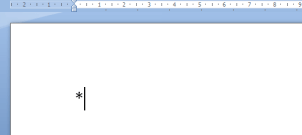
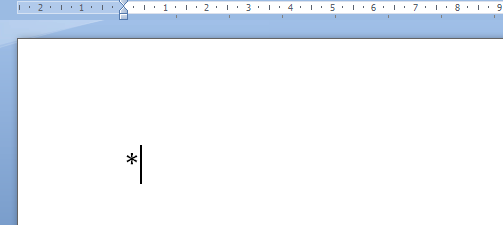
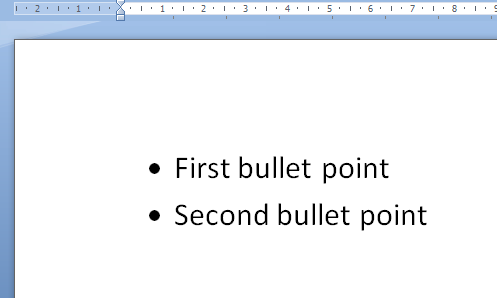
As I said before, AutoFormat As You Type tries to be helpful. It particularly likes helping you make nice neat lists. So if you start some bullet points by typing a * or

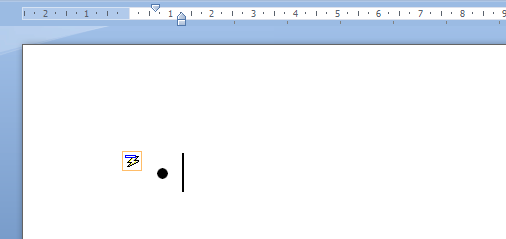
and then a space, for example, it will turn them into bullet points for you!
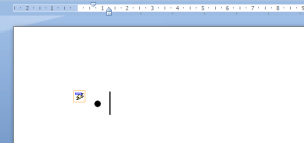
Notice the little AutoCorrect Options icon appearing to tell you what Word’s doing. When you type some text and hit Enter, you’ll automatically be given a new bullet point to start you off:
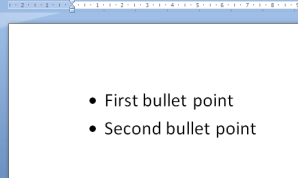
(You escape from this treadmill by hitting Enter twice at the end of your last list item.)

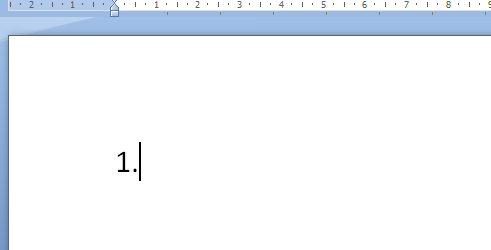
If you start typing a list by putting a 1. at the beginning of a sentence …
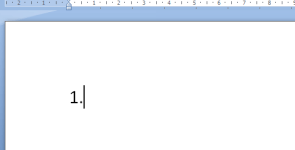
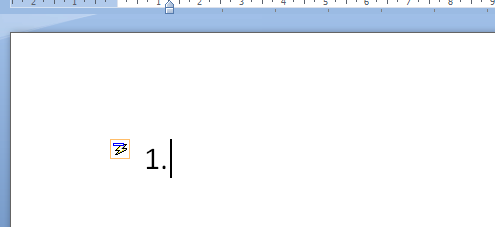
… when you press the space bar, it assumes you’re writing a list and helpfully indents it:
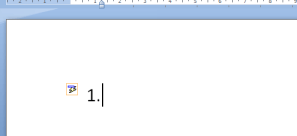
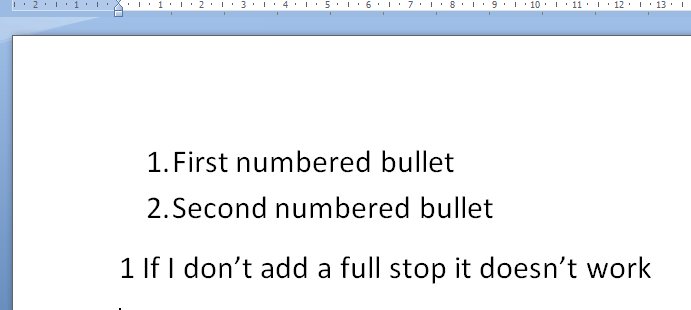
and when you press Enter at the end of that line, it helpfully numbers the next line for you:
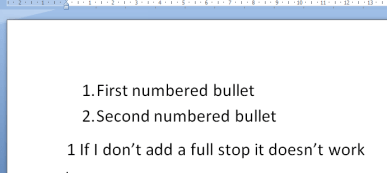
As you can see, you do need that full stop after the number, otherwise it doesn’t “realise” you’re writing a list.

It does it with letters, too, which is all well and good, until you happen to start the line with the letter A, but you don’t want to create a lettered list. What do I mean by this?

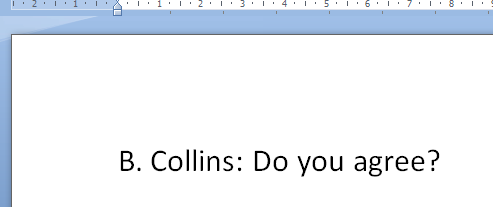
Well, in my case, I do a lot of transcription. I need to type the person’s name (usually initial and surname) followed by what they said. If it’s a name that begins with anything but A, that’s fine. I type the initial and full stop and carry on, and all is fine:
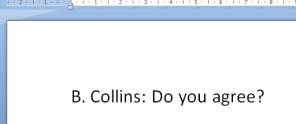
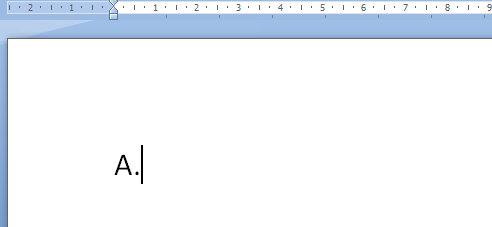
However, if their name begins with an A, I type my A.:
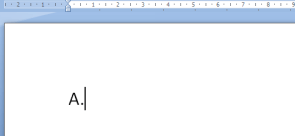
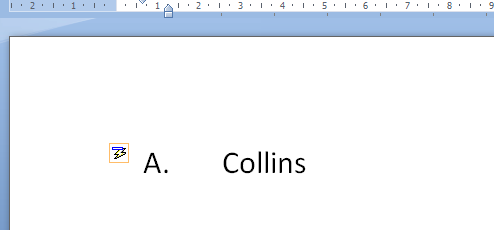
and Word springs into action, handily giving me that little icon to show that it’s making me a list.
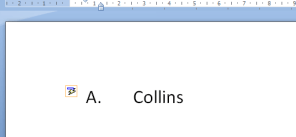
OK, I can click on the little AutoCorrect Options icon and change the settings from there …
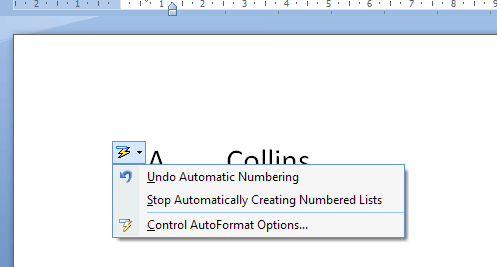
But it’s still rather annoying.

Automatic hyperlinked URLs and email addresses

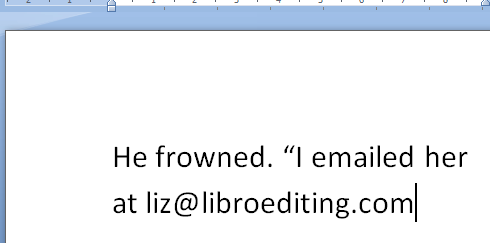
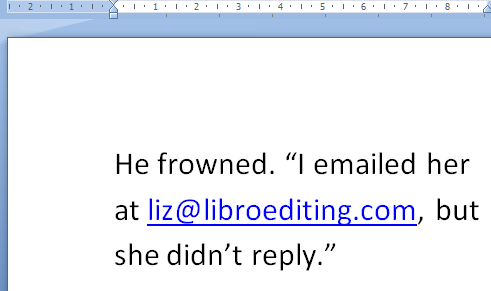
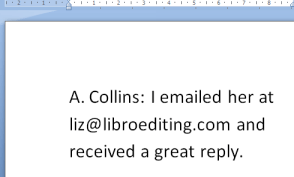
The other annoying “feature” is when Word automatically turns any URL or email address you type into a hyperlink, complete with attractive text colour change and underline. This is all well and good if you’re typing a document that will be looked at on screen and you want the reader to be able to click through, but if you’re just happening to type an email address into the dialogue in your novel …
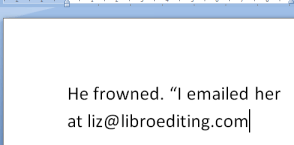
… you don’t want it to do this:
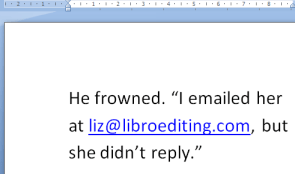
(You can tell it’s a novel: I’d never not reply to an email!)

How do I stop Word applying AutoFormatting As You Type?

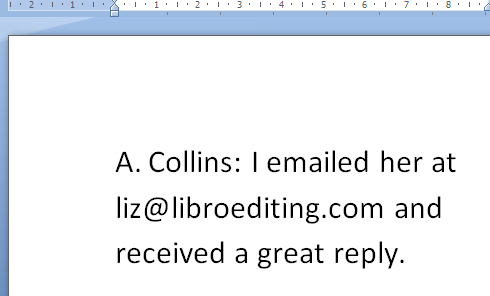
It’s simple, fortunately. Go back to that menu and untick the items you don’t want Word to AutoFormat. Make sure you also click on OK before closing the window:
Now you can type whatever you want and Word will leave it as it is, and won’t try to “help” you.
Hooray!

Please note, these hints work with versions of Microsoft Word currently in use – Word 2003, Word 2007 and Word 2010, all for PC. Mac compatible versions of Word should have similar options. Always save a copy of your document before manipulating it. I bear no responsibility for any pickles you might get yourself into!

Why don’t you take a look at my other useful short cuts here

 
4 Comments

Posted by on August 22, 2012 in Copyediting, Errors, New skills, Short cuts, Word, Writing


Tags: , , , ,

Impact or affect?

Here is a pair of words that are often used in reports and academic work; they do have a subtle difference which it’s worth noting and remembering.

To affect something is to have any effect on it, to make a difference (remember the difference between affect and effect).

To have an impact (on) something means to have a strong effect on it (of course, an impact also occurs when something comes forcibly into contact with something else – in a collision or wedged and crushing like an impacted wisdom tooth).

So everything that has an impact on something has an effect on it, affects it, but not everything that affects something else has a strong enough effect to be an impact.

We also have the tricky issue of the phrasal verb impact on – “low interest rates have impacted on saving”. People tend not to like new phrasal verbs, and this one is seen as business jargon. If you’re tempted to use “have impacted on”, try “have had an impact on” instead: you know you’re safe with that one

You can find more troublesome pairs here and the index to them all so far is here.


Tags: , , ,

Past or passed?

This one was suggested to me by my friend and fellow freelancer, Lyndsey Michaels, and is, indeed, an important one.

Of course, these two are linked, and formed from the verb to pass. And they are easy to confuse and HARD to explain! But that doesn’t mean that they shouldn’t be used correctly …

Passed is a verb and is the past tense of pass. It expresses the idea that something has gone by something else, or that anything that passes anything else has done so in the past tense. “She had passed the elephant house and was on her way to the penguins”; “Many years had passed, and he was an old man with only his memories of pandas to sustain him”.

If you can use the word “pass” in the present tense, the future tense, or use it in the form passing, etc., i.e. if you’re using it as a verb, a “doing” word, when you’re using one of the past tenses, or a conditional, you can use passed:

I will pass my driving test one day – when I have passed my driving test I will get a car – if I had passed my driving test, I would have been so happy –  I have passed my driving test.

I am passing the jeering pub-goers with pride: after all, I’m running and they’re not – I passed the jeering pub-goers with pride – I will have passed the pub-goers in five minutes, and then I can relax.

Time will pass and all will be better – Time passed and all was better

Contrast this with past:

Past can be a noun meaning the time that has come before – “my divorce is in the past now, and I’m moving on!”. It can be an adjective – “Past prime ministers gathered for the Royal Wedding” meaning gone by in time and no longer existing. It is also a preposition meaning on the other side of “You can see him over there, past the crazy golf but in front of the candyfloss seller”. And it can be an adverb with a meaning of “so as to go by or so as to pass – “The ball went past the goalkeeper and the Mexican team scored”.

If something has passed something else, it has gone past it. It hasn’t past the other thing, and it hasn’t gone passed it.

So past doesn’t change when it’s used in the future, present past in a conditional sense, etc.: it works as a noun, an adjective, an adverb or a preposition and as an adjective, adverb or preposition will be found alongside a verb, rather than BEING a verb.

I went past the pub – I am going past the pub – I have gone past the pub – I will go past the pub – time will go past – the driving test was in the past – the driving test was in the past – the ball will go past the goalkeeper – the ball went past the goalkeeper – the ball was going past the goalkeeper.

You can find more troublesome pairs here and the index to them all so far is here.


Tags: , , ,

Elude allude or illude? Elusive, allusive or illusive?

Are they escaping or are you referring to them? That’s an odd sentence, but it’s what you need to consider when you’re choosing between these two words. They are used in different ways, too, which helps!

To elude means to escape from or evade, usually in some kind of skilful or cunning way (this can be concrete or abstract – “The moth eluded me and flew out of the window”; “The meaning of his ideas eluded me”). Note that elude has one l and something eludes something else.

To allude to something means to hint at it indirectly, or mention it in passing: “When discussing Betty he alluded to her plastic surgery but it was not the main part of the conversation”. “‘Ah, the majesty of your figure,’ said Adrian. ‘Are you alluding to my boob job?’ shrieked Betty”. Note that it has a double l and someone alludes to something else. Also note that this is sometimes used mistakenly in place of refer. You can’t say “He alluded to the actress by her name”, as to allude is to be indirect. Here you would use “He referred to the actress by her name”. Save allude for a use such as, “He alluded to the actress, mentioning an infamous role she played earlier in her career but not naming her”.

And to illude (has anyone ever used this?) means to trick or delude. But it’s hard to see when either of those words wouldn’t do, and it saves you remembering this one. I am just including it for the sake of completeness, to be honest. It is important when it comes to the word formed from it, illusive, though …

A bonus section today …

If something (language, on the whole) is allusive, it means it uses suggestion (yes, alluding to something) rather than mentioning something explicitly. “The poet uses allusive language to describe the pile of droppings without mentioning what it actually is”.

If something is elusive, it is difficult to achieve, find, catch, etc. It aims to elude the person who is trying to catch it. “The moth proved elusive, as I chased it around the bathroom, and it escaped through the window”.

If something is illusive, it is illusory and deceptive – it’s main purpose is to illude. “His wealth was illusive – all fur coats on top, all cheapo clothes underneath” (wealth can be elusive, of course, too, if you can never manage to achieve it, but the meaning is different).

You can find more troublesome pairs here and the index to them all so far is here.


Tags: , , ,

Desert or dessert?

This common error was suggested to me by a friend who was looking at some flyers she’d made and suddenly panicked: which one should it be? And I was actually quite surprised that I hadn’t tackled it yet.

So, the big question, which can end up with sand in your ice cream or endlessly trekking with your camel over empty wastes of Angel Delight … dessert or desert?

A dessert is a pudding; the sweet course. Think of it as an extra … with that extra s. So, the dessert trolley, what would you like for your dessert, etc.?

A desert is that sandy expanse (well, you can get rocky and stony deserts but let’s not get into all the stuff I learned in Geography O and A level). Think of it being deserted, if that helps.

And here’s a fun extra (when I described this bit as “fun” to the friend who asked me about this, she started to doubt my sanity, but, hey: this is my life now). You know when you say somebody has “got his just deserts“? That’s deserts, because he has got what he deserved. Not desserts, as it’s not the pudding on top of the menu of life.

“Jack ate all the desserts, but he got his just deserts, as he could never look at a bowl of ice cream in the same way again.”

You can find more troublesome pairs here and the index to them all so far is here.


Tags: , , ,

Between or among?

I’ve encountered this one a few times recently, so it’s time to differentiate between between and among. Or among between, betwixt, among and amongst. Did you see what I did there?

It’s all a question of numbers: in general terms, between is used when you’re talking about two things, and among is used when you’re talking about three or more thing, whether that’s points, places, people or choices.

So, between means into or across the space separating two points or locations or objects – “He regularly caught the train between Glasgow and Edinburgh”, “He squeezed in between Sally and Jan so he could be in the photograph”, or two things that need to be differentiated or otherwise chosen: “I couldn’t choose between the doughnut and the cream cake, so I had both”.

And among means surrounded by, in the middle of – “I was trapped among the cows in the field” – or indicates a differentiation, choice or division involving three or more parties or objects – “You must choose your holiday destination among Bulgaria, Hawaii and Outer Mongolia”

Between can be used for more than two objects, people, etc. when you are indicating a connection between several entities/parties (“There are links between Spanish, Italian and French”) although this one is a matter of stylistic choice, and I prefer among for more than two, and when a group does something – “We came up with his fine between us: although he got caught, we all raced the shopping trolley down the main road”, although I might be inclined towards among here, too, if I was being particularly picky.

These choices, where it’s not clear which has to be used, is why we editors have style sheets, by the way, so that when we make a choice the first time, we make sure we make the same choice next time.

Bonus information:

I’ve been asked about betwixt and between a few times. Betwixt is just the archaic form of between. Betwixt and between means “neither one thing nor the other”

And amongst, like whilst and while, is a mainly British English alternative form of among, but can seem a little over-formal.

You can find more troublesome pairs here and the index to them all so far is here.


Tags: , , ,

My short cuts: adding shortcuts to the quick access toolbar

Do you use commands in Word that are usually buried inside a menu inside a menu inside a menu? I’m going to show you how to add these onto your Quick Access Toolbar, so you can get at them using a shortcut in just one click. And scroll to the bottom for a very quick way to do this …

The example I’m going to use is AutoCorrect Options. I have posted about how to find and work with AutoCorrect, but it is buried within some nested menus, which means you have to click and click and click whenever you want to add a new entry, wasting time to do something in order to save time. Now, I can access the menu I want with just one click!

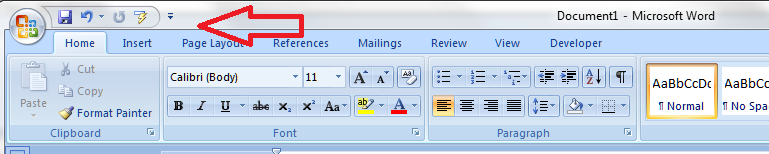
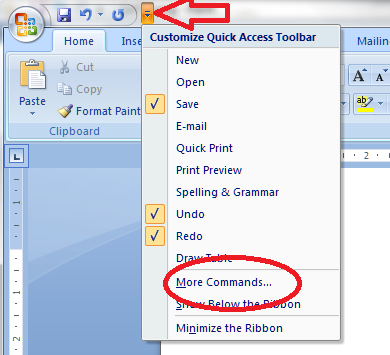
So, first of all we need to go up to the Quick Access Toolbar, right at the top of your screen in Word 2007 and Word 2010 (in Word 2003, right click on the main toolbar and customise it). Note the down arrow to the right of your standard buttons, and click it:

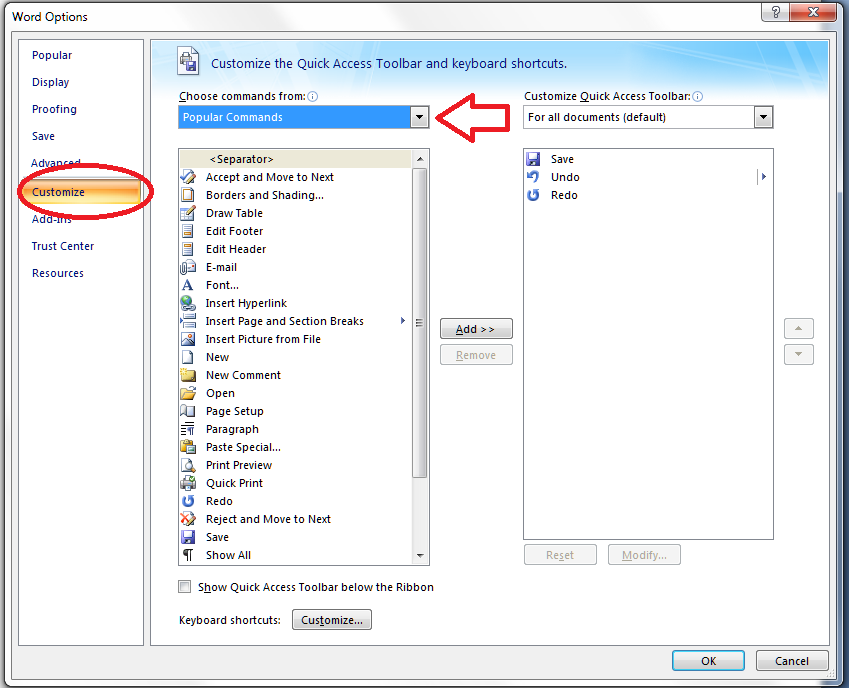
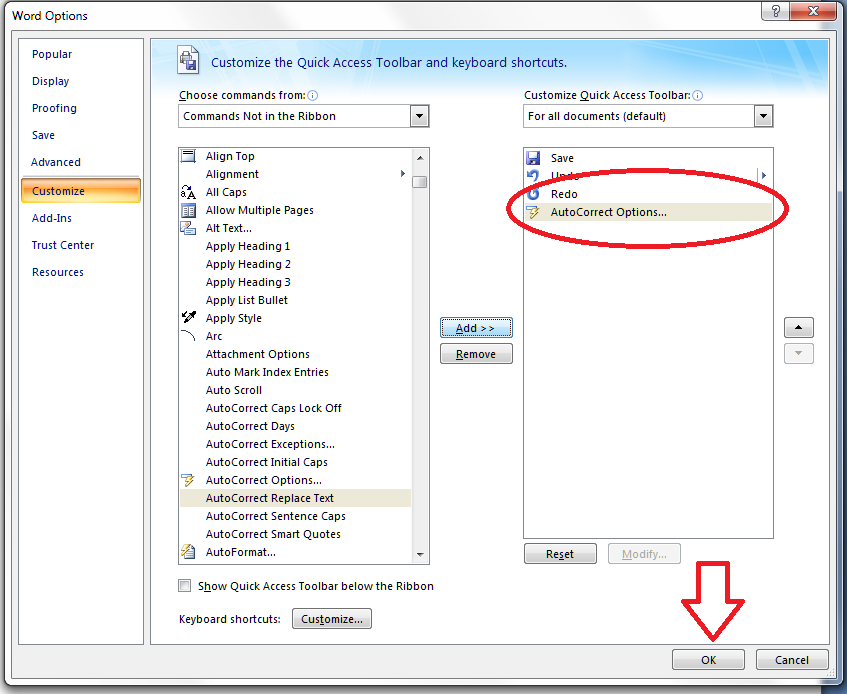
You will notice an option to choose More Commands – this is how you add more buttons to the Quick Access Toolbar. Click on that, and you’ll get a screen which allows you to customize the Quick Access Toolbar:

Note at this point that you can access this menu via Word Options – Customize, too, if you want to.

We can now see a whole load of Popular Buttons you can add on to the Quick Access Toolbar – so you can pop them on there to get at them whenever you want to. These are a few buttons that appear at the top level when you click on any of the tabs on your main ribbon.

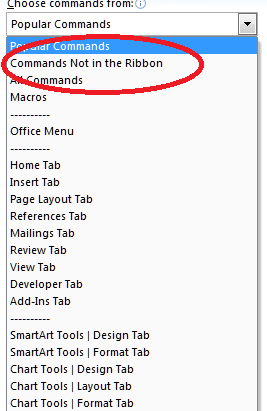
We’re going deeper, though, into buttons and commands which don’t appear on the top level of your tab menus. So click on the arrow next to Popular Commands and you’ll get a list of options:

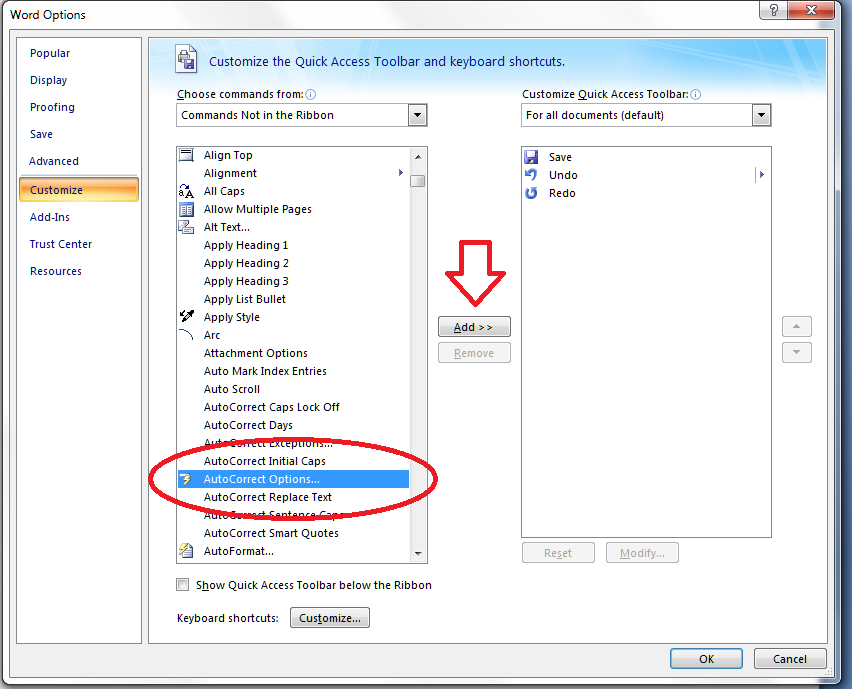
You can choose All Commands, which will give you every command and button (with a hover-over tip to which menu they belong to so you can choose, for example, Spell Check from the Review tab rather than the Blog version, which won’t do much for you in a standard Word document. In this case, to add our deeply buried button, we want to choose Commands not on the Ribbon.

Now you have a list of every command and button that exists in Word. How handy that AutoCorrect begins with an A! Look for your button and highlight it, then click on Add >> to add it to the list on the right – which is the list of buttons that appear on your Quick Access Toolbar. At this point you can even choose when these buttons will appear, but I always leave it on All documents. When you’ve pressed Add, there it is, on the list:

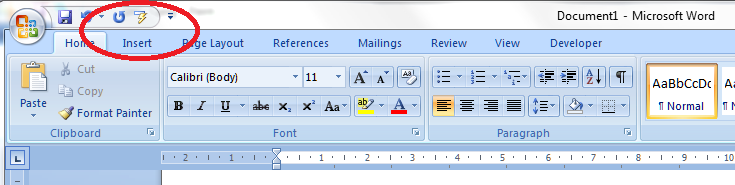
Click on OK and it will magically appear on your Quick Access Toolbar:

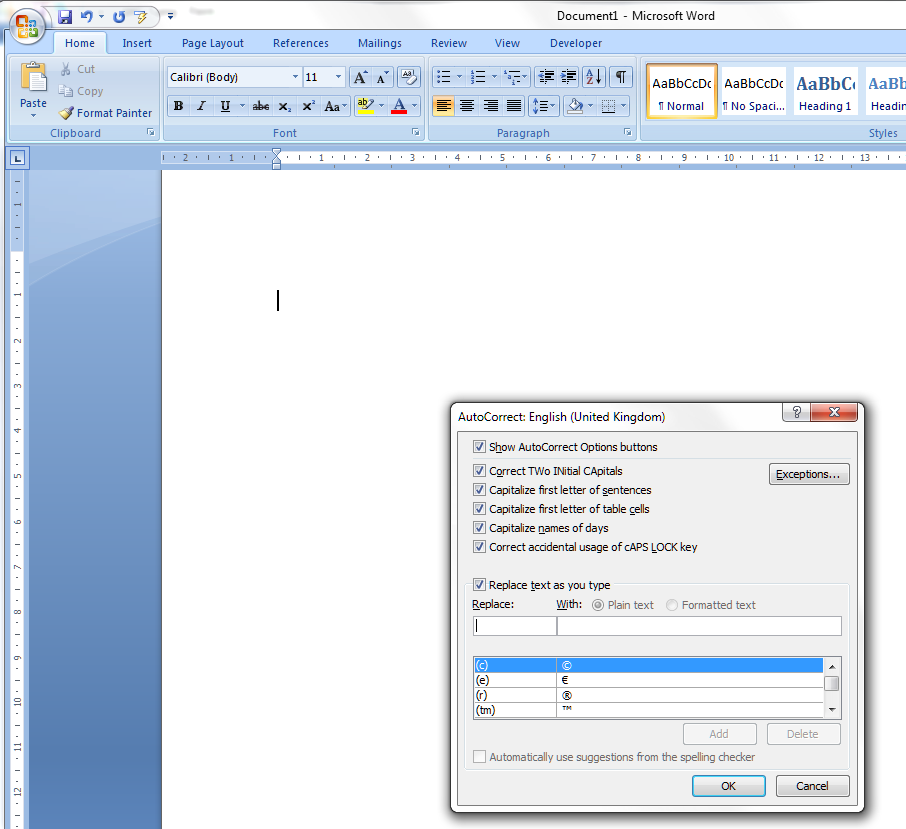
Want to check it’s true? Click on the little icon, and there’s our familiar AutoCorrect menu.

What a time saver! I’ve added all my very commonly used buttons from different menus onto my Quick Access Toolbar, from Bold to Spellcheck and all sorts of other things in between …

Adding items quickly to the QAT

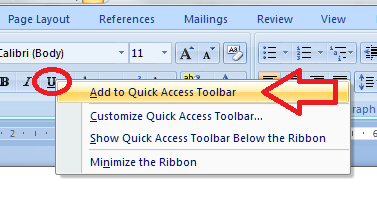
Edit to add: If you have the button you want to add to the QAT in front of you, simply right click on that button and you will get the option to add it to the quick access toolbar!

Magic! And it works however deeply buried the button is in your lists of commands – for example, you can choose something that appears in a menu within a menu:

Please note, these hints work with versions of Microsoft Word currently in use – Word 2003, Word 2007 and Word 2010, all for PC. Mac compatible versions of Word should have similar options. Always save a copy of your document before manipulating it. I bear no responsibility for any pickles you might get yourself into!

This is part of my series on how to avoid time-consuming “short cuts” and use Word in the right way to maximise your time and improve the look of your documents. Find all the short cuts here

 
24 Comments

Posted by on June 27, 2012 in Errors, New skills, Short cuts, Word


Tags: , , , , , ,

Palate, pallet or palette?

I see these three, especially pallet and palette, mixed up all the time – of course double letters, e at the end of a word and e or a are all classic ways to confuse spellings, so it’s hardly surprising that people get into a pickle with these.

Your palate is the roof of your mouth, and, by extension, can also be used to describe someone’s ability to appreciate different flavours and distinguish between them (wine tasters, for example, should have a good palate).

A palette is that board, usually round with a thumb hole in, that artists use to mix their paints, or the range of colours that an artist uses.

And a pallet is a portable flat platform used to store and stack other things – it’s often made of wood but you also find them in plastic. It’s also a kind of flat knife used to shape clay or plaster. And (whisper) it can be used to describe an artist’s palette, but let’s not confuse matters by doing that, OK?

“The artist cleared his throat, stepped up onto the pile of pallets that had stored his bread, grasped his palette and mixed some colours, and let the taste of the wine swill around his palate.”

You can find more troublesome pairs here and the index to them all so far is here.


Tags: , , ,