RSS

Category Archives: Writing

Infer or imply?

Infer or imply is a classic troublesome pair, especially in the context of academic writing.

And they actually represent two sides of the same story, meaning that it’s important to be able to distinguish them and use them the right way round. But then again, that’s true of all my Troublesome Pairs, isn’t it!

To infer is to deduce from evidence and reasoning.

To imply is to indicate by suggestion.

So the main difference here which needs to be remembered is the viewpoint from which the word operates. The two words can even describe the same situation, but from different sides.

If a person implies something, they are suggesting that something but not stating it directly: “By mentioning the high-priced bath accessories, but not going through the details of the newspaper report, the speaker was implying that the MP was over-claiming her expenses”.

On the other hand, if you infer something from what has been said or written by that person, you infer something from what they say: “Having been told about the high-priced bath accessories listed on the MP’s claims, we inferred that she was over-claiming her expenses”.

So the evidence implies this conclusion, or we can infer this conclusion from the evidence. Different sides of the same story, and two more words that require careful handling.

You can find more troublesome pairs here and the index to them all so far is here.


Tags: , , ,

Subsequently or consequently?

These two words are to do with cause and effect (or not), and of Thing B happening after Thing A. But they don’t mean the same, even if people think they do!

Something is consequent when it follows on from something else as a consequence, i.e. as the result or effect of that first thing. “She dyed her brown hair platinum blonde and consequently stood out in the crowd” – so, she stood out from the crowd because she had platinum blonde hair.

Something is subsequent when it merely follows on from something else in time, i.e. not as a result or effect of that first thing. “She had brown hair and subsequently went blonde” – she didn’t go blonde because she had brown hair, it was just the next thing that happened. She could have had black, red or blue hair first; the original hair colour doesn’t affect the outcome.

“She had black hair before she dyed it red, consequently she had to bleach it first before applying the red dye subsequently”. I don’t think anyone would actually ever utter that sentence, but hopefully it explains matters!

You can find more troublesome pairs here and the index to them all so far is here.


Tags: , , ,

My short cuts – headings (part 1)

This is part of my series on how to avoid time-consuming “short cuts” and use Word in the right way to maximise your time and improve the look of your documents.

Today we’re going to look at how to set up headings in Word. I am breaking this series up into small pieces, so we will be learning about setting up numbered headings and creating contents pages too.

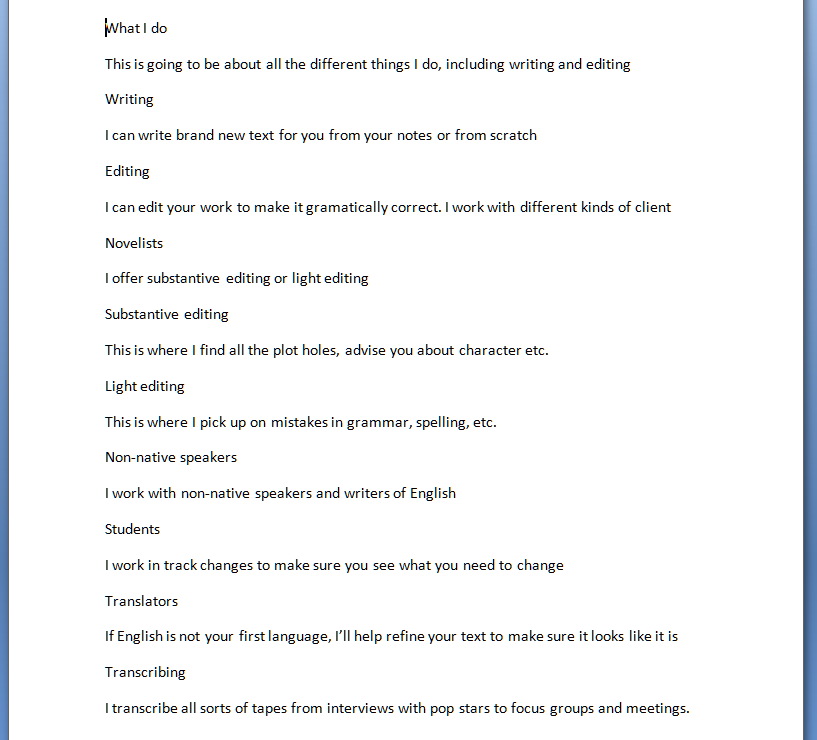
You will use this to save yourself time and ensure consistency when you’re setting up a large document with lots of headings and sub-headings. Imagine I’ve written a document about what I do in my business. I might write it up like this (you can imagine the one-word sentences are longer paragraphs if that helps!)

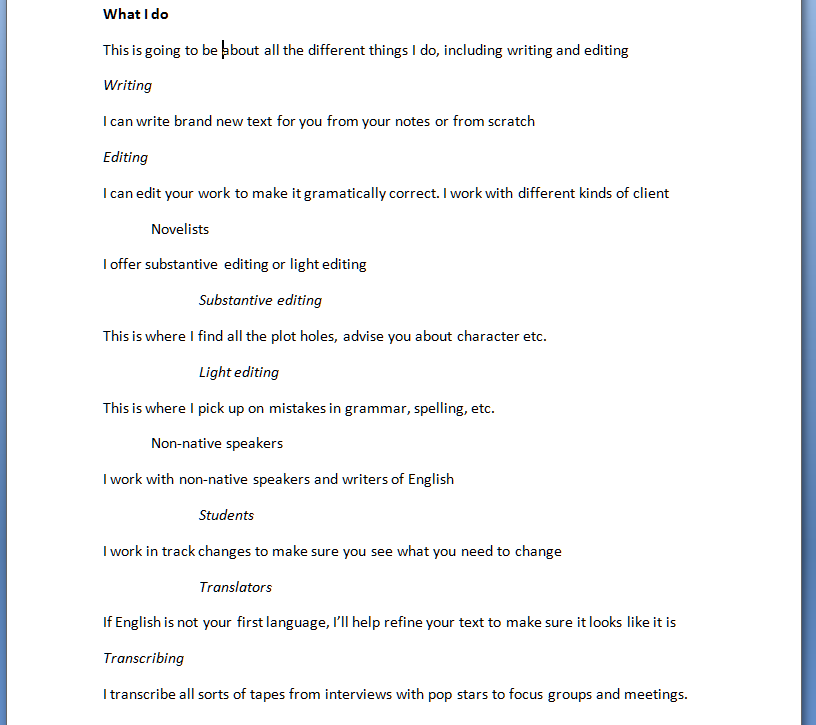
It’s not very easy to see what’s a heading and what’s the text, though. So I might think up my own styles of headings or sub-headings (yes, I might number them, too, but let’s keep it simple for now) and do this:

All well and good, but if this is a great big document: am I going to remember that I put main headings in bold, sub-headings in italics, etc., etc.? Or am I going to get in a mess and make my document confusing, so when you read it you don’t know which kind of section you’re in?

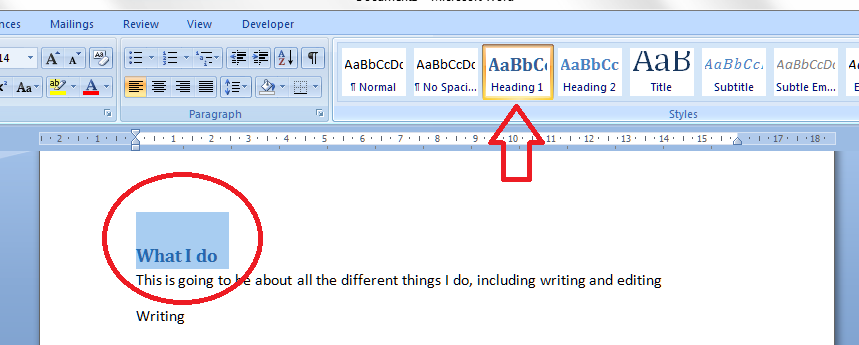
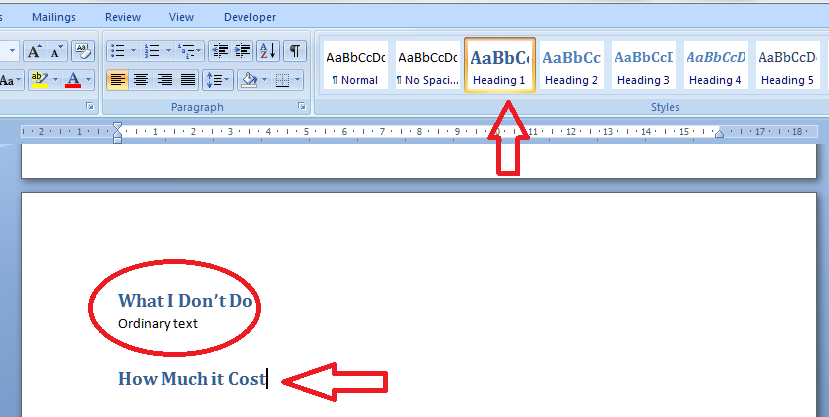
This is where the pre-set headings available in Word come into their own. If you’re using Word 2003, you’ll need to be using the formatting toolbar, then styles. If you’re using Word 2007 or Word 2010, then you’re on the Home tab of the ribbon at the top. Have a look: can you see some boxes labelled Heading 1, etc.?

I’ve circled Heading 1, and the arrow points at a scroll bar that will let you see a whole range of different things you can do.

Now you’ve located the headings buttons, you need to highlight the text you want to mark as Heading 1, and click on the Heading 1 button

And there it is, changed into blue (it doesn’t have to be blue, or that size; we’ll look at that in the next session) and every time you mark a heading as Heading 1, it will look like that.

Note: you don’t have to have all the text already written, highlight and click. You can also click Heading 1 (or whatever) when you want to type a new heading; the text on that line will adopt the Heading 1 format until you press return.

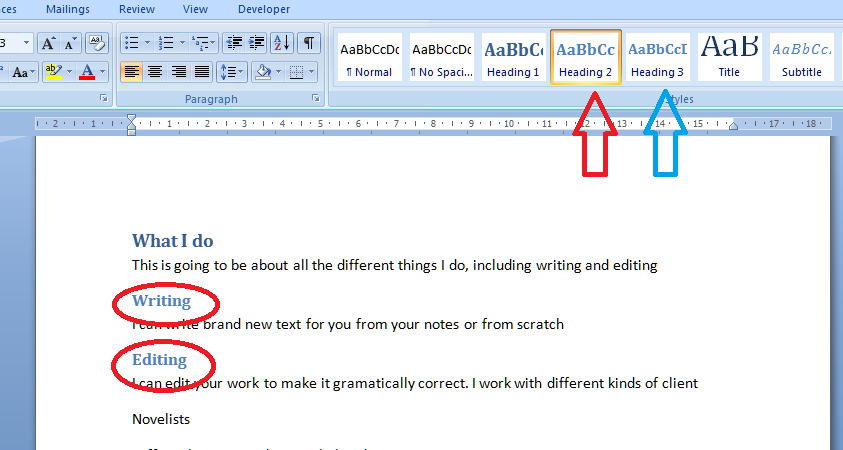
Time to do the Heading 2 level now. Oh – if you want to be clever, highlight each example of a heading you want to change to Heading 2, keeping the Control button pressed on your keyboard as you do so. This will highlight all the text you want to alter at once, saving a few clicks.

Anyway – highlight your Heading 2 text, all together or one at a time, and click on the Heading 2 button.

You’ll notice that Word has realised you’re setting levels of headings and has helpfully moved the button for Heading 3 up to the top row now, to save you looking for it (see the blue arrow). How useful!

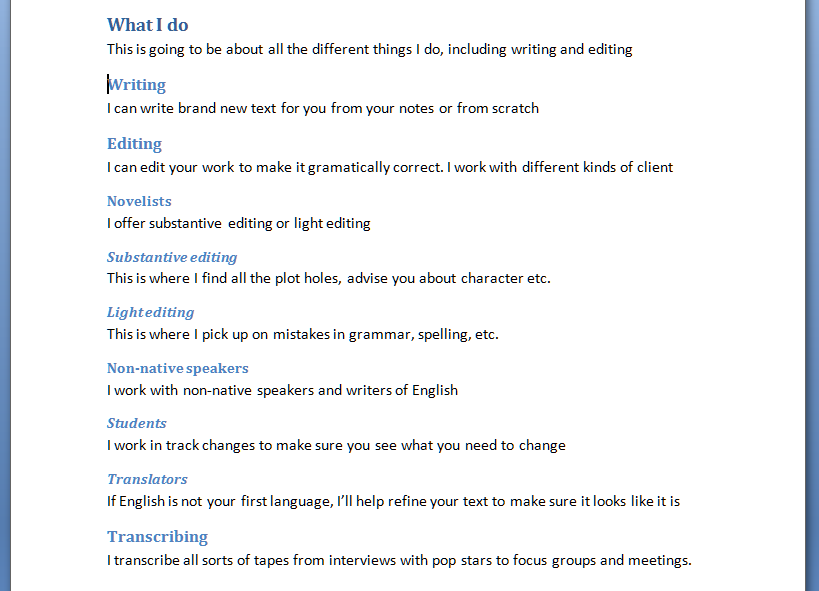
Now, carry on highlighting and choosing heading levels until the whole document is done. You’ll end up with something like this:

Now, maybe this doesn’t look very different from what we started off with. But three things make this better than what we started with:

  1. You don’t have to remember what look you’re using for each level of heading; it does it all for you
  2. If you want to number your headings, that’s going to be really easy to do, AND if you change sections, swap them around, add or delete them, the numbering will change automatically
  3. You will be able to create an automatic Table of Contents

Next time, we’ll look at assigning numbers to all the different heading levels, and how that will help make your document easy to navigate …

If you have enjoyed this post and found it useful, please click on the “share” buttons below or tell your friends and colleagues about it! Thank you!

Please note, these hints work with versions of Microsoft Word currently in use – Word 2003, Word 2007 and Word 2010, all for PC. Mac compatible versions of Word should have similar options. Always save a copy of your document before manipulating it. I bear no responsibility for any pickles you might get yourself into!

Find all the short cuts here

 
9 Comments

Posted by on February 29, 2012 in Copyediting, Errors, New skills, Short cuts, Word, Writing


Tags: , , , ,

Be careful! Alot vs. a lot

I was reminded of this one again over the weekend: I see it used over and over again, and sometimes by people and in places that surprise me. I’m not even sure how it started, as it seems rather odd and not really explicable. With many of the words I’m including in this little Be Aware series, you can see how the error has come about, as in the thought processes. But this one seems to be just about missing a space while typing and doing nothing about it. Or maybe people DO think it’s correct in some way: if you use it (or used it until you read this post), please explain, because it does, genuinely, leave me baffled.

So, the word is alot. As in, “I did alot of homework today”; “Alot of people believe it is correct to miss out this space”, “I know alot of you do this, but it doesn’t mean it’s correct”.

And it really shouldn’t be. The phrase, and correct usage, is a lot. “I did a lot of homework today”. A being the indefinite article and lot referring to many. It’s exactly the same construction as a little, a few, a bunch, a collection: two separate words, with a space in between. And that’s how, really, it should stay.

There is a word, allot, which means to give or apportion something to someone – “I will allot you a corner to watch while you are marshalling for the marathon”, and although it’s brought us the good old allotment, I really don’t think this has crept in and influenced our word under discussion today.

I think it’s one you are just going to have to train yourself out of, if you do tend to use it – put that space in, please!

Update: a fab person has created an ALOT MONSTER on their blog! Thanks to the commenters who mentioned this: I think it deserves a place here in the post, too!

Note: I’ve been asked if “a lot of” is suitable for academic writing. I would suggest avoiding it and replacing it with “many” (“many people feel this is correct”) or “a great deal of” (“a great deal of research went into Dexter’s Theorem but it remains unproved”) or another similar phrase.

Be careful! is a series of posts about words that are misused commonly – but really shouldn’t be. It’s not a new variant of meaning, it’s an error that gets duplicated as people see the word misused and copy it.

Contact me via email or via my contact form.

 
5 Comments

Posted by on February 27, 2012 in Be careful, Errors, Language use, Writing


Tags: ,

Perquisite or prerequisite?

I’m going to be honest here. I have only ever seen prerequisite written perquisite when the writer clearly meant the former. And I didn’t actually know what a perquisite was until I looked it up when I sat down to write this post. But just in case you ever need to know … here you go!

A prerequisite, which is the word I really feel most people will be looking for and using out of this pair, is a thing which is required or necessary as a prior condition to something else. So a prerequisite for working as a French teacher is the ability to speak French.  A prerequisite for being a proofreader is being able to spell. Oh, and it’s one word: no hyphen.

A perquisite, it turns out, is a special right or privilege that you enjoy as a result of  your position.  I would say a perquisite of being a freelancer is the ability to wear pyjamas all day, but I don’t think that’s what it’s really about: it’ll be something to do with those special rights to walk your sheep over London Bridge or some such. If anyone reading this actually HAS a perquisite, I’d love to know!

Stop press: My clever friend Jen pointed out – rightly – that the word perk comes from perquisite. A perk is a benefit to which one is entitled to as an employee (or shareholder) of a company and, by extension, a benefit or advantage that comes from a particular situation. I still miss my borrowing perks from when I worked at the library. Interestingly, the dictionary says that this is an abbreviation dating from the 19th century. Thanks, Jen!

You can find more troublesome pairs here and the index to them all so far is here.

 
2 Comments

Posted by on February 24, 2012 in Errors, Language use, Troublesome pairs, Writing


Tags: , , ,

My short cuts – top and bottom margins

This is part of my series on how to avoid time-consuming “short cuts” and use Word in the right way to maximise your time and improve the look of your documents.

I have already published instructions on how to manipulate your left and right margins, but I’ve noticed some search engine searches have come through to Libro looking for information on top and bottom margins, so here are a few words about them.

First of all, make sure you can see your rulers! If you can’t see what I’m pointing to in the screenshots, go to this post and follow the instructions on making your rulers visible. I’ll wait here while you do that …

OK, all set, and rulers visible?

So, sometimes we might want to make the area we can use on the page a bit bigger. Classic reasons include wanting to fit a whole document on one or two pages, for example if you are making up a poster and you want to use the largest print area possible. Within reason, you can extend the upper and lower margins of your text to fit in a few more words.

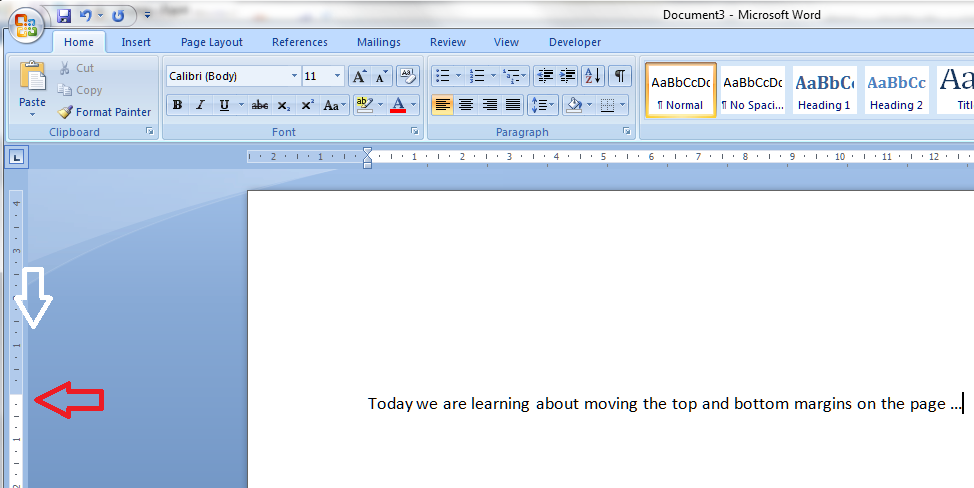
Let’s have a look at these top and bottom margins. Look over to the left-hand ruler in your document. You should see this, which you will notice looks very similar to your top ruler:

You will notice that the white section indicates the area where you can type: where the space for text starts at the top (above) and where it finishes at the bottom:

Hover your cursor over the division between blue and white and you’ll see a slider and an arrow indicating that you can move them up and down. In this example, I’ve moved the top margin down – see how the first line of text has followed it down the page …

But of course you can also move it up if you want more room to type.

Do note, that you can’t move it infinitely and eventually, when you go to print, you will get an error message telling you that you have gone outside the print margins. So be careful, but within reason this will allow you to create that little bit more space on your page.

Please note, these hints work with versions of Microsoft Word currently in use – Word 2003, Word 2007 and Word 2010, all for PC. Mac compatible versions of Word should have similar options. Always save a copy of your document before manipulating it. I bear no responsibility for any pickles you might get yourself into!

If you have enjoyed this post and /or found it useful, please click the share buttons below or comment!

Find all the short cuts here

 
3 Comments

Posted by on February 22, 2012 in Copyediting, Errors, New skills, Short cuts, Word, Writing


Tags: , , , ,

Perspective or prospective?

Today’s troublesome pair is perspective and prospective. Why do I think these two get mixed up? Because they are longish words that are spelled very similarly!

The main meaning of perspective is the art of representing three-dimensional reality on a two-dimensional surface to give an impression of objects’ relative distance and size (a classic example of this is painting a picture of a tiled floor; an example of using this for amusing means is found when you take a photo that you have the Pyramids in your hand, or similar) and by extension it means the appearance of objects with regard to their relative position and distance from the person viewing them. Other meanings, which you can see are linked to this idea, include a particular way of viewing things (“from the rioters’ perspective, they had every right to take the trainers”), and an understanding of the relative importance of things (“you need to keep a sense of perspective about what he has done: stealing a tube of Polos is not as bad as mass murder”).

Prospective, more simply, means likely or expected to happen or be in the future – “I’d like to welcome my prospective son-in-law into the family – he will marry my daughter in September”; “with my prospective earnings for 2012, I will be able to retire in 2050”.

“From Mrs Brown’s perspective, having a prospective neighbour who was good at picking locks was a godsend, as she was always losing her front door key.”

So the meanings should not be that easily mixed up; it just requires a moment of pause, perhaps, before writing down the particular word you choose.

You can find more troublesome pairs here and the index to them all so far is here.

 
4 Comments

Posted by on February 20, 2012 in Errors, Language use, Troublesome pairs, Writing


Tags: , , ,

Cue or queue?

Cue and queue. I’ve been meaning to write about this one for ages, as I see it quite a lot, most frequently in popular culture and the media, in newspapers and magazines and personal communications like Facebook updates, Tweets and blog posts.

This is another of those homophone issues – i.e. the two words sound the same, so if you have only ever heard them, rather than having seen them written down, or particularly if you have only seen one of them written down, an assumption can be made about which spelling / word to use. I think I have seen each used incorrectly an equal number of times; is that your experience?

So, a cue (as well as being something used to play snooker and billiards, which I don’t think gets into this particular issue) was originally a signal to an actor or other performer to begin their speech or performance. This meaning has been extended to include anything that initiates or reminds one of the start of an action or speech. So an actor takes  his cue from the end of the previous actor’s speech, or their actions, while I might take my cue to speak from the person I’m speaking with pausing, or at a seminar, from the chair pointing to me, or a company might take its cue to deliver a new software application from the release of a hardware upgrade.  It’s all to do with getting some kind of indication that it’s time for some kind of action.

A queue is more, if you like, about INaction – as it is a line of people or vehicles, etc., waiting their turn to proceed or be attended to. The line of people at the bus stop or outside a gig, or the cars waiting to cross a level crossing while the gates are closed.

If you are hanging around waiting to buy a train ticket before the ticket office is opened, you might take your cue from the staff member opening their hatch to start a queue for tickets.

So: a cue initiates action, and a queue waits for it. Does that make sense?

You can find more troublesome pairs here and the index to them all so far is here.

 
5 Comments

Posted by on February 17, 2012 in Errors, Language use, Troublesome pairs, Writing


Tags: , , ,

Peace or piece?

Recently, I’ve seen sentences along the lines of “this will reassure you and give you piece of mind”, so I think it’s time for us to have a look at this troublesome pair: peace and piece. They come with two related phrases. Well, phrases that are related to each word, but actually mean very different things: “peace of mind” and “a piece of [someone’s] mind” and this is possibly how the two have come to get mixed up.

Peace means tranquillity, freedom from disturbance, and, most importantly, freedom from or the cessation of war or other conflict. “After the war, came peace”. “Peace of mind” means reassurance, tranquillity, knowledge that all is well. So good house and contents insurance or saving up some money to live on if you lose your job is likely to give you peace of mind.

A piece is a little bit of something. A piece of cake; a piece of the action. And to give someone a piece of your mind is to rebuke them or tell them off. A  bit different from the peace of mind in the first example!

So, if I give you a piece of my mind (grrr) then you might well be lacking in peace of mind for a while!

You can find more troublesome pairs here and the index to them all so far is here.

 
2 Comments

Posted by on February 13, 2012 in Errors, Language use, Troublesome pairs, Writing


Tags: , , ,

My short cuts – indents and margins

This is part of my series on how to avoid time-consuming “short cuts” and use Word in the right way to maximise your time and improve the look of your documents.

We’re looking at margins and indents today. By reading through these steps, you’ll learn how to produce tidy indented paragraphs and quotes within paragraphs, quickly and easily, without having to mess around with the space bar and enter key.

We often want to indent the beginning of a paragraph to make it look like more of a break from the last one, or have the first line of text longer and the subsequent ones indented (this is useful if you’re preparing a bibliography). Also, if you’re writing a thesis, dissertation or non-fiction book, it’s useful to indent large quotations to make them stand out as being a quotation. More often than not, I find people either don’t know how to do this using the rulers at the top of their Word document, or they’ve forgotten how to and think they can find a quick way round the issue. This leads to all sorts of formatting problems, especially if you’re going to (as is inevitable) add and remove text as you go along.

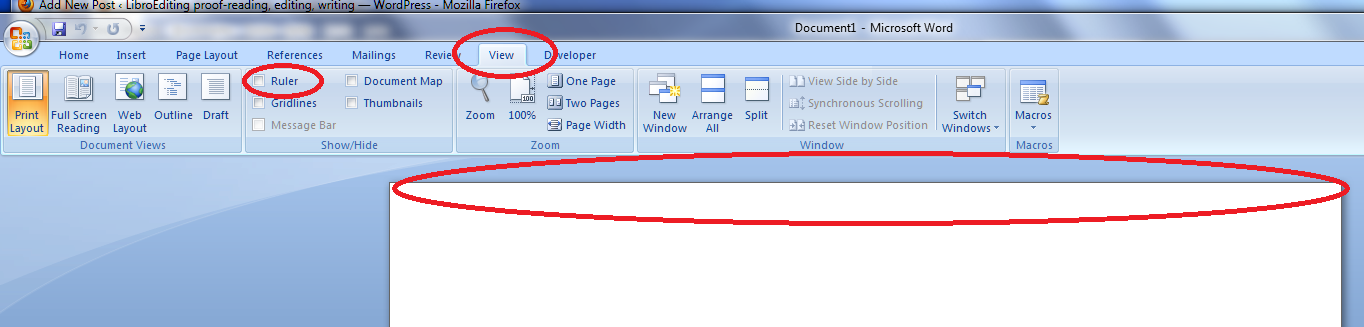
First things first: check that you can see your rulers in Word. If your document has a blank space at the top instead of a ruler, click on the “view” tab at the top of the screen:
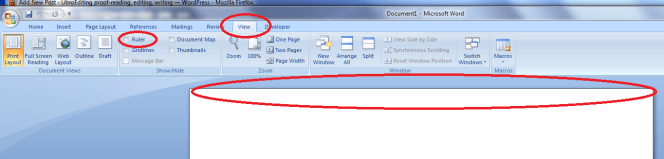
How to make margins appear in Word

Look at “ruler” and see if the box is empty or contains a tick. If it’s empty, click on the box. Your rulers (top and side) should now appear:
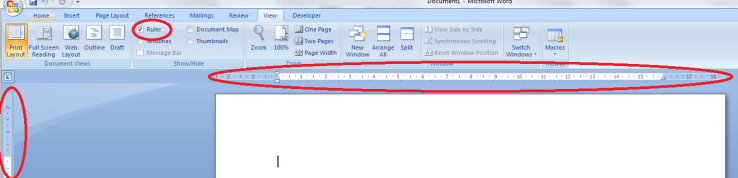
making margins appear in Word

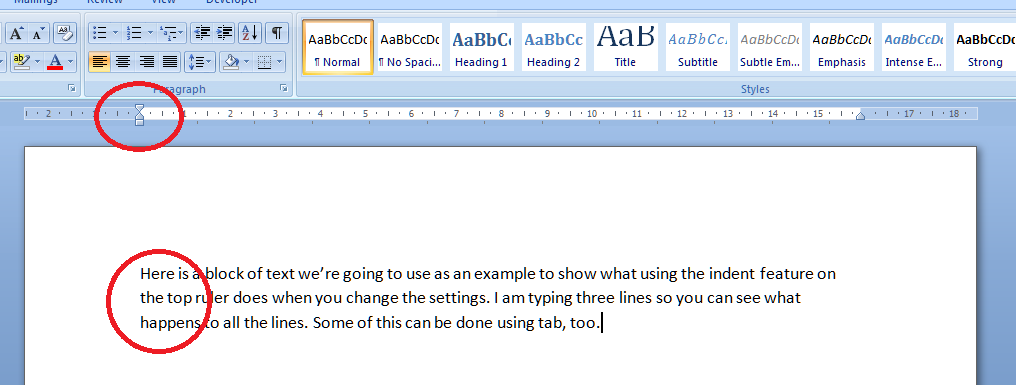
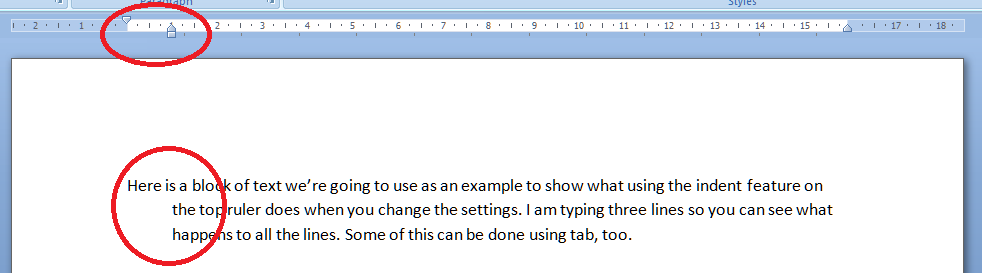
Now let’s look at setting the indents. The important thing to note here is the slider which appears at the beginning of the white part of the ruler, marking where the text starts, or the location of the left hand margin.  Note first of all that the slider’s position matches the text’s position on the page – they are both situated at the left margin.
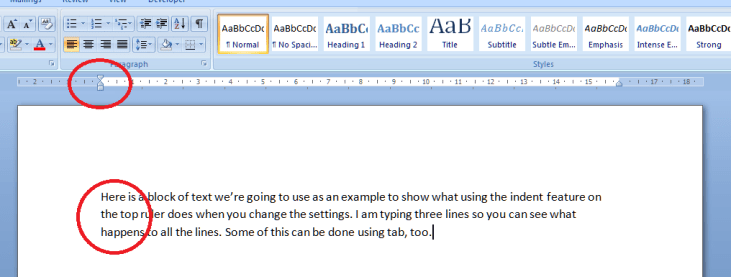
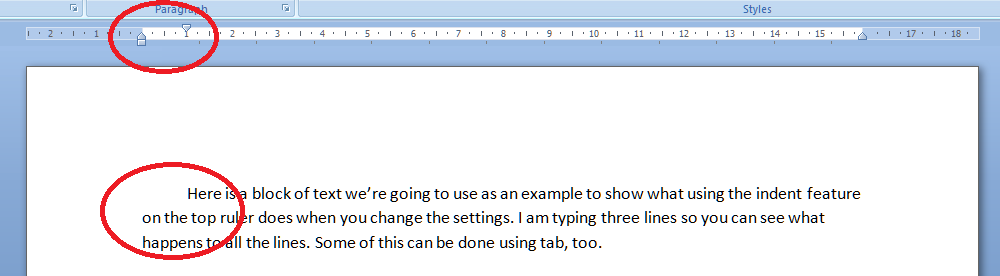
Let’s look at how moving this slider either all in one, or the top and bottom independently, affects a block of text. First of all we take the pointer and click down on the square block at the bottom of the slider. This picks up the whole thing and, when you move your mouse (holding the button down still) the slider will move across. Very important: when you’re moving sliders or setting tabs, make sure you have highlighted the section of text you want to affect. If you don’t do this, whatever you do on the ruler will only apply to the point at which the cursor is located. You probably don’t want to do that. So: let’s move the slider across to the right a little …
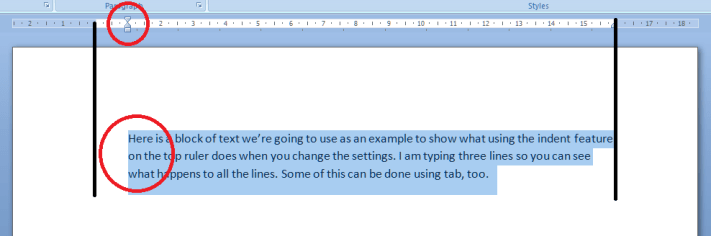
The black lines here mark the borders of the text area, and you can see that moving the slider as a whole has moved all the text across. Taking the slider back, what happens if we move just the top one across a bit?
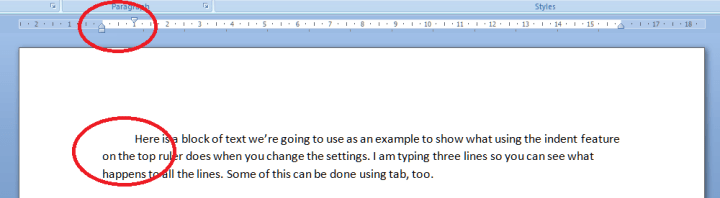
You can do this using the tab key, too – but the useful point here is that once you’ve set it up at the beginning of a document (before you start typing), it will affect all new paragraphs in the same way, so you’ve set up a nice tidy way for your paragraphs to indent themselves throughout the text. Now what happens if we just move the bottom half of the slider?
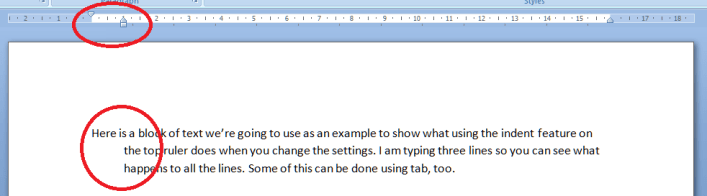
So this works the other way around: the first line of text is longer than the next ones. This looks a bit odd in a normal paragraph, but it’s very common in bibliographies.

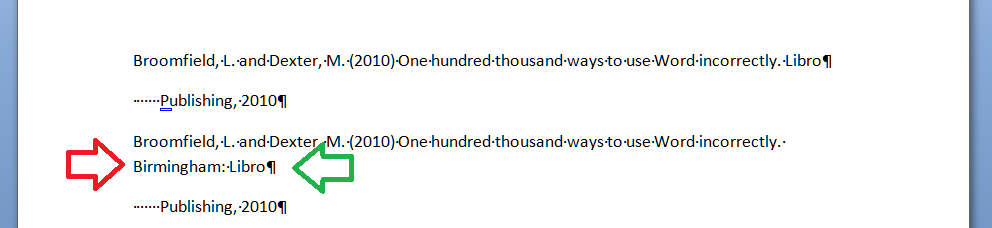
Here’s an example of how the user’s “short cuts” can actually make everything take longer, particularly if changes are involved. I noticed someone doing this in a dissertation I proofread recently, which is what inspired me to write this article.  I’ve turned “show formatting” on so you can see what they’ve done (dots are spaces and backwards Ps are line returns (enter)). In the first example, the author wants to have a hanging indent to make the author’s name more prominent, but they’ve done it by hand, hitting enter at the end of the line then spacing across to make the indent. All well and good (not really) until you need to enter some more text. Then look what happens:

Entering “Birmingham” has forced Birmingham: Libro onto a new line. But the line return at the end of Libro forces the next bit onto a new line (green arrow), and the second line of the entry isn’t even indented, because Word doesn’t know you want it to be (red arrow). Whoever entered “Birmingham” now has to delete the line return and take out the spaces before “Publishing” then re-set the hanging indent. Fine if it’s just once, but it won’t be. Contrast this with what happens if you set up the indents correctly in the first place:

Here, we’ve moved the bottom slider along so that the text automatically indents with a hanging indent on each paragraph. No spaces and only the required line return at the end of the entry. Now when we add “Birmingham” it merely pops itself onto the next line, nice and neat and tidy, and there’s nothing else to do.  Simple.

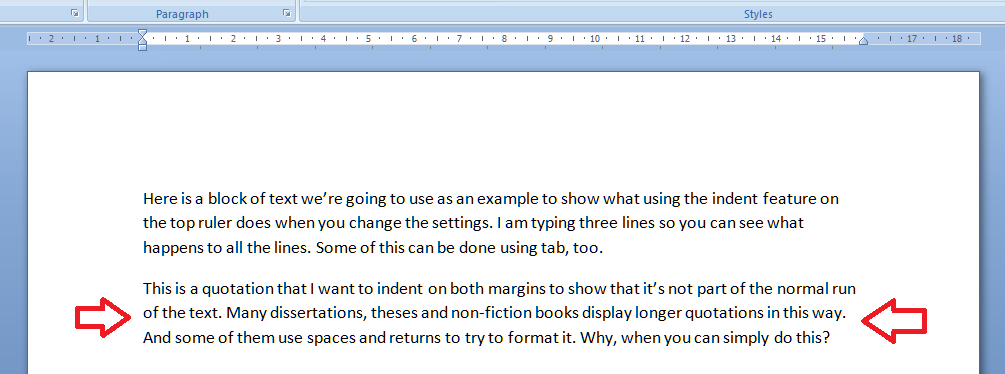
Now let’s have a quick look at indenting text from both margins. This is useful if you’ve got a chunk of quotation you want to insert into the text. Again, I’ve seen people put line returns at the end of each line and spaces across from the left. All well and good (again: not really) until you delete or add a word or character and it all goes odd. Here’s how you do it properly. Here’s the text we want to indent (marked with arrows):
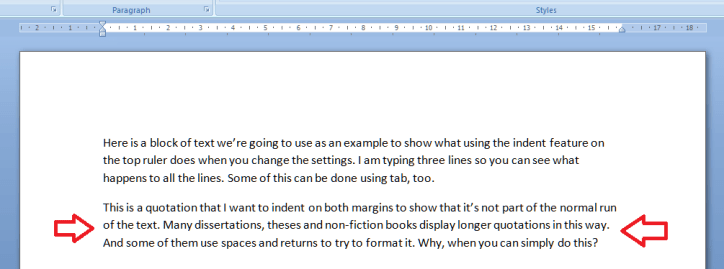
Highlight the text you want to indent and move both the right and left sliders in from the margins:

The black lines show the text margins outlining the area where you can type. The grey lines show how the indented text lines up with the two sliders, one on the left, and one on the right.

One bonus bit of tidying up: if you set the justification to Full, you get nice neat margins both sides. You could not do this using line returns and the space bar.

So now we’ve learnt how to use the sliders on the rulers to make our text tidy and make it much easier to make insertions and deletions without messing up the formatting of the document. I hope you’ve found this useful: do post a comment or share this article if you did!

Note: I have added an article on the top and bottom margins.

Please note, these hints work with versions of Microsoft Word currently in use – Word 2003, Word 2007 and Word 2010, all for PC. Mac compatible versions of Word should have similar options. Always save a copy of your document before manipulating it. I bear no responsibility for any pickles you might get yourself into!

Find all the short cuts here

 
8 Comments

Posted by on February 8, 2012 in Copyediting, Errors, New skills, Short cuts, Word, Writing


Tags: , , , ,