RSS

Tag Archives: Copyediting

How to put text in alphabetical order in Word

I was inspired to write this post after having to put yet another student’s bibliography into alphabetical order. I know the quick and easy way to do this – but I don’t think a lot of people know that you can do this!

So, you’ve got your bibliography, and you’ve been very good and followed the rules for setting it out (I’ve used Harvard method here) but it’s not in alphabetical order by author surname, and, except in certain cases,* it really should be.

*A very few referencing systems ask for the bibliography to be in the order in which the references appear in the text. I’ve hardly ever had to deal with them. But I like completeness!

So, a lovely list of books but not in order by the authors’ surnames. How can we resolve this without swapping all the lines around?

First, highlight all the text you want to alphabetise. Then, make sure you’ve got the Home tab at the front. See that little button you’ve never even seen before, next to the paragraph mark?

Press the A-Z button and up pops a dialogue box.

There are all sorts of ways in which you can order the text, which are very similar to the ways you can order text and numbers in Excel. You can even specify whether what you’re sorting has a header row (I’m not sure why you’d want to do that, as you can just exclude the header row when you’re doing the highlighting, but I suppose it would be useful if you realise you’ve accidentally highlighted the headers too). I’ve sorted by Paragraph, Text, and in Ascending Order here, and to be honest, that’s what I always do. Click on OK, and look what you get:

Here’s our bibliography in order by author surname with just a highlight of the text and a few clicks – much quicker and with far less risk of human error than doing it manually.

Note: if your results come out a bit odd and have split your entries up into two halves, reverse your alphabetising by either hitting Control-Z or the Undo button, and check there aren’t any pesky hard returns hiding out in the middle of paragraphs (the best way to do this is to click the Paragraph button, to the right of the A-Z button and look out for bent arrows signifying carriage returns). Get rid of those and alphabetise again to your heart’s content!

This is part of my series on how to avoid time-consuming “short cuts” and use Word in the right way to maximise your time and improve the look of your documents.

If you have enjoyed this post and found it useful, please click on the “share” buttons below or tell your friends and colleagues about it! Thank you!

Please note, these hints work with versions of Microsoft Word currently in use – Word 2003, Word 2007 and Word 2010, all for PC. Mac compatible versions of Word should have similar options. Always save a copy of your document before manipulating it. I bear no responsibility for any pickles you might get yourself into!

Find all the short cuts here


Tags: , , , ,

What I got up to in March

Welcome to my March round-up of what I’ve been getting up to. Do you find it useful/interesting/inspiring reading these posts about the life of an editor / writer / transcriber / small business person? Do leave a comment, click on the share buttons or share my notifications on various social media locations if you do!

Being self-employed full time

Libro continues to go from strength to strength and I’ve settled into a nice routine of enough work to keep me nicely busy (and to keep the wolf from the door) while having the flexibility to pop to a networking event or just a walk in the park with a friend.

Editing, writing, transcribing, proofreading

So, work-wise I have had a busy and interesting time.

I edited a really interesting set of EU documents for a French company that was new to me, and apart from that it was pretty well all regular customers all month.

I am working with some Master’s students through their courses, giving them feedback about their English and offering ways to improve it, as well as proofreading their essays. This is really rewarding, as I see them taking on board what I suggest and their English improving. It’s also interesting to see how their ideas for their dissertations start to take shape.

I did the usual writing for some commercial clients, including finishing off writing a library of 50 x 500 word articles for one particular client who wanted to build up a library of information on their website that would also boost their SEO (Search Engine Optimization). It’s a challenge to build up that many words on a network of inter-related subjects, including making sure there was room for plenty of linkage to help the visitor navigate through the information on offer, but I enjoyed being able to make it genuinely informative for the reader as well as useful for the client in terms of driving people to their website and keeping them there for as long as possible

I proofread a few PhDs or parts of PhDs, including some really interesting ones in the social sciences. I always tend to learn about what I’m editing, so it’s nice when it’s something I genuinely find interesting (luckily, I can find something of interest in pretty well everything I work on … otherwise I think I would probably be in the wrong job!)

I picked up a new localisation client or two and will be working with at least one of them long term: localisation is a nice intellectual challenge, as it’s not just about turning color into colour but really thinking about how British and American English work and getting right into the guts of the text.

I’ve worked with the usual translators, too, including on some interesting annual reports of companies (yes, I sign a lot of Non Disclosure Agreements) and at the end of the month I went into hermit mode as I had another big project from my main transcription clients, so typing away like a demon with headphones jammed into my ears (and then going to the gym to row out my stiff shoulders) has been the order of the day.

Networking, videos, blogging

In non-billable hours news, I featured in this video by Enterprise Nation extolling the virtues of networking and, in particular, the Twitter event #watercoolermoment, which is a gathering of home workers at 11 am on weekdays to have a chat about this and that – just like you might do in a “real” office. I also redesigned this website and blog – I really love the new look, what do you think?’

I’ve added some new posts to my series of articles about using Word, which are hopefully useful to students, writers and administrators alike, and my series of interviews with fellow small businesses is building nicely – there’s space in May if you’d like to take part!

Oh, and for a while now, my monthly newsletter has been only five sentences long so do sign up here for a quick read!

In more sociable news, I helped at the city centre and local Social Media Surgery sessions, and attended Social Media Cafe as usual (I wouldn’t miss that for the world). My local “notworking” group Kings Heath Home Workers group has a few more members and I’ve been meeting up in a cafe with a local friend once a week. I have also resolved some pressing issues around time management which I’ve talked about over on the Libro full-time blog.

Coming up – taxes and a new financial year

It’s the end of the financial year this week, and the end of mine, too. I am looking forward to getting my tax return done so I know how much of my earnings I can keep and how much is going to the taxman – although this year I will start Paying On Account, so will have to give him a lot more than usual – in fact double! Watch this space for a great guest post explaining all that later on this week. I have more transcription to do, more students to work with, more of the same – and I bet I love it as much as I did this month!

Libro offers copyediting, copy writing, proofreading, transcription, typing and localisation services to other small businesses, individuals and corporations. Click on the links to find out more!


Tags: , , , , , ,

My short cuts – how to create a contents page in Word

This is part of my series on how to avoid time-consuming “short cuts” and use Word in the right way to maximise your time and improve the look of your documents.

Today we’re going to look at how to create a contents page or contents list in Word. I am breaking this series up into small pieces, so we have already learned about setting up headings and then numbering them.

You will use this to save yourself time and ensure consistency when you’re setting up a large document and you want it to have a contents page. You can do it manually, but it is FAR easier to do it this way.

First, have a look at the two headings articles to make sure you understand how to assign headings and how to number them (if you want to).

Now, for the purposes of making a more interesting contents page, I’ve popped each heading onto a separate page (and we all know how to do that, don’t we!)

So the text is all set up, with headings that are also numbered, and each heading is on a separate page. Now we’re going to put our cursor at the beginning of the document, and make sure we’re in the References tab.

You can see the Table of Contents button highlighted – click on that and have a look at the box that comes up:

Here we have lots of different styles of contents page to choose between. Either double click on the one you want – I clicked on the first one – or click once to highlight it and then Insert Table of Contents. And look what appears! Magic!

You can see lots of lovely headings and their numbers, all laid out nice and clearly (imagine if this was a PhD or another long document with lots of sub-headings.

But what happens if we need to change something in the text? Look – there’s a problem with the document here …

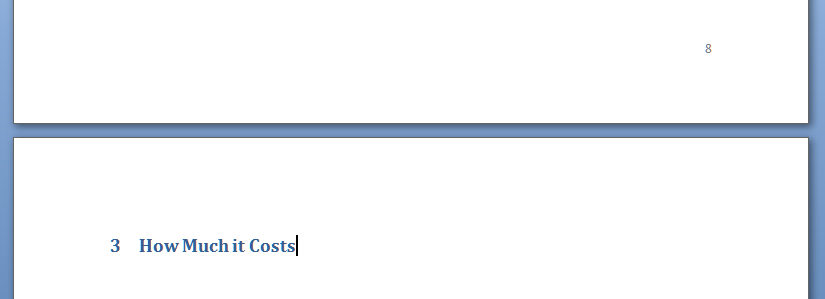
I can see that I should have typed “How Much it Costs” for section 3, and it’s on page 8 along with Section 2, when it should be on page 9. Oh no!

So let’s go to page 8, move the heading onto page 9 and amend the heading itself:

Great – so now the text is sorted out and the heading is on page 9, where it should be. How do we update the Table of Contents to reflect this change?

Go back to the Table of Contents and highlight it (it all comes up in blue if you click on one bit of it). Left click and you should find it puts everything in grey and gives you a little tab at the top like this.

You can use this to change all sorts of attributes on the contents page, or you can just click on Update Field from here or left click when you have the contents list in blue in the last step, and you get this choice:

I always choose Update entire table, just in case. And with one click, it’s updated the Contents list to match the document.

So, no more fiddling around doing a contents page by hand. As long as you set up your headers, you can insert and update your Contents page however you want and whenever you want – so much easier!

This is why, if you use my proofreading services, I will put a note on your contents page reminding you to update it at the last minute, to take into account any changes we might have made to your pagination or heading numberings. Update the Contents page at the very last stage, and it’ll be completely accurate and up to date.

If you have enjoyed this post and found it useful, please click on the “share” buttons below or tell your friends and colleagues about it! Thank you!

Please note, these hints work with versions of Microsoft Word currently in use – Word 2003, Word 2007 and Word 2010, all for PC. Mac compatible versions of Word should have similar options. Always save a copy of your document before manipulating it. I bear no responsibility for any pickles you might get yourself into!

Find all the short cuts here


Tags: , , , ,

My short cuts – headings (part 2)

This is part of my series on how to avoid time-consuming “short cuts” and use Word in the right way to maximise your time and improve the look of your documents.

Today we’re going to look at how to set up numbered headings in Word. I am breaking this series up into small pieces, so we have already learned about setting up headings and next time we’ll learn about creating contents pages, too.

You will use this to save yourself time and ensure consistency when you’re setting up a large document with lots of headings and sub-headings.

So, here’s our text with lots of headings and bits of text under them as we left it last time. We have assigned heading 1, heading 2 etc. styles to them so they make sense and are consistent. But they’re still a bit unclear and I think we would all agree that it would make things a bit clearer if we numbered the headings. But how to do that so the sub-headings have sub-numbers, etc.?

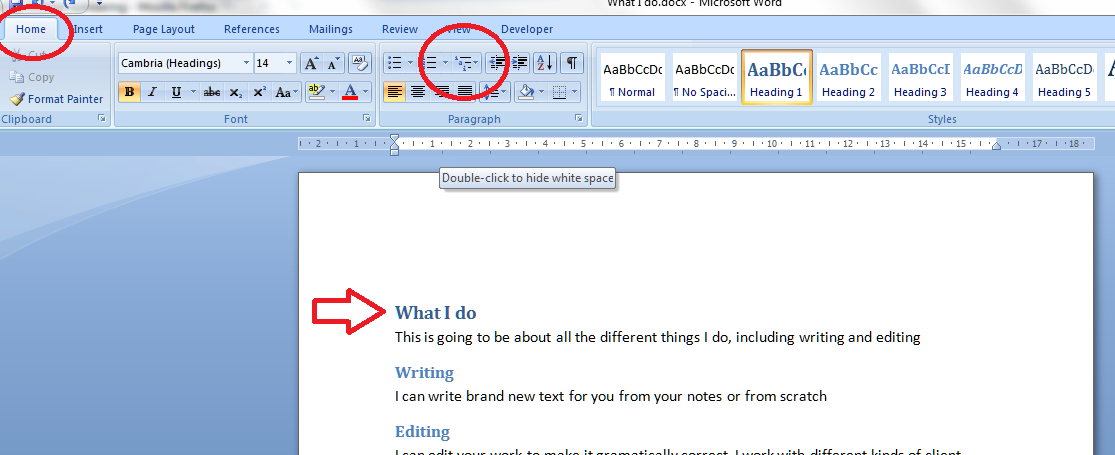
Here’s how to do it. First, make sure you’re on the Home tab in Word. Then, concentrate on the paragraph section. There should be a little icon like the one I’ve circled; when you hover the mouse over it you’ll get a note that this is the multilevel list tool. Make sure your cursor is next to the first heading and click on the multilevel list button.

Up will pop a menu which gives you lots of choices – a list library. We’d like to go for the one that gives us 1, 1.1, 1.1.1 etc. (see arrow) so we pick that and click on it.

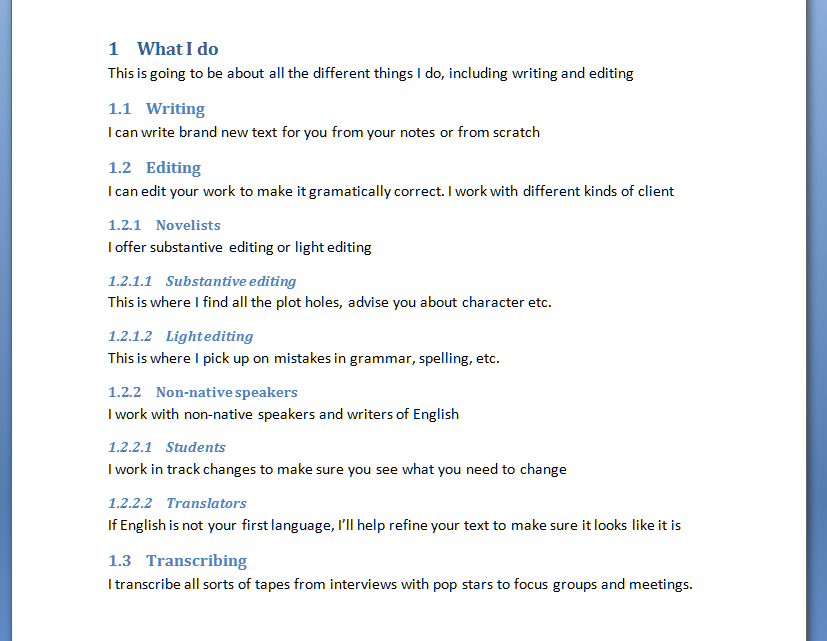
Select the kind of list you want and look back at your text. Amazing – it’s now got heading and sub-heading numbers!

And look what’s happened to your heading style buttons now you’re back in your document. The numbering style has been added to them. Note: there is a way to change the style of the headings when right-clicking on them. That’s all lovely and useful, but when you want to make your headings and their numbers behave themselves throughout your text, you need to do it the way I’ve shown you above.

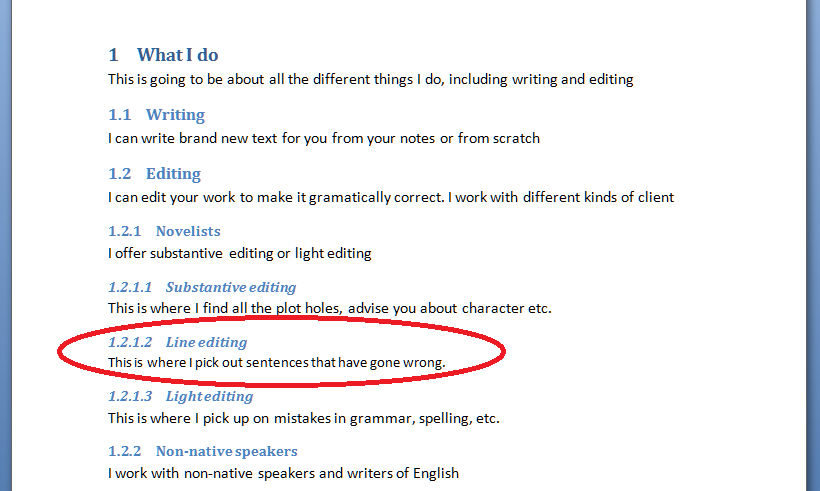
Now let’s try adding a new sub-heading in the middle of the others. In this example, I’ve added “Line editing” in between “Substantive editing” and “Light editing” which were headings 1.2.1.1 nand 1.2.1.2 respectively (look up the post to check that if you want to). I put the cursor in the space after “Line editing”, chose Heading 4, typed my heading … and not only has it assigned number 1.2.1.2 to that heading, it’s also handily moved the next heading, “Light editing” to have number 1.2.1.3 – all by itself! You can see how useful this is if you’re writing a big document and adding in sub-sections but want to keep the numbering consistent. What a nightmare it would be to do it all by hand!

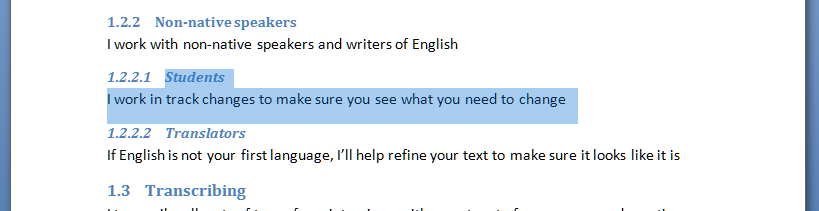
And what about if you want to remove a section with a sub-heading and make sure the numbering follows suit? Here I have highlighted 1.2.2.1 “Students”, ready to delete it. Note that “Translators” has number 1.2.2.2 at the moment …

I delete “Students”, and “Translators” now has number 1.2.2.1 instead. Magic!

So, in summary, if you have a document with lots of headings and sub-headings, and you want to number them, for example in a report, thesis or non-fiction book, use this method to apply a numbering scheme to the headings, and whatever you delete or add, as long as you tell Word that you’re adding a heading and what kind of heading it is, it will sort out all the numbering for you and ensure it makes sense. Hooray, frankly!

Next time, we’ll look at creating an automatic contents page, and how that will help make your document easy to navigate …

If you have enjoyed this post and found it useful, please click on the “share” buttons below or tell your friends and colleagues about it! Thank you!

Please note, these hints work with versions of Microsoft Word currently in use – Word 2003, Word 2007 and Word 2010, all for PC. Mac compatible versions of Word should have similar options. Always save a copy of your document before manipulating it. I bear no responsibility for any pickles you might get yourself into!

Find all the short cuts here


Tags: , , , ,

What I got up to in February

Yes, it’s that time again when you get to find out what a busy self-employed editor/writer/transcriber gets up to. I’ll carry on writing these while people carry on letting me know they enjoy them!

I’ve had another amazing month in February. I can’t really believe it’s going so well – I have described it as like that expanding foam you put into a space in your house – pff and it’s filled up the space allowed!  My new blog has been useful as an outlet through which to express myself from time to time! So, here’s a snapshot of what I got up to …

The first part of the month was heavily devoted to transcription – the client I worked for just before Christmas came back to me with another international conference to transcribe. My experience with minuting meetings and with non-native speakers of English really helped here, as I was typing out presentations and discussions by people from all around the world. Fun and interesting work, I got to share the work with some colleagues by recommending them to the client, but, my goodness, I typed a lot – I transcribed over 20 hours of conference (remembering that each hour of speech takes several hours to transcribe) and actually wore the letters off some of the keys on my computer keyboard! I put into practice the lessons I learned about avoiding RSI from the last lot, took lots of breaks, went to the gym every day for some heavy sessions on the rowing machine, and got through it fine. I like this client a lot, too, because they always come back to me quickly if I have a query.

I also did more transcription for two other regulars; a writer teaching people about marketing and a journalist interviewing musicians. Those ones were in British English and also interesting to do.

And I did do other things, too (somehow),  writing a library of 42 short articles for one regular client, articles on medical subjects for another, and putting together marketing letters/emails and web text for another.

I edited some texts that had been translated from Polish, Finnish, Dutch and Chinese, and ones written by people with French as their first language.  I edited the Moseley B13 magazine again – I do that for free and enjoy it greatly, finding out what’s going on in my local area and using my powers for good at the same time. I also did a bit of localisation for US and other clients.

There was some of the usual academic work – bits of theses, dissertations and articles. I had some more short essays from my coaching clients, who are all progressing through their Master’s courses nicely – it’s great to see their English improving as they take on board my suggestions and tips.

So a nice busy time of it! In other news, I got back into my giving back and networking, helping at a one-off local Social Media Surgery session, and attending Social Media Cafe as usual (I wouldn’t miss that for the world) although I missed the Central SMS owing to a clash with another meeting. In response to my need to have people to talk to now and then, and after testing the waters, I’ve established a Kings Heath Home Workers group on Facebook and blogged about it.

Coming up – I have some academic work booked in and I’ll be doing more transcribing towards the end of the month. I am hoping to get some time to work on my research project, as I’ll be presenting on my research at the Iris Murdoch Society Conference in September. I’ll be going to Jelly co-working session this Friday – now I’ve been to one and know how they work, I’ll be taking along some draft blog posts to write up.  I ran a competition in my newsletter last month and I’ll be announcing the winner later on today or tomorrow – if you would like to receive a short summary of Libro goings-on and interesting facts and links, do sign up here!

Libro offers copyediting, copy writing, proofreading, transcription, typing and localisation services to other small businesses, individuals and corporations. Click on the links to find out more!


Tags: , , , , , ,

My short cuts – headings (part 1)

This is part of my series on how to avoid time-consuming “short cuts” and use Word in the right way to maximise your time and improve the look of your documents.

Today we’re going to look at how to set up headings in Word. I am breaking this series up into small pieces, so we will be learning about setting up numbered headings and creating contents pages too.

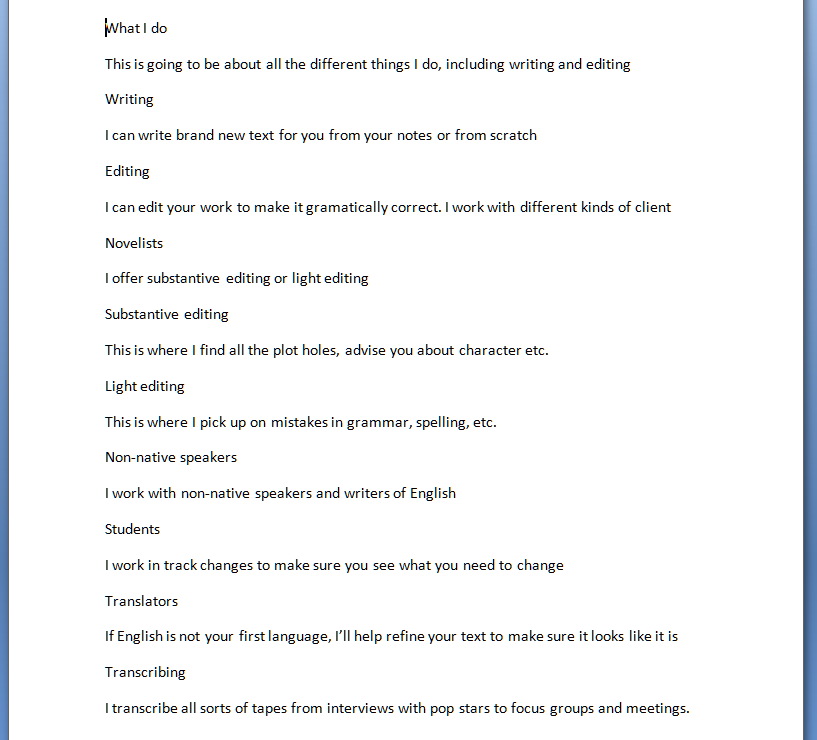
You will use this to save yourself time and ensure consistency when you’re setting up a large document with lots of headings and sub-headings. Imagine I’ve written a document about what I do in my business. I might write it up like this (you can imagine the one-word sentences are longer paragraphs if that helps!)

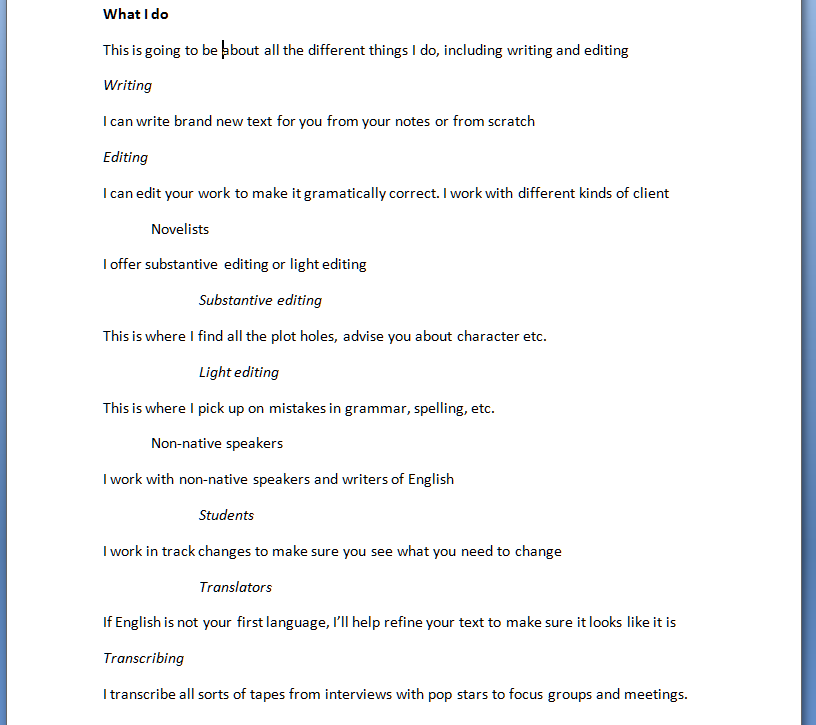
It’s not very easy to see what’s a heading and what’s the text, though. So I might think up my own styles of headings or sub-headings (yes, I might number them, too, but let’s keep it simple for now) and do this:

All well and good, but if this is a great big document: am I going to remember that I put main headings in bold, sub-headings in italics, etc., etc.? Or am I going to get in a mess and make my document confusing, so when you read it you don’t know which kind of section you’re in?

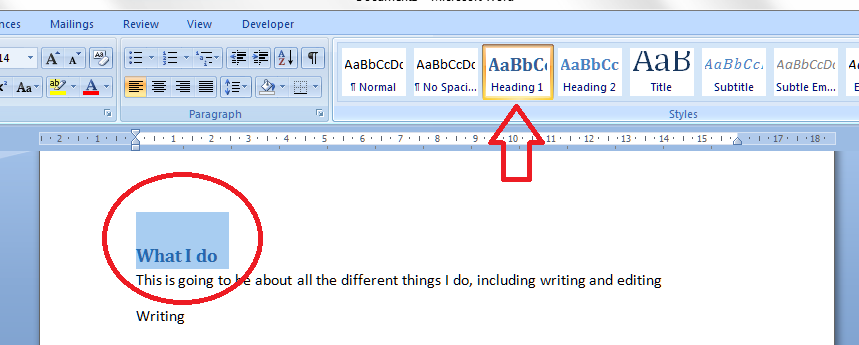
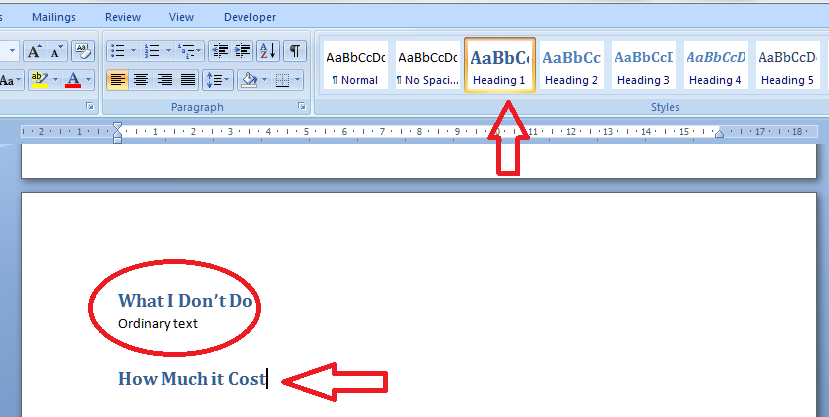
This is where the pre-set headings available in Word come into their own. If you’re using Word 2003, you’ll need to be using the formatting toolbar, then styles. If you’re using Word 2007 or Word 2010, then you’re on the Home tab of the ribbon at the top. Have a look: can you see some boxes labelled Heading 1, etc.?

I’ve circled Heading 1, and the arrow points at a scroll bar that will let you see a whole range of different things you can do.

Now you’ve located the headings buttons, you need to highlight the text you want to mark as Heading 1, and click on the Heading 1 button

And there it is, changed into blue (it doesn’t have to be blue, or that size; we’ll look at that in the next session) and every time you mark a heading as Heading 1, it will look like that.

Note: you don’t have to have all the text already written, highlight and click. You can also click Heading 1 (or whatever) when you want to type a new heading; the text on that line will adopt the Heading 1 format until you press return.

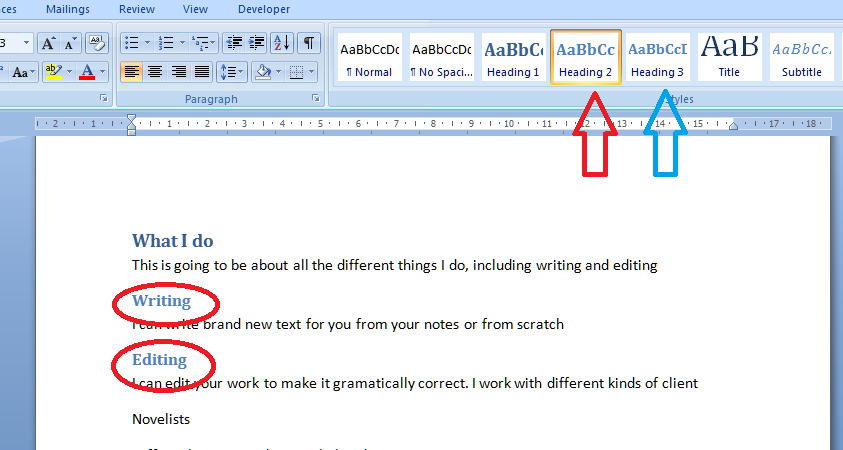
Time to do the Heading 2 level now. Oh – if you want to be clever, highlight each example of a heading you want to change to Heading 2, keeping the Control button pressed on your keyboard as you do so. This will highlight all the text you want to alter at once, saving a few clicks.

Anyway – highlight your Heading 2 text, all together or one at a time, and click on the Heading 2 button.

You’ll notice that Word has realised you’re setting levels of headings and has helpfully moved the button for Heading 3 up to the top row now, to save you looking for it (see the blue arrow). How useful!

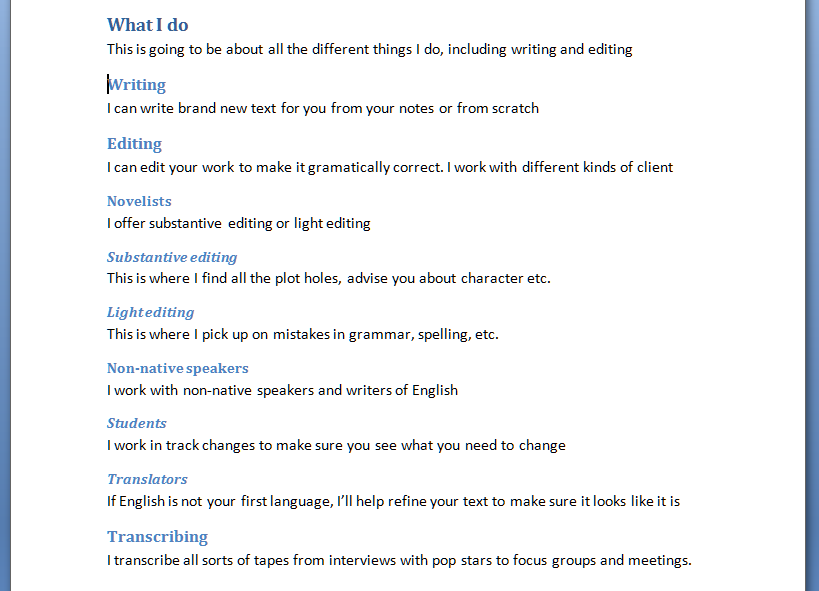
Now, carry on highlighting and choosing heading levels until the whole document is done. You’ll end up with something like this:

Now, maybe this doesn’t look very different from what we started off with. But three things make this better than what we started with:

  1. You don’t have to remember what look you’re using for each level of heading; it does it all for you
  2. If you want to number your headings, that’s going to be really easy to do, AND if you change sections, swap them around, add or delete them, the numbering will change automatically
  3. You will be able to create an automatic Table of Contents

Next time, we’ll look at assigning numbers to all the different heading levels, and how that will help make your document easy to navigate …

If you have enjoyed this post and found it useful, please click on the “share” buttons below or tell your friends and colleagues about it! Thank you!

Please note, these hints work with versions of Microsoft Word currently in use – Word 2003, Word 2007 and Word 2010, all for PC. Mac compatible versions of Word should have similar options. Always save a copy of your document before manipulating it. I bear no responsibility for any pickles you might get yourself into!

Find all the short cuts here

 
9 Comments

Posted by on February 29, 2012 in Copyediting, Errors, New skills, Short cuts, Word, Writing


Tags: , , , ,

My short cuts – top and bottom margins

This is part of my series on how to avoid time-consuming “short cuts” and use Word in the right way to maximise your time and improve the look of your documents.

I have already published instructions on how to manipulate your left and right margins, but I’ve noticed some search engine searches have come through to Libro looking for information on top and bottom margins, so here are a few words about them.

First of all, make sure you can see your rulers! If you can’t see what I’m pointing to in the screenshots, go to this post and follow the instructions on making your rulers visible. I’ll wait here while you do that …

OK, all set, and rulers visible?

So, sometimes we might want to make the area we can use on the page a bit bigger. Classic reasons include wanting to fit a whole document on one or two pages, for example if you are making up a poster and you want to use the largest print area possible. Within reason, you can extend the upper and lower margins of your text to fit in a few more words.

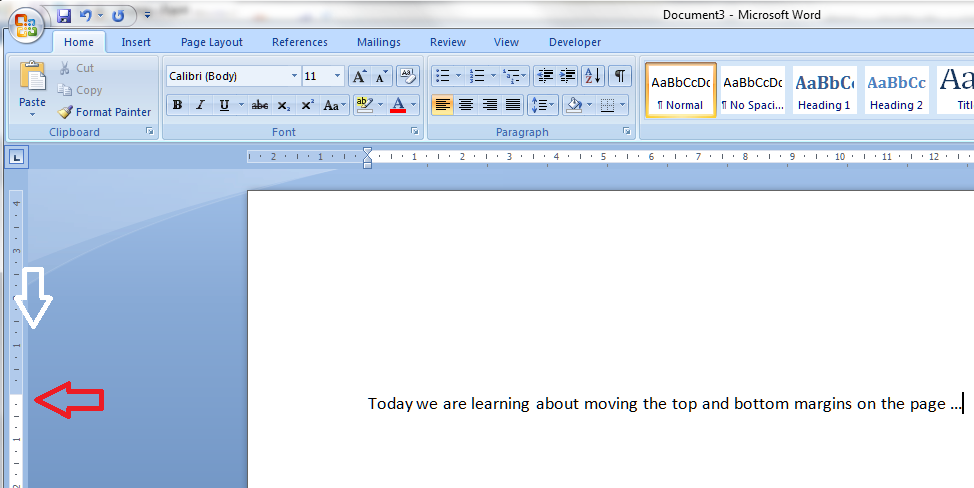
Let’s have a look at these top and bottom margins. Look over to the left-hand ruler in your document. You should see this, which you will notice looks very similar to your top ruler:

You will notice that the white section indicates the area where you can type: where the space for text starts at the top (above) and where it finishes at the bottom:

Hover your cursor over the division between blue and white and you’ll see a slider and an arrow indicating that you can move them up and down. In this example, I’ve moved the top margin down – see how the first line of text has followed it down the page …

But of course you can also move it up if you want more room to type.

Do note, that you can’t move it infinitely and eventually, when you go to print, you will get an error message telling you that you have gone outside the print margins. So be careful, but within reason this will allow you to create that little bit more space on your page.

Please note, these hints work with versions of Microsoft Word currently in use – Word 2003, Word 2007 and Word 2010, all for PC. Mac compatible versions of Word should have similar options. Always save a copy of your document before manipulating it. I bear no responsibility for any pickles you might get yourself into!

If you have enjoyed this post and /or found it useful, please click the share buttons below or comment!

Find all the short cuts here

 
3 Comments

Posted by on February 22, 2012 in Copyediting, Errors, New skills, Short cuts, Word, Writing


Tags: , , , ,

My short cuts – indents and margins

This is part of my series on how to avoid time-consuming “short cuts” and use Word in the right way to maximise your time and improve the look of your documents.

We’re looking at margins and indents today. By reading through these steps, you’ll learn how to produce tidy indented paragraphs and quotes within paragraphs, quickly and easily, without having to mess around with the space bar and enter key.

We often want to indent the beginning of a paragraph to make it look like more of a break from the last one, or have the first line of text longer and the subsequent ones indented (this is useful if you’re preparing a bibliography). Also, if you’re writing a thesis, dissertation or non-fiction book, it’s useful to indent large quotations to make them stand out as being a quotation. More often than not, I find people either don’t know how to do this using the rulers at the top of their Word document, or they’ve forgotten how to and think they can find a quick way round the issue. This leads to all sorts of formatting problems, especially if you’re going to (as is inevitable) add and remove text as you go along.

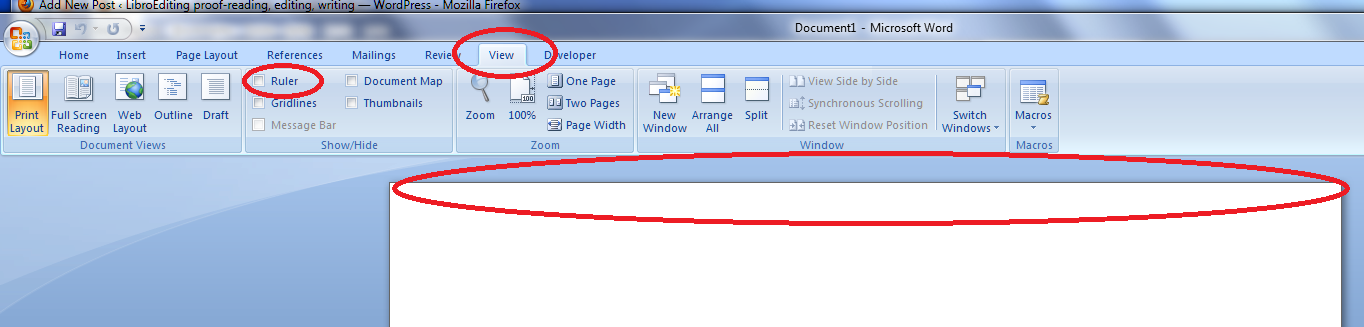
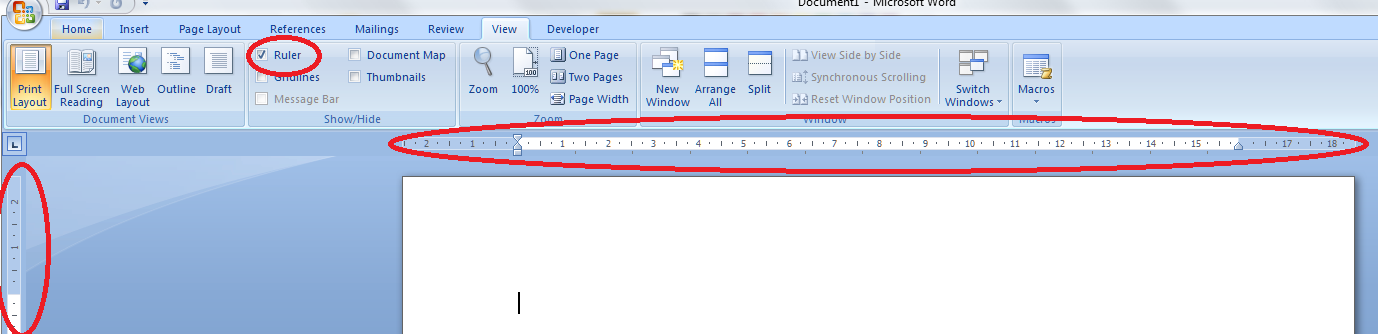
First things first: check that you can see your rulers in Word. If your document has a blank space at the top instead of a ruler, click on the “view” tab at the top of the screen:
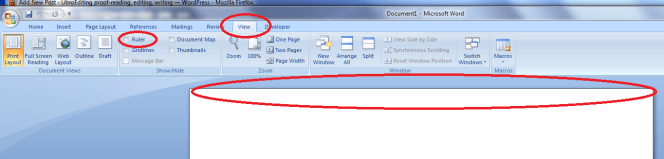
How to make margins appear in Word

Look at “ruler” and see if the box is empty or contains a tick. If it’s empty, click on the box. Your rulers (top and side) should now appear:
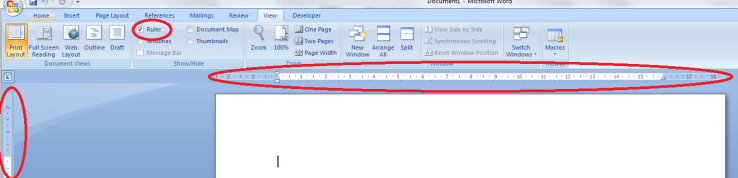
making margins appear in Word

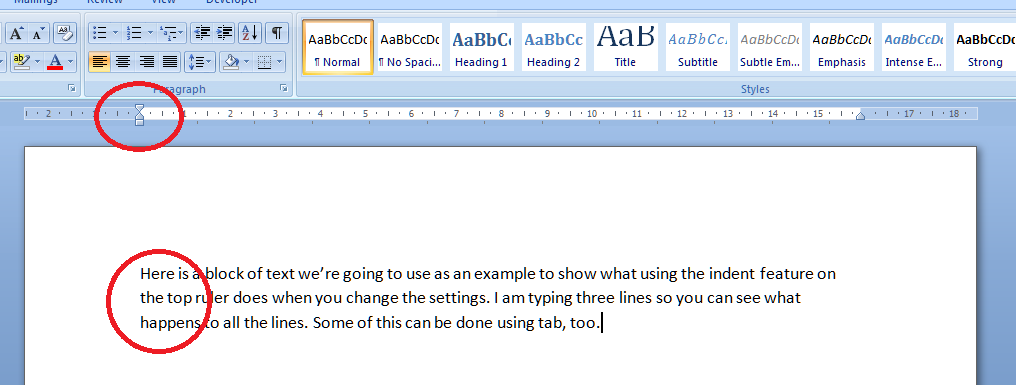
Now let’s look at setting the indents. The important thing to note here is the slider which appears at the beginning of the white part of the ruler, marking where the text starts, or the location of the left hand margin.  Note first of all that the slider’s position matches the text’s position on the page – they are both situated at the left margin.
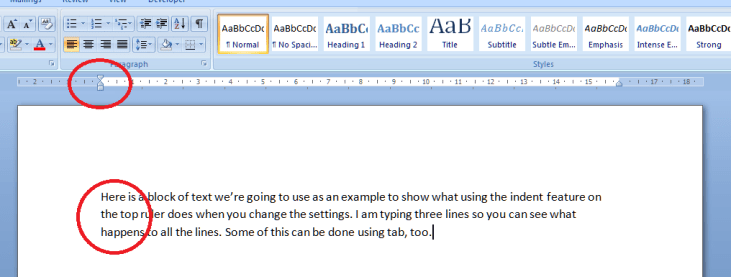
Let’s look at how moving this slider either all in one, or the top and bottom independently, affects a block of text. First of all we take the pointer and click down on the square block at the bottom of the slider. This picks up the whole thing and, when you move your mouse (holding the button down still) the slider will move across. Very important: when you’re moving sliders or setting tabs, make sure you have highlighted the section of text you want to affect. If you don’t do this, whatever you do on the ruler will only apply to the point at which the cursor is located. You probably don’t want to do that. So: let’s move the slider across to the right a little …
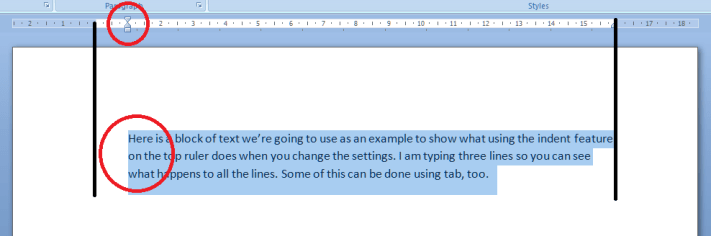
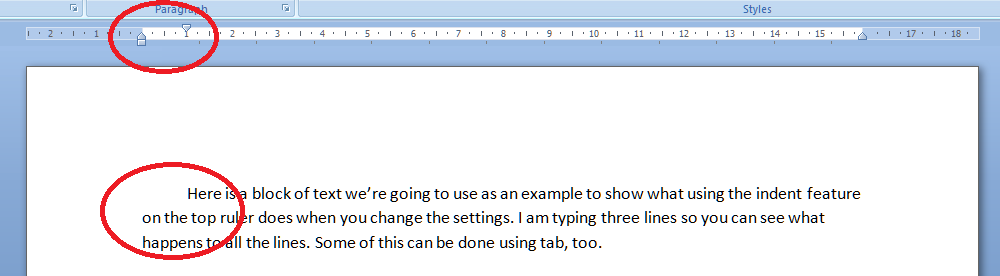
The black lines here mark the borders of the text area, and you can see that moving the slider as a whole has moved all the text across. Taking the slider back, what happens if we move just the top one across a bit?
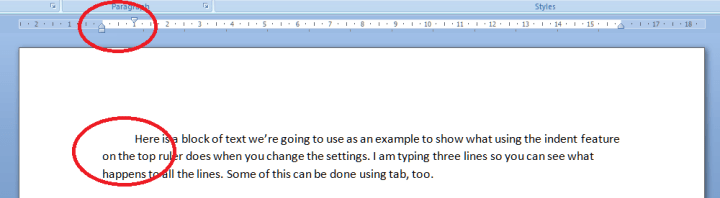
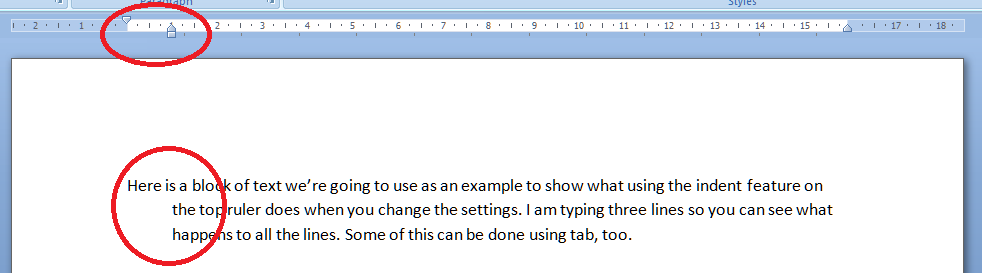
You can do this using the tab key, too – but the useful point here is that once you’ve set it up at the beginning of a document (before you start typing), it will affect all new paragraphs in the same way, so you’ve set up a nice tidy way for your paragraphs to indent themselves throughout the text. Now what happens if we just move the bottom half of the slider?
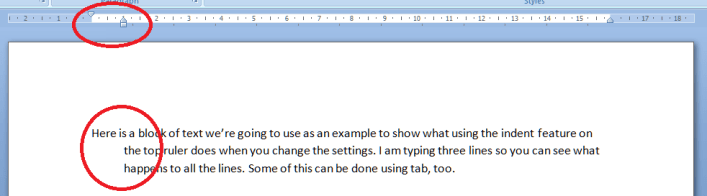
So this works the other way around: the first line of text is longer than the next ones. This looks a bit odd in a normal paragraph, but it’s very common in bibliographies.

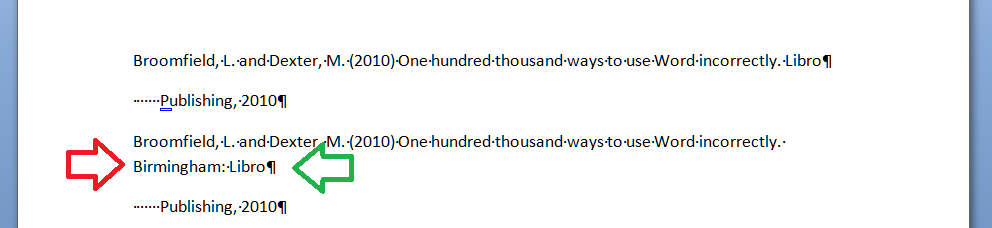
Here’s an example of how the user’s “short cuts” can actually make everything take longer, particularly if changes are involved. I noticed someone doing this in a dissertation I proofread recently, which is what inspired me to write this article.  I’ve turned “show formatting” on so you can see what they’ve done (dots are spaces and backwards Ps are line returns (enter)). In the first example, the author wants to have a hanging indent to make the author’s name more prominent, but they’ve done it by hand, hitting enter at the end of the line then spacing across to make the indent. All well and good (not really) until you need to enter some more text. Then look what happens:

Entering “Birmingham” has forced Birmingham: Libro onto a new line. But the line return at the end of Libro forces the next bit onto a new line (green arrow), and the second line of the entry isn’t even indented, because Word doesn’t know you want it to be (red arrow). Whoever entered “Birmingham” now has to delete the line return and take out the spaces before “Publishing” then re-set the hanging indent. Fine if it’s just once, but it won’t be. Contrast this with what happens if you set up the indents correctly in the first place:

Here, we’ve moved the bottom slider along so that the text automatically indents with a hanging indent on each paragraph. No spaces and only the required line return at the end of the entry. Now when we add “Birmingham” it merely pops itself onto the next line, nice and neat and tidy, and there’s nothing else to do.  Simple.

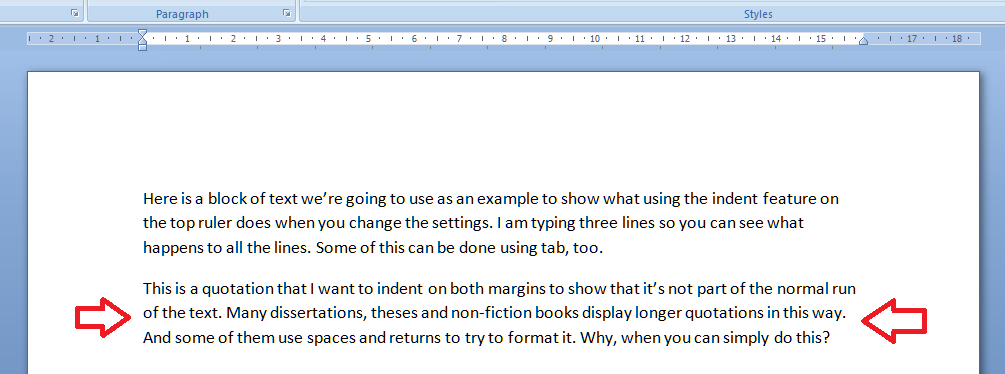
Now let’s have a quick look at indenting text from both margins. This is useful if you’ve got a chunk of quotation you want to insert into the text. Again, I’ve seen people put line returns at the end of each line and spaces across from the left. All well and good (again: not really) until you delete or add a word or character and it all goes odd. Here’s how you do it properly. Here’s the text we want to indent (marked with arrows):
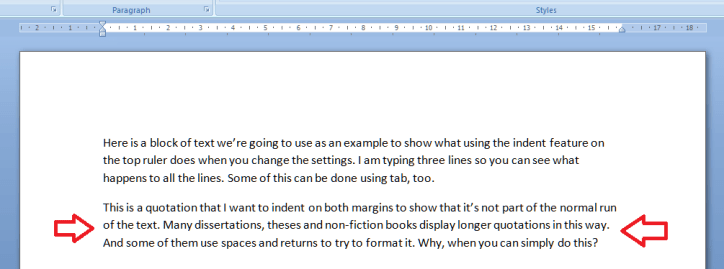
Highlight the text you want to indent and move both the right and left sliders in from the margins:

The black lines show the text margins outlining the area where you can type. The grey lines show how the indented text lines up with the two sliders, one on the left, and one on the right.

One bonus bit of tidying up: if you set the justification to Full, you get nice neat margins both sides. You could not do this using line returns and the space bar.

So now we’ve learnt how to use the sliders on the rulers to make our text tidy and make it much easier to make insertions and deletions without messing up the formatting of the document. I hope you’ve found this useful: do post a comment or share this article if you did!

Note: I have added an article on the top and bottom margins.

Please note, these hints work with versions of Microsoft Word currently in use – Word 2003, Word 2007 and Word 2010, all for PC. Mac compatible versions of Word should have similar options. Always save a copy of your document before manipulating it. I bear no responsibility for any pickles you might get yourself into!

Find all the short cuts here

 
8 Comments

Posted by on February 8, 2012 in Copyediting, Errors, New skills, Short cuts, Word, Writing


Tags: , , , ,

What I got up to in January

I’ve had a fantastic first month of being fully self-employed – I can’t really believe how well it’s gone. I wrote about goals last week, and I’m happy to say that I hit all my goals for January, including the hardest one. This is marvellous reassurance that I can do this and make a living out of it: I was expecting January to be a bit slow, and the Jury Service (that wasn’t – they didn’t call me up for any cases and I only ended up being there for four half-days) did knock out a bit of my first week, but I took the opportunity to have a bit of rest and relaxation that I’d missed out on over my very busy Christmas! More about how it’s all going in a more personal sense over on my new blog; I’ve been hugely enjoying writing that!

So, I’ve had a good mix of my usual tasks this past month:

I’ve proofread varying pieces of academic work for the student proofreading company I do work for, Master’s course work for a few students, three of whom have signed up to be coached through their course (I provide more detailed information on their particular issues with their written English and help them develop their writing while they’re learning about their subject – I also charge for this monthly or termly so they don’t end up paying lots of little invoices) and had one mammoth session on a PhD which had got delayed by the student’s tutor (I was glad not to have to go to the day job the morning after that 11-hour day!).

I’ve copyedited documents, magazine issues and articles for my regular clients, and checked the English for my Polish, Finnish and other European translator clients. I’ve checked over the articles and proofs for Moseley B13 Magazine (I do that for free).

I’ve transcribed two webinars for my author/entrepreneur client and also edited a downloadable guide to self-publishing for her (I’ll link to that when it’s out, for all you authors out there).

I’ve localised a whole load of email text for a new American client, using software called Across, which is mainly used by translators: I’m pleased to have got to grips with this as I think it will widen the range of clients I can work with.

And I’ve written lots of little bits of marketing material for a client who’s offering my services to their small business clients, as well as a series of blog posts about dentistry and most of the new web content for my retail shelving client, working with their SEO person to make sure the text and metadata both drive click-throughs to their site (it’s working well so far!)

So a nice busy time of it! In other news, I had a guest blog post published and was quoted in an article about the rise in numbers of self-employed people.  I got back into my giving back and networking, helping at a Social Media Surgery session (find out more via this article I wrote about it), and attending Social Media Cafe (where I wore a brooch made by fellow small business, Good Girl Designs and insisted on having a photo taken) and my first Jelly co-working session.  I’ve helped two friends set up WordPress blogs (Amy’s music blog and Ali’s book reviews blog).

Coming up: I’ve got returning clients and regular clients to look after, and I have another big transcription job coming up, similar to the one I did at Christmas. I’m pleased to say that I’ve got more time for reading and seeing my friends now I’m full time, which is what I had hoped for. I’m going on a half-day course on email and social media marketing, and I’m planning a slightly different kind of newsletter this month – including exclusive access to a fun competition and a new format for the newsletter itself – do sign up here to get a look at that when it comes out!

Libro offers copyediting, copy writing, proofreading, transcription, typing and localisation services to other small businesses, individuals and corporations. Click on the links to find out more!


Tags: , , , , , ,

My short cuts – using Tabs effectively (2)

As you will have read in my original post, I’m writing up quick guides to short cuts for formatting your Word documents, to replace workarounds you might use.

I want to show you how to do things in a more formal way which will  make things easier for you in the long run, particularly when you’re dealing with long and complex documents.

Today we’re going to follow up on my previous post on Tabs. Now we know how to use the tab button, we’re going to go a step further and set tabs using the ruler at the top of the screen. Exciting, eh? It’s called “setting tab stops” – the “stops” idea coming from when you added physical barriers to your typewriter. I actually learned to type on an elecronic typewriter, back in the olden days, by the way …

First of all, we need to check we can actually see the rulers at the top and side of the page.  Can you see a ruler at the top? If not, click on the view tab at the top of the page. See where it says ruler? Click on the box next to that so a tick appears:

Once you’ve ticked the box, the two rulers should appear, like this:

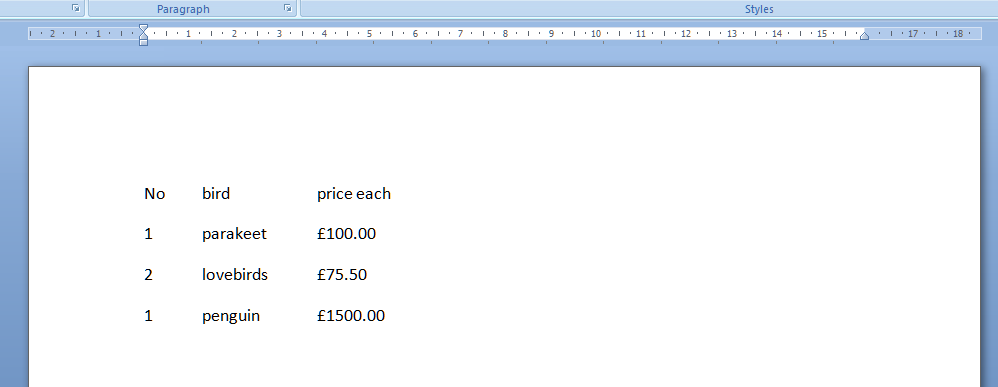
And we’re all ready to go. So, say we’ve got a little table of bird prices we want to lay out:

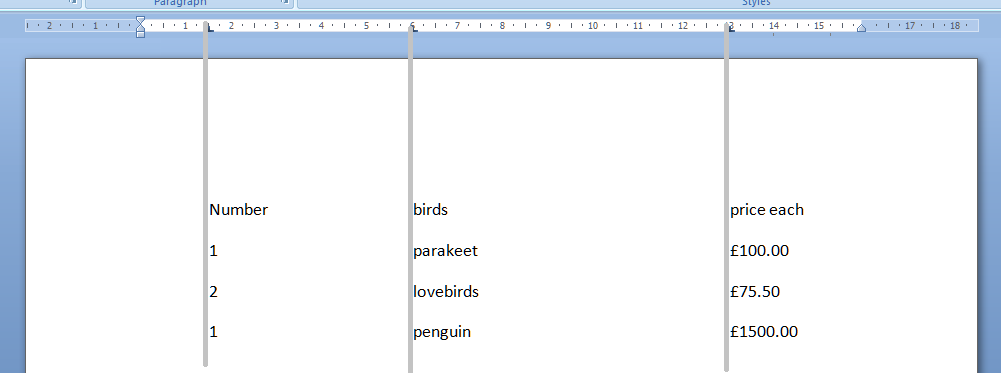
We can use the tab key to space across, but another way is to use the tab stops in the margin. Note that we need to highlight the text we want to apply tab stops to, or set up the tab stops before we type anything. Now, move the mouse pointer up to the top margin and click, just once, with the left mouse button, on the 1.5, 6 and 13 on the ruler. Just where the arrows are on the picture below. You’ll see a little L appear where you click. That’s L for left tab. Well, actually it shows which way the tab is facing, but we’ll come on to that later.

Now, when we type our text, using the tab key (remember, the one with 2 arrows on) will take us across to each of these tab positions that we have set up ourselves, rather than just going across by a set amount. The grey lines show how the text lines up with the tab stops we marked in the top ruler area.

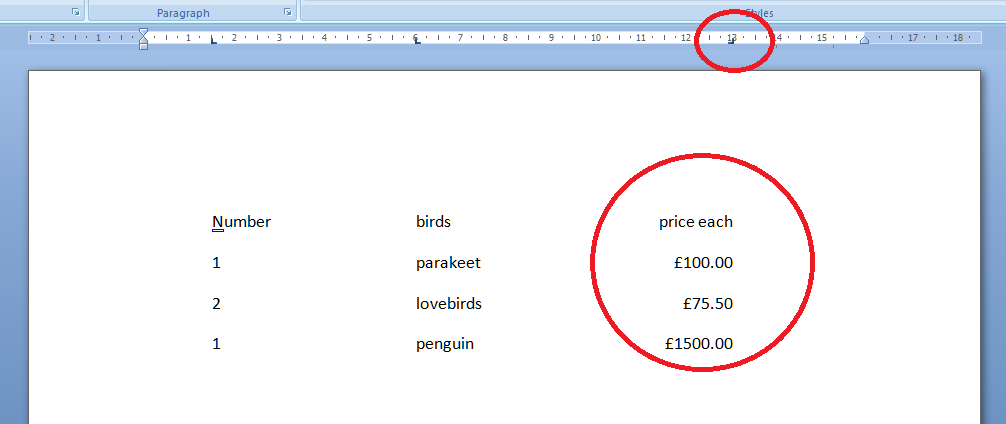
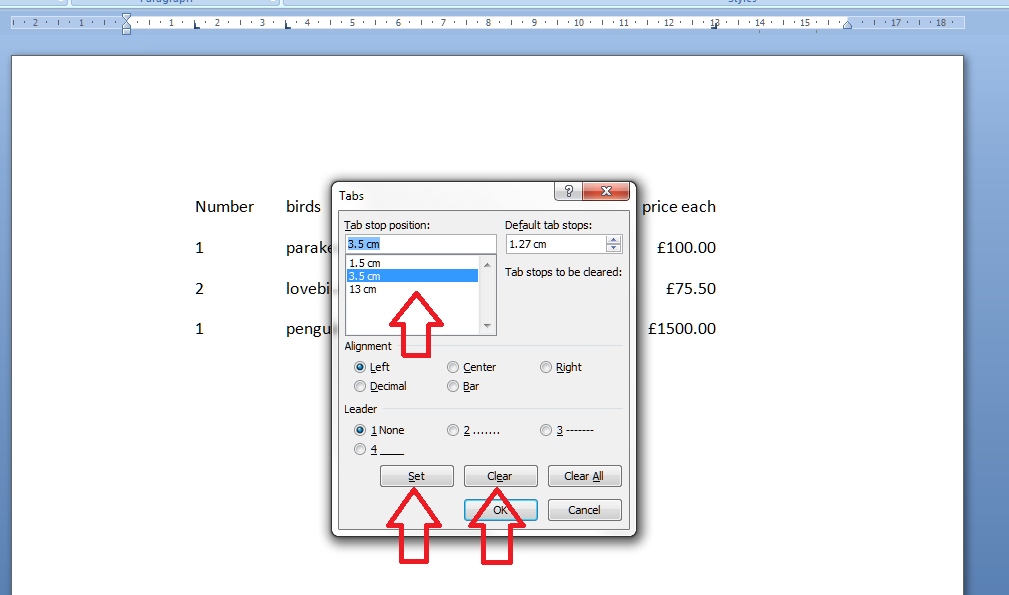
All well and good, but the prices don’t line up very neatly, do they. We can get around this, and mess around with the tab positions by highlighting the text we want to affect (remember to do this! And for this stage we want to highlight all the text so we move the column heading and the prices) and double clicking on any of the Ls we placed in the ruler. This brings up the tab dialogue box. Note: although you can click on any tab marker to bring this up, it automatically moves to working on the leftmost tab setting first, not the one you clicked on. So you can see one tab stop highlighted, and the other ones listed underneath. You can see that there are options to Clear or Set tabs. Set will set a new one at whatever position you want: if you add a third one between 6 and 13, all your text in the third column will jump across to match that. Clear will delete the tab position you have highlighted in the top box.

In order to line up those prices, we need to make the third tab a Right-handed one. This means the tab marker is at the right margin or, effectively, the end of the text you want to affect. So, click on the 13 in the box to bring that up as the active tab, click on the Right alignment radio button (circle).

This will make the right hand side of the column line up: lovely tidy figures and heading! Look at the tab stop at 13. It’s now a backwards L, showing that it’s keeping everything tidy to the right, not the left.
But I think the bird names want to move over a bit. Simply highlight the text, bring up the dialogue box, highlight 6 and Clear, and click Set and add a tab stop at 3.5.

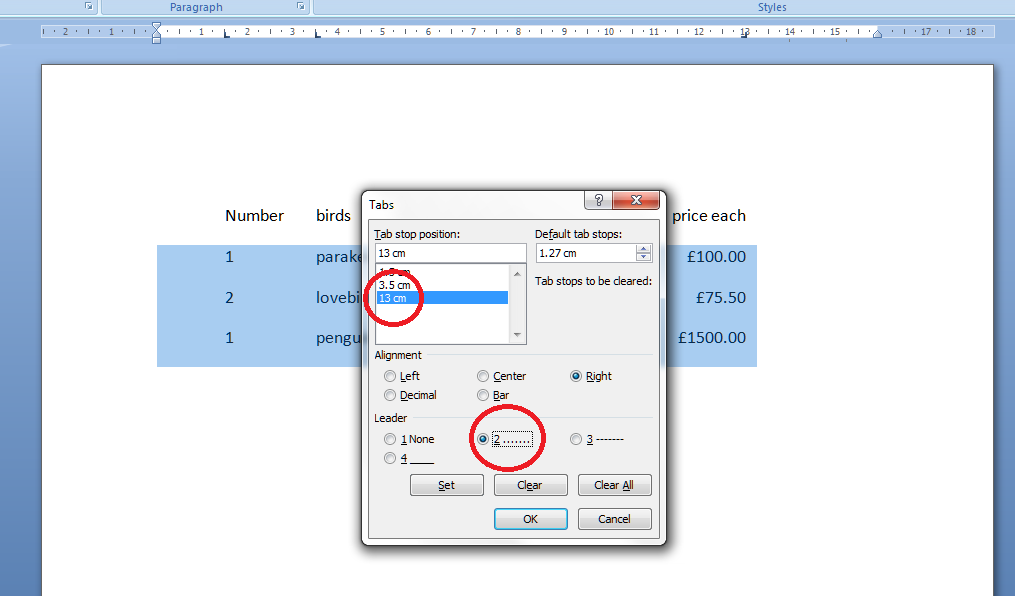
Now I fancy having a line of dots going from the name to the price. A bit odd in a list of bird prices, guaranteed, but if you want to do a quick table or a contents page (although I’ll be teaching you the proper way to do that automatically in a few weeks’ time) it works nicely and looks great. Highlight just the part that you want the dots to appear in and then double click on any of the tab stops. This time, select the 13 and choose the leader you require:

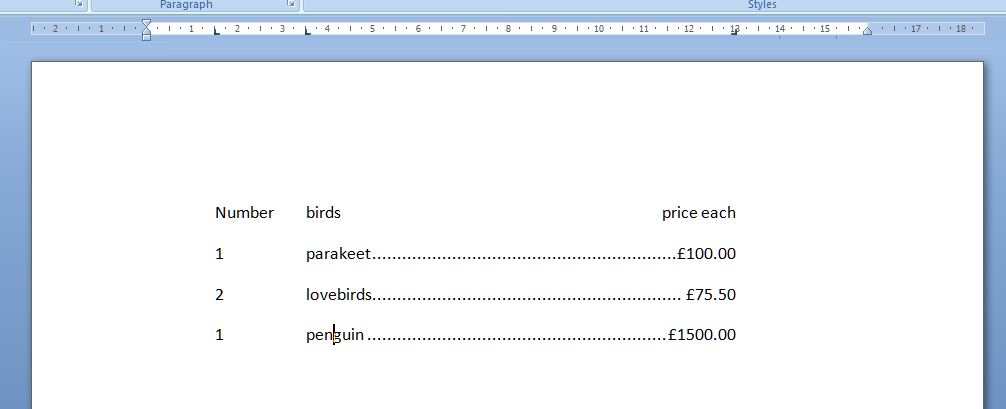
And there you go: lovely leaders between each bird name and its price. That looks tidier than scrappy columns made up of spaces and dots, now, doesn’t it!

Find my first introduction to tabs and using them to make your text nice and tidy and easy to navigate here.

Please note, these hints work with versions of Microsoft Word currently in use – Word 2003, Word 2007 and Word 2010, all for PC. Mac compatible versions of Word should have similar options. Always save a copy of your document before manipulating it. I bear no responsibility for any pickles you might get yourself into!

Find all the short cuts here

 
3 Comments

Posted by on January 19, 2012 in Copyediting, Errors, New skills, Short cuts, Word, Writing


Tags: , , , ,