 This is part of my series on how to avoid time-consuming “short cuts” and use Word in the right way to maximise your time and improve the look of your documents.
We’re looking at margins and indents today. By reading through these steps, you’ll learn how to produce tidy indented paragraphs and quotes within paragraphs, quickly and easily, without having to mess around with the space bar and enter key.
We often want to indent the beginning of a paragraph to make it look like more of a break from the last one, or have the first line of text longer and the subsequent ones indented (this is useful if you’re preparing a bibliography). Also, if you’re writing a thesis, dissertation or non-fiction book, it’s useful to indent large quotations to make them stand out as being a quotation. More often than not, I find people either don’t know how to do this using the rulers at the top of their Word document, or they’ve forgotten how to and think they can find a quick way round the issue. This leads to all sorts of formatting problems, especially if you’re going to (as is inevitable) add and remove text as you go along.
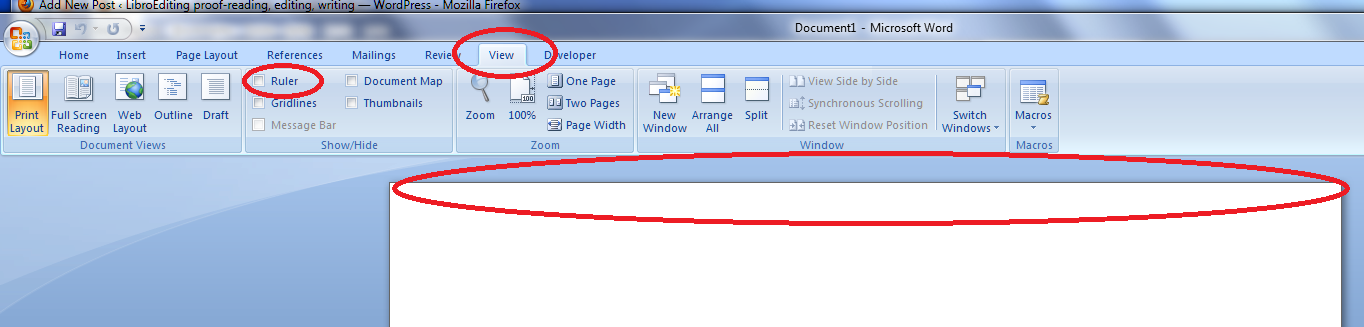
First things first: check that you can see your rulers in Word. If your document has a blank space at the top instead of a ruler, click on the “view” tab at the top of the screen:
How to make margins appear in Word
Look at “ruler” and see if the box is empty or contains a tick. If it’s empty, click on the box. Your rulers (top and side) should now appear:

making margins appear in Word
Now let’s look at setting the indents. The important thing to note here is the slider which appears at the beginning of the white part of the ruler, marking where the text starts, or the location of the left hand margin. Note first of all that the slider’s position matches the text’s position on the page – they are both situated at the left margin.
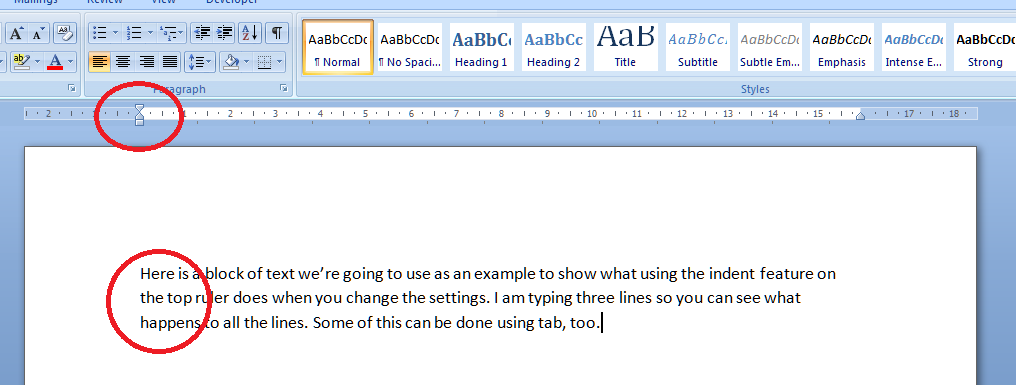 Let’s look at how moving this slider either all in one, or the top and bottom independently, affects a block of text. First of all we take the pointer and click down on the square block at the bottom of the slider. This picks up the whole thing and, when you move your mouse (holding the button down still) the slider will move across. Very important: when you’re moving sliders or setting tabs, make sure you have highlighted the section of text you want to affect. If you don’t do this, whatever you do on the ruler will only apply to the point at which the cursor is located. You probably don’t want to do that. So: let’s move the slider across to the right a little …
 The black lines here mark the borders of the text area, and you can see that moving the slider as a whole has moved all the text across. Taking the slider back, what happens if we move just the top one across a bit?
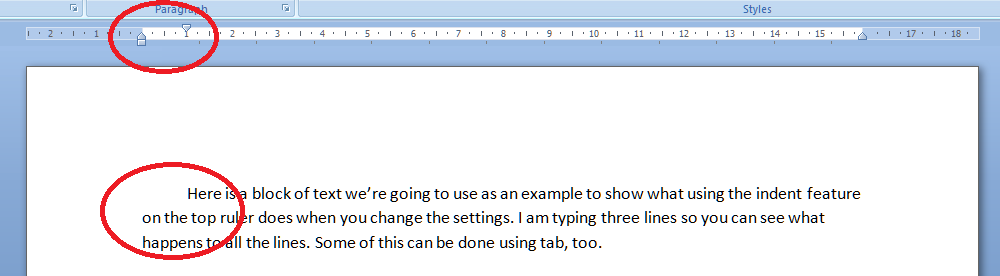 You can do this using the tab key, too – but the useful point here is that once you’ve set it up at the beginning of a document (before you start typing), it will affect all new paragraphs in the same way, so you’ve set up a nice tidy way for your paragraphs to indent themselves throughout the text. Now what happens if we just move the bottom half of the slider?
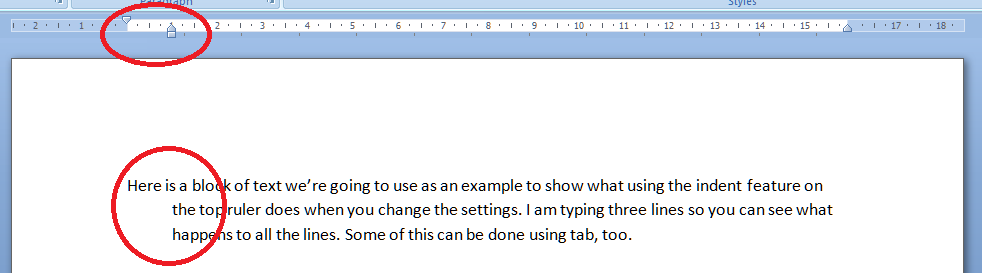 So this works the other way around: the first line of text is longer than the next ones. This looks a bit odd in a normal paragraph, but it’s very common in bibliographies.
Here’s an example of how the user’s “short cuts” can actually make everything take longer, particularly if changes are involved. I noticed someone doing this in a dissertation I proofread recently, which is what inspired me to write this article. I’ve turned “show formatting” on so you can see what they’ve done (dots are spaces and backwards Ps are line returns (enter)). In the first example, the author wants to have a hanging indent to make the author’s name more prominent, but they’ve done it by hand, hitting enter at the end of the line then spacing across to make the indent. All well and good (not really) until you need to enter some more text. Then look what happens:
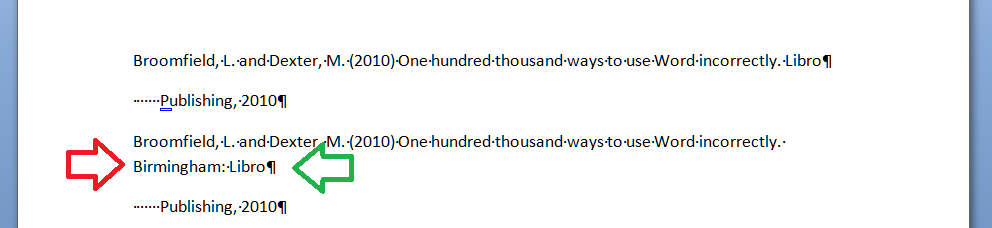 Entering “Birmingham” has forced Birmingham: Libro onto a new line. But the line return at the end of Libro forces the next bit onto a new line (green arrow), and the second line of the entry isn’t even indented, because Word doesn’t know you want it to be (red arrow). Whoever entered “Birmingham” now has to delete the line return and take out the spaces before “Publishing” then re-set the hanging indent. Fine if it’s just once, but it won’t be. Contrast this with what happens if you set up the indents correctly in the first place:
 Here, we’ve moved the bottom slider along so that the text automatically indents with a hanging indent on each paragraph. No spaces and only the required line return at the end of the entry. Now when we add “Birmingham” it merely pops itself onto the next line, nice and neat and tidy, and there’s nothing else to do. Simple.
Now let’s have a quick look at indenting text from both margins. This is useful if you’ve got a chunk of quotation you want to insert into the text. Again, I’ve seen people put line returns at the end of each line and spaces across from the left. All well and good (again: not really) until you delete or add a word or character and it all goes odd. Here’s how you do it properly. Here’s the text we want to indent (marked with arrows):
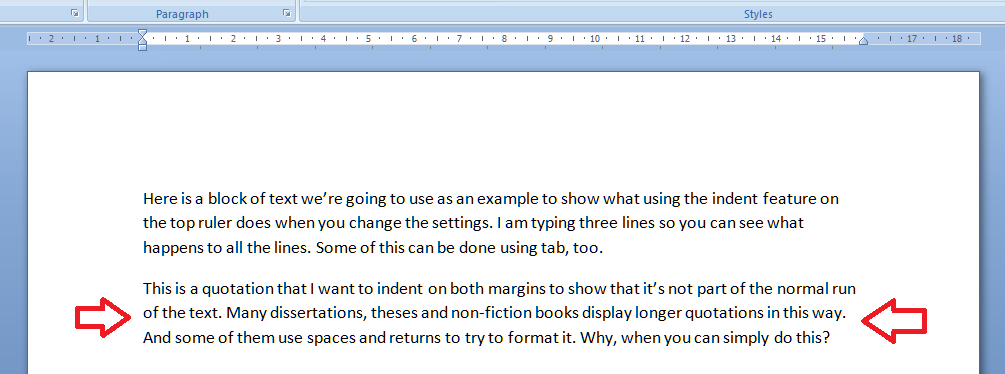 Highlight the text you want to indent and move both the right and left sliders in from the margins:
 The black lines show the text margins outlining the area where you can type. The grey lines show how the indented text lines up with the two sliders, one on the left, and one on the right.
One bonus bit of tidying up: if you set the justification to Full, you get nice neat margins both sides. You could not do this using line returns and the space bar.

So now we’ve learnt how to use the sliders on the rulers to make our text tidy and make it much easier to make insertions and deletions without messing up the formatting of the document. I hope you’ve found this useful: do post a comment or share this article if you did!
Note: I have added an article on the top and bottom margins.
Please note, these hints work with versions of Microsoft Word currently in use – Word 2003, Word 2007 and Word 2010, all for PC. Mac compatible versions of Word should have similar options. Always save a copy of your document before manipulating it. I bear no responsibility for any pickles you might get yourself into!
Find all the short cuts here …



 LibroEditing proofreading, editing, transcription, localisation