In this article, we’re talking about the Portrait and Landscape orientations in Word and Excel, what they are, why you might want to use each one, and how to swap between them.
What are Portrait and Landscape?
Portrait and Landscape are the terms used for the orientation of the page in applications that deal with pages, such as Word and Excel. Orientation means the relative position of the page when you’re looking at it:

Portrait means that the page has the shorter sides at top and bottom. Think of a portrait in a gallery or museum. They are usually this way round. Landscape means that the page has the shorter sides on the left and right. Again, think of an art gallery. Which way round are views painted of the landscape? Exactly.
Why would I want to use the landscape orientation?
Word and Excel documents default to being in the portrait orientation. That’s the format of most books, reports, folders, etc. But landscape can be very useful if …
In Word
- Your layout is such that it comes out wider than it’s high – maybe a poster or a sign to put up in your office or building
- You have a wide table to insert into the document with lots of columns and it gets too squashed up and hard to read if you try to fit it onto a standard portrait A4 page
- You have a diagram to insert into the document that’s wider than it’s high
- You have a picture to insert into the document that’s wider than it’s high
In the last three incidences, you might only want one page of the document to appear in landscape. That’s easily done, and you can find out how to have portrait and landscape in one document here.
In Excel:
- Your spreadsheet is too wide to fit comfortably onto a portrait A4 page
How do you change between Portrait and Landscape in Word 2007 and Word 2010?
You swap between Portrait and Landscape using the Orientation menu in Word. This can be found in the Page Layout tab, in the Page Setup section:

Press the Orientation button (or the little arrow at the bottom) to access the menu:

Choose your orientation, and the whole document will change to that orientation, unless you’re only changing one section (see below)
How do you change one page in Word to be in Landscape?
To change one page in Word to be in Landscape, you need to set Section Breaks first, so that Word knows which pages you want to change. See this post on Section Breaks for instructions on how to do this and change just one page or section.
How do you change between Portrait and Landscape in Excel 2007 and Excel 2010?
Changing the orientation in Excel works in exactly the same way as doing it in Word. Find the Orientation menu by going into the Page Layout tab and Page Setup section:
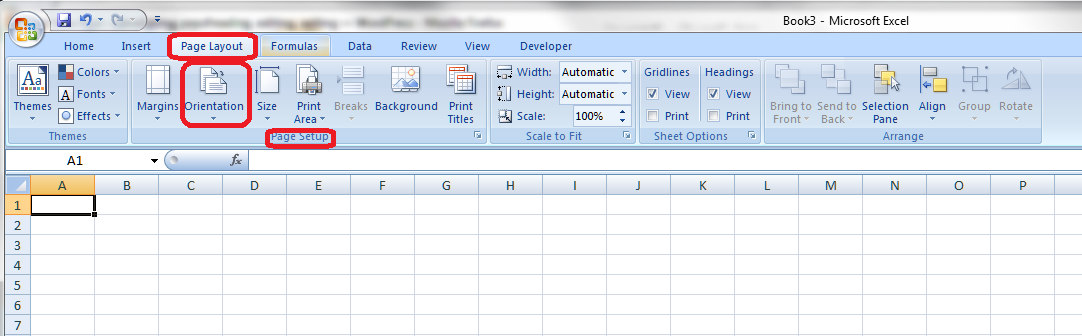
Then press the Orientation button to make your selection.
How do you change between Portrait and Landscape when you’re printing?
Sometimes you don’t realise that you need to print your document in Landscape rather than Portrait (it’s usually this way around, I find) until you have printed out one copy and find that your lovely picture or table falls off the edge of the page.
You can change the orientation of the printing while printing – however, the orientation of your original document will NOT change if you use this method, and if you want it to change to Landscape permanently, you will need to go back and follow the instructions I give above.
If you want to change the orientation of your printing (in Word or Excel or when you’re printing off a web page or a map or anything!) …
First, select the Print option. When the Print dialogue box comes up, click the Properties button:
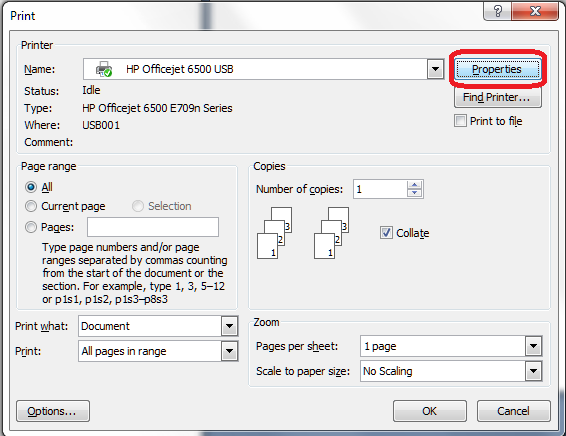
You will usually then be given a screen something like this which will have a Features tab:

Find choice buttons for Portrait / Landscape, select the one you want, and OK, and then your printout will be in that orientation.
—————–
In this article we have learned what the portrait and landscape orientations are, why they are useful, how to change them in Word and Excel and how to change orientation when you are printing.
If you have enjoyed this post, please share the link using the buttons below or sharing the Facebook, Twitter or LinkedIn alert that you followed to get here!
Other useful posts: Section breaks in Word
Please note, these hints work with versions of Microsoft Word currently in use – Word 2007 and Word 2010, for PC. Mac compatible versions of Word should have similar options. Always save a copy of your document before manipulating it. I bear no responsibility for any pickles you might get yourself into!
Find all the short cuts here …










































 LibroEditing proofreading, editing, transcription, localisation