RSS

Tag Archives: writing

Changing the language in Word comment boxes

I have already published a detailed post on how to customise your comment boxes/balloons. This issue came up for me the other day, and I wanted to note down some quick instructions. Please note these instructions are for Word 2010 and upwards for Windows and may not work in other versions.

Why are my comment balloons in a different language?

In my case, I was running a final spell-check over a document when I suddenly realised that my comment balloons were in Australian English (I realised this when the spell-checker switched over to Australian English while taking exception to a word I had not, in fact, mis-typed).

Why would this be? Well, the formatting of the comment balloons comes under its own Style, separate from normal text, so at some stage this document, or the computer it came from, or the template the author was using, had come to have Australian English as the comment box language.

How did I get it back to UK English?

How do I change the comment balloon language?

Follow the normal steps for updating the comment balloon style, so get to the styles menu by

  • Pressing Control + Alt + Shift + s all at the same time
  • Making sure you’re in the Home tab and click on the little tiny arrow at the bottom right of the Styles menu

This gives you the Styles dialogue box.

Using either of these methods, you will bring up the Styles dialogue box.

Click on the rightmost button: Manage Styles to bring up the next box: Manage Styles. To get to Comment Balloons: click on the down arrow to change As Recommended to Alphabetical:

Once you’ve got the list into alphabetical order, find Comment text, and then click on the Modify button. 

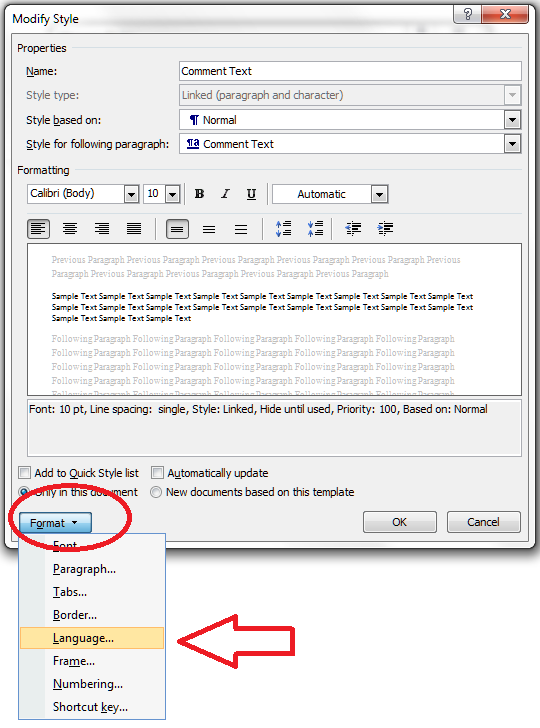
Click the Format button and choose Language

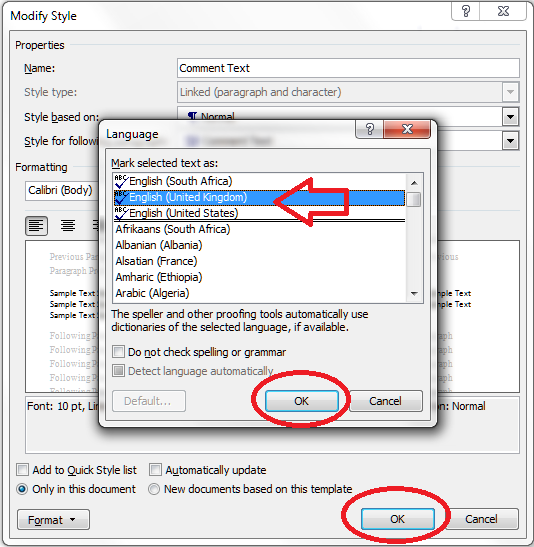
And change the language:

And then all the OK buttons to get back.

You can also choose whether this change applies only to this document, or to all documents based on this template, and add it to your Quick Styles list if you want:

Press the OK button, and carry on pressing OK buttons until you get back to your document. Now your comment box language will be whatever you asked it to be!

Why not take a look at these related topics, which should help you further?

Customising comments balloons

What to do if your comment boxes go tiny in Word

What to do if your comment boxes start running from right to left

Customising Track Changes

This is part of my series on how to avoid time-consuming “short cuts” and use Word in the right way to maximise your time and improve the look of your documents. Find all the short cuts here

Do let me know if this has helped you, saved your bacon, etc. – and do share with the buttons at the bottom of this article.

 
53 Comments

Posted by on November 7, 2012 in Copyediting, New skills, Students, Word, Writing


Tags: , , , ,

Keeping it formal – your academic writing

I’ve worked with many different academic texts, written by native and non-native speakers alike. Many issues are the same all over the world and crop up in anything from an undergraduate essay to a journal article. One of the major ones is making sure the language and style used is appropriate to the academic environment.

Here are my top tips for keeping your academic writing formal and appropriate.

No contractions

Contractions are not suitable for academic writing. That’s right, don’t do what you wouldn’t see in a textbook.

  • Change don’t to do not
  • Change there’s to there is
  • Change isn’t to is not

The only exception to this (and to all of these rules, actually) is if you’re quoting, either the literature or the direct speech of your interview participants / writing in entries to your questionnaires. Then, go ahead and use what someone else has said (but see the section on tidiness below).

Colloquialisms and slang – not cool, man

It’s very easy to be tempted to write as you speak. This includes those contractions that we’ve just talked about, of course. The classic one I see here is “lots of”; you just need to upgrade that one a little, and the same happens with “really”.

  • Instead of “Lots of researchers say this is wrong”, try “Many researchers say this is wrong”.
  • Instead of “This happened in lots of places”, try “This happened in a large number of cases”
  • Instead of “Interviewee A appeared to be really upset about this”, try “Interviewee A appeared to be very upset about this”

If you’re tempted further into slang, then think twice. Is there a way to make this sound less informal? What word would you use if you were talking in a seminar, or to your grandparents?

There is no place for the exclamation mark!

This one is more about objectivity than anything else. If you’re writing an academic text, you need not to appear partisan (even if you are) and your language needs to be very cool, calm, collected and academically rigorous. An exclamation mark is a surefire way to allow your own personal feelings to creep in.

Contrast these two examples:

  • When they were claiming expenses, senior managers would often claim for an extra meal that they did not order or eat!
  • When they were claiming expenses, senior managers would often claim for an extra meal they did not order or eat.

In the first one, we can’t help reading a value judgement – this is a bad thing, right? Well, it might be, but your job is to report the facts and then draw conclusions from them, backed up with the theory from your literature review.

Me, me, me (I)

It can be quite hard to work your own practice into the text in an appropriately formal way. It’s not usually acceptable to use the word “I” and you will need to find a way to work around this. It’s a good idea to check local practice here – some institutions favour “we”, some go for “the researcher”, and some won’t let anything personal through at all, and you’ll have to do some rather acrobatic writing to twist it all round into the passive tense.

Please note that this one can change depending on the academic discipline within which you’re working, and the agreed common practice of your institution. So check this one with your supervisor or the style guide you may have been given at the start of your course or contract, and adhere to the rules you’re given there above my rules. If you are not given any guidance, then use my suggestions to keep it as formal as possible. It’s worse to be under dressed than to be over dressed!

Here are some examples of the options:

  • I found that not all of the respondents answered every question
  • We found that not all of the respondents answered every question
  • The researcher found that not all of the respondents answered every question
  • It was found that not all of the respondents answered every question
  • Or, keeping it simple: Not all of the respondents answered every question

Eliminate sloppiness

It’s oh-so-easy to let sloppiness and inconsistency creep in, especially when you’re writing a long document with lots of sections. These are a few of the major culprits

  • Not checking the spelling of names in your references. Spell-checker won’t notice this and if you go too far wrong, your proofreader might think you’re talking about two different authors.
  • Not being consistent in your headings styles and numbering (read this article and the ones it’s linked to if you need help setting this up to be automatic)
  • Not being consistent with how you lay out new paragraphs and indented quotations (those big ones that you put in a special paragraph all on their own)
  • Not being consistent with your -ise- and -ize- spellings (organisation vs. organization)
  • Not being consistent with your capitalisation – there are rules for this which I’ll treat on the blog at some stage, but there are often choices to be made, too
  • Not being consistent with hyphenation – similar to capitalisation
  • Using abbreviations without spelling them out the first time

The editor’s solution for this? Use a style sheet. If there’s something you need to use consistently, note down your preferred way of doing it on a separate Word document, and keep it open to refer to as you need.

With abbreviations, note down each one and when you first use it (chapter and section will be enough), Keep this updated if you’re working on the chapters in an unusual order, and make sure the first instance is the one that has the words spelled out.

Keep it tidy

This is related to sloppiness, but a bit more specific. This is all about keeping the document looking nice, so how it looks doesn’t distract from what it says. I find two main culprits here:

  • Putting everything into direct quotations from interview respondents. I often find a quotation like this: “… and um the thing the thing is that, it’s not going to … work … at … all”. A much neater way to put this, which is going to get across the meaning a lot more clearly, would be “And the thing is, that it’s not going to [pause] work at all”.
  • Emphasis overload. If you’re indenting a quotation and putting it in italics, you don’t need to put quotation marks around it, too – it’s pretty obvious that it’s a quotation. If it’s a quotation in the text, just quotation marks, no need for italics except for emphasis. If you’ve got a heading, bold, underline and italics plus a colon at the end might just be too much

As a basic rule, keep it simple, keep it neat and tidy: don’t distract from the reader’s experience of the content of your writing.

Reference, reference, reference

I cover this in detail in another article, but it’s worth reminding you of these rules …

  • If you state an opinion that hasn’t come directly from your brain as an original thought, reference it: “Many people think the sky is green (Jones, 2010; Smith, 2012)”
  • If you talk about something that’s come out of your research, reference it and make sure you label your respondents: “One teacher thought this was rubbish and said so (Interviewee A2)”
  • If you state your own opinion, still back it up: “When reading the responses from the students, it struck the researcher that this needed looking into”; “As we have seen from the teacher respondents, not everyone agreed”. “We found that, contrary to Green (2011) our results suggest pupils do respect their teachers”

——-

I hope you’ve found these pointers useful. If you’re a student or a supervisor and you can suggest any more hints and tips, do please use the comments below to share them! And you might find my other resources for students and resources for Word users helpful – do take a look.

 
10 Comments

Posted by on October 31, 2012 in New skills, proofreading, Students, Word, Writing


Tags: , , , ,

Waste or waist?

Another troublesome pair that I’ve seen a few times recently: another of these homonyms, or words that sound the same, which I suppose is where the problem arises. Because we all know the difference, don’t we?

A waste occurs when you have something left over that has to be thrown away, or you don’t use something and it goes off, or you spend too much – it’s all about using something carelessly or extravagantly, or not accounting for what you need. So you can waste a bag of apples if you don’t eat them in time and they go rotten and have to be thrown away, or you waste money if you pay for a gym membership and don’t ever go to the gym.

A waist is the middle of something, where it’s nipped in, particularly in the human body, where it’s the big between the ribs and the hips, but also in other creatures, and inanimate objects, like a violin.

“I wasted a lot of satin making her wedding dress, because I didn’t measure the size of her waist so I had to trim lots of pieces off the original pattern.”

You can find more troublesome pairs here and the index to them all so far is here.


Tags: , , ,

Customising comment boxes in Word

A lot of people find this blog when they’re trying to sort out specific problems with their comment boxes (comment boxes suddenly going tiny, or comment box text running in the wrong direction, changing the language in your comment balloons). Here are general instructions on customising your comment boxes (or balloons, as they are officially called) in Word.

Why would I want to customise my comment balloons?

To be honest, the main reason for doing this is if something goes wrong. But the standard, default text size and layout may not be suitable for your purposes, and you might want to change it to make it more readable for someone with limited vision, etc.

You might also have preferences about which margin your comment balloons appear in, and how big they are.

The principles we are going to learn about here also apply when you want to customise the general styles in your document, which we will look in particular another time.

If you take a look at a document with standard comment boxes, you will see they look something like this:

Annoyingly, you will need to go to three different places to make these changes. I provide a recap at the end, but a summary might be useful here:

  • To change the location and size of balloons: Track Changes – Track Changes Options
  • To change the size, font, colour etc.of the heading (Comment M2 etc) AND/OR the size of all text in the comment balloon: Styles – Balloon text
  • To change the font and colour of the actual paragraph of text in the balloon AND/OR the size of all of the text in the comment balloon: Styles – Comment text

Note: my article on customising Track Changes will tell you how to change the colours in which the comments and corrections by different reviewers appear.

How to change where your balloons appear and their size

If you want to change which margin your balloons appear in, their size, and whether they are linked to the text by a line, you must go into the Track Changes Options menu. In the Review tab, click on the little arrow at the bottom of the Track Changes button and bring up Track Changes Options. There, at the bottom, is your balloons section:
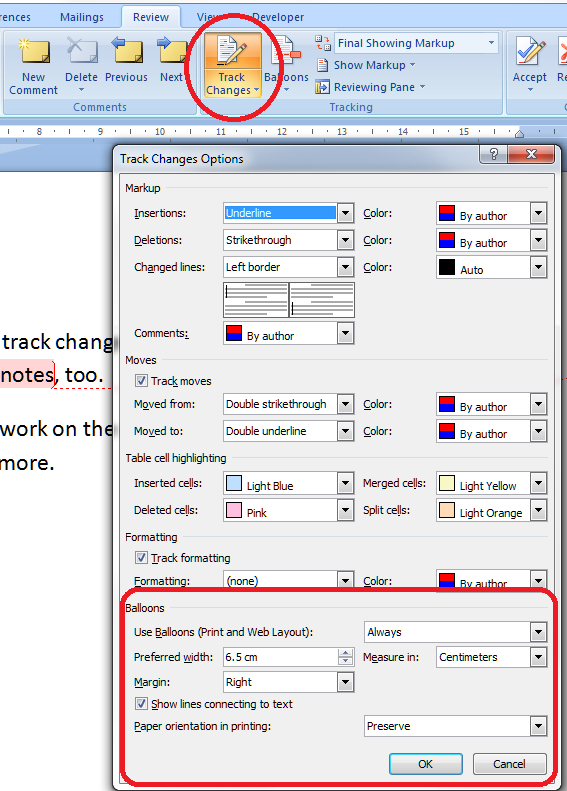
I think this is fairly self-explanatory.

How to find the menu for customising comment balloon text

There are two ways to reach the menu you need:

  • Press Control + Alt + Shift + s all at the same time
  • Make sure you’re in the Home tab and click on the little tiny arrow at the bottom right of the Styles menu

Either of these options will bring up the full Styles dialogue box.

Using either of these methods, you will bring up the Styles dialogue box.

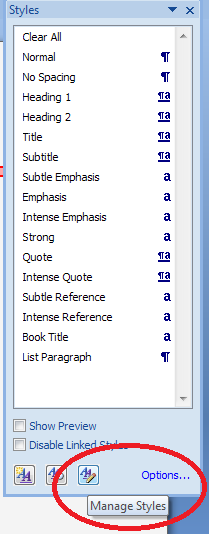
Now, ignore all of it except the three buttons at the bottom. Click on the rightmost button: Manage Styles to bring up the next box: Manage Styles. When you first open this window, the sort order is in what Word thinks is a useful order: As Recommendedclick on the down arrow to change it to Alphabetical:
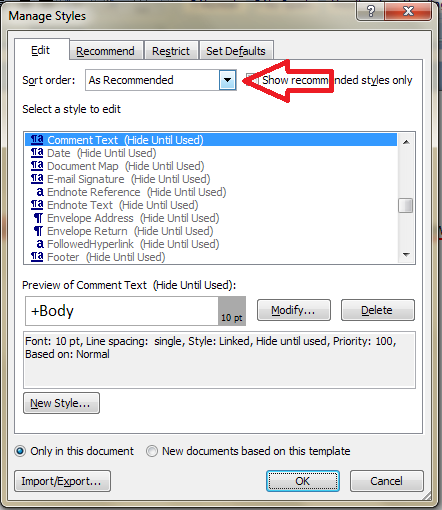
Once you’ve got the list into alphabetical order, it’s relatively easy to find Balloon Text (note: not Comment text) and you will see that it then confirms how you have your text set up (blue circle).
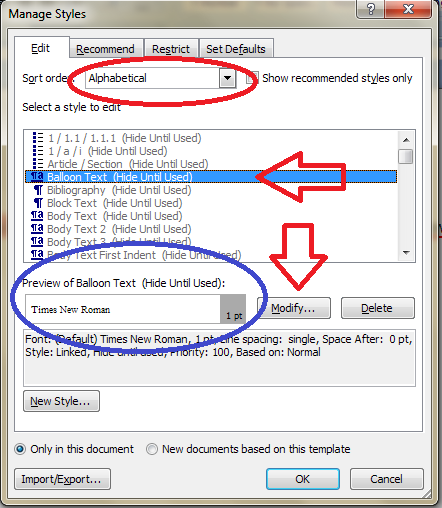
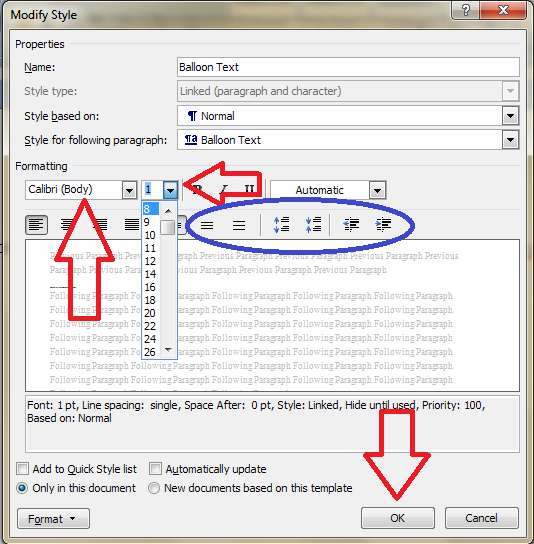
Click the Modify button … Now you can change your font and font size. You’ll notice lots of other options (blue circle) to change the spacing, etc.

I’m going to change the font size, font, orientation and colour of the comment box heading, and the size of the text:
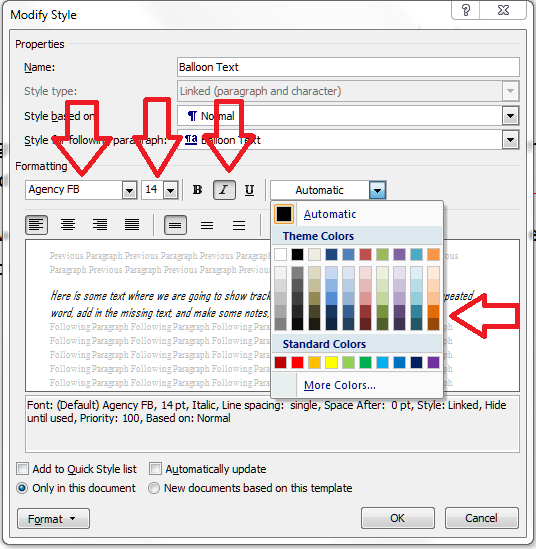
Note: As we will see, the changes in colour, font and italics etc. only apply themselves to the heading of the comment text, where it says “Comment: L1”. Why? Because it’s Word, and we are changing, very specifically, information about the Comment Balloon itself. See below for how to change the text in the comment balloon. EXCEPT, and here we may tear our hair out a little, this IS where we change the text size in the comment box .

Note, however, (blue arrow) that this does not change the size of the text itself – that is controlled from Balloon Text, and you’re just going to have to remember that, or look at the Recap I’ve written at the bottom!

At this point in either menu option, you can also click on the Format button and change all sorts of aspects:
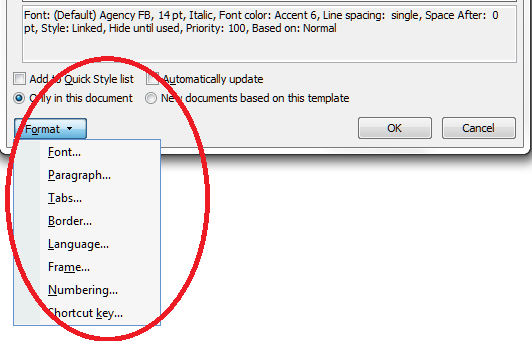
Now, you probably won’t want to go to this level of fancy detail with the comments balloons, but, of course, this dialogue box is not only for changing the style of comment balloons: it’s also where you set up all of the styles in your document if you want to change and customise them.

You can also choose whether this change applies only to this document, or to all documents based on this template, and add it to your Quick Styles list if you want:

Press the OK button, and carry on pressing OK buttons until you get back to your document. Now, your comment will appear in the style you have chosen. If you’ve only chosen to amend the Comment Balloon text size, only the header will have changed:

If you’ve chosen to customise the Comment Text as well, you will have made all of these changes:

Now your comment boxes have large, easy-to-read text in a useful colour. and a very fancy heading. We’ve customised your comment boxes or, as you now know to call them, your comment balloons, and the comment text

A quick recap

  • To change where the balloons appear, and their size, use the Track Changes Options section in the Review tab
  • To change the size and orientation of the comment balloon header text, and/or the size of all of the text, use the Comment Balloon option in the Manage Styles list
  • To change the colour and font of the comment balloon text, and/or the size of all of the text in the balloon, use the Comment Text option in the Manage Styles list

Why not take a look at these related topics, which should help you further?

What to do if your comment boxes go tiny in Word

What to do if your comment boxes start running from right to left

Changing the language in your comment balloons

Customising Track Changes

This is part of my series on how to avoid time-consuming “short cuts” and use Word in the right way to maximise your time and improve the look of your documents. Find all the short cuts here

Do let me know if this has helped you, saved your bacon, etc. – and do share with the buttons at the bottom of this article.

 
131 Comments

Posted by on October 19, 2012 in Copyediting, New skills, Students, Word, Writing


Tags: , , , ,

Gunnel or gunwale?

I’ve seen a few blog posts and articles mentioning something being “packed to the gunnels” and I’ve been getting all steamed up about the mistake, knowing it should be “packed to the gunwales”. So, I decided to write up one of my Troublesome Pairs to differentiate them.

A gunwale is the upper edge or planking of the side of a boat. By extension, we tend to use “packed to the gunwales” as a metaphor for something being full up, as if a boat is literally packed to its gunwales, it will be completely full up to the brim.

A gunnel is … an alternative spelling for gunwale. So I apologise to the writers against whom I have fulminated. Luckily, I didn’t mention it to anyone before I checked! And I still prefer gunwales, myself.

Note: they are pronounced the same: “gunnel(s)”.

You can find more troublesome pairs here and the index to them all so far is here.

 
23 Comments

Posted by on October 8, 2012 in Errors, Language use, Troublesome pairs, Writing


Tags: , , ,

Alternative, alternate or alternating?

These three words are very close in form and have related but not identical meanings. There is also a British English / American English aspect, something I don’t often cover in these Troublesome Pairs, but one that needs addressing here.

Alternative means available as another possibility, or mutually exclusive, said of one of more things (originally, it could only be used of two entities, but matters have freed up and more than two alternatives are now allowed). So you could use the services of one typist or an alternative typist if the first one is busy, or you could choose between the alternative answers “yes” or “no” when answering a question. Alternatives are the two or more available possibilities.

Alternative can also mean activities that depart from and/or challenge traditional norms – like alternative health and alternative lifestyles – the same meaning is there, in that they are offering an available possibility other than the “main” one.

The adjective alternate (with the stress on the middle syllable: alTERnate) means every other – “We hold the event in alternate months” means the event is held in, for example, January, March, May, etc. In biology, leaves alternating on a stem will appear on each side in turn, rather than being in matched pairs, two leaves together. But it’s worth noting that the American English usage of alternate carries the same meaning as the British English alternative defined above. To alternate, the verb (with the stress on the first syllable: ALternate) means to swap between two contrasting options repeatedly – “I alternated between watching the diving and hiding behind a cushion”. If two things are alternating then they are doing the swapping – “Mary and Sue were alternating as the front runners in the race”.

You can find more troublesome pairs here and the index to them all so far is here.


Tags: , , ,

Bazaar or bizarre?

There have been a few odd things in the news recently, and seeing people’s comments on them has highlighted a common difficulty distinguishing between bizarre and bazaar. They’re odd words, and tricky to spell, with those difficult decisions on the double letters, so bookmark this blog post if you’re not sure about this pair!

Bizarre is the word you’re groping for when you want to describe something odd. It means something VERY odd or unusual, so a woman with a hat on her head might be less bizarre than a woman with three hats, or a parrot, on her head. How you remember the double r as opposed to the double z you might be tempted to include, is anybody’s guess. Maybe think of rolling your rrrrrrs in emphasis of the oddity of it all.

And here’s a lovely bonus word: A bizarrerie (plural: bizarreries) is a strange and unusual thing. Go on, work that into a sentence today.

Now we’ve got the odd one clear, a bazaar is a market in a Middle Eastern country (think souk, and the word comes from Persian, via Turkish and Italian) and also, more commonly, I suspect, a fund-raising sale of some kind, beloved of Church and charity fund-raising attempts. There’s a nice double a in this one, not a spelling you find often. If you watch Strictly Come Dancing, you can imagine Craig saying it in that voice of his: “I bought it at a bazaaaaaaar, dahling”.

Of course, you could find many bizarre items at a bazaar; in fact you’re pretty well certain to. Maybe that’s a good way to remember it.

You can find more troublesome pairs here and the index to them all so far is here.

 
Leave a comment

Posted by on September 28, 2012 in Errors, Language use, Troublesome pairs, Writing


Tags: , , ,

Mandrel or Mandrill?

This one was suggested by my friend, Sian, who does technical translation, which is how she came to know the meaning of these two rather lovely words. Or one of them, anyway. I’m not sure where mandrills come in to technical translations! I am kind of betting that I never get a search through for these … let’s see if I’m proved wrong!

This is a matter of knowing your spellings, in essence.

A mandrel (only one el, mind, and yes, I did have to look it up. But it is in my fairly standard Oxford Concise English dictionary, so it is a real word of some kind of common usage!) is a shaft or spindle in a lathe, which you use to fix wood (etc.) while it’s being turned. It’s also a rod, cylindrical, around which metal (etc.) is forged. And, it’s a word for a miner’s pick, too!

A mandrill (two ells), is a large type of baboon, found in West Africa, with a red and blue face and, if male, a blue bottom.

Um … “The mandrill, being a blue-bottomed monkey, was not hugely keen on using the mandrel to help it turn the wooden banisters, but it was a helpful sort of baboon, so did its best”.

You can find more troublesome pairs here and the index to them all so far is here.

 
2 Comments

Posted by on September 24, 2012 in Errors, Language use, Troublesome pairs, Writing


Tags: , , ,

Judgement or judgment?

This is a tricky one to do with spellings, and even raises the spectre of the US English / British English divide.

Judgement is a person’s or organisation’s ability to form sensible opinions or make considered decisions, and a judgement is that opinion or decision. In the UK.

And judgment or a judgment is the same thing in US English.

But here’s where the confusion comes in. In the UK, we use judgment solely for a decision made by a judge or a court of law. No e in the courtroom!

“She married him against her better judgement, and it was a mistake she soon regretted.”

*The court made its judgment and he was accompanied to the prison cells.”

You can find more troublesome pairs here and the index to them all so far is here.

 
2 Comments

Posted by on September 14, 2012 in Errors, Language use, Troublesome pairs, Writing


Tags: , , ,

Excoriating or coruscating

I saw the word coruscating and its misuse being discussed on a forum to which I belong, and I suddenly realised that the word people had been confusing it with was excoriating. Cue a Troublesome Pair!  Two quite difficult words, but we’re up for them, aren’t we!

To coruscate means to flash or sparkle, so coruscating wit is sparkling wit. Because people only have a vague idea that it has something to do with wit, they seem to have changed its meaning to be something harsher, almost a flaying kind of idea, and I’ve heard this a few times myself, but, for example, criticism can’t be coruscating – it means sparkling, nothing to do with harshness, ripping to shreds, etc.

To excoriate, however, does mean to criticise severely, so although it’s a bit of a tautology (saying the same thing twice in one phrase), you can have excoriating criticism. And, excitingly for my half-remembered meaning of difficult words, it has a medical sense meaning to damage or remove part of the skin!

So, now you know. Go on: use one of them in your conversation today!

You can find more troublesome pairs here and the index to them all so far is here.

 
Leave a comment

Posted by on September 10, 2012 in Errors, Language use, Troublesome pairs, Writing


Tags: , , ,