I had been editing a document for a client. I added some comments in the margin, as always – but when my client opened it and when I re-opened it, to my horror and his, all of the text boxes containing the comments had gone TINY and unreadable. It looked like this:
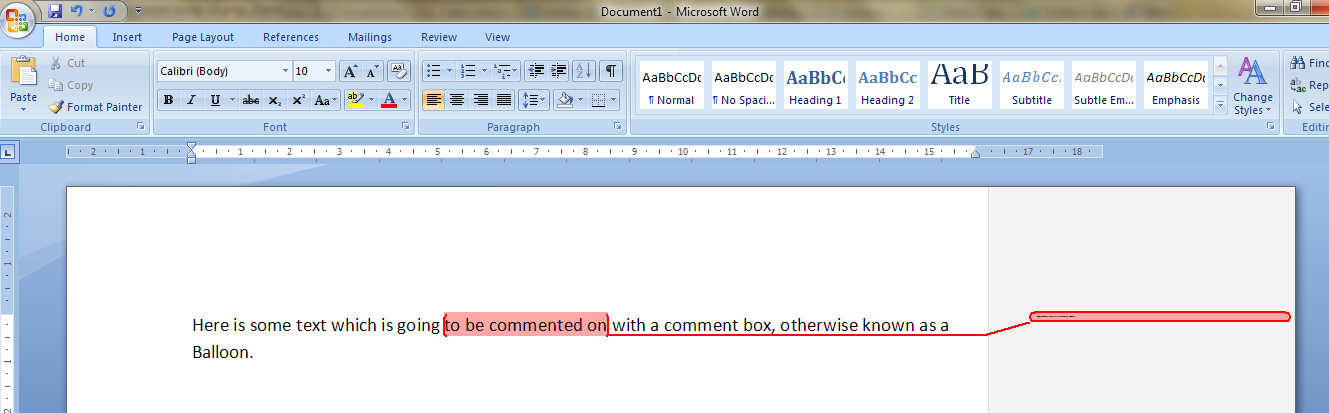
It apparently happens if you’re working with a document originally created in an older version of Word which doesn’t have the requisite Styles set up for comment boxes. You then work on it in Word 2007 or Word 2010 (this solution works for both!) and the horror happens …
It took me and Matthew longer than it should have to work out what to do, as there didn’t seem to be an easily found solution if you searched for one online – so as an aide memoire for me, for next time it happens, and as a public service for anyone else trying to work out what to do … here’s what you do (now edited to add screen shots).
Note for experts: if you’re already familiar with Styles, note that you need to change the Balloon Text.
What to do if your comment boxes go tiny in Word documents:
Let’s look at what the full horror looks like first of all:

First of all: don’t panic! The comments will have typically gone into Times at 1 point. But there is a way to make them readable again.
Open the document. Don’t highlight anything. Don’t put the cursor into a comment box.
Now you can do one of two things. Either hit Control + Alt + Shift + s all at the same time, or make sure you’re in the Home tab and click on the little tiny arrow at the bottom right of the Styles menu – this will bring up the full Styles dialogue box.

Using either of these methods, you will bring up the Styles dialogue box.
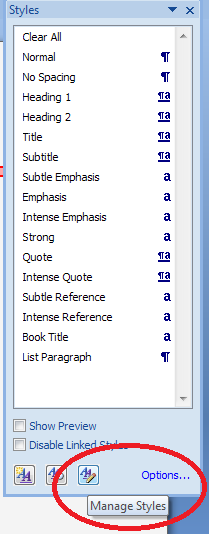 This looks like a very useful dialogue box, but for our purposes you need to ignore all of it except the three buttons at the bottom. Click on the rightmost button: Manage Styles to bring up yet another dialogue box.

We’re not there yet: the sort order shows as Recommended – but you need to click on the down arrow to change it to Alphabetical:

Once it’s in alphabetical order, it’s relatively easy to find Balloon Text (note: not Comment text) and you will see that it then confirms how you have your text set up (blue circle). Click the Modify button …
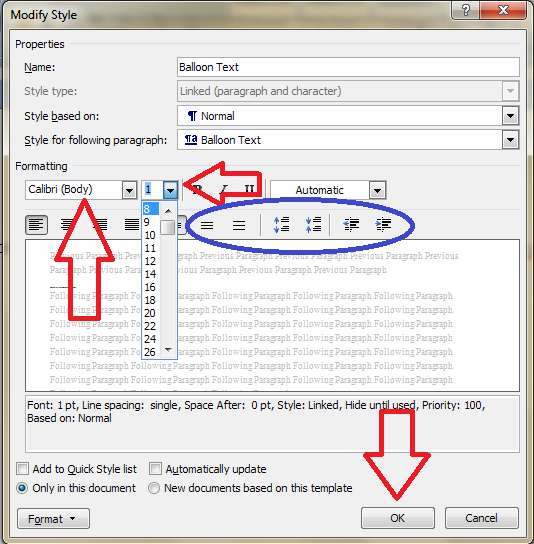
Now you can change your font (which will probably have defaulted to Times) and font size (which will probably have defaulted to 1). You’ll notice lots of other options (blue circle) to change the spacing, etc. – I don’t usually worry about changing those, but this is where they are if you want them – and of course you use this menu to change the styles on headings, normal text, etc., too. Press the OK button, and carry on pressing OK buttons until you get back to your document.
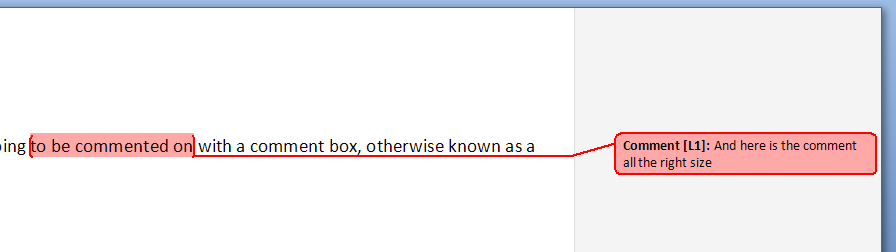
And there it is, all changed:
Save document
Want even more information on customising your comment boxes? Read this article full of everything you would ever want to know!
Related topics: What to do if your comment boxes start running from right to left
Changing the language in your comment balloons
Note that these tips are primarily for Word 2007, 2010 and 2013 for PC. Most of them will work for Word for Mac, although you may find some menus in different places. This is part of my series on how to avoid time-consuming “short cuts” and use Word in the right way to maximise your time and improve the look of your documents. Find all the short cuts here …
Do let me know if this has helped you, saved your bacon, etc. – and do share with the buttons at the bottom of this article.

 LibroEditing proofreading, editing, transcription, localisation
Patricia Fogarty
December 5, 2011 at 1:00 pm
Thanks so much for this! Want to note that, using Word 2007 on a PC, I needed to highlight the whole doc before the rest of the steps would “take.” But once I made that one adjustment, my bacon was indeed saved. So glad you were there with this advice.
LikeLike
Liz at Libro
December 6, 2011 at 2:53 pm
Thank you very much for taking the time to comment, and I’m so pleased I was able to help. Having to highlight it all didn’t happen to me, but that’s well worth knowing for other people who might be in the same boat!
LikeLike
Tim
February 25, 2014 at 12:47 am
This is AWESOME! I love the details in your description, complete with screen captures. I’m a technical writer, and I couldn’t have done a better job. Thanks, Tim
LikeLike
Chris
March 3, 2015 at 11:14 am
Many thanks for taking the time to highlight this fix, my boss will be Sooooo impressed with me (thanks to you)
LikeLike
Liz Dexter
March 3, 2015 at 12:01 pm
You’re welcome – glad I can help you to impress your boss!
LikeLike
Lori
March 12, 2015 at 3:02 pm
Liz, I read this post from 2011 and am hopeful you still leave comments. My problem is the fong changes to tiny in the whole document, not comment boxes. Now I use Word 2010 but when opening older versions of documents is when it seems to happen.
LikeLike
Liz Dexter
March 12, 2015 at 3:04 pm
Thanks for your comment, Lori, and yes, I still respond to comments on all of my posts! Have you followed the specific procedure here to change only the text in the comment boxes? Have you tried setting the main text to “Normal” first to make sure it hasn’t got an odd and inappropriate style attached to it?
LikeLike
Suresh Kumar
December 7, 2015 at 9:56 am
This is a very well written solution. Thank you for posting this. I had faced this problem earlier but didn’t know how to solve this.
LikeLike
Al
January 22, 2012 at 5:03 pm
Many thanks for this, massive help. I had this problem while working in Word 2010 so didn’t have to highlight the body text; worked fine as you described. [Also managed fine without screenshots; I wouldn’t worry about them for the extra effort required!]
Thanks again, very much appreciated; the tiny comment boxes were really starting to annoy me!
LikeLike
Liz at Libro
January 22, 2012 at 5:06 pm
Dear Al, I’m so happy I was able to help (and it’s good to have feedback about Word 2010, too!). And thanks for the info about the screenshots: I have been adding them to my more recent posts about more basic aspects of Word, but I think that if someone’s working with comment boxes, then they are probably OK with just following the instructions. Thank you for taking the time to comment, as it’s good to know I’m helping!
LikeLike
Kerrie
June 8, 2012 at 1:29 am
This was a great help just now for Word 2007. Thanks!
LikeLike
Liz at Libro
June 8, 2012 at 2:41 am
You’re welcome! Thank you for taking the time to let me know!
LikeLike
trish
July 3, 2012 at 1:16 pm
Huge help!! Thanks for posting this!
LikeLike
Liz at Libro
July 3, 2012 at 1:18 pm
Hi Trish, so glad I could help, and thanks so much for posting that I had helped you!
LikeLike
John Evans
September 12, 2013 at 8:27 am
How do we rectify this on a Mac with Word?
LikeLike
Liz at Libro
September 12, 2013 at 8:31 am
Thanks for your comment. A quick search would suggest that you use the same Styles menu in Word for Mac; again, you need to make it show you all of the styles, not just the ones it intitially offers. Have a go, and if that doesn’t work, or if you’ve tried that already, let me know and I’ll consult with my pet Mac-user, Linda.
LikeLike
Lisa Neff
July 21, 2012 at 6:27 pm
I was recommended to come here by Katherine Moore O’Klopf (an EFA colleague), and I managed to fix the problem with some tweaks (I’m working in Word 2003). “Control + Alt + Shift + S” didn’t bring anything up for me, so here is what I did:
1. Go to the Format tab drop-down menu in Word, and click Styles and Formatting.
2. Go to Balloon text, and click Modify on the drop-down menu.
3. Change your font size as needed. Mine was originally set to “1” (!), and I changed it to 10.
Hope this helps someone working in an earlier version of Word. Now on to the fix for comment boxes reading right to left!
Lisa
Lisa Neff Editorial Services
LikeLike
Liz at Libro
July 21, 2012 at 6:29 pm
Thanks for that, Lisa. With your permission, I will add that to the post. I don’t have a copy of Word 2003 any more, so it’s useful to have this information. Also, I wrote this post as a quick reminder to myself, and this serves as reminder to beef it up with some screenshots, like my later posts in the series.
LikeLike
Caroline McLaughlin (@CaroMcL)
September 12, 2012 at 10:51 am
Thanks very much Liz. I had the same problem once and followed your instructions all the way to the style menu, where unfortunately I had a frustrating five minutes playing around with the ‘Comments text’. I’d never even noticed there was a separate style for balloons!
LikeLike
Liz at Libro
September 12, 2012 at 10:54 am
I’m glad I could help – I do mention that it’s Balloon Text you need, but I’ll see if I can make that more prominent! I know it’s a bit odd, as why would you want them separate, but that’s the joy of Word!
LikeLike
Rebekah
September 21, 2012 at 12:14 am
This was a big help – saved me a lot of time! I’m glad I thought to google this problem before I spent too long trying to trouble-shoot, because I never would have figured that solution out on my own! I appreciated the screen shots as well.
LikeLike
Liz at Libro
September 21, 2012 at 5:17 am
Thanks for taking the time to comment and I’m glad I could help!
LikeLike
Sarah
October 5, 2012 at 2:19 am
Thanks so much for this. As a teacher I use the comment feature A LOT and the tiny text was driving me nuts. I once spent a good few hours trying to create and test a macro to fix this.
LikeLike
Liz at Libro
October 5, 2012 at 2:56 am
Thanks for taking the time to let me know this has been helpful for you!
LikeLike
Thomas
October 10, 2012 at 8:29 pm
Has worked for me — thanks a lot
LikeLike
Liz at Libro
October 10, 2012 at 8:31 pm
Thanks for your feedback and glad I could help!
LikeLike
mzee
October 22, 2012 at 8:11 pm
Thanks for this…This was soooooo very helpful….and saved my time….
LikeLike
Liz at Libro
October 22, 2012 at 8:19 pm
Always glad to help!
LikeLike
Michelle Wilson
October 24, 2012 at 8:36 pm
Thanks so much…saved me a lot of time – I would have never worked this out on my own – very helpful step by step guide!
LikeLike
Liz at Libro
October 24, 2012 at 8:39 pm
Thank you – glad I could help!
LikeLike
Michelle Wilson
October 24, 2012 at 8:38 pm
Thanks so much, very helpful and very straightforward guide to sort out a problem I would not have been able to figure out myself…it felt like Alice going down a rabbit hole, one table after another!
LikeLike
Liz at Libro
October 24, 2012 at 8:39 pm
So helpful you told me twice! Sorry for the slight delay in approving your comment …
LikeLike
Claire
October 31, 2012 at 8:42 am
Wonderful instructions! You saved my day!
LikeLike
Liz at Libro
October 31, 2012 at 9:07 am
Glad to help – thanks for letting me know!
LikeLike
Sudhir
November 6, 2012 at 8:56 pm
I don’t know how many human hours you’ve saved so far but certainly for me you saved many hours of panic and anxiety. Thanks a lot.
LikeLike
Liz at Libro
November 6, 2012 at 9:00 pm
You’re welcome; glad to help and thanks for dropping by to say thank you!
LikeLike
Claire
November 10, 2012 at 4:50 am
Thank you so much, this hasn’t quite saved my life, but definitely saved me time and angst!
LikeLike
Liz at Libro
November 10, 2012 at 7:14 am
Thanks for taking the time to comment and glad I could help!
LikeLike
Diana Blackstone-Helt
November 11, 2012 at 10:28 pm
Thank you! When I encountered this problem, I was the middle of editing my students’ papers to give them some advice before they submit them to me for a grade, and without having the comments readable, my task would have taken hours longer!
LikeLike
Liz at Libro
November 12, 2012 at 9:41 am
What a relief – so glad I could help you (and your students!). Thanks for taking the time to leave a comment!
LikeLike
Sarah
November 12, 2012 at 9:33 pm
Thank you Liz, this was driving me mad !!
LikeLike
Liz at Libro
November 12, 2012 at 10:03 pm
Glad I could help and thanks for posting a comment!
LikeLike
Lucy K
November 13, 2012 at 6:38 pm
brilliant! I would never have found that without your help!
LikeLike
Liz at Libro
November 13, 2012 at 8:43 pm
I’m glad I could help; thank you for posting a comment!
LikeLike
Andrei V
November 26, 2012 at 10:39 pm
This solution came in very handy today at work. It was exactly as you described. Thank you very much and may God bless you.
LikeLike
Liz at Libro
November 27, 2012 at 6:58 am
Thank you for your kind comment, Andrei – so glad I could help!
LikeLike
db
November 27, 2012 at 8:08 pm
Thank you very much, I had no idea how to solve this until I read your link. I really appreciate the help!
LikeLiked by 1 person
http://positionproseo.com
November 29, 2012 at 6:34 pm
When I originally left a comment I seem to have clicked on the -Notify me when new
comments are added- checkbox and from now on every time a comment is added I recieve 4 emails with the same comment.
Is there a means you can remove me from that service?
Thank you!
LikeLike
Liz at Libro
November 29, 2012 at 7:07 pm
Hi there, I’m afraid I can’t remove that myself for you. But at the bottom of the notification email you should have a link to manage notifications or some such message. Click there and you get a list of your notifications, which you can then untick to remove notifications on new comments on this and any other comment threads or, indeed, blogs, if you have signed up for emails from any. Hope that helps!
LikeLike
Karen Roberts Fong (@sg_writers_tips)
December 5, 2012 at 11:57 pm
Thanks so much for the steps. It Works!
LikeLike
Liz at Libro
December 11, 2012 at 7:56 am
Thanks – glad I could help!
LikeLike
Mark
December 10, 2012 at 11:32 pm
Thank you so much for this!
LikeLike
Liz at Libro
December 11, 2012 at 7:56 am
You’re welcome – glad I was able to help!
LikeLike
Brian Helmlinger
January 3, 2013 at 2:01 pm
Thank you. Great fix. Works just as it’s supposed to.
LikeLike
Liz at Libro
January 3, 2013 at 2:10 pm
Thank you for taking the time to comment and glad I could help!
LikeLike
Pam
January 14, 2013 at 8:43 pm
Thank you so much for posting this helpful fix! saved my life!!
LikeLike
Liz at Libro
January 14, 2013 at 8:46 pm
Thank you for taking the time to comment, Pam – I’m glad I could help!
LikeLike
Greg
February 8, 2013 at 8:36 am
Thank you very much for sharing the solution! This has been bothering me for ages…
By the way, a hint to other german-speaking persons maybe read this: in german it is called “Sprechblasentext”
LikeLike
Liz at Libro
February 8, 2013 at 8:47 am
Thank you for your comment, and I’m glad to have been able to help you!
LikeLike
Clare
February 20, 2013 at 8:01 pm
THANK YOU SO MUCH LIZ!
LikeLike
Liz at Libro
February 20, 2013 at 10:15 pm
You’re welcome!
LikeLike
daeghrafen
February 22, 2013 at 1:46 pm
Joining the crowds of thankers, here. 🙂 Thank you so much, this is just what I needed! Saved me a LOT of fiddling around in Word!
LikeLike
Liz at Libro
February 22, 2013 at 2:08 pm
Thanks for taking a moment to say thank you – it’s great to know I’m helping so many people!
LikeLike
Katherine
March 5, 2013 at 5:15 pm
Thank you so much!
LikeLiked by 1 person
Umair Khalid
April 5, 2013 at 5:44 am
Thank you very much Liz!
LikeLiked by 1 person
Liz at Libro
April 5, 2013 at 5:46 am
You’re welcome – I’m always glad to help and it’s lovely to hear back from people who I have helped!
LikeLike
Hannah Quigan
April 8, 2013 at 10:39 pm
So helpful! Saved me and my boss lots of stress. Thank you so much Liz.
LikeLike
Liz at Libro
April 9, 2013 at 5:28 am
Thank you for taking the time to leave a comment, Hannah, and so glad I could help!
LikeLike
V
April 18, 2013 at 10:22 pm
Thanks a ton. this was a life savior for me.
LikeLike
Liz at Libro
April 18, 2013 at 10:35 pm
You’re welcome – glad I could help!
LikeLike
Laura
May 3, 2013 at 10:48 am
This has just helped me sort out comment boxes that were spreading all across the page (making them equally unreadable) – I would never have found the right part of Word to adjust this in without having read this. Thank you!
LikeLike
Liz at Libro
May 3, 2013 at 11:16 am
Ah, yes – the cousin of this piece “What to do if your comment boxes go HUGE in Word …”. I should add that to the index, actually!
LikeLike
Kirsten Olsen
May 6, 2013 at 6:49 am
Thank you for this guide! It saved my morning an tons of time 😀
LikeLike
Liz at Libro
May 6, 2013 at 6:53 am
You’re welcome – thanks for letting me know it helped!
LikeLike
Roughana
May 7, 2013 at 3:17 am
Thanks very much for documenting this. It solved my problem.
LikeLike
Liz at Libro
May 7, 2013 at 5:17 am
You’re welcome – glad I could help!
LikeLike
Ted
May 24, 2013 at 6:32 pm
Just wanted to let you know that…wow…simply wow…In a few short words I cannot thank you enough.
LikeLike
Liz at Libro
May 24, 2013 at 6:33 pm
Thanks for taking the time to comment, and glad I could help!
LikeLike
Marijan
June 13, 2013 at 8:29 am
you must be an angel! thank you!
LikeLike
Liz at Libro
June 13, 2013 at 8:30 am
Glad I could help! These comments make it all worthwhile!
LikeLike
Laura Sharon
June 28, 2013 at 1:26 pm
Thank you so much! All the other solutions I found posted did not work. Appreciate your help.
LikeLike
Liz at Libro
June 28, 2013 at 1:29 pm
You’re welcome – so glad I could help!
LikeLike
Mary J
July 10, 2013 at 6:52 pm
Thank you…exactly what I needed.
LikeLiked by 1 person
Geoff
July 22, 2013 at 6:38 am
Thank you !
LikeLiked by 1 person
Liz at Libro
July 22, 2013 at 8:38 am
You’re welcome!
LikeLike
Tania
July 23, 2013 at 1:01 am
Brilliant! Thank you. I tried many sites for assistance with this to no avail; and then fixed the problem with ease using the tips that you provided.
LikeLike
Liz at Libro
July 23, 2013 at 6:20 am
You’re welcome – glad I could help!
LikeLike
MEB
July 25, 2013 at 10:45 pm
Thank you soooooo much that worked a treat.
LikeLike
Liz at Libro
July 26, 2013 at 9:27 pm
You’re welcome – glad it came in handy!
LikeLike
Lisa
July 26, 2013 at 9:16 pm
Thank you so much!! I found this right away on Google search & your step by step instructions are greatly appreciated!!
LikeLike
Liz at Libro
July 26, 2013 at 9:27 pm
You’re welcome – so glad I could help!
LikeLike
Maciej Gąsior
August 21, 2013 at 2:33 pm
Greaaaaat!!! Thank you so, so much!!! Greetings from Poland 🙂
I thought, my client was going to kill me… d’oh.
Once again thank you very very much.
LikeLike
Liz at Libro
August 21, 2013 at 2:36 pm
Thanks for your comment, and I’m glad that I could help!
LikeLike
Dario (Italy)
October 3, 2013 at 5:02 pm
Thank you Liz you have save my life 🙂
LikeLike
Liz at Libro
October 4, 2013 at 11:40 am
Thanks for taking the time to comment, and I’m glad I could help!
LikeLike
Pierdomenico (Italy)
October 10, 2013 at 8:29 am
Thank you so much, I was struggling with the issue of the coment box since yesterday night!!!
LikeLike
Liz at Libro
October 10, 2013 at 8:46 am
You’re welcome – I started writing this whole series of posts when I couldn’t find a solution to this problem myself!
LikeLike
Dani
October 24, 2013 at 12:19 pm
I cannot thank you enough, this article really saved my… day 😀
LikeLike
Liz at Libro
October 24, 2013 at 12:23 pm
You’re welcome – always glad to help!
LikeLike
Mikaela
October 30, 2013 at 9:06 am
THANK YOU !!!!!
LikeLike
Liz at Libro
October 30, 2013 at 9:12 am
You’re most welcome! These comments really make me smile!
LikeLike
MEL
October 30, 2013 at 5:07 pm
awesome thanks so much!! 🙂
LikeLike
Liz at Libro
October 30, 2013 at 5:09 pm
You’re welcome – very glad to help!
LikeLike
Darren
November 1, 2013 at 7:26 pm
Thank you! Whew. Another document saved! Judging from the comments, this is a pretty common problem. You’d think Microsoft would fix it, huh? I’m grateful you posted this!
LikeLike
Liz at Libro
November 1, 2013 at 8:48 pm
You’re welcome – I think I also get so many comments because there are not many reliable sources of information on this problem. I’m not sure whether it happens so much in Word 2013; it would be interesting to know the versions people are using!
LikeLike
mickcons
November 22, 2013 at 3:52 am
Cheers, you saved me heaps of grief. Curse microsoft!
LikeLike
Liz at Libro
November 22, 2013 at 7:30 pm
Thanks for your comment, glad I could help!
LikeLike
Roland Schekkerman
December 11, 2013 at 8:22 am
This saved my day 😉
LikeLike
Liz at Libro
December 11, 2013 at 8:57 am
Thanks for taking the time to tell me so!
LikeLike
Ratnesh
December 23, 2013 at 7:45 am
Thanks, This was Very Helpful !
LikeLike
Liz at Libro
December 23, 2013 at 9:44 am
You’re welcome – thanks for taking the time to let me know it helped!
LikeLike
Helen O'Leary
January 10, 2014 at 8:43 pm
Thank you for this. I was in despair after editing a long, heavily formatted taxonomic chapter which I could not afford to cut and paste as text and lose all the formatting. This worked like a charm. In Word 2007 the ‘Manage styles’ is just an icon for me (the third one AA plus pencil) – but once you select it then all flows exactly as you describe. Wonderful solution.
LikeLike
Liz at Libro
January 10, 2014 at 9:18 pm
So glad I could help – comments like yours make all the hard work I put into this blog worthwhile! Thanks for the 2007 tip, too!
LikeLike
Pankaj
January 14, 2014 at 3:46 pm
Good job mate!! you really saved so much time for me.
LikeLike
Liz at Libro
January 15, 2014 at 3:58 pm
Thanks for taking the time to post, glad I could help!
LikeLike
AndyG
January 17, 2014 at 10:13 am
Brilliant instructions – so clearly expressed – thank you, and well done!
LikeLike
Liz at Libro
January 17, 2014 at 10:27 am
Thanks, Andy – it makes all the hard work worthwhile when I read a comment like this and know that I’ve achieved what I set out to do with a post!
LikeLike
rsmodern.net
January 24, 2014 at 3:10 pm
I will immediately clutch your rss as I can not to find your email subscription hyperlink
or newsletter service. Do you’ve any? Kindly permit me know in order
that I may subscribe. Thanks.
LikeLike
Liz at Libro
January 24, 2014 at 3:22 pm
Thank you for your comment. All of the relevant links to RSS, email subscription and my newsletter are to the top right of the screen when viewed on a desktop computer. The links are at the bottom of the page when viewed on a mobile or tablet.
LikeLike
Leo
February 28, 2014 at 8:33 am
Thanks very much for the help. It saved lot of time for me in enlarging the comment box in 2003
LikeLike
Liz at Libro
February 28, 2014 at 9:04 am
Thanks for your comment and I’m glad I could help!
LikeLike
Pálmi Rögnvaldsson
March 7, 2014 at 10:32 am
Had this problem just now with a document at work. Quick Google search led me to your website and your solution was great. Thank you for taking the time to do this, you definitely saved me a lot of time and frustration 🙂
LikeLike
Liz at Libro
March 7, 2014 at 10:35 am
Thanks for your comment, Palmi – this was my very first post in this series, and I wrote it for myself in case I needed the solution again! I’m visiting your beautiful country in June, by the way!
LikeLike
John Clark
March 16, 2014 at 6:55 pm
Thanks Liz! Very helpful!
LikeLike
Liz at Libro
March 26, 2014 at 11:29 am
You’re welcome!
LikeLike
Fatima
March 26, 2014 at 11:28 am
Brilliant!!! Thank you…
LikeLike
Liz at Libro
March 26, 2014 at 11:28 am
You’re welcome!
LikeLike
Naresh
April 2, 2014 at 4:10 am
Thanks very much for this article! This was a great help.
LikeLike
Liz at Libro
April 2, 2014 at 7:33 am
You’re welcome – glad I could help!
LikeLike
EKO
April 4, 2014 at 10:43 am
You saved my day!!
LikeLike
Liz at Libro
April 4, 2014 at 11:55 am
Glad to help!
LikeLike
MJ
April 4, 2014 at 5:38 pm
YOU ARE AWESOME! ty!!!!!
LikeLike
Liz at Libro
April 5, 2014 at 7:22 am
Thank you!
LikeLike
Manisha M
April 16, 2014 at 4:52 am
Finally!!!…Thanks a lot for this step-by-step explanation. It really saved my time which I would have otherwise spent trying to understand what went wrong with my word file..Thanks again!!!
LikeLiked by 1 person
Beth
April 16, 2014 at 8:12 pm
Super, super helpful. Thank you for taking the time to show screen shots! Amazing!
LikeLiked by 1 person
Jane Badger
April 17, 2014 at 12:11 pm
Thanks – saved my bacon again! Clear and brilliant as always.
LikeLiked by 1 person
Liz at Libro
April 18, 2014 at 7:12 am
You’re welcome!
LikeLike
Marco
April 24, 2014 at 7:37 am
Thank you so much!!
LikeLike
Kanishka
May 8, 2014 at 10:37 am
Thank you very very much
LikeLiked by 1 person
Sam
May 8, 2014 at 9:13 pm
Liz, your an angel. Thank you sweet girl.
LikeLiked by 1 person
Deborah
May 27, 2014 at 4:13 am
Liz – Thanks so much for the clear instructions (and screen shots) on removing the very TINY text. The instructions were very clear and solved my problem.
LikeLiked by 1 person
Liz at Libro
May 27, 2014 at 5:23 am
So glad I could help! Yes, it does go extremely small when this happens, doesn’t it!
LikeLike
Regina
July 16, 2014 at 8:29 am
just what I was looking for! thank you for sharing, saved a lot of time for me!
LikeLike
Liz at Libro
July 16, 2014 at 9:02 am
You’re welcome – glad I could help! Do use the buttons below to share the post with your network if you think it would help other people!
LikeLike
Laura
July 18, 2014 at 11:02 am
spent far too long trying to work out this and being a not very IT person i wasn’t finding a fix – this is brilliant
LikeLike
Liz at Libro
July 18, 2014 at 12:21 pm
Glad I could help – it’s hard to find info on this which is why I wrote my original blog post on the topic – for myself!
LikeLike
Bill
July 21, 2014 at 2:12 pm
Thank you so much, You saved my hours of time.
LikeLike
Liz at Libro
July 22, 2014 at 5:33 am
You’re welcome – thanks for taking a moment to comment on my article!
LikeLike
Daniel
July 27, 2014 at 12:01 pm
Thank you kindly. I was stumped by this issue, your article was perfect.
LikeLike
Liz at Libro
July 28, 2014 at 9:09 am
Thanks for your comment; glad I could help!
LikeLike
Mia
July 27, 2014 at 4:16 pm
Thanks – but this does not seem to work for Word for the new iMac pro. Back to googling online.
LikeLike
Liz at Libro
July 28, 2014 at 9:09 am
Thanks for the comment – I had forgotten to add to the bottom of this post that these tips work for Word 2007, 2010 and 2013 for PC but can’t be guaranteed to work for Mac, but have added that now. Let me know if you find a solution for your particular version and feel free to share it in a comment for other readers to see.
LikeLike
Fiona
July 31, 2014 at 5:45 pm
Perfect, just what I needed, thanks. And with a title that ‘did exactly what it said on the tin’.
LikeLike
Liz at Libro
July 31, 2014 at 5:53 pm
You’re welcome – really glad to be able to help!
LikeLike
John Rockliff
August 1, 2014 at 10:57 am
Thank you. My Mac has some differences from your basic instructions but with your help and a bit of random thrashing about I have managed to change the font size. I probably would never have got there without you.
LikeLike
Liz at Libro
August 1, 2014 at 11:03 am
Excellent – thanks so much for letting me know this blog post helped you!
LikeLike
Annette
August 5, 2014 at 7:29 pm
Thanks so much! Your step by step guide saved my loads of time! Thanks again!!!
LikeLike
Denise Santana
August 5, 2014 at 8:02 pm
Thank you, you saved my life! I loved the visual instructions you provided because I hate using Alt + Shift + etc + etc; they usually confuse me. I am a Mac person whose wallet has forced into PC slavery. (And let’s not even mention Windows 8!) Oh, I miss my Mac.
LikeLike
Liz at Libro
August 6, 2014 at 7:05 am
So glad I could save you some pain and that the way I do the instructions helped!
LikeLike
dyanechia
August 8, 2014 at 3:47 am
Thank you! This article is a life-save 🙂
LikeLike
Josh
August 19, 2014 at 4:04 pm
Thanks very much for the tip!
LikeLike
Jeff
August 21, 2014 at 3:14 pm
My problem is in Word 2003. I go to the format drop-down and choose “Styles and Formatting” but I don’t see “Balloon Text” anywhere?
LikeLike
Jeff
August 21, 2014 at 3:47 pm
Nevermind, I figured it out. I have to go to the bottom of the Styles and Formatting area and select the drop-down for the “Show:” box and choose Custom. The balloons box wasn’t checked off so it wasn’t appearing. I followed your steps from there. Thanks!
LikeLike
Liz at Libro
August 21, 2014 at 3:55 pm
OK, great, sometimes Word likes to be “helpful” in terms of what it shows us! Thanks for sharing the solution, too!
LikeLike
Eelco
August 23, 2014 at 11:23 am
Dear Liz,
Many thanks for the helpful explanation. I’ve succeeded in increasing the font size, but I continue to have problems with the font type and size consistency…
Evn though I have clearly selected Tahoma size 8 as the prefered font type, Word 2013 will only change the first balloon correctly. All others (including new additional comments) are all shown in Times New Roman size 10.
Any recommendations?
Thanks for your help!
LikeLike
Liz at Libro
August 23, 2014 at 5:35 pm
Hm, interesting. Have you pressed all of the OK buttons as you go back through the stages to the main Word screen, and ticked anything that might ask if you want to continue working in that format for all other comments?
LikeLike
Marc
August 29, 2014 at 8:37 am
Very useful thank you – had no idea what had gone wrong and was pressed for time with an important document.
LikeLike
Liz at Libro
August 29, 2014 at 8:38 am
You’re welcome – glad I could help to save the situation!
LikeLike
AG
September 8, 2014 at 12:18 pm
This is fantastic! Thanks for this very, very helpful and detailed description!
LikeLiked by 1 person
stephanie
September 16, 2014 at 11:57 pm
Thank you SO MUCH! saved me a Lot of Time. super clear instructions
LikeLike
Liz at Libro
September 17, 2014 at 6:14 am
Thanks for taking the time to comment and I’m glad I could help you!
LikeLike
Dragon
October 2, 2014 at 4:51 pm
Brilliant! Thank you for this – I had no idea what was going on and googled, and there you were 🙂
LikeLiked by 1 person
Kana Jaroslav
October 12, 2014 at 11:15 am
Thank You very much Liz for the good work. It helped me much:-) I tried to resolve it sooner in styles too, however, I was not successful and I have believed that it is not possible to change the size from only 10 or 8 to the bigger one. Thanks a lot:-) Jaroslav from Czech Republic
LikeLike
Liz at Libro
October 12, 2014 at 1:32 pm
I’m glad I could help, Jaroslav, and thank you for taking the time to comment!
LikeLike
kashif majeed
October 20, 2014 at 12:03 pm
Thank you very much… this is very helpful for me
LikeLike
Karen
October 21, 2014 at 6:57 pm
Thank you! this issue was driving my nuts. Great, great advice!
LikeLiked by 1 person
Karin Fancett
October 28, 2014 at 12:52 pm
And thanks from another Karin – I have just got back from a break and found a document a client had returned had this problem. A google search came up with your post first and I was quickly able to deal with it. I’ll now bookmark the page in case it ever happens again.
LikeLiked by 1 person
tanvi
October 30, 2014 at 12:00 pm
thankuuuu sooo much… u just made me a hero.. err… heroine in my office 🙂 grt article…
PS: I did Panic
LikeLiked by 1 person
Ann Williams
November 4, 2014 at 11:07 am
Thank you so much for this – it’s been a total lifesaver this morning!
LikeLiked by 1 person
Liz Dexter
November 4, 2014 at 11:20 am
You’re welcome – glad I could help!
LikeLike
leah
November 6, 2014 at 3:26 pm
Thank you!!! This was driving me nuts as I couldn’t figure out why they couldn’t be seen. I had tried highlighting the comment box text and increasing the font size, but it didn’t help. Definitely wouldn’t have come up with this solution myself!
LikeLiked by 1 person
Shobhit Kumar
November 24, 2014 at 11:06 am
Thank you!!! This was a real help. Was stuck on this since so many days. It was a savior!!
LikeLike
Liz Dexter
November 24, 2014 at 11:11 am
Glad I could help!
LikeLike
hxin
November 26, 2014 at 3:26 pm
Thank you for the help! The problem has tripped me for a while until I found your post.
LikeLiked by 1 person
Maxime
December 3, 2014 at 3:14 pm
Thanksssss so so much!! This was so easy and clear 🙂
LikeLike
Liz Dexter
December 3, 2014 at 3:29 pm
You’re welcome – glad I could help!
LikeLike
Heinz-Otto Keinecke, Dec. 9,2014
December 9, 2014 at 5:30 pm
Thank you very much. I had no idea how to do this, was in a hurry but quickly found your very clear advice.
LikeLiked by 1 person
Frank
December 15, 2014 at 1:59 pm
Thank you. Thank you. Thank you. Did I mention “thank you”? This was a big help! Incredible. Thank you. Don’t know how you figured this out, but I’m sure glad you did! Whew. And, in case I haven’t mentioned it, thank you!
LikeLike
Liz Dexter
December 15, 2014 at 3:30 pm
You’re welcome! I can’t remember how I worked it out now, because it’s the first post I wrote for this series on this blog and did come out of horrible experience! Glad I could help!
LikeLike
tim g
December 19, 2014 at 12:25 am
thanks very much!!!!!!!!!!!!!!!!!!!!!!!!!!!!!!!!!!!!!!!!!!!!!!!!!!!!!!
LikeLike
elly
December 26, 2014 at 8:09 am
thanks! you made my day 🙂
LikeLike
Shari K.W.
January 11, 2015 at 3:51 am
This professional copy editor and proofreader (freelance for many years) is grateful for your explanation in both words and images. 😀
Cheers from Redwood City, California
Shari K.W.
LikeLike
Liz Dexter
January 11, 2015 at 4:49 pm
You’re welcome – it’s a tricky problem, but it started off my whole Word blog post series!
LikeLike
alberto
January 22, 2015 at 11:33 am
Ok thank you very much for posting this.
LikeLike
Rasika
January 28, 2015 at 12:37 pm
Thanks! Was very helpful! Also the screenshots were amazing!!
LikeLike
Theresa
February 4, 2015 at 3:55 pm
Thanks so much! I never would have figured this out on my own. I loved the step-by-step instructions and screenshots. Thanks again.
LikeLike
penguinunearthed
February 5, 2015 at 10:38 pm
Thank you so much, that is exactly what I needed this morning. So helpful!
LikeLike
Zia
February 9, 2015 at 6:38 am
Thank You, it is really helpful
LikeLike
Jason
February 23, 2015 at 9:55 pm
Awesome and thank you saved me heaps of time.
LikeLike
Liz Dexter
February 24, 2015 at 9:47 am
Thank you for commenting – glad I could help!
LikeLike
Eda
February 24, 2015 at 5:27 am
Thanks for going to the time and effort to put this up. Has saved me hours of frustration trying to find it through the WORD help!
LikeLike
Liz Dexter
February 24, 2015 at 9:48 am
Thank you for taking the time to comment! Glad I could help!
LikeLike
Eric
March 5, 2015 at 9:36 pm
Yes, saved my bacon! Great advice and easy to follow.
LikeLike
Gemma
March 11, 2015 at 9:51 am
Thank you, you have saved me hours and my sanity.
LikeLike
Celia
March 16, 2015 at 4:00 pm
Thank you so much!
LikeLike
Tatiana
March 19, 2015 at 11:07 am
Thank you!!!
LikeLike
Kate
April 7, 2015 at 11:44 pm
Thank you so much!
LikeLike
Marg Aswell
April 22, 2015 at 1:58 am
Saved my bacon in Word 2010. Thanks heaps.
LikeLike
Eric
May 6, 2015 at 11:35 pm
I’ve never had this problem before, so thank goodness you posted the solution! Mercy mille fois!
LikeLike
cc
May 7, 2015 at 2:00 pm
Stuff that works!!! I looked a genius in our office after reading through and following these steps!! Great stuff.
LikeLike
Sarah
May 13, 2015 at 5:21 pm
This was incredibly helpful and saved me a lot of time and frustration. Thanks for posting.
LikeLike
Hayley
May 18, 2015 at 9:41 pm
Thank you SO MUCH for this, it was such a huge help and a quick fix.
LikeLike
Alexander Kenter
May 27, 2015 at 8:50 am
Brilliant. Thanks a million! Now why is this so hard to find online? Bookmarked and promoted!
LikeLike
Liz Dexter
May 27, 2015 at 8:53 am
I don’t know why this is so hard to find online, but I know that it is, because that’s why I wrote this, my very first Word Tips blog post, primarily for myself when I first encountered the problem! Thanks for sharing the post!
LikeLike
Chris H.
June 8, 2015 at 7:17 pm
Thanks. This helped. It was quick and painless!
LikeLike
Liz Dexter
June 9, 2015 at 6:52 am
Glad I could help!
LikeLike
Isaac
June 19, 2015 at 3:41 am
Thank you very much, Liz. I was trying for like an hour before I googled and found this. THANKS.
LikeLike
Vita Karnīte
July 2, 2015 at 7:55 am
Thank you for saving my workday! 🙂 I tried to survive using vertical reviewing pane because thought this small text horror is something built in and inevitable. A moment came I lost my patience, googled and voila! You helped! 🙂
LikeLike
Liz Dexter
July 2, 2015 at 9:27 am
You’re welcome! Glad I could help!
LikeLike
Alexandre
July 6, 2015 at 12:45 am
Thank you for saving my workday too! I could’nt find anything about this problem in Portuguese.
LikeLike
profiles.wordpress.org
July 9, 2015 at 11:38 pm
This page certainly has all of the info I wanted about this subject and didn’t know
who to ask.
LikeLike
Ian Horwill
July 24, 2015 at 8:28 am
Thanks for this. Solved an annoying problem. By the way another way to get to the Balloon Text style is to click in the list and then press ‘b’ three times (in my list of styles anyway).
LikeLike
Liz Dexter
July 24, 2015 at 8:46 am
I’m glad I could help, and thanks for the shortcut!
LikeLike
Nicole
July 31, 2015 at 6:48 pm
This just saved me so much time and trouble, and I’ve been struggling with this problem for a while. It works on newer versions of word although the menus are slightly different. Thank you!
LikeLike
lisaamartin
August 31, 2015 at 8:12 am
Thanks for this!! I use Word for Mac so some of your instructions didn’t apply to me, but I figured it out 🙂
LikeLike
Liz Dexter
August 31, 2015 at 8:54 am
Glad I could help – there’s a space for someone to do all of these for Mac, I think!
LikeLike
Javier Alonso Pizarro Bäuerle
September 20, 2015 at 3:22 am
amazing, saved me a couple of unnecessary headaches 🙂
LikeLike
Mahesh
September 21, 2015 at 8:42 am
Very useful information…it helped me o get going on a task which otherwise was halted due to this problem. Many Thanks…& great job…!!
LikeLike
Bill
October 1, 2015 at 1:38 pm
Yes! Life Saver! Thank you very much.
LikeLike
Veronika
October 12, 2015 at 11:06 am
Wow, thanks, it really helped me, after trying so many ways to edit the tiny font in “comments” bubble. Thank you so much for posting it. It really help a lot of people 🙂
LikeLike
Rob from Munich
October 23, 2015 at 7:58 am
Thanks, would never have figured this out in a million years! One note some of the screens were slightly different but the process was the same!!!
LikeLike
Mary
October 28, 2015 at 5:40 pm
Thank you so much! This information turned what would have been a nightmare afternoon of editing into a normal job. I have no idea how you finally found this fix, but perhaps you should go into detective work.
LikeLike
Liz Dexter
October 28, 2015 at 5:46 pm
I found it buried in several corners of the Internet – this was the first blog post in my Word tips series that I wrote, and I wrote it initially to have a record for myself for when it happened again! I’m so glad it’s been useful for so many people.
LikeLike
Kappa
October 29, 2015 at 7:53 pm
Thank you! this helped me so much!
LikeLike
Janette
November 10, 2015 at 4:46 am
Many thanks. Great advice.
LikeLike
anil
November 20, 2015 at 7:25 am
this was of good help to me thanks
LikeLike
Vijay
November 21, 2015 at 1:32 pm
Thank you so much for this information.. saved a lot of time!
LikeLike
Nithi
November 27, 2015 at 3:41 pm
Thank you for this post. I struggled to fix the same problem. Thanks Google, so I could search this problem, and Thank you for posting this to help others like me.
LikeLike
achuthan
December 1, 2015 at 4:55 am
Thanks for the post.. It still helps a lot of ppl even after 4 long years 🙂
LikeLike
Yagmur
December 12, 2015 at 4:30 pm
Thanks a lot for this post!
LikeLike
Akadalow
December 18, 2015 at 2:08 am
Another thank you for this very clear, explanatory post!
LikeLike
David Hepburn
January 15, 2016 at 2:21 am
Many thanks for this solution.
LikeLike
Rob Richardson
January 20, 2016 at 8:36 pm
Very helpful. Certainly solved my problem.
LikeLike
keren
February 2, 2016 at 10:14 am
I had this problem today. I googled it, and you were the first result! I was pleased to find the exact solution to a very strange problem so quickly.
LikeLike
lau
February 4, 2016 at 10:55 am
thank you !!!
LikeLike
Erik
February 4, 2016 at 9:29 pm
Major thanks! I appreciate your straight forward way of expressing how to make the change!
LikeLike
Edward
February 17, 2016 at 8:17 pm
Many thanks!
LikeLike
Sharon
March 16, 2016 at 7:10 pm
Great instructions!
LikeLike
Pritam
April 4, 2016 at 6:43 am
Thank you Liz, it helped.
LikeLike
Tim
May 10, 2016 at 5:38 pm
Very helpful advice. It’s frankly amazing how complicated it is to fix the problem – would have taken me ages to stumble upon these hidden format dialogs.
LikeLike
Liz Dexter
May 11, 2016 at 7:03 am
Glad I could help!
LikeLike
Deerasha Marriemuthu (@deerasha)
May 26, 2016 at 9:48 am
Since this is *still* an issue in Word 2016 (but now Balloon Text is set to Always Hidden), we still owe you thanks after all these years! Your knowledge sharing is highly appreciated.
LikeLike
Liz Dexter
May 26, 2016 at 11:10 am
Ah – that is interesting to know – thank you!
LikeLike
Lou
June 17, 2016 at 8:48 pm
My afternoon was rapidly circling the drain when I came across your post. I kept changing the Comment Text style and getting increasingly frustrated when the tiny boxes refused to go away. Who would have known you had to change Balloon Text and not Comment Text? It doesn’t help that Balloon Text is hidden from the list of available styles by default, so you have to know it’s there to find it. Thanks for saving my day.
LikeLike
Liz Dexter
June 18, 2016 at 9:09 am
So glad I could save your day. I wrote this after having a similar day myself!
LikeLike
Pooja Sethi
June 26, 2016 at 1:04 pm
Thank you Liz, I read your post on, “What to do if your comment boxes go tiny in Word,” as I am a lawyer and constantly face “tiny comment box issues :),” Your guidelines were spot on and “the control alt shift s process,” was easy and a quick fix to the years on wonder on what to do…Thank you
LikeLike
Liz Dexter
June 27, 2016 at 3:05 pm
I love the fact that this post is still helping people when I wrote it ages ago, mainly as notes for myself! Glad I could help!
LikeLike
Ramachandran
June 27, 2016 at 3:00 pm
Thank you very much for helping me to recover the text size in comment lines. Thanks a lot !!!
LikeLike
Liz Dexter
June 27, 2016 at 3:06 pm
Glad I could help!
LikeLike
Regan Bernard
June 28, 2016 at 2:23 pm
Thank you so much Liz! I was facing exactly the same problem and this helped me bid time.
LikeLike
Liz Dexter
June 28, 2016 at 2:29 pm
Glad to still be helping with this one!
LikeLike
Regan Mbare
June 28, 2016 at 2:59 pm
Thank you very much Liz. I was facing exactly the same problem and this helped be a lot.
LikeLike
JB Parkland
July 13, 2016 at 9:11 pm
Thanks for this, Liz. A great, simple fix. It took about 2 minutes to resolve with your instructions.
LikeLike
Liz Dexter
July 14, 2016 at 7:44 am
So glad I could help!
LikeLike
Nurton
July 24, 2016 at 9:48 am
Thanks for this. Very helpful – came up on my first google search to find a solution to this problem. People like you make the internet!
LikeLike
KB
July 27, 2016 at 12:30 pm
Big Thanks, Liz!
LikeLike
Geo
August 1, 2016 at 3:45 pm
thank youeo
LikeLike
Laurie Marr
August 4, 2016 at 11:36 am
Thank you for making the effort to post this very helpful info!
LikeLike
Lori
August 10, 2016 at 3:37 pm
This is wonderful!!! Thanks so much
LikeLike
Eric
August 12, 2016 at 12:35 am
You are my hero. I’ve just been upgraded 😛 to Office 2013, so it’s a tiny bit different (the >manage styles< button is one of three buttons with icons that you have to mouse over to figure out what each does), but it would have taken FOREVER (the canine perception of time according to George Carlin) for me to figure that out on my own without your clear instructions. A thousand blessings upon you and your'n.
LikeLike
Liz Dexter
August 12, 2016 at 6:35 am
Really glad I could help and thanks for that note, I will get round to adding it to the article. I’m so glad this is still helping people, five years since I wrote it!
LikeLike
ronanb3
August 19, 2016 at 6:21 am
Works perfectly, thanks for this detailed howto 🙂
LikeLike
Suzanne
August 30, 2016 at 11:08 pm
Thank you! Fixed the problem straight away. Easy to read solution!!
LikeLike
billpennock
September 10, 2016 at 12:58 pm
Absolutely saved me at least an hour searching around. Who would have thought immediately that “balloon text” style would control this???
LikeLike
K
September 16, 2016 at 8:00 pm
So helpful! Looked at a bunch of thread on this question, this was the only one that was clear enough to help me fix the issue. Thx!!
LikeLike
Patrice
September 21, 2016 at 12:50 pm
Thank you! Your instructions were spot on!
LikeLike
Mary
December 7, 2016 at 8:19 pm
Bless you! I should have known it was in Styles. Balloon didn’t come up at first in the Edit list like other readers mentioned but it was in the Restrict list. When I clicked on it there, it came up on the Edit list.
LikeLike
Liz Dexter
December 8, 2016 at 5:36 am
Glad I could help!
LikeLike
Aizu
January 16, 2017 at 7:29 am
Thank you Liz, so easy and detailed instruction..thumbs up
LikeLike
Liz Michael
January 27, 2017 at 3:52 pm
Brilliant thank you so much for very clear instructions.
LikeLike
Frank Hinson (UK)
February 17, 2017 at 4:54 pm
Extremely clear. Solved my problem immediately.
LikeLike
Skeeve
March 8, 2017 at 12:58 pm
Thanks a lot. That saved me a few hours!
LikeLike
etienne erasmus
April 19, 2017 at 10:55 am
Brilliant article thank you
LikeLike
Andy Rolfe
April 24, 2017 at 2:44 pm
Thank you for posting this with clear instructions. My sanity is saved.
LikeLike
Liz Dexter
April 24, 2017 at 3:25 pm
Always glad to help!
LikeLike
Rachel
April 25, 2017 at 3:57 pm
Thank you Liz – I love you!!!
LikeLike
Liz Dexter
April 26, 2017 at 1:47 pm
I love this article – helping people for years and years!
LikeLike
KD
May 4, 2017 at 9:04 am
Thanks! This was very helpful. initially it didn’t work for me because the formatting was with respect to “complex scripts” and I had to change to “all scripts” before it would work.
LikeLike
allsmiles86
May 5, 2017 at 9:22 pm
I hope you can help me out here, Liz!
I know we can expand the widt of the revision balloon but is there anything to expand the height so that it shows ENTIRE comment you have placed in the revision balloon? Rather than clicking on the down arrow and seeing the comment.
LikeLike
Liz Dexter
May 7, 2017 at 9:26 am
This is a problem I haven’t seen before! Which version of Word and for PC or Mac?
LikeLike
Christy
May 24, 2017 at 12:29 am
I just wanted to say thank you so much, this was a lifesaver! A horror indeed! 🙂
LikeLike
Liz Dexter
May 24, 2017 at 5:25 am
Glad this post continues to help!
LikeLike
Kathy
July 14, 2017 at 9:50 pm
Thanks – fixed it! Appreciate the easy solution.
LikeLike
Liz Dexter
July 15, 2017 at 1:59 pm
I’m always glad to be able to help!
LikeLike
James
July 21, 2017 at 5:38 pm
You’re amazing for posting this solution. Thank you so much!
LikeLike
Liz Dexter
July 22, 2017 at 9:43 am
You’re welcome!
LikeLike
Brian
August 11, 2017 at 7:07 pm
It didn’t occur to me to check the styles box; thank you for the solution!
LikeLike
Liz Dexter
August 13, 2017 at 10:25 am
Glad to help!
LikeLike
ilyas_il@yahoo.com
August 19, 2017 at 2:40 am
A document sent to me for my comments but when I was entering my comment, a little tiny font size which i was unable to see was appearing. I followed your procedure but it didn’t worked. Is there anything additional I can work
LikeLike
Liz Dexter
August 20, 2017 at 3:12 pm
If you’re using Word for Windows versions 2007 to 2016, this process should work if you follow every step exactly. Let me know if you have a different version.
LikeLike
Clourdes
August 22, 2017 at 1:54 pm
Thank you for this! Your instructions and explanation assisted in getting a ton of documents working again. And it’s August 2017! 🙂 Thanks Liz
LikeLike
Liz Dexter
August 22, 2017 at 1:58 pm
I know, right – it’s the blog post that keeps on giving!
LikeLike
Jacqui Stone
December 18, 2017 at 5:09 am
A joyful fix just before Xmas! Thank you 🙂
LikeLike
Liz Dexter
December 18, 2017 at 7:58 am
Glad I could help!
LikeLike
Murugaraj
December 21, 2017 at 5:34 am
Thank you. It helped.
LikeLike
Liz Dexter
December 21, 2017 at 8:19 am
I’m always glad to keep helping people!
LikeLike
Janine
March 16, 2018 at 3:36 am
Wonderful! Thank you – I wish I had searched for advice before I spent so much time trying to figure it out. I was never going to find that. Saved my tofu!
LikeLike
Liz Dexter
March 17, 2018 at 7:03 am
Thank you for your comment. I love that my first one of these articles is still helping people, years and years later!
LikeLike
Jackie Goss
June 6, 2018 at 5:51 am
How on Earth did you find this solution?! but thank goodness you did and published it. Thanks a million!
LikeLike
Liz Dexter
June 6, 2018 at 6:32 am
I can’t even remember now: it took a lot of searching and this was my very first how-to post, written mainly to remind myself! Glad it continues to help …
LikeLike
Zarina Fiorfaleph
April 1, 2019 at 4:52 pm
Hi, Thanks a million, this really helped!
LikeLike
Liz Dexter
April 1, 2019 at 7:25 pm
Glad it’s still helping people!
LikeLike
Aaron
April 10, 2019 at 2:03 pm
Thanks a lot for putting this info out here. It was very clearly written, easy to follow, and very helpful!
LikeLiked by 1 person
Eveline
June 17, 2019 at 12:19 pm
Thanks so much for this – it was really clear and worked perfectly!
LikeLike
Liz Dexter
June 19, 2019 at 7:30 am
You’re welcome, I’m glad this first post I wrote on Word tips is still helping people!
LikeLike
Linda Schellhaas
July 17, 2019 at 4:44 pm
Can’t tell you how grateful I am to have found your detailed explanation. We have been plagued with the compressed comments boxes on numerous documents recently that are circulated for multiple reviews. It’s been really frustrating and time consuming. I had no idea it was related to comment font size! There will be a lot less grumbling about document reviews now that we know how to fix this. Thank you!!
LikeLike
Liz Dexter
July 18, 2019 at 8:47 am
I’m so glad I could help!
LikeLike
Trushar
August 21, 2019 at 3:18 pm
Thanks, Liz; this saved me some time. It would be very selfish of me if I don’t take time to thank you.
LikeLiked by 1 person
Chris Brasher
June 2, 2020 at 5:31 am
Thank you so much. Your explanation was perfect in every way
LikeLike
Liz Dexter
June 2, 2020 at 8:55 am
So glad I could help – the blog post that keeps on giving, over the years!
LikeLike
Marija
June 10, 2020 at 9:32 am
Thank you so much for this! I was both perplexed and horrified when this happened, I thought I would have to start my work from the beginning, it would have taken me days… As you can see, your post is still extremely useful 🙂
LikeLike
Liz Dexter
June 15, 2020 at 5:08 am
This always brings me joy! Glad I could help!
LikeLike
j taylor
August 22, 2024 at 1:19 pm
I’m so glad I found your detailed explanation! We’ve been dealing with compressed comment boxes on several documents here in New York, and it’s been incredibly frustrating. Now that we know how to fix it, thanks to your advice, our document reviews will be much smoother.
LikeLike
Liz Dexter
August 24, 2024 at 7:43 pm
Glad I could help!
LikeLike