RSS

Author Archives: Liz Dexter

Unknown's avatar

About Liz Dexter

Book blog is at http://www.librofulltime.wordpress.com Writer, proofreader, editor, transcriber. Also runner, gym-goer, volunteer and BookCrosser! My married name is Liz Dexter but my maiden name and the name on the books I write is Liz Broomfield.

Mucus or mucous?

I haven’t posted a Troublesome Pair for ages but I’ve had this one up my sleeve (erm, no, I haven’t, that would be disgusting!) for ages and hadn’t got round to posting it. With a Birmingham Cough going the rounds still, this seemed a seasonal post; my apologies to the more sensitive reader. It is a valid and troublesome pair, though!

Mucus is the noun, i.e. the thing itself: slimy stuff that gets secreted by animals and even plants (it’s more commonly known as mucilage in plants, though mucilage is also, in general a viscous bodily fluid or secretion).

Mucous is the adjective – so mucous membranes secrete mucus, for example.

Bonus word: mucilaginous is the adjective that goes with mucilage. I bet you’re glad you asked, aren’t you!

You can find more troublesome pairs here, and here’s the index to them all!

 
8 Comments

Posted by on February 22, 2017 in Errors, Language use, Troublesome pairs, Writing


Tags: , , ,

How do I add or remove auto captions in Word 2010, 2013 and 2016?

The impetus for this post came from Ana Chavez, who emailed me to ask how to remove automatic captions that were appearing whenever she inserted a Table into Word. I couldn’t work out what was going on, and she kindly messaged me when she found out. Thank you, Ana, for your kindness in getting back to me!

This post covers Word 2010, 2013 and 2016 for PC and the images are from Word 2013. The solution may differ with Word for Mac.

What is auto captioning in Word?

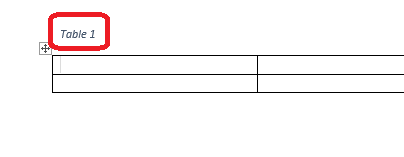
Automatic captioning or auto captioning is a feature which adds a caption to any table (or other item) you insert into your Word document. It looks like this:

automatic caption on table

Here, I have inserted a table and the beginning of a caption has already appeared.

This is actually very useful, as it will remind you to add your captions and also sort out the numbering for you as you go along (you can make choices just as you do when inserting a caption manually – see this post for full information on that). However, my original question was about removing these – so this article covers both removing and adding auto captions.

How do I add / remove automatic table captions?

You can find the caption options in the Reference tab, in the captions section:

caption menu word

To access Auto Captions, first click on Insert Caption. This will give you the standard dialogue box allowing you to insert a caption:

auto caption menu in word

At the bottom of this dialogue box is the AutoCaption button. Press this to access AutoCaption options:

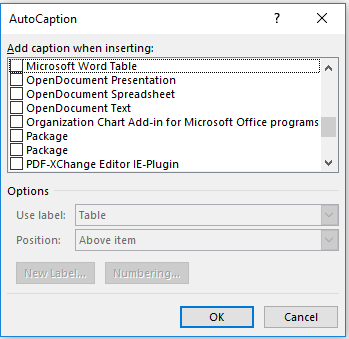
autocaption options

If you have found this article because you want to stop Word auto captioning, you will probably find one of these boxes ticked, and it’s probably Add caption when inserting … Microsoft Word Table. However, you can see from this screenshot that you can automatically add a caption to pretty much anything.

You can also see that you can automate the label, position and numbering system just like you can in the Insert Caption dialogue box when you’re doing it manually. However, doing it this way will automate the whole process. Your caption will appear automatically, as we saw in the first picture, and you just have to type in your caption text.

Once you have chosen your options, click OK and your AutoCaptioning will work as you want until you turn it off again.

How do I remove AutoCaption?

If you want to remove automatic captioning, un-tick whichever box is ticked:

no autocaption in word

Now press OK, and you will have removed automatic captioning.


This article has explained how to add or remove auto captioning in Word 2010, Word 2013 and Word 2016. If you’ve found it helpful, please comment below or use the sharing buttons to share it!

Related articles on this blog

Table of figures and table of tables

How to create a two-line figure caption and a one-line entry in the table of figures

 
2 Comments

Posted by on February 18, 2017 in Word, Writing


Tags: , , ,

How do I cancel a Facebook event?

This article on how to cancel a Facebook event follows on from How Do I Create A Facebook Event? and other posts on Facebook events you can find links to below.

Why would I want to cancel a Facebook event?

There are as many reasons why you need to cancel a Facebook event as there are reasons why you would cancel the event itself. If you want to remove an event from Facebook (and tell the attendees it is cancelled), this article explains how.

How do I cancel my Facebook event?

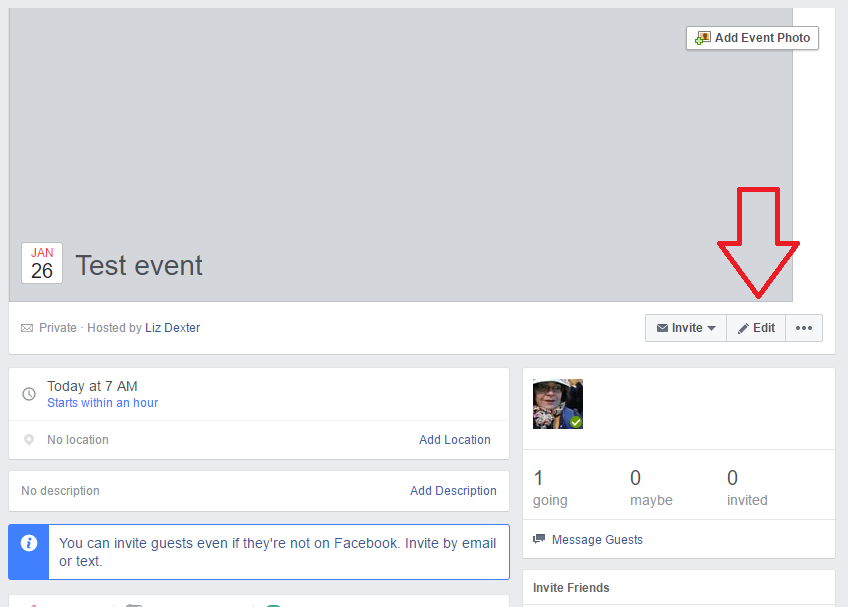
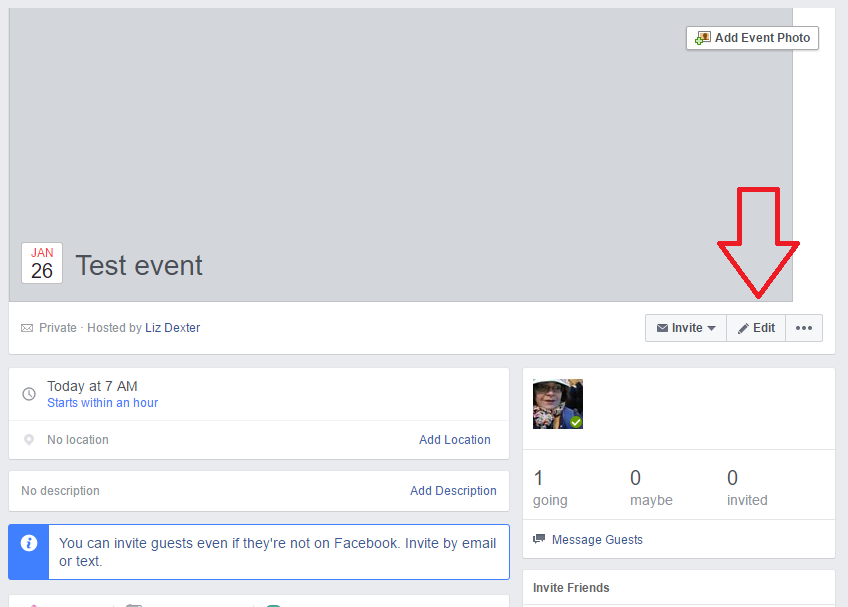
You will find the button for cancelling an event when you Edit the event. Click on the Edit button on the right-hand side of the screen:

edit a facebook event to cancel it

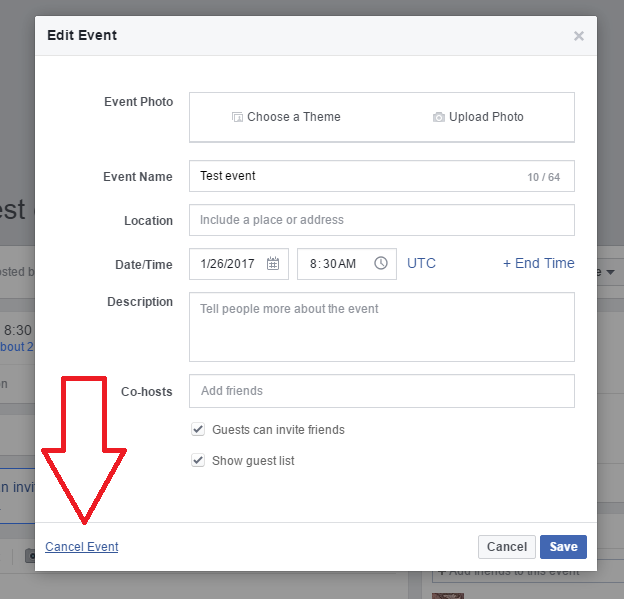
Right down at the bottom, you will see Cancel Event: click on the words:

cancel facebook event

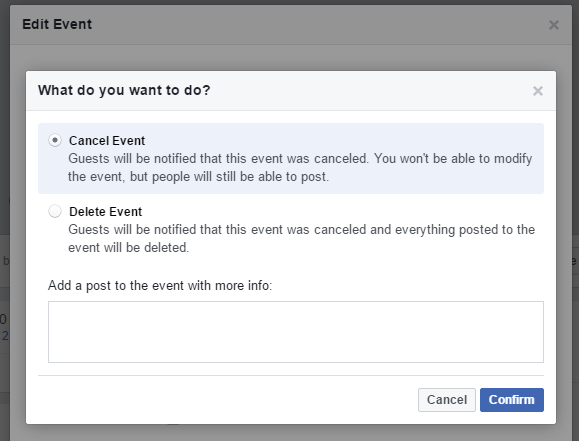
This is the Confirm Cancellation screen. You will see a few options:

confirm cancellation of facebook event

You can choose between two options and an extra bonus option:

  • If you choose to Cancel Event, Facebook will tell the guests that it has been cancelled, but people can still post on the event. Click the radio button next to this option to select it.
  • If you chose Cancel Event, you can also add a post to the event with the reason for cancelling in your own words: just type in the free-text box.
  • If you choose to Delete Event, Facebook will tell the guests that it has been cancelled, and then the event and everything everyone has posted in the event will disappear

Once you have chosen your option, click the Confirm button to confirm the cancellation. Clicking Cancel will cancel the cancellation – the event won’t be cancelled. Confusing, I know. So confirm the cancellation unless you’ve changed your mind.

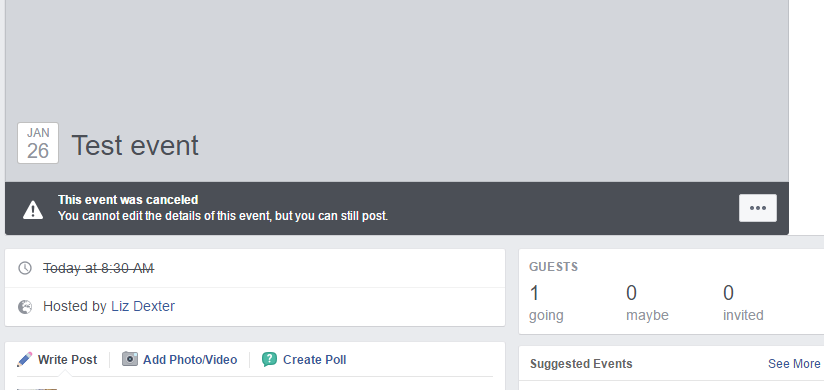
cancelled event

If you have cancelled – rather than deleted – the event, it will still appear in your Events feed, but it shows clearly that it’s cancelled. People can still post messages, which can be useful. You can’t edit it any further.


This article has explained how to cancel your Facebook event.

Related posts on this blog

How Do I Create A Facebook Event?

How Do I Communicate With The People Attending My Facebook Event?

How Do I Change The Time Of My Facebook Event?

All articles about Facebook

 
6 Comments

Posted by on February 15, 2017 in Facebook


Tags:

Warn or worn?

DictionariesThis one was suggested by my friend Linda quite a long time ago; I have revived these Troublesome Pairs posts yet again, so watch out for some good ones coming up over the next few weeks.

This is a tricky one for those who get vowels mixed up; often people coming to English from a language that doesn’t mark vowels in the same way, such as Arabic, can get caught out by all our very similar words, especially when they sound almost the same.

To warn, a verb, means to alert someone about something which is about to happen, usually bad. You can issue a warning (the noun) or be warning (verb) someone about the problem.

Worn is the past tense of wear OR an adjective arising from it, and both words have two meanings: to have on the body, as in clothes (I will wear a hat today) or to do with erosion and damage through constant use or friction, etc. (the water of the river has worn through the rock to make a valley; I have an old, worn book that has been damaged by years of use).

You can find more troublesome pairs here and the index to them all so far is here.

 
2 Comments

Posted by on February 11, 2017 in Errors, Language use, Troublesome pairs, Writing


Tags: , , ,

How do I change the time of my Facebook event?

This article on how to change the time of my Facebook event follows on from How Do I Create A Facebook Event? and How Do I Communicate With The People Attending My Facebook Event? and actually covers the question I asked in the first place when I had created a Facebook event but needed to change the time.

Why is it so hard to change the time of a Facebook event?

It isn’t actually difficult at all to change the time of your event, however it is not obvious or intuitive. We’re used to getting drop-down menus or calendars or options when we try to edit an event in a calendar, but Facebook (currently) does it a bit differently.

How do you edit a Facebook event?

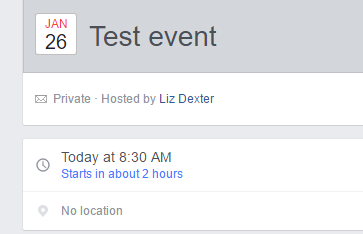
Once you have set up an event, you can edit it at any time by clicking the Edit button on the right of the screen:

How to edit a Facebook event

This takes you into the edit screen. Here you can add a photo, change the name, add a location and change the date and time.

Here’s the confusing part. If you want to change the date, click on the calendar icon and a calendar sheet will come up where you can select the date:

Edit date of a facebook event

However, when you click on the time, all you will get is the hour or minute section highlighted. Nothing to drop down, no arrows, no clock. This has confused many people.

change the time on a facebook event

However, all you need to do is click on that highlight and use your number keypad or top row numbers to type in your new number. If you want it to read 8:30, start by highlighting the hour and typing 8.

It’s not completely simple, though. Once you get to the minutes, the numbers move along the field like the numbers on a till – so if you highlight :00 and press the 3 key, this will happen:

change facebook event time

and you actually have to type 30 to get it to read 30 and not 03. I don’t know about you, but I expected the cursor to be at the beginning, so you could just type a 3 and get 30.

Anyway, there you go – click Save and there’s your date changed:

change time facebook ok


This article has explained how to change the time of a Facebook event.

Related posts on this blog

How Do I Create A Facebook Event?

How Do I Communicate With The People Attending My Facebook Event?

How do I cancel a Facebook event?

All articles about Facebook

 
9 Comments

Posted by on February 8, 2017 in Facebook


Tags:

How do I communicate with people coming to my Facebook event?

This article follows on from How Do I Create A Facebook Event? and you should read that one first if you’re starting out on the process. Today we’re talking about how to communicate to the guests who are attending your Facebook event.

How can I get in touch with people attending my Facebook event?

There are two ways to do this: add a post to the event, or message attendees.

Adding a post to the event

Once you’ve created an event, when you go into the event page, you will find that it looks quite like a normal Facebook newsfeed. On the left-hand side, you will find an option to Write Post / Add Photo/Video or Create Poll (you can create a poll to find out people’s music or food preferences, for example).

Type your message into the text box and hit Post and your message will be visible on the event page.

8-add-posts

You can use the drop-down arrow that appears in the top right to “pin” your post to the top of the event newsfeed if it’s important.

Who will see this message? Anyone who visits the event page and people whose notification settings are set to send them posts in events they’re attending.

Where will you see replies? Anyone can reply to your post and all comments will be visible to everyone who is invited to a private event or who looks at a public event.

Messaging your guests

There is also an option to send a Facebook Message to your guests.

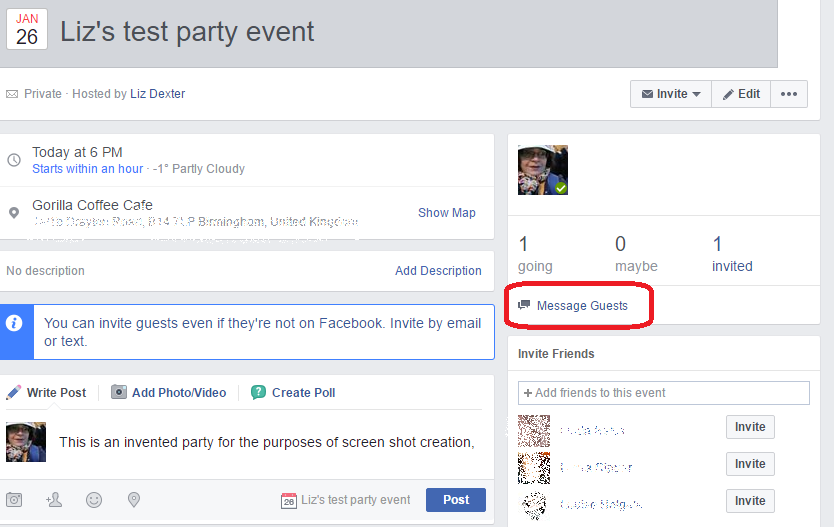
On the right-hand side, under the list of guests who are attending, you will find a Message Guests link:

9-message-guests

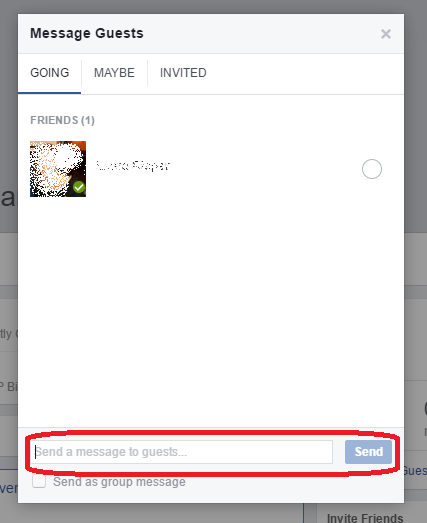
When you click on the link, you have the option to select the group of people who are going, those who have replied maybe and those you have invited but who haven’t responded. So this is a good way to remind people to reply, as well as to send messages onto to those people who are attending.

10-message-guests

Write your message at the bottom of the screen, tick Send as group message and press Send, just like you would when using a standard Facebook Message.

Who will see this message? Only the people in the particular group you’ve selected, so it’s useful if you want to tell people something without telling the whole world, or chivvy along invitees who haven’t yet responded.

Where will you see replies? Replies will appear in the Facebook Messenger session that you’ve set up by doing this.


This article has explained how to get in touch with people attending your Facebook event.

Related posts on this blog

How Do I Create A Facebook Event?

How do I change the time of my Facebook event?

How do I cancel a Facebook event?

All articles about Facebook

 
14 Comments

Posted by on February 2, 2017 in Facebook


Tags:

How do I create a Facebook event?

This article explains how to set up a Facebook event, whether that’s for a work event, a birthday party or any other event you want to invite people to via Facebook.

Please note that all these instructions are for using a desktop computer, however you should be able to use your phone or tablet to use the app in the same way.

Why set up a Facebook event?

If you’re anything like me, most of your friends are on Facebook. Facebook gives you an easy way to set up events, invite people, know who’s coming and message people about the event.

How do I set up a Facebook event?

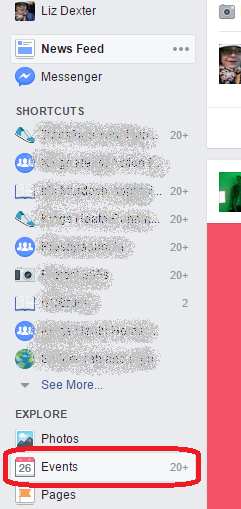
First of all you need to access the Events area. This is on your Facebook feed screen, under your shortcuts:

Facebook events

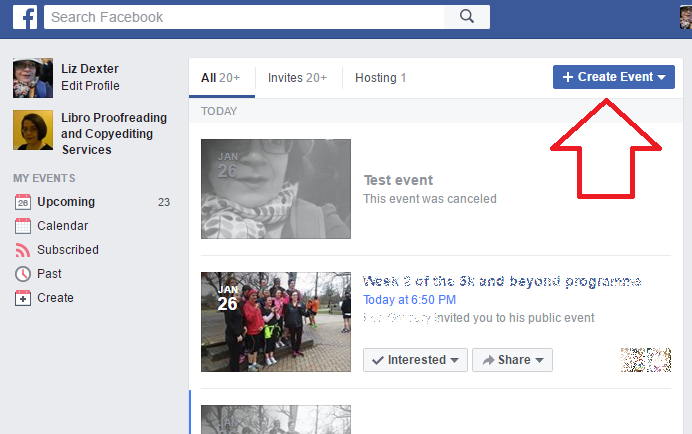
Click on Events and you’ll find all the events you’re currently signed up to attend, plus a button to allow you to create a new one:

Create a public or private facebook event

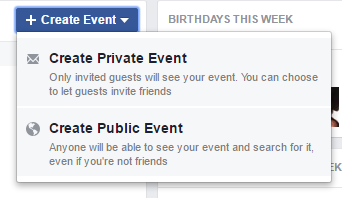
Click on Create Event to create your event. You will then have a choice: you can create a Private Event, which will be invisible to people unless you invite them (good for a party) or a Public Event that anyone can see and join up to (good if you’re promoting a charity event or running a public race, etc.). In this case, we’re clicking on Create Private Event.

create private or public facebook event

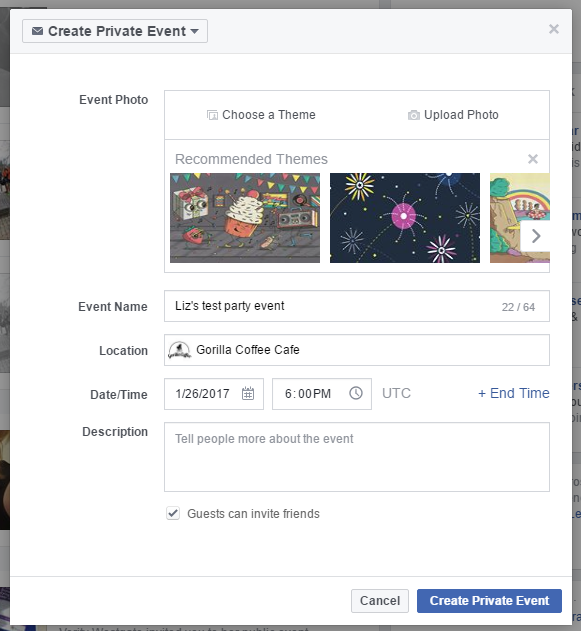
Once you’ve clicked on Create Private Event, you can set up your event details:

Create facebook event

Here you can add a photo, add a location (Facebook allows you to choose from locations that already exist or you can just write in whatever you want to) and importantly add the date (click on the calendar, choose the date) and time (overtype the time).

Decide whether you want guests to be able to invite their own friends (useful if you’re not Facebook friends with someone you want to invite but someone you know is) and then click Create Private Event.

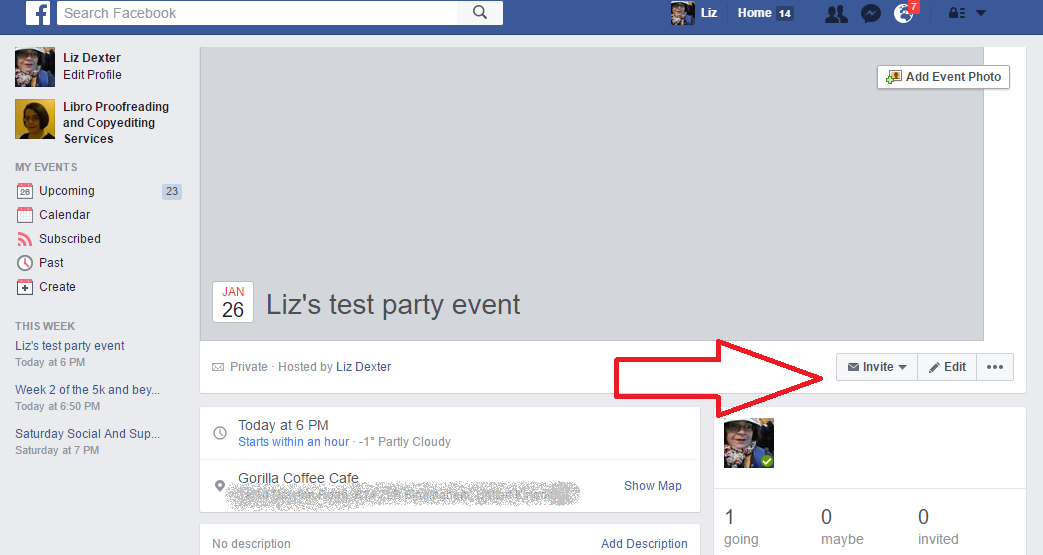
Your event is created. Now it’s time to invite some people. Click the Invite button:

5-invite

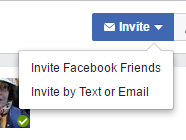
Now you can choose to invite Facebook friends or add email addresses (I’m not sure how this works as I’ve never done it – please comment below if you have!).

6-invite

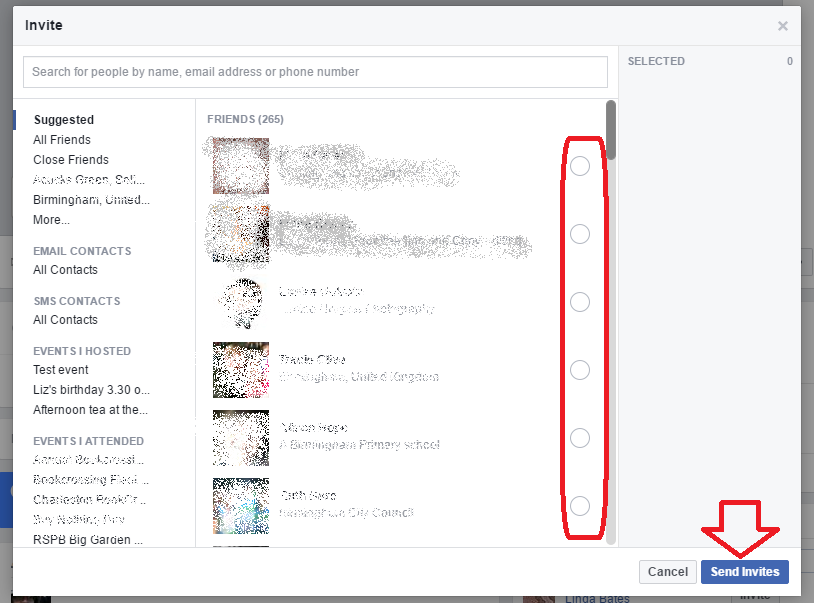
I chose Invite Facebook friends – I then get a list of all my friends and also handy groups of friends or attendees of previous events:

7-invite

Click on the button by the name to invite someone (the list will change if you select the groups of people on the left) and click Send Invites when you’ve finished.

This will then send invitations to all guests. How they receive these depends on how they have set their notifications, by the way.

How do I know who is attending my event?

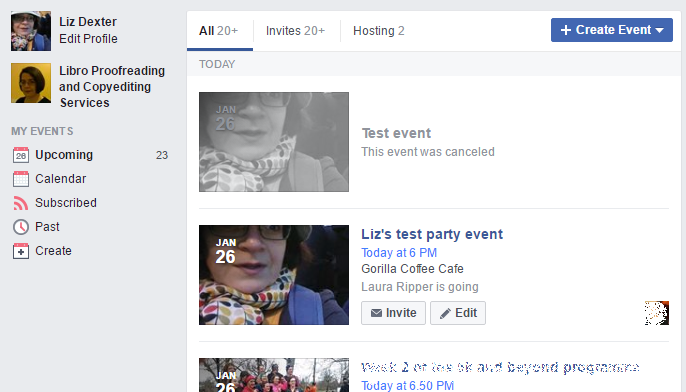
If you want to look at or edit your event, go back into that Events area and your event will be in the listing:

11-event-in-list

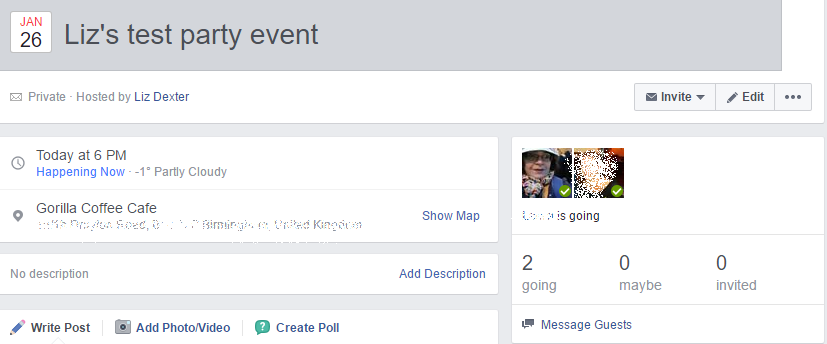
Click on the event to see who’s going:

11-who-is-going

Here I can see that two people are going, and their faces appear in the right hand area.

This article has explained how to set up a Facebook event, invite people and see who is attending. I have continued to write about editing, communicating with attendees and deleting events.

Related posts on this blog

How do I communicate with the attendees of my Facebook event?

How do I change the time of my Facebook event?

How do I cancel a Facebook event?

 
6 Comments

Posted by on January 26, 2017 in Facebook


Tags:

How to Make the Switch to Fiction Editing (by Sophie Playle)

How to Make the Switch to Fiction Editing (by Sophie Playle)

I’d like to welcome Sophie Playle from Liminal Pages to my blog today: Sophie is a fiction editor and also trains other editors to do what she does. I tend towards working on non-fiction, marketing, informational and academic texts myself, but if you’re interested in moving into fiction editing, Sophie outlines here the ways to start going about this. I hope you enjoy reading this excellent article; do post a comment or share the article if you’ve found it useful. Over to Sophie …


So you’re a freelance editor. You’ve done the training, built up your business, maybe even tucked a few years’ experience (or more) under your belt. By day, you edit textbooks. Or technical papers. Dissertations. Journal articles. But by night … you lose yourself in the latest Man Booker Prize winner, or perhaps a heady romance or a brain-tingling sci-fi.

And you wistfully think to yourself: I wish I could spend my days editing books like this. Editing novels. But you don’t have the right skills, you tell yourself. And besides, you’ve already built your business, and fiction editing doesn’t really come into it. (Other than the occasional proofread that comes your way.)

If you harbour the desire to become a specialist fiction editor but are worried about changing your business model, I’m going to tell you step-by-step how you can make the switch. Really – it is possible! What you need most is a shift in focus and a plan.

Step 1: Change your mindset

We build our identities around a number of factors. One of the more dominant is what we do for a living. It’s often the first question we’re asked when we meet new people. ‘So, what do you do?’ Changing our profession feels like changing a core part of our existence. Scary stuff, no?

But you’re more than your job; your job doesn’t define who you are. We grow and change throughout our lives. Just because you’ve set yourself down a certain path doesn’t mean you have to stick to that path forever. ‘I’m a biomedical-sciences editor’ can become ‘I’m a fiction editor’ if you want it to.

If you’re not entirely happy with the business you’ve built, you can change it. It doesn’t mean you’ve failed at building the right business for you. It simply means the time has come for a change. Your business has served you well to this point, but you’re ready to steer it in a new direction.

Big change can be scary. But if you’re feeling stuck in a rut and wish your professional life were different, it’s scarier to think you’ll be in the exact same position feeling the exact same way ten years down the line.

Step 2: Build your confidence

Editing fiction can be quite different from editing other kinds of text. You need to pay extra-close attention to the author’s style. Different characters will have different voices, too – you can’t make them all consistent. Then you might have to consider whether the author has deliberately deviated from convention for effect. (Did the author mean to use the passive voice continuously throughout this passage?)

But don’t panic. I want you to remember two things.

  1. You’re already skilled. Proofreading and copy-editing focus on the technical side of writing rather than the artistic side of writing. A misplaced modifier is still a misplaced modifier whether your editing a thriller or a journal article. And a homophone is still a homophone. You already possess the skills to spot and correct these mistakes. And if you’re proofreading or copy-editing a novel, that’s still exactly the kind of thing that’s required.
  1. If you’re an avid reader of fiction, you’re already an informal expert. Reading fiction might seem like just a hobby, but I bet you’ve subconsciously absorbed a whole lot of information about what makes for good writing in fiction. If you know your stuff as a reader, you can apply this knowledge to editing novels.

For more tips in this area, read my guest post on Louise Harnby’s blog: How to edit fiction with confidence.

Step 3: Increase your knowledge

A lack of confidence almost always comes down to a lack of knowledge. I hope the above points will make you realise that you know more than you think, but there’s even more you can do.

  • Learn about all the different types of fiction editing. The path to publication for novelists is not quite the same as it is for other types of writers, and editors can come into the fold at different points along the way. You might already possess the skills to provide proofreading and copy-editing at this point, but perhaps line or development editing interests you, too – in which case, you’ll likely need to bolster your knowledge.
  • Learn how to adapt your editing style. I’ve already touched on this point, but generally being open to rule-bending to allow for style while still applying a degree of consistency is key. This is where your informal knowledge comes most into play, and where you’ll need to both exercise your judgement and hone your querying skills!
  • Study the craft of writing. There are many excellent books out there on how to write fiction. If you want to develop your copy-editing skills, focus on books that talk about style, self-editing and point of view. (Try The Art of Fiction by David Lodge, Self-Editing for Fiction Writers by Rennie Browne and The Power of Point of View by Alicia Rasley.) If you want to develop your line or developmental editing skills, read books on bigger topics like plot, story and characterisation. (Try Monkeys with Typewriters by Scarlett Thomas, Story Engineering by Larry Brooks and Writing Characters Who’ll Keep Readers Captivated by Roz Morris.) You could also take a fiction writing class and learn by doing!
  • Read novels analytically. As an editor, you might find you do this already. (I know I always have ­­– I can’t seem not to!) Read slowly, carefully and thoughtfully. Take notes in the margins and underline passages, if you like. Keep a reading log and write out your thoughts. You’ll learn so much about fiction editing by simply reading with awareness. Grab a copy of Reading Like a Writer by Francine Prose for more advice on how to do this.

Step 4: Re-do your website

Now that you’ve built your confidence and knowledge, it’s time to take the leap. If you want to edit solely fiction, I strongly advise that you market yourself as a specialist fiction editor. Not as a generalist who also happens to edit fiction. But as someone who just edits fiction.

Why? Imagine for a moment that you’re an author who wants to self-publish. You have a crime novel that’s ready for copy-editing and you’re looking for someone to take on the job. Who do you choose? An editor who works on business flyers, cook books, journal articles and the occasional novel? Or the editor who focuses solely on novels? It makes sense to choose the editor who has their head firmly in the novel-editing game.

It makes sense to make fiction editing your niche.

The most important thing you can do now is totally re-do your website. Your website is one of your key marketing tools, and you want it to attract and engage the right clients – people looking for a fiction editor. This may seem like a big task, but it’s essential if you want to make the switch to fiction editing.

Step 5: Build your client base

It would be short-sighted to immediately sack all your current clients and expect a boatload of fiction clients to land straight in your lap. I know you don’t think that. In fact, it’s probably one of the things stopping you from making the switch.

Instead, keep working with your current clients – even though you’ve now totally changed your website. (They probably won’t notice anyway.) As the fiction editing enquiries start trickling in, start dropping your existing clients. You can always keep the ones that bring you the most benefits if you really want, but eventually you’ll be able to transition to full-time fiction editing, at your own pace.

Of course you’ll also need to start marketing yourself as a fiction editor. Most people won’t land on your website by chance, so you need to start point prospective clients towards it – through directory entries, online and in-person networking, advertising, content creation and so on.

And there you have it!

Switching your business model to specialise in fiction is perfectly doable but requires a little courage and some careful preparation.

If you’d like to know more about setting up a fiction editing business – and would also like some guidance and feedback as you make the transition ­– my online course, Start Fiction Editing, goes into much more detail.

 Come and join us – and make the switch! Visit www.startfictionediting.com to learn more.

Sophie Playle runs Liminal Pages (liminalpages.com), where she offers editing to authors and training to editors of fiction. She’s a Professional Member of the SfEP and often packs her laptop into a rucksack to run her business while traipsing around Europe.




Tags: , , ,

I closed Windows Explorer and now I can’t see my task bar: how do I get it back?

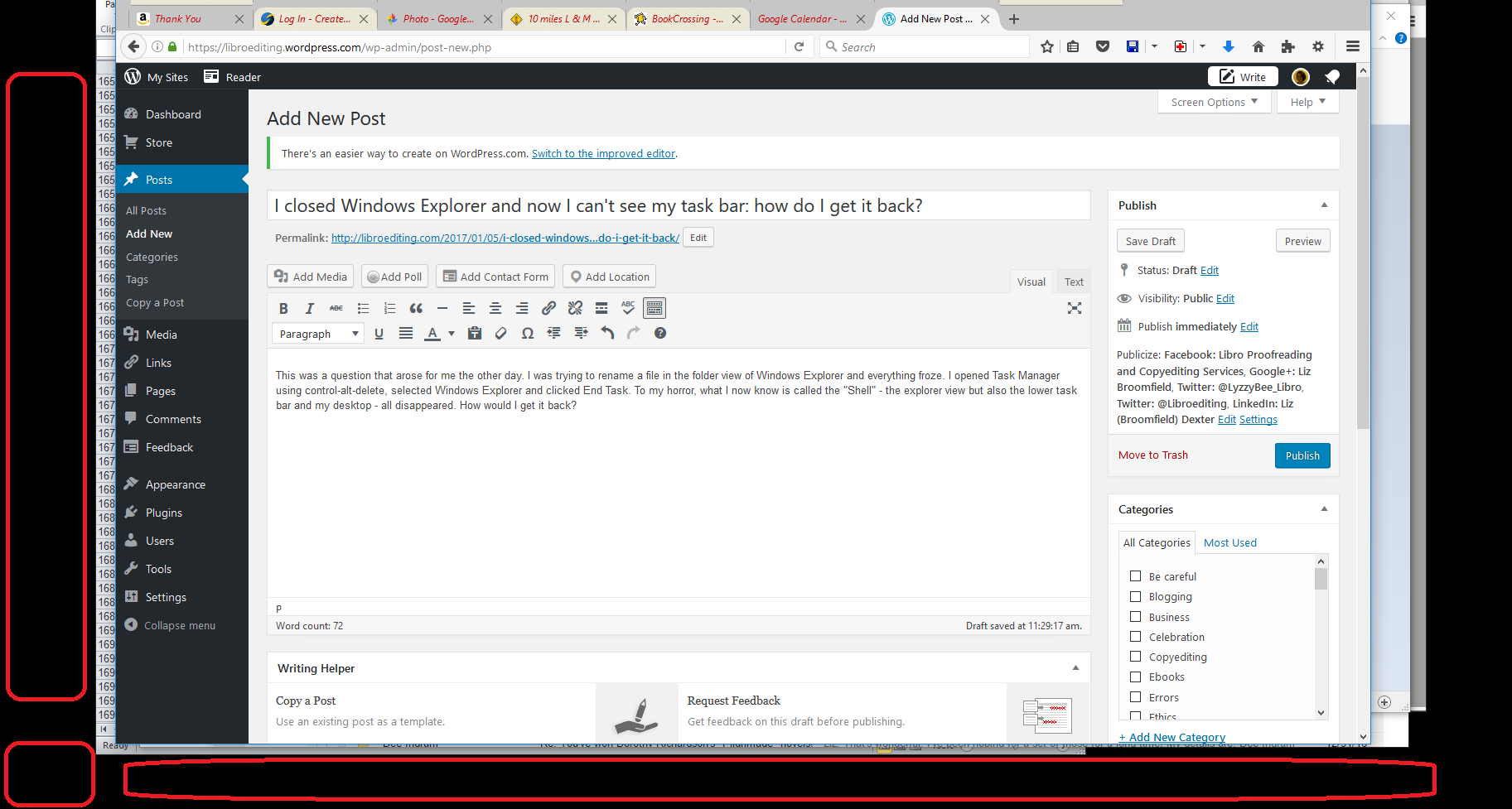
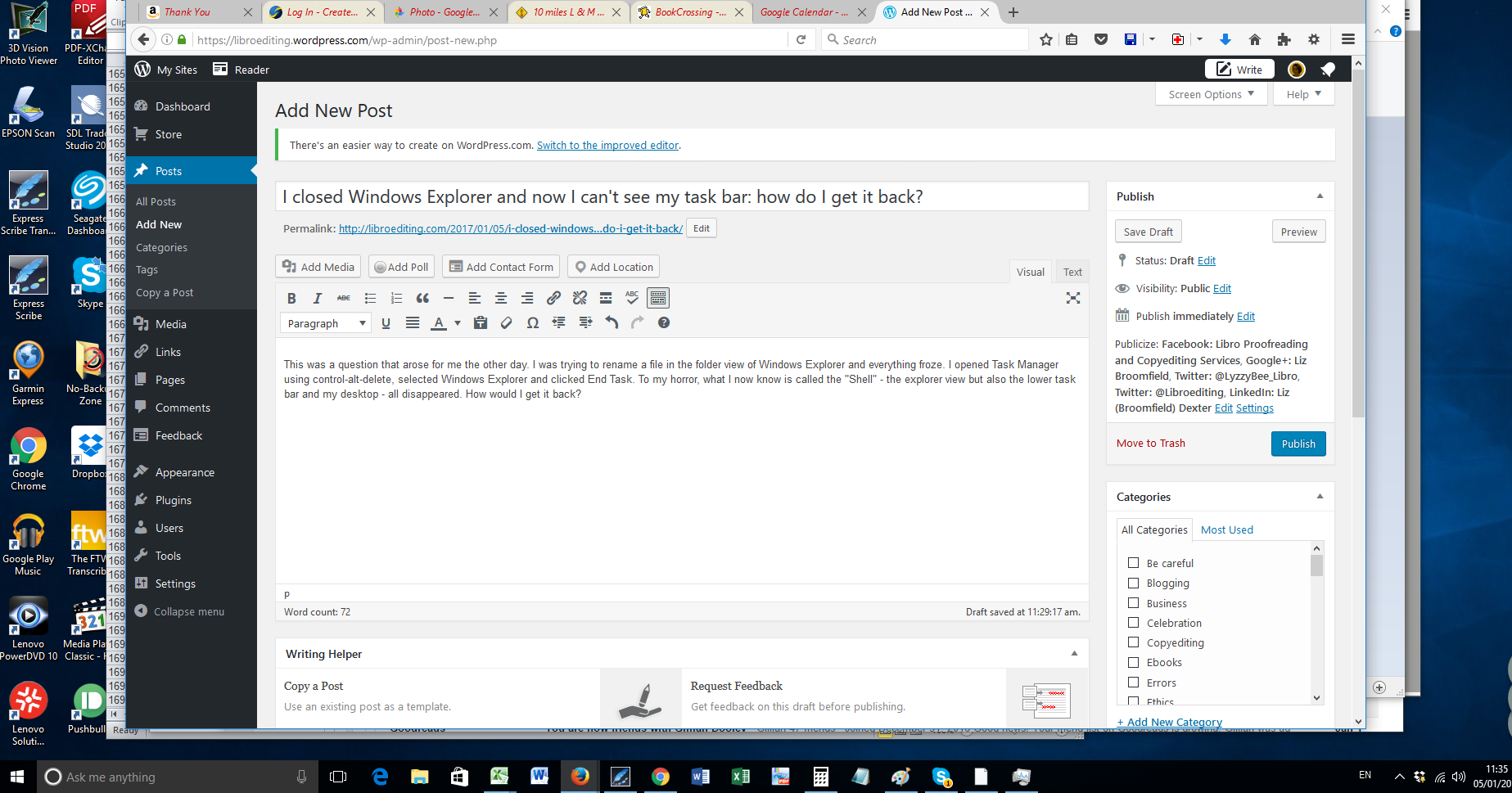
This was a question that arose for me the other day. I was trying to rename a file in the folder view of Windows Explorer and everything froze. I opened Task Manager (see my article on Task Manager if this is new to you) using control-alt-delete, selected Windows Explorer and clicked End Task. To my horror, what I now know is called the “Shell” – the explorer view but also the lower task bar and my desktop, the clock, the Windows button – all disappeared. How would I get it back?

windows explorer shell has disappeared

My poor sad monitor view with no desktop, Windows button, bottom task bar, clock, etc.

How do I restore a closed app using Task Manager?

Just as you can use Task Manager to close an app or piece of software that’s frozen, you can use it to restore, too.

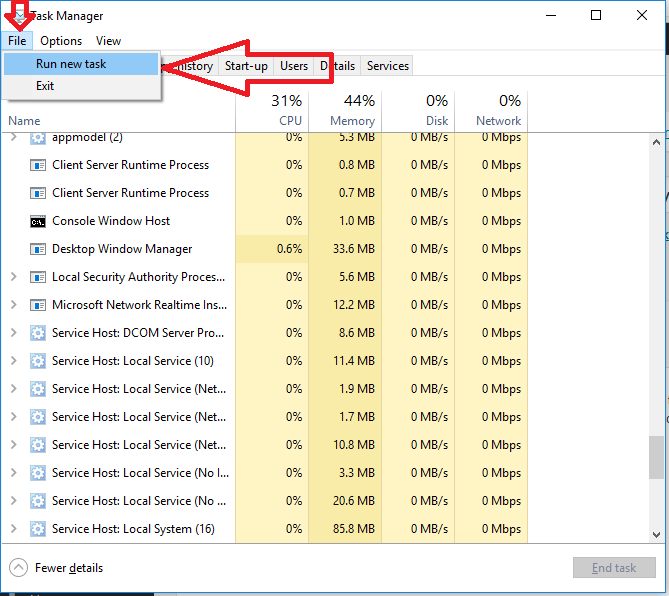
Open Task Manager using the Start button or Control-Alt-Delete and click the File tab (note, this is Windows 10, so yours might look a bit different, but it will have the same features that we’re talking about here).

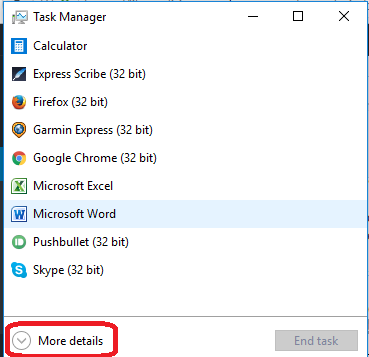
If you haven’t previously used Windows 10 Task Manager, you will need to expand it from the initial view:

small

Click More details and you’ll see the full view:

Task manager open new app

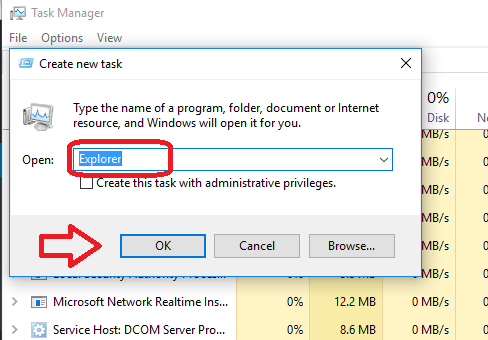
Select Run new task. You will then see this dialogue box:

task manager run new task

Type “Explorer” (or whatever else you can’t find) in the Open field and then press OK (Don’t worry about the admin privileges bit at the moment: you would know if you needed to use that).

And now all of the Windows Explorer Shell has reappeared:

Windows explorer shell has reappeared

In this article, I’ve shown you how to make Windows Explorer (or any other app or software you have made disappear) reappear when you’ve accidentally closed Windows Explorer and your desktop icons and task bar have disappeared.

Related posts on this blog

How to close down an unresponsive program using Task Manager

 
3 Comments

Posted by on January 11, 2017 in Computers, Errors, Short cuts, Windows


Tags:

How to close an unresponsive program or app using Task Manager on your PC

In this article I’m going to explain the basic way to close a piece of software, app or program that is not responding or has frozen, using Task Manager. Images are from Windows 10 and do differ from previous versions, but they all have these particular features and functions. I’m writing this post in preparation for one on reopening programs using Task Manager, coming next week.

Why do I need to use Task Manager to close a program?

Sometimes, with the best will in the world. programs or apps freeze or stop working, and the little X in the top right-hand corner that you use to close it just will not work.

If this happens, you need to go to the central program which shows what is running on your computer to force the program to shut down. This is the Task Manager.

How do I open Task Manager?

You can use the Windows button or the search bar in Windows 10 to find Task Manager, but I and most people who use it use the keystroke combination control-alt-delete to bring it up. That means pressing and holding down the Control key, the Alt key and the Delete key at the same time.

You may then get a menu which offers you Task Manager.

Task Manager has a list of the open programs and also how much of the computer’s attention or memory they’re using up. It looks like this in Windows 10 when you open it

small

and you can End tasks from here, but then if you select More details you will see a list with more information (in older versions, you will get the more full list straight away and be able to click on CPU etc):

Task manager Windows 10

This shows you everything that’s open and how much memory etc. it’s using. Although there is a large amount of information here, we’re going to concentrate on closing a program that has got stuck and won’t let you close it in the normal way.

How do I close a frozen software application using Task Manager?

You can do this in two ways:

  1. Click on the program you wish to close and click the End task button:

close application using task manager

2. Sometimes, the End task button will read Re-start but you just want to end it. If this happens, or as an alternative, right-click on the application you’re concerned about and then choose End task:

right click to end task

You can then click the X in the top right-hand side of Task Manager to close it.

In this article, I’ve explained how to use Task Manager to close a program, software application or app which has frozen and won’t allow you to close it in the standard way.

 
5 Comments

Posted by on January 5, 2017 in Computers, Windows