RSS

Author Archives: Liz Dexter

Unknown's avatar

About Liz Dexter

Book blog is at http://www.librofulltime.wordpress.com Writer, proofreader, editor, transcriber. Also runner, gym-goer, volunteer and BookCrosser! My married name is Liz Dexter but my maiden name and the name on the books I write is Liz Broomfield.
Dryer or drier?

A commonly confused pair, this is in fact confusing when you start to look into it, too! Perhaps that’s why I’ve left it until now!

Drier is the comparative of the adjective dry. So, today it didn’t rain very much, so it was drier than yesterday, when it poured with rain all day. This white wine is drier than that white wine. Liz’s laundry has been on the washing line in her North-facing garden all day and is no drier than when she put it out. You get the idea.

A dryer is a device which dries things. So you have a tumble dryer or a hair dryer. Simple.

But: drier is also an alternative or variant spelling of dryer. How disappointing. But we don’t need to use it as such, do we? Let’s keep those two alternatives going strong, and get our laundry drier by using our tumble dryer!

You can find more troublesome pairs here and the index to them all so far is here.


Tags: , , ,

Setting up a WordPress blog 4 – Adding slideshows and galleries to blog posts and pages

In this series, we’ve already learned how to set up a WordPress blog, and how to add pages to make it into a WordPress website.  Last time, we talked about adding images to your blog posts and pages. This time we’re learning how to create galleries and slideshows and add your image to your user profile in WordPress.

Why would I want to add a gallery or slideshow to my blog post or page?

If you have a lot of images to accompany a blog post or web page, perhaps of artworks or craft items that you have created, and especially if you don’t have much text to accompany those images, so it’s going to be hard to format them on the page, consider adding a gallery (a grid of images) or a slideshow (one image shown at a time, with navigation buttons for the user).

Adding images to a WordPress blog post

When you’re in the blog editor, you can use the Add Media button, with your cursor is in the position where you want your image to appear, to select and add the images of your choice.

1 add media

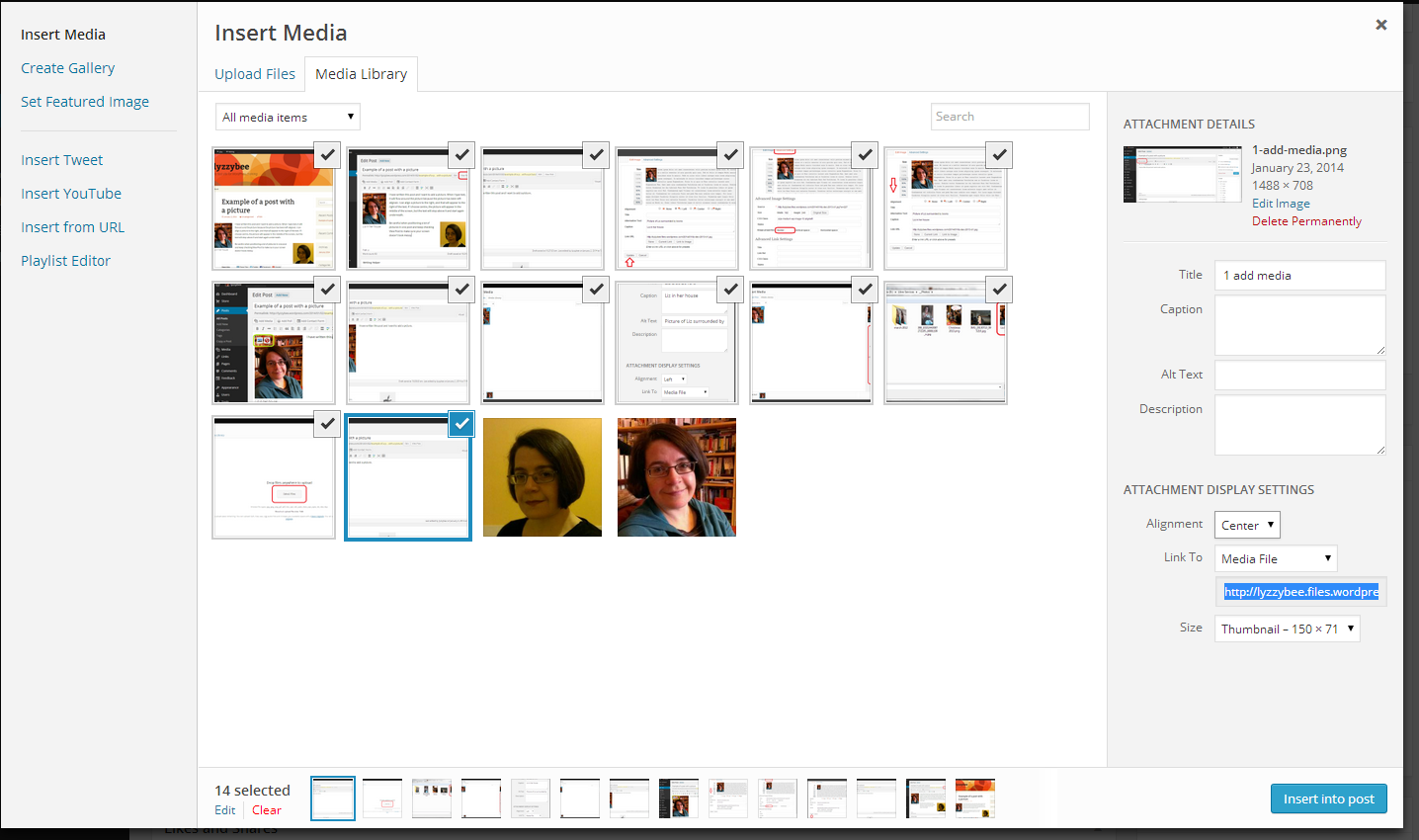
You can download multiple images at a time, and they will then appear on your Insert Media page. Viewing your Insert Media page, if you’ve already downloaded images and want to use or re-use them, these will appear in your Media Library tab.

15 gallery

How do I insert multiple images into a blog post or web page?

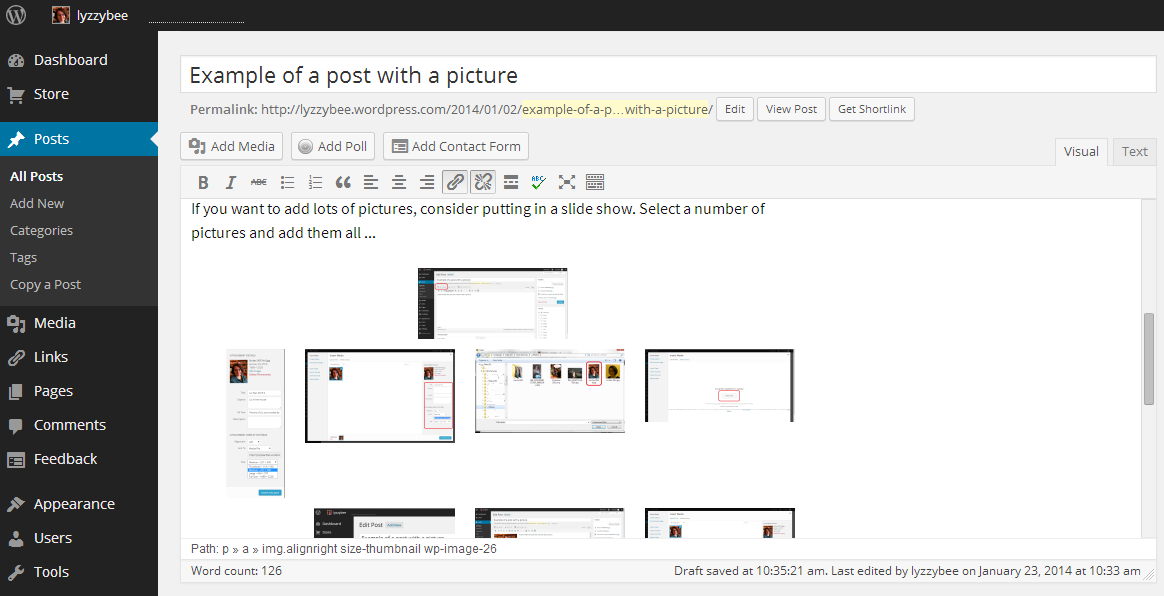
If you want to insert multiple images, the most simple way would be to tick all of the images that you want to use (see screenshot above) and press Insert into post. However, this will typically give you a jumble of images that looks really messy:

16 gallery

Here’s how to do it properly and neatly.

How do I add a gallery of thumbnail images to a blog post or web page?

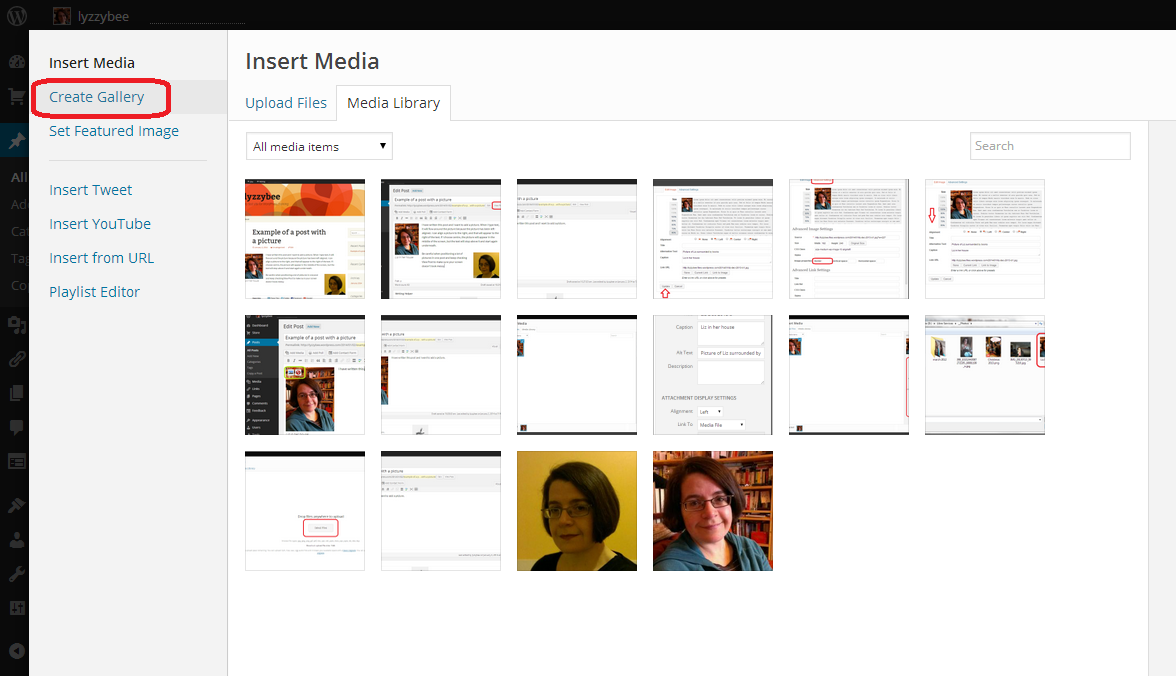
In the Insert Media page, click on Create Gallery in the left-hand menu bar:

17 gallery

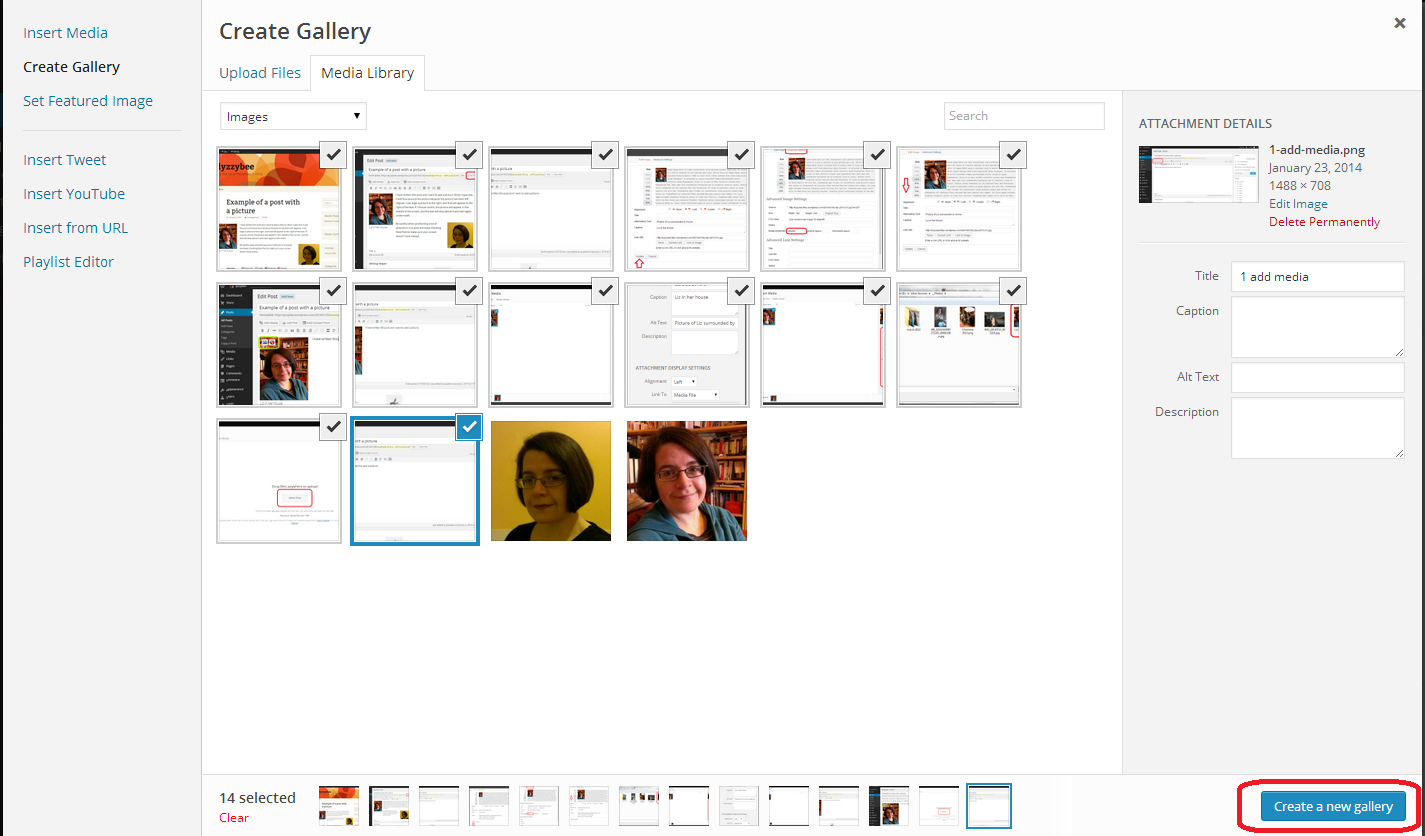
Select the images that you want to add to your gallery by clicking in the box at the top right of each image until it shows a tick, and click on Create New Gallery at the bottom of the screen:

18 gallery

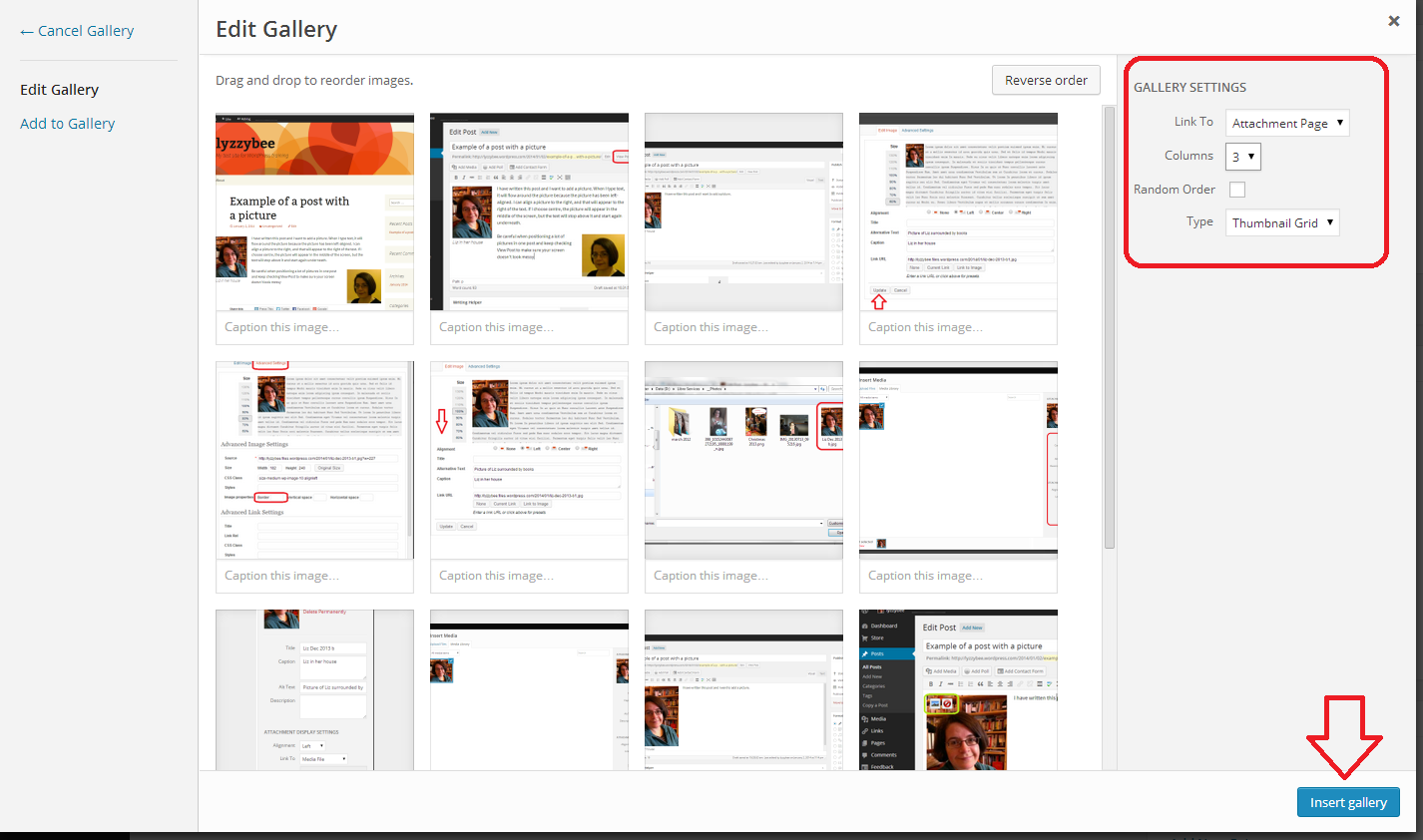
This will take you to the Edit Gallery screen. Here you can select how many columns your pictures display in and what format – here “Thumbnail Grid”, and then click to Insert Gallery:

19 gallery

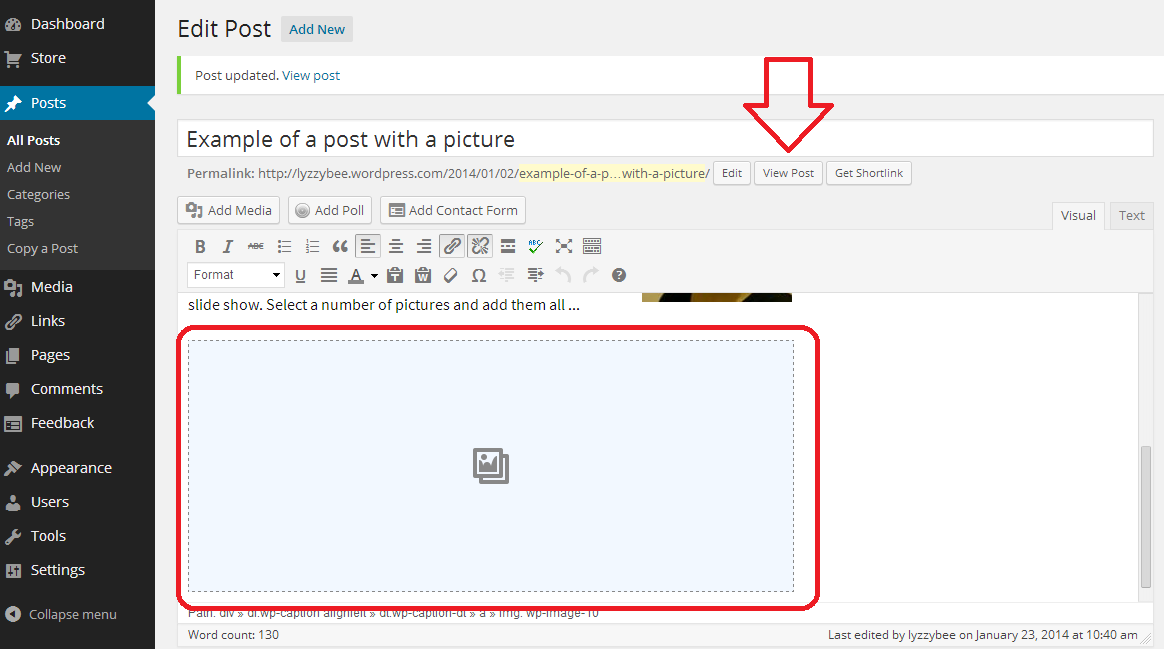
This will bring you back to your Edit post (or page) screen. The gallery doesn’t display in the edit screen, as it will pull the pictures from your gallery when the post is live. Click on View Post (or Page) to check how it’s looking …

20 gallery

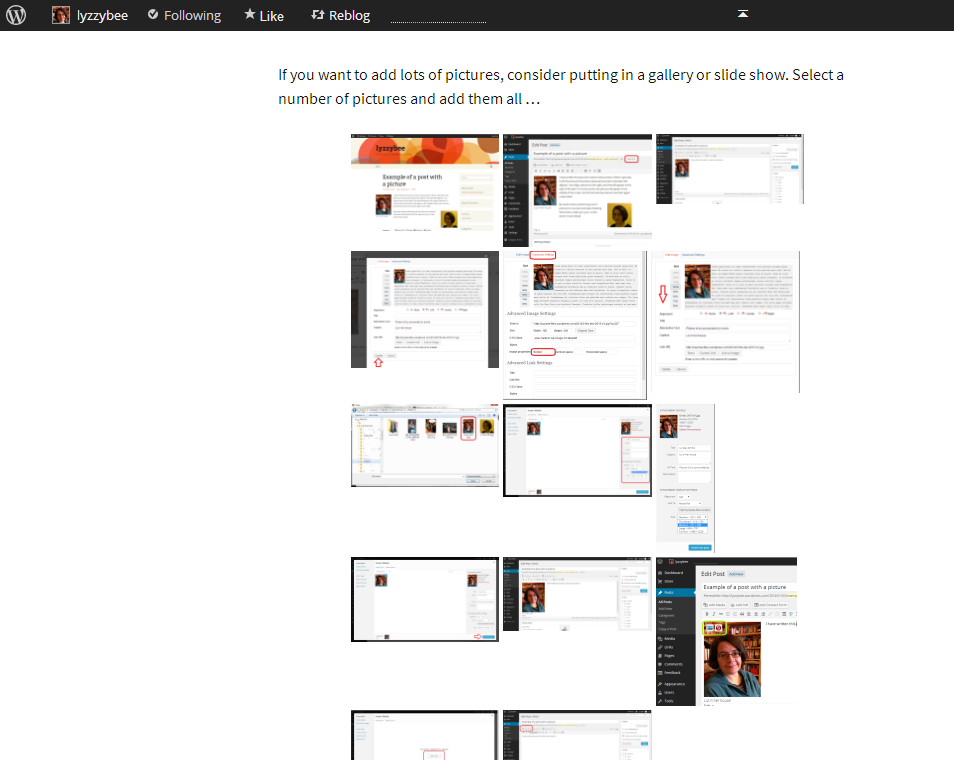
When you View post, you can see the grid of images. In this case, because I’ve used screen shots as the images and they’re not all the same size and shape, the grid is a bit odd, but you can see the idea. It’s all much neater, which is the main thing:

21 gallery

How do I add a slideshow to a WordPress blog post or page?

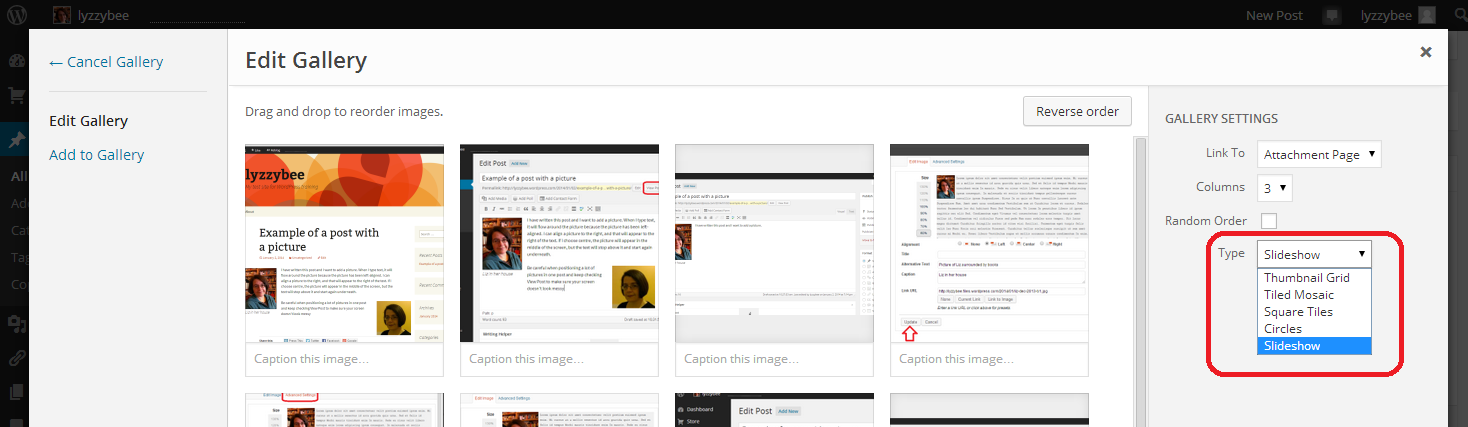
if you want a slideshow rather than a gallery, back in the Edit Gallery screen, click on the dropdown arrow by Type to view the different options. Choose the bottom one, Slideshow:

22 slideshow

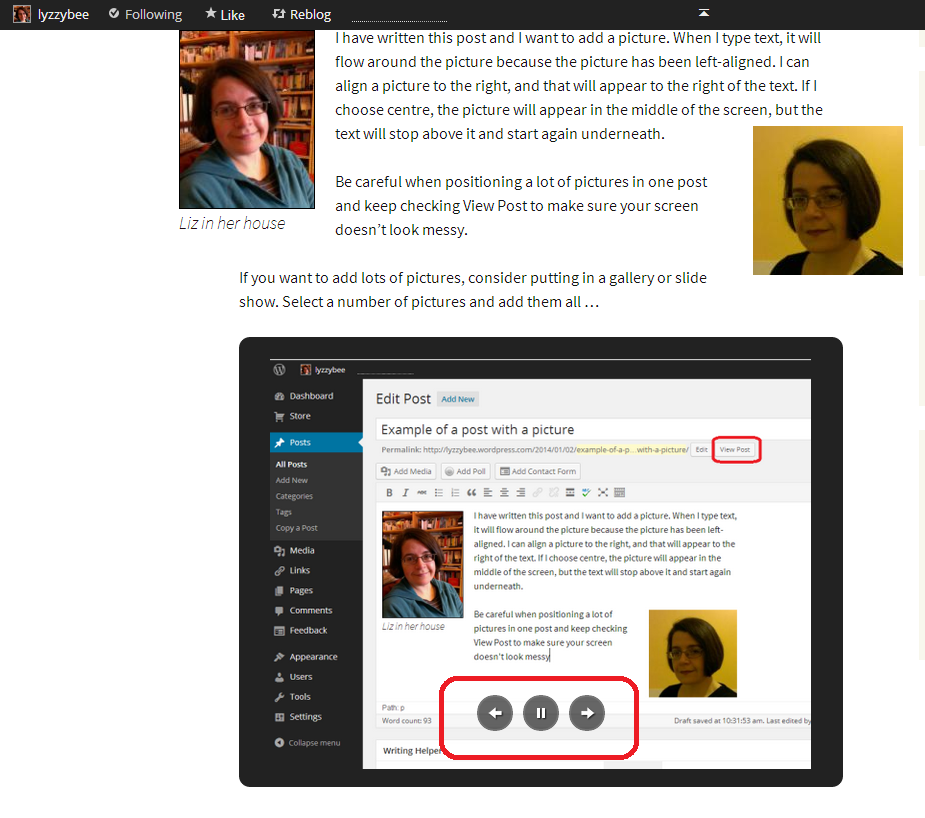
When you’ve inserted your gallery and chosen View Post, you can see a single image at a time, with navigation buttons for forward, back and pause visible when the mouse hovers over the screen: a slideshow:

23 slideshow

Today we have found out how to add multiple pictures to your blog post or web page using a gallery or slideshow.

I hope that you’ve enjoyed this article and have found it useful. If so, please take a moment to share and comment – it helps to make other people aware of the help that they can find here. For more posts on blogging, social media, WordPress, Word, business and more, please have a look at the Resource Guide, or explore the categories to your right.

Related posts on this blog

How to set up a WordPress blog

How to add pages to make your WordPress blog into a website

How to add images to your WordPress blog posts and pages

Linking your blog to your social media

WordPress 6 – sharing buttons

WordPress 7 – adding an avatar picture

 
8 Comments

Posted by on February 19, 2014 in Blogging, Business, WordPress, Writing


Tags: , , ,

Faint or feint?

DictionariesHere we go with another Troublesome Pair. We have a slight spelling issue going on with the second of these two, as well, just to add extra value!

Faint as an adjective means barely perceptible, slight, and in medical terms, close to losing consciousness: “Even the faint whiff of eggs was enough to make me feel faint”. The verb to faint indicates a sudden loss of consciousness: “She saw the horrible sight and fainted, falling to the floor, out cold”. Faint hearted – means lacking conviction or courage – another of our extensions into metaphor.

A feint (not a fient) is a pretended or deceptive thrust or blow in the sports of boxing fencing (or in general fighting). “I feinted a punch to the left and ran around him as he ducked”. It is also, in my favoured usage, the term for paper which has been printed with faint lines to give a guide for handwriting – you will see “Narrow feint” or “Wide feint” printed on the front of notebooks or pads of paper.

You can find more troublesome pairs here and the index to them all so far is here.


Tags: , , ,

Find and replace in Word 2007, 2010 and 2013 3: finding formatting

In this series of articles on Find and Replace in Word, we’ve looked at basic Find and Replace and advanced Find and Replace (wild cards and the like). Now we’re going to have a look at finding and replacing formats.

Why would I want to search for formats?

There are lots of reasons why you might want to search for formats. I’ve used this particularly when working with anything that has specific formatting for specific words or phrases. For example, you may have decided to italicise all book titles in your thesis bibliography, only to find that they’re supposed to be in no italics and bold. You can search for all text that’s in italics and change it to being in bold using Replace All (or Find Next – Replace, which, as we discussed in the first article, is a safer option just to be sure). Another way I use this is if I need to look for manual page breaks that have been inserted into a document, or section breaks: it’s much quicker than scanning through hundreds of pages looking for formatting marks.

How do I search for formats in Word 2007, 2010 and 2013?

Some good news here first of all: once you’ve found your way to the Advanced search dialogue box, the procedure from here onwards is exactly the same for Word 2007, 2010 and 2013. Phew!

To search for JUST a format, rather than a particular word in a format, you need to leave the Find what search box blank. Then click the Format button at the bottom left, to bring up the familiar Format menu that you find if you right-click on any text in the document itself:

1 Find format

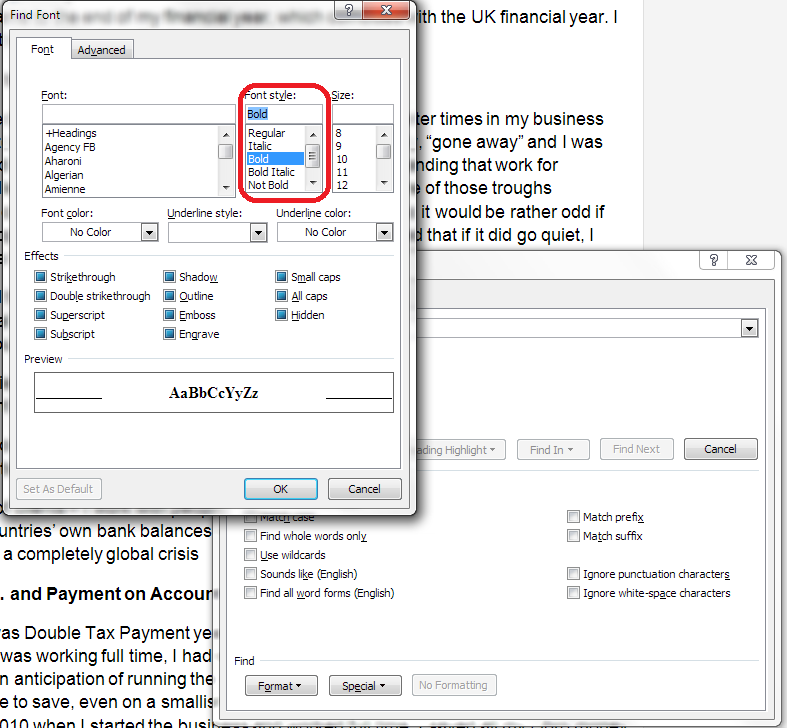
Click on Font, for example, and you can search for text in any Font, Font Style (marked here as I’m searching for Bold text) or Size:

2 Find format

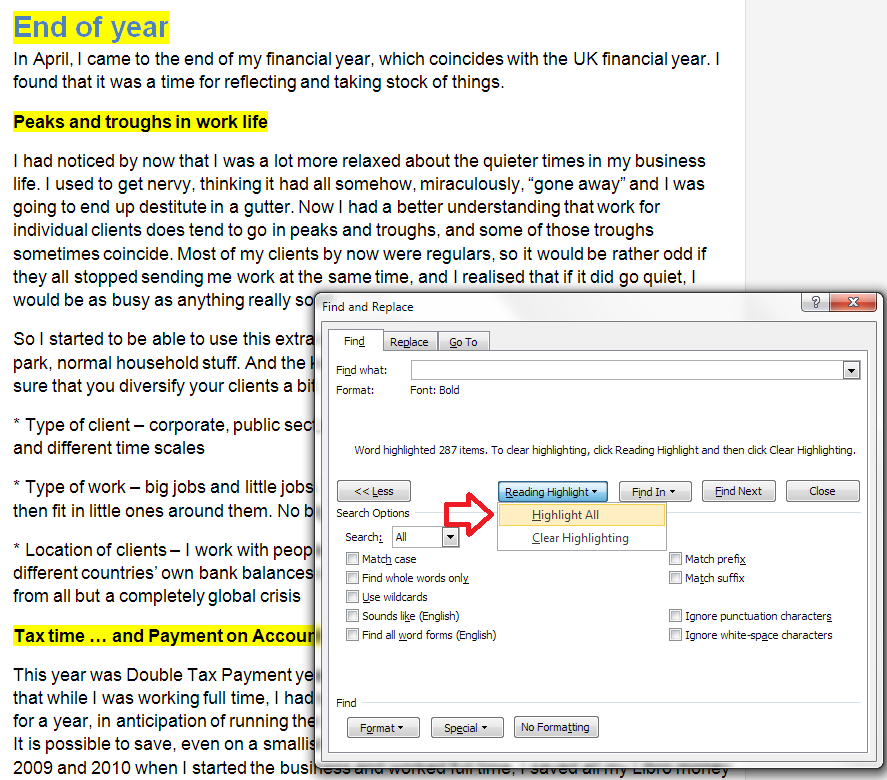
When you’ve clicked on Bold (or whichever format you’ve decided to search for) you will be returned to the standard Find dialogue window. You can see that “Format: Font: Bold” appears underneath the Find what search box. I find it useful to select Highlight all – and as you can see, this has highlighted all of the text that’s in bold in my document:

3 Find format

How do I search for a word in a particular format?

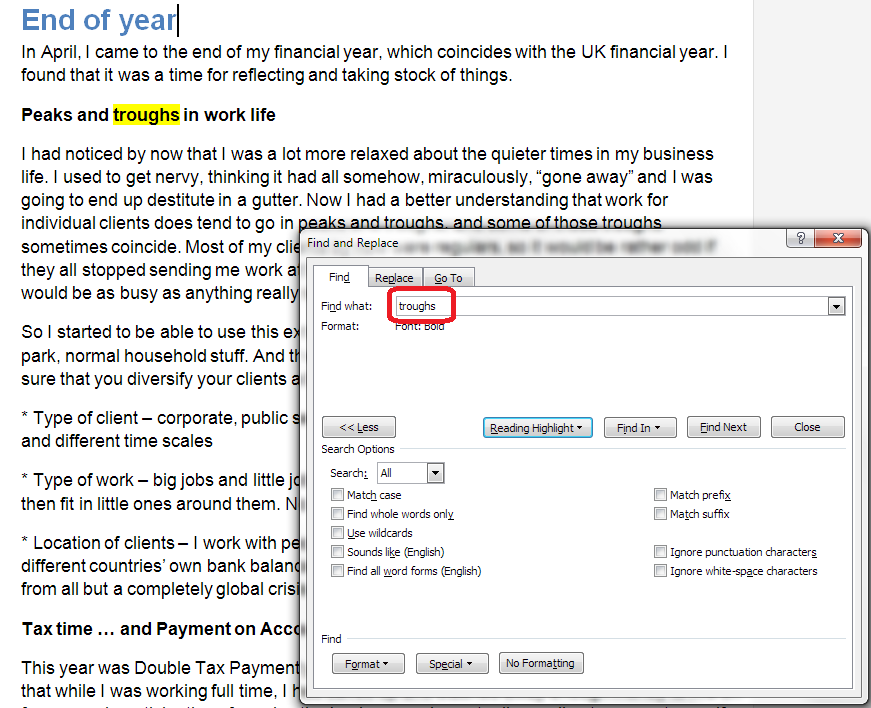
You can combine format search with the standard text search. For example, here I’ve chosen the format to be Bold and have then entered the word “troughs” into the Find what box. As we can see from the text behind the box, this has searched for the word troughs in bold:

4 Find format with a word

How do I remove format search from my search?

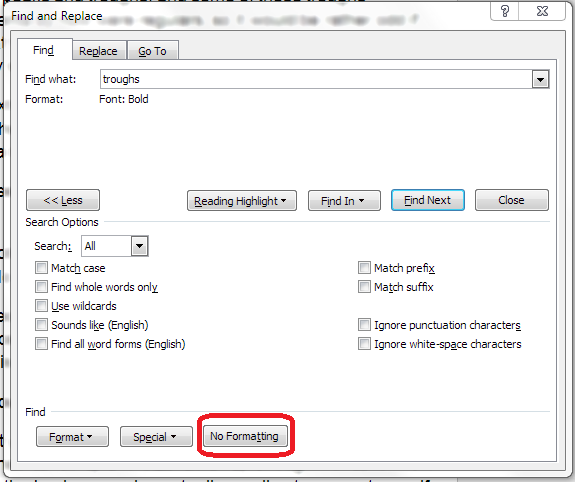
If you want to remove the format search, you will need to press the No Formatting button at the bottom of the screen. This will remove the “Format: Font: Bold” or whatever note from your Find What search box. If you don’t remove it, Word will continue to only find text in that format, whatever you enter in the search box.

5 remove Find format

How do I replace a format with a different format?

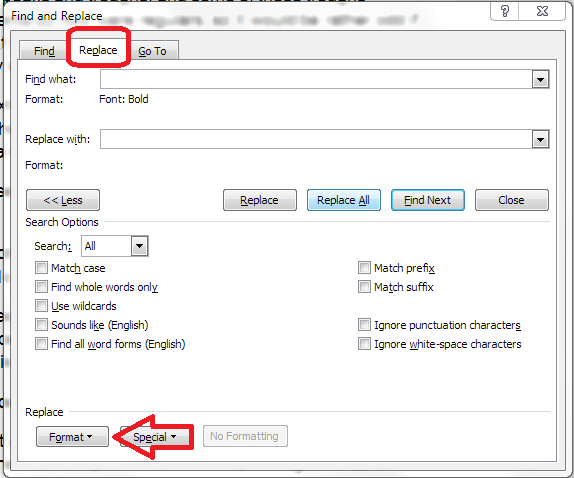
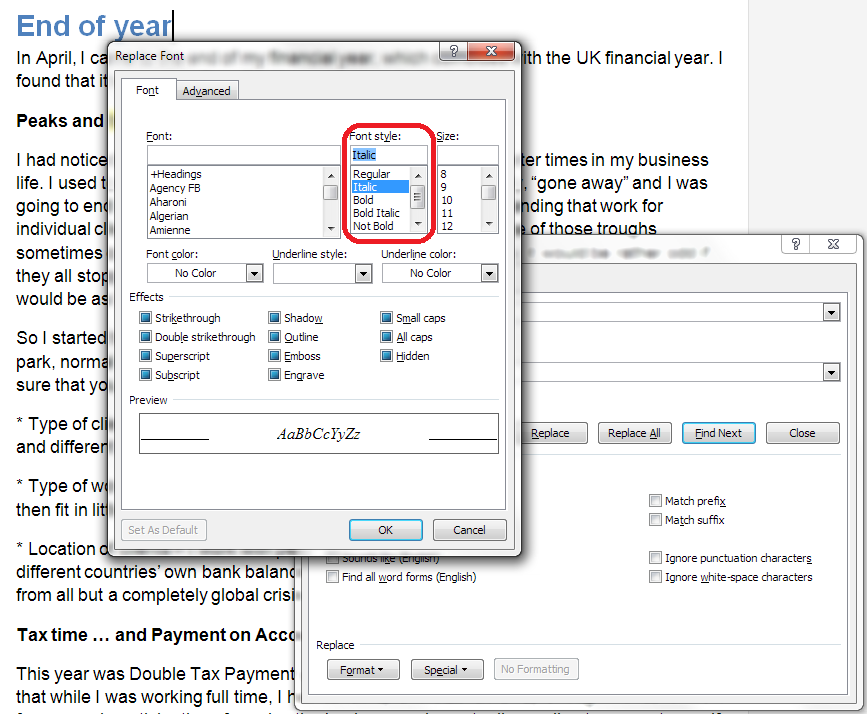
Once you’ve found all of the text with your required format, you can move to the Replace tab and replace one format with another. In the Replace tab, press the Format button just as you did in the Find tab:

6 replace format

Here I’m choosing to change the Bold text I highlighted earlier into Italic text:

7 replace format

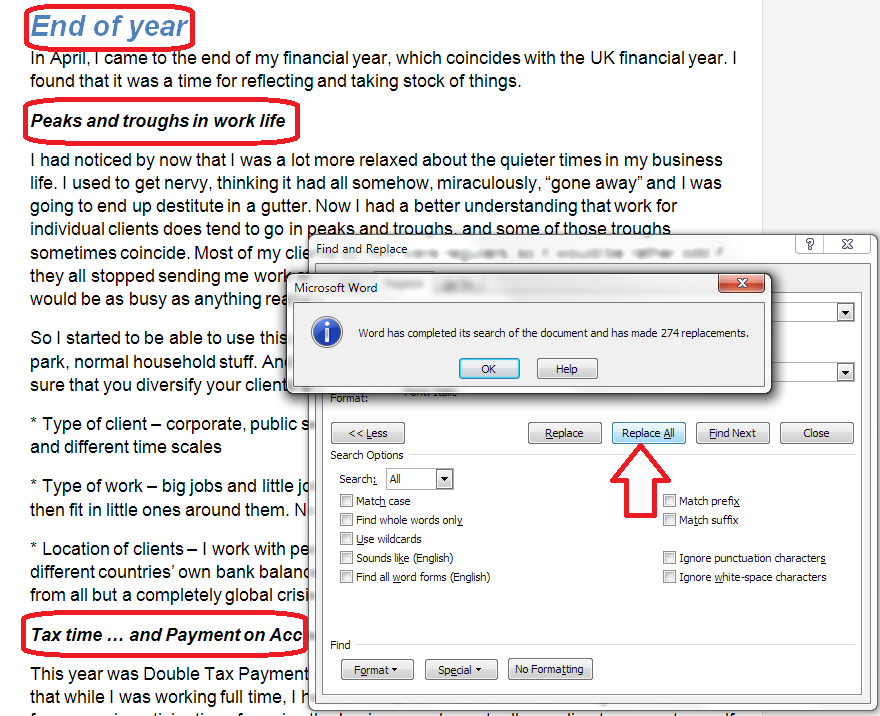
I’m being brave and hitting Replace All, and here’s the effect: those sections that were in Bold are now in Italics:

8 replace format

How do I search for page breaks and formatting characters?

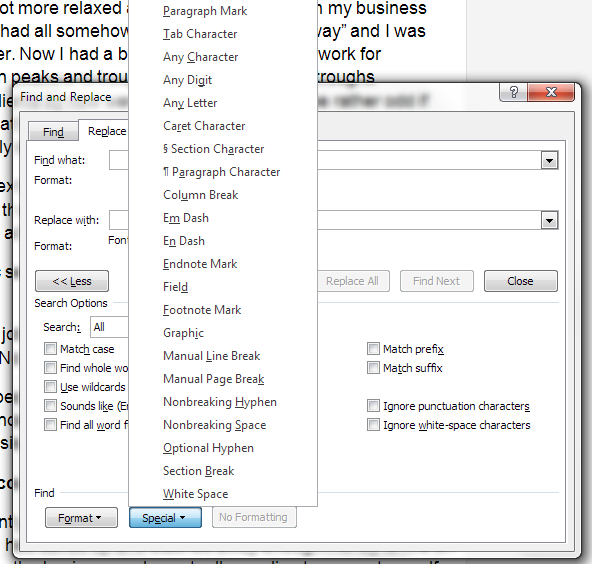
You can also search for different kinds of page formatting using the Special button at the bottom of the Find and Replace dialogue box. This gives you a whole range of formatting characters that you can search for, including paragraph marks, section breaks, etc.

9 special

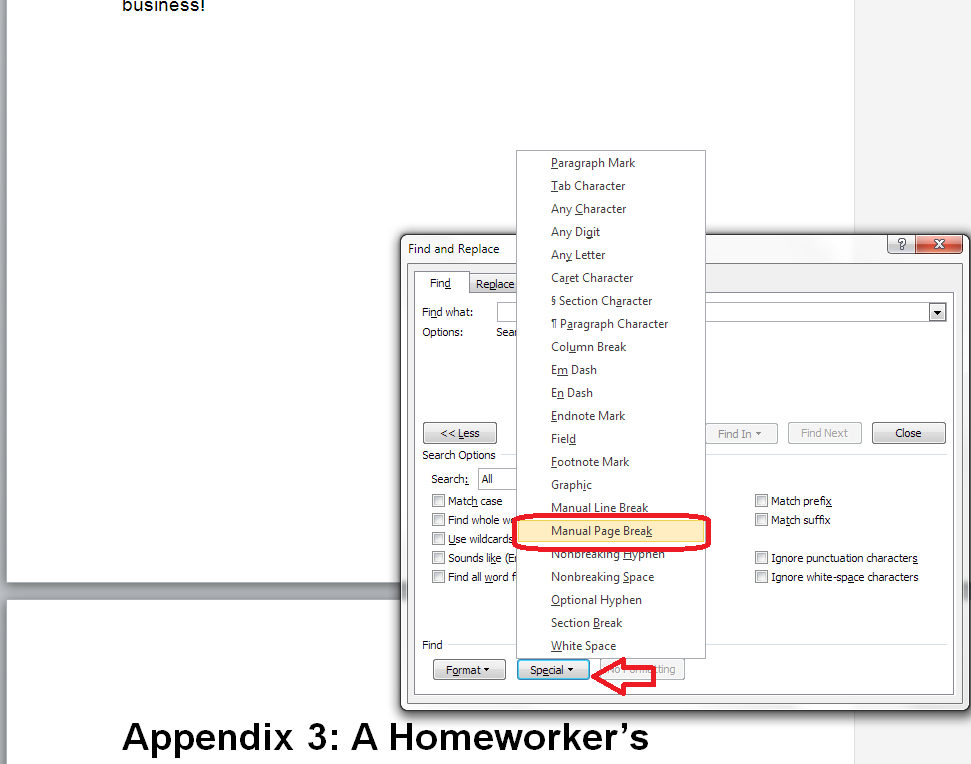
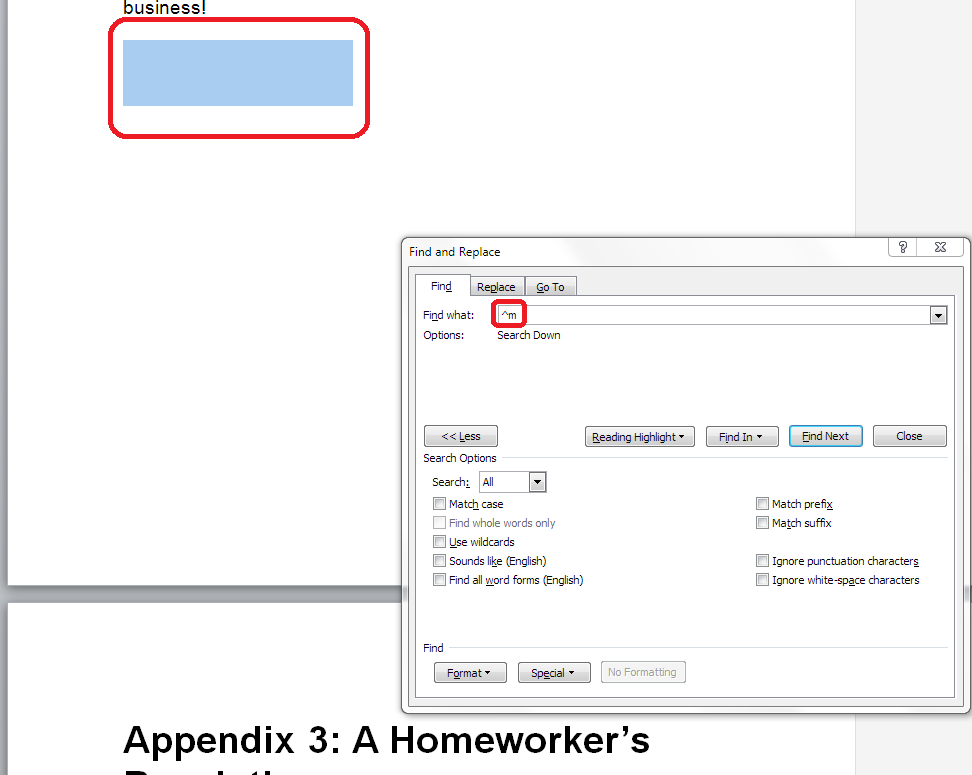
I find this very useful for searching for manual page breaks – you can do this with formatting marks turned on or off (if you have then turned on, it will highlight the formatting mark; if they’re turned off, just the space where it would appear). Here I’ve searched for manual page breaks (where I’ve pressed Ctrl-Enter to force a page break):

10 special

You can see that it’s highlighted a space where the page break is hidden from view – but there:

11 special

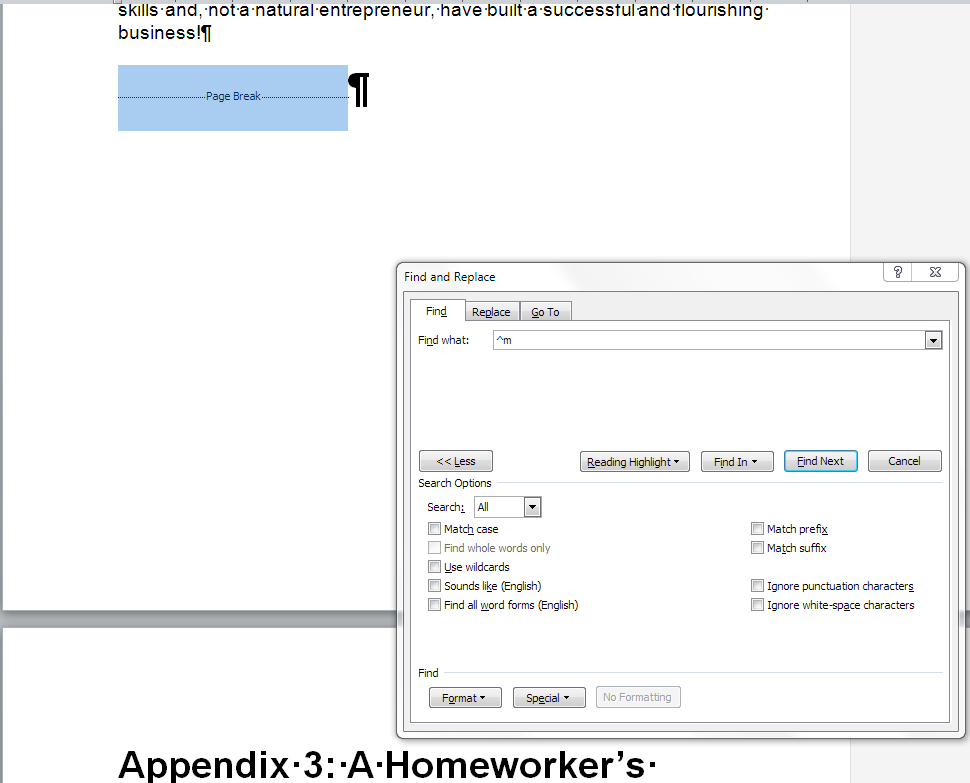
If I turn on Show Formatting, you can see what Word is highlighting:

13 special

In this article, we’ve learned how to Find and Replace formats in Word 2007, 2010 and 2013, and how to search for breaks and other formatting characters. If you’ve enjoyed this post or found it useful, please do take a moment to share or comment – your comments and shares are always appreciated!

This is part of my series on how to avoid time-consuming “short cuts” and use Word in the right way to maximise your time and improve the look of your documents.

Please note, these hints work with versions of Microsoft Word currently in use – Word 2007, Word 2010 and Word 2013 all for PC. Mac compatible versions of Word should have similar options. Always save a copy of your document before manipulating it. I bear no responsibility for any pickles you might get yourself into!

Find all of the short cuts here

Related posts on this blog:

How to use Find and Replace 1 – basic find and replace

How to use Find and Replace 2 – advanced find

Formatting marks and how to turn them on and off

 
1 Comment

Posted by on February 12, 2014 in Uncategorized


Bimonthly or semimonthly / semi-monthly? Biweekly or semiweekly / semi-weekly?

I covered biennial or biannually quite a while ago now, but Guy K Haas commented on my index to all of these Troublesome Pairs that I should cover bimonthly or semimonthly, and biweekly or semiweekly. And so I shall.

However, one caveat before we begin: Try not to use these. There is so much confusion about words like these, that it is almost always so much better to write “Every two weeks” or “Twice a week” rather than using the more complex term. After all, these terms are usually used when one is scheduling something, and you don’t want your scheduling to go awry, do you!

Bimonthly actually means, in the dictionary (all of them), taking place or appearing twice a month … or every two months. So that’s no use, is it!

We find the same issue with biweekly – it can mean either (both) taking place or appearing twice a week … or every two weeks. Useless, again!

Moving on, semi-monthly and semi-weekly do mean occurring or appearing twice a month / twice a week (and notice that hyphen: that’s a bit annoying in itself, isn’t it!).

So, my recommendation: leave these well alone. State the exact times the whatever it is will be doing whatever it does. “My magazine is going to come out every two months” – “Oh, mine’s coming out twice a month, or every two weeks”. Job done.

You can find more troublesome pairs here and the index to them all so far is here.

 
2 Comments

Posted by on February 10, 2014 in Errors, Language use, Troublesome pairs, Writing


Tags: , , ,

Setting up a WordPress blog 3 – Adding images to blog posts and pages

In this series, we’ve already learned how to set up a WordPress blog, and how to add pages to make it into a WordPress website. Today, we’re going to learn how to add pictures to blog posts and pages and how to edit images in WordPress. And here’s how to create galleries and slideshows and add your image to your user profile in WordPress.

Note: March 2014 – I have updated this post to take into account the new way to edit images that has just been implemented in WordPress.

How do I add an image to a WordPress blog post?

When you’re in the blog editor, you will find a button marked Add Media to the left. Making sure that your cursor is in the position where you want your image to appear, click on Add Media:

1 add media

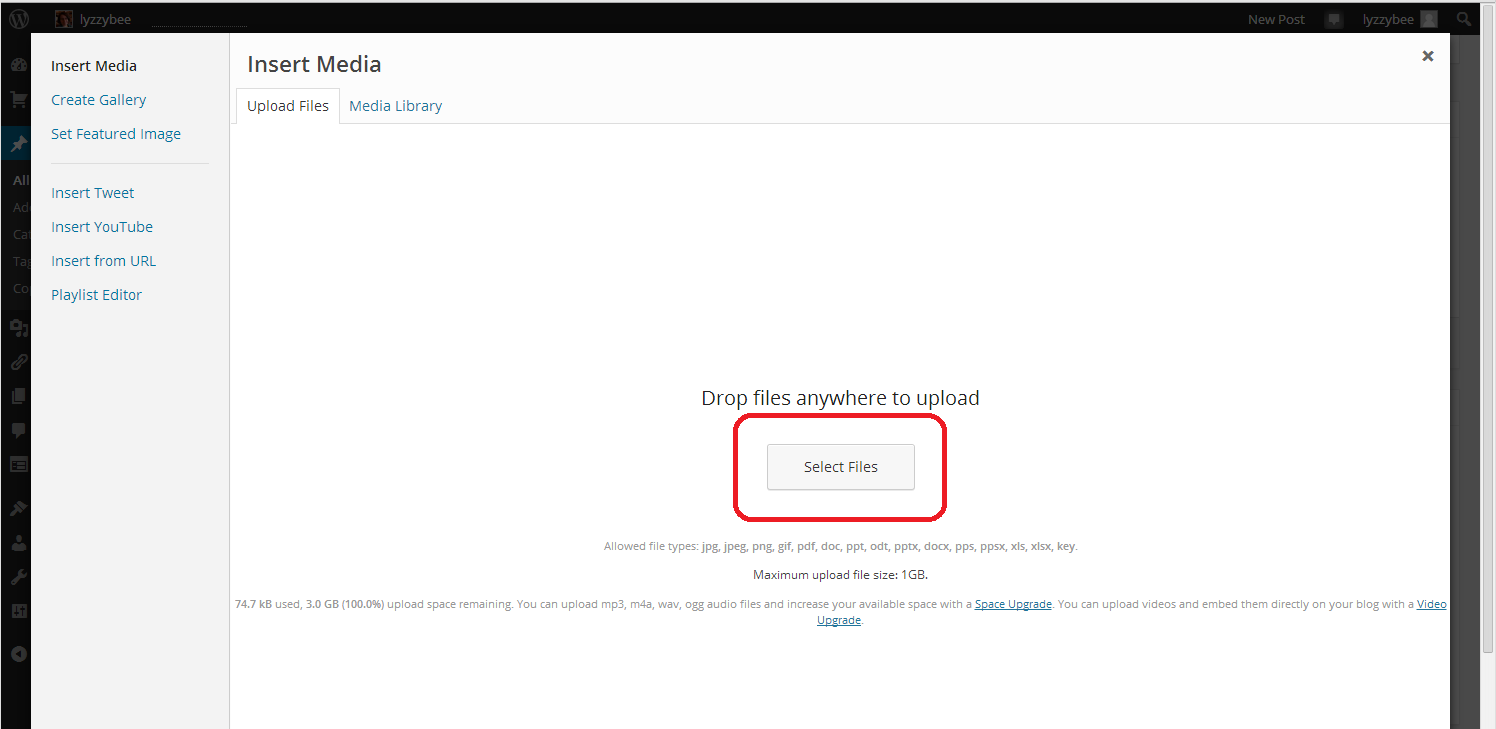
This will take you to an Insert Media page, and if you’ve already downloaded any images and want to re-use them, they will appear in your Media Library tab. But for now, we want the Upload Files tab. Hit the Select Files button:

2 add media

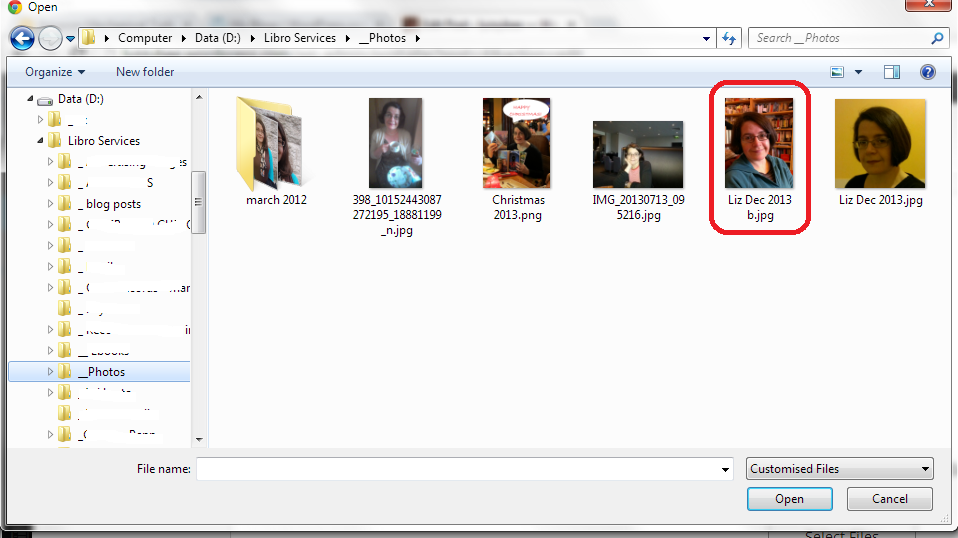
Select Files takes you into the File Explorer section of your computer. Here you can navigate around your folders and pick the photo that you want to insert into your post.

NOTE: You might think that you can just right-click and copy an image from the internet or your Facebook timeline, etc., then paste it into your blog. This might work temporarily, but, from experience, these images tend to be unstable and disappear. If you want to use an image from the Internet or elsewhere, save it into your own folders first and then insert it using this method.

Navigate to your chosen picture and double-click on it or single click and press the Open button at the bottom of the screen:

3 add media

Your picture will be pulled across into your Media Library tab in WordPress.

Note: if you select more than one picture, they will all move into the Media Library, which makes them easy to select. In the next step, only keep the picture you want right then ticked, and untick the others, otherwise they’ll all merrily pile in to your blog in one place.

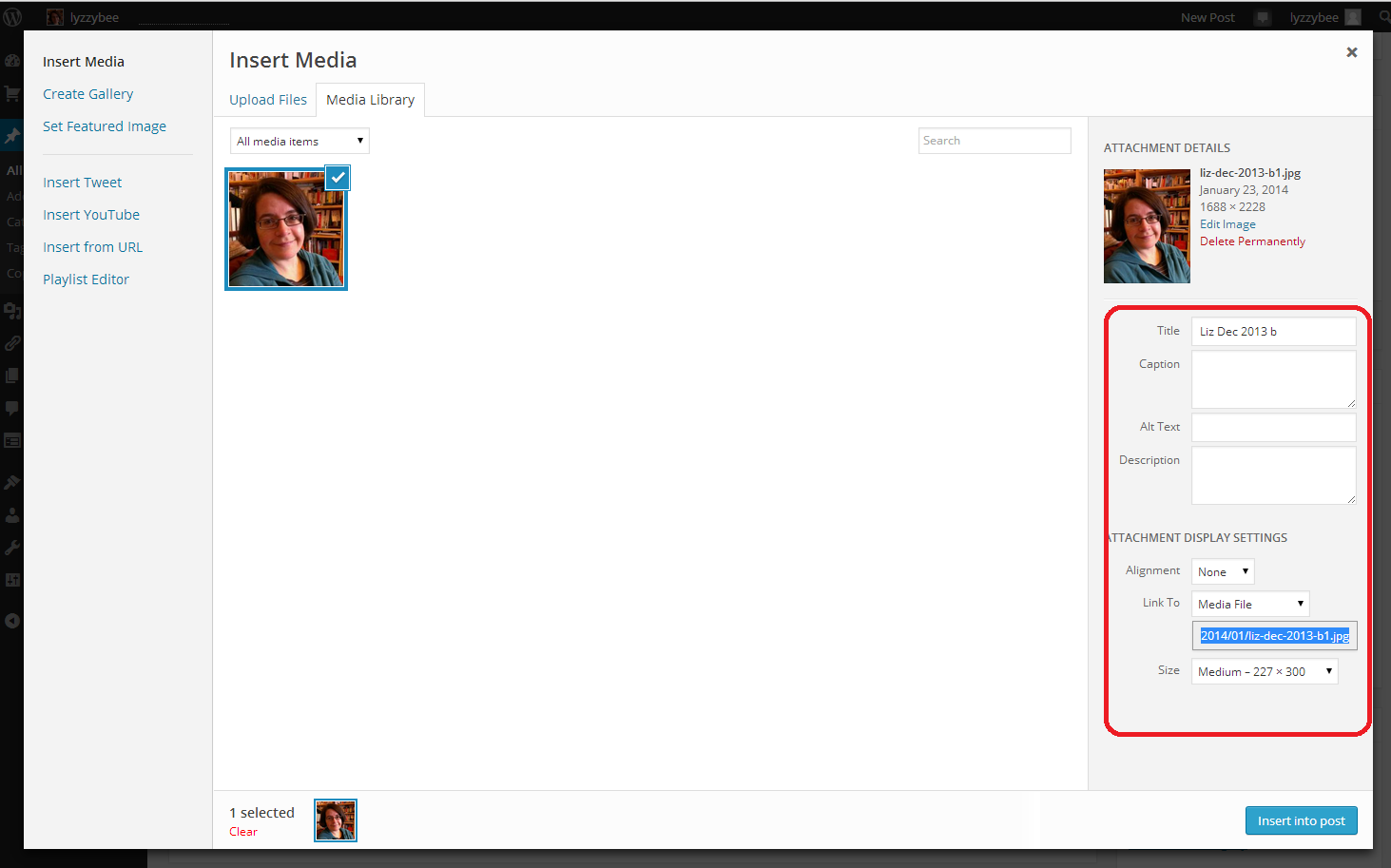
Making sure that the photo you want to use is ticked, choose the Attachment Details on the right-hand side. This specifies the caption, size and positioning of the image …

4 add media

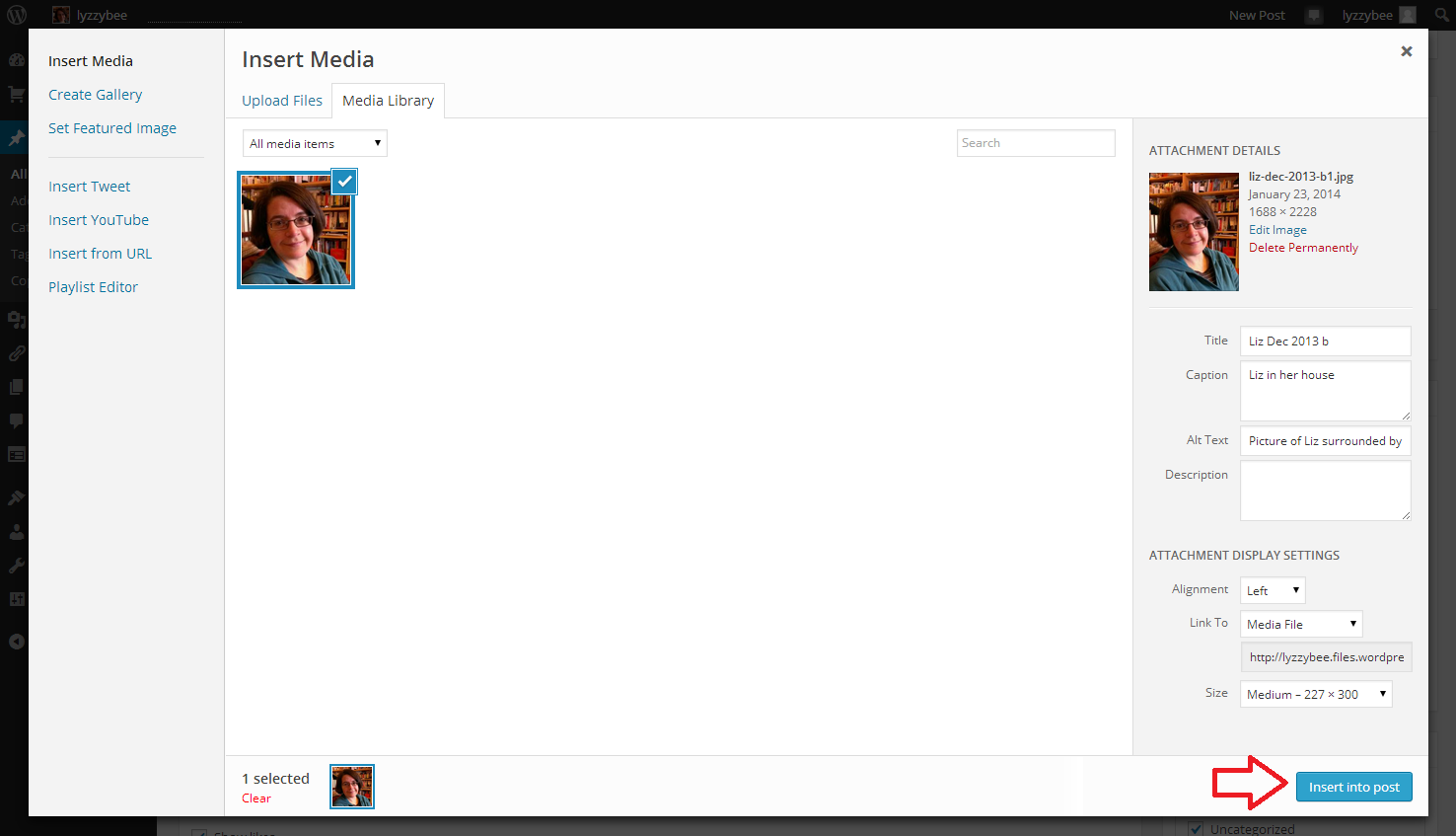
Let’s look at that in more detail. You can place a caption on the picture if you want one to appear in your blog post – I don’t often bother, but it can be useful. It’s important to include Alt text, as this is what anyone using an audio describer will hear if they’re unable to see the image. It’s basically good accessibility practice. Link to allows you to link just to a larger version of the image, or you can choose URL to link to an external web page.  Alignment can be Left or Right (text flows around these to the other side of the image, if there’s room) or Center (like this blog post). Size is up to you: note, you can make an image smaller but not bigger once you’ve inserted it.

5 add media

Once you’ve chosen your picture and your settings and alignment, etc., hit the Insert into post button to place the image in your blog post.

6 add media

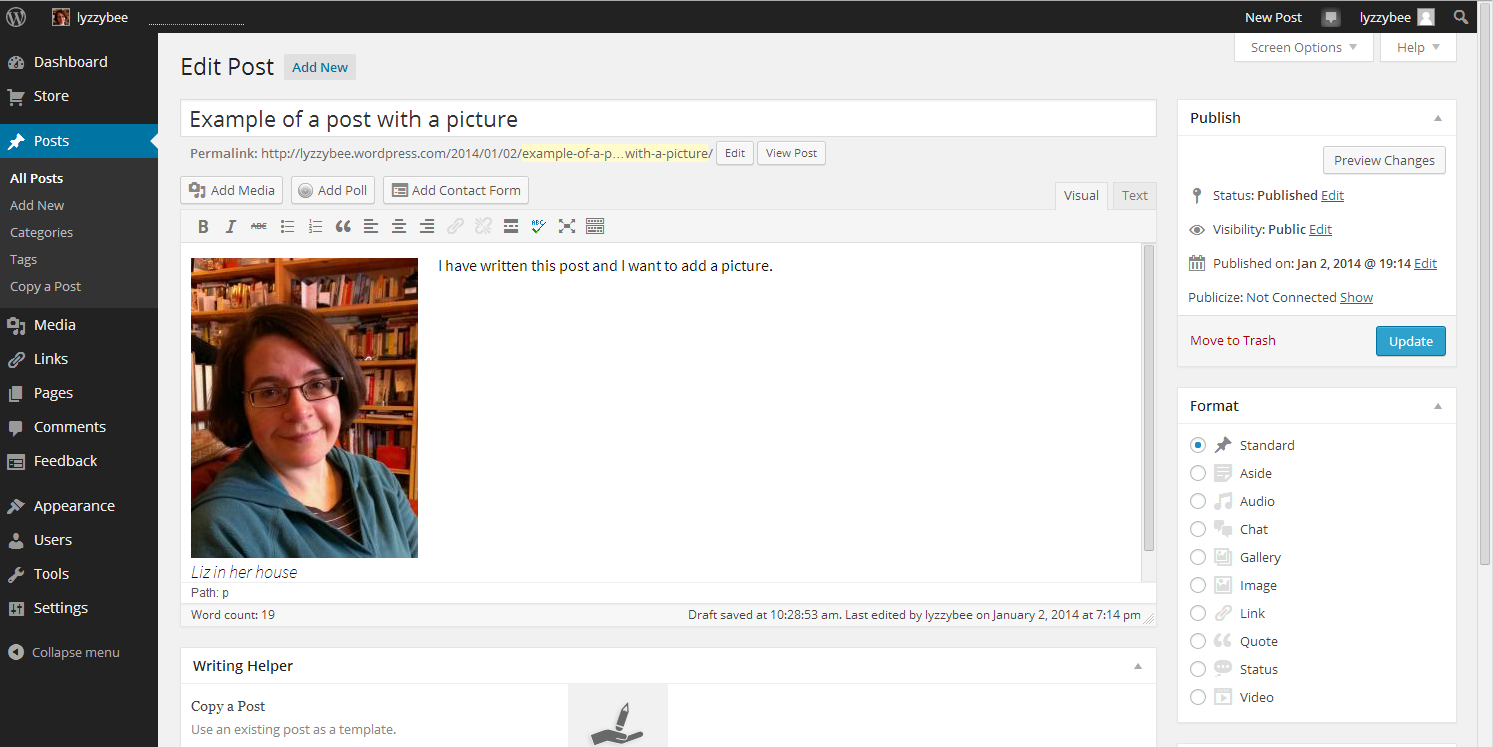
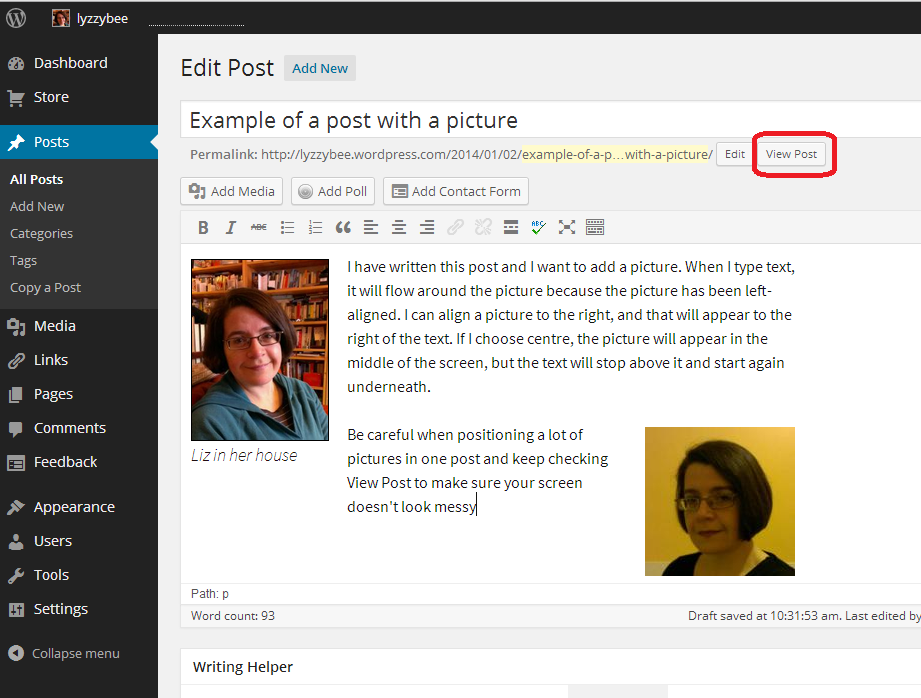
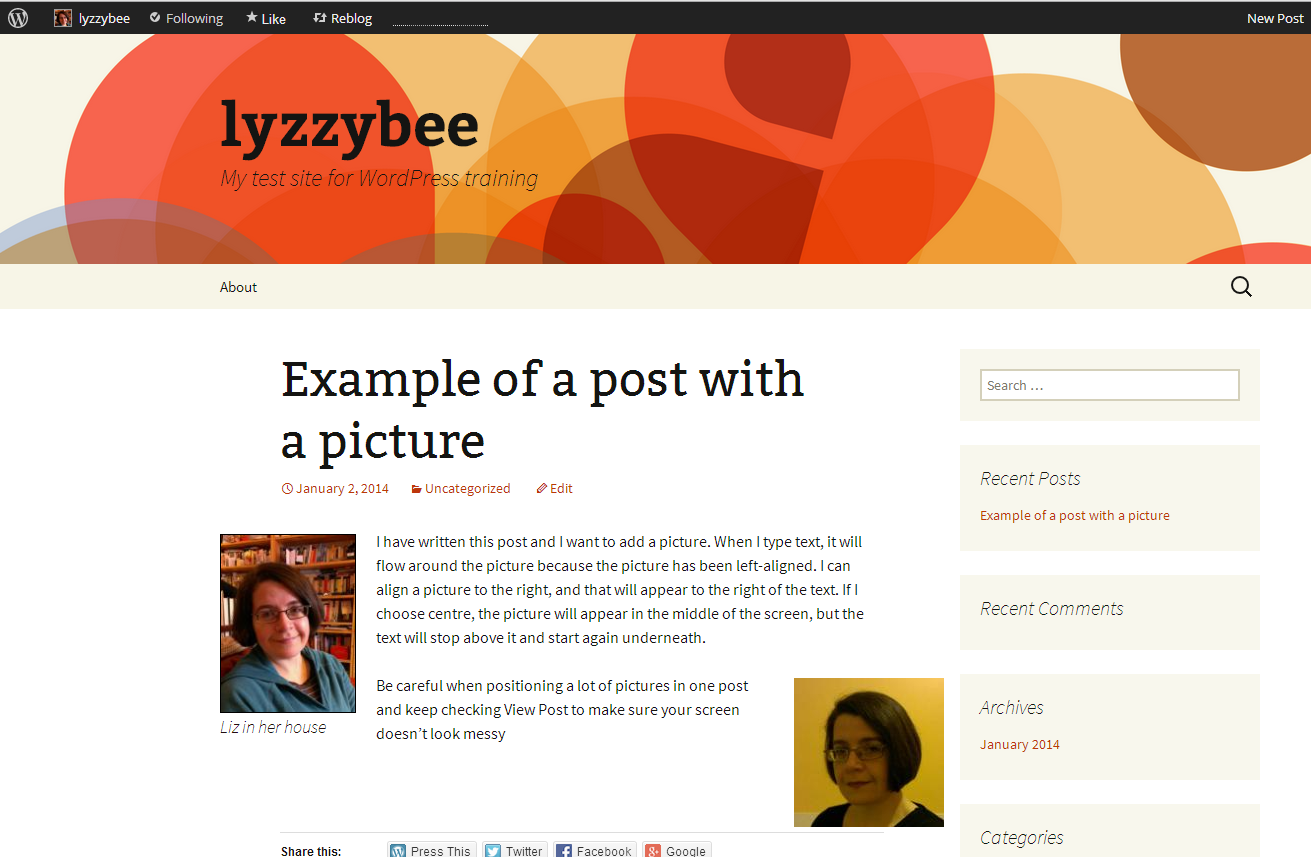
And here it is, in my blog post, medium-sized and left-aligned (so you can see that the text I’ve typed appears to the right of the picture and will flow around it. The top of the picture starts where my cursor was, at the beginning of that first line of type. If I chose Right alignment, it would be the other way around; if Center, the text would be underneath.

7 add media

How do I edit an image in my blog post? (including WordPress’s new image editing process)

Note: this section has been changed to reflect the changes implemented by WordPress in March 2014.

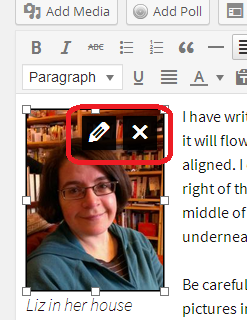
Once you’ve placed your image and written your post, you might want to edit the image. Left-click on your image using your mouse, and two icons will appear – edit and delete. Click on the right-hand, red, delete icon and your picture will disappear (no warning). Click on the left-hand icon that looks like a pen, and you will be able to edit your image.

01 new editing

On clicking the edit icon, you will be taken to an editing screen. This looks a bit different to the old editing screen, and it appears that you can’t do everything that you used to be able to do. But you can! With the help of my old friend Clare Lauwerys at The IT Fairy, I’ve been able to work out what to do and share it with you.

The basic editing screen now allows you to change the Caption text, Alt text, alignment, link and basic size. What about scaling it up and down and adding or changing description text? Don’t fear: it’s all still there.

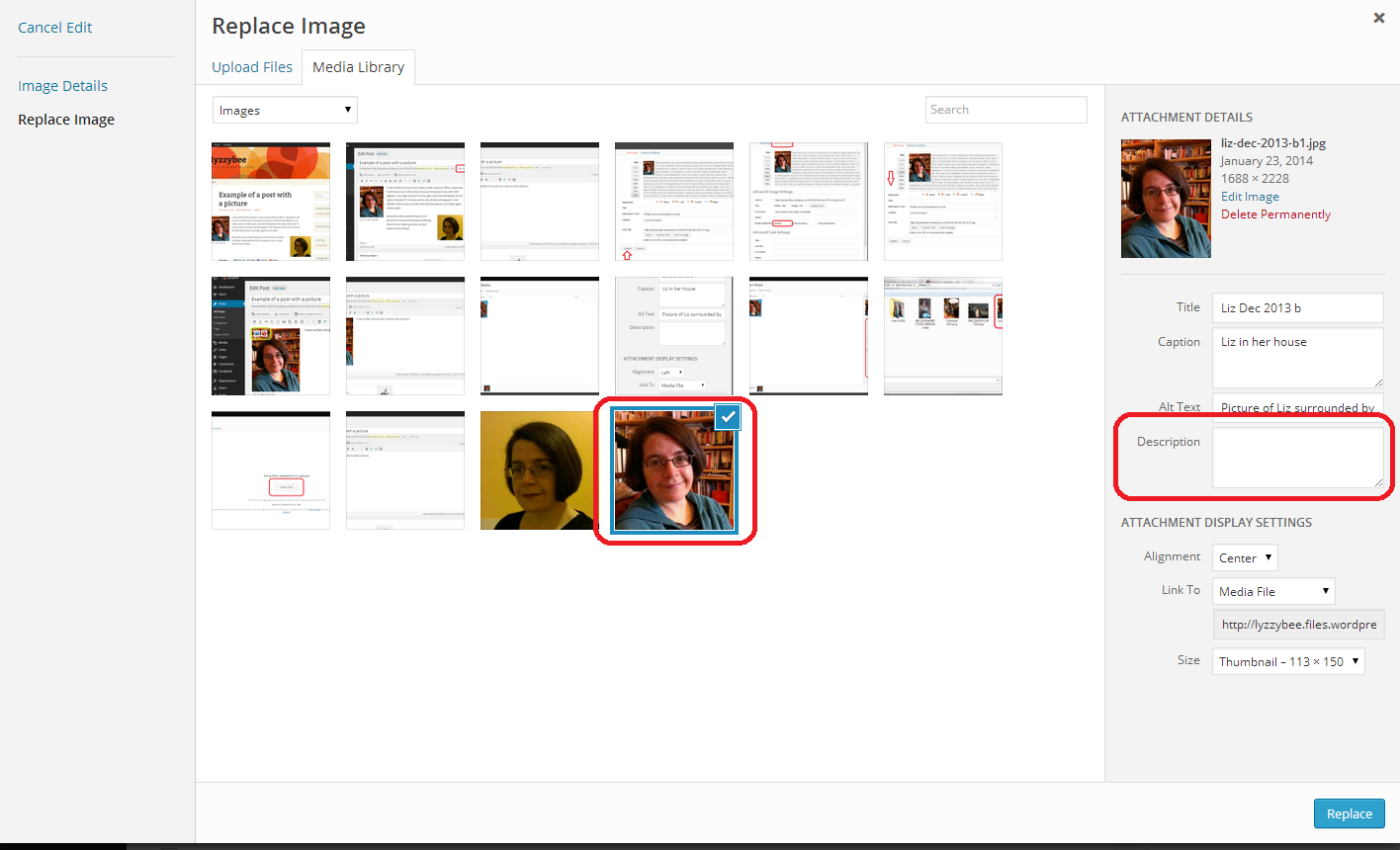
To add or edit the description text, you need to click on Replace image. Yes, I know that doesn’t exactly make sense, but it’s what you have to do …

02 new editing

Once you’ve hit Replace image you’ll be back in the screen you use to add an image and give it its attributes in the first place:

03 new editing

You can see that the image you’re currently working on has remained ticked in the Add image screen, and you are able to add or amend your description text here (that’s important for your SEO, and I’m going to have Clare guesting on here soon to tell you all about that). When you’ve done that, hit the Replace button and your new image information and old image will be safely in your blog post.

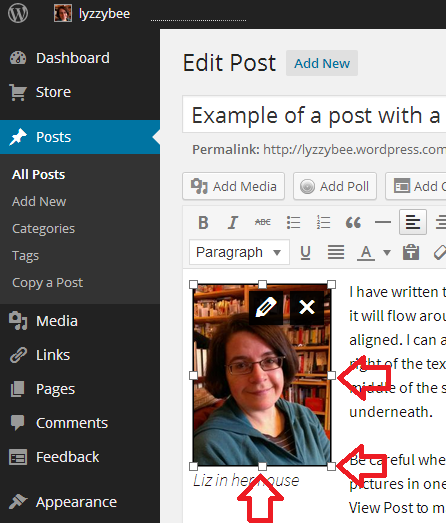
To change the size of the image, stay within the blog post edit screen, click on the image once and then use the standard image changing frame to pull your image out or in with the mouse and cursor to make it larger or smaller:

07 change size

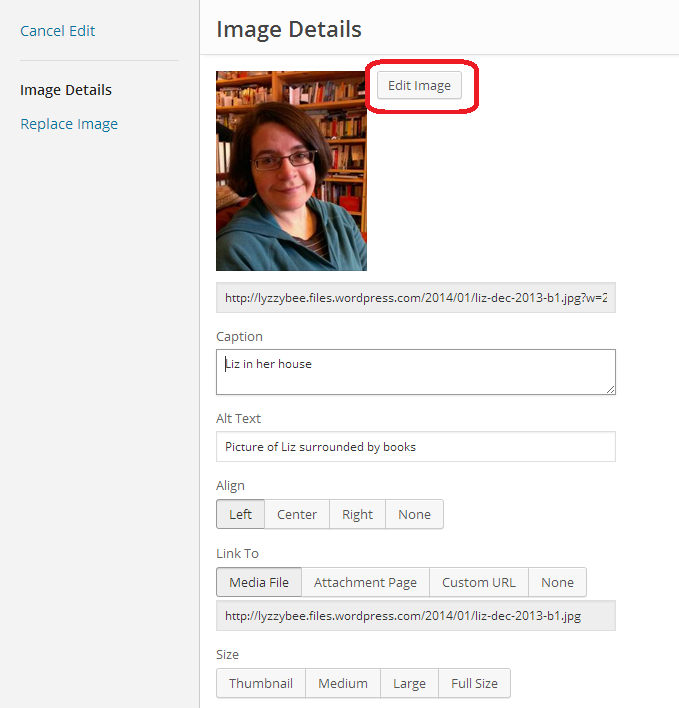
If you want to edit the picture to flip, rotate or crop it, click on the edit button and once you reach the Image Edit screen, click on Edit Image:

05 new editing

Once you’ve clicked on Edit Image, you can access the ability to flip, rotate and crop your image:

06 new editing

… remembering to press Save when you’ve finished.

Note: you can no longer choose the size of the border around your images. The standard border that you get is an aspect of the theme you choose for your blog. You do get a border of sorts if you add a caption to the image.

How do I preview what my images look like in my blog post?

Click the View Post button to view your post as if it was live on your blog. This can save you from a nasty surprise, as the Edit Post screen does not display exactly as your blog post will in real life (of course, this will display differently on different screens, especially on mobiles and tablets, but this gives you a better idea than just looking at the Edit Post screen).

I’ve added another picture, with Right-alignment, and I want to see how the text flows around them.

13 check

And there we go. It looks different from the editor, but I’m happy with the result.

14 check

How do I add images to a web page on WordPress?

Fortunately, adding images to web pages works in exactly the same way as it does for adding images to blog posts. So just look for the same buttons and icons, but note that you start off from New Page or Edit Page, not New Post or Edit Post.

You’ve learned how to add pictures to WordPress blog posts and pages, and how to edit those images once you’ve got them into your post/page.

If you’ve found this useful, please add a comment below, and please share this post using the sharing buttons below. Thank you!

Related posts on this blog

WordPress 1 – the basics – joining and setting up a blog

WordPress 2 – adding pages to create a website

WordPress 4 – adding slideshows and galleries of images

WordPress 5 – linking your blog to your social media

WordPress 6 – sharing buttons

WordPress 7 – adding an avatar picture

 
14 Comments

Posted by on February 6, 2014 in Blogging, Business, WordPress, Writing


Tags: , , ,

Slight or sleight?

This one was suggested by Matthew, Mr Libro. I’ve got to the point where I can’t remember whether I’ve covered a particular confusing word pair or not (see the link at the bottom of this post for the index to them all) but it is indeed a new one …

Slight is an adjective meaning not very sturdy or strong, or inconsiderable, small: “The rider was so slight that they feared he could not control the larger horse”; “There is a slight problem with your use of their and there, have a look at Liz’s Troublesome Pairs posts”. A slight (noun) is a kind of insult which is based around not showing someone the appropriate level of respect or attention: “He never bothered to read her blog posts, and she felt this slight keenly”.

Sleight is only actually ever found as part of the phrase ‘sleight of hand‘. This means manual dexterity, usually in the context of someone doing magic/conjuring tricks. By extension, it has also come to mean skilful deception of any kind, as more of a metaphor.

“He gained a slight advantage by employing sleight of hand and misleading the other runners as to the direction to take. However, as it was only a slight advantage, they soon caught up and beat him”.

You can find more troublesome pairs here and the index to them all so far is here.

 
2 Comments

Posted by on February 3, 2014 in Errors, Language use, Troublesome pairs, Writing


Tags: , , ,

Growing your business – employing staff and outsourcing (case studies)

Sneak preview of the image from my new bookOnce it’s time to grow your business, you will need to make a decision on whether to employ staff. Duncan Brown has given us the expert’s view on this topic, and now we’re going to hear from two people who have approached this in two very different – but equally successful – ways.

Nathalie Rush runs Six Star Group, which is an insulation business. She has been employing people right from the start, and has used a variety of different methods to find them, and gained a lot from employing people directly, although she does still use sub-contractors when needed.

Nathalie reports that in her line of business, job websites are cheaper to use than local newspapers, but she doesn’t think that tradespeople use the websites so much. Word of mouth has been quite successful. It’s important when advertising for staff to use the channels that the kind of people you’re looking for are likely to use, otherwise you’ll waste money on costly adverts when a word in the ear of the local university’s careers centre or just putting the word out that you’re looking for people might be just as effective.

Nathalie has found that one hands-on approach works really well for her:

Paying someone to work with you for a week’s experience can often be a good way of finding out their qualities. You’ll quickly know if you’ve got a rising star or not.

She has also developed a working relationship with a training centre in her industry, which she says is “proving to be a great way of finding hard-working, professional people”.

What is the advantage of having full-time employed staff for her business? “It means we can serve customers when we want and we don’t need to rely on sub-contractors”, although, as I mentioned, sub-contractors are brought in for the larger jobs. And she’s enthusiastic about the process, too. ”

It’s a joy to give someone a job. I get the biggest kick out of it and spend a lot of time training and motivating my team. After all, we are a business that sells a service and what good is that if the people can’t deliver what the company promises!

On the topic of sub-contractors, you do have to be careful when sub-contracting, especially if you’re in the construction industry. Nathalie explains: “Because of the line of business we’re in, I have to register every sub-contractor through the Construction Industry Scheme. This ensures everyone is taxed and it’s reported monthly to HMRC”.

And while she outsources the work on occasion, she is also careful not to take on too many admin tasks in-house that can be done by an external supplier: “Employing people comes in all shapes and sizes and it’s certainly handy to be able to outsource any paperwork you can that comes with running a business”.

What’s Nathalie learned from the process? As Duncan explained in his expert’s view, it is vitally important to outline all rights, roles and responsibilities up front. Nathalie says:

I’ve employed people in the past and it took me a while to work out exactly what the responsibilities of different roles should be. It’s clearer if you can explain the role, working times, use of mobile phones, holidays, etc. from the offset and not change things like this as it can be de-motivating.

John Ellery of John Ellery Consulting, a firm specialising in grant fundraising and grant making, has taken a different approach.

Six months on from setting up his business, he found that he was struggling to keep up with the work coming in from his clients and his growing to-do list, and it was clear that he needed some support. However, he was concerned about the sustainability of employing someone when his business was so new and he wasn’t yet able to predict the peaks and troughs:

Whilst the obvious option was to investigate employing someone my cash-flow situation would be very tight and whilst I had too much work at the moment who knew if this would still be the case in say three months time – last thing I would want as a new business is have an employee sitting around with no work to do.

His solution was to start using people who were happy to work on a freelance basis. To date, the work he has outsourced in this way has included admin support, consultants, marketing/sales and web design. Each time that he has started working with a freelancer, he has initially outsourced a single piece of work with no promises of on-going or future jobs. As he reports, “This has been extremely effective with the vast majority of freelancers I have used already very much used to this arrangement and were able to pick up my business, ethos and approach extremely quickly”, and he has continued to use this method of supporting his business and thus allowing it to expand.

How has he found freelancers? Mainly online, through Google searches and websites such as People Per Hour or Elance and even FiveSquid and Fiverr [the last two offer usually limited projects for £5 or $5; while this can lead to price undercutting, many reputable freelancers use them and ramp up the price to an acceptable and sustainable level for freelancer and client once a more complex project is in the offing].

The advantages are clear: being able to pick and choose, using people who are accustomed to this way of working and can mesh with the company’s objectives and style, and not having the overheads, legal issues and paperwork associated with employing staff. Are there any disadvantages? John says, “At times I have found that freelancers are not keen to show their work in progress and prefer to contact you when a job is completed. Whilst usually this hasn’t been an issue the occasional freelancer has produced a piece of work that was unsatisfactory and could have been easily addressed if the work was being done by an employee at the desk next to me”.

And does he recommend this method of using other people to expand your business?

Absolutely, however the secret is to find those tasks that can be outsourced. These may be tasks that you usually complete yourself, but by outsourcing these they will free up your hands.

So, two different ways of going about expanding your business through using the support of other people, whether using directly employed staff and officially registered sub-contractors or outsourcing to a series of freelancers. Both companies have profited from these methods, and it just goes to show that there is often more than one way to achieve your business aims.

Thank you to Nathalie and John for their input into this article.

Nathalie Rush Six Star Group – Twitter

John Ellery John Ellery ConsultingTwitterFacebook

———-

This post is part of my series on growing your business. Read more here and read about my own business journey in my book, Going It Alone At 40.

 
3 Comments

Posted by on January 30, 2014 in Business, Guest posts, Organisation


Tags: ,

Procrastinate or prevaricate?

Welcome back to the Troublesome Pairs after a long break full of posts on business and Word. People have been asking about them, so I’ve started writing up a few more. Let me know if you’re pleased that I’ve done this, or if you’ve been helped by a particular Pair, won’t you!

This one came up in the cafe one Sunday afternoon, as my friend Gill and I were sipping our coffees, looking things up on the Internet via our phones, talking about all sorts … and putting off venturing out into the rain. Is there a difference between these two? Do you know what it is? Really? Because we thought that we did and … well … I’m glad that I always look it up to check!

To procrastinate means to put off doing something. For example, we were procrastinating when we sat in the cafe chatting about this and that rather than going out into the pouring rain.

To prevaricate means to speak or act in an evasive way. For example, when asked whether it was going to carry on raining, a weather forecaster might waffle on about climate change and average daily rainfall in order to avoid telling the truth for as long as possible.

“He prevaricated over paying the bill yet again, claiming that he’d lost his wallet before finally getting it out and paying. So I procrastinated when it was time to ask him out for dinner again, coming up with all sorts of activities that I must do immediately, before getting around to calling him.”

You can find more troublesome pairs here and the index to them all so far is here.

 
4 Comments

Posted by on January 27, 2014 in Errors, Language use, Troublesome pairs, Writing


Tags: , , ,

How to use Find and Replace in Word 2007, 2010 and 2013 2: Advanced Find

Hopefully, you’ve already read about simple Find and Replace in Word in my earlier post. In this article, I’m going to show you some of the Advanced Find features to do with word forms, wildcards and where you’re actually searching. Handily enough, these are the same in Word 2007, 2010 and 2013. For hints on replacing, see the previous article, and for finding formats, look out for my next post in this series (I will link it to this post once it’s live). I’m going to start by discussing the three different options for viewing the results of a simple Find search in Word 2010 and 2013, then move on to the Advanced Find options in all three versions.

Find options in Word 2010 and Word 2013 (Navigation)

When  you hit Ctrl-F to Find in Word 2010 and 2013, you are shown the Navigation side panel. This gives you three options for viewing the results of your simple search (i.e. you’ve searched for just a word or phrase, no whole word only or match case options applied).

The first tab on the left gives you the Outline view – if you have headings in your document, it will give you a run-down of those,and highlight in yellow where your search term appears. The search term “localisation” has been input into the search box at the top.

Word 2010 simple find options 1

The second tab gives you a Page view, showing only the pages that the search term appears on (you will see that it’s displaying pages 5, 6 and 14 here) with the search term highlighted.

Word 2010 simple find options 2

The third tab along gives you the Paragraph view, and this is the one that I find most useful, as it shows you the search term in its context. Click on the box and you’ll navigate to that place in the text. As you can see here, the word has also been highlighted in the actual text, and this is true for all of these views. This paragraph view is the most useful for seeing where you’ve used a word and deciding whether to change it.

Word 2010 simple find options 3

Now we’re going to look at some of the Advanced Find options. You can get to Advanced Find by clicking on the More button in Word 2007’s Search box, or by clicking the down arrow by the search input field and choosing Advanced Find in Word 2010 or 2013. Note, in Word 2010 and 2013, you can click on Options after clicking the down arrow, but that isn’t as specialised or useful as choosing Advanced Find.

If you’re confused about how to find the Advanced Find dialogue boxes, read this post for screen shots and explanations.

Advanced Find options: Find In

The Find In option allows you to specify where exactly you want to look for your search term. This is particularly useful if you are looking for something you or someone else has said in the Comments area of the text, or indeed the footnotes. Here I have a document with a main text, Comments and footnotes. I use the dropdown arrow next to Find In to access my options:

Advanced find options 1 find in

Whichever of these options you choose, it will only search in that area, saving time and narrowing down your search to exactly what you’re looking for.

Advanced Find options: Match case

Match case is extremely useful if you are only looking for a particular form of a word. For example, I might want to catch the instances where I’ve started a sentence with “And”. If I just search for “and” with no other options set, Word will usefully highlight all instances of the word. I’ve highlighted the one that I’m looking for in green here, but you can see how hard it would be to find amidst a sea of and … and … and. Note that I typed the word in with a capital letter, but unless I tell Word to take account of that, it will ignore it, and treat And, and, aNd, ANd, Andy, understanding, etc. all the same (to get rid of those last two, see the next section).

Advanced find options 2 no options

Tick the Match case box and it’s a different story. Now it’s only looking for And with a capital A. Note how the line under the search box includes a note of the option that I’ve selected:

Advanced find options 3 match case

Advanced Find: Find whole words only

As we saw briefly above, search for “and” without ticking any additional options, and Word will find the letters “and” however they may be capitalised and wherever they will be. Here, a search for and highlights the word understanding, too.

This can be really annoying, especially if you’re searching for a word that can appear as part of other words (like under, or stand!) and you want to do a Replace All on them or just find when you’ve used that particular word, not its compound. This is what happens when you don’t choose any options:

Advanced find options 4 no options

To stop this happening, tick the box next to Find whole words only. Now Word will only find the word “and” as a discrete word:

Advanced find options 5 whole words only

Note: you can use these two options together. For example, search for But using Match case and Find whole word only and you will limit what you find to sentences beginning with the word “But”, instead of all the examples of but in the middle of sentences and sentences beginning with “Butterflies” or “Butter” …

Advanced Find options: Wildcards

Lots of people know about the above two options, but Wildcards can seem a little alarming to the novice or even quite experienced Word user. Wildcards allow you to search very precisely for different forms or spellings of a word.

To use Wildcards in your search, tick the Wildcard option.

Advanced find options 7 wildcards

If you already know the special character to use in your Wildcard search, type your search term in the search box. If you need to check which special character to use, click on the Special dropdown on the button at the bottom of the screen. This will give you a huge range of choices for narrowing down your search:

Advanced find options 8 wildcards

In this case, I’m looking for words beginning with “localis”, so I choose the Beginning of Word option from the list:

Advanced find options 9 wildcards

Word inserts the special character in the search input box, and finds all of the words beginning with “localis”:

Advanced find options 10 wildcards

Now, you could just do a basic search for a bit of a word, but that’s only useful if the selection of letters you’re looking for all occur together. In the example above, we’re looking at the letters appearing at the beginning of a word, but what if you’re looking for a word and you can’t remember how you spelled it, or you fear you sometimes used an s and sometimes a z in “organisation”? Use the question mark option and search for “organi?ation” and you will find both spellings.

Note, there are many further special characters here apart from the ones used for Wildcards (which are ? – < and >) – I will be covering some of the most useful of those in future posts.

Advanced Find options: a note on Sounds like and Find all word forms

The two options at the bottom of the list can look quite tempting. But I will be honest and say that I don’t use them in my everyday work (if you do, please comment and share why you find them useful!).

Sounds like is the more useful of the two. It only works for the English language (presumably if you’ve bought a UK or US copy of Word) and it does what it says it does, finding words that sound like the word that you have entered.

Here I’ve searched for “Localize” and it has found the words that I would be looking for. They’re not spelled the same, but they do sound the same.

Advanced find options 11 sounds like

However, Find all word forms does NOT find “localisation” in the same piece of text, so I’d be careful about using this one (in fact, try not to), as it will miss out words from your search:

Advanced find options 12 all word forms

In this article, we’ve learned how to use some of the more advanced features of the Find function in Word 2007, Word 2010 and Word 2013 in order to be able to look for the correct, specialised word in our document, including being able to choose where in the document it is and choosing fewer or more examples of words containing the letters we’re searching for.

If you’ve found this useful, please take a moment to share it, using the buttons under the article, or send me a comment, as I love hearing from my readers and knowing that I’ve helped! Thank you!

—————————

This is part of my series on how to avoid time-consuming “short cuts” and use Word in the right way to maximise your time and improve the look of your documents.

Please note, these hints work with versions of Microsoft Word currently in use – Word 2007, Word 2010 and Word 2013 all for PC. Mac compatible versions of Word should have similar options. Always save a copy of your document before manipulating it. I bear no responsibility for any pickles you might get yourself into!

Find all of the short cuts here

Related posts on this blog:

How to use Find and Replace 1 – basic find and replace

 
51 Comments

Posted by on January 23, 2014 in Short cuts, Word, Writing


Tags: , , , ,