RSS

Am I automatically registered to submit my tax self-assessment online?

coins and watchIf you’ve registered as self-employed in the last year and a bit, you will have received a letter from HMRC telling you that you need to submit a self-assessment tax form. You can do this on paper by the end of next October, or online by the end of next January.

So it makes sense to do it online, right? YES.

Every year, I meet people who’ve just set up their new business and think that because they’ve registered as self-employed, or because they registered as self-employed online, they are automatically registered to submit their self assessment (tax return) online. They can just wait until the end of January and submit it online then, right?

NO.

If you want to file your taxes / submit your tax return / do your self-assessment online, and this is the first time you’re planning to do it online, you HAVE TO go through a separate registration process.

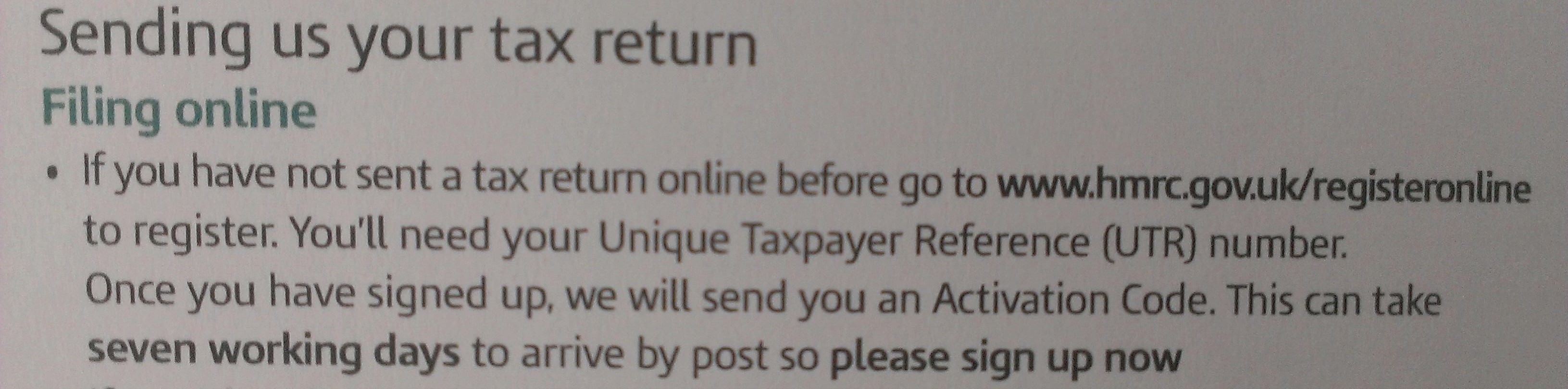
Don’t just take my word for it: here’s a bit of my latest letter from HMRC telling me I need to submit a tax return for the 2013-2014 tax year:

tax online

Got that? You need to go to the HMRC website – WELL BEFORE THE END OF JANUARY and register to submit your tax return online. Once you’ve registered, you will be sent a letter with an activation code. This can take over a week to arrive.

You do not want to leave it to the last minute, or make any assumptions.

If you want to submit your tax return online, you must register to do so as a separate process, and you need to do it in good time in order to get your letter and then activate the account and THEN complete the online tax return (that last bit doesn’t take very long).

If, as a good and normally sensible friend of mine did one year, you leave it until the end of January to even register to submit this information online, you will receive your letter after the end of January, go to fill in your tax return and find yourself confronted with a hefty fine.

The HMRC website with all information on submitting your tax return online, and registering to do so, is here.

If you’re considering setting up a new business or have recently done so, you will find plenty of careers resources on this website (click on that link or surf around the category cloud in the sidebar). Or why not take a look at my books, which have loads of information about starting and maintaining a freelance career.

Other useful posts on this blog:

Setting up as a freelancer 1

10 things you can do before going self-employed

Why I do my tax return in April

Tax payment on account

 
2 Comments

Posted by on May 14, 2014 in Business, Organisation


Tags:

This is why grammar is important

I just received a sheaf of election material through the letterbox. As regular readers of my blog will know, I don’t tend to share examples of bad grammar and spelling that are just ‘amusing’, as I work with many non-native speakers of English and people who need assistance with their English text production (such as people with dyslexia or those who use voice-recognition software, which can’t always tell the difference between homophones), and I don’t want to make anyone feel bad for not producing ‘perfect’ textbook English sentences.

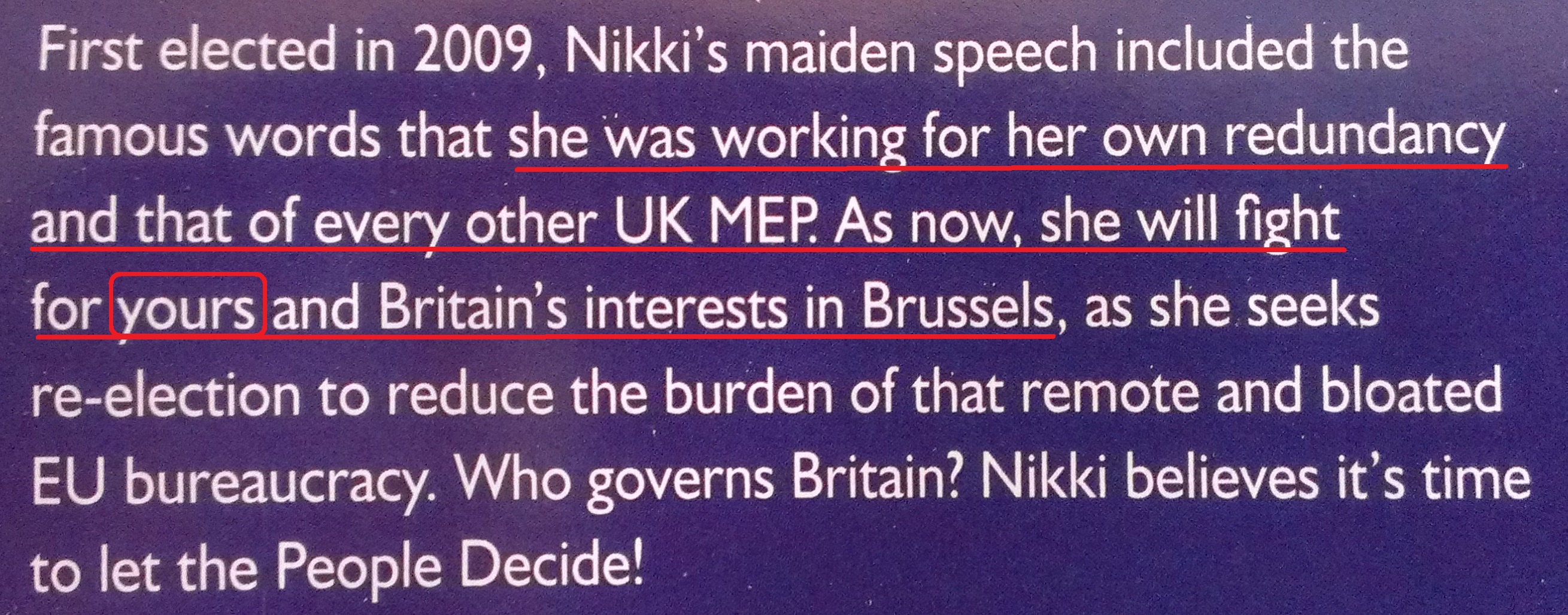
But I did want to share this example because it demonstrates that the correct or incorrect use of grammar can make a huge difference. Here we go:

when incorrect grammar gives a meaning you didn't mean

Grammatically, the underlined section expresses this: “she was working for her own redundancy and that of every other UK MEP. As now, she will fight for your redundancy and Britain’s interests in Brussels”. OK, there would be a comma before “and Britain’s”, but people don’t always insert sufficient commas …

I’m pretty sure that they meant to express this: “… she will fight for your interests in Brussels and Britain’s interests in Brussels”. If you’re not sure of which form of a noun pronoun to use, making the sentence repetitive in this way will often help, or just removing the other word – “she will fight for your interests in Brussels” (this is how to remember when to use “x and I” and when to use “x and me”, by the way).

All that went wrong was a simple “s”. What this leaflet should have said was: “she was working for her own redundancy and that of every other UK MEP. As now, she will fight for your and Britain’s interests in Brussels”. Oh, and let’s not get into the “As now”, before you say anything …

If you need help with pairs of words or word use, you might like to take a look at my Troublesome Pairs and Be Careful! posts. You might also find this post on the value of proofreading interesting. Enjoy!

 
4 Comments

Posted by on May 12, 2014 in Be careful, Errors, Why bother, Writing


Tags: ,

WordPress 9 – setting up a Posts page

This post and the one on setting a static home page will walk you through helping your readers to navigate your blog/website by creating a Menu item to allow people to access your blog posts and a static home page so that they understand what you’re all about.

Why would I want to set up a Posts page?

If you’ve set up a static page for viewers to land on when they visit your blog (which is recommended for any set of pages and posts where you’re promoting a service, company or product, whether that’s your crafts, plumbing services or travel or writing blog), then your readers will need a place to visit your blog posts.

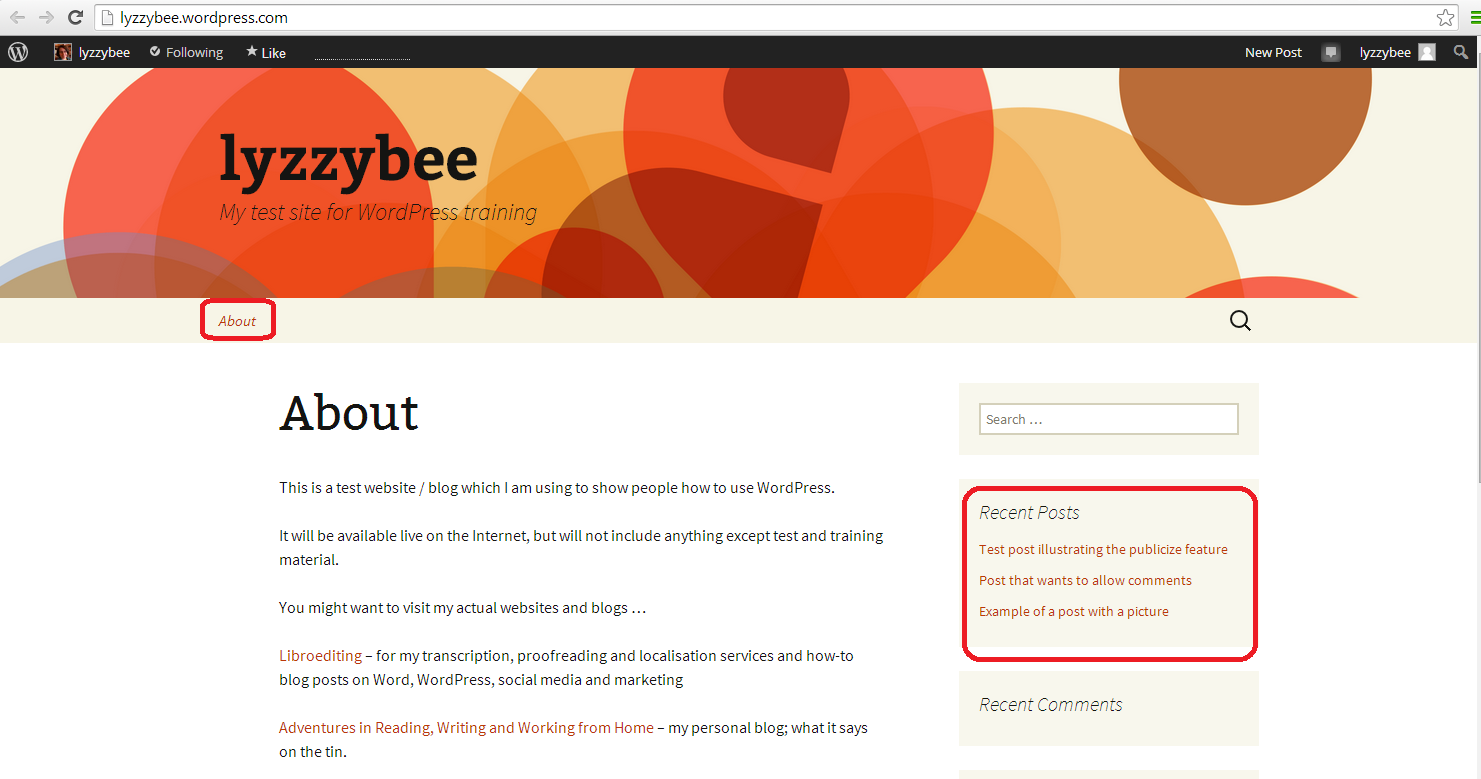
WordPress will set up a “Recent posts” area somewhere on your theme (depending on the theme you chose when you set up the blog), but it’s nice to have something to click on in the main menu:

WordPress blog default

You can see that there’s only one page on the menu at the top of the page (menu location will vary depending on your theme; menu items will vary depending on how many pages you have set up) and then a list of recent posts. Clicking on the blog title will bring you to this “About” page again, which is fine, because that’s the first page you want your readers to see. But it’s not helping them to see your blog.

How do I set a Posts page?

In order to set up a Posts page for your readers to navigate to, you need to create a new page to link to your blog, and then tell WordPress to display it. Here’s how to do just that:

First of all, you need to set up a page for the posts to be associated with. Why? Because a page is a static, unchanging lump of text on a screen, and WordPress likes to add pages, and not posts (which are constantly renewed and have dates on them) to menus. So we need to set up an empty page called, for example, “Blog” first (another popular choice is “News”).

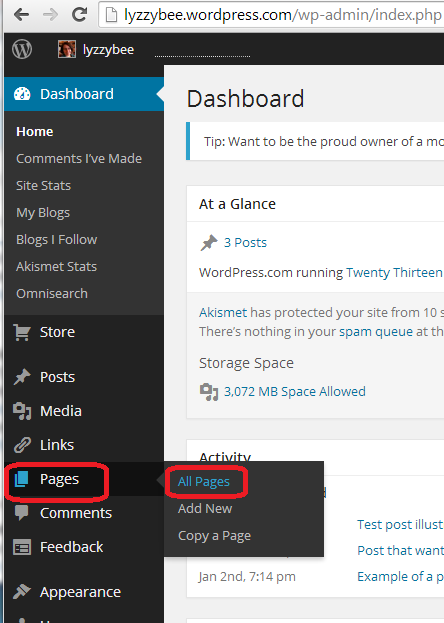
To set up a new page, in the Dashboard, select Pages then All Pages:

Pages menu in WordPress

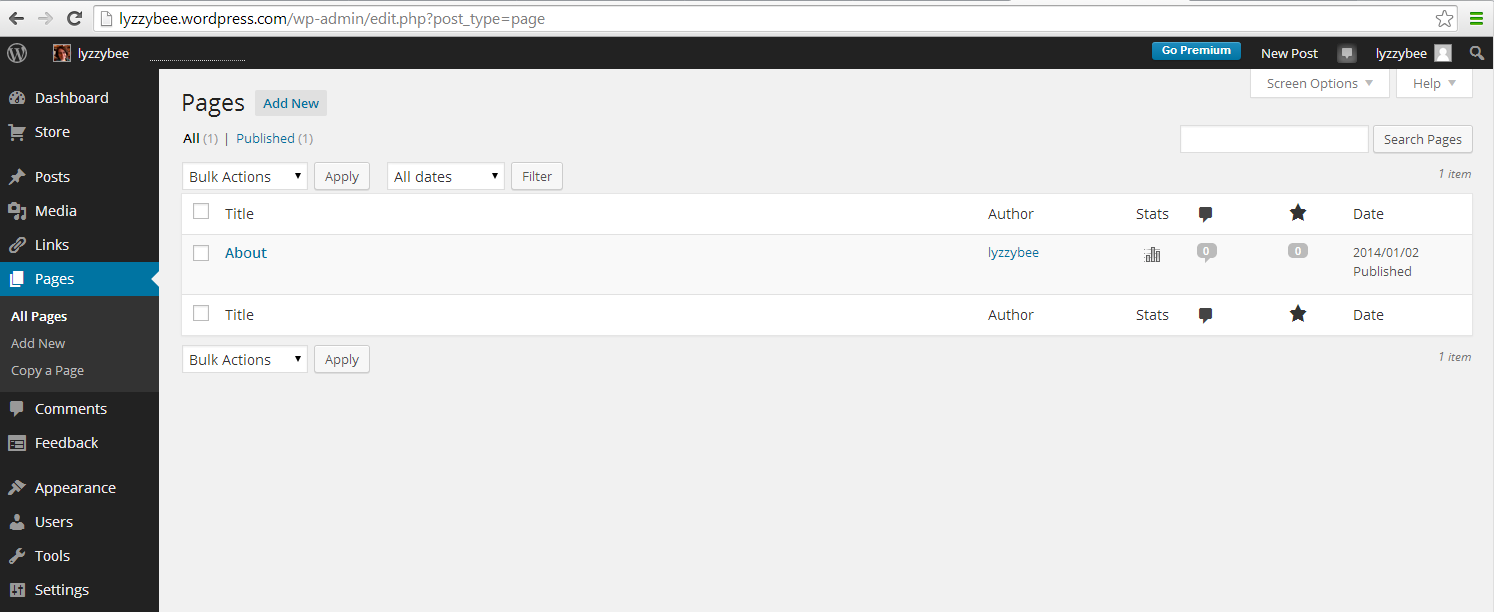
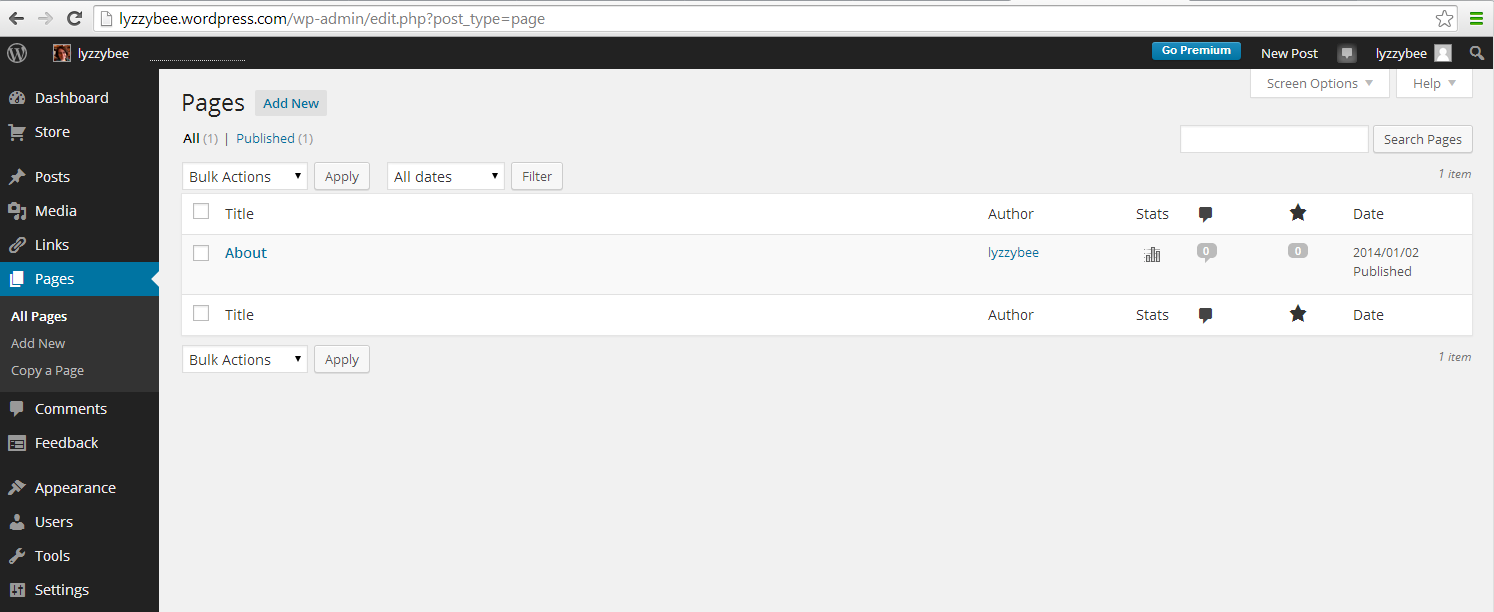
You can view here what pages you have set up – in this case, just the About page:

Viewing all pages

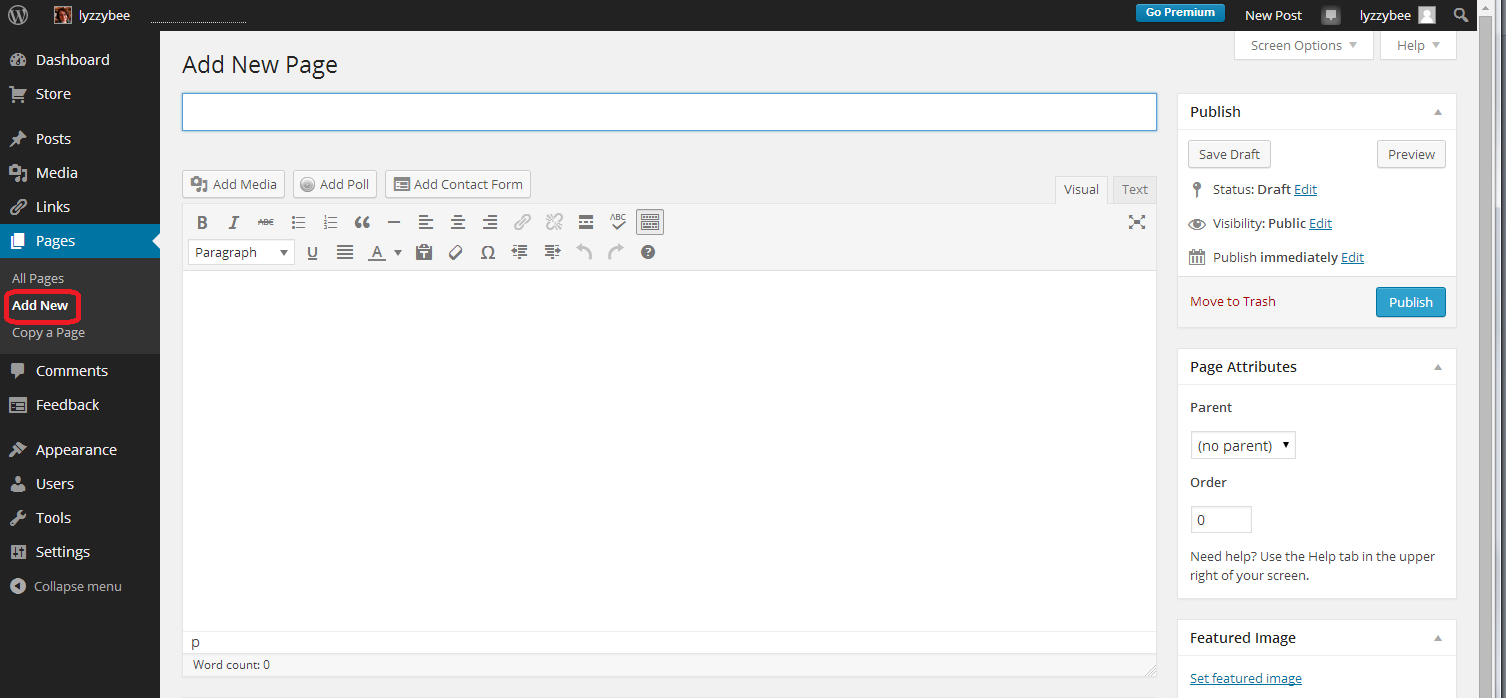
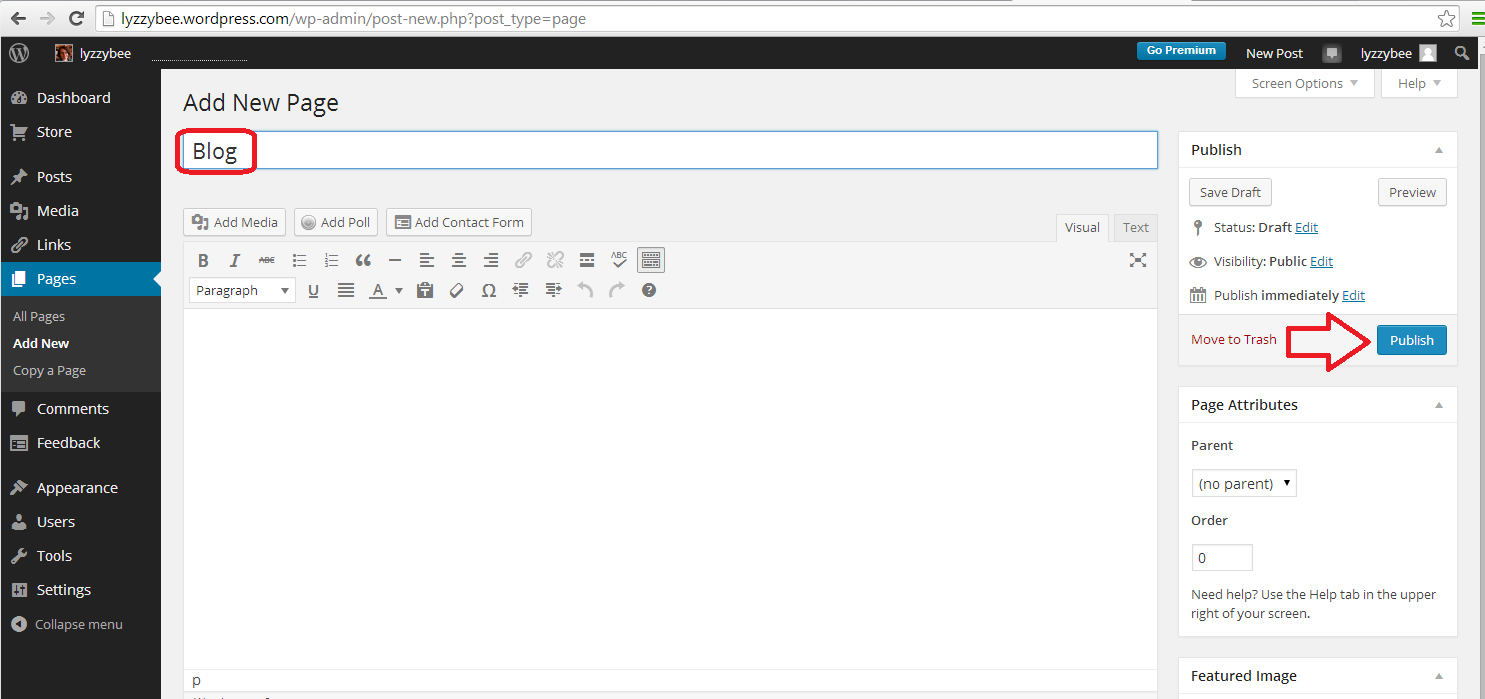
To add a new page, click on Add New under the Pages menu in the sidebar. You will now see a new, blank page:

Adding  a page

Give the page a title – Blog, or News, or however you want people to find your blog posts / diary entries / news bulletins, but don’t add any text to the main part of the page, and then press the Publish button:

Adding a new page called Blog

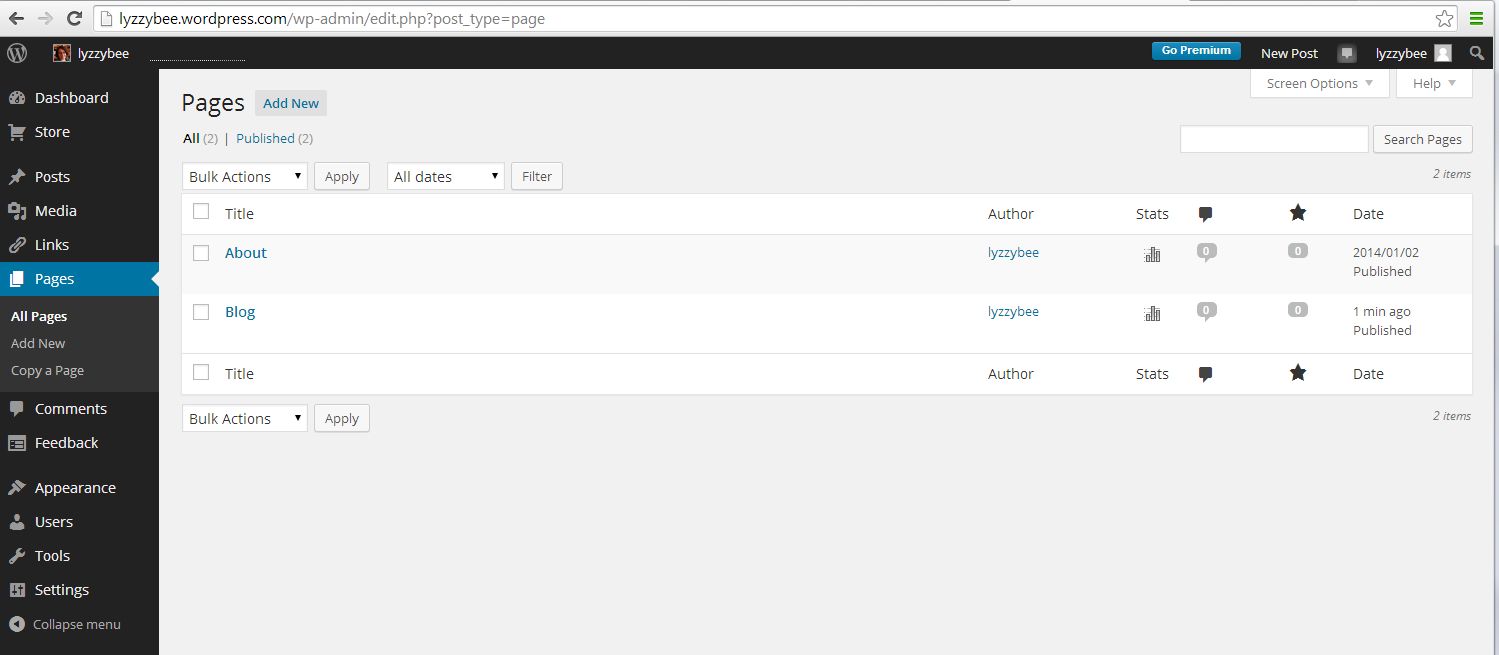
Now you have a lovely page called Blog, which you can see if you navigate back to All Pages:

Page added to WordPress

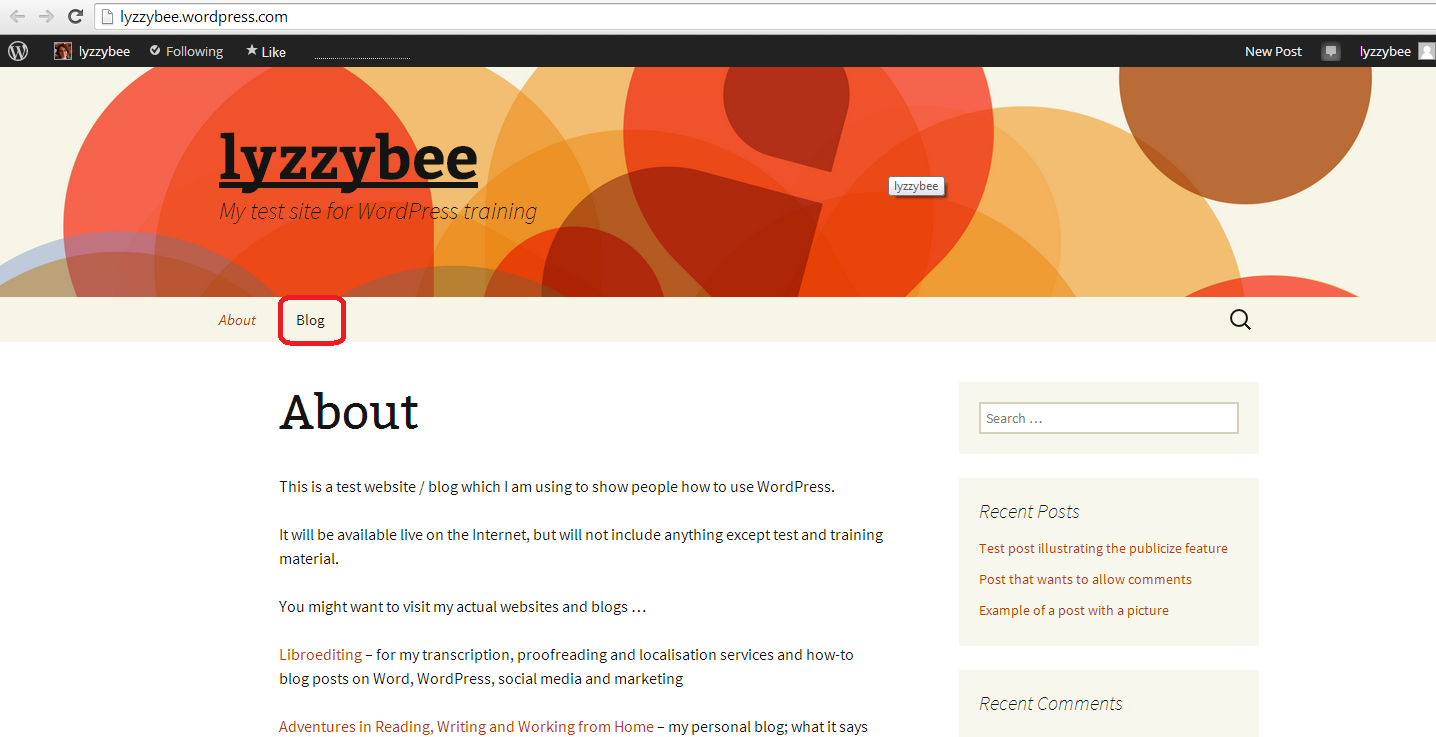
And if you view your blog (I keep a separate tab open in my browser in which I display the reader’s view of the page, refreshing it when I’ve changed something on the site), you have an automatic menu item on the screen called Blog …

Page added - Blog appears on menu

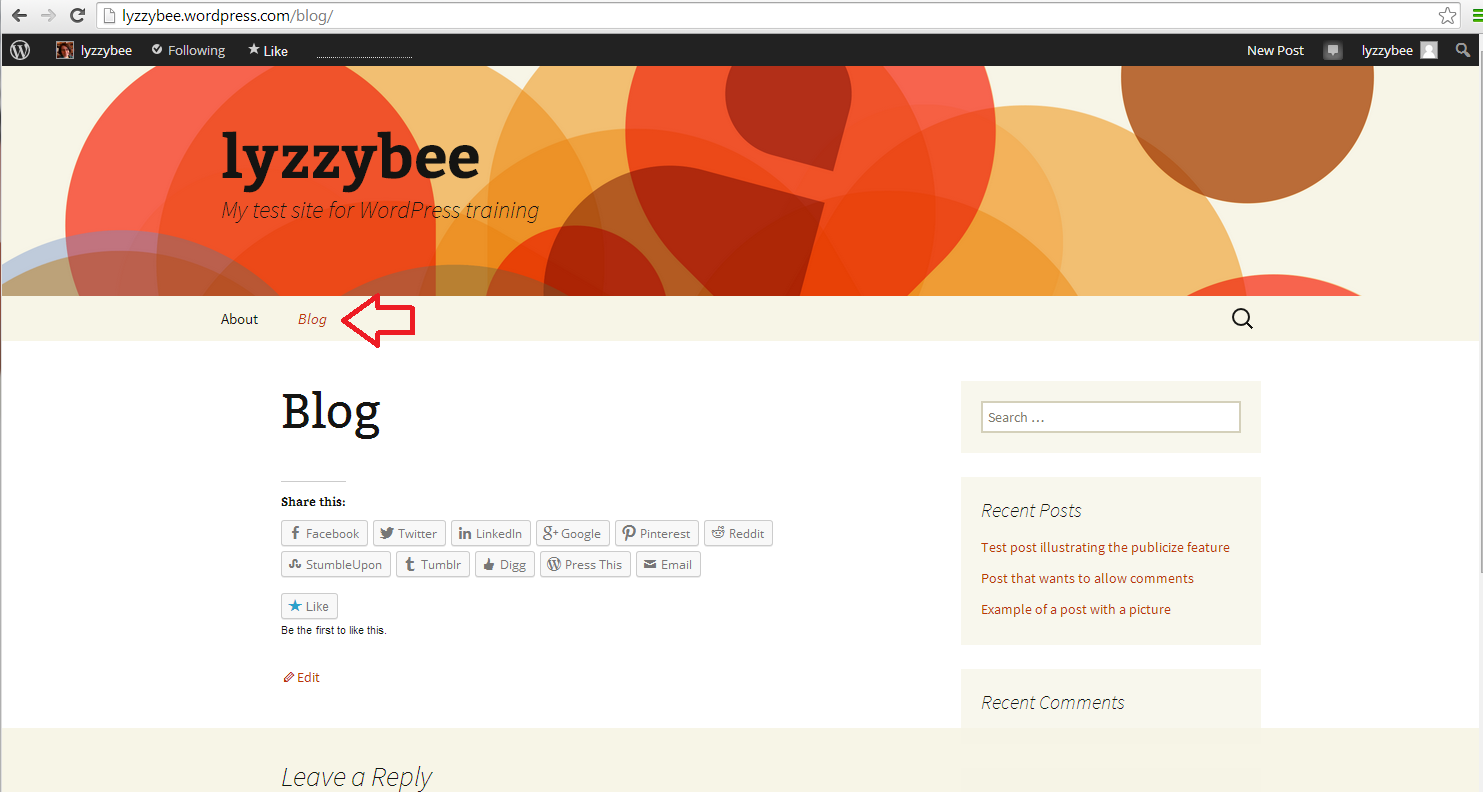
… but when you click on that, all you see is an empty page with the title Blog:

Page added for Blog but not linked to the Posts

Oh no! But don’t worry, you just need to tell WordPress what you want your readers to see when they navigate to this page.

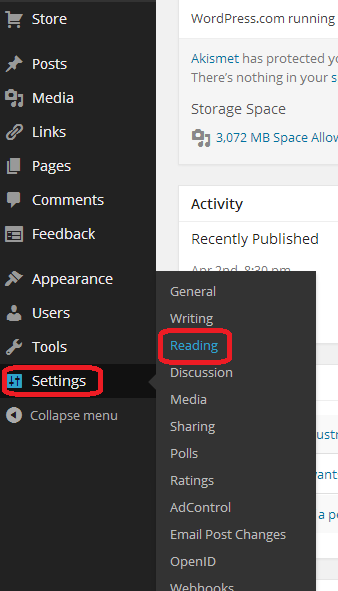
To set the Blog page to display your blog posts, go into Dashboard, then Settings and Reading:


Setting home screen

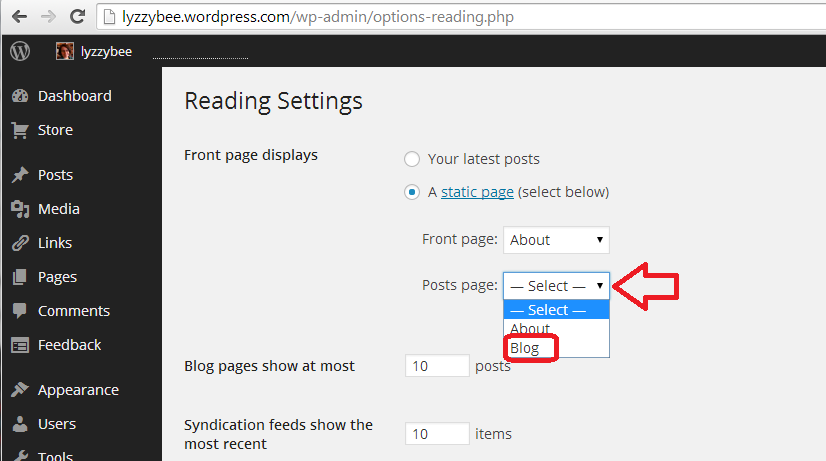
Once in the Reading Settings screen, you can choose what the Posts page (or blog / news page) displays. Here, the default is currently set to nothing (“– Select –“), meaning that no page has been selected to display any blog posts. Click on the down arrow and choose Blog from the list of pages that you have set up (if you have more than two pages, all of them will display here):

Setting the posts page

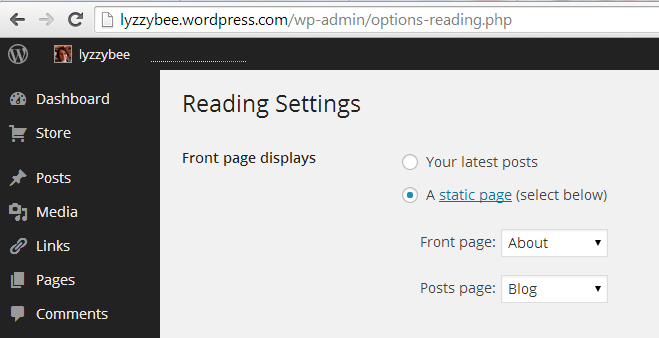
Click on the page you wish to select. You can now see that, after following these two sets of instructions, you have set a home or landing page (static page) and a page on which to display your blog (or news, constantly changing and updating):

Both bome pages set

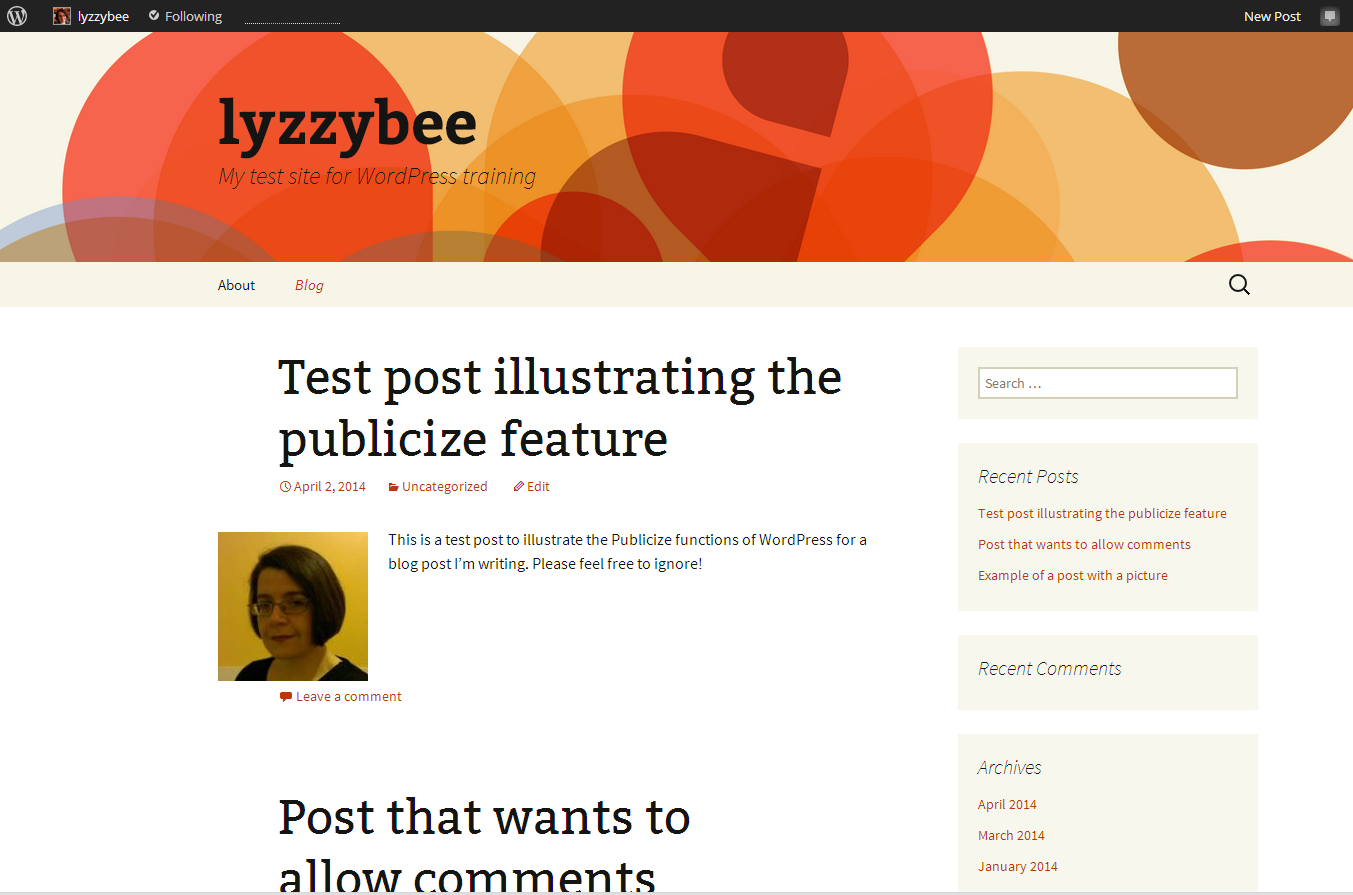
Click on the Save Changes button at the bottom of the screen. When viewing the website and clicking on Blog, you now have a menu item and page that your readers can navigate to in order to read your blog.

Blog page set up

Yes, this is a bit convoluted, but it’s how to make a posts page that’s easily findable by your readers. If you look at the top of this blog post, if you’re viewing it on my website rather than in an email or via an aggregator, you will see Home and Blog among the menu items at the top, and most good sites will have something of the sort.

I hope you’ve found this post useful. Please do share it using the buttons below so that other people can find it and benefit from the instructions! Thank you!

Related posts on this website

You can find all of the social media and blogging posts, including WordPress, in my Resource Guide

Adding pages to WordPress blogs

 
6 Comments

Posted by on May 8, 2014 in Blogging, WordPress


Tags: , ,

Mrs or Ms?

DictionariesI got married recently (hooray!) and when I was buying a new camera to take on our honeymoon, first of all I confused the shop assistant by claiming that the camera was reserved in my new name (Liz Dexter) when my husband had temporarily forgotten he’d married me two days previously and had reserved it in my old name (Liz Broomfield), and then I confused her further, when she was filling in my details on her computer, by stating that my title was “Ms”. She’d never heard of this title, or didn’t know what it signified, and so I thought it would be a handy thing to explain …

Mrs denotes a married woman. English-speaking countries are some of the only places in the world where you can tell whether a woman is married just from her title. Women in opposite-sex and same-sex marriages are free to use this title – some do, some don’t.

Ms denotes a woman. Women in opposite-sex and same-sex marriages are free to use this title – some do, some don’t. You can’t tell if a Ms Dexter is single, married, divorced, separated … anything apart from the fact that she’s a woman. It’s like Mr in that respect.

To get slightly political, people do tend to assume that someone using Ms is not yet married or perhaps divorced. I have no objection to being Mr and Mrs Dexter and to people knowing I am married to Mr Dexter if we meet people out and about and we’re together, or we’re signing up for something in both our names, like the house insurance. But if I’m signing up to a service or buying something independently, I title myself Ms. If more married women do that, maybe eventually we won’t have to have people knowing our marital status when it’s not necessary.

Small print: that’s my choice; I respect people’s right to call themselves whatever they want to call themselves. This post is for informative purposes only. Oh and because I got married!

*Edited to add: please note – this is part of my series of posts on pairs of words which get easily confused and was initiated by my discovery of someone not having any idea what “Ms” meant. This is not any kind of (gender) political manifesto and was intended to provide a light-hearted mention of my recent wedding on my blog, plus to firm up the association of my blog and website with my new name. I’m not trying to incite long and heated discussion on gender politics, naming or patriarchy, or get into long discussions on the background to these two names. Thank you!*

Mrs Liz Dexter

Mrs Liz Dexter

Ms Liz Dexter

Ms Liz Dexter


You can find more troublesome pairs here and the index to them all so far is here.


Tags: , , ,

WordPress 8 – setting a static Home page

This post and the next one will walk you through setting a static Home page for your WordPress blog or website, and then creating a Menu item to allow people to access your blog posts.

Why would I want to set a static Home or landing page?

If you’re writing a blog, the content will update regularly, and the first page that any viewer will come across by default will be your latest blog post. This may not necessarily get across who you are and what the blog / website is for – especially if you’re using it to publicise a company, books, products or whatever else, rather than just using it as a private diary.

We’ve already learned how to add pages to a blog, It’s generally considered a good idea to have a single “static” (i.e. unchanging) page for people to “land on” when they type in your URL or search for your website. For example, the Home page for this website is the one you will reach if you type http://www.libroediting.com into your address line or search for Libroediting.

How do I set a static page to be my landing page?

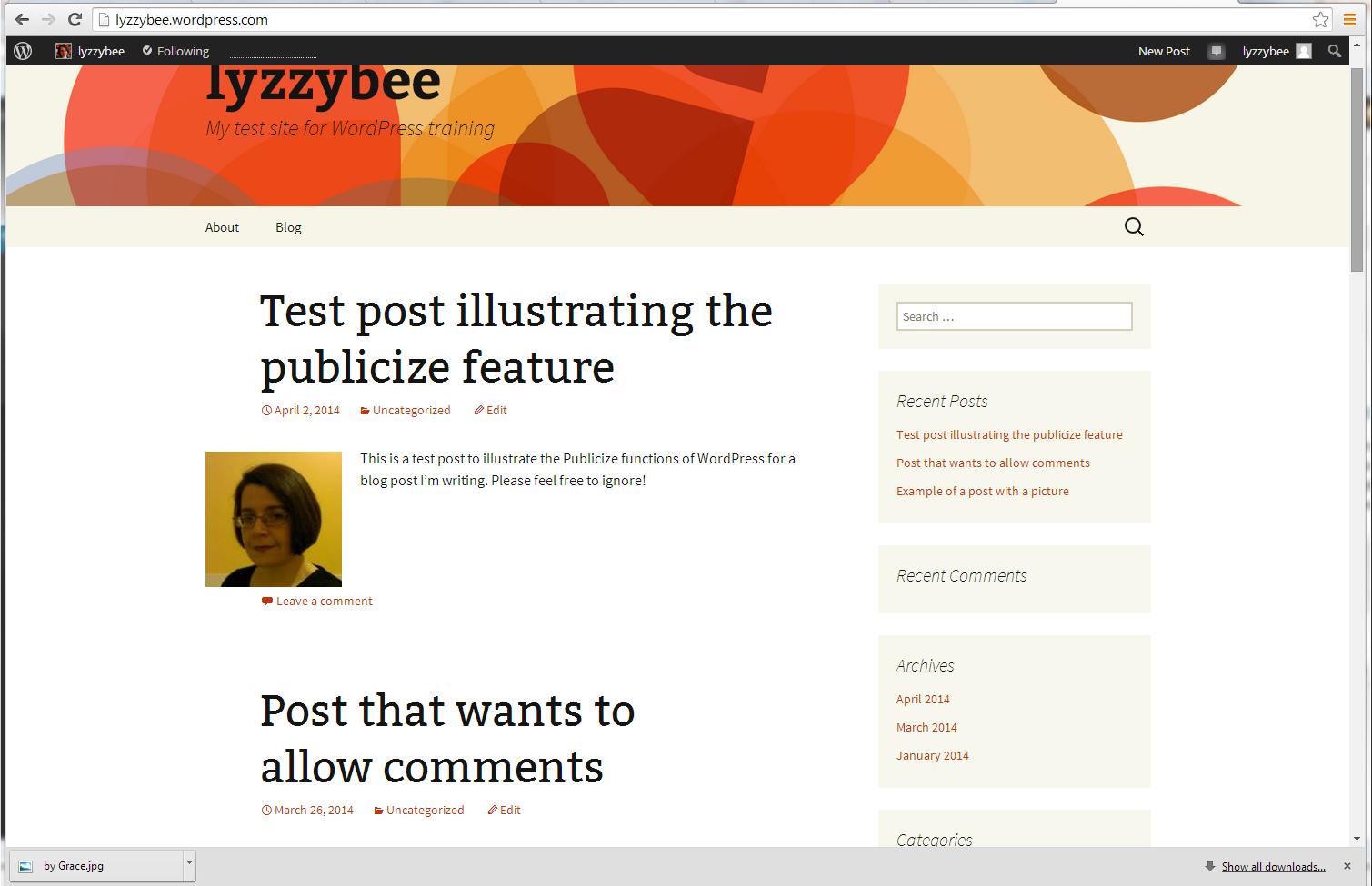
As I mentioned above, by default, WordPress will show visitors to your page your latest blog post. For example, if I enter the URL http://www.lyzzybee.wordpress.com, the first thing that I will encounter is the latest blog post on my blog. It’s particularly important in this case NOT to have this showing first, as I only post test and illustrative messages on this blog!

default WordPress view - blog posts

Instead of this long list of blog posts, I want to display a static page when people visit the site (remember – pages are static, unchanging pages like you find on any website; posts are constantly updating, dated diary entries).

Let’s remind ourselves of how to view what pages we have set up. In the Dashboard, select Pages then All Pages:

Pages menu in WordPress

Now you will be able to have a look at what pages you have set up. In this case, I’ve just got one page, called “About”. I might want to set up a Home page in the future, as I have on the blog you’re reading right now, but for now, I know I’ve got at least one page I can use as a landing page.

List of pages

To set one of these pages as the landing or Home page, go into Dashboard, then Settings and Reading:


Setting home screen

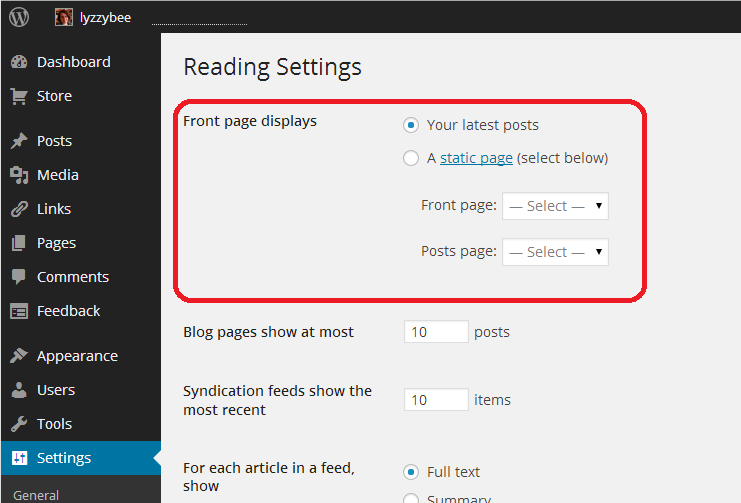
Once in the Reading Settings screen, you can choose what the Front page (or landing / home page) displays. Here, the default is currently set, so “Your latest posts” is selected, meaning that the first page your viewers see will be those blog posts.

Setting home screen

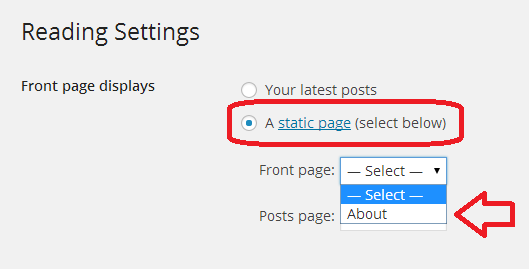
Select “A static page”, then drop down the list of pages. In this case, we only have one, but if you have more than one page, a list of all of them will appear here:

Choose a static page

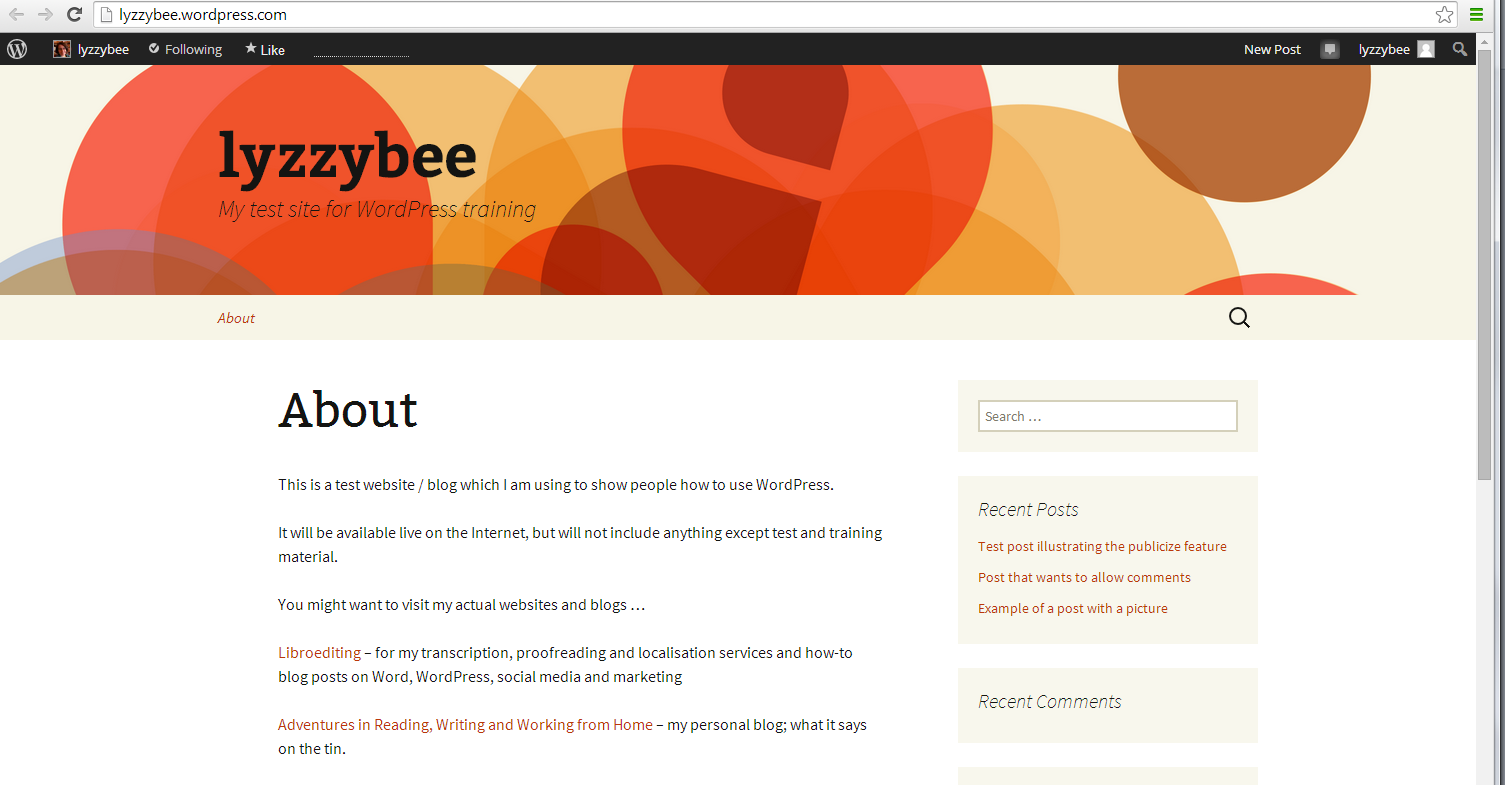
Click on the page you wish to select and then the Save Changes button at the bottom of the screen. When viewing my website now, people will see my About page first of all.

Public view of landing page

But how do people find my blog posts now?

Read my next post for instructions on how to make your blog posts more visible … Don’t panic, though – as you can see on the screenshot above, WordPress defaults to showing your recent posts in the sidebar, so your readers can click there to navigate to your blog.

I hope you’ve found this post useful. Please do share it using the buttons below so that other people can find it and benefit from the instructions! Thank you!

Related posts on this website

You can find all of the social media and blogging posts, including WordPress, in my Resource Guide

Adding pages to WordPress blogs

 
4 Comments

Posted by on April 30, 2014 in Blogging, WordPress


Tags: , ,

How to Set up a WordPress blog 7: Adding your profile picture or avatar

In this post about WordPress I’m going to tell you how to add your image to your blog, so that it appears on your comments and replies to comments. This gives a human face to your blog (if you choose to use an image of a human face, of course!) and makes it nice and tidy and complete.

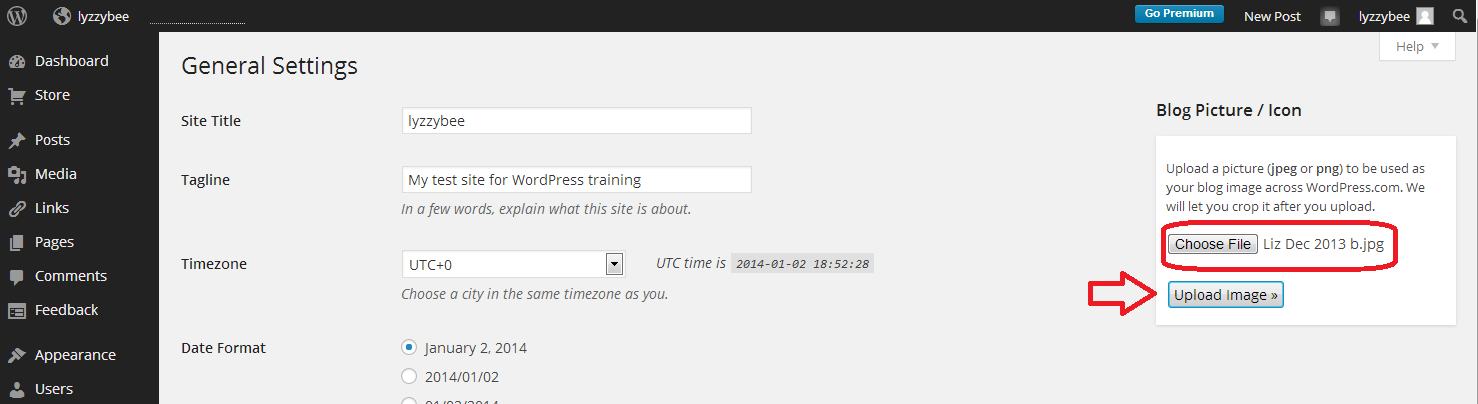
To add or change your user image, go to the Dashboard and choose Settings then General:

12 setup

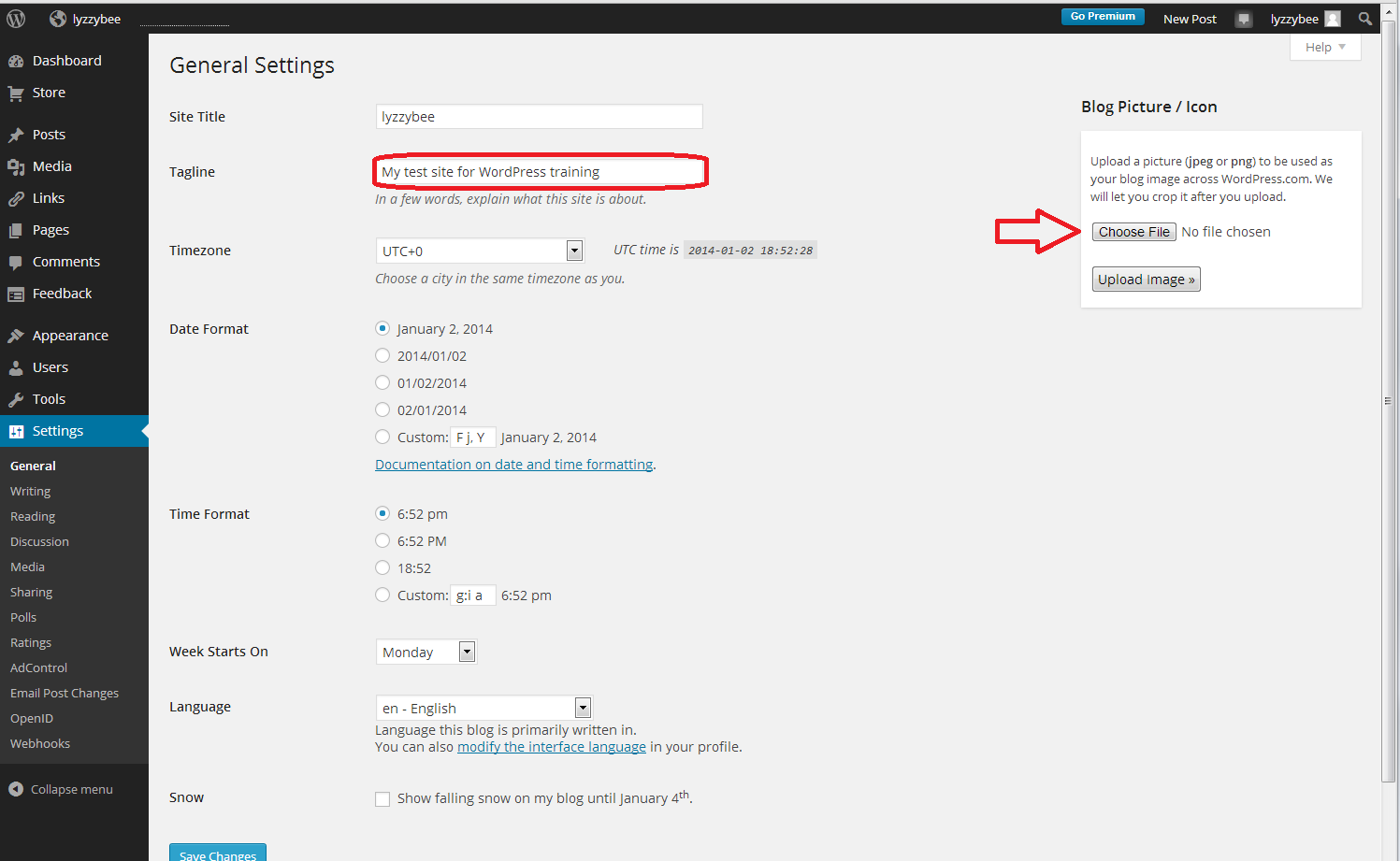
The General Settings are where you do things like changing the title and tagline for your blog – and over to the right, you can change your blog picture or icon. Click on Choose File:

14 setup

This will take you into your standard File Explorer, where you can navigate to find the picture file you want to use. Once you’ve clicked on the image and OK, you need to click Upload Image:

15 setup

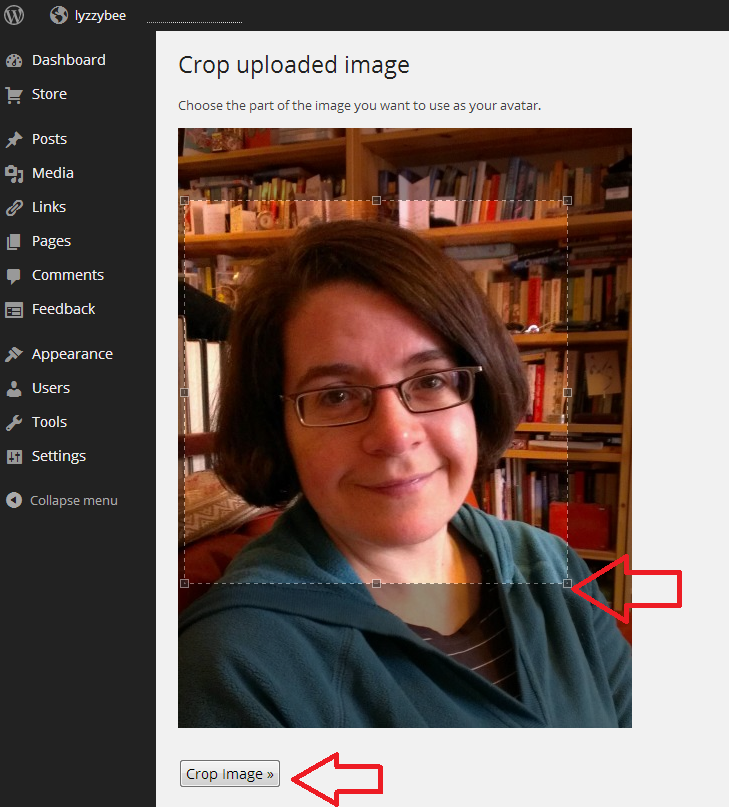
Once the image has uploaded, you’ll have the opportunity to crop it. The image will be quite small on the page, so it’s important to have your face (or the main part of whatever image you use) filling the little square. Move the dotted lines around the square until you’re happy that you have a big, central image:

16 setup

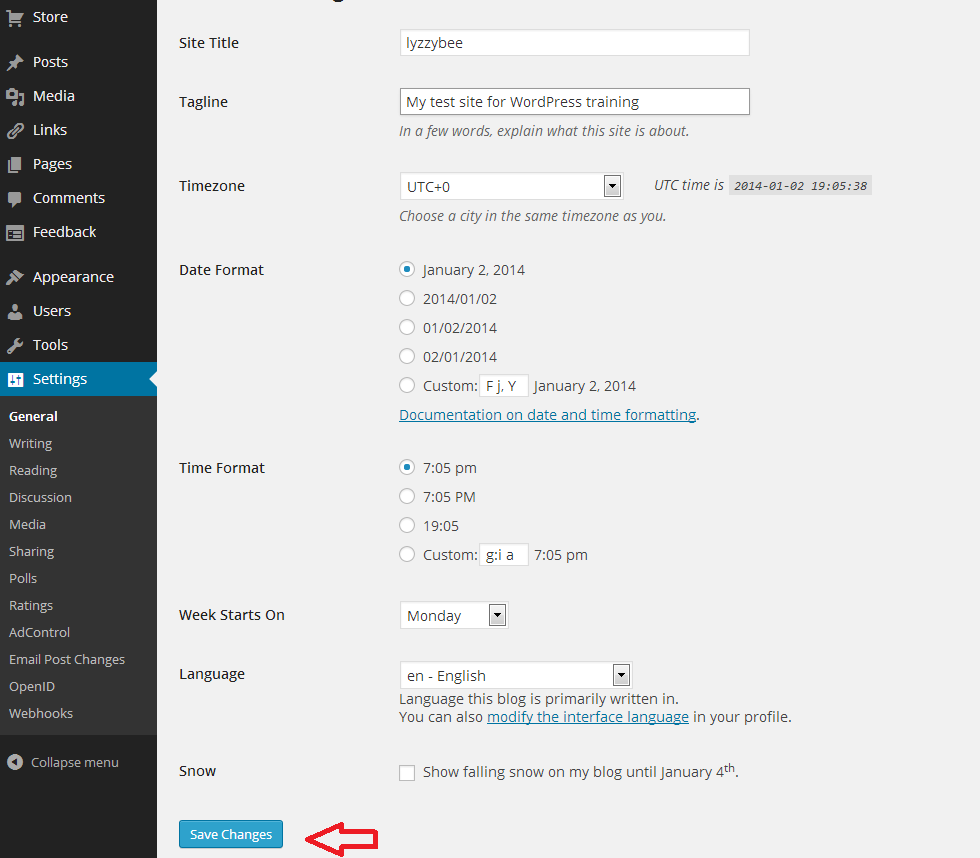
Then click Crop image and you will return to the main screen. Once there, click on Save Changes:

14.5 setup

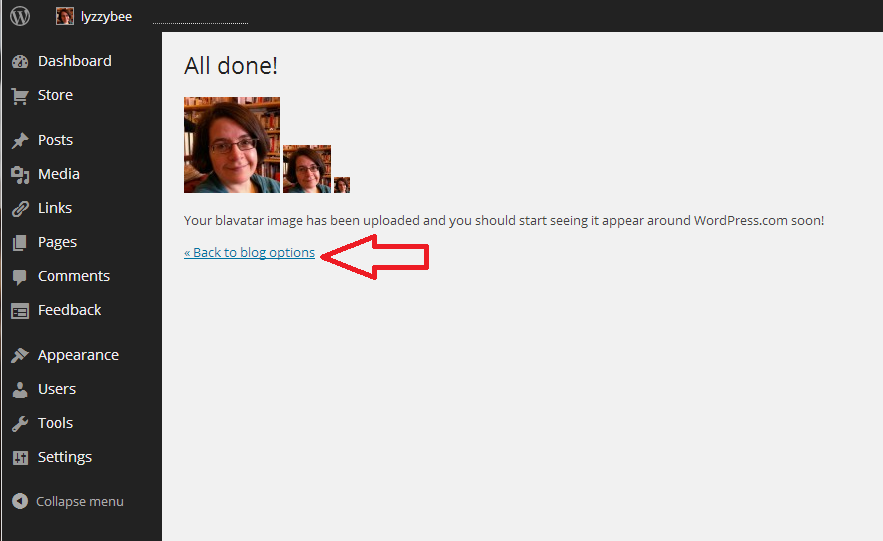
You will be shown what your image will look like in various places on your blog. Go Back to blog options anyway, but you can always go back around the loop and change or upload a new picture.

17 setup

This article has told you how to add and update your image on WordPress. If you found it useful, please add a comment and share using the sharing buttons below. Thank you!

Related posts on this blog:

WordPress 1 – the basics

WordPress 2 – adding pages to create a website

WordPress 3 – adding images to your post or page

WordPress 4 – adding slideshows and galleries of images

WordPress 5 – linking your blog to your social media

WordPress 6 – sharing buttons


12 Comments

Posted by on April 24, 2014 in Blogging, WordPress


Tags: , ,

Formally or formerly?

DictionariesOne of my readers, Graham, suggested this troublesome pair – I always l like to receive suggestions of pairs to write about, so do drop me a line if you’ve checked the index first and I haven’t written about your favourite!

Formally is an adverb formed from the adjective formal, and means being done by the rules of convention or etiquette, officially recognised, with a conventional structure, form or set of rules. “He replied formally to her gilt-edged invitation”, “I was dressed formally as it was a high-class event run by the establishment!.

Formerly is an adverb that means in the past; before whatever is being discussed now.

“Formerly, for example in the 19th century, social visits were done much more formally, according to established rules and customs. Now everything is much more relaxed and informal, with people dropping in to see each other without having to leave a card in the hall first.”

You can find more troublesome pairs here and the index to them all so far is here.


Tags: , , ,

How to allow comments on your WordPress blog posts

I recently had a cry for help from a friend: she’d posted her first blog post but it wasn’t letting anyone post comments. I told her about the standard way to allow / disallow commenting on blog posts, but that wasn’t helping, and I ended up rolling up my sleeves and ferreting around in her blog Dashboard myself before discovering the answer to our dilemma. So here I’m going to share the correct way to allow comments, and then the way to change your preferences on individual posts – which I have to say is not obvious.

Please note that this works for WordPress.com blogs and not for self-hosted blggs and their themes – you will need to look at the widgets you can download for that.

How do I allow comments to be made on blog posts?

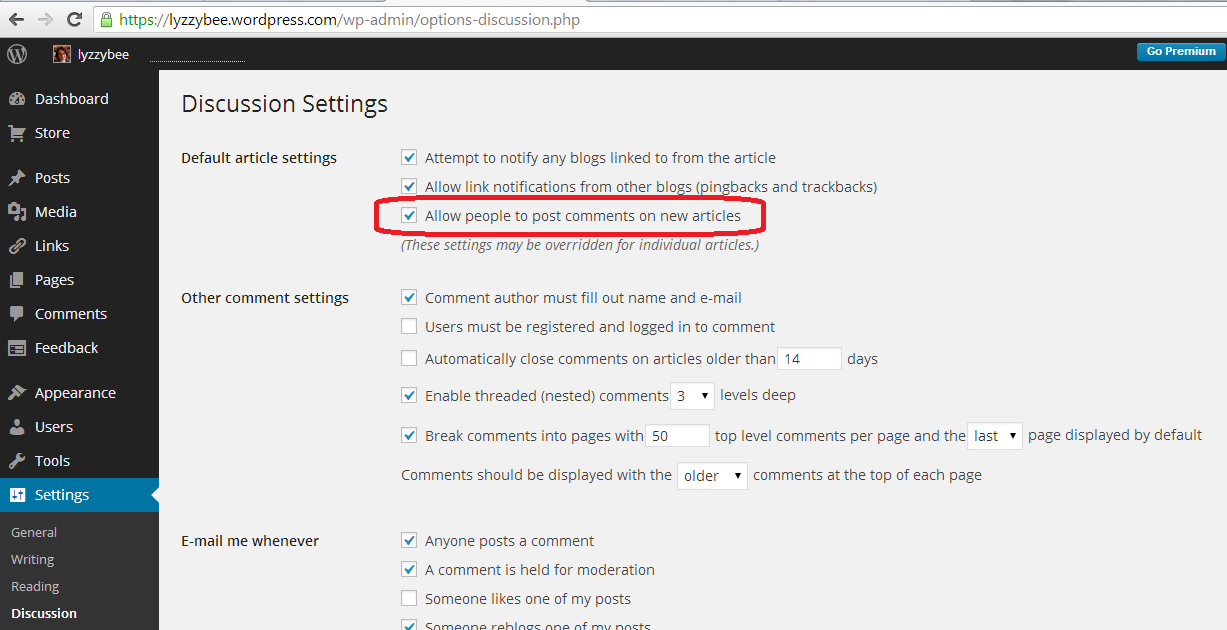
We all want people to be able to interact and make comments on our blog posts (well, most of us). The way to set this up is in the Dashboard, Settings, Discussion. I’ve talked about this at length in another post, so have a look here if you want all the details, but basically you can choose to allow comments on blog posts here:

18 setup

As I said above, have a look at my basic WordPress article for all of the information about how this page works: for now, just make sure that Allow people to post comments on new articles is ticked.

allow comments

How do I allow / disallow comments to be made on individual blog posts?

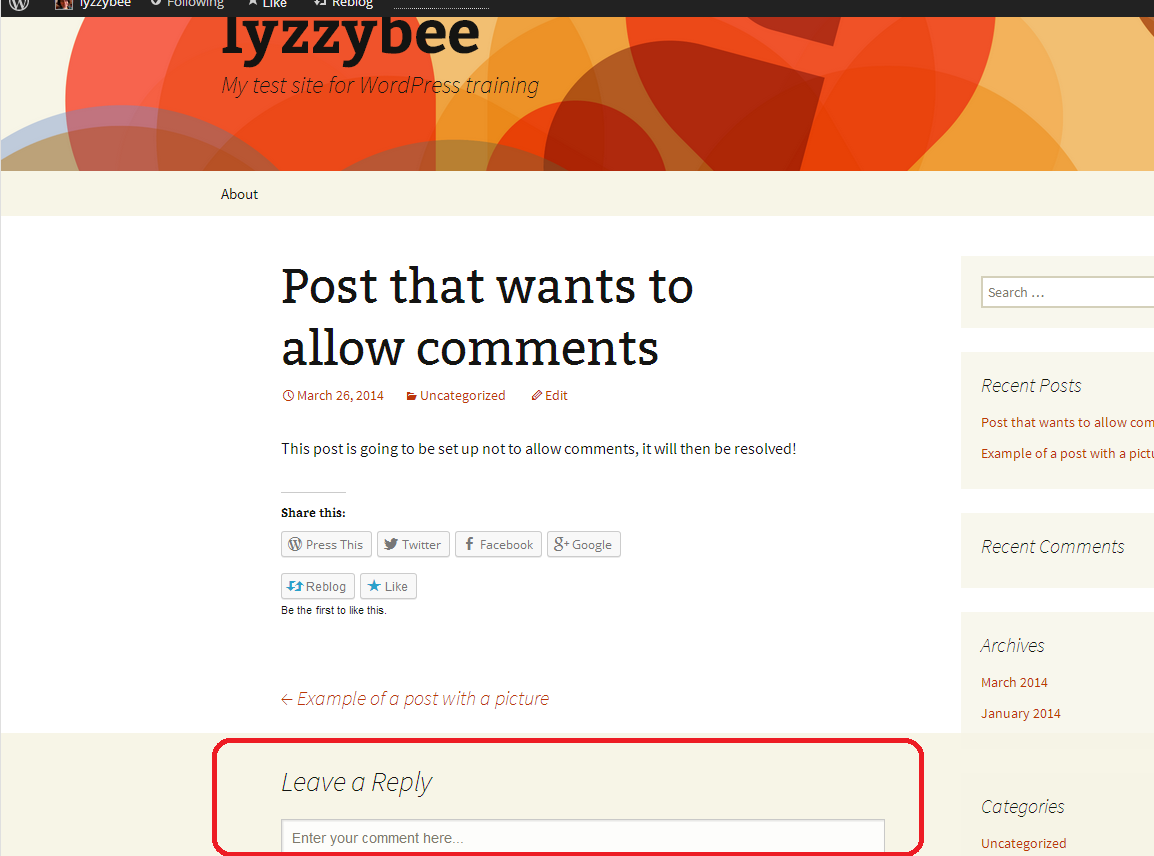
So now we know how to allow comments in general. But what if you’ve created a post and people can’t comment on it? Here we have a post with no place to add a reply or a comment:

no comments

I want to encourage people to post comments – so how do I do that? You might think that this is done in the Edit screen for your post. But it isn’t.

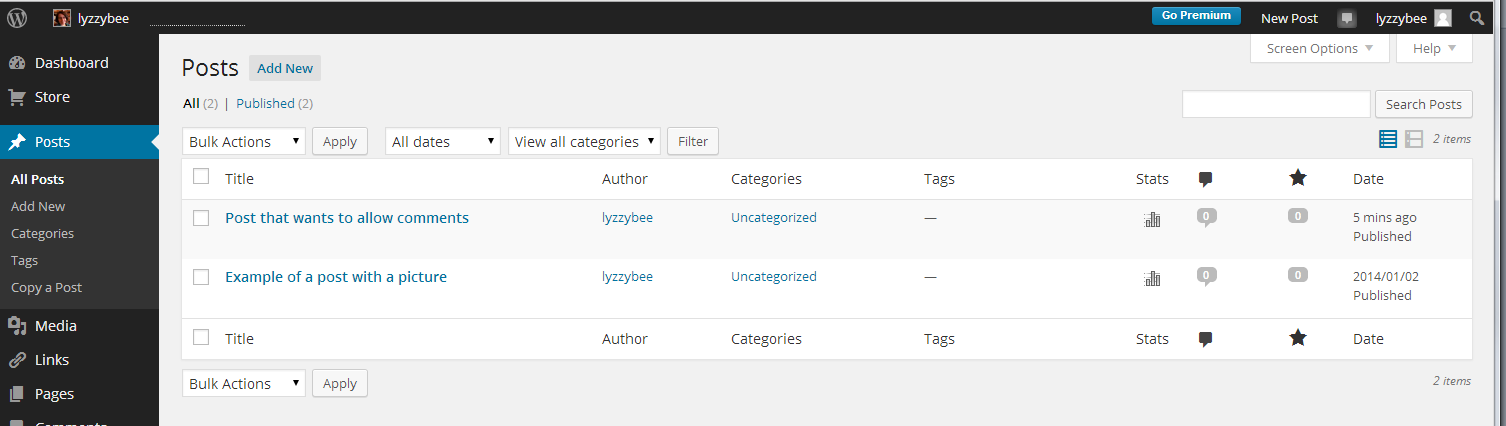
To enable or disable comments on an individual post, you need to go to Dashboard, then Posts, then All Posts, until you get this view of all of your posts in a table:

all posts

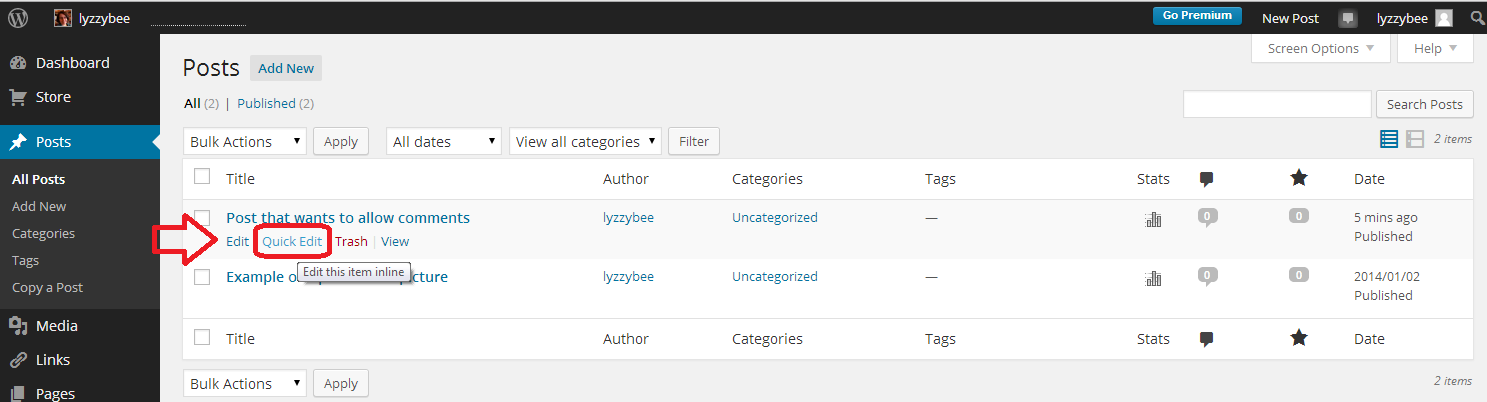
Now, hover with the cursor over the post that you want to edit – in this case the top one, and a list of options will appear. Click on Quick Edit:

quick edit

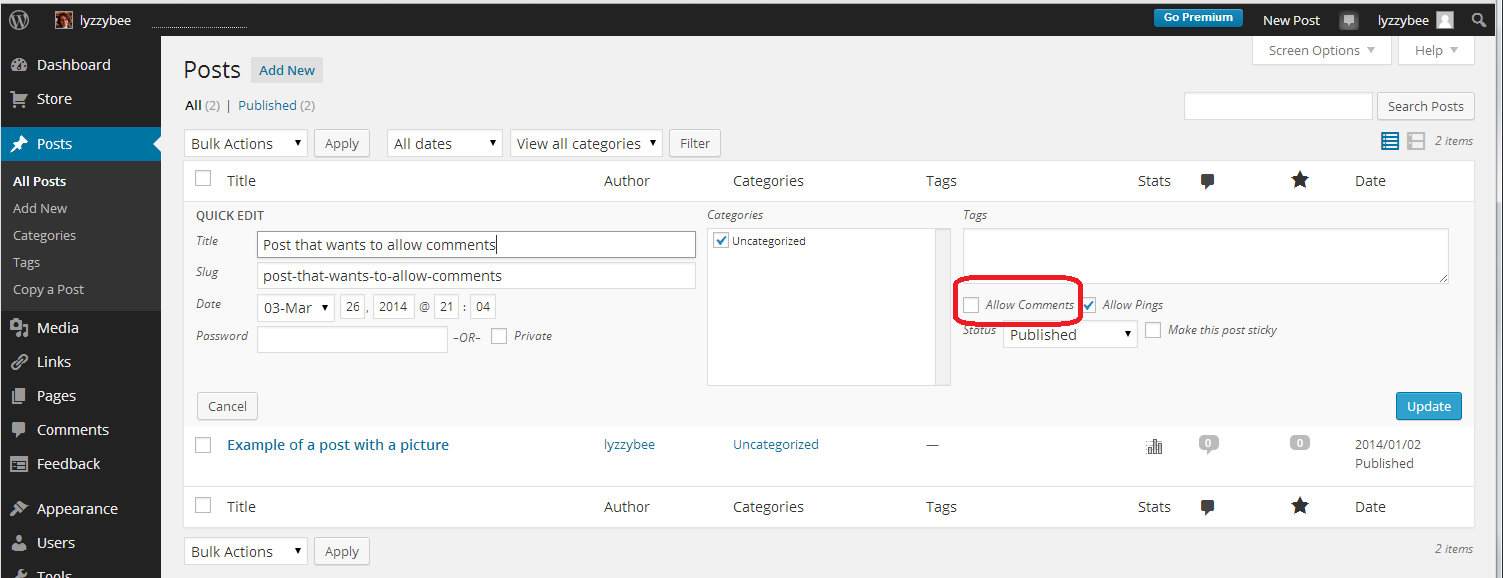
Now you will see the Quick Edit screen, where you can change things like tags and categories, the blog title and … the comments. Here the Allow comments box is unticked:

allow comments option

Tick Allow Comments:

allow comments option ticked

Press the Update button. When we view the page, now anyone can add a comment:

comments

This post has sorted out the problem of how to enable comments on an individual blog post. If you found it useful, please do let me know in a comment, and click on the sharing buttons below. You might want to explore the related WordPress articles on this blog, too.

Related posts on this blog:

WordPress 1 – the basics

WordPress 2 – adding pages to create a website

WordPress 3 – adding images to your post or page

WordPress 4 – adding slideshows and galleries of images

WordPress 5 – linking your blog to your social media

WordPress 6 – sharing buttons

 
48 Comments

Posted by on April 16, 2014 in Blogging, WordPress


Tags: , ,

Phase or faze?

DictionariesI find these two words being mixed up quite commonly, and it’s one of those ones that … I won’t say it annoys me, because I try to remain calm and focused on the sense of the writing in the face of errors, but it sometimes makes me a bit tense.

The incorrect usage is always in one direction of the confusion. I’ll show you what I mean …

A phase is a distinct period of time or stage (“we are doing the building work in three phases: foundations, walls and roof, with gaps to raise money in between”) and it has some complicated scientific meanings which are related to this idea of separateness and which we probably don’t need to go into here.* The verb to phase (in/out) means to carry out a process gradually (“We are phasing in the new hires so everybody doesn’t arrive at once”) and is used in those scientific contexts I talk about below.

What phased does not mean is confused or discombobulated.

To faze is to confuse, disturb or discombobulate – so the past tense is fazed. “I was fazed by the information he was bombarding me with and had to take a break”.

Faze – confuse. Phase – time period or other separate thing.

“I was not fazed when the phases of the traffic lights were altered, because I had read the notices and knew it was about to happen.”

*Oh, alright then, if you insist: in physics, it’s the relationship in time between the cycles of a system and a fixed point in time; in chemistry it’s a distinct form of matter that is separate from other forms in terms of its surface; and in zoology, it’s the variations in an animal’s colouring depending on the seasons or genetics.

You can find more troublesome pairs here and the index to them all so far is here.

 
1 Comment

Posted by on April 14, 2014 in Errors, Language use, Troublesome pairs, Writing


Tags: , , ,

Using LinkedIn for your business

Using LinkedIn for your business

LinkedIn is seen primarily as a networking tool for the more corporate end of the market. However, you can set up your own business page on LinkedIn now, and there is a lot more interactivity and ‘social’ activity than there used to be – or than you might think.

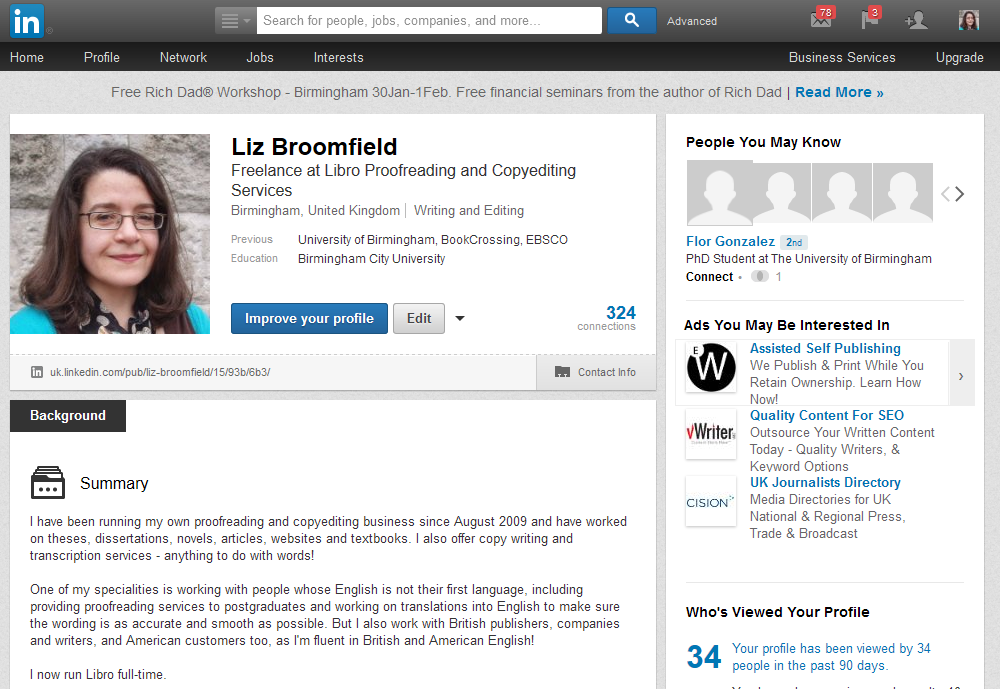
Setting up a LinkedIn profile

Once on www.linkedin.com you can join up and set up your profile.
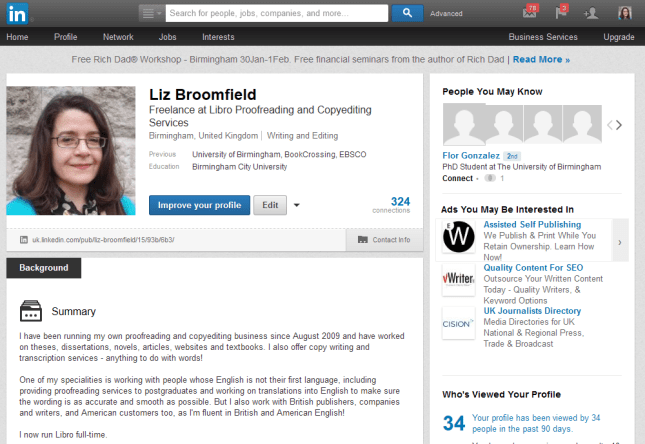
1 profile

It’s a good idea to include as much information as you can on here – and in a professional way. While it’s never a good idea to allow typos and grammatical errors on any professional profile, it’s vitally important here, as people tend to make more of an effort, and so any errors will be very glaring.

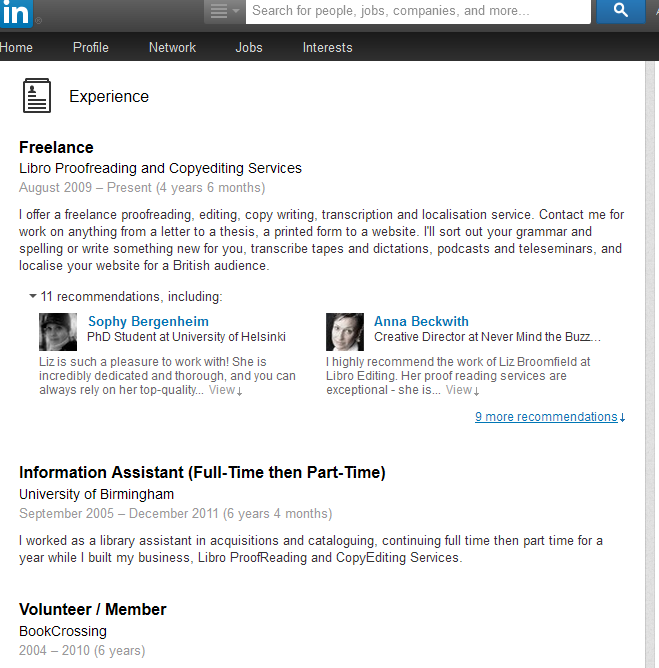
There are various sections to fill in on the profile; including past jobs allows your ‘network’ to grow, as LinkedIn, unlike other social media, will not let you even request to connect to just anyone. For example, I’ve added my experience in here:
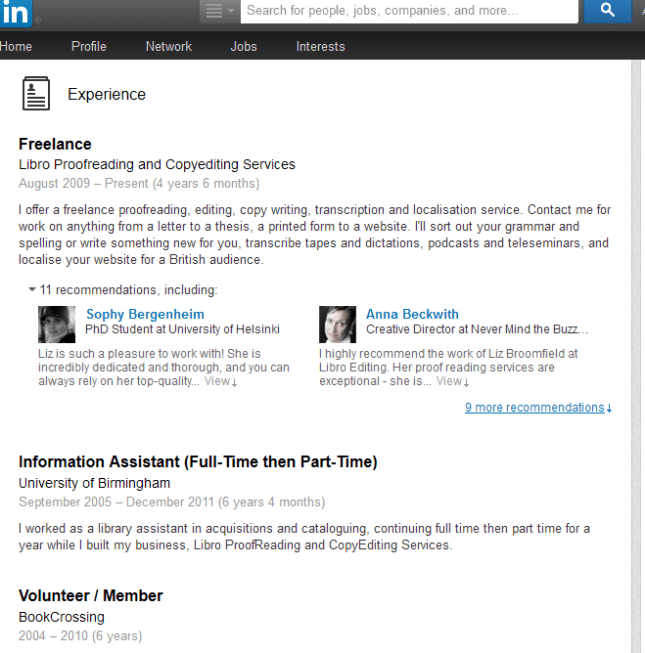
2 profile

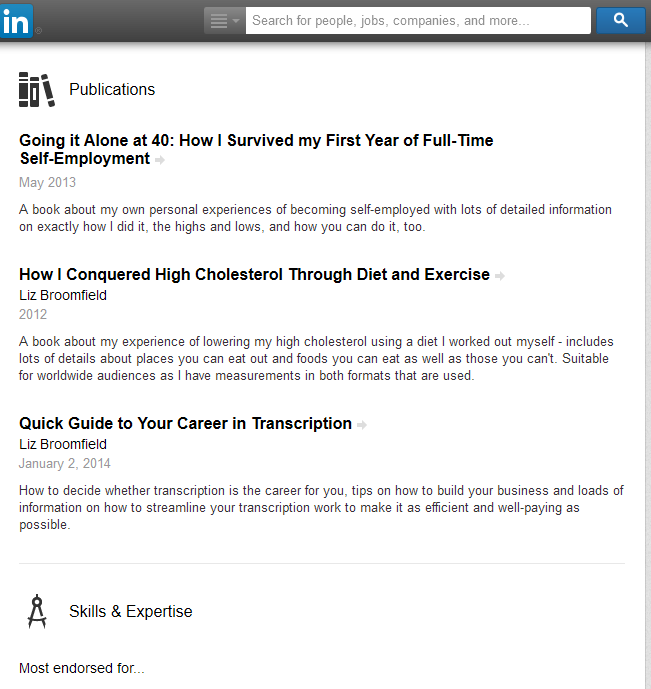
… and I’ve added information about the books I’ve written in the Publications section:
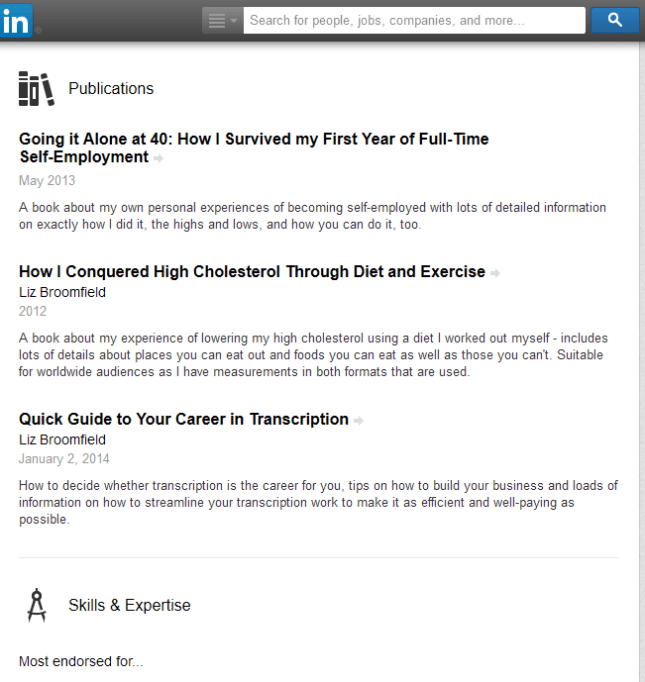
3 profile

Find your way around LinkedIn

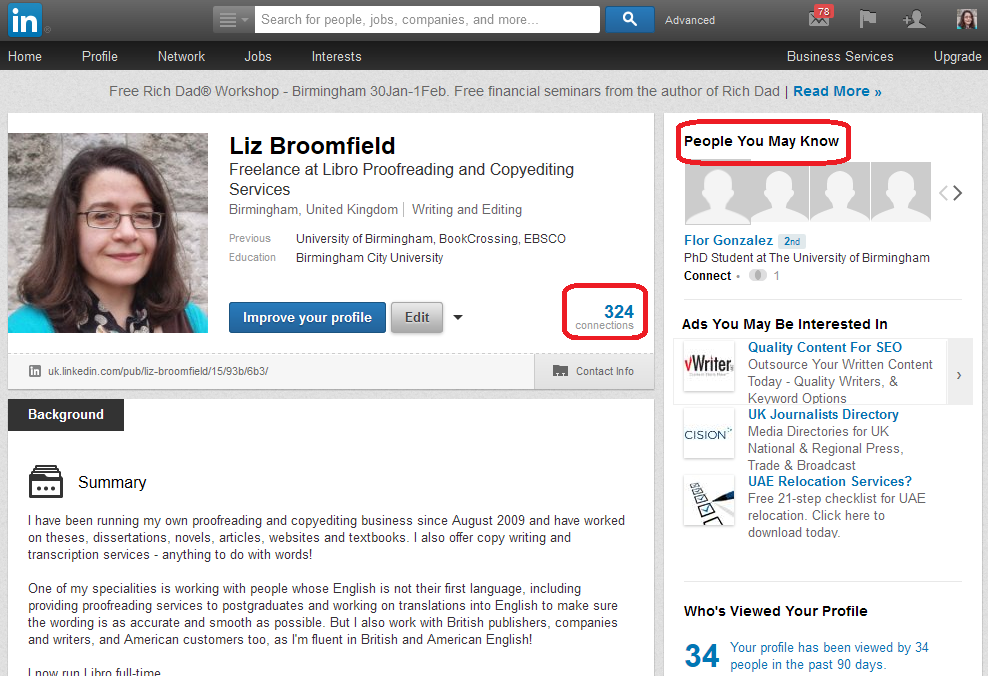
Your home page will contain a feed a little like your Facebook timeline, with updates from people to whom you’re linked. To find people to link to, you can search in the search box at the top of the screen. Once you’re linked to someone, they will appear in your Connections list, which you can access by clicking the [number] connections icon to the bottom right of your profile picture area.

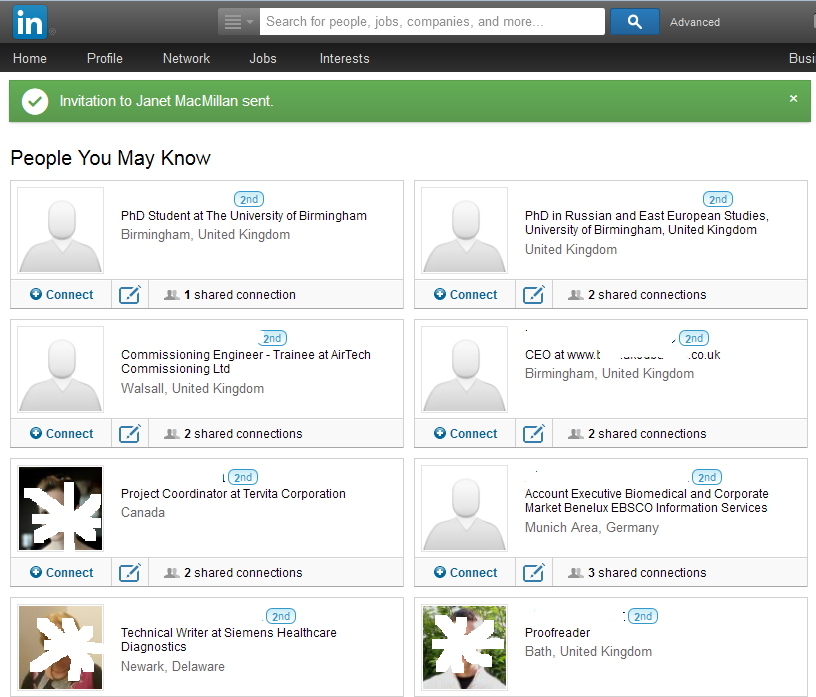
Your profile also includes a link to People You May Know. This will give you people in networks connected to you by other connections, workplaces or interest groups to whom you might want to link.
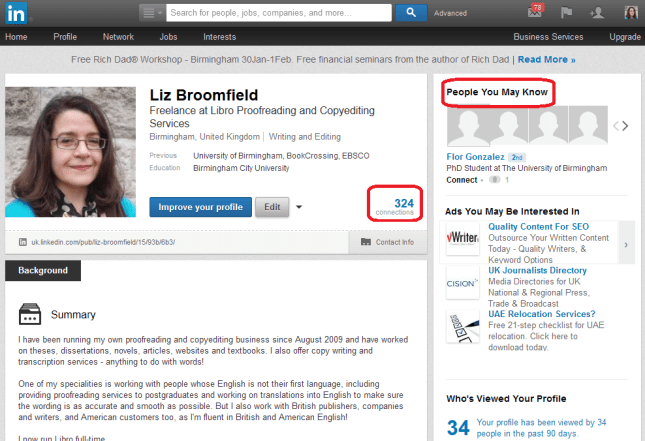
4 connections

Click on People you may know and you’ll be given a list of possible connections (I’ve blanked out names and obscured photographs because this is my own LinkedIn profile):
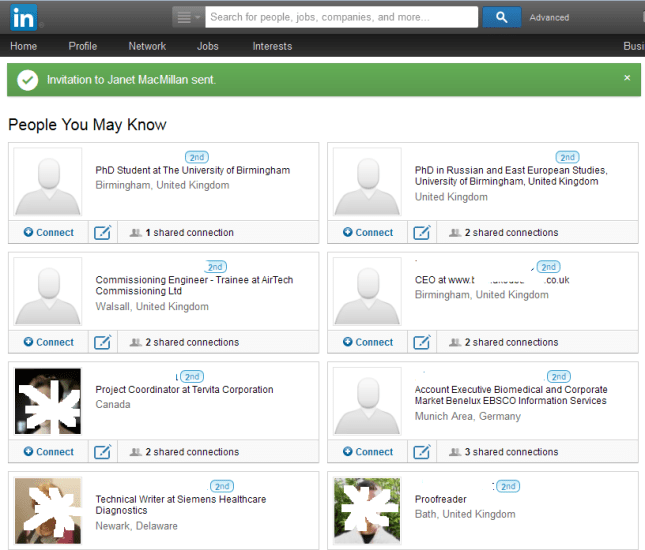
10 people you may know

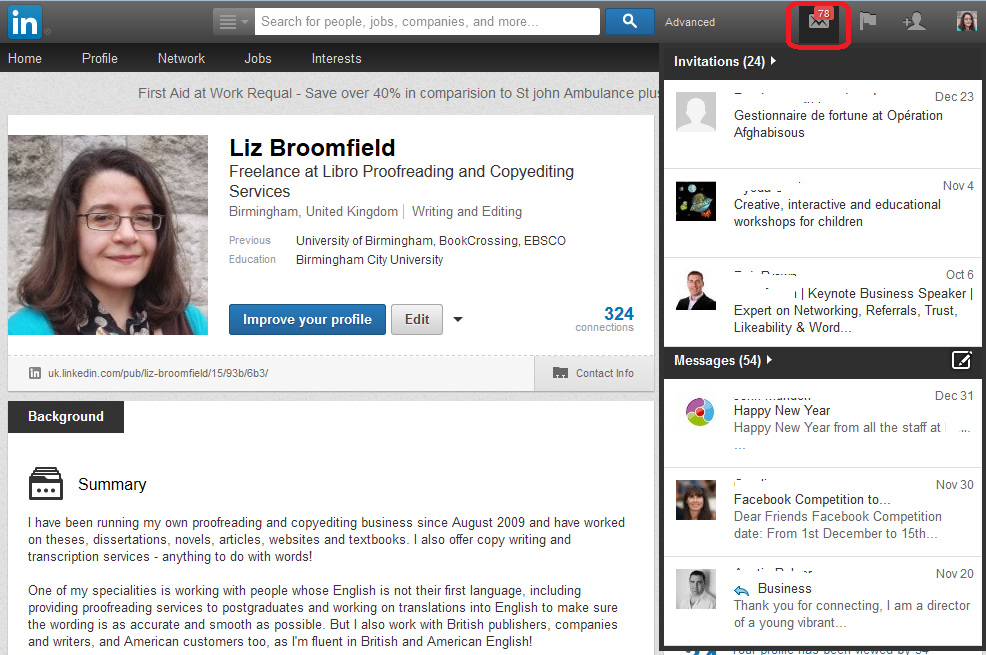
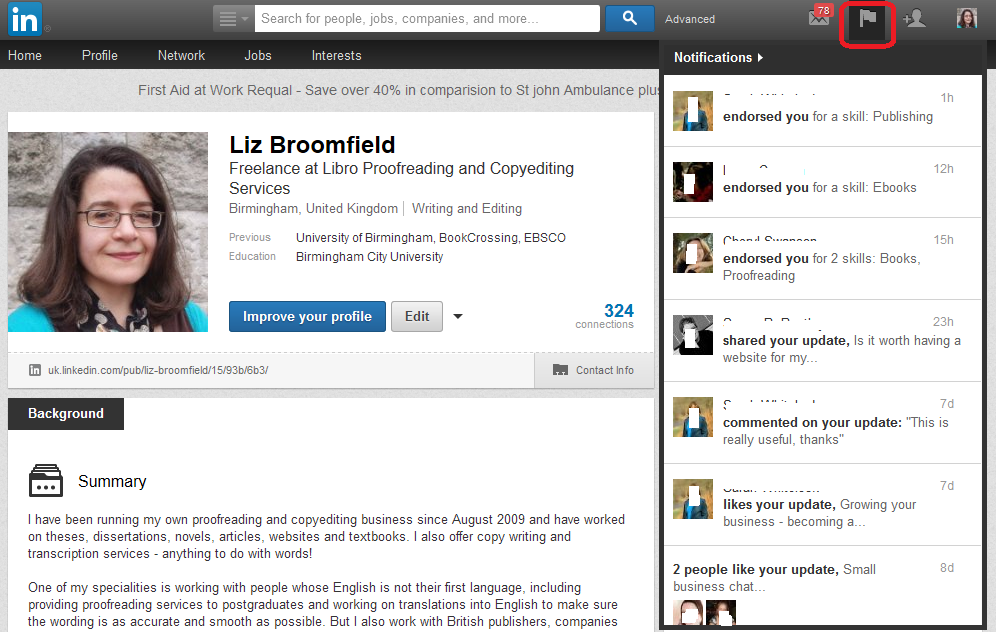
You can see your invitations and notifications at the top right.

Invitations allow you to see who has invited you to connect and any messages they’ve sent you via LinkedIn:
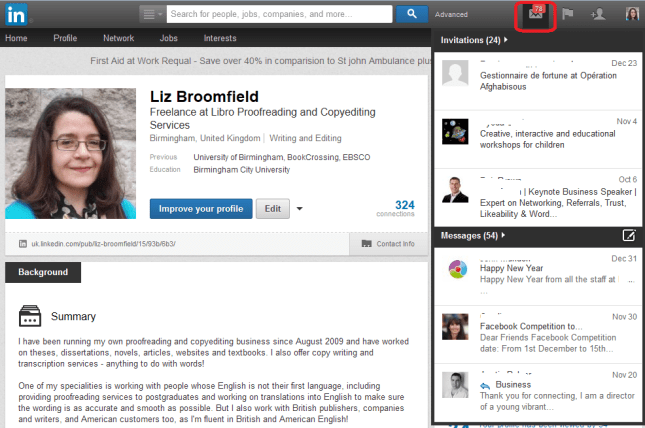
11invitations

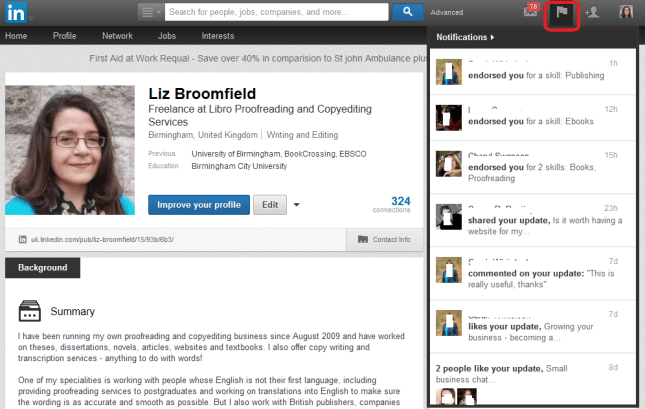
Notifications show you who has liked your updates or shared your profile:
12 notifications

Linking to people on LinkedIn

LinkedIn is different from other social media networks, in that you have to have a tangible connection to a person in order to ‘Link’ to them. If you find someone you want to link to and press Connect, you’ll be asked how you know that person. If you say that they’re a colleague, or that you’ve done business with them, you’ll be asked which of your jobs they are a colleague from – that’s why it’s important to list all of the companies that you have worked for on your profile. If you say that they’re a friend, you’ll be asked to prove you know them by providing their email address.

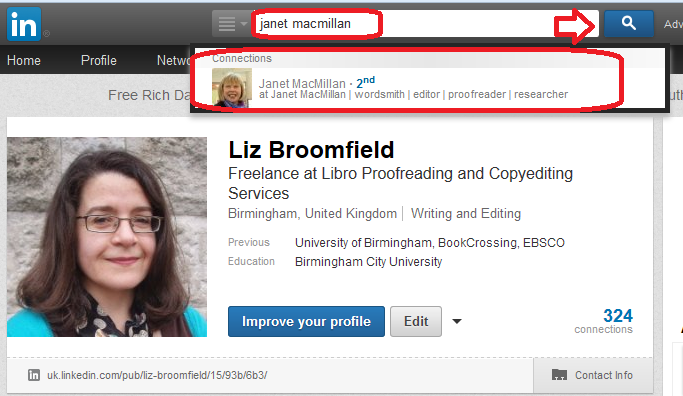
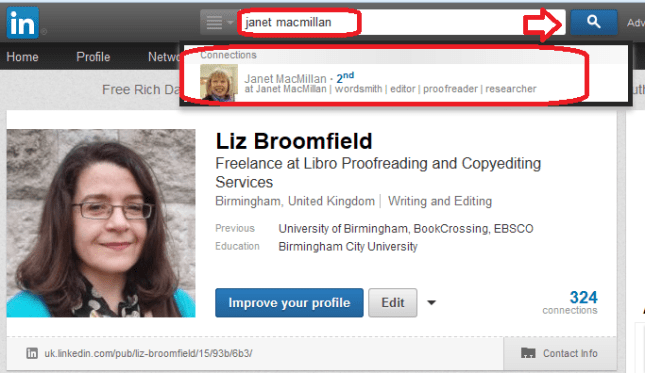
You can find people just outside your network by clicking on the People You May Know link. This will give you a list of either friends of friends or people who have said that they work or have worked at the same organisations that you’ve worked at. You can connect to these people in the same way. You can also search for people using the search box at the top of the screen (Note; I asked Janet’s permission to use her profile in these images):
5 search

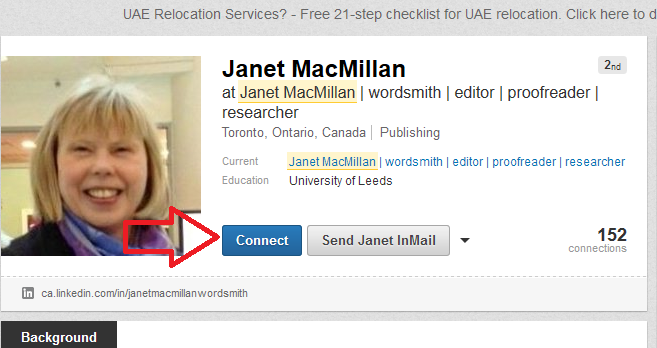
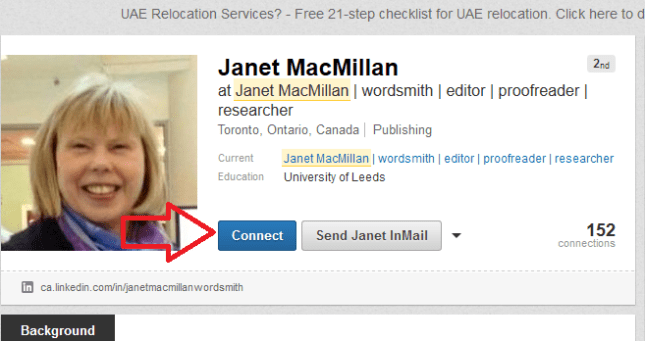
However you access them, click on the person’s name to see their profile and then use the Connect button to ask them to link to you:
6 connect

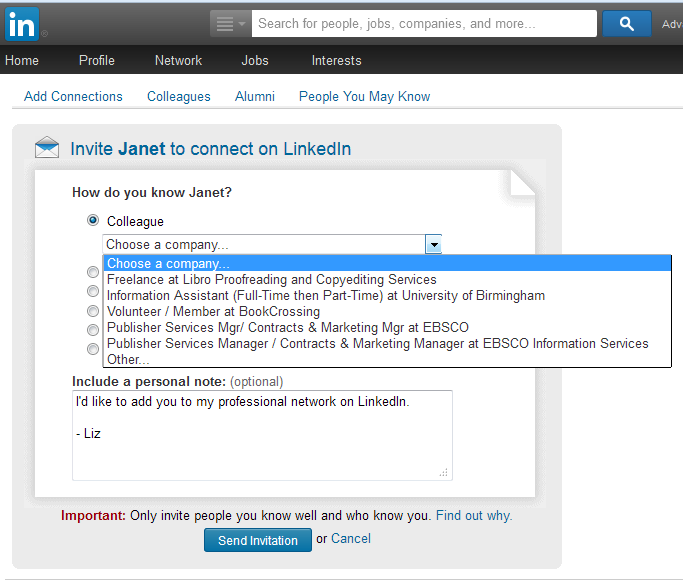
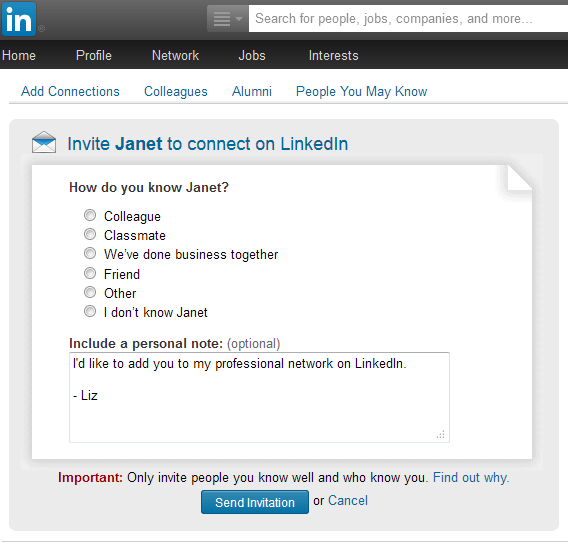
It will then ask you how you know that person: when you click on one of the radio buttons, you will be asked for more detail.
7 connect

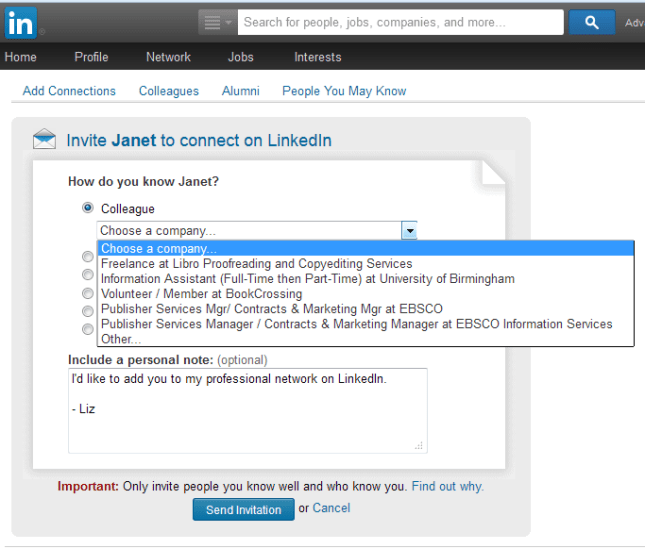
Here, I’ve clicked Colleague, so then it will ask me which company that I’ve worked at relates to this:
8 connect

Setting up a company page

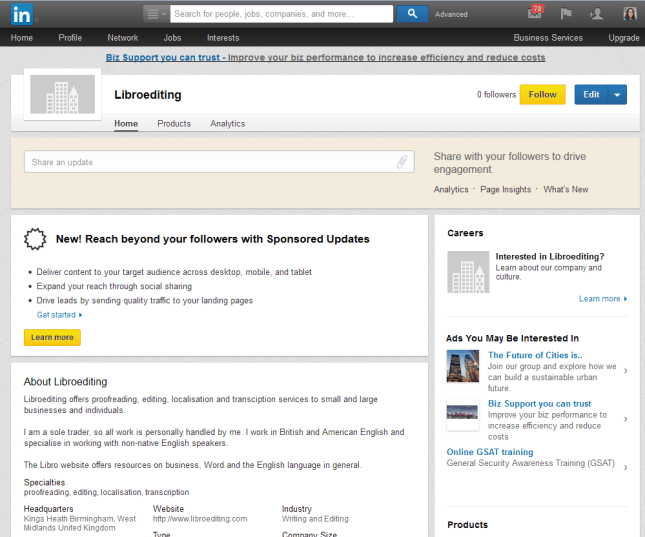
You can set up a company page on LinkedIn for your business – this will give people another way to find you and will provide another link to your website and other social media.

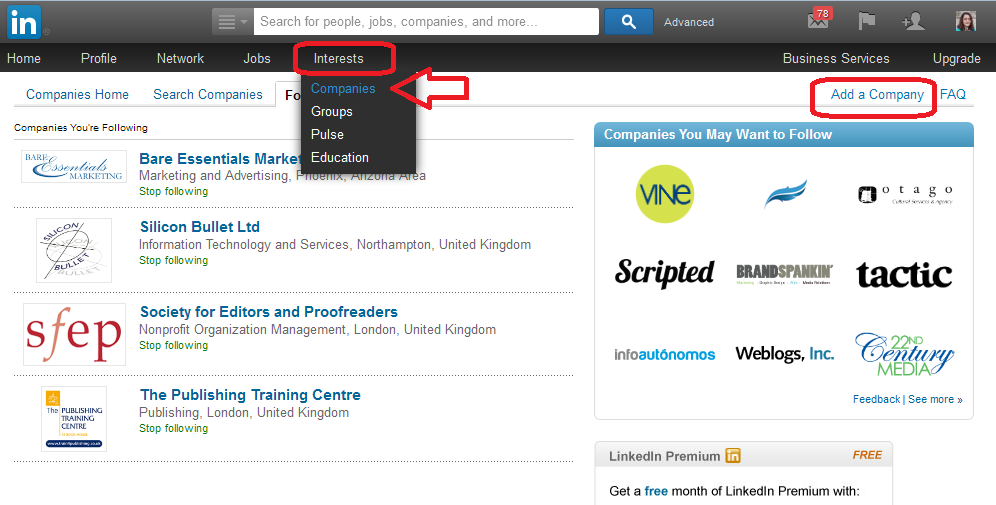
To set up a company page, click on Interests at the top, then Companies from the drop-down.
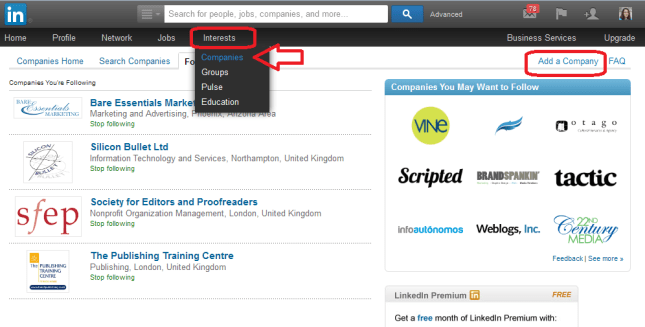
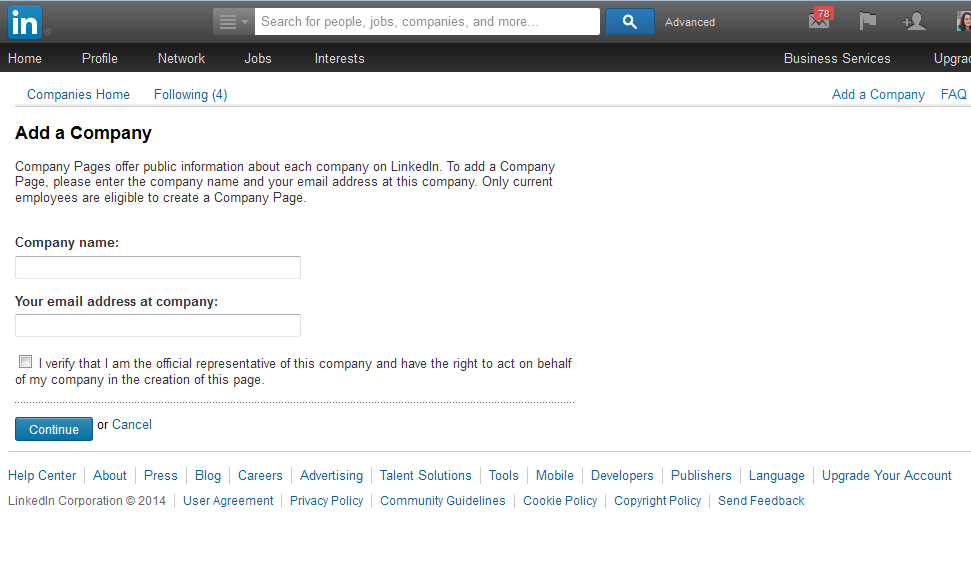
13 add a companyAt the top right of the next page you’ll find a link for Add Company.
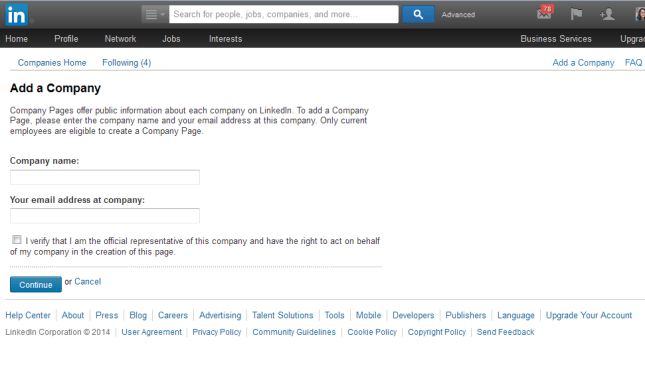
14 add a companyYou will first need to confirm that you’re eligible to create and moderate this page, so there will be an email sent to you to confirm, and you must have a personal LinkedIn account to create a company page.
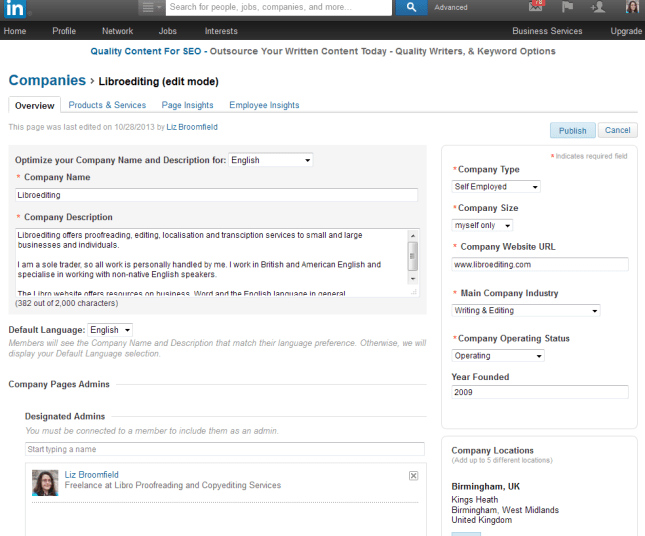
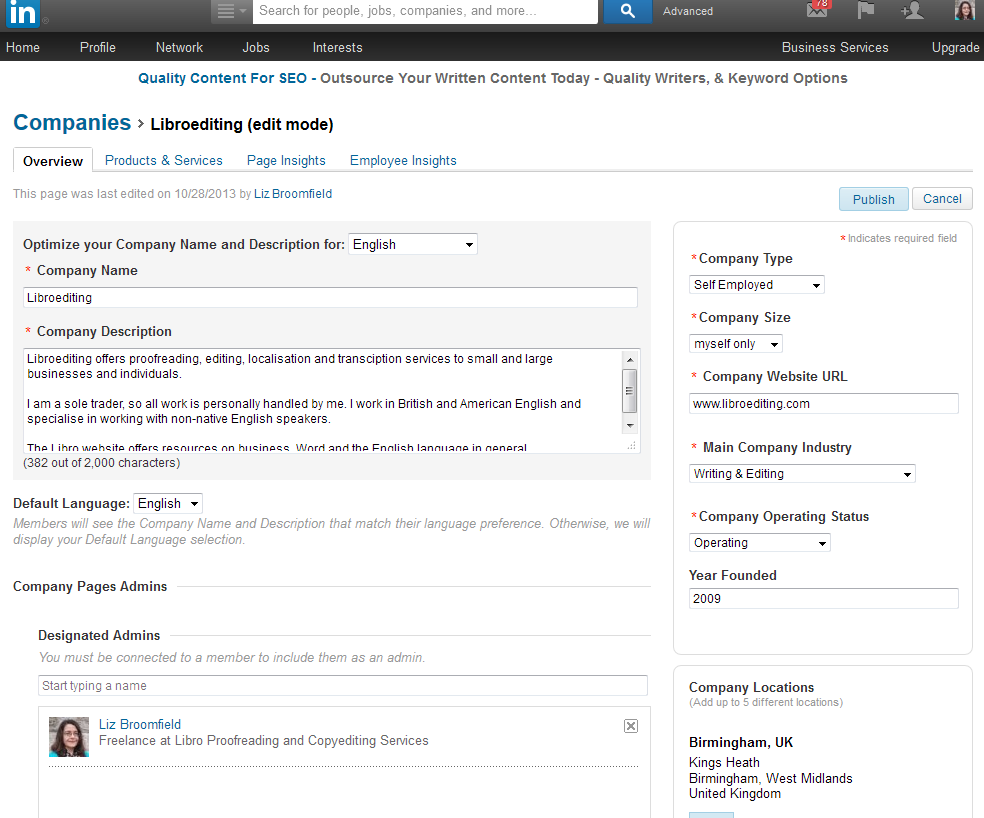
14.5 add a company

Fill in all of your company’s details and save – and there you go.

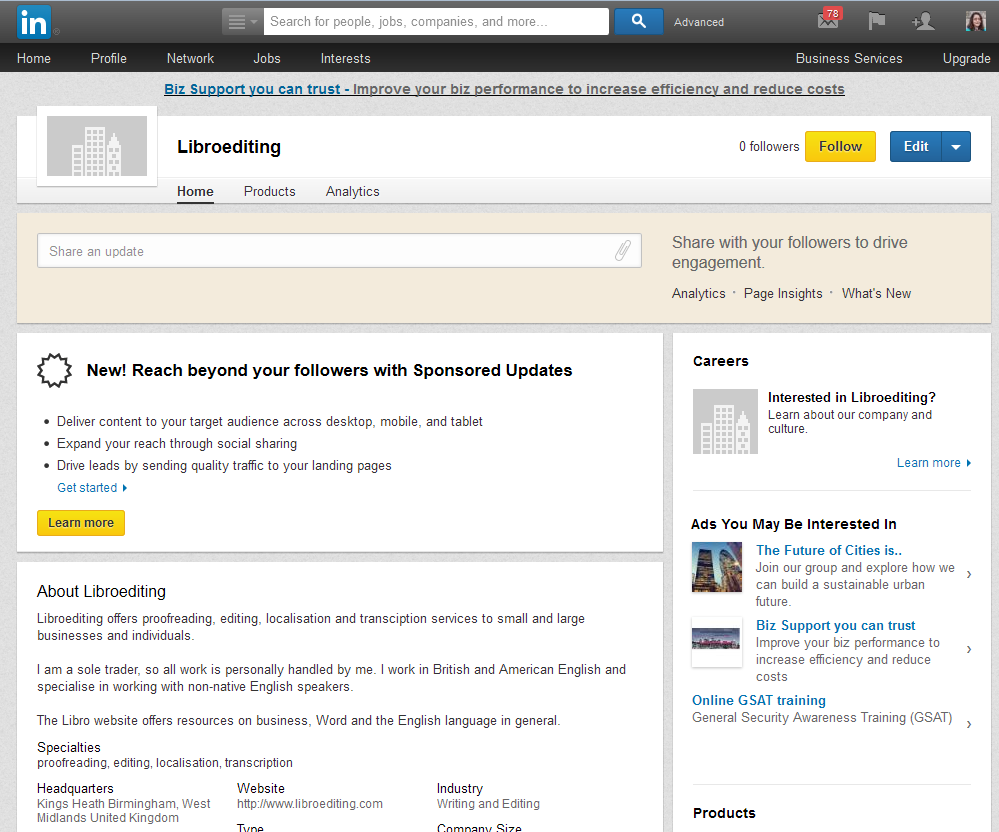
To edit your company information, go and find the company page and click on Edit.
15 add a company

Getting social

This section is about social media – so how do you get social on LinkedIn?

Updates

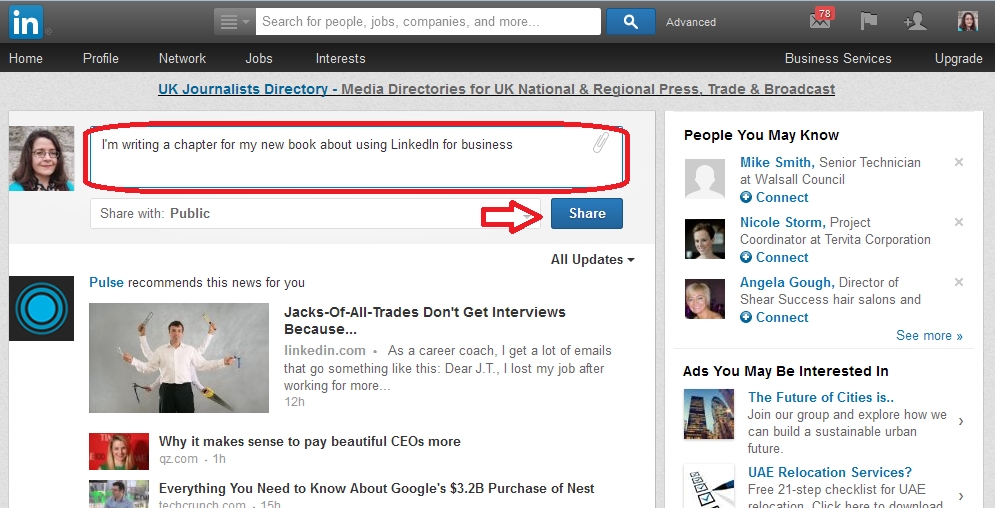
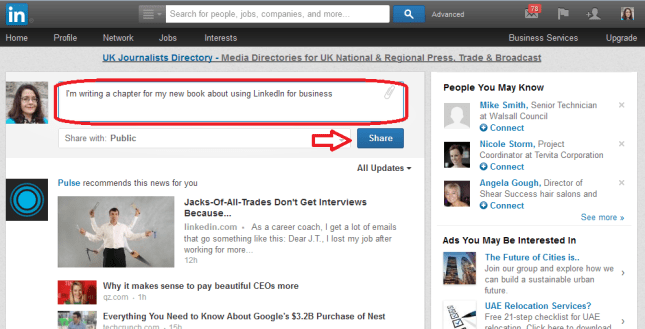
You can post updates, just like on Facebook – do this from the Home page. Your updates will appear on your connections’ home pages, just as theirs do on yours. You can like and share updates in a very similar way to Facebook.
17 updates

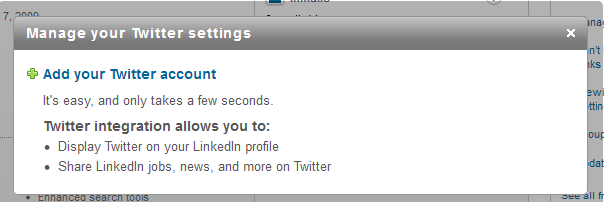
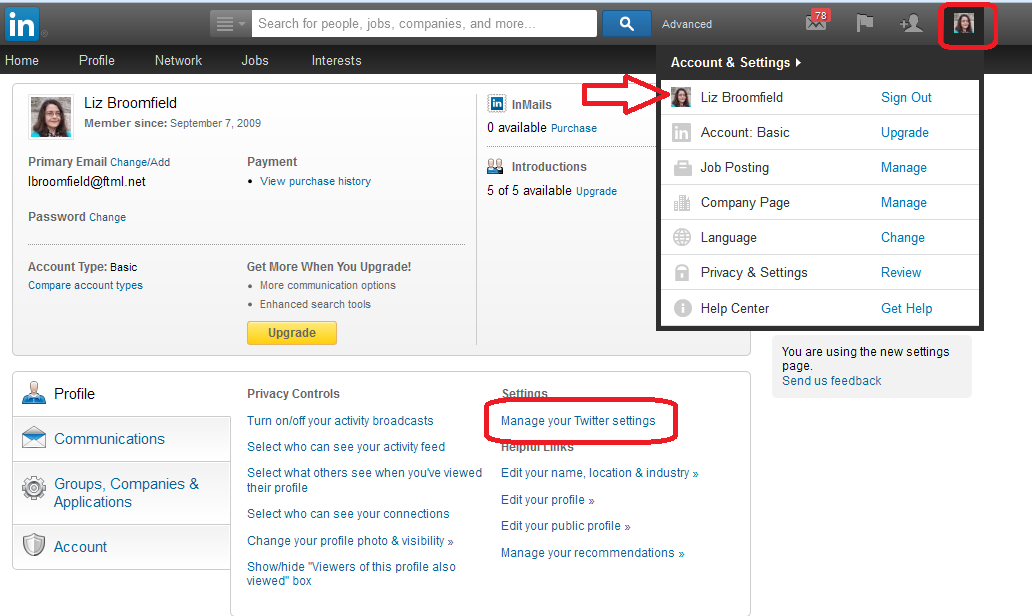
You can direct most blogging platforms to automatically post links on LinkedIn – all of my WordPress blog posts do this. You can also link your Twitter account to LinkedIn by going to your account settings (click on the small photo in the top right of the screen), clicking on your name and choosing Manage Twitter Accounts.
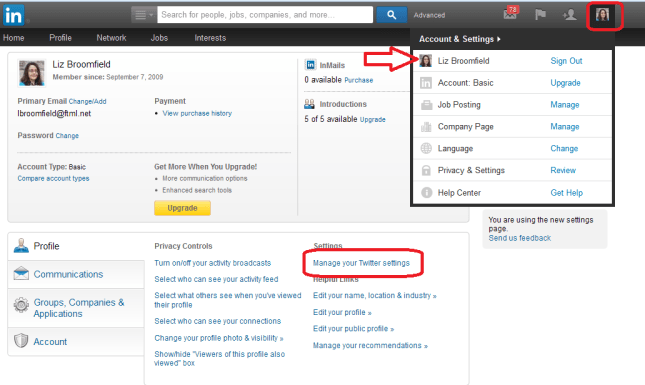
18 link to twitterClick on Add your Twitter account:

19 link to twitter

20 link to twitter

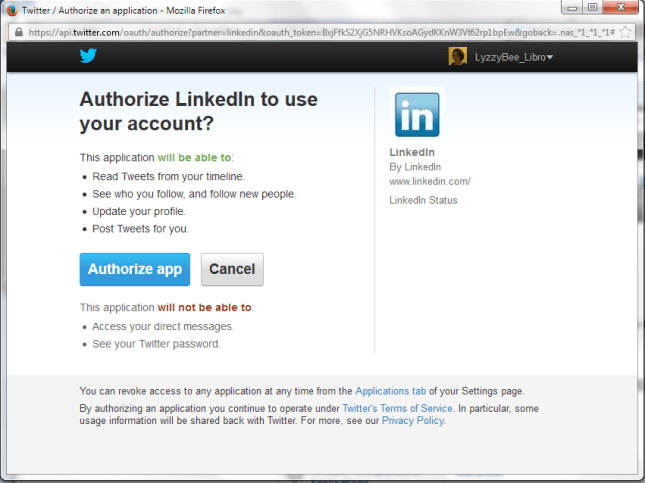
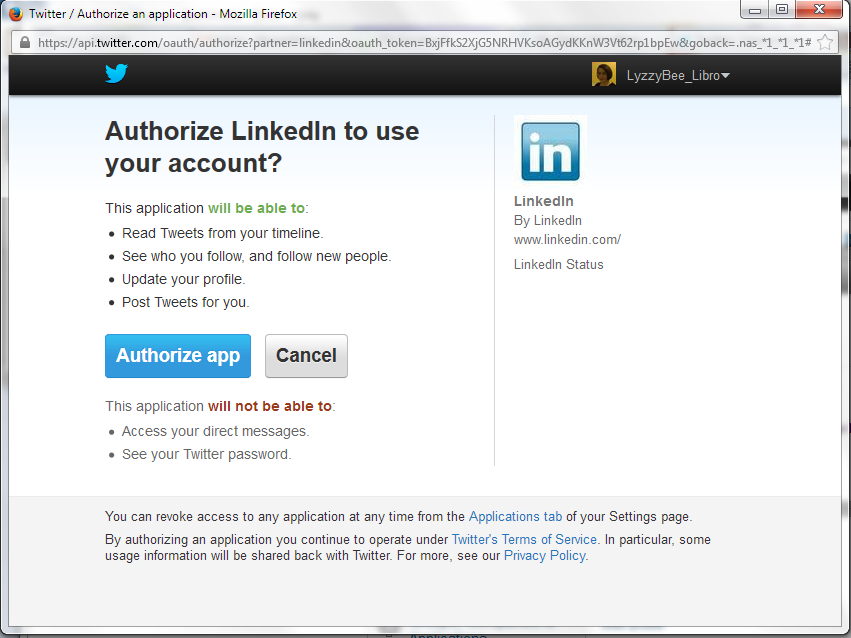
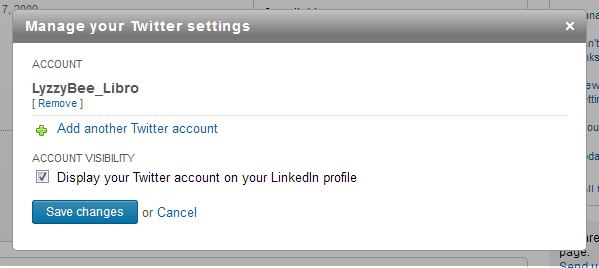
If you’re logged in to Twitter you will see this Authorize app message, if you’re not logged in, you will be asked to log in first. And there you go:
21 link to twitter

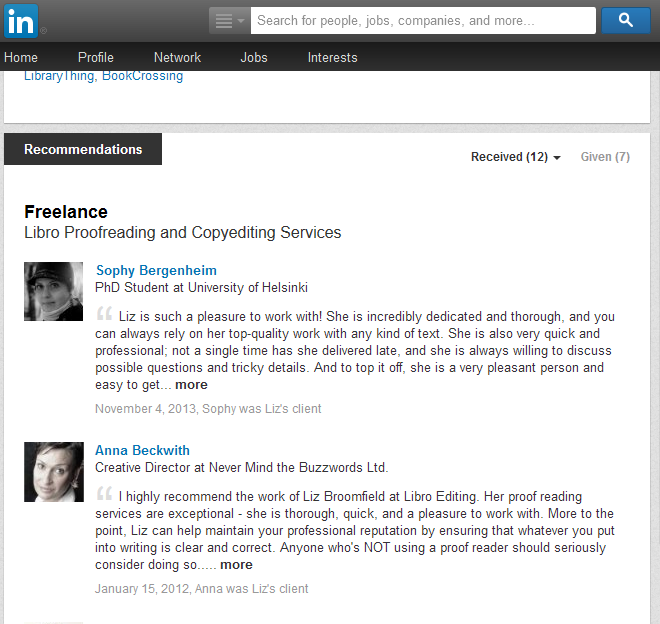
Recommendations

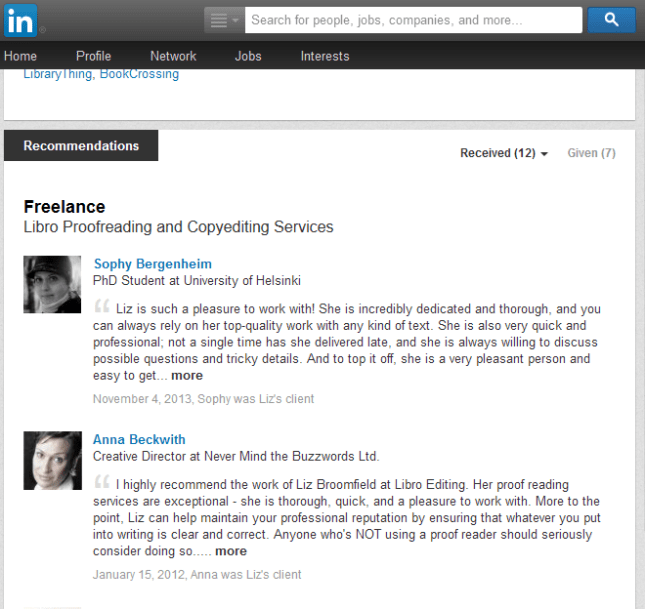
If someone has done a good job for you, you can click on Recommend in their profile and type in a recommendation. They will be emailed this and will have the option as to whether to publish it or not (this prevents people posting negative comments without the member knowing).
16 recommendations

Groups

There are thousands of interest groups on LinkedIn and these can be a good way to meet new people, spread the word about what you’re doing, and find out what other people are up to.

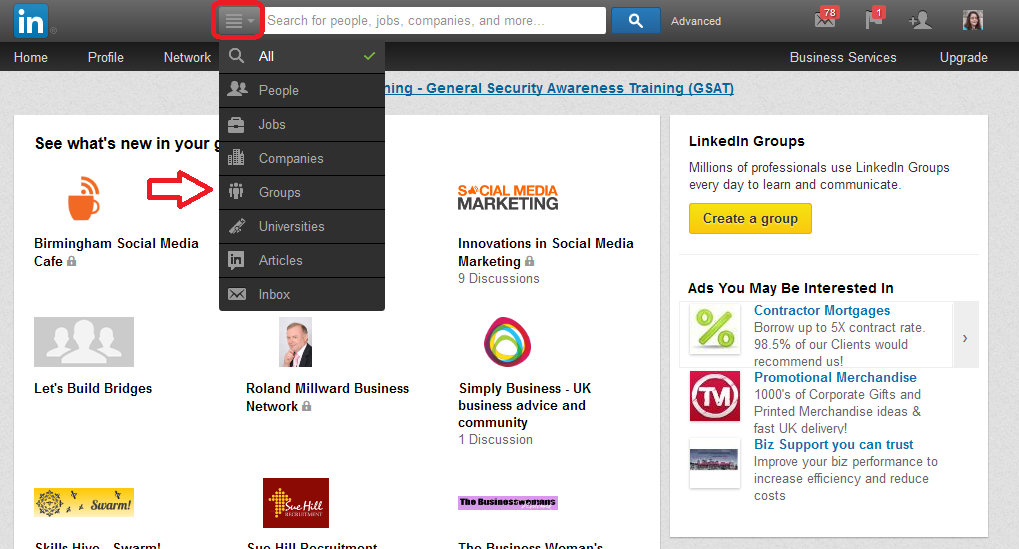
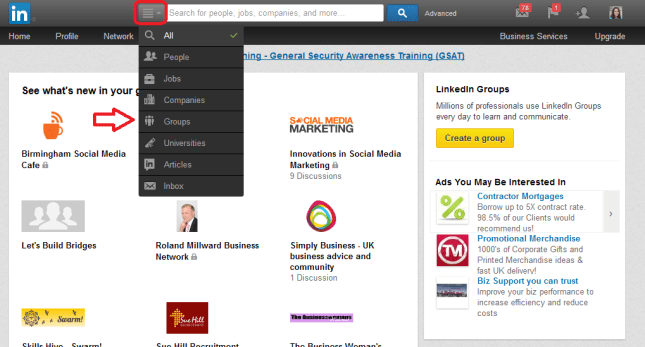
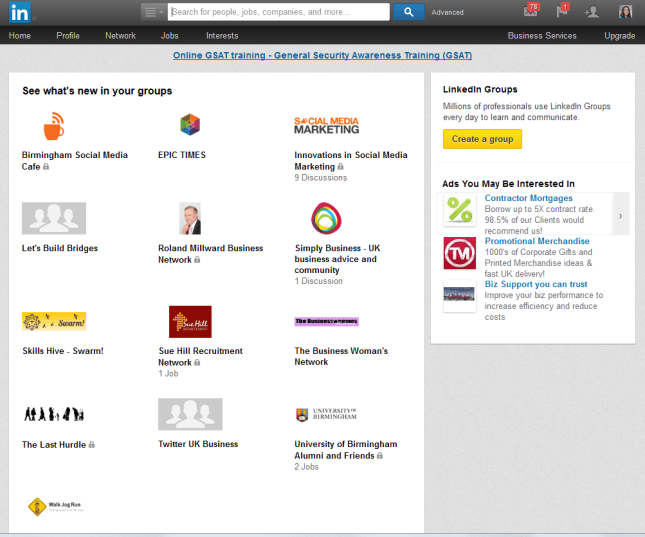
Access Groups by searching in the top search bar (you can click on the icon to the left of the search area and select only Groups to search) or by clicking on Interests then Groups. Once you’ve joined some Groups, you will find them listed on your Groups page, and then some suggestions underneath.
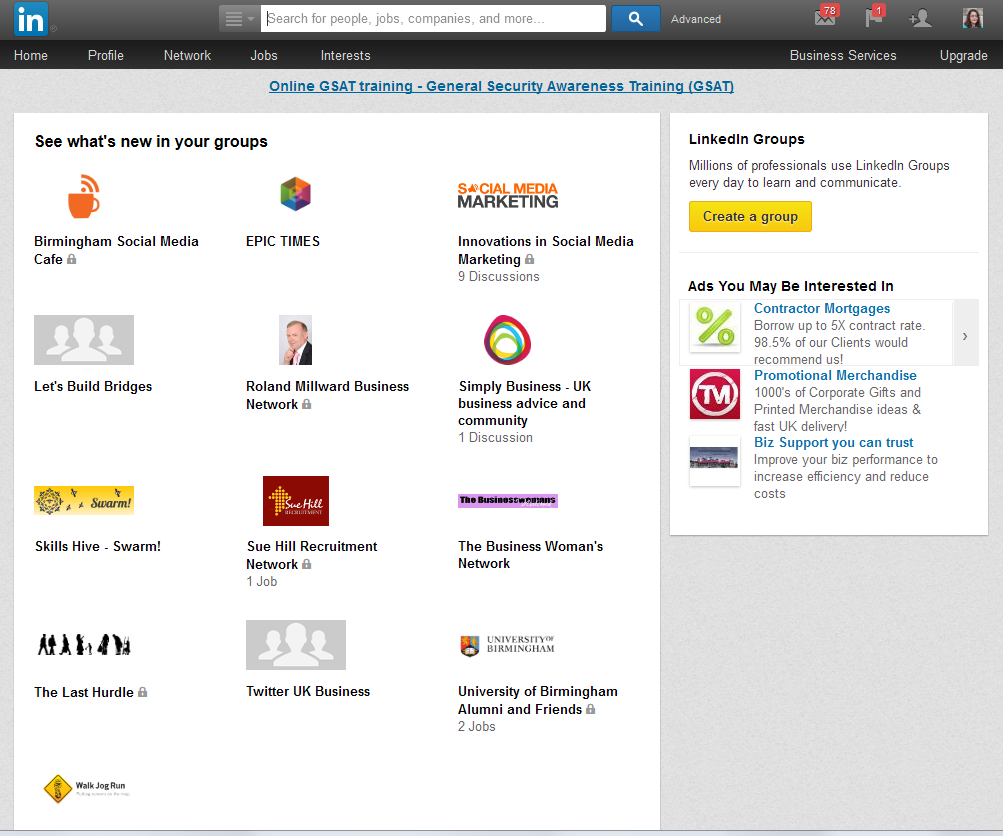
22 search for groups

When you look at the Groups screen, you can see all of the groups you have joined, and you can also create a group if you wish to.
23 groups page

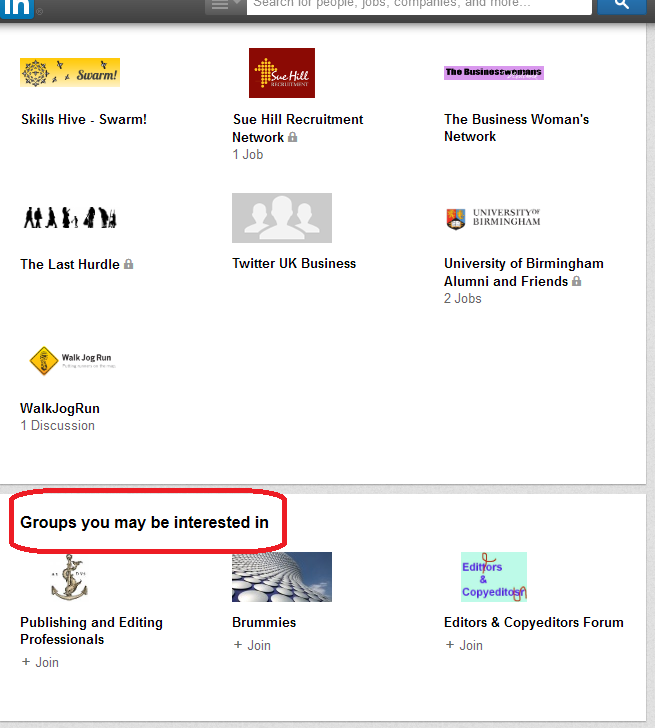
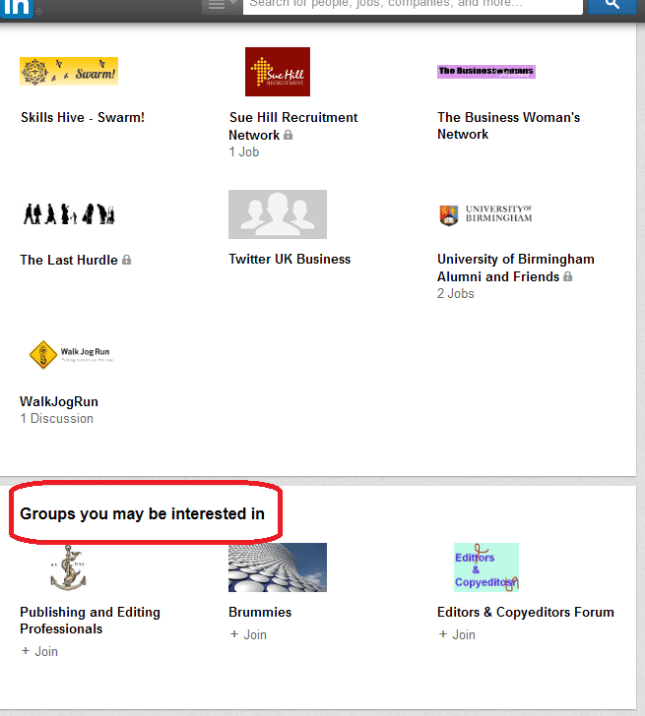
You will also find suggested groups at the bottom of the page:
24 groups page

Groups work very simply – you can post a new message or reply to another one, just like in other social media like Facebook and Google+. You can choose whether you are updated by email for all posts and replies in the group, or whether you want to just access them via the LinkedIn website.

I have found that some groups do become clogged with too many adverts and not enough discussion, but others can be really useful. The usual rules apply about reciprocity and kindness when using LinkedIn for social media communications.

Golden rules for using LinkedIn

Be professional. LinkedIn is known as a professional and careers-orientated site, although there is certainly room for the self-employed. But you do need to be extra professional and not very personal on here.

Reciprocate – if people like and share your updates and group posts, say thank you and like and share theirs.

Similarly, if people recommend you, or if they use the Endorse buttons that appear at the top of the screen when you log in to say that you’re knowledgeable about a certain topic, do try to recommend and endorse them back.

Useful related posts on this blog

Using Twitter for your business

 
2 Comments

Posted by on April 9, 2014 in Business, Social media


Tags: ,