RSS

My short cuts – automatic formatting as you type (and how to get rid of it)

My short cuts – automatic formatting as you type (and how to get rid of it)

In this post we looked at AutoCorrect, and automatic formatting is really an aspect of AutoCorrect – although I find it’s more annoying than useful, I have to admit. In this post I’ll show you where to find auto formatting, what it does, and how to turn it off.

This is part of my series on how to avoid time-consuming “short cuts” and use Word in the right way to maximise your time and improve the look of your documents.

What is automatic formatting?

Automatic formatting is basically Word trying to be helpful. Instead of a Paperclip Man or cartoon dog popping up in the corner of your screen, it will try to guess what you’re doing and format it to what it thinks you want. This can be very useful, or it can drive you mad, depending on context.

Where do I find the AutoFormat menus?

AutoFormat lives on a set of tabbed menus alongside AutoCorrect. For full instructions on how to access AutoCorrect, see my article on AutoCorrect and where to find it, or if you’re confident, do this:

  • Word 2003: Tools – AutoCorrect Options
  • Word 2007: Office button – Word Options – Proofing – AutoCorrect Options
  • Word 2010: File tab – Options – Proofing – AutoCorrect Options

When you’ve done that, you should see a window that looks like this:
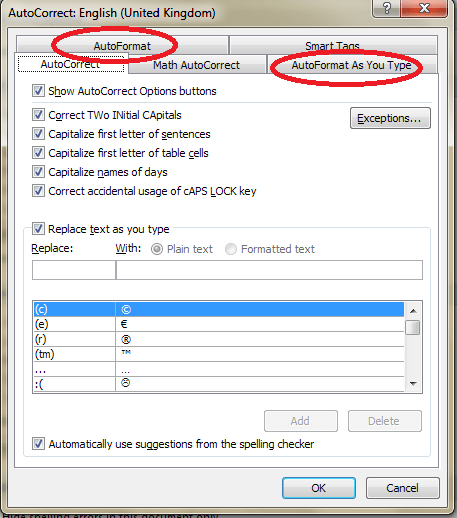
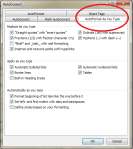
AutoFormat tabs in the Autocorrect window

The two features we’re interested in are AutoFormat and AutoFormat As You Type.

What is the AutoFormat menu for?

Let’s look at the AutoFormat menu first. Click on the relevant tab in the AutoCorrect Options window and you’ll see this:
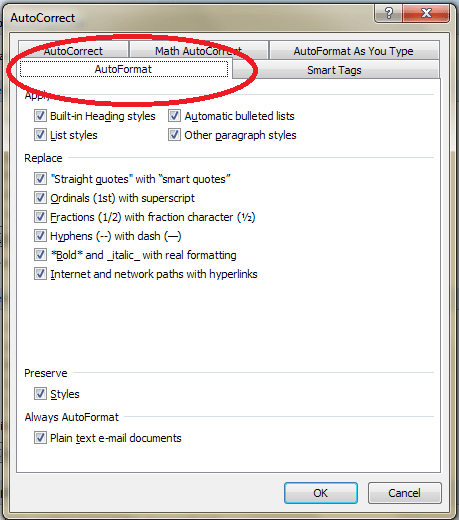
AutoFormat menu

This is how you tell Word what you want to automatically format – however, whatever you change here doesn’t affect AutoFormat as you type. In fact, if you search on Google or in Word’s own help menus, it’s hard to find out what to do with this menu. I can tell you, after exhaustive research, that this menu is used to format your document after the event, at the end, when the document has already been created.

By pressing OK, you will apply all of the automatic formats that you have ticked to the document in question. You can pick and choose which ones you apply, and they are all pretty self explanatory, and you can ask it to retain the styles already set up in the document if you want to.

What is the difference between AutoFormat and AutoFormat As You Type?

AutoFormat is used to format the document after it’s been written. This is particularly useful if you’re sent a document to use which has the “wrong” quote marks, etc. AutoFormat As You Type is used when you’re creating a new document, so you can automate the format and make it consistent as you go along.

What is the AutoFormat As You Type Menu For?

The AutoFormat As You Type menu allows you to choose what Word helpfully automatically formats for you. Let’s have a look at the menu: just click the relevant tab if you’re looking at AutoCorrect or AutoFormat.
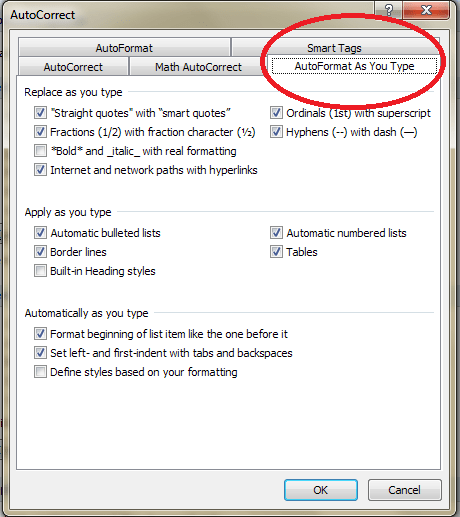
AutoFormat As You Type menu

You can see that there are lots of options here – most of them are pretty self-explanatory, especially as they give examples by each tick box. The ones that cause most issues, in my experience, are

Replace as you type: Internet and network paths with hyperlinks

Apply as you type: automatic bulleted lists / automatic numbered lists

Let’s look at what these do in your document … and then how you can stop this if you want to.

What does AutoFormat As You Type do?

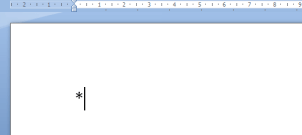
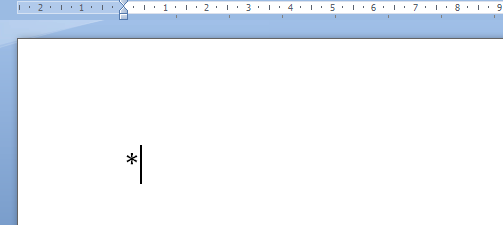
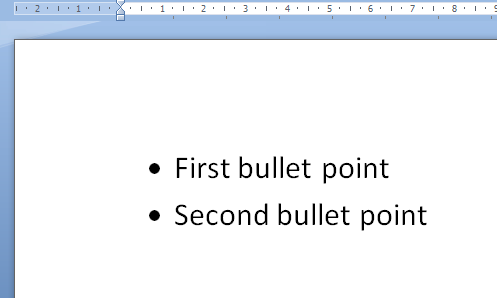
As I said before, AutoFormat As You Type tries to be helpful. It particularly likes helping you make nice neat lists. So if you start some bullet points by typing a * or

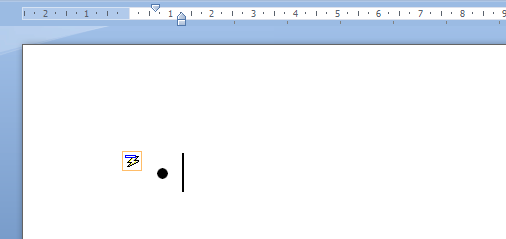
and then a space, for example, it will turn them into bullet points for you!
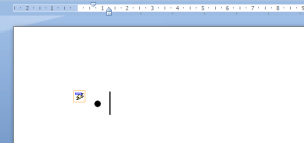
Notice the little AutoCorrect Options icon appearing to tell you what Word’s doing. When you type some text and hit Enter, you’ll automatically be given a new bullet point to start you off:
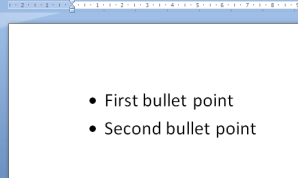
(You escape from this treadmill by hitting Enter twice at the end of your last list item.)

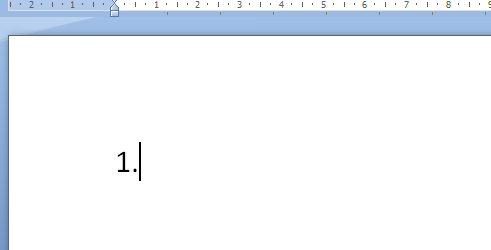
If you start typing a list by putting a 1. at the beginning of a sentence …
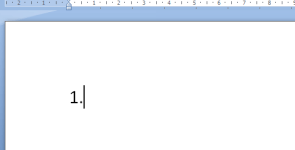
… when you press the space bar, it assumes you’re writing a list and helpfully indents it:
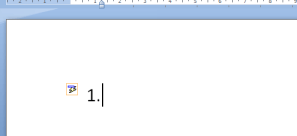
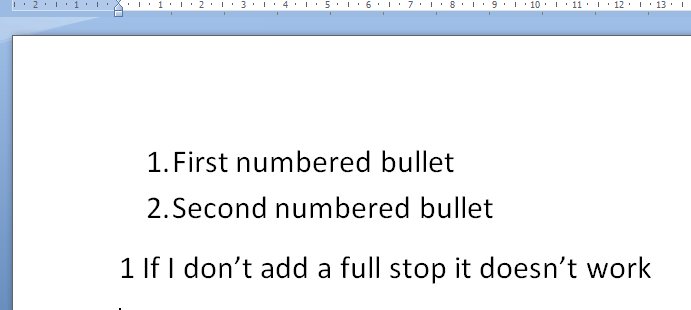
and when you press Enter at the end of that line, it helpfully numbers the next line for you:
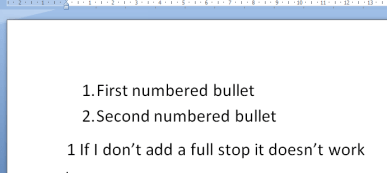
As you can see, you do need that full stop after the number, otherwise it doesn’t “realise” you’re writing a list.

It does it with letters, too, which is all well and good, until you happen to start the line with the letter A, but you don’t want to create a lettered list. What do I mean by this?

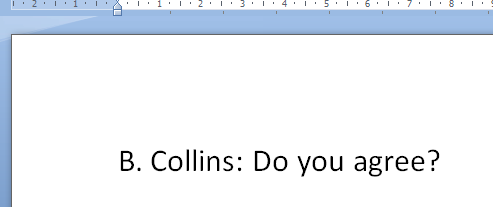
Well, in my case, I do a lot of transcription. I need to type the person’s name (usually initial and surname) followed by what they said. If it’s a name that begins with anything but A, that’s fine. I type the initial and full stop and carry on, and all is fine:
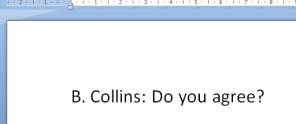
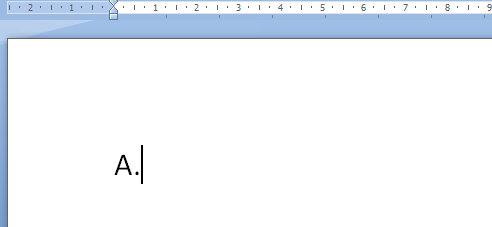
However, if their name begins with an A, I type my A.:
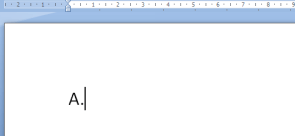
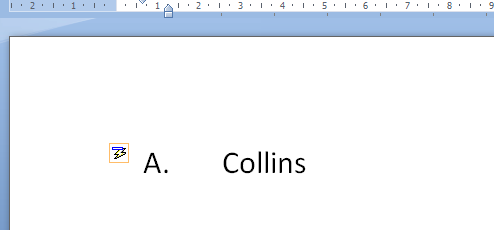
and Word springs into action, handily giving me that little icon to show that it’s making me a list.
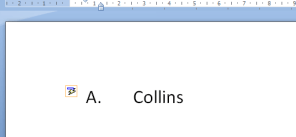
OK, I can click on the little AutoCorrect Options icon and change the settings from there …
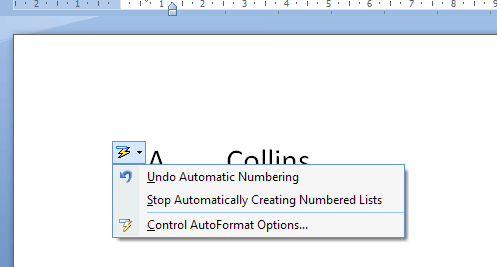
But it’s still rather annoying.

Automatic hyperlinked URLs and email addresses

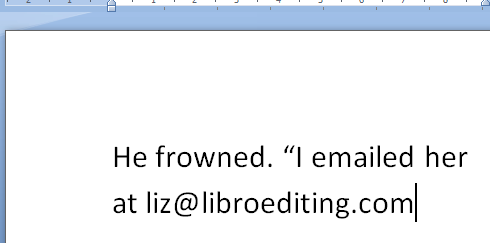
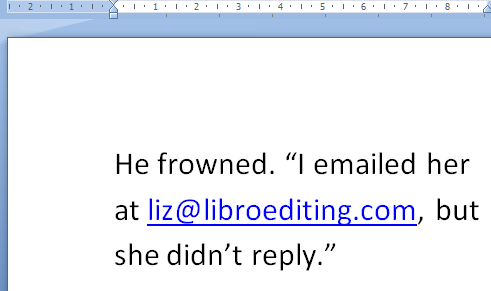
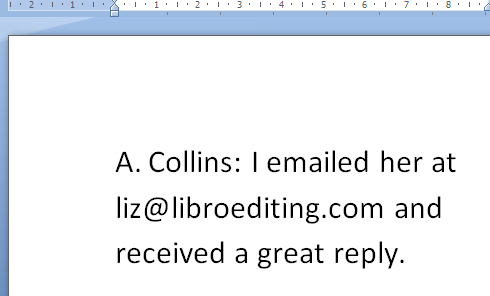
The other annoying “feature” is when Word automatically turns any URL or email address you type into a hyperlink, complete with attractive text colour change and underline. This is all well and good if you’re typing a document that will be looked at on screen and you want the reader to be able to click through, but if you’re just happening to type an email address into the dialogue in your novel …
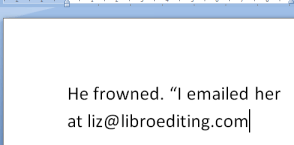
… you don’t want it to do this:
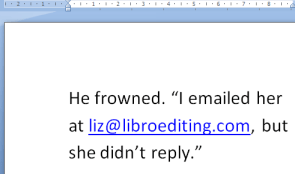
(You can tell it’s a novel: I’d never not reply to an email!)

How do I stop Word applying AutoFormatting As You Type?

It’s simple, fortunately. Go back to that menu and untick the items you don’t want Word to AutoFormat. Make sure you also click on OK before closing the window:
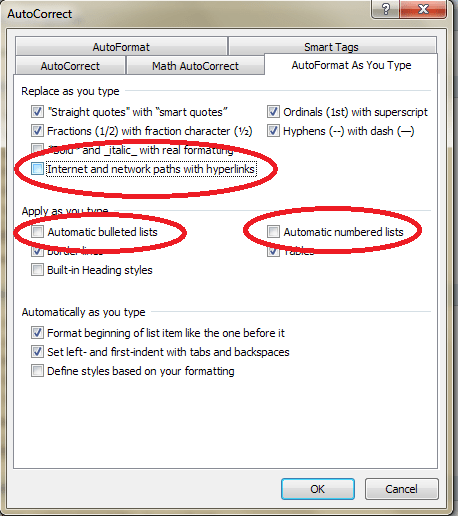
Now you can type whatever you want and Word will leave it as it is, and won’t try to “help” you.
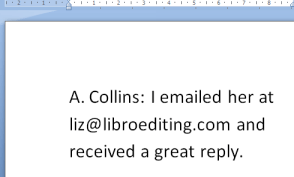
Hooray!

Please note, these hints work with versions of Microsoft Word currently in use – Word 2003, Word 2007 and Word 2010, all for PC. Mac compatible versions of Word should have similar options. Always save a copy of your document before manipulating it. I bear no responsibility for any pickles you might get yourself into!

Why don’t you take a look at my other useful short cuts here

 
4 Comments

Posted by on August 22, 2012 in Copyediting, Errors, New skills, Short cuts, Word, Writing


Tags: , , , ,

Keep an eye on your stats

Do you ever look at your blog or website statistics? If you don’t, I’m going to show you why you should. If you do, do you get all you can out of them? Do you look at them actively or passively?

Note: this post uses examples from the WordPress.com statistics pages, because that’s the blogging/website platform I use. But all of the standard blogging sites, plus Google Analytics, Statcounter and other analysis tools will offer you similar information, with similar headings.

Why should I look at my statistics?

Looking at your statistics can help you tailor your blog to match what your readers want, and will also alert you to who is talking about you and where they are doing so. You can also measure the success of your attempts to build your audience through posting on social media and other blogs and sites. Here are some of the things you can find out …

  • Which posts or pages are people looking at a lot … and which ones are they ignoring?
  • Is there a kind of post that people are particularly interested in?
  • When do people read your posts?
  • How do people find you (social media, web searches … )
  • What search terms do they use?
  • Where do your readers go next – what links do they click?
  • Are people finding your site via other sites and blogs?

How do I find and view my blog / website statistics?

Usually you’ll have some kind of button or menu option called Statistics or Analytics. On WordPress, you will find a Stats option when you go into your blog, or you can click on the bar chart at the top of the screen. Once you’ve found them, you’ll find a screen something like this:

Now we’ve located our stats, let’s look in more detail about what they can tell us.

How do I tell how many times my blog posts have been viewed?

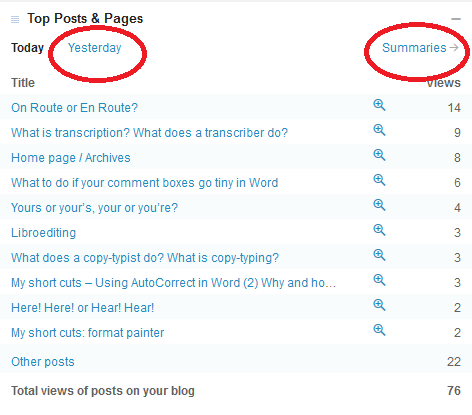
One of the important ones to look at is your most popular pages. We’re looking at one day here, and I can see that my blog post on on route or en route is, yet again, the most popular.

But I can also see what other posts and pages have been popular (and if I click on yesterday or summaries I can see previous days’ stats, while if I click on the magnifying glass next to the number, I can see all the views for that post). This is useful, as I can tell how I’m doing in the search engines, if it’s an older post, or whether my alerts are doing well, if it’s today’s post going up the ratings.

How do I tell how people have found my blog or website?

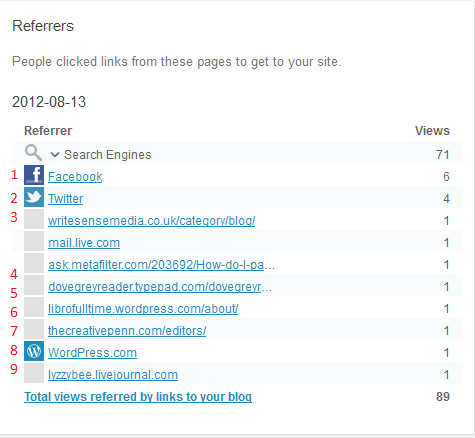
It’s very useful to know how people are finding your blog. You should have a section of statistics called something like referrers or referrals. Here are mine for a particular day.

You can glean all sorts of information from this. At the top you can see I get most of my hits from search engines (over 70 of that day’s hits so far), then Facebook (1) and Twitter (2), then a variety of websites and blogs that I’ll go through in a minute. This has changed – when you’re new to blogging, you’ll get most of your hits from Facebook and Twitter and other social media, as your friends will be looking at your posts and you will be promoting them on social media. As your blog gets indexed on the search engines, results will start showing up from them.

Looking at the pages from which your readers have come can be SO useful. Here’s what I can learn from this one:

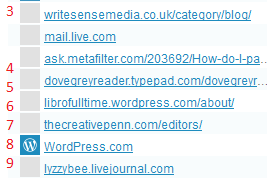
3 comes from one of the people I’ve featured on my blog blogging about my feature herself – a great link-back that Google will like indexing. 4 is from an answer I gave (with a link) on an expert site. 5 is from a comment I made on someone’s blog. 6 is from my other blog. 7 is from a list of editors a client added to her website (very valuable). 8 is from WordPress itself, probably someone surfing through tags, and 9 is from my old LiveJournal blog, where I post links to this blog/website.

All good stuff, and I can say thank you to people who have sent readers my way, or even find out when they’ve done so (all these links can be clicked, so I can see exactly what people have said). Now, what about those search engines?

How can I find out what search terms people have used to find my site?

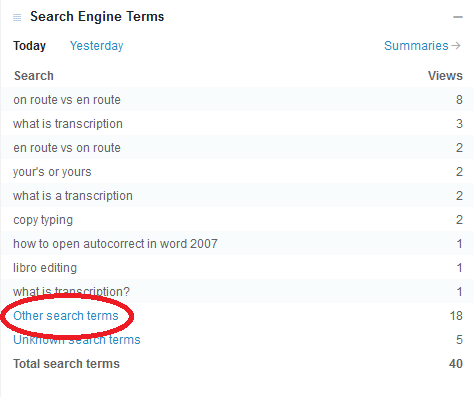
You should have a heading like Search Terms somewhere on your stats page. This offers a world of exciting information.

Clicking on Other search terms will give you the rest of the terms people have searched on – that they will only have tried once (or only one person has tried).

For a start, you can see exactly what people are searching for. It might be useful to change the wording on your blog posts to get further up the search results for a popular term. It’s also worth searching for these terms yourself and seeing where on the Google results page they appear. Another useful point is it can give you ideas for future blog posts. I noticed that someone had found me while searching for Autocorrect, which I had mentioned in a blog post. So then I wrote a post on Autocorrect itself, which has been quite popular.

It can also be quite amusing to see what people search for. Someone once came through to my blog having searched for “persuasive piece on children believing in the tooth fairy” – I think they may have been disappointed (they found me because I mention the tooth fairy in an example sentence explaining a word definition).

How can I see where my blog readers are?

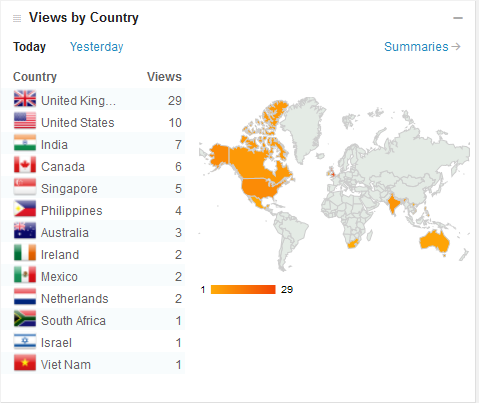
On WordPress you can see a rather nifty world map with the countries from which your visitors have come from highlighted.

This is more of a fun distraction than a useful tool, to be honest, but if you discover an anomaly, for example if you’re in the UK and you get a lot of visitors from Brazil, you could consider tailoring some of your blog posts for this market. I get a lot of international visitors, so I’m going to make sure I talk about my work with non-native speakers of English soon.

Is my website traffic increasing? What did I do to make that happen?

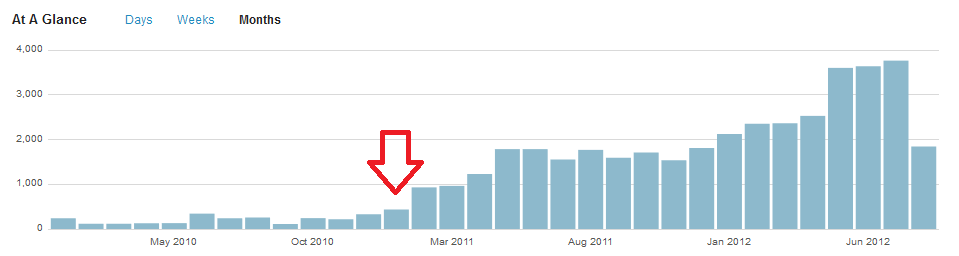
As well as today’s data, you can usually see a month or year’s worth, too. If I look at the traffic on my website and blog over time, I can see that it started increasing at the beginning of 2011.

What did I do at the time of that red arrow? Started writing this blog!

Do people read my blog more at the weekends?

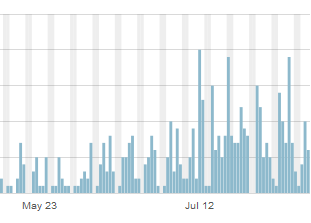
Looking at your daily traffic will show peaks and troughs. If your blog is more popular at the weekends, it might be good to post new content then. If I drill down into one of my blog posts, the ever-popular “What do I do if my comment boxes go tiny in Word?”, I can see that it’s not read very often at the weekends.

This says to me that office workers are looking for and using this post, so I can make sure I post more for that kind of audience and save other new posts for the weekends.

Where do my website visitors go when they leave my site?

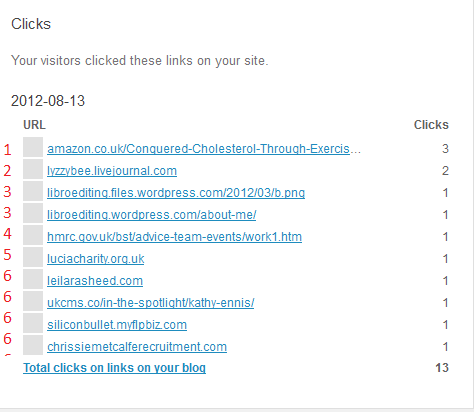
This is usually found under the heading Referrals, or maybe Click-throughs. Here’s a good representative one of mine from a few days ago:

Looking at clickthroughs from my website

You can see that the click-throughs fall into a few groups. 1 is my ebook, which I have linked to in a blog post and on the site itself. Hooray – my PR campaign is starting to work! 2 is a click to my Livejournal blog, linked to on my website. 3 is a pair of pages on this website, filed under my old url but I can see people are navigating around the site and sticking around. 4 and 5 are both links I have on blog posts; 5 is also on my references page. And all those marked 6 are websites of people I’ve featured on my blog, showing that I’m helping them get some traffic, too.

So there we go. Look at those statistics, whether you’re using WordPress or another host for your blog. And look at them actively: think about what they mean and how they can help you to find out how to tailor your blog to your audience and drive more traffic to your blog or website.

If you’ve enjoyed this post, please click on one of the share buttons below, or leave me a comment. Especially if you’ve had any amusing search terms recently!

 
5 Comments

Posted by on August 17, 2012 in Blogging, Business, New skills, Organisation, Writing


Tags: , , , ,

A new publication from Libro

How I Conquered High Cholesterol Through Diet and Exercise As well as writing and editing for other people, I have been busy writing my own guide to dealing with high cholesterol through diet and exercise. I’ve published it on Kindle and it’s available now. If you or a family member or friend has been diagnosed with high cholesterol, whether or not you are taking statins at the moment, this guide can help you reduce your intake of saturated fat and increase your intake of substances that promote cholesterol reduction, so that you could possibly come off statins or not go on them in the first place.

I’m not making any wild promises, but this system has worked for me and some of my friends, and the book cuts to the chase with easy-to-remember guidelines. It does try to accentuate the positive, so there’s lots of information on what you CAN eat and enjoy.

If you’re interested, please click through. There are some great reviews on there right now. And even if you don’t decide to buy a copy, please consider clicking on the “Like” button. Enjoy!

 
2 Comments

Posted by on August 13, 2012 in Business, Ebooks, Writing


Tags: ,

Olympic hiatus

Photo: Dot did not share in the general excitement last night ...

My cat ignoring Usain Bolt

Dear readers,

In case you’re wondering why there haven’t been as many blog updates as usual, Libro is enjoying working part time and watching the Olympics on the TV (although I will be venturing to London on Sunday to catch the Men’s Marathon, always a favourite event anyway).

Normal service will be resumed soon. In the meantime, here is a picture of my cat enjoying the achievements of Usain Bolt …

 
Leave a comment

Posted by on August 8, 2012 in Blogging


Tags:

Happy Birthday, Libro!

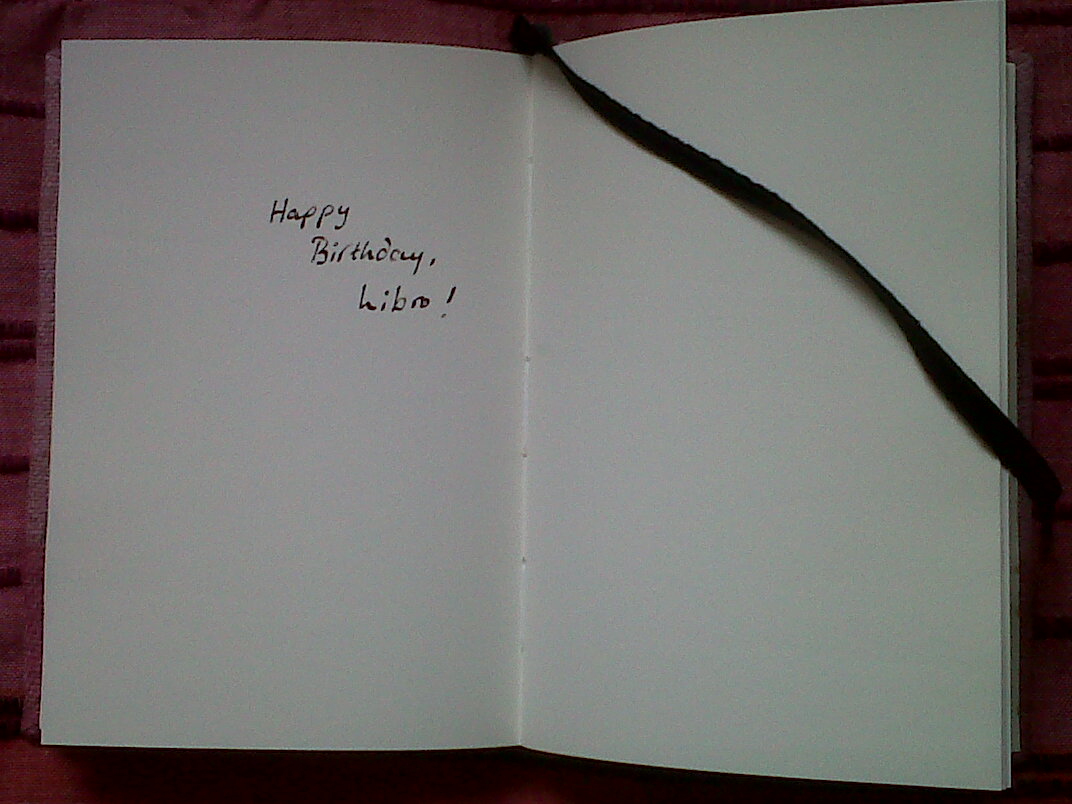
Happy birthday, Libro

I’m proud to celebrate Libro’s third birthday today! In August 2009, I really had no idea that I would be working for myself full time, doing such varied things as transcription, writing and editing as well as thesis proofreading, which is what I started out doing.

I am going to have a small celebration at some stage soon, perhaps with friends of Libro, perhaps just with Matthew. I was considering marking the occasion by buying myself something, perhaps a piece of jewellery. But then I had a better idea.

I’ve been doing Kiva loans for a while now: we’ve got two loans on the go and re-loan them as they get paid back. Now I’ve helped to fund five more women entrepreneurs (which means those loans will be on-going too and help more people as they get paid back). Kiva funds grassroots organisations that help people do small, sustainable things that will make a difference to their lives. Here are the groups and people I’ve chosen to donate to. I’ve also made a donation to LUCIA, a charity close to my heart, run by friends from the Library where I used to work, who do the same kind of work in Ethiopia.

So, I’ve helped these women:

These ladies are in Paraguay, where my friend Sandy spent her year out at University, and they make textiles, which is an interest of mine.

This lady from the Lebanon supplies special food for Ramadan – an appropriate time of year to lend to her!

This group of ladies in Mali (location of Timbuktu, twin town of Hay-on-Wye) have already had and repaid several loans.

This lady goes spear fishing to send her children to school. A bit different from sitting at a desk typing to afford to buy millions of books!

And this lady is from Georgia – I met someone from Georgia at the Social Media Surgery last month, so that seemed appropriate.

If you want to start using Kiva, you can have a FREE $25 Kiva loan to make to an individual or organisation: follow this link to sign up and get your first loan for free! (the management of Kiva have sponsored a certain number of free loans to encourage people to sign up).

Thank you for everyone’s support of me and Libro over these three exciting years. Here’s to the next three!

There had to be a cuppa and a bun somewhere in this post …

 
12 Comments

Posted by on August 1, 2012 in Business, Celebration, Ethics


Tags: ,

Impact or affect?

Here is a pair of words that are often used in reports and academic work; they do have a subtle difference which it’s worth noting and remembering.

To affect something is to have any effect on it, to make a difference (remember the difference between affect and effect).

To have an impact (on) something means to have a strong effect on it (of course, an impact also occurs when something comes forcibly into contact with something else – in a collision or wedged and crushing like an impacted wisdom tooth).

So everything that has an impact on something has an effect on it, affects it, but not everything that affects something else has a strong enough effect to be an impact.

We also have the tricky issue of the phrasal verb impact on – “low interest rates have impacted on saving”. People tend not to like new phrasal verbs, and this one is seen as business jargon. If you’re tempted to use “have impacted on”, try “have had an impact on” instead: you know you’re safe with that one

You can find more troublesome pairs here and the index to them all so far is here.


Tags: , , ,

Past or passed?

This one was suggested to me by my friend and fellow freelancer, Lyndsey Michaels, and is, indeed, an important one.

Of course, these two are linked, and formed from the verb to pass. And they are easy to confuse and HARD to explain! But that doesn’t mean that they shouldn’t be used correctly …

Passed is a verb and is the past tense of pass. It expresses the idea that something has gone by something else, or that anything that passes anything else has done so in the past tense. “She had passed the elephant house and was on her way to the penguins”; “Many years had passed, and he was an old man with only his memories of pandas to sustain him”.

If you can use the word “pass” in the present tense, the future tense, or use it in the form passing, etc., i.e. if you’re using it as a verb, a “doing” word, when you’re using one of the past tenses, or a conditional, you can use passed:

I will pass my driving test one day – when I have passed my driving test I will get a car – if I had passed my driving test, I would have been so happy –  I have passed my driving test.

I am passing the jeering pub-goers with pride: after all, I’m running and they’re not – I passed the jeering pub-goers with pride – I will have passed the pub-goers in five minutes, and then I can relax.

Time will pass and all will be better – Time passed and all was better

Contrast this with past:

Past can be a noun meaning the time that has come before – “my divorce is in the past now, and I’m moving on!”. It can be an adjective – “Past prime ministers gathered for the Royal Wedding” meaning gone by in time and no longer existing. It is also a preposition meaning on the other side of “You can see him over there, past the crazy golf but in front of the candyfloss seller”. And it can be an adverb with a meaning of “so as to go by or so as to pass – “The ball went past the goalkeeper and the Mexican team scored”.

If something has passed something else, it has gone past it. It hasn’t past the other thing, and it hasn’t gone passed it.

So past doesn’t change when it’s used in the future, present past in a conditional sense, etc.: it works as a noun, an adjective, an adverb or a preposition and as an adjective, adverb or preposition will be found alongside a verb, rather than BEING a verb.

I went past the pub – I am going past the pub – I have gone past the pub – I will go past the pub – time will go past – the driving test was in the past – the driving test was in the past – the ball will go past the goalkeeper – the ball went past the goalkeeper – the ball was going past the goalkeeper.

You can find more troublesome pairs here and the index to them all so far is here.


Tags: , , ,

My short cuts: format painter

Today I’m going to introduce you to a lovely quick short cut that can save what can only be described as a lot of faffing around: format painter.

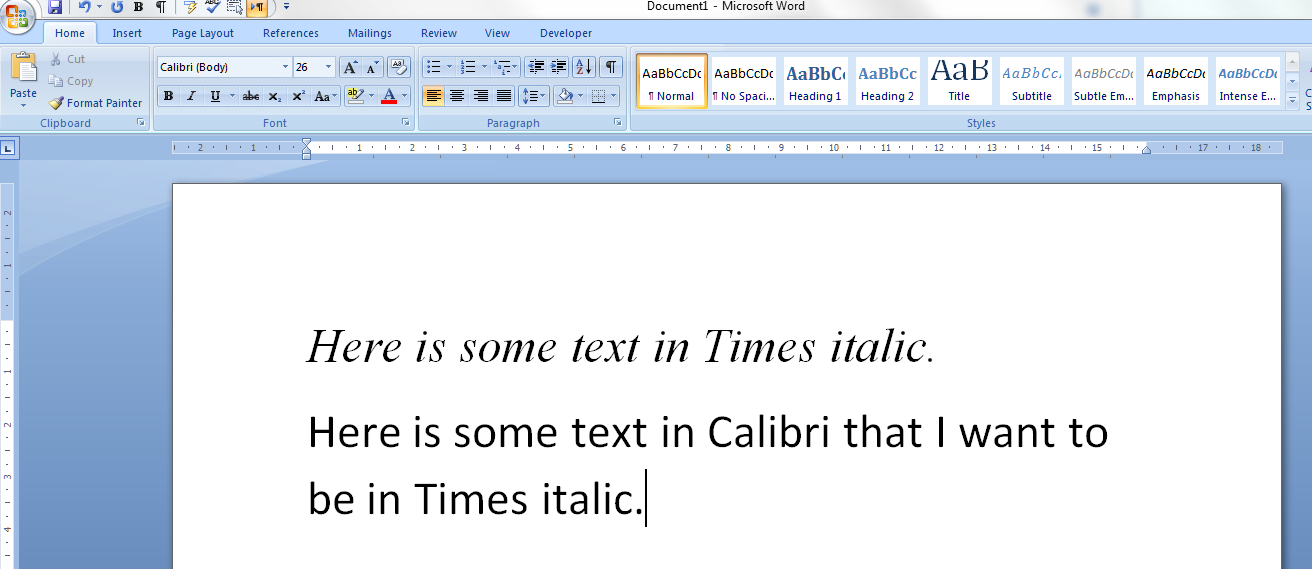
We use format painter to pick up the formatting of some text, copy it, and paste it into some other text, to make the formatting match. I’ll give you a simple example.

How do I copy the formatting of one bit of text into another?

Here we have some text in the format we want, and some text not in that format, which we want to change.

Now the trick is to use a little button you may not have even noticed before. It’s on the Home tab (in Word 2007 and Word 2010; in Word 2003 it’s in the Format menu) in the cut, copy, paste area. Handily, it has its name next to it:

Now, it’s important to get this next bit in the right order! Highlight the text which is formatted in a way you want to copy, in this case the first line of text, and, once it’s highlighted, press the Format Painter button:

It doesn’t matter how much of the original text you pick up, as long as it has the right formatting. Now you will notice that the cursor has changed into a little paintbrush. Annoyingly, this doesn’t show up on a screen print, so you will have to take my word for it. “Paint” with the paintbrush across all of the text you want to change, keeping your left mouse button down, and it will highlight it (but nothing will change … yet):

Now let go of the mouse button and hey presto …

Note: the formatting will change to exactly what you picked up from the original text. So if you have a word in bold in the middle of your text, it will change to whatever the original had.

This is quite a simplistic example, but here’s where it comes in handy:

Say you’re editing a document with a lot of different text styles, header styles, etc. Maybe there’s a table with a variety of fonts. Rather than clicking on the text that you want your text to look like, noting the font, size, etc. then highlighting your text and changing all those features manually, simply highlight, format painter, and paint away!

Please note, these hints work with versions of Microsoft Word currently in use – Word 2003, Word 2007 and Word 2010, all for PC. Mac compatible versions of Word should have similar options. Always save a copy of your document before manipulating it. I bear no responsibility for any pickles you might get yourself into!

This is part of my series on how to avoid time-consuming “short cuts” and use Word in the right way to maximise your time and improve the look of your documents. Find all the short cuts here

 
4 Comments

Posted by on July 25, 2012 in New skills, Short cuts, Word


Tags: , , , ,

Elude allude or illude? Elusive, allusive or illusive?

Are they escaping or are you referring to them? That’s an odd sentence, but it’s what you need to consider when you’re choosing between these two words. They are used in different ways, too, which helps!

To elude means to escape from or evade, usually in some kind of skilful or cunning way (this can be concrete or abstract – “The moth eluded me and flew out of the window”; “The meaning of his ideas eluded me”). Note that elude has one l and something eludes something else.

To allude to something means to hint at it indirectly, or mention it in passing: “When discussing Betty he alluded to her plastic surgery but it was not the main part of the conversation”. “‘Ah, the majesty of your figure,’ said Adrian. ‘Are you alluding to my boob job?’ shrieked Betty”. Note that it has a double l and someone alludes to something else. Also note that this is sometimes used mistakenly in place of refer. You can’t say “He alluded to the actress by her name”, as to allude is to be indirect. Here you would use “He referred to the actress by her name”. Save allude for a use such as, “He alluded to the actress, mentioning an infamous role she played earlier in her career but not naming her”.

And to illude (has anyone ever used this?) means to trick or delude. But it’s hard to see when either of those words wouldn’t do, and it saves you remembering this one. I am just including it for the sake of completeness, to be honest. It is important when it comes to the word formed from it, illusive, though …

A bonus section today …

If something (language, on the whole) is allusive, it means it uses suggestion (yes, alluding to something) rather than mentioning something explicitly. “The poet uses allusive language to describe the pile of droppings without mentioning what it actually is”.

If something is elusive, it is difficult to achieve, find, catch, etc. It aims to elude the person who is trying to catch it. “The moth proved elusive, as I chased it around the bathroom, and it escaped through the window”.

If something is illusive, it is illusory and deceptive – it’s main purpose is to illude. “His wealth was illusive – all fur coats on top, all cheapo clothes underneath” (wealth can be elusive, of course, too, if you can never manage to achieve it, but the meaning is different).

You can find more troublesome pairs here and the index to them all so far is here.


Tags: , , ,

A proper author – Victoria Eveleigh and her story

Victoria Everleigh I am delighted to publish this guest post by author, Victoria Eveleigh. I “met” Victoria via Twitter, through a discussion I was having about pony books with a bookseller (who I’m going to feature on the Saturday Small Business Chats soon). Victoria has an interesting story to tell, as she has become a somewhat unlikely author, and has now moved from self-publishing to being published!

You can read all about Victoria’s farm, horses and books on her website. Let’s hear her story …

How I became a Proper Author by Victoria Eveleigh

Nobody was more surprised than me (with the possible exception of my old English teacher) when I became an author.

I grew up in London, but spent as many holidays as possible on my grandmother’s farm on Exmoor. From an early age, my ambition was to marry a farmer and live on Exmoor. Remarkably, I’ve managed both: Chris and I have been farming for over twenty-five years now.

At 240 acres, our farm is fairly small, so we’ve had several other enterprises: a self-catering holiday cottage, horse-drawn tours over Exmoor with Shire horses, Land Rover tours of the farm, organic farming, cream teas, renewable energy and publishing.

Starting to write

The Foot and Mouth crisis of 2001 was partially responsible for my first book. We never got Foot and Mouth on our farm, but it came far too close for comfort. For nearly half a year we closed the self-catering cottage and horse-drawn tour businesses, and our children stayed at home for the whole of the spring term. It was a nerve-wracking year, and our cash flow became a trickle, but in some ways it was a holiday from all our usual commitments. For the first time since we were married, we had time to spare. Chris took up drawing and painting, while I sat down and wrote the book that had been forming in my head for several years: the story of a girl and an Exmoor pony growing up on an Exmoor hill farm together.

Full of optimism, I purchased a copy of The Writers’ And Artists’ Yearbook and started writing to agents. After several months, I’d received polite rejections from some and no communication from others. I felt utterly disheartened, and would have given up completely if a friend hadn’t suggested publishing the story myself. She’d published her own books in the past, and said all I needed to do was register myself as a publisher (I registered as Tortoise Publishing), get someone to design the layout of the book (I asked a good friend who’s a graphic designer), get a printer to print it (our local printer who printed our holiday cottage leaflets obliged) and some people to buy it (um…).

Learning from self-publishing

It was shocking how much space 6,000 books took up when they were delivered to our house by the printers. Too late, I realised I knew nothing about selling and, being typically British, I didn’t feel comfortable promoting myself. However, the prospect of never being able to use the sitting room again spurred me on. I loaded some books and leaflets in the back of the car and went for a drive around the Exmoor area. There weren’t many bookshops but there were gift shops, tourist attractions and tack shops, so I had more outlets than I’d realised. In fact, my best customers turned out to be places which normally didn’t stock books because there was no competition. (I’ve found that the easiest way to get depressed is to go into a large bookshop and see how many different books there are, all vying for attention!)

Probably because of Chris’ illustrations, the first book sold so well that I had to do another print run, and I was encouraged to write a sequel. Now I had stacks of boxes and a bit of money, so we converted Chris’ work shed into a farm office where I could store both the books and the ever-increasing quantity of farm records. At last I had a warm purpose-built room where I could write and deal with the paperwork for the farm and publishing businesses.

We made the Exmoor pony story into a trilogy, wrote and illustrated a colouring book about the farming year for the Exmoor Horn Sheep Breeders’ Society and then published a story set on the island of Lundy.
The amount of effort it took to promote, sell, distribute and account for the books meant I had an ever-decreasing amount of time for writing. Furthermore, while I was trying to build up my publishing business several things happened to the book industry: the economy slowed down, then went into recession; fuel and postage prices went up, squeezing margins because books are typically delivered for free; paper and printing costs increased, and large bookshops and online stores started a price war. Simultaneously, the whole book industry was going electronic, and I couldn’t really get my head around it all.

Never give up …

I’d more or less decided to quit while I was ahead when I received an email from Louise Weir, who runs a website called Lovereading4kids. She’d read my Lundy book and wanted to make it a book of the month on her website and, to cut a long story short, through her I was taken on by Orion Children’s Books just over a year ago.

Since then my life has changed quite a bit. I have to treat writing like a proper job now, and it’s a scary, serious business with deadlines to meet, schools to visit and talks to give. However, I wouldn’t turn back the clock for anything. I love writing and I’m so glad I’ve been given this fantastic opportunity to turn it from a hobby into a whole new career. I’ve re-written my existing stories (which have been published as Katy’s Wild Foal, Katy’s Champion Pony, Katy’s Pony Surprise and A Stallion Called Midnight) and I’m writing a new trilogy for publication in 2013. It will have horses and the countryside at its heart, but it will have a boy as the main character for a change. Chris is still doing the illustrations for my books – so I’m now a proper author and he’s a proper illustrator!

I wish Victoria all the best with her new trilogy, and I’m looking forward to reading the Katy books soon. I should mention that Victoria’s publisher will be sending me a copy of “A Stallion Called Midnight” to review, but I wanted to share her story to encourage my readers who are writers: never give up!

 
3 Comments

Posted by on July 18, 2012 in Guest posts, New skills, Reading, Writing


Tags: , ,