RSS

Sian Edwards

Welcome to Saturday Business chatToday I have the great pleasure of introducing Sian Edwards, a friend and fellow home-worker who lives locally to me. If you do work from home, it’s great to have local people around who you can meet for a coffee and a chat when work and time permit. Sian also told me about proz.com, which is a great resource if you’re a translator or, like me, you do localisation, as it puts you in touch with customers all over the world.

It always makes me happy to see how much my interviewees love their work, and here’s another person who does! Let’s meet Sian …

What’s your business called? When did you set it up?

I trade under my own name and have been a freelance translator since 2006. I worked in various roles at three different translation agencies before taking the plunge.

What made you decide to set up your own business?

I wanted the flexibility to fit my work around my family life.

What made you decide to go into this particular business area?

I have always enjoyed translation, ever since I was a student. I enjoy it so much that it hardly feels like work! So it was an obvious step for me.

Had you run your own business before?
No.

How did you do it? Did you launch full-time, start off with a part-time or full-time job to keep you going … ?

I jumped in at the deep end. I’ve been a full-time freelancer from the start. But I did have a lot of work from my former colleagues already lined up.

What do you wish someone had told you before you started?

Don’t rely on just one or two clients. I lost my major client after a few months and, although I was able to replace them fairly quickly, I could have done without the panic!

What would you go back and tell your newly entrepreneurial self?

Get some business cards printed, go out and network! Don’t sit in front of the computer by yourself all day. It will be good for your state of mind and you might even get some work out of it.

What do you wish you’d done differently?

I wish I’d made the effort to find out more about accounting and tax when I started. Some kind of course or workshop would have been a good idea. The transition to paying six months of income tax in advance came as a particular shock.

What are you glad you did?

I’m glad I was bold. It’s not in my nature at all, as I’m quite a shy, introverted person, so approaching people I knew in the industry in the hope that they would send me work felt a bit cheeky. But it worked and gave me a much-needed boost at the start.

What’s your top business tip?

Don’t be afraid to say no. If you don’t have the time to do a good job, it’s better that you don’t do it at all.

How has it gone since you started? Have you grown, diversified or stayed the same?

The amount of work offered to me has gone up and up. At the same time the type of work I do has become more specialised.

Where do you see yourself and your business in a year’s time?

The same, but with a tidier office!

Ah, yes: the double tax thing (which I blogged about when it hit me). I found it so helpful to do my course at the beginning of my freelance life (see my post about setting up your own business for links) and don’t know how I’d have coped without it. Good luck with that tidy office, Sian!

Sian can be contacted via her profile on www.proz.com. She does German to English translation.

If you’ve enjoyed this interview, please see more freelancer chat, the index to all the interviewees, and information on how you can have your business featured.

 
1 Comment

Posted by on June 16, 2012 in Business, New skills, Small Business Chat


Tags: , ,

Historic or historical?

There is quite a lot of confusion about this pair, with them being used pretty interchangeably. But, as is often the case, there is a distinction and there is a rule, and it’s nice to maintain those separate meanings and subtle points of difference. Isn’t it?

Historic, or, for that matter, geographic, pinpoints a particular time or example. So historic means famous or important in history: a historic event. “The historic moment when the Titanic sank”. Similarly, geographic refers to a specific thing, a specific point to do with geography: the geographic north pole.

Historical, on the other hand, is a more general term, getting across the idea of something as concerning history, for instance, historical evidence. It also means “belonging to or set in the past”, so a “historical re-enactment”. And geographical means concerning geography, so you have a Geographical Society.

“Historical evidence points to this historic event being a turning point in the War.”

“The Geographical Society undertook an expedition to the Geographic North Pole.”

You can find more troublesome pairs here and the index to them all so far is here.


Tags: , , ,

My short cuts – Using AutoCorrect in Word (2) Why and how to use it

Welcome to the second article in my series on AutoCorrect. Last time, we learned what AutoCorrect does (automatically changes words you type or spell incorrectly to their correct forms, e.g. changing “teh” to “the”) and where to find it in Words 2003, 2007 and 2010, and we can also set up a shortcut button to make it more accessible.

Now we’re going to look at how you can use AutoCorrect to speed up your typing and make it more efficient, and how you actually amend the AutoCorrect entries to tailor them to your requirements.

Why would I use AutoCorrect?

Apart from correcting common typos, AutoCorrect has two very handy uses: I use it in these ways all the time, and if you, you will save yourself time and effort.

  1. If there is a word you can never remember how to spell, set up a short cut AutoCorrect, just type in the first few letters, and AutoCorrect will auto complete it for you. No more finding it in the spell checker yet again.  Type in Kaz and Word will display Kazakhstan.
  2. If there is a long word or particularly a phrase that you use over and over again – “Creative and Marketing Director”, “economic forecasting”, “qualitative and quantitative research methodologies”, set up a short cut for each one and save all that typing (and possible typos). Type cmd, ef or qq and watch the phrases type themselves!

How do I tailor AutoCorrect to my individual requirements?

The key to this is in the AutoCorrect menu we met last time.

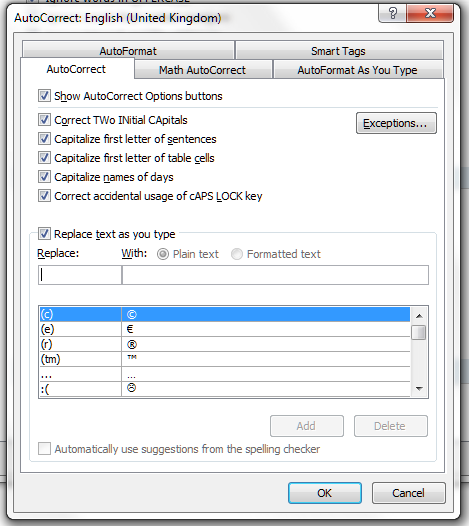
First of all, there are some useful features on the screen directly in front of you. Here’s how you turn on and off all those useful features that sort out typing errors as you go (we’ve all typed THe at the beginning of a sentence, haven’t we). You just untick the box if you don’t want it to do something. By the way, we’ll be looking at those other tabs along the top, especially AutoFormat As You Type, in another article.

So, for now, we’re working with the standard AutoCorrect. We’ve started off with a list of signs and symbols, because they come before “A” in Word’s alphabet. To see what else there is, try typing a letter into the top, blank fields. Here we have a mixture of the standard AutoCorrect entries (abouta changes to about, etc.) but the top two are my own additional entries. See how many keystrokes and how much time I save by typing aaa and getting accountability agent application inserted into my document (plus it’s typed correctly first time!).

How to add a new entry to AutoCorrect

Let’s look at how to add those new, personalised AutoCorrect entries. Well, it’s pretty simple. Type the abbreviation or mis-spelling in the left hand column (or field), the text that you want to appear in the document in the right hand field (or highlight the word you want to add an entry for in your document, then access this menu), and press Add.

You can see that your entry has now appeared on the AutoCorrect list, in its place in the alphabetical order. Now, whenever you type lb, the words Liz Broomfield will appear in your document.

How to delete an AutoCorrect entry

What if you want to delete an AutoCorrect entry? I did this recently – I had set re to AutoCorrect to recognize for a document I was working on that had no contractions (they’re, etc.). Of course, when I was then typing something more informal, I got lots of they’recognize as it tried to do what I’d asked it to do. So I wanted to get rid of that entry altogether. Here’s how you do that: Look up the entry by typing in your abbreviation – what you type as opposed to what you want to come up. When you’ve found the one you want to delete, press the Delete button.

Now you can see that the entry for lb/Liz Broomfield has disappeared and the list goes from lastyear to learnign. Note: it doesn’t ask you if you’re sure you want to delete, but it does leave that entry in the top text fields, so if you’ve made a mistake, you can just add it again.

How to change or replace an AutoCorrect entry

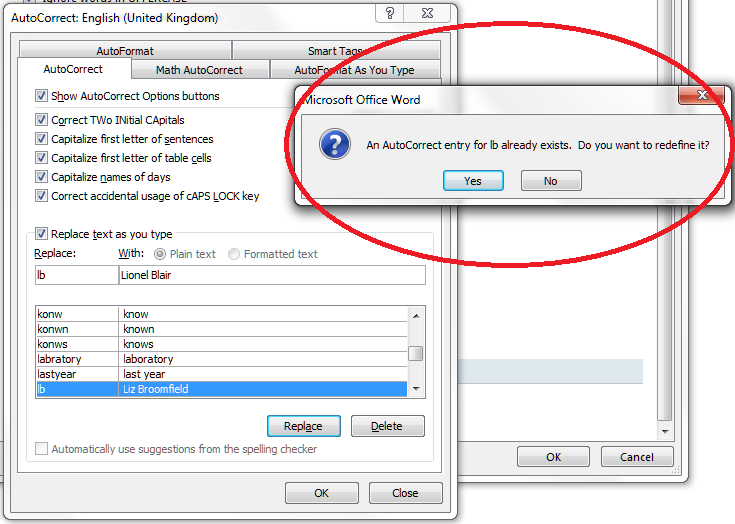
You may want to change an AutoCorrect entry – for example, you’re stopping talking about Liz Broomfield and want to refer to Lionel Blair. Type in your abbreviation and your new version of what you want Word to insert, in this case Lionel Blair. AutoCorrect will find the original entry and highlight it. The Replace button will appear – so press that.

Word does like to make sure you mean to do it when you change something, so you’ll get another little dialogue box asking if you do want to redefine this AutoCorrect entry. Press Yes (if you do).

and there you go: Liz Broomfield has changed into Lionel Blair.

Today we’ve learned why to use AutoCorrect and how to personalise it to help you type efficiently.  If you’ve found this article helpful, please leave a comment or click one of the “like” buttons below! Thank you,

Please note, these hints work with versions of Microsoft Word currently in use – Word 2003, Word 2007 and Word 2010, all for PC. Mac compatible versions of Word should have similar options. Always save a copy of your document before manipulating it. I bear no responsibility for any pickles you might get yourself into!

This is part of my series on how to avoid time-consuming “short cuts” and use Word in the right way to maximise your time and improve the look of your documents. Find all the short cuts here


Tags: , , , ,

Then or than?

This Troublesome Pair is one I come across constantly. Interestingly, it features just as much in non-native English writing as it does in native English writing – this is usually very much not the case, with the errors found in each kind of writing not overlapping much at all. I can only think that it’s a typing error rather than a misunderstanding or mis-learning.

Then means “at that time”, “after that, next”, and, as an extension of that meaning, “therefore”. “He went to the park, then he went to the shops”. “You have made a mess of the spelling, then you will find people can’t understand you”.

Than is used to introduce the second element forming part of a comparison – “A cat is usually smaller than a dog”. It is used to express a sense of something happening next in a very specific phrase: “No sooner had the company reinvested in stock, than it went into liquidation” and I wonder, on reflection, if that is how the thans have snuck into the place of thens – maybe there’s an echo of this in the writer’s mind, or it’s a case of a rewrite of a sentence that then goes a bit wrong.

Anyway, it’s not strictly necessary to use the no sooner than phrase, so it’s perhaps best to stick to then for times and than for comparisons.

You can find more troublesome pairs here and the index to them all so far is here.


Tags: , , ,

Tammy Ditmore

Welcome to Saturday Business chat.Today’s Freelancer is Tammy Ditmore from eDitmore Editorial Services, who I know through a network of editorial professionals we both belong to. Tammy’s one of our newer businesses, having been going for around 18 months (this time round), and is one of our freelancers based in the US – but as you can see, we all have similar issues and learning curves, wherever in the world we might be!

Tammy has some interesting things to say about the difference between being a freelancer and running a business, and also about the resources that are out there for both business people in general and editors in particular.

What’s your business called?

eDitmore Editorial Services.

When did you set it up?

January 2011.

What made you decide to set up your own business?

I had been working as the managing editor of an academic journal for more than five years, but the situation had become very stagnant and I wanted something different. I wanted to edit more and manage less. I applied for several editing and/or writing jobs in my area and got nowhere—I couldn’t even get an interview. I finally decided it was time to return to freelance editing, which I had done before I started at the journal. But when I freelanced before, I never thought of it as a business; I just took whatever work happened to come my way. This time I wanted to be more official. So I established a name, created a website, and set myself up legally as a “sole proprietorship”.

What made you decide to go into this particular business area?

I have been involved in editing in one way or another for about 30 years. I graduated from college with a journalism degree and spent more than 10 years in various editor roles at several daily newspapers. I left newspapers when my oldest son was a baby and wound up working from home as a freelance editor, proofreader and writer while my kids were young. Then I took the academic journal position, and learned more about running a business. By the time I started my business, I had editing or writing experience in a number of styles and publications.

Had you run your own business before?

Although I had worked as a freelance editor for a number of years, I had not thought of myself during those years as running a business. I did not have a business name; I did not market or advertise; and I never thought of myself as a businesswoman. When I decided to leave my position with the academic journal, I knew I needed to do things differently. I wanted to see my work—and I wanted other people to see this—as my business, not just something I was doing until I could get a real job.

How did you do it? Did you launch full-time, start off with a part-time or full-time job to keep you going … ?

While I was still at the journal, I made my business plans and did the preliminary work, like getting a logo and a website. By the time I left that job, I had one contract that I knew would keep me very busy for a few weeks and would provide some steady work throughout the year. I was lucky; I could take some risks because my husband’s job was very safe and I didn’t have to worry about insurance benefits since our family was insured through him. That made it less risky for me to step away from the steady paycheck.

What do you wish someone had told you before you started?

I wish I had known how many resources were available to help get me started, such as editing classes and training, list-serves and discussion groups, online invoicing, etc. I did not need to reinvent so many things—it was all out there but I didn’t know where to look for it.

What would you go back and tell your newly entrepreneurial self?

“You don’t have to go it alone,” and, “You know more than you think you do”.

What do you wish you’d done differently?

I wish I had taken more time off between finishing my journal job and really plunging into work on my own. I think it would have been good to take some editing classes and just spend some time thinking about what I wanted to do and how. I expected to have slow spells in my first few months where I could focus on such things, but I never really did.

What are you glad you did?

I’m glad that I paid to have a logo designed around my business name and that I was able to get a professional to design my website. Both turned out better than I had envisioned and are definitely memorable.

What’s your top business tip?

It’s not a very original one—I would say you should network. Join professional organizations in your field; volunteer for specific roles; and tell everyone you know about your business. Some of my best and most unexpected business has come from very unlikely places.

How has it gone since you started? Have you grown, diversified or stayed the same?

Much better than I had expected. I almost doubled the income goal I had set for myself for the first year, and I have turned away work on several occasions. Even more important to me, I have been able to work on a wide variety of publications and manuscripts for a variety of publishers, authors, and students. In a little more than a year, I have worked on books and articles about Puritan theology, international counter-terrorism tactics, Christian ethics, Facebook advertising, the original Saint Nicholas, and successful car dealers, and I have just started editing my first novel. Also, I am truly enjoying learning more about today’s rapidly changing publishing world and how to market and run my business. I have started to think more like a businesswoman in addition to thinking like an editor.

Where do you see yourself and your business in a year’s time?

I am considering some steps now to raise my business profile and visibility, so I hope that by this time next year more people will know about eDitmore Editorial Services.

I know what Tammy means about expecting a slow spell between finishing the day job and launching the business – I thought that about Jan/Feb 2012, but went straight into full-time busy-ness. Still, it’s good to be busy! And I wish Tammy all success through this next important year for her business. Read her 2013 update here.

Tammy’s website is at www.editmore.com and you can of course contact her by email. She’s based in Califormia.

If you’ve enjoyed this interview, please see more freelancer chat, the index to all the interviewees, and information on how you can have your business featured.


Tags: , ,

How do I count the words in my Word document?

Looking at the search engine searches people have done before coming to this website, I’ve realised I need to publish some notes on how to count the words in your Word document. This information covers Word 2003, Word 2007 and Word 2010, although most of the screenshots are from Word 2007.

How do I count the number of words in my Word 2007 document?

Word 2007 and 2010 handily display your word count at the bottom of the screen. Well, it should be there. Let’s see …

 But what if it’s not there? If you want to display your word count at the bottom of your document, right click with your mouse on the lower menu bar – that’s the blue bit at the bottom of the window, indicated with an arrow on this screen shot:

Do take a moment to marvel at all the different things you can do on this menu bar – we will come back to them another time! Now, when you’ve clicked on Word Count, you should see your word count at the bottom of the window:

OK, so that’s one way, but what if you want more information, such as the number of characters (maybe you’re writing some text that has to keep to a certain character limit)? Never fear, there are often two ways to do things in Word, and this is no exception.

We’re going to stop looking at the bottom of the screen and move up to those tabs at the top. Click on the Review tab and you will see the Word Count option to the left:

 Click on Word Count and you will get a little dialogue box telling you all sorts of information …

Now, what if you want to count just the words in a particular section of your document (you might be trying to keep to a word limit per chapter or be writing lots of short articles you want to check)? Simply highlight the section of text you want to count, then either look at the bottom of the screen, where it will tell you that you have highlighted x out of a total of y words, or click on Word Count on the Review tab and your dialogue box will tell you just about the words you’ve highlighted:

How do I count the number of words in a Word 2010 document?

Word 2010 works in exactly the same as Word 2007 as far as the lower menu bar goes, so just follow the instructions above to show the word count at the bottom of your document.

When it comes to the Review tab and Word Count option, it’s all pretty much in the same place, but looks a little bit different:

How do I check the number of words in a Word 2003 document?

In Word 2003, you can access Word Count from the Tools drop down menu.

Please note, these hints work with versions of Microsoft Word currently in use – Word 2003, Word 2007 and Word 2010, all for PC. Mac compatible versions of Word should have similar options. Always save a copy of your document before manipulating it. I bear no responsibility for any pickles you might get yourself into! This is part of my series on how to avoid time-consuming “short cuts” and use Word in the right way to maximise your time and improve the look of your documents. Find all the short cuts here


Tags: , , , ,

Expensive or expansive?

Although these are two different words that mean two different things, they are spelled very similarly, and I think that’s how the confusion creeps in. Having said that, even though the a and e are not next door to one another on the keyboard (I had to check that: I touch-type and most of the letters have worn off my keyboard through over-use) this one does come up fairly frequently.

Expensive means of high cost – either in monetary or some other terms. An expensive training course costs a lot, an expensive manoeuvre might cost the army dear in terms of people or equipment.

Expansive means covering a wide area, or extensive (although I don’t see extensive mixed up with expensive, which you would kind of expect!). It also means relaxed, communicative and genial, when used to describe a person. “The grounds of the castle are expansive”.

So you may have grounds which are both expansive, as in large, and expensive in terms of their cost of upkeep. But there’s going to be no more mixing up of the two words, now, is there?

You can find more troublesome pairs here and the index to them all so far is here.


Tags: , , ,

Pus or puss?

Yuck, yuck, yuck! I said to (well, Tweeted to) the last person I saw muddling these up, “Don’t make me do a Troublesome Pair on this one!” but actually there is a need, isn’t there.

I’ll make it short.

Pus is the liquid formed in infected tissue

Puss is a term of affection for a cat, or a coquettish (young) woman.

Pussy (pronounced to rhyme with “fussy”) means full of the above liquid. Pussy (calm down … and pronounced with a u as in “pushy”) is another affectionate term for a cat. Maybe that’s how the confusion has crept in.

Anyway, there we go: all done now. Eugh. But necessary, yes?

You can find more troublesome pairs here and the index to them all so far is here.


Tags: , , ,

My short cuts – Using AutoCorrect in Word (1) What it is and where to find it

Have you come across AutoCorrect yet? Open up a Word document and type “teh”. Did it magically change to “the” in front of your eyes? That’s AutoCorrect.

So, it’s great for correcting common typing mistakes that lots of people make. But did you know that you can harness its power to help you write and type more efficiently and faster? In this article, I’ll tell you more about AutoCorrect and explain where to find it in different versions of Word, so you can tinker with it to tailor it to your requirements. In the next post, I explain just how to do that.

How to access AutoCorrect in Word 2003

Let’s look at Word 2003 first. You can find AutoCorrect under the Tools screen (I have to admit that it was so much better when it was so accessible, right here off a main menu. Nowadays, they like to hide it!). Click on Tools and then near the bottom, you’ll find AutoCorrect Options.

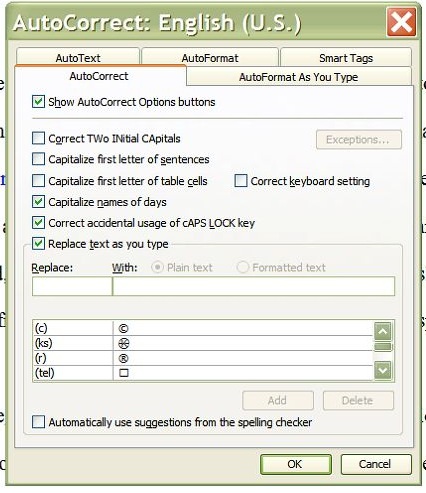
Once you’ve clicked on AutoCorrect Options, you’ll find yourself at a screen that will start to look familiar as you work your way through this article. This is where you can see what is already set up, and delete / change / add AutoCorrect entries as you wish. More about that in the next article!

How to access AutoCorrect in Word 2007

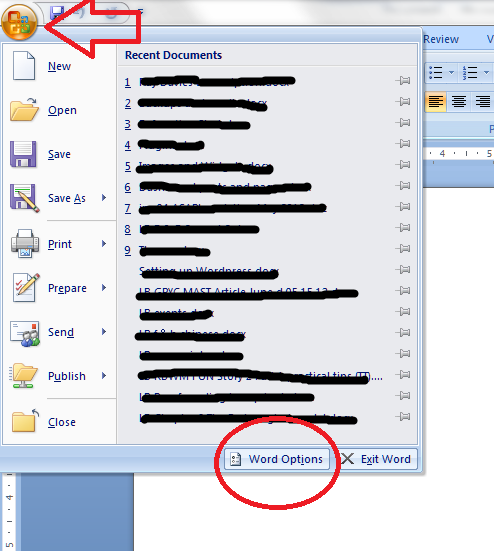
Here is how to access AutoCorrect in Word 2007. When I first moved over to Word 2007, I found it a bit hard to track down AutoCorrect – the key is to click on that Office button in the top left corner of the screen. When you do that, a menu will come up below the button, with a list of the files you’ve recently accessed (that’s what I’ve blanked out, for confidentiality purposes!), with a list of things you can do and, right at the bottom, a Word Options button. Click that button.

Once you have clicked on the Word Options button, you’re confronted with another menu (oh, for the simplicity of Word 2003!). You’ll find lots of intriguing options here, some of which we’ll be exploring in further articles, but for now, what you want is Proofing, about half way down on the left hand side. Click on Proofing and you will get a menu including the heading AutoCorrect Options. Click on the AutoCorrect Options button …

… and you come to a rather familiar screen, offering you a place to delete, change and add AutoCorrect entries as you wish. More about that in the next article! Note that you can also set up a shortcut button on your Quick Access Toolbar if you use this a lot.

How to access AutoCorrect in Word 2010

Now, in Word 2010 I feel like they’ve buried AutoCorrect just that one level deeper. But we’ll find it! To access AutoCorrect in Word 2010, you need to first click on that File tab, one to the left of Home, to which Word defaults. This has replaced the Office button from Word 2007. Anyway, Click on the File tab and you will be given a menu which, handily enough, doesn’t have a “Word Options” entry, but just Options. Click on Options.

Once you have clicked on Options, you will be given a new menu. This is quite similar to the one in Word 2007. Choose Proofing and then AutoCorrect Options.

… and here is your menu where you can see what is already set up, and delete / change / add AutoCorrect entries as you wish. More about that in the next article! Note that you can also set up a shortcut button on your Quick Access Toolbar if you use this a lot.

In the second half of this article, we look at how to tailor the automatic corrections to suit your purpose, whether you have a word you just can’t spell or type correctly, or you need to type a lot of words fast and want to auto-type particular common phrases.

Many thanks to Katharine O’Moore Klopf for the Word 2003 screen shots!

Please note, these hints work with versions of Microsoft Word currently in use – Word 2003, Word 2007 and Word 2010, all for PC. Mac compatible versions of Word should have similar options. Always save a copy of your document before manipulating it. I bear no responsibility for any pickles you might get yourself into!

This is part of my series on how to avoid time-consuming “short cuts” and use Word in the right way to maximise your time and improve the look of your documents. Find all the short cuts here


Tags: , , , ,

Asterisk or Asterix?

This one is a real life example of something I found in an academic text. Luckily I spotted the error and saved the client’s blushes! But I also thought, “Aha – a Troublesome Pair!”

Asterix is a cartoon character, a Gaul resisting the Romans, in a series of French books.

An asterisk is one of these * – a little star which is usually used to indicate that there is some text in a footnote at the bottom of the page.

Don’t put a Gaul where you mean to put a little star, or, indeed, a little star where you mean to put a Gaul!

You can find more troublesome pairs here and the index to them all so far is here.


Tags: , , ,