RSS

Category Archives: New skills

How to quote sources without plagiarising

I work with a lot of students, and one of the things that seems to be an issue is how exactly to use your sources when you’re writing an essay. So I thought it was time to write some notes to help you.

How will this article help you?

This article will help you to avoid plagiarism. I’m going to take a text I’ve written and re-write it in some different ways. Because, and this is important, if you just take text from somewhere else and dump it into the middle of your essay … that’s plagiarism. Plagiarism is serious. It’s passing off someone else’s work as your own. And most academic departments use plagiarism detecting software. If they run your work through the software and it shows you’ve plagiarised,  you may well have marks deducted or the whole essay may be returned unmarked.

What’s wrong with just cutting and pasting stuff I’ve found?

I know that in most cases, you don’t mean to plagiarise. You’re pushed for time, you’re often not writing in your native language, and it’s easy to take that text and put it into the essay. But these are the reasons you shouldn’t do it:

  1. It’s morally wrong to plagiarise.
  2. You won’t gain an understanding of the text if you just paste it into your essay.
  3. You will get caught.

How do I use source material in the correct way?

There are two ways to use source material you’ve found in your research:

  • use direct quotations, which you’ll need to indicate using quotation marks ” … ” or ‘ … ‘
  • talk about what the author has said, but put it in your own words

So, how do we do it. Here is a passage I’ve copied from one book and some notes I’ve made from another one. These are the sources for my essay.

Using quotations to talk about your source

This is direct quotation. A simple example:

Mary says “I am going to the park”

I write: “Mary said, ‘I am going to the park'”

An easy way to talk about your source material is to use quotations. You don’t need to re-write what the authors say, however you do need to show you understand what you’re talking about and to link the quotations in a sensible way – you also need to make sure they’re all within quote marks and referenced properly. With the notes you’ve taken (above) you might end up with something like this:
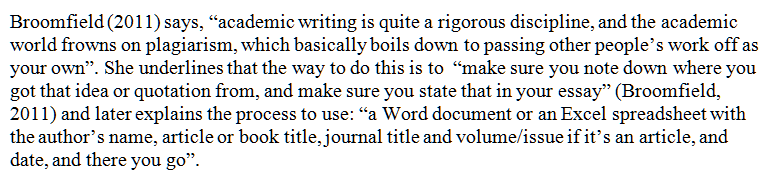
So what I’ve done here is take sections from the text, put them in quote marks, noted where they’re from, and linked them appropriately so it’s clear I understand what I’m talking about.

Note that if you start off in the present tense, “Broomfield (2011) says that there are … ” you need to continue in the present tense; if you start off in the past “Broomfield (2011) said that there were … ” you need to stick with that. You can pop into the present tense if you are talking about a universal truth rather than something rooted in the time frame, so “Broomfield (2011) said that people are always likely to plagiarise” but “Broomfield (2011) said that the results of her study were not clear and she was not able to draw conclusions from them”.

Rewriting source text to talk about what the author is saying

This one is slightly more tricky. You need to do “indirect quoting”, or reporting what the author said. Simple example again:

Mary says “I am going to the park”.

I write: “Mary said that she was going to the park.”

What we have to do here is retain the sense of the original, while writing it in our own words. Here’s what I came up with. Note that I can now use the notes I made on Dexter, too, as I don’t have anything in his words but can talk about what he said and I noted down:
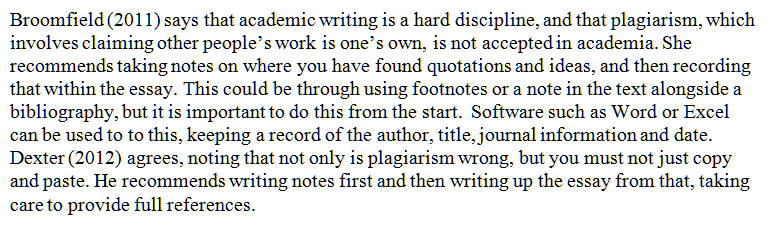
Here I have used a number of different techniques. In no case, though, do I use more than a couple of the original source’s words exactly as they appear in the original. Instead I do this:

  • using synonyms: “hard discipline” instead of “rigorous discipline”
  • simplifying the words but getting the same sense across: “involves” instead of “basically boils down to”
  • reporting what the source said and using that to link the essay together: “she recommends using”
  • expanding on what the source says: “This could be through” rather than “you might”
  • summarising and synthesising (summing up and putting together) “Software such as Word or Excel could be used”, and “keeping a record of the author, title, journal information and date”.
  • Introducing the other research but linking it to the first idea: “Dexter (2012) agrees … “
  • Expanding notes into full sentences: the notes taken on the Dexter text.

Oh: please note here that you use “Broomfield (2011) says this is the case ” or “According to Broomfield (2011) this is the case” but never “According to Broomfield (2011) says this is the case” – I see that last one all the time.

Combining direct and indirect quotation

Of course, the best way is to combine them – some direct quotations, some reported speech or indirect quotations. This has the benefit of breaking up the text a bit, giving some interest, and allowing some use of the authors’ words to save having to rewrite everything.

Note that here I have shuffled around the order of what the first author says, too.

Rewrite, don’t copy and paste

I hope I’ve now managed to explain

  • What plagiarism is (see more in this post)
  • Why it’s not a good idea
  • Different ways to avoid it
  • Direct and indirect quotations
  • Some tips on how to rewrite text

Please do let me know if you’ve found this useful – or if there is more detail you’d like to know about. And do share using the buttons below if you’d like to tell your friends and colleagues about this information.

If you want more … here is a whole article on plagiarism, here is one on essay writing in general and one on writing dissertations and theses, and if you click on the students or writing or Word categories in the right hand column of the blog, you’ll get loads more hints and tips.


 
10 Comments

Posted by on March 28, 2012 in Ethics, New skills, Punctuation, Students, Word, Writing


Tags: , , , ,

Kaitlyn Hatch

Welcome to Saturday Business chat. We’re finding out about a brand new business today: Kaitlyn Hatch has only just launched Me First Life Coaching! Kaitlyn’s one of those natural entrepreneurs, finding out what the word meant when she was 12 and has been producing and selling art and engaging in various business ventures since she was very young. Now she’s a Life Coach, helping other people achieve their goals – although she hasn’t done this particular job before, she can draw parallels between how this business will work and how other endeavours have worked in the past, showing that you can switch emphasis and move between areas in a freelance career.

Kaitlyn’s following the path I took, working full time in a day job at the moment, but planning to transition to part time and then fully self-employed soon (sooner than I did it!). So let’s find out what she’s doing!

What’s your business called? When did you set it up?

I just launched Me First Life Coaching in January 2012, although I did a soft launch of my website in November 2011.

What made you decide to set up your own business?

I have alway been very entrepreneurial. I remember taking a test in a magazine when I was about twelve which said I was extremely independent and self motivated so I’d do well to be an entrepreneur. That was the first time I heard the word and I had to ask my mum what it meant. When she explained it. I remember thinking that owning your own business was a lot of work. I’ve since come to realise that there is a lot of reward in the work involved and, ultimately, I’m better suited to being my own boss than to working for someone else.

What made you decide to go into this particular business area?

Life coaching is a natural choice for me. I love helping people realise their potential and I really enjoy showing people how they are their own greatest teacher. It’s second nature for me.

Had you run your own business before?
Sort of. Since I was a kid I’ve been really good at selling things. I used to hand draw colouring books and sell them door to door in my neighbourhood. From the age of nineteen for four years I set up a not for profit organisation in Canada. For the past three years I’ve been doing my own self marketing as an artist. I’ve held two successful gallery shows, one in Calgary and one in London.

I like making things happen, setting stuff up so it works and can carry on and then moving onto the next thing. This will be a bit different from my previous experience but the principles are the same.

How did you do it? Did you launch full-time, start off with a part-time or full-time job to keep you going … ?

I’m still in the process really. I’ve done a soft launch and then a hard launch. Now I’m working on spreading the word, getting networked through my blog and advertising for clients. I believe goals are super important but I also believe in keeping your eyes wide open. If you focus too much on a single goal you might miss another opportunity that will get you the same end result. For the time being I’m still working full time for someone else, but I’m cutting back my hours and have plans to be fully self-employed by the end of the summer.

What do you wish someone had told you before you started?

Nothing really. I’ve been fortunate in that I’ve had a lot of positive support my entire life. I’ve always believed that you need to just get on and do it. If there’s something you want in life, some direction you’re looking for, a path you want to take, then do it. Now. Life isn’t next week or next month or in a year. Life is right now and it’s up to us to make it what we want it to be.

What would you go back and tell your newly entrepreneurial self?

I think I’ve always been entrepreneurial but I think I’d go back to my younger self and say, “Remember who you are.” I wasted a few years when I forgot who I was, what I was passionate about and what mattered to me. Of course, if I hadn’t have gone through that loss I wouldn’t have learned the lesson and when older me popped up in front of younger me and said such sage words of wisdom, I’d have been more baffled than appreciative. Thing is, I really love myself, who I am and the life I’m leading. I wouldn’t be this person if not for the mistakes and hiccups of the past so I can’t really say I would go back.

What do you wish you’d done differently?

Not a thing. Regrets shouldn’t be about ‘what ifs’ or trying to change what cannot be changed. They’re about learning from your mistakes by promising not to repeat them in the future.

What are you glad you did?

I’m super glad I’ve done it. End of. Full stop. I’m happy to have made the opportunity and taken the plunge.

What’s your top business tip?

Know what you’re worth. I think a lot of people undersell themselves. Whether you’re working for someone else or working for yourself, what is the value of your time?

How has it gone since you started? Have you grown, diversified or stayed the same?

I certainly hope it doesn’t stay the same. Change is constant, growth is important.

Where do you see yourself and your business in a year’s time?

I don’t know that I have a really specific idea of where the business will be in a year’s time. On general terms I see it as self-sustaining, growing at a manageable pace and providing me with a stable income as well as feeding my passion for helping people.

That’s an enviable goal, and what a positive and forward-thinking lady! I’d say these were good attributes for a Life Coach, wouldn’t you?! I wish Kaitlyn every success in her new venture, and look forward to seeing where her new path has taken her in a year’s time …

Note: Kaitlyn’s websites are now not available so I can only assume that the business is no longer running.

If you’ve enjoyed this interview, please see more freelancer chat, the index to all the interviewees, and information on how you can have your business featured.


Tags: , ,

My short cuts – how to create a contents page in Word

This is part of my series on how to avoid time-consuming “short cuts” and use Word in the right way to maximise your time and improve the look of your documents.

Today we’re going to look at how to create a contents page or contents list in Word. I am breaking this series up into small pieces, so we have already learned about setting up headings and then numbering them.

You will use this to save yourself time and ensure consistency when you’re setting up a large document and you want it to have a contents page. You can do it manually, but it is FAR easier to do it this way.

First, have a look at the two headings articles to make sure you understand how to assign headings and how to number them (if you want to).

Now, for the purposes of making a more interesting contents page, I’ve popped each heading onto a separate page (and we all know how to do that, don’t we!)

So the text is all set up, with headings that are also numbered, and each heading is on a separate page. Now we’re going to put our cursor at the beginning of the document, and make sure we’re in the References tab.

You can see the Table of Contents button highlighted – click on that and have a look at the box that comes up:

Here we have lots of different styles of contents page to choose between. Either double click on the one you want – I clicked on the first one – or click once to highlight it and then Insert Table of Contents. And look what appears! Magic!

You can see lots of lovely headings and their numbers, all laid out nice and clearly (imagine if this was a PhD or another long document with lots of sub-headings.

But what happens if we need to change something in the text? Look – there’s a problem with the document here …

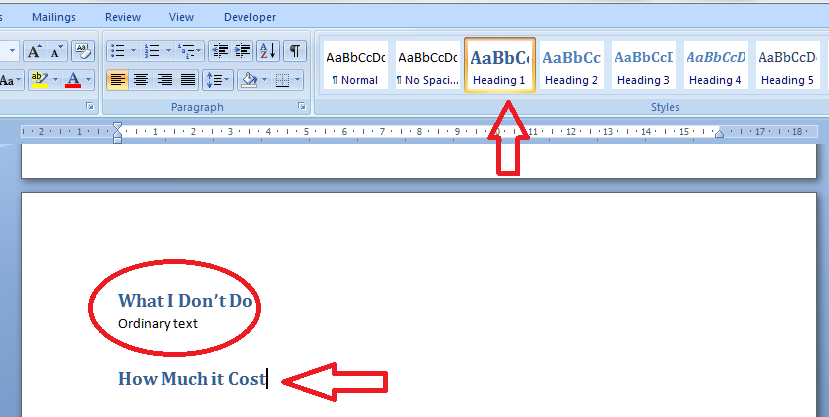
I can see that I should have typed “How Much it Costs” for section 3, and it’s on page 8 along with Section 2, when it should be on page 9. Oh no!

So let’s go to page 8, move the heading onto page 9 and amend the heading itself:

Great – so now the text is sorted out and the heading is on page 9, where it should be. How do we update the Table of Contents to reflect this change?

Go back to the Table of Contents and highlight it (it all comes up in blue if you click on one bit of it). Left click and you should find it puts everything in grey and gives you a little tab at the top like this.

You can use this to change all sorts of attributes on the contents page, or you can just click on Update Field from here or left click when you have the contents list in blue in the last step, and you get this choice:

I always choose Update entire table, just in case. And with one click, it’s updated the Contents list to match the document.

So, no more fiddling around doing a contents page by hand. As long as you set up your headers, you can insert and update your Contents page however you want and whenever you want – so much easier!

This is why, if you use my proofreading services, I will put a note on your contents page reminding you to update it at the last minute, to take into account any changes we might have made to your pagination or heading numberings. Update the Contents page at the very last stage, and it’ll be completely accurate and up to date.

If you have enjoyed this post and found it useful, please click on the “share” buttons below or tell your friends and colleagues about it! Thank you!

Please note, these hints work with versions of Microsoft Word currently in use – Word 2003, Word 2007 and Word 2010, all for PC. Mac compatible versions of Word should have similar options. Always save a copy of your document before manipulating it. I bear no responsibility for any pickles you might get yourself into!

Find all the short cuts here


Tags: , , , ,

My short cuts – headings (part 2)

This is part of my series on how to avoid time-consuming “short cuts” and use Word in the right way to maximise your time and improve the look of your documents.

Today we’re going to look at how to set up numbered headings in Word. I am breaking this series up into small pieces, so we have already learned about setting up headings and next time we’ll learn about creating contents pages, too.

You will use this to save yourself time and ensure consistency when you’re setting up a large document with lots of headings and sub-headings.

So, here’s our text with lots of headings and bits of text under them as we left it last time. We have assigned heading 1, heading 2 etc. styles to them so they make sense and are consistent. But they’re still a bit unclear and I think we would all agree that it would make things a bit clearer if we numbered the headings. But how to do that so the sub-headings have sub-numbers, etc.?

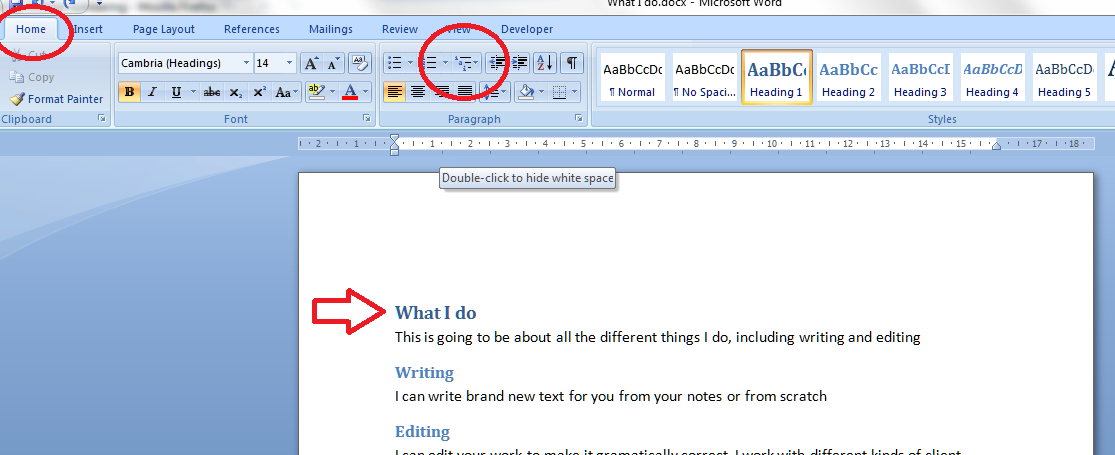
Here’s how to do it. First, make sure you’re on the Home tab in Word. Then, concentrate on the paragraph section. There should be a little icon like the one I’ve circled; when you hover the mouse over it you’ll get a note that this is the multilevel list tool. Make sure your cursor is next to the first heading and click on the multilevel list button.

Up will pop a menu which gives you lots of choices – a list library. We’d like to go for the one that gives us 1, 1.1, 1.1.1 etc. (see arrow) so we pick that and click on it.

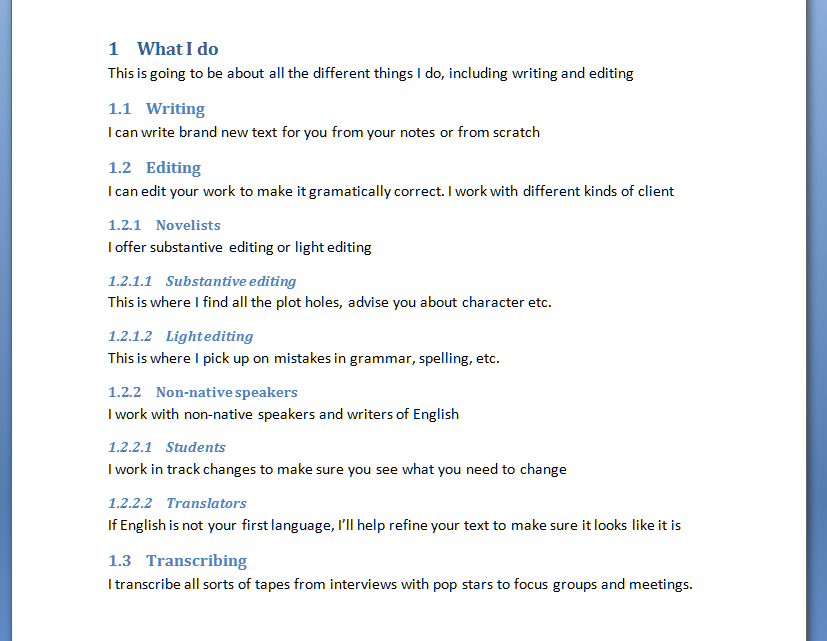
Select the kind of list you want and look back at your text. Amazing – it’s now got heading and sub-heading numbers!

And look what’s happened to your heading style buttons now you’re back in your document. The numbering style has been added to them. Note: there is a way to change the style of the headings when right-clicking on them. That’s all lovely and useful, but when you want to make your headings and their numbers behave themselves throughout your text, you need to do it the way I’ve shown you above.

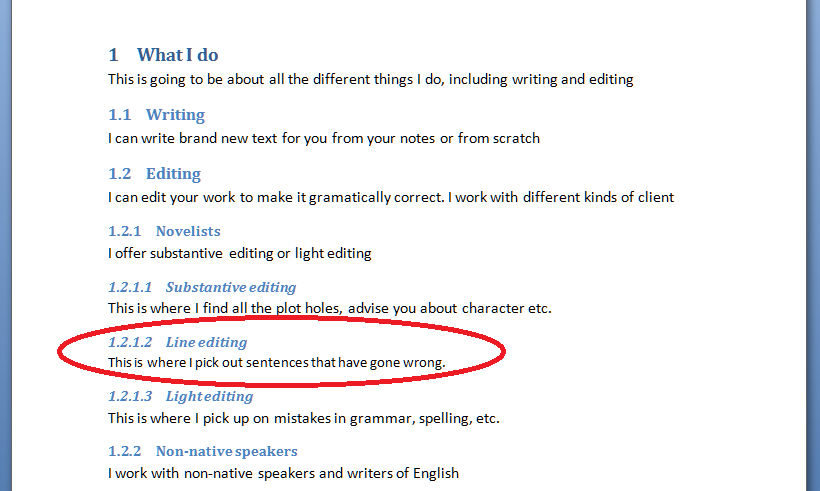
Now let’s try adding a new sub-heading in the middle of the others. In this example, I’ve added “Line editing” in between “Substantive editing” and “Light editing” which were headings 1.2.1.1 nand 1.2.1.2 respectively (look up the post to check that if you want to). I put the cursor in the space after “Line editing”, chose Heading 4, typed my heading … and not only has it assigned number 1.2.1.2 to that heading, it’s also handily moved the next heading, “Light editing” to have number 1.2.1.3 – all by itself! You can see how useful this is if you’re writing a big document and adding in sub-sections but want to keep the numbering consistent. What a nightmare it would be to do it all by hand!

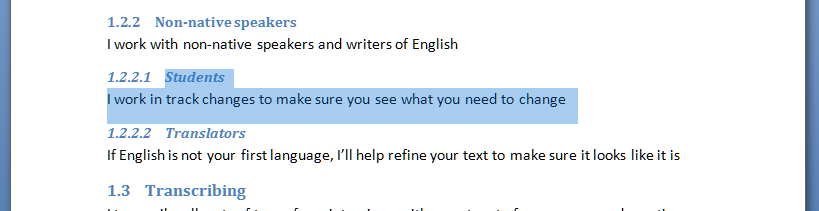
And what about if you want to remove a section with a sub-heading and make sure the numbering follows suit? Here I have highlighted 1.2.2.1 “Students”, ready to delete it. Note that “Translators” has number 1.2.2.2 at the moment …

I delete “Students”, and “Translators” now has number 1.2.2.1 instead. Magic!

So, in summary, if you have a document with lots of headings and sub-headings, and you want to number them, for example in a report, thesis or non-fiction book, use this method to apply a numbering scheme to the headings, and whatever you delete or add, as long as you tell Word that you’re adding a heading and what kind of heading it is, it will sort out all the numbering for you and ensure it makes sense. Hooray, frankly!

Next time, we’ll look at creating an automatic contents page, and how that will help make your document easy to navigate …

If you have enjoyed this post and found it useful, please click on the “share” buttons below or tell your friends and colleagues about it! Thank you!

Please note, these hints work with versions of Microsoft Word currently in use – Word 2003, Word 2007 and Word 2010, all for PC. Mac compatible versions of Word should have similar options. Always save a copy of your document before manipulating it. I bear no responsibility for any pickles you might get yourself into!

Find all the short cuts here


Tags: , , , ,

My short cuts – headings (part 1)

This is part of my series on how to avoid time-consuming “short cuts” and use Word in the right way to maximise your time and improve the look of your documents.

Today we’re going to look at how to set up headings in Word. I am breaking this series up into small pieces, so we will be learning about setting up numbered headings and creating contents pages too.

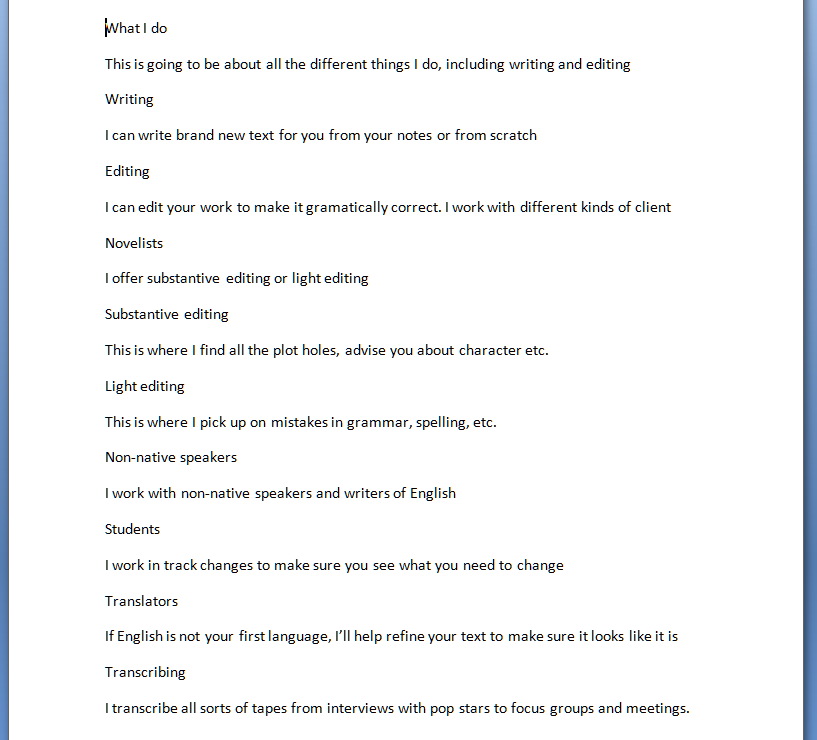
You will use this to save yourself time and ensure consistency when you’re setting up a large document with lots of headings and sub-headings. Imagine I’ve written a document about what I do in my business. I might write it up like this (you can imagine the one-word sentences are longer paragraphs if that helps!)

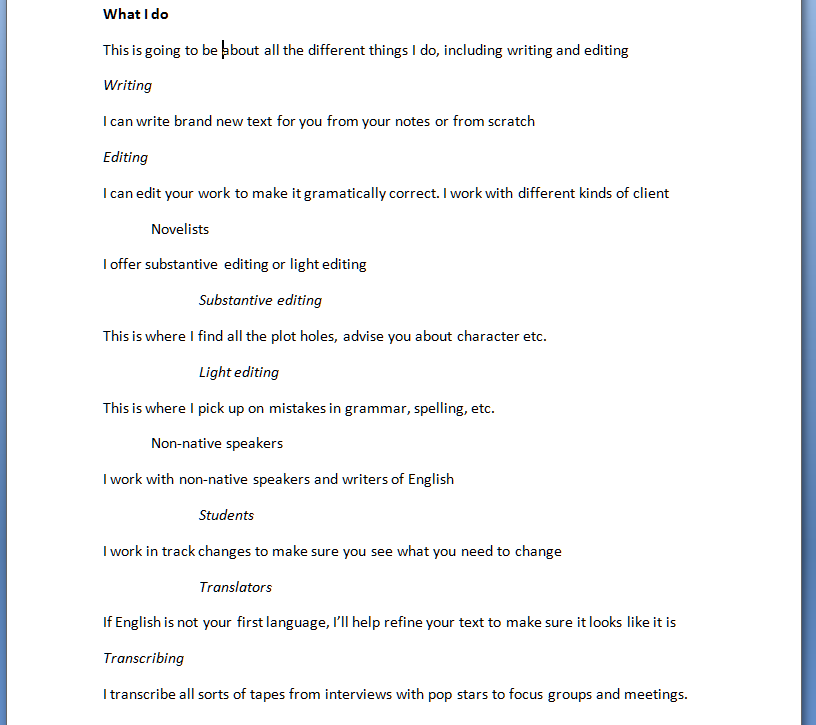
It’s not very easy to see what’s a heading and what’s the text, though. So I might think up my own styles of headings or sub-headings (yes, I might number them, too, but let’s keep it simple for now) and do this:

All well and good, but if this is a great big document: am I going to remember that I put main headings in bold, sub-headings in italics, etc., etc.? Or am I going to get in a mess and make my document confusing, so when you read it you don’t know which kind of section you’re in?

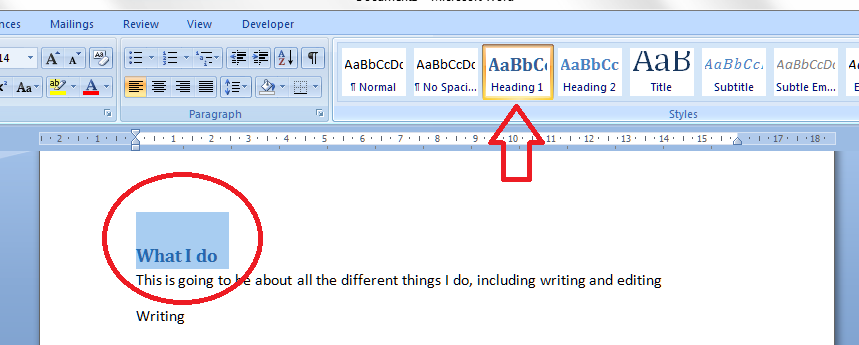
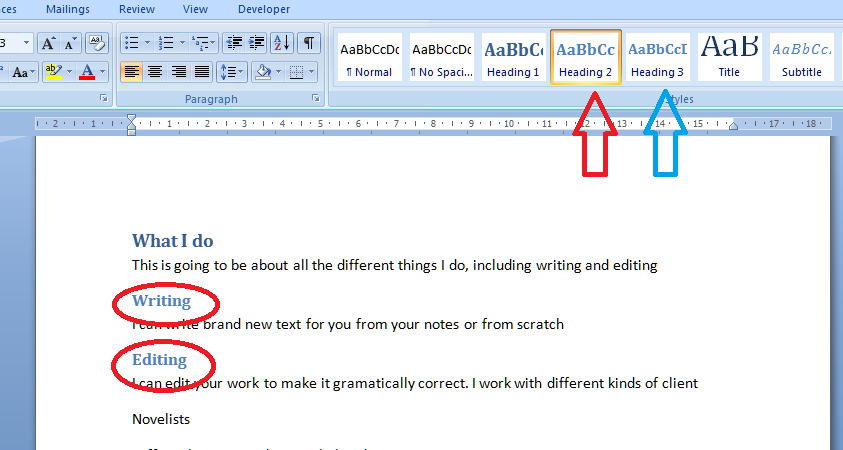
This is where the pre-set headings available in Word come into their own. If you’re using Word 2003, you’ll need to be using the formatting toolbar, then styles. If you’re using Word 2007 or Word 2010, then you’re on the Home tab of the ribbon at the top. Have a look: can you see some boxes labelled Heading 1, etc.?

I’ve circled Heading 1, and the arrow points at a scroll bar that will let you see a whole range of different things you can do.

Now you’ve located the headings buttons, you need to highlight the text you want to mark as Heading 1, and click on the Heading 1 button

And there it is, changed into blue (it doesn’t have to be blue, or that size; we’ll look at that in the next session) and every time you mark a heading as Heading 1, it will look like that.

Note: you don’t have to have all the text already written, highlight and click. You can also click Heading 1 (or whatever) when you want to type a new heading; the text on that line will adopt the Heading 1 format until you press return.

Time to do the Heading 2 level now. Oh – if you want to be clever, highlight each example of a heading you want to change to Heading 2, keeping the Control button pressed on your keyboard as you do so. This will highlight all the text you want to alter at once, saving a few clicks.

Anyway – highlight your Heading 2 text, all together or one at a time, and click on the Heading 2 button.

You’ll notice that Word has realised you’re setting levels of headings and has helpfully moved the button for Heading 3 up to the top row now, to save you looking for it (see the blue arrow). How useful!

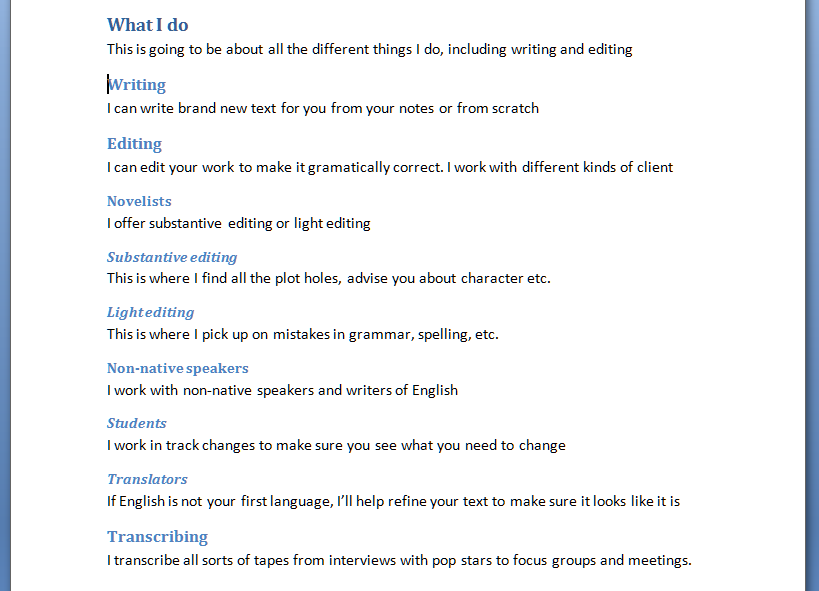
Now, carry on highlighting and choosing heading levels until the whole document is done. You’ll end up with something like this:

Now, maybe this doesn’t look very different from what we started off with. But three things make this better than what we started with:

  1. You don’t have to remember what look you’re using for each level of heading; it does it all for you
  2. If you want to number your headings, that’s going to be really easy to do, AND if you change sections, swap them around, add or delete them, the numbering will change automatically
  3. You will be able to create an automatic Table of Contents

Next time, we’ll look at assigning numbers to all the different heading levels, and how that will help make your document easy to navigate …

If you have enjoyed this post and found it useful, please click on the “share” buttons below or tell your friends and colleagues about it! Thank you!

Please note, these hints work with versions of Microsoft Word currently in use – Word 2003, Word 2007 and Word 2010, all for PC. Mac compatible versions of Word should have similar options. Always save a copy of your document before manipulating it. I bear no responsibility for any pickles you might get yourself into!

Find all the short cuts here

 
9 Comments

Posted by on February 29, 2012 in Copyediting, Errors, New skills, Short cuts, Word, Writing


Tags: , , , ,

My short cuts – top and bottom margins

This is part of my series on how to avoid time-consuming “short cuts” and use Word in the right way to maximise your time and improve the look of your documents.

I have already published instructions on how to manipulate your left and right margins, but I’ve noticed some search engine searches have come through to Libro looking for information on top and bottom margins, so here are a few words about them.

First of all, make sure you can see your rulers! If you can’t see what I’m pointing to in the screenshots, go to this post and follow the instructions on making your rulers visible. I’ll wait here while you do that …

OK, all set, and rulers visible?

So, sometimes we might want to make the area we can use on the page a bit bigger. Classic reasons include wanting to fit a whole document on one or two pages, for example if you are making up a poster and you want to use the largest print area possible. Within reason, you can extend the upper and lower margins of your text to fit in a few more words.

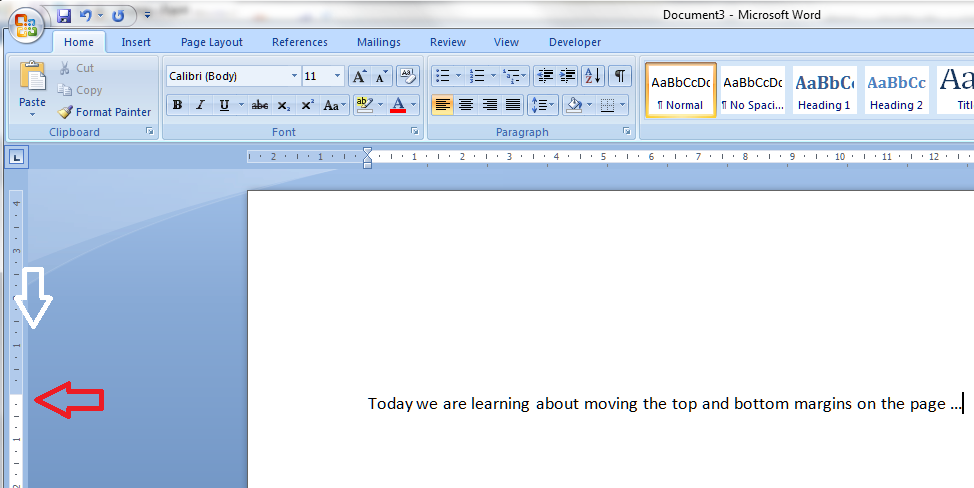
Let’s have a look at these top and bottom margins. Look over to the left-hand ruler in your document. You should see this, which you will notice looks very similar to your top ruler:

You will notice that the white section indicates the area where you can type: where the space for text starts at the top (above) and where it finishes at the bottom:

Hover your cursor over the division between blue and white and you’ll see a slider and an arrow indicating that you can move them up and down. In this example, I’ve moved the top margin down – see how the first line of text has followed it down the page …

But of course you can also move it up if you want more room to type.

Do note, that you can’t move it infinitely and eventually, when you go to print, you will get an error message telling you that you have gone outside the print margins. So be careful, but within reason this will allow you to create that little bit more space on your page.

Please note, these hints work with versions of Microsoft Word currently in use – Word 2003, Word 2007 and Word 2010, all for PC. Mac compatible versions of Word should have similar options. Always save a copy of your document before manipulating it. I bear no responsibility for any pickles you might get yourself into!

If you have enjoyed this post and /or found it useful, please click the share buttons below or comment!

Find all the short cuts here

 
3 Comments

Posted by on February 22, 2012 in Copyediting, Errors, New skills, Short cuts, Word, Writing


Tags: , , , ,

Gillian Linnell

Welcome to Saturday Business chat, and we are all about pets today, talking to Gillian Linnell of the Oldham-based company, GGL Pet Supplies, another new business which opened its doors in 2011 and is not yet a year old. Gillian took a route into business ownership that we’ve not seen before in these interviews, going on an entrepreneurship college course – it just shows the variety of routes we take into our lives as business owners. Like me, to an extent, Gillian has not ended up doing quite what she imagined; having started out in pet gift baskets, she now finds most of her business coming from a different, but related area. It’s so important to be flexible like this, and to both see and take up alternative opportunities as they present themselves, rather than sticking to a fixed idea of what you do. I’m sure flexibility is one of the most important promoters of success – look at Richard Branson, starting a record label and ending up with an airline!

Gillian sensibly took on a part time job while launching her business, making sure she could support herself and keep things going while she established GGL Pet Supplies – hard work, but worth it, I think, for the peace of mind.

So, let’s meet Gillian!

What’s your business called? When did you set it up?

My business is called GGL Pet Supplies, and I set it up in May 2011.

What made you decide to set up your own business?

Mom has advanced Parkinson’s Disease and working full time was taking its toll on me, advancement within the corporate company I was working at was not looking possible and I knew I was capable of much better things.

What made you decide to go into this particular business area?

I have always wanted to work with animals and decided to enrol at college on an entrepreneur course simply making and selling pet gift hampers.  I soon realised that this idea was not going to pay the bills so it quickly changed to a full blown pet store, also offering pet sitting and dog walking services.

Had you run your own business before?

No.

How did you do it? Did you launch full-time, start off with a part-time or full-time job to keep you going … ?

I took a part time job in a bar to help pay the bills whilst the company started to make money.

What do you wish someone had told you before you started?

Don’t spend money on marketing companies which offer Google front page search results when you can do it yourself!

What would you go back and tell your newly entrepreneurial self?

Be confident, trust and believe in yourself, you are unique, and don’t believe everything cold callers say on the phone!

What do you wish you’d done differently?

Not spent a heapload of money on advertising in the wrong places!

What are you glad you did?

Started the pet sitting/dog walking services as this was purely an afterthought, yet it is what is currently booming.

What’s your top business tip?

Stay focused, be persistent, believe. Do not ever give up, but be willing to adapt and change when opportunities arise.

How has it gone since you started? Have you grown, diversified or stayed the same?

The pet supplies is still an ongoing project that I am not really having much luck with, but the pet sitting and dog walking side is booming: I even do horses now. I am pushing the supplies side of things persistently: as I am still in the first year of business, I remain optimistic.

Where do you see yourself and your business in a year’s time?

I would like to be selling the supplies to local people and pet sitting clients and to have a brand and reputation which is very well known and recognised in the local community. Eventually I would like to employ staff and have a  warehouse full of pickers and packers. This is just one ambition – I have a handful of different directions which the company can take.

Reading between the lines here, it looks like Gillian has learned from any early mistakes she made with advertising and marketing – which are always tricky, and there are an awful lot of very persuasive people out there selling such services. She is to be applauded for her positive attitude and perseverance, and I really look forward to hearing about the new directions the business takes in the next year!

You can find out more about Gillian and GGL at www.gglpetsupplies.com and you can  email her or call her on 07717 216 100.

If you’ve enjoyed this interview, please see more freelancer chat, the index to all the interviewees, and information on how you can have your business featured.

 
2 Comments

Posted by on February 18, 2012 in Business, New skills, Small Business Chat


Tags: , ,

Chrissie Metcalfe

Welcome to Saturday Business chat. This morning we’re meeting Chrissie Metcalfe, of Chrissie Metcalfe Recruitment Ltd, who runs her own recruitment agency in West Yorkshire. Chrissie has been going it alone for over a year now, and is probably glad to be in a solid job after experiencing a string of redundancies. It often seems to be redundancy that is the spur for people setting up on their own – sensibly, Chrissie stuck to a work area she knew, but where she also knew she could add value with a personal service and pick up on what the bigger agencies were, in her opinion, losing sight of, having the confidence to this that comes from having been praised by employees and companies for that very aspect of her relationships with them.

Networking has worked well for Chrissie, as it does for so many people – and it’s vital in a business that basically involves connecting people! And she has been sensible in not going for expensive exciting options and learning to get to know people before putting business trust in them, demonstrating that we are all travelling along a learning process here (when I learn something, it usually ends up getting included in my Terms and Conditions!)

So, let’s chat to Chrissie and find out how she did it all.

What’s your business called? When did you set it up?

My business is called Chrissie Metcalfe Recruitment Ltd and it was set up in September 2010.

What made you decide to set up your own business?

Over a two year period I had been made redundant four times by two large recruitment agencies and realised that after eight years in the recruitment industry I wanted to set up my own recruitment agency.

What made you decide to go into this particular business area?

I have always been successful in recruitment and could see that many agencies had lost the personal touch when dealing with candidates and businesses, I had always been complimented by candidates and companies on how well I worked and how I listened properly to their individual needs.

Had you run your own business before?

No

How did you do it? Did you launch full-time, start off with a part-time or full-time job to keep you going … ?

The fourth time I was put out of work was 22nd September 2010, so on that day I went to a web designer with my last wage slip and said, “I need a website, business cards and money left to join a networking group”. Whilst waiting for my business cards and website I spent the rest of 2010 dropping off leaflets, networking and doing everything I could to get my company known. I was doing this alone.

What do you wish someone had told you before you started?

Not to trust everyone who offer to help you. Do your research and get to know people first.

What would you go back and tell your newly entrepreneurial self?

Most definitely to go for it!

What do you wish you’d done differently?

I wish I had started my business before I was made redundant so that I had the money to take on a member of staff straight away, rather than only have one month’s wage to live on.

What are you glad you did?

Joined 4Networking [a business networking organisation with regular breakfast meetings – I’m a member of its online community and have met some of my clients through it]

What’s your top business tip?

No matter how exciting something sounds, if you can’t afford it, don’t do it.

How has it gone since you started? Have you grown, diversified or stayed the same?

My business has grown, I have 12 solid clients and have placed over 20 people in permanent jobs. I am now in an office and starting to look for a member of staff.

Where do you see yourself and your business in a year’s time?

I will have two members of staff and a bigger office. I wont be as tired, ha ha !!

As I come to the end of a very busy week for Libro, I can understand Chrissie saying she’d like to be less tired in a year’s time – however busy I am now, it is nothing to when I had two jobs, and in Chrissie’s case she’s looking to recruit her own staff to help her out – whichever route you take to getting things less frantic, it DOES get better, I promise! See how she was doing in 2013!

You can find out more about Chrissie and her recruitment services at www.chrissiemetcalferecruitment.com and you can  email her or call her at her office: 01977 644 862 or on her mobile: 07805 901 562. She’s based in the Broadland Business Centre in South Elmsall, Pontefract.

If you’ve enjoyed this interview, please see more freelancer chat, the index to all the interviewees, and information on how you can have your business featured.

 
5 Comments

Posted by on February 11, 2012 in Business, New skills, Small Business Chat


Tags: , ,

My short cuts – indents and margins

This is part of my series on how to avoid time-consuming “short cuts” and use Word in the right way to maximise your time and improve the look of your documents.

We’re looking at margins and indents today. By reading through these steps, you’ll learn how to produce tidy indented paragraphs and quotes within paragraphs, quickly and easily, without having to mess around with the space bar and enter key.

We often want to indent the beginning of a paragraph to make it look like more of a break from the last one, or have the first line of text longer and the subsequent ones indented (this is useful if you’re preparing a bibliography). Also, if you’re writing a thesis, dissertation or non-fiction book, it’s useful to indent large quotations to make them stand out as being a quotation. More often than not, I find people either don’t know how to do this using the rulers at the top of their Word document, or they’ve forgotten how to and think they can find a quick way round the issue. This leads to all sorts of formatting problems, especially if you’re going to (as is inevitable) add and remove text as you go along.

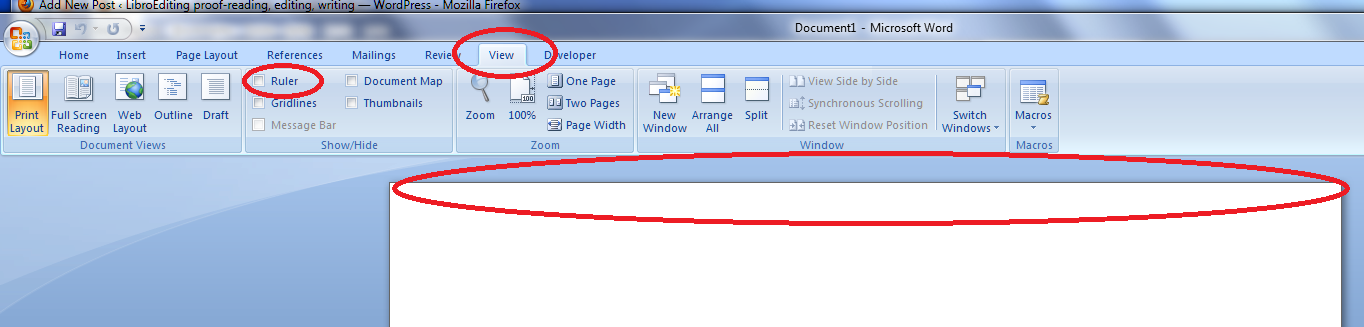
First things first: check that you can see your rulers in Word. If your document has a blank space at the top instead of a ruler, click on the “view” tab at the top of the screen:

How to make margins appear in Word

Look at “ruler” and see if the box is empty or contains a tick. If it’s empty, click on the box. Your rulers (top and side) should now appear:

making margins appear in Word

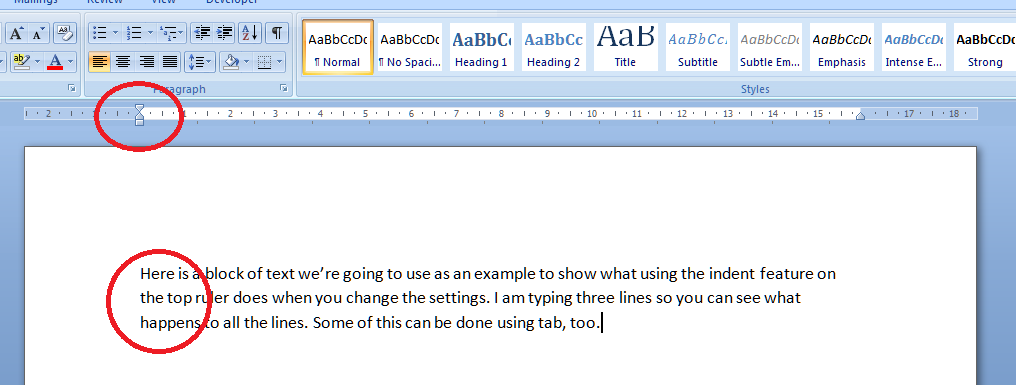
Now let’s look at setting the indents. The important thing to note here is the slider which appears at the beginning of the white part of the ruler, marking where the text starts, or the location of the left hand margin.  Note first of all that the slider’s position matches the text’s position on the page – they are both situated at the left margin.

Let’s look at how moving this slider either all in one, or the top and bottom independently, affects a block of text. First of all we take the pointer and click down on the square block at the bottom of the slider. This picks up the whole thing and, when you move your mouse (holding the button down still) the slider will move across. Very important: when you’re moving sliders or setting tabs, make sure you have highlighted the section of text you want to affect. If you don’t do this, whatever you do on the ruler will only apply to the point at which the cursor is located. You probably don’t want to do that. So: let’s move the slider across to the right a little …

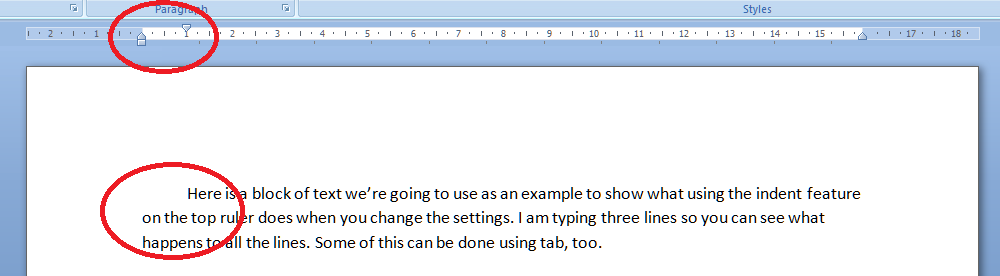
The black lines here mark the borders of the text area, and you can see that moving the slider as a whole has moved all the text across. Taking the slider back, what happens if we move just the top one across a bit?

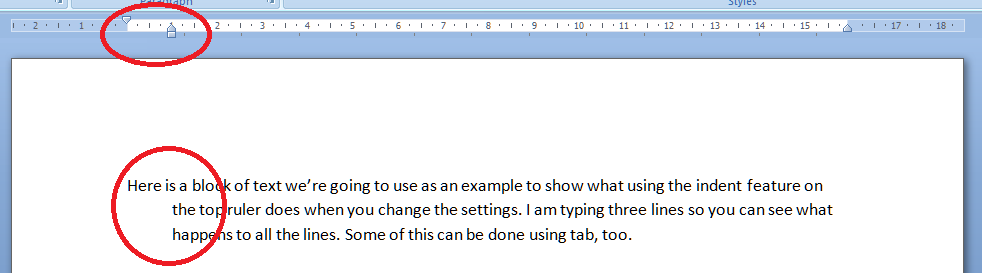
You can do this using the tab key, too – but the useful point here is that once you’ve set it up at the beginning of a document (before you start typing), it will affect all new paragraphs in the same way, so you’ve set up a nice tidy way for your paragraphs to indent themselves throughout the text. Now what happens if we just move the bottom half of the slider?

So this works the other way around: the first line of text is longer than the next ones. This looks a bit odd in a normal paragraph, but it’s very common in bibliographies.

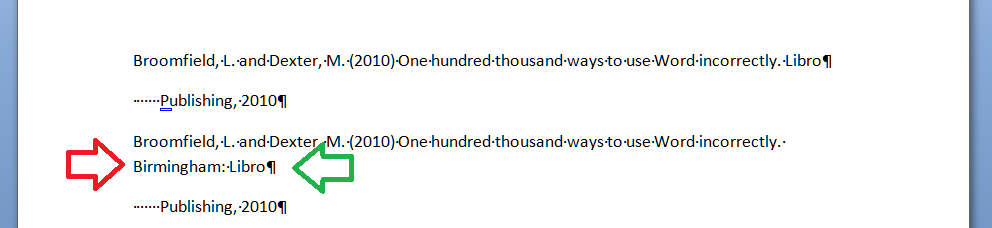
Here’s an example of how the user’s “short cuts” can actually make everything take longer, particularly if changes are involved. I noticed someone doing this in a dissertation I proofread recently, which is what inspired me to write this article.  I’ve turned “show formatting” on so you can see what they’ve done (dots are spaces and backwards Ps are line returns (enter)). In the first example, the author wants to have a hanging indent to make the author’s name more prominent, but they’ve done it by hand, hitting enter at the end of the line then spacing across to make the indent. All well and good (not really) until you need to enter some more text. Then look what happens:

Entering “Birmingham” has forced Birmingham: Libro onto a new line. But the line return at the end of Libro forces the next bit onto a new line (green arrow), and the second line of the entry isn’t even indented, because Word doesn’t know you want it to be (red arrow). Whoever entered “Birmingham” now has to delete the line return and take out the spaces before “Publishing” then re-set the hanging indent. Fine if it’s just once, but it won’t be. Contrast this with what happens if you set up the indents correctly in the first place:

Here, we’ve moved the bottom slider along so that the text automatically indents with a hanging indent on each paragraph. No spaces and only the required line return at the end of the entry. Now when we add “Birmingham” it merely pops itself onto the next line, nice and neat and tidy, and there’s nothing else to do.  Simple.

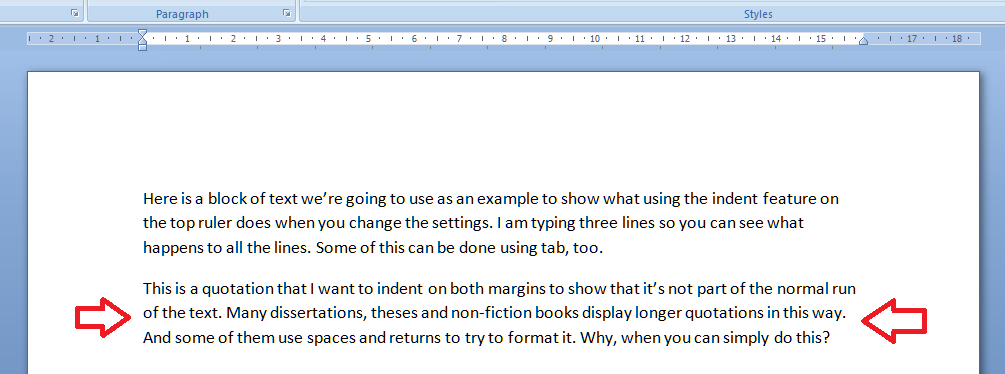
Now let’s have a quick look at indenting text from both margins. This is useful if you’ve got a chunk of quotation you want to insert into the text. Again, I’ve seen people put line returns at the end of each line and spaces across from the left. All well and good (again: not really) until you delete or add a word or character and it all goes odd. Here’s how you do it properly. Here’s the text we want to indent (marked with arrows):

Highlight the text you want to indent and move both the right and left sliders in from the margins:

The black lines show the text margins outlining the area where you can type. The grey lines show how the indented text lines up with the two sliders, one on the left, and one on the right.

One bonus bit of tidying up: if you set the justification to Full, you get nice neat margins both sides. You could not do this using line returns and the space bar.

So now we’ve learnt how to use the sliders on the rulers to make our text tidy and make it much easier to make insertions and deletions without messing up the formatting of the document. I hope you’ve found this useful: do post a comment or share this article if you did!

Note: I have added an article on the top and bottom margins.

Please note, these hints work with versions of Microsoft Word currently in use – Word 2003, Word 2007 and Word 2010, all for PC. Mac compatible versions of Word should have similar options. Always save a copy of your document before manipulating it. I bear no responsibility for any pickles you might get yourself into!

Find all the short cuts here

 
8 Comments

Posted by on February 8, 2012 in Copyediting, Errors, New skills, Short cuts, Word, Writing


Tags: , , , ,

Charles Davis

Welcome to Saturday business chat. This weekend’s chat is with Charles Davis of Professional Photography.  I met Charles at a local networking event and he is generous at introducing people to each other if he thinks they can help each other at such events, which is very encouraging to new people. He’s also happy to share tips and encouragement with other people about their photography and is generous with re-tweets, etc., in social media circles. Charles has brought his wealth of business and communication experience into his career as a photographer: as well as being good with the camera, a successful photographer must be able to engage with people. Like me, he’s not missing the politics and conflicting priorities that often arise as part of working for a large corporation, instead enjoying being his own boss! And giving back through voluntary work is also important to Charles: in his case this has resulted in new opportunities, too.

Let’s meet Charles and find out about his interesting background and widening portfolio …

What’s your business called? When did you set it up?
My business is Professional Photography, and although I have produced professional quality photography for friends and family all my life, it was formally set up in 2010.

What made you decide to set up your own business?

After successfully growing both responsibilities, my Post as Fundraising & Communications Director for a large Charity was split into two roles for Fundraising & Communications.  I therefore decided to take the redundancy package offered instead of taking one of either of the roles. However, as I felt I had successfully completed my work with the organization and I’m always looking for opportunities, I saw this as a perfect time to start my own business and do something I love.

What made you decide to go into this particular business area?

My father ensured I had a camera in my hands at a very early age and since then I’ve never stopped trying to improve my skills as a photographer.  This, together with my love of beautiful images and state-of-the-art technology, makes for an exciting combination as a 21st century photographer.

Had you run your own business before?

My first career was in the Police Service, where I specialised in the protection of Royalty and VIPs as part of the Special Escort Group, and I further went on to become a Tactical Advisor & Team Leader in Firearms Operations, although the only thing I shoot nowadays is a camera!  Yes, I’ve run a number of different operations, training and consultancy, advanced motorcycling and testing, a national association plus multi-million pound fundraising and communications teams for two high profile charities.

How did you do it? Did you launch full-time, start off with a part-time or full-time job to keep you going … ?

Full-time.  The decision had to be full-time to be able to give the commitment, time and effort to give the business a good chance of succeeding.  Building a client base is a slow but sure process and, as they say in sales, “you’re only as good as your last sale.”  Well, in photography you’re only as good as your last few shoots.

What do you wish someone had told you before you started?

My previous experience prepared me for many challenges in business although I was surprised how many prospect clients are prepared to put up with a low quality or average quality of service from their existing provider and sometimes appear to be too lazy to want to make the effort to change to a new supplier.  Essentially you need to make it as quick and simple for them as possible to make the change, whilst of course providing excellent images.

What would you go back and tell your newly entrepreneurial self?

“I should have done this years ago!”  It’s the truth: I’m totally enjoying myself, doing something that I love with no one pulling you in different directions in terms of objectives, and essentially I don’t have to play the politics that are so often there in large organizations.

What do you wish you’d done differently?

The success of our new website, launched in October 2011, has exceeded my expectations, and looking back, when I started the business in 2010, I should have built a much better website from the start.

What are you glad you did?

Made the decision to do something I love and for myself!  The satisfaction and lovely, lovely comments you receive from clients on completion of an assignment are a great reward as photographer.  It’s not often in life you get to do something you love!

What’s your top business tip?

Network, Network, Network!  As a big fan of social media and face-to-face networking groups, it’s essential to get you and your business out there!  Time-consuming, I would agree, but with relatively no costs but your time, you need to meet new people on a regular basis and have state-of-the-art joined-up social networks.

Also try to give something back: it doesn’t have immediate benefits but long-term you will be surprised at the opportunities that arise.  I’m part of a number of membership based associations, and in particular MIPAA, the Motor Industry Public Affairs Association.  When I started my business, I also put myself forward to join the Operating Committee of MIPAA and its Executive Team.  Since that time, numerous opportunities have arisen from my voluntary work.  This also applies to local charities and new start-up businesses, where I offer to do the occasional photo-shoot to help them with an event or to get their marketing campaigns started.

How has it gone since you started? Have you grown, diversified or stayed the same?
My portfolio of work is broad, and strategically so.  I’m just as happy shooting a Cherish the Dress, Wedding or fashion shoot as I am on a commercial shoot for a product.  Producing the best images possible, with a little editing, can really exceed a client’s expectations, and is so, so rewarding.

Where do you see yourself and your business in a year’s time?

I’ve recently been lucky enough to pick up interest from a number of up-and-coming fashion designers and been asked to become their official photographer, which is flattering to say the least.  Whether reportage, still life, or traditional, using a variety of photographic styles is still key for me when telling the story. My photographic work  offers a visual representation of my unique perspective, exploring the depths of beauty and style, whilst hopefully still portraying elements of the classical. I feel my work retains relevance to 21st century client, and I plan to keep it that way!

It’s amazing that you can meet someone a number of times, have in-depth conversations with them, and never know they have guarded royalty and VIPs! I wish Charles the best of luck with his new and expanding work areas, and look forward to hearing how he gets on over the next year.

Find Charles at his website www.professionalphotography.me.uk, email him, or phone him on 07824 444 487.

If you’ve enjoyed this interview, please click here for more freelancer chat, or here for information on how you can have your business featured.

 
1 Comment

Posted by on January 21, 2012 in Business, New skills, Small Business Chat


Tags: , ,