RSS

Category Archives: New skills

Tips for coping with writing up a PhD

mugsI have worked with many PhD students and have several friends who are in the middle of the process at the moment, or about to start off (exciting!) so here are some top tips for how to cope with the dreaded end stage: writing up, gleaned from my experience over the years.

Think of this like a chat over a cup of tea. I’m here to help, to reassure you that everyone goes through the same stuff – and that you WILL get through it.

Yes, it’s difficult, so don’t beat yourself up

Not everyone gets to do a PhD. It’s an achievement to get onto the course, it’s an achievement to gather all your data, do all your literature review stuff, grapple with statistics … and then start to write it all up.

Hopefully, nobody said it would be easy. Because it’s not. But if it was easy, everyone would be doing it! A big achievement like a doctorate isn’t worth it if there isn’t a struggle. No one’s goes smoothly, even if they say it is. I have worked with lots and lots of PhD candidates. Even the most organised and seemingly perfect person has underlying panics, lost texts, confusions, chapter sections that just won’t go right …

If you accept that it’s difficult, that it’s going to be a struggle, that it’s a major achievement you’re aiming at, you can get your head down and bite away at chunks of it until it’s done.

Everyone goes through the same stuff

I thought this one was obvious, then I realised that not many people are privileged to work with and know so many people starting off on their research career. Almost every time I tell a student that what they’re going through is what everyone else goes through, they’re incredibly relieved.

  • It’s not just you
  • Everyone gets through it
  • There is normal life at the end

It’s a bit like when I’m doing the Birmingham Half-Marathon, which I do every year. At a certain point, around Mile 10 (of 13), you start to look around and see the pain, slight sicky feeling and effort etched on everyone’s faces. But then you see the finishers walking back down the route with their medals and silver foil cloak things and you know that the end is in sight!

You will experience this

From my experience with PhD students, I can pretty well guarantee you will experience one or more of these phenomena:

  • You will get quite a lot fatter or quite a lot thinner
  • You will get paler and a bit bug-eyed. This is because
  • You will go outside less and less
  • A frown will start to etch itself on your forehead (this will go)
  • Your hair will get really long (boy or girl. Haircuts? No time! I could write a paragraph in that time!)
  • You will eat odd things
  • At odd times
  • You will get no sleep and wake up tired
  • Whenever you get a slight break (you’ve handed in a chapter!) you will sit down and fall asleep
  • You will make excuses not to see friends
  • You will see friends and end up in a frenzy of self-flagellation about not being at your desk
  • You will wake up with heavy eyes and a feeling of dread
  • Everything about the entire document will be wrong
  • You will sit down and be unable to write anything
  • You will feel like your supervisor either hates you or pities you so much – either way, they’re sending you coded messages not to continue via the comments they make (they’re not)
  • You will feel that your supervisor doesn’t care / understand (they do: they’ve seen it all before so they’re not panicking because they know you can get through it)

I can guarantee you that everyone in the whole world of research experiences many if not all of these phenomena. You are not alone!

What can you do?

This is going to sound boring, but when I tell people to do this, and they listen and do it, it does, honestly, make it better.

  • Eat as healthily as you can. Accept that offer of a casserole or a vat of soup from your housemate or friend. Take an evening to make up batches of good sauces that you can freeze and re-heat. Keep healthy snacks around.
  • Take breaks. No one can work for more than about an hour solidly without needing to refocus their eyes, get up, stretch, and think about something else for a few minutes. This will NOT eat into your writing-up time: it will make it more productive. Every hour, stand up, stretch, look out of the window.
  • Get outside – at least once a day, in the daylight. Even if you just go into the garden and jump around a bit – but preferably get off the premises and go for a walk around the block. Again, this will NOT eat into your writing-up time: it will make you more productive.
  • Take some exercise. If you are a runner or a gym bunny, keep it up, even if you have to do shorter sessions than normal. This is not the time to take up a new sport or activity, but even a good, brisk walk is great. You need to keep your body active as well as your mind. This will help you sleep better, too.
  • Give yourself a treat. Once you’ve finished a chapter or achieved something specific, have a chocolate bar, a read in the bath, an evening off. Simple things can mean a lot at this time and really help.
  • Don’t just start at one corner and work your way round. Oh, hang on: that’s ironing a shirt. Anyway, have a plan for how to write up, don’t just start at the beginning and try to write it straight through. Set up the headings and fill bits in as you go, sure, but have those headings and structures in place so you can do that (see my post on top tips for dissertations and theses for more on this).

These seem both dull and obvious, but they are obvious because they work. They work in all sorts of contexts, actually: they’re quite similar to my Home Working Rules, for example. But when you’re concentrating on a big project, you do need to be reminded of these!

No one is superhuman, no one can just sit down and write the thing, and the more you look after yourself, the more you will get done.

Get help

It’s not weak to ask for help. If you need help, ask. People will be happy to help you, and for some of this stuff, you can help yourself, too.

  • Your supervisor – if you’re really struggling or panicking, talk to your supervisor. They might act like they’ve seen it all before, but then they have. But they do care about you: they have a professional duty to you, if nothing else, and they can’t help you if you don’t tell them you’re struggling!
  • University resources – the chaplaincy, departmental support services, University support services, services for foreign students, drop in sessions at the Library – use them.
  • Proofreaders and other professionals – if you’re struggling with your writing, whether you are using assistive technology (e.g. dictating rather than typing), have issues with dyslexia, or are writing in a language that’s not your native language, there are people who can help you. If the issue is to do with your need for technology or extra support, you may be able to talk to your department about defraying part of the cost. Note: research this carefully, try to make sure you’re talking to the real person who’ll be working on your document, and get references and examples. People like me won’t look down on you: even if English is your native language, you’re fluent and have no issues it’s easy to make mistakes when you’re mashing sentences together and mixing things around. We’re here to help.

In addition, it’s worth setting up the following at the beginning of the writing up process and during the first stages.

  • Know how to use Word – I can’t say this enough – if you don’t know how to do these things as a minimum, find out before you start writing up. You do not want to be in a big pickle about this at the end of the process when you’re rushing to hand it in. I talk about lots of these in my handy Word tips blog posts and there are lots of other resources around, too.
    • Setting up headings levels
    • Automated contents pages
    • Tabs and margins
    • Page breaks and section breaks
    • Placing images in text (if you have images or figures)
    • Tables
    • Spell checking
    • Track changes (if you are going to get the document proofread)
  • Get used to saving your work regularly
    • Press that Save button all the time. Better to save too much than lose it
    • Make multiple back-ups – on a pen drive or whatever. Save the most up to date copy each time
    • Version control – if you want to keep previous drafts, number your versions so you know which is the most up to date, which has been checked by your proofreader, etc.
  • Sort out your referencing. I have a post on this for you to read. Whatever you do:
    • Keep a note of what you refer to
    • Use a notebook, Excel, Word, a specific referencing system – but keep it all in the same place
    • Record ALL the information – book publisher details; journal page numbers
    • If you’re unsure of how to reference something, do a Google search and find out how others have done it (this particularly applies when you can’t tell which is the first name and surname of an author – easily done!)
    • Find out what referencing system your department uses and learn about it now, not right at the end. You should be given information on this at the beginning of your course. If not, talk to your library rep or supervisor
  • Make a style sheet for yourself. Stick it all down on a note pad or Word document. This seems like a fussy thing to do now, but it will make everything consistent and save you having to decide each time. If you don’t use a proofreader, this will make your examiners exclaim over your tidiness and organisation. If you do use a proofreader, it will save them (and you) time.
    • Decide what kind of spellings you’re going to use (ise / ize).
    • Decide how you’re going to number figures and tables (1, 2, 3 throughout, or 1.1, 1.2, 2.1, 2.2 per chapter – I recommend the latter)
    • Decide how you’re going to number headings if you decide to do that
    • Decide how you are going to refer to common words and phrases – initials with a key at the beginning?
    • Decide what you’re going to capitalise
    • Decide if you’re going to use footnotes or in-text citations
    • Decide how you’re going to format longer quotations and make a note (e.g. 2 cm left and right margins, italics)

You can do it

If you’re at writing up stage, you will get there. I admire you, and so do lots of people. Remember …

  • It’s not easy but no one finds it easy
  • Everyone goes through the same stuff
  • Get outside
  • Seek help when you need it

Good luck!

If you’ve found this post useful, please share it using the buttons below, and/or make a comment – I love to get feedback about my posts. Also, if there’s something I haven’t covered here or a top tip for this stage, do add a comment. Thank you!

You might find these useful: Top tips for students and Word users

 
7 Comments

Posted by on December 19, 2012 in New skills, Organisation, Students, Word, Writing


Tags: ,

Bullet points – grammar and punctuation

Last week we talked about when to use bullet points and how to personalise them. This week, we’re going to have a look at the actual language of bullet points, including top tips on making them easy to understand for the reader. There are two parts to this: word forms / grammar and punctuation.

Punctuation in bullet points

Over recent years there has been a shift towards less punctuation and “cleaner” looking documents. I remember this being called “open” punctuation, and it’s the difference between typing an address as:

1, Avenue Gardens,

Brighton,

BN1 1AA.

and

1 Avenue Gardens

Brighton

BN1 1AA

Of course there is a place for punctuation, but it can get a bit messy looking, and I’m all for clean lines as long as you don’t forget your semi colons within normal runs of text!

So, here are some things not to do. We never introduce a list in a sentence with a semi colon, and we don’t introduce a bulleted or numbered list with one, either.

It used to be the case that we included semi colons and even “and”s at the end of every line. But I think that does look old-fashioned and cluttered nowadays …

Regarding the full stop at the end of the last bullet point … well, the jury is out on that one. It’s one of those style choices that don’t have a specific rule. I’ve checked in my New Oxford Style Manual and my Oxford Guide to Plain English: the former doesn’t talk about the punctuation much at all, and the latter has some general standards to consider following.

Here are my suggestions:

  • If the bullet points come in the middle of a sentence, and it is still clear when you read that sentence even though it’s got bullets in the middle, you can
    • start each bullet point with a lower case letter
    • put a full stop at the end.
  • If the bullet points are very short and don’t form a sentence, like this:
    • Start with a capital
    • Don’t add full stops
    • Use full stops sparingly
  • It is fine to add a full stop at the end of each bullet if the bullet points are long and include:
    • More than one line of text which therefore forms a solid block when you look at it on the page.
    • More than one sentence. It would look odd to have a full stop there and not here.

In summary:

But the single most important thing to do is KEEP IT CONSISTENT within each bulleted list! If you use capital letters or lower case letters to start each bullet, keep them the same throughout. If you end the first bullet with a full stop, end each of them with a full stop.

But of course, you can use different styles for different lists, as the context demands, although I’d be wary of having wildly different ones very close together, as it can look messy.

And this point on keeping it consistent brings me on to …

Grammar in bullet points

We insert bullet points into a text to make it more easy for the reader to understand. This means that the grammar within the bullet points should be consistent, so the reader doesn’t end up scratching their head and going over and over the same bit of text, trying to work it out.

Have a look at this example, and you’ll see what I mean:

Even if the reader can understand the basic sense of this, the uncomfortable disconnect between the different grammatical forms bring the reader’s attention to the form of the text and not the meaning of its content. And that’s not what good, clear writing should do. However, this is one of the most common mistakes I find in the text I proofread and edit. Especially if the bulleted list is long, the writer will lose track part way through and start going all inconsistent.

This is what that list above should look like:

Nice and tidy: everything following the same structure.

The grammar of bullet points must be consistent and matching so that the reader is not confused. It’s a different matter with the punctuation, which is, when it comes down to it, more of a matter of choice. Personally, I prefer capital letters and no full stop in my bullet points, which is why, if you’re my client and your bullet point punctuation is a little inconsistent, you’ll find me using that as standard!

So now you know all about how to insert and customise bulleted and numbered lists, and the grammar and punctuation to use with them! I hope you have found this helpful.

This is part of my series on how to avoid time-consuming “short cuts” and use Word in the right way to maximise your time and improve the look of your documents. Find all the short cuts here

Do let me know if this has helped you – and do share with the buttons at the bottom of this article.

 
13 Comments

Posted by on November 28, 2012 in Language use, New skills, Short cuts, Writing


Tags: , , , , , , ,

Bullet points – how and when to use them

It’s Word Tips time and today I’m going to talk about bullet points – why we use them and how to use and format them. Next week, I’m going to treat you to some tips about how the language and punctuation of bullet pointed text works. But for now …

Why do we use bullet points?

Bullet points help to make what you’re saying more clear. They break up blocks of text into tidy chunks so the reader can take in what you’re saying. They present lists in a clear format so people can see it’s a list. They emphasise points you want to emphasise. They show the organisation of things. In short:

  • They’re useful
  • They’re tidy
  • They’re good at emphasising things
  • They make sure the reader knows this is a list

How do I use bullet points in Word?

In Word, you want to be in the Home Tab. Then, look at the Paragraph section and you’ll find a set of useful little buttons. One has a list of dots, one has a list of numbers, one has an indenting list of numbers, and two have paragraphs and arrows:

These are the buttons you need to make your bullet pointed lists.

So, here’s a plain list without any bullet points. To make a list bulleted, you need to highlight the areas you need to change. So in this example, we want to leave the first line alone and highlight the other ones:

Once we have the lines highlighted, we can click on the bullets button (just in the middle of the button for the time being) to make the highlighted lines into bullet points:

You can do the same but hit the number button to the right of the bullets button – now we get a numbered list:

How do I create sub-bullet points?

What if you want nested bullet points in sub-categories? That’s fine – put your list into bullets, then select just the line you want to change and click on the Increase Indent key to move it along one. You’ll see the bullet point itself (or the number) change when you do this.

There’s another way to do this (of course there is!) – get your cursor just before the first letter of the first word of the line you want to indent and hit the Tab key on your keyboard. You will get the same effect.

How do I customise my bullets and numbering?

You may not like the standard bullet points you’re given by Word. That’s fine, because you can customise them.

The bullet and number button each have a tiny arrow on the right-hand side of the button. Try clicking on the one on the bullet button …

… and you’ll get a choice of different bullet markers you can use. If you click on Define New Bullet, you can even upload your own images to use as bullet points: useful if you’re creating a document that needs to be on brand with the rest of your brand identity, for example.

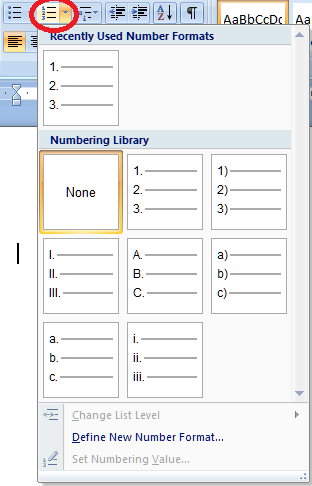
You can do this with the numbers, too, allowing you to choose between letters, Arabic numbers and Roman numerals:

Again, you can define your own new number format if you want to.

Customising the list style

To go just that little bit deeper into customisation, you can also fully customise how the sub-bullets work and even set a new Style for this document or all future documents.

To do this, we use the Multilevel List button. This one’s a bit of a swizz, I think – it gives you a tiny arrow on the right, but it doesn’t actually matter where on the button you click; you will still get the same menu.

So this gives you the chance to choose between different multi-level list formats and to define your own.

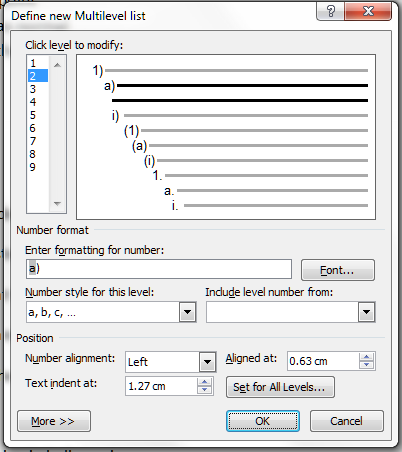
If you select Define New Mulitlevel List you will be given a new set of options. Choose this if you just want to change one list in your document.

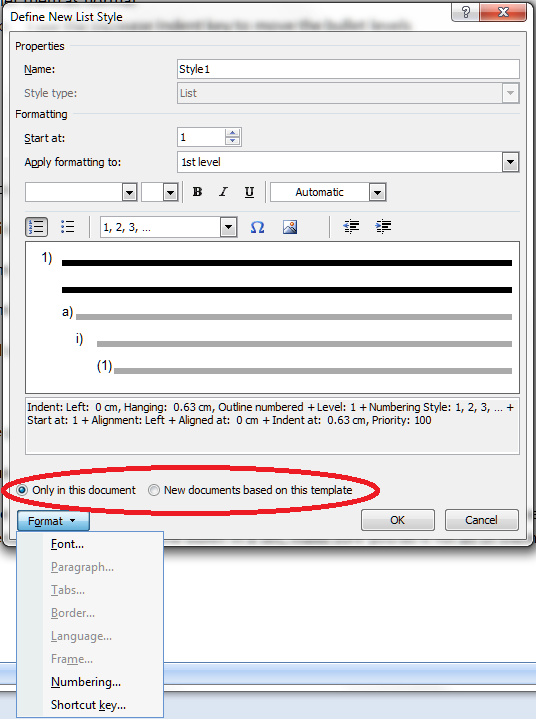
If you want to define a style for all of the lists in your document, or a new List Style to use in all documents forever, choose Define New List Style.

Then you can go ahead and crate a new list style that will appear in your Styles on your Home tab, and can be used for lists in just this document, or documents from now on.

We’ve learned how to set up and customise bulleted and numbered lists.

Next week, we’ll look at the text you write in lists and how to make sure that works clearly and appropriately.

This is part of my series on how to avoid time-consuming “short cuts” and use Word in the right way to maximise your time and improve the look of your documents. Find all the short cuts here

Do let me know if this has helped you – and do share with the buttons at the bottom of this article.

 
7 Comments

Posted by on November 21, 2012 in Copyediting, Errors, New skills, Short cuts, Word, Writing


Tags: , , , ,

Changing the language in Word comment boxes

I have already published a detailed post on how to customise your comment boxes/balloons. This issue came up for me the other day, and I wanted to note down some quick instructions. Please note these instructions are for Word 2010 and upwards for Windows and may not work in other versions.

Why are my comment balloons in a different language?

In my case, I was running a final spell-check over a document when I suddenly realised that my comment balloons were in Australian English (I realised this when the spell-checker switched over to Australian English while taking exception to a word I had not, in fact, mis-typed).

Why would this be? Well, the formatting of the comment balloons comes under its own Style, separate from normal text, so at some stage this document, or the computer it came from, or the template the author was using, had come to have Australian English as the comment box language.

How did I get it back to UK English?

How do I change the comment balloon language?

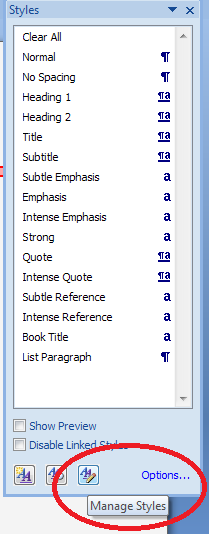
Follow the normal steps for updating the comment balloon style, so get to the styles menu by

  • Pressing Control + Alt + Shift + s all at the same time
  • Making sure you’re in the Home tab and click on the little tiny arrow at the bottom right of the Styles menu

This gives you the Styles dialogue box.

Using either of these methods, you will bring up the Styles dialogue box.

Click on the rightmost button: Manage Styles to bring up the next box: Manage Styles. To get to Comment Balloons: click on the down arrow to change As Recommended to Alphabetical:

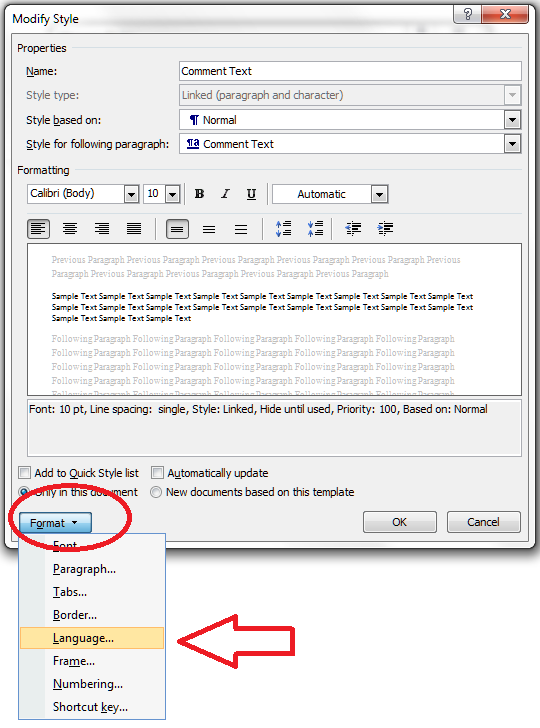
Once you’ve got the list into alphabetical order, find Comment text, and then click on the Modify button. 

Click the Format button and choose Language

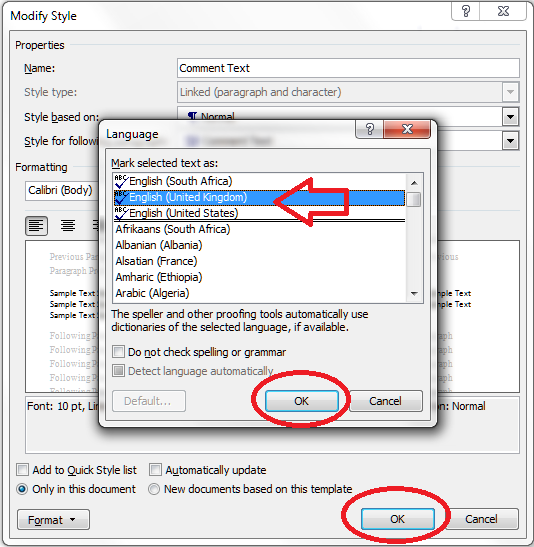
And change the language:

And then all the OK buttons to get back.

You can also choose whether this change applies only to this document, or to all documents based on this template, and add it to your Quick Styles list if you want:

Press the OK button, and carry on pressing OK buttons until you get back to your document. Now your comment box language will be whatever you asked it to be!

Why not take a look at these related topics, which should help you further?

Customising comments balloons

What to do if your comment boxes go tiny in Word

What to do if your comment boxes start running from right to left

Customising Track Changes

This is part of my series on how to avoid time-consuming “short cuts” and use Word in the right way to maximise your time and improve the look of your documents. Find all the short cuts here

Do let me know if this has helped you, saved your bacon, etc. – and do share with the buttons at the bottom of this article.

 
53 Comments

Posted by on November 7, 2012 in Copyediting, New skills, Students, Word, Writing


Tags: , , , ,

Keeping it formal – your academic writing

I’ve worked with many different academic texts, written by native and non-native speakers alike. Many issues are the same all over the world and crop up in anything from an undergraduate essay to a journal article. One of the major ones is making sure the language and style used is appropriate to the academic environment.

Here are my top tips for keeping your academic writing formal and appropriate.

No contractions

Contractions are not suitable for academic writing. That’s right, don’t do what you wouldn’t see in a textbook.

  • Change don’t to do not
  • Change there’s to there is
  • Change isn’t to is not

The only exception to this (and to all of these rules, actually) is if you’re quoting, either the literature or the direct speech of your interview participants / writing in entries to your questionnaires. Then, go ahead and use what someone else has said (but see the section on tidiness below).

Colloquialisms and slang – not cool, man

It’s very easy to be tempted to write as you speak. This includes those contractions that we’ve just talked about, of course. The classic one I see here is “lots of”; you just need to upgrade that one a little, and the same happens with “really”.

  • Instead of “Lots of researchers say this is wrong”, try “Many researchers say this is wrong”.
  • Instead of “This happened in lots of places”, try “This happened in a large number of cases”
  • Instead of “Interviewee A appeared to be really upset about this”, try “Interviewee A appeared to be very upset about this”

If you’re tempted further into slang, then think twice. Is there a way to make this sound less informal? What word would you use if you were talking in a seminar, or to your grandparents?

There is no place for the exclamation mark!

This one is more about objectivity than anything else. If you’re writing an academic text, you need not to appear partisan (even if you are) and your language needs to be very cool, calm, collected and academically rigorous. An exclamation mark is a surefire way to allow your own personal feelings to creep in.

Contrast these two examples:

  • When they were claiming expenses, senior managers would often claim for an extra meal that they did not order or eat!
  • When they were claiming expenses, senior managers would often claim for an extra meal they did not order or eat.

In the first one, we can’t help reading a value judgement – this is a bad thing, right? Well, it might be, but your job is to report the facts and then draw conclusions from them, backed up with the theory from your literature review.

Me, me, me (I)

It can be quite hard to work your own practice into the text in an appropriately formal way. It’s not usually acceptable to use the word “I” and you will need to find a way to work around this. It’s a good idea to check local practice here – some institutions favour “we”, some go for “the researcher”, and some won’t let anything personal through at all, and you’ll have to do some rather acrobatic writing to twist it all round into the passive tense.

Please note that this one can change depending on the academic discipline within which you’re working, and the agreed common practice of your institution. So check this one with your supervisor or the style guide you may have been given at the start of your course or contract, and adhere to the rules you’re given there above my rules. If you are not given any guidance, then use my suggestions to keep it as formal as possible. It’s worse to be under dressed than to be over dressed!

Here are some examples of the options:

  • I found that not all of the respondents answered every question
  • We found that not all of the respondents answered every question
  • The researcher found that not all of the respondents answered every question
  • It was found that not all of the respondents answered every question
  • Or, keeping it simple: Not all of the respondents answered every question

Eliminate sloppiness

It’s oh-so-easy to let sloppiness and inconsistency creep in, especially when you’re writing a long document with lots of sections. These are a few of the major culprits

  • Not checking the spelling of names in your references. Spell-checker won’t notice this and if you go too far wrong, your proofreader might think you’re talking about two different authors.
  • Not being consistent in your headings styles and numbering (read this article and the ones it’s linked to if you need help setting this up to be automatic)
  • Not being consistent with how you lay out new paragraphs and indented quotations (those big ones that you put in a special paragraph all on their own)
  • Not being consistent with your -ise- and -ize- spellings (organisation vs. organization)
  • Not being consistent with your capitalisation – there are rules for this which I’ll treat on the blog at some stage, but there are often choices to be made, too
  • Not being consistent with hyphenation – similar to capitalisation
  • Using abbreviations without spelling them out the first time

The editor’s solution for this? Use a style sheet. If there’s something you need to use consistently, note down your preferred way of doing it on a separate Word document, and keep it open to refer to as you need.

With abbreviations, note down each one and when you first use it (chapter and section will be enough), Keep this updated if you’re working on the chapters in an unusual order, and make sure the first instance is the one that has the words spelled out.

Keep it tidy

This is related to sloppiness, but a bit more specific. This is all about keeping the document looking nice, so how it looks doesn’t distract from what it says. I find two main culprits here:

  • Putting everything into direct quotations from interview respondents. I often find a quotation like this: “… and um the thing the thing is that, it’s not going to … work … at … all”. A much neater way to put this, which is going to get across the meaning a lot more clearly, would be “And the thing is, that it’s not going to [pause] work at all”.
  • Emphasis overload. If you’re indenting a quotation and putting it in italics, you don’t need to put quotation marks around it, too – it’s pretty obvious that it’s a quotation. If it’s a quotation in the text, just quotation marks, no need for italics except for emphasis. If you’ve got a heading, bold, underline and italics plus a colon at the end might just be too much

As a basic rule, keep it simple, keep it neat and tidy: don’t distract from the reader’s experience of the content of your writing.

Reference, reference, reference

I cover this in detail in another article, but it’s worth reminding you of these rules …

  • If you state an opinion that hasn’t come directly from your brain as an original thought, reference it: “Many people think the sky is green (Jones, 2010; Smith, 2012)”
  • If you talk about something that’s come out of your research, reference it and make sure you label your respondents: “One teacher thought this was rubbish and said so (Interviewee A2)”
  • If you state your own opinion, still back it up: “When reading the responses from the students, it struck the researcher that this needed looking into”; “As we have seen from the teacher respondents, not everyone agreed”. “We found that, contrary to Green (2011) our results suggest pupils do respect their teachers”

——-

I hope you’ve found these pointers useful. If you’re a student or a supervisor and you can suggest any more hints and tips, do please use the comments below to share them! And you might find my other resources for students and resources for Word users helpful – do take a look.
 
10 Comments

Posted by on October 31, 2012 in New skills, proofreading, Students, Word, Writing


Tags: , , , ,

My short cuts – the line space button

Today we’re finding out all about the wonder that is the Line Space button. Do you know what it does? Did you know it was even there? And did you know how many ways there are to get to the Paragraph menu …? All this and more in today’s Short Cuts!

What is line spacing and why do I need to know about it?

Line spacing defines a large portion of what your document looks like on the page. It’s all about the gaps between the lines you type. Too close together, and your document can be hard to read. Too far apart, and there aren’t enough words on the page, with all that white space glaring at you. Of course, sometimes you’re told that your work must be presented in a particular way – double line spaced is popular for both academic work and fiction being submitted to a publisher or magazine.

It’s also really useful to be able to insert a gap between paragraphs automatically, to save you having to insert one manually – and if you find you’re working on a document that has odd spacing (or, worse, inconsistent spacing!) between lines and paragraphs, this is how you sort it out.

How do I alter the spaces between lines in my document?

We’re in Word 2007 or Word 2010 now, with that handy “ribbon” containing hundreds of little square buttons. Make sure you’re in the Home tab and have a look at the Paragraph section. You should find a button with up and down arrows to the side and lines of text in the middle: the Line Space button. There’s a big version at the top of this post, and you can find it here:

When using this button, or indeed anything that changes the word, line, paragraph, page or whole document that you are working on, make sure you’ve highlighted the text to which you want the change to apply first. Then click on the button and see what choices you are presented with:

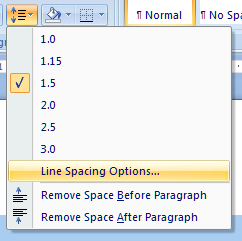
The first thing you’ll notice is that one of the line spacing options (in the top half of the box) is already ticked, and you have an option to Remove Space After Paragraph (in the bottom part of the box) which, you can see by comparing it to the line above it, implies that there is a space set to appear after each paragraph at the moment. So one useful feature here is that clicking on the paragraph and then the line space button will tell you what is already set up for that part of the document. In this case, the spacing is 1.15 (just a little bigger than single line spacing) and there’s an extra line space after each paragraph.

Let’s try changing something …

Here, we’ve changed the line spacing to 1 and clicked on Remove Space After Paragraph, so it’s flipped to saying Add Space After Paragraph (red arrows). And look what’s happened (immediately) to our highlighted text. All of the lines are closer together, and the space between the paragraphs has disappeared (blue arrow).

We can change it back and go the other way, too …

This image is at the same scale as all of the other ones, but you can see that changing the line spacing to 1.5 and adding spaces before and after the paragraphs has really spaced it out, and moved it further down the page to start off with.

Now, there’s one line in the dialogue box we haven’t looked at yet: Line Spacing Options… What does that do?

How do I use Line Spacing Options?

The Line Spacing Options … erm, option can be found between the line spacing and paragraph spacing choices:

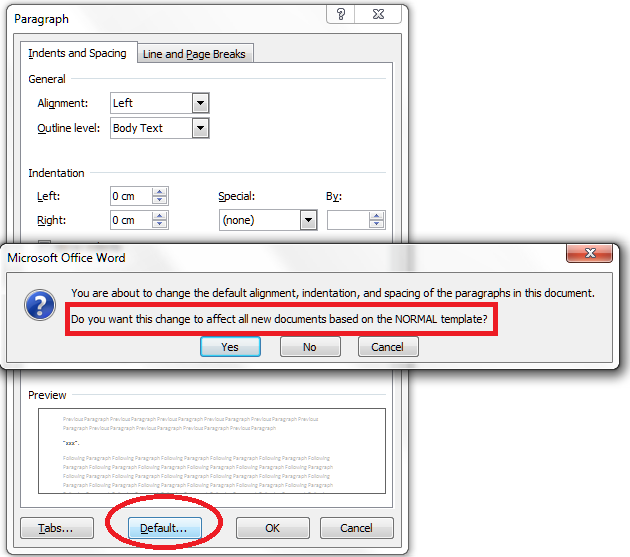
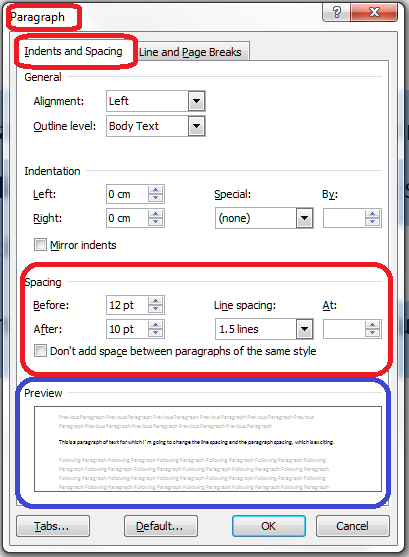
When you click it, you’ll be given a new dialogue box, which is actually the standard Paragraph options box. It has two tabs, and the first one is Indents and Spacing:

If you want to customise your document completely, this is where you come to set the paragraph indent, and the actual distance between paragraphs. There’s a handy Preview pane at the bottom which will show you the effect of any changes you make on some sample text (circled in blue). You can also work with Tabs from here – we talked about Tabs in another session. And, if you wish, you can change everything on here and then set it as being your default setting for paragraphs for this documents, or all documents based on this template that you ever work on:

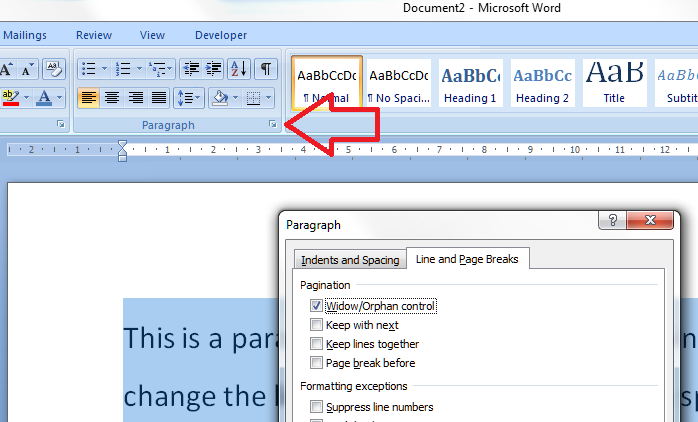
The other tab on this dialogue box is all about Line and Page Breaks:

These are topics in themselves, so I’ll write about them in another session (if I forget to come back and put a link in here, use the Search box in the right hand column of this blog, or look it up in my index).

When you’ve finished with all of these options, just press the OK or Cancel buttons to accept your changes or go back to the document.

How do I access the Paragraph menu?

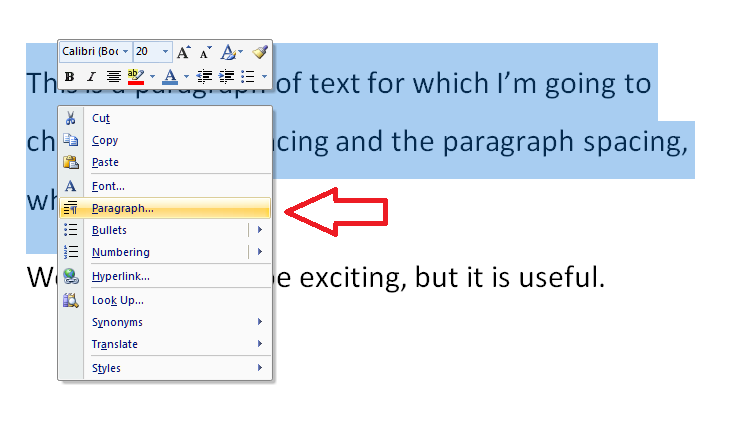
This being Word, you will find the same Paragraph menu we’ve just been looking at popping up on other routes through the software. If you just need the Paragraph menu and not the Line Spacing options in particular, you can access it from any Word document by highlighting your text, clicking with the right mouse button and selecting Paragraph from the selection that appears:

Or you can access it by clicking on the little tiny arrow at the bottom of the Paragraph title bar (if that’s what it’s called!) on the ribbon (I talk about these little arrows elsewhere, too):

I hope you’ve found these hints helpful! Do pop a comment on this post if I’ve helped you learn something new or solved a tricky problem for you, and do explore the rest of my blog if this is your first visit!

Please note, these hints work with versions of Microsoft Word currently in use – Word 2007 and Word 2010, all for PC. Mac compatible versions of Word should have similar options. Always save a copy of your document before manipulating it. I bear no responsibility for any pickles you might get yourself into!

This is part of my series on how to avoid time-consuming “short cuts” and use Word in the right way to maximise your time and improve the look of your documents. Find all the short cuts here

 
2 Comments

Posted by on October 24, 2012 in Copyediting, Errors, New skills, Short cuts, Word, Writing


Tags: , , , ,

Customising comment boxes in Word

A lot of people find this blog when they’re trying to sort out specific problems with their comment boxes (comment boxes suddenly going tiny, or comment box text running in the wrong direction, changing the language in your comment balloons). Here are general instructions on customising your comment boxes (or balloons, as they are officially called) in Word.

Why would I want to customise my comment balloons?

To be honest, the main reason for doing this is if something goes wrong. But the standard, default text size and layout may not be suitable for your purposes, and you might want to change it to make it more readable for someone with limited vision, etc.

You might also have preferences about which margin your comment balloons appear in, and how big they are.

The principles we are going to learn about here also apply when you want to customise the general styles in your document, which we will look in particular another time.

If you take a look at a document with standard comment boxes, you will see they look something like this:

Annoyingly, you will need to go to three different places to make these changes. I provide a recap at the end, but a summary might be useful here:

  • To change the location and size of balloons: Track Changes – Track Changes Options
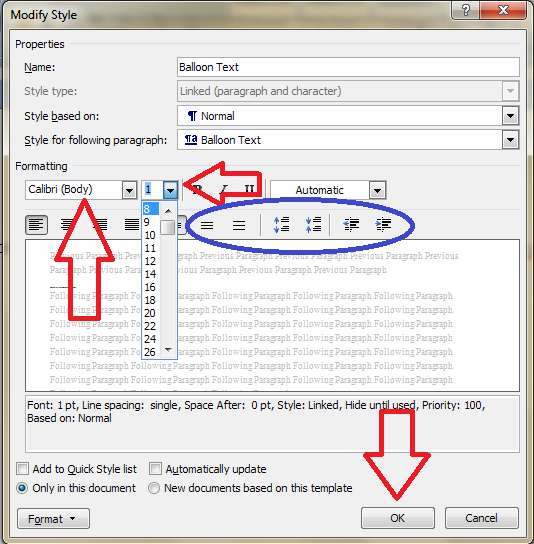
  • To change the size, font, colour etc.of the heading (Comment M2 etc) AND/OR the size of all text in the comment balloon: Styles – Balloon text
  • To change the font and colour of the actual paragraph of text in the balloon AND/OR the size of all of the text in the comment balloon: Styles – Comment text

Note: my article on customising Track Changes will tell you how to change the colours in which the comments and corrections by different reviewers appear.
How to change where your balloons appear and their size

If you want to change which margin your balloons appear in, their size, and whether they are linked to the text by a line, you must go into the Track Changes Options menu. In the Review tab, click on the little arrow at the bottom of the Track Changes button and bring up Track Changes Options. There, at the bottom, is your balloons section:

I think this is fairly self-explanatory.

How to find the menu for customising comment balloon text

There are two ways to reach the menu you need:

  • Press Control + Alt + Shift + s all at the same time
  • Make sure you’re in the Home tab and click on the little tiny arrow at the bottom right of the Styles menu

Either of these options will bring up the full Styles dialogue box.

Using either of these methods, you will bring up the Styles dialogue box.

Now, ignore all of it except the three buttons at the bottom. Click on the rightmost button: Manage Styles to bring up the next box: Manage Styles. When you first open this window, the sort order is in what Word thinks is a useful order: As Recommendedclick on the down arrow to change it to Alphabetical:

Once you’ve got the list into alphabetical order, it’s relatively easy to find Balloon Text (note: not Comment text) and you will see that it then confirms how you have your text set up (blue circle).

Click the Modify button … Now you can change your font and font size. You’ll notice lots of other options (blue circle) to change the spacing, etc.

I’m going to change the font size, font, orientation and colour of the comment box heading, and the size of the text:

Note: As we will see, the changes in colour, font and italics etc. only apply themselves to the heading of the comment text, where it says “Comment: L1”. Why? Because it’s Word, and we are changing, very specifically, information about the Comment Balloon itself. See below for how to change the text in the comment balloon. EXCEPT, and here we may tear our hair out a little, this IS where we change the text size in the comment box .

Note, however, (blue arrow) that this does not change the size of the text itself – that is controlled from Balloon Text, and you’re just going to have to remember that, or look at the Recap I’ve written at the bottom!

At this point in either menu option, you can also click on the Format button and change all sorts of aspects:

Now, you probably won’t want to go to this level of fancy detail with the comments balloons, but, of course, this dialogue box is not only for changing the style of comment balloons: it’s also where you set up all of the styles in your document if you want to change and customise them.

You can also choose whether this change applies only to this document, or to all documents based on this template, and add it to your Quick Styles list if you want:

Press the OK button, and carry on pressing OK buttons until you get back to your document. Now, your comment will appear in the style you have chosen. If you’ve only chosen to amend the Comment Balloon text size, only the header will have changed:

If you’ve chosen to customise the Comment Text as well, you will have made all of these changes:

Now your comment boxes have large, easy-to-read text in a useful colour. and a very fancy heading. We’ve customised your comment boxes or, as you now know to call them, your comment balloons, and the comment text

A quick recap

  • To change where the balloons appear, and their size, use the Track Changes Options section in the Review tab
  • To change the size and orientation of the comment balloon header text, and/or the size of all of the text, use the Comment Balloon option in the Manage Styles list
  • To change the colour and font of the comment balloon text, and/or the size of all of the text in the balloon, use the Comment Text option in the Manage Styles list

Why not take a look at these related topics, which should help you further?

What to do if your comment boxes go tiny in Word

What to do if your comment boxes start running from right to left

Changing the language in your comment balloons

Customising Track Changes

This is part of my series on how to avoid time-consuming “short cuts” and use Word in the right way to maximise your time and improve the look of your documents. Find all the short cuts here

Do let me know if this has helped you, saved your bacon, etc. – and do share with the buttons at the bottom of this article.

 
131 Comments

Posted by on October 19, 2012 in Copyediting, New skills, Students, Word, Writing


Tags: , , , ,

Working with Track Changes in a document

Here’s the last part of my series on working with Track Changes. We’ve already learned what Track Changes is, why we use it and where to find it, and how to customise Track Changes to suit our own preferences. Now it’s time to learn how to work with a document that has Tracked Changes – i.e. how to get rid of all those marks and comment boxes and be left with a clean document with no errors.

Why do I need to work with Track Changes in a document?

These instructions will be useful to anyone who has their work edited, critiqued or otherwise commented on by other people. For example, I work in Track Changes with all of my student customers, because they need to see what I’m suggesting they should change so they can make the decisions and retain their understanding and authorship of their own texts.

If a text has Track Changes on it and you want to submit it for your Master’s or PhD, a journal, a magazine that publishes creative writing … you need to remove those Tracked Changes so they don’t show up when someone else reads your document.

(Note: in the last article we looked at how the different views of track changes don’t actually delete the changes – review this article for more information in the section “How can I change which changes I can see?”)

How do I remove the Track Changes markup from my document?

To get back to basics, you’ll find all the buttons and drop-downs you need in the Review tab in Word 2007 or 2010 (or the Tools dropdown in Word 2003):

Review section

We’re looking at the Accept / Reject area to the right of this section, and then the New Comment / Delete area to the left.

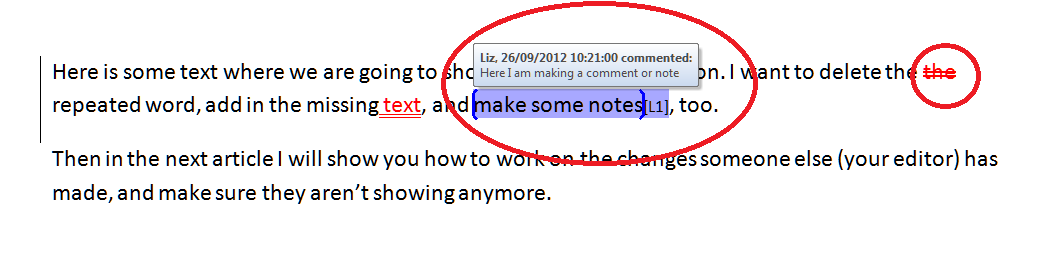
And let’s just remind ourselves what a document with Track Changes looks like: here’s the one we’ve been working on for a little while now. Additions show up in red underlined, deletions disappear and pop into a comment box, and comments and corrections appear in different colours depending on who entered them:

Document with tracked changes

So, first of all you will need to look at each of the changes that are showing in your document and decide whether to accept or reject them. Then you need to review all the comments, make the necessary amendments, and delete the comment. Finally, you need to check that all the markup has actually disappeared, and you’re left with a nice clean document.

How do I accept changes in a document?

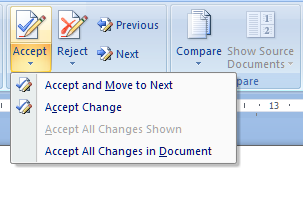
The area you need to look at for accepting (and rejecting) changes is that section in the middle of the Review tab that looks like this.

Accept changes button

You will notice that there’s a little arrow on the Accept button; if you drop that down you get a range of choices. Let’s see what happens if you position the cursor by the change you want to accept and hit Accept Change:

Change accepted

You can see that the word “text” has stopped being underlined and changed from red to black. You have accepted the change, and the additional text has basically become part of the actual, final version of the document now.

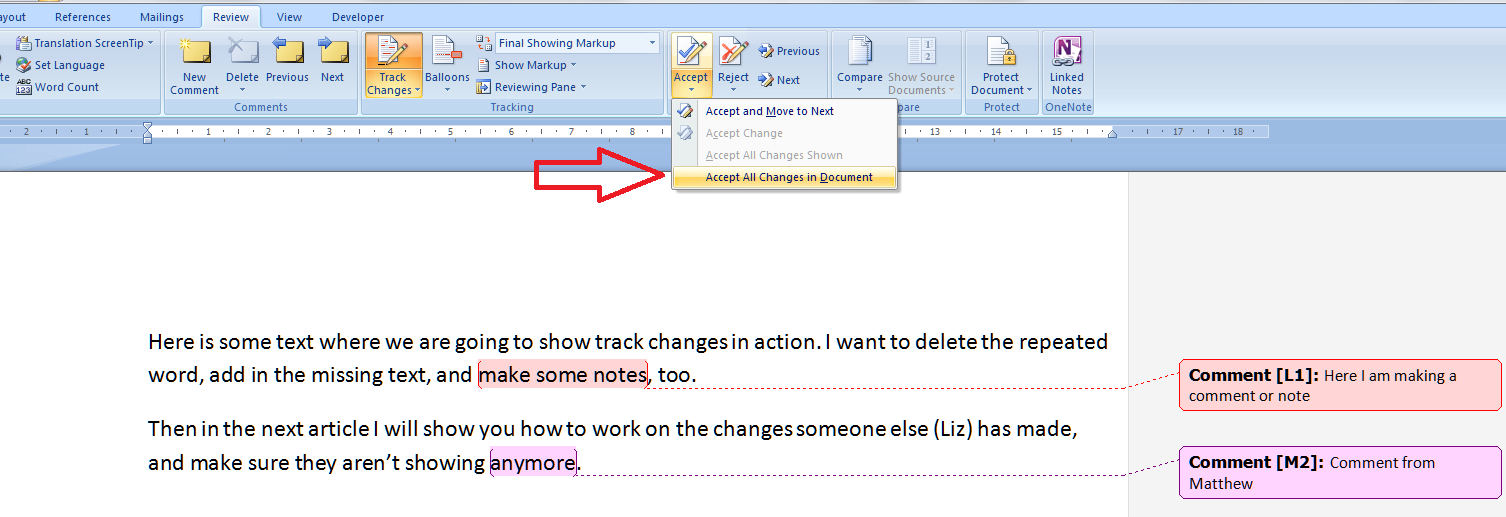
You can Accept and Move to Next if you want to skip through all of the changes one by one – a good option to take that ensures you don’t miss one. Or you can do this manually using those blue arrows to the right of the Accept and Reject buttons. Or, you can choose Accept All Changes:

Accept all changes

If you do this, as you can see, all of the tracked changes (but not the comment boxes) disappear.

Note: I don’t encourage student clients to do this, as I prefer them to look at every change and accept or reject it individually. However, I use this option if I have been asked to provide two versions of a document for a client: one with changes marked and one “clean” copy. It’s a quick way of accepting all the changes I’ve made and seeing what I’m left with.

You can undo any individual Accept Change or Accept All Changes, immediately after you’ve done it, by hitting the Undo button:

undo button

How do I reject changes in a document?

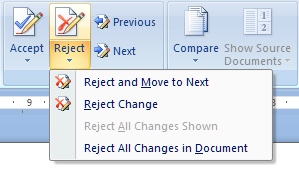
Rejecting changes is done in exactly the same way as Accepting changes. Obviously, if your editor has suggested a change for you, they are the expert and it’s worth seriously considering accepting it. But there could be a choice involved (with a comment box nearby explaining it) or you could be working collaboratively with a colleague and deciding to reject a change one of you has made.

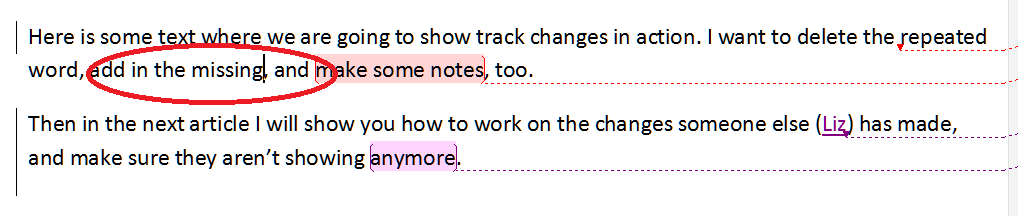
Anyway, there’s a Reject button with a dropdown arrow, and the choices are the same, when you place the cursor by a marked change, allowing you to reject just that change or reject it and move on to the next one …

Reject change

When you reject this change, you will see that the text will revert back to what it said originally, with a word missing. The insertion has been deleted, and again there is nothing there in red or underlined, but that’s because it has been removed from the document.

reject change - text altered

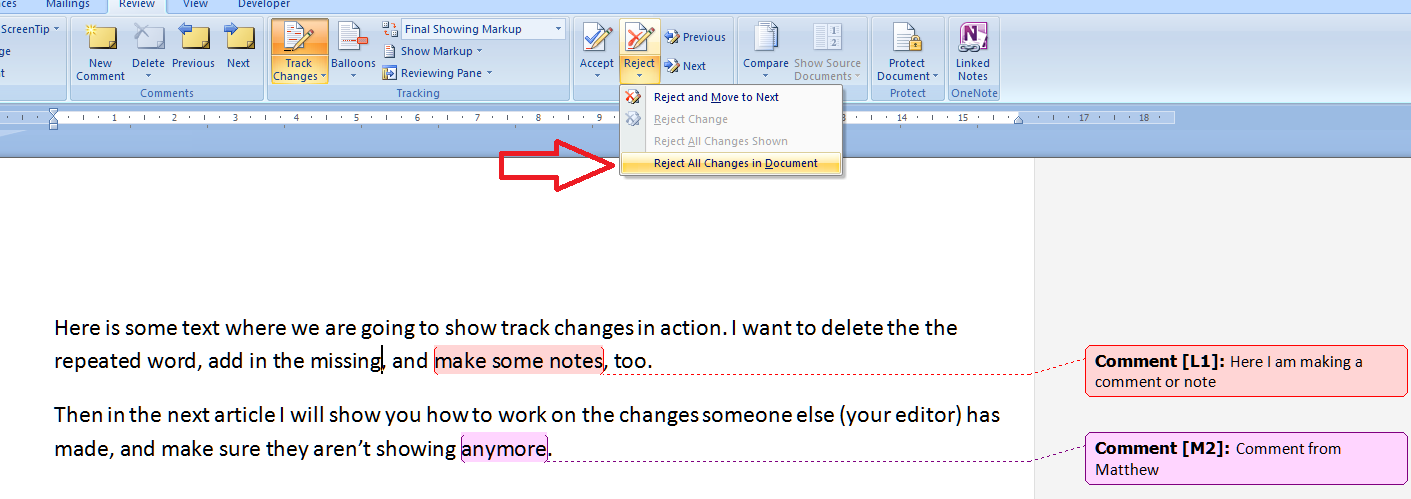
And again, you can decide to Reject All Changes (not if I’ve made them for you, though!), in which case …

reject all changes

all of the changes (but not the comments) will disappear and you’ll be left with your original textt, just as it started out. Of course, you won’t want to do this if you’ve asked an editor to offer their suggestions, but you need to know what this does and how to use it.

How do I remove the comments in a document?

OK, so we’ve gone through all of the changes in the text and accepted or rejected them. Now how do we get rid of all those comments in the margin?

The area for doing this is on the left of the Review section. You will see a series of buttons for handling comments:

comments buttons

The important thing to remember here is that, like with the accept or reject changes functions, you need to have the cursor on the affected text when you choose to delete the comment.

deleting a comment

When you press the Delete Comment button, both the highlight in the text and the comment box in the margin will disappear:

comment deleted

You can choose to Delete all Comments: I suppose this would be useful if you’ve reviewed all the comments and done what they say, although personally I like to review a comment, do what it instructs, then delete the comment individually, and that’s how I would always recommend you work through them.

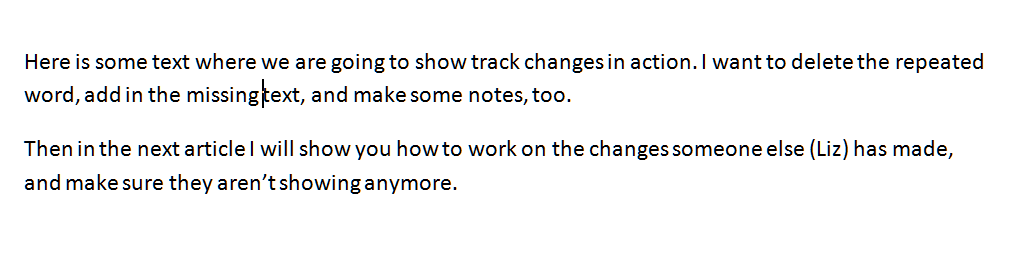
Anyway, once you have accepted or rejected all the changes, and deleted all the comment boxes, you should be left with a clean, amended text with no coloured or underlined text, no lines in the left hand margin, and no comment boxes:

clean copy

Why can’t I make all the Tracked Changes disappear?

You may sometimes find that there are some sneaky bits of markup left in your text once you’ve done all the above. This usually shows up as lines in the margin where a small change has been made.

The other culprit is thinking that you can use the Final Showing Markup menu to hide the track changes. You can’t. Any method you use to customise track changes will only appear in your own version on your own computer. Several of my clients have reported that they have turned off Track Changes, then all the changes have “reappeared” when they re-opened the document. That’s because they had chosen the Show Final option, thinking they had removed the markup but really only hiding it on their version of the document.

As I mentioned at the beginning of this article, review this paragraph under the heading “How can I change which changes I can see?” for more information on this aspect of customising track changes..

In summary: the only way to remove Track Changes markup is to:

  • Go through each change
  • Decide whether you accept it
  • Accept or reject it
  • Move on to the next item
  • Review the comments and do whatever you are instructed to do
  • Remove the comments once you have reviewed them

If any last vertical lines then remain in the left hand margin, it’s fine to hit Accept all Changes, which will get rid of them once and for all.

———-

This article has taught you how to work with a document that has been marked up using Track Changes. You can read more about what Track Changes is and why we use it, and learn how to customise Track Changes.

If you have found this article useful, please share or “like” it using the buttons below, or leave me a comment to tell me what you think. Thank you!

This is part of my series on how to avoid time-consuming “short cuts” and use Word in the right way to maximise your time and improve the look of your documents.

Please note, these hints work with versions of Microsoft Word currently in use – Word 2003, Word 2007 and Word 2010, all for PC. Mac compatible versions of Word should have similar options. Always save a copy of your document before manipulating it. I bear no responsibility for any pickles you might get yourself into!

Find all the short cuts here

 
35 Comments

Posted by on October 10, 2012 in Copyediting, Errors, New skills, Short cuts, Word, Writing


Tags: , , , ,

Customising Track Changes

So how do I customise Track Changes (and why would I want to?). Previously, we learned about why you might want to use Track Changes and how to find and use it to delete and add text and make comments. Now we’re going to go one step further and customise it all (and you can also find out how to work with a text that contains tracked changes).

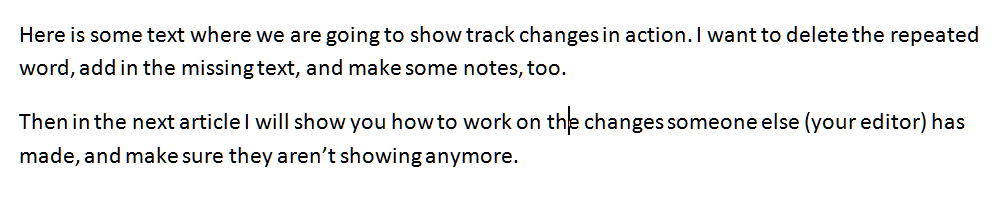
So, here’s our original text with some changes tracked that we created last time:

Why customise Track Changes?

Customising Track Changes basically makes things more comfortable for you and means you can work in a way that suits you. For example, some people like to cross out text in a document, like if you were editing a written manuscript, while others like to remove the deleted text altogether and place it to one side.

Please note: This is customising your view of the document. It’s personal to you, your computer and your document. When someone else opens the document, they will not necessarily see what you see, especially if you’ve customised it away from the defaults. Note this, because it becomes ever so important later on …

How do I customise Track Changes?

Your key area for this is the Review tab, then the section marked Tracking. You can change three things:

  • Tracking Options themselves (the colours and fonts that mark the changes)
  • Balloons (whether changes are marked within the text or to the side of it)
  • Final showing markup (which changes show in your version of the text)

We’ll look at these in turn, and also at what happens when more than one person makes changes to the document.

How do I change the tracking options?

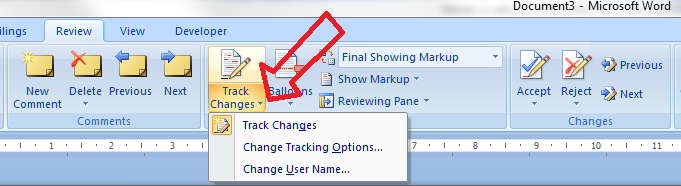
To change the tracking options you need to click on the little arrow at the bottom right of the Track Changes button. This gives you another way to turn Track Changes on and off, a menu item to click to access the tracking options, and a final item we’ll look at later on.

For now, let’s click on that middle menu item. Up pops a great big dialogue box with all sorts of things to change:

I think this is fairly self-explanatory. On the left hand side, you can change how the text appears when you do something to it (underline, double underline, etc.) and on the right hand side you can change the colour.

Let’s change some things …

So here we’ve changed insertions and deletions to double underlines and double crossings-out and the comments to blue. Watch what happens to our text (actually, the crossing-out won’t show up until the next section … )

Because the crossings-out are shown in balloons, not in the text, we can’t see them. But that will all change …

How do I customise the balloons?

Now we’re moving on to talk about what appears in balloons and what appears “inline” or in the text itself.

Important note: This is not how you change what comments themselves look like. For that, you will need to see my posts on comment boxes.

The menu we need here is the next one to the right of the Track Changes button, called, inventively, Balloons:

At the moment, Show Revisions in Balloons is ticked. Note that to change between the options, you need to tick the one you want – no unticking allowed! Try ticking Show All Revisions Inline:

and watch what happens to the document. Gone is the right hand margin, gone are all the balloons, and instead you can see what has been crossed out, and you can only read comments by hovering the mouse over the note indicating there is a comment:

Now, personally I don’t like it looking like this, but some people do.

For more information than you would ever want on how to further customise your balloons, please see my article on customising comment text.

How do I change which changes I can see?

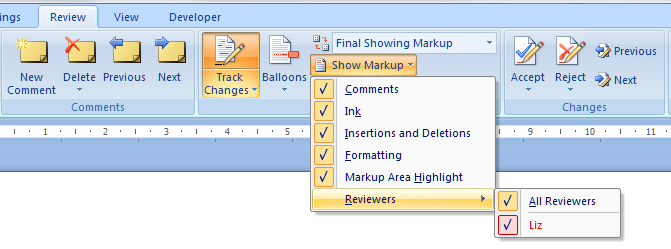
You can review particular changes individually using the next button along: Show Markup. Drop it down and you can see that you can choose to see various kinds of correction, and also only changes made by a particular person:

I don’t think I need to show you examples of all of these – have a play with them and you can see what’s what.

Above this menu item is Final Showing Markup. Now: this is important. Yes, you can choose how you view the document …

For example, you can choose Final and you’ll see the document in its final form with no changes showing:

But: REMEMBER – this is all about what YOU can see. The Tracked Changes have not gone away: they’re still on the document, just hidden. So if you send the document to someone else, they can change their view and see all your changes and comments! Eeps!

You can only “get rid” of changes and comments by accepting or rejecting them, individually or en masse, and that’s a job for next week’s post.

How can I tell which reviewer has made which comments?

If more than one of you is reviewing the document, Track Changes  makes it easy to see who said what. All you need to do is make sure that the “by author” option is chosen in Tracking Options …

… and your comments and alterations will appear in different colours:

Again, avoid telling the other person, “Oh, my comments will appear in blue”, as it’s up to the individual and their own computer as to what colours will appear.

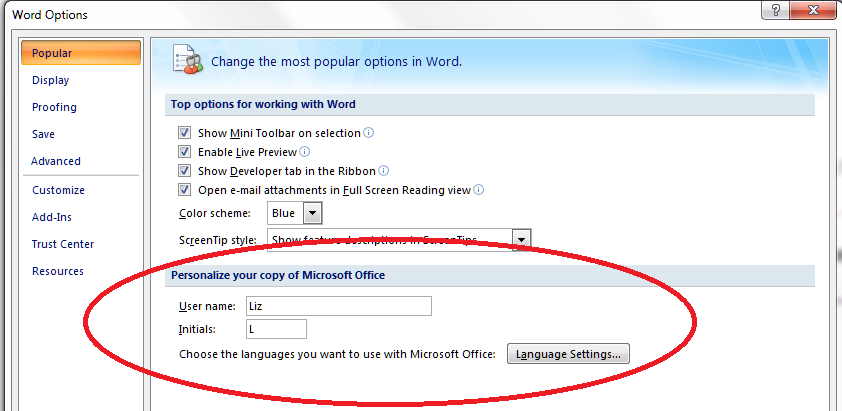
How do I change my initials in comments?

If you want to change your initials in the comments, perhaps because there are two reviewers with the same first initial, you need to go back to Tracking Options and choose Change User Name. This will bring up the Word Options dialogue box, and at the bottom you can change the initials that appear in the comments balloon:

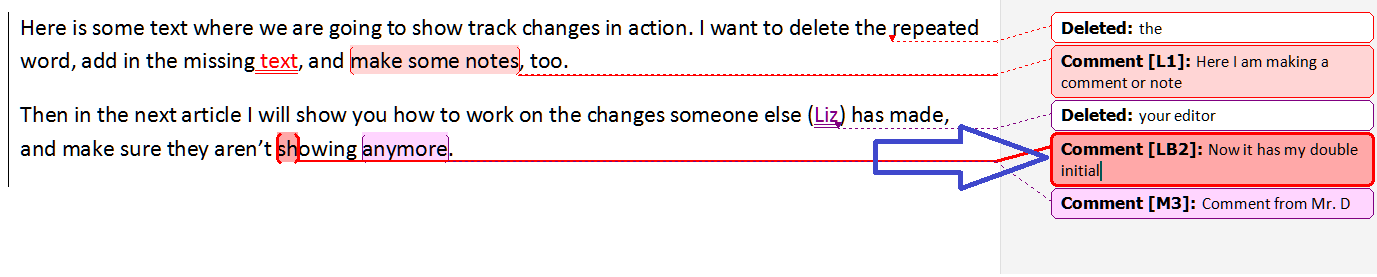
Next time I make a comment, my initials have changed!

However, please note that when I change L to LB here, the change takes effect from that moment, and is not applied retrospectively. Well, you can’t have everything!

A final note

You may want to pin some of your most common choices to the Quick Access Toolbar – read this article to find out how.

So, we already knew how to find Track Changes, today we’ve learned how to customise Track Changes so it works just as we want it to. Next time, we’ll be talking about how to work with the Track Changes you, or someone else, has applied to the document, leaving it nice and tidy and clean! And there will be a separate article on formatting comment balloons, coming soon. In the meantime, if you want to customise the text in your comment balloons or it goes all small or runs from right to left, click on the appropriate links to find out what to do.

This is part of my series on how to avoid time-consuming “short cuts” and use Word in the right way to maximise your time and improve the look of your documents.

Please note, these hints work with versions of Microsoft Word currently in use – Word 2003, Word 2007 and Word 2010, all for PC. Mac compatible versions of Word should have similar options. Always save a copy of your document before manipulating it. I bear no responsibility for any pickles you might get yourself into!

Find all the short cuts here

 
74 Comments

Posted by on October 3, 2012 in Copyediting, Errors, New skills, Short cuts, Word, Writing


Tags: , , , ,

Track changes – how to find it, how to use it

This is part of my series on how to use Word to the full to get what you need out of it.  Today we’re going to talk about why you might want to use Track Changes, how to find it and how to start using it. Next time, we’ll look at customising Track Changes, then working with the changes that have been tracked and ending up with a nice clean document.

Why use Track Changes?

Track changes helps you collaborate with someone else on your text – or mark it up for yourself. Reasons you might use it:

  1. Two or more people are collaborating on a document. You want to know who’s written what, and comment on the work
  2. You’re editing someone else’s work. I use Track Changes when working with students, so that they can see what I’m suggesting and make the decision as to whether to accept or reject my changes, thus retaining their control over the changes and the authorship of the text
  3. You’re editing your own work – you can see what you’ve deleted and added, or leave notes for yourself, just like working on the paper manuscript

How do I find Track Changes in Word 2003?

Like with most features, once you’ve found this in the menu system, it works the same in 2007 and 2010. This is how you find Track Changes in Word 2003: Go to the Tools menu, drop it down, and select Track Changes.

Finding Track Changes in Word 2003

How do I find Track Changes in Word 2007?

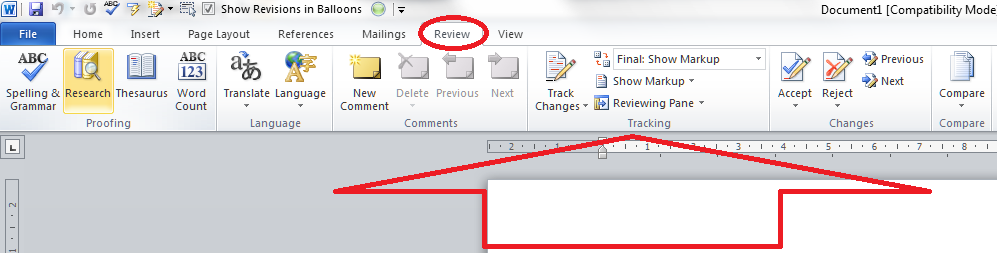
Go to the Review tab, and you will find the Track Changes options half way along the ribbon:

How do I find Track Changes in Word 2010?

This works the same as in Word 2007 – go to the Review tab and you’ll find the Track Changes options half way along the ribbon. The rest of the screen shots will be from Word 2007 but apply equally to Word 2010, as it works in the same way.

How do I turn Track Changes on and off?

You will see a big button marked Track Changes. Don’t worry about the little arrow in the corner for now, just press the button. It will go yellow, and this means Track Changes is turned on, and everything you do to the document from now on will be marked on the document.

If you want to turn Track Changes off, press the yellow button again and it will turn grey. From now on, anything you change will NOT be marked up.

What happens when I delete and add text with Track Changes turned on?

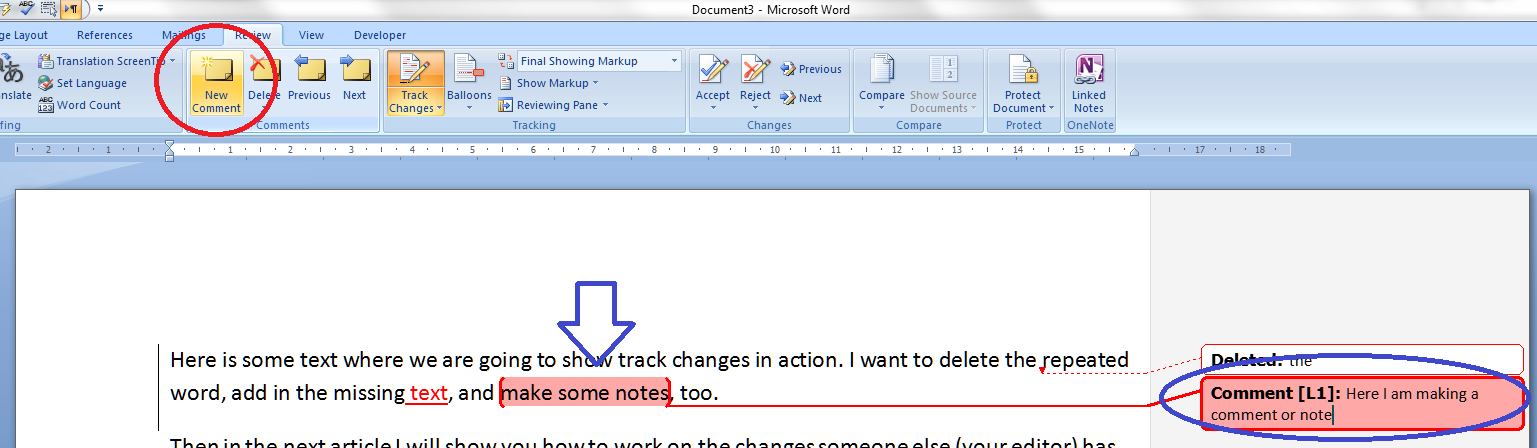
When you add text to the document (marked in blue) it will insert in a different colour, and underlined (note: the colour may not always be red. See the article on customising Track Changes for why and how to change it). When you delete text from the document (marked in red), it will either hook it out of the document and stick it in a balloon to the side of the text (as here, and how I like to do it), or cross it out in the document itself (see the Word 2003 example below). Again, you can choose which it does, and we’ll look at that next time.

How do I add a comment?

Sometimes you might want to add a comment to the document. This is helpful if you don’t understand what the other author is saying, or if something just needs to be commented on. You might want to leave a note for yourself in the margin.

When you want to do this, highlight the text you want to comment on and press the New Comment button in the ribbon. A comment balloon will appear in the right-hand margin, where you can type your comment.

Note, sometimes the text in this box comes out tiny or running right to left, especially if you are commenting on someone else’s document. See those links in the previous sentence? Click on those for how to solve both these problems.

You can pop back into the comment balloon at any time to edit what you’ve typed there.

And what does this all look like in Word 2003? Like this (note the crossed out deleted text):

In the next two posts, we will be looking at how to customise your Track Changes markup, and how to deal with a text containing tracked changes and comments.

Thanks to Kathy O’Moore Klopf for the Word 2003 screen shots!

Please note, these hints work with versions of Microsoft Word currently in use – Word 2003, Word 2007 and Word 2010, all for PC. Mac compatible versions of Word should have similar options. Always save a copy of your document before manipulating it. I bear no responsibility for any pickles you might get yourself into!

Find all the short cuts here … and do share or post a comment if you have found this useful!

 
12 Comments

Posted by on September 26, 2012 in Copyediting, Errors, New skills, Short cuts, Word, Writing


Tags: , , , ,