RSS

Category Archives: Word

My short cuts – how to create a contents page in Word

This is part of my series on how to avoid time-consuming “short cuts” and use Word in the right way to maximise your time and improve the look of your documents.

Today we’re going to look at how to create a contents page or contents list in Word. I am breaking this series up into small pieces, so we have already learned about setting up headings and then numbering them.

You will use this to save yourself time and ensure consistency when you’re setting up a large document and you want it to have a contents page. You can do it manually, but it is FAR easier to do it this way.

First, have a look at the two headings articles to make sure you understand how to assign headings and how to number them (if you want to).

Now, for the purposes of making a more interesting contents page, I’ve popped each heading onto a separate page (and we all know how to do that, don’t we!)

So the text is all set up, with headings that are also numbered, and each heading is on a separate page. Now we’re going to put our cursor at the beginning of the document, and make sure we’re in the References tab.

You can see the Table of Contents button highlighted – click on that and have a look at the box that comes up:

Here we have lots of different styles of contents page to choose between. Either double click on the one you want – I clicked on the first one – or click once to highlight it and then Insert Table of Contents. And look what appears! Magic!

You can see lots of lovely headings and their numbers, all laid out nice and clearly (imagine if this was a PhD or another long document with lots of sub-headings.

But what happens if we need to change something in the text? Look – there’s a problem with the document here …

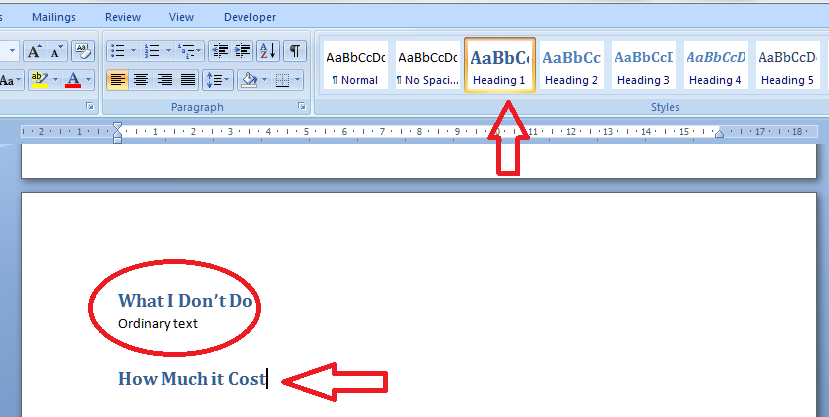
I can see that I should have typed “How Much it Costs” for section 3, and it’s on page 8 along with Section 2, when it should be on page 9. Oh no!

So let’s go to page 8, move the heading onto page 9 and amend the heading itself:
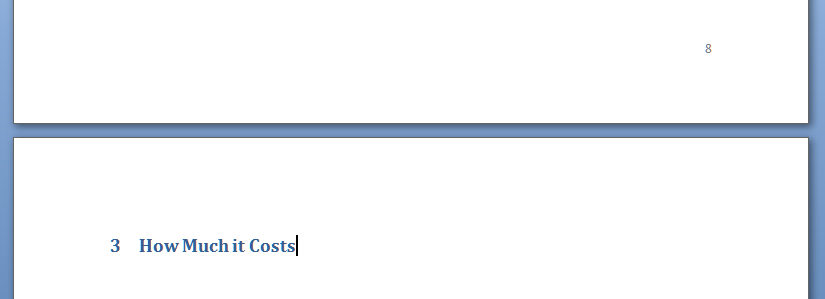
Great – so now the text is sorted out and the heading is on page 9, where it should be. How do we update the Table of Contents to reflect this change?

Go back to the Table of Contents and highlight it (it all comes up in blue if you click on one bit of it). Left click and you should find it puts everything in grey and gives you a little tab at the top like this.

You can use this to change all sorts of attributes on the contents page, or you can just click on Update Field from here or left click when you have the contents list in blue in the last step, and you get this choice:

I always choose Update entire table, just in case. And with one click, it’s updated the Contents list to match the document.

So, no more fiddling around doing a contents page by hand. As long as you set up your headers, you can insert and update your Contents page however you want and whenever you want – so much easier!

This is why, if you use my proofreading services, I will put a note on your contents page reminding you to update it at the last minute, to take into account any changes we might have made to your pagination or heading numberings. Update the Contents page at the very last stage, and it’ll be completely accurate and up to date.

If you have enjoyed this post and found it useful, please click on the “share” buttons below or tell your friends and colleagues about it! Thank you!

Please note, these hints work with versions of Microsoft Word currently in use – Word 2003, Word 2007 and Word 2010, all for PC. Mac compatible versions of Word should have similar options. Always save a copy of your document before manipulating it. I bear no responsibility for any pickles you might get yourself into!

Find all the short cuts here


Tags: , , , ,

My short cuts – headings (part 2)

This is part of my series on how to avoid time-consuming “short cuts” and use Word in the right way to maximise your time and improve the look of your documents.

Today we’re going to look at how to set up numbered headings in Word. I am breaking this series up into small pieces, so we have already learned about setting up headings and next time we’ll learn about creating contents pages, too.

You will use this to save yourself time and ensure consistency when you’re setting up a large document with lots of headings and sub-headings.

So, here’s our text with lots of headings and bits of text under them as we left it last time. We have assigned heading 1, heading 2 etc. styles to them so they make sense and are consistent. But they’re still a bit unclear and I think we would all agree that it would make things a bit clearer if we numbered the headings. But how to do that so the sub-headings have sub-numbers, etc.?

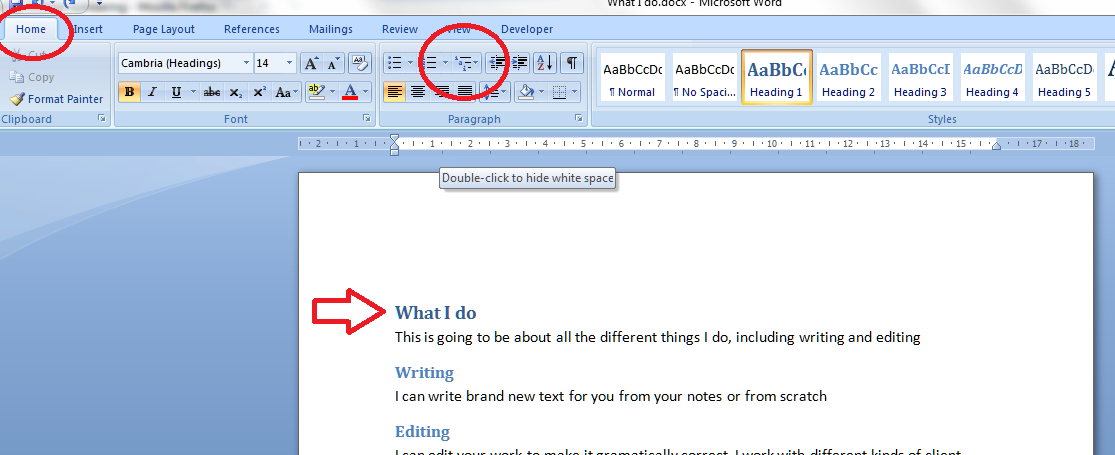
Here’s how to do it. First, make sure you’re on the Home tab in Word. Then, concentrate on the paragraph section. There should be a little icon like the one I’ve circled; when you hover the mouse over it you’ll get a note that this is the multilevel list tool. Make sure your cursor is next to the first heading and click on the multilevel list button.

Up will pop a menu which gives you lots of choices – a list library. We’d like to go for the one that gives us 1, 1.1, 1.1.1 etc. (see arrow) so we pick that and click on it.

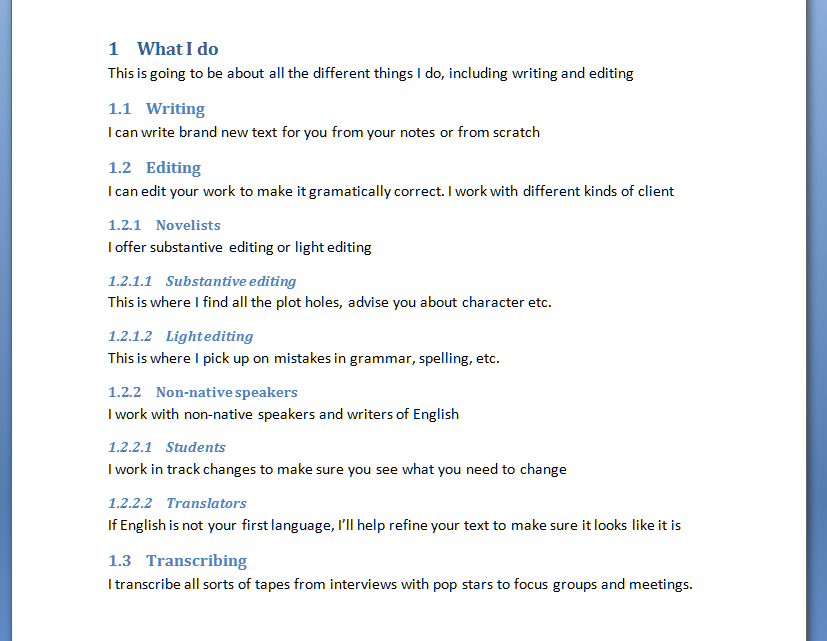
Select the kind of list you want and look back at your text. Amazing – it’s now got heading and sub-heading numbers!

And look what’s happened to your heading style buttons now you’re back in your document. The numbering style has been added to them. Note: there is a way to change the style of the headings when right-clicking on them. That’s all lovely and useful, but when you want to make your headings and their numbers behave themselves throughout your text, you need to do it the way I’ve shown you above.

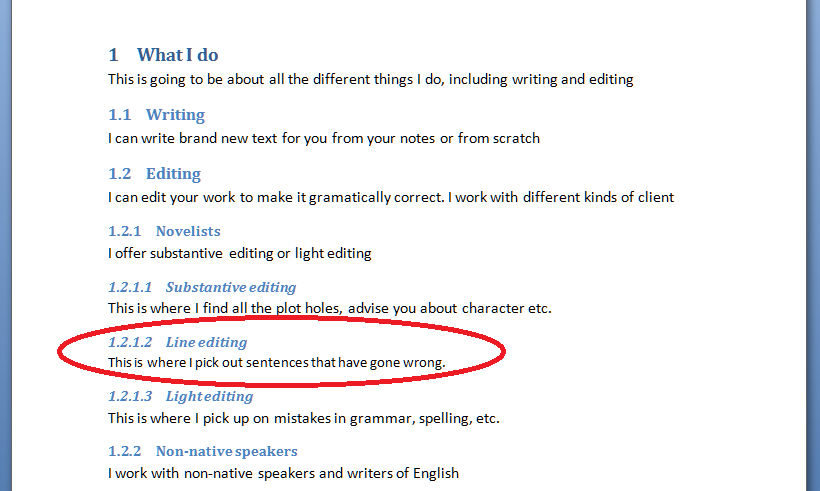
Now let’s try adding a new sub-heading in the middle of the others. In this example, I’ve added “Line editing” in between “Substantive editing” and “Light editing” which were headings 1.2.1.1 nand 1.2.1.2 respectively (look up the post to check that if you want to). I put the cursor in the space after “Line editing”, chose Heading 4, typed my heading … and not only has it assigned number 1.2.1.2 to that heading, it’s also handily moved the next heading, “Light editing” to have number 1.2.1.3 – all by itself! You can see how useful this is if you’re writing a big document and adding in sub-sections but want to keep the numbering consistent. What a nightmare it would be to do it all by hand!

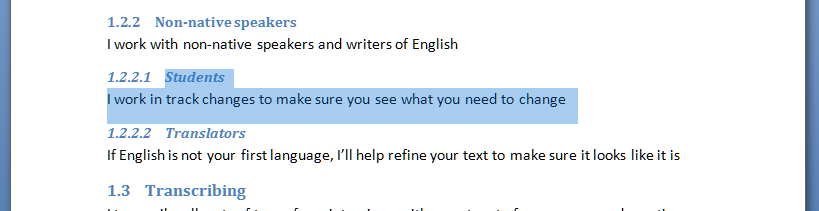
And what about if you want to remove a section with a sub-heading and make sure the numbering follows suit? Here I have highlighted 1.2.2.1 “Students”, ready to delete it. Note that “Translators” has number 1.2.2.2 at the moment …

I delete “Students”, and “Translators” now has number 1.2.2.1 instead. Magic!

So, in summary, if you have a document with lots of headings and sub-headings, and you want to number them, for example in a report, thesis or non-fiction book, use this method to apply a numbering scheme to the headings, and whatever you delete or add, as long as you tell Word that you’re adding a heading and what kind of heading it is, it will sort out all the numbering for you and ensure it makes sense. Hooray, frankly!

Next time, we’ll look at creating an automatic contents page, and how that will help make your document easy to navigate …
If you have enjoyed this post and found it useful, please click on the “share” buttons below or tell your friends and colleagues about it! Thank you!

Please note, these hints work with versions of Microsoft Word currently in use – Word 2003, Word 2007 and Word 2010, all for PC. Mac compatible versions of Word should have similar options. Always save a copy of your document before manipulating it. I bear no responsibility for any pickles you might get yourself into!

Find all the short cuts here


Tags: , , , ,

My short cuts – headings (part 1)

This is part of my series on how to avoid time-consuming “short cuts” and use Word in the right way to maximise your time and improve the look of your documents.

Today we’re going to look at how to set up headings in Word. I am breaking this series up into small pieces, so we will be learning about setting up numbered headings and creating contents pages too.

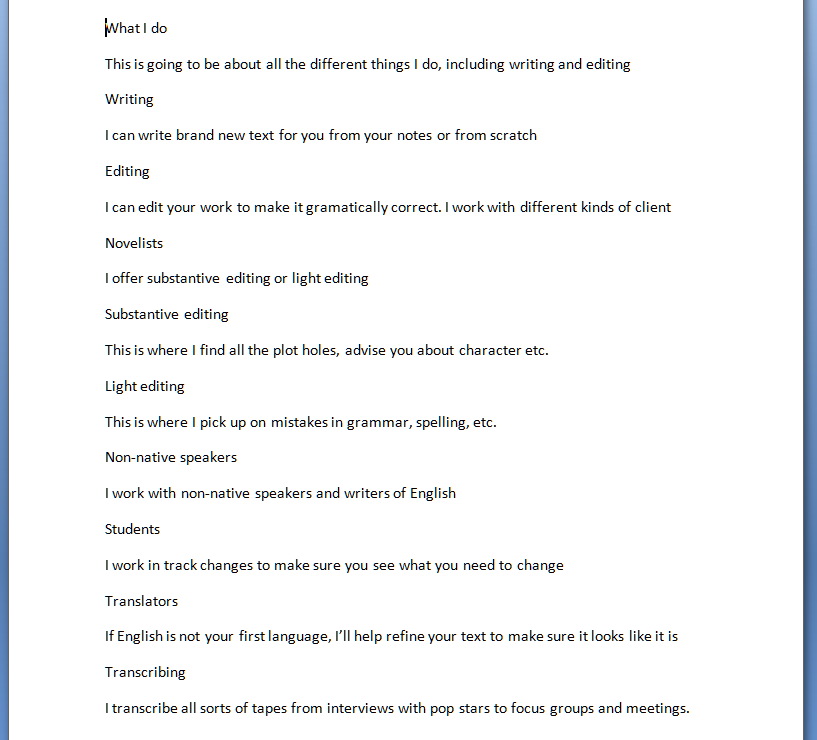
You will use this to save yourself time and ensure consistency when you’re setting up a large document with lots of headings and sub-headings. Imagine I’ve written a document about what I do in my business. I might write it up like this (you can imagine the one-word sentences are longer paragraphs if that helps!)

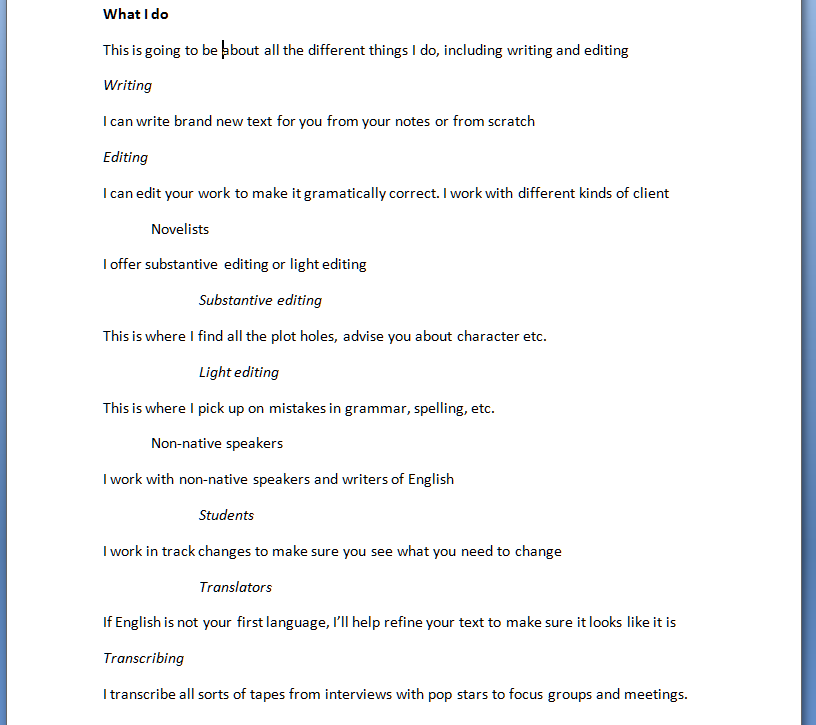
It’s not very easy to see what’s a heading and what’s the text, though. So I might think up my own styles of headings or sub-headings (yes, I might number them, too, but let’s keep it simple for now) and do this:

All well and good, but if this is a great big document: am I going to remember that I put main headings in bold, sub-headings in italics, etc., etc.? Or am I going to get in a mess and make my document confusing, so when you read it you don’t know which kind of section you’re in?

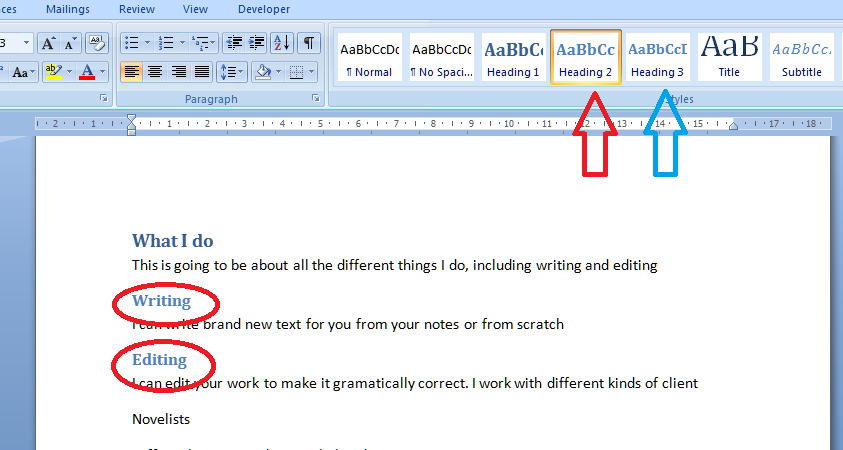
This is where the pre-set headings available in Word come into their own. If you’re using Word 2003, you’ll need to be using the formatting toolbar, then styles. If you’re using Word 2007 or Word 2010, then you’re on the Home tab of the ribbon at the top. Have a look: can you see some boxes labelled Heading 1, etc.?

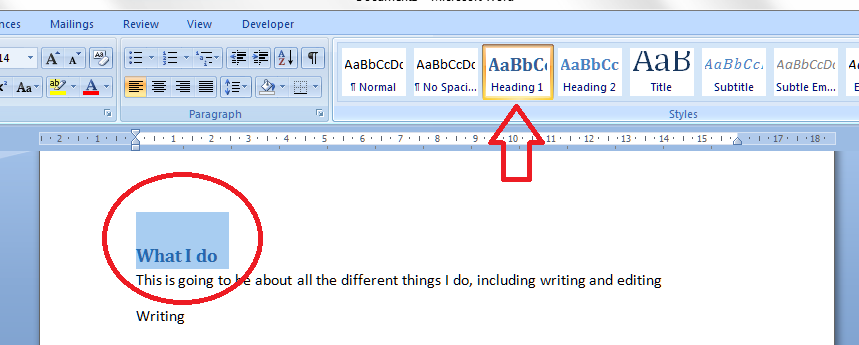
I’ve circled Heading 1, and the arrow points at a scroll bar that will let you see a whole range of different things you can do.

Now you’ve located the headings buttons, you need to highlight the text you want to mark as Heading 1, and click on the Heading 1 button

And there it is, changed into blue (it doesn’t have to be blue, or that size; we’ll look at that in the next session) and every time you mark a heading as Heading 1, it will look like that.

Note: you don’t have to have all the text already written, highlight and click. You can also click Heading 1 (or whatever) when you want to type a new heading; the text on that line will adopt the Heading 1 format until you press return.

Time to do the Heading 2 level now. Oh – if you want to be clever, highlight each example of a heading you want to change to Heading 2, keeping the Control button pressed on your keyboard as you do so. This will highlight all the text you want to alter at once, saving a few clicks.

Anyway – highlight your Heading 2 text, all together or one at a time, and click on the Heading 2 button.

You’ll notice that Word has realised you’re setting levels of headings and has helpfully moved the button for Heading 3 up to the top row now, to save you looking for it (see the blue arrow). How useful!

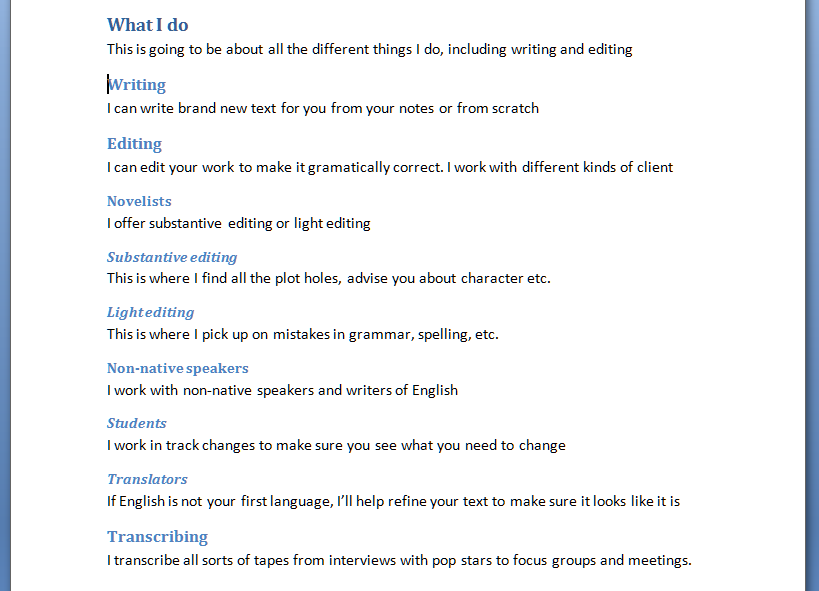
Now, carry on highlighting and choosing heading levels until the whole document is done. You’ll end up with something like this:

Now, maybe this doesn’t look very different from what we started off with. But three things make this better than what we started with:

  1. You don’t have to remember what look you’re using for each level of heading; it does it all for you
  2. If you want to number your headings, that’s going to be really easy to do, AND if you change sections, swap them around, add or delete them, the numbering will change automatically
  3. You will be able to create an automatic Table of Contents

Next time, we’ll look at assigning numbers to all the different heading levels, and how that will help make your document easy to navigate …
If you have enjoyed this post and found it useful, please click on the “share” buttons below or tell your friends and colleagues about it! Thank you!

Please note, these hints work with versions of Microsoft Word currently in use – Word 2003, Word 2007 and Word 2010, all for PC. Mac compatible versions of Word should have similar options. Always save a copy of your document before manipulating it. I bear no responsibility for any pickles you might get yourself into!

Find all the short cuts here

 
9 Comments

Posted by on February 29, 2012 in Copyediting, Errors, New skills, Short cuts, Word, Writing


Tags: , , , ,

My short cuts – top and bottom margins

This is part of my series on how to avoid time-consuming “short cuts” and use Word in the right way to maximise your time and improve the look of your documents.

I have already published instructions on how to manipulate your left and right margins, but I’ve noticed some search engine searches have come through to Libro looking for information on top and bottom margins, so here are a few words about them.

First of all, make sure you can see your rulers! If you can’t see what I’m pointing to in the screenshots, go to this post and follow the instructions on making your rulers visible. I’ll wait here while you do that …
OK, all set, and rulers visible?

So, sometimes we might want to make the area we can use on the page a bit bigger. Classic reasons include wanting to fit a whole document on one or two pages, for example if you are making up a poster and you want to use the largest print area possible. Within reason, you can extend the upper and lower margins of your text to fit in a few more words.

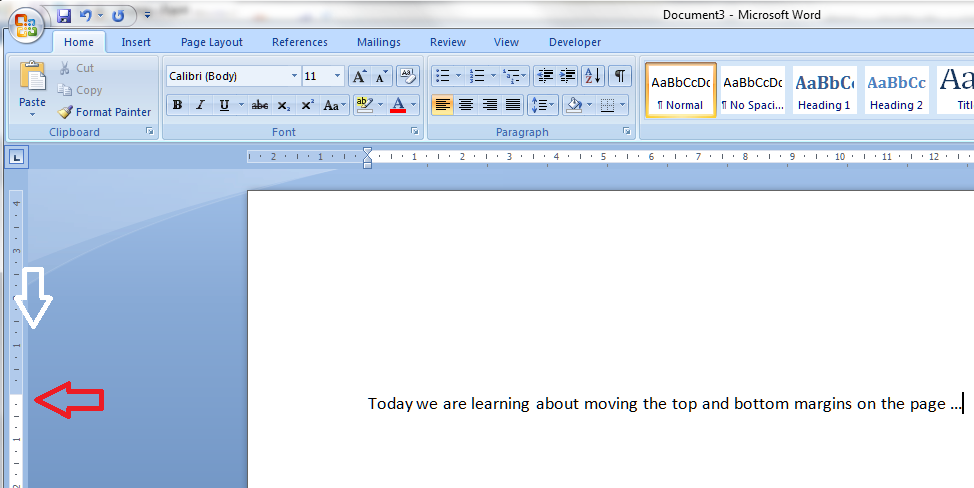
Let’s have a look at these top and bottom margins. Look over to the left-hand ruler in your document. You should see this, which you will notice looks very similar to your top ruler:

You will notice that the white section indicates the area where you can type: where the space for text starts at the top (above) and where it finishes at the bottom:

Hover your cursor over the division between blue and white and you’ll see a slider and an arrow indicating that you can move them up and down. In this example, I’ve moved the top margin down – see how the first line of text has followed it down the page …

But of course you can also move it up if you want more room to type.

Do note, that you can’t move it infinitely and eventually, when you go to print, you will get an error message telling you that you have gone outside the print margins. So be careful, but within reason this will allow you to create that little bit more space on your page.

Please note, these hints work with versions of Microsoft Word currently in use – Word 2003, Word 2007 and Word 2010, all for PC. Mac compatible versions of Word should have similar options. Always save a copy of your document before manipulating it. I bear no responsibility for any pickles you might get yourself into!

If you have enjoyed this post and /or found it useful, please click the share buttons below or comment!

Find all the short cuts here

 
3 Comments

Posted by on February 22, 2012 in Copyediting, Errors, New skills, Short cuts, Word, Writing


Tags: , , , ,

My short cuts – indents and margins

This is part of my series on how to avoid time-consuming “short cuts” and use Word in the right way to maximise your time and improve the look of your documents.

We’re looking at margins and indents today. By reading through these steps, you’ll learn how to produce tidy indented paragraphs and quotes within paragraphs, quickly and easily, without having to mess around with the space bar and enter key.

We often want to indent the beginning of a paragraph to make it look like more of a break from the last one, or have the first line of text longer and the subsequent ones indented (this is useful if you’re preparing a bibliography). Also, if you’re writing a thesis, dissertation or non-fiction book, it’s useful to indent large quotations to make them stand out as being a quotation. More often than not, I find people either don’t know how to do this using the rulers at the top of their Word document, or they’ve forgotten how to and think they can find a quick way round the issue. This leads to all sorts of formatting problems, especially if you’re going to (as is inevitable) add and remove text as you go along.

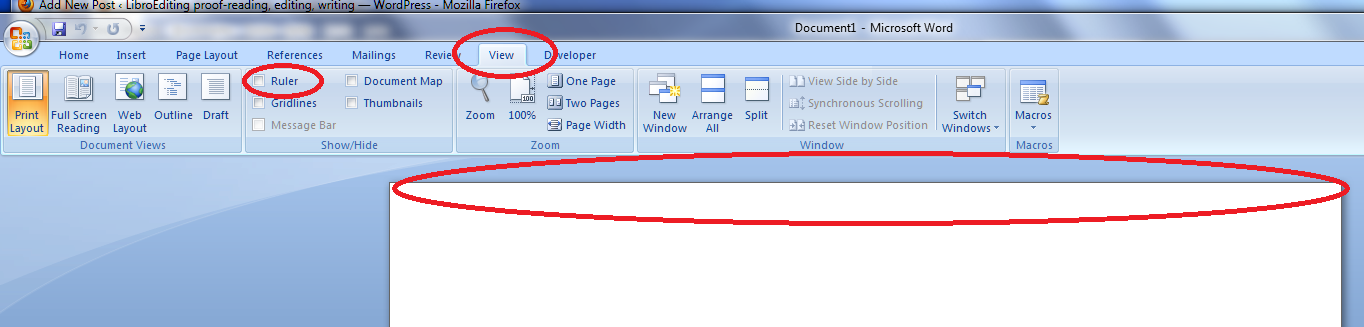
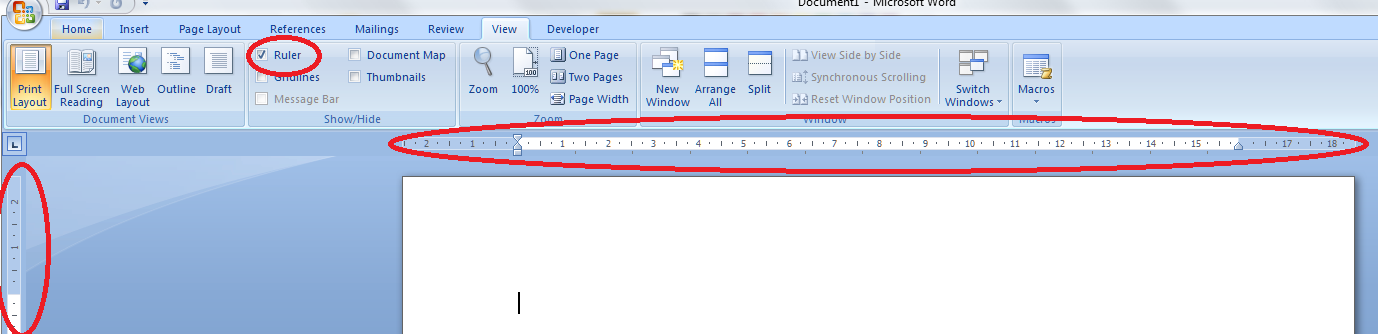
First things first: check that you can see your rulers in Word. If your document has a blank space at the top instead of a ruler, click on the “view” tab at the top of the screen:

How to make margins appear in Word

Look at “ruler” and see if the box is empty or contains a tick. If it’s empty, click on the box. Your rulers (top and side) should now appear:

making margins appear in Word

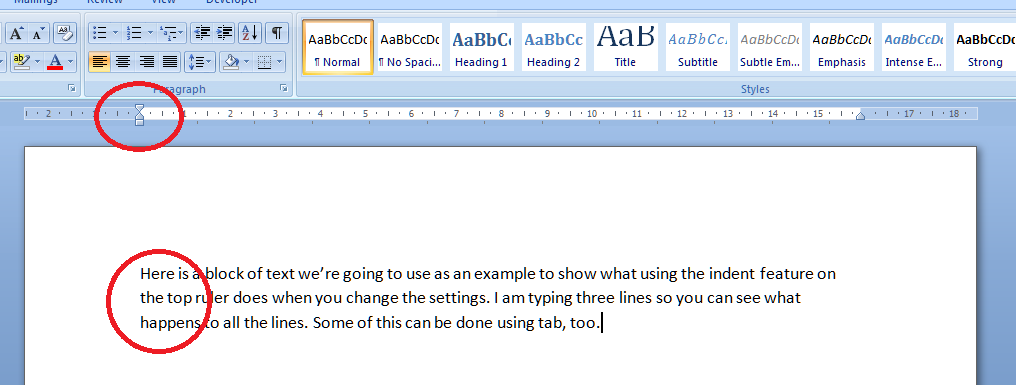
Now let’s look at setting the indents. The important thing to note here is the slider which appears at the beginning of the white part of the ruler, marking where the text starts, or the location of the left hand margin.  Note first of all that the slider’s position matches the text’s position on the page – they are both situated at the left margin.

Let’s look at how moving this slider either all in one, or the top and bottom independently, affects a block of text. First of all we take the pointer and click down on the square block at the bottom of the slider. This picks up the whole thing and, when you move your mouse (holding the button down still) the slider will move across. Very important: when you’re moving sliders or setting tabs, make sure you have highlighted the section of text you want to affect. If you don’t do this, whatever you do on the ruler will only apply to the point at which the cursor is located. You probably don’t want to do that. So: let’s move the slider across to the right a little …

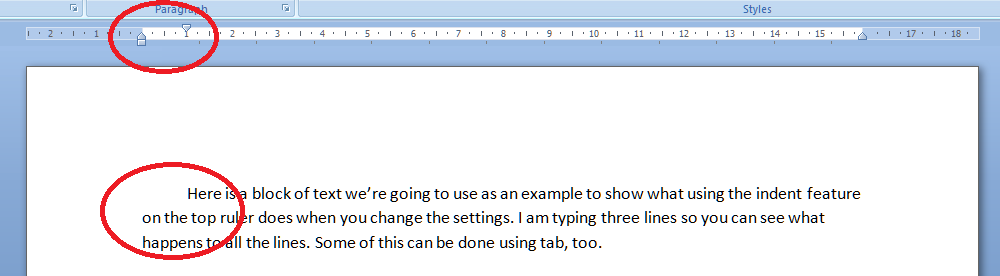
The black lines here mark the borders of the text area, and you can see that moving the slider as a whole has moved all the text across. Taking the slider back, what happens if we move just the top one across a bit?

You can do this using the tab key, too – but the useful point here is that once you’ve set it up at the beginning of a document (before you start typing), it will affect all new paragraphs in the same way, so you’ve set up a nice tidy way for your paragraphs to indent themselves throughout the text. Now what happens if we just move the bottom half of the slider?

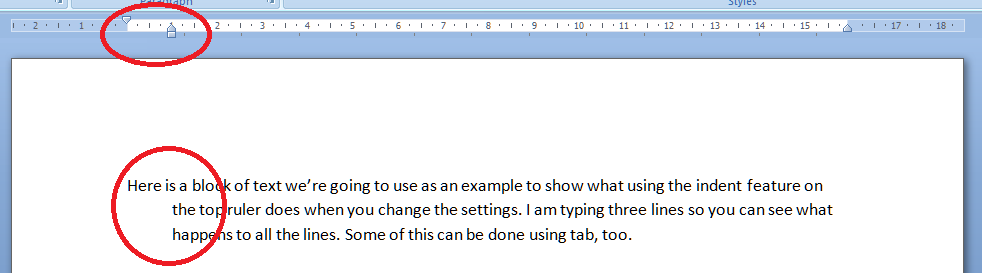
So this works the other way around: the first line of text is longer than the next ones. This looks a bit odd in a normal paragraph, but it’s very common in bibliographies.

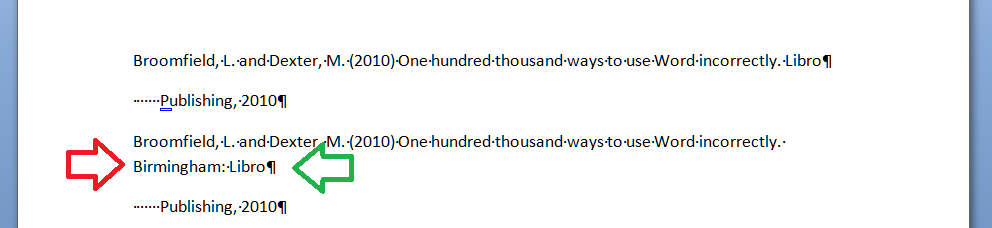
Here’s an example of how the user’s “short cuts” can actually make everything take longer, particularly if changes are involved. I noticed someone doing this in a dissertation I proofread recently, which is what inspired me to write this article.  I’ve turned “show formatting” on so you can see what they’ve done (dots are spaces and backwards Ps are line returns (enter)). In the first example, the author wants to have a hanging indent to make the author’s name more prominent, but they’ve done it by hand, hitting enter at the end of the line then spacing across to make the indent. All well and good (not really) until you need to enter some more text. Then look what happens:

Entering “Birmingham” has forced Birmingham: Libro onto a new line. But the line return at the end of Libro forces the next bit onto a new line (green arrow), and the second line of the entry isn’t even indented, because Word doesn’t know you want it to be (red arrow). Whoever entered “Birmingham” now has to delete the line return and take out the spaces before “Publishing” then re-set the hanging indent. Fine if it’s just once, but it won’t be. Contrast this with what happens if you set up the indents correctly in the first place:

Here, we’ve moved the bottom slider along so that the text automatically indents with a hanging indent on each paragraph. No spaces and only the required line return at the end of the entry. Now when we add “Birmingham” it merely pops itself onto the next line, nice and neat and tidy, and there’s nothing else to do.  Simple.

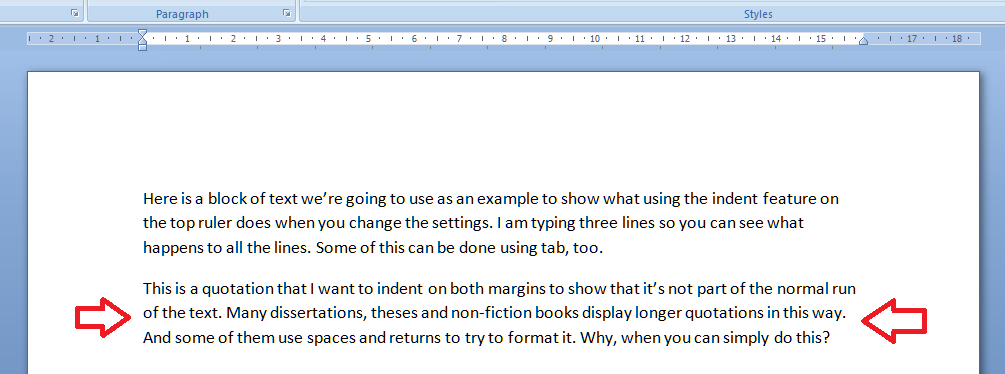
Now let’s have a quick look at indenting text from both margins. This is useful if you’ve got a chunk of quotation you want to insert into the text. Again, I’ve seen people put line returns at the end of each line and spaces across from the left. All well and good (again: not really) until you delete or add a word or character and it all goes odd. Here’s how you do it properly. Here’s the text we want to indent (marked with arrows):

Highlight the text you want to indent and move both the right and left sliders in from the margins:

The black lines show the text margins outlining the area where you can type. The grey lines show how the indented text lines up with the two sliders, one on the left, and one on the right.

One bonus bit of tidying up: if you set the justification to Full, you get nice neat margins both sides. You could not do this using line returns and the space bar.

So now we’ve learnt how to use the sliders on the rulers to make our text tidy and make it much easier to make insertions and deletions without messing up the formatting of the document. I hope you’ve found this useful: do post a comment or share this article if you did!

Note: I have added an article on the top and bottom margins.

Please note, these hints work with versions of Microsoft Word currently in use – Word 2003, Word 2007 and Word 2010, all for PC. Mac compatible versions of Word should have similar options. Always save a copy of your document before manipulating it. I bear no responsibility for any pickles you might get yourself into!

Find all the short cuts here

 
8 Comments

Posted by on February 8, 2012 in Copyediting, Errors, New skills, Short cuts, Word, Writing


Tags: , , , ,

My short cuts – using Tabs effectively (2)

As you will have read in my original post, I’m writing up quick guides to short cuts for formatting your Word documents, to replace workarounds you might use.

I want to show you how to do things in a more formal way which will  make things easier for you in the long run, particularly when you’re dealing with long and complex documents.

Today we’re going to follow up on my previous post on Tabs. Now we know how to use the tab button, we’re going to go a step further and set tabs using the ruler at the top of the screen. Exciting, eh? It’s called “setting tab stops” – the “stops” idea coming from when you added physical barriers to your typewriter. I actually learned to type on an elecronic typewriter, back in the olden days, by the way …

First of all, we need to check we can actually see the rulers at the top and side of the page.  Can you see a ruler at the top? If not, click on the view tab at the top of the page. See where it says ruler? Click on the box next to that so a tick appears:

Once you’ve ticked the box, the two rulers should appear, like this:

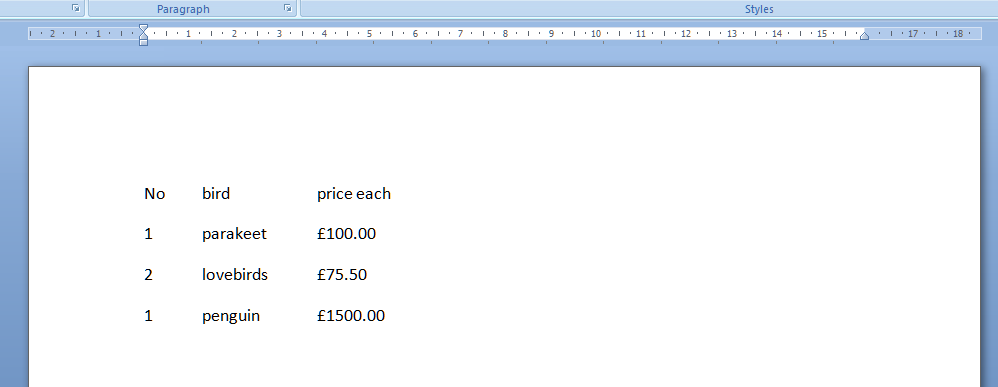
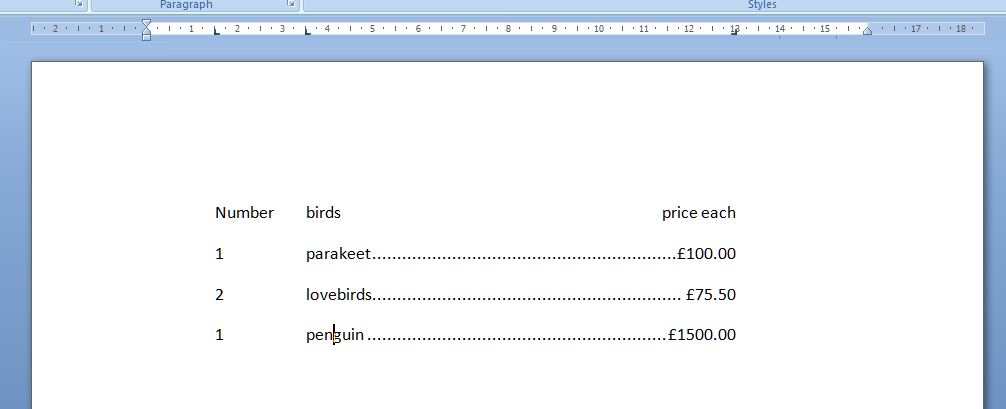
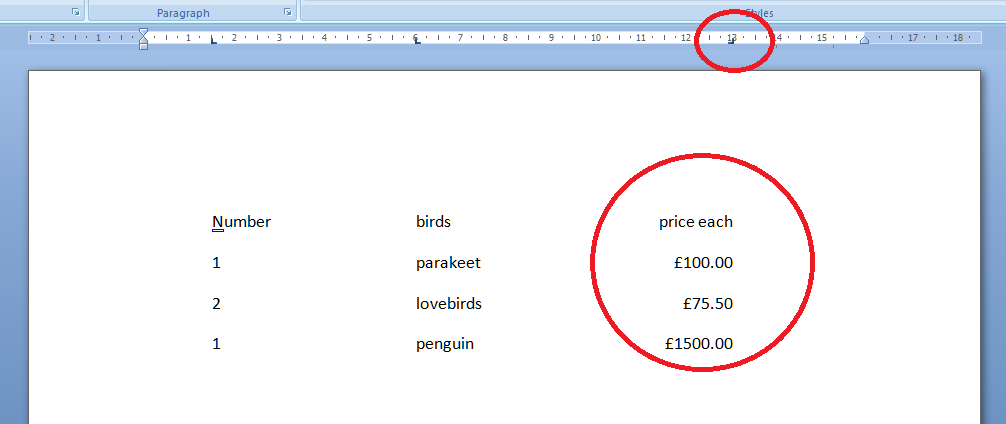
And we’re all ready to go. So, say we’ve got a little table of bird prices we want to lay out:

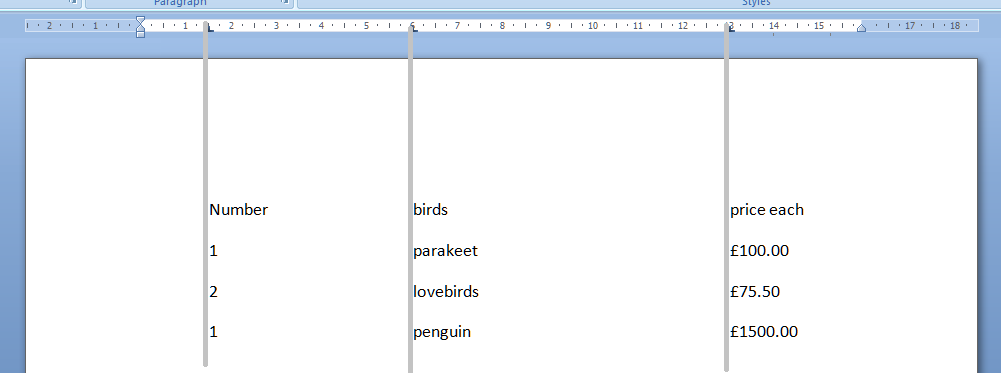
We can use the tab key to space across, but another way is to use the tab stops in the margin. Note that we need to highlight the text we want to apply tab stops to, or set up the tab stops before we type anything. Now, move the mouse pointer up to the top margin and click, just once, with the left mouse button, on the 1.5, 6 and 13 on the ruler. Just where the arrows are on the picture below. You’ll see a little L appear where you click. That’s L for left tab. Well, actually it shows which way the tab is facing, but we’ll come on to that later.

Now, when we type our text, using the tab key (remember, the one with 2 arrows on) will take us across to each of these tab positions that we have set up ourselves, rather than just going across by a set amount. The grey lines show how the text lines up with the tab stops we marked in the top ruler area.

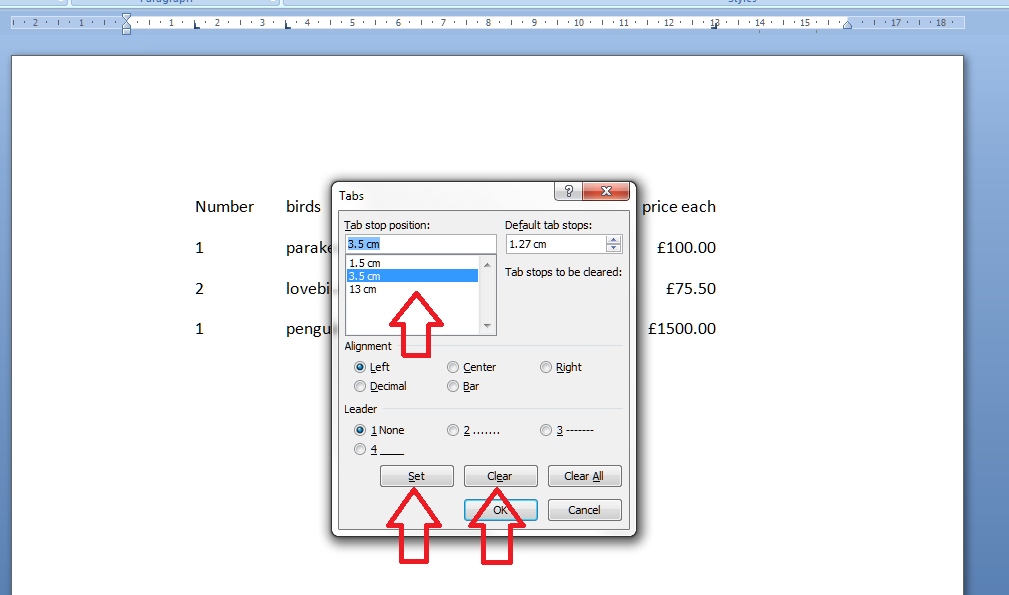
All well and good, but the prices don’t line up very neatly, do they. We can get around this, and mess around with the tab positions by highlighting the text we want to affect (remember to do this! And for this stage we want to highlight all the text so we move the column heading and the prices) and double clicking on any of the Ls we placed in the ruler. This brings up the tab dialogue box. Note: although you can click on any tab marker to bring this up, it automatically moves to working on the leftmost tab setting first, not the one you clicked on. So you can see one tab stop highlighted, and the other ones listed underneath. You can see that there are options to Clear or Set tabs. Set will set a new one at whatever position you want: if you add a third one between 6 and 13, all your text in the third column will jump across to match that. Clear will delete the tab position you have highlighted in the top box.

In order to line up those prices, we need to make the third tab a Right-handed one. This means the tab marker is at the right margin or, effectively, the end of the text you want to affect. So, click on the 13 in the box to bring that up as the active tab, click on the Right alignment radio button (circle).

This will make the right hand side of the column line up: lovely tidy figures and heading! Look at the tab stop at 13. It’s now a backwards L, showing that it’s keeping everything tidy to the right, not the left.

But I think the bird names want to move over a bit. Simply highlight the text, bring up the dialogue box, highlight 6 and Clear, and click Set and add a tab stop at 3.5.

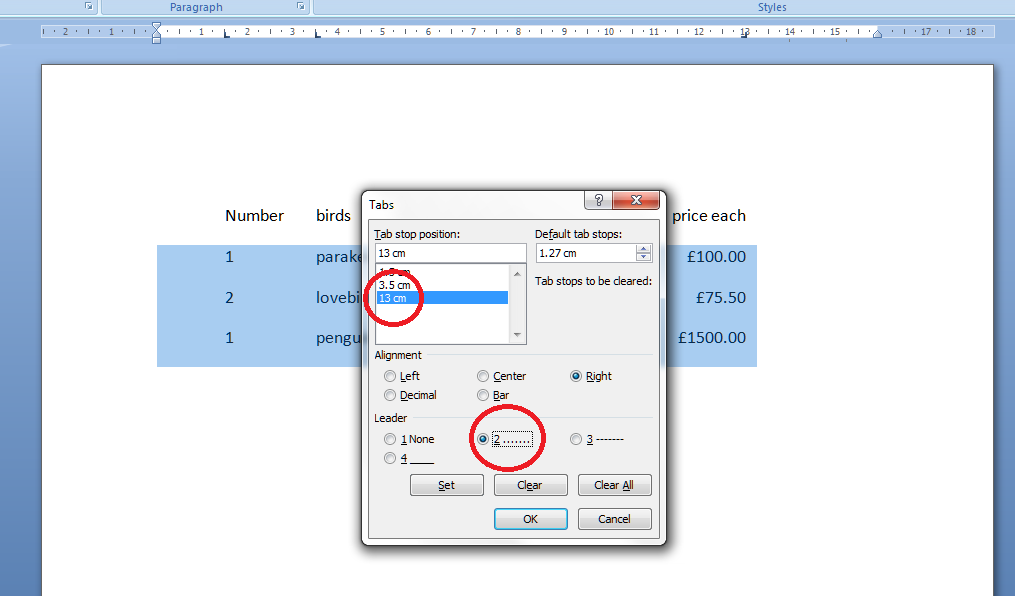
Now I fancy having a line of dots going from the name to the price. A bit odd in a list of bird prices, guaranteed, but if you want to do a quick table or a contents page (although I’ll be teaching you the proper way to do that automatically in a few weeks’ time) it works nicely and looks great. Highlight just the part that you want the dots to appear in and then double click on any of the tab stops. This time, select the 13 and choose the leader you require:

And there you go: lovely leaders between each bird name and its price. That looks tidier than scrappy columns made up of spaces and dots, now, doesn’t it!

Find my first introduction to tabs and using them to make your text nice and tidy and easy to navigate here.

Please note, these hints work with versions of Microsoft Word currently in use – Word 2003, Word 2007 and Word 2010, all for PC. Mac compatible versions of Word should have similar options. Always save a copy of your document before manipulating it. I bear no responsibility for any pickles you might get yourself into!

Find all the short cuts here

 
3 Comments

Posted by on January 19, 2012 in Copyediting, Errors, New skills, Short cuts, Word, Writing


Tags: , , , ,

My short cuts – using Tabs effectively

As promised in my original post, I’m going to write some quick guides to things you do when you’re writing documents which you think are a short cut but actually cause more trouble than they’re worth.

The idea of this series isn’t to criticise people, just to show you how to do things in a more formal way which will actually make things easier for you in the long run, particularly when you’re dealing with longer or more complicated documents.

Today we’re going to talk about using Tabs. Tabs seem to be something of a mystery, but there are easy ways to use both the tab button and tabs set in the top margin which will tidy up your document, make it easier to enter neat text in lovely columns, and reduce tension when you’re trying to line everything up.

Please note: these examples can look rather wide. I want them to be as near full-size as possible, so you can see exactly what I’m doing. If you’re looking at this post on a monitor, you should be able to scroll across to see the full image. If you’re viewing on a tablet, some of the screenshot may be cut off: hopefully you can see enough to get an idea of it, or you should be able to select the image to view it separately.

Let’s start off with using the Tab button. This is a button on your keyboard which should have two arrows on it, one facing one way and one the other. Got that? Good.

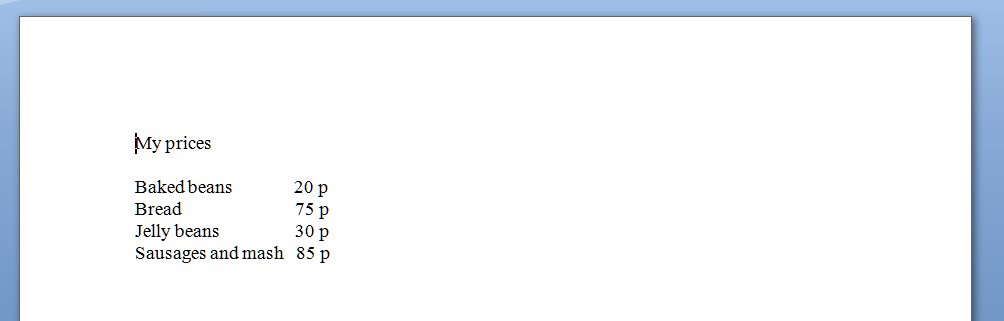
Here’s your common short cut, to start off with. You’ve got a menu you want to put on a document, with items in one column and prices in another. So you type it out, using the space bar to move along to the next column. And it looks like this:

But now you want to add another item and oh dear – it’s longer than all your other ones and puts it all out of alignment (because you’ve used the space bar to make the space between one column and the next):

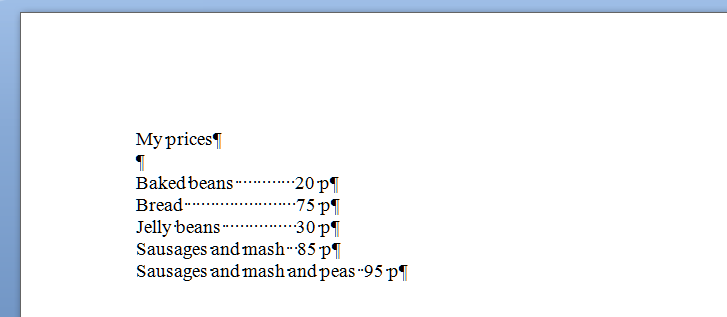
How do I know you’ve used the space bar? Because I’ve used that little paragraph button on Word again which shows us all the formatting, tabs, line returns, etc.

So the way you’ve achieved this spacing is by doing this (where dots are spaces and the things like a backward P are returns):

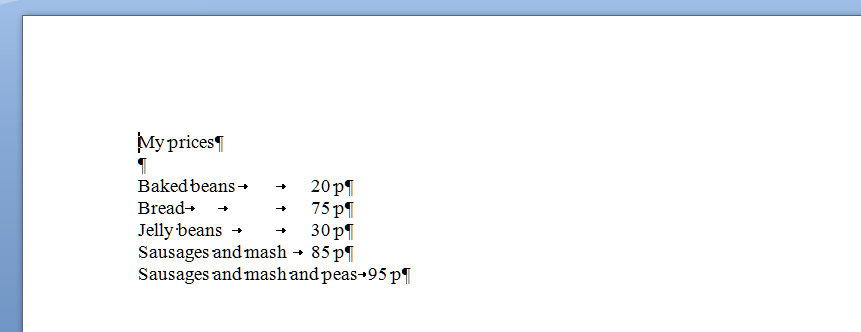
What you should have done (my short cut) instead of using space (your short cut) was to use the tab key (remember, the one with the two arrows) to space across to a set point along the horizontal ruler at the top of the screen. These tabs are represented by arrows when you’re viewing the markup:

Now, when you want to move the prices over for all the shorter items, you just need to insert one press of the tab key at the end of each item, to get them to line up perfectly.

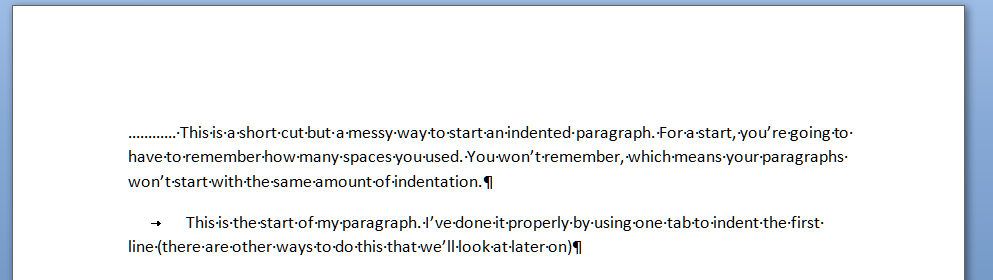
And here’s a last example. It’s very common to find people wanting to indent the first line of a paragraph, but using spaces to do so. This has its own issues – for example, you have to remember how many spaces you’ve put in and it’s likely that you’ll insert a different number each time, which will lead to indentations that don’t match. Instead, a simple press of the tab key at the beginning of your paragraph will leave everything nice and tidy

That’s enough for this session, I think. Of course, there are other ways you can format paragraphs and other indents, and you can set tab stops to wherever you want them to be across the page (and do all sorts of fancy kinds, too). But I’ll leave them for another post … (and I’ll link to them in this one when I publish them).

Please note, these hints work with versions of Microsoft Word currently in use – Word 2003, Word 2007 and Word 2010, all for PC. Mac compatible versions of Word should have similar options. Always save a copy of your document before manipulating it. I bear no responsibility for any pickles you might get yourself into!

Find all the short cuts here

 
8 Comments

Posted by on January 11, 2012 in Copyediting, Errors, New skills, Short cuts, Word, Writing


Tags: , , , ,

My short cuts – proper page breaks

As promised in my original post, I’m going to write some quick guides to things you do when you’re writing documents which you think are a short cut but actually cause more trouble than they’re worth.

The idea of this series isn’t to criticise people, just to show you how to do things in a more formal way which will actually make things easier for you in the long run, especially if you’re dealing with a larger document like a dissertation, a thesis, a funding proposal, a workbook, a technical guide …

Please note: these examples can look rather wide. I want them to be as near full-size as possible, so you can see exactly what I’m doing. If you’re looking at this post on a monitor, you should be able to scroll across to see the full image. If you’re viewing on a tablet, some of the screenshot may be cut off: hopefully you can see enough to get an idea of it, or you should be able to select the image to view it separately.

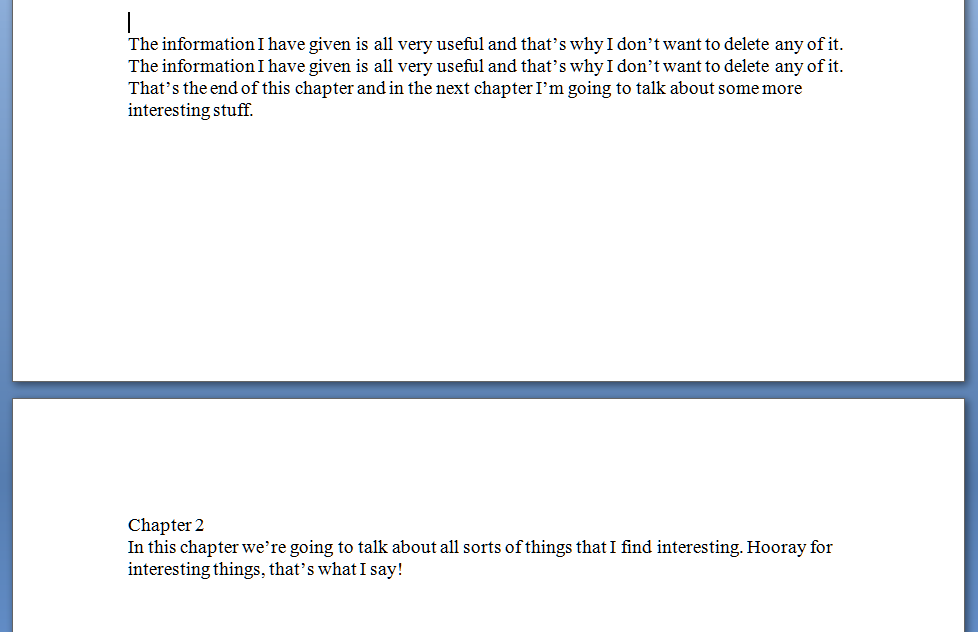
Today we’re going to talk about page breaks. If you’re writing a document that has sections, chapters, etc., you might well want to start a new chapter on a new page, and have it look something like this:

So far, so good – you’ve got your new chapter starting on a new page. But I bet you finished one section and hit the “Enter” key until you got to a new page, didn’t you? The way to tell is to hit a rather magical little button that shows all the formatting you’ve done.  In Word, you’ll find it in the Home menu; if it’s not there, play around with the display until you’ve found it and add it to the menu bar. Here it is:

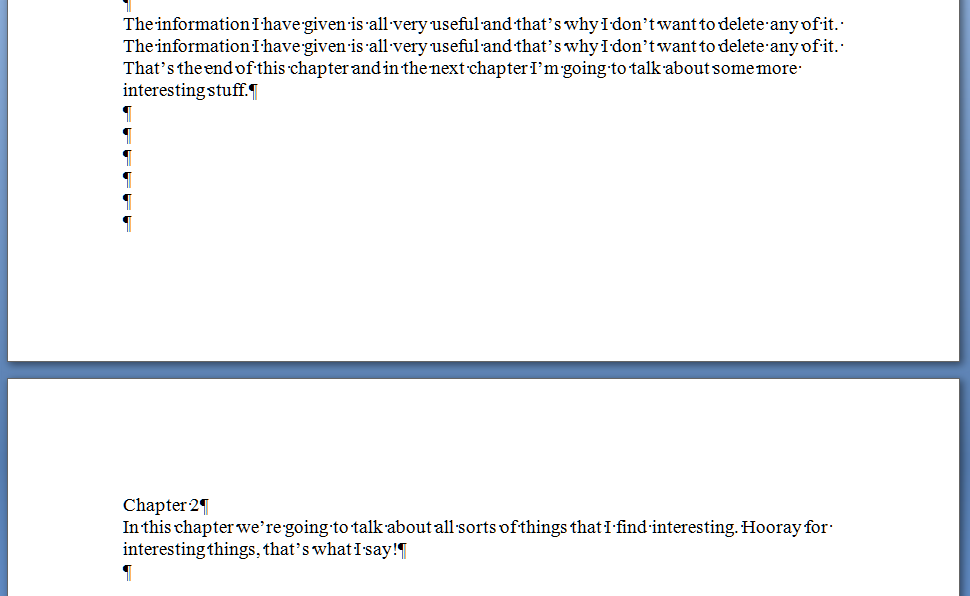
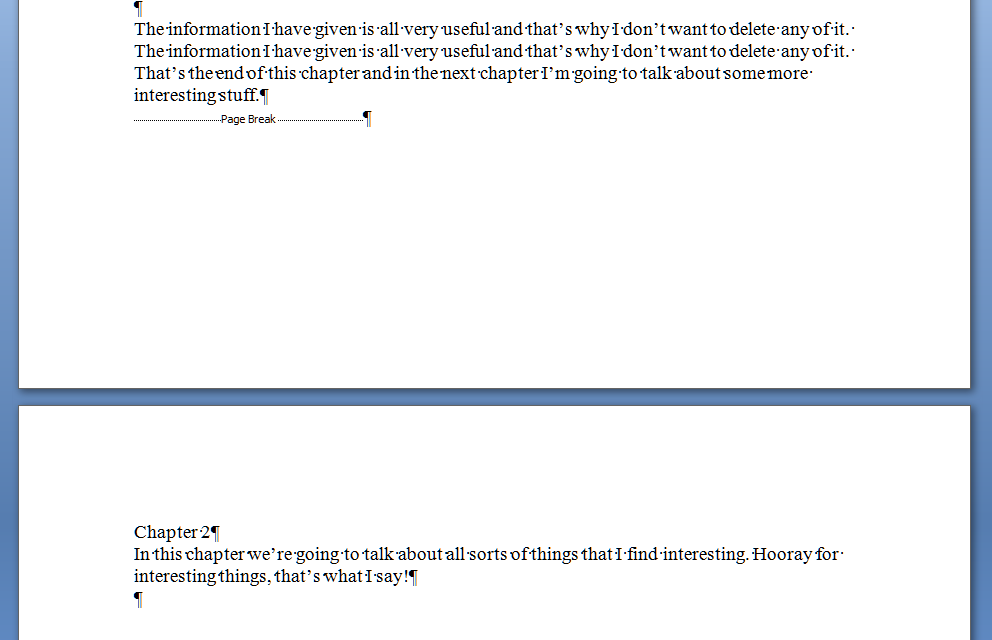
That’s actually the “paragraph” symbol or pilcrow used for centuries in manuscripts and printed books. Anyway, it’s ever so useful if you want to show what you’ve done to a document. Press it a second time if you want all the formatting marks to disappear again. So, pressing this with our document open shows the horrible truth – enter, enter, enter you’ve gone, six times, down the page …

And that’s all well and good – until you change the text above the page break. You’ve done this and it all looks nice, then you notice that repeated line on page 1. Oh, well, you can just delete that. So you delete the repeated line, and the text on page 1 is now one line shorter – one line further up the page. Below the text, you hit Enter 6 times to make Chapter 2 start on the next page. Those six lines are below your chunk of text still, but your text is one line shorter than it used to be. So what happens … ?

Disaster! Chapter 2 doesn’t begin on the next page any more! It’s crept up a line! And, similarly, if you’d added some lines of text to Chapter 1, this chapter heading would start part way down this page. Messy! And when you’ve submitted your work to an editor like me, you can bet we’ll be suggesting adding lines in or taking them away; when you get the document back the spacing will be all over the place (or I’ll have done it my way and made it tidy already … )

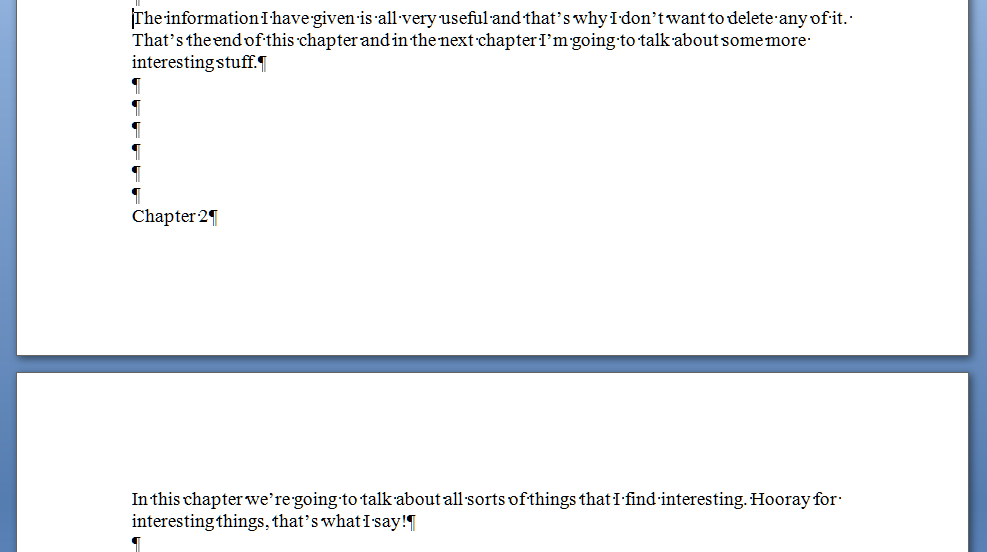
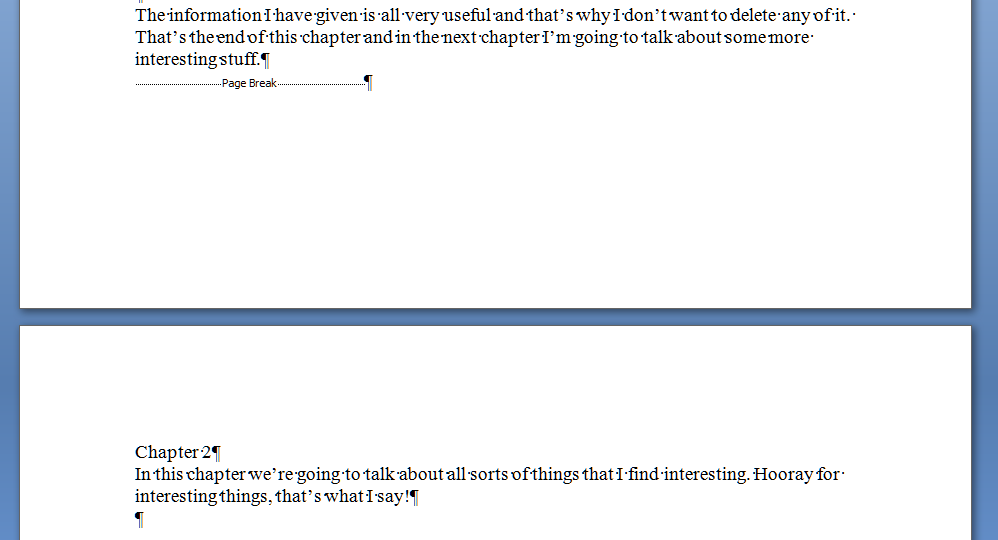
So how do you do it properly so this messiness doesn’t happen? Simple – you “force a page break”. Again, in all versions of Word, when you get to the place where you want to force a new section to start on a new page, press Control-Enter (or choose Insert – Page Break). Turning on your formatting display, and using our original text again, you’ll see this:

And because it’s a forced page break, it doesn’t matter what you do to the text above the break, the new text will always appear on the next page. Make the Chapter 1 text shorter again by deleting that extra line and you get this:

No hopping around – and even if you add so much to Chapter 1 that it goes onto the next page, Chapter 2 will just hop on down to the page after, automatically.

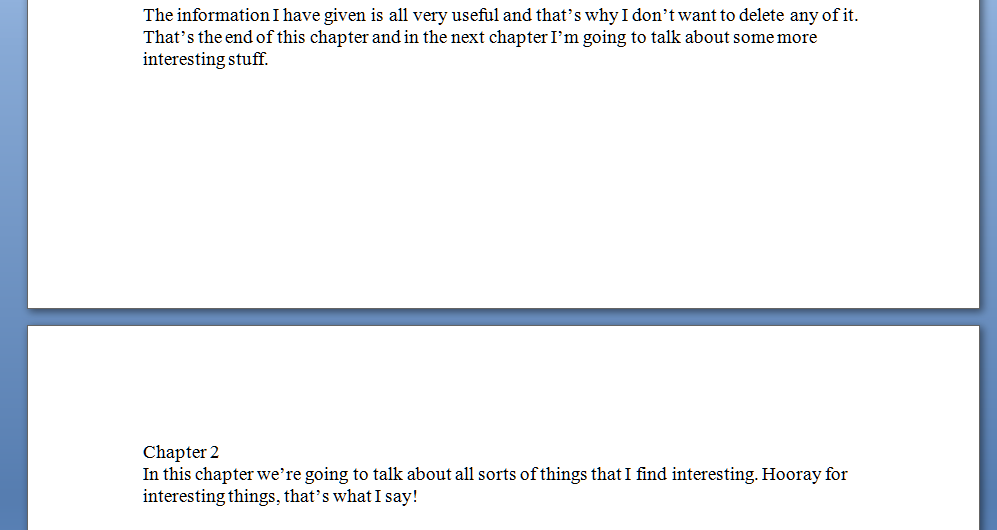
Of course, your document still looks like this:

But you’ve done it all correctly, in fewer keystrokes, and you know that whatever you do with Chapter 1, Chapter 2 will always start at the top of its new page, nice and tidy, going where you need it to go.

I hope that’s helped – it’s a very common issue, which is why I’ve tackled it first. There will be more of these posts coming over the next few months – do pop a comment on this post if I’ve helped you, and let me know if there are any other issues you’d like me to look at.

Please note, these hints work with versions of Microsoft Word currently in use – Word 2003, Word 2007 and Word 2010, all for PC. Mac compatible versions of Word should have similar options. Always save a copy of your document before manipulating it. I bear no responsibility for any pickles you might get yourself into!

Find all the short cuts here

 
10 Comments

Posted by on November 23, 2011 in Copyediting, Errors, New skills, Short cuts, Word, Writing


Tags: , , , ,

Your short cuts: my short cuts

Whether you’re using office software for work, fun, creative writing, or studying, it’s very common to not worry about learning how to do things properly, but just to launch in and start typing. How hard can it be?  That’s fine, if you’re just typing a document or making a very simple spreadsheet.  But when things get more complicated, documents need more formatting, and the right way to do things isn’t immediately obvious, it’s very tempting to fudge something together and hope it’ll work out in the long run.

Your short cut: don’t learn how to do it properly; just make up your own solutions.

You would not believe how many documents I’ve been sent where the writers have done this.  In fact, it’s so common that I usually send clients a note to congratulate them when they’ve done something the right way.

This is not just me being over-picky or trying to persuade people to pay out for my services. I once spent seven hours – that’s SEVEN HOURS (remembering my rates vary from £10 per hour upwards) sorting out the formatting and contents page of a PhD that someone had got in a mess with.  What took up most of those seven hours? Stripping out the attempts to do it right that the author had flailed around with, before calling me in.

I’m going to share some of my short cuts. They involve knowing how to do something (I’m not blowing my own trumpet here: people pay me to know how to do this stuff) and doing it properly, to save yourself time and, indeed, money.

I’m going to look at various tasks your documents need to perform (we’re mainly going to be looking at Microsoft Word here, although other wordprocessing programmes will have similar features and capabilities), how you tend to do it, so you recognise what you’re doing even if you don’t use the same words to describe the task, and then show you how to do it “properly”, i.e. the way that is most suited to the software you’re using; the way that will make it easier for you.

I might even go all daring and post some video! Not sure yet …

So, the kinds of issue I’m going to cover will include

– making a new section start on a new page

– using tabs and margins

– using heading hierarchies and creating an automatic Table of Contents

– counting particular instances in Excel

– page numbering

– saving time typing and coping with words you regularly misspell

All quite simple stuff, but you’d be truly amazed at the muddles people can get into …

I’m also planning to do a series of posts that go into more detail, for those of you who really want to know about the nuts and bolts of how to do these things. Please do get in touch if you have any issues you’ve been wrestling with that you’d like me to cover, especially any short cuts of your own that you know aren’t quite right!

Contact me via email or via my contact form.


Tags: , , ,

What to do if your comment boxes go tiny in Word

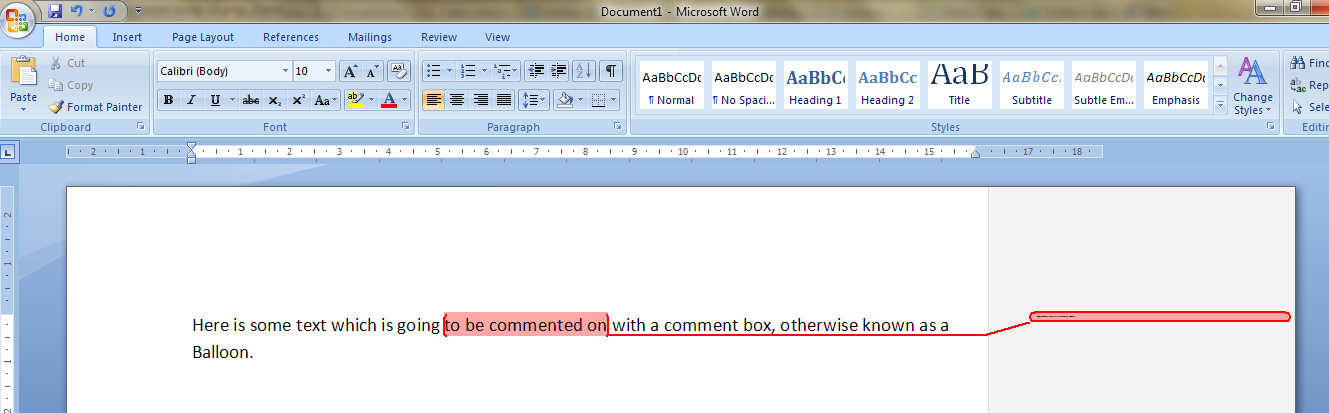
I had been editing a document for a client.  I added some comments in the margin, as always – but when my client opened it and when I re-opened it, to my horror and his, all of the text boxes containing the comments had gone TINY and unreadable. It looked like this:

It apparently happens if you’re working with a document originally created in an older version of Word which doesn’t have the requisite Styles set up for comment boxes.  You then work on it in Word 2007 or Word 2010 (this solution works for both!) and the horror happens …

It took me and Matthew longer than it should have to work out what to do, as there didn’t seem to be an easily found solution if you searched for one online – so as an aide memoire for me, for next time it happens, and as a public service for anyone else trying to work out what to do … here’s what you do (now edited to add screen shots).

Note for experts: if you’re already familiar with Styles, note that you need to change the Balloon Text.

What to do if your comment boxes go tiny in Word documents:

Let’s look at what the full horror looks like first of all:

First of all: don’t panic! The comments will have typically gone into Times at 1 point. But there is a way to make them readable again.

Open the document. Don’t highlight anything. Don’t put the cursor into a comment box.

Now you can do one of two things. Either hit Control + Alt + Shift + s all at the same time, or make sure you’re in the Home tab and click on the little tiny arrow at the bottom right of the Styles menu – this will bring up the full Styles dialogue box.

Using either of these methods, you will bring up the Styles dialogue box.

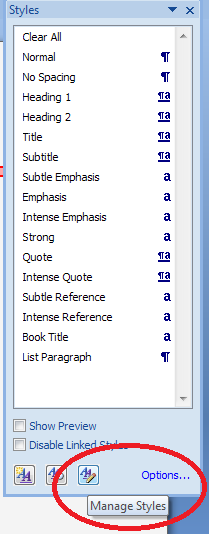
This looks like a very useful dialogue box, but for our purposes you need to ignore all of it except the three buttons at the bottom. Click on the rightmost button: Manage Styles to bring up yet another dialogue box.

We’re not there yet: the sort order shows as Recommended – but you need to click on the down arrow to change it to Alphabetical:

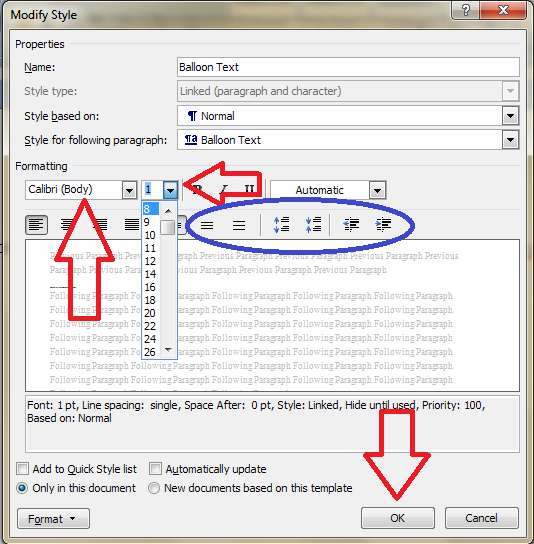
Once it’s in alphabetical order, it’s relatively easy to find Balloon Text (note: not Comment text) and you will see that it then confirms how you have your text set up (blue circle). Click the Modify button

Now you can change your font (which will probably have defaulted to Times) and font size (which will probably have defaulted to 1). You’ll notice lots of other options (blue circle) to change the spacing, etc. – I don’t usually worry about changing those, but this is where they are if you want them – and of course you use this menu to change the styles on headings, normal text, etc., too. Press the OK button, and carry on pressing OK buttons until you get back to your document.

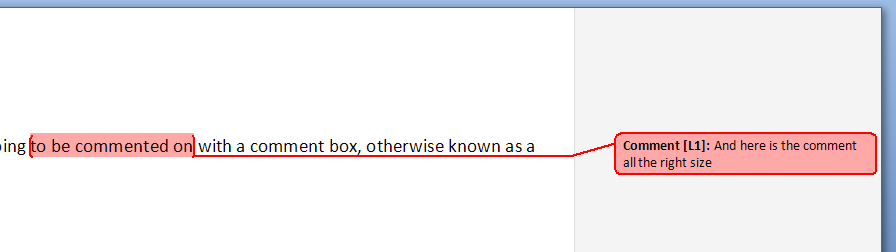
And there it is, all changed:

Save document

Want even more information on customising your comment boxes? Read this article full of everything you would ever want to know!

Related topics: What to do if your comment boxes start running from right to left

Changing the language in your comment balloons

Note that these tips are primarily for Word 2007, 2010 and 2013 for PC. Most of them will work for Word for Mac, although you may find some menus in different places. This is part of my series on how to avoid time-consuming “short cuts” and use Word in the right way to maximise your time and improve the look of your documents. Find all the short cuts here

Do let me know if this has helped you, saved your bacon, etc. – and do share with the buttons at the bottom of this article.

 
343 Comments

Posted by on November 6, 2011 in Copyediting, New skills, Students, Word, Writing


Tags: , , , ,