RSS

Category Archives: Writing

My short cuts – the line space button

Today we’re finding out all about the wonder that is the Line Space button. Do you know what it does? Did you know it was even there? And did you know how many ways there are to get to the Paragraph menu …? All this and more in today’s Short Cuts!

What is line spacing and why do I need to know about it?

Line spacing defines a large portion of what your document looks like on the page. It’s all about the gaps between the lines you type. Too close together, and your document can be hard to read. Too far apart, and there aren’t enough words on the page, with all that white space glaring at you. Of course, sometimes you’re told that your work must be presented in a particular way – double line spaced is popular for both academic work and fiction being submitted to a publisher or magazine.

It’s also really useful to be able to insert a gap between paragraphs automatically, to save you having to insert one manually – and if you find you’re working on a document that has odd spacing (or, worse, inconsistent spacing!) between lines and paragraphs, this is how you sort it out.

How do I alter the spaces between lines in my document?

We’re in Word 2007 or Word 2010 now, with that handy “ribbon” containing hundreds of little square buttons. Make sure you’re in the Home tab and have a look at the Paragraph section. You should find a button with up and down arrows to the side and lines of text in the middle: the Line Space button. There’s a big version at the top of this post, and you can find it here:

When using this button, or indeed anything that changes the word, line, paragraph, page or whole document that you are working on, make sure you’ve highlighted the text to which you want the change to apply first. Then click on the button and see what choices you are presented with:

The first thing you’ll notice is that one of the line spacing options (in the top half of the box) is already ticked, and you have an option to Remove Space After Paragraph (in the bottom part of the box) which, you can see by comparing it to the line above it, implies that there is a space set to appear after each paragraph at the moment. So one useful feature here is that clicking on the paragraph and then the line space button will tell you what is already set up for that part of the document. In this case, the spacing is 1.15 (just a little bigger than single line spacing) and there’s an extra line space after each paragraph.

Let’s try changing something …

Here, we’ve changed the line spacing to 1 and clicked on Remove Space After Paragraph, so it’s flipped to saying Add Space After Paragraph (red arrows). And look what’s happened (immediately) to our highlighted text. All of the lines are closer together, and the space between the paragraphs has disappeared (blue arrow).

We can change it back and go the other way, too …
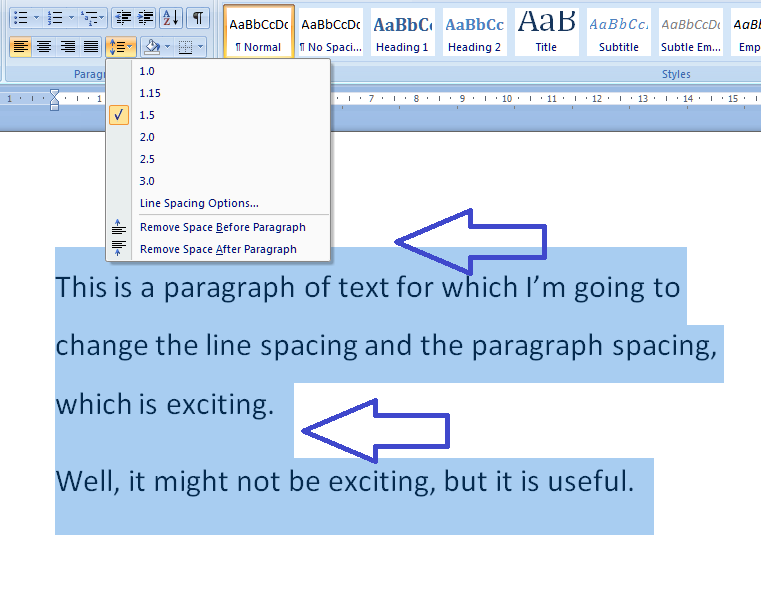
This image is at the same scale as all of the other ones, but you can see that changing the line spacing to 1.5 and adding spaces before and after the paragraphs has really spaced it out, and moved it further down the page to start off with.

Now, there’s one line in the dialogue box we haven’t looked at yet: Line Spacing Options… What does that do?

How do I use Line Spacing Options?

The Line Spacing Options … erm, option can be found between the line spacing and paragraph spacing choices:
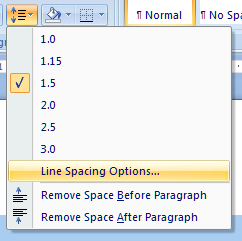
When you click it, you’ll be given a new dialogue box, which is actually the standard Paragraph options box. It has two tabs, and the first one is Indents and Spacing:
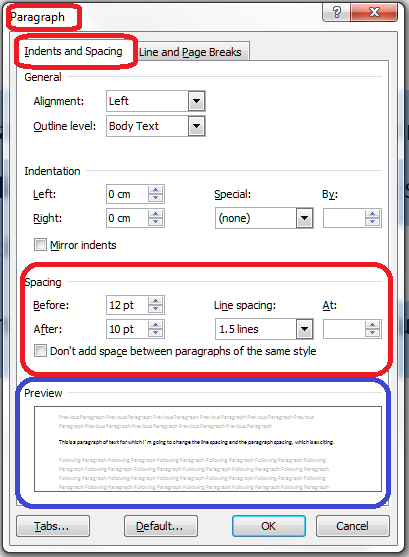
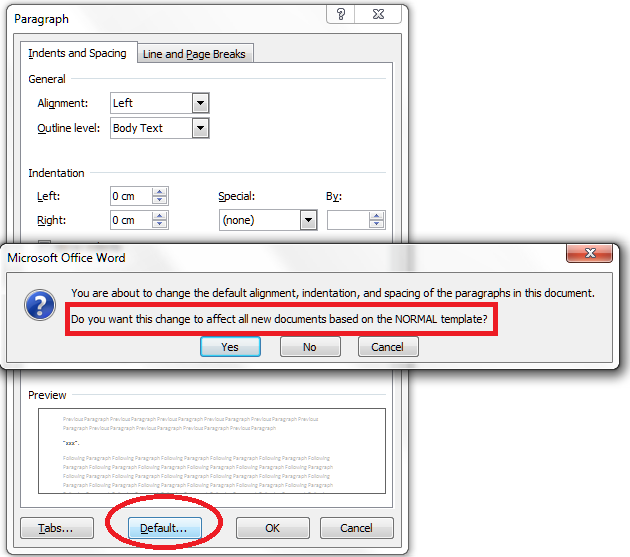
If you want to customise your document completely, this is where you come to set the paragraph indent, and the actual distance between paragraphs. There’s a handy Preview pane at the bottom which will show you the effect of any changes you make on some sample text (circled in blue). You can also work with Tabs from here – we talked about Tabs in another session. And, if you wish, you can change everything on here and then set it as being your default setting for paragraphs for this documents, or all documents based on this template that you ever work on:
The other tab on this dialogue box is all about Line and Page Breaks:

These are topics in themselves, so I’ll write about them in another session (if I forget to come back and put a link in here, use the Search box in the right hand column of this blog, or look it up in my index).

When you’ve finished with all of these options, just press the OK or Cancel buttons to accept your changes or go back to the document.

How do I access the Paragraph menu?

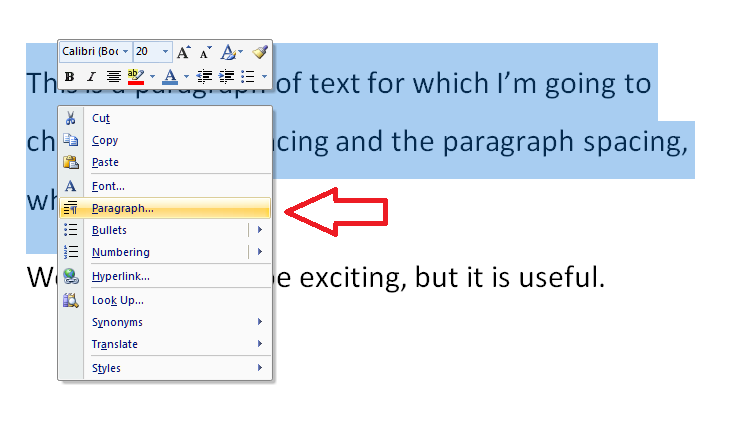
This being Word, you will find the same Paragraph menu we’ve just been looking at popping up on other routes through the software. If you just need the Paragraph menu and not the Line Spacing options in particular, you can access it from any Word document by highlighting your text, clicking with the right mouse button and selecting Paragraph from the selection that appears:
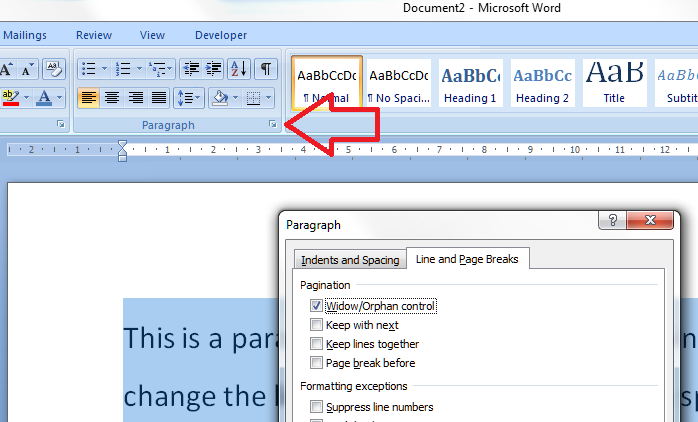
Or you can access it by clicking on the little tiny arrow at the bottom of the Paragraph title bar (if that’s what it’s called!) on the ribbon (I talk about these little arrows elsewhere, too):
I hope you’ve found these hints helpful! Do pop a comment on this post if I’ve helped you learn something new or solved a tricky problem for you, and do explore the rest of my blog if this is your first visit!

Please note, these hints work with versions of Microsoft Word currently in use – Word 2007 and Word 2010, all for PC. Mac compatible versions of Word should have similar options. Always save a copy of your document before manipulating it. I bear no responsibility for any pickles you might get yourself into!

This is part of my series on how to avoid time-consuming “short cuts” and use Word in the right way to maximise your time and improve the look of your documents. Find all the short cuts here

 
2 Comments

Posted by on October 24, 2012 in Copyediting, Errors, New skills, Short cuts, Word, Writing


Tags: , , , ,

Customising comment boxes in Word

A lot of people find this blog when they’re trying to sort out specific problems with their comment boxes (comment boxes suddenly going tiny, or comment box text running in the wrong direction, changing the language in your comment balloons). Here are general instructions on customising your comment boxes (or balloons, as they are officially called) in Word.

Why would I want to customise my comment balloons?

To be honest, the main reason for doing this is if something goes wrong. But the standard, default text size and layout may not be suitable for your purposes, and you might want to change it to make it more readable for someone with limited vision, etc.

You might also have preferences about which margin your comment balloons appear in, and how big they are.

The principles we are going to learn about here also apply when you want to customise the general styles in your document, which we will look in particular another time.

If you take a look at a document with standard comment boxes, you will see they look something like this:

Annoyingly, you will need to go to three different places to make these changes. I provide a recap at the end, but a summary might be useful here:

  • To change the location and size of balloons: Track Changes – Track Changes Options
  • To change the size, font, colour etc.of the heading (Comment M2 etc) AND/OR the size of all text in the comment balloon: Styles – Balloon text
  • To change the font and colour of the actual paragraph of text in the balloon AND/OR the size of all of the text in the comment balloon: Styles – Comment text

Note: my article on customising Track Changes will tell you how to change the colours in which the comments and corrections by different reviewers appear.

How to change where your balloons appear and their size

If you want to change which margin your balloons appear in, their size, and whether they are linked to the text by a line, you must go into the Track Changes Options menu. In the Review tab, click on the little arrow at the bottom of the Track Changes button and bring up Track Changes Options. There, at the bottom, is your balloons section:

I think this is fairly self-explanatory.

How to find the menu for customising comment balloon text

There are two ways to reach the menu you need:

  • Press Control + Alt + Shift + s all at the same time
  • Make sure you’re in the Home tab and click on the little tiny arrow at the bottom right of the Styles menu

Either of these options will bring up the full Styles dialogue box.

Using either of these methods, you will bring up the Styles dialogue box.

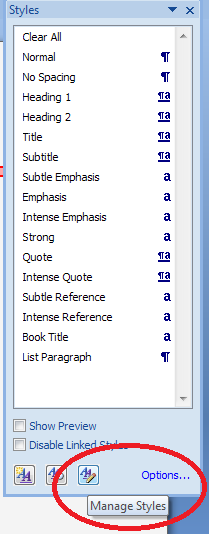
Now, ignore all of it except the three buttons at the bottom. Click on the rightmost button: Manage Styles to bring up the next box: Manage Styles. When you first open this window, the sort order is in what Word thinks is a useful order: As Recommendedclick on the down arrow to change it to Alphabetical:

Once you’ve got the list into alphabetical order, it’s relatively easy to find Balloon Text (note: not Comment text) and you will see that it then confirms how you have your text set up (blue circle).

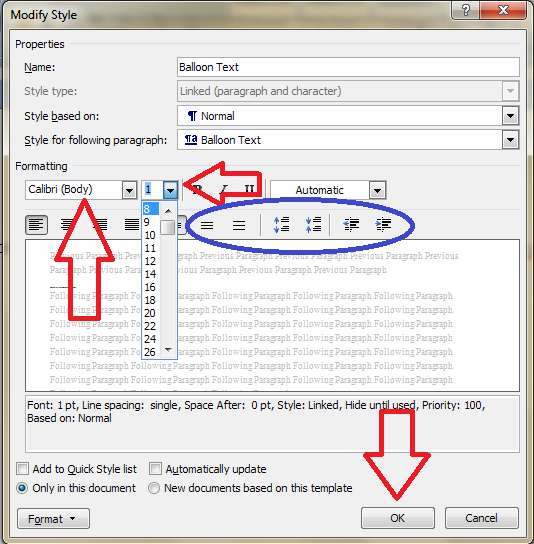
Click the Modify button … Now you can change your font and font size. You’ll notice lots of other options (blue circle) to change the spacing, etc.

I’m going to change the font size, font, orientation and colour of the comment box heading, and the size of the text:

Note: As we will see, the changes in colour, font and italics etc. only apply themselves to the heading of the comment text, where it says “Comment: L1”. Why? Because it’s Word, and we are changing, very specifically, information about the Comment Balloon itself. See below for how to change the text in the comment balloon. EXCEPT, and here we may tear our hair out a little, this IS where we change the text size in the comment box .

Note, however, (blue arrow) that this does not change the size of the text itself – that is controlled from Balloon Text, and you’re just going to have to remember that, or look at the Recap I’ve written at the bottom!

At this point in either menu option, you can also click on the Format button and change all sorts of aspects:

Now, you probably won’t want to go to this level of fancy detail with the comments balloons, but, of course, this dialogue box is not only for changing the style of comment balloons: it’s also where you set up all of the styles in your document if you want to change and customise them.

You can also choose whether this change applies only to this document, or to all documents based on this template, and add it to your Quick Styles list if you want:

Press the OK button, and carry on pressing OK buttons until you get back to your document. Now, your comment will appear in the style you have chosen. If you’ve only chosen to amend the Comment Balloon text size, only the header will have changed:

If you’ve chosen to customise the Comment Text as well, you will have made all of these changes:

Now your comment boxes have large, easy-to-read text in a useful colour. and a very fancy heading. We’ve customised your comment boxes or, as you now know to call them, your comment balloons, and the comment text

A quick recap

  • To change where the balloons appear, and their size, use the Track Changes Options section in the Review tab
  • To change the size and orientation of the comment balloon header text, and/or the size of all of the text, use the Comment Balloon option in the Manage Styles list
  • To change the colour and font of the comment balloon text, and/or the size of all of the text in the balloon, use the Comment Text option in the Manage Styles list

Why not take a look at these related topics, which should help you further?

What to do if your comment boxes go tiny in Word

What to do if your comment boxes start running from right to left

Changing the language in your comment balloons

Customising Track Changes

This is part of my series on how to avoid time-consuming “short cuts” and use Word in the right way to maximise your time and improve the look of your documents. Find all the short cuts here

Do let me know if this has helped you, saved your bacon, etc. – and do share with the buttons at the bottom of this article.

 
131 Comments

Posted by on October 19, 2012 in Copyediting, New skills, Students, Word, Writing


Tags: , , , ,

Working with Track Changes in a document

Here’s the last part of my series on working with Track Changes. We’ve already learned what Track Changes is, why we use it and where to find it, and how to customise Track Changes to suit our own preferences. Now it’s time to learn how to work with a document that has Tracked Changes – i.e. how to get rid of all those marks and comment boxes and be left with a clean document with no errors.

Why do I need to work with Track Changes in a document?

These instructions will be useful to anyone who has their work edited, critiqued or otherwise commented on by other people. For example, I work in Track Changes with all of my student customers, because they need to see what I’m suggesting they should change so they can make the decisions and retain their understanding and authorship of their own texts.

If a text has Track Changes on it and you want to submit it for your Master’s or PhD, a journal, a magazine that publishes creative writing … you need to remove those Tracked Changes so they don’t show up when someone else reads your document.

(Note: in the last article we looked at how the different views of track changes don’t actually delete the changes – review this article for more information in the section “How can I change which changes I can see?”)

How do I remove the Track Changes markup from my document?

To get back to basics, you’ll find all the buttons and drop-downs you need in the Review tab in Word 2007 or 2010 (or the Tools dropdown in Word 2003):

Review section

We’re looking at the Accept / Reject area to the right of this section, and then the New Comment / Delete area to the left.

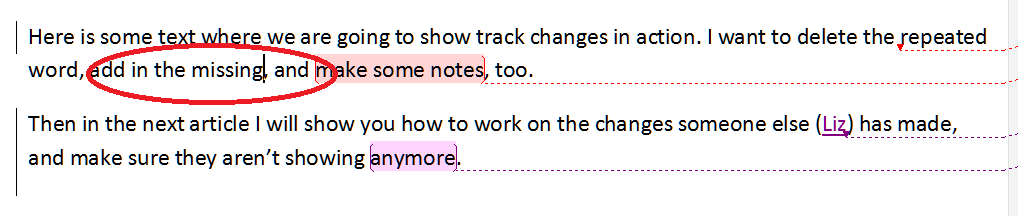
And let’s just remind ourselves what a document with Track Changes looks like: here’s the one we’ve been working on for a little while now. Additions show up in red underlined, deletions disappear and pop into a comment box, and comments and corrections appear in different colours depending on who entered them:

Document with tracked changes

So, first of all you will need to look at each of the changes that are showing in your document and decide whether to accept or reject them. Then you need to review all the comments, make the necessary amendments, and delete the comment. Finally, you need to check that all the markup has actually disappeared, and you’re left with a nice clean document.

How do I accept changes in a document?

The area you need to look at for accepting (and rejecting) changes is that section in the middle of the Review tab that looks like this.

Accept changes button

You will notice that there’s a little arrow on the Accept button; if you drop that down you get a range of choices. Let’s see what happens if you position the cursor by the change you want to accept and hit Accept Change:

Change accepted

You can see that the word “text” has stopped being underlined and changed from red to black. You have accepted the change, and the additional text has basically become part of the actual, final version of the document now.

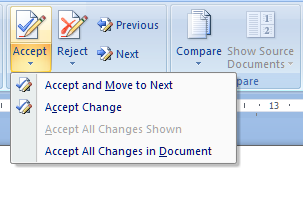
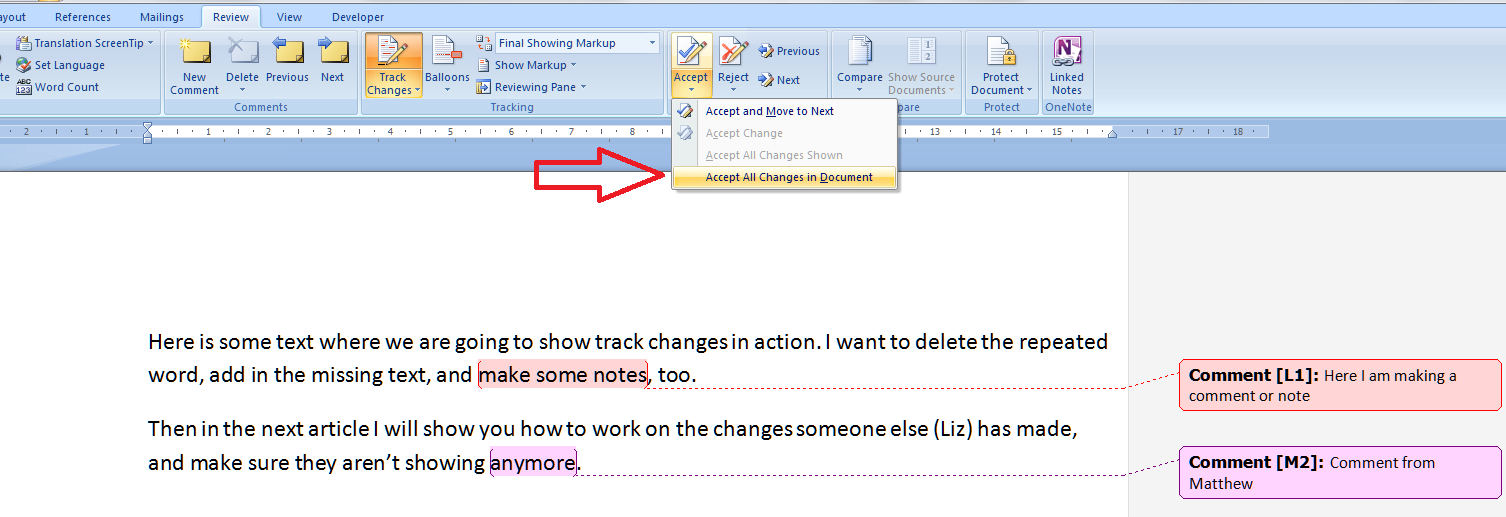
You can Accept and Move to Next if you want to skip through all of the changes one by one – a good option to take that ensures you don’t miss one. Or you can do this manually using those blue arrows to the right of the Accept and Reject buttons. Or, you can choose Accept All Changes:

Accept all changes

If you do this, as you can see, all of the tracked changes (but not the comment boxes) disappear.

Note: I don’t encourage student clients to do this, as I prefer them to look at every change and accept or reject it individually. However, I use this option if I have been asked to provide two versions of a document for a client: one with changes marked and one “clean” copy. It’s a quick way of accepting all the changes I’ve made and seeing what I’m left with.

You can undo any individual Accept Change or Accept All Changes, immediately after you’ve done it, by hitting the Undo button:

undo button

How do I reject changes in a document?

Rejecting changes is done in exactly the same way as Accepting changes. Obviously, if your editor has suggested a change for you, they are the expert and it’s worth seriously considering accepting it. But there could be a choice involved (with a comment box nearby explaining it) or you could be working collaboratively with a colleague and deciding to reject a change one of you has made.

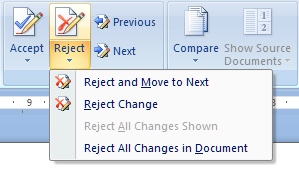
Anyway, there’s a Reject button with a dropdown arrow, and the choices are the same, when you place the cursor by a marked change, allowing you to reject just that change or reject it and move on to the next one …

Reject change

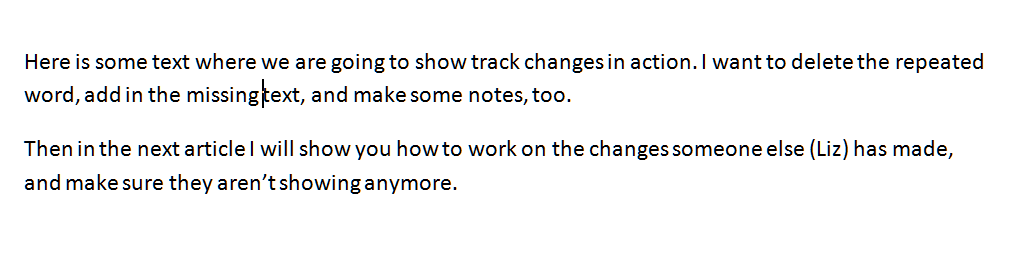
When you reject this change, you will see that the text will revert back to what it said originally, with a word missing. The insertion has been deleted, and again there is nothing there in red or underlined, but that’s because it has been removed from the document.

reject change - text altered

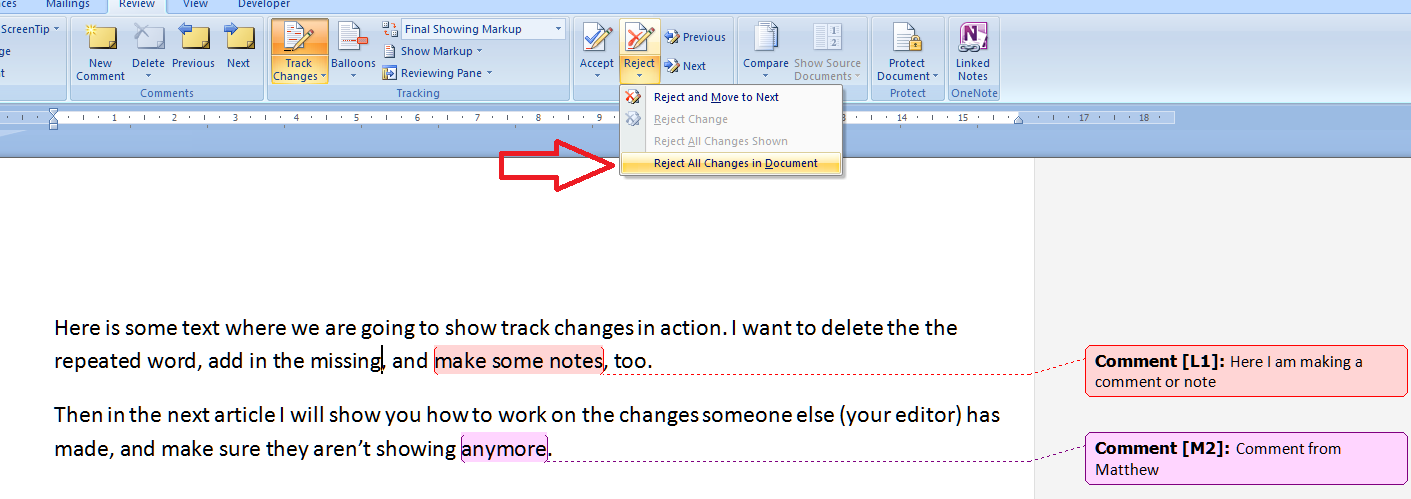
And again, you can decide to Reject All Changes (not if I’ve made them for you, though!), in which case …

reject all changes

all of the changes (but not the comments) will disappear and you’ll be left with your original textt, just as it started out. Of course, you won’t want to do this if you’ve asked an editor to offer their suggestions, but you need to know what this does and how to use it.

How do I remove the comments in a document?

OK, so we’ve gone through all of the changes in the text and accepted or rejected them. Now how do we get rid of all those comments in the margin?

The area for doing this is on the left of the Review section. You will see a series of buttons for handling comments:

comments buttons

The important thing to remember here is that, like with the accept or reject changes functions, you need to have the cursor on the affected text when you choose to delete the comment.

deleting a comment

When you press the Delete Comment button, both the highlight in the text and the comment box in the margin will disappear:

comment deleted

You can choose to Delete all Comments: I suppose this would be useful if you’ve reviewed all the comments and done what they say, although personally I like to review a comment, do what it instructs, then delete the comment individually, and that’s how I would always recommend you work through them.

Anyway, once you have accepted or rejected all the changes, and deleted all the comment boxes, you should be left with a clean, amended text with no coloured or underlined text, no lines in the left hand margin, and no comment boxes:

clean copy

Why can’t I make all the Tracked Changes disappear?

You may sometimes find that there are some sneaky bits of markup left in your text once you’ve done all the above. This usually shows up as lines in the margin where a small change has been made.

The other culprit is thinking that you can use the Final Showing Markup menu to hide the track changes. You can’t. Any method you use to customise track changes will only appear in your own version on your own computer. Several of my clients have reported that they have turned off Track Changes, then all the changes have “reappeared” when they re-opened the document. That’s because they had chosen the Show Final option, thinking they had removed the markup but really only hiding it on their version of the document.

As I mentioned at the beginning of this article, review this paragraph under the heading “How can I change which changes I can see?” for more information on this aspect of customising track changes..

In summary: the only way to remove Track Changes markup is to:

  • Go through each change
  • Decide whether you accept it
  • Accept or reject it
  • Move on to the next item
  • Review the comments and do whatever you are instructed to do
  • Remove the comments once you have reviewed them

If any last vertical lines then remain in the left hand margin, it’s fine to hit Accept all Changes, which will get rid of them once and for all.

———-

This article has taught you how to work with a document that has been marked up using Track Changes. You can read more about what Track Changes is and why we use it, and learn how to customise Track Changes.

If you have found this article useful, please share or “like” it using the buttons below, or leave me a comment to tell me what you think. Thank you!

This is part of my series on how to avoid time-consuming “short cuts” and use Word in the right way to maximise your time and improve the look of your documents.

Please note, these hints work with versions of Microsoft Word currently in use – Word 2003, Word 2007 and Word 2010, all for PC. Mac compatible versions of Word should have similar options. Always save a copy of your document before manipulating it. I bear no responsibility for any pickles you might get yourself into!

Find all the short cuts here

 
35 Comments

Posted by on October 10, 2012 in Copyediting, Errors, New skills, Short cuts, Word, Writing


Tags: , , , ,

Gunnel or gunwale?

I’ve seen a few blog posts and articles mentioning something being “packed to the gunnels” and I’ve been getting all steamed up about the mistake, knowing it should be “packed to the gunwales”. So, I decided to write up one of my Troublesome Pairs to differentiate them.

A gunwale is the upper edge or planking of the side of a boat. By extension, we tend to use “packed to the gunwales” as a metaphor for something being full up, as if a boat is literally packed to its gunwales, it will be completely full up to the brim.

A gunnel is … an alternative spelling for gunwale. So I apologise to the writers against whom I have fulminated. Luckily, I didn’t mention it to anyone before I checked! And I still prefer gunwales, myself.

Note: they are pronounced the same: “gunnel(s)”.

You can find more troublesome pairs here and the index to them all so far is here.

 
23 Comments

Posted by on October 8, 2012 in Errors, Language use, Troublesome pairs, Writing


Tags: , , ,

Customising Track Changes

So how do I customise Track Changes (and why would I want to?). Previously, we learned about why you might want to use Track Changes and how to find and use it to delete and add text and make comments. Now we’re going to go one step further and customise it all (and you can also find out how to work with a text that contains tracked changes).

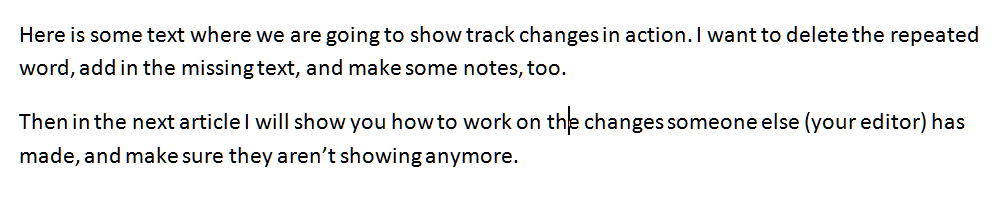
So, here’s our original text with some changes tracked that we created last time:

Why customise Track Changes?

Customising Track Changes basically makes things more comfortable for you and means you can work in a way that suits you. For example, some people like to cross out text in a document, like if you were editing a written manuscript, while others like to remove the deleted text altogether and place it to one side.

Please note: This is customising your view of the document. It’s personal to you, your computer and your document. When someone else opens the document, they will not necessarily see what you see, especially if you’ve customised it away from the defaults. Note this, because it becomes ever so important later on …

How do I customise Track Changes?

Your key area for this is the Review tab, then the section marked Tracking. You can change three things:

  • Tracking Options themselves (the colours and fonts that mark the changes)
  • Balloons (whether changes are marked within the text or to the side of it)
  • Final showing markup (which changes show in your version of the text)

We’ll look at these in turn, and also at what happens when more than one person makes changes to the document.

How do I change the tracking options?

To change the tracking options you need to click on the little arrow at the bottom right of the Track Changes button. This gives you another way to turn Track Changes on and off, a menu item to click to access the tracking options, and a final item we’ll look at later on.

For now, let’s click on that middle menu item. Up pops a great big dialogue box with all sorts of things to change:

I think this is fairly self-explanatory. On the left hand side, you can change how the text appears when you do something to it (underline, double underline, etc.) and on the right hand side you can change the colour.

Let’s change some things …

So here we’ve changed insertions and deletions to double underlines and double crossings-out and the comments to blue. Watch what happens to our text (actually, the crossing-out won’t show up until the next section … )

Because the crossings-out are shown in balloons, not in the text, we can’t see them. But that will all change …

How do I customise the balloons?

Now we’re moving on to talk about what appears in balloons and what appears “inline” or in the text itself.

Important note: This is not how you change what comments themselves look like. For that, you will need to see my posts on comment boxes.

The menu we need here is the next one to the right of the Track Changes button, called, inventively, Balloons:

At the moment, Show Revisions in Balloons is ticked. Note that to change between the options, you need to tick the one you want – no unticking allowed! Try ticking Show All Revisions Inline:

and watch what happens to the document. Gone is the right hand margin, gone are all the balloons, and instead you can see what has been crossed out, and you can only read comments by hovering the mouse over the note indicating there is a comment:

Now, personally I don’t like it looking like this, but some people do.

For more information than you would ever want on how to further customise your balloons, please see my article on customising comment text.

How do I change which changes I can see?

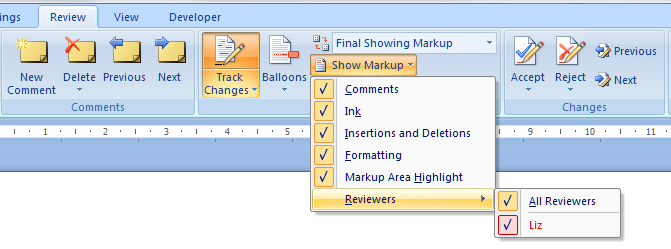
You can review particular changes individually using the next button along: Show Markup. Drop it down and you can see that you can choose to see various kinds of correction, and also only changes made by a particular person:

I don’t think I need to show you examples of all of these – have a play with them and you can see what’s what.

Above this menu item is Final Showing Markup. Now: this is important. Yes, you can choose how you view the document …

For example, you can choose Final and you’ll see the document in its final form with no changes showing:

But: REMEMBER – this is all about what YOU can see. The Tracked Changes have not gone away: they’re still on the document, just hidden. So if you send the document to someone else, they can change their view and see all your changes and comments! Eeps!

You can only “get rid” of changes and comments by accepting or rejecting them, individually or en masse, and that’s a job for next week’s post.

How can I tell which reviewer has made which comments?

If more than one of you is reviewing the document, Track Changes  makes it easy to see who said what. All you need to do is make sure that the “by author” option is chosen in Tracking Options …

… and your comments and alterations will appear in different colours:

Again, avoid telling the other person, “Oh, my comments will appear in blue”, as it’s up to the individual and their own computer as to what colours will appear.

How do I change my initials in comments?

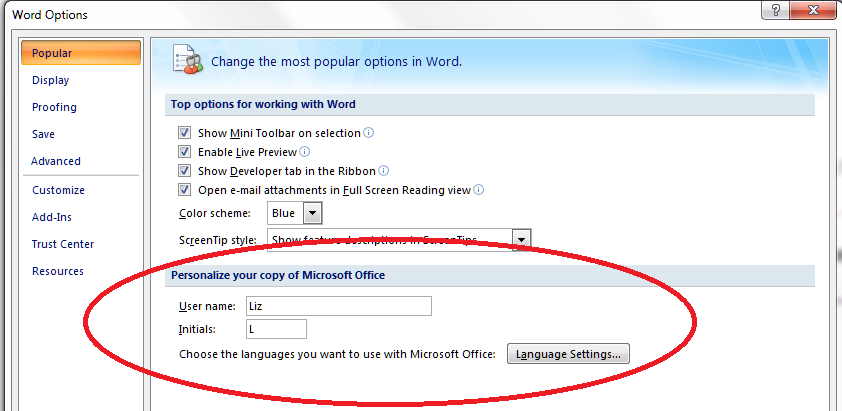
If you want to change your initials in the comments, perhaps because there are two reviewers with the same first initial, you need to go back to Tracking Options and choose Change User Name. This will bring up the Word Options dialogue box, and at the bottom you can change the initials that appear in the comments balloon:

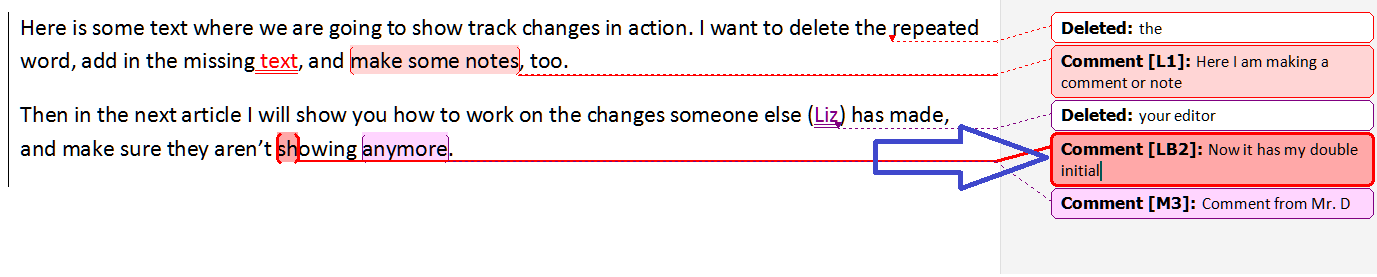
Next time I make a comment, my initials have changed!

However, please note that when I change L to LB here, the change takes effect from that moment, and is not applied retrospectively. Well, you can’t have everything!

A final note

You may want to pin some of your most common choices to the Quick Access Toolbar – read this article to find out how.

So, we already knew how to find Track Changes, today we’ve learned how to customise Track Changes so it works just as we want it to. Next time, we’ll be talking about how to work with the Track Changes you, or someone else, has applied to the document, leaving it nice and tidy and clean! And there will be a separate article on formatting comment balloons, coming soon. In the meantime, if you want to customise the text in your comment balloons or it goes all small or runs from right to left, click on the appropriate links to find out what to do.

This is part of my series on how to avoid time-consuming “short cuts” and use Word in the right way to maximise your time and improve the look of your documents.

Please note, these hints work with versions of Microsoft Word currently in use – Word 2003, Word 2007 and Word 2010, all for PC. Mac compatible versions of Word should have similar options. Always save a copy of your document before manipulating it. I bear no responsibility for any pickles you might get yourself into!

Find all the short cuts here

 
74 Comments

Posted by on October 3, 2012 in Copyediting, Errors, New skills, Short cuts, Word, Writing


Tags: , , , ,

Alternative, alternate or alternating?

These three words are very close in form and have related but not identical meanings. There is also a British English / American English aspect, something I don’t often cover in these Troublesome Pairs, but one that needs addressing here.

Alternative means available as another possibility, or mutually exclusive, said of one of more things (originally, it could only be used of two entities, but matters have freed up and more than two alternatives are now allowed). So you could use the services of one typist or an alternative typist if the first one is busy, or you could choose between the alternative answers “yes” or “no” when answering a question. Alternatives are the two or more available possibilities.

Alternative can also mean activities that depart from and/or challenge traditional norms – like alternative health and alternative lifestyles – the same meaning is there, in that they are offering an available possibility other than the “main” one.

The adjective alternate (with the stress on the middle syllable: alTERnate) means every other – “We hold the event in alternate months” means the event is held in, for example, January, March, May, etc. In biology, leaves alternating on a stem will appear on each side in turn, rather than being in matched pairs, two leaves together. But it’s worth noting that the American English usage of alternate carries the same meaning as the British English alternative defined above. To alternate, the verb (with the stress on the first syllable: ALternate) means to swap between two contrasting options repeatedly – “I alternated between watching the diving and hiding behind a cushion”. If two things are alternating then they are doing the swapping – “Mary and Sue were alternating as the front runners in the race”.

You can find more troublesome pairs here and the index to them all so far is here.


Tags: , , ,

Bazaar or bizarre?

There have been a few odd things in the news recently, and seeing people’s comments on them has highlighted a common difficulty distinguishing between bizarre and bazaar. They’re odd words, and tricky to spell, with those difficult decisions on the double letters, so bookmark this blog post if you’re not sure about this pair!

Bizarre is the word you’re groping for when you want to describe something odd. It means something VERY odd or unusual, so a woman with a hat on her head might be less bizarre than a woman with three hats, or a parrot, on her head. How you remember the double r as opposed to the double z you might be tempted to include, is anybody’s guess. Maybe think of rolling your rrrrrrs in emphasis of the oddity of it all.

And here’s a lovely bonus word: A bizarrerie (plural: bizarreries) is a strange and unusual thing. Go on, work that into a sentence today.

Now we’ve got the odd one clear, a bazaar is a market in a Middle Eastern country (think souk, and the word comes from Persian, via Turkish and Italian) and also, more commonly, I suspect, a fund-raising sale of some kind, beloved of Church and charity fund-raising attempts. There’s a nice double a in this one, not a spelling you find often. If you watch Strictly Come Dancing, you can imagine Craig saying it in that voice of his: “I bought it at a bazaaaaaaar, dahling”.

Of course, you could find many bizarre items at a bazaar; in fact you’re pretty well certain to. Maybe that’s a good way to remember it.

You can find more troublesome pairs here and the index to them all so far is here.

 
Leave a comment

Posted by on September 28, 2012 in Errors, Language use, Troublesome pairs, Writing


Tags: , , ,

Track changes – how to find it, how to use it

This is part of my series on how to use Word to the full to get what you need out of it.  Today we’re going to talk about why you might want to use Track Changes, how to find it and how to start using it. Next time, we’ll look at customising Track Changes, then working with the changes that have been tracked and ending up with a nice clean document.

Why use Track Changes?

Track changes helps you collaborate with someone else on your text – or mark it up for yourself. Reasons you might use it:

  1. Two or more people are collaborating on a document. You want to know who’s written what, and comment on the work
  2. You’re editing someone else’s work. I use Track Changes when working with students, so that they can see what I’m suggesting and make the decision as to whether to accept or reject my changes, thus retaining their control over the changes and the authorship of the text
  3. You’re editing your own work – you can see what you’ve deleted and added, or leave notes for yourself, just like working on the paper manuscript

How do I find Track Changes in Word 2003?

Like with most features, once you’ve found this in the menu system, it works the same in 2007 and 2010. This is how you find Track Changes in Word 2003: Go to the Tools menu, drop it down, and select Track Changes.

Finding Track Changes in Word 2003

How do I find Track Changes in Word 2007?

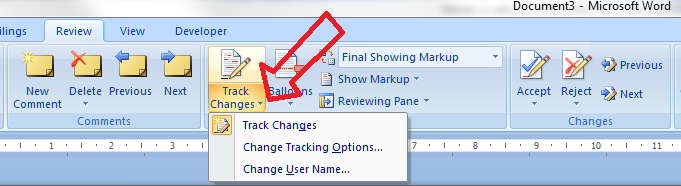
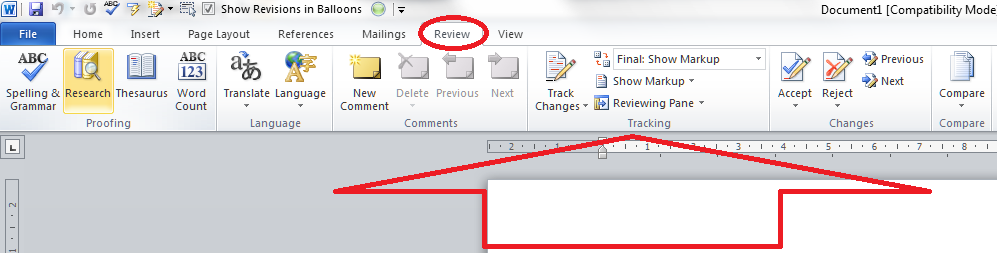
Go to the Review tab, and you will find the Track Changes options half way along the ribbon:

How do I find Track Changes in Word 2010?

This works the same as in Word 2007 – go to the Review tab and you’ll find the Track Changes options half way along the ribbon. The rest of the screen shots will be from Word 2007 but apply equally to Word 2010, as it works in the same way.

How do I turn Track Changes on and off?

You will see a big button marked Track Changes. Don’t worry about the little arrow in the corner for now, just press the button. It will go yellow, and this means Track Changes is turned on, and everything you do to the document from now on will be marked on the document.

If you want to turn Track Changes off, press the yellow button again and it will turn grey. From now on, anything you change will NOT be marked up.

What happens when I delete and add text with Track Changes turned on?

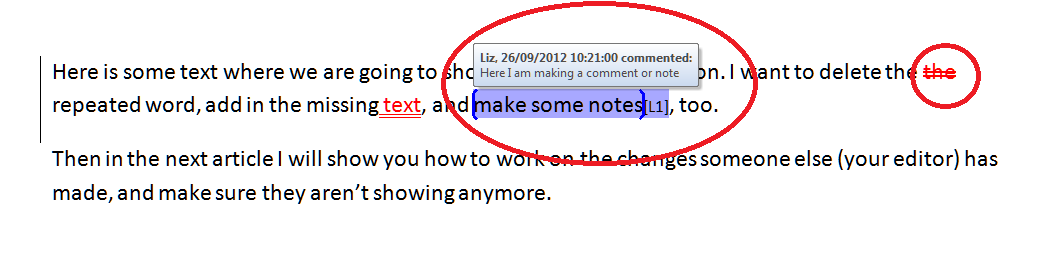
When you add text to the document (marked in blue) it will insert in a different colour, and underlined (note: the colour may not always be red. See the article on customising Track Changes for why and how to change it). When you delete text from the document (marked in red), it will either hook it out of the document and stick it in a balloon to the side of the text (as here, and how I like to do it), or cross it out in the document itself (see the Word 2003 example below). Again, you can choose which it does, and we’ll look at that next time.

How do I add a comment?

Sometimes you might want to add a comment to the document. This is helpful if you don’t understand what the other author is saying, or if something just needs to be commented on. You might want to leave a note for yourself in the margin.

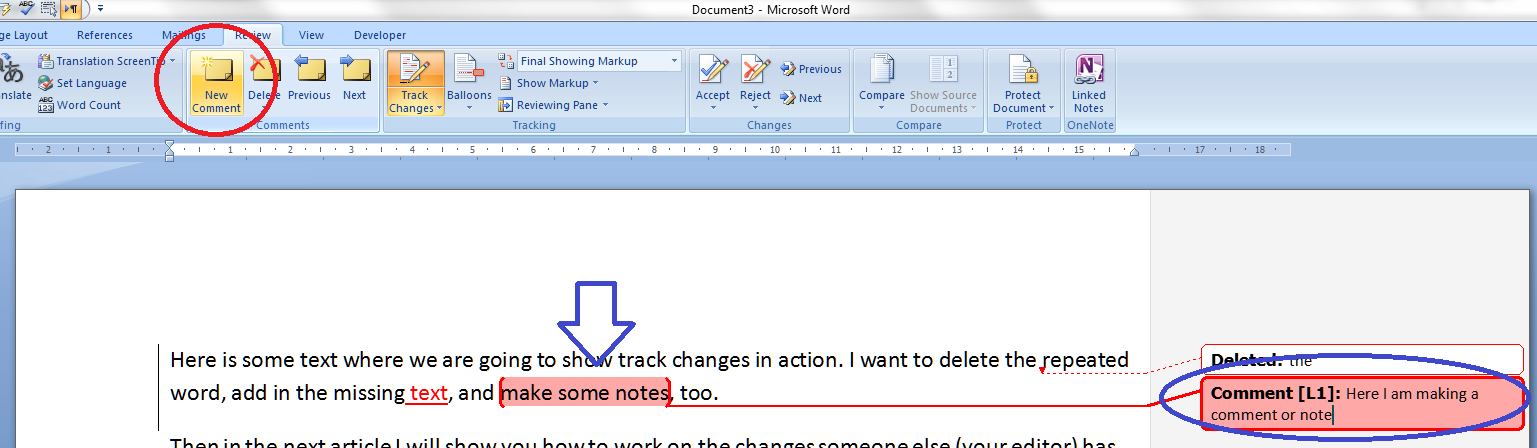
When you want to do this, highlight the text you want to comment on and press the New Comment button in the ribbon. A comment balloon will appear in the right-hand margin, where you can type your comment.

Note, sometimes the text in this box comes out tiny or running right to left, especially if you are commenting on someone else’s document. See those links in the previous sentence? Click on those for how to solve both these problems.

You can pop back into the comment balloon at any time to edit what you’ve typed there.

And what does this all look like in Word 2003? Like this (note the crossed out deleted text):

In the next two posts, we will be looking at how to customise your Track Changes markup, and how to deal with a text containing tracked changes and comments.

Thanks to Kathy O’Moore Klopf for the Word 2003 screen shots!

Please note, these hints work with versions of Microsoft Word currently in use – Word 2003, Word 2007 and Word 2010, all for PC. Mac compatible versions of Word should have similar options. Always save a copy of your document before manipulating it. I bear no responsibility for any pickles you might get yourself into!

Find all the short cuts here … and do share or post a comment if you have found this useful!

 
12 Comments

Posted by on September 26, 2012 in Copyediting, Errors, New skills, Short cuts, Word, Writing


Tags: , , , ,

Mandrel or Mandrill?

This one was suggested by my friend, Sian, who does technical translation, which is how she came to know the meaning of these two rather lovely words. Or one of them, anyway. I’m not sure where mandrills come in to technical translations! I am kind of betting that I never get a search through for these … let’s see if I’m proved wrong!

This is a matter of knowing your spellings, in essence.

A mandrel (only one el, mind, and yes, I did have to look it up. But it is in my fairly standard Oxford Concise English dictionary, so it is a real word of some kind of common usage!) is a shaft or spindle in a lathe, which you use to fix wood (etc.) while it’s being turned. It’s also a rod, cylindrical, around which metal (etc.) is forged. And, it’s a word for a miner’s pick, too!

A mandrill (two ells), is a large type of baboon, found in West Africa, with a red and blue face and, if male, a blue bottom.

Um … “The mandrill, being a blue-bottomed monkey, was not hugely keen on using the mandrel to help it turn the wooden banisters, but it was a helpful sort of baboon, so did its best”.
You can find more troublesome pairs here and the index to them all so far is here.

 
2 Comments

Posted by on September 24, 2012 in Errors, Language use, Troublesome pairs, Writing


Tags: , , ,

Judgement or judgment?

This is a tricky one to do with spellings, and even raises the spectre of the US English / British English divide.

Judgement is a person’s or organisation’s ability to form sensible opinions or make considered decisions, and a judgement is that opinion or decision. In the UK.

And judgment or a judgment is the same thing in US English.

But here’s where the confusion comes in. In the UK, we use judgment solely for a decision made by a judge or a court of law. No e in the courtroom!

“She married him against her better judgement, and it was a mistake she soon regretted.”

*The court made its judgment and he was accompanied to the prison cells.”

You can find more troublesome pairs here and the index to them all so far is here.

 
2 Comments

Posted by on September 14, 2012 in Errors, Language use, Troublesome pairs, Writing


Tags: , , ,