RSS

Tag Archives: blogs

Setting up a WordPress blog 6: Adding sharing buttons to your blog posts

Last time, we learned about using the Publicize feature to share your own WordPress blog posts on your social media platforms. Today we’re going to learn about adding sharing buttons to your posts to enable and encourage your readers to share links to your blog posts on whatever social media services they use.

Why should I add sharing buttons to my blog posts?

You write a blog in order for it to be read, otherwise, why bother. It’s human nature to want to share interesting things you’ve read with other people, whether that takes the form of lending them books, cutting out bits from the newspaper to wave at people, or sharing content on Facebook, Twitter and other social media platforms. By adding sharing buttons, you will both encourage and enable your users to share your posts, increasing their reputations as people who share good stuff, and increasing your reader base.

What do sharing buttons look like?

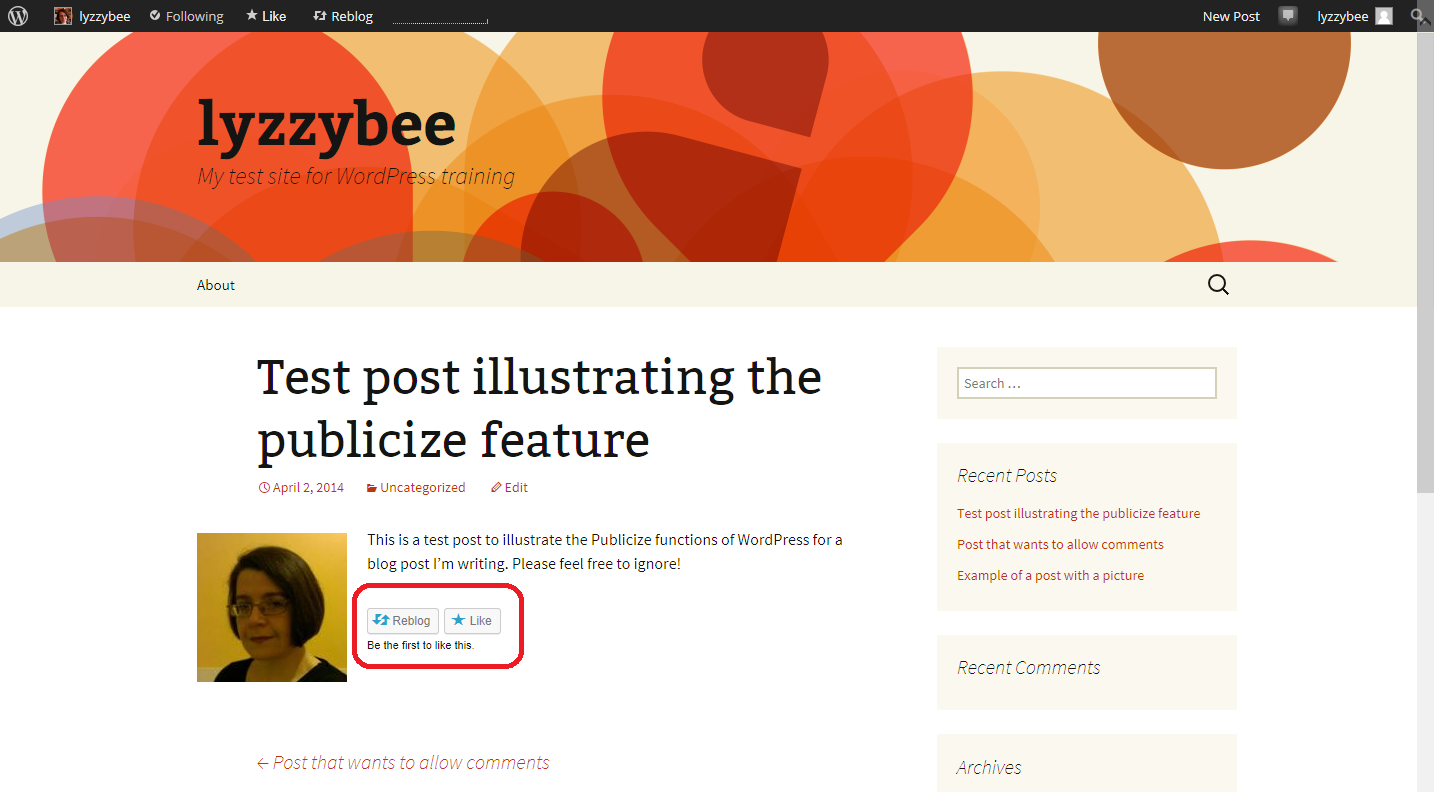
Here’s an example of a blog post without any sharing buttons. As standard, WordPress adds a button to “Like” a post (which just alerts you and makes a nice little line of pictures under your post, but doesn’t share anything) and a Reblog button which allows another WordPress user to share the post on their blog, with an excerpt of the content and a link to the rest of it. Other than these, there are no ways to share this blog post at present. You can even turn this off if you want to, see the Advanced Features heading below for more information.

2a no sharing

Scroll down to see what the post looks like once the sharing buttons have been added …

How do I add sharing buttons to my blog posts?

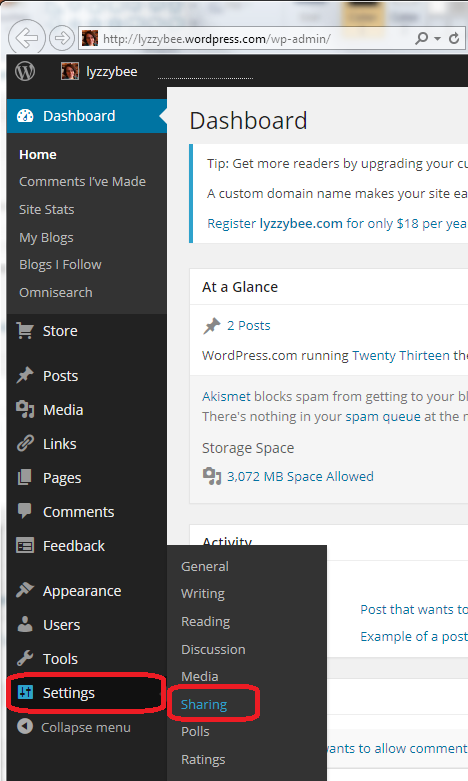
Sharing buttons are handled in the Settings – Sharing section of the Dashboard:

menu

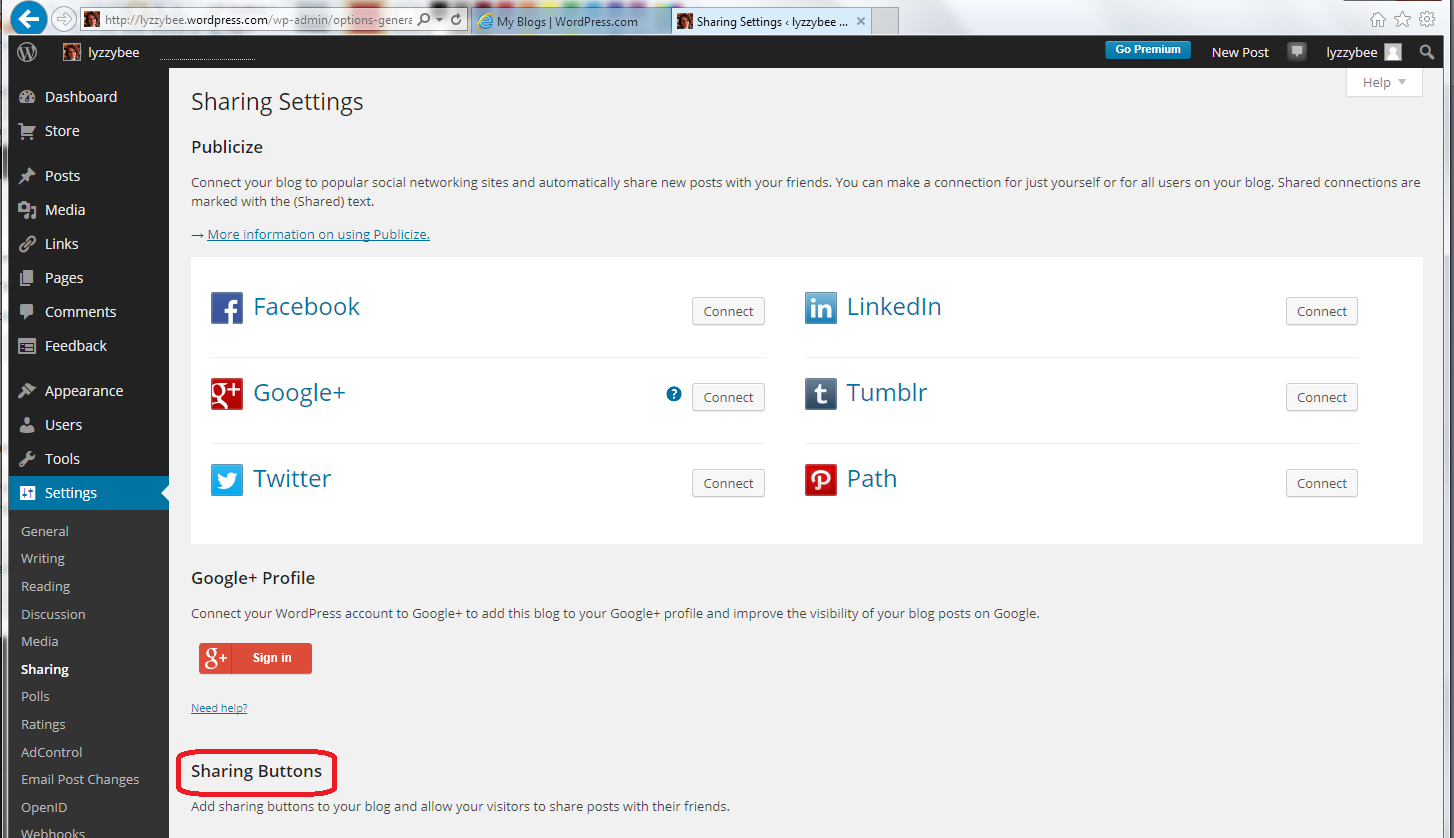
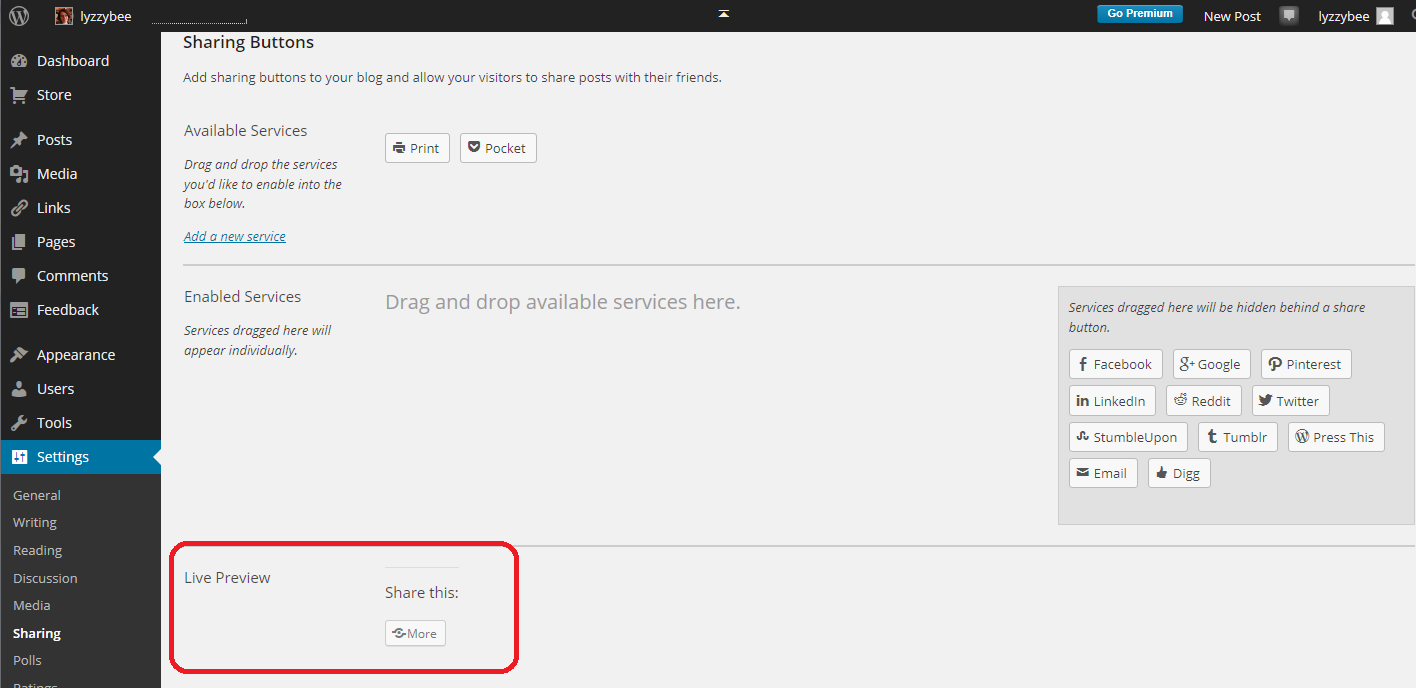
In the lower half of the Sharing Settings screen, you will find the Sharing Buttons section:

2 sharing buttons

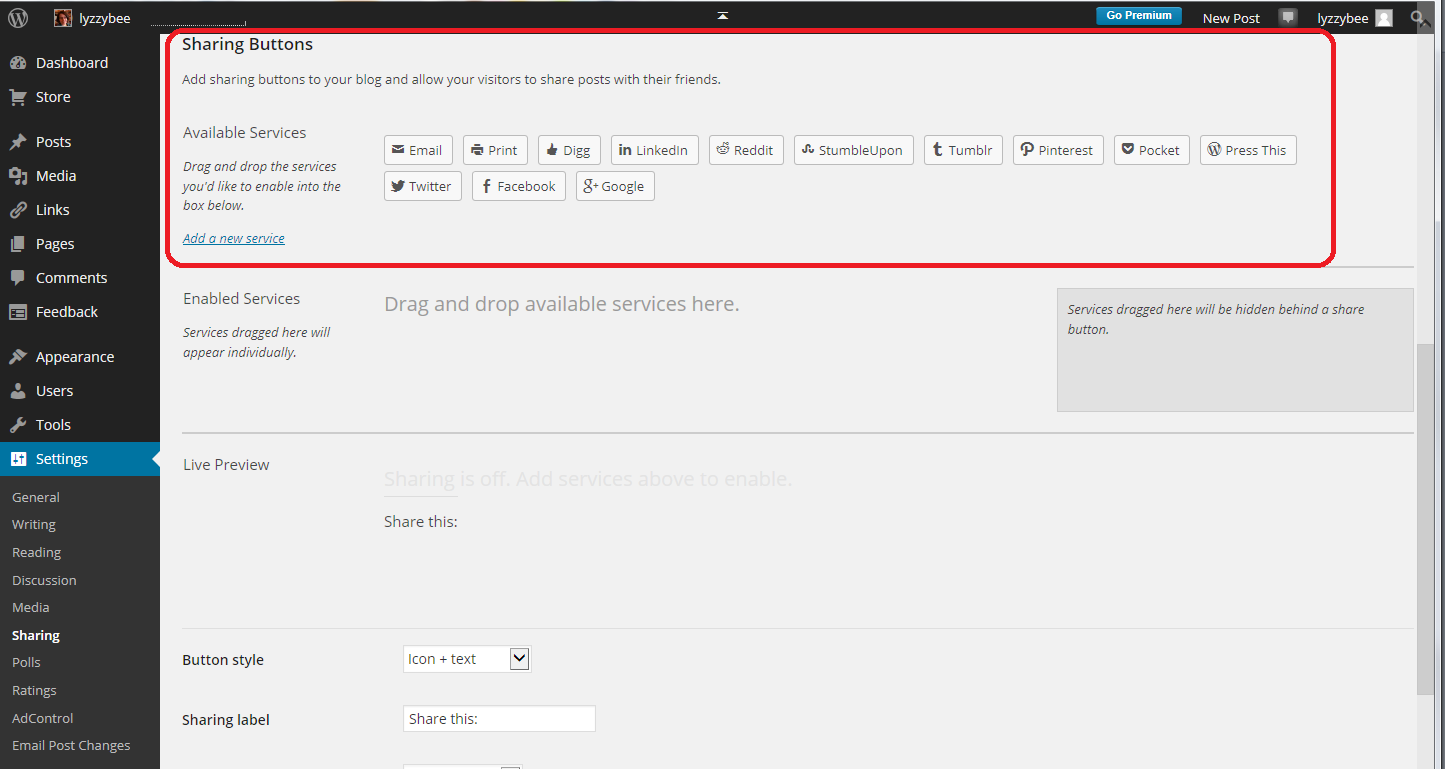
Choosing multiple share buttons to appear under your blog posts

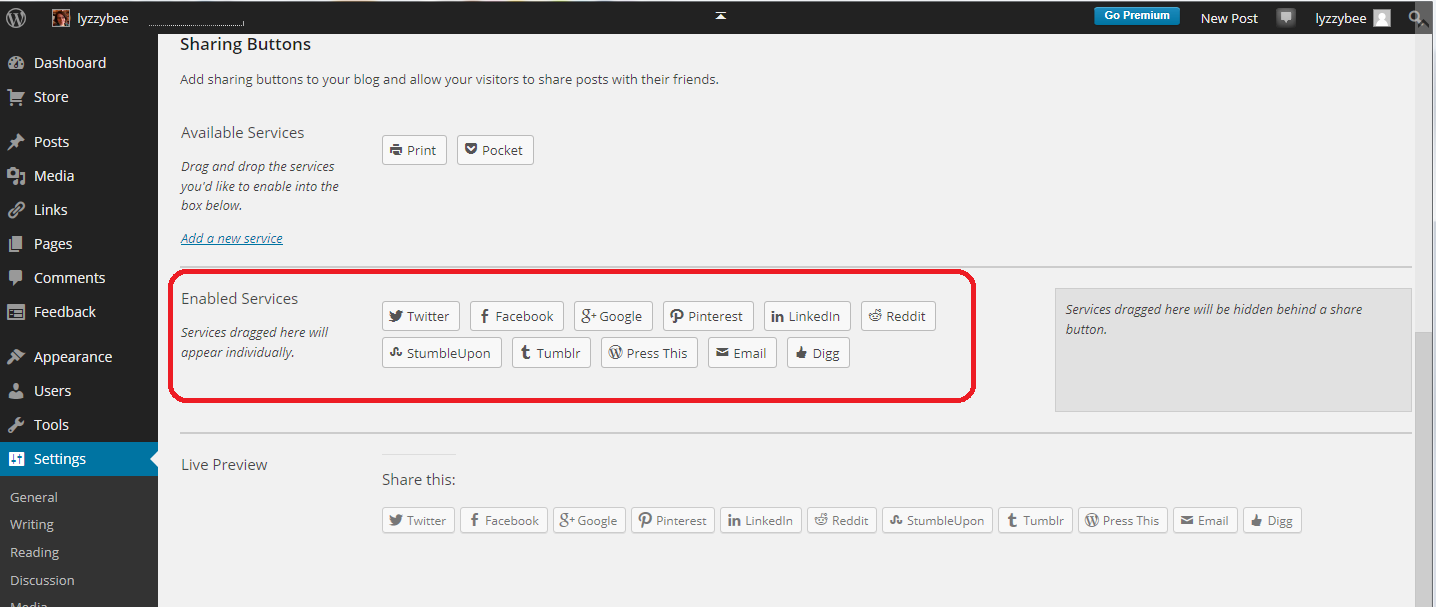
All of the sharing buttons that are available to be added are shown in the upper Available Services section. You can add buttons for sharing to Twitter, Facebook, LinkedIn and other social media platforms as well as sites like Tumblr and Digg that curate information on topics onto pages, and Email and Print:

2b sharing options

Here’s an important point to note: When choosing which buttons to display under your blog posts, don’t think of what social media you use, but what social media your audience – your users – might want to use. They’re the ones who are going to be doing the sharing, after all. So don’t limit them – I’d add as many as possible if I were you!

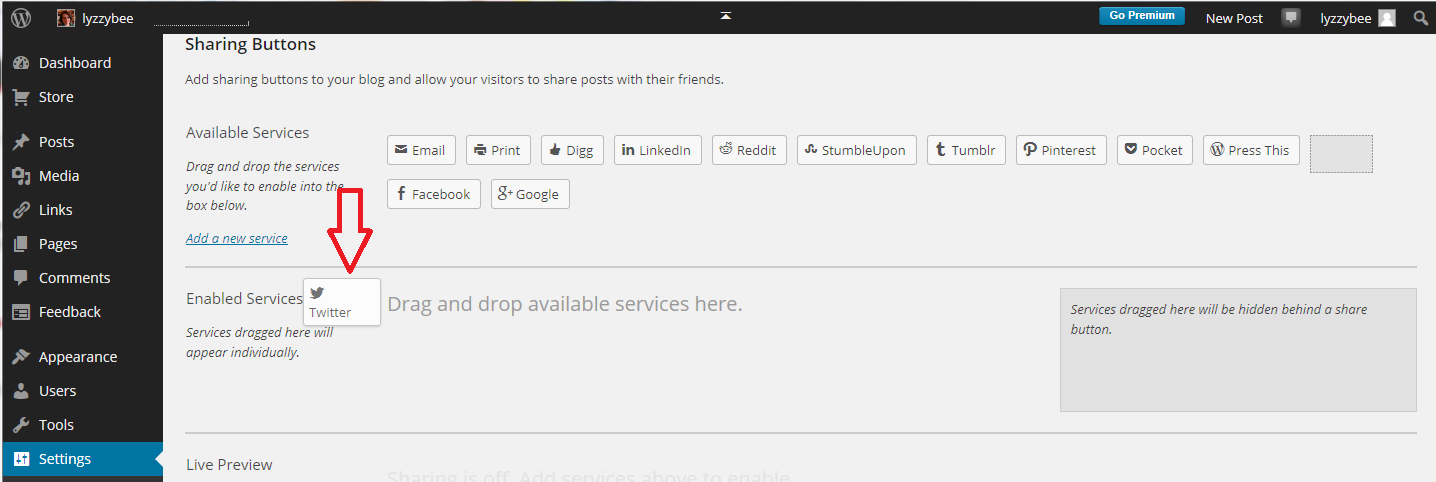
To make a sharing button appear at the bottom of your blog posts, left-click on the button, drag it down to the Enabled Services section and let go to drop it there. It will then appear in the Enabled Services section:

2c adding buttons

Here, I’ve moved everything except for Print and Pocket down into the Enabled Services section. You can, of course, drag any buttons that you don’t want to be visible back up to the Available Services section.

2d adding buttons

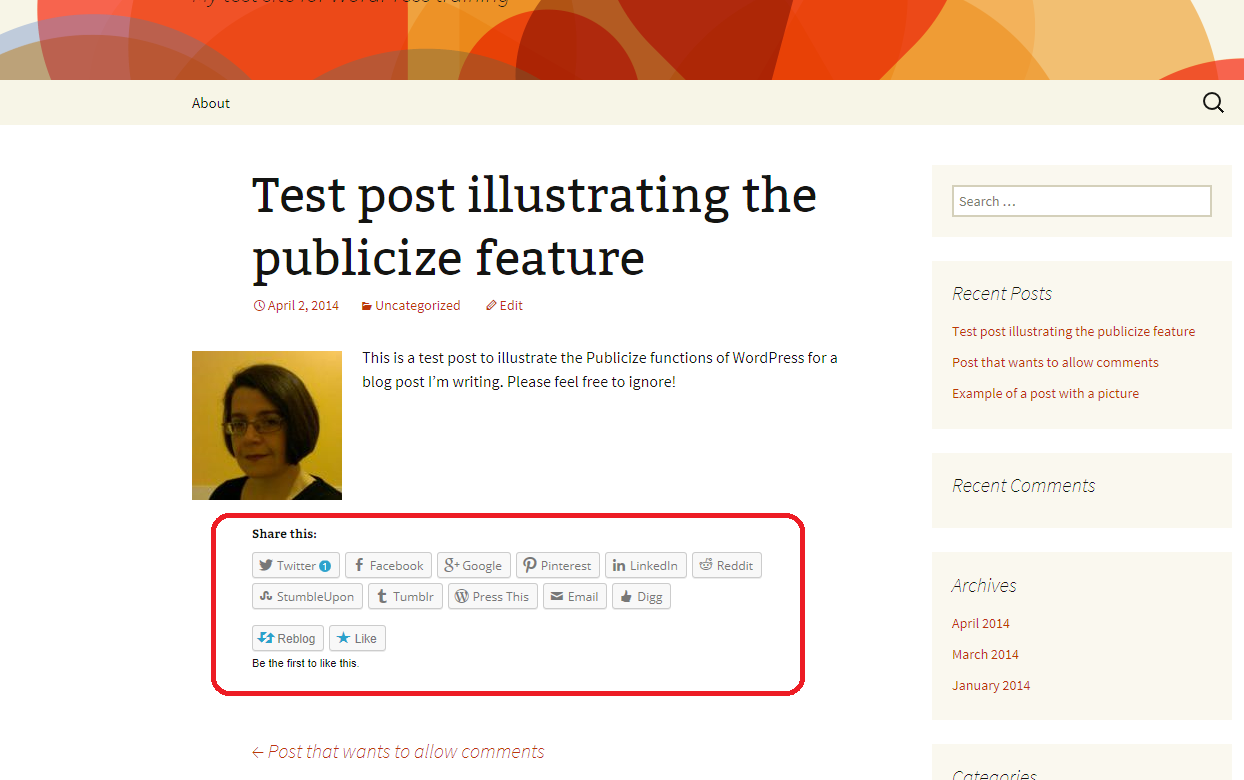
What does this look like on your blog post? Compare this with the image at the top of this post:

2e buttons appear

Creating a single Share button

You might find this a bit cluttered: there is a way to just display a single Share button that displays the whole range when pressed. However, I feel that this might present a barrier to sharing, and you want all the sharing you can get, so think carefully before doing this.

To create a single Share button, drag all of your buttons into the darker grey area to the right:

2f 1 share button

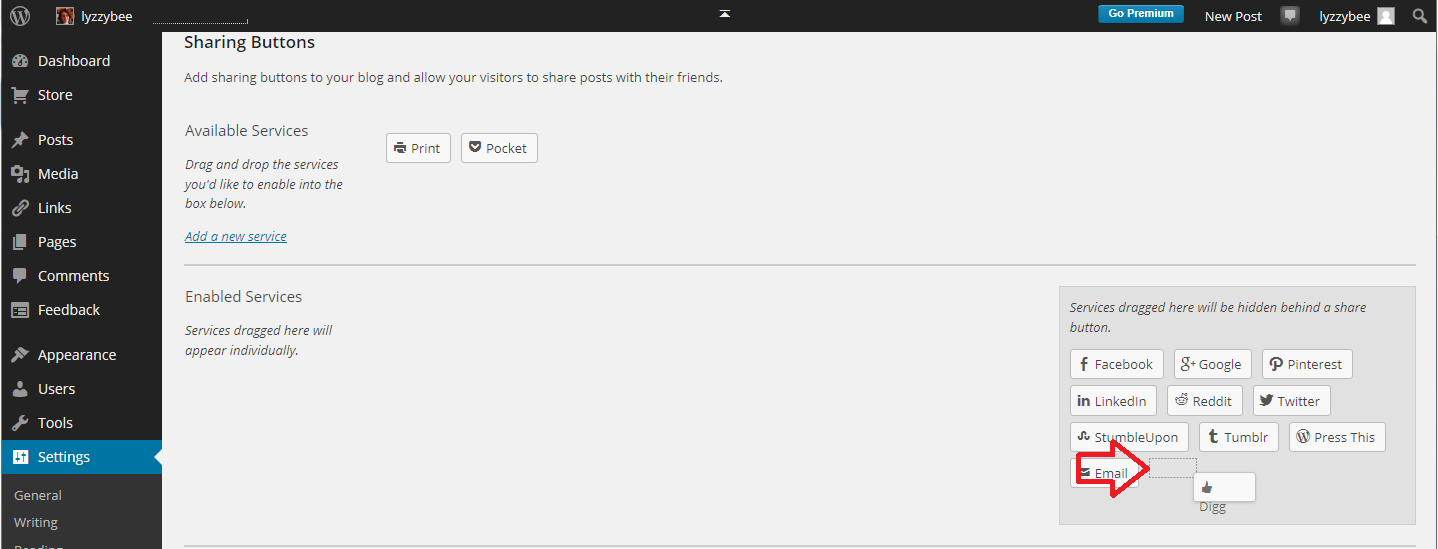
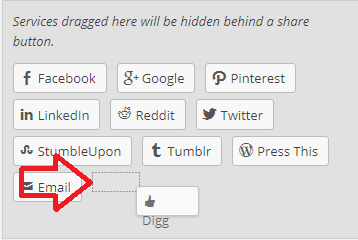
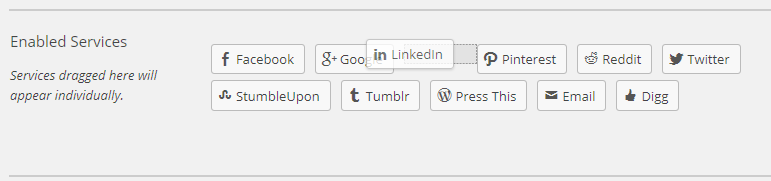
Note that this can be a little fiddly: watch out for the dotted square to appear and drop your button on there:

2g little square

Also note that if you leave any buttons in the Enabled Services section, you will see both those and your Share button at the bottom of your blog post: messy! Once you’ve created your single share button, you will see on the preview what it will look like:

2h all under one button

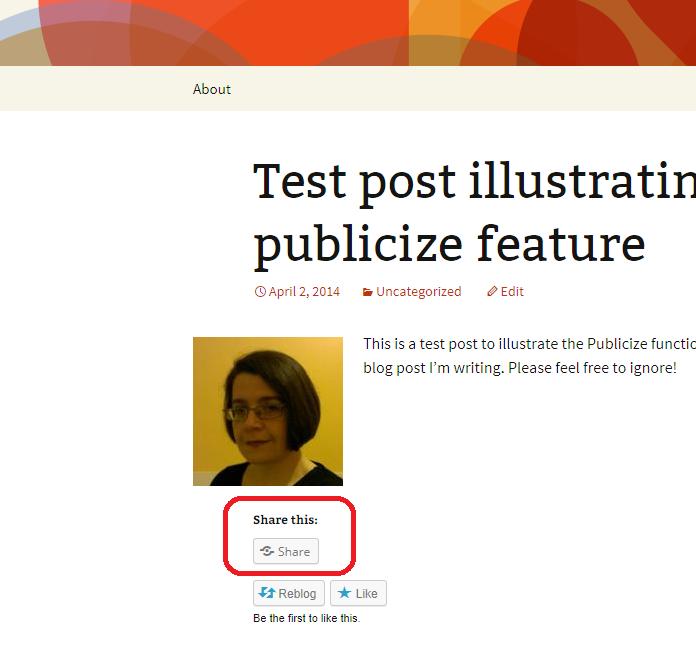
Moving to the view of the blog post itself, you can see that now there’s just one Share button:

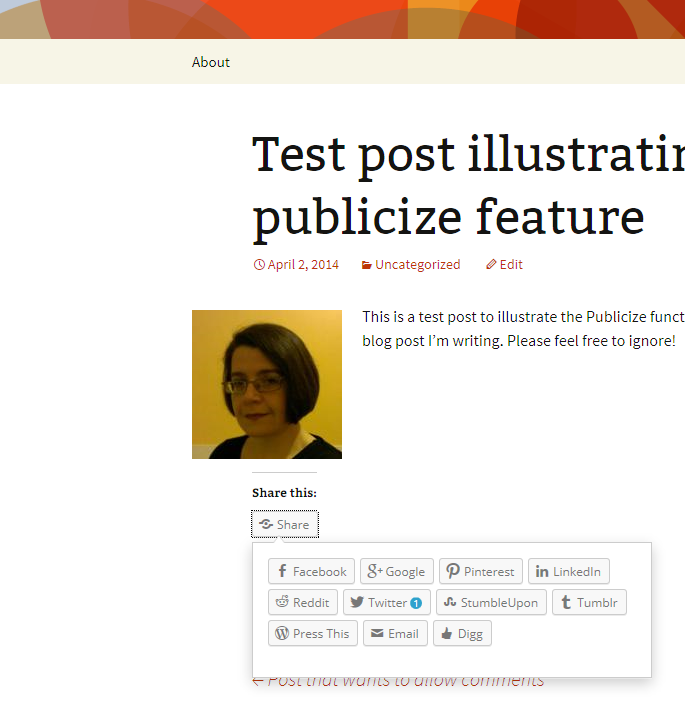
2i all under one buttonWhen this is clicked, the full range of buttons pops out and can be clicked:

2j all under one button

How do I change the order in which the sharing buttons appear?

If you want to change the order in which the sharing buttons appear, simply left click, hold the mouse button down and drag the button to where you want it to appear:

2k move around

Advanced options for the sharing buttons

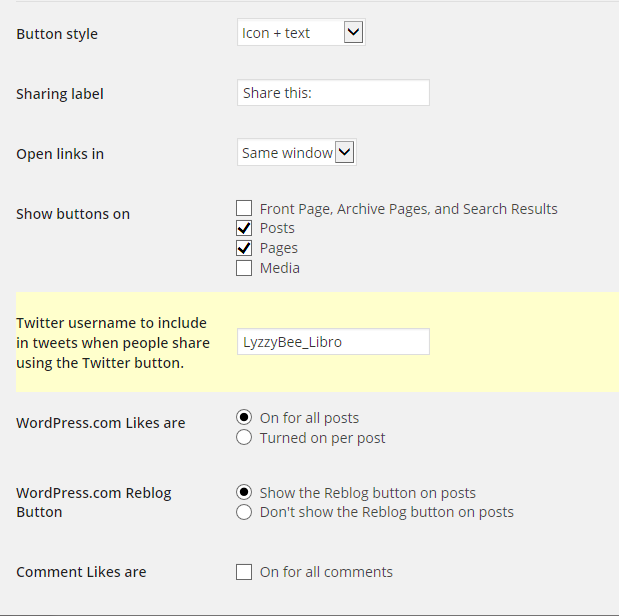
Below the Enabled Services section you will find some more options:

2l more options

  • Button Style allows you to select icon + text / text only / icon only / official button. Note that official button doesn’t always work as services change: I prefer icon + text which is what I’ve used in all of the examples on this post.
  • Sharing label: you can change the text above your sharing buttons from “Share this” to whatever you want to say to encourage people to share.
  • Open links in offers the choice of same window and new window – most people prefer to work in the same window nowadays.
  • Show buttons on allows you to choose what people can share – search results, individual posts, etc.
  • Twitter username will appear in tweets when people share using the Twitter button. It’s useful to include your Twitter ID here so you can keep an eye on what’s being shared – if you have multiple blog administrators, you might want to use an official company or organisation Twitter ID here instead.
  • Likes can be turned on or turned on for individual posts.
  • The reblog button can be turned off.
  • Likes can be added (or not) for comments

What happens when someone clicks on a sharing button in your WordPress post?

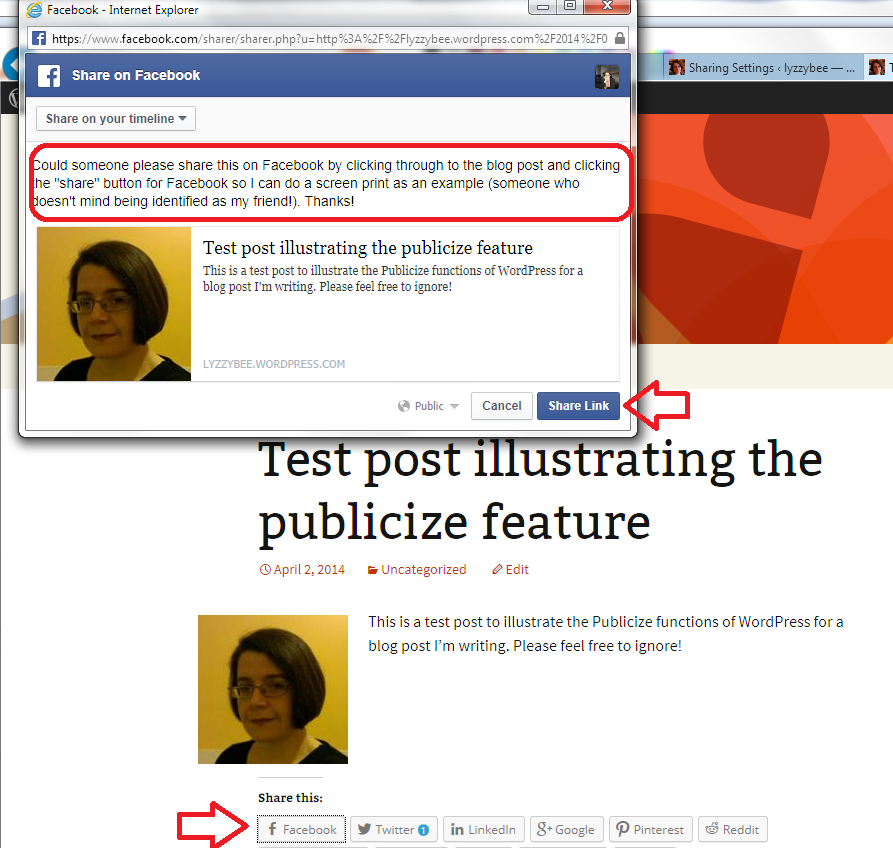
You can click on your own sharing buttons to see what happens, and this is what I’ve done here. I’ve clicked on the Facebook sharing button. A Share on Facebook dialogue box pops up and you can select whether to share on your timeline, to a person’s timeline, to a page or to a group, and enter some status text to explain what you’re sharing and why you’re sharing it:

2m in practice

Press Share Link and the link will share on your Facebook timeline.

What does content shared using the sharing buttons look like?

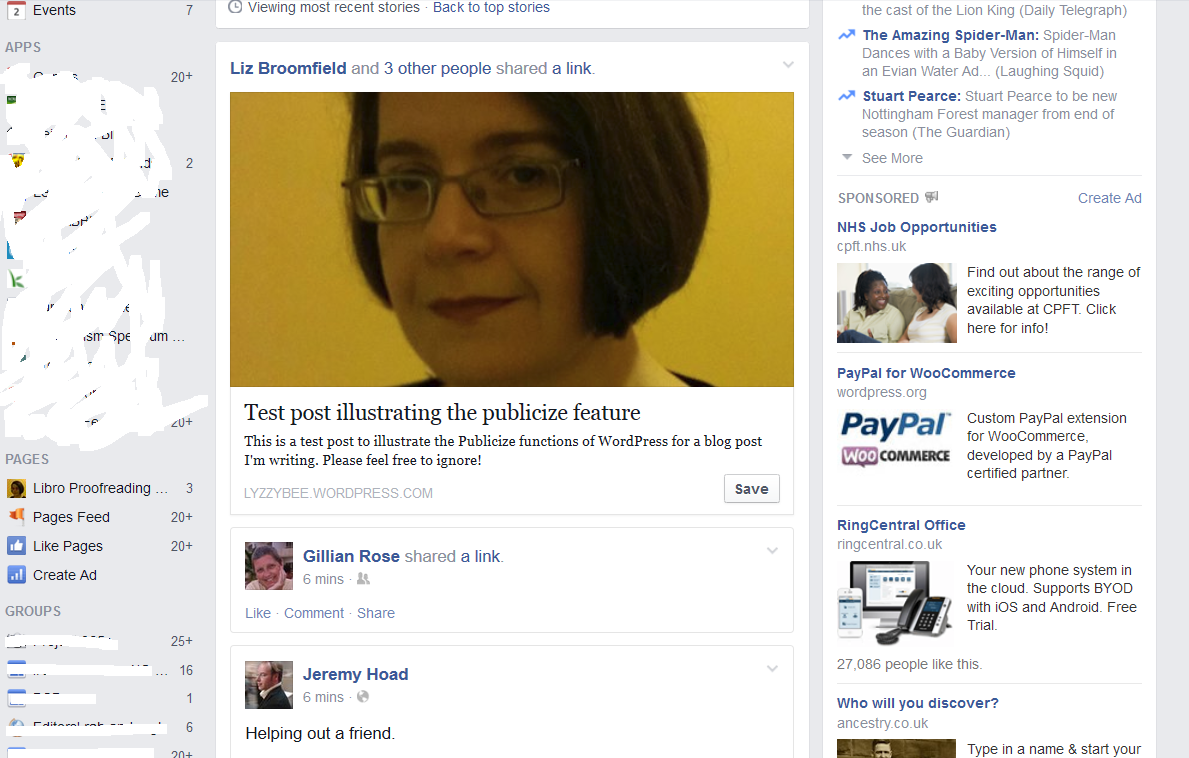
Let’s have a look at what content shared from your blog might look like on a couple of social media platforms. Here’s my shared post appearing on my Facebook timeline because my friends Gill and Jeremy have shared it. Just like those shared links you see all the time on your timeline. If your friends share your link, you should see it come up in your own timeline.

2n in practice

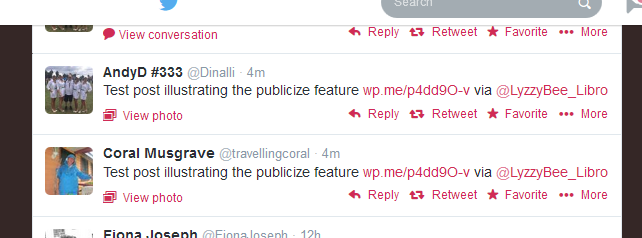
And here’s what a Twitter share or two looks like. You can see that “via LyzzyBee_Libro” has been added to the end of the automatic tweet because that’s the Twitter ID I specified above.

2o in practice

Today we’ve learnt how to add and edit sharing buttons on a WordPress blog to enable and encourage blog readers to share our posts.

If you’ve enjoyed this post and found it useful, do please comment and/or use the sharing buttons below this post to share it with other potential readers who might find it useful. Thank you!

Related posts on this blog

How to set up a WordPress blog

How to add pages to make your WordPress blog into a website

How to add images to your WordPress blog posts and pages

How to add slideshows and galleries to your WordPress blog posts and pages

Using the Publicize feature in WordPress

WordPress 7 – adding an avatar picture

 
27 Comments

Posted by on April 7, 2014 in Blogging, WordPress


Tags: ,

Setting up a WordPress blog 5: publicising your posts and connecting WordPress to social media

Continuing my series of articles about WordPress, today we’re going to learn how to publicise posts by sharing them on the social media platforms that we use.

Why should I publicise my WordPress blog posts?

Using the Publicize feature to share your WordPress blog posts has two main advantages:

1. It shares your content and lets people other than subscribers and people who are searching on the search engines know that it’s there.

2. It adds content to your Facebook page, Twitter stream, LinkedIn profile, etc., without you making any effort at all.

If you’re going to share links to your blog posts on social media, you might as well automate it and save yourself the bother of posting about it all over the place, right?

How do I link my WordPress blog to my social media platforms?

Today we’re going to be spending time in the Settings – Sharing area of the Dashboard:

menu

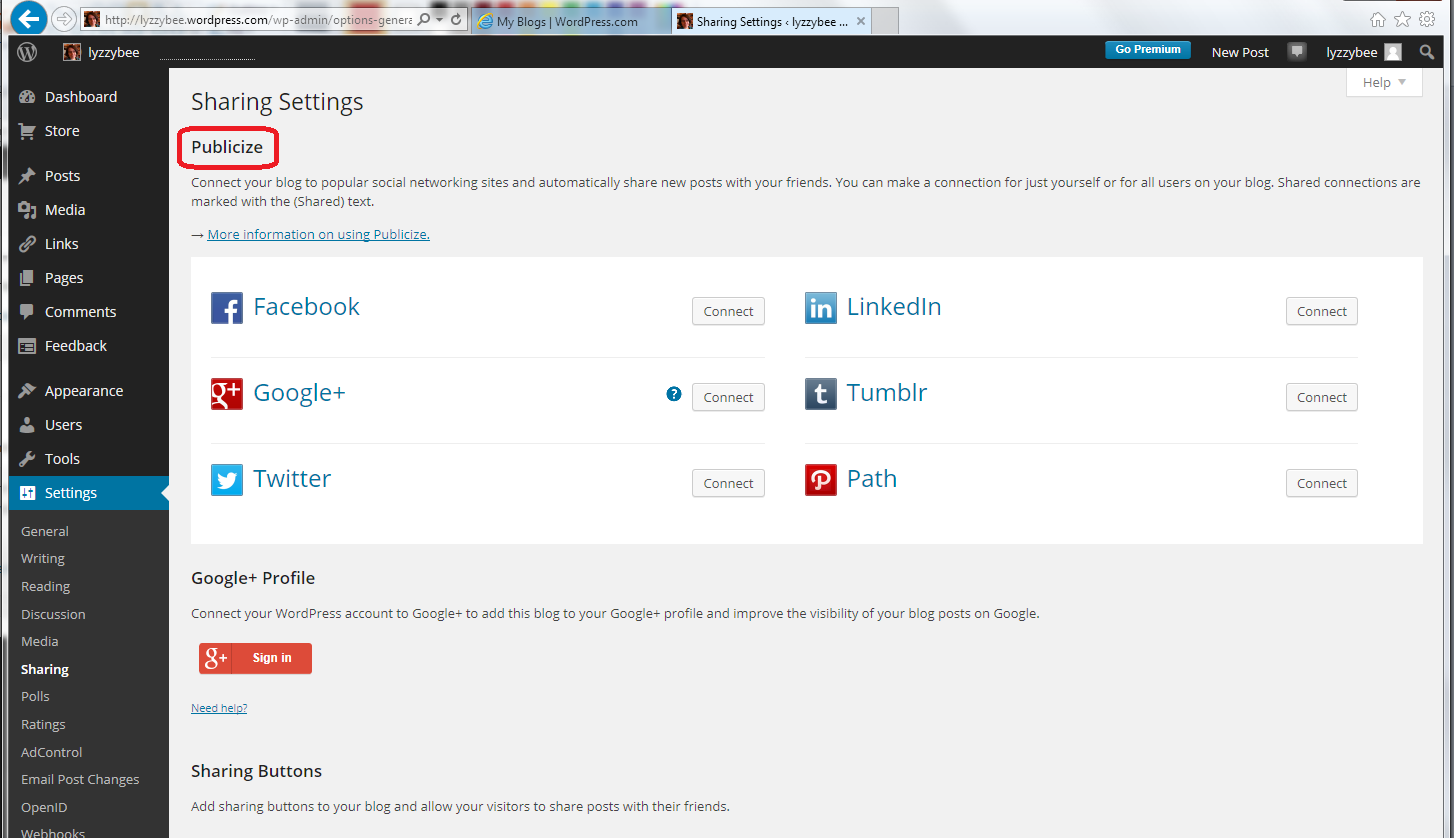
When you click on Sharing, you will come to this Sharing Settings page. There are two sections: Publicize and Sharing Buttons. We’re going to be talking about Publicize today, and Sharing Buttons next time (watch this space – I will add a link when that one’s live):

1 publicize

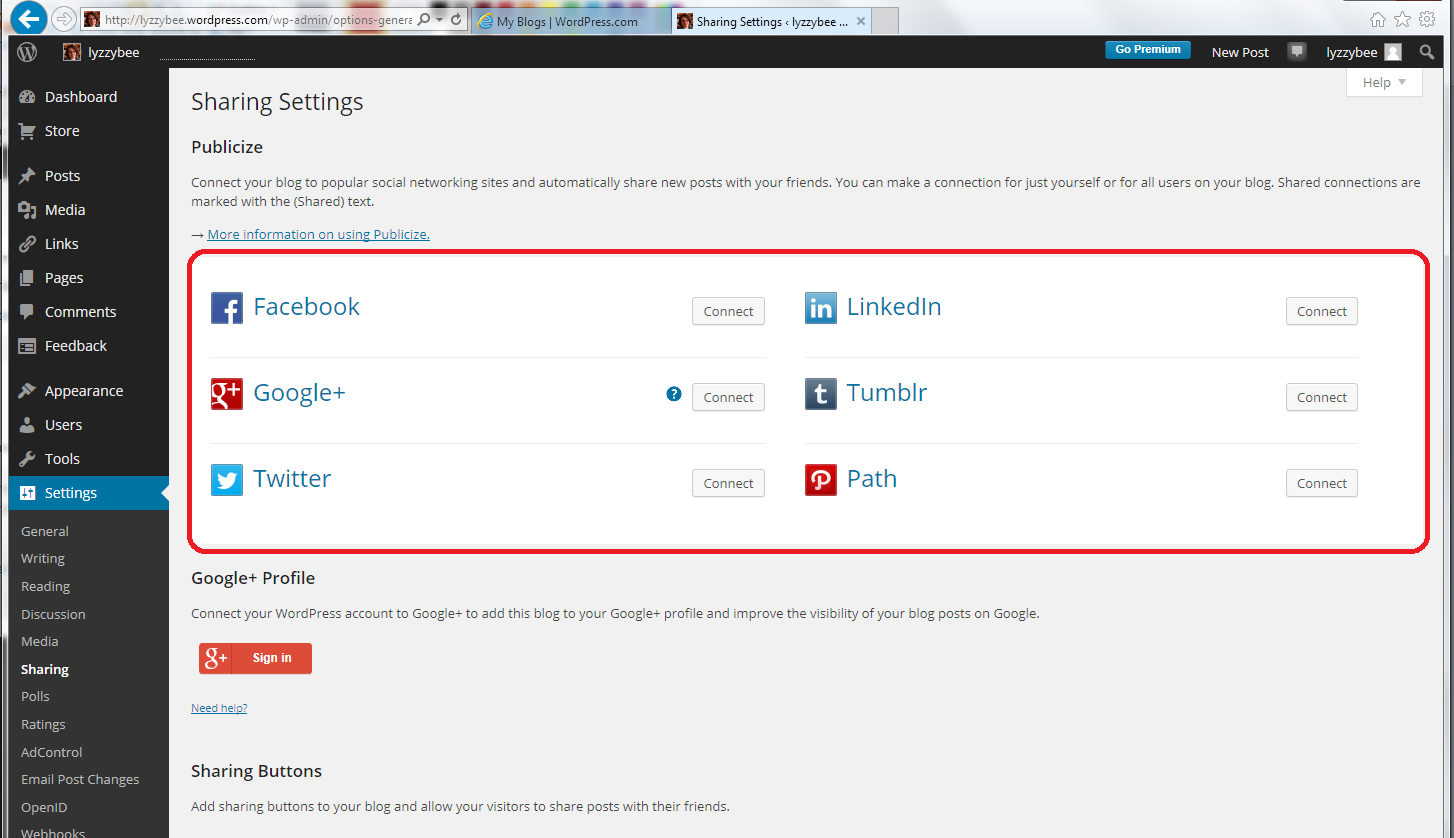
Looking at the Publicize section, we can see buttons for connecting various social media platforms to your WordPress blog. What this will do in effect is auto-post a link to any blog post that you publish it, at the time that you publish it, without any effort on your part.

1a publicize options

How do I link Facebook to WordPress?

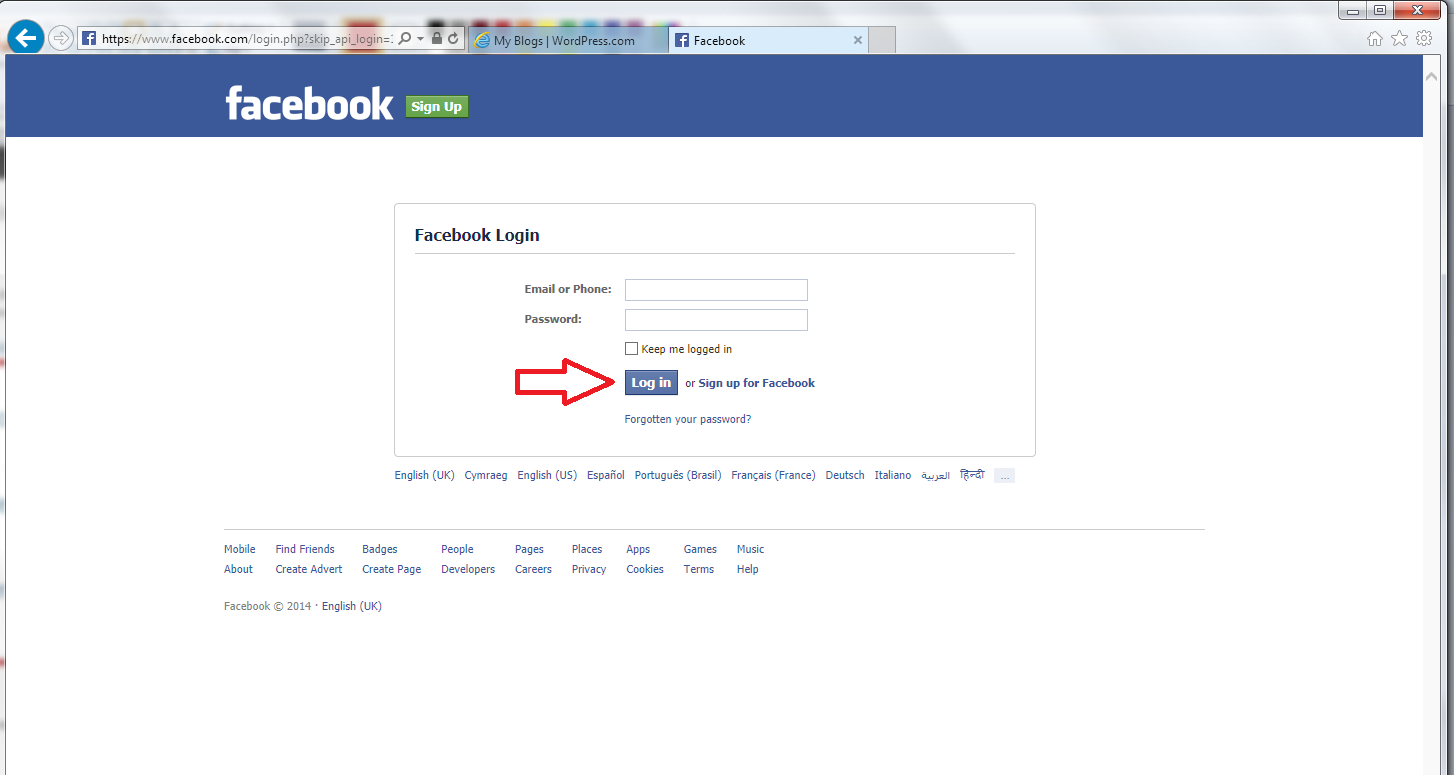
Note that all of the linking is done from WordPress rather than from the individual social media platforms. For example, to link Facebook so that an announcement of every blog post appears in your timeline, click the Connect button next to Facebook. You will be presented with a Facebook login screen. Add your normal Facebook login details and press the Log In button:

1b Facebook

If you enter the correct details, your connection will be confirmed:

1c Facebook

There are two things to note here. One, you can only link one Facebook account at a time, whereas you can add more than one login to most other social media types. Libro Proofreading … is my business page – for this blog, I have linked posts to that account, and then I pop in and share them onto my personal timeline.

The other thing to note is “Make this connection available to all users of this blog?” This is for a situation where you have more than one person with admin rights over the blog: you can choose, for example, your company or organisation’s Facebook page to auto-post to, and make that option available to everyone who posts on your blog.

Once you’ve chosen the account to connect to and pressed OK, you will return to the Sharing Settings screen, and you can see here that my Facebook page has been added to the page:

1d Facebook

You can go on now to connect, for example, your Google+ and Twitter accounts. For Google+, you will be asked to log in then confirm who you want G+ to share posts with:

1f Google+ permissions

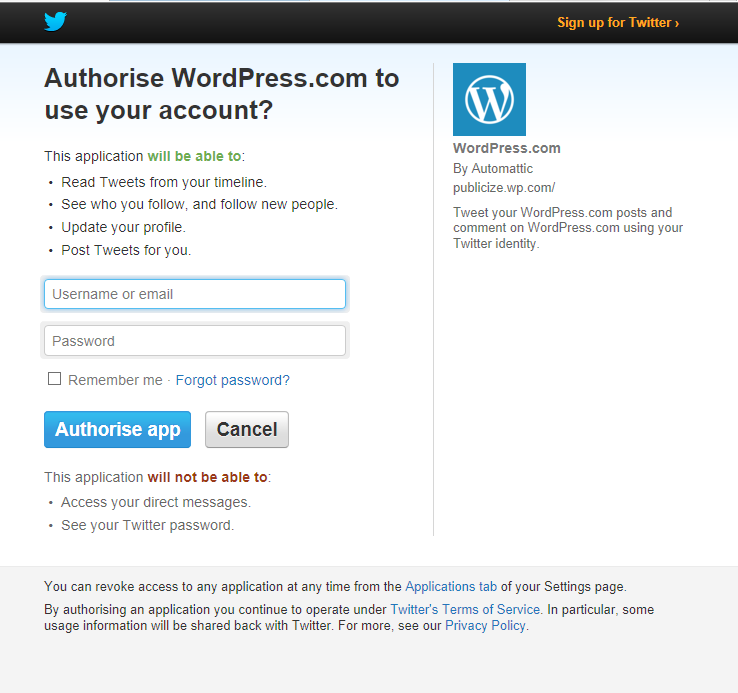
When connecting Twitter, again, you’ll be asked to log in and then authorise the app. This is all quite standard and doesn’t mean WordPress will do anything odd to your social media – all it will do is post on your behalf when you publish a blog post (we’ll have a look at what that looks like in a moment):

1g Twitter permissions

When you return to the Sharing Settings screen, you will see all of the social media accounts that you’ve connected to, confirming which accounts they are:

1h all connected

How do I disconnect my WordPress blog from a social media platform?

If you wish to disconnect any of your social media platforms across all new blog posts, click on the x next to the “Connected as [your name]” message. It will ask you if you’re sure: if you click on OK, the link will be severed.

1e Facebook

To reconnect, go through the same process as above. WordPress may remember some of the steps when you do this, such as your username.

How do I manage Publicize in my blog posts?

Let’s have a look at what Publicize looks like in your blog posts.

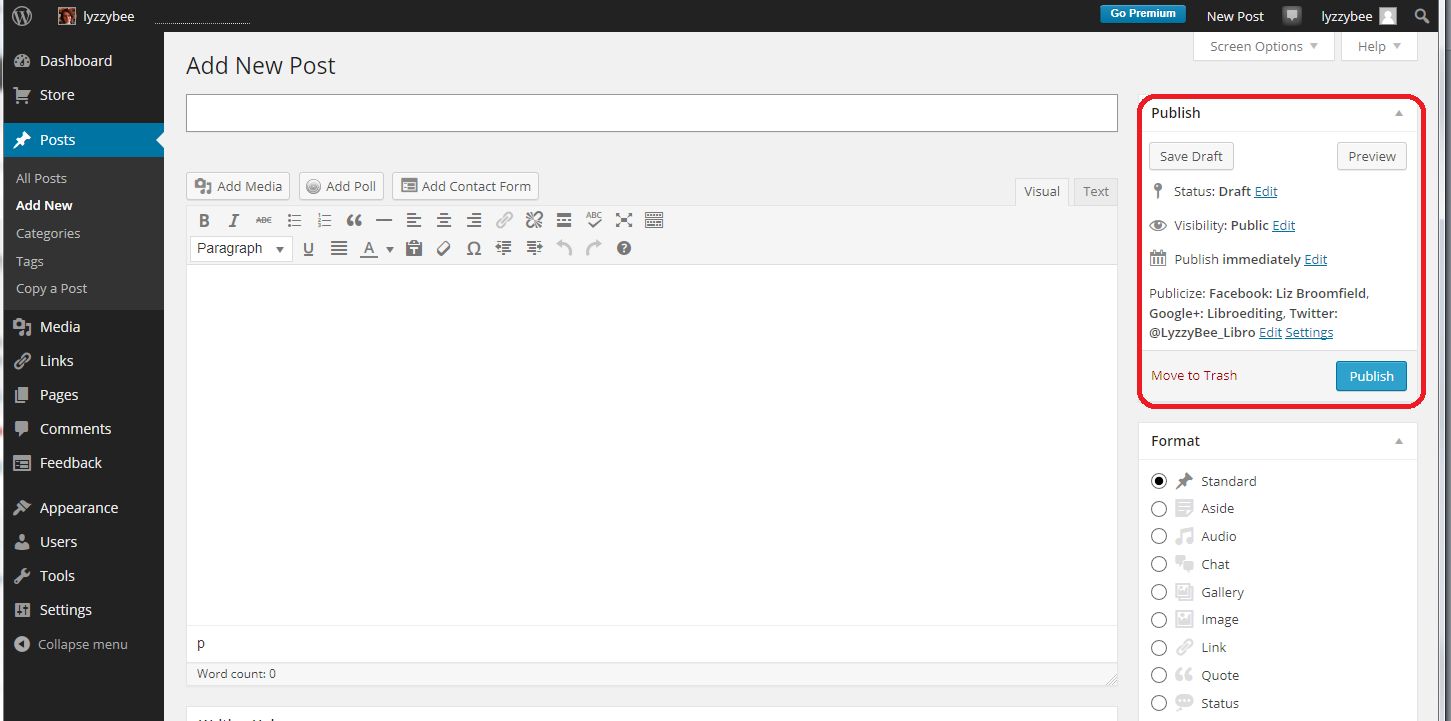
When you select Posts – Add New and enter the Edit screen, you will see the Publicize section in the Publish area:

1i when you post

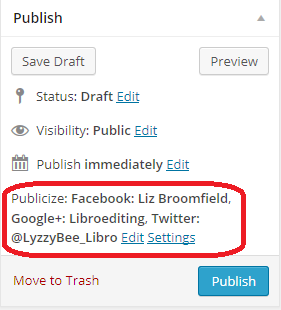
Let’s look at that in close-up. You can see that all of the social media sites you’ve linked to are showing here:

1j close-up when you post

Note that sometimes WordPress will become disconnected from one of them for apparently no reason. A message asking you to relink will appear in this area. Click through, provide the details it asks for and the two will be reconnected.

When in this individual post view, you can click on Edit and choose not to promote a link to your blog post to a particular site by clicking on the cross and making the square blank. You can also change the standard text that goes out with the link in Custom Message:

1k edit publicize

Clicking on Settings just takes you back to the original Sharing Settings screen we were looking at above.

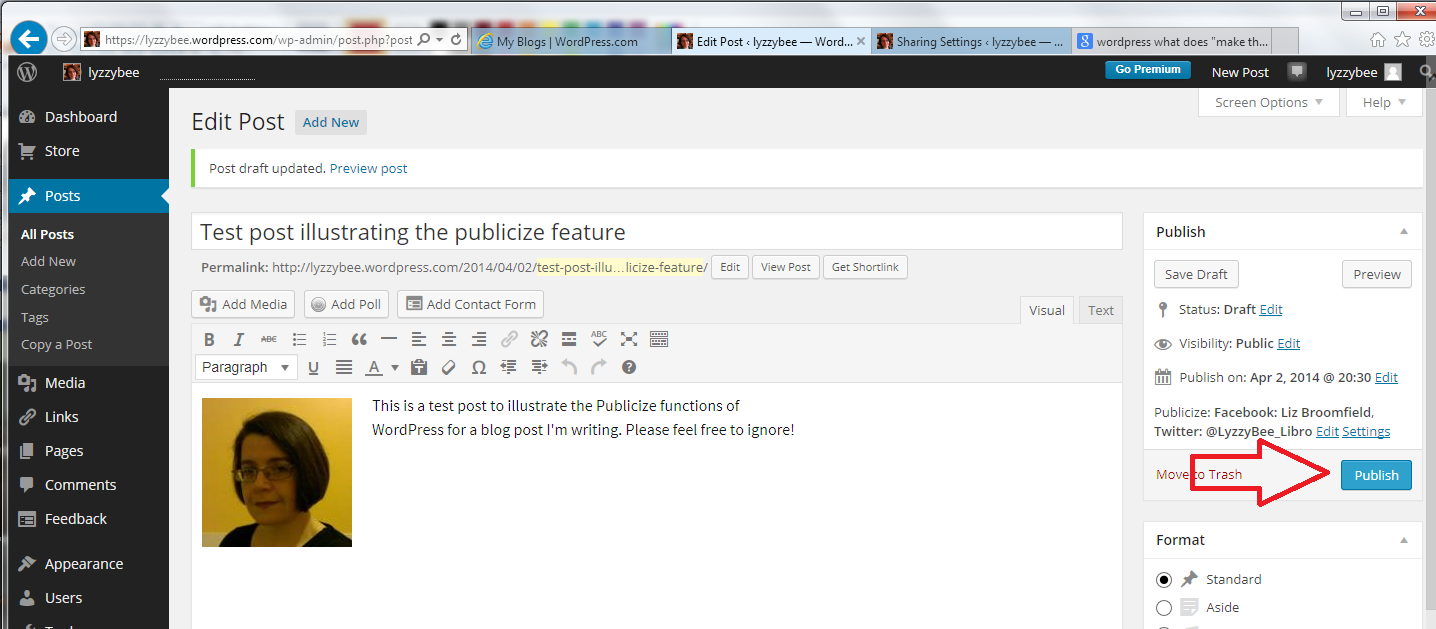
When you’ve written your blog post, click Publish as normal:

1l in action

 What gets posted to my social media when I’m connected to WordPress?

I’m just going to share two examples here, but you’ll get the idea.

When WordPress is connected to Facebook, an entry will appear in your timeline, with any picture that you included in the post (very large in the current incarnation of Facebook!) and a bit of the text, and there will be a link, arrowed here, which will take the reader to the blog post itself.

1m in action

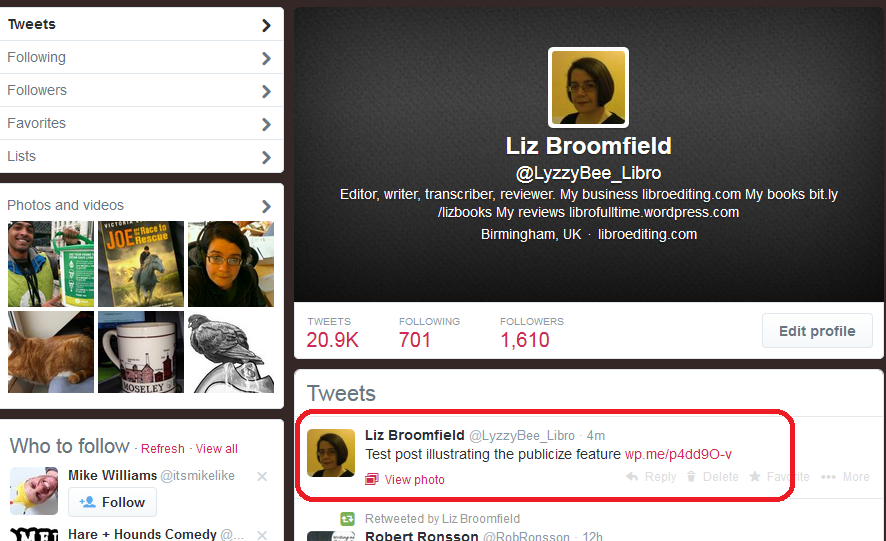
In Twitter, WordPress posts a shortened version of the full URL as a link and the automatic text taken from your blog heading:

1n in action

Today we’ve learnt how to use the Publicize feature of WordPress to link it to your social media platforms such as LinkedIn, Twitter and WordPress. Next time, we’ll be looking at how you can enable your readers to share your blog posts through the use of sharing buttons.

If you’ve enjoyed this post and found it useful, do please comment and/or use the sharing buttons below this post to share it with other potential readers who might find it useful. Thank you!

Related posts on this blog

How to set up a WordPress blog

How to add pages to make your WordPress blog into a website

How to add images to your WordPress blog posts and pages

How to add slideshows and galleries to your WordPress blog posts and pages

WordPress 6 – sharing buttons

WordPress 7 – adding an avatar picture

 
19 Comments

Posted by on April 3, 2014 in Blogging, WordPress


Tags: , ,

Setting up a WordPress blog 4 – Adding slideshows and galleries to blog posts and pages

In this series, we’ve already learned how to set up a WordPress blog, and how to add pages to make it into a WordPress website.  Last time, we talked about adding images to your blog posts and pages. This time we’re learning how to create galleries and slideshows and add your image to your user profile in WordPress.

Why would I want to add a gallery or slideshow to my blog post or page?

If you have a lot of images to accompany a blog post or web page, perhaps of artworks or craft items that you have created, and especially if you don’t have much text to accompany those images, so it’s going to be hard to format them on the page, consider adding a gallery (a grid of images) or a slideshow (one image shown at a time, with navigation buttons for the user).

Adding images to a WordPress blog post

When you’re in the blog editor, you can use the Add Media button, with your cursor is in the position where you want your image to appear, to select and add the images of your choice.

1 add media

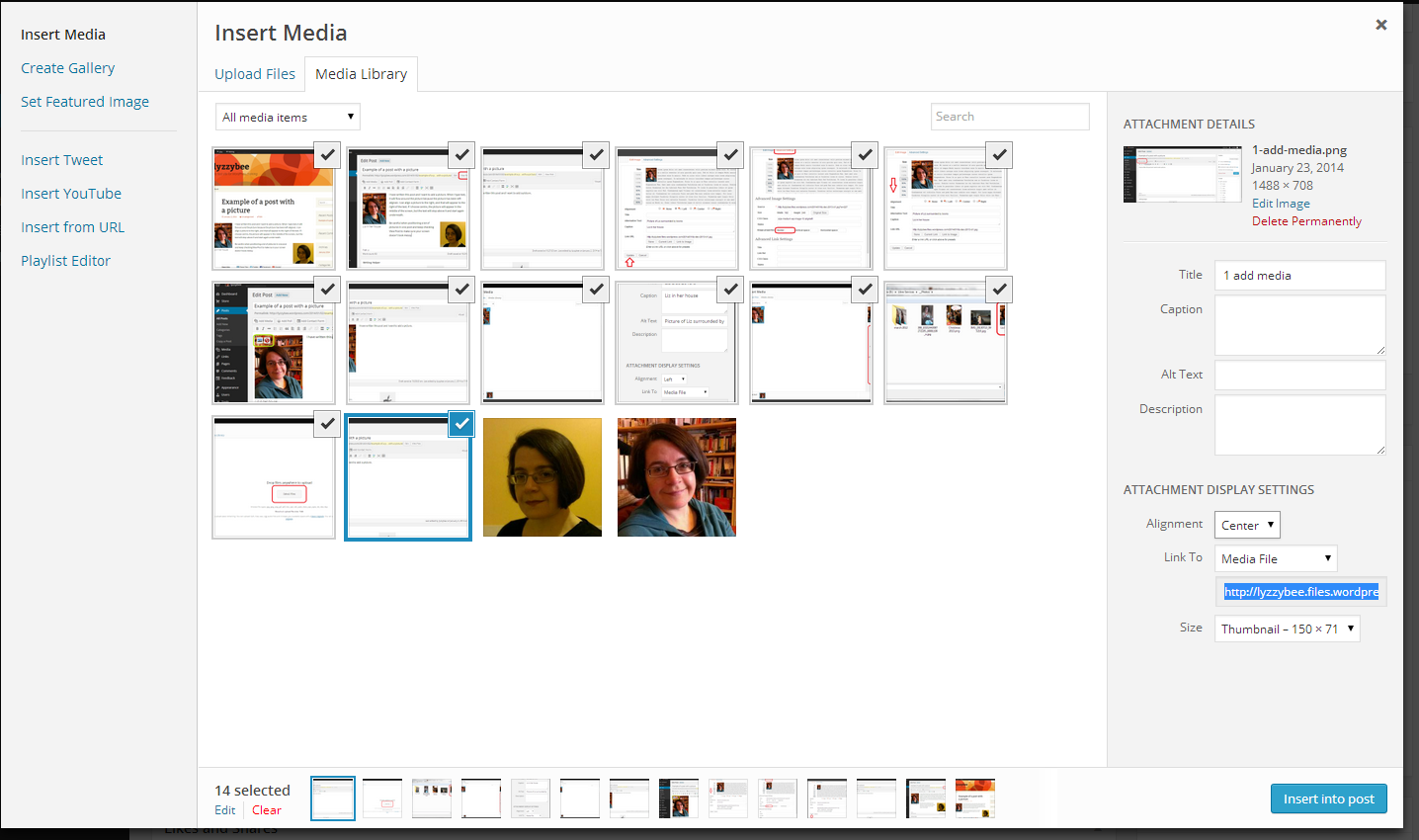
You can download multiple images at a time, and they will then appear on your Insert Media page. Viewing your Insert Media page, if you’ve already downloaded images and want to use or re-use them, these will appear in your Media Library tab.

15 gallery

How do I insert multiple images into a blog post or web page?

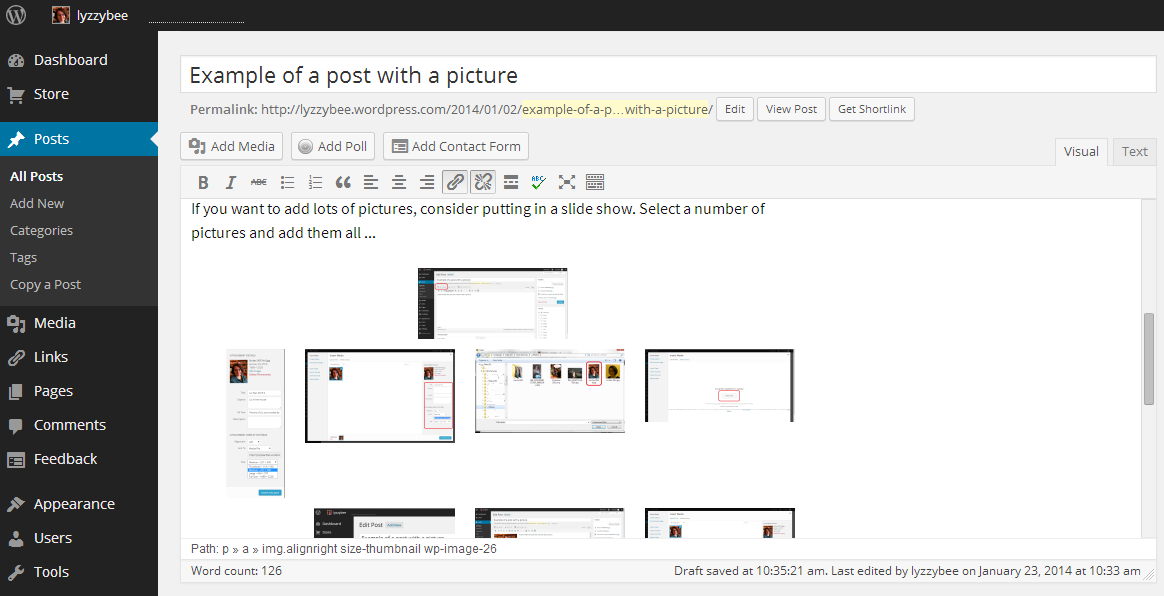
If you want to insert multiple images, the most simple way would be to tick all of the images that you want to use (see screenshot above) and press Insert into post. However, this will typically give you a jumble of images that looks really messy:

16 gallery

Here’s how to do it properly and neatly.

How do I add a gallery of thumbnail images to a blog post or web page?

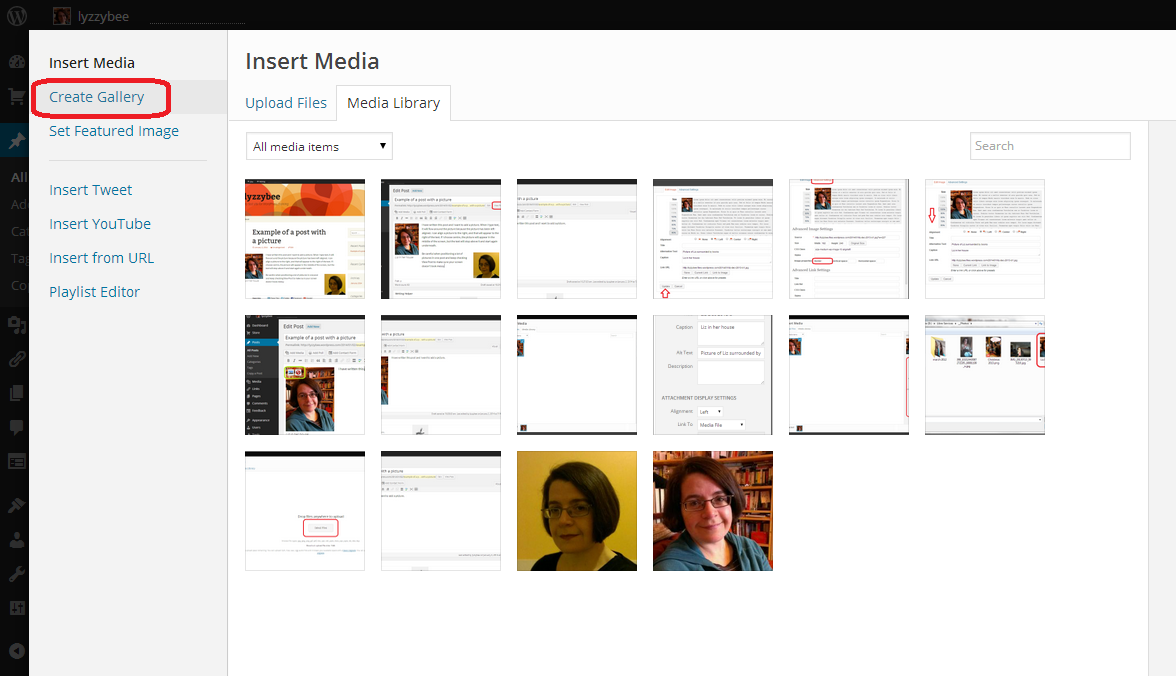
In the Insert Media page, click on Create Gallery in the left-hand menu bar:

17 gallery

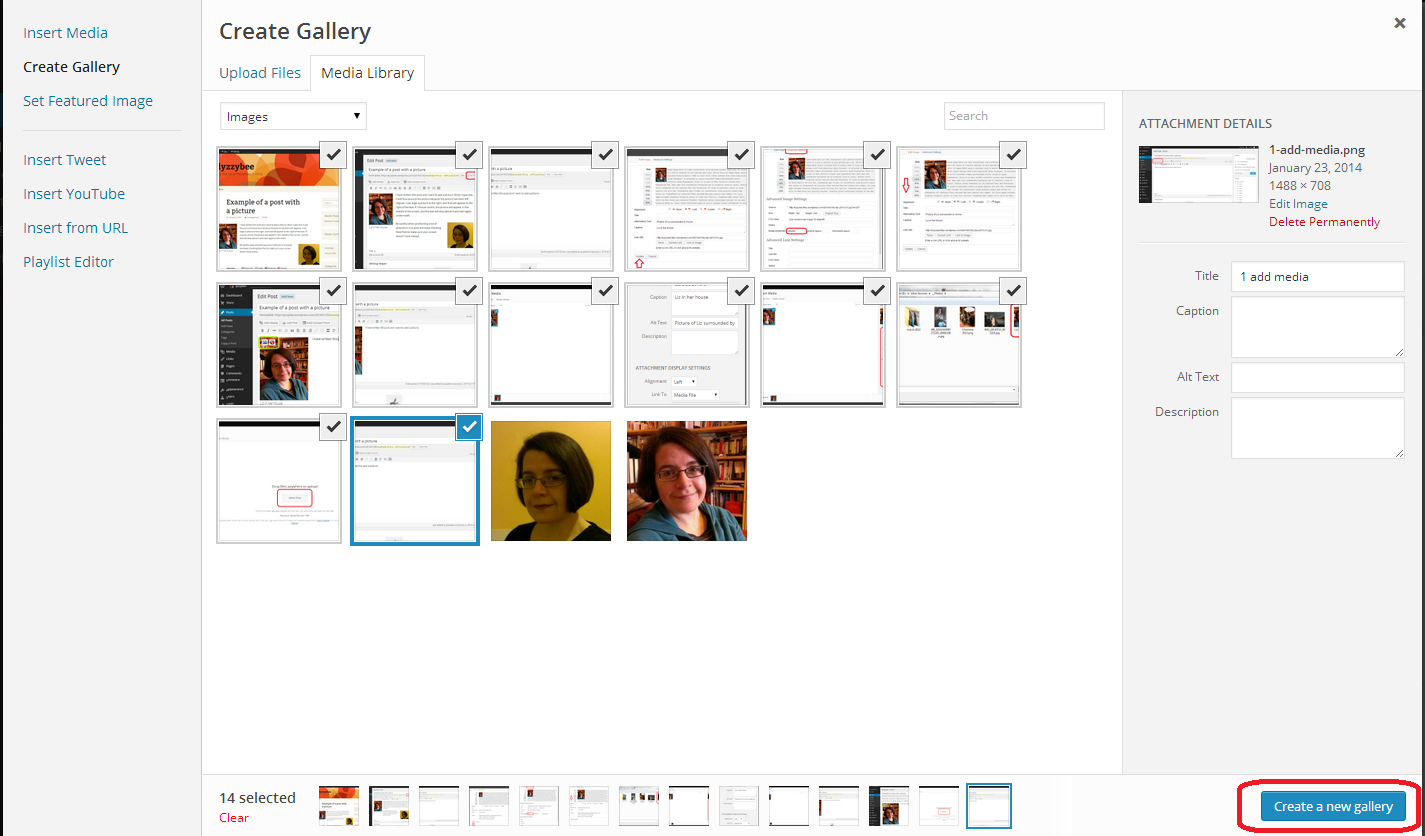
Select the images that you want to add to your gallery by clicking in the box at the top right of each image until it shows a tick, and click on Create New Gallery at the bottom of the screen:

18 gallery

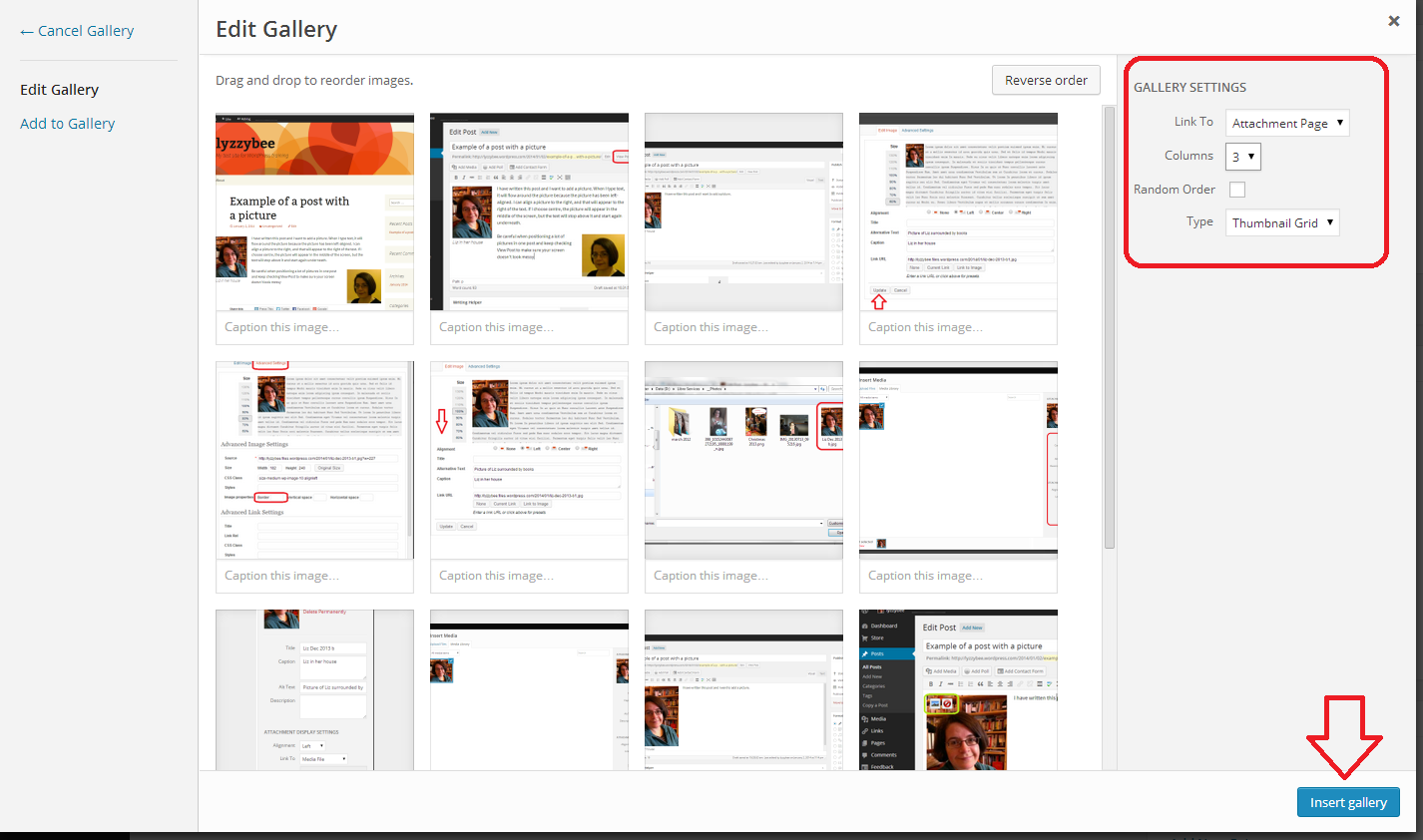
This will take you to the Edit Gallery screen. Here you can select how many columns your pictures display in and what format – here “Thumbnail Grid”, and then click to Insert Gallery:

19 gallery

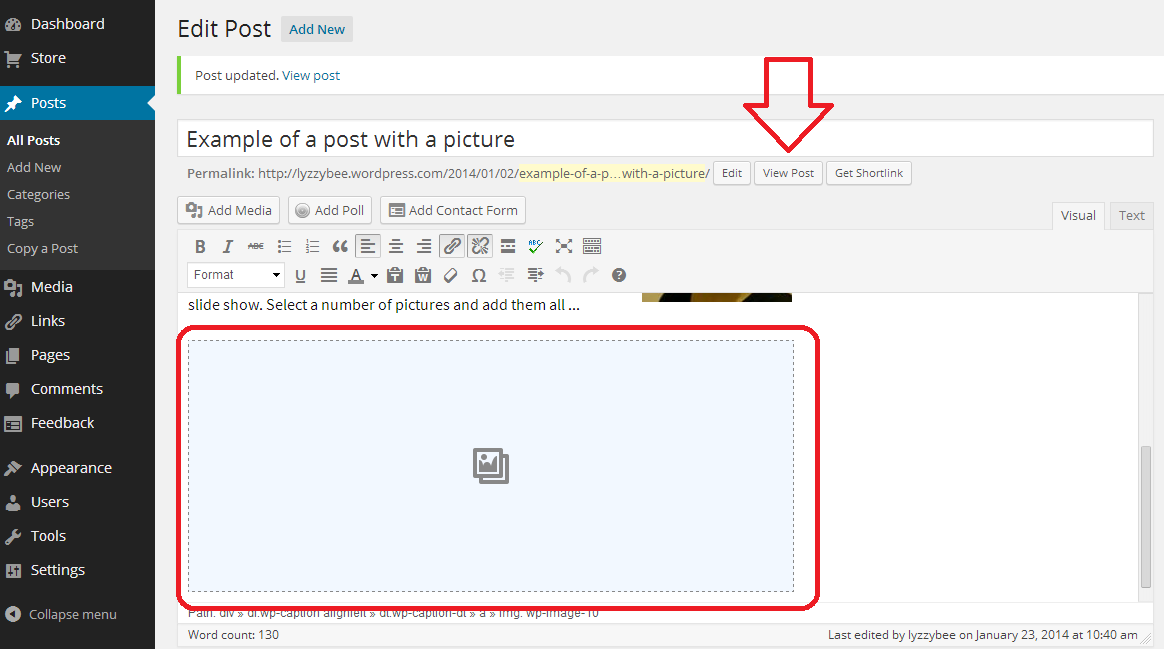
This will bring you back to your Edit post (or page) screen. The gallery doesn’t display in the edit screen, as it will pull the pictures from your gallery when the post is live. Click on View Post (or Page) to check how it’s looking …

20 gallery

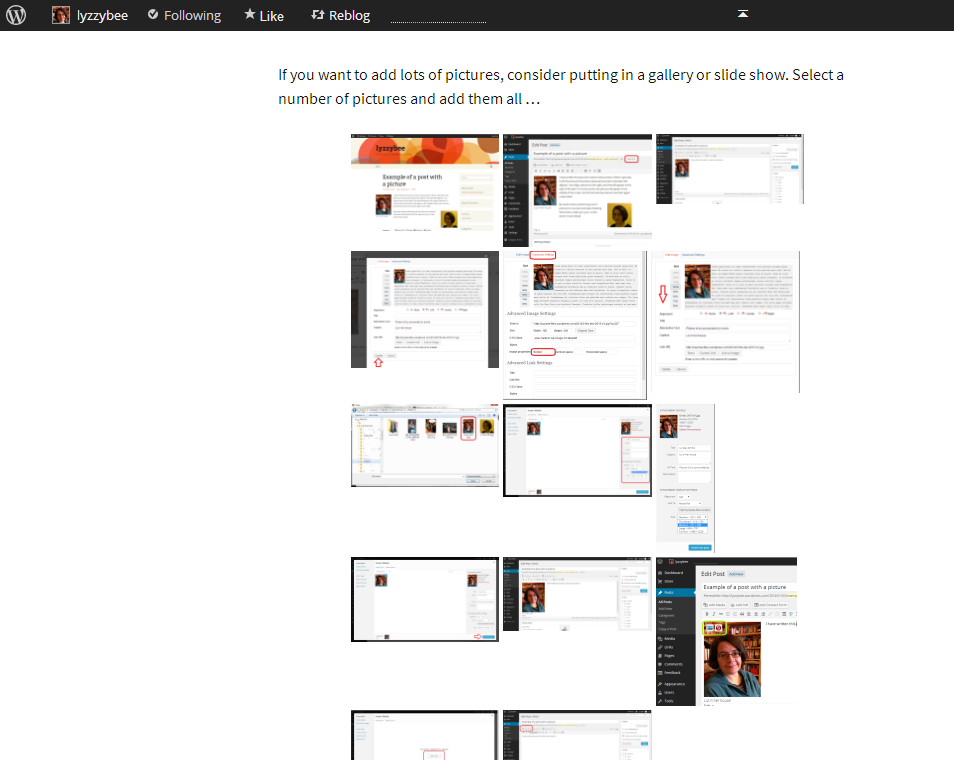
When you View post, you can see the grid of images. In this case, because I’ve used screen shots as the images and they’re not all the same size and shape, the grid is a bit odd, but you can see the idea. It’s all much neater, which is the main thing:

21 gallery

How do I add a slideshow to a WordPress blog post or page?

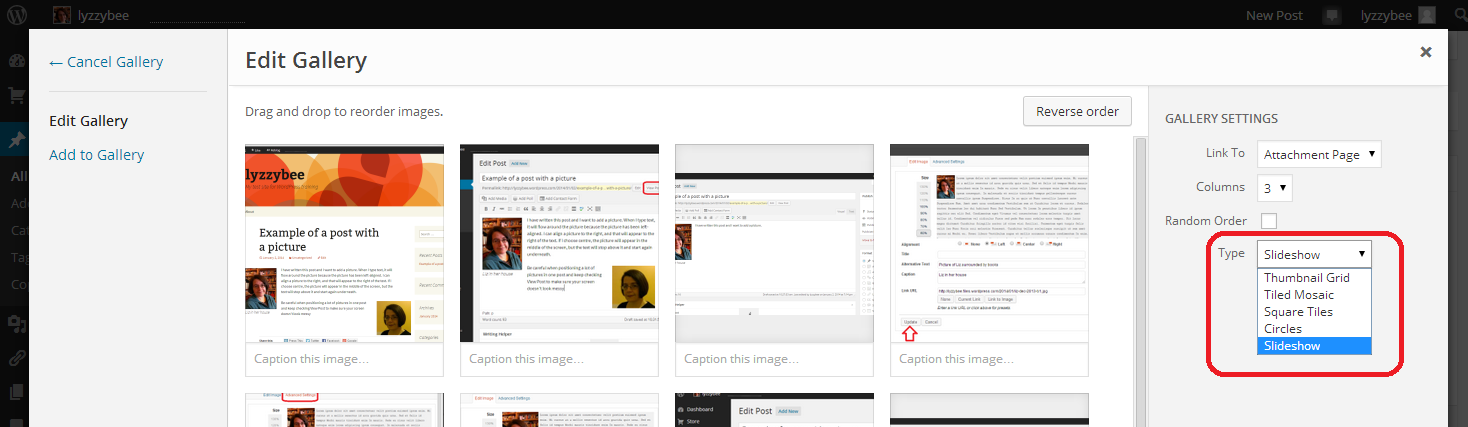
if you want a slideshow rather than a gallery, back in the Edit Gallery screen, click on the dropdown arrow by Type to view the different options. Choose the bottom one, Slideshow:

22 slideshow

When you’ve inserted your gallery and chosen View Post, you can see a single image at a time, with navigation buttons for forward, back and pause visible when the mouse hovers over the screen: a slideshow:

23 slideshow

Today we have found out how to add multiple pictures to your blog post or web page using a gallery or slideshow.

I hope that you’ve enjoyed this article and have found it useful. If so, please take a moment to share and comment – it helps to make other people aware of the help that they can find here. For more posts on blogging, social media, WordPress, Word, business and more, please have a look at the Resource Guide, or explore the categories to your right.

Related posts on this blog

How to set up a WordPress blog

How to add pages to make your WordPress blog into a website

How to add images to your WordPress blog posts and pages

Linking your blog to your social media

WordPress 6 – sharing buttons

WordPress 7 – adding an avatar picture

 
8 Comments

Posted by on February 19, 2014 in Blogging, Business, WordPress, Writing


Tags: , , ,

Setting up a WordPress blog 3 – Adding images to blog posts and pages

In this series, we’ve already learned how to set up a WordPress blog, and how to add pages to make it into a WordPress website. Today, we’re going to learn how to add pictures to blog posts and pages and how to edit images in WordPress. And here’s how to create galleries and slideshows and add your image to your user profile in WordPress.

Note: March 2014 – I have updated this post to take into account the new way to edit images that has just been implemented in WordPress.

How do I add an image to a WordPress blog post?

When you’re in the blog editor, you will find a button marked Add Media to the left. Making sure that your cursor is in the position where you want your image to appear, click on Add Media:

1 add media

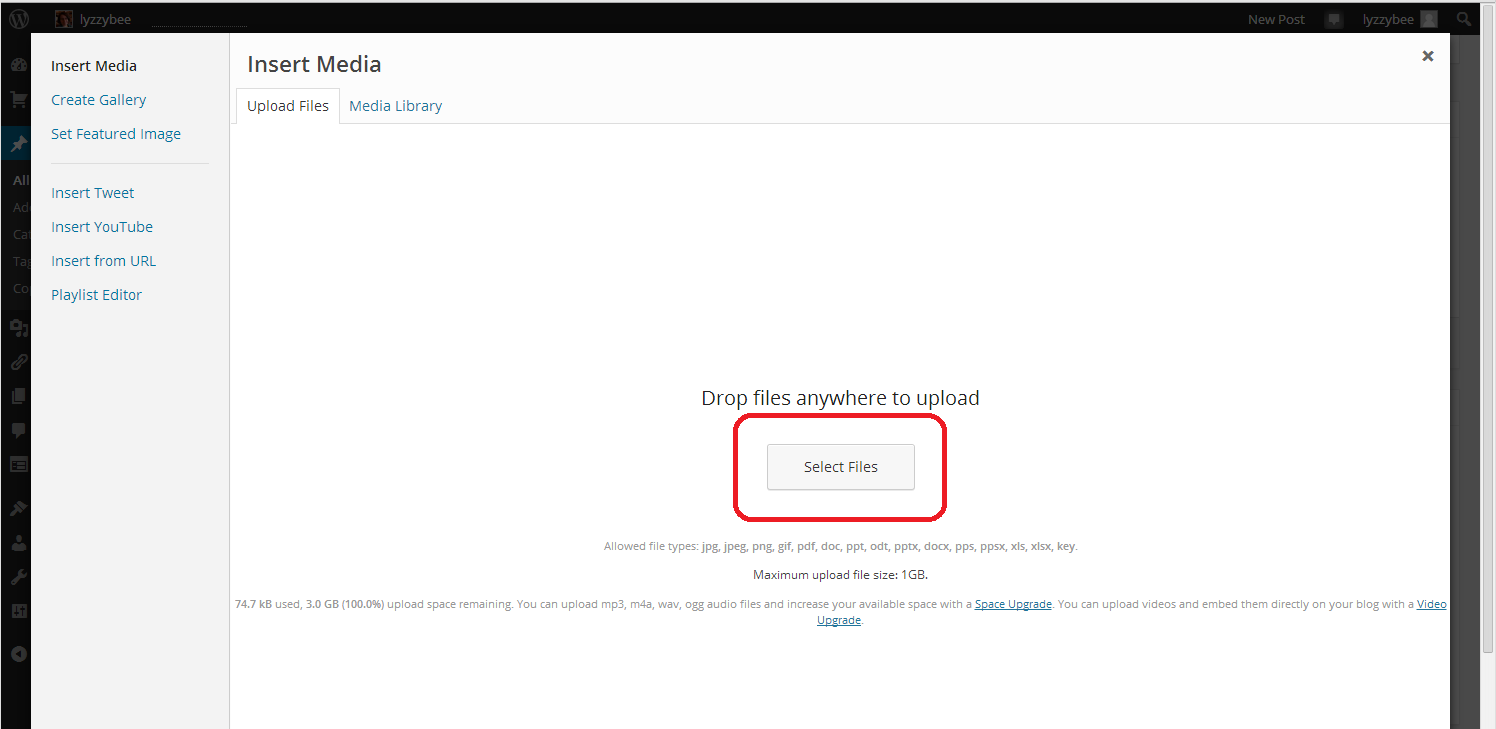
This will take you to an Insert Media page, and if you’ve already downloaded any images and want to re-use them, they will appear in your Media Library tab. But for now, we want the Upload Files tab. Hit the Select Files button:

2 add media

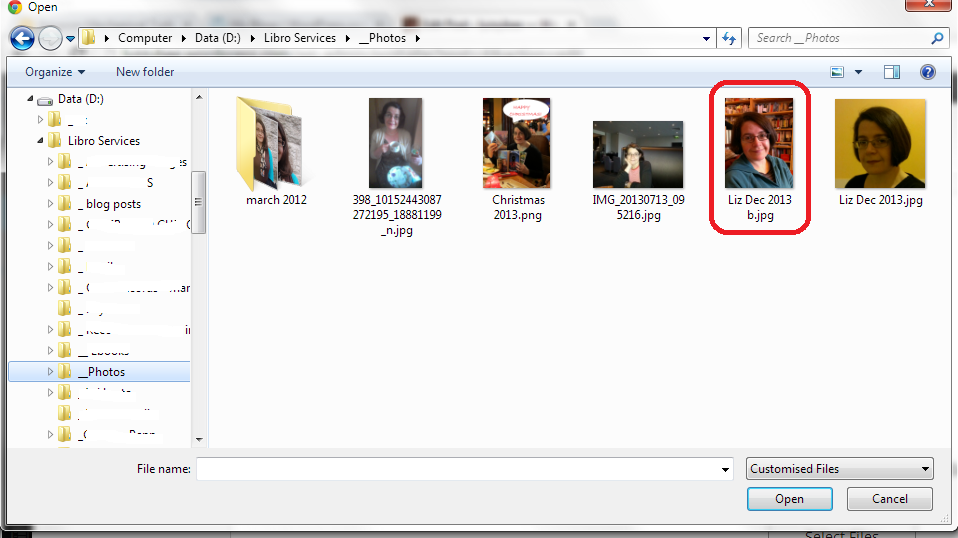
Select Files takes you into the File Explorer section of your computer. Here you can navigate around your folders and pick the photo that you want to insert into your post.

NOTE: You might think that you can just right-click and copy an image from the internet or your Facebook timeline, etc., then paste it into your blog. This might work temporarily, but, from experience, these images tend to be unstable and disappear. If you want to use an image from the Internet or elsewhere, save it into your own folders first and then insert it using this method.

Navigate to your chosen picture and double-click on it or single click and press the Open button at the bottom of the screen:

3 add media

Your picture will be pulled across into your Media Library tab in WordPress.

Note: if you select more than one picture, they will all move into the Media Library, which makes them easy to select. In the next step, only keep the picture you want right then ticked, and untick the others, otherwise they’ll all merrily pile in to your blog in one place.

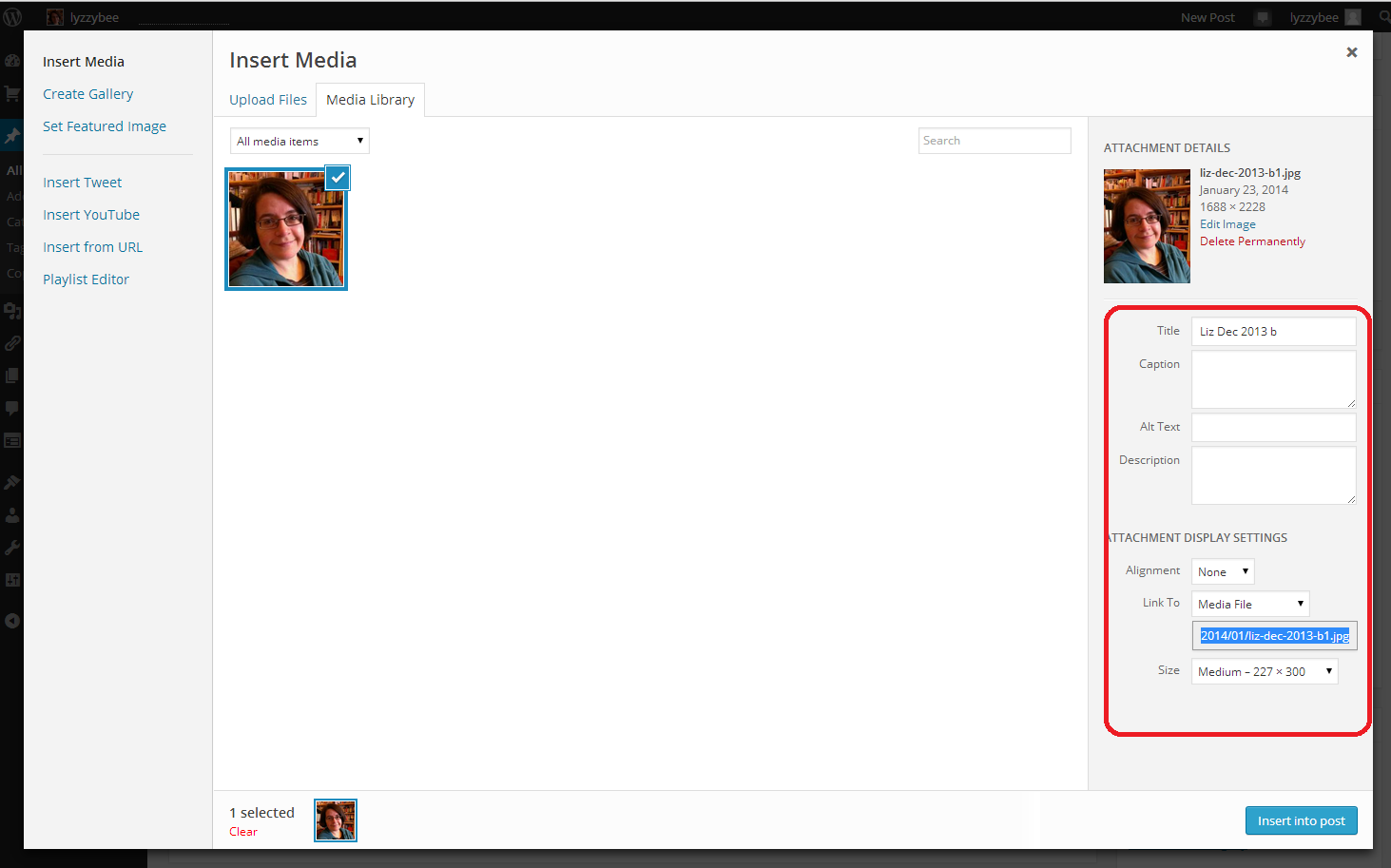
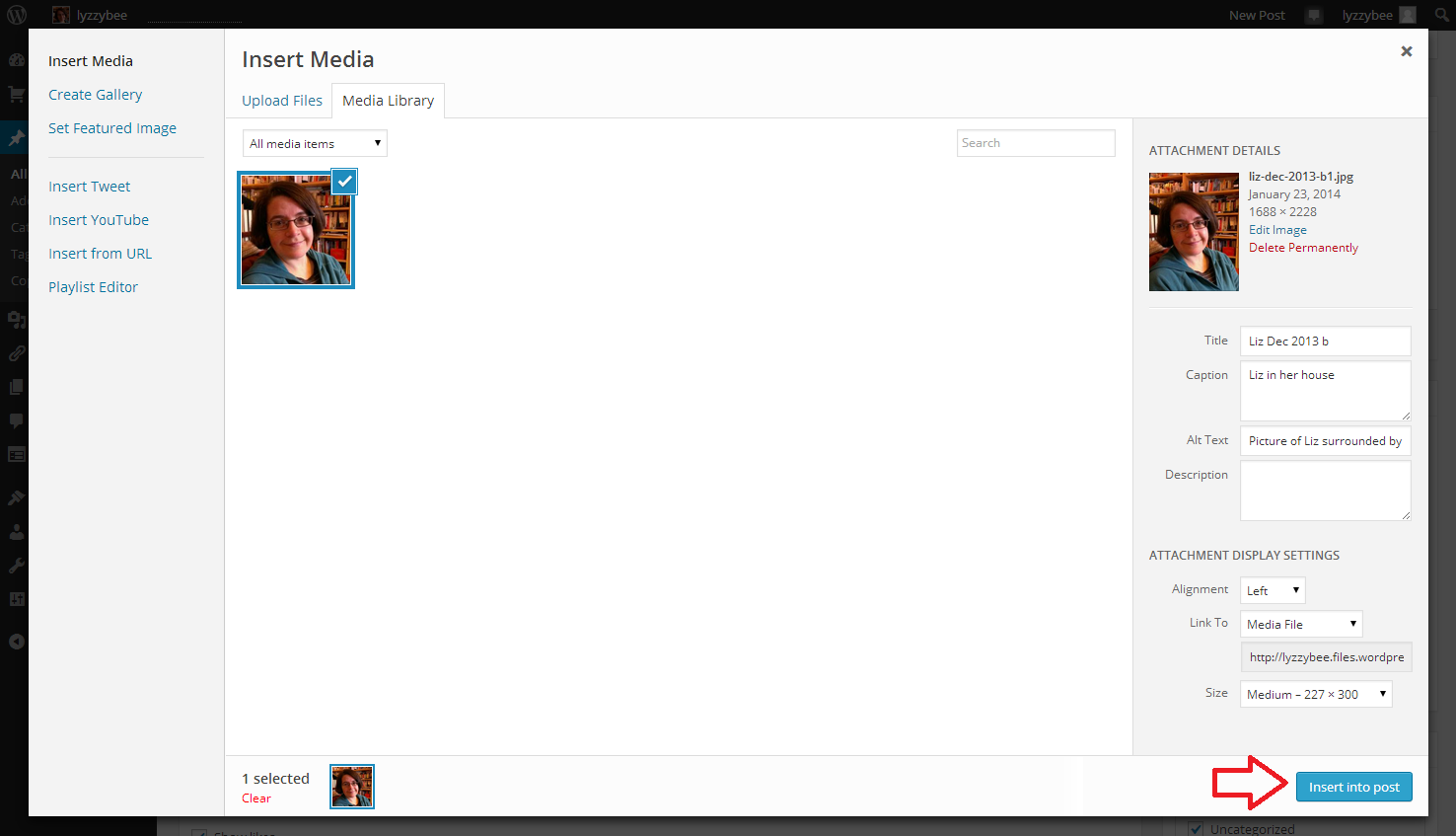
Making sure that the photo you want to use is ticked, choose the Attachment Details on the right-hand side. This specifies the caption, size and positioning of the image …

4 add media

Let’s look at that in more detail. You can place a caption on the picture if you want one to appear in your blog post – I don’t often bother, but it can be useful. It’s important to include Alt text, as this is what anyone using an audio describer will hear if they’re unable to see the image. It’s basically good accessibility practice. Link to allows you to link just to a larger version of the image, or you can choose URL to link to an external web page.  Alignment can be Left or Right (text flows around these to the other side of the image, if there’s room) or Center (like this blog post). Size is up to you: note, you can make an image smaller but not bigger once you’ve inserted it.

5 add media

Once you’ve chosen your picture and your settings and alignment, etc., hit the Insert into post button to place the image in your blog post.

6 add media

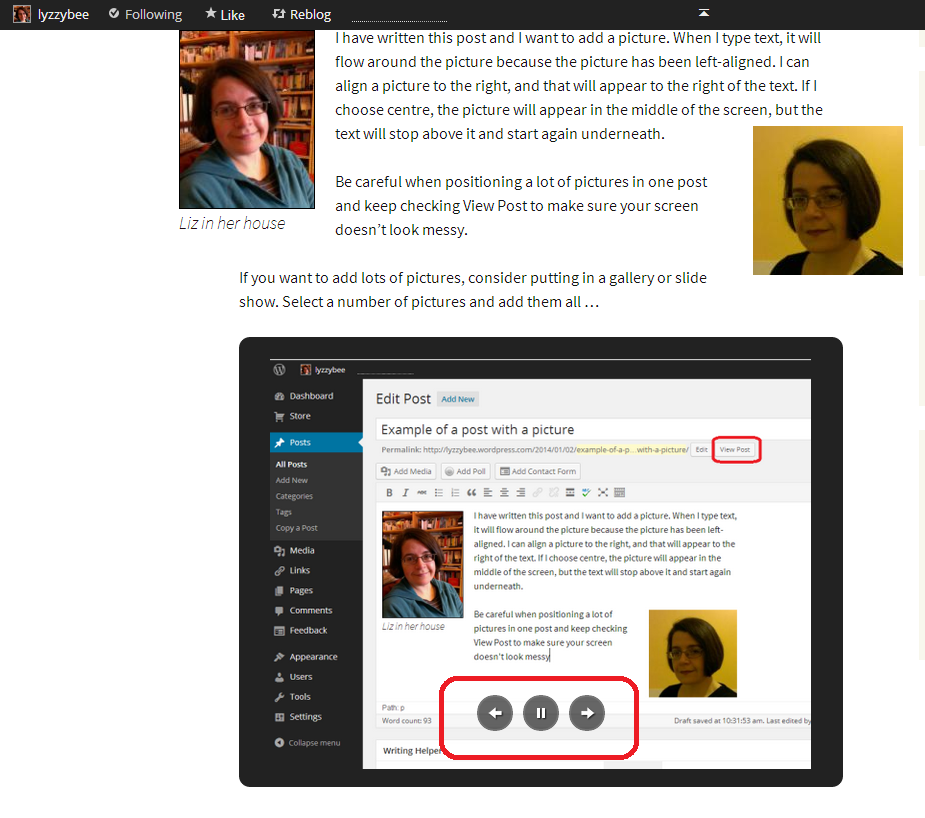
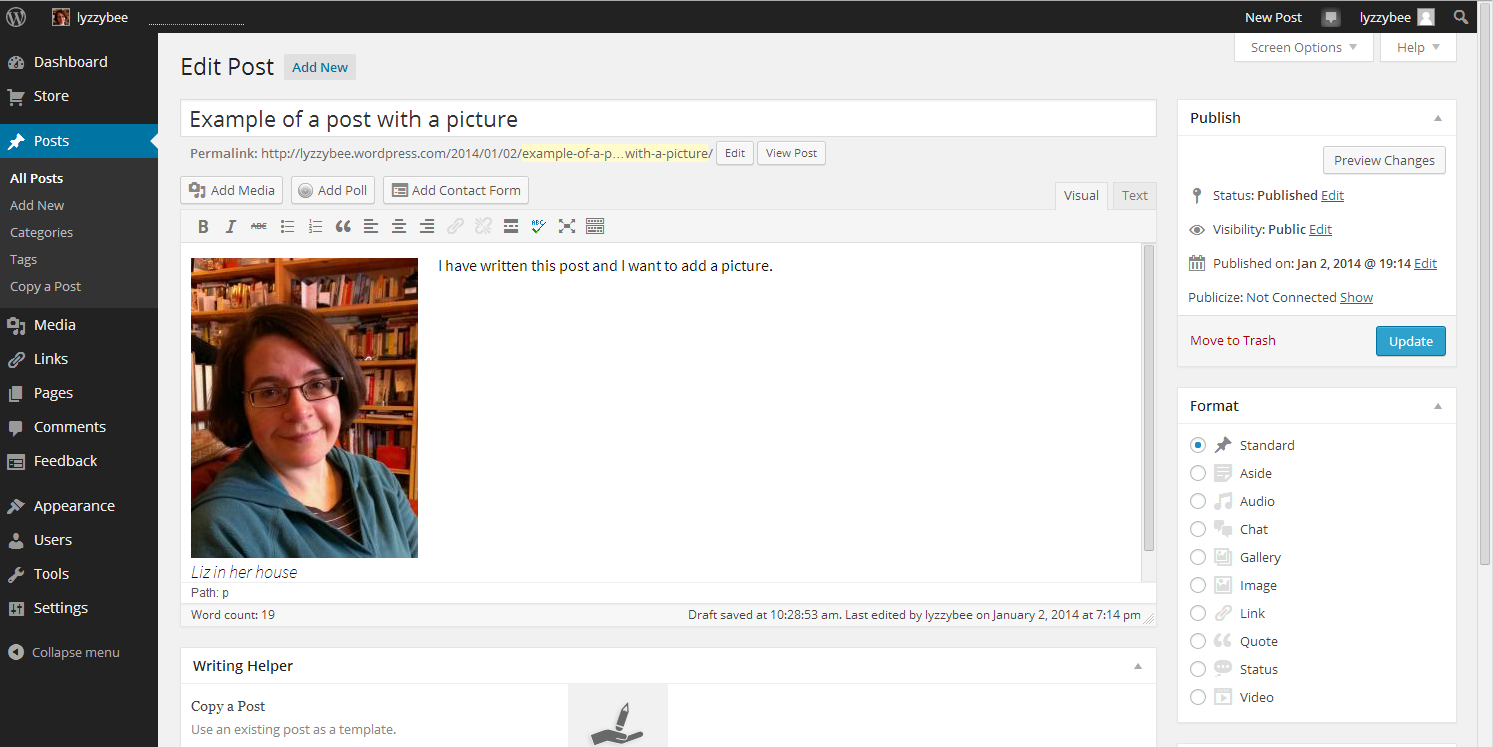
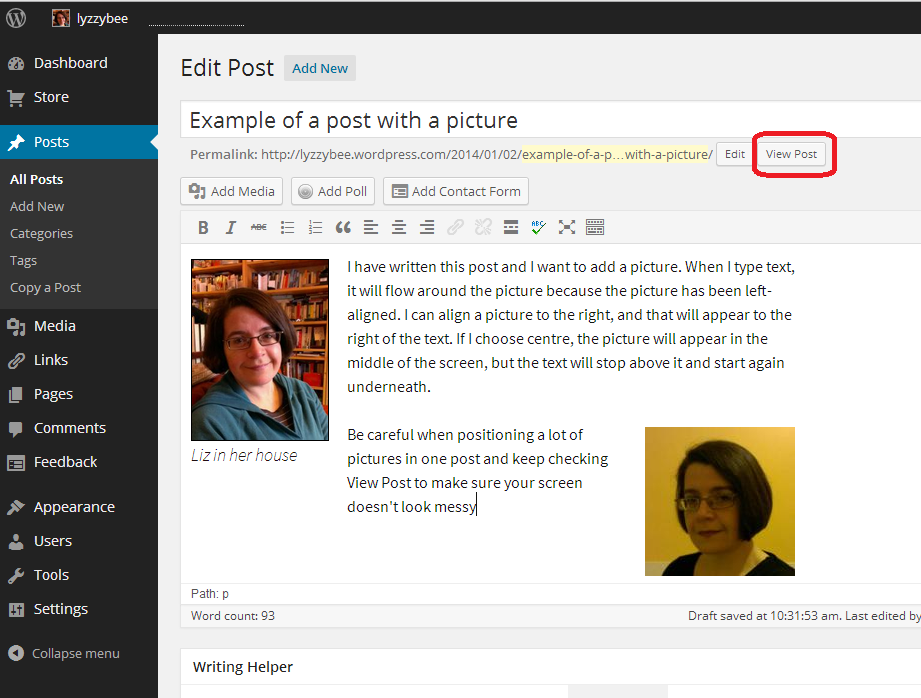
And here it is, in my blog post, medium-sized and left-aligned (so you can see that the text I’ve typed appears to the right of the picture and will flow around it. The top of the picture starts where my cursor was, at the beginning of that first line of type. If I chose Right alignment, it would be the other way around; if Center, the text would be underneath.

7 add media

How do I edit an image in my blog post? (including WordPress’s new image editing process)

Note: this section has been changed to reflect the changes implemented by WordPress in March 2014.

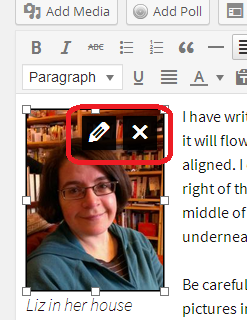
Once you’ve placed your image and written your post, you might want to edit the image. Left-click on your image using your mouse, and two icons will appear – edit and delete. Click on the right-hand, red, delete icon and your picture will disappear (no warning). Click on the left-hand icon that looks like a pen, and you will be able to edit your image.

01 new editing

On clicking the edit icon, you will be taken to an editing screen. This looks a bit different to the old editing screen, and it appears that you can’t do everything that you used to be able to do. But you can! With the help of my old friend Clare Lauwerys at The IT Fairy, I’ve been able to work out what to do and share it with you.

The basic editing screen now allows you to change the Caption text, Alt text, alignment, link and basic size. What about scaling it up and down and adding or changing description text? Don’t fear: it’s all still there.

To add or edit the description text, you need to click on Replace image. Yes, I know that doesn’t exactly make sense, but it’s what you have to do …

02 new editing

Once you’ve hit Replace image you’ll be back in the screen you use to add an image and give it its attributes in the first place:

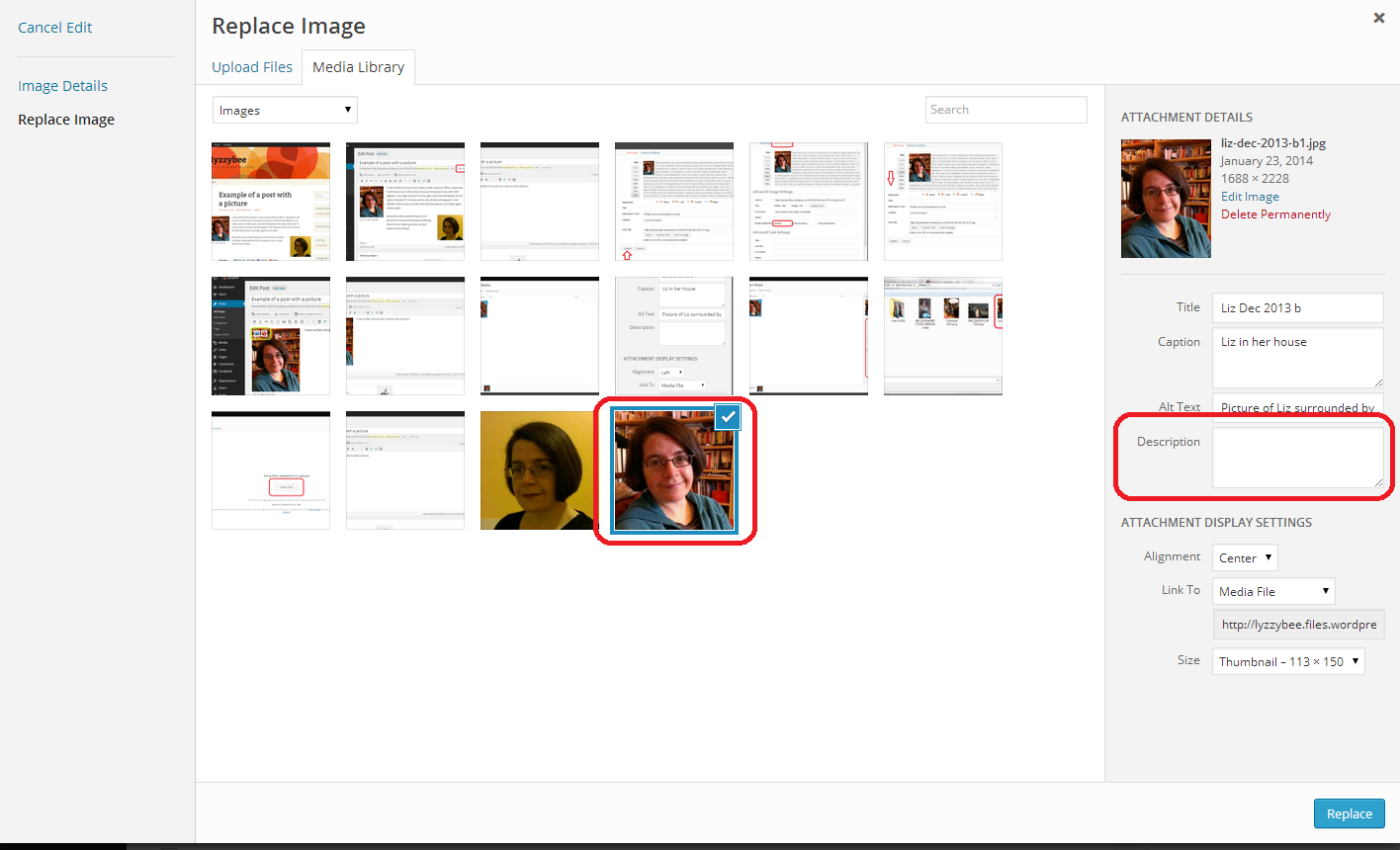
03 new editing

You can see that the image you’re currently working on has remained ticked in the Add image screen, and you are able to add or amend your description text here (that’s important for your SEO, and I’m going to have Clare guesting on here soon to tell you all about that). When you’ve done that, hit the Replace button and your new image information and old image will be safely in your blog post.

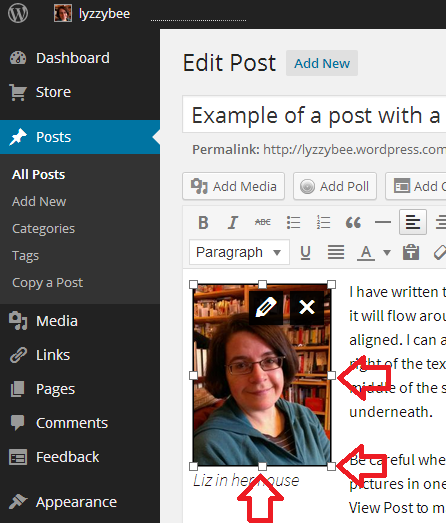
To change the size of the image, stay within the blog post edit screen, click on the image once and then use the standard image changing frame to pull your image out or in with the mouse and cursor to make it larger or smaller:

07 change size

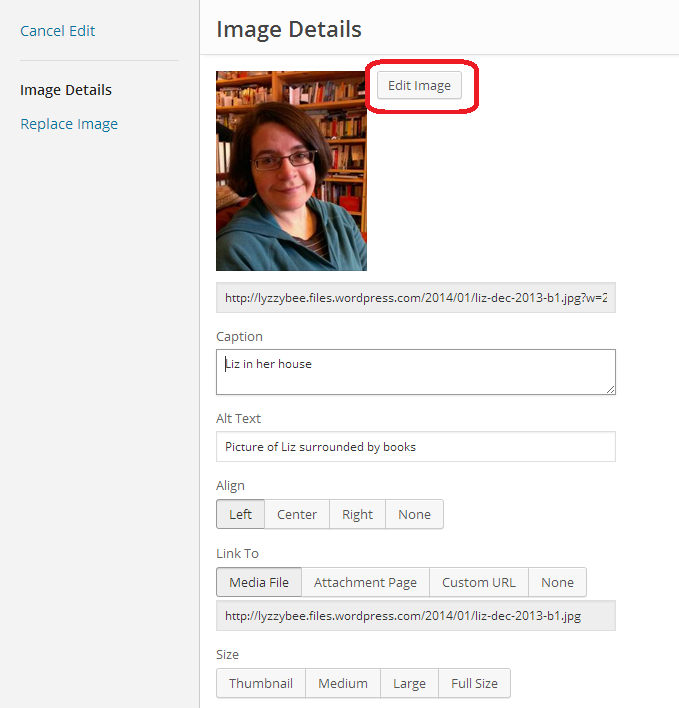
If you want to edit the picture to flip, rotate or crop it, click on the edit button and once you reach the Image Edit screen, click on Edit Image:

05 new editing

Once you’ve clicked on Edit Image, you can access the ability to flip, rotate and crop your image:

06 new editing

… remembering to press Save when you’ve finished.

Note: you can no longer choose the size of the border around your images. The standard border that you get is an aspect of the theme you choose for your blog. You do get a border of sorts if you add a caption to the image.

How do I preview what my images look like in my blog post?

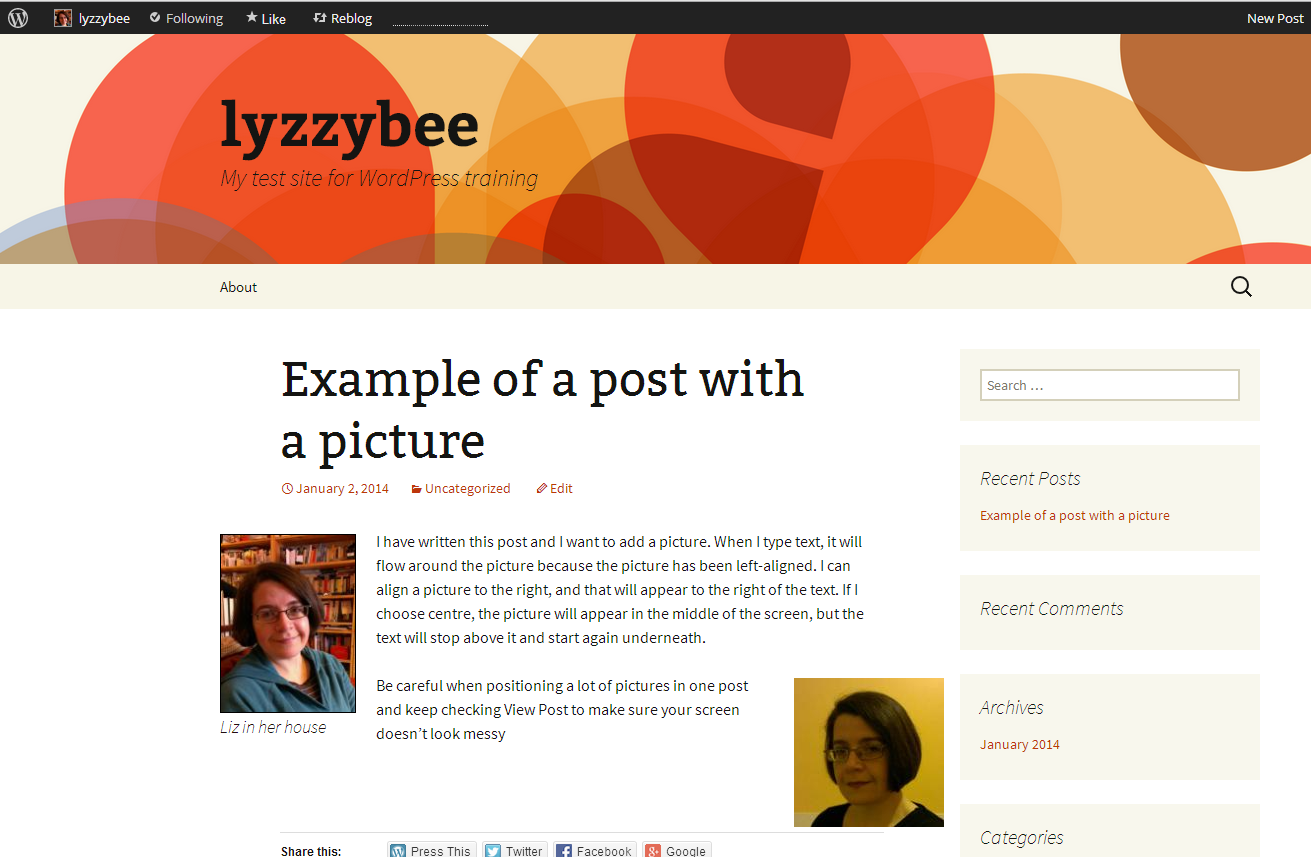
Click the View Post button to view your post as if it was live on your blog. This can save you from a nasty surprise, as the Edit Post screen does not display exactly as your blog post will in real life (of course, this will display differently on different screens, especially on mobiles and tablets, but this gives you a better idea than just looking at the Edit Post screen).

I’ve added another picture, with Right-alignment, and I want to see how the text flows around them.

13 check

And there we go. It looks different from the editor, but I’m happy with the result.

14 check

How do I add images to a web page on WordPress?

Fortunately, adding images to web pages works in exactly the same way as it does for adding images to blog posts. So just look for the same buttons and icons, but note that you start off from New Page or Edit Page, not New Post or Edit Post.

You’ve learned how to add pictures to WordPress blog posts and pages, and how to edit those images once you’ve got them into your post/page.

If you’ve found this useful, please add a comment below, and please share this post using the sharing buttons below. Thank you!

Related posts on this blog

WordPress 1 – the basics – joining and setting up a blog

WordPress 2 – adding pages to create a website

WordPress 4 – adding slideshows and galleries of images

WordPress 5 – linking your blog to your social media

WordPress 6 – sharing buttons

WordPress 7 – adding an avatar picture

 
14 Comments

Posted by on February 6, 2014 in Blogging, Business, WordPress, Writing


Tags: , , ,

How to set up a WordPress blog 2: adding pages to make it into a website

Following on from my posts about how important it is to have a website for your business and on setting up your WordPress blog (which you need to read before reading this if you’re a novice), in this article, I’m going to show you how to add pages to your WordPress blog to make it into a website.

This is what I did when I created this website that you’re reading this blog post on right now. I’m going to use my special test WordPress blog to show you what to do, and also the inside workings of this blog for the more complex aspects. Read on to find out how to set up web pages on your blog, and first of all, why you would do that.

What’s a WordPress page and why do I need them?

A page is a static, unchanging screenful of information, for example what you see when you go to my About page on this blog, or my page about my Business e-book on my writing blog. Where a blog post is written, published, moves down the blog page and is superseded by new blog posts, like a diary, a web page is fixed, stays the same and is visible whenever you visit its home. Where a blog is like a diary, a web page is like a passport photo or a lawn sign.

Why do you need one? Well, when someone reads your blog, they’re going to be bound to want to know something about you – that’s why pretty well all blogs have an About or Home page. And if you run a company, it’s advisable to put together a page, or a set of pages organised into some kind of structure, that tell readers about what you do, how you do it, what it costs, etc.

Website readers have a low attention span. They want to read a bit of stuff then move on. Many of them don’t even like scrolling down to see what’s lower down on the page. So a) they’re not going to want to search or scroll through your blog to look for information, and b) they don’t want everything on one web page. My website is quite wordy; imagine what it would be like if all that information you can access along the top menu bar was all on one page.

So, you’re convinced that you need at least an About page. You understand the difference between pages and posts (pages = static; posts = constantly updated diary type affair). Let’s find out how to set up a page on WordPress.

How do I set up a Page on WordPress?

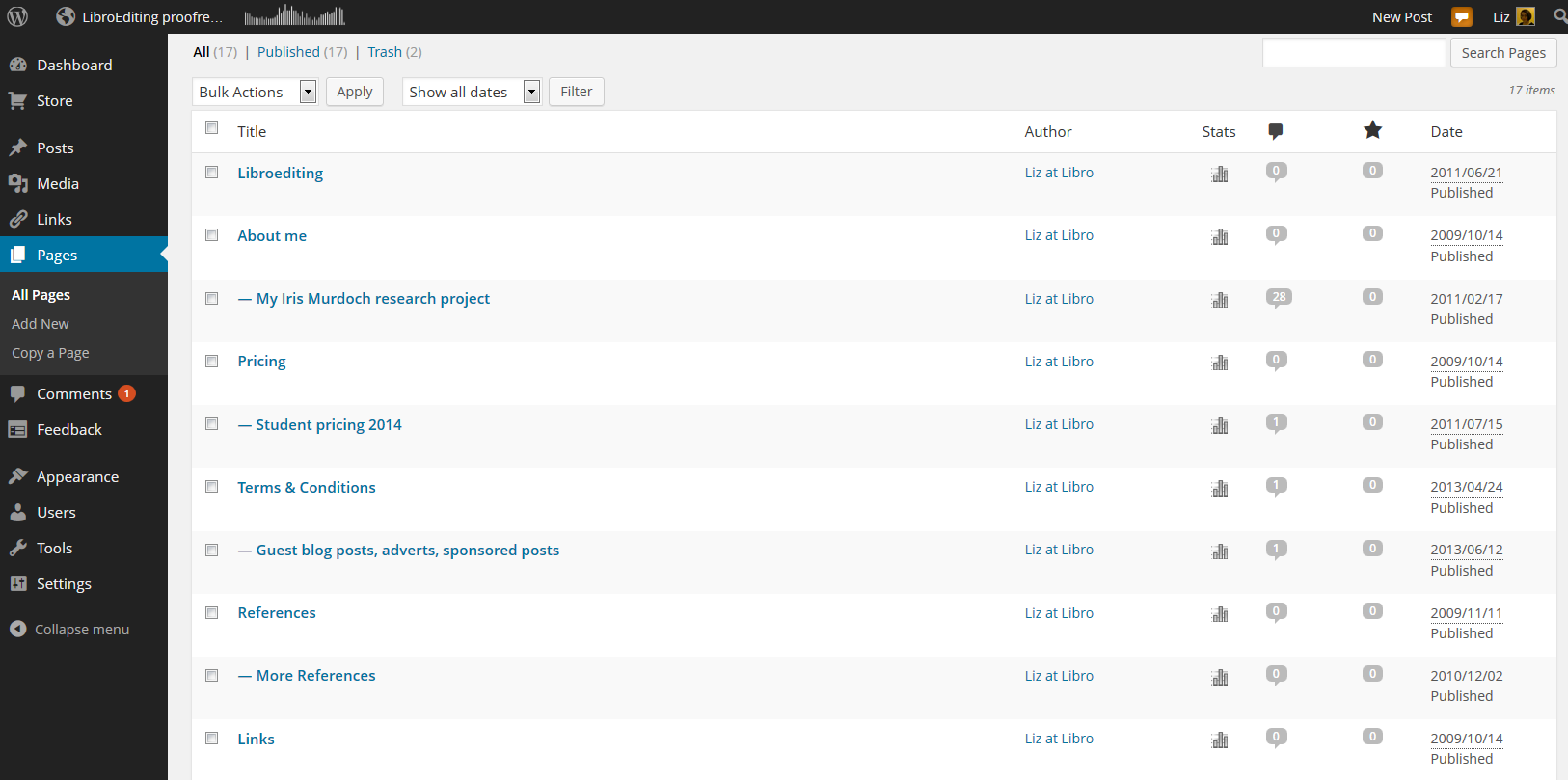
You access Pages from the Dashboard (click on your blog name or the little house icon next to your blog name on your Stats page to reach it). Once in the Dashboard, go down to Pages, click, and choose All Pages. This allows you to see what pages are already there – and once you have some, you can edit them from here.

1 pages

Why have I gone here first rather than hitting the New Page option? Because every new WordPress blog has an About page set up already, to get you started.

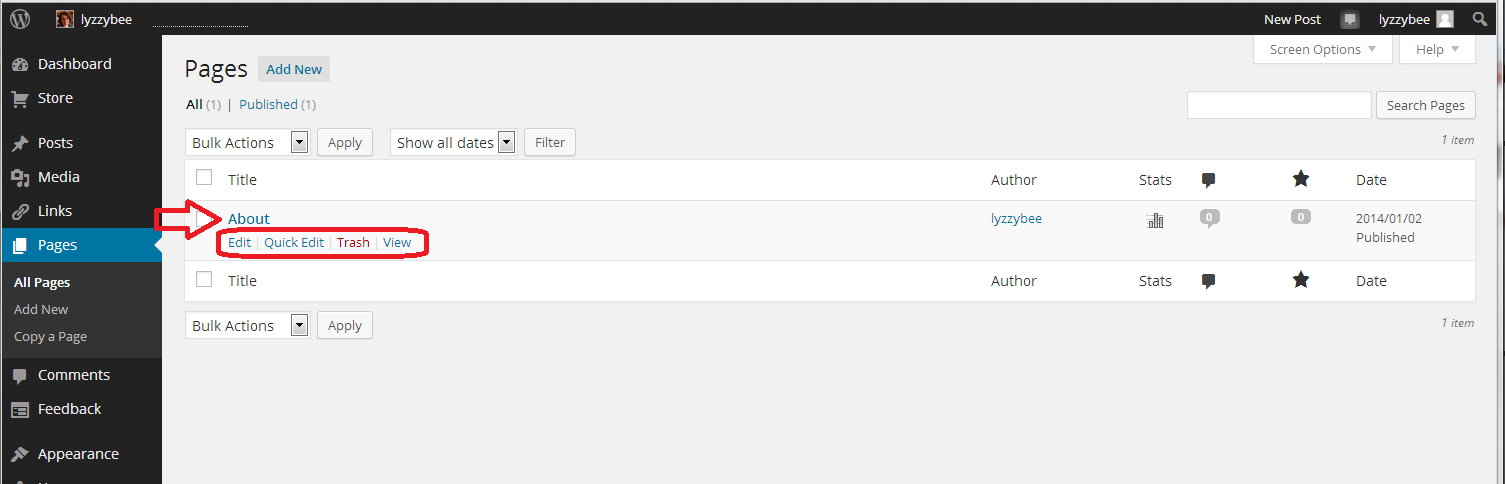
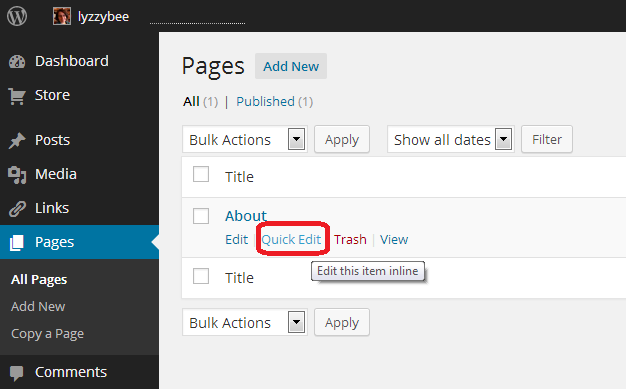
In the All Pages view, you can see all of the pages that you have set up, and hovering over the page title with your cursor allows you to Edit, Quick Edit, Trash or View them. Here, we’re going to Edit

2 about

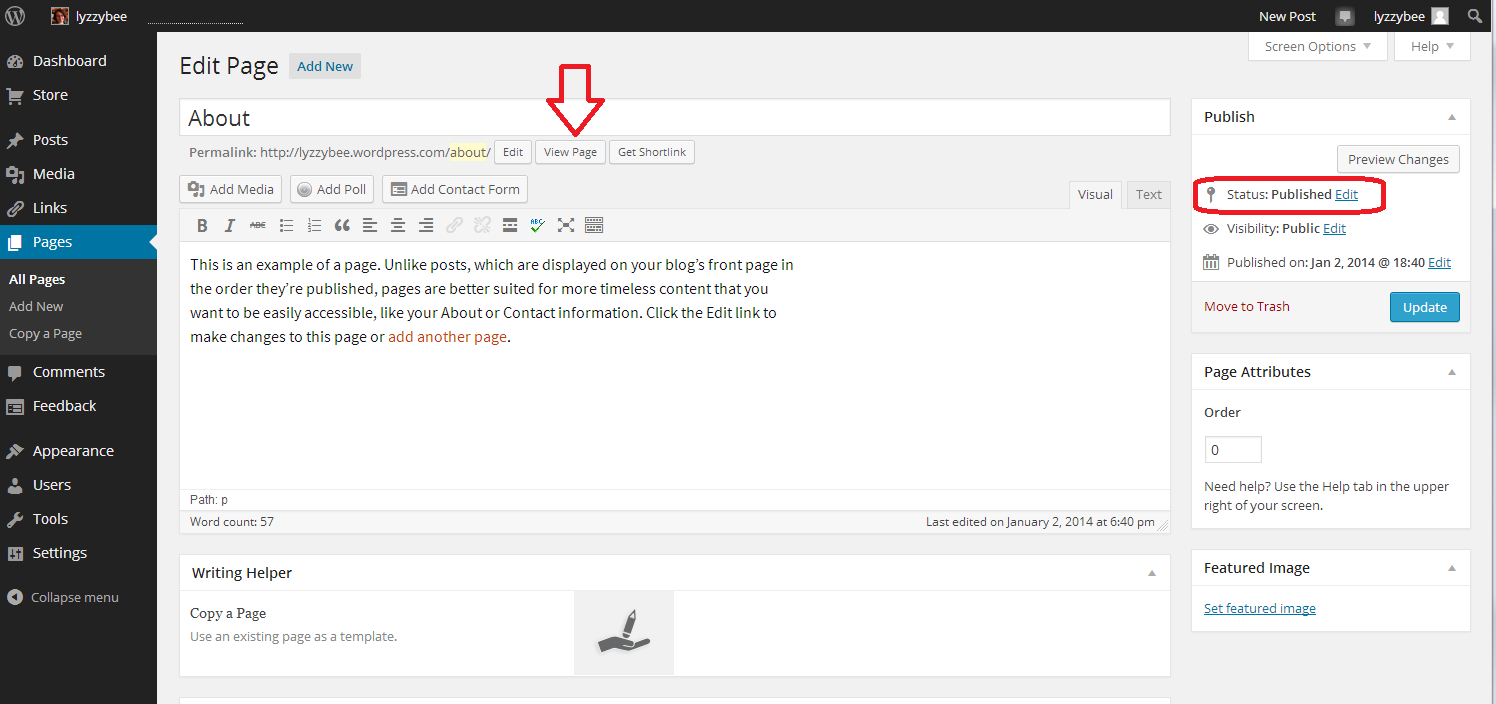
When you click Edit, you’ll arrive at a screen which looks very like the one that you use to create a new blog post. However, it has Edit Page at the top, and some Page Attributes to the side.

You can see that you have a title area (which includes the word “About” and a text area, which also contains some text at the moment.This can all be edited and customised just how you want it.

You can also see here that the Status is showing as Published. That  means it’s live on the Internet for all to see …

3 about

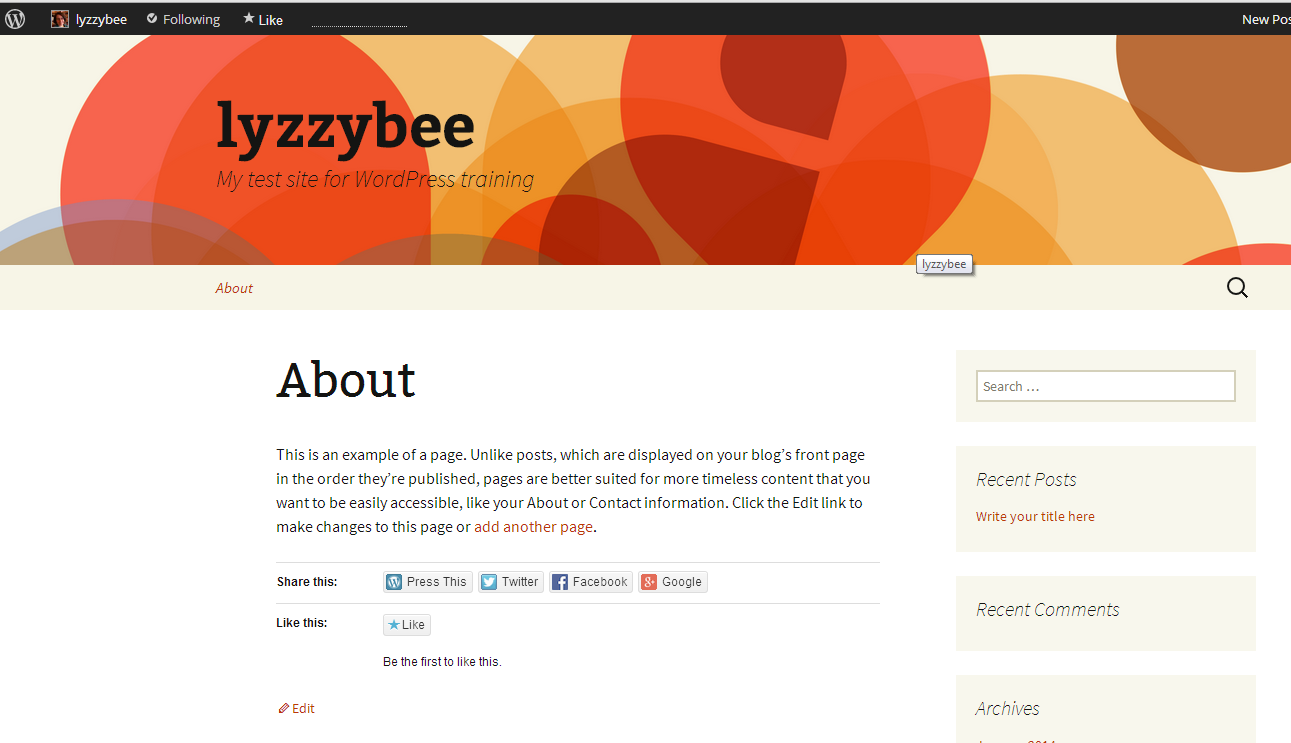
Want to see what this page looks like? Click on the View Page button just under the title …

4 about

This is likely to open in a new window – if it doesn’t, hit the back button on your browser to get back, or the Edit button at the bottom (or top, depending on your theme).

If you want to edit the text, which I do in this case, just delete the text that’s there and add some new. When you’ve edited it as you wish, hit the Update button to save. Then use the View Page button to have a look at the changes. Note: I’ve added hyperlinks here – here’s an article explaining how to do that

5 about

When you look at the page on the blog, there is all your new text, including the hyperlinks:

6 about

How do I set a web page to be my landing page / front page?

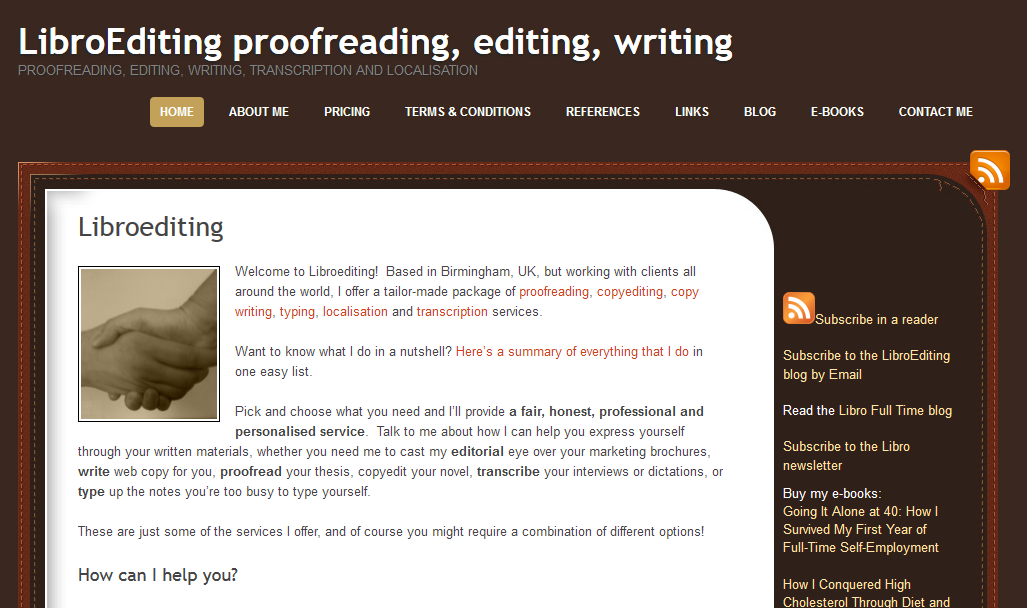
In some circumstances, you might want a static page to be the home page / landing page / front page that a visitor to your URL will always see. I do that with this website – whenever you go to www.libroediting.com, you will see my Home page. However, visit www.librofulltime.wordpress.com and you’ll see the latest blog post I’ve published, and you’ll need to click on the top menu to see a static page about you. It’s all about what you choose to do.

I’d recommend that if you are primarily blogging, with just one or two pages about you and your background, leave the landing page as the blog. If you’re promoting a company, product or service, and your blog is supporting that and driving visitors who you want to buy from you, choose to display a static web page when a visitor arrives.

Here’s how you tell WordPress to show visitors a page, not your latest blog post.

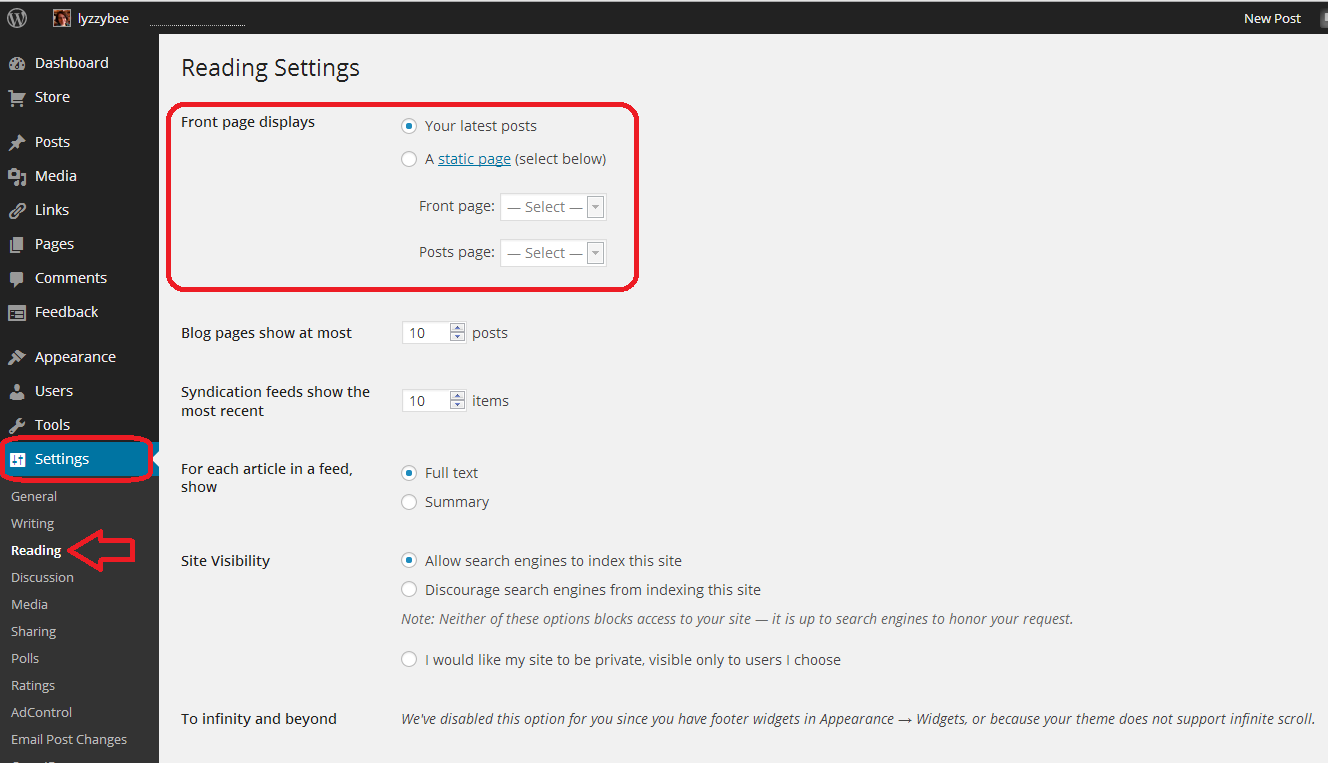
Go to the Dashboard, choose Settings, and then Reading. Right at the top of the page, you have a section entitled Front page displays. You have the choice of Your latest posts (i.e. your blog) or A static page. If you click on that radio button, you will be asked to choose a page to display.

7 set page as front page

I have chosen not to do that for this test website/blog, mainly so that I can change it if I’m training people face-to-face, but here’s how this Libroediting site is set up. I have chosen Libroediting as the front page, and Blog as the posts page. That means that any visitor will, as you’ve seen if you clicked the link above, see my Home page on their initial landing on the site.

8 set page as front page

How do I add a new Page to my WordPress website/blog?

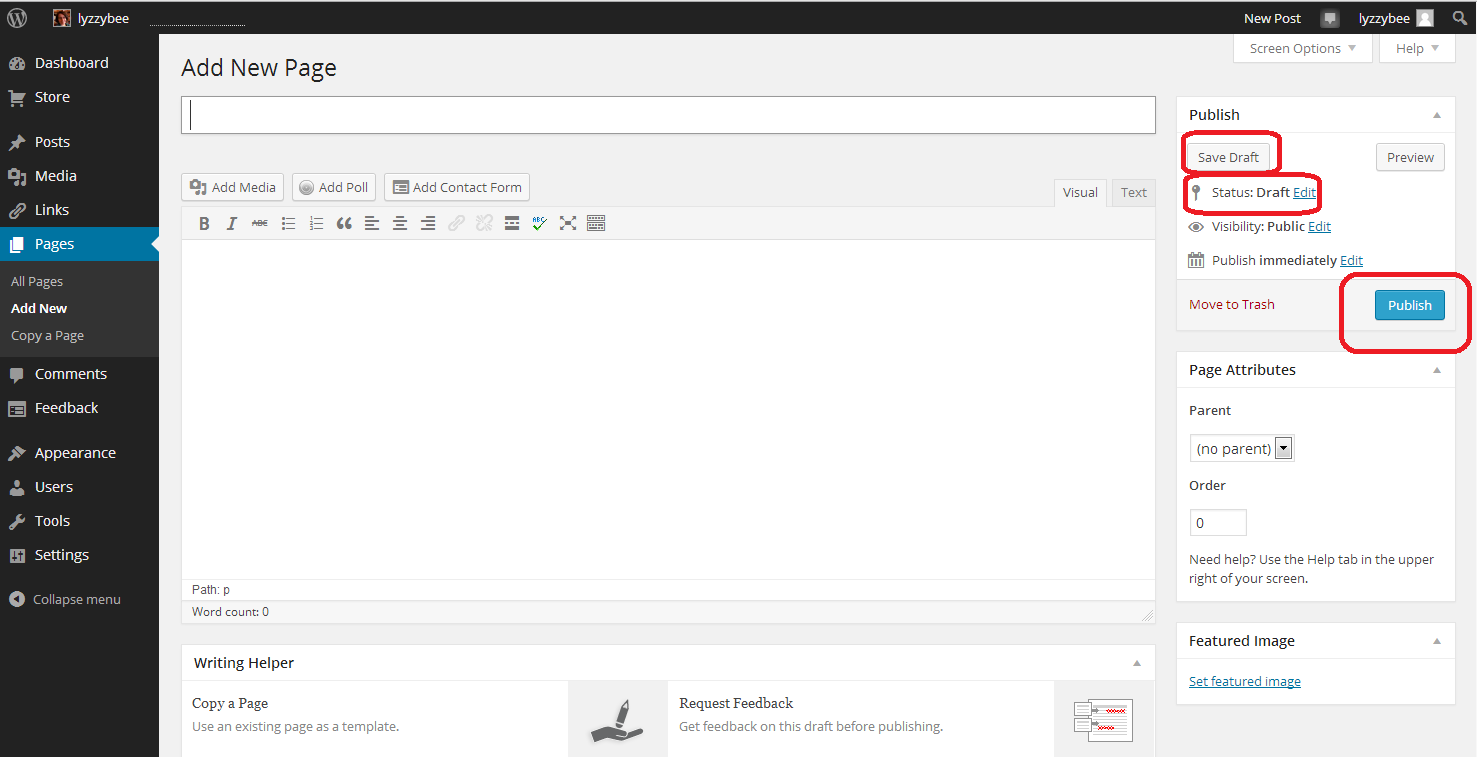
If you want to add a brand new page, revisit the Dashboard and choose Pages – Add New. Note, you can Copy a Page, too. This will give you an exact copy of a page you already have – more useful for posts, but if you have special formatting that you’ve set up, or you’re splitting the text on a page over several new pages, it’s worth doing that. Click on Add New

9 add new

… and you will find yourself in a completely blank editing page. Note that now the Status reads Draft, and you also have an option to Save Draft. Please press this very, very regularly, so you don’t lose your draft posts. When you’ve finished adding the text for your new page, hit the Publish button to make it live (or you can leave it in Draft form if you want to work on it further; just do remember to Save Draft).

10 add new

How do I view and edit my pages?

You can view all of your pages by going to the Dashboard and choosing Pages – All Pages. Here is part of my page list for this website. If you hover over any page title with the cursor, you’ll get the Edit / Quick Edit / Trash / View options to allow you to make any changes you want to. If you have any pages in Draft form, not yet published, you’ll see Draft next to All / Published / Trash and you can click to see all of your draft as opposed to published pages.

11 pages

Useful pages that I would recommend including on your business website are:

  • About me (with a photo)
  • Services
  • Prices
  • Testimonials / references
  • Contact me (with a contact form)
  • Blog
  • Links (links to colleagues and recommended websites – always kind to do)

How do I change the order in which my pages appear? How do I create sub-pages?

It’s good to be able to control what order that top menu and any side menus appear in. As you get more pages published, you might find there are too many for the menu to display, and it starts to look a bit messy. You might want to arrange pages in sub-categories, under other main pages.

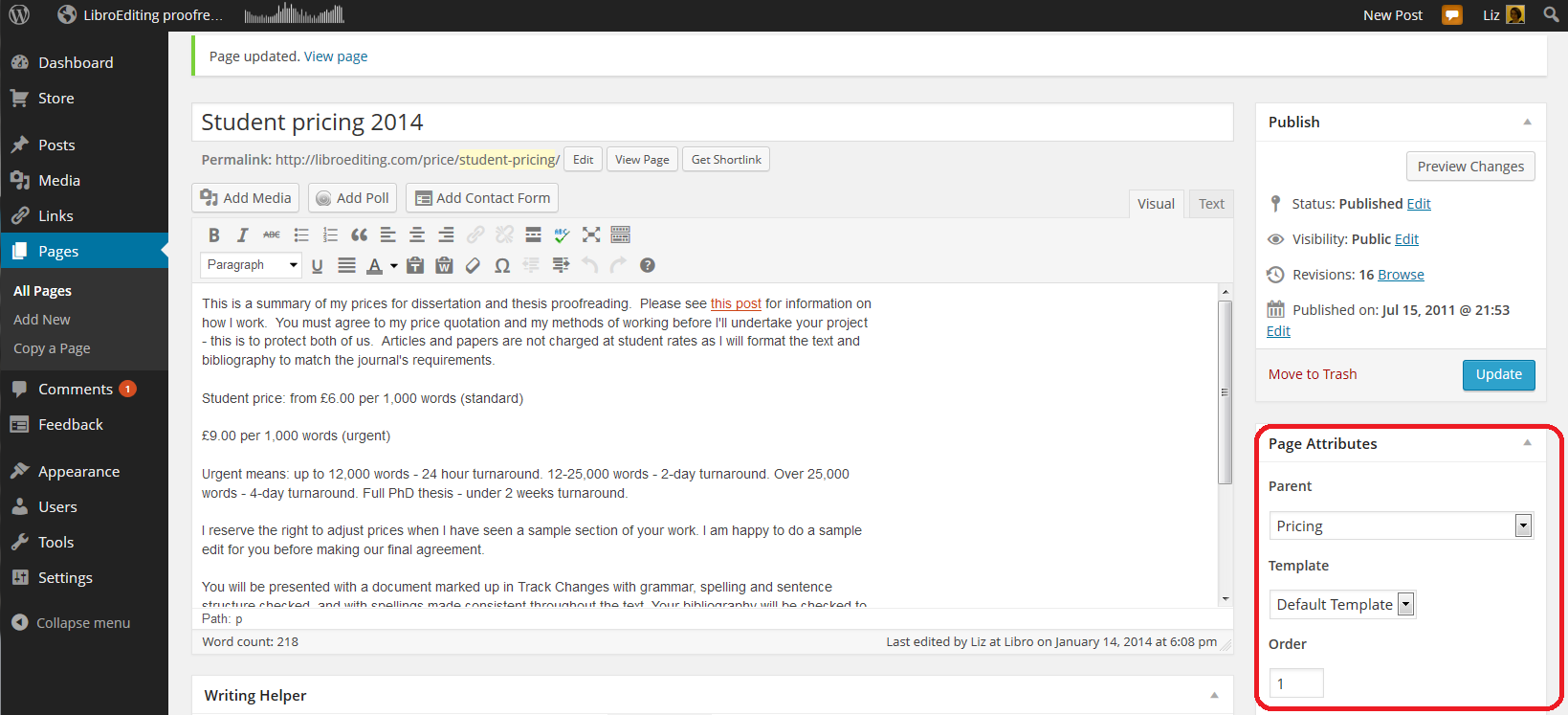
The place to do this is in the Edit screen for your page (click on Edit when viewing the page or select Dashboard – Pages – All Pages and click on Edit for the particular page). You will notice a section called Page Attributes. Here, we’re looking at my Student pricing 2014 page, which is a sub-page of my Pricing page. Note that I’ve chosen a Parent page from the drop-down menu of all of my pages. When you’ve completed all changes, press Update to save them. You can also choose the order … see below …

12 sub pages

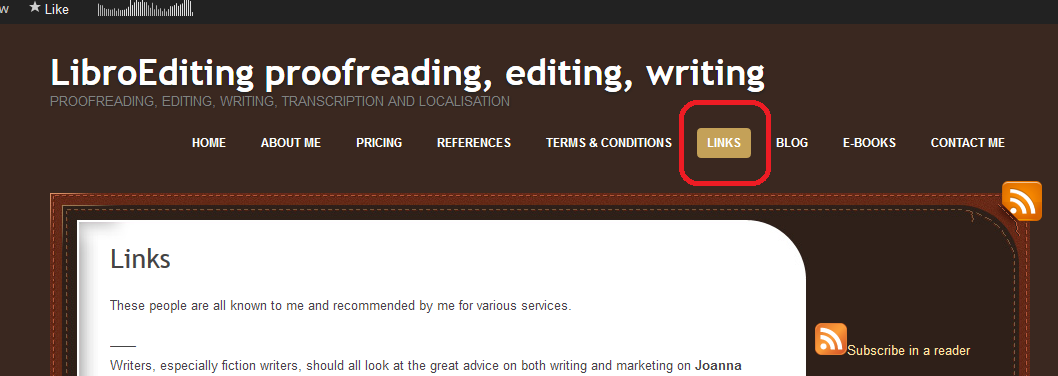
It’s nice to have your landing page on the left and your About me quite prominent, with other pages such as Links down the order a little. That same Page Attributes area allows you to choose a number to define the order the pages appear in on your menus. Here, I’m giving my Links page number 6. I press Update and view the page …

13 page order

Looking at the page itself, you can see that the page name is number six in the list of pages along the top!

14 page order

Note: not all designs of WordPress blog have the menus automatically along the top. But they should appear at the top or down the side. Play with the choice of design if it’s not where you want it to be, or add a menu to the side bar, which we will learn about another day.

How do I do a quick edit?

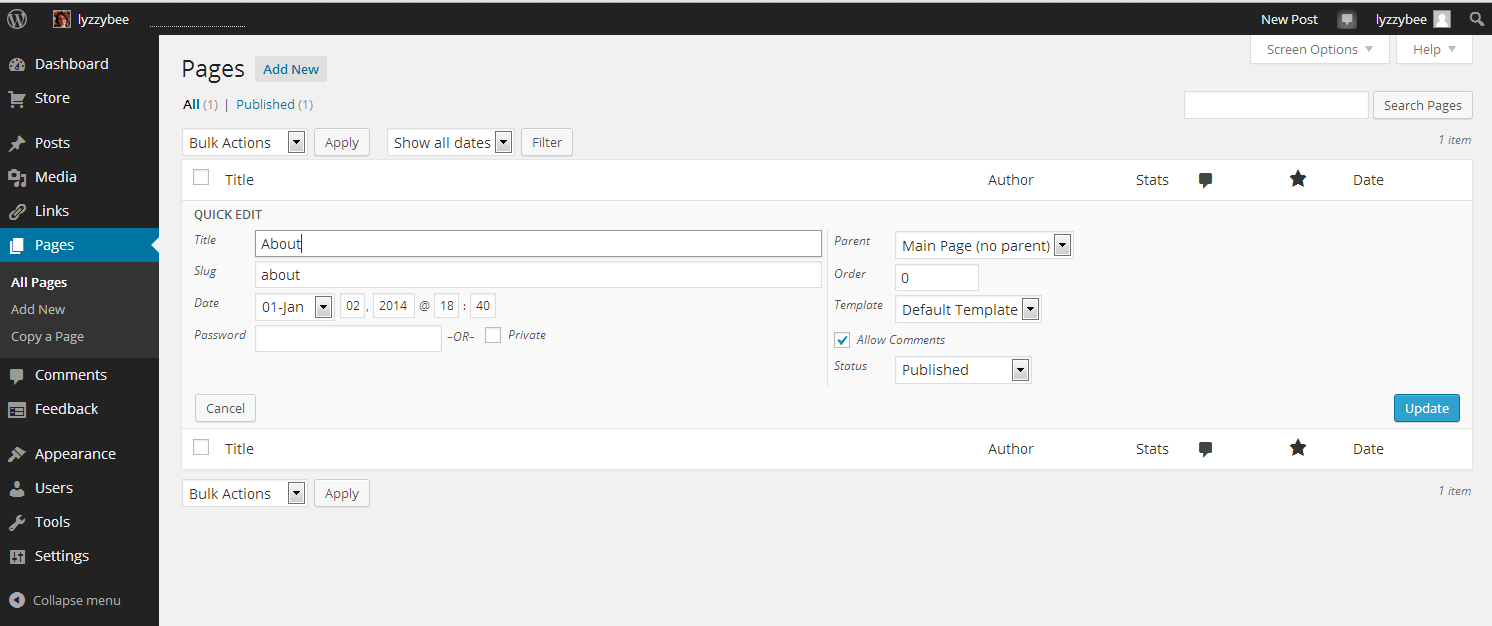
If you just want to change the title, page order or other attributes for a particular page, view All Pages, hover over the page title and choose Quick Edit.

15 quick edit

You will get a limited number of options, but this can be a quick way to do an update. Click Update to save.

16 quick edit

In this article, we’ve learned how to add web pages to a WordPress blog to make it into a website, using WordPress.com hosted by WordPress itself. These basic ideas should be the same on self-hosted WordPress sites.

I hope you have found this article useful. Please share using the share buttons below, or post a comment, and do please let me know if you use this article to help you to set up your own blog, and post a link below!

Related posts on this blog:

WordPress 1 – the basics – joining and setting up a blog

WordPress 3 – adding images to your post or page

WordPress 4 – adding slideshows and galleries of images

WordPress 5 – linking your blog to your social media

WordPress 6 – sharing buttons

WordPress 7 – adding an avatar picture

Is it worth having a website for my business? – the big question (and the answer’s Yes!)

Adding links to blog posts – how to do it on the major blogging platforms (and email)


Tags: , , ,

Is it worth having a website for my business?

websiteIn my networking adventures and other travels in the world of small business, I come across quite a few people who don’t have a website. To be honest, I’m a bit shocked when this happens. Unless you’ve got a constant set of clients, with new ones on the horizon to fill in any gaps if you lose one, then you’ll want to be findable.

When you think about getting the roof done, or finding a cleaner, or sourcing flowers for an event, or buying a product, where do you look?

Online.

Even if you look for a tradesperson on a Yellow Pages style website, I bet you like to have a URL to click through to, to look at their details. Right?

If you don’t have a website, even a single page with your name / company name and information about yourself, then what will people find when they search for you?

How do people search for companies, products or services?

People come to my website in one of four ways:

  • They search for my name
  • They search for my company name
  • They search for something that I do
  • They search for the answer to a question (“is it en route or on route?” “How do I repeat the header row of a Word document on every page?”)

This is what would happen if I didn’t have a website:

  • If they search for my name, they’ll find my Twitter or Facebook feed, or photos of me socially, or mention of me on forums. All fine, but they’d probably rather find either my Facebook or my company information in one place
  • If they search for my company name, they will find my Facebook or Twitter feed, however, those mention and feed back to my website, as they’re not enough in themselves to maintain interest and get me business
  • If they search for something that I do, they’ll find someone else’s website and if they’re looking for someone to do that work, they’ll hire that someone else
  • If they search for an answer to a question, someone else will answer it, and if they’re looking for someone to work for them, they’ll hire that someone else

This is what happens because I have a website:

  • If they search for my name, they’ll find my website and my other feeds, which all link together. They’ll find out what I do and if they want to talk about work, they can contact me
  • If they search for my company name, they’ll find my website, find out what I do, and possibly hire me, getting in touch via my contact form
  • If they search for something that I do, they’ll find my website, find out that I do that, find references from people who I’ve done that for before, and possibly hire me – getting in touch via my contact form
  • If they search for an answer to a question, if I can answer it, they’ll find out that I know what I’m talking about, and note me for later or sign up to receive emails when I post, and might hire me in time, or ask me a question or engage with my blog

The bare minimum

As a bare minimum, you should have a page somewhere that includes …

  • Your name
  • Your company name (if it’s different)
  • A list of your services or products – make sure that you mention all of the forms of the things you do on that page (so I would include transcriber, transcription services, editor, editing, etc.)
  • References from satisfied customers
  • A way to get in touch with you – a contact form, a phone number (most people like to see this), an email address
  • Professionally produced text – by which I really mean have someone check it for typos and spelling mistakes. Those will seriously undermine your reputation and send people running from your services – whatever they are

It’s a good idea to have your company name in the url for your website, but personally I don’t hold it against small companies if they have the word blogspot or wordpress in their URL – you don’t need to pay extra to have that if you don’t want to.

You can use a Facebook page as your company web page, however I would hesitate to ONLY use something that changes so often and is as unpredictable as Facebook. A company Facebook page is better than nothing, however!

Optional extras

You can add these extras if you want and if they add value. If you find that you’re getting a steady stream of enquiries via your simple website, and they turn into paying customers, then only add these items if you can see a clear value in doing so, rather than doing it out of vanity or because someone’s persuaded you to buy their service.

  • A URL that’s just your company name – you will have to pay for this, probably renewing annually
  • A professionally designed website – there are so many “themes” on offer that look as good as professional websites.
  • A blog – this is GREAT for driving people to your website and setting you up as an expert in your field. If you only do one of these things, write a simple blog
  • Someone to write web text and blog posts for you
  • Search Engine Optimisation – a professional can ensure that you’re showing up in the search engines etc. But shop around – this can be expensive and there are lots of things you can do to SEO your site on your own (just have a little search engine search and see what you can find)
  • A shopping cart and catalogue – very useful if you’re producing craft items or any tangibles – but you can sign up to services like Etsy and eBay which will do this for you

The big caveat

It’s really important to have a web presence so that people can find you.

It’s really important to be super-vigilant, because unscrupulous companies prey on small businesses’ lack of expertise in this area.

  • Always ask around fellow small business owners or someone whose website you admire and see who they use
  • If someone offers to make you top of the search engine results, ask what other sites they’ve worked on (always ask for references anyway) and do a search for yourself
  • If someone offers to revolutionise your website and make you a millionaire overnight, they’re probably over-selling. Ask for references
  • If someone offers to build your website make sure – no, MAKE SURE – that you will be able to edit and update the text and pictures on that website whenever you want to. Never hand over the full ownership of your site to another person such that you can’t update it yourself.

If you haven’t got a website, and you haven’t got a steady stream of new and regular customers giving you a good income stream, I really do suggest that you get a website!

Read more here about growing your business, have a look at my advice on blogging and social media, read about how to set up a WordPress blog and website (starting with this post) and read about my own business journey in my book, Going It Alone At 40.

Related posts

WordPress 2 – adding pages to create a website

 
11 Comments

Posted by on January 13, 2014 in Blogging, Business, New skills, Social media


Tags: , , , , , ,

How to set up a WordPress blog 1: the basics

This article will help you to set up a standard, free, WordPress.com blog for the first time. It talks you through step by step, including setting up your account, choosing your blog name and setting up the features that I find essential when setting up a new blog.

Further posts cover more advanced topics like sharing your posts, inserting pictures and galleries, setting up web pages associated with the blog, etc. By the end of this session, you will know how to …

  • Set up a WordPress.com blog
  • Choose and apply a theme (background / colours / layout)
  • Set up comment moderation to keep you safe from spammers
  • Remove ads which will put off your readers
  • Write and publish a blog post

Why would I want to start a blog?

I’ve covered this in detail elsewhere, so do have a look at this index or pop to the bottom of this article to see a list of related posts on this blog.

Getting started with a WordPress.com blog

Please note that this all applies to a standard WordPress blog hosted on WordPress’ own servers. Some of this will look different if you’re setting up a self-hosted WordPress site. Don’t worry about that bit if you just want to set up a blog!

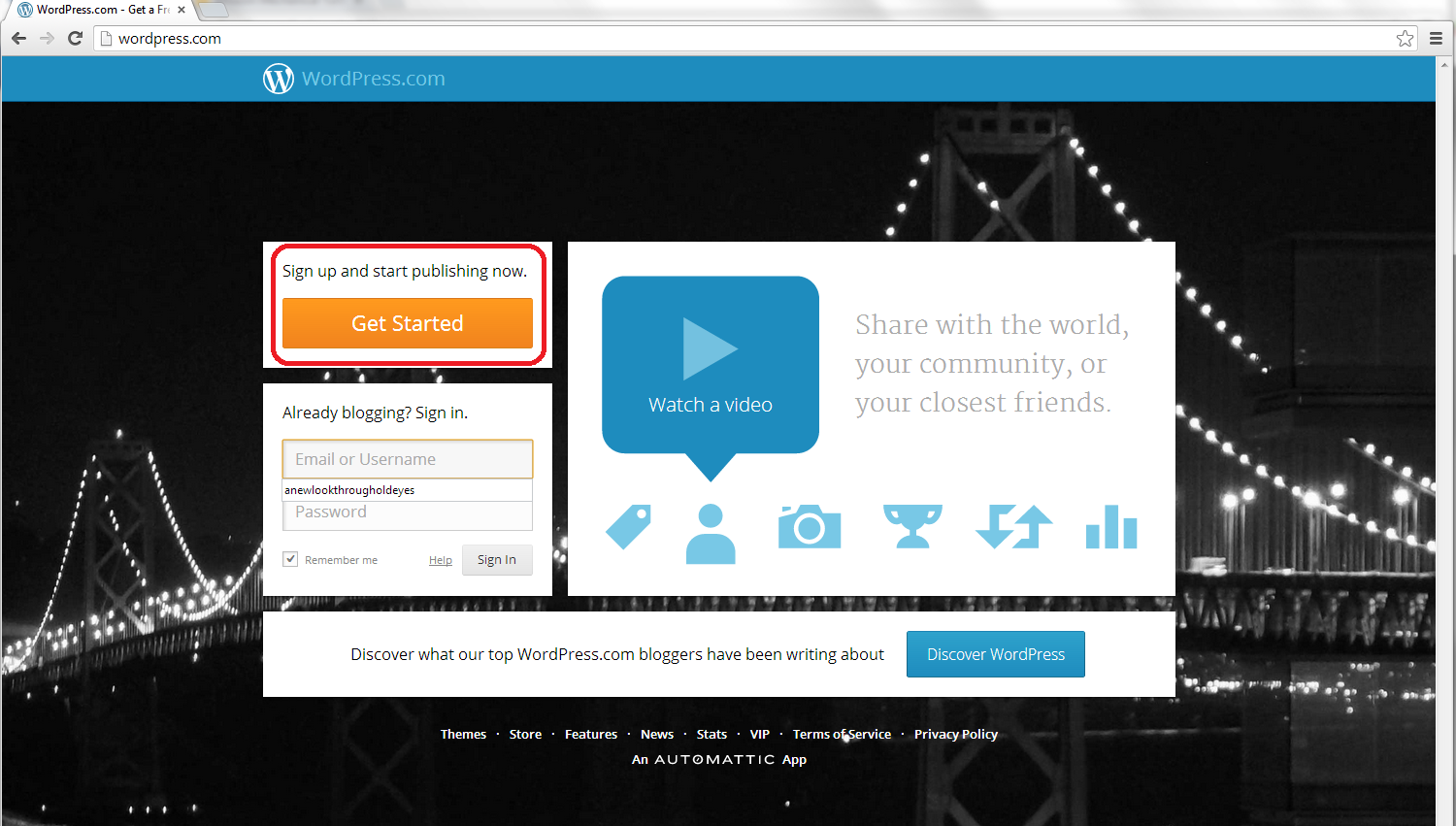
So, to set up your blog, first go to http://www.wordpress.com, where you will meet a sign-up page:
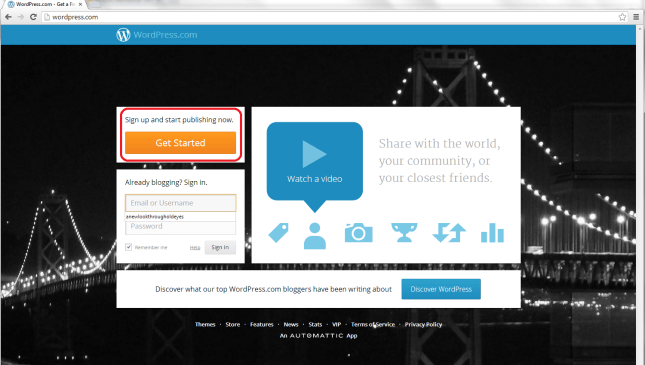
1 front page

Click on the Get Started button to set up your account:

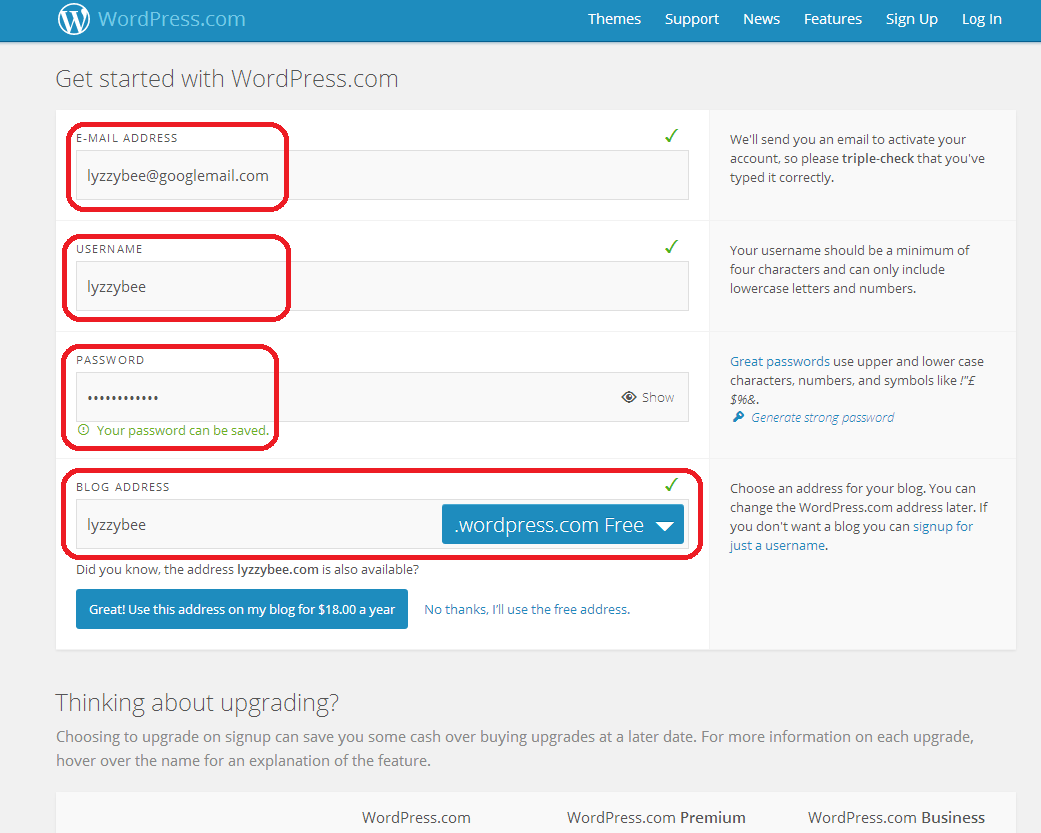
2 sign up

Fill in your email address, a username, and choose a password, then choose the web address for your blog.

Note: although you can change the name that your blog displays, this web address should always stay the same. If people link to it, or you link to your own posts on it, or people add it to their blog reader, they use the web address. If this changes, then the links will be lost. I suggest choosing something as bland and general as you can, so that if you change the name of your blog or the way you write it over the years, the web address and the name won’t be too different.

I’m choosing Lyzzybee here – WordPress has suggested that but you can change it. Watch out for the little green tick, which means the address is available. That means that you can choose it for your blog.

Underneath the web address box, WordPress lets you know that you could buy the domain name (in this case lyzzybee.com) for $18 per year. There’s a lot of discussion about this, with people claiming that seeing WordPress (or blogspot or any other blogging software name) will put people off if you’re writing a business blog or setting up business pages. I’m not sure that it does these days, but there is an option to buy the name if you want to, if it’s available:

3 sign up

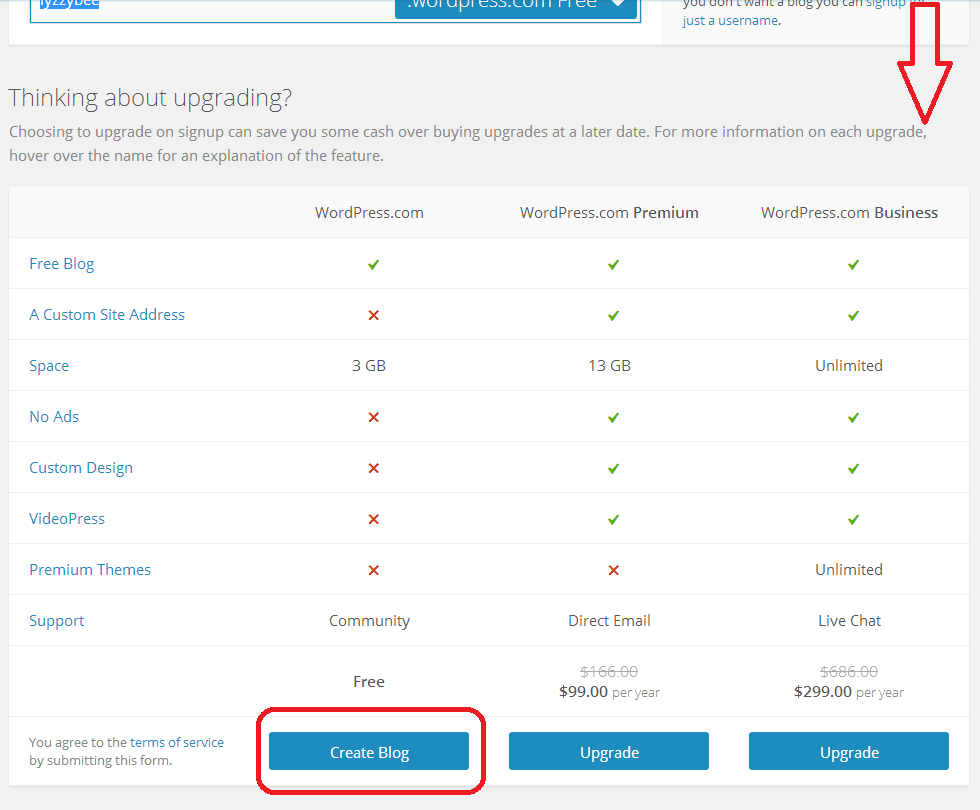
If you scroll down, you’ll see some options for upgrading, too. These look very enticing and seem to offer you a lot, but upgrades cost money and you will only really need a free blog for most purposes apart from the most content-heavy and customisable blog. For our purposes, a free one will do, so click on Create Blog at the bottom of the free column.

(Note: ad free is something we will be looking at later as I feel it’s important to remove intrusive ads from your blog, so it’s not EXACTLY free. Ad removal is currently $30 per year (about £20), it is an option but I think it’s important).

4 sign up free

Confirming your email address

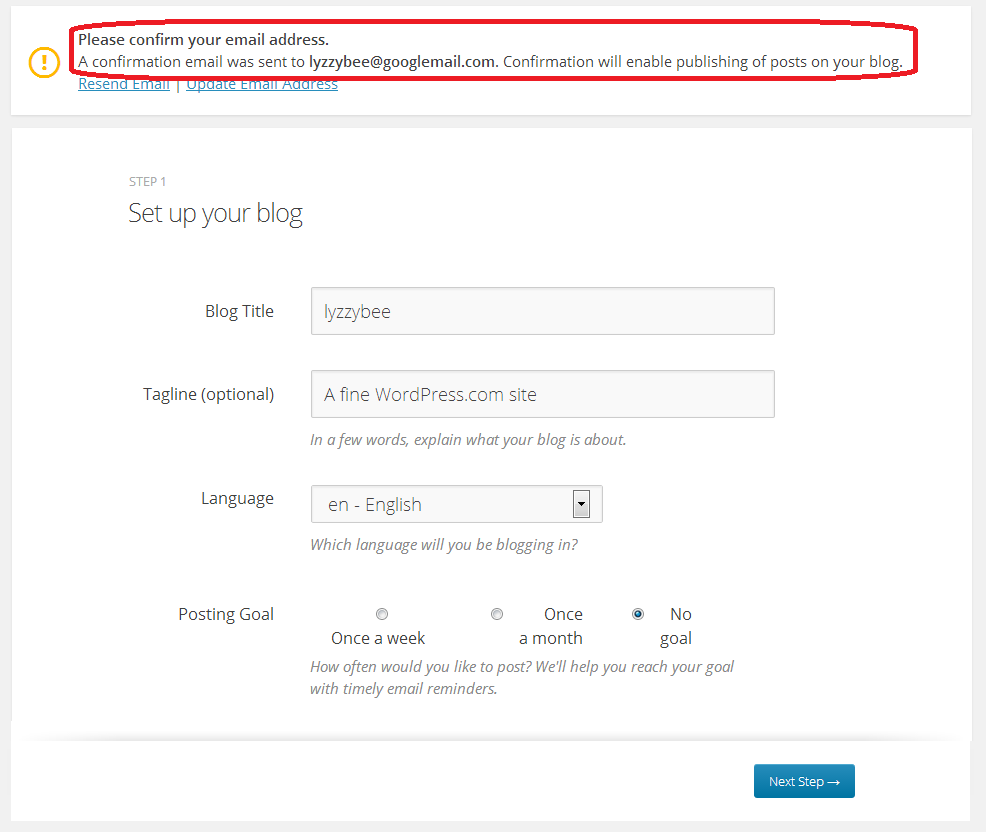
Before you go any further, you will need to confirm your email address in order to allow you to write posts and use your blog. This is a security measure, to make sure that no one’s setting up a blog under your email address illegitimately.

You will see a message about confirming your email address once you’ve hit that Create Blog button. You have options to change the email address or re-send the email if it doesn’t appear:
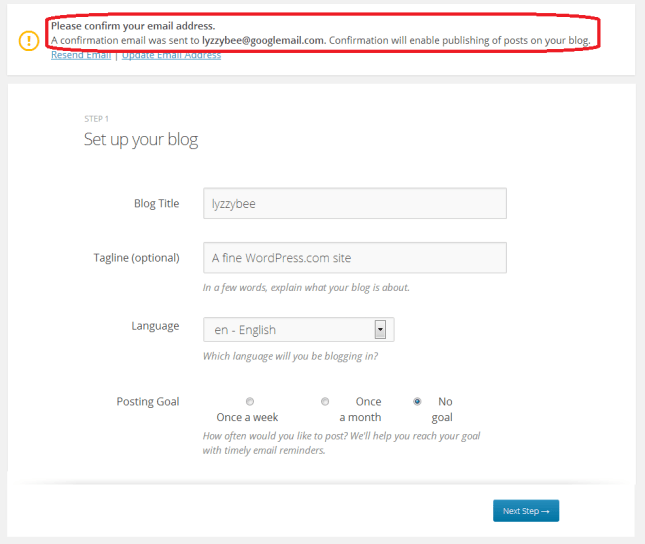
5 confirm

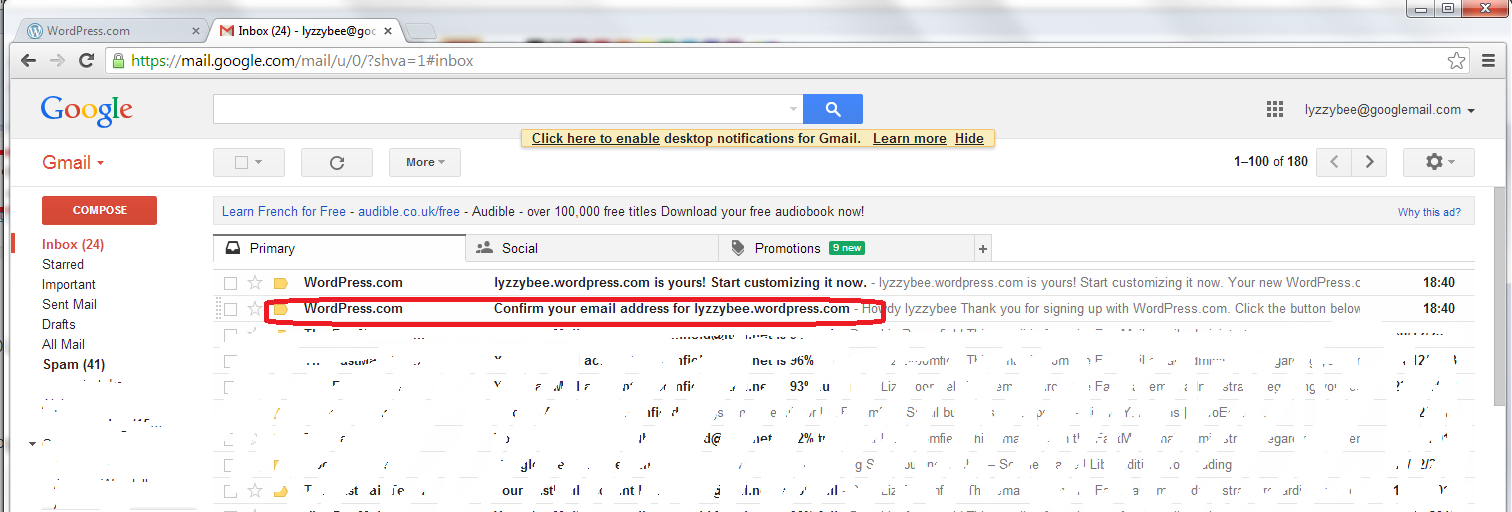
But, all being well, you should find an email from WordPress in your email inbox, with the subject “Confirm your email address for [your blog address]” – it might be the second one from WordPress, as here:
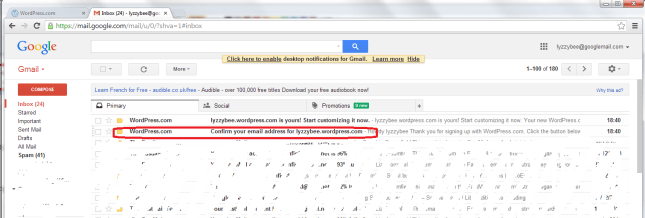
6 confirm

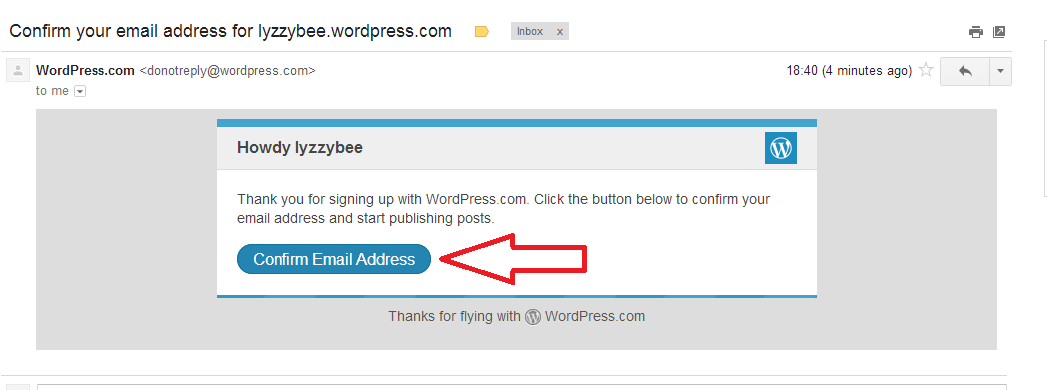
Open the email and you’ll find a Confirm Email Address button to press. Press that button …

7 confirm

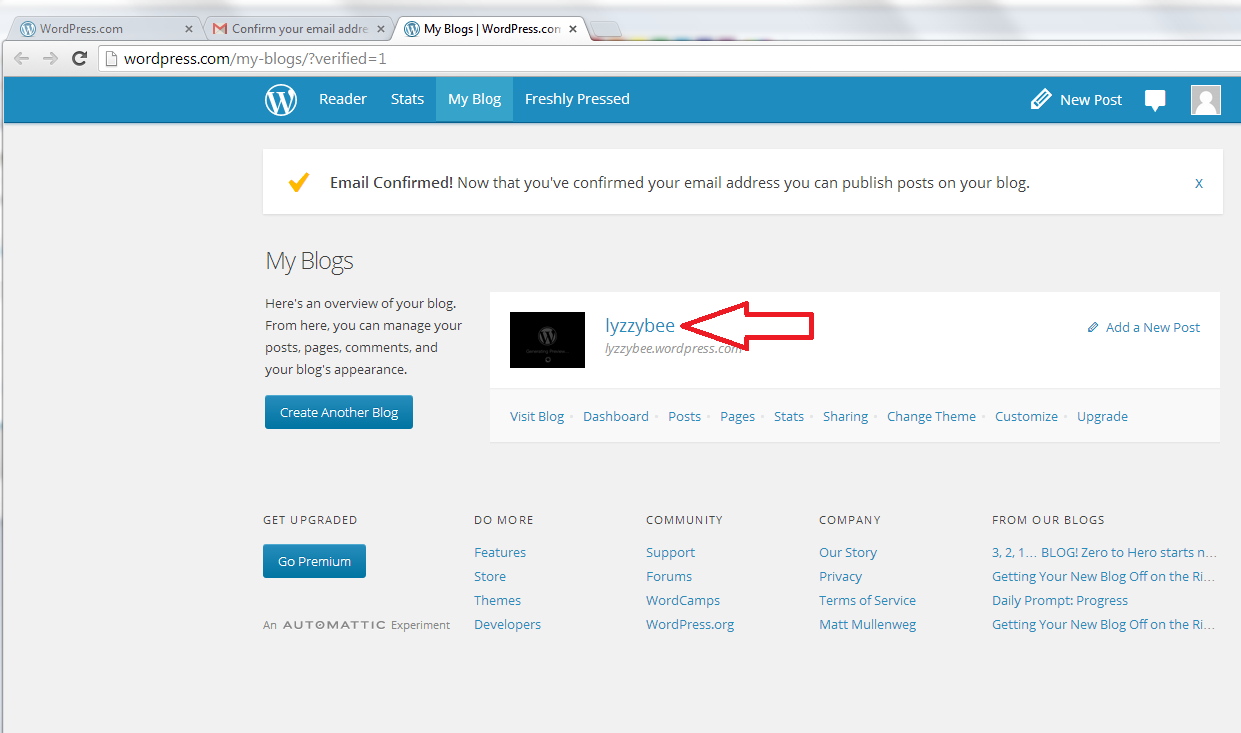
… and you’ll be back in WordPress (in a new window) with the email address confirmed and able to do what you want with your blog!

Click on the blog name to go and look at your blog …
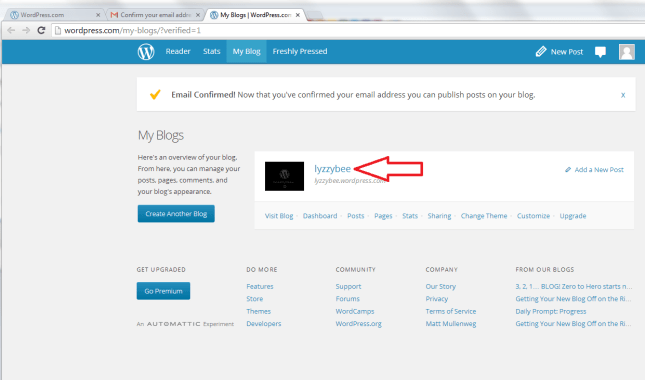
8 confirm

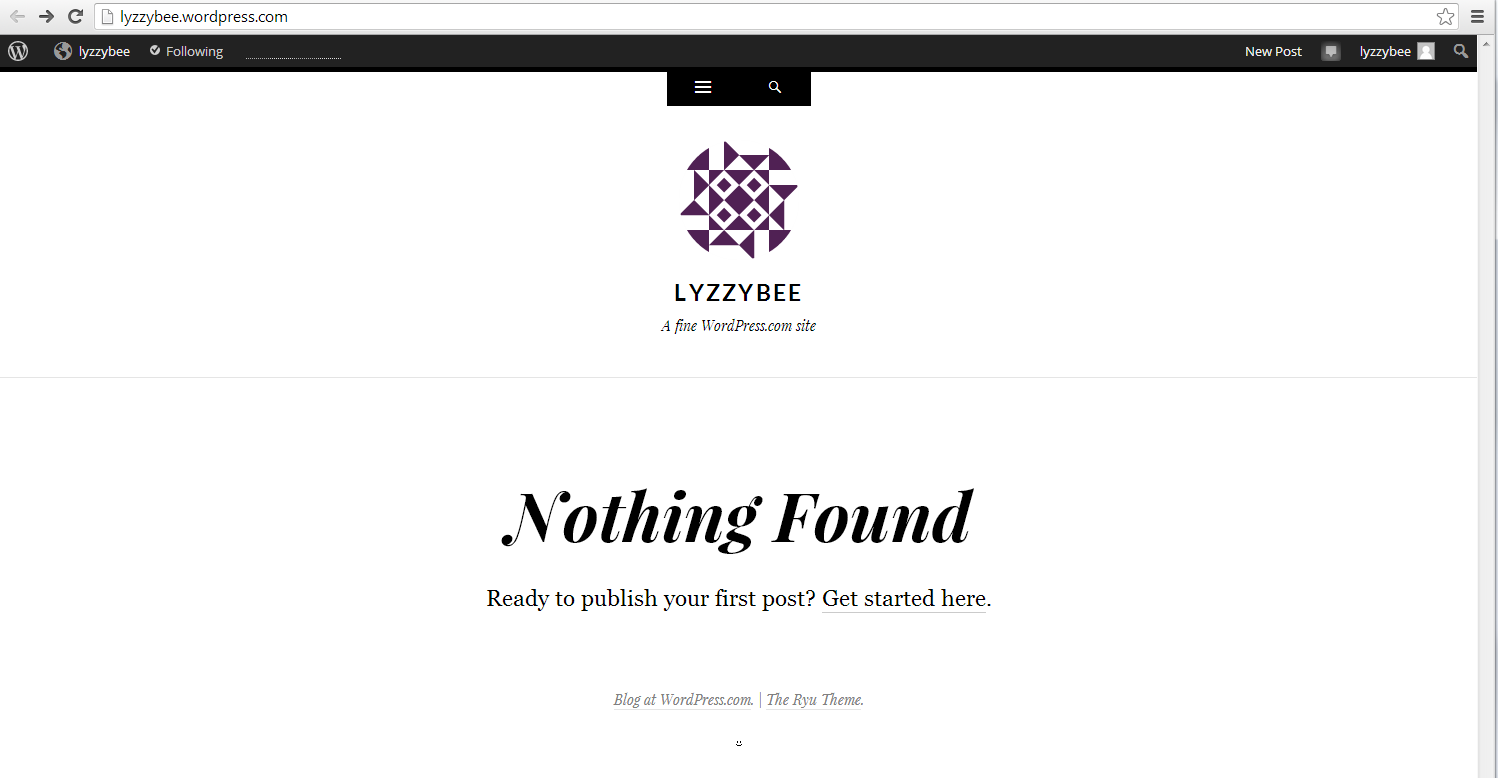
… and you will find the very bare bones of a completely blank and empty blog! But it’s your completely blank and empty blog!
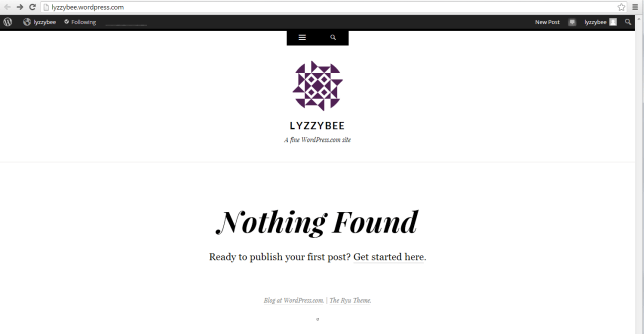
9 setup

How do I access the dashboard on WordPress, aka how do I actually do stuff?

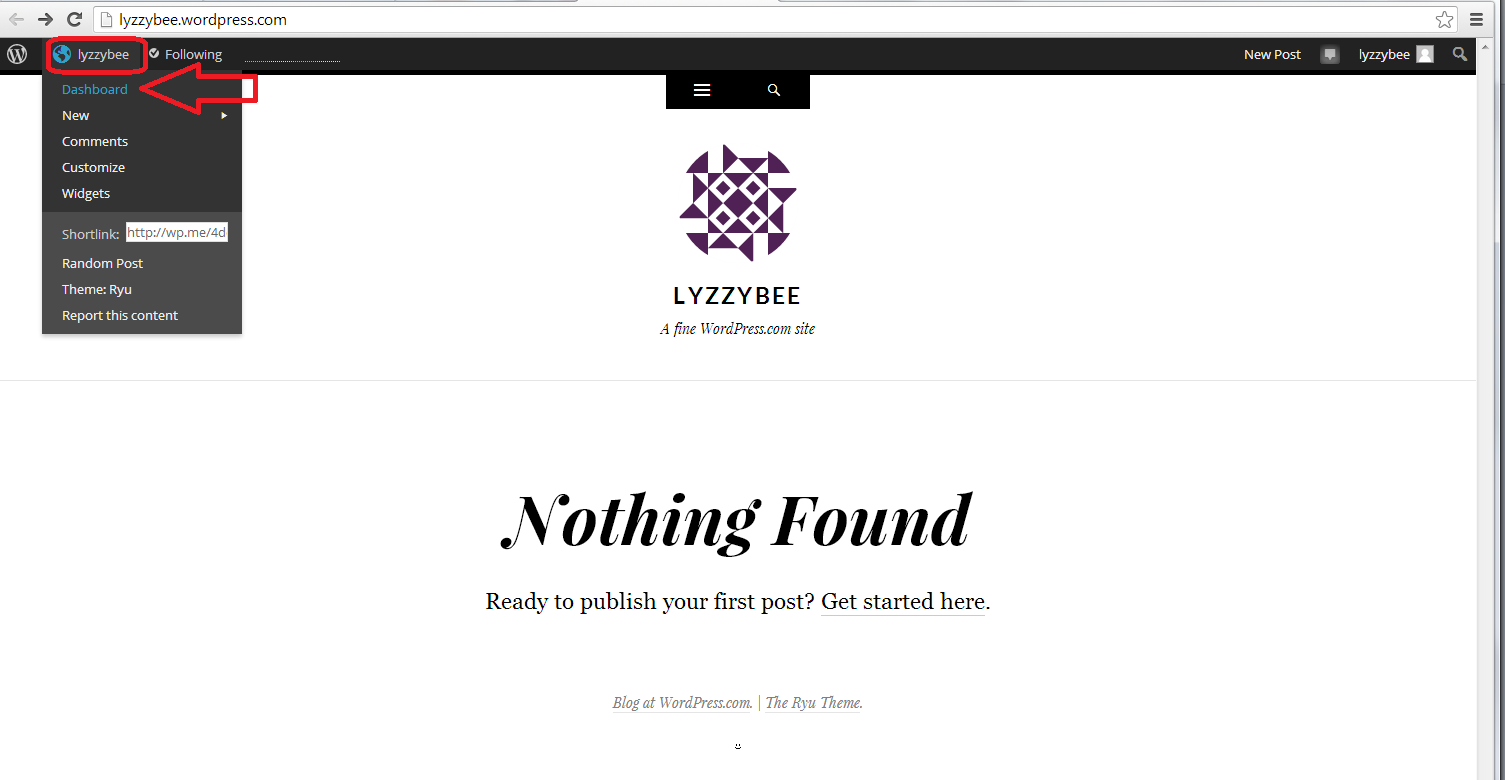
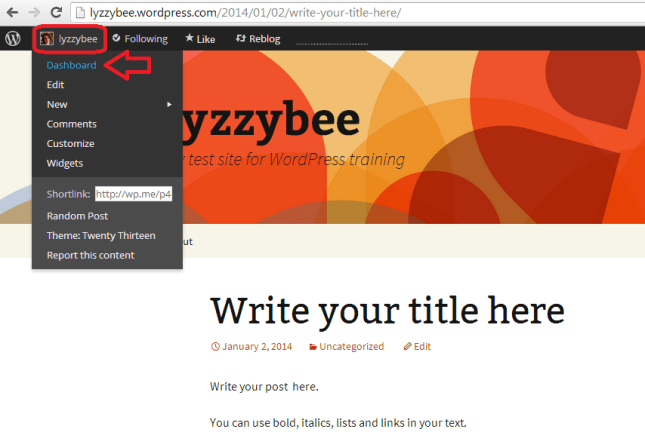
Whenever you’re logged in to WordPress and want to do something with your blog, whether you want to alter the settings, write a post, check your comments … you can access the Dashboard (which allows you to do all of this) by clicking on your username at the top and then clicking Dashboard:
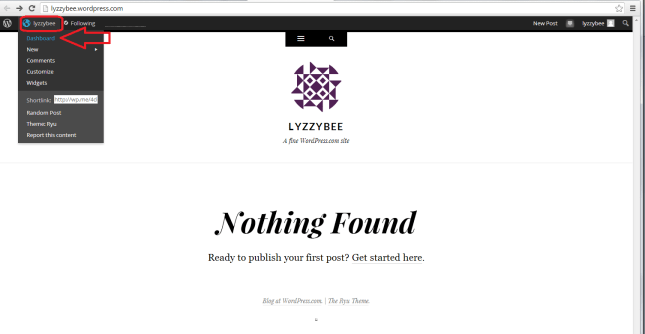
10 setup

Now, the Dashboard looks like a pretty scary place at first glance: there’s lots of text, lots of options … lots of STUFF!

But I can tell you that you will usually only need to use a handful of areas on this Dashboard, and a few options in each one.

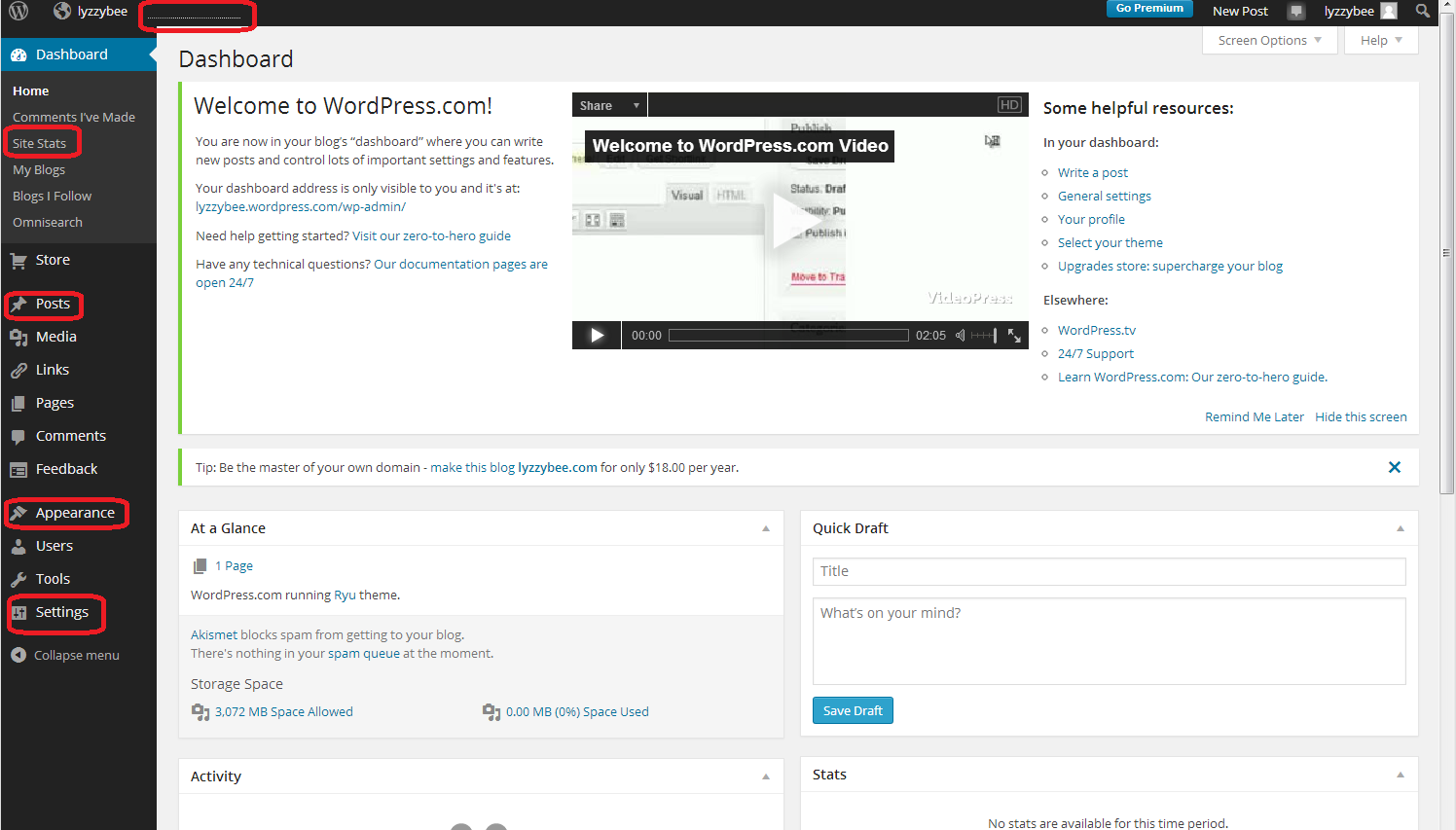
The ones that I find most useful and use most of the time are:

  • Site stats – accessible from the top part of the Dashboard or the dotted line on the very top line (which starts to look like a bar graph as soon as you get some people looking at your blog)
  • Posts – where you write posts, copy posts, edit them and review your drafts
  • Appearance – where you change the theme of your blog
  • Settings – where you change your blog’s name, subtitle and spam filtering options

I’ve highlighted them all here: not so scary after all?
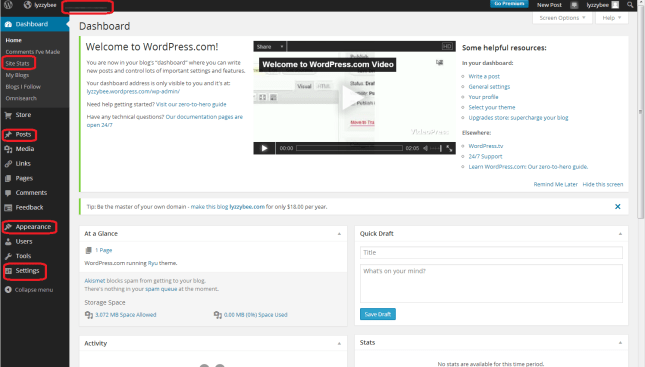
11 setup

How to change your blog’s name and subtitle

Remember what I said above about not being able to change your blog’s web address, but being able to change its name and subtitle? I’m going to show you how to do that first, mainly because WordPress adds its own subtitle to your blog, and we want to customise it for ourselves.

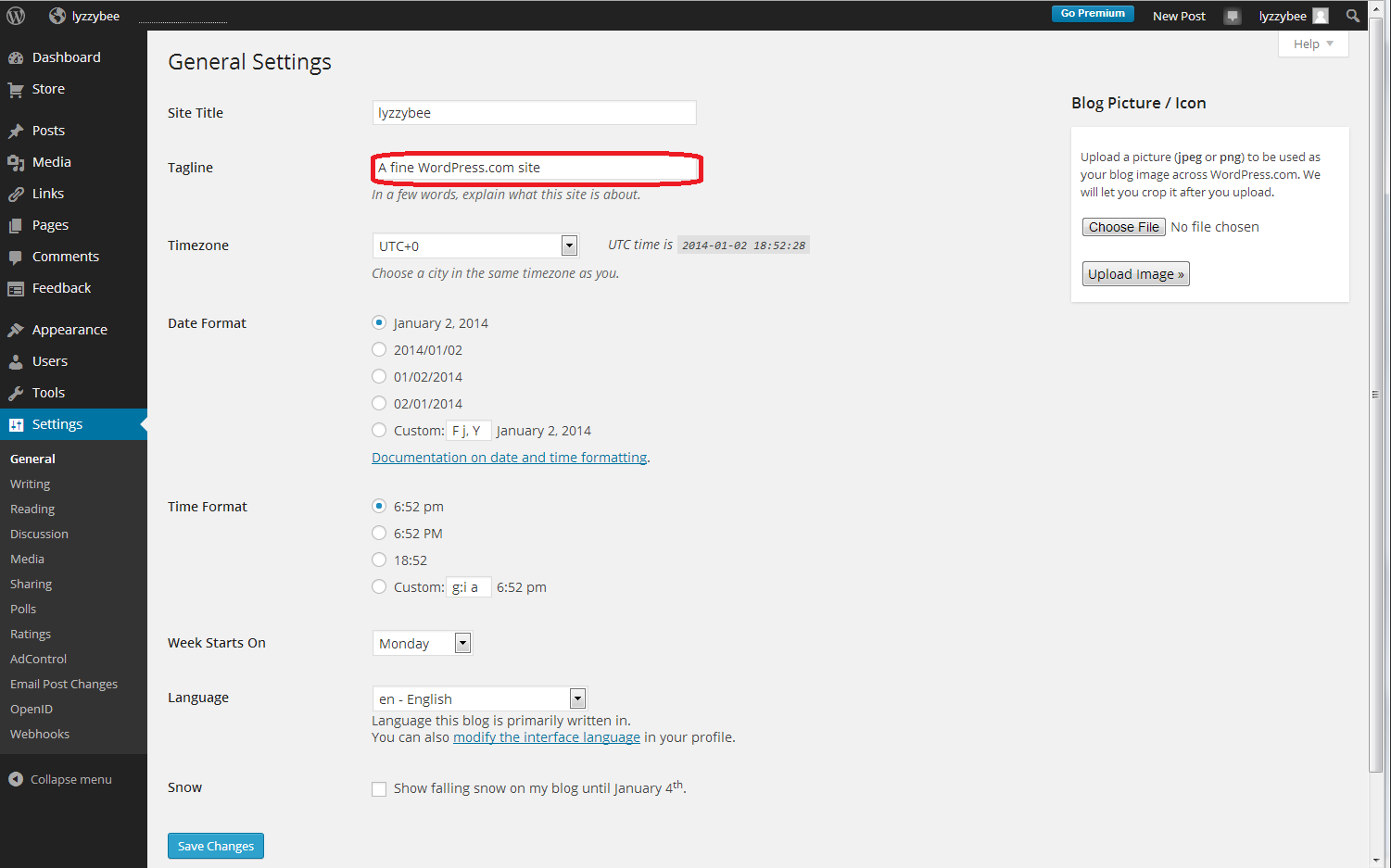
Whizz up a couple of pictures to that blank white screen that says “Nothing Found” in the middle of the screen. Notice how underneath the blog name “Lyzzybee”, it says “A fine WordPress site”. Well, that’s all well and good, but this is where you can describe what the blog’s all about. This blog that you’re reading now has the subtitle “Proofreading, editing, writing, transcription and localisation”, and this field is searchable by search engines, so it makes sense to get your keywords in there and tell people what it’s all about (another of mine can be found here).

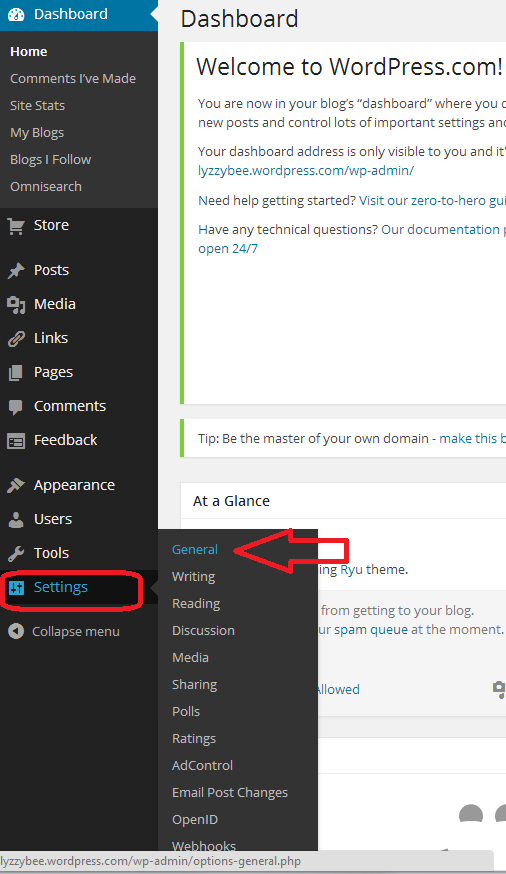
To change this, go down to the bottom of the Dashboard and click on Settings. You’ll get a sub-menu, and you now choose General:

12 setup

After clicking General, you’ll get a page where you can change the very general details of your blog. I’m not going to go into much detail about this page now, but you can see at the top the SIte Title (which you can change if you want to; I’m not going to for now), and Tagline (the subtitle). There’s the text that WordPress has automatically inserted for you, and here’s your chance to start customising your blog and telling people what you’re all about:
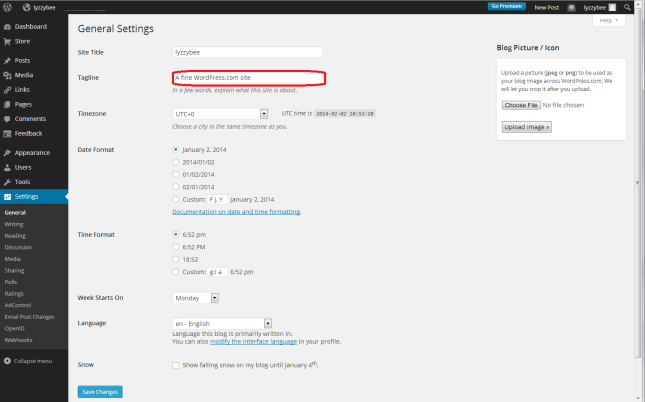
13 setup

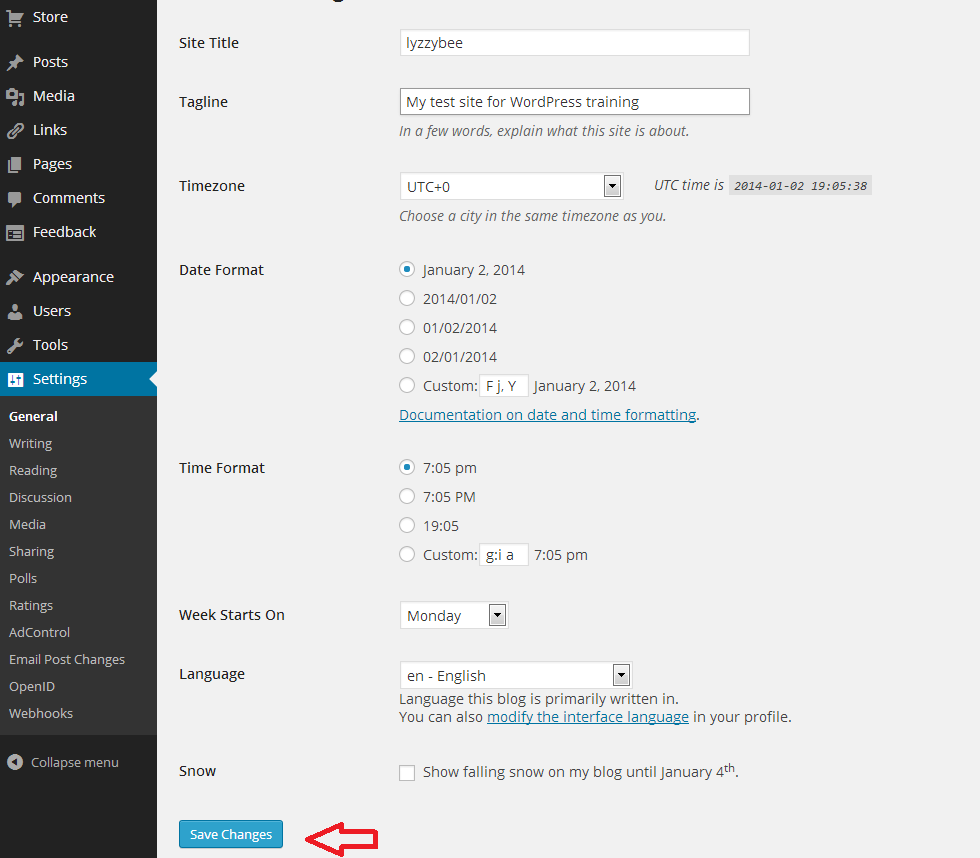
So I type in “My test site for WordPress training”, because that’s what it is, and then press the Save Changes button at the bottom of the screen to save that. There are lots of other things you can change on this page; do have a play with them if you’re feeling confident, but it’s not strictly necessary at this stage. Everything can be accessed and changed later on.

14.5 setup

Changing the comment settings to prevent spam

Yes, yes, I know you want to change what your blog looks like and get writing, but this bit’s really important.

Once you get up and running, lots of people who are your friends, old and new, real and virtual, will hopefully want to post comments on your blog posts. Lovely! But other people will try to post fake comments, in an attempt to either place their web address on as many other web pages as possible (this gets them up the search engine results pages, not wanting to go into too much detail) and/or want your readers to click on dodgy links in order to sell them fake ugg boots or even install viruses on their computers. People will also tend to trust your blog less if you let spam get through with its dodgy links enticing your readers to click through. You need to stop this, and although WordPress does have really good spam filters, the odd one still gets through.

By making sure that you moderate the first comment that anybody makes on your blog, you will cut out almost all of the spam. The only way that someone can spam comment is if they post a normal comment first, then a spam one. Most people won’t bother. So, make sure you catch them out and prevent them from commenting by setting up your Discussion setups in your favour, not theirs.

You access this area by choosing Settings from the Dashboard again, then Discussion:
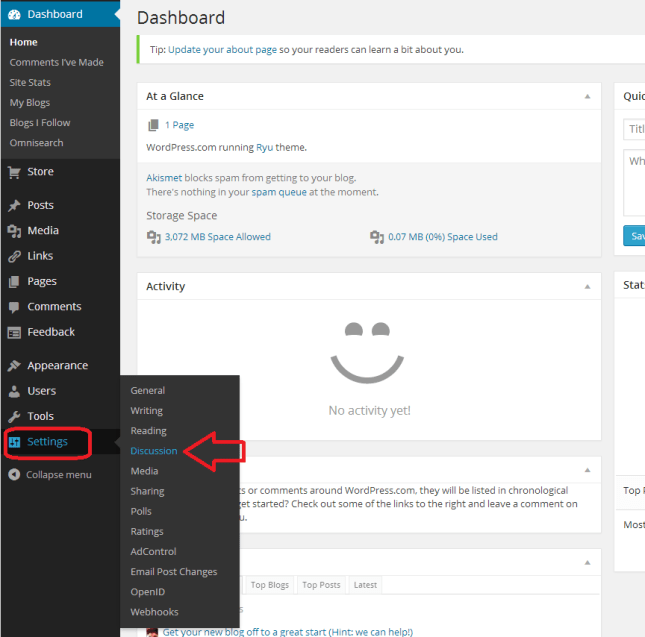
18 setup

Now you have a range of options. Handily, the ones that are already ticked are the ones that you want. But the most important to be ticked are circled in red below:

  • Other comment settings – Comment author must fill out name and email (this means they can’t just post anonymously)
  • Before a comment appears – Comment author must have a previously approved comment (don’t tick manually approve every comment unless you get bombarded with spam and need to check every single comment and pass it manually – just approving the first comment will do)

It’s also worth keeping as many email alerts as you can, so you can add to these vital ones:

  • Email me whenever – Someone posts a comment (you will always be told whenever you get a comment. If you spot a spammy comment, you can follow the link and delete it)

19 setup

Setting up your Discussion section like this means that:

  • Every time someone comments on one of your blog posts, they will have to enter their email address and name
  • Every time someone comments on one of your blog posts, you will receive an email.
  • When it’s their first comment on your blog ever, you will receive an email asking you to approve their comment. Once you’ve done that, they will be allowed to comment whenever they like, as long as you’ve approved the first one.
  • Because you receive an email every time someone comments, you can reply back to their comment, making them feel like it’s a two-way process and you care about your readers (see more on this in my article on reciprocity and social media)

Choosing your blog theme

At last she’s letting us make our blog look nice! I know – but it’s important to set up the security aspects first, right?

At the moment, your blog is quite plain. You can choose from loads and loads of attractive themes to brighten it up. And you can change your theme any time you want (although be aware that some of them have the menus in different places and might not offer certain functions).

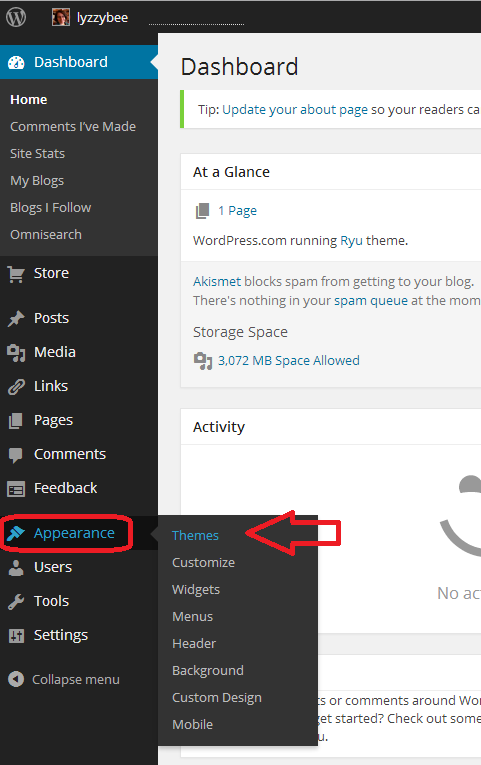
To set up your new theme (or change your theme once you’re up and running), click Appearance on the Dashboard, and then Themes:

20 setup

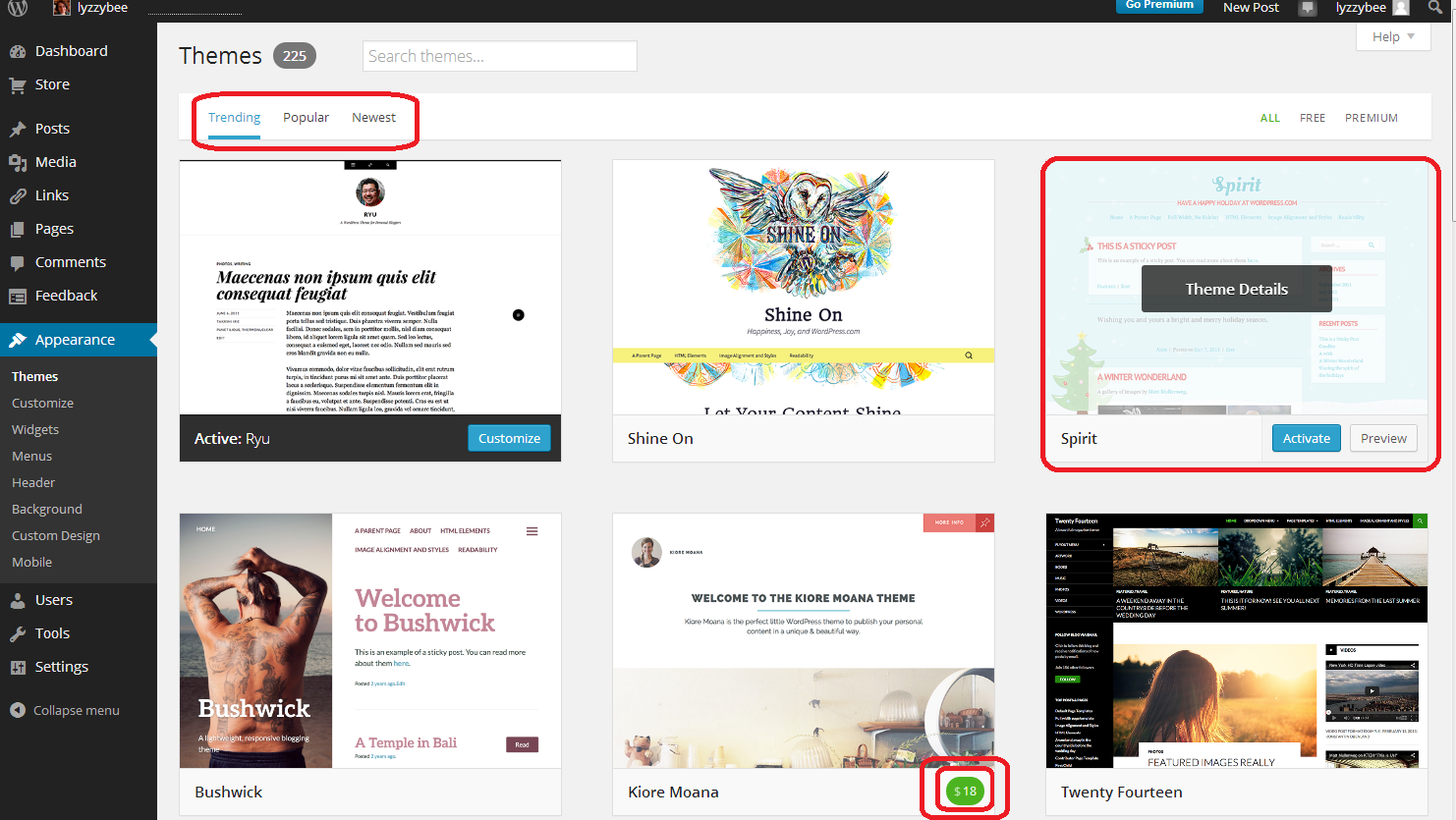
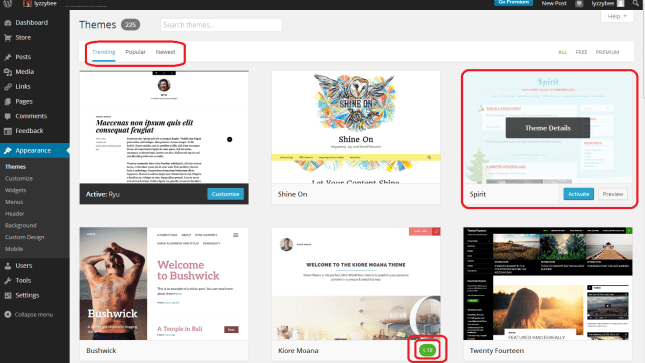
You will now see a page of lots of different designs for your blog.

Note three things here:

  • At the top, you can search for themes (flowers, etc.), choose from Trending, Popular and New themes (and on the right, choose to see only free ones)
  • When you hover over a theme, you will get the opportunity to Preview or Activate (see below)
  • You have to pay for some themes (see the double circle at the bottom). There are LOADS of free ones so certainly don’t bother to do that at the start.
21 setup

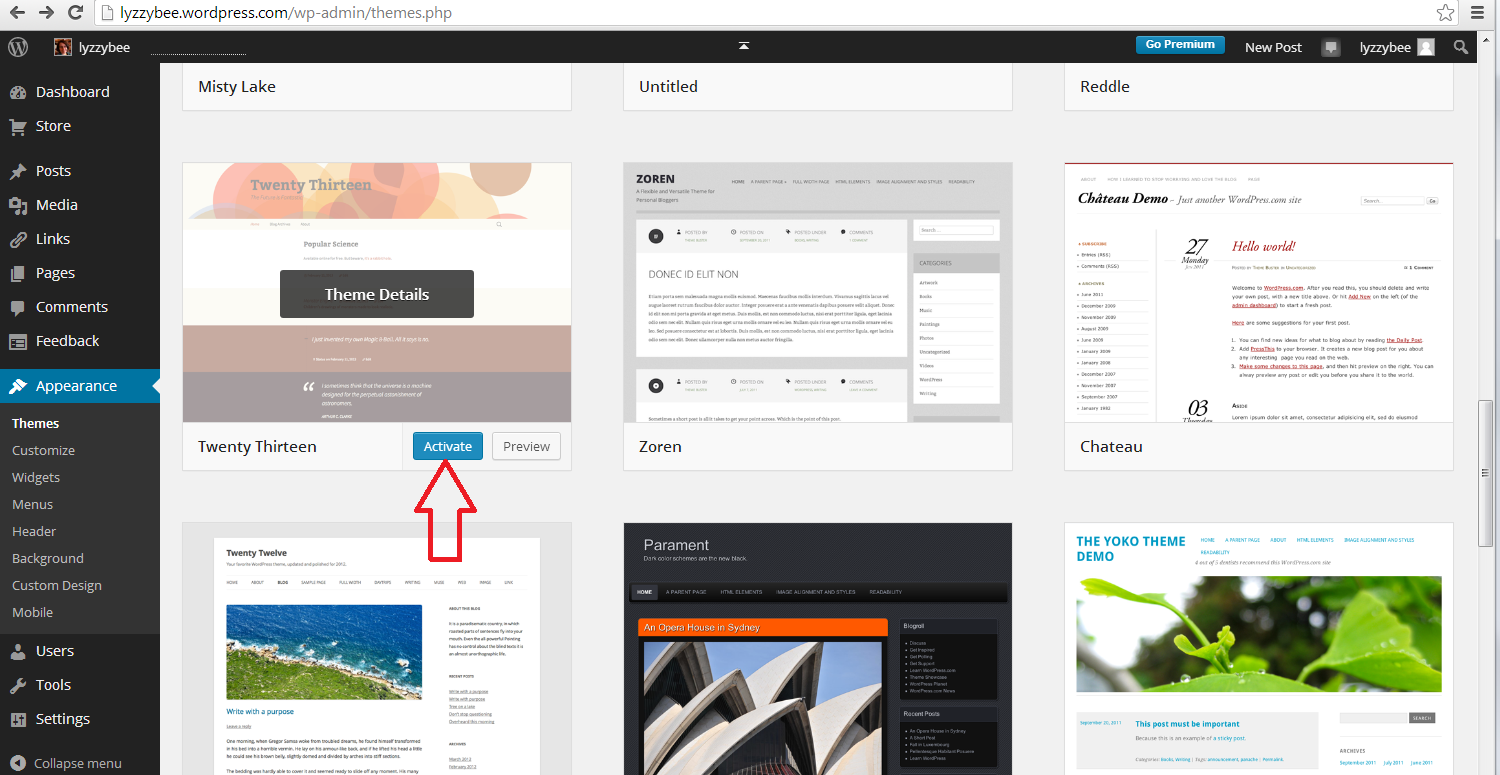
If you click on that Preview button, you’ll be shown what your blog looks like in that theme. Note that the blog name and Tagline / subtitle are there, as are any posts you’ve made.

Return to your list of themes using the back button at top left

22 setup

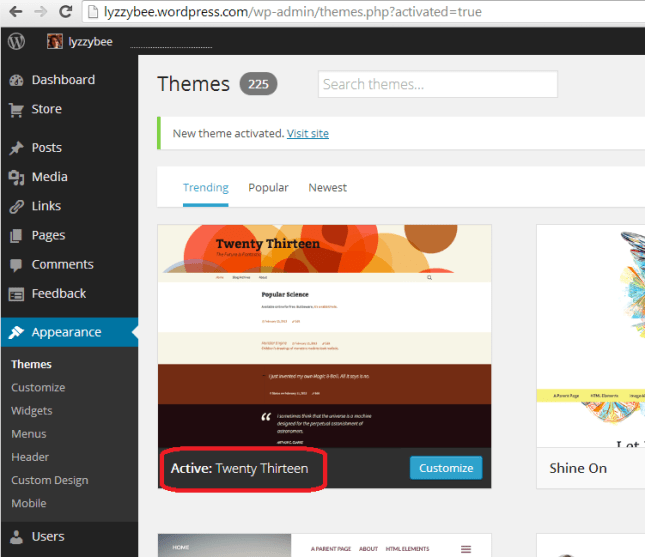
Once you’ve chosen your theme, press the Activate button

23 setup

You will get a confirmation that you’ve activated that theme (but you can always change it later!)
24 setup

How do I write a blog post in my WordPress blog?

Hooray – it’s time to actually write something!

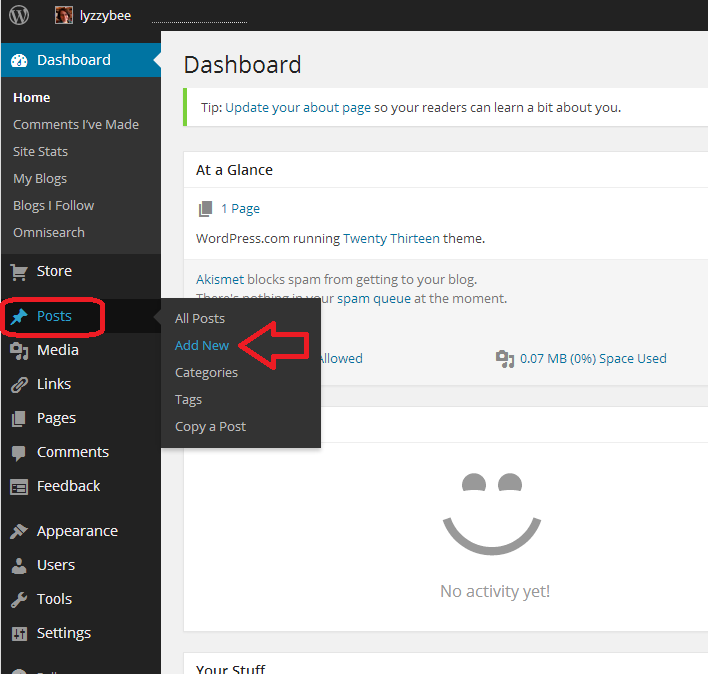
To write a blog post, go to Posts on the Dashboard and then click Add New. There are some other options there but this is getting LONG and we’ll just do the basics.

25 post

Once you’ve clicked New Post, you’ll be in your post editor. I’ve added a title and some text here (click to view larger and you can see my instructions).

Once you’ve got a title in place, WordPress will create a Permalink (URL) for it. You can alter the words in this after the date, so if you don’t want to be sharing a huge URL, you can cut it down (e.g. this very post has a URL ending wordpress-blog-basics, which is not the full title of the post).

Once you’ve started writing your post, hit Save Draft and continue to press that regularly so you don’t lose your work. Once you’re ready to publish your post, press Publish!

26 post

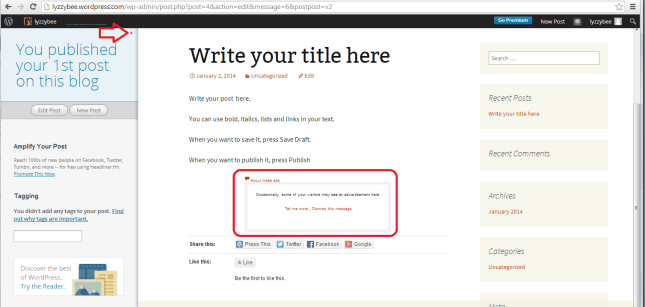
When you publish any post, you will get a side panel that tells you how many posts you’ve done – you need to click on the little arrow before you’ll get your URL at the top and your post in full screen. Note here that there’s a little square telling you that there might be an advert appearing there – see below for how to get rid of that.
27 post

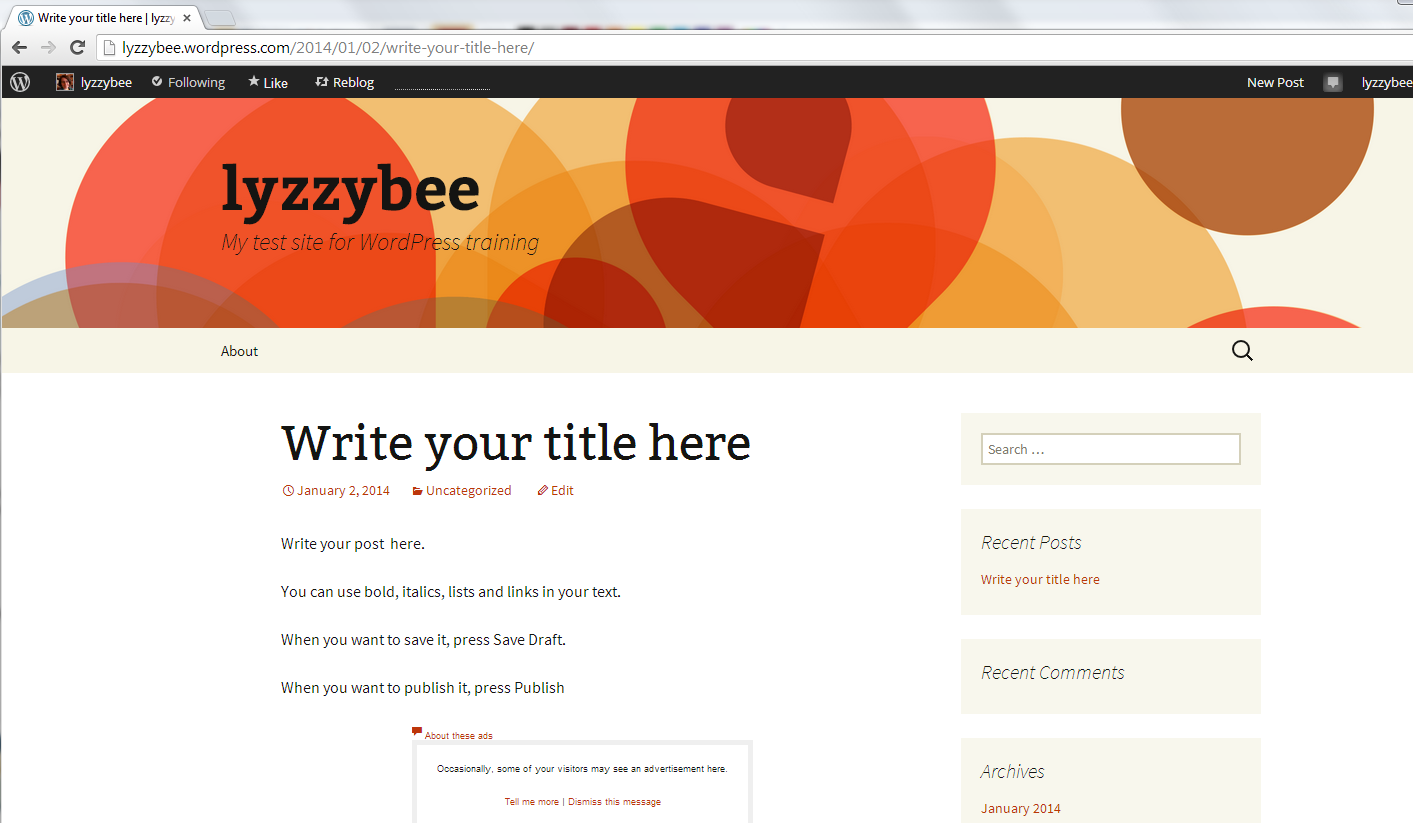
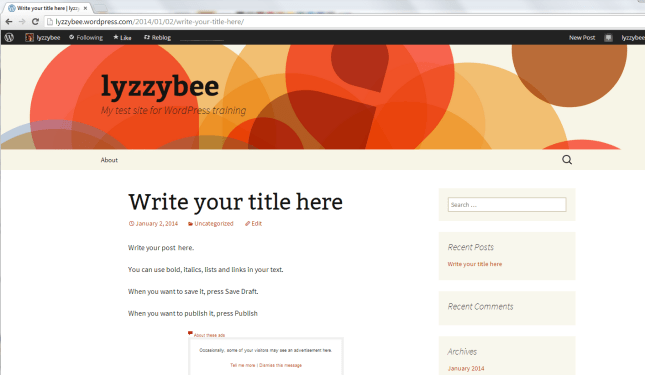
But for now, here’s our blog post, in all its glory, on the blog theme that we chose a little while ago:
28 post

How do I get back to the dashboard from my blog post?

At the top of the screen, you’ll see your username. Click on that and you’ll get a drop-down menu including Dashboard.
29 setup

How to remove ads from your blog

WordPress will automatically place adverts on your blog. Nice, eh? But they have to make some money, and people pay them to do this. Note that this is NOT the same as having a service where you choose to have ads on your blog and can choose what they’re about. This is any ads they choose to promote, flashing all over your blog, in front of the content. The worst bit: you can’t see them if you’re logged in, even if you look at your own blog. And yes, people do have ad blockers, but I know from experience that readers do get put off and won’t return to look at your blog, or subscribe to it, if you have ads all over it.

You can remove the ads for $30 (about £20) a year. It’s up to you, but I think it’s worth it as the final stage of setting up a good, solid, useful WordPress blog.

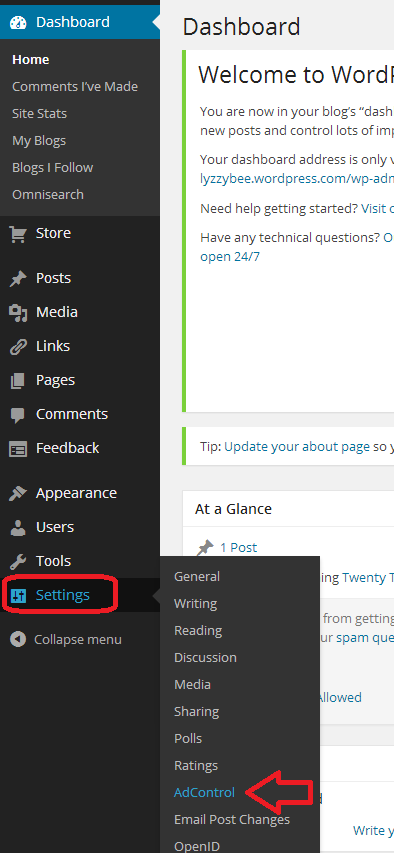
Here’s how you remove them. Go to Settings on the Dashboard and then Ad Control:

30 setup

Choose No Ads upgrade. You probably don’t need a Bundle, which is more expensive and includes high levels of customisation which you just don’t need when you’re starting out. You renew this every year, and can always add customisation when you’re more confident with what you want to do with your blog.

31 setup

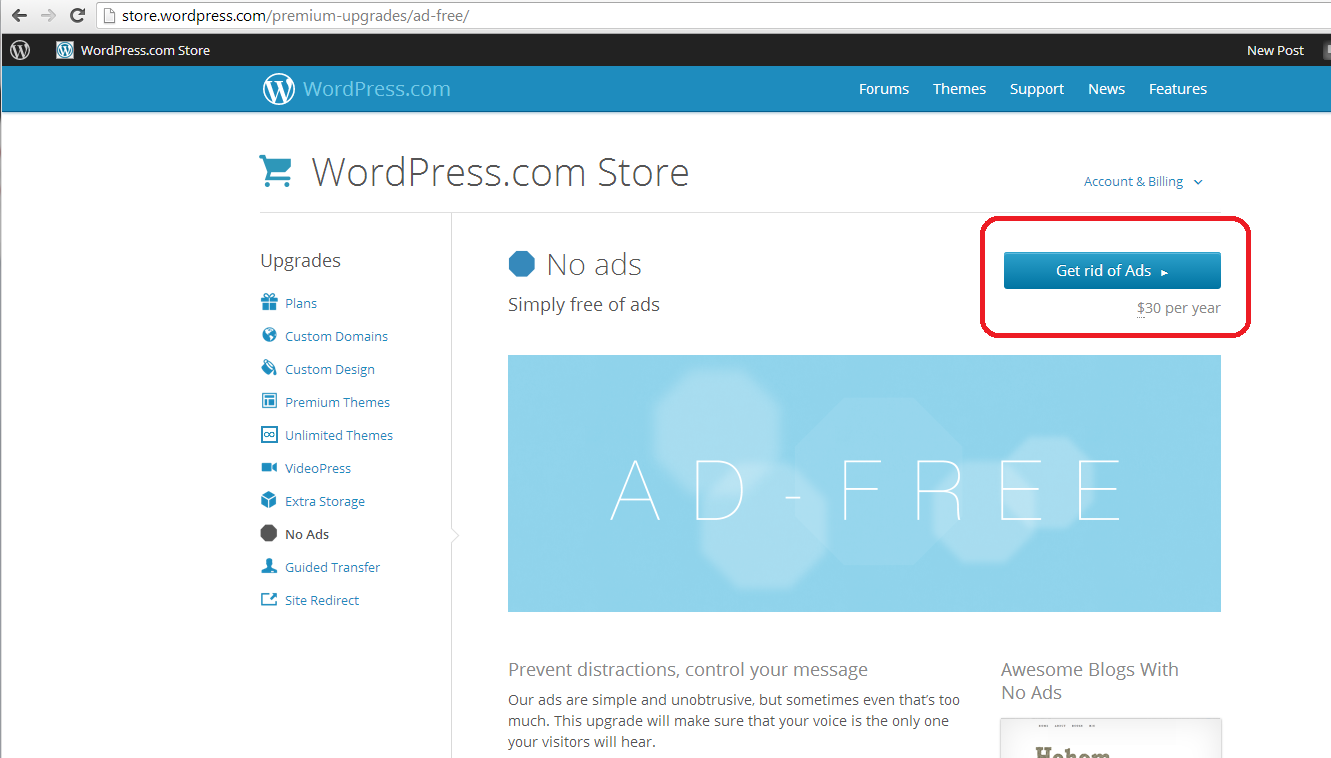
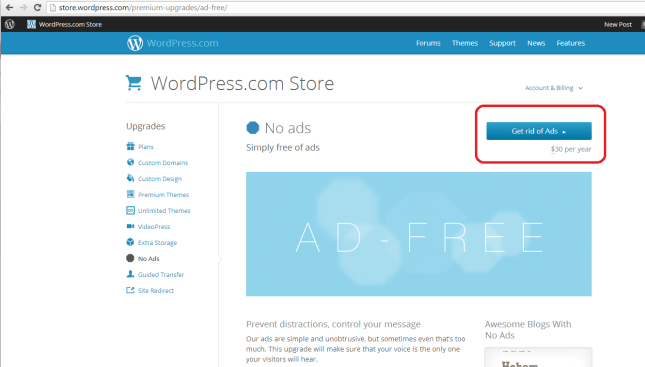
You will be taken to the WordPress Store, where you can choose Get rid of Ads. This will take you to a payment screen where you can pay by PayPal or debit or credit card. As I said, well worth doing to avoid annoying people who read your blog.
32 setup

By now, you should be able to set up a blog, post a blog post, set your comment moderation and remove ads, and choose and change your theme. Future posts will cover more details such as automatically sharing your posts on social media, adding photos, and other technical details. You can find more general articles about blogging in the list of related posts below.

I hope you have found this article useful. Please share using the share buttons below, or post a comment, and do please let me know if you use this article to help you to set up your own blog, and post a link below!

Related posts on this blog:

WordPress 2 – adding pages to create a website

WordPress 3 – adding images to your post or page

WordPress 4 – adding slideshows and galleries of images

WordPress 5 – linking your blog to your social media

WordPress 6 – sharing buttons

WordPress 7 – adding an avatar picture

10 reasons to start a blog – why you should do it now!

10 reasons NOT to write a blog – and why you should stop and think, at least!

Reciprocity and Social Media – how to negotiate social media kindly and politely

Top 10 blogging sins – avoid these if you can!

Scheduling blog posts and keeping going – scheduling the posts and the writing of them

Guest posts (1) hosting – how to be the host(ess) with the most(est)

Guest posts (2) guesting – how to be the perfect guest

Adding links to blog posts – how to do it on the major blogging platforms (and email)
 
23 Comments

Posted by on January 3, 2014 in Blogging, Business, WordPress, Writing


Tags: , ,

What is Storify and how do I use it?

Storify logoIn response to a request for information*, today I’m going to be talking about Storify: what is it, why would you use it, and how do you use it? I wasn’t already a user, so this post takes you through the stages of logging in and creating your first story through screenshots created as I did it for the first time myself!

What is Storify?

Storify is a social media tool that lets you create stories or timelines from a variety of social media resources like Facebook and Twitter, as well as other web resources. You can use it to pull together information on whatever you want, and can customise it how you want, then share your story on the site with your friends on those social media sites.

Why use Storify?

I’ve mainly come into contact with Storify in relation to events. For example, Karen Strunks pulls together a Storify after every Social Media Cafe in Birmingham. She gathers any Tweets and Facebook posts which have used the hashtag #bsms and creates a storyline showing the event through its before, during and after stages, and what people were saying about it. Here’s an example of one of her Storify stories.

So you can see that it’s a great way to pull together information and images and make a story that you can share with others. It’s useful for events, news on particular topics, or fundraising and awareness raising campaigns. You don’t have to base it around hashtags (a hashtag is a short code with a # in front of it that creates a searchable link in Twitter and Facebook, etc., which allows you to find all of the tweets on a particular topic. For example, even if you’re not a member of Twitter, searching for the hashtag #amwriting, used by authors, will give you these results, all containing the hashtag (example)).

How do I join Storify?

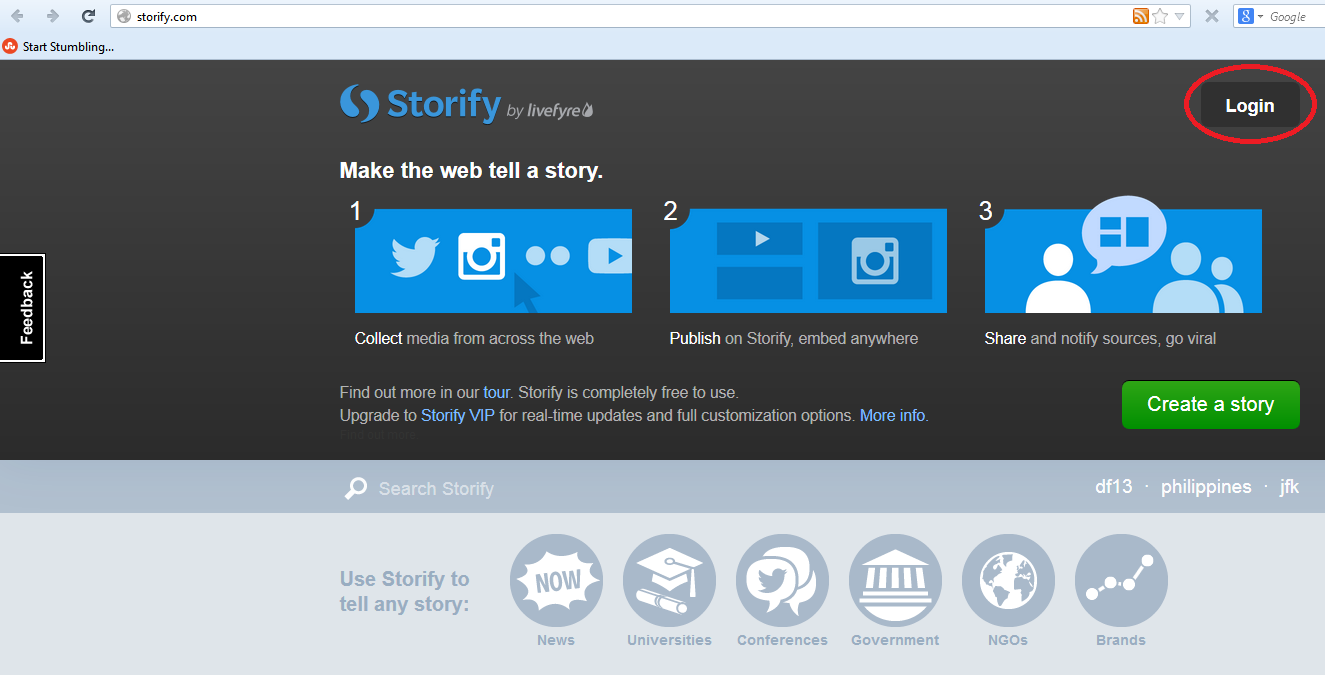
If you’re not already a member, you need to go to www.storify.com and sign up. If you don’t already have an account, you need to click the Login button at the top right:

Storify home page

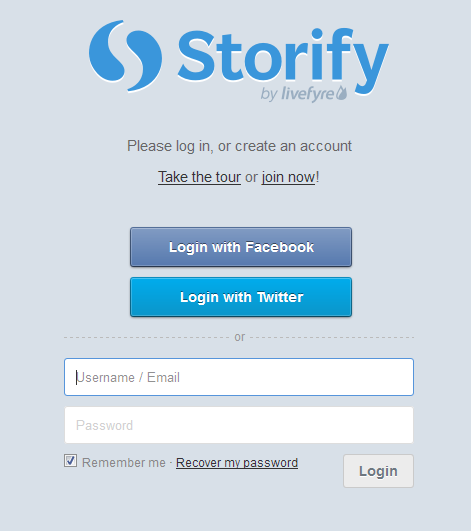
You will be given the option to log in using Twitter or Facebook. Actually, you will still need to create a password and account with Storify: what this does is associate your Storify account with your social media account. You can also just create a username and password.

2 login

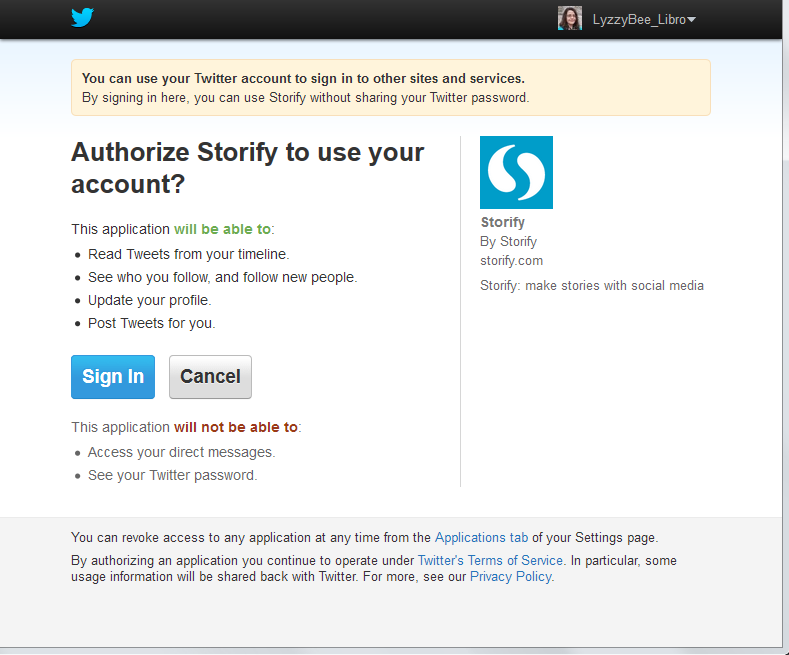
I chose to sign up using my Twitter account, as that’s what I use most for business and sharing. As it says, it only connects to your Twitter account and uses its authentication, it doesn’t see your password etc. And when it says it will Tweet for you, that’s only when you create a story, not randomly!

3 Twitter login

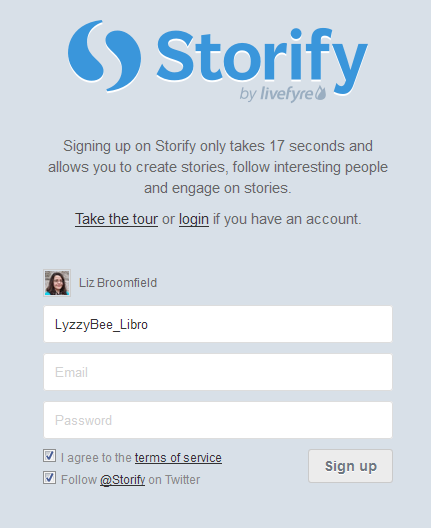
So I told it my Twitter username then added my email address and a password:

4 sign up

And that was it, I was ready to create my first story!

How do you create a Storify story?

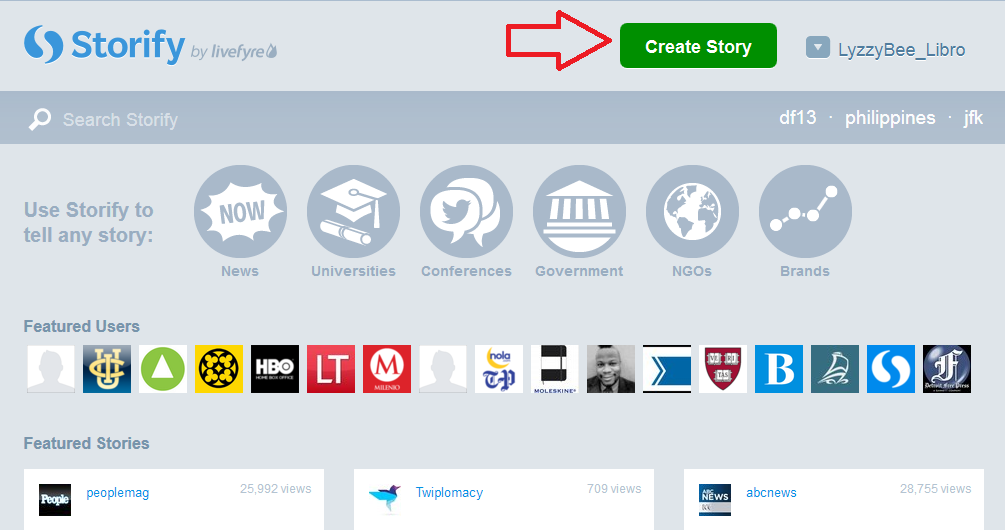
Once you’ve created your account, you’re ready to create a story. There’s a big green button on the top row of the website, Create Story. Click that …

5 create

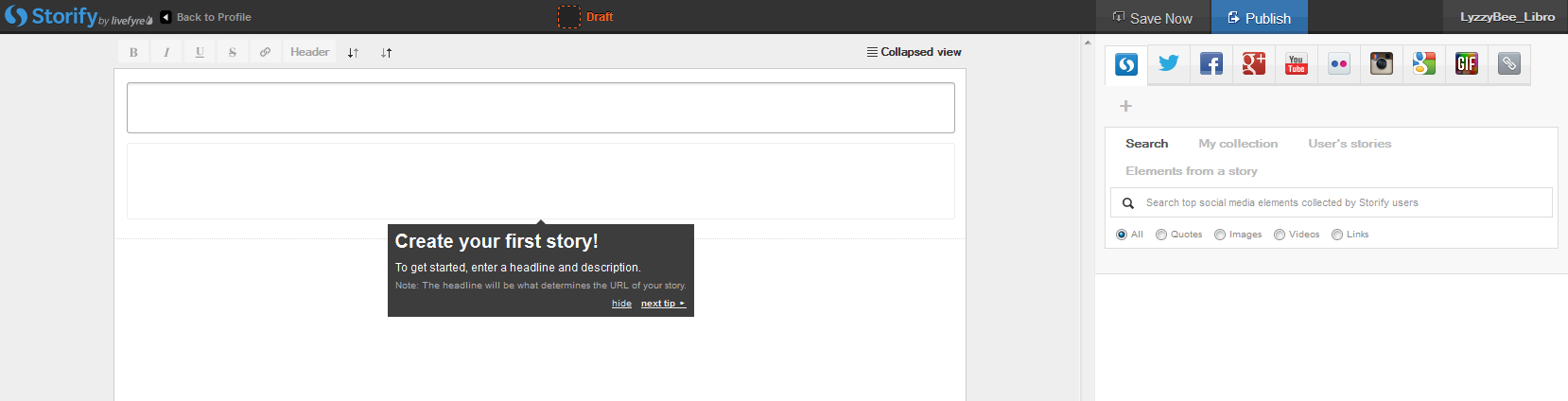
… and you’re taken to a slightly alarming page – alarming because it manages to look both blank and complicated! But look: little tips come up the first time you use it which guide you through what to do!
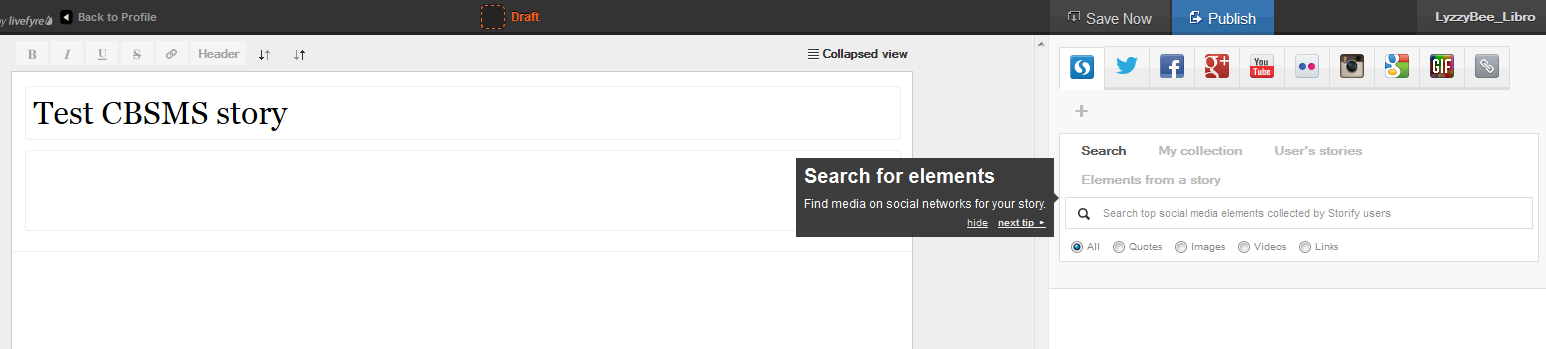
Basically you’ve got an area where you create your story on the left and a place to search for content on the right.

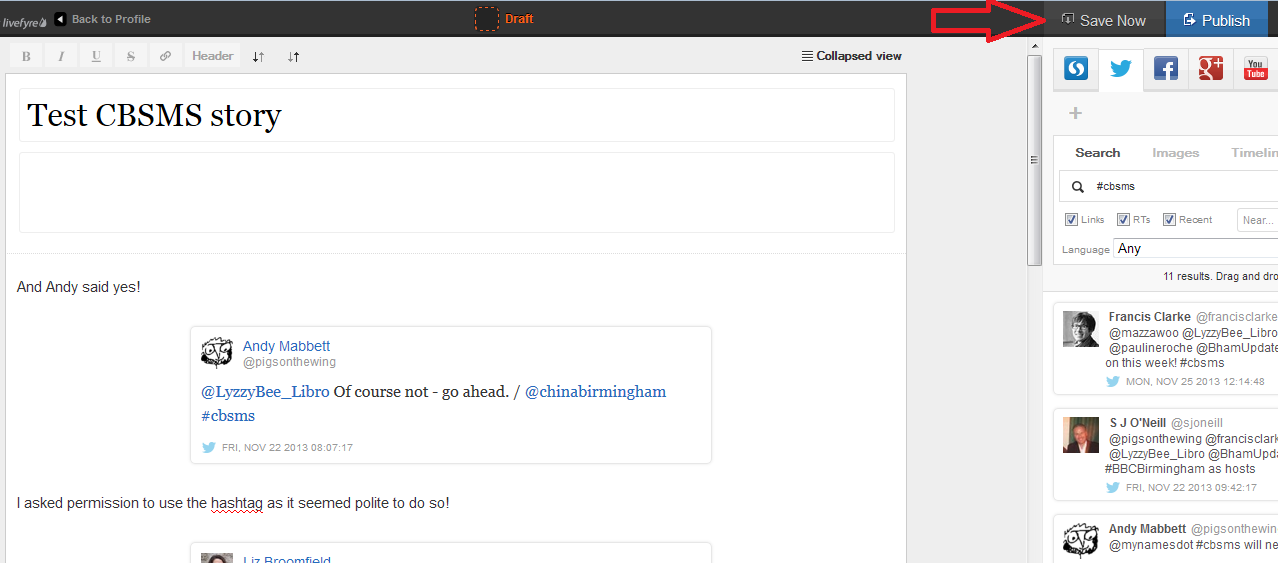
The first thing to do is create a name for your story. You can also press the Save Now button at this stage, which will prompt it to autosave as you go along.

6 create

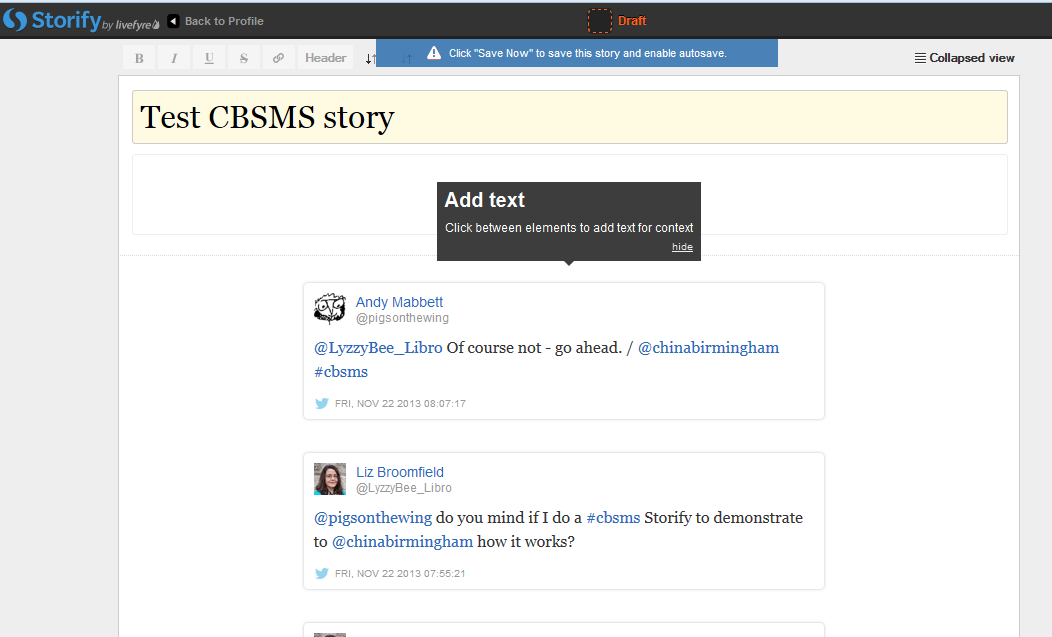
I’ve given my story the edifying title “Test CBSMS story” and now I’m ready to add content, or Search for elements, as Storify calls it:

7 create

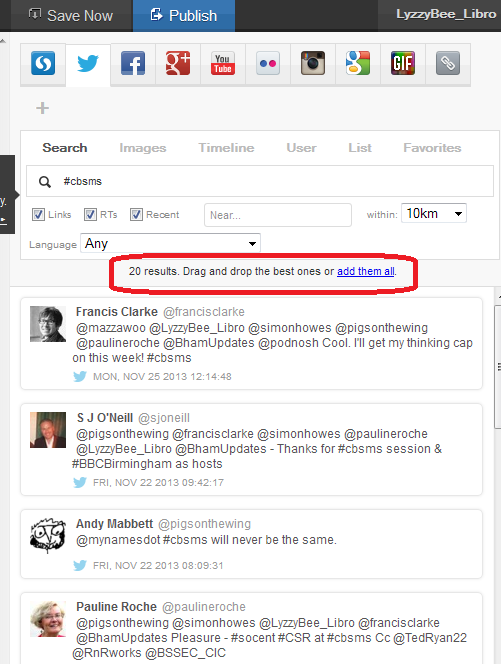
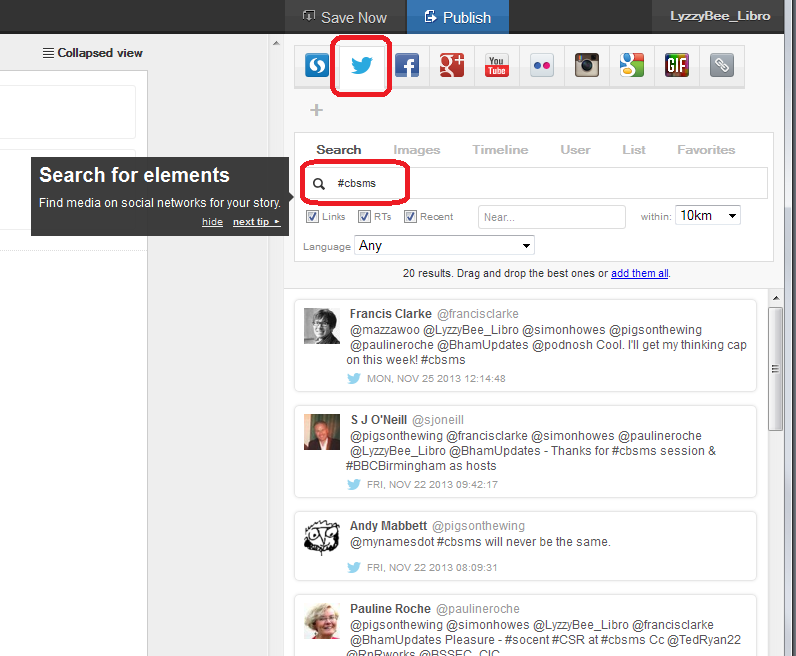
There’s a row of tabs along the top – I clicked on Twitter and then searched for #cbsms [Central Birmingham Social Media Surgery], because I knew that that was the hashtag used around the event. But you can search for anything here:

8 search

You can see that a set of Twitter results has come up, and all of them contain the hashtag. Storify now handily told me what to do: drag and drop the tweets I wanted into the story area:

9 choose

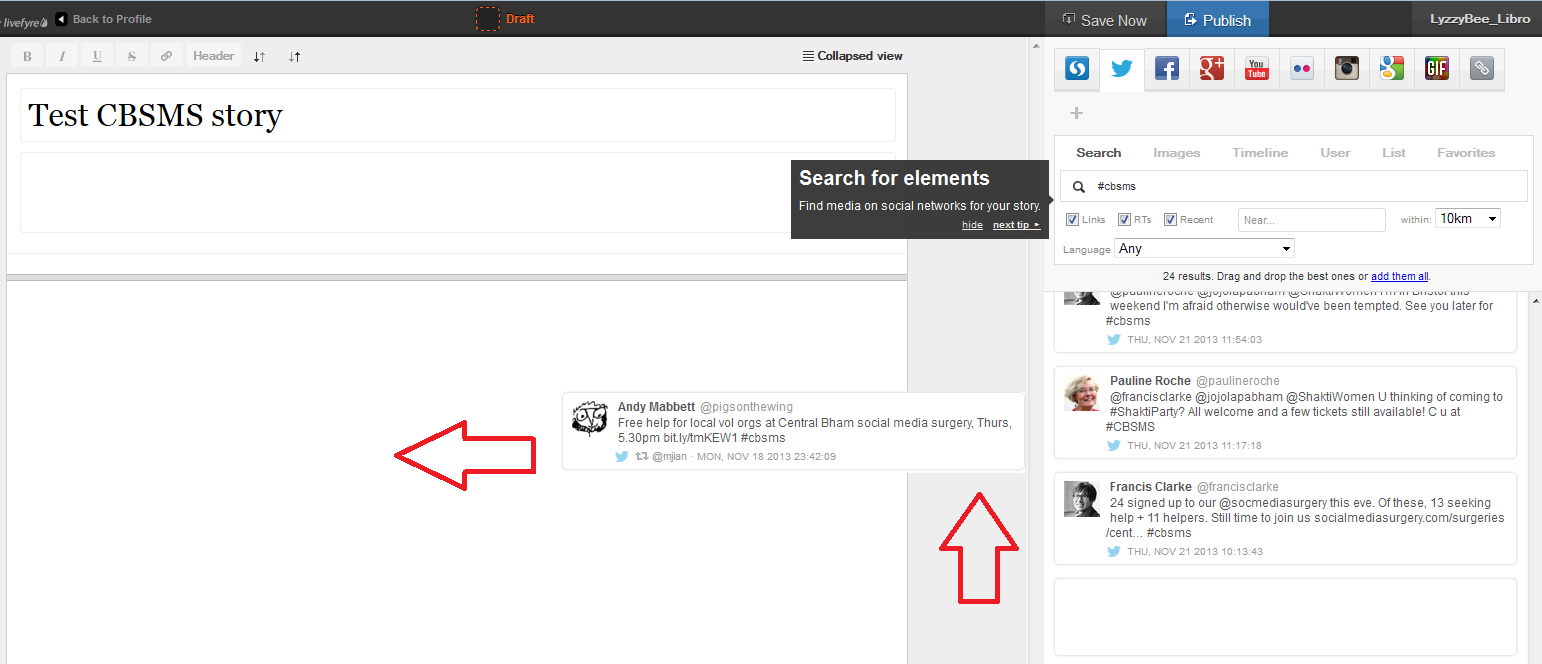
This means that you can pick up particular results but not all of them – useful if some of them are repeated or just ‘chatter’ that you don’t want to include. It also means that you can put them into whatever order you want, rather than the order imposed by the standard Twitter view (I made this one like Twitter, with the newest tweets at the top, but if you look again at Karen’s example, she switched it round to read from top to bottom).

Click on the tweet you want to include and drag it across into your story area:

10 choose

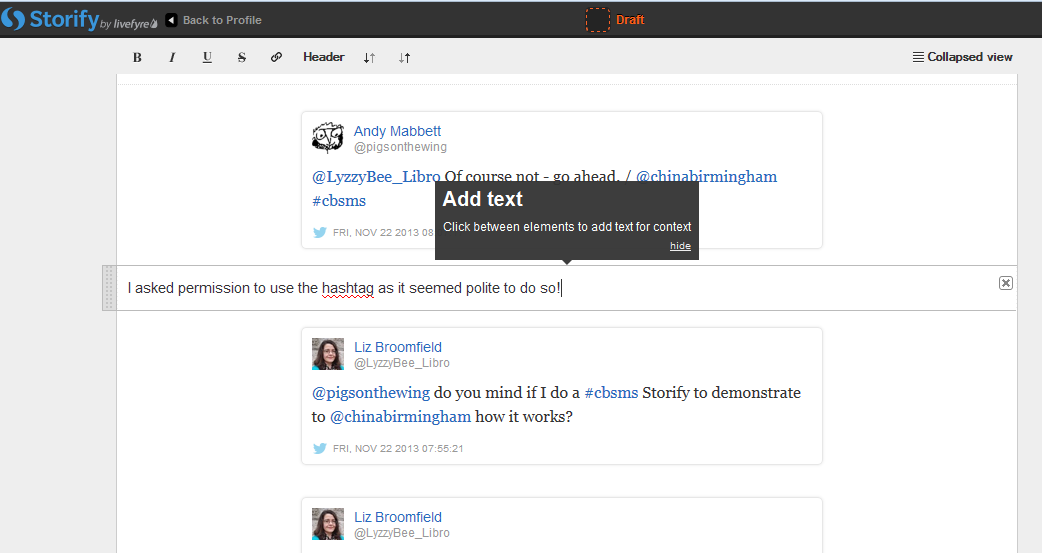
Once I’d popped a couple of items in, I was told that I could add text:

11 comment

You click on the space between your items and type whatever text you want to add:
12 comment

So I added a note explaining the last two entries in the story, where I checked it was OK to use the hashtag to create this worked example.

I then hit the Save Now button – which I mentioned earlier and should have done at the point at which I mentioned it! Just in case!

13 save

Adding more sources to your Storify

You’re not limited to creating a Storify from only one source. Along the top of the search area you can see loads of different options, including Facebook, Google+, YouTube, Google, and your own photos and links.

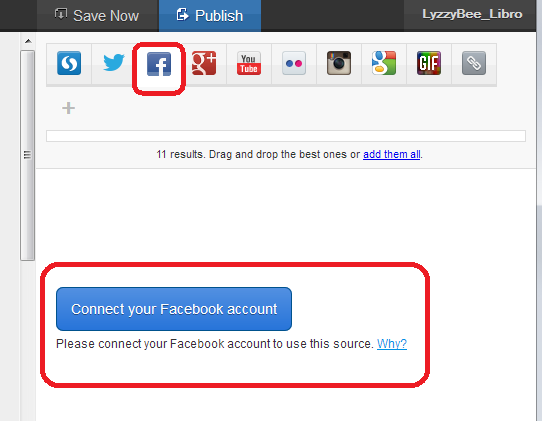
Note that if you choose Facebook, you will need to log in and link it to your own Facebook account (again, this won’t do anything nasty, it just appears to need to use your own Facebook timeline. Of course, you can search for anything on Facebook once you’re logged in). You don’t seem to need to do that with Google+, though.

14 connect other accounts

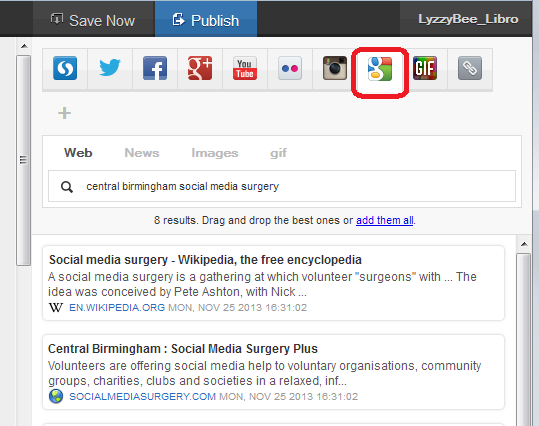
This time, I didn’t bother with any Facebook items, but I did pop into Google search and picked up some explanatory information about the Social Media Surgery to add to my story:
15 connect other accounts

How do I publish my Storify story?

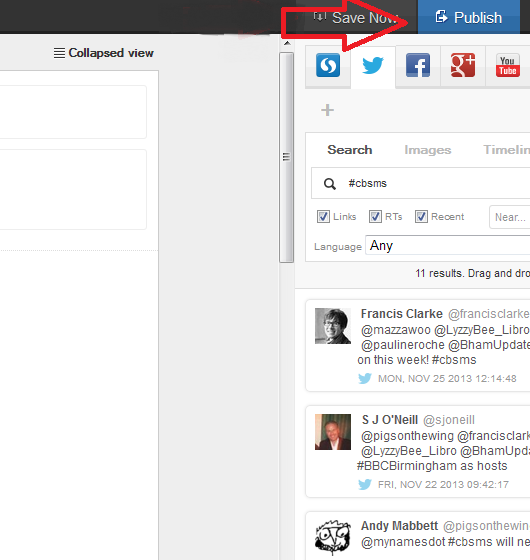
The first step is to hit the Publish button at the top right:

15.5 publish

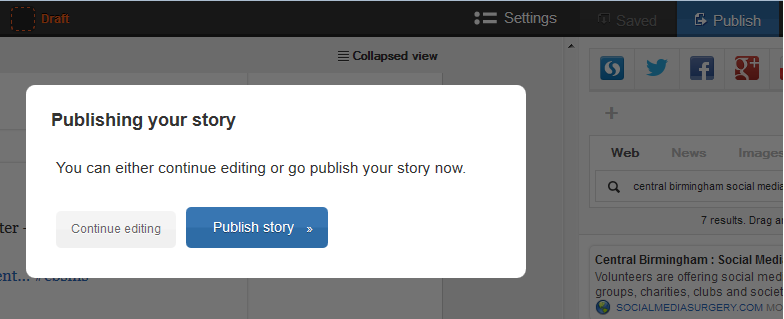
Just in case I had pressed it too soon, I was shown a confirmation box:

16 publish

I was ready to publish, so I clicked on Publish story.

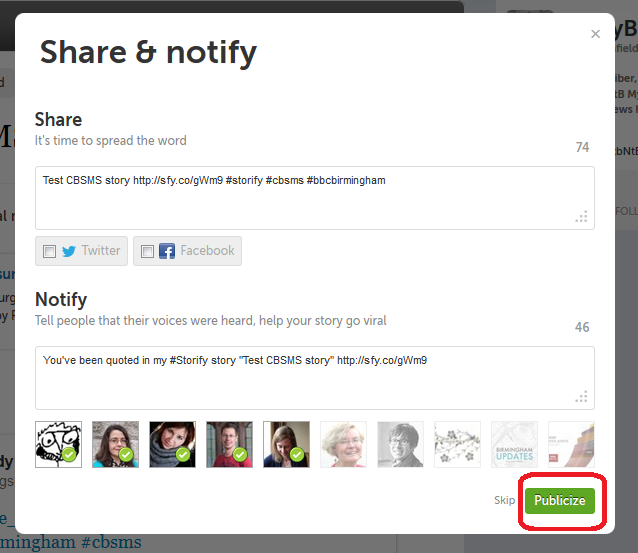
The next step was Share & notify. Sharing creates an automated Tweet with a link to your story. I imagine that if you’ve signed in to Facebook, etc., you will also be given the option to post an automated status update.

Notify lets you autotweet anyone who’s a friend on Twitter and is mentioned in your story to tell them that their tweet has been included in your story. I really like receiving these notifications, so I left these ticked, but you can untick them if you don’t want to do this.

17 share and notify

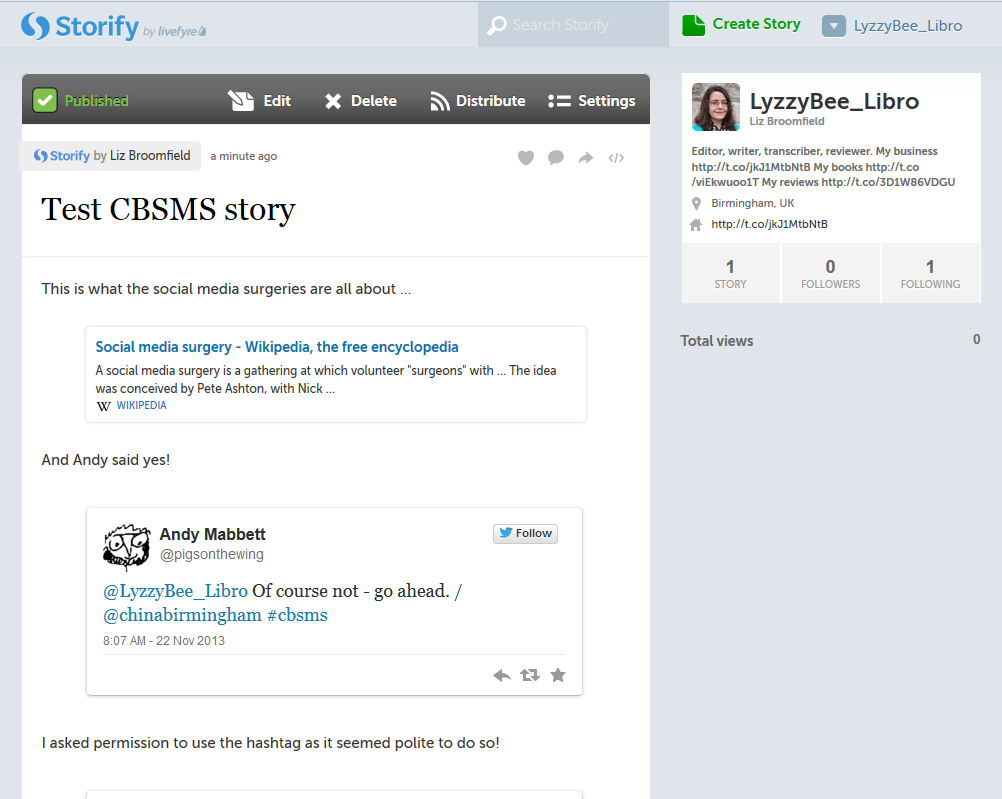
This process creates my story in Storify. At this point, the story gets assigned a URL that I can quote in emails or add to my blog. In the case of this story, it’s http://storify.com/LyzzyBee_Libro/test-cbsms-story, and this stays with the story on my profile for ever more.

18 live

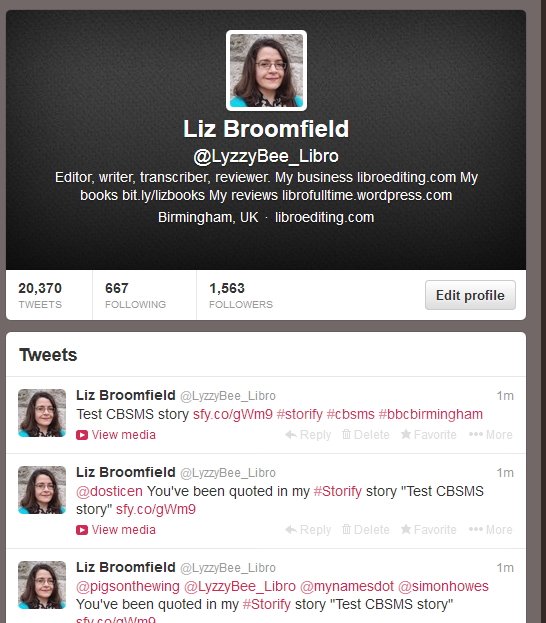
What does my Storify look like on my Twitter account?

Finally, I popped over to my Twitter account to see what my story looked like on there. The top tweet is the automatic tweet with the link to my story, and the ones underneath are those ones that automatically tell people that they’ve been included. Exactly what it said it would do.

19 live on Twitter

What else can I do with Storify?

When you’re searching, you can refine your search to exclude retweets, etc.

You can get a paid account which is useful for large businesses or organisations. This seems to allow a lot more customisation and also real-time updates – however, I like the editable nature of the free version and I’m not sure if that would get lost if real-time updates were running. Maybe someone who has a paid account will come along to share the uses of that. But I think most people will be OK with the free version.

* I was helping the Chinese Community Centre in Birmingham at the November 2013 Social Media Surgery and they wanted to use Storify to pull together stories from their Oral History Project. We ended up talking about their blog rather than Storify, but I promised to put together some instructions for them. This one’s for you! Note: This is not a sponsored post, but an exploration of a potentially useful tool.

———————

This post has taught you – through my own learning process – about using Storify. You can find more posts about using social media in the relevant part of my resource guide.

If you would like more detail about how to use Storify for your content marketing, have a look at this article by Fiona Cullinan.

If you’ve found this article useful and/or interesting, please do post a comment and share using the buttons below! Thank you!

 
26 Comments

Posted by on November 27, 2013 in Blogging, New skills, Social media


Tags: , , , ,

New series on expanding your business – looking for contributors

handshakeI’m planning a series of blog posts on how to expand and grow your business, and I’d like to feature guest posts from professionals and case studies from people who have taken the various paths, as they’re not something of which I have direct and personal experience.

Ideally, I’d like to have at least one professional (HR consultant, accountant, estate agent, etc.) and at least one case study for each topic.

I want to write about:

  • Changing from being a Sole Trader into a Limited Company
  • Going into a partnership with another person or company
  • Going VAT registered
  • Moving into premises
  • Employing your first staff members
  • Doing nothing – staying as a Sole Trader

and I want each article to cover:

From the professionals:

  • Why you should do it
  • When you should do it
  • How to do it
  • Potential benefits
  • Potential pitfalls

From the business owners:

  • Why you did it
  • When you did it (i.e. what stage was your business at?)
  • How you did it
  • Benefits gained
  • Pitfalls / disadvantages you experienced or saw coming and managed to avoid
  • Would you recommend it to other businesses? Why / why not?

Note: I am primarily aiming this at the UK market, however if you have useful information about how this stuff works in the US or elsewhere, do feel free to join in, just let me know the region to which your experience/advice applies.

What do you get out of it? Well, in the article where I mention you, I’ll put whatever links you’d like to your website, twitter feed etc at the bottom. I might be looking to put it into my new book, too, again with a full credit and links in the e-book version – let me know when you get in touch whether you’re OK with that. I can also keep you anonymous if you’d like to contribute but not have your name on the piece.

I get around 20,000 hits per month on this website / blog and that’s still building every month, and I have great Search Engine Optimisation so this website / blog shows up well on search engine searches.

If you’d like to take part, please contact me via email or my Contact Form.

These articles will appear on this blog and will be indexed in the Careers section of the blog.


Tags: , , ,

Guest posts 2: How to be the perfect guest

handshake

Getting guest posts published on other people’s blogs is generally considered to be A Good Thing. It can bring you new clicks, followers and even customers. But even if you’re being commissioned to write a blog post for someone else, there are some fairly unwritten rules that will help you to make it a success on both sides.

In this article, I share what makes a good guest blogger, from initial contact to thank yous and shares in ten top tips for being the perfect guest blog poster. I talk about being a good host here, by the way).

1. Do your homework

You’ve got a post you want to share and you think it’s a good guest post. Before you even contact the host to ask them to post it, do your homework. Check whether they have a guest post policy (I have one, and you can find a link to it on my main blog and in more detail on the Libro Full Time blog). Many busy bloggers will not even reply to you if you haven’t looked and noted any guidelines. I will give people a second chance if I have time – but not always!

Presumably you know the blog because you’ve been reading it already. Have a think about who the audience is. What sort of posts does this person publish? How does your prospective guest post fit in with them?

2. Pick your hosts wisely

Have a think about whether this person welcomes guest posts. Are they on your topic or are they specific interviews or on other subjects? Is this someone you’ve engaged with on a long-term basis? Have you liked, shared, commented on their posts for a few months already? If they know your name and where your expertise lies, they are more likely to welcome your guest post.

Note that common advice is to only guest post on blogs that are more popular than your own. You can look at their Alexa score and yours, for example, to see which is more popular. BUT, because part of my mission is to help other small businesses and colleagues, I’m happy to guest on smaller, newer blogs, like I did here and here, to help to promote them as well as myself.

3. Show that you’ve done your homework

When pitching to place a blog post cold, or when replying to a commission, make sure that the host knows that you’ve had a look at their blog, that you’re familiar with their style and content, that you have an idea who their readers are. Nothing annoys a blogger more than having a random person contact them saying “I have read your blog [on football] and I think this post [on nuclear physics] would fit really well, please post it and all my links as soon as possible”. Even super-polite old me doesn’t always reply to those ones!

4. Follow the guidelines

If a blog has guidelines for guest posts, like The Creative Penn does, for example, then do follow them! (These ones are very detailed because it’s a very popular blog with lots of guest posts, but as I said above, most people have them). In fact, if you can’t find any published guidelines, ask the blogger if they have any specifications as to the ideal length, angle, etc. Make your piece match these as closely as possible.

5. Don’t duplicate content

Google and other search engines do not like duplicated content. So make sure that any blog post you tout around is fresh, new content, not something that has appeared elsewhere or been pitched elsewhere. It’s fine to pitch the same post to several potential hosts as long as you do it in series not in parallel, i.e. you wait for the first rejection, then try the next blogger. Also see section 9 to avoid doing this on your own blog.

6. Help the host with the formatting

As we learnt in the last post on hosting guest posts, formatting text sent in by someone else can be a nightmare. If you really want to help your host, by all means write your post in Word so you can spell check it, etc., but then “save as” a plain text file with a .txt file (drop down the “save as” box when you’re saving and choose “plain text .txt”). Your host can then open the file in a text editor and paste it into their blog editor.

You can always send a Word version as well, so they can see any bold or italics or special formatting.

It goes without saying that you’ll spell check your post and – if necessary – have it checked by your proofreader first, doesn’t it?

7. Provide an author bio and links

To make it easy for your host, do provide a short author bio about yourself, and links to whatever it is you want to promote. I usually put together a few sentences on what I do and what I care about (this guest post by me has a good example which the host has altered slightly to fit her style and context) and then give the full URLs for the links, with an explanation of what they’re linking to. Some hosts will put the links under the text, some will put them next to the text, all should make them live.

8. Accept feedback and give feedback

Many bloggers who accept guest posts will want to tweak your article a little to make sure it fits their guidelines, style and readership. Please do accept this graciously – you’re playing round someone else’s house, so you do need to play by their rules.

I submitted one piece to a blog as a guest post, but it wasn’t what they were looking for. They came back to me with ideas for tweaks, but in the end I thought it was better to abandon that idea and do a whole new post for the other blogger. That was accepted immediately and proved popular with their readers. Not being one to waste some good text (and proving that it was fine as a blog post, just not as a guest post on that particular blog, I tweaked it to remove references to the original blogger and published it on my own blog!).

Once the piece has been published, have a look at it, and if there are any errors, do let the host know. Typical things to look for include spelling your name incorrectly and not putting live links on. If you spot anything like this, let them know right away and give them an opportunity to put it right. No one’s perfect, and I would certainly prefer my guests to let me know if there was a problem.

Related to this, though: don’t push. If you’ve submitted a request to guest and haven’t heard back, by all means drop one reminder or question a week or so later, but that’s it. For many bloggers, blogging isn’t their only job. Sometimes my blog has to come second to my paid work (I pre-write and auto-post, so even if it looks like I’m spending time on the blog every few days, I might not be!) and I’m sure other people are in that situation, too. Hassling will probably lead to a refusal!

9. Promote and share

Your guest post will build hits for and interest in both your host’s blog and products/services and yours. So get promoting and sharing on their behalf, since a hit on your guest post is likely to generate a click-through to your blog or other resource. I get a lot more hits on those posts that both my guests and I promote – AND because there are more hits, the click-throughs go up, too (this is particularly noticeable on my small business chats, when it can make a big difference). So you have a vested interest in promoting the blog on which you’re guesting.

One important point: don’t paste the whole of your guest post into your own blog. By all means write about it and link back to the original (this is a good example by one of my guests) but duplicating content over two different blog posts will make your content disappear down the search engine rankings very fast, as the search engines are suspicious of anything that looks like automated activity and will ignore two blocks of identical text.

10. Say thank you

It’s always nice to say thank you. So email the blogger who has hosted you and also put a public thank you out there on the social media. I’ve got a page on my blog where I list my own guest post requirements but also list all the guest posts I’ve placed – and that sends a few people over to my hosts every day.

———–

This post has talked about how to be a good guest blogger. If you enjoyed this post, please click some of the share buttons below or post a comment yourself – all are welcome! And if you have an idea for a guest post for this blog … do get in touch!

Related posts:

Guest posts 1: How to be the host(ess) with the most(est)

10 reasons to start a blog

10 reasons NOT to write a blog

Reciprocity and Social Media

Top 10 blogging sins

Scheduling blog posts and keeping going

 
9 Comments

Posted by on September 16, 2013 in Blogging, Business, Social media, Writing


Tags: , , , , ,