RSS

Tag Archives: learning

Draw or drawer?

DictionariesAnecdotally, I’ve noticed that this distinction is starting to get lost or muddled. I can’t give you specific examples, although there is a furniture shop close to where I live with the rather wonderful advert for “chester draws” (I do try not to mock odd use of English, but I rather like the inventiveness of this one, hence sharing it here).

To draw (a verb) is to make marks on paper with a pencil, or on another material with another medium, in order to produce a picture. It also means to drag something along or across (a horse draws a cart, we draw the curtains when we close (or open!) them); to reach a certain point (“we hope that the meeting will draw to an end by 7pm”); to work out (you draw conclusions); to attract attention (“his miming act drew a smaller crowd than he’d expected”) and various other technical things to do with pipes and sails and water.

There is a noun, draw, but this means a process by which a winner of something is selected randomly. (“We will have a draw of the raffle tickets at the end of the fete”), a game that ends in the same score for both sides or, in cricket, where the match has to be abandoned because it can’t be completed in the time allowed (“The match was a draw. Both teams got 1 goal”), or an attraction (“her burlesque act was a  big draw and the variety show made a huge profit”). What it isn’t is anything to do with furniture.

A drawer (a noun) is the slide-out compartment in a piece of furniture, kitchen unit, desk, etc. It’s also a rather old-fashioned word for underpants, a drawer is someone who draws something, and you can be the drawer of a cheque when you write one. But the main use is the one to do with furniture.

“The winner of the prize draw received a beautiful chest of drawers. I’m going to draw a picture of it for the person who donated it, so they can remember it.”

You can find more troublesome pairs here and the index to them all so far is here.


Tags: , , ,

Forward or foreword?

DictionariesIn the past two days, both I and a colleague have come across clients sending us the “forwards” to their books, so it’s worth me underlining the correct use of forward and foreword here, I think!

Forward means in the direction that you are facing or in the direction that you are travelling. As an extension, it means travelling or moving onward/ahead (literally or metaphorically – “the convoy moved forward across the plain” / “forward-thinking has enabled us to plan the future”), in the standard order (“the purchasing process is going forward”), and then further advanced than would be expected (“she is forward in her reading”). It has additional meanings of the front of a ship; being a bit bold and over-familiar (“she was very forward and flirted with all of the sailors as she served their drinks”); and sending on a letter from one address to a final destination (“When he was at university, his parents thoughtfully forwarded all of his junk mail to him”).

A foreword, which is the word that our author clients were looking for, is a short introduction to a book, which is usually written by somebody other than the author of the book – a celebrity or someone more experienced in the field.

While the foreword might be considered to go at the forward end of a book, it’s a fore word, as in words that come before.

You can find more troublesome pairs here and the index to them all so far is here.


Tags: , , ,

Illusion or delusion?

DictionariesWhat’s the difference between an illusion and a delusion. In this post in my series of Troublesome Pairs, I’ll explain it to you …

An illusion is a false or deceptive appearance, impression or perception: “He gave the illusion of being able to touch-type: in fact, he stared at the keyboard and typed with two fingers”; “The illusion produced by the smoke and mirrors was very convincing and she thought that she could see the magician in two places at the same time.”

A delusion is an internally produced belief that is not in line with what is generally accepted to be the truth: “He fell prey to the delusion that he was a magnet for women, but put them off with his cheesy chat-up lines”.

You can think of it like this: an illusion is imposed from the outside, while a delusion arises from the inside. I hope that helps!

You can find more troublesome pairs here and the index to them all so far is here.


Tags: , , ,

Dryer or drier?

A commonly confused pair, this is in fact confusing when you start to look into it, too! Perhaps that’s why I’ve left it until now!

Drier is the comparative of the adjective dry. So, today it didn’t rain very much, so it was drier than yesterday, when it poured with rain all day. This white wine is drier than that white wine. Liz’s laundry has been on the washing line in her North-facing garden all day and is no drier than when she put it out. You get the idea.

A dryer is a device which dries things. So you have a tumble dryer or a hair dryer. Simple.

But: drier is also an alternative or variant spelling of dryer. How disappointing. But we don’t need to use it as such, do we? Let’s keep those two alternatives going strong, and get our laundry drier by using our tumble dryer!

You can find more troublesome pairs here and the index to them all so far is here.


Tags: , , ,

Faint or feint?

DictionariesHere we go with another Troublesome Pair. We have a slight spelling issue going on with the second of these two, as well, just to add extra value!

Faint as an adjective means barely perceptible, slight, and in medical terms, close to losing consciousness: “Even the faint whiff of eggs was enough to make me feel faint”. The verb to faint indicates a sudden loss of consciousness: “She saw the horrible sight and fainted, falling to the floor, out cold”. Faint hearted – means lacking conviction or courage – another of our extensions into metaphor.

A feint (not a fient) is a pretended or deceptive thrust or blow in the sports of boxing fencing (or in general fighting). “I feinted a punch to the left and ran around him as he ducked”. It is also, in my favoured usage, the term for paper which has been printed with faint lines to give a guide for handwriting – you will see “Narrow feint” or “Wide feint” printed on the front of notebooks or pads of paper.

You can find more troublesome pairs here and the index to them all so far is here.


Tags: , , ,

Bimonthly or semimonthly / semi-monthly? Biweekly or semiweekly / semi-weekly?

I covered biennial or biannually quite a while ago now, but Guy K Haas commented on my index to all of these Troublesome Pairs that I should cover bimonthly or semimonthly, and biweekly or semiweekly. And so I shall.

However, one caveat before we begin: Try not to use these. There is so much confusion about words like these, that it is almost always so much better to write “Every two weeks” or “Twice a week” rather than using the more complex term. After all, these terms are usually used when one is scheduling something, and you don’t want your scheduling to go awry, do you!

Bimonthly actually means, in the dictionary (all of them), taking place or appearing twice a month … or every two months. So that’s no use, is it!

We find the same issue with biweekly – it can mean either (both) taking place or appearing twice a week … or every two weeks. Useless, again!

Moving on, semi-monthly and semi-weekly do mean occurring or appearing twice a month / twice a week (and notice that hyphen: that’s a bit annoying in itself, isn’t it!).

So, my recommendation: leave these well alone. State the exact times the whatever it is will be doing whatever it does. “My magazine is going to come out every two months” – “Oh, mine’s coming out twice a month, or every two weeks”. Job done.

You can find more troublesome pairs here and the index to them all so far is here.

 
2 Comments

Posted by on February 10, 2014 in Errors, Language use, Troublesome pairs, Writing


Tags: , , ,

Slight or sleight?

This one was suggested by Matthew, Mr Libro. I’ve got to the point where I can’t remember whether I’ve covered a particular confusing word pair or not (see the link at the bottom of this post for the index to them all) but it is indeed a new one …

Slight is an adjective meaning not very sturdy or strong, or inconsiderable, small: “The rider was so slight that they feared he could not control the larger horse”; “There is a slight problem with your use of their and there, have a look at Liz’s Troublesome Pairs posts”. A slight (noun) is a kind of insult which is based around not showing someone the appropriate level of respect or attention: “He never bothered to read her blog posts, and she felt this slight keenly”.

Sleight is only actually ever found as part of the phrase ‘sleight of hand‘. This means manual dexterity, usually in the context of someone doing magic/conjuring tricks. By extension, it has also come to mean skilful deception of any kind, as more of a metaphor.

“He gained a slight advantage by employing sleight of hand and misleading the other runners as to the direction to take. However, as it was only a slight advantage, they soon caught up and beat him”.

You can find more troublesome pairs here and the index to them all so far is here.

 
2 Comments

Posted by on February 3, 2014 in Errors, Language use, Troublesome pairs, Writing


Tags: , , ,

Procrastinate or prevaricate?

Welcome back to the Troublesome Pairs after a long break full of posts on business and Word. People have been asking about them, so I’ve started writing up a few more. Let me know if you’re pleased that I’ve done this, or if you’ve been helped by a particular Pair, won’t you!

This one came up in the cafe one Sunday afternoon, as my friend Gill and I were sipping our coffees, looking things up on the Internet via our phones, talking about all sorts … and putting off venturing out into the rain. Is there a difference between these two? Do you know what it is? Really? Because we thought that we did and … well … I’m glad that I always look it up to check!

To procrastinate means to put off doing something. For example, we were procrastinating when we sat in the cafe chatting about this and that rather than going out into the pouring rain.

To prevaricate means to speak or act in an evasive way. For example, when asked whether it was going to carry on raining, a weather forecaster might waffle on about climate change and average daily rainfall in order to avoid telling the truth for as long as possible.

“He prevaricated over paying the bill yet again, claiming that he’d lost his wallet before finally getting it out and paying. So I procrastinated when it was time to ask him out for dinner again, coming up with all sorts of activities that I must do immediately, before getting around to calling him.”

You can find more troublesome pairs here and the index to them all so far is here.

 
4 Comments

Posted by on January 27, 2014 in Errors, Language use, Troublesome pairs, Writing


Tags: , , ,

How to use find and replace in Word 1: simple search and replace

This is the first of three articles about the useful Find and Replace functions in Word. It covers Word 2007, Word 2010 and Word 2013 in detail, although once you’ve got past the first hurdle, they all work in exactly the same way. This article tells you why you might want to use Find and Replace, how to locate them, and basics of how to use them. Subsequent articles look in more detail at how to find specific words and phrases, and even symbols and formatting.

Why would I use Find and Replace?

The Find function in Word is very useful if you need to locate all of the places where you’ve used a particular word or phrase. I use it to check that I’ve kept things consistent. I might look for every instance of the word “Find” in an article on Find and Replace, for example, to check …

  • Have I always used it with a capital letter or sometimes with a lower-case initial letter?
  • Have I always typed Find and Replace, or sometimes Find & Replace?
  • Have I used find, finding, etc. too many times around the word Find, making the piece look clumsy?

I also use Find and Replace if I have decided that I want to change something throughout the text, for example:

  • I’ve used “low fat” and “low-fat” inconsistently and want to change all instances to low-fat
  • A client wants me to eliminate double spaces after full stops. I Find ”  ” and replace it with ” “
  • I’ve misheard an album title in a transcription and want to go back and find the incorrect version and replace it with the correct one

So, that’s why we use it – how do we use Find and Replace?

How do I access Find and Replace in Word 2007?

You can access the Find and Replace dialogue box in Word 2007 by going to the Home tab and clicking on the arrow to the right of Find at the right-hand end of the menu bar:
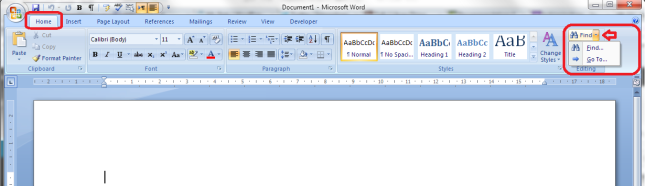
1a Word 2007

Word 2007 also uses the simple Ctrl-F keyboard shortcut to bring up the Find and Replace dialogue box (this also works in Word 2003).

1 Word 2007

Once you’ve brought up the dialogue box, type in the text you want to search for and press Enter or the Find Next button.

How do I access Find and Replace in Word 2010?

In Word 2010, you can access find and replace using the Home tab and the Find option at the right (note Advanced Find option):

2a Word 2010

If you just choose Find, you’ll get the sidebar shown below, if you choose Advanced Find, you’ll jump straight to the dialogue box.

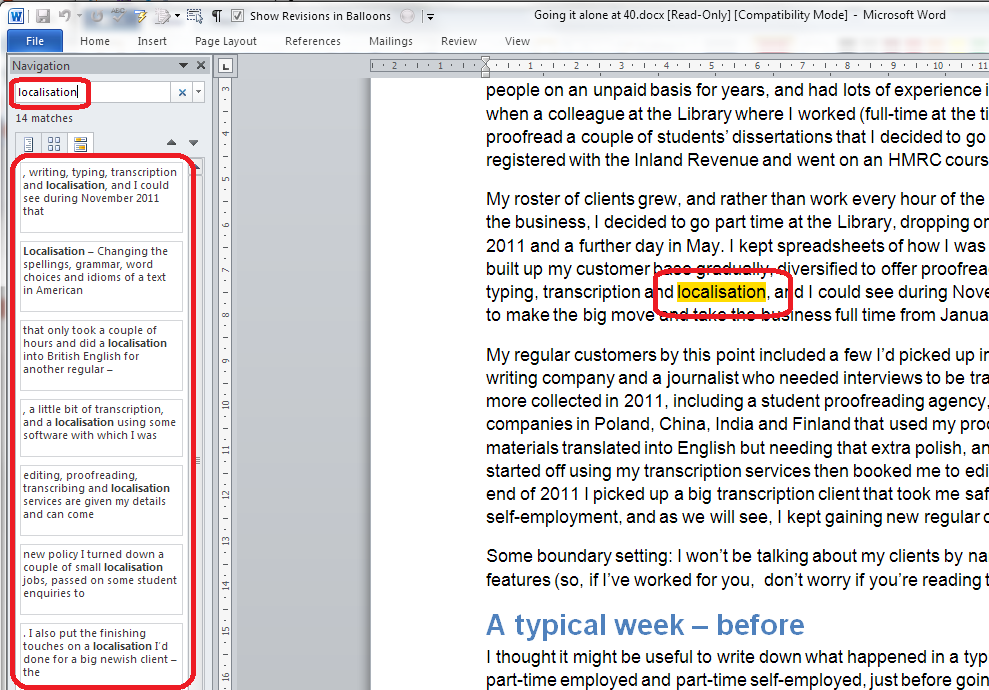
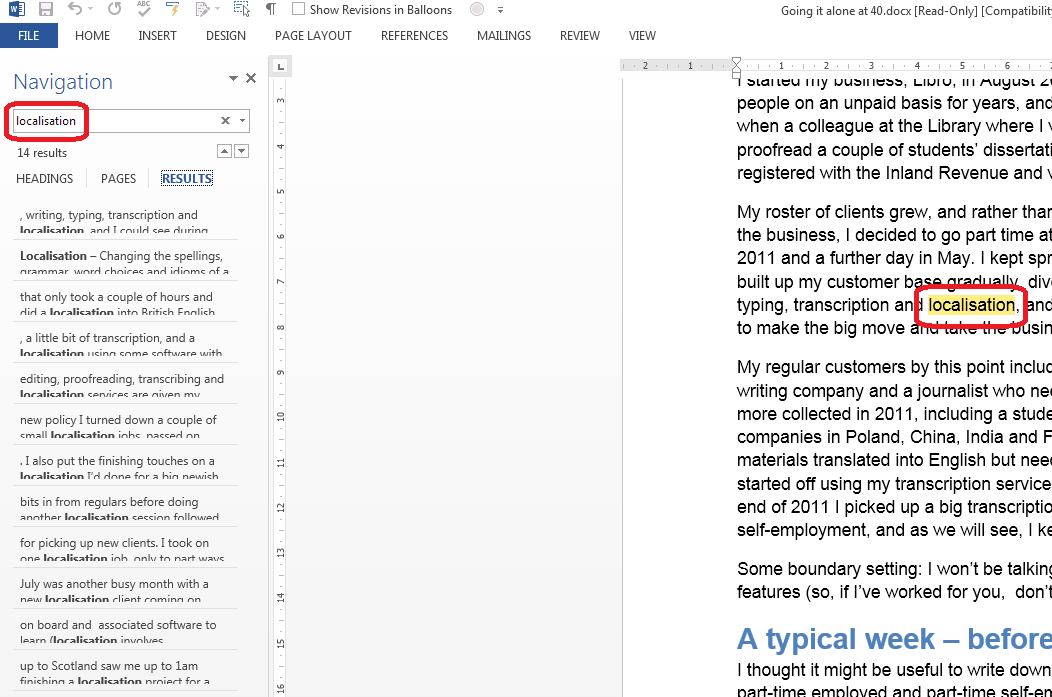
Pressing Ctrl-F will bring up a sidebar with a simple search option. This seems very odd if you’re used to Word 2003 and Word 2007, as you are left wondering where the familiar dialogue box is, but it’s actually very useful, as you can see at a glance how many times your word is used and where in the text it can be found, and the word searched for (in this case localisation) is highlighted in the text:
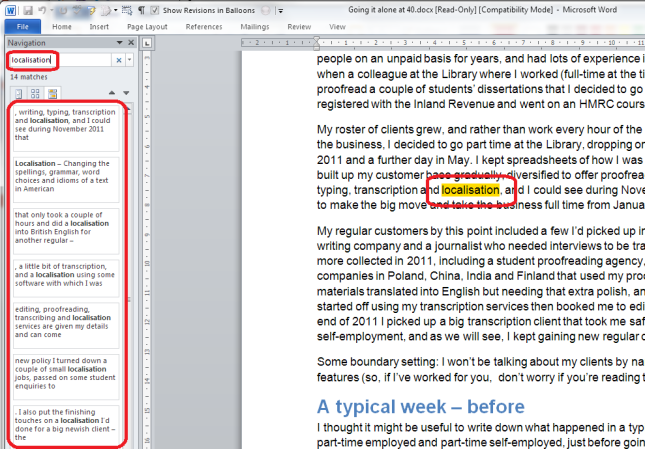
2 Word 2010

If you want to access the more advanced Find and Replace dialogue box that you’re used to from Word 2007, you need to either choose Advanced Find from the Home tab Find area, or click on the arrow to the right of the magnifying glass in the side panel. If you do that, you’ll get a drop-down menu which includes Advanced Find.

3 Word 2010

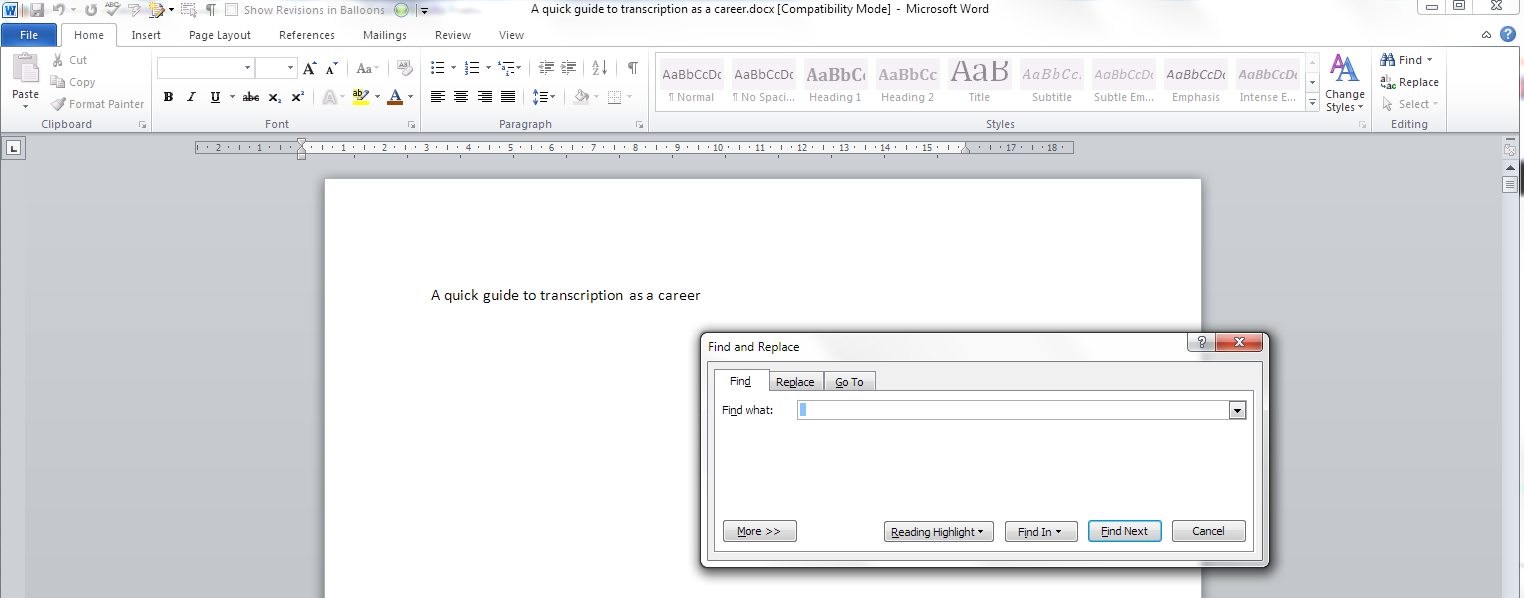
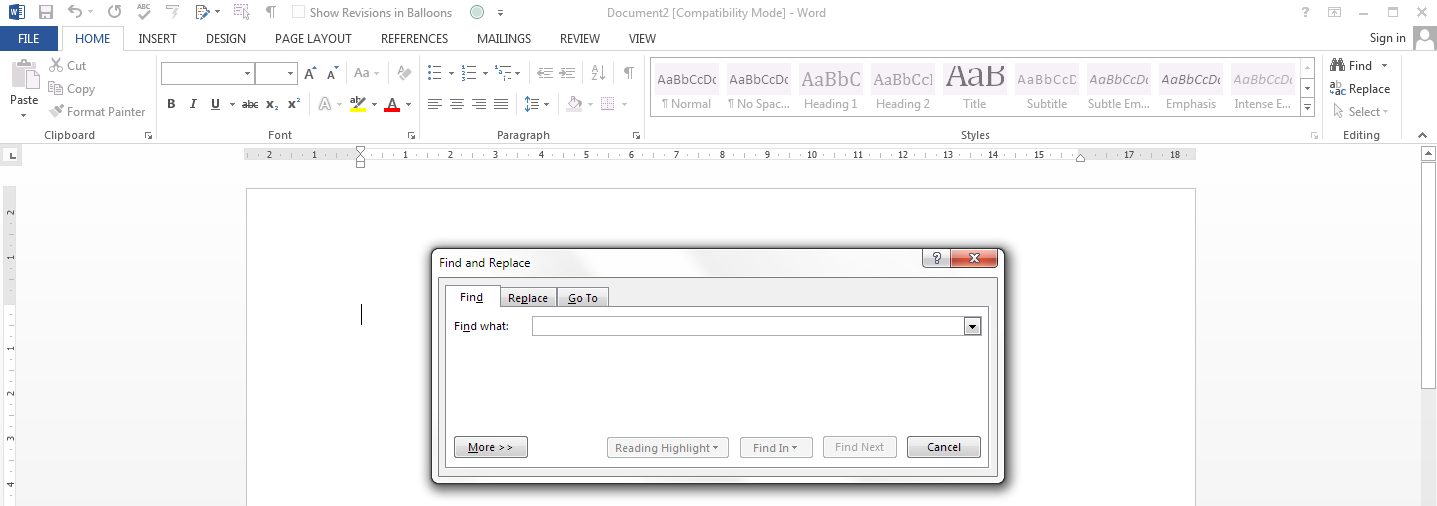
Whichever option you choose, you will then be confronted with the familiar Find and Replace dialogue box:
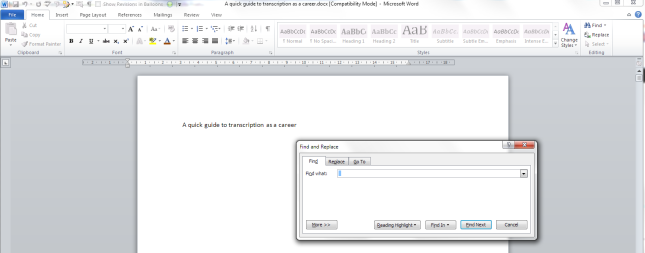
3a Word 2010

Once you’ve brought up the dialogue box, type in the text you want to search for and press Enter or the Find Next button.

How do I access Find and Replace in Word 2013?

This works pretty well exactly the same as in Word 2010, just with fewer colours and less handy yellow highlighting (I’m sure you can add that back in and I’ll write about that when I find out  how to do it). So, you can either access Find and Replace using the Home tab, Find area, and dropping down the arrow at the right to choose Find or Advanced Find:

3a Word 2013

If you just choose Find, you’ll get the sidebar shown below, if you choose Advanced Find, you’ll jump straight to the dialogue box.

Or press Ctrl-F to access that useful sidebar that will surprise you if you’re accustomed to Word 2003/2007 … which will show you all instances of any word you search for in the whole document and highlight them (in yellow!):
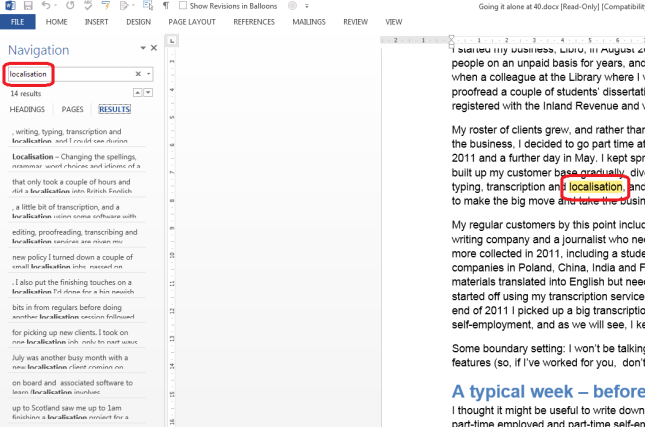
4 Word 2013

Then, to reach the dialogue box, click the arrow to the right of the magnifying glass and choose Advanced Find:
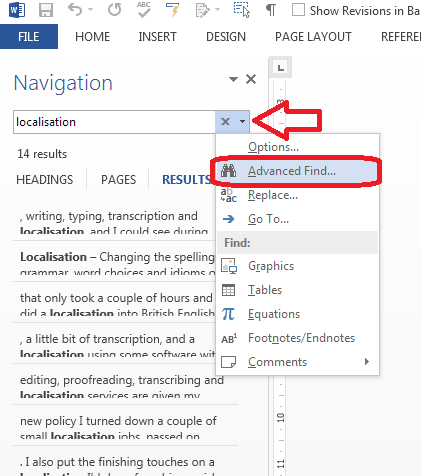
5 Word 2013

And there’s your familiar dialogue box:
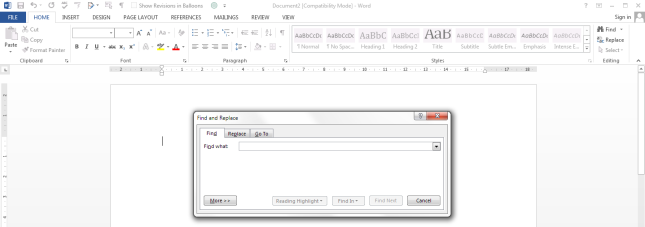
5b Word 2013

Once you’ve brought up the dialogue box, type in the text you want to search for and press Enter or the Find Next button.

Are there more options for Find?

You can access more options for Finding specific text by pressing the More button in the dialogue box:
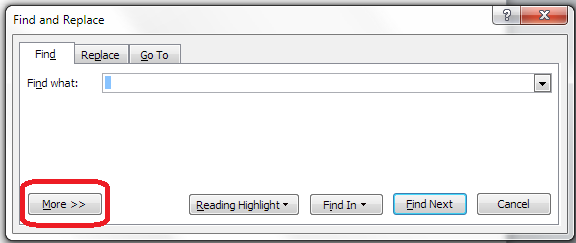
5.5 more options 2010

This will give you lots more options for refining your search. Some are quite obvious, but I’m going to write about all of them in depth in another post.
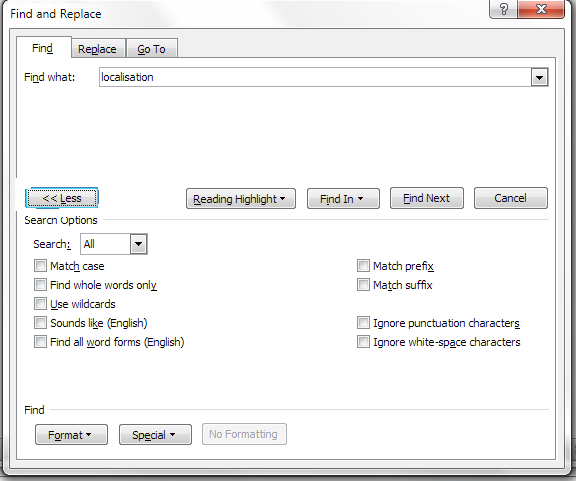
Advanced find options

How do I replace text in Word 2007 / Word 2010 / Word 2013

(Note: all screenshots are from Word 2010, however this works exactly the same for all versions of Word back to Word 2003 and up to Word 2013 (at least)).

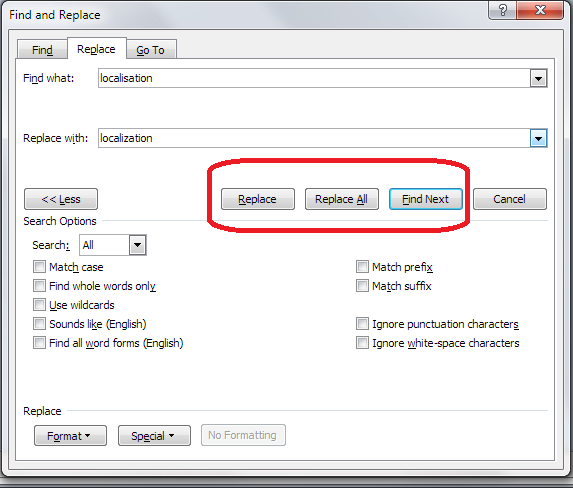
To Replace text, you need to go to the second tab along in the Find and Replace dialogue box, marked Replace. You will then be given an extra space to fill in the text you want to replace your found text with. In this case, I’m finding “localisation” and replacing it with “localization”:
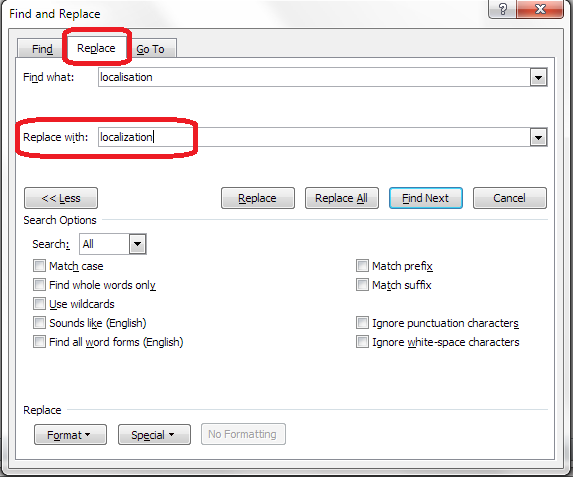
6 replace

At this point you have a choice: hitting Find Next (to find the next instance of the word) and then Replace (to replace it with your new word) for each individual occurrence, or going wild and pressing Replace All (which will automatically replace every occurrence of the word you’ve found with the one you’re replacing it with),
7 replace what

I would always recommend using Find Next – Replace unless you absolutely know that you are not going to be replacing something you don’t mean to replace. Even replacing a double space with a single might play havoc if the person who wrote the document has used spaces to format tables (even if they shouldn’t do that, some still do). And consider this:

“John” means “toilet” in American English. So I might do a search and replace to Find John and replace it with toilet. But what if there’s a character or just someone mentioned called John Bloggs. Or, soon to be, Toilet Bloggs. It’s so easy for this to happen …

So, be careful with your Find and Replace and you’ll be fine!

———-

This article has covered the basics of Find and Replace. Next time, we have a look at the options you can use and using wildcards, and I will also look at finding and replacing formatting  …

If you’ve enjoyed this article or found it useful, please comment, or hit one of the share buttons you can see below this article. Thank you!

This is part of my series on how to avoid time-consuming “short cuts” and use Word in the right way to maximise your time and improve the look of your documents.

Please note, these hints work with versions of Microsoft Word currently in use – Word 2007, Word 2010 and Word 2013 all for PC. Mac compatible versions of Word should have similar options. Always save a copy of your document before manipulating it. I bear no responsibility for any pickles you might get yourself into!

Find all the short cuts here

Related posts on this blog:

Advanced Find and Wildcards

 
4 Comments

Posted by on December 11, 2013 in Errors, New skills, Short cuts, Word, Writing


Tags: , , , , , , , ,

How do I count the words in a PowerPoint 2013 presentation?

Some time ago, I published what has turned into a pretty popular post on how to count the words in your PowerPoint 2007 document. This is something that is a little tricky to find, so perfect for one of these how-to posts.

All was well and good, then I had some editing to do on a PowerPoint document and my PC automatically opened it in PowerPoint 2013. Where on earth did I find out how to count the words now? Here’s how …

Why would I want to count the words in a presentation?

You might have a word limit imposed by a course tutor, or, more likely, you’re an editor with a per-word rate who needs to check how many words you’ve actually edited.

How do I count the number of words in a PowerPoint 2013 presentation?

To do this, with your document open, you need to go into the FILE tab at the extreme left of the tab list … (one day I’ll work out how to get those tab titles out of capitals and let you know!)

menu

Once in the File tab, stay in the Info area where you land, and click on the arrow next to Properties in the right hand column. Once clicked, you will have a choice between Show Document Panel and Advanced Properties. Click on Advanced Properties:

1 properties

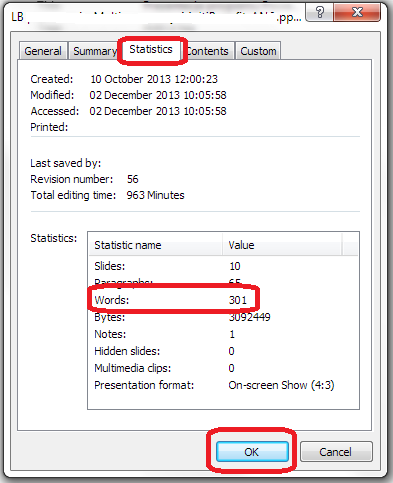
This is, dare I say it, a little easier than in PowerPoint 2007. Once you’ve clicked on Advanced Properties, you’re given a list of properties. Click on the Statistics tab at the top and you’ll find your Word Count, among other information.

2 properties

To return to your document, click OK and then back to the Home tab in your document.

How do I count the number of words in a PowerPoint 2010 presentation?

Please see the post on PowerPoint 2010.

Related posts:

How do I count the number of words in a PowerPoint 2007 presentation? (this is a little different).

How do I count the number of words in a PowerPoint 2010 presentation? (different again!)

If you’ve enjoyed this post or found it useful, please do comment, or share using the buttons below! Thank you!

Please note, these hints work with versions of Microsoft Office currently in use – Office 2007, Office 2010 and Office 2013, all for PC. Mac compatible versions of Word should have similar options. Always save a copy of your document before manipulating it. I bear no responsibility for any pickles you might get yourself into!

Find all the short cuts here

 
10 Comments

Posted by on December 4, 2013 in Errors, New skills, PowerPoint, Short cuts, Writing


Tags: , , , , , ,