RSS

Tag Archives: Word tips

My short cuts – using Tabs effectively

As promised in my original post, I’m going to write some quick guides to things you do when you’re writing documents which you think are a short cut but actually cause more trouble than they’re worth.

The idea of this series isn’t to criticise people, just to show you how to do things in a more formal way which will actually make things easier for you in the long run, particularly when you’re dealing with longer or more complicated documents.

Today we’re going to talk about using Tabs. Tabs seem to be something of a mystery, but there are easy ways to use both the tab button and tabs set in the top margin which will tidy up your document, make it easier to enter neat text in lovely columns, and reduce tension when you’re trying to line everything up.

Please note: these examples can look rather wide. I want them to be as near full-size as possible, so you can see exactly what I’m doing. If you’re looking at this post on a monitor, you should be able to scroll across to see the full image. If you’re viewing on a tablet, some of the screenshot may be cut off: hopefully you can see enough to get an idea of it, or you should be able to select the image to view it separately.

Let’s start off with using the Tab button. This is a button on your keyboard which should have two arrows on it, one facing one way and one the other. Got that? Good.

Here’s your common short cut, to start off with. You’ve got a menu you want to put on a document, with items in one column and prices in another. So you type it out, using the space bar to move along to the next column. And it looks like this:
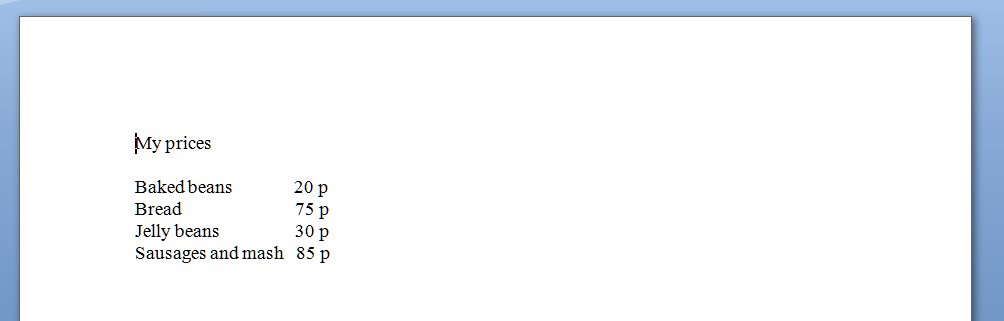
But now you want to add another item and oh dear – it’s longer than all your other ones and puts it all out of alignment (because you’ve used the space bar to make the space between one column and the next):

How do I know you’ve used the space bar? Because I’ve used that little paragraph button on Word again which shows us all the formatting, tabs, line returns, etc.

So the way you’ve achieved this spacing is by doing this (where dots are spaces and the things like a backward P are returns):
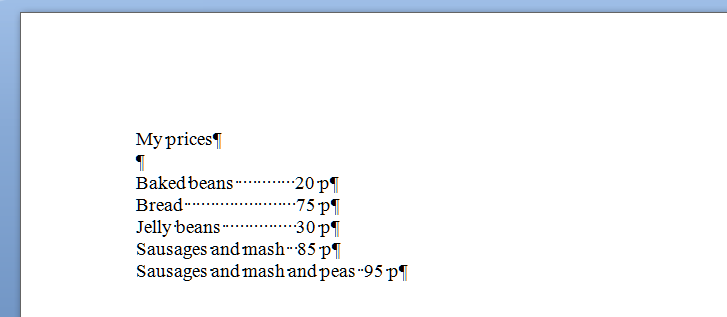
What you should have done (my short cut) instead of using space (your short cut) was to use the tab key (remember, the one with the two arrows) to space across to a set point along the horizontal ruler at the top of the screen. These tabs are represented by arrows when you’re viewing the markup:
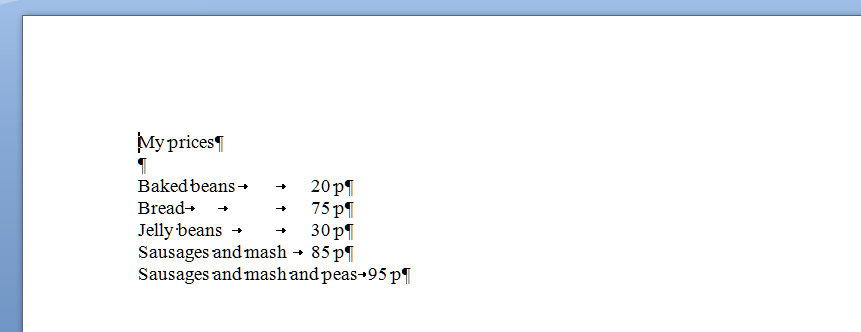
Now, when you want to move the prices over for all the shorter items, you just need to insert one press of the tab key at the end of each item, to get them to line up perfectly.

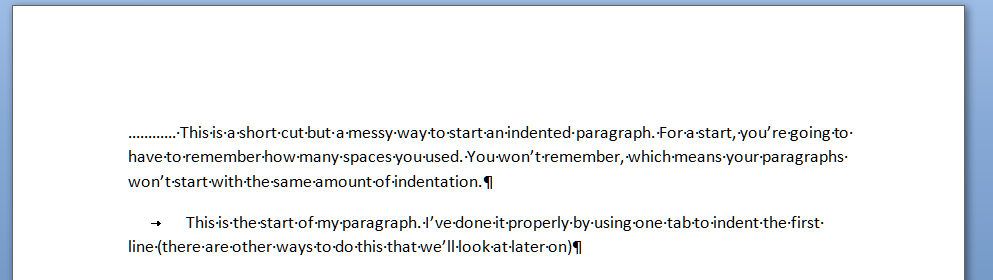
And here’s a last example. It’s very common to find people wanting to indent the first line of a paragraph, but using spaces to do so. This has its own issues – for example, you have to remember how many spaces you’ve put in and it’s likely that you’ll insert a different number each time, which will lead to indentations that don’t match. Instead, a simple press of the tab key at the beginning of your paragraph will leave everything nice and tidy
That’s enough for this session, I think. Of course, there are other ways you can format paragraphs and other indents, and you can set tab stops to wherever you want them to be across the page (and do all sorts of fancy kinds, too). But I’ll leave them for another post … (and I’ll link to them in this one when I publish them).

Please note, these hints work with versions of Microsoft Word currently in use – Word 2003, Word 2007 and Word 2010, all for PC. Mac compatible versions of Word should have similar options. Always save a copy of your document before manipulating it. I bear no responsibility for any pickles you might get yourself into!

Find all the short cuts here

 
8 Comments

Posted by on January 11, 2012 in Copyediting, Errors, New skills, Short cuts, Word, Writing


Tags: , , , ,

A new survey

I’ve set up a new survey to see how I can best make this blog useful through 2012. Please take a moment to answer as many of the questions as you can – I really want to know the answers!

You can find the survey here on SurveyMonkey.

Thanks for reading … and filling in your answers!

 
Leave a comment

Posted by on December 27, 2011 in Blogging, Writing


Tags: , , ,

My short cuts – proper page breaks

As promised in my original post, I’m going to write some quick guides to things you do when you’re writing documents which you think are a short cut but actually cause more trouble than they’re worth.

The idea of this series isn’t to criticise people, just to show you how to do things in a more formal way which will actually make things easier for you in the long run, especially if you’re dealing with a larger document like a dissertation, a thesis, a funding proposal, a workbook, a technical guide …

Please note: these examples can look rather wide. I want them to be as near full-size as possible, so you can see exactly what I’m doing. If you’re looking at this post on a monitor, you should be able to scroll across to see the full image. If you’re viewing on a tablet, some of the screenshot may be cut off: hopefully you can see enough to get an idea of it, or you should be able to select the image to view it separately.

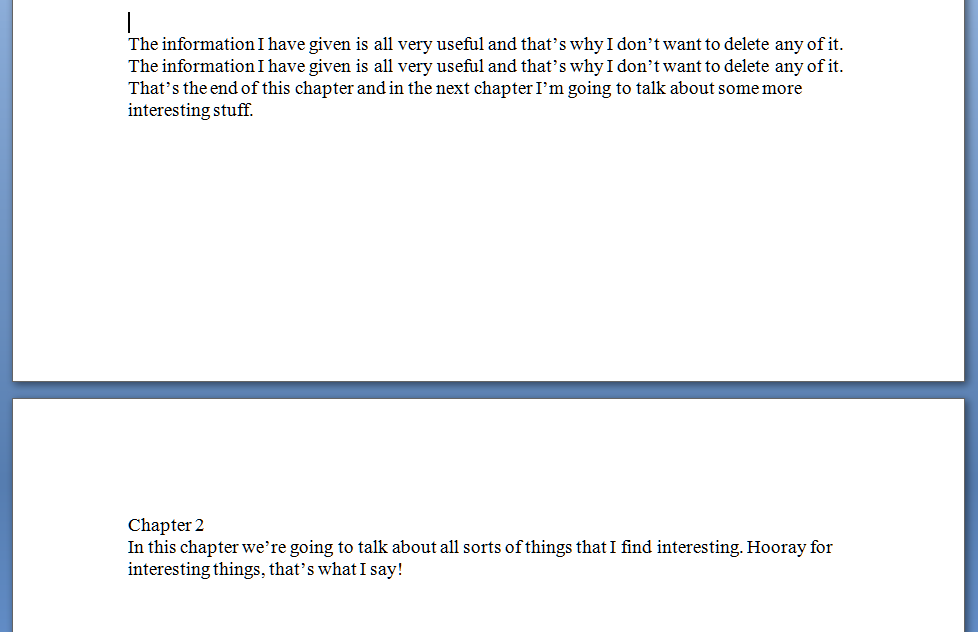
Today we’re going to talk about page breaks. If you’re writing a document that has sections, chapters, etc., you might well want to start a new chapter on a new page, and have it look something like this:

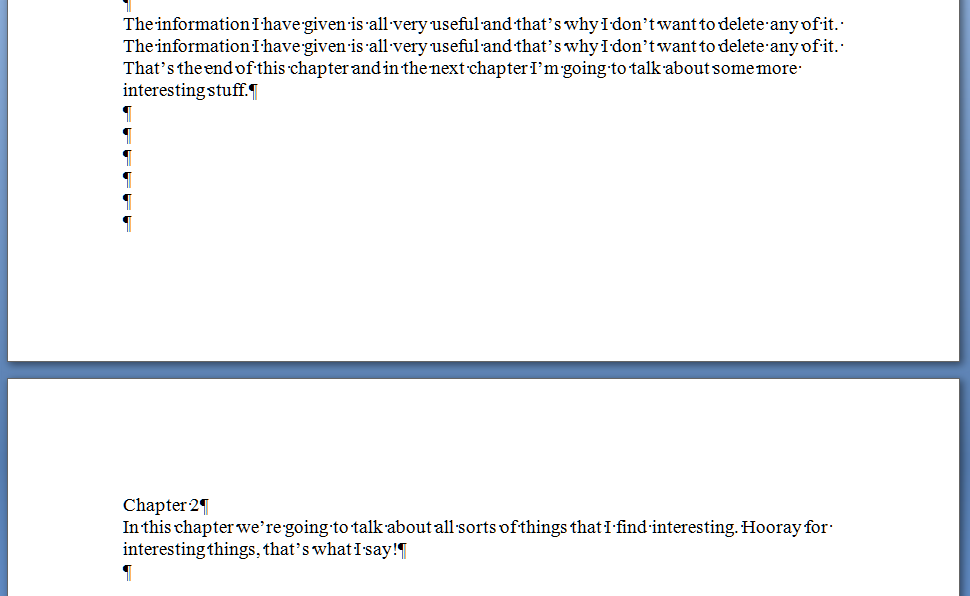
So far, so good – you’ve got your new chapter starting on a new page. But I bet you finished one section and hit the “Enter” key until you got to a new page, didn’t you? The way to tell is to hit a rather magical little button that shows all the formatting you’ve done.  In Word, you’ll find it in the Home menu; if it’s not there, play around with the display until you’ve found it and add it to the menu bar. Here it is:

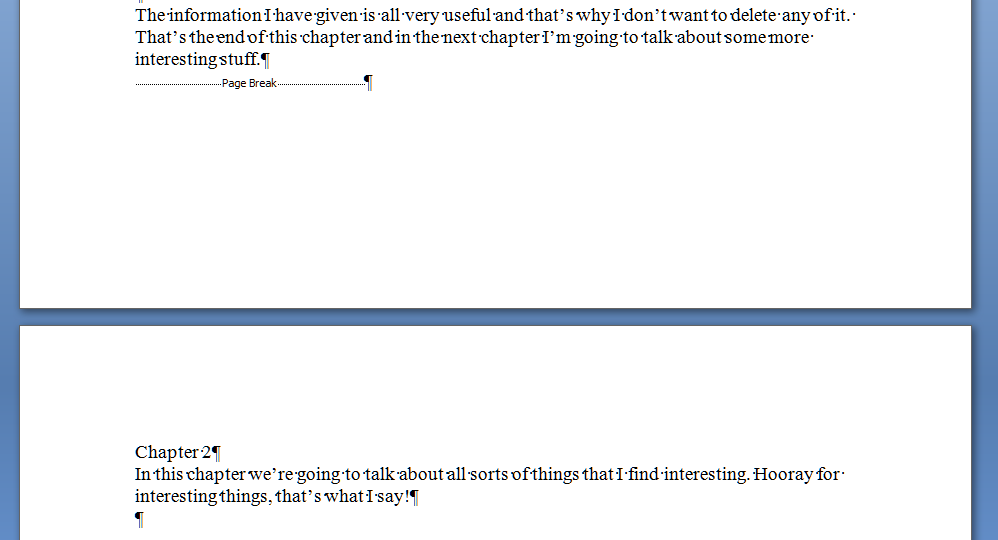
That’s actually the “paragraph” symbol or pilcrow used for centuries in manuscripts and printed books. Anyway, it’s ever so useful if you want to show what you’ve done to a document. Press it a second time if you want all the formatting marks to disappear again. So, pressing this with our document open shows the horrible truth – enter, enter, enter you’ve gone, six times, down the page …

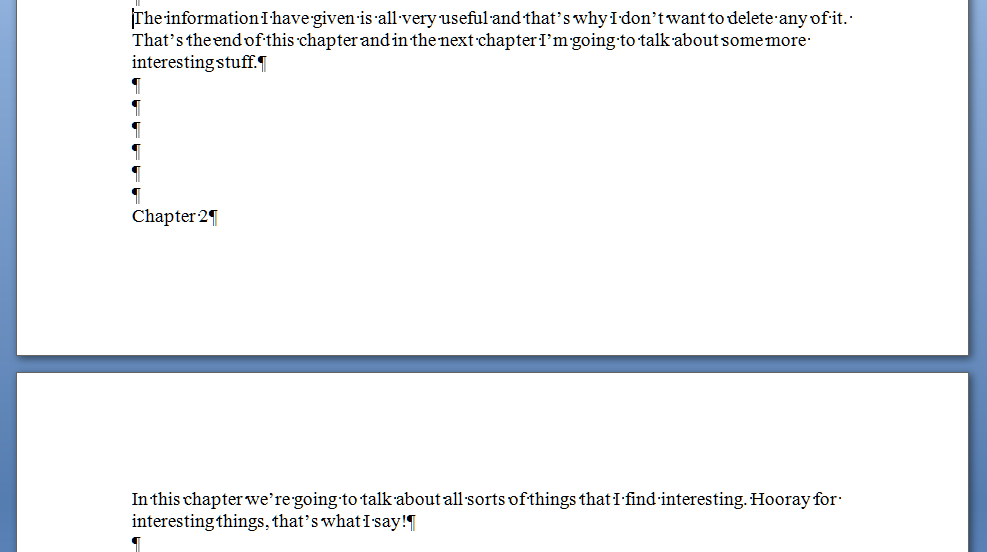
And that’s all well and good – until you change the text above the page break. You’ve done this and it all looks nice, then you notice that repeated line on page 1. Oh, well, you can just delete that. So you delete the repeated line, and the text on page 1 is now one line shorter – one line further up the page. Below the text, you hit Enter 6 times to make Chapter 2 start on the next page. Those six lines are below your chunk of text still, but your text is one line shorter than it used to be. So what happens … ?

Disaster! Chapter 2 doesn’t begin on the next page any more! It’s crept up a line! And, similarly, if you’d added some lines of text to Chapter 1, this chapter heading would start part way down this page. Messy! And when you’ve submitted your work to an editor like me, you can bet we’ll be suggesting adding lines in or taking them away; when you get the document back the spacing will be all over the place (or I’ll have done it my way and made it tidy already … )

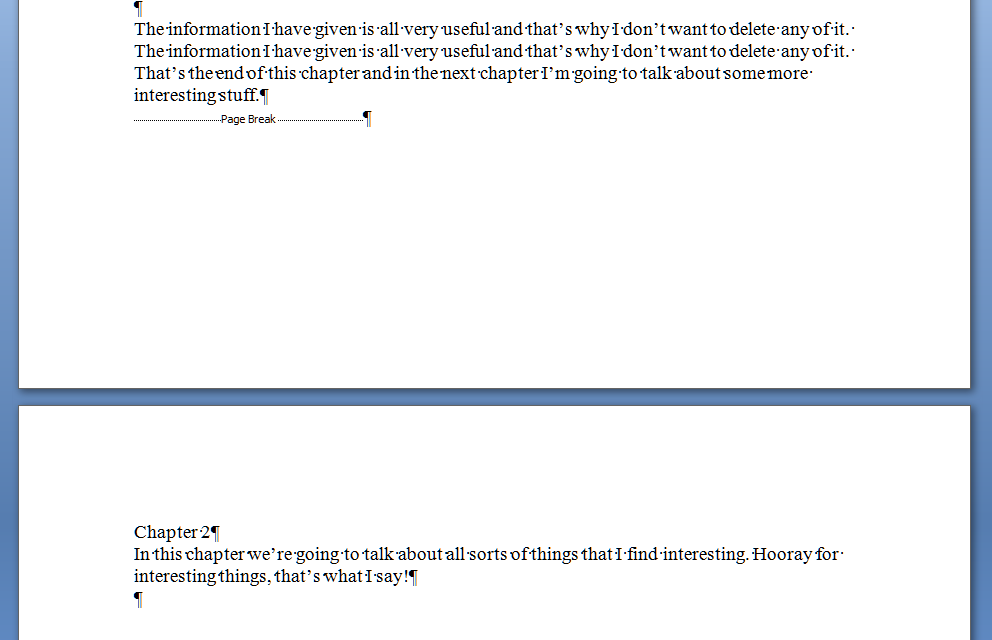
So how do you do it properly so this messiness doesn’t happen? Simple – you “force a page break”. Again, in all versions of Word, when you get to the place where you want to force a new section to start on a new page, press Control-Enter (or choose Insert – Page Break). Turning on your formatting display, and using our original text again, you’ll see this:

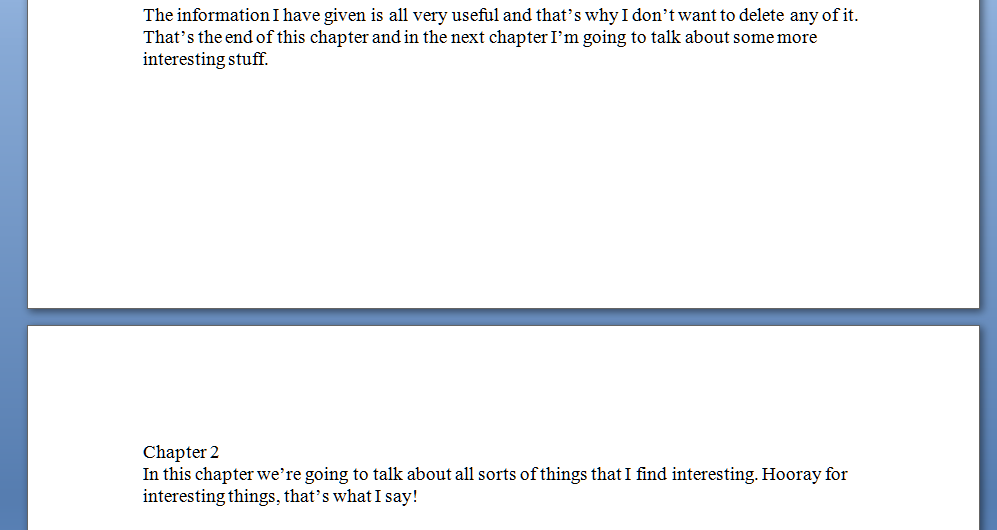
And because it’s a forced page break, it doesn’t matter what you do to the text above the break, the new text will always appear on the next page. Make the Chapter 1 text shorter again by deleting that extra line and you get this:

No hopping around – and even if you add so much to Chapter 1 that it goes onto the next page, Chapter 2 will just hop on down to the page after, automatically.

Of course, your document still looks like this:

But you’ve done it all correctly, in fewer keystrokes, and you know that whatever you do with Chapter 1, Chapter 2 will always start at the top of its new page, nice and tidy, going where you need it to go.

I hope that’s helped – it’s a very common issue, which is why I’ve tackled it first. There will be more of these posts coming over the next few months – do pop a comment on this post if I’ve helped you, and let me know if there are any other issues you’d like me to look at.

Please note, these hints work with versions of Microsoft Word currently in use – Word 2003, Word 2007 and Word 2010, all for PC. Mac compatible versions of Word should have similar options. Always save a copy of your document before manipulating it. I bear no responsibility for any pickles you might get yourself into!

Find all the short cuts here

 
10 Comments

Posted by on November 23, 2011 in Copyediting, Errors, New skills, Short cuts, Word, Writing


Tags: , , , ,

What to do if your comment boxes go tiny in Word

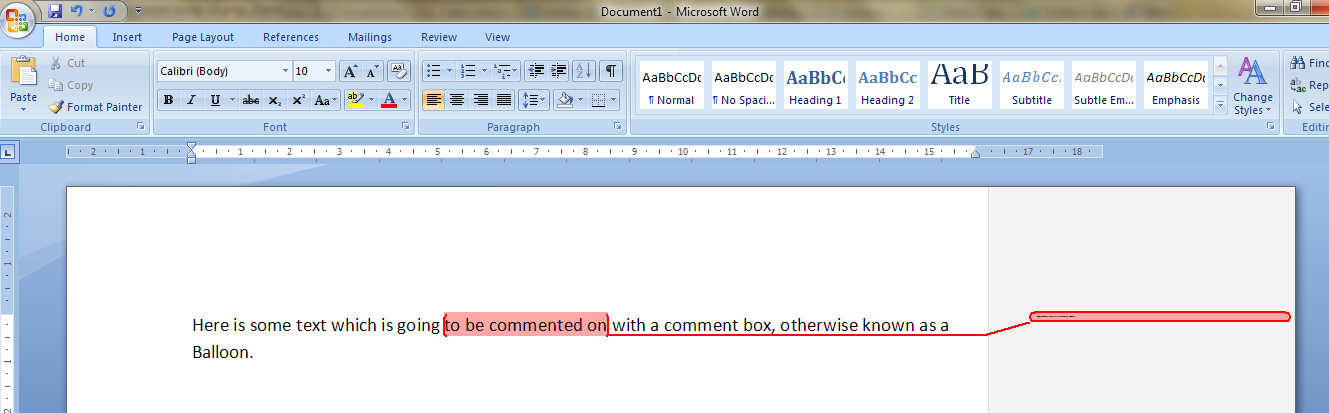
I had been editing a document for a client.  I added some comments in the margin, as always – but when my client opened it and when I re-opened it, to my horror and his, all of the text boxes containing the comments had gone TINY and unreadable. It looked like this:

It apparently happens if you’re working with a document originally created in an older version of Word which doesn’t have the requisite Styles set up for comment boxes.  You then work on it in Word 2007 or Word 2010 (this solution works for both!) and the horror happens …

It took me and Matthew longer than it should have to work out what to do, as there didn’t seem to be an easily found solution if you searched for one online – so as an aide memoire for me, for next time it happens, and as a public service for anyone else trying to work out what to do … here’s what you do (now edited to add screen shots).

Note for experts: if you’re already familiar with Styles, note that you need to change the Balloon Text.

What to do if your comment boxes go tiny in Word documents:

Let’s look at what the full horror looks like first of all:

First of all: don’t panic! The comments will have typically gone into Times at 1 point. But there is a way to make them readable again.

Open the document. Don’t highlight anything. Don’t put the cursor into a comment box.

Now you can do one of two things. Either hit Control + Alt + Shift + s all at the same time, or make sure you’re in the Home tab and click on the little tiny arrow at the bottom right of the Styles menu – this will bring up the full Styles dialogue box.

Using either of these methods, you will bring up the Styles dialogue box.

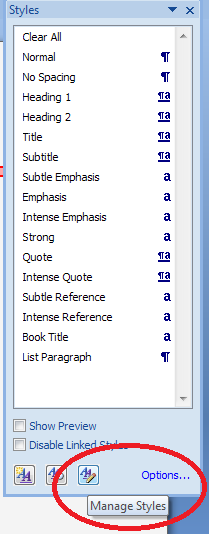
This looks like a very useful dialogue box, but for our purposes you need to ignore all of it except the three buttons at the bottom. Click on the rightmost button: Manage Styles to bring up yet another dialogue box.

We’re not there yet: the sort order shows as Recommended – but you need to click on the down arrow to change it to Alphabetical:

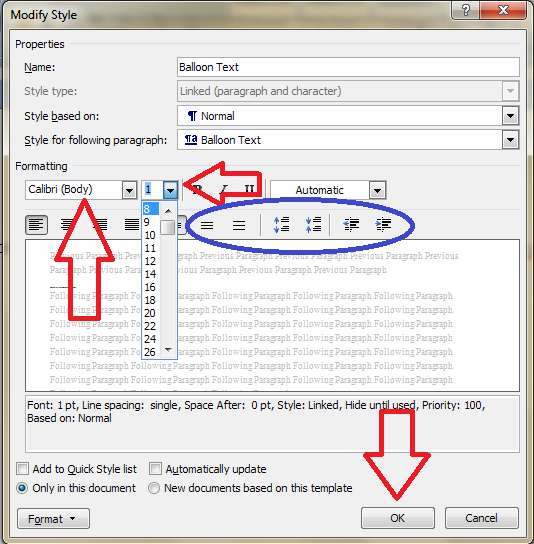
Once it’s in alphabetical order, it’s relatively easy to find Balloon Text (note: not Comment text) and you will see that it then confirms how you have your text set up (blue circle). Click the Modify button

Now you can change your font (which will probably have defaulted to Times) and font size (which will probably have defaulted to 1). You’ll notice lots of other options (blue circle) to change the spacing, etc. – I don’t usually worry about changing those, but this is where they are if you want them – and of course you use this menu to change the styles on headings, normal text, etc., too. Press the OK button, and carry on pressing OK buttons until you get back to your document.

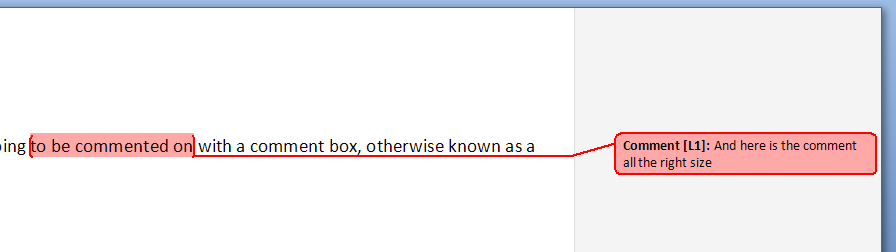
And there it is, all changed:

Save document

Want even more information on customising your comment boxes? Read this article full of everything you would ever want to know!

Related topics: What to do if your comment boxes start running from right to left

Changing the language in your comment balloons

Note that these tips are primarily for Word 2007, 2010 and 2013 for PC. Most of them will work for Word for Mac, although you may find some menus in different places. This is part of my series on how to avoid time-consuming “short cuts” and use Word in the right way to maximise your time and improve the look of your documents. Find all the short cuts here

Do let me know if this has helped you, saved your bacon, etc. – and do share with the buttons at the bottom of this article.

 
343 Comments

Posted by on November 6, 2011 in Copyediting, New skills, Students, Word, Writing


Tags: , , , ,