A friend of mine had this issue this week, and then I did, too. Both of us were working on documents that originated from Arabic-speaking countries, and this is where I usually see this problem. It’s hard to describe, but completely obvious if you’ve ever experienced it: you’re using Track Changes to mark changes in a document, you go to write a comment in a comment balloon / box, and the text runs from right to left instead of left to right. Sometimes even the word order is reversed. It looks something like this:

The cursor is at the wrong end of the line of text, it’s all justified to the right, it shows oddly as you type, and editing it is a nightmare. So how do we change the orientation of the comment text?
Changing the orientation of comment text in Word 2007
What we want to do is change the comment box text from wanting to run right to left to making it want to run left to right. And the easiest way I’ve found to do this is to add a secret little button to your Quick Access Toolbar, then use that to sort out your text. Go to my article on how to add buttons to the Quick Access Toolbar if you need a refresher (or note that you click the down arrow on the QAT at the top of your screen then choose More Commands).
When you get to the part on the Customize Screen menu where you choose the button to add, type L to get near the right place and/or scroll down until you come to Left-to-Right Text Direction and add that to the Quick Access Toolbar.
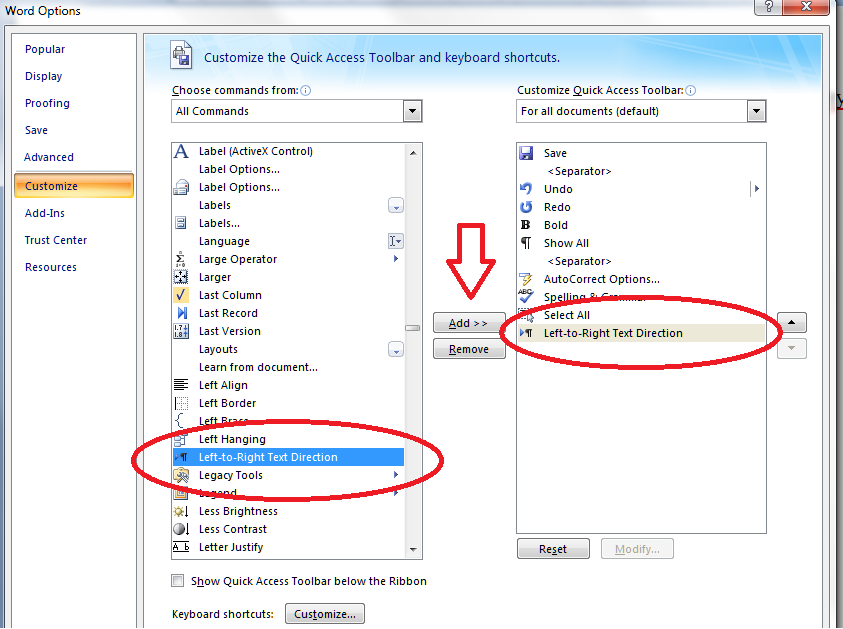
Now you will have a button on your QAT which looks like a paragraph mark with an arrow next to it. If you hover the mouse cursor over it, it will announce to you that it’s the Left-To-Right Text Direction button. Make sure your typing cursor is in the comment balloon and press this button …

And now your text in your comment balloon should be the right way round (for you):

Please note: you will have to do this for each comment box you create. But it’s only a matter of pressing one additional button, and it WORKS reliably, where fiddling around with the Styles really won’t always work (I know: I’ve been there).
Changing the orientation of comment text in Word 2010
Now, this works just the same in Word 2010, apart from the fact that the button has a different name and a different appearance! Of course!
So when you have reminded yourself how to add buttons to the Quick Access Toolbar if you need a refresher (or note that you click the down arrow on the QAT at the top of your screen then choose More Commands), you will need to start by typing an L and/or scrolling down, but this time you’re looking for Ltr Run.

And when you want to change the orientation of your text in your comment balloon from right-to-left to left-to-right, you’ll need to click on the little green blob (although, again, it will admit that it is the Ltr Run button if hovered over):

Again, please note: you will have to do this for each comment balloon you create. But it’s only a matter of pressing one additional button, and does WORK reliably, where fiddling around with the Styles really won’t always work (I know: I’ve been there in Word 2010, too).
And if you’re using a Mac? Well, apparently you can’t do it, and will need to send it to a friend with a PC. But if you know better, do let me know!
… and if that doesn’t work …
It’s always worth trying copying and pasting your text into a new document. And if that doesn’t work, here are two more methods to try.
Changing the balloons one by one using Style Inspector
Put your cursor in the offending balloon. In the Home tab, go to Styles and click the down arrow in the bottom corner. Then, instead of Manage Styles, click the second button along, Style Inspector:

This will make a little dialogue box come up. Click on the top A button (marked with an arrow) and the Paragraph Formatting box should change to Normal.

Close the box and OK everything else until you’re back with your document, and your comment box should be the right way around! You will need to apply this per comment balloon, but it’s less drastic than this one …
Delete the styles
We also found this more drastic way. Thanks to Mr. Libro for finding this workaround.
Go to the Home tab, click the Styles down arrow and select Manage Styles (the third button):

Put the list of styles into alphabetical order by clicking the dropdown arrow and choosing Alphabetical:

Find your three Comment styles and delete them IN THIS ORDER: Comment Reference, Comment Subject, Comment Text (otherwise Word is liable to crash):

Press Delete then confirm that you’re sure:

You can just go back to the list each time. Watch out – your place in the list may well jump around and you may have to scroll up or down to find your style.
Delete Comment Text as the last one (you will see that the others grey out) …

And then press OK until you’re back at your document. All of your comment boxes will now be the correct way around.
————
Want even more detail on how to customise your comment boxes? Read my article on customsing comment boxes!
Related posts: What to do if my comment boxes go tiny in Word.
Changing the language in your comment balloons
Please note, these hints work with versions of Microsoft Word currently in use – Word 2003, Word 2007 and Word 2010, all for PC. Mac compatible versions of Word should have similar options. Always save a copy of your document before manipulating it. I bear no responsibility for any pickles you might get yourself into!
This is part of my series on how to avoid time-consuming “short cuts” and use Word in the right way to maximise your time and improve the look of your documents. Find all the short cuts here …

 LibroEditing proofreading, editing, transcription, localisation
Krishna Kumar Venkitachalam
July 11, 2012 at 5:23 pm
I know of an even simpler way. First copy all the text with tracks off. Open a new document. Insert a comment and type in something in the comment box. Hit enter. Paste your text. Voila, all your comments are ‘normal’ again!
LikeLike
Liz at Libro
July 11, 2012 at 6:35 pm
Thanks for your comment. I have tried that way and it sometimes works … whereas this one always does (so far!). So it’s certainly one people can try.
LikeLike
David at Libro
July 19, 2012 at 4:02 pm
Venkitachalam’s method doesn’t work. Not clear what you mean by “all the text” (the entire contents of the document? – Why would I want to paste that into a comment balloon?), but I did it both for all the text (got all the text in a comment balloon – great) and for a reversed comment (got the reversed text in a left-to-right comment balloon – not very useful). Is there something I’m missing? Could you please give more detail about how to do your method?
LikeLike
Liz at Libro
July 19, 2012 at 5:46 pm
Hi there, David. Have you tried the method outlined in my blog post, which I know works reliably as I use it all the time?
Krishna’s method works on the principle of opening a whole new document, leaving it empty while you create one comment box, which will be by default the right way around, then copying and pasting your main document text into the body of the new, blank document. But I have not found that to be reliable.
My way works on a PC. If you are on a Mac, you cannot do that, apparently. One solution is to find a friend with a PC, get them to do my procedure and send it back to you. This has worked for a friend.
Hope that helps!
LikeLike
វិចិត្រ
September 4, 2012 at 8:25 am
Thanks alot. I met this kind of problem long time ago and have no clue how to solve it until I read your article.
LikeLike
Liz at Libro
September 4, 2012 at 8:27 am
I’m glad I could help!
LikeLike
Moore Ink (@Moore_Ink)
November 19, 2012 at 3:00 pm
Thanks Liz. I had the same problem with a large document I am editing. The text is English but the comment box language is Arabic. I have tried changing the language but you have to do it for every Comment and change the formatting. Into the ‘Too Hard Box’! Your method adds a button, but it works every time! You are a gem! Much appreciated.
LikeLike
Liz at Libro
November 19, 2012 at 6:25 pm
I’m glad I could help! Did you try my instructions on changing the language in your comment boxes? https://libroediting.com/2012/11/07/comment-boxes-language/ That should work globally …
LikeLike
trabaja en internet peru
January 10, 2013 at 8:08 pm
When I initially commented I clicked the “Notify me when new comments are added” checkbox and
now each time a comment is added I get several emails with the
same comment. Is there any way you can remove
people from that service? Thanks!
LikeLike
Liz at Libro
January 11, 2013 at 12:10 pm
Hi there and thank you for your comment. I hope you see this OK.
I can’t amend your notifications myself – the system will not let me do that.
Next time you get a notification, you will have a link at the bottom saying “manage subscriptions”. Click that and you’ll get a list of all your WordPress subscriptions. You’ve probably subscribed to my blog, and comments on the blog, and replies to your comment on this post. Delete the extra ones and you’ll receive one notification per comment, or per blog post, whatever you want.
I hope this helps!
Regards,
Liz
LikeLike
Kristin
February 1, 2013 at 10:59 pm
What about in Word 2003? I have the same problem.
LikeLike
Liz at Libro
February 2, 2013 at 1:08 pm
Hi Kristin, I’m just checking this with someone who has Word 2003 – watch this space!
LikeLike
Kristin
February 11, 2013 at 9:57 pm
Let me know if you find a good solution. My workaround was to copy the text and “Paste Special” using the Unformatted style to a new document. Of course, then I had to reformat everything else, but that was worth it to resolve the problem.
LikeLike
Liz at Libro
February 11, 2013 at 10:22 pm
I do apologise – my friends Dori and Linda worked it out and I forgot to paste it into here … here goes:
Format->Paragraph in Word 2003. Under General-> Alignment, change it from Left to Right.
You can do this to add an icon to your task bar:
In Word 2003 this seems to work to add the icon ….
Menu bar -> Tools -> Customize …
Commands Tab -> Categories: Format -> Commands: -> Find and select “Right-to-Left” in scroll list
Left click on the icon to the left of the command and drag it to the desired menu bar location.
Once the “Customize” box has appeared and you have selected the “General” tab. Choose “Format” in the left hand column and then from the right-hand list, you can choose “left to right” and “right to left”.
LikeLike
Kristin
February 12, 2013 at 4:11 pm
I appreciate that you investigated this. The solution that you posted doesn’t entirely solve the problem for me though I know it will be helpful for many who google this problem.
In my case, the text now appears left aligned, but when I add field codes, or try to use the comments in Track Changes, those appear left-aligned but still reading right to left. There must be some kind of glitch in my program because everything is indicating that it should be fixed.
Anyway, thanks for the help!
LikeLike
Liz at Libro
February 12, 2013 at 4:17 pm
So it works for the text but not the comments, is that right? … let me investigate further … there WILL be a solution!
LikeLike
Kristin
February 13, 2013 at 4:56 pm
It works for the text, but not the comments or the Endnote references that I’ve inserted. Somehow Endnote and Word aren’t playing nicely… The Endnote references switch to left aligned by doing what you wrote, but the numbering is still on the right!
LikeLike
Liz at Libro
February 13, 2013 at 5:04 pm
I’ve asked my colleagues with Word 2003 about the comments. I have no expertise on Endnote, I’m afraid, but I bet there’s something buried in there …
LikeLike
Sean
March 15, 2013 at 8:56 pm
The toolbar button in Word 2003 sort of fixes the problem, but you have to click it every time you make a comment and it reverts to right-to-left when the text wraps to another line. Quite frustrating and confusing.
LikeLike
Naz Hasan Huda
April 6, 2013 at 1:15 pm
Been using this method over six months and have no problem at all. I’m using for a manuscript right now that is from Egypt and came here just to say thank you!!
LikeLike
Liz at Libro
April 7, 2013 at 5:08 pm
Thanks for your comment, Naz, and I’m so glad I’ve been able to help!
LikeLike
Nona
June 14, 2013 at 1:05 am
Just desired to stress Now i’m thankful that i came on the web page!
LikeLike
Liz at Libro
June 14, 2013 at 5:27 am
Glad I could help!
LikeLike
Gergely J Tamasi
July 16, 2013 at 5:35 am
The problem with the solution above is that it requires you to do the same for each and every comment box you may wish to add. A far simpler way is to change the language of the Comment Text style so that it applies to the whole document.
Because I am using Word for Mac 2011, I can only give the exact menu item names from my system, but Windows versions should follow roughly the same logic.
1. In the Styles section of the Home tab, click the icon Manage the styles that are used in this document. The Styles pane appears.
2. From the List drop-down list, select All Styles.
3. In the list, find Comment Text, click the arrow next to it, and select Modify Style….
4. From the Format drop-down list, select Language….
5. Select English (US) or English (UK), and click OK.
6. Click OK to close the Modify Style dialog.
That’s all.
LikeLike
Liz at Libro
July 16, 2013 at 5:51 am
Thank you for your comment. In fact, in Word for Windows this does change all of the boxes from then onwards, but thank you for the Mac instructions. With your permission (and with a credit) I would like to add these to the main body of the article.
LikeLike
Aaron Schwartz
October 28, 2013 at 12:33 am
I’ve been trying this but it appears to already be in English(US). I can make changes to the style of individual comment boxes by applying paragraph style, but it doesn’t change it for the whole document…and punctuation and arrow keys still behave backwards.
LikeLike
Liz at Libro
October 28, 2013 at 7:43 am
Thanks for your comment, Aaron. First off, the language of the comment boxes will be in whatever you expect it to be (UK English in my case), that’s what always seems so confusing. The only way to remedy this is to do what I set down in this post, i.e. get the LTR button on your Quick Access Toolbar and click it with the cursor in your comment balloons. Unless you’re on a Mac, in which case the only option is to send it to a friend with a PC! I hope that helps, let me know how you get on.
LikeLike
DaniH
December 15, 2016 at 7:59 am
Hi thanks. This actually works for Word2010.
LikeLike
pieczatki w Warszawie
September 4, 2013 at 3:18 am
Heya! I understand this is somewhat off-topic but I needed to ask.
Does building a well-established blog such as yours require a large amount of work?
I’m brand new to blogging however I do write in my journal everyday.
I’d like to start a blog so I can share my experience and views online.
Please let me know if you have any kind of recommendations or tips for brand new
aspiring bloggers. Appreciate it!
LikeLike
Liz at Libro
September 4, 2013 at 5:45 am
Thank you for your comment. If you look at my resource guide, you will notice that I have lots of resources building up on blogging, with more to come. I hope that helps!
LikeLike
Krysia Lear
January 15, 2014 at 9:20 pm
Thanks you. I followed your clear directions on changing text direction and my frustration level dropped significantly.
LikeLike
Liz at Libro
January 16, 2014 at 5:42 pm
Thank you for your comment. So glad I could help and reduce your frustration!
LikeLike
Janet Robertson
January 31, 2014 at 1:09 pm
I’m struggling with right-to-left text in comment ballons. I’ve followed Liz’s instructions and have added the green ‘Ltr Run’ button to the QAT but I can’t get it to work. What am I missing? Help, please… I’m using Word 2010.
LikeLike
Liz at Libro
January 31, 2014 at 5:25 pm
Thanks for you comment, Jane. If you click in the offending comment box so your cursor is in there, then click on the button, the comment box direction will change. Hope that helps!
LikeLike
Janet Robertson
January 31, 2014 at 5:34 pm
Liz, it really does not work for me. Honest! Do you think there is something I could try somewhere in styles? It’s a journal paper originating from Egypt.
LikeLike
Liz at Libro
January 31, 2014 at 5:37 pm
OK, two further options. Have you tried select all and pasting it into a totally new document? If that fails, send it to me using liz AT libroediting DOT com and I’ll have a look for you.
LikeLike
Liz at Libro
February 1, 2014 at 4:49 pm
Just a quick update, I’ve found a way (thanks to Matthew, Mr Libro) and have emailed Janet and added an “… if that doesn’t work …” section above. Hope that helps everyone!
LikeLike
Janet Robertson
February 3, 2014 at 3:06 pm
Liz, I’m happy to report that your method for changing Styles in comment boxes back to Normal works brilliantly. Hurrah! And it’s really not too much trouble to use for each new comment because you can just leave the little Style inspector box open at the side of the document and then it only needs one extra click for a new comment. Thank you so much, my sanity is saved!
PS I haven’t had the courage to try the drastic method – I don’t think I’ll go there…
LikeLike
Liz at Libro
February 3, 2014 at 3:22 pm
That’s wonderful news – thanks for reporting back! Phew!
LikeLike
sarahnisbet
September 13, 2014 at 11:27 am
Wow – thanks very much for this, Liz! It was driving me nuts! The first method worked first time. 🙂
LikeLike
Liz at Libro
September 15, 2014 at 5:24 am
You’re welcome – so glad I could help!
LikeLike
Audrey
November 4, 2014 at 2:32 pm
Hi Liz, do you know how to fix comment boxes that do not show all the text? There is a small icon in the bottom right corner of the comment boxes that shows there is extra text not showing. It shows the whole of the text in the comments panel however. The comments are not even long, only a few lines.
LikeLike
Liz Dexter
November 4, 2014 at 2:35 pm
Hi Audrey, that’s an interesting one! Is it the case that there are lots of comments boxes so it’s doing this in order to fit in all of the ones that are needed on a page? If so, you could try increasing the margin of the comment area, which would give the boxes more room. Let me know if it’s not that, though.
LikeLike
Jameel Hijazeen (Moa'bite)
March 3, 2015 at 11:02 pm
Thank you for this great post. Editing the styles is a more practical solution and it worked for all comments. Thanks for the tip!
LikeLike
Liz Dexter
March 4, 2015 at 9:04 am
You’re welcome, glad I could help!
LikeLike
Benjamin
June 12, 2015 at 6:33 pm
Hallo. Firstly, thank you for all the helpful tips on your blog. I have an update for Mac users regarding this problem. As you mention, there is no easy way to solve this in Word for Mac. I am using the current beta version of Word 2016, which after many years of neglect has been updated to be similar to Word on Windows. However, the RTL/LTR comment-text direction nightmare continues. However, I can report that opening a Word document in Pages (Apple’s word processor) and then exporting the document as a Word document will reset all the comments to the left-to-right writing direction. It seems rather a ridiculous way to go about things, but as it works I shan’t complain. I hope this is helpful for other users. (I presume that this might work if you open the document a program like LibreOffice Write, as that also has good Microsoft Word document support, although I haven’t tested it.)
LikeLike
Liz Dexter
June 12, 2015 at 6:50 pm
Hi Benjamin, thank you so much for the update for Mac, which I know my readers will find really useful!
LikeLike
Tim Martin
July 27, 2015 at 11:27 am
Thanks Liz, I have been really struggling to edit a dual language Arabic/English legal documnet, and this has saved me!
I will check your blog next time I get stuck first!
LikeLike
Denise Wolber
September 23, 2015 at 8:51 pm
From one editor to another—thank you so much! Your tip just saved me a ton of time fiddling with comments and styles.
LikeLike
Liz Dexter
September 24, 2015 at 2:13 pm
You’re welcome – and always extra glad to help fellow editors!
LikeLike
ashleyomelia
September 30, 2015 at 7:32 pm
I am so so so grateful to you for this article! I have spent the last couple of hours trying to solve this problem, and I was getting so frustrated! I finally found this article and my day is saved!!!!
LikeLike
Liz Dexter
September 30, 2015 at 7:33 pm
So glad to be able to help – it makes my day when I get messages like yours!
LikeLiked by 1 person
Jason P
November 13, 2015 at 7:49 pm
Somehow, none of these worked for me on a comment I tried to make as I reviewed a document originating from a Hebrew-speaking author in Word 2010. I had already made many tracked changes, which didn’t seem to carry over if I copied the abstract text into a new document, so I settled for typing the text for the comment in a new document, then copying that into the comment box. I can’t imagine why Hebrew would behave differently in this instance than Arabic, so maybe something else was wrong? Fortunately it was only 1 comment, and I will have to remember to copy and paste into a new document *before* I start editing the next time. Anyway, thank you for such a thorough explanation!
LikeLike
Linda
November 28, 2017 at 3:39 pm
thank you so much, I managed to follow your instructions on aligning text left to right. My comments box was aligning right to left weirdly.
LikeLike
Liz Dexter
November 28, 2017 at 3:48 pm
I’m glad I was able to help you!
LikeLike
JV
December 4, 2018 at 6:11 am
There is a way to change the text direction from RTL to LTR only once and then ensure that the rest of the comments follow the new style. The method is beautifully explained here:
https://superuser.com/questions/1068368/change-default-direction-to-ltr-in-comments-in-an-existing-ms-word-document
LikeLike
dan.pimental
June 10, 2021 at 8:03 am
Almost of these change the formatting to left-to-right text direction when users select. The problem: Documents created in a country that uses a right-to-left language, like .
LikeLike
Liz Dexter
June 10, 2021 at 11:32 am
Yes, that’s correct, but at least there’s a way to resolve the problem.
LikeLike