RSS

Author Archives: Liz Dexter

Unknown's avatar

About Liz Dexter

Book blog is at http://www.librofulltime.wordpress.com Writer, proofreader, editor, transcriber. Also runner, gym-goer, volunteer and BookCrosser! My married name is Liz Dexter but my maiden name and the name on the books I write is Liz Broomfield.

What wordprocessor do you use?

Please take a moment to complete this poll. I’ll use the results to influence the posts I write on Word, making sure I’m matching up what I write with what my readers use! Thank you for taking part!

 
2 Comments

Posted by on July 4, 2013 in Blogging, Word


How to set a watermark in a Word document

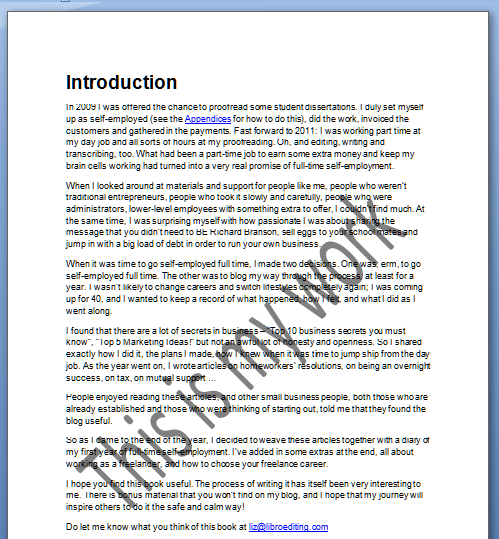
1 watermarked pageSometimes you want to set a watermark on a Word document. This article explains what a watermark is, why you might want to add one to your document, how to add a watermark, how to customise a watermark, and how to remove them.

What is a watermark?

A watermark is a word, phrase or picture that appears “behind” the text in a document. It gets its name from the physical marks that are created during the paper-making process. The pulp is floated in water, and a frame is brought up under it to collect the pulp into a square. The frame is lined with thin wires (and symbols or text can be included, too) and when the pulp is collected in the frame, it will be thinner where there’s a wire or other protruding part of the frame. When the pulp has dried into a sheet of paper, the thinner parts of the paper will let through more light when held up to a light source, and so you can see the symbols and words, as well as the lines of the original frame (this is how papermakers marked their stock and also how you can tell how a book was put together. For more information on the fascinating world of watermarks, you can start off with this Wikipedia article.

Why would I want to watermark my Word document?

If you watermark a document, whoever opens that document will see the watermark sitting behind that document. This is basically to stop it being used either in their everyday work or for other commercial purposes. It’s very much like the way that photos from mass sports events or wedding photographer sites often have words printed faintly across them. It stops you printing them out and using them without buying them.

Some reasons to do this:

  • You’ve prepared a document for someone and you’re charging them after you’ve completed the job. Sending them a watermarked document will proved that you’ve fulfilled your side of the bargain but prevent them from actually using the document. Once they’ve paid you, you can send them a non-watermarked version.
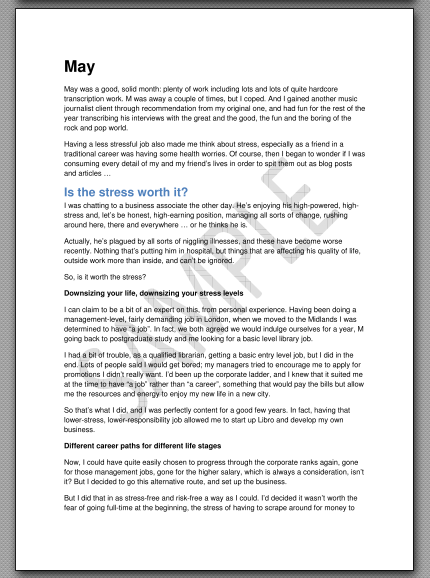
  • You’ve prepared a document to send out to people but you don’t want them to share it further or claim authorship, or you want to remind them it’s a sample. I’ve done this with the sample chapter of my book that I send out to people who sign up to receive my newsletter. It has “Sample” written across the page behind the text, so that people can’t use it in another way and to remind them that it’s just a sample and they can buy the whole thing.
  • You’re sending out a late reminder of an invoice and if you were doing it on paper, you’d use one of those URGENT stamps and red ink.
  • You’re creating a corporate document and want to include corporate branding of some sort behind the text.

Note that if you’re watermarking to protect your work, the watermarking should go alongside copyright statements if you want to use it for that purpose, and I’m not an expert on, or advising you on, copyright here – just telling you how to apply a watermark.

How do I add a watermark to a Word document?

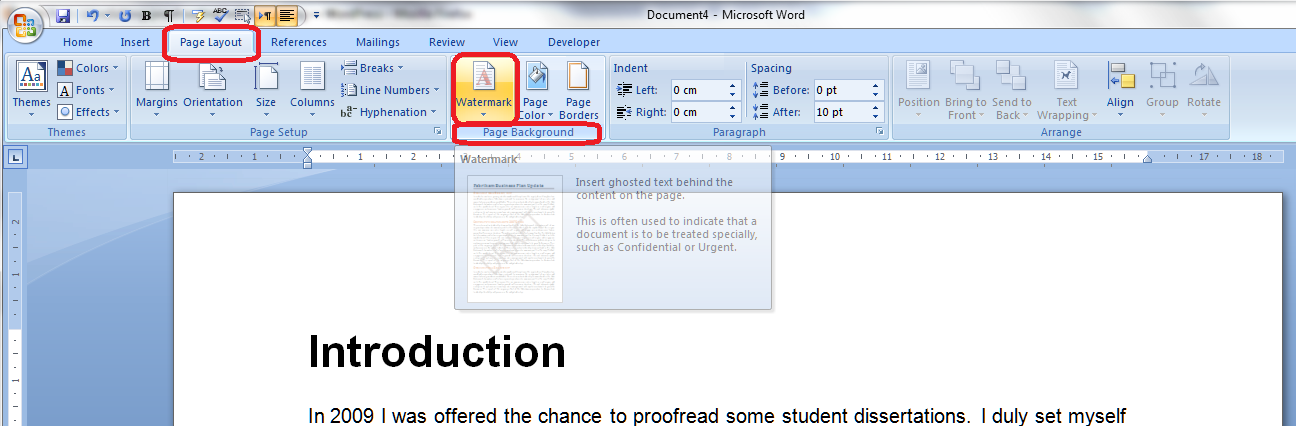
To access the Watermark menu, go to the Page Layout tab, then look in the Page Background area, where you will find the Watermark button:

2 watermark button

The Watermark button has a small downward-pointing arrow which implies that you can access a menu. Click on the arrow and there’s the menu:

3 watermark menu

If you select any of the standard examples that they give you (and note the scroll bar on the right, which you can use to see more default watermarks, that watermark will go straight onto your document. But you might want to customise the watermark in terms of wording, colour, text size and font, etc. and you can do that by selecting Custom Watermark at the bottom of this menu.

How do I customise my Word watermark?

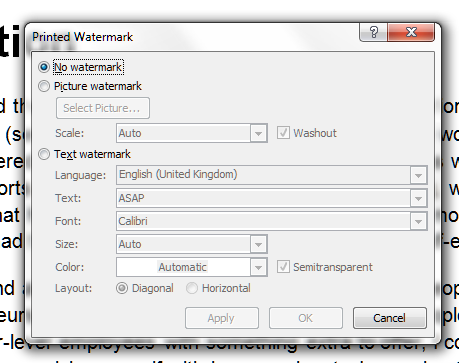
Of course you will find lots of options for customising. Select Custom Watermark at the bottom of the Watermark menu to access the Custom Watermark menu:

4 custom watermark menu

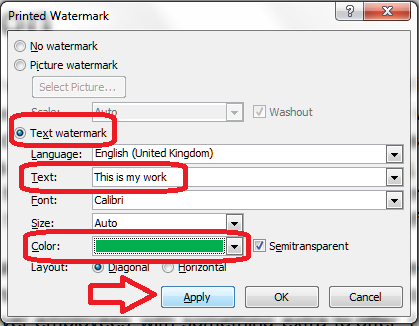
You can see here that the menu defaults to No watermark, because that’s what we started with. But there are options for adding a Picture watermark or Text watermark, and you select which you want to work with by clicking on the radio buttons in the left-hand margin. We’re going to work with a text watermark in this example, so we click on the radio button next to Text watermark:

5 custom watermark menu changed

Now the fields to do with text watermarks become active (are no longer greyed-out) and we can change the language, the actual text, the font, size, colour and orientation.

Here I’m changing the text – it defaults to the first standard text but you can just type in what you want to appear there. I’m also changing the colour – but note that I’ve left Semitransparent ticked. If you don’t do that (see below), the watermark will be much heavier and will actually obscure part of the text … which can be useful, of course!

Once you’ve made your choices and changed the text, colour, etc., press the Apply button to apply the changes.

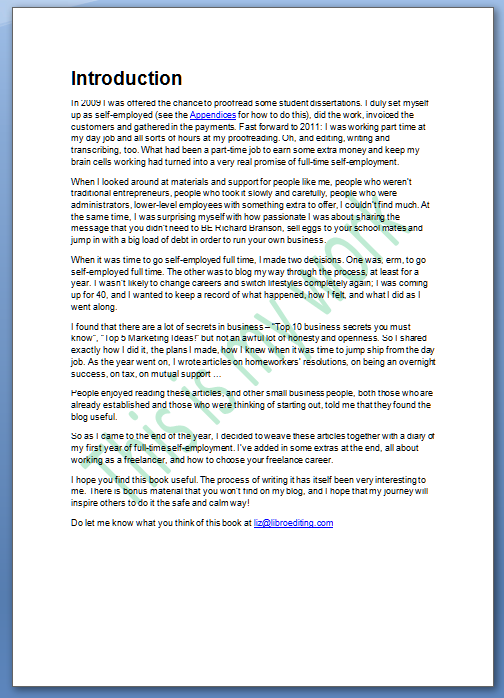
6 custom watermark

And here’s my custom watermark – my text, in the colour I chose.

Advanced watermark customisation

We won’t go into all the detail about customising here, as the menus are pretty self-explanatory. You can use the Picture watermark option to, for example, add your company logo to a tender document, or another image to make your documents look more attractive (beware of making them too “busy” or, worse, undermining their readability: remember that you need to consider people with low vision who might be reading the printed or on-screen document, and if you suspect the document might be photocopied in the future, steer clear of a lot of watermarking, as it’s apt to become darker and more visible when it’s copied).

A quick look at transparency: if you untick the Semitransparent box in the Custom Watermark menu above, your watermark will be a lot heavier and may obscure some of the text. Here I’ve changed the colour to black and unticked Semitransparent.

6.5 heavy watermark

How do I edit my watermark?

In the case I’ve just shown you, I simply went back into the Watermark menu then the Custom Watermark menu; my choices were there already and I changed them. The choices you have made will stay in the menu until you change them or remove the watermark entirely, so you can pop in and adjust it as you like.

How do I remove watermarks?

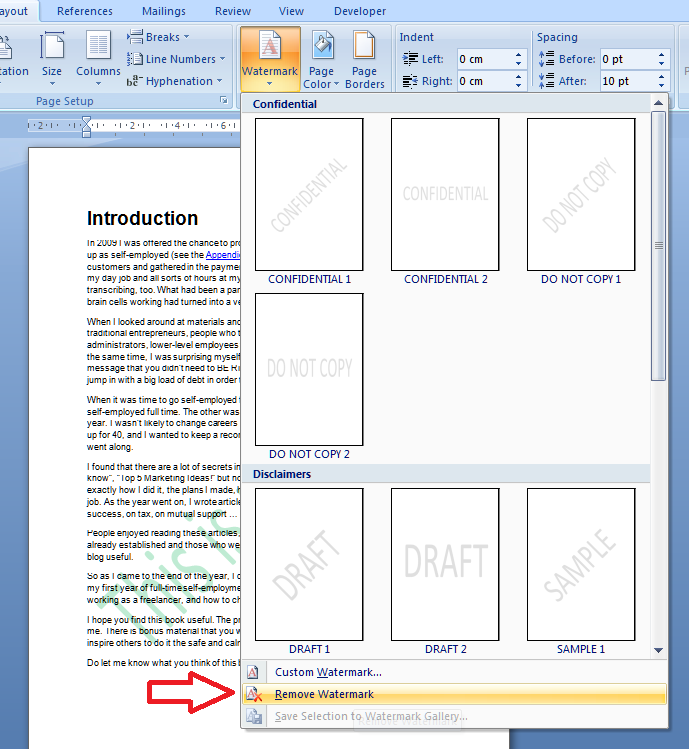
If you want to remove the watermarks on a document, go to the Watermark menu and select Remove Watermark:

7 remove watermark

Of course, this means that other people could remove your watermark, too. So if you watermark a document to protect it, and you don’t want someone to remove that watermark, you will need to protect the document itself by making it uneditable, either by security protecting it or changing it into a pdf document (the latter is what I have done with my sample chapter). That’s an article for another time …

How do I apply a watermark in Word 2013?

If you’re using Word 2013, you will need to note that they’ve added an extra Design tab, and you’ll find the Watermark feature there.

How do I create a default watermark for all of my documents?

There’s no way to save a default watermark or add one permanently to your watermark gallery. If all of your documents are going to have the same watermark, it’s best to create a blank document with the watermark applied, then save it as a Word template (Save – Save as – drop down Type – Word template). Then, use that template when you’re starting a new document in Word. Thanks to my commenters for suggesting this addition to the article!

———————

This is part of my series on how to avoid time-consuming “short cuts” and use Word in the right way to maximise your time and improve the look of your documents.

If you found this interesting, you might also be interested in:

How to protect your document in Word 2007

How to protect your document in Word 2010

Please note, these hints work with versions of Microsoft Word currently in use – Word 2003, Word 2007 and Word 2010, all for PC. Mac compatible versions of Word should have similar options. Always save a copy of your document before manipulating it. I bear no responsibility for any pickles you might get yourself into!

Find all the short cuts here

 
19 Comments

Posted by on July 3, 2013 in Errors, New skills, Short cuts, Word, Writing


Tags: , , , , , , , ,

Be careful: icon / iconic

Photo by Sarah

Source: Sarah Gallagher 24.06.13. Street artist unknown, Melbourne

When I posted my last Be Careful! post on the use of decimated, my friend Sarah, New Zealand librarian, asked me if I’d looked at icon/iconic and its overuse. So I invited her to write a post for me, and here is the rather marvellous result!

After vociferously agreeing with a recent blog Liz wrote about the misuse / overuse of the word decimate, I was invited to write a guest blog post about the similarly misused / overused word, icon and the adjective, iconic. We certainly overuse and misuse it in NZ, and hardly surprising, it happens elsewhere to. We have all been doing so for quite sometime. It seems that hardly a day goes by where these words are not used to describe a person, thing or sometimes, a place. In some cases it really has gone well past the point of ridiculousness. Here are a few particularly amusing examples I’ve discovered recently:

Iconic image of pepper sprayed woman becomes icon of resistance
Iconic green caravan … An icon of Tokoroa
Iconic sign gets a makeover
Gene Wilder, icon, and star of iconic Charlie and the chocolate factory film
10 iconic t shirts
The anatomy of an iconic image – I agree, the fashion industry over uses the term. I disagree, Kate Moss is not an icon. Nor is she iconic.
Top 10 political icons

So what do these words actually mean? The OED defines icon as having four meanings, two of which are relevant here: an icon is defined as either, a representation of Christ or a holy figure, or a person or thing regarded as a representative symbol or as worthy of veneration. Meanwhile, iconic refers to something that is representative of an icon, so veneration is applicable here too.
Definition of icon – OED
Definition of iconic – OED

Veneration. Perhaps there is a correlation between the overuse of these words has something to do with our increasing societal secularism. Has anyone considered that? Or maybe it’s aligned with our instinct to hyperbole, or a deficit of other adjectives. It some cases these words have become a device to express the importance or significance of something.

My own understanding of the word icon comes from my background and training as a classicist and specifically as a student of iconography. The study of images, and for my research, specific likenesses, brings with it the need to identity work by style, describing their content, and placing them in a stylistic context. In part this happens by identifying patterns in depiction and symbolism. It’s a world where gestures, colour, pattern, and attributes articulate meaning. In preliterate societies it was these subtleties that allowed artists tell stories, or pass on messages to their audiences, and for the illiterate public to ‘read’ the images (think pictorial shop signs, statues of deities, stained glass windows).

So when I read that someone or something is an “icon” I expect there will be a number of attributes: the object of veneration will represent something of deep meaning to a significant group of people, it will be of sufficient gravitas/ age/ mana (this is a Maori word) to demand respect of even those who do not believe in it themselves. It is something or someone who transcends the ordinary, and is truly representative of e.g., a deity, an explorer, a scientist, an artist, a place of worship, a building, a monument; and who has a belief system, story or legend that is inherent in their being. Iconic seems to have come to mean a symbol or to be representative of. Symbols, logos, emblems and insignia all convey meaning but do they truly, hand on heart, evoke veneration in the way a true icon would?

I’ll close with an example of the Virgin Mary:
Here’s an icon
The modern image that illustrates this piece (see top) is an iconic image
Finally, here is a modern icon

Try this yourself. Run a Google image search on the words icon and iconic and see what results. You might be surprised.

References:

Iconic the adjective of an age
Icon, iconic and other overworked words
Cultural icon
Cultural Icons: A Case Study Analysis of their Formation and Reception

Biography:

Sarah Gallagher is a Medical Librarian based in Dunedin, NZ and holds Masters degrees in Classics and in Library & Information Studies. She’s an early adopter of social media and is interested in how these tools can be used in the GLAM and heath professions. Sarah’s also writing a book about named student flats in Dunedin, an ephemeral print culture.

Sarah’s Tumblr
Sarah on Twitter
Sarah’s official bio page

Read more Be Careful! posts …


Tags: , , ,

How do I change the colour of text in Word?

How do you change the colour of the text in your Word document?

Why would I want to change the colour of the text in my document?

You might want a section of the text to stand out, to match your company branding or to look attractive on a menu or other display document. It’s easy to change the text colour to do this.

Note: don’t use changed text colour to alert your proofreader/editor to something you want to do – read this article to find out why.

How to change the text colour using the menu bar

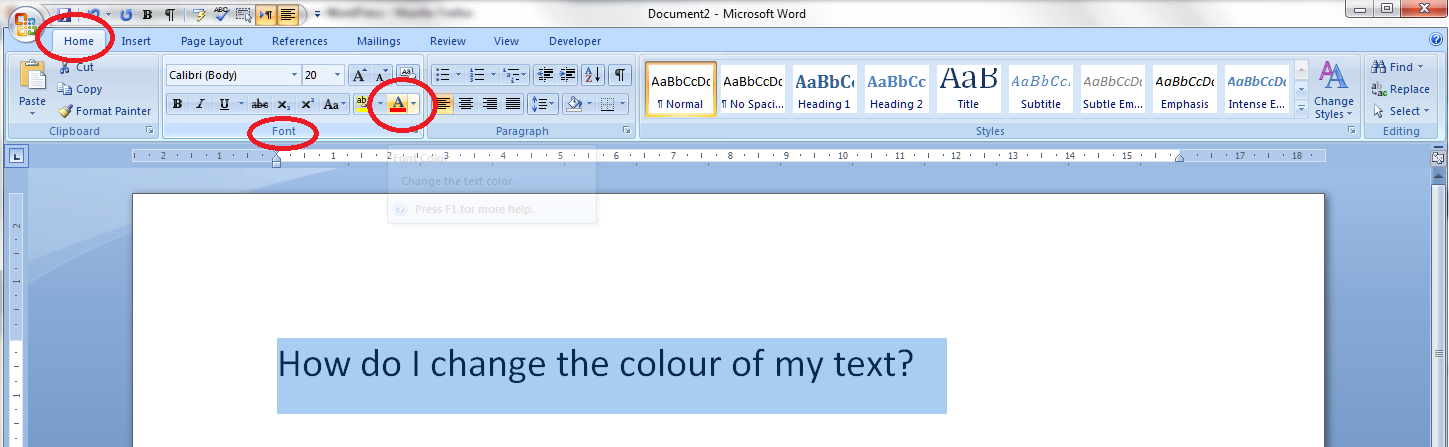
You can find the text colour button in the Home tab, in the font section of the menu bar:

1 colour in menu

Make sure the text that you want to appear in a different colour has been highlighted. Locate the letter A with a red underline and click on the down arrow to the right of the letter to access the Colour menu:

1 colour template from menu

To see how to use this palette, hop down past the next section and join me at “How to select your colour”.

How to change the text colour using right click

You can do a lot to a chunk of text by highlighting it and right-clicking. Try that on some text now by highlighting it then right-clicking over the highlighted text:

2 colour in right-click

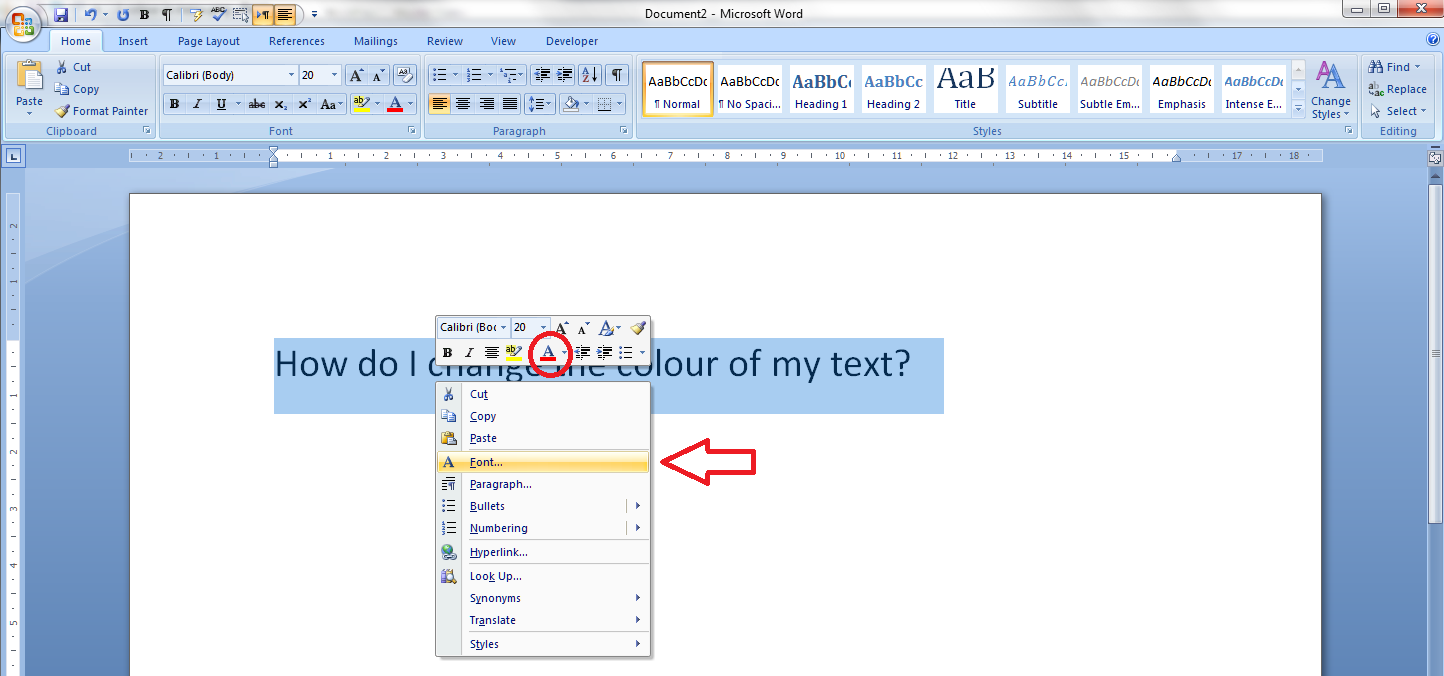
You will now find not one but two ways to change the text colour – a button with an A underlined in red (circled) and a Font menu (arrow). If you click on the button, you’ll get to the same point as in the section above. Click on Font for now ..

3 colour in right-click

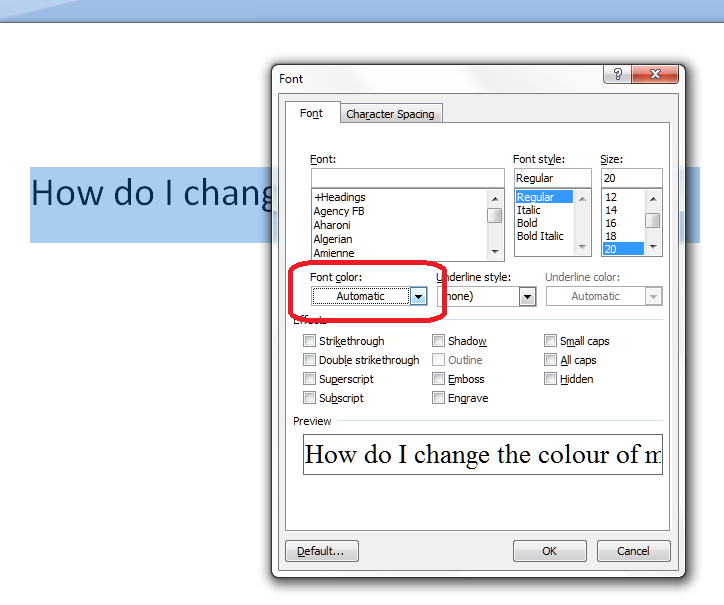
In the Font menu, you’ll find all sorts of things you can do to your font – very useful if you want to apply particular effects to the highlighted section of text. For now, we’re going to use the drop down arrow under Font color to select our font colour:

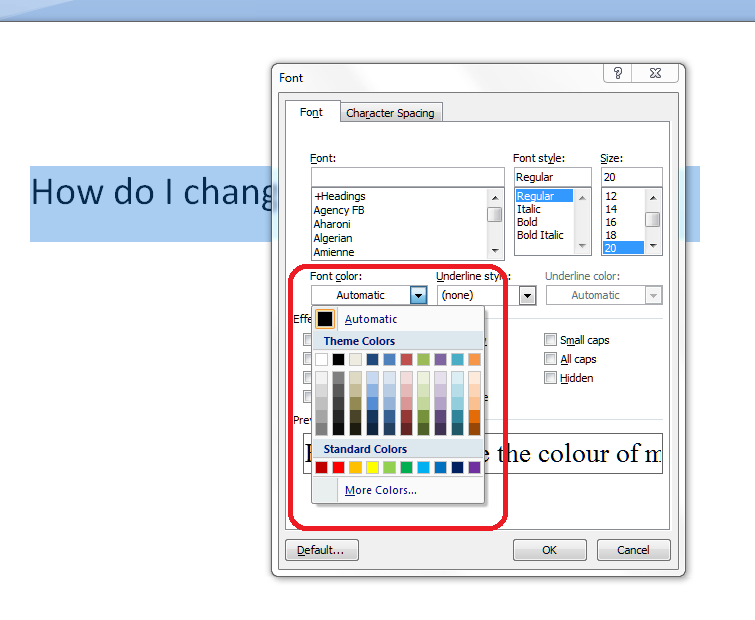
4 colour template in right-click

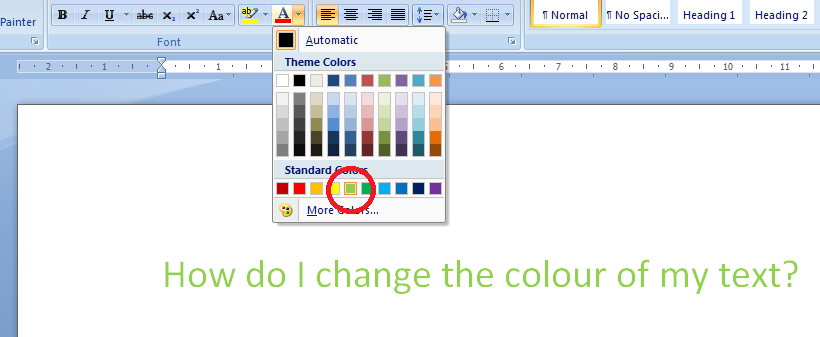
We’ve now got a choice of basic colours, with common ones at the bottom. Click, for example, on the first green, and your highlighted text will turn green, although you’ll need to press the OK button to make that change stick:

5 change colour

How do I choose a custom colour for my text?

You can, of course, go even more customised than this. In both ways to access the menu, you’ll find the words More colors… at the bottom of the palette:

6 more colours

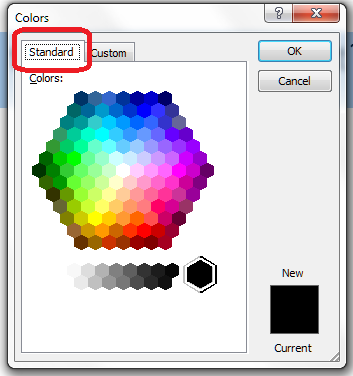
Clicking on this option will give you the Customise colours dialogue box, with two sets of increasingly customisable colour palettes to choose from. First of all, we have Standard colours:

7 more colours standard

You can see that we’re on the Standard tab here: there are plenty of colours and shades of grey to choose from, and you click on the colour and press OK to accept it. Or, if you’re feeling really adventurous, you can select the Custom tab

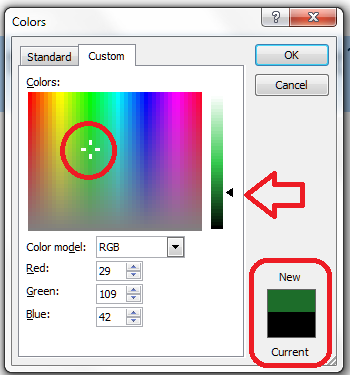
8 more colours custom

… and have a huge range of colours to choose from. Here, you can click on the colour and then move the arrow up and down to adjust the amount of black in the colour, and it handily shows you the original and new colours at the bottom of the dialogue box.

Now you know how to change the text colour in Word to an almost infinite number of colour choices. You can use the same button or right-click and font option in Excel and PowerPoint, too.

———————

This is part of my series on how to avoid time-consuming “short cuts” and use Word in the right way to maximise your time and improve the look of your documents.

Please note, these hints work with versions of Microsoft Word currently in use – Word 2003, Word 2007 and Word 2010, all for PC. Mac compatible versions of Word should have similar options. Always save a copy of your document before manipulating it. I bear no responsibility for any pickles you might get yourself into!

Find all the short cuts here

 
Leave a comment

Posted by on June 26, 2013 in Errors, New skills, Short cuts, Word, Writing


Tags: , , , , , , , ,

Important information for Google Reader subscribers

Hello there! This is aimed at people who subscribe to this blog and my other one via Google Reader.

*update: link to Feedly is now correct, sorry about that!*

Google Reader will be shutting down at the end of June 2013, so you will need to export your feeds to another reader, or you’ll lose them.

I have moved over to Feedly which allows you to import your Google Reader subscriptions and offers functionality for tagging and saving posts until later. I’ve found it’s good and reliable and easy to use, and it works on desktop computers and tablets, phones, etc. This is not an affiliate link or paid advertisement – I took some advice and looked at some alternatives and this looked best for me.

Of course, there are other RSS feed aggregators out there, and Library Guru Phil Bradley has kindly gone through and assessed them all for us in this blog post.

If you don’t want to use RSS feeds anymore, you can subscribe to this blog via email – just look at the top right hand side of the screen and you’ll see a link in the sidebar.

I hope you are able to continue to subscribe via Feedly or email or some other form and that I continue to see you over here. Any questions, please ask!

 
1 Comment

Posted by on June 25, 2013 in Blogging, Organisation


Tags: ,

Peer or pier?

English spelling is rife with these short words that sound the same and cause trouble. Just look at pare and pear and pair, or bear and bare, or peek and peak. But just like those, these two are very different, and their meanings don’t overlap at all!

To peer is to look with concentration or difficulty – “I peered at the dusty manuscript in the dim light”. It also means to be just visible – “the sun was peering around the side of the mountain” (the origin of this meaning may be from appear in 16th century dialect). A peer is a member of the nobility in Britain and Ireland, or a person of same age, status, rank or ability as oneself *my peers in the business world are a group of women who set up businesses a few years ago when they were around 40″. As an extension of this, it can mean simple equal (in quality) – “as an editor, he has no peer”.

A pier is any long narrow structure e.g. leading out to sea for boats to more on or for entertainment, or projecting from an airport terminal giving access to planes. It is also the pillar of an arch or pillar supporting a bridge, wall between windows or adjacent openings. Its origin is unknown.

“I peered at the pier through the mist as my peers danced away, celebrating their business success with some peers of the realm.”

You can find more troublesome pairs here and the index to them all so far is here.


Tags: , , ,

How to search for almost anything in Microsoft Office, other software and web pages

Today we’re going to learn about the wonders of Ctrl-F and how it can help you to search for text almost anywhere.

We’re going to look at an overview of the basics in this article, then I’ll go into more detail on advanced searching and replacing in another one.

What does Ctrl-F mean?

Ctrl-F is shorthand for “press the control key and the F key at the same time“. It’s the way in which key combinations are expressed. You will have one or two Ctrl keys on your keyboard (I have two) and it’s usually easiest to press Ctrl, hold it down, then press F.
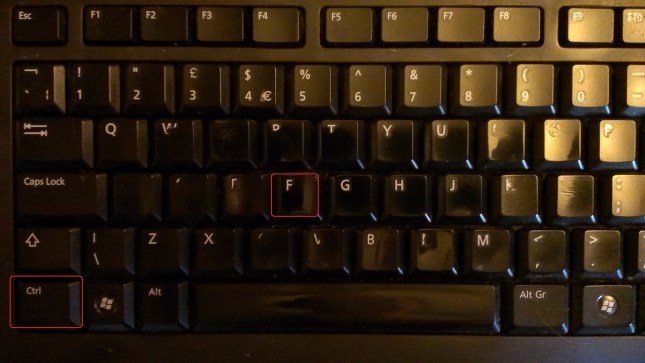
keyboard

If you’re looking at a  Word, Excel or Powerpoint document, a web page or, in fact, many other things, you will now be able to search for text in that document, on that page, etc. Let’s go through the different places you can use this.

Searching in Word 2007 using Ctrl-F

Word is one of the places where searching is most useful. It also offers the largest range of options for searching, and we’re just going to look at the most common today but watch this space for an article on advanced searching.

I use Ctrl-F to …

  • Search for a place in a text by a word in its heading
  • Search for tables / figures and references to them in a document to make sure they match up
  • Search for chapter headings in a book / thesis when I want to check they have a consistent style
  • Search for a name to check how it was spelled last time

and many other things.

When you have a Word document open, to bring up the search dialogue box, press the Control key and the F key at the same time. You’ll then be presented with the basic search box:
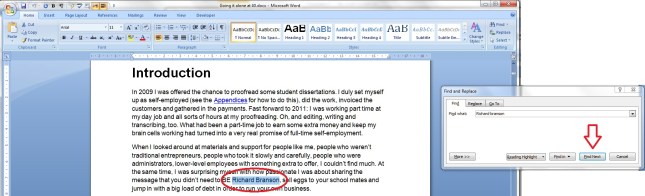
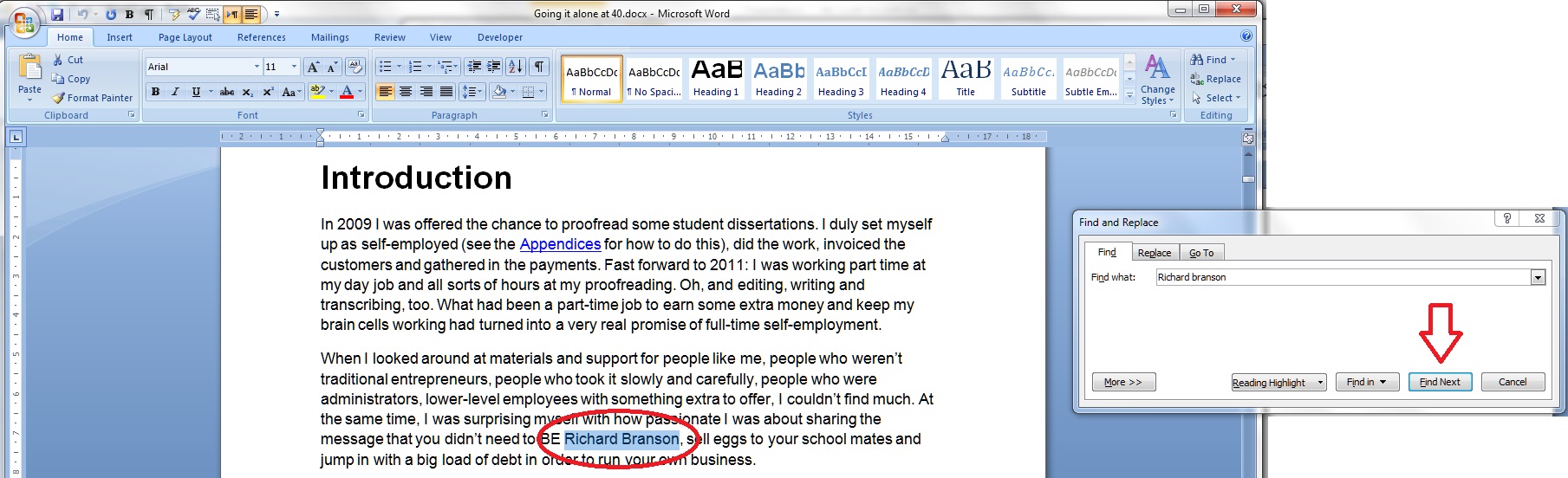
Word 1

It will usually appear to the side of the document, so as not to obscure the text. Enter the text you wish to search for, in this case Richard Branson, and press the Find next button (or the Enter key). Word will highlight the text you’re looking for.

That’s great, but what if you want more accurate searching? Press the More >> button for more options:
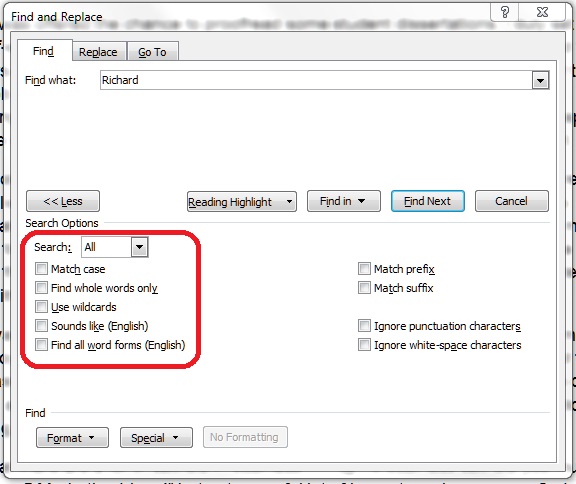
Word 2

Here, you have options to match the case, find whole words only, etc. For the moment, we’re going to concentrate on just these two (see the article on advanced searching for the other options).

If you choose Match case, it will search for only those words in the exact same case as the one in the search box. If you choose Find whole words only, it will look for only that text, not that text included in a longer word. We’ll have a look at how that works in just a moment.

Moving along the options, we have a Reading Highlight button. This will highlight all of the instances of your search word in your document. I find this useful if I’m writing a text to use for Search Engine Optimisation purposes and want to see how many times I’ve included a particular phrase:
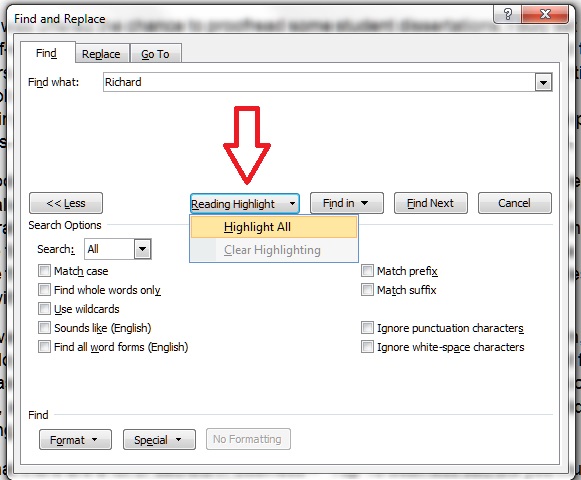
Word 3

Note: if you change your search term, you will need to Clear Highlighting before highlighting again, otherwise all of the original highlighting is shown.

The next option is Find In. This is useful if you only want to search a particular part of the text for your word. Highlight the section in which you want to search, and then choose Current Selection (or, if you’ve got a section highlighted for some other reason, choose Main Document.
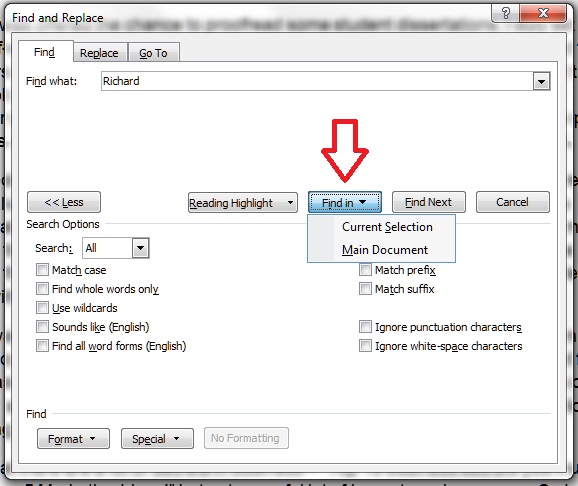
Word 4

Let’s have a look at some of these options in practice, using a rather odd paragraph I made up for illustration purposes:
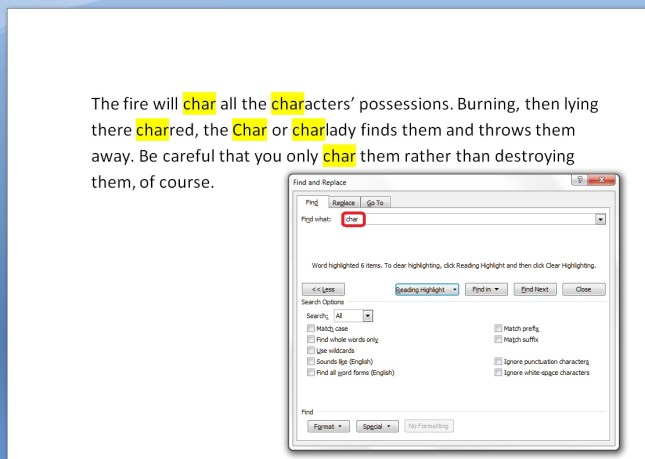
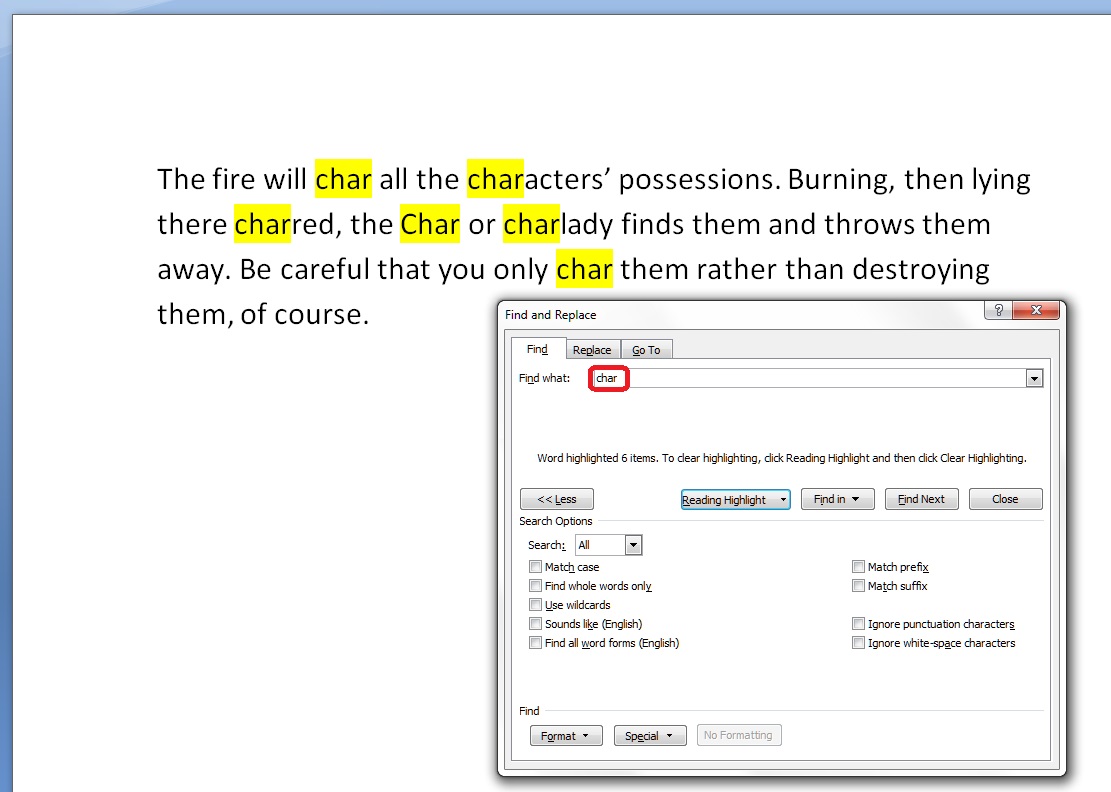
Word 5

Here, I’ve just searched for char, not worrying about any additional options. You can see that it’s found char, but also character, charlady and Char, because I didn’t specify that I wanted only the word form “char”.

If I want to only find “char” in the text, I need to tell Word to Match case and Find whole words only. Then I will get the desired result:
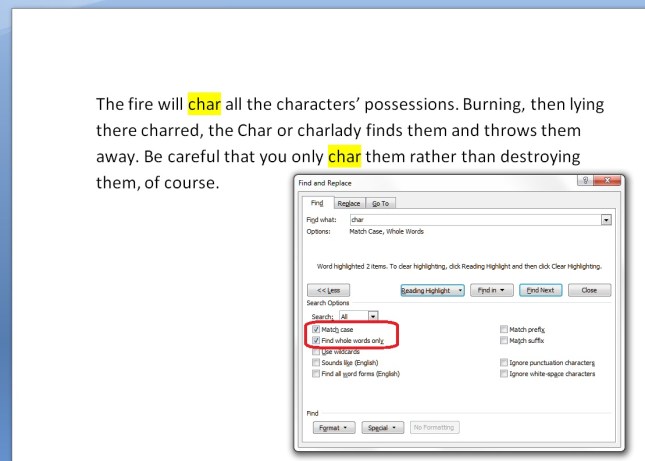
Word 6

Searching in Word 2010 using Ctrl-F

Of course, they went and changed this to make it more useful and user-friendly in Word 2010 … I was a bit flummoxed when I first tried to use it, but you can get back to the dialogue box we’ve looked at above, and there are some additional useful features.

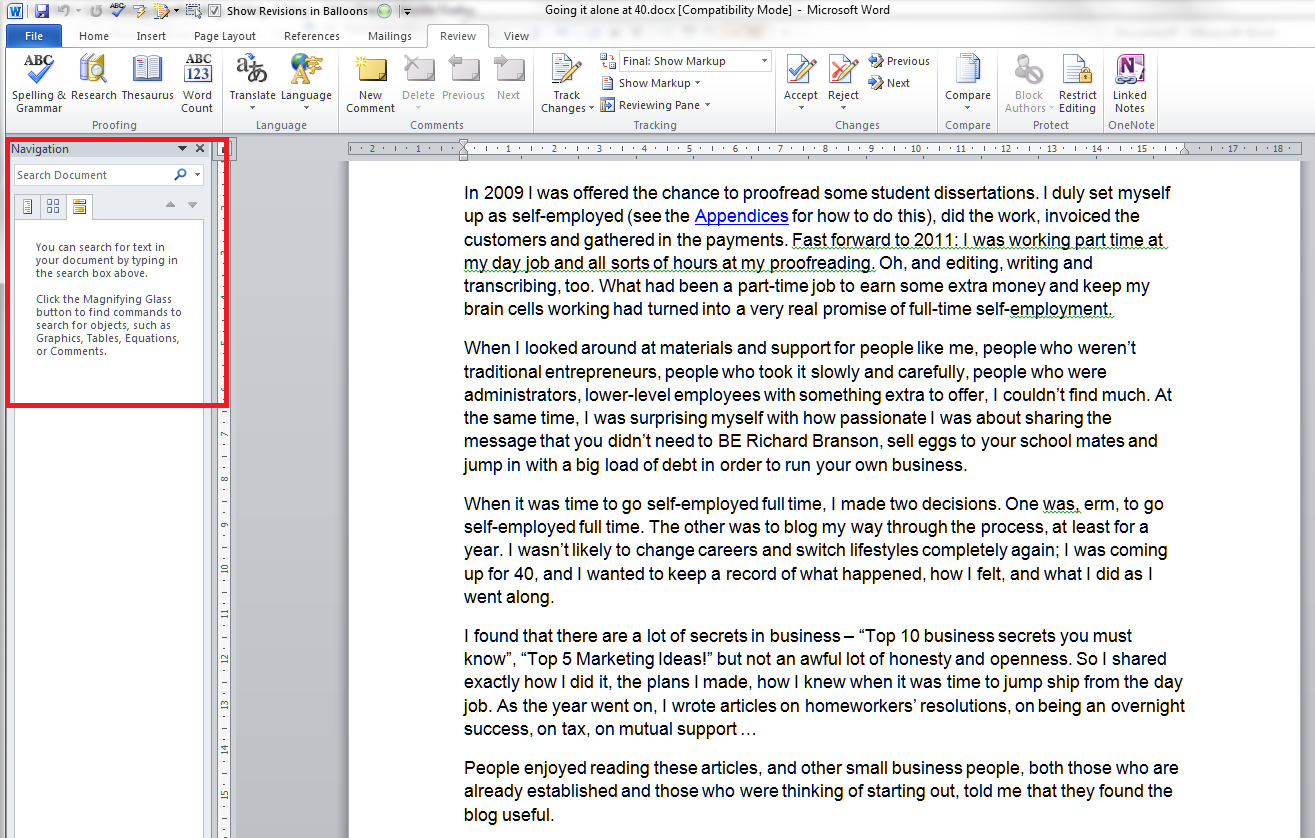
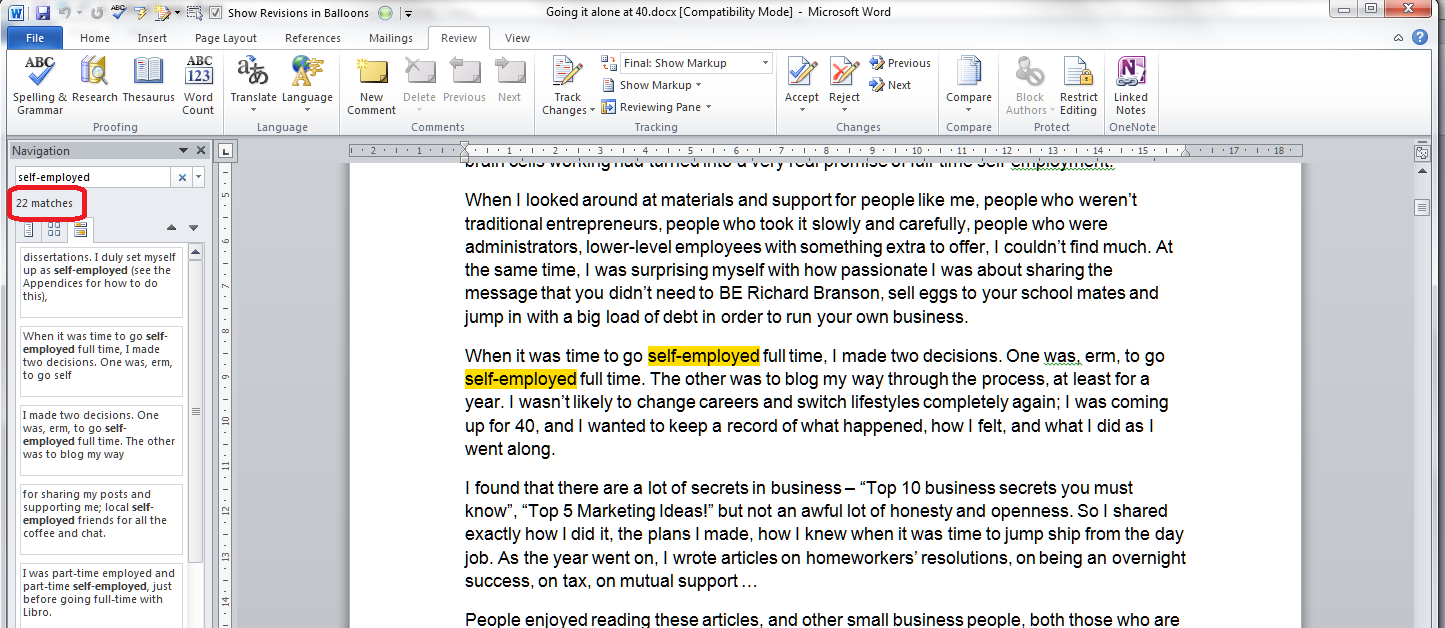
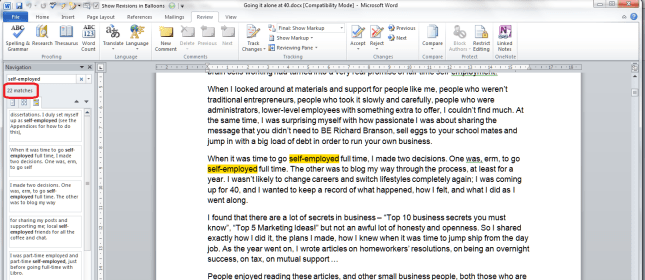
In Word 2010, if you press Ctrl-F, you’ll be given a Navigation pane to the left-hand side of the document:
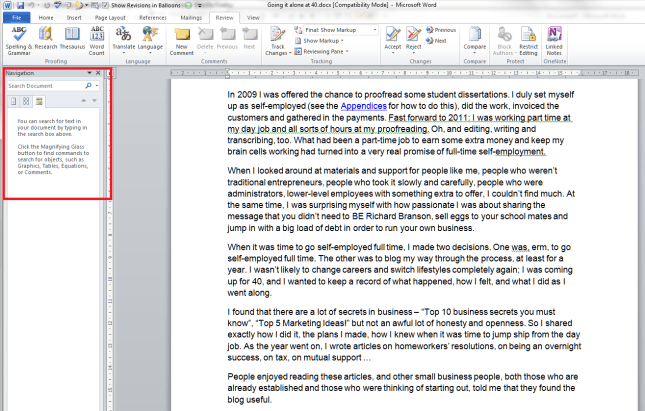
Word 7

Put your search term in the box and it will automatically highlight all of the instances of that word in the document, give you the number of times it appears, and list all the instances so you can click and visit each of them:
Word 8

This is handy, and although you can do more things here to do with looking at the whole document, you can’t immediately refine your search to whole words only, match case, etc. But you can get to that familiar dialogue box.

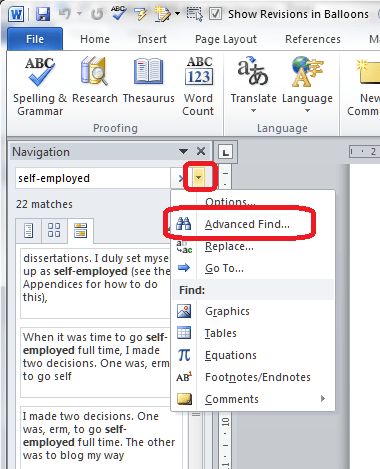
Click the down arrow next to the search box and you’ll be presented with a list of options. We’ll look at the advanced ones next time.
Word 9

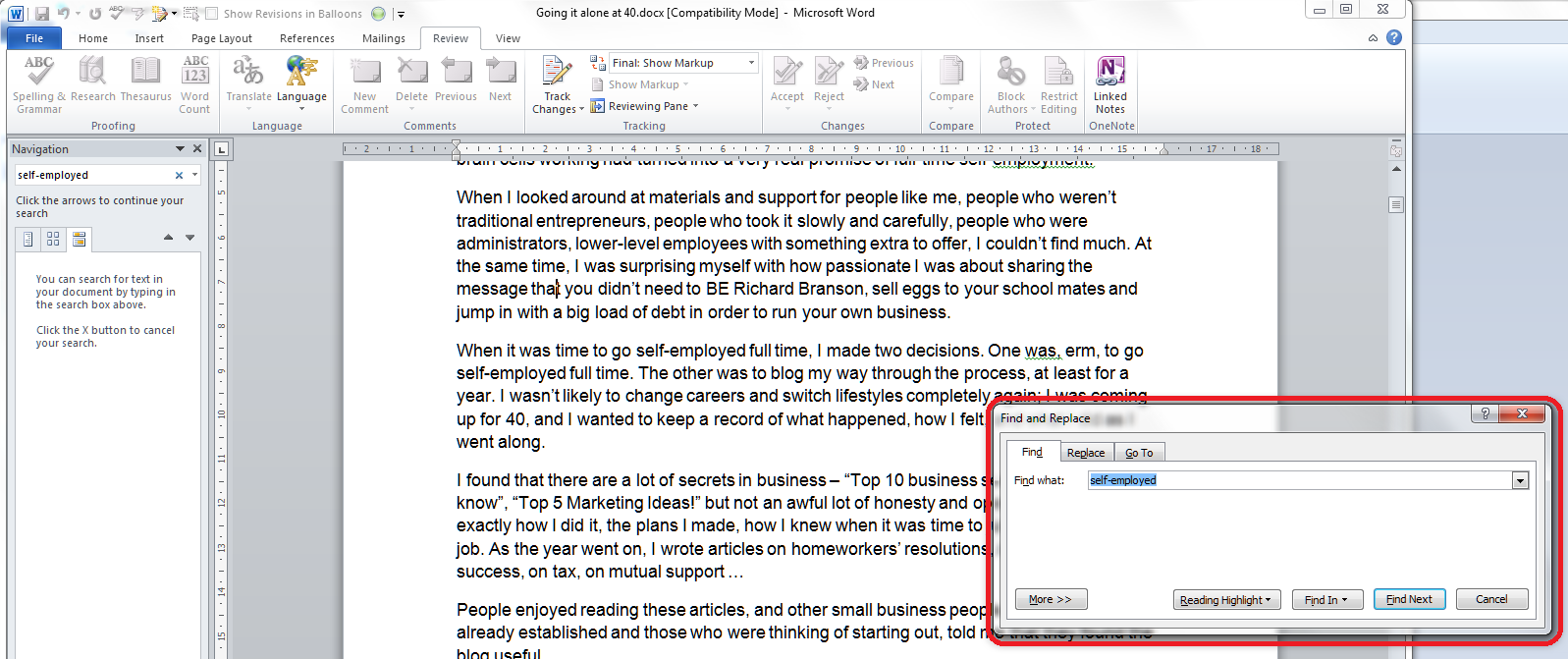
For now, select Advanced Find, and a familiar dialogue box will pop up …
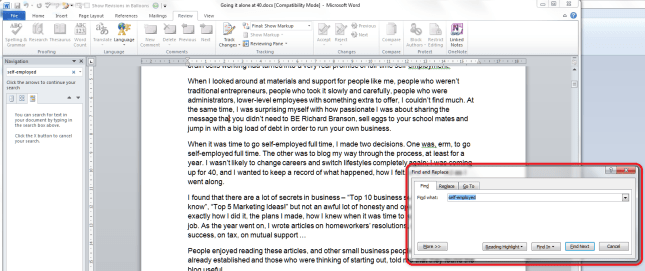
Word 10

Searching in Excel using Ctrl-F

All of the other software in Microsoft Office uses Ctrl-F, however to a more limited and less customisable degree. In Excel, pressing Ctrl-F will give you this dialogue box:
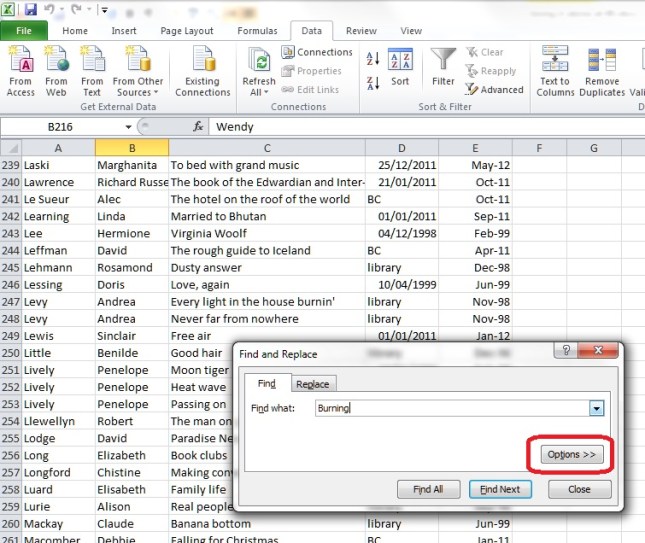
Excel 1

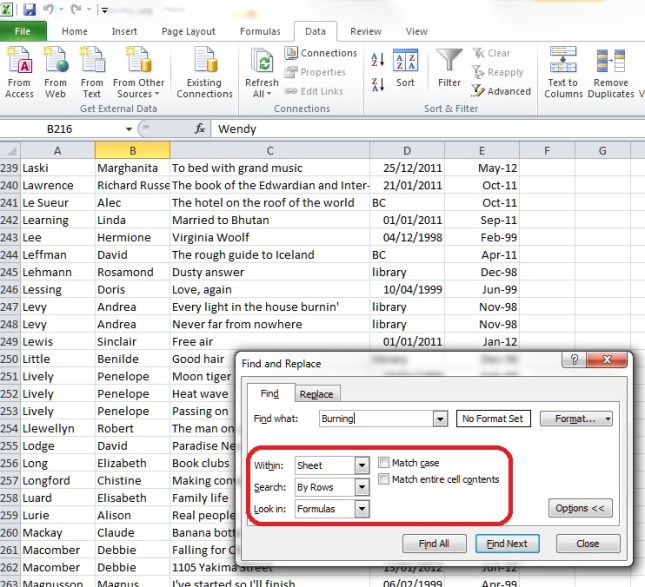
Press the Options button and you have some options for where you search and the form of the word:
Excel 2

This works the same in Excel 2007 and 2010.

Searching in Powerpoint using Ctrl-F

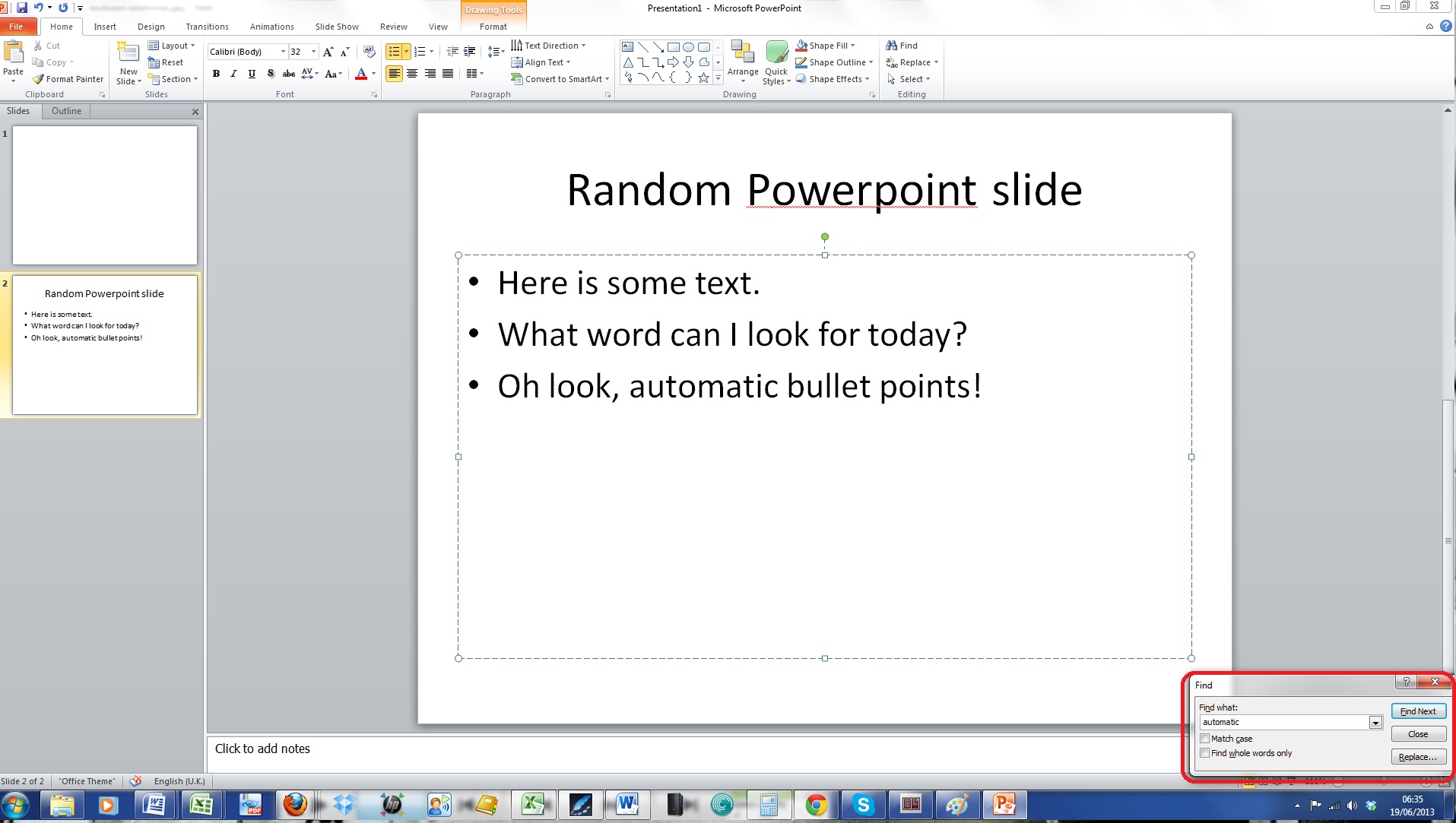
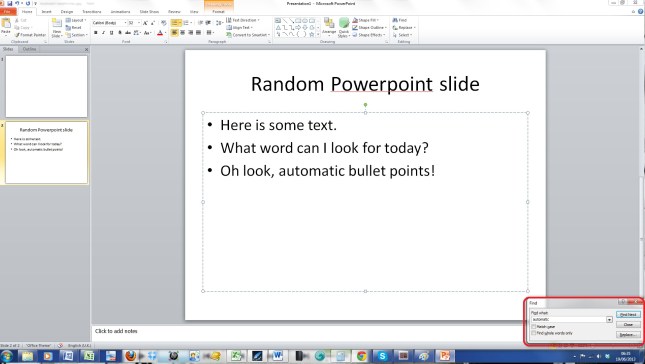
In Powerpoint, Ctrl-F gives you a small dialogue box:
Powerpoint

Again, you have enough options to be useful, but not the range of options you find in Word, and again, this works the same in Powerpoint 2007 and 2010.

Searching on web pages using Ctrl-F

I find this so useful, especially if I’m searching my own web pages for a word I’ve used or maybe misused (I used this a great deal in the great proof-reading to proofreading change I made a few years ago.

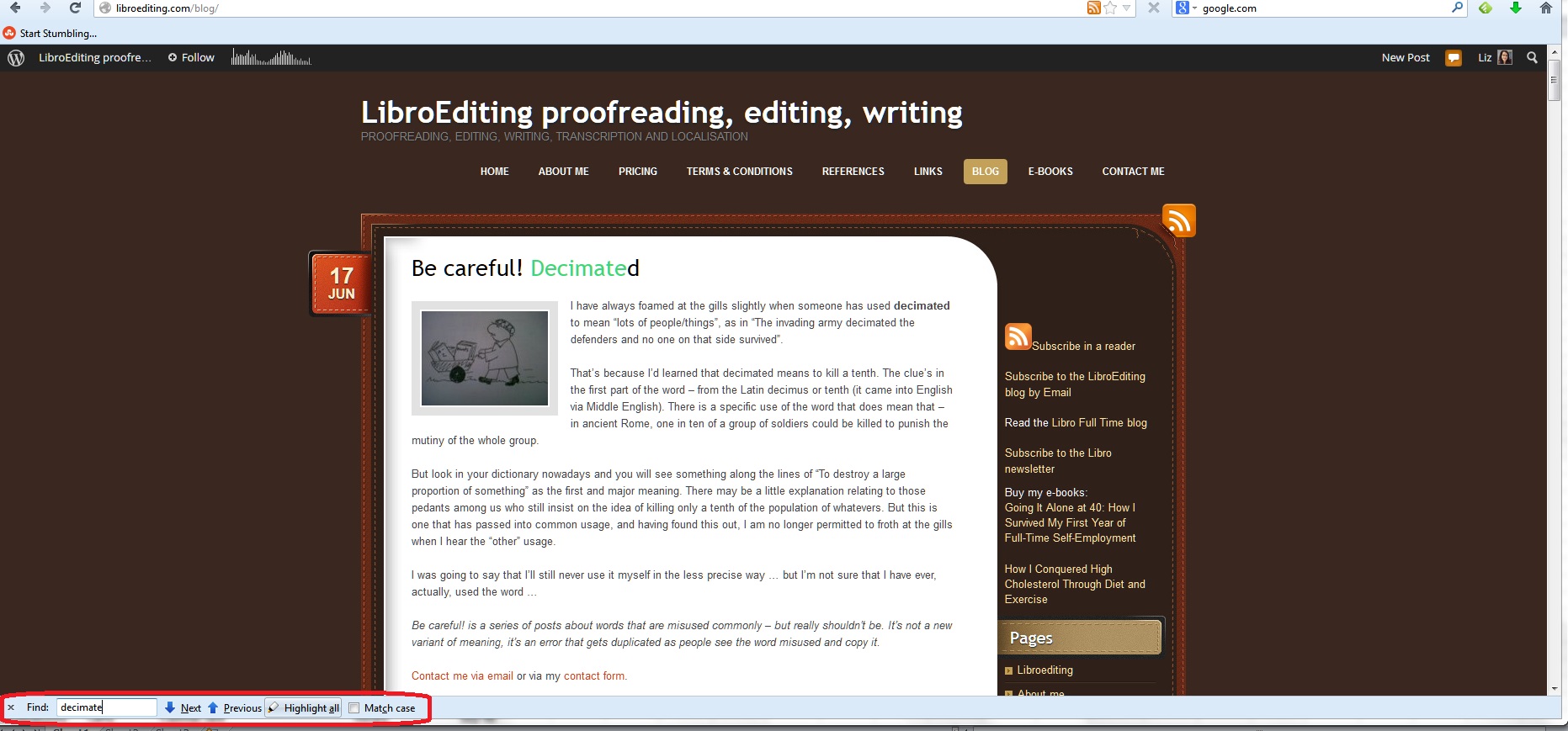
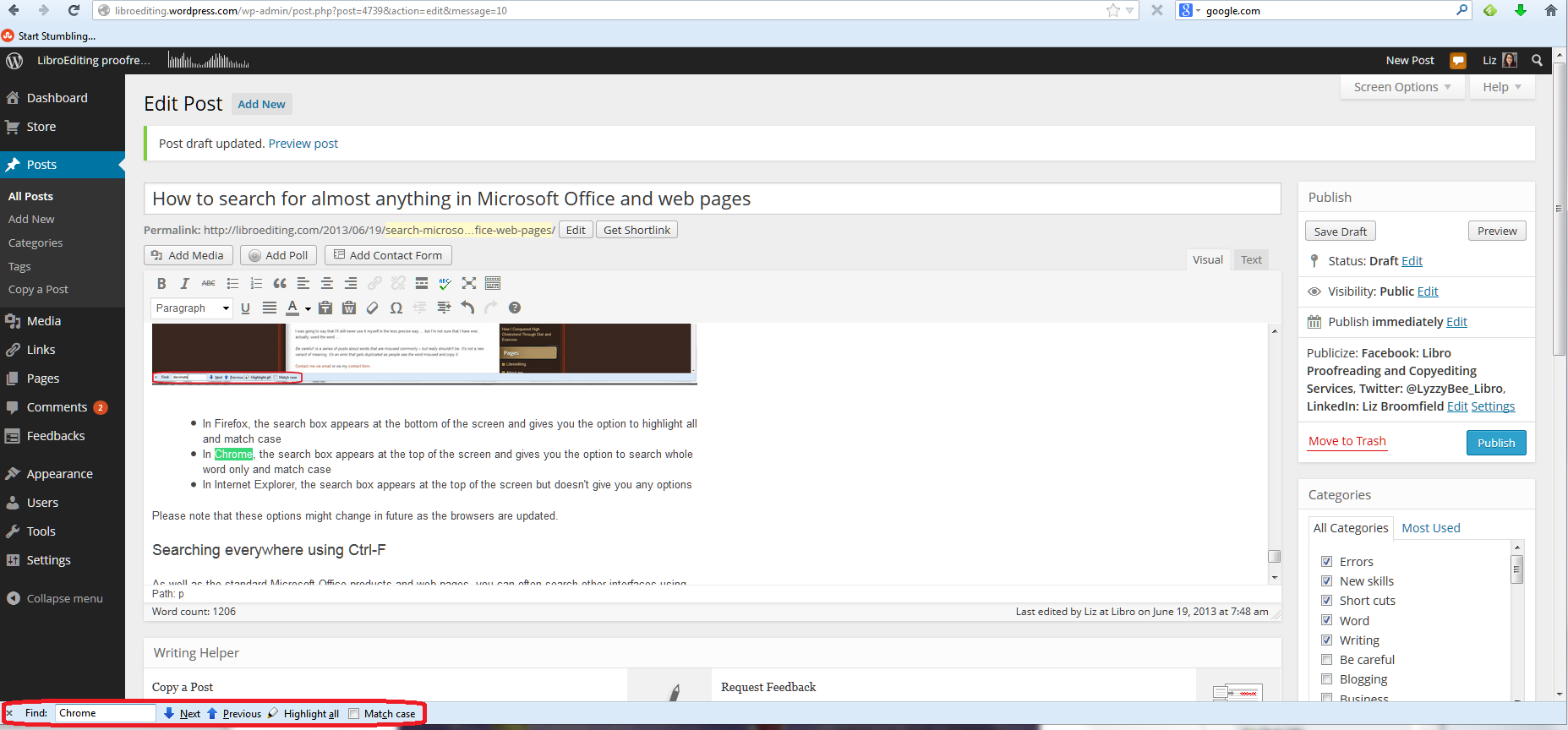
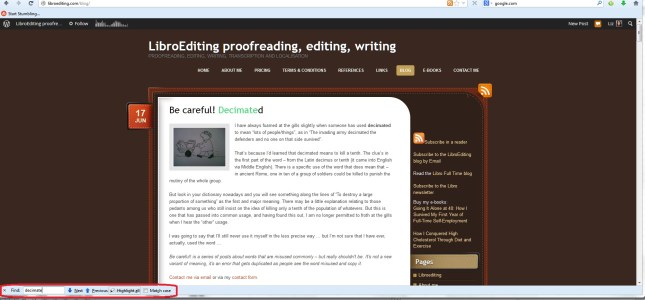
This varies according to the browser you’re using, but hitting Ctrl-F will always bring you up a search box of some kind:
website

  • In Firefox, the search box appears at the bottom of the screen and gives you the option to highlight all and match case
  • In Chrome, the search box appears at the top of the screen and gives you the option to search whole word only and match case
  • In Internet Explorer, the search box appears at the top of the screen but doesn’t give you any options

Please note that these options might change in future as the browsers are updated.

How to search a PDF using Ctrl-F

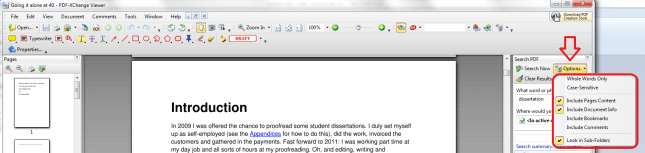
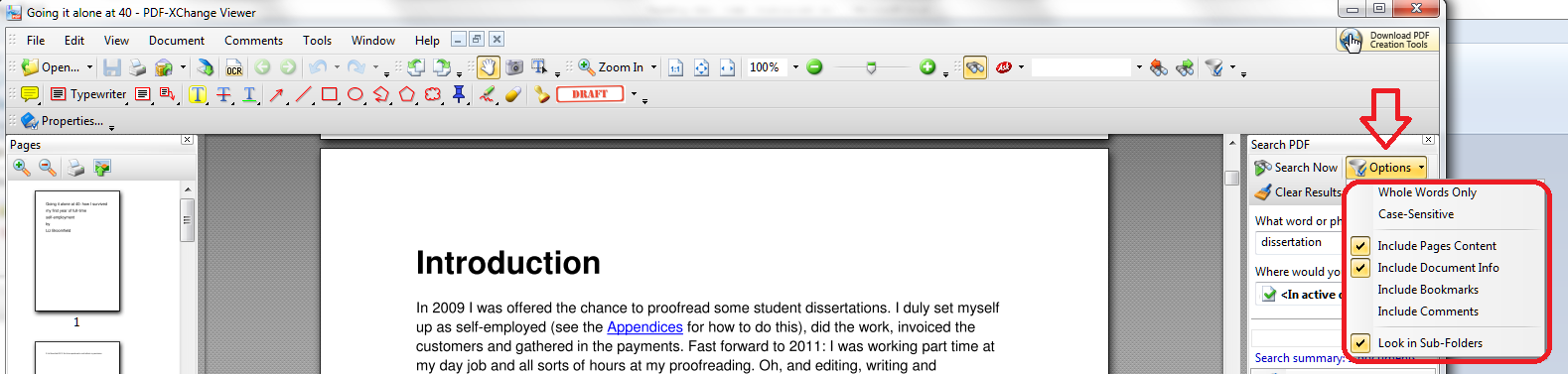
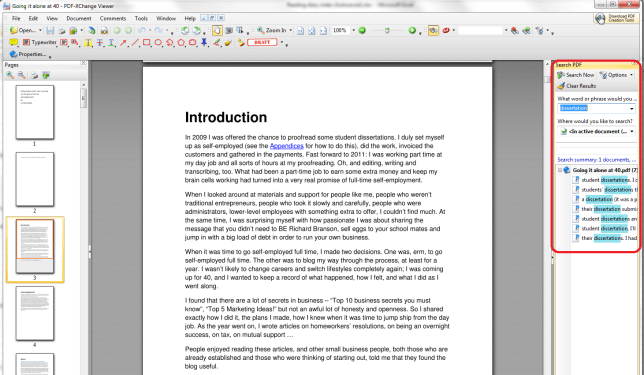
One of the few things that you can’t search using Ctrl-F is a pdf document. However, most readers (I use PDF-Exchange), as well as having their own search functionality on the page, will allow you to use Shift-Ctrl-F to search!
pdf 1

You have some options:

pdf 2

And it works in a similar way in Adobe, too.

If this doesn’t work, there is always a search function in your pdf reader itself, for example:
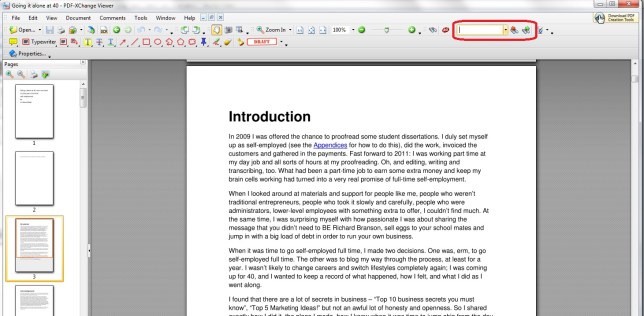
pdf

Searching anywhere using Ctrl-F

As well as the standard Microsoft Office products and web pages, you can often search other interfaces using Ctrl-F, too. For example, because my WordPress interface uses the web browser, I can search for words in posts I’m writing:
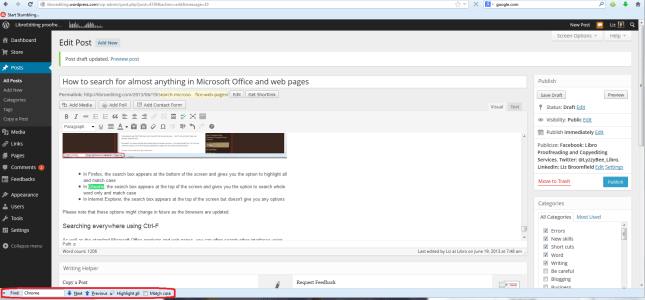
Wordpress

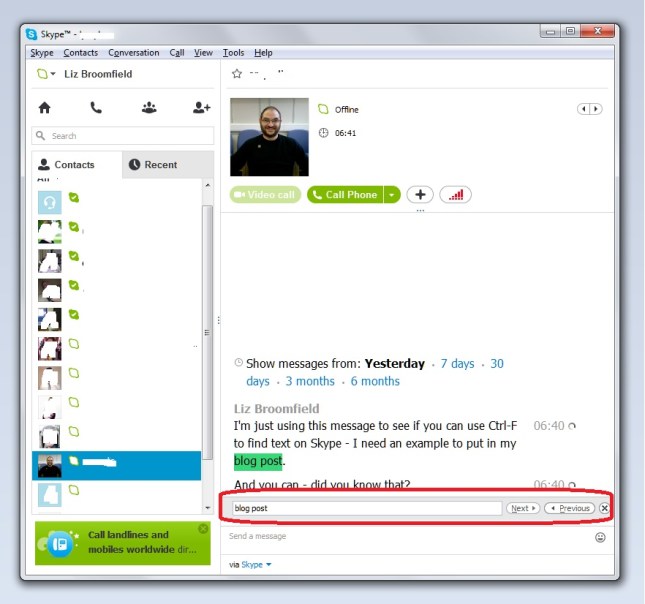
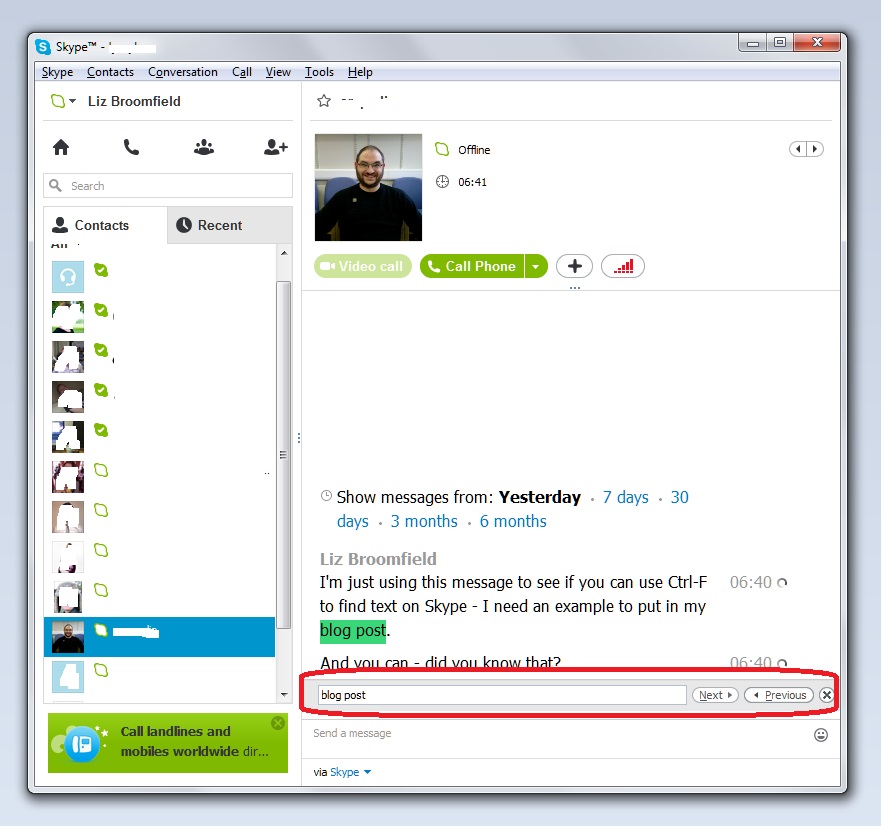
I can use it in Skype:

Skype

And I’ve even tried it in my transcription management software, ExpressScribe, and you can use it there, too!
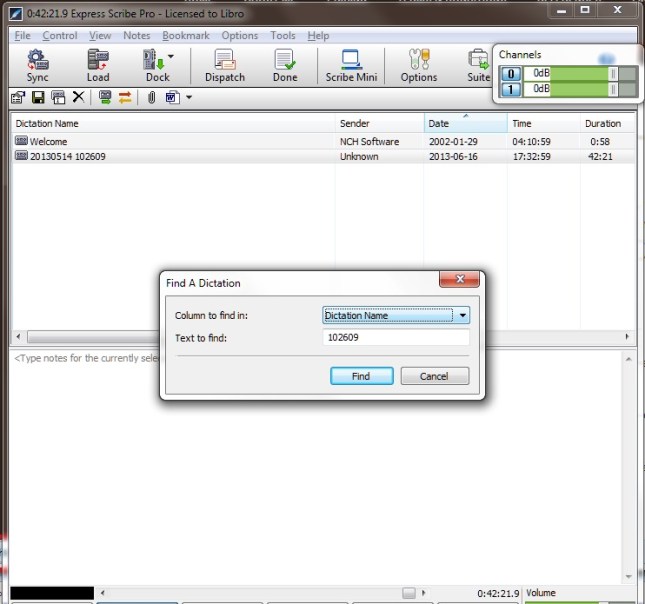
express scribe

Today we’ve learned about how to use Ctrl-F to search almost anywhere in any type of document or application.

Coming soon – advanced searching in Word and Search & Replace / Go To.

———————

This is part of my series on how to avoid time-consuming “short cuts” and use Word in the right way to maximise your time and improve the look of your documents.

If you’ve enjoyed this post and/or found it useful, please take a moment to comment (I’ll just ask you to provide a name and email address; you don’t have to sign in to WordPress) and share the post using the buttons you can see below. Thank you!

Please note, these hints work with versions of Microsoft Word currently in use – Word 2003, Word 2007 and Word 2010, all for PC. Mac compatible versions of Word should have similar options. Always save a copy of your document before manipulating it. I bear no responsibility for any pickles you might get yourself into!

Find all the short cuts here


Tags: , , , , , , , ,

Be careful! Decimated

I have always foamed at the gills slightly when someone has used decimated to refer to “lots of people/things”, as in “The invading army decimated the defenders and no one on that side survived”.

That’s because I’d learned that decimated means to kill a tenth. The clue’s in the first part of the word – from the Latin decimus or tenth (it came into English via Middle English). There is a specific use of the word that does mean that – in ancient Rome, one in ten of a group of soldiers could be killed to punish the mutiny of the whole group.

But look in your dictionary nowadays and you will see something along the lines of “To destroy a large proportion of something” as the first and major meaning. There may be a little explanation relating to those pedants among us who still insist on the idea of killing only a tenth of the population of whatevers. But this is one that has passed into common usage, and having found this out, I am no longer permitted to froth at the gills when I hear the “other” usage.

I was going to say that I’ll still never use it myself in the less precise way … but I’m not sure that I have ever, actually, used the word …

Be careful! is a series of posts about words that are misused commonly – but really shouldn’t be. It’s not a new variant of meaning, it’s an error that gets duplicated as people see the word misused and copy it.

Contact me via email or via my contact form.

 
23 Comments

Posted by on June 17, 2013 in Be careful, Errors, Language use, Writing


Tags: ,

An Editor Writes: 10 Lessons I Learned When Writing My Own Book

going_itWhen I set out to write a full-length non-fiction book, I had two ideas in my head:

1. I can just stitch this together from my blog posts – easy!

2. I’m a professional editor and writer, I’m used to writing to deadlines, so I’ll get this done quickly and efficiently.

Wrong!

This article is about what happens when you go over to the other side – when editor and content writer becomes (self-)published author.

Sitting down to write

The first thing I found when writing my own book was that it’s so hard to make yourself do it! I knew towards the end of 2012 that I had amassed the blog posts that I needed to write a book about a year of self-employment. So I picked up all the posts out of my blogs, popped them in a Word document, and thought, “Oh, look: a book”.

First lesson learned: I should probably have organised the book using a software package like Scrivener. This would have made it easier to organise … and reorganise … and reorganise it.

Second lesson learned: I should have set aside time for this process in my diary, like I do for my clients. You’d think I’d have learned this from trying to slot some academic research into my schedule – apparently not!

Emotional blocks to writing

I don’t know whether it’s because when I write for my clients, it’s “white label” work, which means that my name doesn’t appear on the finished piece, and having this appearing under my own name made it feel like I was under the spotlight, but I kept getting blocked. When it’s paid work for a client, I’m as busy as can be, but somehow there were a zillion other things I could do to avoid working on the book (sound familiar)?
I was committed to it; I knew it could actually help people; people had TOLD me to write the thing, but I’d get blocked and veer away from it in my mind and physically when I tried to sit at my desk. This happened particularly at the editing stage.

Third lesson learned: Treat writing like a job. Set deadlines and stick to them. Try to sweep aside the emotions and get on with it, as you would with a job.

How to organise your book in a million easy stages

It all looked a bit messy and unbalanced, so I made some of the posts diary entries and some of them articles. Nope, still looked wrong. This is where I realised that you can’t just turn a blog into a book without some serious editorial decisions. I moved stuff around, added an introduction to each month, and stuck bigger, more general pieces in appendices at the end.

Fourth lesson learned: If you think it’s going to be easy, you’re probably doing it wrong. Nothing good comes without a struggle, right?

How to edit an editor

Like a good writer who’s learnt from others, I was all ready and eager for some beta readers. I recruited two friends initially. Each did a useful read-through for me and gave me some good comments. One of them, and I say this with the greatest appreciation and respect, edited my book like I was editing my book. She’s not a professional editor, but she’s good. She picked out typos (ouch) and weird sentences (ouch) and missing links (ouch) and repetitions (eek) and huge structural issues (argh!).

Ouch, ouch, ouch.

I’ve written in detail elsewhere about my reaction to this edit: suffice it to say that I felt wounded, winded and disconsolate. What a marvellous lesson about how my own clients feel when I edit them! It did put me off for a good while, thinking this book was rubbish, how dare I think I could publish something, let alone publish something good that people would want to read. In fact, I left it for FOUR MONTHS!

Fifth lesson learned: Editing is vital, but it does sting. I must continue to be as kind to my editing clients as I possibly can be. However kind the editor is, it still feels brutal to have your work criticised and pulled apart. I will not make it more brutal for them.

Sixth lesson learned: You can get a blog post out of anything. Mine on being edited was one of my most popular so far!

Getting round to rewriting

I mentioned emotional blocks: this was the big one. I read through the editing comments. No: I skim-read through them, muttering and sobbing. Then I closed the file and ran away from it. It sat there, taunting me. “So, you were going to publish in the first week of January, were you? It’s February already …” I just couldn’t make myself do it.

In the end, I had to force myself. I had to treat it like any other job, open up the file, and start on it. Of course, once I started, I could see a) how good the editing was, b) how to make it better. I was tough with my precious words. One of the major problems with the text was that it was repetitive – every time you write a blog post, you’re expecting new people to read it as well as subscribers, so you tend to reinvent the wheel. Put that in one document and you’re, frankly, boring people. So out came the delete key, and I honed and polished, added some bits too, but chopped thousands of words off the total, to make a much slimmer and better read.

Seventh lesson learned: Be ruthless. If it is at all expendable, out it comes. Chop out the dead wood. If you can’t see the dead wood, get someone to chop it out for you. It will come out better for it.

When it comes to your book, looks are everything

Well, not everything, but …

I was so keen to publish that I started out with a terrible home-made cover. Then a friend tweaked my original book’s cover to make a new matching one, but it still looked a bit too home-made. I then  found a book designer online and got a lovely cover done. I looked into getting the interior of my book designed professionally so I can put out a print-on-demand paper copy, but the book needs to sell some more copies first to be able to pay for that!

Eighth lesson learned: Your book really does look more professional with a professional cover; it will stand out for the right reasons. If you have more than one book, it’s worth getting an overall consistent look. My first book started to sell more when I got its cover updated to match the new one. Get this done first – it takes ages to update the cover on Amazon when you’re embarrassed about your old one!

Soft launch aka the obsession starts …

A read-through from another friend and it was ready to go! I’d already tried the process once (with a book that was much shorter and easier to write!) so I knew the mechanics of publishing for Kindle on Amazon. I’d read up about the process and I knew about the choices, and decided to go for Amazon exclusive, as I could then enrol the book in KDP Select. I get quite a few loans on my other book, and somehow I make more royalty on loans than sales on that one, per copy. I priced the book carefully – as low as I could make it while still getting the higher royalty from Amazon. I also knew to soft launch, build some sales and reviews, and then do a bigger launch.

So I published the book, and I did the social media thing, and I told people about it, and I sent out one or two review copies. And then I was reminded of the obsessive nature of authors – I’m still constantly checking for reviews, sales, likes, comments … It’s like it’s your baby and you have to watch over its every breath.

Ninth lesson learned: Reviews will come, whether you hassle people or not. I knew a few of my first readers. I put up pleas for reviews. It takes longer to read and review a full-length book, and the reviews will come in time! And if you read a book by an indie author – do review it, it means the world to them!

What next?

Once I had a few five-star reviews (finally!) I’m making more of a noise about the book. I picked up this tip from The Creative Penn and it worked with the last one – give people something to look at when they’re making their buying decision. And here it is, out there, selling and helping people (the main thing) and I’m proud of it and all the hard work.

Tenth lesson learned: Do it. At very least you will find out something about yourself and other authors. At best, you’ll have an income stream and you’ll see some lovely reviews and know you’ve helped and/or entertained people! Go for it!

Resources

The book that I’m talking about here: Going it Alone at 40 – and the book’s own web page with links to worldwide Amazon sites to buy it.

That blog post about being edited: On Being Edited

Book designer: I actually used someone on www.fiverr.com  for this, on the recommendation of a writer friend: I don’t normally like low-cost sites like this, but my designer offers lots of extras that pay them better, so I felt it was OK.

 
14 Comments

Posted by on June 12, 2013 in Blogging, Copyediting, Ebooks, New skills, Writing


Tags: , , ,

Marinade or marinate?

This one was suggested to me by my friend, Laura Creaven. I do like it when people suggest Pairs to me – so keep them coming, everyone!

Here we have two cooking terms which look oh-so-similar – but one is a noun and one is a verb!

A marinade is a mixture of oils, spices and vinegar in which we soak meat, fish or other proteins such as quorn or tofu, so that they soak up the flavours.

To marinate is to soak such items in such a mixture.

But wait: what’s this? The dictionary also has a verb, to marinade, which means … to marinade.

So you can marinate or marinade your slab of tofu or your fish, but you can only soak them in a marinade.

You can find more troublesome pairs here and the index to them all so far is here.


Tags: , , ,