RSS

Category Archives: Business

MailChimp 4 – how to create a template for your newsletter

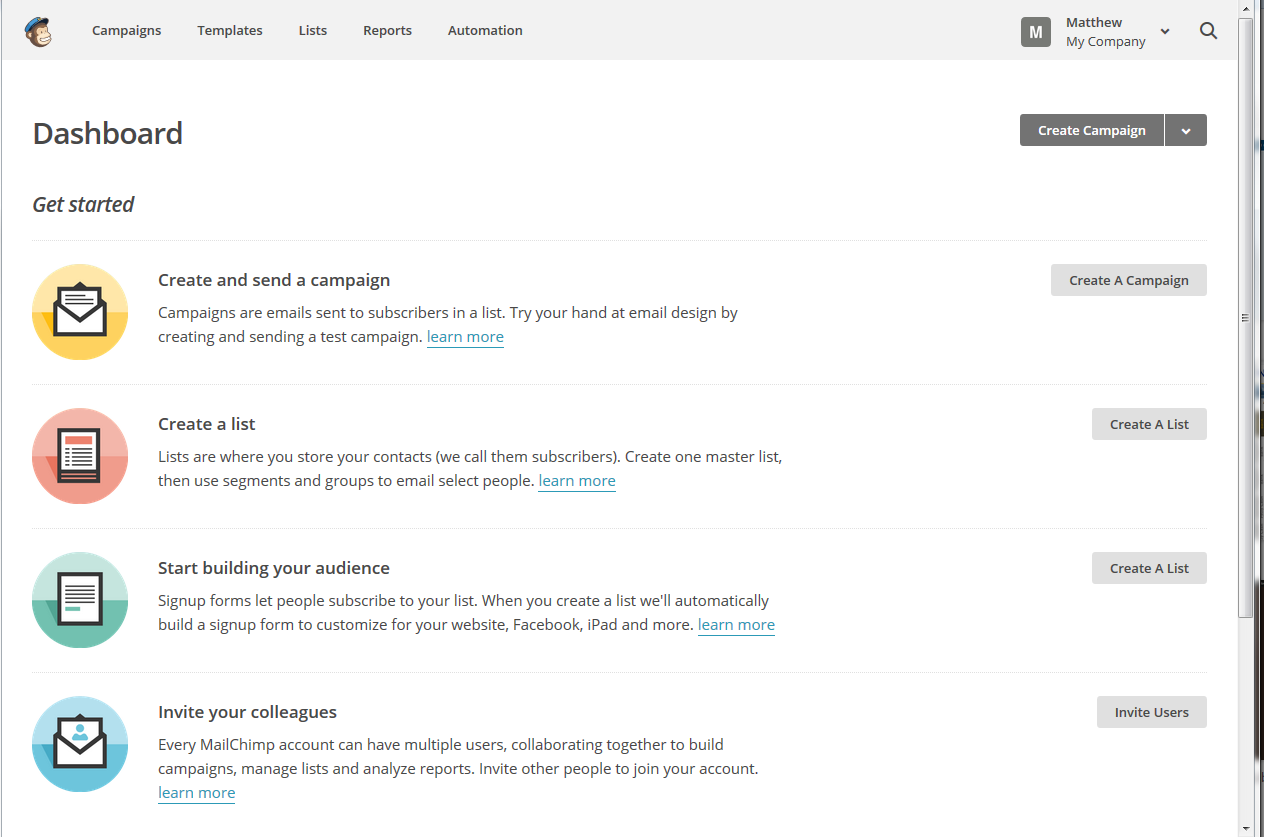
Welcome to Lesson 4 in my MailChimp series. Following on from MailChimp 1 – Signing up, MailChimp 2 – Setting up your list and importing contacts, and MailChimp 3 – Creating a sign-up form, this time we’re going to learn how to create a simple template for a newsletter.

Why do I need a template for my newsletter?

Setting up a template means that you save a lot of time each time you send out your newsletter. You can spend all the time creating a lovely template once, then just pop the text in each time you want to send a newsletter out.  It also means that you can import a branded template created for you by a designer which includes your specific brand, colours and messages.

How do I create a MailChimp newsletter template?

You can find the Templates area in the top menu on MailChimp:
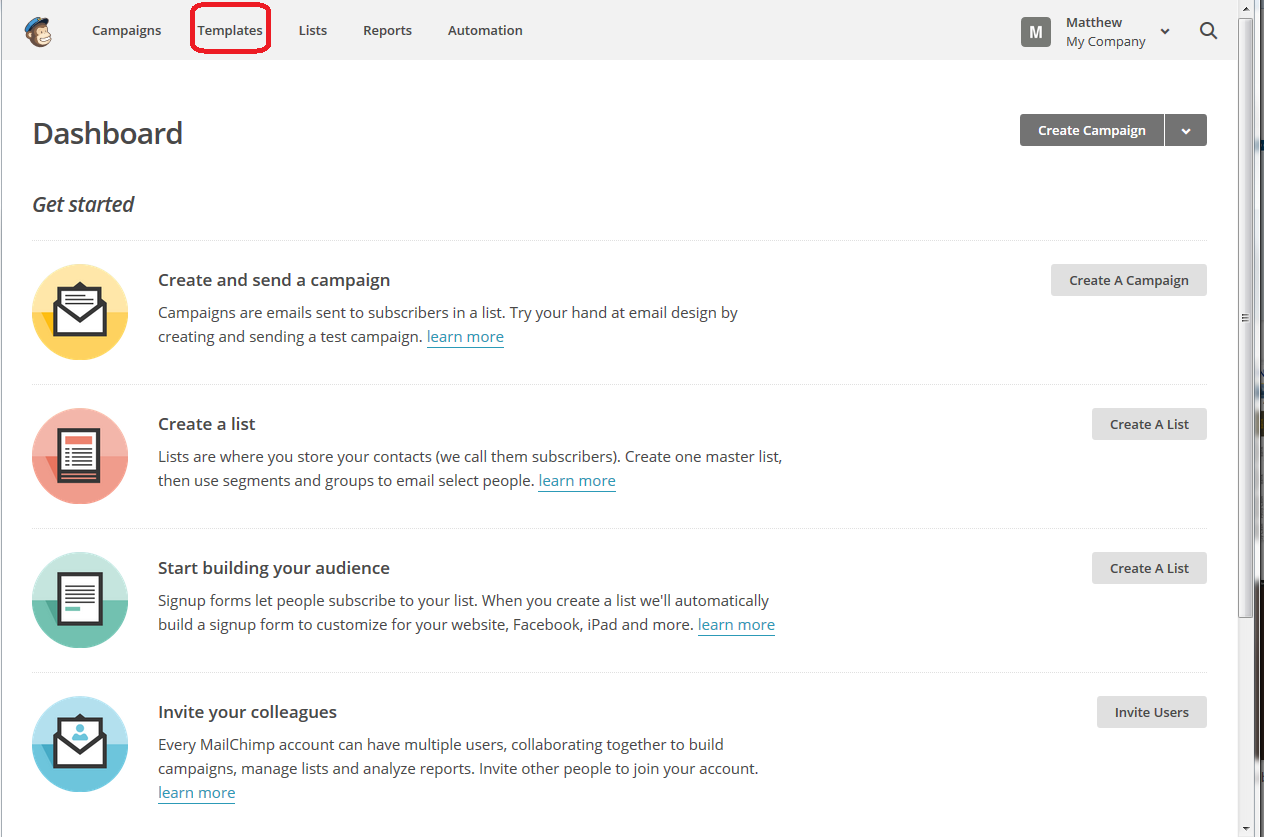
MailChimp templates menu

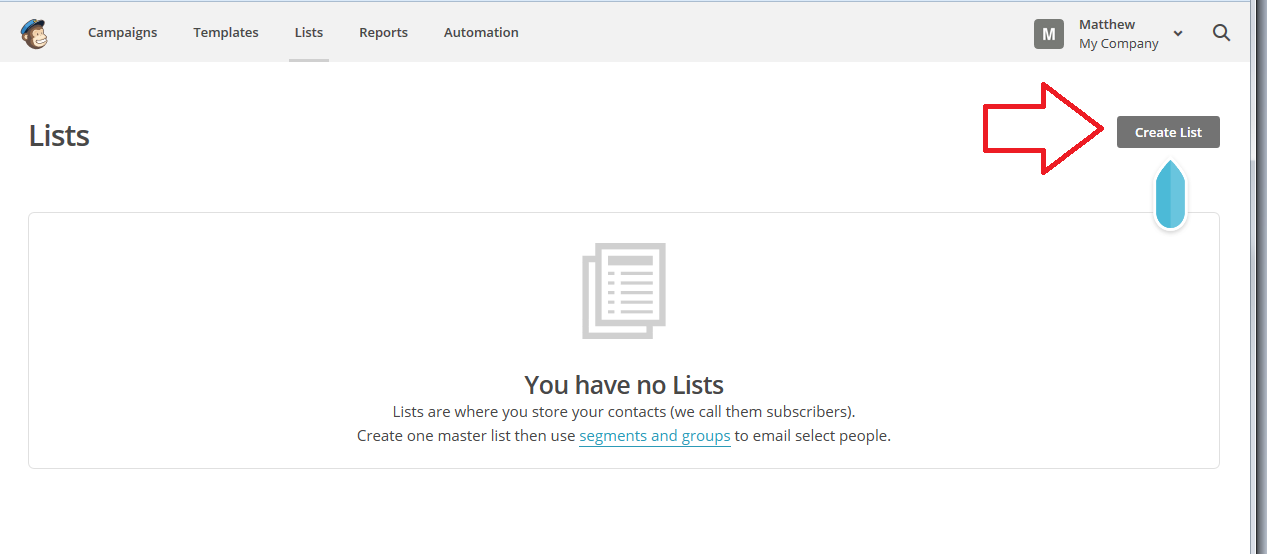
If you haven’t already created any templates, you will find a message that You have no saved Templates and a handy arrow pointing to the Create Template button. You can always use this Create Template button even if you have previously created a template; it just won’t have an arrow pointing to it.
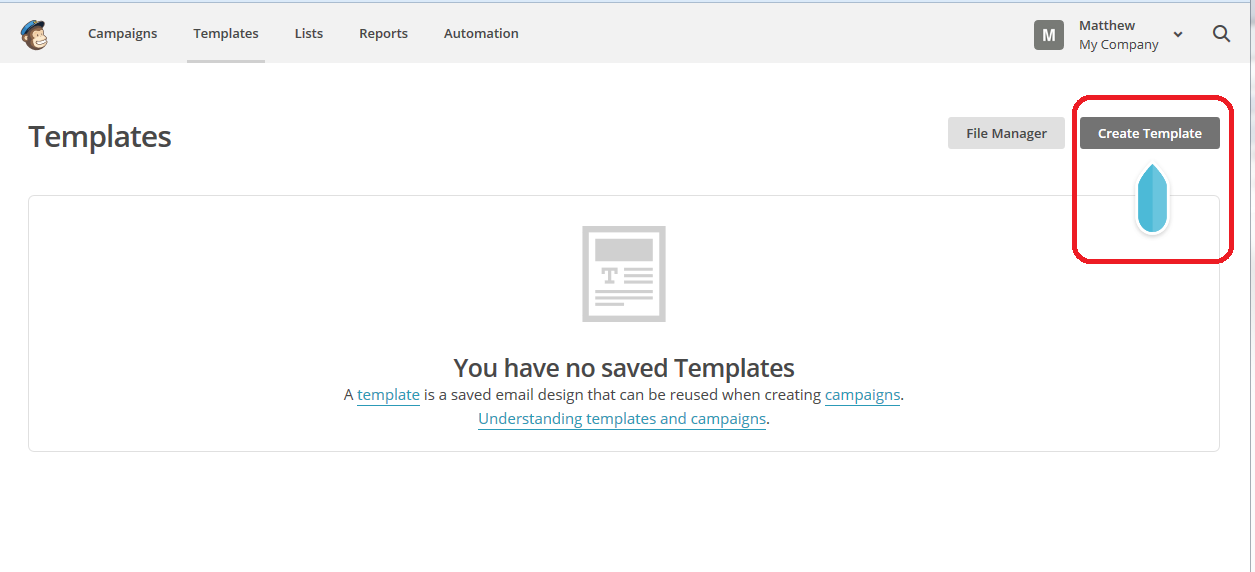
MailChimp create template

Starting off – choosing a style for your template

Once you’ve clicked Create Template you will be walked through choosing a design.

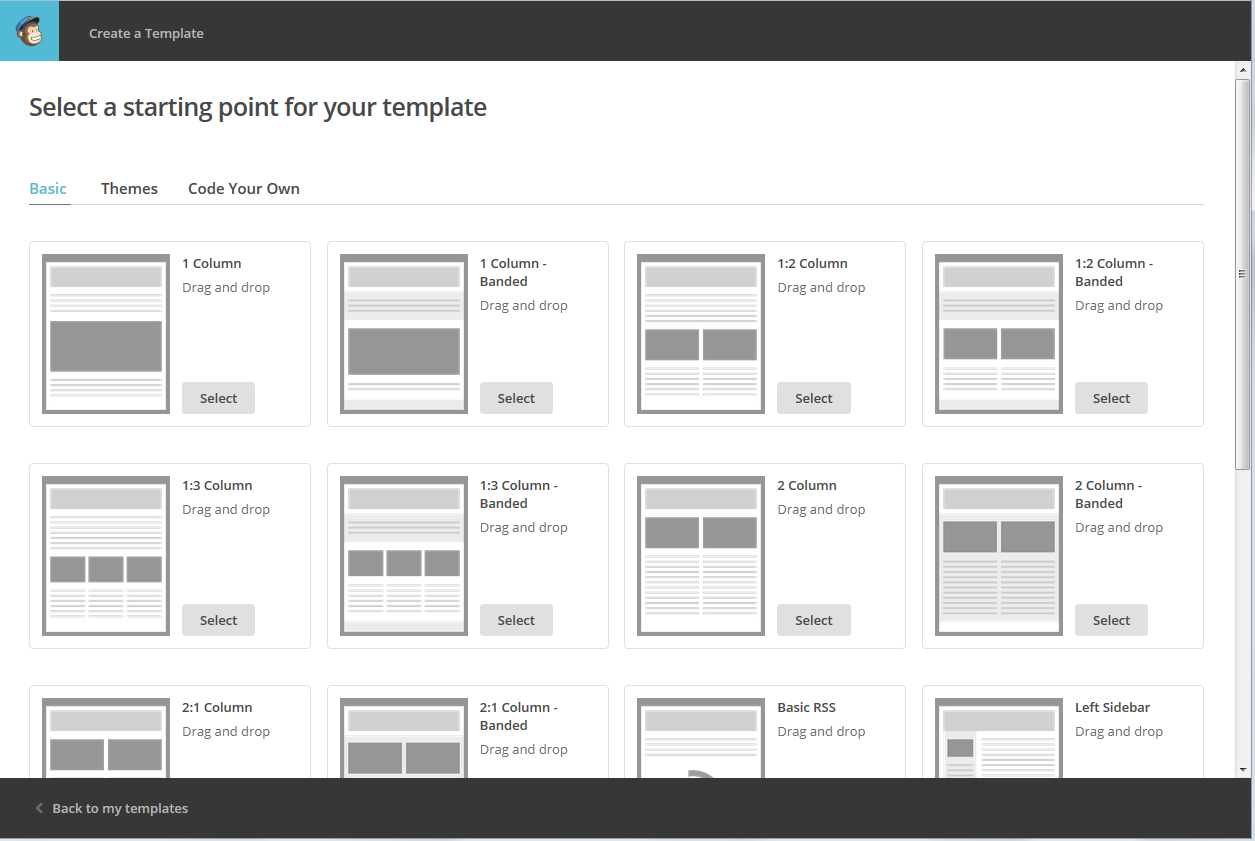
You can see here that you can choose Basic, Themes or Code Your Own.

Basic, seen here, gives you a range of layouts for your newsletter. You can have one or two columns,  or a combination of any number of columns and layouts. We’re going to use one of these eventually, but let’s have a look at the other options. If you click on Themes

MailChimp choose template

Themes gives you colourful backgrounds that might inspire you or might be a bit much – it’s all down to personal choice. The default view will be the Featured themes, which is presumably those that are new, but you can navigate the whole set of themes in different ways.
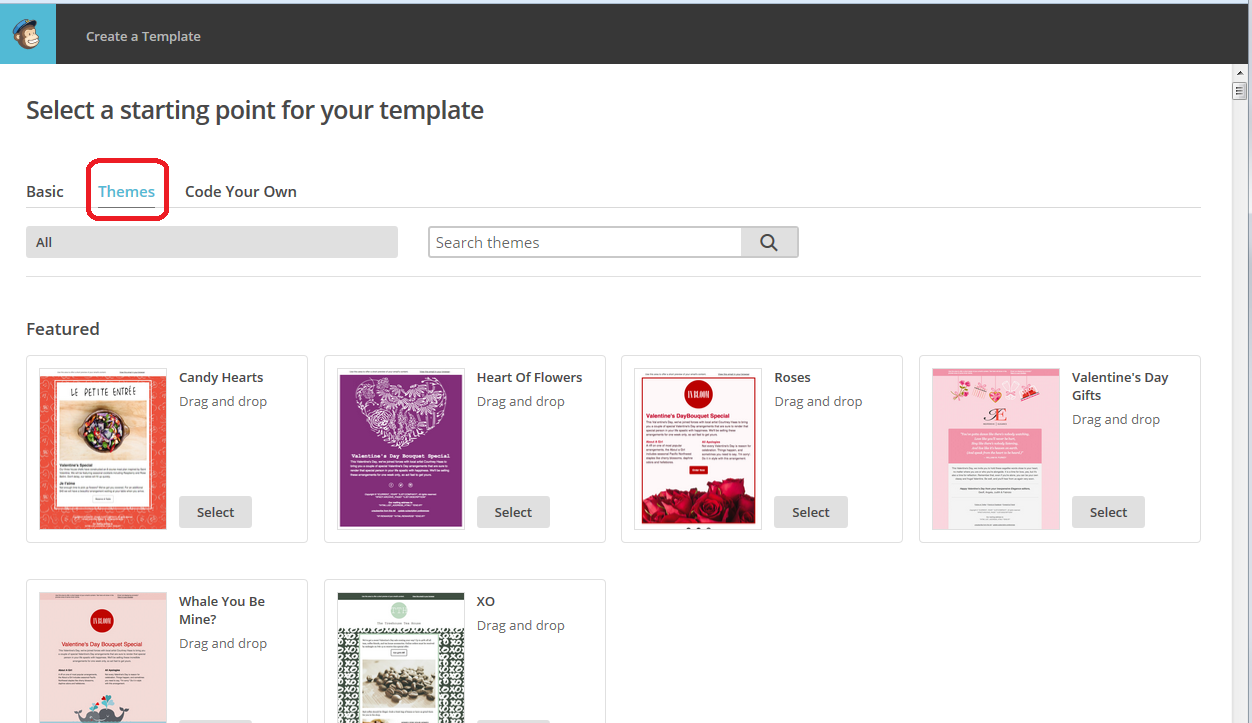
MailChimp choose template

For example, click on All and you can see particular themes, for example if you wanted to create a birthday or wedding newsletter, and various other categories. You can also use Search themes to search for particular colours, etc.

MailChimp choose template

To take a quick look at the Code Your Own tab, this is where you can drop in a template that someone else has coded and designed for you (there are a few companies out there offering this service) or one that you’ve designed yourself. Select the appropriate option, paste in or upload your design, and there’s your template, ready to use! (in this case, now skip to How to save your MailChimp template.
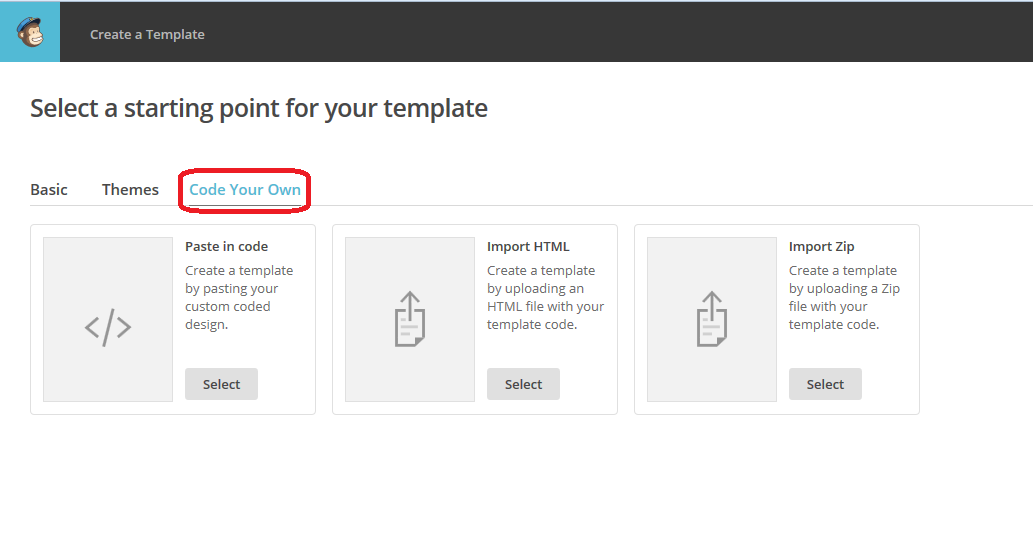
MailChimp choose template

How to create a basic template in MailChimp

OK, having had a look around the options, we’re now going to set up a basic template.

We’re back at the Basic tab, and I’m choosing the third option on the top row, as that’s how I’d like my newsletter to look. Click on the Select button to choose that layout:

MailChimp choose template

And once you’ve selected your layout, you can get on with customising it.

Customising your MailChimp template

Once you’ve chosen a layout, now it’s time to customise it. Luckily, MailChimp will walk you through the process.

You can see from this screenshot that you have the template on the left-hand side and a set of options that you can drop into that template on the right. Each block can contain anything you want it to, but you’ll see that the layout is the same as the one I chose in the previous stage.

MailChimp customise template

To add a section of text to your newsletter template, click on Text on the right, hold the mouse button down, drag it to where you want the text to be, then let to go to drop it in. Simple! (hopefully). But what if you want to add images?

How to add an image to your MailChimp template

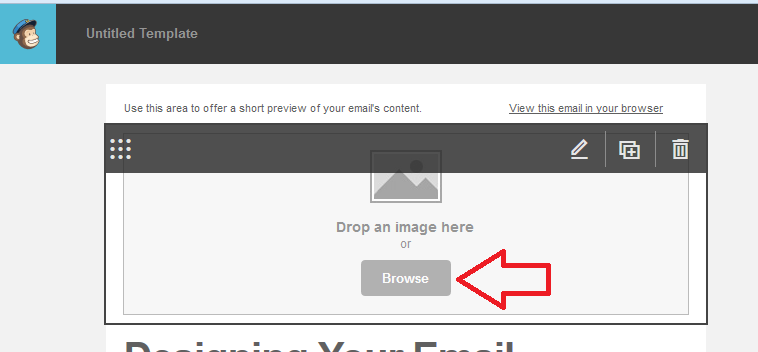
If you want to add an image to a block of your MailChimp template, you can click the Browse button in the middle of the template (or drag an image there if you have a folder of images open at the same time – most people do it this way).
MailChimp customise template

Browse will take you to the folders in your own computer, so you can navigate to your chosen image and double click it to add it to the block:

MailChimp customise template add image

If you want to edit or replace the image, hover over it and you’ll see an Edit icon. In the right-hand part of the screen, you will have the option to Replace Edit Link Alt. Too many screen shots spoil the post, so I’ll leave you to explore these options with a guide:

  • Replace will allow you to replace this image with another one
  • Edit will allow you to resize the image or edit its metadata
  • Link will allow you to apply a link to the image, meaning that when your reader clicks on the image, they will be taken to another website – you might use this with an image of your logo (taking them through to your website) or a product you sell (taking them through to a buying page)
  • Alt will allow you to add Alt(ernative) text to the image. This is text that you can provide explaining what the image is. This is useful both for readers who have opted to receive plain-text newsletters (if they can choose this option on your sign-up form) and will see text rather than a broken link, and for readers who might have a visual impairment and be using a text-reading program – they will have this description read to them

MailChimp customise template add image

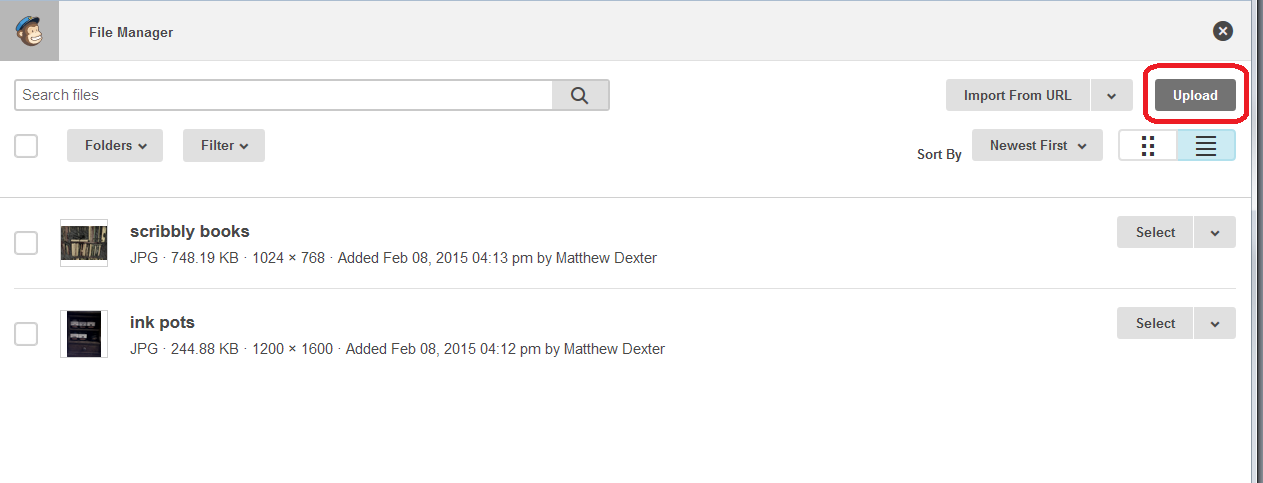
Once you’ve used images in your template once, they will be available to use in the File Manager, so if you’ve clicked Replace, you can pop there to choose a different image and Upload it.
MailChip amend customise template

How to add social media buttons to your MailChimp template

Another popular option for newsletters, and you’ve probably seen this on ones you read, is to have social media buttons on the newsletter which take readers through to your Facebook and Twitter streams or website.

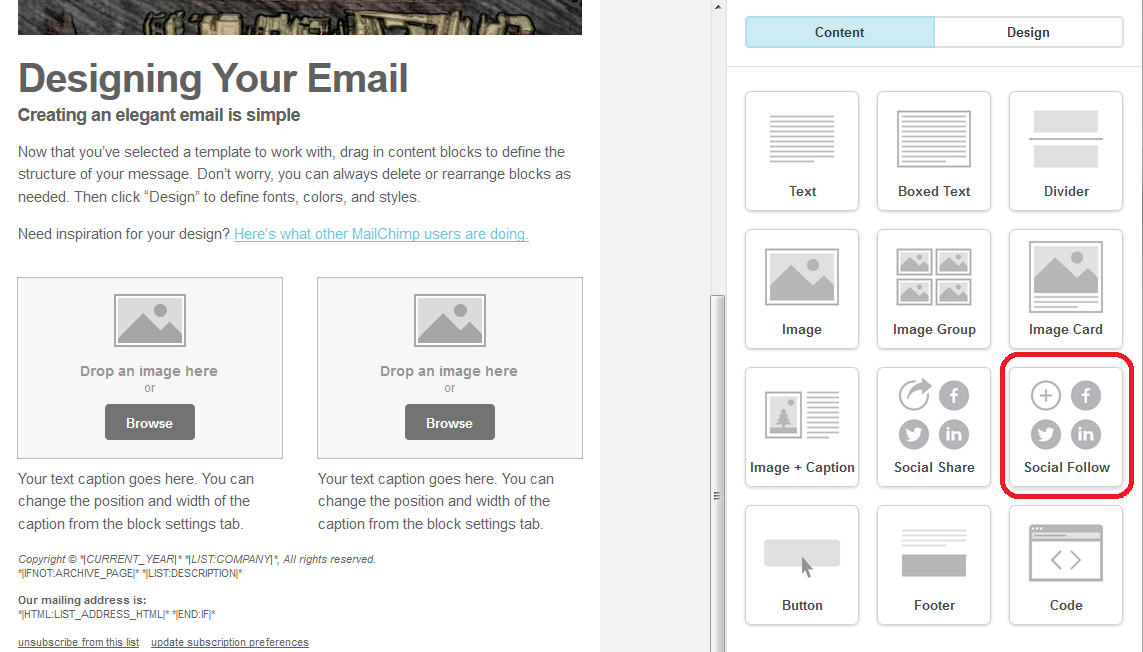
To add social media buttons to your template, find the Social Follow section in the Content options (Social Share, by the way, allows readers to share your newsletter on their social media platforms – if you want people to click through to your Facebook etc. page, use Social Follow):
MailChimp template social follow

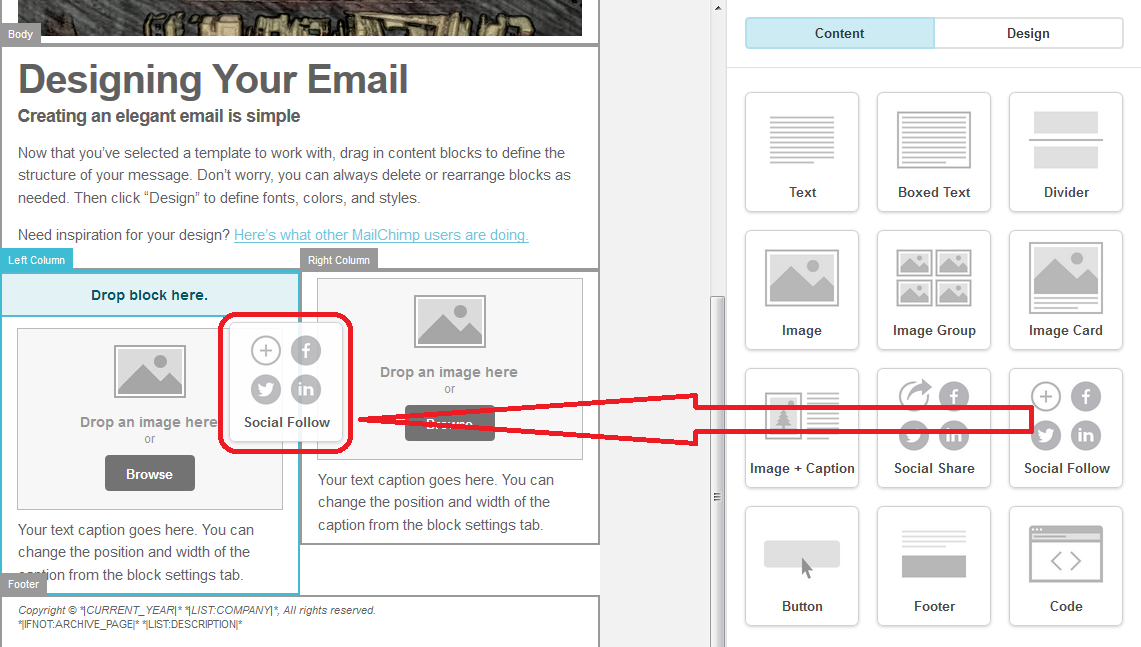
Click, hold the mouse button down, drag and drop it where you want to place it in your template:
MailChip  template social follow

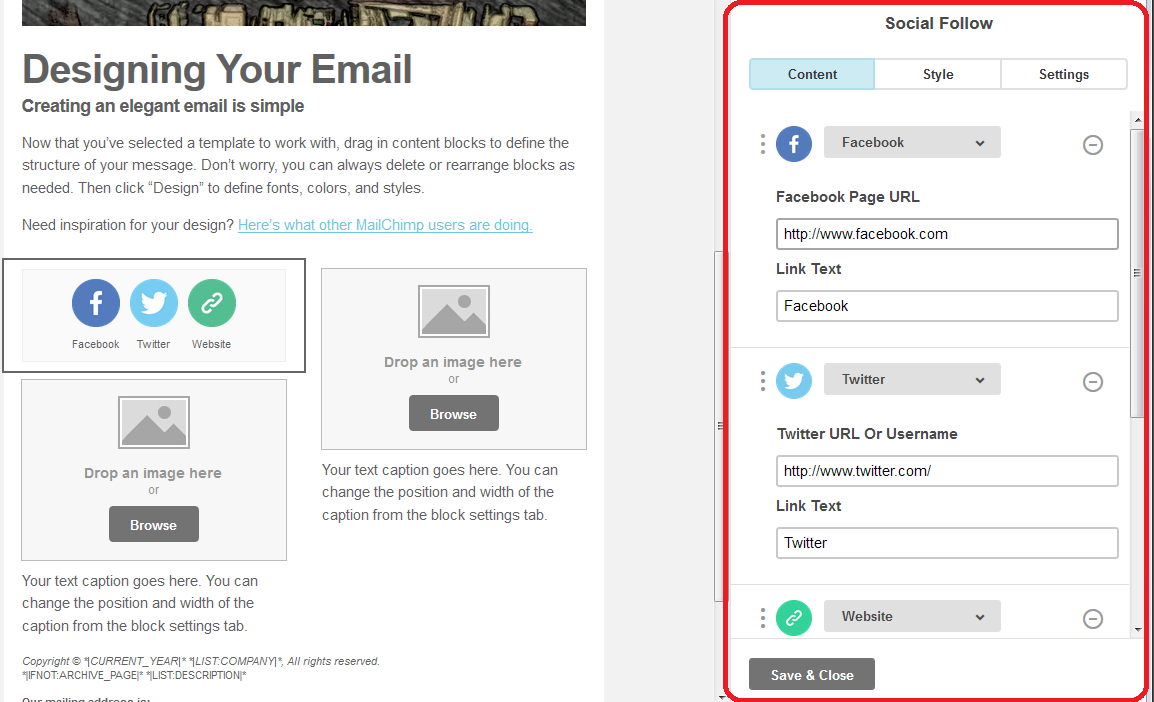
When your buttons are in your template, the right-hand section will change to allow you to personalise these links. Add your own Facebook page, Twitter stream and website URLs to this section and press Save & Close. This will make sure that the buttons click through to your own presence on the social media platforms:
MailChip  template social follow

Now continue to add sections to your template until you’re happy with how it looks.

How to save your MailChimp template

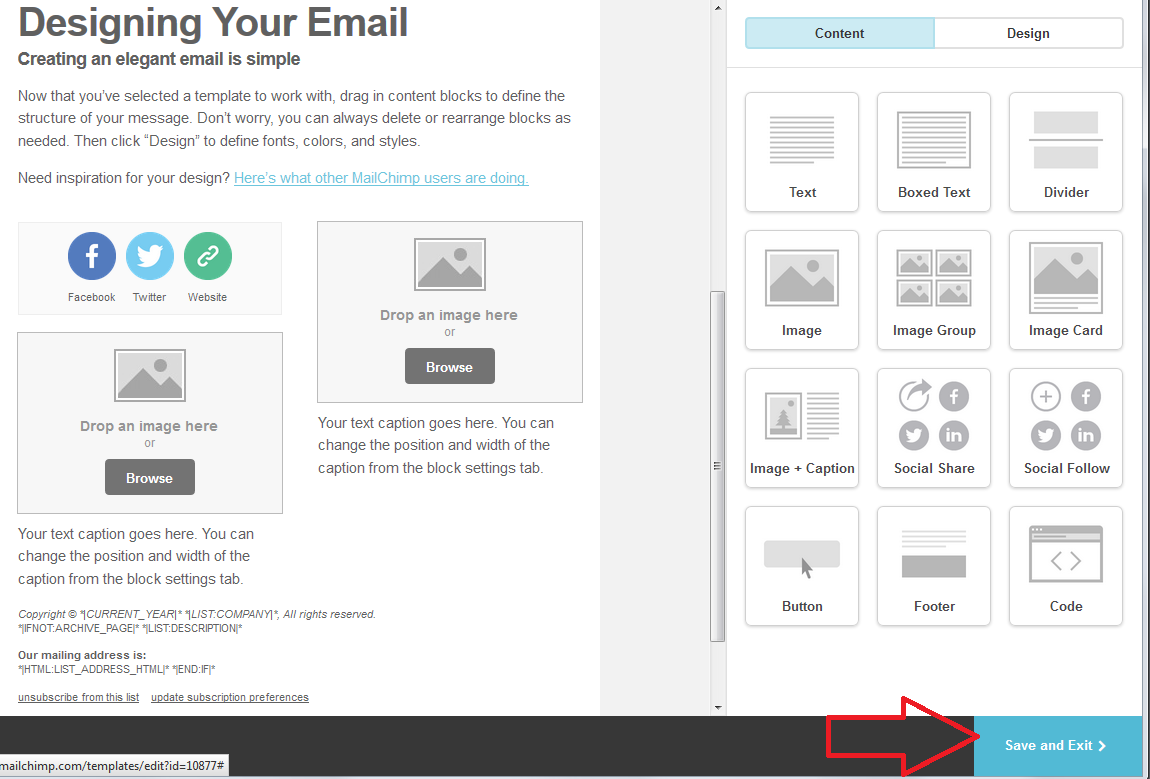
Once you’ve finished designing your template, hit Save and Exit in the bottom right-hand corner of the screen:
MailChimp template save

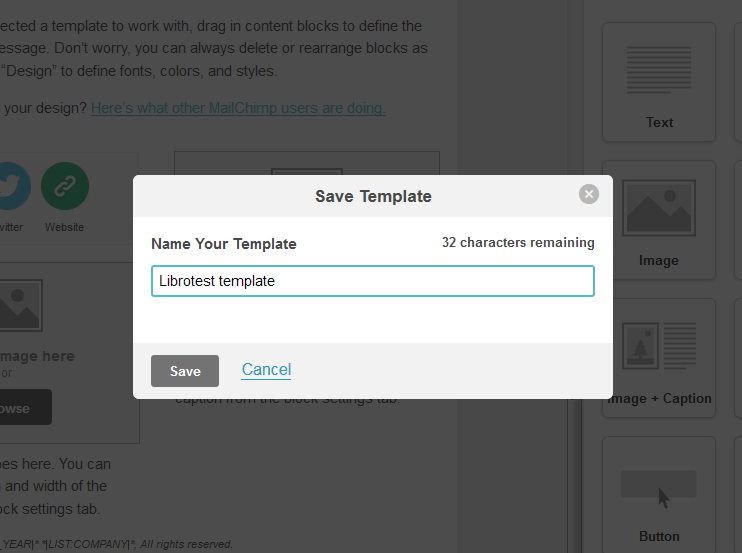
You will be prompted to give your template a name at this point. Make sure it’s clear and easy to identify – maybe you’re going to create one newsletter about the fairy pictures you paint and one about the steampunk watches you make, in which case you’d label them accordingly. Then hit Save.
MailChimp template save

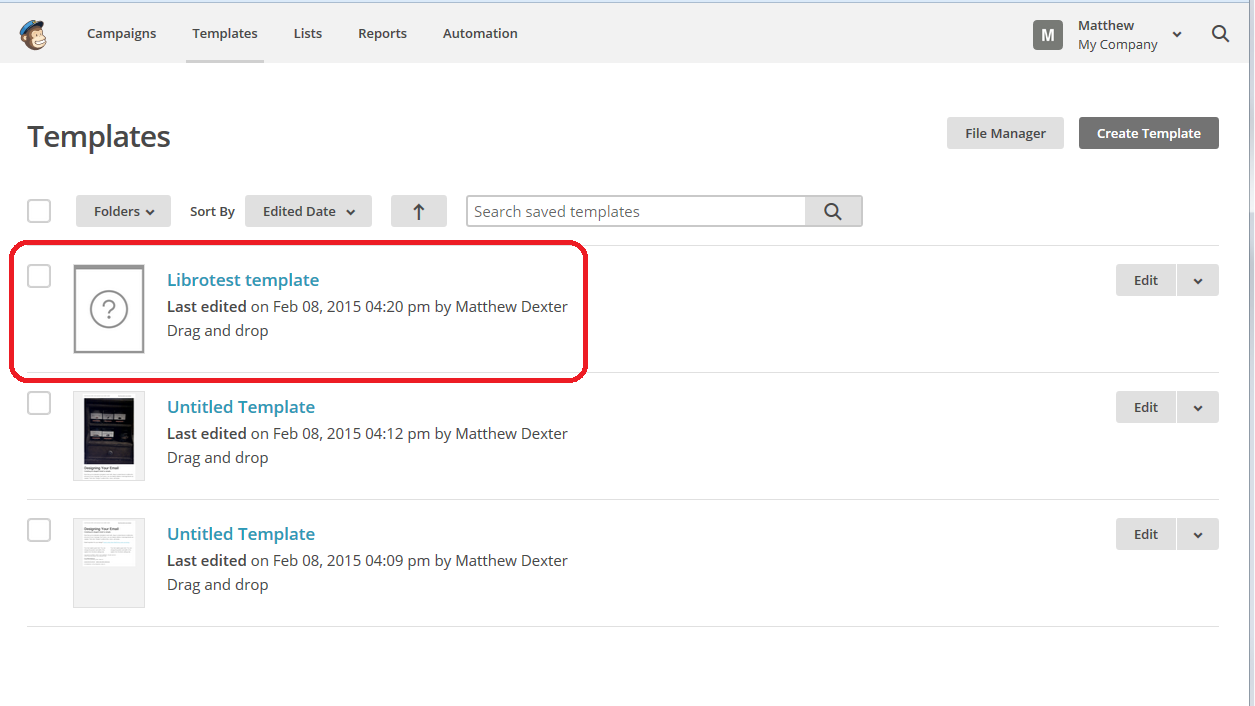
Now we’re back in that Templates area, but now you’ve got your new template saved in the list (note that the Create Template button is still there for next time you want to create a new template).
MailChimp template list of templates

What are those other files? MailChimp handily autosaves your templates in the background as you’re going along, so you can pick up where you left off if everything goes wrong. You can see it saved at 4.09 and 4.12. These should disappear next time you go into the Templates area – if not, you can use Edit then delete to remove them.

How do I edit a MailChimp template?

If you want to edit your template, hit the Edit button to the right of the template name and you’ll be taken back into the Template Editor screen.

——

In this article, we’ve learned how to set up a simple MailChimp newsletter template that you can choose when it’s time to send out your first newsletter. The other MailChimp articles will be listed below as I add them to the blog. You can find a growing set of articles on blogging, social media MailChimp etc. in my resource guide. Do click on the share buttons below or comment if you found this article interesting or useful!

Other relevant posts on this blog:

MailChimp 1 – Signing up

MailChimp 2 – Setting up your list and importing contacts

MailChimp 3 – Creating a sign-up form

How to avoid two common mistakes when using MailChimp

 
4 Comments

Posted by on March 4, 2015 in Business, Marketing, New skills, Newsletters


Tags: , , ,

MailChimp 3 – setting a sign-up form for your newsletter subscriber list

Welcome to Lesson 3 in my MailChimp series. Following on from MailChimp 1 – Signing up, and MailChimp 2 – Setting up your list and importing contacts, this time we’re going to learn how to create a sign-up form to allow people to consciously and willingly sign up to receive your email newsletter.

Remember, once you set up a subscriber list, there are two ways to populate it:

1. Import members from a previous mailing list (ensuring that you have their explicit permission to send them marketing communications)

2. Offer people a sign-up form via which they can choose to sign up for your newsletter.

I prefer Option 2, and we’re going to find out how to do that now.

How do access the MailChimp contacts list area?

As a quick reminder (full details are in this previous article), when you sign in to MailChimp, you will find Create a List on your front screen, but at any time, you can click on Lists at the top to get into the Lists area:

MailChimp lists area

Once you’re in the Lists area, if you have any lists set up, they will show here, and if you are going in to do this for the first time, you will see that You have no Lists, and be pointed to the Create List button:

MailChimp create list

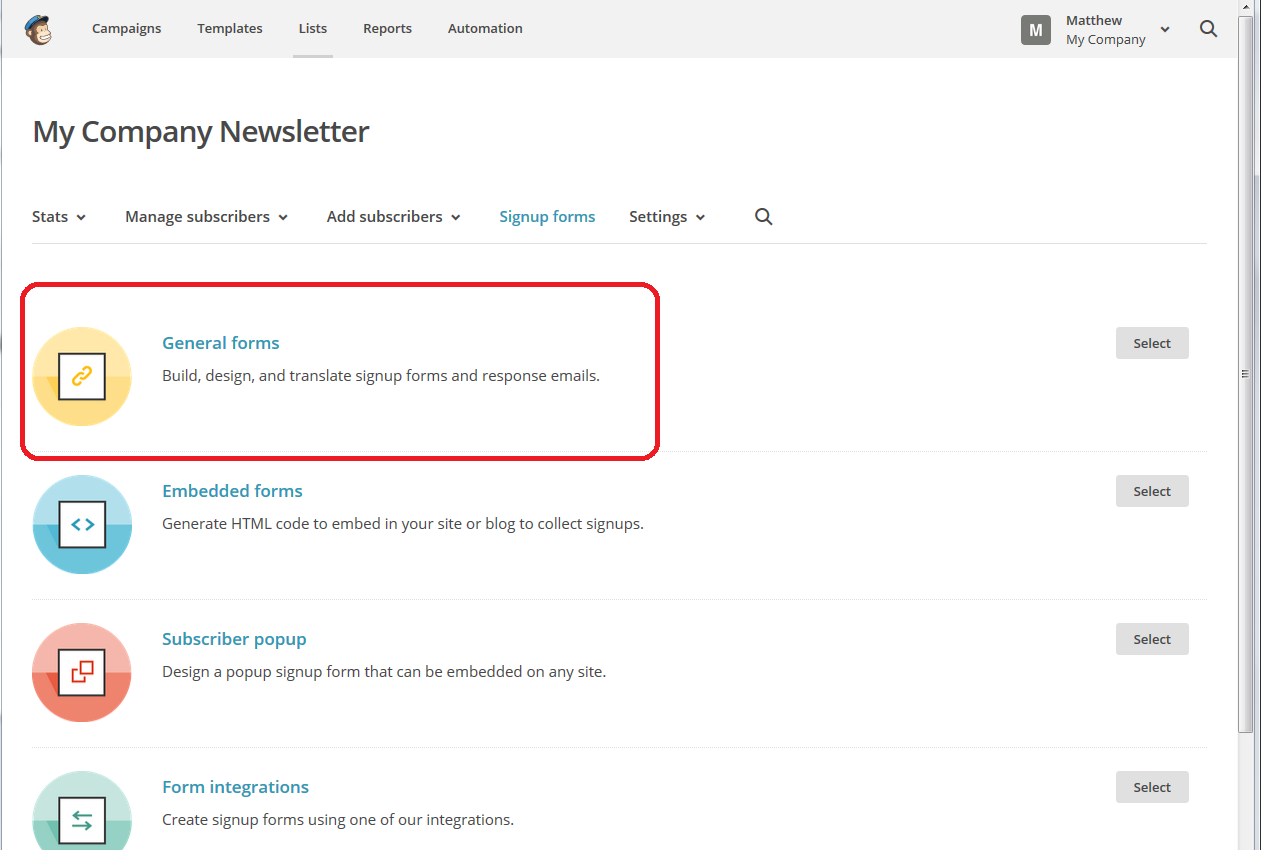
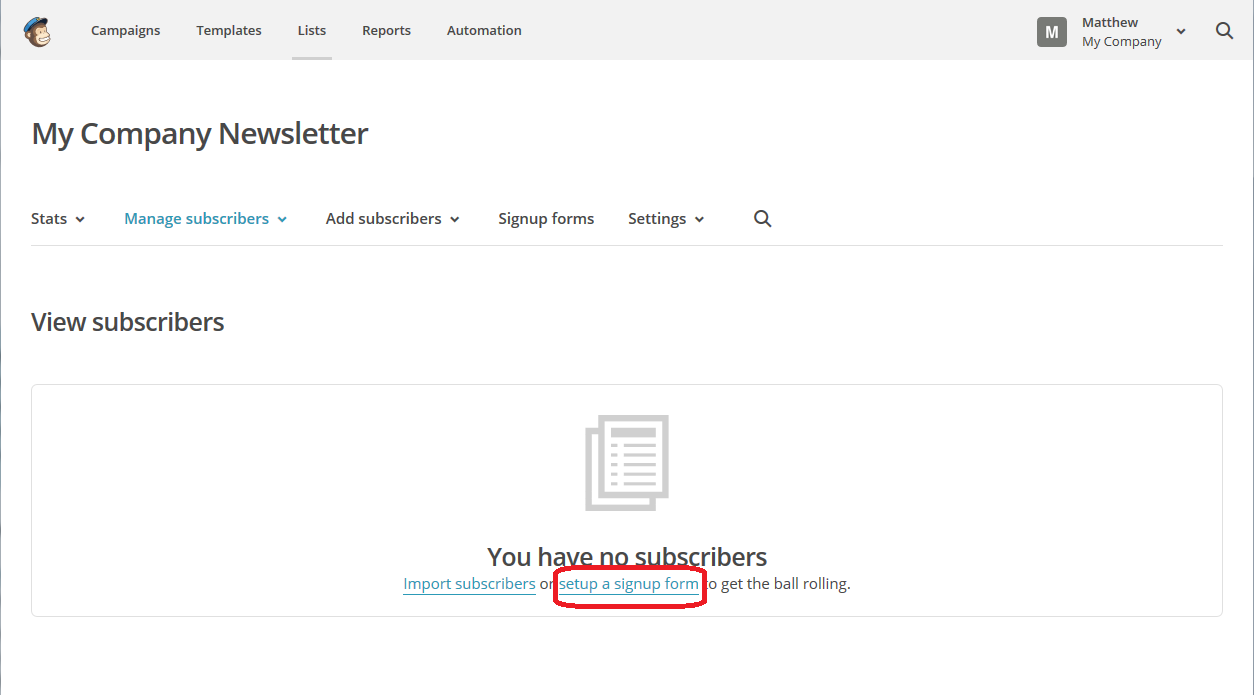
Once there, you have an option to click on setup a signup form (or set up a sign-up form, even), so click there:

MailChimp sign-up form

You will now find a few options on forms to create – all of them are designed in the same basic way, but some can be embedded into your website. For now, we’re going to create a General Form which will come complete with its own URL to which you can direct people from social media, your website, etc. (see top right in the top of the sidebar for what that looks like in real life).

MailChimp create sign-up form

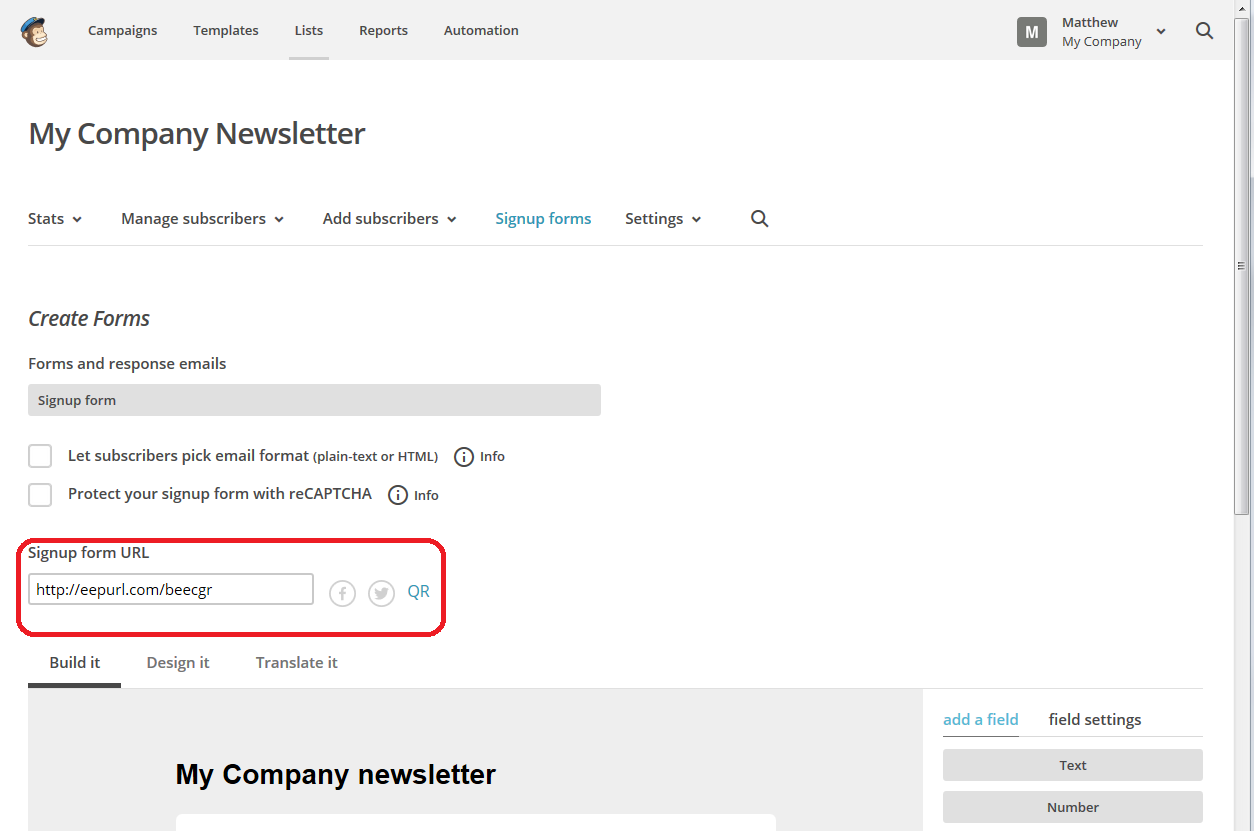
Once you’re in the Create Forms page, you can see at the top that you have a URL or web address. That will never change, and you can use that to direct people to your sign-up form. You can generate a QR code if you want to, by clicking on the button.

You can also see two options at the top: Let subscribers pick email format and Protect your signup form with reCAPCHA – I would recommend ticking both of these.

Let subscribers pick email format will give your subscribers the option to have emails delivered in plain text or HTML format. This means that if they’re using a slow Internet connection or don’t have much bandwidth, your newsletter will be sent to them in a text-only form, without the pretty pictures (this means you’ll need to make sure to add description and alt-text to any pictures in your newsletter), and just gives them more options.

Protect your signup form with reCAPTCHA means that subscribers will have to manually click and tick a box to prove that they’re a real person. It protects you from automated signing up bots filling in your form and giving you false subscriber numbers. It’s all very accessible and offers alternatives, so I’d go for it. It shows people signing up that you’re serious and are protecting your list, too.

MailChimp sign-up form

Once you’ve filled in those details, you can go on to creating your sign-up form: let’s scroll down to have a look:

MailChiimp basic sign-up form

Now, in fact, you can just go with this form, as a very basic example. The subscriber will be able to enter their email address, first and last name and click to Subscribe to list. Simple. So you can actually leave it there.

But you might want to add more flourishes, text and options to your sign-up form – if you do, read on; if you don’t, then skip to the “What does my form look like in real life?” section near to the end.

How can I add more fields and text to my MailChimp sign-up form?

We’ve created a basic sign-up form but you might want more.

For a start, see that space where you can Click to add a message at the top? Here you can personalise the form and be a bit more friendly. Once you click in the text box, a text editor will come up – you can add all sorts of things in here, including links, images, etc. (this is the same text editor you will use when you’re creating your actual newsletter).

I’ve just typed some straightforward text in here – once you’ve added what you want, hit the Save & Close button

MailChimp add text to sign-up form

You will be returned to your Build It area, and you can see that the text has now appeared in that top section.

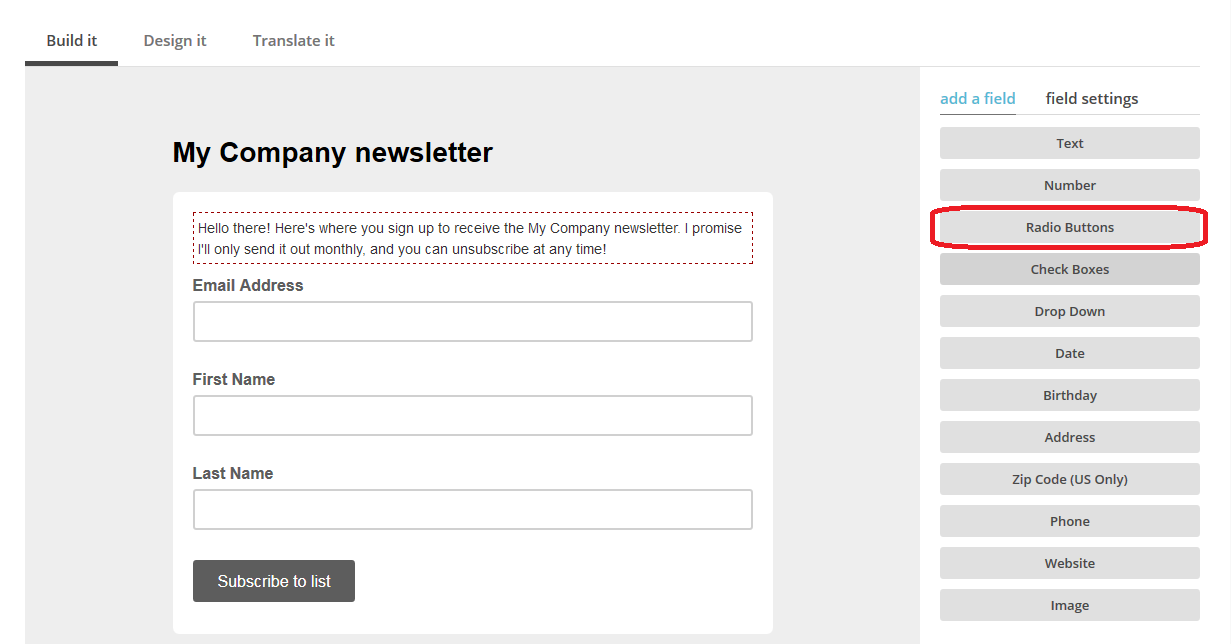
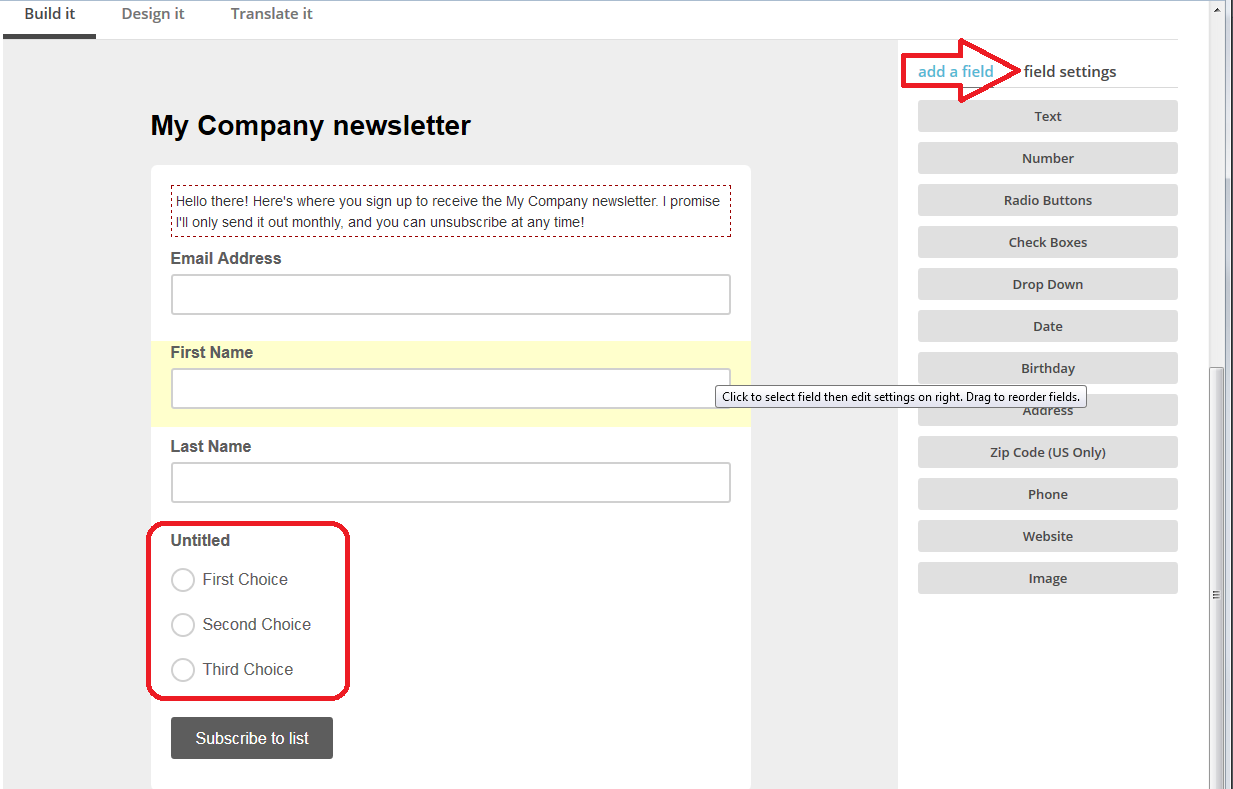
To add more options, such as collecting birthday dates (great if you’re a restaurant and want to collect that info to send out a special birthday meal offer) or full address if people are also signing up to have an item sent to them. Here we’re going to look at Radio Buttons, which gives you the option to give your subscribers choices about things …

MailChimp add text to sign-up form

What things do you want your subscribers to choose, you may ask. Well, although we’re not going to go into the ins and outs of getting people to sign up for your newsletter right here and now, it is common to offer subscribers a little freebie in return for their joining your newsletter (which is really a favour to you). For example, I offer subscribers a free pdf of a sample chapter from one of my books (as you’ll see in the final screenshot in this article).

So, click on Radio Buttons and drag it across to between Last Name and Subscribe to List. There is is, in your sign-up form.

Now click on the field settings tab to personalise those choices:

MailChimp sign up form add fields

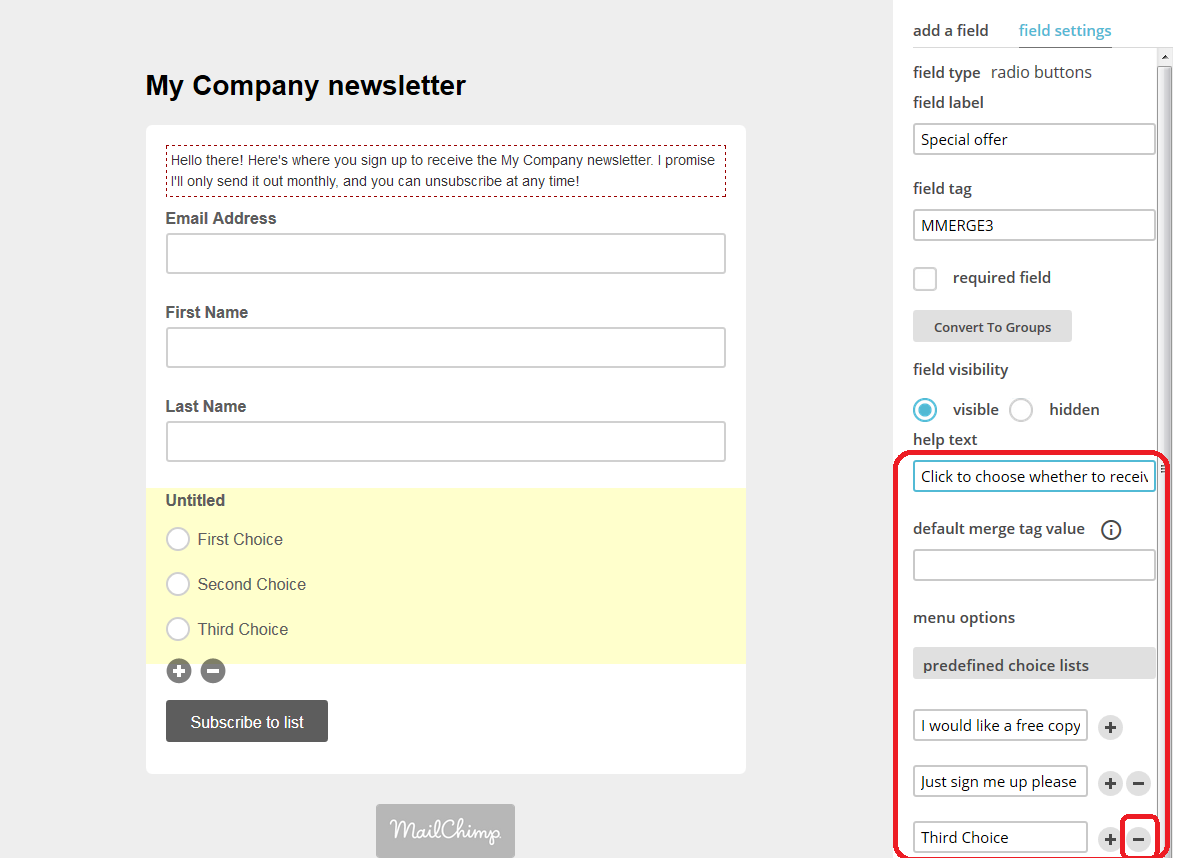
As you can see below, field settings allows you to give the radio buttons a name and to add text to those buttons, add and remove them, and generally personalise everything. Here I’ve  …

  • added help text to appear when the subscriber hovers over the buttons
  • added two choices as to whether they want to receive something
  • clicked on the minus button by the third choice, because I only want to offer two

MailChimp add fields to sign-up form

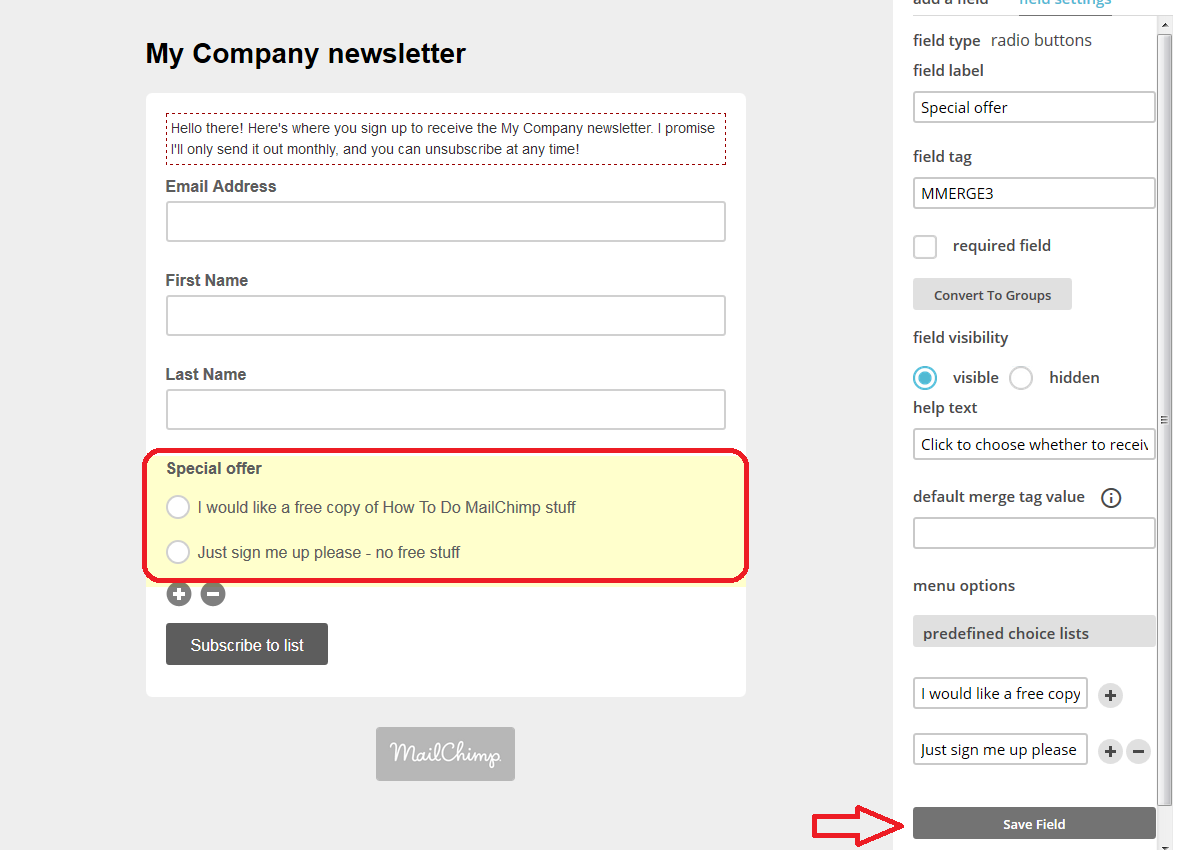
As you do this and press Save Field, there you can see just two choices, each with my text by it.

MailChimp add fields to sign-up form

You can see plus and minus buttons under this area – this allows you to delete it if you decide not to have it (note, when you press the minus, MailChimp demands that you type the word DELETE in a box – make sure you do that or you’ll get stuck in a loop of endless error messages. It’s trying to help you not to delete your careful design by mistake …).

And there we have it – it’s fine to play around a bit with the form, you can see how to drag different fields across and then delete them if you want to, so have a play around with it.

How do I get back to my MailChimp sign-up form to check the URL or edit it?

If you want to return to your sign-up form, choose Lists from the top menu, then click the drop-down arrow next to Stats and click on Signup forms:

MailChimp edit sign-up form

Once there, you can check your URL and amend your form if you want to.

What does my MailChimp sign-up form look like in real life?

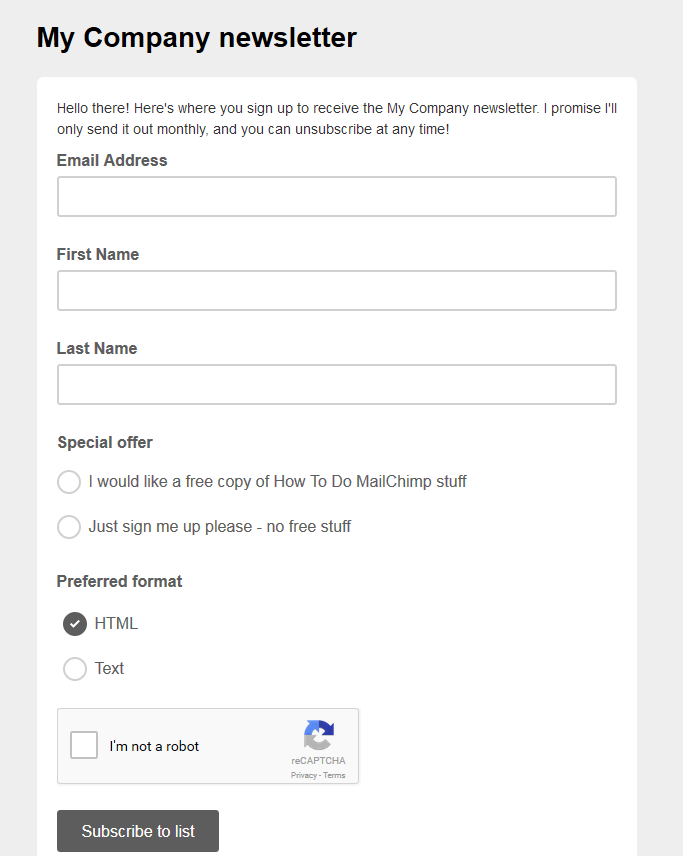
You’ve created your form – what does it look like to a new subscriber? Remember that URL at the top of the page? You can find that at any time by going to the signup forms page (see above section). Pop the URL in your browser address bar and you can see what your subscribers will see:

MailChimp sign-up form subscriber view

You can see the message we added and the options for receiving a free copy of something, receiving the newsletter in Text format, and a reCAPTCHA section which asks for a tick in a box, and a Subscribe to list button.

And what happens when you get a new subscriber?

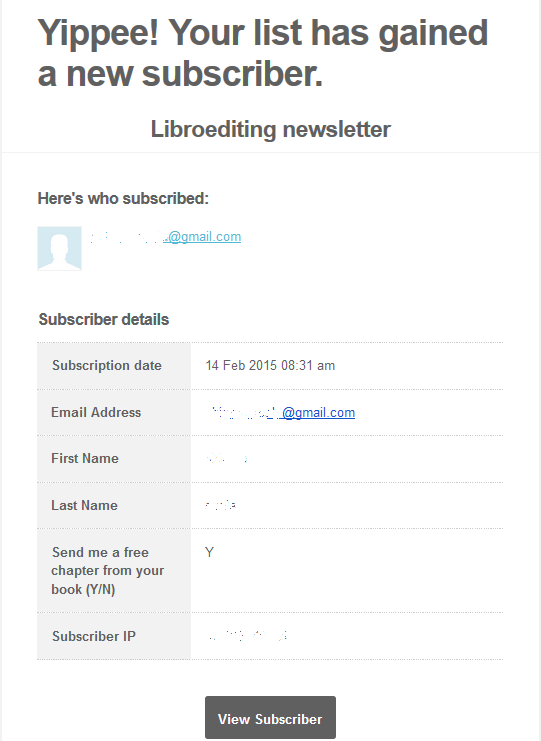
You will receive an email in your inbox which includes all of the information you asked for – this is one of my own, so the question is a little different, but you get the idea. Now I can email that person their sample chapter and they will receive my email newsletter until they unsubscribe.

MailChimp new subscriber email

If you’re not sure how to publicise your sign-up form, read this article!

In this article, we’ve learned how to access the Lists part of MailChimp and set up a sign-up form. The other MailChimp articles will be listed below as I add them to the blog. You can find a growing set of articles on blogging, social media MailChimp etc. in my resource guide. Do click on the share buttons below or comment if you found this article interesting or useful!

Other relevant posts on this blog:

MailChimp 1 – Signing up

MailChimp 2 – Setting up your list and importing contacts

MailChimp 4 – setting up your newsletter template

MailChimp 5 – Linking to your sign-up form

How to avoid two common mistakes when using MailChimp
 
6 Comments

Posted by on February 19, 2015 in Business, Marketing, New skills, Newsletters


Tags: , , ,

MailChimp 2 – setting up your list and importing contacts

Welcome to Lesson 2 in my MailChimp series. Following on from MailChimp 1 – Signing up, this time we’re going to learn how to set up the list of people to send your newsletter to.

There are two ways to populate your list:

1. Import members from a previous mailing list (making sure that you have their explicit approval and permission to send out marketing materials to them)

2. Offer people a sign-up form via which they can choose to sign up for your newsletter.

I prefer Option 2, but I’m going to go through option 1 with you in this article then write about setting up a sign-up form next time (if you’re reading this day by day, you will only have to wait two days, don’t worry!).

Why do I need to create a list in my MailChimp account?

Put simply, you need to give MailChimp a list of people to send your newsletters to. It’s as simple as that, and is the second stage in signing up for an account.

Don’t worry if you don’t have an email list to import – you can start off with an empty “list” and a sign-up form that will fill it for you.

How do I create my MailChimp contacts list?

When you sign in to MailChimp, you will find Create a List on your front screen, but at any time, you can click on Lists at the top to get into the Lists area:

MailChimp lists area

Once you’re in the Lists area, if you have any lists set up, they will show here, and if you are going in to do this for the first time, you will see that You have no Lists, and be handily pointed to the Create List button:

MailChimp create list

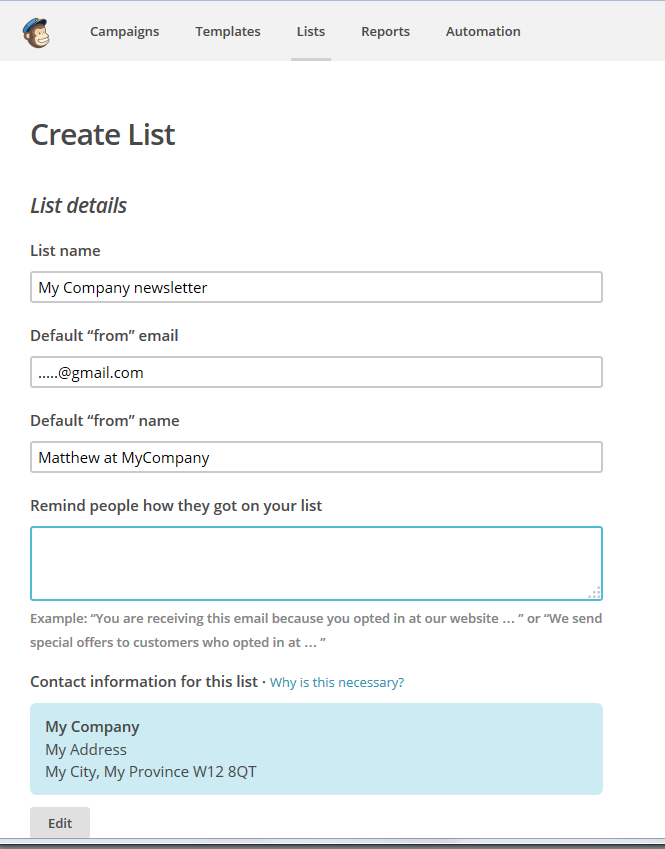
Once you’ve pressed Create List, you will find yourself in a screen that allows you to create a list. Note here that you can create more than one list, for example, maybe one for customer newsletters and one for general or prospect ones, or I might create one for my social media tips readers and one about my books. For now, we’ll just create one called “My Company Newsletter”.

You can fill in the list title and your email address to show in the “from” section of your readers’ email clients, and you will want to pop a name in to show who it comes from – I always advise using a real, human name, not just a company name.

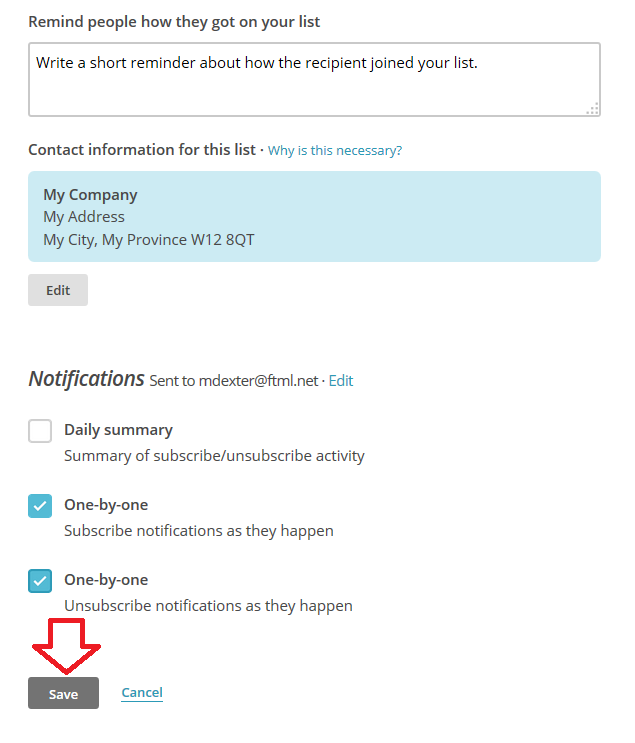
Remind people how they got on your list gives you a place in which to reassure people that they have signed up for this newsletter and they are not being spammed (you’ll see that I’ve filled this in on the final screenshot – it won’t let you proceed if you don’t).

MailChimp list details

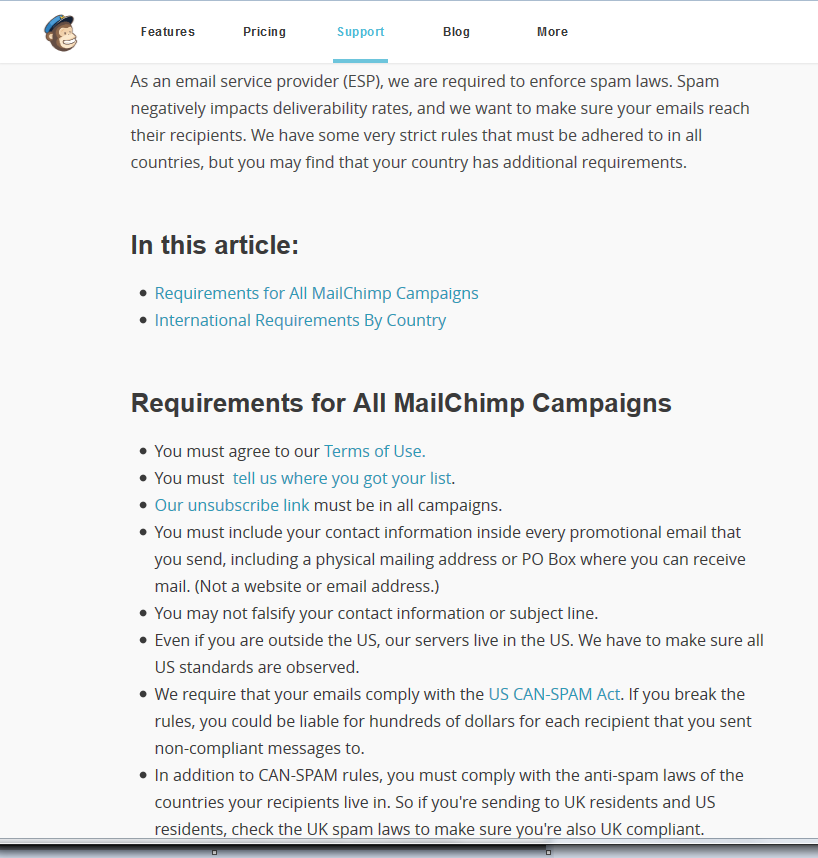
Then we reach the Contact information area. MailChimp is gratifyingly careful to stop you spamming, and this is an important area. If you click on Why is this necessary, you will see this explanatory screen all about spam laws:

4 why they need address

Note here that I haven’t put in a home address, because this is an example, but you should include your full business address here. A disclaimer for anyone who’s on my own list – I haven’t got my exact, pinpointed address on here, because I work from home. But if you’re running a business with a business address, you should include your full address. MailChimp pulls this information from your sign-up information, so you can see there’s an Edit button to allow you to change this if you need to.

Scrolling down to the bottom of the screen. We have an opportunity here to choose how we see our sign-up notifications. I’ve ticked one-by-one because I want to be notified of sign-ups and unsubscribes as they happen, but as your list gets busier and more active, and especially if you don’t have an action you need to perform when someone signs up, you might want to go onto a daily summary.

MailChimp list details

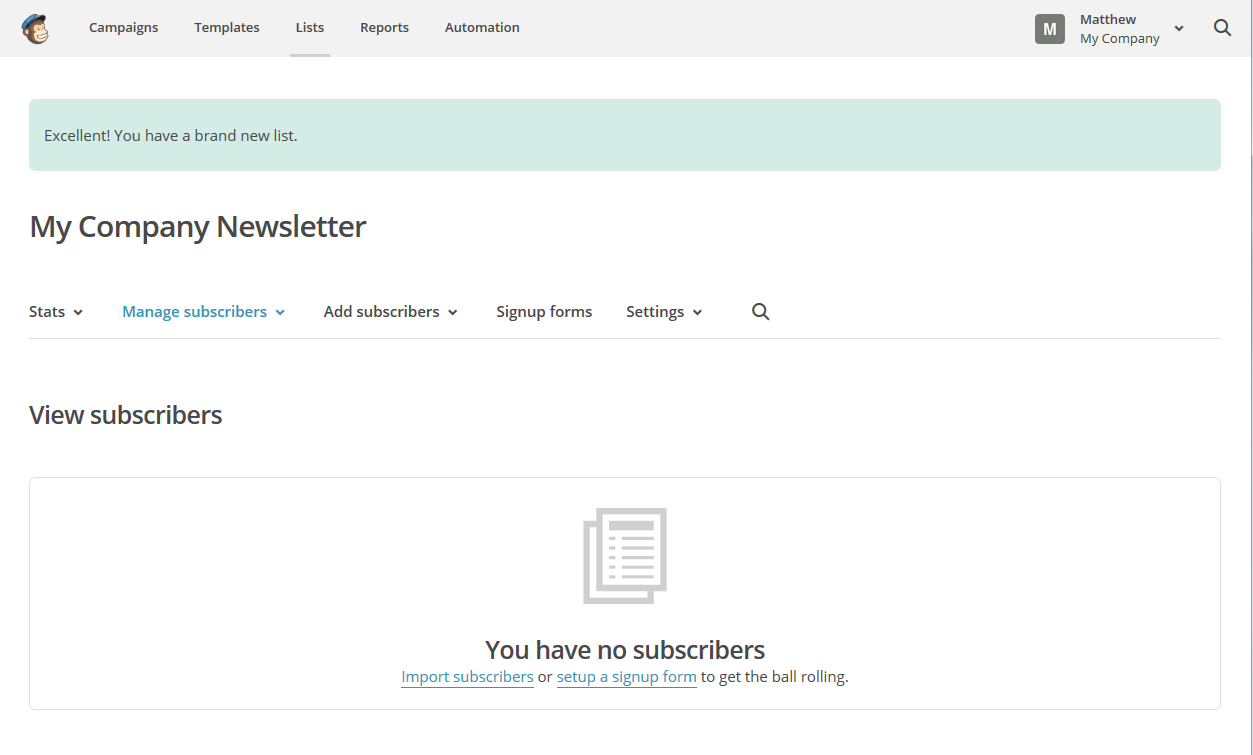
Time to press the Save button – and now you’re returned to the List screen for your list “My Company Newsletter”, which now usefully tells you that you have no subscribers:

MailChimp list subscribers

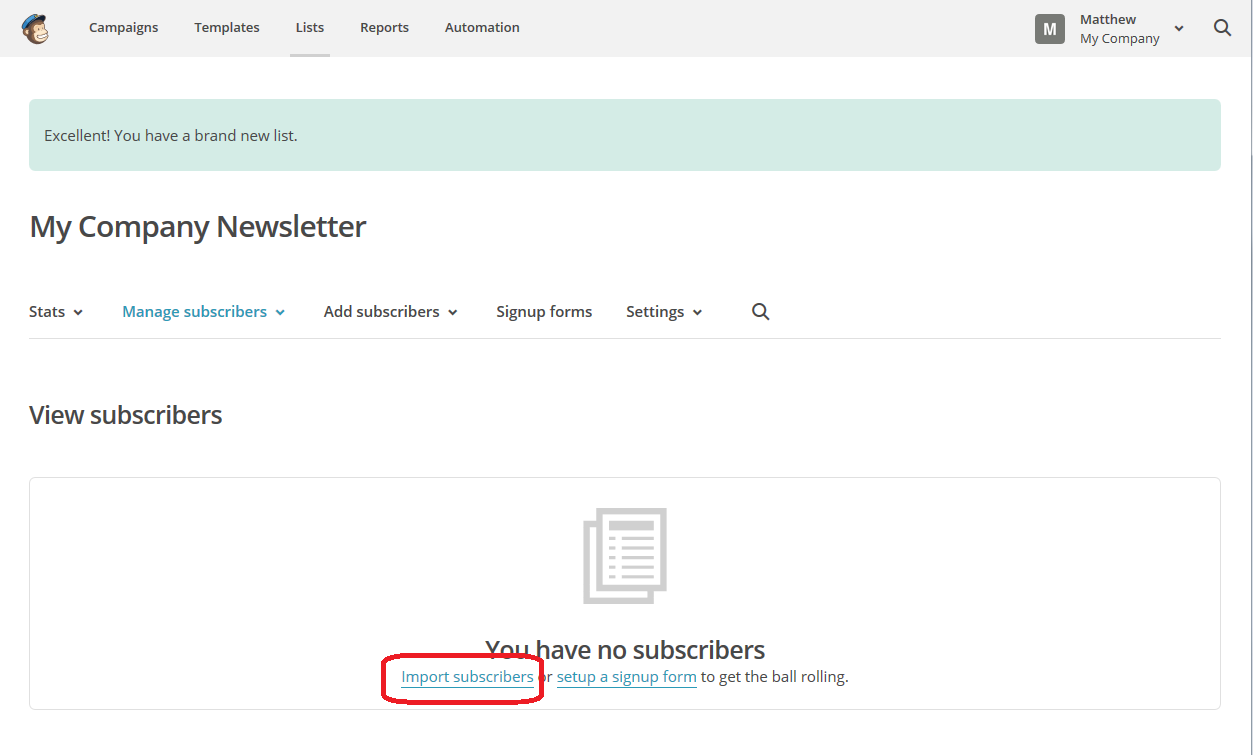
You can see that under the You have no subscribers message there are two links to click: import subscribers or setup a signup form (or as I prefer to say it, set up a sign-up form). We’re going to learn how to import subscribers now, so we’ll click on that link:

MailChimp import subscribers

The Import Subscribers function allows you to import from a huge range of sources, including all sorts of programs that exist to capture subscriber lists. You can create a list in Excel or export a sub-section of your email list into a .csv or .txt file, or just connect to your email program.

I’m not going to go into detail on all of those options here, that’s something that’s separate from MailChimp (Google or YouTube is your friend if you want to know how to do these things) and I’m really advising newbies to create a sign-up form here. We’ll take a quick look at what happens when you import your email contacts, then next time we’ll do it the sign-up form way.

Here, I’m going to choose Import from Google Contacts:

MailChimp import subscribers

Note here the message from MailChimp – people who you add in this way are not going to receive confirmation emails that you’ve signed them up for your newsletter. When you use a sign-up form, they will receive a confirmation and an extra step to confirm they want to receive the newsletter, which is another reason I prefer that method.

MailChimp also warns you that you must already have permission from all people on your email list to send them newsletters. Do you have their explicit permission? If not, it’s best not to use this method.

9 import subscribers

You can see from the above screenshot that clicking on Authorize Connection will take you through to the service in question, in this case your Gmail, and will ask you to log in in order to populate the list. This will also happen if you click on any of the other buttons with service names on them (if you click on excel or .csv, it will just ask you to go and find the file). I didn’t go through with this because I didn’t want to import people who hadn’t given permission into MailChimp, but it will walk you through the steps to import the contacts and end up with a list.

What you really want to do is create a sign-up form, right? If you’re reading this when it’s published, you’ll need to wait two days for that (if you’re a new visitor, do add this blog to your RSS reader or click for email subscriptions). If you’re reading this after 19 February, you’ll be able to click here to find out how to create a sign-up form.

So, in this article, we’ve learned how to access the Lists part of MailChimp and how to import contacts. The other MailChimp articles will be listed below as I add them to the blog. You can find a growing set of articles on blogging, social media MailChimp etc. in my resource guide. Do click on the share buttons below or comment if you found this article interesting or useful!

Other relevant posts on this blog:

MailChimp 1 – Signing up

MailChimp 3 – setting up a sign-up form

MailChimp 4 – setting up your newsletter template

How to avoid two common MailChimp errors

 
13 Comments

Posted by on February 17, 2015 in Business, Marketing, New skills, Newsletters


Tags: , , ,

MailChimp 1 – Signing up for MailChimp

Welcome to the first in a series of walk-throughs that will show you how to set up a MailChimp account, set up templates and lists, and send out a MailChimp newsletter. You can start to set up your subscriber list in MailChimp 2 and create a sign-up form in MailChimp 3

What is MailChimp?

MailChimp is a web-based service which allows you to send out newsletters to a list of people who have signed up to receive them. There are other services out there, but MailChimp is very popular, often recommended to newbies and is free as long as you have under 2,000 subscribers and send out fewer than 12,000 emails per month. You can upgrade in order to get extra features and also if your list goes over the 2,000 mark. Please note right here and now that I’m not being sponsored by MailChimp for doing these posts – I’ve been asked to do them by people I’ve been working with at social media training sessions, and I happen to use MailChimp myself so can give you all some training resources. Other similar services include iContact, Constant Contact and Aweber and you might want to check these out before committing to MailChimp.

Why use a special program? Why not just send out emails?

That’s a good point: if you have a load of emails to send out, why not, you know, just email them? Here are a few reasons:

  • It’s really, really easy to cc instead of bcc when you send out a mass email. CC is the one where everyone can see the email address of everyone the email’s been sent to. People get really annoyed when that happens.
  • Internet service providers can get really suspicious if you’re sending out regular emails to hundreds of people – or if one of their clients receives such emails. Your newsletter is likely to bounce into a spam folder and your own ISP might block you from sending them.
  • There are rules on spamming and using people’s email addresses to market to them without permission. The key is to allow people to opt in rather than assume they are to opt out. Services like MailChimp look after this, making sure people opt in to your mailings properly and that your details are on your emails. So you can be reassured that you’re not doing anything inappropriate.
  • It’s really easy to design nice newsletters, include photos and all sorts when using a service like MailChimp.

How do I sign up to MailChimp?

In this post, we’re going to walk through exactly how to sign up to MailChimp. In future posts, we’ll look at more detail of templates, getting people onto your list, etc. But here are the stages of signing up:

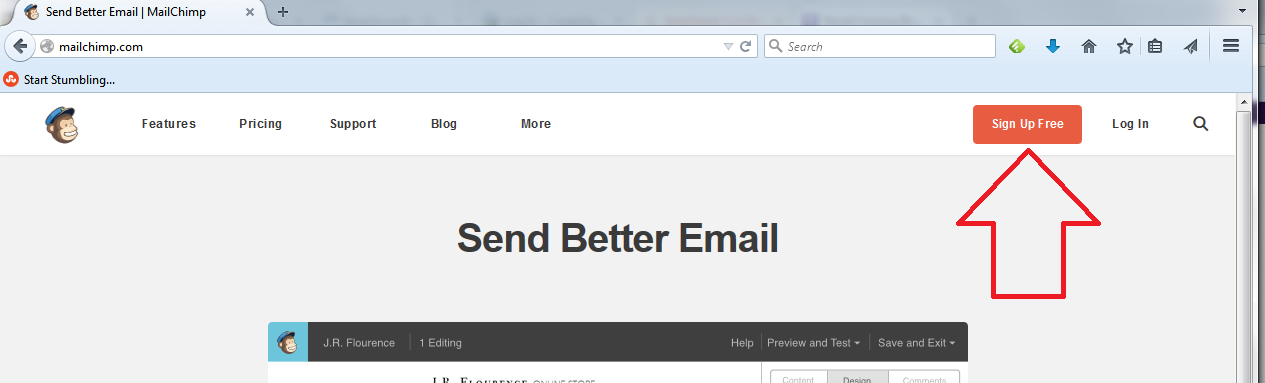
First of all, go to www.mailchimp.com, where you will find a button marked Sign Up. Hit that button:

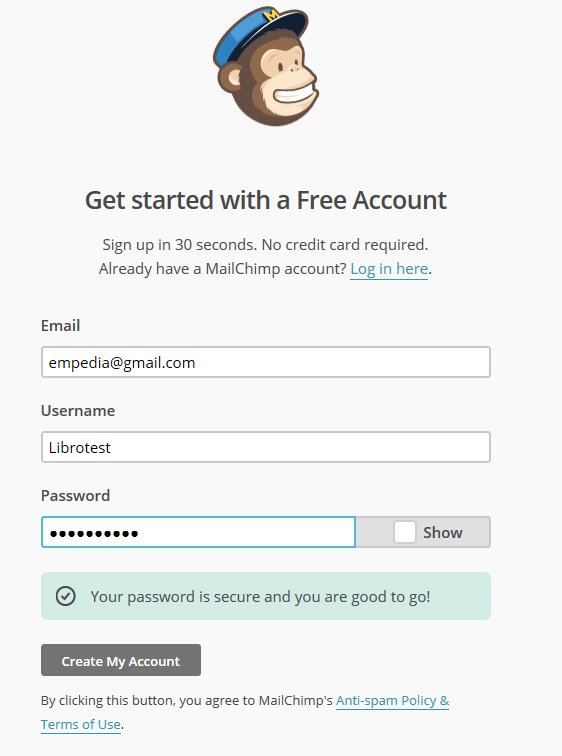
mailchimp signupThis will take you to a screen where you can sign up for your first, free account. At this point, you need to enter your email address and create a username and password:

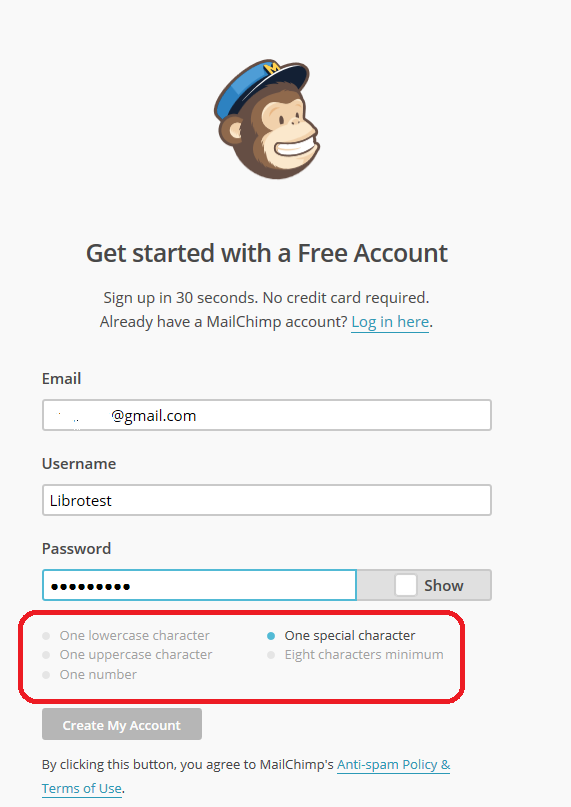
mailchimp sign up username and passwordNote, because it’s not that clear, that your password must tick all the boxes below the password entry area. Here I’ve missed out on “one special character”, so I had to add an exclamation mark to my password:

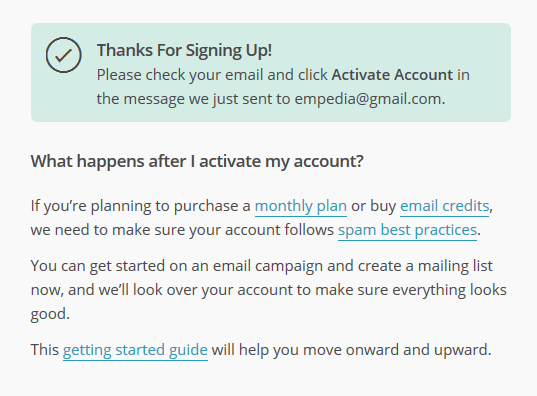
mailchimp passwordAt this point, the Create my Account button stops being greyed out and you can press the button. Now you’ll be asked to validate your account …

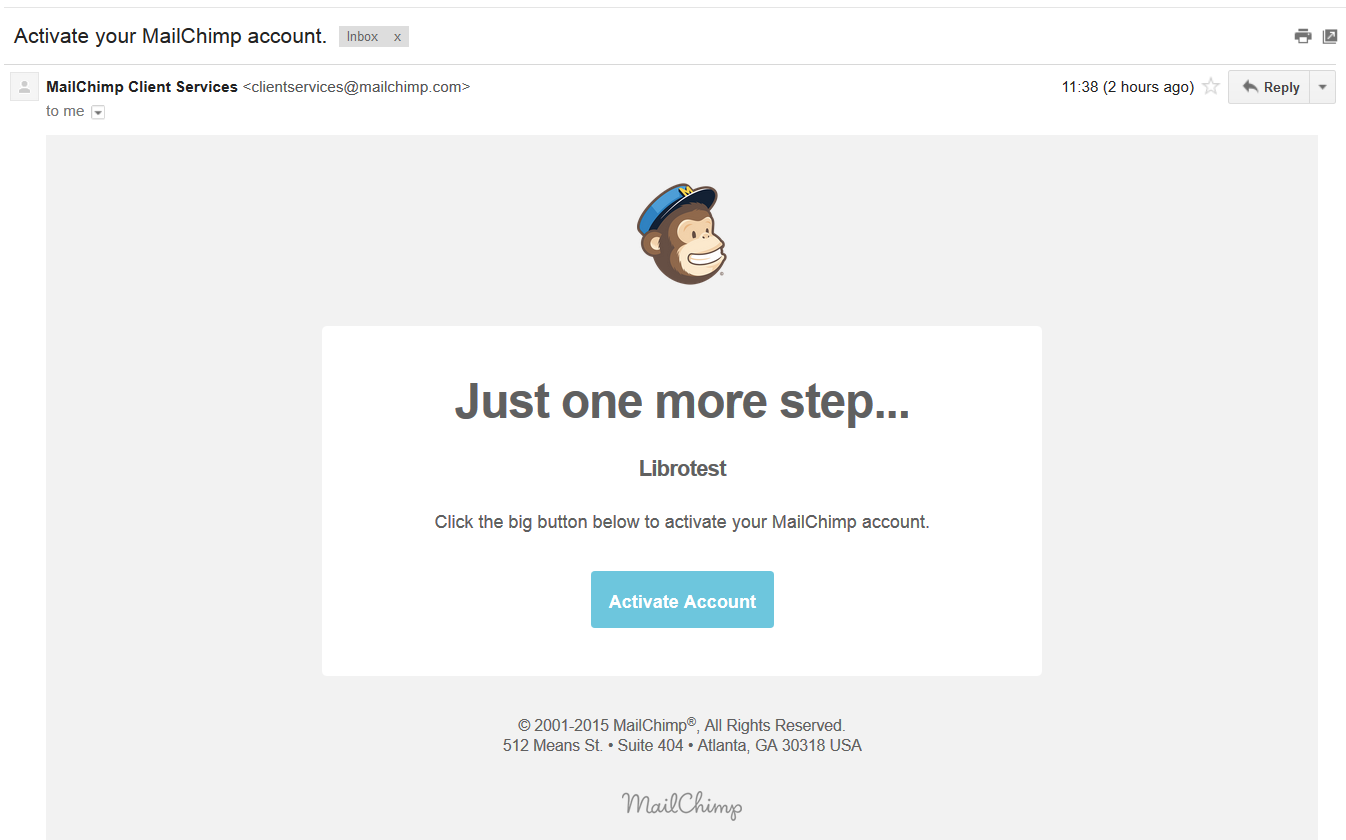
mailchimp validateAt this point, you need to pop over to the email account that you gave in the sign-up step. The email from MailChimp will obviously be from them and will have a subject line that talks about validating your account. When you open the email, it will look like this:

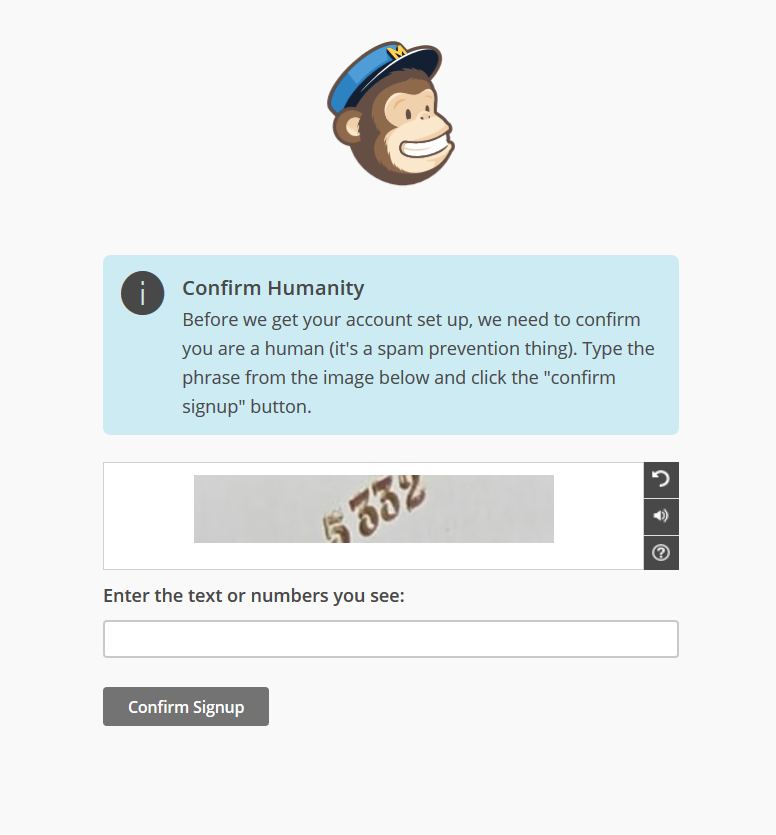
mailchimp validation emailClick on the button and you’ll go through an initial validation stage …

Mailchimp validationPop the number in, press the Confirm signup button, and you’ll then have a form to fill in.

7 enter details 1

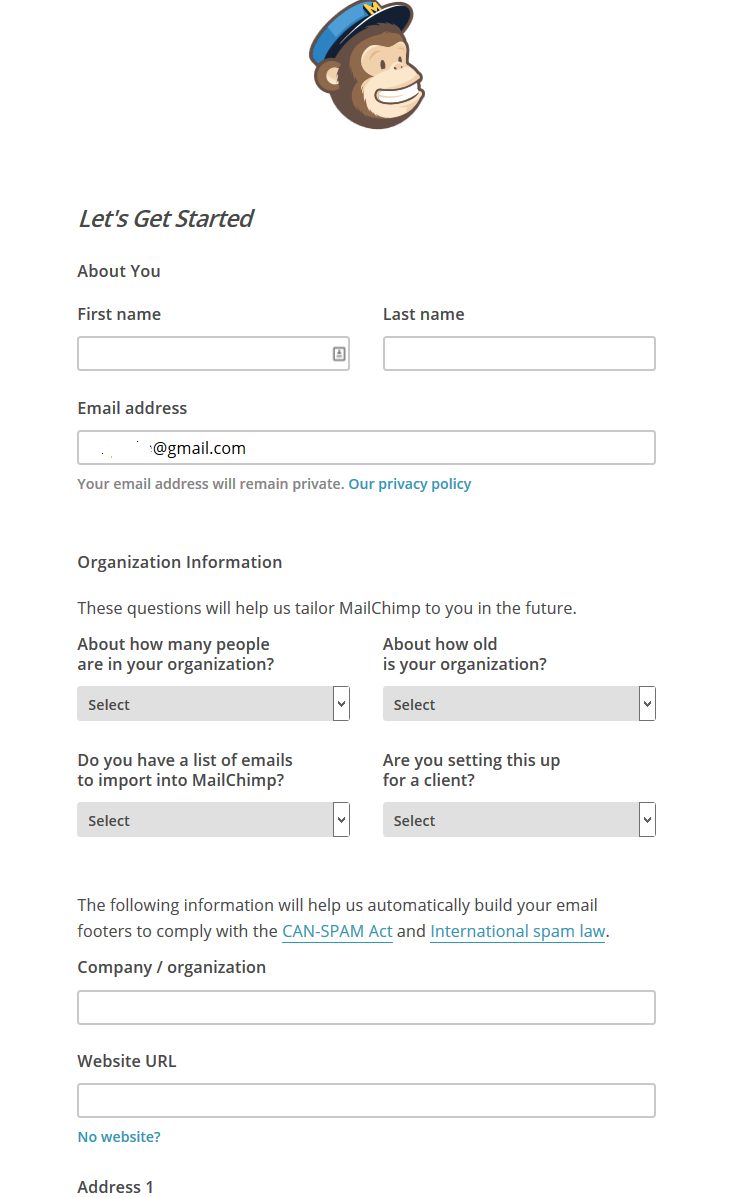
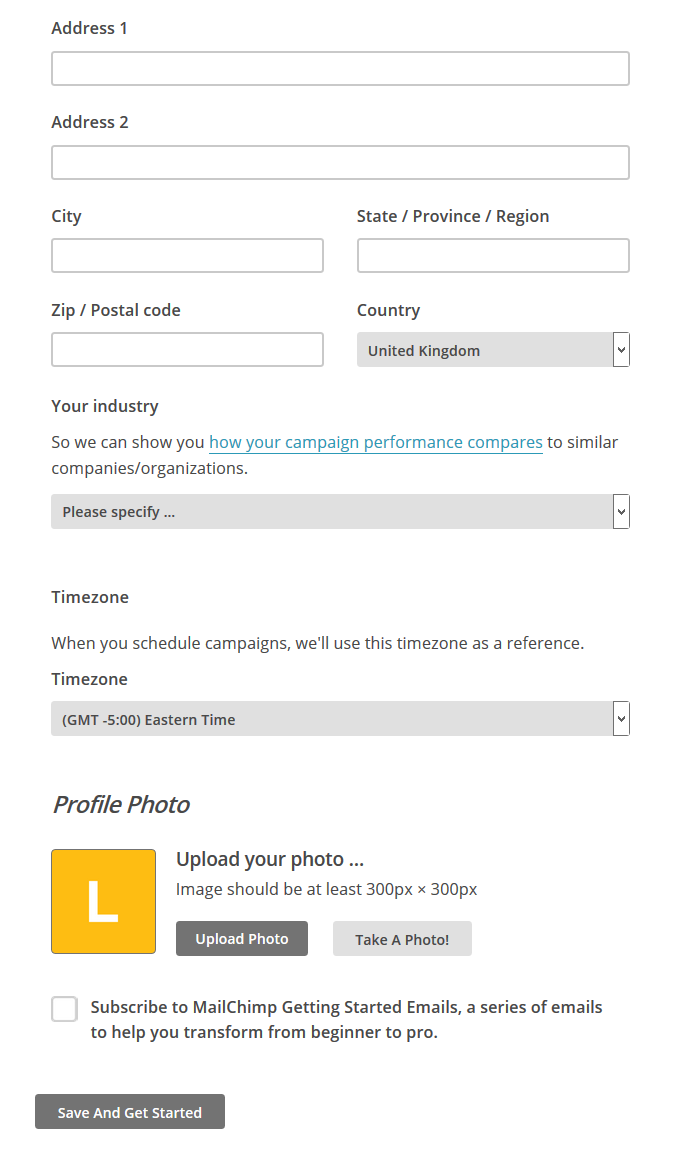
Mailchimp enter detailsFill in as much of this form as you can. The address details are so that MailChimp can include them at the bottom of your newsletters. This is good practice and it’s a legal requirement in many countries to include this information on emails. However, if you run your business from a private address, as I do, I think it’s fine to smooth over the details a little and, for example, not include your house number. I am not a lawyer, though, and you might wish to check the legal requirements in your country.

You can add a profile photo at this point, if you wish.

Once you press the Save and Get Started button, you will find yourself in the main MailChimp screen, from which you can create templates, an email list or a campaign (i.e. an actual newsletter). This is also the screen you will encounter when you go to the website and log in rather than signing up.

Mailchimp logged inSo here you are, all signed up and ready to go.

Coming soon – articles on creating a newsletter template, adding sign-up forms, and sending out your campaign …

You can find a growing set of articles on blogging, social media MailChimp etc. in my resource guide. Do click on the share buttons below or comment if you found this article interesting or useful!

Other relevant posts on this blog:

MailChimp 2 – setting up a subscriber list and importing contacts

MailChimp 3 – setting up a sign-up form

MailChimp 4 – setting up your newsletter template

How to avoid two common MailChimp errors

 
20 Comments

Posted by on February 11, 2015 in Business, Social media


Tags: , ,

New book on networking, social media and social capital

Quick guide to networking, social media and social capitalI’m delighted to be able to announce that my new book, “Quick Guide to Networking, social Media and Social Capital” is out now and available to buy on Amazon and Smashwords as an e-book in all formats (for Kindle, Kobo, as a pdf …). Like my popular “Quick Guide to your Career in Transcription“, this contains the specific information – no filler, where there’s jargon, it’s explained – that you need to venture into networking, whether that’s face to face or through online services such as Twitter and Facebook. It pulls together material I’ve written and thought about on social media etiquette and building social capital … to help others as well as ourselves, and where I go into detail on particular topics, I provide links back to this blog for all of those screen shots and details that regular readers will be used to.

You can visit the book’s web page which lists all of the places you can buy it, and I have shared the first great reviews today, too.

I hope you enjoy reading about my new book and if you find it helpful or think one of your colleagues or friends would benefit from reading it, please let them know by sharing this post or the web page for “Quick Guide to Networking, Social Media and Social Capital“.

 
Leave a comment

Posted by on November 4, 2014 in Business, Ebooks, Social media, Writing


Tags: , ,

Google+ for business

In this article I’m going to go through how to set up a business page on Google+

Because I don’t want to show my home address in public on Google, or give it to Google, most of the examples here are drawn from setting up a Brand. However, I understand that the principles are the same if you’re setting up a local business with an address. Do get in touch if you’d like to share screen prints from setting up an account with an address and I’ll be happy to include them (but not tell everyone where you live!)

Why should I set up a Google+ account and page?

This is a good question, as Google+ is known to be one of the rather less active social media platforms. However, the clue is in the word “Google”. Basically, stuff you post on Google+ and your Google+ page will be indexed more quickly by Google and will appear as more relevant in a Google search. There are active communities in Google+ and Hangouts and other social discussions and groupings – I have to admit that what I personally do is auto-post to Google from this blog and my others, so invest minimal effort, but it is worth doing for the indexing and SEO side alone.

How do I set up a Google+ account?

If you have a Google email address, you will automatically have a Google+ account. Look at the top of your email and you’ll see a +[your name] icon …

Google+ icon

You do need to have a Google account to have a Google+ account, although of course you don’t need to use it for anything else. Notifications about Google+ interactions come to your Gmail, but you could set up an autoforward to send that to another email account. Anyway, enough about options for escaping being taken over by Google – click on the +[name] icon and you’ll be taken to your Google+ account:

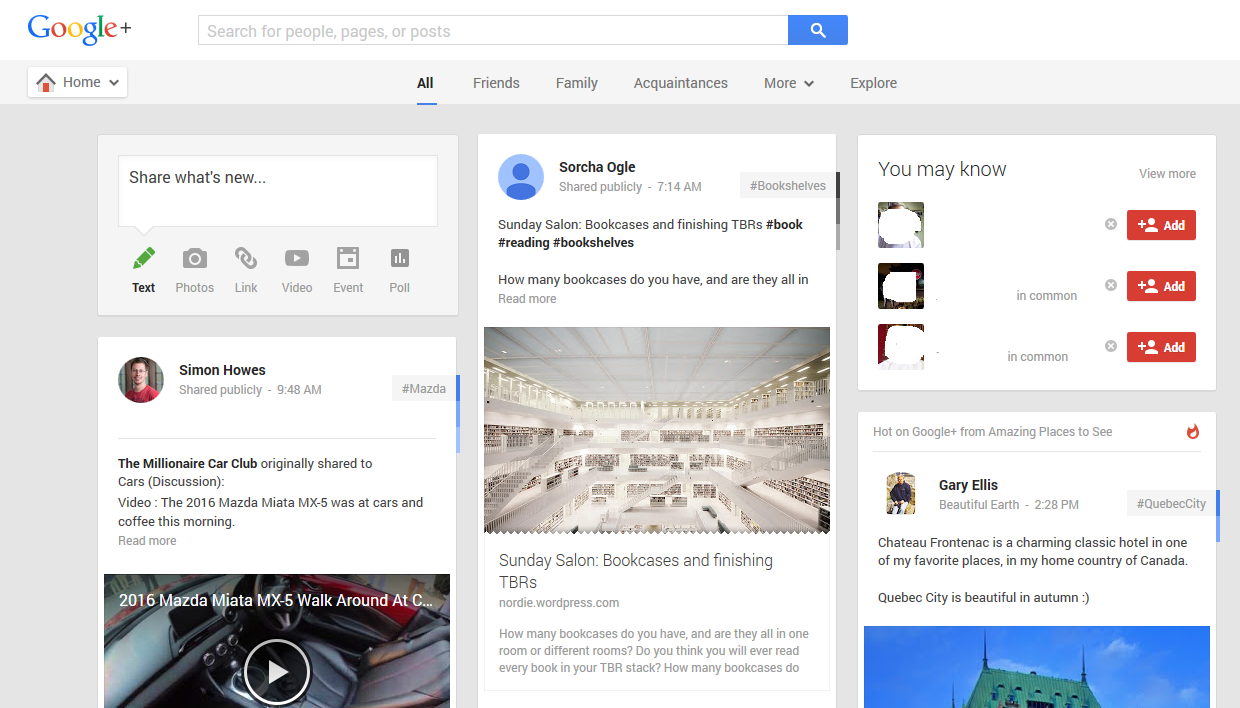
Google+ account

You can see that this looks quite a lot like other social media platforms such as Facebook, with posts by friends, recommended contacts (names deleted for privacy purposes) and a place to post an update at the top.

We’re not going to explore personal G+ at the moment, but instead look at the business application.

How do I set up a Google+ page for my business?

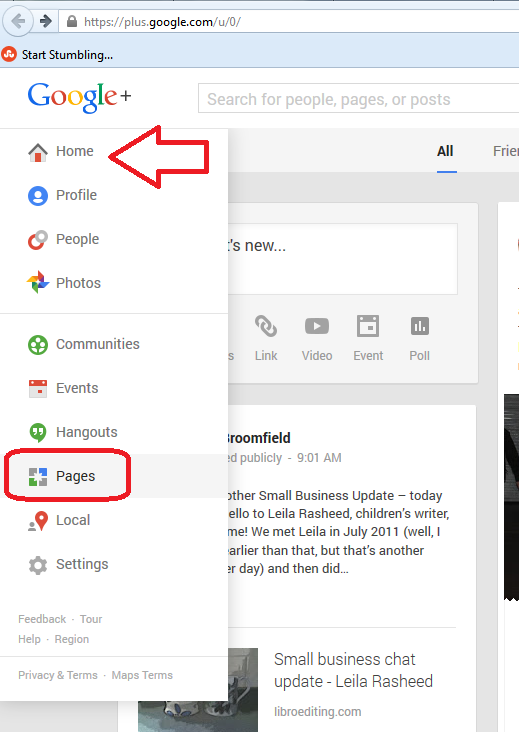
To access the Google+ pages creator and editor, click on the Home button at top left and choose Pages:

Pages on Google+

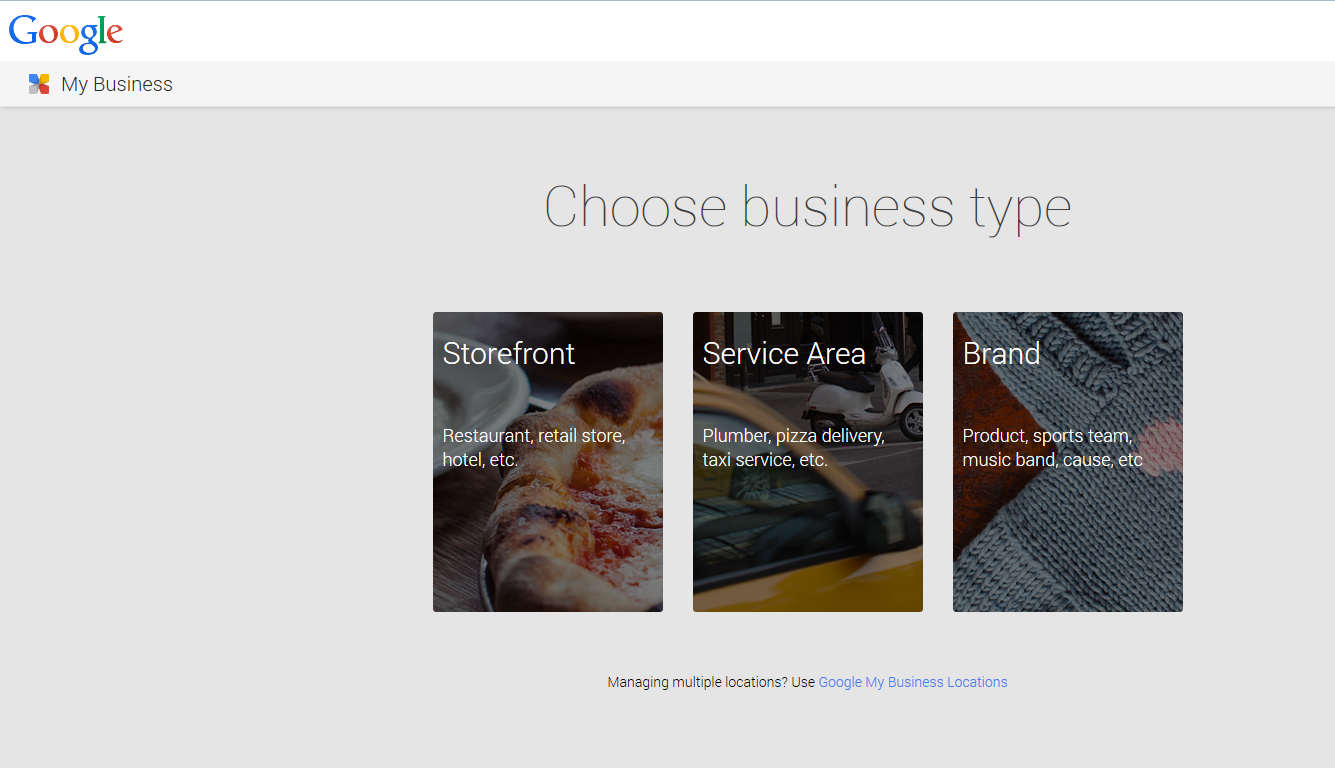
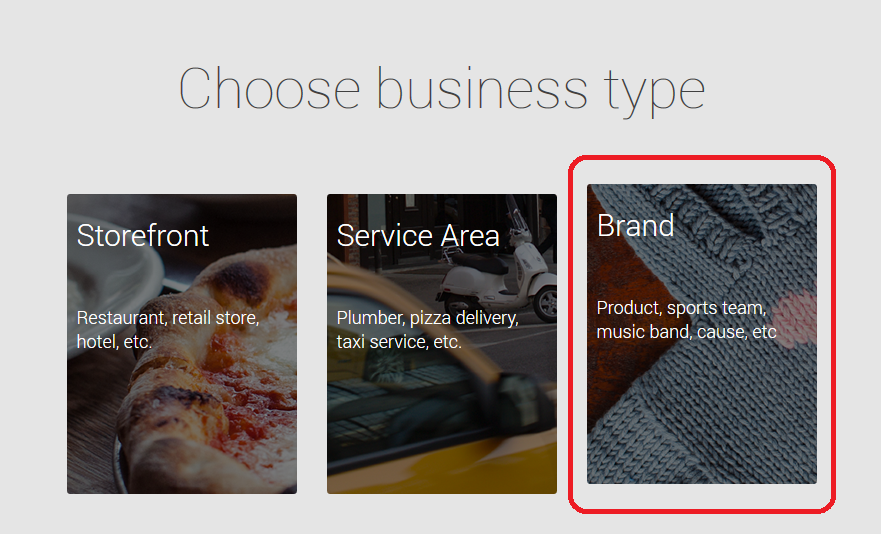
This will lead you to an option to choose a business type:

Google+ pages business type

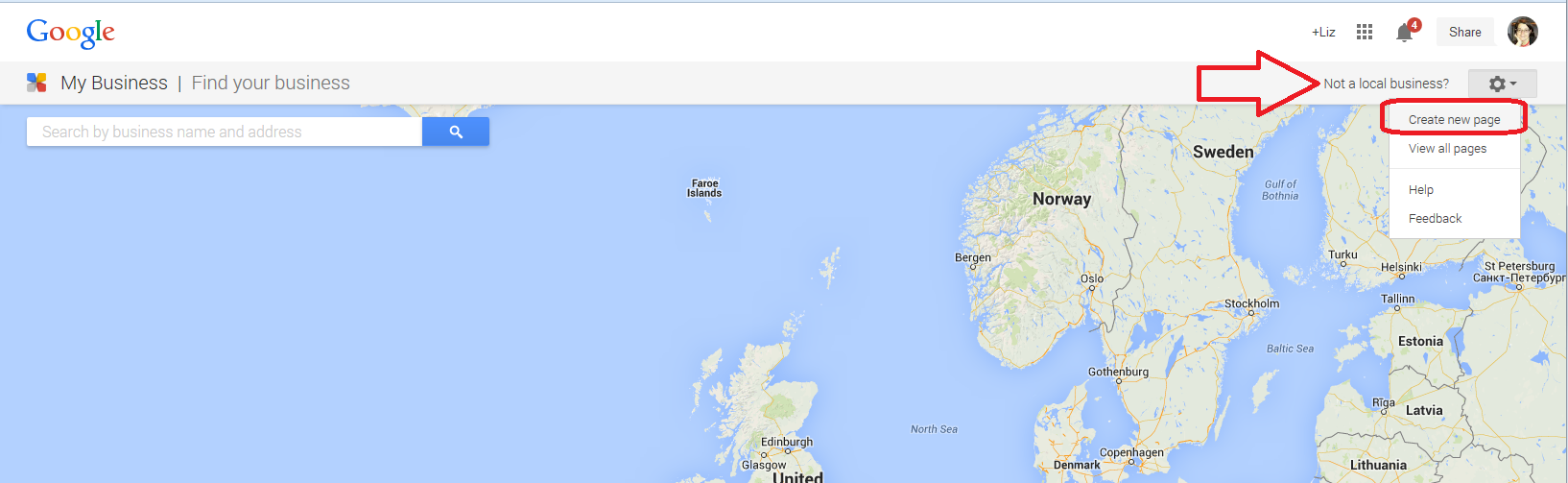
Clicking on Storefront or Service Area (which is what I chose when I first did this) will first give you an option to search for a business. This gets a bit confusing, but we’ll work our way through it. If you choose Create New Page, as you would expect to do, after clicking Not a Local Business …

Google+ pages create new page

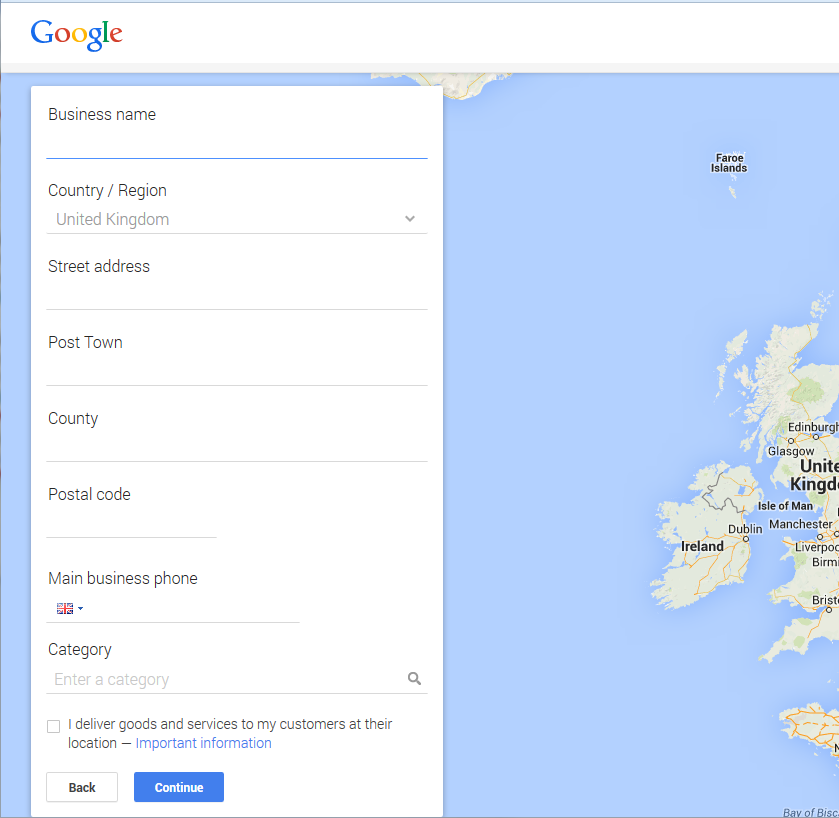
you will get the option to add a business with a street address. This is great if you have a shop or trading address, for example if you welcome people into a high street shop, have a gym in an out-of-town location or have customers visit your home to collect products, have therapeutic sessions, etc., and if this is the case, you can fill in all the details and have a listing for your business appear on Google maps for prospective customers to see.

Google+ pages add your business

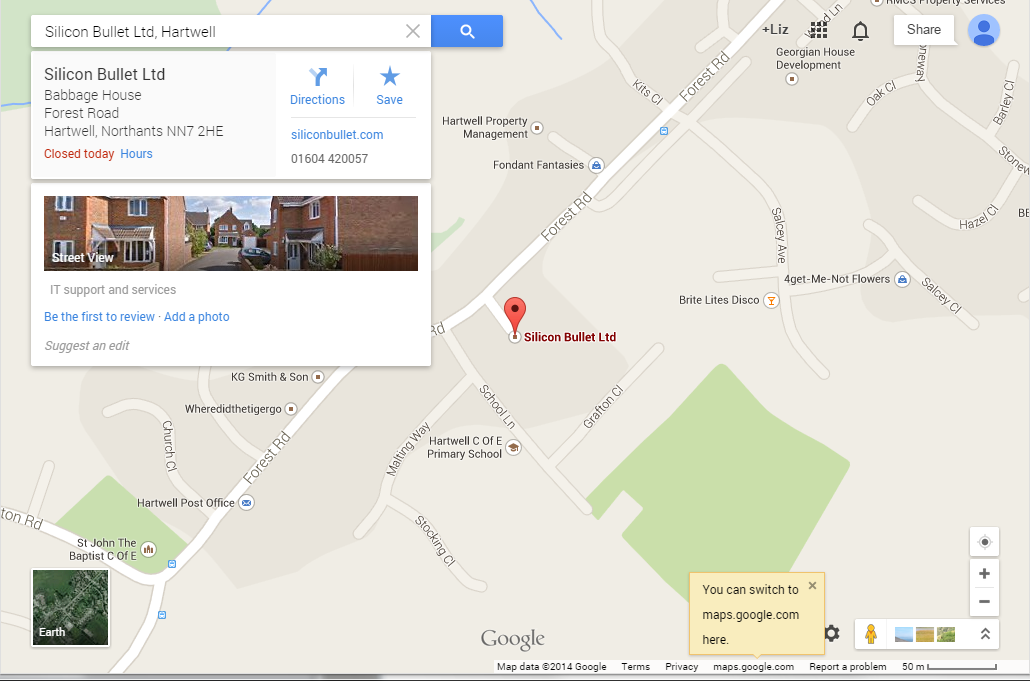
Here’s what a business with a local page looks like on Google Maps. Here, I’ve searched in Google Maps for the business name, but it will also appear if you are viewing the map of the area at a certain level of zoom:

Google+ pages on Google Maps(thanks to Alison from Silicon Bullet for letting me use her business as an example!)

But what if I don’t want to list my address and have a pin on Google Maps?

I don’t want to list my address on Google Maps because I work from home, but I don’t see any clients here and I don’t really want the world to know my address! So this is how to set up a Google+ page without your address. Note, you can’t cheat the section above and put in spaces or dots – it really does want to pinpoint your address with a little label.

When you’re at the point of choosing your business type, choose Brand if you don’t want to have to add your address:

Google+ pages business type brand

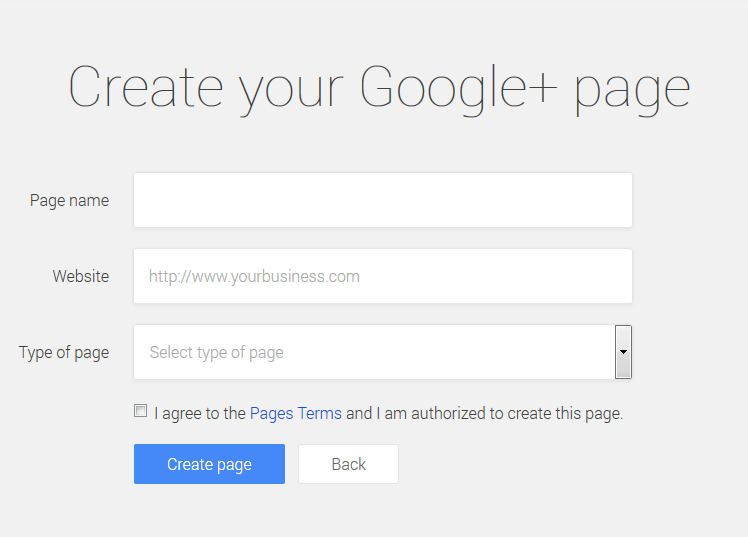
This will take you to a screen where you start to add your details:

Google+ pages add brand details

You can now start filling in your details:

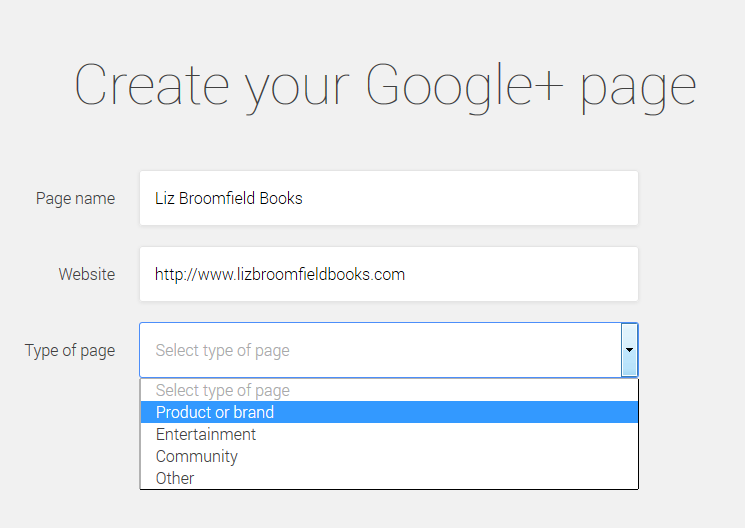
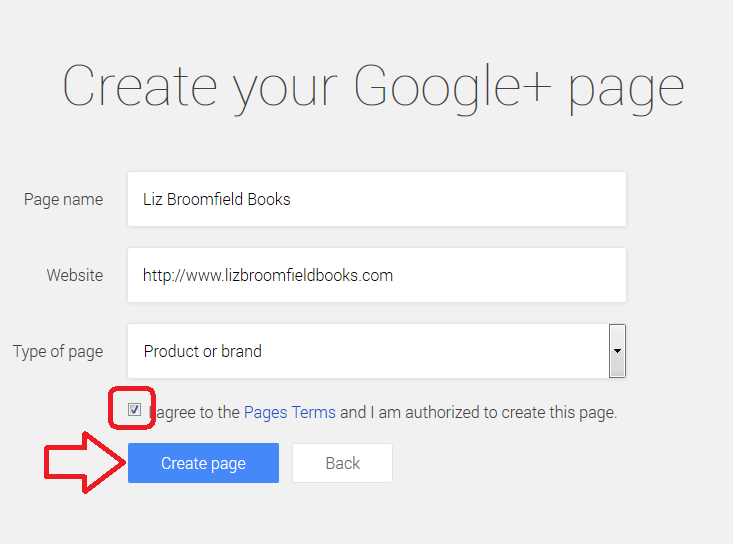
Google+ page set up brand

You can add in your URL and select the type of thing you’re talking about – so this is how you set up a community or other non-business entity, too.

Do note that you need to tick the box to agree to the Pages Terms (and do click through to have a look and check you DO agree) and to confirm that you’re authorised to create the page.Then click Create Page to create your page:

Google+ page setting up brand page

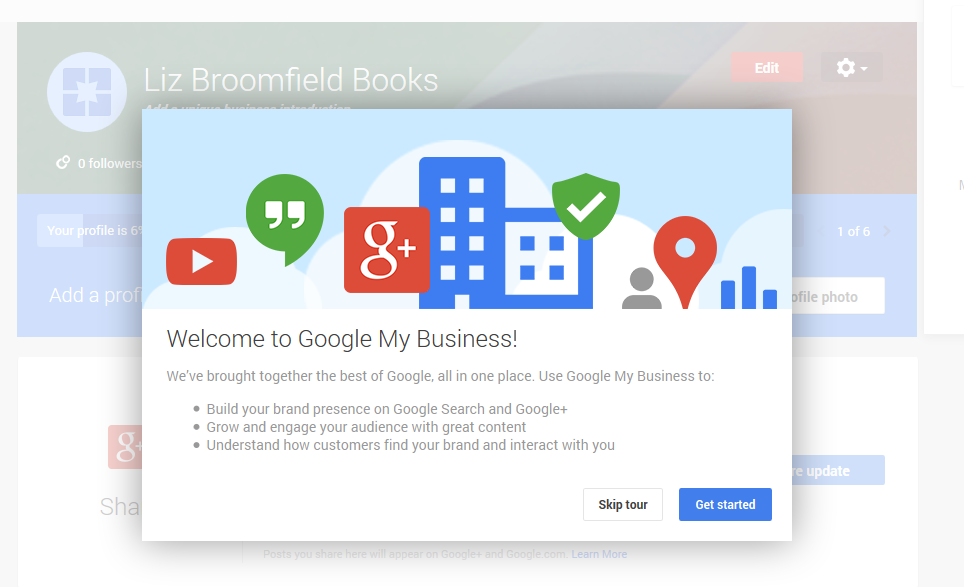
Once you’ve created your page, Google+ will give you a tour or you can just get started customising your page.

Google+ pages page created

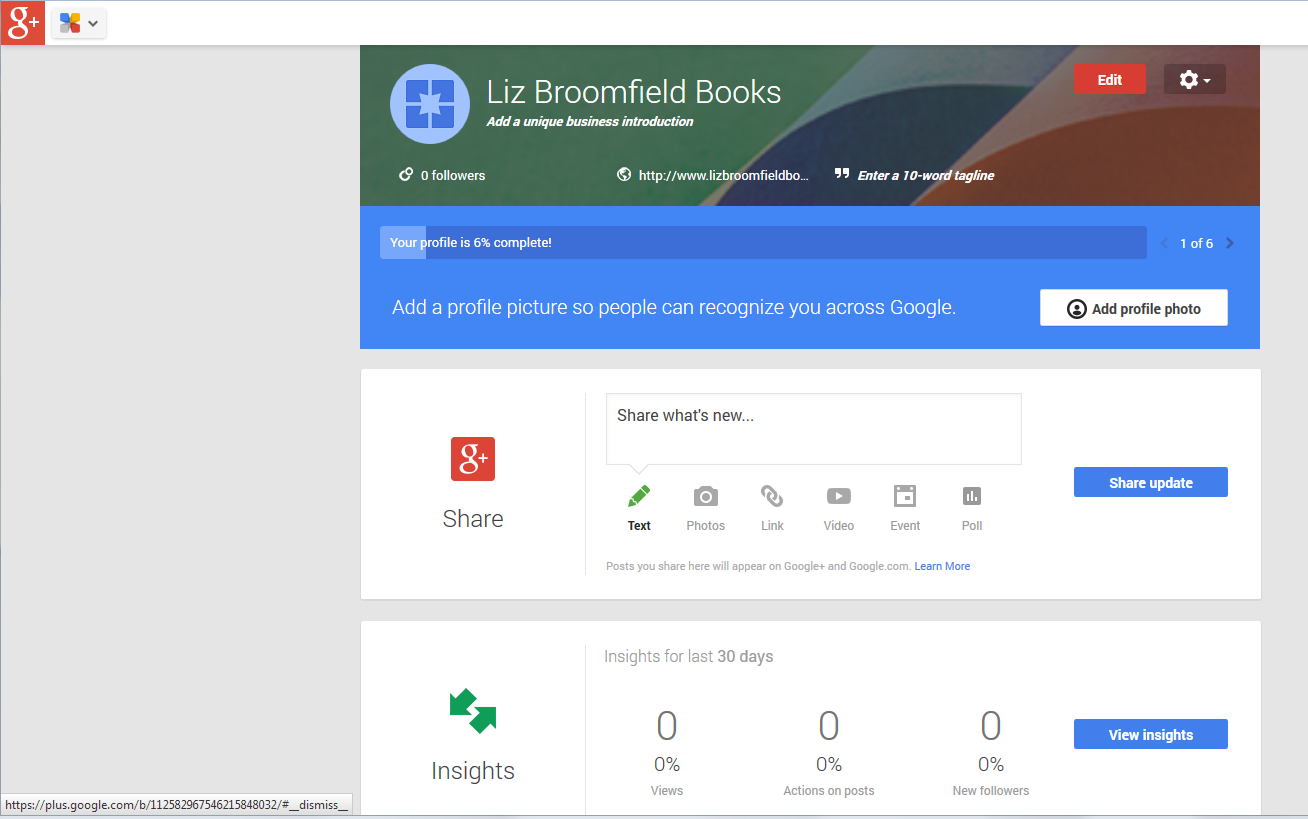
This is all pretty self-explanatory. For example, you will be asked to complete your profile and given options to share updates. There’s also a section where you can see Insights – how people are interacting with your new page.

Google+ page complete profile

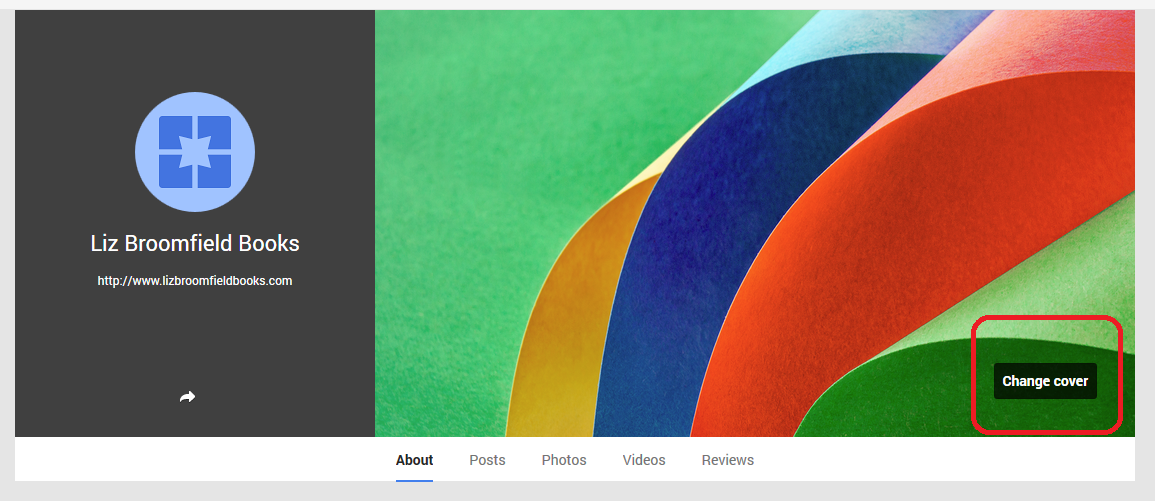
You can update your cover with your own image as well as adding your own picture to the place on the left:

Google+ page change background

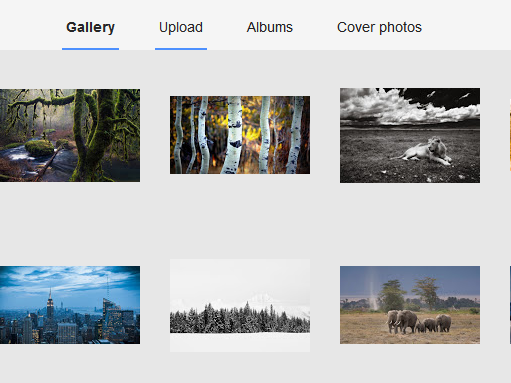
Once you’ve clicked Change cover, you can choose one of the gallery or upload your own photo (if you have already put up several cover photos, you can click on that link to choose one you’ve used earlier).

Google+ page change cover

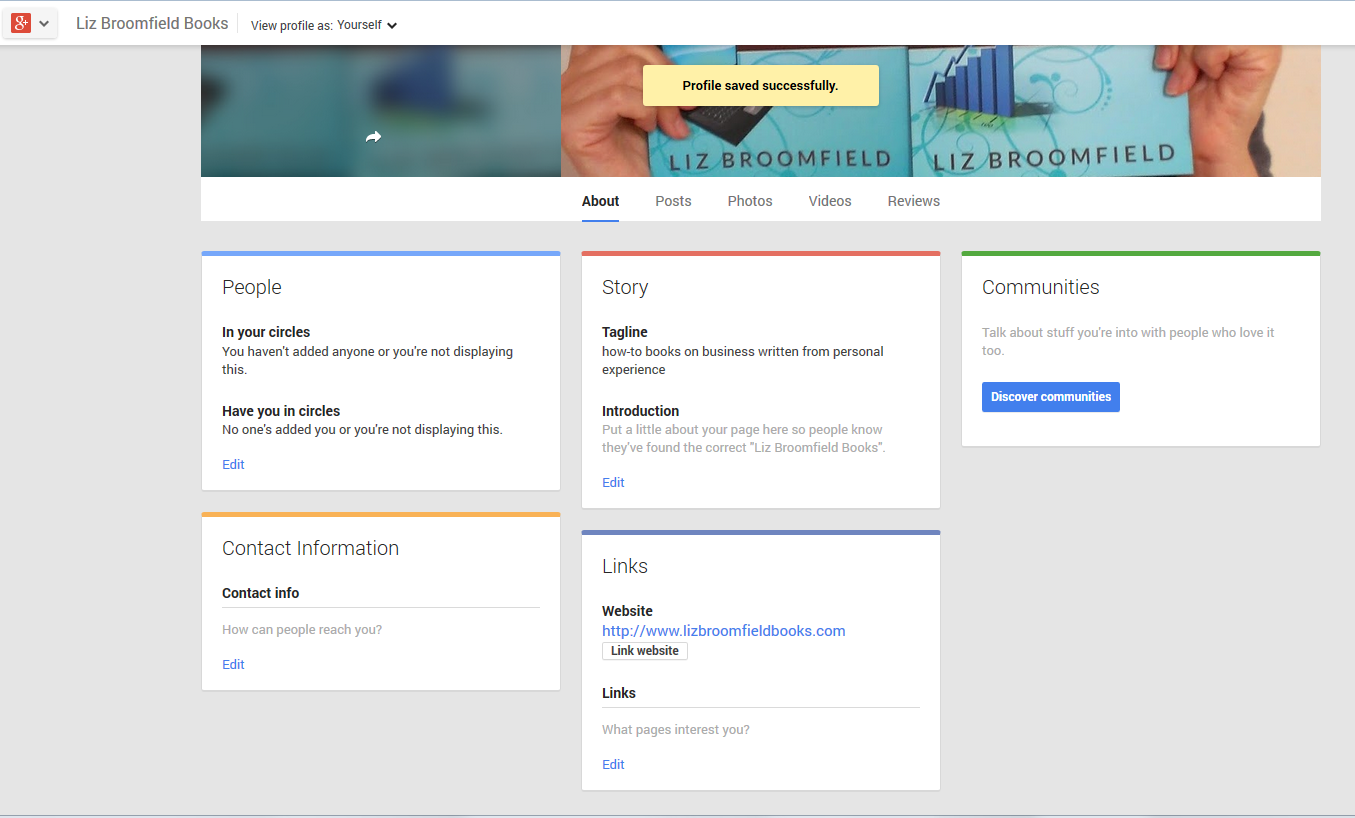
Upload takes you into your own folders so you can choose your own image. Here I’ve added my own image and I can now explore, add updates and add contact information and links.

Google+ page complete profile

How do I edit my Google+ business page(s)?

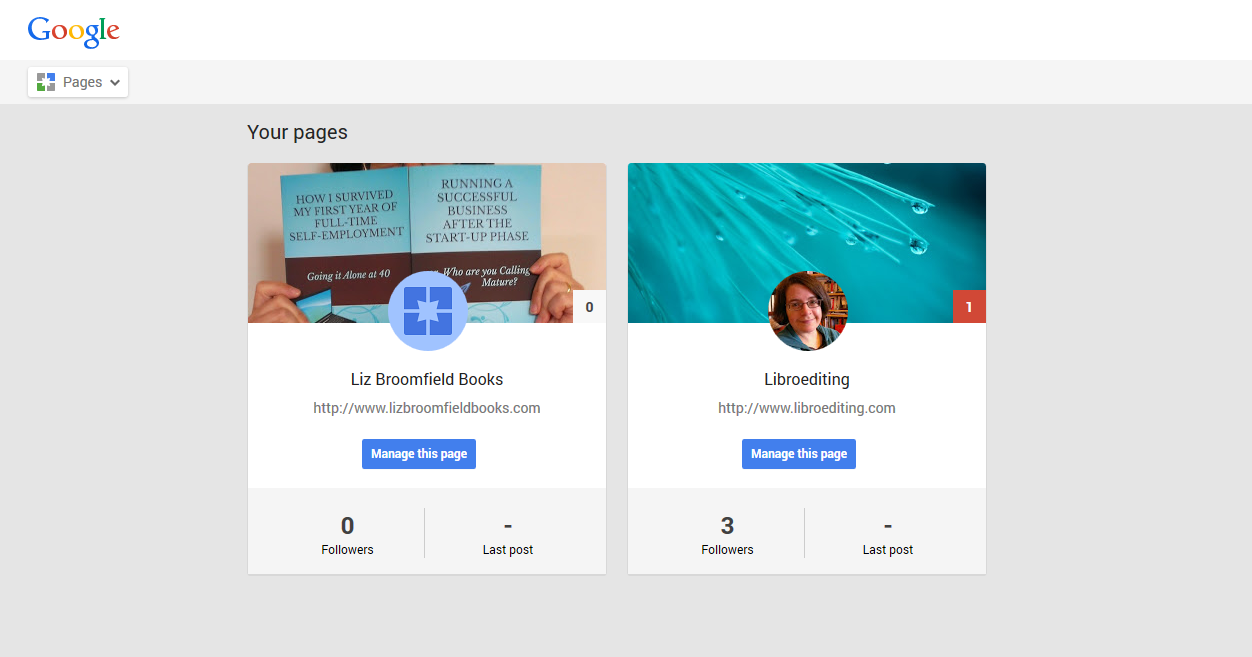
You can access your business pages at any time by clicking the Home button and choosing Pages. If you’ve created more than one Page, you will be shown all the ones you have active, with a link to edit them:

Google+ page edit pages

The Golden Rules of Google+

The rules here are the same as everywhere on social media …

  • Be professional
  • Reciprocate and share

In this post, we’ve learned about Google+ pages and how and why to create them. To learn about more aspects of social media for business, take a look at the resource guide.

if you’ve enjoyed reading this article and have found it useful, please take a moment to click on the buttons below to share it! Thank you!

Other relevant posts on this blog:

Facebook for business

How to delete posts and block users from your Facebook page

How to add a moderator or admin to your Facebook page

How to find a job using Twitter

Using Twitter for your business

Using LinkedIn for your business

Additional resource:

Garrett and Mike from Techfunction Magazine have got in touch to let me know about their resource guide to Google Business – read the first article here.

 
1 Comment

Posted by on October 22, 2014 in Business, Social media


Tags: , ,

How do I delete a post or ban a user on a Facebook page?

This post follows on from my one about the basics of Facebook for business and covers two really common concerns for people with a business Facebook page:

  • How do I delete a post or comment that someone has put on my Facebook page?
  • How do I ban or block someone from commenting on my Facebook page?

In fact, the way to do the second leads on from the first … so let’s look at how to delete a comment first.

Where can I see other people’s comments on my Facebook page?

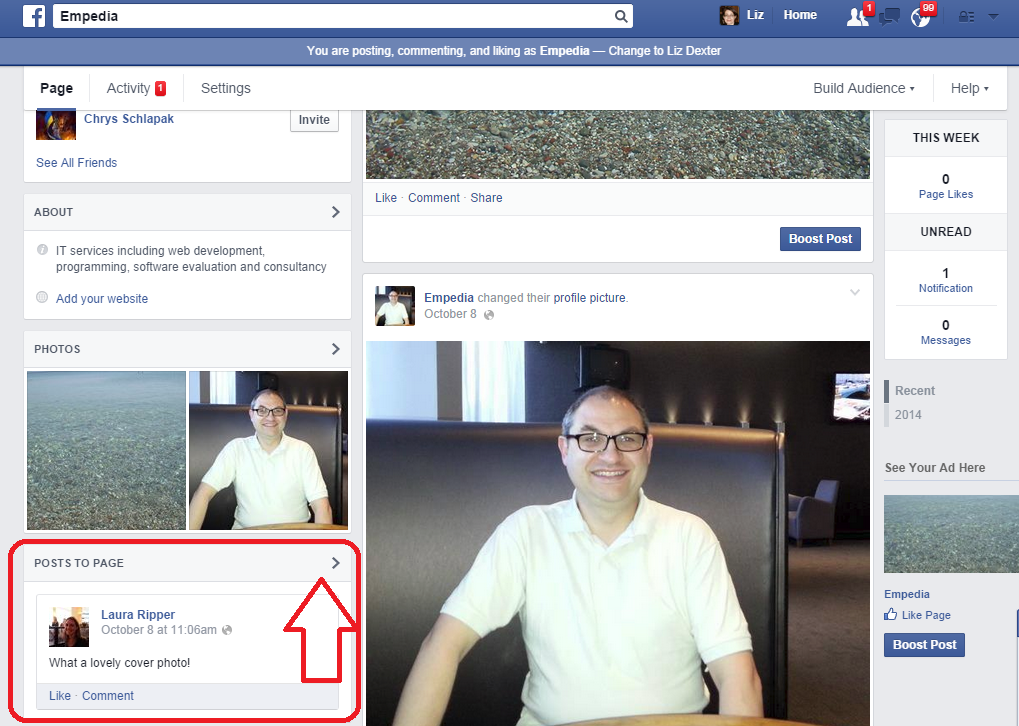
Comments move around a bit on Facebook, but if you’ve enabled people to be able to comment, you can see their comments under the heading Posts to Page:

Posts to page on Facebook page

To look at all of these posts in detail or delete some, click on the arrow at the top right. You will then see just your comments:

Posts to page view Facebook

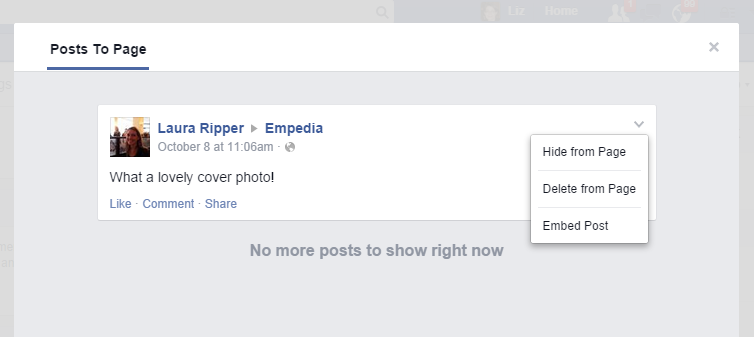
To delete this post OR to block or ban the user, click on the down arrow at the top right. You will now be presented with three options:

Delete post to Facebook page

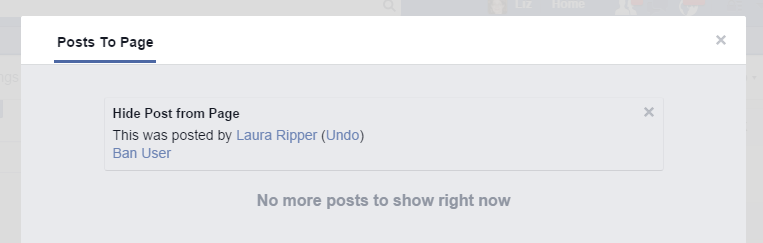
  • Hide from Page will hide the post but not delete it – no one will be able to see it. This would be useful if you suspected someone of posting inappropriately but wanted to get in touch with them to check what they meant or give them another chance / ask them to edit their post. You also have the option to ban the user at this point:

Facebook page hide post

(use Undo to backtrack from here, the x button to hide and close the dialogue box, or Ban User to ban the user from the page)

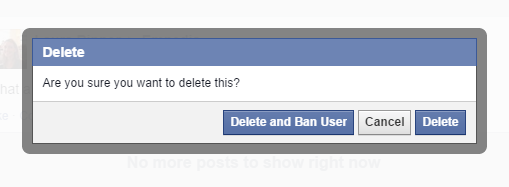
  • Delete from Page will delete the post and give you the option to ban the person who wrote the post

Delete post from Facebook pageYou can Delete the post and ban the user, Cancel if you clicked this option by mistake, or just Delete the post (you could use this option if the user had made a mistake or posted something you didn’t want on the page but you don’t actually want to ban that person from posting on your page in future.

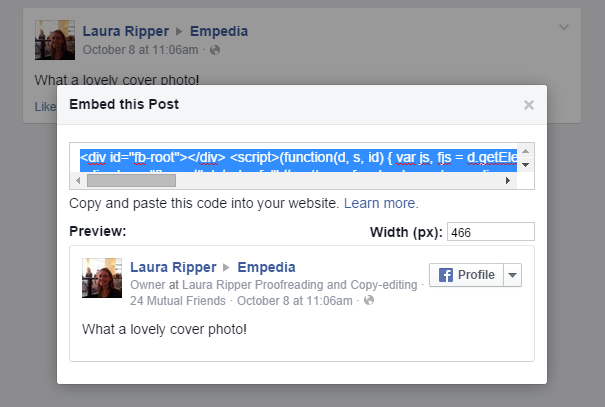
  • Embed Post will generate some HTML code that will allow you to include an image of the post on Facebook in other places such as your website or blog – useful if you have a great post from a fan or celebrity:

Facebook embed post

Copy the code that’s highlighted and use it anywhere that you can place HTML – in a blog post, on a website, in a discussion forum, etc.

How do I block someone from posting on my business’s Facebook page?

As we’ve seen above, you can use two methods: both need you to look at the post itself first. You can then …

  • Hide the post and ban the user
  • Delete the post and ban the user

How do I stop people posting on my Facebook page at all?

If you want to suppress all posts from people who are not the Facebook page’s administrators / moderators, go to Settings / General / Posting Ability. When you go to the General area, under Posting Ability you will see your current settings. If you want to change these, click Edit:

Facebook settings allowing posts

Clicking Edit will allow you to choose whether and what people can post on your business page:

Edit posting ability Facebook

Use the round buttons to choose whether you Allow other people to post to my Page timeline or Disable posts by other people on my Page timeline. The tick boxes allow you to choose whether to let people add videos or photos (useful to untick if people have been posting inappropriate photos but you still want to allow comments) and allow you to ask Facebook to send you posts by other people that you then have to approve (you’ll receive an email alerting you to the new post and allowing you to approve or reject it).

Click Save Changes to save your changes or Cancel if you want to keep your settings as they are.

Important information about allowing posting and deleting posts

I personally think it’s a good idea to allow other people to post on your business Facebook page. After all, you want to encourage interaction and conversations, not just pump out sales information, right? I get a bit frustrated if I go onto the Facebook page for a business and find I can’t place a comment about how much I loved their veggie sausages or enjoy wearing my new shoes. So, unless you are bombarded with spam and abuse, try not to use the Disable posts by other people on my timeline option if it all possible.

And a word on deleting posts. Be careful what you delete.

Posts it’s OK to delete or hide

  • Unfounded or personal abuse
  • Spam that has nothing to do with your own page (e.g. on this Empedia page for an IT consultant, a post about buying homes in West Texas)
  • Spam from rival companies in your business area who are not supporting and cooperating with you, but merely trying to get your followers to move over to them instead (for example, on my own editing page, posts from student proofreading companies just saying “For the best proofreading click here”)
  • Pornographic or other inappropriate images, text or video

Posts it’s best not to delete or hide

  • Genuine complaints and negative feedback – OK, so your first reaction will be to hide that post where someone complains the shoe they bought from your range has fallen apart. But if they’ve taken the time to find your Facebook page and complain, then they’re going to know they did that, and they’re going to notice if you delete it. What will they do then? At very least, post it again, but be assured that they will have told their friends and family, shared your page on their Facebook timeline with a note about what you’ve done, and been very unhappy altogether.

If someone posts a complaint or negative feedback on your Facebook page …

  • Think what you’d do if you encountered them in person. You wouldn’t stick a bit of tape over their mouth or turn your back on them, would you? Yet that’s what you’re doing when you hide or delete their post.
  • Address the issue at least partly in public – for example, you could post a reply along the lines of, “Sorry to read you’re experiencing problems. Please contact me at vvv@vvvvv.com or via my Contact Page [with link] so we can resolve your problem”.
  • You could go further and say something like, “I’m sorry you appear to be having a problem – you can of course return your shoes to use for a full refund” and give them information on how to do this.
  • Once the problem is resolved, pop another reply on – “I’m glad we were able to replace your shoes and hope you’re happy with the new pair – do let us  know how you’re getting on.
  • Be polite – if someone posts a little aggressively – “I’ve heard you supply slip-on shoes with fancy chains and blood diamonds on them to arms dealers: what do you say about that?” then take the polite route, and address their question in public as far as you can.
  • Don’t get into a fight in public – if it gets messy, take it offline with an offer to call them or whatever’s appropriate.
  • If the poster strays into the inappropriate, follow the steps above for deleting or hiding posts, but maybe consider putting a note on the page to explain (calmly) why you did this.

This article has hopefully helped you to deal with negative or inappropriate comments and commentators on your Facebook page. You now know how to hide or delete comments and block or ban users from your Facebook business page, and how to use the Settings to control who can post what.

Other useful posts on this blog

Facebook for business – the basics

How to add an admin or moderator to your Facebook page

Thank you to my husband, Matthew, for allowing me to set up a Facebook page on his behalf to harvest screenshots! And of course, Laura Ripper is a good friend and colleague and never posts inappropriate content on people’s Facebook pages!

If you’ve enjoyed this post or found it useful, please click one of the sharing buttons below! Thank you!

 
8 Comments

Posted by on October 13, 2014 in Business, Facebook, Social media


Tags: , , ,

Facebook for business – starting out

This post takes you through the basics of setting up a Facebook page. You may have found this page from a link in one of my e-books, if so, welcome to this extra free resource!

You can set up a page for your business on Facebook as long as you’ve got a personal page.

The slight issue with Facebook business pages is that Facebook wants you to pay for adverts and to have your posts and page promoted to other people. So do be prepared to receive lots of suggestions to pay for ads and promotion, and not a lot of interaction from other users.

How to set up a Facebook business page

You will need to be logged in to Facebook

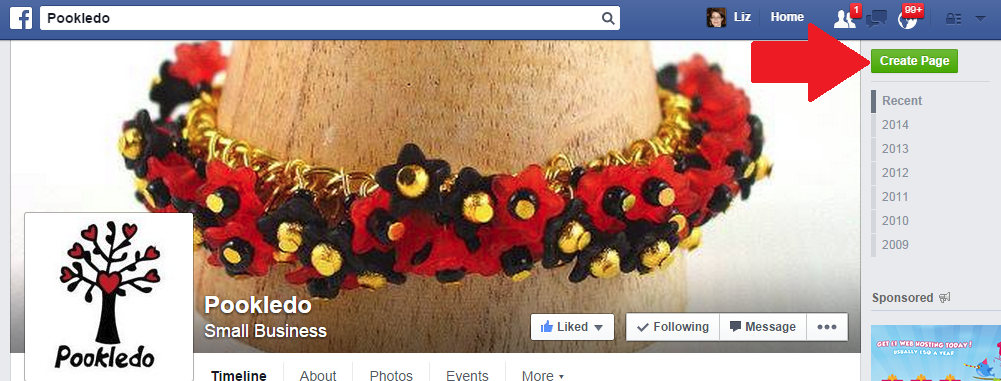
Go to www.facebook/pages/create or click on Create a page when you’re in any other Facebook page …

Facebook create a page button

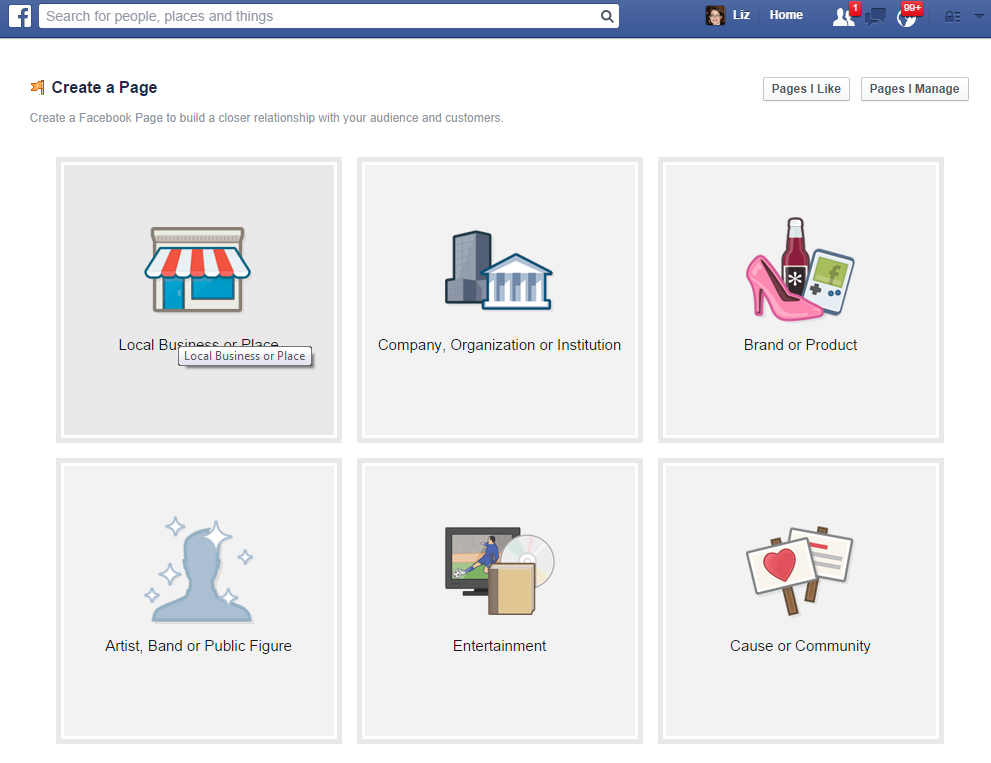
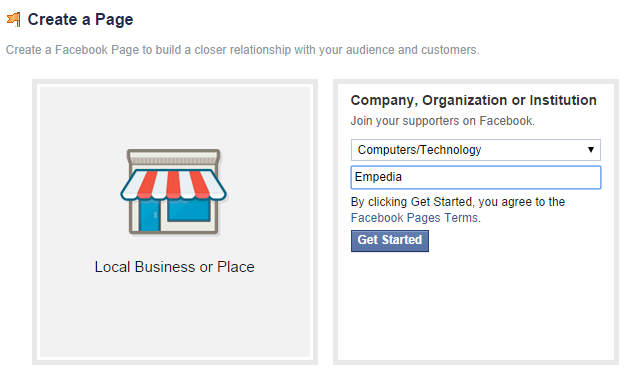
and choose a category of page to create:

Facebook type of page

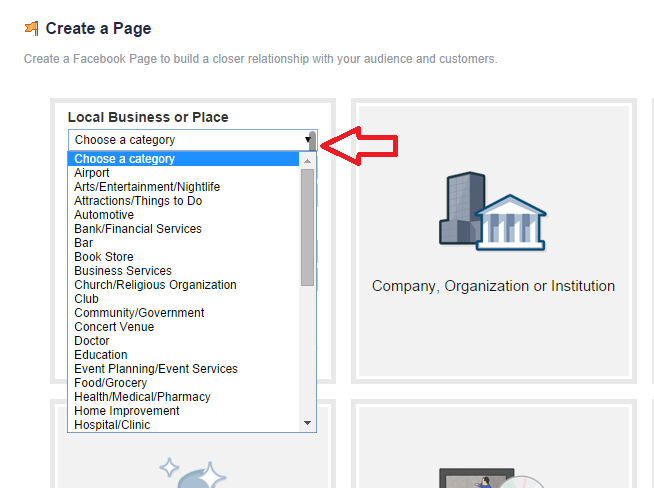
If, for example, you choose Local Business of Place or Company, Organization or Institution, you then need to choose your category, and it’s worth noting that you get different categories for Local Businesses …

Facebook create local business page

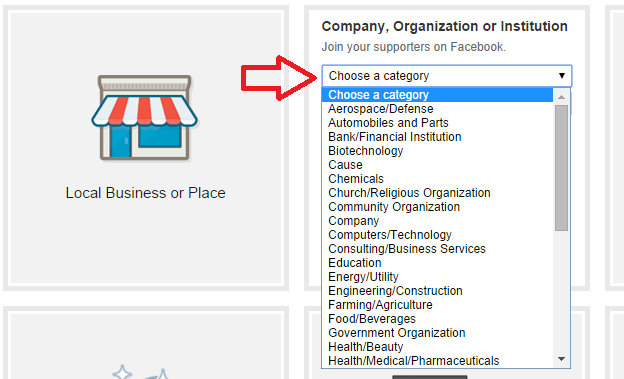
… and Companies:

Facebook create company page

and give your page a name. If you choose local business or place, you’re given space to enter your address – good if you have a shop or need people to find you, not really recommended if you operate from your home office and don’t want all and sundry to know your address. I’m choosing Company, Organization or Institution:

Create business page

Whatever type of page you set up, you will be asked to tick that you accept Facebook’s Page terms and conditions. These include a host of stipulations about promotions, advertising, tagging and other issues. Note that Facebook can remove admin rights and shut down your page if you don’t abide by these rules. This is why I would never suggest limiting your web presence to only a Facebook page – make sure that you have your own website, too.

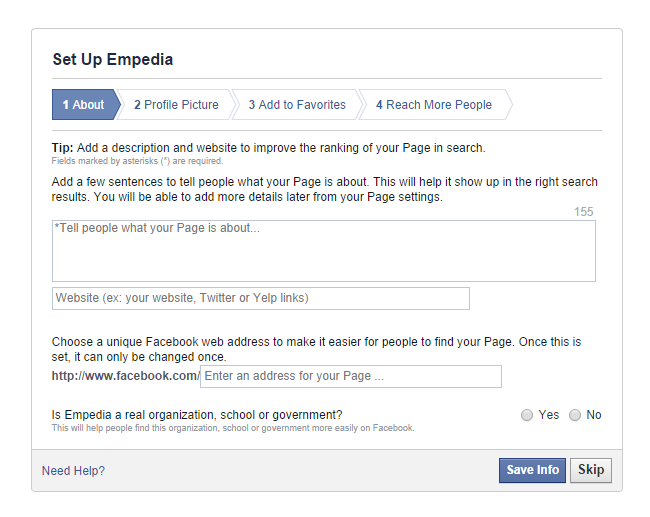
Now it’s time to set up the basic details of your page – Facebook walks you through this:

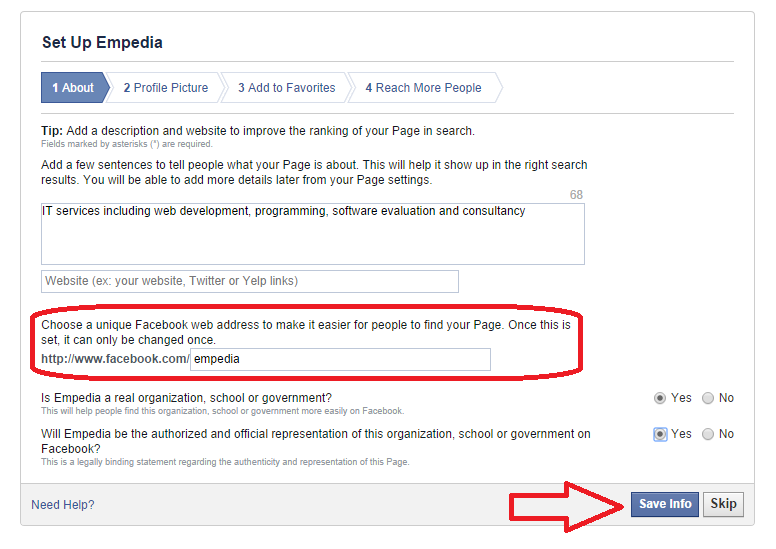
Facebook set up pageNote here that you used to have to have a certain number of Likes before you could choose a unique Facebook web address; now you can do it right away. Here’s this first screen with the info filled in. Note that once you’ve said that it’s a real organisation, you’ll get a second option to confirm that you represent the company:

Facebook page set up filled in

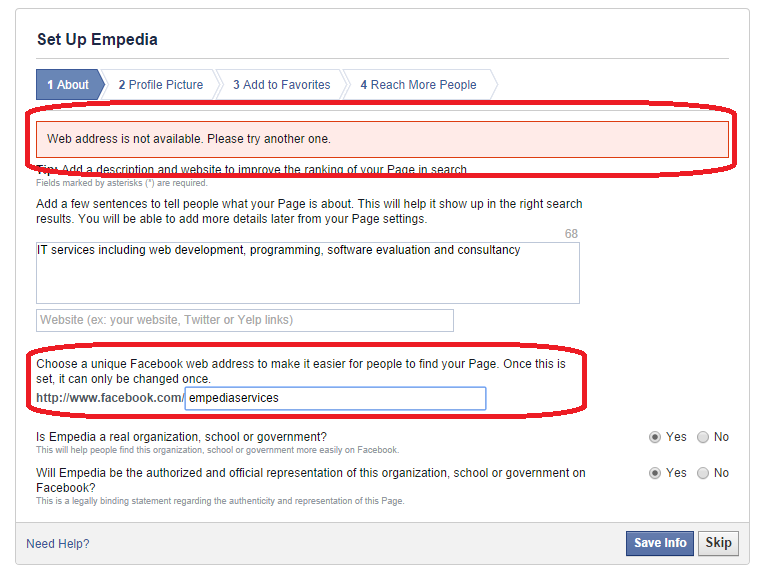
This is the point at which Facebook checks that the URL you’ve chosen is available. In our case, it isn’t (I checked, and the URL belongs to an individual with the surname Empedia), so I’ve added to the URL to try again:

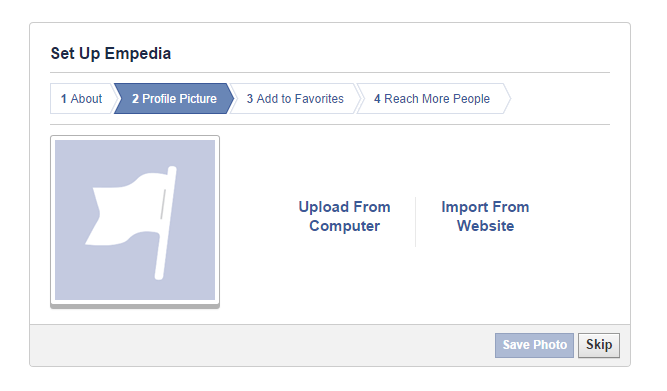
Facebook url not availableOnce you’ve saved this information, you can add a profile photo:

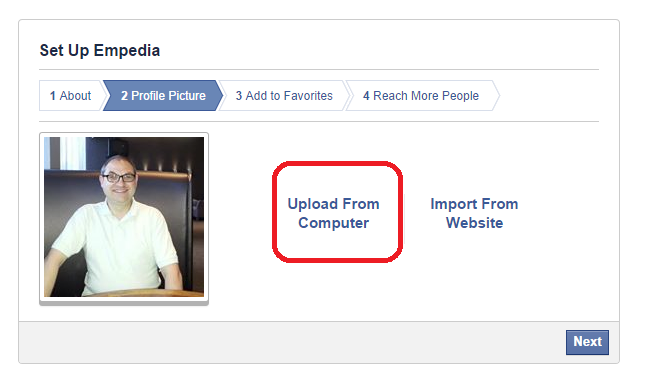
Facebook page add profile photoIf you choose Upload From Computer, you’ll be taken to your computer’s folders to find the photo you want:

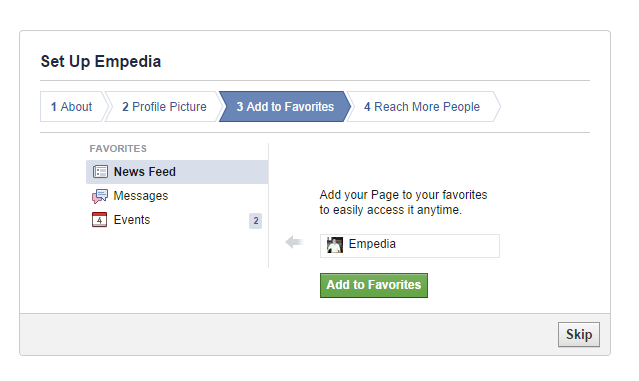
Facebook page add profile pictureYou will also be prompted to add the page to your favourites – this means that you’ll see when you (or someone else) posts to it and you will also see it in your left-hand side panel:

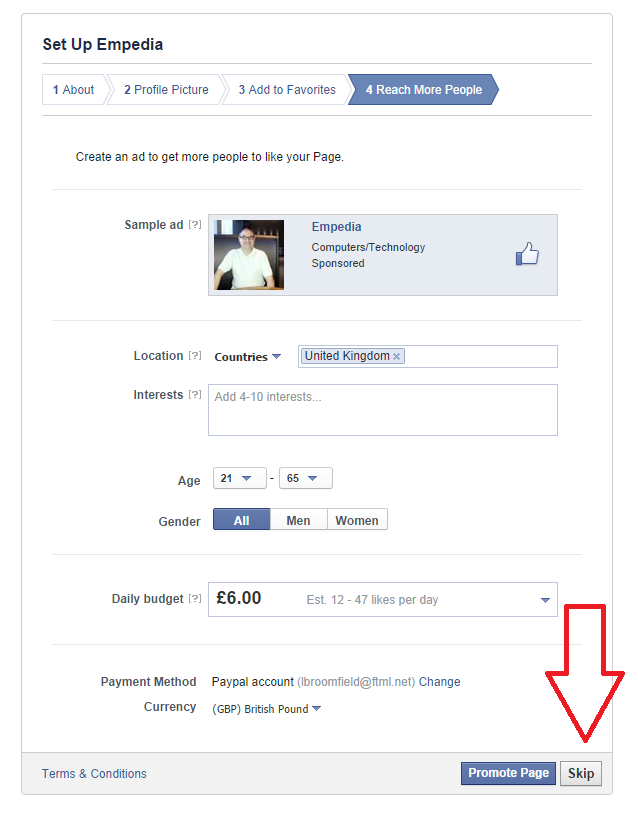
Facebook page add to favouritesThen you get a bit of hard sell with the Reach More People section:

Facebook page reach more people I would certainly advise pressing the Skip button at this point, as anyone directed by an ad to Like a page that has no Likes or activity is not going to be compelled to do so!

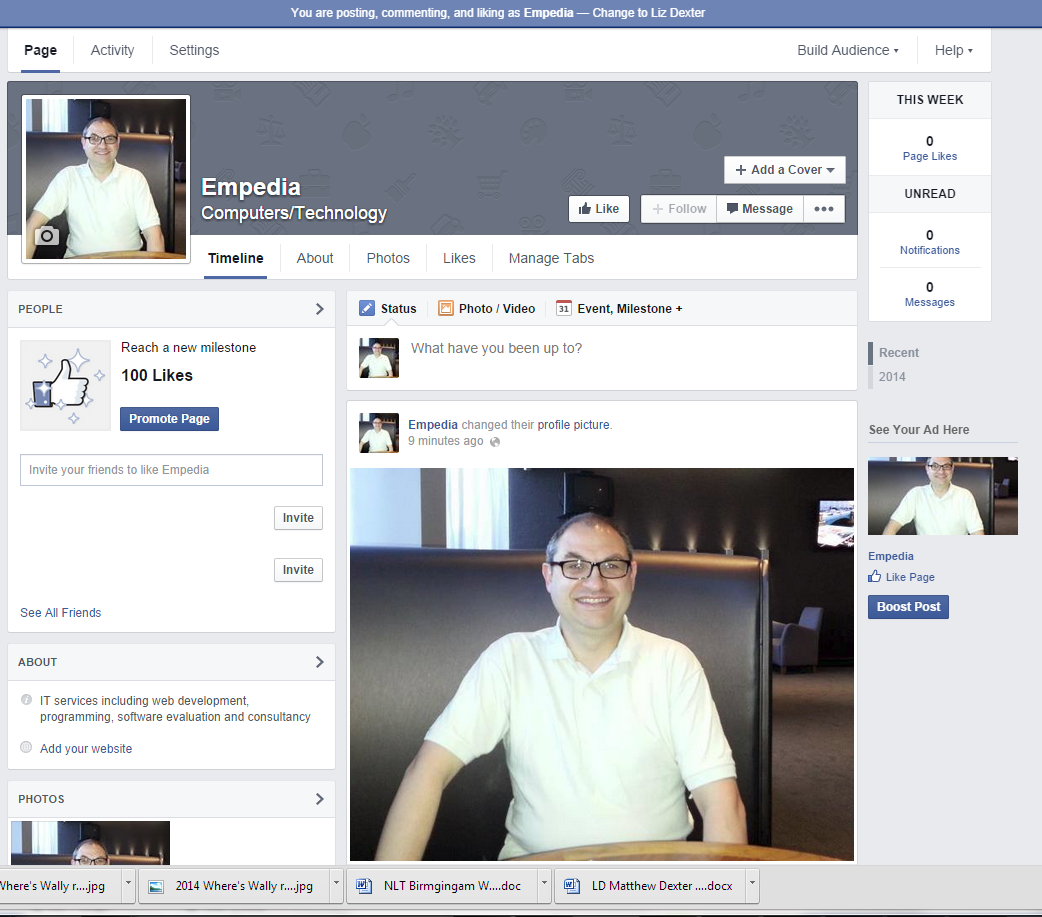
And now you have your page!

Facebook page

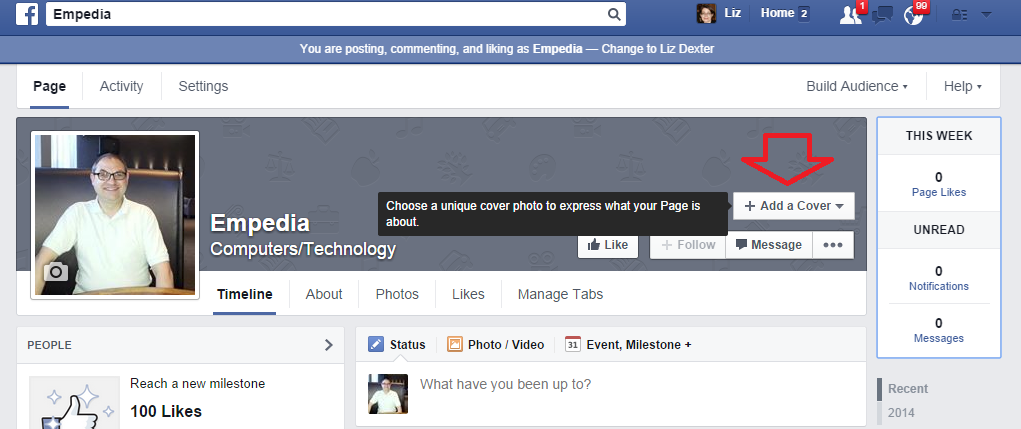
Once you’ve set up your basic page, you can set up a cover image for your page. There are all sorts of rules about what you can have here, but they change frequently, so refer to the current terms and conditions.

Facebook page add a cover

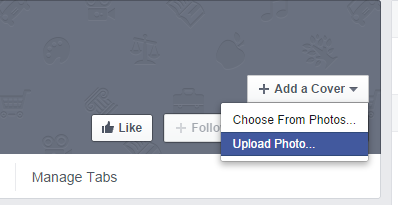
You can choose a photo from your albums or upload one from your own folders on your computer:

Facebook add cover

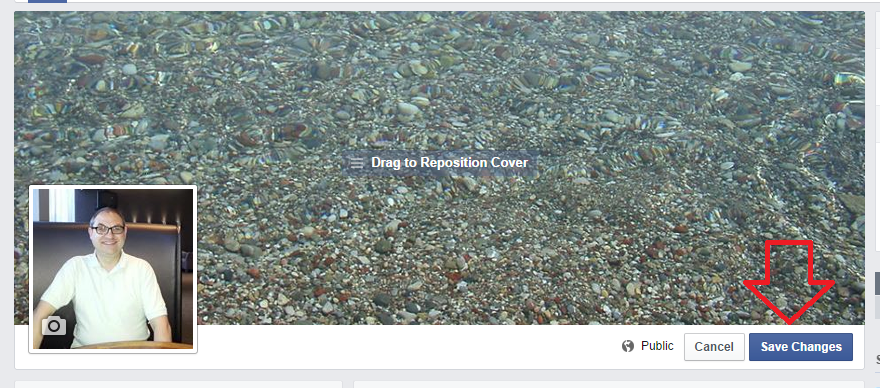
Once you have uploaded the photo, you can move it around until it’s in the right place, then Save Changes:

Facebook page cover

You can change these two pictures by hovering over them, at which point a button will appear offering you the opportunity to do so.

Facebook page change profile pic

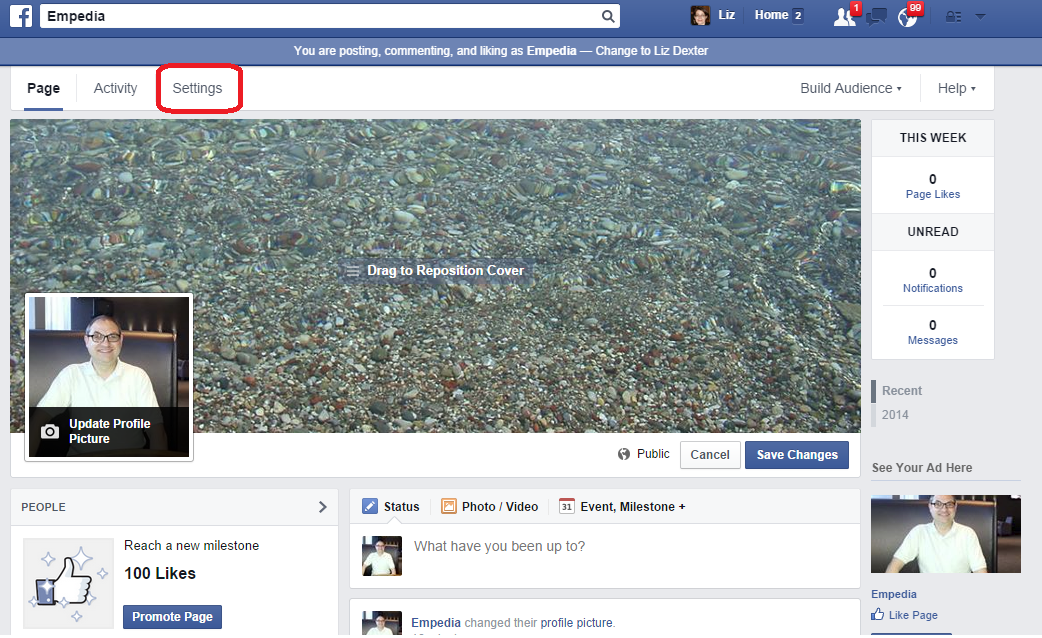
When you’ve created your basic page, you can also add information and details as you wish. Use the Settings button to access these options:

Facebook page settings

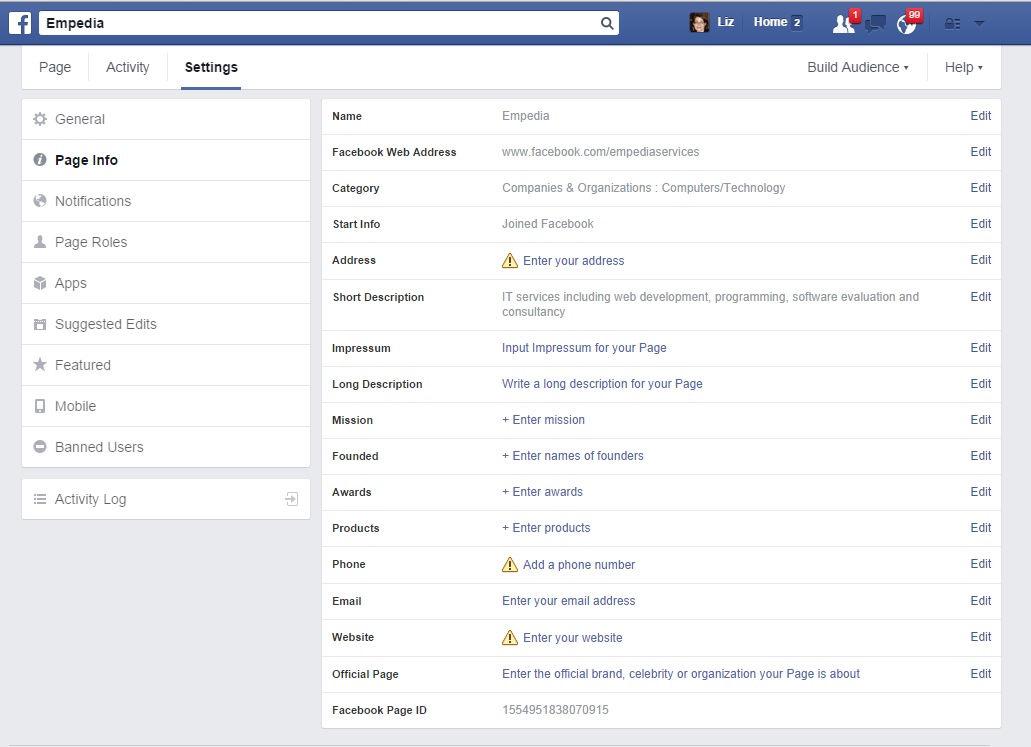
The Settings pages allow you to describe your business and add hours of operation, etc. You don’t have to fill in everything, but it is useful to add your website’s URL, for example. You can change this information at any time.

Facebook Page Info settings

General also allow you to set out who can post on the page and other features. This is useful if you have people putting spam comments, etc., on the page – you can set it so that only you can post. However, I do like to let people post and comment to foster a sense of community.  It’s worth looking at this area frequently, as what you can and can’t do does change over time.

Page roles allows you to add other people who can administrate the page – useful if you’ve set up the page but you have someone in your company who’s a social media expert. I’ve already written about this here.

You’ll see a Page button at the top of the screen which allows you to return to the page at any time.

The Activity tab lets you know how often your posts have been seen and the viewing figures. Note that these are likely to be distressingly small – see the section on paying for promotion below.

Interacting with people on your page

You can post updates on your page, including photos and notes, just like you can on your personal Facebook timeline. I send my blog post notifications to this page – but then I share them to my personal timeline, too, where they have more chance of being seen.

When you Like a page belonging to someone else, you can click on the down-arrow by Message and Like as your page – this will appear in their timeline and can lead to some nice, friendly interaction.

If you have set your page up to accept comments by others, do pop by the page to respond to these – a) it’s polite to reply to comments and b) you need to watch out for spam and complaints, and address them accordingly.

Stopping spam and dealing with complaints

It is possible to delete comments that other people make on your Facebook page. Just be aware that if you delete complaints, the complainer is liable to share the fact that you’ve done that – a bit of polite damage limitation on the page itself is often more appropriate.

If someone spams my page, I usually reply politely the first time, in case they’ve made a mistake, if someone’s just posted a link to their page and it’s vaguely relevant, otherwise they get deleted.

I will be writing a longer article about dealing with spam and blocking users – watch this space!

If you’re considering paying for promotion on Facebook …

Whenever I get tempted to advertise on Facebook, which they do promise can be targeted to your selected audience, I think about the random / odd / offensive / inappropriate adverts that I see on my Facebook timeline, and that makes me think that it’s perhaps not worth it.

If you do decide to pay for advertising, go for one of the pay per click options where you can limit how much you pay out per day. Observe how it goes very carefully, and try to assess how much business you’re actually getting for what you pay for (have a look at the articles in the Investing in Your Business section above).

The golden rule of Facebook business pages

There’s a golden rule that applies to all social media and that’s Be Yourself. Allow your own personal self to appear on those pages. Have a picture of you on the profile, and comment and respond as appropriate.

It’s also worth noting that your friends do not want to feel spammed by your business. I share my business page posts once at most onto my personal timeline. I don’t leap in to every personal conversation with “Oh, I can proofread that” or “need some transcription, just call me”. It isn’t appropriate, none of us like having that done to us, and it’s a good way to annoy those very people who might otherwise be spreading the word about your business. By all means, mix business with pleasure, but make your business page pleasurable to read and keep your personal page personal as well as businesslike.

Other useful posts on this blog

How to add an admin or moderator to your Facebook page

How to delete posts and block users from your Facebook page

Thank you to my husband, Matthew, for allowing me to set up a Facebook page on his behalf to harvest screenshots!

If you’ve enjoyed this post or found it useful, please click one of the sharing buttons below! Thank you!

 
12 Comments

Posted by on October 8, 2014 in Business, Social media


Tags: , , ,

How Video Can Help Your Blog or Website

Today we have a guest blog post from Markus Wilson of Phink Video Productions, who talks about the added value that video can bring to your blog or website. A lot of people do have video content on their blogs now, and it’s something I’ve been considering doing myself for a while – maybe this will be the impetus that I need to look at it in a bit more detail …

This article is about how you can use video content to help your website or blog as part of a digital marketing strategy. No matter how big or small your websites audience maybe, video is a powerful tool to up your profile and reach a wider fanbase.

It’s a fact that our brains respond more effectively to communication that combines visual and audio stimuli. Therefore improving the retention of information we are trying to divulge. While it’s interesting to know that YouTube is the world’s second largest search engine online. It has been found that 60% of online users prefer video than text, and having video content on your website or blog increases the likelihood of first page Google ranking by 53%. Not only that, but people that reach your site are likely to spend at least two minutes longer browsing a site with video on it.

As we know today more and more people are using online video to learn about products, services, and tutorials. What’s great about online videos is that so many people are creating and watching them nowadays. Whether they are evaluating products, showing us how Coca-Cola can clean the rust off your car or just checking out the best supplier for a job. Video really is a great way to engage your audience. Another great feature about online video is that it can help you stand out in the search results! As long as your video listed is marked up with the appropriate title, tags and descriptions Google will always value video content over written.

One of the best ways to utilise online video for your website or blog is to create an explainer video. Explainer videos are great if you have something very complicated to get across, as you always have to fight for every second of your web users attention.

Another great use of video for businesses or service providers is to incorporate Testimonials from your former or current clients. Testimonials direct from the horse’s mouth and not just a quotation at the bottom of a webpage are a great way to gain that much needed social proof about you and your service.

A third good use of video for your website or blog is to create a ‘Frequently Asked Questions’ piece. This can be yourself presenting to camera or just something simple involving text and music. If you always come up against the same questions from your potential customers, by you anticipating the question, its an efficient and easy way for them to be reassured that your are the right person for the job!

Online video use continues to grow with 81% of marketers using video in their digital marketing activity and 76% planning to increase online video spend. At the current rate 69% of all internet traffic will be purely video by 2017.

So what will your story be?

Markus Wilson is Co-Founder of London-based video production company Phink TV. Markus has been in marketing for the past 8 years, first with data processing company Pumasource and starting up Phink TV in 2009. Since then he has produced video content for the likes of Coca-Cola, Unilever and Sony Music.

 
1 Comment

Posted by on October 1, 2014 in Business, Guest posts, Skillset


Tags: , ,

How to avoid two common mistakes when using MailChimp
Mailchimp is a very popular program for sending newsletters – mainly because it’s free to use to send newsletters and other messages to up to 12,000 emails per month to up to 2,000 subscribers. I use it myself, as do the people who write quite a few of the newsletters I subscribe to. If you use MailChimp yourself, this post helps you to avoid two common mistakes that I see occurring very frequently (and if you don’t use it yourself, I bet you see at least one of these in the newsletters you subscribe to – feel free to share this post with their creators!).
What am I talking about?

Well, this is what you might see in your email box when you receive a newsletter:

MailChimp newsletter email with errors
Ignore the “[Test]” – that’s me sending test copies of my newsletter to myself for demonstration purposes. So, with email on preview mode, and then when you open the email:

Full MailChimp email with errors

… what can we see here?

  1. The email subject is simply “Newsletter”. Not that inviting.
  2. This is the biggie – there’s an odd bit of text in the preview that reads “Use this area to offer a short preview of your email’s content.”

How often have you seen the second point and been confused or even tutted slightly to yourself? (Note: as a kind editor, I avoid tutting. But I do smile wryly every time I see it and think, “I really MUST write a blog post about that one”).

How do these MailChimp mistakes come about?
I’m going to assume here that you know how to set up and send a MailChimp newsletter campaign, and just concentrate on eliminating these errors. If you need a step-by-step MailChimp walkthrough, let me know in the comments and I’ll put one together for you if enough people want it.
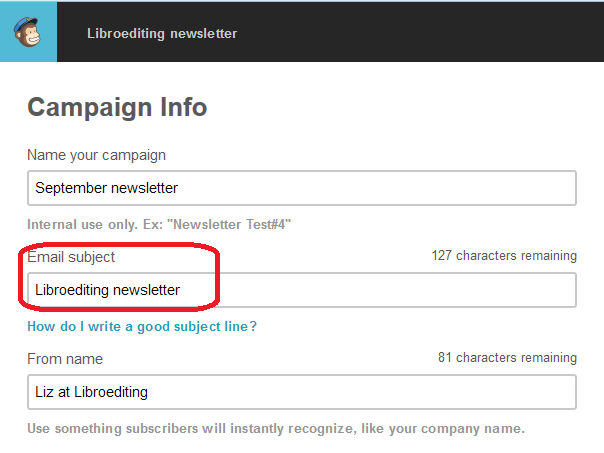
The boring email title error comes on the Campaign Info page:

MailChimp campaign info pageIf you set up your very first campaign with a title like this, it will carry on sending it like that forever, but this is editable. I’m not going to go into ideas for good subject lines here – first off, MailChimp obviously provides a link to some further information, as you can see from the screenshot, but I’d like to take a moment here to mention my client Nathan Littleton’s book, “Delivered“, which has masses of information on creating a good email marketing campaign, including lots of advice on subject lines (he’s not sponsoring this post: I edited this book and I got loads of ideas from it which I’ve implemented in my own newsletter, to good effect).
So, first things first: change that Email subject field to a good, interesting phrase and I’d like to bet that you’ll stop boring your subscriber list and get more opens.

The second one is the dreaded “Use this area … ” text. How does it get there?

Well, when you get to the Design screen in your campaign creation process, bits of helpful text automatically appear in your template to tell you what to do. And one of the bits of helpful text that always appears is this one, right in the top of the screen, and in ever such a small font so that you’re very likely not to see it:

Sample teaser text in MailChimp
And that’s where that text pulls from that displays in your recipients’ emails.

Whatever the design, it’s always up there. Your eye is of course drawn to the main body of the email – the nice picture, the lovingly crafted text you’re going to place into the template.
What do you need to do here? Simply click on that teaser text, just like you would to edit the main body of the newsletter, and you can enter whatever text you want to.

What should it look like?

Once you’ve given your newsletter a more dynamic subject line and eradicated that bit of pesky sample text, this is what your email recipients will see:

MailChimp errors corrected

I think you’ll agree that you’d be more likely to open that one .. and so will your newsletter recipients!

In this article I’ve shared how to avoid two common MailChimp newsletter errors. Please do use the sharing buttons below to share this with anyone who you think might find it useful – thank you!

 
48 Comments

Posted by on September 10, 2014 in Business, Errors, Social media


Tags: , ,