RSS

Category Archives: Business

Using LinkedIn for your business

Using LinkedIn for your business

LinkedIn is seen primarily as a networking tool for the more corporate end of the market. However, you can set up your own business page on LinkedIn now, and there is a lot more interactivity and ‘social’ activity than there used to be – or than you might think.

Setting up a LinkedIn profile

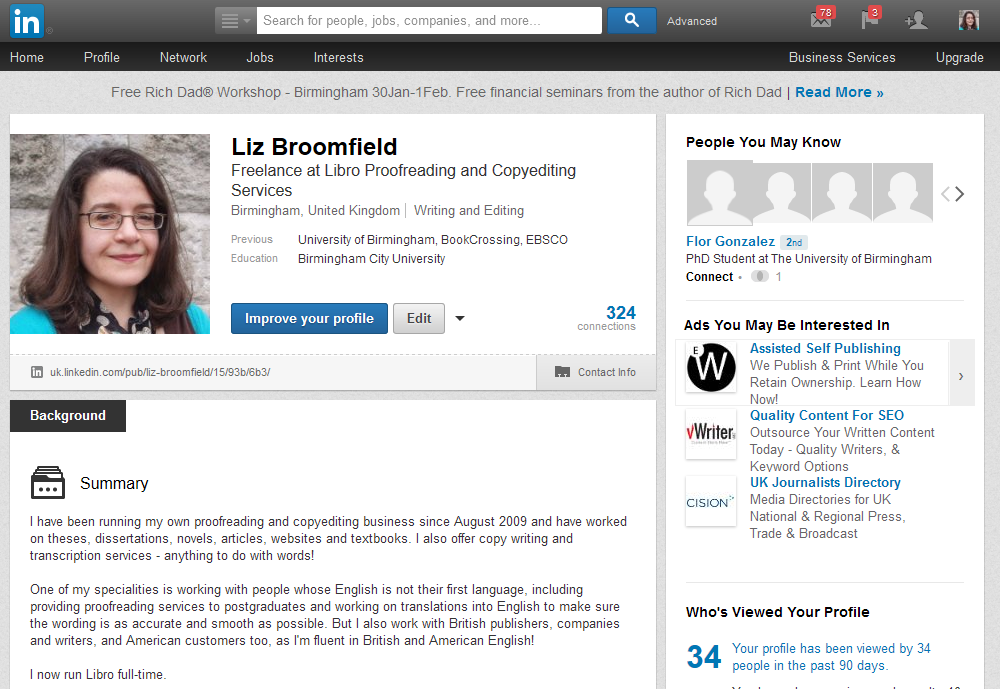
Once on www.linkedin.com you can join up and set up your profile.
1 profile

It’s a good idea to include as much information as you can on here – and in a professional way. While it’s never a good idea to allow typos and grammatical errors on any professional profile, it’s vitally important here, as people tend to make more of an effort, and so any errors will be very glaring.

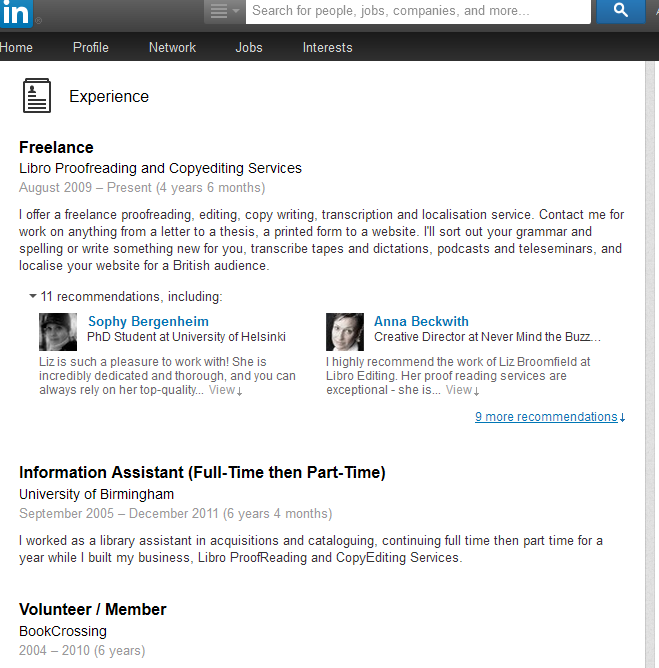
There are various sections to fill in on the profile; including past jobs allows your ‘network’ to grow, as LinkedIn, unlike other social media, will not let you even request to connect to just anyone. For example, I’ve added my experience in here:
2 profile

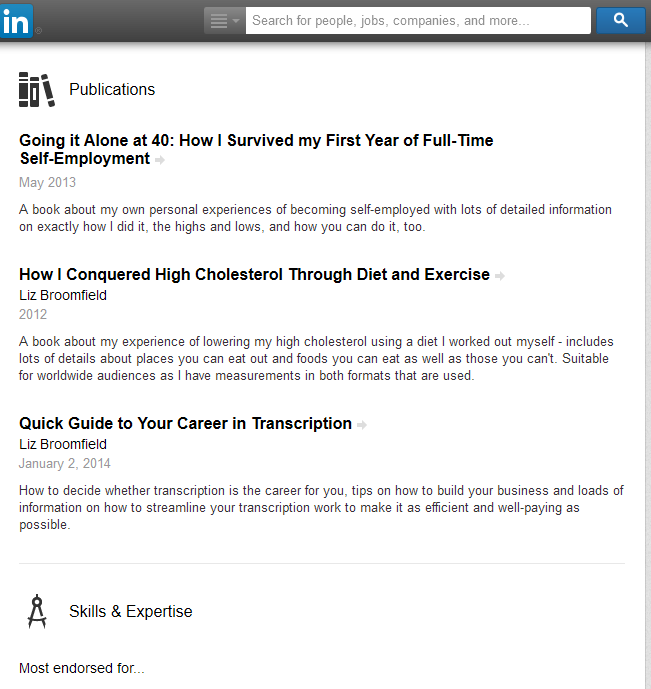
… and I’ve added information about the books I’ve written in the Publications section:
3 profile

Find your way around LinkedIn

Your home page will contain a feed a little like your Facebook timeline, with updates from people to whom you’re linked. To find people to link to, you can search in the search box at the top of the screen. Once you’re linked to someone, they will appear in your Connections list, which you can access by clicking the [number] connections icon to the bottom right of your profile picture area.

Your profile also includes a link to People You May Know. This will give you people in networks connected to you by other connections, workplaces or interest groups to whom you might want to link.
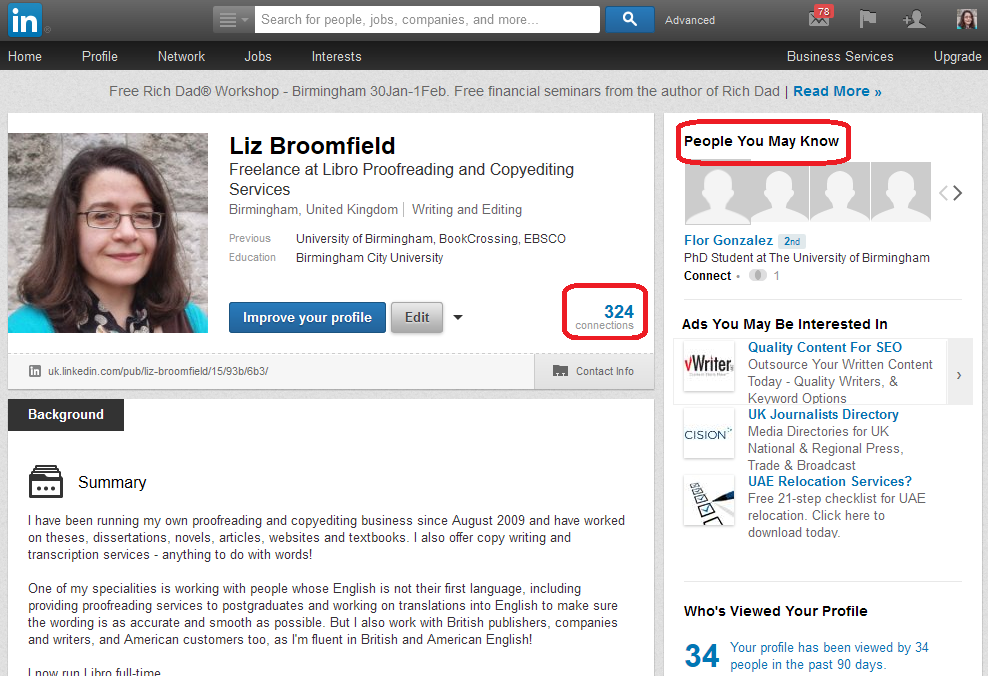
4 connections

Click on People you may know and you’ll be given a list of possible connections (I’ve blanked out names and obscured photographs because this is my own LinkedIn profile):
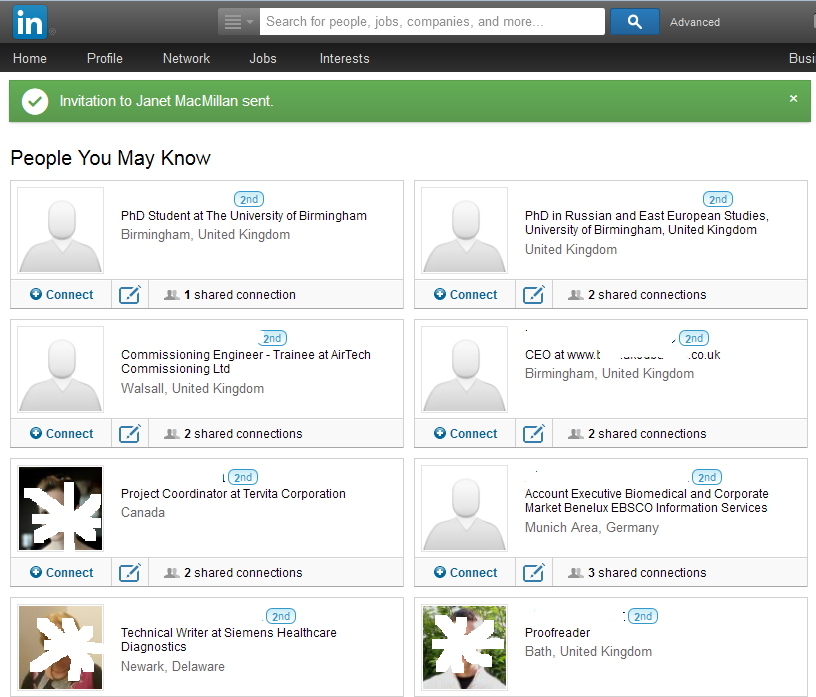
10 people you may know

You can see your invitations and notifications at the top right.

Invitations allow you to see who has invited you to connect and any messages they’ve sent you via LinkedIn:
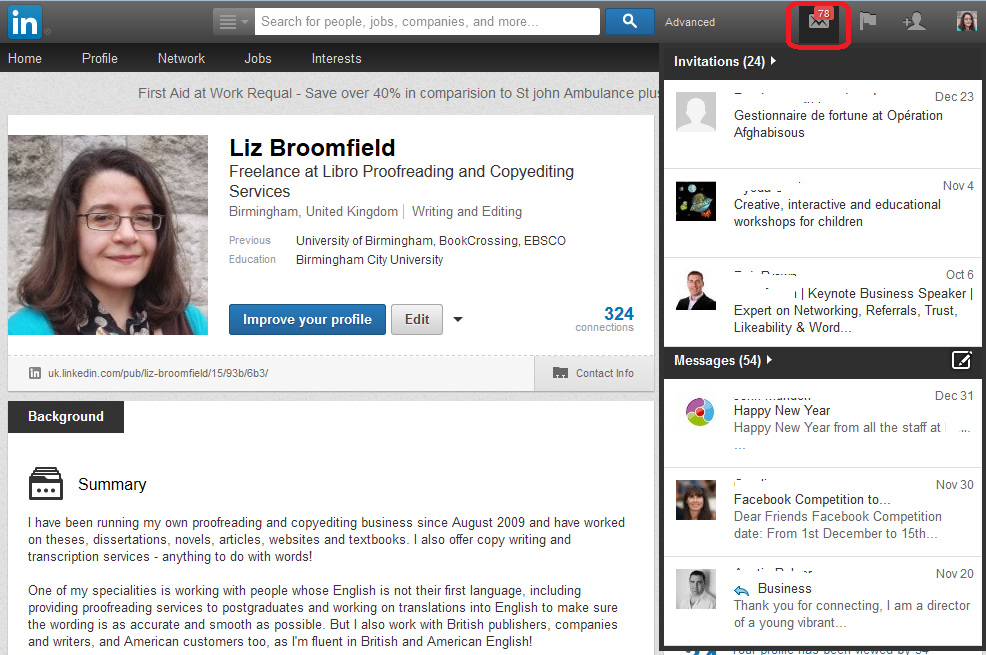
11invitations

Notifications show you who has liked your updates or shared your profile:
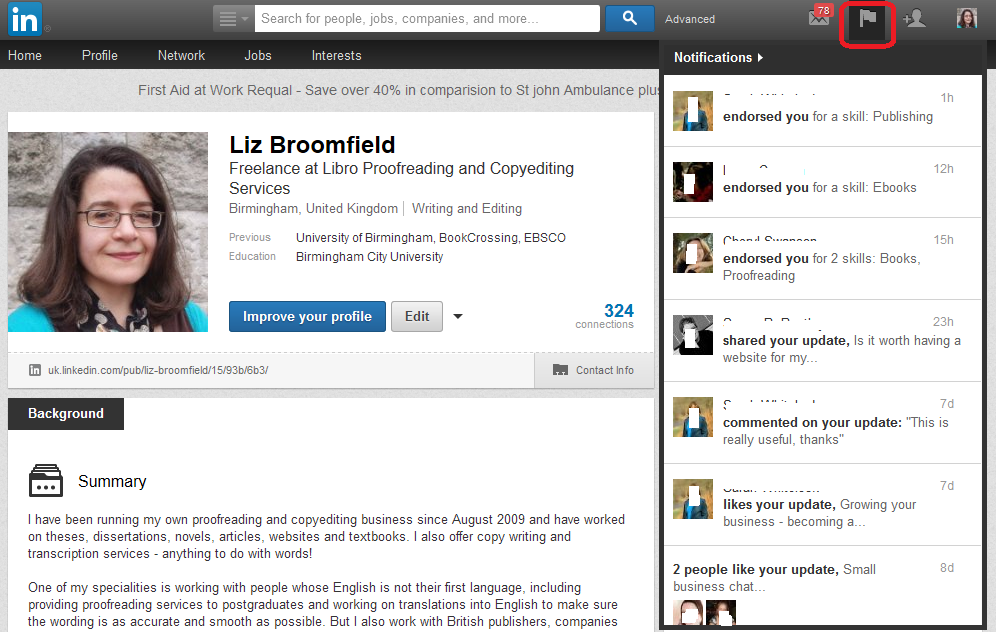
12 notifications

Linking to people on LinkedIn

LinkedIn is different from other social media networks, in that you have to have a tangible connection to a person in order to ‘Link’ to them. If you find someone you want to link to and press Connect, you’ll be asked how you know that person. If you say that they’re a colleague, or that you’ve done business with them, you’ll be asked which of your jobs they are a colleague from – that’s why it’s important to list all of the companies that you have worked for on your profile. If you say that they’re a friend, you’ll be asked to prove you know them by providing their email address.

You can find people just outside your network by clicking on the People You May Know link. This will give you a list of either friends of friends or people who have said that they work or have worked at the same organisations that you’ve worked at. You can connect to these people in the same way. You can also search for people using the search box at the top of the screen (Note; I asked Janet’s permission to use her profile in these images):
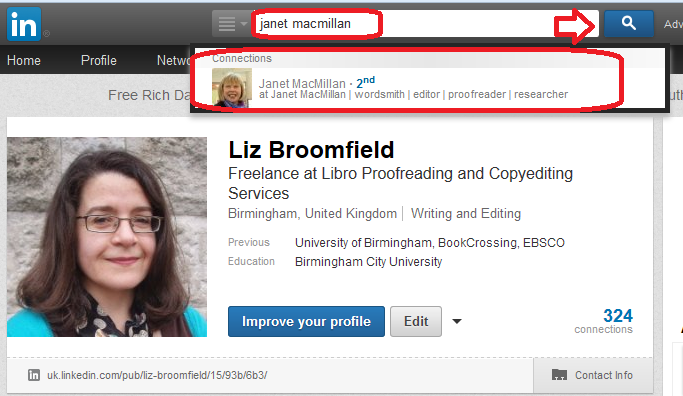
5 search

However you access them, click on the person’s name to see their profile and then use the Connect button to ask them to link to you:
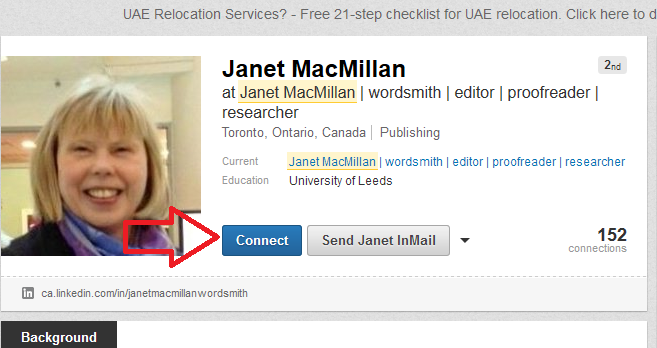
6 connect

It will then ask you how you know that person: when you click on one of the radio buttons, you will be asked for more detail.
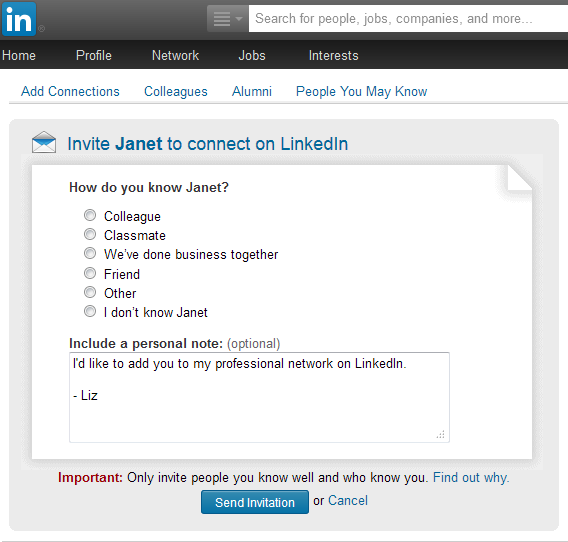
7 connect

Here, I’ve clicked Colleague, so then it will ask me which company that I’ve worked at relates to this:
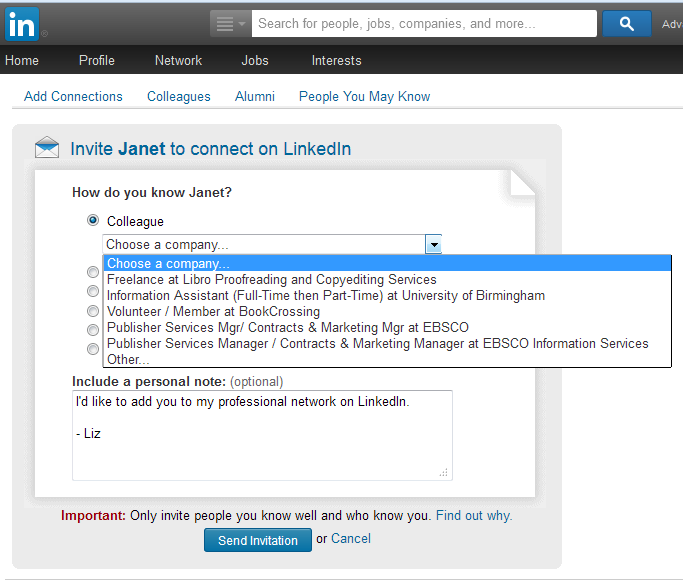
8 connect

Setting up a company page

You can set up a company page on LinkedIn for your business – this will give people another way to find you and will provide another link to your website and other social media.

To set up a company page, click on Interests at the top, then Companies from the drop-down.
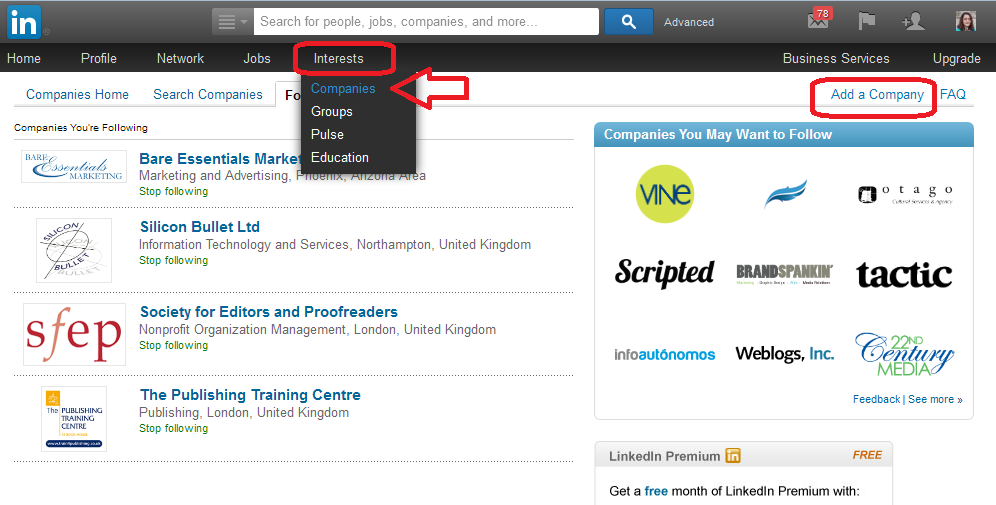
13 add a companyAt the top right of the next page you’ll find a link for Add Company.
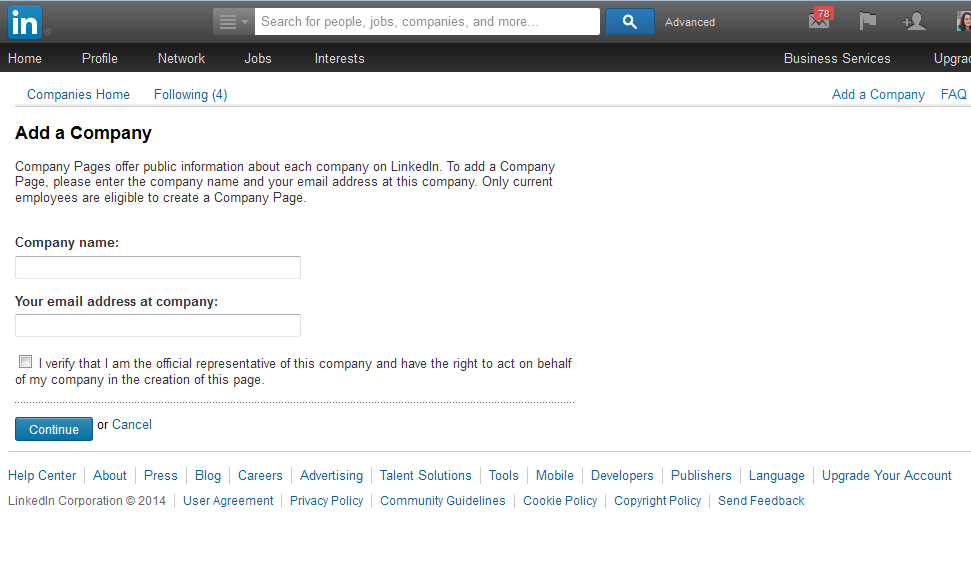
14 add a companyYou will first need to confirm that you’re eligible to create and moderate this page, so there will be an email sent to you to confirm, and you must have a personal LinkedIn account to create a company page.
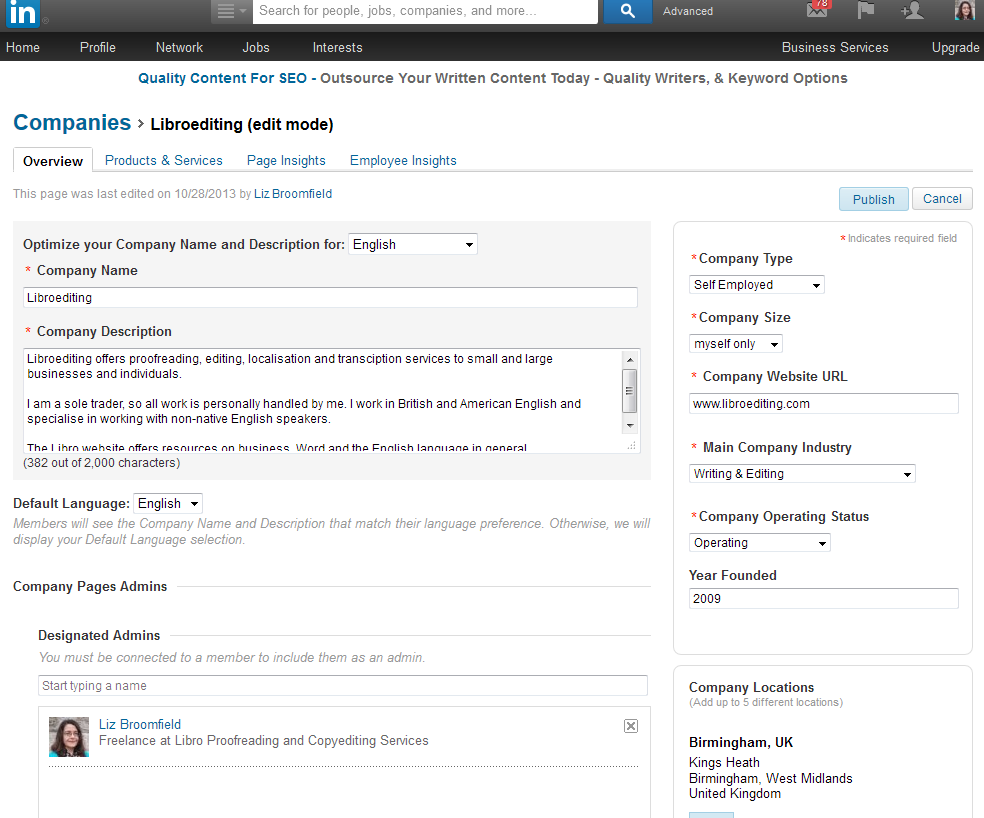
14.5 add a company

Fill in all of your company’s details and save – and there you go.

To edit your company information, go and find the company page and click on Edit.
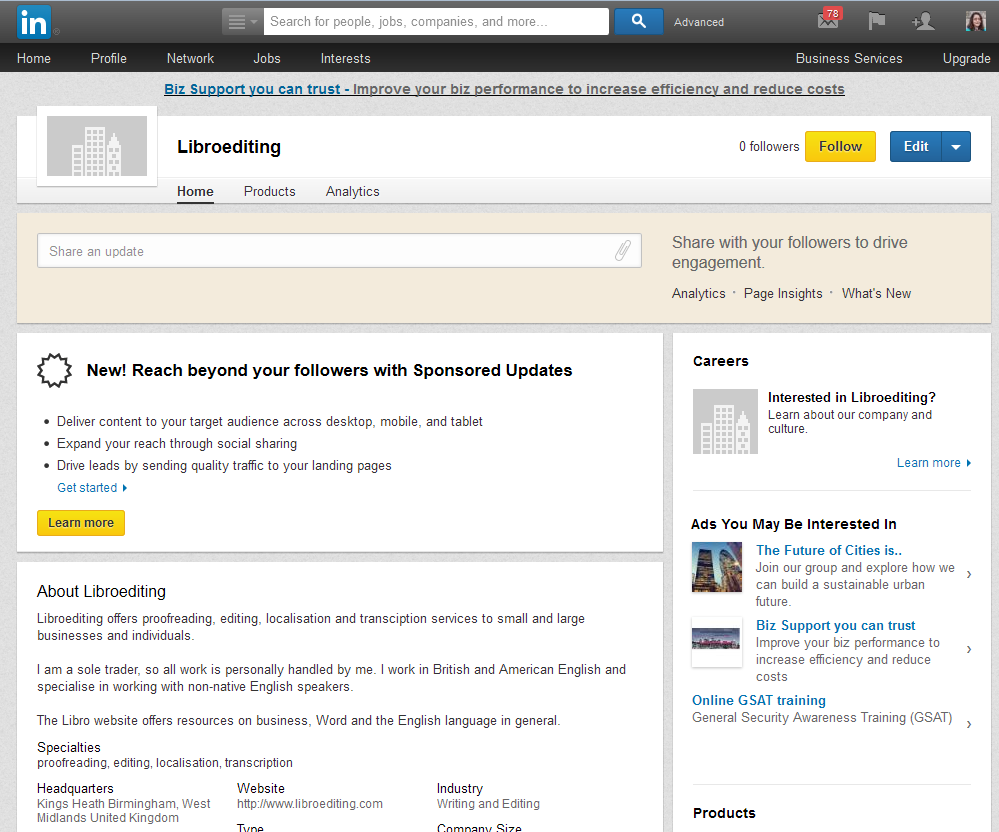
15 add a company

Getting social

This section is about social media – so how do you get social on LinkedIn?

Updates

You can post updates, just like on Facebook – do this from the Home page. Your updates will appear on your connections’ home pages, just as theirs do on yours. You can like and share updates in a very similar way to Facebook.
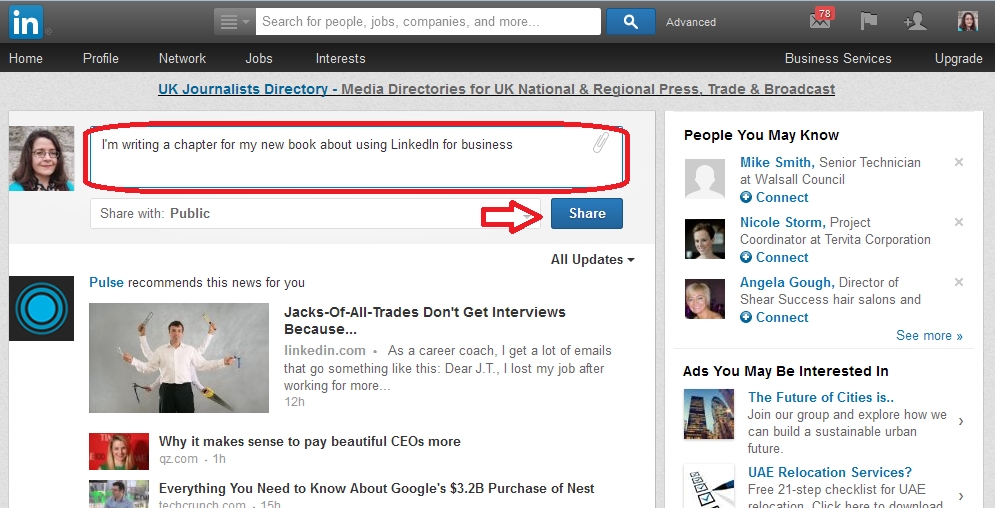
17 updates

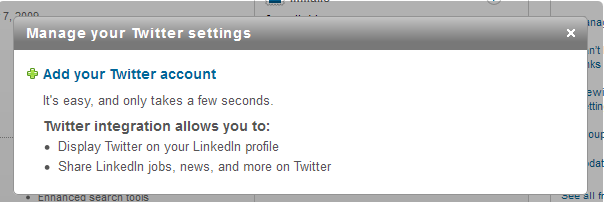
You can direct most blogging platforms to automatically post links on LinkedIn – all of my WordPress blog posts do this. You can also link your Twitter account to LinkedIn by going to your account settings (click on the small photo in the top right of the screen), clicking on your name and choosing Manage Twitter Accounts.
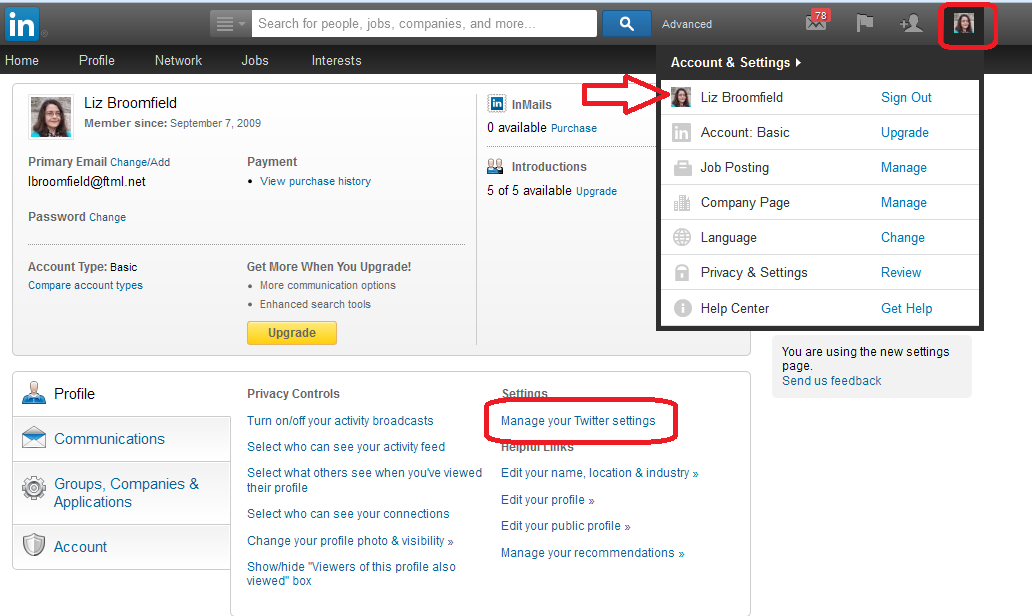
18 link to twitterClick on Add your Twitter account:

19 link to twitter

20 link to twitter

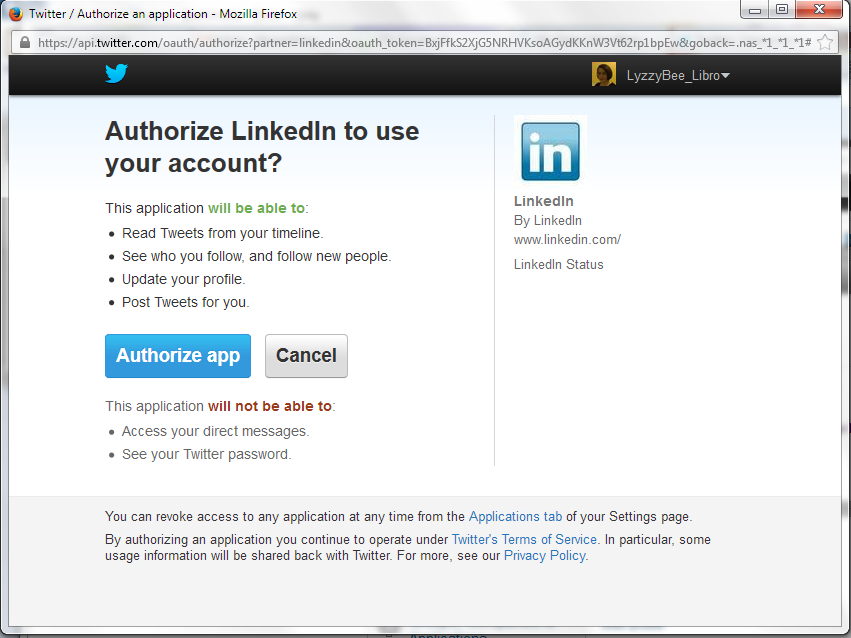
If you’re logged in to Twitter you will see this Authorize app message, if you’re not logged in, you will be asked to log in first. And there you go:
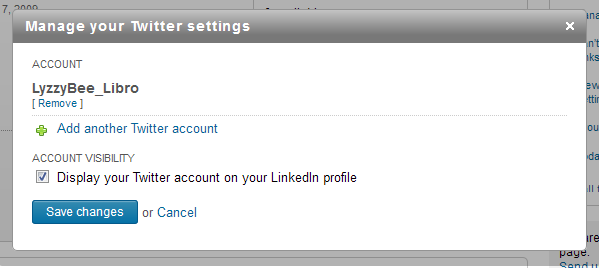
21 link to twitter

Recommendations

If someone has done a good job for you, you can click on Recommend in their profile and type in a recommendation. They will be emailed this and will have the option as to whether to publish it or not (this prevents people posting negative comments without the member knowing).
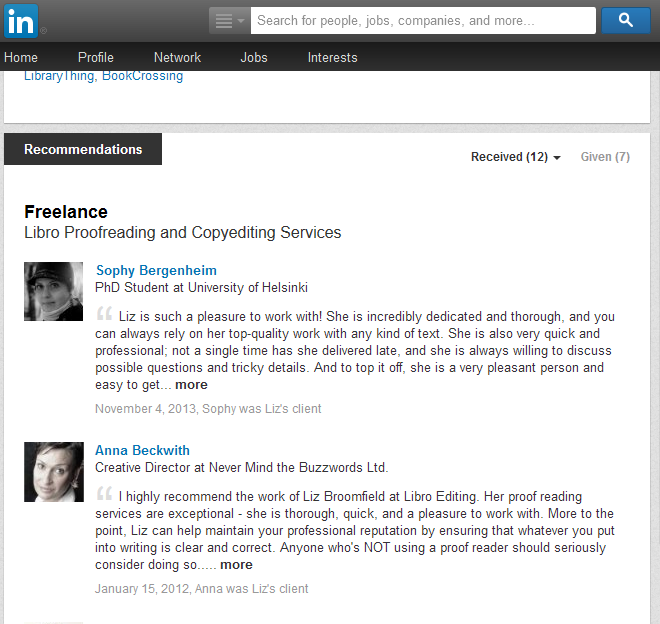
16 recommendations

Groups

There are thousands of interest groups on LinkedIn and these can be a good way to meet new people, spread the word about what you’re doing, and find out what other people are up to.

Access Groups by searching in the top search bar (you can click on the icon to the left of the search area and select only Groups to search) or by clicking on Interests then Groups. Once you’ve joined some Groups, you will find them listed on your Groups page, and then some suggestions underneath.
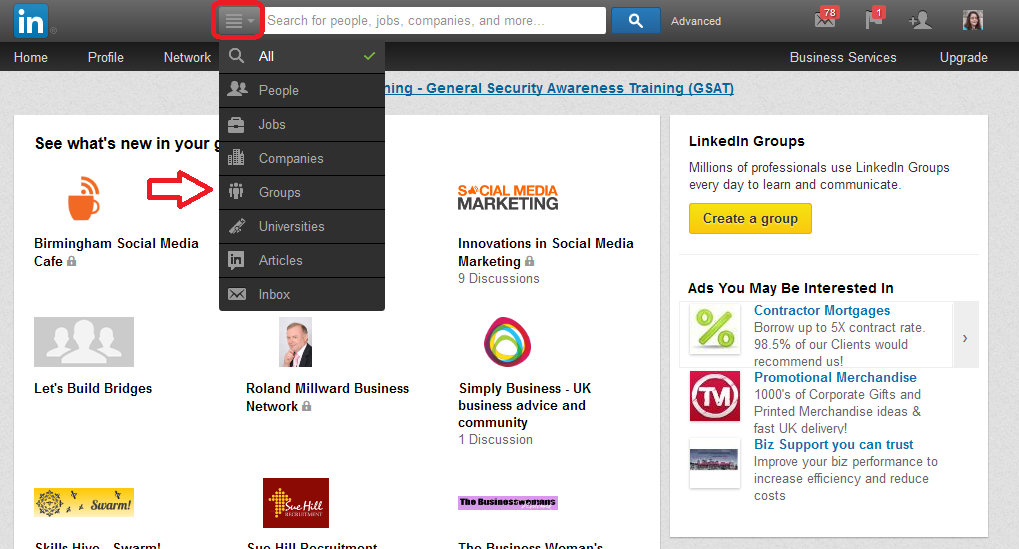
22 search for groups

When you look at the Groups screen, you can see all of the groups you have joined, and you can also create a group if you wish to.
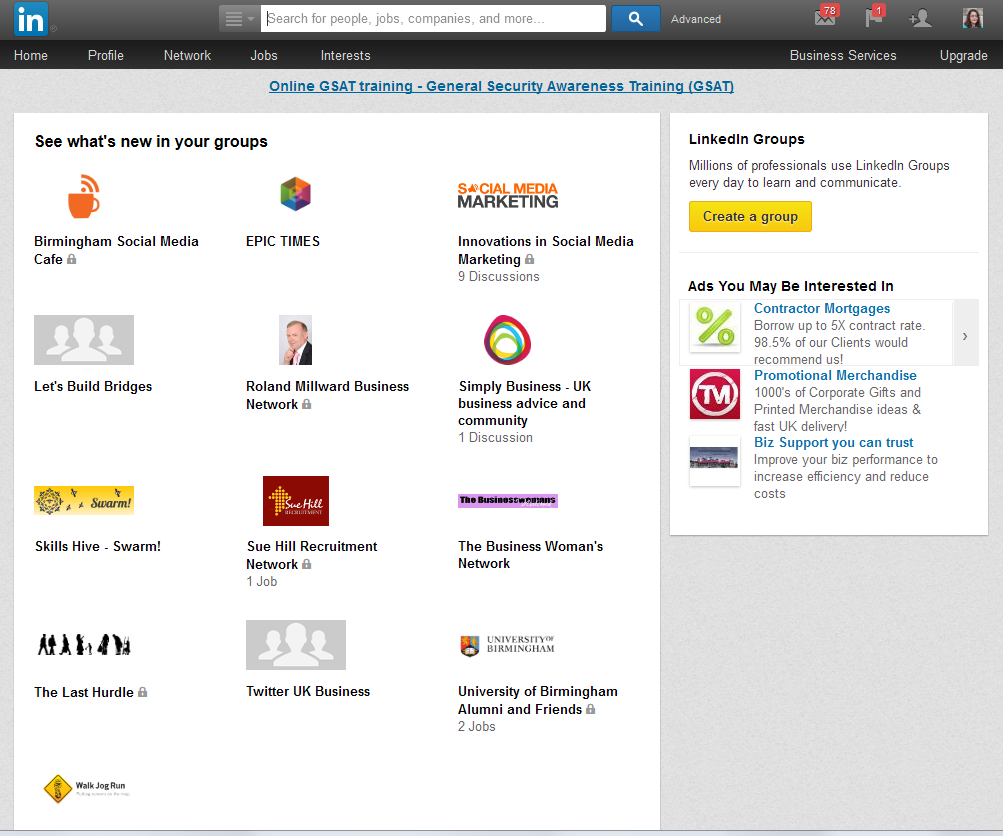
23 groups page

You will also find suggested groups at the bottom of the page:
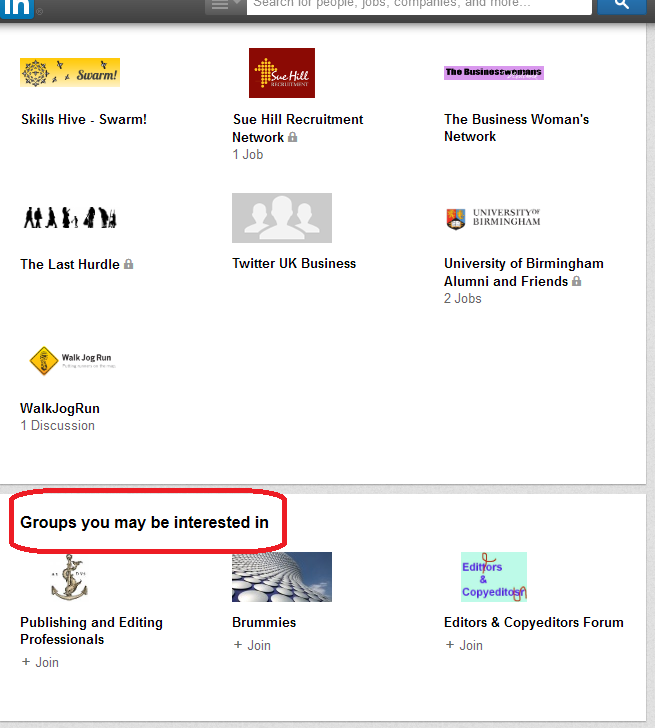
24 groups page

Groups work very simply – you can post a new message or reply to another one, just like in other social media like Facebook and Google+. You can choose whether you are updated by email for all posts and replies in the group, or whether you want to just access them via the LinkedIn website.

I have found that some groups do become clogged with too many adverts and not enough discussion, but others can be really useful. The usual rules apply about reciprocity and kindness when using LinkedIn for social media communications.

Golden rules for using LinkedIn

Be professional. LinkedIn is known as a professional and careers-orientated site, although there is certainly room for the self-employed. But you do need to be extra professional and not very personal on here.

Reciprocate – if people like and share your updates and group posts, say thank you and like and share theirs.

Similarly, if people recommend you, or if they use the Endorse buttons that appear at the top of the screen when you log in to say that you’re knowledgeable about a certain topic, do try to recommend and endorse them back.

Useful related posts on this blog

Using Twitter for your business

 
2 Comments

Posted by on April 9, 2014 in Business, Social media


Tags: ,

Growing your business – moving into premises (case studies)

Sneak preview of the image from my new bookWhen you start to grow your business, it can become obvious that you need to move out of the dining room or even home office and into your own premises. I was lucky enough to be able to dedicate a room in our house to Libro, and I work quite happily up here and don’t intend to move out. But if you don’t have space to put aside a dedicated and undisturbed area of your home (or you don’t want to work from home), you are making something that you want to be able to leave out overnight, or you are planning on seeing clients, it can become a matter of necessity.

Here we meet three people who have expanded into their own new premises, and learn how and why they did it, and what happened next …

Jennifer Woracker of Twinkleballs, who makes cake toppers and is one of my Small Business Chat interviewees, has just moved into a workshop in the garden. She and her family recently moved in with her parents in Wales, and her mum helped her to convert the summer house, paying for the initial work, which cost around £1000. Jennifer is now paying her mum back in monthly instalments.

By doing this, Jennifer has none of the disadvantages of paying business rates and rent on a premises, and all  of the advantages of having her own studio to work from, which has made the world of difference to both her business and her home life.

Before getting her own space, she had to work from the kitchen in my home, which meant that she couldn’t start work until the family were fed and all the cleaning up done, she could only work at night and had to clear everything away before she could go to bed, “often at 2am!”. She also had to kick out all the pets and make sure the area was spotless before work could commence. What about now?

My purpose-built studio has everything I need to store my tools and materials and I can leave my work out to come back to as and when I want, this means I can pop in and work for an hour or so during the day when the children are other wise occupied. When the children go to bed I escape to my little shed in the garden and get down to doing the work I love, I use a baby monitor so I can be sure the children are safe and sound while I am working.  My studio is a lovely fresh, clean and pet free environment that is a pleasure to work in, it has a sink with a water heater, a huge work top and loads of cupboards. I also have a kettle for the all important tea brakes and my laptop with Spotify playing my favourite tunes. It is great to have a place of my own to explore and develop my creativity!

John Ellery of Ellery Consulting, a firm that specialises in grant making and fundraising, has taken one private and one government-initiated path to having premises. Why did he take this route? After trying for a short period to work from home, with a young family and many distractions, he realised that working from home wasn’t ideal for him. As he was a relatively new business with the associated cash-flow concerns, he wasn’t keen on paying out an expense for an office initially.

His initial solution was signing up for a Regus Goldcard, which he did in his second month of operation. This allowed him use of Regus Business Lounges across the country (he picked up a free Goldcard with his membership of the Federation of Small Businesses. It looks like you get a different level of free membership these days: do check before joining either service). His assessment of these spaces:

Whilst these do not provide private space they offer a professional environment, a place to go to work to – separating work and home environments – and free tea and coffee. The Business Lounges were still a fairly informal work environment, with sometimes Lounges being very busy and noisy and the annoyance of having to pack and unpack everything if you wanted to nip out to get lunch.

Looking for something more private as he grew the business, John then found the government ‘Spaces for Growth’ scheme, offering free space for start-ups, SMEs and social enterprises through the use of empty government buildings. This gave him a permanent space of his own, an offer of additional desks as the business grew and a formal office to invite contacts and partners to. In his words, “This gave the business a great saving as we attempted to grow”.

John says of his adventures in low-cost premises:

I have used both of these schemes in order to provide myself with a work space, a place away from home that I can go to do a day’s work, with this separating the work and home environments. Through these two approaches I have managed to do this at a minimum costs allowing me to focus use of business funds on growth opportunities.

They both have the additional and unexpected benefit of mixing with other people and businesses in a similar situations, with this network found to be vital as he faced the challenges of being a new business owner. The biggest issue was the lack of meeting or private space in these environments, “However, this is easily overcome through meeting partners in their offices or going out for a coffee!”

Would John recommend these two schemes? “Definitely. The Spaces for Growth is an especially strong and under-used scheme which will be of great benefit to help the business grow”.

Karin Blak of Interrelate has taken a slightly more conventional approach to business premises. She’s a psychosexual and relationship therapist in private practice but also runs a training business providing courses in emotional first aid, listening skills for teachers, emergency workers, etc.

Karin founded Interelate in 2005 but only offered the training on an ad hoc basis, so premises were not a priority. However, when she started to run this side of the business seriously, she realised that something would have to give:

At the moment, any work relating to Interelate is done at the dining room table at home, which now is no longer appropriate.  Having to clear all my work into piles on the floor every evening when the family sits down for dinner is not good and does not encourage my family to realise that this is a business not just something Mum does to keep her occupied.  For me, it will instill a working day rather than working from the moment I wake until going to bed at night.  I so look forward to regaining my home and having to get out of the door to go to work.

She does already have a practice room in town for her private practice, but there is not enough space there for her desk, books, papers and stuff that is needed to run a training business. So she began to look at other businesses and how they were going about expanding or moving. Having noticed that some were getting some good deals on rent or getting landlords to include additional services, “I realised that I needed to be cheeky, so when I went looking at premises I began to bargain with landlords and managed to get a really good deal without too much haggling”.

The upshot of this haggling is that Karin is currently moving into a lovely room in the centre of town with enough space for both therapy and training, and paying less than she did for just her therapy room. Although she had the experience of running the therapy room before, it’s clear that looking at others’ experiences was really helpful for her [as I hope this series of expert opinions and case studies is for you!]. She has some useful things to say about the financial side of things:

The cost side has become more important than before because of launching Interelate and having to invest in business development services, updating the website, telephone answering services, equipment and so on before I have earned any serious income.

Karin admits that she didn’t do as much budgeting as she now thinks she should have done, and suspects, “I could probably have got more out of my little pot of money if I had”. She did go to her bank, but, while they were willing to help, could only contribute half of what she was asking, mainly because the business wasn’t creating an income yet.

Would Karin do it again? It’s early days and, as she says, it was a leap of faith but in going about the process of research and evaluation, she has already made some valuable connections who are going to be helping her by selling and even buying her training courses. Like John, she’s found a side benefit to getting out of the home office and into the wider world in terms of networking and connections. Her final comment:

My message is that I would always take that leap of faith again because a. I am enjoying all so much b. I am meeting some fantastic people c. I will never be able to say that I didn’t try hard to make it work.

So, we have three ways here in which you can expand your business by expanding into premises. You can build a garden office/workshop, invest in various schemes that give you more or less temporary space, or take the leap of faith and trust that your business will make enough in its new home to pay those rental and service fees. All of them take planning, and you must continually check that you’re getting value for money.

Thank you to Jennifer, John and Karin for their input into this article. I’m hoping to find an estate agent to contribute an expert post on this topic – if you are one or you know one, please do get in touch with me!

Jennifer Woracker TwinkleballsFacebookTwitter

John Ellery Ellery ConsultingTwitterFacebook

Karin Blak Interelate

———-

This post is part of my series on growing your business. Read more here and read about my own business journey in my books.

 
3 Comments

Posted by on March 19, 2014 in Business, Guest posts, Organisation


Tags: ,

What to do when you encounter plagiarism: business content

PlagiarismThis post is for editors who suspect that they might have encountered some deliberate or accidental plagiarism when dealing with content for their business clients, particularly in regard to websites and blog content. By sharing my tips and practices, I hope that I can gather a resource of best practices for other editors / proofreaders.

What is plagiarism?

Plagiarism is the act of passing someone else’s work off as your own. In the business world, this usually involves copying someone else’s content, word for word, without linking back to the original work or acknowledging that it has come from elsewhere.

I’ve noticed that I and colleagues are fairly often confronted with content to edit that has  been pulled wholesale from another (often rival) website, used word for word without attribution. That would be stolen. It’s found most often, in my experience, in business marketing content such as websites and blogs. Note that I have written about plagiarism in student work in another article.

Plagiarism in the business world

Why is plagiarism bad? Two reasons:

  1. If you steal someone else’s content, you are liable to be found out, either by a prospective client who is looking at several different websites in one business area, or by the originator of the content, who may be alerted by a search service such as Google Alerts or plagiarism-detecting software such as Copyscape (thanks Arlene Prunkel for the heads-up; she has blogged about her own experiences using this software).
  2. Using the exact same wording in two places alerts the search engines that something is amiss. It’s never clear exactly how the algorithms work, but you run the risk of your content not being indexed and found anyway.

Why is not flagging plagiarism bad for the editor?

  1. OK, we haven’t signed a Hippocratic Oath of Editing or anything, but it’s the job of a principled and decent editor not to allow plagiarism to happen – surely?
  2. Someone finds out that a site you’ve edited has plagiarised their content. You let it pass unmentioned. The plagiariser says, “Oh, my editor didn’t flag it up”, and the finger starts to point at you.

What form does business web content plagiarism take?

As with student plagiarism, business plagiarism can be deliberate or accidental – or a mixture of the two.

Deliberate plagiarism

I’ve edited web text where the style and content varies so much that it’s clear that it’s come from different sources. Sometimes the client is clear about this, “Oh, I picked it up from various places, it doesn’t matter, does it?” Yes, it does.

On other occasions, I’ve been given a link to a single blog post or article, or perhaps a web page, usually by necessity published by the client’s rival, and been asked to “rewrite this so it doesn’t look like we’ve used their words”. Not ethical.

Deliberate or accidental plagiarism

Sometimes it’s not clear whether a client realises that you’re not supposed to lift text wholesale from another place. So it’s important not to pour scorn or invoke human rights and laws, but to quietly educate.

Accidental plagiarism

Very often, a client or indeed other blogger won’t realise that reposting the whole of an article or web page, with a reference or link at the bottom, will prejudice the search engines against them and lead to their content not being indexed. Here, it’s useful to drop them a line to suggest that they only post a few lines of the original with a link to where it can be found in full. Link-backs all round and happily shared content!

What to do when you encounter plagiarism in business texts

I have a sliding scale of activities depending on the level of plagiarism and overtness about the plagiarism:

Here’s what I do to avoid my clients plagiarising on their websites and blogs:

  • If I find lots of reposted blog content which is referenced, I will have a quiet word about posting teasers and links instead.
  • If I suspect content has been lifted from elsewhere, I’ll pop a few sentences into Google and see if I can find the source. Then I’ll raise the issue with the client by marking the sections or just emailing them to ask if they had permission to quote the source. I’ll then suggest that they rewrite it (or have it rewritten) using a variety of sources.
  • If a client has quoted an industry leader or other person but not referenced where they got those quotes, and it’s clearly not from a direct conversation, I will advise them that they should quote their sources in a source list or footnote or link.
  • If I am asked to rewrite one blog post or web page to make it suitable for the client, I will go back to them and either offer to research the topic myself or ask for a list of suitable resources from which to research it (which can then be referenced in the text)

I will always explain why plagiarising is a bad idea and the effects it can have on their business, reputation and search engine results. Most clients understand the issues once they’re explained: any that ask me to continue helping them to plagiarise whatever will become ex-clients. I can’t risk being associated with this kind of activity, and I don’t wish to be implicated in any scandals, plus it’s against my ethics to promote or encourage plagiarism.

I’ve talked here about strategies for dealing with plagiarism in business texts. If you have any other practices you’d like to share, please do submit a comment below!

Related posts on this blog:

What to do when you encounter plagiarism: student work

Top 10 blogging sins

My terms and conditions


Tags: , , , , ,

What to do when you encounter plagiarism: student work

PlagiarismThis post is for editors who suspect that they might have come across deliberate or accidental plagiarism, or are concerned that they are doing “too much” and thus causing their client to unwittingly engage in plagiarism. By sharing how I approach this, and asking for comments, I hope I can gather together a resource of best practices for other editors / proofreaders.

What is plagiarism?

Plagiarism is, at its most basic, the act of passing someone else’s work off as your own. It usually involves copying someone else’s work, text, content, however you want to describe it, without pointing out that  you’ve copied it or referencing it back to the original work.

In my work, plagiarism is found most often in student work and business marketing content such as websites and blogs. This post is about student work, and I discuss business content in another post.

Plagiarism in academic work

Plagiarism is, unfortunately, rife in academic work. You can kind of understand it: students are under a lot of pressure, and overseas students in particular can have a lot of financial pressure from their funders to return home with a good degree and pick up a high-level job. With courses over-subscribed and A-levels often not preparing students for the rigours of academic work, the student may not understand that they are not supposed to use other people’s work unattributed, although universities do provide them with reams of paper and things to sign which are intended to explain and prevent plagiarism.

I tend to find two kinds of plagiarism, deliberate and accidental:

Deliberate plagiarism

I’ve come across some pretty shocking examples of deliberate plagiarism in my work. This includes sections marked in a different colour, with a note in the covering email: “Can you please rewrite the sections I’ve highlighted”. More heartrending are the examples where the author says to me, “My English is not good enough to rewrite the parts from other authors, please help me to rewrite them”. But I can’t.

Deliberate or accidental plagiarism

I often come across direct quotations used as if they are the author’s own words. Unfortunately, to the experienced editor, it becomes all-too-clear when a direct quotation is being used without being referenced. Here are some markers of the unattributed block of text that I’ve found:

  • The language changes subtly: more multi-syllable words, different kinds of linking words used
  • The standard of the English becomes markedly higher, with no corrections needed to be made (even if you miss these as you go along, the island of white in a sea of coloured corrections and highlights stands out as you look at the page)
  • The language changes from American to British English or vice versa (many students are inconsistent in their spellings, but a block of the opposite type of English is a real giveaway)
  • The font, size or colour of the text, or the indentation, line spacing or justification changes – a classic case of copy and paste

Sometimes you can give the student the benefit of the doubt here. Maybe they meant to rewrite and reference and forgot. Maybe they didn’t realise that they couldn’t use blocks of text like this. But it doesn’t mean that it can go unmarked.

Accidental plagiarism

I would count accidental plagiarism as a case where a student who has clearly rewritten ideas taken from other texts and referenced direct quotations and such ideas misses off a reference after a piece of text that is clearly from someone else. Of course, the cases above may be accidental, too, but they do still need to be addressed, as does the odd missed reference.

Plagiarism by the editor

There’s another form of plagiarism which the editor must resist themselves: rewriting so much of the text that it’s the editor who has in effect written the text, and not the student. I talk about how I avoid that below.

What to do when you encounter plagiarism in student work

It’s our duty as decent and principled editors to flag up plagiarism when we find it and help our student customers to realise how they should be referencing and when they’ve made a mistake. It is not our job to rewrite text or make so many corrections and suggestions that we have in effect written the essay ourselves. There are plenty of dodgy proofreading companies out there that will do that (and essay writing companies that will sell students ready-written essays), but as a decent editor, you should not be involved in those sorts of practices.

If you don’t flag up these problems, it is likely that the essay will be run through the university’s plagiarism software and that will flag them up to serious effect (many students know this, and that’s why they might ask us to rewrite sections for them). If you’re concerned about returning work to a student with plagiarism noted and discussed, remember that you’re saving them from possible penalties or even expulsion from their course if they continue to plagiarise and attempt to pass others’ work off as their own, even if you’re not concerned about helping people to obtain qualifications fraudulently.

Here’s what I do to avoid helping the student to commit plagiarism by passing off my own words as their own:

  • I always work with Track Changes turned on and instruct the student to check each change and accept or reject it themselves. Yes, I know they can press “Accept all changes”, but I send them instructions on how to work with Track Changes that don’t include this option.
  • I will delete, add and rearrange only if either the words are all correct but the order is incorrect, or the order is correct but the tenses are incorrect. You soon get a feel for the light touch needed to bring writing up to a clear output without rewriting.
  • If a sentence is obviously wrong in terms of content, I will insert a comment and advise the student to check the correctness of the content.
  • If a sentence is so garbled as to not make sense, I will insert a comment and ask the student to rewrite it.
  • If a sentence could mean one of two things, I will insert a comment to suggest the two opposite meanings and ask which they mean.
  • I am clear in my terms and conditions on this website and in my initial text to the student that this is how I operate.
  • When dealing with a bibliography, I will make small amendments to isolated errors in punctuation or order, usually up to about 10% of entries. If more than 10% of entries are not formatted according to the rules the student has sent me, or are completely chaotic, I stop editing the bibliography and insert a comment to remind the student that the bibliography is supposed to demonstrate their skill and knowledge, so they must work on it themselves.

Here’s what I do to stop the student plagiarising:

  • If I find the odd missed reference for a direct quotation, I will highlight the offending quotation and insert a comment reading “Reference required”.
  • If I find the odd obvious copy and paste which has not been referenced, I will highlight the offending sentences and insert a comment reading “Reference required”.
  • If I find an isolated substantial section which has clearly or even possibly been lifted from another source, I usually copy a few sentences and pop it in a Google search to see whether I can find the original. Then I will highlight the section and insert a comment along the lines of “This appears to come from another source without being referenced. Mark as a direct quotation and reference, or rewrite in your own words and reference”.
  • If I find several substantial sections like the above, I will stop editing and write to the student advising that much of the text has been lifted from other sources without being referenced, this is plagiarism and they need to address the issues.
  • If I find anything more than the odd missed reference to a direct quotation, I will mention the referencing issue in my covering email when returning the work, to ensure that the student is reminded to reference all direct and indirect quotations (thanks to Liam for his comment below reminding me that I do this).

What if the student says it’s OK to rewrite their work?

Sometimes when I return work to a student advising that it’s risking plagiarism to have me continue working on their text (usually because of the level of changes I’m having to make to the text rather than lifting work from other writers), they will come back to me to say that their supervisor / tutor says that it’s OK to do this amount of rewriting.

If they do this, I request that their tutor writes to me telling me it is OK to engage in this level of correction. I require this letter to be on headed paper, signed by the supervisor and scanned in and emailed to me. This hasn’t happened very often; when it has, I have contacted the supervisor to check, and continued with the work. I have saved the scanned letter alongside my copy of the student’s work in case of any comeback.

This article has outlined what I do when I encounter plagiarism in student work. I have resources on this website about plagiarism (listed below) which I am happy for you to reference if you need to (but not copy!). If you have other ways of overcoming this issue, please do submit a comment!

Related posts on this blog:

Plagiarism in business texts

On plagiarism

How to quote sources without plagiarising

Referencing for academic writing

Choosing a proofreader – student edition

My terms and conditions

Why has my proofreader not edited my bibliography?

On (not) crossing the line


Tags: , , , , ,

10 things that you can do to prepare for self-employment

Things to do today bookI’ve been going through these points with a few friends recently, and it struck me that it would be useful to write them down.

Here’s the situation: you know you’re going to be going self-employed / become a freelancer, but that time hasn’t come yet for whatever reason. Maybe you’re working out your notice, maybe you’re waiting to hear when you’re going to be made redundant, maybe you’re in negotiations, maybe you’re moving to a new city and will be setting up there.

Whatever the precise situation, you have some time now to prepare for the future. Use it wisely and you can hit the ground running (sorry for the cliché) and be in the best possible position to start picking up work and collecting clients.

1. Do any local courses and register as self-employed

Whatever country you’re in, you should be able to look into going self-employed, make sure you have all the paperwork and details you need, perhaps take a course (in the UK, the HMRC courses are now run online) and even register as self-employed (you need to do this within x time of your first income from self-employment, so why not sort it out now?). ALso remember that if you want to submit your tax return online, there’s a separate process to do that and you need to do it as early as you can (more info here).

2. Get business cards

These don’t need to be complicated. They can just include your name, email address and phone number and maybe a website url (see Point 3). Get them from a relatively inexpensive site like VistaPrint (I get mine done there, you can tweak them to not include the VistaPrint logo and get relatively good quality).

In time, you can get fancy cards with logos. You don’t want to be in the situation where you attend training on setting up your business, meet a potential contact and don’t have a card, or be passing out your wife’s card with your name scribbled on the back. Be ready to meet opportunities.

3. Set up a website

Get the basics up now so you have somewhere to point people. It doesn’t have to be fancy: just one page with your contact details, an idea of what you do and a photo will do for now. You can expand on it later on. This is also a place where you can collect testimonials and start building your reputation.

If you use a platform such as WordPress, you can buy your domain name from them, so you don’t  have “WordPress” in the URL. But I don’t think that matters as much as it used to, so if you’re not sure that you’re going to be self-employed long term, by all means just register the liz.wordpress.com type URL.

If you haven’t thought up your business name and haven’t got time to sort out a URL and any hosting issues, there’s no harm in writing up the text for your first pages so you have it to hand when you’re ready to set up the website.

Do not, at this stage, get tempted into paying thousands of pounds for an all-singing, all-dancing website. You don’t that at this stage, and you will end up radically changing your website in the first year of trading anyway. Save up for that until you know exactly what you want. This point is about web presence and having somewhere to point to right now.

4. Start reading up and doing research

I recommend reading a couple of small business books and also picking out some blogs to follow. Choose a couple in your line of business and a couple of general business blogs. You might even start interacting on the comments and asking advice, even making some small business friends.

5. Work out some basic terms and conditions

This is the one that most small business people find trips them up in the first years of trading. Certainly, my terms and conditions have been forged through mistakes, panics and worries. I really wish that I’d had statements on what I will and won’t cover in terms of subjects, specific information for students, information on how I invoice and when I expect payment, etc., set out somewhere. I meet many people who learned this the hard way.

To get these together, it’s worth looking at other people’s in your industry, or turning to services like those of the Federation of Small Businesses, who offer members template customer agreements and terms & conditions.

6. Get your finances in order

The two basic points here are:

a. Make sure that you have a separate bank account to run your business through. This can be an untouched current account, again, you don’t have to have a fancy and expensive business account to start off with, but make sure you can keep the business separate from your personal money. Your accountant will thank you for this, and it will make it easier come tax assessment time, too.

b. Make sure that you have some living money for those early days. Tighten your belt now, if you can, and put aside as much money as you can. The general recommendation is three to six months’ worth of basic living money (rent/mortgage and bills) put aside to see you through. By going part-time, I got myself a year (of very basic living) ahead of myself. It just gives you that breathing space.

7. Set some targets

While you’re working out what your basic living expenses are for Point 6, it’s worth setting some targets for your monthly earnings. Make them cumulative, so that if you have a bad month, you can still see that you’re doing OK. For example, if you want to earn £24,000 per year after tax, you’re going to need to earn at least £32,000 before tax. That’s £2,666 a month. If you earn £4,000 in January but only £1,350 in February, it’s useful to know that you’ve made just over £2,666 a month on average.

I like to set three targets a year: one to cover basic living expenses, one comfortable one and one to aim for, as this gives you room to expand faster but not on just impossible target.

8. Get to grips with social media

You’re going to end up using Twitter, Facebook and LinkedIn as a business person, you can’t help it. So get to grips with them now before you’re faced with a Twitterstorm after an unconsidered Tweet!

9. Get testimonials

While you still have access to colleagues and even perhaps clients who might be able to give you a testimonial, ask them for it. If you have a LinkedIn account set up, you can use that to request references. If you’re doing bits of the same work you’ll be freelancing in for free, ask for testimonials.

Always ask if you can use the testimonial on your website, and check if it’s OK to put the person’s name and company next to the testimonial (the more traceable the reference, the more powerful it is).

This way, you’ll start off with some visible backup and proof that you are who you say you are. Going into a different industry than the one you’re employed in? Keep it general – everyone likes a cheerful, reliable hard worker, don’t they!

10. Speak it out loud!

Tell people what you’re doing. Not a million people, not everyone all at once, and of course there may be situations at work where you can’t talk about it. I know how powerful it was when I started saying “I’m going to go full time with my business by this time next year”, and I’m sure that it helped me to do that.

————-

Thank you for reading my top 10 tips for preparing for self-employment. Have you got any more? Do you madly agree or wildly disagree with any of them? Do post a comment and if you’ve found this interesting, please do use the share buttons to share this on whatever social media channel you fancy – it all helps to help people!

If you’re considering setting up a new business or have recently done so, you will find plenty of careers resources on this website (click on that link or surf around the category cloud in the sidebar). Or why not take a look at my books, which have loads of information about starting and maintaining a freelance career.

 
3 Comments

Posted by on February 26, 2014 in Business, Organisation, Social media


Tags: , ,

Setting up a WordPress blog 4 – Adding slideshows and galleries to blog posts and pages

In this series, we’ve already learned how to set up a WordPress blog, and how to add pages to make it into a WordPress website.  Last time, we talked about adding images to your blog posts and pages. This time we’re learning how to create galleries and slideshows and add your image to your user profile in WordPress.

Why would I want to add a gallery or slideshow to my blog post or page?

If you have a lot of images to accompany a blog post or web page, perhaps of artworks or craft items that you have created, and especially if you don’t have much text to accompany those images, so it’s going to be hard to format them on the page, consider adding a gallery (a grid of images) or a slideshow (one image shown at a time, with navigation buttons for the user).

Adding images to a WordPress blog post

When you’re in the blog editor, you can use the Add Media button, with your cursor is in the position where you want your image to appear, to select and add the images of your choice.

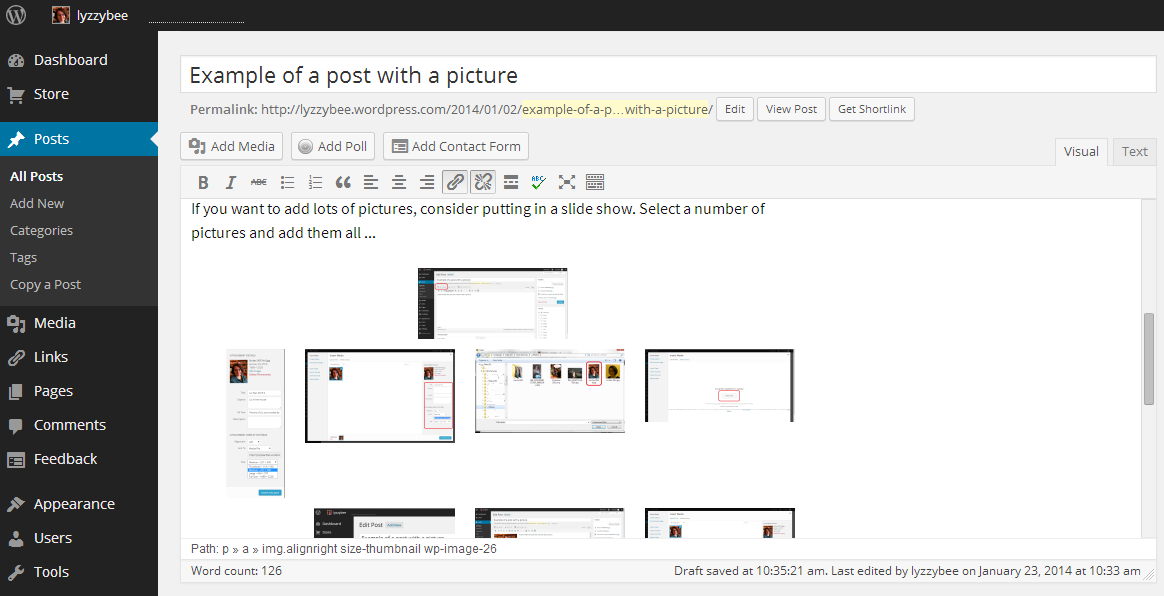
1 add media

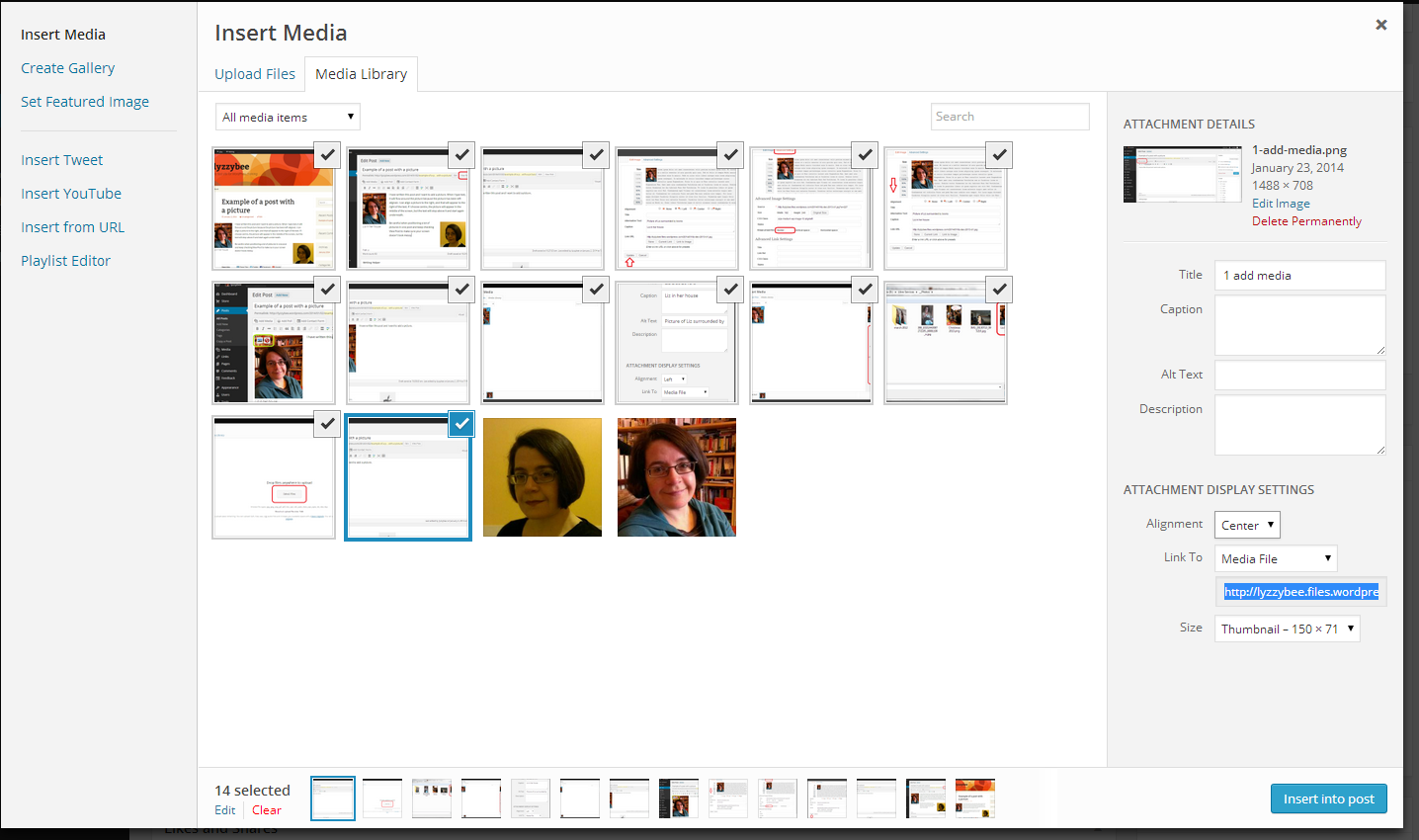
You can download multiple images at a time, and they will then appear on your Insert Media page. Viewing your Insert Media page, if you’ve already downloaded images and want to use or re-use them, these will appear in your Media Library tab.

15 gallery

How do I insert multiple images into a blog post or web page?

If you want to insert multiple images, the most simple way would be to tick all of the images that you want to use (see screenshot above) and press Insert into post. However, this will typically give you a jumble of images that looks really messy:

16 gallery

Here’s how to do it properly and neatly.

How do I add a gallery of thumbnail images to a blog post or web page?

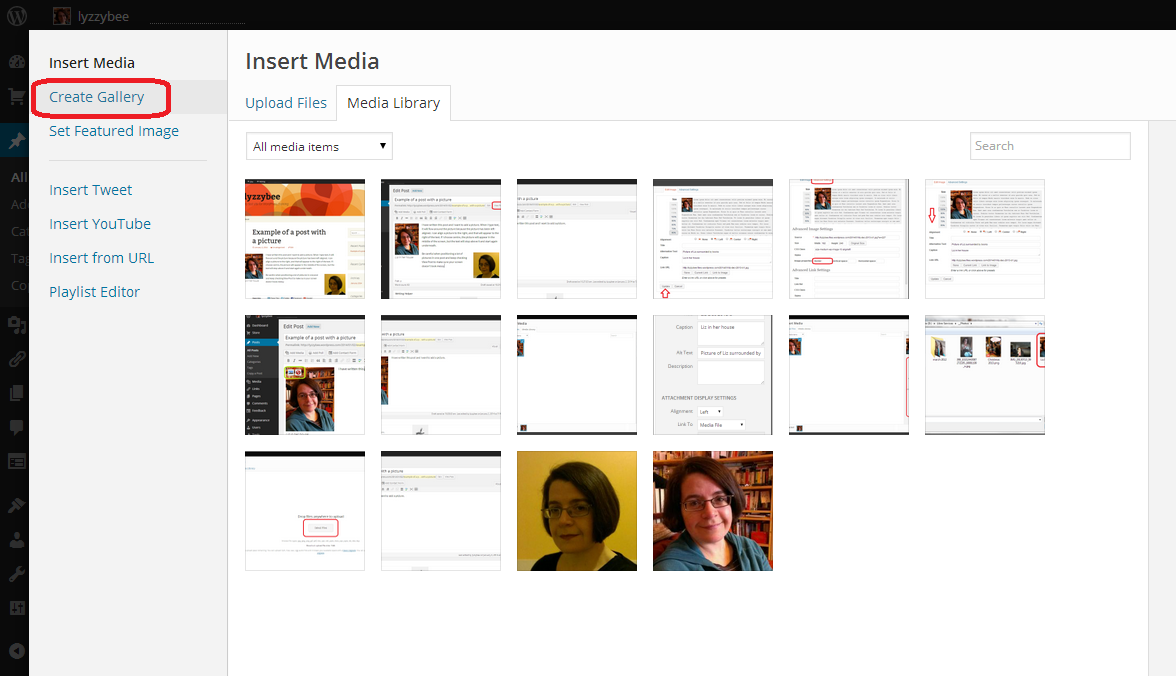
In the Insert Media page, click on Create Gallery in the left-hand menu bar:

17 gallery

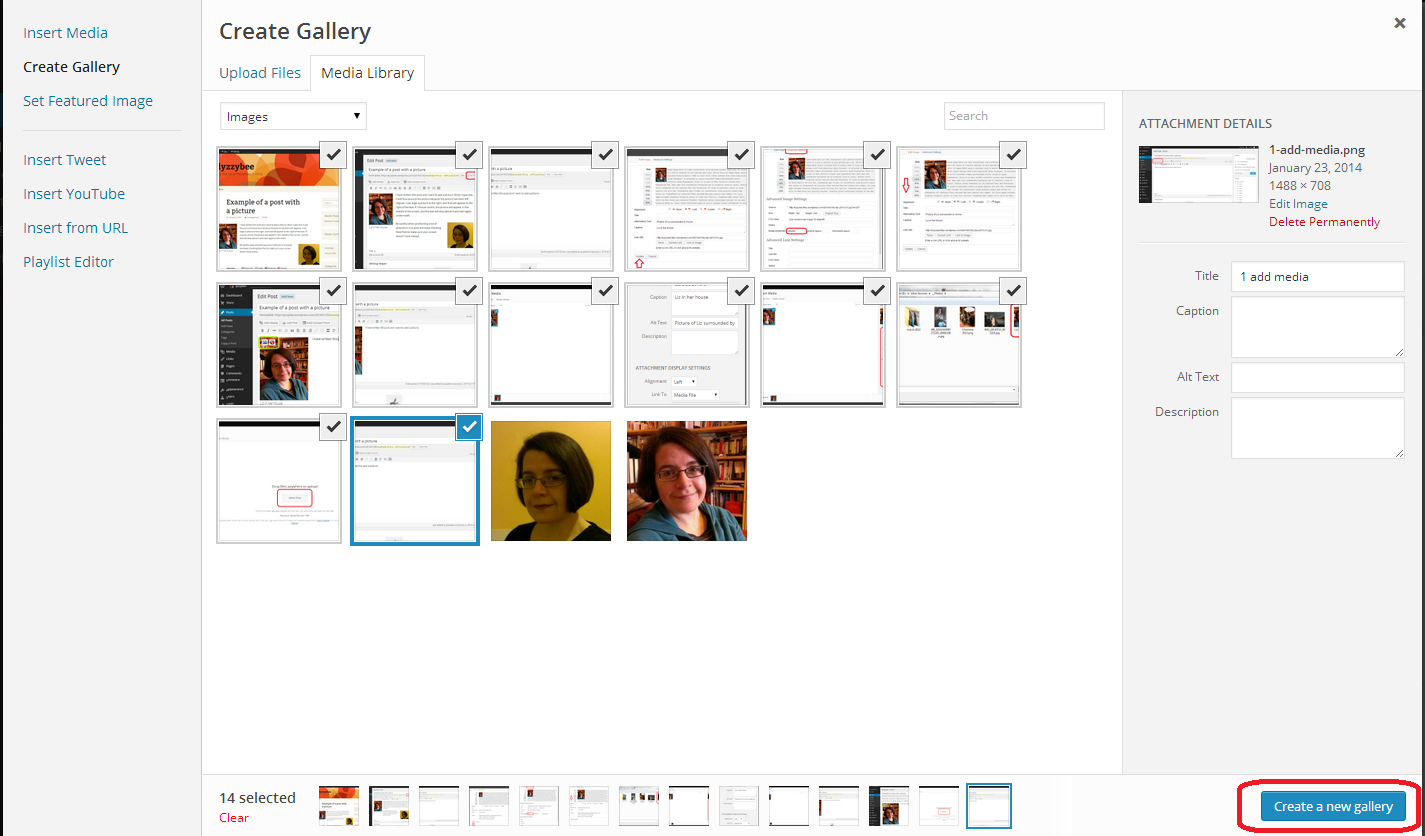
Select the images that you want to add to your gallery by clicking in the box at the top right of each image until it shows a tick, and click on Create New Gallery at the bottom of the screen:

18 gallery

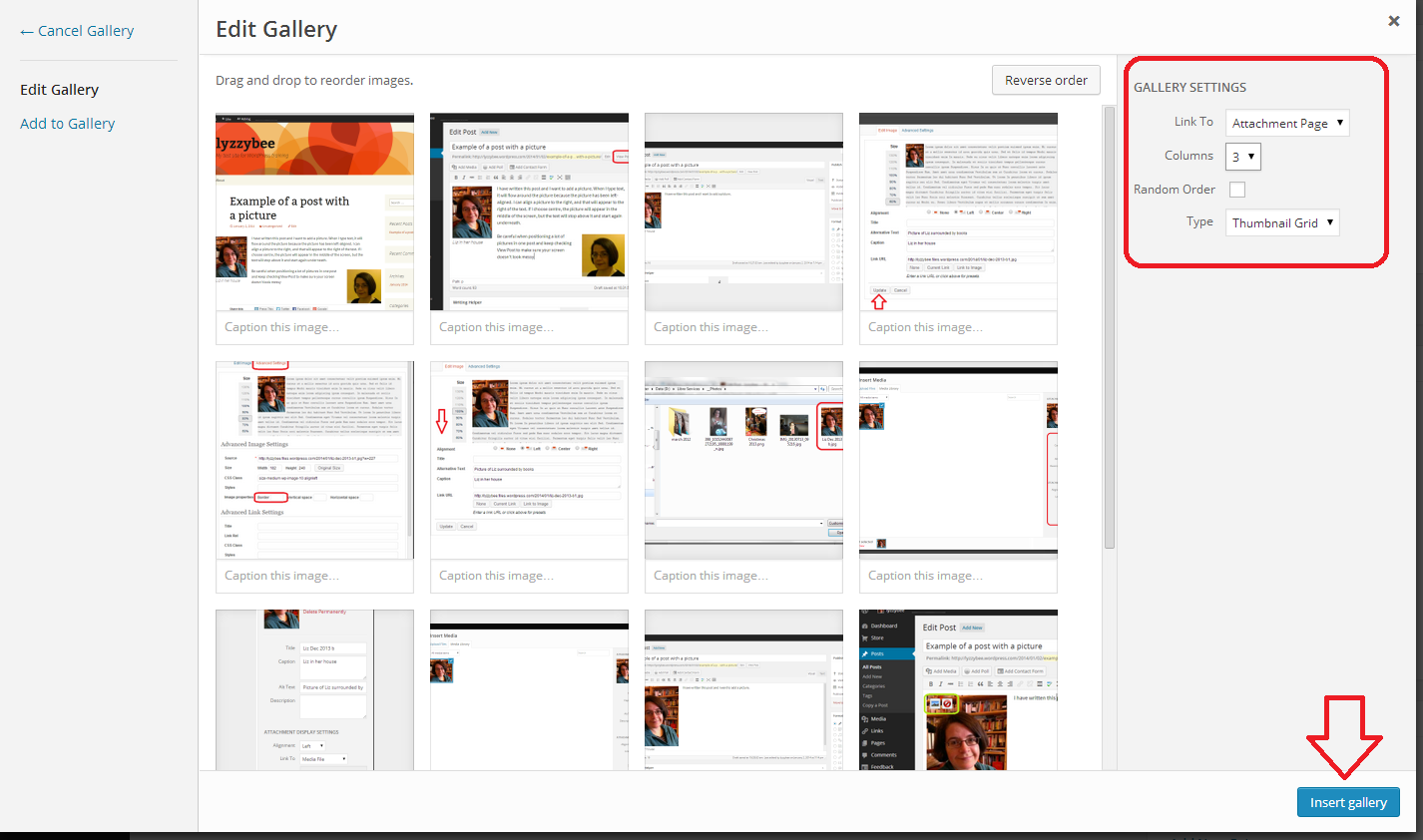
This will take you to the Edit Gallery screen. Here you can select how many columns your pictures display in and what format – here “Thumbnail Grid”, and then click to Insert Gallery:

19 gallery

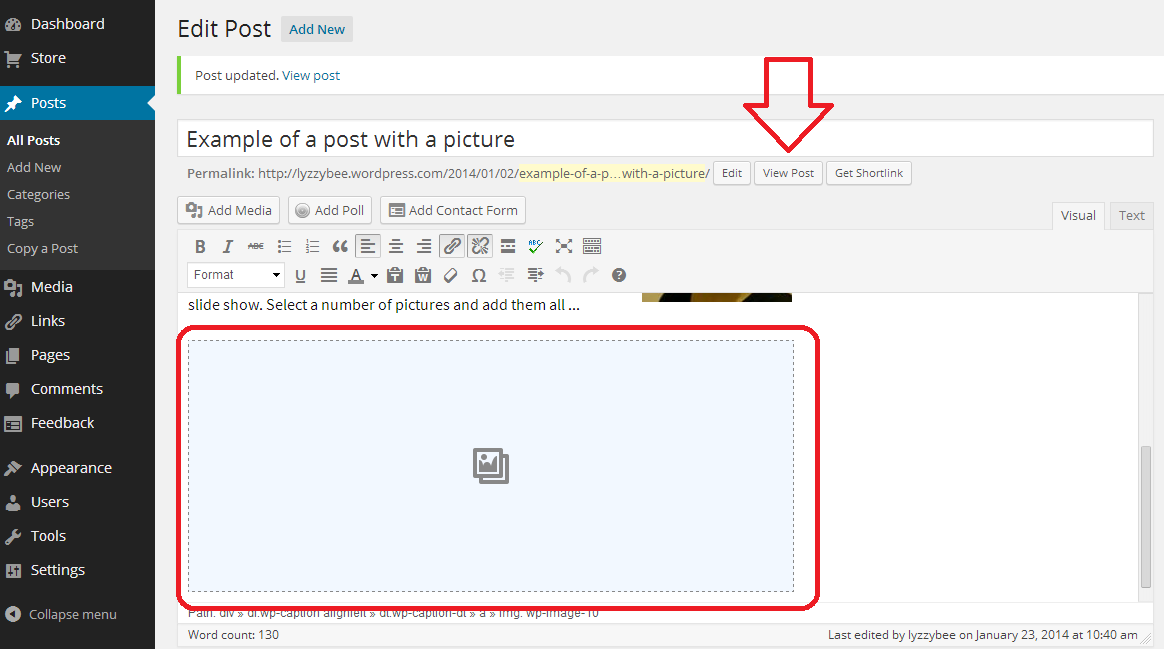
This will bring you back to your Edit post (or page) screen. The gallery doesn’t display in the edit screen, as it will pull the pictures from your gallery when the post is live. Click on View Post (or Page) to check how it’s looking …

20 gallery

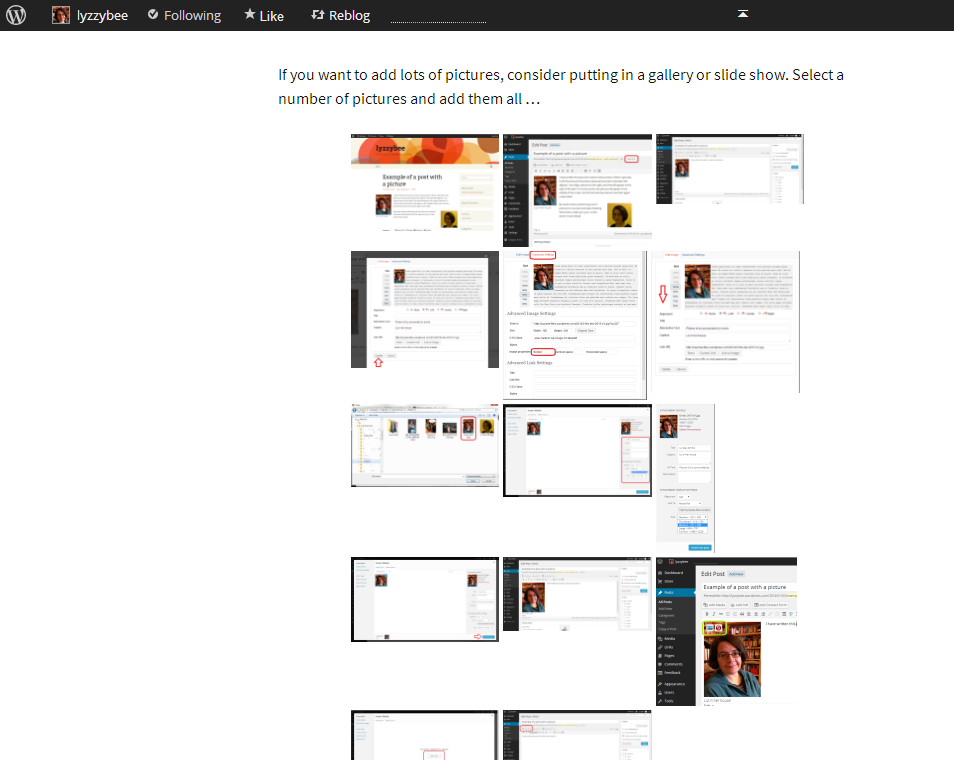
When you View post, you can see the grid of images. In this case, because I’ve used screen shots as the images and they’re not all the same size and shape, the grid is a bit odd, but you can see the idea. It’s all much neater, which is the main thing:

21 gallery

How do I add a slideshow to a WordPress blog post or page?

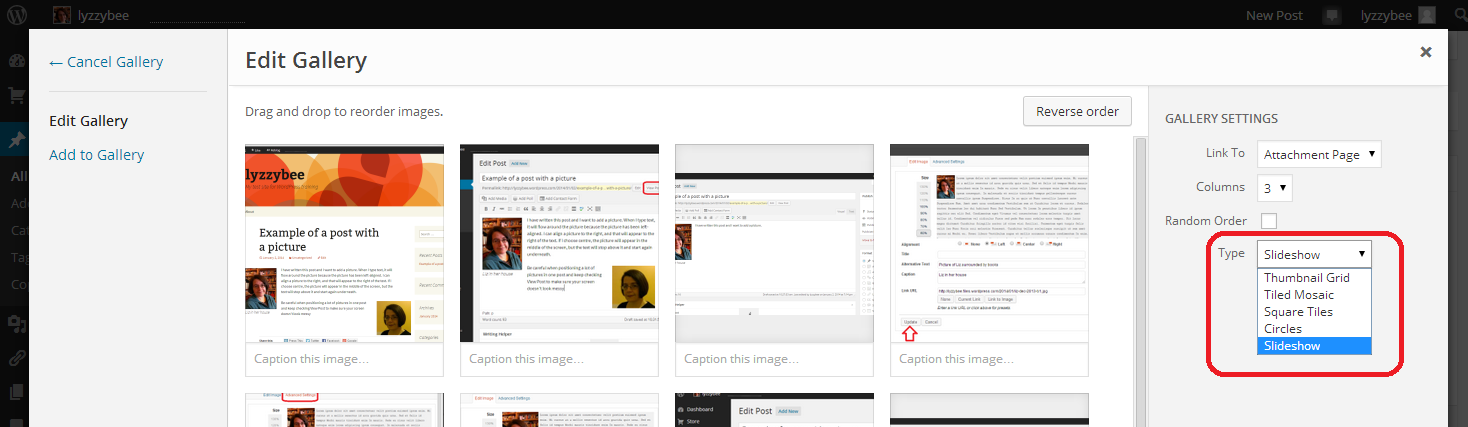
if you want a slideshow rather than a gallery, back in the Edit Gallery screen, click on the dropdown arrow by Type to view the different options. Choose the bottom one, Slideshow:

22 slideshow

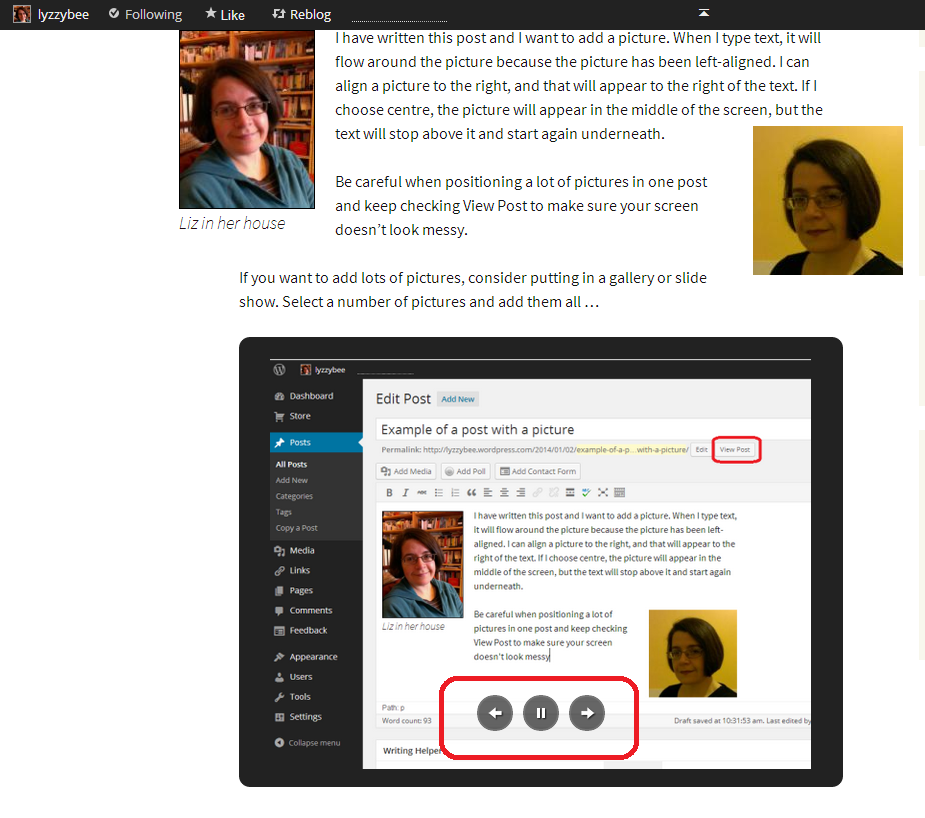
When you’ve inserted your gallery and chosen View Post, you can see a single image at a time, with navigation buttons for forward, back and pause visible when the mouse hovers over the screen: a slideshow:

23 slideshow

Today we have found out how to add multiple pictures to your blog post or web page using a gallery or slideshow.

I hope that you’ve enjoyed this article and have found it useful. If so, please take a moment to share and comment – it helps to make other people aware of the help that they can find here. For more posts on blogging, social media, WordPress, Word, business and more, please have a look at the Resource Guide, or explore the categories to your right.

Related posts on this blog

How to set up a WordPress blog

How to add pages to make your WordPress blog into a website

How to add images to your WordPress blog posts and pages

Linking your blog to your social media

WordPress 6 – sharing buttons

WordPress 7 – adding an avatar picture

 
8 Comments

Posted by on February 19, 2014 in Blogging, Business, WordPress, Writing


Tags: , , ,

Setting up a WordPress blog 3 – Adding images to blog posts and pages

In this series, we’ve already learned how to set up a WordPress blog, and how to add pages to make it into a WordPress website. Today, we’re going to learn how to add pictures to blog posts and pages and how to edit images in WordPress. And here’s how to create galleries and slideshows and add your image to your user profile in WordPress.

Note: March 2014 – I have updated this post to take into account the new way to edit images that has just been implemented in WordPress.

How do I add an image to a WordPress blog post?

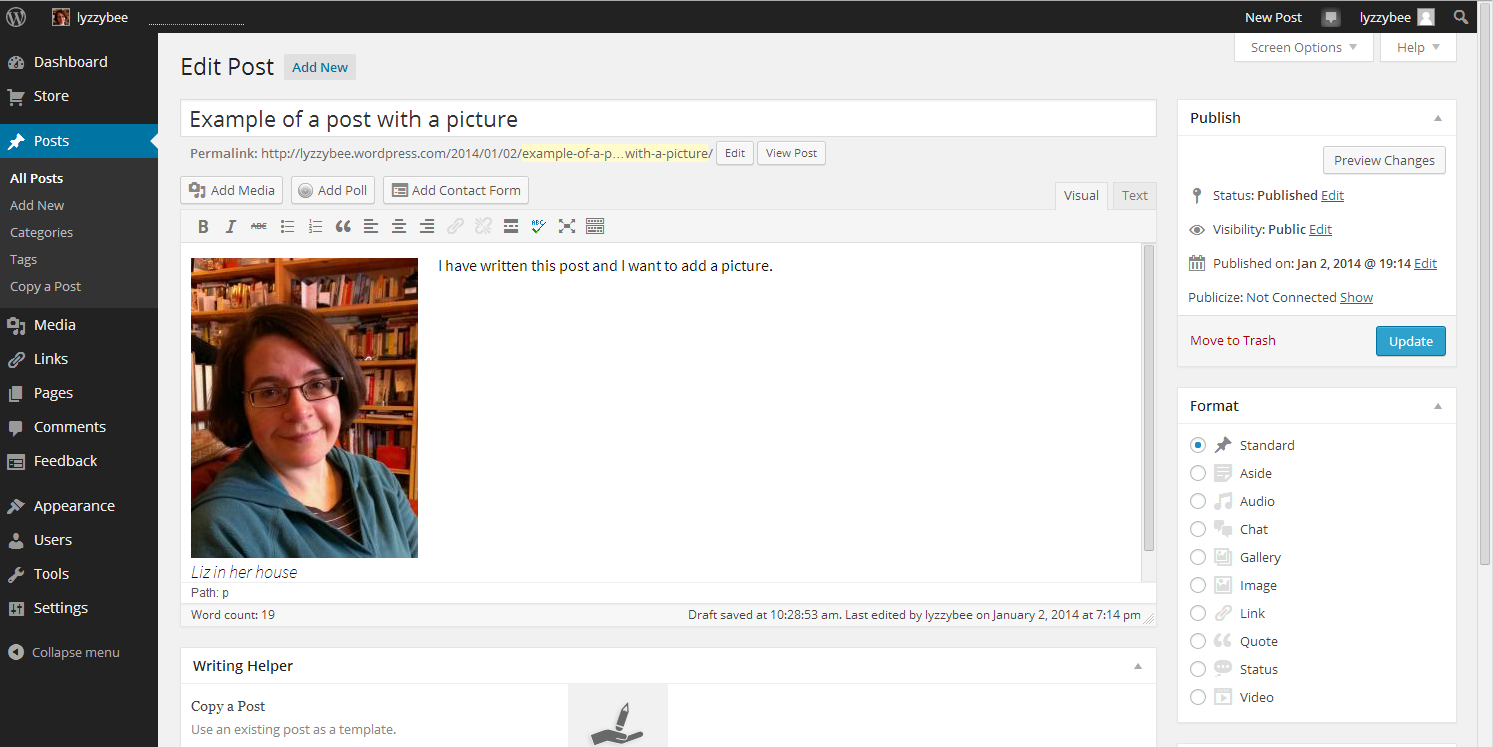
When you’re in the blog editor, you will find a button marked Add Media to the left. Making sure that your cursor is in the position where you want your image to appear, click on Add Media:

1 add media

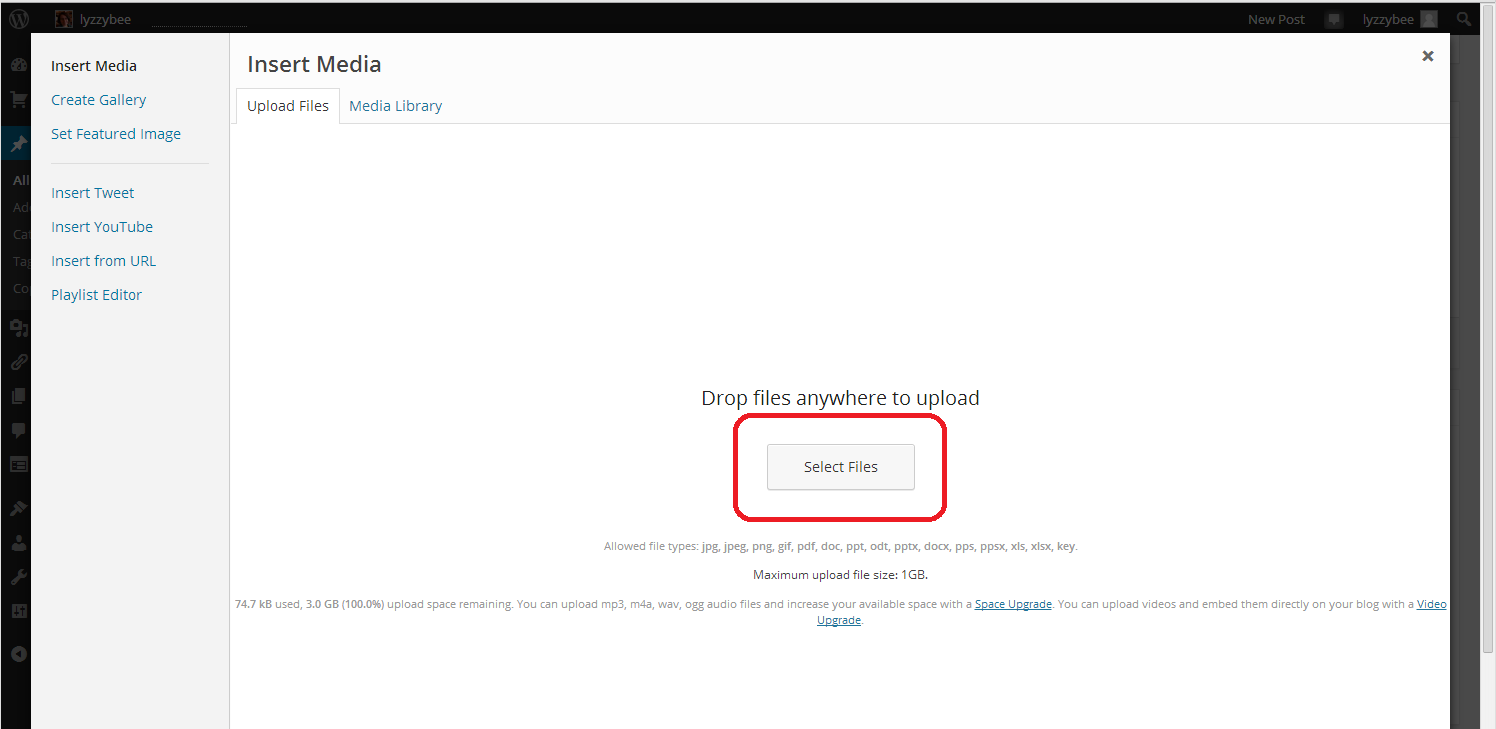
This will take you to an Insert Media page, and if you’ve already downloaded any images and want to re-use them, they will appear in your Media Library tab. But for now, we want the Upload Files tab. Hit the Select Files button:

2 add media

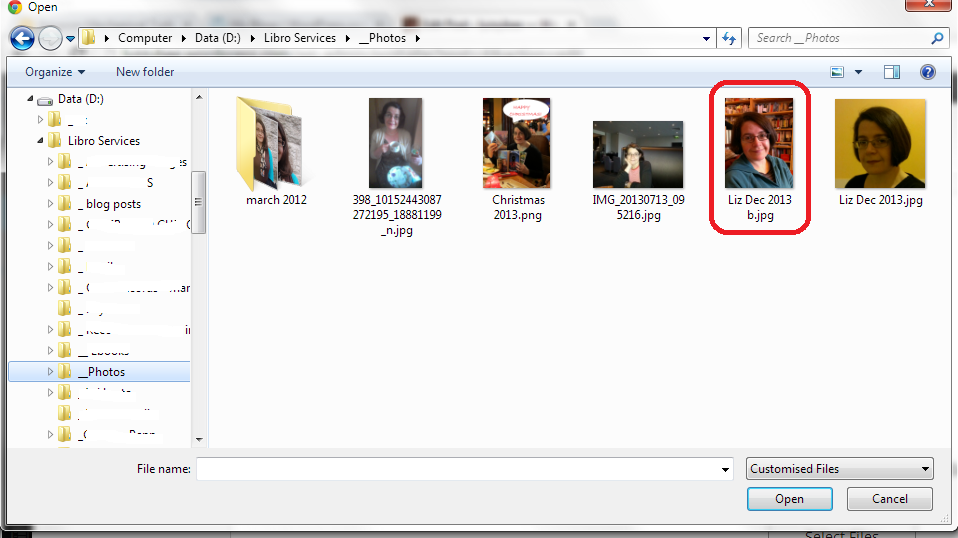
Select Files takes you into the File Explorer section of your computer. Here you can navigate around your folders and pick the photo that you want to insert into your post.

NOTE: You might think that you can just right-click and copy an image from the internet or your Facebook timeline, etc., then paste it into your blog. This might work temporarily, but, from experience, these images tend to be unstable and disappear. If you want to use an image from the Internet or elsewhere, save it into your own folders first and then insert it using this method.

Navigate to your chosen picture and double-click on it or single click and press the Open button at the bottom of the screen:

3 add media

Your picture will be pulled across into your Media Library tab in WordPress.

Note: if you select more than one picture, they will all move into the Media Library, which makes them easy to select. In the next step, only keep the picture you want right then ticked, and untick the others, otherwise they’ll all merrily pile in to your blog in one place.

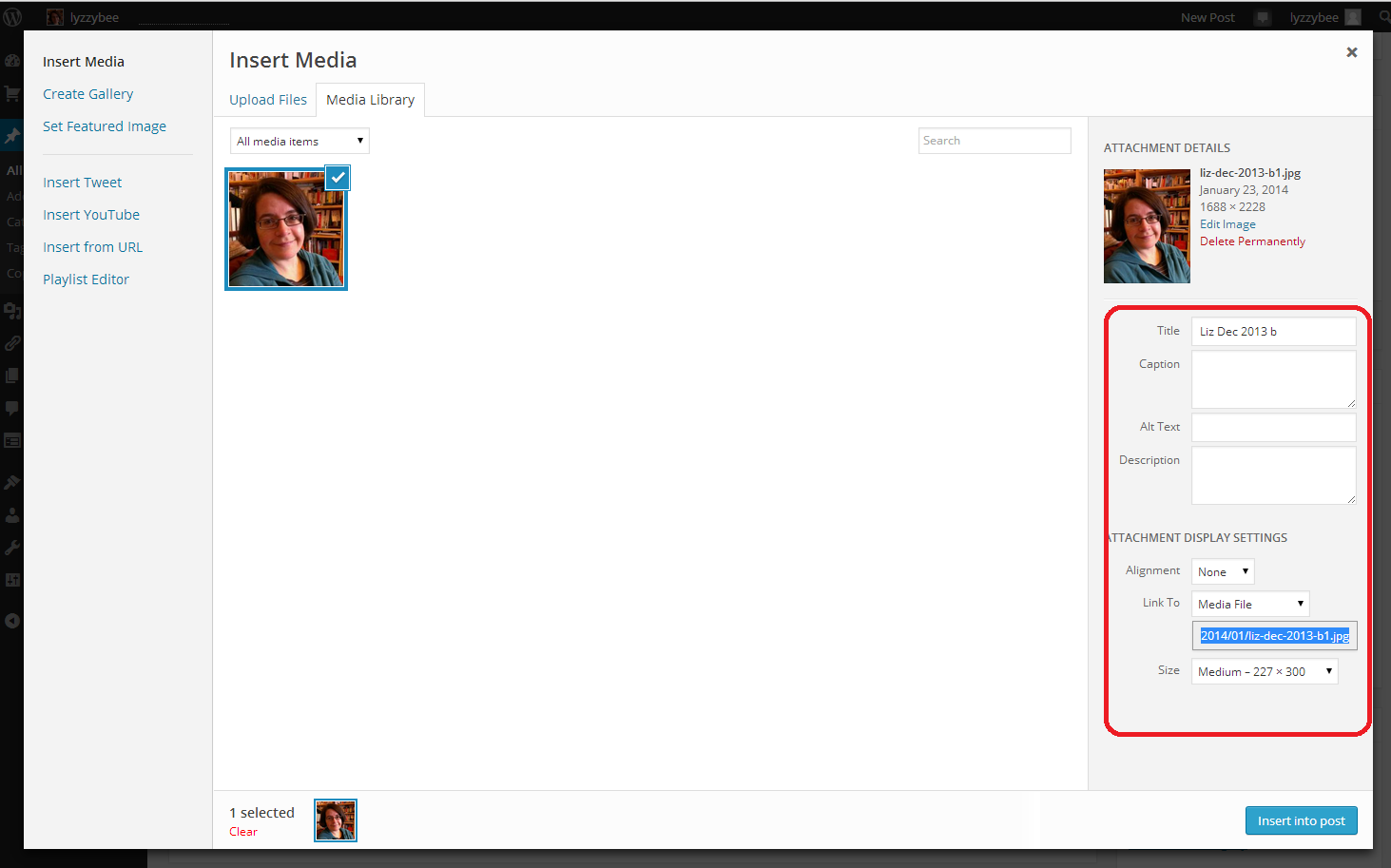
Making sure that the photo you want to use is ticked, choose the Attachment Details on the right-hand side. This specifies the caption, size and positioning of the image …

4 add media

Let’s look at that in more detail. You can place a caption on the picture if you want one to appear in your blog post – I don’t often bother, but it can be useful. It’s important to include Alt text, as this is what anyone using an audio describer will hear if they’re unable to see the image. It’s basically good accessibility practice. Link to allows you to link just to a larger version of the image, or you can choose URL to link to an external web page.  Alignment can be Left or Right (text flows around these to the other side of the image, if there’s room) or Center (like this blog post). Size is up to you: note, you can make an image smaller but not bigger once you’ve inserted it.

5 add media

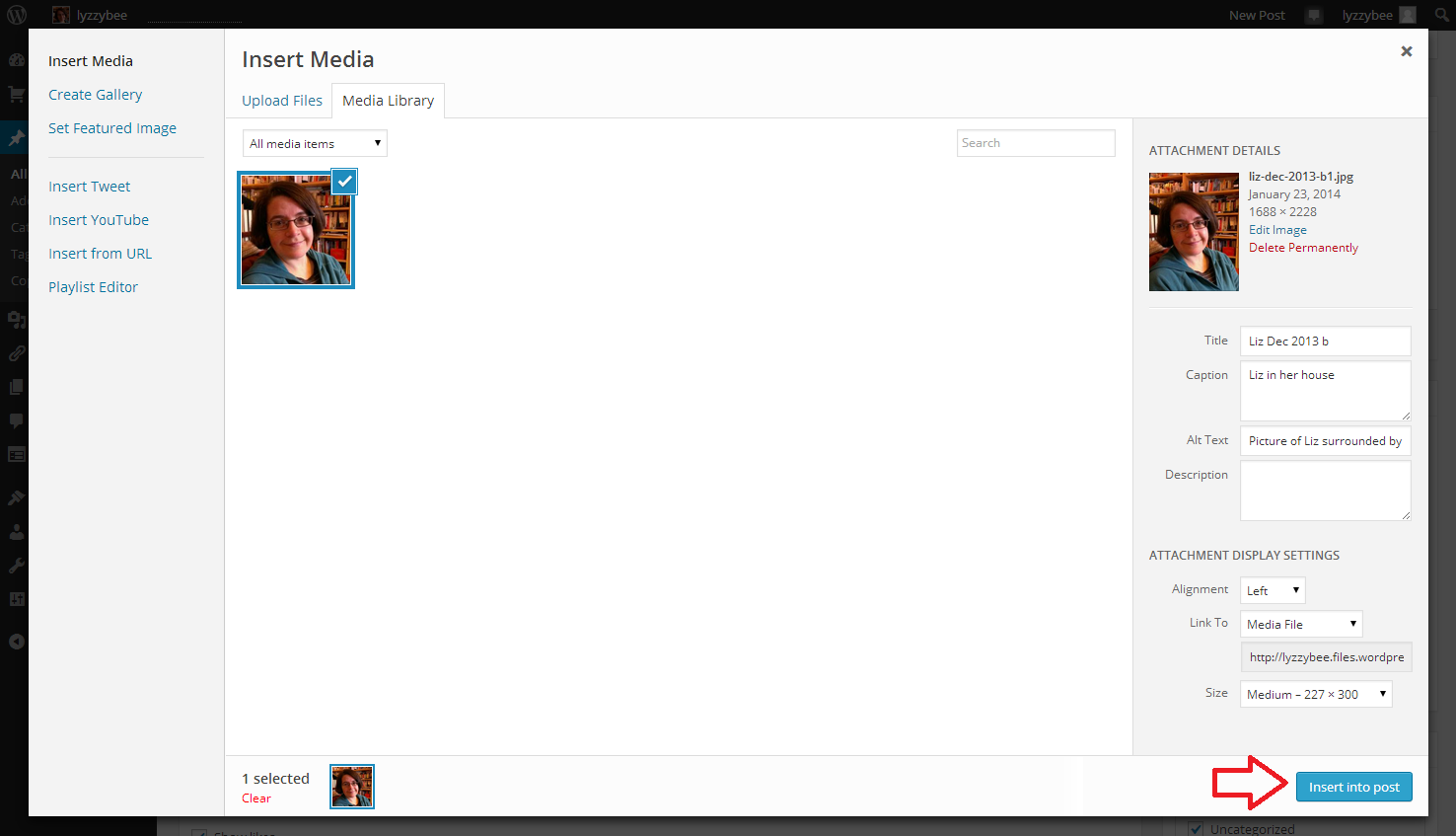
Once you’ve chosen your picture and your settings and alignment, etc., hit the Insert into post button to place the image in your blog post.

6 add media

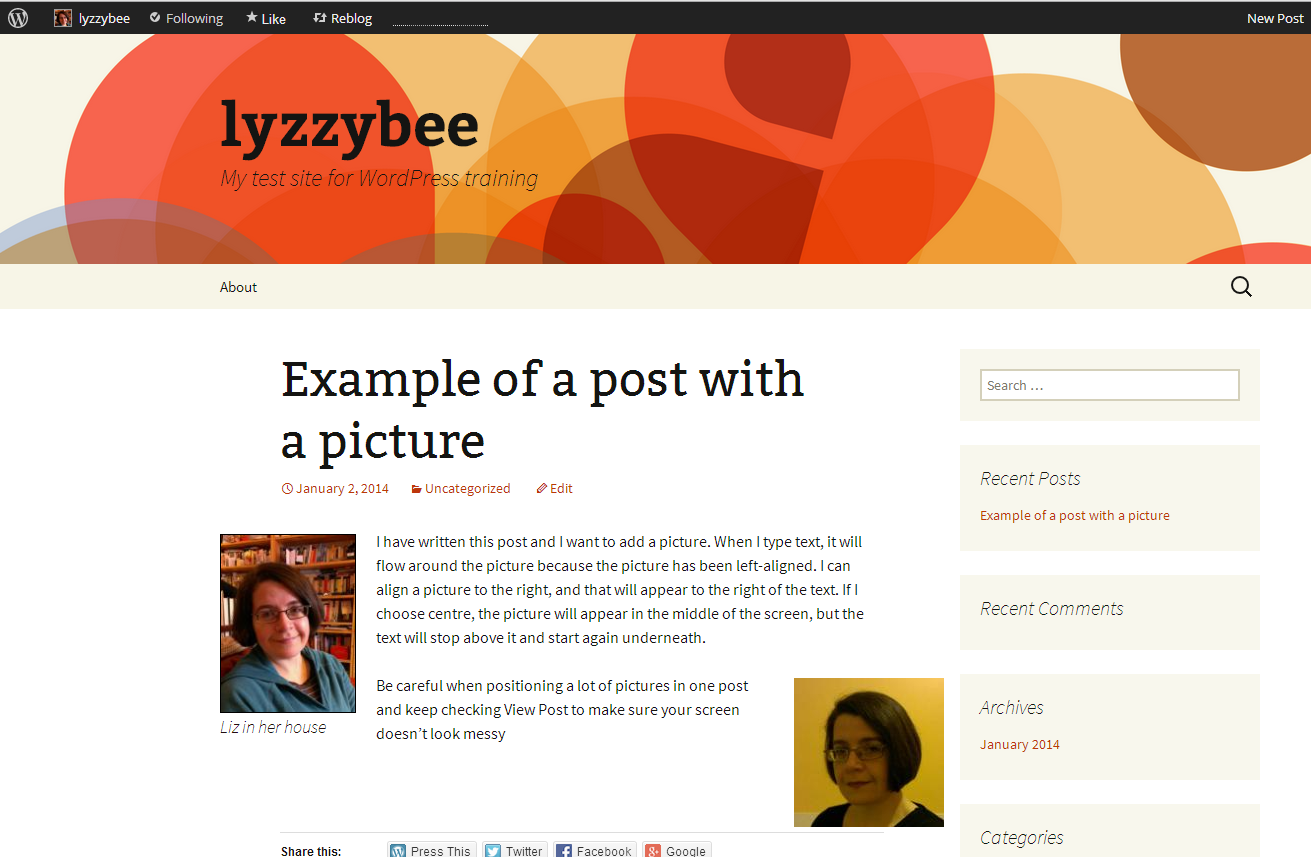
And here it is, in my blog post, medium-sized and left-aligned (so you can see that the text I’ve typed appears to the right of the picture and will flow around it. The top of the picture starts where my cursor was, at the beginning of that first line of type. If I chose Right alignment, it would be the other way around; if Center, the text would be underneath.

7 add media

How do I edit an image in my blog post? (including WordPress’s new image editing process)

Note: this section has been changed to reflect the changes implemented by WordPress in March 2014.

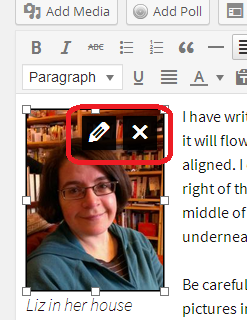
Once you’ve placed your image and written your post, you might want to edit the image. Left-click on your image using your mouse, and two icons will appear – edit and delete. Click on the right-hand, red, delete icon and your picture will disappear (no warning). Click on the left-hand icon that looks like a pen, and you will be able to edit your image.

01 new editing

On clicking the edit icon, you will be taken to an editing screen. This looks a bit different to the old editing screen, and it appears that you can’t do everything that you used to be able to do. But you can! With the help of my old friend Clare Lauwerys at The IT Fairy, I’ve been able to work out what to do and share it with you.

The basic editing screen now allows you to change the Caption text, Alt text, alignment, link and basic size. What about scaling it up and down and adding or changing description text? Don’t fear: it’s all still there.

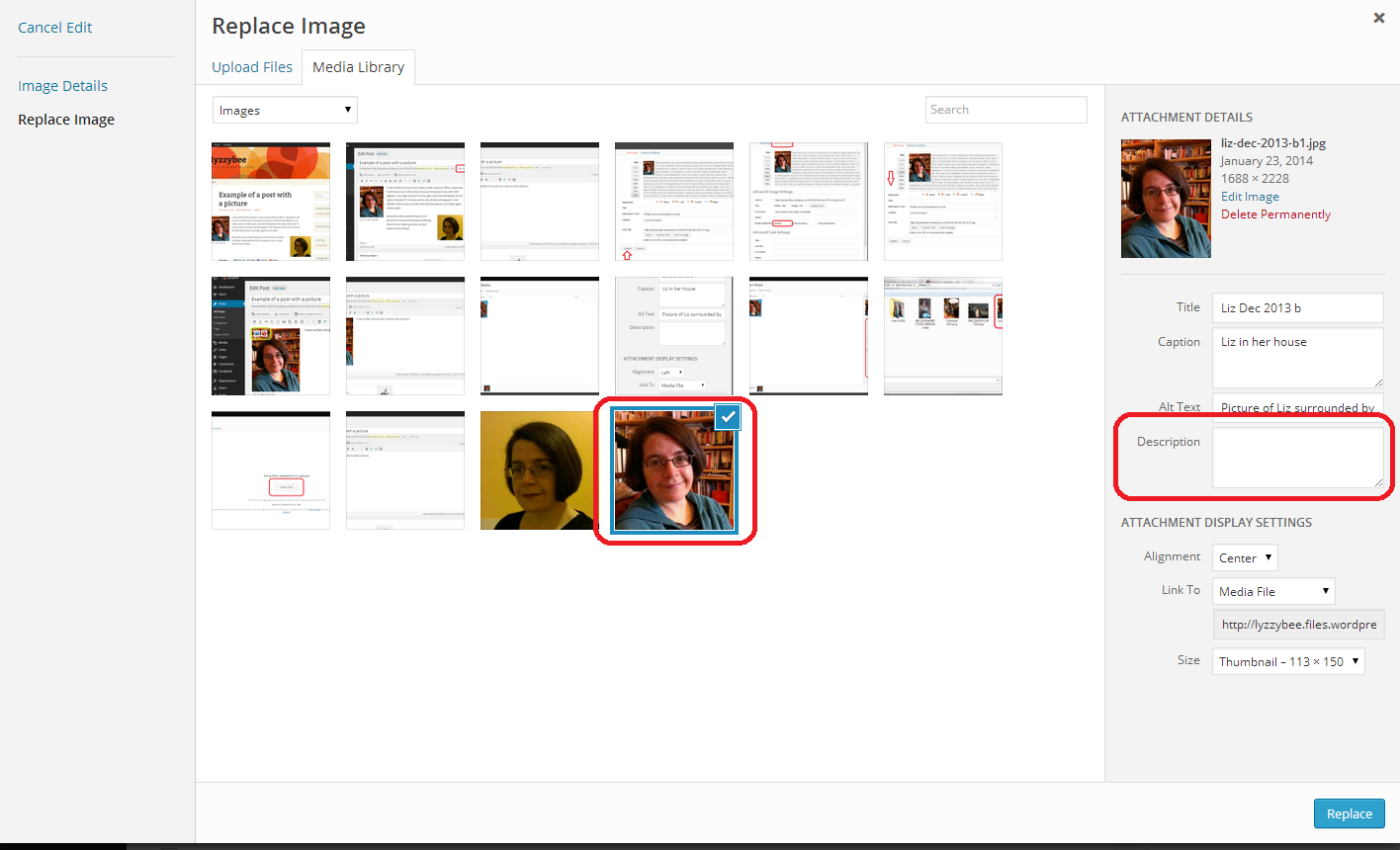
To add or edit the description text, you need to click on Replace image. Yes, I know that doesn’t exactly make sense, but it’s what you have to do …

02 new editing

Once you’ve hit Replace image you’ll be back in the screen you use to add an image and give it its attributes in the first place:

03 new editing

You can see that the image you’re currently working on has remained ticked in the Add image screen, and you are able to add or amend your description text here (that’s important for your SEO, and I’m going to have Clare guesting on here soon to tell you all about that). When you’ve done that, hit the Replace button and your new image information and old image will be safely in your blog post.

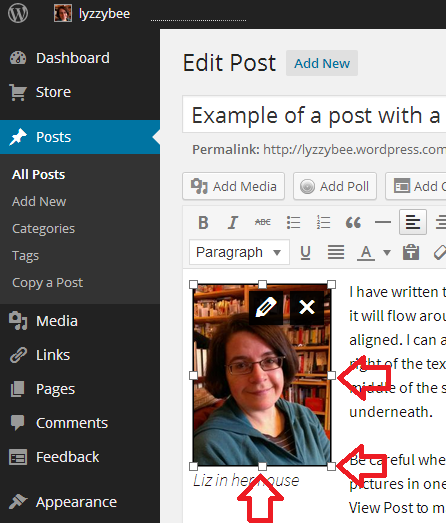
To change the size of the image, stay within the blog post edit screen, click on the image once and then use the standard image changing frame to pull your image out or in with the mouse and cursor to make it larger or smaller:

07 change size

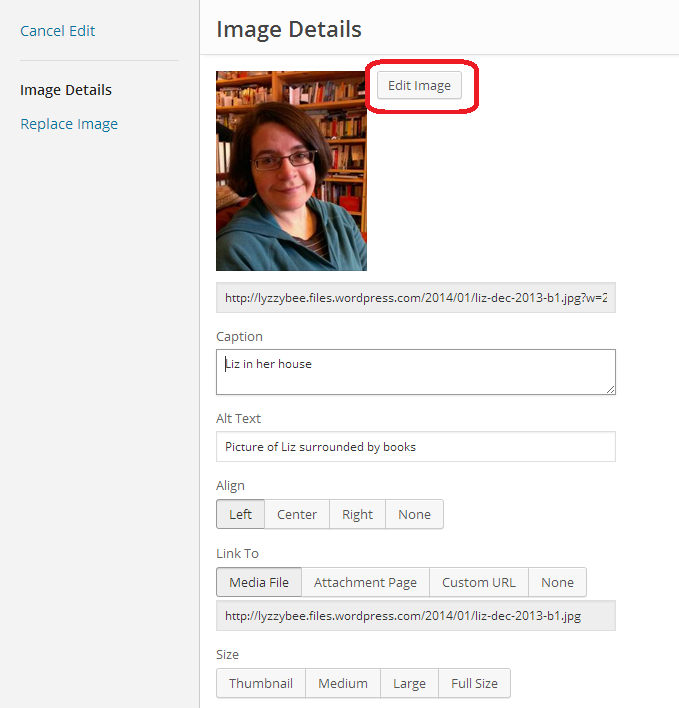
If you want to edit the picture to flip, rotate or crop it, click on the edit button and once you reach the Image Edit screen, click on Edit Image:

05 new editing

Once you’ve clicked on Edit Image, you can access the ability to flip, rotate and crop your image:

06 new editing

… remembering to press Save when you’ve finished.

Note: you can no longer choose the size of the border around your images. The standard border that you get is an aspect of the theme you choose for your blog. You do get a border of sorts if you add a caption to the image.

How do I preview what my images look like in my blog post?

Click the View Post button to view your post as if it was live on your blog. This can save you from a nasty surprise, as the Edit Post screen does not display exactly as your blog post will in real life (of course, this will display differently on different screens, especially on mobiles and tablets, but this gives you a better idea than just looking at the Edit Post screen).

I’ve added another picture, with Right-alignment, and I want to see how the text flows around them.

13 check

And there we go. It looks different from the editor, but I’m happy with the result.

14 check

How do I add images to a web page on WordPress?

Fortunately, adding images to web pages works in exactly the same way as it does for adding images to blog posts. So just look for the same buttons and icons, but note that you start off from New Page or Edit Page, not New Post or Edit Post.

You’ve learned how to add pictures to WordPress blog posts and pages, and how to edit those images once you’ve got them into your post/page.

If you’ve found this useful, please add a comment below, and please share this post using the sharing buttons below. Thank you!

Related posts on this blog

WordPress 1 – the basics – joining and setting up a blog

WordPress 2 – adding pages to create a website

WordPress 4 – adding slideshows and galleries of images

WordPress 5 – linking your blog to your social media

WordPress 6 – sharing buttons

WordPress 7 – adding an avatar picture

 
14 Comments

Posted by on February 6, 2014 in Blogging, Business, WordPress, Writing


Tags: , , ,

Growing your business – employing staff and outsourcing (case studies)

Sneak preview of the image from my new bookOnce it’s time to grow your business, you will need to make a decision on whether to employ staff. Duncan Brown has given us the expert’s view on this topic, and now we’re going to hear from two people who have approached this in two very different – but equally successful – ways.

Nathalie Rush runs Six Star Group, which is an insulation business. She has been employing people right from the start, and has used a variety of different methods to find them, and gained a lot from employing people directly, although she does still use sub-contractors when needed.

Nathalie reports that in her line of business, job websites are cheaper to use than local newspapers, but she doesn’t think that tradespeople use the websites so much. Word of mouth has been quite successful. It’s important when advertising for staff to use the channels that the kind of people you’re looking for are likely to use, otherwise you’ll waste money on costly adverts when a word in the ear of the local university’s careers centre or just putting the word out that you’re looking for people might be just as effective.

Nathalie has found that one hands-on approach works really well for her:

Paying someone to work with you for a week’s experience can often be a good way of finding out their qualities. You’ll quickly know if you’ve got a rising star or not.

She has also developed a working relationship with a training centre in her industry, which she says is “proving to be a great way of finding hard-working, professional people”.

What is the advantage of having full-time employed staff for her business? “It means we can serve customers when we want and we don’t need to rely on sub-contractors”, although, as I mentioned, sub-contractors are brought in for the larger jobs. And she’s enthusiastic about the process, too. ”

It’s a joy to give someone a job. I get the biggest kick out of it and spend a lot of time training and motivating my team. After all, we are a business that sells a service and what good is that if the people can’t deliver what the company promises!

On the topic of sub-contractors, you do have to be careful when sub-contracting, especially if you’re in the construction industry. Nathalie explains: “Because of the line of business we’re in, I have to register every sub-contractor through the Construction Industry Scheme. This ensures everyone is taxed and it’s reported monthly to HMRC”.

And while she outsources the work on occasion, she is also careful not to take on too many admin tasks in-house that can be done by an external supplier: “Employing people comes in all shapes and sizes and it’s certainly handy to be able to outsource any paperwork you can that comes with running a business”.

What’s Nathalie learned from the process? As Duncan explained in his expert’s view, it is vitally important to outline all rights, roles and responsibilities up front. Nathalie says:

I’ve employed people in the past and it took me a while to work out exactly what the responsibilities of different roles should be. It’s clearer if you can explain the role, working times, use of mobile phones, holidays, etc. from the offset and not change things like this as it can be de-motivating.

John Ellery of John Ellery Consulting, a firm specialising in grant fundraising and grant making, has taken a different approach.

Six months on from setting up his business, he found that he was struggling to keep up with the work coming in from his clients and his growing to-do list, and it was clear that he needed some support. However, he was concerned about the sustainability of employing someone when his business was so new and he wasn’t yet able to predict the peaks and troughs:

Whilst the obvious option was to investigate employing someone my cash-flow situation would be very tight and whilst I had too much work at the moment who knew if this would still be the case in say three months time – last thing I would want as a new business is have an employee sitting around with no work to do.

His solution was to start using people who were happy to work on a freelance basis. To date, the work he has outsourced in this way has included admin support, consultants, marketing/sales and web design. Each time that he has started working with a freelancer, he has initially outsourced a single piece of work with no promises of on-going or future jobs. As he reports, “This has been extremely effective with the vast majority of freelancers I have used already very much used to this arrangement and were able to pick up my business, ethos and approach extremely quickly”, and he has continued to use this method of supporting his business and thus allowing it to expand.

How has he found freelancers? Mainly online, through Google searches and websites such as People Per Hour or Elance and even FiveSquid and Fiverr [the last two offer usually limited projects for £5 or $5; while this can lead to price undercutting, many reputable freelancers use them and ramp up the price to an acceptable and sustainable level for freelancer and client once a more complex project is in the offing].

The advantages are clear: being able to pick and choose, using people who are accustomed to this way of working and can mesh with the company’s objectives and style, and not having the overheads, legal issues and paperwork associated with employing staff. Are there any disadvantages? John says, “At times I have found that freelancers are not keen to show their work in progress and prefer to contact you when a job is completed. Whilst usually this hasn’t been an issue the occasional freelancer has produced a piece of work that was unsatisfactory and could have been easily addressed if the work was being done by an employee at the desk next to me”.

And does he recommend this method of using other people to expand your business?

Absolutely, however the secret is to find those tasks that can be outsourced. These may be tasks that you usually complete yourself, but by outsourcing these they will free up your hands.

So, two different ways of going about expanding your business through using the support of other people, whether using directly employed staff and officially registered sub-contractors or outsourcing to a series of freelancers. Both companies have profited from these methods, and it just goes to show that there is often more than one way to achieve your business aims.

Thank you to Nathalie and John for their input into this article.

Nathalie Rush Six Star Group – Twitter

John Ellery John Ellery ConsultingTwitterFacebook

———-

This post is part of my series on growing your business. Read more here and read about my own business journey in my book, Going It Alone At 40.

 
3 Comments

Posted by on January 30, 2014 in Business, Guest posts, Organisation


Tags: ,

How to set up a WordPress blog 2: adding pages to make it into a website

Following on from my posts about how important it is to have a website for your business and on setting up your WordPress blog (which you need to read before reading this if you’re a novice), in this article, I’m going to show you how to add pages to your WordPress blog to make it into a website.
This is what I did when I created this website that you’re reading this blog post on right now. I’m going to use my special test WordPress blog to show you what to do, and also the inside workings of this blog for the more complex aspects. Read on to find out how to set up web pages on your blog, and first of all, why you would do that.

What’s a WordPress page and why do I need them?

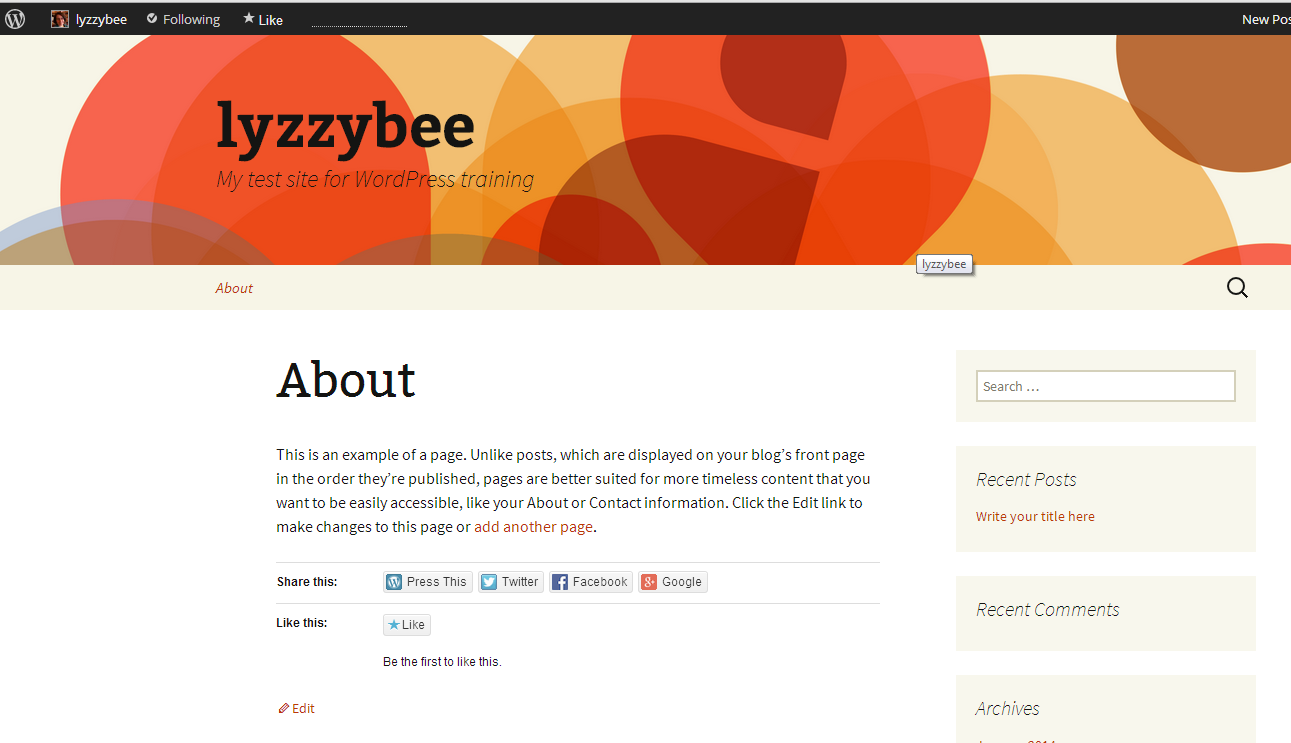
A page is a static, unchanging screenful of information, for example what you see when you go to my About page on this blog, or my page about my Business e-book on my writing blog. Where a blog post is written, published, moves down the blog page and is superseded by new blog posts, like a diary, a web page is fixed, stays the same and is visible whenever you visit its home. Where a blog is like a diary, a web page is like a passport photo or a lawn sign.

Why do you need one? Well, when someone reads your blog, they’re going to be bound to want to know something about you – that’s why pretty well all blogs have an About or Home page. And if you run a company, it’s advisable to put together a page, or a set of pages organised into some kind of structure, that tell readers about what you do, how you do it, what it costs, etc.

Website readers have a low attention span. They want to read a bit of stuff then move on. Many of them don’t even like scrolling down to see what’s lower down on the page. So a) they’re not going to want to search or scroll through your blog to look for information, and b) they don’t want everything on one web page. My website is quite wordy; imagine what it would be like if all that information you can access along the top menu bar was all on one page.

So, you’re convinced that you need at least an About page. You understand the difference between pages and posts (pages = static; posts = constantly updated diary type affair). Let’s find out how to set up a page on WordPress.

How do I set up a Page on WordPress?

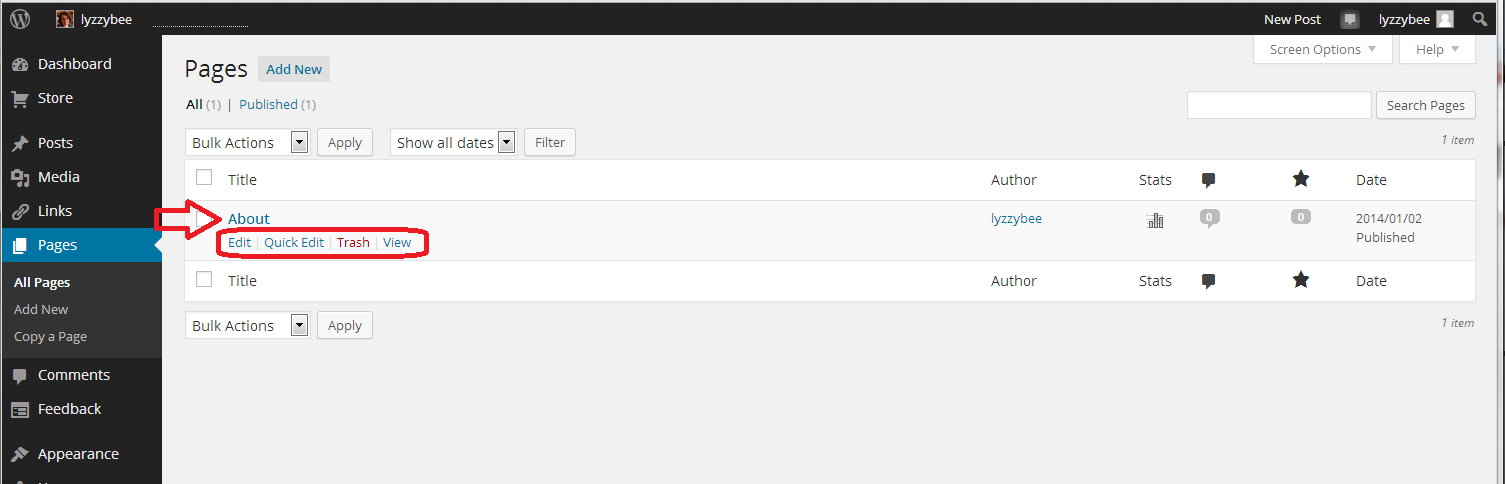
You access Pages from the Dashboard (click on your blog name or the little house icon next to your blog name on your Stats page to reach it). Once in the Dashboard, go down to Pages, click, and choose All Pages. This allows you to see what pages are already there – and once you have some, you can edit them from here.

1 pages

Why have I gone here first rather than hitting the New Page option? Because every new WordPress blog has an About page set up already, to get you started.

In the All Pages view, you can see all of the pages that you have set up, and hovering over the page title with your cursor allows you to Edit, Quick Edit, Trash or View them. Here, we’re going to Edit

2 about

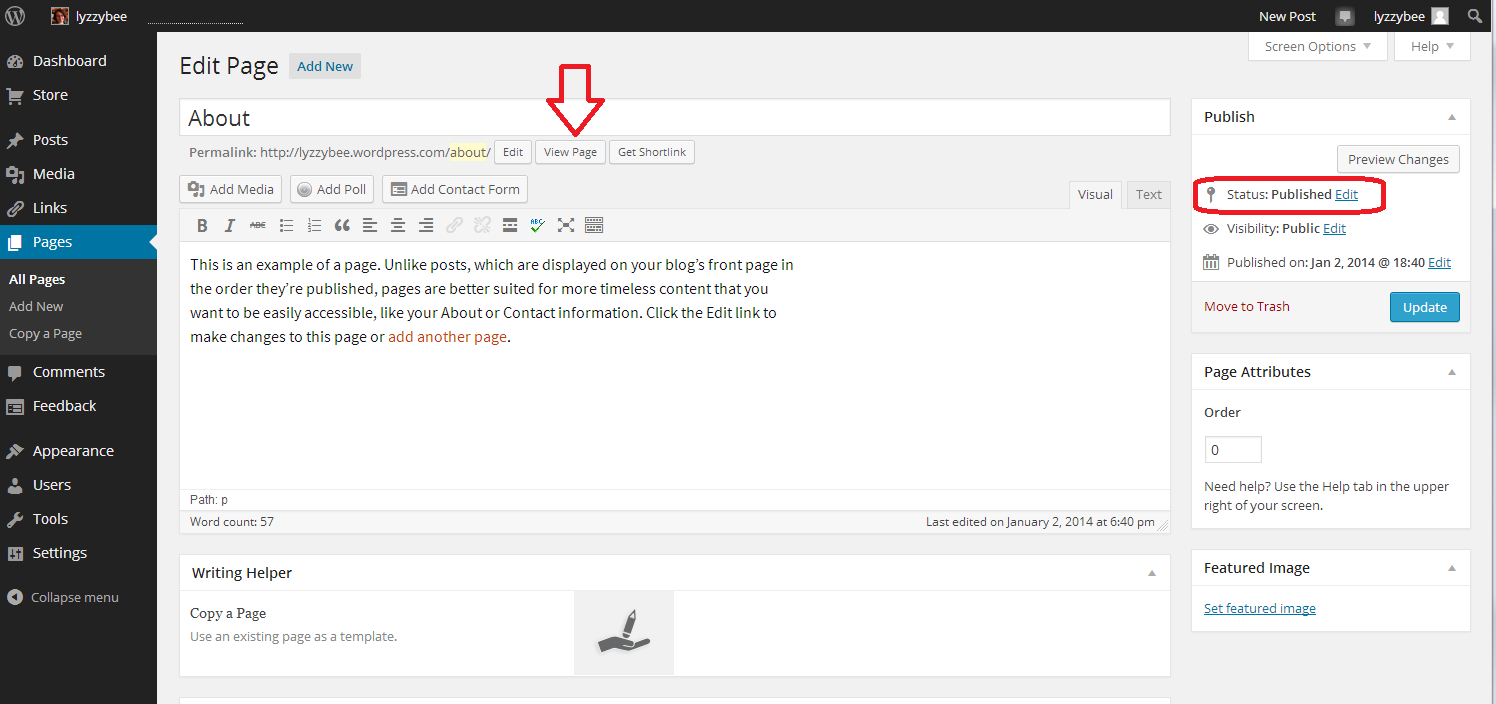
When you click Edit, you’ll arrive at a screen which looks very like the one that you use to create a new blog post. However, it has Edit Page at the top, and some Page Attributes to the side.

You can see that you have a title area (which includes the word “About” and a text area, which also contains some text at the moment.This can all be edited and customised just how you want it.

You can also see here that the Status is showing as Published. That  means it’s live on the Internet for all to see …

3 about

Want to see what this page looks like? Click on the View Page button just under the title …

4 about

This is likely to open in a new window – if it doesn’t, hit the back button on your browser to get back, or the Edit button at the bottom (or top, depending on your theme).

If you want to edit the text, which I do in this case, just delete the text that’s there and add some new. When you’ve edited it as you wish, hit the Update button to save. Then use the View Page button to have a look at the changes. Note: I’ve added hyperlinks here – here’s an article explaining how to do that

5 about

When you look at the page on the blog, there is all your new text, including the hyperlinks:

6 about

How do I set a web page to be my landing page / front page?

In some circumstances, you might want a static page to be the home page / landing page / front page that a visitor to your URL will always see. I do that with this website – whenever you go to www.libroediting.com, you will see my Home page. However, visit www.librofulltime.wordpress.com and you’ll see the latest blog post I’ve published, and you’ll need to click on the top menu to see a static page about you. It’s all about what you choose to do.

I’d recommend that if you are primarily blogging, with just one or two pages about you and your background, leave the landing page as the blog. If you’re promoting a company, product or service, and your blog is supporting that and driving visitors who you want to buy from you, choose to display a static web page when a visitor arrives.

Here’s how you tell WordPress to show visitors a page, not your latest blog post.

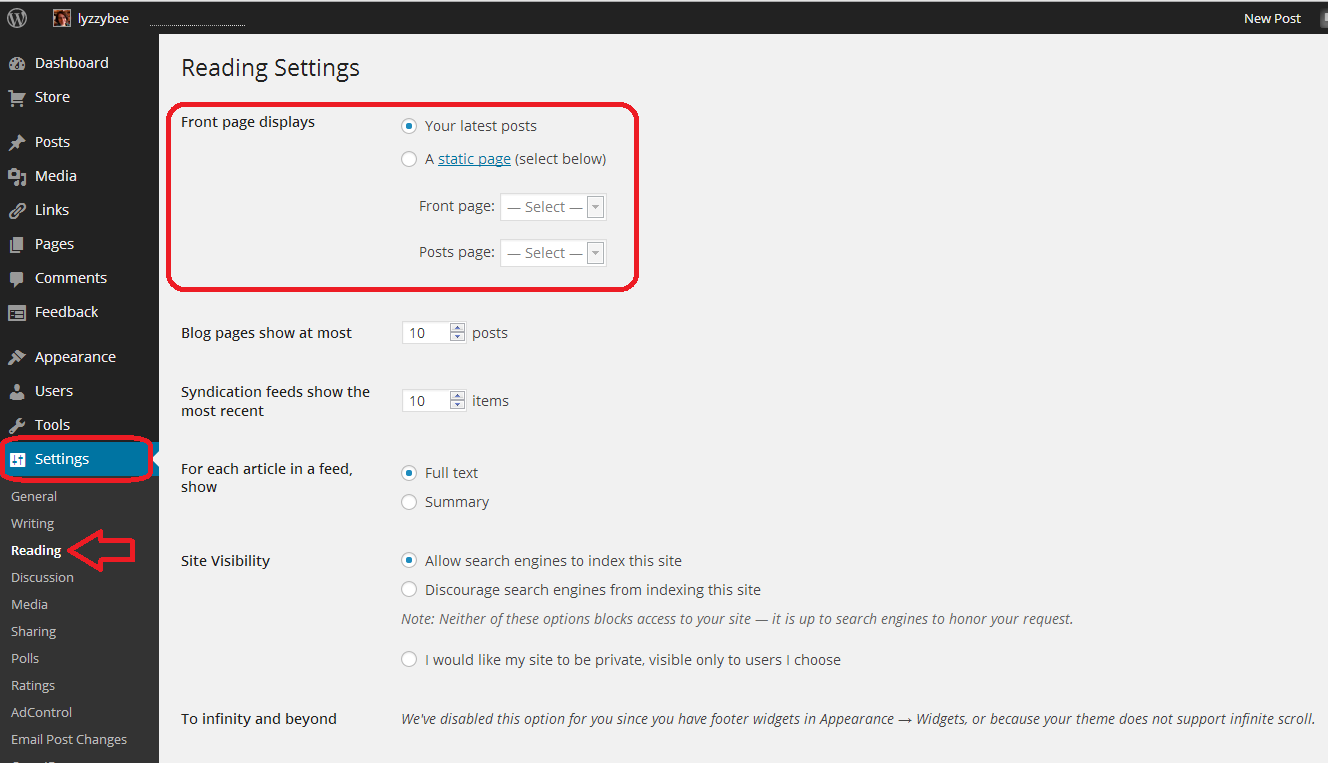
Go to the Dashboard, choose Settings, and then Reading. Right at the top of the page, you have a section entitled Front page displays. You have the choice of Your latest posts (i.e. your blog) or A static page. If you click on that radio button, you will be asked to choose a page to display.

7 set page as front page

I have chosen not to do that for this test website/blog, mainly so that I can change it if I’m training people face-to-face, but here’s how this Libroediting site is set up. I have chosen Libroediting as the front page, and Blog as the posts page. That means that any visitor will, as you’ve seen if you clicked the link above, see my Home page on their initial landing on the site.

8 set page as front page

How do I add a new Page to my WordPress website/blog?

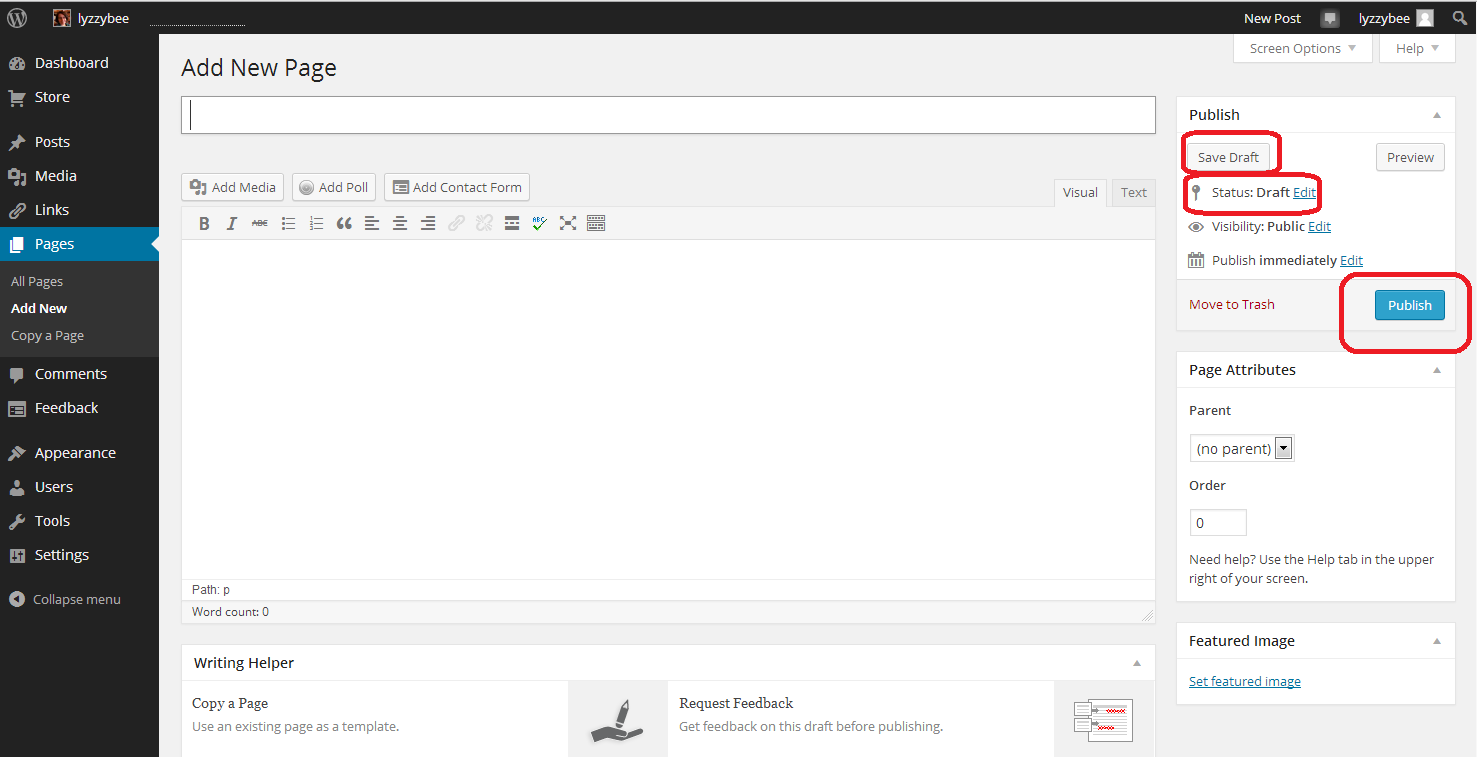
If you want to add a brand new page, revisit the Dashboard and choose Pages – Add New. Note, you can Copy a Page, too. This will give you an exact copy of a page you already have – more useful for posts, but if you have special formatting that you’ve set up, or you’re splitting the text on a page over several new pages, it’s worth doing that. Click on Add New

9 add new

… and you will find yourself in a completely blank editing page. Note that now the Status reads Draft, and you also have an option to Save Draft. Please press this very, very regularly, so you don’t lose your draft posts. When you’ve finished adding the text for your new page, hit the Publish button to make it live (or you can leave it in Draft form if you want to work on it further; just do remember to Save Draft).

10 add new

How do I view and edit my pages?

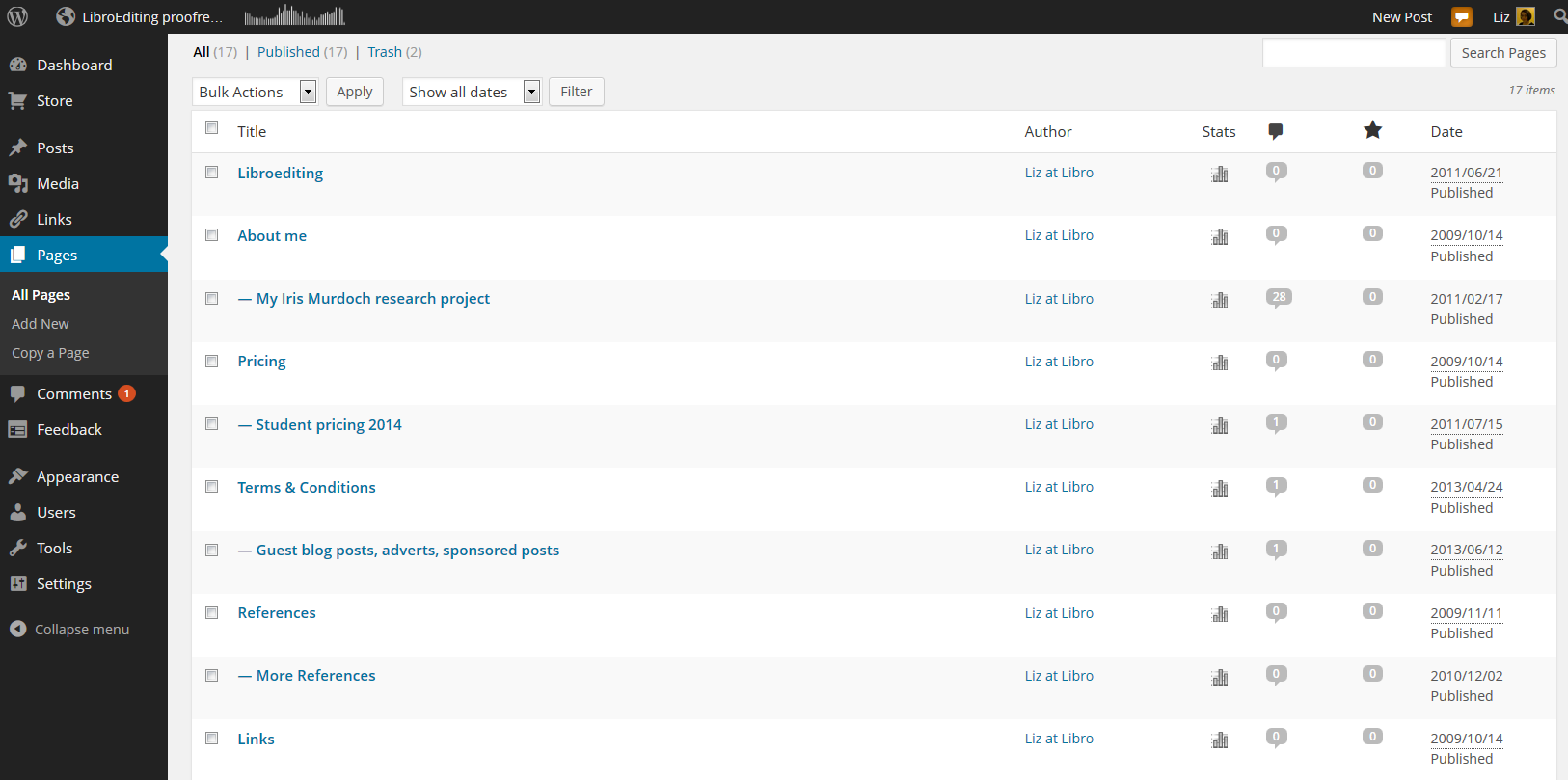
You can view all of your pages by going to the Dashboard and choosing Pages – All Pages. Here is part of my page list for this website. If you hover over any page title with the cursor, you’ll get the Edit / Quick Edit / Trash / View options to allow you to make any changes you want to. If you have any pages in Draft form, not yet published, you’ll see Draft next to All / Published / Trash and you can click to see all of your draft as opposed to published pages.

11 pages

Useful pages that I would recommend including on your business website are:
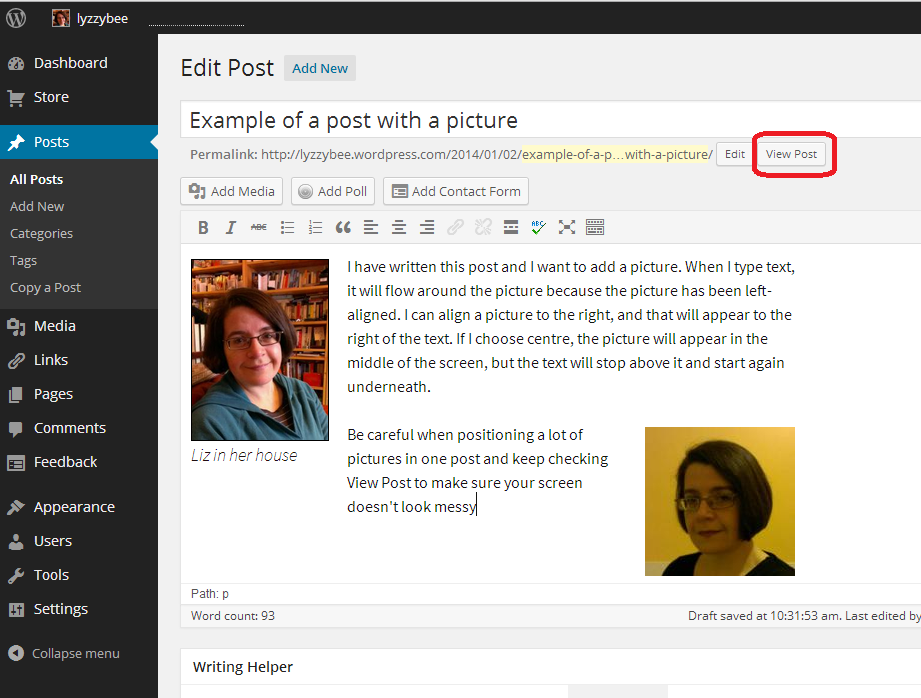
  • About me (with a photo)
  • Services
  • Prices
  • Testimonials / references
  • Contact me (with a contact form)
  • Blog
  • Links (links to colleagues and recommended websites – always kind to do)

How do I change the order in which my pages appear? How do I create sub-pages?

It’s good to be able to control what order that top menu and any side menus appear in. As you get more pages published, you might find there are too many for the menu to display, and it starts to look a bit messy. You might want to arrange pages in sub-categories, under other main pages.

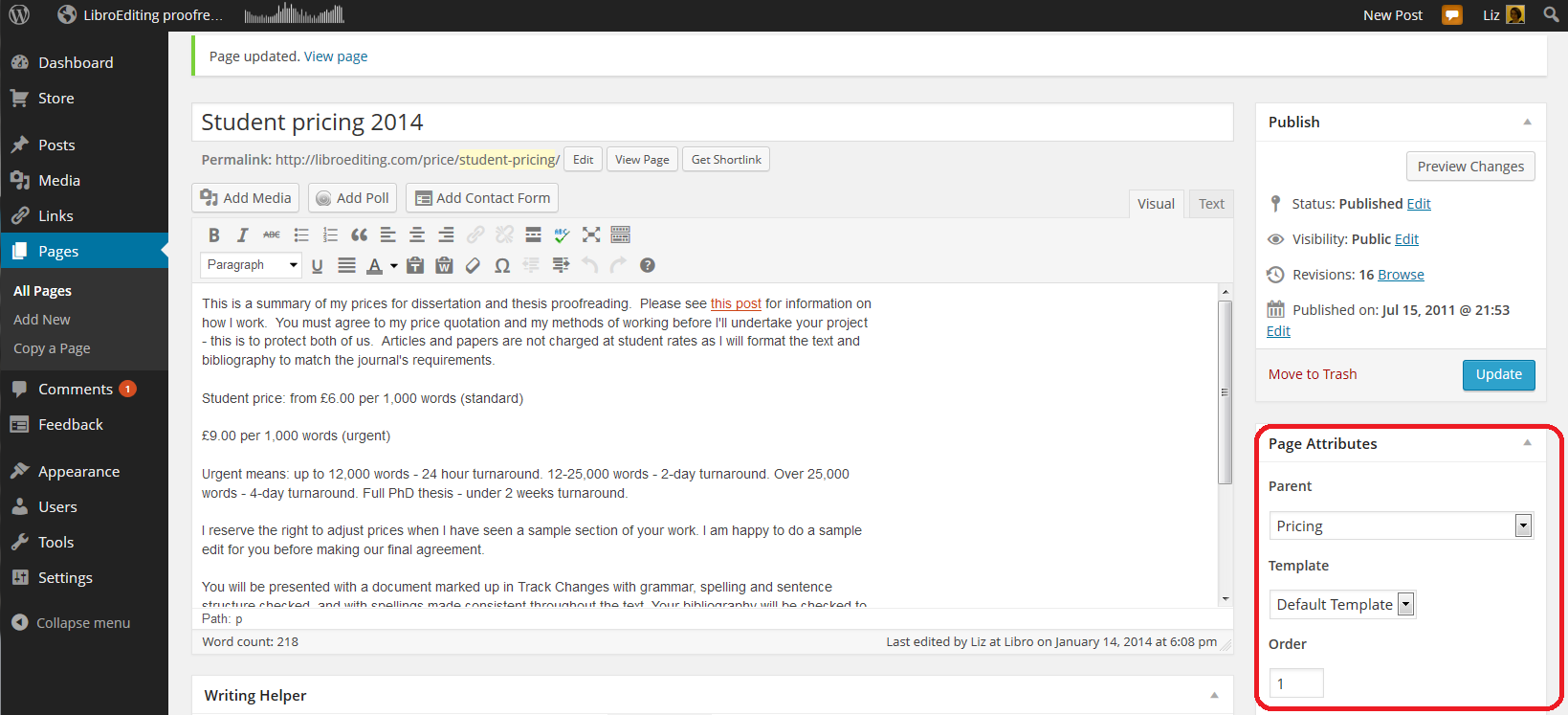
The place to do this is in the Edit screen for your page (click on Edit when viewing the page or select Dashboard – Pages – All Pages and click on Edit for the particular page). You will notice a section called Page Attributes. Here, we’re looking at my Student pricing 2014 page, which is a sub-page of my Pricing page. Note that I’ve chosen a Parent page from the drop-down menu of all of my pages. When you’ve completed all changes, press Update to save them. You can also choose the order … see below …

12 sub pages

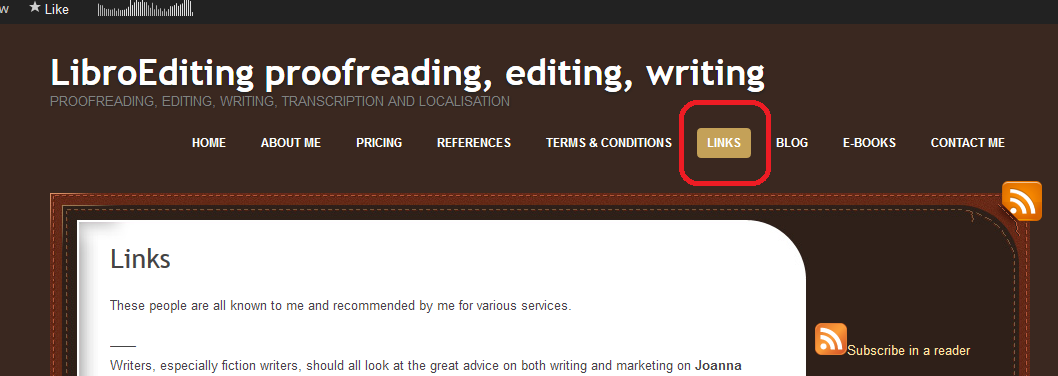
It’s nice to have your landing page on the left and your About me quite prominent, with other pages such as Links down the order a little. That same Page Attributes area allows you to choose a number to define the order the pages appear in on your menus. Here, I’m giving my Links page number 6. I press Update and view the page …

13 page order

Looking at the page itself, you can see that the page name is number six in the list of pages along the top!

14 page order

Note: not all designs of WordPress blog have the menus automatically along the top. But they should appear at the top or down the side. Play with the choice of design if it’s not where you want it to be, or add a menu to the side bar, which we will learn about another day.

How do I do a quick edit?

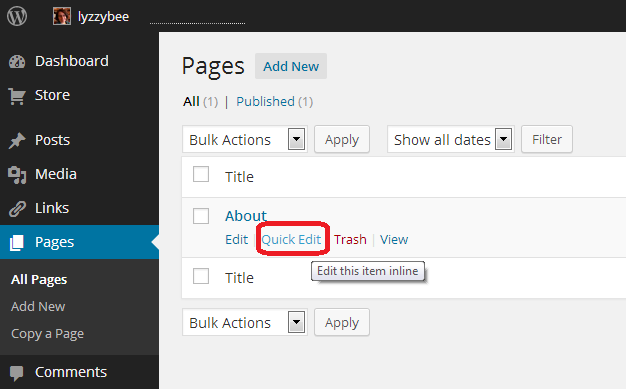
If you just want to change the title, page order or other attributes for a particular page, view All Pages, hover over the page title and choose Quick Edit.

15 quick edit

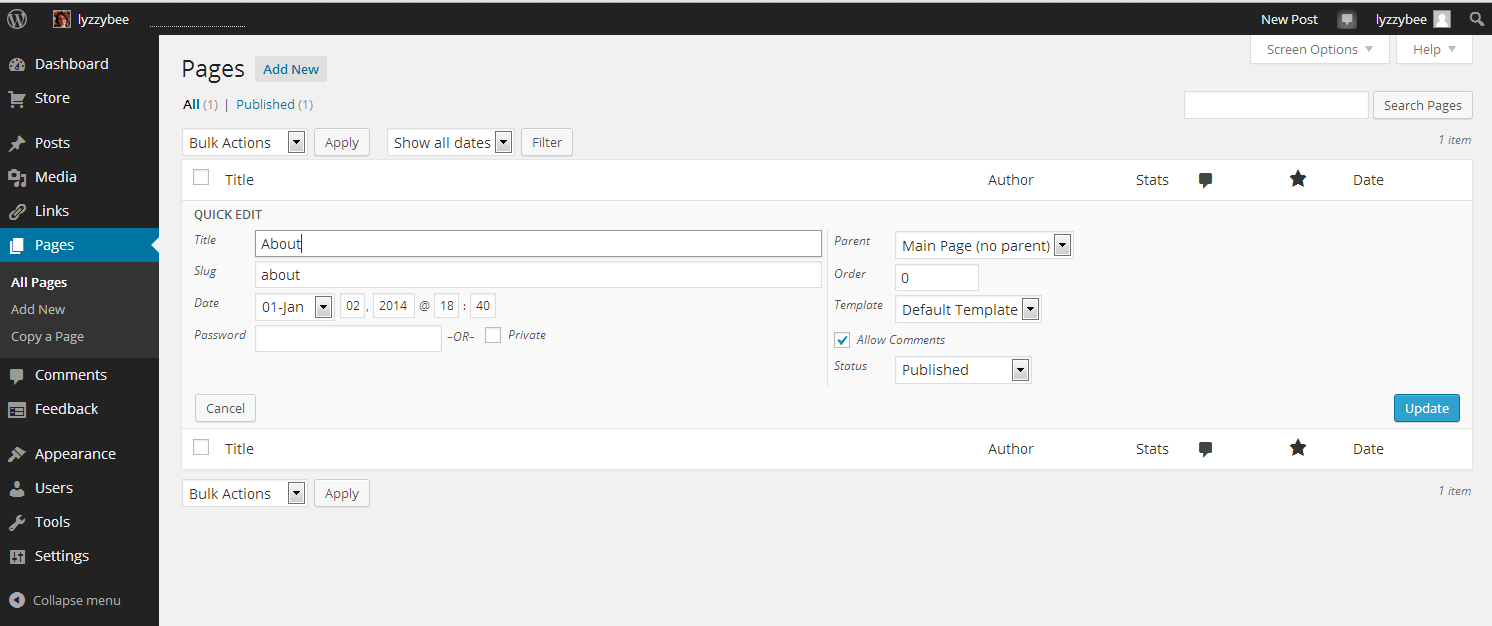
You will get a limited number of options, but this can be a quick way to do an update. Click Update to save.

16 quick edit

In this article, we’ve learned how to add web pages to a WordPress blog to make it into a website, using WordPress.com hosted by WordPress itself. These basic ideas should be the same on self-hosted WordPress sites.

I hope you have found this article useful. Please share using the share buttons below, or post a comment, and do please let me know if you use this article to help you to set up your own blog, and post a link below!

Related posts on this blog:

WordPress 1 – the basics – joining and setting up a blog

WordPress 3 – adding images to your post or page

WordPress 4 – adding slideshows and galleries of images

WordPress 5 – linking your blog to your social media

WordPress 6 – sharing buttons

WordPress 7 – adding an avatar picture

Is it worth having a website for my business? – the big question (and the answer’s Yes!)

Adding links to blog posts – how to do it on the major blogging platforms (and email)


Tags: , , ,

Is it worth having a website for my business?

websiteIn my networking adventures and other travels in the world of small business, I come across quite a few people who don’t have a website. To be honest, I’m a bit shocked when this happens. Unless you’ve got a constant set of clients, with new ones on the horizon to fill in any gaps if you lose one, then you’ll want to be findable.

When you think about getting the roof done, or finding a cleaner, or sourcing flowers for an event, or buying a product, where do you look?

Online.

Even if you look for a tradesperson on a Yellow Pages style website, I bet you like to have a URL to click through to, to look at their details. Right?

If you don’t have a website, even a single page with your name / company name and information about yourself, then what will people find when they search for you?

How do people search for companies, products or services?

People come to my website in one of four ways:

  • They search for my name
  • They search for my company name
  • They search for something that I do
  • They search for the answer to a question (“is it en route or on route?” “How do I repeat the header row of a Word document on every page?”)

This is what would happen if I didn’t have a website:

  • If they search for my name, they’ll find my Twitter or Facebook feed, or photos of me socially, or mention of me on forums. All fine, but they’d probably rather find either my Facebook or my company information in one place
  • If they search for my company name, they will find my Facebook or Twitter feed, however, those mention and feed back to my website, as they’re not enough in themselves to maintain interest and get me business
  • If they search for something that I do, they’ll find someone else’s website and if they’re looking for someone to do that work, they’ll hire that someone else
  • If they search for an answer to a question, someone else will answer it, and if they’re looking for someone to work for them, they’ll hire that someone else

This is what happens because I have a website:

  • If they search for my name, they’ll find my website and my other feeds, which all link together. They’ll find out what I do and if they want to talk about work, they can contact me
  • If they search for my company name, they’ll find my website, find out what I do, and possibly hire me, getting in touch via my contact form
  • If they search for something that I do, they’ll find my website, find out that I do that, find references from people who I’ve done that for before, and possibly hire me – getting in touch via my contact form
  • If they search for an answer to a question, if I can answer it, they’ll find out that I know what I’m talking about, and note me for later or sign up to receive emails when I post, and might hire me in time, or ask me a question or engage with my blog

The bare minimum

As a bare minimum, you should have a page somewhere that includes …

  • Your name
  • Your company name (if it’s different)
  • A list of your services or products – make sure that you mention all of the forms of the things you do on that page (so I would include transcriber, transcription services, editor, editing, etc.)
  • References from satisfied customers
  • A way to get in touch with you – a contact form, a phone number (most people like to see this), an email address
  • Professionally produced text – by which I really mean have someone check it for typos and spelling mistakes. Those will seriously undermine your reputation and send people running from your services – whatever they are

It’s a good idea to have your company name in the url for your website, but personally I don’t hold it against small companies if they have the word blogspot or wordpress in their URL – you don’t need to pay extra to have that if you don’t want to.

You can use a Facebook page as your company web page, however I would hesitate to ONLY use something that changes so often and is as unpredictable as Facebook. A company Facebook page is better than nothing, however!

Optional extras

You can add these extras if you want and if they add value. If you find that you’re getting a steady stream of enquiries via your simple website, and they turn into paying customers, then only add these items if you can see a clear value in doing so, rather than doing it out of vanity or because someone’s persuaded you to buy their service.

  • A URL that’s just your company name – you will have to pay for this, probably renewing annually
  • A professionally designed website – there are so many “themes” on offer that look as good as professional websites.
  • A blog – this is GREAT for driving people to your website and setting you up as an expert in your field. If you only do one of these things, write a simple blog
  • Someone to write web text and blog posts for you
  • Search Engine Optimisation – a professional can ensure that you’re showing up in the search engines etc. But shop around – this can be expensive and there are lots of things you can do to SEO your site on your own (just have a little search engine search and see what you can find)
  • A shopping cart and catalogue – very useful if you’re producing craft items or any tangibles – but you can sign up to services like Etsy and eBay which will do this for you

The big caveat

It’s really important to have a web presence so that people can find you.

It’s really important to be super-vigilant, because unscrupulous companies prey on small businesses’ lack of expertise in this area.

  • Always ask around fellow small business owners or someone whose website you admire and see who they use
  • If someone offers to make you top of the search engine results, ask what other sites they’ve worked on (always ask for references anyway) and do a search for yourself
  • If someone offers to revolutionise your website and make you a millionaire overnight, they’re probably over-selling. Ask for references
  • If someone offers to build your website make sure – no, MAKE SURE – that you will be able to edit and update the text and pictures on that website whenever you want to. Never hand over the full ownership of your site to another person such that you can’t update it yourself.

If you haven’t got a website, and you haven’t got a steady stream of new and regular customers giving you a good income stream, I really do suggest that you get a website!

Read more here about growing your business, have a look at my advice on blogging and social media, read about how to set up a WordPress blog and website (starting with this post) and read about my own business journey in my book, Going It Alone At 40.

Related posts

WordPress 2 – adding pages to create a website
 
11 Comments

Posted by on January 13, 2014 in Blogging, Business, New skills, Social media


Tags: , , , , , ,