RSS

Category Archives: Writing

Expensive or expansive?

Although these are two different words that mean two different things, they are spelled very similarly, and I think that’s how the confusion creeps in. Having said that, even though the a and e are not next door to one another on the keyboard (I had to check that: I touch-type and most of the letters have worn off my keyboard through over-use) this one does come up fairly frequently.

Expensive means of high cost – either in monetary or some other terms. An expensive training course costs a lot, an expensive manoeuvre might cost the army dear in terms of people or equipment.

Expansive means covering a wide area, or extensive (although I don’t see extensive mixed up with expensive, which you would kind of expect!). It also means relaxed, communicative and genial, when used to describe a person. “The grounds of the castle are expansive”.

So you may have grounds which are both expansive, as in large, and expensive in terms of their cost of upkeep. But there’s going to be no more mixing up of the two words, now, is there?

You can find more troublesome pairs here and the index to them all so far is here.


Tags: , , ,

Pus or puss?

Yuck, yuck, yuck! I said to (well, Tweeted to) the last person I saw muddling these up, “Don’t make me do a Troublesome Pair on this one!” but actually there is a need, isn’t there.

I’ll make it short.

Pus is the liquid formed in infected tissue

Puss is a term of affection for a cat, or a coquettish (young) woman.

Pussy (pronounced to rhyme with “fussy”) means full of the above liquid. Pussy (calm down … and pronounced with a u as in “pushy”) is another affectionate term for a cat. Maybe that’s how the confusion has crept in.

Anyway, there we go: all done now. Eugh. But necessary, yes?

You can find more troublesome pairs here and the index to them all so far is here.


Tags: , , ,

My short cuts – Using AutoCorrect in Word (1) What it is and where to find it

Have you come across AutoCorrect yet? Open up a Word document and type “teh”. Did it magically change to “the” in front of your eyes? That’s AutoCorrect.

So, it’s great for correcting common typing mistakes that lots of people make. But did you know that you can harness its power to help you write and type more efficiently and faster? In this article, I’ll tell you more about AutoCorrect and explain where to find it in different versions of Word, so you can tinker with it to tailor it to your requirements. In the next post, I explain just how to do that.

How to access AutoCorrect in Word 2003

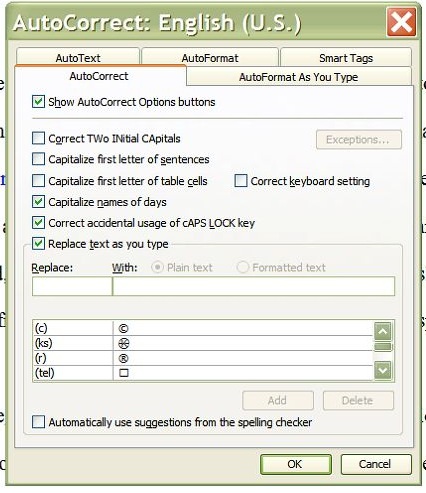
Let’s look at Word 2003 first. You can find AutoCorrect under the Tools screen (I have to admit that it was so much better when it was so accessible, right here off a main menu. Nowadays, they like to hide it!). Click on Tools and then near the bottom, you’ll find AutoCorrect Options.

Once you’ve clicked on AutoCorrect Options, you’ll find yourself at a screen that will start to look familiar as you work your way through this article. This is where you can see what is already set up, and delete / change / add AutoCorrect entries as you wish. More about that in the next article!

How to access AutoCorrect in Word 2007

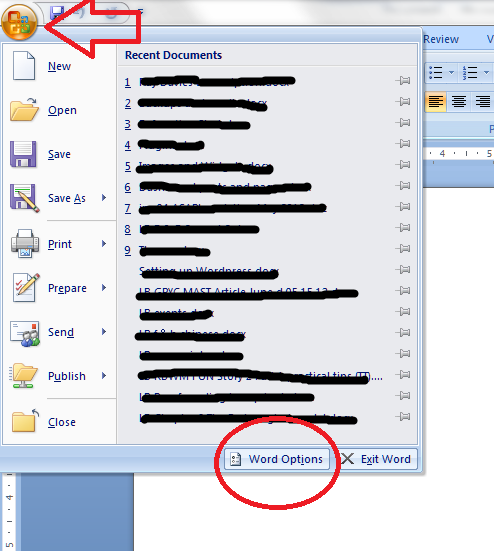
Here is how to access AutoCorrect in Word 2007. When I first moved over to Word 2007, I found it a bit hard to track down AutoCorrect – the key is to click on that Office button in the top left corner of the screen. When you do that, a menu will come up below the button, with a list of the files you’ve recently accessed (that’s what I’ve blanked out, for confidentiality purposes!), with a list of things you can do and, right at the bottom, a Word Options button. Click that button.

Once you have clicked on the Word Options button, you’re confronted with another menu (oh, for the simplicity of Word 2003!). You’ll find lots of intriguing options here, some of which we’ll be exploring in further articles, but for now, what you want is Proofing, about half way down on the left hand side. Click on Proofing and you will get a menu including the heading AutoCorrect Options. Click on the AutoCorrect Options button …

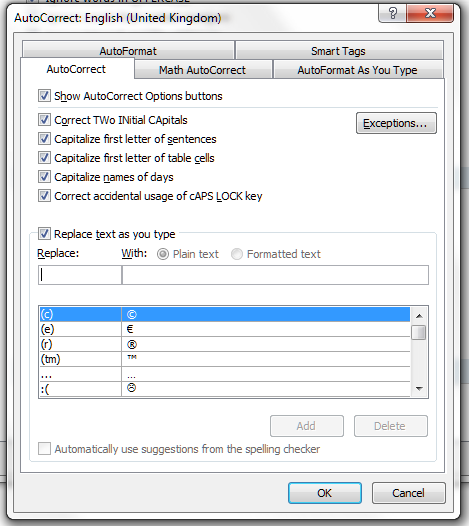
… and you come to a rather familiar screen, offering you a place to delete, change and add AutoCorrect entries as you wish. More about that in the next article! Note that you can also set up a shortcut button on your Quick Access Toolbar if you use this a lot.

How to access AutoCorrect in Word 2010

Now, in Word 2010 I feel like they’ve buried AutoCorrect just that one level deeper. But we’ll find it! To access AutoCorrect in Word 2010, you need to first click on that File tab, one to the left of Home, to which Word defaults. This has replaced the Office button from Word 2007. Anyway, Click on the File tab and you will be given a menu which, handily enough, doesn’t have a “Word Options” entry, but just Options. Click on Options.

Once you have clicked on Options, you will be given a new menu. This is quite similar to the one in Word 2007. Choose Proofing and then AutoCorrect Options.

… and here is your menu where you can see what is already set up, and delete / change / add AutoCorrect entries as you wish. More about that in the next article! Note that you can also set up a shortcut button on your Quick Access Toolbar if you use this a lot.

In the second half of this article, we look at how to tailor the automatic corrections to suit your purpose, whether you have a word you just can’t spell or type correctly, or you need to type a lot of words fast and want to auto-type particular common phrases.

Many thanks to Katharine O’Moore Klopf for the Word 2003 screen shots!

Please note, these hints work with versions of Microsoft Word currently in use – Word 2003, Word 2007 and Word 2010, all for PC. Mac compatible versions of Word should have similar options. Always save a copy of your document before manipulating it. I bear no responsibility for any pickles you might get yourself into!

This is part of my series on how to avoid time-consuming “short cuts” and use Word in the right way to maximise your time and improve the look of your documents. Find all the short cuts here


Tags: , , , ,

Asterisk or Asterix?

This one is a real life example of something I found in an academic text. Luckily I spotted the error and saved the client’s blushes! But I also thought, “Aha – a Troublesome Pair!”

Asterix is a cartoon character, a Gaul resisting the Romans, in a series of French books.

An asterisk is one of these * – a little star which is usually used to indicate that there is some text in a footnote at the bottom of the page.

Don’t put a Gaul where you mean to put a little star, or, indeed, a little star where you mean to put a Gaul!

You can find more troublesome pairs here and the index to them all so far is here.


Tags: , , ,

Me or myself?

I find that I and other people wince a bit when we see myself used, as it commonly is, in a seeming attempt to sound more formal, or managerial, or literary, or, well, something. We’ve all seen it – “If you have a problem, please contact myself”. Keep it simple is the rule here: “If you have a problem, please contact me”. There is a place for myself, but it’s a smaller, more precise place than people may imagine.

OK, I’m ranting a bit now; let’s just look at the rules for this one …

Myself is the reflexive first person singular – used by the speaker to refer to themselves as the object of a verb or preposition when he or she is the subject of the clause as well – “I picked myself up from the ground and continued on my way”, “I got myself dressed in time for the video call with my important client”. It’s also used in an emphatic way for I or me, emphasising that something was done personally by the speaker: “I didn’t go to the hairdresser, no: I cut my hair myself”. These, really, are the only times we use myself.

Me is the nice, plain, simple first person singular, used by the speaker to refer to him/herself as the object of a verb where someone else is the subject: “He gave the job to me”; “Please contact me or Linda if you need this work to be done”.

If you’re doing something to yourself, you can use myself. If someone’s doing it to you, you need to use me. “I cleaned myself up after I grazed my knees”/”I cleaned myself”; “Gill cleaned me up after I grazed my knees”/”Gill cleaned me”. Clear now?

Don’t get mixed up with themself/themselves and me/I, while we’re on this topic of how to refer to people …

You can find more troublesome pairs here and the index to them all so far is here.


Tags: , , ,

Devise or device?

There are lots of other word pairs with an -s- and -c- (practise/practice, advise/advice) that are differentiated by the fact that one is a verb (the -s- one) and one a noun (the -c- one). These two have become slightly more separated and slightly less confused, I feel (but maybe you’ve found differently).

To devise is a verb meaning to plan or invent something (usually something such as a process, procedure or mechanism that is quite complicated). “He devised a route to get from Manchester to Birmingham, not using any motorways”, “The clockmaker devised a mechanism for making a watch show the time in 15 different time zones”.

A device is a noun meaning a piece of mechanical or electronic equipment made for a particular purpose (“He constructed a device for making American recipes using English measuring instruments”), or a plan, trick or scheme (and, by extension, a form of words that’s intended to produce a particular effect: “She used a metaphorical device to explain quantum mechanics in her astounding poem”).

So, you could, indeed, devise a device, but I don’t think you’d want to, simply because of the cumbersome repetition (just like you don’t practise practices!).

You can find more troublesome pairs here and the index to them all so far is here.


Tags: , , ,

My short cuts – how to change your text from upper case to lower case

This is part of my series on how to avoid time-consuming “short cuts” and use Word in the right way to maximise your time and improve the look of your documents.

Sometimes you really want to change a sentence from, maybe, all lower case to All Title Case, or ALL CAPITALS to all lower case, or some other variant.

And you know how to do it, right: delete the sentence and retype it, or delete the first letter of each word and retype it, or turn on overtype then forget to turn it back to insert when you’ve finished … well, there is a way to just do it with a couple of keystrokes!

How do I change all small letters to all capitals or all capitals to all lower case letters?

This is such a simple one. Highlight your sentence (1). With the sentence still highlighted, press shift and F3 at the same time. Magic! With each press of shift-F3 it will cycle through Title Case (2), UPPER CASE (3) and then back to lower case (4).

This is so useful if you’re grappling with a bibliography you’ve written or you’re editing (especially when the capitalisation in article or book titles is not consistent), or if you accidentally type something all in capitals.

Please note, these hints work with versions of Microsoft Word currently in use – Word 2003, Word 2007 and Word 2010, all for PC. Mac compatible versions of Word should have similar options. Always save a copy of your document before manipulating it. I bear no responsibility for any pickles you might get yourself into!

Find all the short cuts here


Tags: , , , ,

Adviser or advisor?

This one has come up a few times and so I am sure there are a few people out there who are confused when trying to choose between using advisor or adviser.

So, which is it to be? I think people may think that advisor is more formal (even posher) in some ways, and it’s definitely used more in official documents and marketing-ese.

But in reality, this is another pair that means exactly the same. Adviser or advisor: just pick one!

What I would say (and what I always say), is be consistent. If you introduce a mortgage advisor on page 1, make sure they haven’t changed into a mortgage adviser by page 4!

Oh: but it’s always advisory (not advisery, which isn’t a word) when you’re talking about having the power to make recommendations (but not to enforce them, interestingly). “The panel is operating in an advisory capacity and cannot force the employees to wear baseball caps”.

I personally prefer advisor. What do you think?

You can find more troublesome pairs here and the index to them all so far is here.


Tags: , , ,

What I got up to in April

Welcome to my April round up of what I’ve been getting up to. Do you find these round-up posts interesting? Would this series be better on my Libro Full-Time Blog? Do leave a comment, click on the share buttons or share my notifications on various social media locations!

Being self-employed full time

I was pretty busy for most of April and had to abandon a few attempts to get to networking events, but I did manage to make it to the Elizabeth Taylor Day in Reading and the BookCrossing meetup in town. I’m also much better at not worrying if it’s a quiet week. If it is quiet, I make sure I get some rest, catch up with my reading or work on my research project, rather than fretting.

Editing, writing, transcribing and proofreading

I’ve been busy with a variety of projects throughout April.

I started off the month finishing a batch of transcriptions for the international organisation I work for regularly. I also helped to recruit a few more transcribers for them, as I’m ideally placed to tell people EXACTLY what it’s like and make sure their expectations are set (“so, you’re going to be typing like a maniac for 8 hours a day, listening to non-native speakers of English talking about international affairs and taking their presentations down in a way that turns them into native English …”)

I did more work with my Master’s students including some pretty intense work to get their essays finished off for the beginning of the summer term, as well as proofreading other essays and dissertations for the student proofreading company I work for. In fact, looking back, it’s been a lot about the students this month!

I didn’t do a lot of writing for clients this month, but I did manage to finish writing my e-book (How I Conquered High Cholesterol) which is now in beta-testing and will shortly be available via Amazon.

I did a fair bit of US to UK English localisation for a couple of my clients, including working on a technical manual for some medical equipment, which was unusual and interesting! I do like the intellectual challenge of working out what “we” would say in a given situation, although I have to go off and refocus my mind when swapping between the two languages!

I’ve helped one regular client start to shape some blog posts into book form by editing them for consistency and taking out all the redundant bits, and I’ll be doing more editing for her in the coming month or so.

I’ve worked with the usual translators, too, of course – most of my clients are ongoing regulars now, which I like a lot!

Blogging and tax

I would be amazed if anyone didn’t know that I’d done my tax return in April (but here’s why, including the full horror of Going On To Payment On Account). Anyway, I know where I stand and what I’ve got to pay in tax this year, that’s all set aside and I’ve given myself the balance, so all set for a slightly less constrained year.

I’ve continued adding to my series of articles about using Word and my series of interviews with fellow small businesses , and I decided to put together a resource guide to the information to be found on my blog for businesses, students and Word users.

I published another five-sentence monthly newsletter – do sign up here for a quick read!

In more sociable news, I helped at the city centre Social Media Surgery session, and attended Social Media Cafe as usual (I wouldn’t miss that for the world). Finally, over on the Libro full-time blog I’ve added a few new resolutions to my list for Home Workers!

Coming up – transcription madness

I’m booked in for more transcription from late May into June, so I’ll turn into a hermit then (but I can’t wait to find out what happens to all the ongoing projects the organisation is working on!). Until then, I’m currently working on a rather technical geology text as well as the usual ongoing student, translator and editing bits and bobs.

Libro offers copyediting, copy writing, proofreading, transcription, typing and localisation services to other small businesses, individuals and corporations. Click on the links to find out more!


Tags: , , , , , ,

Advise or advice?

There are lots of other word pairs with an -s- and -c- (for example, practise/practice) that are differentiated by the fact that one is a verb (the -s- one) and one a noun (the -c- one). This one gets mixed up just as much, so it’s time to talk about it!

Advise is the verb. It means to offer advice to or to recommend. “‘I would not advise you to climb the steep face of the mountain: walk up the slope, instead,’ said John.”

Advice is the noun. It’s what’s advised: a recommendation or guidance offered with respect to future actions by the person being advised. “We took John’s advice, and took the easy way up the mountain.”

It should become easier to remember these once you have established that (in UK usage):

The word with the s is the verb, and involves doing something

The word with the c is the noun, and involves the thing itself.

You can find more troublesome pairs here and the index to them all so far is here.


Tags: , , ,