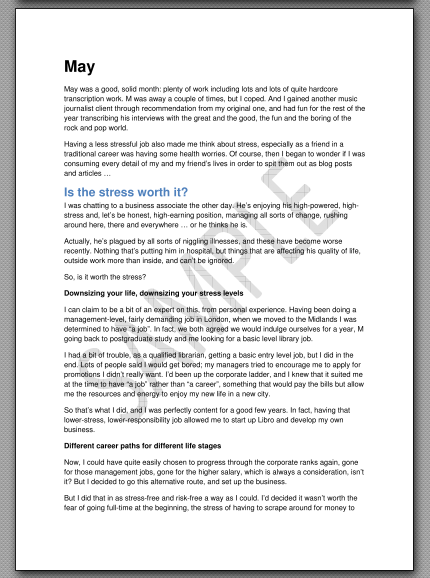
 Sometimes you want to set a watermark on a Word document. This article explains what a watermark is, why you might want to add one to your document, how to add a watermark, how to customise a watermark, and how to remove them.
What is a watermark?
A watermark is a word, phrase or picture that appears “behind” the text in a document. It gets its name from the physical marks that are created during the paper-making process. The pulp is floated in water, and a frame is brought up under it to collect the pulp into a square. The frame is lined with thin wires (and symbols or text can be included, too) and when the pulp is collected in the frame, it will be thinner where there’s a wire or other protruding part of the frame. When the pulp has dried into a sheet of paper, the thinner parts of the paper will let through more light when held up to a light source, and so you can see the symbols and words, as well as the lines of the original frame (this is how papermakers marked their stock and also how you can tell how a book was put together. For more information on the fascinating world of watermarks, you can start off with this Wikipedia article.
Why would I want to watermark my Word document?
If you watermark a document, whoever opens that document will see the watermark sitting behind that document. This is basically to stop it being used either in their everyday work or for other commercial purposes. It’s very much like the way that photos from mass sports events or wedding photographer sites often have words printed faintly across them. It stops you printing them out and using them without buying them.
Some reasons to do this:
- You’ve prepared a document for someone and you’re charging them after you’ve completed the job. Sending them a watermarked document will proved that you’ve fulfilled your side of the bargain but prevent them from actually using the document. Once they’ve paid you, you can send them a non-watermarked version.
- You’ve prepared a document to send out to people but you don’t want them to share it further or claim authorship, or you want to remind them it’s a sample. I’ve done this with the sample chapter of my book that I send out to people who sign up to receive my newsletter. It has “Sample” written across the page behind the text, so that people can’t use it in another way and to remind them that it’s just a sample and they can buy the whole thing.
- You’re sending out a late reminder of an invoice and if you were doing it on paper, you’d use one of those URGENT stamps and red ink.
- You’re creating a corporate document and want to include corporate branding of some sort behind the text.
Note that if you’re watermarking to protect your work, the watermarking should go alongside copyright statements if you want to use it for that purpose, and I’m not an expert on, or advising you on, copyright here – just telling you how to apply a watermark.
How do I add a watermark to a Word document?
To access the Watermark menu, go to the Page Layout tab, then look in the Page Background area, where you will find the Watermark button:
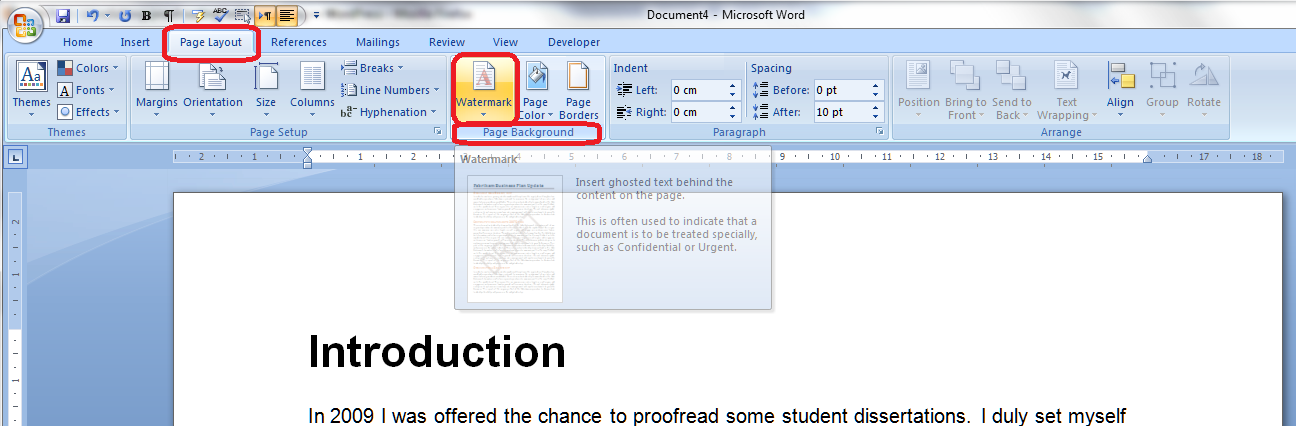
The Watermark button has a small downward-pointing arrow which implies that you can access a menu. Click on the arrow and there’s the menu:

If you select any of the standard examples that they give you (and note the scroll bar on the right, which you can use to see more default watermarks, that watermark will go straight onto your document. But you might want to customise the watermark in terms of wording, colour, text size and font, etc. and you can do that by selecting Custom Watermark at the bottom of this menu.
How do I customise my Word watermark?
Of course you will find lots of options for customising. Select Custom Watermark at the bottom of the Watermark menu to access the Custom Watermark menu:
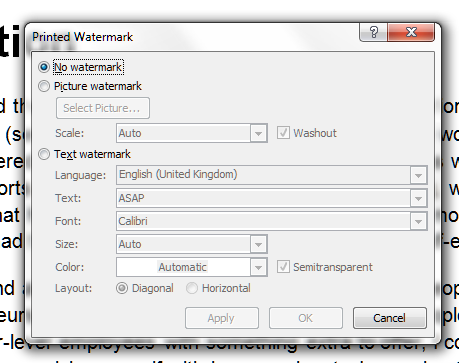
You can see here that the menu defaults to No watermark, because that’s what we started with. But there are options for adding a Picture watermark or Text watermark, and you select which you want to work with by clicking on the radio buttons in the left-hand margin. We’re going to work with a text watermark in this example, so we click on the radio button next to Text watermark:
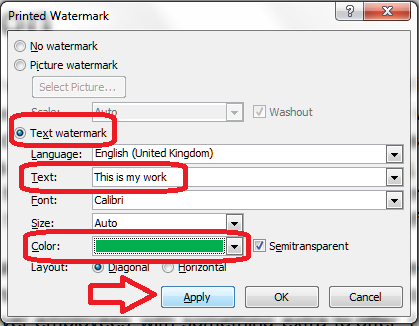
Now the fields to do with text watermarks become active (are no longer greyed-out) and we can change the language, the actual text, the font, size, colour and orientation.
Here I’m changing the text – it defaults to the first standard text but you can just type in what you want to appear there. I’m also changing the colour – but note that I’ve left Semitransparent ticked. If you don’t do that (see below), the watermark will be much heavier and will actually obscure part of the text … which can be useful, of course!
Once you’ve made your choices and changed the text, colour, etc., press the Apply button to apply the changes.
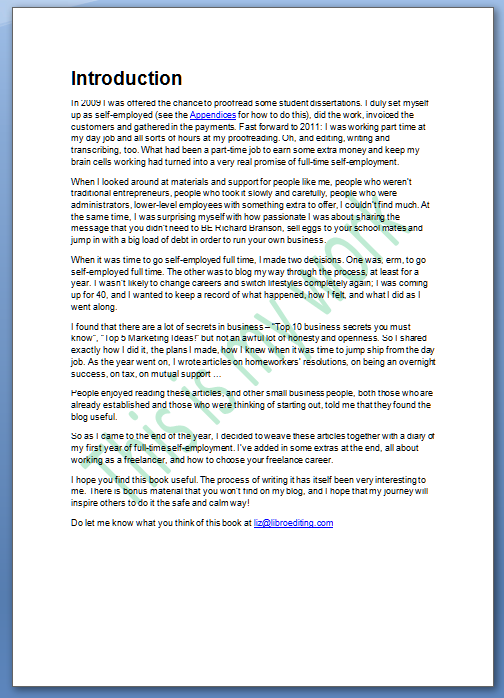
And here’s my custom watermark – my text, in the colour I chose.
Advanced watermark customisation
We won’t go into all the detail about customising here, as the menus are pretty self-explanatory. You can use the Picture watermark option to, for example, add your company logo to a tender document, or another image to make your documents look more attractive (beware of making them too “busy” or, worse, undermining their readability: remember that you need to consider people with low vision who might be reading the printed or on-screen document, and if you suspect the document might be photocopied in the future, steer clear of a lot of watermarking, as it’s apt to become darker and more visible when it’s copied).
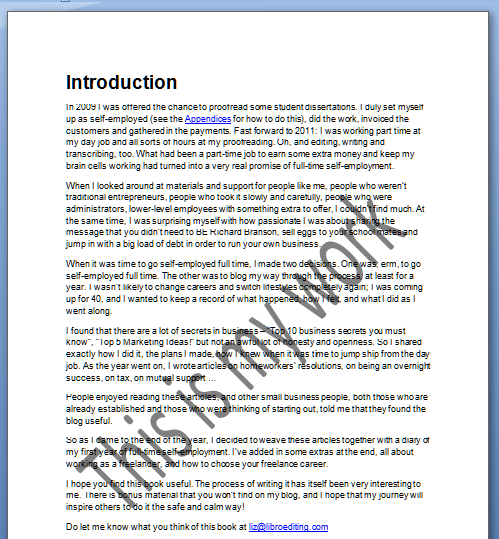
A quick look at transparency: if you untick the Semitransparent box in the Custom Watermark menu above, your watermark will be a lot heavier and may obscure some of the text. Here I’ve changed the colour to black and unticked Semitransparent.
How do I edit my watermark?
In the case I’ve just shown you, I simply went back into the Watermark menu then the Custom Watermark menu; my choices were there already and I changed them. The choices you have made will stay in the menu until you change them or remove the watermark entirely, so you can pop in and adjust it as you like.
How do I remove watermarks?
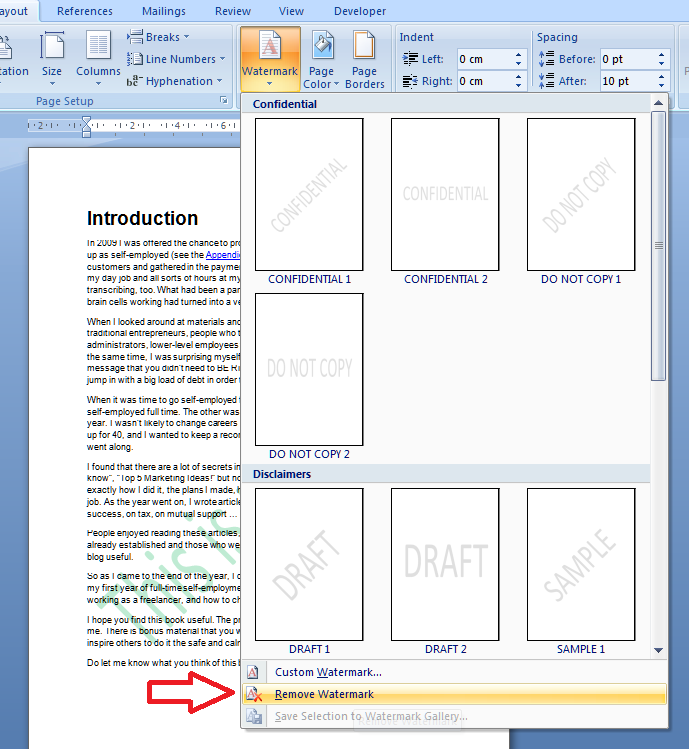
If you want to remove the watermarks on a document, go to the Watermark menu and select Remove Watermark:
Of course, this means that other people could remove your watermark, too. So if you watermark a document to protect it, and you don’t want someone to remove that watermark, you will need to protect the document itself by making it uneditable, either by security protecting it or changing it into a pdf document (the latter is what I have done with my sample chapter). That’s an article for another time …
How do I apply a watermark in Word 2013?
If you’re using Word 2013, you will need to note that they’ve added an extra Design tab, and you’ll find the Watermark feature there.
How do I create a default watermark for all of my documents?
There’s no way to save a default watermark or add one permanently to your watermark gallery. If all of your documents are going to have the same watermark, it’s best to create a blank document with the watermark applied, then save it as a Word template (Save – Save as – drop down Type – Word template). Then, use that template when you’re starting a new document in Word. Thanks to my commenters for suggesting this addition to the article!
———————
This is part of my series on how to avoid time-consuming “short cuts” and use Word in the right way to maximise your time and improve the look of your documents.
If you found this interesting, you might also be interested in:
How to protect your document in Word 2007
How to protect your document in Word 2010
Please note, these hints work with versions of Microsoft Word currently in use – Word 2003, Word 2007 and Word 2010, all for PC. Mac compatible versions of Word should have similar options. Always save a copy of your document before manipulating it. I bear no responsibility for any pickles you might get yourself into!
Find all the short cuts here …







































 LibroEditing proofreading, editing, transcription, localisation