RSS

Tag Archives: social media

Facebook for business – starting out

This post takes you through the basics of setting up a Facebook page. You may have found this page from a link in one of my e-books, if so, welcome to this extra free resource!

You can set up a page for your business on Facebook as long as you’ve got a personal page.

The slight issue with Facebook business pages is that Facebook wants you to pay for adverts and to have your posts and page promoted to other people. So do be prepared to receive lots of suggestions to pay for ads and promotion, and not a lot of interaction from other users.

How to set up a Facebook business page

You will need to be logged in to Facebook

Go to www.facebook/pages/create or click on Create a page when you’re in any other Facebook page …
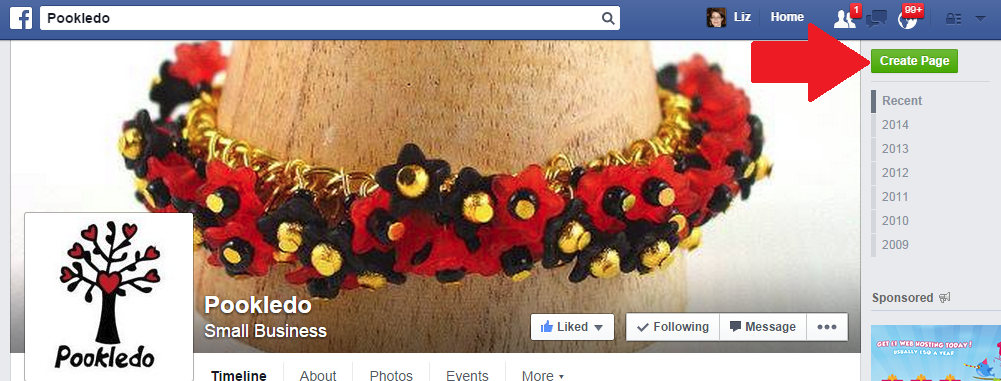
Facebook create a page button

and choose a category of page to create:
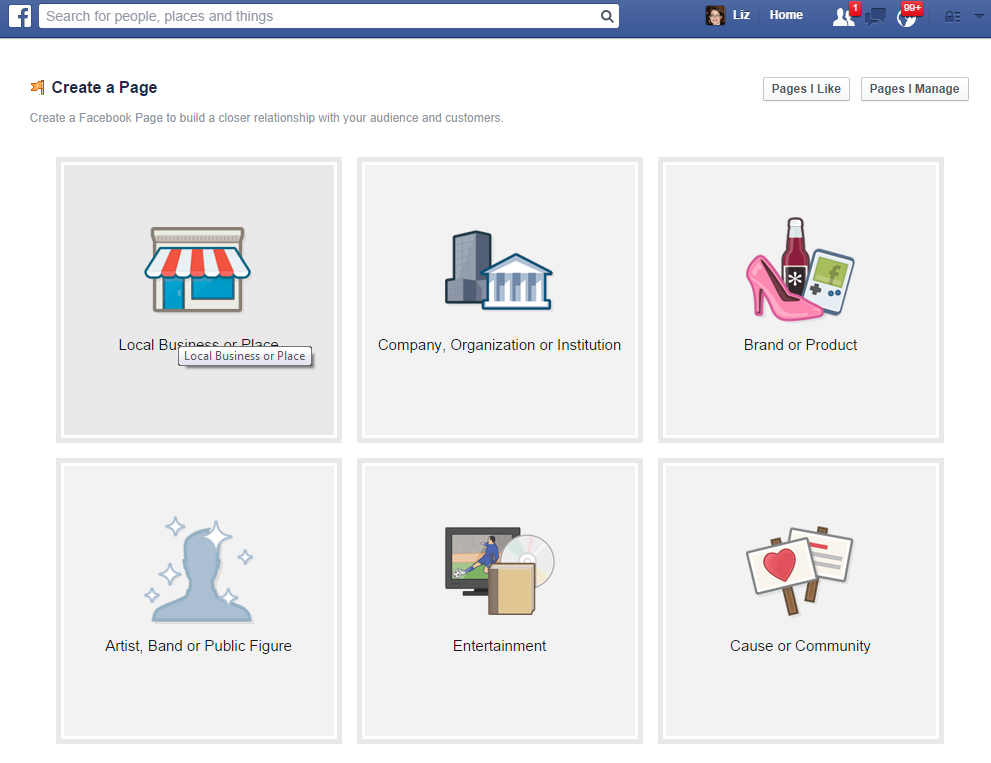
Facebook type of page

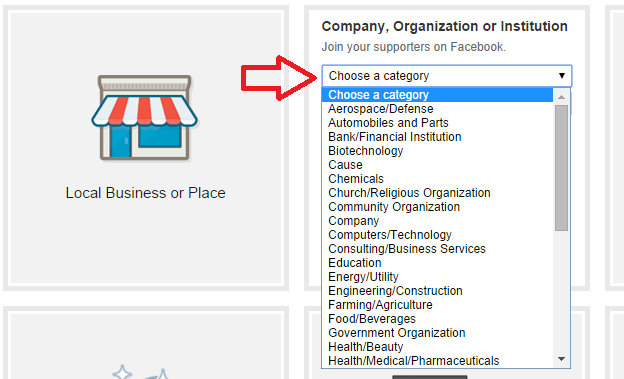
If, for example, you choose Local Business of Place or Company, Organization or Institution, you then need to choose your category, and it’s worth noting that you get different categories for Local Businesses …
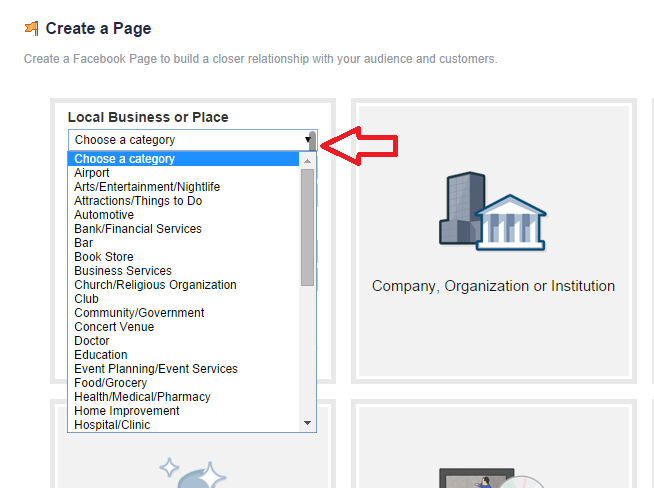
Facebook create local business page

… and Companies:

Facebook create company page

and give your page a name. If you choose local business or place, you’re given space to enter your address – good if you have a shop or need people to find you, not really recommended if you operate from your home office and don’t want all and sundry to know your address. I’m choosing Company, Organization or Institution:
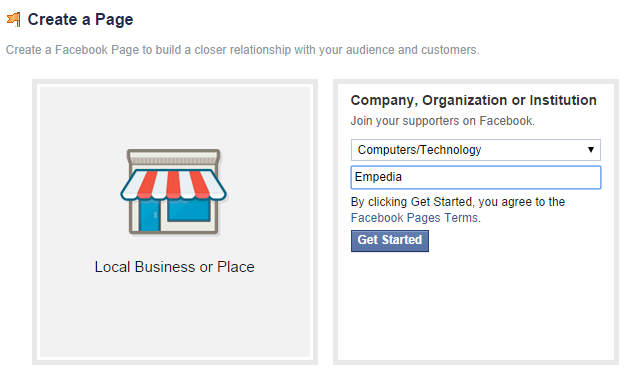
Create business page

Whatever type of page you set up, you will be asked to tick that you accept Facebook’s Page terms and conditions. These include a host of stipulations about promotions, advertising, tagging and other issues. Note that Facebook can remove admin rights and shut down your page if you don’t abide by these rules. This is why I would never suggest limiting your web presence to only a Facebook page – make sure that you have your own website, too.

Now it’s time to set up the basic details of your page – Facebook walks you through this:
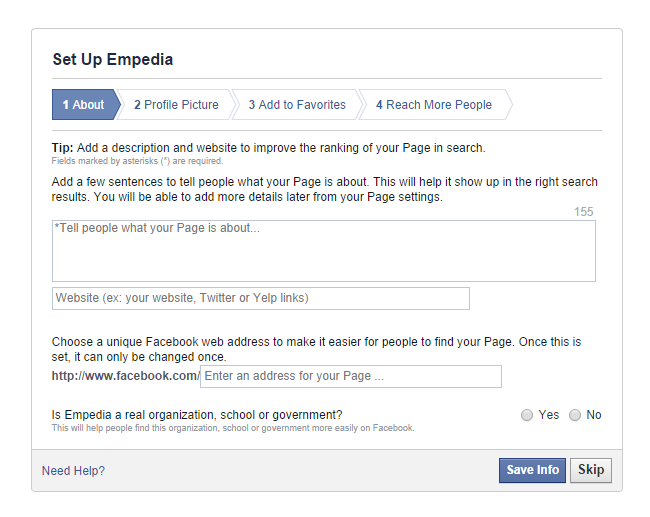
Facebook set up pageNote here that you used to have to have a certain number of Likes before you could choose a unique Facebook web address; now you can do it right away. Here’s this first screen with the info filled in. Note that once you’ve said that it’s a real organisation, you’ll get a second option to confirm that you represent the company:
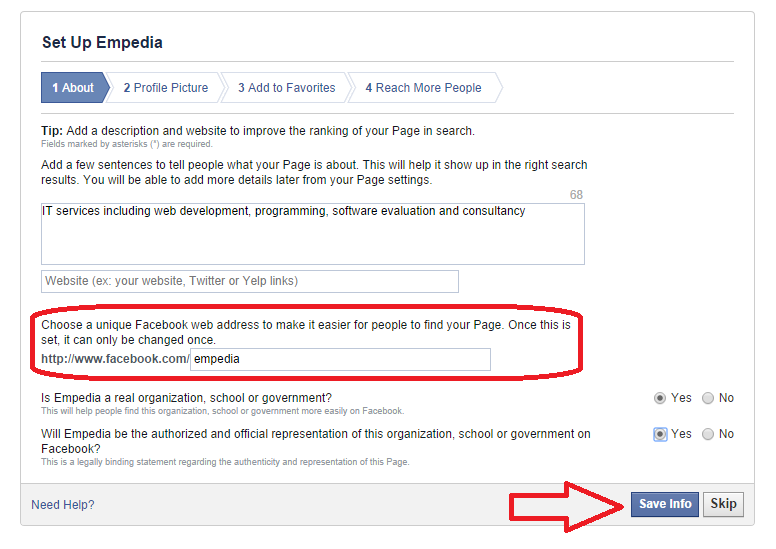
Facebook page set up filled in

This is the point at which Facebook checks that the URL you’ve chosen is available. In our case, it isn’t (I checked, and the URL belongs to an individual with the surname Empedia), so I’ve added to the URL to try again:
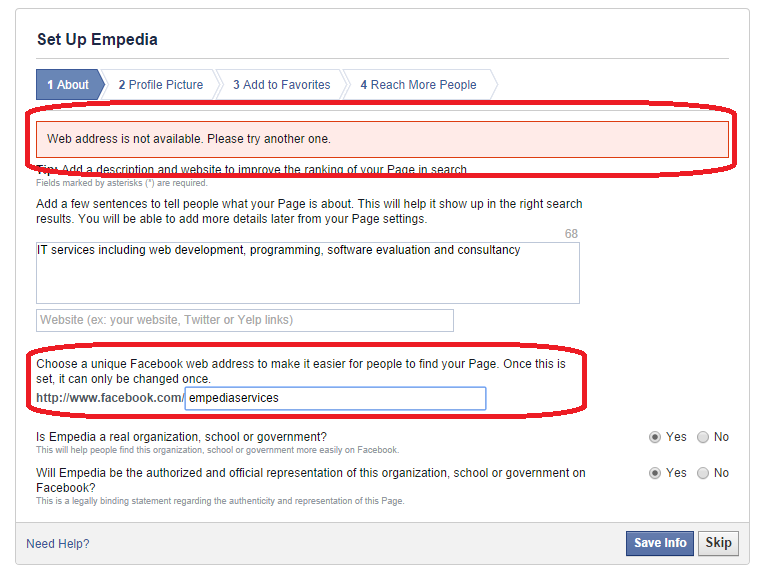
Facebook url not availableOnce you’ve saved this information, you can add a profile photo:
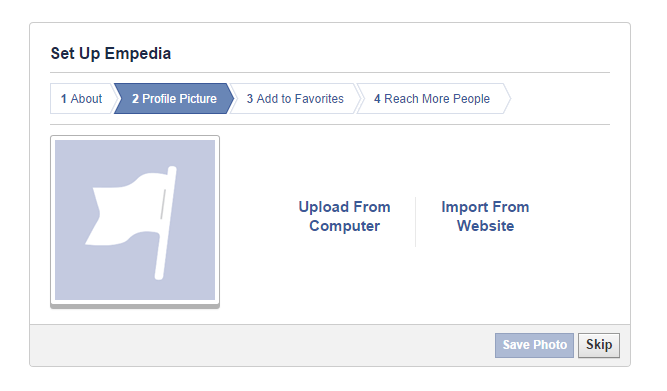
Facebook page add profile photoIf you choose Upload From Computer, you’ll be taken to your computer’s folders to find the photo you want:
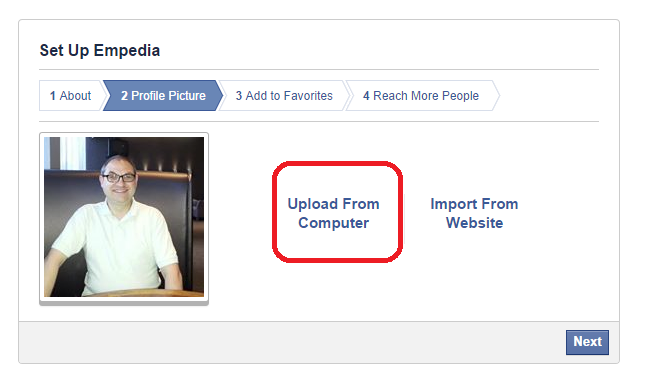
Facebook page add profile pictureYou will also be prompted to add the page to your favourites – this means that you’ll see when you (or someone else) posts to it and you will also see it in your left-hand side panel:
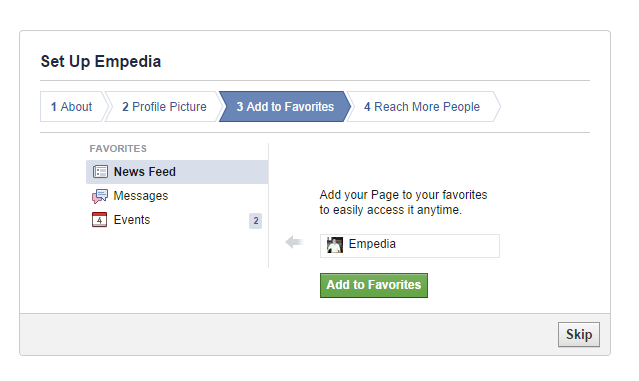
Facebook page add to favouritesThen you get a bit of hard sell with the Reach More People section:
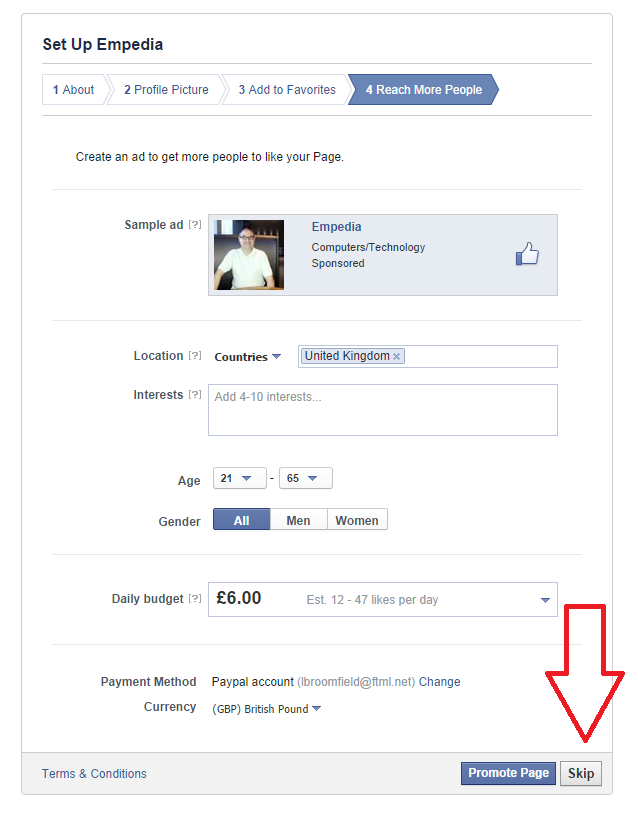
Facebook page reach more people I would certainly advise pressing the Skip button at this point, as anyone directed by an ad to Like a page that has no Likes or activity is not going to be compelled to do so!

And now you have your page!
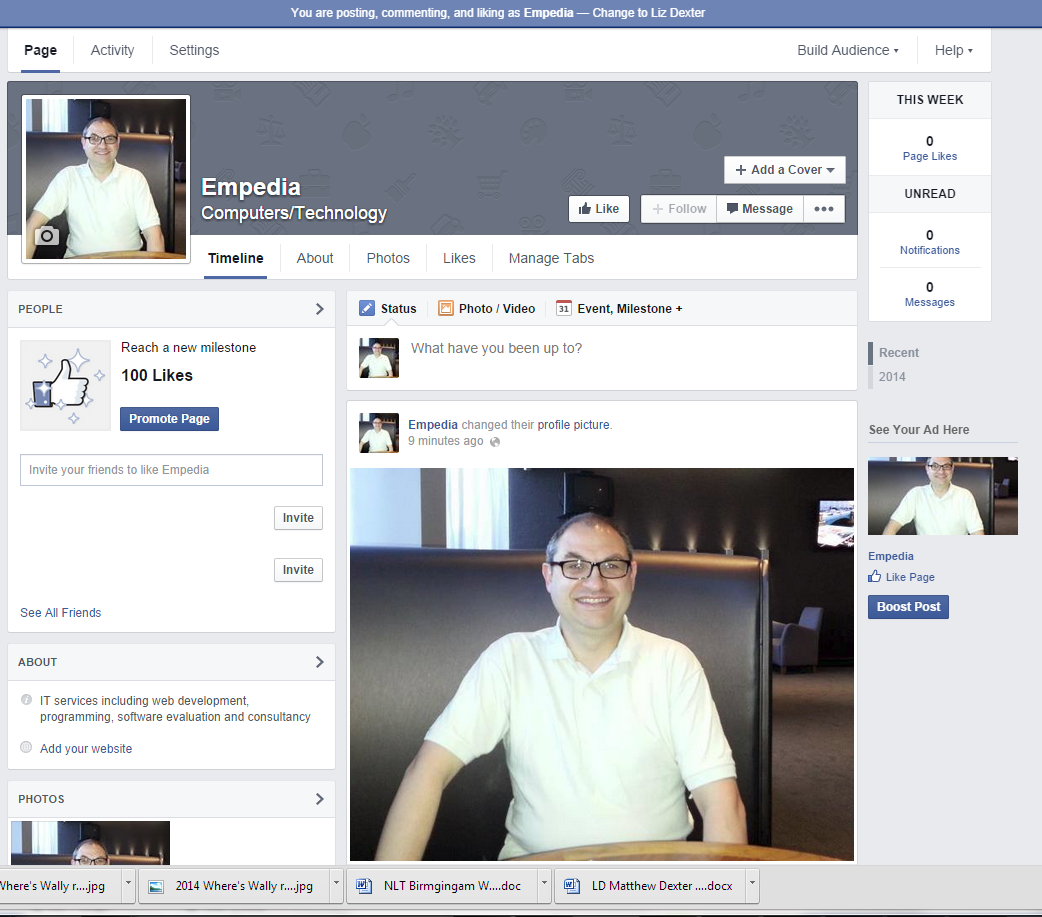
Facebook page

Once you’ve set up your basic page, you can set up a cover image for your page. There are all sorts of rules about what you can have here, but they change frequently, so refer to the current terms and conditions.
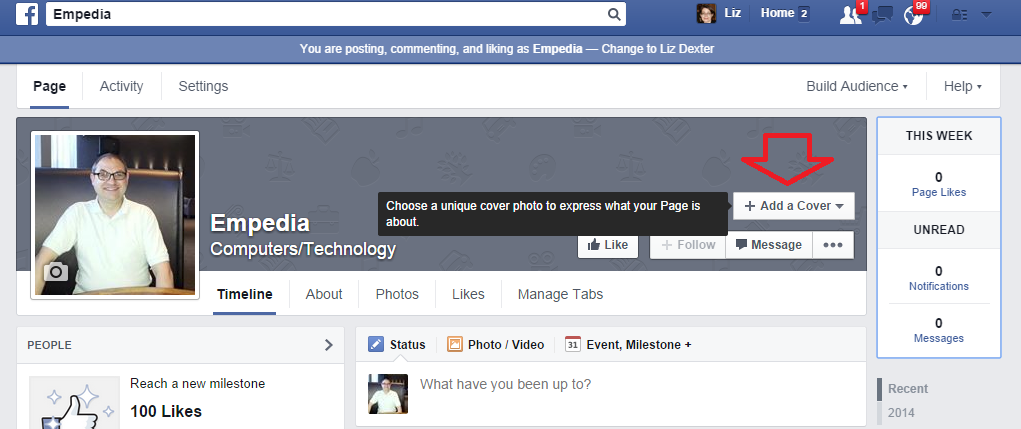
Facebook page add a cover

You can choose a photo from your albums or upload one from your own folders on your computer:
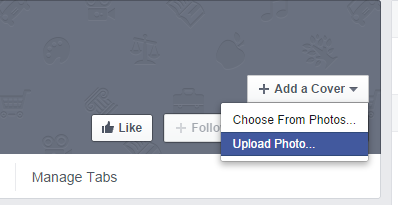
Facebook add cover

Once you have uploaded the photo, you can move it around until it’s in the right place, then Save Changes:
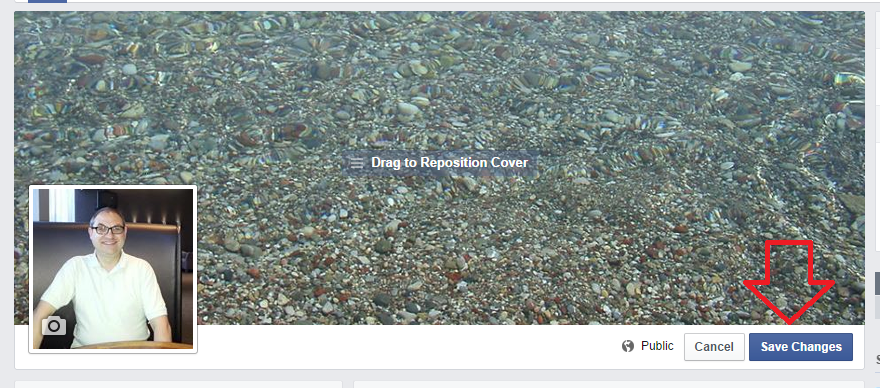
Facebook page cover

You can change these two pictures by hovering over them, at which point a button will appear offering you the opportunity to do so.

Facebook page change profile pic

When you’ve created your basic page, you can also add information and details as you wish. Use the Settings button to access these options:
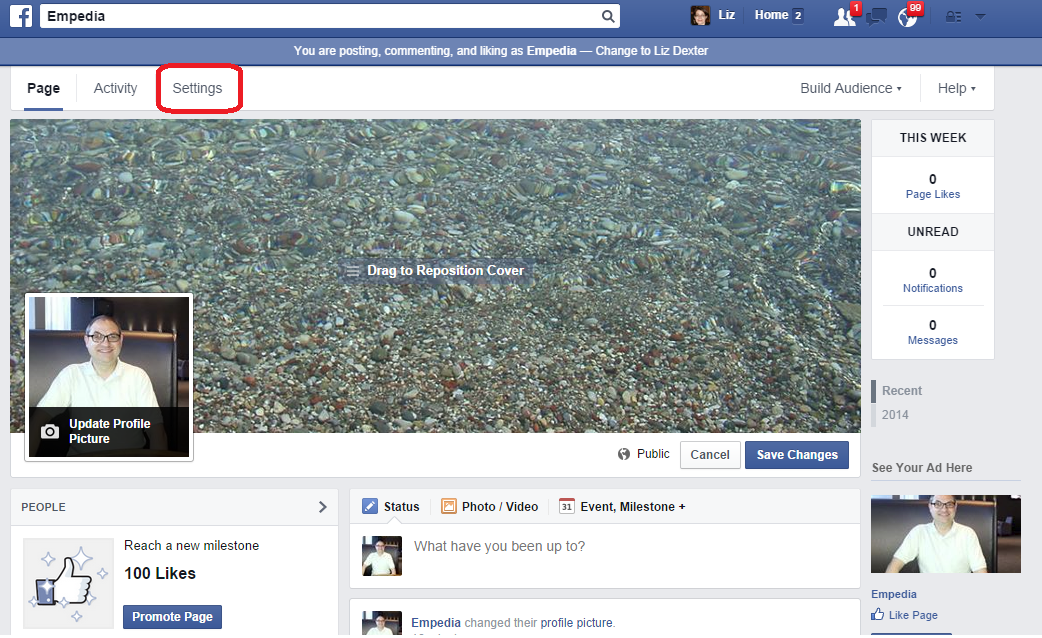
Facebook page settings

The Settings pages allow you to describe your business and add hours of operation, etc. You don’t have to fill in everything, but it is useful to add your website’s URL, for example. You can change this information at any time.
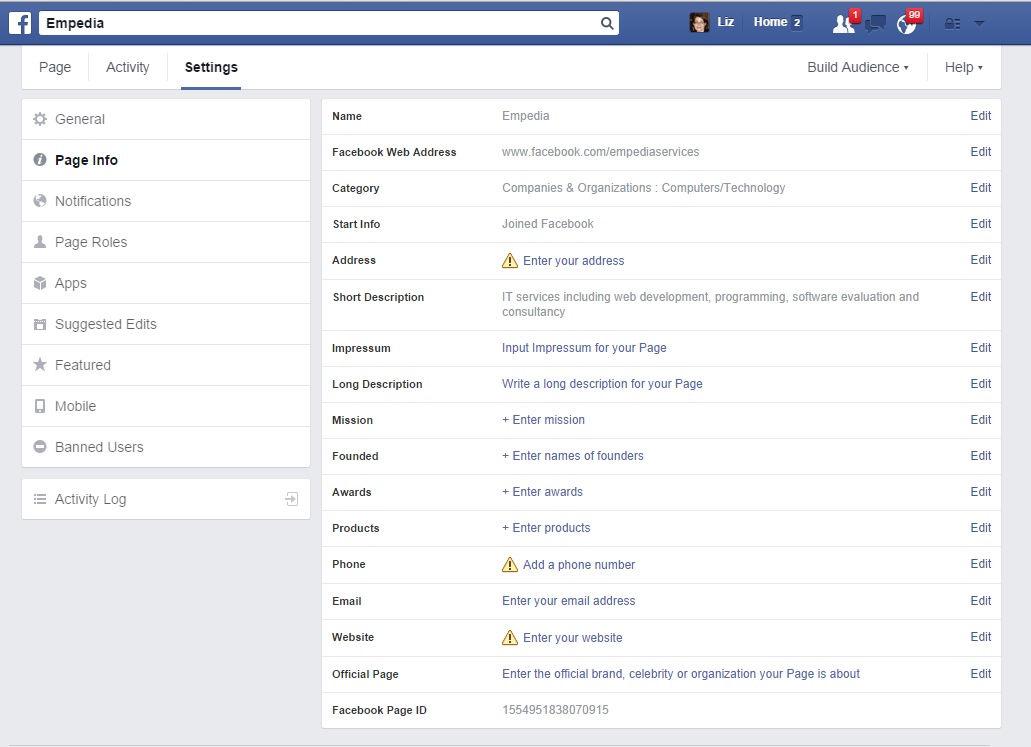
Facebook Page Info settings

General also allow you to set out who can post on the page and other features. This is useful if you have people putting spam comments, etc., on the page – you can set it so that only you can post. However, I do like to let people post and comment to foster a sense of community.  It’s worth looking at this area frequently, as what you can and can’t do does change over time.

Page roles allows you to add other people who can administrate the page – useful if you’ve set up the page but you have someone in your company who’s a social media expert. I’ve already written about this here.

You’ll see a Page button at the top of the screen which allows you to return to the page at any time.

The Activity tab lets you know how often your posts have been seen and the viewing figures. Note that these are likely to be distressingly small – see the section on paying for promotion below.

Interacting with people on your page

You can post updates on your page, including photos and notes, just like you can on your personal Facebook timeline. I send my blog post notifications to this page – but then I share them to my personal timeline, too, where they have more chance of being seen.

When you Like a page belonging to someone else, you can click on the down-arrow by Message and Like as your page – this will appear in their timeline and can lead to some nice, friendly interaction.

If you have set your page up to accept comments by others, do pop by the page to respond to these – a) it’s polite to reply to comments and b) you need to watch out for spam and complaints, and address them accordingly.

Stopping spam and dealing with complaints

It is possible to delete comments that other people make on your Facebook page. Just be aware that if you delete complaints, the complainer is liable to share the fact that you’ve done that – a bit of polite damage limitation on the page itself is often more appropriate.

If someone spams my page, I usually reply politely the first time, in case they’ve made a mistake, if someone’s just posted a link to their page and it’s vaguely relevant, otherwise they get deleted.

I will be writing a longer article about dealing with spam and blocking users – watch this space!

If you’re considering paying for promotion on Facebook …

Whenever I get tempted to advertise on Facebook, which they do promise can be targeted to your selected audience, I think about the random / odd / offensive / inappropriate adverts that I see on my Facebook timeline, and that makes me think that it’s perhaps not worth it.

If you do decide to pay for advertising, go for one of the pay per click options where you can limit how much you pay out per day. Observe how it goes very carefully, and try to assess how much business you’re actually getting for what you pay for (have a look at the articles in the Investing in Your Business section above).

The golden rule of Facebook business pages

There’s a golden rule that applies to all social media and that’s Be Yourself. Allow your own personal self to appear on those pages. Have a picture of you on the profile, and comment and respond as appropriate.

It’s also worth noting that your friends do not want to feel spammed by your business. I share my business page posts once at most onto my personal timeline. I don’t leap in to every personal conversation with “Oh, I can proofread that” or “need some transcription, just call me”. It isn’t appropriate, none of us like having that done to us, and it’s a good way to annoy those very people who might otherwise be spreading the word about your business. By all means, mix business with pleasure, but make your business page pleasurable to read and keep your personal page personal as well as businesslike.

Other useful posts on this blog

How to add an admin or moderator to your Facebook page

How to delete posts and block users from your Facebook page

Thank you to my husband, Matthew, for allowing me to set up a Facebook page on his behalf to harvest screenshots!

If you’ve enjoyed this post or found it useful, please click one of the sharing buttons below! Thank you!

 
12 Comments

Posted by on October 8, 2014 in Business, Social media


Tags: , , ,

How to avoid two common mistakes when using MailChimp

Mailchimp is a very popular program for sending newsletters – mainly because it’s free to use to send newsletters and other messages to up to 12,000 emails per month to up to 2,000 subscribers. I use it myself, as do the people who write quite a few of the newsletters I subscribe to. If you use MailChimp yourself, this post helps you to avoid two common mistakes that I see occurring very frequently (and if you don’t use it yourself, I bet you see at least one of these in the newsletters you subscribe to – feel free to share this post with their creators!).

What am I talking about?

Well, this is what you might see in your email box when you receive a newsletter:

MailChimp newsletter email with errors

Ignore the “[Test]” – that’s me sending test copies of my newsletter to myself for demonstration purposes. So, with email on preview mode, and then when you open the email:

Full MailChimp email with errors

… what can we see here?

  1. The email subject is simply “Newsletter”. Not that inviting.
  2. This is the biggie – there’s an odd bit of text in the preview that reads “Use this area to offer a short preview of your email’s content.”

How often have you seen the second point and been confused or even tutted slightly to yourself? (Note: as a kind editor, I avoid tutting. But I do smile wryly every time I see it and think, “I really MUST write a blog post about that one”).

How do these MailChimp mistakes come about?

I’m going to assume here that you know how to set up and send a MailChimp newsletter campaign, and just concentrate on eliminating these errors. If you need a step-by-step MailChimp walkthrough, let me know in the comments and I’ll put one together for you if enough people want it.

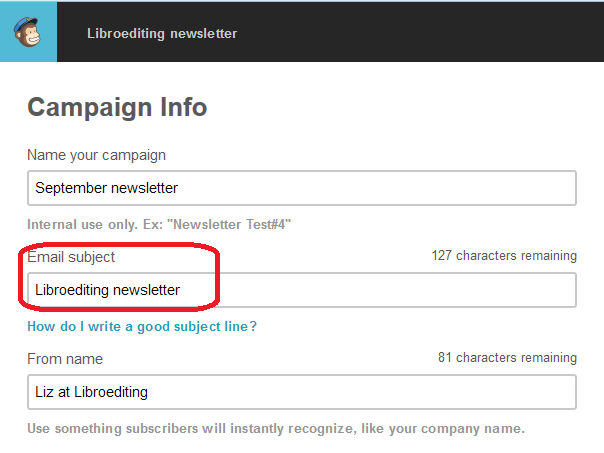
The boring email title error comes on the Campaign Info page:

MailChimp campaign info pageIf you set up your very first campaign with a title like this, it will carry on sending it like that forever, but this is editable. I’m not going to go into ideas for good subject lines here – first off, MailChimp obviously provides a link to some further information, as you can see from the screenshot, but I’d like to take a moment here to mention my client Nathan Littleton’s book, “Delivered“, which has masses of information on creating a good email marketing campaign, including lots of advice on subject lines (he’s not sponsoring this post: I edited this book and I got loads of ideas from it which I’ve implemented in my own newsletter, to good effect).

So, first things first: change that Email subject field to a good, interesting phrase and I’d like to bet that you’ll stop boring your subscriber list and get more opens.

The second one is the dreaded “Use this area … ” text. How does it get there?

Well, when you get to the Design screen in your campaign creation process, bits of helpful text automatically appear in your template to tell you what to do. And one of the bits of helpful text that always appears is this one, right in the top of the screen, and in ever such a small font so that you’re very likely not to see it:

Sample teaser text in MailChimp

And that’s where that text pulls from that displays in your recipients’ emails.

Whatever the design, it’s always up there. Your eye is of course drawn to the main body of the email – the nice picture, the lovingly crafted text you’re going to place into the template.

What do you need to do here? Simply click on that teaser text, just like you would to edit the main body of the newsletter, and you can enter whatever text you want to.

What should it look like?

Once you’ve given your newsletter a more dynamic subject line and eradicated that bit of pesky sample text, this is what your email recipients will see:

MailChimp errors corrected

I think you’ll agree that you’d be more likely to open that one .. and so will your newsletter recipients!

In this article I’ve shared how to avoid two common MailChimp newsletter errors. Please do use the sharing buttons below to share this with anyone who you think might find it useful – thank you!

 
48 Comments

Posted by on September 10, 2014 in Business, Errors, Social media


Tags: , ,

Infographic – social media etiquette

Today I have a guest post with a difference – an infographic, for the first time on this blog. It’s from writer and infographic specialist Ivan Serrano, and talks about many different kinds of social media and how to interact with them. It acts as a complement to my more detailed social media posts.

What do you think? Should I have more infographics on this blog? Do comment below with any thoughts …

——————————————————————————-

“Have you seen what (insert important person or business here) posted on (insert social network here)?” seems to be a question that people hear quite often nowadays. Depending on how you word your message and conduct yourself on social media, it can go viral and your business can get brand recognition, or, on the flip side, it can go viral for all the wrong reasons.

That’s why it’s important for businesses to conduct themselves properly on social media. In addition to following general social media etiquette, certain social media networks have their own rules of etiquette as well. Businesses must remember that they have a reputation to consider—one inappropriate tweet or post could leave your reputation reeling, and that may take quite a while to recover from depending on how well you handle it. The infographic below gives you a guide on how to present yourself on the numerous social media networks.

social media etiquette infographic

Ivan Serrano is a writer and infographic specialist from Northern California. Ivan covers topics ranging from global business to tech and social media. He is an avid “Bay Area” sports fan and tries to attend as many games as possible.

 
7 Comments

Posted by on August 13, 2014 in Business, Social media


Tags: , , , , , , ,

How to leverage your social capital

handshakeHow to leverage your social capital, eh? What a lot of jargon! I thought you didn’t like jargon, Liz? – Well, I don’t, and that’s why I’m going to take a few minutes to explain what this little chunk of jargon means.

Social capital is a fancy term for the people you know and, to be blunt, the favours they owe you. You build it up through networking, doing things for other people, being a linking person, an information provider, a helpful person. You build it through knowing people, through having worked with people, through keeping in touch with people. Then, when you need it, something like karma springs into action, and the work you’ve put in comes back to you in bucketloads.

Now I’m sounding cynical as well as jargon-filled! Goodness me! Let’s break it down with some heavily disguised but based-on-reality examples, to show you that leveraging your social capital isn’t really the cynical and shallow procedure you might imagine, but a new way for an old process that is made easier to build and use through social media and our networked society.

Social capital gets leveraged, everyone goes away happy

Here are some examples of people leveraging their social capital to gain freelance jobs and repeat clients. Note that in NONE of these cases does Person A directly ask for something. Instead, the connections they’ve built up do it all for them.

Example 1: Person A, Bob, ‘meets’ Person B, John, online via a mutual interest group that’s applicable to the industry they’re both in. Bob is about to go full-time with his freelance career but doesn’t have many clients. John is a full-time freelancer of a few more years’ experience. He’s looking for people to recommend enquirers on to when he can’t fit them in. He’s also keen to get some holiday cover set up so he can go and play golf without worrying about his graphic design clients. They make friends and build trust – they even start to meet up to play golf together. When John gets yet another enquiry about leaflet design, it’s easy for him to recommend Bob. Bob worries sometimes that all of his jobs come through John’s recommendations, but soon he has his own string of client referrals because he does a good job. And when Bob goes on holiday, he passes John a big project that he hasn’t got time for – from a client originally recommended by John!

Who benefits: both of them. Bob gets new clients and builds his customer base. John has people he can refer clients on to and that all-important holiday cover.

Bonus social capital leverage: When Bob, now nice and busy himself, finds out that a friend he’s made at a networking event is looking for clients, not only can he recommend his own overflow to Tony, but he can advise John to, as well!

Example 2: Person A, Millie, used to work with Jeremy before they both left and went their separate ways. But they’ve kept in touch via Facebook and chat online every month or so. Jeremy moves between jobs and continents, so knows lots of people. When he hears from Simon, an ex-colleague in Australia that they’re looking for someone with the skillset Millie possesses, and that they don’t need someone on the spot, Jeremy puts Millie in touch with Simon, and they work on the project together.

Who benefits: both of them. Millie gets a job out of it, and Jeremy maintains contact with an ex-colleague and does them a favour, which could well be repaid in the future.

Example 3: Person A, Tim, meets person B, Shona, at a local networking event. They’re not in the same line of work at all, but they have a good chat and get on well. They say hello at a few other monthly events. One day, Tim is contacted by Sean, who wants to use him for a major new contract; he’s been recommended by Shona, even though she has no direct experience of his work (of course, Sean has checked out Tim’s website and references before contacting him). Not only does Tim get the job, but Sean recommends him on his website and to other clients of his.

Who benefits: In this case, it looks like it’s mainly Tim, however, he is so grateful to Shona that he goes out of his way to retweet and share messages Shona sends out on social media, and to introduce her to useful people at the networking events they attend.

How to build social capital

So, how do you build this social capital? Note that it’s not social MEDIA capital, although social media makes it easier to do. But you can build social capital through networking and more old-fashioned face-to-face contact, too. In both Examples 2 and 3, the initial contact was in person, and social media only comes into play to make the contacts between the people who want the work doing and lucky old Person A.

Building social capital shouldn’t be a cynical process, but a natural one that involves making a bit of effort. Ways you can increase your social capital include:

  • Getting out there – the more people you meet, the more people can help you
  • Telling people what you’re looking for – whether it’s announcing to your Facebook friends that your violin-making business is looking for commissions or joining a networking group and explaining what services or products you’re promoting
  • Making yourself memorable – whether you’re the “good hair lady” (true example) or the person who always brings cakes to the meetup, make yourself memorable in a good way
  • Making yourself easy to explain – this comes down to your elevator pitch. Do people know you as “the man who makes violins on commission” or “that music chap”? The more precise your description, the more likely you are to have people sent your way who you can actually work with
  • Being gracious – if someone is introduced to you who you can’t help (or with whom you’re not interested in working), see if you can recommend them on, or have a chat anyway. You need to leave a positive impression on everyone you meet if you possibly can
  • Do things for other people – this should go without saying, but I’m going to say it. More below on this one

It’s cynical to say that someone “owes you one”, and it can be far more complex than that, but it can’t be ignored: the more you help other people, the more they will help you in return. How can you do things for other people?

  • If they’re in the same business as you, see if you can pass overflow work to them
  • If they’re in a closely related business to you, mention them to your clients as someone who can help them – e.g. the violin maker might know a musicians’ agent who they can recommend to their clients
  • If they’re in a fairly different business to you, bear them in mind and mention them – e.g. the violin maker might be chatting to a musician and mention that he knows an event organiser who’s looking for entertainment for a summer party
  • If they’re in a completely different business to you, still bear them in mind and suggest them – e.g. the violin maker is chatting to a musician whose wife needs a web page to be designed
  • You could create a Links page on your website with links to known and trusted contacts in your field and others
  • You could put a poster for their event in your shop window or volunteer at an event they run
  • You could introduce a friend with a different kind of business to one of the networking events you go to
  • You could share tweets and Facebook posts by your contacts with your audience (you should be doing this anyway)
  • You could cross-guest-post on each other’s blogs

 What has worked for you?

Knowing and trusting people + getting out and about and meeting them face to face or online x helping people out yourself = increased social capital

Have you got good examples of your contacts creating opportunities for you with third parties? I’d love to hear about your successes and how they came about …

Further reading on this blog:

Reciprocity and social media

Networking and social media marketing

Networking for newbies

If you’ve enjoyed this post and found it useful, please comment below or use the sharing buttons to share it with your network. If you’re considering setting up a new business or have recently done so, why not take a look at my books, all available now, in print and e-book formats, from a variety of sources.


Leave a comment

Posted by on August 6, 2014 in Business, Social media


Tags: , ,

Using Twitter for your business

Using Twitter for your business

Twitter is an absolutely brilliant tool for business owners – if you use it in the right way. If you use in the wrong way, it can be a nightmare, as bad (or embarrassing) news travels very fast in the Twitter universe!

I personally got a lot out of Twitter in the early days, actually securing clients through using it – and long-term clients who recommended me on to more clients, too. I’d go as far as to say that it’s my number four source of work, after repeat business, personal recommendations and the Proz website. My clients still recommend me to other clients via Twitter, even several years on (the other month, a music journalist tweeted that she was looking for a transcriber. FIVE of my current clients tweeted her with my name!).

Benefits of Twitter: it’s quick and easy to use. Disadvantage: it can be a time-sink. Most important thing to remember: People only tend to see a snapshot of their tweets every day. I only know one person who reads ALL of the tweets in his timeline. This means that your tweeting strategy should be a bit different from your other social media posting strategies.

Setting up your Twitter profile

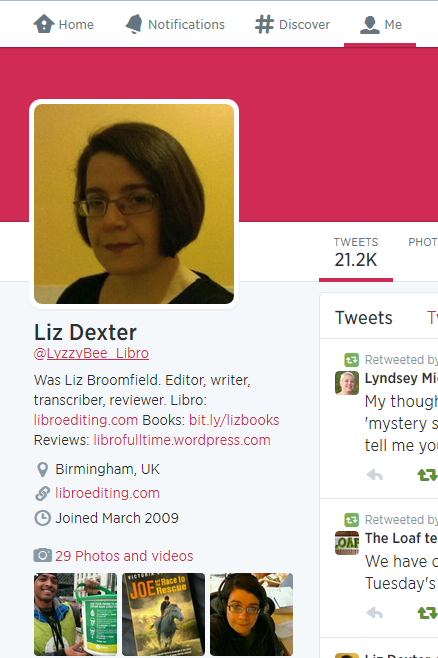
When you join Twitter, it’s very quick and easy to set up your profile. Your profile is a quick guide to who you are. Anyone clicking on it or searching for it needs to know that they’ve found the right Liz Broomfield / Libro (or whatever) and to see easily what you do.

Twitter profile

I would recommend including the following on your profile, and I’ve seen plenty of other people recommend this, too:

  • Your real name when you log in, as well as your company name for your Twitter ID
  • Your photograph on your profile, rather than your company logo (you can add that to your background)
  • Your company URL in the field where you can provide that
  • Use your 140 letters of profile to the max, including what you do and any extra URLs

As with any profile, you can change it at any point; just click on your image and choose Settings,  Edit profile of in the Home Screen, click on your Twitter ID and the Edit Profile button.

Following and followers

Once you’ve set up your Twitter account, you can start following a few people. Twitter will suggest ones that you don’t really want, based on who’s popular, but you can find interesting people to follow in a variety of ways:

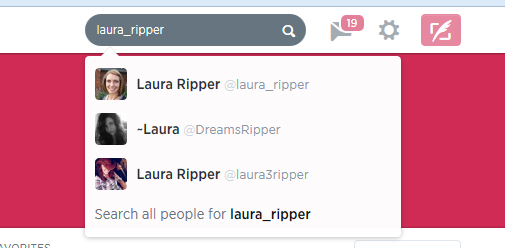
Ask someone for their Twitter ID when you meet them or glean it from their business card or website. Then enter that ID in the search field on Twitter. Or you can search for the person’s name or company name in the search field on Twitter.

Twitter search

Or you can go to http://www.twitter.com/%5BID without an @ sign]:

search using Twitter url

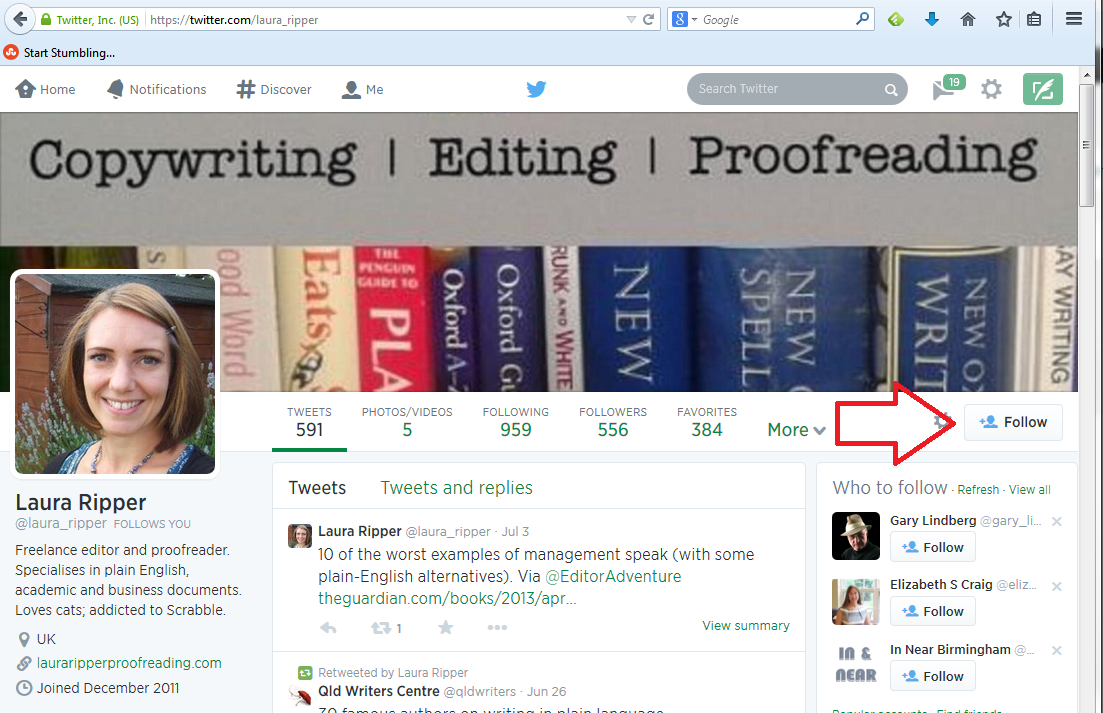
Have a look at their profile to check it’s the correct person, then press the Follow button if it is:

follow on Twitter

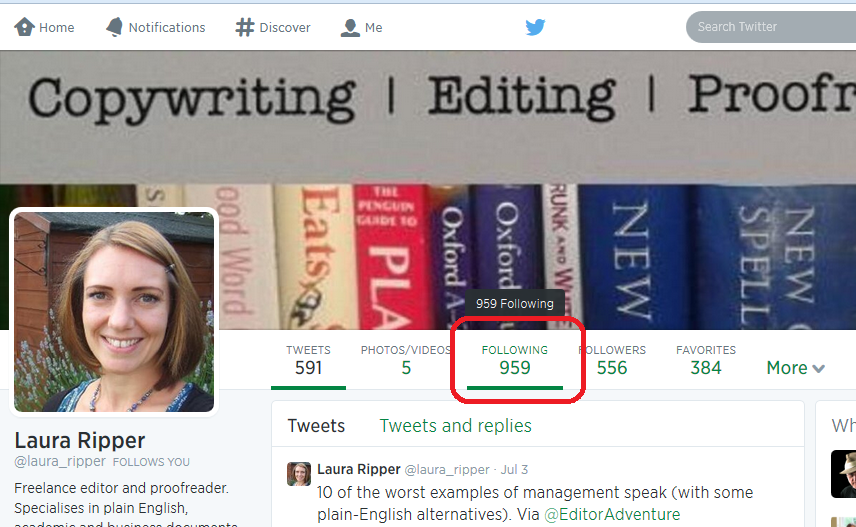
If you’re following someone in an interesting field, have a look at who they’re following. If you click on their profile, you will see links to Tweets, Following and Followers. Click on Following

Following button

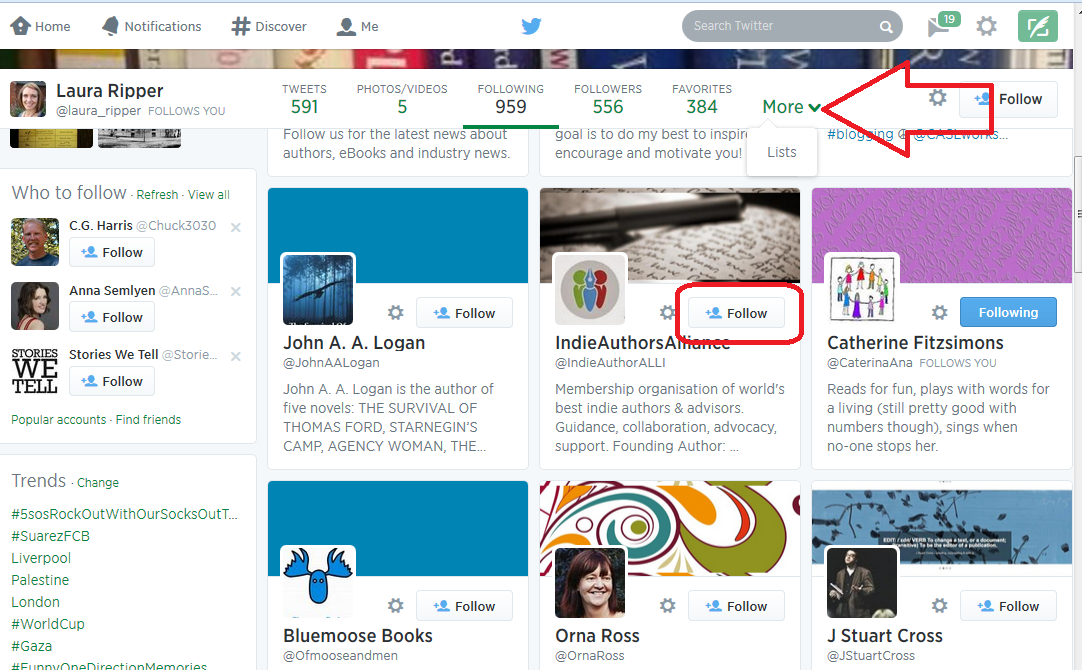
and have a look – there will be a handy Follow button by each name so you can simply follow from there (if you’re already following someone, it will be marked as such). Once you’re viewing who someone is following, you will see a dropdown button marked More which will take you to their Lists.

Who someone is following on Twitter

See more about Lists later on, but you can follow either  an entire list or members of one by clicking on the list, and this is another good way to glean people to follow in a particular area of interest.

How do I choose who to follow?

It’s entirely up to you how many people you follow and whether you organise them in any way. When I’m deciding whether to follow people who I’ve found, or who have followed me (you don’t HAVE to follow everyone who’s followed you, but it’s polite to have a look at least), this is what I do:

  • Check their profile to see whether they’re interesting to me
  • Check their list of tweets to see if they tweet interesting information
  • Check their tweets for the same tweet repeated over and over again – this means a lack of imagination, something akin to spamming or an automated response
  • Check their tweets for regularity and date of tweeting – if someone tweets once a week or hasn’t tweeted for a number of months, unless they’re hugely important to me, I won’t bother to follow them because their tweets will get lost in the general melee

I do also regularly run a check over the people I’m following (click on Home, your own Twitter ID and Following) to make sure they’re still active. If not, I tend to cull. Sorry!

Who am I following?

Lists

Lists are a great way to put the people who you follow into categories or filters that you can look at independently. For example, I have a “Must know” list which includes all of the real-life friends plus some news feeds that I follow, so that if I only have time for a quick dip into Twitter, I can see what’s really important. I also have a “Journos” one so that I can see what my music journalist clients and a few others are up to, for some entertainment.

To add someone to a list …

Click on their name in your timeline to view their profile …

Add to list from profile

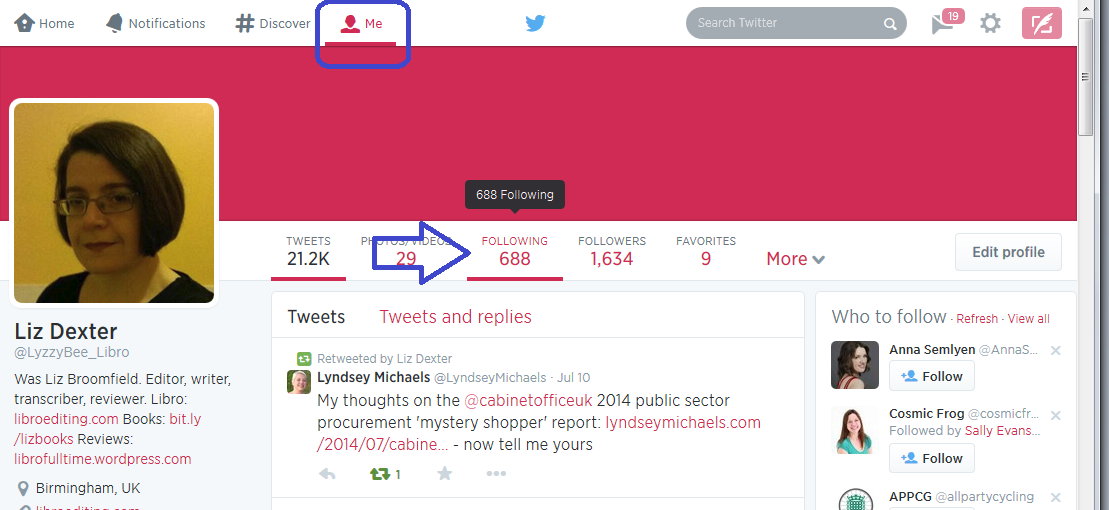
… or go to your list of accounts followed (Me – Following)

add to list from me - following

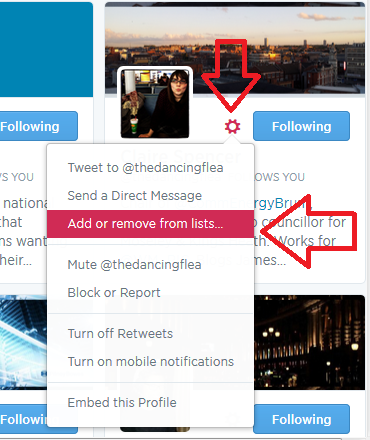
Click the User Options button (next to Following, it looks like a cog)

Click on Add or Remove From Lists

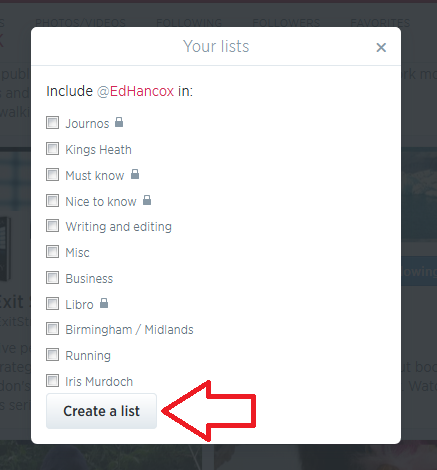
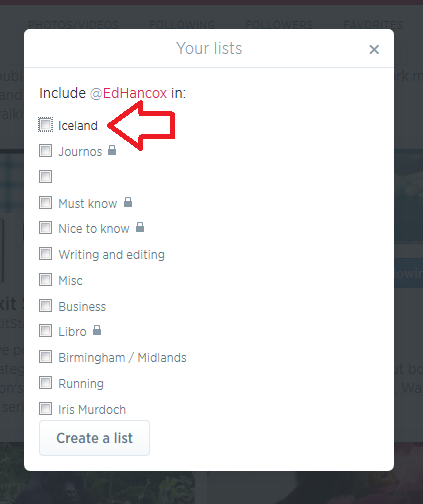
You’ll see a list of all of the lists you’ve already set up (if you have set any up) plus a button, Create a List

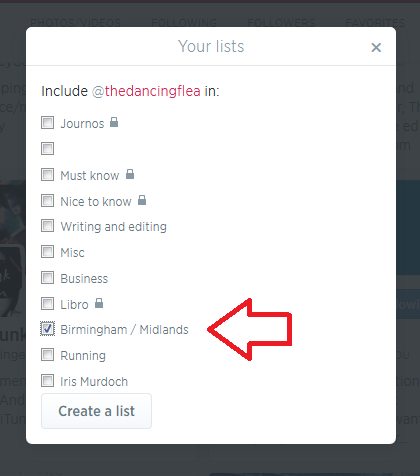
Either click on a list name to add that person then press the X in the top right corner to close the dialogue box:

Add to twitter list

or click on Create a List

create a twitter list

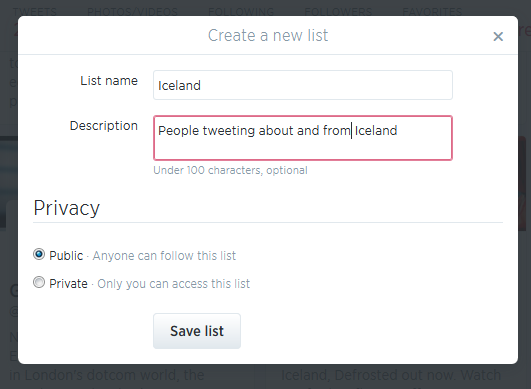
and make up a new list name to add this person to:

create new list

(if you make a list private, only you can see it – you’ll know when a list is private because it will have a padlock symbol next to the list name). Once you hit Save list, you will need to tick the particular list you want to add this person to:

add person to new list

Once you have some lists, you’ll see a Lists entry under More when you click on Me. Ideas for lists include friends, particular interests, your business sector, news feeds, sport – anything you want.

You can follow other people’s lists or mine them for good accounts to follow – just click on a particular person’s Twitter ID and you’ll get their following, followers and lists.

Note – this doesn’t work exactly the same on mobile devices or third-party Twitter management dashboards as it does on the basic web-based Twitter interface. These instructions are for the latter.

How Twitter works – @ and #

One thing that you’ll see a lot of on Twitter is the symbols @ and #

@ is used in front of a Twitter ID to notify the person that you’re talking to them or to point someone else to their account. For example, someone might recommend an account for me to follow:

Megmac: @lyzzybee_libro have a look at @thecreativepenn for a good feed for writers

This makes the message appear in my Connect list (see below) and TheCreativePenn’s Connect list, so I will see the recommendation and she will see that she’s been recommended to me. If she wants, she can then reach out to me, and say thank you to the recommender.

# is used to create clickable links that will pull information on a particular topic together in one view. It’s often used at events and conferences – so, for example, #cbsms is used by people tweeting about the Central Birmingham Social Media Surgery. When you see a hashtag (as this is called) in a tweet, it will be a clickable link. Click on the hashtag and you will see all of the recent tweets with that hashtag, giving you a view of what’s going on and who’s talking about it.

Lyzzbee_libro: Off to the social media surgery to help a few people today #cbsms

It is also used to link tweets on a wider topic, e.g. #amwriting, which writers use to talk about the writing process. You can pop a hashtag on a tweet when you want it to come up in such searches, for example I might tweet about my book on transcription and add #transcription at the end, so that anyone looking at that hashtag will see my tweet.

Your Twitterstream and mentions

Whether you’re viewing Twitter online on a computer or via a phone or a third party dashboard, you will have a twitterstream and then various other views.

Your Home will show you your twitterstream: all the most recent tweets by people / companies / whatever that you’re following.

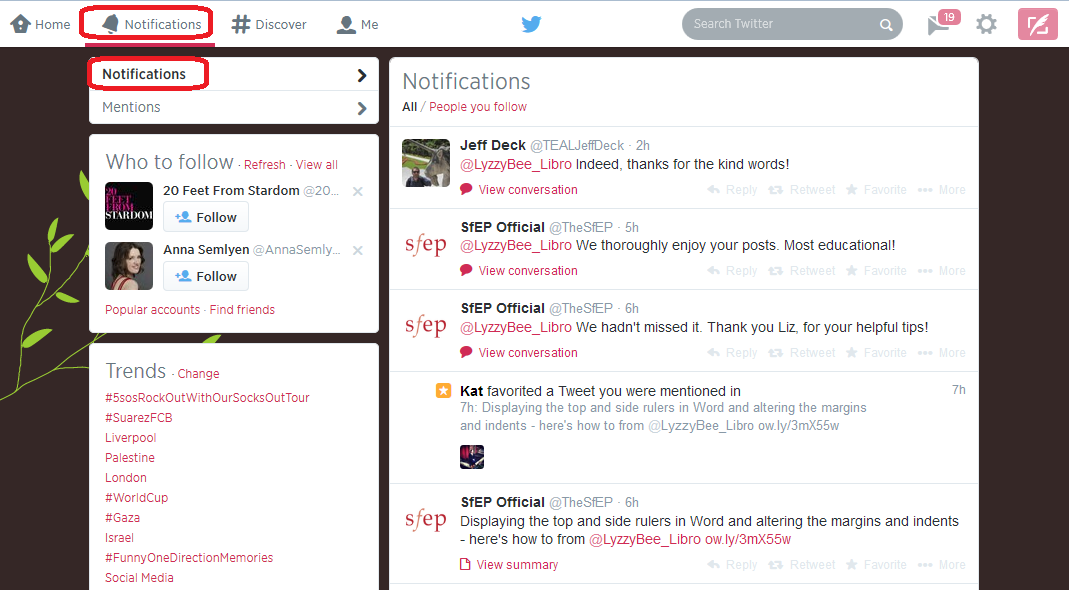
Your Notifications list will show you anything directly concerning your own Twitter account – so messages that have been sent to you with an @[your Twitter ID] as well as people who have followed you. It’s good practice to keep an eye on this so that you can reply to any messages sent to you and say thank you for recommendations and follows. Note here that Notifications gives you information on who’s followed you and favourited your messages, and any messages that start with your name:

Twitter notifications

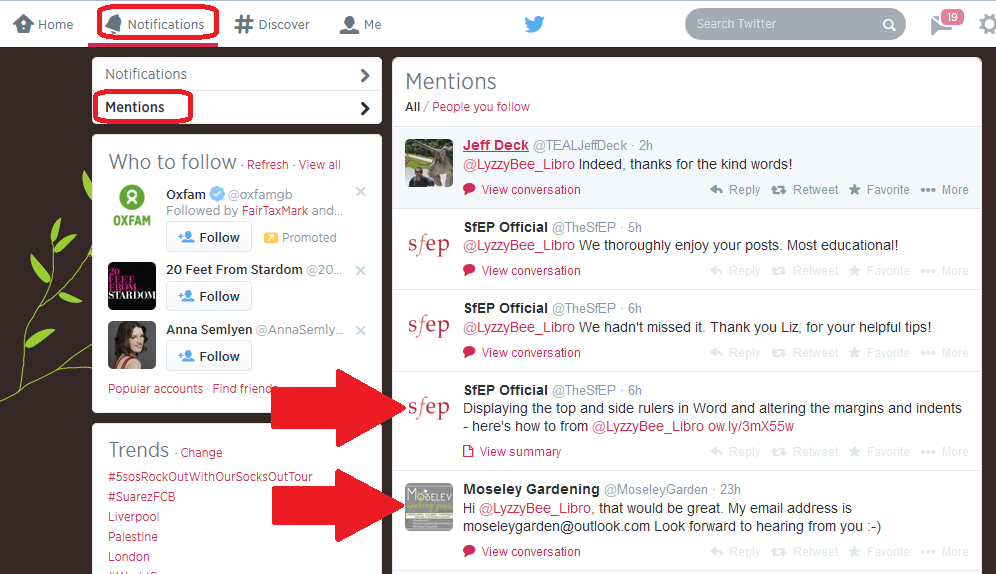
while Mentions will also show you when you’ve been @ mentioned by someone else:

Twitter mentions

Getting rid of spammers

Everyone gets spammed by Twitter accounts, dodgy or otherwise, that are usually either looking for random followers to boost their numbers or clicks to their undesirable links. The ones with links often only have a link in the text – this is a real red flag and you should never click on a link in a tweet, even from a friend, if there’s only a link and no text (your friend could have had their account hacked).

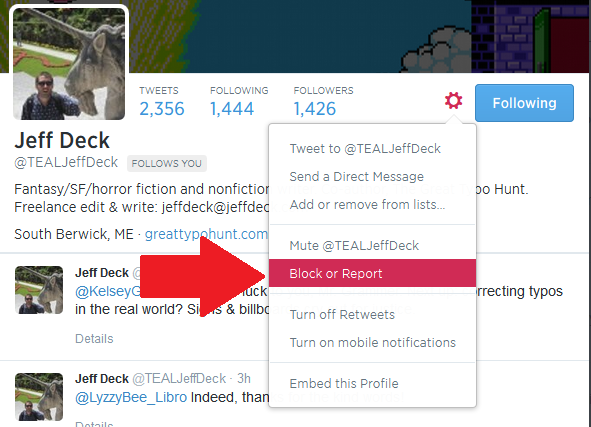
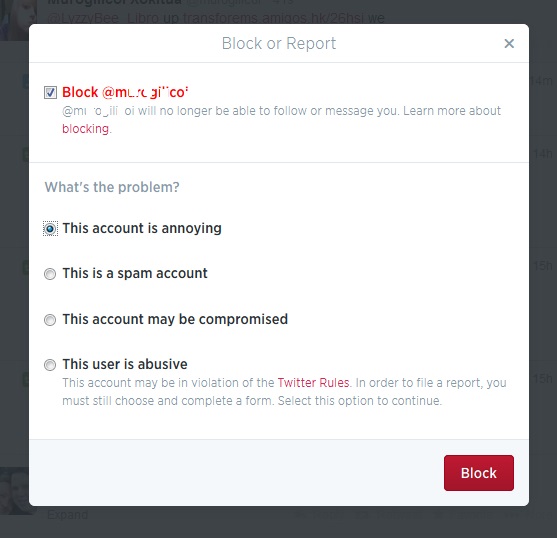
If you receive an odd tweet or one with just a link, click on the photo or name of the sender. You will typically see that they’ve sent the same short message or no message and link to multiple people. Click on the User Actions button on their profile and you have options to Block or Report: [Note: I’m just using this chap as an example, he’s a good guy really!]

Block on twitter

Once you’ve clicked on Block or Report you will see this screen, which allows you to tell Twitter why exactly you are blocking or reporting the person:

Block and report on Twitter

This alerts Twitter that the person is spamming, and will help to save someone not as savvy as you from clicking on a dodgy link and going who knows where in cyberspace!

If you’re just getting annoyed or bored by a Twitter account that you follow, you can click on their photo or name and press the button marked Following – this will change to Unfollow as you hover over it; click it and you’ll unfollow them and no longer see them in your Twitterstream.

Rules for using Twitter effectively

Using Twitter effectively is a matter of knowing how it works and how people view it, and being sensible and polite.

Posting multiple times

The main point about tweeting is that very few people read every single tweet on their timeline. People typically check Twitter on the way to work, at lunchtime, on the way home, and some time in the evening. Once you’re following more than about fifty people, there’s no way that you’re going to see all of their tweets – so think of people as viewing a snapshot of their Twitterstream rather than everything.

This means that it’s fine to tweet a message multiple times, where it would be seen as rude and intrustive to post a Facebook status multiple times in one day.

You also need to be aware of your markets and their time zones – if you have a lot of Australian clients, and you’re in the UK, you will need to tailor your tweets to their time zone, maybe investing in a Twitter dashboard that will allow you to pre-schedule your tweets.

Using a dashboard

It can be very useful to use a dashboard such as Tweetdeck to manage your Twitter accounts. You can view multiple accounts at a time and post as them (handy if you have, say, a personal and a work account) and view your lists in their own feeds. Some of them will also allow you to schedule your tweets to be published at a certain time or on a certain date, which can be very useful (although watch out that you still keep an eye on when these go out, as there have been numerous examples of an auto-tweet posting when it’s really not appropriate, such as after a disaster).

Sharing other people’s material

The other main rule is to be polite and reciprocate and say thank you.

If you retweet other people’s tweets, they are more likely to share your tweets with their network. To retweet, click on the word retweet underneath the tweet, or look for that ‘arrows-in-a-square’ icon which has the same effect. Some people reckon that you should share five other tweets to every one of your own that you post. I’m not that scientific, but I do try to share as much as I post.

Saying thank you and being proactive

If other people retweet or otherwise share your tweets, which you will find out about by reviewing your Connect feed, do drop them a message to say thank you.

If someone recommends your Twitter account or your services to someone else, contact the person to whom you’re being recommended with a polite “how can I help you” and a way to contact you, and say thank you to the recommender.

Not automating too much and not spamming

I’m not a big fan of the automated message when I follow someone’s Twitter account, and many other people find this annoying, too. I like to know that there’s a person behind the account. Similarly, all sales and no sharing, or all automated tweeting and no replying to @ messages will probably get people irritated.

Other useful posts

On this blog: Using Twitter to find jobs

Using LinkedIn for your business

Social media resource guide for this blog

My friend Sandy’s post on Twitter for professional development

 
9 Comments

Posted by on July 16, 2014 in Business, Skillset, Social media


Tags: , ,

How to add an admin or moderator to your Facebook business page

In this post we’re going to learn how to add someone as a moderator on your business or organisation’s Facebook page, and also what it looks like when you are added as a moderator of a page. For more basic information about setting up your Facebook page, see my article on Facebook for business.

How do I add someone as an administrator to my Facebook page?

To be added as an administrator of a page, you must Like that page first (or to be added as an administrator of a group, you must be a member of that group)

To add someone as an administrator of a page, they must Like that page first.

To add someone as a moderator, find See Likes on the Admin Panel of your page

1 likes button

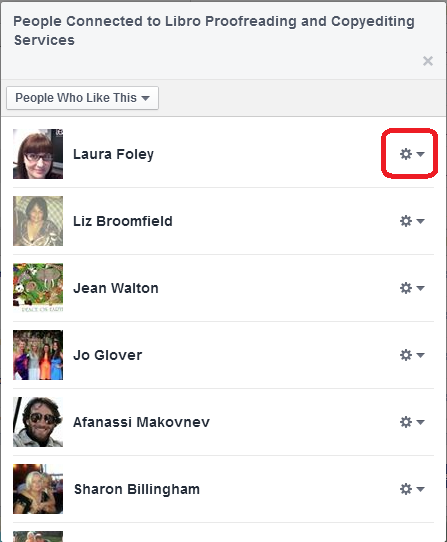
You will see a list of people who have “Liked” your page, each with a little icon to the right.

2 list of likes

Find the person you want to add, click on the icon and choose Make Admin:

3 make admin

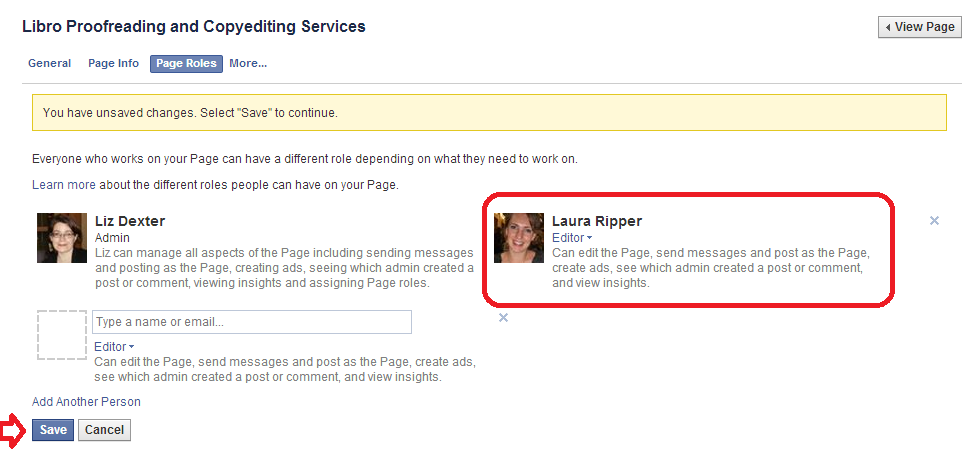
Once you’ve done that, you will get another screen which shows all of the people who are admins of that page:

4 make admin

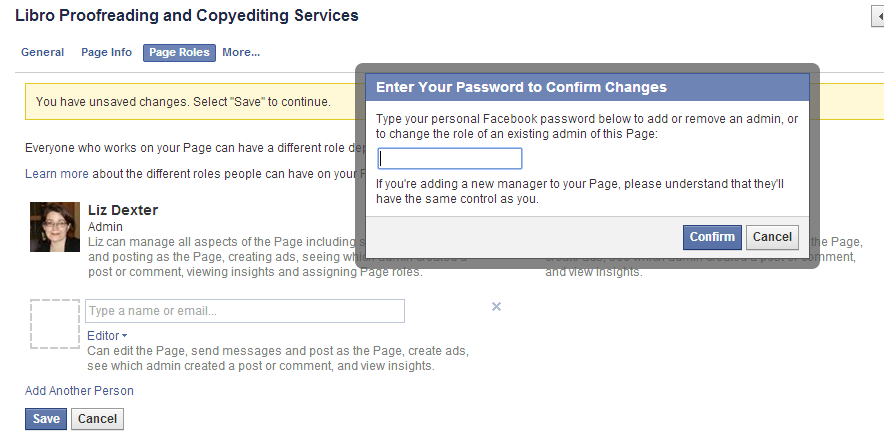
This shows that you’ve added someone to have admin rights. Note the x top right – this can be used to remove them. Press Save … and you’ll be asked for your password (just as a safety measure):

5 make admin

Add your password and there they are, an admin.

How do I access the Page Roles area to change what my moderators can do?

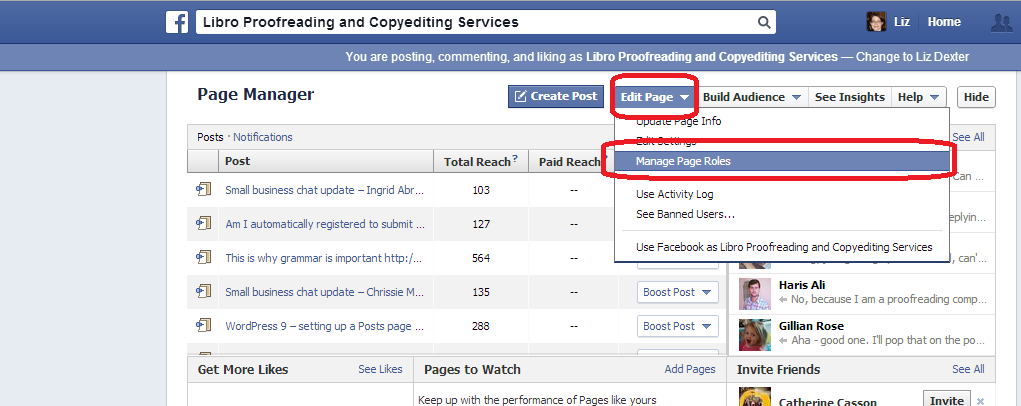
If you want to change the roles that people have in moderating your page, go into the Page roles area by choosing Edit Page in the Admin Panel, then Manage Page Roles:

Facebook page moderator page roles

What are the different Facebook page moderator levels?

You can choose different levels of moderation to give to your admin people. If you want to change these at any time, go into the Page Roles area by choosing Edit Page then Manage Page Roles (see screenshot in the previous section.

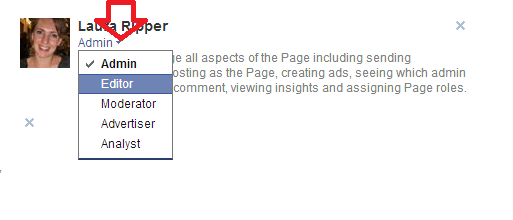
Now, click on the arrow by the role name assigned to your moderator, and you will see a list of choices. The role that the administrator currently has will have a tick next to it. Click on a role to change the privileges that the administrator has.

Facebook page role optionsAn Admin can send messages, post as the page, create ads, see which person has created a post or comment, view insights (stats etc.) and assign page roles

An Editor can do everything that an Admin can do, plus they can edit the page itself.

A Moderator can do everything that an Admin can do, plus they can delete comments on the page

An Advertiser can see who created posts and comments, view insights (stats) and create adverts

An Analyst can see who created posts and comments and view insights

What does it look like when I’m added as an Admin of a Facebook page or group?

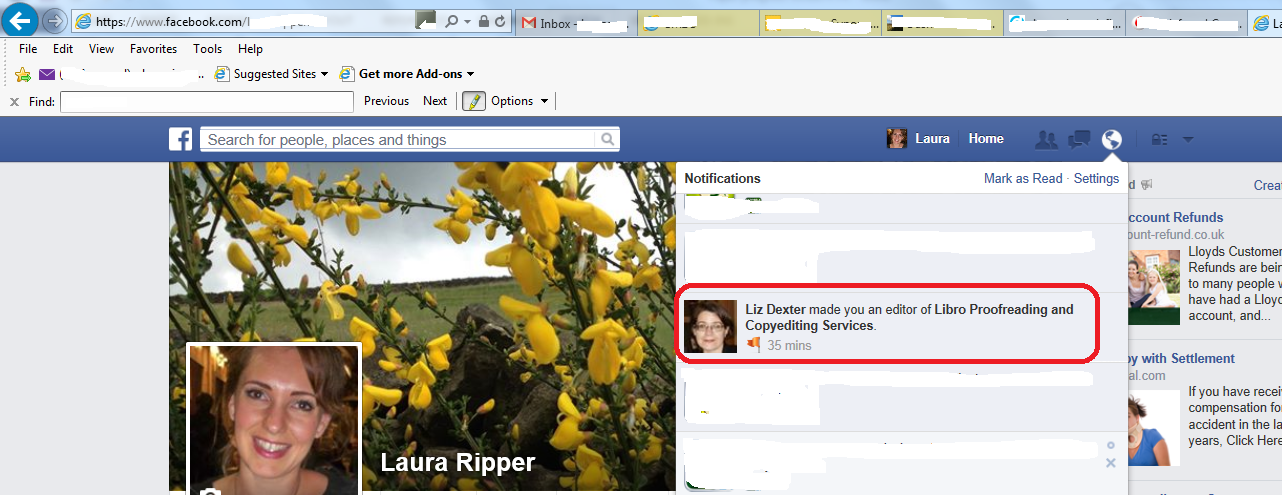
When the moderator of the page adds you as an admin, you will receive a notification. Depending on how you have notifications set up, you may receive an email – there will be a notification in your Facebook Notifications list. Here’s Laura’s which arrived after I’d added her, above:

facebook notification - added as moderator

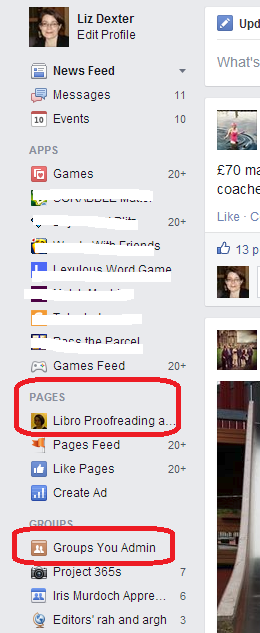
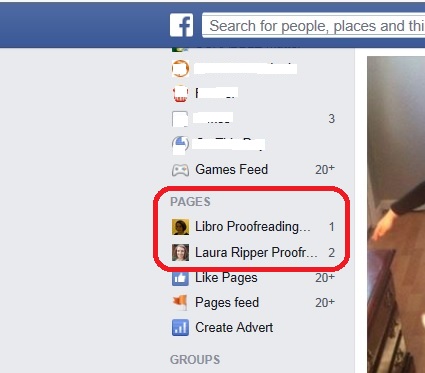
On your own Facebook feed, you will see all of the Pages you administrate under the Pages heading. For groups, there is also a section called Groups You Admin under the Groups heading.

6 groups you admin

And here’s Laura’s Facebook menu, showing that she’s now administrator of her own page and mine:

List ofFacebook pages for which you are admin

To view the page or group for which you have admin rights, click on the page or group and your view will be that of the administrator, with the Admin panel at the top:

7 admin panel

What does having moderator status for a Facebook page actually mean?

Once you’re a moderator / admin, you can do any or all of the following (see list above for the different roles): see all of the statistics for the page, who likes that page and how the posts on the page are doing; comment under the name of the page (so in my case, Laura can post on the page as if she’s called Libro Proofreading and Copyediting Services) and delete other people’s comments as appropriate; create adverts.

So, if you are the owner of a page and add admins, be careful if you’ve associated a bank account or PayPal account with the page, or make sure you choose the appropriate role level for your moderators and make sure you trust any people to whom you’ve given full roles to not to go booking millions of adverts without your say-so!

To summarise – if someone asks you to be a page administrator / moderator for their or their business’s Facebook page:

  • Make sure you ‘Like’ their page first
  • Ask them to find you in the list of people who ‘Like the page’
  • Ask them to click and make you a moderator
  • You will receive a notification and the page will appear at the top of your page list in the left-hand margin
  • Click on the page name in the left-hand margin and you will have full administrator rights

In this post, we’ve learned how to add someone as a page administrator, and what happens to that person’s view of Facebook once this has been done. Thanks to Laura Ripper for providing screen shots and being a guinea pig page admin! Her Facebook page is here and the Libro one is here.

If you’ve enjoyed this post and found it useful, please share it using the buttons below! Thank you!
You can find more resources on social media in my blog resource guide (link takes you to the social media section) and read about using social media for your business in my book on growing your business.

Related posts on this blog:

Facebook for business

How to delete posts and block users from your Facebook page

 
27 Comments

Posted by on June 4, 2014 in Business, Social media


Tags: , ,

Using LinkedIn for your business

Using LinkedIn for your business

LinkedIn is seen primarily as a networking tool for the more corporate end of the market. However, you can set up your own business page on LinkedIn now, and there is a lot more interactivity and ‘social’ activity than there used to be – or than you might think.

Setting up a LinkedIn profile

Once on www.linkedin.com you can join up and set up your profile.

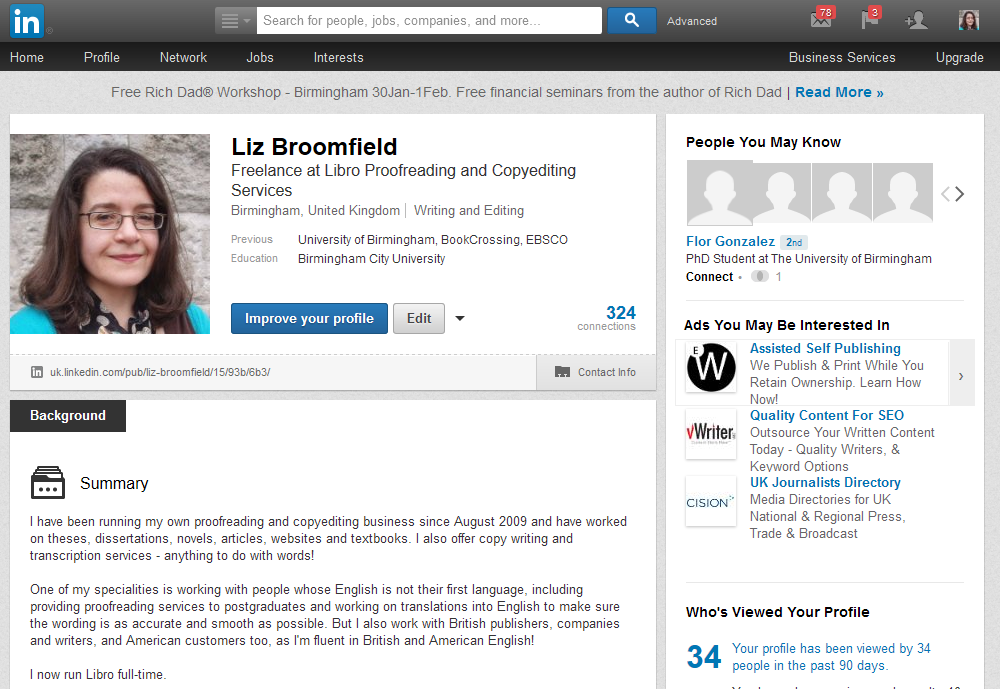
1 profile

It’s a good idea to include as much information as you can on here – and in a professional way. While it’s never a good idea to allow typos and grammatical errors on any professional profile, it’s vitally important here, as people tend to make more of an effort, and so any errors will be very glaring.

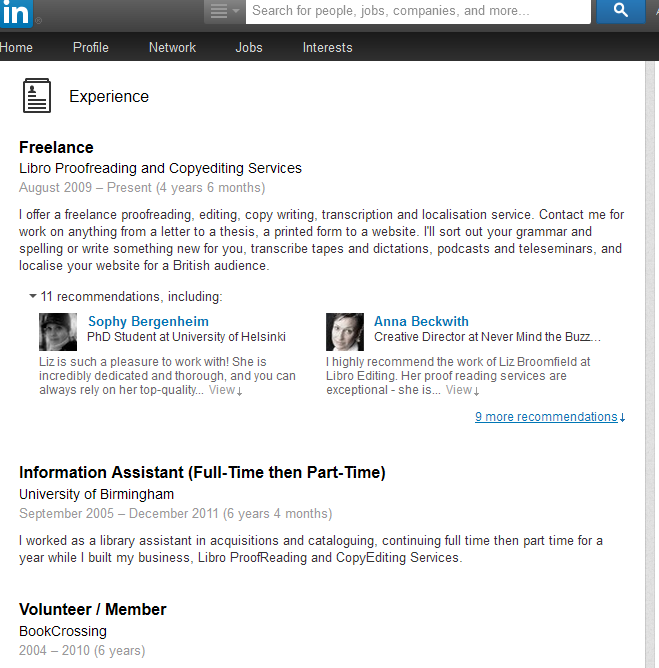
There are various sections to fill in on the profile; including past jobs allows your ‘network’ to grow, as LinkedIn, unlike other social media, will not let you even request to connect to just anyone. For example, I’ve added my experience in here:

2 profile

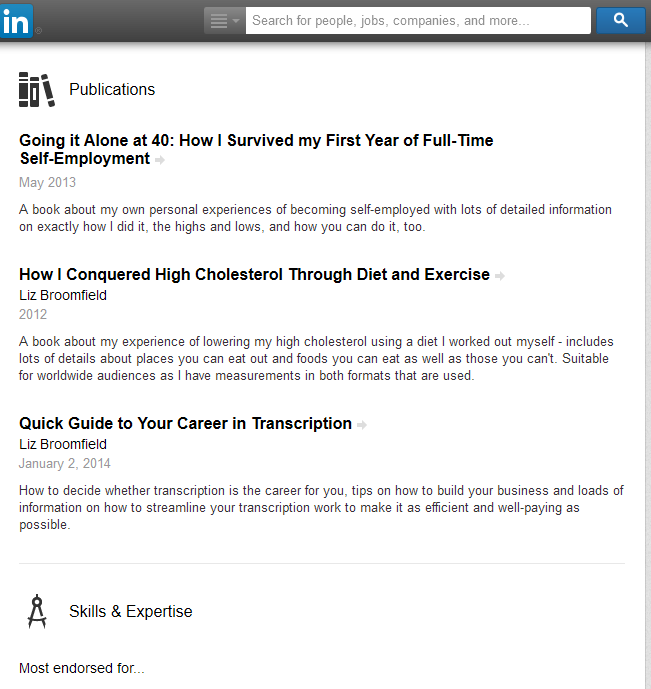
… and I’ve added information about the books I’ve written in the Publications section:

3 profile

Find your way around LinkedIn

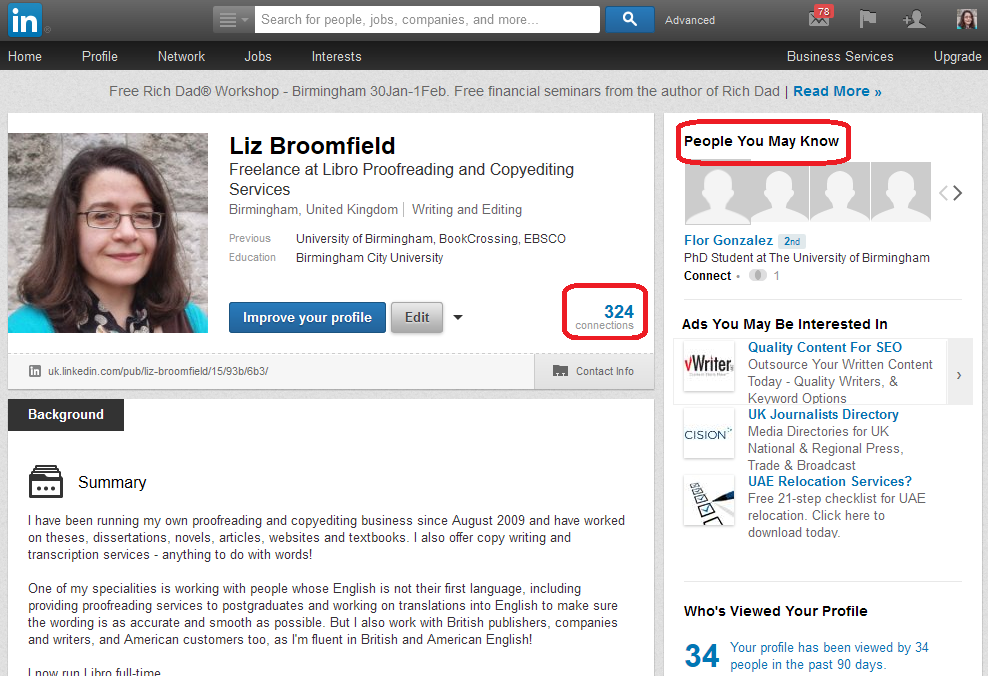
Your home page will contain a feed a little like your Facebook timeline, with updates from people to whom you’re linked. To find people to link to, you can search in the search box at the top of the screen. Once you’re linked to someone, they will appear in your Connections list, which you can access by clicking the [number] connections icon to the bottom right of your profile picture area.

Your profile also includes a link to People You May Know. This will give you people in networks connected to you by other connections, workplaces or interest groups to whom you might want to link.

4 connections

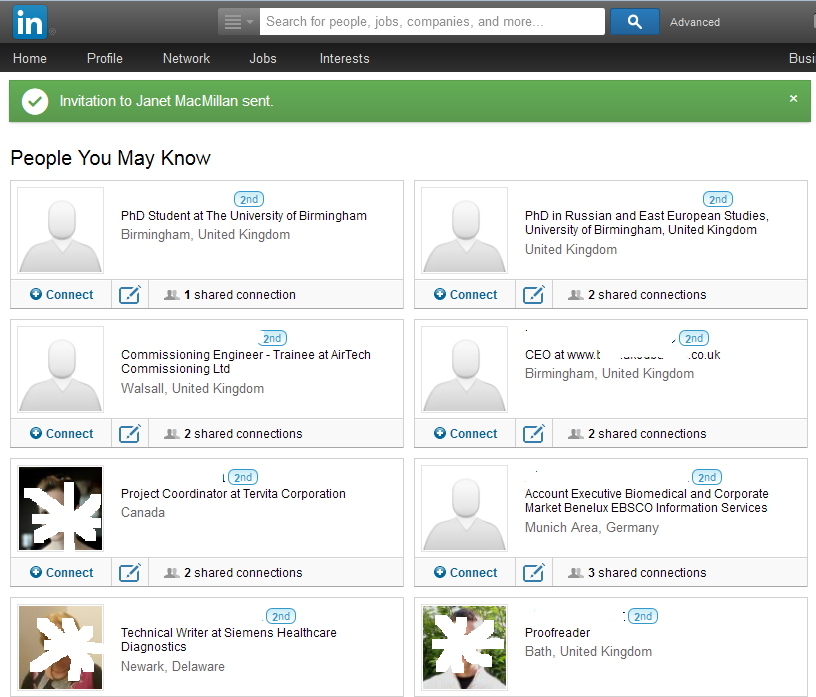
Click on People you may know and you’ll be given a list of possible connections (I’ve blanked out names and obscured photographs because this is my own LinkedIn profile):

10 people you may know

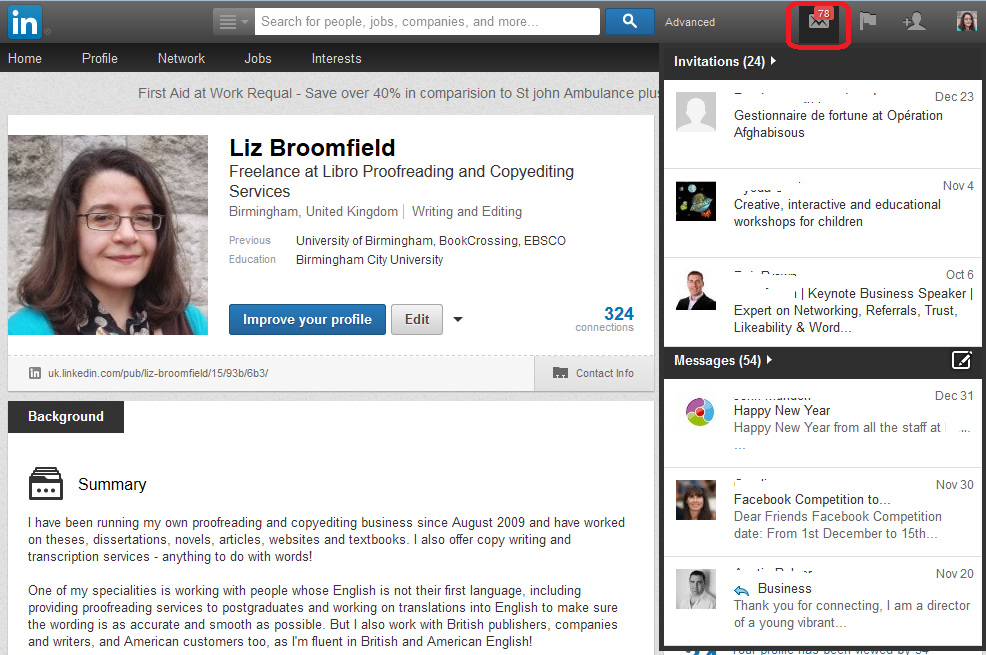
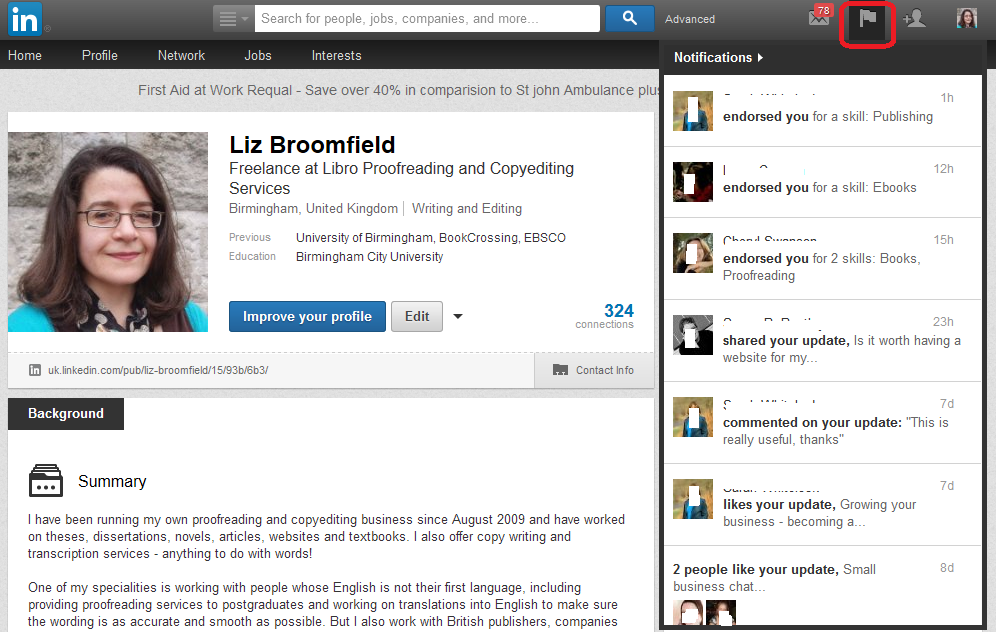
You can see your invitations and notifications at the top right.

Invitations allow you to see who has invited you to connect and any messages they’ve sent you via LinkedIn:

11invitations

Notifications show you who has liked your updates or shared your profile:

12 notifications

Linking to people on LinkedIn

LinkedIn is different from other social media networks, in that you have to have a tangible connection to a person in order to ‘Link’ to them. If you find someone you want to link to and press Connect, you’ll be asked how you know that person. If you say that they’re a colleague, or that you’ve done business with them, you’ll be asked which of your jobs they are a colleague from – that’s why it’s important to list all of the companies that you have worked for on your profile. If you say that they’re a friend, you’ll be asked to prove you know them by providing their email address.

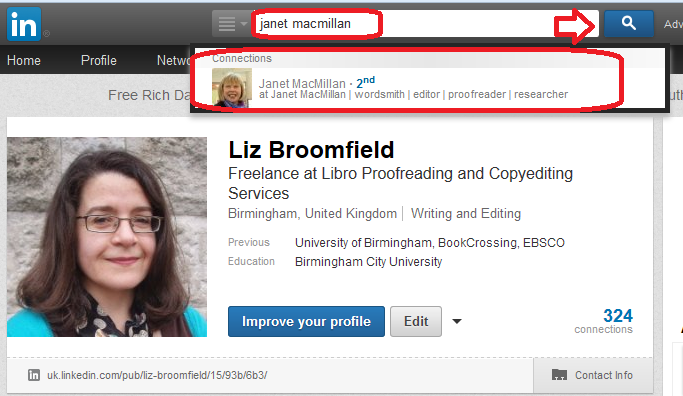
You can find people just outside your network by clicking on the People You May Know link. This will give you a list of either friends of friends or people who have said that they work or have worked at the same organisations that you’ve worked at. You can connect to these people in the same way. You can also search for people using the search box at the top of the screen (Note; I asked Janet’s permission to use her profile in these images):

5 search

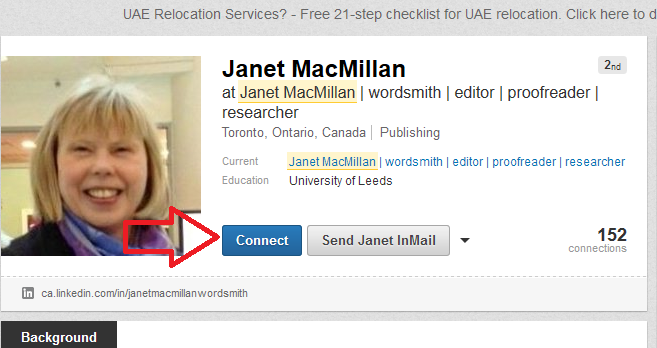
However you access them, click on the person’s name to see their profile and then use the Connect button to ask them to link to you:

6 connect

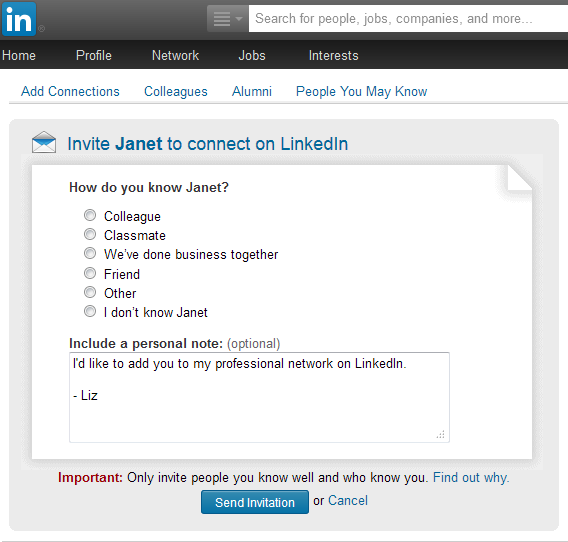
It will then ask you how you know that person: when you click on one of the radio buttons, you will be asked for more detail.

7 connect

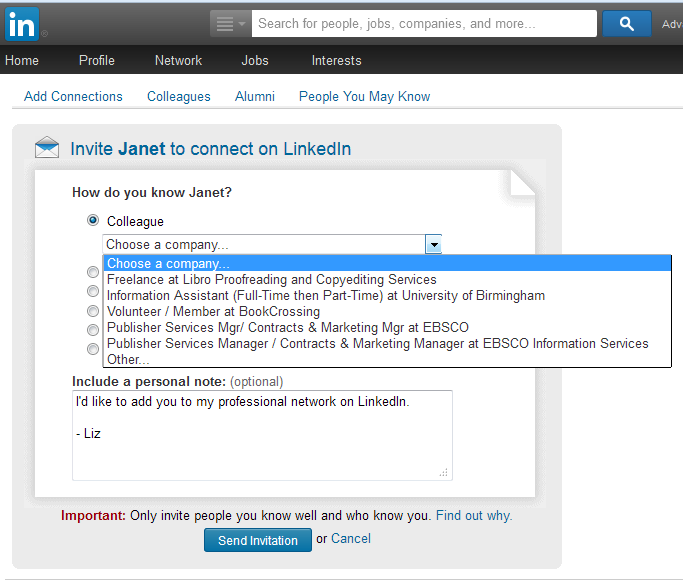
Here, I’ve clicked Colleague, so then it will ask me which company that I’ve worked at relates to this:

8 connect

Setting up a company page

You can set up a company page on LinkedIn for your business – this will give people another way to find you and will provide another link to your website and other social media.

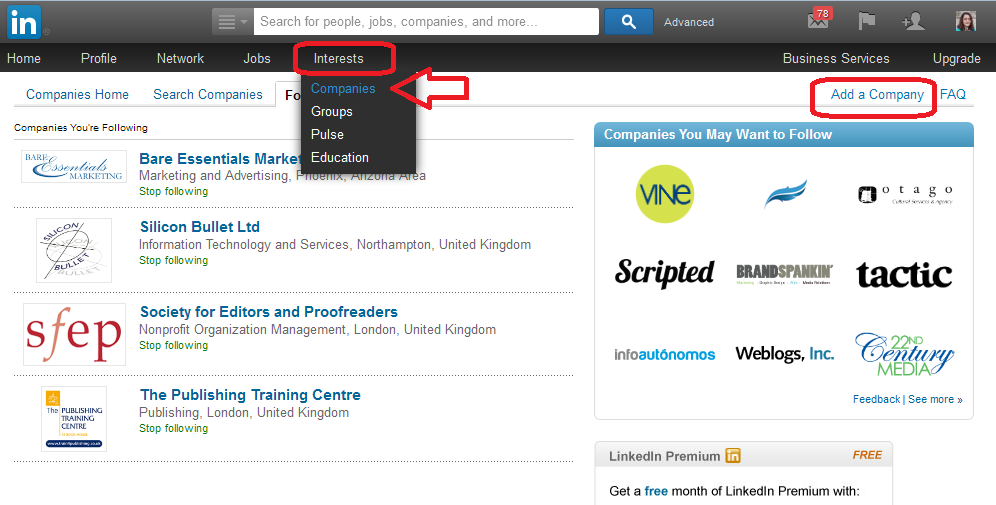
To set up a company page, click on Interests at the top, then Companies from the drop-down.

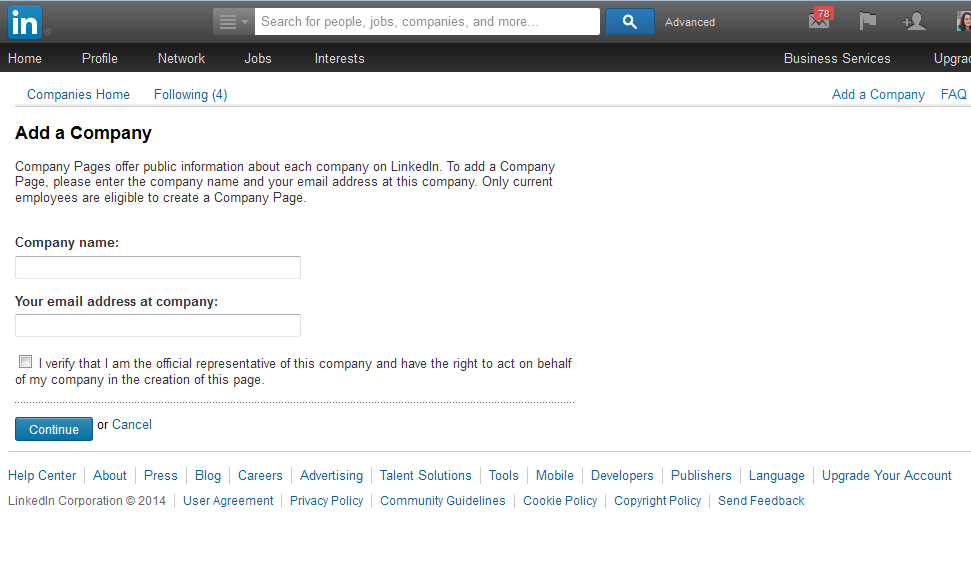
13 add a companyAt the top right of the next page you’ll find a link for Add Company.

14 add a companyYou will first need to confirm that you’re eligible to create and moderate this page, so there will be an email sent to you to confirm, and you must have a personal LinkedIn account to create a company page.

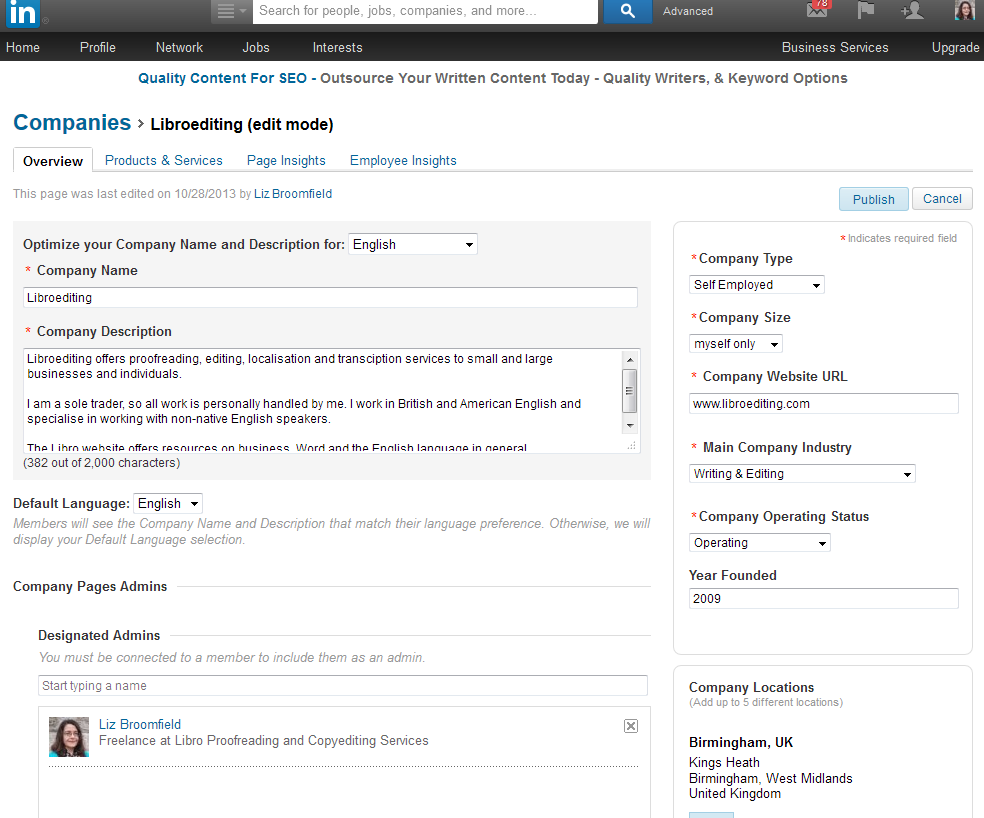
14.5 add a company

Fill in all of your company’s details and save – and there you go.

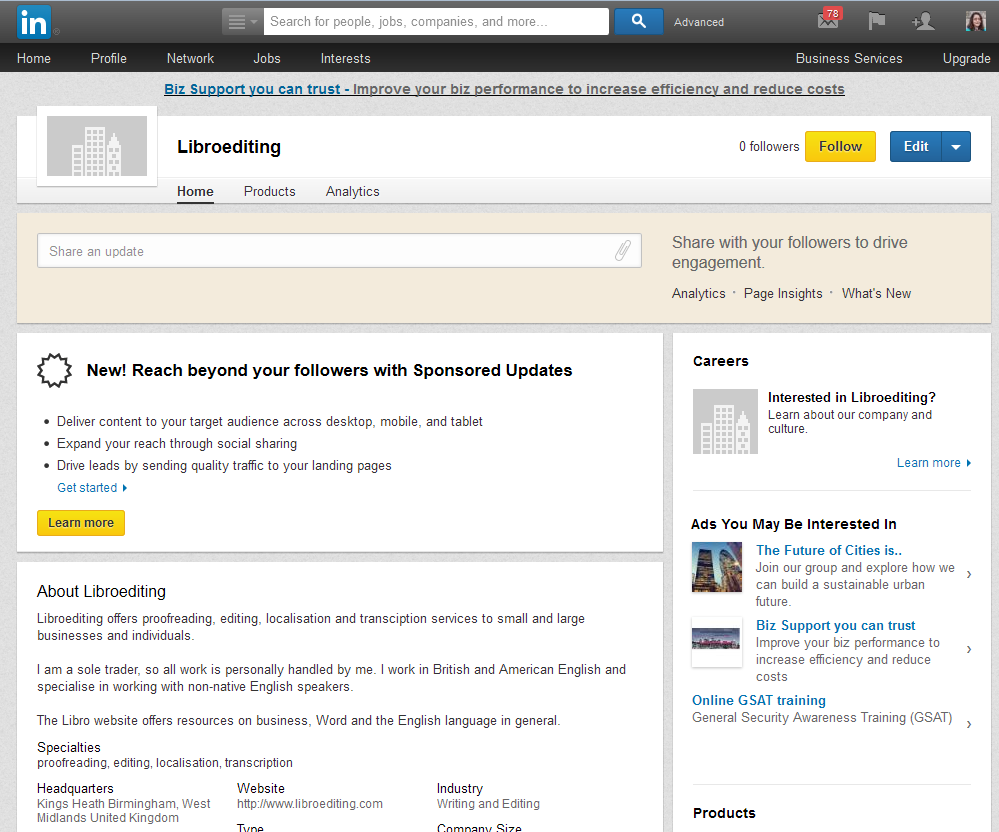
To edit your company information, go and find the company page and click on Edit.

15 add a company

Getting social

This section is about social media – so how do you get social on LinkedIn?

Updates

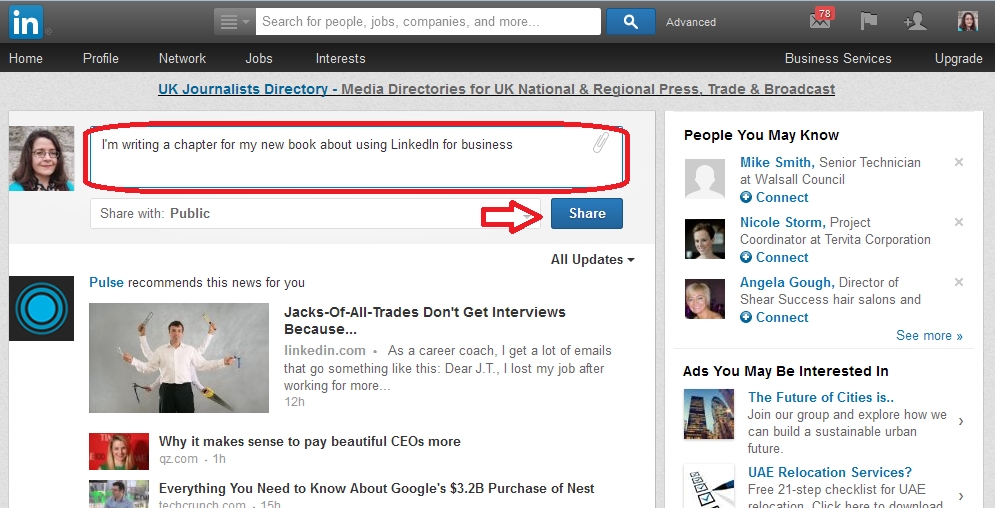
You can post updates, just like on Facebook – do this from the Home page. Your updates will appear on your connections’ home pages, just as theirs do on yours. You can like and share updates in a very similar way to Facebook.

17 updates

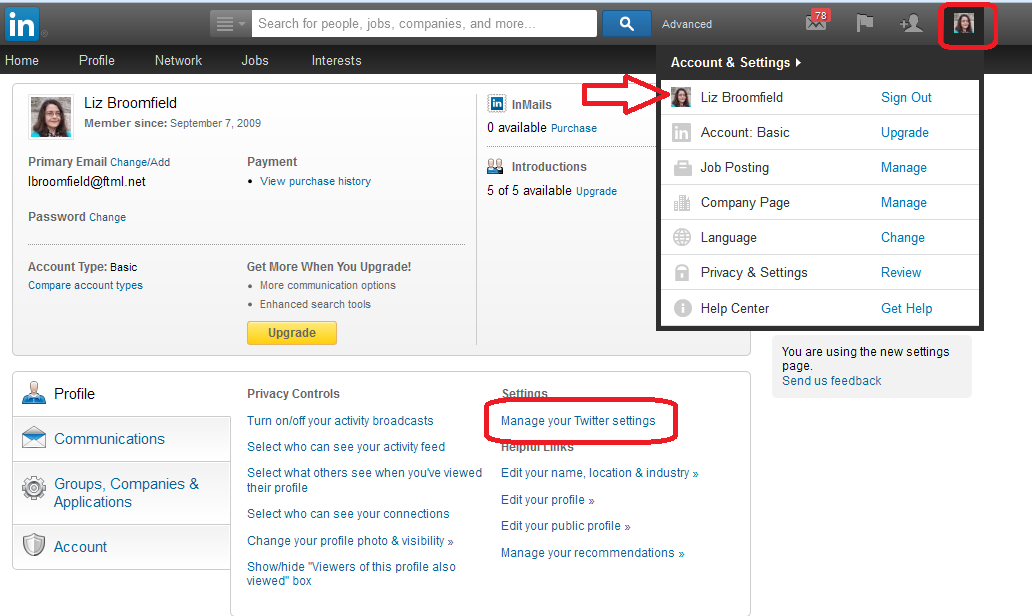
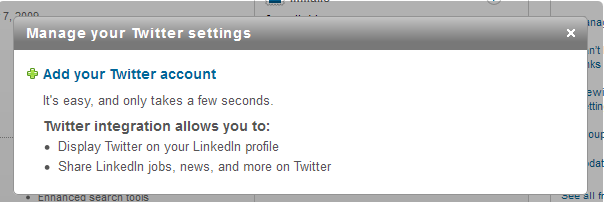
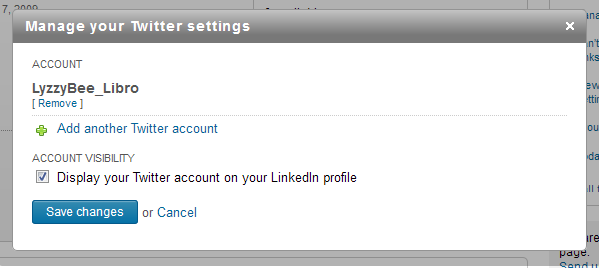
You can direct most blogging platforms to automatically post links on LinkedIn – all of my WordPress blog posts do this. You can also link your Twitter account to LinkedIn by going to your account settings (click on the small photo in the top right of the screen), clicking on your name and choosing Manage Twitter Accounts.

18 link to twitterClick on Add your Twitter account:

19 link to twitter

20 link to twitter

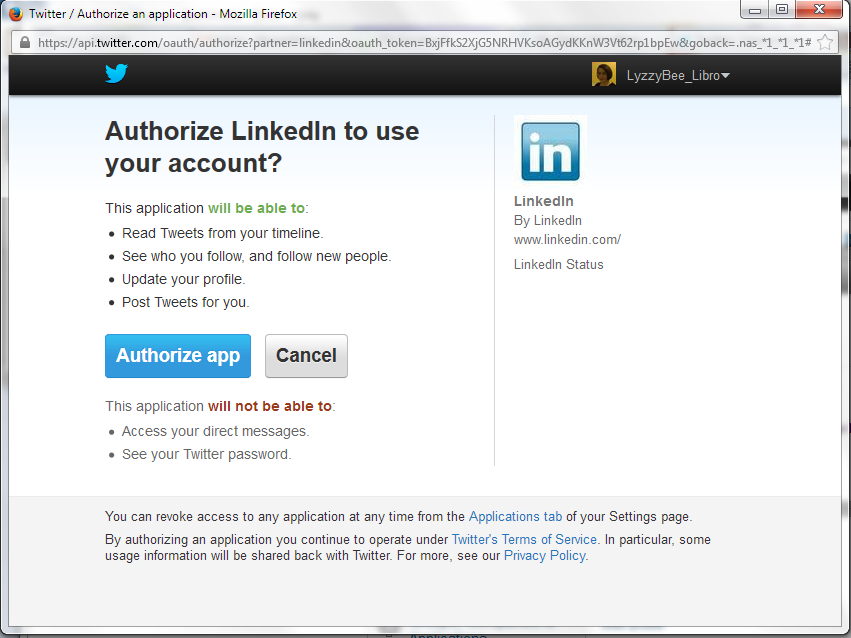
If you’re logged in to Twitter you will see this Authorize app message, if you’re not logged in, you will be asked to log in first. And there you go:

21 link to twitter

Recommendations

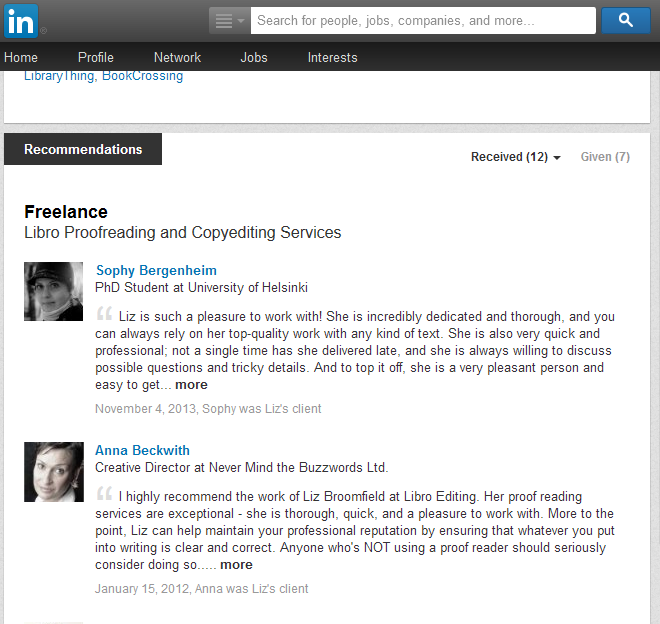
If someone has done a good job for you, you can click on Recommend in their profile and type in a recommendation. They will be emailed this and will have the option as to whether to publish it or not (this prevents people posting negative comments without the member knowing).

16 recommendations

Groups

There are thousands of interest groups on LinkedIn and these can be a good way to meet new people, spread the word about what you’re doing, and find out what other people are up to.

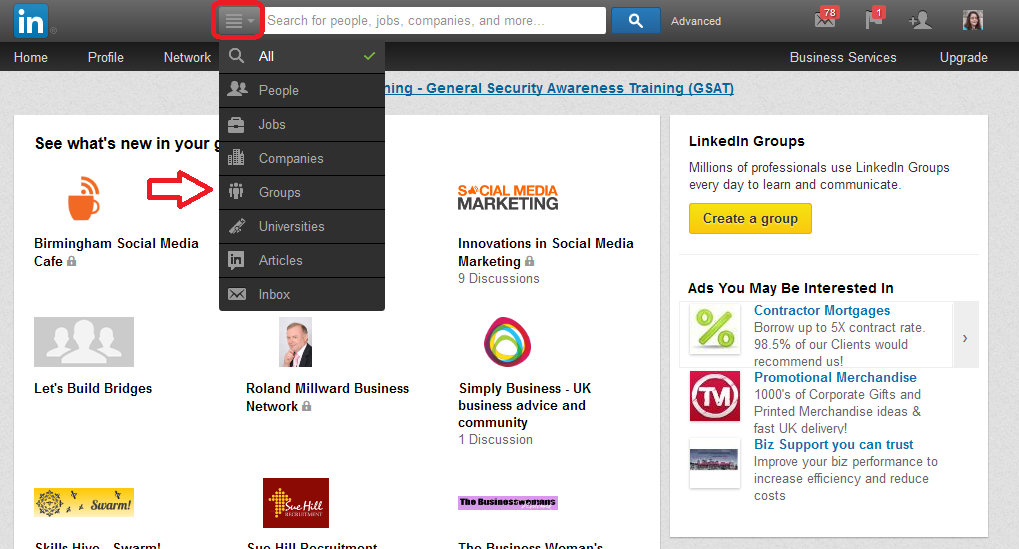
Access Groups by searching in the top search bar (you can click on the icon to the left of the search area and select only Groups to search) or by clicking on Interests then Groups. Once you’ve joined some Groups, you will find them listed on your Groups page, and then some suggestions underneath.

22 search for groups

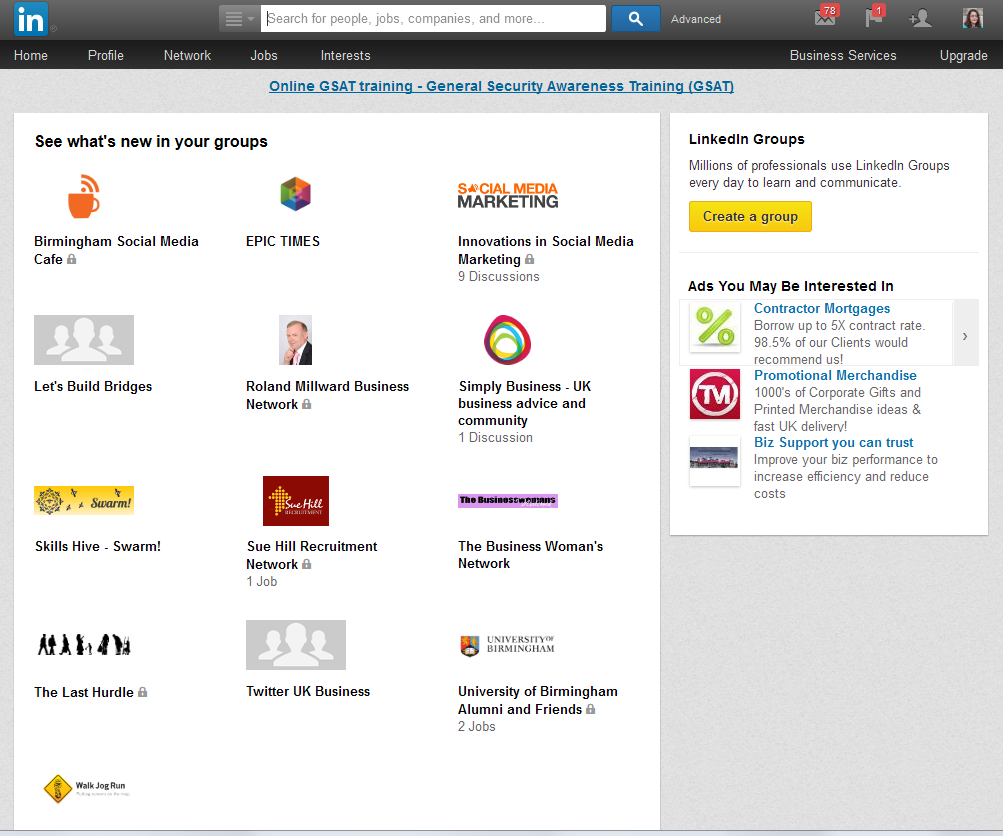
When you look at the Groups screen, you can see all of the groups you have joined, and you can also create a group if you wish to.

23 groups page

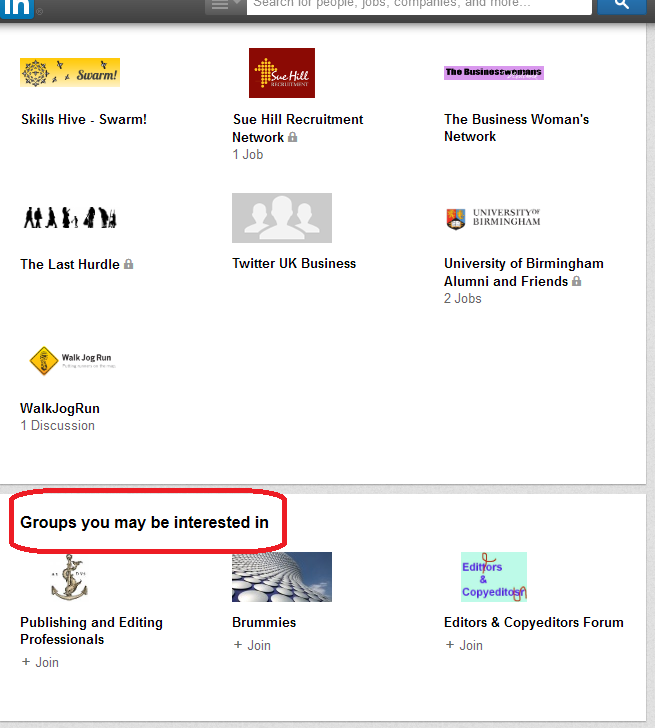
You will also find suggested groups at the bottom of the page:

24 groups page

Groups work very simply – you can post a new message or reply to another one, just like in other social media like Facebook and Google+. You can choose whether you are updated by email for all posts and replies in the group, or whether you want to just access them via the LinkedIn website.

I have found that some groups do become clogged with too many adverts and not enough discussion, but others can be really useful. The usual rules apply about reciprocity and kindness when using LinkedIn for social media communications.

Golden rules for using LinkedIn

Be professional. LinkedIn is known as a professional and careers-orientated site, although there is certainly room for the self-employed. But you do need to be extra professional and not very personal on here.

Reciprocate – if people like and share your updates and group posts, say thank you and like and share theirs.

Similarly, if people recommend you, or if they use the Endorse buttons that appear at the top of the screen when you log in to say that you’re knowledgeable about a certain topic, do try to recommend and endorse them back.

Useful related posts on this blog

Using Twitter for your business

 
2 Comments

Posted by on April 9, 2014 in Business, Social media


Tags: ,

Searching for jobs on Twitter

I had planned a post on exactly how I would go about searching for freelance (or otherwise) jobs on Twitter, then ended up discussing the topic with another editor, who’s keep on working on cookery books. So, here comes a worked example of how to search for jobs on Twitter.

Why search for jobs on Twitter?

People talk a LOT on Twitter, and they also use it for information seeking purposes. How many times have you seen a friend or just someone you follow ask a question, or look for a recommendation? Especially if you’re a freelancer, people will throw a question out: “Does anyone know a good transcriber?” and other people will answer them. It’s brilliant if one of your own clients does this and gives your name (this happens quite regularly to me, so I promise that happens), but if not, as long as you’re not over pushy about it, there is no harm in tweeting to that person to tell them about your services.

Does searching for jobs on Twitter really work?

Yes. Yes it does. I can say that with certainty, because I know it does from experience. Here are just a couple of examples:

1. I ran my regular search (see below for how to do this) on “looking for proofreader”. I found a Tweet by a woman working in PR. I contacted her, she became a client, she took me with her when she joined a big agency, and when she left that agency, I ended up with them and her as clients.

2. A journalist I followed on Twitter posted the tweet “Can anyone help me with some transcription?” At the time, I didn’t offer transcription as a service, but I was a trained audio-typist. I got in touch, again, it went to email for the negotiations, and I ended up with that journalist as a long-term client. Plus, she recommended me (via Twitter and email) to other people, who also recommended me, and I ended up with a regular client base of music journalists.

So yes, it does work. Here’s how to do it.

First, make sure your profile represents you accurately

When you tweet to someone, the first thing they’re going to do is look at your profile. So make sure it includes:

  • Your photo
  • Your full name
  • Your company name
  • Your url
  • What you do

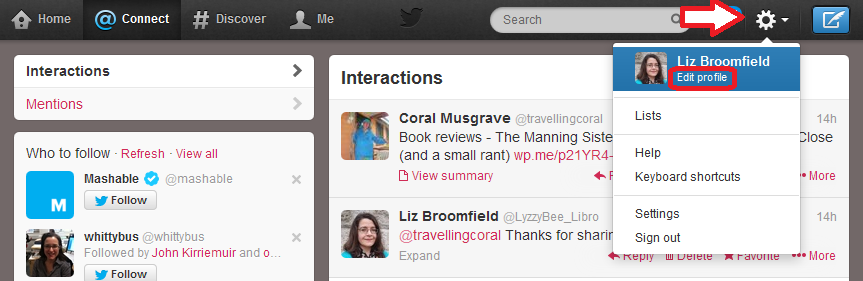
How do you change your Twitter profile? On the standard Twitter website, click on the Tools icon (the little cog) in the top right and drop it down to get Edit profile:

edit profile 1

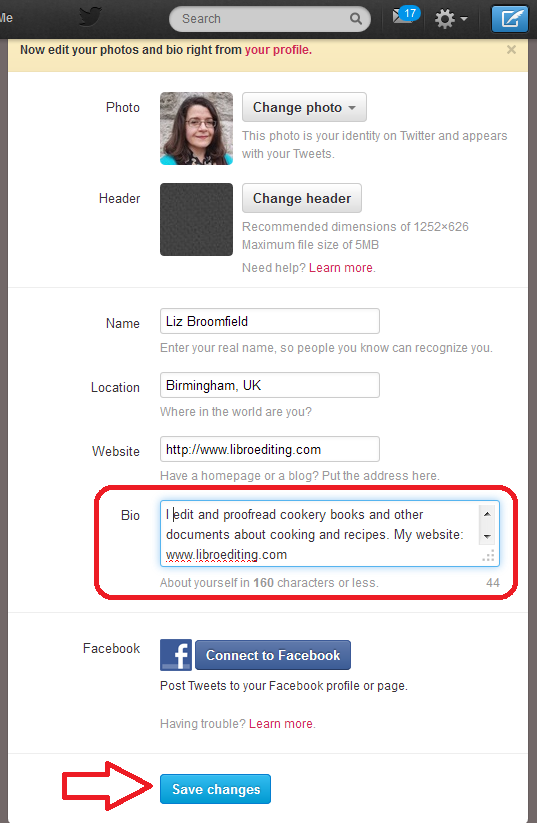
Now you have the option to change all of your details and your Bio(graphy). Make sure that you get all of your keywords in, press Save Changes at the bottom, and you’re reading to go and encourage people to look at it!

edit profile 2

How do I search in Twitter?

At the top of the screen, you will find a grey box with a magnifying glass icon in the right-hand end. You can type any words you want to search for in here and hit Return to run your search.

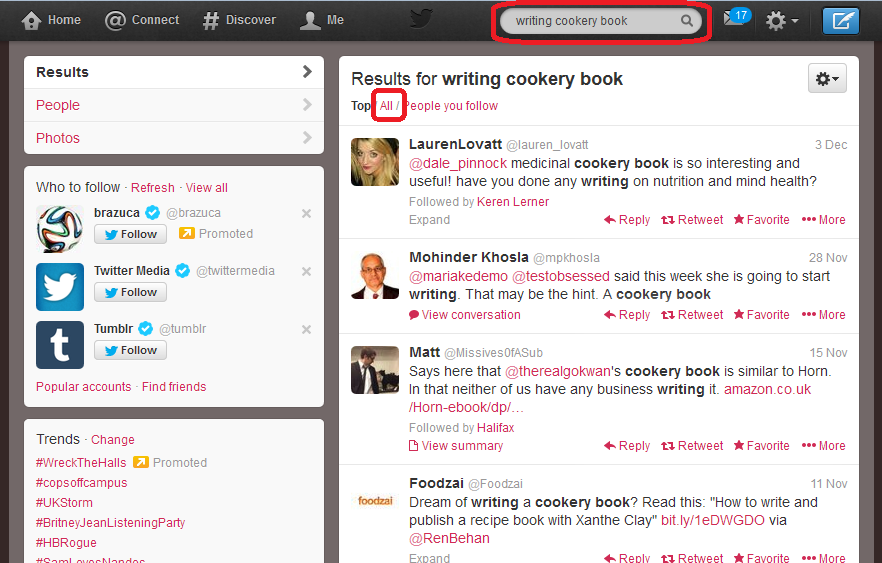
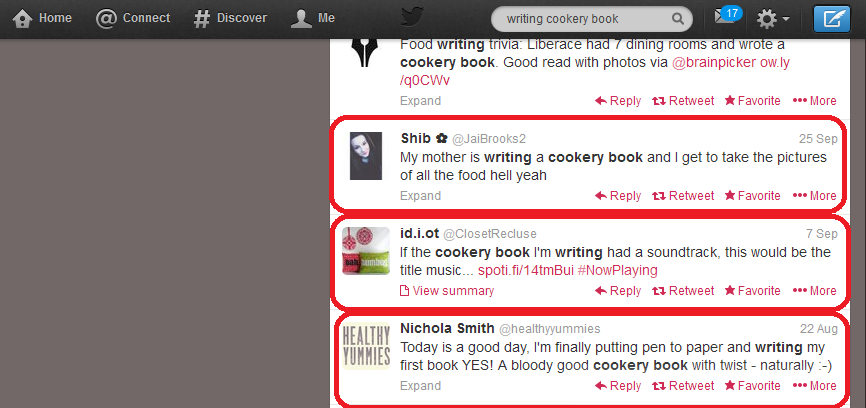
You do need to think about your search terms and what you think people who might be searching for a cookery book proofreader might need. Here, I’ve gone for “writing cookery book”, on the grounds that if someone is writing one, they are going to need editing help at some stage. So I input that, hit Return, and when the results come up, I choose All rather than Top or People you follow – to make the results list as wide as possible.

1 search

How do I interpret the Twitter search results?

Bear in mind what you’re looking for: people who are writing cookery books and might need your help. Scan down the results list, and you’ll soon see some hopeful ones. I would send a quick note to all of the people I’ve circled, but not the one above, which just mentions a cookery book, not really associated with someone writing one right now:

2 results search

Advanced search in Twitter

Twitter searching doesn’t use wild cards, which means you can’t input cook* book and get it to search for cookery book, cook book, cooking book, etc. Once upon a time, you’d have to run searches for all the different words you wanted. But now you can run Advanced Search and search for lots of different things at the same time.

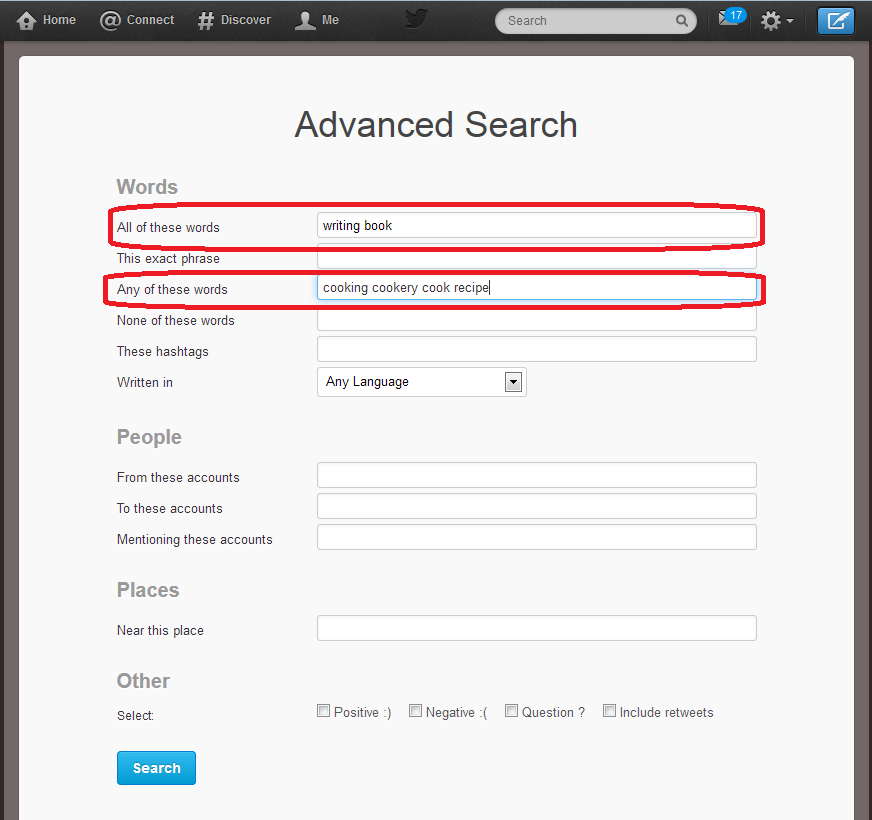
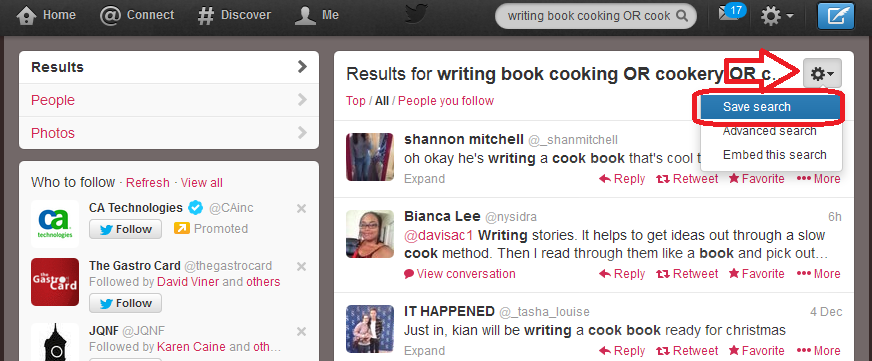
Click on the cog to the top right of your search results and drop it down. You’ll have an option to Save search (we’ll look at that later) and Advanced search will appear in the sidebar. Pick Advanced search and you’ll be taken to the Advanced Search input screen. Here you can handily choose words that must be included in the results, and words that could be included. So, here, I’m saying that all tweets that Twitter finds must include the words “writing book”, but they can also include any of “cooking”, “cookery”, “cook” and “recipe”. This means that it will look for “writing book” plus any one or more of the other words.

4 advanced search

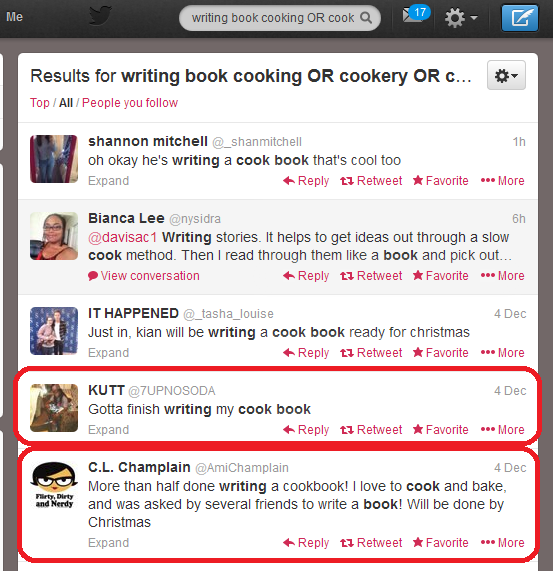
What effect does this have on the results? Well, we can see a few that aren’t really any use, but two from people writing cook books (circled). Result, and we’ll have more results doing this than for each of lots of different individual searches, all in one place.

5 advanced search results

(You can see that at the top of the search screen it’s written out your search as “Results for writing book cooking OR cookery OR cook…” and this means that it’s using the Boolean operators AND, OR (and NOT, if you want), so if you’re familiar with online searching, that’s what it’s doing.)

How do I save a Twitter search?

When you’ve found a good search that has a lot of useful results (no search will have ALL useful results, but this seems a good one), you can save the search. Click on the cog, drop it down and choose Save search:

6 save search results

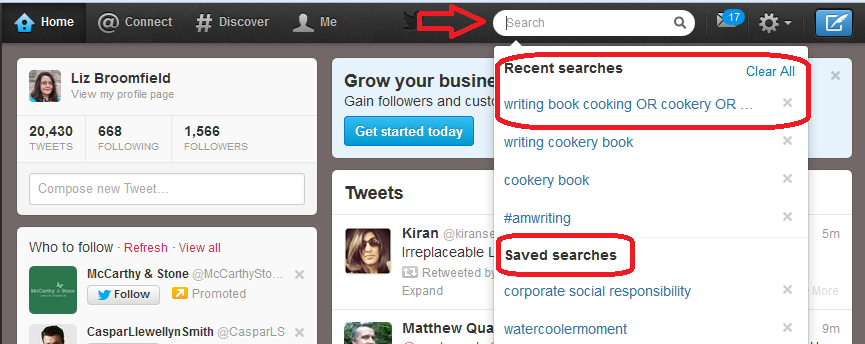
When you next click in the search field, you will get a list of Recent searches and Saved searches. Our search is in Recent searches at the moment, but will stay in Saved searches, now you’ve saved it.

7 saved search

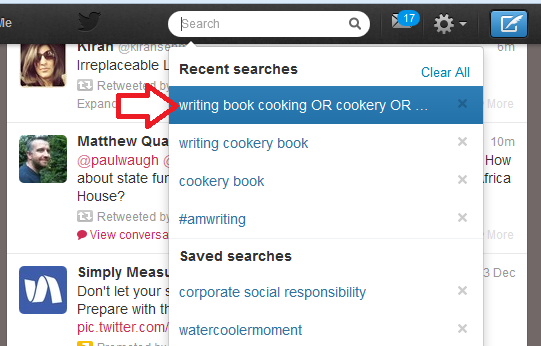
This means that you can just click on that search query rather than typing it all in again.

8 run saved search

How often should I re-run my Twitter job searches?

I recommend running each of your searches every 24 hours. This gives you only a few extra results each time, it’s easy to note where the ones that you’ve already seen start, and if you want to reply to a tweet, it’s not too long since the person tweeted it.

It might be worth running them more frequently at first, but keep an eye on how many new results come up during 24 hours and you’ll get an idea of the schedule to use. I wouldn’t leave it longer than 24 hours, for fear of missing out, as Twitter is a very immediate medium.

How do I pitch for a job on Twitter?

You might feel a bit uneasy about this. But I can promise you that no one minds one short, friendly and non-pushy contact in reply to a tweet they’ve sent out. I’ve sent loads, I’ve had a certain amount of success; some people have ignored me, but no one has ever complained.

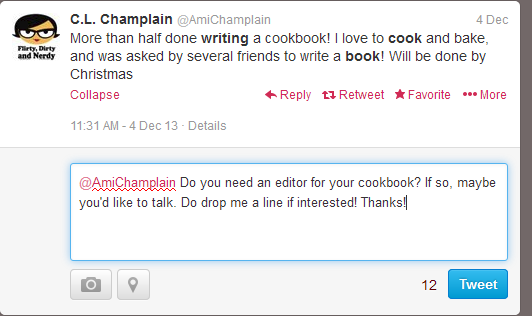
Here’s a worked example of how I’d approach this situation as a proofreader looking for work on cookery books:

9 reply

So, a very non-pushy, friendly and polite tweet inviting them to respond. If they did respond positively, I’d very quickly move to giving them my website URL (even though it’s on my profile, I’d put it in a tweet) and initiate email contact so we could discuss the project in more detail.

———

So there we go: that’s how I searched for jobs on Twitter – and won them. My use of this network was a while ago now, but you know what? I still have both of those original clients who I talked about above!

If you enjoyed this post or found it useful, please do use the sharing buttons below and leave me a comment!

Related posts:

How do I get freelance work?

Reciprocity and social media

Karen Strunks on using Twitter in your business

 
16 Comments

Posted by on December 23, 2013 in Business, Jobs, New skills, proofreading, Social media


Tags: ,

How do I get freelance work?

This article shares some ways that I’ve found successful in getting proofreading, editing, localising and transcribing work. It’s applicable to all forms of freelance work but doesn’t look at getting a full-time employed job in publishing or for another large organisation.

It’s also worth noting here, in response to some of the early comments on here, that this is a suite of options and you wouldn’t expect to do them all at the same time. Once you’ve built up 1 and 2, you can pick and choose depending on what your career path is – and it’s important to indulge in some planning from the start. Thank you to my commenters for helping this to be a better and more useful post!

1. Make sure that you say what you do on your website

Many of your clients will come to you after doing a Google search. Remember: people will take the easy option. Why bother to search on lists and in directories if you can just stick a search in Google.

So it’s worth making sure that your website …

  • Includes a clear list of all of the services you offer
  • Includes a blog which is updated regularly – this really helps your position on the search results
  • Is Search Engine Optimised in general (there is an art to this, but make sure you include your keywords regularly, write lots of natural reading text and include keywords in page / post titles and headings)
  • Includes a picture of you and ways to contact you – a contact form is always good for this

Oh yes – do make sure that you HAVE a website. Even if it’s just one page, I really do think that in all industries, from carpentry to computer programming, people expect you to have some kind of web presence, and may well give up the search there and then if you don’t, even if you’ve been recommended by name by someone. I know that I do that when I’m looking for services …

2. Make sure that people know what you do

An awful lot of my early clients came through friends of friends and social networks. Obviously, don’t bombard your friends by begging them to refer you, but make sure the following are covered:

  • If you have a company Facebook page, include a list of your services
  • Include your services on your Twitter profile
  • Mention what you do on social networks every now and again (a good way to do this is to mention what you’ve BEEN doing “This month I’ve edited this, transcribed that and localised the other”.
  • Make sure peers in one area know you cover other areas, too (if you do), e.g. I make sure that my editing chums know that I transcribe as well
  • Consider setting up a newsletter and making sure you mention all of your services
  • Update your clients with any new services you’re offering

3. Join industry groups and publicise yourself through their directories

I gained early clients through being in a member directory associated with a copyeditors’ email list. Friends do well by being listed on the Society for Editors and Proofreaders’ website. My roofers are listed on a government-accredited tradespeople’s website. All of these are places where people will look for accredited and proved suppliers.

4. Advertise on general directories and websites

A hint: don’t bother with paid ones when there are so many free directories and websites!

Ask around your peers as to what they find useful. I am on Freeindex and get a few enquiries a month. Join as many as you want, but do make sure to update your profile if you change your services, fees, etc.

If you’re in a trade like roofing or plumbing, it’s worth looking at council and government approved listings and the paid directories, as people do search these first, but beware putting too much money in at first.

Again, for trades, local print directories and especially business association directories can be good. I have a free listing in our local business association one, which has never brought me any work, but I always try to find local tradespeople who are members, and other people will do this, too.

5. Use industry-specific freelancer sites

I’ve had a look at general websites like freelancer.com, elance.com and oDesk and personally, I don’t think they’re worth it. A lot of people on those will undercut and take any job at the lowest price possible. Many of the sites have “tests” which are actually a test of your understanding of the site itself, not your ability as a writer, editor or whatever.

*Edited to add: while I don’t find these useful, a couple of people have mentioned Elance to me as a good one to try that has got them decent jobs, so it’s worth looking at that.

However, there are industry-specific freelancer sites which are worth it. Again, ask your peers for recommendations. The one that’s got me the most work is proz.com, which is a site for translators where you can put up a profile and, if you pay for membership, that profile will be sent to people looking for freelancers, and they will contact you direct. This has paid back the membership fee for me tens of times over, because I work with translators into English, and offer localisation, which is related to translation.

You can also look for people looking for particular skills and freelancers and then pitch to them.

Take note, though: with anything you pay for, do assess each year whether you’ve got that fee back, and more. Only continue paying if you’re getting a good return on your investment!

6. Advertise (selectively)

I’m not a big fan of paying out for adverts. Most of the other methods I talk about here are free. But there might be specific advertising channels that will work for you.

When I was starting out, working as a proofreader on theses and dissertations, I put up some posters around the university where I worked, recruiting colleagues who were also students to put them up in common rooms, etc. (free, except for printing costs and a few coffees!) and I advertised in the university staff newsletter, which went to tutors and supervisors. The costs were low, even to non-staff, and I did get the money back.

As with using websites that you pay for, do check your return on investment and keep an eye on the outgoings.

7. Use social media proactively

This one particularly applies to Twitter, although LinkedIn can be used in this way, too. Search for people looking for your services on Twitter. Reach out to potential clients directly. I have got paid work using this method and, even better (see below), I’ve got clients who have gone on to be big recommenders this way, too.

No one minds one, polite Tweet if they’ve asked for recommendations for a good plasterer or translator and you fit the bill. Don’t hassle people and don’t blanket-tweet; do tailor your response to the person you’re contacting.

I’ve written a separate article on searching for freelance jobs on Twitter, with a worked example.

8. Seek recommendations and referrals from clients

The best way to get new clients is through word of mouth. The two main advantages?

  • It’s free!
  • If person A recommends you to person B, and person B gets in touch with you, they are far more likely to convert into a paying customer than someone who’s randomly got in touch with you through an ad or Google search.

You do need to be a bit proactive about this, though …

  • Make sure that your clients know you’re looking for more clients just like them
  • Say thank you whenever you find out someone’s recommended you
  • Ask clients for references to put on a reference page on your website (this makes enquirers more likely to use you as you come recommended by lots of people)

I have several clients who act as “nodes” for me, recommending me either individually or via blog posts and pages on their websites.

9. Seek recommendations from your peers

Your peers fall into two groups:

  • People who freelance or run small businesses like you, who you might meet in online groups or at networking events
  • People in the same industry as you, who you might meet in the same ways

It’s important not to see people in the same industry as you as competitors – you’re much better off considering one another as colleagues. When I was starting out, I was passed what turned out to be a major client by a proofreader friend who wanted to stop working at weekends and in the evenings. So I did evening and weekend cover for them. Now I’m established, I much prefer to be able to recommend potential clients who I can’t take on to another qualified person who I know will do a good job.

When you’re starting out, it’s worth forging (genuine) relationships with people in your industry who are more established. They may well have the odd customer they want to pass on, or have too much business and be looking for people to recommend on to. Nowadays, I pass quite a few people who I can’t accommodate on to a core set of five or so recommended proofreaders, writers and transcribers. I also keep a note of people in allied industries such as book design, graphic design in general and indexing, so I can pass people to them with a relevant recommendation, rather than just leaving them hanging.

You can also profit from either teaming up with peers in different industries – for example, I’ve worked with web designers on projects where they’ve written the website and I’ve provided the content, and I’ve done proofreading work for virtual assistants who don’t offer that service themselves.

I haven’t got many clients directly through networking, but I met an author at an event who went on to recommend my transcription services to a fellow author, who now uses me for transcription and editing, AND recommends me on her website!

10. Go cold calling and door-knocking

Some people do cold calling and door-knocking, where they literally call people on the phone or walk up their front paths and ask them for work. For a start, I don’t think that works in the service industry. I know some editors cold call publishing companies, and I’d love to know how that works out for them.

Personally, I feel this takes a LOT of investment. Cold calling requires a list, which takes time and research or money to get, and taking time out to walk up a lot of paths is a fairly hefty investment, too. It might be more worth looking at trade directories or local directories before you take this path – but do share your stories if you’ve had other experiences!

Edited to add: as people have kindly shared their experiences, I’m adding a note here to say that cold calling can be useful if you’re targeting a specific and maybe narrow group of clients. Fellow editors, for example, have gained work for publishing houses or journal publishers by taking this route. As my client base is more individuals and other small businesses and freelancers, this approach wouldn’t work for me. But if there’s a group of companies that you can identify as a good fit, by all means approach them with a call or letter, cold, as it were.

———————

How do you get freelance clients? Can you recommend any other ways, or do you use any of these? Do let me know whether you try any of these successfully as a result of reading this article!

Related posts of interest on this blog:

Thinking of going freelance (1) – some initial points to think about

Thinking of going freelance (2) – how to organise yourself once you’ve got going

How do I decide to who work with? – choosing companies to associate yourself with

How to turn a new customer into a regular customer

What’s the best mix of customers to have?

How to make more money in your freelance business

Searching for jobs on Twitter

When should I say no?

 
17 Comments

Posted by on December 16, 2013 in Business, Jobs, Organisation, Social media


Tags: , , ,

What is Storify and how do I use it?

Storify logoIn response to a request for information*, today I’m going to be talking about Storify: what is it, why would you use it, and how do you use it? I wasn’t already a user, so this post takes you through the stages of logging in and creating your first story through screenshots created as I did it for the first time myself!

What is Storify?

Storify is a social media tool that lets you create stories or timelines from a variety of social media resources like Facebook and Twitter, as well as other web resources. You can use it to pull together information on whatever you want, and can customise it how you want, then share your story on the site with your friends on those social media sites.

Why use Storify?

I’ve mainly come into contact with Storify in relation to events. For example, Karen Strunks pulls together a Storify after every Social Media Cafe in Birmingham. She gathers any Tweets and Facebook posts which have used the hashtag #bsms and creates a storyline showing the event through its before, during and after stages, and what people were saying about it. Here’s an example of one of her Storify stories.

So you can see that it’s a great way to pull together information and images and make a story that you can share with others. It’s useful for events, news on particular topics, or fundraising and awareness raising campaigns. You don’t have to base it around hashtags (a hashtag is a short code with a # in front of it that creates a searchable link in Twitter and Facebook, etc., which allows you to find all of the tweets on a particular topic. For example, even if you’re not a member of Twitter, searching for the hashtag #amwriting, used by authors, will give you these results, all containing the hashtag (example)).

How do I join Storify?

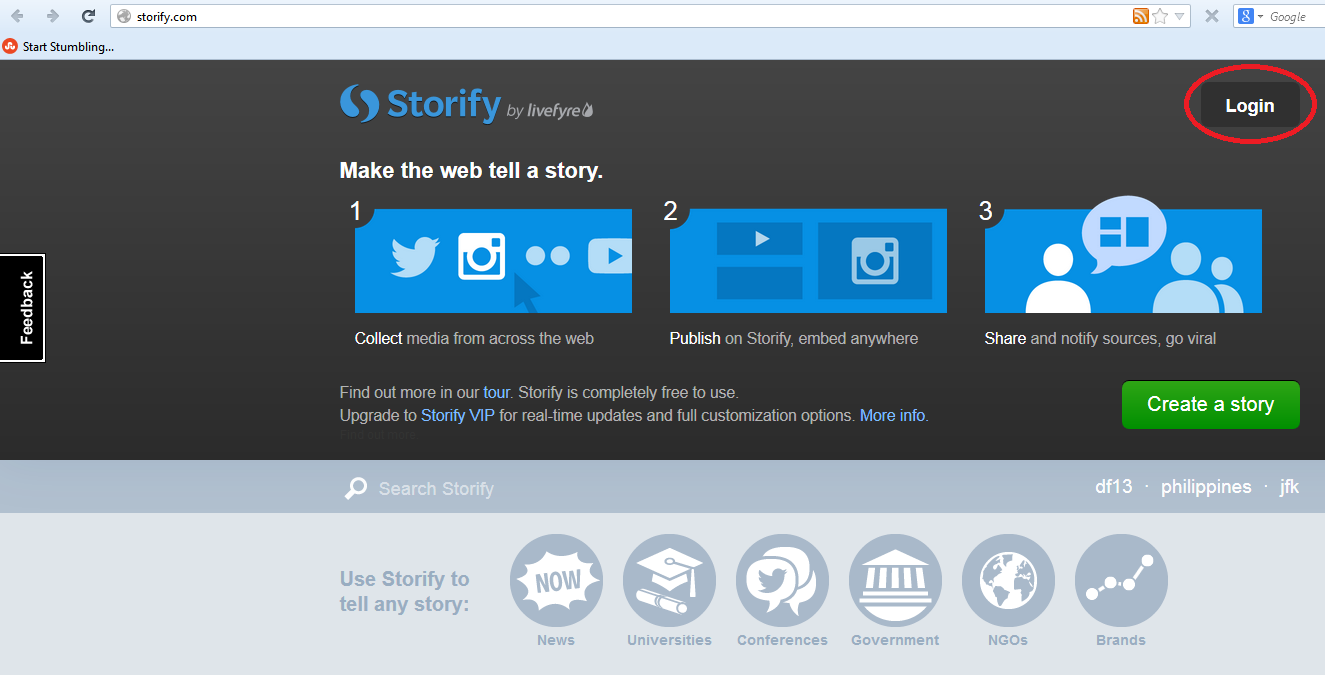
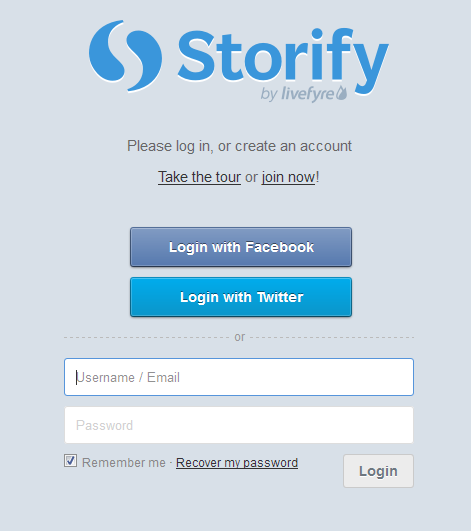
If you’re not already a member, you need to go to www.storify.com and sign up. If you don’t already have an account, you need to click the Login button at the top right:

Storify home page

You will be given the option to log in using Twitter or Facebook. Actually, you will still need to create a password and account with Storify: what this does is associate your Storify account with your social media account. You can also just create a username and password.

2 login

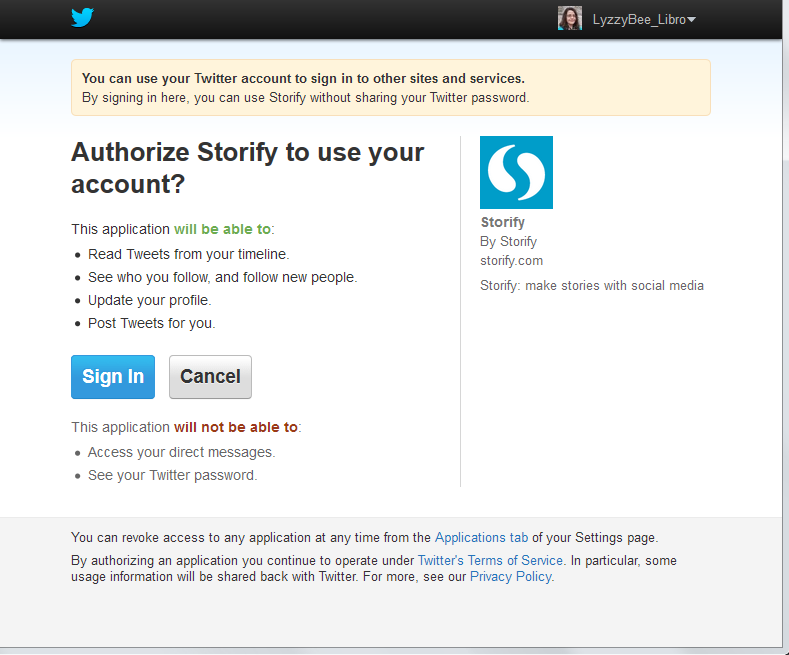
I chose to sign up using my Twitter account, as that’s what I use most for business and sharing. As it says, it only connects to your Twitter account and uses its authentication, it doesn’t see your password etc. And when it says it will Tweet for you, that’s only when you create a story, not randomly!

3 Twitter login

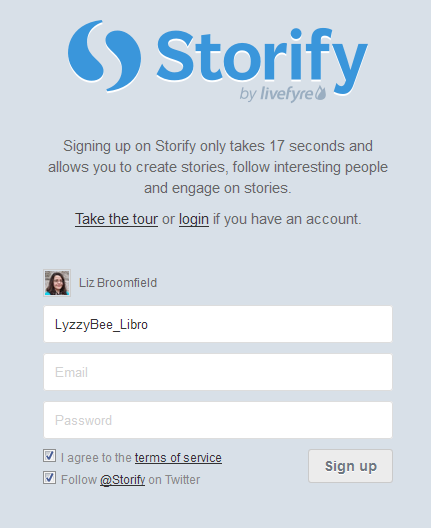
So I told it my Twitter username then added my email address and a password:

4 sign up

And that was it, I was ready to create my first story!

How do you create a Storify story?

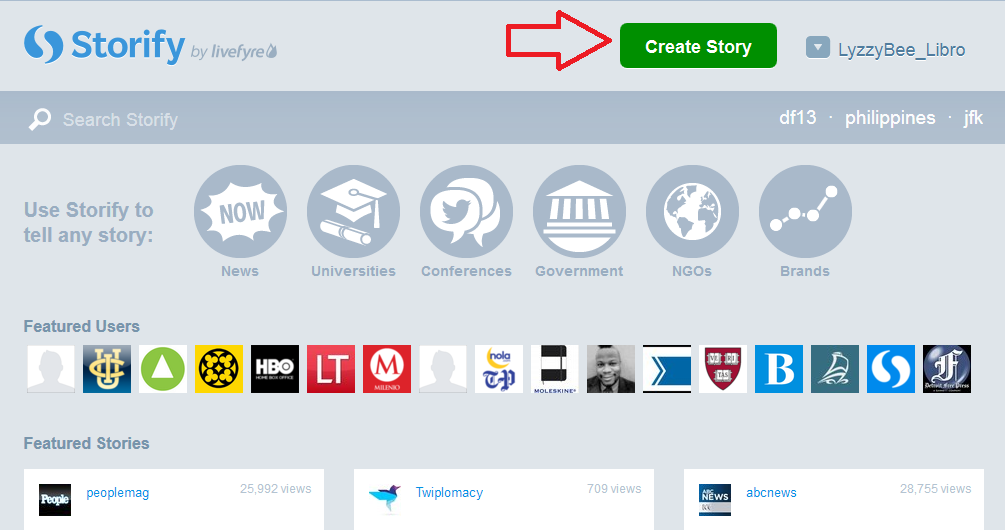
Once you’ve created your account, you’re ready to create a story. There’s a big green button on the top row of the website, Create Story. Click that …

5 create

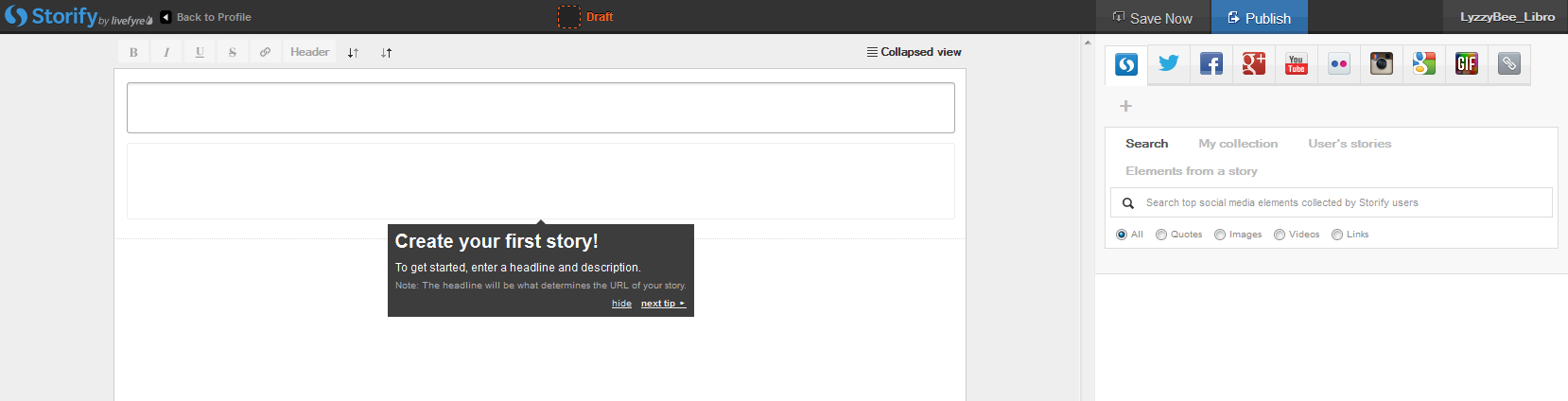
… and you’re taken to a slightly alarming page – alarming because it manages to look both blank and complicated! But look: little tips come up the first time you use it which guide you through what to do!

Basically you’ve got an area where you create your story on the left and a place to search for content on the right.

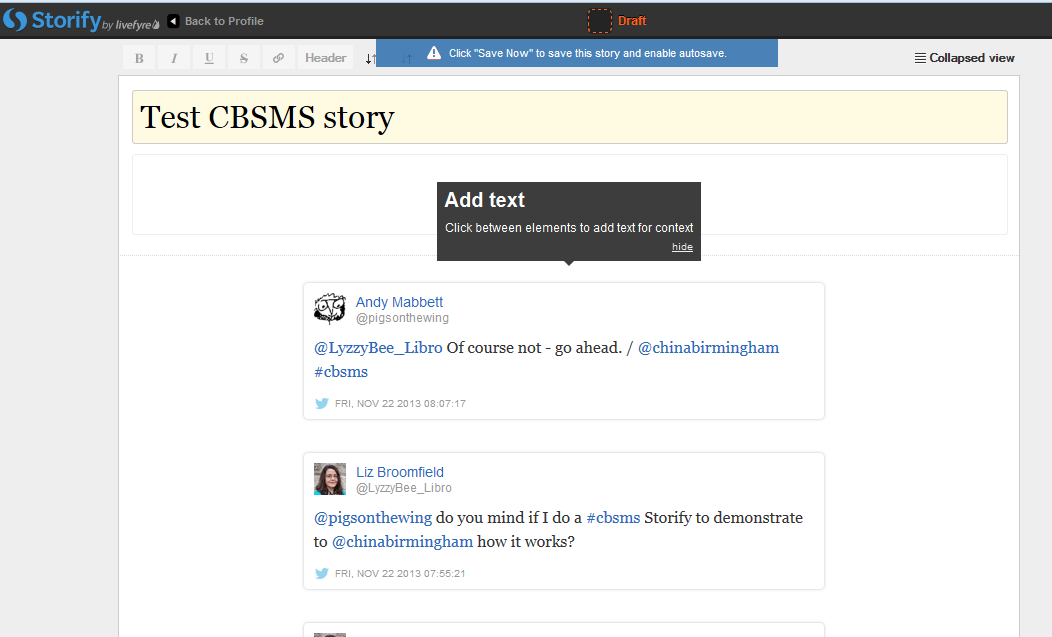
The first thing to do is create a name for your story. You can also press the Save Now button at this stage, which will prompt it to autosave as you go along.

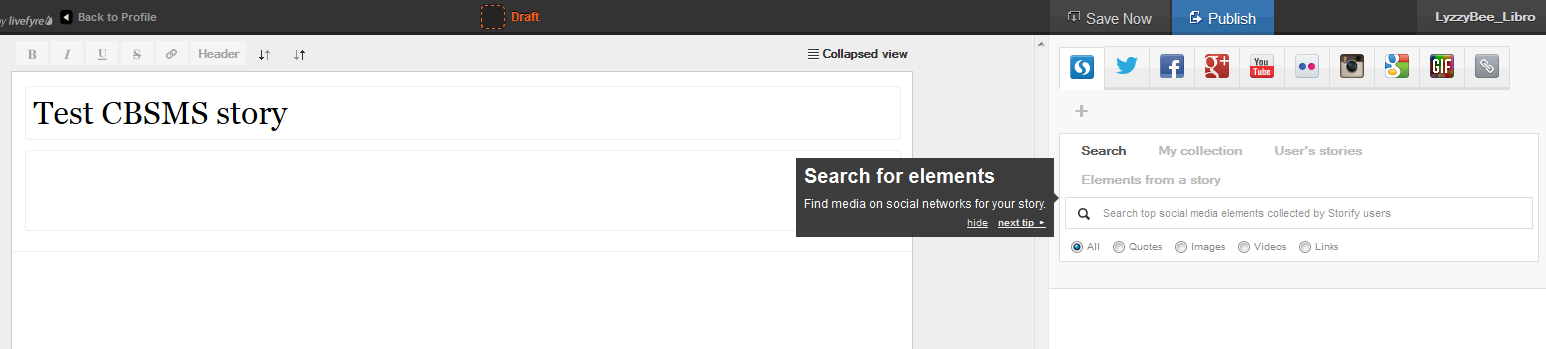
6 create

I’ve given my story the edifying title “Test CBSMS story” and now I’m ready to add content, or Search for elements, as Storify calls it:

7 create

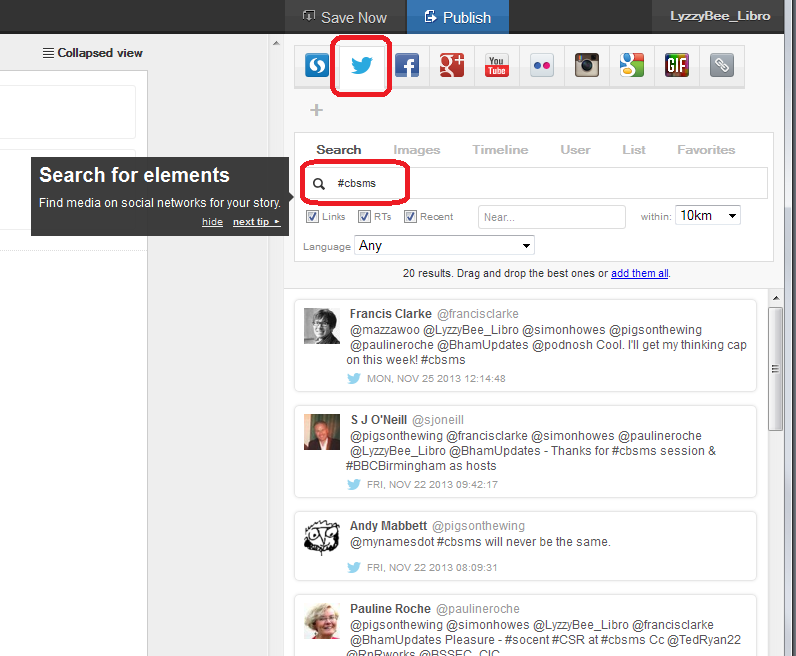
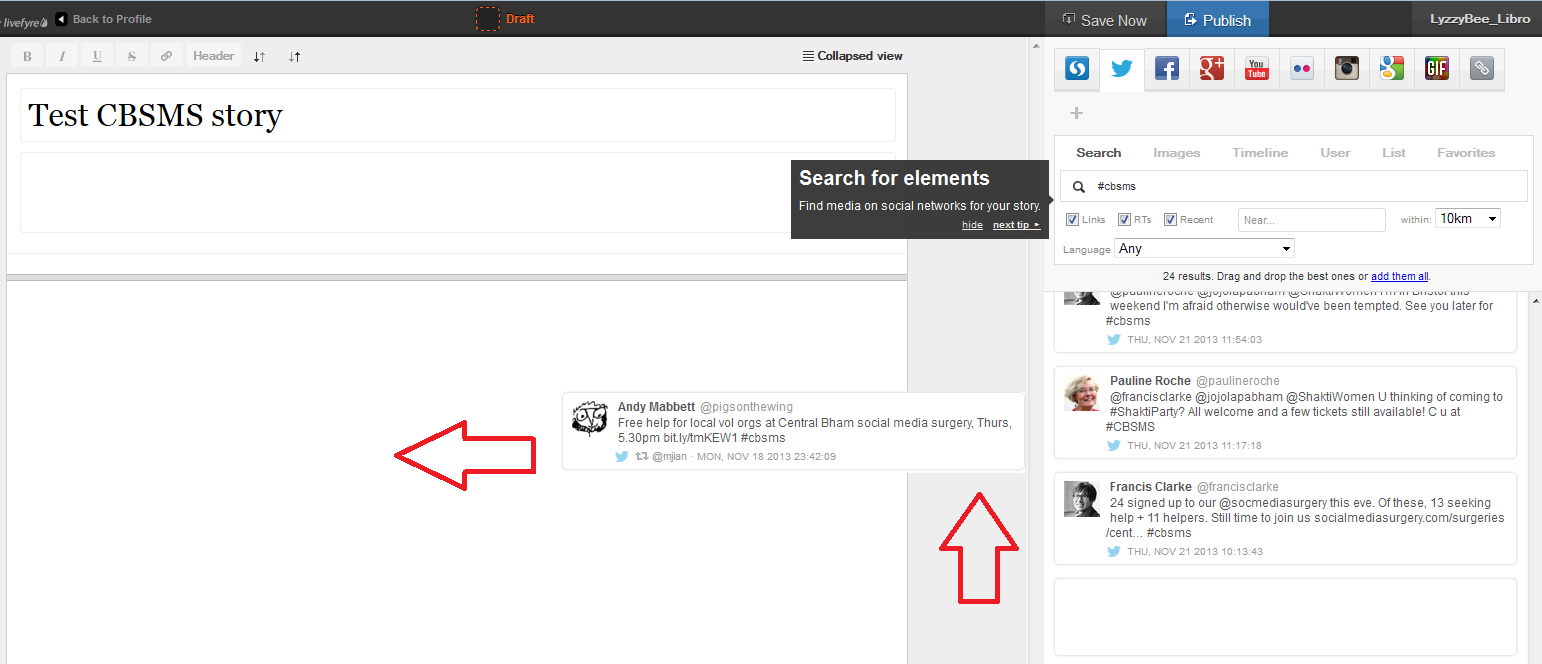
There’s a row of tabs along the top – I clicked on Twitter and then searched for #cbsms [Central Birmingham Social Media Surgery], because I knew that that was the hashtag used around the event. But you can search for anything here:

8 search

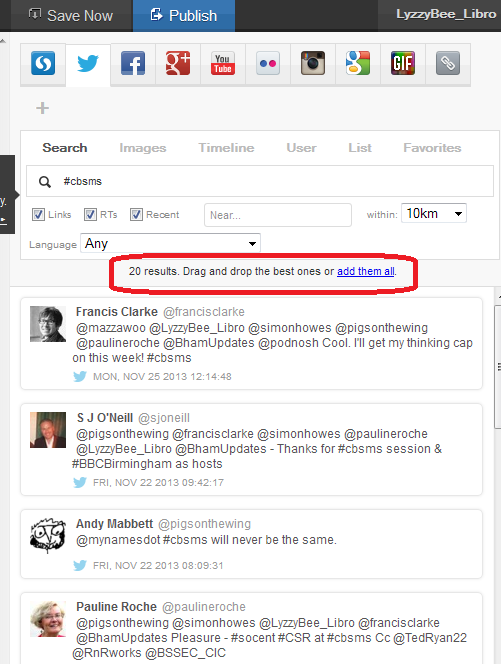
You can see that a set of Twitter results has come up, and all of them contain the hashtag. Storify now handily told me what to do: drag and drop the tweets I wanted into the story area:

9 choose

This means that you can pick up particular results but not all of them – useful if some of them are repeated or just ‘chatter’ that you don’t want to include. It also means that you can put them into whatever order you want, rather than the order imposed by the standard Twitter view (I made this one like Twitter, with the newest tweets at the top, but if you look again at Karen’s example, she switched it round to read from top to bottom).

Click on the tweet you want to include and drag it across into your story area:

10 choose

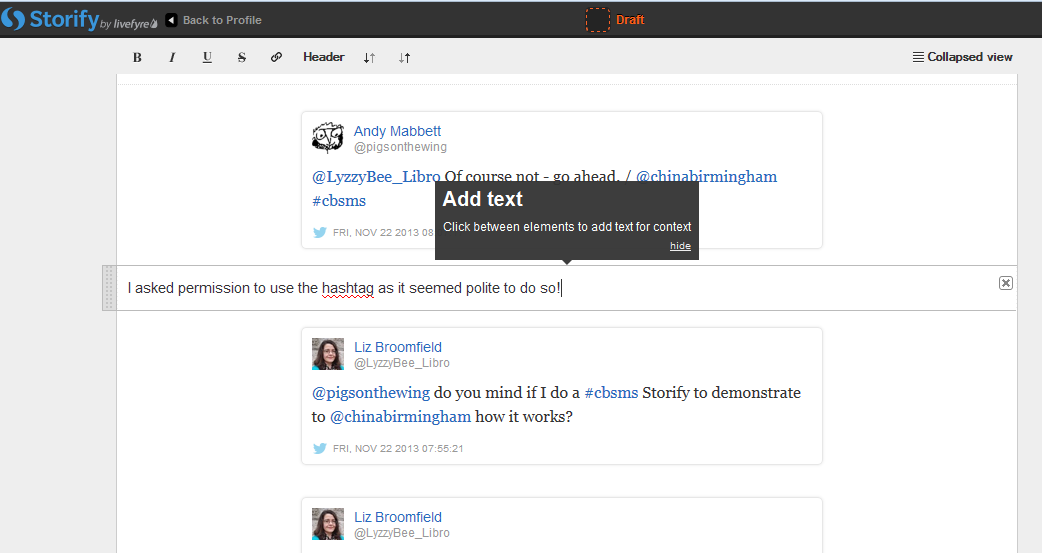
Once I’d popped a couple of items in, I was told that I could add text:

11 comment

You click on the space between your items and type whatever text you want to add:

12 comment

So I added a note explaining the last two entries in the story, where I checked it was OK to use the hashtag to create this worked example.

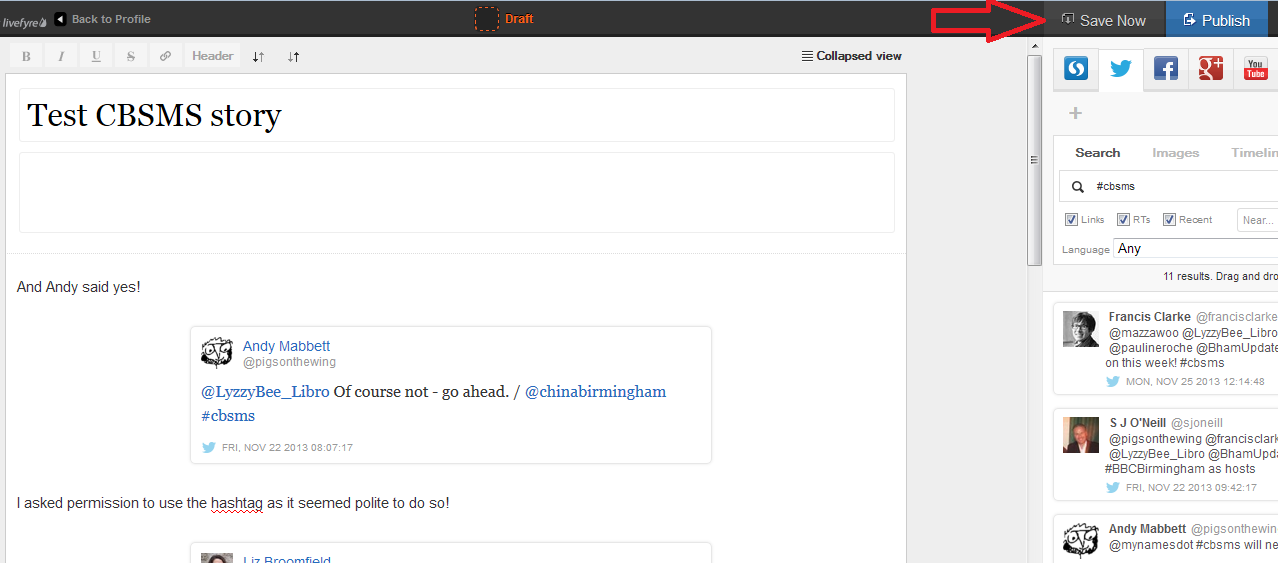
I then hit the Save Now button – which I mentioned earlier and should have done at the point at which I mentioned it! Just in case!

13 save

Adding more sources to your Storify

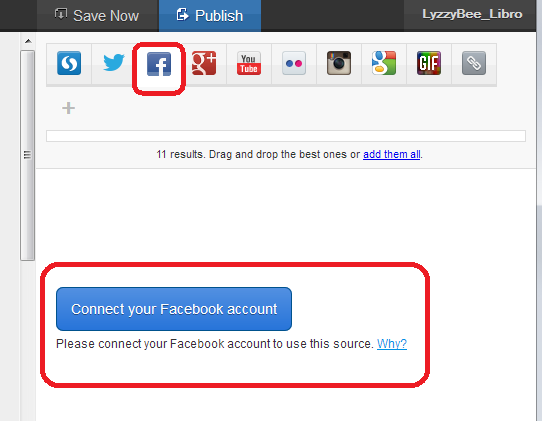
You’re not limited to creating a Storify from only one source. Along the top of the search area you can see loads of different options, including Facebook, Google+, YouTube, Google, and your own photos and links.

Note that if you choose Facebook, you will need to log in and link it to your own Facebook account (again, this won’t do anything nasty, it just appears to need to use your own Facebook timeline. Of course, you can search for anything on Facebook once you’re logged in). You don’t seem to need to do that with Google+, though.

14 connect other accounts

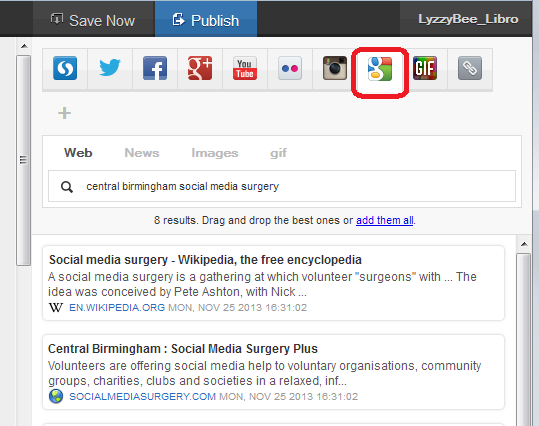
This time, I didn’t bother with any Facebook items, but I did pop into Google search and picked up some explanatory information about the Social Media Surgery to add to my story:

15 connect other accounts

How do I publish my Storify story?

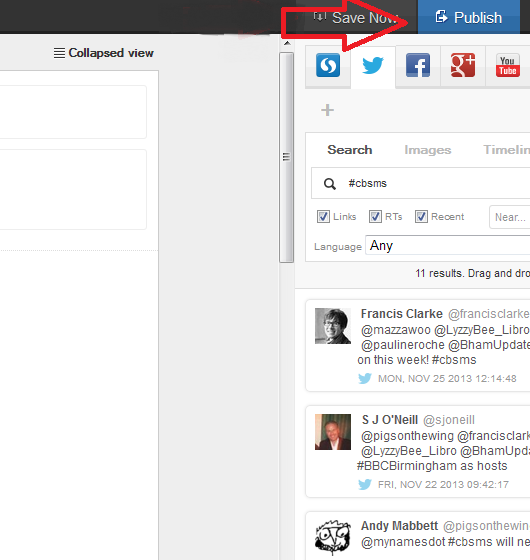
The first step is to hit the Publish button at the top right:

15.5 publish

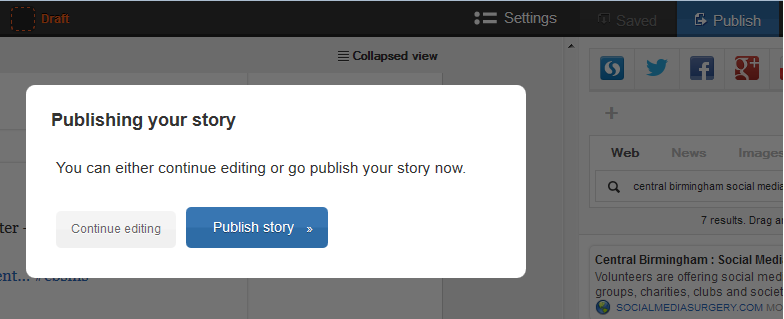
Just in case I had pressed it too soon, I was shown a confirmation box:

16 publish

I was ready to publish, so I clicked on Publish story.

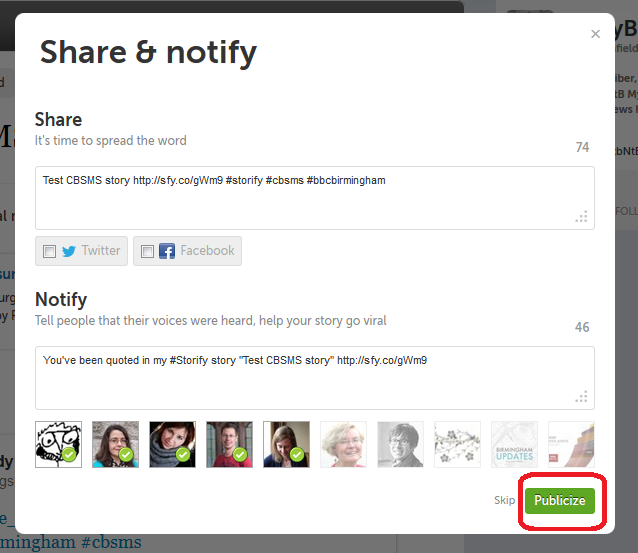
The next step was Share & notify. Sharing creates an automated Tweet with a link to your story. I imagine that if you’ve signed in to Facebook, etc., you will also be given the option to post an automated status update.

Notify lets you autotweet anyone who’s a friend on Twitter and is mentioned in your story to tell them that their tweet has been included in your story. I really like receiving these notifications, so I left these ticked, but you can untick them if you don’t want to do this.

17 share and notify

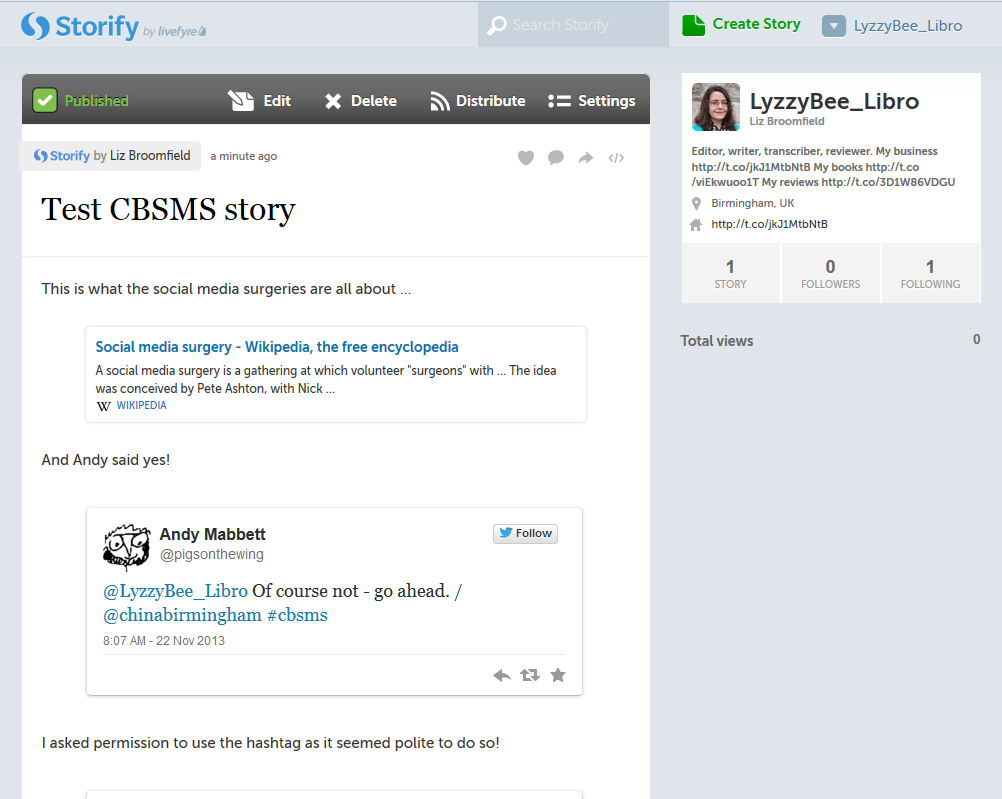
This process creates my story in Storify. At this point, the story gets assigned a URL that I can quote in emails or add to my blog. In the case of this story, it’s http://storify.com/LyzzyBee_Libro/test-cbsms-story, and this stays with the story on my profile for ever more.

18 live

What does my Storify look like on my Twitter account?

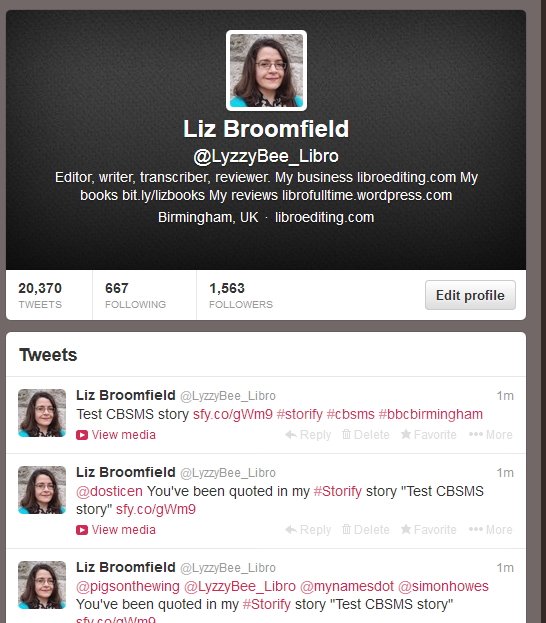
Finally, I popped over to my Twitter account to see what my story looked like on there. The top tweet is the automatic tweet with the link to my story, and the ones underneath are those ones that automatically tell people that they’ve been included. Exactly what it said it would do.

19 live on Twitter

What else can I do with Storify?

When you’re searching, you can refine your search to exclude retweets, etc.

You can get a paid account which is useful for large businesses or organisations. This seems to allow a lot more customisation and also real-time updates – however, I like the editable nature of the free version and I’m not sure if that would get lost if real-time updates were running. Maybe someone who has a paid account will come along to share the uses of that. But I think most people will be OK with the free version.

* I was helping the Chinese Community Centre in Birmingham at the November 2013 Social Media Surgery and they wanted to use Storify to pull together stories from their Oral History Project. We ended up talking about their blog rather than Storify, but I promised to put together some instructions for them. This one’s for you! Note: This is not a sponsored post, but an exploration of a potentially useful tool.

———————

This post has taught you – through my own learning process – about using Storify. You can find more posts about using social media in the relevant part of my resource guide.

If you would like more detail about how to use Storify for your content marketing, have a look at this article by Fiona Cullinan.

If you’ve found this article useful and/or interesting, please do post a comment and share using the buttons below! Thank you!
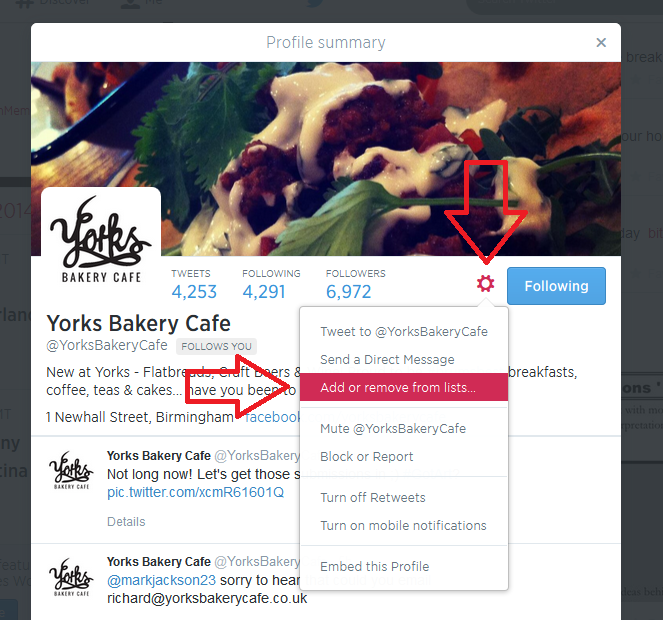
 
26 Comments

Posted by on November 27, 2013 in Blogging, New skills, Social media


Tags: , , , ,