RSS

Tag Archives: students

My short cuts – using Tabs effectively (2)

As you will have read in my original post, I’m writing up quick guides to short cuts for formatting your Word documents, to replace workarounds you might use.

I want to show you how to do things in a more formal way which will  make things easier for you in the long run, particularly when you’re dealing with long and complex documents.

Today we’re going to follow up on my previous post on Tabs. Now we know how to use the tab button, we’re going to go a step further and set tabs using the ruler at the top of the screen. Exciting, eh? It’s called “setting tab stops” – the “stops” idea coming from when you added physical barriers to your typewriter. I actually learned to type on an elecronic typewriter, back in the olden days, by the way …

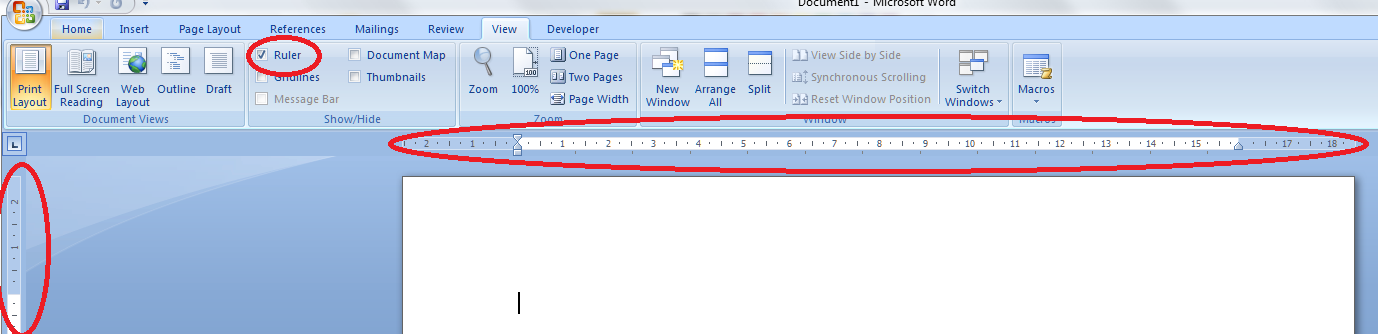
First of all, we need to check we can actually see the rulers at the top and side of the page.  Can you see a ruler at the top? If not, click on the view tab at the top of the page. See where it says ruler? Click on the box next to that so a tick appears:

Once you’ve ticked the box, the two rulers should appear, like this:

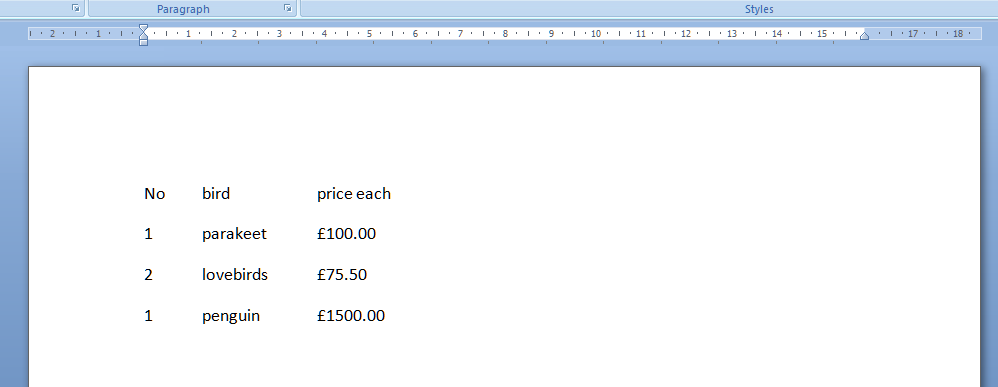
And we’re all ready to go. So, say we’ve got a little table of bird prices we want to lay out:

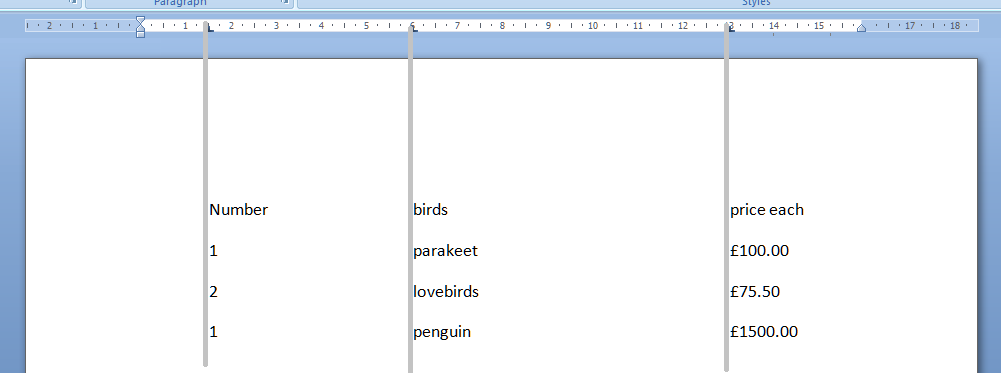
We can use the tab key to space across, but another way is to use the tab stops in the margin. Note that we need to highlight the text we want to apply tab stops to, or set up the tab stops before we type anything. Now, move the mouse pointer up to the top margin and click, just once, with the left mouse button, on the 1.5, 6 and 13 on the ruler. Just where the arrows are on the picture below. You’ll see a little L appear where you click. That’s L for left tab. Well, actually it shows which way the tab is facing, but we’ll come on to that later.

Now, when we type our text, using the tab key (remember, the one with 2 arrows on) will take us across to each of these tab positions that we have set up ourselves, rather than just going across by a set amount. The grey lines show how the text lines up with the tab stops we marked in the top ruler area.

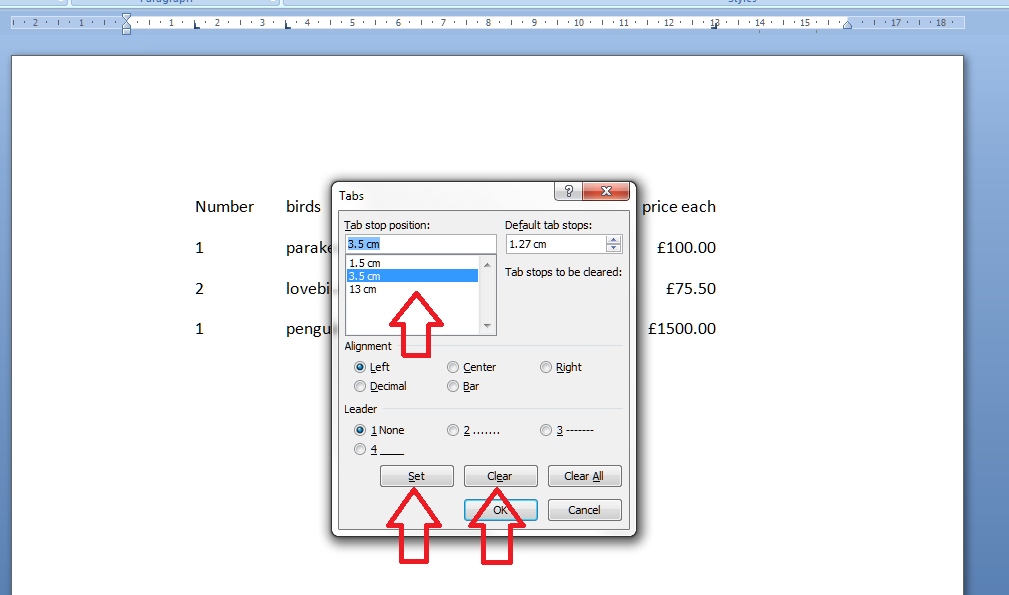
All well and good, but the prices don’t line up very neatly, do they. We can get around this, and mess around with the tab positions by highlighting the text we want to affect (remember to do this! And for this stage we want to highlight all the text so we move the column heading and the prices) and double clicking on any of the Ls we placed in the ruler. This brings up the tab dialogue box. Note: although you can click on any tab marker to bring this up, it automatically moves to working on the leftmost tab setting first, not the one you clicked on. So you can see one tab stop highlighted, and the other ones listed underneath. You can see that there are options to Clear or Set tabs. Set will set a new one at whatever position you want: if you add a third one between 6 and 13, all your text in the third column will jump across to match that. Clear will delete the tab position you have highlighted in the top box.

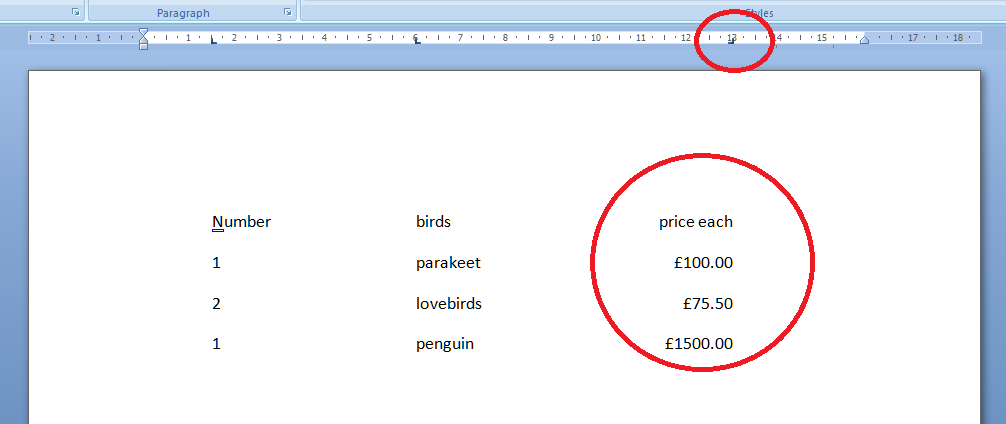
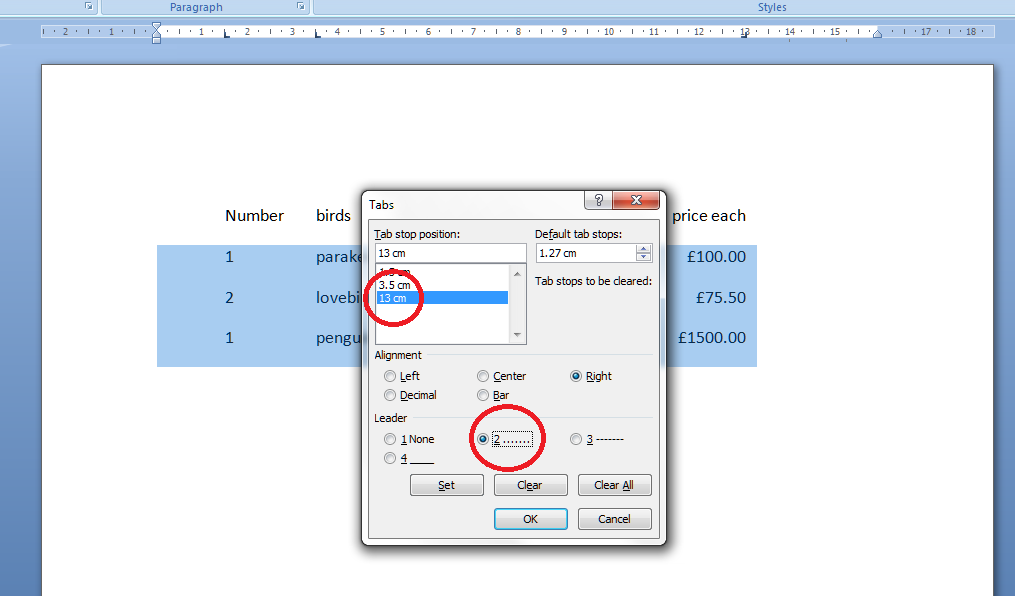
In order to line up those prices, we need to make the third tab a Right-handed one. This means the tab marker is at the right margin or, effectively, the end of the text you want to affect. So, click on the 13 in the box to bring that up as the active tab, click on the Right alignment radio button (circle).

This will make the right hand side of the column line up: lovely tidy figures and heading! Look at the tab stop at 13. It’s now a backwards L, showing that it’s keeping everything tidy to the right, not the left.

But I think the bird names want to move over a bit. Simply highlight the text, bring up the dialogue box, highlight 6 and Clear, and click Set and add a tab stop at 3.5.

Now I fancy having a line of dots going from the name to the price. A bit odd in a list of bird prices, guaranteed, but if you want to do a quick table or a contents page (although I’ll be teaching you the proper way to do that automatically in a few weeks’ time) it works nicely and looks great. Highlight just the part that you want the dots to appear in and then double click on any of the tab stops. This time, select the 13 and choose the leader you require:

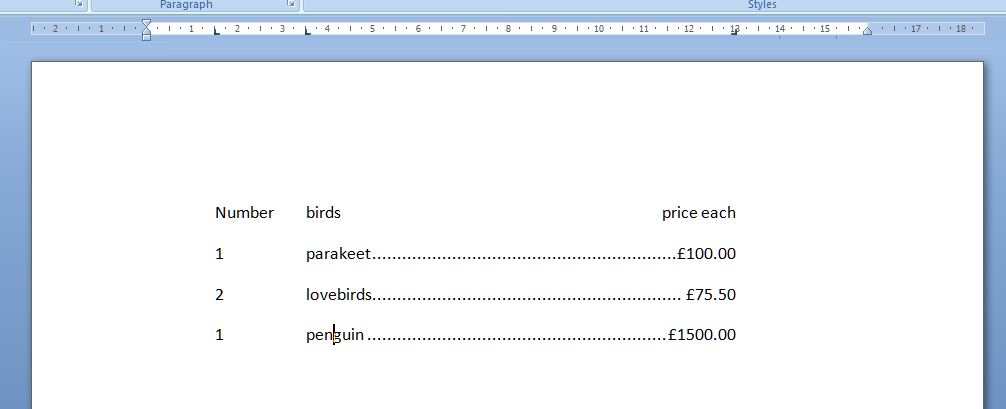
And there you go: lovely leaders between each bird name and its price. That looks tidier than scrappy columns made up of spaces and dots, now, doesn’t it!

Find my first introduction to tabs and using them to make your text nice and tidy and easy to navigate here.

Please note, these hints work with versions of Microsoft Word currently in use – Word 2003, Word 2007 and Word 2010, all for PC. Mac compatible versions of Word should have similar options. Always save a copy of your document before manipulating it. I bear no responsibility for any pickles you might get yourself into!

Find all the short cuts here

 
3 Comments

Posted by on January 19, 2012 in Copyediting, Errors, New skills, Short cuts, Word, Writing


Tags: , , , ,

My short cuts – using Tabs effectively

As promised in my original post, I’m going to write some quick guides to things you do when you’re writing documents which you think are a short cut but actually cause more trouble than they’re worth.

The idea of this series isn’t to criticise people, just to show you how to do things in a more formal way which will actually make things easier for you in the long run, particularly when you’re dealing with longer or more complicated documents.

Today we’re going to talk about using Tabs. Tabs seem to be something of a mystery, but there are easy ways to use both the tab button and tabs set in the top margin which will tidy up your document, make it easier to enter neat text in lovely columns, and reduce tension when you’re trying to line everything up.

Please note: these examples can look rather wide. I want them to be as near full-size as possible, so you can see exactly what I’m doing. If you’re looking at this post on a monitor, you should be able to scroll across to see the full image. If you’re viewing on a tablet, some of the screenshot may be cut off: hopefully you can see enough to get an idea of it, or you should be able to select the image to view it separately.

Let’s start off with using the Tab button. This is a button on your keyboard which should have two arrows on it, one facing one way and one the other. Got that? Good.

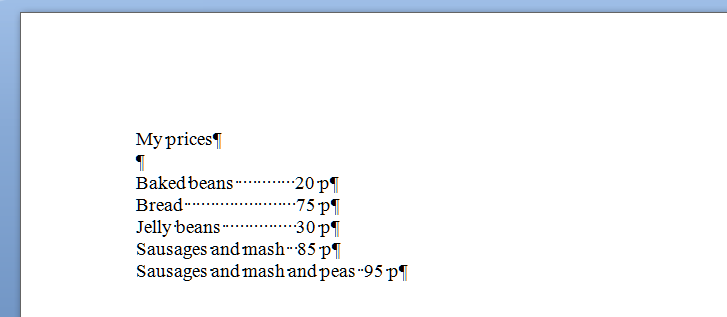
Here’s your common short cut, to start off with. You’ve got a menu you want to put on a document, with items in one column and prices in another. So you type it out, using the space bar to move along to the next column. And it looks like this:

But now you want to add another item and oh dear – it’s longer than all your other ones and puts it all out of alignment (because you’ve used the space bar to make the space between one column and the next):

How do I know you’ve used the space bar? Because I’ve used that little paragraph button on Word again which shows us all the formatting, tabs, line returns, etc.

So the way you’ve achieved this spacing is by doing this (where dots are spaces and the things like a backward P are returns):

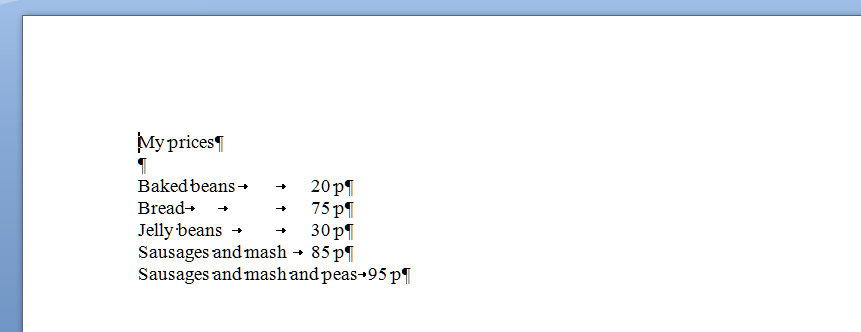
What you should have done (my short cut) instead of using space (your short cut) was to use the tab key (remember, the one with the two arrows) to space across to a set point along the horizontal ruler at the top of the screen. These tabs are represented by arrows when you’re viewing the markup:

Now, when you want to move the prices over for all the shorter items, you just need to insert one press of the tab key at the end of each item, to get them to line up perfectly.

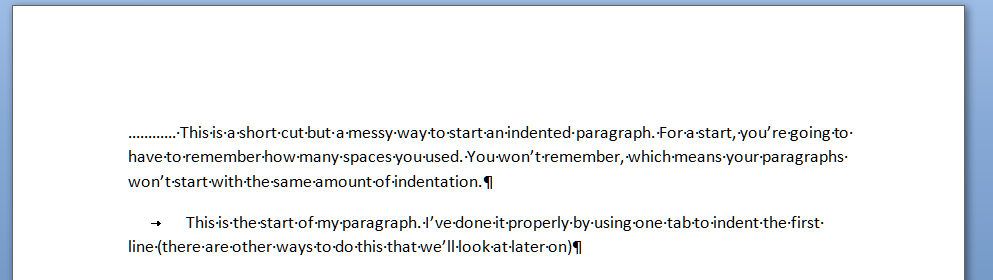
And here’s a last example. It’s very common to find people wanting to indent the first line of a paragraph, but using spaces to do so. This has its own issues – for example, you have to remember how many spaces you’ve put in and it’s likely that you’ll insert a different number each time, which will lead to indentations that don’t match. Instead, a simple press of the tab key at the beginning of your paragraph will leave everything nice and tidy

That’s enough for this session, I think. Of course, there are other ways you can format paragraphs and other indents, and you can set tab stops to wherever you want them to be across the page (and do all sorts of fancy kinds, too). But I’ll leave them for another post … (and I’ll link to them in this one when I publish them).

Please note, these hints work with versions of Microsoft Word currently in use – Word 2003, Word 2007 and Word 2010, all for PC. Mac compatible versions of Word should have similar options. Always save a copy of your document before manipulating it. I bear no responsibility for any pickles you might get yourself into!

Find all the short cuts here

 
8 Comments

Posted by on January 11, 2012 in Copyediting, Errors, New skills, Short cuts, Word, Writing


Tags: , , , ,

Top Time Management Tips: For Santa … and You!

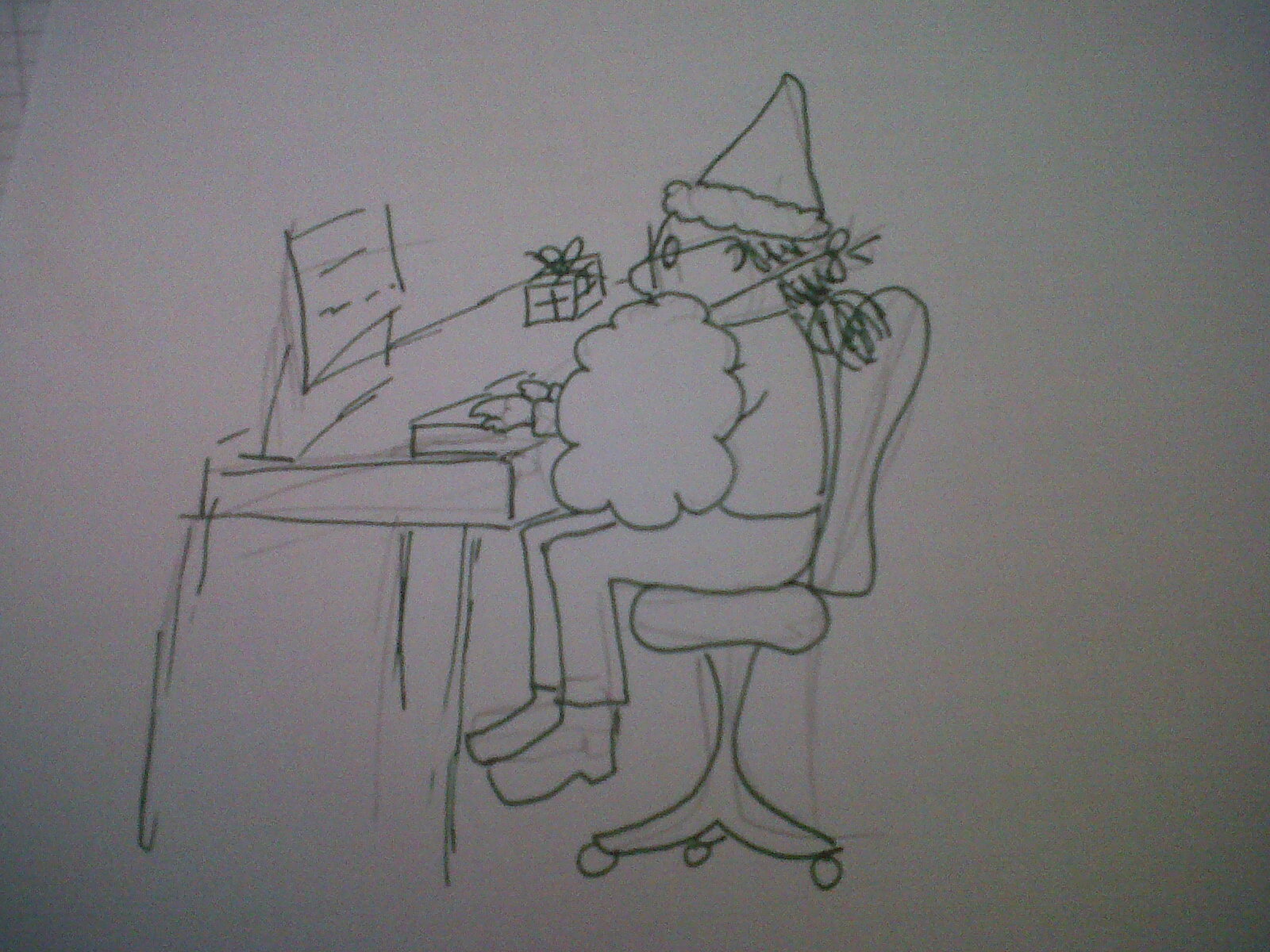
Cartoon of Liz dressed up as Santa

Liz or Santa?

This time of year is a busy one for Santa, but maybe not for you. Maybe you’re off work for the seasonal holiday now, on vacation from your studies, or your clients are on holiday so you are too, by extension. Maybe it’s time to have a bit of a think about how you’ll manage your time more successfully in the New Year. As it’s Christmas, as well as sharing some tips on time management in general, I’m going to relate them to Santa’s life, too. If you’re reading this, F. Christmas, I hope they’re helpful!

Work to your strengths

I think this and the next point are key. You should know by now when your good – and not so good – times are for concentrating and getting things done.  The key is then to arrange your day to match these peaks and troughs, aligning your work patterns to your personal patterns. This is easier when you work for yourself, but is manageable when you’re employed, too. I hope Santa’s best late at night, as his main workflow is obviously when he can zip through the dark skies! I’m best in the early mornings, so now I like to get a chunk of work done before breakfast, and when I was working, I liked to start as early as I could. I have a slight lack of concentration after breakfast, so I am scheduling in some down time or some smaller, achievable tasks for then, and I’m hopeless after lunch – but I can work fine if I have a big deadline, so I either work to a deadline there or accept it’s not a great time and do something else. People think ‘larks’ can be annoying and smug, but I’d love to be able to work late into the night. I know I will make mistakes then, as I’m not a ‘night owl’, so if I have a big project to push through, I’m more likely to get up extra early. When are your good and bad times? How can you tweak your work schedule to get the most out of them?

Blocks of time

This is the other important one, in my opinion. Say you’ve got presents to wrap, letters sent to the North Pole to read, and deliveries to make. Don’t hop from one to the other: put aside a block of time to concentrate on one thing and that thing only, whether it’s catching up with emails for half an hour, spending 15 minutes reading Twitter, or putting in an hour on that big project. When I was a training manager I learnt (from theory and experience) that people can’t concentrate for more than 45 mins to an hour at a time, so make sure you work in a 5 minute break after each hour-long block. If you have something that you don’t fancy doing, set a timer to 30 or even 15 minutes and do just that thing for at least that length of time. Often you will get into the swing of things and may be able to carry on longer.

No distractions

When you’re concentrating on one thing, don’t let the others distract you.  Santa doesn’t screech to a halt just above your chimney to answer his elf and safety hotline, and if he does, he needs to stop doing that (wear and tear on the reindeer, for a start!) There’s rarely something that won’t wait an hour. Phone calls, OK, but if you really need to concentrate, turn voicemail on, too. I keep my BlackBerry on my desk: it alerts me if an email comes in and I can very quickly check if it looks urgent without opening and reading it on my PC – works for me! Doing something wholeheartedly for that block of time will work far better than swapping to something else part way through.

Lists and priorities

It seems so obvious, but write a to-do list, either at the end of each working day, or the beginning of the next one. I split mine into work to do, work admin and other – as someone working from home there is always something like posting letters to do, and even if you work with other people you may need to pop out on an errand. As for Santa, well, his to-do list will vary according to the season, but I doubt there’s ever only one task, even on Christmas Eve (stock up on reindeer fuel, schedule toilet stops, get red suit dry-cleaned … ). I tend to write one set of lists then actually order the things for the day, with closer deadlines taking priority over more distant ones (I use a Gantt chart to record those).

Not all time is billable time

I record my billable hours in a diary every day. That’s hours I’ve worked on projects that I’m getting paid for. I can then see how much I’m making per hour, per day and per week, to make sure I’m on track with my targets. Santa needs to get a certain number of presents delivered to a certain number of houses per hour. But I’ve learnt that, just because you’re sitting at your desk for 7 hours, you’ll rarely do 7 hours of billable work (unless you’re a lawyer or suchlike and every single task is assigned a project code). You’ll have emails to answer, blog posts to write, social media to engage with, toilet breaks – and if you work at home, that mid-afternoon shower, gym session, answering the door to salespeople … Even Santa has to refuel the reindeer and restock that sleigh. So don’t beat yourself up and feel unproductive if you haven’t done 7 hours billable work in 7 hours at the desk. But do use chunks of time for the non-paid work and even take a note of it to see where you can refine the process.

Systematise

This is a posh word for putting systems in place – whether on paper or using the computer and various bits of software. Santa has a production line of elfs taking care of gift wrapping and labelling. When I do a transcription, I upload the tape into my software and create and save the Word document. Every time I finish a project, I put it on my invoice spreadsheet, generate and send the invoice (or add the line to the client’s monthly cumulative invoice) and change the colour of the red line on my Gantt chart. Morning, lunch and evening I check my bank balance and enter anything that’s come in or gone out on my spreadsheet. On the last day of the month I prepare and send my monthly invoices. If you have systems you don’t have to think about, you won’t waste time reinventing the wheel every time you come to do something.

Take advantage of other people’s peaks and troughs

I know that not many of my clients are up early, so when I’ve dealt with anything that’s come in from America or Asia overnight, I will have a good few hours without interruptions to get on with projects on which I need to concentrate. I also know that a lot of emails are likely to come in just after lunch – both from awakening North Americans and other people who seem to work hard in that hour or so. Santa, of course, needs to take advantage of his clients’ hours of sleep. So I can plan around that, and also use other phenomena, like the gym being quieter and more pleasant to visit (and more efficient to get round) in the daytime – the other Saturday I got what amounted to a free personal training session because I went early and no one else wanted the Lower Body Workshop class on the mats!  Use your knowledge and experience to take advantage of what you know about how other people work – and use it to help you be more efficient.

Build in breaks

If you’re working in an office as an employee, the Working Time Directive (or your country’s equivalent) comes into effect, telling you when to take rest breaks and how long you should work for in a day/week. If you’re a student, self-employed, or packing presents in your own Lapland factory, it’s harder to make yourself do this. But it’s vital to take breaks, to get yourself moving, get away from the screen and revitalise yourself. I recommend taking some exercise every day – be it a gym trip, a run, a walk in the park or some energetic hoovering. You’ll get a better perspective on things, too – I’ve written many blog posts while out running that I couldn’t think up in front of the computer! And get away to eat something at lunchtime, rather than snaffling a sandwich at your desk.

So, I hope these tips have helped you – and Santa – plan your time a bit more efficiently and use it more effectively. If you have any more tips, I’d love to hear about them!

 
10 Comments

Posted by on December 21, 2011 in Business, New skills, Organisation


Tags: , , ,

My short cuts – proper page breaks

As promised in my original post, I’m going to write some quick guides to things you do when you’re writing documents which you think are a short cut but actually cause more trouble than they’re worth.

The idea of this series isn’t to criticise people, just to show you how to do things in a more formal way which will actually make things easier for you in the long run, especially if you’re dealing with a larger document like a dissertation, a thesis, a funding proposal, a workbook, a technical guide …

Please note: these examples can look rather wide. I want them to be as near full-size as possible, so you can see exactly what I’m doing. If you’re looking at this post on a monitor, you should be able to scroll across to see the full image. If you’re viewing on a tablet, some of the screenshot may be cut off: hopefully you can see enough to get an idea of it, or you should be able to select the image to view it separately.

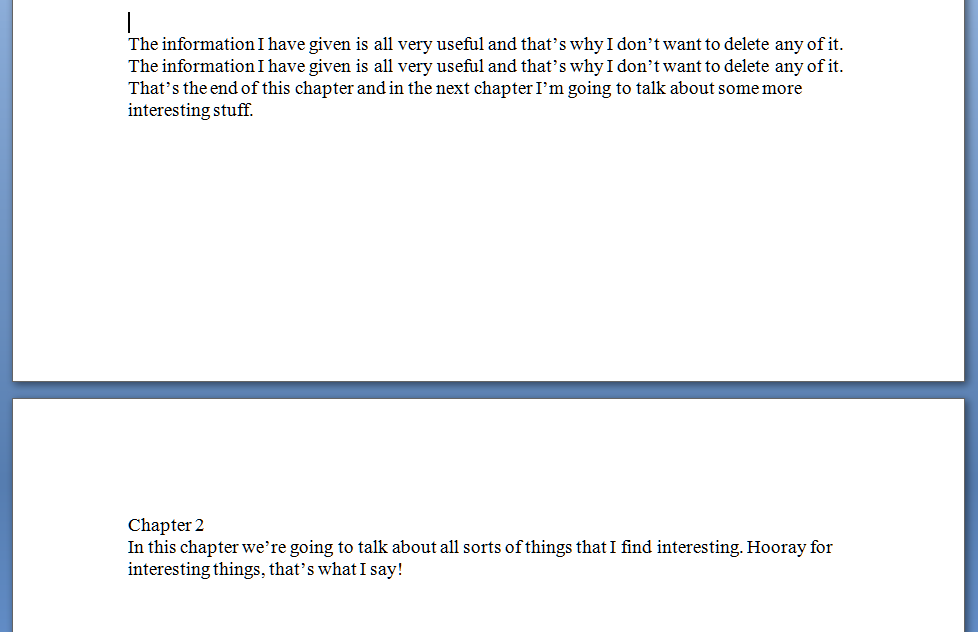
Today we’re going to talk about page breaks. If you’re writing a document that has sections, chapters, etc., you might well want to start a new chapter on a new page, and have it look something like this:

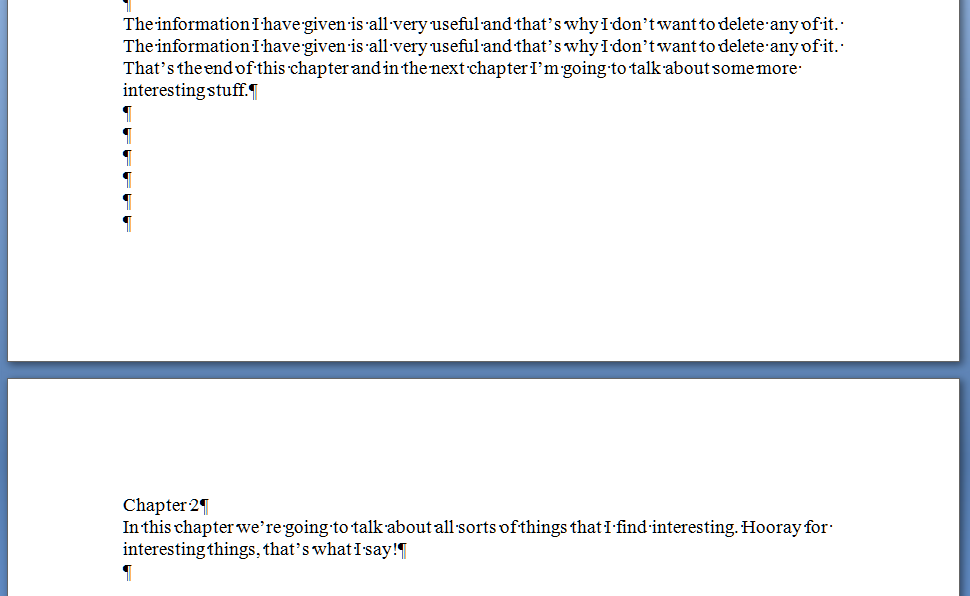
So far, so good – you’ve got your new chapter starting on a new page. But I bet you finished one section and hit the “Enter” key until you got to a new page, didn’t you? The way to tell is to hit a rather magical little button that shows all the formatting you’ve done.  In Word, you’ll find it in the Home menu; if it’s not there, play around with the display until you’ve found it and add it to the menu bar. Here it is:

That’s actually the “paragraph” symbol or pilcrow used for centuries in manuscripts and printed books. Anyway, it’s ever so useful if you want to show what you’ve done to a document. Press it a second time if you want all the formatting marks to disappear again. So, pressing this with our document open shows the horrible truth – enter, enter, enter you’ve gone, six times, down the page …

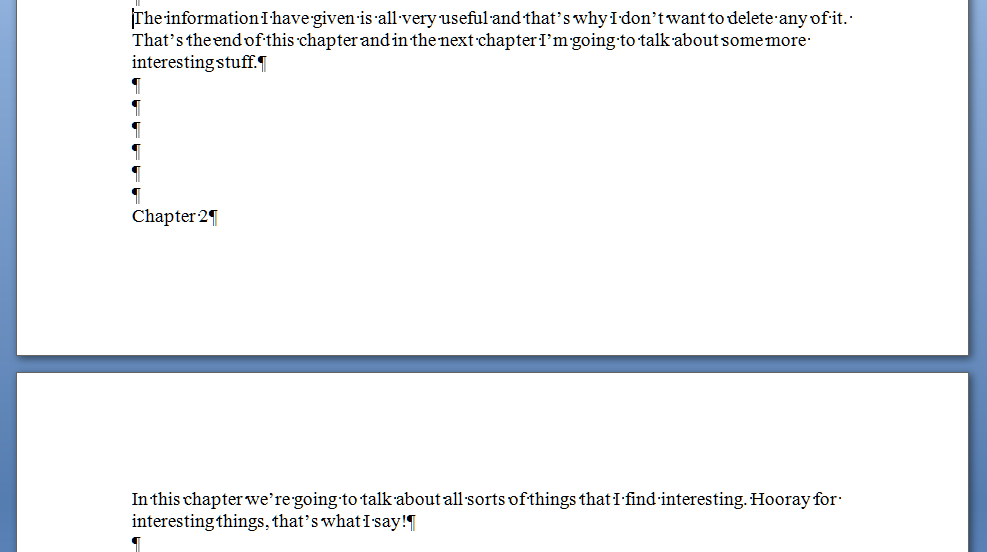
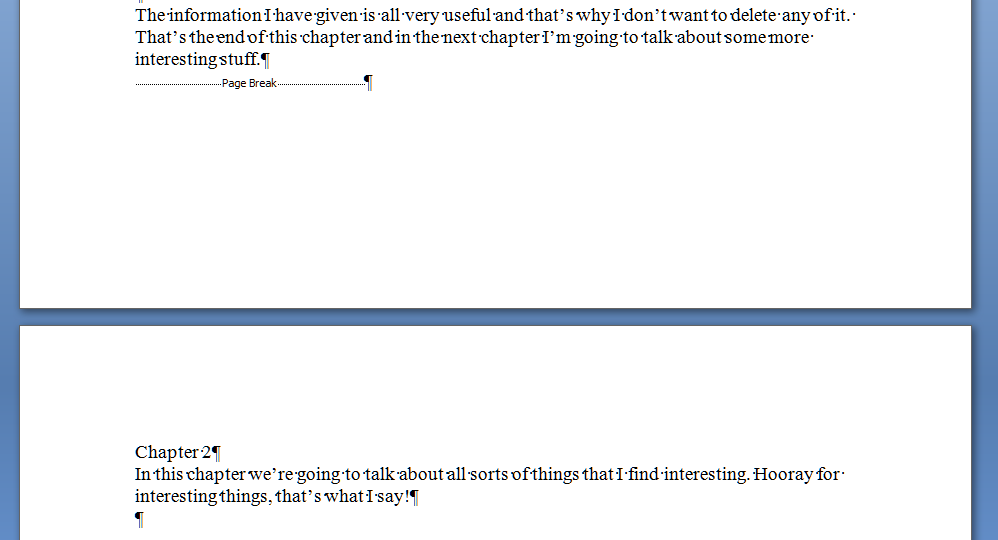
And that’s all well and good – until you change the text above the page break. You’ve done this and it all looks nice, then you notice that repeated line on page 1. Oh, well, you can just delete that. So you delete the repeated line, and the text on page 1 is now one line shorter – one line further up the page. Below the text, you hit Enter 6 times to make Chapter 2 start on the next page. Those six lines are below your chunk of text still, but your text is one line shorter than it used to be. So what happens … ?

Disaster! Chapter 2 doesn’t begin on the next page any more! It’s crept up a line! And, similarly, if you’d added some lines of text to Chapter 1, this chapter heading would start part way down this page. Messy! And when you’ve submitted your work to an editor like me, you can bet we’ll be suggesting adding lines in or taking them away; when you get the document back the spacing will be all over the place (or I’ll have done it my way and made it tidy already … )

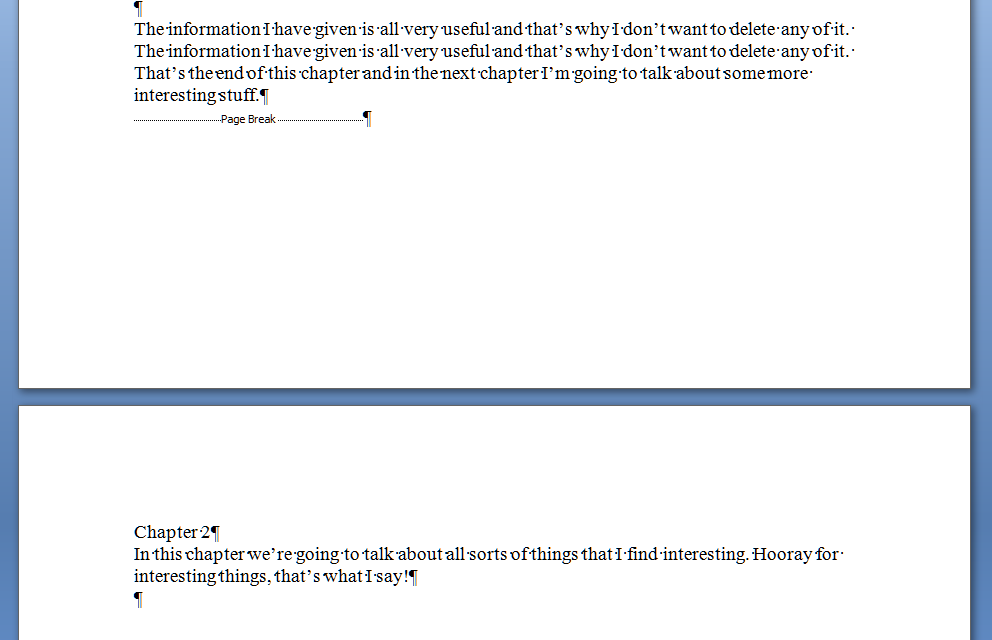
So how do you do it properly so this messiness doesn’t happen? Simple – you “force a page break”. Again, in all versions of Word, when you get to the place where you want to force a new section to start on a new page, press Control-Enter (or choose Insert – Page Break). Turning on your formatting display, and using our original text again, you’ll see this:

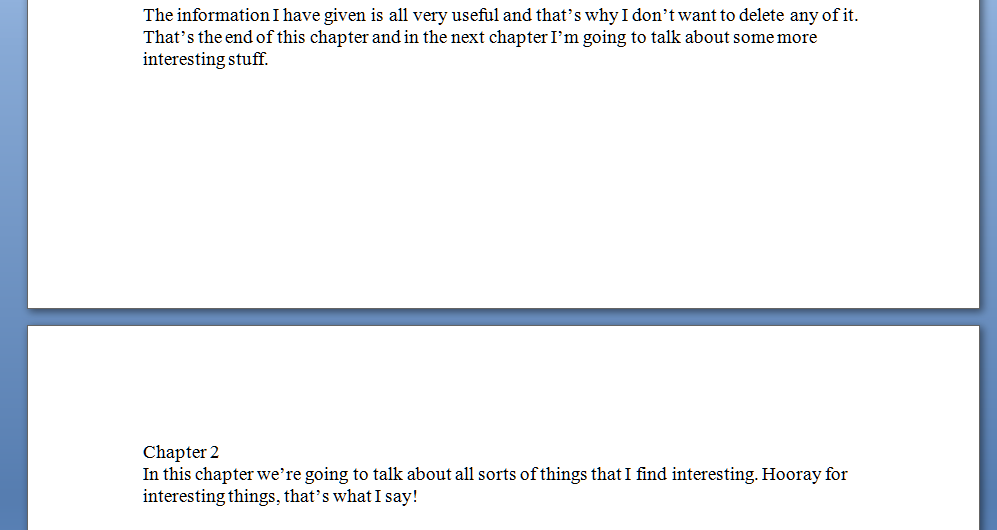
And because it’s a forced page break, it doesn’t matter what you do to the text above the break, the new text will always appear on the next page. Make the Chapter 1 text shorter again by deleting that extra line and you get this:

No hopping around – and even if you add so much to Chapter 1 that it goes onto the next page, Chapter 2 will just hop on down to the page after, automatically.

Of course, your document still looks like this:

But you’ve done it all correctly, in fewer keystrokes, and you know that whatever you do with Chapter 1, Chapter 2 will always start at the top of its new page, nice and tidy, going where you need it to go.

I hope that’s helped – it’s a very common issue, which is why I’ve tackled it first. There will be more of these posts coming over the next few months – do pop a comment on this post if I’ve helped you, and let me know if there are any other issues you’d like me to look at.

Please note, these hints work with versions of Microsoft Word currently in use – Word 2003, Word 2007 and Word 2010, all for PC. Mac compatible versions of Word should have similar options. Always save a copy of your document before manipulating it. I bear no responsibility for any pickles you might get yourself into!

Find all the short cuts here

 
10 Comments

Posted by on November 23, 2011 in Copyediting, Errors, New skills, Short cuts, Word, Writing


Tags: , , , ,

Your short cuts: my short cuts

Whether you’re using office software for work, fun, creative writing, or studying, it’s very common to not worry about learning how to do things properly, but just to launch in and start typing. How hard can it be?  That’s fine, if you’re just typing a document or making a very simple spreadsheet.  But when things get more complicated, documents need more formatting, and the right way to do things isn’t immediately obvious, it’s very tempting to fudge something together and hope it’ll work out in the long run.

Your short cut: don’t learn how to do it properly; just make up your own solutions.

You would not believe how many documents I’ve been sent where the writers have done this.  In fact, it’s so common that I usually send clients a note to congratulate them when they’ve done something the right way.

This is not just me being over-picky or trying to persuade people to pay out for my services. I once spent seven hours – that’s SEVEN HOURS (remembering my rates vary from £10 per hour upwards) sorting out the formatting and contents page of a PhD that someone had got in a mess with.  What took up most of those seven hours? Stripping out the attempts to do it right that the author had flailed around with, before calling me in.

I’m going to share some of my short cuts. They involve knowing how to do something (I’m not blowing my own trumpet here: people pay me to know how to do this stuff) and doing it properly, to save yourself time and, indeed, money.

I’m going to look at various tasks your documents need to perform (we’re mainly going to be looking at Microsoft Word here, although other wordprocessing programmes will have similar features and capabilities), how you tend to do it, so you recognise what you’re doing even if you don’t use the same words to describe the task, and then show you how to do it “properly”, i.e. the way that is most suited to the software you’re using; the way that will make it easier for you.

I might even go all daring and post some video! Not sure yet …

So, the kinds of issue I’m going to cover will include

– making a new section start on a new page

– using tabs and margins

– using heading hierarchies and creating an automatic Table of Contents

– counting particular instances in Excel

– page numbering

– saving time typing and coping with words you regularly misspell

All quite simple stuff, but you’d be truly amazed at the muddles people can get into …

I’m also planning to do a series of posts that go into more detail, for those of you who really want to know about the nuts and bolts of how to do these things. Please do get in touch if you have any issues you’ve been wrestling with that you’d like me to cover, especially any short cuts of your own that you know aren’t quite right!

Contact me via email or via my contact form.


Tags: , , ,

What to do if your comment boxes go tiny in Word

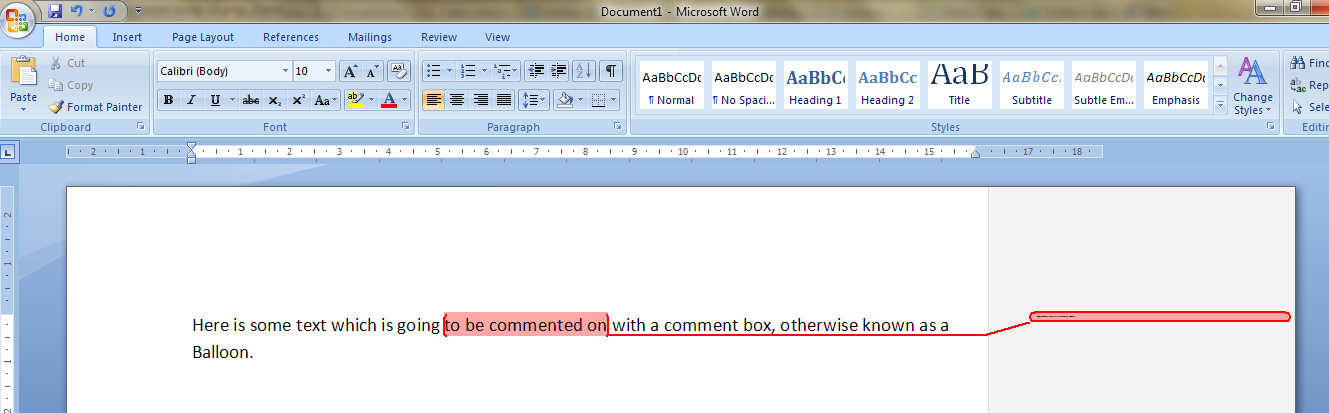
I had been editing a document for a client.  I added some comments in the margin, as always – but when my client opened it and when I re-opened it, to my horror and his, all of the text boxes containing the comments had gone TINY and unreadable. It looked like this:

It apparently happens if you’re working with a document originally created in an older version of Word which doesn’t have the requisite Styles set up for comment boxes.  You then work on it in Word 2007 or Word 2010 (this solution works for both!) and the horror happens …

It took me and Matthew longer than it should have to work out what to do, as there didn’t seem to be an easily found solution if you searched for one online – so as an aide memoire for me, for next time it happens, and as a public service for anyone else trying to work out what to do … here’s what you do (now edited to add screen shots).

Note for experts: if you’re already familiar with Styles, note that you need to change the Balloon Text.

What to do if your comment boxes go tiny in Word documents:

Let’s look at what the full horror looks like first of all:

First of all: don’t panic! The comments will have typically gone into Times at 1 point. But there is a way to make them readable again.

Open the document. Don’t highlight anything. Don’t put the cursor into a comment box.

Now you can do one of two things. Either hit Control + Alt + Shift + s all at the same time, or make sure you’re in the Home tab and click on the little tiny arrow at the bottom right of the Styles menu – this will bring up the full Styles dialogue box.

Using either of these methods, you will bring up the Styles dialogue box.

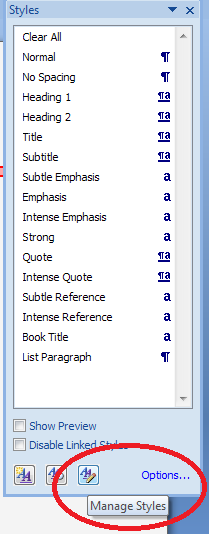
This looks like a very useful dialogue box, but for our purposes you need to ignore all of it except the three buttons at the bottom. Click on the rightmost button: Manage Styles to bring up yet another dialogue box.

We’re not there yet: the sort order shows as Recommended – but you need to click on the down arrow to change it to Alphabetical:

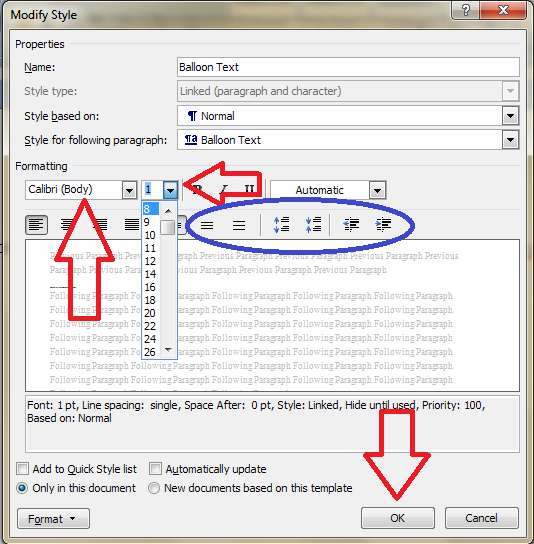
Once it’s in alphabetical order, it’s relatively easy to find Balloon Text (note: not Comment text) and you will see that it then confirms how you have your text set up (blue circle). Click the Modify button

Now you can change your font (which will probably have defaulted to Times) and font size (which will probably have defaulted to 1). You’ll notice lots of other options (blue circle) to change the spacing, etc. – I don’t usually worry about changing those, but this is where they are if you want them – and of course you use this menu to change the styles on headings, normal text, etc., too. Press the OK button, and carry on pressing OK buttons until you get back to your document.

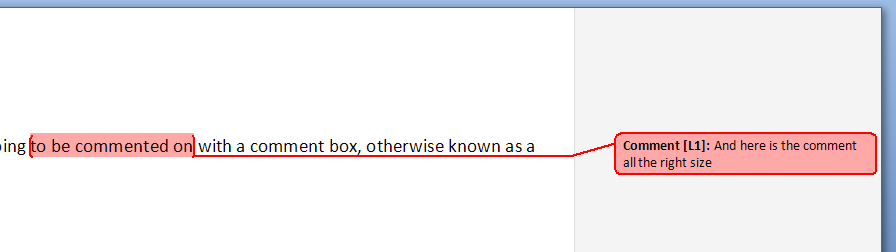
And there it is, all changed:

Save document

Want even more information on customising your comment boxes? Read this article full of everything you would ever want to know!

Related topics: What to do if your comment boxes start running from right to left

Changing the language in your comment balloons

Note that these tips are primarily for Word 2007, 2010 and 2013 for PC. Most of them will work for Word for Mac, although you may find some menus in different places. This is part of my series on how to avoid time-consuming “short cuts” and use Word in the right way to maximise your time and improve the look of your documents. Find all the short cuts here

Do let me know if this has helped you, saved your bacon, etc. – and do share with the buttons at the bottom of this article.

 
343 Comments

Posted by on November 6, 2011 in Copyediting, New skills, Students, Word, Writing


Tags: , , , ,

Essay tips for new students

This time of year, rather than January, always seems like the start of a new year to me.  I suppose I was at University, then working at a University, then studying again, working in library supply where the renewal cycle was at this time of year, then back to working at a University.  I’ve also started at University twice (undergraduate and postgraduate), and my partner, Matthew, undertook a Master’s degree a few years ago.

So, I’m going to talk today about some hints and tips for new students on coping with those first essays.  I’d like to broaden this out, too – so if you have any questions on this topic that I don’t cover here, please either post a comment to this post, or contact me via email or via my contact form, and then I’ll write a follow-up post in a question and answer format.

Starting at University or College can be really daunting. You have to get to grips with a new environment, a new place to live, new people around you … and what’s likely to be a new way of doing academic work, too. I know some A-level courses encourage students to do some research in a bigger library, but I also know from running library tours at my part-time job, that many of you won’t have been in a big academic library before, and might need a few hints and tips. So, here we go!

Use all the resources you’re offered

Your library is the main place for this. At the beginning of term, you’ll have the opportunity to go on a library tour. Take that opportunity to familiarise yourself with the library, and with the staff and where to ask for help. You’ll find where the books are for your course, and how to operate the photocopier, self-issue machines and other bits and bobs of technology. If you miss the tour schedule, many libraries offer downloadable audio tours, or other ways to help you orientate yourself.  Library staff may offer training sessions and hands-on work with databases and other resources you may not have come across before.

Seek out the support and information that’s been put together to help you.  This may come from library or departmental staff.  At my university, study skills modules are available on the student portal part of the website. This is quite common and gives tried and tested advice, in far greater detail than I can go into here, on how to maximise your study skills and learn how to learn, and write those essays.

Don’t fear your essay … or your library

Your university library might look big, and you may not have used a large, academic library before, or even have been inside one – but in reality, most of your books are going to be in just one or two locations in that big building.  You’ll need to get used to the classmarks on the spines of the books – usually made up of letters and numbers, like PR 1234.A6, these are simply a way of making sure books on the same subject are shelved together. Your library should have paper or online guides to where books at a particular range of classmarks are shelved, and once you’ve looked up a book, checked its classmark and found it, you’ll find other books on the same subject shelved alongside it.  Electronic resources are ever so easy: access them online whenever, and from wherever, you want to.

Regarding your essay … the tutors are not out to trick you. They want to see you succeed, not fail. Yes, they want to push you and help you learn, but the essence of University work is finding out, following your interests – it’s far more flexible and enjoyable than all the cramming of facts into your head that you did for your A-levels. If you get stuck, ask for help (see below). If the department offers more resources about writing essays, use them. If your tutor makes lots of comments on your work, don’t be downcast, but use them to learn for next time.

Plan, plan, plan

If you’ve just done your A-levels, you’ll be more used to doing coursework than I was when, fresh from batches of 3 hour exams, but no coursework, I suddenly had to learn how to plan an essay! It’s a cliché, but don’t leave it to the last minute. You will (believe me) remember the hell of pulling a 24 hour session on an essay on Middlemarch, but you won’t remember anything about the book or what you wrote, and you’ll go right off coffee for a bit. When you get each course outline, there’ll be a note of what coursework is due and when. Note all these down once you’ve chosen your courses, and then plan time to spend on each essay.

When you’re researching and writing your essay, write a plan. Just like you did in your exams (right?).  Now it’s all on Word, type in the headings – introduction, conclusion, the bits in between. Do some mind-mapping or write out a plan, however you like to do it. But plan the essay, even make a note of how many words you need for each section, and it’ll be all broken down into bite-sized chunks that are much, much easier to face.

For more information on essay-writing, by the way, you might want to look at this post, which is mainly for those writing dissertations and theses, but has some useful points, too.

Use some different resources

When you were at school, you probably used textbooks, the texts themselves if you were studying humanities subjects, the internet (Wikipedia? Don’t use Wikipedia now, please!).  Now you have a huge wealth of information at your fingertips: books, e-books, journals, e-journals, databases of articles … Make sure you use a range of materials. Your course reading lists will probably guide you here – they should have a mix of materials on them. I didn’t really get to grips with journal articles until my post-graduate course (but then again, in my day they were all indexed in big, fat books; online searching was only just coming in) but wish I’d learned about them earlier.

It shows initiative and differentiates you if you read around your topic and search out some interesting articles, etc. to quote in your essay. Most of the electronic databases and e-journals are really easy to search (the designers put a lot of work into making them user-friendly, and there are often tutorials within the source itself, or written by library staff and available on the library or departmental website).

If you get really stuck with a particular database, and think you’ll need to use it a lot, it’s worth finding out who your Subject Advisor, Library Tutor, Learning Support Staff – whoever it is who’s paid to help students find stuff – and booking a session with them to get some more detailed help.

Record your references

Now’s the time to start recording where you found the information you’re discussing and quoting in your essays.  Academic writing is quite a rigorous discipline, and the academic world frowns on plagiarism, which basically boils down to passing other people’s work off as your own. I’ve written a separate article about this here, so I won’t go in-depth about it again, but basically, make sure you note down where you got that idea or quotation from, and make sure you state that in your essay. You might use footnotes or you might just put a note in the text and put together a bibliography, but you’ll be expected to do this from the start.  Get in the habit, and it won’t be so bad when you come to do your undergraduate dissertation or extended essay, or if you go on to postgraduate study.

You don’t need to do anything fancy – a Word document or an Excel spreadsheet with the author’s name, article or book title, journal title and volume/issue if it’s an article, and date, and there you go.  Start doing it now, and it will become a useful habit that will help later on.

If you need help, ask for it, or accept it

If you’re feeling a bit stuck or panicky when confronted with your first tranche of essays, don’t fret. Help is at hand.

For a start, as I said above, your tutors are not trying to catch you out or trick you.  You should have a personal tutor, and there will be some sort of academic support, too. Go to them – they are there to help you. No one is going to think any worse of you for seeking help. After all, in the world of work later on, the bosses will prefer it if you ask what the big red button does rather than just pressing it! And, you’re paying fees, so the university needs to help you get the best out of your education. So, ask.

If you have a particular issue, whether English isn’t your native language, you are dyslexic or need to use voice-activated software, support should be in place at your University. You might need to contact the Overseas Students office, in the first example, or Disability Services / Accessibility in the second, but there will be something in place – as far as Accessibility is concerned, there are laws to make sure that’s the case.

If you feel happier getting some private support, using an academic coach or proofreader, be very careful indeed. There are a lot of companies out there who prey on students who need their services. Obviously I’m decent and ethical, and if you feel you need some support with your essay writing, do get in touch – I can always recommend another person or company with whom I have personal experience and contact. But beware companies who charge a high fee and then just run your essay through a spell-checker (it happens). You shouldn’t pay more than about £8.00 per 1000 words for proofreading, and try to find a company or coaching service that will tell you the person’s name who you’re dealing with, and has references on their website.

——–

OK, so these are a few general hints and tips. As I said, I’m more than happy to answer questions – ask me via email or via my contact form or just pop a comment on this post, and I’ll post up the answers in a week or so.  Good luck, enjoy your course and your University life, and if you like this article, please share it using the buttons below!

 

Tags: , ,

On Why I Love What I Do

I wrote this during graduation week at the University where I still worked part time at the time, and that’s a time of year I have always loved.  The expectation, the joy of the families, the relief that the hard work is over.  And during the past couple of years there’s been the added pleasure of knowing that some of the people whose dissertations and theses I’ve proof-read are among those happy bands of people throwing their hats into the air on the library steps at my University and at various campuses around the country.

It’s not just the students, either.  OK, I also had a lovely email from a client whose English I’ve been helping throughout her Master’s year.  She’s nearly finished her dissertation, it isn’t half bad, her written English has improved hugely as she’s worked hard through the year, and I’m proud of what she’s achieved – and she appreciates the care I’ve put into my work with her.

But I’m also proud of the novelists who get their precious words in print, whether in a “tree book” or electronically.  I enjoy working with people who struggle with their writing, whether English isn’t their first language or they face issues like dyslexia, and bringing their words and meaning to life with them.  And I’m always excited to see my name on an acknowledgements page in a book!  I get a real thrill from opening a favourite magazine and seeing a journalist’s article which they’ve created from the bare bones of an interview I’ve transcribed for them – but I’m also pleased when I help someone with a transcription that is never going to see the light of day anywhere but in a research paper.

I get pleasure from seeing my corporate clients grow their businesses with the help of blogs and press releases I have written.  They are so proud of the work they do, and I love the fact that I can fill in some of the areas in which they might not be so confident.  I don’t think I’ll stop being pleased when I see the words I’ve written filling someone else’s website, helping them climb up the search engine rankings and representing their voice as well as I can – even though there won’t be a credit to me on the website and sometimes I don’t even tell anyone I’ve written it!

I also love helping other entrepreneurs and organisations, both formally through helping out at the Social Media Surgeries and more informally at Entrepreneurs’ meetings in coffee shops and the Social Media Cafe every month.  It’s great meeting other people with such enthusiasm and drive, and wonderful to share ideas, tips and hints, in a spirit of collaboration rather than competition.  As part of that, I’m really enjoying putting together the interviews I’ve been posting on Saturdays for the past few weeks.

I became a librarian because I wanted to help people and benefit society in some way.  As I transition away from my library career and more and more into Libro’s world, I am happy to say that I feel I’m helping people and benefiting them and, yes, society, perhaps more than in my library work.  Libro turns two in August, and I will continue to work in a way that I feel is both comfortable (most of the time – a few challenges along the way make it more fun!) and ethical, and, well … I love doing what I do!

Libro offers copyediting, copy writing, proof-reading, transcription and typing services to other small businesses, individuals and corporations.  Click on the links to find out more!


Tags: , , , , ,

Top tips for dissertations and theses

It’s right in the middle of dissertation season, and thousands of students will be hard at work putting together both undergraduate and postgraduate dissertations.  I work with many students  – including lots of people whose English isn’t their first language as well as native English speakers.  I love working with students – helping someone out at the beginning of their career, supporting them in their writing and helping them improve their English and writing skills (of course I’m careful not to help TOO much – see this post for how I avoid plagiarism!).

Over the years I’ve worked with almost a hundred students getting ready to submit dissertations and theses.  Although I didn’t end up completing my Library Master’s (I moved away from the population I was researching!), I supported my partner through his (and proof-read it; perhaps the hardest thing I’ve ever proof-read.  Cognitive neuroscience!) and am working on my own research project at the moment. So I’ve called upon my experience and that of the “hive minds” of Facebook and Twitter to put together some top tips for getting that dissertation or thesis researched and written.  Thank you to everyone who contributed!

The start – reading, topics and supervisors

It’s vitally important to choose a topic you’re interested in and can commit to – even for a shorter undergraduate dissertation.  For a PhD, you have to almost be obsessed with your topic, otherwise, when the going gets tough, it’ll be easier to give up.  Meg1987 (via Twitter) agrees with this from an undergraduate perspective: “Start early and make sure it’s on a subject you don’t mind taking over your life!” and tutor and supervisor Gill Rose agrees: “Choose a topic you are really interested in.  Then, when you get completely demoralised, your interest will keep you going (oh yes it will).

The proposal can be an important part of the process; this isn’t usually needed at undergraduate level, but you’ll usually have to think up your own topic from Master’s level onwards.  Gill recommends keeping it simple: “Making it complicated does not show your superior knowledge, you usually just get tied up in knots”, and is more keen on the students showing that they can take a research methodology and apply it to a real-life situation than seeing intellectual fireworks.  And if the thing changes between proposal and writing up? Linda Bates, who recently gained a doctorate from Cambridge University, reassures us: “By the end of your first term or first year or whenever, your actual work won’t bear much resemblance to whatever is in your research proposal. But that’s the nature of research and not something to worry about (unless it’s so far away from the proposal that you have to send an entirely new proposal to your funding body in order to keep justifying their payments…)”

It’s worth having a look at some books on writing a thesis / dissertation.  I’ve personally found Gary Thomas’ “How to do your research project” (London: Sage, 2009) very helpful, although it’s more for the humanities/social sciences/education fields.  You’ll be based at a University – so use the library – subject specialists will have recommended purchases that they consider to be useful, and these books can give you a good base from which to start.

A word on supervisors.  Yours is usually chosen by their specialism as well as their teaching role, so they know something about your subject or its background.  Zoe Toft (via Twitter – playbythebook) stresses the importance of a good, honest relationship with your supervisor, right from the start, adding: “It’s important not to be afraid of criticism (as a student) or acknowledging areas where you’re not an expert if you’re a supervisor – which happens more often than supervisors like to admit!”

Concentration and keeping going

So, you’ve had a chat with your supervisor, you’ve submitted your proposal and had it accepted (or chosen your subject) – now what? How do you get down to the work?

Linda Bates acknowledges the need to maintain contact with the outside world: “The internet is a real friend/foe dichotomy: in subjects like English where you can spend 3-4 years working on a PhD without having to speak to a single person, it is valuable to use [social media] to interact with peers” but warns that it mustn’t be allowed to get out of control.  I tend to turn off Twitter, etc., if I’m really concentrating on something, with a half hour break at the end for chatting and catching up with emails.

When I’ve got a big project to concentrate on, I try to make myself just sit down and DO SOMETHING, whatever that something is, for a set amount of time.  Some people structure their time management around half hour blocks, some, such as Ali Noakes, suggest longer time periods (Ali’s just finished an Occupational Therapy degree):  “It helped me to set aside a block of time, such as a day, rather than jumping between assignments. I needed to become immersed in it. We occupational therapists call it occupational flow.”

And Laura Stevens simply says: “Set yourself deadlines and stick to them.”

Keeping records

I talked about referencing in another post.  It’s so important to make a note of the books, journal articles and websites you’ve referred to as you go along.  You can use specialised software for this or just keep a spreadsheet going – or even a notebook! This will solve a lot of problems when you come to write up.

Back up your work regularly, preferably onto a pen drive or an external hard disk (or you could email it to yourself if you’ve got enough bandwidth on your email account).  And keep control of the versions – if you make a lot of changes, number the versions of each chapter as you go along, so you know which is the most recent one.

Chaletfan says, via twitter, “don’t put a superbly edited print out in the bin. I’ve *totally* not just done this.”

Writing skills and writing up

So, it’s the end of the project, and it’s time to write it up.  Or is it? Should you write as you go? One thing I was always taught was that your introduction and conclusion, at least, should be written such that a reasonably intelligent and well-educated person can understand what you’re saying.  So keep it clear, explain the acronyms, and don’t make assumptions about the readers’ prior knowledge (this also means you can use a general proof-reader, like me, rather than someone very specific to your field, unless it’s something very highly specialised, like maths).

A dissertation or thesis will usually include the following sections: Introduction – Literature Review – Design and Methodology – Findings – Analysis and Discussion – Conclusion.  Gary Thomas, in his book referenced above, suggests allocating the following amount of the work to each section: Introduction 5% – Literature Review 30% – Design and Methodology 15% – Findings 15% – Analysis and Discussion 30% – Conclusion 5%.  Break your total target word count down in these proportions and you’ll have a guide to how much to write for each section.

Zoe Austin-Cope recommends (for a dissertation) “Start writing the thing at least three weeks before the deadline, not two.”  This certainly applies to making sure you’ve got all the text in the right places and that the document works as a whole, and in many cases you can work like this.

There’s also a case to be made for writing up as you go along. Arthur Lugtigheid told me how he did this:  “When you’re doing experimental work, write as you go along. It will save you so much work later. I find writing very difficult, almost like starting a painting – where do you put your first brush stroke? Once I get going I find it easier and easier and when you have something to work from as a first draft things get very easy. But you need to get there first. I start with a rough outline – and I find that for me, getting to a first draft requires ‘verbal diarrhoea’ stages, where I just write whatever comes up. I then structure this into a more coherent story. It’s a bit like polishing a gem piece by piece.”  He goes on to detail: “I always start with the methods while I’m actually working on the experiment. Then you write results. You might argue that the introduction is important to write first, but that’s not true at all. In practice, what you want to mention in the introduction largely depends on what you find in your results and how you write your methods. The discussion is always written last, but before your abstract.”  Gill Rose, working in a different discipline, agrees that it’s best to plan it out then fill in the sections in general before going into more detail: “If you have not been given a structure to work to, organise one of your own. Don’t feel you have to do one section before moving on to the next. Much better to do an initial plan, then fill out each section a bit, then get down to the detail; that way, you are better able to see what should go where.”

I agree, too – my research consists of a case study and then a questionnaire-based study.  I’m writing about my methodology as I formulate the theory behind it into the appropriate terms, as well as getting information for the case study in two halves: one half is already written up and the other is awaiting further input.  Meanwhile, I have a lot of the theoretical background of the main study done, and am able to do this while I’m waiting for the rest of my questionnaires to come in.  It’s good to know I am learning how to code up the questionnaire results before I actually have to do it!

Other tips

I would say this, I know – but do have someone read through your work before you submit it.  Even if you can do without a proofreader (really a copyeditor but it always seems to be called proofreading in this context: you all read the blog and know the difference, anyway), then have a friend or family member read it through for any glaring errors.  We all make mistakes and we all get tired, and this can prevent you from submitting a piece of work containing the sentence “More things that could be researched on this are more things” (real-life example, not drawn from any of my clients!)

Treat yourself! Save up supermarket rewards and treat yourself to a nice meal.  Studenthood often goes with poverty, so this can be a real bonus. Also, and I can’t stress this enough: look after yourself.  It can be a really frazzling experience writing a dissertation or thesis.  Make sure you get: Enough sleep.  Enough good food (not junk). Enough exercise.  Even though I’ve got a job, a business to run and a research project to work on, I always prioritise the gym and running. I see so many students, especially if they’re in a new country, grappling with a Master’s course, or they’re on the long haul of a PhD, running themselves into the ground, getting thinner and paler (or fatter and paler), short-tempered and wild-eyed. When someone gives me the final version of their precious chapters, I usually email them: “Now have a good meal and go to sleep!”  Pay special attention to good nutrition and having enough sleep.  You don’t need to turn into a gym bunny, but go for a walk – and do get out of the house at least once a day!

I hope these fairly general hints and tips, backed up with information from people who know about the process first hand, prove helpful. If you have more tips to offer, please do put them in the comments!

All my posts to do with students can be found here.


Tags: , , ,

What I’ve been up to in June

Before I tell you what Libro has been up to in June, I wanted to mention the results (so far!) of my user survey.  Last month, I posted a survey in order to get some feedback on how my blog was going, what people thought of the content, how often I posted, how often I told people about what I’d posted, etc.  The poll is still running, but I’ve gathered together some interim results, and am making some changes as a result.

14 people have been kind enough to respond to the survey so far. I know this doesn’t lend itself kindly to statistically significant results, but I have drawn out some trends. As regards the content of my blog posts, reactions were varied, with the guest posts and these “what I’ve been up to” posts attracting the most extreme likes and dislikes. But … these weighed each other out. For every person who didn’t like so much detail about what I’ve been doing, there was someone who wanted more of that! So the content of my blog posts is going to stay pretty much the same.  After all, when I promote a post, you get an idea of what it’s about, and can choose whether to click to read further.

Although the majority thought I was doing it just right, slightly more people thought I advertised my blog posts too much than too little.  Most of those people were people who accessed the posts through Facebook.  So I’ve cut down on the number of times I promote my posts on Facebook (and I now post about them more often to the people who’ve “liked” my Libro page, on the grounds that they have actually signed up to know stuff about Libro, than to my friends list), with maybe slightly more on Twitter, as people do miss great chunks of Tweets through the day.

Quite a few people thought I posted articles a bit too much during a typical week.  I did get a bit over-enthusiastic for a while, especially with similar, marketing-type posts.  And I know I posted two articles yesterday, plus this one today – but those two were on very different, and not very Libro-centric, topics.  So I have listened, and I have cut down and varied things a bit.  Each week, you should see one or two “troublesome pairs”, a main post on a Wednesday about a topic that’s important to Libro, over the next few weeks, something for the students instead of a troublesome pair on a Friday, and a freelancer interview on a Saturday.  With the odd extra cafe review or Iris Murdoch update.

There’s still time to fill in the survey, so please feel free to do so if you haven’t already. And I really appreciate those of you who took a moment to fill in the survey and add your comments!

What I’ve been up to in June

Trying to get this a bit closer to the end of the month than I managed for May …

I’ve had a good, busy and varied month. I worked on some tender documents for a company that provides these for other companies trying to get contracts with local authorities etc. (although I just do the proofreading at the end, this ties in with the contract writing work I used to do in London – everything comes in handy one day!); continued working for my lovely regular customers; helped someone write an introduction to a book; copyedited parts of two PhD theses and a couple of dissertations; worked on an e-book on marketing; transcribed some tutor-student interviews; proofread a Kindle version of a book; did a substantive copyedit on a novel.

If you want to know what any of these tasks involve, the blog posts in the what do I do category should help.

In other projects, I sorted out my libroediting domain names so my web address is now http://www.libroediting.com and my email address liz@libroediting.com; gained a logo in a skills swap with a graphic designer (I wrote her some marketing letters) and sorted out a dedicated mobile phone for Libro. I also helped out at another Social Media Surgery and attended a great Social Media Cafe at the end of the month, where I met some lovely new people and introduced some old and new friends to one another.  I’ve also started publishing a series of interviews with fellow freelancers; I plan to revisit them all in a year’s time to see how they’re getting on.

And I collected some lovely quotes for my references page!


Tags: , , , , , , , ,