RSS

Tag Archives: Word2007

How to protect your Word 2007 document

As part of my series on protecting your document, which has looked at Applying Watermarks and Protecting Word 2010 Documents, today we’re going to look at the features for protecting your document offered by Word 2007.

Why would I want to protect a document?

We covered this in more detail in the post on Word 2010, but in summary, it’s useful to be able to protect your documents because …

  • You can stop the wrong people from opening the document (including if you’re sending it via email etc.)
  • You can stop the wrong people from editing the document (protecting what you’ve written and/or changed)

Where is the menu for protecting documents in Word 2007?

You will find the menu for protecting documents under the Start button at the extreme top left of your screen. Once you’ve clicked on the round button, you will see a menu starting with New, Open …

Click on Prepare and you are given a menu to do with preparing the document to be sent, protecting it, and editing its properties:

Word 2007 1 menu

How do I add a password to a Word 2007 document?

The most simple way to protect a document is to add password protection. This means that no one without the password can open it (so if you email it to someone, it can’t be intercepted and opened, or people who aren’t meant to see confidential information can’t open a confidential document).

Go to the Encrypt Document entry on the menu and click on it:
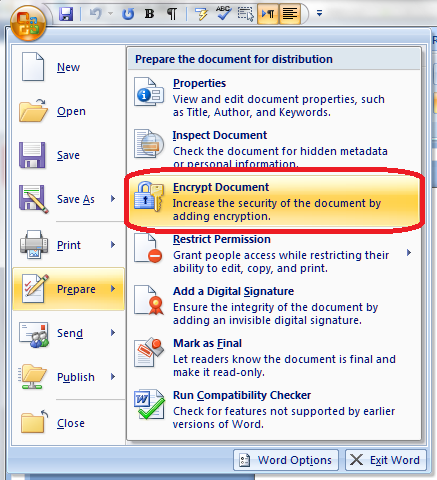
Word 2007 1 add password

You will then be asked to enter a password (twice). Do remember this, and remember to share it with anyone else who might be permitted to open and read it.
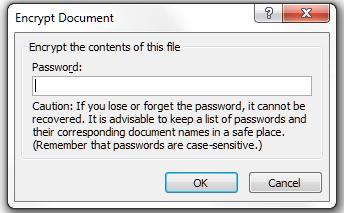
Word 2007 2 add password

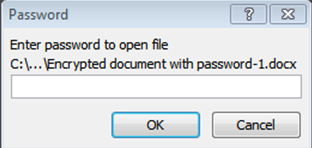
This is what happens when you or anyone else tries to open the file:
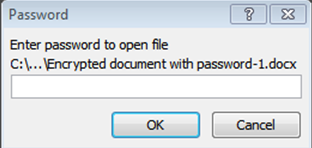
Word 2007 2a add password

How do I make a Word 2007 document read-only?

Another way to protect your document from unwanted edits is to make it read-only. Of course, anyone can “save as” the document and make all the changes they want, but your original document, with its file name, is protected, and often people don’t realise that they can save as, anyway.

To do this, select the Mark as Final entry from the menu:
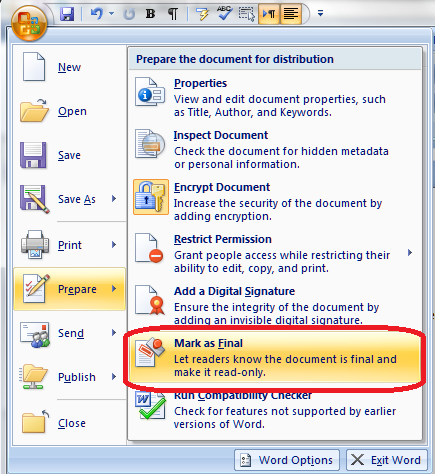
Word 2007 7 mark final

Now, when someone opens this document, they will be told that it is read-only and they cannot edit it.

How do I restrict editing in a Word 2007 document?

Another option is to restrict certain types of editing in your document.

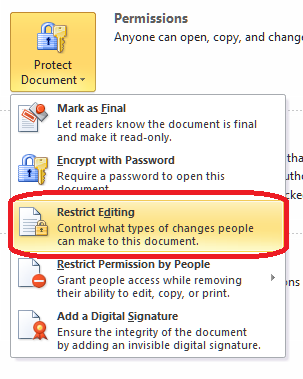
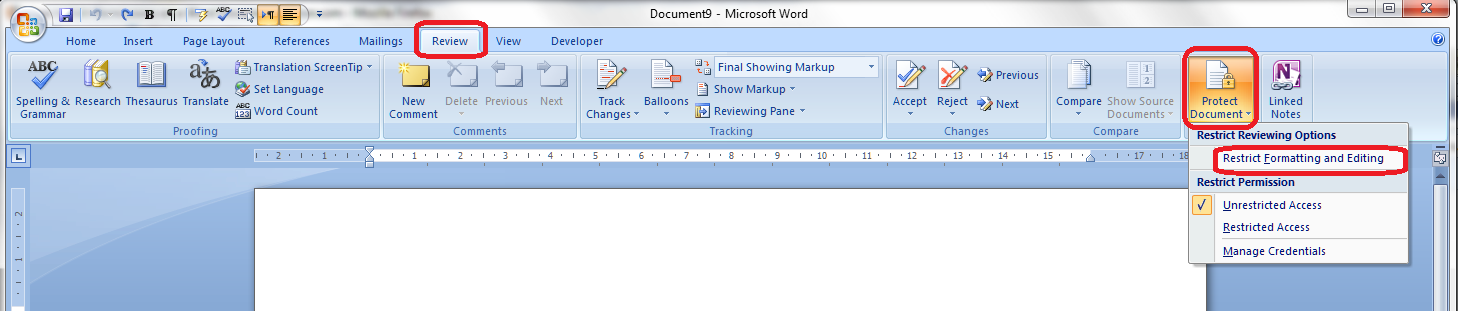
Confusingly, this is in a different area of the menus to the rest of the protection features. You will need to go to the Review tab, then the Protect section, which consists of a single button marked Protect Document. Click on the button itself or, if you must, the little arrow at the bottom right of that button (this has exactly the same effect. Why did they add that little arrow? Who knows!) to bring up the menu:
Word 2007 10 restrict editing

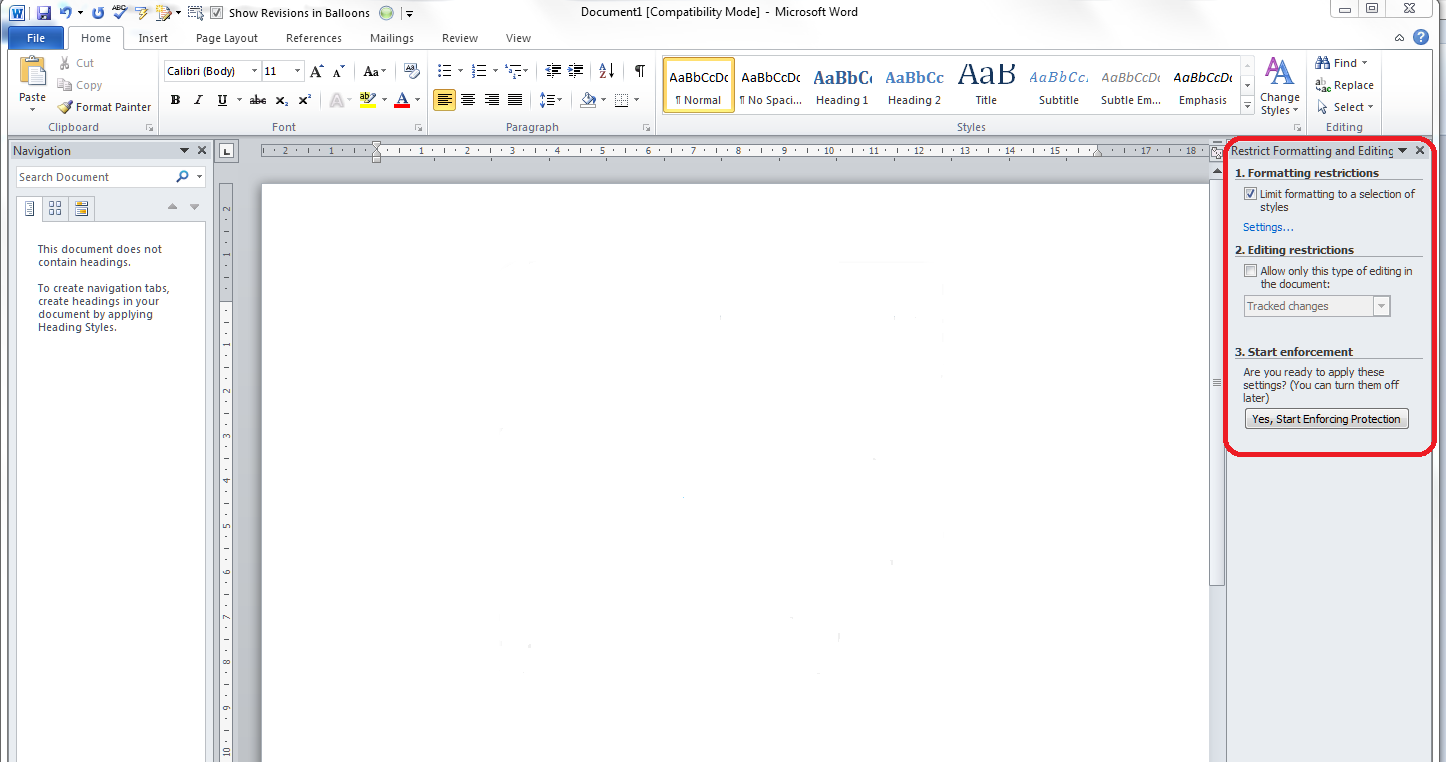
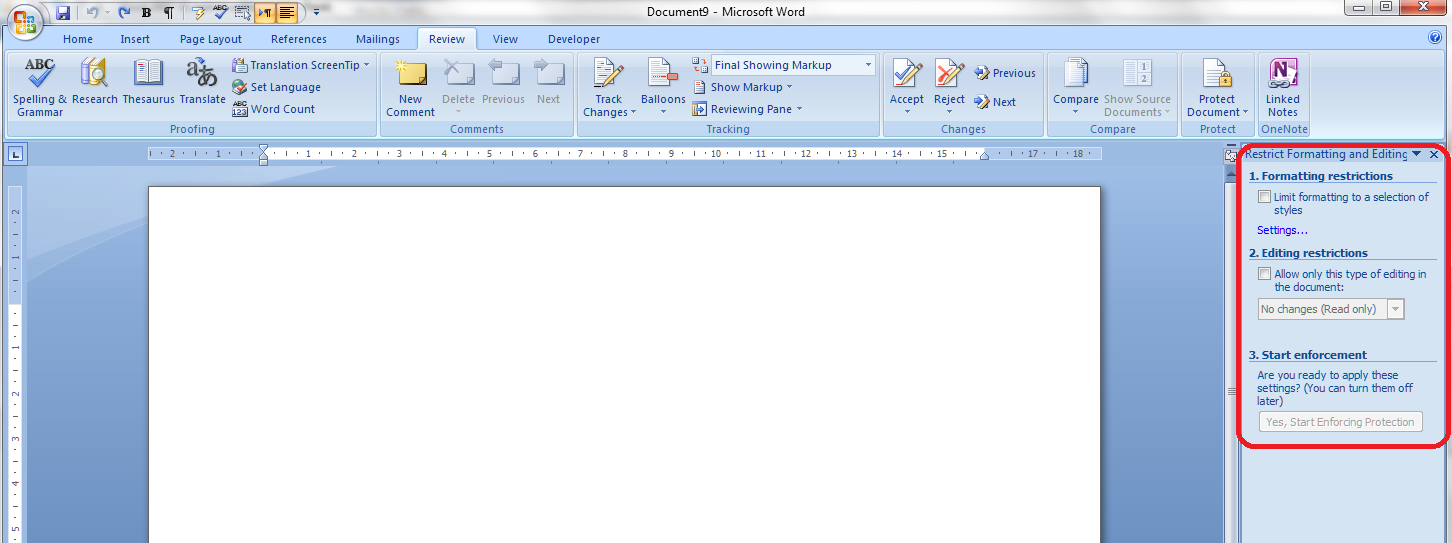
Click on Restrict Formatting and Editing to be given a list of options: Formatting restrictions, Editing restrictions and Start enforcement:
Word 2007 11 restrict editing

Formatting restrictions

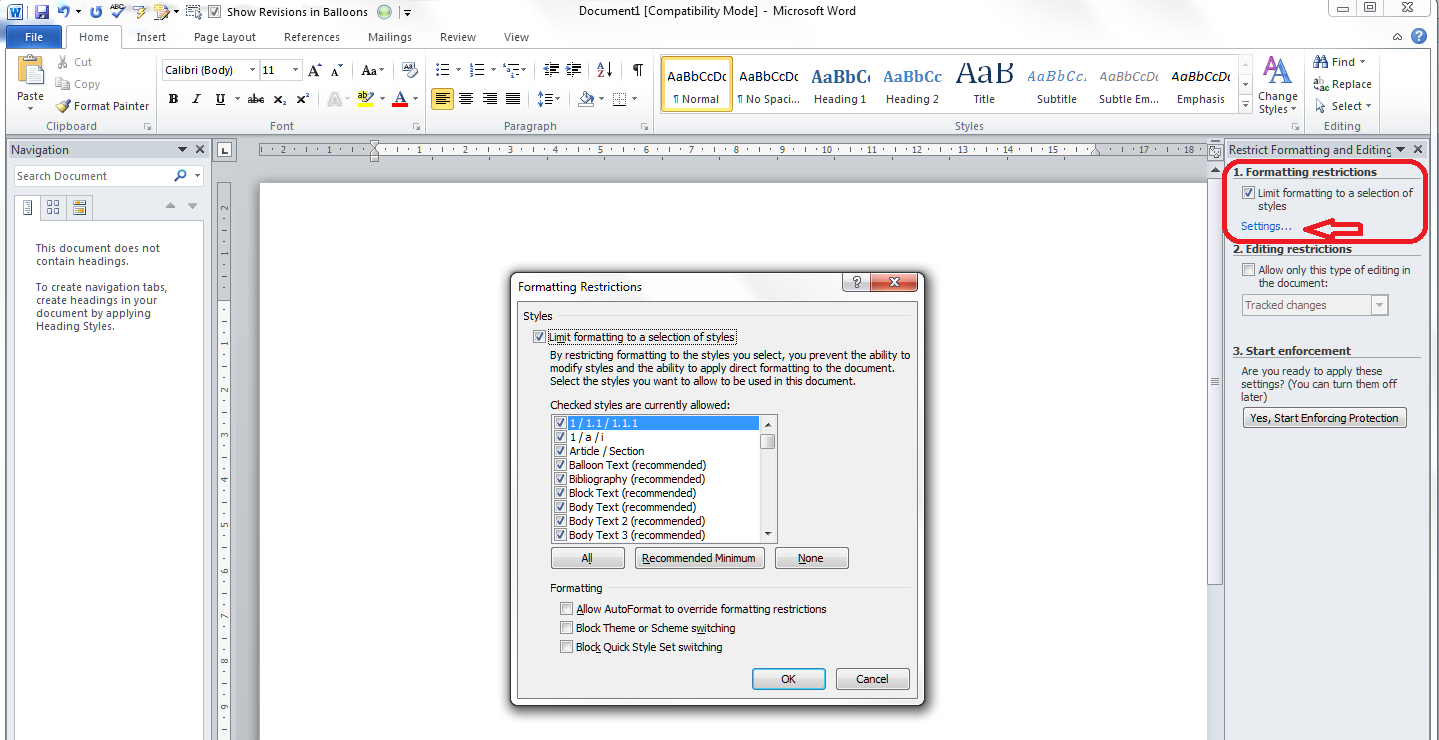
This option allows you to select what formatting other people can apply to the document (you will want to do this after you have done all your own formatting to make sure that you can do what you want to do). Click on the tick box and then Settings to choose what formatting can be changed:

Word 2007 12 restrict editing

You are given a dialogue box with lots of different options. Note that you can allow the AutoFormat to override the formatting restrictions if you want to. But this is where you can choose what can be amended and what cannot be amended. This is particularly useful if you want to ensure that the Headings Styles that you’ve carefully set up will stay the same in the document.

Editing restrictions

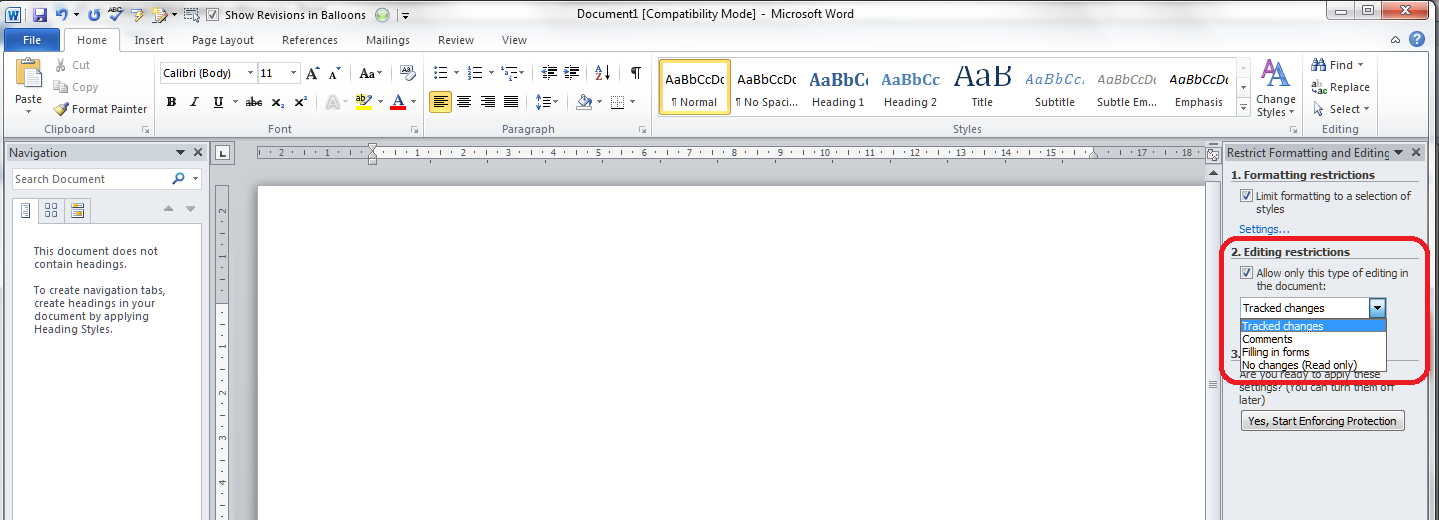
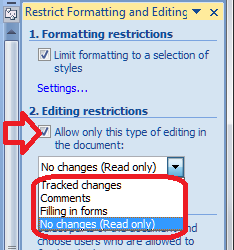
You can edit what changes other users can make to your document in terms of textual changes, too. Have a look at the Editing restrictions section, tick the tick-box, and drop down the menu to see the options:
Word 2007 13 restrict editing

Editing restrictions allow you to choose whether the document becomes Read only or will allow tracked changed editing only or adding comments or filling in forms. Some of my clients make the documents that they send me tracked changes only so they can see exactly what I change in their documents. It’s a good way to remind people to keep Track Changes on if you’re working together collaboratively. Filling in forms is useful if you want people to fill in your form but not change the actual form.

Restricting editors

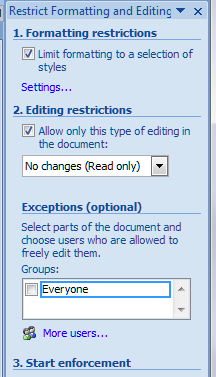
It is possible to restrict the ability to make changes to certain people if you’re working in a multi-user, networked environment:
Word 2007 14 restrict editing

These permissions can be restricted to individual editors; however, see the next section for details on this option, as it needs to run alongside other network options that you may or may not be using..

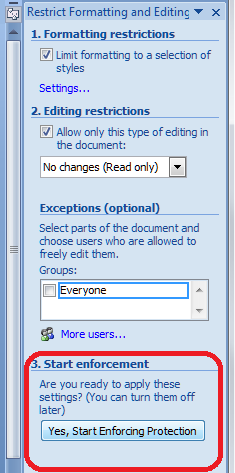
Start enforcement

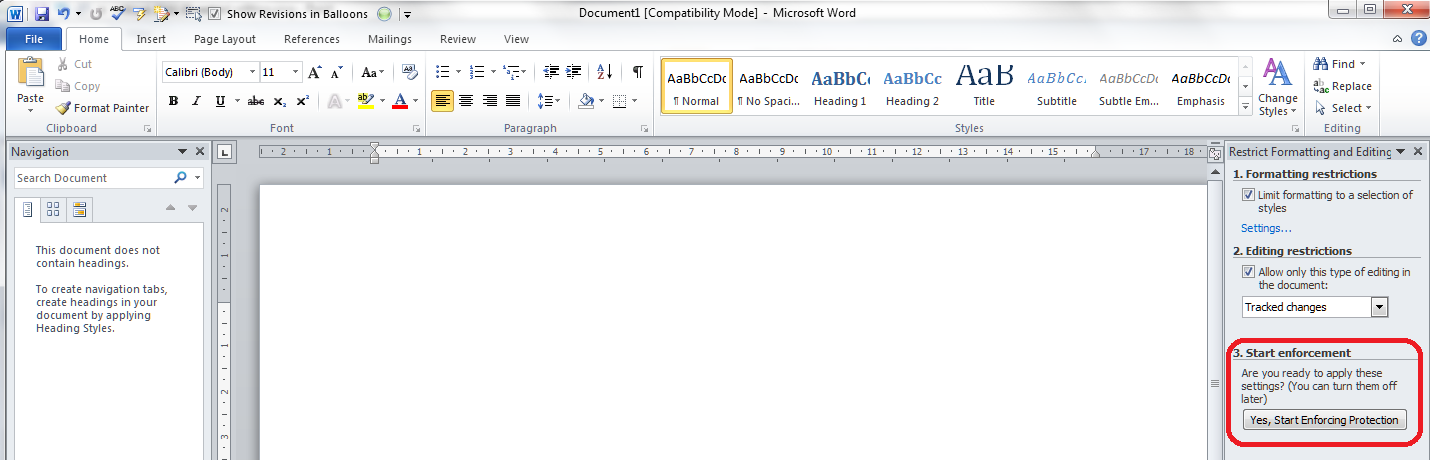
When you want to put these restriction in place, click on the Start enforcement button that appeared as soon as you click or change anything:
Word 2007 15 restrict editing

How do I add individual editing permissions to a Word 2007 document?

The Restrict Permission part of the original menu we’ve been talking about, under the top left button and Prepare, allows you to add individual editing permissions to your document (this can also be accessed in the Review – Protect menu as discussed in the section above):
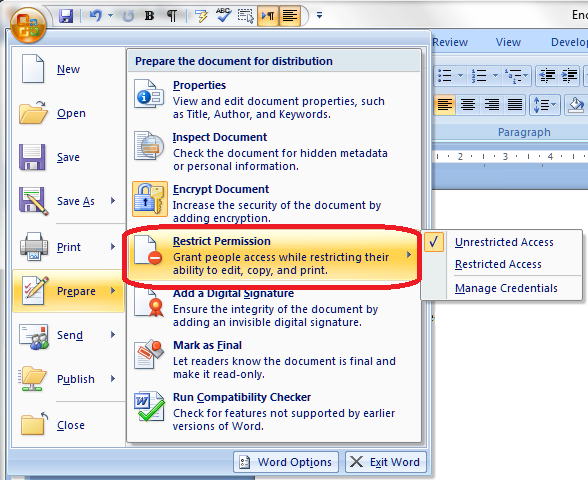
Word 2007 3 permissions

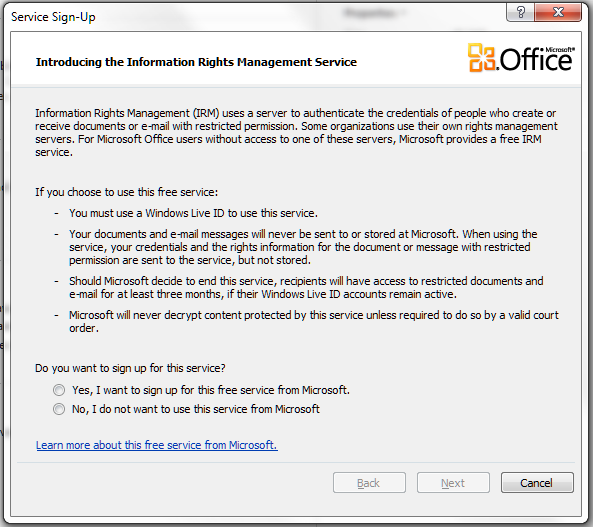
This is a Windows option that allows you to set permissions for different people, and is usually used within an organisation. You need to use Microsoft’s Information Rights Management Service alongside it and be signed up to Windows Live. The message that comes up if you click Restricted Access or Manage Credentials explains in more detail:

Word 2007 4a permissions

Most larger organisations have rights management systems that inform their procedures and file/drive setups, and these will usually allow you to set permissions and protect your document in that way. As this is outside the scope of this article: you will need to talk to your administrator or  IT support department.

But this option is here for you to use, and can be done if you have the relevant signups.

Be careful: Contact IT or your systems administrator before signing  up for something that can affect access to documents on a shared organisational system.

How do I add a digital signature to a Word 2007 document?

Adding a digital signature to a Word document can protect it to an extent and mark it as yours, plus an increasing number of companies request this if they’re signing you up to their pool of contractors, etc. Once again we’re in Start button – Prepare territory – this time we want the Add a Digital Signature section:

Word 2007 5 digital sig

In order to use this feature, you need to purchase a signature service from the Office Marketplace, as Word will tell you if you click on this option:

Word 2007 6 digital sig

Alternatively, you can sign up to a third-party digital signature service which will apply your digital signature to documents via an uploading and downloading service.

How do I print to PDF using Word 2007?

Making a Word document into a PDF is still the best way to protect it. A PDF is like an image of the document that can’t be edited, a bit like a photocopy or a picture taken of it.

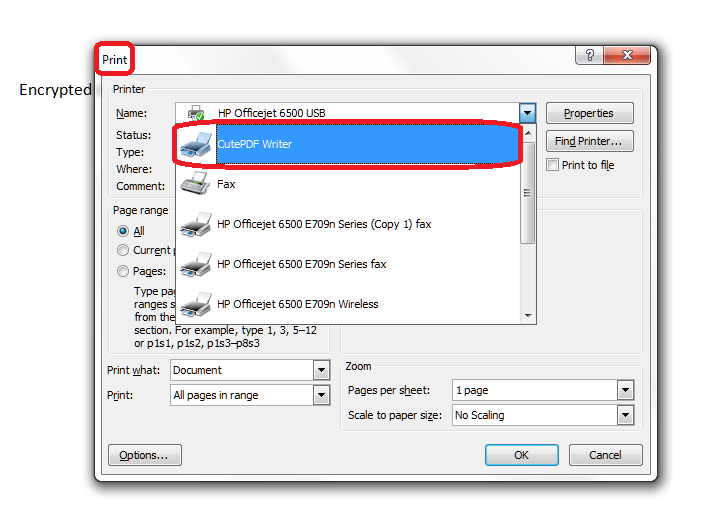
Unlike with Word 2010, you can’t actually print direct to PDF using Word 2007. If you want to turn Word 2007 document into PDFs, you will need to download a PDF printer such as Adobe or CutePDF Writer.

Once you have got a PDF writing program installed, you can “Print” to PDF by hitting the Print button as usual then selecting your PDF writer as the “printer”:
Word 2007 8 print to pdf

Once you’ve pressed OK, you will then be asked to choose a filename and a path under which to save the document:

Word 2007 9 print to pdf

Note that, as in the above picture, you can password protect your PDF at this stage. This is a good idea, as software is now available that will let people edit PDFs, something that was not previously easy to do. We’ll talk more about using PDFs to protect your document in the next article.

In this article, we’ve learnt how to use the features of Word 2007 to protect your document, using passwords, read-only status, editing restrictions, permissions and digital signatures.

———————

This is part of my series on how to avoid time-consuming “short cuts” and use Word in the right way to maximise your time and improve the look of your documents.

Related posts:

Applying Watermarks

Protecting Word 2010 Documents

(coming soon)

Protecting your document using PDF

Please note, these hints work with versions of Microsoft Word currently in use – Word 2003, Word 2007 and Word 2010, all for PC. Mac compatible versions of Word should have similar options. Always save a copy of your document before manipulating it. I bear no responsibility for any pickles you might get yourself into!

Find all the short cuts here

 
14 Comments

Posted by on July 24, 2013 in Errors, New skills, Short cuts, Word, Writing


Tags: , , , , , , , ,

What are these funny symbols? Paragraph marks and other marks in Word for PC and Mac

A friend got in touch recently in a bit of a panic. All sorts of odd marks had appeared in her Word document. It looked something like this:

d

What were all these funny symbols? Where had they come from and, more importantly, how could she get rid of them?

Showing paragraph marks and other hidden formatting symbols

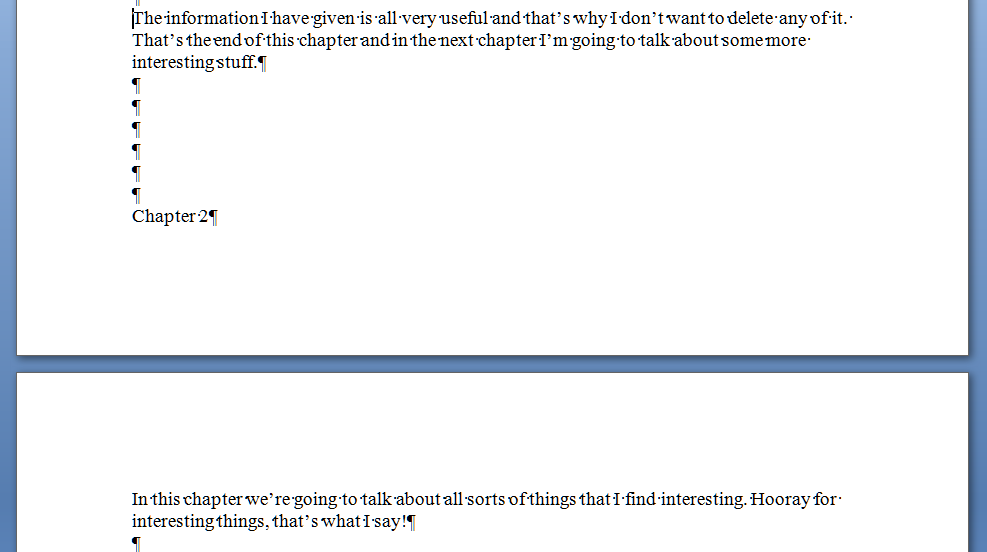
Word gives you the option to view paragraph marks and other hidden formatting symbols. Basically, this means that you can see where the author of a document has pressed the Return key or Tab or Space, or inserted a forced break or some other formatting. Why is it useful? It means that if you are editing or otherwise tidying up a document, you can see what’s been done in order to resolve it. For example, in this document, I can see that the author has used the Return key to force text to appear on a new page (instead of using Ctrl-Enter to force a page break):

bb

and when I’ve done it properly, I can see the page break marked:

cc

So, how did I get to see these funny marks? In Word for both Mac and PC, you can find a button with the paragraph mark on it which will make them display:

Show Paragraph marks in Word for PC

Go to the Home tab and you’ll find it half way along. Press the button, it will go orange, and your formatting marks will display.

c

I’ve actually put this button onto my Quick Access Toolbar (find out how to do that) as it’s a very useful button for an editor/proofreader!

Show Paragraph marks in Word for Mac

In Word for Mac, the Show Paragraph marks button is handily already in the top toolbar. Press the button and all your formatting will become visible.

on a mac

How do I hide the Paragraph marks and other formatting?

If the marks appear and you want to hide them, simply find the Paragraph Marks button and press it again. It should stop being orange, and your formatting marks will no longer be displayed.

Thanks to Linda for the inspiration and Mac screenshot!

———————

This is part of my series on how to avoid time-consuming “short cuts” and use Word in the right way to maximise your time and improve the look of your documents.

Please note, these hints work with versions of Microsoft Word currently in use – Word 2003, Word 2007 and Word 2010, all for PC. Mac compatible versions of Word should have similar options. Always save a copy of your document before manipulating it. I bear no responsibility for any pickles you might get yourself into!

Find all the short cuts here

 
33 Comments

Posted by on July 17, 2013 in Errors, New skills, Short cuts, Word, Writing


Tags: , , , , , , , ,

How do I protect my document in Word 2010?

In a previous article, we talked about protecting your Word document using a Watermark (watermarks can also be used to extend your corporate or other branding through your documentation). Today we’re going to look at other, stronger ways to protect your Word 2010 document and prevent people from making changes to it.

Why might I want to protect my Word 2010 document?

Protecting a Word 2010 document means that anyone apart from you can either only access the document by using a password or is unable to make certain, or any, editorial changes to the original document.

Why would I want to stop people opening a document?

  • If you are storing confidential documents on a shared drive in a company-wide network
  • If you want to send a document to someone who shares an email address with a number of other people (for example a general email address at your accountant’s office)
  • If you want to send a document to someone but need to ensure that anyone intercepting it cannot open the document

Why would I want to stop people editing a document?

  • You’ve completed a final version of a document and want to make sure no one does any more edits
  • You are sending something like an invoice or a contract and want to make sure the recipient does not change anything
  • You’ve created a procedural document to be saved on a shared drive and don’t want your colleagues to make unauthorised changes

Where is the menu for protecting documents in Word 2010?

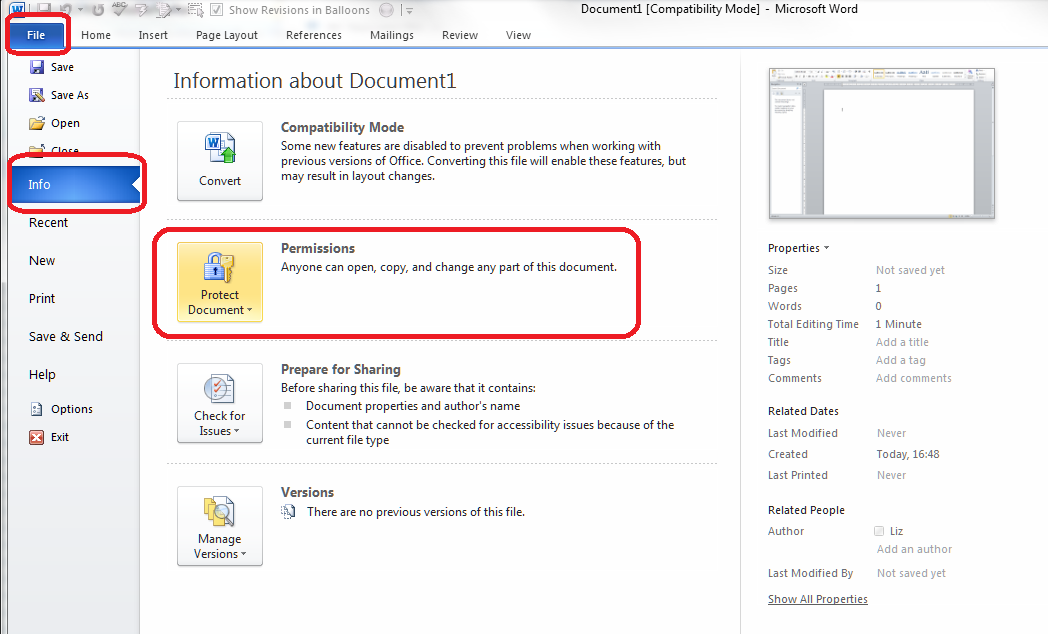
To access the menu for protecting documents, select the File tab at the extreme left of the row of tabs (remembering that it’s Home that is automatically selected), then visit the Info area, where you will find a section titled Protect Document:

Word 2010 1 menus

Click on the Protect Document button and you’ll be presented with a list of options:

Word 2010 2 permission options menu

We’ll go through these in turn. Some of them are not applicable if you’re working on your own, with only one computer on your network, but we’ll take a quick peek at them anyway.

What are my options for protecting my document?

Taking the options in turn …

Mark as Final

The Mark as Final option creates a read-only version of the document which will be marked as final and which will not let anyone make any changes. Access it via the menu we discussed above:

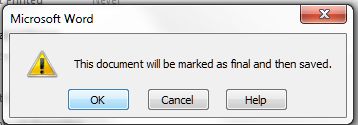
Word 2010 3 mark as finalClick on the button and you’re given a dialogue box to click on:

Word 2010 4 mark as final

Note: it’s a good idea to save this under a new file name.

You will then need to go and set the document to being Read-Only, which you can see how to do below in the Restrict Editing section.

Note 2: No one else can edit the read-only document, however they could possibly “save as” and then edit it (only turning a document into a PDF protects it from all changes).

Encrypt with Password

The second option allows you to apply a password to the document. This will mean that no one can open it without having the password, whether on your standalone computer, a shared network drive, or a copy of the document that you have emailed to them:

Word 2010 5 password

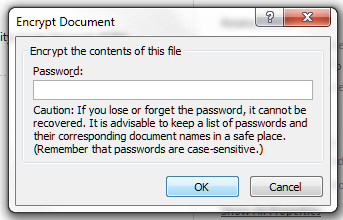
When you click this button, you will be asked to enter a password:

Word 2010 6 password

You will then be asked to enter the password again (the dialogue box looks the same).

When you or anyone else tries to open the document, this box will appear:

Word 2007 2a add password

If you want anyone else to be able to access the document you will need to let them know the password. If you’re sending the document as an attachment to an email, common sense tells you not to send the password in the body of the email …

Note: Once the user has accessed the document using the password, they will be able to edit and save it freely unless you have also applied one of the other levels of protection.

Restrict Editing

The next option, Restrict Editing, allows you to choose what parts or aspects of the document can be edited:

Word 2010 7 restrict editing

Click on this option and you are able to choose what levels of the document anyone else can edit. It will return you to your original document and give you a sidebar on the right hand side of your document:

Word 2010 8 restrict editing

Lots of options here, but looking at them in turn, you can …

Limit which styles can be edited – you will be given a list of options. This is useful if you have carefully set lots of headings styles and don’t want them to be changed:

Word 2010 9 restrict editing

Or allow only certain types of editing to be done:

Word 2010 10 restrict editing

This is where you can make the document Read-Only, i.e. it cannot now be edited.

Once you’ve made your selections here, you will need to press the Start enforcement button to initiate this. I believe that you cannot then make restricted edits yourself, although clearly you can go in and change these settings on your own document.

Word 2010 11 restrict editing

I suspect that almost no one knows about these settings, by the way, so if you are setting such restrictions, it might be polite and save time in the long run to let the recipient know that you’re doing this.

Restrict editors

This is a Windows-specific option that can allow you to set permissions for various people, usually within an organisation.

Word 2010 12 restrict by people

This involves using Microsoft’s Information Rights Management Service and being signed up to Windows Live. The message you get if you try to click Restricted Access or Manage Credentials explains it in more detail:

Word 2010 12.5 restrict by people

As the message says, many organisations (and all of the ones that I’ve worked in) have their own rights management systems embedded in their procedures and file/drive setups. It’s fine to set permissions and protect your document in that way, but that’s outside the scope of this article: you will need to talk to your IT support people or a knowledgeable administrator in your department. But this is there, and can be done if you have the relevant signups (again, contact IT or your systems administrator before signing yourself and others up for something that can affect access to documents on a shared organisational system).

Adding a digital signature

This last option is another one where you have to sign up for something extra …

Word 2010 13 digital signature

This is another useful way to protect your document, however, you will need to purchase a signature service from the Office Marketplace or you can sign up for a third-party service which will apply a digital signature to your document.

Word 2010 14 digital signature

I have signed up to a third-party system which applies a digital version of my signature which I have previously uploaded onto documents, which some of my clients insist on me doing when signing contracts, etc. I am not entirely sure how this would hold up legally in a court of law if you were trying to protect your document, however.

Creating a PDF using Word 2010

The best way to protect your document from being changed is still to convert it into a PDF. A PDF is a copy of a document, a bit like a photocopy, which cannot be edited and changed. Well, that’s not strictly true nowadays: the VERY best way to protect a document is to turn it into a PDF and password protect it so it can only be opened by the recipient and make it read-only so it can’t be edited. I’m going to publish an article on PDFs soon, so look out for that.

You used to have to use a separate programme to create a PDF from a Word document; however, from Word 2010 onwards, you can create a PDF directly within Word.

In the Save and Send menu under the File tab, choose Create PDF/XPS Document:

Word 2010 15 pdf

What is an XPS document? Open XML Paper Specification (also called OpenXPS) is an open specification for a page description language and a fixed-document format, developed by Microsoft. It’s kind of an equivalent standard to PDF. If you’re asked to send someone a document in this format, now you know what it is (I’ll admit here that I have never done this myself).

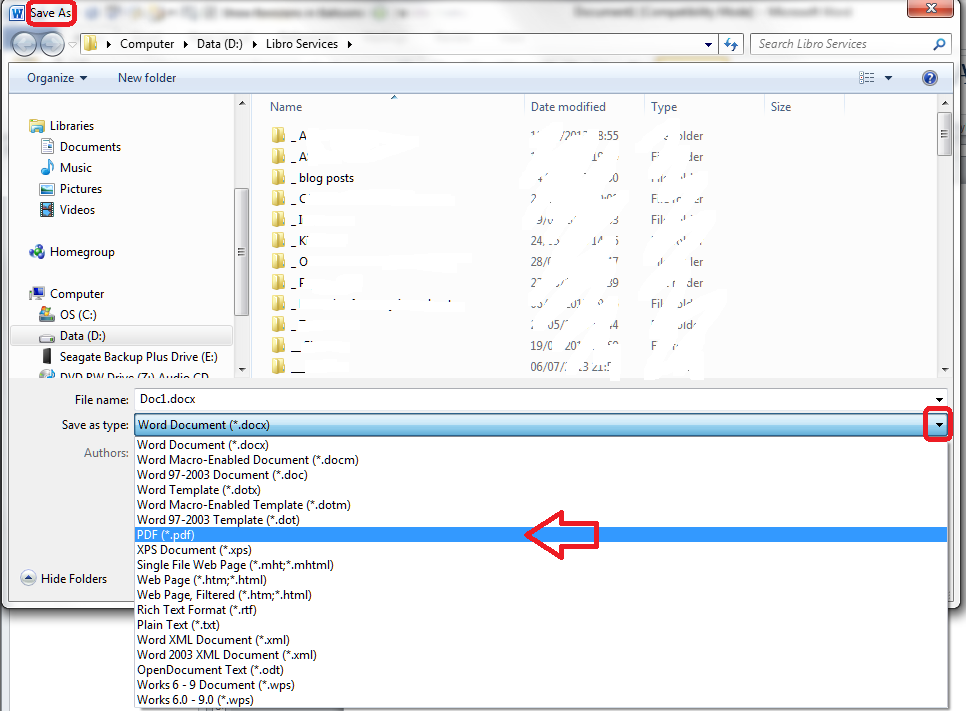
Hit the Create PDF/XPS button and you’ll be taken to the Save As screen to save your document as a PDF (note that it might well take you to a temporary file folder and you’ll need to navigate to whichever folder you’ve saved your original document in).

You can also use the Save As menu directly from the Home tab for this function:

Word 2010 16 pdf

I’ll go into more detail about how you can protect that PDF further in my article on PDFs.

For now, we’ve learned how to protect a document in Word 2010, including information on why you’d want to do that, where you can find the menus, and what you can do.

Related articles

How to Watermark your document

How to protect your document in Word 2007

(coming soon):

Protecting your document using PDFs

———————

This is part of my series on how to avoid time-consuming “short cuts” and use Word in the right way to maximise your time and improve the look of your documents.

Please note, these hints work with versions of Microsoft Word currently in use – Word 2003, Word 2007 and Word 2010, all for PC. Mac compatible versions of Word should have similar options. Always save a copy of your document before manipulating it. I bear no responsibility for any pickles you might get yourself into!

Find all the short cuts here

 
25 Comments

Posted by on July 10, 2013 in Errors, New skills, Short cuts, Word, Writing


Tags: , , , , , , , ,

How to set a watermark in a Word document

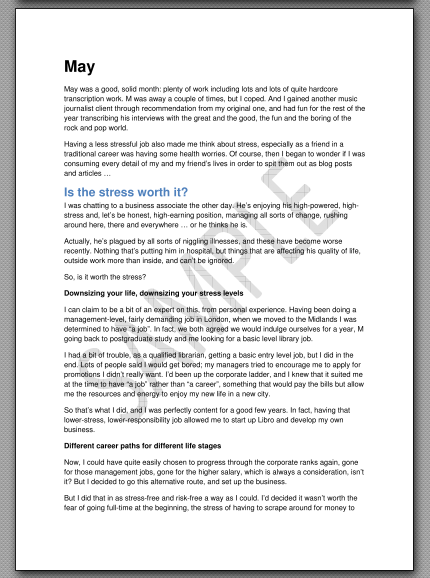
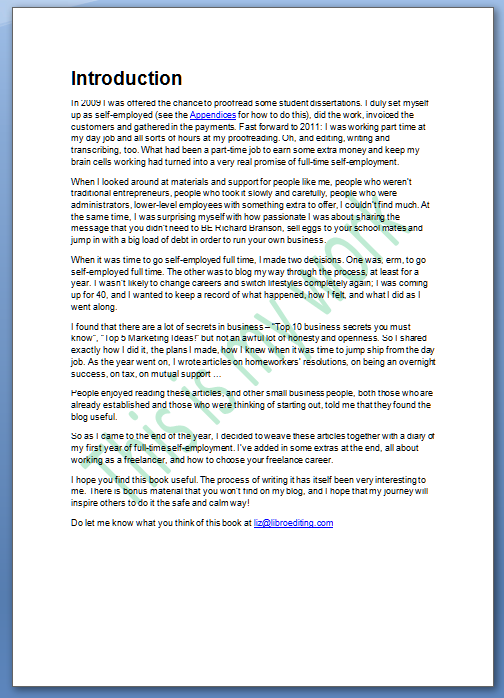
1 watermarked pageSometimes you want to set a watermark on a Word document. This article explains what a watermark is, why you might want to add one to your document, how to add a watermark, how to customise a watermark, and how to remove them.

What is a watermark?

A watermark is a word, phrase or picture that appears “behind” the text in a document. It gets its name from the physical marks that are created during the paper-making process. The pulp is floated in water, and a frame is brought up under it to collect the pulp into a square. The frame is lined with thin wires (and symbols or text can be included, too) and when the pulp is collected in the frame, it will be thinner where there’s a wire or other protruding part of the frame. When the pulp has dried into a sheet of paper, the thinner parts of the paper will let through more light when held up to a light source, and so you can see the symbols and words, as well as the lines of the original frame (this is how papermakers marked their stock and also how you can tell how a book was put together. For more information on the fascinating world of watermarks, you can start off with this Wikipedia article.

Why would I want to watermark my Word document?

If you watermark a document, whoever opens that document will see the watermark sitting behind that document. This is basically to stop it being used either in their everyday work or for other commercial purposes. It’s very much like the way that photos from mass sports events or wedding photographer sites often have words printed faintly across them. It stops you printing them out and using them without buying them.

Some reasons to do this:

  • You’ve prepared a document for someone and you’re charging them after you’ve completed the job. Sending them a watermarked document will proved that you’ve fulfilled your side of the bargain but prevent them from actually using the document. Once they’ve paid you, you can send them a non-watermarked version.
  • You’ve prepared a document to send out to people but you don’t want them to share it further or claim authorship, or you want to remind them it’s a sample. I’ve done this with the sample chapter of my book that I send out to people who sign up to receive my newsletter. It has “Sample” written across the page behind the text, so that people can’t use it in another way and to remind them that it’s just a sample and they can buy the whole thing.
  • You’re sending out a late reminder of an invoice and if you were doing it on paper, you’d use one of those URGENT stamps and red ink.
  • You’re creating a corporate document and want to include corporate branding of some sort behind the text.

Note that if you’re watermarking to protect your work, the watermarking should go alongside copyright statements if you want to use it for that purpose, and I’m not an expert on, or advising you on, copyright here – just telling you how to apply a watermark.

How do I add a watermark to a Word document?

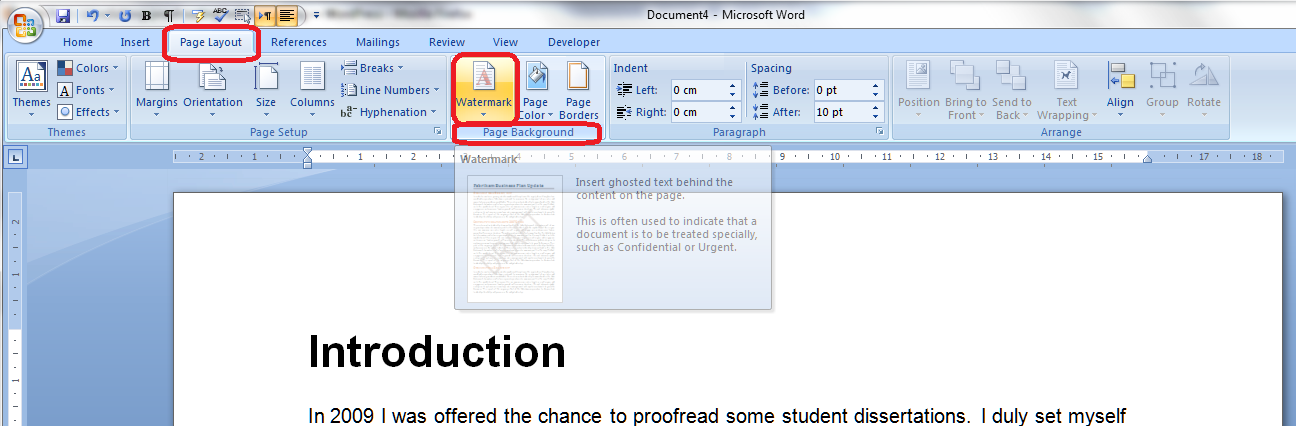
To access the Watermark menu, go to the Page Layout tab, then look in the Page Background area, where you will find the Watermark button:

2 watermark button

The Watermark button has a small downward-pointing arrow which implies that you can access a menu. Click on the arrow and there’s the menu:

3 watermark menu

If you select any of the standard examples that they give you (and note the scroll bar on the right, which you can use to see more default watermarks, that watermark will go straight onto your document. But you might want to customise the watermark in terms of wording, colour, text size and font, etc. and you can do that by selecting Custom Watermark at the bottom of this menu.

How do I customise my Word watermark?

Of course you will find lots of options for customising. Select Custom Watermark at the bottom of the Watermark menu to access the Custom Watermark menu:

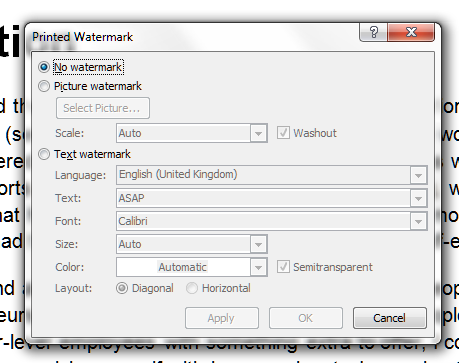
4 custom watermark menu

You can see here that the menu defaults to No watermark, because that’s what we started with. But there are options for adding a Picture watermark or Text watermark, and you select which you want to work with by clicking on the radio buttons in the left-hand margin. We’re going to work with a text watermark in this example, so we click on the radio button next to Text watermark:

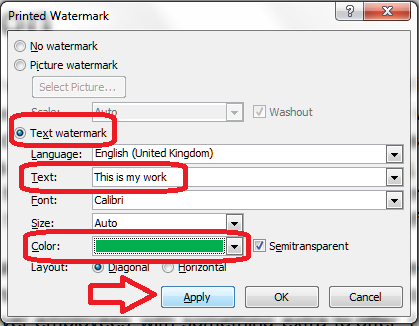
5 custom watermark menu changed

Now the fields to do with text watermarks become active (are no longer greyed-out) and we can change the language, the actual text, the font, size, colour and orientation.

Here I’m changing the text – it defaults to the first standard text but you can just type in what you want to appear there. I’m also changing the colour – but note that I’ve left Semitransparent ticked. If you don’t do that (see below), the watermark will be much heavier and will actually obscure part of the text … which can be useful, of course!

Once you’ve made your choices and changed the text, colour, etc., press the Apply button to apply the changes.

6 custom watermark

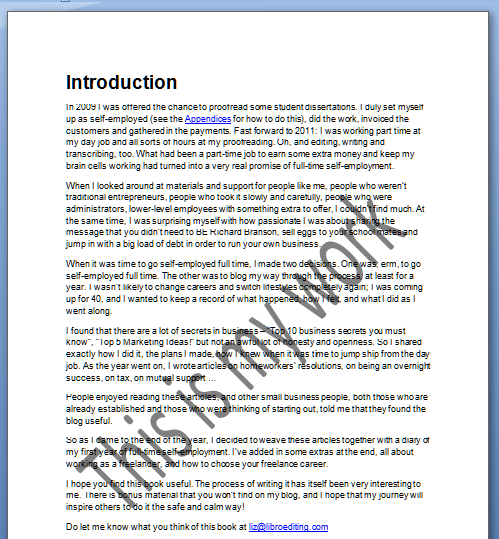
And here’s my custom watermark – my text, in the colour I chose.

Advanced watermark customisation

We won’t go into all the detail about customising here, as the menus are pretty self-explanatory. You can use the Picture watermark option to, for example, add your company logo to a tender document, or another image to make your documents look more attractive (beware of making them too “busy” or, worse, undermining their readability: remember that you need to consider people with low vision who might be reading the printed or on-screen document, and if you suspect the document might be photocopied in the future, steer clear of a lot of watermarking, as it’s apt to become darker and more visible when it’s copied).

A quick look at transparency: if you untick the Semitransparent box in the Custom Watermark menu above, your watermark will be a lot heavier and may obscure some of the text. Here I’ve changed the colour to black and unticked Semitransparent.

6.5 heavy watermark

How do I edit my watermark?

In the case I’ve just shown you, I simply went back into the Watermark menu then the Custom Watermark menu; my choices were there already and I changed them. The choices you have made will stay in the menu until you change them or remove the watermark entirely, so you can pop in and adjust it as you like.

How do I remove watermarks?

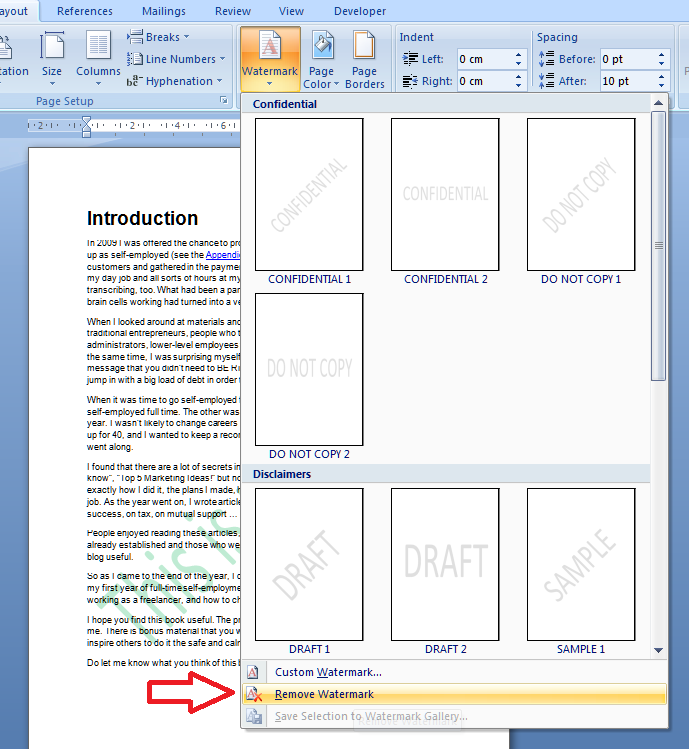
If you want to remove the watermarks on a document, go to the Watermark menu and select Remove Watermark:

7 remove watermark

Of course, this means that other people could remove your watermark, too. So if you watermark a document to protect it, and you don’t want someone to remove that watermark, you will need to protect the document itself by making it uneditable, either by security protecting it or changing it into a pdf document (the latter is what I have done with my sample chapter). That’s an article for another time …
How do I apply a watermark in Word 2013?

If you’re using Word 2013, you will need to note that they’ve added an extra Design tab, and you’ll find the Watermark feature there.

How do I create a default watermark for all of my documents?

There’s no way to save a default watermark or add one permanently to your watermark gallery. If all of your documents are going to have the same watermark, it’s best to create a blank document with the watermark applied, then save it as a Word template (Save – Save as – drop down Type – Word template). Then, use that template when you’re starting a new document in Word. Thanks to my commenters for suggesting this addition to the article!

———————

This is part of my series on how to avoid time-consuming “short cuts” and use Word in the right way to maximise your time and improve the look of your documents.

If you found this interesting, you might also be interested in:

How to protect your document in Word 2007

How to protect your document in Word 2010

Please note, these hints work with versions of Microsoft Word currently in use – Word 2003, Word 2007 and Word 2010, all for PC. Mac compatible versions of Word should have similar options. Always save a copy of your document before manipulating it. I bear no responsibility for any pickles you might get yourself into!

Find all the short cuts here

 
19 Comments

Posted by on July 3, 2013 in Errors, New skills, Short cuts, Word, Writing


Tags: , , , , , , , ,

How do I change the colour of text in Word?

How do you change the colour of the text in your Word document?

Why would I want to change the colour of the text in my document?

You might want a section of the text to stand out, to match your company branding or to look attractive on a menu or other display document. It’s easy to change the text colour to do this.

Note: don’t use changed text colour to alert your proofreader/editor to something you want to do – read this article to find out why.

How to change the text colour using the menu bar

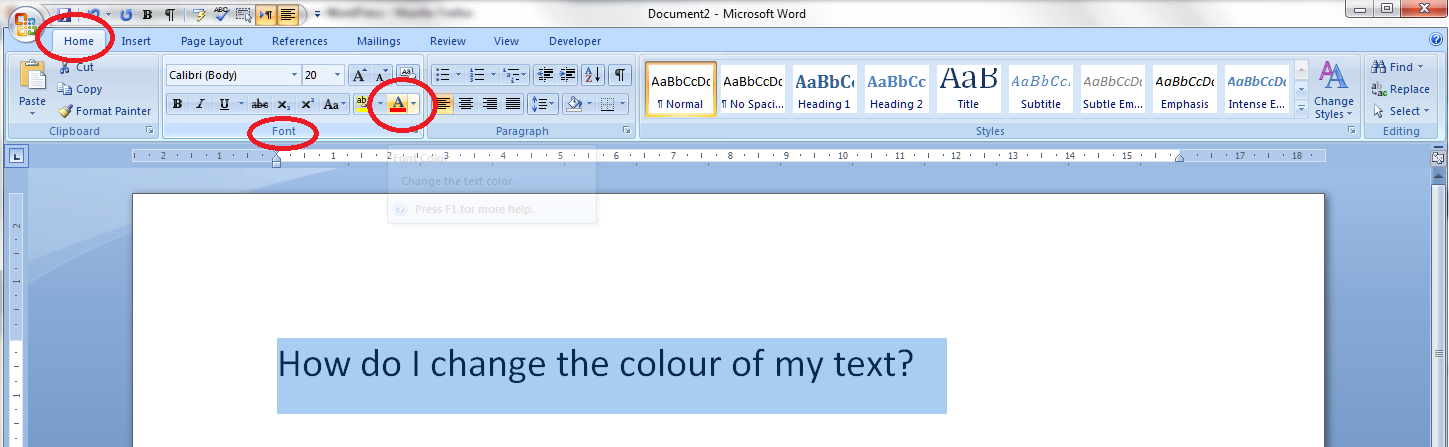
You can find the text colour button in the Home tab, in the font section of the menu bar:

1 colour in menu

Make sure the text that you want to appear in a different colour has been highlighted. Locate the letter A with a red underline and click on the down arrow to the right of the letter to access the Colour menu:

1 colour template from menu

To see how to use this palette, hop down past the next section and join me at “How to select your colour”.

How to change the text colour using right click

You can do a lot to a chunk of text by highlighting it and right-clicking. Try that on some text now by highlighting it then right-clicking over the highlighted text:

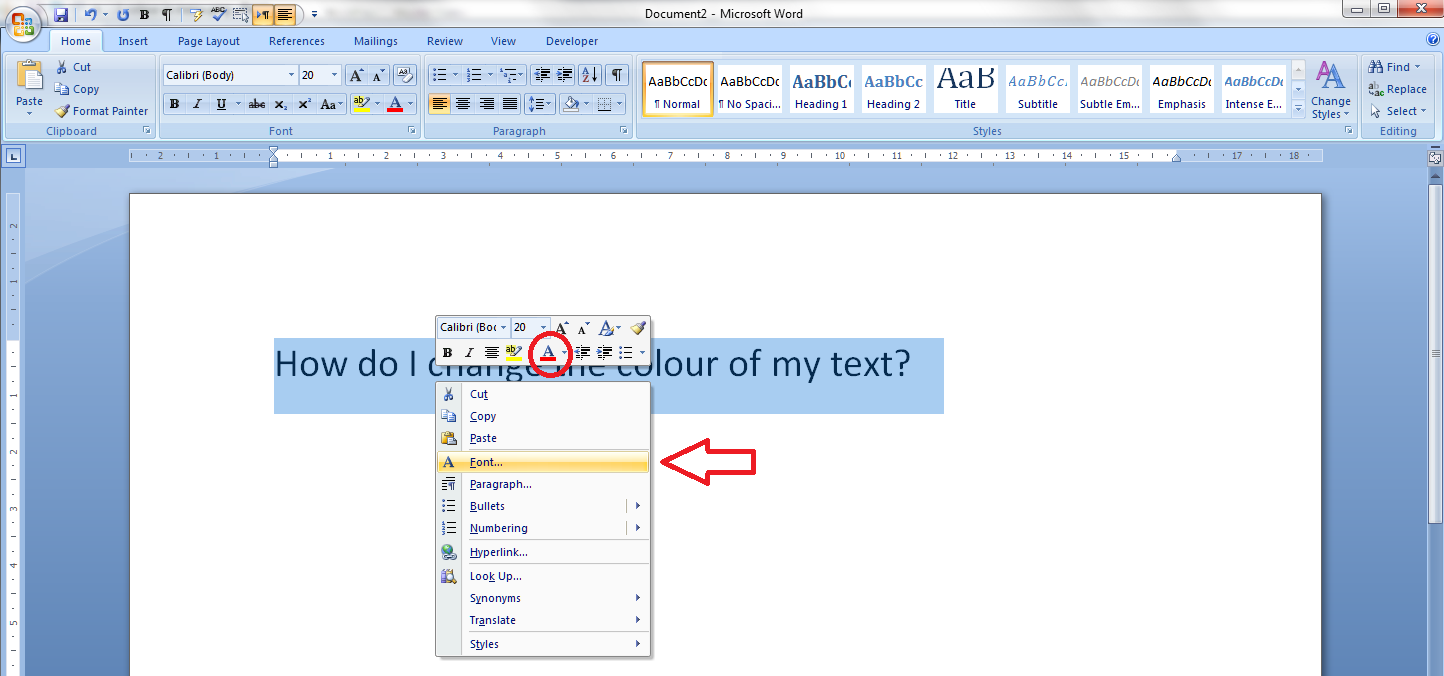
2 colour in right-click

You will now find not one but two ways to change the text colour – a button with an A underlined in red (circled) and a Font menu (arrow). If you click on the button, you’ll get to the same point as in the section above. Click on Font for now ..

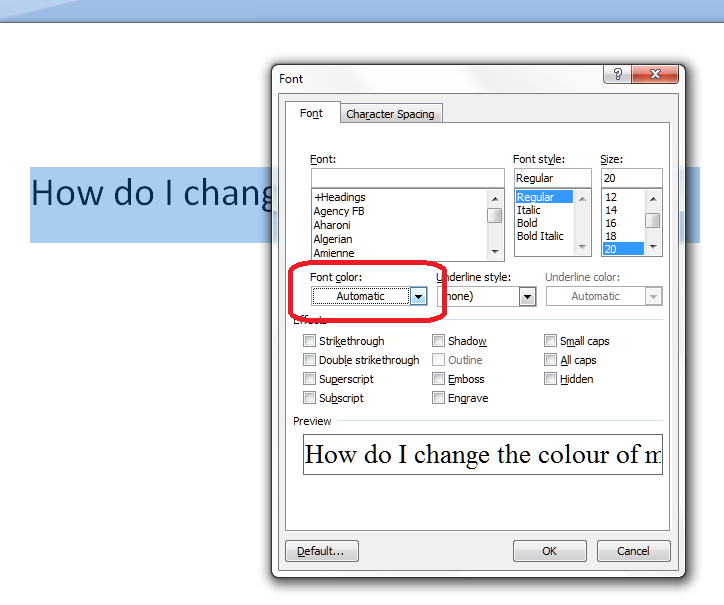
3 colour in right-click

In the Font menu, you’ll find all sorts of things you can do to your font – very useful if you want to apply particular effects to the highlighted section of text. For now, we’re going to use the drop down arrow under Font color to select our font colour:

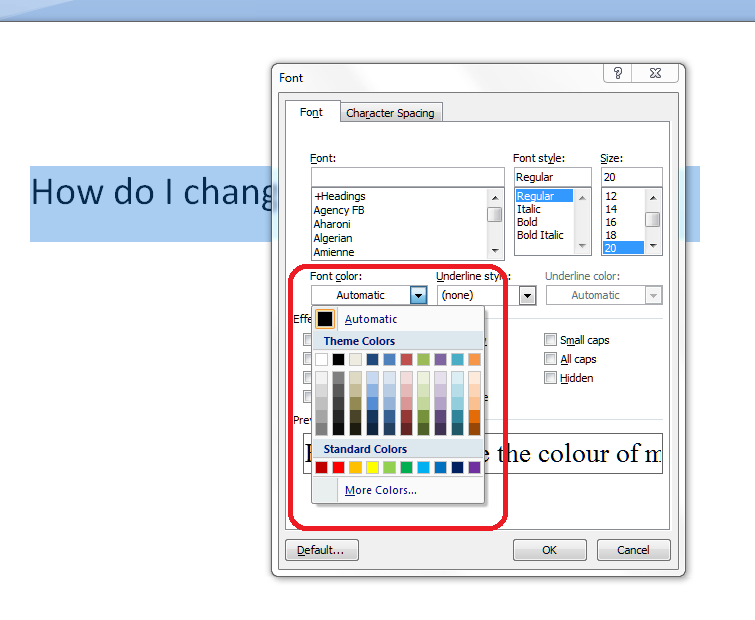
4 colour template in right-click

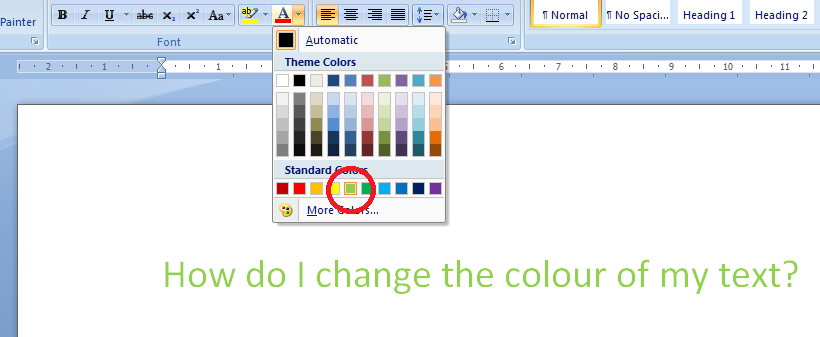
We’ve now got a choice of basic colours, with common ones at the bottom. Click, for example, on the first green, and your highlighted text will turn green, although you’ll need to press the OK button to make that change stick:

5 change colour

How do I choose a custom colour for my text?

You can, of course, go even more customised than this. In both ways to access the menu, you’ll find the words More colors… at the bottom of the palette:

6 more colours

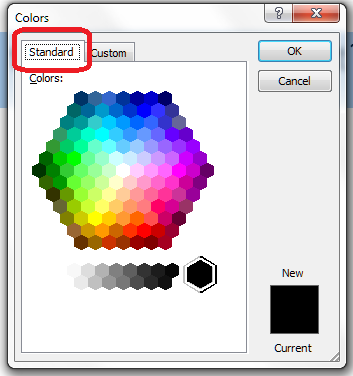
Clicking on this option will give you the Customise colours dialogue box, with two sets of increasingly customisable colour palettes to choose from. First of all, we have Standard colours:

7 more colours standard

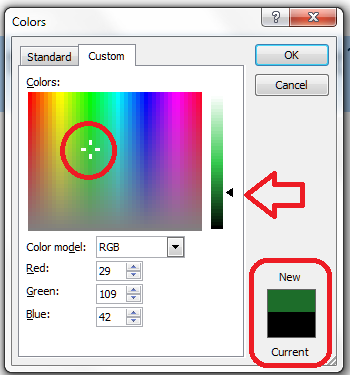
You can see that we’re on the Standard tab here: there are plenty of colours and shades of grey to choose from, and you click on the colour and press OK to accept it. Or, if you’re feeling really adventurous, you can select the Custom tab

8 more colours custom

… and have a huge range of colours to choose from. Here, you can click on the colour and then move the arrow up and down to adjust the amount of black in the colour, and it handily shows you the original and new colours at the bottom of the dialogue box.

Now you know how to change the text colour in Word to an almost infinite number of colour choices. You can use the same button or right-click and font option in Excel and PowerPoint, too.

———————

This is part of my series on how to avoid time-consuming “short cuts” and use Word in the right way to maximise your time and improve the look of your documents.

Please note, these hints work with versions of Microsoft Word currently in use – Word 2003, Word 2007 and Word 2010, all for PC. Mac compatible versions of Word should have similar options. Always save a copy of your document before manipulating it. I bear no responsibility for any pickles you might get yourself into!

Find all the short cuts here

 
Leave a comment

Posted by on June 26, 2013 in Errors, New skills, Short cuts, Word, Writing


Tags: , , , , , , , ,

How to search for almost anything in Microsoft Office, other software and web pages

Today we’re going to learn about the wonders of Ctrl-F and how it can help you to search for text almost anywhere.

We’re going to look at an overview of the basics in this article, then I’ll go into more detail on advanced searching and replacing in another one.

What does Ctrl-F mean?

Ctrl-F is shorthand for “press the control key and the F key at the same time“. It’s the way in which key combinations are expressed. You will have one or two Ctrl keys on your keyboard (I have two) and it’s usually easiest to press Ctrl, hold it down, then press F.

keyboard

If you’re looking at a  Word, Excel or Powerpoint document, a web page or, in fact, many other things, you will now be able to search for text in that document, on that page, etc. Let’s go through the different places you can use this.

Searching in Word 2007 using Ctrl-F

Word is one of the places where searching is most useful. It also offers the largest range of options for searching, and we’re just going to look at the most common today but watch this space for an article on advanced searching.

I use Ctrl-F to …
  • Search for a place in a text by a word in its heading
  • Search for tables / figures and references to them in a document to make sure they match up
  • Search for chapter headings in a book / thesis when I want to check they have a consistent style
  • Search for a name to check how it was spelled last time

and many other things.

When you have a Word document open, to bring up the search dialogue box, press the Control key and the F key at the same time. You’ll then be presented with the basic search box:

Word 1

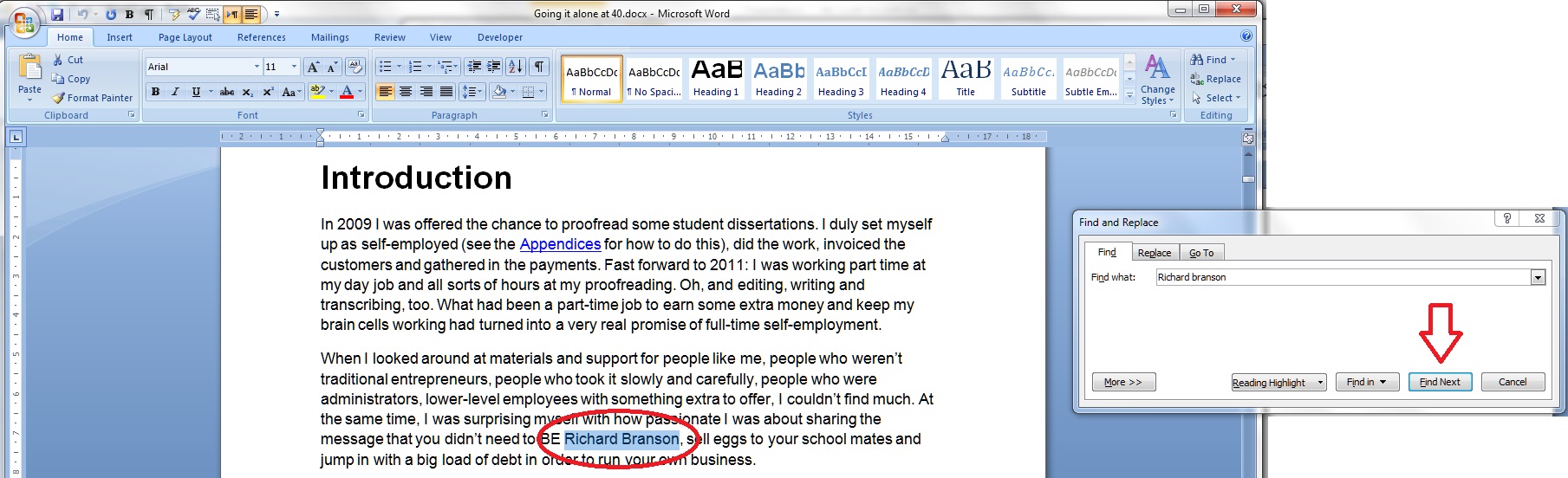
It will usually appear to the side of the document, so as not to obscure the text. Enter the text you wish to search for, in this case Richard Branson, and press the Find next button (or the Enter key). Word will highlight the text you’re looking for.

That’s great, but what if you want more accurate searching? Press the More >> button for more options:

Word 2

Here, you have options to match the case, find whole words only, etc. For the moment, we’re going to concentrate on just these two (see the article on advanced searching for the other options).

If you choose Match case, it will search for only those words in the exact same case as the one in the search box. If you choose Find whole words only, it will look for only that text, not that text included in a longer word. We’ll have a look at how that works in just a moment.

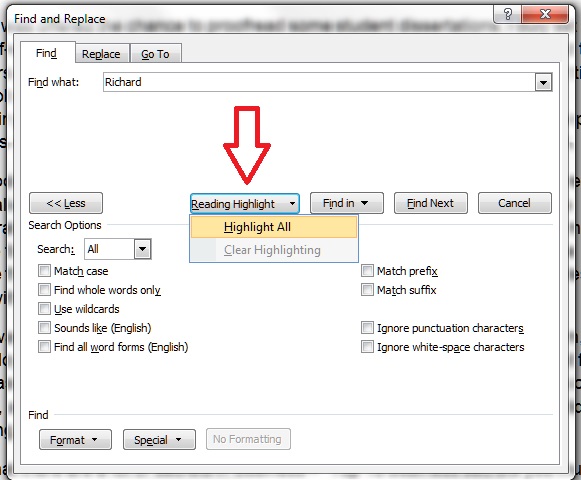
Moving along the options, we have a Reading Highlight button. This will highlight all of the instances of your search word in your document. I find this useful if I’m writing a text to use for Search Engine Optimisation purposes and want to see how many times I’ve included a particular phrase:

Word 3

Note: if you change your search term, you will need to Clear Highlighting before highlighting again, otherwise all of the original highlighting is shown.

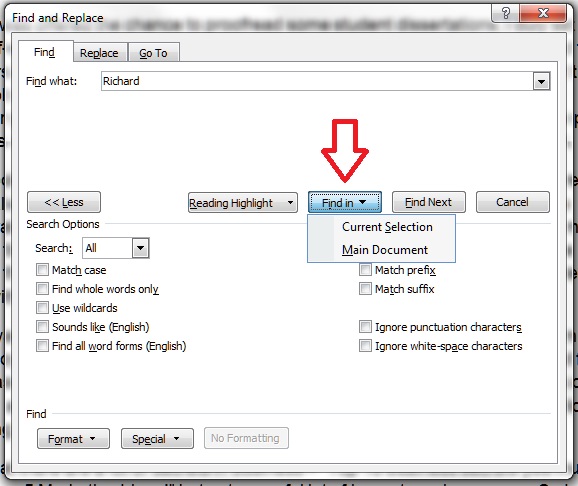
The next option is Find In. This is useful if you only want to search a particular part of the text for your word. Highlight the section in which you want to search, and then choose Current Selection (or, if you’ve got a section highlighted for some other reason, choose Main Document.

Word 4

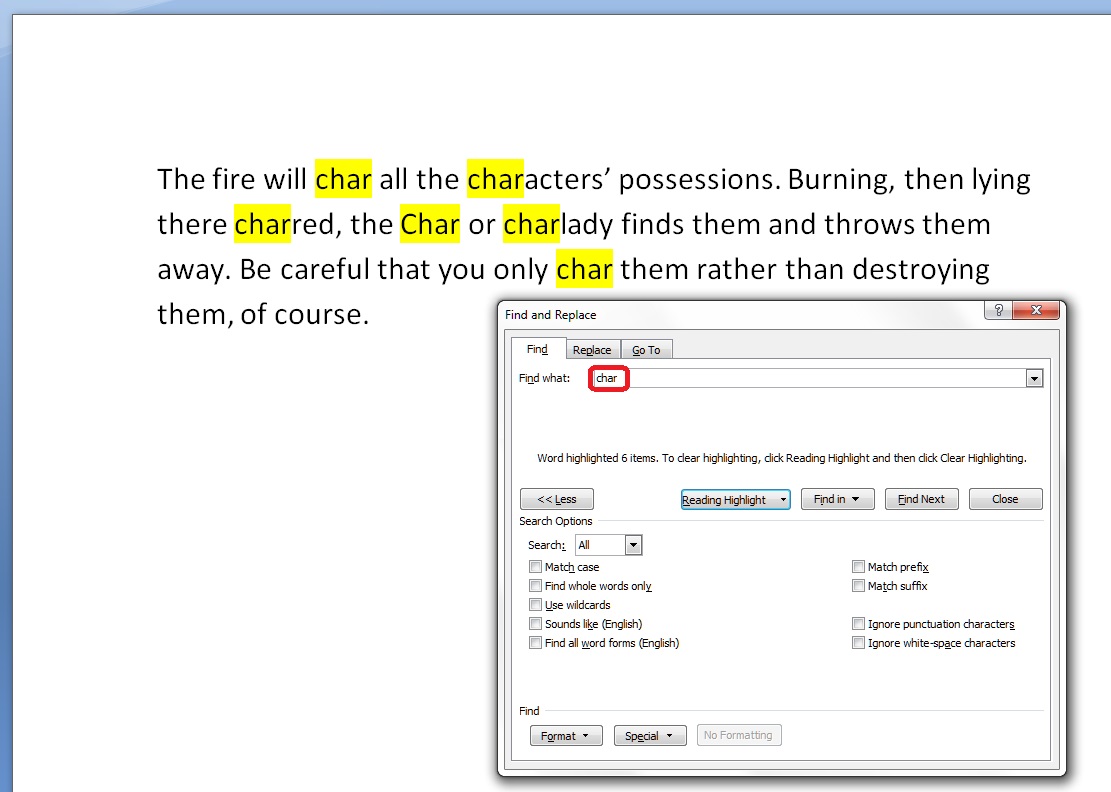
Let’s have a look at some of these options in practice, using a rather odd paragraph I made up for illustration purposes:

Word 5

Here, I’ve just searched for char, not worrying about any additional options. You can see that it’s found char, but also character, charlady and Char, because I didn’t specify that I wanted only the word form “char”.

If I want to only find “char” in the text, I need to tell Word to Match case and Find whole words only. Then I will get the desired result:

Word 6

Searching in Word 2010 using Ctrl-F

Of course, they went and changed this to make it more useful and user-friendly in Word 2010 … I was a bit flummoxed when I first tried to use it, but you can get back to the dialogue box we’ve looked at above, and there are some additional useful features.

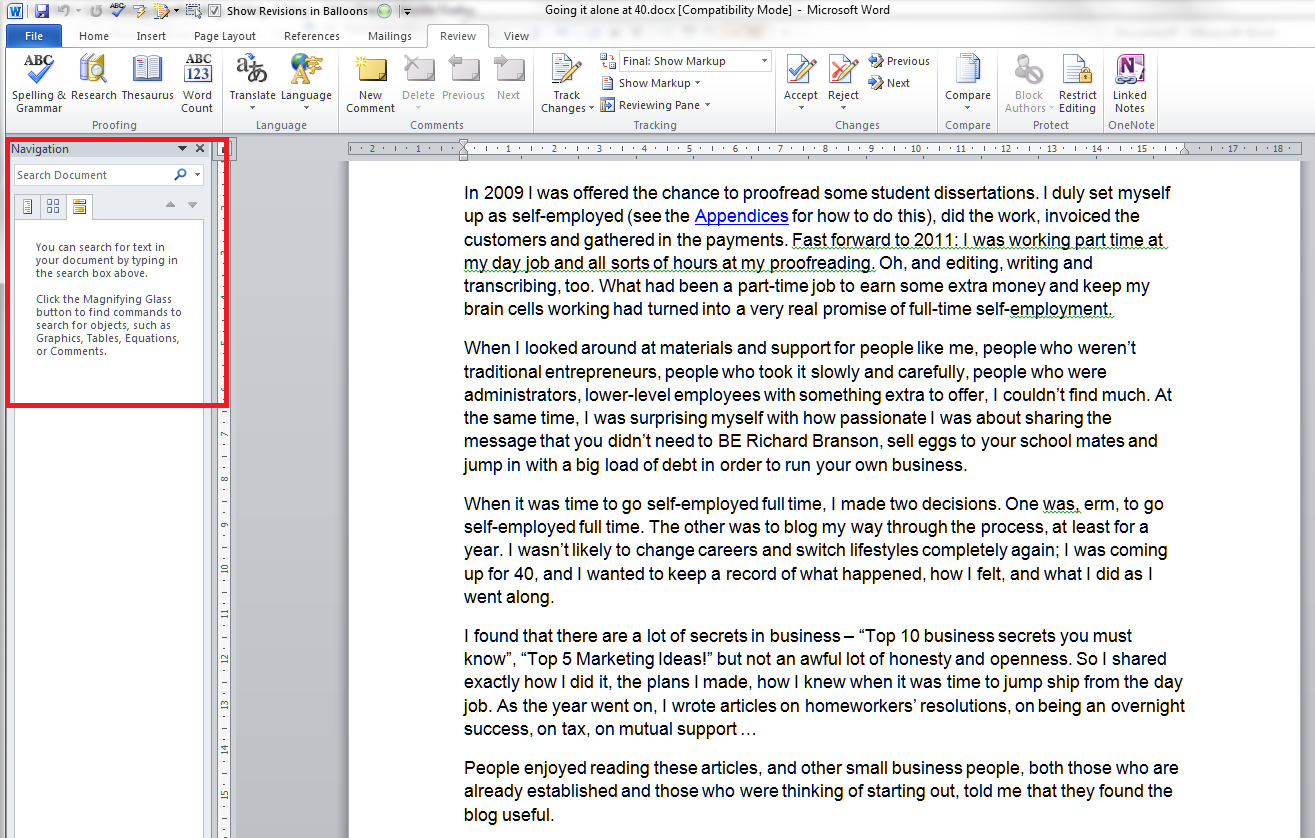
In Word 2010, if you press Ctrl-F, you’ll be given a Navigation pane to the left-hand side of the document:

Word 7

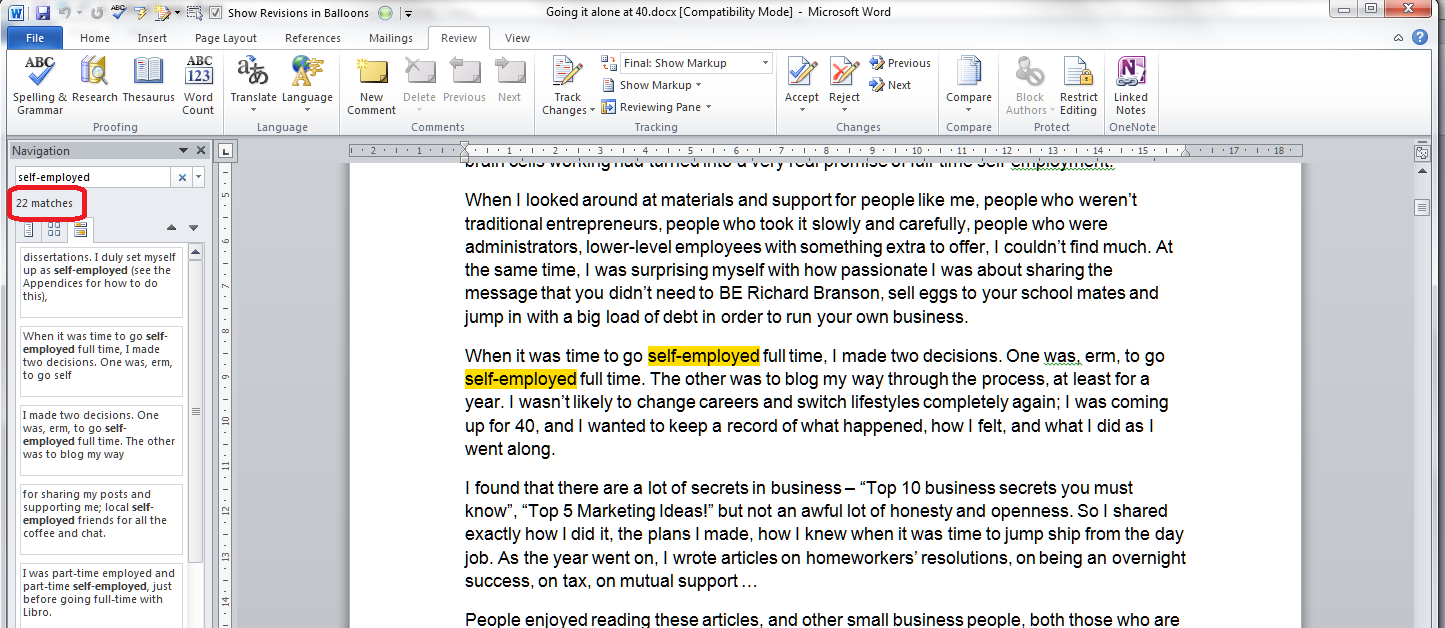
Put your search term in the box and it will automatically highlight all of the instances of that word in the document, give you the number of times it appears, and list all the instances so you can click and visit each of them:

Word 8

This is handy, and although you can do more things here to do with looking at the whole document, you can’t immediately refine your search to whole words only, match case, etc. But you can get to that familiar dialogue box.

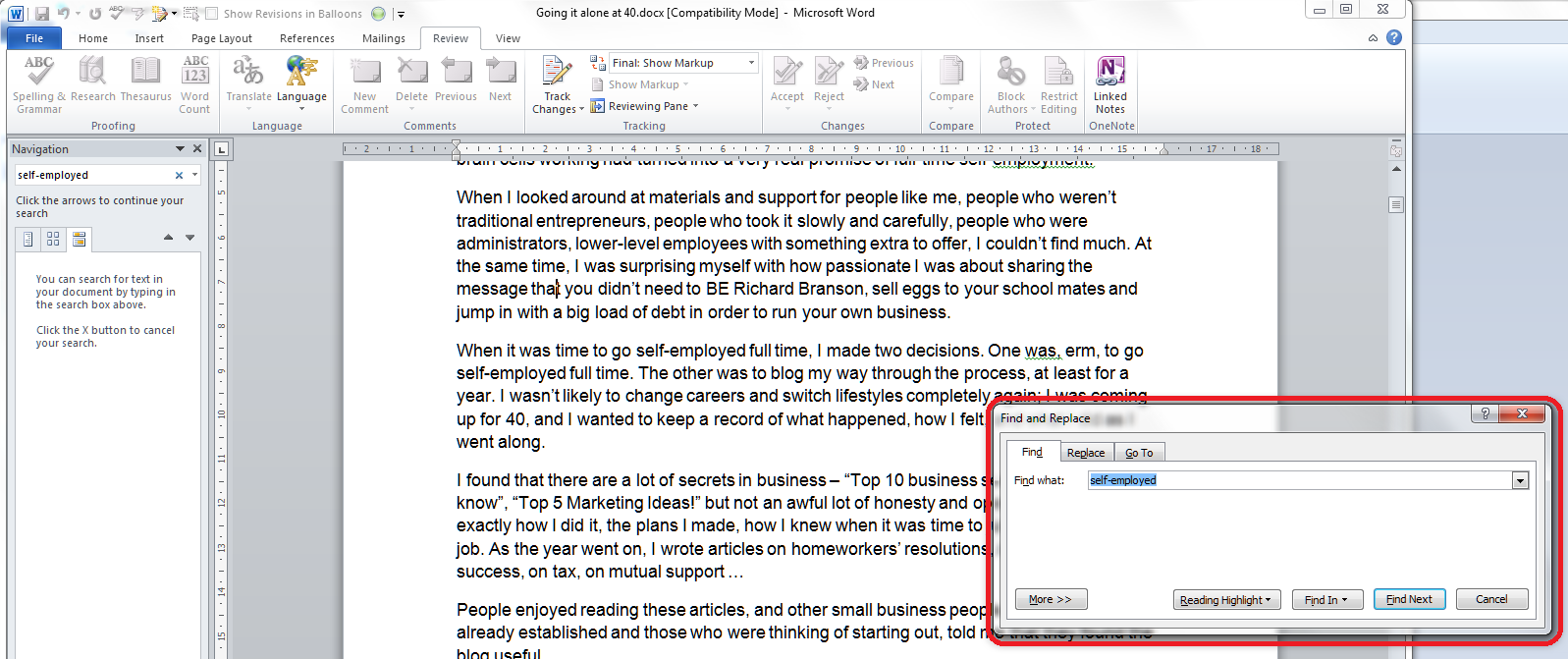
Click the down arrow next to the search box and you’ll be presented with a list of options. We’ll look at the advanced ones next time.

Word 9

For now, select Advanced Find, and a familiar dialogue box will pop up …

Word 10

Searching in Excel using Ctrl-F

All of the other software in Microsoft Office uses Ctrl-F, however to a more limited and less customisable degree. In Excel, pressing Ctrl-F will give you this dialogue box:

Excel 1

Press the Options button and you have some options for where you search and the form of the word:

Excel 2

This works the same in Excel 2007 and 2010.

Searching in Powerpoint using Ctrl-F

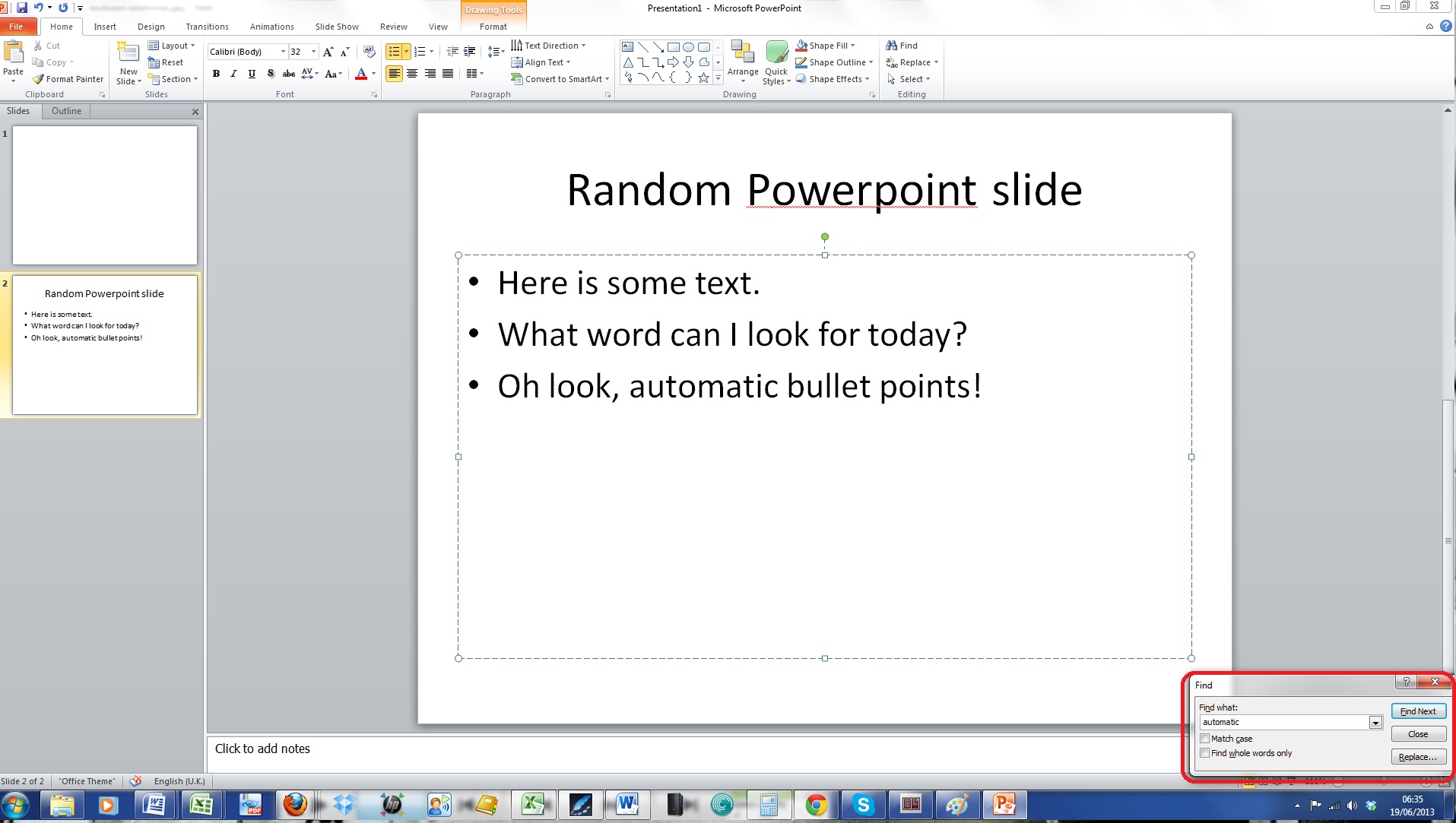
In Powerpoint, Ctrl-F gives you a small dialogue box:

Powerpoint

Again, you have enough options to be useful, but not the range of options you find in Word, and again, this works the same in Powerpoint 2007 and 2010.

Searching on web pages using Ctrl-F

I find this so useful, especially if I’m searching my own web pages for a word I’ve used or maybe misused (I used this a great deal in the great proof-reading to proofreading change I made a few years ago.

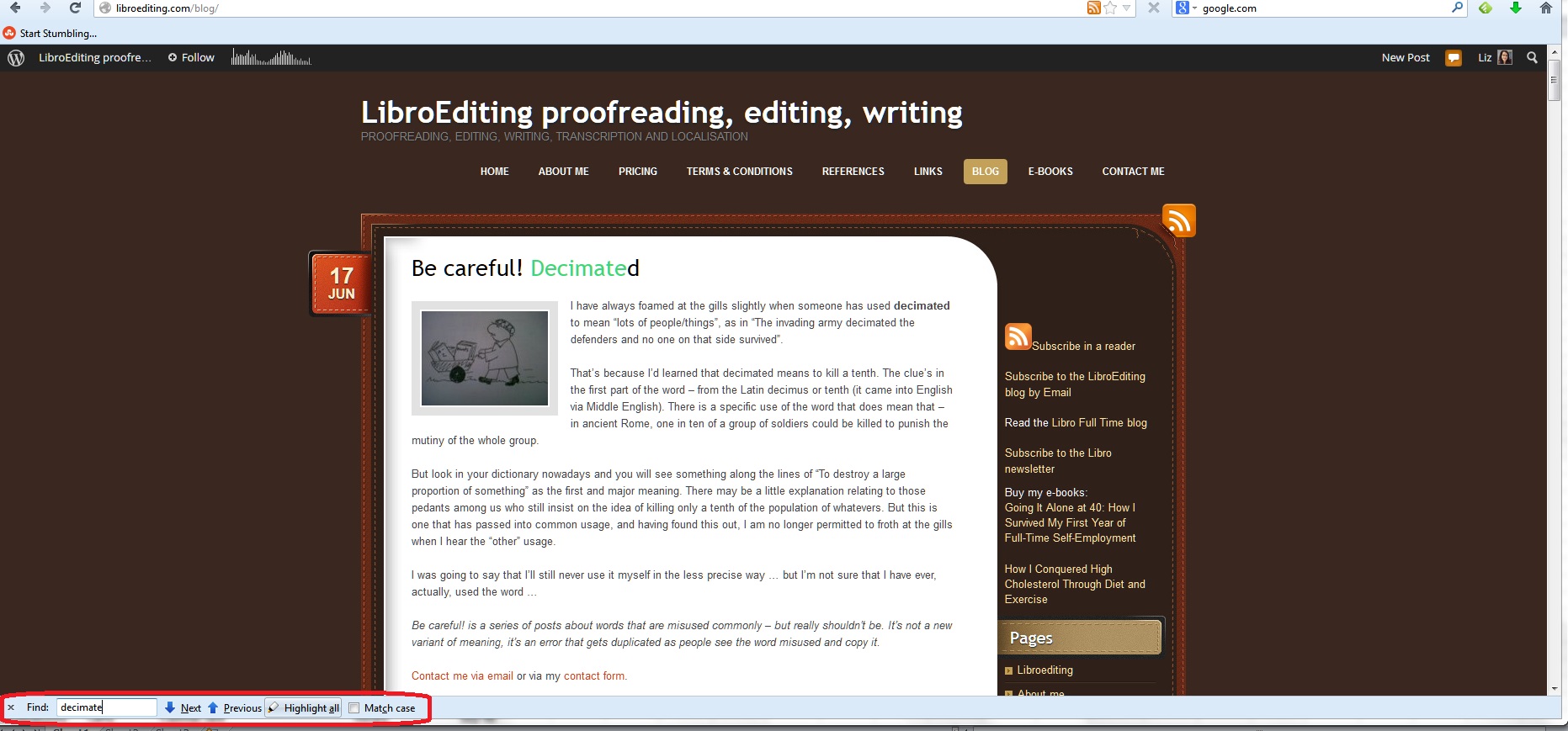
This varies according to the browser you’re using, but hitting Ctrl-F will always bring you up a search box of some kind:

website

  • In Firefox, the search box appears at the bottom of the screen and gives you the option to highlight all and match case
  • In Chrome, the search box appears at the top of the screen and gives you the option to search whole word only and match case
  • In Internet Explorer, the search box appears at the top of the screen but doesn’t give you any options

Please note that these options might change in future as the browsers are updated.

How to search a PDF using Ctrl-F

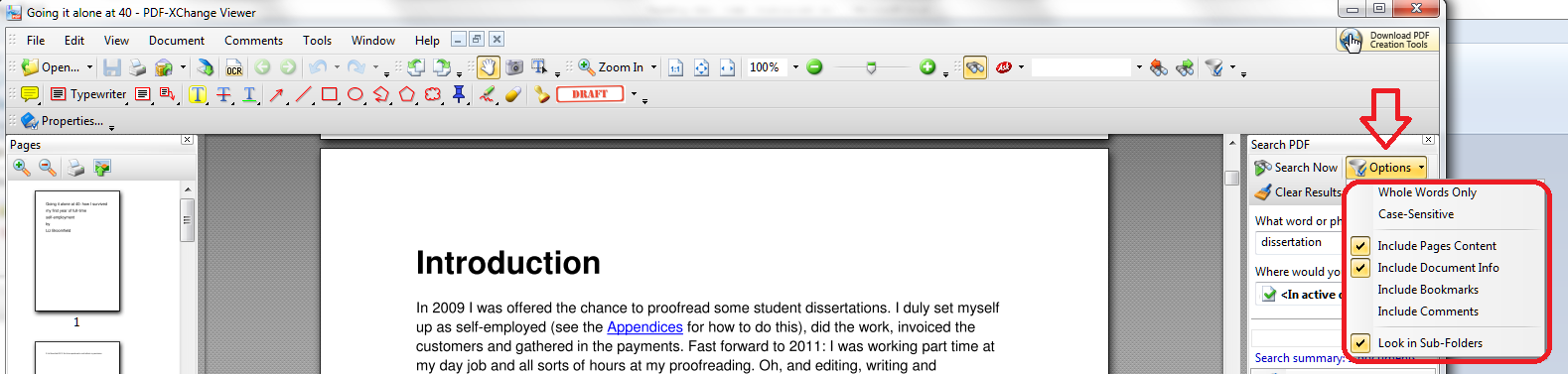
One of the few things that you can’t search using Ctrl-F is a pdf document. However, most readers (I use PDF-Exchange), as well as having their own search functionality on the page, will allow you to use Shift-Ctrl-F to search!

pdf 1

You have some options:

pdf 2

And it works in a similar way in Adobe, too.

If this doesn’t work, there is always a search function in your pdf reader itself, for example:

pdf

Searching anywhere using Ctrl-F

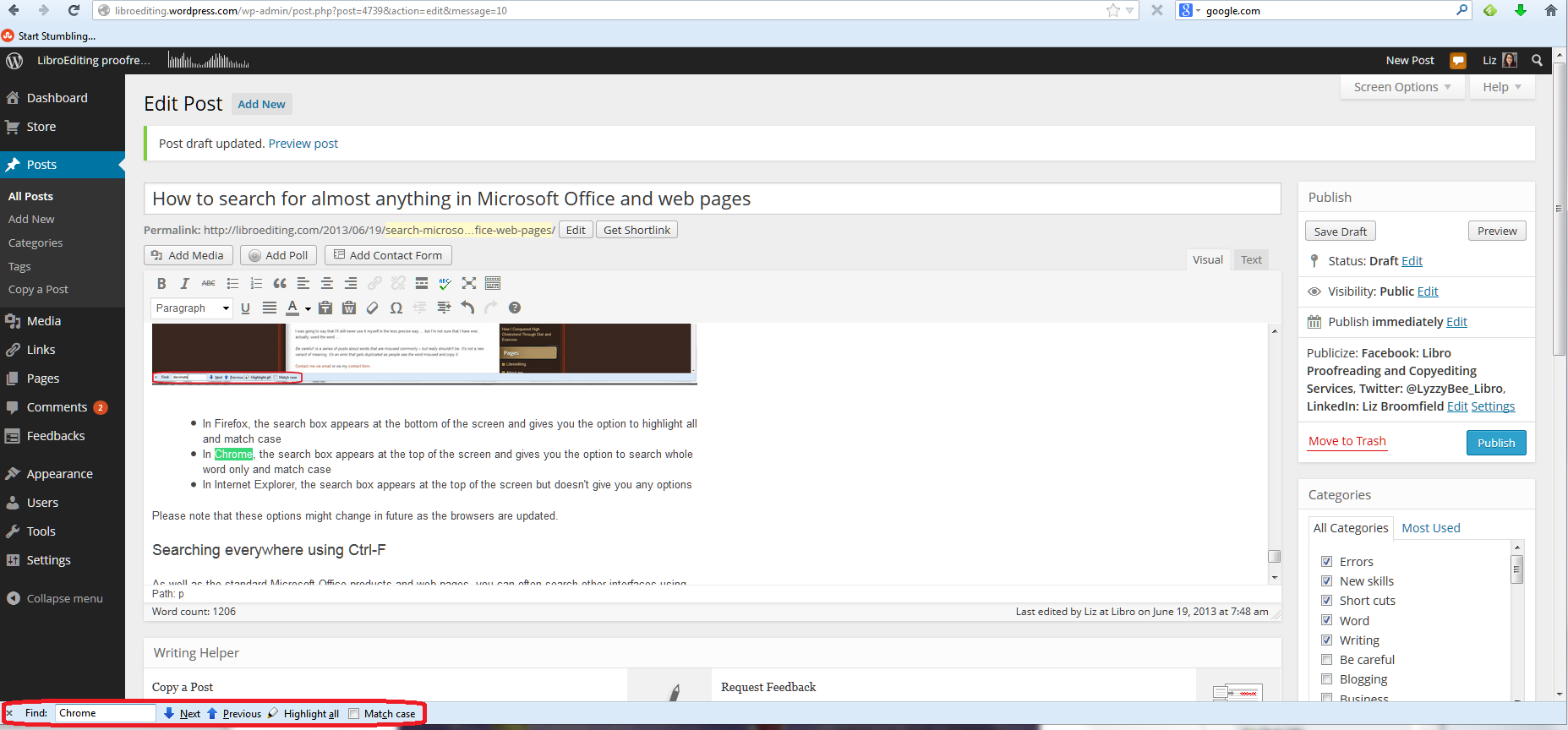
As well as the standard Microsoft Office products and web pages, you can often search other interfaces using Ctrl-F, too. For example, because my WordPress interface uses the web browser, I can search for words in posts I’m writing:

Wordpress

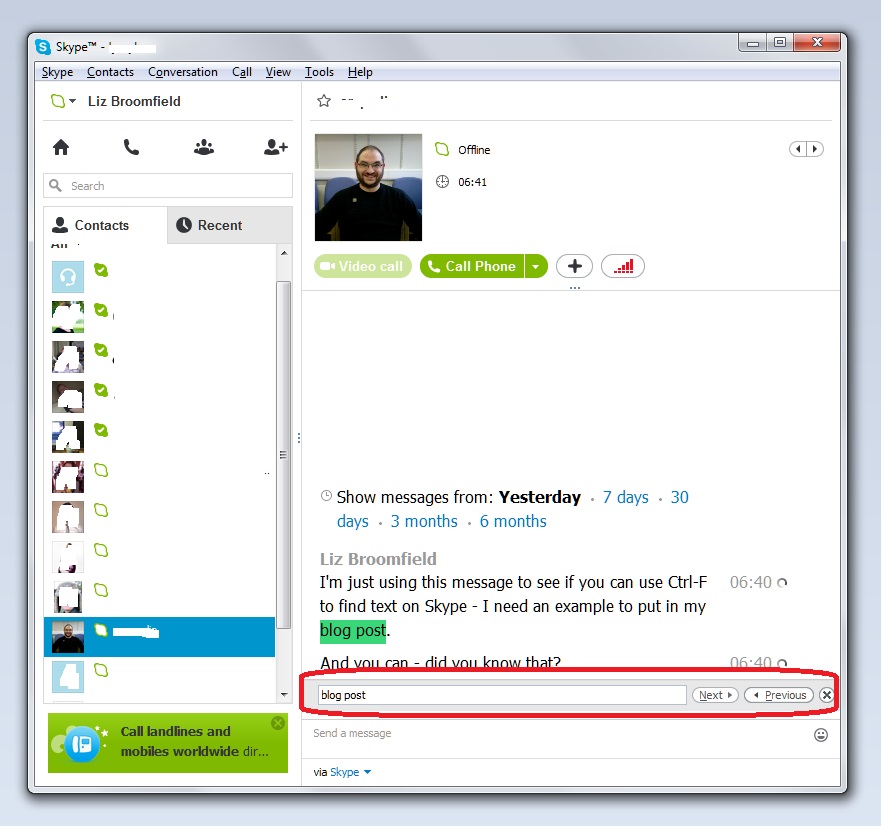
I can use it in Skype:

Skype

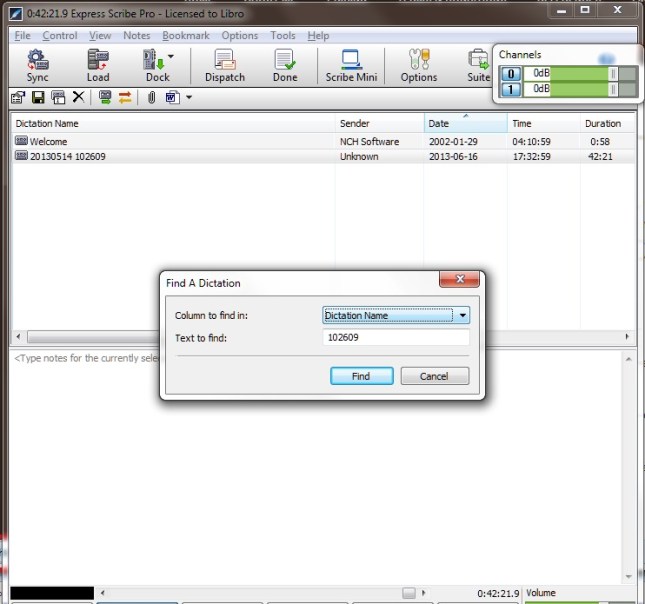
And I’ve even tried it in my transcription management software, ExpressScribe, and you can use it there, too!

express scribe

Today we’ve learned about how to use Ctrl-F to search almost anywhere in any type of document or application.

Coming soon – advanced searching in Word and Search & Replace / Go To.

———————

This is part of my series on how to avoid time-consuming “short cuts” and use Word in the right way to maximise your time and improve the look of your documents.

If you’ve enjoyed this post and/or found it useful, please take a moment to comment (I’ll just ask you to provide a name and email address; you don’t have to sign in to WordPress) and share the post using the buttons you can see below. Thank you!

Please note, these hints work with versions of Microsoft Word currently in use – Word 2003, Word 2007 and Word 2010, all for PC. Mac compatible versions of Word should have similar options. Always save a copy of your document before manipulating it. I bear no responsibility for any pickles you might get yourself into!

Find all the short cuts here


Tags: , , , , , , , ,

Justification in Word documents

Today we’re going to learn about the different kinds of justification that you can use in Word documents, and why we would choose to use the particular options.

What is justification?

Justification is the way in which your text is set out on the page. A margin is justified if all of the words on that margin are aligned vertically. For example, this article uses left justification: all of the lines of text start in the same place on the left, unless I manually indent them using tab or bullet points, and all of the ends of the lines present a ragged appearance on the right.

How do I set the justification in my Word document?

You will find the justification menu under the Home Tab, in the Paragraph Section – four little buttons with indications of what the text will look like:

1 justification menu

You can see four little buttons, in order from left to right: left justification, centre justification, right justification, full justification.

To set the justification for text that you have already typed, highlight the text and press the appropriate button. To start typing in a particular layout, press the button, check that it’s gone orange, and then start typing.

Left justification

Left justification means that all of the lines of text are lined up on the left hand side, but are ragged on the right:

2 left justification

Full justification

Full justification is very common and does look neat, although it can have some issues, as we find when we try to type text in a column or table using this form of justification:

3 full justification

Right justification

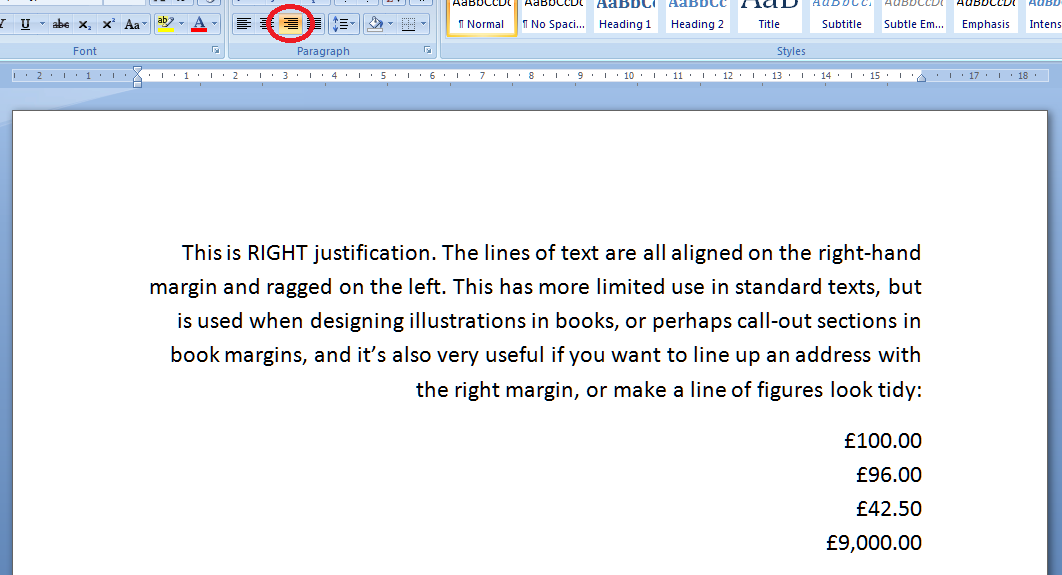
Right justification can look a bit odd in a text (and can be confused with the right-to-left text direction, which would of course use this as standard rather than left justification). However, it is extremely useful if you want to line up a list of numbers or prices so they look lovely and neat. This works in tables and columns of course, too, and makes it so easy to make things look tidy.

4 right justification

Centre justification

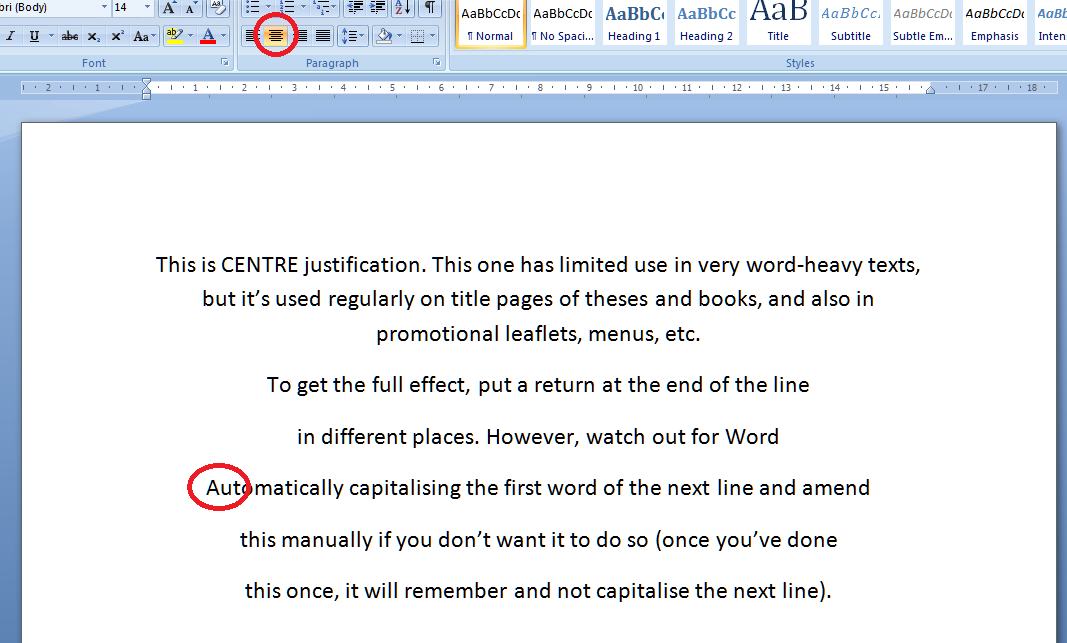
Centre justification is hardly ever used in anything but a heading, a poem, maybe, or something with a special design like a menu. But if you want to do it, here it is. One thing you need to watch out for is that if you hit the enter key to make a new line in order to get the effect or layout that you want, Word will helpfully capitalise the first word on the next line for you (see circled text below). However, at least in Word 2007 and Word 2010, if you change this to lower case once, it will leave it on lower case the next time! Clever Word!

5 centre justification

We’ve learned in this article about what justification is, the different kinds of justification, their advantages and disadvantages, and when you might want to use them.  I hope you’ve learned something useful here!

This is part of my series on how to avoid time-consuming “short cuts” and use Word in the right way to maximise your time and improve the look of your documents.

Please note, these hints work with versions of Microsoft Word currently in use – Word 2003, Word 2007 and Word 2010, all for PC. Mac compatible versions of Word should have similar options. Always save a copy of your document before manipulating it. I bear no responsibility for any pickles you might get yourself into!

Find all the short cuts here

 
6 Comments

Posted by on April 24, 2013 in Errors, New skills, Short cuts, Word, Writing


Tags: , , , , , , , ,

How to add line numbers to a Word document

This article explains the correct – and incorrect – way to add line numbers to a Word document. Why would you want to do that? Read on and find out! This works for Word 2007, Word 2010 and Word 2013.

Why do I need to add line numbers to a Word document?

I was inspired to write this post after my colleague Katharine O’Moore Klopf mentioned that she’d been asked to do this by the editors of a journal for which she was editing an article. Presumably they wanted to be able to refer to particular line numbers in their criticism of the piece.

Transcriptions will sometimes have line numbers, if they’re going to be discussed in detail, and we can probably all recall from our dim and distant pasts working on critiques of poems and plays which had 5, 10, 15 etc. in the margins.

So these are all reasons for adding line numbers to a Word document.

How NOT to add line numbers to a Word document

If you find the need to add line numbers, it’s kind of natural that you might think – oh, I’ll just make the whole document into a numbered list. Well, to do this you would have to put a return at the end of each line to make it into a new line. Then you would highlight the whole text and add numbered bullets. But, oh, look what happens:

1 what you don't do

The numbers push the lines across and they run over onto the next line; all possibility of right justification is lost; and heaven help you if you want to insert or delete any text once you’ve done it!

So, don’t do that.

How to add line numbers to a Word document – the correct way (Word 2007, Word 2010 and Word 2013)

Line numbering and its options can be found in Word 2007 and Word 2010 in the Page Layout tab, in the Page Setup area. There you will find Line Numbers:

2 menu

Click on the arrow next to Line Numbers to bring up its Options menu:

3 numbering options

It will automatically be set to None – choose Continuous and see what happens to your paragraphs …

4 continuous

Line numbers have automatically appeared, but the formatting of the text, its justification etc., remain as they were. This menu also allows to you to choose whether to restart the numbering at the beginning of each page, or each section, or to suppress the numbering for the particular paragraph your cursor is in.

Line numbering options in Word

You also have a number (sorry!) of options to choose from in order to customise your line numbering. You reach these options from the last item on the Line Numbering menu

5 options menu

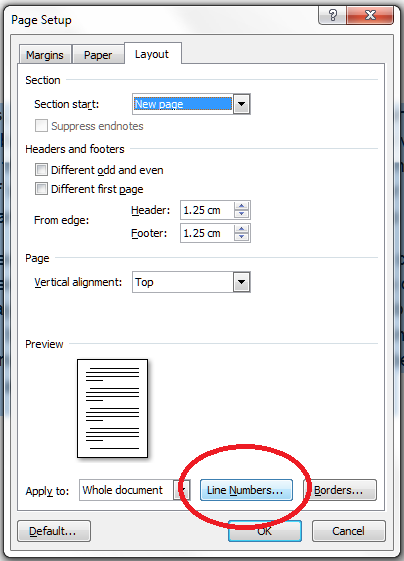
… although when you click on this option, you are taken into a general dialogue box for Page Layout:

6 options menu line numbers

and you need to click on Line Numbers… at the bottom, which will finally give you a list of options:

7 options menu line numbers

To go through the options in order …

  • Add line numbers – this gives you the chance to add or remove them at this stage
  • From text – the distance between the text and the number. Click on the arrows to choose the distance (I usually just use Auto)
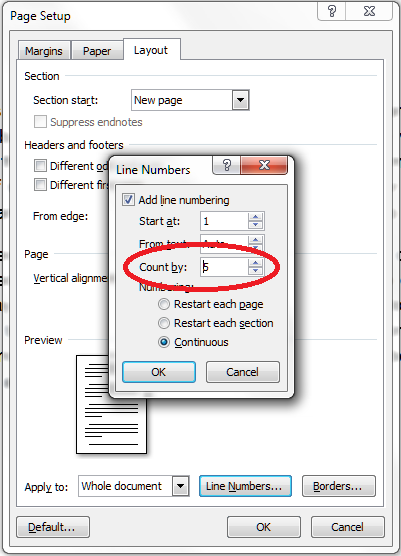
  • Count by – this allows you to display only every x number. I don’t think “Count by” is a particularly useful way to describe this, but scroll down to see it in action
  • Numbering Restart each page / Restart each section / Continuous – this repeats the options you found on the first screen, but it’s useful to have them here if you’re generally messing around in the Page Layout menu and don’t want to go out of it to set your line numbering

Whatever you choose on here, click OK twice to get out of this dialogue box and the Page Layout one.

How do I produce a line number every five or ten lines?

You may remember from literature lessons at school that poetry and plays often have every 5th line marked. You can do this in Word by choosing that Count by option in the Line Numbering Options menu (see above for how to get to it).

Set the number to 5 …

8 count by 5

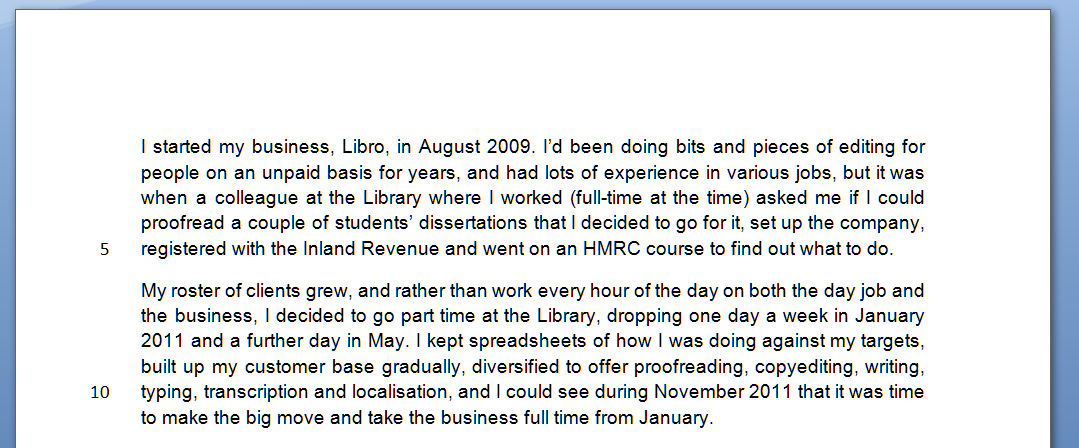
… and as if by magic, when you return to your document after choosing OK – OK, you will find every fifth line numbered:

9 counted by 5

Working in Word 2003

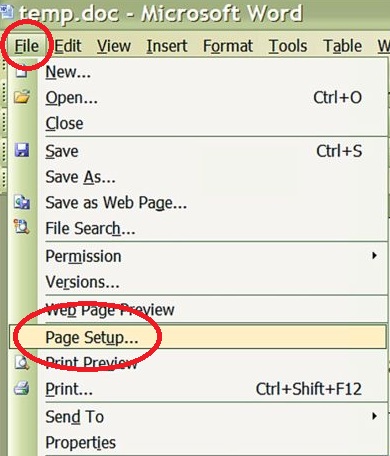
In Word 2003 you will need to follow these menus: File – Page Setup:

W2003_01

Choose the Layout tab in the dialogue box and the Line Numbers button. Choose to Apply to the Whole document or This point forward. Click on Line Numbers:

W2003_02

Tick Add line numbering and choose to Restart each page/section and Continuous. Click OK twice to accept – in this dialogue box you also find the options Start at, From text and Count by that are explained above.

Thanks to Katharine O’Moore Klopf for the Word 2003 screen shots and instructions.

Copying and pasting a document with line numbers

It’s come to my attention (thanks to a commenter on this post) that it’s not possible to copy and paste text with line numbers into a new blank document.

This is because the line numbers function actually displays a feature of your document (much like if you turn on paragraph marks) but the line numbers are not a part of the document itself.

If you want to transfer your line numbers into another document, you can do this in one of two ways:

  1. Save As the document to make an exact copy (with a different file name) and then add your other text around it
  2. Copy and paste your text into a new document and add the line numbers again

At least we know now …

—-

This article has explained why you might want to add line numbers to your document, and how to do it. If you found this useful, please post a comment, share and like this article! Thank you!

This is part of my series on how to avoid time-consuming “short cuts” and use Word in the right way to maximise your time and improve the look of your documents.

Please note, these hints work with versions of Microsoft Word currently in use – Word 2003, Word 2007, Word 2010 and Word 2013 all for PC. Mac compatible versions of Word should have similar options. Always save a copy of your document before manipulating it. I bear no responsibility for any pickles you might get yourself into!

Find all the short cuts here

 
53 Comments

Posted by on April 17, 2013 in Errors, New skills, Short cuts, Word, Writing


Tags: , , , , , , , , ,

How to add and remove hyphenation in a Word document

This article explains how to add and remove hyphenation in a Word document, and how to work with the options you have in the hyphenation menu.

Why would I want to add hyphens to a document?

This issue doesn’t normally come up with standard documents where the text is in a smallish size and extends across the entire width of the page. In fact I hardly ever see it in the work I do, and was only reminded of it when a client had accidentally set automated hyphenation in part of his document that happened to contain long words. Where did all these hyphens come from, I wondered.

It is useful, however, if you are working with columns, say in a table, or for a newsletter you’re publishing, or some other part of a document where you want to have a narrow band of text running down the page. If you just put your text in your column and don’t justify it on the right hand side, you will end up with a very ragged look:

3 without justification or hyphenation

In fact, as you can see (marked by the arrow), one word is just too long for the line and splits at the last letter, something which doesn’t obey any of the standard rules of hyphenation (I bet this has happened in your tables – it has in my clients’).

Maybe we can neaten it up by applying Right Justification

4 with justification without hyphenation

Oh no! In its effort to make everything tidy, Word has carefully inserted huge spaces between words (unlike someone typesetting properly on a computer or by hand, it doesn’t space out the letters in the words so much as just add massive spaces). And poor old Mr Long Word is still dangling a letter onto the next line.

This looks pretty horrible, doesn’t it. Adding automatic or manual hyphenation is the way forward.

How do I add automatic hyphenation to my Word document?

To work with the hyphenation options, we need to be in the Page Layout tab, and the Page Setup area, and there you’ll find Hyphenation (with a little pop-up box explaining it). This is the case in Word 2007 and Word 2010. In Word 2003, you need to select the following menus: Tools > Language > Hyphenation.

1 menu

If you click on the arrow to the left of the word Hyphenation, you get a menu that looks like this:

2 drop down hyphenation menu

You can choose here between None, Automatic and Manual, and then have some options, too. We’ll look at those options in a moment.

What happens if I add automatic hyphenation to my document?

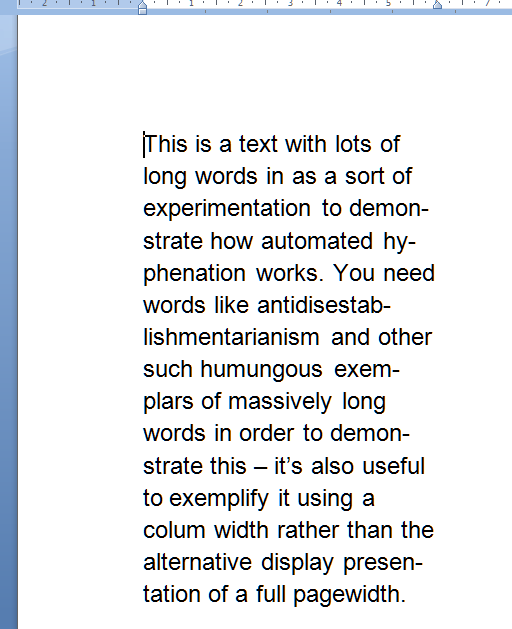
If you highlight the text and then select Automatic from the Hyphenation menu, Word will automatically insert hyphens into the text to break the words in sensible, permitted places (there is a whole art to this which I will discuss another time. I’m not sure which exact rules Word follows, but a quick look shows that it’s pretty good). So if your text is right justified, you’ll get this:

5 with justification and hyphenation

You can see here that Word has hyphenated all of the longer words that previously caused those big gaps, and made the text an awful lot tidier.

You can do this on unjustified text, too:

6 without justification and with hyphenation

but I personally think that this still looks a bit messy.

How do I remove automatic hyphenation?

To remove automatic hyphenation when you find it in a document and don’t want it, highlight the offending text and choose None from the Hyphenation menu in Page Layout > Page Setup:

2 drop down hyphenation menu

All of the automatic hyphenation should disappear.

How do I use manual hyphenation in my document?

If you choose the manual hyphenation option, based on where your cursor is placed at the time you select this option, Word will give you a choice of where and whether to hyphenate your words:

7 manual hyphenation

(here we can see our unhyphenated text, with the cursor on “demonstrate”). Once you’ve clicked on Yes or No, it will hop along to the next word that’s a candidate for hyphenation.

Why shouldn’t I just hyphenate totally manually?

Of course, you can just look for gaps and manually type a hyphen in the middle of the word, and it will split over two lines. However, this is a concrete character that you’ve inserted into the word, and so if you change the wording in your text so that the offend-ing word no longer comes at the end of the line, you’ll retain the hyphen charac-ter and get artefacts like the ones you can see in this para-graph. Much better to automate the manual process, so to speak …

What are the hyphenation options?

If you click on the Hyphenation Options at the bottom of the Hyphenation dialogue box, you are given a few choices:

6 hyphenation options

Working from the top …

  • Automatically hyphenate document – does what it says on the tin
  • Hyphenate words in CAPS – you may not want to split long acronyms, etc. – if not, then untick this box
  • Hyphenation zone – this is the maximum space allowed between a word and the right hand margin. Increase this number and the hyphenation zone becomes wider – and you will have fewer hyphens. A lower number will give you more hyphens
  • Limit consecutive hyphens to – allows you to prevent Word from hyphenating at the end of every line – best adjusted once you’ve set hyphenation and seen what it looks like
  • Manual… – gives you another way to get to the Manual Hyphenation feature

——————-

In this article we’ve learned why we might want to apply automatic hyphenation to a document, how we do it, how to remove automatic hyphenation, and the options that are available in the hyphenation menu.

This is part of my series on how to avoid time-consuming “short cuts” and use Word in the right way to maximise your time and improve the look of your documents. Do like and share as much as you can, and/or leave me a comment if this article has been useful to you.

Please note, these hints work with versions of Microsoft Word currently in use – Word 2003, Word 2007 and Word 2010, all for PC. Mac compatible versions of Word should have similar options. Always save a copy of your document before manipulating it. I bear no responsibility for any pickles you might get yourself into!

Find all the short cuts here

 
32 Comments

Posted by on April 10, 2013 in Errors, New skills, Short cuts, Word, Writing


Tags: , , , , , , , ,

Why you need to be human to produce a good transcription

Suitably funereal transcription kitWhen I receive a recording for a new transcription client and tell them I’ve loaded it into my transcription management software, I’m sometimes asked if that does the transcribing for me. Um, no.

While there are of course software packages out there that are very good at working with a single voice dictating, even those can sometimes struggle. I know this, because I’ve edited work that has been dictated in this way – and it can often be rife with homophones.

Why use a human transcriber?

I’ve been providing transcription services for several years now. While a machine might be suitable for taking down the words of a single, non-accented speaker enunciating clearly into a good quality recording apparatus, with no background noise, no interruptions and no acronyms or jargon, the projects I’ve worked on have included some or all of these features:

  • High levels of background noise – interviews in cafes with espresso machines whooshing and spoons clinking in cups
  • People talking while they’re eating and eating while they’re talking
  • Interruptions from waiters / room service / other members of the band or group
  • High levels of tape noise leaving me straining to hear what anyone’s saying
  • Multiple speakers including many people with similar voices around a conference table
  • Overlapping speech
  • Non-native English accents or heavy regional accents
  • Very technical content – jargon and acronyms galore
  • Creative content – album names, track names, novel titles, band names, author names
  • Requests to provide the transcription missing out ums and ers through to smoothing the English to make it read as standard English

As a native English speaker specialising in working with music journalists and non-native speakers of English, I can cope with all of these, with some rewinding and checking. I doubt that the most sophisticated dictation software could do so, as yet. I might be wrong of course (let me know if I am!).

Understanding what’s being said on a transcription

The first issue is actually hearing and understanding what’s being said. I have a good ear and a native English speaker’s ability to predict what will come next in a sentence / how sentence structures work, plus my experience working with speakers of and texts in non-native English allows me to do this for native Arabic, Chinese, Eastern European language etc. speakers. My ear can filter out background noise where sophisticated software can only go so far. And I can hear around the clink of teaspoons or glasses chinking to grasp what’s being said.

Checking the content in a transcription

When one of my journalist clients sends me a tape, I check who the musician / band is and look them up (usually on Wikipedia for the general information, as their own websites are usually a bit harder to plumb for information). When I’m working on an international conference I will seek out or be given a conference schedule, list of attendees, etc. When I’m working with technical content I will look up information on that topic.

All this allows me to produce a transcription which the client will not have to check for themselves, or if they do check it (which I do recommend), there won’t be too much to change. And I won’t be embarrassed by too many mis-hearings. Just try popping a few names of country leaders, bands or albums into a Word document and running a spell checker and imagine what an automated dictation program would do with these terms!

Speech on a tape to words in a document

Very occasionally I’ll be asked to record exactly what the people on the tape say, including ums, ahs, repetitions and pauses. At the moment, I’m transcribing some roleplays for students learning how to operate a telephone helpline. Here it’s important to capture all the nuances of the conversation and I’m splitting the utterances into sections, numbering them, and including all the ums and ahs.

Normally, my clients will require some smoothing out.

  • Most of my journalists like to have an indication of when their subject slowed down or had to mull over something and ask me to include notes of those pauses.
  • Business people producing podcasts and telecasts often want a fairly accurate transcription, but smoothed out to eliminate ums, ahs, pauses and repetitions, so they have a good product to sell or include in packages for their clients.
  • Some international conferences want to avoid embarrassment for their delegates by having their English rewritten as I transcribe to appear as close as possible to native British (or American) English
  • I have worked with authors who start off with a tape and want it to turn into something they can publish as a book (this, unlike all of the other options, involves two processes: transcription and then heavy editing and rewriting).

Why should I use a human transcriber and not a software program?

2 topsI think I’ve answered that for you now. You should also consider using a human transcriber who’s a native speaker of the language you’re having transcribed: there are websites out there where you can find very cheap transcribers; they are often not going to be native English speakers and while they will get the gist of the tape down, I’d be unsure whether they could give you the service you needed.

I’ve written another article about how to get into transcribing as a job and how to prepare yourself for what is often a fun and rather creative area of work, and one about the technology transcribers use.

In the meantime, if you’re thinking of booking in a transcriber, do have a look at my page about my transcription services, and get in touch if you want to ask about what I can do for you. I hope you’ve enjoyed this insight into a transcriber’s work! Do leave a comment if you have …

If you want to learn more about Transcription as a career, buy my book: A Quick Guide to Transcription as a Career – buy from Amazon UK or visit the book’s web page for worldwide links and news.


Tags: , , , , ,