RSS

Author Archives: Liz Dexter

Unknown's avatar

About Liz Dexter

Book blog is at http://www.librofulltime.wordpress.com Writer, proofreader, editor, transcriber. Also runner, gym-goer, volunteer and BookCrosser! My married name is Liz Dexter but my maiden name and the name on the books I write is Liz Broomfield.

How do I flip a column in Excel 2007, 2010 and 2013?

In this article, I’m going to explain how to flip a column in Excel 2007, 2010 or 2013 (using screen shots from Excel 2013). Flip a column is what I searched for – you might have asked how to reverse a column or put a column in reverse order.

Note: I was a bit surprised by the solution to this one, but I’ve asked the experts and it is the only way to do this. If you have a better and simpler way (that doesn’t involve macros or coding) please pop a comment on this article or contact me!

Why would I want to put a column in reverse order?

I’m doing my accounts at the moment. I have a spreadsheet of my bank transactions which runs from the newest at the top to the oldest at the bottom. My list of invoices runs from the oldest at the top to the newest at the bottom. If I want to compare them, I want them to both be the same way around, but I need the bank transactions to be in exactly the same order, just the other way around.

Will using Data > Sort flip my column?

The usual way to change the order of columns in Excel is to use the Data > Sort function. However, if you sort by transaction date, it won’t necessarily sort it into the same order the other way around.

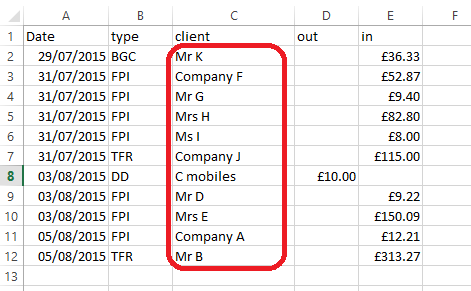
For example, we have a set of bank transactions which I’ve named in alphabetical order down the client column to make it easier to see what happens next:

1 spreadsheet

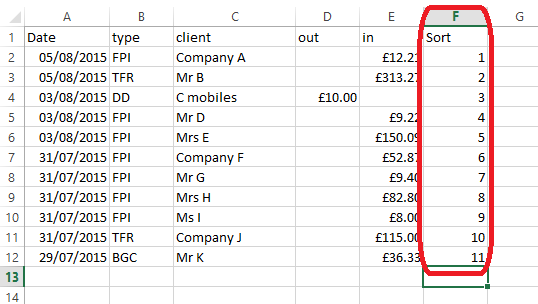
If I highlight all of the columns, go to the Data tab and choose to sort by date, older to newer, I get this result, which is NOT in exact reverse order:

1a spreadsheet sorted by date

So, what’s the solution? I was a bit surprised when I searched and searched for the answer, but it is the only way to do it …

So, how do I flip my columns so they’re in exact reverse order?

To do this, we need to create an extra column to sort by, and then reverse sort by that rather than date or any other column.

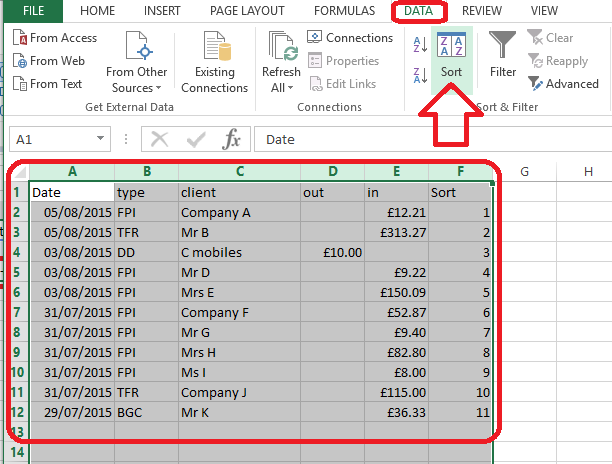
First, create a new column called sort and fill it with numbers from 1 to whatever your total number of rows is:

2 sort column

Expert tip: rather than typing these numbers manually, if you have a lot of rows, and to avoid errors, you can create a quick formula to insert the numbers automatically. Type 1 in the first row then the formula you can see below in the next row, where you get the F2 by clicking on the cell containing the 1:

2a sort column

Then, copy the cell with the formula (right-click, copy), highlight the rest of that column down to the last row and right-click, paste. This will give you the same effect. Note, though, when you sort by this column, the numbers will turn into rows of #####, BUT the sort will still work OK.

Once you have your additional Sort column, you are ready to reverse your columns.

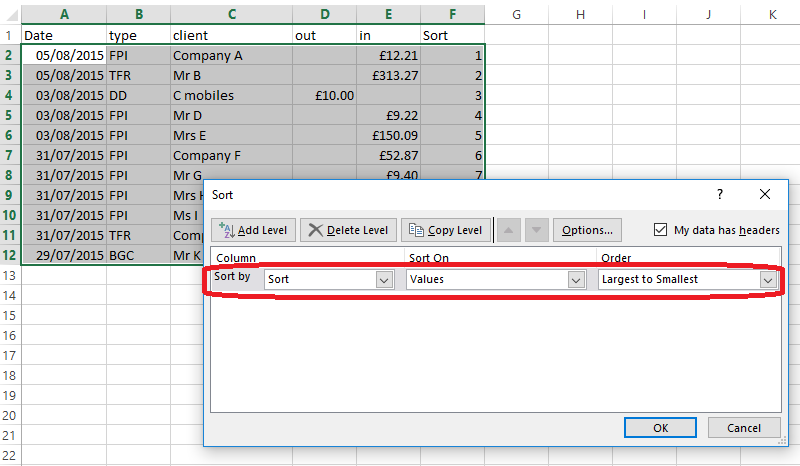
Highlight all of the data and, in the Data Tab, choose Sort:

4 sort data

In the Sort Dialog Box, choose to sort by the Sort column, and from Largest to Smallest (i.e. the reverse order to its current order):

5 sort data

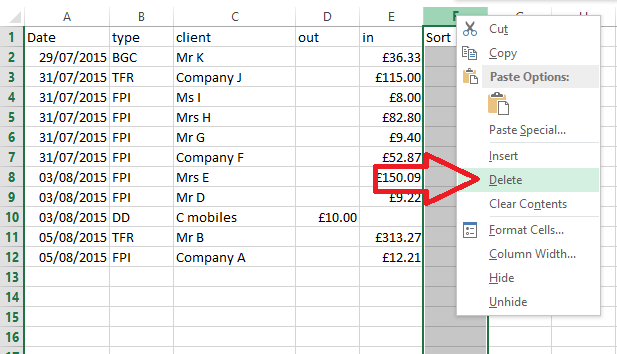
Press OK and hooray – your spreadsheet is sorted into exact reverse order. Just delete the now-redundant Sort column (highlight, right-click, delete):

7 delete sort column

and here’s your bank transactions in reverse order – you have flipped the column!

6 data sorted

This article has explained the (slightly surprising) way to flip the columns in an excel 2007, 2010 or 2013 spreadsheet, not using data sort, but another message. If you need to reverse the order of your columns exactly, then this is the way to do it.

If you’ve found this article helpful or if you have a better solution, please do post a comment below, and if you think others would find it useful, please share it using the sharing buttons below the article. Thank you!

Other useful posts on Excel on this blog:

How to view two workbooks side by side in Excel 2007 and 2010

How to view two pages of a workbook at the same time

How do I print the column headings on every sheet in Excel?

How to print the column and row numbers/ letters and gridlines

Freezing rows and columns in Excel – and freezing both at the same time

 
6 Comments

Posted by on May 25, 2016 in Excel, Short cuts


Tags: , ,

Glossaries for transcription: What, why, when and how?

Glossaries for transcription: What, why, when and how?

It’s sometimes useful for and sometimes imposed upon a transcriber to use a glossary. What is a glossary, why would you use one, when should you use one and how do you use one?

What is a transcription glossary?

In my opinion, a good transcriber is an accurate transcriber. They look things up rather than sticking down the first thing they (think they) hear. When I’m transcribing, I always have some kind of reference resource open, whether that’s Google, the subject’s website, Wikipedia or something specific like discogs for looking up band and album information.

A glossary is a list of technical or subject-specific words or phrases which appear regularly in (usually a long series of) transcriptions. It helps you to avoid having to look things up more than once. The glossary acts as a reference for you, so you need only look up, say, the place the subject was born or the names of her children once, note them down, then have them to hand when they crop up again. It’s like a style sheet in many ways.

You might also be given a glossary as part of a corporate transcription project – this will happen where (usually) a company requires you to use certain specific terminology or acronyms in your transcription. I always ask for one of these at the start of a big corporate project, as it saves annoying the company by (for example), typing Park Run throughout the transcription rather than parkrun [that’s a completely invented example; I’ve never transcribed anything about parkrun].

Why should I use a transcription glossary?

As I said above, a good transcriber will look stuff up. If you’ve got a series of transcriptions, for example a set of interviews for a ghostwriter, a set of lectures about a particular topic or a set of tester interviews for a cosmetics company, it makes sense to keep a note of specific or technical terms and phrases. For example, if someone’s made a number of YouTube films, having a list of them is easier than looking it up each time.

Using the glossary will save time, as instead of looking up your subject’s children’s names three times, you’ll look it up once, note it down once, then cast your eyes over your glossary next time.

Of course, as I also mention above, you might be asked to use a glossary (or word list, or list of terms) by your client – usually a corporate client.

When should I use a transcription glossary?

There’s no point in putting together a glossary for a one-off interview or other transcription job. These are some examples of when I’ve used glossaries [these are disguised due to NDAs]

  • working for a ghostwriter writing a book about an entertainer – place of birth, film-making colleagues and YouTube video titles were all checked and written down
  • working for a marketing agency testing lipsticks with a panel – lipstick colour names, technical terms to do with lipsticks and general cosmetics terms
  • working for a student researching attitudes to perfumes – technical perfume terms, companies making perfumes and perfume names
  • working for a financial company taking down lectures and discussions, I was given a list of technical terms and acronyms to use

How do I put together a transcription glossary?

I have a Word document open alongside the one in which I’m typing my transcription. As I look up a name or term, I pop it on the list. I will usually divide up the list by people, places, albums, etc.

I then keep both documents open, so I can see the glossary as I’m typing, which means I can just flick my eyes across to the glossary when the interviewee says “Mytholmroyd”, I know how to spell it or indeed what they’re saying [apologies to anyone from there].

This article has explained what a transcription glossary is and when, why and how you might find one useful in your work as a transcriber.

If you’ve found this article useful, please do comment below – I always love to hear from my readers! There are sharing buttons there, too, so you can share this on whatever social media platforms you use. Thank you!

Other useful articles on this blog

How do you start a career in transcription? – are you suited for it?

The professional transcriber – the technology you need

10 top tips for transcribers – what every new transcriber needs to know

Why do you need human transcribers, anyway? – I explain why!

Keyboards, ergonomics and RSI – the risks and keeping safe

Transcribing multiple voices – hints to make it easier

Why do transcribers charge by the audio minute? – explains it all

My book, Quick Guide to your Career in Transcription is available in print and online

 
2 Comments

Posted by on May 18, 2016 in Business, Transcription, Word


Tags: , ,

12 things I learned from the Great Computer Crash of April 2016

deskI have automated back-ups that keep a copy of my work every day. I have a system in place for if my computer fails. I thought I had it all covered, and I almost did – but this is what I learned when my hard drive suddenly crashed in somewhat epic fashion one week last month, followed by another, more catastrophic crash of the cobbled-together system I was working on while plucking up the courage to move to my new computer. I thought it might help other people – do share your tips in the comments!

1. Check your back-ups are working

It’s great to have back-ups running, but do check periodically that they are running.

2. If you have two back-up systems, one immediately accessible, one not, it is the accessible one that will fail

Therefore, be prepared to have a short time without your data before whoever it is that can access your back-up can do so.

3. Have a reserve computer of some kind

Don’t assume you will be able to use your computer after a crash. I had my laptop as my reserve; I would now be using my old computer as a reserve, if I hadn’t broken in.

4. If you have a reserve computer, run maintenance on it every few weeks

That way, when you come to use it in a panic (see 5), it won’t be wanting to do 5,000,000 updates and will have a wi-fi connection that works more quickly than wading through mud.

5. Crashes aren’t predictable but you can predict one thing …

They won’t happen when you have three weeks with not much work on. They will come when you have a busy week. If it crashes twice, that will be in two busy weeks and might make you miss a theatre trip.

6. There is no good time to move to a new computer, but do it as soon as you can

If you get a new computer but you’re baulking on swapping over to it, make yourself do it as soon as you can. Doing that “one last thing” before I moved over was when my second and worse crash – the one that lost data – happened.

7. Always be ahead with your work deadlines

This saved me, just. I lost two half-days but was able to salvage my work. I will even more strive to work ahead of myself.

8. Don’t get so hyper-vigilant that you stress yourself out

I had a separate special folder for all the work I’d done since the crash, on an external hard drive, for far too long, out of fear. That’s the same fear that stopped me moving to the new computer.

9. If you have to upgrade to Windows 10, it’s easier to do on a whole new machine

One positive: I ended up on Windows 10 by default, as my new computer has it. Much less stressful than having to do an upgrade on your current computer.

10. Keep a list of what software you use regularly

Not everything you’ve downloaded, but when setting up a new computer or restoring things from a crash, you might well need this in order to get going quickly.

11. Keep all your access codes, software licences etc. in one handy, easy to find place

I’m not suggesting you write down all your passwords – you can use a system like LastPass if that’s feasible for you, but all those codes and licences, etc. might be needed when reconstituting your computer – keep them somewhere sensible, like a special folder in your email.

12. Have a disaster plan; review the plan; keep everything for the plan up to date

It will happen to you: don’t think it won’t. Keep reviewing that plan. For example, I’m reviewing how I back up my files, although I have contracts in place that don’t allow me to store data in The Cloud.

These are the things I learned. Anything particularly helpful there? Anything to add? I’d love it if you popped your words of wisdom into a comment.

 
2 Comments

Posted by on May 4, 2016 in Business, Errors, Organisation


Tags: , ,

Adapt or adopt? Adaptation or adoption?

This is a Troublesome Pair that I find very commonly in academic writing, across a whole range of writers. It would be expected in people whose native language doesn’t use vowels (I had a very interesting conversation about Arabic-speakers having trouble with vowels in English) but I also find it in native English-speakers (it’s actually fairly uncommon to find both groups making the same errors)

To adopt something means to take it on as it is. For example, Laura might adopt my process of editing a text, then doing a spell check, then using software to check consistency. If the UN adopts a resolution, it means it takes it into its procedures as it is, with no changes. If you adopt a dog from a shelter, you take it as it is.

To adapt something means to change it according to specific circumstances. For example, Laura might adapt my process by choosing to edit the text, then run the consistency software, then run a spell check. The UN might adapt a resolution to take into account a new world order or the creation of a new country. You might try to adapt your adopted dog’s behaviour if you don’t want it to sit on the sofa.

Adoption therefore means the act of taking on something as it is, while adaptation involves you changing, or you changing something else, to fit the circumstances.

In academic writing, a researcher might well adopt a questionnaire method, but they might adapt someone else’s questionnaire if it needs more questions on widgets and fewer on bath mats, for example.

You can find more troublesome pairs here, and here’s the index to them all!


Tags: , , ,

WordPress tip: How do I allow Likes on comments?

I noticed that lots of other people’s blogs allow you to “Like” comments on a post (as well as Liking the post itself). Because I had to have a little look for it, I thought it would be a useful thing to blog about. So, how do you allow Likes on comments in WordPress?

Note, this applies to WordPress.com blogs, self-hosted WordPress.org blogs may need all or part of a widget to do this.

Why enable “likes” on blog comments?

We’re all used to Liking posts on Facebook and now Twitter. It’s a good way to let the poster know that you’ve seen and approved of what they’ve said, even if you don’t comment.

We can also allow Likes on our WordPress blog posts (for info on how to do that, see this article).

Being able to Like a comment on a blog post means that you can acknowledge it without continuing the conversation infinitely. Other people can also show their appreciation of a particular comment. It adds another thread to the links between you and your commenter.

How do I enable liking on blog comments?

Go to the WordPress dashboard (the original one) and locate the Settings area.

Go to the Sharing menu.

Scroll down until you see the Comment Likes are … section at the very bottom:

Turn on likes on comments in WordPress

Click on On for all comments and Likes will now be available on all comments.

What does Liking look like on blog comments?

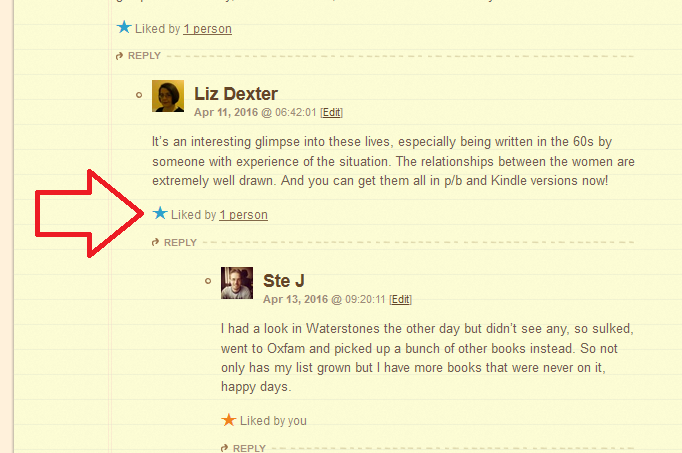
Here’s a screenshot from a blog post on my book review blog, showing various nested comments. People can click on the little star to Like the comment:

Likes on blog comments visible

If you’ve enjoyed this post and found it useful, do please comment and/or use the sharing buttons below this post to share it with other potential readers who might find it useful. Thank you!

Related posts on this blog

How to set up a WordPress blog

How to add pages to make your WordPress blog into a website

How to add images to your WordPress blog posts and pages

How to add slideshows and galleries to your WordPress blog posts and pages

Using the Publicize feature in WordPress

WordPress 7 – adding an avatar picture

WordPress 8 – setting a static landing page

WordPress 9 – setting up a Posts page

Adding links to blog posts – how to do it on the major blogging platforms (and email)

How video can help your blog or website

How to get back to the old WordPress dashboard in WordPress.com

 
12 Comments

Posted by on April 14, 2016 in Blogging, WordPress


Tags: ,

How to get a good start to your self-employment

handshakeI recently did some consultation work with someone who is exploring moving into being self-employed. He was a shining example of what you should do (in my opinion), even before his chat with me – and it’s inspired me to put down some bullet points that I think give some ideas of good practice for anyone considering starting out in self-employment.

Here’s what Bob has done to get a good start to his self-employed life:

  1. He knows what he wants to do and – crucially – he’s passionate about it.
  2. He’s prepared by saving up some money to live on while he develops his business. This will save him from having to rush into things and make mistakes.
  3. He’s found some mentors, both in his business and outside it in the general small business world.
  4. He’s arranged some work experience with someone in his chosen field.
  5. He’s already understood that it’s not great to do things “for free” – far better to do them for your portfolio, for a reference, for a recommendation.
  6. He’s willing to learn – both his particular skill and about general business principles.
  7. He’s open-minded about where his business might take him and willing to grasp new opportunities.
  8. He’s prepared to outsource and ask for help, e.g. getting a family friend involved in setting up his website.
  9. He’s prepared to be accountable, planning to keep me and maybe some others updated on how he’s doing.
  10. He’s accepted that it’s likely to be an emotional journey, more than any career within a larger organisation usually is.

I think all of these things stand him in good stead for a successful and happy change to self-employment. And there are ten of them – how handy!

If you want to read about how I moved into self-employment and the freelancing life, take a look at my business category on this website, or even my books. No pressure, though – you might just want to take these principles to heart!


2 Comments

Posted by on April 6, 2016 in Business


Tags: ,

How do I print the gridlines in my spreadsheet in Excel 2007, 2010 and 2013?

When you’re printing an Excel spreadsheet, how do you make the gridlines print, too?

This article tells you how to print the gridlines automatically, working in the Page Layout Tab, in Excel 2007, 2010 and 2013 (screen shots are taken from Excel 2010).

With your spreadsheet open, go to the Page Layout tab and look to the right to find the Sheet Options area:

print headings

In this area, you can tick Print to make the gridlines appear when you print out the spreadsheet.

There are two things to note here:

  1.  You can also untick the View boxes so you can’t see the gridlines at all. I’m not sure why you might want to do this, but there it is.
  2. If you have used the borders option already to draw borders around some cells, if you print without ticking Print Gridlines, the borders you have added will print anyway; if you tick Print Gridlines, all of the gridlines and borders will print.

Adding customised borders to cells

A quick reminder on adding borders:

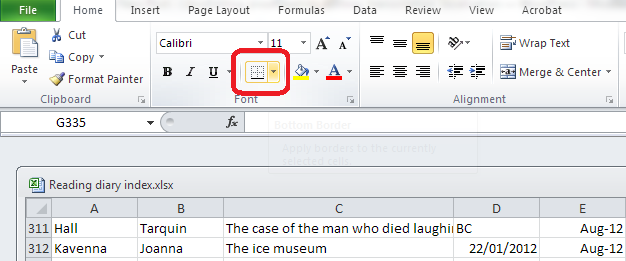
Click on the cell(s) you want to add borders to. Click on the Borders drop-down in the Home Tab, Font area:

apply borders excel

then choose where you want your borders to go:

border options excel

More sheet options

You will see that there’s a little arrow in the bottom right corner of the Sheet Options area:

sheet options

Click on this arrow and the Page Setup dialogue box opens – here you can change a few more options, too, or set your headings to print if you want to, as well as going into the other tabs to change the orientation or margins, etc.:

sheet options print gridlines

And that’s it – now you can print the row numbers and heading letters in Excel 2007, 2010 or 2013!

If this has been helpful, please comment below or share the article using the buttons. Thank you!

Related posts on this blog

How do I print the row numbers and column letters in my Excel spreadsheet?

How do I print the Excel header row on every page of my spreadsheet printout?

How do I print the Word header row on every page of my table printout?

 
7 Comments

Posted by on March 23, 2016 in Excel


Tags: , , ,

How do I print row numbers and heading letters in Excel 2007, 2010 and 2013?

When you’re printing an Excel spreadsheet, how do you make the row numbers and heading letters print, too?

This article tells you how to do this, working in the Page Layout Tab, in Excel 2007, 2010 and 2013 (screen shots are taken from Excel 2010).

In your spreadsheet, go to the Page Layout tab and look to the right to find the Sheet Options area:

print headings

In this area, you can tick Print to make the headings (or, indeed, the gridlines) appear when you print out the spreadsheet. Note that if you want to, you can also untick the View boxes so you can’t see the headings. I’m not entirely sure why you wouldn’t want to see those, but the option is there.

You will see that there’s a little arrow in the bottom right corner of the Sheet Options area:

sheet options

Click on this arrow and the Page Setup dialogue box opens – here you can change a few more options, too, or set your headings to print if you want to, as well as going into the other tabs to change the orientation or margins, etc.:

sheet options print headings

And that’s it – now you can print the row numbers and heading letters in Excel 2007, 2010 or 2013!

If this has been helpful, please comment below or share the article using the buttons. Thank you!

Related posts on this blog

How do I print the Excel header row on every page of my spreadsheet printout?

How do I print the Word header row on every page of my table printout?

 
6 Comments

Posted by on March 17, 2016 in Excel


Tags: , , ,

How can I transcribe more quickly?

Because transcription is usually paid by the audio minute (i.e. if you have a 20 minute tape, you will be paid 20 x your per-minute rate), the faster (and more accurately) you transcribe, the more money you can make per hour. Here are some tips from my own experience about how you can transcribe more quickly. It’s not all about typing faster, either – it’s about typing faster and typing smarter and working smarter.

All links are to my own articles that explain the topics in greater depth.

Typing faster

One main way (but not the only way) to improve your transcription speed is to simply (ha!) type more quickly. Here are some tips on how to build your typing speed. The first one might surprise you ..

  • Number one tip: trim your fingernails.

I have studied this (because someone has to) and I can improve my typing speed by about 5% by trimming my nails. I can type more quickly when just the pads of my fingers are striking the keys. It also takes longer to wear the letters off your keys if you’ve not got long nails to scratch them …

  • If you’re serious about going into transcription, especially if you have a specialised medical or legal background where the fees are that bit higher, it’s worth investing in typing training – have a look at Pitman courses.
  • A decent keyboard will also help you to type more quickly. Have a look at my post on ergonomics and keyboards, as I cover that there in a lot of detail. But typing on a decent keyboard as opposed to bashing away at a laptop or netbook will improve your typing speed.
  • The more you type, the faster you’ll typically get, up to a point. So you might start off a bit slow, but your speed should pick up, if you’re touch-typing reasonably accurately.

Typing smarter

As well as physically typing faster, you can use technology to help you to transcribe more quickly and efficiently.

  • If you’re not using transcription management software, start doing so (read more on this here). This doesn’t do your typing for you, but it allows you to manage the speed of your tape and stop and start it in the most ergonomic way possible.
  • Use autocorrect to your advantage. I’ve written about this at length in another article, but these are the most important points for building speed and accuracy:
    • Set up common shortcuts right from the start – bec = because, w = with, nec = necessarily, etc. Add these are you come across them.
    • Set up any words you commonly misspell – you can do this when you’re spell-checking, as there’s an autocorrect option in the spell check dialogue box (I have trouble typing occurred correctly, for example).
    • As soon as you recognise commonly used words or phrases in your particular tape, get them into the autocorrect. Long album titles? The name of a big exhibition the artist is working on? Moisturiser and concealer in a set of interviews assessing makeup? If they come up more than twice, create an autocorrect for them.
    • If you’re typing the names of people in the conversation, have a convention, e.g. aa for the interviewer, bb for the first interviewee, change the autocorrected text for that shortcut for each tape (e.g. aa might be Interviewer for one tape, Manager for another, Anita for a third, bb might be Interviewee, Employee or Jane), and always use the same shortcut for the main and secondary person, so it’s super-easy to remember what to type.
  • How about using voice recognition software? This has got a way to go, and editing it, in my experience, takes as long as transcribing in the first place.

Working smarter

This is mainly around the things that delay you in doing the work – looking things up and distractions.

  • I look things up when I’m transcribing – band names, place names, etc. It’s far more professional to provide a transcription with the facts checked and anything you can’t hear or are unsure of marked. Make looking things up work the way you need it to:
    • I find it easist to look them up as I go along, you might finid that disturbs the flow. Do what’s best for you.
    • I have found from experience that if I can’t hear a word, especially a technical term or proper noun, often the interviewer will ask the interviewee to spell it out … just after I’ve spent ages looking it up. So let the tape run a bit and see if it helps you pick that information up without spending time searching for it.
  • I type for an hour at the very most, as after that length of time my posture droops and my typing slows. It might only be a stretch and a march up and down the stairs, but do break it up a bit. Read more about ergonomics here.
  • I do need to have the Internet turned on while transcribing, because I need to look things up, but I’m careful not to answer phone calls or even look at emails until my break. Nothing is that urgent it can’t wait, and three minutes spent looking at something, plus the time it takes to get back in the transcription zone, can lose a few minutes per hour of transcribing. It all builds up!

A final thought

I hope these tips have helped to give you some ideas about how to transcribe more quickly and efficiently. Here are two final thoughts …

  1. If you’re reading this and you’re a journalist or researcher, not a professional typist, especially if you can’t touch type, it’s probably a better idea for you to explore finding a transcriber to do it for you than to try to get faster. I can often transcribe a tape up to twice as fast as a non-professional, freeing my clients up to do their real jobs!
  2. However quickly you type, ALWAYS assume a job is going to take slightly longer than you think. Why do you think this is being posted on Thursday morning instead of Wednesday afternoon …?

If you’ve found this article useful OR if you have more tips for transcribing more quickly, please do comment below – I always love to hear from my readers! There are sharing buttons there, too, so you can share this on whatever social media platforms you use. Thank you!

Other useful articles on this blog

How do you start a career in transcription? – are you suited for it?

The professional transcriber – the technology you need

10 top tips for transcribers – what every new transcriber needs to know

Why do you need human transcribers, anyway? – I explain why!

Keyboards, ergonomics and RSI – the risks and keeping safe

Transcribing multiple voices – hints to make it easier

Why do transcribers charge by the audio minute? – explains it all

 
Leave a comment

Posted by on March 10, 2016 in Business, Transcription, Word


Tags: , , ,

Can I edit what I am not? Editing outside your direct sphere of knowledge

DictionariesThis year so far, I’ve worked on, among other things, a book about Black history in the UK, incorporating a number of responses in prose, poetry and rap which reflected the spoken norms of inner city youth; a project about (very) experimental architecture; and a book giving advice to gay men on dating and relationships. I’ve transcribed interviews with bands I know nothing about, and I’ve localised texts about items I’m never going to use. As a straight, white woman who is not an experimental architect, doesn’t follow those bands and is unlikely to use a remote-controlled helicopter, should I have engaged with these texts where I was quite clearly the “Other” in the relationship or knew little about the topic? Or should I stick very closely to what I know?

I think it’s fine to edit and otherwise work on texts that are outside your direct experience, as long as you’re flexible, keep the audience in mind, are willing to learn and keep an open mind. I also think that there are limits to what you can work on, and I’ll talk about that, too.

Why I think it’s OK to edit outside your direct experience

It’s my personal opinion that it’s OK to edit texts that are outside your direct experience, as long as you bear a few things in mind.

  • Be flexible. The language of an inner-city rap poet might not be the same as your own casual register, let alone the register you use for formal academic writing. Think about the conventions of what you’re working on, not your own preconceptions, go with the flow and keep things consistent and clear (which is the editor’s mantra anyway)
  • Be open-minded. The advice given in a dating book on apps for hooking up with people might be way beyond your comfort zone as a happily married, middle-aged woman, but that doesn’t mean you’re right and it’s wrong, or bad, it’s just different. Which leads on to …
  • Think of the audience. What will the readers of this book want? Is the relaxed style with all the I’d and should’ve contractions something that they will feel more comfortable with? Leave those in.
  • If you’ve got a good amount of life experience and a solid general knowledge, that will see you a long way into an unfamiliar topic.

Why I think it’s positively GOOD to edit outside your direct experience

The good editors I know are wise in knowing what they don’t know and seeking to expand their knowledge. They love to learn. What teaches you more than grubbing around in the very innards of a text on something you never even knew existed? There are other positives, too.

  • By approaching the text as the “Other” (while retaining a sensible approach to the privileges you might have as someone who is not usually the “other”), you might be able to suggest subtleties or pick up on attitudes that are going too far the other way. Maybe you can help reassure an author and their readers that people outside the core audience DO understand / empathise.
  • More importantly and commonly, the aim of all writing should be to be clear and express its author’s intentions clearly. So if you, as an outsider, don’t understand the text, maybe it does need to be simplified a little. If I don’t understand something on the second or third go, I’ll pop a comment in the margin that this might need to be clarified.
  • I think I have a tendency to edit better and more carefully when I’m working on something slightly unfamiliar. It’s like editing your own writing: if you really know the topic, you tend to see what you expect to read, and may skim over errors. I know I have this propensity, so I work extra hard on texts on known topics, and try not to enjoy the process too much at the expense of doing a good job!
  • You learn all sorts of things that might be useful in your everyday life, the next thing you edit, or even pub quizzes. Your next client will benefit from that extra knowledge (or maybe the one after that – I edited a load of texts on Agile working a few months ago, so can cheerfully say I know all about it when another prospective text comes in).

When I think it’s NOT good to edit outside your direct experience

There are some occasions when I do think a text is best left alone. Complete incomprehension of a technical topic or genre is not going to make for a good editing process. I pass those jobs along to a colleague (and get some co-opetition karma in the process). Examples in my own work of jobs I’ve turned down have included:

  • A book all about optimising your motor vehicle engine use, with lots of diagrams and examples. I know nothing about this, and there was little value I could add to something so technical.
  • A localisation job where I would have had to research European legislation on a topic I knew little about to start off with, and match it up to US legislation. That’s too dangerous to mess with.
  • Editing novels in genres I am not familiar with myself such as romance and science fiction – you do need to know your genres if a book is to be edited to fit into them. I’ve actually pretty well stopped working on fiction apart from the odd thriller for an on-going client, as they are pretty well all in genres where I know someone else will do a better job.
  • Specialised transcription – medical and legal in particular. I’ll cheerfully type about makeup I don’t wear or economic policy that can be checked easily, but I don’t go near the specialised terminology used in medical and legal transcription.

In summary … in my opinion, it’s good to stretch the boundaries of the areas you work on and to edit and otherwise work with texts on topics that are unfamiliar, unless the level of technical or specialist content is high enough that you are floundering and uncomprehending. In that case, there’s always someone who  knows more about the topic that you can pass it on to. Happy learning!

What are your thoughts on the subject?


Tags: , ,