RSS

Author Archives: Liz Dexter

Unknown's avatar

About Liz Dexter

Book blog is at http://www.librofulltime.wordpress.com Writer, proofreader, editor, transcriber. Also runner, gym-goer, volunteer and BookCrosser! My married name is Liz Dexter but my maiden name and the name on the books I write is Liz Broomfield.

How to set up a WordPress blog 2: adding pages to make it into a website

Following on from my posts about how important it is to have a website for your business and on setting up your WordPress blog (which you need to read before reading this if you’re a novice), in this article, I’m going to show you how to add pages to your WordPress blog to make it into a website.

This is what I did when I created this website that you’re reading this blog post on right now. I’m going to use my special test WordPress blog to show you what to do, and also the inside workings of this blog for the more complex aspects. Read on to find out how to set up web pages on your blog, and first of all, why you would do that.

What’s a WordPress page and why do I need them?

A page is a static, unchanging screenful of information, for example what you see when you go to my About page on this blog, or my page about my Business e-book on my writing blog. Where a blog post is written, published, moves down the blog page and is superseded by new blog posts, like a diary, a web page is fixed, stays the same and is visible whenever you visit its home. Where a blog is like a diary, a web page is like a passport photo or a lawn sign.

Why do you need one? Well, when someone reads your blog, they’re going to be bound to want to know something about you – that’s why pretty well all blogs have an About or Home page. And if you run a company, it’s advisable to put together a page, or a set of pages organised into some kind of structure, that tell readers about what you do, how you do it, what it costs, etc.

Website readers have a low attention span. They want to read a bit of stuff then move on. Many of them don’t even like scrolling down to see what’s lower down on the page. So a) they’re not going to want to search or scroll through your blog to look for information, and b) they don’t want everything on one web page. My website is quite wordy; imagine what it would be like if all that information you can access along the top menu bar was all on one page.

So, you’re convinced that you need at least an About page. You understand the difference between pages and posts (pages = static; posts = constantly updated diary type affair). Let’s find out how to set up a page on WordPress.

How do I set up a Page on WordPress?

You access Pages from the Dashboard (click on your blog name or the little house icon next to your blog name on your Stats page to reach it). Once in the Dashboard, go down to Pages, click, and choose All Pages. This allows you to see what pages are already there – and once you have some, you can edit them from here.

1 pages

Why have I gone here first rather than hitting the New Page option? Because every new WordPress blog has an About page set up already, to get you started.

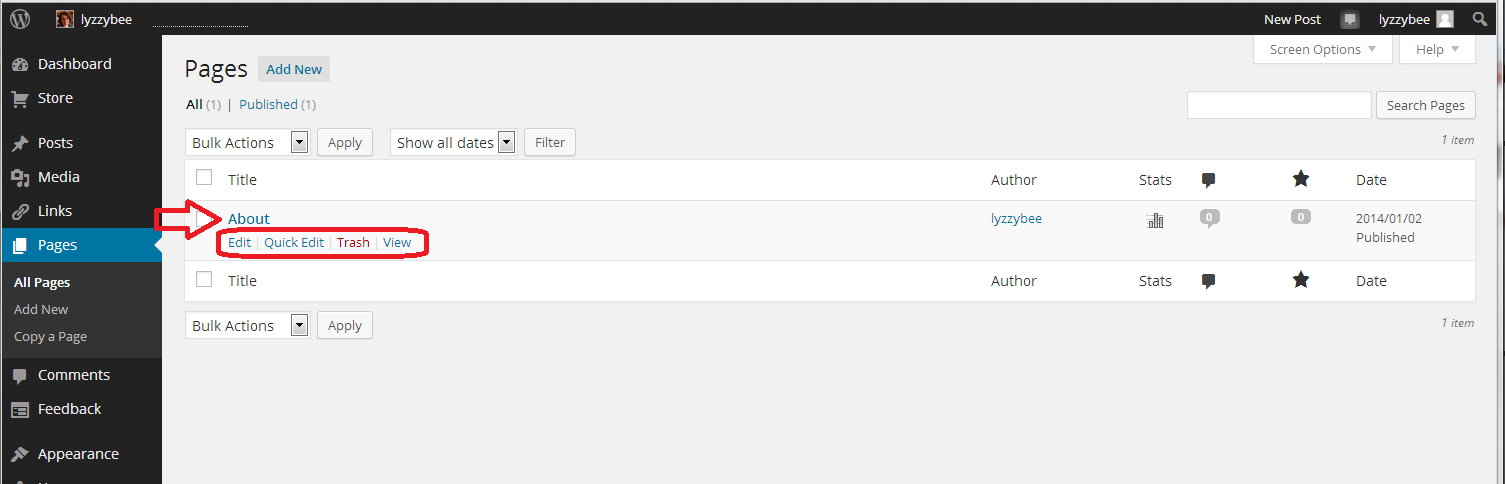
In the All Pages view, you can see all of the pages that you have set up, and hovering over the page title with your cursor allows you to Edit, Quick Edit, Trash or View them. Here, we’re going to Edit

2 about

When you click Edit, you’ll arrive at a screen which looks very like the one that you use to create a new blog post. However, it has Edit Page at the top, and some Page Attributes to the side.

You can see that you have a title area (which includes the word “About” and a text area, which also contains some text at the moment.This can all be edited and customised just how you want it.

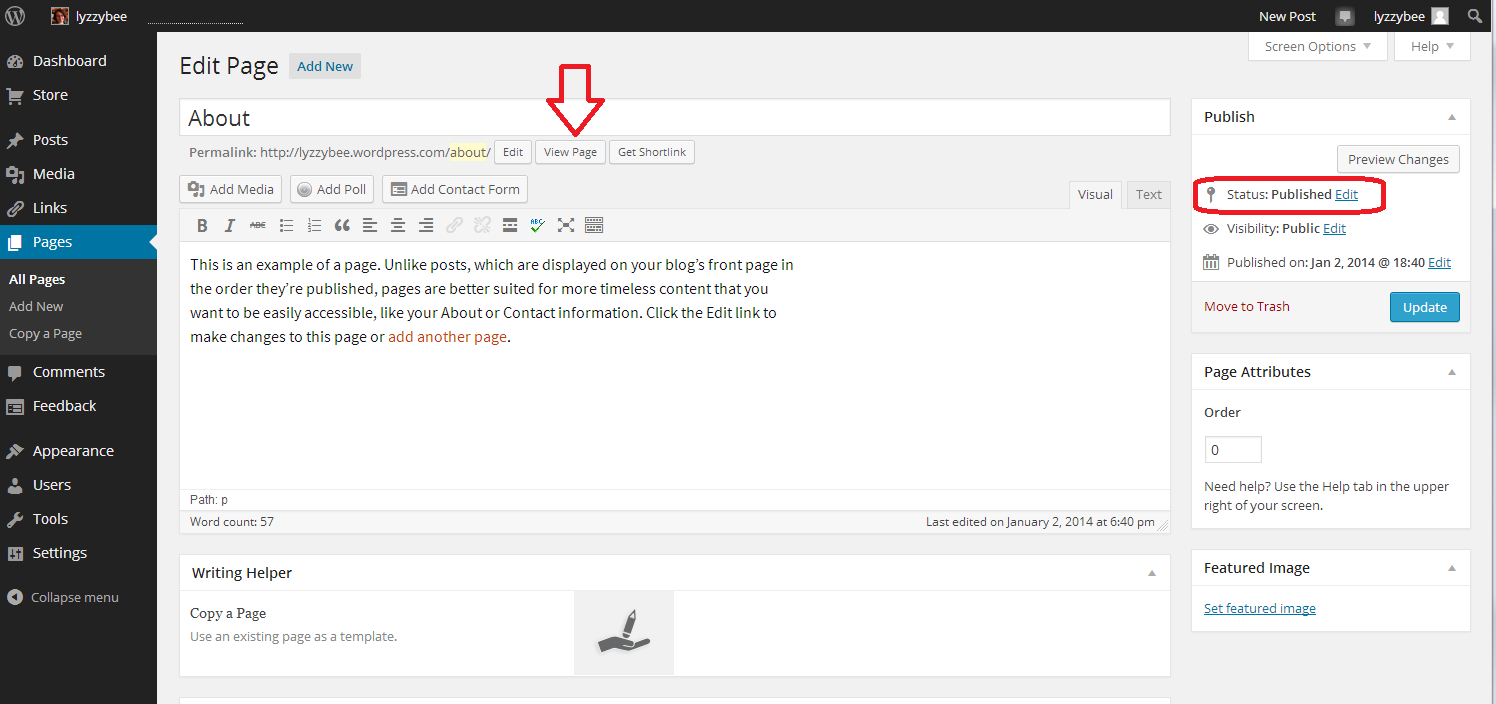
You can also see here that the Status is showing as Published. That  means it’s live on the Internet for all to see …

3 about

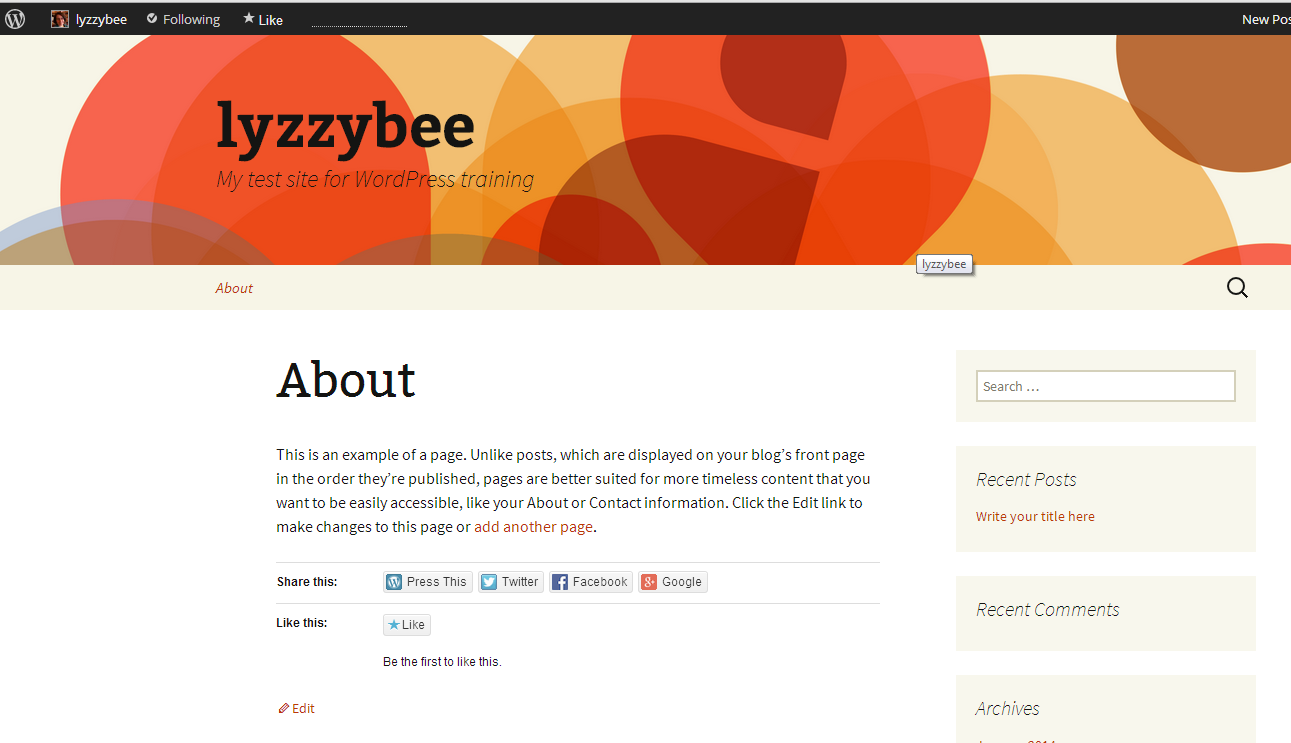
Want to see what this page looks like? Click on the View Page button just under the title …

4 about

This is likely to open in a new window – if it doesn’t, hit the back button on your browser to get back, or the Edit button at the bottom (or top, depending on your theme).

If you want to edit the text, which I do in this case, just delete the text that’s there and add some new. When you’ve edited it as you wish, hit the Update button to save. Then use the View Page button to have a look at the changes. Note: I’ve added hyperlinks here – here’s an article explaining how to do that

5 about

When you look at the page on the blog, there is all your new text, including the hyperlinks:

6 about

How do I set a web page to be my landing page / front page?

In some circumstances, you might want a static page to be the home page / landing page / front page that a visitor to your URL will always see. I do that with this website – whenever you go to www.libroediting.com, you will see my Home page. However, visit www.librofulltime.wordpress.com and you’ll see the latest blog post I’ve published, and you’ll need to click on the top menu to see a static page about you. It’s all about what you choose to do.

I’d recommend that if you are primarily blogging, with just one or two pages about you and your background, leave the landing page as the blog. If you’re promoting a company, product or service, and your blog is supporting that and driving visitors who you want to buy from you, choose to display a static web page when a visitor arrives.

Here’s how you tell WordPress to show visitors a page, not your latest blog post.

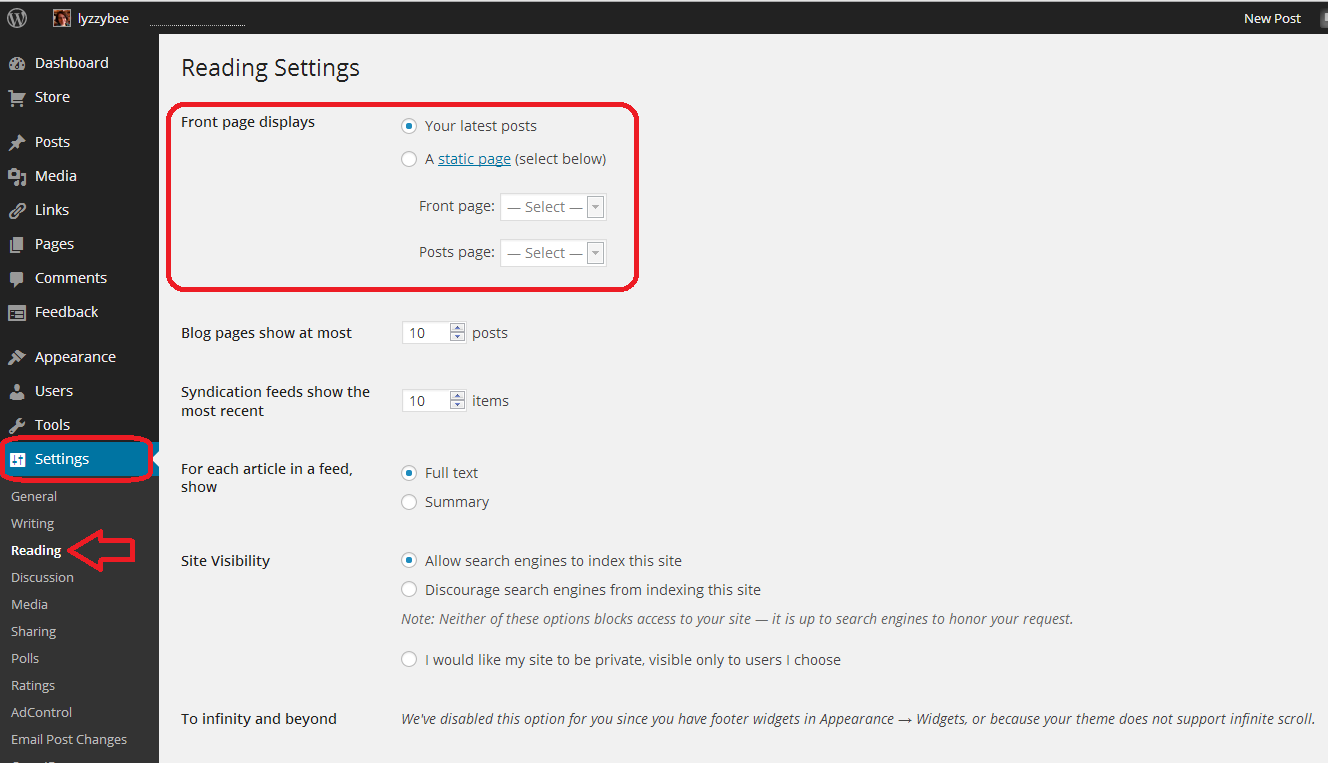
Go to the Dashboard, choose Settings, and then Reading. Right at the top of the page, you have a section entitled Front page displays. You have the choice of Your latest posts (i.e. your blog) or A static page. If you click on that radio button, you will be asked to choose a page to display.

7 set page as front page

I have chosen not to do that for this test website/blog, mainly so that I can change it if I’m training people face-to-face, but here’s how this Libroediting site is set up. I have chosen Libroediting as the front page, and Blog as the posts page. That means that any visitor will, as you’ve seen if you clicked the link above, see my Home page on their initial landing on the site.

8 set page as front page

How do I add a new Page to my WordPress website/blog?

If you want to add a brand new page, revisit the Dashboard and choose Pages – Add New. Note, you can Copy a Page, too. This will give you an exact copy of a page you already have – more useful for posts, but if you have special formatting that you’ve set up, or you’re splitting the text on a page over several new pages, it’s worth doing that. Click on Add New

9 add new

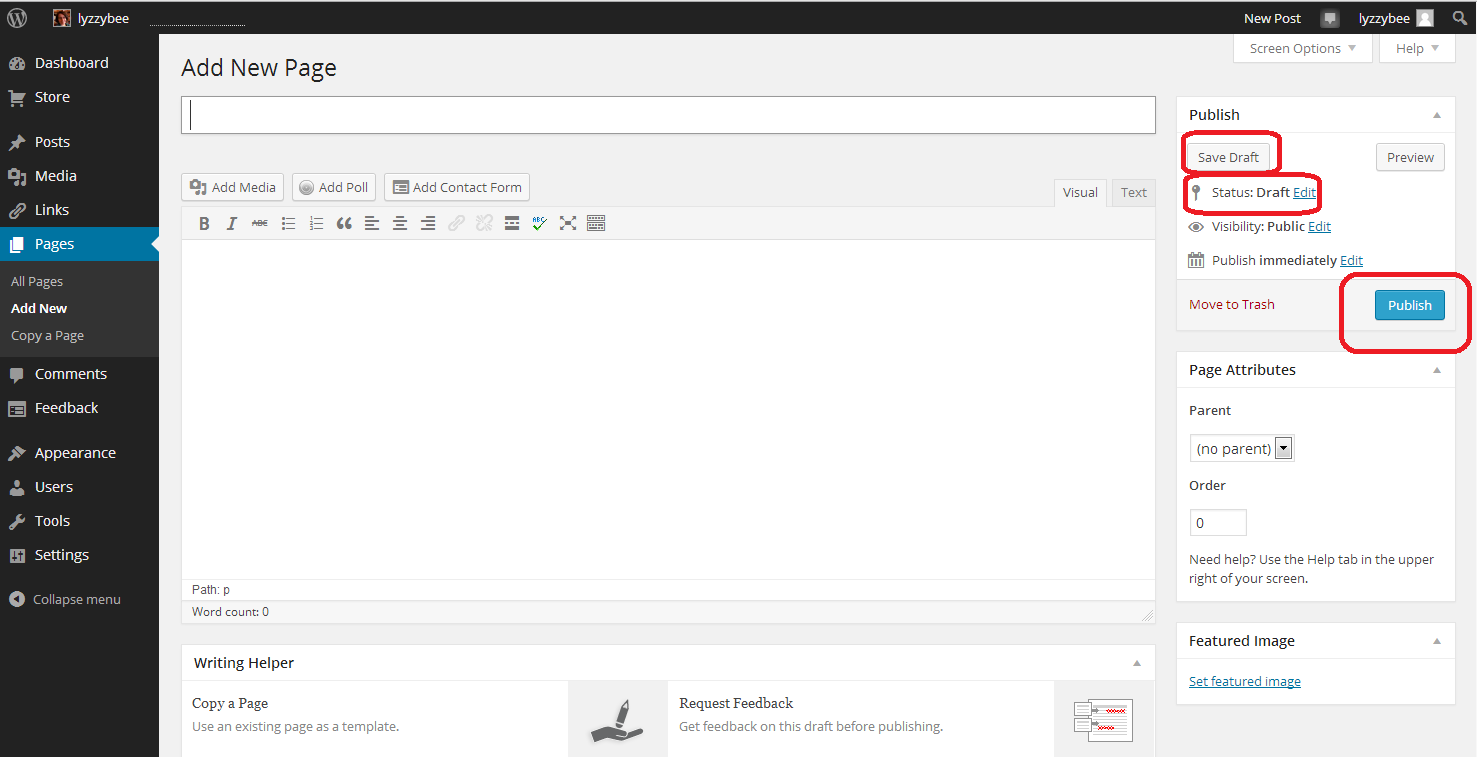
… and you will find yourself in a completely blank editing page. Note that now the Status reads Draft, and you also have an option to Save Draft. Please press this very, very regularly, so you don’t lose your draft posts. When you’ve finished adding the text for your new page, hit the Publish button to make it live (or you can leave it in Draft form if you want to work on it further; just do remember to Save Draft).

10 add new

How do I view and edit my pages?

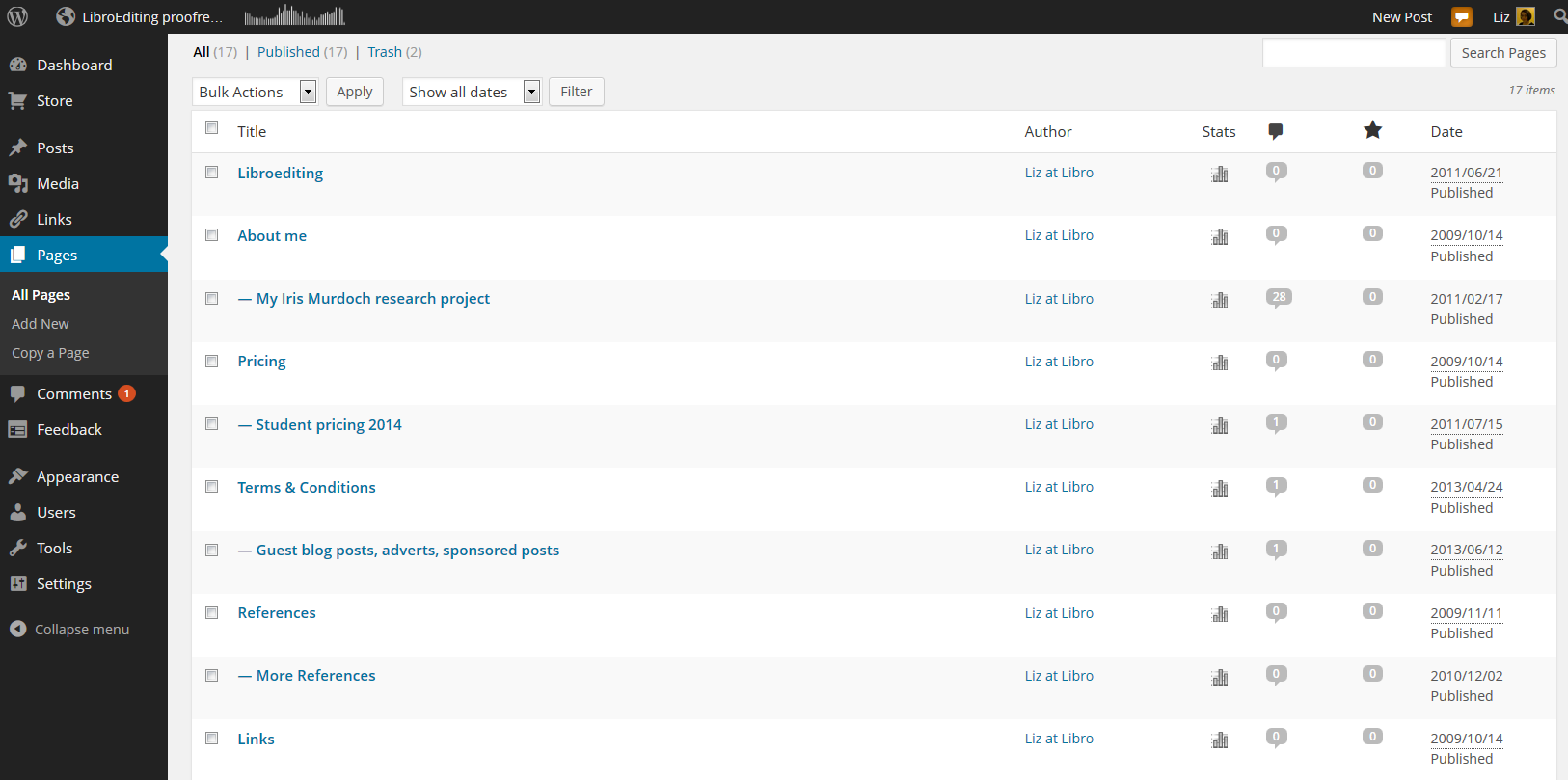
You can view all of your pages by going to the Dashboard and choosing Pages – All Pages. Here is part of my page list for this website. If you hover over any page title with the cursor, you’ll get the Edit / Quick Edit / Trash / View options to allow you to make any changes you want to. If you have any pages in Draft form, not yet published, you’ll see Draft next to All / Published / Trash and you can click to see all of your draft as opposed to published pages.

11 pages

Useful pages that I would recommend including on your business website are:

  • About me (with a photo)
  • Services
  • Prices
  • Testimonials / references
  • Contact me (with a contact form)
  • Blog
  • Links (links to colleagues and recommended websites – always kind to do)

How do I change the order in which my pages appear? How do I create sub-pages?

It’s good to be able to control what order that top menu and any side menus appear in. As you get more pages published, you might find there are too many for the menu to display, and it starts to look a bit messy. You might want to arrange pages in sub-categories, under other main pages.

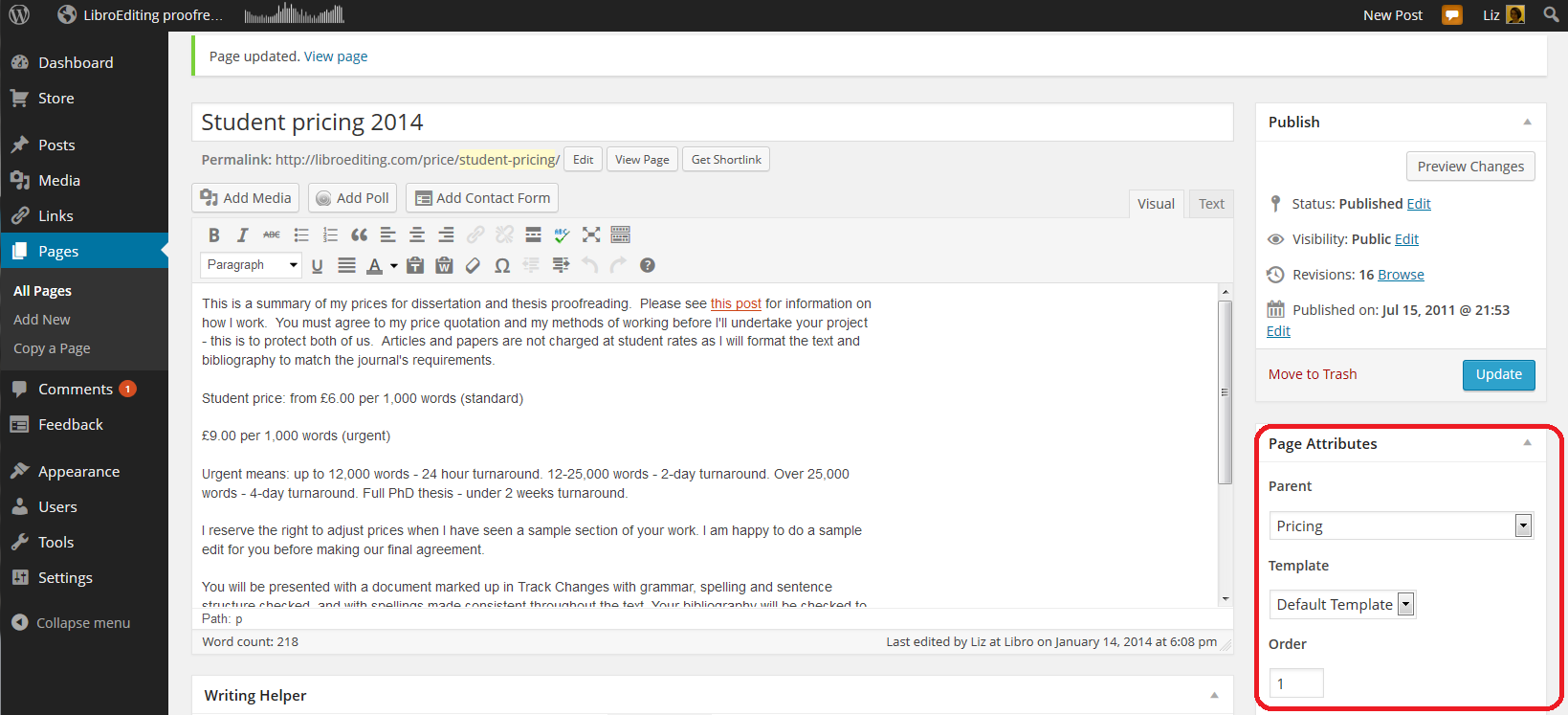
The place to do this is in the Edit screen for your page (click on Edit when viewing the page or select Dashboard – Pages – All Pages and click on Edit for the particular page). You will notice a section called Page Attributes. Here, we’re looking at my Student pricing 2014 page, which is a sub-page of my Pricing page. Note that I’ve chosen a Parent page from the drop-down menu of all of my pages. When you’ve completed all changes, press Update to save them. You can also choose the order … see below …

12 sub pages

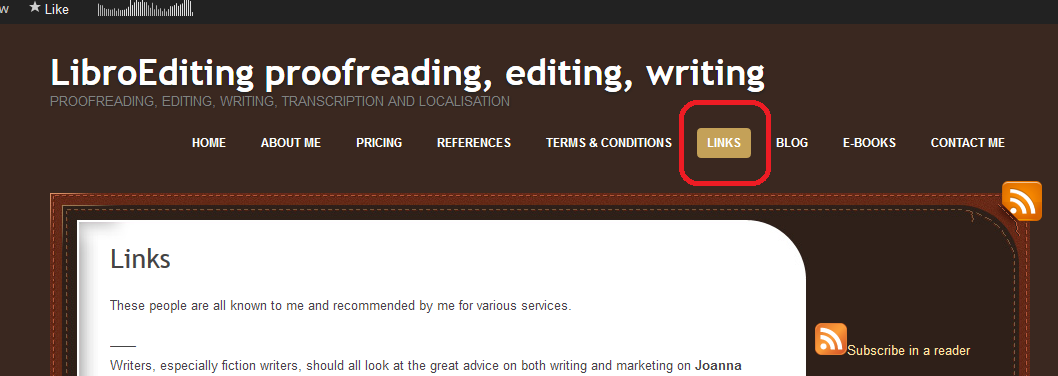
It’s nice to have your landing page on the left and your About me quite prominent, with other pages such as Links down the order a little. That same Page Attributes area allows you to choose a number to define the order the pages appear in on your menus. Here, I’m giving my Links page number 6. I press Update and view the page …

13 page order

Looking at the page itself, you can see that the page name is number six in the list of pages along the top!

14 page order

Note: not all designs of WordPress blog have the menus automatically along the top. But they should appear at the top or down the side. Play with the choice of design if it’s not where you want it to be, or add a menu to the side bar, which we will learn about another day.

How do I do a quick edit?

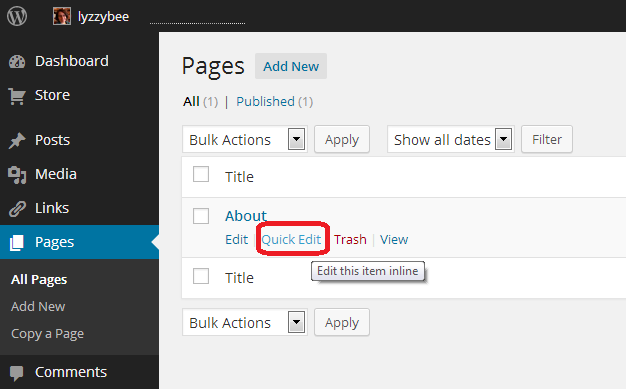
If you just want to change the title, page order or other attributes for a particular page, view All Pages, hover over the page title and choose Quick Edit.

15 quick edit

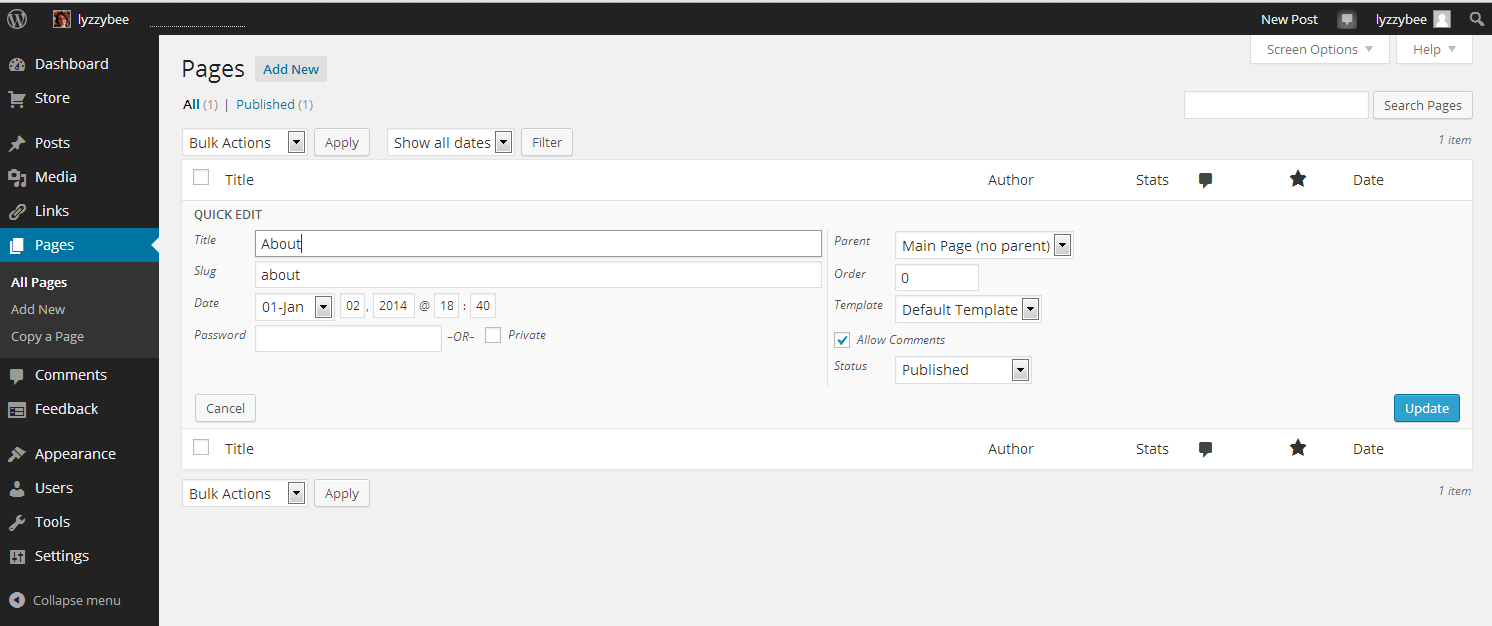
You will get a limited number of options, but this can be a quick way to do an update. Click Update to save.

16 quick edit

In this article, we’ve learned how to add web pages to a WordPress blog to make it into a website, using WordPress.com hosted by WordPress itself. These basic ideas should be the same on self-hosted WordPress sites.

I hope you have found this article useful. Please share using the share buttons below, or post a comment, and do please let me know if you use this article to help you to set up your own blog, and post a link below!

Related posts on this blog:

WordPress 1 – the basics – joining and setting up a blog

WordPress 3 – adding images to your post or page

WordPress 4 – adding slideshows and galleries of images

WordPress 5 – linking your blog to your social media

WordPress 6 – sharing buttons

WordPress 7 – adding an avatar picture

Is it worth having a website for my business? – the big question (and the answer’s Yes!)

Adding links to blog posts – how to do it on the major blogging platforms (and email)


Tags: , , ,

Is it worth having a website for my business?

websiteIn my networking adventures and other travels in the world of small business, I come across quite a few people who don’t have a website. To be honest, I’m a bit shocked when this happens. Unless you’ve got a constant set of clients, with new ones on the horizon to fill in any gaps if you lose one, then you’ll want to be findable.

When you think about getting the roof done, or finding a cleaner, or sourcing flowers for an event, or buying a product, where do you look?

Online.

Even if you look for a tradesperson on a Yellow Pages style website, I bet you like to have a URL to click through to, to look at their details. Right?

If you don’t have a website, even a single page with your name / company name and information about yourself, then what will people find when they search for you?

How do people search for companies, products or services?

People come to my website in one of four ways:

  • They search for my name
  • They search for my company name
  • They search for something that I do
  • They search for the answer to a question (“is it en route or on route?” “How do I repeat the header row of a Word document on every page?”)

This is what would happen if I didn’t have a website:

  • If they search for my name, they’ll find my Twitter or Facebook feed, or photos of me socially, or mention of me on forums. All fine, but they’d probably rather find either my Facebook or my company information in one place
  • If they search for my company name, they will find my Facebook or Twitter feed, however, those mention and feed back to my website, as they’re not enough in themselves to maintain interest and get me business
  • If they search for something that I do, they’ll find someone else’s website and if they’re looking for someone to do that work, they’ll hire that someone else
  • If they search for an answer to a question, someone else will answer it, and if they’re looking for someone to work for them, they’ll hire that someone else

This is what happens because I have a website:

  • If they search for my name, they’ll find my website and my other feeds, which all link together. They’ll find out what I do and if they want to talk about work, they can contact me
  • If they search for my company name, they’ll find my website, find out what I do, and possibly hire me, getting in touch via my contact form
  • If they search for something that I do, they’ll find my website, find out that I do that, find references from people who I’ve done that for before, and possibly hire me – getting in touch via my contact form
  • If they search for an answer to a question, if I can answer it, they’ll find out that I know what I’m talking about, and note me for later or sign up to receive emails when I post, and might hire me in time, or ask me a question or engage with my blog

The bare minimum

As a bare minimum, you should have a page somewhere that includes …

  • Your name
  • Your company name (if it’s different)
  • A list of your services or products – make sure that you mention all of the forms of the things you do on that page (so I would include transcriber, transcription services, editor, editing, etc.)
  • References from satisfied customers
  • A way to get in touch with you – a contact form, a phone number (most people like to see this), an email address
  • Professionally produced text – by which I really mean have someone check it for typos and spelling mistakes. Those will seriously undermine your reputation and send people running from your services – whatever they are

It’s a good idea to have your company name in the url for your website, but personally I don’t hold it against small companies if they have the word blogspot or wordpress in their URL – you don’t need to pay extra to have that if you don’t want to.

You can use a Facebook page as your company web page, however I would hesitate to ONLY use something that changes so often and is as unpredictable as Facebook. A company Facebook page is better than nothing, however!

Optional extras

You can add these extras if you want and if they add value. If you find that you’re getting a steady stream of enquiries via your simple website, and they turn into paying customers, then only add these items if you can see a clear value in doing so, rather than doing it out of vanity or because someone’s persuaded you to buy their service.

  • A URL that’s just your company name – you will have to pay for this, probably renewing annually
  • A professionally designed website – there are so many “themes” on offer that look as good as professional websites.
  • A blog – this is GREAT for driving people to your website and setting you up as an expert in your field. If you only do one of these things, write a simple blog
  • Someone to write web text and blog posts for you
  • Search Engine Optimisation – a professional can ensure that you’re showing up in the search engines etc. But shop around – this can be expensive and there are lots of things you can do to SEO your site on your own (just have a little search engine search and see what you can find)
  • A shopping cart and catalogue – very useful if you’re producing craft items or any tangibles – but you can sign up to services like Etsy and eBay which will do this for you

The big caveat

It’s really important to have a web presence so that people can find you.

It’s really important to be super-vigilant, because unscrupulous companies prey on small businesses’ lack of expertise in this area.

  • Always ask around fellow small business owners or someone whose website you admire and see who they use
  • If someone offers to make you top of the search engine results, ask what other sites they’ve worked on (always ask for references anyway) and do a search for yourself
  • If someone offers to revolutionise your website and make you a millionaire overnight, they’re probably over-selling. Ask for references
  • If someone offers to build your website make sure – no, MAKE SURE – that you will be able to edit and update the text and pictures on that website whenever you want to. Never hand over the full ownership of your site to another person such that you can’t update it yourself.

If you haven’t got a website, and you haven’t got a steady stream of new and regular customers giving you a good income stream, I really do suggest that you get a website!

Read more here about growing your business, have a look at my advice on blogging and social media, read about how to set up a WordPress blog and website (starting with this post) and read about my own business journey in my book, Going It Alone At 40.

Related posts

WordPress 2 – adding pages to create a website

 
11 Comments

Posted by on January 13, 2014 in Blogging, Business, New skills, Social media


Tags: , , , , , ,

Your transcription career: RSI, ergonomics and keyboards

mechanical keyboardWhen you’re a transcriber, you’re going to end up working at a desk for long periods of time, using a keyboard. This can lead to problems with your posture, and possibly to RSI.

There are loads of different arguments and positions with regard to the ideal workstation position. Here, I’m going to give a summary of what I’ve found to be good myself, and some of the ideas that are around, too. The best thing to do is:

BE AWARE – keep an eye on how you’re sitting, how you’re feeling, and any aches, pains or niggles.

Typing position

This is what suits me: the old-fashioned way I was taught at Pitman typing college back in the early 90s: back straight, knees at 90 degrees, feet flat on the floor or a footrest. Shoulders relaxed, elbows at 90 degrees, belly button a hand-span away from the front of the keyboard, hands hovering OVER the keyboard so your wrists are straight and your fingers drop down onto the keys. Eyes aligned with the top of the monitor.

However, recent research that I’ve seen has suggested that you should lean back in your chair rather than sitting upright. I’m an upright sitter anyway (years of pony riding as a child?) so I find this uncomfortable.

There is also a lot of talk about standing desks, and I have several colleagues who have adopted these to great effect. I did try this and it made my feet hurt and made me type less quickly, so I did abandon it, but it’s worth trying.

A note on laptops: laptop keyboards are really not suitable for large amounts of typing. They are very flat, even if propped up, and can really strain the hands and wrists. If you need to use a laptop as a computer, buy a plug-in keyboard to use in front of it.

Preventing RSI

The best ways to prevent RSI and other aches and pains are …

  • Be aware of any problems when they start
  • Be aware of your position at the desk (are you contorted or twisted? That’s never good)
  • Stretch and refocus every hour at least – move away from the desk, squat, stretch UP, stretch DOWN, walk up and down the stairs, do some squats
  • Exercise regularly outside the house – I find that a good rowing session at the gym helps ease those shoulders
  • If you get any suspicious pains, look at what you’re doing and see if you can change it
  • If you get a recurring pain, go to the doctor sooner rather than later

Your keyboard

Most people use the standard keyboard that came with their PC or Mac. That’s fine for everyday use, but you might find the standard shape uncomfortable to use at high speeds, and the standard keyboard mechanics might slow down your typing. Here are some ideas:

  • Try one of the “ergonomic” split keyboards. They’re split in half, with a hinge, so you can open or close them as you wish.
  • Try using an alternative key assignation. The most famous is “DVORAK” and you can read its Wikipedia entry here. This assigns different letters to different keys, and is supposed to help with RSI issues by balancing how you type (we all know that the standard QWERTY keyboard was designed thus to stop the mechanics of the typewriter getting caught up with each other by putting commonly used pairs of letters in particular positions).
  • Try using a mechanical keyboard. Standard keyboards have a membrane under the keys which transmits the keystrokes to the switches. Their technology means that you have to press each key right down to get the connection and produce the letter. But mechanical keyboards have one individual mechanism and switch per key. You don’t have to press them all the way down to produce the letter. They are much more responsive and you can type more quickly on them, and they apparently last a lot longer – but they are expensive I found a really good article about them here.

I’ve recently invested in a mechanical keyboard. Once I got used to it, it’s very comfortable, and I think that I’m typing more quickly and more accurately, although I’ll only be able to judge when I have some big, long files to transcribe.

A note on keyboard labels: If you type a lot, you will notice that the letter labels wear off your keys, especially the most heavily used ones. This seems fine if you’re a touch typist anyway (and has the added benefit of really annoying anyone else who tries to use your workstation) but is irritating if you have to look down to type in passwords, etc.

The problem arises because most keyboards have the letters and numbers applied via transfer, which can wear off. You can get keyboards where the letter is actually moulded through each key, like a stick of rock. Wear your key down all you like, and the letter will still be there. Something worth looking into if you do wear off the letters on keyboards. You can even get light-up keyboards for when you want to type in the dark …

What’s best for you is best for you

I’d suggest having a play with different types of keyboard at an office or computer supplies shop, especially when it comes to the more expensive mechanical type keyboards. Whatever you feel comfortable with and doesn’t produce any aches or pains after a week of eight-hour days typing is what you should stick with, whether you’re standing on your head or using some kind of odd keyboard that you invented. RSI can ruin your career and your health, so do take it seriously.

———————

You can read more about transcription in these related posts.

Why you need a human to do your transcription

How do you start a career in transcription?

Being a professional transcriber – software to use to help

Ten top tips for transcribers

Or, if you want all of my transcription careers advice in one place, consider investing just £1  or the equivalent in my book on the subject: A Quick Guide to Your Career in Transcription.

 
7 Comments

Posted by on January 9, 2014 in Business, Transcription


Tags: ,

Growing your business – becoming a Limited Company

Sneak preview of the image from my new bookWhen you decide to grow your business, one of the popular ways to do it is to become a Limited Company (also known as incorporating your business). I’ve asked an expert to comment on this, in this case my accountant, Andrew Minsky, from Nyman Linden. Andrew got in touch with me via Twitter when I was looking for an accountant recommendation, although of course I checked out the company properly before signing up with them!

Andrew talks here about the pros and cons of going Limited, and what it means for your business and income. I’ll be posting some stories from people who’ve done this with their businesses – do get in touch if you have experiences to share on this. But for now, over to Andrew …

Should I incorporate my business? (become a Limited Company)

If you are in business, you typically have two options available to you – Self-employment (being a Sole Trader) or setting up a Limited Company.

Setting up as a sole trader is simplest, and if you are new to running a business, this can be advisable in the start-up phase, whilst you get used to the accounts and tax requirements. Furthermore, if you incur trading losses, these can be claimed against your other income (a Company can only claim against its income).

However, if you are looking to grow your business and/or are expecting profits over £35k annually, consider using a Limited Company. A typical business earning £35k profits would save around £2,500 in tax & NI as a Limited Company.

Advantages of a Limited Company arrangement

  • You can control the timing, amount and nature (i.e. dividends, salary) of your income.
  • There are numerous tax advantages, including but not limited to:
    • Assuming that you are not caught by the IR35 rules, you will remunerate yourself by drawing a small salary and draw the remainder of the profit from the Company as a dividend. These dividends do not attract National Insurance contributions, saving NIC.
    • the ability to split the company shares between a husband and wife, thus taking advantage of both people’s own personal tax allowance and basic rate band.
    • If you are earning at the high rate of tax (40%), the ability to leave the money in the Company, to be drawn at a later date at a lower tax rate. Higher rate taxpayers can save significant tax this way.
  • A Limited Company pays tax 9 months (and 1 day!) after the year-end, e.g. 31 March 2014 year end pays tax on 1 January 2015. A sole trader typically will pay their tax bill ‘on account’, so for a 30 April 2014 year-end, the tax will need to be paid on 31 January 2014 and 31 July 2014. So, a Company is better from a cash flow perspective.
  • As a limited company with a trading name you can appear more credible (from a marketing point of view) when applying for new assignments.
  • The Company is a separate legal entity to you and liability for debts is Limited to the issued Share Capital: you personally are not liable.

Disadvantages of a Limited Company arrangement

  • Increased administration of a Company, including the need to;
    • File Company annual returns (£13 online)
    • Prepare and file statutory accounts with Companies House and HMRC
    • File Company tax returns
    • File RTI Compliant payroll

This extra administration, however, will generally be carried out by your accountant.

How to register your Company

andrew minskyAndrew Minsky is a Partner at Nyman Linden Chartered Accountants, based in Barnet but operating across the country.

Andrew qualified as a Chartered Accountant (ACA) in 2008, whilst working at a top 10 international practice. His career began in audit, advising large public sector clients, before moving into a more commercially focussed due diligence role at another international practice.

However, Andrew’s real passion lies in helping small businesses, helping their owners with the ever more complex tax regime, and advising them on how to save tax. He has his own portfolio of clients and actively works to recruit more. He recently achieved the highly sought after PCG accredited accountant status. He is responsible for the firms’ social media outputs and networking activities, and has a keen involvement in the firm’s PR and marketing initiatives.

Andrew married his wife Gemma in 2008 (a week after qualifying!) and is the proud father to his son Asher, born in 2012.

Andrew is also an Arsenal fan (long-suffering), and plays football twice a week for local teams to keep fit.

If you would like to talk to Andrew about becoming your accountant, you can email him or call Nyman Linden on 020 8449 9708.

———-

This post is part of my series on growing your business. Read more here and read about my own business journey in my book, Going It Alone At 40.

 
1 Comment

Posted by on January 6, 2014 in Business, Guest posts, Organisation


Tags: ,

How to set up a WordPress blog 1: the basics

This article will help you to set up a standard, free, WordPress.com blog for the first time. It talks you through step by step, including setting up your account, choosing your blog name and setting up the features that I find essential when setting up a new blog.

Further posts cover more advanced topics like sharing your posts, inserting pictures and galleries, setting up web pages associated with the blog, etc. By the end of this session, you will know how to …

  • Set up a WordPress.com blog
  • Choose and apply a theme (background / colours / layout)
  • Set up comment moderation to keep you safe from spammers
  • Remove ads which will put off your readers
  • Write and publish a blog post

Why would I want to start a blog?

I’ve covered this in detail elsewhere, so do have a look at this index or pop to the bottom of this article to see a list of related posts on this blog.

Getting started with a WordPress.com blog

Please note that this all applies to a standard WordPress blog hosted on WordPress’ own servers. Some of this will look different if you’re setting up a self-hosted WordPress site. Don’t worry about that bit if you just want to set up a blog!

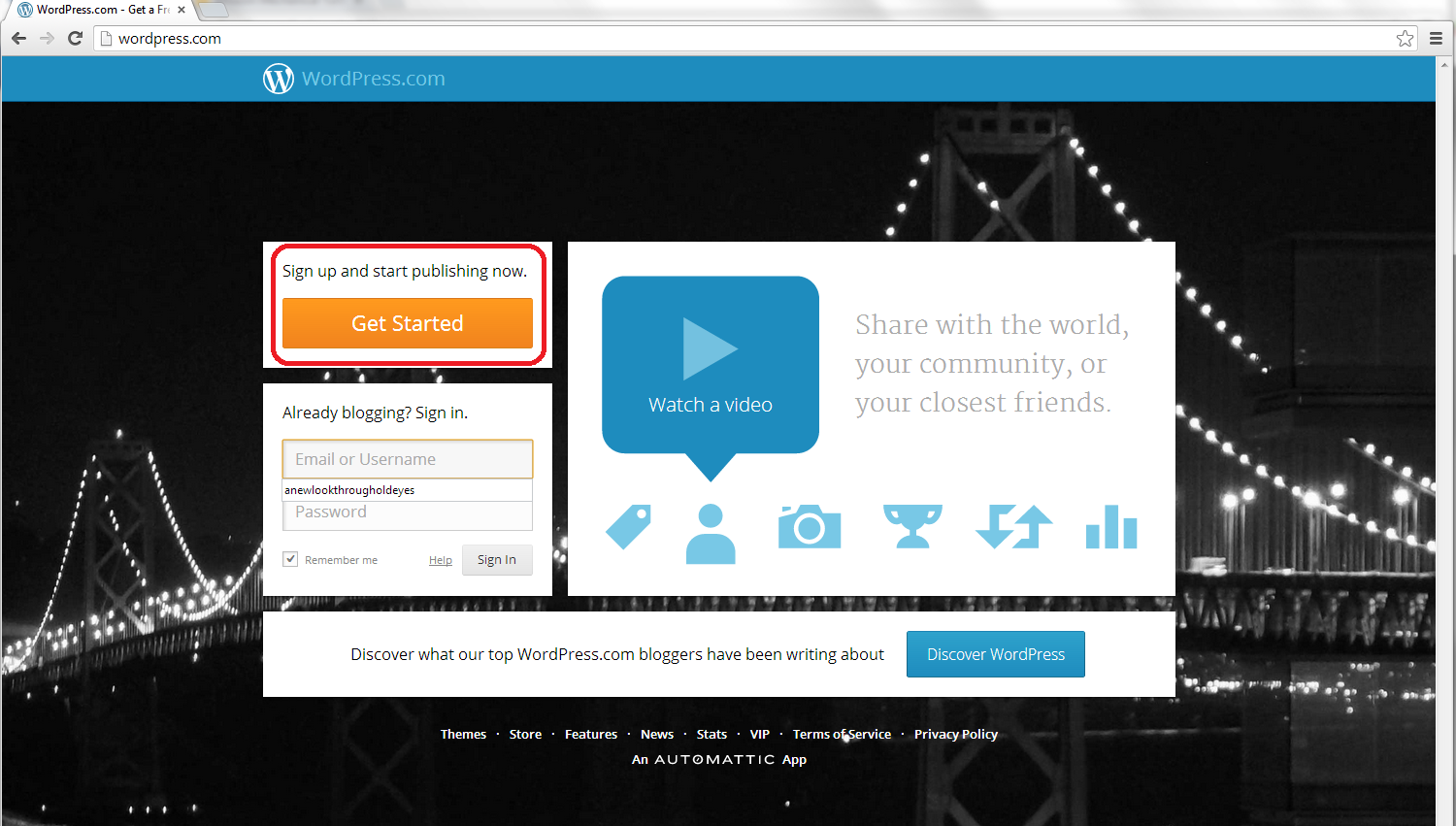
So, to set up your blog, first go to http://www.wordpress.com, where you will meet a sign-up page:

1 front page

Click on the Get Started button to set up your account:

2 sign up

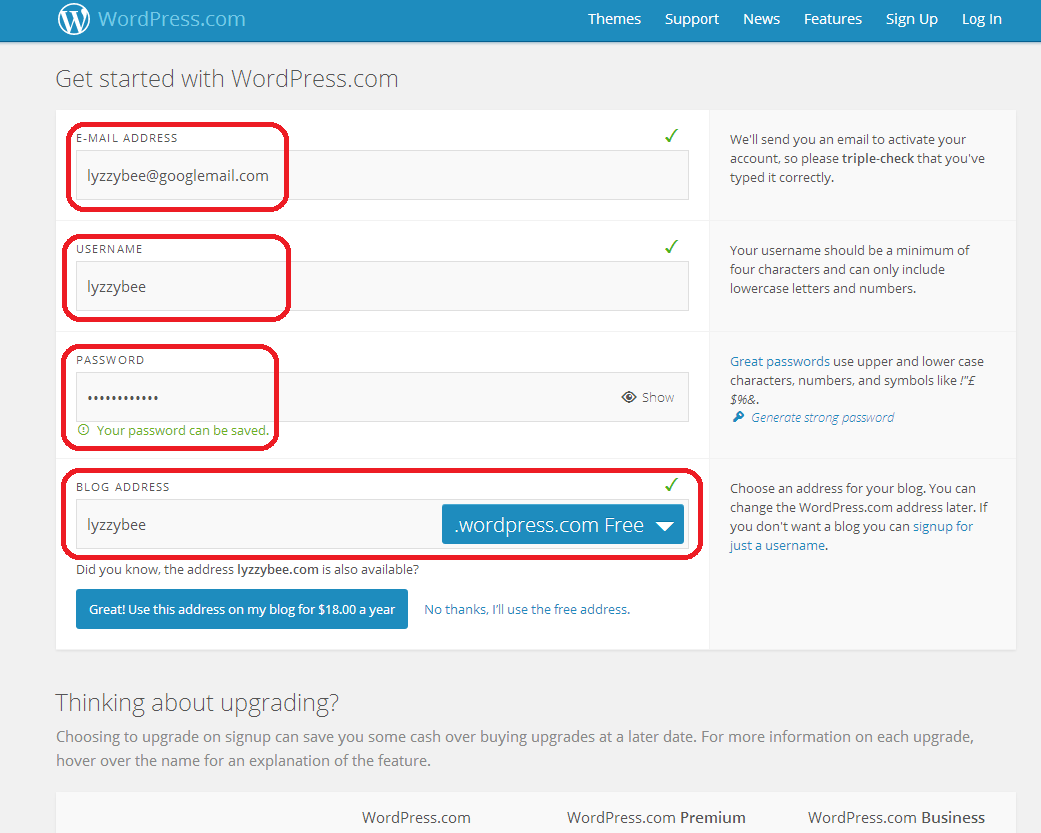
Fill in your email address, a username, and choose a password, then choose the web address for your blog.

Note: although you can change the name that your blog displays, this web address should always stay the same. If people link to it, or you link to your own posts on it, or people add it to their blog reader, they use the web address. If this changes, then the links will be lost. I suggest choosing something as bland and general as you can, so that if you change the name of your blog or the way you write it over the years, the web address and the name won’t be too different.

I’m choosing Lyzzybee here – WordPress has suggested that but you can change it. Watch out for the little green tick, which means the address is available. That means that you can choose it for your blog.

Underneath the web address box, WordPress lets you know that you could buy the domain name (in this case lyzzybee.com) for $18 per year. There’s a lot of discussion about this, with people claiming that seeing WordPress (or blogspot or any other blogging software name) will put people off if you’re writing a business blog or setting up business pages. I’m not sure that it does these days, but there is an option to buy the name if you want to, if it’s available:

3 sign up

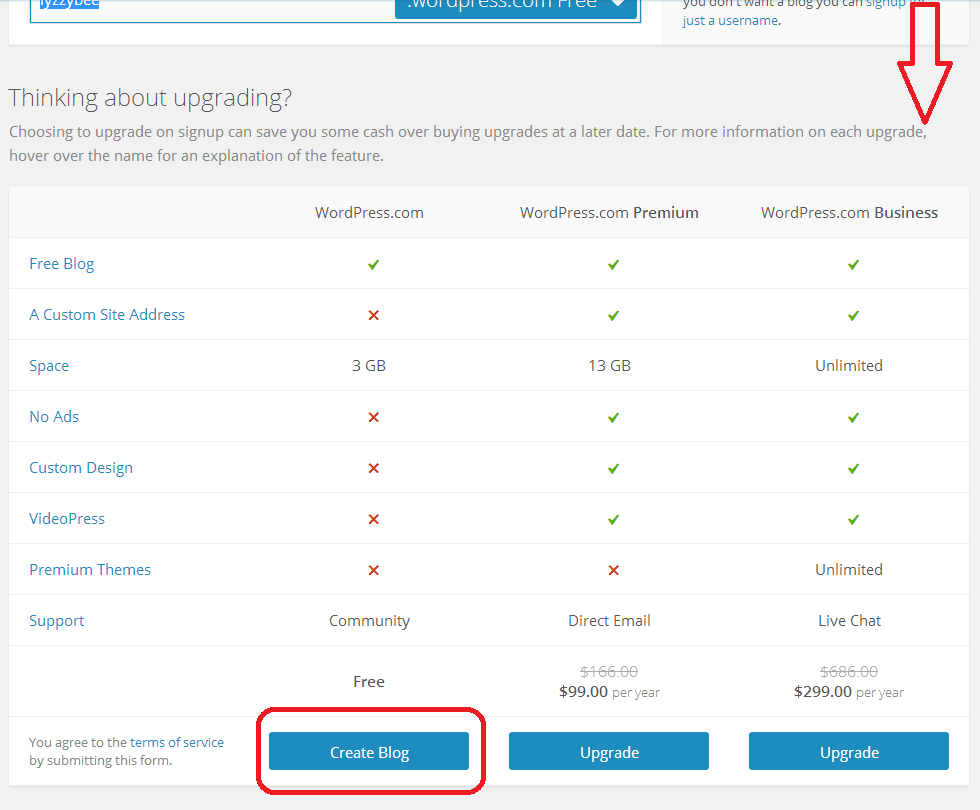
If you scroll down, you’ll see some options for upgrading, too. These look very enticing and seem to offer you a lot, but upgrades cost money and you will only really need a free blog for most purposes apart from the most content-heavy and customisable blog. For our purposes, a free one will do, so click on Create Blog at the bottom of the free column.

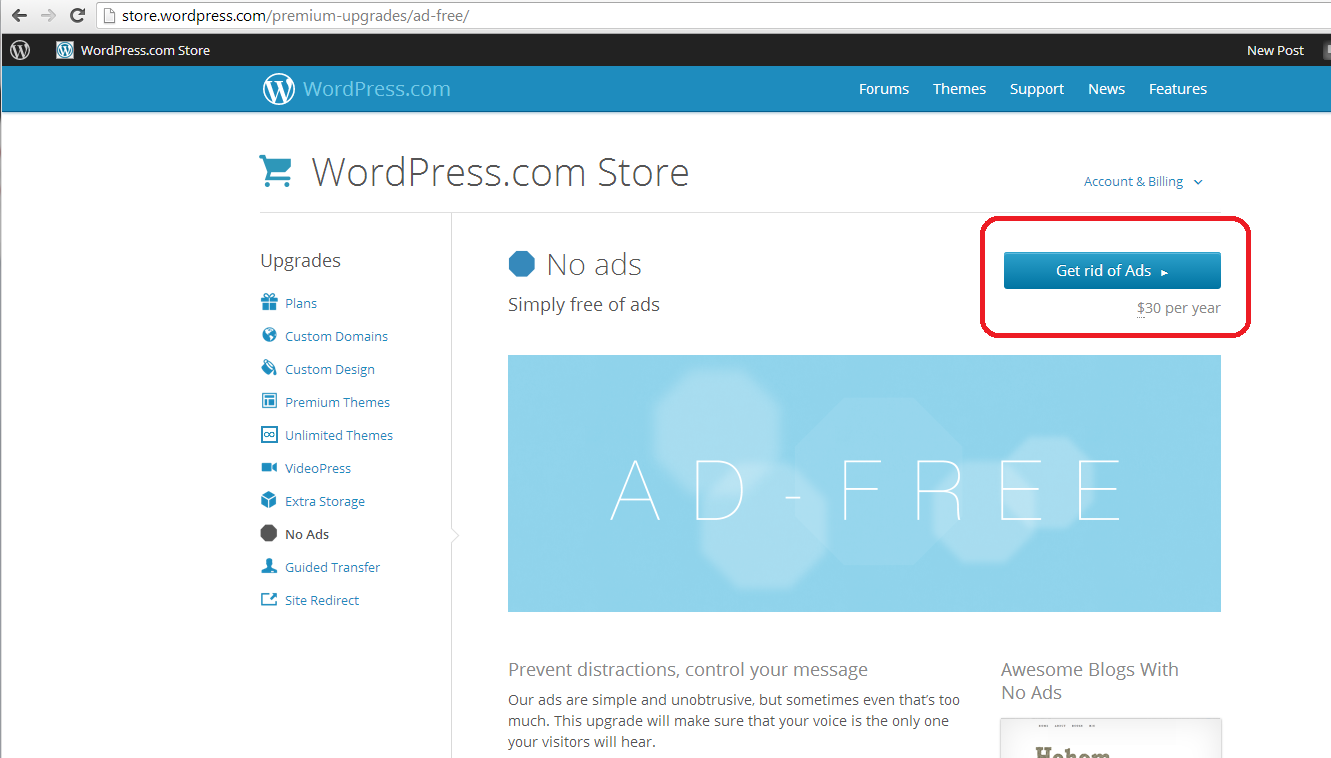
(Note: ad free is something we will be looking at later as I feel it’s important to remove intrusive ads from your blog, so it’s not EXACTLY free. Ad removal is currently $30 per year (about £20), it is an option but I think it’s important).

4 sign up free

Confirming your email address

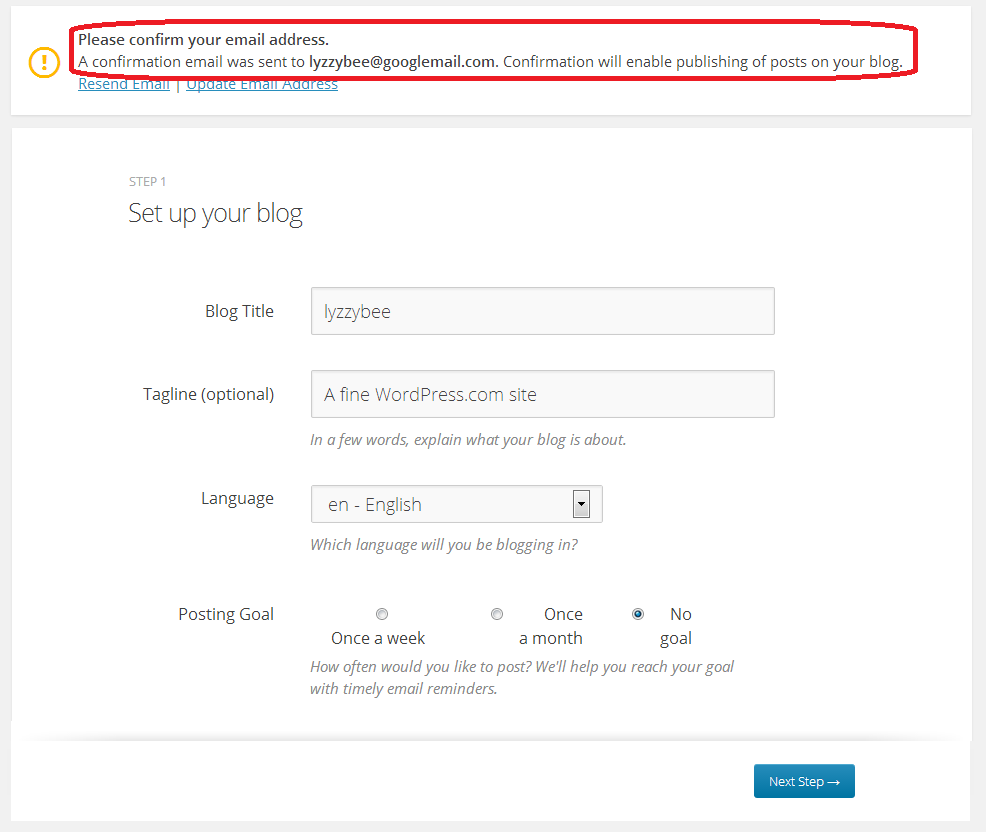
Before you go any further, you will need to confirm your email address in order to allow you to write posts and use your blog. This is a security measure, to make sure that no one’s setting up a blog under your email address illegitimately.

You will see a message about confirming your email address once you’ve hit that Create Blog button. You have options to change the email address or re-send the email if it doesn’t appear:

5 confirm

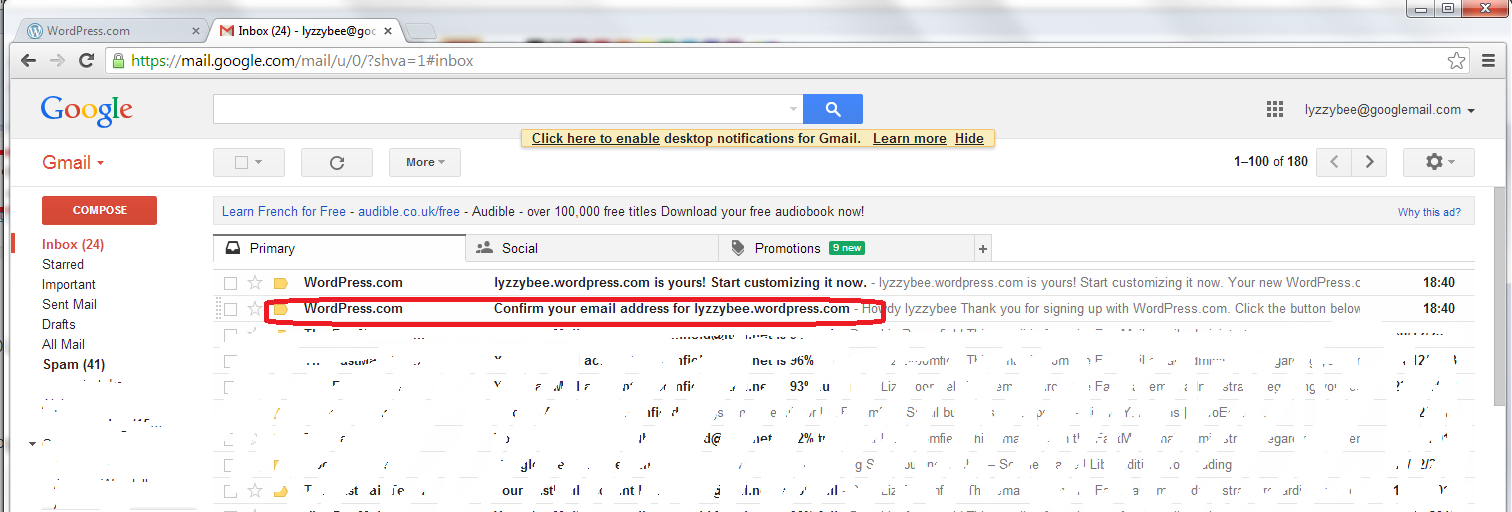
But, all being well, you should find an email from WordPress in your email inbox, with the subject “Confirm your email address for [your blog address]” – it might be the second one from WordPress, as here:

6 confirm

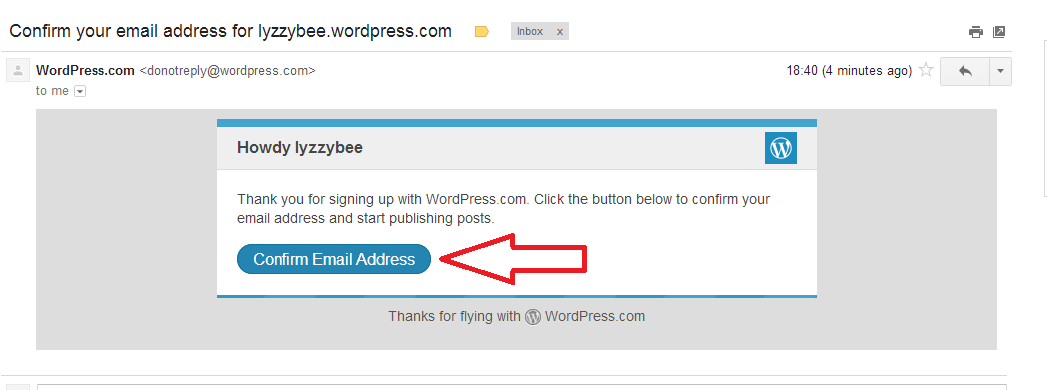
Open the email and you’ll find a Confirm Email Address button to press. Press that button …

7 confirm

… and you’ll be back in WordPress (in a new window) with the email address confirmed and able to do what you want with your blog!

Click on the blog name to go and look at your blog …

8 confirm

… and you will find the very bare bones of a completely blank and empty blog! But it’s your completely blank and empty blog!

9 setup

How do I access the dashboard on WordPress, aka how do I actually do stuff?

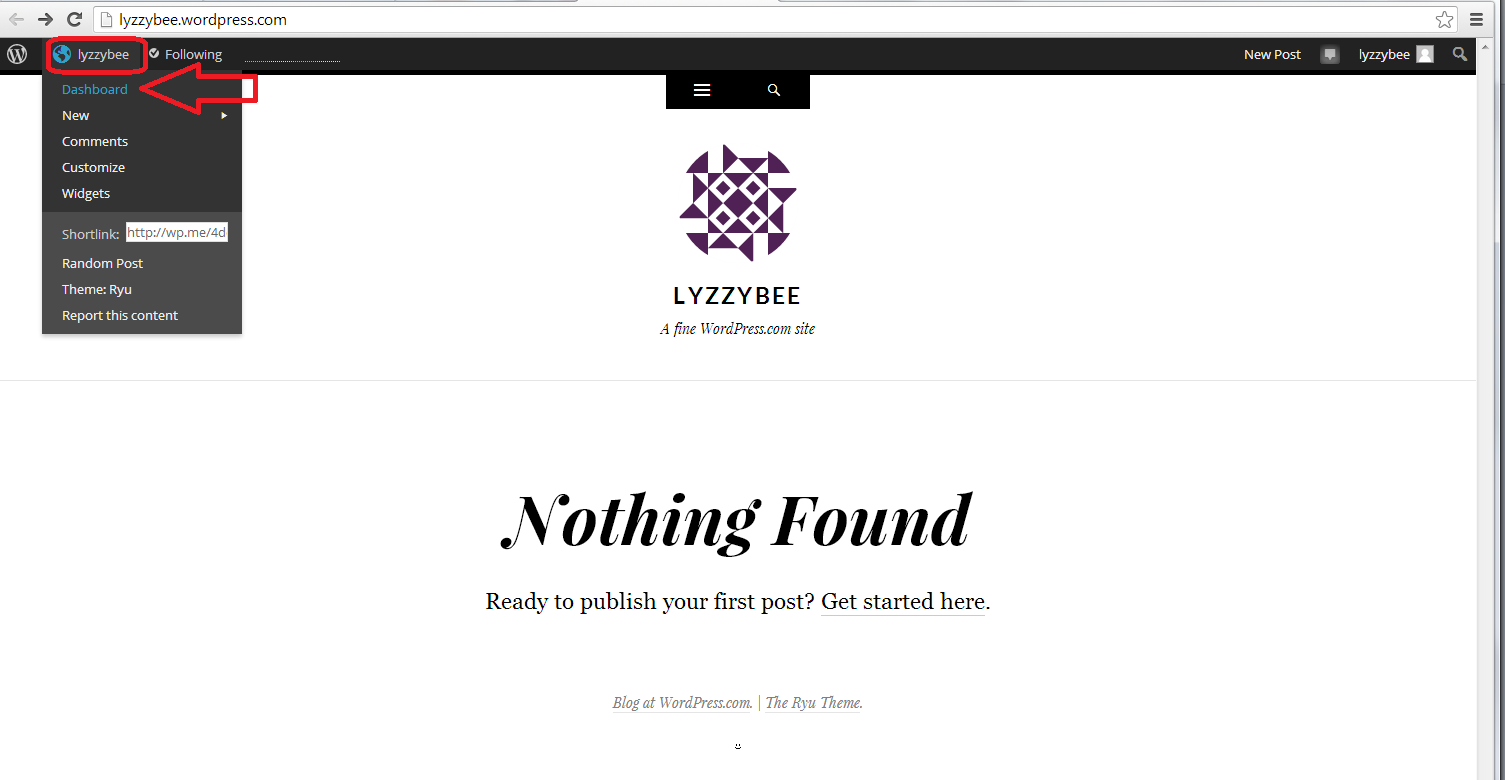
Whenever you’re logged in to WordPress and want to do something with your blog, whether you want to alter the settings, write a post, check your comments … you can access the Dashboard (which allows you to do all of this) by clicking on your username at the top and then clicking Dashboard:

10 setup

Now, the Dashboard looks like a pretty scary place at first glance: there’s lots of text, lots of options … lots of STUFF!

But I can tell you that you will usually only need to use a handful of areas on this Dashboard, and a few options in each one.

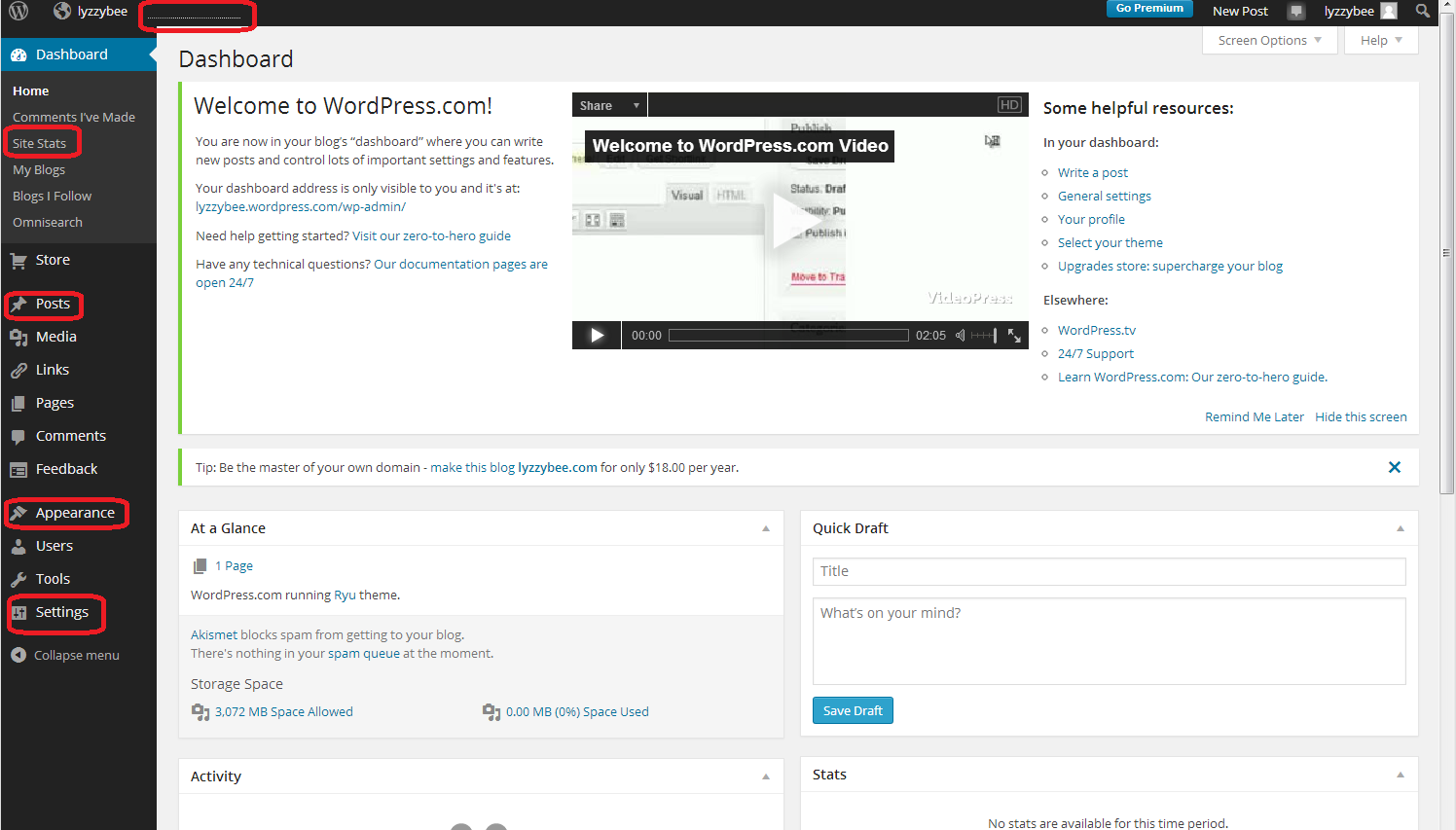
The ones that I find most useful and use most of the time are:

  • Site stats – accessible from the top part of the Dashboard or the dotted line on the very top line (which starts to look like a bar graph as soon as you get some people looking at your blog)
  • Posts – where you write posts, copy posts, edit them and review your drafts
  • Appearance – where you change the theme of your blog
  • Settings – where you change your blog’s name, subtitle and spam filtering options

I’ve highlighted them all here: not so scary after all?

11 setup

How to change your blog’s name and subtitle

Remember what I said above about not being able to change your blog’s web address, but being able to change its name and subtitle? I’m going to show you how to do that first, mainly because WordPress adds its own subtitle to your blog, and we want to customise it for ourselves.

Whizz up a couple of pictures to that blank white screen that says “Nothing Found” in the middle of the screen. Notice how underneath the blog name “Lyzzybee”, it says “A fine WordPress site”. Well, that’s all well and good, but this is where you can describe what the blog’s all about. This blog that you’re reading now has the subtitle “Proofreading, editing, writing, transcription and localisation”, and this field is searchable by search engines, so it makes sense to get your keywords in there and tell people what it’s all about (another of mine can be found here).

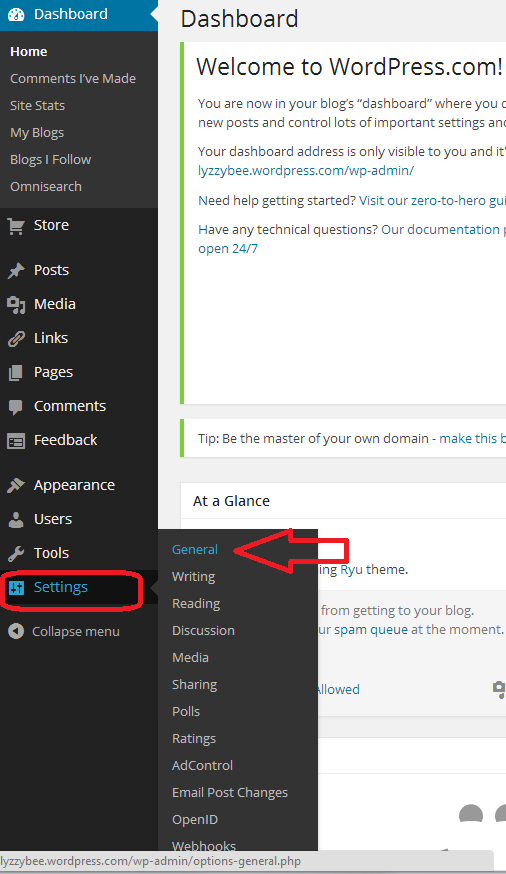
To change this, go down to the bottom of the Dashboard and click on Settings. You’ll get a sub-menu, and you now choose General:

12 setup

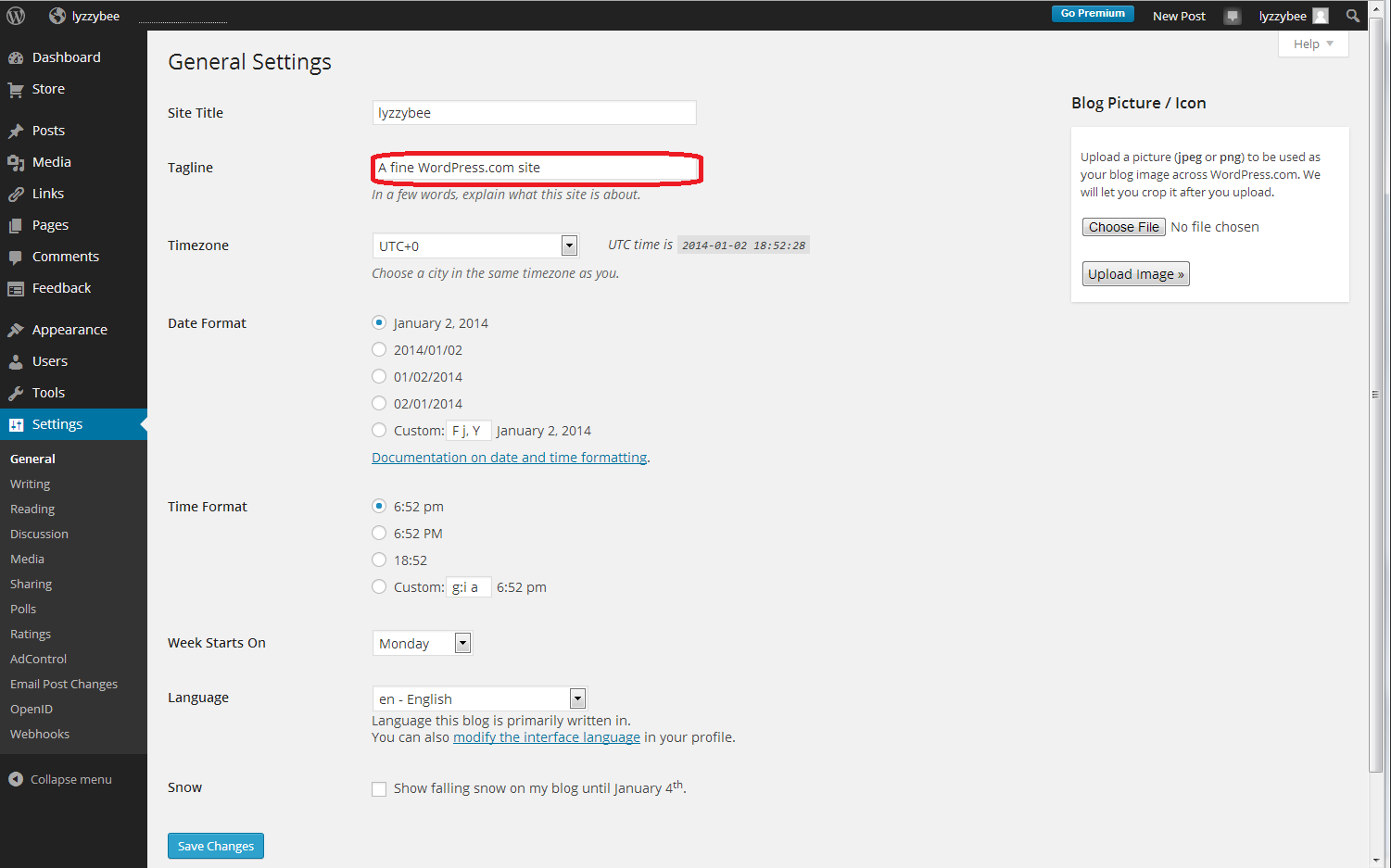
After clicking General, you’ll get a page where you can change the very general details of your blog. I’m not going to go into much detail about this page now, but you can see at the top the SIte Title (which you can change if you want to; I’m not going to for now), and Tagline (the subtitle). There’s the text that WordPress has automatically inserted for you, and here’s your chance to start customising your blog and telling people what you’re all about:

13 setup

So I type in “My test site for WordPress training”, because that’s what it is, and then press the Save Changes button at the bottom of the screen to save that. There are lots of other things you can change on this page; do have a play with them if you’re feeling confident, but it’s not strictly necessary at this stage. Everything can be accessed and changed later on.

14.5 setup

Changing the comment settings to prevent spam

Yes, yes, I know you want to change what your blog looks like and get writing, but this bit’s really important.

Once you get up and running, lots of people who are your friends, old and new, real and virtual, will hopefully want to post comments on your blog posts. Lovely! But other people will try to post fake comments, in an attempt to either place their web address on as many other web pages as possible (this gets them up the search engine results pages, not wanting to go into too much detail) and/or want your readers to click on dodgy links in order to sell them fake ugg boots or even install viruses on their computers. People will also tend to trust your blog less if you let spam get through with its dodgy links enticing your readers to click through. You need to stop this, and although WordPress does have really good spam filters, the odd one still gets through.

By making sure that you moderate the first comment that anybody makes on your blog, you will cut out almost all of the spam. The only way that someone can spam comment is if they post a normal comment first, then a spam one. Most people won’t bother. So, make sure you catch them out and prevent them from commenting by setting up your Discussion setups in your favour, not theirs.

You access this area by choosing Settings from the Dashboard again, then Discussion:

18 setup

Now you have a range of options. Handily, the ones that are already ticked are the ones that you want. But the most important to be ticked are circled in red below:

  • Other comment settings – Comment author must fill out name and email (this means they can’t just post anonymously)
  • Before a comment appears – Comment author must have a previously approved comment (don’t tick manually approve every comment unless you get bombarded with spam and need to check every single comment and pass it manually – just approving the first comment will do)

It’s also worth keeping as many email alerts as you can, so you can add to these vital ones:

  • Email me whenever – Someone posts a comment (you will always be told whenever you get a comment. If you spot a spammy comment, you can follow the link and delete it)

19 setup

Setting up your Discussion section like this means that:

  • Every time someone comments on one of your blog posts, they will have to enter their email address and name
  • Every time someone comments on one of your blog posts, you will receive an email.
  • When it’s their first comment on your blog ever, you will receive an email asking you to approve their comment. Once you’ve done that, they will be allowed to comment whenever they like, as long as you’ve approved the first one.
  • Because you receive an email every time someone comments, you can reply back to their comment, making them feel like it’s a two-way process and you care about your readers (see more on this in my article on reciprocity and social media)

Choosing your blog theme

At last she’s letting us make our blog look nice! I know – but it’s important to set up the security aspects first, right?

At the moment, your blog is quite plain. You can choose from loads and loads of attractive themes to brighten it up. And you can change your theme any time you want (although be aware that some of them have the menus in different places and might not offer certain functions).

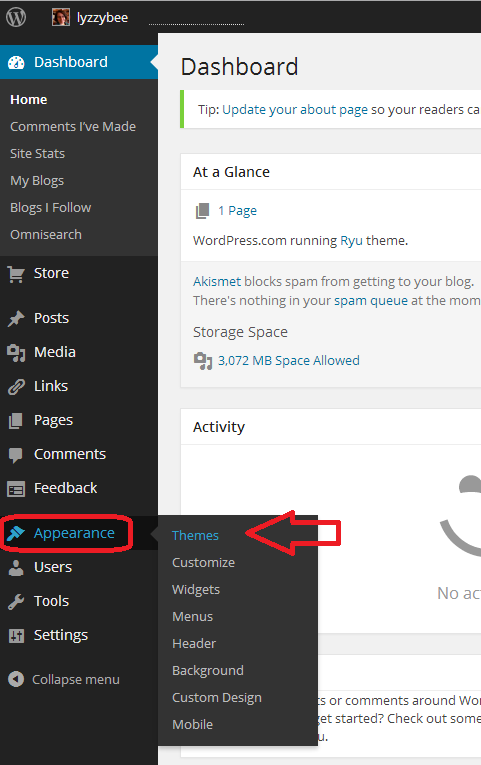
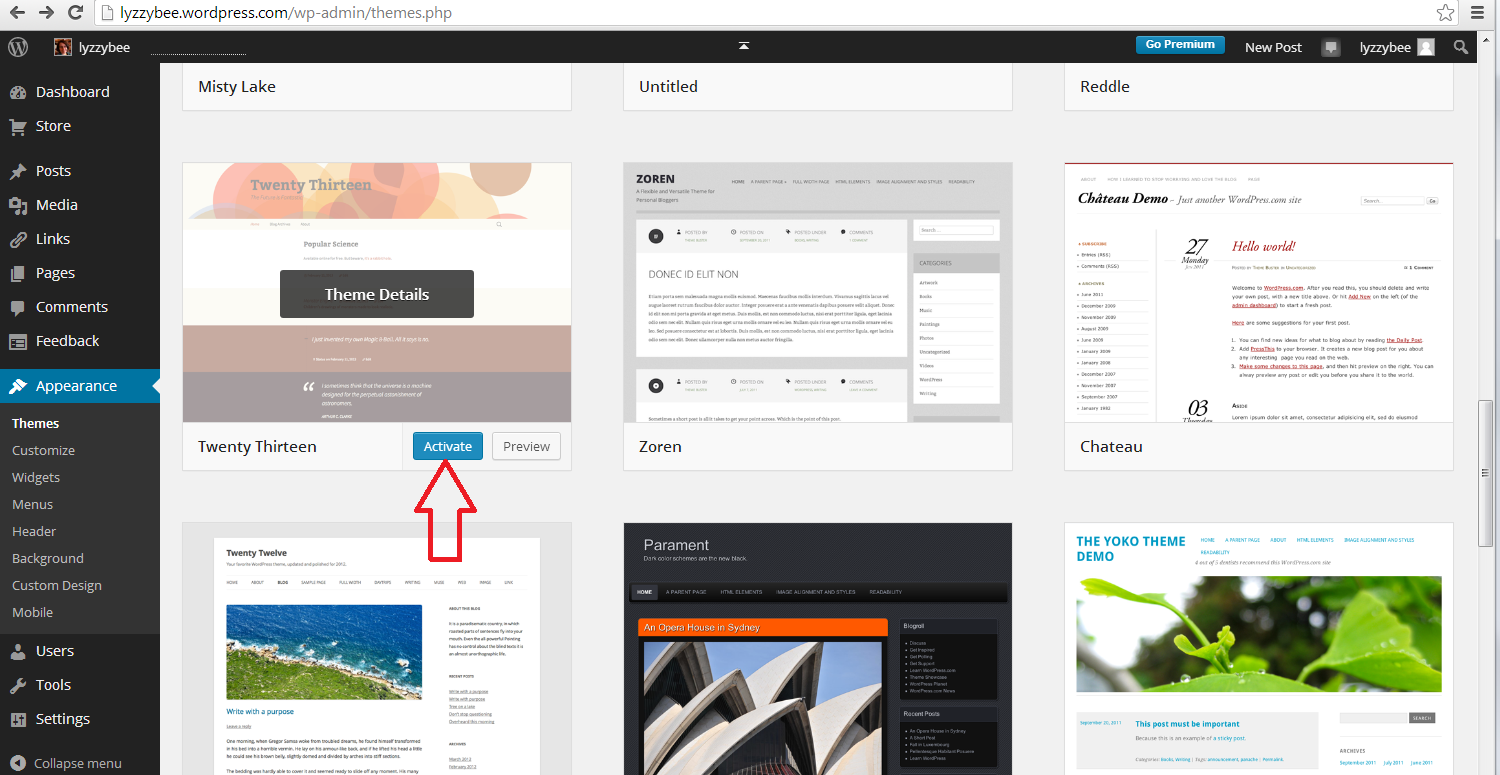
To set up your new theme (or change your theme once you’re up and running), click Appearance on the Dashboard, and then Themes:

20 setup

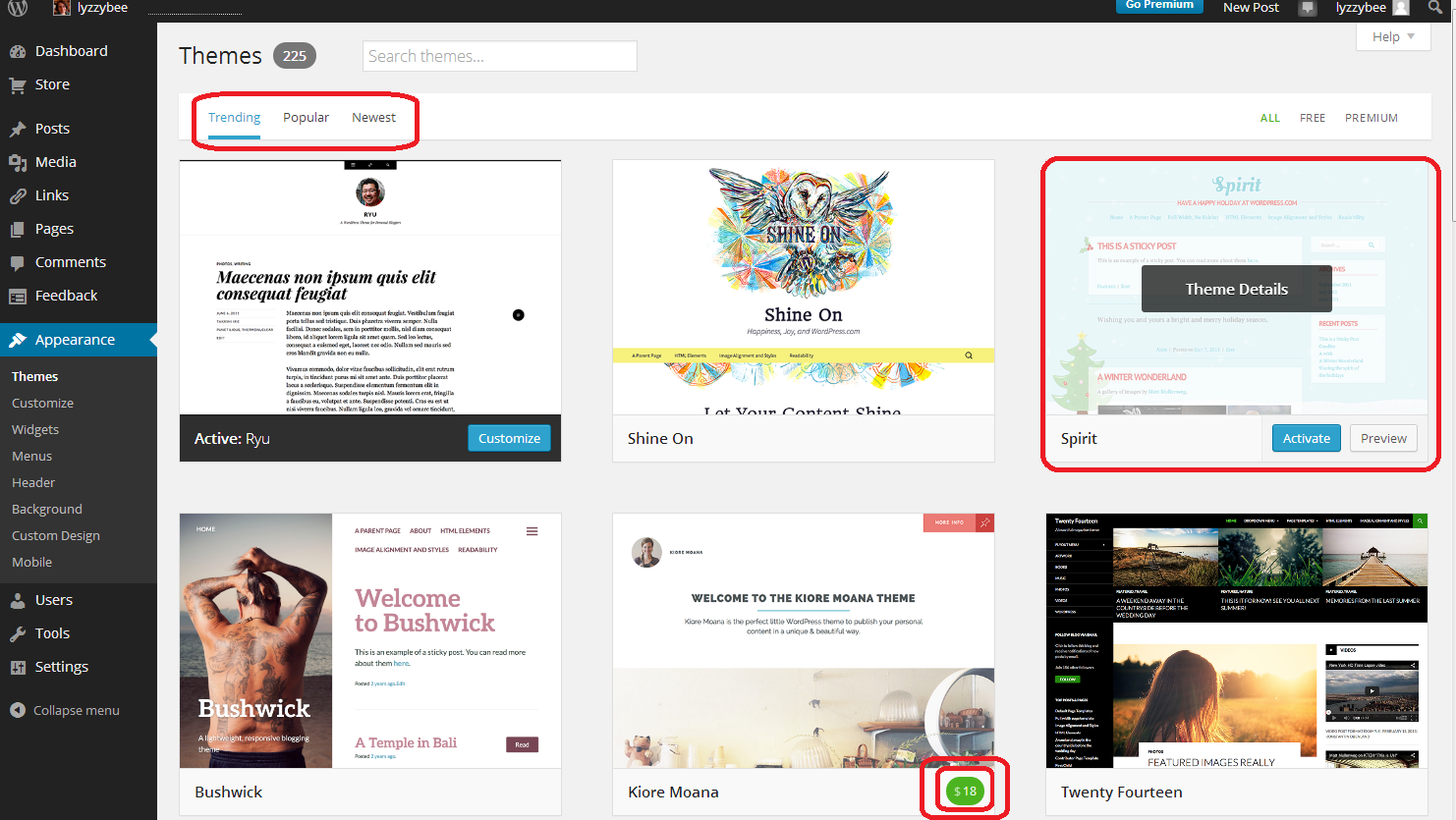
You will now see a page of lots of different designs for your blog.

Note three things here:

  • At the top, you can search for themes (flowers, etc.), choose from Trending, Popular and New themes (and on the right, choose to see only free ones)
  • When you hover over a theme, you will get the opportunity to Preview or Activate (see below)
  • You have to pay for some themes (see the double circle at the bottom). There are LOADS of free ones so certainly don’t bother to do that at the start.

21 setup

If you click on that Preview button, you’ll be shown what your blog looks like in that theme. Note that the blog name and Tagline / subtitle are there, as are any posts you’ve made.

Return to your list of themes using the back button at top left

22 setup

Once you’ve chosen your theme, press the Activate button

23 setup

You will get a confirmation that you’ve activated that theme (but you can always change it later!)

24 setup

How do I write a blog post in my WordPress blog?

Hooray – it’s time to actually write something!

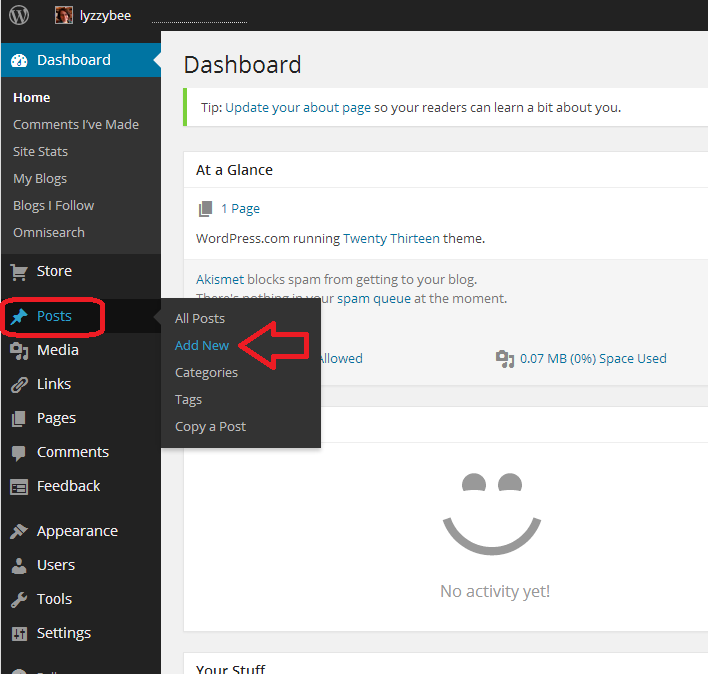
To write a blog post, go to Posts on the Dashboard and then click Add New. There are some other options there but this is getting LONG and we’ll just do the basics.

25 post

Once you’ve clicked New Post, you’ll be in your post editor. I’ve added a title and some text here (click to view larger and you can see my instructions).

Once you’ve got a title in place, WordPress will create a Permalink (URL) for it. You can alter the words in this after the date, so if you don’t want to be sharing a huge URL, you can cut it down (e.g. this very post has a URL ending wordpress-blog-basics, which is not the full title of the post).

Once you’ve started writing your post, hit Save Draft and continue to press that regularly so you don’t lose your work. Once you’re ready to publish your post, press Publish!

26 post

When you publish any post, you will get a side panel that tells you how many posts you’ve done – you need to click on the little arrow before you’ll get your URL at the top and your post in full screen. Note here that there’s a little square telling you that there might be an advert appearing there – see below for how to get rid of that.

27 post

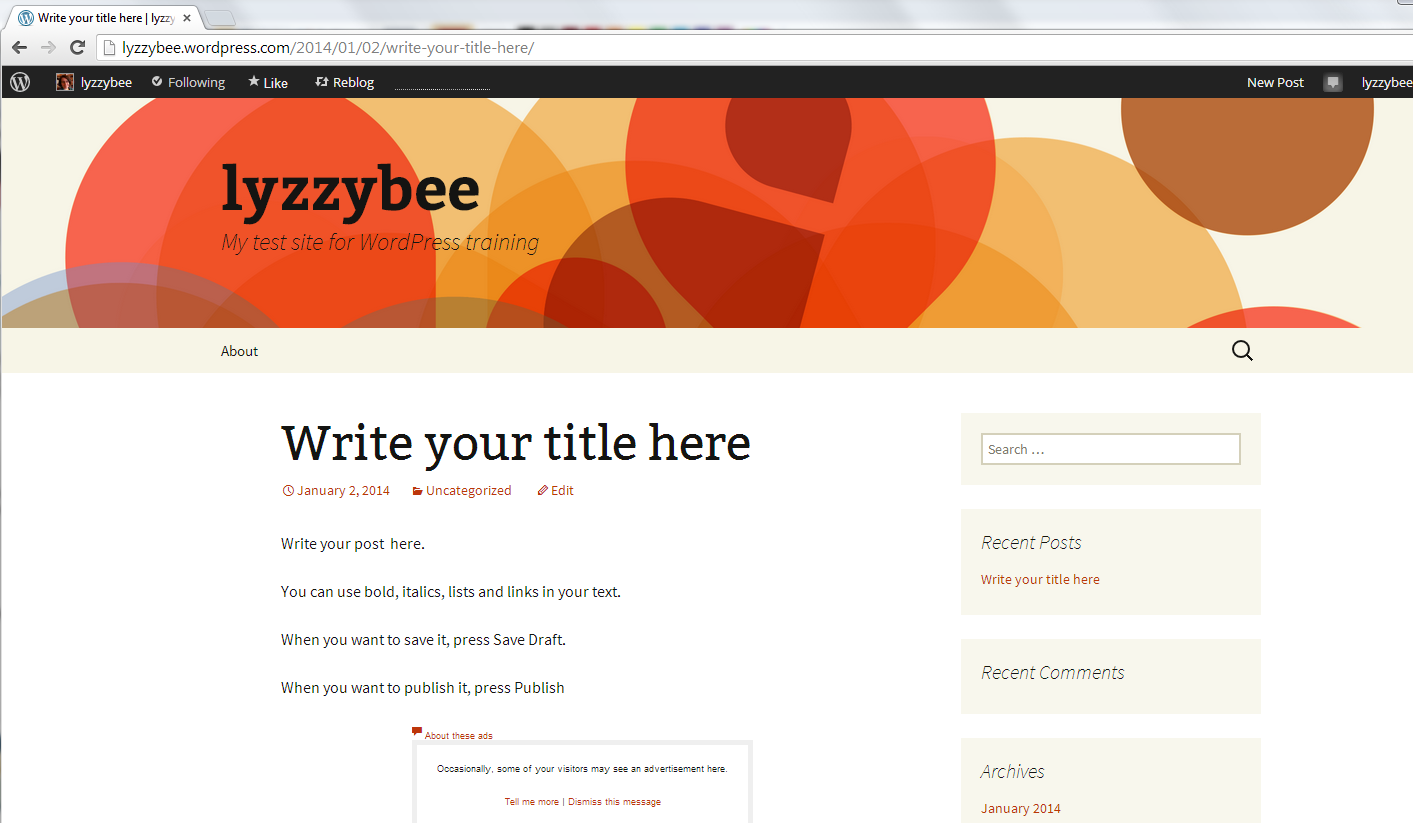
But for now, here’s our blog post, in all its glory, on the blog theme that we chose a little while ago:

28 post

How do I get back to the dashboard from my blog post?

At the top of the screen, you’ll see your username. Click on that and you’ll get a drop-down menu including Dashboard.

29 setup

How to remove ads from your blog

WordPress will automatically place adverts on your blog. Nice, eh? But they have to make some money, and people pay them to do this. Note that this is NOT the same as having a service where you choose to have ads on your blog and can choose what they’re about. This is any ads they choose to promote, flashing all over your blog, in front of the content. The worst bit: you can’t see them if you’re logged in, even if you look at your own blog. And yes, people do have ad blockers, but I know from experience that readers do get put off and won’t return to look at your blog, or subscribe to it, if you have ads all over it.

You can remove the ads for $30 (about £20) a year. It’s up to you, but I think it’s worth it as the final stage of setting up a good, solid, useful WordPress blog.

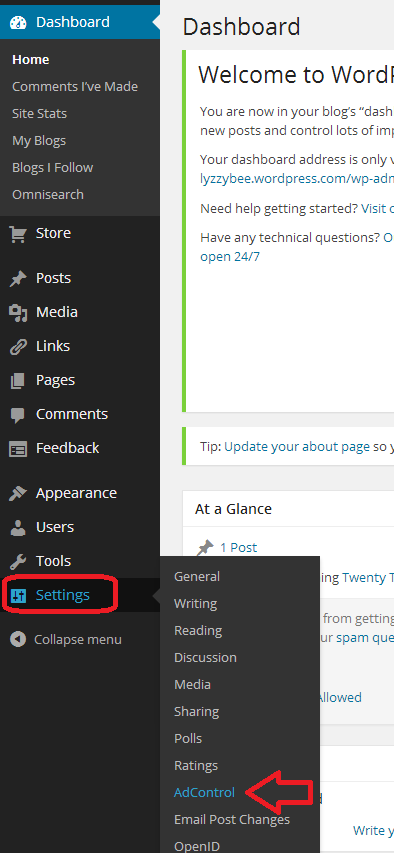
Here’s how you remove them. Go to Settings on the Dashboard and then Ad Control:

30 setup

Choose No Ads upgrade. You probably don’t need a Bundle, which is more expensive and includes high levels of customisation which you just don’t need when you’re starting out. You renew this every year, and can always add customisation when you’re more confident with what you want to do with your blog.

31 setup

You will be taken to the WordPress Store, where you can choose Get rid of Ads. This will take you to a payment screen where you can pay by PayPal or debit or credit card. As I said, well worth doing to avoid annoying people who read your blog.

32 setup

By now, you should be able to set up a blog, post a blog post, set your comment moderation and remove ads, and choose and change your theme. Future posts will cover more details such as automatically sharing your posts on social media, adding photos, and other technical details. You can find more general articles about blogging in the list of related posts below.

I hope you have found this article useful. Please share using the share buttons below, or post a comment, and do please let me know if you use this article to help you to set up your own blog, and post a link below!

Related posts on this blog:

WordPress 2 – adding pages to create a website

WordPress 3 – adding images to your post or page

WordPress 4 – adding slideshows and galleries of images

WordPress 5 – linking your blog to your social media

WordPress 6 – sharing buttons

WordPress 7 – adding an avatar picture

10 reasons to start a blog – why you should do it now!

10 reasons NOT to write a blog – and why you should stop and think, at least!

Reciprocity and Social Media – how to negotiate social media kindly and politely

Top 10 blogging sins – avoid these if you can!

Scheduling blog posts and keeping going – scheduling the posts and the writing of them

Guest posts (1) hosting – how to be the host(ess) with the most(est)

Guest posts (2) guesting – how to be the perfect guest

Adding links to blog posts – how to do it on the major blogging platforms (and email)

 
23 Comments

Posted by on January 3, 2014 in Blogging, Business, WordPress, Writing


Tags: , ,

Searching for jobs on Twitter

I had planned a post on exactly how I would go about searching for freelance (or otherwise) jobs on Twitter, then ended up discussing the topic with another editor, who’s keep on working on cookery books. So, here comes a worked example of how to search for jobs on Twitter.

Why search for jobs on Twitter?

People talk a LOT on Twitter, and they also use it for information seeking purposes. How many times have you seen a friend or just someone you follow ask a question, or look for a recommendation? Especially if you’re a freelancer, people will throw a question out: “Does anyone know a good transcriber?” and other people will answer them. It’s brilliant if one of your own clients does this and gives your name (this happens quite regularly to me, so I promise that happens), but if not, as long as you’re not over pushy about it, there is no harm in tweeting to that person to tell them about your services.

Does searching for jobs on Twitter really work?

Yes. Yes it does. I can say that with certainty, because I know it does from experience. Here are just a couple of examples:

1. I ran my regular search (see below for how to do this) on “looking for proofreader”. I found a Tweet by a woman working in PR. I contacted her, she became a client, she took me with her when she joined a big agency, and when she left that agency, I ended up with them and her as clients.

2. A journalist I followed on Twitter posted the tweet “Can anyone help me with some transcription?” At the time, I didn’t offer transcription as a service, but I was a trained audio-typist. I got in touch, again, it went to email for the negotiations, and I ended up with that journalist as a long-term client. Plus, she recommended me (via Twitter and email) to other people, who also recommended me, and I ended up with a regular client base of music journalists.

So yes, it does work. Here’s how to do it.

First, make sure your profile represents you accurately

When you tweet to someone, the first thing they’re going to do is look at your profile. So make sure it includes:

  • Your photo
  • Your full name
  • Your company name
  • Your url
  • What you do

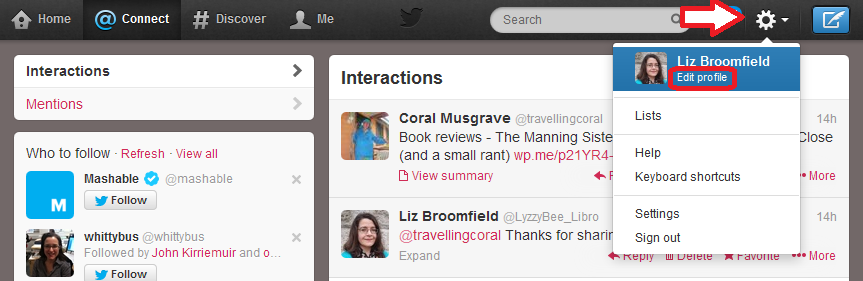
How do you change your Twitter profile? On the standard Twitter website, click on the Tools icon (the little cog) in the top right and drop it down to get Edit profile:

edit profile 1

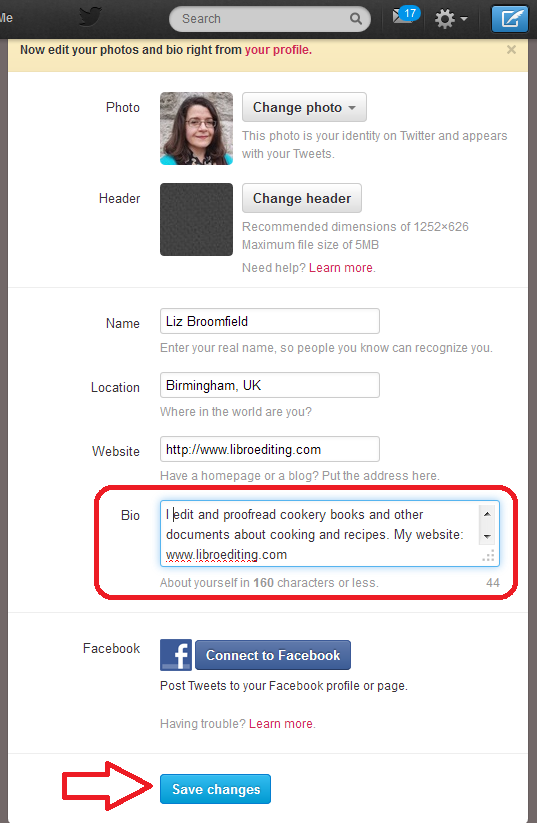
Now you have the option to change all of your details and your Bio(graphy). Make sure that you get all of your keywords in, press Save Changes at the bottom, and you’re reading to go and encourage people to look at it!

edit profile 2

How do I search in Twitter?

At the top of the screen, you will find a grey box with a magnifying glass icon in the right-hand end. You can type any words you want to search for in here and hit Return to run your search.

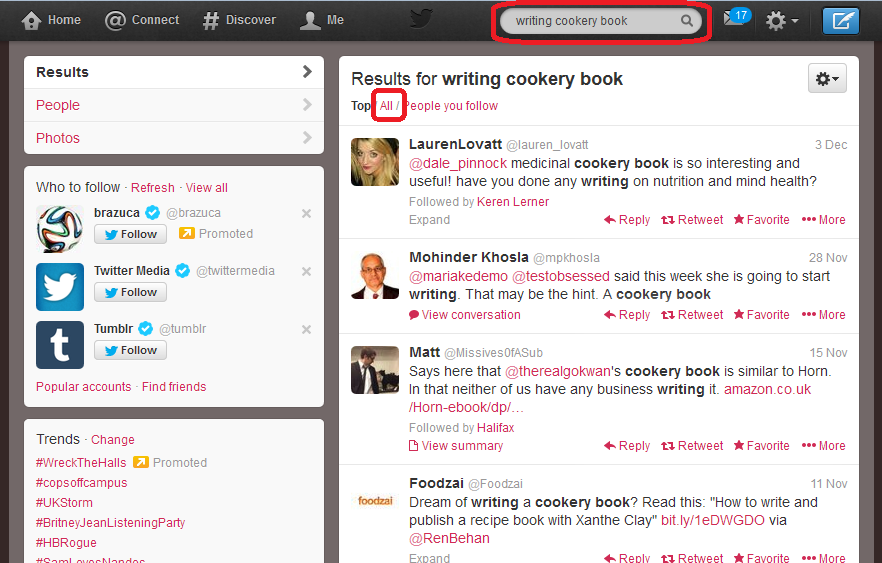
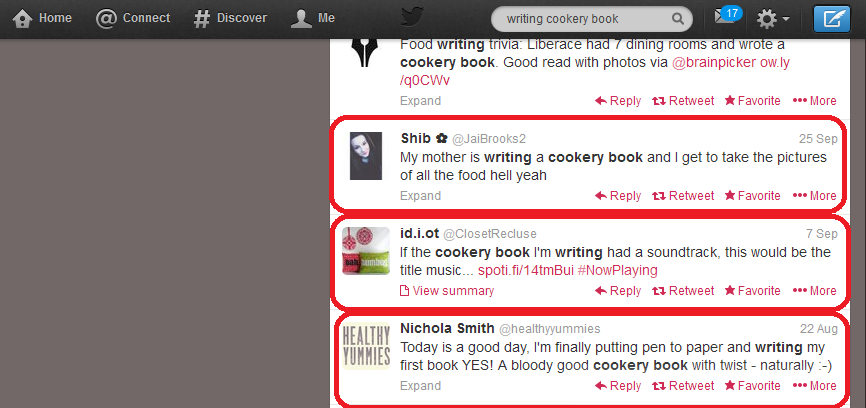
You do need to think about your search terms and what you think people who might be searching for a cookery book proofreader might need. Here, I’ve gone for “writing cookery book”, on the grounds that if someone is writing one, they are going to need editing help at some stage. So I input that, hit Return, and when the results come up, I choose All rather than Top or People you follow – to make the results list as wide as possible.

1 search

How do I interpret the Twitter search results?

Bear in mind what you’re looking for: people who are writing cookery books and might need your help. Scan down the results list, and you’ll soon see some hopeful ones. I would send a quick note to all of the people I’ve circled, but not the one above, which just mentions a cookery book, not really associated with someone writing one right now:

2 results search

Advanced search in Twitter

Twitter searching doesn’t use wild cards, which means you can’t input cook* book and get it to search for cookery book, cook book, cooking book, etc. Once upon a time, you’d have to run searches for all the different words you wanted. But now you can run Advanced Search and search for lots of different things at the same time.

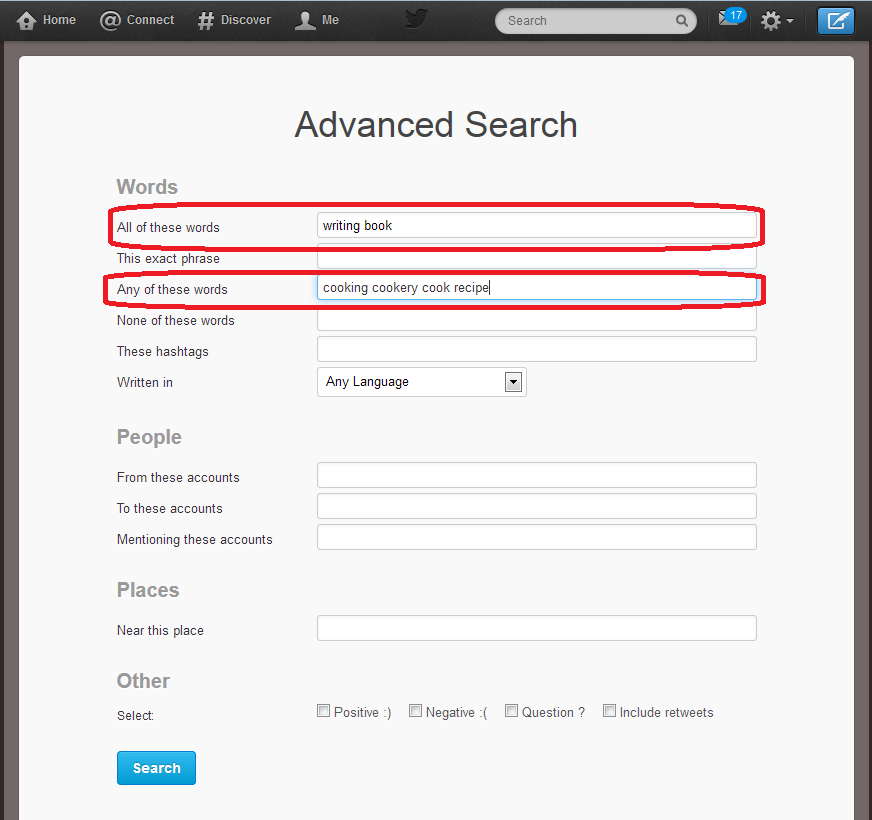
Click on the cog to the top right of your search results and drop it down. You’ll have an option to Save search (we’ll look at that later) and Advanced search will appear in the sidebar. Pick Advanced search and you’ll be taken to the Advanced Search input screen. Here you can handily choose words that must be included in the results, and words that could be included. So, here, I’m saying that all tweets that Twitter finds must include the words “writing book”, but they can also include any of “cooking”, “cookery”, “cook” and “recipe”. This means that it will look for “writing book” plus any one or more of the other words.

4 advanced search

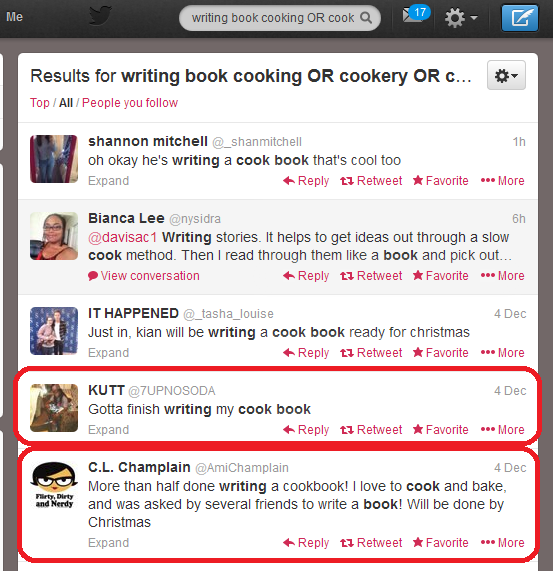
What effect does this have on the results? Well, we can see a few that aren’t really any use, but two from people writing cook books (circled). Result, and we’ll have more results doing this than for each of lots of different individual searches, all in one place.

5 advanced search results

(You can see that at the top of the search screen it’s written out your search as “Results for writing book cooking OR cookery OR cook…” and this means that it’s using the Boolean operators AND, OR (and NOT, if you want), so if you’re familiar with online searching, that’s what it’s doing.)

How do I save a Twitter search?

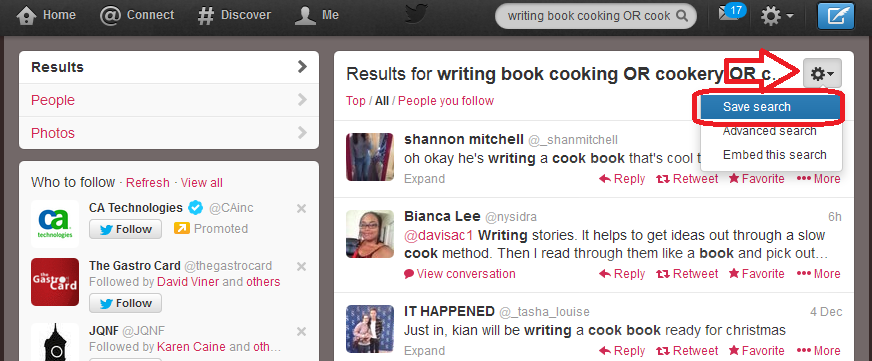
When you’ve found a good search that has a lot of useful results (no search will have ALL useful results, but this seems a good one), you can save the search. Click on the cog, drop it down and choose Save search:

6 save search results

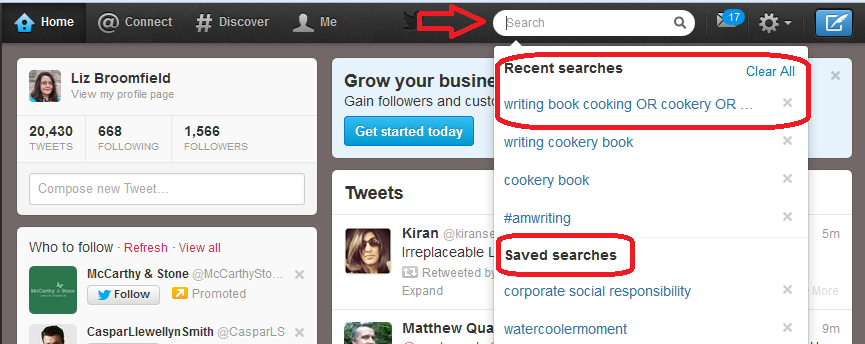
When you next click in the search field, you will get a list of Recent searches and Saved searches. Our search is in Recent searches at the moment, but will stay in Saved searches, now you’ve saved it.

7 saved search

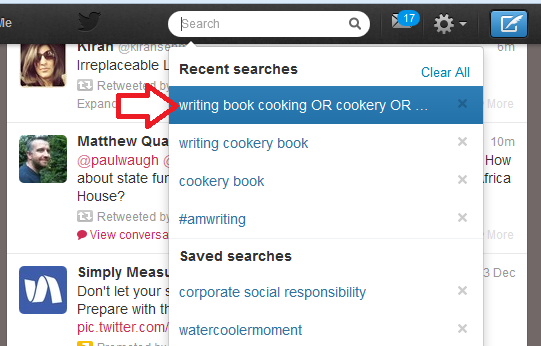
This means that you can just click on that search query rather than typing it all in again.

8 run saved search

How often should I re-run my Twitter job searches?

I recommend running each of your searches every 24 hours. This gives you only a few extra results each time, it’s easy to note where the ones that you’ve already seen start, and if you want to reply to a tweet, it’s not too long since the person tweeted it.

It might be worth running them more frequently at first, but keep an eye on how many new results come up during 24 hours and you’ll get an idea of the schedule to use. I wouldn’t leave it longer than 24 hours, for fear of missing out, as Twitter is a very immediate medium.

How do I pitch for a job on Twitter?

You might feel a bit uneasy about this. But I can promise you that no one minds one short, friendly and non-pushy contact in reply to a tweet they’ve sent out. I’ve sent loads, I’ve had a certain amount of success; some people have ignored me, but no one has ever complained.

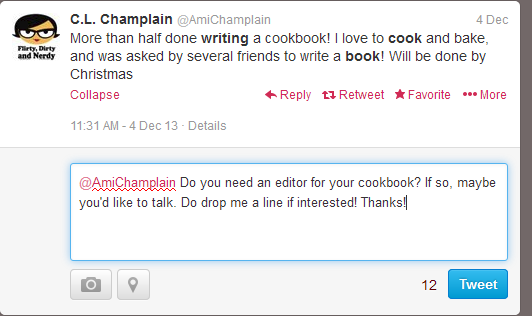
Here’s a worked example of how I’d approach this situation as a proofreader looking for work on cookery books:

9 reply

So, a very non-pushy, friendly and polite tweet inviting them to respond. If they did respond positively, I’d very quickly move to giving them my website URL (even though it’s on my profile, I’d put it in a tweet) and initiate email contact so we could discuss the project in more detail.

———

So there we go: that’s how I searched for jobs on Twitter – and won them. My use of this network was a while ago now, but you know what? I still have both of those original clients who I talked about above!

If you enjoyed this post or found it useful, please do use the sharing buttons below and leave me a comment!

Related posts:

How do I get freelance work?

Reciprocity and social media

Karen Strunks on using Twitter in your business

 
16 Comments

Posted by on December 23, 2013 in Business, Jobs, New skills, proofreading, Social media


Tags: ,

How to record, transfer and send audio files – for journalists and researchers

keyboard, headphones and penOver the years that I’ve been providing transcription services to journalists and researchers, I’ve found that my clients haven’t always been as au fait as you would expect with recording, downloading and sending audio files of their interviews.

Here are some handy hints that I’ve developed to help my clients – any journalists or researchers who have to record and transcribe interviews should find this information useful.

Recording your interviews

You might be using a dedicated dictation machine or your Smartphone to record your interviews. Whichever you are using, here are some hints to get the best out of your recording:

Set and test the recording levels. You will  probably be able to alter the volume, at very least, and maybe the graphic equaliser. If you’re going to be doing a lot of interviews, it’s worth doing a test session with a friend, and checking the quality of the recording. Then leave the levels set at that point.

  • If the levels are too loud, when it’s played back, it will be distorted, even if the level is turned down on the machine that’s playing it back.
  • If the levels are too quiet, when it’s played back it will be really quiet still. Your transcriber will strain to hear it. Even if they up the volume at your end,  there’s only a certain amount they can do
  • If the bass or treble are set too high, the recording will pick up and amplify all bass or treble noises, such as cars going past or cutlery rattling

You may have some pre-set recording levels in the menus on your recording device. Oddly enough, you need to choose one that reads something like “interview” or “one to one”, rather than “meeting” or “concert” or “outdoors”. This will ensure that the device picks up you and the interviewee, rather than the conversation at the next table or the inexorable whoosh of the cappuccino machine.

  • If an inappropriate pre-set recording level is chosen, your transcriber may be bombarded with cutlery and glassware sounds and other people’s conversations, or just hear voices booming around like they’re in the bottom of a bucket.

Check each time that the recording level is correct – it is not unknown for the buttons on the recording device to get pressed in the journalist’s bag on the way to an interview, leading to a transcriber with ear-strain and a transcription full of gaps!

Transferring your audio files to your computer

Once you’ve saved your interview files, you’re going to need to get them off your recording device and onto your computer.

There are usually two ways to do this:

Option 1 – connect your recording device to your computer using a USB cable

Option 2 – send the file from your recording device to your computer via email

Option 1 is the easiest. If your recording device comes with a USB connection, plug it in to your computer. You will find that the computer treats it as an extra drive, like the C or D drive. Use the file navigator to find the file and copy it across to your computer, ready to send to your transcriber.

Option 2 is more tricky, as most phones will have a limit as to how long a file you can send. You may need to break it up into chunks, or zip the file on your phone / dictation machine first.

There is an Option 3 which you can use if your dictation machine is an analogue one, i.e. uses those little tiny tapes (or big ones!). Go into a silent room. Set a microphone up connected to your computer. SET THE RECORDING LEVELS very carefully and test them. Play the tape and record it digitally. Note: please don’t do this if you can help it. The tape quality will always be affected (think what the tapes were like that you recorded off the radio as a teenager. Exactly). Your Smartphone will have a voice memo app pre-loaded onto it, or you can download one. Do that: go digital. Your transcriber will thank you!

What to do when your iPhone voice memo is too big to email …

This is a topic in itself and one I’ve been asked about time and again.

If you need to transfer an iPhone voice memo to your computer to send to your transcriber, and you try to email it to yourself or them, you will probably get a message telling you that it’s too long to email. Don’t break it up into chunks, do this instead …

Turn on your phone, connect it via USB cable to your computer and open iTunes.

iTunes should have a tab called My iPhone.  Click on the Sync button in this tab if it doesn’t do it automatically. It will then record it into your computer’s memory.

Under Playlists, click on Voice Memos. Find your recording (it will be labelled with its date, which should help you to find it), right-click and choose Get Info. This will tell you where the memo is saved on your computer. Copy it into the file where you want to keep it, and send it to your transcriber.

For other phones, I always recommend connecting the phone to the computer rather than trying to email it.

Sending your audio file to your transcriber

Most audio files are really big and won’t send easily as an email attachment.

The first thing to try is zipping it. Go to the file in your computer’s folders, and right-click. You should be given some kind of option to Zip the file. This makes it smaller, like putting a duvet in one of those vacuum pack bags. Your transcriber will unzip it at their end to work with it.

If this is still too big, there are lots of services online that will transfer your file for you. My two favourites are YouSendIt, now called Hightail, and Wetransfer.  Both of these have free versions – you pay more to get more feedback and send larger files.

You can also use Dropbox, which acts as an extra, secure drive for your computer, living out there in the ‘Cloud’. Sign up (again, free) and copy your files into this folder. Then share it with your transcriber, or send the file so they can download it.

This article has hopefully helped to make technical matters clearer for journalists and researchers who want to record interviews and transcribe them themselves, or have them transcribed by a professional transcriber.

Related posts:

More on transcription and careers in transcription starting here.

Why you need a human being to do your transcription

My book: A Quick Guide to Transcription as a Career – buy from Amazon UK or visit the book’s web page for worldwide links and news.

Found this useful? Do share using the buttons below, and/or send me a message via the comments box below!

 
19 Comments

Posted by on December 18, 2013 in Transcription


Tags:

How do I get freelance work?

This article shares some ways that I’ve found successful in getting proofreading, editing, localising and transcribing work. It’s applicable to all forms of freelance work but doesn’t look at getting a full-time employed job in publishing or for another large organisation.

It’s also worth noting here, in response to some of the early comments on here, that this is a suite of options and you wouldn’t expect to do them all at the same time. Once you’ve built up 1 and 2, you can pick and choose depending on what your career path is – and it’s important to indulge in some planning from the start. Thank you to my commenters for helping this to be a better and more useful post!

1. Make sure that you say what you do on your website

Many of your clients will come to you after doing a Google search. Remember: people will take the easy option. Why bother to search on lists and in directories if you can just stick a search in Google.

So it’s worth making sure that your website …

  • Includes a clear list of all of the services you offer
  • Includes a blog which is updated regularly – this really helps your position on the search results
  • Is Search Engine Optimised in general (there is an art to this, but make sure you include your keywords regularly, write lots of natural reading text and include keywords in page / post titles and headings)
  • Includes a picture of you and ways to contact you – a contact form is always good for this

Oh yes – do make sure that you HAVE a website. Even if it’s just one page, I really do think that in all industries, from carpentry to computer programming, people expect you to have some kind of web presence, and may well give up the search there and then if you don’t, even if you’ve been recommended by name by someone. I know that I do that when I’m looking for services …

2. Make sure that people know what you do

An awful lot of my early clients came through friends of friends and social networks. Obviously, don’t bombard your friends by begging them to refer you, but make sure the following are covered:

  • If you have a company Facebook page, include a list of your services
  • Include your services on your Twitter profile
  • Mention what you do on social networks every now and again (a good way to do this is to mention what you’ve BEEN doing “This month I’ve edited this, transcribed that and localised the other”.
  • Make sure peers in one area know you cover other areas, too (if you do), e.g. I make sure that my editing chums know that I transcribe as well
  • Consider setting up a newsletter and making sure you mention all of your services
  • Update your clients with any new services you’re offering

3. Join industry groups and publicise yourself through their directories

I gained early clients through being in a member directory associated with a copyeditors’ email list. Friends do well by being listed on the Society for Editors and Proofreaders’ website. My roofers are listed on a government-accredited tradespeople’s website. All of these are places where people will look for accredited and proved suppliers.

4. Advertise on general directories and websites

A hint: don’t bother with paid ones when there are so many free directories and websites!

Ask around your peers as to what they find useful. I am on Freeindex and get a few enquiries a month. Join as many as you want, but do make sure to update your profile if you change your services, fees, etc.

If you’re in a trade like roofing or plumbing, it’s worth looking at council and government approved listings and the paid directories, as people do search these first, but beware putting too much money in at first.

Again, for trades, local print directories and especially business association directories can be good. I have a free listing in our local business association one, which has never brought me any work, but I always try to find local tradespeople who are members, and other people will do this, too.

5. Use industry-specific freelancer sites

I’ve had a look at general websites like freelancer.com, elance.com and oDesk and personally, I don’t think they’re worth it. A lot of people on those will undercut and take any job at the lowest price possible. Many of the sites have “tests” which are actually a test of your understanding of the site itself, not your ability as a writer, editor or whatever.

*Edited to add: while I don’t find these useful, a couple of people have mentioned Elance to me as a good one to try that has got them decent jobs, so it’s worth looking at that.

However, there are industry-specific freelancer sites which are worth it. Again, ask your peers for recommendations. The one that’s got me the most work is proz.com, which is a site for translators where you can put up a profile and, if you pay for membership, that profile will be sent to people looking for freelancers, and they will contact you direct. This has paid back the membership fee for me tens of times over, because I work with translators into English, and offer localisation, which is related to translation.

You can also look for people looking for particular skills and freelancers and then pitch to them.

Take note, though: with anything you pay for, do assess each year whether you’ve got that fee back, and more. Only continue paying if you’re getting a good return on your investment!

6. Advertise (selectively)

I’m not a big fan of paying out for adverts. Most of the other methods I talk about here are free. But there might be specific advertising channels that will work for you.

When I was starting out, working as a proofreader on theses and dissertations, I put up some posters around the university where I worked, recruiting colleagues who were also students to put them up in common rooms, etc. (free, except for printing costs and a few coffees!) and I advertised in the university staff newsletter, which went to tutors and supervisors. The costs were low, even to non-staff, and I did get the money back.

As with using websites that you pay for, do check your return on investment and keep an eye on the outgoings.

7. Use social media proactively

This one particularly applies to Twitter, although LinkedIn can be used in this way, too. Search for people looking for your services on Twitter. Reach out to potential clients directly. I have got paid work using this method and, even better (see below), I’ve got clients who have gone on to be big recommenders this way, too.

No one minds one, polite Tweet if they’ve asked for recommendations for a good plasterer or translator and you fit the bill. Don’t hassle people and don’t blanket-tweet; do tailor your response to the person you’re contacting.

I’ve written a separate article on searching for freelance jobs on Twitter, with a worked example.

8. Seek recommendations and referrals from clients

The best way to get new clients is through word of mouth. The two main advantages?

  • It’s free!
  • If person A recommends you to person B, and person B gets in touch with you, they are far more likely to convert into a paying customer than someone who’s randomly got in touch with you through an ad or Google search.

You do need to be a bit proactive about this, though …

  • Make sure that your clients know you’re looking for more clients just like them
  • Say thank you whenever you find out someone’s recommended you
  • Ask clients for references to put on a reference page on your website (this makes enquirers more likely to use you as you come recommended by lots of people)

I have several clients who act as “nodes” for me, recommending me either individually or via blog posts and pages on their websites.

9. Seek recommendations from your peers

Your peers fall into two groups:

  • People who freelance or run small businesses like you, who you might meet in online groups or at networking events
  • People in the same industry as you, who you might meet in the same ways

It’s important not to see people in the same industry as you as competitors – you’re much better off considering one another as colleagues. When I was starting out, I was passed what turned out to be a major client by a proofreader friend who wanted to stop working at weekends and in the evenings. So I did evening and weekend cover for them. Now I’m established, I much prefer to be able to recommend potential clients who I can’t take on to another qualified person who I know will do a good job.

When you’re starting out, it’s worth forging (genuine) relationships with people in your industry who are more established. They may well have the odd customer they want to pass on, or have too much business and be looking for people to recommend on to. Nowadays, I pass quite a few people who I can’t accommodate on to a core set of five or so recommended proofreaders, writers and transcribers. I also keep a note of people in allied industries such as book design, graphic design in general and indexing, so I can pass people to them with a relevant recommendation, rather than just leaving them hanging.

You can also profit from either teaming up with peers in different industries – for example, I’ve worked with web designers on projects where they’ve written the website and I’ve provided the content, and I’ve done proofreading work for virtual assistants who don’t offer that service themselves.

I haven’t got many clients directly through networking, but I met an author at an event who went on to recommend my transcription services to a fellow author, who now uses me for transcription and editing, AND recommends me on her website!

10. Go cold calling and door-knocking

Some people do cold calling and door-knocking, where they literally call people on the phone or walk up their front paths and ask them for work. For a start, I don’t think that works in the service industry. I know some editors cold call publishing companies, and I’d love to know how that works out for them.

Personally, I feel this takes a LOT of investment. Cold calling requires a list, which takes time and research or money to get, and taking time out to walk up a lot of paths is a fairly hefty investment, too. It might be more worth looking at trade directories or local directories before you take this path – but do share your stories if you’ve had other experiences!

Edited to add: as people have kindly shared their experiences, I’m adding a note here to say that cold calling can be useful if you’re targeting a specific and maybe narrow group of clients. Fellow editors, for example, have gained work for publishing houses or journal publishers by taking this route. As my client base is more individuals and other small businesses and freelancers, this approach wouldn’t work for me. But if there’s a group of companies that you can identify as a good fit, by all means approach them with a call or letter, cold, as it were.

———————

How do you get freelance clients? Can you recommend any other ways, or do you use any of these? Do let me know whether you try any of these successfully as a result of reading this article!

Related posts of interest on this blog:

Thinking of going freelance (1) – some initial points to think about

Thinking of going freelance (2) – how to organise yourself once you’ve got going

How do I decide to who work with? – choosing companies to associate yourself with

How to turn a new customer into a regular customer

What’s the best mix of customers to have?

How to make more money in your freelance business

Searching for jobs on Twitter

When should I say no?

 
17 Comments

Posted by on December 16, 2013 in Business, Jobs, Organisation, Social media


Tags: , , ,

Happy Christmas 2013

Christmas 2013

Well, here I am with books, chocolate, dinner and friends – all that’s missing is Matthew and the cat … Happy Holidays to all of Libro’s lovely clients and all of the various Friends of Libro. Hope you have a good rest and catch up with the things that you like to do.

(Photo taken by Catherine Fitzsimons and reproduced with permission)

 
2 Comments

Posted by on December 13, 2013 in Celebration


Tags:

How to use find and replace in Word 1: simple search and replace

This is the first of three articles about the useful Find and Replace functions in Word. It covers Word 2007, Word 2010 and Word 2013 in detail, although once you’ve got past the first hurdle, they all work in exactly the same way. This article tells you why you might want to use Find and Replace, how to locate them, and basics of how to use them. Subsequent articles look in more detail at how to find specific words and phrases, and even symbols and formatting.

Why would I use Find and Replace?

The Find function in Word is very useful if you need to locate all of the places where you’ve used a particular word or phrase. I use it to check that I’ve kept things consistent. I might look for every instance of the word “Find” in an article on Find and Replace, for example, to check …

  • Have I always used it with a capital letter or sometimes with a lower-case initial letter?
  • Have I always typed Find and Replace, or sometimes Find & Replace?
  • Have I used find, finding, etc. too many times around the word Find, making the piece look clumsy?

I also use Find and Replace if I have decided that I want to change something throughout the text, for example:

  • I’ve used “low fat” and “low-fat” inconsistently and want to change all instances to low-fat
  • A client wants me to eliminate double spaces after full stops. I Find ”  ” and replace it with ” “
  • I’ve misheard an album title in a transcription and want to go back and find the incorrect version and replace it with the correct one

So, that’s why we use it – how do we use Find and Replace?

How do I access Find and Replace in Word 2007?

You can access the Find and Replace dialogue box in Word 2007 by going to the Home tab and clicking on the arrow to the right of Find at the right-hand end of the menu bar:

1a Word 2007

Word 2007 also uses the simple Ctrl-F keyboard shortcut to bring up the Find and Replace dialogue box (this also works in Word 2003).

1 Word 2007

Once you’ve brought up the dialogue box, type in the text you want to search for and press Enter or the Find Next button.

How do I access Find and Replace in Word 2010?

In Word 2010, you can access find and replace using the Home tab and the Find option at the right (note Advanced Find option):
2a Word 2010

If you just choose Find, you’ll get the sidebar shown below, if you choose Advanced Find, you’ll jump straight to the dialogue box.

Pressing Ctrl-F will bring up a sidebar with a simple search option. This seems very odd if you’re used to Word 2003 and Word 2007, as you are left wondering where the familiar dialogue box is, but it’s actually very useful, as you can see at a glance how many times your word is used and where in the text it can be found, and the word searched for (in this case localisation) is highlighted in the text:

2 Word 2010

If you want to access the more advanced Find and Replace dialogue box that you’re used to from Word 2007, you need to either choose Advanced Find from the Home tab Find area, or click on the arrow to the right of the magnifying glass in the side panel. If you do that, you’ll get a drop-down menu which includes Advanced Find.

3 Word 2010

Whichever option you choose, you will then be confronted with the familiar Find and Replace dialogue box:

3a Word 2010

Once you’ve brought up the dialogue box, type in the text you want to search for and press Enter or the Find Next button.

How do I access Find and Replace in Word 2013?

This works pretty well exactly the same as in Word 2010, just with fewer colours and less handy yellow highlighting (I’m sure you can add that back in and I’ll write about that when I find out  how to do it). So, you can either access Find and Replace using the Home tab, Find area, and dropping down the arrow at the right to choose Find or Advanced Find:

3a Word 2013

If you just choose Find, you’ll get the sidebar shown below, if you choose Advanced Find, you’ll jump straight to the dialogue box.

Or press Ctrl-F to access that useful sidebar that will surprise you if you’re accustomed to Word 2003/2007 … which will show you all instances of any word you search for in the whole document and highlight them (in yellow!):

4 Word 2013

Then, to reach the dialogue box, click the arrow to the right of the magnifying glass and choose Advanced Find:

5 Word 2013

And there’s your familiar dialogue box:

5b Word 2013

Once you’ve brought up the dialogue box, type in the text you want to search for and press Enter or the Find Next button.

Are there more options for Find?

You can access more options for Finding specific text by pressing the More button in the dialogue box:

5.5 more options 2010

This will give you lots more options for refining your search. Some are quite obvious, but I’m going to write about all of them in depth in another post.

Advanced find options

How do I replace text in Word 2007 / Word 2010 / Word 2013

(Note: all screenshots are from Word 2010, however this works exactly the same for all versions of Word back to Word 2003 and up to Word 2013 (at least)).

To Replace text, you need to go to the second tab along in the Find and Replace dialogue box, marked Replace. You will then be given an extra space to fill in the text you want to replace your found text with. In this case, I’m finding “localisation” and replacing it with “localization”:

6 replace

At this point you have a choice: hitting Find Next (to find the next instance of the word) and then Replace (to replace it with your new word) for each individual occurrence, or going wild and pressing Replace All (which will automatically replace every occurrence of the word you’ve found with the one you’re replacing it with),

7 replace what

I would always recommend using Find Next – Replace unless you absolutely know that you are not going to be replacing something you don’t mean to replace. Even replacing a double space with a single might play havoc if the person who wrote the document has used spaces to format tables (even if they shouldn’t do that, some still do). And consider this:

“John” means “toilet” in American English. So I might do a search and replace to Find John and replace it with toilet. But what if there’s a character or just someone mentioned called John Bloggs. Or, soon to be, Toilet Bloggs. It’s so easy for this to happen …
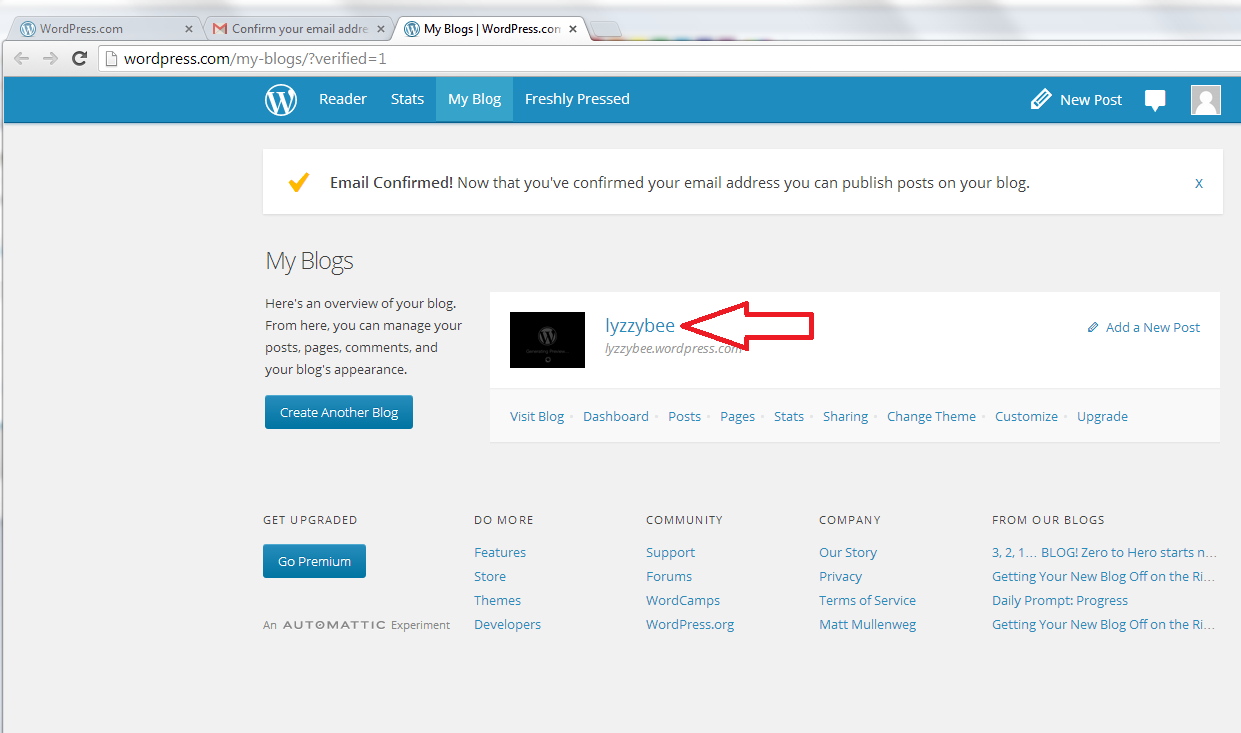
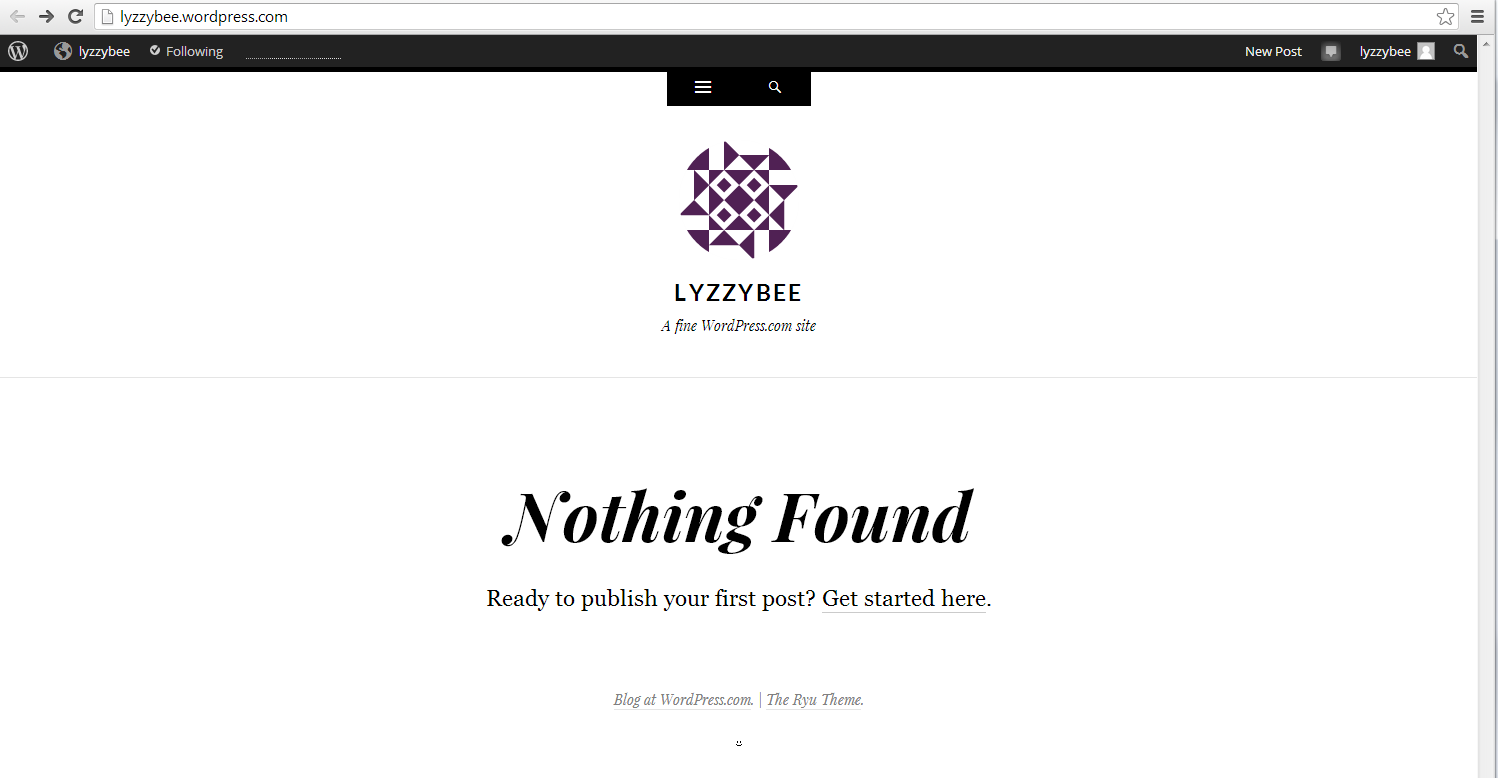
So, be careful with your Find and Replace and you’ll be fine!
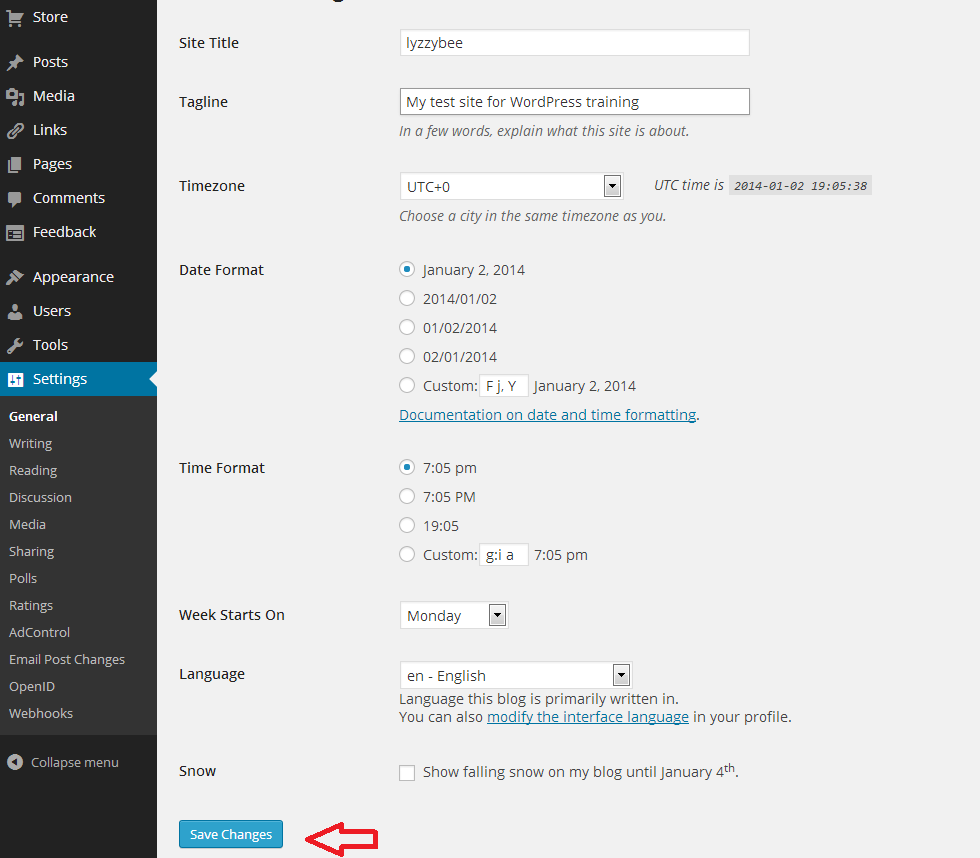
———-

This article has covered the basics of Find and Replace. Next time, we have a look at the options you can use and using wildcards, and I will also look at finding and replacing formatting  …

If you’ve enjoyed this article or found it useful, please comment, or hit one of the share buttons you can see below this article. Thank you!

This is part of my series on how to avoid time-consuming “short cuts” and use Word in the right way to maximise your time and improve the look of your documents.

Please note, these hints work with versions of Microsoft Word currently in use – Word 2007, Word 2010 and Word 2013 all for PC. Mac compatible versions of Word should have similar options. Always save a copy of your document before manipulating it. I bear no responsibility for any pickles you might get yourself into!

Find all the short cuts here

Related posts on this blog:

Advanced Find and Wildcards

 
4 Comments

Posted by on December 11, 2013 in Errors, New skills, Short cuts, Word, Writing


Tags: , , , , , , , ,