We’ve already learned what Track Changes is, why we use it and where to find it, and how to customise Track Changes to suit our own preferences and learned how to work with a document that has Tracked Changes.
This article explains what to do when your tracked changes alter their colour when you press the Save button. It’s weird, it can be annoying, and your initials might disappear, too, which can be confusing if more than one person is commenting on the text.
Screen shots are from Word 2013.
Has your track changes markup ever changed colour?
This has only happened to me when working with a document that has originated from someone else.
You have made lots of changes in a document, and they show up in red, as normal (or whatever colour you have set for your corrections), but when you save, yours go into blue and your initials disappear. This might also happen if you’re working on a document which already includes someone else’s tracked changes: yours show in a different colour to theirs until you press Save. Then they’re all blue (or whatever colour the first person’s were).
What is happening here?
The original owner of the document has specified that the personal information of whoever is working on the document will be removed when they Save the document.
How to check whether your personal information is being removed upon Saving the document
To check whether this is the reason for your tracked changes changing colour, follow these steps.
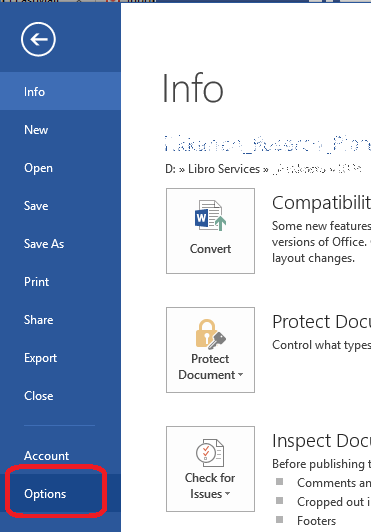
Go to File (the extreme left tab in Word) and Options:
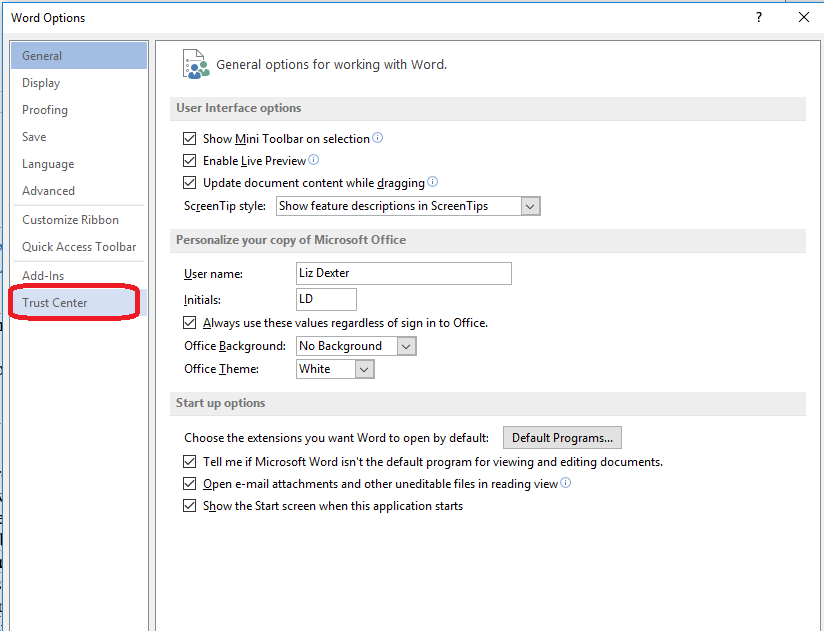
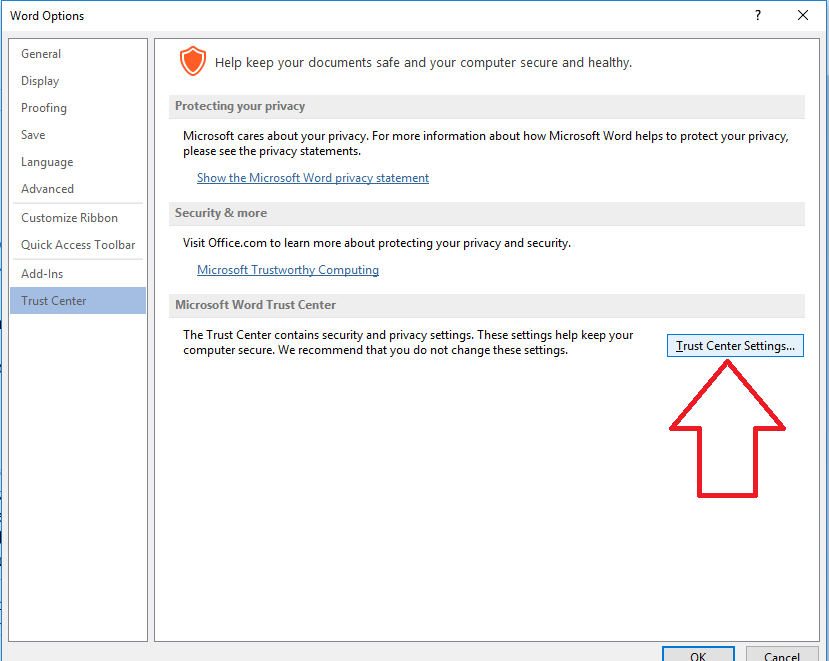
Clicking on Options will give you this Word Options menu; choose Trust Center:
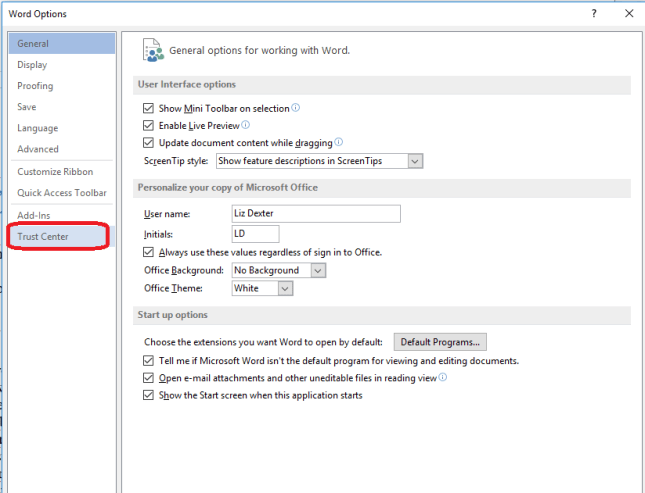
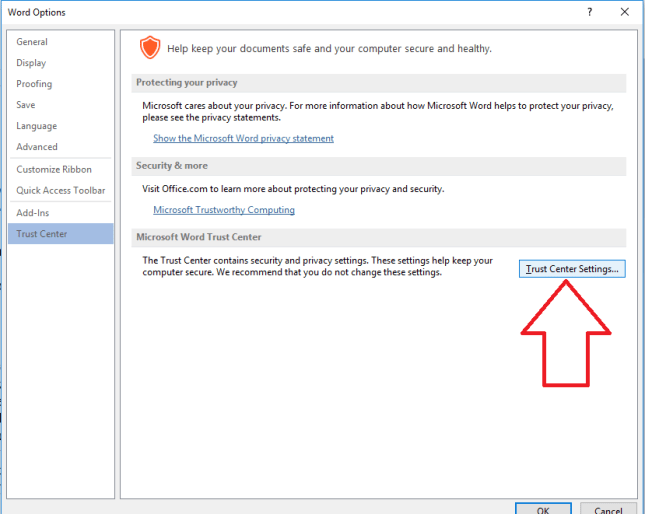
Click on Trust Center and then go into Trust Center Settings by clicking the button at the bottom right:
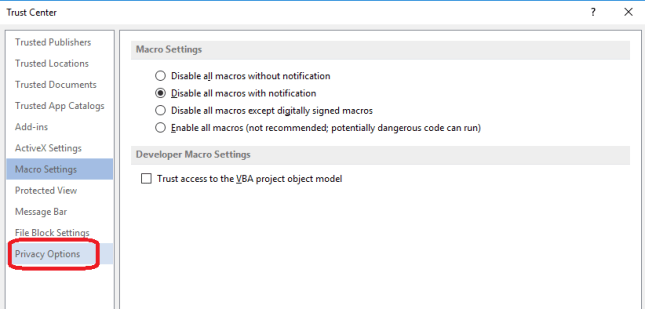
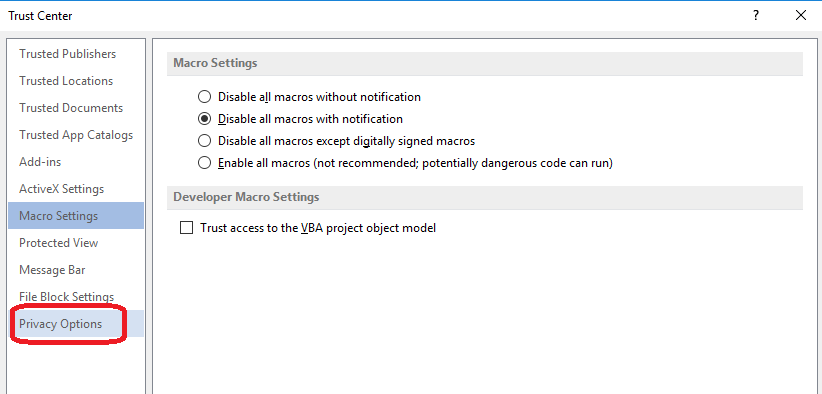
Once in the Trust Center Settings, you need to go into Privacy Options (it will default to Macro Settings):
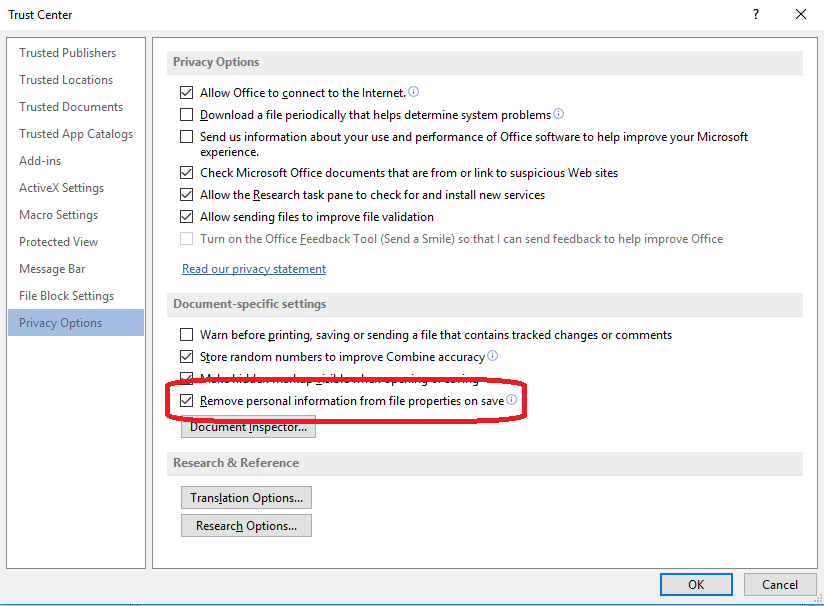
…. and once you have accessed Privacy Options, you will see that Remove personal information from file properties on save is ticked, which means that when you save, all references to your name are removed from both track changes and the properties of the file itself:
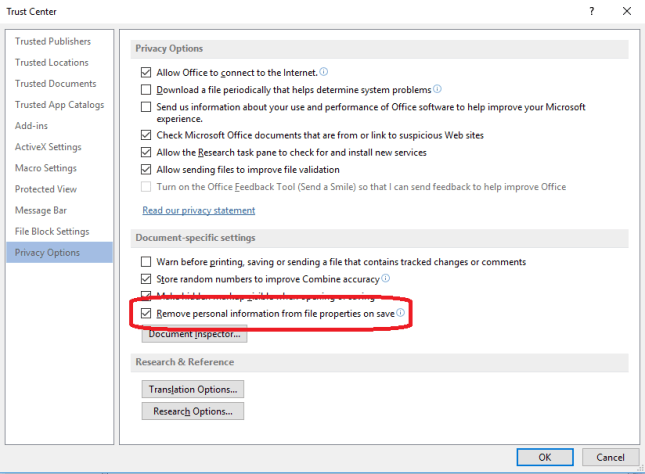
Now, at this point, this can be “unticked” so that your changes stay in your colour (in your own view, only, of course) and with your initials (everywhere). But do stop to think: did the person who created the document do this on purpose? It’s quite a lot of clicks to make by accident, so I do tend to check this, see why it’s happening and then leave it as it is. I might change it so I can see my own changes then make a note to change it back before my final save, but in general, I leave it.
Why might someone choose to remove personal information in a document?
I’m not entirely sure that I have an answer to this. Maybe they have edited the document and don’t want their end client to be confused by lots of different names on the file. Maybe they’re a student who wants to make sure no one else’s name is on the file. I do tend to assume they have a reason, and respect that.
But this is how and why the tracked changes colour sometimes changes when you save your document.
This article has taught you how to work with a document that has been marked up using Track Changes where the colour of the track changes alters. You can read more about what Track Changes is and why we use it, how to work with a document including tracked changes and how to customise Track Changes.
If you have found this article useful, please share or “like” it using the buttons below, or leave me a comment to tell me what you think. Thank you!
This is part of my series on how to avoid time-consuming “short cuts” and use Word in the right way to maximise your time and improve the look of your documents.
Please note, these hints work with versions of Microsoft Word currently in use – Word 2010, 2013 and 2016 all for PC. Mac compatible versions of Word should have similar options. Always save a copy of your document before manipulating it. I bear no responsibility for any pickles you might get yourself into!
Relevant articles on this website
Track changes 1 – why use it, where can you find it, what can you do with it?
Track changes 2 – customising Track Changes
Track changes 3 – working with a document with tracked changes
How do I accept one reviewer’s changes?






 LibroEditing proofreading, editing, transcription, localisation