RSS

Tag Archives: research

How do I count the words in a PowerPoint 2013 presentation?

Some time ago, I published what has turned into a pretty popular post on how to count the words in your PowerPoint 2007 document. This is something that is a little tricky to find, so perfect for one of these how-to posts.

All was well and good, then I had some editing to do on a PowerPoint document and my PC automatically opened it in PowerPoint 2013. Where on earth did I find out how to count the words now? Here’s how …

Why would I want to count the words in a presentation?

You might have a word limit imposed by a course tutor, or, more likely, you’re an editor with a per-word rate who needs to check how many words you’ve actually edited.

How do I count the number of words in a PowerPoint 2013 presentation?

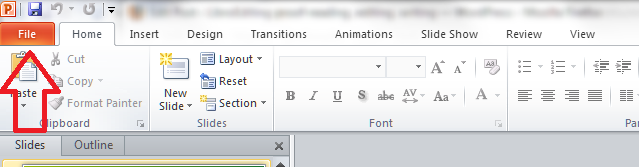
To do this, with your document open, you need to go into the FILE tab at the extreme left of the tab list … (one day I’ll work out how to get those tab titles out of capitals and let you know!)

menu

Once in the File tab, stay in the Info area where you land, and click on the arrow next to Properties in the right hand column. Once clicked, you will have a choice between Show Document Panel and Advanced Properties. Click on Advanced Properties:

1 properties

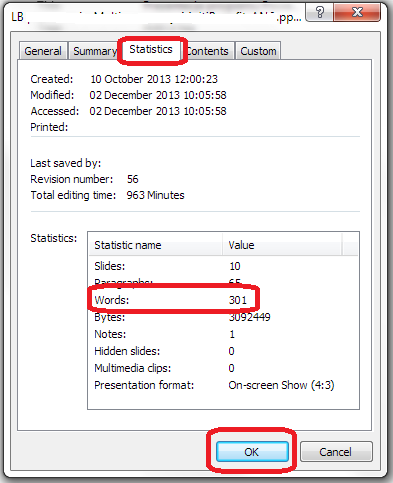
This is, dare I say it, a little easier than in PowerPoint 2007. Once you’ve clicked on Advanced Properties, you’re given a list of properties. Click on the Statistics tab at the top and you’ll find your Word Count, among other information.

2 properties

To return to your document, click OK and then back to the Home tab in your document.

How do I count the number of words in a PowerPoint 2010 presentation?

Please see the post on PowerPoint 2010.

Related posts:

How do I count the number of words in a PowerPoint 2007 presentation? (this is a little different).

How do I count the number of words in a PowerPoint 2010 presentation? (different again!)

If you’ve enjoyed this post or found it useful, please do comment, or share using the buttons below! Thank you!

Please note, these hints work with versions of Microsoft Office currently in use – Office 2007, Office 2010 and Office 2013, all for PC. Mac compatible versions of Word should have similar options. Always save a copy of your document before manipulating it. I bear no responsibility for any pickles you might get yourself into!

Find all the short cuts here

 
10 Comments

Posted by on December 4, 2013 in Errors, New skills, PowerPoint, Short cuts, Writing


Tags: , , , , , ,

How do I count the words in a PowerPoint 2010 presentation?

Some time ago, I published what has turned into a pretty popular post on how to count the words in your PowerPoint 2007 document. This is something that is a little tricky to find, so perfect for one of these how-to posts.

How do I count the words in a PowerPoint 2010 presentation?

It’s all a bit different in a PowerPoint 2010 document if you’re used to PowerPoint 2007, because they’ve got rid of the Office button and replaced it with a File tab.

So: open the document and click on the File tab to the left of the Home tab.

This will bring you up a screen where you can open previous documents, save as, etc. Click on Info on the left and your properties will come up on the extreme right.

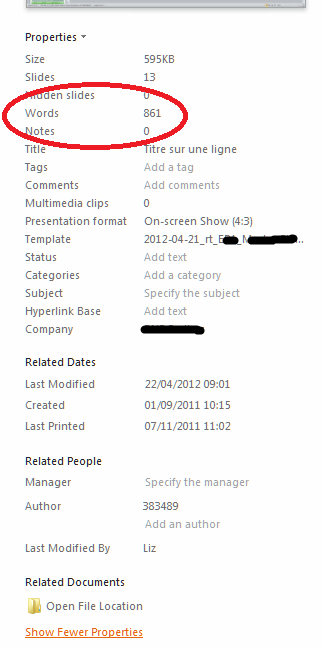
But of course, yet again, the thing you want to see isn’t immediately visible. Go right to the bottom of the screen and click Show All Properties.

And there’s your word count.

Related posts:

How do I count the number of words in a PowerPoint 2007 presentation? (this is a little different).

How do I count the number of words in a PowerPoint 2013 presentation? (different again!)

If you’ve enjoyed this post or found it useful, please do comment, or share using the buttons below! Thank you!

Please note, these hints work with versions of Microsoft Office currently in use – Office 2007, Office 2010 and Office 2013, all for PC. Mac compatible versions of Word should have similar options. Always save a copy of your document before manipulating it. I bear no responsibility for any pickles you might get yourself into!

Find all the short cuts here

 
5 Comments

Posted by on December 4, 2013 in Errors, New skills, PowerPoint, Short cuts, Writing


Tags: , , , , ,

Using the Control Key keyboard shortcuts

hands typingBack in June, I wrote about the wonders of Control-F and how you can use this keyboard shortcut to find text in almost everything you would do on a computer (Word, Excel, PowerPoint, web pages, WordPress back-end, etc., etc., etc). This post tells you about the other Control- or Ctrl+ keyboard shortcuts that you can use to …

  • save your mouse hand
  • do things quickly
  • impress your friends (maybe – depends what kind of friends you have …)

What keyboard shortcuts does the Control Key give you?

I’m going to categorise these into different areas for you. For each shortcut, you will typically need to highlight the text that you want to change if you’re doing something like changing its style or copying or cutting it, and pop the cursor in the right place if you want to paste. I’ll tell you what you need to do by each one. For each one, you need to press the Control key, usually marked Ctrl (and you might have more than on on your keyboard) then keep it pressed down while you press the second key on the keyboard).

Keyboard shortcuts for copying and pasting:

Ctrl-C – COPY Highlight the text you want to copy (leaving it where it is but making a copy you can paste elsewhere) and hit Control + c

Ctrl-X – CUT Highlight the text you want to cut out of your text (and maybe paste elsewhere) and hit Control + x

Ctrl-V – PASTE – pop the cursor where you want the text you’ve cut or copied to appear and hit Control + v

Ctrl-A – HIGHLIGHT ALL – if you want to highlight all of your text in Word, Excel, etc., you can use Control + a to do so

Bonus shortcut: if you want to switch between ALL CAPITALS, Title Capitals and Sentence capitals on a section of text, Shft-F3 is your friend. More detail here.

Keyboard shortcuts for bold, italics and underline

In each case, highlight the text you want to change, and press these keys:

Ctrl-B – to turn non-bold text into bold OR take the emboldening off a section of text, press Control + b

Ctrl-I – to turn non-italic text into italics OR take the italicisation off a section of text, press Control + i

Ctrl-U – to underline text OR take underlining away from a section of text, press Control + u

Keyboard shortcuts for Find, Goto and Replace

Ctrl-F – almost everywhere, pressing Control + f will open up a window to allow you to find a string of text (see this article for more detail)

Ctrl-H – in any document where you can replace text (i.e. Word, Excel, Powerpoint, etc.), pressing Control + h will open up the find and replace window which allows you to change a particular string of text into another particular string of text (I will be writing about this in more detail soon)

Ctrl-G – in documents with pages, pressing Control + g will allow you to navigate to a particular page

Keyboard shortcuts for undoing and redoing

Ctrl-Z – UNDO – if you want to undo what you’ve just done, hitting Control-Z has the same effect as hitting that little backwards arrow in your toolbar. It also works if you typed in a URL and the page is taking ages to load – Control-Z will cancel the operation

Ctrl-Y – REDO – lots of people know about Ctrl-Z, but did you know that you can redo an operation that you’ve undone by hitting Control-Y?

Keyboard shortcuts for open / new / print / save

Ctrl-N – if you want to open a new document in Word, Excel, etc., or a new browser window, pressing Control + n will do that for you

Ctrl-O – To open a document, wherever you are on your computer, pressing Control + o will open Windows Explorer so you can find and open your document

Ctrl-S – To open up Windows Explorer and save your document, pressing Control + s will save you clicking with your mouse

Ctrl-P – Want to print? Open up a printer dialogue box using Control + p

———————

Go on – admit it: did you really know ALL of these shortcuts? They’ll save you a few mouse clicks and I find some to be a lot quicker and more useful than the other methods you can use to get the same results. Which are your favourite keyboard shortcuts?

Related posts on this blog:

The control+ shortcuts I don’t cover here

How to find text almost anywhere

Changing from lower case to upper case

Find all of the short cuts here

 
23 Comments

Posted by on November 20, 2013 in Errors, New skills, Short cuts, Word, Writing


Tags: , , , , , , , ,

How do I change footnotes to endnotes in Word?

As part of my series on footnotes and endnotes, here’s how to turn your footnotes into endnotes and your endnotes into footnotes in Word 2007, Word 2010 and Word 2013.

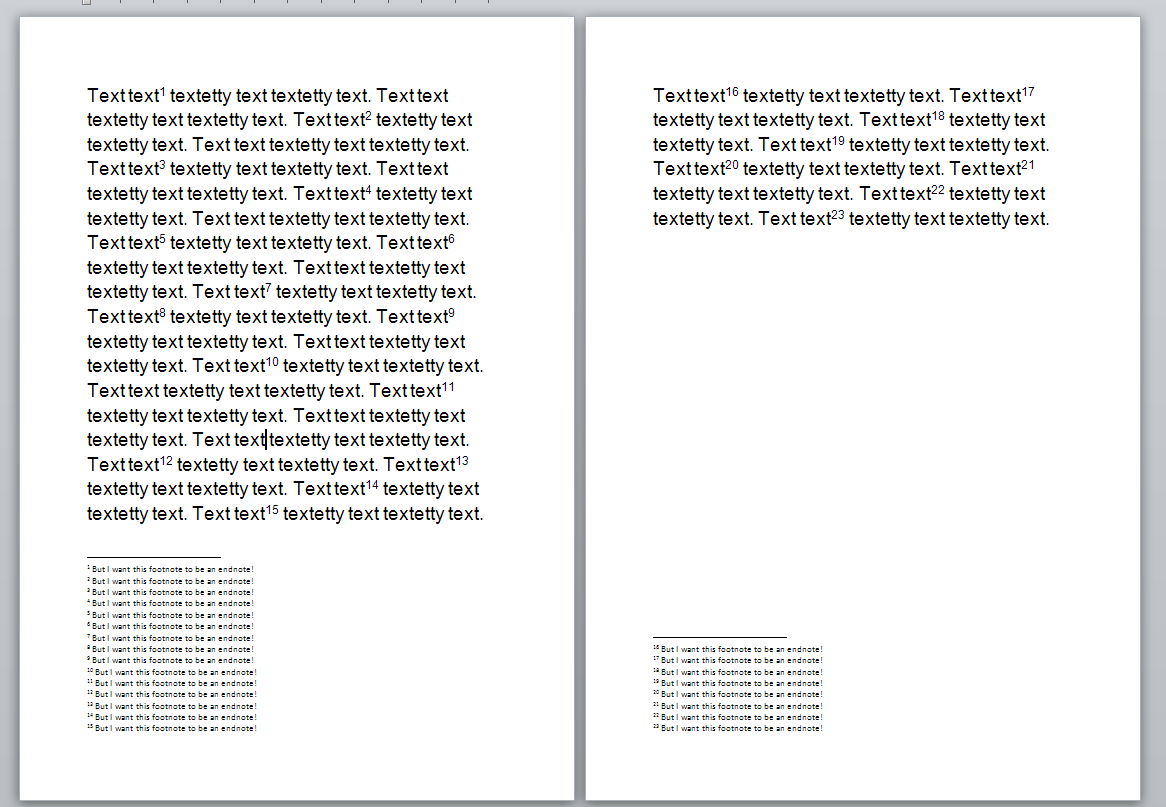
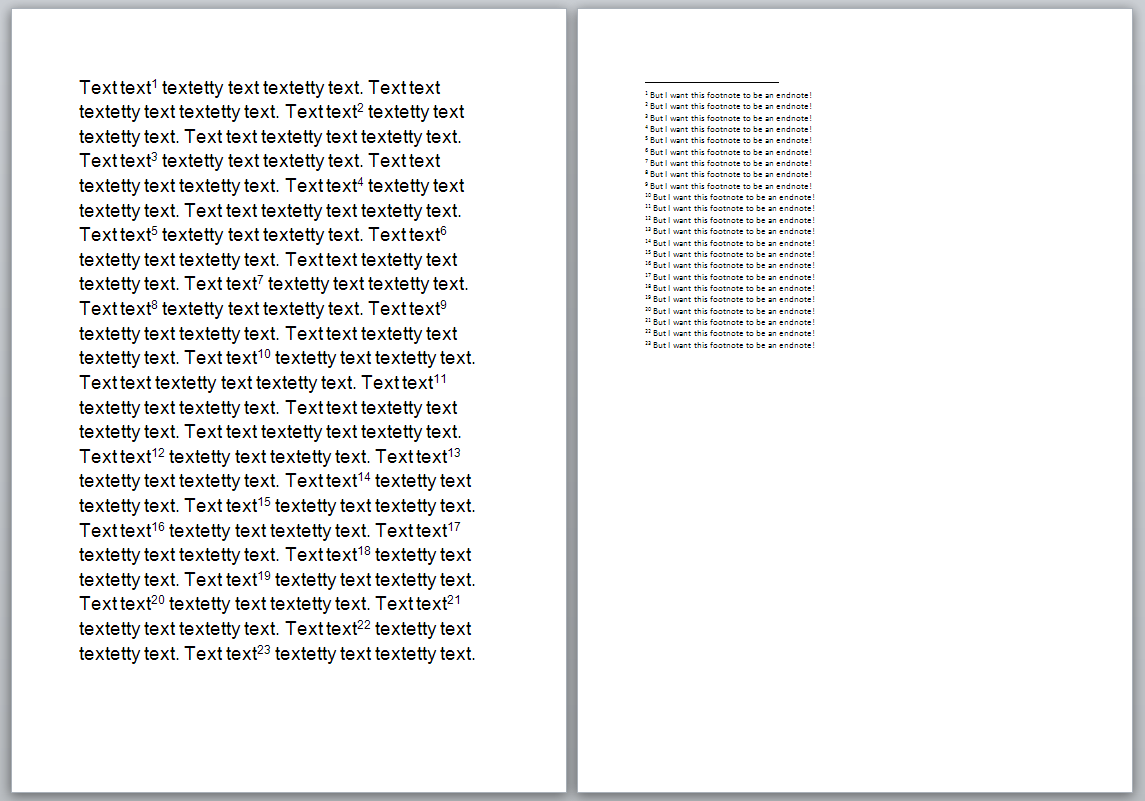
We begin with a document with footnotes, arranged at the bottom of their relevant page, as footnotes tend to be:

1 footnotes

But we want to turn these footnotes into endnotes. How?

Go to the Footnotes menu, which you can find in the References tab:

2 ribbon

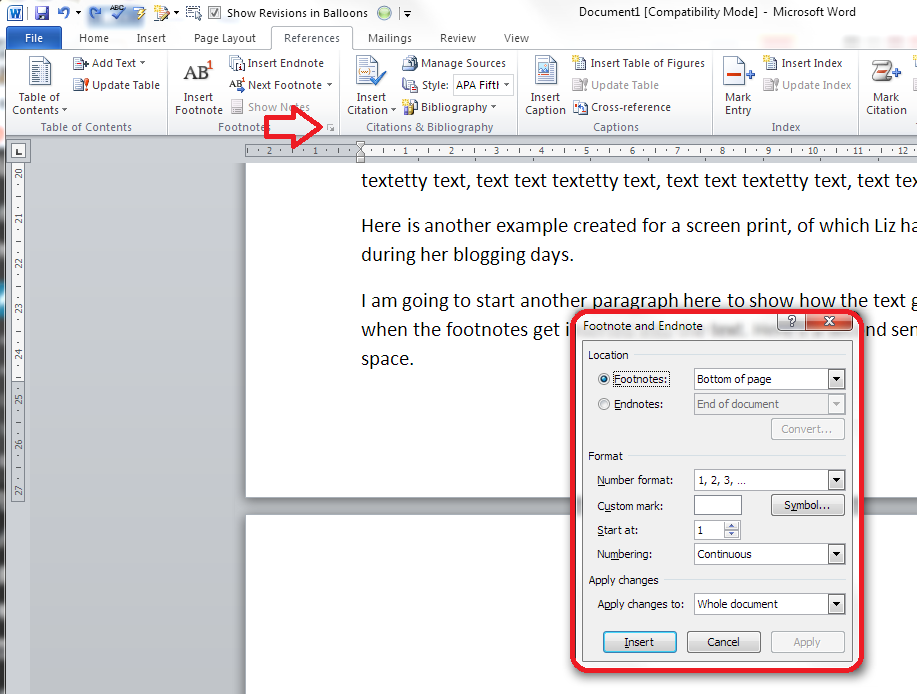
Click on the little arrow at the bottom right to bring up the Footnote/Endnote Options dialogue box:

2 menu

Here you will find a Convert button to press. Press the button:

3 menu

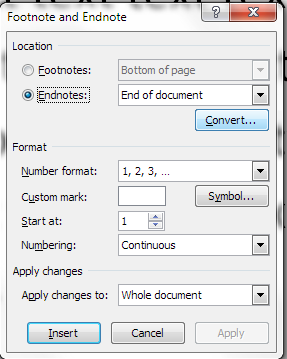
This is context-specific, so if you have only footnotes, the option to convert endnotes to footnotes and to swap the two will be greyed out. Hit OK (or, if you already have both endnotes and footnotes, choose the option you wish to use then hit OK).

Your footnotes will have changed to endnotes:

4 endnotes

Related posts from this blog:

How to insert and format footnotes

How to insert and format endnotes

Please note, these hints work with versions of Microsoft Word currently in use – Word 2007, Word 2010 and Word 2013, all for PC. Mac compatible versions of Word should have similar options. Always save a copy of your document before manipulating it. I bear no responsibility for any pickles you might get yourself into!

Find all the short cuts here

 
3 Comments

Posted by on October 17, 2013 in Errors, New skills, Short cuts, Word, Writing


Tags: , , , , , , , , ,

How do I add endnotes to a Word document?

Writers use endnotes to find a place for additional text which doesn’t fit into the flow of the document at hand but needs to be included for reference purposes. The reasons for doing this are the same as for using footnotes (to provide translations, to expand on information in the text, to provide references for sources used, etc.)

What is the difference between footnotes and endnotes?

The only difference between footnotes and endnotes lies in their position.

The text of footnotes sits at the bottom of the page on which the footnote is referenced.

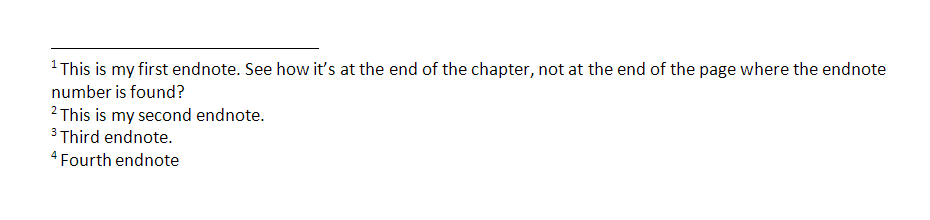
The text of endnotes sits at the end of the chapter, article or even the whole book in which the footnote is referenced.

What do endnotes look like?

Unlike footnotes, which can use symbols or numbers, an endnote will usually be marked using a raised number after the bit of text that they refer to, like this.1 The reason for this is that a whole set of endnotes might appear at the end of a chapter or book, and there aren’t enough symbols to cover more than about five.

The text of the endnote will be marked with the same number, and will include all of the text that you want to appear outside the main text.

Endnotes at the end of a chapter will usually start at 1 for each new chapter. However, endnotes for an entire book might be numbered either starting at 1 for each new chapter or running sequentially through the whole book, running into the hundreds.

Sometimes endnotes don’t have a number in the text, but just refer in their own text to a section of the main document. These tend to be done by hand rather than automatically in the way I’m going to show you today.

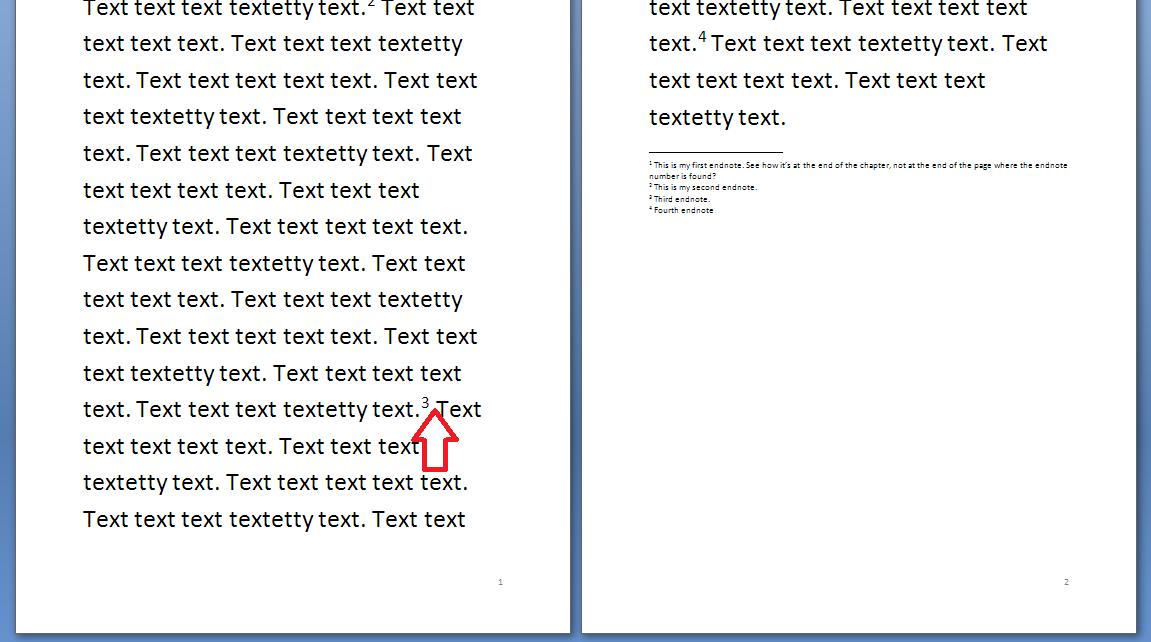
You can see here that the endnote number is on the first page (circled) but the endnote itself appears at the end of the whole document:

1 endnote

How do I create an endnote in Word 2007 and Word 2010?

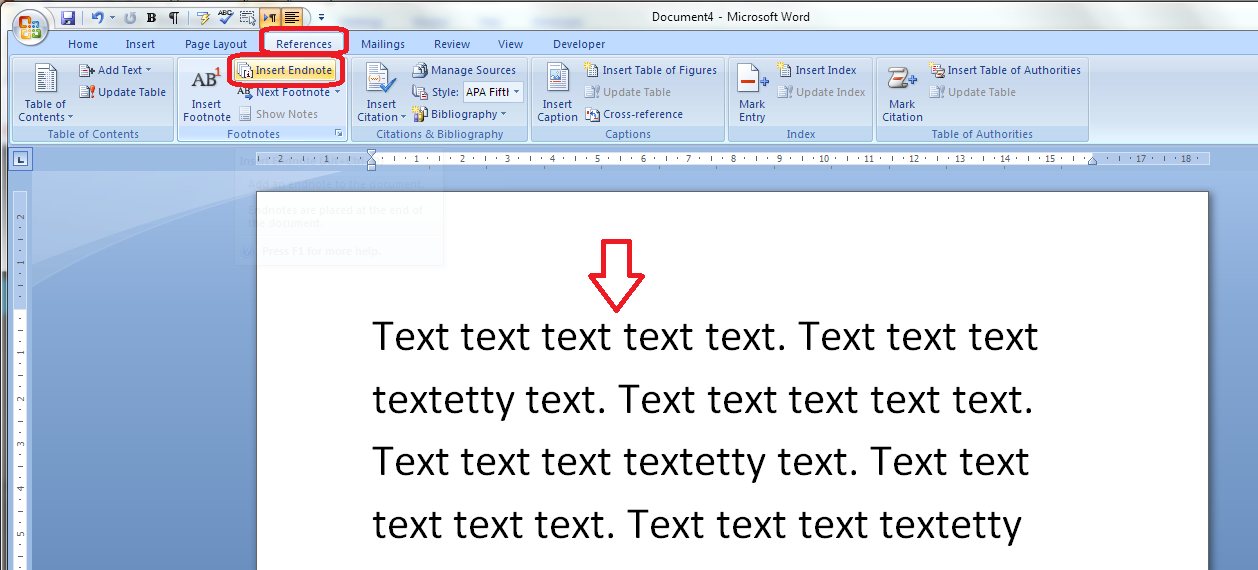
The Endnote section is found in the References tab of the ribbon (not Insert):

1 menu

Place the cursor in the position where you want the endnote to appear and either press the Insert Endnote button (as above) or click on the drop down arrow for your options (I find that sometimes the Endnote numbering defaults to something odd, so it’s useful to do this:

2 options

This will bring up your endnote options. Choose your options (see next section) and when you press Insert, a number will appear in your text, and an endnote number will appear right at the end of your document (or chapter), ready for your endnote text.

Type the text you want into your endnote field, noting that you can change the paragraph style, size and font as with any text, although it’s common for the endnote font to be smaller than the main document font.

To insert the next endnote, follow the same sequence, although once you’ve set up your options, you can just hit the Insert endnote button instead of dropping down the options.

How do I delete an endnote?

Using the automated endnote system means that the numbering will adjust itself to stay correct if you delete and move notes around.

Don’t highlight the endnote itself and delete it. This has no effect on the numbering.

Instead, highlight the number in the text or position your cursor at the point just after it and press delete.

3 delete

Here, I’m deleting Endnote 3. Press delete and

4 delete

changes to:

5 delete

What are the endnote options?

We have already seen that clicking on the little arrow at the bottom right of the Footnotes section, brings up a range of Footnote and Endnote options that you can customise:

2 options

Here you can choose the number format, whether the endnotes appear at the end of each section (you will need to apply Section Breaks to make this work) or at the end of the whole document, and whether the numbering starts at the beginning of each new section or just runs through all of the document continuously.

6 options

For more detail on these options, see the relevant sections in the article on Footnotes.

How do I make the endnotes appear on a new page?

To make your endnotes appear on a new page, simply add a Page Break before them by putting your cursor at the end of the main text and pressing Control-Enter.

How to add endnotes in Word 2003

In Word 2003, you add endnotes using the Insert – Reference menus. The footnote options are then the same as above.

How not to add endnotes to Word documents

It is NOT RECOMMENDED to add endnotes manually (insert a superscript number and type the note at the bottom of the document) If you do this, you will lose all the advantages of using this automated system:

  • automatically adding the numbers in order
  • automatically renumbering the endnotes if you delete or add one or move one around

————-

In this article we’ve learnt what an endnote is, why you use them, all about inserting and deleting them and the options for customsing them.

Related posts from this blog:

How do I add footnotes to a Word document?

Changing footnotes to endnotes

How do I change the format of my endnotes and footnotes?

Please note, these hints work with versions of Microsoft Word currently in use – Word 2003, Word 2007 and Word 2010, all for PC. Mac compatible versions of Word should have similar options. Always save a copy of your document before manipulating it. I bear no responsibility for any pickles you might get yourself into!

Find all the short cuts here

 
7 Comments

Posted by on October 9, 2013 in Errors, New skills, Short cuts, Word, Writing


Tags: , , , , , , , ,

How to add page 1of 2 to a Word 2007 or Word 2010 document

I’ve had quite a few searches coming through to this blog from people wanting to know how to create a specific kind of page numbering – the kind when it reads “page 1 of 2”, “page 1 of 5”, “page 2 of 3”, etc. If you want more detail on page numbering, read this article on the basics and this one on the finer points. If you want to know how to make “page 1 of 10” appear on your document read on!

Why would I want to make my page numbers say page 1 of 2?

It’s a matter of personal choice as to how you format your page numbers. However, your department or office might have a style guide that dictates this, so it’s as well to know how to do it.

How do I get page numbers to say page 1 of 2?

As I mentioned, I have more detailed resources on page numbering. This is more of a ‘quick and dirty’ guide.

Go to the Insert tab, move to the Header and Footer area, and click on the little arrow at the bottom right of the Page Numbers button. This will give you a menu where you can select where your page number is to appear. Choose, for example, Top of Page, then scroll down the list of options to find Page X of Y:

page 1 of 1

This gives you three places where you can insert page x of y into your document. I’ve chosen the top one. Click the option and there you have it:

page 1 of 1 done

Note that you can’t change this in Page Number Options, you must do it using the Page Numbers option as shown above.

If you have found this article useful, please share it using the buttons below, and leave me a comment!

This is part of my series on how to avoid time-consuming “short cuts” and use Word in the right way to maximise your time and improve the look of your documents.

Related posts on this blog:

How to add page numbers to your document 1 – the basics

How to add page numbers to your document 2 – advanced editing etc.

Please note, these hints work with versions of Microsoft Word currently in use – Word 2003, Word 2007 and Word 2010, all for PC. Mac compatible versions of Word should have similar options. Always save a copy of your document before manipulating it. I bear no responsibility for any pickles you might get yourself into!

Find all the short cuts here

 
21 Comments

Posted by on October 2, 2013 in Errors, New skills, Short cuts, Word, Writing


Tags: , , , , , , , ,

How do I add footnotes to a Word document?

Academic and non-fiction writers use footnotes to refer to additional text which doesn’t fit into the flow of your paragraph but does need to be included. It might be used to provide a reference for a quotation or statement you’ve made, or might contain a digression or discussion of something you’ve just written about. It might also contain a translation of a non-native quotation you’ve placed in the text, or the non-native original quotation whose translation you’ve just given.

What do footnotes look like?

Footnotes can take two forms. Either there’s a raised number after the bit of text that they refer to, like this,1 or a symbol like an asterisk or paragraph mark is used (pleasingly, there is an order for these: *, , , §, ‖, ). In timetables and other tables, superscript (up high) letters and other symbols may be used.

In relation to this marker, a note will appear at the bottom of the page with the same marker at the beginning, which includes the additional / explanatory text:

0 footnotes

How do I create a footnote in Word 2007 and Word 2010?

The Footnote section is found in the References tab of the ribbon (not Insert, as you might expect):

2 menu

We need some example text first. Here’s some text after which we want to place footnotes:

1 before footnotes

Position the cursor in the position in which you want the footnote to appear (note, I am putting the footnotes AFTER the punctuation. This is common but not universal. The important thing is to be consistent) and press the Insert Footnote button:

3 button

A footnote number will now appear where your cursor is, and a note number under a line at the bottom of the page, ready for you to insert your footnote text:

3.1 insert footnote

Note that this has automatically pushed down the next paragraph onto the next page of the document. This is one of the reasons why you should automate this process and not do it manually.

You can type text into your footnote field – you can also change the paragraph style, font, size etc. as you would a normal bit of text; however, the way it defaults, with notes smaller than the main text, is the standard way to do it, so try not to mess around with it too much.

3.2 insert footnote

When you want to insert the next footnote, position your cursor in the next place and hit the Insert footnote button again. The next footnote will automatically number itself with the next number (or letter, or symbol: see below under Footnote options) and position itself under the first one:

3.3 insert footnote 2

If a footnote gets particularly long, Word will automatically shift the text and footnotes around so that they are on the same page and fit in correctly.

How do I delete a footnote?

Another benefit of using the automated footnote system is that you can delete and move footnotes and the numbering will adjust itself to stay correct.

How NOT to delete a footnote: Don’t highlight the footnote itself and delete it. This will have no effect on the numbering.

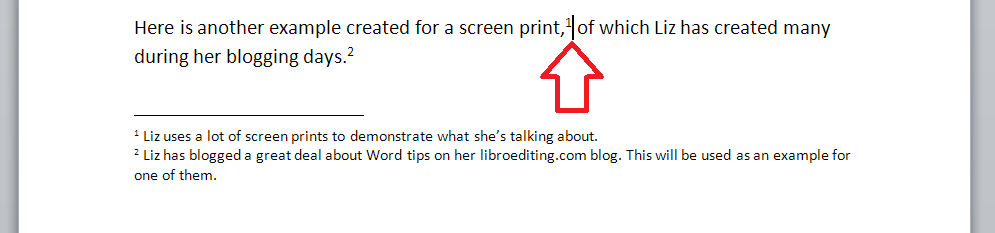
Instead, highlight the number in the text or position your cursor at the point just after it:

3.4 delete footnote

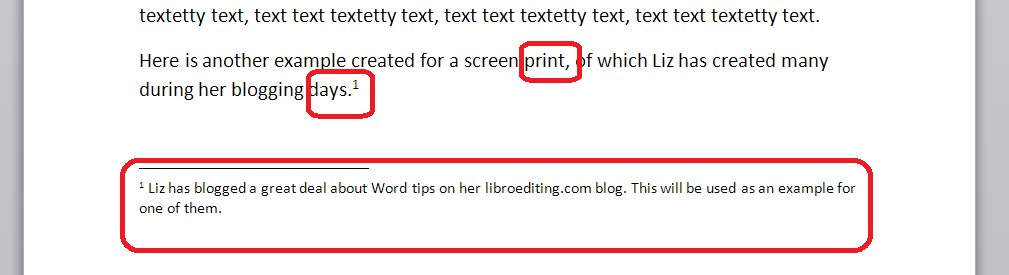
Delete that little number …

3.5 delete footnote

and the number will disappear from after “print,”, plus the one after “days.” will change to a 1 and footnote 1 will disappear, to be replaced by footnote 2, which has now become footnote 1. Magic!

What are the footnote options?

If you click on the little arrow at the bottom right of the Footnotes section, you will be given a range of Footnote and Endnote options that can be customised to suit your needs:

4 footnote options

You can choose between having footnotes and endnotes here (endnotes appear at the end of a chapter or the whole text, and will also be discussed in a different post). Then, you can choose the number format (drop down the arrow in each case):

5 footnote options

including those famous symbols (and you can also add your own symbol if you really have to). Select and hit Apply.

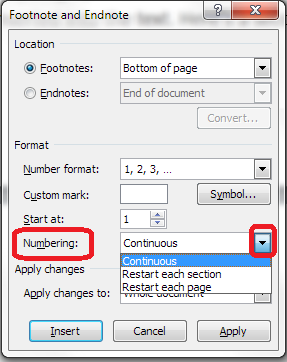
You can choose whether the numbering remains continuous throughout your document or restarts on every page (useful for tables) or in every section:

6 footnote options

And you can highlight a section of text and apply these changes only to the highlighted text (this changes to being the default when you highlight the text):

7 footnote options

How to add footnotes in Word 2003

In Word 2003, you add footnotes using the Insert – Reference menus. The footnote options are then the same as above.

How not to add footnotes to Word documents

It is possible, but NOT RECOMMENDED, to add footnotes manually by inserting a superscript number and typing the note at the bottom of the page. But this will NOT do what the automated footnoting system does:

  • automatically add sequential numbers
  • format the page so the text and footnote stay together
  • automatically renumber the footnotes if you move or delete or add one

So, don’t do that, now you know the correct way to do it!

————-

In this article we’ve learnt what a footnote is, what they look like, why you might use them, how to insert and delete them and the options available.

Related posts:

Some great notes on avid footnoters from the history of literature here.

On this blog:

How do I add endnotes to a Word document?

Changing footnotes to endnotes

How do I change the format of my endnotes and footnotes?

Please note, these hints work with versions of Microsoft Word currently in use – Word 2003, Word 2007 and Word 2010, all for PC. Mac compatible versions of Word should have similar options. Always save a copy of your document before manipulating it. I bear no responsibility for any pickles you might get yourself into!

Find all the short cuts here

 
11 Comments

Posted by on September 25, 2013 in Errors, New skills, Short cuts, Word, Writing


Tags: , , , , , , , ,

Choosing a proofreader – student edition

track changesIf you’re starting an undergraduate, Master’s or PhD course and you think your writing in English might need some help, it’s a good idea to look for a reputable proofreader to help you. You might be using English as a second or other language, or have a different issue to deal with such as dyslexia or needing to use voice-recognition software. Your tutor or personal tutor might have recommended that you find someone to help you, or you might choose to try to improve things yourself. But how do you choose a reputable, genuine proofreader when there are so many companies and people out there? Here are some tips.

Be careful

The first thing I will say here is be careful. Obviously, all proofreading companies want to make money. But some of them do profit from students, in particular, not knowing what to look out for. I have heard a lot of horror stories in my time: students having their work “checked” when it’s just been run through a spell-checker, companies that don’t care about plagiarism, companies that will sell you an essay to use. Just like any other service or product, there are good and bad companies out there. Be just as careful as if you were buying a designer handbag or a car. After all, your academic mark and reputation might be at risk here.

Check with your tutor / university

Some tutors ask their students to get their work proofread, sometimes before they see it, sometimes afterwards. Universities often have policies on proofreading. For example, one university I work with has a form I must complete and sign each time I work with a PhD where I promise that I have only suggested changes in spelling, grammar, etc., and have not rewritten or otherwise changed the content of the work.

If a student comes to me and says their tutor has asked for their work to be substantially rewritten, I will ask for a scanned, signed letter on headed paper from the tutor to confirm that. So, if your tutor wants more than usual to be changed, get something in writing from them first.

Check the proofreader’s credentials

Any company or individual should state what their training and background is. A company should have a page about the kind of proofreaders that they use. An individual proofreader should have a page detailing their experience, qualifications and background.

It’s good for your proofreader to …

  • Have a degree
  • Have experience in your subject area
  • If you have a particular aspect of your language which needs to be addressed, e.g. working with voice-activated software or dyslexia, to  have experience with similar requirements
  • Be a native speaker of the language in which you are writing
  • Have a qualification from an official body (the Society for Editors and Proofreaders or the Publishing Training Centre in the UK) OR have extensive and documented experience

Check what service the proofreader offers

Check what the proofreader says that they will do – exactly.

Good things to look for:

  • Do they mention using Track Changes to mark up your work?
  • Do they mention making a note of any unclear areas?
  • Do they mention coaching students through a degree or Master’s?

Bad things to look out for:

  • Do they mention helping you to avoid getting caught for plagiarism (see section below)?
  • Do they say that they will rewrite your essay for you?
  • Do they say that you can buy an essay that someone else has written from them?
  • Do they mention compiling your bibliography for you?

These are all red flags: red for danger. If a company is offering to help you to plagiarise, avoid them. This will contravene your university’s regulations.

Ask for references and testimonials

A good proofreader / company will offer references and testimonials on their website.

Things to look out for:

  • References from people who are doing the same sort of thing as you (Master’s Dissertation, PhD, etc.)
  • References including full names rather than Mr D and Ms Y (note that not all of them will have the full name, but at least some should)
  • References should not all be identical. They should look like they were written by real people.

Check your proofreader’s policy on plagiarism

Plagiarism is a serious offence. If you plagiarise and get caught, you could get kicked off your course. At the very least, if you get caught, you will lose marks. Even if you don’t get caught, plagiarism – passing off someone else’s work as your own – is unethical and wrong. If you plagiarise, you are also not learning what you should be learning from your course.

I found a student proofreading company the other day that boasted of rewriting students’ work so that they will not get caught by plagiarism software. This is a bad thing to do. I would advise you never to go near a company that offers such services.

Another student proofreading company, and the only one I work with myself, has FAQs on their website. These strictly state that you cannot expect them to write your essay for you or to paraphrase sections of your work that you have taken from other books or essays. This is a good thing to do and I would advise you to look for this kind of statement.

I have a statement on plagiarism in my Terms and Conditions. Other places you might find it are in the FAQs or Services or Notes. If you can’t find something on a proofreader’s website, ask them. If they don’t have a plagiarism policy, or they can’t tell you what their policy is, avoid using them.

Regarding bibliographies – your proofreader should not compile your bibliography for you. Putting together a bibliography is one of the central academic skills that you are being tested on when writing your dissertation or thesis. A proofreader will check that all of the relevant entries are there (if you ask them to) and will certainly check for commas out of place and the odd mistake, but they should not write or format it for you from scratch (see more on bibliographies here).

Check that the proofreader is asking a fair price

Many proofreading companies seem to ask for a very high price for their work. I’ve checked and this year prices from proofreading companies for working on a standard student essay, dissertation or thesis in the UK is around £6-£10 per 1,000 words. This increases if the work is urgent.

Individuals often charge a little less – say about £5-£10 per 1,000 words. They may charge by the hour instead.

This is a rough estimate based on searching across websites and should not be taken as anything except a loose guideline. Fees vary according to the location of the proofreader.

If someone is charging a lot less than this, do check their credentials very carefully. It is likely that the work is being outsourced to people who might not be skilled or have English as their first language.

If someone is charging a lot more than this, check what extras they are offering and whether this is worth the extra money.

Check who will be doing your work

This is very important if you’re planning on submitting more than one piece of work to the proofreader. Although the English language does have rules, personal preferences do also come in, and one proofreader may work on a text slightly differently from the next. Therefore, if you’re going to be submitting all of your Master’s coursework or your whole PhD but in separate chapters, it makes sense for the same person to deal with all of your documents.

This is more common with individual proofreaders. But a company will work with many proofreaders and may be able to offer this for you.

It can be very useful and rewarding to work with one proofreader throughout your course. They might be able to pick out certain mistakes you make and help you to work on those for the next essay. This may help you to write well and clearly in English independently of your proofreader in the end.

Book in good time

You should know at the beginning of an undergraduate or Master’s academic year when your main deadlines for the year are. If you’re doing a PhD, you should know soon when you will need to submit reports and updates, and you should schedule time for writing up.

Especially if you’ve been working with someone all year on your Master’s course, book in to have them proofread your dissertation as soon as you know the date. No proofreader minds being booked in advance – and most of us don’t mind if things slip a bit, as long as you keep us informed. But we’re all humans, and sometimes, if you leave it too late to book, we won’t be able to fit you in. That’s when panic sets in, and you might make a bad choice.

Note: If your favourite proofreader can’t book you in, they should be able to recommend other people to try. I always offer a list of alternatives out of courtesy if I can’t fit an enquirer in.

Individual proofreader or proofreading company?

You can use an individual proofreader or a proofreading company. They both have pros and cons:

An individual proofreader:

  • You can talk to them direct
  • They can guarantee to work on more than one document for you
  • They might get busy or ill and not be able to do your work or book you in

A company:

  • Should have enough proofreaders to ensure availability even at busy times
  • Might not be able to guarantee the same person to do every job for you
  • You are unlikely to be able to talk to the proofreader direct

I think you are more likely to find an ethical person among the individuals, but it’s always worth checking all of the points above.

My recommendations

As I’m fully booked at the time of writing this post (and heavily booked most of the time), you can see that I’ve written this post for you, the students, and not to get more work for myself!

I do offer a small list of personal recommendations. I cannot guarantee their availability, price or service, of course. You enter into a discussion with them at your own risk, and you can find them on my Links page. You can also use the SfEP directory to find someone to help you.

————–

In this article I have shared some tips on how students can choose a good and reputable proofreader.

If you’re a student, you might be interested in more posts for students on this website. Do click through and have a look. And best of luck with your studies!

 
10 Comments

Posted by on September 18, 2013 in Ethics, proofreading, Students, Word, Writing


Tags: , , , , ,

Using tables in Word 1 – Menus and options

This is the first in a series of articles about Tables in Word. It covers Word 2007 and Word 2010, and will include Word 2013 in time. The following articles will cover all of the different types of table and option in detail, as well as useful features such as how to retain your table heading line on every page of your document.

Why use tables in Word?

Tables can be a very useful way to show information in an easy-to-read form, and are essential if you have a lot of data – in words or numbers – to share with your readers. There are many different ways to construct tables in Word, so this post will show you the basics, then further posts will elaborate on each method.

How do I insert tables in Word?

To put a table into a Word document, you need to choose the Insert tab and then look for the (very small) Tables section. There you will find a Tables button

1 menu

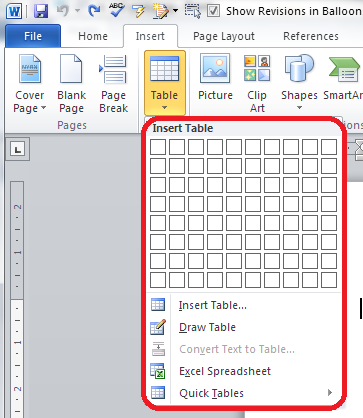
Press the Tables button and you’ll be shown a grid followed by a list of other options:

2 menu

We will now take a quick look at all of these options in turn.

Insert table

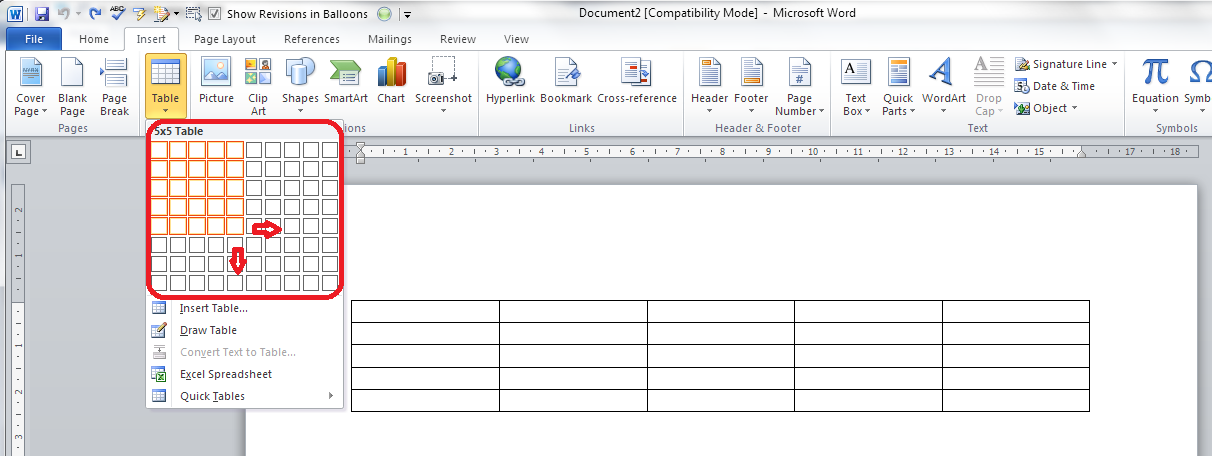
The first option gives you a grid which you can highlight to create the table you want. The squares represent the number of rows and columns you want, although on the page, the columns will fit to the width of your page and the rows will be one line deep.

Move your mouse over the grid and the table will appear on the document behind the menu:

3 grid

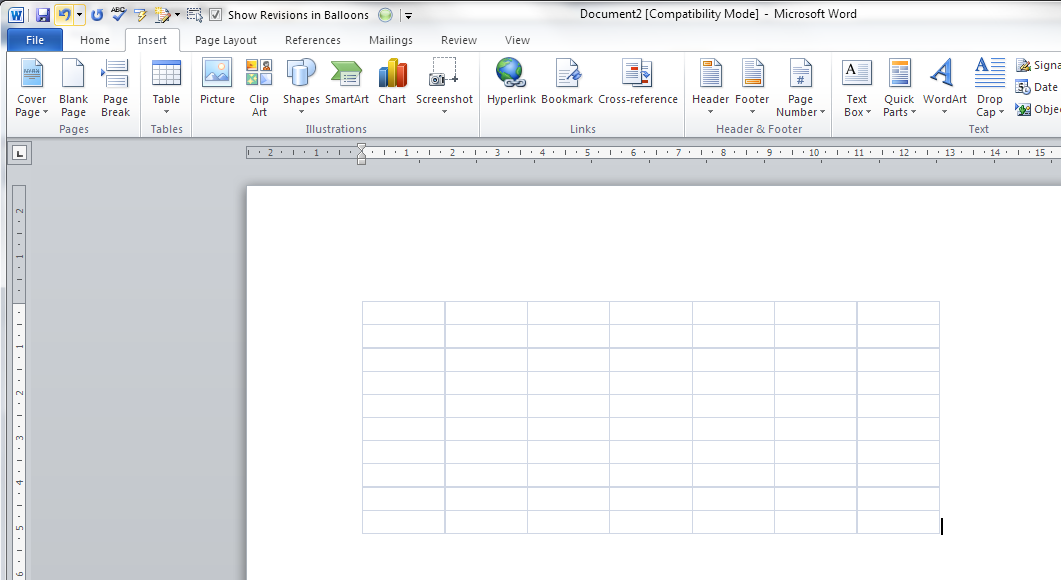
Let go, and there’s your table (we’ll learn about adding and deleting rows and columns in another post).

Insert table (2)

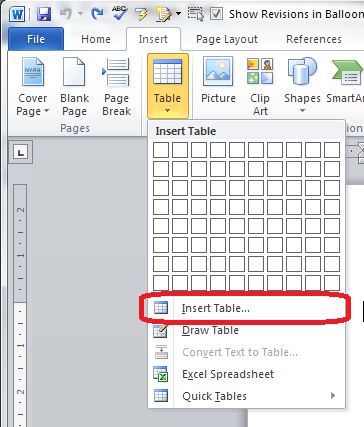
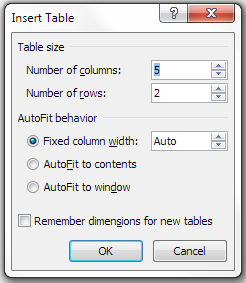
The first text option on the list below the grid is, rather confusingly, also called Insert table. But if you choose this option, you’ll find a rather more familiar and in some ways simpler menu.

4 insert table

The Insert Table menu allows you to choose the number of columns and rows by moving the up and down arrows for each. We’ll look at the other options later. For now, these choices will give you a table five columns across and two rows down when you click OK:

5 insert table

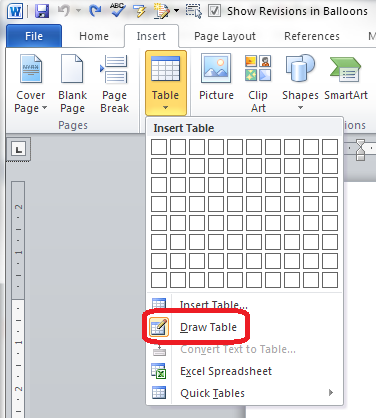
Draw table

The Draw table option allows you to hand draw the cells of your new table.

6 draw table

The Table tab will open up and Draw Table will be highlighted. You get a cursor that looks like a pencil and you have to draw each cell with that (there’s an eraser next to the draw button).

7 draw table

I personally find this really fiddly to use: you do have to play with it a bit to work out what to do with it. But I suppose it must be useful!
Convert text to table

This is particularly useful if you’ve imported text or figures from another program. Highlight your text and choose this option …

8 convert

… and you can specify whether you want the columns to separate at each comma, full stop or other character. Apparently, Mr Libro always uses this option when he creates a table, creating the text first and then the table!

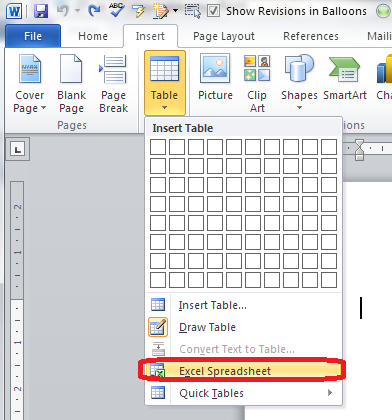
Insert Excel spreadsheet

This option allows you to have a mini Excel spreadsheet, with all its normal functionality, inside your Word document:

9 spreadsheet

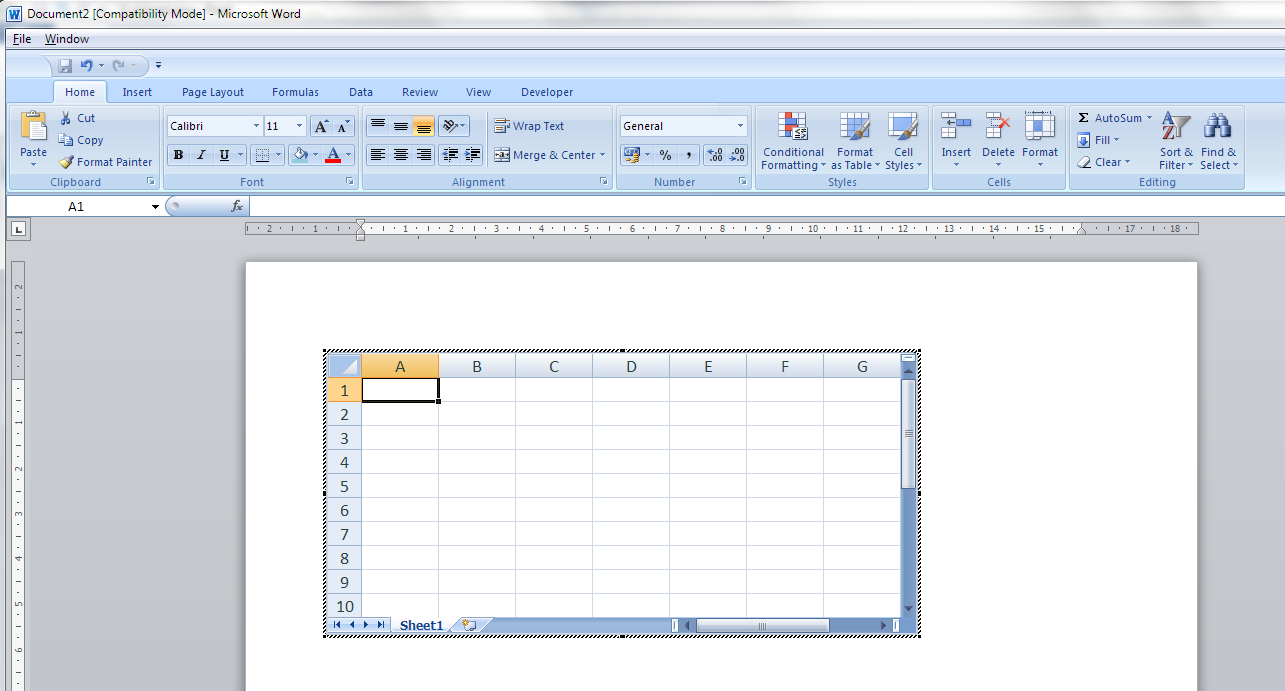
Note: this inserts a blank, empty spreadsheet into your document:

10 excel

Once you’ve created your data and clicked away from the spreadsheet, you will have a table made out of your spreadsheet (click on it to amend):

11 excel

If you want to insert an Excel spreadsheet that you’ve already created into your Word document, you need to choose Object from the far right-hand side of the Insert tab

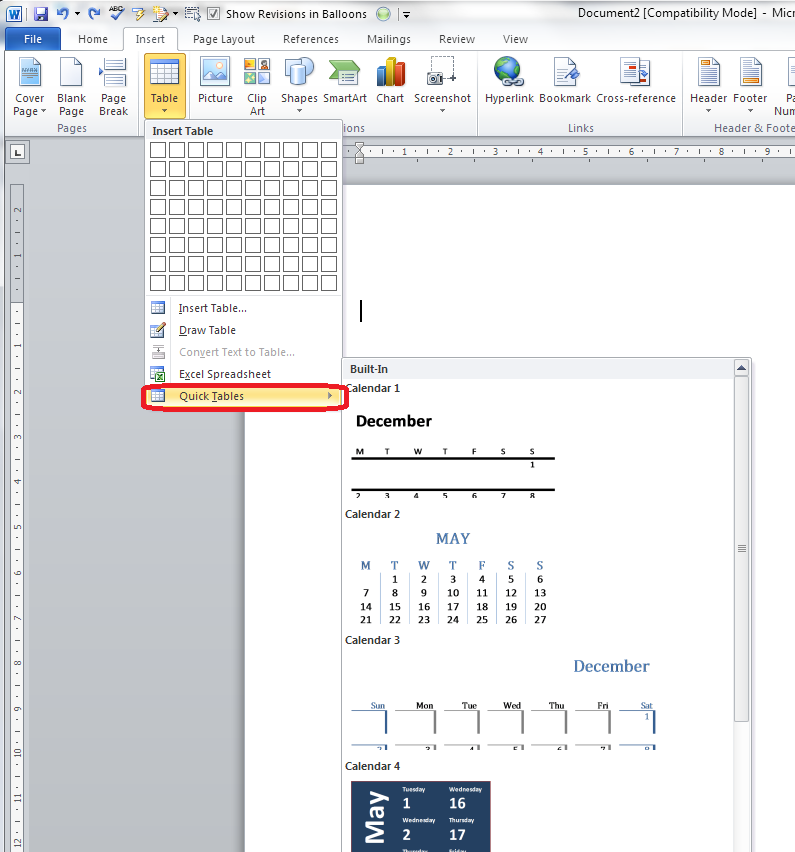
Insert Quick Tables

The last option in the list will allow you to choose from a ready-made set of sample tables …

12 quick tables

As you can see, this is particularly useful if you want to print out or insert a calendar!

——————–

This post has gone through the Table menu and the options it offers for inserting tables. In other posts, I will go into more detail about how to edit tables, add and delete rows and columns, etc. If you want to know more, subscribe to this blog (see links at the top left or add to your RSS reader) or keep your eye on the resource guide.

If you have enjoyed this post, please share the link!

Please note, these hints work with versions of Microsoft Word currently in use – Word 2007 and Word 2010, for PC. Mac compatible versions of Word should have similar options. Always save a copy of your document before manipulating it. I bear no responsibility for any pickles you might get yourself into!

Find all the short cuts here

 
1 Comment

Posted by on September 11, 2013 in Errors, New skills, Short cuts, Word, Writing


Tags: , , , , , , , ,

What to do if your paragraph spacing won’t work in Word

This article tells you what to do if you think you’ve set your paragraph line spacing for the whole document but individual paragraphs refuse to behave. This is valid for Word 2007 and Word 2010, with Word 2013 to follow soon.

My spaces between paragraphs are uneven – help!

This just happened to me, which is why I’ve written up this article.

I was working on a bibliography for a client.

I set the paragraph and line spacing as I normally do: highlight the whole document, go to the Home tab, Paragraph section, and click the down arrow on the Spacing button:

1 paragraph and line space menu

This gives you the Spacing menu:

2 menu options

from which you choose your line spacing and lines after paragraphs options (I will write up a main post about this soon).

But it didn’t work!

Individual paragraphs still had no automatic spaces between then, even if I removed the line feed and pressed Enter again.

How to solve the problem of inconsistent paragraph spacing

Here’s how I did it.

I highlighted all of the text.

I right-clicked on the highlighted text and chose Paragraph from the options:

3 para

I then stayed on the Indents and Spacing tab and set my After spacing to 12pt and my line spacing to 2 (just in case). I also unticked Don’t add space between paragraphs of the same style (it was filled in with blue rather than ticked so I clicked twice to get a tick and then no tick):

highlight all

I pressed OK and the paragraphs all behaved beautifully.

I’m not entirely sure why this method works over the previous one, to be honest, but it worked for me and it was hard for me to find an easy, quick answer, so hopefully this will help a few people!

————————–

If you have enjoyed this post or found it useful, please share the link!

Please note, these hints work with versions of Microsoft Word currently in use – Word 2007 and Word 2010, for PC. Mac compatible versions of Word should have similar options. Always save a copy of your document before manipulating it. I bear no responsibility for any pickles you might get yourself into!

Find all the short cuts here

 
61 Comments

Posted by on September 4, 2013 in Errors, New skills, Short cuts, Word, Writing


Tags: , , , , , , , ,