RSS

Tag Archives: Word2007

How do I add endnotes to a Word document?

Writers use endnotes to find a place for additional text which doesn’t fit into the flow of the document at hand but needs to be included for reference purposes. The reasons for doing this are the same as for using footnotes (to provide translations, to expand on information in the text, to provide references for sources used, etc.)

What is the difference between footnotes and endnotes?

The only difference between footnotes and endnotes lies in their position.

The text of footnotes sits at the bottom of the page on which the footnote is referenced.

The text of endnotes sits at the end of the chapter, article or even the whole book in which the footnote is referenced.

What do endnotes look like?

Unlike footnotes, which can use symbols or numbers, an endnote will usually be marked using a raised number after the bit of text that they refer to, like this.1 The reason for this is that a whole set of endnotes might appear at the end of a chapter or book, and there aren’t enough symbols to cover more than about five.

The text of the endnote will be marked with the same number, and will include all of the text that you want to appear outside the main text.

Endnotes at the end of a chapter will usually start at 1 for each new chapter. However, endnotes for an entire book might be numbered either starting at 1 for each new chapter or running sequentially through the whole book, running into the hundreds.

Sometimes endnotes don’t have a number in the text, but just refer in their own text to a section of the main document. These tend to be done by hand rather than automatically in the way I’m going to show you today.

You can see here that the endnote number is on the first page (circled) but the endnote itself appears at the end of the whole document:

1 endnote

How do I create an endnote in Word 2007 and Word 2010?

The Endnote section is found in the References tab of the ribbon (not Insert):
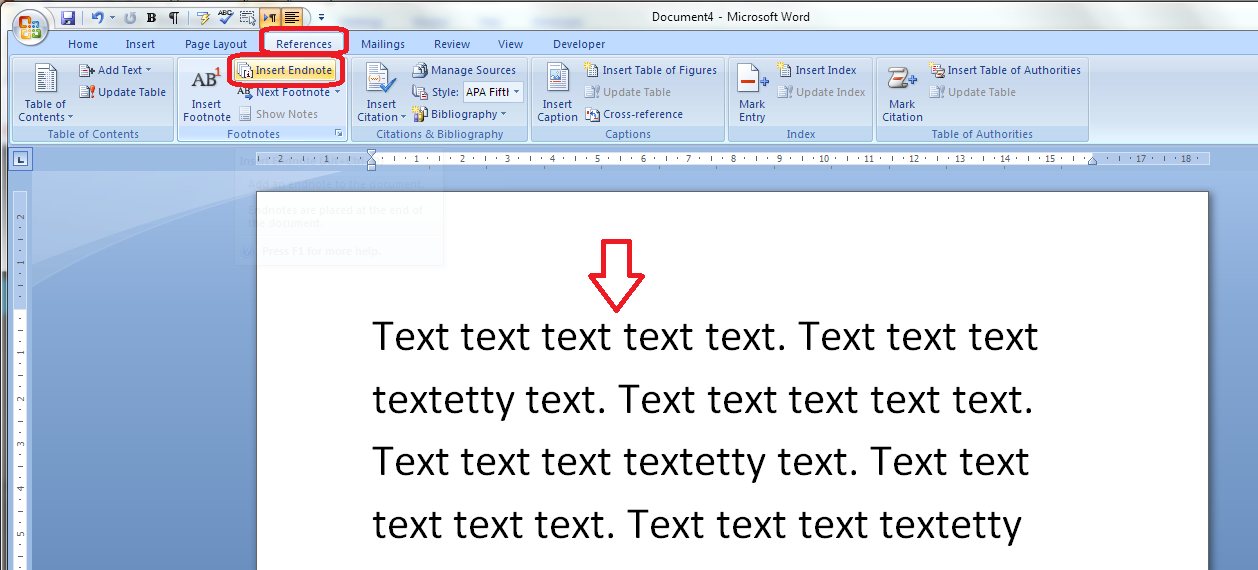
1 menu

Place the cursor in the position where you want the endnote to appear and either press the Insert Endnote button (as above) or click on the drop down arrow for your options (I find that sometimes the Endnote numbering defaults to something odd, so it’s useful to do this:

2 options

This will bring up your endnote options. Choose your options (see next section) and when you press Insert, a number will appear in your text, and an endnote number will appear right at the end of your document (or chapter), ready for your endnote text.

Type the text you want into your endnote field, noting that you can change the paragraph style, size and font as with any text, although it’s common for the endnote font to be smaller than the main document font.

To insert the next endnote, follow the same sequence, although once you’ve set up your options, you can just hit the Insert endnote button instead of dropping down the options.

How do I delete an endnote?

Using the automated endnote system means that the numbering will adjust itself to stay correct if you delete and move notes around.

Don’t highlight the endnote itself and delete it. This has no effect on the numbering.

Instead, highlight the number in the text or position your cursor at the point just after it and press delete.
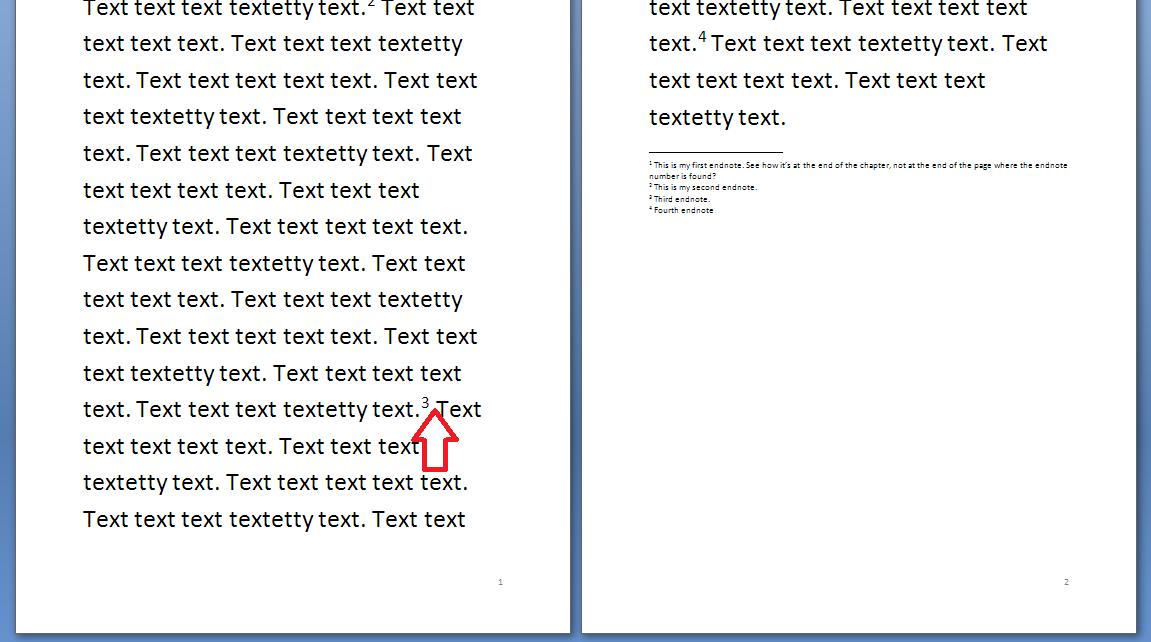
3 delete

Here, I’m deleting Endnote 3. Press delete and
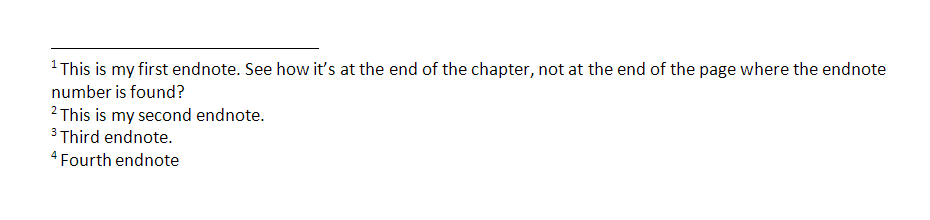
4 delete

changes to:

5 delete

What are the endnote options?

We have already seen that clicking on the little arrow at the bottom right of the Footnotes section, brings up a range of Footnote and Endnote options that you can customise:

2 options

Here you can choose the number format, whether the endnotes appear at the end of each section (you will need to apply Section Breaks to make this work) or at the end of the whole document, and whether the numbering starts at the beginning of each new section or just runs through all of the document continuously.
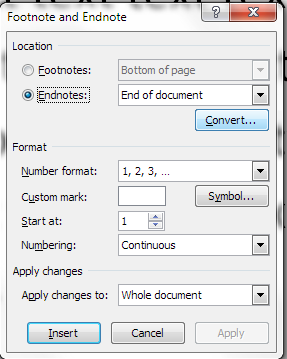
6 options

For more detail on these options, see the relevant sections in the article on Footnotes.

How do I make the endnotes appear on a new page?

To make your endnotes appear on a new page, simply add a Page Break before them by putting your cursor at the end of the main text and pressing Control-Enter.

How to add endnotes in Word 2003

In Word 2003, you add endnotes using the Insert – Reference menus. The footnote options are then the same as above.

How not to add endnotes to Word documents

It is NOT RECOMMENDED to add endnotes manually (insert a superscript number and type the note at the bottom of the document) If you do this, you will lose all the advantages of using this automated system:

  • automatically adding the numbers in order
  • automatically renumbering the endnotes if you delete or add one or move one around

————-

In this article we’ve learnt what an endnote is, why you use them, all about inserting and deleting them and the options for customsing them.

Related posts from this blog:

How do I add footnotes to a Word document?

Changing footnotes to endnotes

How do I change the format of my endnotes and footnotes?

Please note, these hints work with versions of Microsoft Word currently in use – Word 2003, Word 2007 and Word 2010, all for PC. Mac compatible versions of Word should have similar options. Always save a copy of your document before manipulating it. I bear no responsibility for any pickles you might get yourself into!

Find all the short cuts here

 
7 Comments

Posted by on October 9, 2013 in Errors, New skills, Short cuts, Word, Writing


Tags: , , , , , , , ,

How to add page 1of 2 to a Word 2007 or Word 2010 document

I’ve had quite a few searches coming through to this blog from people wanting to know how to create a specific kind of page numbering – the kind when it reads “page 1 of 2”, “page 1 of 5”, “page 2 of 3”, etc. If you want more detail on page numbering, read this article on the basics and this one on the finer points. If you want to know how to make “page 1 of 10” appear on your document read on!

Why would I want to make my page numbers say page 1 of 2?

It’s a matter of personal choice as to how you format your page numbers. However, your department or office might have a style guide that dictates this, so it’s as well to know how to do it.

How do I get page numbers to say page 1 of 2?

As I mentioned, I have more detailed resources on page numbering. This is more of a ‘quick and dirty’ guide.

Go to the Insert tab, move to the Header and Footer area, and click on the little arrow at the bottom right of the Page Numbers button. This will give you a menu where you can select where your page number is to appear. Choose, for example, Top of Page, then scroll down the list of options to find Page X of Y:

page 1 of 1

This gives you three places where you can insert page x of y into your document. I’ve chosen the top one. Click the option and there you have it:

page 1 of 1 done

Note that you can’t change this in Page Number Options, you must do it using the Page Numbers option as shown above.

If you have found this article useful, please share it using the buttons below, and leave me a comment!

This is part of my series on how to avoid time-consuming “short cuts” and use Word in the right way to maximise your time and improve the look of your documents.

Related posts on this blog:

How to add page numbers to your document 1 – the basics

How to add page numbers to your document 2 – advanced editing etc.

Please note, these hints work with versions of Microsoft Word currently in use – Word 2003, Word 2007 and Word 2010, all for PC. Mac compatible versions of Word should have similar options. Always save a copy of your document before manipulating it. I bear no responsibility for any pickles you might get yourself into!

Find all the short cuts here

 
21 Comments

Posted by on October 2, 2013 in Errors, New skills, Short cuts, Word, Writing


Tags: , , , , , , , ,

How do I add footnotes to a Word document?

Academic and non-fiction writers use footnotes to refer to additional text which doesn’t fit into the flow of your paragraph but does need to be included. It might be used to provide a reference for a quotation or statement you’ve made, or might contain a digression or discussion of something you’ve just written about. It might also contain a translation of a non-native quotation you’ve placed in the text, or the non-native original quotation whose translation you’ve just given.

What do footnotes look like?

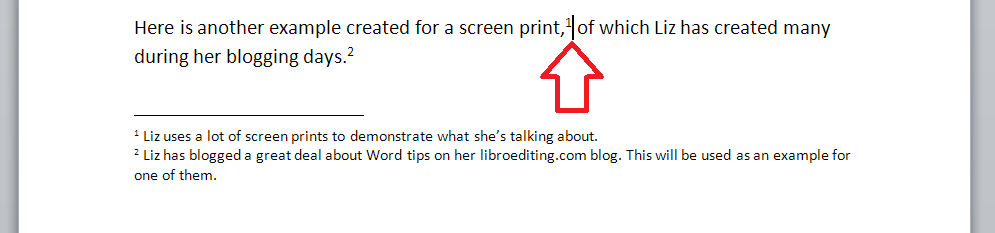
Footnotes can take two forms. Either there’s a raised number after the bit of text that they refer to, like this,1 or a symbol like an asterisk or paragraph mark is used (pleasingly, there is an order for these: *, , , §, ‖, ). In timetables and other tables, superscript (up high) letters and other symbols may be used.

In relation to this marker, a note will appear at the bottom of the page with the same marker at the beginning, which includes the additional / explanatory text:

0 footnotes

How do I create a footnote in Word 2007 and Word 2010?

The Footnote section is found in the References tab of the ribbon (not Insert, as you might expect):

2 menu

We need some example text first. Here’s some text after which we want to place footnotes:

1 before footnotes

Position the cursor in the position in which you want the footnote to appear (note, I am putting the footnotes AFTER the punctuation. This is common but not universal. The important thing is to be consistent) and press the Insert Footnote button:

3 button

A footnote number will now appear where your cursor is, and a note number under a line at the bottom of the page, ready for you to insert your footnote text:

3.1 insert footnote

Note that this has automatically pushed down the next paragraph onto the next page of the document. This is one of the reasons why you should automate this process and not do it manually.

You can type text into your footnote field – you can also change the paragraph style, font, size etc. as you would a normal bit of text; however, the way it defaults, with notes smaller than the main text, is the standard way to do it, so try not to mess around with it too much.

3.2 insert footnote

When you want to insert the next footnote, position your cursor in the next place and hit the Insert footnote button again. The next footnote will automatically number itself with the next number (or letter, or symbol: see below under Footnote options) and position itself under the first one:

3.3 insert footnote 2

If a footnote gets particularly long, Word will automatically shift the text and footnotes around so that they are on the same page and fit in correctly.

How do I delete a footnote?

Another benefit of using the automated footnote system is that you can delete and move footnotes and the numbering will adjust itself to stay correct.

How NOT to delete a footnote: Don’t highlight the footnote itself and delete it. This will have no effect on the numbering.

Instead, highlight the number in the text or position your cursor at the point just after it:

3.4 delete footnote

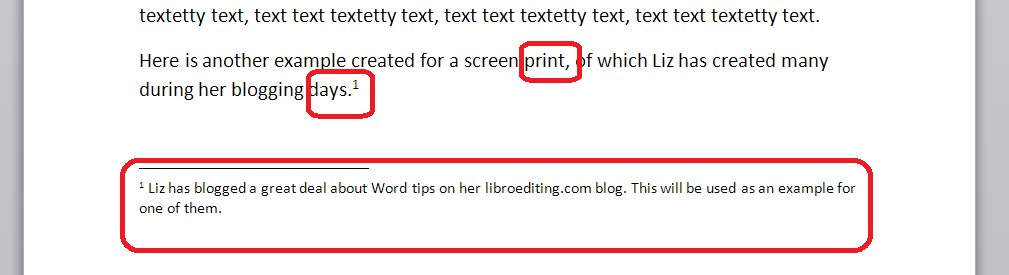
Delete that little number …

3.5 delete footnote

and the number will disappear from after “print,”, plus the one after “days.” will change to a 1 and footnote 1 will disappear, to be replaced by footnote 2, which has now become footnote 1. Magic!

What are the footnote options?

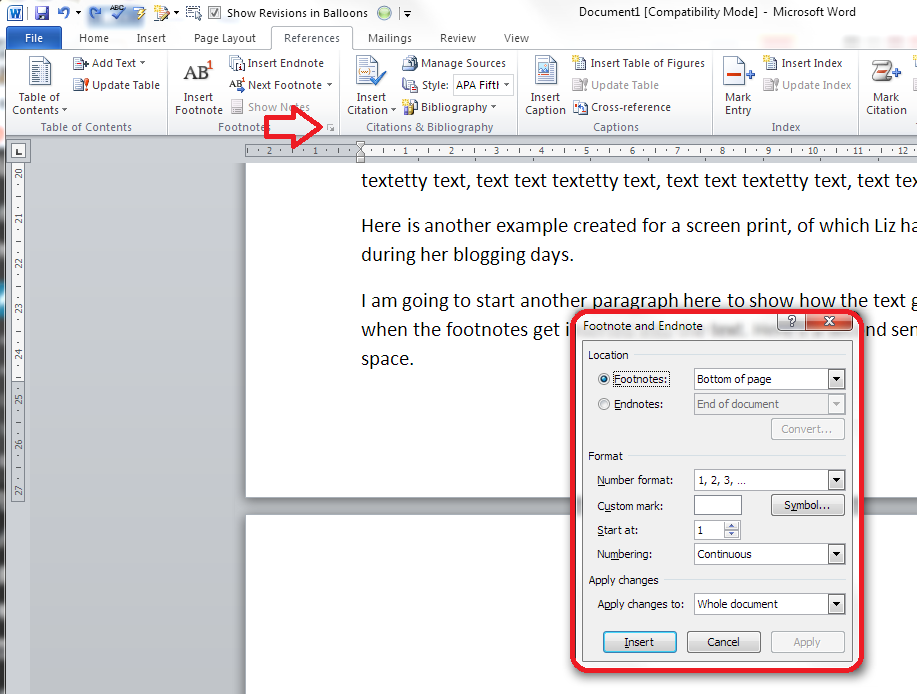
If you click on the little arrow at the bottom right of the Footnotes section, you will be given a range of Footnote and Endnote options that can be customised to suit your needs:

4 footnote options

You can choose between having footnotes and endnotes here (endnotes appear at the end of a chapter or the whole text, and will also be discussed in a different post). Then, you can choose the number format (drop down the arrow in each case):

5 footnote options

including those famous symbols (and you can also add your own symbol if you really have to). Select and hit Apply.

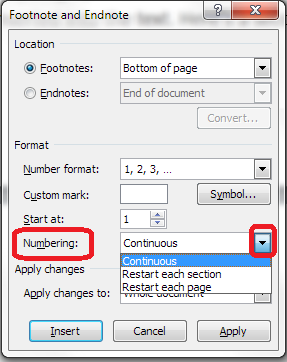
You can choose whether the numbering remains continuous throughout your document or restarts on every page (useful for tables) or in every section:

6 footnote options

And you can highlight a section of text and apply these changes only to the highlighted text (this changes to being the default when you highlight the text):

7 footnote options

How to add footnotes in Word 2003

In Word 2003, you add footnotes using the Insert – Reference menus. The footnote options are then the same as above.

How not to add footnotes to Word documents

It is possible, but NOT RECOMMENDED, to add footnotes manually by inserting a superscript number and typing the note at the bottom of the page. But this will NOT do what the automated footnoting system does:

  • automatically add sequential numbers
  • format the page so the text and footnote stay together
  • automatically renumber the footnotes if you move or delete or add one

So, don’t do that, now you know the correct way to do it!

————-

In this article we’ve learnt what a footnote is, what they look like, why you might use them, how to insert and delete them and the options available.

Related posts:

Some great notes on avid footnoters from the history of literature here.

On this blog:

How do I add endnotes to a Word document?

Changing footnotes to endnotes

How do I change the format of my endnotes and footnotes?

Please note, these hints work with versions of Microsoft Word currently in use – Word 2003, Word 2007 and Word 2010, all for PC. Mac compatible versions of Word should have similar options. Always save a copy of your document before manipulating it. I bear no responsibility for any pickles you might get yourself into!

Find all the short cuts here

 
11 Comments

Posted by on September 25, 2013 in Errors, New skills, Short cuts, Word, Writing


Tags: , , , , , , , ,

Using tables in Word 1 – Menus and options

This is the first in a series of articles about Tables in Word. It covers Word 2007 and Word 2010, and will include Word 2013 in time. The following articles will cover all of the different types of table and option in detail, as well as useful features such as how to retain your table heading line on every page of your document.

Why use tables in Word?

Tables can be a very useful way to show information in an easy-to-read form, and are essential if you have a lot of data – in words or numbers – to share with your readers. There are many different ways to construct tables in Word, so this post will show you the basics, then further posts will elaborate on each method.

How do I insert tables in Word?

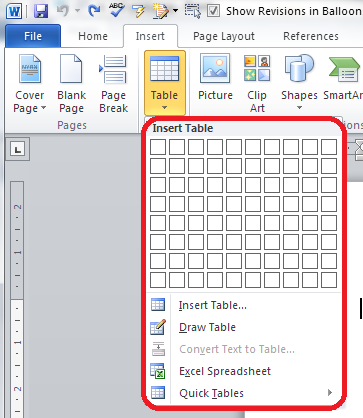
To put a table into a Word document, you need to choose the Insert tab and then look for the (very small) Tables section. There you will find a Tables button

1 menu

Press the Tables button and you’ll be shown a grid followed by a list of other options:

2 menu

We will now take a quick look at all of these options in turn.

Insert table

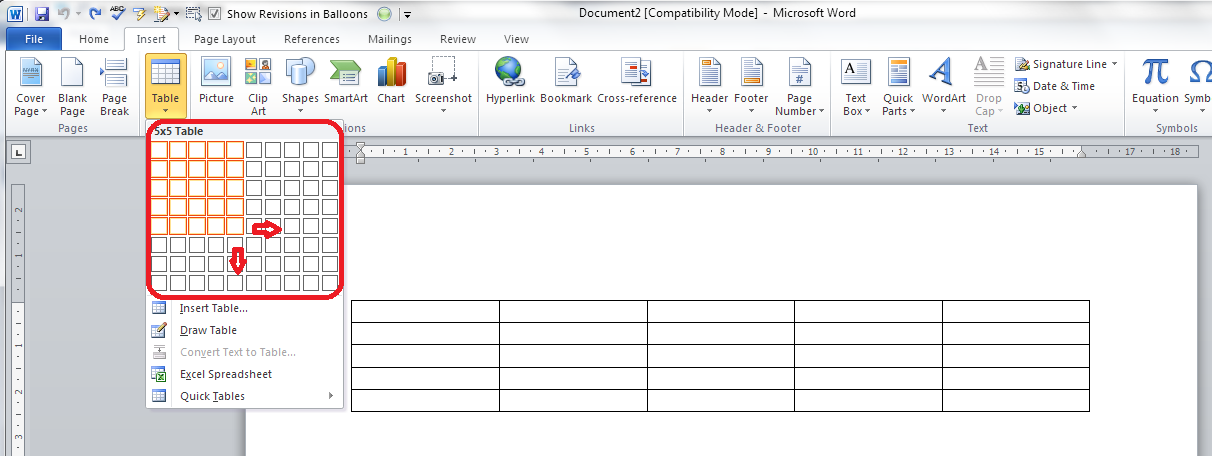
The first option gives you a grid which you can highlight to create the table you want. The squares represent the number of rows and columns you want, although on the page, the columns will fit to the width of your page and the rows will be one line deep.

Move your mouse over the grid and the table will appear on the document behind the menu:

3 grid

Let go, and there’s your table (we’ll learn about adding and deleting rows and columns in another post).

Insert table (2)

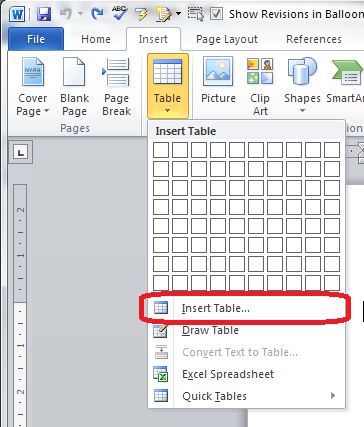
The first text option on the list below the grid is, rather confusingly, also called Insert table. But if you choose this option, you’ll find a rather more familiar and in some ways simpler menu.

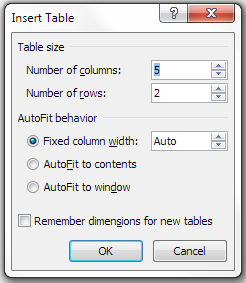
4 insert table

The Insert Table menu allows you to choose the number of columns and rows by moving the up and down arrows for each. We’ll look at the other options later. For now, these choices will give you a table five columns across and two rows down when you click OK:

5 insert table

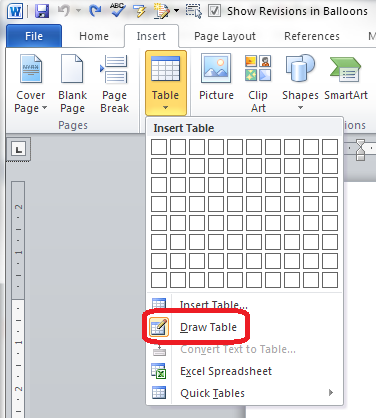
Draw table

The Draw table option allows you to hand draw the cells of your new table.

6 draw table

The Table tab will open up and Draw Table will be highlighted. You get a cursor that looks like a pencil and you have to draw each cell with that (there’s an eraser next to the draw button).

7 draw table

I personally find this really fiddly to use: you do have to play with it a bit to work out what to do with it. But I suppose it must be useful!

Convert text to table

This is particularly useful if you’ve imported text or figures from another program. Highlight your text and choose this option …

8 convert

… and you can specify whether you want the columns to separate at each comma, full stop or other character. Apparently, Mr Libro always uses this option when he creates a table, creating the text first and then the table!

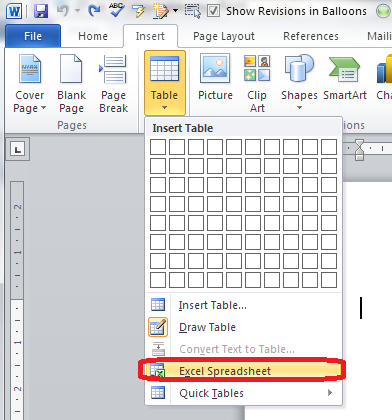
Insert Excel spreadsheet

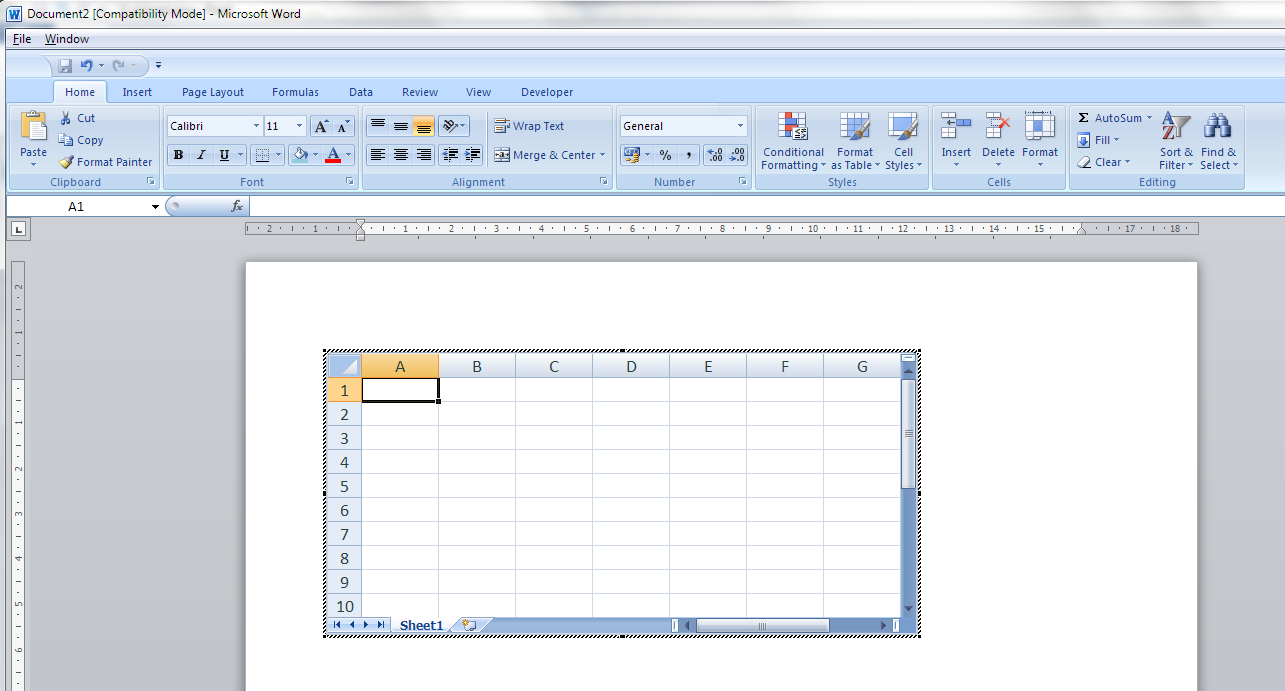
This option allows you to have a mini Excel spreadsheet, with all its normal functionality, inside your Word document:

9 spreadsheet

Note: this inserts a blank, empty spreadsheet into your document:

10 excel

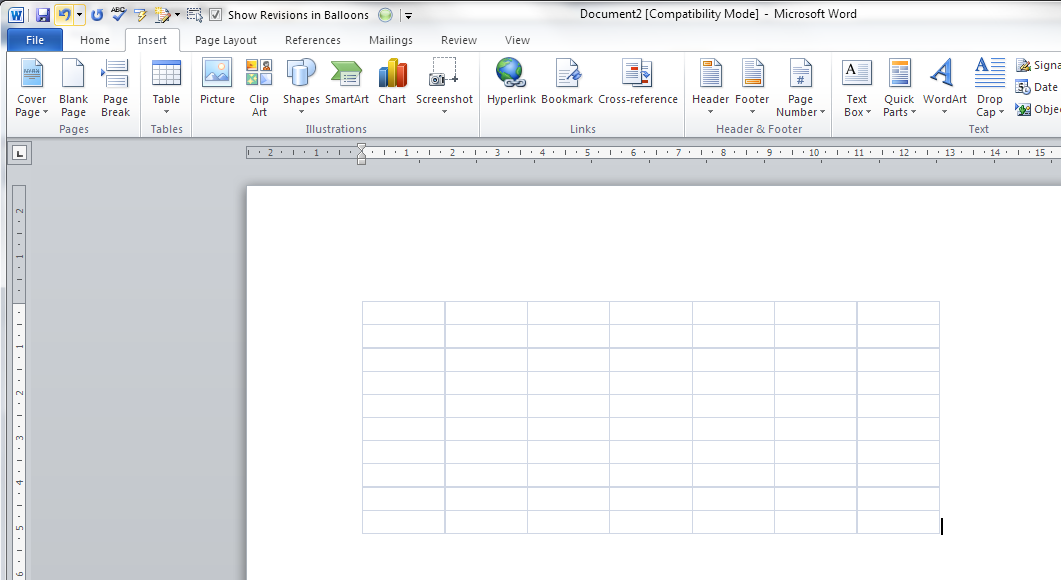
Once you’ve created your data and clicked away from the spreadsheet, you will have a table made out of your spreadsheet (click on it to amend):

11 excel

If you want to insert an Excel spreadsheet that you’ve already created into your Word document, you need to choose Object from the far right-hand side of the Insert tab

Insert Quick Tables

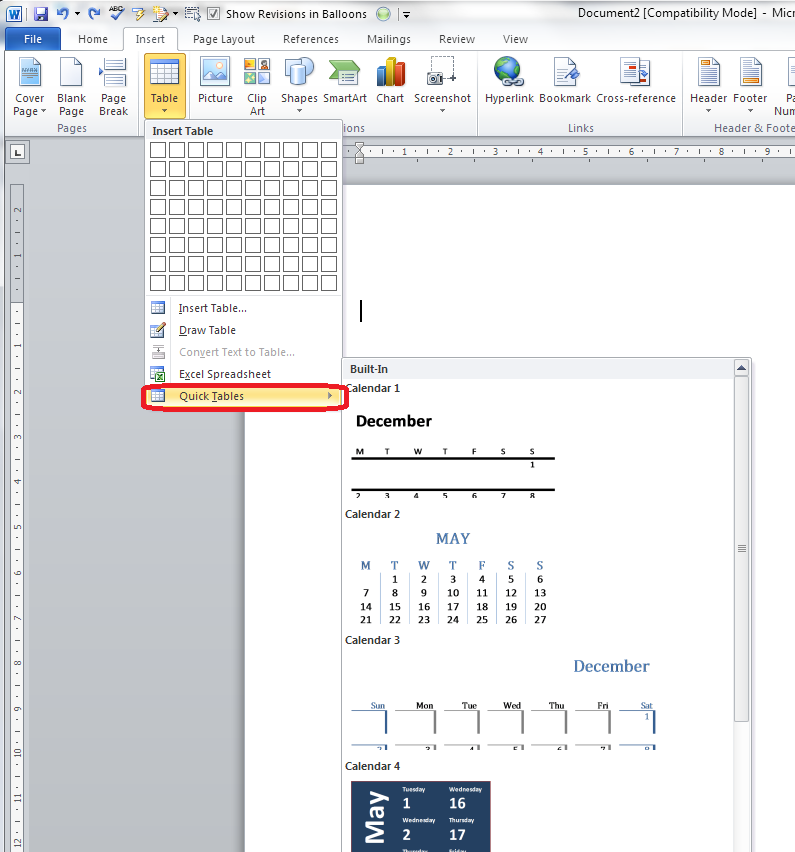
The last option in the list will allow you to choose from a ready-made set of sample tables …

12 quick tables

As you can see, this is particularly useful if you want to print out or insert a calendar!

——————–

This post has gone through the Table menu and the options it offers for inserting tables. In other posts, I will go into more detail about how to edit tables, add and delete rows and columns, etc. If you want to know more, subscribe to this blog (see links at the top left or add to your RSS reader) or keep your eye on the resource guide.

If you have enjoyed this post, please share the link!

Please note, these hints work with versions of Microsoft Word currently in use – Word 2007 and Word 2010, for PC. Mac compatible versions of Word should have similar options. Always save a copy of your document before manipulating it. I bear no responsibility for any pickles you might get yourself into!

Find all the short cuts here

 
1 Comment

Posted by on September 11, 2013 in Errors, New skills, Short cuts, Word, Writing


Tags: , , , , , , , ,

What to do if your paragraph spacing won’t work in Word

This article tells you what to do if you think you’ve set your paragraph line spacing for the whole document but individual paragraphs refuse to behave. This is valid for Word 2007 and Word 2010, with Word 2013 to follow soon.

My spaces between paragraphs are uneven – help!

This just happened to me, which is why I’ve written up this article.

I was working on a bibliography for a client.

I set the paragraph and line spacing as I normally do: highlight the whole document, go to the Home tab, Paragraph section, and click the down arrow on the Spacing button:

1 paragraph and line space menu

This gives you the Spacing menu:

2 menu options

from which you choose your line spacing and lines after paragraphs options (I will write up a main post about this soon).

But it didn’t work!

Individual paragraphs still had no automatic spaces between then, even if I removed the line feed and pressed Enter again.

How to solve the problem of inconsistent paragraph spacing

Here’s how I did it.

I highlighted all of the text.

I right-clicked on the highlighted text and chose Paragraph from the options:

3 para

I then stayed on the Indents and Spacing tab and set my After spacing to 12pt and my line spacing to 2 (just in case). I also unticked Don’t add space between paragraphs of the same style (it was filled in with blue rather than ticked so I clicked twice to get a tick and then no tick):

highlight all

I pressed OK and the paragraphs all behaved beautifully.

I’m not entirely sure why this method works over the previous one, to be honest, but it worked for me and it was hard for me to find an easy, quick answer, so hopefully this will help a few people!

————————–

If you have enjoyed this post or found it useful, please share the link!

Please note, these hints work with versions of Microsoft Word currently in use – Word 2007 and Word 2010, for PC. Mac compatible versions of Word should have similar options. Always save a copy of your document before manipulating it. I bear no responsibility for any pickles you might get yourself into!

Find all the short cuts here

 
61 Comments

Posted by on September 4, 2013 in Errors, New skills, Short cuts, Word, Writing


Tags: , , , , , , , ,

How do I print out table headings at the top of every page in Excel?

I recently wrote about retaining your headers across multiple pages in a Word document. This post will tell you how to make your header rows (or columns) in Excel 2007 and Excel 2010 print on multiple pages when you print them out.

What is the header row in Excel?

The header row is the row in a spreadsheet that contains the headings for all of the columns in your spreadsheet. It’s usually Row 1, or maybe a few rows at the top of the spreadsheet.

(If your columns have headings in Column A instead or as well as your rows, you can use all of the stages in this post but choosing the columns option where appropriate, or both.)

1 spreadsheet

Why would I want my header rows to print out on multiple pages?

If you’ve got a complicated spreadsheet that you want to print out in a report, as a handout, or as a pdf, it’s useful to have the header row show on every page. When you’re using Excel itself, you can freeze the rows and/or columns so you can see them as you scroll down. But this doesn’t carry over to the printout.

How do I check if my header row will be printed on every page?

To check what the printout will look like, you need to change from the standard Normal view of your document (see the first image in this post) to the Page Layout view.

To do this, choose the View tab, then the Workbook Views section and press the Page Layout button. Your view will change to what the document will look like on the page (this is also where you add headers and footers to an Excel document – more on that another time)

1 view menu

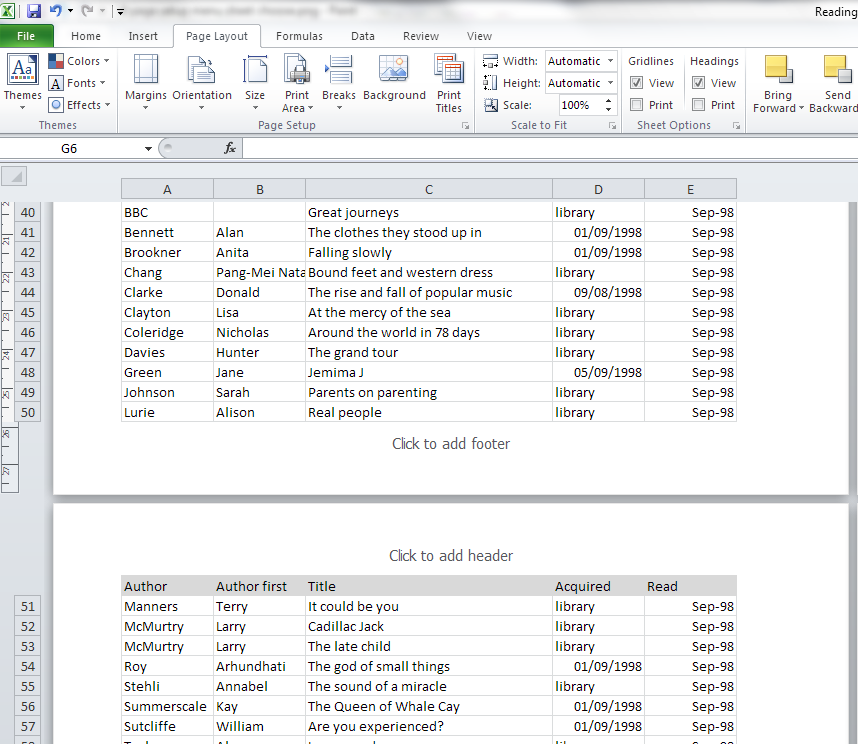
If we scroll down to the second page of our document in this view, we can see that the second page just starts with the next line of the spreadsheet – not very useful if you want to be able to see the headings at the top of each page:

2 no headers

How do I make the heading row print at the top of every page?

Staying in the Print Layout view, choose the Page Layout tab and look at the Page Setup section. In the bottom right corner, you’ll find a little arrow. Click on the arrow to access the Page Setup menu:

3 page layout menu

The Page Setup menu will default to showing you the Page tab. Click on the Sheet tab at the extreme right:

4 page setup menu

At last we’re in the Sheet menu. This is where you can choose the print area, titles, gridlines, quality, etc., but what we’re interested in is Rows to repeat at top (and/or Columns to repeat at left, if you have either or both of these):

5 page setup menu sheet

Now, how do you tell Excel which row you want to print at the top of every page? I got a bit flummoxed by this at first, I have to admit. Here’s how you do it:

Make sure your cursor is in the appropriate input box – in this case I have left-clicked with the mouse in Rows to repeat at top.

Then click with the mouse on the far left of the row you want to select. Can you see the dotted line round it on the image below? That means that it’s been selected. If you just click on one row, $1-$1 will appear in the text entry box. If you highlight more than one row, it will read $1-$2, etc.

6 page setup menu sheet choose

If you want to make sure that a heading column appears on every page of your printout, make sure the cursor is in the Columns to repeat at left box and click above the column you want to choose. You can choose a row(s) and a column(s) if you want to!

Once you’ve clicked on OK, you can scroll down in Page Layout view to see the top of the second page. There are the headings, ready to print on every page! You can change back to Normal view: the instructions that you’ve given Excel here will stay the same.

7 done

We’ve learned how to make sure that your heading row (or column) prints on every page of your printout when you’re printing out your Excel 2007 or Excel 2010 document.

If you’ve enjoyed this post, please do share it using the buttons below!

Related posts:

Freezing rows and columns in Excel

How do I keep my table headings over multiple pages in a Word document?

———————

This is part of my series on how to avoid time-consuming “short cuts” and use Microsoft Office in the right way to maximise your time and improve the look of your documents.

Please note, these hints work with versions of Microsoft Excel currently in use – Excel 2007 and Excel 2010 for PC. Mac compatible versions of Excel should have similar options. Always save a copy of your document before manipulating it. I bear no responsibility for any pickles you might get yourself into!

Find all the short cuts here

 
54 Comments

Posted by on August 29, 2013 in Errors, New skills, Short cuts, Word, Writing


Tags: , , , , , , , ,

How do I keep my table headings over multiple pages in a Word document?

If you have got a table that extends over several pages in a Word document, it’s useful to be able to repeat the header row at the top of each page automatically, so that it stays there no matter what you change in the table itself. This article shows you how to do that in Word 2007 and Word 2010 (we use the same procedure for both)

Why would I want to repeat my header row on multiple pages?

If you’re presenting a table which contains fairly self-explanatory information, for example, name, surname, book title, year, then you probably don’t need to repeat the heading row, even if the table runs across more than one page. But if you think that the person who will consult the table will need to keep reminding themselves about what the different columns contain, it’s useful to add the header row at the top of each page.

Doing this automatically rather than manually inserting a new row into each page of the table ensures that however much the table changes, the header row will stay at the top of each page.

How do I repeat the header row in Word?

We’re going to use the example of a list of books I have read. Here’s the table:

1 table

Now, this is a long list, and it goes over more than one page. OK, it’s fairly self-explanatory, but I might forget what the Acquired and Read headers are.

At the moment, when the table goes onto the next page of the document, the table just carries on, with no  header rows on the second and third pages:

2 table

Please NOTE that we’re in Print Layout view on the View menu at the moment: when we repeat the headers, the repeat is only visible in Print Layout or Print Preview, both of which show you what your document will look like when it’s printed. Word defaults to Print Layout view, but check, just in case:

3 view

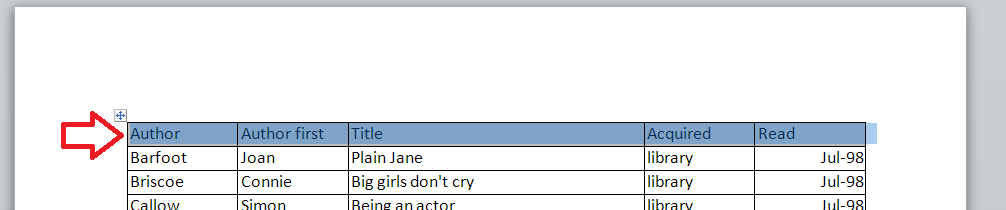
Select the header row of your table so that you can tell Word that this is the header row by left-clicking with your cursor to the left-hand side of that row:

4 select

Now, because you’ve got a table in your document, Word will have added the Table menu tabs to your ribbon. There are two: Layout and Design. Choose the Layout tab. Find the Repeat Header Rows button:

5 repeat header rows

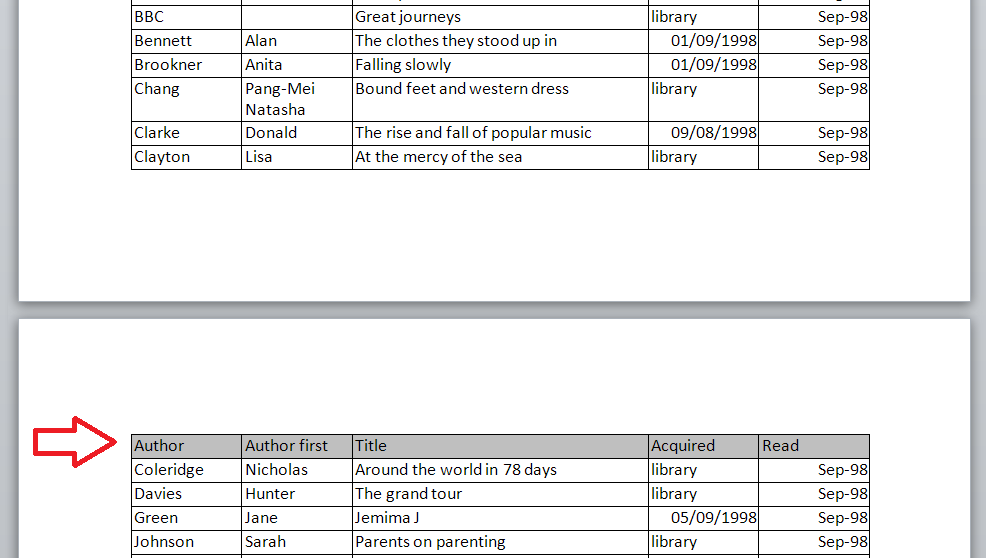
Click on the Repeat Header Rows button. Like magic, if you scroll down the page, you will now see that your header row is repeated!

6 repeat header rows done

Note: if you don’t have a row selected, the Repeat Header Row button will be greyed out and you can’t press it.

Here’s the magical thing: you can of course do this manually by inserting a row at the top of each page of your table. But then, if you move the text of the table around or resize it, you risk your manual header row not being the top row of your page.

Using the automatic function means that, whatever you do to your table, the top row of a new page will always be the header row (UNLESS you force a manual page break).

Here, I’ve changed the text size to make it larger. You can see that the first entry on the second page is no longer Coleridge, but the header row is still in place:

7 repeat header rows done

How do I repeat multiple header rows in Word?

You can display multiple header rows in Word in the same way. Make sure that you highlight BOTH rows that you want to repeat, and press the Repeat Header Rows button as before:

8 repeat multiple header rows

And there you go: the first two lines of the table repeat on each page:

9 repeat multiple header rows done

How to repeat header rows in Word 2003

In Word 2003, you will need to use menus rather than the ribbon.

Highlight the header row of your table.

Select the Table menu and click Heading Rows Repeat.

———–

Today we’ve learned how to make the header rows repeat in a Word document. This is part of a series on Tables which I’ll be writing and publishing over the next few weeks.

Related posts:

Tables 1 – how to create a table

Please note, these hints work with versions of Microsoft Word currently in use – Word 2003, Word 2007 and Word 2010, all for PC. Mac compatible versions of Word should have similar options. Always save a copy of your document before manipulating it. I bear no responsibility for any pickles you might get yourself into!

Find all the short cuts here

 
61 Comments

Posted by on August 21, 2013 in Errors, New skills, Short cuts, Word, Writing


Tags: , , , , , , , ,

Portrait and landscape orientation in Word and Excel

In this article, we’re talking about the Portrait and Landscape orientations in Word and Excel, what they are, why you might want to use each one, and how to swap between them.

What are Portrait and Landscape?

Portrait and Landscape are the terms used for the orientation of the page in applications that deal with pages, such as Word and Excel. Orientation means the relative position of the page when you’re looking at it:

1 pages

Portrait means that the page has the shorter sides at top and bottom. Think of a portrait in a gallery or museum. They are usually this way round. Landscape means that the page has the shorter sides on the left and right. Again, think of an art gallery. Which way round are views painted of the landscape? Exactly.

Why would I want to use the landscape orientation?

Word and Excel documents default to being in the portrait orientation. That’s the format of most books, reports, folders, etc. But landscape can be very useful if …

In Word

  • Your layout is such that it comes out wider than it’s high – maybe a poster or a sign to put up in your office or building
  • You have a wide table to insert into the document with lots of columns and it gets too squashed up and hard to read if you try to fit it onto a standard portrait A4 page
  • You have a diagram to insert into the document that’s wider than it’s high
  • You have a picture to insert into the document that’s wider than it’s high

In the last three incidences, you might only want one page of the document to appear in landscape. That’s easily done, and you can find out how to have portrait and landscape in one document here.

In Excel:

  • Your spreadsheet is too wide to fit comfortably onto a portrait A4 page

How do you change between Portrait and Landscape in Word 2007 and Word 2010?

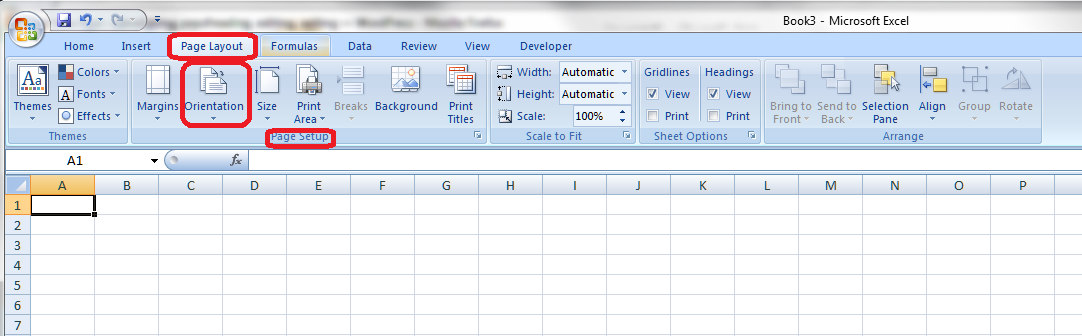
You swap between Portrait and Landscape using the Orientation menu in Word. This can be found in the Page Layout tab, in the Page Setup section:

2 menu

Press the Orientation button (or the little arrow at the bottom) to access the menu:

3 menu

Choose your orientation, and the whole document will change to that orientation, unless you’re only changing one section (see below)

How do you change one page in Word to be in Landscape?

To change one page in Word to be in Landscape, you need to set Section Breaks first, so that Word knows which pages you want to change. See this post on Section Breaks for instructions on how to do this and change just one page or section.

How do you change between Portrait and Landscape in Excel 2007 and Excel 2010?

Changing the orientation in Excel works in exactly the same way as doing it in Word. Find the Orientation menu by going into the Page Layout tab and Page Setup section:

4 excel

Then press the Orientation button to make your selection.

How do you change between Portrait and Landscape when you’re printing?

Sometimes you don’t realise that you need to print your document in Landscape rather than Portrait (it’s usually this way around, I find) until you have printed out one copy and find that your lovely picture or table falls off the edge of the page.

You can change the orientation of the printing while printing – however, the orientation of your original document will NOT change if you use this method, and if you want it to change to Landscape permanently, you will need to go back and follow the instructions I give above.

If you want to change the orientation of your printing (in Word or Excel or when you’re printing off a web page or a map or anything!) …

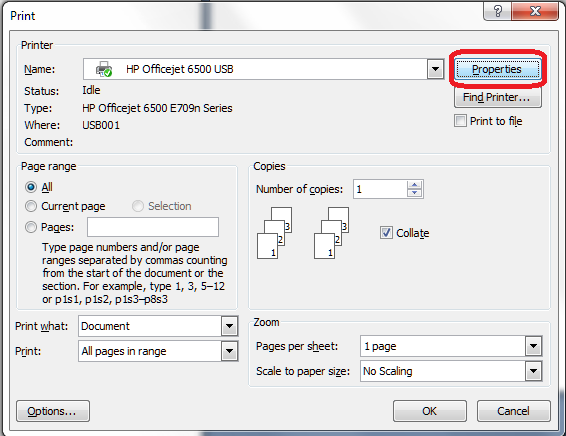
First, select the Print option. When the Print dialogue box comes up, click the Properties button:

5 printer

You will usually then be given a screen something like this which will have a Features tab:

6 printer

Find choice buttons for Portrait / Landscape, select the one you want, and OK, and then your printout will be in that orientation.

—————–

In this article we have learned what the portrait and landscape orientations are, why they are useful, how to change them in Word and Excel and how to change orientation when you are printing.

If you have enjoyed this post, please share the link using the buttons below or sharing the Facebook, Twitter or LinkedIn alert that you followed to get here!

Other useful posts: Section breaks in Word

Please note, these hints work with versions of Microsoft Word currently in use – Word 2007 and Word 2010, for PC. Mac compatible versions of Word should have similar options. Always save a copy of your document before manipulating it. I bear no responsibility for any pickles you might get yourself into!

Find all the short cuts here

 
28 Comments

Posted by on August 14, 2013 in Errors, New skills, Short cuts, Word, Writing


Tags: , , , , , , , ,

Using the split screen view in Word

In this article, I’m going to tell you all about using the split screen view in Word, including why you would use it, how to use it, and how to stop using it. I’ve also added an alternative way to get the split screen view, which explains the problem: “help! I’ve got a split screen and I don’t know how I got it!”

What does split screen mean?

If you split the screen in Word, it means that you can see two parts of the same document in the same window, allowing you to scroll through both parts independently or keep one section on screen at all times. It’s a bit like splitting panes in Excel, although you can only do it horizontally.

Why would I want to split the screen in Word?

It’s often useful to be able to see two sections of a document at one time, without having to open two copies of the document (if you do that, one will be read-only and you can’t make amendments to it). Some examples of why split screen view is useful:

  • You are creating a large table and want to be able to see your column headings all of the time (this is similar to the use of Freeze Panes in Excel)
  • You’re creating a lesson plan and you want to look at the plan and notes at the same time.
  • You’re checking that a contents page includes the correct titles and page numbers and you don’t want to keep whizzing back and forth through the document.
  • You’ve written an introduction to a chapter and want to make sure that it refers to all of the content in that chapter.
  • You’re working on some worked examples in a textbook and you want to check the answers at the end of the document

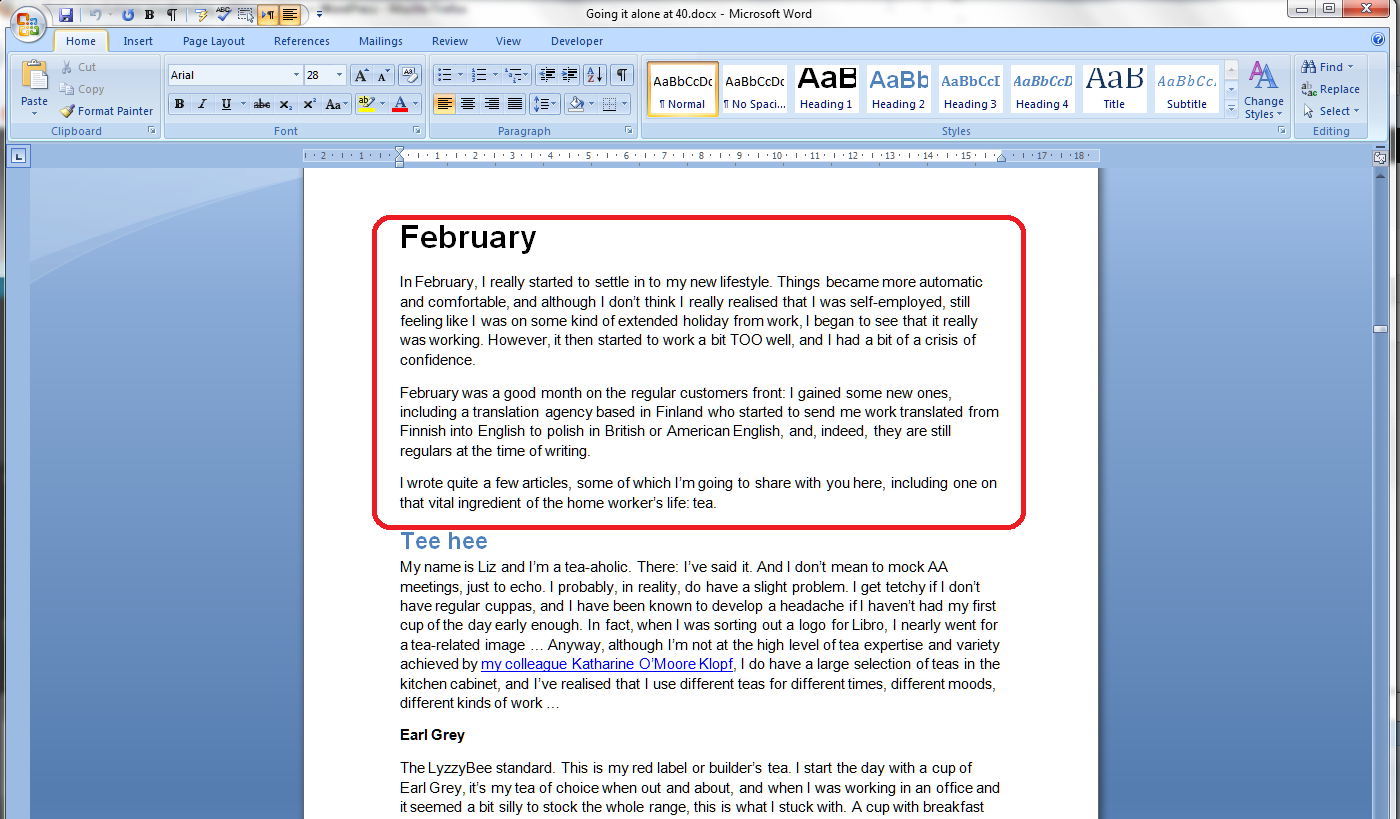
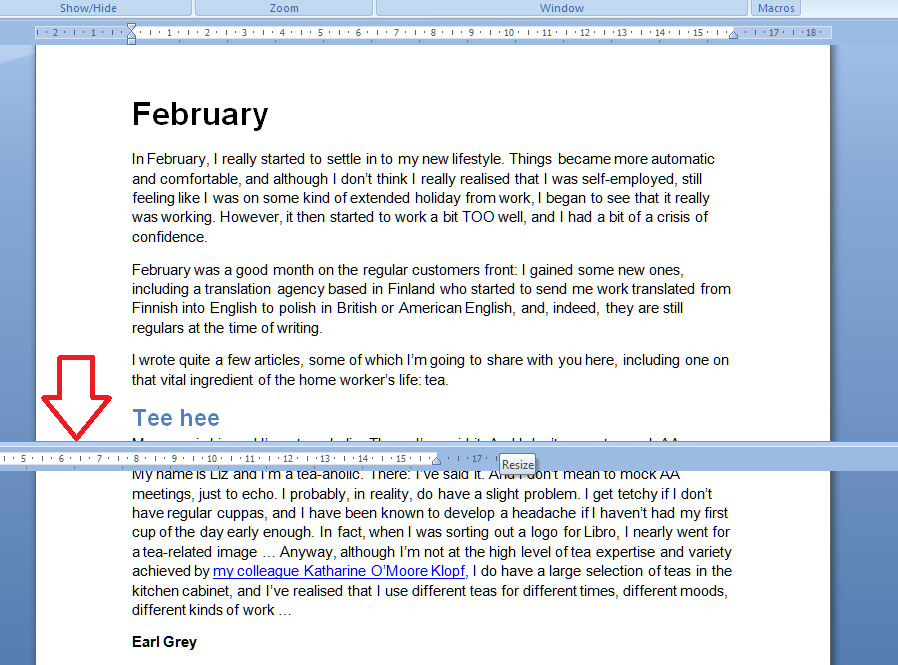
In this worked example, I want to review the text in the February chapter of my book to make sure that the content within it is reflected in the introduction to the chapter. I want to keep the introduction (circled in red) visible on the screen while I scroll through the rest of the chapter.

1 all one screen

How do I make the screen split in Word 2007 and Word 2010?

This is another example where Word 2007 and Word 2010 operate in exactly the same way.

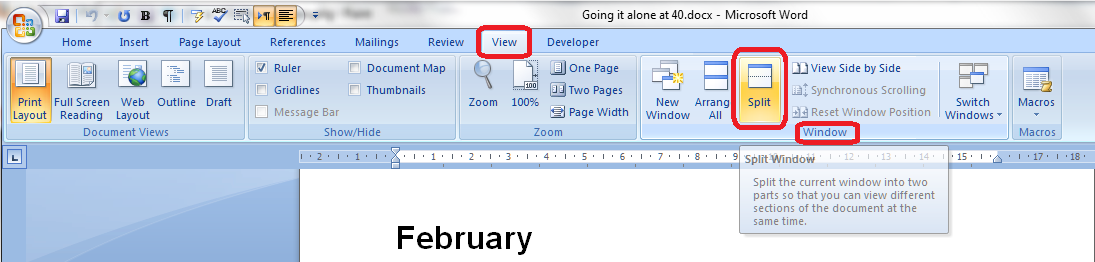
The Split button can be found in the View tab, in the Window section:

2 menu

Once you press this Split button, the screen will automatically split into two. Initially, a grey line will appear – this is a guide line that you can move and position as you wish:

3 line

Once you’ve positioned the screen split (it can go anywhere horizontally on the page), it turns into a second ruler:

4 ruler

Your screen is now split and ready to use.

You can scroll up and down both halves of the screen, although usually you will want to keep the top half still and just move the bottom. Here, I’ve scrolled down to the bottom of the essay on tea to see what comes next:

5 scroll

The scroll bars on the right hand side will remind you of your position in each part of the document.

Remember that you must have your cursor in the half of the screen that you wish to scroll!

How do I cancel Split Screen view?

You can revert to a single viewing pane at any time by pressing the Remove Split button (which was the Split button):

6 remove split

Your document will return to single pane view – starting at the top point of your upper pane:

1 all one screen

Using the Split Screen button

You can also use a tiny button on the top right of the screen to split your screen (and you can use this in any Microsoft Office application). I didn’t realise this until I was trying to sort out a problem for someone who had got stuck with split screen and couldn’t make it go away – I couldn’t work out how he’d got a split screen without choosing those particular menu items above. Now I know.

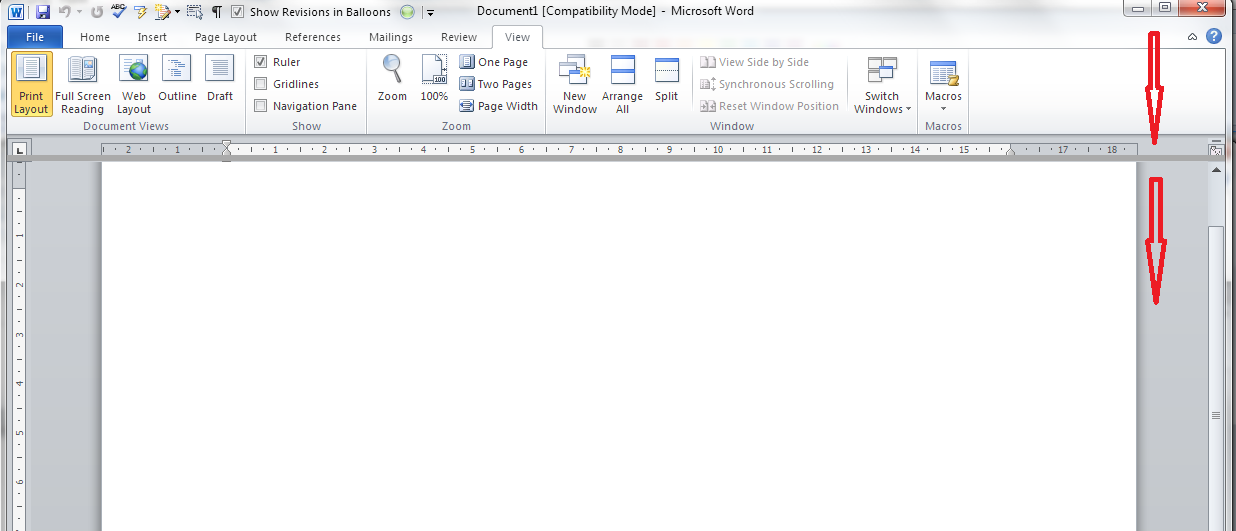
In the top right of your Word screen, you’ll find a tiny button like a letterbox, just above a bigger button:

7 split button

Here it is in close-up:

8 split button

Left-click on this button and the cursor will change to having two horizontal lines. Drag the cursor down, holding the left mouse button down, and the grey line will follow, just as with the other method.

9 split down

Return it by clicking, keeping the mouse button down and moving the split line up to the top of the screen.

You can mix and match these ways of adding and removing the screen split, so if you start one way, you can remove it in the other way.

So, if you’ve got a split screen and you don’t know why, you probably clicked on that little button by accident, and you can remove it in one of two ways: go into View and Remove Split or click on the split bar and move it up to the top of the screen.

In this article, we’ve learned about splitting the screen in Word, why we might want to do that, how we do it, and how to return to standard view.

If you have enjoyed this post, please share the link!

Please note, these hints work with versions of Microsoft Word currently in use – Word 2007 and Word 2010, for PC. Mac compatible versions of Word should have similar options. Always save a copy of your document before manipulating it. I bear no responsibility for any pickles you might get yourself into!

Find all the short cuts here

 
17 Comments

Posted by on August 7, 2013 in Errors, New skills, Short cuts, Word, Writing


Tags: , , , , , , , ,

Section breaks in Word

Today we’re going to be talking about adding section breaks in Word documents.

Why would I want to add a section break?

Section breaks are used if you want to have different formatting in different parts of your document. For example, you might want to …

  • have your page numbering in Roman numerals for part of your document and Arabic numerals in the rest of it
  • have some pages in portrait and some in landscape (for example if you’re including wide tables or images in your document)
  • include watermarks for branding or protection in parts of your document but not other parts
  • have different headers and footers associated with different parts of your document

Basically, if you want to change parts of your headers, footers, background or page layout for parts of your document only, you will need to divide up those parts using Section Breaks.

We’re going to use a document where one page should be in portrait and one in landscape for demonstration purposes.

What happens if you don’t use Section Breaks?

In this example, we want Page 1 to be in portrait and Page 2 to be in landscape orientation.

If you don’t enter any section breaks, even if you have your cursor on Page 2, changing its orientation to landscape …

1 without section break 1

… will change the orientation of Page 1, too:

2 without section break 2

Where is the Section Break menu in Word 2007 and Word 2010?

The good news is that the Section Breaks menu is exactly the same in Word 2007 and 2010.

Go into the Page Layout tab, and you will find the Breaks menu in the Page Setup area:

3 section break menu

Note that you can apply Section Breaks to automatically happen continuously and on every odd or even page. I’ve never needed to do that: what I have done many times is insert a section break and start the next section on a new page.

How do I insert a Section Break into my document?

Make sure that your cursor is flashing where you want your Section Break to appear (i.e. at the end of your current section). Then select Section Break – Next Page:

4 section break menu

Once you’ve done this, the section break will have been inserted at the point at which you had your cursor. But you can’t see it – it’s one of those hidden messages that is only displayed if you use the Paragraph Mark button (see this article for further information):

c

Once you’ve pressed the Paragraph Mark button, you will be able to view your section break:

5 section break visible

If you look at your Header and Footer, you will see that they also show that Page 1 is part of Section 1, and Page 2 is part of Section 2:

6 header and footer showing section break

This is a good way to check which parts of the document belong to which section.

What effect does inserting a Section Break have?

Now that your document is divided up into Sections, you can apply different formatting to different sections of the document. Page numbering is covered in this post, and in order to have Section 2 in landscape, all we need to do is make sure that the cursor is in Section 2, and select the landscape option:

1 without section break 1

Now that it has been separated off into Section 2, Page 2 will change to landscape, while Page 1, in Section 1, will stay in portrait orientation:

7 portrait then landscape

How do I add more sections to my document?

There is no limit to the amount of sections you add to a document, however, it’s worth keeping track of them and remembering that your formatting will need to be set individually for each section – if you’ve changed everything in Section 2 into landscape, if you add a new section, it will stay in landscape and you will need to change it back to portrait if that’s how you want it to orientate.

How do I delete a Section Break?

To delete a section break, simply turn on Paragraph Marks so you can see the section breaks (see above), put the cursor next to the break and press the Delete button on your keyboard.

—-

In this article you have learned about Section Breaks, what they are used for, how to apply them, and how to use them to change the page orientation in your document. If you’ve found it useful, please share!

Other useful posts:

Proper page breaks

Page numbering – how to have different page number formats in different parts of your document

Changing between Landscape and Portrait (to come)

Please note, these hints work with versions of Microsoft Word currently in use – Word 2003, Word 2007 and Word 2010, all for PC. Mac compatible versions of Word should have similar options. Always save a copy of your document before manipulating it. I bear no responsibility for any pickles you might get yourself into!

Find all the short cuts here

 
14 Comments

Posted by on August 2, 2013 in Errors, New skills, Short cuts, Word, Writing


Tags: , , , , , , , ,