RSS

Author Archives: Liz Dexter

Unknown's avatar

About Liz Dexter

Book blog is at http://www.librofulltime.wordpress.com Writer, proofreader, editor, transcriber. Also runner, gym-goer, volunteer and BookCrosser! My married name is Liz Dexter but my maiden name and the name on the books I write is Liz Broomfield.

How do I display the top and side rulers in Word?

The top and side rulers in Word are used to set your margins, and also any Indents you might require for your paragraphs. They should display by default. If they don’t, here are instructions on how to make them display.

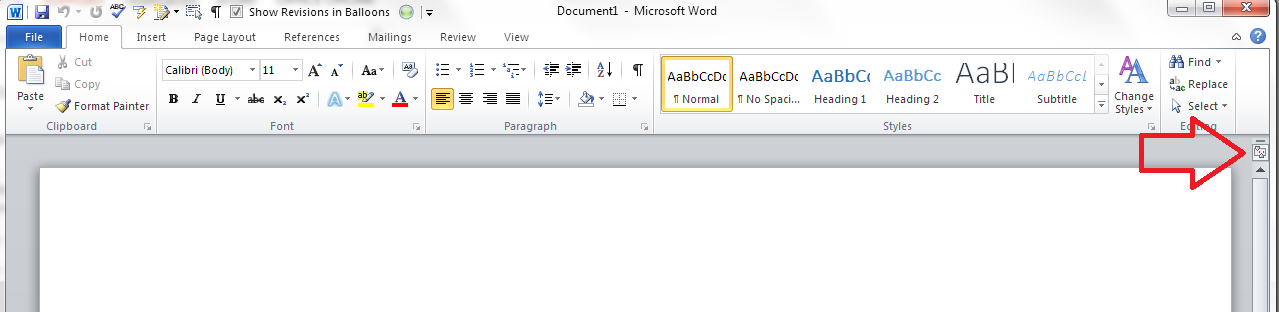
If you can’t see the rulers, click on the View Ruler button at the top of your right-hand scroll bar:

view ruler in word

This will display both of your rulers, and you can use the sliders to adjust your margins:

Rulers display in word

To turn off the rulers, simply press that button again, and they will disappear!

Other relevant articles on this blog:

Indents and Margins.

I hope you’ve found these hints helpful! Do share or pop a comment on this post if I’ve helped you learn something new or solved a tricky problem for you, and do explore the rest of my blog if this is your first visit!

Please note, these hints work with versions of Microsoft Word currently in use – Word 2007, Word 2010 and Word 2013 all for PC. Mac compatible versions of Word should have similar options. Always save a copy of your document before manipulating it. I bear no responsibility for any pickles you might get yourself into!

This is part of my series on how to avoid time-consuming “short cuts” and use Word in the right way to maximise your time and improve the look of your documents. Find all the short cuts here


Tags: , , , ,

How do I change from having a gap between paragraphs to indenting them?

I’ve written this post because one of my clients just asked me how to do exactly this. She had a document where the paragraphs had an automatic line space between them, and no indent (because I’d produced the document and that’s how I like to lay out paragraphs), and she wanted to change it to have no line space between paragraphs, and the first line of the paragraph indented.

This article draws on two that I’ve already published, so for more detail, you might want to look at my posts on The Line Space Button and Indents and Margins. But what you’ll find here is a quick guide to changing your paragraph format from spaces between paragraphs to indented paragraphs (and vice versa). Note that although they all look a little different, this works for Word 2007, Word 2010 and Word 2013 for PC.

How to remove automatic spacing between paragraphs

There are many reasons to remove automatic spacing between paragraphs. To mention a rather obscure reason, I produce transcriptions to accompany a client’s YouTube videos. The formatting for these requires that a manual line space is added between paragraphs, but my version of Word adds these automatic spaces as a default, so I have to take them out.

Here’s what a document with automatic line spacing between paragraphs looks like:

Paragraphs with automatic spacing

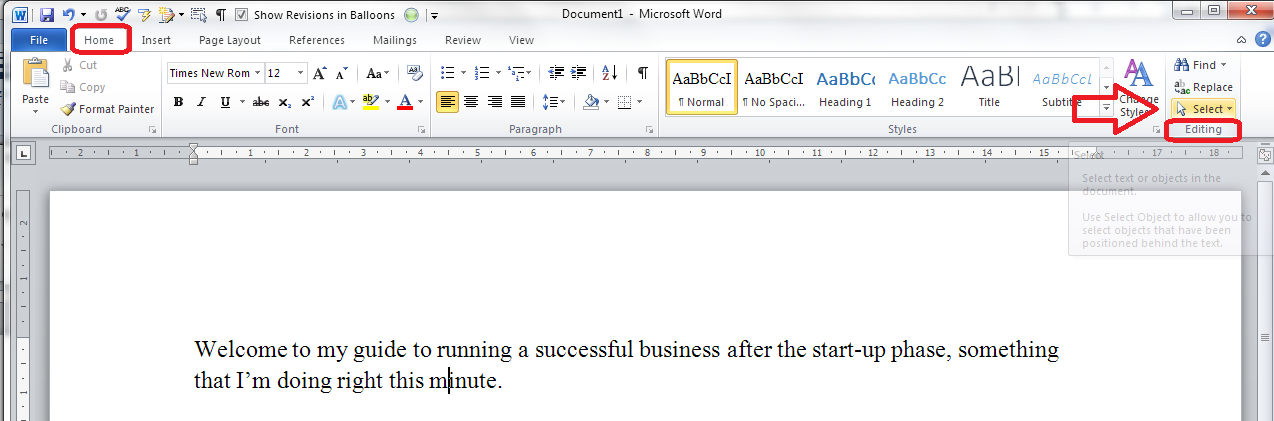
To remove the spaces, first of all you need to highlight all of the text where you’re going to change the format. This is best done by going to the Home tab, then going to the Edit area on the right and clicking on Select:

select all text in word

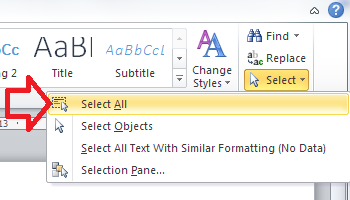
Once you’ve clicked on Select, you will get a choice of options which includes Select All. Click on this and your whole text will be highlighted:

option for select allOnce the text is all highlighted, making sure you don’t click on the text (which will deselect it), staying in the Home tab, go to the Paragraph section in the middle of the ribbon and click on the Line Spacing button, which looks like this:

line space button

remove space after paragraph

If you have automatic spaces between paragraphs, one of the two bottom options will read Remove Space Before/After Paragraph. In this case it’s after. Click on that option (and it will change to Add Space After Paragraph).

This will have the effect of removing the line spaces between your paragraphs:

paragraphs with no line space in between

How do I indent my paragraphs?

Keeping the text highlighted (or re-selecting All if you’ve accidentally clicked and lost the selection), move below the Ribbon to look at the rulers in your top margin.

(If you can’t see the rulers, click on the View Ruler button at the top of your right-hand scroll bar:)

view ruler in word

Once you can see your rulers, move only the top half of the left-hand margin marker rightwards across the page until you reach the indent position that you want:

setting indent in word

This will give you indented paragraphs with no line spaces between them!

indented paragraphs

Done! To get from indented paragraphs to paragraphs with gaps between them, you just need to reverse this process …

Other relevant articles on this blog:

The Line Space Button

Indents and Margins.

I hope you’ve found these hints helpful! Do share or pop a comment on this post if I’ve helped you learn something new or solved a tricky problem for you, and do explore the rest of my blog if this is your first visit!

Please note, these hints work with versions of Microsoft Word currently in use – Word 2007, Word 2010 and Word 2013 all for PC. Mac compatible versions of Word should have similar options. Always save a copy of your document before manipulating it. I bear no responsibility for any pickles you might get yourself into!

This is part of my series on how to avoid time-consuming “short cuts” and use Word in the right way to maximise your time and improve the look of your documents. Find all the short cuts here


Tags: , , , ,

Spring cleaning your budget for the new financial year

spring clean your financesToday we have a guest post by Chinny Ogbuagu from Pitney Bowes, who’s going to share with us her tips for spring-cleaning your budget as you submit your tax return and move through the new financial year. It’s always good to get other people’s views on these matters, and it’s timely for me as I sort out my bank statements and records and get them all sent off to my accountant. You don’t leave it until January, do you? Read on for plenty of handy tips and hints … 

Many of us think of spring cleaning as dusting away those cobwebs, sorting out your clothes and tidying up your house. Many business owners don’t often think about the new financial year: here are some top tips on how you can start planning by streamlining your budget for the coming year.

Review Your Budget

Have you ever heard of the saying “in with the new and out with the old”? You may want to spend a day going over your expenditure during the past few months and work out if there is anything you aren’t putting enough money aside for or maybe areas where you are spending too much. Look at areas in which your company can save costs such as business phones or internet providers, and maybe even costs of office rent and stationery. It’s always a good idea to review this on a monthly basis, as it can save you time and money in the long run.

Sort out your paperwork

This is the perfect opportunity to look thorough all of your paperwork and files and shred any documents you no longer need, especially if they contain any personal information such as names, bank details, addresses or phone numbers. You might need to invest in an industrial shredder for this and there are a number of affordable options for you to choose from at a number of office suppliers such as Pitney Bowes. Do take advice from your accountant on what you are allowed to shred and what you must keep for a statutory number of years.

Create Your Own Financial Calendar

Create an online financial calendar. This will help you to set reminders throughout the year to do things such as review policies and outlines tasks you should complete every month. You can even set this up in Gmail and set reminders to your mobile phone, or alternatively invest in an online financial calendar so you don’t forget when something important needs to be paid for or relooked at.

Go Paperless

You know that you have made progress when you clean out your sock drawer and you can finally close it after years or months of storing items you no longer wear.
According to the HMRC, you are advised to hang onto tax records for a particular accounting period for normally six years from the end of that period. For example, if the accounting period ends on 31 December 2012, the records have to be kept until 31 December 2018.

It might be easiest to keep the hard copies of those. But things such as bank and credit card statements, as well as pay stubs, can be scanned and stored in a cloud-based filing provider, such as Dropbox or Google Drive.

An article on Learnvest claims that you should keep your documents for the following before shredding (again, do check with your accountant and note that this can be different for different regions of the world):
Destroy in a few days:
• ATM receipts, once you record the transaction
• Bank deposit slips, once the funds appear in your account

Destroy after 1 month:
• Receipts for things you bought on a credit card, once you get your statement, unless you need it for a return or a warranty
• Credit card statement, unless it has a tax-related expense on it

It’s important for businesses to keep on top of this so that you don’t spend more than you have to:: just like you would with your shopping or household expenses, look at the best value for money. This will help to you keep up with today’s rising costs.

This article was written by Chinny Ogbuagu who works for Pitney Bowes helping small businesses to save time and money with their range of equipment and services. She’s also an avid social media user, following and commenting on industry trends.

 
Leave a comment
Posted by on June 25, 2014 in Business, Guest posts, Organisation


Tags: ,

How to change your editing language in Word 2013, Word 2010 and Word 2007

This post is linked to my one on changing the language of your document in Word, however I’ve split them up to avoid screenprint overload.
Incidentally, this process also solves the problem of the language not appearing in the lower status bar of your Word document. This language note will only appear if you have more than one language set as the editing language in Word options.

Why would I want to change my editing language?

The main thing I’ve used this for is to force the language to appear, thus be changeable, in the lower status bar of my Word document. However, it’s also used if you are intending on loading alternative alphabets into your version of Word, if you want to use it for Chinese or Russian, for example.

How do I change my editing language in Word 2013?

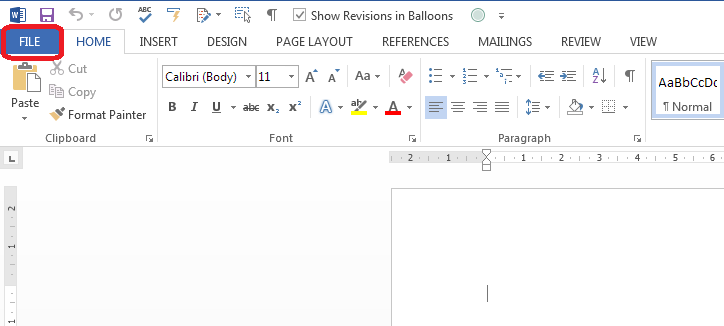
This is done in Word Options. Find your Word Options by clicking the File tab:

Finding Word Options in Word 2013

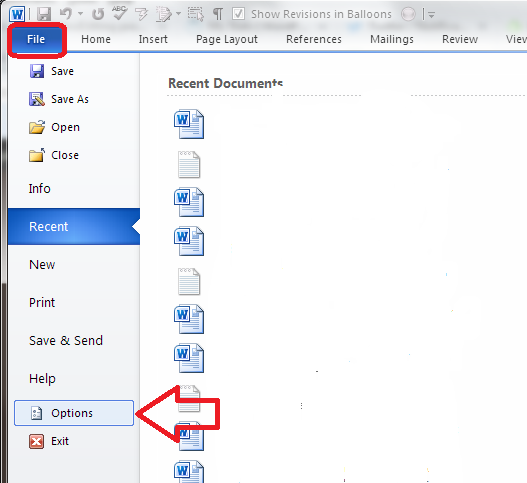
Now choose Options:

Word Options Word 2013 2010

Within the Word Options window, choose Language:

Word Options Language

Look at the Choose Editing Languages section. You can see that only English (United Kingdom) is on the list at the moment. Click on the dropdown arrow by Add additional editing languages:

Choose editing language Word

Select your editing language from the list …

Choosing editing language Word

Once it’s selected, click the Add button:

Adding editing language Word

Now English (United States) has been added to the list – press the OK button at the bottom of the window:

Editing language added Word

What else can I change in the language section?

You will notice that you can also change the display and screentip languages on this screen, as well as asking Word to prompt you if you need to download any special proofing tools. This is useful if someone who only speaks a different language to the default is going to be using this copy of Word (of course, this is all changing this individual copy of Word and does not affect the document if it’s opened on different computers).

Making the changes take effect

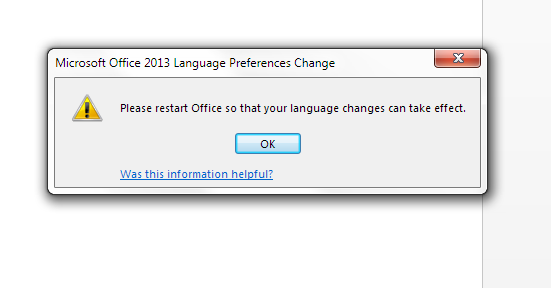
You will now be prompted to Restart Word in order for the change to take effect. Press the OK button and close and re-open Word.

Restart Word

This process has the incidental effect of displaying the language of your document in the lower status bar in your copy of Word – and this is the way to make it display if it doesn’t do so initially.

Language displayed on lower status bar

How do I change the editing language in Word 2010?

Good news – the method of changing the editing language in Word 2010 is almost the same as in Word 2013 (above). The Word Options menu just appears slightly differently, in different colours and a slightly different layout.

Click on the File tab and then choose Options.

Word Options Word 2010

From now on, the process is exactly the same as for Word 2013 (above).

How do I change the editing language in Word 2007?

The process for changing the editing language is a bit different for Word 2007.

Access Word Options by clicking on the Office Button in the top left, then clicking on Word Options at the bottom of the window:

Word Options Word 2007

Stay on the Popular screen that comes up first, and click on Language Settings at the bottom of this screen:

Word 2007 change language

Now you have the option to enable and disable editing languages. Click on the language you want to add in the list on the left and press the Add button. Then click OK.

13 language Word 2007

In this article, we have learned how to change the editing language in Word 2013, Word 2010 and Word 2007. Do comment or use the buttons below to share if you’ve found this useful. Many thanks to Krys Williams for her help.

Related posts in this blog

How to change the language of your document in Word

How to change the language of comments

Please note, these hints work with versions of Microsoft Word currently in use – Word 2007, Word 2010 and Word 2013, all for PC. Mac compatible versions of Word should have similar options. Always save a copy of your document before manipulating it. I bear no responsibility for any pickles you might get yourself into!

Find all the short cuts here

 
13 Comments

Posted by on June 18, 2014 in Word


Tags: , , ,

Developing your Business: Expanding into Regional Offices

Sneak preview of the image from my new bookWelcome to another expert post in my series on growing your business. Today we’re going to take a look at why it makes sense to have a physical presence around the country (or beyond), written for us by Juliet Martin, representing Regus. Linked to this post, you can read about small business owners’ own experience moving out of the home office here, and Sam Barnes’ post about what to consider when planning to move outside the home here. Juliet’s going to share with us the value of renting offices in different places.

Advantages of Renting Corporate Settings around the Country

Today’s ever-growing business world is taking with it the ability for any one enterprise to be localised in a particular place. This means you should at least consider setting up new branches or virtual offices in multiple locations across the nation. Even though you will have to then manage a number of settings, you will gain plenty of benefits in the long run. Adapting to these modern, global times will provide you with the following five corporate advantages.

A commercial building

It pays to have more than one branch for your business Image

1. Access to Local Resources

If you produce any kind of goods, you may find that the various materials and components required are sourced from multiple areas around the country. For example, you may find the following are located in different regions:

• Mines
• Factories
• Ports
• Plantations
• Refineries

By opening up small branches near each of these facilities, you will then give your company greater access to a range of materials and services directly from the source. This means you won’t have to rely on a third party to bring these essentials to you.

2. Lowering Your Monthly Rent

Believe it or not, it may actually be more cost-effective to run a number of bare-bones offices around the country than a fully functional corporate setting in a single location. After you have negotiated to reduce the rent of your many branches, you can then look forward to even more savings thanks to the smaller and more compact premises that your company is now working from. If you can simplify how your work settings are planned out, eliminating excess features and only renting what is necessary, you can streamline your outgoing cash flow and still benefit from a number of corporate environments located around the country.

3. Honing Your Corporate Marketing

One difficulty that any localised business has is that its target audience is fairly limited, being restricted to a single geographical area. You can get around this by working from several different locations across the country. In general, people will wish to work with a business that has a presence in their neighbourhood because:

• It provides a local face to the company
• Contacting the enterprise is much easier
• Delivery times won’t be needlessly long
• Employees will be much more relatable

By branching out across the nation, you can tap into a wider consumer base than ever before, enabling you to find additional customers and boosting your sales to help cover the rental costs of your various corporate locations.

4. Added Convenience for Clients

Another advantage to the consumer is that it is far easier for them to come and visit your workplace if you are found scattered across the country. To cater to all your client’s needs, rent some office space at business centres around the nation. This will give them additional convenience as they can deal with your company in a number of ways thanks to your now local business setting. For example, they should be able to:

• Visit your office without driving for hours
• Post parcels and letters to you cheaply
• Phone without expensive long distance rates

There are times when your clients want some personal attention. In these cases, email won’t suffice. Video conferencing can be difficult to set up properly too. A better solution is just to have a local branch available so they can arrange for an appointment with you or a company representative without having to go through a lot of hassle to get there.

5. Broadening the Talent Pool

Lastly, by making the effort to rent corporate premises around the country, you will then have access to a greater range of skilled workers for your business. The truth is that having the right resources is crucial to helping you identify new talent. In this case, the resources in question are your local offices which can then tap into the growing number of potential candidates found in those local regions. People may not want to relocate to another city to work with your company so having multiple branches will give them a reason to sign on with you even though your main office is found halfway across the nation! In this way, you can increase the sheer talent within your organisation and grow your products and services accordingly.

As a brief recap, we can see that renting workplaces across the country can indeed provide many benefits to any enterprise. These advantages include the following:

1. Ease of access to national resources
2. More cost-effective rental payments
3. Effective locally targeted advertising
4. Increased consumer convenience
5. Wider talent pool for new employees

We would recommend that you get out there and expand your business operations as soon as possible to reap all of the above rewards. By occupying some of the best corporate spaces around the country, your company can grow and your customers will get even better service as a result! To make the process easier, get in touch with a provider such as Regus for assistance on renting suitable spaces at cities or regions you have interests in.

Author Bio: Juliet Martin is from Regus, a global office space solutions provider. Founded in 1989, Regus is a global organisation that aims to provide only the best office spaces and meeting venues to all kinds of businesses.

This post is part of my series on growing your business. Read more here and read about my own business journey in my books.

 
1 Comment

Posted by on June 11, 2014 in Business, Guest posts, Organisation


Tags: , , ,

How to add an admin or moderator to your Facebook business page

In this post we’re going to learn how to add someone as a moderator on your business or organisation’s Facebook page, and also what it looks like when you are added as a moderator of a page. For more basic information about setting up your Facebook page, see my article on Facebook for business.

How do I add someone as an administrator to my Facebook page?

To be added as an administrator of a page, you must Like that page first (or to be added as an administrator of a group, you must be a member of that group)

To add someone as an administrator of a page, they must Like that page first.

To add someone as a moderator, find See Likes on the Admin Panel of your page

1 likes button

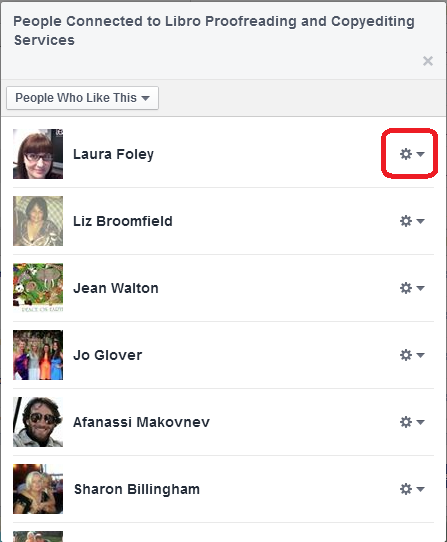
You will see a list of people who have “Liked” your page, each with a little icon to the right.

2 list of likes

Find the person you want to add, click on the icon and choose Make Admin:

3 make admin

Once you’ve done that, you will get another screen which shows all of the people who are admins of that page:

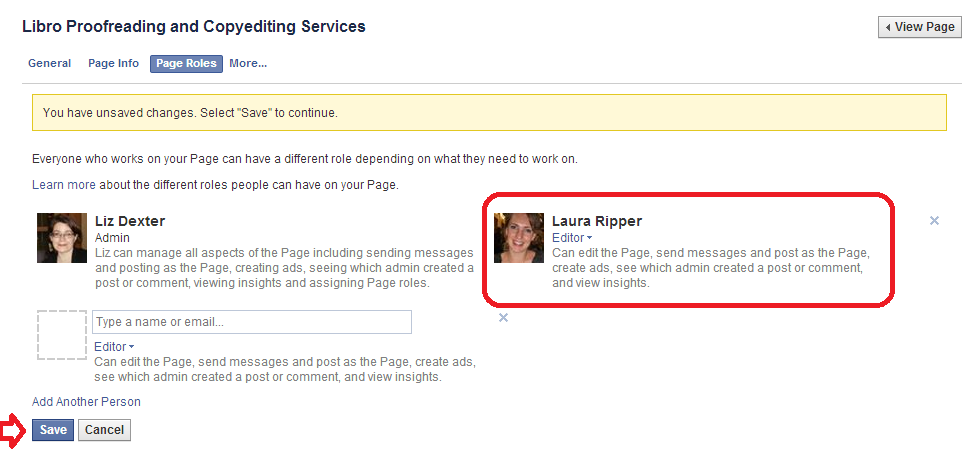
4 make admin

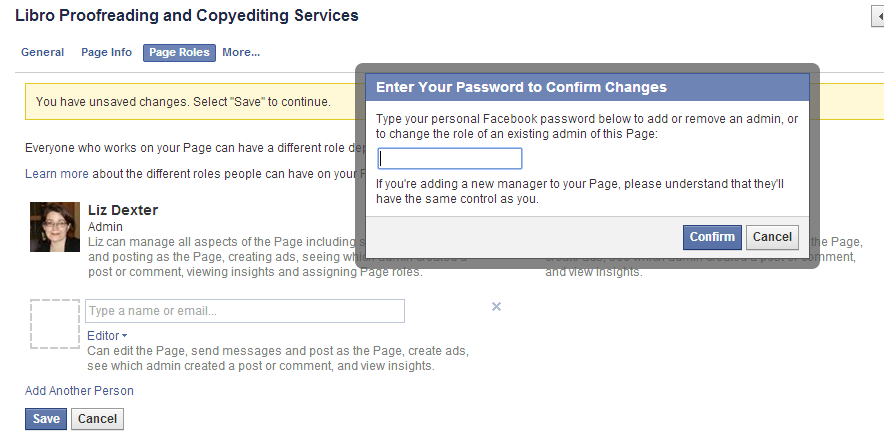
This shows that you’ve added someone to have admin rights. Note the x top right – this can be used to remove them. Press Save … and you’ll be asked for your password (just as a safety measure):

5 make admin

Add your password and there they are, an admin.

How do I access the Page Roles area to change what my moderators can do?

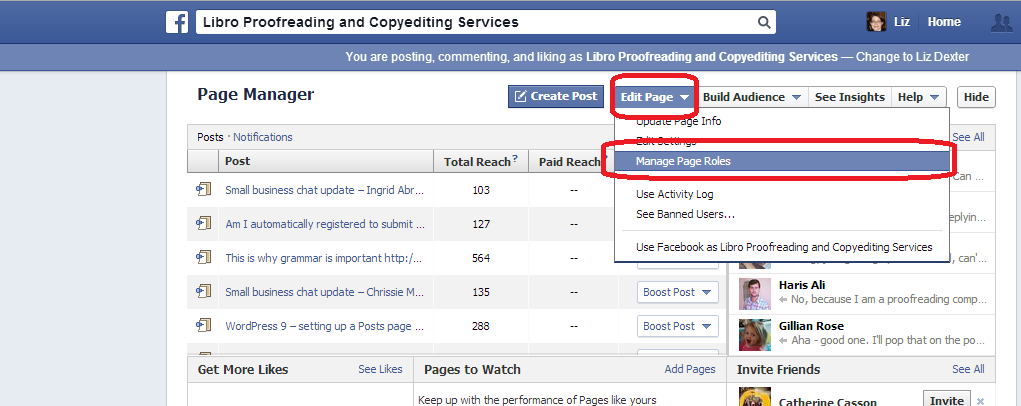
If you want to change the roles that people have in moderating your page, go into the Page roles area by choosing Edit Page in the Admin Panel, then Manage Page Roles:

Facebook page moderator page roles

What are the different Facebook page moderator levels?

You can choose different levels of moderation to give to your admin people. If you want to change these at any time, go into the Page Roles area by choosing Edit Page then Manage Page Roles (see screenshot in the previous section.

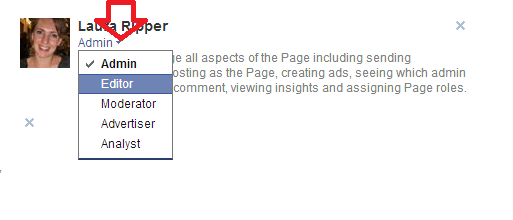
Now, click on the arrow by the role name assigned to your moderator, and you will see a list of choices. The role that the administrator currently has will have a tick next to it. Click on a role to change the privileges that the administrator has.

Facebook page role optionsAn Admin can send messages, post as the page, create ads, see which person has created a post or comment, view insights (stats etc.) and assign page roles

An Editor can do everything that an Admin can do, plus they can edit the page itself.

A Moderator can do everything that an Admin can do, plus they can delete comments on the page

An Advertiser can see who created posts and comments, view insights (stats) and create adverts

An Analyst can see who created posts and comments and view insights

What does it look like when I’m added as an Admin of a Facebook page or group?

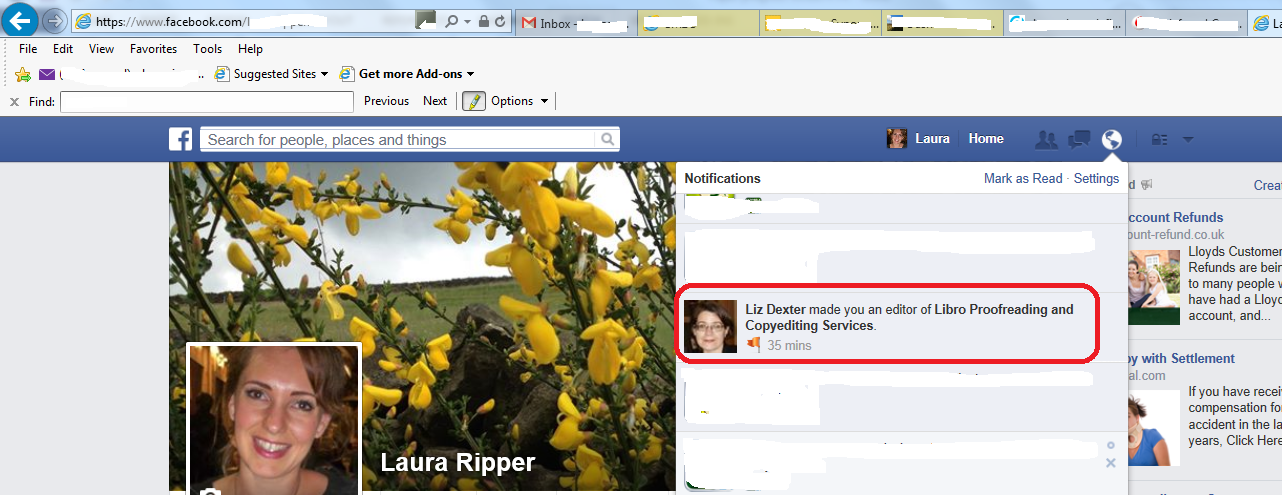
When the moderator of the page adds you as an admin, you will receive a notification. Depending on how you have notifications set up, you may receive an email – there will be a notification in your Facebook Notifications list. Here’s Laura’s which arrived after I’d added her, above:

facebook notification - added as moderator

On your own Facebook feed, you will see all of the Pages you administrate under the Pages heading. For groups, there is also a section called Groups You Admin under the Groups heading.

6 groups you admin

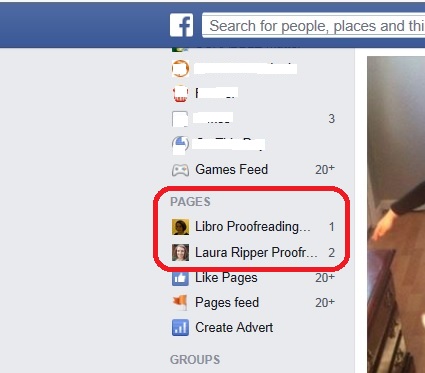
And here’s Laura’s Facebook menu, showing that she’s now administrator of her own page and mine:

List ofFacebook pages for which you are admin

To view the page or group for which you have admin rights, click on the page or group and your view will be that of the administrator, with the Admin panel at the top:

7 admin panel

What does having moderator status for a Facebook page actually mean?

Once you’re a moderator / admin, you can do any or all of the following (see list above for the different roles): see all of the statistics for the page, who likes that page and how the posts on the page are doing; comment under the name of the page (so in my case, Laura can post on the page as if she’s called Libro Proofreading and Copyediting Services) and delete other people’s comments as appropriate; create adverts.

So, if you are the owner of a page and add admins, be careful if you’ve associated a bank account or PayPal account with the page, or make sure you choose the appropriate role level for your moderators and make sure you trust any people to whom you’ve given full roles to not to go booking millions of adverts without your say-so!

To summarise – if someone asks you to be a page administrator / moderator for their or their business’s Facebook page:

  • Make sure you ‘Like’ their page first
  • Ask them to find you in the list of people who ‘Like the page’
  • Ask them to click and make you a moderator
  • You will receive a notification and the page will appear at the top of your page list in the left-hand margin
  • Click on the page name in the left-hand margin and you will have full administrator rights

In this post, we’ve learned how to add someone as a page administrator, and what happens to that person’s view of Facebook once this has been done. Thanks to Laura Ripper for providing screen shots and being a guinea pig page admin! Her Facebook page is here and the Libro one is here.

If you’ve enjoyed this post and found it useful, please share it using the buttons below! Thank you!

You can find more resources on social media in my blog resource guide (link takes you to the social media section) and read about using social media for your business in my book on growing your business.

Related posts on this blog:

Facebook for business

How to delete posts and block users from your Facebook page

 
27 Comments

Posted by on June 4, 2014 in Business, Social media


Tags: , ,

Introducing my new business titles: Running a Successful Business After the Start-up Phase and Your Guide to Starting and Building your Business

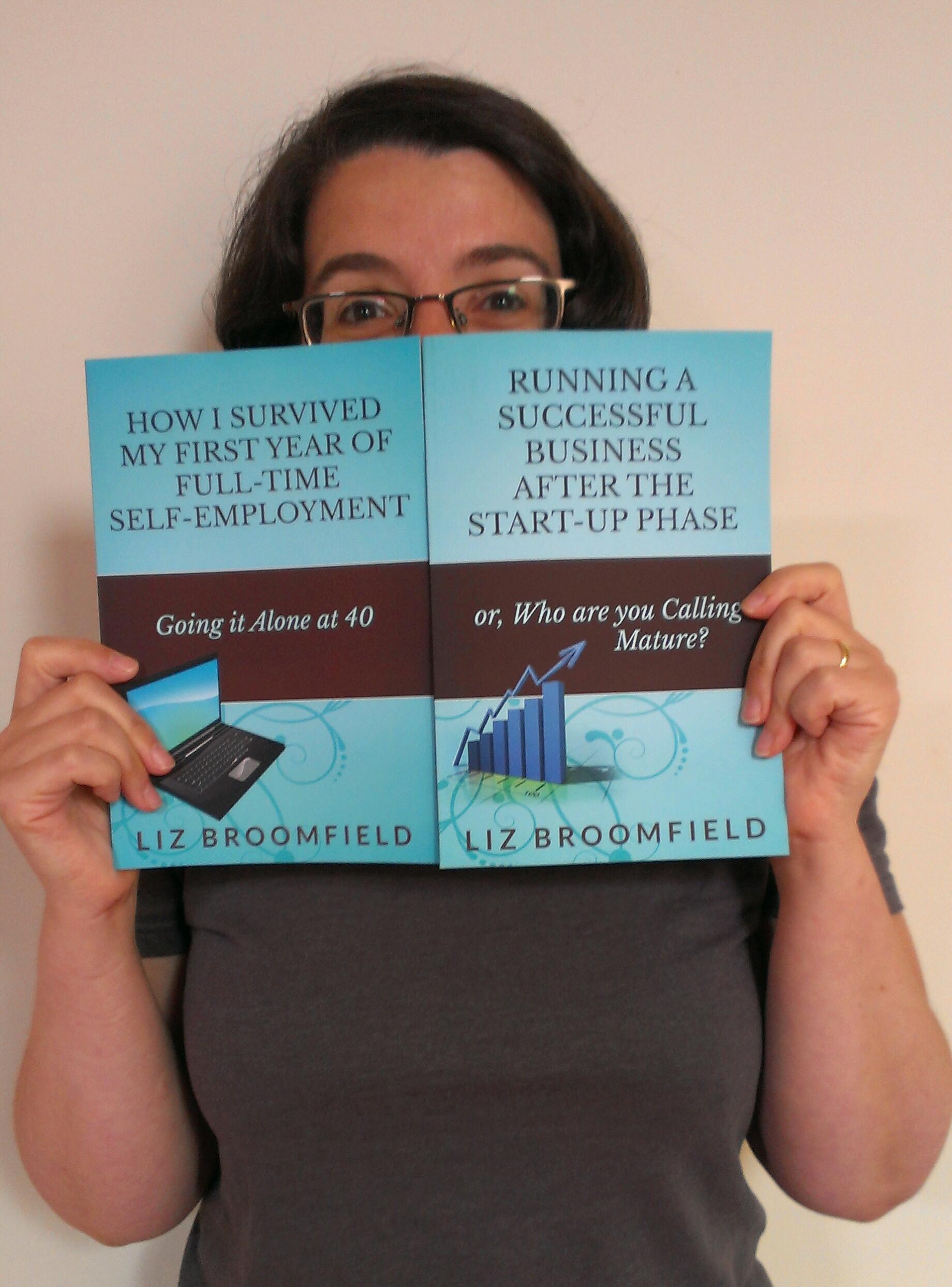
Liz with her new books

Liz with her new books

It’s time to tell the world: I have two new books out, and I’m pleased to share the news with my readers and subscribers.

Running a Successful Business After the Start-up Phase: Who are you Calling Mature?” is a look at what happens next. Following on from “How I Survived my First Year of Full-Time Self-Employment: Going it Alone at 40“, it shares what I’ve learned about optimising your customer base (including saying no to prospective new business), optimising your income, keeping that vital work-life balance, and blogging and the use of social media to build awareness and grow your business. It’s had some good feedback both personally and on its Amazon review page and I’m really pleased to be able to help people further along their journey through the wonderful world of self-employment and running a small business.

You can buy the print or e-book version from Amazon – you can go straight to Amazon UK, or see the book’s web page for links to the other international Amazons, and buy in different formats including pdf and for Kobo at Smashwords.

I decided to put “Your Guide to Starting and Building your Business” together to offer a low-cost option for people who want to read both books. It’s on e-book only at the moment, and is an omnibus made up for “How I Survived my First Year of Full-Time Self-Employment” and “Running a Successful Business after the Start-up Phase” which takes you right through from how to decide whether to go self-employed, taking the first steps, perhaps while working in a day job, setting up your business, getting your first customers, working out which customers to continue working with, using blogging and social media platforms and getting your life back while running a successful business. I really do write this blog and these books to help people, so I’m really pleased to be able to put this package together at a decent price, and it’s so great when I hear how I have helped people!

You can buy the e-book only omnibus from Amazon UK and other versions of Amazon (see list of links), and for all e-book formats, from Smashwords.

Thank you to everyone who’s supported me in my writing efforts – I’m so glad when I hear how I’ve helped people, and hope that I can continue to do so for many years to come. Watch this space for my new venture – an editors’ version of the two books and a workbook to go with both sets of books, based on the mentoring I’ve been doing with some industry colleagues this year.

If you’re interested in how I got to this point, do pop over to my Adventures in Reading, Writing and Working From Home blog, where I talk more personally about writing the books and choosing (and tweaking) their titles.

And you can find info on all of my books on the Liz Broomfield Books website!

 
5 Comments

Posted by on May 31, 2014 in Business, Ebooks, Uncategorized, Writing


Tags: , ,

Developing your Business: Moving Into Office Space – How, When and Why?

Sneak preview of the image from my new bookAs part of my series on growing your business., we’re taking a look today at the expert’s view on moving into office space. You can read about other people’s personal experience of moving out of the home office here, and today I’m delighted to welcome Sam Barnes from Easy Offices, who is going to run through things to think about when upgrading from your home office from an expert’s perspective.

Many people choose to start their businesses from home. It’s cheap, convenient and comfortable. For some businesses, that’s all that’s required and they never feel the need to break out of the home office. For the majority of businesses though, office space becomes an essential as revenues grow. We’ve helped all manner of businesses find office space, from single person start-ups to massive corporations. However, there’s no doubt that with the advice you’re about to read, the process of selecting and moving into your brand new office, will be made substantially easier.

Why does my business need office space?

Your office space is the centre of your business.

Without offices, you’re running the risk of not being taken seriously by other businesses or consumers. Imagine if the next time you wanted to go the bank you ended up at a home, not an office. Commercial premises are a necessity of business.

The practical side of getting your own office space is extremely important too. You’ll have your own phone systems, postal address and meeting space. All of these things will be vital as you grow your business, providing the infrastructure that will drive you forward.

When should my small business move into offices?

This is a slightly more difficult question to answer. There are lots of reasons that you might need to look into choosing office space:

•    You’re outgrowing your existing office space.
•    You’re taking on more staff.
•    You need a meeting room for clients.
•    There are too many distractions at home.
•    You’re unsatisfied with your current office space.
•    You need better facilities, i.e. better internet, private rooms, reception area etc.

There could be hundreds more reasons on this list, but the vast majority of office moves are instigated by a lack of physical space, specifically when taking on more staff.

If you find yourself thinking, on more than one occasion a day, that a bigger office would make your work more effective or allow your business to grow more easily, then I would say it’s time to take the plunge!

As your revenue grows, you’ll find that justifying the cost of an office becomes easier and easier. Having the cash to be able to fund an office move is an absolute necessity.

How do I go about choosing office space?

There are three main kinds of office space available to small businesses in the current market:

1.    Co-Working Office Space

Co-working spaces can be a great fit for some businesses. They’re the cheapest of the three main options available. Essentially you’ll rent a couple of desks in a room or part of a larger office. This gives you the ability to separate your work and home lives while keeping costs low while your businesses is in the early stage of development.

You’ll never know who you might be sharing with and you can make some amazing new businesses contacts while sharing office space. We’ve heard lots of fantastic success stories about relationships formed in shared environments. Equally you’ll want to know before you choose a certain office, what kinds of businesses you’ll be working alongside. If you need a really quiet environment, make sure those around you feel the same.

You’ll also have access to shared mail, printing and catering facilities.

If you’ve only got a couple of staff and you work as one well-oiled machine, a co-working space would be ideal.

2.    Serviced Office Space

Serviced office space is more expensive than co-working office space, but not quite as expensive as a full-blown office lease.

It’s the perfect choice for companies with a few staff who need room to grow. You’ll have a dedicated space for your business (no co-working here). You’ll have all the kitchen, printing and mail facilities that I mentioned before, plus some added features. These normally include security, some kind of reception area, cleaning services and usually the ability to rent extra infrastructure such as improved internet connections.

You’ll get to put your own stamp on things too! The simple branding of your office through posters, mugs and pens can turn the feeling in your office from start-up to established business.

A fantastic choice for businesses growing quickly who know they’re going to need space to meet clients and further expand their operations.

3.    Office Lease

The only option for larger businesses, an office lease lets you rent an entire office. This is necessary when your business has outgrown your existing solutions or needs to centralise.
As this post relates to small businesses, I won’t go into too much detail here. What I will say is that you’ll need to be making substantial revenues before choosing a fully leased office. The costs involved are substantially higher than serviced or shared offices.

Some Top Tips for Choosing Office Space

Here are a few questions that you’ll need to ask yourself before making your choice to move offices:

•    Price – Can you afford it?
•    Space – Does the office you’re looking at give you enough room for meeting clients and working as a team?
•    Infrastructure – Do you need a dedicated phone line and Internet? Does the office you’re interested in office this as a service or do you have to organise it yourself?
•    Facilities – Can you and your staff park here if they drive? Are the kitchens clean?

They might sound like simple, fairly obvious questions, but if you fail to take one of these things into account you’ll be paying for it for months to come.

The best advice I can give you when attempting to choose an office space, is do your research.

Start out with a list of criteria that you need from your office. If any one of the office spaces you go to look at doesn’t meet even one of them, keep looking. There’s a space out there for everyone!

sam barnesSam Barnes is from Easy Offices.

The company works tirelessly to help businesses of all shapes and sizes find the perfect office space for their needs. He is interested in everything small business related with a particular interest in marketing. He works in the digital marketing sphere.

Outside work, he’s an avid football fan, with Arsenal being his lifelong obsession. He also has a passion for music and film. He’s currently rattling through the IMDB top 100 as a personal challenge.

You can also find Easy Offices on Twitter.

This post is part of my series on growing your business. Read more here and read about my own business journey in my books.

 
1 Comment

Posted by on May 28, 2014 in Business, Guest posts, Organisation


Tags: , , ,

Do I need editing or proofreading?

Do I need editing or proofreading - pens and inkNew authors who come to me for editing or proofreading services are often confused about the difference between the two. This is probably because what we in the business call ‘editing’ is called ‘proofreading’ in the outside world. But they are two different things, and this article aims to help you to choose which service you need.

Do you need line / copy editing, substantive editing or proofreading services? Read on to find out the difference and work out whether you need to ask your editor (whether that’s me or somebody else) for proofreading or editing?

What is editing?

Editing is all about the words and content of your book – not its layout and presentation.

Editing is usually done in Word, using the Track Changes feature so that your editor can mark up suggested deletions, additions and changes, as well as making comments about various aspects of the text, and you can see exactly what they’re suggesting and choose whether you accept or reject the changes.

What is line editing / copy-editing / editing?

Line editing, or straight editing (which most people think of as ‘proofreading’ is done, as I said, in a Word document version of your book.

It covers identification and resolution of:

  • typos
  • spelling mistakes
  • punctuation
  • grammar
  • sentence structure (repetitive structures, etc.)
  • wording (repetitive word use, etc.)
  • consistent spelling / hyphenation / capitalisation throughout the text
  • comments where wording is unclear and suggestions about changes

Ask for editing / line editing if … your book has been written by you and you’ve gone over it at least once yourself, and had your beta readers read the book for flow, characters, plot, etc. It’s the stage before preparing the book for publication and will make sure that everything’s correct and consistent as far as it can be.

Note that in English, many of these areas do not have a strict right or wrong, especially in terms of capitalisation and even some spellings, and things like use of -ise- and -ize- spellings. Your editor should create a style sheet for the project, which lists the editing system they use (e.g. Oxford, Chicago Manual of Style etc.) and any choices they made within the text.

What is substantive editing?

Substantive editing means your editor digs around in the very substance of the book, looking at aspects such as:

  • Characterisation
  • Plot
  • Flow
  • Timelines
  • Missing or repetitive sections

Your editor will typically go through and mark up with comments, they may also produce a report on the book as a whole with suggestions for changes – which may be major or minor

Ask for substantive editing if … this is your first novel, you haven’t had it beta-read yet, it’s a long and complicated work and/or you need a thorough going-through of the book. This will often be more expensive than line-editing, and it doesn’t include the items listed under line-editing – it’s hard for an editor to see the wood AND the trees at the same time, so if you have a substantive edit, you will probably need a line edit at some stage, too.

What is proofreading?

Proofreading is generally done just before the book is published (in print or electronic form). It concentrates on the look and layout of the book more than its content (this is why you have an edit done first, then a proofread).

Proofreading is carried out on the final form of a book, often a pdf or maybe a printed version, and the mark-up will be done using pdf marking-up software or pencil marks in your print copy.

Proofreading covers identification and resolution of:

  • Book layout – does each chapter start on a right-hand page in the print version?
  • Page numbers and headers – do the page numbers run consecutively? Do running headers reference the appropriate chapter title? Are footers correct?
  • Contents pages and indexes – does the contents page include the correct page numbers for each chapter start?
  • Page layout – are there any odd gaps on the pages, is there a heading on one page and its paragraph on the next? Are any illustrations correctly placed and referenced? Are any footnotes correctly laid out?
  • Paragraph layout – are three any odd gaps or spaces between paragraphs? Have words that belong in the same paragraph got separated? Are all paragraphs in the appropriately sized font?
  • Consistency – a final check that numbers, dates, heading styles, hyphenation etc are consistent (using the style sheet that the editor created as a guide)

It would be extremely difficult to do a full edit at proofreading stage because, as with line and substantive editing, your editor/proofreader is looking for different things. It is also best to have a different person do your proofread than the person who edited your book – for the same reason that no one can really edit their own work: they will be too familiar with the text and are more likely to miss errors.

So do I need an editor or a proofreader?

This is the basic order in which the process goes:

  1. Write the book – author
  2. Edit the book – author
  3. Substantive edit – by an editor
  4. Edit the book based on the substantive edit – author
  5. Beta read – friends, family, other people in your industry / genre
  6. Edit the book based on the beta read – author
  7. Line edit / edit / copy-edit – by an editor
  8. Edit the book based on the line edit
  9. Prepare book for publication – author or book designer / formatter / both
  10. Proofread – by a proofreader
  11. Edit the book based on the proofread (may need to go back to designer / formatter)
  12. Publish

Other resources on this blog:

Copyediting and proofreading

Working with track changes

Proofreading as a career

If you’ve enjoyed this article and found it useful, please share it using the buttons below.

 
12 Comments

Posted by on May 22, 2014 in Copyediting, proofreading, Word, Writing


Tags: , ,

Am I automatically registered to submit my tax self-assessment online?

coins and watchIf you’ve registered as self-employed in the last year and a bit, you will have received a letter from HMRC telling you that you need to submit a self-assessment tax form. You can do this on paper by the end of next October, or online by the end of next January.

So it makes sense to do it online, right? YES.

Every year, I meet people who’ve just set up their new business and think that because they’ve registered as self-employed, or because they registered as self-employed online, they are automatically registered to submit their self assessment (tax return) online. They can just wait until the end of January and submit it online then, right?

NO.

If you want to file your taxes / submit your tax return / do your self-assessment online, and this is the first time you’re planning to do it online, you HAVE TO go through a separate registration process.

Don’t just take my word for it: here’s a bit of my latest letter from HMRC telling me I need to submit a tax return for the 2013-2014 tax year:

tax online

Got that? You need to go to the HMRC website – WELL BEFORE THE END OF JANUARY and register to submit your tax return online. Once you’ve registered, you will be sent a letter with an activation code. This can take over a week to arrive.

You do not want to leave it to the last minute, or make any assumptions.

If you want to submit your tax return online, you must register to do so as a separate process, and you need to do it in good time in order to get your letter and then activate the account and THEN complete the online tax return (that last bit doesn’t take very long).

If, as a good and normally sensible friend of mine did one year, you leave it until the end of January to even register to submit this information online, you will receive your letter after the end of January, go to fill in your tax return and find yourself confronted with a hefty fine.

The HMRC website with all information on submitting your tax return online, and registering to do so, is here.

If you’re considering setting up a new business or have recently done so, you will find plenty of careers resources on this website (click on that link or surf around the category cloud in the sidebar). Or why not take a look at my books, which have loads of information about starting and maintaining a freelance career.

Other useful posts on this blog:

Setting up as a freelancer 1

10 things you can do before going self-employed

Why I do my tax return in April

Tax payment on account

 
2 Comments

Posted by on May 14, 2014 in Business, Organisation


Tags: