RSS

Category Archives: New skills

Working as a professional transcriber

In  previous posts I’ve talked about why it’s necessary for humans (rather than machines) to do transcription work and how to work out if this is a career for you. This article goes into more detail about the technology you can use to help you, and how to produce a professional transcription that will bring you repeat and recommended business.

Technology for transcription work

The first thing you need is a word-processing package, of course. I use Microsoft Word. Then you need some software to manage your recordings. I use NCH ExpressScribe. It’s also a good idea to sign up to (the free options of) services like Dropbox and YouSendIt, and to be aware of these services, as the audio files people will want to send you might well be very large – too large to send by email attachment.

Why do I need to use transcription software?

When I mention transcription software, some people think I sneakily use special software to do the actual transcription! Not at all! What ExpressScribe does is allow me to

a) manage my transcriptions – I load all the ones I have to do into the software and I can see how long they are and keep my place in them. As I complete them, I delete them from the software (they’ll still be in my files on my PC, though).

b) manage aspects of the tape like the loudness and speed of the tape (if people are talking really slowly, I can speed the tape up slightly and get through it more quickly)

c) start, stop, rewind and fast forward the tapes using the function keys on my keyboard (or any other keys I choose to assign – I messed around with this a bit and did move one function key that I kept hitting by accident, causing the tape to slow to 50% speed!). You can connect the software to a USB foot pedal if you need to save keyboard movements and use your feet to stop and start the tape.
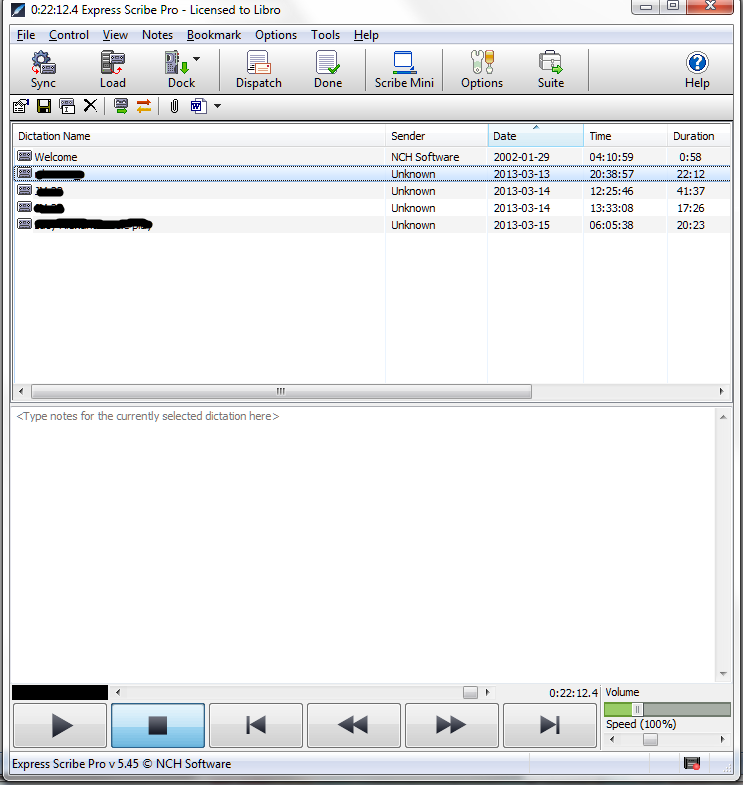
NCH express scribe

How can Word help me to transcribe faster?

The way Word can really help  you is through the use of shortcuts or AutoCorrects. I have written two articles about these previously (what it is and how to find it and how to use it to speed up your typing).

Basically, you need to get good at:

  • Identifying commonly used words or phrases, especially
    • longer sets of words or phrases
    • words that you stumble over typing, however short
  • Assigning keyboard shortcuts to them that you can remember when you’re typing

In this way, you can type something like:

v imp to give envl pons to all ppl in the group to save the env.

and have Word turn that into:

Very important to give environmental responsibility to people in the group to save the environment.

I’ve saved almost 50% of the keystrokes needed to type that sentence there, which does build up over the course of 20 pages of transcription!

How can people send me big audio files to transcribe?

Your clients have four options for sending you their audio files. You’ll just be sending nice, neat Word documents back, but their files might be enormous!

  1. An ftp server – this looks scary but is used by some of the larger corporates I work with. They will place the audio files on their own server. You will log in and download the file onto your own computer, then either upload the transcription or email it to your contact.
  2. Zipping – this will work for small files but a huge .wav file will still be too large for this method. Your client should be able to right click on the file in their own Windows Explorer (or Mac equivalent) and choose “Send to zip file”. This will make the file small enough to send. You will need to unzip it at your end – download the file, right click in Windows Explorer and choose “Extract”.
  3. File sharing – a file and folder sharing service like Dropbox will allow your client to save their file in a special folder that can be shared with your email address. Dropbox acts like another folder on your system, and means that you can access the file and save it into your transcription software from the shared folder. You need to have Dropbox installed yourself before you do this but you can get a free version.
  4. Download services – there are millions of these around, but I usually recommend http://www.yousendit.com as I’ve found that easy to use and reliable. Here, the client uploads their file to the service, enters your email address and the service emails you a link from which to download the document. Watch out, as many of these have a time limit, so get it downloaded as soon as you know it’s there! I have an account with YouSendIt for sending large files, but most of these do not require you to have an account, and the client should be able to send up to a certain file size for free.

All of these options have advantages and disadvantages. Many of my clients know what to use, but some need advising, so it’s worth being aware of the options. For options 1 and 4, it’s worth waiting a little while from when the client tells you they’re uploading the file, as it can take a while to get up onto the server and back to you, so if you’re too eager to download, you might end up with half a file!

Producing a professional transcription

I have many regular transcription clients and they recommend me on to their friends and colleagues at a remarkable rate, too. I’ve asked them what differentiates me from other transcribers, and it comes down to this:

  • I check the client’s requirements up front
  • I produce an extremely accurate transcription
  • I produce a transcription with time stamps and other features to make it easy for the client to work with the text

of course, I’m super-reliable and always set appropriate expectations, but that’s part of being a good freelancer, not specific to transcription.

Establishing client requirements

It’s important to establish what the client wants out of their transcription right from the start. I will always send my clients a list of questions. These include:

  • Do  you want time stamping every 5 or 10 minutes, or at all?
  • Do you want me to record every single word, pause, um and er / smooth out the worst bits / rewrite the text in clear English?
  • Do you want American or English spellings?
  • Do you need your questions written out in full or just in note form (for journalists and researchers)
  • Do you have any other requirements – questions in Italics, speakers’ names in a particular format (for conferences) etc.
  • Do you have a list of conference attendees and session / paper titles (for conferences)

Once I’ve established these, I will make a note of them and obey them!

Being accurate

Your client is paying you to take down what’s on the audio file for them. Often they won’t be able to check the whole thing. I believe it’s important to:

  • Listen carefully and take down the words as accurately as you can
  • Look up band names, place names, company names and other things they mention
  • If you can’t hear something, don’t guess – make a note (see below)
  • Read through the transcription when you’ve completed it
  • Run a spell check over the document when you’ve finished

I do also warn my clients that any company names, brands, album titles etc. may not be accurate and should be checked. You can’t check everything. But you can make sure you spell that village in Somerset or Kazakhstan correctly (if you can’t type Kazakhstan quickly, create a shortcut!).

Making your transcription as professional as possible

It’s relatively easy to provide a professional transcription that will please and impress your client.

  • Give the transcription a sensible title and file name
  • Type it out clearly using a clear font and a fairly large size
  • If people are talking in great slabs of text, divide it up into paragraphs at natural breaks
  • Mark time stamps at 5 or 10 minute intervals – new line, 05:00, new line, carry on the text (with no capital if it’s half way through a sentence)
  • Mark places you can’t hear like this: insert a note in square brackets with the time of the unclear section: [unclear 32:44] (unless the client requests a different format – I have one who prefers <unclear 32:44>
  • If the audio file is 50 minutes long and there’s a 5 minute gap while the interviewee goes off to answer the phone, or it finishes at 45:30 and then all you can hear is your journalist putting the phone down, sighing and typing, only charge for the audio you transcribed. It’s a nice and ethical touch.

In this post I’ve talked about the technology and details that will help  you to be a popular and professional transcriber. I hope this has been helpful – do let me know if it has, or if you have any other advice for a new transcriber!

If you want to learn more about Transcription as a career, buy my book: A Quick Guide to Transcription as a Career – buy from Amazon UK or visit the book’s web page for worldwide links and news.

Related posts on this blog:

Why transcribers need to be humans and not machines

So you want a career in transcription?

Ten top tips for transcribers

If you’ve enjoyed this post, please like and share, click the buttons below here, and tell your friends!
 
53 Comments

Posted by on March 27, 2013 in Business, Jobs, New skills, Transcription, Word


Tags: , ,

How do you start a career in transcription?

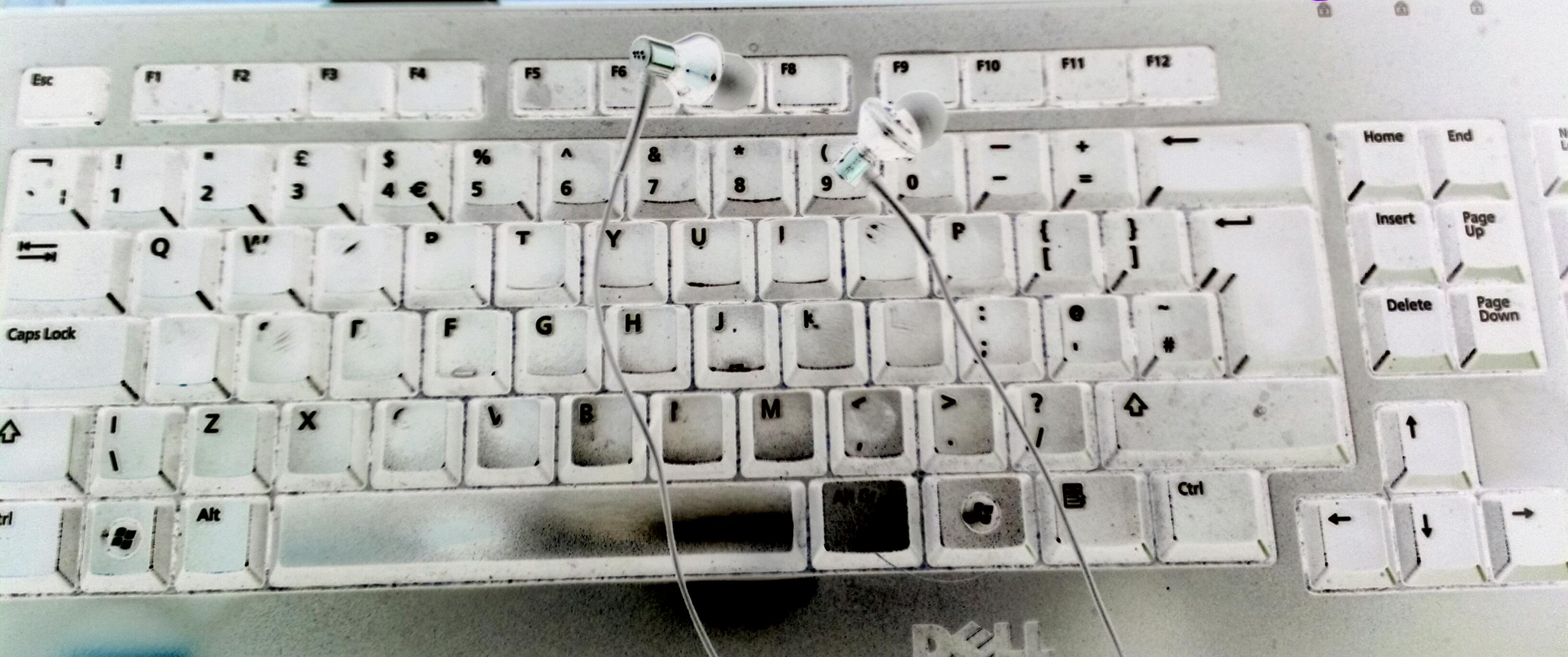
keyboard earphonesIn my article about why we still need humans to do transcription work, I promised to give you some insights into transcription as a career. Here are some pointers to give you an idea of what you need to know in advance, the skills and software you need, and ways to get work in this field – plus some pitfalls to avoid.

What is transcription?

I cover this in detail in another article, but basically transcription is what we used to call audio-typing – turning recordings of spoken words into documents containing those words written down. There is quite a lot of call for transcription work of various kinds as we’ll see in a moment. But the work basically involves putting on a headset or ear phones, and typing out what you can hear on a tape.

What kinds of transcription job are available?

Personally, I’ve worked on the following kinds of transcription job, which just shows how varied it can be:

  • Journalists interviewing musicians and actors
  • Someone interviewing their elderly parent in order to write a memoir for them
  • Academics and students interviewing subjects for their research
  • Students’ role-plays for learning how to provide phone counselling
  • Presentations at international conferences
  • Panels at conferences including questions
  • Discussion panels for market research companies
  • Podcasts by one person so they can provide transcriptions to their listeners
  • Podcasts of one person interviewing another
  • Free and paid-for telecasts (phone-in sessions where people listen to a speaker)
  • Free and paid-for teleseminars (as above but with questions and discussion)
  • Content for a book, dictated in the first instance before being edited

There are also specific roles that people can take on who have particular specialised skills such as legal proceedings or letters and medical transcription.

All of these clients have had different requirements in terms of the level of detail, time stamping, etc. but all have provided variety and interest!

Am I suited for transcription work?

In essence, the answer comes down to these three points:

  1. How fast do you type? You need to be able to type really fast to be able to make enough money (see below)
  2. How careful are you with your posture? (sounds odd, but sitting in one position typing like mad for hours is the highest risk part of my job for RSI)
  3. How good are you at using Word and its autocorrect features? (this makes a lot of difference to your speed – see the section on technology below)

The best way to find out if you’re suitable for this kind of work is to practise before you’re doing a paid job. Learn from me, here! I did train as an audio typist, with a foot pedal and a tape player back in the old days. So when a journalist I followed on Twitter asked if anyone offered transcription, I went for and got the job. Fine, I did lovely fast typing but I was using Windows Media Player to play the tape, switching windows to start, pause and rewind it. That first tape took me hours! I wish I’d known what I know now about technology and how to actually do it!

Technology for transcription work

There’s quite a lot to the technology for transcription, so I’ve written a separate article about working as a professional transcriber which includes loads of detail on this and other aspects.

In essence, you will need:

  • a word-processing package
  • software to manage your recordings
  • ways to receive large files – you need to know about dropbox, yousendit and other services

How do I work out if I’m suitable for transcription work?

If anyone asks me about how to find out if they’re suitable for transcription work I tell them to do this:

  1. Record an hour of general conversation, interviews, etc. from the radio
  2. Get the technology set up (see separate article) and transcribe it
  3. Work out how many minutes it takes you to transcribe one audio minute

I’d say you’re looking for at least a 1:3 relationship here. That’s 3 minutes to transcribe one minute of tape. Not long! you cry. But that means it will take 45 minutes to transcribe a 15-minute tape, or 3 hours to transcribe a 1-hour tape. Build in the fact that you need to take a break at least once an hour, and good old cash rears its ugly head.

Can I make money doing transcription?

Here’s the thing it all boils down to:

If you can’t type fast and use the technology to boost your speed, it’s not financially worthwhile to take on transcription work.

The standard industry rate for transcription is around £0.85 per audio minute. That’s £8.50 for a 10-minute file. If it takes you 1 hour to type out a 10-minute file, you’re going to make £8.50. Before tax. But if you can get two of those done in an hour, you’re getting £17.00 an hour – not so bad.

Some companies have standard rates and pay more. Personally, I stick to that rate for one to two speakers speaking clear English in a relatively quiet room, with a turnaround time that allows me some room for manoeuvre, and I add £0.10 per minute for urgent work, extra speakers, noisy tapes, etc. And if any of my music journalist clients are reading this, yes, I give fellow freelancers a discount (and other people a discount at my discretion, based on the quality of the tapes and the time it takes me to transcribe them).

There are internet job boards out there trying to hire transcribers for £0.10 per audio minute – honestly. The more people accept these prices, the more they will stay. I have more self-worth than that, and even when I was starting out, I’d rather do a transcription for free in return for a reference than do hack work for a corporation paying peanuts. Rant over!

How do I get transcription work?

There are loads of sources of transcription work. I have to say that my main one is personal recommendation – strings of journalists, etc. But it’s also worth trying the following:

  • Set up a saved Twitter search for “need transcriber” and contact people with an offer. This can work – it’s how I got my first transcription client!
  • If you are near a university that has a lot of research going on, ask to put up some posters offering your services. A lot of researchers conduct interviews and need them to be transcribed.
  • Tell your editing or other clients that you’re offering this new service – I’ve transitioned clients to and from transcription services.
  • Join reputable job sites like Proz which advertise transcription jobs at decent prices.
  • Use social media and tell all your contacts what you’re doing
  • Join transcribers’ groups on LinkedIn, etc. – there are often people looking to pass on overflow work

I would strongly suggest that you don’t just do transcription work full time. It’s very physically tiring, you can get RSI from all the typing and sore ears from the earphones (I’ve got a sore ear at the moment and I’ve been doing this for years!) so add it into the mix, and remember to take a break every hour of typing!

This article has helped you work out if you’re suited for transcription work and given you some hints and tips. Have you found it useful? Please comment if you have, and let me know how you get on!

If you want to learn more about Transcription as a career, buy my book: A Quick Guide to Transcription as a Career – buy from Amazon UK or visit the book’s web page for worldwide links and news.

Related posts in the series:

Why you need a human to do your transcription

Being a professional transcriber – software to use to help

Ten top tips for transcribers

 
119 Comments

Posted by on March 20, 2013 in Business, Jobs, New skills, Transcription, Word


Tags: ,

Why you need to be human to produce a good transcription

Suitably funereal transcription kitWhen I receive a recording for a new transcription client and tell them I’ve loaded it into my transcription management software, I’m sometimes asked if that does the transcribing for me. Um, no.

While there are of course software packages out there that are very good at working with a single voice dictating, even those can sometimes struggle. I know this, because I’ve edited work that has been dictated in this way – and it can often be rife with homophones.

Why use a human transcriber?

I’ve been providing transcription services for several years now. While a machine might be suitable for taking down the words of a single, non-accented speaker enunciating clearly into a good quality recording apparatus, with no background noise, no interruptions and no acronyms or jargon, the projects I’ve worked on have included some or all of these features:

  • High levels of background noise – interviews in cafes with espresso machines whooshing and spoons clinking in cups
  • People talking while they’re eating and eating while they’re talking
  • Interruptions from waiters / room service / other members of the band or group
  • High levels of tape noise leaving me straining to hear what anyone’s saying
  • Multiple speakers including many people with similar voices around a conference table
  • Overlapping speech
  • Non-native English accents or heavy regional accents
  • Very technical content – jargon and acronyms galore
  • Creative content – album names, track names, novel titles, band names, author names
  • Requests to provide the transcription missing out ums and ers through to smoothing the English to make it read as standard English

As a native English speaker specialising in working with music journalists and non-native speakers of English, I can cope with all of these, with some rewinding and checking. I doubt that the most sophisticated dictation software could do so, as yet. I might be wrong of course (let me know if I am!).

Understanding what’s being said on a transcription

The first issue is actually hearing and understanding what’s being said. I have a good ear and a native English speaker’s ability to predict what will come next in a sentence / how sentence structures work, plus my experience working with speakers of and texts in non-native English allows me to do this for native Arabic, Chinese, Eastern European language etc. speakers. My ear can filter out background noise where sophisticated software can only go so far. And I can hear around the clink of teaspoons or glasses chinking to grasp what’s being said.

Checking the content in a transcription

When one of my journalist clients sends me a tape, I check who the musician / band is and look them up (usually on Wikipedia for the general information, as their own websites are usually a bit harder to plumb for information). When I’m working on an international conference I will seek out or be given a conference schedule, list of attendees, etc. When I’m working with technical content I will look up information on that topic.

All this allows me to produce a transcription which the client will not have to check for themselves, or if they do check it (which I do recommend), there won’t be too much to change. And I won’t be embarrassed by too many mis-hearings. Just try popping a few names of country leaders, bands or albums into a Word document and running a spell checker and imagine what an automated dictation program would do with these terms!

Speech on a tape to words in a document

Very occasionally I’ll be asked to record exactly what the people on the tape say, including ums, ahs, repetitions and pauses. At the moment, I’m transcribing some roleplays for students learning how to operate a telephone helpline. Here it’s important to capture all the nuances of the conversation and I’m splitting the utterances into sections, numbering them, and including all the ums and ahs.

Normally, my clients will require some smoothing out.

  • Most of my journalists like to have an indication of when their subject slowed down or had to mull over something and ask me to include notes of those pauses.
  • Business people producing podcasts and telecasts often want a fairly accurate transcription, but smoothed out to eliminate ums, ahs, pauses and repetitions, so they have a good product to sell or include in packages for their clients.
  • Some international conferences want to avoid embarrassment for their delegates by having their English rewritten as I transcribe to appear as close as possible to native British (or American) English
  • I have worked with authors who start off with a tape and want it to turn into something they can publish as a book (this, unlike all of the other options, involves two processes: transcription and then heavy editing and rewriting).

Why should I use a human transcriber and not a software program?

2 topsI think I’ve answered that for you now. You should also consider using a human transcriber who’s a native speaker of the language you’re having transcribed: there are websites out there where you can find very cheap transcribers; they are often not going to be native English speakers and while they will get the gist of the tape down, I’d be unsure whether they could give you the service you needed.

I’ve written another article about how to get into transcribing as a job and how to prepare yourself for what is often a fun and rather creative area of work, and one about the technology transcribers use.

In the meantime, if you’re thinking of booking in a transcriber, do have a look at my page about my transcription services, and get in touch if you want to ask about what I can do for you. I hope you’ve enjoyed this insight into a transcriber’s work! Do leave a comment if you have …

If you want to learn more about Transcription as a career, buy my book: A Quick Guide to Transcription as a Career – buy from Amazon UK or visit the book’s web page for worldwide links and news.


Tags: , , , , ,

How to add page numbers to a Word document (2)

We’re already learned the basics of adding page numbers to a Word document, and now we’re going to look at some more things you can do with page numbers, including:

  • how to stop your first page displaying a page number
  • how to have page numbers in different formats in your document

This will be particularly useful if you’re formatting the page numbers on a PhD or other thesis or dissertation – many of my student clients don’t know how to do this, which is what inspired me to write this series of articles.

How can I have different page number formats in different parts of my document?

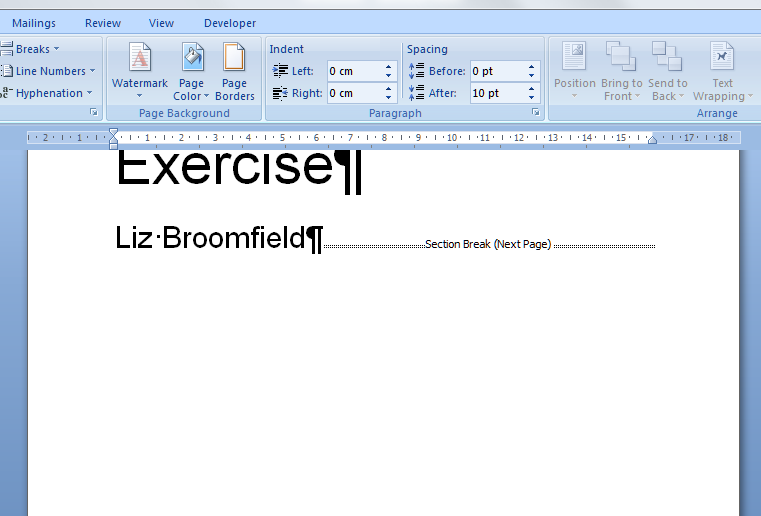
Imagine that you’ve written a thesis or a book – something that has a title page (red), a contents list (blue) and then the main body of the text (yellow). It’ll look something like this …

1 the document

Now imagine that you’d like to have different page numbering for different parts of the document – for example, no page numbering on the title page, Roman numerals for the contents pages, and then the numbering continuing in Arabic numerals for the main body of the text. Look at a non-fction book or someone else’s thesis and you’ll see that this is how they’re often laid out.

How do you do this? First of all, you need to divide your document into discrete sections, using section breaks. Let’s learn how to do that …

How do I see what formatting I have in my document?

If you plan to insert section or other breaks in a document, it’s useful to be able to see what breaks you have in there already. In the document I’m using an example, I would suspect that the aurhor has added some sort of breaks to make the contents page and then main text start on new pages.

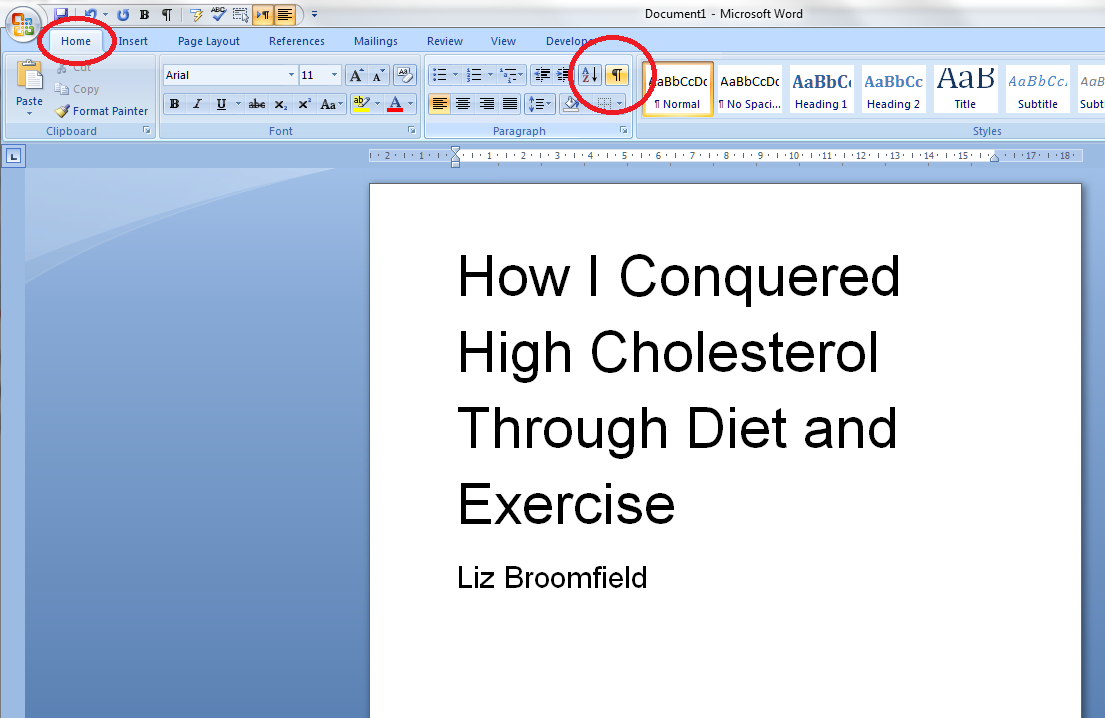
How do we check this? Make sure you’re on the Home tab and then press the Paragraph button in the Paragraph section

2 show coding

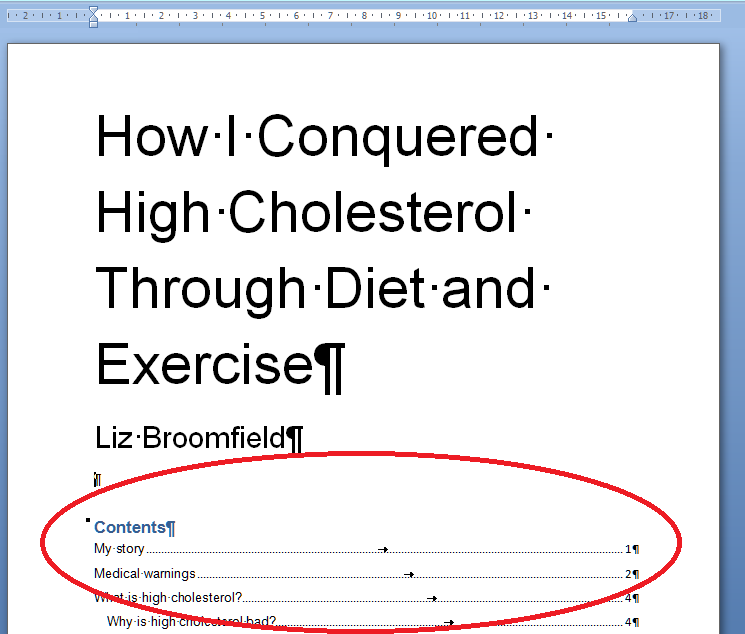
Once you’ve pressed the button, you’ll find all sorts of strange marks appear. You can also see that the new page has been started by inserting a Page Break (and not using the Enter key – hooray. If you want to know the reason for the “hooray”, read this article.

3 page break

The paragraph mark indicates a return, and the Page Break label shows that a page break has been inserted here. That’s great if you just want to start the next chunk of text on the next page, but we want to format each section differently, and this requires a section break rather than just a page break.

How do I insert a section break?

In order to insert a Section Break, we need to delete the page break first. Highlight the page break and press the Delete key or place the cursor just to the right of it and press the Backspace button. As soon as you do that, you’ll notice that the text which sat neatly at the top of the next page has jumped up onto this page. Don’t worry, it will disappear again …

4 no page break

To insert the Section Break, you need to be in the Page Layout tab (not the Insert tab, confusingly). There you will find an area called Page Setup which includes a Breaks menu:

5 breaks

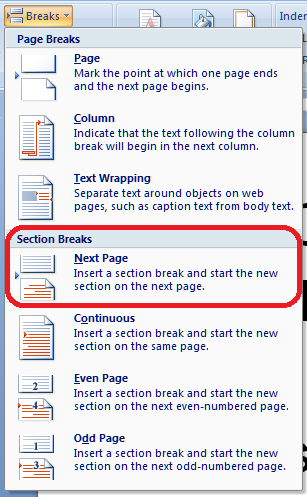
When you press the Breaks button, you’ll see a menu offering several different options for the break you wish to insert – including our old friend the page break and our new friend the section break.

6 section break next page

The one we want is Section Break – Next Page. As the text explains, this will insert a Section Break and start the next chunk of text on the next page – exactly what we want to do. Choose that option and hey presto …

7 section break done

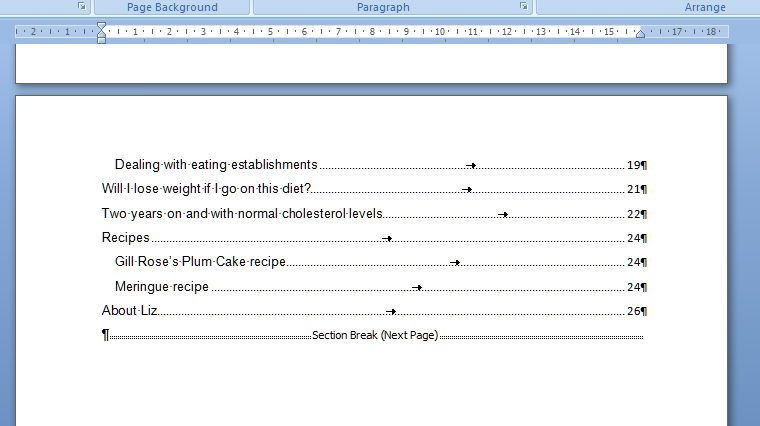
… a Section Break (Next Page) appears on your page. And the Contents page has moved back to Page 2.

Note that in this example, we’re dividing the document into three sections, using two section breaks, so we need to add one at the end of the contents list, too …

8 section break done

So now our document is divided into three sections – 1, the title page, 2, the contents list and 3. the main body of the text:

9 the document sections

How do I add different formats of numbers to different sections of my document?

Now it’s time to add those page numbers, remembering that we want no page numbers at all on the title page, the Roman numerals on the conents pages followed by Arabic numerals for the rest of the document.

We’ve seen how to add page numbers before, using the Headers and Footers on the document. We’ll do that in a moment. But this time we need to do something else first: we need to remove the association between each section and make tat sure each one is independent. This will allow us to assign different page number formats to each section (and other formatting – I’ll write about this another time, but it’s the way you get your document to let you have certain pages in landscape rather than portrait orientation, etc.

How do I stop my footer having the same format as the previous section?

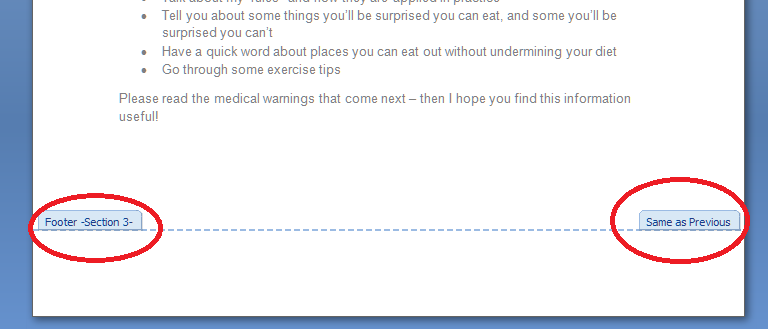
The trick here is to make sure that the footers do not simply copy the previous section of the document. if they do, you will have trouble making each section different. We now need to go into the second section of the document and disconnect its footers from those of the first section.

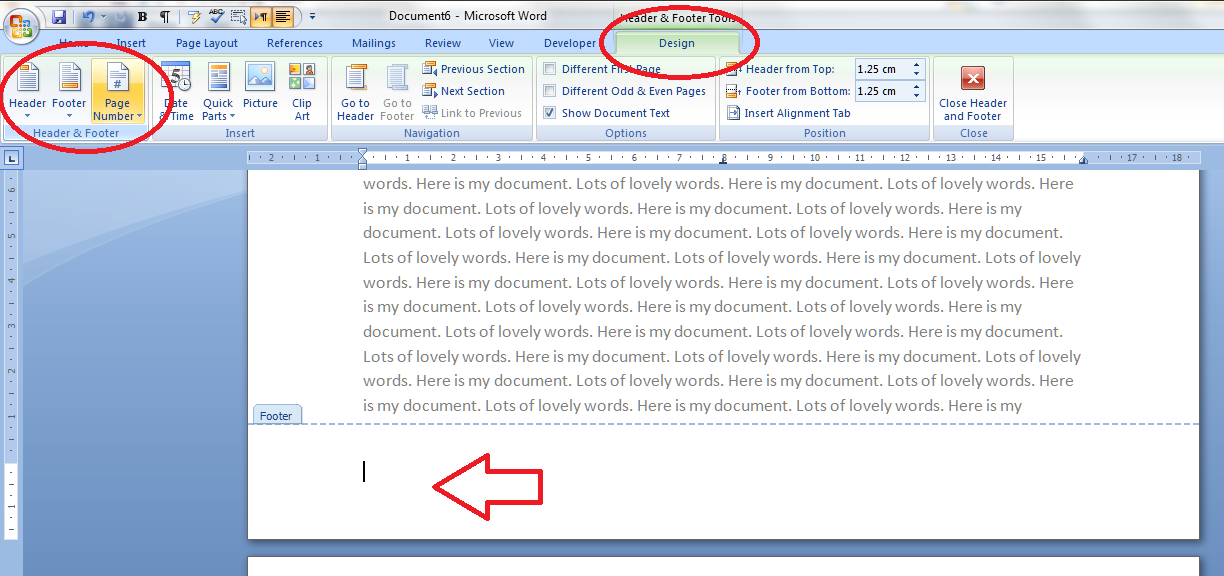
So, first of all, go into the Design tab or just left click on the bottom part of your page, below the text. In both cases, the Design tab will display and you need to look at the Navigation area. You will see that the footer automatically decides to be Same as Previous – we need to disconnect this footer from the previous one. Up in the Ribbon, Link to Previous is highlighted, reminding us that this section’s footer is linked to the previous one and providing a handy hint as to how to stop that.

10 not the same as previous

If you press the Link to Previous button it will turn from yellow back to white, you’ll notice that the Link to Previous note in fhe footer has disappeared. This means that you can format Section 2 independently of whatever’s going on in Section 1,

blog post

Note that the Header has its own ability to Link to Previous, which is separate from that of the Footer, which means that you can keep any header text you’ve added to the document working throughout the document without needing to re-insert it into each section.

Before we start getting excited about adding those page numbers, make sure you’ve done the same to Section 3, disconnecting it from Section 2. Changing Same as previous in one section won’t have any effect on the next section:

12 unlink these too

Remind me how to add page numbers …

Now we’re ready to add the page numbers to the document. Ignoring Section 1, which doesn’t need a page number, we can go into the page number add part of Section 2. Just to remind you, that’s on the Page Number area of the Design tab, and in this case we want to add a page number at the bottom of hte page, so we select Page Number then Bottom of Page and the particular position we require, so as to set up the page number position before formatting the actual numbers.

13 page numbers

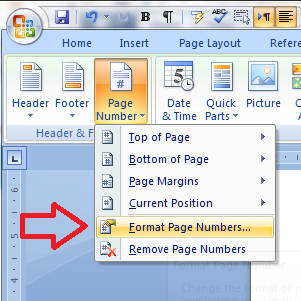
Now it’s time to format the page numbers. So its back to the Page Number button but we choose Format Page Numbers

14 format page numbers

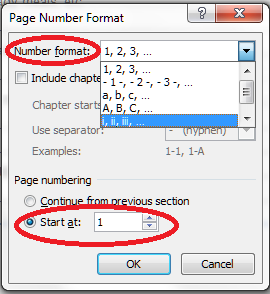
You will see on this example that the page number has automatically inserted itself on the first page of the contents (Page 2 of the document), but it has defaulted to being in Arabic numbers and to helpfully inform us that we’re on page 2 of the document. However, we want Roman numerals, AND we want it to start with Page 1. So, into that Page Number format menu, and there we can …

15 format page numbers

… choose Roman numerals (top) and start at page 2, not page 2. Press OK to set those …

16 roman numeral

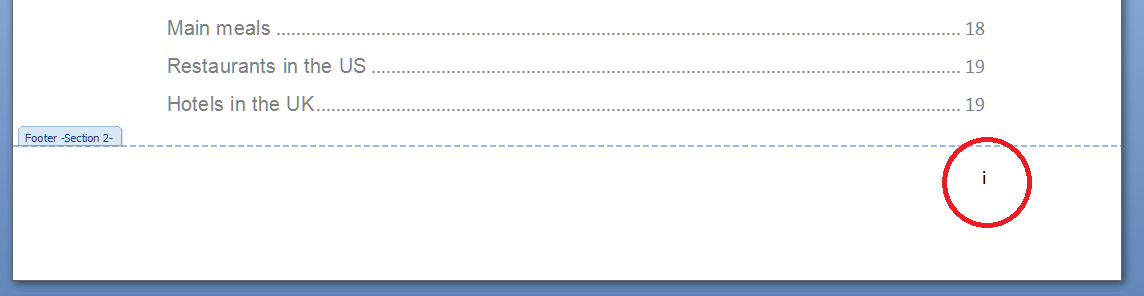
And look – as if by magic, the page number is now i instead of 2.

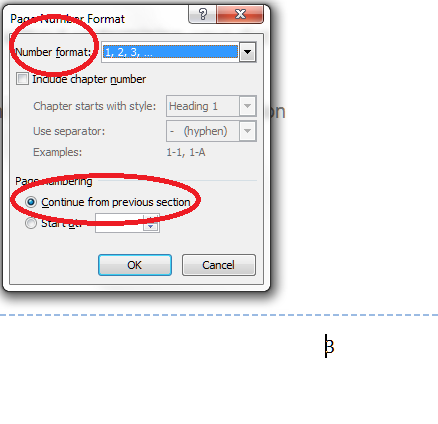
Now, for section 3, the main body of the text, we want Arabic numerals which continue from the last number in Section 2. So in this case we choose the Number Format to be the default, Arabic, opion, and tick Continue from previous section. In this screenshot, I’ve already pressed OK, so look at the bottom of the page …

16 next section

and there’s a lovely figure three.

So, to you what weve done in a colourful and dramatic way which is a bit more over the top than what we would actually want our document to look like, we’ve done this:

17 all done

And while individual institutions’ formatting rules still take precedence, this is what most of my PhD students like their thesis page numbering to look like.

In this article we’ve learned how to add different kinds of page number to different parts of the document, and more complicated formats for page numbers. If you need more of a recap on the basics of page numbering, see the article on that topic.

If you have found this article useful, please share it using the buttons below, and leave me a comment!

If you’re at all interested in my anti-cholesterol diet book which I used as an example in this document, find out more here.

This is part of my series on how to avoid time-consuming “short cuts” and use Word in the right way to maximise your time and improve the look of your documents.

Please note, these hints work with versions of Microsoft Word currently in use – Word 2003, Word 2007 and Word 2010, all for PC. Mac compatible versions of Word should have similar options. Always save a copy of your document before manipulating it. I bear no responsibility for any pickles you might get yourself into!

Find all the short cuts here

 
11 Comments

Posted by on March 6, 2013 in Errors, New skills, Short cuts, Word, Writing


Tags: , , , , , , , ,

How to add page numbers to a Word document (1)

This article is going to teach you the basics of adding page numbers to a Word document, using Word 2007 or Word 2010. Later articles in the series will tackle more complicated topics such as mixing Roman and Arabic numerals and making sure your first page doesn’t have a number if you don’t want it to.

Why add page numbers to a Word document?

Good question? You might have a perfectly nice, short document, that looks a bit like this ..

1 page

And you don’t really need to add page numbers. But what if it’s going to be a book, or you’re going to introduce a contents page or index? What if people are going to want to quote from it, or refer back to a particular section? Even though if they read your document on their Kindle, they might not be able to see the page numbers, these are all good reasons why you might want to give your readers some page numbers to help them navigate their way through your text.

Where are the menus and buttons for adding page numbers?

As usual, there are a couple of ways to access the menus and buttons you need for adding page numbers. But, again, as usual, they lead to the same place in the end.

Method One involves choosing the Insert tab. Once you’re there, you’ll find a section called Header & Footer, and there’s your Page Numbers button:

2 insert

Method Two involves clicking with your left mouse button in the blank space at the bottom (or top) of your page. Another way to do this is to select the Design tab, but sometimes that doesn’t show up by default. Clicking on the blank bit of the page will bring up the Headers and Footers and your Page Numbers button:

2 click footer

In Word 2003, you can find the page numbers options in the Header and Footer menu.

Now you’ve found the Page Numbers button, it all stays the same from now on, and its menu looks like this:

3 page numbering options

We’ll look at how to position your page numbers, and then how to format them (it’s best to do it this order).

How do I choose the position of my page numbers?

You will find two options for positioning your page numbers:

1. At the top or bottom of the page

2. Elsewhere in the page margins

To choose the position of the page numbers in the top or bottom areas of the page, choose Top of Page or Bottom of Page (the positions are identical for the two). Here we choose Top of Page:

4 number placement options

You can see lots of options for positioning your page numbers, including that fancy “Page 3 of 12” you’ve seen on other people’s documents. To select the position, click on the example that suits you best (you can scroll down for even more choices).

If you try out Page Margins, you will be given another set of options allowing you to insert your page numbers all over the place:

5 number placement options page margin

Again, you can scroll down for even more options.

I find that people have one or two favoured number positions and ignore the others (in much the same way that we only use two programmes on our washing machines). But it’s useful to know how to find all those extra places, in case you’re working collaboratively or with a client who has particular preferences.

Now we’ll look at some basics of formatting your page numbers.

How do I format my page numbers?

This is best done once you’ve decided on the page number position, and you can come back and format them at any time, by finding and clicking on the Page Numbers button. We’re just going to look at the basics here, with more complex choices being discussed next time.

To format the page numbers, find the Page Numbers button and choose Format Page Numbers:

6 format page numbers

Select Format Page Numbers and you’ll find some more options for changing your page numbers from Arabic to Roman (or Roman capitals) and for where to start the numbering:

7 number format

If you drop down the Number format list, you’ll find your choices laid out. You are not likely to want to use anything other than straight Arabic numerals (1, 2, 3 …) if you are just using one numbering style for the whole document; the others will come in handy when we learn how to apply different numeral styles to difference sections of the text. But the choices are there:

8 number format

Again, Chapter numbering and Continue from previous section / Start at are mainly used when you’re applying different numbering styles to different parts of your document (Roman numerals for the contents page and foreword, Arabic for the main text, etc.) but it’s worth knowing where to find these choices for next time.

So, let’s summarise and look at how to apply standard, straightforward page numbering to a document.

How do I apply standard page numbering to my document?

If you just want simple numbers in Arabic numerals at, say, the bottom right hand corner of each page, here’s how you do it.

First, click on the Page Numbers button and choose Bottom of Page, then select the example that best fits where you want your page numbers to appear:

9 basic format

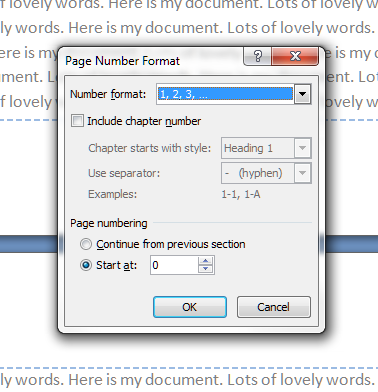
Then, choose Format Page Numbers and make sure your options are set to Arabic numerals 1, 2, 3 … and page numbering to start at 1:

10 basic format

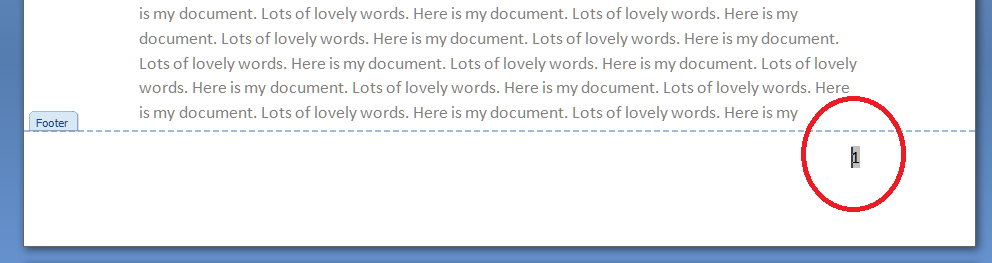
Once you’ve pressed OK, you will be back in the Footer of your document, with the main text still in grey and the page number in black, because you’re in the Footer, not the main text:

11 page number

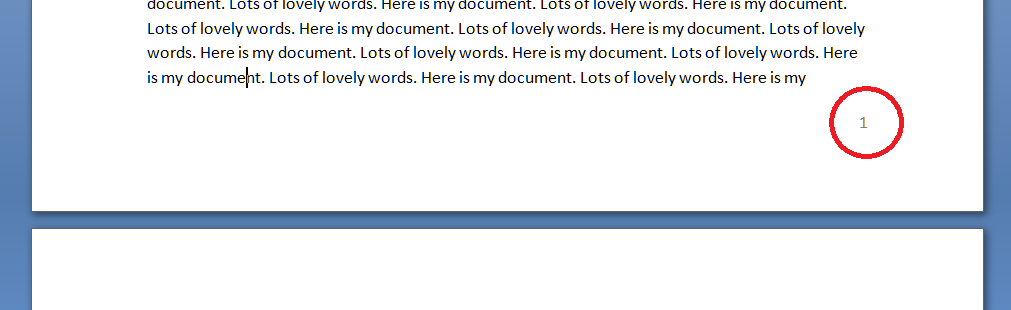
Left click on the body of the text, and the page will reverse – the Footer indicator will disappear, your text will be in black and your number will be in grey, because it’s part of the Footer, not of the text:

12 page number

How do I insert different types of page number into one document?

In this article we’ve learned how to find the Page Numbers button and how to position the page numbers on the page and format them into different kinds of number. In Part 2 of this series, we look at adding different kinds of page number to different parts of the document, and more complicated formats for page numbers.

If you have found this article useful, please share it using the buttons below, and leave me a comment!

This is part of my series on how to avoid time-consuming “short cuts” and use Word in the right way to maximise your time and improve the look of your documents.

Please note, these hints work with versions of Microsoft Word currently in use – Word 2003, Word 2007 and Word 2010, all for PC. Mac compatible versions of Word should have similar options. Always save a copy of your document before manipulating it. I bear no responsibility for any pickles you might get yourself into!

Find all the short cuts here

 
10 Comments

Posted by on February 27, 2013 in Errors, New skills, Short cuts, Word, Writing


Tags: , , , , , , , ,

Paul Alborough

Welcome to a fab new Saturday Business Chat! Today I’m thrilled to feature my old friend, Paul Alborough, aka Professor Elemental, a rapper – but wait – in the Brit hop tradition, all Steampunk and Englishness and marvellousness.

Back in the day, we used to commute up to Barnet together. I’d be reading the latest tome from my TBR, and Paul would be scribbling lyrics on an A4 pad. One of the most memorable features of my time at that company was the off-the-cuff rap Paul did for me at my leaving tea. Since then, he’s devoted considerable time and effort to building his music career, and is now doing Professor Elemental stuff full time – well done, Paul! Let’s find out how he did it. And you HAVE to look at his videos. Remember Tone and his model dinosaurs? This stuff is just as cool. Don’t I know some excellent people!

What’s your business called? When did you set it up?

Professor Elemental is the name of the business and the character that I perform as. I have been working full time as the good Professor since January 2012.

What made you decide to set up your own business?

I was quite happy just rapping as a hobby to supplement my day job, then was lucky enough to enjoy a bit of success with it. As the amount of work as an emcee grew, so did my day job career (as a teacher), and I was forced to choose between the two. Inevitably, being a mad professor was more interesting than being a regular teacher.

What made you decide to go into this particular business area?

It was only as I got more into doing shows and realised that it was a possible way to make money out of rapping without being signed. I’ve always loved emceeing in it’s many different forms.

Had you run your own business before?

Nope. I have done a lot of rap workshops, but never as a full-time business.

How did you do it? Did you launch full-time, start off with a part-time or full-time job to keep you going … ?

I ran the two parallel careers for about a year. This was a very stressful in itself, but did allow me to keep the risks to a minimum when I finally made the jump into ful- time creativity. It feels a lot nicer risking everything when you have a bit of safety net either financially or in terms of other work.

What do you wish someone had told you before you started?

‘ITS LATER THAN YOU THINK! Sort your life out, you lazy sod!’ I would have liked them to have shouted that to me while shaking me by the lapels. I probably would have cried, but it would have been worth it.

What would you go back and tell your newly entrepreneurial self?

I am still pretty new I suppose- but I am definitely learning that people value you more if you value yourself. Both creatively and financially.

What do you wish you’d done differently?

Got started earlier and not been so pessimistic about my chances of doing this for a profession. I might have saved myself a few years of life wasted in call centres.

What are you glad you did?

Working with other people. Working for yourself doesn’t mean that you have to shoulder it alone and having a good accountant, amazing booking agent and brilliant folk to collaborate with makes the whole process more fun.

What’s your top business tip?

Acheiving your dreams is entirely possible. Particularly if your dreams are relatively modest.

Oh, and be nice to people at every level of your business. That really can’t be overstated.

How has it gone since you started? Have you grown, diversified or stayed the same?

I have diversified as much as possible. I’m trying to say yes to as many good things as possible and it’s leading to some brilliant, unexpected places. So far there’s been a comic, a web series and some most unexpected gigs.

Where do you see yourself and your business in a year’s time?

I’m thoroughly enjoying the freedom to take the professor character into some new and exciting places. There are a few things in the pipeline that might change my life completely. And if not, if things carry on just as they are, then I will be very happy indeed.

I don’t usually include people’s answer to the last question in the published interviews, but I had to here …

Are you happy for me to contact you in a year’s time from posting the interview, to see how you’re doing and conduct another short interview?

Yes, unless it has all gone wrong and I am destitute , living underneath Brighton pier. In which case another interview might be too depressing.

Somehow, I don’t think that will be the case! But isn’t it interesting that in the world of rap and the world of editing, we still like to do things carefully, have backup and do things nicely! Good luck to Paul / the Professor and his modest ambitions!

The Professor Elemental website can be found at www.professorelemental.com and I recommend taking a look at his rather marvellous YouTube videos. He’s on Facebook, and of course you can get in touch via email.

If you’ve enjoyed this interview, please see more freelancer chat, the index to all the interviewees, and information on how you can have your business featured.

 
8 Comments

Posted by on February 23, 2013 in Business, New skills, Small Business Chat


Tags: , ,

On being edited

editsWriters are always being told by other writers (and editors) about the importance of being edited. But what does it actually feel like to have someone go through your precious words with that dreaded red pen? Only recently, as I’ve struggled with edits in my own book, have I realised how my clients must feel when they receive their poor corrected texts back from me. I hope this new understanding will help me to be a better editor …

On being edited

I’ve been putting together an e-book based on my Libro Full Time blog which has charted my experiences of going full-time self-employed. I pulled all the blog posts together, added some commentary, an introduction, fleshed it out a bit, read it through … but before I went to publish it I did as all good writers (should) do and considered having it edited.

I put a call out for beta readers and a few kind volunteers spoke up. One read it and made some excellent, useful comments, although I was a little thrown even then to see my words through someone else’s eyes. Another friend did EXACTLY as I hoped she would – she went through it line by line, picking out errors, suggesting better ways of writing sentences, AND commented on the structure, the way it hung together, how the experience of reading it could be improved.

This is the Thing: One It was like having ME edit that book. And I know I’m a decent editor

This is the Thing: Two I hated reading those comments the first time round

This is how I make my clients feel!

That was my first thought. No: my first thought was, “My text, my beautiful text! How dare she muck with it??” All defences up, all crests raised, spines bristling, eyes watering …

And I must be at pains to point out here that my friend:

  • Did it right – she said exactly what I would have said had the document been written by anybody else
  • Did it kindly – no snarkiness, no visible or invisible sighs
  • Did a good job – she picked up micro and macro errors
  • MADE THE TEXT BETTER – she really, really did

But my knee-jerk reaction, in pretty well this order, was

  • Anger – how dare she mess with my text? I write stuff all the time! It can’t be wrong! … oh …
  • Horror – how did I not notice THAT?
  • Shame – I was going to publish this pile of rubbish?
  • Embarrassment – someone has seen this in this state!
  • Despair – will I ever get this into shape or should I just give up now? I know, I’ll give up

In the interests of research, I’ve gone back and looked at the text. It’s fine: it can be whipped into shape and it will be a much better book for it.

Once I’d gone through these cycles of shame, horror, despair and … finally … acceptance, the terrible realisation dawned on me …

This is how my clients must feel when they get their work back from me

Is it just me, or is it everyone?

I asked some editor colleagues, writers and people I’ve worked with what being edited feels like to them. We all know it’s a worthwhile process – but I was after the emotional reaction.

My old friend, Annabelle Hitchcock from Yara Consulting reported that she feels quite comfortable about being edited, “but specifically about being edited by you, Liz. I know you and I trust you and I know that you know my writing style and won’t alter it into something that it’s not. I also trust you to give me feedback, and to make sure that I’m actually communicating what I THINK I’m communicating”. So that trust is very important, and makes it easier (although I trusted the ladies who looked at my text, too, of course … )

Trust comes up for Alison Mead of Silicon Bullet, too – “Personally for my blog posts, knowing I am going to be edited means I can type my stream of consciousness without worrying too much about grammar and spelling , so my words can have the flow they would if I was talking them – but I have the confidence that those errors will be picked up and corrected. To be honest I don’t notice the edits – so have no idea how many changes you actually make! It is good to have that trust and confidence about the job being done well!”.

So these two highlight the ideal working relationship between an editor and a writer. It’s worth noting that I have been working on small blog post texts for these two ladies for a few years now, and have known them for significantly longer. But how do you build up that trust instantly? And what if’ you’re an editorial and writing professional yourself?

Here’s someone who actively enjoys it, but do note that he still finds it challenging: “I enjoy being edited. It gives me a chance to see how other editors do things, gets me to think about things I have done unthinkingly, and reminds me that all writers, even if they are also editors, have blind spots sometimes. It is also a little nerve-racking, of course – but then many worthwhile things are!” – Sebastian Manley of Manley Editorial.

And another editor colleague, Katharine O’Moore Klopf of KOK Edit, has a similar emotional pathway to mine: “My initial reaction to being edited—and I’ve been an editor since 1984—is ‘Oh, #@&^!’ And then I start reading through the edits and nodding my head, thinking, ‘You know, that’s a good edit. I don’t know why I didn’t think of that.’ And by the time I’ve finished reviewing the edits, I’m thinking, ‘Thank goodness for editors!’ You’d think I’d go straight to the ‘thank goodness’ part by now, but there is always that first little shock.”

And what about fiction authors? I suspect that fiction and memoir writers are the ones most wedded to their words, as they are perhaps most personal to them (I might be wrong there, though!).

Steve Hewson, author of “The Wild Earth” writes,”I asked Linda Bates to edit my first novel. Prior to the process starting, I imagined that the it might be more of a grammatical check (necessary because a) I am very (and unavoidably) careless b) I don’t really know anything about grammar. However, it soon became clear that editing was a whole other level of input. Once I’d decided to put in the effort to properly respond to Linda’s editorial suggestions (I was rather busy and somewhat tired of the whole affair prior to giving it to Linda) I found it really challenging and enjoyable.” So there’s the c-word again – “challenging”. Steve has gone on to kindly describe the whole process for us:

“I remember being aghast that the first page (which I thought was pretty good) had loads of changes suggested. (17, after counting them!). Then on the next pages I saw that Linda had added many comments concerning word definitions, writing styles and so on. I was dismayed at the clear time implications of working on these and also thought that Linda might be overdoing the proofreading job. However, I took the plunge and accepted the changes and realised that the result was more streamlined and clean.

Once I had decided to devote my energies to reworking the book I soon got into the stride and began to welcome the editorial changes rather than dread them. I think that being edited is rather similar to being filmed whilst teaching or lecturing: unconscious habits of pen are unearthed in the same way that the camera reveals unconscious habits of speech (such as saying ‘erm’ very frequently). I realised that I made frequent use of double adverbs. It was really very tough (see what I did there …) to realise that this habit made the text less engaging, but was good to realise this.

The sort of comment that I never got used to were those concerning the ways that the characters spoke or behaved. I love my characters and to be told ‘X wouldn’t say that sort of thing’ was always met defensively. I was particularly distressed to be told that I had (at a key moment) unconsciously reinforced gender stereotypes with Gracie. This was a difficult pill to swallow, especially since I had deliberately attempted to eliminate this sort of thing. Still I emerged a better person for it, and Gracie has a little more action at a key part of the book. I’m sure she’d thank me for it …”

Thanks to Steve for that great description of what it feels like to be edited – I’m sure my fellow editors will read it with great interest!

How do we make it right?

So, as editors, how do we make this process as smooth as possible for our clients? I have realised that they will never just grab the new document with joy, making all the changes immediately and unquestioningly. Well, some of them will, but going by the comments I garnered and discussed above, only people I’ve known for years who just have little bits and bobs for me to work on are likely to do that.

As for the rest of them, well, now I have some inkling of how they feel when they receive my annotated manuscript back, I’m going to make these resolutions:

  1. Try to build trust first of all – I already send links to my references, and many of my clients come via recommendation – and I have a new procedure whereby I send the style sheet I’ve put together during the editing process to the author at the end, thus proving I know what I’m doing and there are reasons for my choices.
  2. Remain kind. Sometimes I do get a little exasperated. But I, too, make the same mistakes throughout, repeat myself and am not always consistent. So why should I expect anyone else to be any different?
  3. Understand that when the client asks a question, sometimes they just need reassurance that they’re  not stupid or rubbish at writing. And they are almost never casting doubt on my ability, but either wanting to know why in order to make their writing better, or being anxious generally.
  4. Make sure I praise as well as criticise. I do try to do this already; I will try to do it more, now. Whether they’ve written a great bibliography or coined a smart turn of phrase, even if they’ve just managed to avoid plagiarising or quoting Wikipedia this time round, there’s always something to praise and I must find it and mention it.

—-

Has this article struck a chord? Are you a writer with something to say about your emotional reaction to being edited? Are you an editor who’s found ways to smooth this emotional path? Do share in the comments!


How to highlight text in a Word document

If you are amending a Word document or perhaps working on a document with someone else (a colleague or an editor), it is sometimes useful to be able to highlight some of the text in order to point it out to your collaborator.

Here are three useful ways to highlight text in Word … and one TERRIBLE way that you will never think of using once you’ve read and digested this article.

How to highlight text by changing its colour

This can be useful if you want to mark text you want to change, edit, delete, expand, etc.

Make sure you’re in the Home tab and the Font section. Highlight the text you want to change and click on the Change Text Colour button:

1 change text colour

Choose the colour you want your text to be, and click on it. Hey presto:

2 change text colour result

This can be useful but there is a limited range of colours that are a) legible on a white background and b) sufficiently distinguishable from black. This can be particularly problematic for a reader with a visual impairment or colour blindness.

So you might want to think about using the next option …

How to highlight text using the “highlighter pen”

Just like in real life, you can scribble all over your document using a highlighter pen!. Again, you will find the Highlighter Pen button in the Home tab, Font section, next to the Change Text Colour button. You can use this in two ways:

1. Highlight your text first, then click on the button and choose a colour:

3 highlighter pen

The text you had highlighted will now appear in black with the background colour you selected:

4 highlighter pen effect

2. Place your cursor anywhere on the page and click the Highlighter Pen button. Your mouse pointer (which usually looks like a capital I unless you’ve changed it) will change to look like a pen. (Unfortunately this does now show up on a screen print. If anyone can find me a copyright-free image of this cursor change, please let me know!)

5 highlighter pen

Left click where you want to start and run the mouse pointer/pen along the text you want to highlight:

6 highlighter pen effect

The text will become highlighted as you run the pen along. Note, though, that if you use this option, your mouse pointer will keep on acting like a highlighter pen until you click back on the Highlighter Pen button and choose Stop Highlighting:

7 stop highlighting

This is all great if you just want to mark, say, chunks of text that you’ve changed so your editor can see what they need to recheck. But if you need to make any comments on that text, pay very close attention to the two methods coming up and make sure you choose the correct one!

How to highlight and comment on text the CORRECT WAY

If you want to comment on some text, the correct way to do it is this. Highlight the text and in the Review tab, Comments area, click on New Comment:

8 comment

A comment balloon will appear, and you can type your comment inside the balloon. If your collaborator wants to comment back, they can just add a new comment in a new balloon, and so it goes on.

9 comment effect

The joys of using this method are twofold:

1. You can skip through the comments using the Next Comment button and you’ll never miss one.

2. You can delete the comments you’ve dealt with, the highlighting will automatically disappear, and you’ll be left with a nice tidy document.

If you’re working with someone on a document and you want to draw their attention to something and make a comment, this way we’ve just seen is the way to do it.

How to highlight and comment on text the WRONG way

Please, don’t do this. If there’s a lovely, neat way to add comments to a document, which there is (see above), there is no need to write your comments within the text itself, like this:

10 don't do this

If you receive a document marked up like this, for each instance of a comment from your collaborator, you’re going to need to change the colour back to normal, delete the comment, or maybe add one of your own. No skipping lightly from comment to comment, but a grim stare at the document to spot the issues.

You can learn more about using Track Changes and Comments in other posts on this blog. Please don’t be tempted to try this method at home!

So, in this article we have learned how to highlight text in three good and one bad way. I hope you’ve found this useful.

If you have found this article useful, please share it using the buttons below, and leave me a comment!

This is part of my series on how to avoid time-consuming “short cuts” and use Word in the right way to maximise your time and improve the look of your documents.

Please note, these hints work with versions of Microsoft Word currently in use – Word 2003, Word 2007 and Word 2010, all for PC. Mac compatible versions of Word should have similar options. Always save a copy of your document before manipulating it. I bear no responsibility for any pickles you might get yourself into!

Find all the short cuts here

 
5 Comments

Posted by on January 23, 2013 in Errors, New skills, Short cuts, Word, Writing


Tags: , , , , , , , ,

Freezing rows and columns in Excel

It was time to create a new Gantt chart for myself to keep my various projects under control, and yet again I had forgotten how to freeze the columns and rows in the way I like. So I created this post to help myself – and you!

What is “freezing” rows and columns?

When you freeze a row or column in an Excel spreadsheet, you make sure that it’s on display however much you scroll down or across your document.

So, if you have a row of dates as a heading along the top or a column of customer names down the side, and your document becomes longer or wider than the screen on which you are viewing it, you can keep those columns and rows visible, instead of having to scroll up and down and backwards and forwards to find your headings.

For example, in the Gantt chart that records my work projects, I need to be able to see the dates and client names all the time, however large my document becomes:

Excel document

Where is the Freeze Panes button in Excel 2007 and Excel 2010?

To find the Freeze Panes button, you need to be in the View Tab, then the long Window area. Click on Freeze Panes and you’ll be given three options: Freeze Panes (note, this toggles between Freeze and Unfreeze, as we’ll discover later); Freeze Top Row; and Freeze First Column.

2 freeze top or side

How do I freeze the top row or first column of my spreadsheet?

In a shock move, something that Microsoft Office gives you as a short cut is actually useful! If you click on that Freeze Panes button and select Freeze Top Row or Freeze First Column, it will automatically freeze that row or column for you. This is because the first row and column on a given spreadsheet are likely to be the ones where you’ve inserted your headers.

Click on one of these buttons and you’ll freeze just that row or column. Freeze the top row, scroll down thousands of rows, and that top row will still be on show. Hooray!

BUT: this will only freeze one of those two areas. Want to freeze the spreadsheet so it shows more than just the first row or column? Read the next three sections.

BUT (2): this will only allow you to freeze the row or the column. If you, like me, want to freeze both a row and a column, scan down to the section titled Can I freeze a row and a column at the same time?

How do I freeze a particular row of my spreadsheet?

Say, for example, you’ve got a double row of headers, or you’ve inserted a graph at the top of your spreadsheet that you want to be able to see as you scroll down. This is where you need to be able to select the point at which the spreadsheet freezes.

Here’s where it gets a tiny bit tricky (but you’ll save this post so you remember).

Click on the row BELOW the point at which you want to freeze the spreadsheet. Not the row you want to freeze, the one below it. In this example, we’re highlighting Row 3 in order to freeze Rows 1 and 2.

Once you’ve highlighted the correct row, by clicking on the 3 in the left hand margin in this case (you can see that it’s become darker, with a line around it), click on the Freeze Panes button and select the Freeze Panes option.

3 freeze any row

Your spreadsheet is now frozen at the bottom of Row 2. If you scroll down the page, you will notice that Rows 3 and onwards start to disappear, and a horizontal black line appears at the point of freezing.

Now you can scroll down as far as you like, and Rows 1 and 2 will always be visible at the top of the screen:

Effect of freezing any row

How do I unfreeze a row or column?

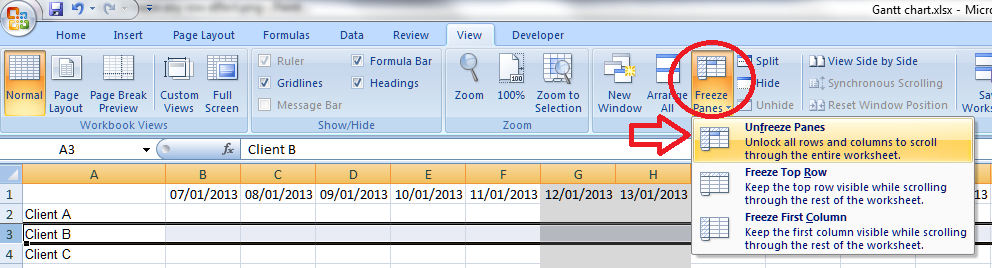
Once you go to do something else with freezing, you will notice that the Freeze Panes option has changed to read Unfreeze Panes. This is because you can only do one Freezing action at a time. If you decide that you want to freeze a column instead, or want to practise doing that, you need to click the Freeze Panes button then select the Unfreeze Panes option first.

Note: you don’t need to have anything highlighted to click this. It will unfreeze anything you’ve previously frozen.

4 unfreeze panes

Oh, and you can freeze a column and row at the same time, as we’ll learn in a few moments.

How do I freeze a particular column of my spreadsheet?

If you want to freeze a particular column of your spreadsheet, you do it in the same way as you froze the particular row.

But in this case, you need to highlight the column one to the RIGHT of the column you wish to freeze. In the example below, we want to freeze at Column B, so we highlight Column C (by clicking on the C at the top of the column). Again, click the Freeze Panes button then select the Freeze Panes option.

5 freeze any rows

Now, if you scroll across the document, Columns A and B will remain visible, and a thick black line will mark where the freezing has taken place:

5 freeze any rows effect

Can I freeze a row AND a column at the same time?

Sometimes you might want to freeze both the top row and the first column of your spreadsheet. For example, I want to be able to see my list of clients, however many dates come across the page, and my dates in the top row, however long my list of clients becomes.

We’ve already learnt how to freeze just the top row or just the first column (see above), but as you might have realised,  you can’t do both – if you go back to the menu to do the second one, it just tells you to Unfreeze the panes first.

Here’s  how you do it:

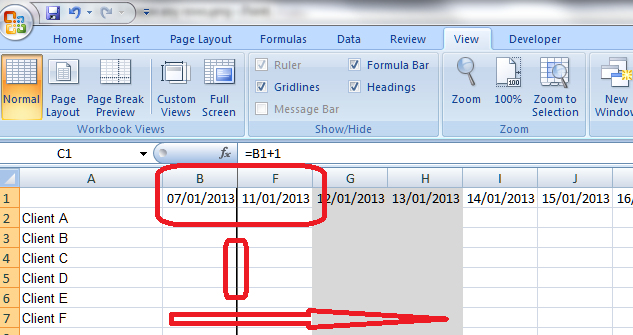
Highlight the cell ONE DOWN and ONE TO THE RIGHT of the row and column you want to freeze. It’s just like freezing rows or columns. In this case, think of the cell nestling in the angle formed where the row and column you want to freeze meet. Here, we want to freeze Row 1 and Column A so that they are always visible. So we highlight the point at which Row 2 meets Column B.

6 freeze row and columnt

Using the same procedure to freeze the panes (Freeze Panes button, Freeze Panes option), we have now frozen Row 1 and Column A. If we scroll both down and across, Row 1 with the dates and Column A with the client names are still visible.

6 freeze row and column effect

Yes, Column A will scroll and the top will slide up and disappear temporarily, and yes, the dates in Row 1 will disappear as we scroll across, but the basic principle holds good:  we can see Row 1 and Column A, however much we move around the spreadsheet.

We’ve learned how to freeze rows, columns and rows plus columns today. I hope you’ve found this useful.

If you have found this article useful, please share it using the buttons below, and leave me a comment!

Related posts: How to print out the header row on every page

This is part of my series on how to avoid time-consuming “short cuts” and use Microsoft Office in the right way to maximise your time and improve the look of your documents.

Please note, these hints work with versions of Microsoft Excel currently in use – Excel 2003, Excel 2007 and Excel 2010, all for PC. Mac compatible versions of Word should have similar options. Always save a copy of your document before manipulating it. I bear no responsibility for any pickles you might get yourself into!

Find all the short cuts here

 
16 Comments

Posted by on January 9, 2013 in Errors, Excel, New skills, Short cuts, Writing


Tags: , , , , , , ,

Table of figures and table of tables

Are you stuck trying to create additional contents pages for the tables and figures in your document? Read on for simple instructions on how to do this.

We’ve already learned how to apply headings styles and create an automatic table of contents. But what if you’ve got figures and/or tables and you want to show those in the contents pages, too? It can be a bit fiddly, and I’ve partly written this post to give myself a reference document, too.

In this article, we are going to learn the correct and easy way to do this without heartache and hideousness. I’ll devote another article to dealing with something that’s gone wrong …

Why do I need a table of figures?

It’s often useful to provide a list of the figures and tables in your document, especially if it’s a long one, like a dissertation or thesis. They should be separate from the main table of contents, and listed below.

The tricky thing is creating two lists, one of tables and one of figures. This is where people usually come unstuck. Follow these instructions and you should be OK!

How do I create a list of figures and a list of tables?

We’re going to take a few basic steps here. They boil down to:

  • Mark all your figures as Figures and all your tables as Tables
  • Create a Table of Figures
  • Create a Table of Tables

Once you’ve done that, you’ll end up with something like this:

TOF 17

How to apply captions to tables and figures

I know what you’ve done … you’ve inserted your figure or table then typed its caption underneath, haven’t you? Like everyone else in the world. But let’s make life easier for you.

It doesn’t matter if you’ve already typed in all the caption names just as straight text – let’s do this the proper way and we can move those typed captions into the correct place as we go!

TOF 1

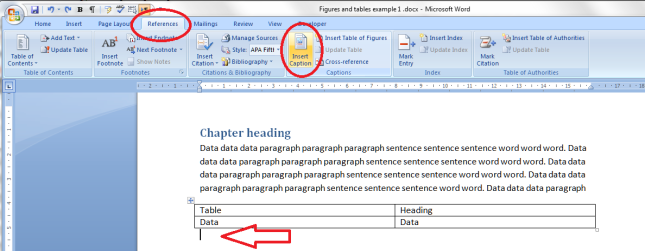
Click on the References tab. Find the Captions section. Put your cursor where you want the caption to go (arrow), Click on the Insert Caption button.

Let’s start off with a table caption. Remember, we want to mark a difference between tables and figures so that Word can create automatic lists.

Don’t worry if you’ve already got caption text in there at the moment: do this on a new line. We can tidy things up afterwards. You might want to copy your caption text so it’s available to paste.

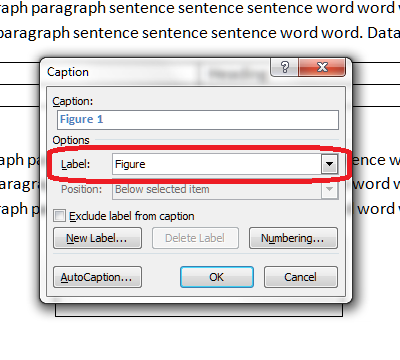
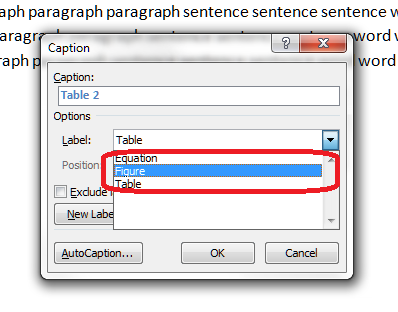
TOF 2You can see a drop down list which says Figure at the moment. But we want to differentiate between figures and tables, so click on the arrow on the right to drop down the list.

TOF 3… and choose Table. Once you’ve clicked, the Caption section above it will also change to read Table 1.

Now you can type the caption text straight into this box.

TOF 4

If you’ve copied the caption text you had previously entered, you can use Control-V to paste it into this box. Note: right-click and paste won’t work here, but Control-V will work.

If you haven’t copied the caption text, and you haven’t typed it in the box, don’t worry, as you will have another opportunity to insert it in a moment. Press the OK button and Table 1 and any text you’ve entered will appear below your table.

TOF 5

Now we’re going to add a figure caption.

Put your cursor below the figure and click on the same Insert Caption button. This time, choose Figure rather than Table:

TOF 6This time, just leave the Caption box blank apart from the words Figure 1.

TOF 7Now you can type the caption text in here, or even paste it in – just make sure it goes blue like the words Figure 1 (we can change that later) to ensure it’s all included as part of the caption.

Now you can go through and mark all of your figure and table captions using this method.

Modifying and formatting caption numbering etc.

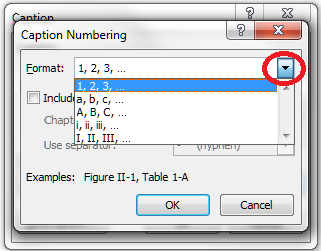
You can modify your captions, especially their numbering. When you’re adding a caption, click the Numbering button.

TOF 8You will now get options for changing the numbering from 1, 2, 3 to a, b, c, etc.

TOF 9

Use the drop down arrow to pick what you want.

You can also link the numbering to your chapter numbering – so you have Figures 1-1, 1-2, 2-1, 2-2 etc. (this is particularly useful in a long and complex document where you’re referring to lots of figures, as it saves the numbering going odd if you move figures around). To do this, click the “Include chapter number” tick box then specify what you count as a chapter number (you will need to have numbered headings to make this work):

TOF 10

Creating a table of figures and a table of tables

Once you’ve labelled all of your captions correctly as I’ve shown you, you can create your table of figures and table of tables.

Let’s do the table of figures first (it doesn’t matter which order you do this in).

Create a blank page where you want your table of figures to go, or click just below your Table of Contents if you’ve already created that.

Staying on the Reference tab, click on Insert Table of Figures:

TOF 11

You will now get some options, and this is where we choose whether we want the figures or tables to be listed. We’re adding the figures first:

TOF 12

Note, Table will be the default option. Choose Figure by dropping down the menu using the arrow on the right. Table will be highlighted in blue so click on Figure. As if by magic …

TOF 13

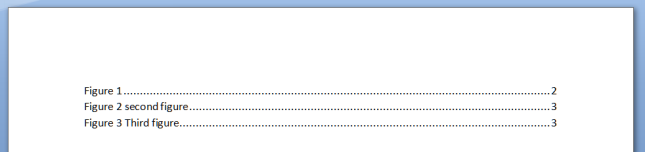
A table of figures!

Now return down a couple of spaces in your document and do the same to insert a Table of Tables:

TOF 14

Make sure it’s on Table and click OK. Hey presto …

TOF 15

Customising your table of figures

You can customise your table of figures in the same way that you can customise a Table of Contents, choosing from a range of styles and specifying how they are laid out:

TOF 16

I’m going to write an article about this soon, so for now just note that you can choose different “looks” for the list, and you will get a preview in the pane above these drop-down menu sections.

Adding headings to the table of figures and table of tables

You will probably want to add headings to your tables. Remember to mark these as Heading 1 so they appear in your automated Table of Contents, which I’ve also added here:

TOF 17

Updating your table of figures and table of tables

If you change anything in the page numbering, document layout or captions themselves (particularly useful if you or your proofreader finds an error) or delete or insert tables and figures, you will need to update your table of figures / tables.

You do this in exactly the same way as updating a table of contents. Right-click on the table, making sure the grey highlighting shows up. Then select Update Field and then Update Entire Table.

TOF 18And that’s it.

We’ve created captions the correct way, and created tables of figures and tables of tables, done some customisation and learned how to update them.

If you have found this article useful, please share it using the buttons below, and leave me a comment!

This is part of my series on how to avoid time-consuming “short cuts” and use Word in the right way to maximise your time and improve the look of your documents.

Please note, these hints work with versions of Microsoft Word currently in use – Word 2003, Word 2007, Word 2010, Word 2013 and Word 2016 all for PC. Mac compatible versions of Word should have similar options. Always save a copy of your document before manipulating it. I bear no responsibility for any pickles you might get yourself into!

Find all the short cuts here

Related articles on this blog

How do you create a two-line figure caption and a one-line entry in the table of figures?

How to create a Table of Contents

How to update your Table of Contents, Table of Tables or Table of Figures

Editing and the Table of Contents


193 Comments

Posted by on December 27, 2012 in Errors, New skills, Short cuts, Word, Writing


Tags: , , , , , , , ,