RSS

Category Archives: Writing

Faint or feint?

DictionariesHere we go with another Troublesome Pair. We have a slight spelling issue going on with the second of these two, as well, just to add extra value!

Faint as an adjective means barely perceptible, slight, and in medical terms, close to losing consciousness: “Even the faint whiff of eggs was enough to make me feel faint”. The verb to faint indicates a sudden loss of consciousness: “She saw the horrible sight and fainted, falling to the floor, out cold”. Faint hearted – means lacking conviction or courage – another of our extensions into metaphor.

A feint (not a fient) is a pretended or deceptive thrust or blow in the sports of boxing fencing (or in general fighting). “I feinted a punch to the left and ran around him as he ducked”. It is also, in my favoured usage, the term for paper which has been printed with faint lines to give a guide for handwriting – you will see “Narrow feint” or “Wide feint” printed on the front of notebooks or pads of paper.

You can find more troublesome pairs here and the index to them all so far is here.


Tags: , , ,

Bimonthly or semimonthly / semi-monthly? Biweekly or semiweekly / semi-weekly?

I covered biennial or biannually quite a while ago now, but Guy K Haas commented on my index to all of these Troublesome Pairs that I should cover bimonthly or semimonthly, and biweekly or semiweekly. And so I shall.

However, one caveat before we begin: Try not to use these. There is so much confusion about words like these, that it is almost always so much better to write “Every two weeks” or “Twice a week” rather than using the more complex term. After all, these terms are usually used when one is scheduling something, and you don’t want your scheduling to go awry, do you!

Bimonthly actually means, in the dictionary (all of them), taking place or appearing twice a month … or every two months. So that’s no use, is it!

We find the same issue with biweekly – it can mean either (both) taking place or appearing twice a week … or every two weeks. Useless, again!

Moving on, semi-monthly and semi-weekly do mean occurring or appearing twice a month / twice a week (and notice that hyphen: that’s a bit annoying in itself, isn’t it!).

So, my recommendation: leave these well alone. State the exact times the whatever it is will be doing whatever it does. “My magazine is going to come out every two months” – “Oh, mine’s coming out twice a month, or every two weeks”. Job done.

You can find more troublesome pairs here and the index to them all so far is here.

 
2 Comments

Posted by on February 10, 2014 in Errors, Language use, Troublesome pairs, Writing


Tags: , , ,

Setting up a WordPress blog 3 – Adding images to blog posts and pages

In this series, we’ve already learned how to set up a WordPress blog, and how to add pages to make it into a WordPress website. Today, we’re going to learn how to add pictures to blog posts and pages and how to edit images in WordPress. And here’s how to create galleries and slideshows and add your image to your user profile in WordPress.

Note: March 2014 – I have updated this post to take into account the new way to edit images that has just been implemented in WordPress.

How do I add an image to a WordPress blog post?

When you’re in the blog editor, you will find a button marked Add Media to the left. Making sure that your cursor is in the position where you want your image to appear, click on Add Media:

1 add media

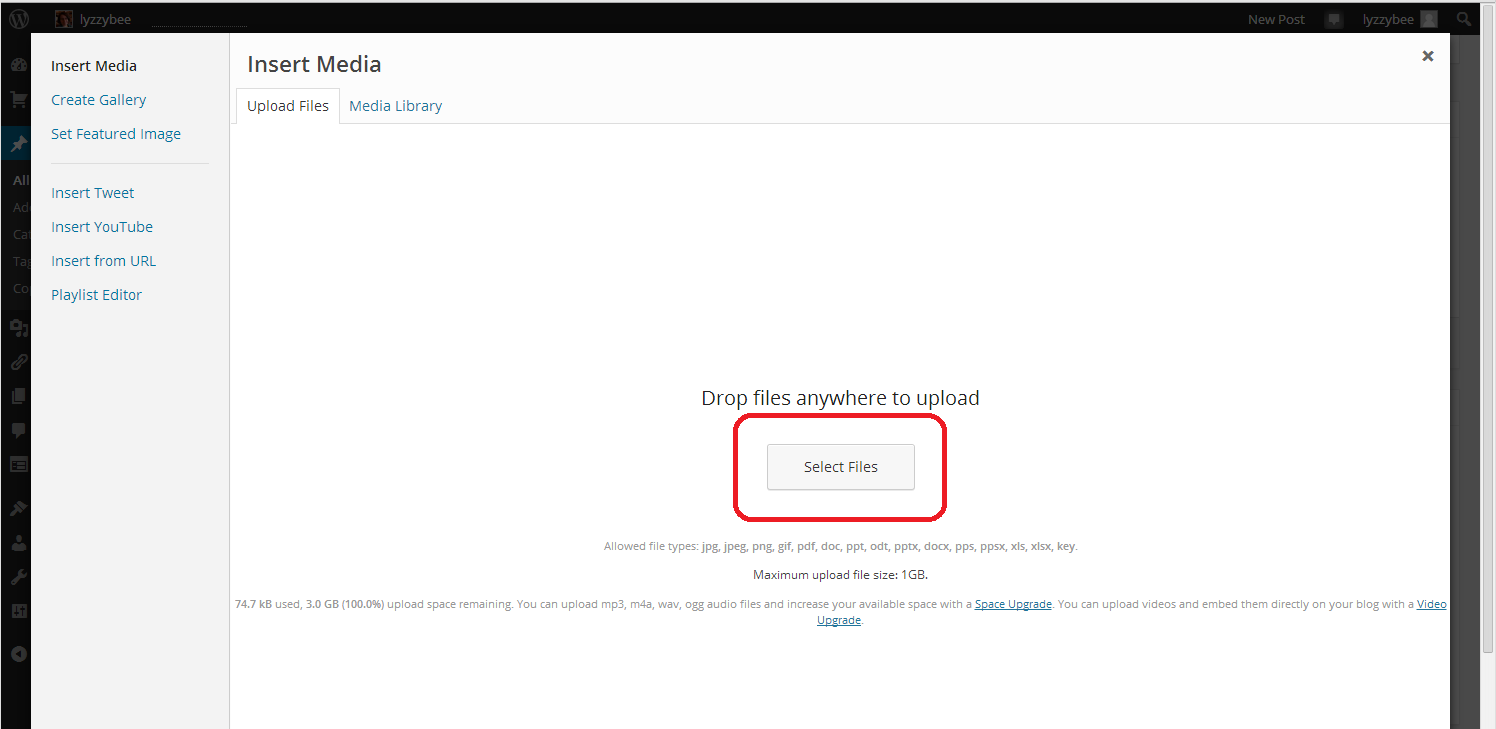
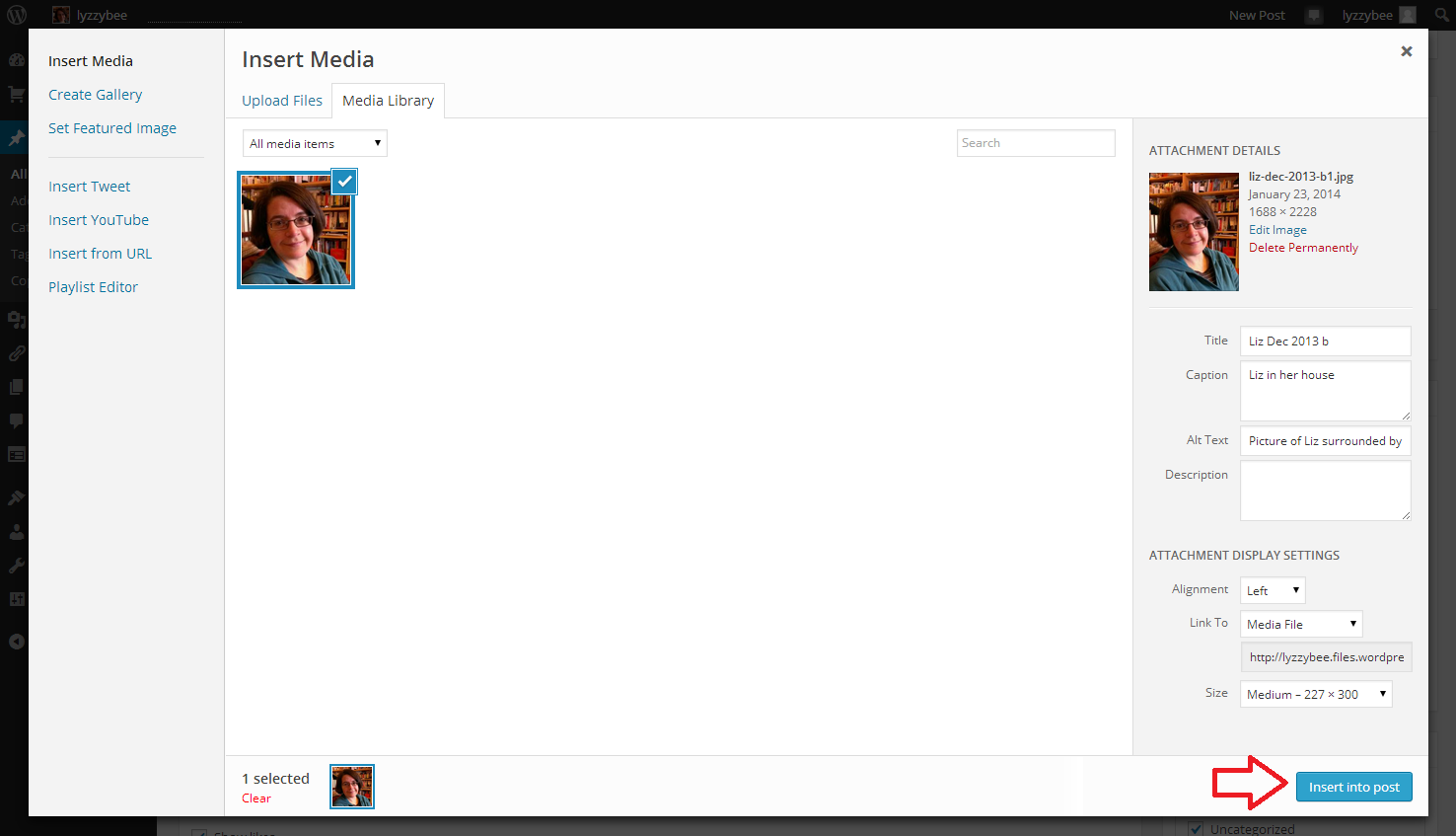
This will take you to an Insert Media page, and if you’ve already downloaded any images and want to re-use them, they will appear in your Media Library tab. But for now, we want the Upload Files tab. Hit the Select Files button:

2 add media

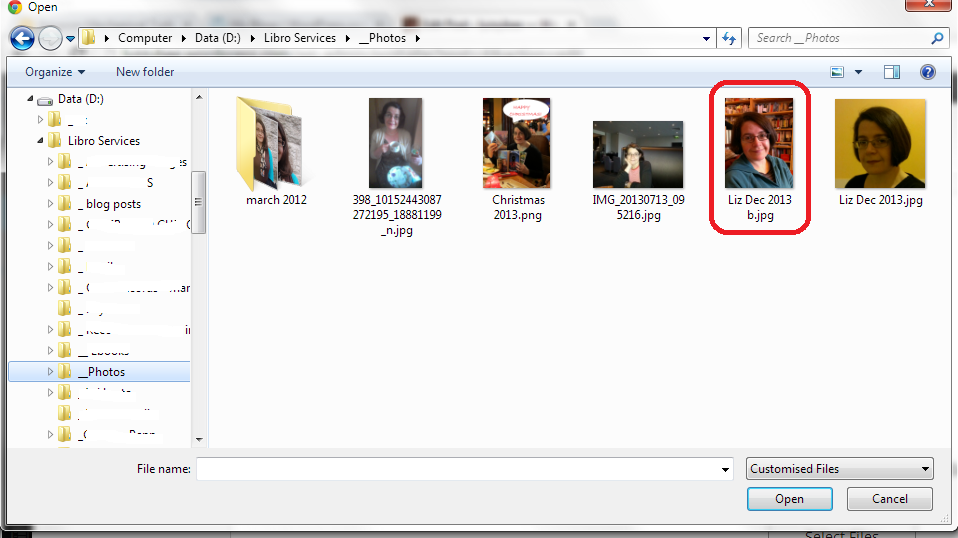
Select Files takes you into the File Explorer section of your computer. Here you can navigate around your folders and pick the photo that you want to insert into your post.

NOTE: You might think that you can just right-click and copy an image from the internet or your Facebook timeline, etc., then paste it into your blog. This might work temporarily, but, from experience, these images tend to be unstable and disappear. If you want to use an image from the Internet or elsewhere, save it into your own folders first and then insert it using this method.

Navigate to your chosen picture and double-click on it or single click and press the Open button at the bottom of the screen:

3 add media

Your picture will be pulled across into your Media Library tab in WordPress.

Note: if you select more than one picture, they will all move into the Media Library, which makes them easy to select. In the next step, only keep the picture you want right then ticked, and untick the others, otherwise they’ll all merrily pile in to your blog in one place.

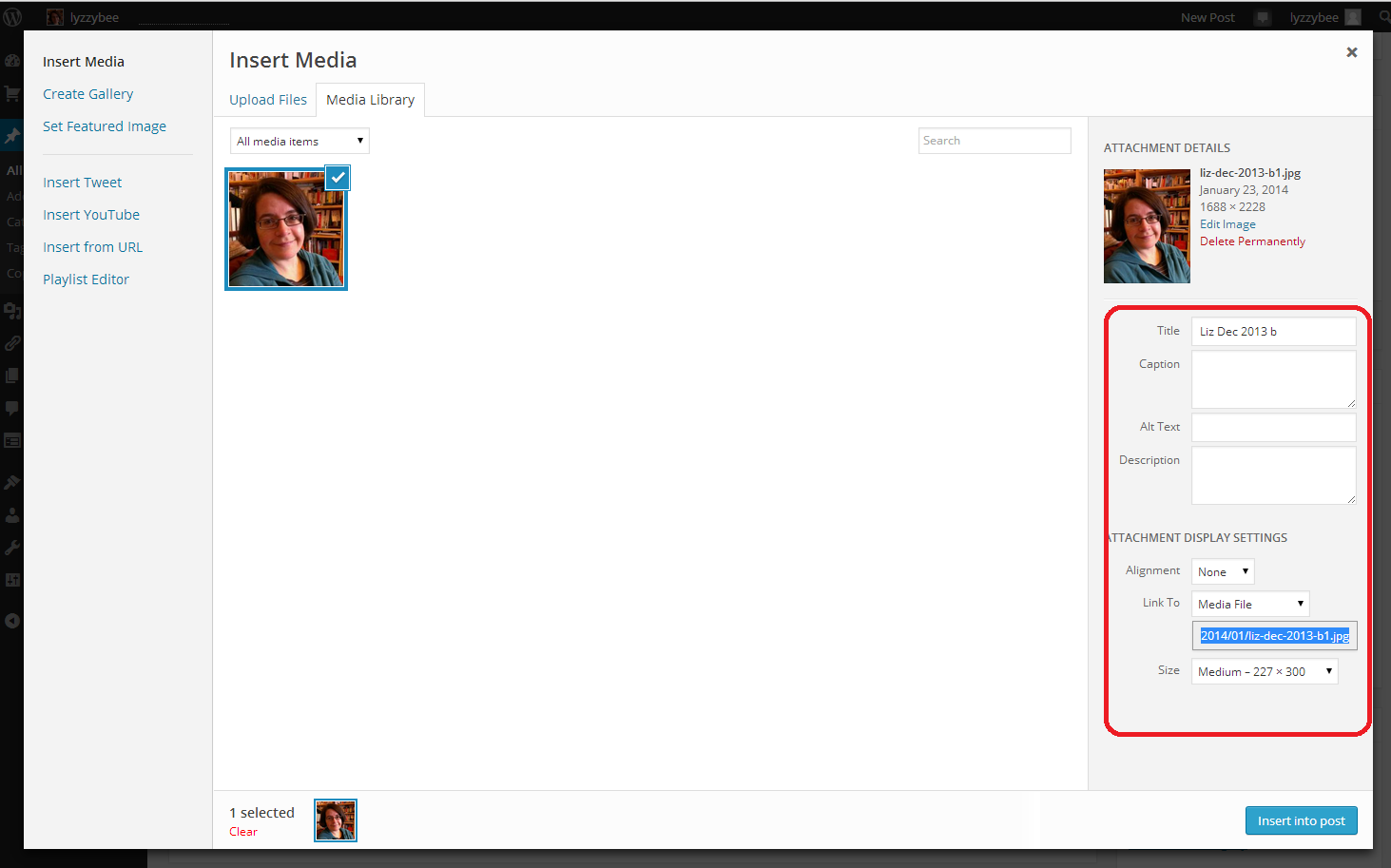
Making sure that the photo you want to use is ticked, choose the Attachment Details on the right-hand side. This specifies the caption, size and positioning of the image …

4 add media

Let’s look at that in more detail. You can place a caption on the picture if you want one to appear in your blog post – I don’t often bother, but it can be useful. It’s important to include Alt text, as this is what anyone using an audio describer will hear if they’re unable to see the image. It’s basically good accessibility practice. Link to allows you to link just to a larger version of the image, or you can choose URL to link to an external web page.  Alignment can be Left or Right (text flows around these to the other side of the image, if there’s room) or Center (like this blog post). Size is up to you: note, you can make an image smaller but not bigger once you’ve inserted it.

5 add media

Once you’ve chosen your picture and your settings and alignment, etc., hit the Insert into post button to place the image in your blog post.

6 add media

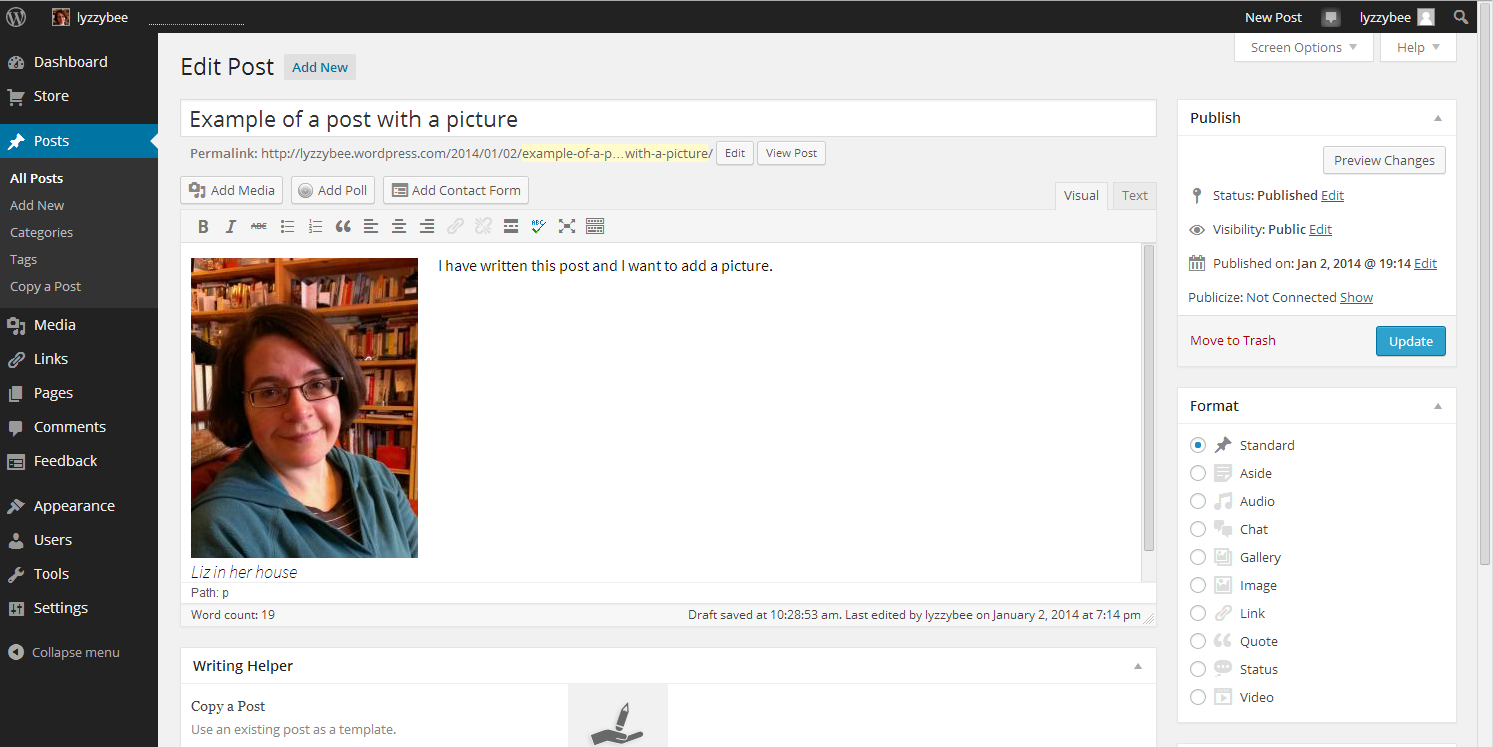
And here it is, in my blog post, medium-sized and left-aligned (so you can see that the text I’ve typed appears to the right of the picture and will flow around it. The top of the picture starts where my cursor was, at the beginning of that first line of type. If I chose Right alignment, it would be the other way around; if Center, the text would be underneath.

7 add media

How do I edit an image in my blog post? (including WordPress’s new image editing process)

Note: this section has been changed to reflect the changes implemented by WordPress in March 2014.

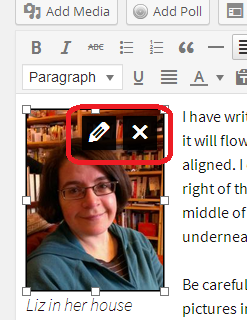
Once you’ve placed your image and written your post, you might want to edit the image. Left-click on your image using your mouse, and two icons will appear – edit and delete. Click on the right-hand, red, delete icon and your picture will disappear (no warning). Click on the left-hand icon that looks like a pen, and you will be able to edit your image.

01 new editing

On clicking the edit icon, you will be taken to an editing screen. This looks a bit different to the old editing screen, and it appears that you can’t do everything that you used to be able to do. But you can! With the help of my old friend Clare Lauwerys at The IT Fairy, I’ve been able to work out what to do and share it with you.

The basic editing screen now allows you to change the Caption text, Alt text, alignment, link and basic size. What about scaling it up and down and adding or changing description text? Don’t fear: it’s all still there.

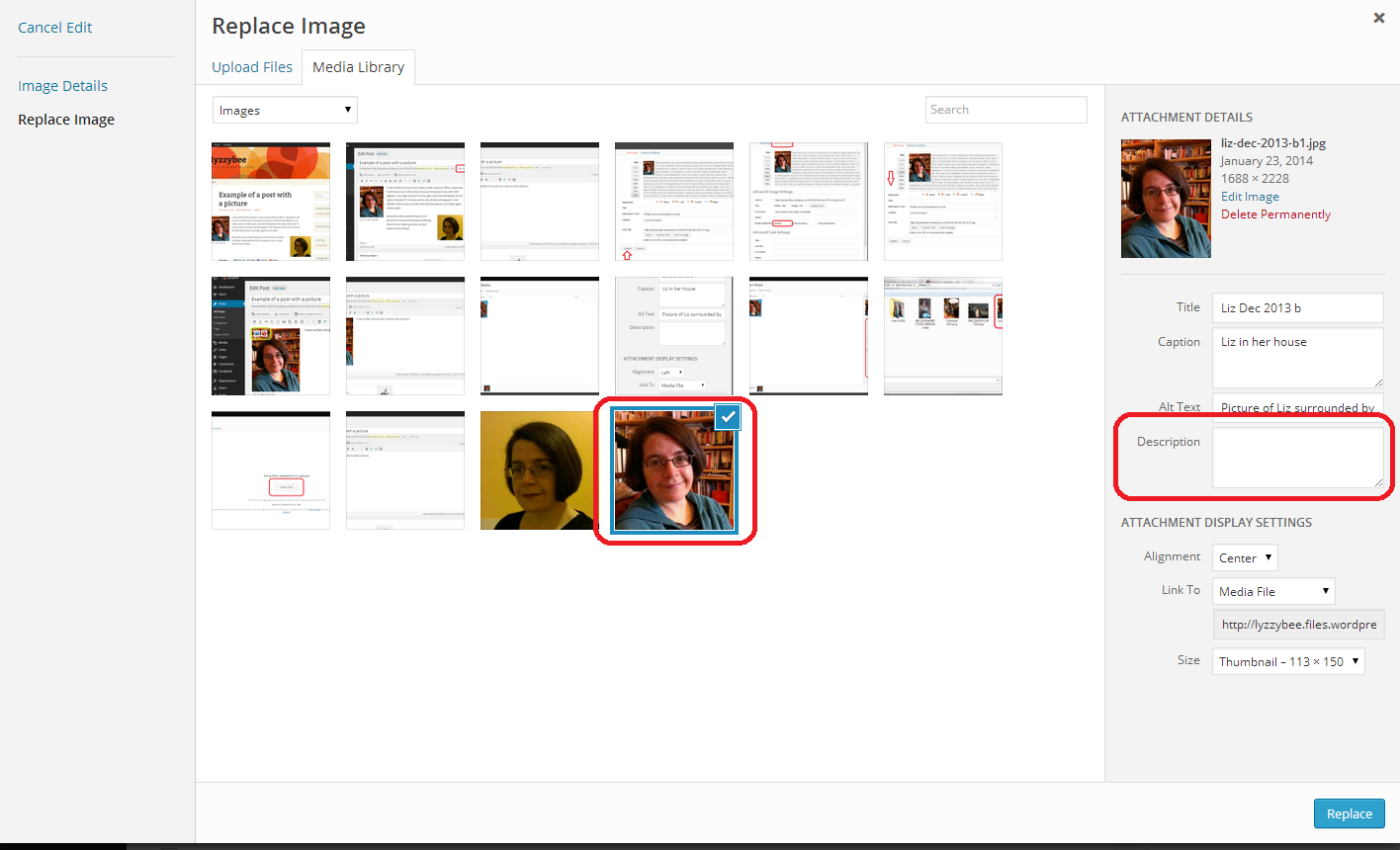
To add or edit the description text, you need to click on Replace image. Yes, I know that doesn’t exactly make sense, but it’s what you have to do …

02 new editing

Once you’ve hit Replace image you’ll be back in the screen you use to add an image and give it its attributes in the first place:

03 new editing

You can see that the image you’re currently working on has remained ticked in the Add image screen, and you are able to add or amend your description text here (that’s important for your SEO, and I’m going to have Clare guesting on here soon to tell you all about that). When you’ve done that, hit the Replace button and your new image information and old image will be safely in your blog post.

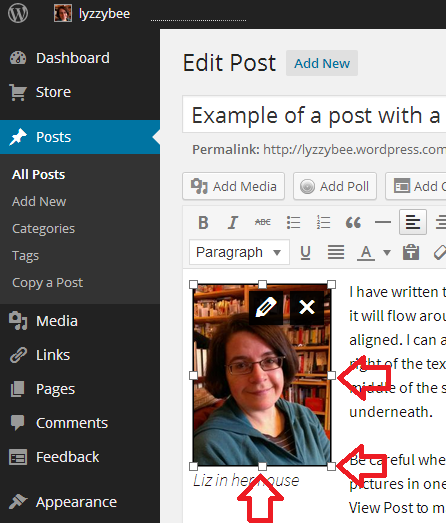
To change the size of the image, stay within the blog post edit screen, click on the image once and then use the standard image changing frame to pull your image out or in with the mouse and cursor to make it larger or smaller:

07 change size

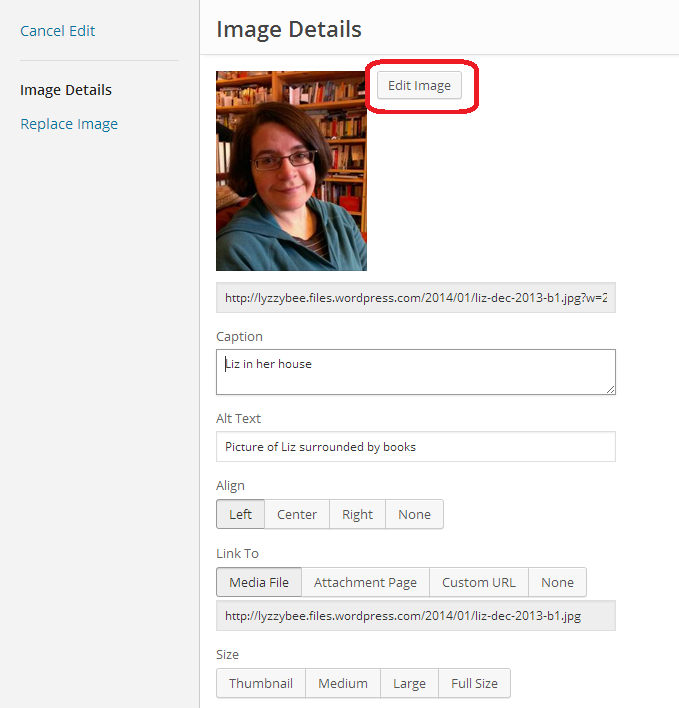
If you want to edit the picture to flip, rotate or crop it, click on the edit button and once you reach the Image Edit screen, click on Edit Image:

05 new editing

Once you’ve clicked on Edit Image, you can access the ability to flip, rotate and crop your image:

06 new editing

… remembering to press Save when you’ve finished.

Note: you can no longer choose the size of the border around your images. The standard border that you get is an aspect of the theme you choose for your blog. You do get a border of sorts if you add a caption to the image.

How do I preview what my images look like in my blog post?

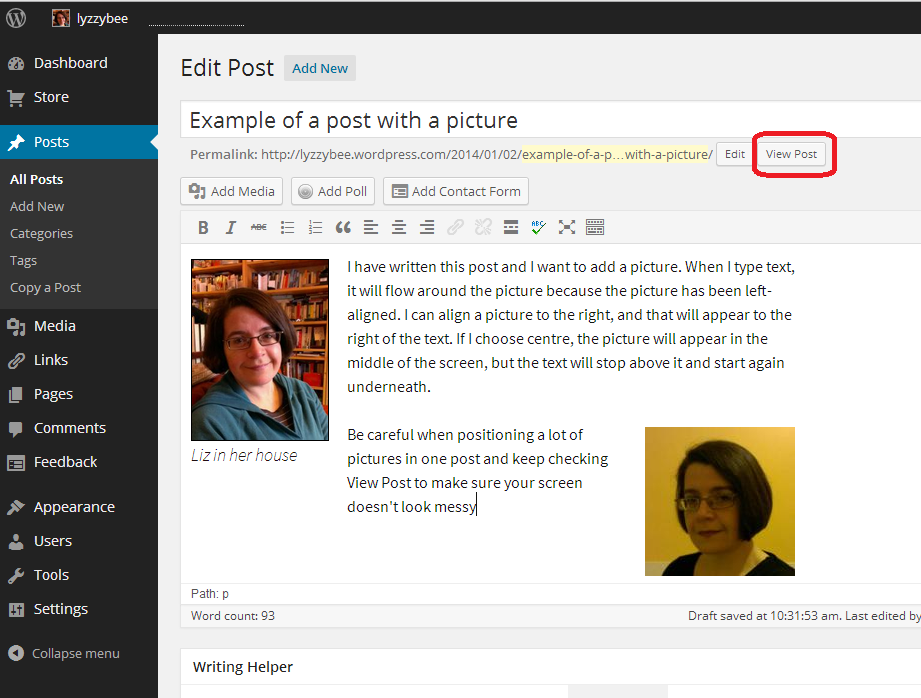
Click the View Post button to view your post as if it was live on your blog. This can save you from a nasty surprise, as the Edit Post screen does not display exactly as your blog post will in real life (of course, this will display differently on different screens, especially on mobiles and tablets, but this gives you a better idea than just looking at the Edit Post screen).

I’ve added another picture, with Right-alignment, and I want to see how the text flows around them.

13 check

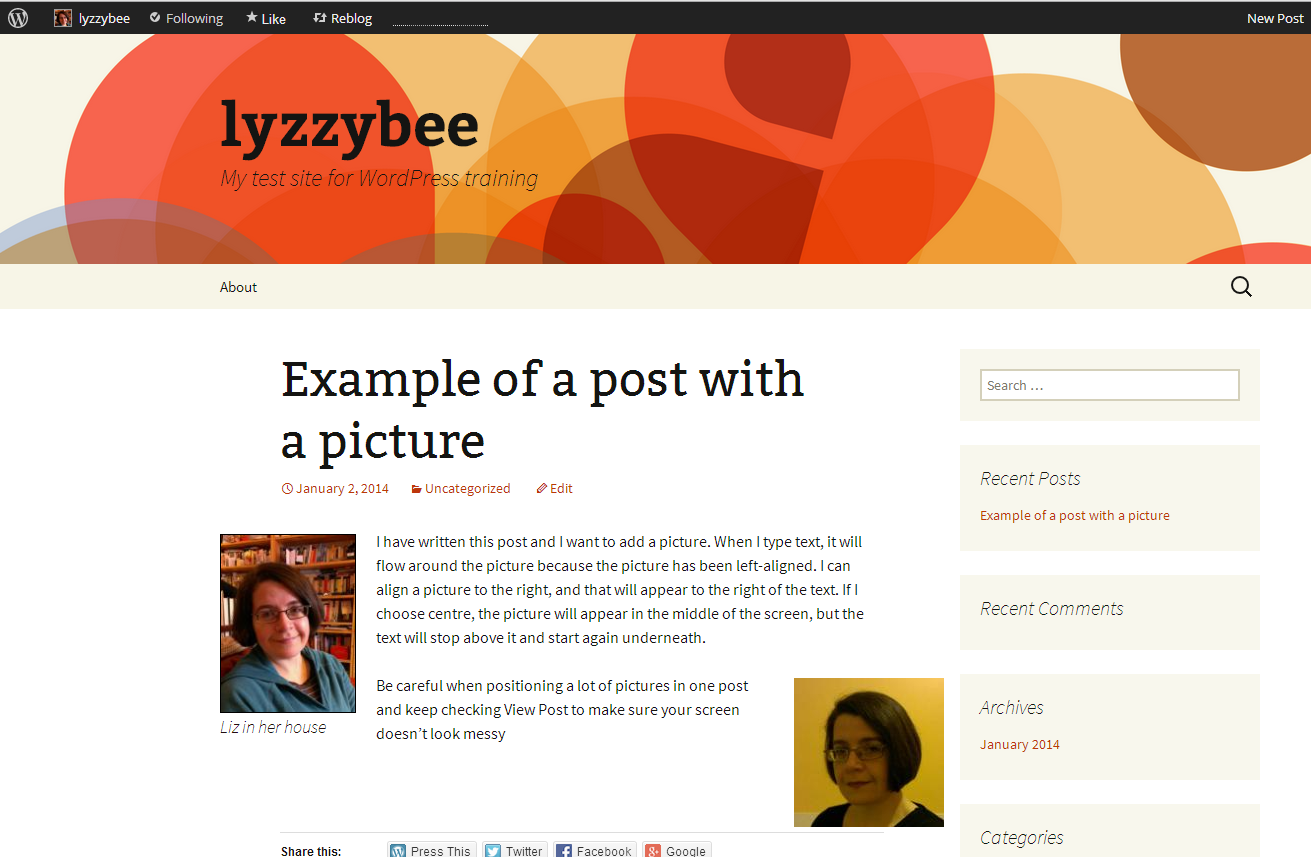
And there we go. It looks different from the editor, but I’m happy with the result.

14 check

How do I add images to a web page on WordPress?

Fortunately, adding images to web pages works in exactly the same way as it does for adding images to blog posts. So just look for the same buttons and icons, but note that you start off from New Page or Edit Page, not New Post or Edit Post.

You’ve learned how to add pictures to WordPress blog posts and pages, and how to edit those images once you’ve got them into your post/page.

If you’ve found this useful, please add a comment below, and please share this post using the sharing buttons below. Thank you!

Related posts on this blog

WordPress 1 – the basics – joining and setting up a blog

WordPress 2 – adding pages to create a website

WordPress 4 – adding slideshows and galleries of images

WordPress 5 – linking your blog to your social media

WordPress 6 – sharing buttons

WordPress 7 – adding an avatar picture

 
14 Comments

Posted by on February 6, 2014 in Blogging, Business, WordPress, Writing


Tags: , , ,

Slight or sleight?

This one was suggested by Matthew, Mr Libro. I’ve got to the point where I can’t remember whether I’ve covered a particular confusing word pair or not (see the link at the bottom of this post for the index to them all) but it is indeed a new one …

Slight is an adjective meaning not very sturdy or strong, or inconsiderable, small: “The rider was so slight that they feared he could not control the larger horse”; “There is a slight problem with your use of their and there, have a look at Liz’s Troublesome Pairs posts”. A slight (noun) is a kind of insult which is based around not showing someone the appropriate level of respect or attention: “He never bothered to read her blog posts, and she felt this slight keenly”.

Sleight is only actually ever found as part of the phrase ‘sleight of hand‘. This means manual dexterity, usually in the context of someone doing magic/conjuring tricks. By extension, it has also come to mean skilful deception of any kind, as more of a metaphor.

“He gained a slight advantage by employing sleight of hand and misleading the other runners as to the direction to take. However, as it was only a slight advantage, they soon caught up and beat him”.

You can find more troublesome pairs here and the index to them all so far is here.

 
2 Comments

Posted by on February 3, 2014 in Errors, Language use, Troublesome pairs, Writing


Tags: , , ,

Procrastinate or prevaricate?

Welcome back to the Troublesome Pairs after a long break full of posts on business and Word. People have been asking about them, so I’ve started writing up a few more. Let me know if you’re pleased that I’ve done this, or if you’ve been helped by a particular Pair, won’t you!

This one came up in the cafe one Sunday afternoon, as my friend Gill and I were sipping our coffees, looking things up on the Internet via our phones, talking about all sorts … and putting off venturing out into the rain. Is there a difference between these two? Do you know what it is? Really? Because we thought that we did and … well … I’m glad that I always look it up to check!

To procrastinate means to put off doing something. For example, we were procrastinating when we sat in the cafe chatting about this and that rather than going out into the pouring rain.

To prevaricate means to speak or act in an evasive way. For example, when asked whether it was going to carry on raining, a weather forecaster might waffle on about climate change and average daily rainfall in order to avoid telling the truth for as long as possible.

“He prevaricated over paying the bill yet again, claiming that he’d lost his wallet before finally getting it out and paying. So I procrastinated when it was time to ask him out for dinner again, coming up with all sorts of activities that I must do immediately, before getting around to calling him.”

You can find more troublesome pairs here and the index to them all so far is here.

 
4 Comments

Posted by on January 27, 2014 in Errors, Language use, Troublesome pairs, Writing


Tags: , , ,

How to use Find and Replace in Word 2007, 2010 and 2013 2: Advanced Find

Hopefully, you’ve already read about simple Find and Replace in Word in my earlier post. In this article, I’m going to show you some of the Advanced Find features to do with word forms, wildcards and where you’re actually searching. Handily enough, these are the same in Word 2007, 2010 and 2013. For hints on replacing, see the previous article, and for finding formats, look out for my next post in this series (I will link it to this post once it’s live). I’m going to start by discussing the three different options for viewing the results of a simple Find search in Word 2010 and 2013, then move on to the Advanced Find options in all three versions.

Find options in Word 2010 and Word 2013 (Navigation)

When  you hit Ctrl-F to Find in Word 2010 and 2013, you are shown the Navigation side panel. This gives you three options for viewing the results of your simple search (i.e. you’ve searched for just a word or phrase, no whole word only or match case options applied).

The first tab on the left gives you the Outline view – if you have headings in your document, it will give you a run-down of those,and highlight in yellow where your search term appears. The search term “localisation” has been input into the search box at the top.

Word 2010 simple find options 1

The second tab gives you a Page view, showing only the pages that the search term appears on (you will see that it’s displaying pages 5, 6 and 14 here) with the search term highlighted.

Word 2010 simple find options 2

The third tab along gives you the Paragraph view, and this is the one that I find most useful, as it shows you the search term in its context. Click on the box and you’ll navigate to that place in the text. As you can see here, the word has also been highlighted in the actual text, and this is true for all of these views. This paragraph view is the most useful for seeing where you’ve used a word and deciding whether to change it.

Word 2010 simple find options 3

Now we’re going to look at some of the Advanced Find options. You can get to Advanced Find by clicking on the More button in Word 2007’s Search box, or by clicking the down arrow by the search input field and choosing Advanced Find in Word 2010 or 2013. Note, in Word 2010 and 2013, you can click on Options after clicking the down arrow, but that isn’t as specialised or useful as choosing Advanced Find.

If you’re confused about how to find the Advanced Find dialogue boxes, read this post for screen shots and explanations.

Advanced Find options: Find In

The Find In option allows you to specify where exactly you want to look for your search term. This is particularly useful if you are looking for something you or someone else has said in the Comments area of the text, or indeed the footnotes. Here I have a document with a main text, Comments and footnotes. I use the dropdown arrow next to Find In to access my options:

Advanced find options 1 find in

Whichever of these options you choose, it will only search in that area, saving time and narrowing down your search to exactly what you’re looking for.

Advanced Find options: Match case

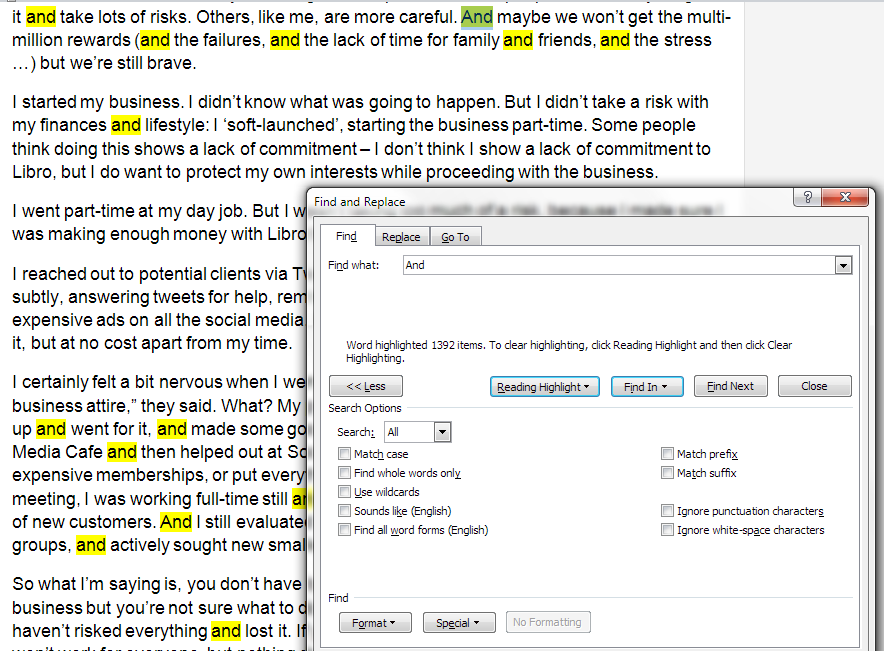
Match case is extremely useful if you are only looking for a particular form of a word. For example, I might want to catch the instances where I’ve started a sentence with “And”. If I just search for “and” with no other options set, Word will usefully highlight all instances of the word. I’ve highlighted the one that I’m looking for in green here, but you can see how hard it would be to find amidst a sea of and … and … and. Note that I typed the word in with a capital letter, but unless I tell Word to take account of that, it will ignore it, and treat And, and, aNd, ANd, Andy, understanding, etc. all the same (to get rid of those last two, see the next section).

Advanced find options 2 no options

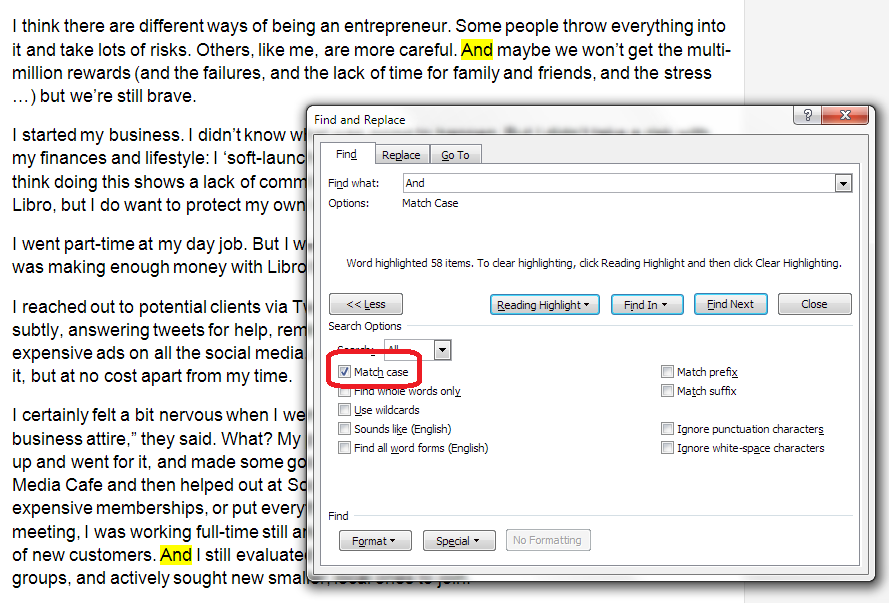
Tick the Match case box and it’s a different story. Now it’s only looking for And with a capital A. Note how the line under the search box includes a note of the option that I’ve selected:

Advanced find options 3 match case

Advanced Find: Find whole words only

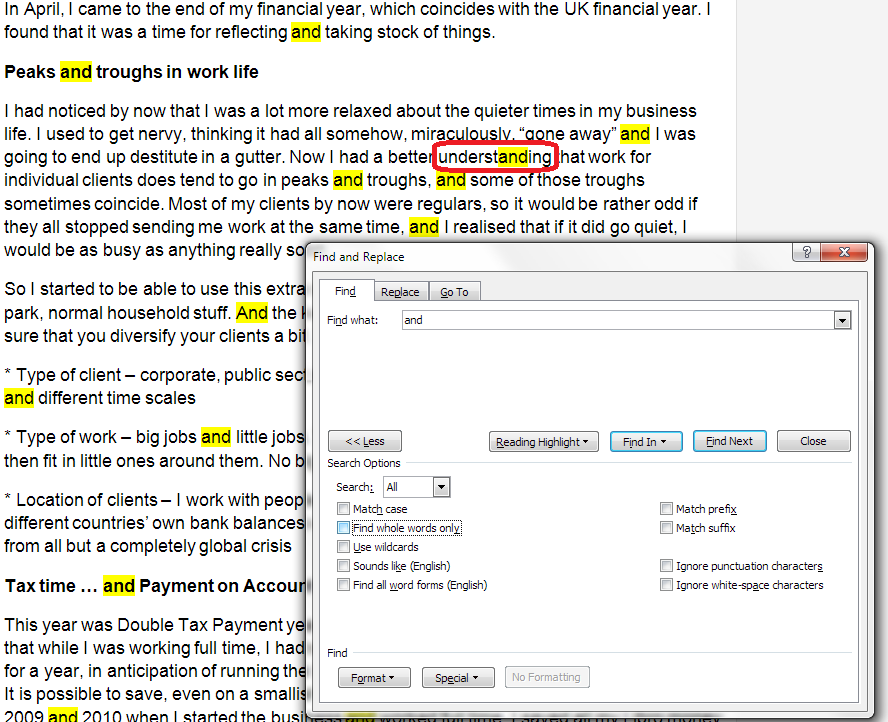
As we saw briefly above, search for “and” without ticking any additional options, and Word will find the letters “and” however they may be capitalised and wherever they will be. Here, a search for and highlights the word understanding, too.

This can be really annoying, especially if you’re searching for a word that can appear as part of other words (like under, or stand!) and you want to do a Replace All on them or just find when you’ve used that particular word, not its compound. This is what happens when you don’t choose any options:

Advanced find options 4 no options

To stop this happening, tick the box next to Find whole words only. Now Word will only find the word “and” as a discrete word:

Advanced find options 5 whole words only

Note: you can use these two options together. For example, search for But using Match case and Find whole word only and you will limit what you find to sentences beginning with the word “But”, instead of all the examples of but in the middle of sentences and sentences beginning with “Butterflies” or “Butter” …

Advanced Find options: Wildcards

Lots of people know about the above two options, but Wildcards can seem a little alarming to the novice or even quite experienced Word user. Wildcards allow you to search very precisely for different forms or spellings of a word.

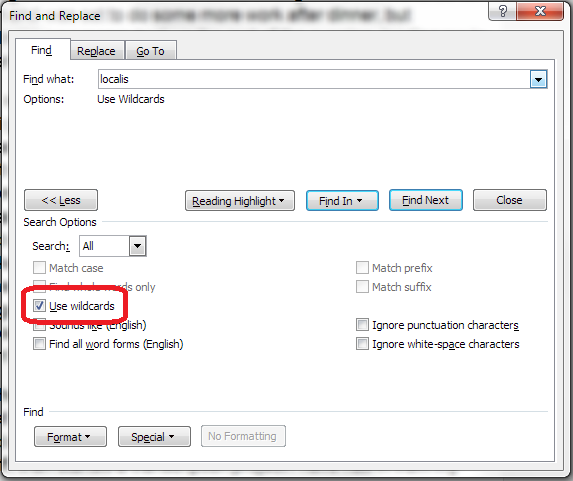
To use Wildcards in your search, tick the Wildcard option.

Advanced find options 7 wildcards

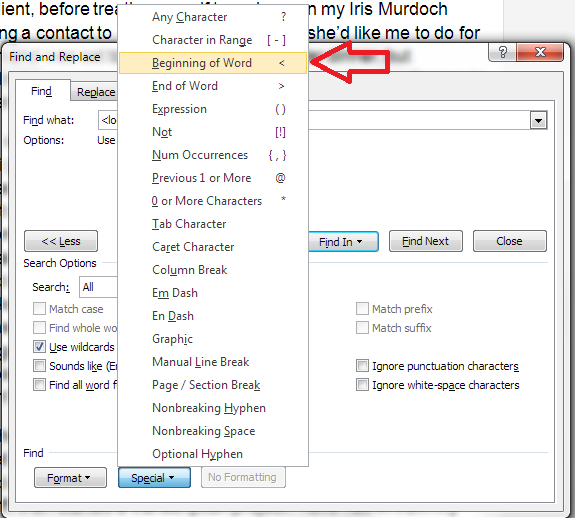
If you already know the special character to use in your Wildcard search, type your search term in the search box. If you need to check which special character to use, click on the Special dropdown on the button at the bottom of the screen. This will give you a huge range of choices for narrowing down your search:

Advanced find options 8 wildcards

In this case, I’m looking for words beginning with “localis”, so I choose the Beginning of Word option from the list:

Advanced find options 9 wildcards

Word inserts the special character in the search input box, and finds all of the words beginning with “localis”:

Advanced find options 10 wildcards

Now, you could just do a basic search for a bit of a word, but that’s only useful if the selection of letters you’re looking for all occur together. In the example above, we’re looking at the letters appearing at the beginning of a word, but what if you’re looking for a word and you can’t remember how you spelled it, or you fear you sometimes used an s and sometimes a z in “organisation”? Use the question mark option and search for “organi?ation” and you will find both spellings.

Note, there are many further special characters here apart from the ones used for Wildcards (which are ? – < and >) – I will be covering some of the most useful of those in future posts.

Advanced Find options: a note on Sounds like and Find all word forms

The two options at the bottom of the list can look quite tempting. But I will be honest and say that I don’t use them in my everyday work (if you do, please comment and share why you find them useful!).

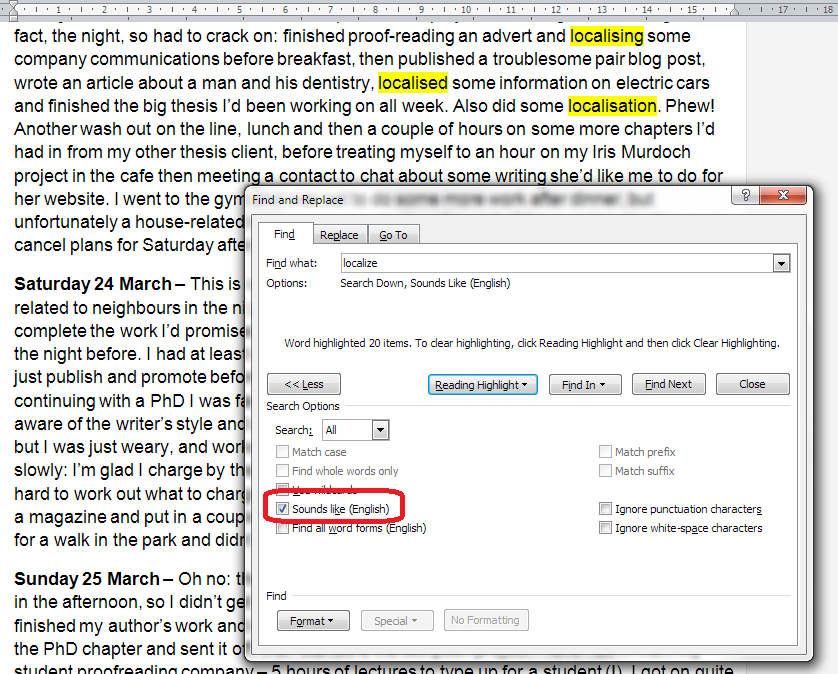
Sounds like is the more useful of the two. It only works for the English language (presumably if you’ve bought a UK or US copy of Word) and it does what it says it does, finding words that sound like the word that you have entered.

Here I’ve searched for “Localize” and it has found the words that I would be looking for. They’re not spelled the same, but they do sound the same.

Advanced find options 11 sounds like

However, Find all word forms does NOT find “localisation” in the same piece of text, so I’d be careful about using this one (in fact, try not to), as it will miss out words from your search:

Advanced find options 12 all word forms

In this article, we’ve learned how to use some of the more advanced features of the Find function in Word 2007, Word 2010 and Word 2013 in order to be able to look for the correct, specialised word in our document, including being able to choose where in the document it is and choosing fewer or more examples of words containing the letters we’re searching for.

If you’ve found this useful, please take a moment to share it, using the buttons under the article, or send me a comment, as I love hearing from my readers and knowing that I’ve helped! Thank you!

—————————

This is part of my series on how to avoid time-consuming “short cuts” and use Word in the right way to maximise your time and improve the look of your documents.

Please note, these hints work with versions of Microsoft Word currently in use – Word 2007, Word 2010 and Word 2013 all for PC. Mac compatible versions of Word should have similar options. Always save a copy of your document before manipulating it. I bear no responsibility for any pickles you might get yourself into!

Find all of the short cuts here

Related posts on this blog:

How to use Find and Replace 1 – basic find and replace

 
51 Comments

Posted by on January 23, 2014 in Short cuts, Word, Writing


Tags: , , , ,

How to set up a WordPress blog 1: the basics

This article will help you to set up a standard, free, WordPress.com blog for the first time. It talks you through step by step, including setting up your account, choosing your blog name and setting up the features that I find essential when setting up a new blog.

Further posts cover more advanced topics like sharing your posts, inserting pictures and galleries, setting up web pages associated with the blog, etc. By the end of this session, you will know how to …

  • Set up a WordPress.com blog
  • Choose and apply a theme (background / colours / layout)
  • Set up comment moderation to keep you safe from spammers
  • Remove ads which will put off your readers
  • Write and publish a blog post

Why would I want to start a blog?

I’ve covered this in detail elsewhere, so do have a look at this index or pop to the bottom of this article to see a list of related posts on this blog.

Getting started with a WordPress.com blog

Please note that this all applies to a standard WordPress blog hosted on WordPress’ own servers. Some of this will look different if you’re setting up a self-hosted WordPress site. Don’t worry about that bit if you just want to set up a blog!

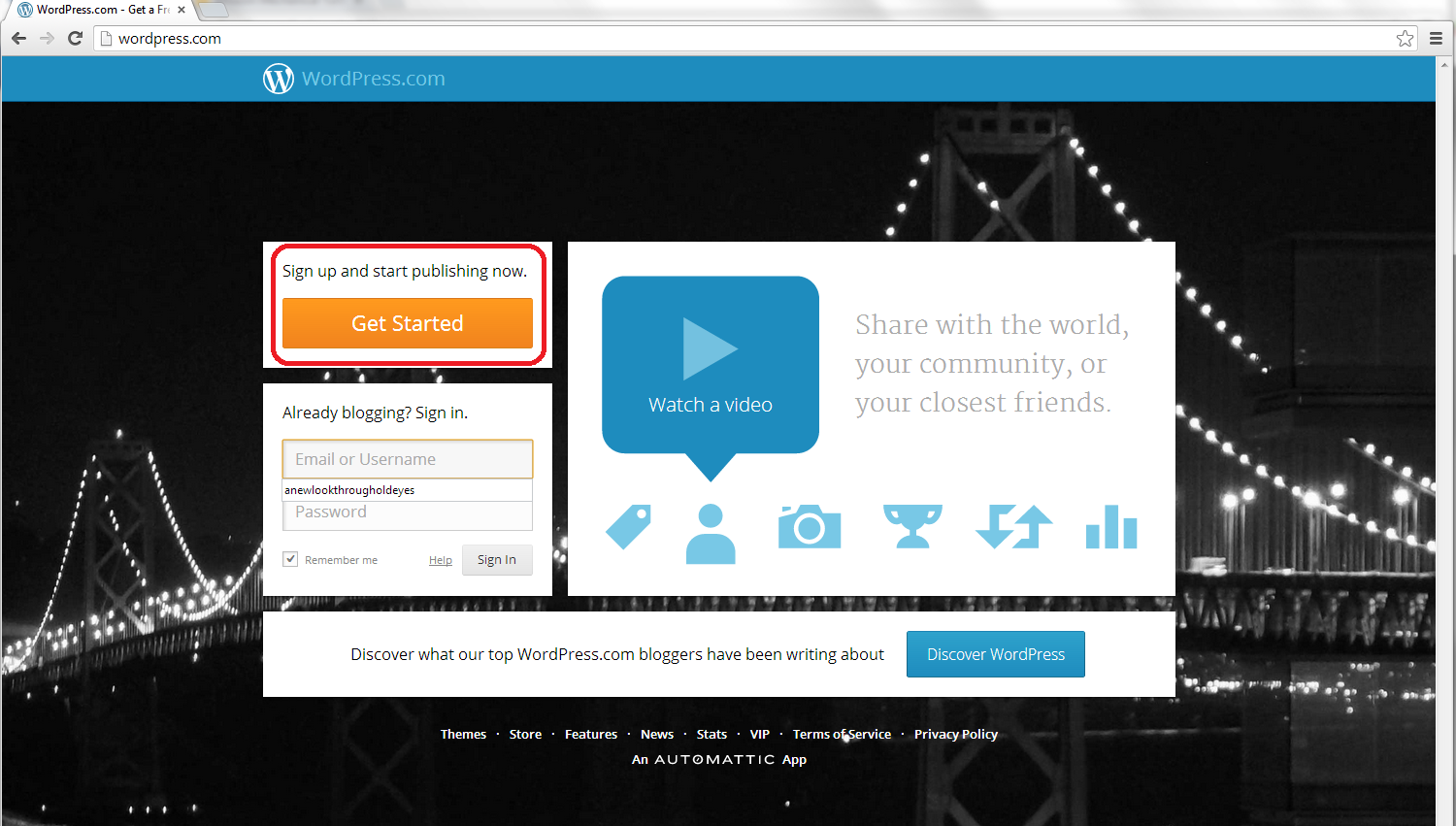
So, to set up your blog, first go to http://www.wordpress.com, where you will meet a sign-up page:

1 front page

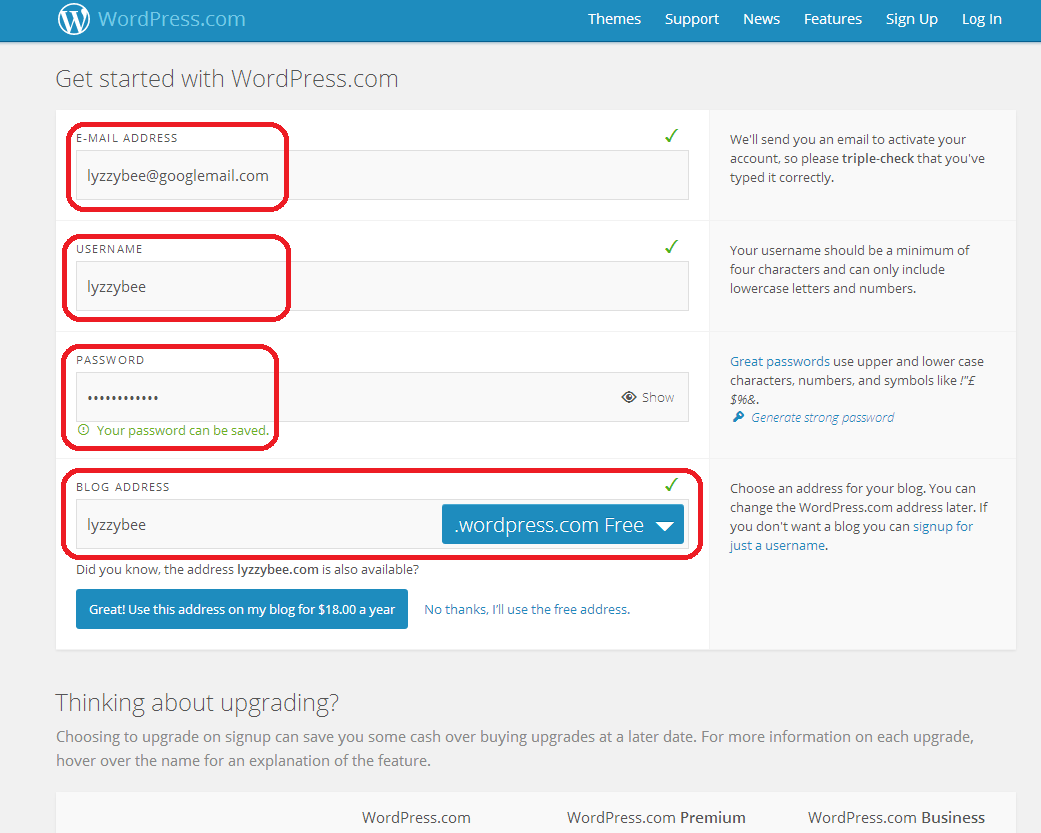
Click on the Get Started button to set up your account:

2 sign up

Fill in your email address, a username, and choose a password, then choose the web address for your blog.

Note: although you can change the name that your blog displays, this web address should always stay the same. If people link to it, or you link to your own posts on it, or people add it to their blog reader, they use the web address. If this changes, then the links will be lost. I suggest choosing something as bland and general as you can, so that if you change the name of your blog or the way you write it over the years, the web address and the name won’t be too different.

I’m choosing Lyzzybee here – WordPress has suggested that but you can change it. Watch out for the little green tick, which means the address is available. That means that you can choose it for your blog.

Underneath the web address box, WordPress lets you know that you could buy the domain name (in this case lyzzybee.com) for $18 per year. There’s a lot of discussion about this, with people claiming that seeing WordPress (or blogspot or any other blogging software name) will put people off if you’re writing a business blog or setting up business pages. I’m not sure that it does these days, but there is an option to buy the name if you want to, if it’s available:

3 sign up

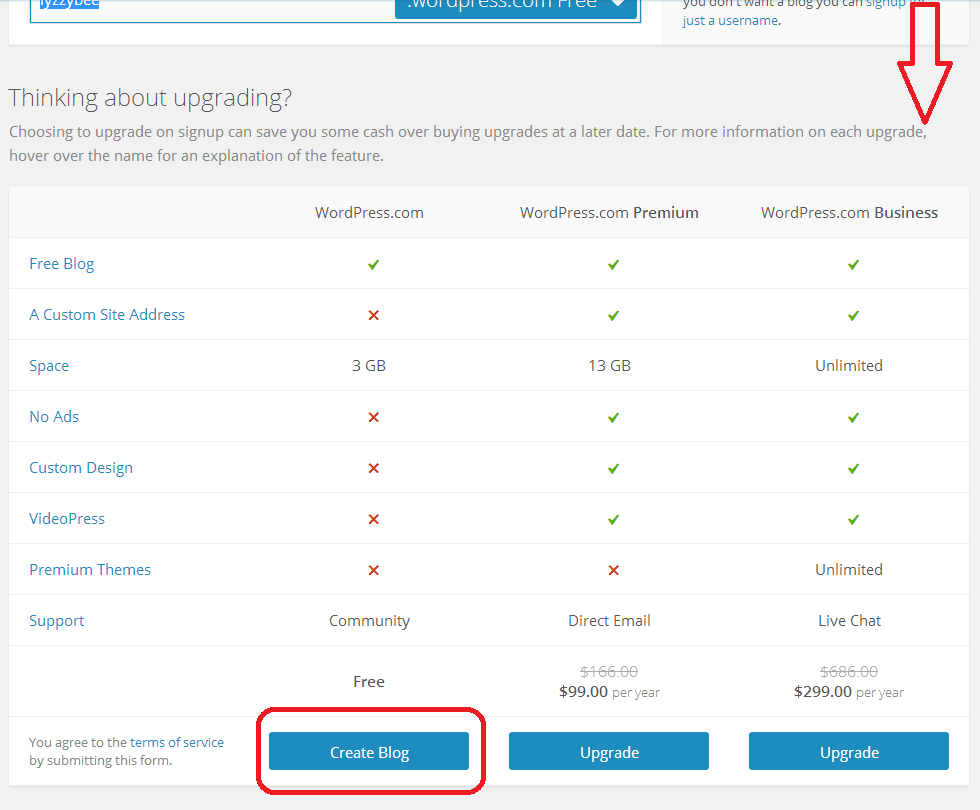
If you scroll down, you’ll see some options for upgrading, too. These look very enticing and seem to offer you a lot, but upgrades cost money and you will only really need a free blog for most purposes apart from the most content-heavy and customisable blog. For our purposes, a free one will do, so click on Create Blog at the bottom of the free column.

(Note: ad free is something we will be looking at later as I feel it’s important to remove intrusive ads from your blog, so it’s not EXACTLY free. Ad removal is currently $30 per year (about £20), it is an option but I think it’s important).

4 sign up free

Confirming your email address

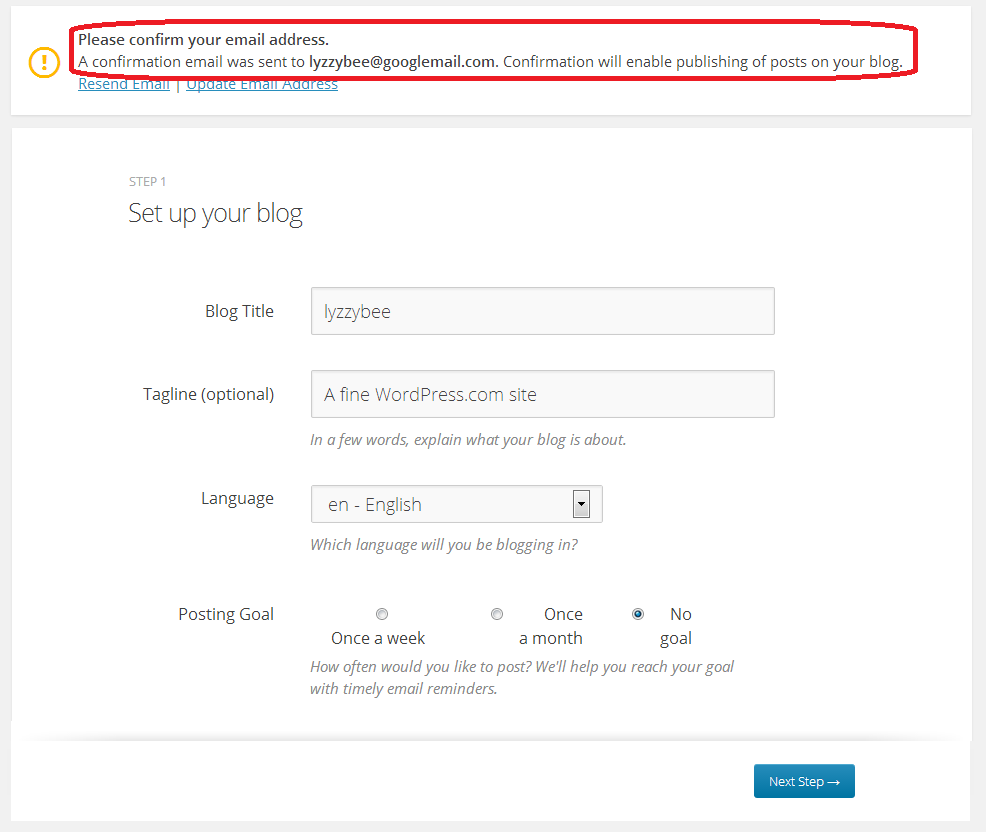
Before you go any further, you will need to confirm your email address in order to allow you to write posts and use your blog. This is a security measure, to make sure that no one’s setting up a blog under your email address illegitimately.

You will see a message about confirming your email address once you’ve hit that Create Blog button. You have options to change the email address or re-send the email if it doesn’t appear:
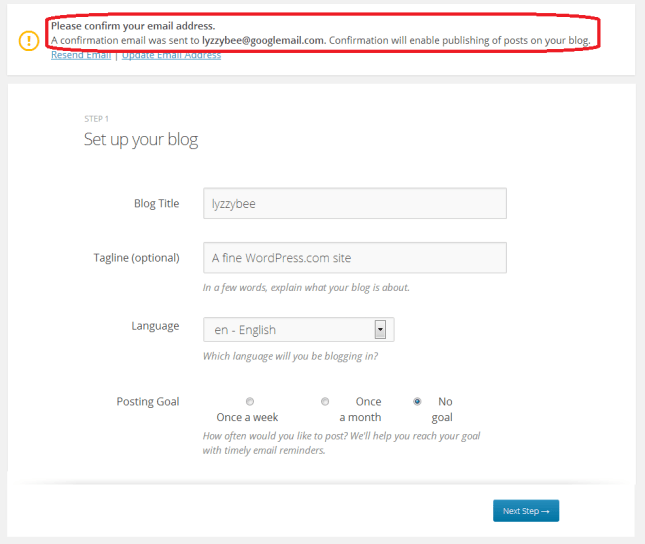
5 confirm

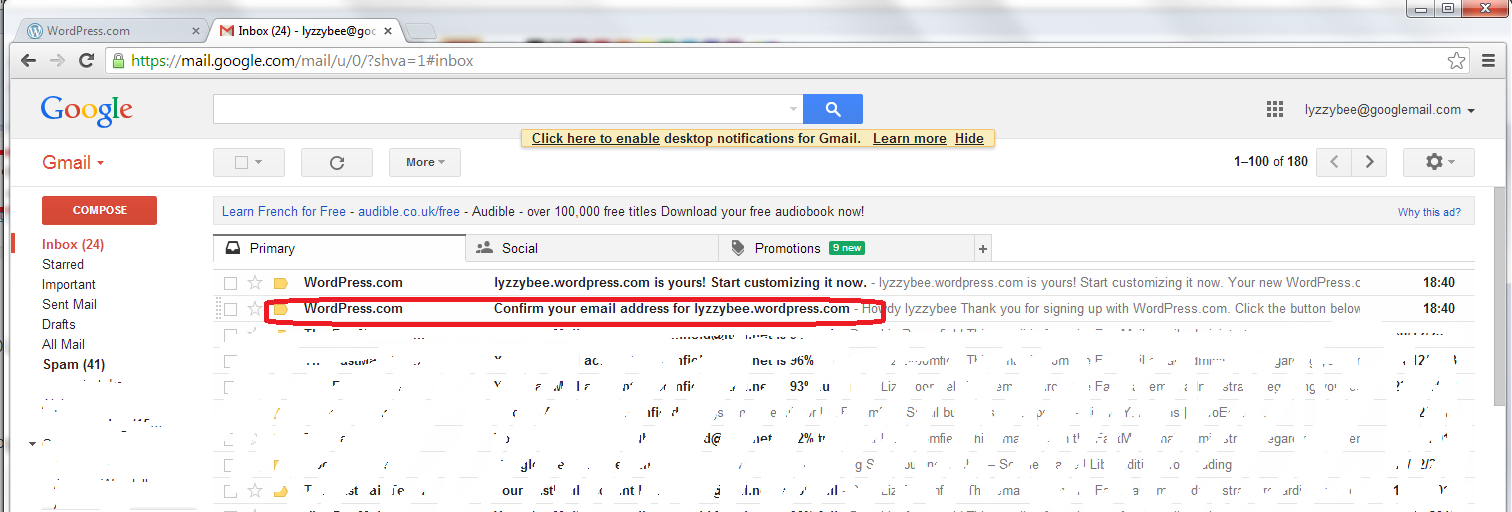
But, all being well, you should find an email from WordPress in your email inbox, with the subject “Confirm your email address for [your blog address]” – it might be the second one from WordPress, as here:
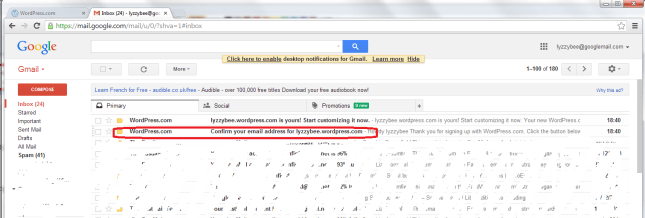
6 confirm

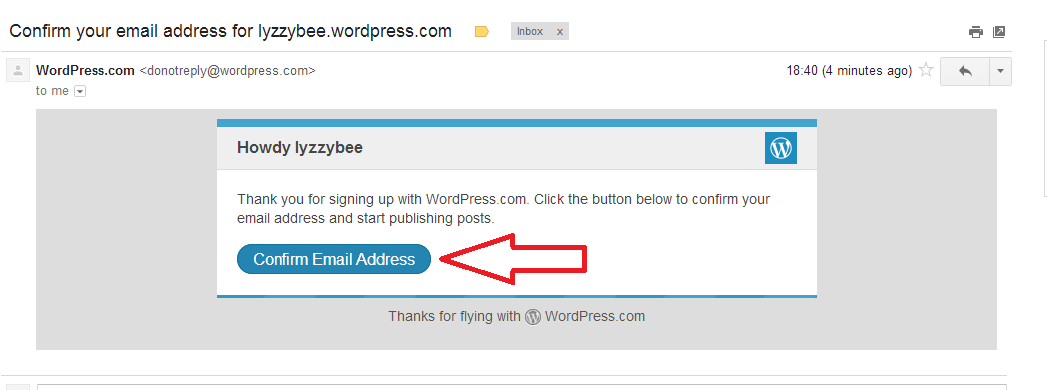
Open the email and you’ll find a Confirm Email Address button to press. Press that button …

7 confirm

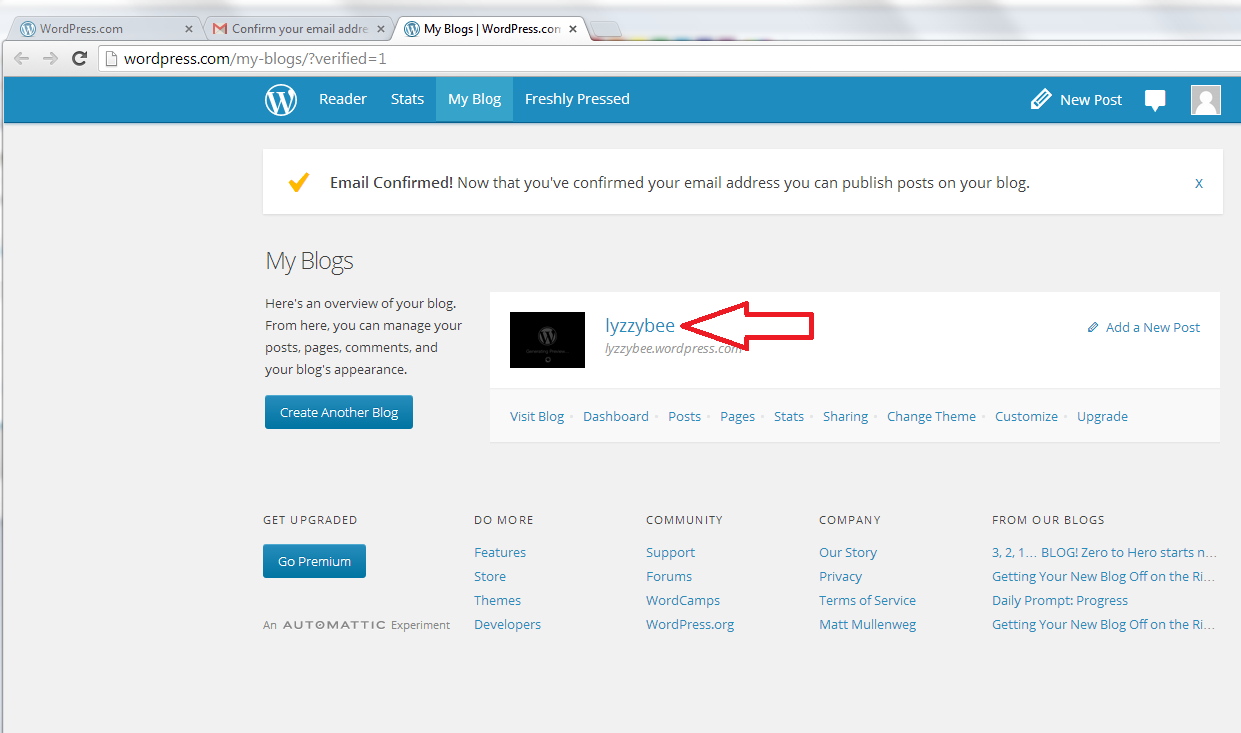
… and you’ll be back in WordPress (in a new window) with the email address confirmed and able to do what you want with your blog!

Click on the blog name to go and look at your blog …
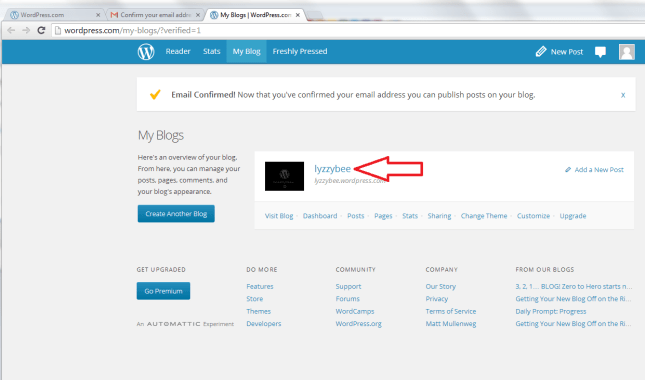
8 confirm

… and you will find the very bare bones of a completely blank and empty blog! But it’s your completely blank and empty blog!
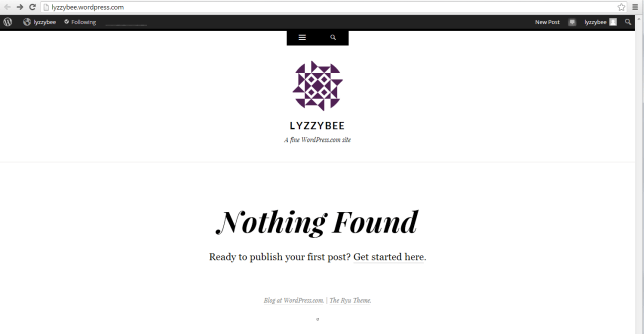
9 setup

How do I access the dashboard on WordPress, aka how do I actually do stuff?

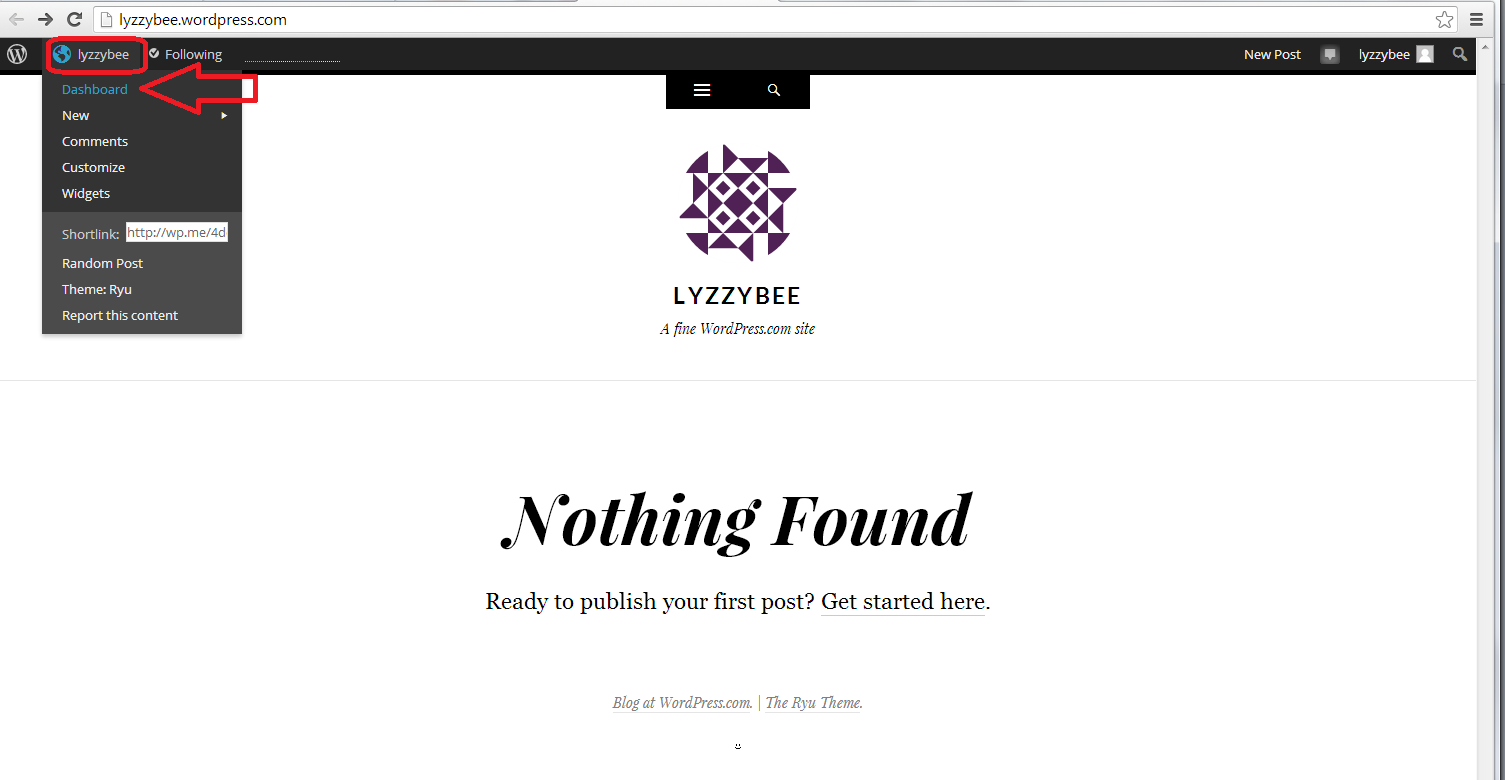
Whenever you’re logged in to WordPress and want to do something with your blog, whether you want to alter the settings, write a post, check your comments … you can access the Dashboard (which allows you to do all of this) by clicking on your username at the top and then clicking Dashboard:
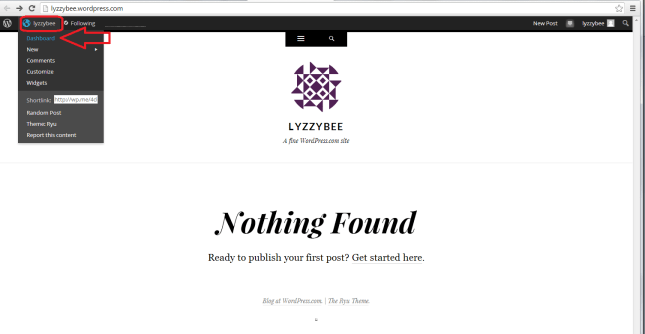
10 setup

Now, the Dashboard looks like a pretty scary place at first glance: there’s lots of text, lots of options … lots of STUFF!

But I can tell you that you will usually only need to use a handful of areas on this Dashboard, and a few options in each one.

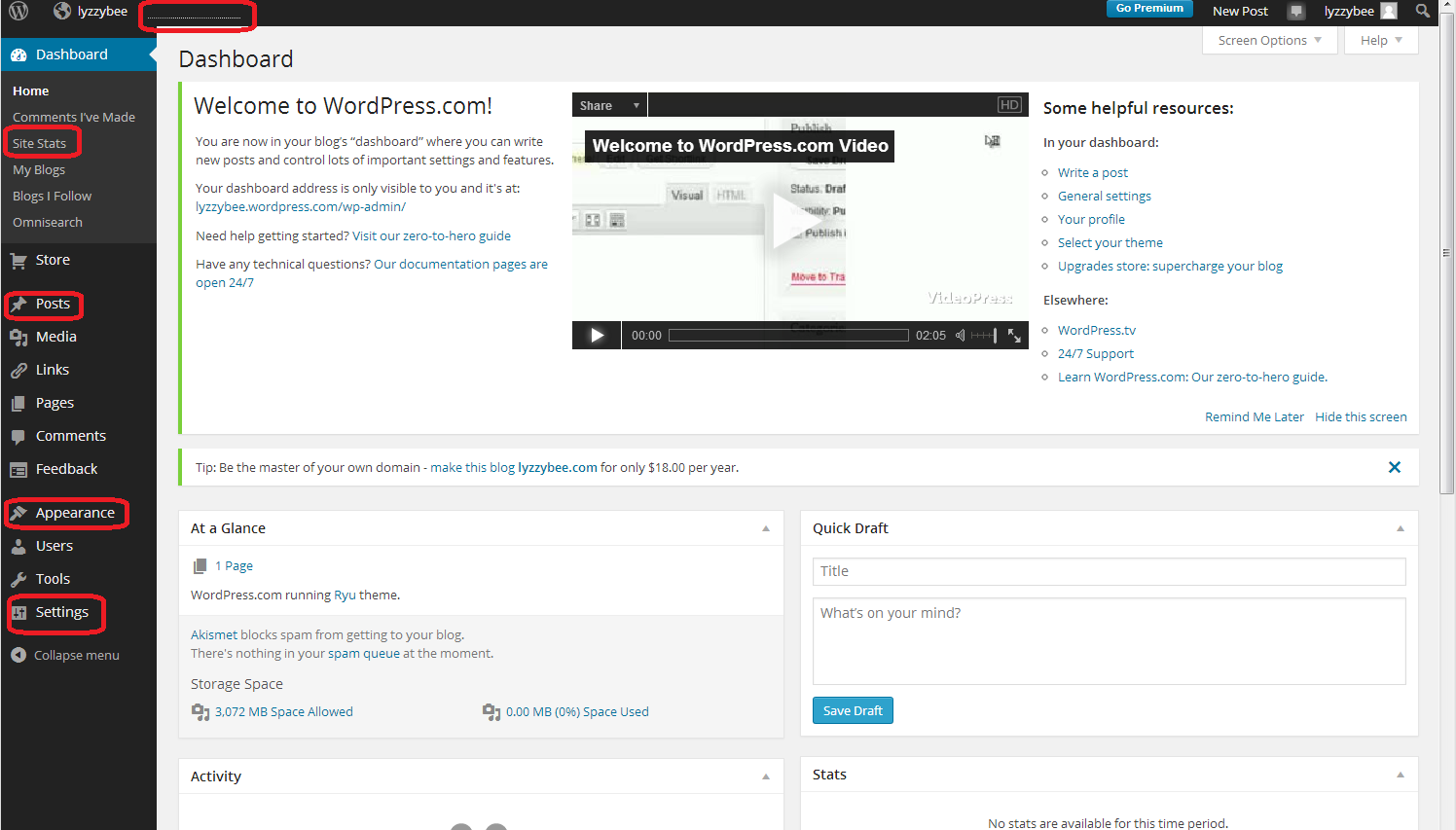
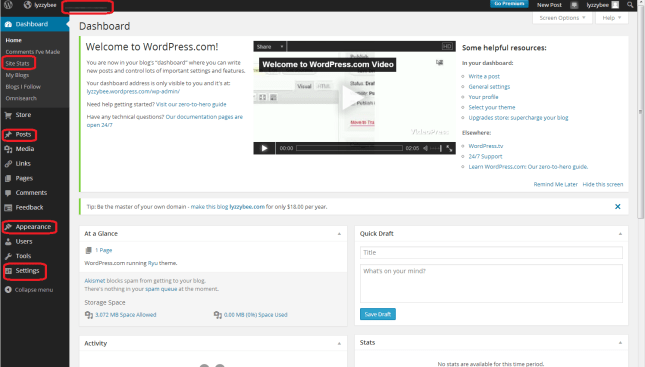
The ones that I find most useful and use most of the time are:

  • Site stats – accessible from the top part of the Dashboard or the dotted line on the very top line (which starts to look like a bar graph as soon as you get some people looking at your blog)
  • Posts – where you write posts, copy posts, edit them and review your drafts
  • Appearance – where you change the theme of your blog
  • Settings – where you change your blog’s name, subtitle and spam filtering options

I’ve highlighted them all here: not so scary after all?
11 setup

How to change your blog’s name and subtitle

Remember what I said above about not being able to change your blog’s web address, but being able to change its name and subtitle? I’m going to show you how to do that first, mainly because WordPress adds its own subtitle to your blog, and we want to customise it for ourselves.

Whizz up a couple of pictures to that blank white screen that says “Nothing Found” in the middle of the screen. Notice how underneath the blog name “Lyzzybee”, it says “A fine WordPress site”. Well, that’s all well and good, but this is where you can describe what the blog’s all about. This blog that you’re reading now has the subtitle “Proofreading, editing, writing, transcription and localisation”, and this field is searchable by search engines, so it makes sense to get your keywords in there and tell people what it’s all about (another of mine can be found here).

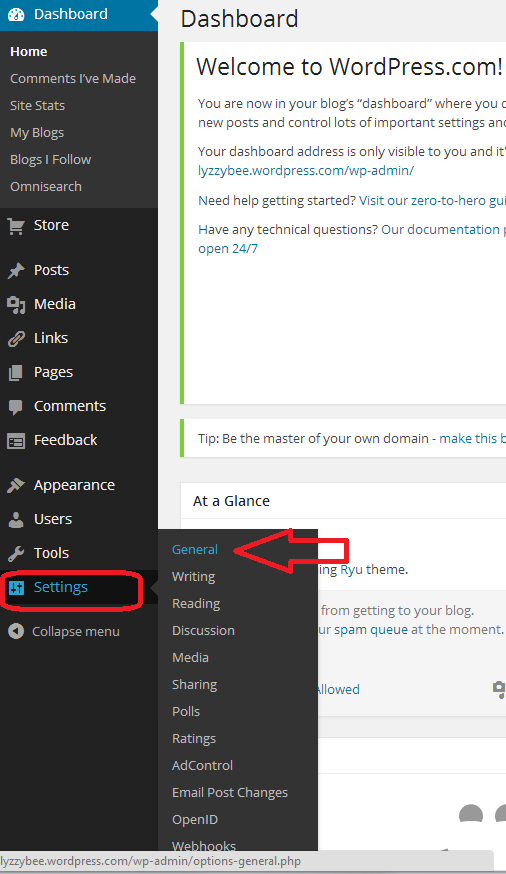
To change this, go down to the bottom of the Dashboard and click on Settings. You’ll get a sub-menu, and you now choose General:

12 setup

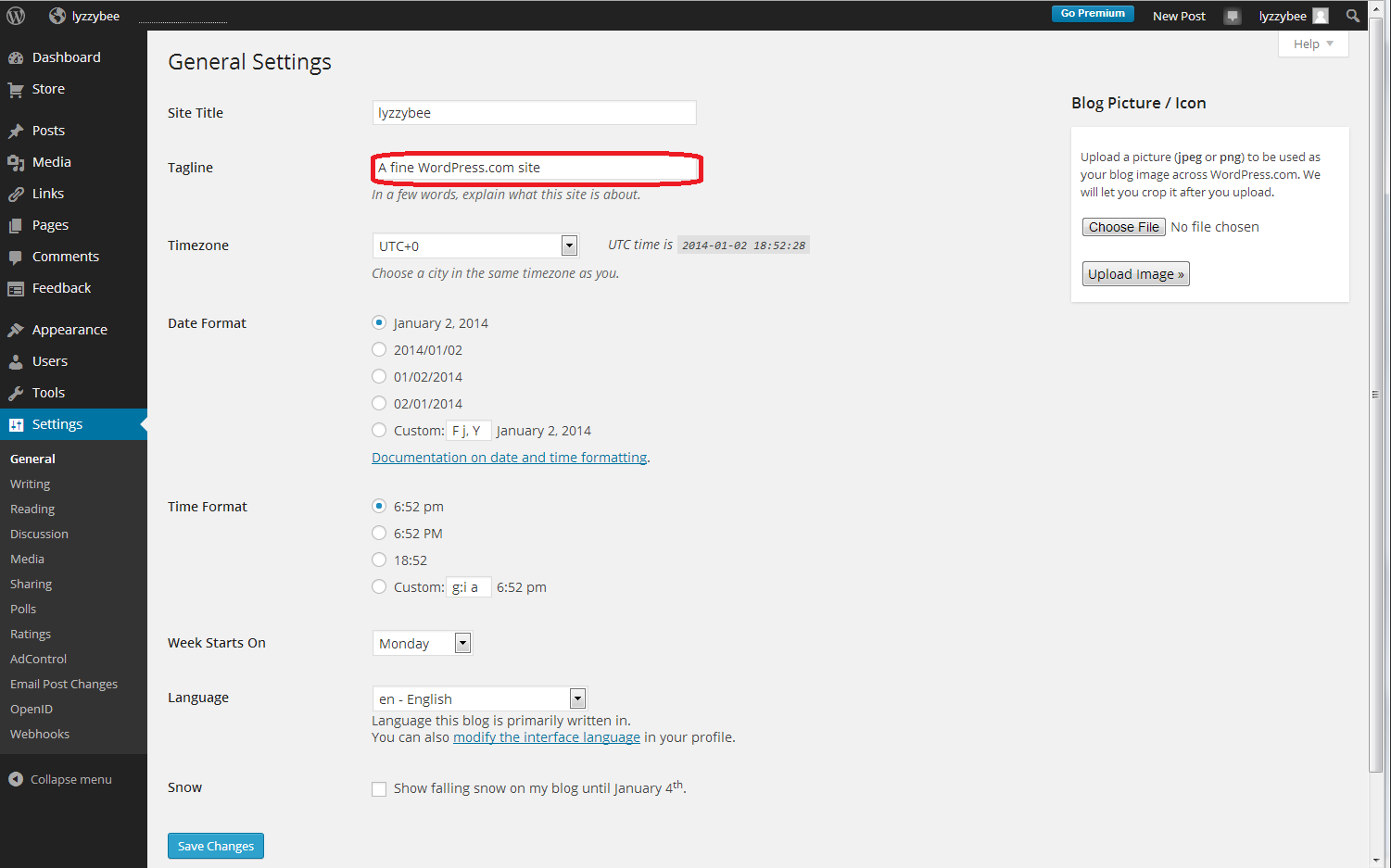
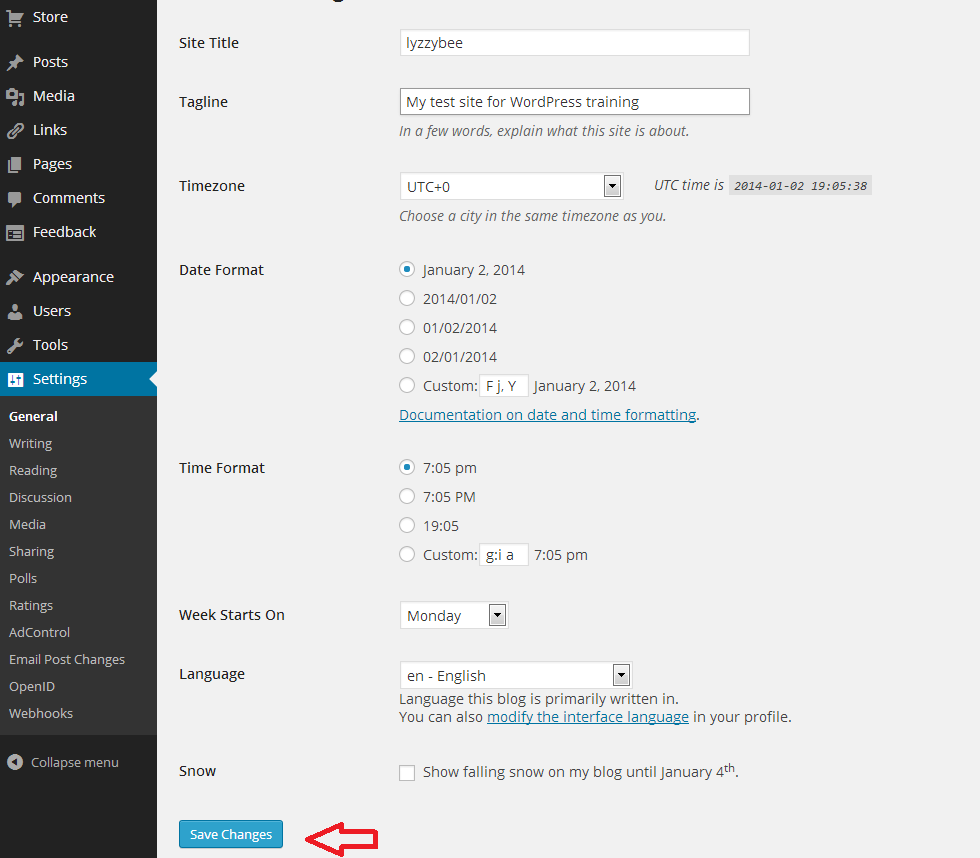
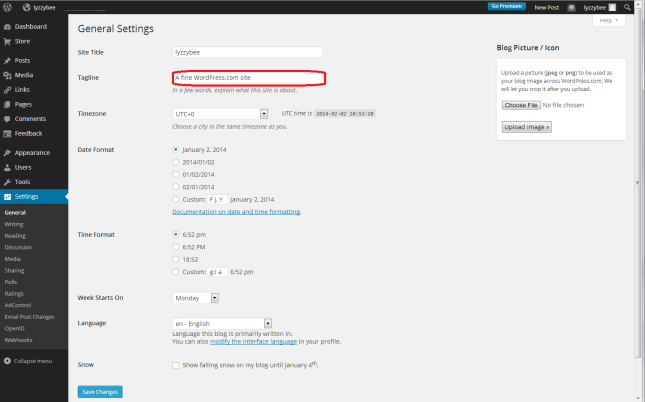
After clicking General, you’ll get a page where you can change the very general details of your blog. I’m not going to go into much detail about this page now, but you can see at the top the SIte Title (which you can change if you want to; I’m not going to for now), and Tagline (the subtitle). There’s the text that WordPress has automatically inserted for you, and here’s your chance to start customising your blog and telling people what you’re all about:
13 setup

So I type in “My test site for WordPress training”, because that’s what it is, and then press the Save Changes button at the bottom of the screen to save that. There are lots of other things you can change on this page; do have a play with them if you’re feeling confident, but it’s not strictly necessary at this stage. Everything can be accessed and changed later on.

14.5 setup

Changing the comment settings to prevent spam

Yes, yes, I know you want to change what your blog looks like and get writing, but this bit’s really important.

Once you get up and running, lots of people who are your friends, old and new, real and virtual, will hopefully want to post comments on your blog posts. Lovely! But other people will try to post fake comments, in an attempt to either place their web address on as many other web pages as possible (this gets them up the search engine results pages, not wanting to go into too much detail) and/or want your readers to click on dodgy links in order to sell them fake ugg boots or even install viruses on their computers. People will also tend to trust your blog less if you let spam get through with its dodgy links enticing your readers to click through. You need to stop this, and although WordPress does have really good spam filters, the odd one still gets through.

By making sure that you moderate the first comment that anybody makes on your blog, you will cut out almost all of the spam. The only way that someone can spam comment is if they post a normal comment first, then a spam one. Most people won’t bother. So, make sure you catch them out and prevent them from commenting by setting up your Discussion setups in your favour, not theirs.

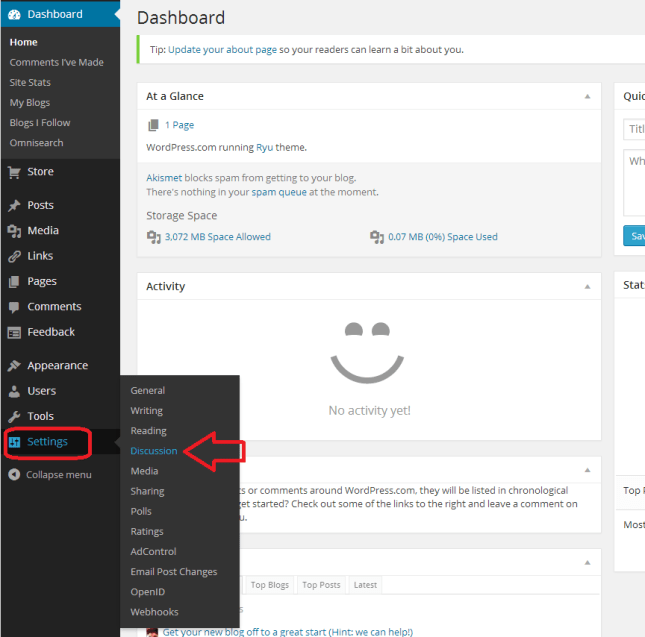
You access this area by choosing Settings from the Dashboard again, then Discussion:
18 setup

Now you have a range of options. Handily, the ones that are already ticked are the ones that you want. But the most important to be ticked are circled in red below:

  • Other comment settings – Comment author must fill out name and email (this means they can’t just post anonymously)
  • Before a comment appears – Comment author must have a previously approved comment (don’t tick manually approve every comment unless you get bombarded with spam and need to check every single comment and pass it manually – just approving the first comment will do)

It’s also worth keeping as many email alerts as you can, so you can add to these vital ones:

  • Email me whenever – Someone posts a comment (you will always be told whenever you get a comment. If you spot a spammy comment, you can follow the link and delete it)

19 setup

Setting up your Discussion section like this means that:

  • Every time someone comments on one of your blog posts, they will have to enter their email address and name
  • Every time someone comments on one of your blog posts, you will receive an email.
  • When it’s their first comment on your blog ever, you will receive an email asking you to approve their comment. Once you’ve done that, they will be allowed to comment whenever they like, as long as you’ve approved the first one.
  • Because you receive an email every time someone comments, you can reply back to their comment, making them feel like it’s a two-way process and you care about your readers (see more on this in my article on reciprocity and social media)

Choosing your blog theme

At last she’s letting us make our blog look nice! I know – but it’s important to set up the security aspects first, right?

At the moment, your blog is quite plain. You can choose from loads and loads of attractive themes to brighten it up. And you can change your theme any time you want (although be aware that some of them have the menus in different places and might not offer certain functions).

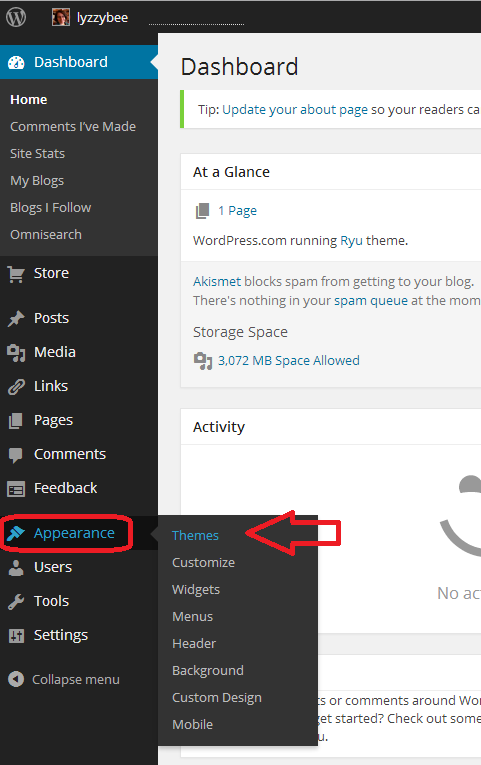
To set up your new theme (or change your theme once you’re up and running), click Appearance on the Dashboard, and then Themes:

20 setup

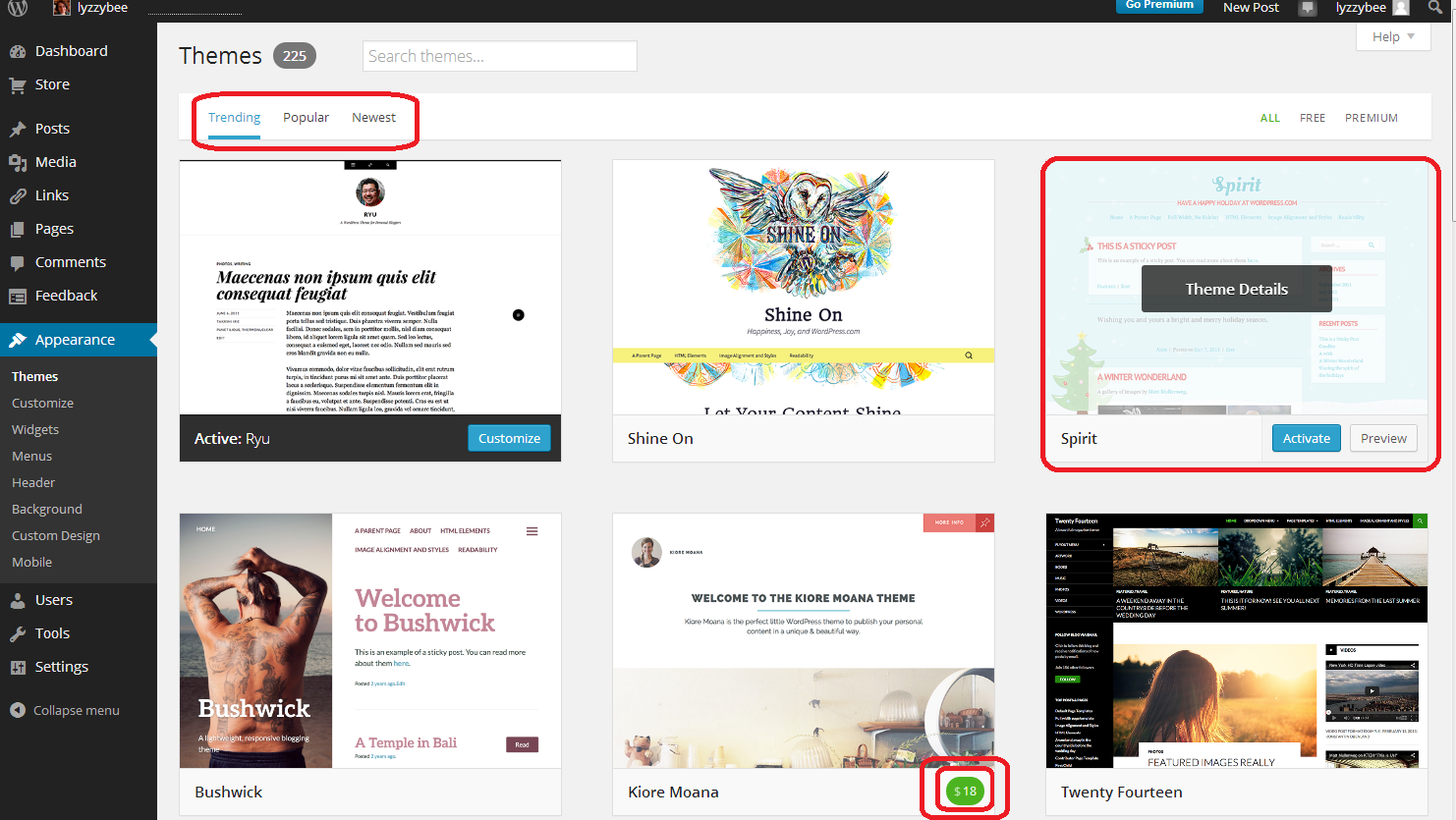
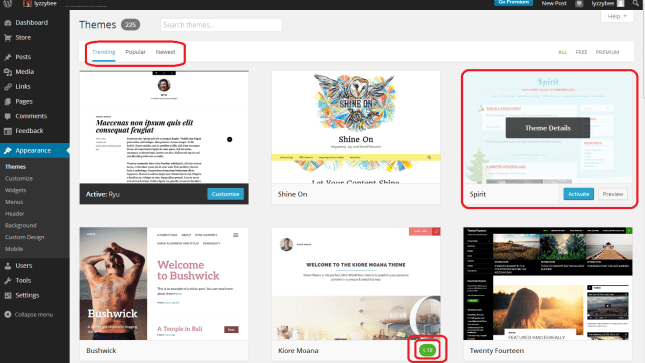
You will now see a page of lots of different designs for your blog.

Note three things here:

  • At the top, you can search for themes (flowers, etc.), choose from Trending, Popular and New themes (and on the right, choose to see only free ones)
  • When you hover over a theme, you will get the opportunity to Preview or Activate (see below)
  • You have to pay for some themes (see the double circle at the bottom). There are LOADS of free ones so certainly don’t bother to do that at the start.
21 setup

If you click on that Preview button, you’ll be shown what your blog looks like in that theme. Note that the blog name and Tagline / subtitle are there, as are any posts you’ve made.

Return to your list of themes using the back button at top left

22 setup

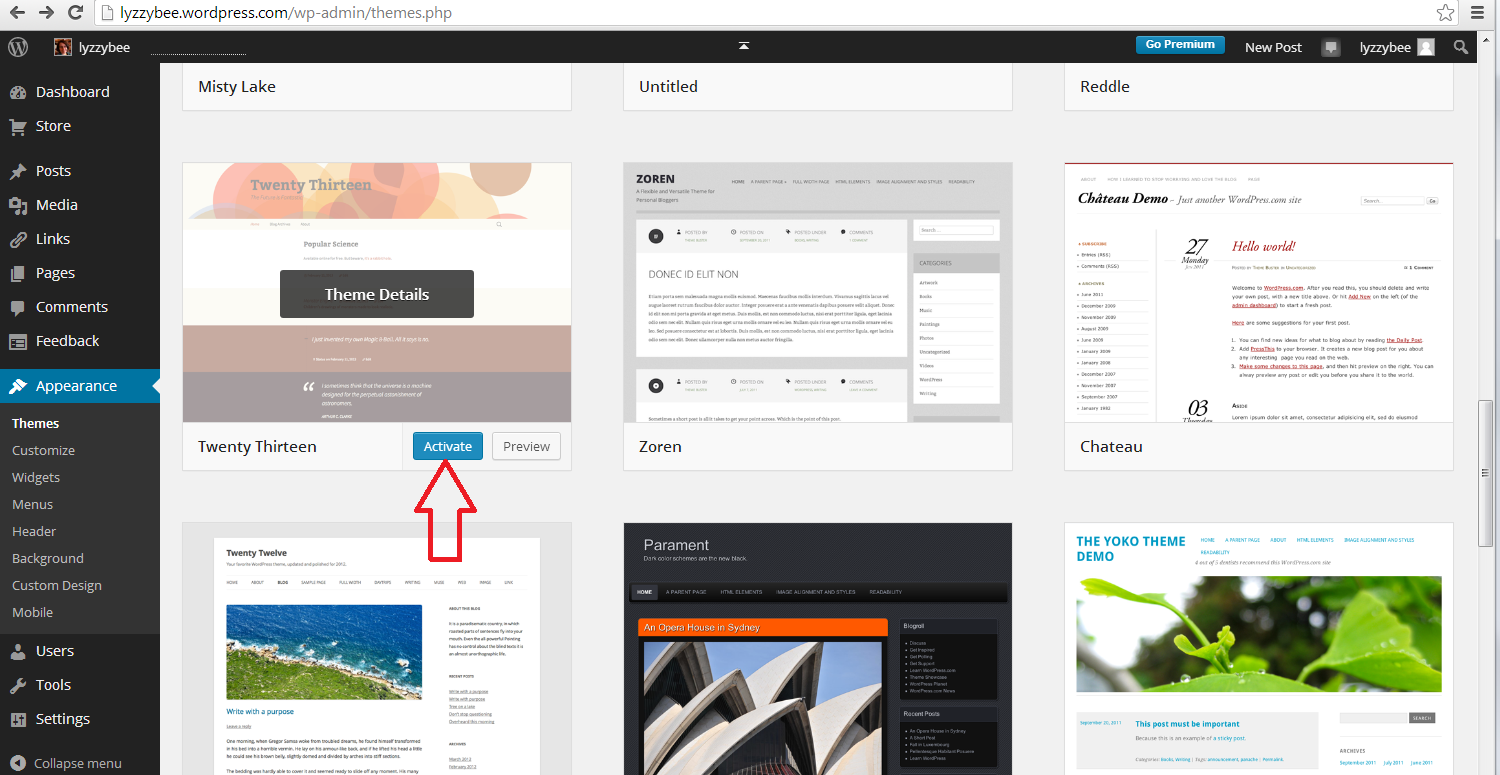
Once you’ve chosen your theme, press the Activate button

23 setup

You will get a confirmation that you’ve activated that theme (but you can always change it later!)
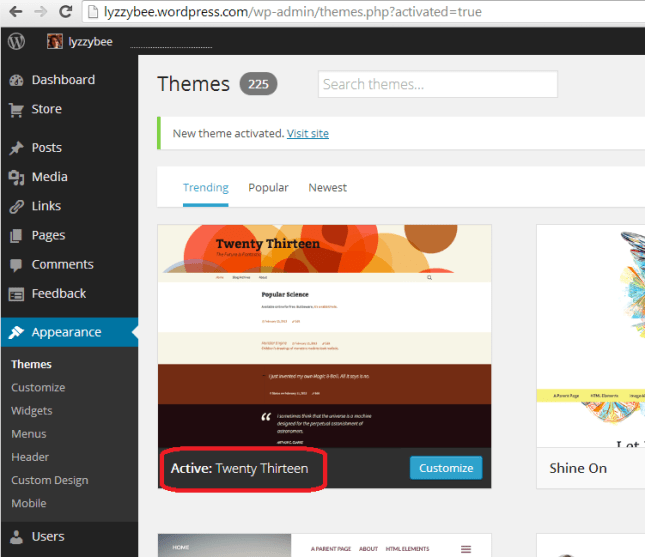
24 setup

How do I write a blog post in my WordPress blog?

Hooray – it’s time to actually write something!

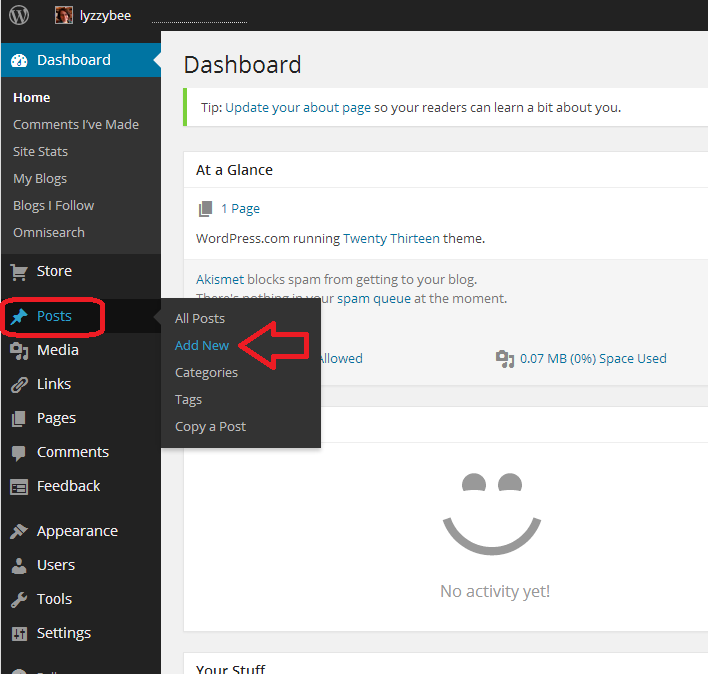
To write a blog post, go to Posts on the Dashboard and then click Add New. There are some other options there but this is getting LONG and we’ll just do the basics.

25 post

Once you’ve clicked New Post, you’ll be in your post editor. I’ve added a title and some text here (click to view larger and you can see my instructions).

Once you’ve got a title in place, WordPress will create a Permalink (URL) for it. You can alter the words in this after the date, so if you don’t want to be sharing a huge URL, you can cut it down (e.g. this very post has a URL ending wordpress-blog-basics, which is not the full title of the post).

Once you’ve started writing your post, hit Save Draft and continue to press that regularly so you don’t lose your work. Once you’re ready to publish your post, press Publish!

26 post

When you publish any post, you will get a side panel that tells you how many posts you’ve done – you need to click on the little arrow before you’ll get your URL at the top and your post in full screen. Note here that there’s a little square telling you that there might be an advert appearing there – see below for how to get rid of that.
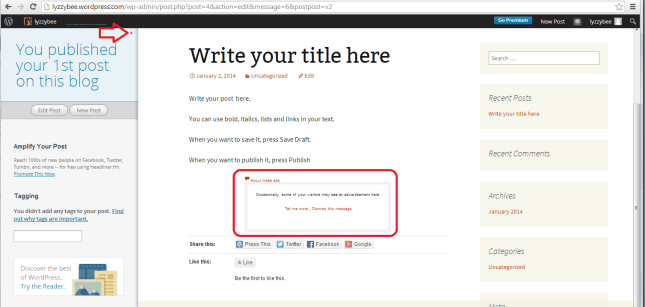
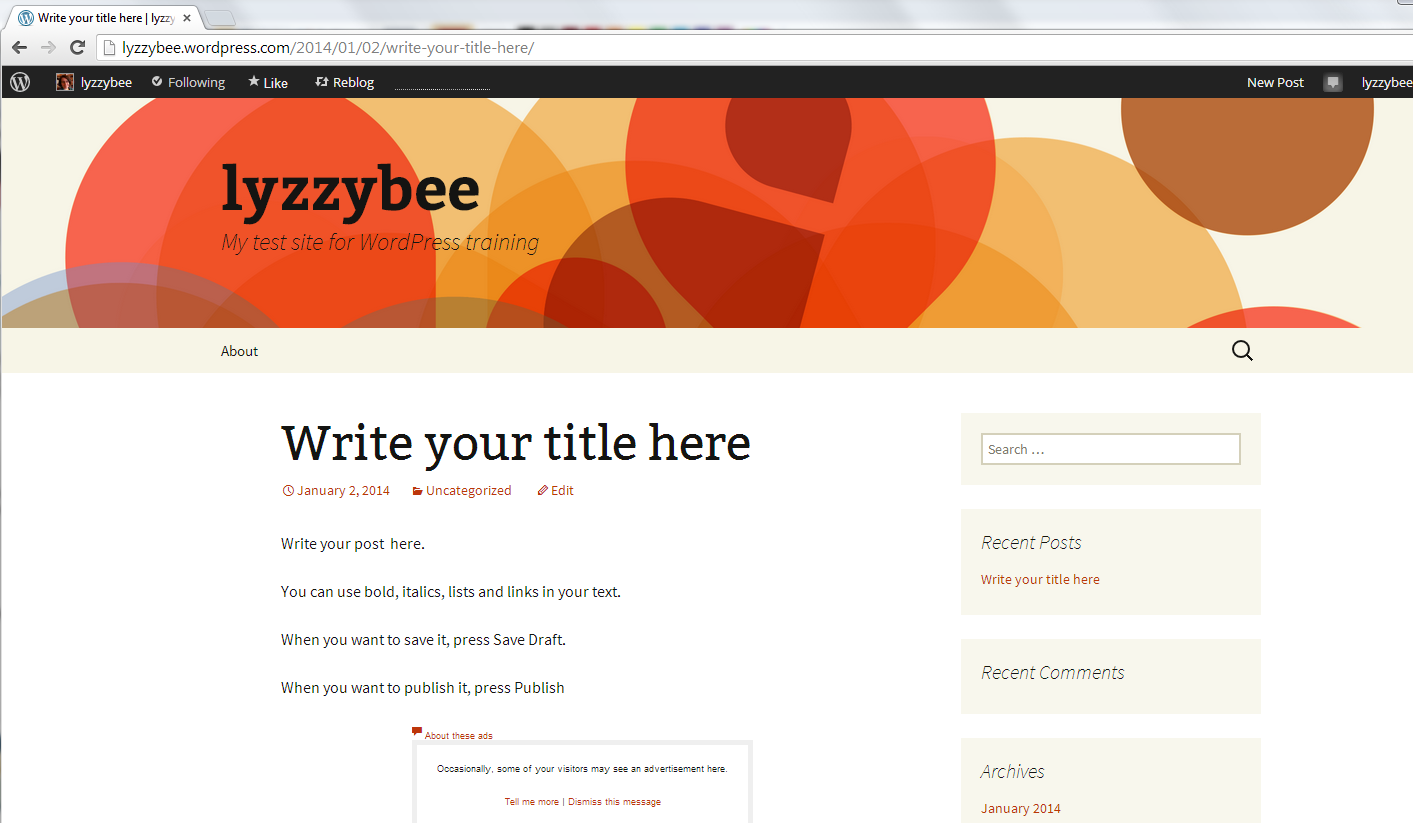
27 post

But for now, here’s our blog post, in all its glory, on the blog theme that we chose a little while ago:
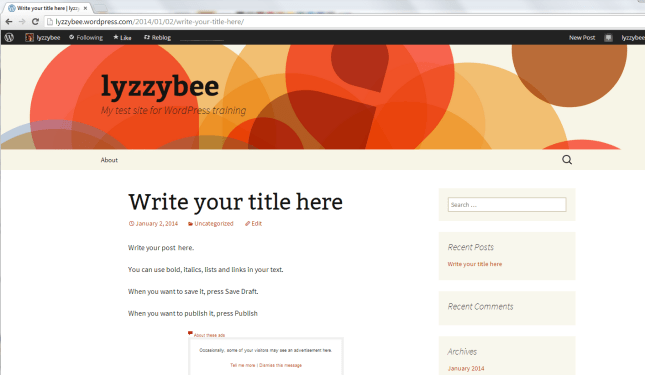
28 post

How do I get back to the dashboard from my blog post?

At the top of the screen, you’ll see your username. Click on that and you’ll get a drop-down menu including Dashboard.
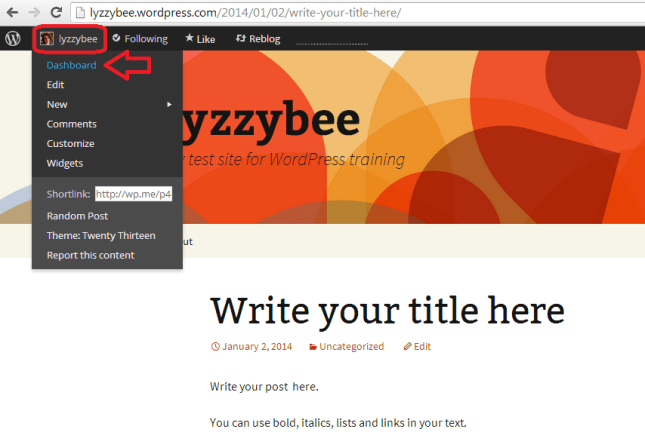
29 setup

How to remove ads from your blog

WordPress will automatically place adverts on your blog. Nice, eh? But they have to make some money, and people pay them to do this. Note that this is NOT the same as having a service where you choose to have ads on your blog and can choose what they’re about. This is any ads they choose to promote, flashing all over your blog, in front of the content. The worst bit: you can’t see them if you’re logged in, even if you look at your own blog. And yes, people do have ad blockers, but I know from experience that readers do get put off and won’t return to look at your blog, or subscribe to it, if you have ads all over it.

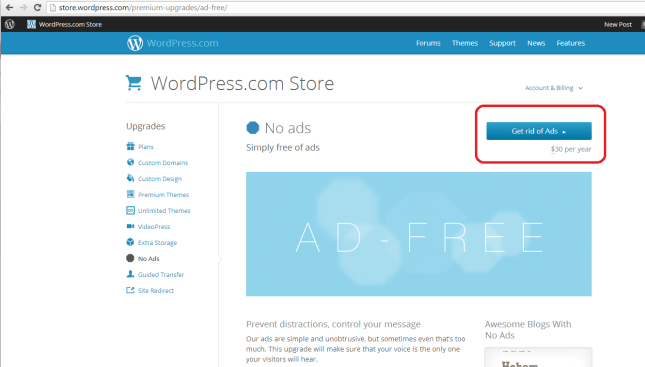
You can remove the ads for $30 (about £20) a year. It’s up to you, but I think it’s worth it as the final stage of setting up a good, solid, useful WordPress blog.

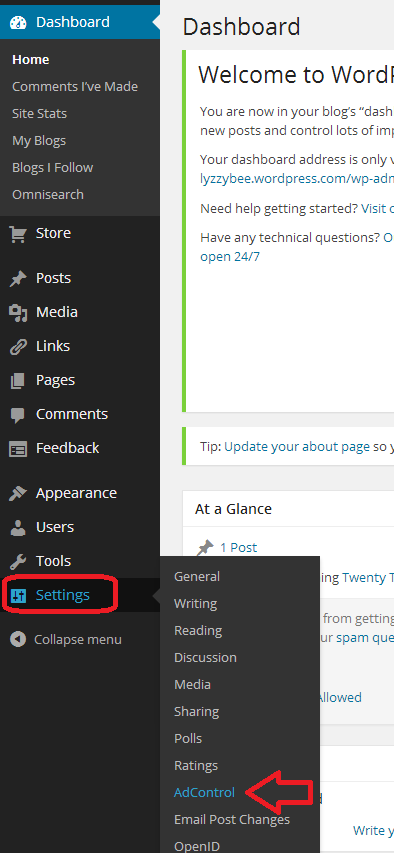
Here’s how you remove them. Go to Settings on the Dashboard and then Ad Control:

30 setup

Choose No Ads upgrade. You probably don’t need a Bundle, which is more expensive and includes high levels of customisation which you just don’t need when you’re starting out. You renew this every year, and can always add customisation when you’re more confident with what you want to do with your blog.

31 setup

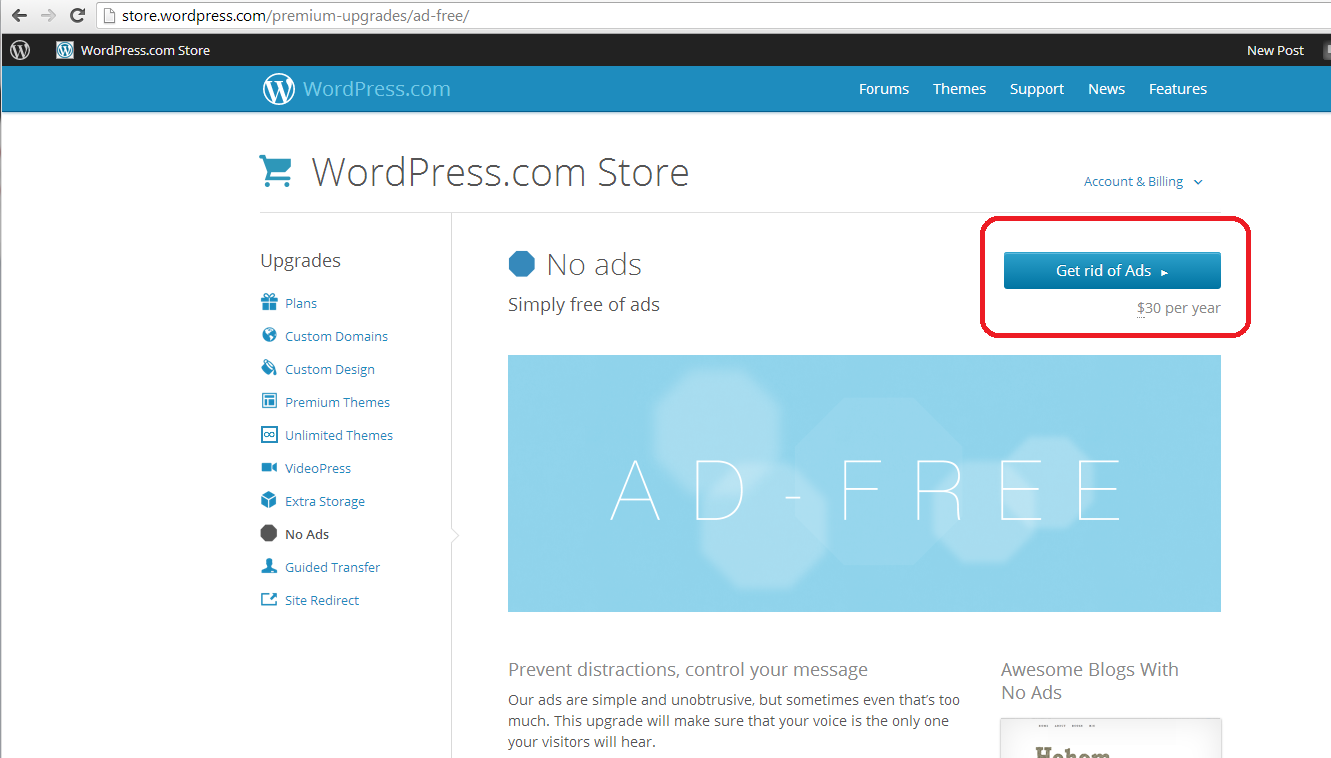
You will be taken to the WordPress Store, where you can choose Get rid of Ads. This will take you to a payment screen where you can pay by PayPal or debit or credit card. As I said, well worth doing to avoid annoying people who read your blog.
32 setup

By now, you should be able to set up a blog, post a blog post, set your comment moderation and remove ads, and choose and change your theme. Future posts will cover more details such as automatically sharing your posts on social media, adding photos, and other technical details. You can find more general articles about blogging in the list of related posts below.

I hope you have found this article useful. Please share using the share buttons below, or post a comment, and do please let me know if you use this article to help you to set up your own blog, and post a link below!

Related posts on this blog:

WordPress 2 – adding pages to create a website

WordPress 3 – adding images to your post or page

WordPress 4 – adding slideshows and galleries of images

WordPress 5 – linking your blog to your social media

WordPress 6 – sharing buttons

WordPress 7 – adding an avatar picture

10 reasons to start a blog – why you should do it now!

10 reasons NOT to write a blog – and why you should stop and think, at least!

Reciprocity and Social Media – how to negotiate social media kindly and politely

Top 10 blogging sins – avoid these if you can!

Scheduling blog posts and keeping going – scheduling the posts and the writing of them

Guest posts (1) hosting – how to be the host(ess) with the most(est)

Guest posts (2) guesting – how to be the perfect guest

Adding links to blog posts – how to do it on the major blogging platforms (and email)
 
23 Comments

Posted by on January 3, 2014 in Blogging, Business, WordPress, Writing


Tags: , ,

How to use find and replace in Word 1: simple search and replace

This is the first of three articles about the useful Find and Replace functions in Word. It covers Word 2007, Word 2010 and Word 2013 in detail, although once you’ve got past the first hurdle, they all work in exactly the same way. This article tells you why you might want to use Find and Replace, how to locate them, and basics of how to use them. Subsequent articles look in more detail at how to find specific words and phrases, and even symbols and formatting.

Why would I use Find and Replace?

The Find function in Word is very useful if you need to locate all of the places where you’ve used a particular word or phrase. I use it to check that I’ve kept things consistent. I might look for every instance of the word “Find” in an article on Find and Replace, for example, to check …

  • Have I always used it with a capital letter or sometimes with a lower-case initial letter?
  • Have I always typed Find and Replace, or sometimes Find & Replace?
  • Have I used find, finding, etc. too many times around the word Find, making the piece look clumsy?

I also use Find and Replace if I have decided that I want to change something throughout the text, for example:

  • I’ve used “low fat” and “low-fat” inconsistently and want to change all instances to low-fat
  • A client wants me to eliminate double spaces after full stops. I Find ”  ” and replace it with ” “
  • I’ve misheard an album title in a transcription and want to go back and find the incorrect version and replace it with the correct one

So, that’s why we use it – how do we use Find and Replace?

How do I access Find and Replace in Word 2007?

You can access the Find and Replace dialogue box in Word 2007 by going to the Home tab and clicking on the arrow to the right of Find at the right-hand end of the menu bar:

1a Word 2007

Word 2007 also uses the simple Ctrl-F keyboard shortcut to bring up the Find and Replace dialogue box (this also works in Word 2003).

1 Word 2007

Once you’ve brought up the dialogue box, type in the text you want to search for and press Enter or the Find Next button.

How do I access Find and Replace in Word 2010?

In Word 2010, you can access find and replace using the Home tab and the Find option at the right (note Advanced Find option):

2a Word 2010

If you just choose Find, you’ll get the sidebar shown below, if you choose Advanced Find, you’ll jump straight to the dialogue box.

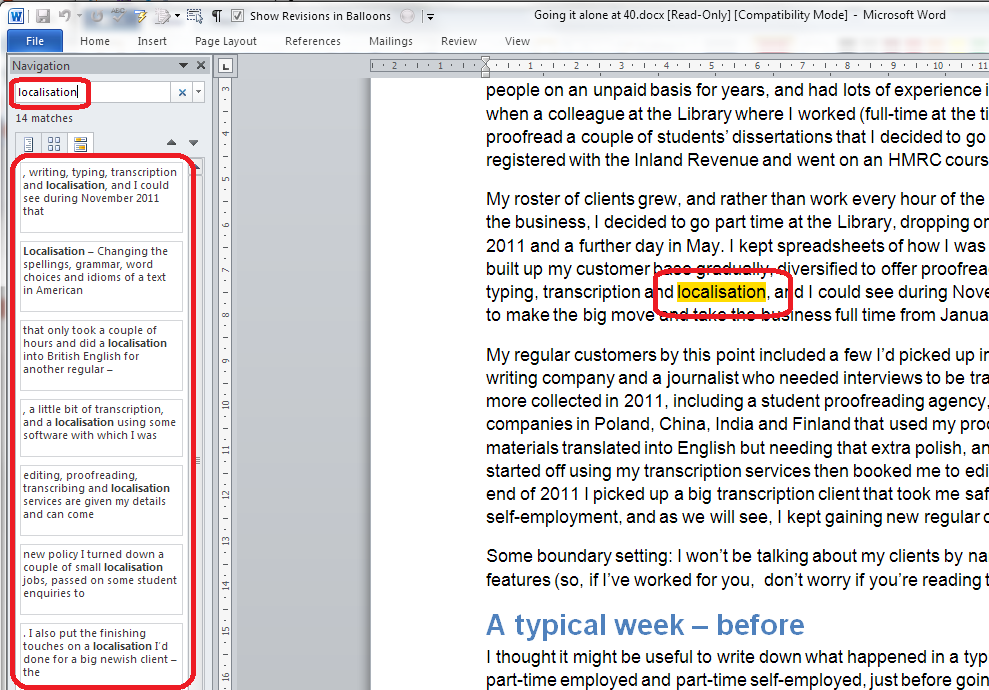
Pressing Ctrl-F will bring up a sidebar with a simple search option. This seems very odd if you’re used to Word 2003 and Word 2007, as you are left wondering where the familiar dialogue box is, but it’s actually very useful, as you can see at a glance how many times your word is used and where in the text it can be found, and the word searched for (in this case localisation) is highlighted in the text:

2 Word 2010

If you want to access the more advanced Find and Replace dialogue box that you’re used to from Word 2007, you need to either choose Advanced Find from the Home tab Find area, or click on the arrow to the right of the magnifying glass in the side panel. If you do that, you’ll get a drop-down menu which includes Advanced Find.

3 Word 2010

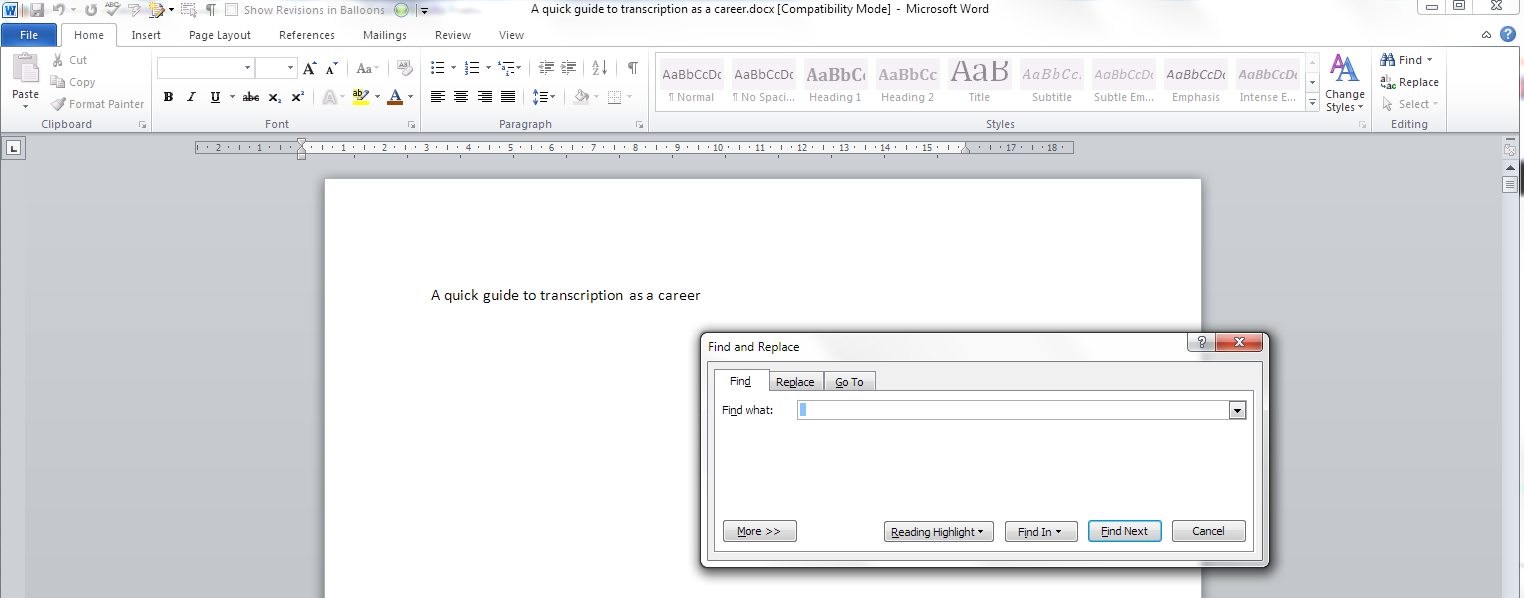
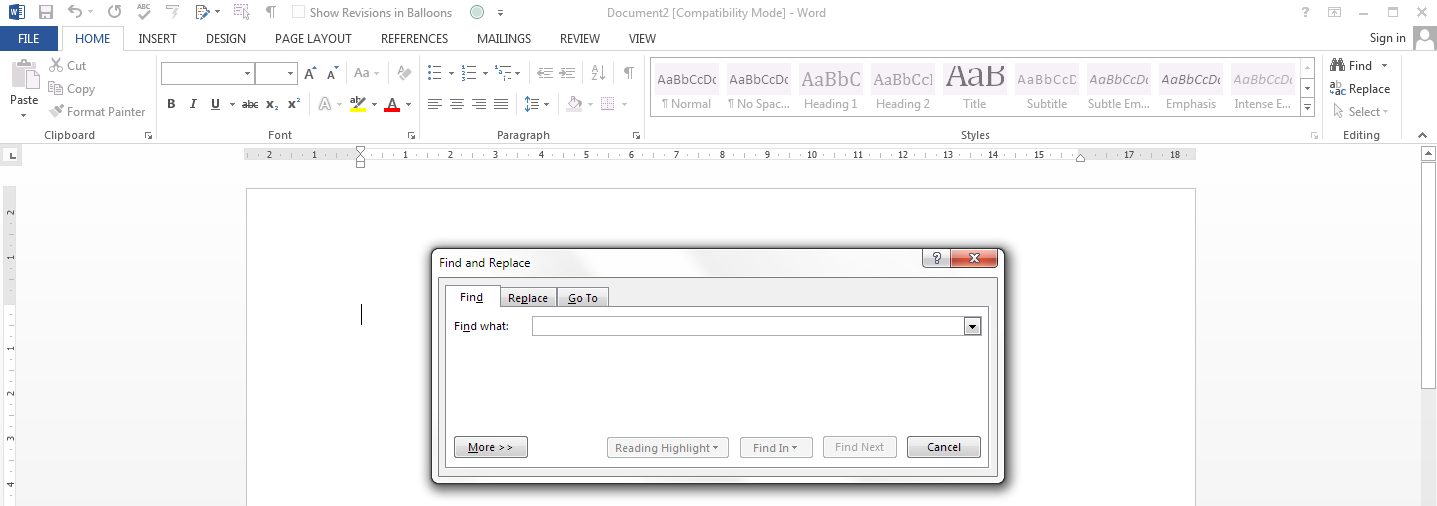
Whichever option you choose, you will then be confronted with the familiar Find and Replace dialogue box:

3a Word 2010

Once you’ve brought up the dialogue box, type in the text you want to search for and press Enter or the Find Next button.

How do I access Find and Replace in Word 2013?

This works pretty well exactly the same as in Word 2010, just with fewer colours and less handy yellow highlighting (I’m sure you can add that back in and I’ll write about that when I find out  how to do it). So, you can either access Find and Replace using the Home tab, Find area, and dropping down the arrow at the right to choose Find or Advanced Find:

3a Word 2013

If you just choose Find, you’ll get the sidebar shown below, if you choose Advanced Find, you’ll jump straight to the dialogue box.

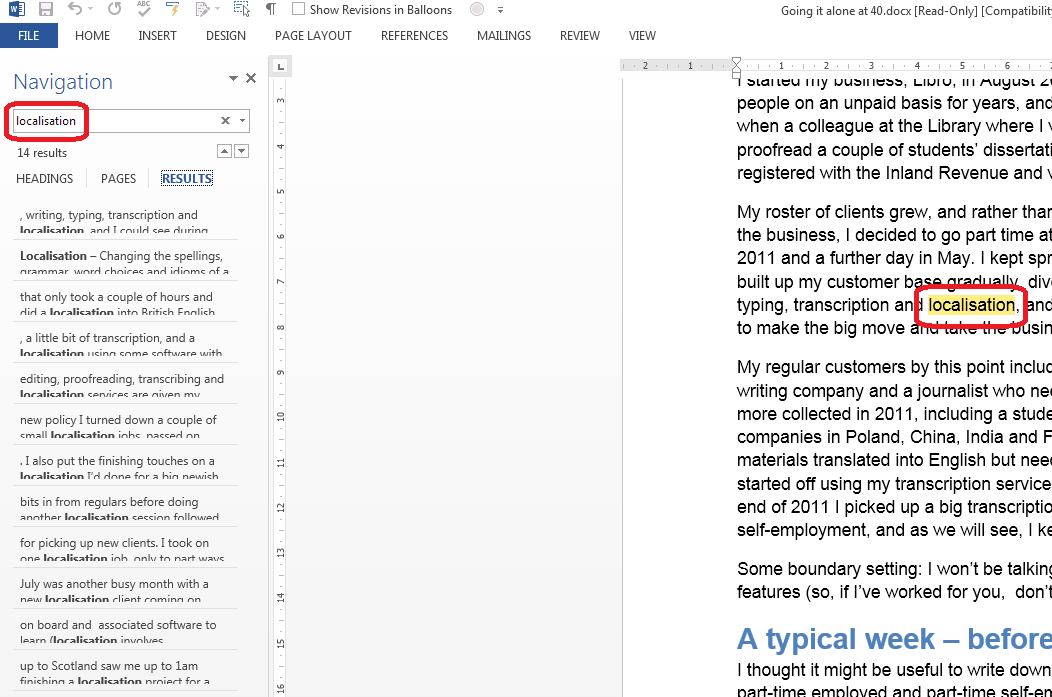
Or press Ctrl-F to access that useful sidebar that will surprise you if you’re accustomed to Word 2003/2007 … which will show you all instances of any word you search for in the whole document and highlight them (in yellow!):

4 Word 2013

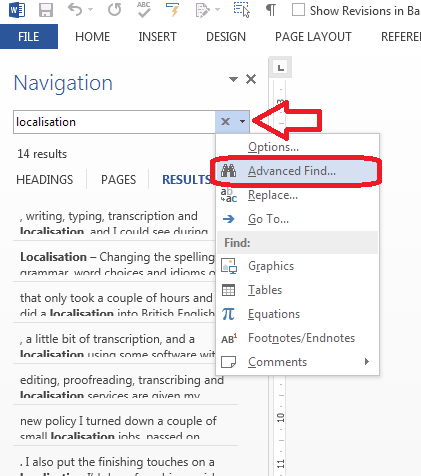
Then, to reach the dialogue box, click the arrow to the right of the magnifying glass and choose Advanced Find:

5 Word 2013

And there’s your familiar dialogue box:

5b Word 2013

Once you’ve brought up the dialogue box, type in the text you want to search for and press Enter or the Find Next button.

Are there more options for Find?

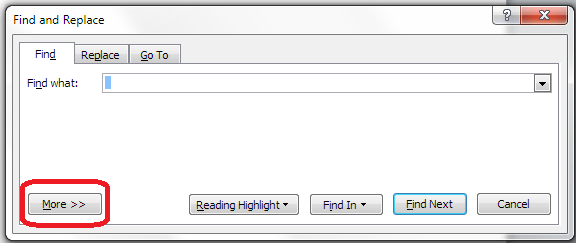
You can access more options for Finding specific text by pressing the More button in the dialogue box:

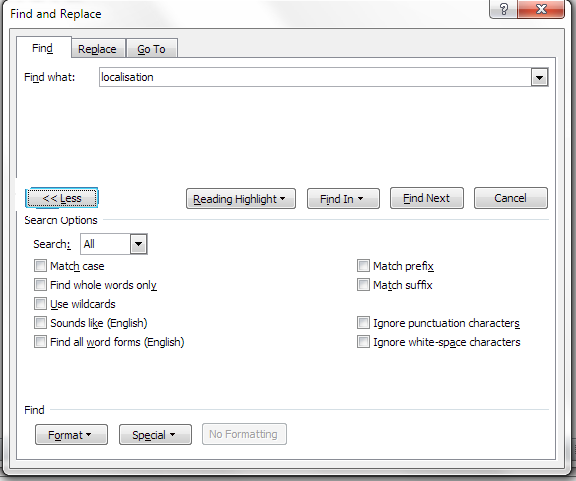
5.5 more options 2010

This will give you lots more options for refining your search. Some are quite obvious, but I’m going to write about all of them in depth in another post.

Advanced find options

How do I replace text in Word 2007 / Word 2010 / Word 2013

(Note: all screenshots are from Word 2010, however this works exactly the same for all versions of Word back to Word 2003 and up to Word 2013 (at least)).

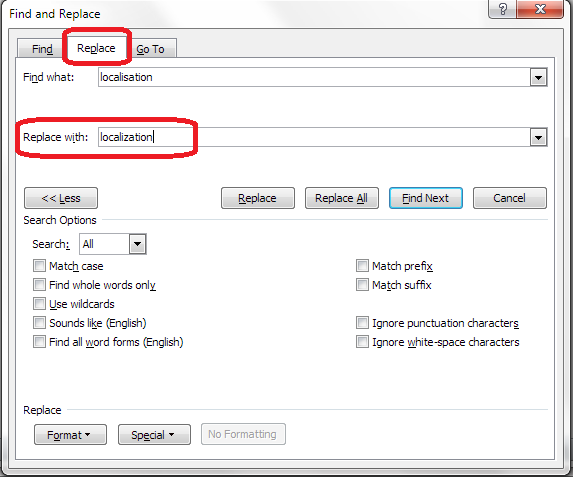
To Replace text, you need to go to the second tab along in the Find and Replace dialogue box, marked Replace. You will then be given an extra space to fill in the text you want to replace your found text with. In this case, I’m finding “localisation” and replacing it with “localization”:

6 replace

At this point you have a choice: hitting Find Next (to find the next instance of the word) and then Replace (to replace it with your new word) for each individual occurrence, or going wild and pressing Replace All (which will automatically replace every occurrence of the word you’ve found with the one you’re replacing it with),

7 replace what

I would always recommend using Find Next – Replace unless you absolutely know that you are not going to be replacing something you don’t mean to replace. Even replacing a double space with a single might play havoc if the person who wrote the document has used spaces to format tables (even if they shouldn’t do that, some still do). And consider this:

“John” means “toilet” in American English. So I might do a search and replace to Find John and replace it with toilet. But what if there’s a character or just someone mentioned called John Bloggs. Or, soon to be, Toilet Bloggs. It’s so easy for this to happen …

So, be careful with your Find and Replace and you’ll be fine!
———-

This article has covered the basics of Find and Replace. Next time, we have a look at the options you can use and using wildcards, and I will also look at finding and replacing formatting  …

If you’ve enjoyed this article or found it useful, please comment, or hit one of the share buttons you can see below this article. Thank you!
This is part of my series on how to avoid time-consuming “short cuts” and use Word in the right way to maximise your time and improve the look of your documents.

Please note, these hints work with versions of Microsoft Word currently in use – Word 2007, Word 2010 and Word 2013 all for PC. Mac compatible versions of Word should have similar options. Always save a copy of your document before manipulating it. I bear no responsibility for any pickles you might get yourself into!

Find all the short cuts here

Related posts on this blog:

Advanced Find and Wildcards

 
4 Comments

Posted by on December 11, 2013 in Errors, New skills, Short cuts, Word, Writing


Tags: , , , , , , , ,

How do I count the words in a PowerPoint 2013 presentation?

Some time ago, I published what has turned into a pretty popular post on how to count the words in your PowerPoint 2007 document. This is something that is a little tricky to find, so perfect for one of these how-to posts.

All was well and good, then I had some editing to do on a PowerPoint document and my PC automatically opened it in PowerPoint 2013. Where on earth did I find out how to count the words now? Here’s how …

Why would I want to count the words in a presentation?

You might have a word limit imposed by a course tutor, or, more likely, you’re an editor with a per-word rate who needs to check how many words you’ve actually edited.

How do I count the number of words in a PowerPoint 2013 presentation?

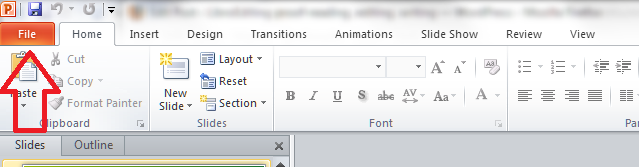
To do this, with your document open, you need to go into the FILE tab at the extreme left of the tab list … (one day I’ll work out how to get those tab titles out of capitals and let you know!)

menu

Once in the File tab, stay in the Info area where you land, and click on the arrow next to Properties in the right hand column. Once clicked, you will have a choice between Show Document Panel and Advanced Properties. Click on Advanced Properties:

1 properties

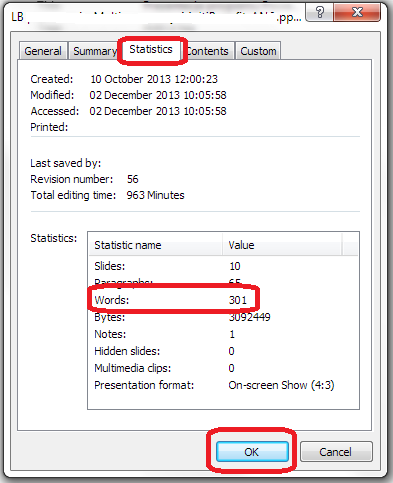
This is, dare I say it, a little easier than in PowerPoint 2007. Once you’ve clicked on Advanced Properties, you’re given a list of properties. Click on the Statistics tab at the top and you’ll find your Word Count, among other information.

2 properties

To return to your document, click OK and then back to the Home tab in your document.

How do I count the number of words in a PowerPoint 2010 presentation?

Please see the post on PowerPoint 2010.

Related posts:

How do I count the number of words in a PowerPoint 2007 presentation? (this is a little different).

How do I count the number of words in a PowerPoint 2010 presentation? (different again!)

If you’ve enjoyed this post or found it useful, please do comment, or share using the buttons below! Thank you!

Please note, these hints work with versions of Microsoft Office currently in use – Office 2007, Office 2010 and Office 2013, all for PC. Mac compatible versions of Word should have similar options. Always save a copy of your document before manipulating it. I bear no responsibility for any pickles you might get yourself into!

Find all the short cuts here

 
10 Comments

Posted by on December 4, 2013 in Errors, New skills, PowerPoint, Short cuts, Writing


Tags: , , , , , ,

How do I count the words in a PowerPoint 2010 presentation?

Some time ago, I published what has turned into a pretty popular post on how to count the words in your PowerPoint 2007 document. This is something that is a little tricky to find, so perfect for one of these how-to posts.

How do I count the words in a PowerPoint 2010 presentation?

It’s all a bit different in a PowerPoint 2010 document if you’re used to PowerPoint 2007, because they’ve got rid of the Office button and replaced it with a File tab.

So: open the document and click on the File tab to the left of the Home tab.

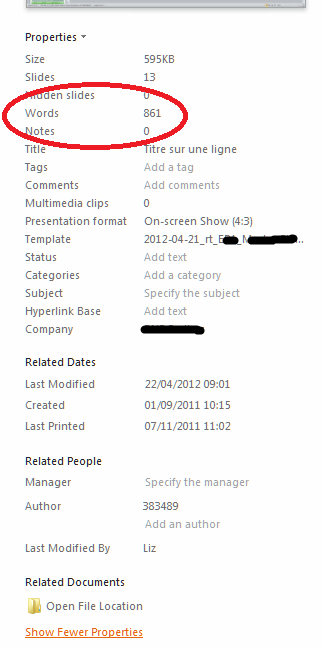
This will bring you up a screen where you can open previous documents, save as, etc. Click on Info on the left and your properties will come up on the extreme right.

But of course, yet again, the thing you want to see isn’t immediately visible. Go right to the bottom of the screen and click Show All Properties.

And there’s your word count.

Related posts:

How do I count the number of words in a PowerPoint 2007 presentation? (this is a little different).

How do I count the number of words in a PowerPoint 2013 presentation? (different again!)

If you’ve enjoyed this post or found it useful, please do comment, or share using the buttons below! Thank you!

Please note, these hints work with versions of Microsoft Office currently in use – Office 2007, Office 2010 and Office 2013, all for PC. Mac compatible versions of Word should have similar options. Always save a copy of your document before manipulating it. I bear no responsibility for any pickles you might get yourself into!

Find all the short cuts here

 
5 Comments

Posted by on December 4, 2013 in Errors, New skills, PowerPoint, Short cuts, Writing


Tags: , , , , ,