This article explains the correct – and incorrect – way to add line numbers to a Word document. Why would you want to do that? Read on and find out! This works for Word 2007, Word 2010 and Word 2013.
Why do I need to add line numbers to a Word document?
I was inspired to write this post after my colleague Katharine O’Moore Klopf mentioned that she’d been asked to do this by the editors of a journal for which she was editing an article. Presumably they wanted to be able to refer to particular line numbers in their criticism of the piece.
Transcriptions will sometimes have line numbers, if they’re going to be discussed in detail, and we can probably all recall from our dim and distant pasts working on critiques of poems and plays which had 5, 10, 15 etc. in the margins.
So these are all reasons for adding line numbers to a Word document.
How NOT to add line numbers to a Word document
If you find the need to add line numbers, it’s kind of natural that you might think – oh, I’ll just make the whole document into a numbered list. Well, to do this you would have to put a return at the end of each line to make it into a new line. Then you would highlight the whole text and add numbered bullets. But, oh, look what happens:

The numbers push the lines across and they run over onto the next line; all possibility of right justification is lost; and heaven help you if you want to insert or delete any text once you’ve done it!
So, don’t do that.
How to add line numbers to a Word document – the correct way (Word 2007, Word 2010 and Word 2013)
Line numbering and its options can be found in Word 2007 and Word 2010 in the Page Layout tab, in the Page Setup area. There you will find Line Numbers:

Click on the arrow next to Line Numbers to bring up its Options menu:

It will automatically be set to None – choose Continuous and see what happens to your paragraphs …

Line numbers have automatically appeared, but the formatting of the text, its justification etc., remain as they were. This menu also allows to you to choose whether to restart the numbering at the beginning of each page, or each section, or to suppress the numbering for the particular paragraph your cursor is in.
Line numbering options in Word
You also have a number (sorry!) of options to choose from in order to customise your line numbering. You reach these options from the last item on the Line Numbering menu …

… although when you click on this option, you are taken into a general dialogue box for Page Layout:
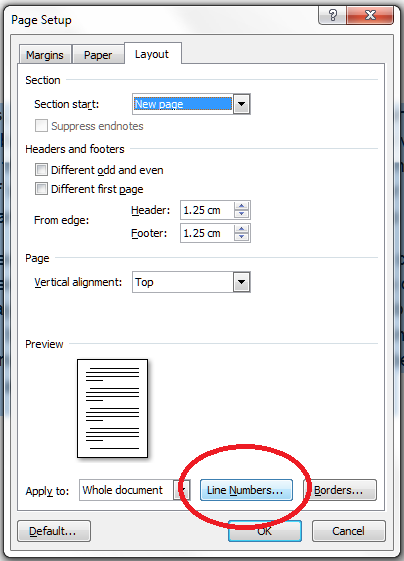
and you need to click on Line Numbers… at the bottom, which will finally give you a list of options:

To go through the options in order …
- Add line numbers – this gives you the chance to add or remove them at this stage
- From text – the distance between the text and the number. Click on the arrows to choose the distance (I usually just use Auto)
- Count by – this allows you to display only every x number. I don’t think “Count by” is a particularly useful way to describe this, but scroll down to see it in action
- Numbering Restart each page / Restart each section / Continuous – this repeats the options you found on the first screen, but it’s useful to have them here if you’re generally messing around in the Page Layout menu and don’t want to go out of it to set your line numbering
Whatever you choose on here, click OK twice to get out of this dialogue box and the Page Layout one.
How do I produce a line number every five or ten lines?
You may remember from literature lessons at school that poetry and plays often have every 5th line marked. You can do this in Word by choosing that Count by option in the Line Numbering Options menu (see above for how to get to it).
Set the number to 5 …
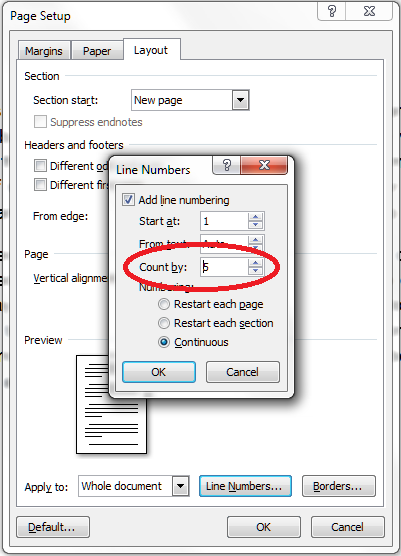
… and as if by magic, when you return to your document after choosing OK – OK, you will find every fifth line numbered:

Working in Word 2003
In Word 2003 you will need to follow these menus: File – Page Setup:
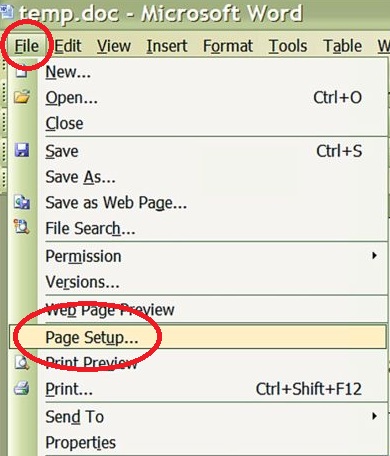
Choose the Layout tab in the dialogue box and the Line Numbers button. Choose to Apply to the Whole document or This point forward. Click on Line Numbers:

Tick Add line numbering and choose to Restart each page/section and Continuous. Click OK twice to accept – in this dialogue box you also find the options Start at, From text and Count by that are explained above.
Thanks to Katharine O’Moore Klopf for the Word 2003 screen shots and instructions.
Copying and pasting a document with line numbers
It’s come to my attention (thanks to a commenter on this post) that it’s not possible to copy and paste text with line numbers into a new blank document.
This is because the line numbers function actually displays a feature of your document (much like if you turn on paragraph marks) but the line numbers are not a part of the document itself.
If you want to transfer your line numbers into another document, you can do this in one of two ways:
- Save As the document to make an exact copy (with a different file name) and then add your other text around it
- Copy and paste your text into a new document and add the line numbers again
At least we know now …
—-
This article has explained why you might want to add line numbers to your document, and how to do it. If you found this useful, please post a comment, share and like this article! Thank you!
This is part of my series on how to avoid time-consuming “short cuts” and use Word in the right way to maximise your time and improve the look of your documents.
Please note, these hints work with versions of Microsoft Word currently in use – Word 2003, Word 2007, Word 2010 and Word 2013 all for PC. Mac compatible versions of Word should have similar options. Always save a copy of your document before manipulating it. I bear no responsibility for any pickles you might get yourself into!
Find all the short cuts here …




































 LibroEditing proofreading, editing, transcription, localisation