RSS

Author Archives: Liz Dexter

Unknown's avatar

About Liz Dexter

Book blog is at http://www.librofulltime.wordpress.com Writer, proofreader, editor, transcriber. Also runner, gym-goer, volunteer and BookCrosser! My married name is Liz Dexter but my maiden name and the name on the books I write is Liz Broomfield.

How do I access Word Options in Word 2007, 2010 and 2013?

Word Options is the place where you customise the look of your Word document, how it corrects your words as you type away, the spell checker, your initials on any comments and the document properties, etc. It’s a great place to explore and enables you to customise Word and get it exactly how you want it.

However, it does work slightly differently in the three most commonly used versions of Word for PC: Word 2007, Word 2010 and Word 2013, so here’s a quick guide to how to access Word Options in these different versions of Word.

How to access the Word Options in Word 2007:

Click on the Office button in the top left of the screen, then click on Word Options at the bottom of the box:

1 word options 2007

Your Word Options box will now display:

1b word options 2007

How to access the Word Options in Office 2010:

In Word 2010, click on the File tab and then select Options, one up from the bottom of the list on the left hand side:

2 word options 2010

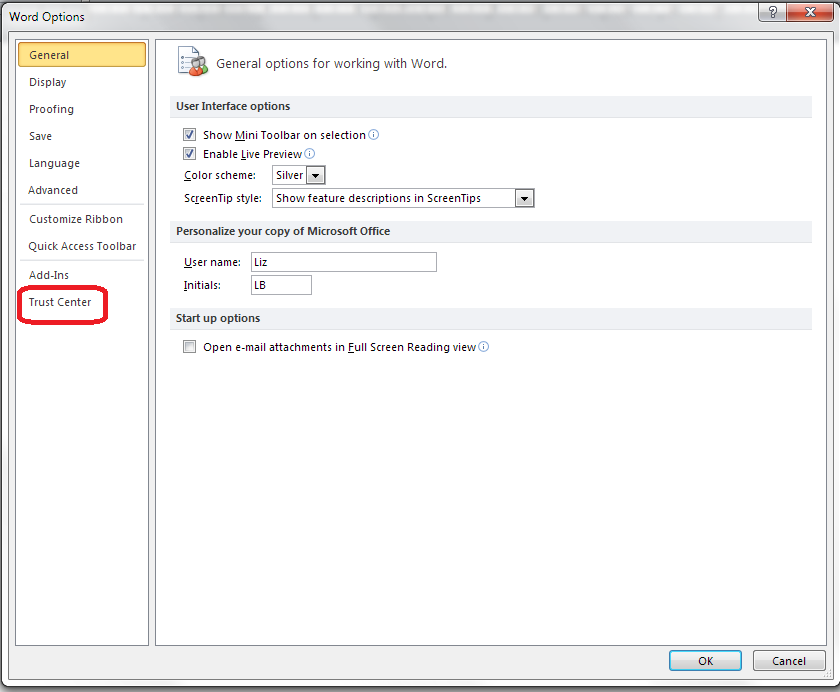
Once you’ve clicked on Options, your Word Options box will appear:

4 trust center

How to access Word Options in Word 2013:

In Word 2013, click on the File tab:

3a word options 2013

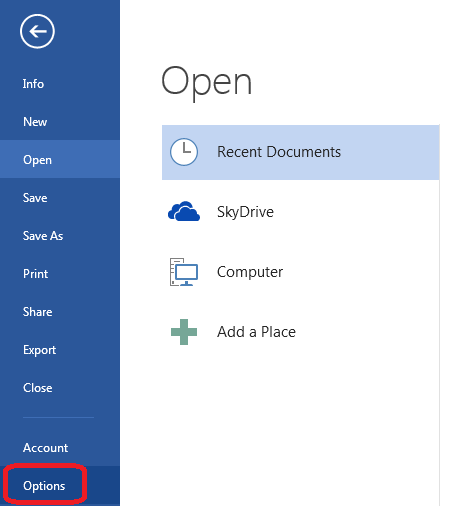
This has the effect of making your screen disappear, but you will get a list of things to do, out of which you select Options at the very bottom of the list (you can click that left-pointing arrow in a circle at the top left to get back to your document):

3b word options 2013

Clicking on Options will bring up the Options box:

3c word options 2013

This is part of my series on how to avoid time-consuming “short cuts” and use Word in the right way to maximise your time and improve the look of your documents. Find all the short cuts here

Do let me know if this has helped you – and do share with the buttons at the bottom of this article.

 
16 Comments

Posted by on November 6, 2013 in Copyediting, New skills, Students, Word, Writing


Tags: , , , , , , ,

How to make more money in your freelance business

dictionary coins watchSo, you’re running a freelance business – whether you’re a plumber, a roofer, an IT specialist, an editor … and you want to make more money. Of course you do. How do you do it? Short of putting all of your prices up (which is something you can often do), here’s what I see as the best ways to make more money in your freelance business.

Put your prices up!

Well, I don’t mean this quite as bluntly as that. But when we start a business, we often doubt ourselves, and don’t have the confidence to charge industry standard rates. “Oh, I’m new, this customer deserves a cheaper rate”. “I don’t know what I’m doing, so I’d better charge low”. “I might get the business if I quote lower than everyone else, I can always raise it later”. Sound familiar? Well …

  • If you really don’t know what you’re doing, you shouldn’t be charging people for your work. But if you’re just unsure of yourself, but you’ve had feedback that your work is OK, don’t put yourself down (I’m afraid that I have heard this more from women than men. Why, ladies, why?)
  • Check what the industry standard rates are (look at trade associations, other people’s websites, if you have a mentor in the business, ask them what they charge) and base your charges on those
  • If you do give a discount, give it for another reason than because you’re new – for example, I give discounts to students and individuals self-publishing their books
  • If you do give an introductory discount, make the customer pay in another way – the best is by giving you a reference to put on your website and marketing material

Get organised!

If you want to work more and make more money per hour, then you have to work smarter. This falls into two sections:

  • Organise your admin – streamline your admin processes, organise yourself so that your systems tell you what to do next and automate your invoicing, OR outsource your accounts, invoicing or all of your admin to someone expert in the task.
  • Organise your paid work – make sure that you’re using the latest software, aids, short cuts, materials, whatever it takes to make your work in your industry as speedy and efficient as possible

Specialise!

In every line of work, there’s general work (replacing roofs) and there’s specialised work (matching slates, doing repair work, conservation). Find what specialities match your skills, and you’ll find that the more specialised the work, the higher your rates can be.

  • You would expect to pay more for a carpenter who designs and makes you a bespoke kitchen than for one who puts together a flat pack you’ve bought from a DIY store (or you’d expect to pay the same carpenter more for the first task)
  • Lots of people do editing work – I specialise in non-native English speakers, and I can charge a premium for my experience in this area

Do be careful – make sure that you really are an expert before you go charging extra for expert services. Prospective clients will want to see evidence of your ability if they’re going to pay you more, so write down your experience on your marketing materials and collect some testimonials.

Diversify!

Isn’t this the opposite of specialising, I hear you ask. Well, to an extent. But consider this …

  • Having worked with overseas students’ dissertations and thesis, I diversified into working with translators who are translating from their native language into English. It’s still non-native English, and I’m still making it sound like native English, but I’m working for professional organisations, so the student discount need no longer apply.
  • I used my audio-typing training to diversify into transcription. Some of the work I do in this area is more lucrative than others, but I wouldn’t have this income stream at all if I hadn’t diversified (and I get a good return on investment for it, too)
  • I used my experience working for the UK office of an American company to branch out into localisation services – often done for large agencies and companies who reward this specialist area (see point above, too)
  • My handyman, Terry, extended his range of services when he made me some window screens and realised there are lots of people out there who need such things. Another string to his bow – and something he can do when it’s raining and he can’t paint the outsides of people’s houses.

Making more money in your freelance business

You can see that by matching the industry’s rates first of all, then streamlining your processes and simultaneously specialising and diversifying, you can up your rates of pay while working the same hours. Do you have any experiences to share about how you have made more money out of your business as it’s developed?

Related posts on this blog:

How to get the right mix of customers

Running a mature business

 
13 Comments

Posted by on November 4, 2013 in Business, Organisation


Tags: ,

New series on expanding your business – looking for contributors

handshakeI’m planning a series of blog posts on how to expand and grow your business, and I’d like to feature guest posts from professionals and case studies from people who have taken the various paths, as they’re not something of which I have direct and personal experience.

Ideally, I’d like to have at least one professional (HR consultant, accountant, estate agent, etc.) and at least one case study for each topic.

I want to write about:

  • Changing from being a Sole Trader into a Limited Company
  • Going into a partnership with another person or company
  • Going VAT registered
  • Moving into premises
  • Employing your first staff members
  • Doing nothing – staying as a Sole Trader

and I want each article to cover:

From the professionals:

  • Why you should do it
  • When you should do it
  • How to do it
  • Potential benefits
  • Potential pitfalls

From the business owners:

  • Why you did it
  • When you did it (i.e. what stage was your business at?)
  • How you did it
  • Benefits gained
  • Pitfalls / disadvantages you experienced or saw coming and managed to avoid
  • Would you recommend it to other businesses? Why / why not?

Note: I am primarily aiming this at the UK market, however if you have useful information about how this stuff works in the US or elsewhere, do feel free to join in, just let me know the region to which your experience/advice applies.

What do you get out of it? Well, in the article where I mention you, I’ll put whatever links you’d like to your website, twitter feed etc at the bottom. I might be looking to put it into my new book, too, again with a full credit and links in the e-book version – let me know when you get in touch whether you’re OK with that. I can also keep you anonymous if you’d like to contribute but not have your name on the piece.

I get around 20,000 hits per month on this website / blog and that’s still building every month, and I have great Search Engine Optimisation so this website / blog shows up well on search engine searches.

If you’d like to take part, please contact me via email or my Contact Form.

These articles will appear on this blog and will be indexed in the Careers section of the blog.


Tags: , , ,

Using Canned Responses in Gmail to create default email templates

Did you know that you can create default email templates in Gmail to save you typing the same message over and over again? Or are you using copy and paste to save typing? In this post, I’ll explain how to create and use “Canned Responses” in your Gmail email to save time and ensure that you send consistent messages.

Why would I want to create email templates?

If you run or work for a business, you’ll know that you send a lot of the same text over and over again. To use my business as an example, I send these emails a lot:

  • A pre-work email to students to explain exactly what I do and any issues around plagiarism that I need to tell them about
  • An email to transcription clients that lists the choices I need them to make so that I can provide the transcription they need (do they want me to type the exact utterances or tidy them up, insert time stamps ever 10 minutes, etc.?)
  • An email to enquirers to say that I can’t fit them into my schedule but here’s a list of recommended proofreaders
  • An email to my small business chat interviewees to ask for their annual update, telling them how many hits their interview has had and what they said last time

I save considerable amounts of time by automating these emails using Canned Responses, and I’m sure that you have at least a couple of standard texts that you’re always sending out.

Where can I find Canned Responses in Gmail?

Canned responses are a “Lab” feature in Gmail. This means that they’re an experimental feature, written by a third party, a bit like a plugin that you can add to your email. Having said all that about them being experimental, I’ve been using them for YEARS now and they haven’t broken or disappeared.

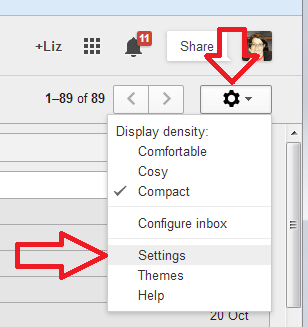
To access the Labs, go into the Gmail settings by clicking on the cog icon at the top right of your screen, then choosing Settings:

1 settings

Then choose the Labs tab at the top:

2 labs

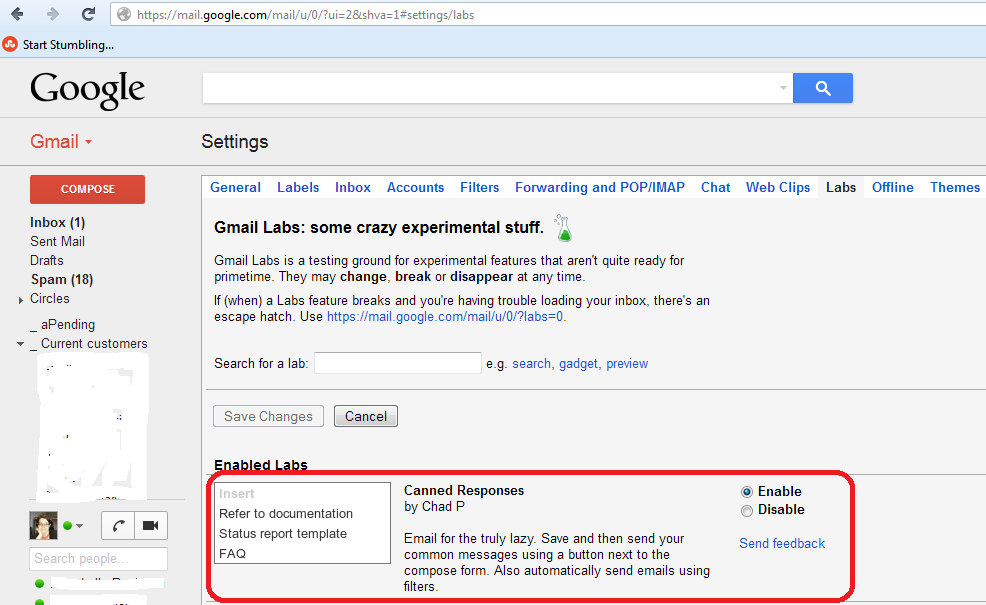
I’ve already got Canned Responses enabled, as shown here, but you will need to scroll down until you find it, or enter “Canned Responses” in the Search for a Lab search box (not the top search box):

3 canned responses

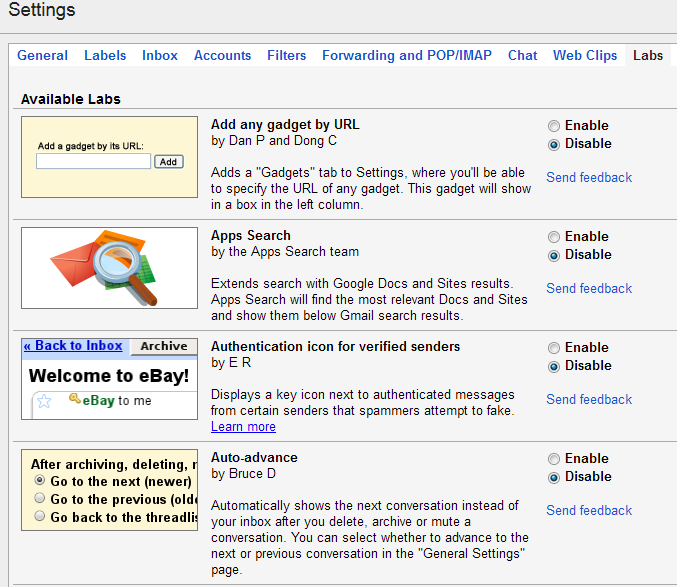
Any labs that you enable will show at the top of your screen, and you can scroll down to see the others that are available, each with a description of what they do:

4 canned responses

So do have a little explore another day! For now, click Enable and then Save Changes under the search box or at the bottom of the screen (to get back to your email, click on Inbox on the far left).

How do I use a Canned Response?

I’m going to show you what happens when you use a Canned Response first, to help you to understand what they are, and then we’ll look at creating a new one.

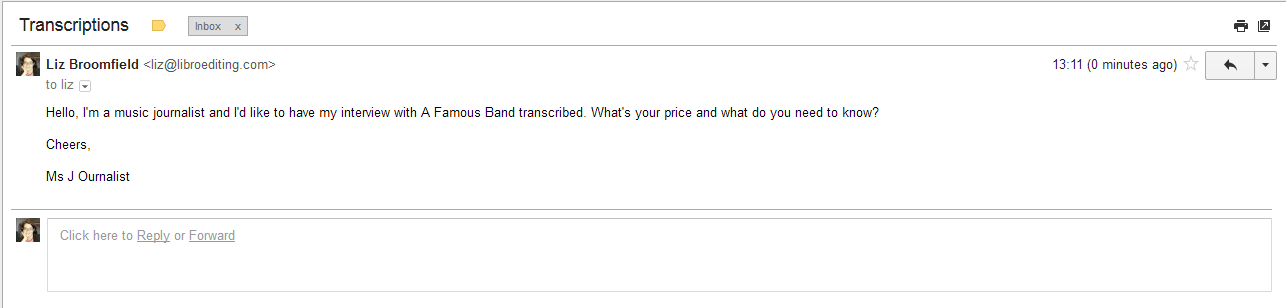
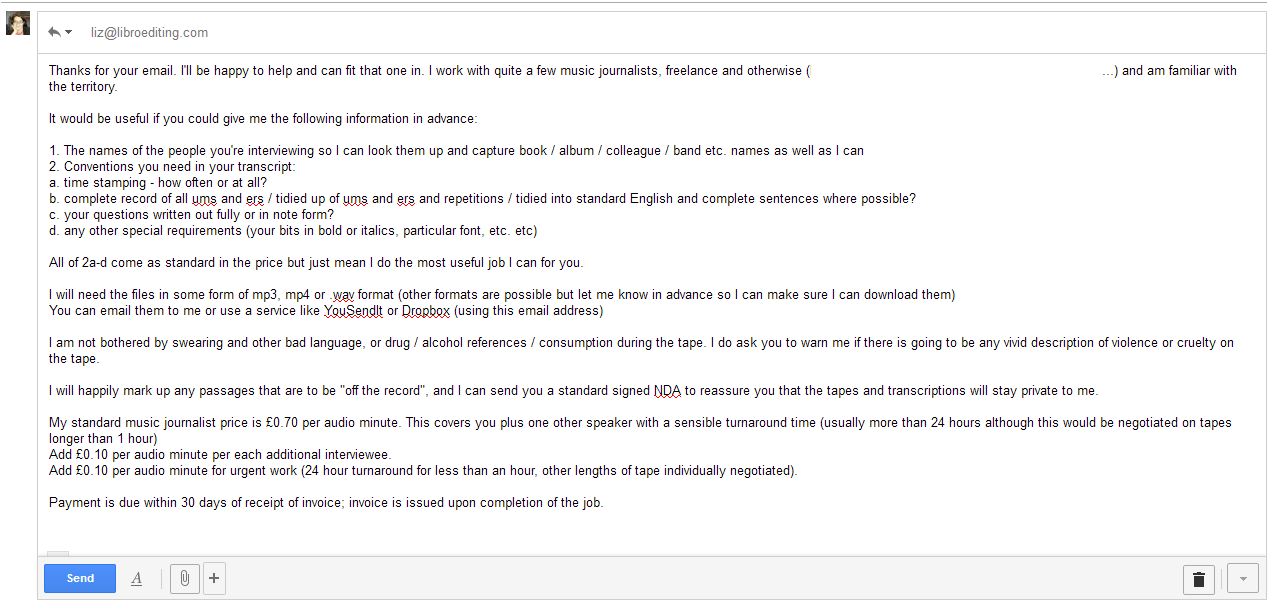
Let’s pretend I’ve received an email from a music journalist wanting to know about my transcription services:

5 incoming email

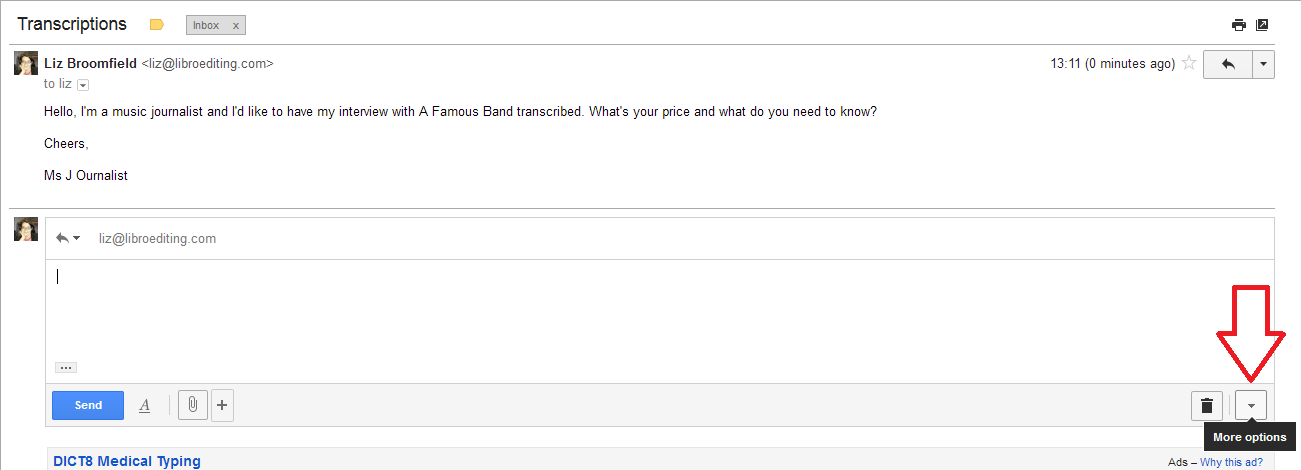
I click on the Reply arrow at the top right or in the Reply pane at the bottom to start my reply:

6 more options

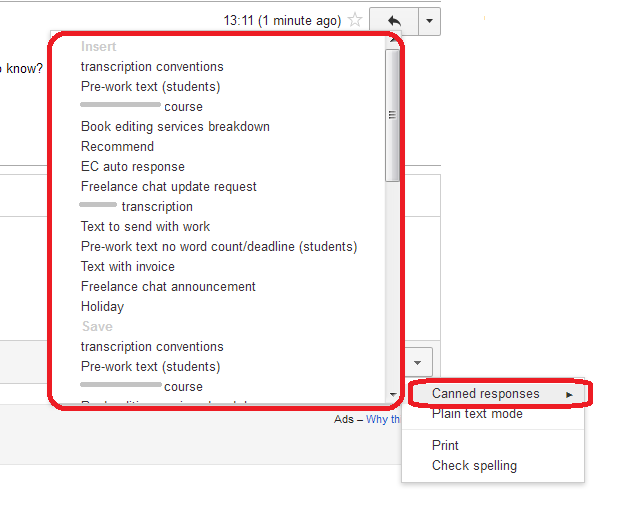
But instead of typing my reply, I click the More options button at the bottom right of the screen. This brings me up a list of, well, more options, oddly enough … and then I click on Canned Responses:

7 canned responses

Here I have a list of all of the canned responses I’ve set up. I’m going to click on Transcription conventions at the top, and when I do, the text will insert itself into my email automatically, saving me masses of typing!

8 canned response

It’s just like a  normal email that I’ve typed, however, and I can add a greeting and do any editing to the text that I require in order to personalise it:

9 canned response addition

How do I set up a new canned response?

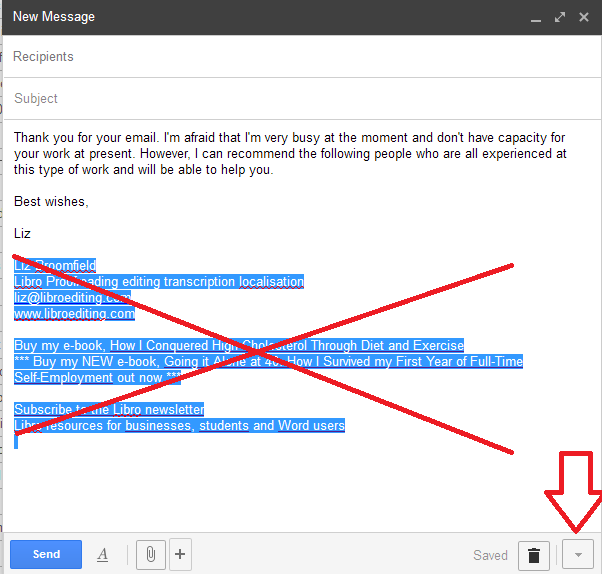
To set up a new canned response, start a new message in Gmail and type your standard text. I haven’t addressed this one, but you can save an email that strikes you as a particularly useful one to use again, at whatever stage. One important point, though: when you want to save it as a canned response, delete any signature file you have at the end of your emails. If you don’t delete it, it will become part of the canned response. Then when you add it to an email, your signature will be automatically added at the end anyway, duplicating it.

So, delete your signature and press that More options button at the bottom right before you send your email:

10 new canned response

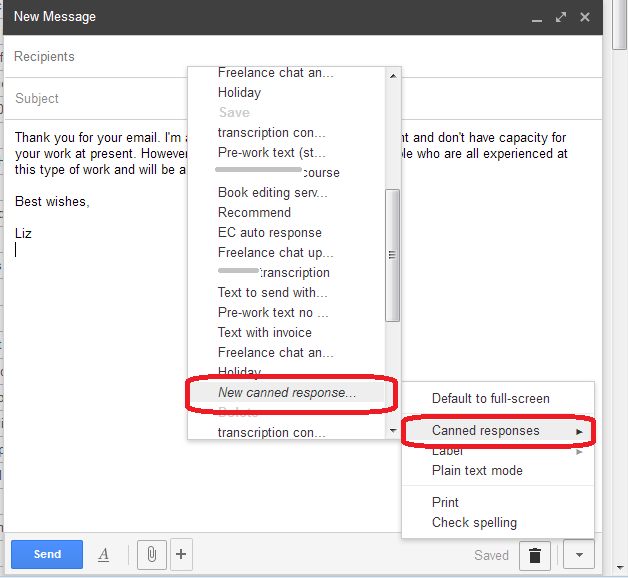
Now scroll down past the canned responses you have already set up (if you haven’t set up any, this will be almost at the top, underneath save) and select New canned response:

11 new canned response

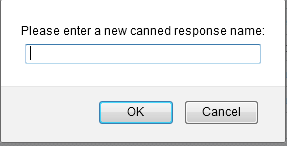
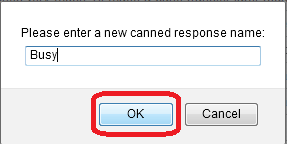
It will prompt you for a name for your canned response:

12 new canned response

Type this in and press OK:

13 new canned response

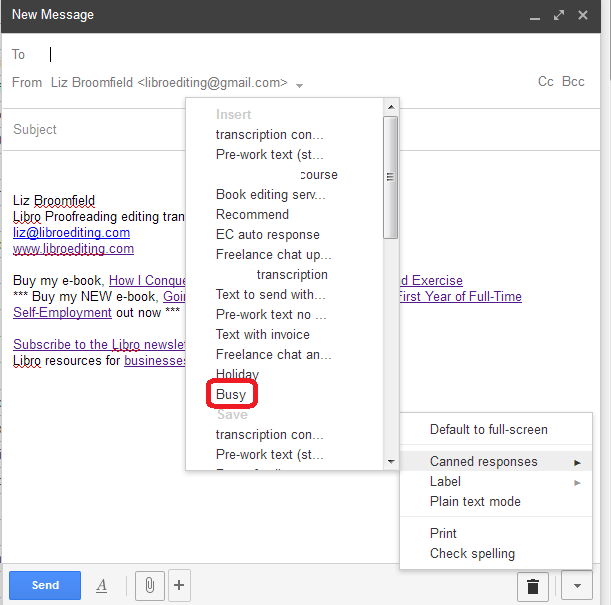
Now this response will appear in your list next time you want to use an email template:

15 new canned response

How do I change a canned response message?

if you want to alter a canned response message, the easiest way to do it is:

  • Start a new email
  • Load the original canned response
  • Choose More options / Canned responses then choose the appropriate Canned response name under the Save sub-heading
  • The new version will be saved to replace the old one

What else can I do with canned responses?

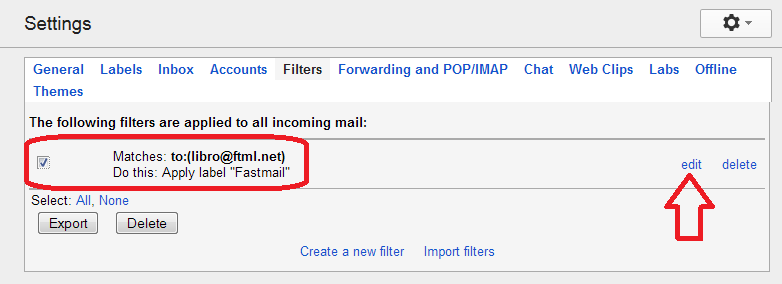
You can use your canned responses in a filter. If you want a special message to go out to a particular customer automatically, To do this, go into Settings – Filters. I have already set up a filter to mark emails that are forwarded from my old email address as coming from there. I am now going to edit that filter:

16 filter

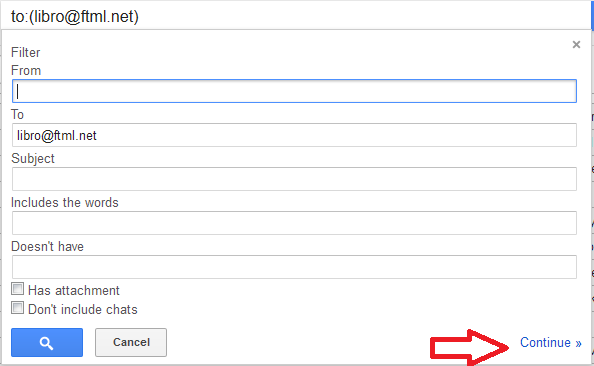
Having hit Edit, I then select Continue:

17 filter

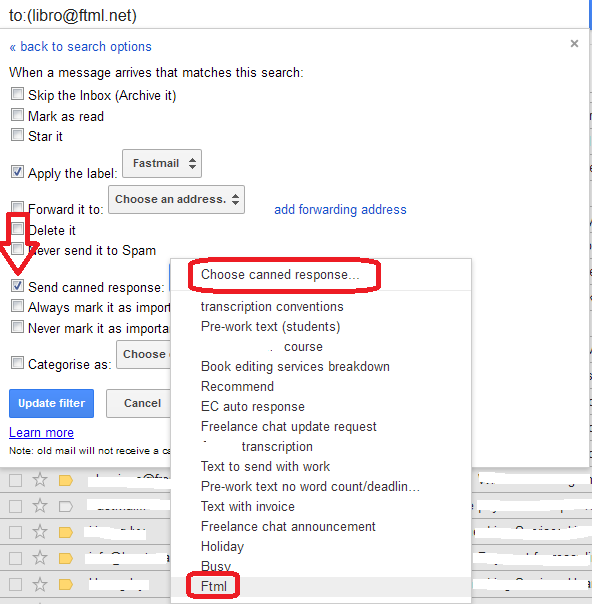
I then access the options where I can choose to send a Canned Response to anything coming through that filter, and I choose the Canned Response from the list:

18 filter

And finally choose Update Filter to make the changes stick.

———-

Have you found this useful? Please comment – especially if you’d like to see more Gmail tips – and use the sharing buttons to share this post with your friends and contacts!

 
103 Comments

Posted by on October 30, 2013 in Business


Tags:

Localisation as a career

localisationI was recently asked for some hints about developing a career in localisation, and so here I share a bit of information about this rather specialised area of work.

What is localisation?

I covered the definition of localisation in an earlier post, but basically it’s all about changing content (whether that’s content in a novel, a website, marketing materials, dialogue in a computer game, instructions for operating equipment, etc.) so that it works in a different geographical location.

Typically, being a British English native speaker, I am asked to localise from American English into British English, for the British (or British English influenced English speaking) market.

“Oh,” you might cry, “that just means you change color to colour and organize to organise, right?” Well, there is a bit more to it than that, and I really don’t think it’s something that just anyone – even any editor – can do.

What background and skills do you need to do localisation?

As well as the classic attention to detail and background in perhaps editing, or indeed translation (it is actually often seen as a branch of translation, which brings its own issues, as we’ll find below), I think that it is vital to have experience in the language out of which you are localising: the way it works, its vocabulary, its punctuation, its spelling.

I used to work for an American company in its UK office. I spent a lot of time working on documents aimed for the two marketplaces. I travelled to America and had a lot of dealings with American colleagues, as well as travelling to America at other times, and got a good grasp of the difference between the two cultures. Still, like translators are meant to do, I will only localise out of US English into UK English. I do edit American English, so I see it and am made aware of its differences and special rules on at least one job per week.

Because of the links with translation, you also need a very special set of skills to do with operating specific, specialised translation software – which is very often not easy to use. I’ll talk about that in a minute.

I’ve also got a number of reference books – the New Oxford Style Manual is good on the variants in spelling, and I have other books in addition to the resources I use to edit in US English.

What is involved in US – UK English localisation?

As I mentioned above, it’s not just a question of changing the or spellings to our and taking out some zs (actually, British English of the Oxford variety does allow zs; however, I’ve found that all of my localisation clients or those who ask for work in specifically British English prefer to have the s spellings which they associate with British English – I do as I’m asked!). American and British English differ in terms of their spelling, punctuation and other grammar, and terminology. Here’s an invented example (US English on the left):

localisation

Now, of course, English is nothing if not subjective, and you might not agree with my choices here, but this serves as an example of the level of work involved in localisation. I might not change so much in every sentence, but there are an awful lot of issues to be aware of.

Another important issue is the range of texts involved in localisation projects. Most of mine have been under Non Disclosure Agreements, but I can tell you that I’ve worked on instructions for medical devices; dialogue for computer games; error messages for software; marketing materials for various large multinationals; and quizzes for people who sell a particular brand of product. So you need to be aware of the different registers involved in English writing, perhaps more even than when you’re editing.

How do localisation jobs work?

Herein lies the rub. As I mentioned earlier, localisation is often seen as akin to translation. And very often, a British English localisation is just one of a whole slew of translations into other languages that is being done, or it’s being handled by a company that handles translations and is used to dealing with translation software.

So, while pretty well all of my editing and proofreading jobs come in Word or PDF files, just one document to be annotated or changed, my localisation jobs come in the form of:

  • A Word document that has been output from translation software and has two columns, one for US English (the Source) and one for UK English (the Target), usually with the US English pasted into the UK column to be changed and marked up, broken up into sentences or sentence fragments, often with some highlighted in different colours
  • An Excel document in two or more columns, again broken up into sentences or sentence fragments. Sometimes the UK English is pre-populated into the Target column, sometimes not.
  • A file to be manipulated using standard translation software like Trados or Across. To use the full versions of these, you might need to buy and download somewhat expensive software.
  • A file to manipulated using the client’s own proprietary translation software – this is often web-based and free, but can take some learning, and they are ALL DIFFERENT

I’m not going to go into the details here, but basically any work done in a translation management system can be a bit frustrating for the localiser, as typically you’re not changing words in every segment, yet you will have to mark each segment as translated, often by hand and using a repetitive set of actions. All very well if you’re a translator, poring over every word, not so great when you are only changing one segment in five!

How do I get localisation work?

I tend to get my localisation work in two ways:

  • Through my membership of Proz.com, which is a jobs (and more) website specifically for translators, but which does have editing (usually non-native English texts) and transcription jobs
  • Through people searching the web and finding that I discuss and offer localisation

I have several regular localisation clients. However, I don’t think I would want to do only localisation, as it’s quite a specific field and the projects involved can be quite long and complex.

In conclusion, localisation is something I would only suggest you go into if you have …

  • Good, solid experience with US and UK English
  • A high tolerance and capacity for learning new software interfaces fast and dealing with often recalcitrant and tricky systems

————

Related posts on this blog:

Read all of my careers advice posts here!

 
14 Comments

Posted by on October 28, 2013 in Business, Localisation, New skills, Skillset


Tags: ,

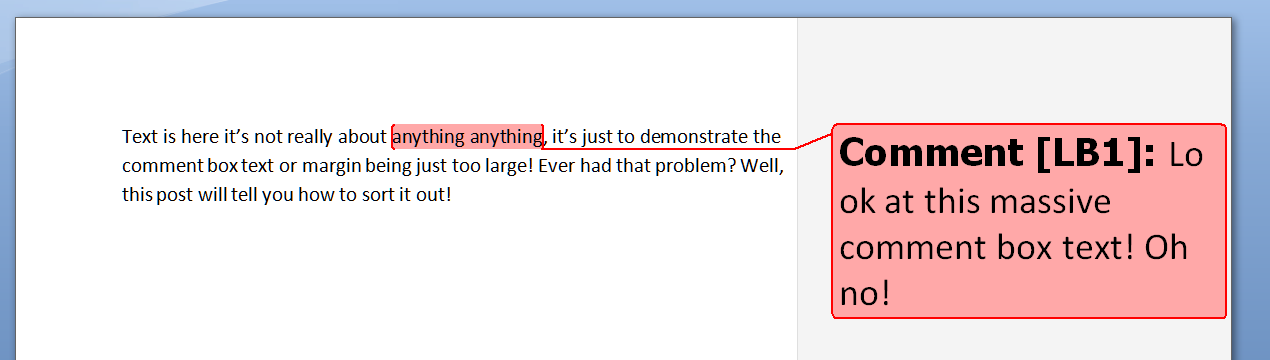
Help – my Word comment box initials keep changing

comment balloonI had a query about this issue the other day and found there were no blog posts about it. Now there are.

My correspondent was busy adding comments to a document. Each time he did so, his initials appeared in the comment box, as they do (I will post soon on how to change your initials in your comment boxes). But each time he pressed Save, the initials changed back to “A”. Why?

Well, I went to look and it took me and a friend searching to find a rather obscure help forum that explained what was happening! So here’s what you do to stop the initials in your comment balloons changing by themselves in Word 2007, Word 2010 and Word 2013.

Why do the initials in my comment balloons keep changing every time I press Save?

The reason for your own initials disappearing is that Word is carefully applying a rule called “Remove personal information from file properties on save”. The properties are details attached to your document about who created and edited the document. And how do you change this?

Go into Word Options.The way into this differs for Word 2007, Word 2010 and Word 2013, although fortunately all of these routes end up in pretty well the same place, so …

Accessing Word Options in Word 2007:

Click on the Office button in the top left of the screen, then click on Word Options at the bottom of the box:

1 word options 2007

Accessing Word Options in Office 2010:

In Word 2010, click on the File tab and then select Options, one up from the bottom of the list on the left hand side:

2 word options 2010

Accessing Word Options in Word 2013:

In Word 2013, click on the File tab:

3a word options 2013

This has the effect of making your screen disappear, but you will get a list of things to do, out of which you select Options at the very bottom of the list (you can click that left-pointing arrow in a circle at the top left to get back to your document):

3b word options 2013

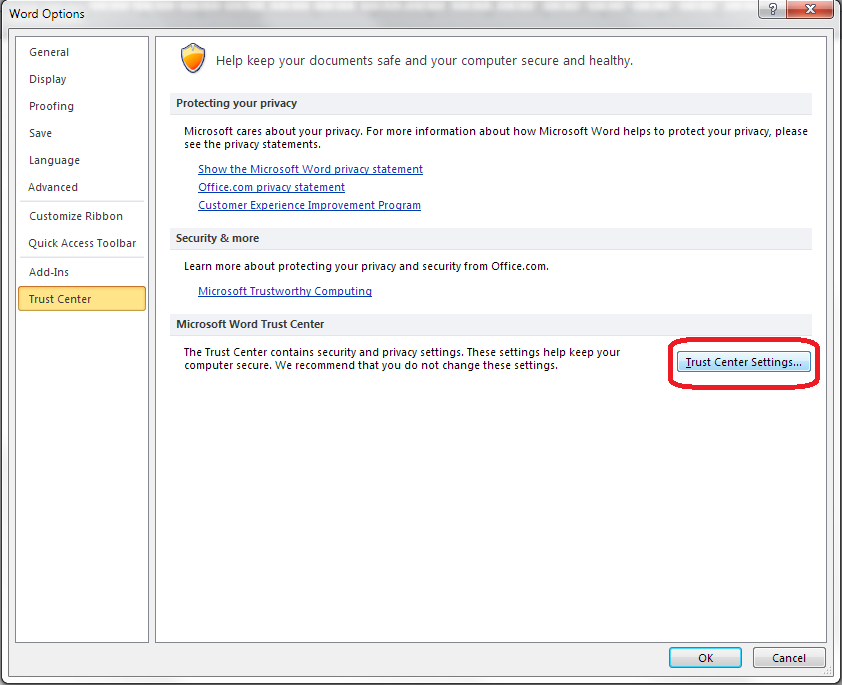
Accessing the Trust Center

The Options screen that will now come up is very similar in Word 2007, 2010 and 2013, so I’m going to use screenshots from Word 2010 as a middle way from now on – the others differ slightly, but you will still see the same options to choose from.

4 trust center

From here, click on Trust Center and then Trust Center Settings:

5 trust center settings

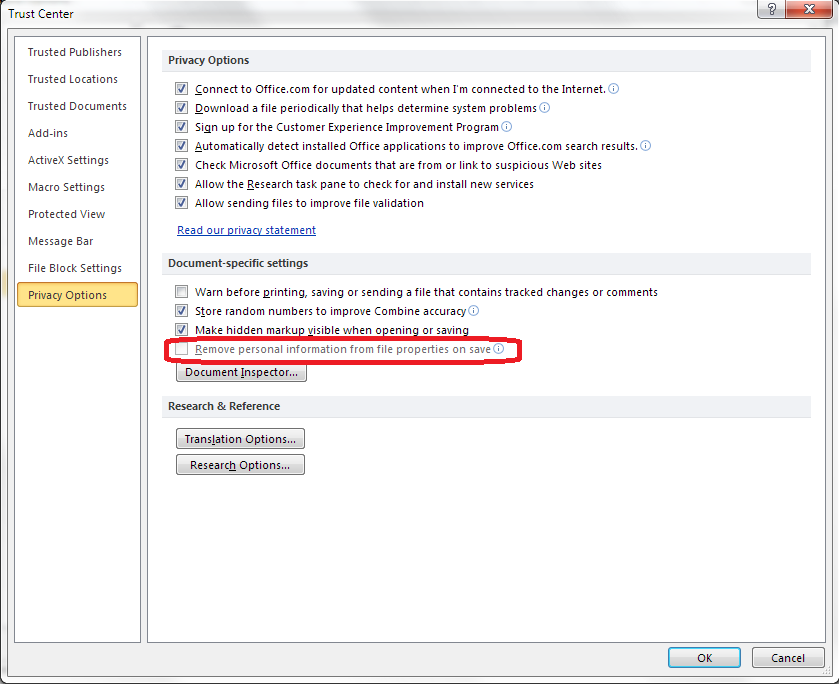
Now select Privacy Options, and you should find an option “Remove personal information from file properties on save”. Note that if this is enabled, it will be ticked and you will be able to untick it. Here, it’s greyed out, but you can see where you can find it:

6 privacy options

Once you have unticked this box, your initials will remain on your comment boxes however many times you save or close and open your document!

————————-

Why not take a look at these related topics, which should help you with any other comment box issues?

What to do if your comment boxes go tiny in Word

What to do if your comment boxes start running from right to left

Changing the language in your comment balloons

Customising Track Changes

This is part of my series on how to avoid time-consuming “short cuts” and use Word in the right way to maximise your time and improve the look of your documents. Find all the short cuts here

Do let me know if this has helped you, saved your bacon, etc. – and do share with the buttons at the bottom of this article.

 
5 Comments

Posted by on October 23, 2013 in Copyediting, New skills, Students, Word, Writing


Tags: , , , , , , ,

How do you know that you’re running a mature business?

invoiceLots of posts and books and blogs and courses and STUFF have been written about start-ups and about starting a new business. But what about when that phase is over? Some people, especially, it seems, in the technology sector, like to bounce from start-up to start-up, selling the business on or changing it in some way as soon as it has settled down. But what if you’re in the one business for the long run? How do you tell when you’ve moved from the start-up phase to running a mature business?

What is it like running a start-up business?

In my experience, the first few years of running your own business are characterised by

  • Uncertainty – will I get customers, will I keep customers, where will my next customers come from
  • Active marketing – trying different marketing methods, signing up for directory websites, trying some adverts
  • Overwork – working all the hours there are for clients who need everything now! It’s also possible that you’re working at a day job while developing the business on the side
  • Underpay – thinking “can I actually charge for this? That much? Really?
  • Constant change – changing strategy, changing business model, changing clients, changing business cards
  • A change in lifestyle and your social life – especially if this is your first start-up, you’ll disappear from your friendship groups, become invisible to your family, and probably start hanging out with new business chums as well

What is it like running a mature business?

I’m in Libro’s fifth year now, and things are markedly different from when I started. I know a few people who are just starting out, which helps me remember what it was like and see the differences. Here’s what it’s like once you’re up and running

  • Certainty – much fewer worries about where customers are coming from; working with regulars who you know well, knowing their payment schedules and how they operate
  • Less marketing – many more jobs will be coming from repeat clients and recommendations, so marketing is more about brand awareness and making sure that people know you’re there, rather than grasping for new clients all the time
  • Steady work – you have reclaimed your evenings and weekends
  • Steady pay – you have worked up your rates of pay to industry standards, and are confident that what you do is worth what you charge for it (however, you might be on tax payment on account if you’re in the UK, which can be a slightly tricky transition)
  • Less change – while you still check for return on investment, buy the new technology you need to run your business and keep up with your personal development, things should be more stable, changing when you choose to change them
  • You get your life back – you can go back to your friends and family, but you also have a peer group of people in your industry who you can use as a mutual support group

How do you get from start-up to mature business?

These are some things that I’ve done – what do you think are the key processes in this move?

  • Outsource some functions of the business – design and accountancy are key ones that I’ve done, but you might go ahead and outsource all of your admin functions
  • Optimise your customer base (I’ve written about this in more detail here) so you have good, reliable, regular customers who bring in a good rate of return
  • Organise your work so that most of it comes from regulars who book it in advance, and have a system to record what you’ve got booked in so you can fit new work around it (I use a simple Gantt chart)
  • Turn away work and recommend it on rather than taking on anything and everything
  • Build a good network of peers who you can pass work to and from whom you can get advice and support or just a laugh or a rant occasionally (especially important if you work on your own)

Giving something back

When I was talking about this article on social media, someone pointed out that another feature of a mature business is that you find yourself advising people on how to do it! True indeed – from my experience …

  • I wrote a post on how to become a proofreader which ended up as a whole careers section on my website, because so many people were asking me how to do it
  • I wrote a book on my first year as a full-time self-employed business person
  • I share the knowledge I’ve gained of social media by volunteering at the Social Media Surgeries
  • I am informally mentoring a few colleagues through their first years as self-employed editors

And that’s one of the main benefits of running a mature business for me.

Who are you calling mature?

I’m starting to plan my new book at the moment. Working title: “Who are you calling mature? Running a successful business after the start-up stage”. What do you think of the title? Do you think this would be a useful addition to the millions of business books that are out there?

Do pop a comment on this post if you have anything to say about that or any of the points I’ve raised above – I always love hearing from my readers!

Sign up for my newsletter to find out all the latest information about my new book.

 
16 Comments

Posted by on October 21, 2013 in Business, New skills, Organisation


Tags: , ,

How do I change footnotes to endnotes in Word?

As part of my series on footnotes and endnotes, here’s how to turn your footnotes into endnotes and your endnotes into footnotes in Word 2007, Word 2010 and Word 2013.

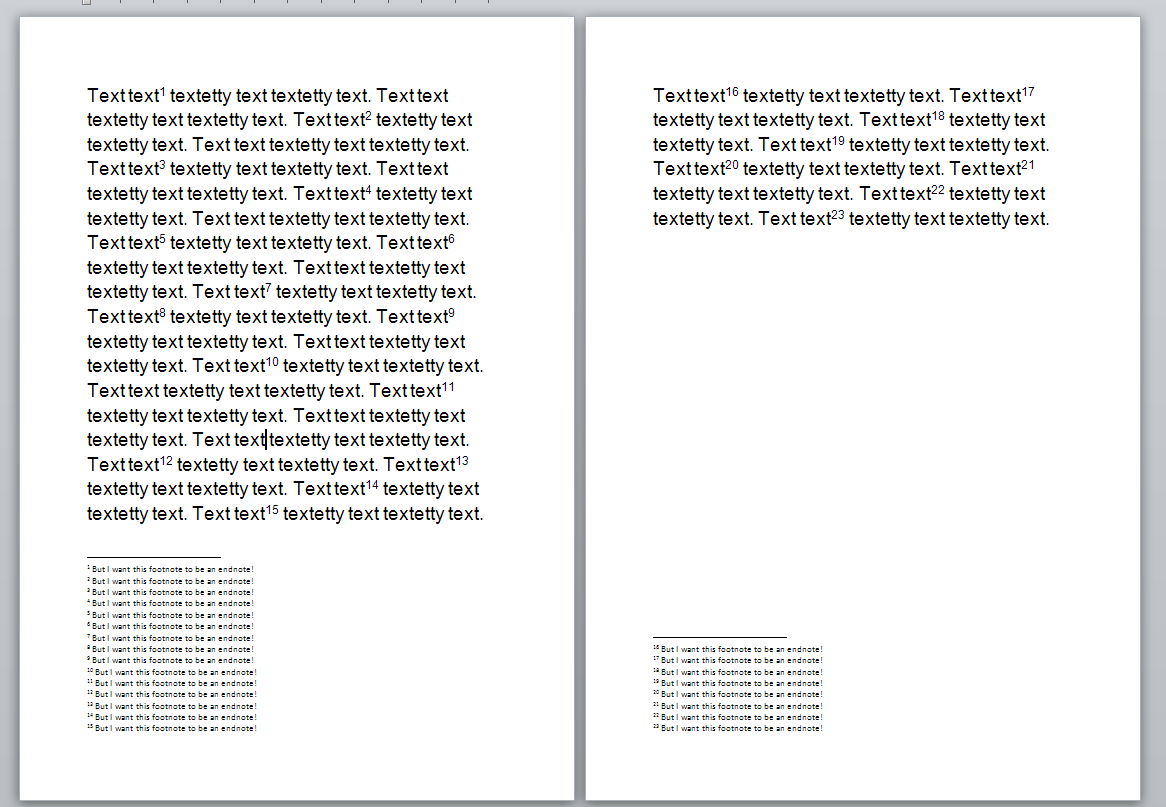
We begin with a document with footnotes, arranged at the bottom of their relevant page, as footnotes tend to be:

1 footnotes

But we want to turn these footnotes into endnotes. How?

Go to the Footnotes menu, which you can find in the References tab:

2 ribbon

Click on the little arrow at the bottom right to bring up the Footnote/Endnote Options dialogue box:

2 menu

Here you will find a Convert button to press. Press the button:

3 menu

This is context-specific, so if you have only footnotes, the option to convert endnotes to footnotes and to swap the two will be greyed out. Hit OK (or, if you already have both endnotes and footnotes, choose the option you wish to use then hit OK).

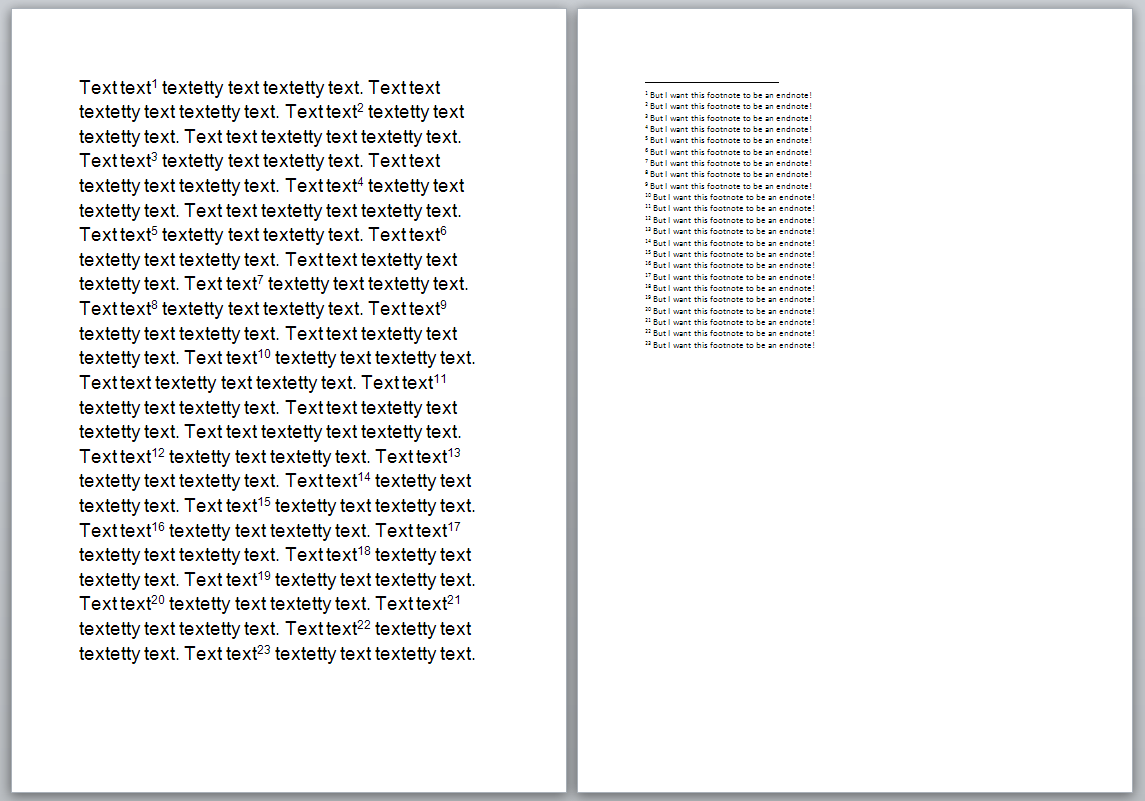
Your footnotes will have changed to endnotes:

4 endnotes

Related posts from this blog:

How to insert and format footnotes

How to insert and format endnotes

Please note, these hints work with versions of Microsoft Word currently in use – Word 2007, Word 2010 and Word 2013, all for PC. Mac compatible versions of Word should have similar options. Always save a copy of your document before manipulating it. I bear no responsibility for any pickles you might get yourself into!

Find all the short cuts here

 
3 Comments

Posted by on October 17, 2013 in Errors, New skills, Short cuts, Word, Writing


Tags: , , , , , , , , ,

What is the best mix of customers to have?

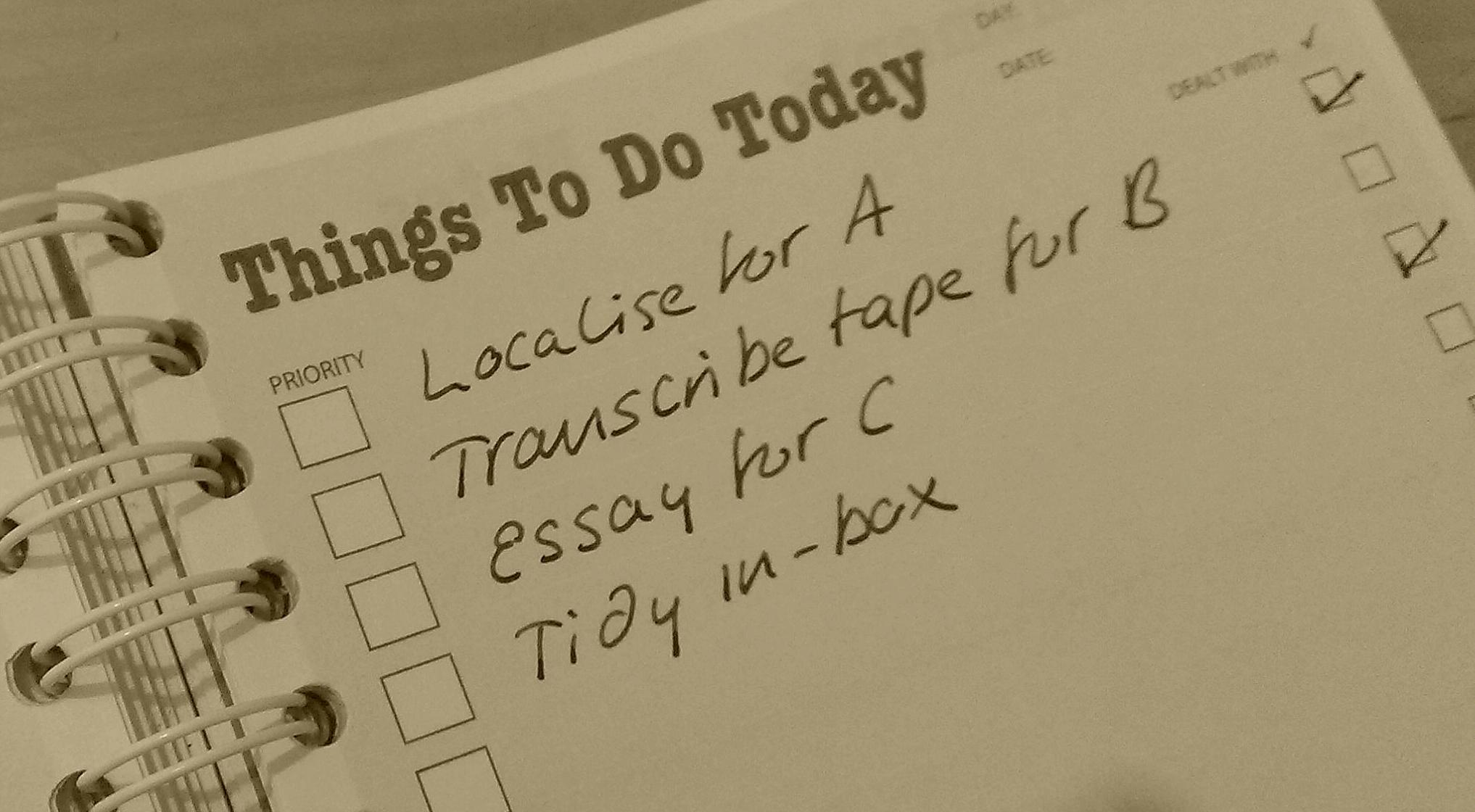
to do list If you’ve got a mature business that is up and running and busy, then you’ve probably used something like these criteria to choose which clients to work with, and you might have used these ways to turn one-offs into regular customers. But what is the best mix of customers to end up with?

Obviously, in an ideal world, all of your jobs as a freelancer will be fun, interesting and high-paying, for clients who pay up on time. But, well, we’re not in an ideal world. The paying on time thing is non-negotiable for me (although I’m always prepared to listen if a client is having cash flow problems, IF they tell me about them), but I’ve learned to live with the fact that not all of the high-paying jobs are fascinating, and not all of the really fun ones pay well. It’s all about balance, and in this post I’m going to share with you how I balance my mix of customers, which might help you, too.

What are the types of customer?

Whatever industry you’re in, you tend to have a few types of customer:

  • Customers who send you a lot of work regularly (great, although try not to rely on just one or two of these, just in case, and sometimes they can get a bit demanding)
  • Customers who send you a bit of work irregularly (only keep these on if you really can slot them in as and when)
  • Customers who pay high rates (why? they may have set the rates for their industry and they’re in a region with higher costs of living and pay rates for freelancers)
  • Customers who pay lower rates (why? you might have long-standing customers on a historical lower rate or offer discounts, as I do, for special groups of customers such as students, individuals and music journalists)
  • Customers who have fascinating work that’s right up your street and relates to your interests
  • Customers who have dull work which nevertheless you can tackle
  • Customers who always need their work to be done at the last minute
  • Customers who send you stuff that’s at the edge of your comfort zone – or outside it

I’ve put a little space before those two, because they’re the ones who you really do need to minimise.

As I said, in an ideal world, you would have customers with loads of fascinating work who pay high rates. But that’s not always going to happen, so it’s a matter of …

BALANCE

Isn’t it always, though?

Boulders, pebbles, sand

Time management techniques make use of the boulders, pebbles and sand metaphor when talking about how to fit your tasks into your day. The idea is that you slot the big jobs (the boulders) in first, then you can fit pebbles (smaller jobs) in around them, and fill up the gaps with sand (I usually see the sand as being my admin tasks). So, if I have a big transcription that must be done by tomorrow and will take 3 hours, I will plan to do that in the afternoon, with a couple of small editing jobs slotted in around it.

It’s the same with customer types.

It would be great if you loved loved LOVED all of your projects, but some of them are still going to be more interesting than others. To take some aspects of my work as an example (but as I said, this works for all industries) …

  • Localisation is my most lucrative work but it’s often fairly repetitive marketing or web texts. It also often uses specialised software that can be quite tricky to work with.
  • Working with translators is a specialised job and so my rates are higher than for native English editing. The texts I get from my translators and agencies are varied and often interesting.
  • I have a particular transcription client who pays great rates and has interesting tapes to send me – they used to have a conference for me to transcribe for every 2 months and now it’s less regular but still interesting. I now have another regular corporate transcription client.
  • I love transcribing for music journalists. Music is an obsession of mine and I love both hearing all the bits that don’t make it into the articles and seeing how the articles are written up from the tapes I’ve transcribed. But I do charge these clients less than my corporate transcription rates, because they’re usually freelancers like me. These are very, very rarely uninteresting, even if I’m not a big fan of the music style. Even if it’s Justin Bieber.
  • Student work can be interesting but can be very tricky and time-consuming, typically involves quite a lot of emailing back and forth, and I charge a lower rate than for corporate editing. I used to work on Master’s coaching, but found that it was difficult to commit to small bits of work coming at short notice over a long period of time.

Case study: how I balance my customers out

To maintain the analogy of the boulders and pebbles, this is how I manage this customer base:

  • Boulders have to be regulars with the more lucrative end of the work. I have kept down my number of localisation clients – I could do just localisation, but it would be a bit same-y and I would end up relying on very few, large clients, which is something I avoid. So: regular localisation clients, regular translator clients and at the moment a large regular transcription client are the boulders of my client base.
  • Rocks (ha – you’re going to laugh in a minute) are my music journalists (see what I did there?). The work is fun, the clients are lovely, and I get more return on investment than just the money. But I have to be careful not to take on too many of these, because I do not make as much per hour and I am in this job to make a living. I do let the odd rock crash into my personal time, because these clients are often on odd schedules. But I encourage them to book me as far in advance as they can, and they do pay extra for urgent work.
  • Pebblesstudent work and the occasional one-off fiction or non-fiction book referral from a regular customer. I’m afraid I am more likely to take on a referral than somebody out of the blue these days – but I will always refer on anyone who I can’t take on. I already pass on all Master’s students to one of three colleagues who have the time and attention they need. Also in this category come the few clients I still have who send small projects regularly – if you have few enough of these, you can slot them in around the rocks and boulders. I have one client who sends me middle-sized projects but with lovely long deadlines – work I can break into pebbles and pour around the bigger jobs.
  • Sand of administration – my monthly invoicing session is a boulder, and because it’s sand, so each job is small, I can slot a few email replies or jotting down some blog post ideas among all of these.

It’s all about the balance

When it comes down to it, it’s all about balance and return on investment (which doesn’t take a solely monetary form).

I could do just localisation all day every day, and push for more of that work, but it would be a bit repetitive and I could run the risk of only working with a few, large clients, which leaves me a bit exposed.

I could just work with translators and translation agencies, but I’d only really be editing then and I like the variety of my other work.

I could just work with music journalists and have a whale of a time listening to all sorts and picking up on new band to like. But the work can fluctuate madly (in a nod to a certain publication this week, it can oscillate wildly from all to nothing), so it would be unreliable as a steady source of income. And I’d probably get RSI.

I could just work with students and self-publishing novelists but I wouldn’t make enough to live on doing that full time, and again, I’d just be editing all day, every day.

By balancing all of these different customers (and you can do the same, whether you’re a roofer with a mix of full roofs, porches and repair jobs, or a decorator doing whole houses, front doors and window screens, or a graphic designer creating adverts, logos and cartoons), I get variety, balance my income and have fun!

How do you do it?

Whether you’re a fellow editor / transcriber / localiser or you’re in a different industry, I’d love to know how you balance your different types of customer. Do share in the comments

————-

If you enjoyed this post, please click one or more of the share buttons below.

Find more articles about careers and freelancing in this resource guide. Related articles:

How to decide who to work with.

Turning a one-off customer into a regular.

How to make more money in your freelance business

When should I say no?

 
18 Comments

Posted by on October 15, 2013 in Business, Jobs, Organisation


Tags: , ,

How do I add endnotes to a Word document?

Writers use endnotes to find a place for additional text which doesn’t fit into the flow of the document at hand but needs to be included for reference purposes. The reasons for doing this are the same as for using footnotes (to provide translations, to expand on information in the text, to provide references for sources used, etc.)

What is the difference between footnotes and endnotes?

The only difference between footnotes and endnotes lies in their position.

The text of footnotes sits at the bottom of the page on which the footnote is referenced.

The text of endnotes sits at the end of the chapter, article or even the whole book in which the footnote is referenced.

What do endnotes look like?

Unlike footnotes, which can use symbols or numbers, an endnote will usually be marked using a raised number after the bit of text that they refer to, like this.1 The reason for this is that a whole set of endnotes might appear at the end of a chapter or book, and there aren’t enough symbols to cover more than about five.

The text of the endnote will be marked with the same number, and will include all of the text that you want to appear outside the main text.

Endnotes at the end of a chapter will usually start at 1 for each new chapter. However, endnotes for an entire book might be numbered either starting at 1 for each new chapter or running sequentially through the whole book, running into the hundreds.

Sometimes endnotes don’t have a number in the text, but just refer in their own text to a section of the main document. These tend to be done by hand rather than automatically in the way I’m going to show you today.

You can see here that the endnote number is on the first page (circled) but the endnote itself appears at the end of the whole document:

1 endnote

How do I create an endnote in Word 2007 and Word 2010?

The Endnote section is found in the References tab of the ribbon (not Insert):

1 menu

Place the cursor in the position where you want the endnote to appear and either press the Insert Endnote button (as above) or click on the drop down arrow for your options (I find that sometimes the Endnote numbering defaults to something odd, so it’s useful to do this:
2 options

This will bring up your endnote options. Choose your options (see next section) and when you press Insert, a number will appear in your text, and an endnote number will appear right at the end of your document (or chapter), ready for your endnote text.

Type the text you want into your endnote field, noting that you can change the paragraph style, size and font as with any text, although it’s common for the endnote font to be smaller than the main document font.

To insert the next endnote, follow the same sequence, although once you’ve set up your options, you can just hit the Insert endnote button instead of dropping down the options.

How do I delete an endnote?

Using the automated endnote system means that the numbering will adjust itself to stay correct if you delete and move notes around.

Don’t highlight the endnote itself and delete it. This has no effect on the numbering.

Instead, highlight the number in the text or position your cursor at the point just after it and press delete.

3 delete

Here, I’m deleting Endnote 3. Press delete and

4 delete

changes to:

5 delete

What are the endnote options?

We have already seen that clicking on the little arrow at the bottom right of the Footnotes section, brings up a range of Footnote and Endnote options that you can customise:

2 options

Here you can choose the number format, whether the endnotes appear at the end of each section (you will need to apply Section Breaks to make this work) or at the end of the whole document, and whether the numbering starts at the beginning of each new section or just runs through all of the document continuously.

6 options

For more detail on these options, see the relevant sections in the article on Footnotes.

How do I make the endnotes appear on a new page?

To make your endnotes appear on a new page, simply add a Page Break before them by putting your cursor at the end of the main text and pressing Control-Enter.

How to add endnotes in Word 2003

In Word 2003, you add endnotes using the Insert – Reference menus. The footnote options are then the same as above.

How not to add endnotes to Word documents

It is NOT RECOMMENDED to add endnotes manually (insert a superscript number and type the note at the bottom of the document) If you do this, you will lose all the advantages of using this automated system:

  • automatically adding the numbers in order
  • automatically renumbering the endnotes if you delete or add one or move one around

————-

In this article we’ve learnt what an endnote is, why you use them, all about inserting and deleting them and the options for customsing them.

Related posts from this blog:

How do I add footnotes to a Word document?

Changing footnotes to endnotes

How do I change the format of my endnotes and footnotes?

Please note, these hints work with versions of Microsoft Word currently in use – Word 2003, Word 2007 and Word 2010, all for PC. Mac compatible versions of Word should have similar options. Always save a copy of your document before manipulating it. I bear no responsibility for any pickles you might get yourself into!

Find all the short cuts here

 
7 Comments

Posted by on October 9, 2013 in Errors, New skills, Short cuts, Word, Writing


Tags: , , , , , , , ,