RSS

Category Archives: New skills

MailChimp 5 – linking to your sign-up form on Facebook and your website

After publishing my article on how to create a sign-up form, I had a query about how to publicise it. This article tells you how to find the URL for your sign-up form in order to promote and link to the sign-up form in various places on the Web, including your own website, Facebook, etc.

Why would I want to publicise my MailChimp sign-up form?

You can have the best form in the world, but if you don’t share it, no one will sign up. Places to promote and share your sign-up form include …

  • Your website and / or blog
  • Your email signature
  • Your company Facebook page
  • Posts on your company Facebook page
  • Twitter
  • Your LinkedIn profile or updates

How do I find the URL of my MailChimp sign-up form?

The key to all of this is to find the URL or web address of your sign-up form. Every one has it, but it’s hard to find. Here’s how you do it.

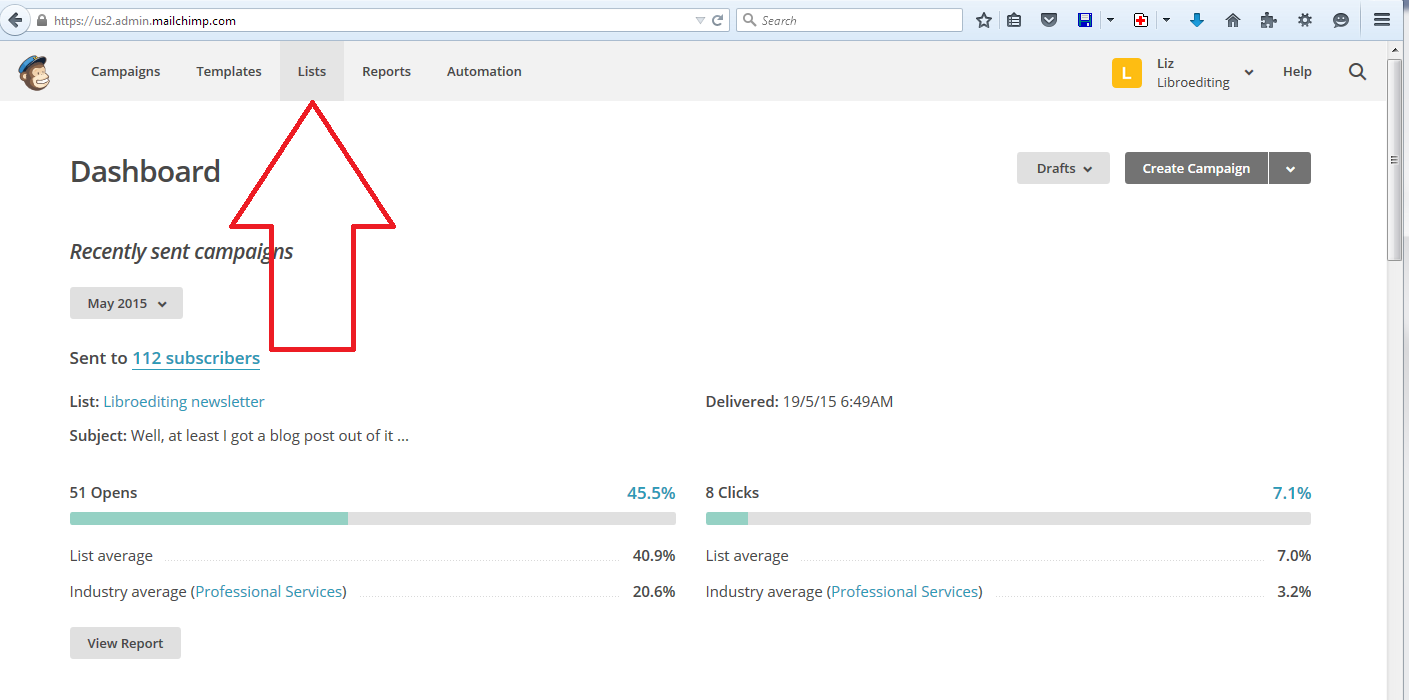
From the first page of MailChimp, when you’ve signed in, click Lists:

Go into MailChimp list

Then, choose the list whose sign-up form you want to promote (like me, you probably only have one) by clicking on the link:

Mailchimp choose list

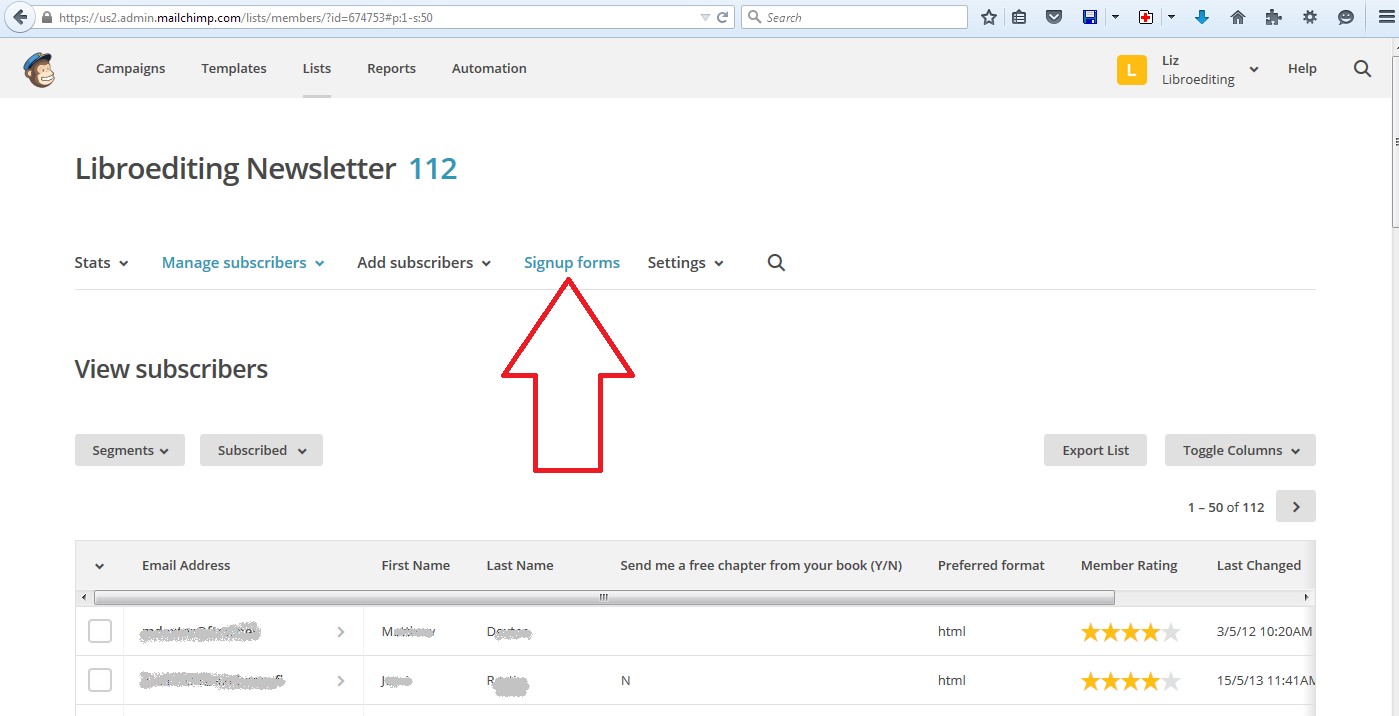
Now click on Signup forms:

Mailchimp signup forms

Now you will find a list of ways to create a form which does not look like the right place. It IS the right place.

Incidentally, if you scroll down to the bottom of this page, you will find ways to create a sign-up form embedded in a Facebook page or on a tablet, where people can enter their details directly. Both of these options walk you through the process.

Mailchimp special forms

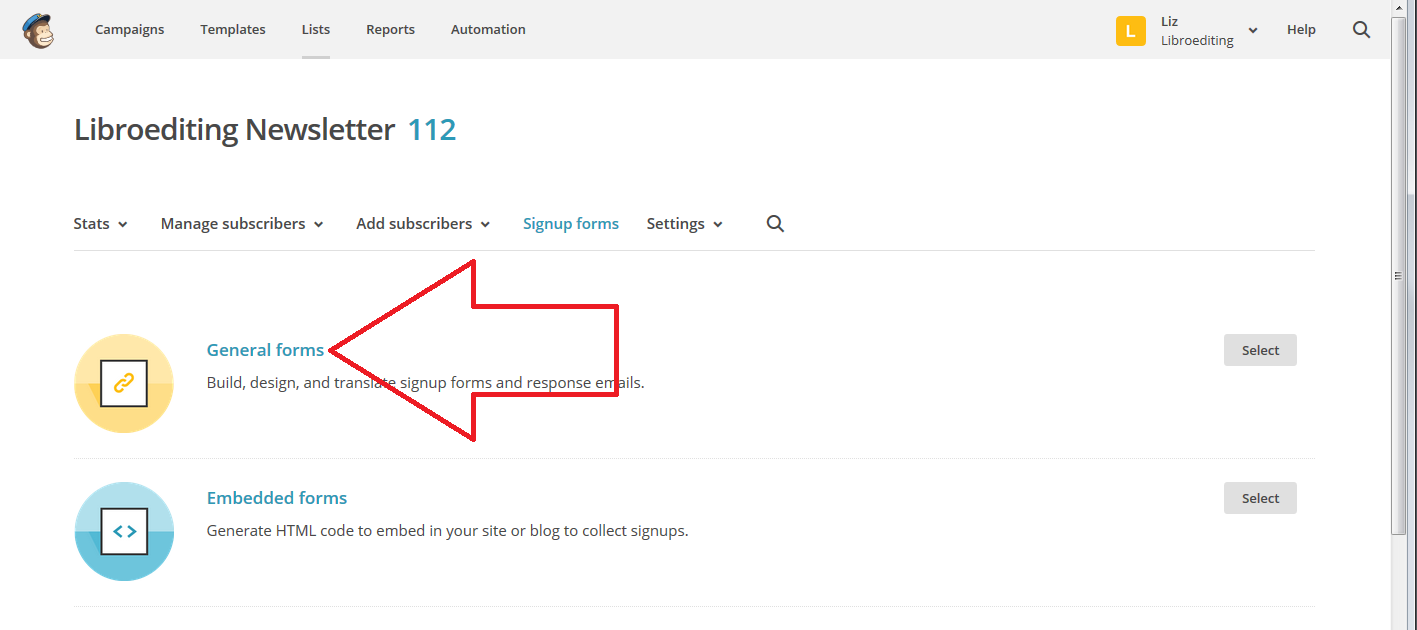
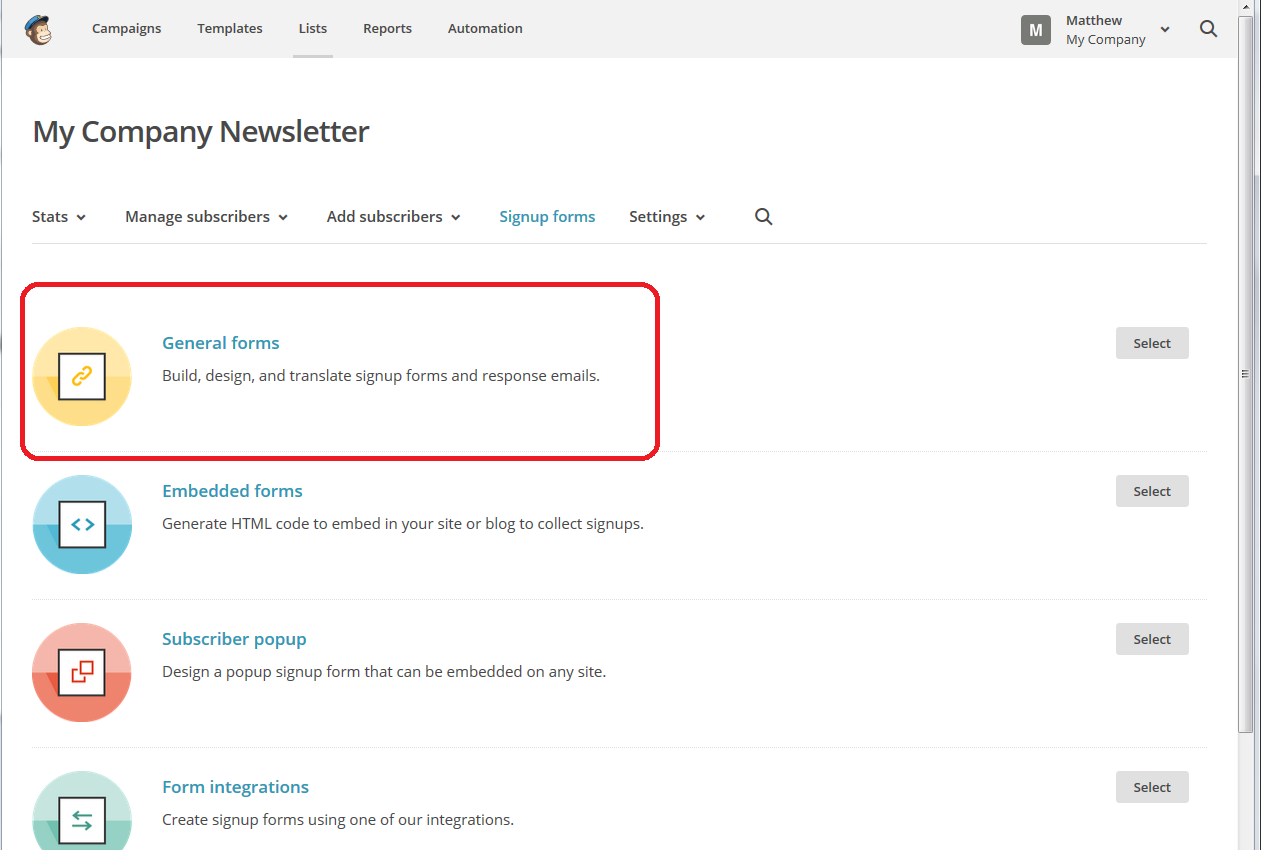
For the moment, we’re looking for that URL, so scroll back up and click on General Forms (which is where you created your sign-up form in the first place):

Mailchimp general forms

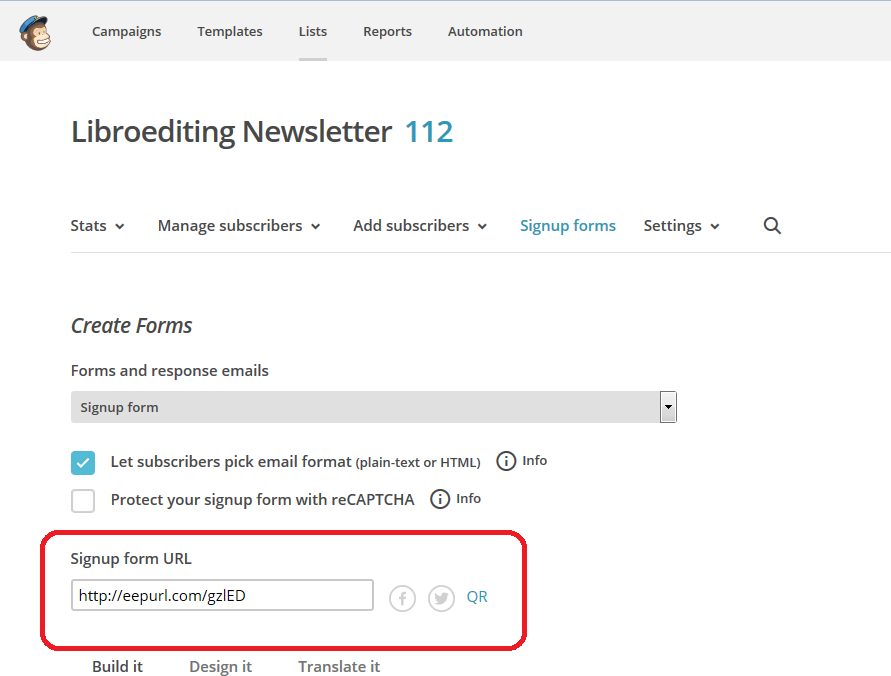
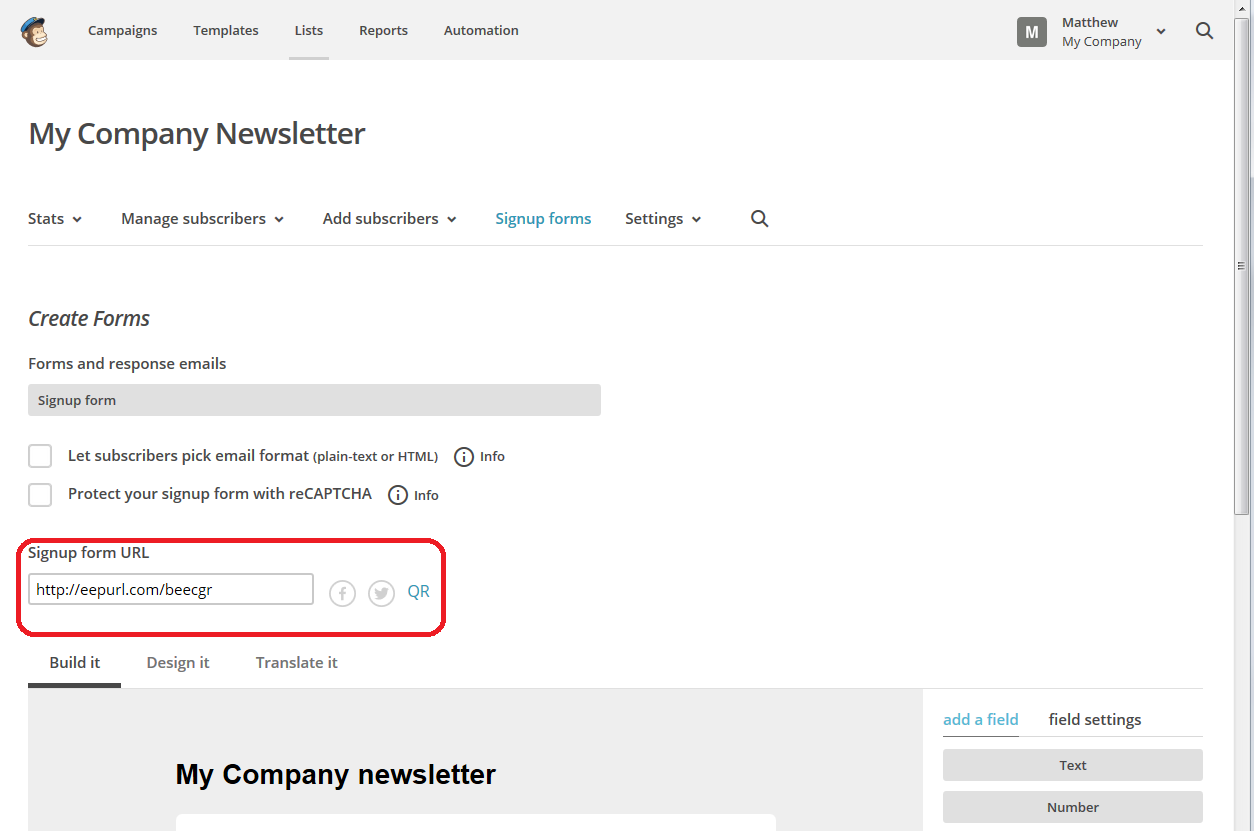
Although it really doesn’t look like this is the place to go, I know, here you will find your URL!

Mailchimp signup URL

You can copy and paste this URL and put it anywhere on the Web.

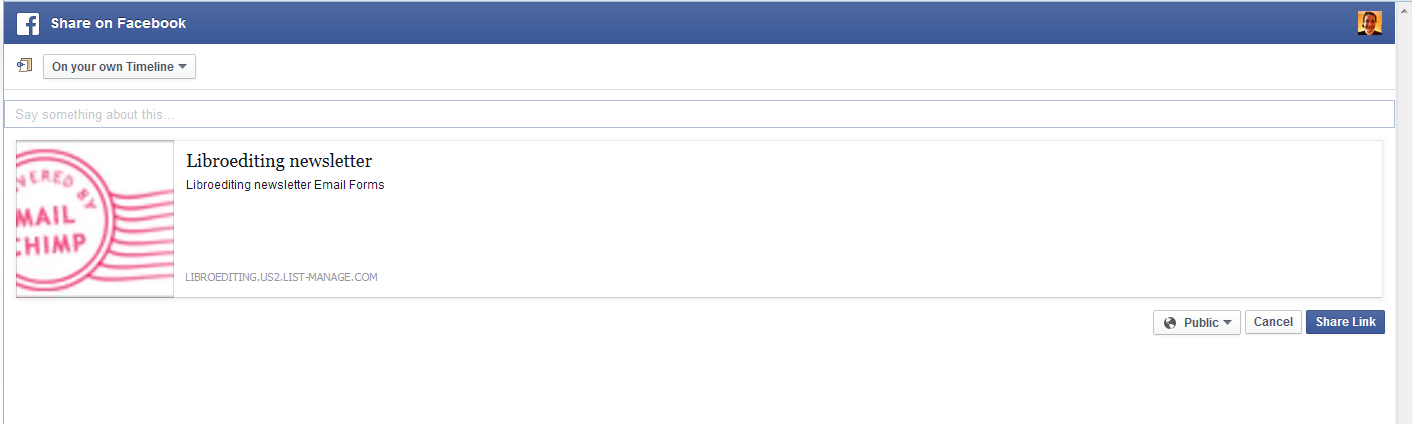
In addition, this page also has little icons for Facebook, Twitter and QR. These will just generate a link for you (if you’ve linked your MailChimp account to Facebook and Twitter for sharing purposes). Clicking on the Facebook icon will give you this post ready to pop on your Facebook page:

Mailchimp auto facebook post

How do I share my MailChimp newsletter sign-up form on social media and my website?

Now you have the URL which links to your sign-up form, you can add that link anywhere you want.

  • On your website, you might do as I have (look right!) and add a link to the sign-up form to your menu. In WordPress.com, you can choose Appearance – Widgets and create a Text widget. Then use HTML coding to add a link, for example <a href=”YOURURL”>Sign up for my email newsletter! </a>
  • In your email signature, use your email service to add a line to every email you send, again, you will probably need the coding above.
  • On Facebook, use the embedded form mentioned above, or do a post including the URL and “pin” it to the top of your Facebook page
  • Everywhere else – share the URL and get people flocking (maybe) to your sign-up form.

In this article, we’ve learned how to find the URL or web address of your MailChimp newsletter sign-up form in order to share it on the Internet, and talked about how and where you can share it. You can find a growing set of articles on blogging, social media MailChimp etc. in my resource guide.

Do click on the share buttons below or comment if you found this article interesting or useful!

Other relevant posts on this blog:

MailChimp 1 – Signing up

MailChimp 2 – Setting up your list and importing contacts

MailChimp 3 – Creating a sign-up form

MailChimp 4 – Designing your newsletter template

How to avoid two common mistakes when using MailChimp

 
5 Comments

Posted by on August 12, 2015 in Business, Marketing, New skills, Newsletters


Tags: , , ,

Editing and the Table of Contents – for editors and writers

This article is all about what happens when a document that includes a Table of Contents (and a Table of Figures and/or a Table of Tables) is edited. There are a couple of pitfalls which I have encountered as an editor, and I wanted to share them with fellow editors AND writers, to help other people avoid them.

Scroll down to the bottom for a summary of advice to editors and writers if you’re not worried about the detail.

Please note that there are more detailed instruction on updating a Table of Contents in this article.

What’s the problem with Tables of Contents and the editing process?

If a document with an automated Table of Contents is being edited, the editor has two choices (and the writer will find that their editor has done one of two things):

  1. Mark any changes to headings in both the Table of Contents and the actual heading in the main text
  2. Mark any changes to headings in just the actual heading in the main text, then someone updates the Table of Contents

Let’s look at the risks with these in turn.

1. Mark any changes to headings in both the Table of Contents and the actual heading in the main text

Issue 1 – Awkwardness for the editor. To do this, you will have to have a split screen with the contents page in the top half and the text in the bottom, or you’ll have to whizz up and down the document and make sure you make the same correction in both places.

Issue 2 – Keeping things consistent. a) The editor will have to make the same change in both places, and b) the writer will have to make the same choice to reject or accept the change in both  places.

As an editor, if I do this, I place a comment linked to the words “Table of Contents” reminding the author to make the same choices here and in the main text.

If the Table of Contents is not automated, I a) suggest that the author creates one (or has me create it, if appropriate) and b) I place the comment above by the words “Table of Contents” to remind the author to keep it consistent.

2. Mark any changes to headings in just the actual heading in the main text, then someone updates the Table of Contents

If the Table of Contents is automated, this is what I tend to do.

There are two options here:

Option 1 – The writer wants a “clean copy” not one with tracked changes marked: the editor can update the Table of Contents once they’ve done their edit and accepted all changes. Everything will now match.

Option 2 -The writer wants (or needs, in the case of students) to see the tracked changes and make their own decisions on what to accept and reject. In this case, the writer will need to update the Table of Contents once they’ve gone through the changes.

Option 2 is the most common in my experience.

If the writer needs to update the Table of Contents themeselves, I always add a comment to the words “Table of Contents”:

“Please remember to update this Table of Contents after you have accepted or rejected all of my changes, to make sure that the table reflects the document accurately. Please choose Update entire table rather than Update page numbers only”.

An important choice – what to update in the Table of Contents

This information is for editors and writers.

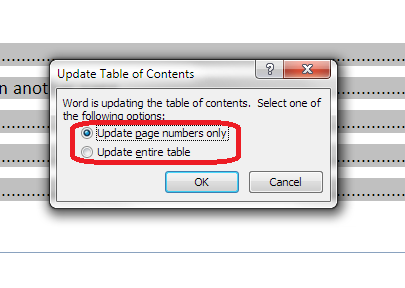
Whether the editor or writer is updating the Table of Contents, once you’ve clicked on Update Field, you are given the choice of Update page numbers only or Update entire table:

update page numbers or all fields

It is vitally IMPORTANT that you choose “Update entire table”. This will update any changes to the headings and any changes to the page numbers. If you click on “Update page numbers only”, and any headings have been changed in the text, this will NOT be reflected in the Table of Contents.

For authors: updating your Table of Contents when your work has been edited

  • Always update your Table of Contents when your work comes back from your editor, unless they have told you that they’ve already done it
  • Always choose “Update entire table” to make sure that everything in the Table of Contents matches your actual document

For editors: updating or instructing on editing the Table of Contents

  • Always leave a note for the writer explaining what you’ve done or what you need them to do
  • If you are updating the Table of Contents yourself, always choose “Update entire table” to make sure that everything in the Table of Contents matches the actual document (I would still leave a reminder for the writer to do the same after they’ve made any final changes)
  • If you need the writer to update the Table of Contents once they have dealt with your suggestions, leave a note explaining that, and make it clear that they must “Update entire table” when doing so

—–

This article has discussed issues around updating a Table of Contents when a document is edited. if you have enjoyed this article or found it useful, please share it using the sharing buttons below.

Other relevant posts on this blog:

How to create a contents page in Word

Tables of figures and tables of tables

How to update a Table of Contents, Figures or Tables

 
3 Comments

Posted by on July 22, 2015 in Errors, New skills, Word, Writing


Tags: , , , ,

How to update your Table of Contents, Table of Figures or Table of Tables

This article explains how to update the Table of Contents (Contents Page) or Table of Figures or Table of Tables in your Word 2007, 2010 or 2013 document, which could be a report, dissertation, thesis, book or anything else. To find out how to create a Table of Contents in Word, please refer to this article. To find out how to create Tables of Figures and Tables of Tables, please refer to this article. We’ll refer to it as “Table of Contents” in this article, but this works for all kinds of contents listings.

Why would I want to update my Table of Contents?

If you create a Table of Contents for a document but then change the actual document, it’s likely that you will also change …

  • One or more headings (maybe swapping between Title Case and Sentence case or just changing the wording)
  • What page a heading falls on (and all the other headings after it) (maybe by adding text or just moving a heading to join its text on the next page)

Although a Table of Contents will update to match the actual contents “automatically”, you have to tell it to do so. This is how to update your Table of Contents so that it matches what your reader will find in the actual document.

How do I update my Table of Contents?

First of all, hover your cursor over the Table of Contents. It should be highlighted in light grey. Right click on any part of the grey area:

update contents page word

This will give you a menu – you need to select Update Field:

update contents page - update field

Once you’ve clicked on Update Field, you are given the choice of Update page numbers only or Update entire table:

update page numbers or all fields

Choose wisely – see below! Once you’ve chosen, click OK and your Table of Contents will update!

When to update page numbers only in your Table of Contents

You might want to Update page numbers only if …

  • You are absolutely sure that you have only changed what text / heading is on what page (but you could still Update entire table anyway, just to be certain)
  • You have manually amended your Table of Contents (e.g. one heading was too long to fit on a line and you shortened it) AND you know you haven’t changed any heading text in the actual document.

In the second case, when you’ve manually amended the contents page, if you choose Update entire table, it will over-ride your manual change and replace it with the exact text that is in your heading in the main document, and you’ll have to manually update it again.

Apart from the case where you have manually edited the Table of Contents, I STRONGLY SUGGEST that you always choose Update entire table.

When to update entire table in your Table of Contents

I highly recommend that you always use this option. In this way, your Table of Contents will match the text of your document.

This is especially important to remember if someone else has amended and edited your document.

—–

In this article, we have learned how to update a Table of Contents, Table of Figures or Table of Tables. If you have enjoyed this article or found it useful, please share it using the sharing buttons below.

Please note, these hints work with versions of Microsoft Word currently in use –  Word 2007, Word 2010 and Word 2013, all for PC. Mac compatible versions of Word should have similar options. Always save a copy of your document before manipulating it. I bear no responsibility for any pickles you might get yourself into!

Find all the short cuts here

Other relevant posts on this blog:

How to create a contents page in Word

Tables of figures and tables of tables

 
7 Comments

Posted by on July 15, 2015 in New skills, Short cuts, Word, Writing


Tags: , , , ,

How do I change the numbering style of footnotes and endnotes in Word?

As part of my series on footnotes and endnotes, here’s how to change your footnote and endnote numbering styles on the go (e.g. while editing someone’s work, or when you change your mind, or when you’re working to a particular journal’s style and need to amend something you’ve already written)  in Word 2007, Word 2010 and Word 2013.

Why would I want to change my footnote or endnote numbering style?

The main reason to change your footnote or endnote numbering style is because of the style guide of whatever you’re writing the document for. For example, academic journals will usually have some form of Guidelines for Authors which will lay out (sometimes) the font, heading styles, reference styles and footnote styles that you are expected to use. If you’re re-using an article which has been rejected by another journal, or repurposing a chapter of your PhD, you might find that the style for one journal is different from what you’ve done previously.

Alternatively, you may just decide you would prefer to use roman numerals, arabic numerals, symbols or whatever for your footnotes or endnotes, and want to change them.

How to change the number format for footnotes/endnotes

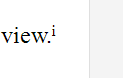
In this example, we’re starting off with some footnotes or endnotes that use roman numerals (i, ii, iii …):

footnote with roman numeral

Now, we want to change them to, for example, arabic numerals (1, 2, 3 …)

First of all, go to the Footnotes menu. This is in the References tab, and there’s a whole area called Footnotes:

Footnote menu

Click the little arrow at the bottom right of the Footnotes area to access the Footnote and Endnote menu. Once you’ve clicked on the little arrow, you should see this menu:

footnote menu dialogue box word

We can see lots of things we can do here, including changing the number footnotes start at, whether they restart every chapter, etc. (these more obscure details will be the subject of another article). But for our purposes, the important features are choosing whether you’re telling Word about Endnotes or Footnotes and telling Word what the number format should be.

In this case, we’re using Endnotes (although these instructions cover both), so I’ve clicked the radio button (circle) next to Endnotes. This tells Word that we’re using Endnotes and talking about the Endnote numbering.

Going down one section, you can see that at the moment, the Number format is set to i, ii, iii … To change this, click on the down arrow to the right of the box saying i, ii, iii … (if the Endnotes are set to 1, 2, 3 or a, b, c, this will display in this box):

footnote menu change style

Once you’ve clicked that arrow, you will be able to see all of the choices you have for your footnote or endnote numbering. Now click on the format that you want to use:

footnotes change numbering style word

The Number format will now change to the one that you have chosen. Once you have got the correct format in this box, click the Apply button to apply the changes:

footnotes apply change word

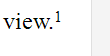
When we return to our document, the endnote numbering has changed from a roman numeral (i) to an arabic numeral (1). You can change this as many times as you want.

footnote with correct style word

This article has explained how to change the number format in your footnotes or endnotes.

Related posts from this blog:

How to insert and format footnotes

How to insert and format endnotes

How to swap between using footnotes and endnotes

Please note, these hints work with versions of Microsoft Word currently in use – Word 2007, Word 2010 and Word 2013, all for PC. Mac compatible versions of Word should have similar options. Always save a copy of your document before manipulating it. I bear no responsibility for any pickles you might get yourself into!

Find all the short cuts here

 
30 Comments

Posted by on June 3, 2015 in Errors, New skills, Short cuts, Word, Writing


Tags: , , , , , , , , ,

Why do transcribers charge by the audio minute, not by the word?

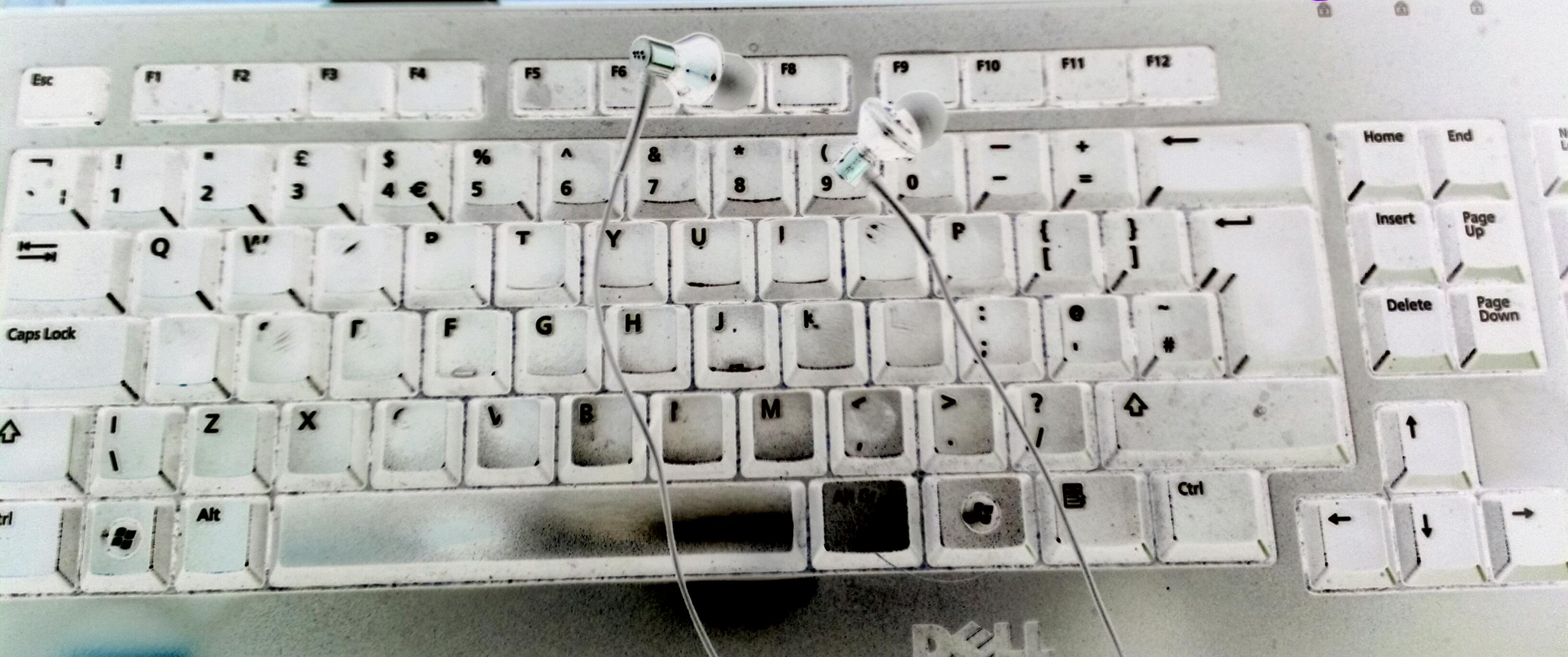
keyboard earphonesWhat is the industry standard and fair way to charge for transcription work? Why do transcribers charge by the audio minute rather than by the typed word? This article explains why and offers a fair and standard pricing structure, too. It’s part of a series, and you can find the other articles in the series and a link to my popular book on the subject at the bottom of this article.

I was working with an agency on presenting an offer for a transcription job to a company. As usual, we provided a per-audio-minute rate. This works well and is the industry standard, as it’s predictable in advance and doesn’t change according to how long it takes the transcriber to do the job (of course, it’s up to the transcriber to check the tape and make sure they’re charging a per-minute rate that’s fair to them and the client. Mine is based on two speakers, a clear tape and non-urgent turnaround time, with fair and transparent add-ons per minute for more speakers / tape issues / urgent turnaround).

In this case, the client wanted a quotation by the number of words typed and/or the time it was going to take me to transcribe the tape. So they wanted to know my words-per-minute typing speed for a standard transcription.

Is there such a thing as a standard transcription speed?

In a word: No. There is no such thing as a standard transcription typing speed.

For a start, the speeds you can calculate from your own documents are not worked out in the same way the typing test people work out your official typing speed. That’s done on the basis of a standard five-letter word plus one space (I worked this out, because I’m like that, and a document that showed as 11,582 words would be 10,459 “standard words” which gave me a typing speed of 50 or 45.5 words per minute).

For another thing, the typing speeds you are measured on as a copy-typer are different from those you can achieve doing audio typing / transcription. I can type at about 70 wpm, but my transcription speeds vary WILDLY, as you can see below. If a client is used to hearing about a good typist typing 70 wpm, are they going to be impressed if we offer them a price based on 35 wpm? Probably not.

Of course, when transcribing, it’s rare to be able to keep up with the speakers without pausing the tape. It’s also rare to be able to hear everything perfectly first time – everyone has to rewind and check. In addition, a good transcriber will fact-check as they go along – company names, people’s names, the names of albums … and this slows things down, too, of course.

In addition, it’s completely impossible to calculate a standard transcription speed as it will vary according to

  • Number of speakers
  • Accents of speakers
  • Speed that the speakers speak
  • Turn-taking versus overlapping speech
  • Background noise
  • Quality of the tape
  • Degree of accuracy / in-transcription editing the client wants (e.g. turning non-standard English into standard English, transcribing every um, er and repetition vs. tidying the tape up slightly to not include ums, ers and repetitions)

I actually went back and checked a few transcriptions that I’d done recently (I note how long jobs take me and could take the word count from the Word document. My words-per-minute varied between 35 wpm and 60 wpm over a range of transcriptions, and that variation was not predictable by the type of client or the type of content (I do mainly journalists’ interviews and corporate work transcribing presentations, videos and conferences).

What is a fair way to charge for transcription?

The fair way to charge for transcription is by the audio minute. This is fair on the transcriber, if they have a range of pricing to suit different situations, and is fair for the client because they will in most cases know the charge up front (an exception to this would only come if they booked in 30 minutes and sent 90 minutes of tape with more speakers than expected and suddenly super urgent: if the client specifies exactly what they have, the transcriber will be able to quote clearly in advance for them).

I charge …

  • A minimum rate per audio minute for up to 2 speakers, speaking clearly on a good quality tape and not urgent (with 24 hours for up to a 60-minute tape)
  • A certain amount extra per audio minute for each additional speaker
  • A certain amount extra per audio minute for a particularly challenging tape quality (checked beforehand and only used if it’s a truly terrible tape or with huge amounts of background noise)
  • A certain amount extra per audio minute for urgent turnaround (under 24 hours for up to 60 minutes; negotiable over that tape length)

This charging structure has worked well for me over my transcription career so far.

If you are asked to provide other kinds of pricing, do bear in mind my points above, and feel free to refer your client to this article to explain further!

If you’ve found this article useful, please click to share!

If you want to learn more about Transcription as a career, buy my book: A Quick Guide to Transcription as a Career – buy from Amazon UK or visit the book’s web page for worldwide links and news.

Related posts in the series:

How do you start a career in transcription?

Why you need a human to do your transcription

Being a professional transcriber – software to use to help

Ten top tips for transcribers

 
21 Comments

Posted by on May 20, 2015 in Business, Jobs, New skills, Transcription, Word


Tags: ,

MailChimp 4 – how to create a template for your newsletter

Welcome to Lesson 4 in my MailChimp series. Following on from MailChimp 1 – Signing up, MailChimp 2 – Setting up your list and importing contacts, and MailChimp 3 – Creating a sign-up form, this time we’re going to learn how to create a simple template for a newsletter.

Why do I need a template for my newsletter?

Setting up a template means that you save a lot of time each time you send out your newsletter. You can spend all the time creating a lovely template once, then just pop the text in each time you want to send a newsletter out.  It also means that you can import a branded template created for you by a designer which includes your specific brand, colours and messages.

How do I create a MailChimp newsletter template?

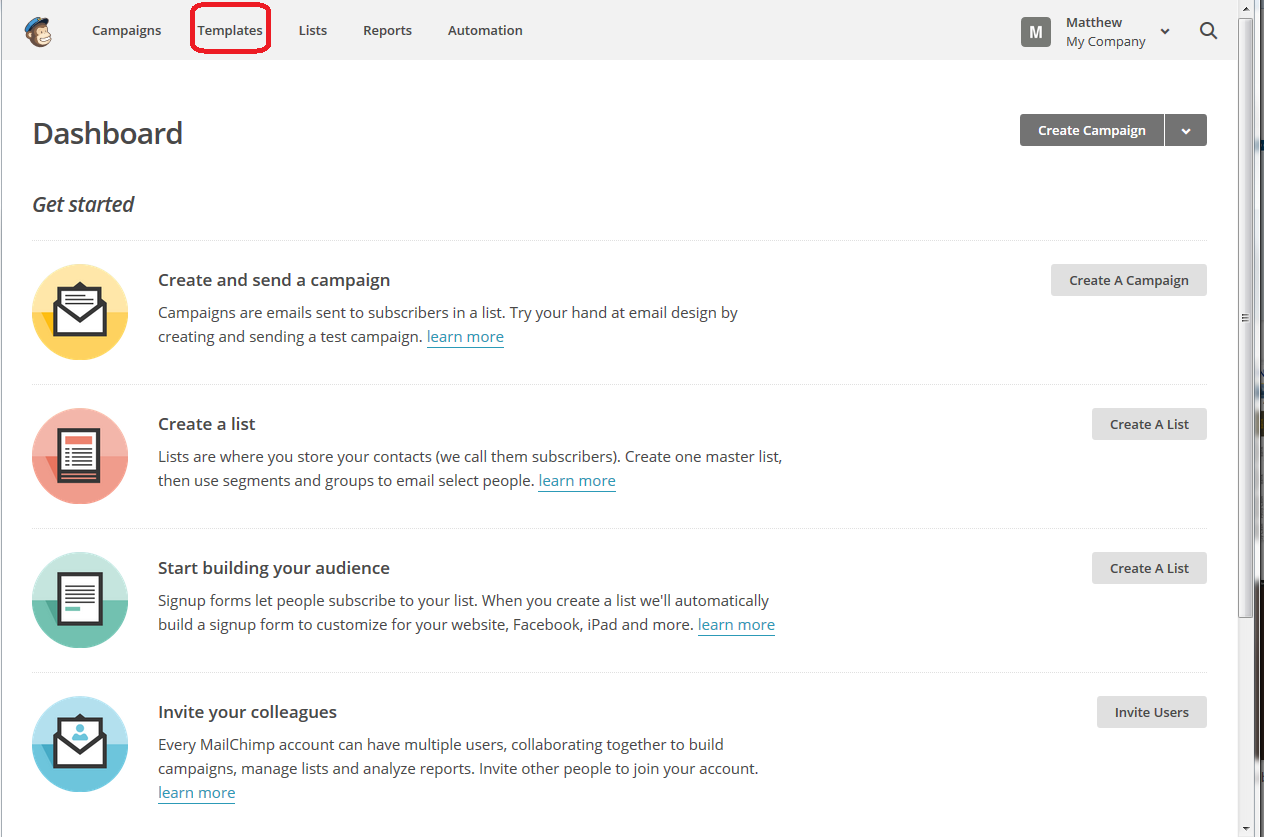
You can find the Templates area in the top menu on MailChimp:

MailChimp templates menu

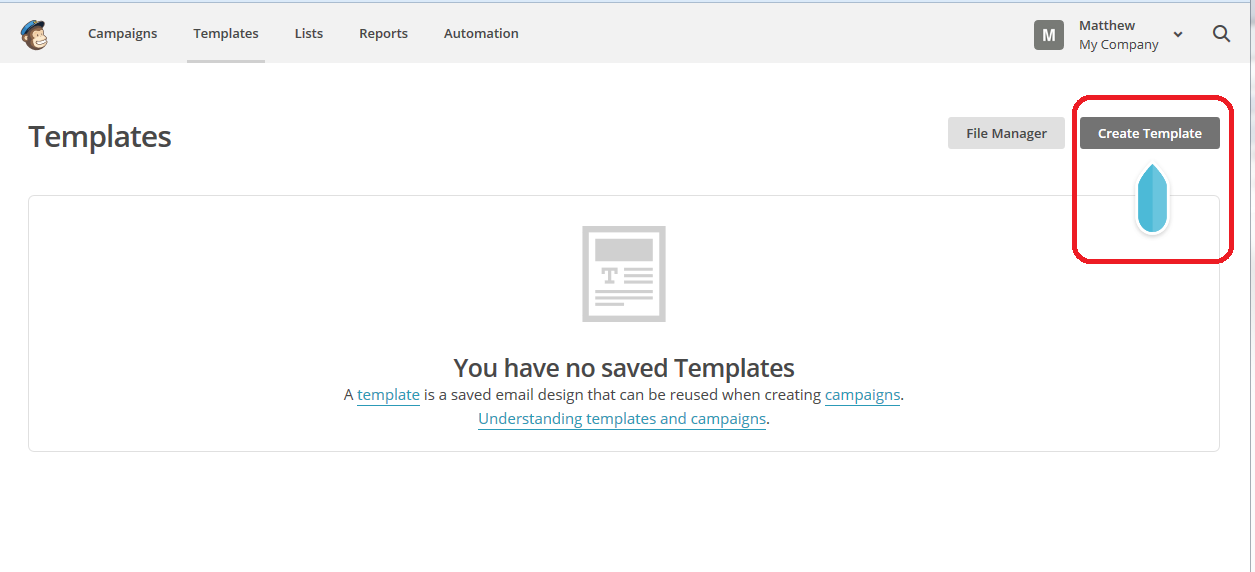
If you haven’t already created any templates, you will find a message that You have no saved Templates and a handy arrow pointing to the Create Template button. You can always use this Create Template button even if you have previously created a template; it just won’t have an arrow pointing to it.

MailChimp create template

Starting off – choosing a style for your template

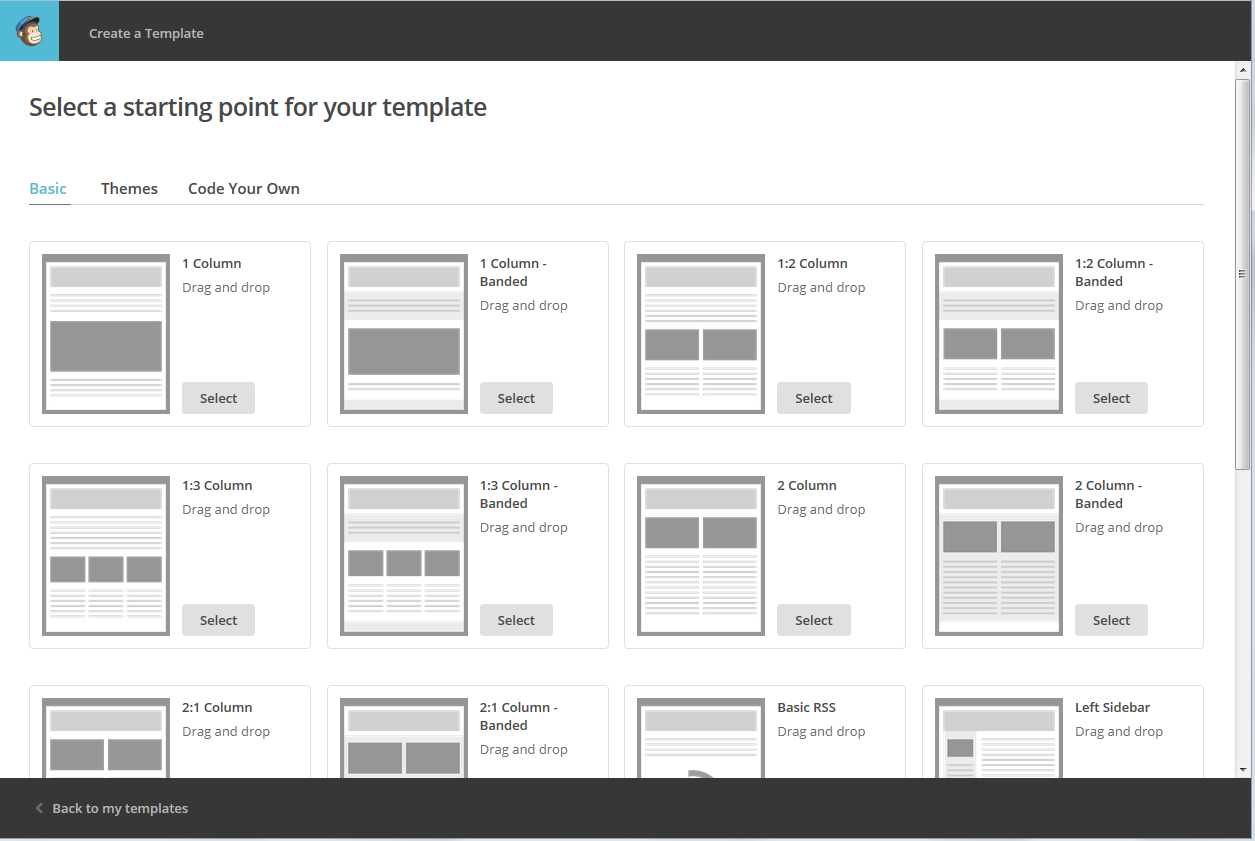
Once you’ve clicked Create Template you will be walked through choosing a design.

You can see here that you can choose Basic, Themes or Code Your Own.

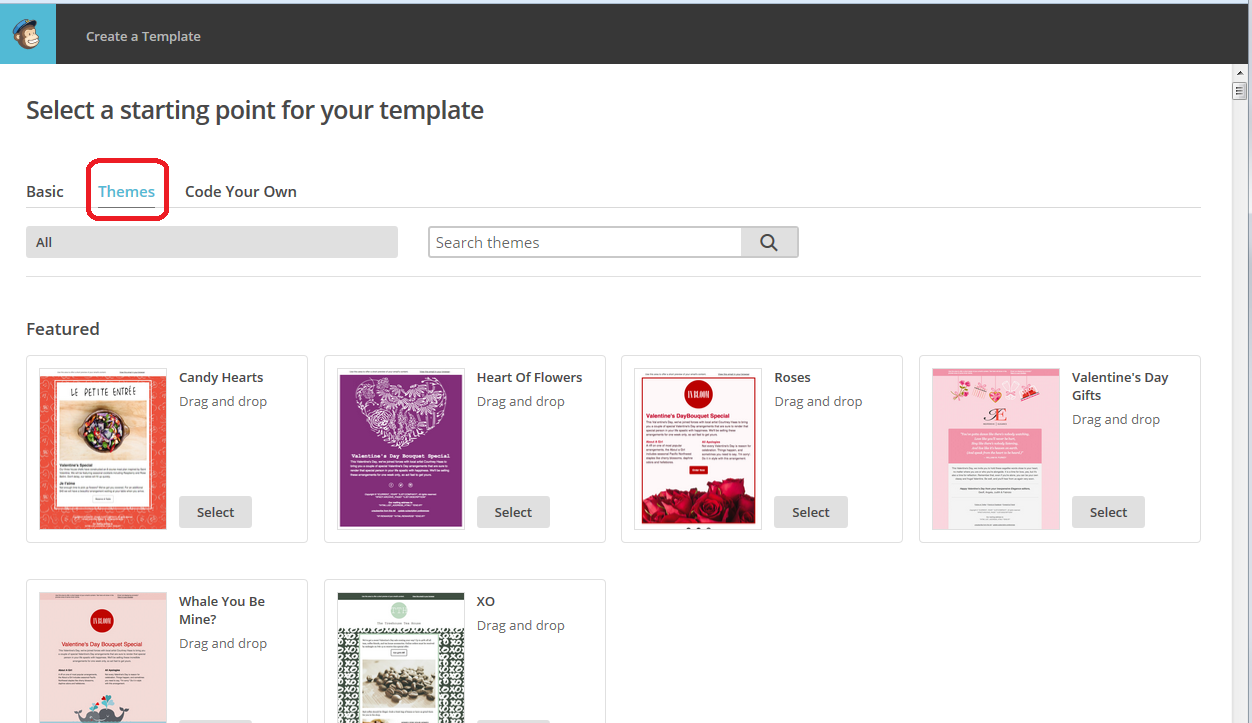
Basic, seen here, gives you a range of layouts for your newsletter. You can have one or two columns,  or a combination of any number of columns and layouts. We’re going to use one of these eventually, but let’s have a look at the other options. If you click on Themes

MailChimp choose template

Themes gives you colourful backgrounds that might inspire you or might be a bit much – it’s all down to personal choice. The default view will be the Featured themes, which is presumably those that are new, but you can navigate the whole set of themes in different ways.

MailChimp choose template

For example, click on All and you can see particular themes, for example if you wanted to create a birthday or wedding newsletter, and various other categories. You can also use Search themes to search for particular colours, etc.

MailChimp choose template

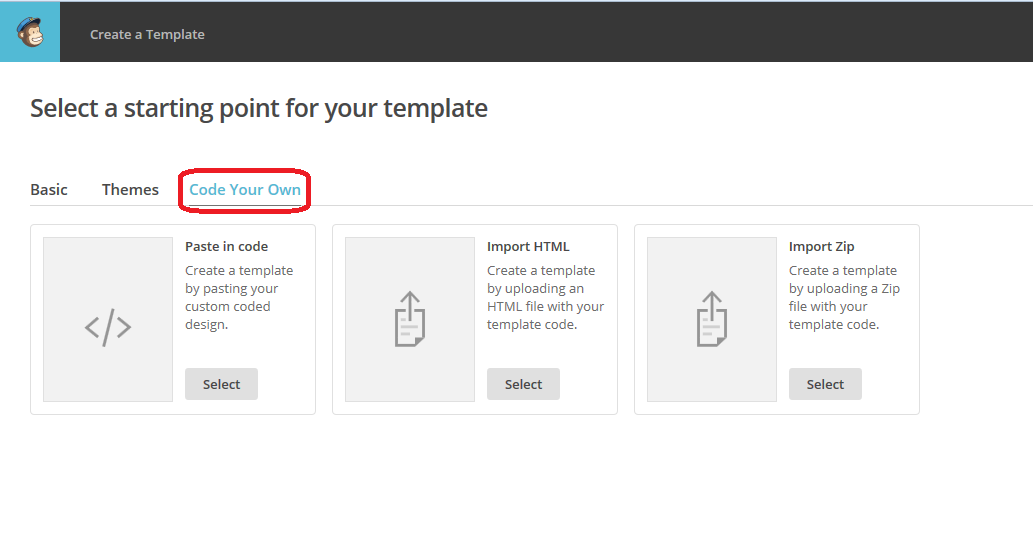
To take a quick look at the Code Your Own tab, this is where you can drop in a template that someone else has coded and designed for you (there are a few companies out there offering this service) or one that you’ve designed yourself. Select the appropriate option, paste in or upload your design, and there’s your template, ready to use! (in this case, now skip to How to save your MailChimp template.

MailChimp choose template

How to create a basic template in MailChimp

OK, having had a look around the options, we’re now going to set up a basic template.

We’re back at the Basic tab, and I’m choosing the third option on the top row, as that’s how I’d like my newsletter to look. Click on the Select button to choose that layout:

MailChimp choose template

And once you’ve selected your layout, you can get on with customising it.

Customising your MailChimp template

Once you’ve chosen a layout, now it’s time to customise it. Luckily, MailChimp will walk you through the process.

You can see from this screenshot that you have the template on the left-hand side and a set of options that you can drop into that template on the right. Each block can contain anything you want it to, but you’ll see that the layout is the same as the one I chose in the previous stage.

MailChimp customise template

To add a section of text to your newsletter template, click on Text on the right, hold the mouse button down, drag it to where you want the text to be, then let to go to drop it in. Simple! (hopefully). But what if you want to add images?

How to add an image to your MailChimp template

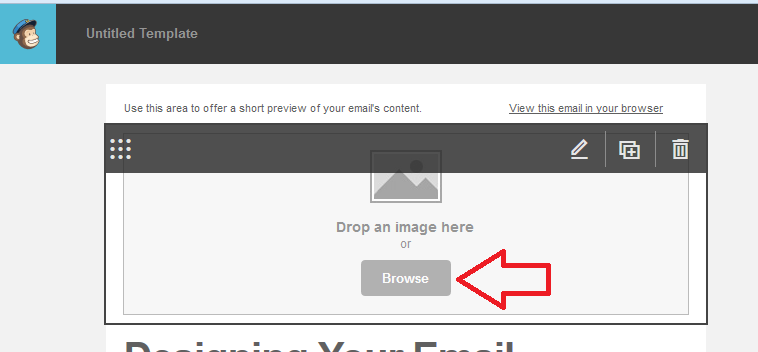
If you want to add an image to a block of your MailChimp template, you can click the Browse button in the middle of the template (or drag an image there if you have a folder of images open at the same time – most people do it this way).

MailChimp customise template

Browse will take you to the folders in your own computer, so you can navigate to your chosen image and double click it to add it to the block:

MailChimp customise template add image

If you want to edit or replace the image, hover over it and you’ll see an Edit icon. In the right-hand part of the screen, you will have the option to Replace Edit Link Alt. Too many screen shots spoil the post, so I’ll leave you to explore these options with a guide:

  • Replace will allow you to replace this image with another one
  • Edit will allow you to resize the image or edit its metadata
  • Link will allow you to apply a link to the image, meaning that when your reader clicks on the image, they will be taken to another website – you might use this with an image of your logo (taking them through to your website) or a product you sell (taking them through to a buying page)
  • Alt will allow you to add Alt(ernative) text to the image. This is text that you can provide explaining what the image is. This is useful both for readers who have opted to receive plain-text newsletters (if they can choose this option on your sign-up form) and will see text rather than a broken link, and for readers who might have a visual impairment and be using a text-reading program – they will have this description read to them

MailChimp customise template add image

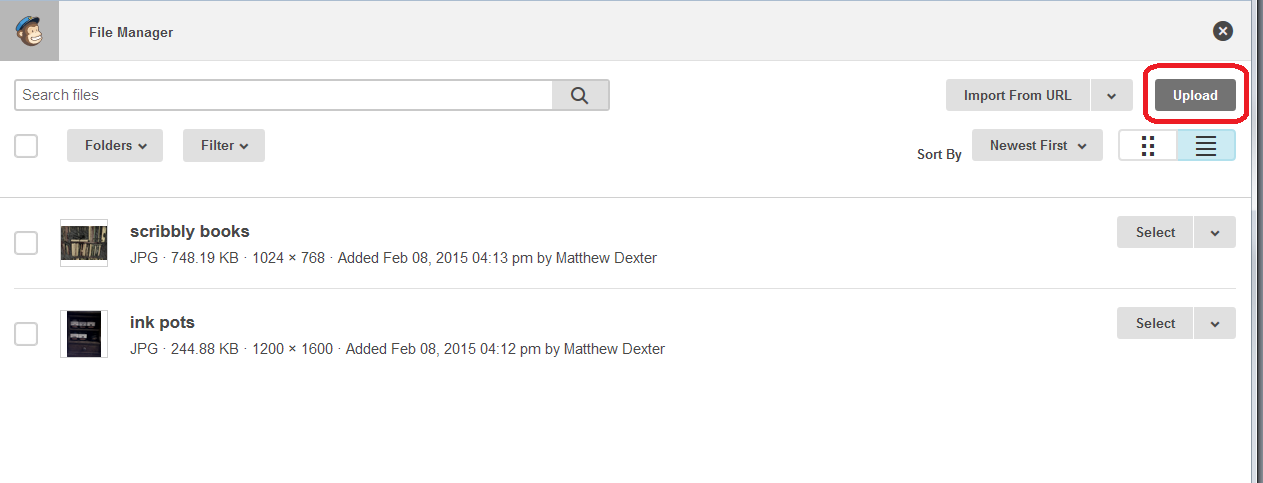
Once you’ve used images in your template once, they will be available to use in the File Manager, so if you’ve clicked Replace, you can pop there to choose a different image and Upload it.

MailChip amend customise template

How to add social media buttons to your MailChimp template

Another popular option for newsletters, and you’ve probably seen this on ones you read, is to have social media buttons on the newsletter which take readers through to your Facebook and Twitter streams or website.

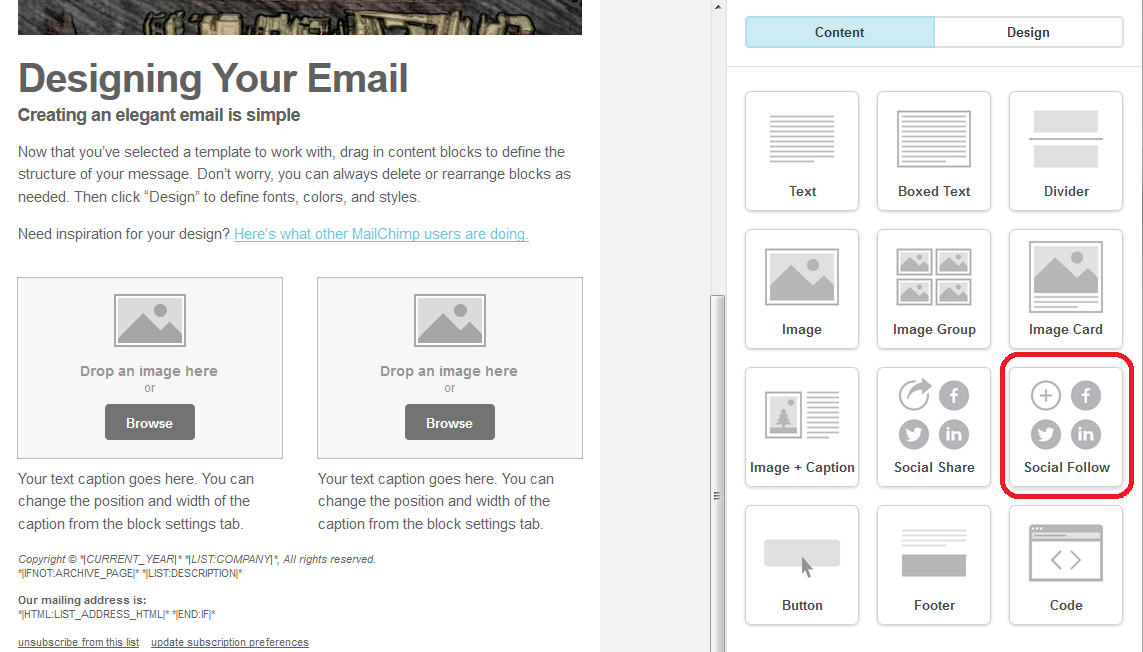
To add social media buttons to your template, find the Social Follow section in the Content options (Social Share, by the way, allows readers to share your newsletter on their social media platforms – if you want people to click through to your Facebook etc. page, use Social Follow):

MailChimp template social follow

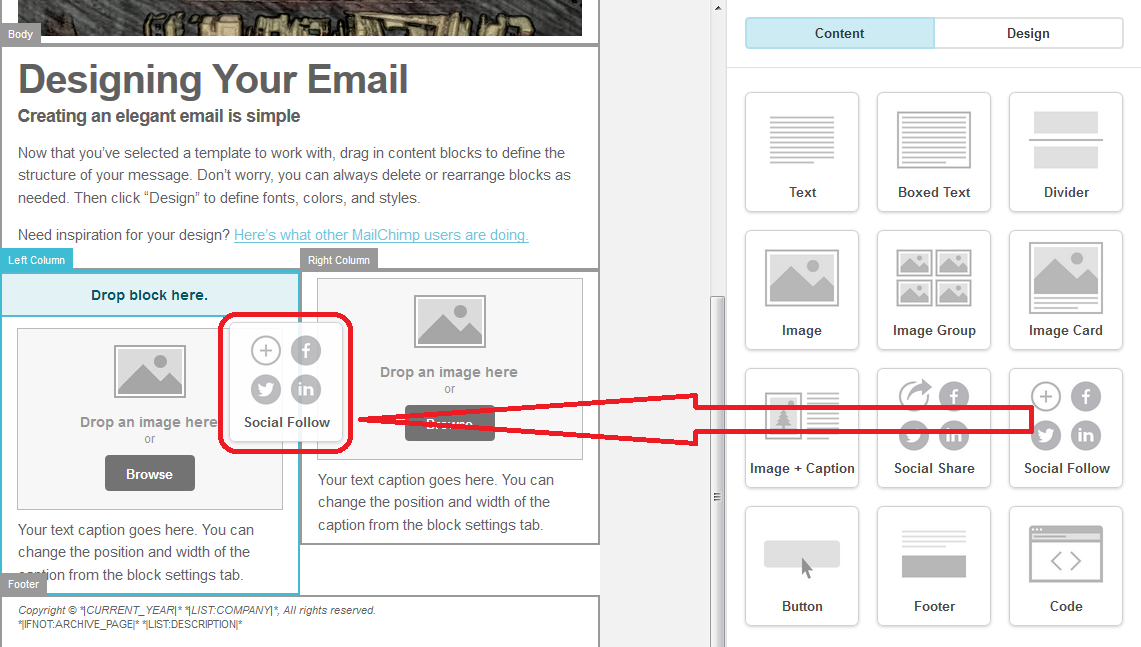
Click, hold the mouse button down, drag and drop it where you want to place it in your template:

MailChip  template social follow

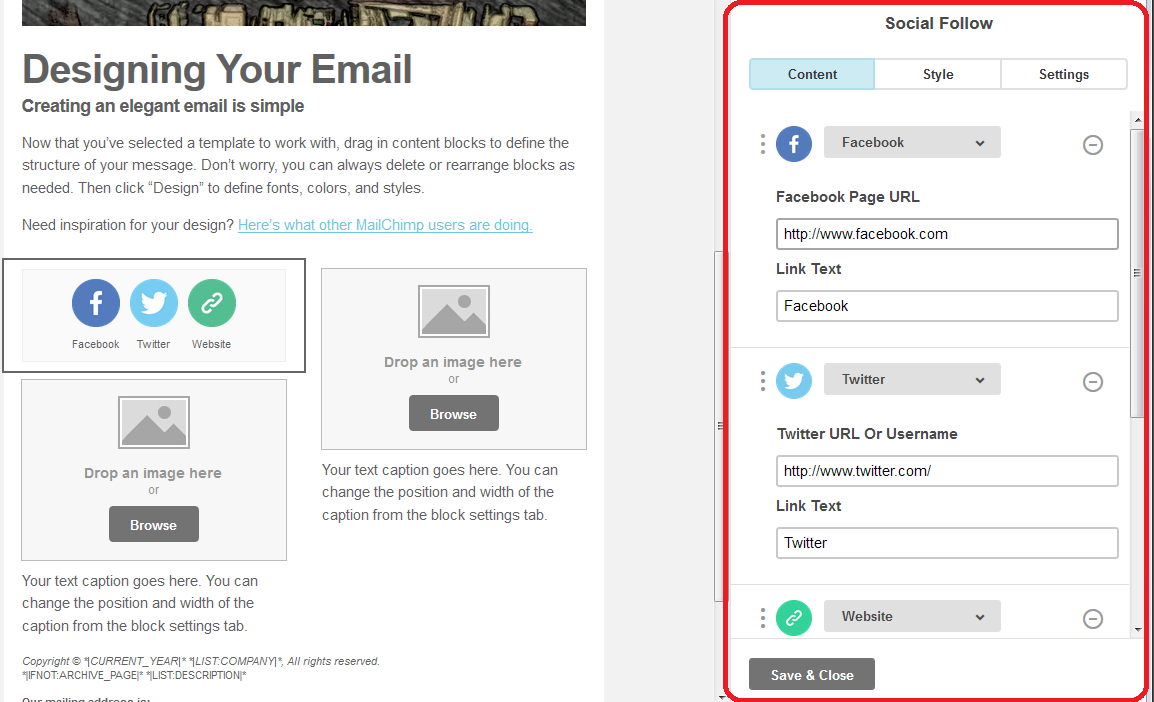
When your buttons are in your template, the right-hand section will change to allow you to personalise these links. Add your own Facebook page, Twitter stream and website URLs to this section and press Save & Close. This will make sure that the buttons click through to your own presence on the social media platforms:

MailChip  template social follow

Now continue to add sections to your template until you’re happy with how it looks.

How to save your MailChimp template

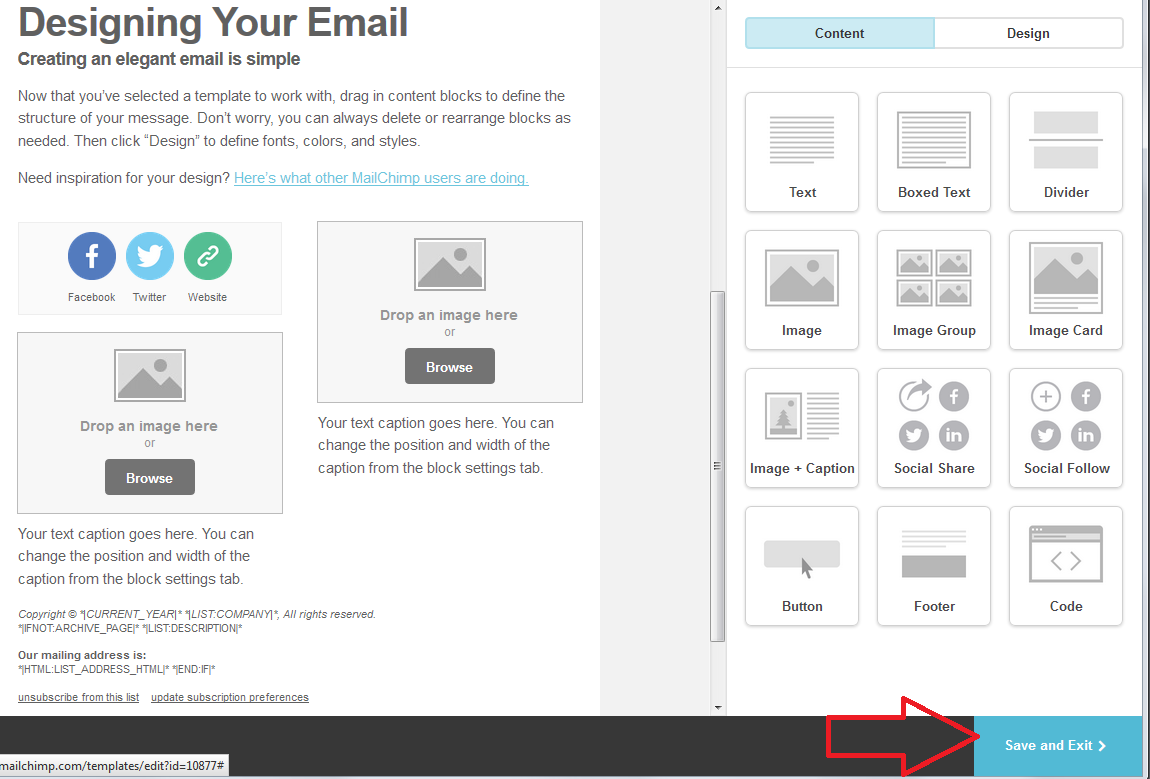
Once you’ve finished designing your template, hit Save and Exit in the bottom right-hand corner of the screen:

MailChimp template save

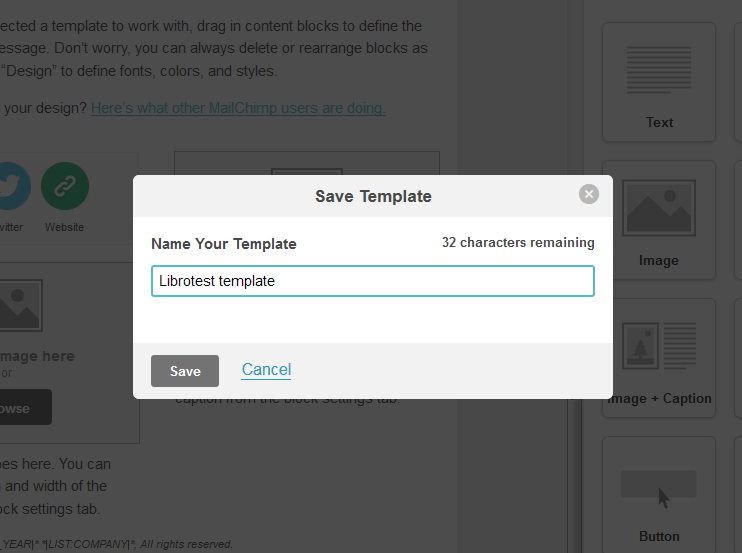
You will be prompted to give your template a name at this point. Make sure it’s clear and easy to identify – maybe you’re going to create one newsletter about the fairy pictures you paint and one about the steampunk watches you make, in which case you’d label them accordingly. Then hit Save.

MailChimp template save

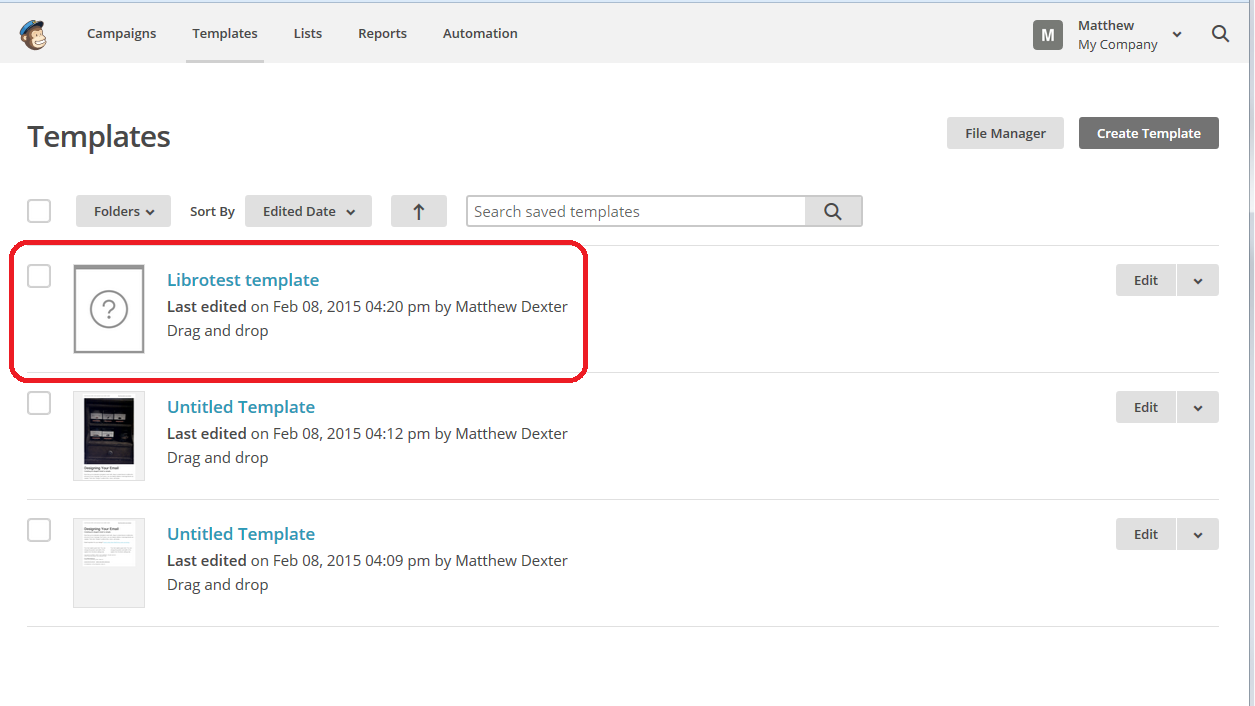
Now we’re back in that Templates area, but now you’ve got your new template saved in the list (note that the Create Template button is still there for next time you want to create a new template).

MailChimp template list of templates

What are those other files? MailChimp handily autosaves your templates in the background as you’re going along, so you can pick up where you left off if everything goes wrong. You can see it saved at 4.09 and 4.12. These should disappear next time you go into the Templates area – if not, you can use Edit then delete to remove them.

How do I edit a MailChimp template?

If you want to edit your template, hit the Edit button to the right of the template name and you’ll be taken back into the Template Editor screen.

——

In this article, we’ve learned how to set up a simple MailChimp newsletter template that you can choose when it’s time to send out your first newsletter. The other MailChimp articles will be listed below as I add them to the blog. You can find a growing set of articles on blogging, social media MailChimp etc. in my resource guide. Do click on the share buttons below or comment if you found this article interesting or useful!

Other relevant posts on this blog:

MailChimp 1 – Signing up

MailChimp 2 – Setting up your list and importing contacts

MailChimp 3 – Creating a sign-up form

How to avoid two common mistakes when using MailChimp

 
4 Comments

Posted by on March 4, 2015 in Business, Marketing, New skills, Newsletters


Tags: , , ,

MailChimp 3 – setting a sign-up form for your newsletter subscriber list

Welcome to Lesson 3 in my MailChimp series. Following on from MailChimp 1 – Signing up, and MailChimp 2 – Setting up your list and importing contacts, this time we’re going to learn how to create a sign-up form to allow people to consciously and willingly sign up to receive your email newsletter.

Remember, once you set up a subscriber list, there are two ways to populate it:

1. Import members from a previous mailing list (ensuring that you have their explicit permission to send them marketing communications)

2. Offer people a sign-up form via which they can choose to sign up for your newsletter.

I prefer Option 2, and we’re going to find out how to do that now.

How do access the MailChimp contacts list area?

As a quick reminder (full details are in this previous article), when you sign in to MailChimp, you will find Create a List on your front screen, but at any time, you can click on Lists at the top to get into the Lists area:

MailChimp lists area

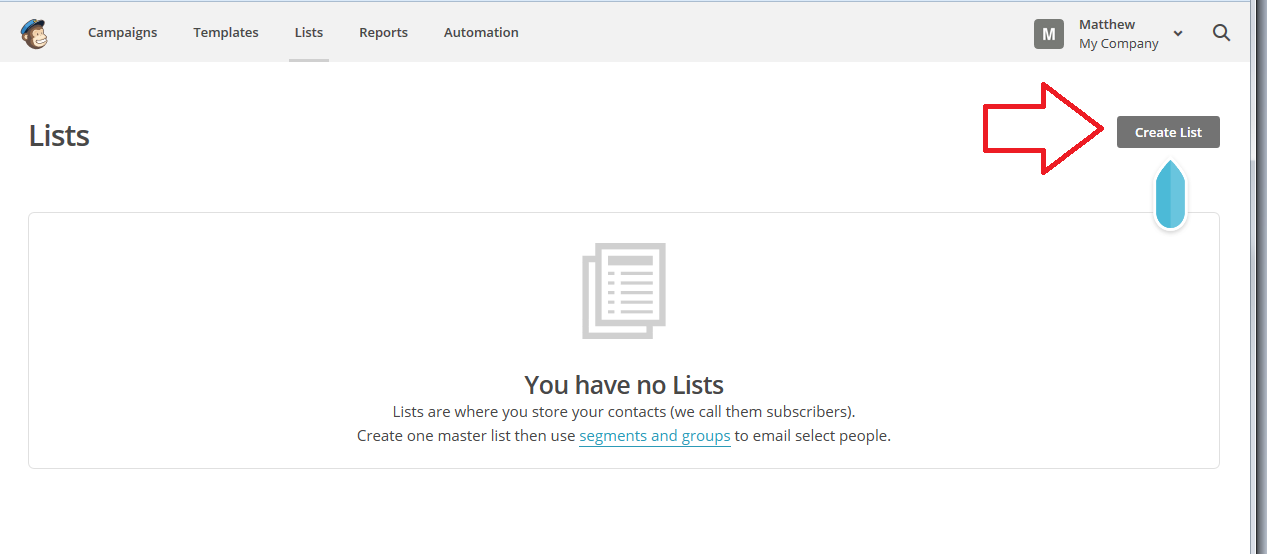
Once you’re in the Lists area, if you have any lists set up, they will show here, and if you are going in to do this for the first time, you will see that You have no Lists, and be pointed to the Create List button:

MailChimp create list

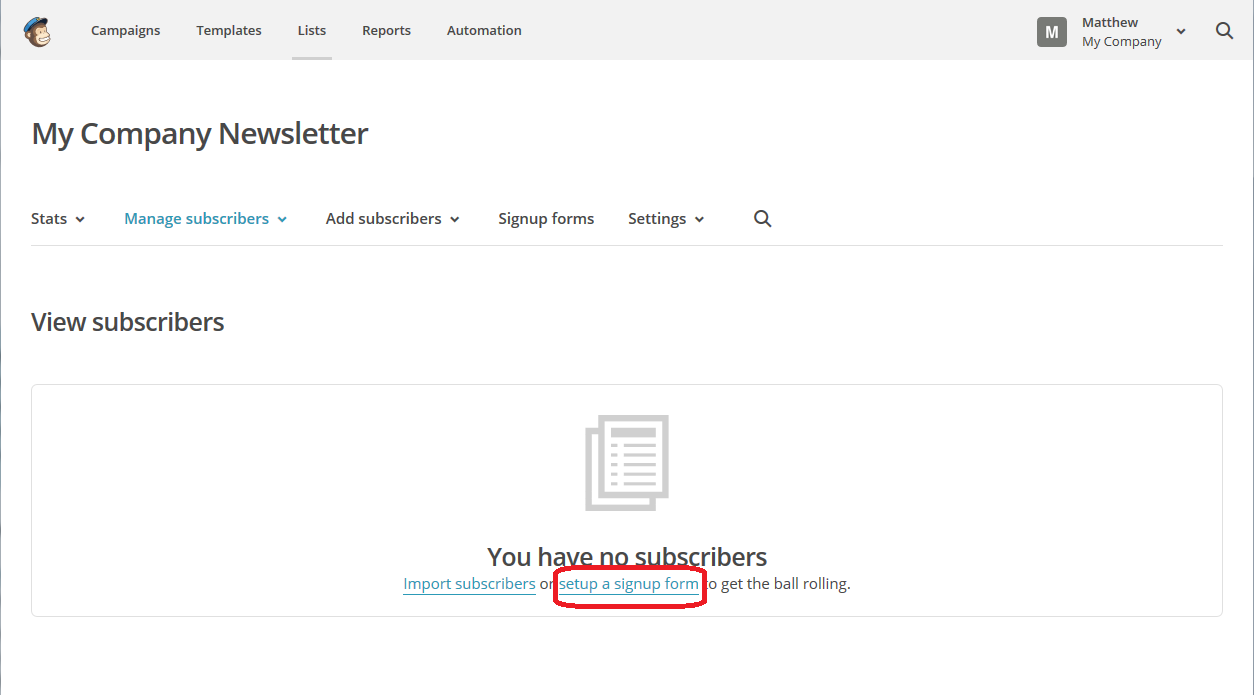
Once there, you have an option to click on setup a signup form (or set up a sign-up form, even), so click there:

MailChimp sign-up form

You will now find a few options on forms to create – all of them are designed in the same basic way, but some can be embedded into your website. For now, we’re going to create a General Form which will come complete with its own URL to which you can direct people from social media, your website, etc. (see top right in the top of the sidebar for what that looks like in real life).

MailChimp create sign-up form

Once you’re in the Create Forms page, you can see at the top that you have a URL or web address. That will never change, and you can use that to direct people to your sign-up form. You can generate a QR code if you want to, by clicking on the button.

You can also see two options at the top: Let subscribers pick email format and Protect your signup form with reCAPCHA – I would recommend ticking both of these.

Let subscribers pick email format will give your subscribers the option to have emails delivered in plain text or HTML format. This means that if they’re using a slow Internet connection or don’t have much bandwidth, your newsletter will be sent to them in a text-only form, without the pretty pictures (this means you’ll need to make sure to add description and alt-text to any pictures in your newsletter), and just gives them more options.

Protect your signup form with reCAPTCHA means that subscribers will have to manually click and tick a box to prove that they’re a real person. It protects you from automated signing up bots filling in your form and giving you false subscriber numbers. It’s all very accessible and offers alternatives, so I’d go for it. It shows people signing up that you’re serious and are protecting your list, too.

MailChimp sign-up form

Once you’ve filled in those details, you can go on to creating your sign-up form: let’s scroll down to have a look:

MailChiimp basic sign-up form

Now, in fact, you can just go with this form, as a very basic example. The subscriber will be able to enter their email address, first and last name and click to Subscribe to list. Simple. So you can actually leave it there.

But you might want to add more flourishes, text and options to your sign-up form – if you do, read on; if you don’t, then skip to the “What does my form look like in real life?” section near to the end.

How can I add more fields and text to my MailChimp sign-up form?

We’ve created a basic sign-up form but you might want more.

For a start, see that space where you can Click to add a message at the top? Here you can personalise the form and be a bit more friendly. Once you click in the text box, a text editor will come up – you can add all sorts of things in here, including links, images, etc. (this is the same text editor you will use when you’re creating your actual newsletter).

I’ve just typed some straightforward text in here – once you’ve added what you want, hit the Save & Close button

MailChimp add text to sign-up form

You will be returned to your Build It area, and you can see that the text has now appeared in that top section.

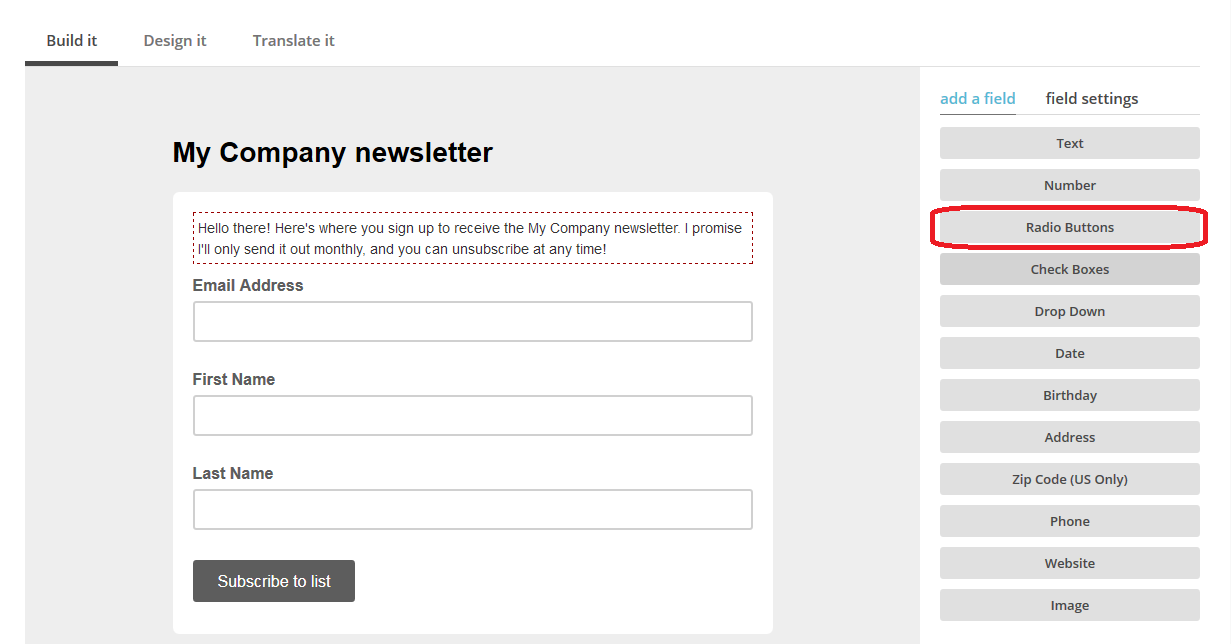
To add more options, such as collecting birthday dates (great if you’re a restaurant and want to collect that info to send out a special birthday meal offer) or full address if people are also signing up to have an item sent to them. Here we’re going to look at Radio Buttons, which gives you the option to give your subscribers choices about things …

MailChimp add text to sign-up form

What things do you want your subscribers to choose, you may ask. Well, although we’re not going to go into the ins and outs of getting people to sign up for your newsletter right here and now, it is common to offer subscribers a little freebie in return for their joining your newsletter (which is really a favour to you). For example, I offer subscribers a free pdf of a sample chapter from one of my books (as you’ll see in the final screenshot in this article).

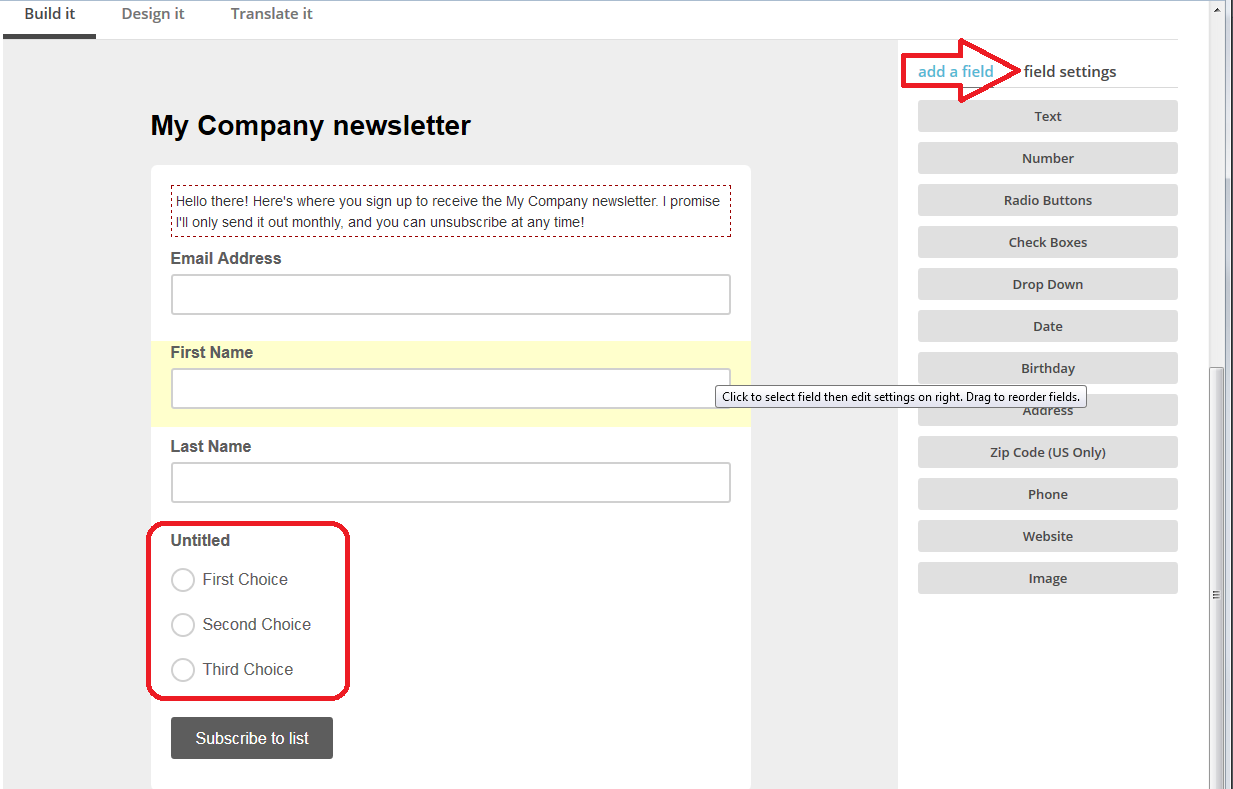
So, click on Radio Buttons and drag it across to between Last Name and Subscribe to List. There is is, in your sign-up form.

Now click on the field settings tab to personalise those choices:

MailChimp sign up form add fields

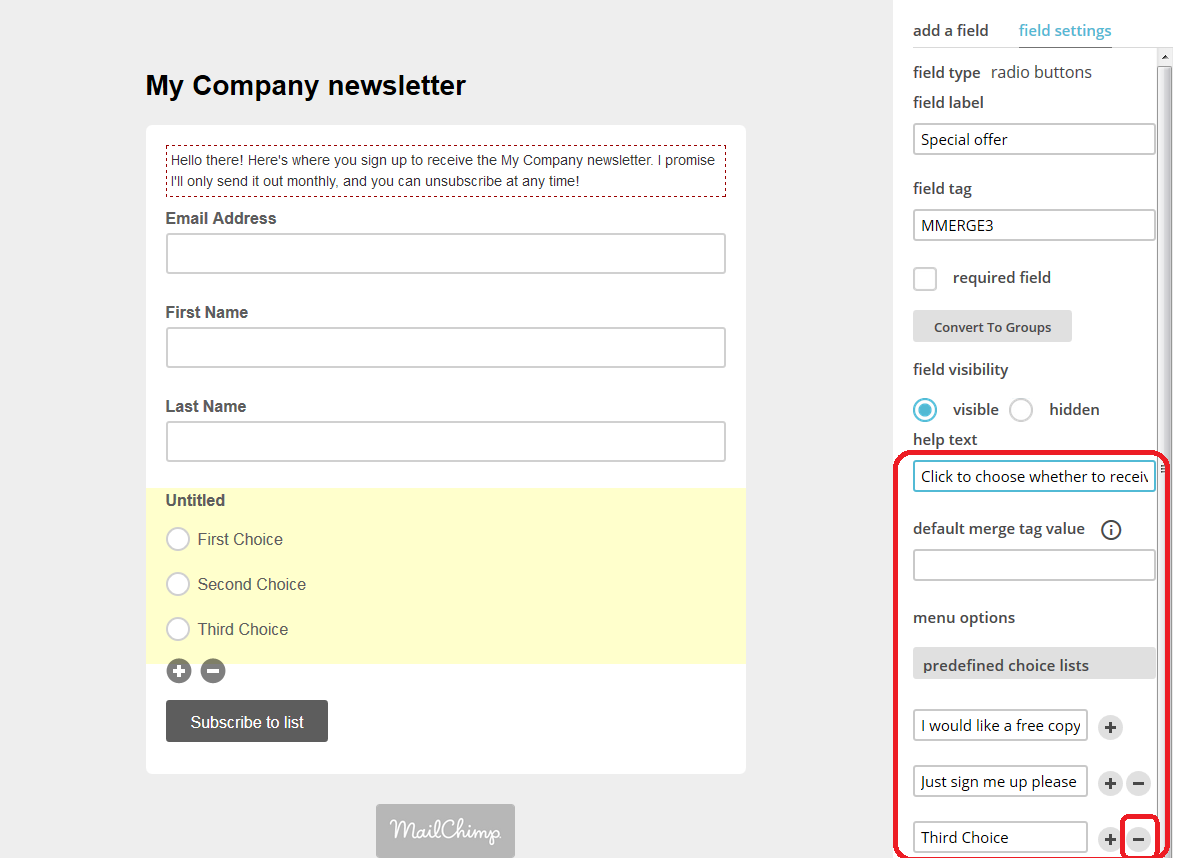
As you can see below, field settings allows you to give the radio buttons a name and to add text to those buttons, add and remove them, and generally personalise everything. Here I’ve  …

  • added help text to appear when the subscriber hovers over the buttons
  • added two choices as to whether they want to receive something
  • clicked on the minus button by the third choice, because I only want to offer two

MailChimp add fields to sign-up form

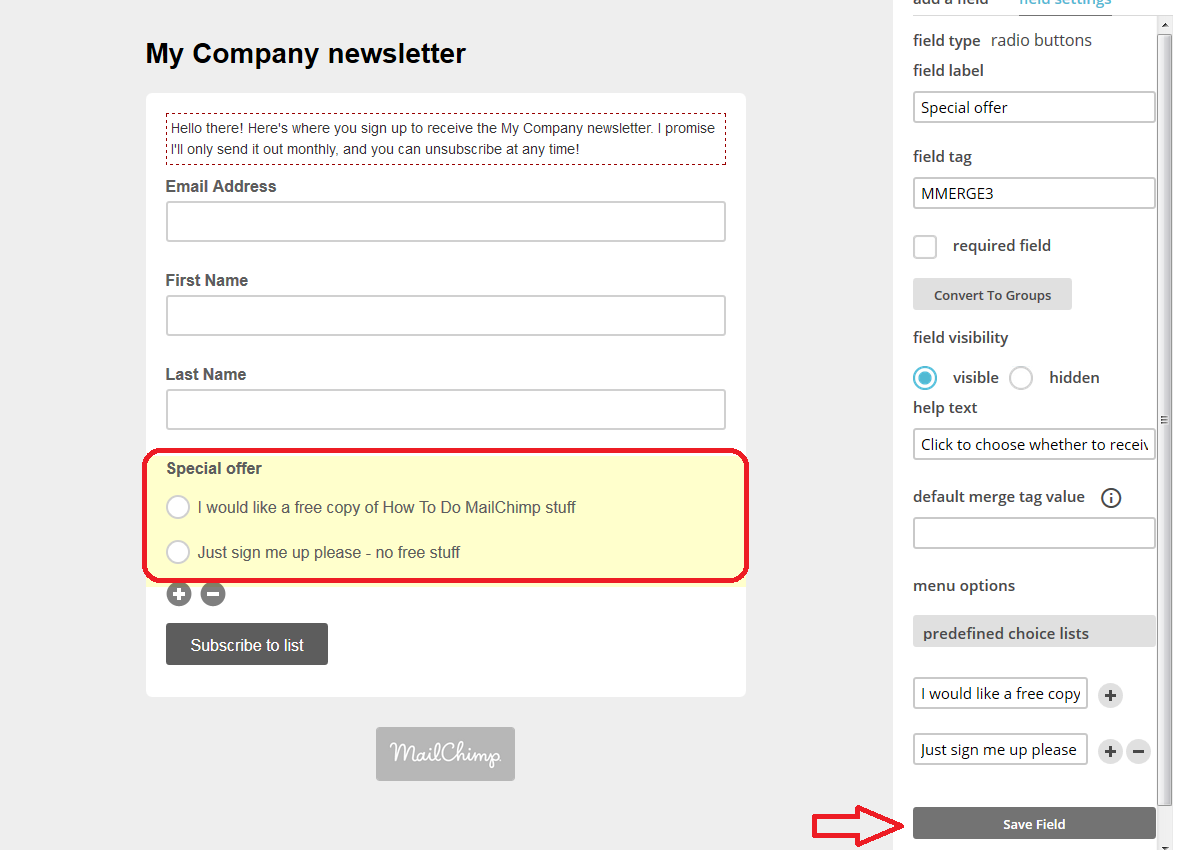
As you do this and press Save Field, there you can see just two choices, each with my text by it.

MailChimp add fields to sign-up form

You can see plus and minus buttons under this area – this allows you to delete it if you decide not to have it (note, when you press the minus, MailChimp demands that you type the word DELETE in a box – make sure you do that or you’ll get stuck in a loop of endless error messages. It’s trying to help you not to delete your careful design by mistake …).

And there we have it – it’s fine to play around a bit with the form, you can see how to drag different fields across and then delete them if you want to, so have a play around with it.

How do I get back to my MailChimp sign-up form to check the URL or edit it?

If you want to return to your sign-up form, choose Lists from the top menu, then click the drop-down arrow next to Stats and click on Signup forms:

MailChimp edit sign-up form

Once there, you can check your URL and amend your form if you want to.

What does my MailChimp sign-up form look like in real life?

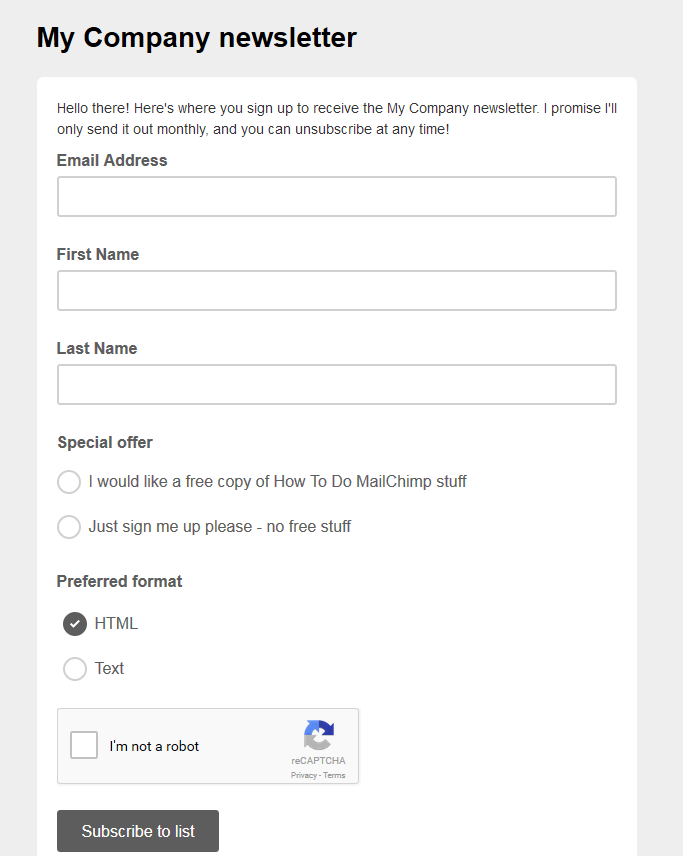
You’ve created your form – what does it look like to a new subscriber? Remember that URL at the top of the page? You can find that at any time by going to the signup forms page (see above section). Pop the URL in your browser address bar and you can see what your subscribers will see:

MailChimp sign-up form subscriber view

You can see the message we added and the options for receiving a free copy of something, receiving the newsletter in Text format, and a reCAPTCHA section which asks for a tick in a box, and a Subscribe to list button.

And what happens when you get a new subscriber?

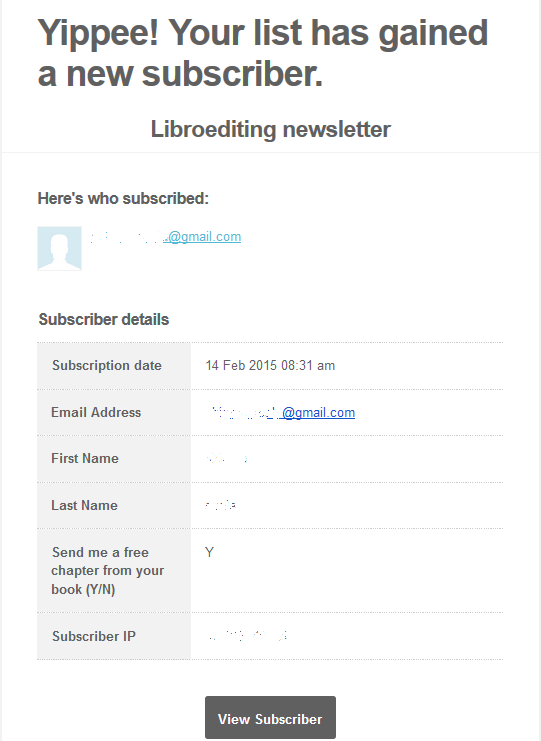
You will receive an email in your inbox which includes all of the information you asked for – this is one of my own, so the question is a little different, but you get the idea. Now I can email that person their sample chapter and they will receive my email newsletter until they unsubscribe.

MailChimp new subscriber email

If you’re not sure how to publicise your sign-up form, read this article!

In this article, we’ve learned how to access the Lists part of MailChimp and set up a sign-up form. The other MailChimp articles will be listed below as I add them to the blog. You can find a growing set of articles on blogging, social media MailChimp etc. in my resource guide. Do click on the share buttons below or comment if you found this article interesting or useful!

Other relevant posts on this blog:

MailChimp 1 – Signing up

MailChimp 2 – Setting up your list and importing contacts

MailChimp 4 – setting up your newsletter template

MailChimp 5 – Linking to your sign-up form

How to avoid two common mistakes when using MailChimp
 
6 Comments

Posted by on February 19, 2015 in Business, Marketing, New skills, Newsletters


Tags: , , ,

MailChimp 2 – setting up your list and importing contacts
Welcome to Lesson 2 in my MailChimp series. Following on from MailChimp 1 – Signing up, this time we’re going to learn how to set up the list of people to send your newsletter to.
There are two ways to populate your list:

1. Import members from a previous mailing list (making sure that you have their explicit approval and permission to send out marketing materials to them)

2. Offer people a sign-up form via which they can choose to sign up for your newsletter.

I prefer Option 2, but I’m going to go through option 1 with you in this article then write about setting up a sign-up form next time (if you’re reading this day by day, you will only have to wait two days, don’t worry!).

Why do I need to create a list in my MailChimp account?
Put simply, you need to give MailChimp a list of people to send your newsletters to. It’s as simple as that, and is the second stage in signing up for an account.
Don’t worry if you don’t have an email list to import – you can start off with an empty “list” and a sign-up form that will fill it for you.

How do I create my MailChimp contacts list?
When you sign in to MailChimp, you will find Create a List on your front screen, but at any time, you can click on Lists at the top to get into the Lists area:

MailChimp lists area
Once you’re in the Lists area, if you have any lists set up, they will show here, and if you are going in to do this for the first time, you will see that You have no Lists, and be handily pointed to the Create List button:

MailChimp create list

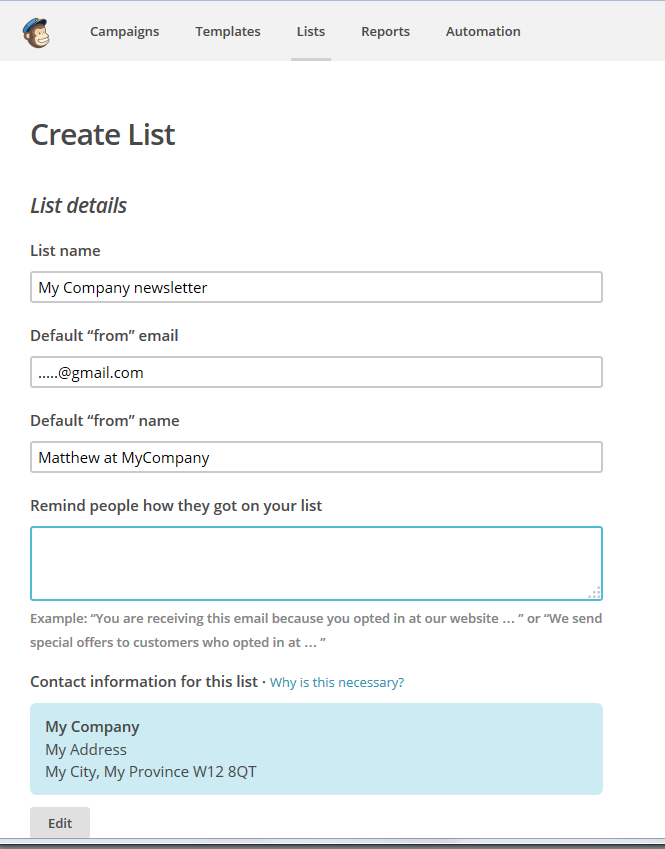
Once you’ve pressed Create List, you will find yourself in a screen that allows you to create a list. Note here that you can create more than one list, for example, maybe one for customer newsletters and one for general or prospect ones, or I might create one for my social media tips readers and one about my books. For now, we’ll just create one called “My Company Newsletter”.

You can fill in the list title and your email address to show in the “from” section of your readers’ email clients, and you will want to pop a name in to show who it comes from – I always advise using a real, human name, not just a company name.

Remind people how they got on your list gives you a place in which to reassure people that they have signed up for this newsletter and they are not being spammed (you’ll see that I’ve filled this in on the final screenshot – it won’t let you proceed if you don’t).

MailChimp list details
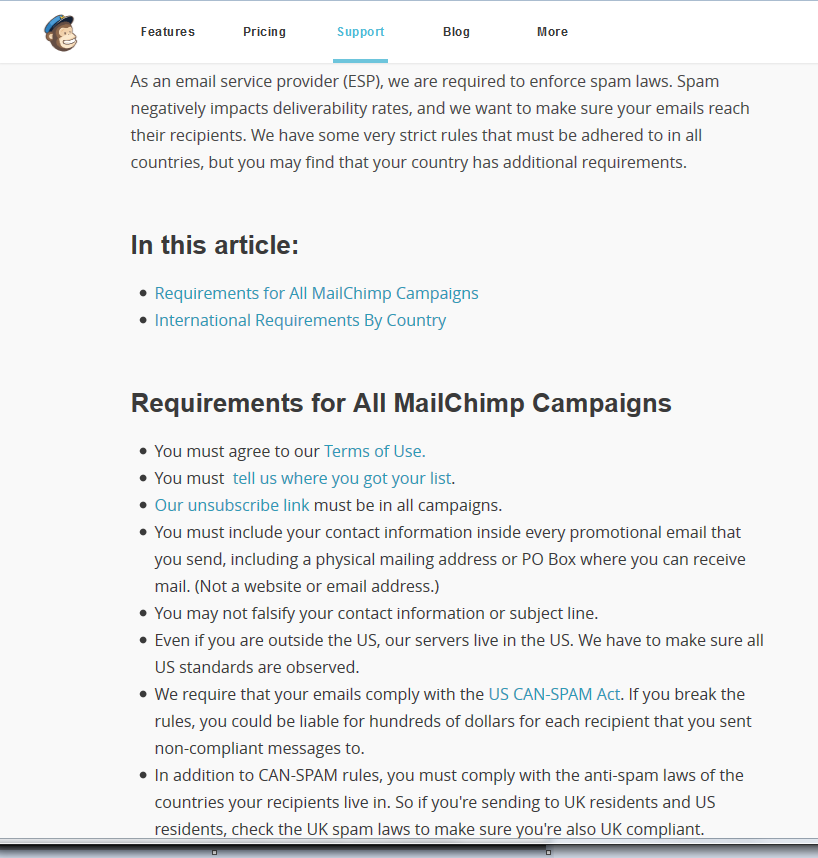
Then we reach the Contact information area. MailChimp is gratifyingly careful to stop you spamming, and this is an important area. If you click on Why is this necessary, you will see this explanatory screen all about spam laws:
4 why they need address

Note here that I haven’t put in a home address, because this is an example, but you should include your full business address here. A disclaimer for anyone who’s on my own list – I haven’t got my exact, pinpointed address on here, because I work from home. But if you’re running a business with a business address, you should include your full address. MailChimp pulls this information from your sign-up information, so you can see there’s an Edit button to allow you to change this if you need to.

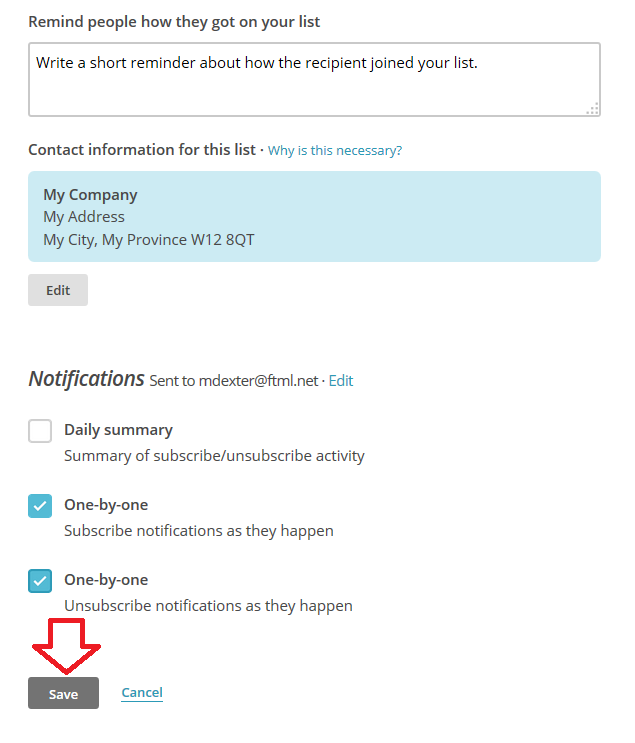
Scrolling down to the bottom of the screen. We have an opportunity here to choose how we see our sign-up notifications. I’ve ticked one-by-one because I want to be notified of sign-ups and unsubscribes as they happen, but as your list gets busier and more active, and especially if you don’t have an action you need to perform when someone signs up, you might want to go onto a daily summary.

MailChimp list details

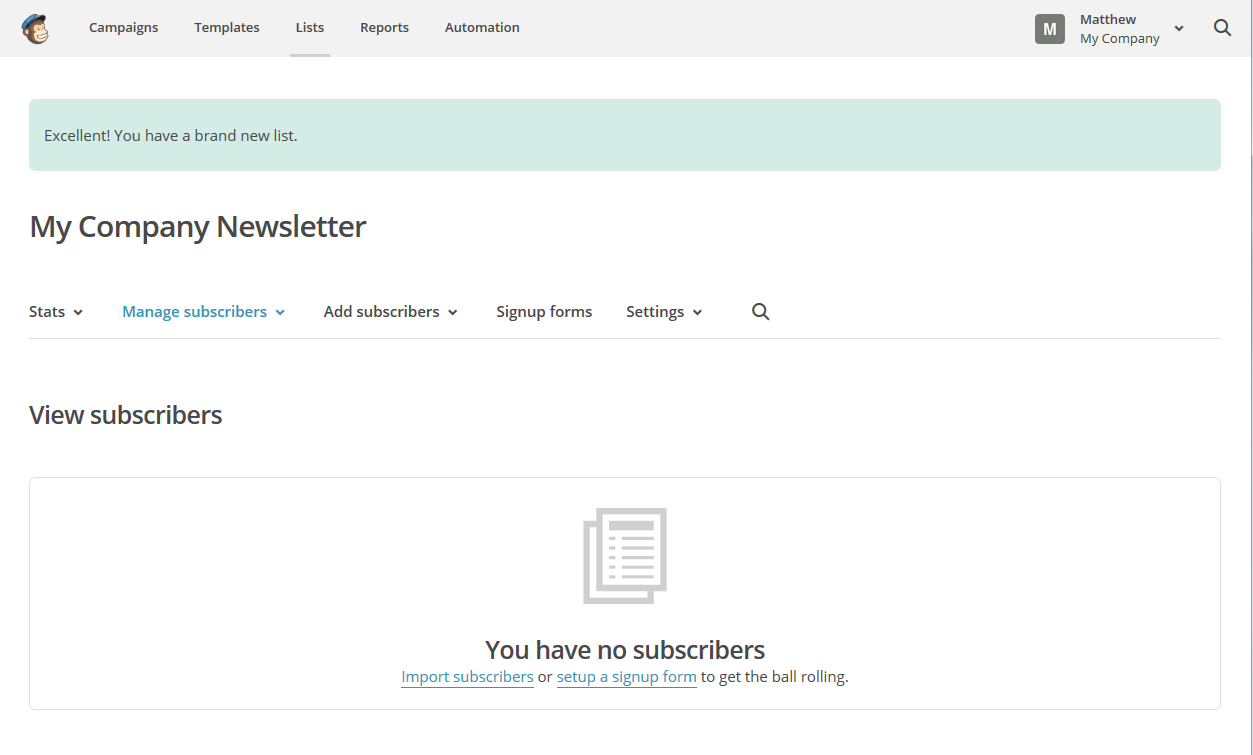
Time to press the Save button – and now you’re returned to the List screen for your list “My Company Newsletter”, which now usefully tells you that you have no subscribers:

MailChimp list subscribers

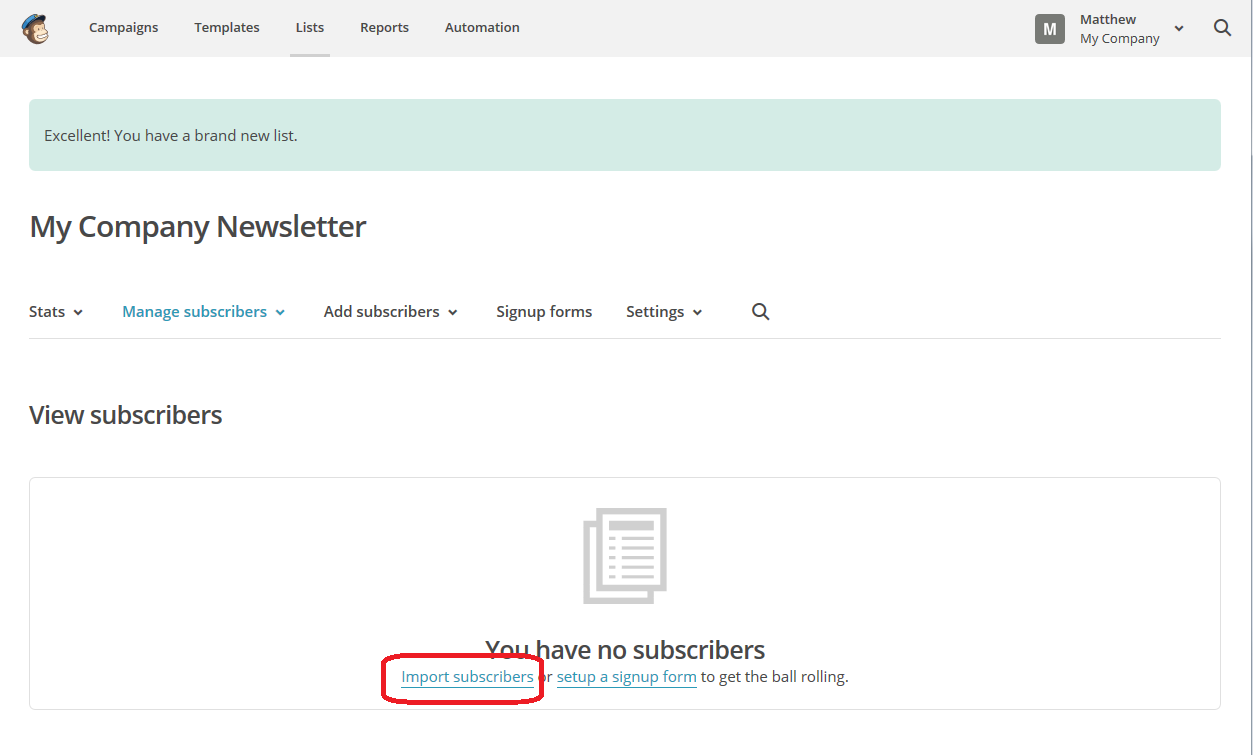
You can see that under the You have no subscribers message there are two links to click: import subscribers or setup a signup form (or as I prefer to say it, set up a sign-up form). We’re going to learn how to import subscribers now, so we’ll click on that link:

MailChimp import subscribers

The Import Subscribers function allows you to import from a huge range of sources, including all sorts of programs that exist to capture subscriber lists. You can create a list in Excel or export a sub-section of your email list into a .csv or .txt file, or just connect to your email program.

I’m not going to go into detail on all of those options here, that’s something that’s separate from MailChimp (Google or YouTube is your friend if you want to know how to do these things) and I’m really advising newbies to create a sign-up form here. We’ll take a quick look at what happens when you import your email contacts, then next time we’ll do it the sign-up form way.

Here, I’m going to choose Import from Google Contacts:

MailChimp import subscribers

Note here the message from MailChimp – people who you add in this way are not going to receive confirmation emails that you’ve signed them up for your newsletter. When you use a sign-up form, they will receive a confirmation and an extra step to confirm they want to receive the newsletter, which is another reason I prefer that method.

MailChimp also warns you that you must already have permission from all people on your email list to send them newsletters. Do you have their explicit permission? If not, it’s best not to use this method.

9 import subscribers

You can see from the above screenshot that clicking on Authorize Connection will take you through to the service in question, in this case your Gmail, and will ask you to log in in order to populate the list. This will also happen if you click on any of the other buttons with service names on them (if you click on excel or .csv, it will just ask you to go and find the file). I didn’t go through with this because I didn’t want to import people who hadn’t given permission into MailChimp, but it will walk you through the steps to import the contacts and end up with a list.

What you really want to do is create a sign-up form, right? If you’re reading this when it’s published, you’ll need to wait two days for that (if you’re a new visitor, do add this blog to your RSS reader or click for email subscriptions). If you’re reading this after 19 February, you’ll be able to click here to find out how to create a sign-up form.

So, in this article, we’ve learned how to access the Lists part of MailChimp and how to import contacts. The other MailChimp articles will be listed below as I add them to the blog. You can find a growing set of articles on blogging, social media MailChimp etc. in my resource guide. Do click on the share buttons below or comment if you found this article interesting or useful!

Other relevant posts on this blog:

MailChimp 1 – Signing up

MailChimp 3 – setting up a sign-up form

MailChimp 4 – setting up your newsletter template

How to avoid two common MailChimp errors

 
13 Comments

Posted by on February 17, 2015 in Business, Marketing, New skills, Newsletters


Tags: , , ,

How do I insert clip art in Word 2007, 2010 and 2013 and other Microsoft Office applications?

I have to admit to being a little surprised when I was asked to post about clip art. I hadn’t used it for years, and I was taken back to the old days, when you used to buy a computer magazine with a free floppy disk full of clip art pictures …

However, the very useful point about clip art is that it’s copyright free and so simple to use: you can pop a MS Office clip art image into your presentation or document and know that you’ve not stolen someone’s work of art (although there are copyright rules about using them in commercial publications).

They’re also not as ‘cartoony’ as they used to be, including photographs as well as drawings, and there are some really good images: I found this great one when I searched for “editor”, for example!

clip art of editor holding book

From MS Word Clip Art

This article applies to Microsoft Office applications such as Word, Excel and PowerPoint. Examples are taken from Word, but the process works in the same way in all applications.

Of course, choosing and inserting your clip art varies between Word (Excel and PowerPoint) 2007/2010 and Word (Excel and PowerPoint) 2013, so if you want the latter, please scroll down a bit to the relevant heading!

How do I use clip art in Word 2007 and Word 2010 and other Microsoft Office software?

Clip art is found in the Insert tab, in the Illustrations area (this is an image from Word 2010; the button in Word 2007 has a slightly different, but recognisable, icon and is in the same place):

Word 2010 insert clip art

Making sure that your cursor is at the point where you want the clip art image to appear, click the Clip Art button:

word choosing clip art

A clip art search area will appear in the right-hand margin. It’s pretty simple: you can enter a search term, and you can also choose which kind of media you are searching for (useful for PowerPoint presentations, for example, or if you only want photographs to illustrate your document):

Word clip art choose format

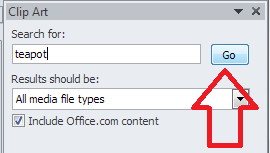
Leaving this on all media, let’s search for “teapot” – pop the word in the search box and click the Go button:

Word clip art search

You should then see a grid of clip art images:

clip art search results

Stop press – you might only find you have the option to search online now – as Microsoft have withdrawn the copyright-free clip art they had offered for so many years. I believe that if you have a standalone version of Word that doesn’t receive updates, the clip art will stay, otherwise you’ll just now have an option to search Bing. Very annoying!

clip art find more

Anyway, back to our 57 teapots (which is surely enough for anyone!). When you’ve found an image you want to insert, double-click on it and it will move into your document:

clip art insert image

You will also notice here that the image is selected and can be enlarged and reduced using the little blocks around the image outline. It can also be moved, if you hover inside the box until an arrow appears.

For more on placing images in text, please see this article.

How do I use clip art in Word 2013 and other Microsoft Office software?

For Office 2013, Microsoft went all online-based, and as a result, the way in which you access clip art changed. Note that these instructions work for both the standalone version of Word 2013 (and other software) if you bought it once, and the subscription version through Office 365 which downloads updates periodically.

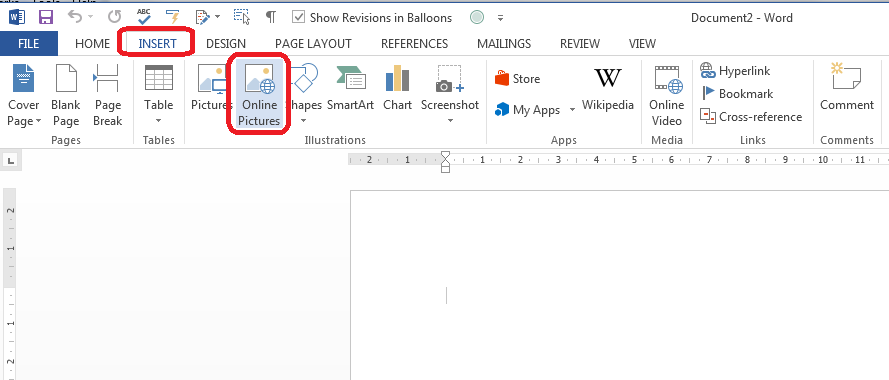
You access clip art from the same menu, on the Insert tab, in the Illustrations area, but it’s now called Online Pictures:

clip art office 2013

Making sure your cursor is in the place where you want your picture to be, click on Online Pictures:

Word 2013 clip art search

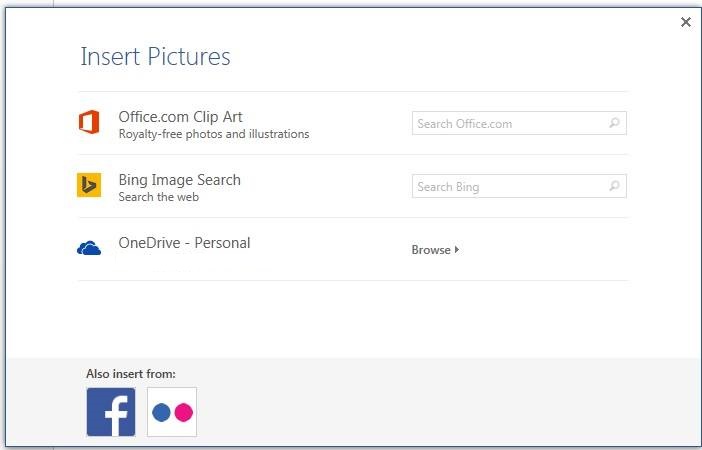
You now have the option to search royalty-free illustrations on the office.com clip art website or do a Bing Image search for general images.

Note Unless you have a completely standalone and isolated version of Word 2013, you will not now have the option to use clip art based within Word itself – you will probably just see Bing search. If you don’t get updates on your version of Word, it’s likely you will still have them, because Word can’t update itself to make them go away. Grrr, frankly.

Because I’m not logged in at the moment, I have the option to sign in with my Microsoft office account. If you are logged in, or do subsequently log in, you will get these additional options – OneDrive, Facebook and Flickr:

Word 2013 image search options if logged in(thanks to Laura Ripper for this screen shot)

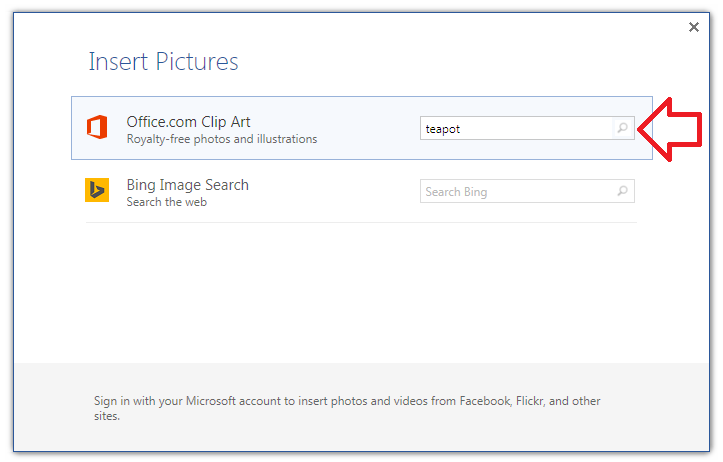
To search in clip art, enter the search term “teapot” into the first text box and click on the magnifying glass icon:

Word 2013 clip art search

This will bring up the same results as for Word 2007 and 2010 (interestingly, you can’t differentiate at this stage between different kinds of file to insert, as you can with earlier versions):

Word 2013 clip art resultsDouble-click on the image you want to insert, or single click and click on the Insert button

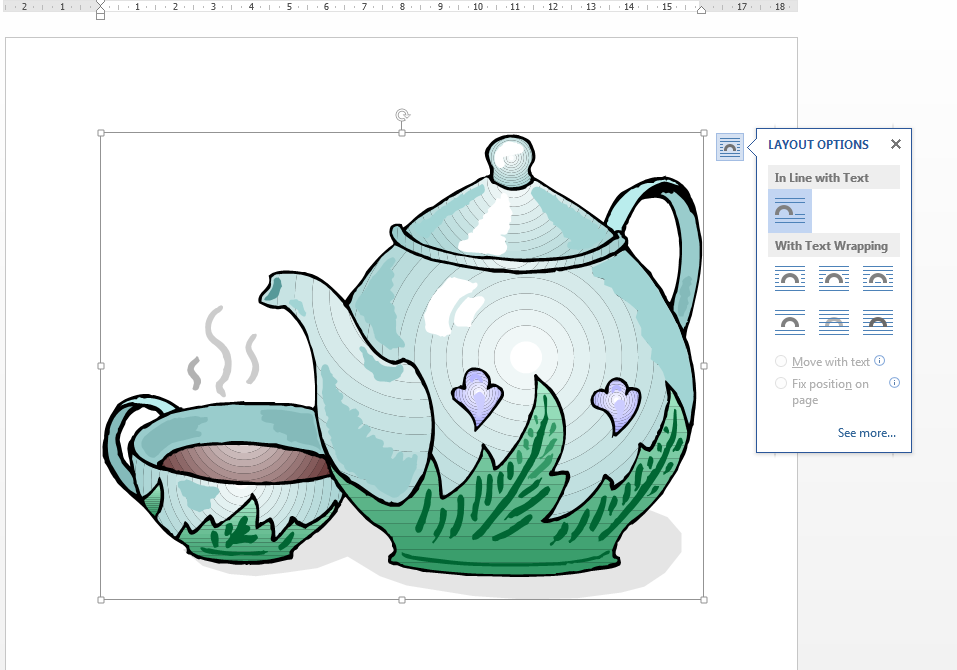
Word 2013 clip art inserted

Note that in Word 2013, not only do you get the frame which allows you to change the image size, but the Layout Options dialogue box also pops out, allowing you to choose where the image sits in any text you might have.

For more on placing images in text, please see this article.

Related posts on this blog

How do I make pictures go where I want them to in Word?

How do I stop the pictures jumping around when I edit a Word document?

———————

This is part of my series on how to avoid time-consuming “short cuts” and use Word in the right way to maximise your time and improve the look of your documents. If you’ve enjoyed the post or found it useful, please use the sharing buttons below to share it via your social media networks – thank you!

Please note, these hints work with versions of Microsoft Word currently in use – Word 2007, Word 2010 and Word 2013 and other Office software for PC. Mac compatible versions of Word should have similar options. Always save a copy of your document before manipulating it. I bear no responsibility for any pickles you might get yourself into!

Find all the short cuts here … and see the full resource guide here.

 
31 Comments

Posted by on November 12, 2014 in Errors, New skills, Short cuts, Word, Writing


Tags: , , , , , , , ,

How do I hide the toolbars and taskbars in Word 2007, 2010 and 2013 and other MS Office applications?

In this article we’re going to learn how to (temporarily) hide the toolbars, taskbars, rulers and whatnot in Word.  Note that these processes will also work for other Microsoft Office applications such as Excel, PowerPoint, etc.

Why would I want to hide the taskbars in Word?

There are various reasons why you might want to have just a blank white screen in front of you when using Word. If you’re trying to write, write, write, you might want to remove all distractions. If you’re displaying Word on a large screen using a projector, there are many reasons why a plain screen with no additional information might be useful.

In fact, the second reason, wishing to display just some text and images via an overhead projector, is why I was asked to write this article in the first place.

How to hide taskbars and toolbars in Word

This works for Word 2007, 2010 and 2013: I’ve used Word 2010 in the example because it’s what I use most of the time, but the principles remain the same.

How to minimise the ribbon in Word

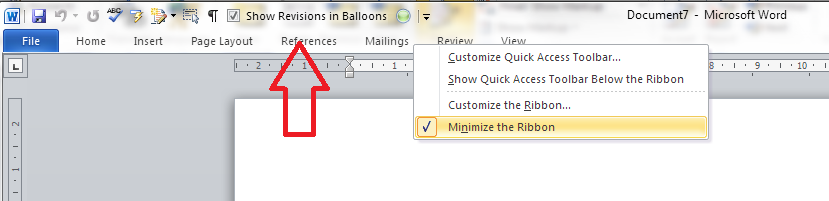
You might just want to minimise the ribbon. If this is the case, first right-click anywhere on the actual ribbon, then select Minimize the Ribbon from the menu that displays:

Word minimise ribbon

How do I reverse minimize ribbon?

To reverse the minimize ribbon action, you can either …

1. Right-click anywhere on the small ribbon headings that will appear and click again on Minimize the Ribbon: the tick will disappear and the ribbon will reappear:

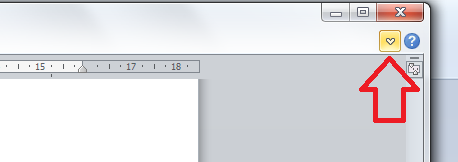
un-minimize ribbon2. Click on the small down arrow that appears at the top right of the screen when the ribbon is minimised:

reverse ribbon minimise

How do I remove wording and symbols from the lower task bar

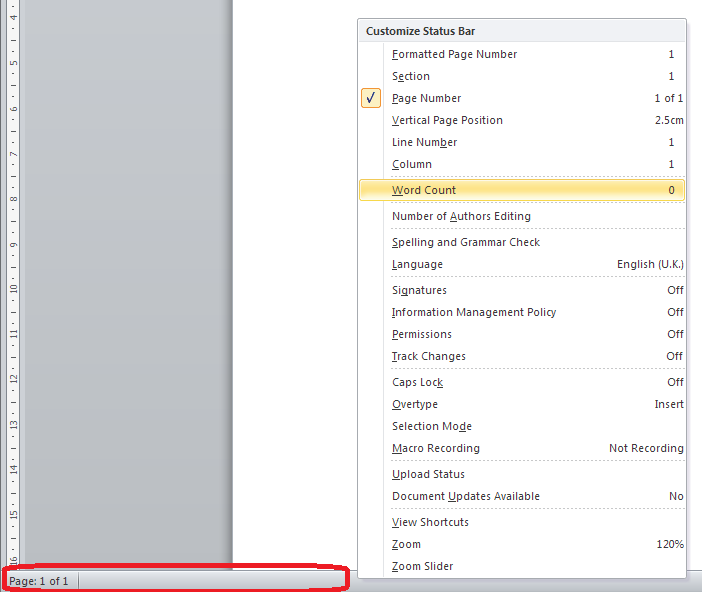
If you’re fed up of seeing your word count or document language in the lower task bar, you can right-click on the taskbar, at which point a list of all items you can display pops up, and you can untick the ones you don’t want:

remove items from lower task bar

You will see the displayed items at the bottom start to disappear until you’re left with just one:

remove from lower task bar

How do I reverse clearing the lower task bar?

To add items back on to the task bar, right-click on the taskbar and click on the features you want to see – the tick will reappear next to the items you select, and the information will display in the lower task bar.

How do I hide the rulers?

For instructions on hiding the rulers in Word, please see this article.

How do I hide all of the toolbars in Word and other Office applications?

If you want to go further and just have a blank screen, you can use the shortcut Alt+V, U

Note that you must follow this process to do this:

  • Press down the Alt key and keep it pressed down
  • Press the V key and release it (keeping Alt pressed down)
  • Press the U key and release it (you can then release the Alt key)

Pressing both letters together does not have the same effect. Once you’ve pressed this key combination, you will have just the document, no toolbars, taskbars, menus, etc. However, you are still likely to have the Windows taskbar showing.

Just a document, no toolbars

So you’re not quite there, but first …

How do I reverse Alt+VU?

The first time I did this, I got a bit panicky because I assumed that you needed to press AltVU again to get back to the menus, but that’s not what you do.

To reverse Alt+VU and get back to seeing your taskbars, hit the Escape key on your keyboard. Phew!

How do I hide the Windows taskbar?

You’ve got your lovely clean document showing but you want to get rid of that Windows taskbar at the bottom of the screen. Here’s what you do:

First, unlock the taskbar (if it is locked) by right-clicking on the lower task bar and seeing if Lock the taskbar is ticked. If it is, click on it to untick it.

unlock task bar windows

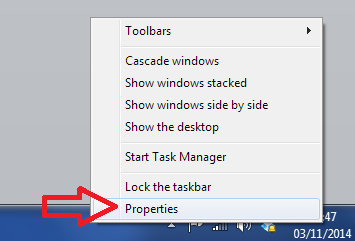
This dialogue box will disappear, so right-click on the taskbar again and this time choose Properties:

Windows taskbar properties

This will give you a new dialogue box:

Windows taskbar properties

Making sure that you’re in the Taskbar tab, click on the tickbox to Auto-hide thie taskbar.

The taskbar will now disappear, leaving you with a lovely clear screen containing only your document.

How do I reverse hiding the Windows taskbar?

To show the Windows taskbar, move the mouse to the bottom of the screen (assuming your Windows task bar is usually there), at which point it should appear. Then right-click at the bottom of the screen and select Properties, then untick Auto-hide the taskbar.

———————

This is part of my series on how to avoid time-consuming “short cuts” and use Word in the right way to maximise your time and improve the look of your documents. If you’ve enjoyed the post or found it useful, please use the sharing buttons below to share it via your social media networks – thank you!

Please note, these hints work with versions of Microsoft Word currently in use – Word 2007, Word 2010 and Word 2013 for PC. Mac compatible versions of Word should have similar options. Always save a copy of your document before manipulating it. I bear no responsibility for any pickles you might get yourself into!

Other useful posts on this blog

How to display and hide rulers in Word

How to add buttons to the Quick Access Toolbar

Find all the short cuts here … and see the full resource guide here.

 
8 Comments

Posted by on November 5, 2014 in Errors, New skills, Short cuts, Word, Writing


Tags: , , , , , , , ,