RSS

Category Archives: Word

Editing resource review – QuickStyle Customizable Editorial Style Sheet

Editing resource review – QuickStyle Customizable Editorial Style Sheet

As an editor and proof-reader of many years standing, I use style sheets as a matter of course (if you’re not an editor or you’re new to the business, you can refresh your memory on using a style sheet for proofreaders and editors and for writers). I have a very simple template which I use as a basic style sheet for, say, self-publishers who haven’t created one of their own, or I use a journal, publisher or university’s one. What I didn’t realise I needed until Hazel Bird of Wordstitch Editorial (coincidentally the same age as my own business) got in touch was a customisable style sheet that I can tweak to any requirements I wish!

What did I receive?

I received a copy of the style sheet in read-only format (to keep, and save-as to create my own customised versions) and a very useful PDF guide. I work on a PC but the download included the Mac versions, too. It comes in a .zip file so it’s not too big to send and receive.

What does it look like and what does it do?

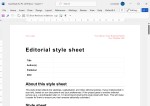
When you open the Word template document, you can immediately see that you can add your own business name and logo, making it entirely yours:

Screenshot of the top of the style sheet showing where you can add your logo and details

Obviously, you can add your branding then save a copy that’s “yours”. The bit of text at the top is spot-on already, but you can amend that, too.

Then we get to the nuts and bolts: first of all, you can state the style guide you’re being led by:
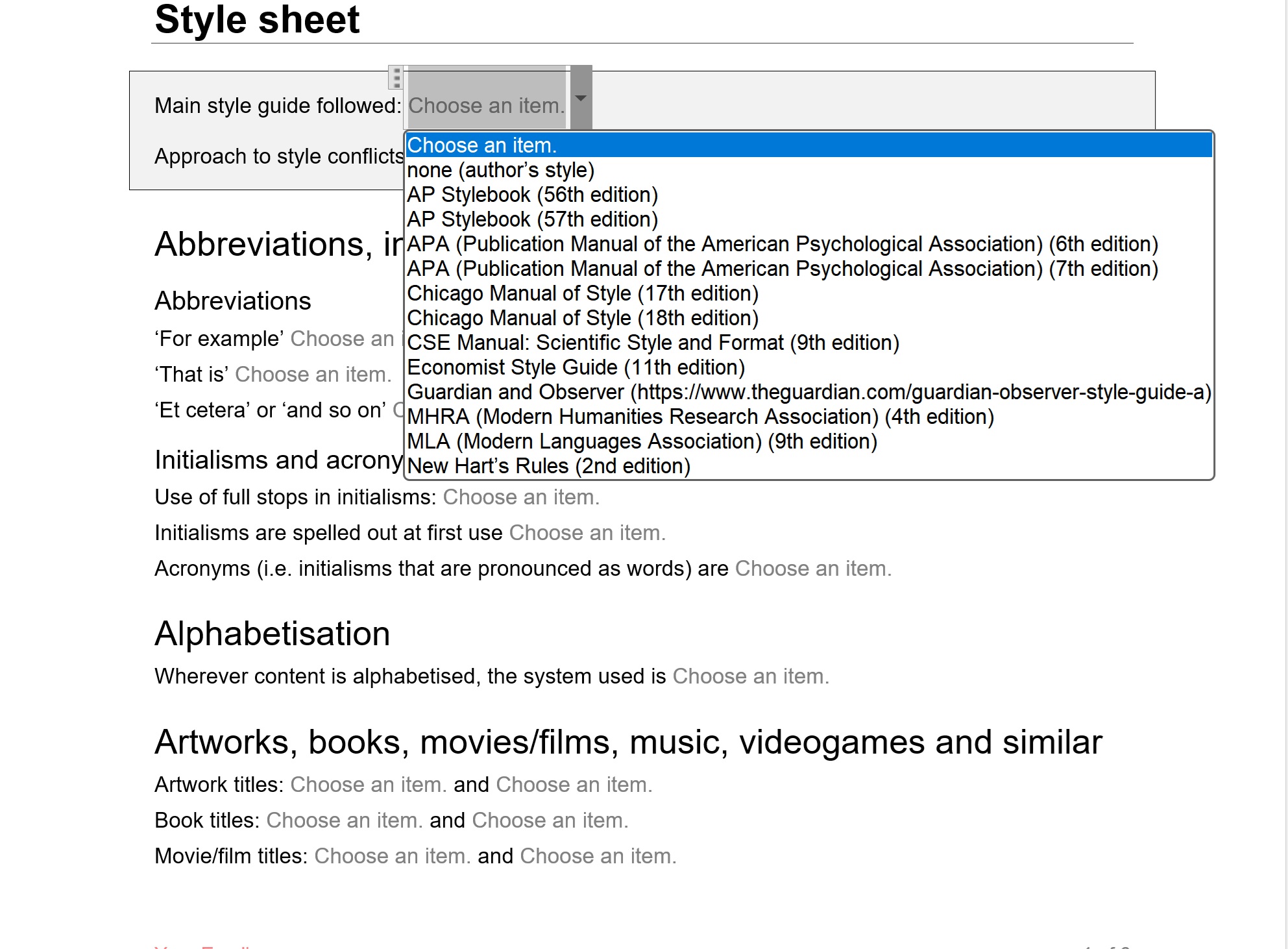
Screenshot showing how you can choose a style guide to follow

It’s worth noting here that there is even an “Approach to style conflicts” box so you can record whether the chosen style guide is the law set in stone or whether the client’s different uses trump the style guide.

The template then goes on, in alphabetical order, to let you choose the options for everything from abbreviations onwards.
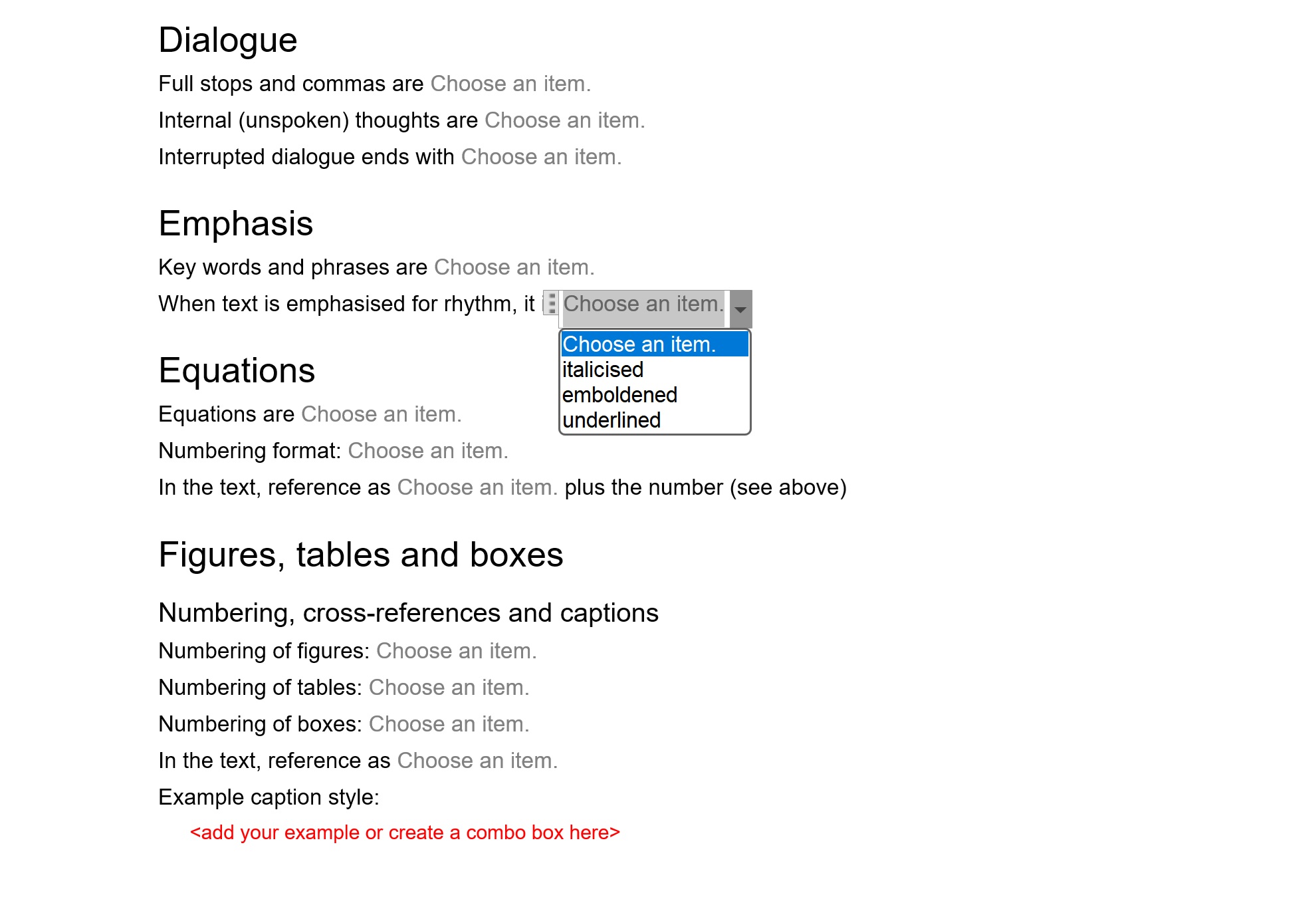
Examples of areas you might define rules for with one drop-down open

There are so many choices, which is great: I couldn’t find anything missing and you can always add any special ones to the list.

What about help?

The style sheet comes with a very useful manual in PDF which covers everything you need to know, written clearly and helpfully:
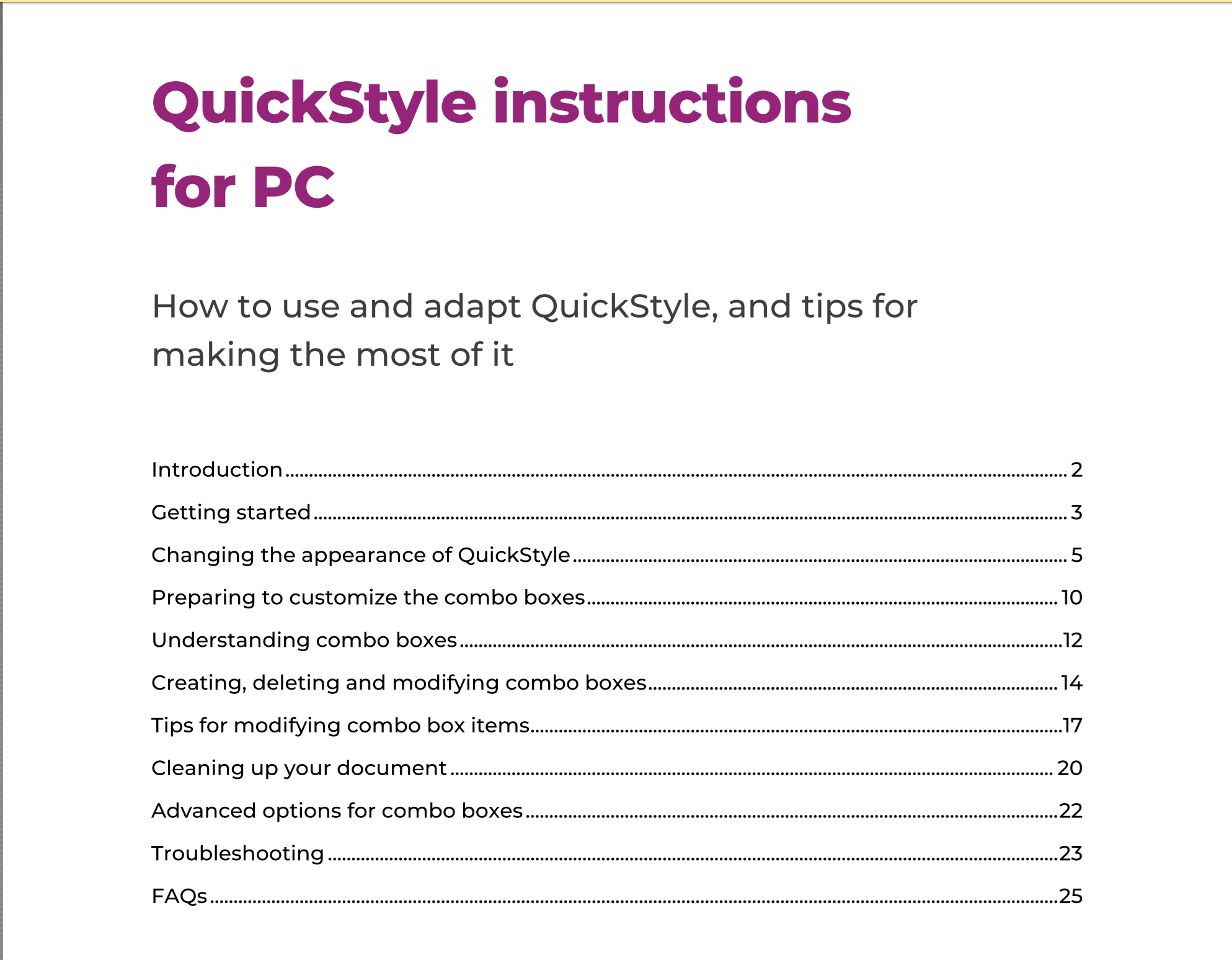
Menu for the PC manual

And I can lock the style sheet down so my client can’t alter it, right?

This was my main question: can I remove the choices so my client just sees what I’ve chosen for them (or my writers and editors if I’m a journal or book publisher). And the answer, of course is yes: you can create a standard-looking style guide your client can’t amend by mistake or on purpose!

Who is QuickStyle Editorial Style Sheet useful for?

  • Editors and proof-readers will find it invaluable
    • There is a LOT of information on the full template, however it’s easy to delete sections, so if you want to keep it simple, you can just keep to various basics, but if you need all the detail, it’s all there for you.
  • Writers who are producing more than one book and want to keep their style consistent could use it and pass it on to their editor and/or proof-reader
  • Journal editors and publishers can use it to provide guidance to their writers, editors and proof-readers

How do I buy QuickStyle Customizable Editorial Style Sheet?

You can download the style sheet from Hazel’s website here. She has provided the following information about contents and prices:

  • It’s available for PC and Mac (both versions will be included in all purchases, so users have access to whichever is relevant to them).
  • The price will be £45 inclusive of any applicable taxes.
  • There will be a 15% early-bird discount on all purchases at launch (13 August) until Friday 12 September.

Thank you to Hazel Bird for providing a review copy of QuickStyle Customizable Editorial Style Sheet in return for an honest review. It’s launch day today, 13 August 2025, and I do recommend it.
 

Tags: , ,

Help – my Word Navigation Panel font has gone tiny

Help – my Word Navigation Panel font has gone tiny

You’re using Microsoft Word and suddenly the font size in your Navigation Pane has gone tiny. Here’s what to do.

Funnily enough, a similar situation inspired my very first post on this blog – What to do if your comment boxes go tiny in Word. Now we have the same situation with the Navigation Pane and its text becoming very small.

What is the navigation pane?

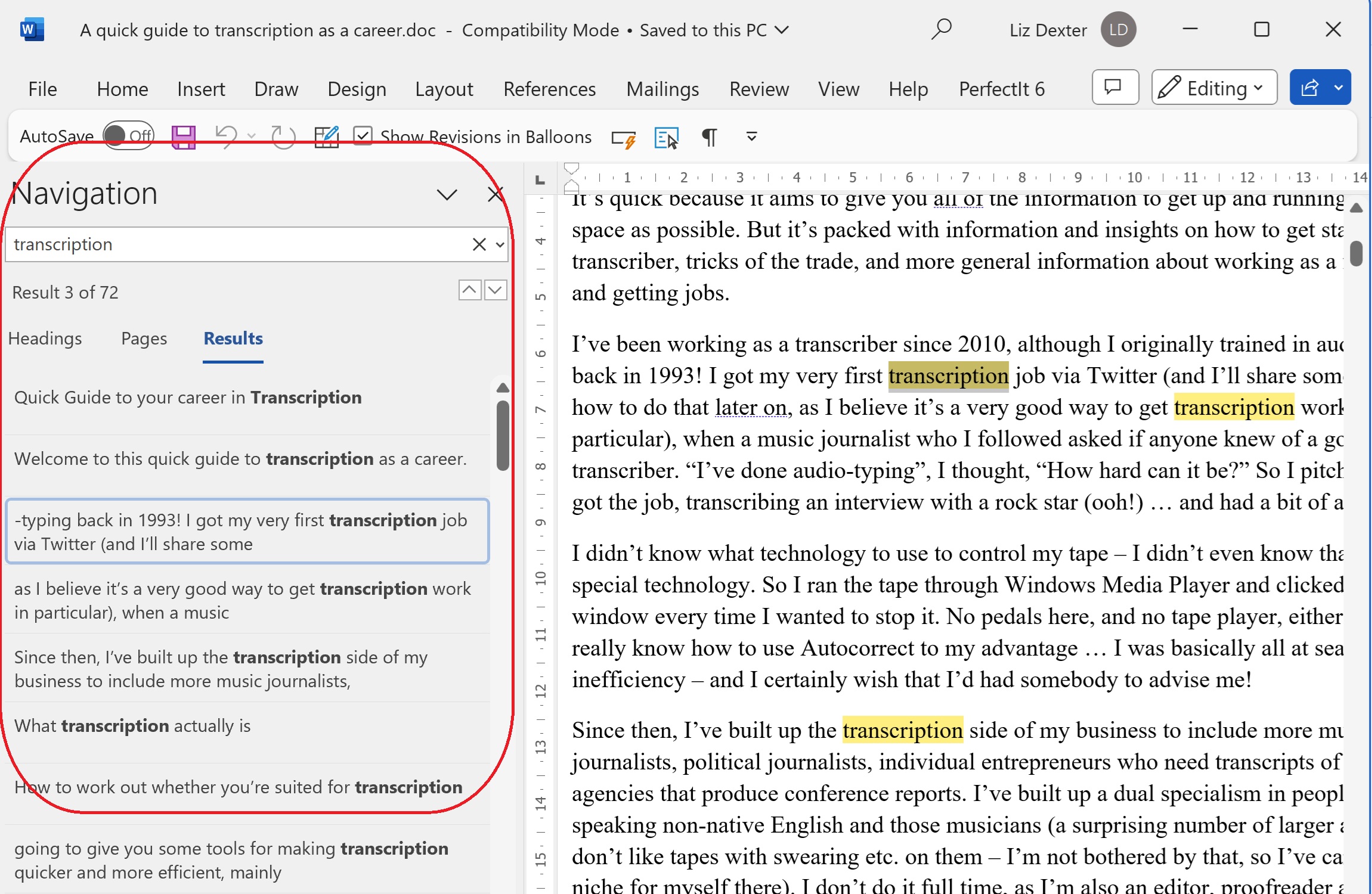
The navigation pane (or document map) is that area to the left (usually) of your Word document which gives you the option to view the headings and layout of your document, the pages, or search results for a term you’ve looked up. It normally looks like this:

but the problem arises when, often for no reason, sometimes when you’ve got a new monitor with a higher resolution, suddenly all the text in that Navigation Pane area is in a tiny font size. How do you change that font size? The answer lies in the Styles.

How to find the Styles menu

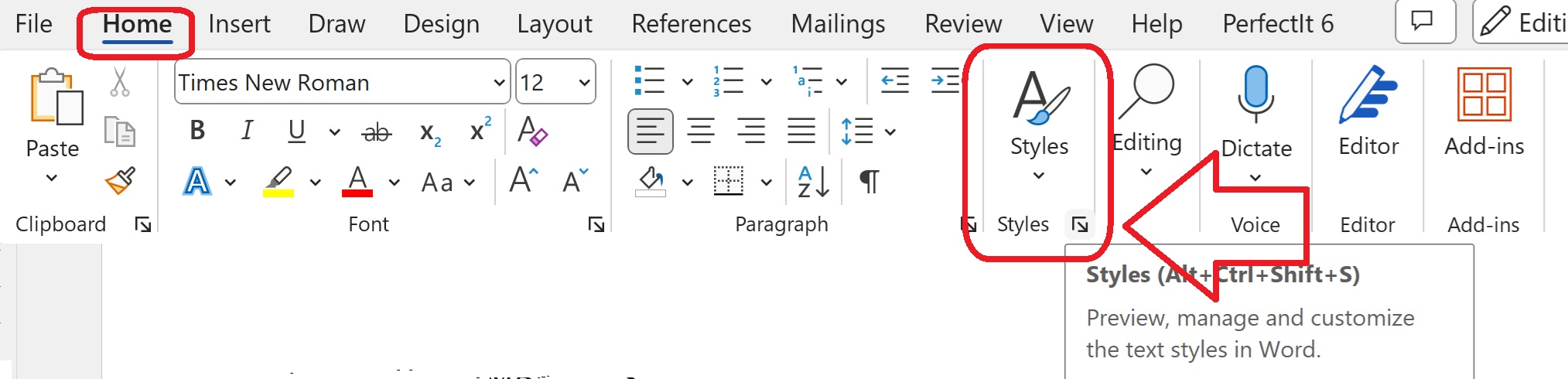
The Styles menu is in the Home tab. You might need to widen out your Word window to find it.

Once you’ve found Styles, click on the little arrow at the bottom right.

How to see all the styles, not just some

By default, Word will show you the styles it thinks you might need. Of course the one you want is never in the list. To see All the styles and edit the one you want …

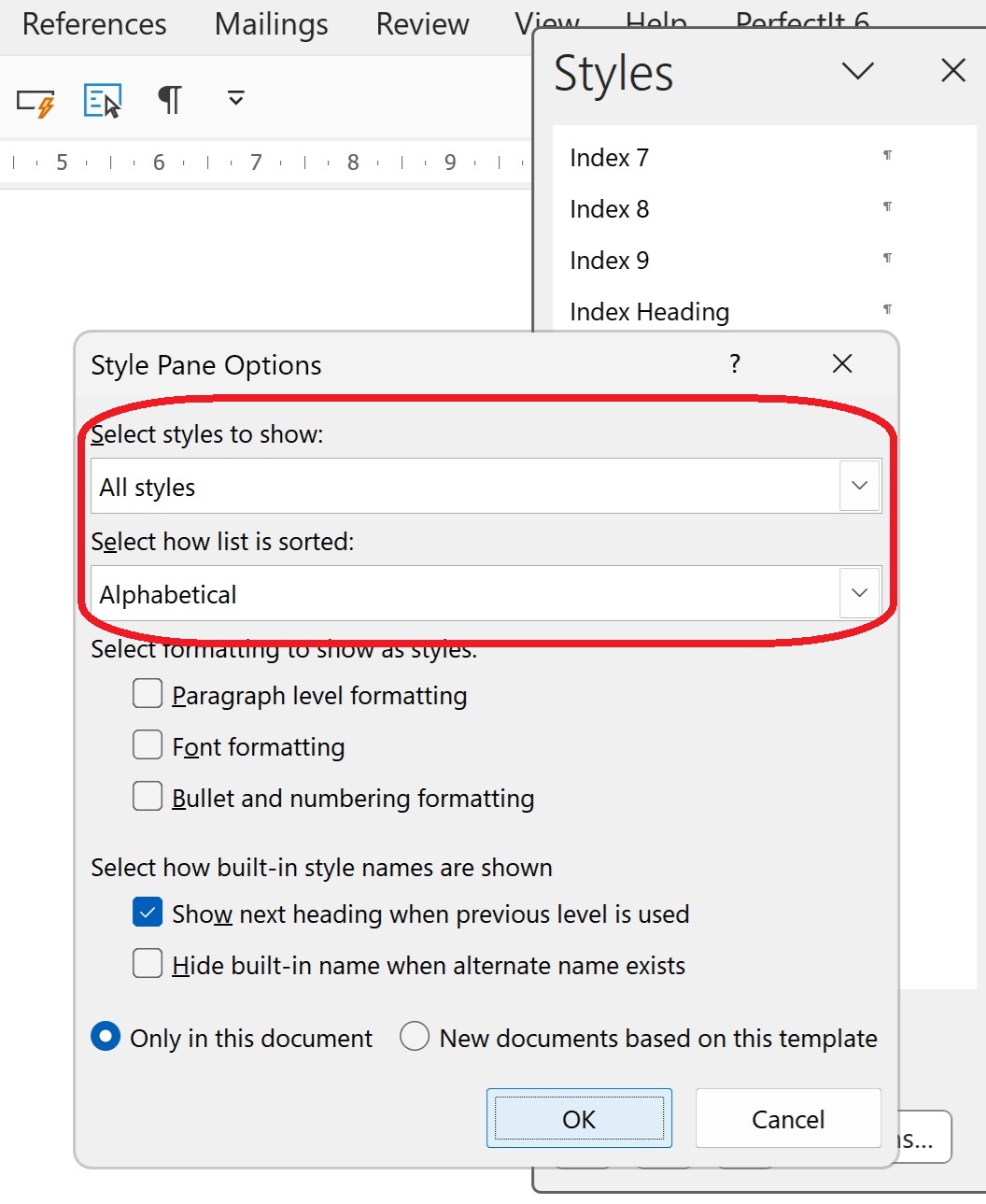
Click on “Options” at the bottom of the window.

Then change the drop downs to “Select styles to show”: All styles and “Select how list is sorted”: Alphabetical.

Then click OK.

How to change the Navigation Pane style using Document Map

The style that controls the Navigation Pane is called “Document Map”. I can only assume that it was once ONLY the document map, as that is still included in the Navigation Pane. Scroll down to find it …

… and click on the little arrow to the right-hand side.

How to modify the Document Map / Navigation Pane style

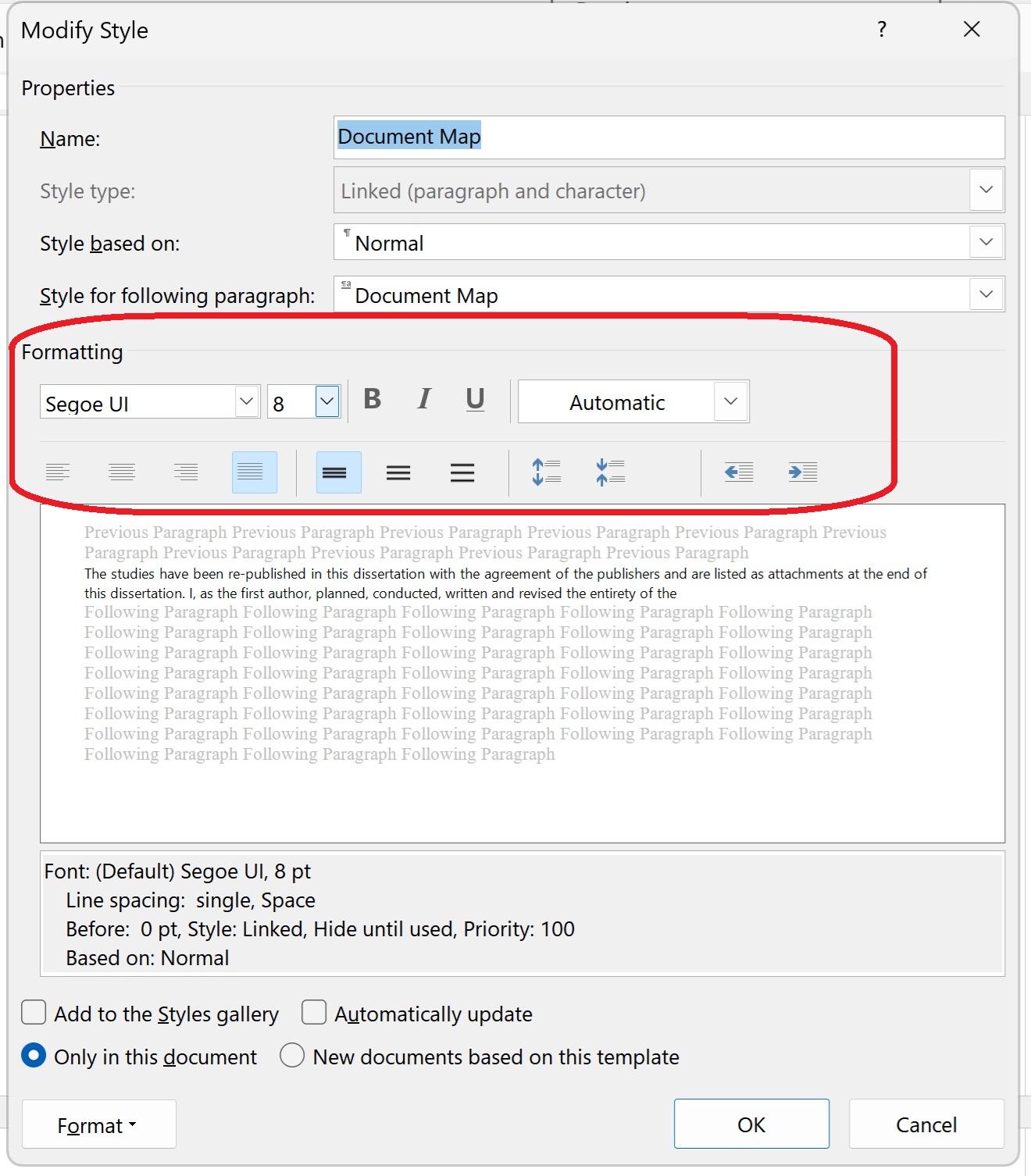
Click on “Modify” so you can change the font size of the Navigation Pane.

Now the Modify Style window will appear. Here you can see the style is set to be an odd-named font with a very small font size. Here you can just change the font and size to whatever you want:

Once you’ve changed the font, and decided whether you want to add this style to the gallery (hopefully not, as you’ll never need to change it again!) and whether you only want this change for this document or all new documents based on the same template (not so useful if you only work on documents originating with other people), press “OK”.

Does this fix always work?

You may need to close and re-open your document to see the font size in the Navigation Pane change to one you can read. And it might not work, especially if you’re working with a corrupted document that has been through a lot of versions. But it should do.

Summary

In this post we have learned what to do if your Navigation Pane font size in Word suddenly becomes tiny (or, indeed, enormous)

Please note that these tips are primarily for Word 2010 and onwards, including Microsoft Office Subscription for PC. Most of them will work for Word for Mac, although you may find some menus in different places and I can’t guarantee it. This is part of my series on how to avoid time-consuming “short cuts” and use Word in the right way to maximise your time and improve the look of your documents. Find all the short cuts here

Do let me know if this has helped you, saved your document, etc. – and do share with the buttons at the bottom of this article.

Related articles

How do I view my Navigation Pane?

How do I move text and headings using the Navigation Pane?

 
8 Comments

Posted by on May 16, 2025 in Copyediting, Errors, Short cuts, Word


Tags: ,

Can I print a Word document to PDF and retain the tracked changes?

If you want to print or save a Word document to change it into a PDF, and you have Tracked Changes showing in the Word document, will those tracked changes still show up in the PDF?

I needed to check this myself this morning, so now I’ve confirmed what happens, I thought I’d write a quick article about it, on the grounds that if I’ve had to check, someone else will need to, too (bloggers: this is a good way to inspire blog posts if you’re lacking ideas!).

So here is the definitive answer to the question Can I save a Word document as a PDF and keep the tracked changes showing.

Why save a Word document with tracked changes into a PDF?

This came about because I was discussing plagiarism with a colleague and explaining what I do if I need to confirm from a client’s supervisor that it’s OK to make as many changes as I’m making to their text. I mentioned that sometimes I will send over a copy of the work so far, and sometimes I’ll go as far as to turn the Word document into a PDF so it can’t be altered between me and the supervisor. But will the tracked changes still show up?

Proof that tracked changes still show on the PDF

So here’s my Word document, complete with tracked changes (make sure these are showing):

A word document with tracked changes

Just a reminder that in the newer versions of Word you can save to a PDF automatically without having to go through third-party software. Choose File – Save As then drop the file type down to choose PDF:

Save Word as PDF

Then when you open it in your PDF reader (I use PDF-XChange Viewer), there are all the tracked changes!

Tracked changes showing in PDF

So, if you want to preserve your tracked changes so they can’t be, um, well, changed, printing to PDF will give you an image of them you can share.

I hope you’ve found this useful – do click the Like or Share buttons or comment if I’ve helped you out!

Please note: these tips work for Microsoft Word version 2007 and upwards. They are not guaranteed or tested for Word for Mac.

Other track changes articles on this website

Track changes 1 – why use it, where can you find it, what can you do with it?

Track changes 2 – customising Track Changes

Track changes 3 – working with a document with tracked changes

How do I accept one reviewer’s changes?

Why are my tracked changes changing colour?

How do I get rid of tool tips on tracked changes?

 
Leave a comment

Posted by on July 24, 2019 in Copyediting, proofreading, Skillset, Word


Tags: , , , , , , ,

Student at risk of plagiarism 2: What do you do when the editor risks changing too much of the text?

text with tracked changesPlagiarism involves passing someone else’s work off as your own. There are two kinds of plagiarism: there’s plagiarism done by the student when they don’t reference or credit a quotation or theory and are therefore effectively using someone else’s work without credit (which I’ve written about here). The second kind of plagiarism, which we’re talking about here, is where an editor has done so much work on a student text that they’re almost a second author, and the student is then at risk of passing the editor’s work off as their own.

I have written this series of articles for editors who are working with documents produced by students: an essay, thesis, dissertation or article, for example.

Let’s have a look at the levels of change an editor might make when working with student materials and how to tell when the editor is at risk of plagiarism from the level of work they’re doing on the text.

Usually when working on student essays, dissertations and theses, I will come across issues with the language and writing:

  • Uses capitals and hyphens inconsistently
  • Uses British and American spellings (or British s and (Oxford) z spellings) inconsistently
  • Uses inverted commas for quotations and scare quotes inconsistently
  • Uses the wrong tenses
  • Uses the wrong agreements (he have, they has)
  • Includes typos (form/from)
  • Has a sentence structure which is confused BUT I can tell they understand what they’re writing about and have made a good attempt to write that in English (English is not the first language of most of my student clients)

There’s an accompanying issue with the reference list or bibliography, so a minor issue would be:

  • Some mistakes and inconsistencies in the bibliography, where I’m not changing more than about one in ten entries in a major way (turning book titles into italics, etc.) or one in five in a minor way (full stops after initials, making spacing of initials consistent)

In these cases I will (with Track Changes turned on, of course!) and make it all consistent and amend the tense, agreement, typo or sentence.

And, if I find

  • A theory or term which is not explained
  • A sentence which can be taken in one of two ways, and it’s not clear what it means
  • A sentence or paragraph which is jumbled or confused and I can’t make it out

I will leave the sentence and add a comment explaining that the term needs to be explained, what the ambiguous sentence could mean or that I can’t understand it and the student needs to rewrite it.

And if there’s

  • A reference that’s missing publisher or place, journal volume, etc. information

I will add a note that the student needs to check and add the relevant information

It’s probably worth mentioning here that I offer to re-check up to 10% of the total word count after rewrites; this feels fair to my student clients and I’ve never had anyone ask me to re-check anything like that amount of text.

But what if it’s more major changes and the resulting risk of plagiarism?

More major issues would include

  • Confused use of terms which clearly show a lack of understanding of the subject (this sounds nebulous but jumps out in real-life examples, none of which I can obviously show you!)
  • Garbled results which don’t make sense
  • Many sentences which aren’t at all clear or, if I can guess the meaning, would need a complete rewrite to make them at all clear – and I start having to do that
  • A completely chaotic bibliography with no attempt to make it consistent or match it to the style guide which needs work on almost every entry

If any (or all) of these are present in the text, and I’m making a lot of comments on the text, plus a lot of the changes in the above sections, I will get to a certain point (usually 1,000-2,000 words in), have a look at what I’ve done, and make a judgement as to whether I’m risking changing too much.

It’s all done in Tracked Changes so surely I’m not writing it for them!

Yes, we do everything in Tracked Changes as standard, and I have standard text which asks the client to examine all changes and decide if they accept or reject them. However, there is an “Accept All Changes” button and with the best editor will in the world, some students will just press that. How much of the work then is theirs?

What do I do if I find I’m doing too much on a text?

I want to highlight here that this is often not the student’s intentional fault. This applies to referencing, too, and it’s often to do with the learning they’ve received in their home country, the pressures of having to write in their non-first language, and pressures from home around getting this UK or US degree and bringing that knowledge home. But I believe we have a duty to help the student not plagiarise. In the case of referencing, this will get caught by software used by the universities such as TurnItIn. In the case of our work, it might not be so detectable, although a supervisor presented with perfect English by a student who struggles to write in English may be suspicious. We want to help our clients and make sure they don’t get accused of something they didn’t intend to do.

Sending feedback to the student and their supervisor

It’s at this point that my articles on the two kinds of plagiarism coincide. if you’re following along with this series in real time, I’ve already written about what to feed back to the student and their supervisor and how to do it, so as to avoid making you wait for the punchline by doing it the other way round.

So to find out my good practice in contacting students and their supervisors over the risk of plagiarism, please see this article.

Related posts on this blog:

Student at risk of plagiarism 1: What do you do when a text isn’t referenced properly?

Student at risk of plagiarism 3: Sending feedback to your student client and their supervisor

Plagiarism in business texts

On plagiarism

How to quote sources without plagiarising

Referencing for academic writing

Choosing a proofreader – student edition

My terms and conditions

Why has my proofreader not edited my bibliography?

On (not) crossing the line


Tags: , , , , ,

Student at risk of plagiarism 1: What to do when the student hasn’t referenced their text correctly

text with tracked changesPlagiarism is the act of passing someone else’s work off as your own. There are two kinds of plagiarism in student work: one is plagiarism done directly by a student, where they fail to reference or credit a quotation or theory and are effectively using someone else’s work without credit. The second kind of plagiarism is where an editor has done so much work on a student text that they’re almost a second author, and the student is then at risk of passing the editor’s work off as their own.

This article is written for editors who are working with student texts, whether that’s essays, dissertations, theses or articles for publication.

Let’s have a look at the levels of risk of plagiarism and an example of good practice when working with student materials when the editor is at risk of plagiarism from the level of work they’re doing on the text.

Often when working on student essays, dissertations and theses, I will come across a small example of a risk of plagiarism. This could include

  • A statement such as “researchers have found that” before an assertion, without a reference to who has found this information
  • A reference not being included after a quotation, where most of the quotations are referenced correctly
  • What is clearly a direct quotation which has not been placed in inverted commas, even if it’s got a reference after it, but this is an anomaly in an otherwise well-referenced document
  • What is clearly a direct quotation which has not been placed in inverted commas AND it hasn’t got a reference after it, but this is an anomaly in an otherwise well-referenced document

I count these as minor infringements and I will just mark these up with a comment asking the student to provide the reference, add inverted commas or rewrite the sentences in their own words.

I should mention here that I offer to re-check up to 10% of the total word count after rewrites; this feels fair to my student clients and I’ve never had anyone ask me to re-check as much as that: if it happens, it’s usually about 1%.

Red flags in referencing

Unfortunately, I do come across student texts (and this is not limited to students: have encountered web text and even books lifted from other sources without reference) where the following occurs:

  • What is clearly a direct quotation which has not been placed in inverted commas, even if it’s got a reference after it, happening multiple times
  • What is clearly a direct quotation which has not been placed in inverted commas AND it hasn’t got a reference after it, and this is happening multiple times, even pages and pages worth of direct quotations from other sources
  • A section in a different colour or font where no attempt has been made to hide this has come from elsewhere
  • A section where the client has either added a comment or put it in a particular colour and asked me to rewrite what is clearly a direct quote from elsewhere (this is thankfully rare)

How do I tell when something’s a direct quote that the student hasn’t either referenced or written themselves?

  • The standard of English changes, sometimes subtly, sometimes very obviously
  • The type of English changes (US to UK, s to z spellings, and vice versa)
  • Referencing within that section is markedly different to that within the student’s own work
  • It’s in a different colour or font

How do I check if text is not written by the student?

Google is my friend here? I take a sentence, pop it in Google and see where it came from. My suspicion that it’s someone else’s text are usually correct.

Sending feedback to the student and their supervisor

I try to be kind here. The student may be under a lot of pressure, or may not have understood how to do referencing. I will guide them to ask their supervisor or any support they have in the department or their university library.

It’s at this point that my articles on the two kinds of plagiarism coincide. if you’re following along with this series in real time, I’ve already written about what to feed back to the student and their supervisor and how to do it, so as to avoid making you wait for the punchline by doing it the other way round.

So to find out my good practice in contacting students and their supervisors over the risk of plagiarism, please see this article.

Related posts on this blog:

Student at risk of plagiarism 2: What do you do when the editor is at risk of changing too much?

Student at risk of plagiarism 3: Sending feedback to your student client and their supervisor

Plagiarism in business texts

On plagiarism

How to quote sources without plagiarising

Referencing for academic writing

Choosing a proofreader – student edition

My terms and conditions

Why has my proofreader not edited my bibliography?

On (not) crossing the line


Tags: , , , , ,

Student at risk of plagiarism 3: Giving feedback to your student client and their supervisor

text with tracked changesWhat do you do when you detect a risk of plagiarism in a student text and you need to give feedback to the student and possibly their supervisor? How do you stop a student feeling accused? How do you get confirmation from the supervisor that what you’re doing is acceptable by their institution?

In this post for editors working with student texts, I share the good practice I’ve developed over my ten years in operation when dealing with the two kinds of plagiarism I encounter in student work:

  • Plagiarism conducted directly by a student who does not reference or credit quotations, results and theories (therefore passing other people’s work off as their own)
  • Plagiarism that arises when you as the editor are doing far too many corrections and effectively risking co-writing the text (therefore risking the student passing your work off as their own)

I will write about these two risks of plagiarism in two further articles which I will link to here when they’re published. I’m publishing this one first to avoid leaving readers who are reading along dangling, as this article covers both types of plagiarism and is referenced at the ends of both articles as the end point of their processes.

What do I do if I encounter or risk enabling plagiarism?

Once I’ve realised a text is at risk of plagiarism (and in my experience, both kinds often come together in a text), I will follow these levels of action/escalation:

  1. Stop working on the text*
  2. Contact the student client immediately
    1. Explain what the problem is
    2. Offer solutions the client can use (go through the text, find where you’re missing references or need to show direct quotes/reference and insert those, etc.)
  3. The student client will get back to me with one of two answers
    1. “I will amend the text and send it back to you”. If that happens, great, and if they’ve done it correctly, I carry on working on the text
    2. “It’s OK, just rewrite the direct quotes”/”Just make the changes to my sentences, my tutor says it’s OK”. If that happens, I go to step 4
  4. It’s time to stop the work or ask for contact from the supervisor:
    1. If 3. i has occurred, I reiterate that the student must write direct quotes in their own words and I can’t do that for them. If an impasse is reached, I state I cannot work on the text any more and invoice the student client.**
    2. If 3. ii has occurred, I ask the student to provide me with evidence that their supervisor has approved the level of work I need to do on the text
      1. I send the student the text that I have amended so far, asking them to present that to their supervisor (I might in an extreme case save this as a PDF to prevent them accepting all changes and then just going and using someone else for the next part)
      2. I ask for either a letter from the tutor on headed paper OR a direct email from the supervisor instructing me to do this work. I leave this up to the student to do. This helps them not feel I’m reporting on them (as I say in Part 2, this is often down to stress, pressure or lack of understanding rather than explicit wrongdoing) and it saves me having to try to contact the supervisor myself.
  5. Depending on what I hear from the supervisor, conclude the work relationship or continue working:
    1. If I hear back from the supervisor in the negative, I stop work, invoice the client and keep the letter from the supervisor for a period of time
    2. If I hear back that I can continue, I continue with the work, present it to the client and save the tutor’s letter with the work files

* I have a statement in my terms and conditions that I will invoice for any work done before I detect plagiarism. I charge by the word, so I check the word count and invoice based on that.

** I will always suggest to the student that they contact their student support services, often attached to their department or library, who can give help with language issues and referencing procedures. I see my role as helping, not blaming or punishing the student for their mistake.

This article has outlined what I do to provide feedback to the student client and their supervisor when I encounter plagiarism in student work. My resources this website about plagiarism are listed below. Do comment if you use another good method or have used this one with success.

Related posts on this blog:

Student at risk of plagiarism 1: When the referencing is missing

Student at risk of plagiarism 2: When the editor is at risk of doing too much

Plagiarism in business texts

On plagiarism

How to quote sources without plagiarising

Referencing for academic writing

Choosing a proofreader – student edition

My terms and conditions

Why has my proofreader not edited my bibliography?

On (not) crossing the line


Tags: , , , , ,

How to customise your contents page in Word

It’s Word Tips time again and today we’re going to talk about customising your contents page.

Why do people customise their contents page?

Sometimes you have lots and lots of sub-headings in a document but you only want to show the main or main and sub-headings on the contents page, not every tiny sub-sub-heading.

In addition, you might want to change the style of your contents page or its individual font and layout. Here’s how to do it, with a worked example of changing the levels that are shown.

Reminder: how do I insert a contents page?

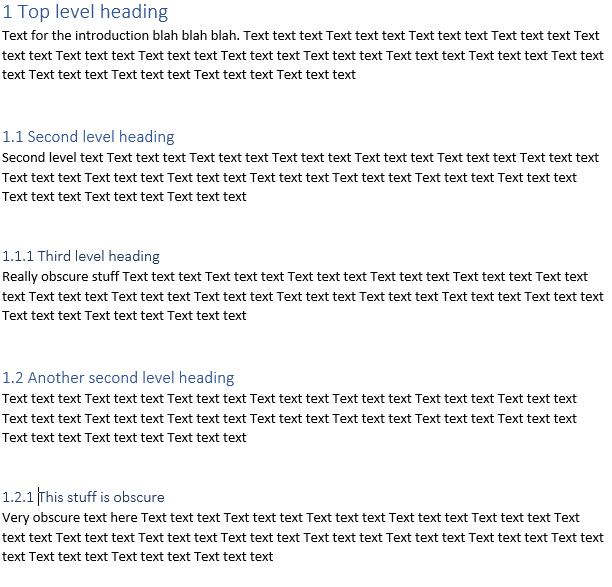
Here’s our document, with headings at H1, H2 and H3 level. I’ve marked these up with their heading levels already (see here for how to assign heading levels).

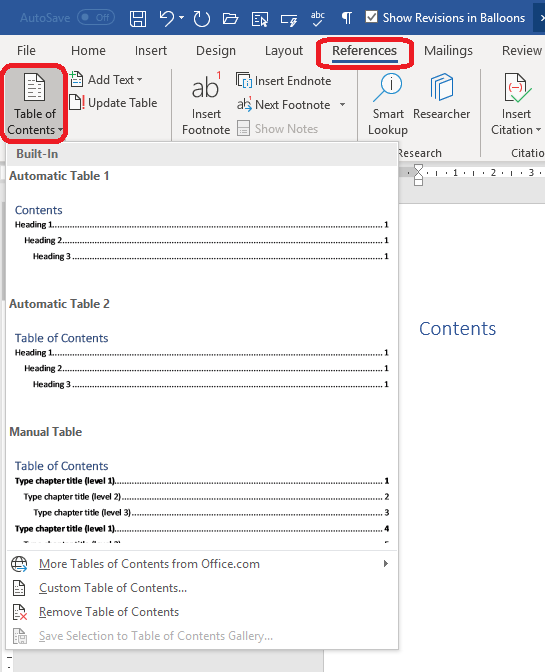
If we just follow the usual process for inserting a table of contents, we will create a blank page before this one, then go to the References tab and choose Table of Contents, then click on one of the automatic options that come up.

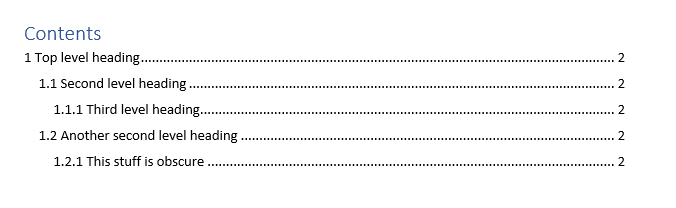
This is the result: a table of contents that includes all the headings in our original text:

How do I select which heading levels appear in my Table of Contents?

If you want to ignore all headings below level 2 (1.1, 1.2) then you need to customise the table of contents.

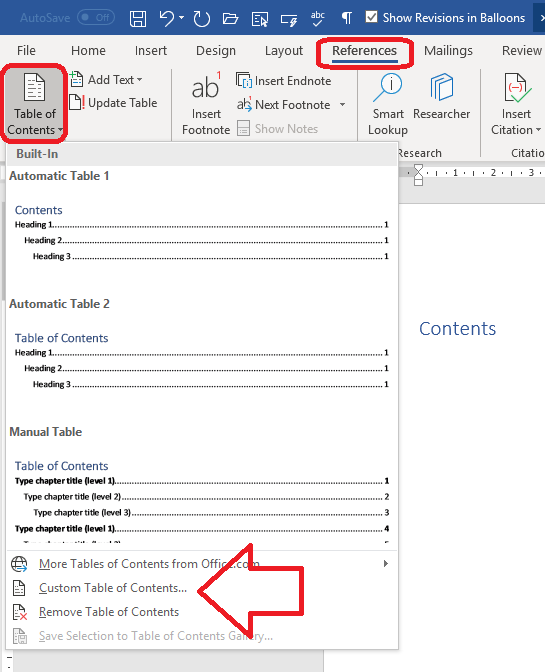
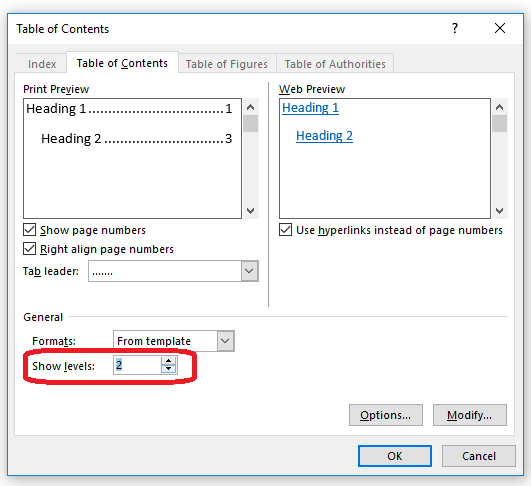
As before, select the References tab and the Table of Contents button. However, now click on Custom Table of Contents

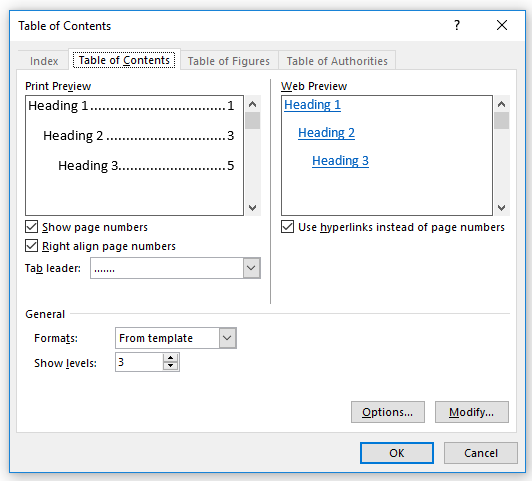
This will give you this dialogue box:

There are lots of different things you can do here. For example, you can choose to show or not show the page numbers in the table of contents, and whether or not to align them. The preview panes at the top will show you the results before you click OK.

Options allows you to choose the style for the table of contents from a set of heading styles, and Modify then Modify again allows you to completely customise the appearance of the table of contents text permanently, with underlining, different fonts, etc.

At the moment, we’re concerned with eliminating the level 3 headings from the table of contents.Click on the arrows by Show levels to adjust how many levels are displayed:

And click OK. Here we have changed the number of levels to 2, and the result is this:

Even though the text still has the same headings and levels it had before, the table of contents now just includes those headings down to Level 2

This is part of my series on how to avoid time-consuming “short cuts” and use Word in the right way to maximise your time and improve the look of your documents. Find all the short cuts here … Please note that these tips are for Word 2010 and later for Microsoft. I can’t guarantee or check they will work in Mac versions of Word.

Do let me know if this has helped you – and do share with the buttons at the bottom of this article.

Related articles on this website

How to use headings styles – make your headings clear and consistent

How to set up numbered headings – ones that automatically update themselves!

How to create a Table of Contents – read the posts on Headings first

Table of Figures and Table of Tables – how to create these tricky ones

How do I add or remove auto-captions?

Two-line caption, one-line entry in the Table of Figures: how?

How to update Tables of Contents, Figures and Tables

Tables of Contents for editors – helping the editing process run smoothly


Tags: , , , ,

Track changes – how do I get rid of the text box that appears when I hover over words in a Word document?

How do you get rid of document tooltips? How do you stop the little text boxes appearing when you hover over deleted or added words in Word. I had a query about this in a comment and thought that it warranted some screen shots and instructions.

What’s the problem here? What do you mean by these text boxes?

When you’ve worked with Track Changes enabled in Word, as well as showing you what your editor or collaborator has deleted or inserted into the text in red and with bubbles in the margin, you also get text boxes when you hover over the change. Here’s what that looks like:

Some people get annoyed by this, so here’s how to turn it off.

How do I turn off document tooltips aka those little text boxes that show me what I’ve deleted?

This process works for Word 2010 and later versions:

Click File on the far left of the tabs and then Options:

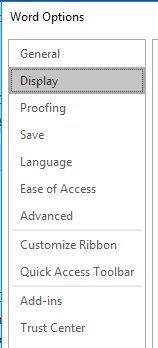
Once in Options, choose Display:

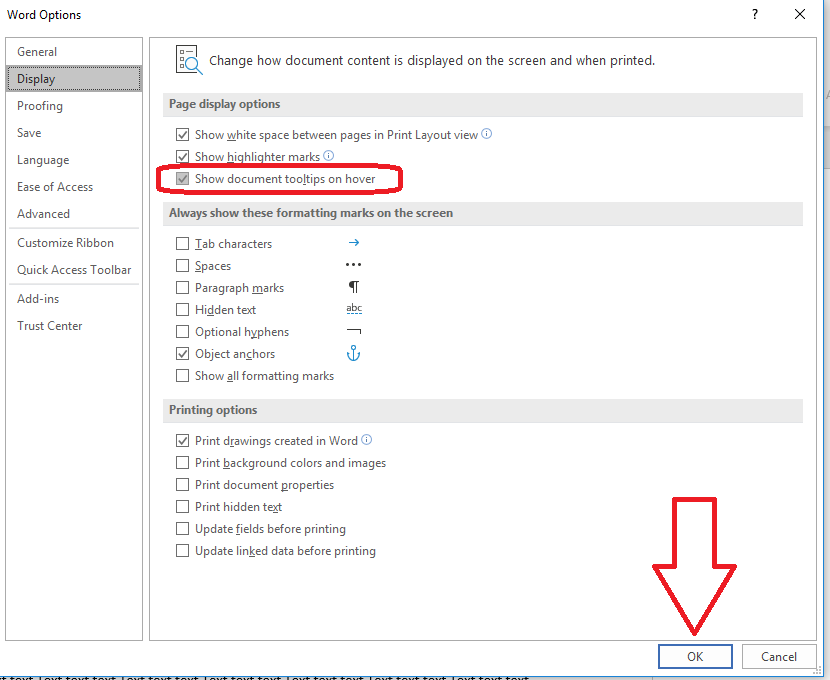
The Display dialogue box has an option to Show document tooltips on hover. Untick this by clicking in the square, then choose OK.

Now you won’t see those boxes in the document.

However, it does NOT turn off the useful tooltips in the rest of Word – so if you hover over any of the items on the Ribbon, you will still see the usual tooltips there.

If you’re using Word 2007, click the round button in the top left corner, choose Word Options at the very bottom of the dialogue box, then as above, select Display and untick Show document tooptips on hover.

Please note: these tips work for Microsoft Word version 2007 and upwards. They are not guaranteed or tested for Word for Mac.

Other track changes articles on this website

Track changes 1 – why use it, where can you find it, what can you do with it?

Track changes 2 – customising Track Changes

Track changes 3 – working with a document with tracked changes

How do I accept one reviewer’s changes?

Why are my tracked changes changing colour?

 
3 Comments

Posted by on February 13, 2019 in Copyediting, proofreading, Skillset, Word


Tags: , , , , , ,

How do I know when Track Changes is turned on? Word 2007, 2010, 2013 and 2016

This article quickly explains how you know when track changes is turned on.

Do also read these articles to find out more about track changes: what Track Changes is, why we use it and where to find it, and how to customise Track Changes to suit our own preferences and learned how to work with a document that has Tracked Changes.

We turn on track changes to make sure that whoever else is using the document can see what changes (additions, deletions, moving text) we have made in the text. If you are working with an editor, they will typically turn track changes on so you can see what they have suggested. When my clients send me back amendments to a text they’re working on, I ask them to turn track changes on so I can see easily what they have done to the document.

How do I know when track changes is turned on in Word 2007 and Word 2010?

Word 2007 and Word 2010 look a bit different from later versions.

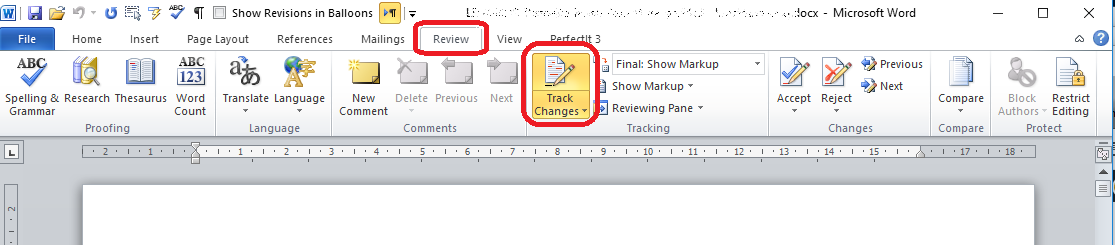
When track changes is turned on, you will see the button highlighted in orange:

This means that every change you make will be displayed in Word and other people will be able to see them if they have the correct view in their version of Word.

If the button is white, like the rest of the area, track changes it not turned on.

How do I know when track changes is turned on in Word 2013 and Word 2016?

Word 2013 and Word 2017 look different and the highlighting is more difficult to see, in my opinion.

When track changes is turned on, you will see the button highlighted in blue-grey:

This means that every change you make to the document will be displayed in Word and other people will be able to see them if they have the correct view in their version of Word.

When track changes is off, the button will be white, like the rest of the area.

If you want highlighting to be in a different colour, you will need to change the theme, and that’s for another article!


This article has taught you how to check whether you have track changes turned on in your Word document. See the links below for more track changes articles.

If you have found this article useful, please share or “like” it using the buttons below, or leave me a comment to tell me what you think. Thank you!

This is part of my series on how to avoid time-consuming “short cuts” and use Word in the right way to maximise your time and improve the look of your documents.

Please note, these hints work with versions of Microsoft Word currently in use – Word 2007, 2010, 2013 and 2016 all for PC. Mac compatible versions of Word should have similar options. Always save a copy of your document before manipulating it. I bear no responsibility for any pickles you might get yourself into!

Relevant articles on this website

Track changes 1 – why use it, where can you find it, what can you do with it?

Track changes 2 – customising Track Changes

Track changes 3 – working with a document with tracked changes

How do I accept one reviewer’s changes?

Why are my tracked changes changing colour?


Tags: , , , , , , ,

How do I move text using my Navigation pane in Word? How do I reorder the headings?

If you have set up Headings styles in your Word document, you can use the Navigation pane to move sections around the document without having to use cut-and-paste and endless scrolling. This article tells you how.


Note that this only works if you have applied headings styles to your document, i.e. marked your headings as Heading 1, Heading 2, etc. (see information on how to do this here).

How do I access the Navigation pane?

Please see this article with screen shots if you need help viewing the Navigation pane:

Press Control-F

or

View tab, tick the box next to Navigation Pane Show

How do I use the Navigation pane to move text?

You can use the Navigation pane to move all of the text under one heading. If you choose a heading with sub-headings, all of the text in the sub-headed sections will also move.

First, click on the heading for the text you want to move:

You can see that you will navigate to that heading in the document itself.

Then keep left mouse button clicked down and drag the heading up or down the list of headings (it will scroll automatically if you reach the top or bottom). A black line will appear at the insertion point:

When you’ve got the heading where you want it, let go of the mouse button to drop it into position. The whole of the text under that heading (including the text under any sub-headings) will have now moved:


This article has taught you how to move text under headings using the Navigation pane in Word. I hope you’ve found this article useful. Do please add a comment or use the sharing buttons below if you have found it useful or interesting. Thank you!

Other useful articles on this blog

Applying Heading Styles

How to Access the Navigation Pane

 
Leave a comment

Posted by on January 31, 2018 in Word, Writing


Tags: , , , ,