RSS

Category Archives: Writing

10 reasons not to write a blog

pens and ink bottleWe’ve already looked at reasons to write a blog. But what are the reasons for not writing a blog, or for taking an informed decision to stop writing one, even if you started?

Note that this, like the last post, is mainly targeted at business bloggers. However, if you have a blog that you want to gain an audience and maybe earn some money from in whatever way, these points will interest you, too.

So, what are the reasons NOT to write a blog, or to give up?

1. You are only doing it because someone told you that you should

I go on about blogging to people ALL THE TIME. I even did it when I was buying vegan food from a stall in Greenwich at the weekend. But don’t just do it because someone tells you to. OK, it’s worth looking at the reasons why having a blog is good (see my previous post) and making an informed decision, but if someone just tells you, “start writing a blog” and you do, it’s not so likely that the habit will stick and it will be useful and fun.

2. You actually dislike doing it

So, you’ve started blogging and you’ve got into a routine, and then you realise that you’re just dreading writing that next post. I’m going to talk in another post about slumps and maintaining momentum (if I forget to link to it here, look in the index). But what I’m talking about here is hating it all the time, disliking putting fingers to keyboard and putting the thing together, resenting the time it takes up. If you don’t enjoy doing it

  • get someone else in your organisation to do it
  • pay someone else to do it
  • stop doing it entirely

3. You haven’t got time to post regularly

Although if you have a personal blog and you’re not worried about statistics and search engines, you can get away with blogging very irregularly, if you are doing it so as to appear in search results and get more exposure for your business, you really do need to post regularly. I find that, for me, three posts a week are the sweet spot. When I publish three posts a week, I get the most visits to the blog. It’s worth noting that not all of those are long posts (my Troublesome Pairs certainly are not), but it’s regularly updated content, full of relevant keywords and useful to different groups of readers.

Once a week is, I think, the minimum you can get away with and still gain value from the process. If you don’t have the time to do this, again, consider outsourcing, or consider not doing it at all.

4. You’re not organised to post regularly

Following on from the time issue, you do need to be organised enough to generate new content fairly regularly. Again, I’m going to talk about this in detail in another article, but you do need to be able to plan what you’re going to talk about, gather photographs and illustrations for the posts, and organise yourself to sit down and write them, and then publicise the posts and deal with any comments that might ensue. If you fly by the seat of your pants and do everything as and when, and find organisation in general to be a tricky thing, blogging for business might not be for you.

5. You’re only in it to make money

You do read loads of posts about making money from your blog. And you can make money from your blog, for example by …

  • Allowing adverts to appear on your blog (but be very careful with this and make sure you only allow adverts relevant to your readers or this will be a big turn-off. The best way to do this is through carefully selected product placement that matches with your content and readership)
  • Hosting affiliate links on your blog so that readers can click a button or picture on your blog to be taken through to buy a product, while you get a percentage of all sales (this is notoriously difficult to make money from)
  • Selling your blog to a publisher to make into a book (but not many people make money writing and selling books, and there’s more to a blog-to-book than just bunging all your blog posts in one place – I have direct experience of this)

It’s not common to make money directly from your blog. It’s hard to say how many page views you need per month to do well out of advertising, but recommendations start at 10,000 unique visitors per month. Not many publishers convert blogs into books outside the big ones we’ve all heard about. What my blog does is let people know about me who then become customers … but that’s using your blog to build your business, not to make money per se. If you’ve read an article or been to a seminar about easy ways to make money online, be VERY careful what you sign up for and get into.

6. You are not interested in engaging with your readers

People who read blogs like to comment on them. People who comment on blogs like to see the blogger reply to these comments. I know that personally I’ve stopped reading and commenting on blogs when I’m never responded to, especially if I can see that the blogger never responds to any comments. This is actually one of my Top 10 Blogging Sins, too.

If you’re not actually interested in having a conversation, in engaging with your readers, in replying to their comments, and you just find it a chore; if you just want to broadcast and don’t want to engage in two-way conversation, I don’t personally think that blogging is for you. You will lose readers as fast as you gain them, and it will never be personally or professionally fulfilling for you.

7. You are not interested in engaging with other bloggers

This is similar to point 6, but we’re talking here about other people in the same line of business as you (whether that business be small business support, engineering or book reviewing). If you see other people blogging on a similar topic to you as rivals, and you want to keep apart from the, set yourself apart and distance yourself, then you may not find blogging to be useful. You probably can’t “beat” the most successful blogger in your industry, and if you don’t want to engage with them, share guest blog spots, link to their material and comment on each other’s blogs, then it might be wise to disengage with the process.

8. You haven’t got anything interesting to say

If you’re boring yourself with your blog content, you will probably be boring your readers. If you’re constantly scratching around for topics to write about, or covering the same ground time and again, consider scrapping that series, if you have various topics you cover on your blog, or the whole thing. I used to post up an update about what I’d been doing in the previous month at the beginning of each month. Although some readers said they enjoyed it, it was becoming very repetitive and boring to write. So I stopped doing it and added something else in that slot on the blog.

Note: what you think isn’t interesting might be to other people – it’s always worth doing some market research. When I meet people like locksmiths, carpenters and electricians, I always tell them they should write a blog about their daily lives and the jobs they do (keeping their clients’ confidentiality, of course) as many of us would find that sort of thing really interesting. I’m talking about when you’re struggling for ideas and you’re maybe not getting any positive feedback or a growing readership, and your blog becomes bogged down and repetitive. Have a rethink or ditch the blog!

9. Your blog isn’t relevant to your target market

If you’re blogging for business, your blog posts need to be relevant to your target market(s). For example, I blog about …

  • Word tips and hints – because most of my clients and target market use Word
  • Language tips and hints – because my business lies in improving written language
  • Business tips and hints – because I’ve written a book about business and I am passionate about engaging with other businesses
  • Blogging tips and hints – because I get asked about this a lot and because of the business reason above and because I noticed that I get searches coming through to my blog on that topic already, so people want to know about it

If you sell garages but blog about hairstyles, the people who read your blog are not likely to have a huge overlap with the people who are going to buy your services. If you have a book review blog and want to engage with mystery authors but only review romance, that’s not going to engage your audience. There needs to be a big overlap between what you talk about on your blog and the people you want to attract to read it. Even “the general public” has niches – people who like to read about fashion, or the work of an ambulance driver, or about low cholesterol eating.

10. Nobody is reading your blog, even after 6, 12, 18 months

It takes time to build a blog and its audience. Both of mine have grown over the months, pretty gradually. My book review blog wasn’t growing its audience much for a while, and I did wonder whether to cancel it. I actually published a post asking if people found it interesting to see whether anyone was reading it! What I found out was that many people were reading it on blog aggregators, which don’t show up on my statistics. So it was worth doing, but I also took steps to add value, beefing up my reviews, adding some more web pages to the blog, and importing a whole wodge of old reviews from another blogging service I used to use. My traffic improved and the blog was saved. But if you do that, and you change things and no one’s looking, maybe it’s time to consider other ways to market and raise awareness.

———–

These are not necessarily ten reasons to stop blogging altogether. They certainly are reasons to stop, look at what you’re doing, reconsider things and maybe tweak your posts, style, content or other aspects.

Have you stopped writing a blog? Why?

Relevant posts:

10 Reasons to Write a Blog

Reciprocity and social media

Top 10 blogging sins

Scheduling blog posts and keeping going

Coming soon …

WordPress blogging 101


19 Comments

Posted by on August 12, 2013 in Blogging, Business, Writing


Tags: , , , , , ,

10 reasons to write a blog

pens and ink bottleWhy should you write a blog? Why should you start writing a blog, and why should you continue writing a blog? Here are my top reasons why. I’m really looking at business blogging here, but the first one applies to everyone!

1. Because you want to

This reason covers both personal bloggers and business bloggers. You should start writing, and continue writing, a blog, because you want to. Forcing yourself to do something you don’t want to do is no fun, and you should enjoy the time you spend designing and honing your blog and writing those entries. Whether you want to share holiday pictures or reviews of restaurants or share your professional expertise, do it because you want to.

2. You’ve got something interesting to talk about

There are so many interesting things to talk about. I often meet people running businesses where I have no idea of the nitty gritty of their everyday lives. How does a carpenter learn his trade? What does a freelance solicitor do, day to day? How many projects does a crafter have on the go at any one time, and how does a mobile hairdresser help their clients to choose a new hairstyle?

I have found that my posts on building my business struck a chord and interested many people. A series of posts that I started really for myself about Word hints and tips has turned into a popular series. If you run a business, think about some of the behind the scenes things, some of the aspects of your knowledge that people might be interested to know about (don’t worry about giving away your secrets – I might publish articles on Word headings and tables of contents, but I still get asked to do them by my clients!).

Of course, it goes without saying that you shouldn’t share personal details about your clients. But I think it’s fine to talk about them if they’re heavily disguised – or ask if they’d like to have a case study published with links back to their website!

3. It will set you up as an expert in your field

This is invaluable when you’re building your reputation and your business. Don’t see it as giving away information for free, think of it as sharing your expertise with the world. Once you start appearing in people’s Google searches when they’re trying to resolve a problem, they’ll be more likely to come to you for help when they need your services. If you can offer a back catalogue of useful, targeted advice on your blog when you’re negotiating with a new prospect, they will see that you can walk the walk as well as talk the talk.

This may not lead to direct sales – but I’ve often seen my blog posts shared among other people and organisations in my field. Keep your name in front of them as well as prospects, and you never know where the next recommendation and job might come from!

4. It will attract people to your site

This links in to the above point. The more content you have on your website which is packed full of keywords and language to do with your business, the more findable it is in the search engines. The more people find information that is useful to them and engages with them, the more time they will spend on your website. The more time people spend on your website, or the more repeat visits they make, or the fact that they’ve signed up for your RSS feed and get regular updates into the RSS* reader or email inbox, the more likely they are to remember your name and your products or services when they or a contact need them.

More website visitors does not directly lead to more sales in a quantifiable relationship. But as long as you do show genuine expertise and a willingness to engage with your audience, you will build your exposure, get more visitors to your site, and this will help you to become better known and gain more sales.

5. It will build your platform

Your platform is the group of people who are engaged with you in whatever way – through personal connections, social media such as Twitter, Facebook and LinkedIn, through your email newsletter, through your blog – and who can then be “leveraged” (horrible word) when you want to get the word out about something new that you’re offering.

For example, if you’re self-publishing a book, it’s vital to have built a circle of connections before it comes out, so you have a guaranteed audience of at least a few people. If you start offering a new service, for example when I added transcription services to my proofreading and editing offering, it’s useful to have people who you can tell, and who will then hopefully spread the word.

Having a blog builds your platform because it engages people’s interest. It brings them to your website, it gets them reading your content regularly, and it encourages them to sign up for your RSS feed or to receive your posts by email as they’re published. Once you have subscribers, you can get information out to that guaranteed audience when you need to. That’s much harder if you only have a static website for them to visit.

6. Regularly updated content will boost your position in search engine search results

It’s fairly common knowledge that the search engines (Google, Yahoo, etc.) like content that is regularly updated. This means that their complex and little-known (and ever-changing) algorithms will promote websites that are frequently updated above those that are static. Updating your blog once a week or more gives all of the content on your website a better change of being found by potential contacts and clients, because it gives it a better chance of appearing in a higher position in the search results.

7. So will information crammed full of the keywords that are important in your industry

Keywords are vital for search engines, too. If you just write a set of keywords over and over again, the chances are the the search engines will pick up that it’s not real content, and will not show it to searchers. But if you are writing well-crafted copy which includes a good sprinkling of keywords among the text, you will find yourself doing better in the search engine results.

I write natural text in my blog posts that is (hopefully) interesting and gives something to the reader – but I am also careful to include relevant keywords at a regular rate in the blog posts I write, which does improve my search engine optimisation no end (it’s also good to get them into sub-headings and the blog title itself). SEO is a fairly dark art, but the more keywords you can sensibly insert into your content, the more the search engines will be happy to find and display your content to their users.

8. You want to engage with your readers / prospects / clients

Blogs are not a one-way conversation. Once your audience has built a bit, you will get comments, shares, etc. on your blog posts, and on the places where you promote them (I will get almost as many comments on my Facebook post advertising a new blog post as I will on the post itself).

One of the golden rules of blogging is that you need to respond to your comments. Some bloggers are very good at this, some are not. I’m sure everyone’s commented excitedly on a blog post, only to find their comment is effectively “ignored”, with no reply from the writer. I think that’s quite rude, and I am likely to engage a lot less – or stop engaging – with bloggers who have a habit of not replying. Obviously, we all get times when we’re away or too busy to reply that moment, but most blogging platforms alert users to replies, and you want to keep that feature switched on and engage with your audience, otherwise they will stop coming back.

And those commenters might just be your friend Ali or your ex-colleague Steph, but every person who engages with your blog is a potential client or recommender.

9. You want to engage with other bloggers

There’s nothing like blogging for building communities of like-minded people. Once you’re blogging in a niche area, whether it be fiction writing, editing, ironing services or Sage, people who are interested in the same sorts of areas will start to follow your blog, comment on your posts and share what you’re saying.

This is useful for a couple of reasons: firstly, it’s always good to have colleagues. I’ve written elsewhere about how I treat other people in the same line of business as me as colleagues rather than competitors. It’s always good to have people to recommend prospects on too if you’re fully booked and can’t take them on, and to have people to send you referrals. Sometimes you need to have a moan or a chat or ask advice, and you might want to do this privately rather than publicly, which is where your network of colleagues can come in very handy. You can also read what they’re saying, get new ideas, keep up to date, and slot into networks that offer mutually useful posts, services and applications.

Secondly, this may give you the opportunity to guest post on other people’s blogs, and vice versa. We’ll talk about sharing your content in other places next. But just to give you some examples, if I hadn’t started blogging, I wouldn’t have got to know many of the editors I now know who link to my blog articles, share them on social media, and act as a sounding-board when I need to talk things through. That’s worth every hour of effort I put into my blog, to be honest!

10. You want to share your content in other places on the web

The good thing about your URLs and name appearing in places on the web that are not connected directly with you, your website and social media is, you guessed it: it boosts your position in search engine results. The more times your URL appears on a website that’s on a solid standing itself and has followers and people talking about it, the more the search engines will consider your website to be appropriate to present in their search results listings.

These links to your content on other people’s pages are called backlinks. You can secure these in a number of ways:

  • Comment on someone else’s blog post, including your URL
  • Contribute when someone asks for examples, experiences or feedback, again making sure that your URL is included
  • Write a guest blog post for someone – ensuring that the biography at the end includes all of your links

Now, you’ll know if you’ve ever allowed comments on a website or blog that a lot of companies do this seemingly randomly, just to get their URL into other people’s comments, and now you know why they do it. So do make sure that the content and comments you share are appropriate to the topic of the post on which you’re commenting! But this is a great way to increase traffic to your website and blog.

So, there are 10 top reasons for writing a blog. Do you have any others? Why did you start yours? Do also read … 10 top reasons NOT to write a blog!

File:Feed-icon.svg *What’s this RSS stuff I keep talking about? RSS feeds are file formats that allow your regularly updated content to be collected and sent on to readers, usually involving them reading all of the blogs etc that interest them using an RSS reader that accumulates them all in one place. This Wikipedia article explains it all and examples of RSS readers include Feedly. RSS feeds can be found on blogs around the symbol at the beginning of this explanation.
Related topics:

10 top reasons NOT to write a blog

Reciprocity and social media

Top 10 blogging sins

Scheduling blog posts and keeping going

 
39 Comments

Posted by on August 9, 2013 in Blogging, Business, New skills, Writing


Tags: , , , , , , ,

Using the split screen view in Word

In this article, I’m going to tell you all about using the split screen view in Word, including why you would use it, how to use it, and how to stop using it. I’ve also added an alternative way to get the split screen view, which explains the problem: “help! I’ve got a split screen and I don’t know how I got it!”

What does split screen mean?

If you split the screen in Word, it means that you can see two parts of the same document in the same window, allowing you to scroll through both parts independently or keep one section on screen at all times. It’s a bit like splitting panes in Excel, although you can only do it horizontally.

Why would I want to split the screen in Word?

It’s often useful to be able to see two sections of a document at one time, without having to open two copies of the document (if you do that, one will be read-only and you can’t make amendments to it). Some examples of why split screen view is useful:

  • You are creating a large table and want to be able to see your column headings all of the time (this is similar to the use of Freeze Panes in Excel)
  • You’re creating a lesson plan and you want to look at the plan and notes at the same time.
  • You’re checking that a contents page includes the correct titles and page numbers and you don’t want to keep whizzing back and forth through the document.
  • You’ve written an introduction to a chapter and want to make sure that it refers to all of the content in that chapter.
  • You’re working on some worked examples in a textbook and you want to check the answers at the end of the document

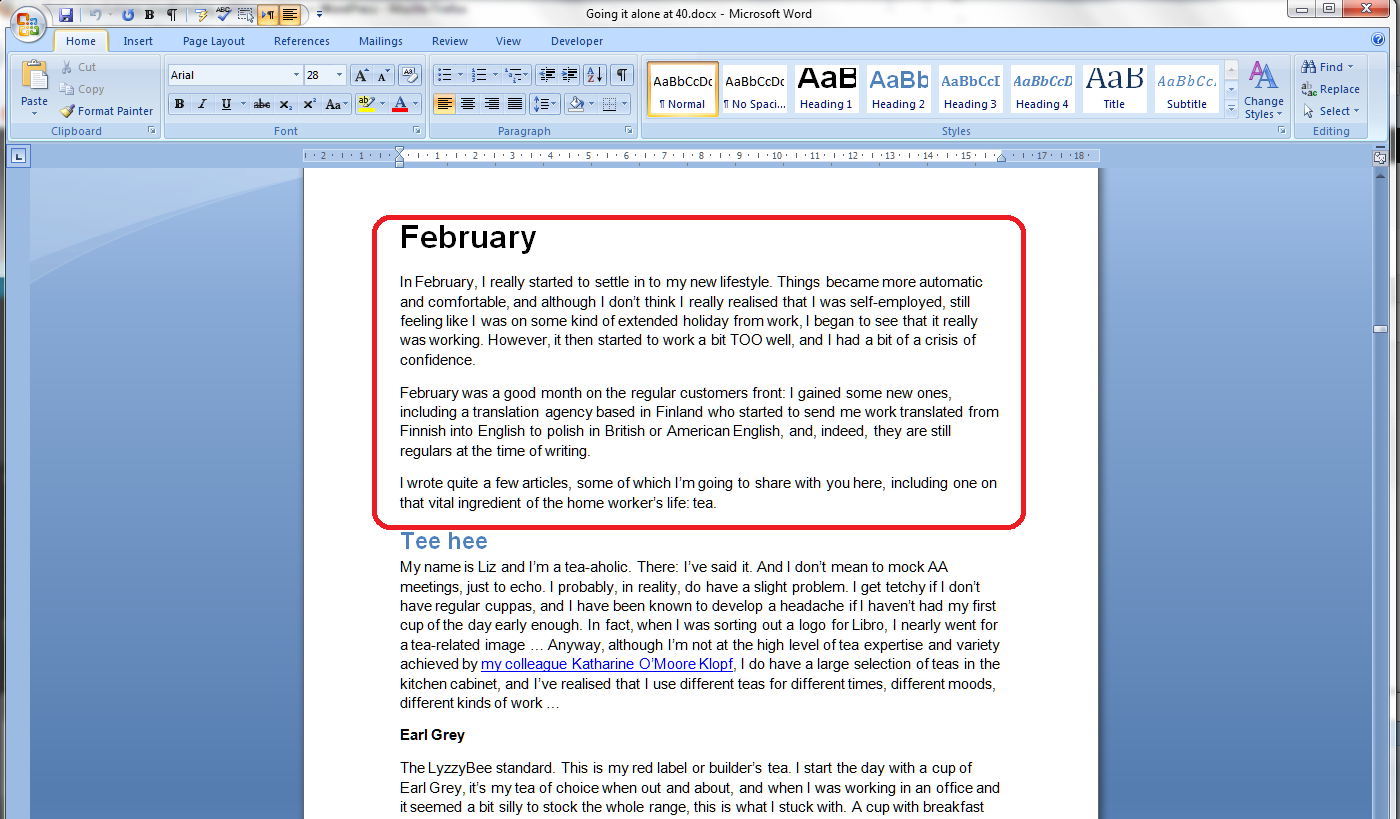
In this worked example, I want to review the text in the February chapter of my book to make sure that the content within it is reflected in the introduction to the chapter. I want to keep the introduction (circled in red) visible on the screen while I scroll through the rest of the chapter.

1 all one screen

How do I make the screen split in Word 2007 and Word 2010?

This is another example where Word 2007 and Word 2010 operate in exactly the same way.

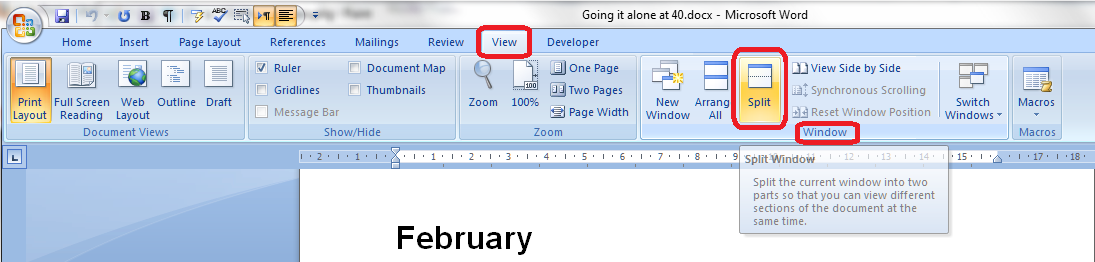
The Split button can be found in the View tab, in the Window section:

2 menu

Once you press this Split button, the screen will automatically split into two. Initially, a grey line will appear – this is a guide line that you can move and position as you wish:

3 line

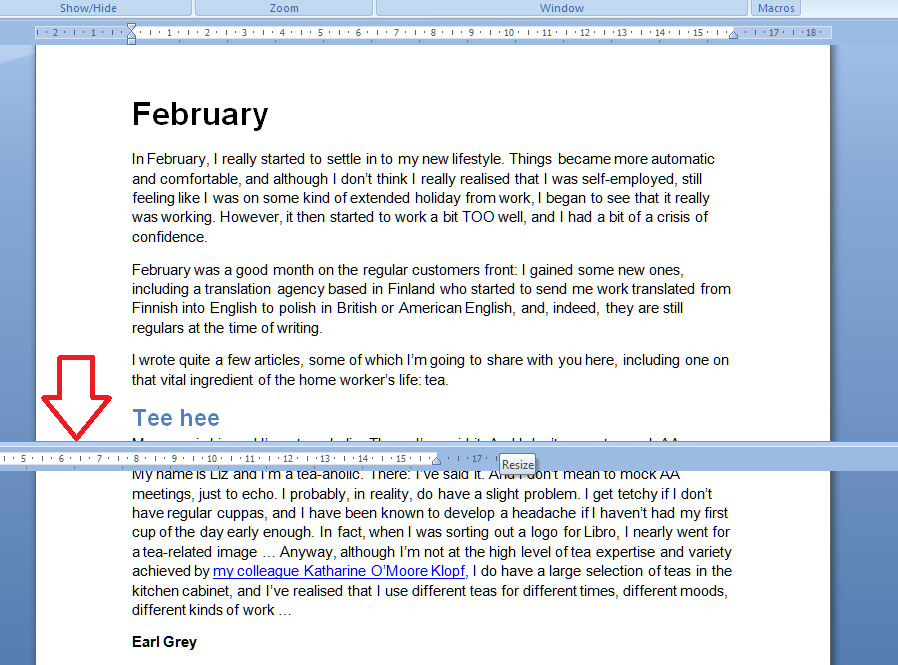
Once you’ve positioned the screen split (it can go anywhere horizontally on the page), it turns into a second ruler:

4 ruler

Your screen is now split and ready to use.

You can scroll up and down both halves of the screen, although usually you will want to keep the top half still and just move the bottom. Here, I’ve scrolled down to the bottom of the essay on tea to see what comes next:

5 scroll

The scroll bars on the right hand side will remind you of your position in each part of the document.

Remember that you must have your cursor in the half of the screen that you wish to scroll!

How do I cancel Split Screen view?

You can revert to a single viewing pane at any time by pressing the Remove Split button (which was the Split button):

6 remove split

Your document will return to single pane view – starting at the top point of your upper pane:

1 all one screen

Using the Split Screen button

You can also use a tiny button on the top right of the screen to split your screen (and you can use this in any Microsoft Office application). I didn’t realise this until I was trying to sort out a problem for someone who had got stuck with split screen and couldn’t make it go away – I couldn’t work out how he’d got a split screen without choosing those particular menu items above. Now I know.

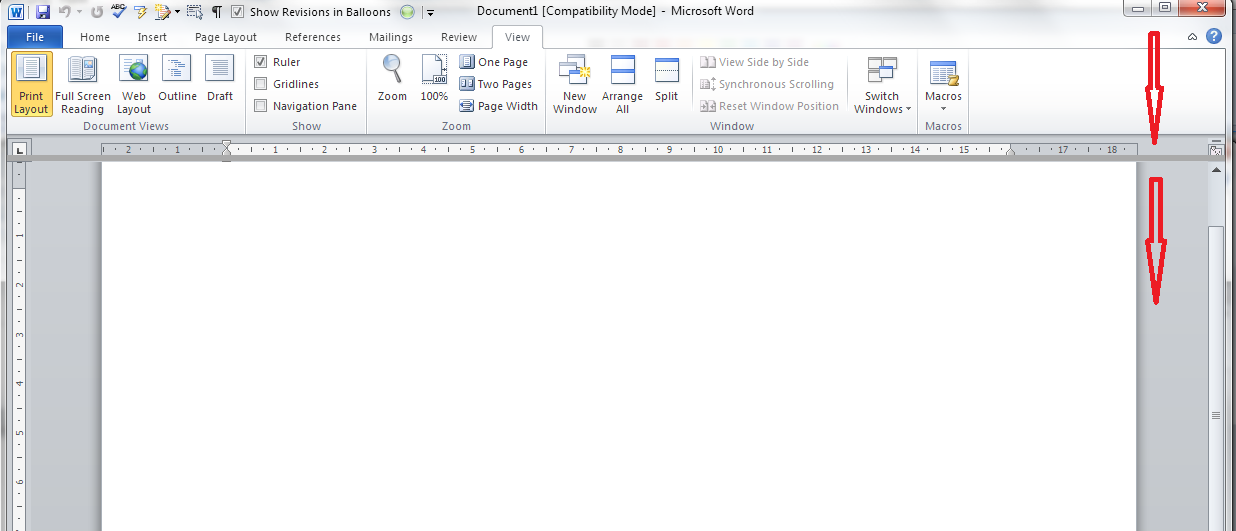
In the top right of your Word screen, you’ll find a tiny button like a letterbox, just above a bigger button:

7 split button

Here it is in close-up:

8 split button

Left-click on this button and the cursor will change to having two horizontal lines. Drag the cursor down, holding the left mouse button down, and the grey line will follow, just as with the other method.

9 split down

Return it by clicking, keeping the mouse button down and moving the split line up to the top of the screen.

You can mix and match these ways of adding and removing the screen split, so if you start one way, you can remove it in the other way.

So, if you’ve got a split screen and you don’t know why, you probably clicked on that little button by accident, and you can remove it in one of two ways: go into View and Remove Split or click on the split bar and move it up to the top of the screen.

In this article, we’ve learned about splitting the screen in Word, why we might want to do that, how we do it, and how to return to standard view.

If you have enjoyed this post, please share the link!

Please note, these hints work with versions of Microsoft Word currently in use – Word 2007 and Word 2010, for PC. Mac compatible versions of Word should have similar options. Always save a copy of your document before manipulating it. I bear no responsibility for any pickles you might get yourself into!

Find all the short cuts here

 
17 Comments

Posted by on August 7, 2013 in Errors, New skills, Short cuts, Word, Writing


Tags: , , , , , , , ,

Ferment or foment?

I can’t remember where I came across this one now, but it’s an interesting pair that I thought got confused in certain circumstances regarding the stirring up of unrest. But wouldn’t you know it – a different picture emerges when I look into it more deeply, and this joins the select ranks of words such as decimated or gunnel that I am not really allowed to be as picky about as I’d like to be!).

To ferment as a verb means to undergo the process of fermentation (“His beer was fermenting nicely and would be ready to drink in a few weeks”) or to stir up disorder. A ferment (as a noun) means social unrest and agitation.

To foment, as a verb, means to instigate or stir up something like strife or revolution – i.e. the same as the secondary meaning of ferment as a verb. What a shame! I think we should still use this for revolutions and ferment for beer, myself (to foment has a nice archaic meaning of bathing a part of the body with a warm or medicated lotion, or fomentation. I doubt any of us will ever use that, but it’s quite jolly, in my opinion).

You can find more troublesome pairs here and the index to them all so far is here.


Tags: , , ,

Section breaks in Word

Today we’re going to be talking about adding section breaks in Word documents.

Why would I want to add a section break?

Section breaks are used if you want to have different formatting in different parts of your document. For example, you might want to …

  • have your page numbering in Roman numerals for part of your document and Arabic numerals in the rest of it
  • have some pages in portrait and some in landscape (for example if you’re including wide tables or images in your document)
  • include watermarks for branding or protection in parts of your document but not other parts
  • have different headers and footers associated with different parts of your document

Basically, if you want to change parts of your headers, footers, background or page layout for parts of your document only, you will need to divide up those parts using Section Breaks.

We’re going to use a document where one page should be in portrait and one in landscape for demonstration purposes.

What happens if you don’t use Section Breaks?

In this example, we want Page 1 to be in portrait and Page 2 to be in landscape orientation.

If you don’t enter any section breaks, even if you have your cursor on Page 2, changing its orientation to landscape …

1 without section break 1

… will change the orientation of Page 1, too:

2 without section break 2

Where is the Section Break menu in Word 2007 and Word 2010?

The good news is that the Section Breaks menu is exactly the same in Word 2007 and 2010.

Go into the Page Layout tab, and you will find the Breaks menu in the Page Setup area:

3 section break menu

Note that you can apply Section Breaks to automatically happen continuously and on every odd or even page. I’ve never needed to do that: what I have done many times is insert a section break and start the next section on a new page.

How do I insert a Section Break into my document?

Make sure that your cursor is flashing where you want your Section Break to appear (i.e. at the end of your current section). Then select Section Break – Next Page:

4 section break menu

Once you’ve done this, the section break will have been inserted at the point at which you had your cursor. But you can’t see it – it’s one of those hidden messages that is only displayed if you use the Paragraph Mark button (see this article for further information):

c

Once you’ve pressed the Paragraph Mark button, you will be able to view your section break:

5 section break visible

If you look at your Header and Footer, you will see that they also show that Page 1 is part of Section 1, and Page 2 is part of Section 2:

6 header and footer showing section break

This is a good way to check which parts of the document belong to which section.

What effect does inserting a Section Break have?

Now that your document is divided up into Sections, you can apply different formatting to different sections of the document. Page numbering is covered in this post, and in order to have Section 2 in landscape, all we need to do is make sure that the cursor is in Section 2, and select the landscape option:

1 without section break 1

Now that it has been separated off into Section 2, Page 2 will change to landscape, while Page 1, in Section 1, will stay in portrait orientation:

7 portrait then landscape

How do I add more sections to my document?

There is no limit to the amount of sections you add to a document, however, it’s worth keeping track of them and remembering that your formatting will need to be set individually for each section – if you’ve changed everything in Section 2 into landscape, if you add a new section, it will stay in landscape and you will need to change it back to portrait if that’s how you want it to orientate.

How do I delete a Section Break?

To delete a section break, simply turn on Paragraph Marks so you can see the section breaks (see above), put the cursor next to the break and press the Delete button on your keyboard.

—-

In this article you have learned about Section Breaks, what they are used for, how to apply them, and how to use them to change the page orientation in your document. If you’ve found it useful, please share!

Other useful posts:

Proper page breaks

Page numbering – how to have different page number formats in different parts of your document

Changing between Landscape and Portrait (to come)

Please note, these hints work with versions of Microsoft Word currently in use – Word 2003, Word 2007 and Word 2010, all for PC. Mac compatible versions of Word should have similar options. Always save a copy of your document before manipulating it. I bear no responsibility for any pickles you might get yourself into!

Find all the short cuts here

 
14 Comments

Posted by on August 2, 2013 in Errors, New skills, Short cuts, Word, Writing


Tags: , , , , , , , ,

Libel or liable?

This one is dedicated to Matt P, who, having posted a not-entirely-positive review of a pub on TripAdvisor, was accused by the pub management of having committed “liable”. This one’s for you, Matt!

Libel is a noun meaning the publication of a false statement that damages someone’s reputation (see libel or slander).

Liable is an adjective which means responsible by law for something – “He is liable for the damages in the case” or likely to do something – “The cat is liable to tread on the keys and insert characters into your document, so it’s best to keep him off the desk”. You can also use liable to in the sense of “likely to experience something” (usually something undesirable) – “This area of low-lying land is liable to flooding”. (Note: I don’t like this last use – I’d be tempted to change it to “liable to flood” but that’s just my personal opinion).

You can combine them, of course – “The newspaper was found liable for all charges in the libel case brought by Mr. Brown regarding his damaged reputation and the lies that the paper had printed”.

You can find more troublesome pairs here and the index to them all so far is here.


Tags: , , ,

How to protect your Word 2007 document

As part of my series on protecting your document, which has looked at Applying Watermarks and Protecting Word 2010 Documents, today we’re going to look at the features for protecting your document offered by Word 2007.

Why would I want to protect a document?

We covered this in more detail in the post on Word 2010, but in summary, it’s useful to be able to protect your documents because …

  • You can stop the wrong people from opening the document (including if you’re sending it via email etc.)
  • You can stop the wrong people from editing the document (protecting what you’ve written and/or changed)

Where is the menu for protecting documents in Word 2007?

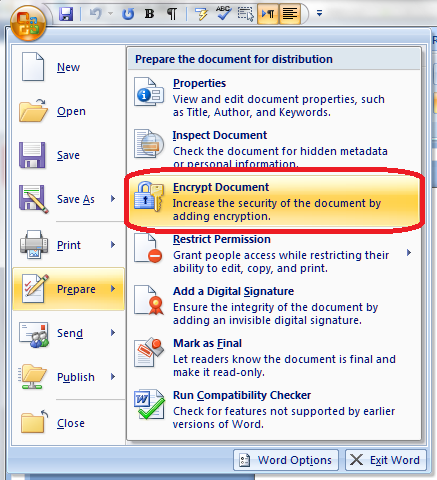
You will find the menu for protecting documents under the Start button at the extreme top left of your screen. Once you’ve clicked on the round button, you will see a menu starting with New, Open …

Click on Prepare and you are given a menu to do with preparing the document to be sent, protecting it, and editing its properties:

Word 2007 1 menu

How do I add a password to a Word 2007 document?

The most simple way to protect a document is to add password protection. This means that no one without the password can open it (so if you email it to someone, it can’t be intercepted and opened, or people who aren’t meant to see confidential information can’t open a confidential document).

Go to the Encrypt Document entry on the menu and click on it:

Word 2007 1 add password

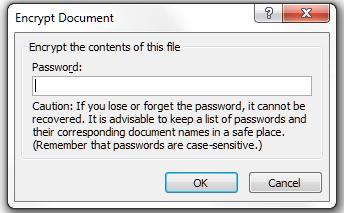
You will then be asked to enter a password (twice). Do remember this, and remember to share it with anyone else who might be permitted to open and read it.

Word 2007 2 add password

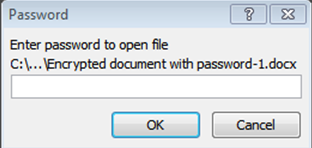
This is what happens when you or anyone else tries to open the file:

Word 2007 2a add password

How do I make a Word 2007 document read-only?

Another way to protect your document from unwanted edits is to make it read-only. Of course, anyone can “save as” the document and make all the changes they want, but your original document, with its file name, is protected, and often people don’t realise that they can save as, anyway.

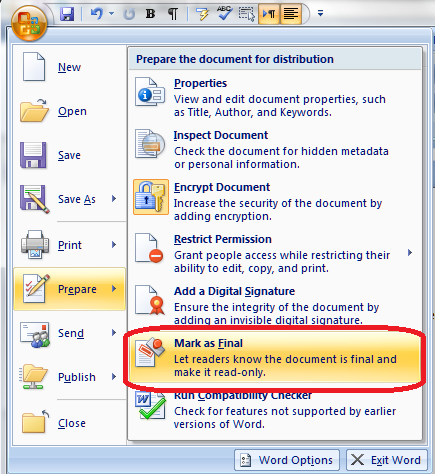
To do this, select the Mark as Final entry from the menu:

Word 2007 7 mark final

Now, when someone opens this document, they will be told that it is read-only and they cannot edit it.

How do I restrict editing in a Word 2007 document?

Another option is to restrict certain types of editing in your document.

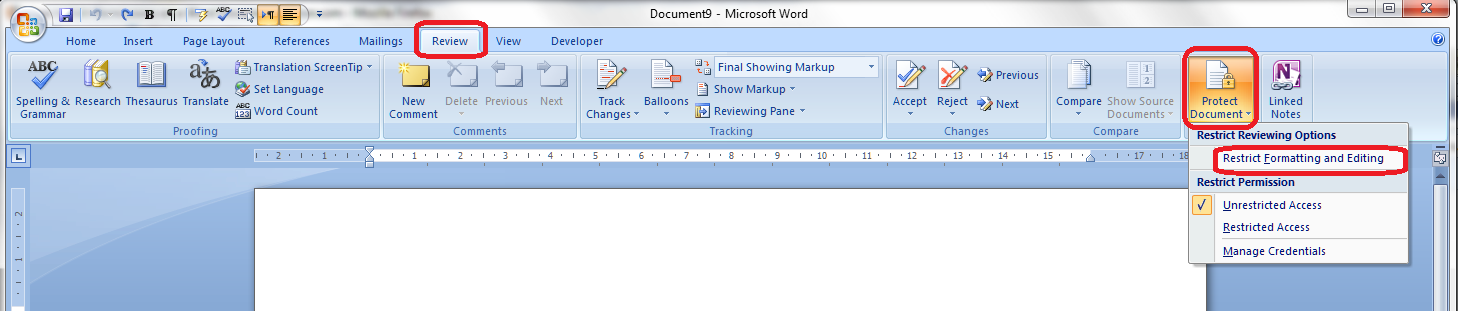
Confusingly, this is in a different area of the menus to the rest of the protection features. You will need to go to the Review tab, then the Protect section, which consists of a single button marked Protect Document. Click on the button itself or, if you must, the little arrow at the bottom right of that button (this has exactly the same effect. Why did they add that little arrow? Who knows!) to bring up the menu:

Word 2007 10 restrict editing

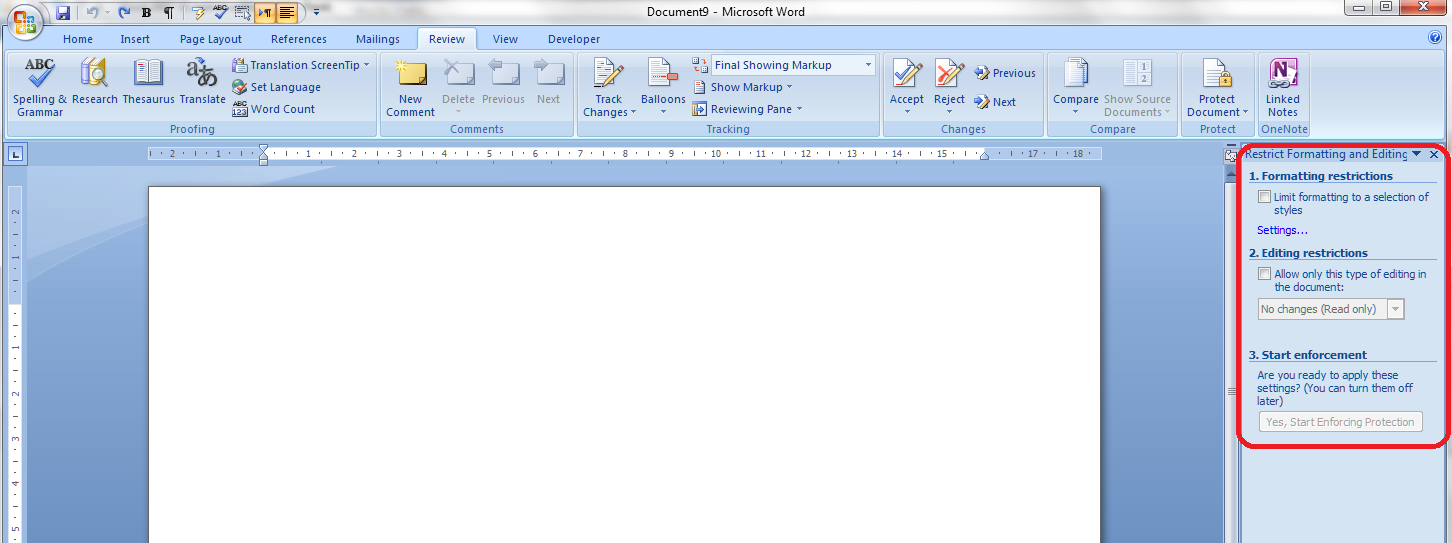
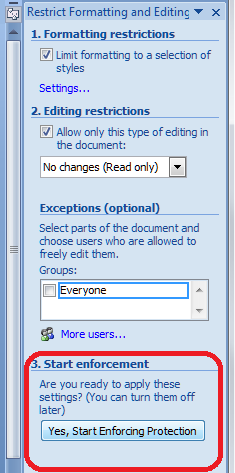
Click on Restrict Formatting and Editing to be given a list of options: Formatting restrictions, Editing restrictions and Start enforcement:

Word 2007 11 restrict editing

Formatting restrictions

This option allows you to select what formatting other people can apply to the document (you will want to do this after you have done all your own formatting to make sure that you can do what you want to do). Click on the tick box and then Settings to choose what formatting can be changed:

Word 2007 12 restrict editing

You are given a dialogue box with lots of different options. Note that you can allow the AutoFormat to override the formatting restrictions if you want to. But this is where you can choose what can be amended and what cannot be amended. This is particularly useful if you want to ensure that the Headings Styles that you’ve carefully set up will stay the same in the document.

Editing restrictions

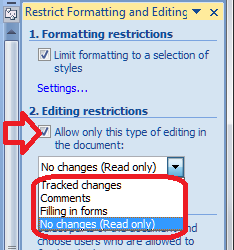
You can edit what changes other users can make to your document in terms of textual changes, too. Have a look at the Editing restrictions section, tick the tick-box, and drop down the menu to see the options:

Word 2007 13 restrict editing

Editing restrictions allow you to choose whether the document becomes Read only or will allow tracked changed editing only or adding comments or filling in forms. Some of my clients make the documents that they send me tracked changes only so they can see exactly what I change in their documents. It’s a good way to remind people to keep Track Changes on if you’re working together collaboratively. Filling in forms is useful if you want people to fill in your form but not change the actual form.

Restricting editors

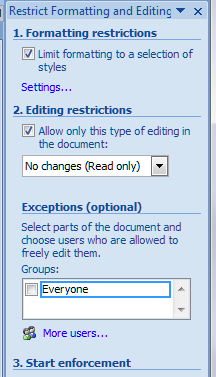
It is possible to restrict the ability to make changes to certain people if you’re working in a multi-user, networked environment:

Word 2007 14 restrict editing

These permissions can be restricted to individual editors; however, see the next section for details on this option, as it needs to run alongside other network options that you may or may not be using..

Start enforcement

When you want to put these restriction in place, click on the Start enforcement button that appeared as soon as you click or change anything:

Word 2007 15 restrict editing

How do I add individual editing permissions to a Word 2007 document?

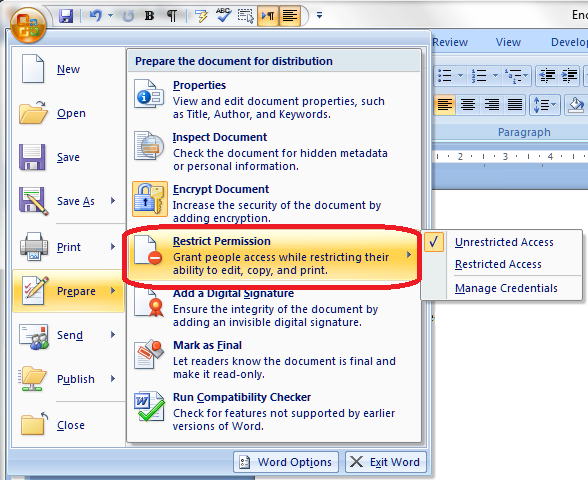
The Restrict Permission part of the original menu we’ve been talking about, under the top left button and Prepare, allows you to add individual editing permissions to your document (this can also be accessed in the Review – Protect menu as discussed in the section above):

Word 2007 3 permissions

This is a Windows option that allows you to set permissions for different people, and is usually used within an organisation. You need to use Microsoft’s Information Rights Management Service alongside it and be signed up to Windows Live. The message that comes up if you click Restricted Access or Manage Credentials explains in more detail:

Word 2007 4a permissions

Most larger organisations have rights management systems that inform their procedures and file/drive setups, and these will usually allow you to set permissions and protect your document in that way. As this is outside the scope of this article: you will need to talk to your administrator or  IT support department.

But this option is here for you to use, and can be done if you have the relevant signups.

Be careful: Contact IT or your systems administrator before signing  up for something that can affect access to documents on a shared organisational system.

How do I add a digital signature to a Word 2007 document?

Adding a digital signature to a Word document can protect it to an extent and mark it as yours, plus an increasing number of companies request this if they’re signing you up to their pool of contractors, etc. Once again we’re in Start button – Prepare territory – this time we want the Add a Digital Signature section:

Word 2007 5 digital sig

In order to use this feature, you need to purchase a signature service from the Office Marketplace, as Word will tell you if you click on this option:

Word 2007 6 digital sig

Alternatively, you can sign up to a third-party digital signature service which will apply your digital signature to documents via an uploading and downloading service.

How do I print to PDF using Word 2007?

Making a Word document into a PDF is still the best way to protect it. A PDF is like an image of the document that can’t be edited, a bit like a photocopy or a picture taken of it.

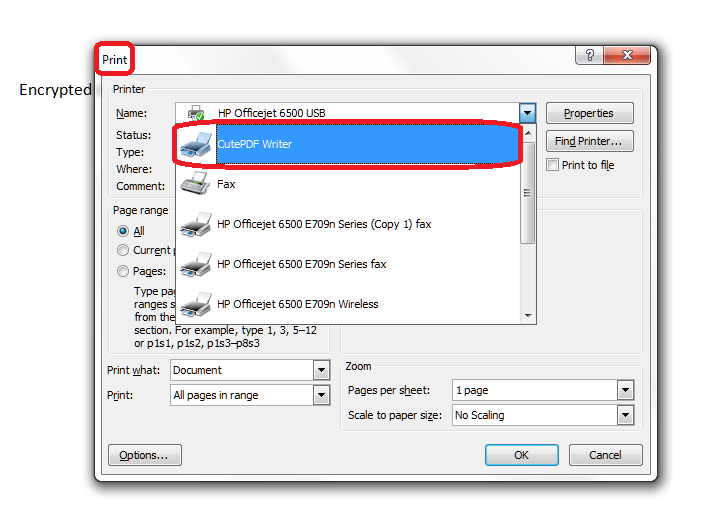
Unlike with Word 2010, you can’t actually print direct to PDF using Word 2007. If you want to turn Word 2007 document into PDFs, you will need to download a PDF printer such as Adobe or CutePDF Writer.

Once you have got a PDF writing program installed, you can “Print” to PDF by hitting the Print button as usual then selecting your PDF writer as the “printer”:

Word 2007 8 print to pdf

Once you’ve pressed OK, you will then be asked to choose a filename and a path under which to save the document:

Word 2007 9 print to pdf

Note that, as in the above picture, you can password protect your PDF at this stage. This is a good idea, as software is now available that will let people edit PDFs, something that was not previously easy to do. We’ll talk more about using PDFs to protect your document in the next article.

In this article, we’ve learnt how to use the features of Word 2007 to protect your document, using passwords, read-only status, editing restrictions, permissions and digital signatures.

———————

This is part of my series on how to avoid time-consuming “short cuts” and use Word in the right way to maximise your time and improve the look of your documents.
Related posts:

Applying Watermarks

Protecting Word 2010 Documents

(coming soon)

Protecting your document using PDF

Please note, these hints work with versions of Microsoft Word currently in use – Word 2003, Word 2007 and Word 2010, all for PC. Mac compatible versions of Word should have similar options. Always save a copy of your document before manipulating it. I bear no responsibility for any pickles you might get yourself into!

Find all the short cuts here

 
14 Comments

Posted by on July 24, 2013 in Errors, New skills, Short cuts, Word, Writing


Tags: , , , , , , , ,

Sometime or erstwhile?

I thought of this one when I was writing up my post on some time, sometime or sometimes. The word erstwhile popped into my head, and I thought that I’d better check if it officially meant something different from sometime.

Erstwhile means former as an adjective and formerly as an adverb: “Her erstwhile lover was now a senior politician”.

Sometime as an adjective means former; as an adverb it means at some unknown/unspecified time, with formerly marked as an archaic use in most dictionaries that I checked. In American English, it is also used for occasional.

I like erstwhile. It’s a nice, odd word that’s a bit hard to type. Let’s try to keep it going, even if it does essentially mean the same as sometime!

You can find more troublesome pairs here and the index to them all so far is here.


Tags: , , ,

What are these funny symbols? Paragraph marks and other marks in Word for PC and Mac

A friend got in touch recently in a bit of a panic. All sorts of odd marks had appeared in her Word document. It looked something like this:

d

What were all these funny symbols? Where had they come from and, more importantly, how could she get rid of them?

Showing paragraph marks and other hidden formatting symbols

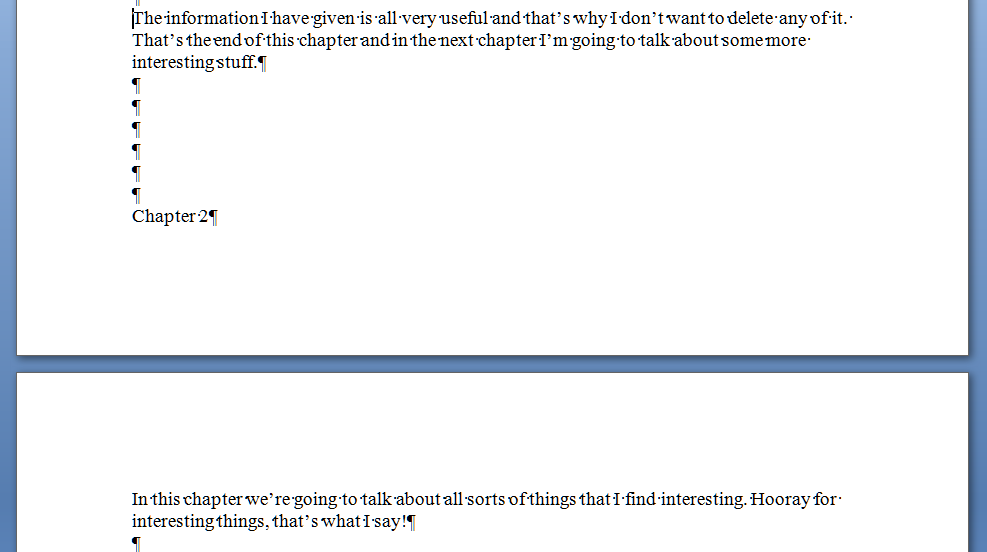
Word gives you the option to view paragraph marks and other hidden formatting symbols. Basically, this means that you can see where the author of a document has pressed the Return key or Tab or Space, or inserted a forced break or some other formatting. Why is it useful? It means that if you are editing or otherwise tidying up a document, you can see what’s been done in order to resolve it. For example, in this document, I can see that the author has used the Return key to force text to appear on a new page (instead of using Ctrl-Enter to force a page break):

bb

and when I’ve done it properly, I can see the page break marked:

cc

So, how did I get to see these funny marks? In Word for both Mac and PC, you can find a button with the paragraph mark on it which will make them display:

Show Paragraph marks in Word for PC

Go to the Home tab and you’ll find it half way along. Press the button, it will go orange, and your formatting marks will display.

c

I’ve actually put this button onto my Quick Access Toolbar (find out how to do that) as it’s a very useful button for an editor/proofreader!

Show Paragraph marks in Word for Mac

In Word for Mac, the Show Paragraph marks button is handily already in the top toolbar. Press the button and all your formatting will become visible.

on a mac

How do I hide the Paragraph marks and other formatting?

If the marks appear and you want to hide them, simply find the Paragraph Marks button and press it again. It should stop being orange, and your formatting marks will no longer be displayed.

Thanks to Linda for the inspiration and Mac screenshot!

———————

This is part of my series on how to avoid time-consuming “short cuts” and use Word in the right way to maximise your time and improve the look of your documents.

Please note, these hints work with versions of Microsoft Word currently in use – Word 2003, Word 2007 and Word 2010, all for PC. Mac compatible versions of Word should have similar options. Always save a copy of your document before manipulating it. I bear no responsibility for any pickles you might get yourself into!

Find all the short cuts here

 
33 Comments

Posted by on July 17, 2013 in Errors, New skills, Short cuts, Word, Writing


Tags: , , , , , , , ,

Some time, sometime or sometimes?

Remember my post on any more or anymore? This one came up in the same conversation, but of course, English being as it is, the answer is slightly different.
The question: is it some time or sometime?

Sometime is only used as an adjective or adverb – i.e. a word describing the attributes of a noun or one that modifies the meaning of a verb, adjective or other adverb. So “Her sometime adversary, Bettina, had moved away and was no longer part of the Scrabble club”. But do look at my post on erstwhile or sometime for more detail here.

Some time is used in all other cases – “Jerry spent some time choosing the word to place on the board”.

Sometimes is an adverb meaning occasionally. “Sometimes he went to the cinema in the city; sometimes he preferred the local one”. Compare “My sometime friend, Bettina” with “My sometimes friend, Bettina” – the former implies that they were once friends, the latter that they were friends and weren’t friends at different times.

To use them both together “Her sometime very closest friend spent some time in Arizona before she got back in touch”.

You can find more troublesome pairs here and the index to them all so far is here. And I look at sometime or ertswhile here!


Tags: , , ,