RSS

Category Archives: Writing

Aglet or ferrule?

DictionariesThis is a cheeky one. Of course you all know the difference between these two lovely words. But I like them, and it’s my blog, and you never know who might look things up (even “mandrel or mandrill” is quite popular).

An aglet is the little tube that you find on the end of your shoelaces, usually made of plastic but sometimes of metal. Sweetly, it apparently comes from the French for “little needle”, even though it doesn’t really look like or act like a needle in itself, but is used to help you thread the lace through the holes.

A ferrule is the little plastic or rubber cap that sits on the end of a walking stick or umbrella and prevents it from getting damaged.

You can find more troublesome pairs here and the index to them all so far is here.

 
10 Comments

Posted by on October 6, 2015 in Errors, Language use, Troublesome pairs, Writing


Tags: , , ,

Curb or kerb?

DictionariesHere’s one suggested by my friend and editing colleague, Linda Bates. As a special bonus, it has a US / UK English twist. How exciting!

A kerb is a noun meaning the stone edging of a pavement or path. There are some verbs associated with kerb, notably kerb-crawling, which is driving slowly on the lookout for a prostitute.

Curb is a noun meaning a limit or control (“I’m imposing a curb on the amount of alcohol you can drink at home”) and a verb meaning to keep in control or limit (“I’m curbing the amount of alcohol you can drink at home”). A curb is also a type of bit used in a horse’s bridle.

And, excitingly, American English uses the same word (curb) for both!

You can find more troublesome pairs here and the index to them all so far is here.

 
Leave a comment

Posted by on September 29, 2015 in Errors, Language use, Troublesome pairs, Writing


Tags: , , ,

Altar or alter?

DictionariesHooray, I seem to be doing these posts more regularly again now. They have lots of fans, so hope regular readers are pleased. Of course, if you’ve just found this post having searched for “altar or alter”, you’re going to be a bit confused by that statement, as you’re visiting from way in the future. This “Troublesome Pair” is but one of a whole series of them I’ve been posting for a few years now. Do pop to the links at the bottom of this post to find the whole alphabetical list of them!

Right, anyway … alter or altar?

Altar is a noun and refers to specifically the table in a Christian church, usually at the front, where the bread and wine are consecrated for communion, and more generally, to any flat-topped box or table that is used as the focus for some kind of religious ritual.

Bonus pair: What’s a shrine, then? A shrine is a place that’s regarded as being sacreed or holy because it’s associated with some kind of god / deity, or a reliquary or container containing holy relics. So you do religious things at an altar and a shrine keeps them safe.

Alter is a verb meaning to change (or change something or cause something to change) in appearance or character. In US and Australian English, it also means to castrate or spay an animal (so many bonuses today!)

“After she observed the seriousness of the actions performed at the altar, she altered her behaviour in church and stopped giggling during the services.”

You can find more troublesome pairs here and the index to them all so far is here.

 
Leave a comment

Posted by on September 24, 2015 in Errors, Language use, Troublesome pairs, Writing


Tags: , , ,

How do I add a link to a blog post?

This is a re-post of an older post that was attracting lots of spam comments, reposting it to see if it helps. But it is a useful post, still, so do read, enjoy and share!

Why would I add a link to a blog post?

Adding a link means that you’re putting a hyperlink to either another website or another of your blog posts in the one that you’re writing. There are many reasons for doing this: these are some of the reasons why I do it …

And did you notice that all of those bullet points were links to examples of what I was talking about?

A note about SEO and links (back-links)

One major advantage of links is in helping your Search Engine Optimisation (SEO). I’m not going to go deeply into that here, but basically, Google and the other search engines like to see your pages linked to on other people’s pages, as it shows you’re trustworthy and respected within your community enough for people to link back to you. Yes, people do try to abuse this (we’ve all had blog “comments” from spammers trying to get their URL on your list of comments and now we know why) but when used properly, reciprocal linking to content that does actually interest you and is relevant for your readers does help your fellow bloggers and will hopefully lead to them linking to you, too.

How do I add a link to my blog post?

Of course, all of the blogging platforms (WordPress, LiveJournal, Blogger and others) do it slightly differently. But the difference usually comes down to the icon that they use and how much you can do once you’ve clicked on that icon.

I’m going to use WordPress as the main example, showing all the steps to create a link, but then I’ll show you what the link button looks like in Blogger and LiveJournal and, in fact, Gmail, too. And at the end I’ll share those link images so you know what to look out for.

How do I add a link to a WordPress blog post?

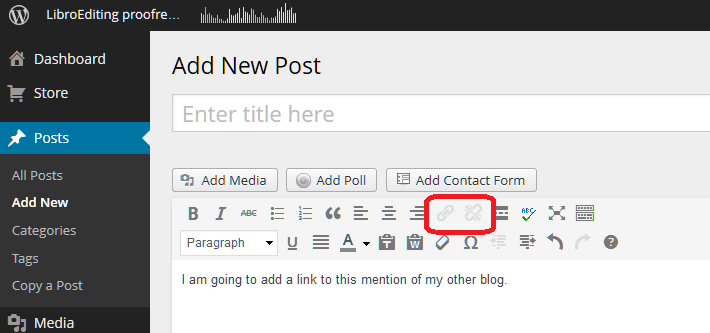
The first thing you need to do is have some text on which you want to base the link. Here I’ve typed in a few words. You can see that in the case of WordPress, there’s a little greyed-out icon that’s not clickable if you haven’t highlighted any text:
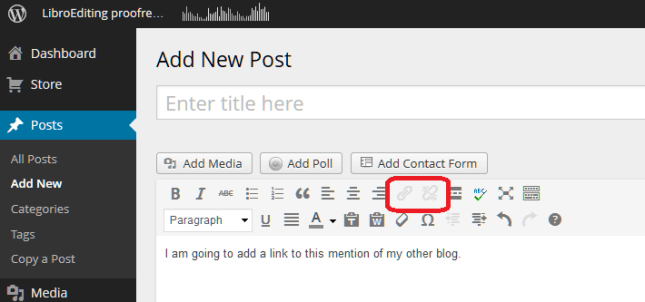
Wordpress 1

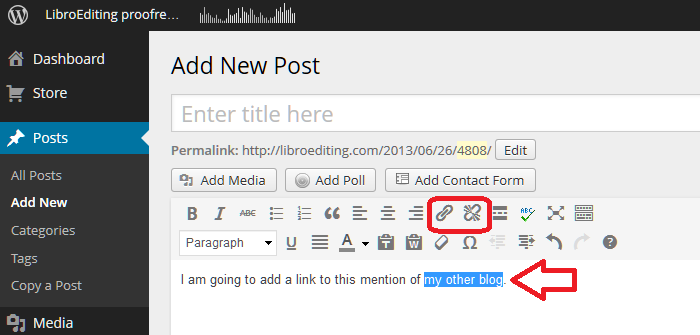
As soon as I highlight the text that I want to use as the basis of my link, the two greyed-out icons appear in all their clickable glory:
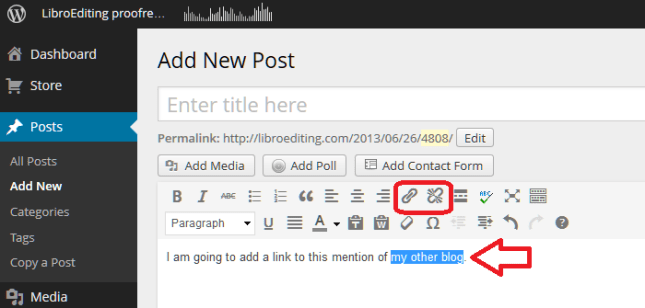
Wordpress 2

Keeping the text highlighted, click on the left-hand icon that looks a bit like a staple. Or in fact, as has been pointed out in the comments on this post, a link in a chain. This will bring up a dialogue box for inserting your link:
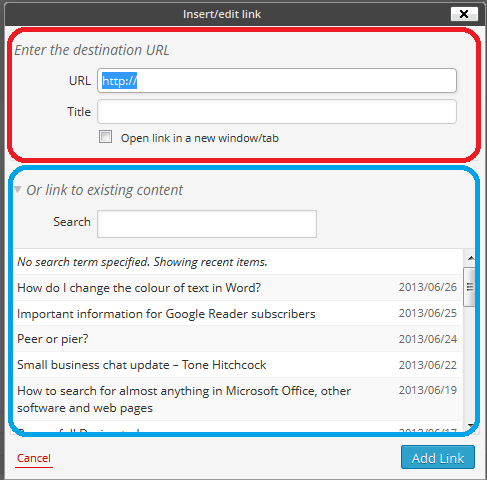
Wordpress 3

WordPress allows you to do two things here; you can either link to a URL for a page outside your own blog (circled in red) or you can choose one of your own previous blog posts to link to (circled in blue) – very handy.

We’re going to concentrate on linking to a URL. Type in the URL you want to link to – including http:// at the beginning:
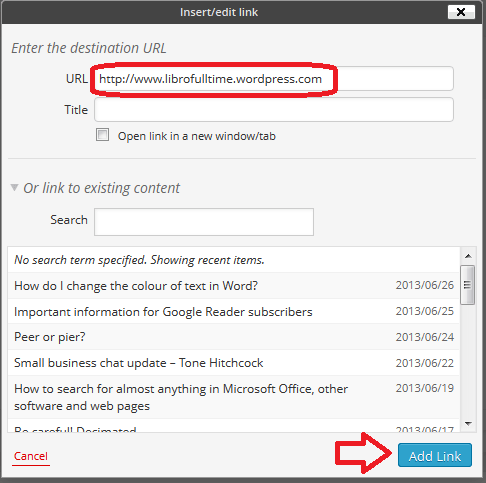
Wordpress 4

Note here that I’m read to hit Add Link and I have NOT ticked Open link in a new window/tab. This is because I used to do that and an experienced website manager I know got into a bit of a frenzy and told me that it’s not good practice and I should NOT do that. So I don’t now.

Note: if you want to open a link in a new window or tab when you’re reading a blog or web page, right-click on that link and you should get a list of options including those.

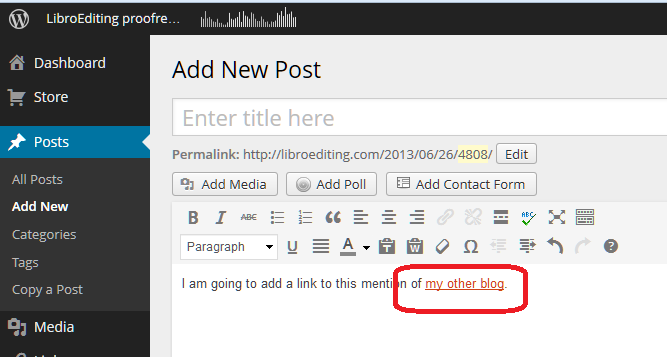
Having pressed Add Link, my text is underlined:
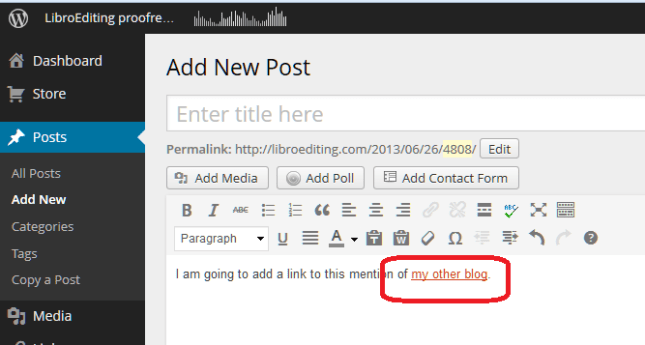
Wordpress 5

… and it will be a link just like the ones in the first section, above.

If you want to edit the link, highlight the underlined text and click on the same Link button – you can now change it as you wish.

If you want to delete the link, highlight the underlines text and click on the icon to the right, which is supposed to look like a link being broken (or a staple being removed).

How do I add a link to a Blogger blog post?

Thanks to my friend Linda for the screenshots for this one! (And that’s a link to the website she’s set up with background information to a book she’s just published.)

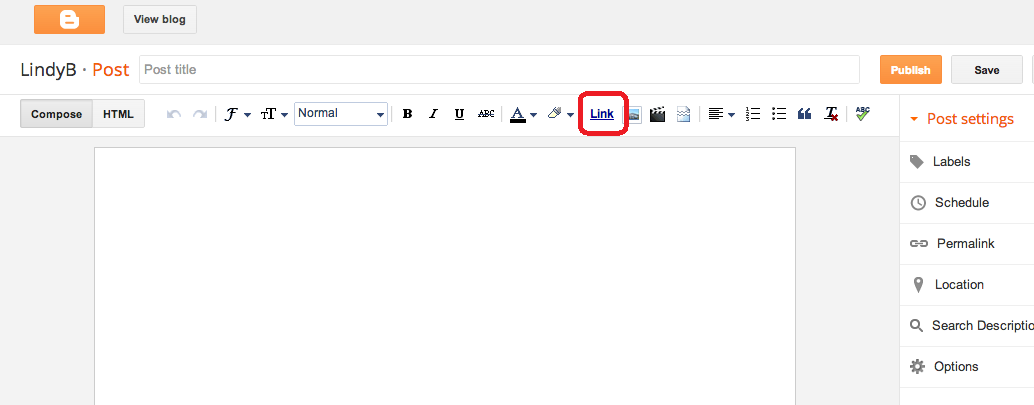
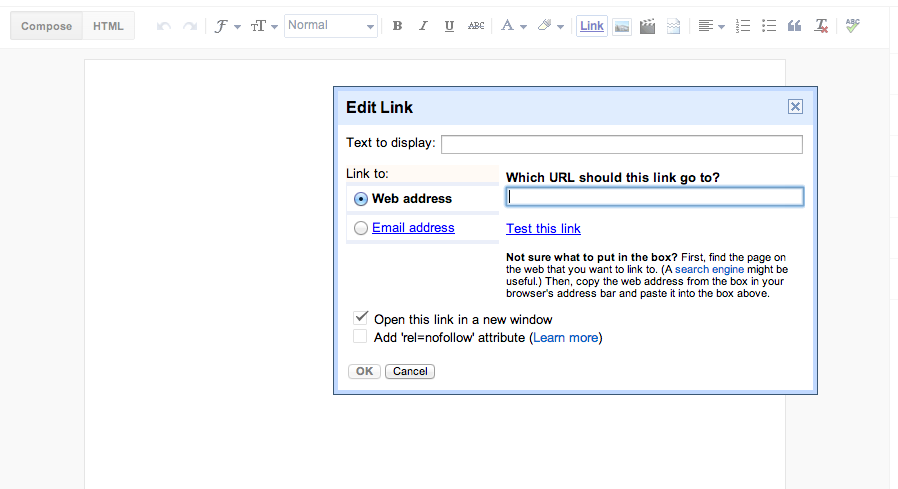
Blogger works in a similar way to WordPress, but the icon you need to use is the word Link:
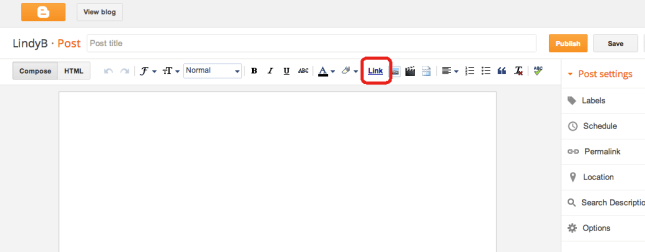
Blogger 1

and the dialogue box doesn’t give you the option to choose a previous blog post to link to, but has the familiar URL entry field:
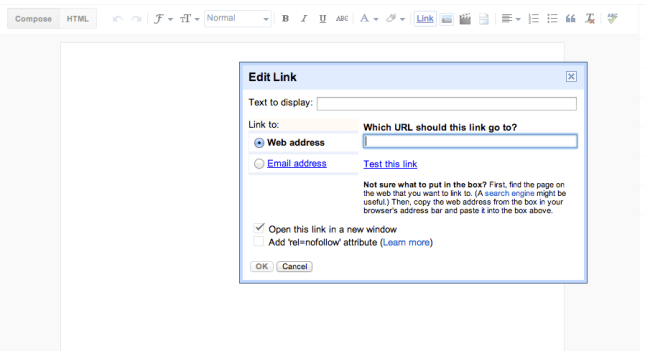
Blogger 2

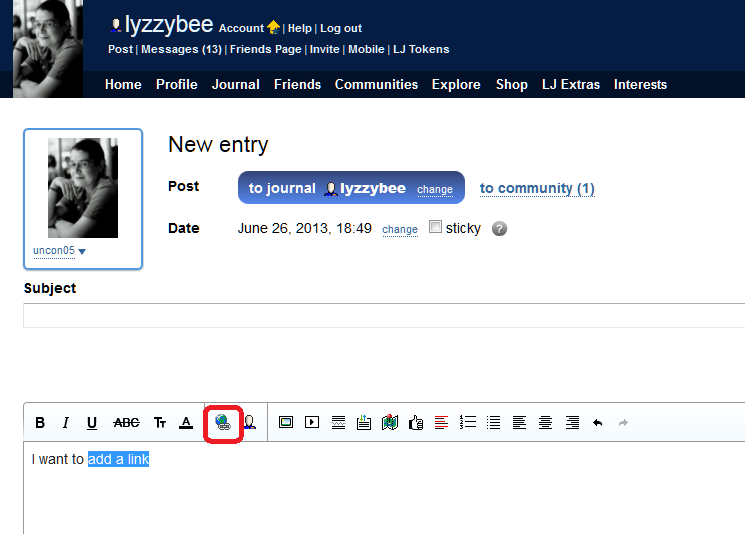
How do I add a link to a LiveJournal blog post?

LiveJournal uses another common icon that you’ll find for a link – this is apparently a globe with a link of a chain attached …
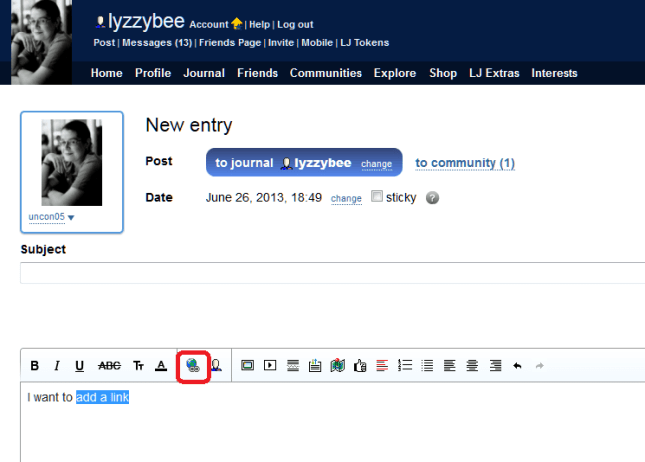
Livejournal 1

and you’ll get a similar dialogue box when you click that icon.

How do I add a link to a Weebly blog post?

Thanks to Louise Harnby for the screenshot for this one. We encounter the link  / staple icon again for Weebly, this time in white on a black background:
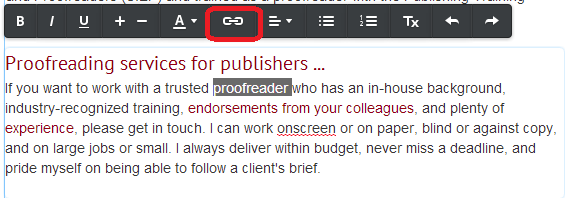
weebly 1

How do I add a link to a Gmail email?

And just because it demonstrates one of the other icons that is commonly used, if you want to add a link to a Gmail email, for example to point a friend to this blog post, the icon is another chain link / staple, but a horizontal one similar to Weebly’s:
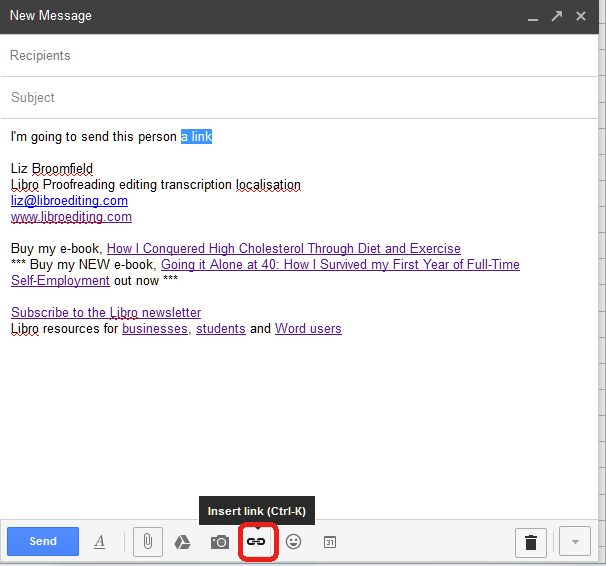
Gmail 1

Icons that represent adding a link

Here are those common icons again. If you find another one, do contact me and send me a screenshot and I’ll add it to this post!

If you want to add a link to any kind of text and you’re looking for the appropriate icon on a button, it is likely to be one of these or similar:


icon 2 stapleicon 3 wordicon 1 worldicon 2.5 another staple

I hope you found this useful. If so, please take a moment to like, share or comment, and spread the word! And feel free to use the Search function on the right hand sidebar to look for more posts about blogging …
 
9 Comments

Posted by on September 17, 2015 in Blogging, Writing


Tags: , , ,

Hanger or hangar?

DictionariesHooray, it’s time for another Troublesome Pair (for any new readers, this was a series I used to run that I’ve recently restarted). This is another one suggested by my Australian friend Matt Patten, as he spotted an example just the other day.

A hanger is something that you hang something from – a clothes hanger being the obvious example.

A hangar is the big shed that an aeroplane lives in.

Nothing more I can say, really!

You can find more troublesome pairs here and the index to them all so far is here.

 
3 Comments

Posted by on September 15, 2015 in Errors, Language use, Troublesome pairs, Writing


Tags: , , ,

Expectancy or expectation?

DictionariesFor those who’ve been following this blog for a while, you might remember the Troublesome Pairs series I used to publish regularly. They’ve been very popular, and I certainly haven’t run out of them, but I didn’t seem to get the time to do them. But I have some more coming up, and here’s the first one! This one was suggested by my Australian friend Matt Patten, who’s asked me to write about a few Troublesome Pairs recently (and not so recently) .

I have to admit that this was one of those that I had to look up to check. But there is a difference (hooray) and it’s all about the level of certainty …

Expectancy is the anticipation or hope that something will happen – and that something is usually a pleasant something. It also refers to a future prospect, as in “life expectancy”. Expectant, the adjective, as we might imagine, means anticipating or hoping that something (pleasant) will happen – so you have expectant mothers, etc.

Expectation is the strong belief that something will happen – not necessarily positive. You can expect a storm or an inheritance (and in fact, someone’s “expectations” is an old-fashioned term for their prospects of inheritance.

“It was my expectation that the expectant mother would soon be seen travelling around with a pushchair.”

Note: nobody associated with this post is expectant!

You can find more troublesome pairs here and the index to them all so far is here.


Tags: , , ,

How do I combine several Word documents into one document?

This article explains how to combine several Word documents into one document. It’s particularly useful if you’ve written a dissertation, thesis or book and need to combine all of the chapters into one file.

These instructions work for Word 2007, Word 2010 and Word 2013; I’ve used Word 2010 for the screenshots

Why would I want to combine chapters into one document?

Lots of people do their writing a chapter at a time, and have it edited a chapter at a time, too. But the time will come when you want to put it all into one book, with page numbers running throughout, rather than messing around starting the page numbers for chapter 2 at the next number on from chapter 1, etc.

What’s the incorrect way to combine my chapters?

You might be tempted to pick up the text of each chapter and copy and paste it into one document. That can lead to issues and inconsistencies. This is the correct way to do it and actually takes less time and avoids you leaving out any bits of your individual chapters.

How do I prepare to combine my documents?

It’s pretty easy to combine several documents into one, however the most important point is …

The file names must be in the order that the chapters are going to be in.

Word will combine your chapter files in alphanumerical order.

If you have called your chapter files

Chapter 1 introduction

Chapter 2 review of the literature

Chapter 3 methodology

Chapter 4 conclusion

then that’s fine, they will combine in that order.

If you have called your chapter files

Introduction

Review of the literature

Methodology

Conclusion

then Word will carefully sort them alphabetically into

Conclusion

Introduction

Methodology

Review of the literature

when it combines your documents.

The best thing to do is add a number 1, 2, 3, etc at the start of your file names BEFORE YOU START COMBINING, so you know they will come out in the correct order.

How do I combine my documents?

OK, so we’ve got, say, four documents or chapters to combine into one.

First, open a new, blank document (using the Home button, New, and choosing a blank document)

Then, click on the Insert tab and find Object in the Text area:

1 insert tab

Click on the arrow to the right of Object to get the drop-down menu, and click on Text from File:

2 insert text from file

Now navigate to your files and select the ones you want to combine.

3 find your files

Hold down the Control Key and click on all the ones you want to combine (or click on the top one, hold down Shift and click on the bottom one if you want all of them). Once you have them all highlighted, click Insert.

4 select files

Note: it doesn’t matter what order you are displaying them in or what order you click them in, it will choose them and insert them in alphabetical or numerical order, as I mentioned above.

Now you will have one big document including all of your chapters!

5 combined

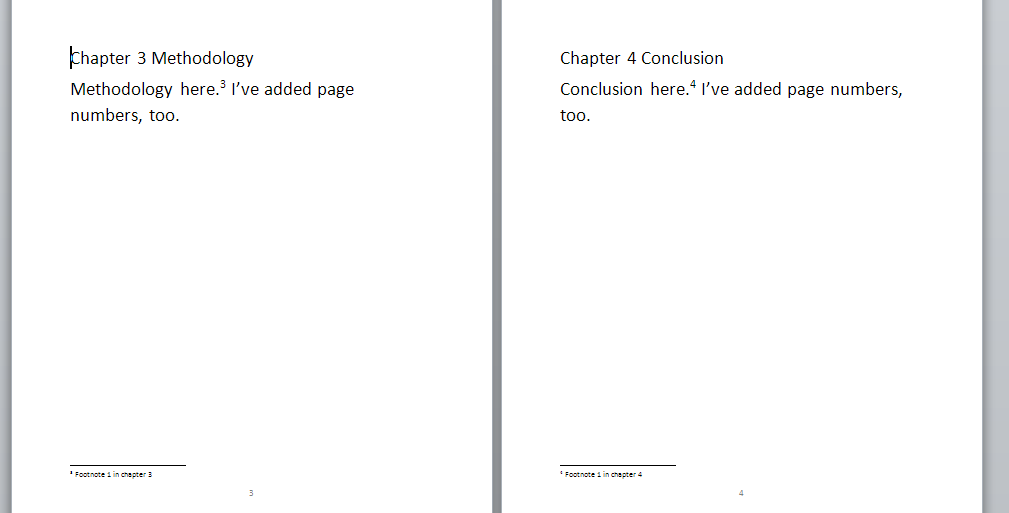
And … if you had footnotes in the documents, and had set page numbers to show, they will automatically update in the combined document to be numbered consecutively (if you want start your footnote numbering at 1 for each chapter, you’ll need to look at my posts on footnotes and endnotes).

Don’t forget to save your document!

PS: If you find you lose your formatting when combining Word documents, read this article for the solution.

—–

This is part of my series on how to avoid time-consuming “short cuts” and use Word in the right way to maximise your time and improve the look of your documents.

If you have enjoyed this post and found it useful, please click on the “share” buttons below or tell your friends and colleagues about it! Thank you!

Please note, these hints work with versions of Microsoft Word currently in use – Word 2007, Word 2010 and Word 2013, all for PC. Mac compatible versions of Word should have similar options. Always save a copy of your document before manipulating it. I bear no responsibility for any pickles you might get yourself into!

Find all the short cuts here

Other useful articles on this website

How to combine Word documents without losing the formatting

 
53 Comments

Posted by on September 3, 2015 in Errors, New skills, Word, Writing


Tags: , , , ,

2 top tips on dealing with the endless pitches for guest posts or reviews

handshakeLast week, I wrote down the 10 top tips for pitching guest posts and asking bloggers to review your product (you can read the article here). I wrote that from the point of view of somebody who receives requests to host guest posts and review stuff All The Time.

It can be time-consuming replying to these emails and messages, but if you’re anything like me, you welcome genuine and relevant content (and interesting book review requests) and don’t like to be rude, unless something’s obviously spammy (in which case, I’m only rude enough to ignore the message!). So, in this article I’m sharing the two methods I use to allow me to respond to pitches quickly, easily and politely, which also have the effect of weeding out the time-wasters.

1. Have a policy for guest posts and reviews

I’ve got a guest post and review policy on both this website (visit it here) and my book review blog (visit it here).

It’s standard practice to have a policy – it sets things out and allows you to filter out approaches you don’t want. Of course, I don’t know how many people this filters out before they contact me, but it must get rid of a few.

This is also hugely useful for when you respond to pitches. When I send my automated email (see point 2 below), I include a link to my policy in my email. This means …

a) The pitcher has to go and look at a web page before they respond (filtering out people who were blanket-bombing blogs and probably won’t be relevant to you)

b) I can change my policy once, on this page, without having to remember to update my standard pitch response email.

c) If a pitcher replies to my email and clearly hasn’t looked at the guidelines, that’s a clear indication that it’s time to terminate the conversation.

2. Create a standard automated pitch response email

Most email providers allow you to create standard replies which you can select and send out without having to type out a new email every time. In Gmail, you can set up something called Canned Responses (and you can find my instructions on how to set them up here).

This saves you loads of time responding individually to pitches for guest posts or product reviews. I tend to get more of the first category for this blog, and this is what my email says:

Thank you for your enquiry about posting your content on my blog.

Before we go any further, please read my Terms and Conditions on Guest Blog Posts and Sponsored Posts, make sure that you can answer the questions posed there, and then get back to me with your suggestions. Best wishes,

Liz

This really does cover most eventualities (and for the few that it doesn’t cover, I can easily add a bit to the email). It takes about three clicks of the mouse button to reply and send, and, to be honest, it usually puts people off! But then, that’s the idea …

—-

Using both of these methods has speeded up my response time to pitches and allowed me to sift out the wheat from the chaff, the genuine opportunities for cooperation from the spammers trying to insert their link onto every website and blog going.

I hope you’ve found this article enjoyable and useful. If you have, please take a moment to share it using the sharing buttons below, and I always appreciate relevant comments!

Relevant posts on this blog

Guest blogging 1: how to be the host with the most

Guest blogging 2: how to be the perfect guest

10 top tips for pitching your guest post or asking a blogger to review your product

 
Leave a comment

Posted by on August 5, 2015 in Blogging, Business, Marketing, Writing


Tags: , , , , ,

10 Top Tips for Pitching a Guest Post or Getting a Blogger to Review your Product

handshakeI get lots and lots of requests every day, via my contact form or email, to accept a guest blog post from somebody. I also get requests to accept books for review on my personal book review blog. Although I’ve written in more depth about being a good guest blogger, I think it’s worth putting down a few points here to help people get the most out of their pitch to get a genuine and useful guest post or review on a blogger’s website.

Because … I reject about 98% of requests for a guest post after the first email.

So, here are my Top 10 tips for pitching a guest post or getting a blogger to review your product

1. Before you even start, think about the relevance of the website you’re contacting.

I get so many queries that have nothing to do with my website in the slightest. Things like, “I love your [editing] website, would you accept an article on real estate in Texas?”

Now, on rejecting one of these a while ago, I had a back-and-forth with the pitcher. She was determined that I would benefit from having her totally non-relevant content, full of dodgy links, on my website. I ended up saying to her “No reputable website would take this as a guest post”. Her reply, “You’d be surprised, LOL”.

The thing is, Google is adjusting its search algorithms all the time. It already specifically works against backlinks (a link to your content on someone reputable’s website which ups your credibility in the “eyes” of the search engines) which are in lists of random links and content which is full of keywords but no useful content. In time, your link to your bead firm on a blog about wind farms will impress the search engines less and less.

You’ll get far more hits as a genuine person seeking to place guest posts on a website if you target appropriate and relevant hosts.

2. Give detail.

If I get a generic, one-line email asking for a guest post or review that doesn’t give me any other info, that’s going straight in the reject pile. You might get my standard email response if you’re lucky.

If’s fine to keep it short, but make sure there is some information in there.

3. Show you’re familiar with the target blog / review site

I am looking for you to  have actually read my blog and know a little bit about what I do. Just a mention of the URL isn’t enough: you can cut and paste that. I want to  know that you know what I do, who my readers are, what topics I cover.

4. Watch out for mail merges / cut and paste carefully.

I’m putting this here because without fail, emails requesting guest posts start with “I have been reading URL INSERTED for some time and love your content”. This doesn’t work so well as a hook if you re-use an email and include the incorrect blog title or URL!

5. State what you want to do.

The target will want to know what you want to do – send in a blog post, pitch some ideas, post them a sample. Put this clearly early on.

6. State what you want out of it.

If you want a book review, say so. If you want your website address included in a guest post you’ve written, say so. If you want to include links that you’ve promised your customer to get onto several reputable websites, also say so – because your target is likely to notice this further down the line and get a bit cross with you.

7. State what the target will get out of it.

State clearly the benefit for the target. Yes, they might be desperate for content – if you see they haven’t posted for a while, this is OK to mention. Will you be helping their readers, bringing a new but related audience to their blog? Tell them. One useful offer is to do a reciprocal guest post – i.e. you will host a post from your target on your website on a similar or related matter.

8. Show you know who your target’s audience is.

I want to know that you’ve thought about who this will reach. An example when pitching to me might be, “I would guess given your writing on dissertations that your audience includes students. This product helps students to bind their dissertations so might be useful to that part of your readership”.

9. Give links and reviews.

If you’ve got examples of your work or product on other websites or you can showcase your own writing on your own website, include links. If your product, book, etc. has been reviewed on other websites, include links.

10. Keep it simple, keep it correct.

If you’re pitching a guest post, make sure to write clearly and grammatically – a reputable blogger will not want to either edit your text for hours or hosts something of lower quality than the content they usually post up. If you’re pitching a product, make sure you are clear and knowledgeable and point to a well-designed and informative website. Will your target want to embarrass themselves pointing their readers to a terrible website?

A good example

This post was triggered  by two things – one, another request but with another company’s URL in the message – d’oh! The other was an excellent pitch from an author asking me to review her book. I’m going to go into specifics another day, but she included …

  • A greeting using my name and a farewell using hers
  • A note confirming that she had read my blog, mentioning something I’d talked about on it recently
  • Details of her book title and the fact she was asking me to review it
  • A few sentences about the book
  • A link to its sales page and a review by a reputable reviewer
  • A polite request to consider taking a review copy

And do you know what? I’ve got a review copy of that book sitting in my To Be Read pile right now.

In summary

If you’re serious about pitching your content or product to reputable websites where their presence can do you some good, make sure that you give your target blogger information about both what your pitching and your own credibility. I’m not saying that you will succeed every time, but your target blogger is more likely to read your email and consider your pitch if you do.

I hope you’ve found this article enjoyable and useful. If you have, please take a moment to share it using the sharing buttons below, and I always appreciate relevant comments!

Relevant posts on this blog

Guest blogging 1: how to be the host with the most

Guest blogging 2: how to be the perfect guest

 
4 Comments

Posted by on July 29, 2015 in Blogging, Business, Marketing, Writing


Tags: , , , , ,

Editing and the Table of Contents – for editors and writers

This article is all about what happens when a document that includes a Table of Contents (and a Table of Figures and/or a Table of Tables) is edited. There are a couple of pitfalls which I have encountered as an editor, and I wanted to share them with fellow editors AND writers, to help other people avoid them.

Scroll down to the bottom for a summary of advice to editors and writers if you’re not worried about the detail.

Please note that there are more detailed instruction on updating a Table of Contents in this article.

What’s the problem with Tables of Contents and the editing process?

If a document with an automated Table of Contents is being edited, the editor has two choices (and the writer will find that their editor has done one of two things):

  1. Mark any changes to headings in both the Table of Contents and the actual heading in the main text
  2. Mark any changes to headings in just the actual heading in the main text, then someone updates the Table of Contents

Let’s look at the risks with these in turn.

1. Mark any changes to headings in both the Table of Contents and the actual heading in the main text

Issue 1 – Awkwardness for the editor. To do this, you will have to have a split screen with the contents page in the top half and the text in the bottom, or you’ll have to whizz up and down the document and make sure you make the same correction in both places.

Issue 2 – Keeping things consistent. a) The editor will have to make the same change in both places, and b) the writer will have to make the same choice to reject or accept the change in both  places.

As an editor, if I do this, I place a comment linked to the words “Table of Contents” reminding the author to make the same choices here and in the main text.

If the Table of Contents is not automated, I a) suggest that the author creates one (or has me create it, if appropriate) and b) I place the comment above by the words “Table of Contents” to remind the author to keep it consistent.

2. Mark any changes to headings in just the actual heading in the main text, then someone updates the Table of Contents

If the Table of Contents is automated, this is what I tend to do.

There are two options here:

Option 1 – The writer wants a “clean copy” not one with tracked changes marked: the editor can update the Table of Contents once they’ve done their edit and accepted all changes. Everything will now match.

Option 2 -The writer wants (or needs, in the case of students) to see the tracked changes and make their own decisions on what to accept and reject. In this case, the writer will need to update the Table of Contents once they’ve gone through the changes.

Option 2 is the most common in my experience.

If the writer needs to update the Table of Contents themeselves, I always add a comment to the words “Table of Contents”:

“Please remember to update this Table of Contents after you have accepted or rejected all of my changes, to make sure that the table reflects the document accurately. Please choose Update entire table rather than Update page numbers only”.

An important choice – what to update in the Table of Contents

This information is for editors and writers.

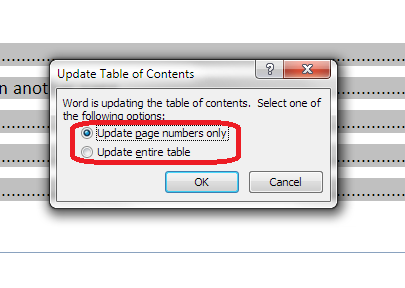
Whether the editor or writer is updating the Table of Contents, once you’ve clicked on Update Field, you are given the choice of Update page numbers only or Update entire table:

update page numbers or all fields

It is vitally IMPORTANT that you choose “Update entire table”. This will update any changes to the headings and any changes to the page numbers. If you click on “Update page numbers only”, and any headings have been changed in the text, this will NOT be reflected in the Table of Contents.

For authors: updating your Table of Contents when your work has been edited

  • Always update your Table of Contents when your work comes back from your editor, unless they have told you that they’ve already done it
  • Always choose “Update entire table” to make sure that everything in the Table of Contents matches your actual document

For editors: updating or instructing on editing the Table of Contents

  • Always leave a note for the writer explaining what you’ve done or what you need them to do
  • If you are updating the Table of Contents yourself, always choose “Update entire table” to make sure that everything in the Table of Contents matches the actual document (I would still leave a reminder for the writer to do the same after they’ve made any final changes)
  • If you need the writer to update the Table of Contents once they have dealt with your suggestions, leave a note explaining that, and make it clear that they must “Update entire table” when doing so

—–

This article has discussed issues around updating a Table of Contents when a document is edited. if you have enjoyed this article or found it useful, please share it using the sharing buttons below.

Other relevant posts on this blog:

How to create a contents page in Word

Tables of figures and tables of tables

How to update a Table of Contents, Figures or Tables

 
3 Comments

Posted by on July 22, 2015 in Errors, New skills, Word, Writing


Tags: , , , ,