RSS

Tag Archives: learning

How do I count the words in a PowerPoint 2010 presentation?

Some time ago, I published what has turned into a pretty popular post on how to count the words in your PowerPoint 2007 document. This is something that is a little tricky to find, so perfect for one of these how-to posts.

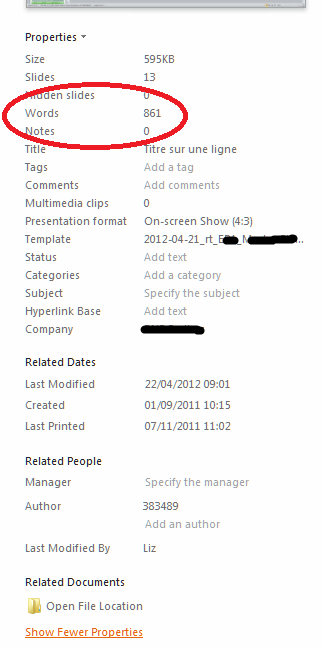
How do I count the words in a PowerPoint 2010 presentation?

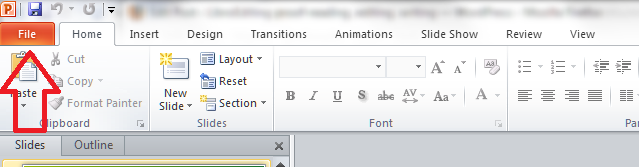
It’s all a bit different in a PowerPoint 2010 document if you’re used to PowerPoint 2007, because they’ve got rid of the Office button and replaced it with a File tab.

So: open the document and click on the File tab to the left of the Home tab.

This will bring you up a screen where you can open previous documents, save as, etc. Click on Info on the left and your properties will come up on the extreme right.

But of course, yet again, the thing you want to see isn’t immediately visible. Go right to the bottom of the screen and click Show All Properties.

And there’s your word count.

Related posts:

How do I count the number of words in a PowerPoint 2007 presentation? (this is a little different).

How do I count the number of words in a PowerPoint 2013 presentation? (different again!)

If you’ve enjoyed this post or found it useful, please do comment, or share using the buttons below! Thank you!

Please note, these hints work with versions of Microsoft Office currently in use – Office 2007, Office 2010 and Office 2013, all for PC. Mac compatible versions of Word should have similar options. Always save a copy of your document before manipulating it. I bear no responsibility for any pickles you might get yourself into!

Find all the short cuts here

 
5 Comments

Posted by on December 4, 2013 in Errors, New skills, PowerPoint, Short cuts, Writing


Tags: , , , , ,

Register office or registry office?

If you have anything whatsoever to do with yourself or anyone else getting married in the standard, official, council-run place, you will have been driven mad by the register office / registry office thing. Right? “It’s register office!”, you may or may not have bellowed, several times.

Well, when putting this post together, I, naturally, consulted the dictionary. And the dictionary backed me up in terms of register office: A register office, in the UK, is the place where births, marriages and deaths are recorded and civil marriage ceremonies are conducted. Phew.

However, it does allow that registry office is the “form which dominates” in informal use. Nooo! A registry is also the place where registers are kept, and it’s the noun formed from registration. So if you have a gift register, it will be kept in the gift registry.

But I’m sticking to the formal, official usage. An example, of course: “We’re getting married at the register office in April 2014. We won’t be placing a wedding list in any gift registry, as we have all that we need for the house, having been together for 12 years”.

You can find more troublesome pairs here and the index to them all so far is here.

 
11 Comments

Posted by on November 29, 2013 in Errors, Language use, Troublesome pairs, Writing


Tags: , , ,

What is Storify and how do I use it?

Storify logoIn response to a request for information*, today I’m going to be talking about Storify: what is it, why would you use it, and how do you use it? I wasn’t already a user, so this post takes you through the stages of logging in and creating your first story through screenshots created as I did it for the first time myself!

What is Storify?

Storify is a social media tool that lets you create stories or timelines from a variety of social media resources like Facebook and Twitter, as well as other web resources. You can use it to pull together information on whatever you want, and can customise it how you want, then share your story on the site with your friends on those social media sites.

Why use Storify?

I’ve mainly come into contact with Storify in relation to events. For example, Karen Strunks pulls together a Storify after every Social Media Cafe in Birmingham. She gathers any Tweets and Facebook posts which have used the hashtag #bsms and creates a storyline showing the event through its before, during and after stages, and what people were saying about it. Here’s an example of one of her Storify stories.

So you can see that it’s a great way to pull together information and images and make a story that you can share with others. It’s useful for events, news on particular topics, or fundraising and awareness raising campaigns. You don’t have to base it around hashtags (a hashtag is a short code with a # in front of it that creates a searchable link in Twitter and Facebook, etc., which allows you to find all of the tweets on a particular topic. For example, even if you’re not a member of Twitter, searching for the hashtag #amwriting, used by authors, will give you these results, all containing the hashtag (example)).

How do I join Storify?

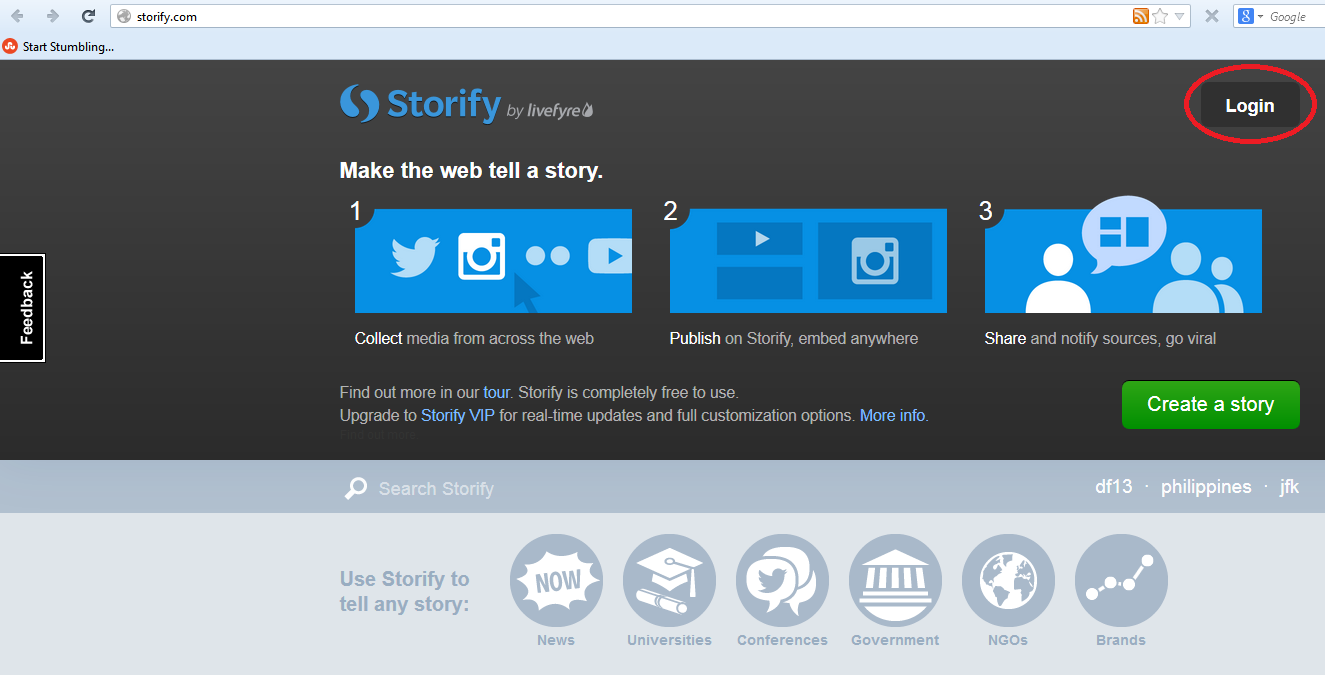
If you’re not already a member, you need to go to www.storify.com and sign up. If you don’t already have an account, you need to click the Login button at the top right:

Storify home page

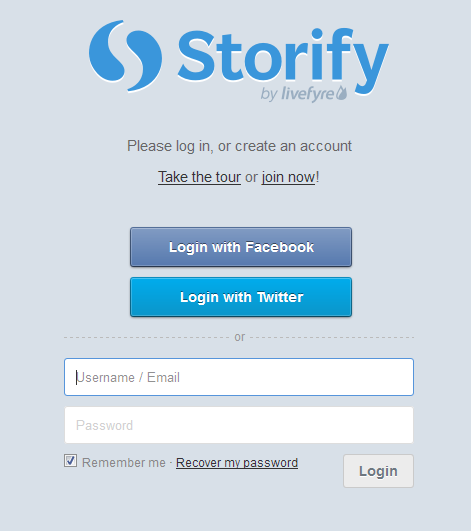
You will be given the option to log in using Twitter or Facebook. Actually, you will still need to create a password and account with Storify: what this does is associate your Storify account with your social media account. You can also just create a username and password.

2 login

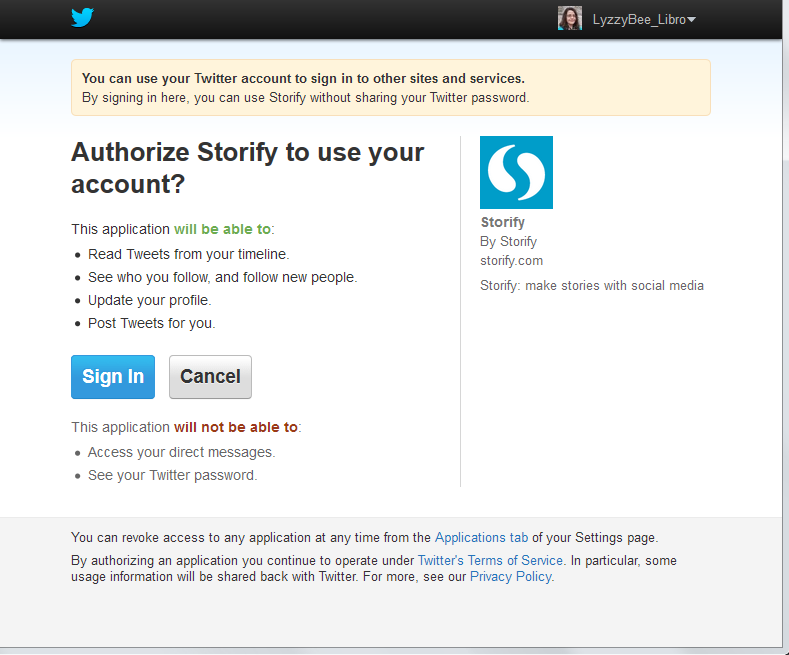
I chose to sign up using my Twitter account, as that’s what I use most for business and sharing. As it says, it only connects to your Twitter account and uses its authentication, it doesn’t see your password etc. And when it says it will Tweet for you, that’s only when you create a story, not randomly!
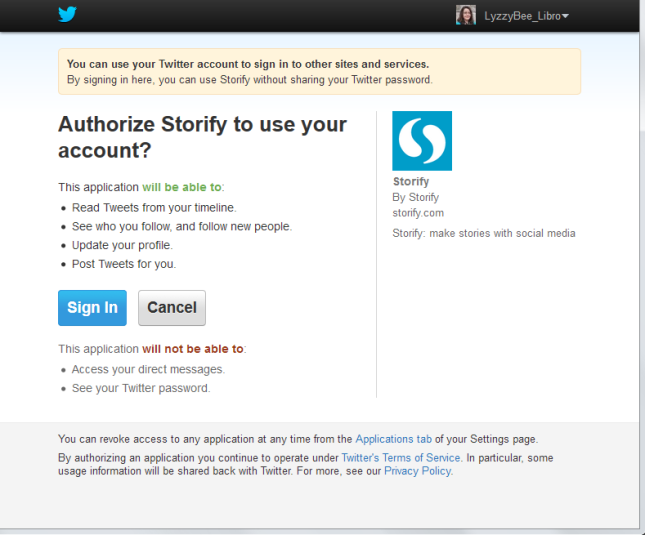
3 Twitter login

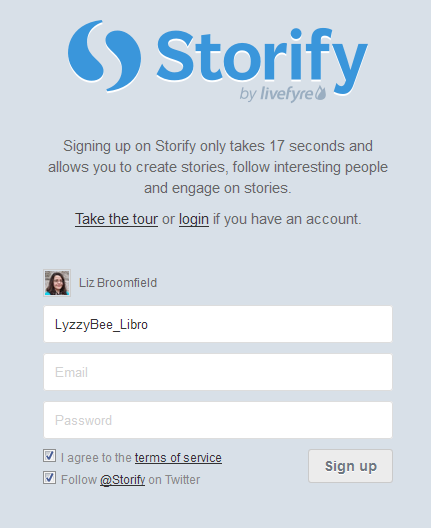
So I told it my Twitter username then added my email address and a password:

4 sign up

And that was it, I was ready to create my first story!

How do you create a Storify story?

Once you’ve created your account, you’re ready to create a story. There’s a big green button on the top row of the website, Create Story. Click that …

5 create

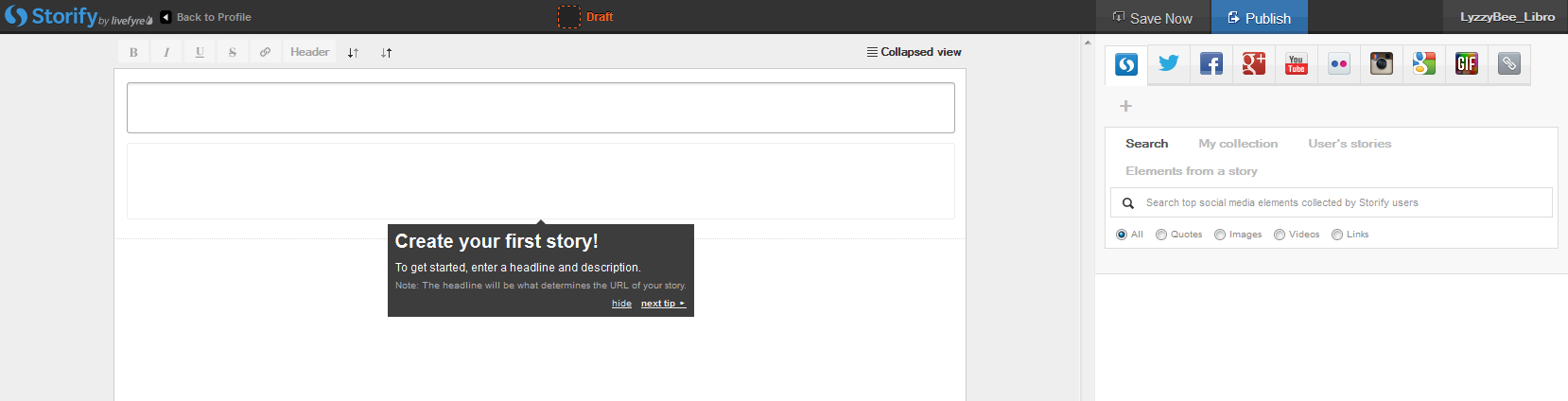
… and you’re taken to a slightly alarming page – alarming because it manages to look both blank and complicated! But look: little tips come up the first time you use it which guide you through what to do!

Basically you’ve got an area where you create your story on the left and a place to search for content on the right.

The first thing to do is create a name for your story. You can also press the Save Now button at this stage, which will prompt it to autosave as you go along.

6 create

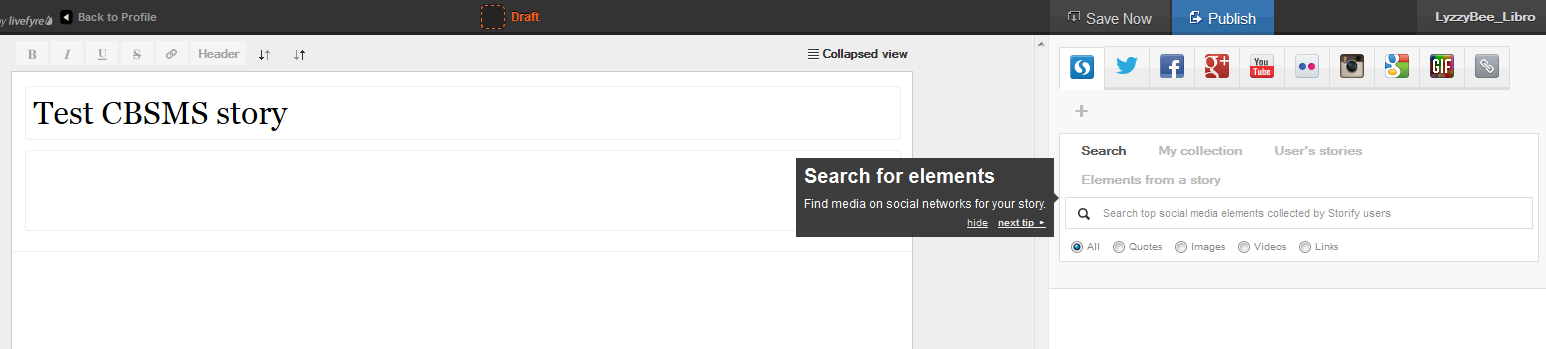
I’ve given my story the edifying title “Test CBSMS story” and now I’m ready to add content, or Search for elements, as Storify calls it:
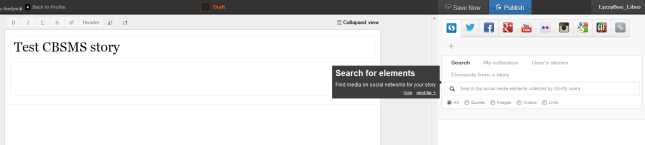
7 create

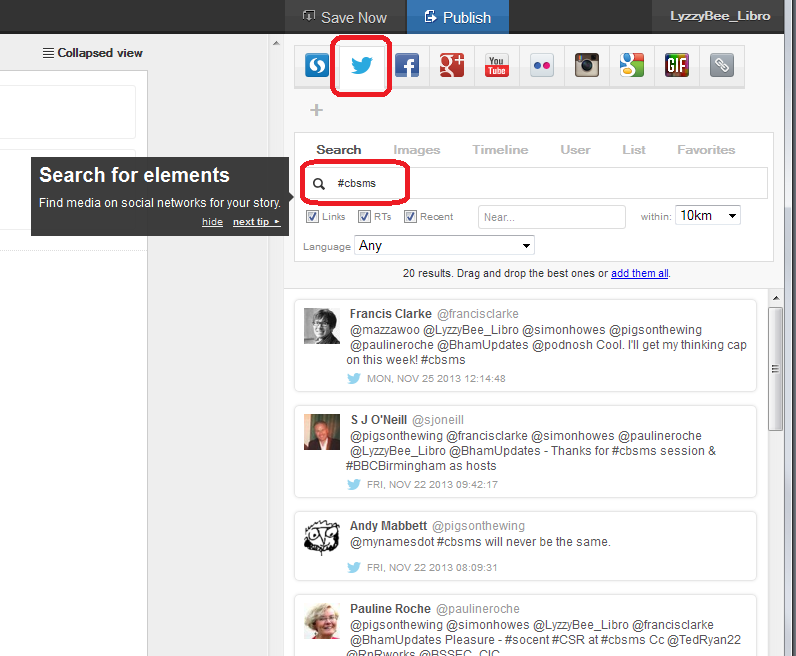
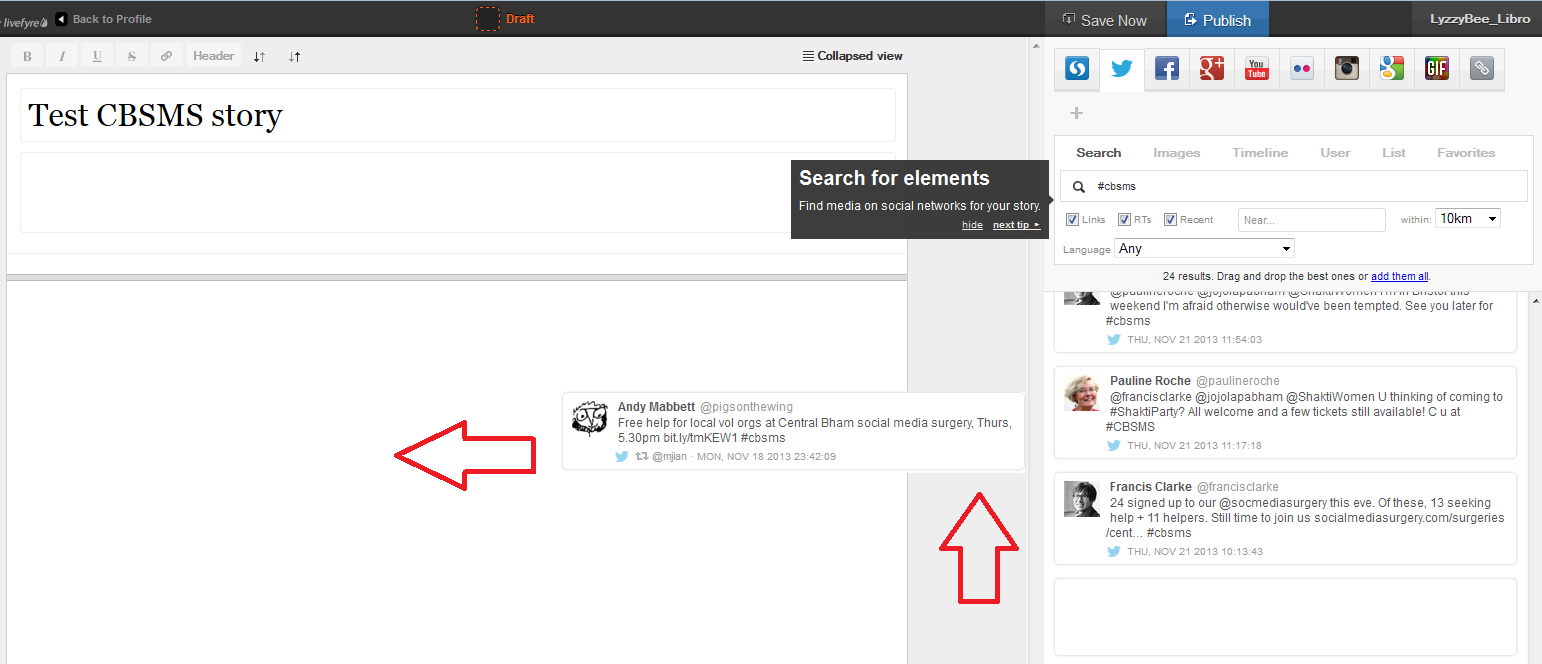
There’s a row of tabs along the top – I clicked on Twitter and then searched for #cbsms [Central Birmingham Social Media Surgery], because I knew that that was the hashtag used around the event. But you can search for anything here:
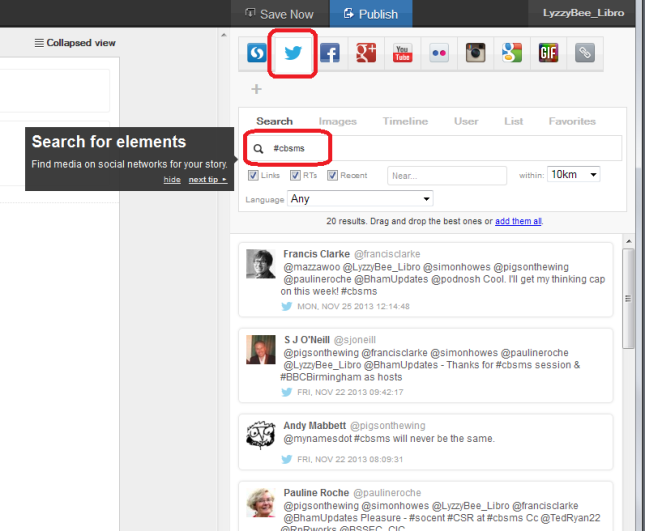
8 search

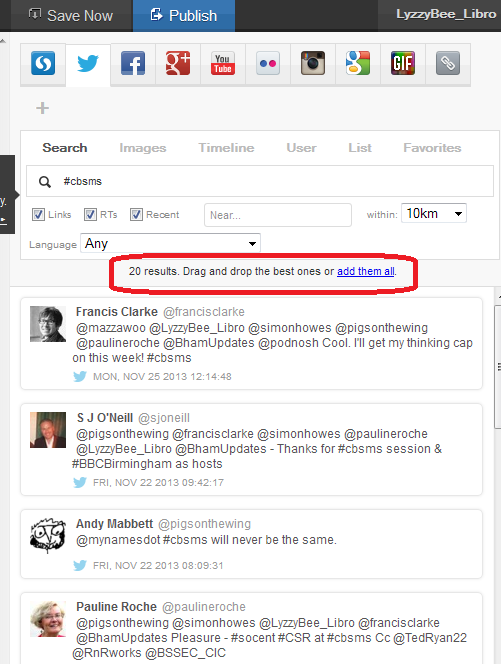
You can see that a set of Twitter results has come up, and all of them contain the hashtag. Storify now handily told me what to do: drag and drop the tweets I wanted into the story area:

9 choose

This means that you can pick up particular results but not all of them – useful if some of them are repeated or just ‘chatter’ that you don’t want to include. It also means that you can put them into whatever order you want, rather than the order imposed by the standard Twitter view (I made this one like Twitter, with the newest tweets at the top, but if you look again at Karen’s example, she switched it round to read from top to bottom).

Click on the tweet you want to include and drag it across into your story area:
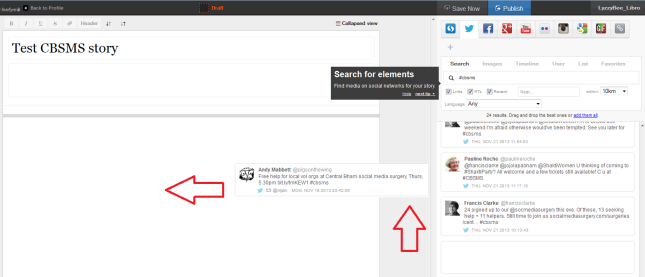
10 choose

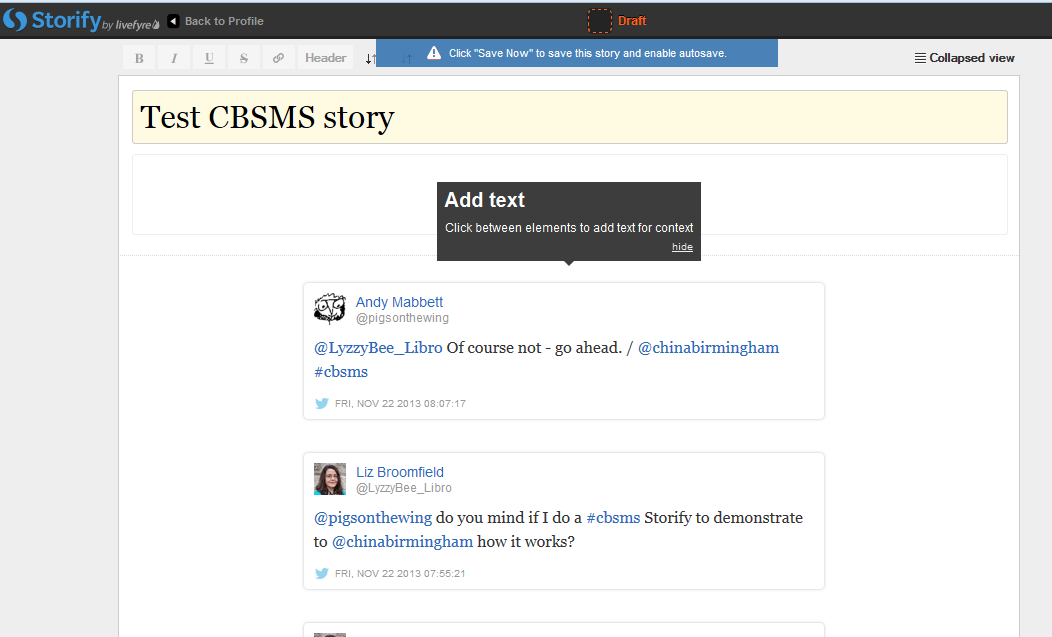
Once I’d popped a couple of items in, I was told that I could add text:

11 comment

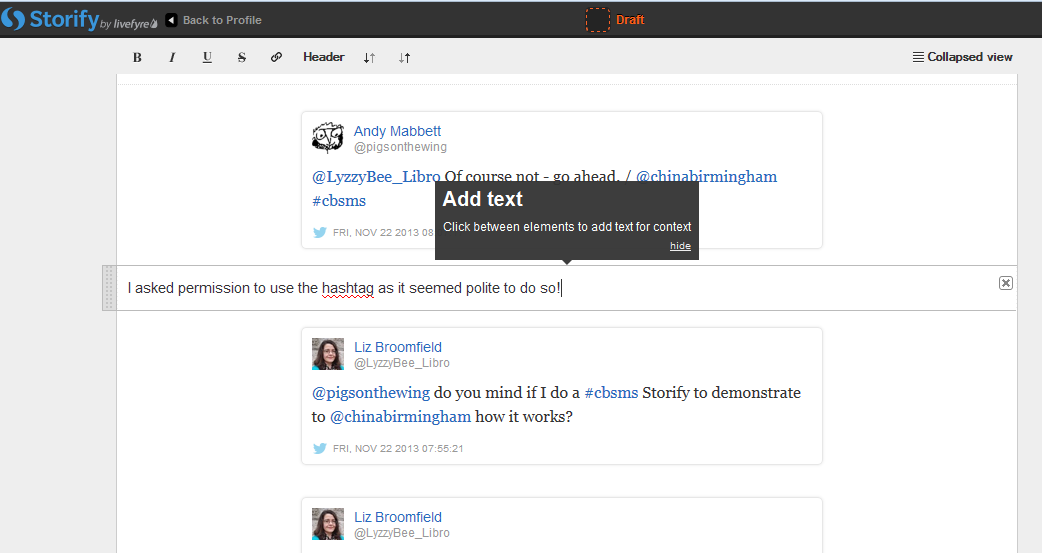
You click on the space between your items and type whatever text you want to add:

12 comment

So I added a note explaining the last two entries in the story, where I checked it was OK to use the hashtag to create this worked example.

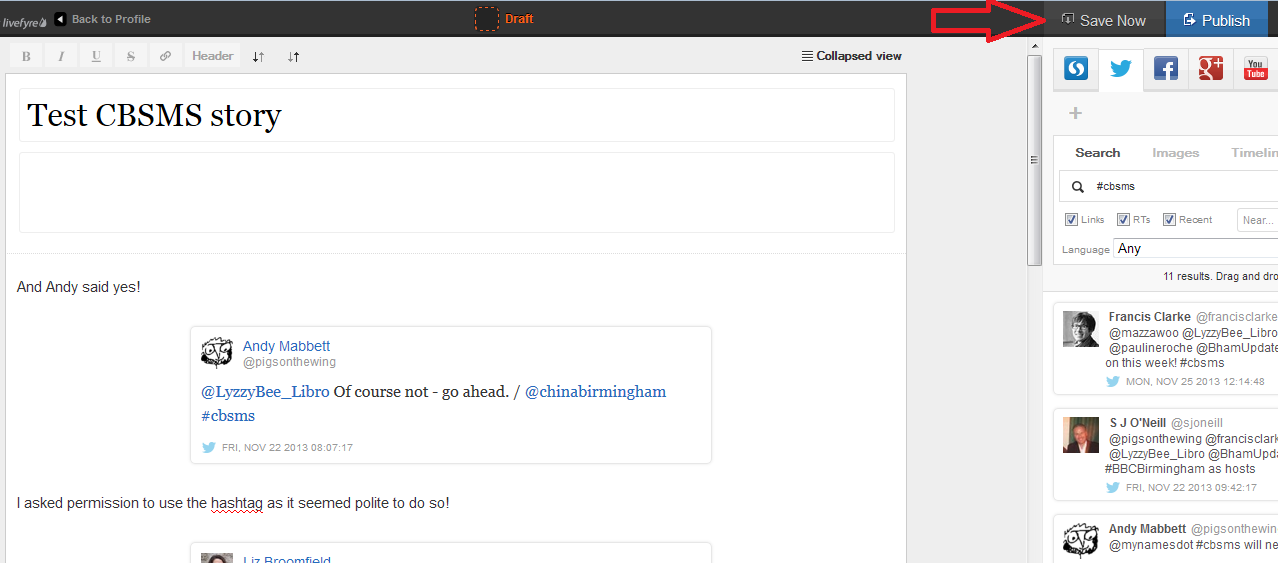
I then hit the Save Now button – which I mentioned earlier and should have done at the point at which I mentioned it! Just in case!

13 save

Adding more sources to your Storify

You’re not limited to creating a Storify from only one source. Along the top of the search area you can see loads of different options, including Facebook, Google+, YouTube, Google, and your own photos and links.

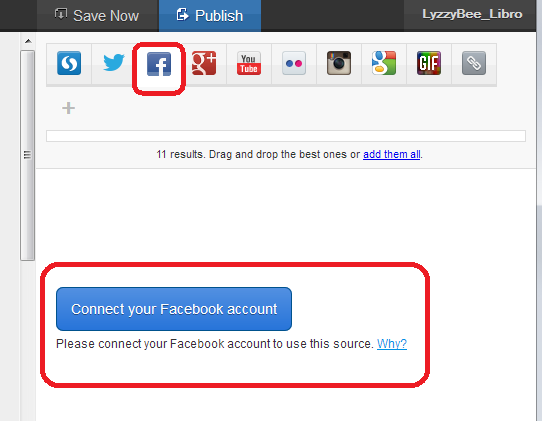
Note that if you choose Facebook, you will need to log in and link it to your own Facebook account (again, this won’t do anything nasty, it just appears to need to use your own Facebook timeline. Of course, you can search for anything on Facebook once you’re logged in). You don’t seem to need to do that with Google+, though.

14 connect other accounts

This time, I didn’t bother with any Facebook items, but I did pop into Google search and picked up some explanatory information about the Social Media Surgery to add to my story:
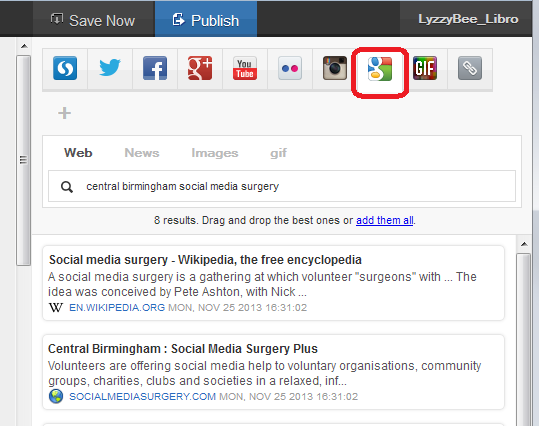
15 connect other accounts

How do I publish my Storify story?

The first step is to hit the Publish button at the top right:
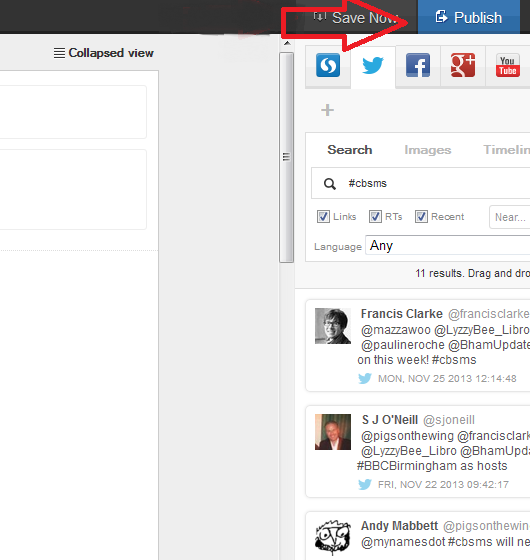
15.5 publish

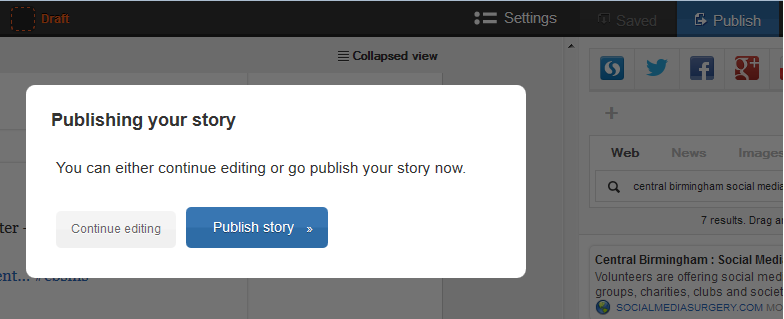
Just in case I had pressed it too soon, I was shown a confirmation box:

16 publish

I was ready to publish, so I clicked on Publish story.

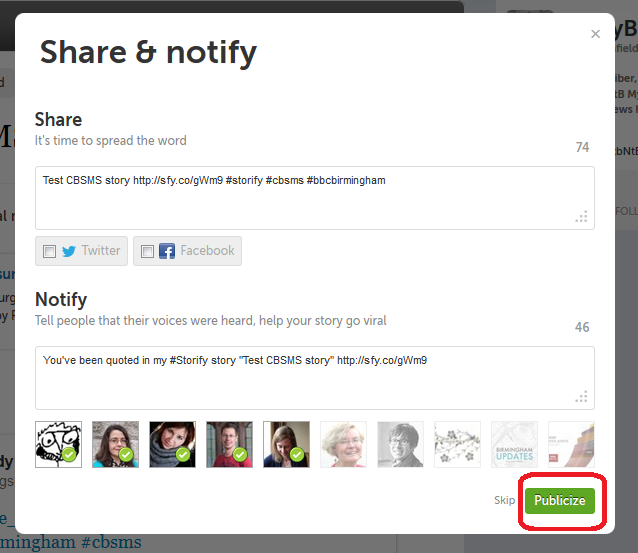
The next step was Share & notify. Sharing creates an automated Tweet with a link to your story. I imagine that if you’ve signed in to Facebook, etc., you will also be given the option to post an automated status update.

Notify lets you autotweet anyone who’s a friend on Twitter and is mentioned in your story to tell them that their tweet has been included in your story. I really like receiving these notifications, so I left these ticked, but you can untick them if you don’t want to do this.

17 share and notify

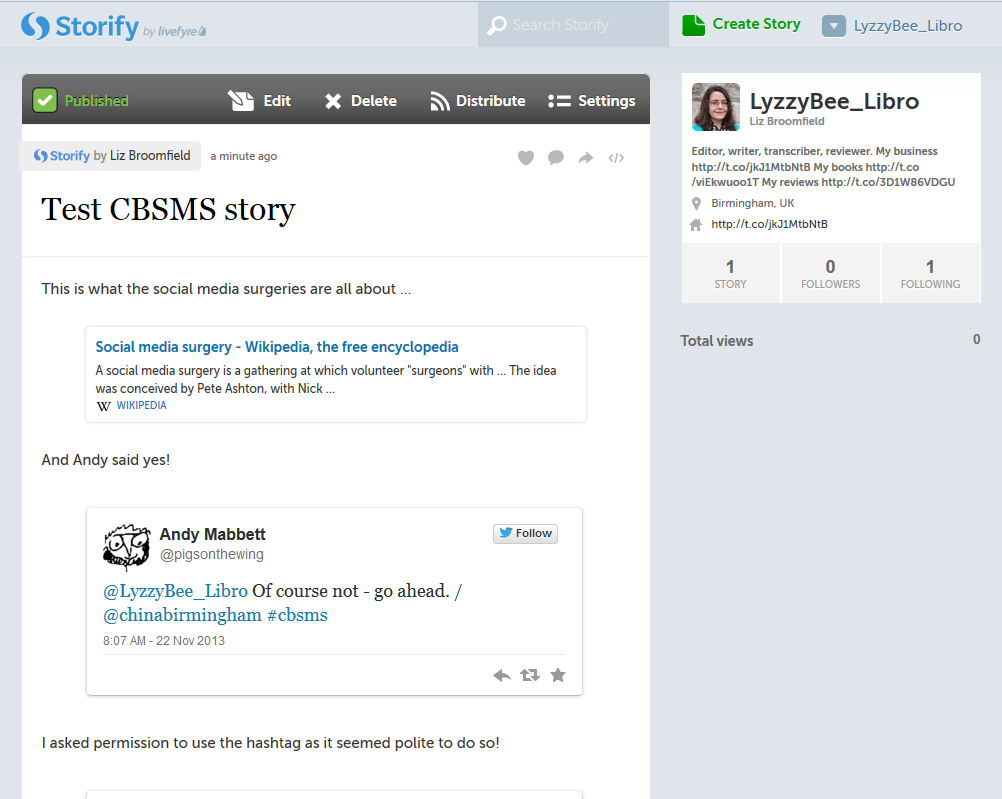
This process creates my story in Storify. At this point, the story gets assigned a URL that I can quote in emails or add to my blog. In the case of this story, it’s http://storify.com/LyzzyBee_Libro/test-cbsms-story, and this stays with the story on my profile for ever more.

18 live

What does my Storify look like on my Twitter account?

Finally, I popped over to my Twitter account to see what my story looked like on there. The top tweet is the automatic tweet with the link to my story, and the ones underneath are those ones that automatically tell people that they’ve been included. Exactly what it said it would do.
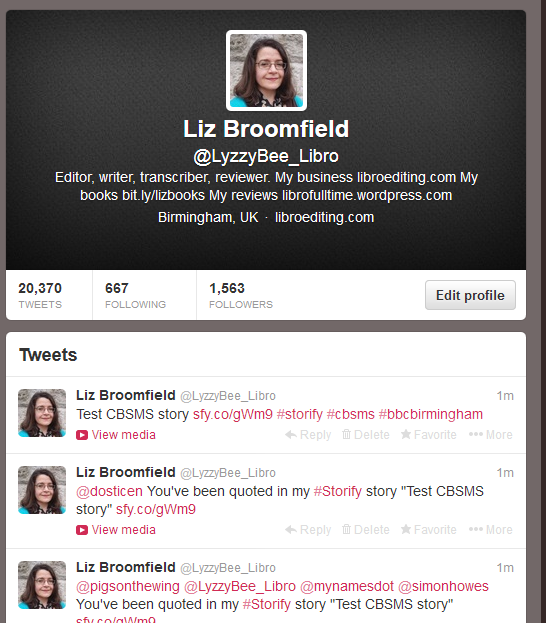
19 live on Twitter

What else can I do with Storify?

When you’re searching, you can refine your search to exclude retweets, etc.

You can get a paid account which is useful for large businesses or organisations. This seems to allow a lot more customisation and also real-time updates – however, I like the editable nature of the free version and I’m not sure if that would get lost if real-time updates were running. Maybe someone who has a paid account will come along to share the uses of that. But I think most people will be OK with the free version.

* I was helping the Chinese Community Centre in Birmingham at the November 2013 Social Media Surgery and they wanted to use Storify to pull together stories from their Oral History Project. We ended up talking about their blog rather than Storify, but I promised to put together some instructions for them. This one’s for you! Note: This is not a sponsored post, but an exploration of a potentially useful tool.

———————

This post has taught you – through my own learning process – about using Storify. You can find more posts about using social media in the relevant part of my resource guide.

If you would like more detail about how to use Storify for your content marketing, have a look at this article by Fiona Cullinan.

If you’ve found this article useful and/or interesting, please do post a comment and share using the buttons below! Thank you!
 
26 Comments

Posted by on November 27, 2013 in Blogging, New skills, Social media


Tags: , , , ,

Developing your business: what next?

Sneak preview of the image from my new bookSo, you’ve got through the start-up phase, you’ve got a decent business going, and you’re still getting enquiries from prospective new customers. You might be earning enough to be thinking about optimising your tax situation or even going VAT-registered. What do you do now?

You have various options: in this post I’m going to run through the main ones, then in the weeks to come, I’m going to be featuring some expert advice from solicitors and accountants, business consultants and the like, who will talk us through the options, AND real-life examples from people who’ve been there and done it and can share their experiences.

In summary, here’s what you can do:

  • Go full time if you’re not already
  • Outsource tasks to other companies
  • Turn yourself into a Limited Company
  • Get VAT-registered
  • Employ people
  • Contract out to other freelancers
  • Go into partnership with someone
  • Expand into premises – an office or workshop
  • Do nothing

Going full time with your business

If you’re not already full time, and you’re feeling pressured by having a day job and your own business, it can be very worthwhile going it alone. I’ve written a whole book on the subject, but I know lots of people who’ve done this: it can be hard to decide when to jump ship, but very rewarding when you do! Read Laura Ripper’s experiences of going full time here.

Outsourcing

Outsourcing means getting someone else to do tasks such as

  • Admin
  • Finance
  • HR
  • Sales
  • Telemarketing

Outsourcing the admin and sales effort allows you to devote your time to working at the actual tasks that form the core of your work. More billable hours should mean more money coming in, and you can accommodate more clients. You can find articles on the Libro blog about tasks that you can outsource and how to work out whether it’s worth it. And here’s an article that includes real-life experiences of the values of ousourcing.

Becoming a Limited Company or going VAT registered

Both of these options have reputation and tax implications. Some clients in some industries find that dealing with a Limited Company or someone with a VAT number represents solidity and safety (of course, sometimes, it can be a disadvantage, for example, to be VAT registered yourself if most of your clients aren’t and won’t be able to claim the VAT back that they pay to you). Becoming a Limited Company can protect you legally and save you some tax (legally and ethically).

Read the expert’s view on becoming a Limited Company.

Employing people, contracting out work or going into partnership

These all involve getting other people into your business to share the workload. Some companies will contract out to people who do the same thing – for example, I work for a company that deals in proofreading for students, They send the work to me and pay me when I invoice them, and they invoice the customer for a bit more. If you go down this route, it involves a lot of admin on both sides, but means that you can have multiple people working for you without going down the employment route and bringing in profit on their work without doing that work yourselves (there are laws about when someone’s an employee, though, so it can get tricky). You can read more about employing people here and a case study here.

Going into a partnership involves a legal setup but can be useful if you have complementary skills.You have to think carefully about who you do this with, though, and issues like where you’ll work and who is responsible for what.

Employing people involves a lot of legal stuff and means that you’re responsible for other people’s income and taxes, but there are freelance HR companies out there that can help.

Added examples of this kind of area including offering franchises in your business to people and taking on an apprentice. Franchising has a lot of rules and regulations but allows you to replicate your brand and success with managers in place to run the businesses, and apprentices are given external training as well as working with you.

Moving into business premises

If it feels like you’ve outgrown your home office and you want more room for making the goods you sell, or you want to separate home and work life a bit better, then moving into premises can be the next step. This does involve costs, although there are offers out there that give you secretarial and reception support which can be very useful. It can look more professional if people visit you, too. Beware the treadmill that leads to getting  more office space / employing more people / getting more space / employing more people, with your overheads going up and up, unless you have a steady head and a good accountant! But it does work very well for some people.

Here are some people’s stories of how and why they did this and how it all went. We also have an expert view on how, when and why to move into office space and one on expanding into regional offices.

Doing nothing

I have to admit that this is my approach. Why? Mainly because what I do is so linked to me, my style of editing, my relationship with my clients, and because I like being my own boss, beholden to no one and responsible for no one. I’ve also looked at what some peers in other businesses have done, and realised I’d rather keep my simple model (plus most editors work like this). But I have done this:

  • Contracted out my accounting to allow me to devote my time to work, not admin
  • Developed robust business routines for the same reason
  • Optimised my customer base to give me a good mix of work and a good income stream (read more)
  • Worked on developing passive income streams (read more)
  • Developed a network of people to whom I can refer new business or the occasional bit of overflow work from regular customers

———————

I’ve talked here about some ways to grow your business. I’ll be featuring tips from experts and case studies from people who’ve been down these paths over the coming weeks. I still have some slots free, and I’d love to have a range of opinions and experiences for each topic: if you’re an expert on these areas or a business person who’s gone down any of these routes, please have a look at this post on precisely what I’m looking for, and get in touch!

Have you enjoyed reading this post? I love to read your comments, and you might be interested in some more of the posts in the Careers and Business areas of this website …

Related posts:

Case study: going full time

Expert view: outsourcing

Case studies: outsourcing

Expert view: becoming a Limited Company

Expert view: employing people

Case studies: employing people

Expert view: moving into office space

Expert view: expanding into regional offices

 
13 Comments

Posted by on November 25, 2013 in Business, Organisation


Tags: , ,

Using the Control Key keyboard shortcuts

hands typingBack in June, I wrote about the wonders of Control-F and how you can use this keyboard shortcut to find text in almost everything you would do on a computer (Word, Excel, PowerPoint, web pages, WordPress back-end, etc., etc., etc). This post tells you about the other Control- or Ctrl+ keyboard shortcuts that you can use to …

  • save your mouse hand
  • do things quickly
  • impress your friends (maybe – depends what kind of friends you have …)

What keyboard shortcuts does the Control Key give you?

I’m going to categorise these into different areas for you. For each shortcut, you will typically need to highlight the text that you want to change if you’re doing something like changing its style or copying or cutting it, and pop the cursor in the right place if you want to paste. I’ll tell you what you need to do by each one. For each one, you need to press the Control key, usually marked Ctrl (and you might have more than on on your keyboard) then keep it pressed down while you press the second key on the keyboard).

Keyboard shortcuts for copying and pasting:

Ctrl-C – COPY Highlight the text you want to copy (leaving it where it is but making a copy you can paste elsewhere) and hit Control + c

Ctrl-X – CUT Highlight the text you want to cut out of your text (and maybe paste elsewhere) and hit Control + x

Ctrl-V – PASTE – pop the cursor where you want the text you’ve cut or copied to appear and hit Control + v

Ctrl-A – HIGHLIGHT ALL – if you want to highlight all of your text in Word, Excel, etc., you can use Control + a to do so

Bonus shortcut: if you want to switch between ALL CAPITALS, Title Capitals and Sentence capitals on a section of text, Shft-F3 is your friend. More detail here.

Keyboard shortcuts for bold, italics and underline

In each case, highlight the text you want to change, and press these keys:

Ctrl-B – to turn non-bold text into bold OR take the emboldening off a section of text, press Control + b

Ctrl-I – to turn non-italic text into italics OR take the italicisation off a section of text, press Control + i

Ctrl-U – to underline text OR take underlining away from a section of text, press Control + u

Keyboard shortcuts for Find, Goto and Replace

Ctrl-F – almost everywhere, pressing Control + f will open up a window to allow you to find a string of text (see this article for more detail)

Ctrl-H – in any document where you can replace text (i.e. Word, Excel, Powerpoint, etc.), pressing Control + h will open up the find and replace window which allows you to change a particular string of text into another particular string of text (I will be writing about this in more detail soon)

Ctrl-G – in documents with pages, pressing Control + g will allow you to navigate to a particular page

Keyboard shortcuts for undoing and redoing

Ctrl-Z – UNDO – if you want to undo what you’ve just done, hitting Control-Z has the same effect as hitting that little backwards arrow in your toolbar. It also works if you typed in a URL and the page is taking ages to load – Control-Z will cancel the operation

Ctrl-Y – REDO – lots of people know about Ctrl-Z, but did you know that you can redo an operation that you’ve undone by hitting Control-Y?

Keyboard shortcuts for open / new / print / save

Ctrl-N – if you want to open a new document in Word, Excel, etc., or a new browser window, pressing Control + n will do that for you

Ctrl-O – To open a document, wherever you are on your computer, pressing Control + o will open Windows Explorer so you can find and open your document

Ctrl-S – To open up Windows Explorer and save your document, pressing Control + s will save you clicking with your mouse

Ctrl-P – Want to print? Open up a printer dialogue box using Control + p

———————

Go on – admit it: did you really know ALL of these shortcuts? They’ll save you a few mouse clicks and I find some to be a lot quicker and more useful than the other methods you can use to get the same results. Which are your favourite keyboard shortcuts?

Related posts on this blog:

The control+ shortcuts I don’t cover here

How to find text almost anywhere

Changing from lower case to upper case

Find all of the short cuts here

 
23 Comments

Posted by on November 20, 2013 in Errors, New skills, Short cuts, Word, Writing


Tags: , , , , , , , ,

How do I change footnotes to endnotes in Word?

As part of my series on footnotes and endnotes, here’s how to turn your footnotes into endnotes and your endnotes into footnotes in Word 2007, Word 2010 and Word 2013.

We begin with a document with footnotes, arranged at the bottom of their relevant page, as footnotes tend to be:

1 footnotes

But we want to turn these footnotes into endnotes. How?

Go to the Footnotes menu, which you can find in the References tab:

2 ribbon

Click on the little arrow at the bottom right to bring up the Footnote/Endnote Options dialogue box:

2 menu

Here you will find a Convert button to press. Press the button:

3 menu

This is context-specific, so if you have only footnotes, the option to convert endnotes to footnotes and to swap the two will be greyed out. Hit OK (or, if you already have both endnotes and footnotes, choose the option you wish to use then hit OK).

Your footnotes will have changed to endnotes:

4 endnotes

Related posts from this blog:

How to insert and format footnotes

How to insert and format endnotes

Please note, these hints work with versions of Microsoft Word currently in use – Word 2007, Word 2010 and Word 2013, all for PC. Mac compatible versions of Word should have similar options. Always save a copy of your document before manipulating it. I bear no responsibility for any pickles you might get yourself into!

Find all the short cuts here

 
3 Comments

Posted by on October 17, 2013 in Errors, New skills, Short cuts, Word, Writing


Tags: , , , , , , , , ,

How do I add endnotes to a Word document?

Writers use endnotes to find a place for additional text which doesn’t fit into the flow of the document at hand but needs to be included for reference purposes. The reasons for doing this are the same as for using footnotes (to provide translations, to expand on information in the text, to provide references for sources used, etc.)

What is the difference between footnotes and endnotes?

The only difference between footnotes and endnotes lies in their position.

The text of footnotes sits at the bottom of the page on which the footnote is referenced.

The text of endnotes sits at the end of the chapter, article or even the whole book in which the footnote is referenced.

What do endnotes look like?

Unlike footnotes, which can use symbols or numbers, an endnote will usually be marked using a raised number after the bit of text that they refer to, like this.1 The reason for this is that a whole set of endnotes might appear at the end of a chapter or book, and there aren’t enough symbols to cover more than about five.

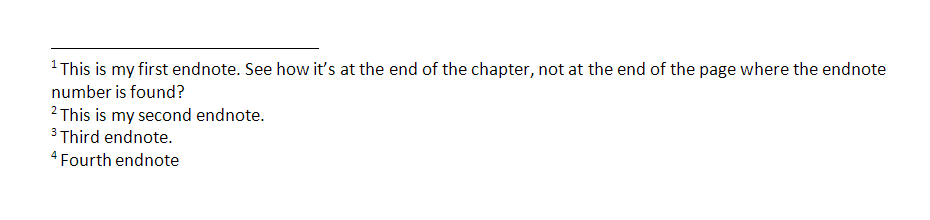
The text of the endnote will be marked with the same number, and will include all of the text that you want to appear outside the main text.

Endnotes at the end of a chapter will usually start at 1 for each new chapter. However, endnotes for an entire book might be numbered either starting at 1 for each new chapter or running sequentially through the whole book, running into the hundreds.

Sometimes endnotes don’t have a number in the text, but just refer in their own text to a section of the main document. These tend to be done by hand rather than automatically in the way I’m going to show you today.

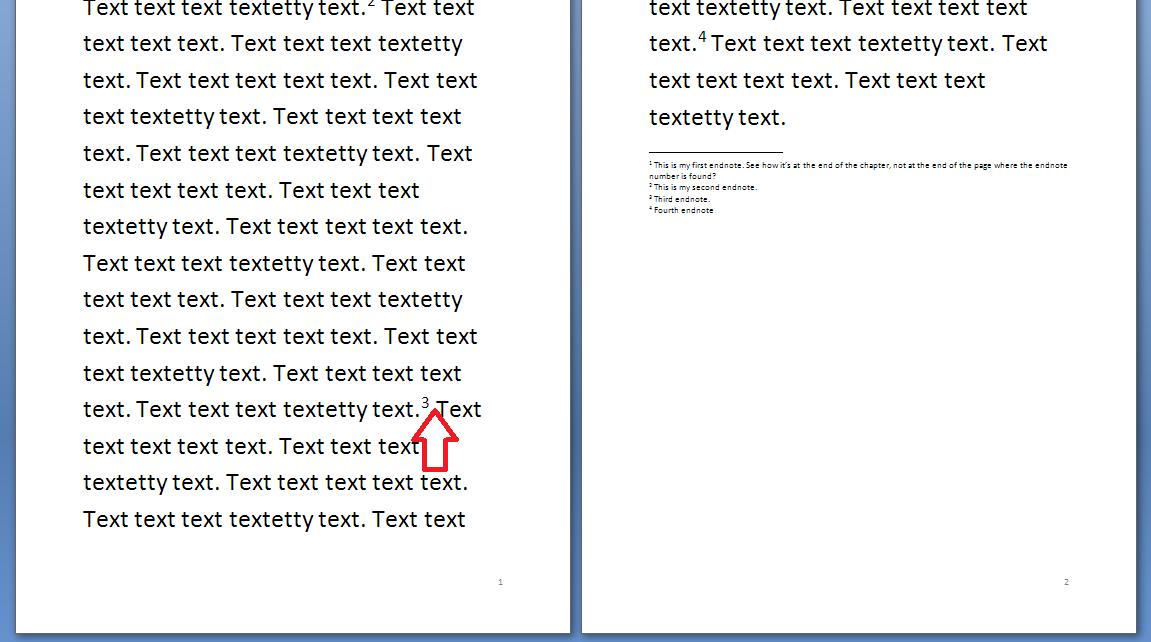
You can see here that the endnote number is on the first page (circled) but the endnote itself appears at the end of the whole document:

1 endnote

How do I create an endnote in Word 2007 and Word 2010?

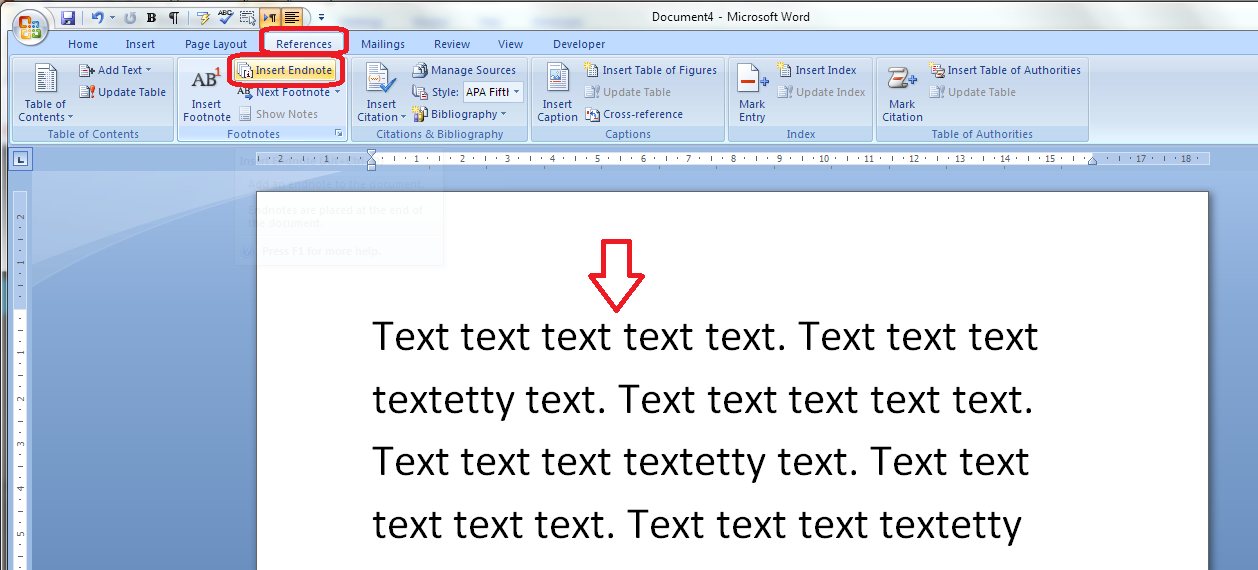
The Endnote section is found in the References tab of the ribbon (not Insert):

1 menu

Place the cursor in the position where you want the endnote to appear and either press the Insert Endnote button (as above) or click on the drop down arrow for your options (I find that sometimes the Endnote numbering defaults to something odd, so it’s useful to do this:

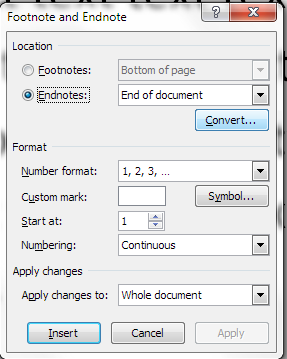
2 options

This will bring up your endnote options. Choose your options (see next section) and when you press Insert, a number will appear in your text, and an endnote number will appear right at the end of your document (or chapter), ready for your endnote text.

Type the text you want into your endnote field, noting that you can change the paragraph style, size and font as with any text, although it’s common for the endnote font to be smaller than the main document font.

To insert the next endnote, follow the same sequence, although once you’ve set up your options, you can just hit the Insert endnote button instead of dropping down the options.

How do I delete an endnote?

Using the automated endnote system means that the numbering will adjust itself to stay correct if you delete and move notes around.

Don’t highlight the endnote itself and delete it. This has no effect on the numbering.

Instead, highlight the number in the text or position your cursor at the point just after it and press delete.

3 delete

Here, I’m deleting Endnote 3. Press delete and

4 delete

changes to:

5 delete

What are the endnote options?

We have already seen that clicking on the little arrow at the bottom right of the Footnotes section, brings up a range of Footnote and Endnote options that you can customise:

2 options

Here you can choose the number format, whether the endnotes appear at the end of each section (you will need to apply Section Breaks to make this work) or at the end of the whole document, and whether the numbering starts at the beginning of each new section or just runs through all of the document continuously.

6 options

For more detail on these options, see the relevant sections in the article on Footnotes.

How do I make the endnotes appear on a new page?

To make your endnotes appear on a new page, simply add a Page Break before them by putting your cursor at the end of the main text and pressing Control-Enter.

How to add endnotes in Word 2003

In Word 2003, you add endnotes using the Insert – Reference menus. The footnote options are then the same as above.

How not to add endnotes to Word documents

It is NOT RECOMMENDED to add endnotes manually (insert a superscript number and type the note at the bottom of the document) If you do this, you will lose all the advantages of using this automated system:

  • automatically adding the numbers in order
  • automatically renumbering the endnotes if you delete or add one or move one around

————-

In this article we’ve learnt what an endnote is, why you use them, all about inserting and deleting them and the options for customsing them.

Related posts from this blog:

How do I add footnotes to a Word document?

Changing footnotes to endnotes

How do I change the format of my endnotes and footnotes?

Please note, these hints work with versions of Microsoft Word currently in use – Word 2003, Word 2007 and Word 2010, all for PC. Mac compatible versions of Word should have similar options. Always save a copy of your document before manipulating it. I bear no responsibility for any pickles you might get yourself into!

Find all the short cuts here

 
7 Comments

Posted by on October 9, 2013 in Errors, New skills, Short cuts, Word, Writing


Tags: , , , , , , , ,

Ten top tips for transcribers

keyboard, headphones and penI’ve been advising a colleague on how to develop the transcription side of her business recently, and these tips and hints came out as being the most useful for her – so I’m sharing them with you, too. Do comment if you find these helpful or have more to share!

1. Make sure that you can do it!
Before you launch into your first transcription project, check that you can do it first! This includes:
  • Being able to touch type
  • Being able to type quickly
  • Having the requisite technology

You can have a look at this post to check you’re suited for the work, and this one about the technology to use. Transcription jobs often come in at short notice and have tight turnarounds, so it really pays to be prepared.

2. Make sure that your ergonomics are tip-top

Transcription is the most demanding of my tasks. Typically, you’re pounding a keyboard for several hours at a time, typing as fast as you can while straining to hear the tape. Here are some of the things I and my colleagues have learned:

  • Use a proper keyboard with little legs, not a laptop keyboard, even if it’s propped up
  • Make sure that your chair is adjusted so that you can sit straight, looking slightly down at the screen, with your forearms sloping slightly down to your hands and your hands arched over the keys
  • Make sure that your feet are flat on the floor with comfortable bends to the knees; if not, put a box or footrest in front of your chair
  • Make sure that the cable on your headphones is long enough to reach your computer without you having to bend at all sideways or twist your head
  • Make sure that your headphones or earphones are comfortable
  • Take regular breaks to stand up, stretch, give your ears a rest and refocus your eyes – once an hour at very least (I do some squats and calf raises every hour as I seem to store tension in my legs when I am transcribing)

3. Get software to manage your transcriptions

Professional transcription software allows you to control the tape using function keys or even a pedal (like in the old days of audio typing) and will make you much quicker at doing the work. More information on software here – make sure you get used to it first!

4. Make sure that you understand what the client wants

You wouldn’t believe how many choices are involved when it comes to providing transcriptions for clients. Here are just some of them:

  • Do they want  you to type out exactly what the speakers say, take out the ums and ers but retain the rest, polish up the sentences so they make grammatical sense, or make non-native English speakers sound like native English speakers?
  • If you are transcribing an interview, do they want you to include the full questions or just notes?
  • If the person who they are interviewing says that something is off the record, do they want you to stop typing, or take it down and mark it up as off the record?
  • Do they want you to include and mark pauses, and how?
  • How do they want you to mark unclear sections or words that you can’t understand but can type a phonetic version?
  • Do they want you to timestamp the document (i.e insert 05:00, 10:00 etc. at the relevant points in the document), and how often, if at all?
  • How do they want you to differentiate between the speakers? (this could range from first initial, surname, in bold, with a colon to putting the questions in italics with no names)
  • Do they want US or UK spelling? Oxford -z- spellings or “British English” -s- spellings?
  • Do they have a special font or line spacing they wish you to use?
  • Do they have a template that they wish you to use?

I have experienced all of these variations in my own transcription work. You may be working in a team where it’s vital to have all transcriptions looking the same, or the client might just work with the transcriptions in a particular way.

I have a standard list of questions I send out to clients if they don’t specify, so that I can make sure that I’m doing what they want.

5. If it is anything but a general text, ask for a list of terminology

When I work with music journalists, I always ask for the band name so I can check the album and song titles and band members’ names – I feel more professional if I get that right for them.

If I’m working with a particular kind of client and there seem to be a lot of specific terms, I ask for a list of terms, or send my own list and ask them to check if they’re correct, especially if it’s a long-term project. Again, this makes you look professional and avoids the client having to do any extra work to correct your interpretation of terms.

Of course, it helps if you know a bit about the topic to start with. I always turn down medical and legal transcription jobs because they’re very specialised, and I like to think that I know about music, but I did have to ask a client if I’d heard “Bowel Bass” correctly (I had!).

6. Get to grips with Word’s auto complete function

Auto complete can save you keystrokes and time by allowing you to type a few letters or a word fragment and have it expand into a word or phrase. I’ve written an introduction to this topic with more detail on personalising it, if you want to read up on this. Being able to type “tyv” and have “thank you very much” appear in your document, or having your “beh” turn into “behaviourally” is key to cutting down the time taken to type out that tape.

7. Monitor how long it takes you to do an hour or whatever, on average

Once you’ve got into transcribing, monitor how long it takes you to transcribe an hour of tape, on average. This will help you to predict workflows and give your client an estimate of how long you will take to complete their work.

However, do note two things here:

  • Time taken can vary considerably (see Point 8 below) so always under-promise and over-deliver. My average rates vary from 2 hours typing to 4 hours typing for one hour of tape, although my absolute average is around 3 hours typing for every hour of tape
  • Don’t forget to build in breaks – if I’m sent 3 hours of tape at midday, it will not take me until 9pm!

8. Be aware of the variables

I’ve known people who are new to transcribing to get upset when a tape takes them a long time. It might be just that the job is difficult or has some factors that would make it take longer for ANYONE to complete.. It can really vary – here are some reasons why a tape could take longer to type than average:

  • It’s a new client or project – I always speed up as I get used to the client’s voices and terminology and the way the conversations go
  • The sound quality is poor, leaving you to have to rewind and go over much more than usual
  • The job involves taking down every single word the speakers say and they have a lot of repeated words and / or talk very quickly
  • The speakers have heavy accents
  • There are more than two speakers and they are difficult to differentiate (that’s why I charge more for more than two speakers)

As I said in Point 7 – try to have a listen to the tape before you make any promises on timing, and always under-promise and over-deliver!

9. Be a perfectionist but not too much of a perfectionist

It’s brilliant if you take great care over your transcription and try to make it all as good as you can. It’s not brilliant if you spend hours labouring over every tiny section of tape, trying to make everything out or frantically Googling for obscure titles of album tracks:

  • Sometimes the tape will be unclear and no one could hear it – mark it as unclear, pop the tape timing down and move on
  • Sometimes people talk over each other and you can’t hear what one or both of them is saying – mark that and pop the tape timing down and move on
  • Sometimes people use words or talk about people whose names you cannot make out – have a go at sticking down what you can hear, mark with a question mark and the tape timing and move on

I know that when I’ve read some of the stories that my journalist clients have written, I’ve thought – “Oh, THAT’s what they said!” and I’m very experienced at this work. The clients don’t mind, as long as you get most of it and tell them about what you can’t make out. Often they will be quality checked by someone else, or the journalist will know much more about the band than you do, or they might have a little giggle at a mis-hearing and move on from it. The world will not end, and I don’t believe that anyone can transcribe a whole long tape completely perfectly.

10. Ask for feedback

Each time that I complete the first job for a new client, I ask them if there is anything that I could do differently that would help them to work with the text I produce. And if I don’t get any feedback at all from a corporate client (some of them only feed back when there is an error, which I find a bit challenging!), I will ask them for it. If you really didn’t grasp a section of tape or fear you mis-heard an important term and it’s going to come up again, ask for feedback.

And if the feedback is good AND the client says it’s OK to use it, pop it on your references page!

—————————————
Thanks to Laura Ripper for helping me to put together this list. Was it helpful? Is there anything else that I haven’t mentioned that would have helped you when you were a new transcriber?

If you want to learn more about Transcription as a career, buy my book: A Quick Guide to Transcription as a Career – buy from Amazon UK or visit the book’s web page for worldwide links and news.

Related posts on this blog:

————

If you’ve enjoyed reading this post, do share and like using the buttons below! Thank you!
 
40 Comments

Posted by on October 7, 2013 in Business, Transcription


Tags: , , , ,

How to add page 1of 2 to a Word 2007 or Word 2010 document

I’ve had quite a few searches coming through to this blog from people wanting to know how to create a specific kind of page numbering – the kind when it reads “page 1 of 2”, “page 1 of 5”, “page 2 of 3”, etc. If you want more detail on page numbering, read this article on the basics and this one on the finer points. If you want to know how to make “page 1 of 10” appear on your document read on!

Why would I want to make my page numbers say page 1 of 2?

It’s a matter of personal choice as to how you format your page numbers. However, your department or office might have a style guide that dictates this, so it’s as well to know how to do it.

How do I get page numbers to say page 1 of 2?

As I mentioned, I have more detailed resources on page numbering. This is more of a ‘quick and dirty’ guide.

Go to the Insert tab, move to the Header and Footer area, and click on the little arrow at the bottom right of the Page Numbers button. This will give you a menu where you can select where your page number is to appear. Choose, for example, Top of Page, then scroll down the list of options to find Page X of Y:

page 1 of 1

This gives you three places where you can insert page x of y into your document. I’ve chosen the top one. Click the option and there you have it:

page 1 of 1 done

Note that you can’t change this in Page Number Options, you must do it using the Page Numbers option as shown above.

If you have found this article useful, please share it using the buttons below, and leave me a comment!

This is part of my series on how to avoid time-consuming “short cuts” and use Word in the right way to maximise your time and improve the look of your documents.

Related posts on this blog:

How to add page numbers to your document 1 – the basics

How to add page numbers to your document 2 – advanced editing etc.

Please note, these hints work with versions of Microsoft Word currently in use – Word 2003, Word 2007 and Word 2010, all for PC. Mac compatible versions of Word should have similar options. Always save a copy of your document before manipulating it. I bear no responsibility for any pickles you might get yourself into!

Find all the short cuts here

 
21 Comments

Posted by on October 2, 2013 in Errors, New skills, Short cuts, Word, Writing


Tags: , , , , , , , ,

How do I add footnotes to a Word document?

Academic and non-fiction writers use footnotes to refer to additional text which doesn’t fit into the flow of your paragraph but does need to be included. It might be used to provide a reference for a quotation or statement you’ve made, or might contain a digression or discussion of something you’ve just written about. It might also contain a translation of a non-native quotation you’ve placed in the text, or the non-native original quotation whose translation you’ve just given.

What do footnotes look like?

Footnotes can take two forms. Either there’s a raised number after the bit of text that they refer to, like this,1 or a symbol like an asterisk or paragraph mark is used (pleasingly, there is an order for these: *, , , §, ‖, ). In timetables and other tables, superscript (up high) letters and other symbols may be used.

In relation to this marker, a note will appear at the bottom of the page with the same marker at the beginning, which includes the additional / explanatory text:

0 footnotes

How do I create a footnote in Word 2007 and Word 2010?

The Footnote section is found in the References tab of the ribbon (not Insert, as you might expect):

2 menu

We need some example text first. Here’s some text after which we want to place footnotes:

1 before footnotes

Position the cursor in the position in which you want the footnote to appear (note, I am putting the footnotes AFTER the punctuation. This is common but not universal. The important thing is to be consistent) and press the Insert Footnote button:

3 button

A footnote number will now appear where your cursor is, and a note number under a line at the bottom of the page, ready for you to insert your footnote text:

3.1 insert footnote

Note that this has automatically pushed down the next paragraph onto the next page of the document. This is one of the reasons why you should automate this process and not do it manually.

You can type text into your footnote field – you can also change the paragraph style, font, size etc. as you would a normal bit of text; however, the way it defaults, with notes smaller than the main text, is the standard way to do it, so try not to mess around with it too much.

3.2 insert footnote

When you want to insert the next footnote, position your cursor in the next place and hit the Insert footnote button again. The next footnote will automatically number itself with the next number (or letter, or symbol: see below under Footnote options) and position itself under the first one:

3.3 insert footnote 2

If a footnote gets particularly long, Word will automatically shift the text and footnotes around so that they are on the same page and fit in correctly.

How do I delete a footnote?

Another benefit of using the automated footnote system is that you can delete and move footnotes and the numbering will adjust itself to stay correct.

How NOT to delete a footnote: Don’t highlight the footnote itself and delete it. This will have no effect on the numbering.

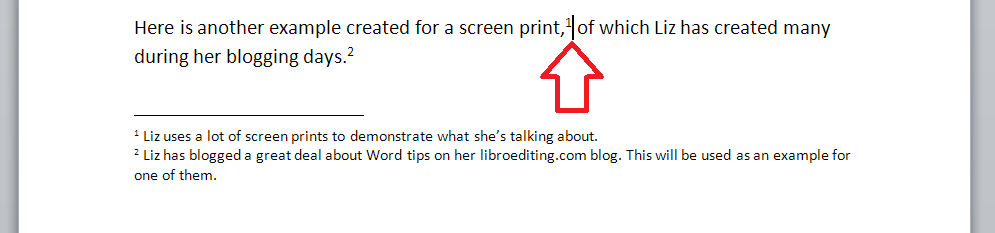
Instead, highlight the number in the text or position your cursor at the point just after it:

3.4 delete footnote

Delete that little number …

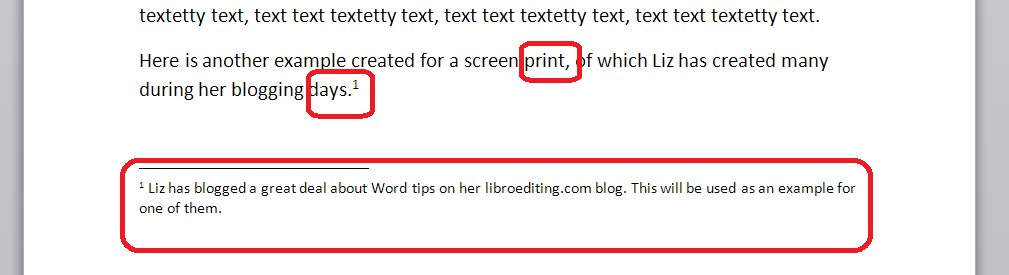
3.5 delete footnote

and the number will disappear from after “print,”, plus the one after “days.” will change to a 1 and footnote 1 will disappear, to be replaced by footnote 2, which has now become footnote 1. Magic!

What are the footnote options?

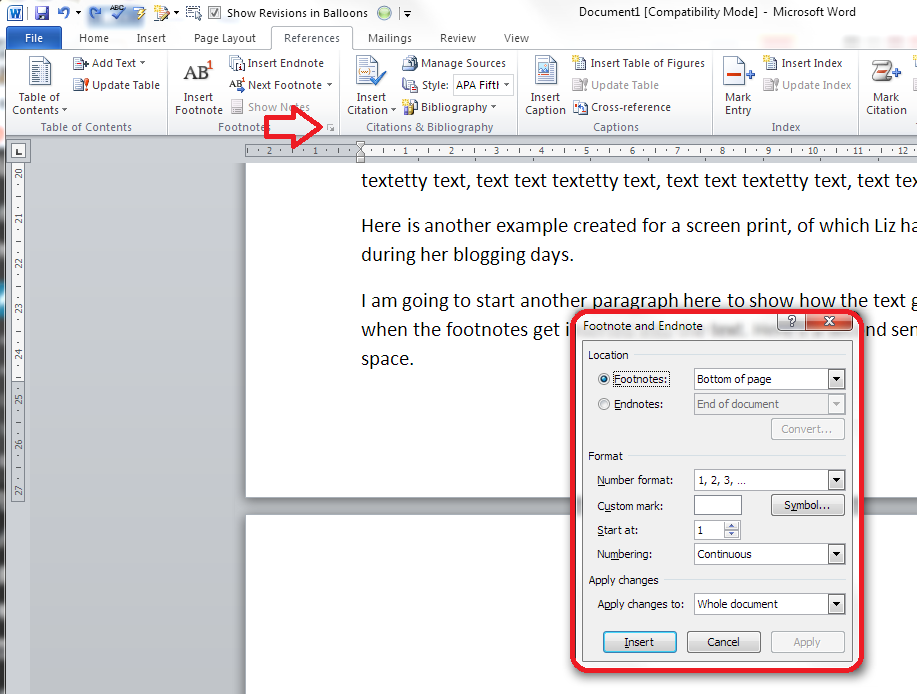
If you click on the little arrow at the bottom right of the Footnotes section, you will be given a range of Footnote and Endnote options that can be customised to suit your needs:

4 footnote options

You can choose between having footnotes and endnotes here (endnotes appear at the end of a chapter or the whole text, and will also be discussed in a different post). Then, you can choose the number format (drop down the arrow in each case):

5 footnote options

including those famous symbols (and you can also add your own symbol if you really have to). Select and hit Apply.

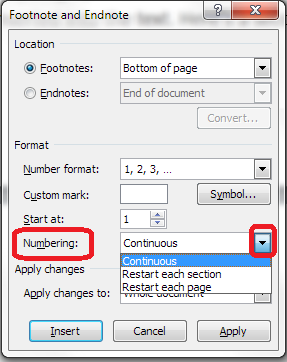
You can choose whether the numbering remains continuous throughout your document or restarts on every page (useful for tables) or in every section:

6 footnote options

And you can highlight a section of text and apply these changes only to the highlighted text (this changes to being the default when you highlight the text):

7 footnote options

How to add footnotes in Word 2003

In Word 2003, you add footnotes using the Insert – Reference menus. The footnote options are then the same as above.

How not to add footnotes to Word documents

It is possible, but NOT RECOMMENDED, to add footnotes manually by inserting a superscript number and typing the note at the bottom of the page. But this will NOT do what the automated footnoting system does:

  • automatically add sequential numbers
  • format the page so the text and footnote stay together
  • automatically renumber the footnotes if you move or delete or add one

So, don’t do that, now you know the correct way to do it!

————-

In this article we’ve learnt what a footnote is, what they look like, why you might use them, how to insert and delete them and the options available.

Related posts:

Some great notes on avid footnoters from the history of literature here.

On this blog:

How do I add endnotes to a Word document?

Changing footnotes to endnotes

How do I change the format of my endnotes and footnotes?

Please note, these hints work with versions of Microsoft Word currently in use – Word 2003, Word 2007 and Word 2010, all for PC. Mac compatible versions of Word should have similar options. Always save a copy of your document before manipulating it. I bear no responsibility for any pickles you might get yourself into!

Find all the short cuts here

 
11 Comments

Posted by on September 25, 2013 in Errors, New skills, Short cuts, Word, Writing


Tags: , , , , , , , ,