RSS

Tag Archives: skills

Are you on top of your Terms & Conditions?

Are you on top of your Terms & Conditions?

Once you’ve been running your business for a while, it’s easy to let your Terms and Conditions just sit there idly, waiting for the next person to come along and half-read them. But a Terms and Conditions document should be a dynamic document which responds to (or hopefully pre-empts) changes in your market or things that your clients might do. My Ts & Cs have developed fairly reactively, based on issues I’ve had with customers, and I’ll admit that freely in order to save people from making the same mistakes!

How to stop overload

Even when you’re an experienced freelancer with a good handle on your workload, things can sometimes get A Bit Much. This happened to me just before our recent holiday (doesn’t it always!). I had promised two standard time turnarounds for two similar and large jobs, months apart. Both had negotiated and checked in through those intervening months, but not recently. Then – oh joy – they came in at the same time. Both of them. Within an hour of each other. And this tipped me into a situation where, although I didn’t miss any deadlines (of course), I was right up against my deadlines a couple of times, working flat-out, slightly too many hours a day, because those two promises had to be fulfilled and then the other work fitted around them.

The reason I couldn’t turn one of those jobs down? Well, I could have if it’d really wanted to, but it wouldn’t have felt professional. The problem was that I didn’t have anything in my Terms and Conditions that expressly covered this situation. So I got the job done, but I wasn’t that happy and had lost the relaxed and flexible lifestyle that I did this all for in the first place, working right up until the night before my holiday (I’m glad I’ve got holiday cover, anyway!).

Now I have a section in my Ts & Cs covering booking me in advance. This states that if a job is delivered to me late, I reserve the right to recommend the client on to another trusted editor (or transcriber or whoever) if I now can’t fit it in. No one likes turning down work, especially if it was booked in, but we have to retain our sanity and a rushed editor is never a good editor.

Interestingly, I read a post by a colleague, Adrienne Montgomery, about what happens if there’s a delay in submitting work to you and you have a gap in your schedule. I probably have a less-than-standard schedule because I tend to do lots of smaller projects rather than a few big ones, so I can always fill in gaps (with blog writing if nothing else, but that’s actually rare) but hit trouble when I get something in in the middle of other projects. But maybe that makes me more typical of freelancers as a whole.

How to firm up payment terms

Another example of learning from experience came when a client neglected to pay me. I had to call in a debt recovery company, and from them I learned that it’s customary to add in a paragraph to your Terms and Conditions that states that non-payers will be liable for your debt recovery company fees. You can’t claim those fees back from them unless you’ve put that in your Ts &Cs first, of course. So that’s gone in there, too.

Can you make people read your Terms and Conditions?

In my original negotiations, I always ask my prospective client to read my Ts & Cs and confirm they accept them. I’ve now tweaked that to say that sending in their document to me constitutes acceptance of my terms – this protects me if they claim they didn’t know they had to pay, etc., and might just lead them to read them. If you have ways of getting people to engage with yours, I’d love to hear them!

Other additions to Terms and Conditions

Your business will vary from mine. Mine are specific to my market and my clients, and the way in which I work. For example, I have a big section on how I work with students, in order to combat the issue of plagiarism – and to be seen to be doing so. This originally arose when a very early client complained that I hadn’t done as much rewriting of their essay as they’d hoped! I also have a section on corrupt files that releases me from having to fight with recalcitrant documents that won’t behave, and bits on plagiarism for writers other than students.

Check your Terms and Conditions now

Do yourself a favour and review your Ts & Cs regularly. I had my colleagues Laura Ripper and Linda Bates look over my additions and changes before I published them. As well as adding the sections on pre-booking and debt recovery companies, I firmed up a few other areas, too. It’s worth keeping on top of things.

Here are my Terms and Conditions – a work in progress, as I said. You may know me as an editor, transcriber, proofreader and localiser, but I also write business books and you can find out all about them here!

 
3 Comments

Posted by on April 15, 2015 in Business, Organisation


Tags: , , ,

How do I insert clip art in Word 2007, 2010 and 2013 and other Microsoft Office applications?

I have to admit to being a little surprised when I was asked to post about clip art. I hadn’t used it for years, and I was taken back to the old days, when you used to buy a computer magazine with a free floppy disk full of clip art pictures …

However, the very useful point about clip art is that it’s copyright free and so simple to use: you can pop a MS Office clip art image into your presentation or document and know that you’ve not stolen someone’s work of art (although there are copyright rules about using them in commercial publications).

They’re also not as ‘cartoony’ as they used to be, including photographs as well as drawings, and there are some really good images: I found this great one when I searched for “editor”, for example!

clip art of editor holding book

From MS Word Clip Art

This article applies to Microsoft Office applications such as Word, Excel and PowerPoint. Examples are taken from Word, but the process works in the same way in all applications.

Of course, choosing and inserting your clip art varies between Word (Excel and PowerPoint) 2007/2010 and Word (Excel and PowerPoint) 2013, so if you want the latter, please scroll down a bit to the relevant heading!

How do I use clip art in Word 2007 and Word 2010 and other Microsoft Office software?

Clip art is found in the Insert tab, in the Illustrations area (this is an image from Word 2010; the button in Word 2007 has a slightly different, but recognisable, icon and is in the same place):

Word 2010 insert clip art

Making sure that your cursor is at the point where you want the clip art image to appear, click the Clip Art button:

word choosing clip art

A clip art search area will appear in the right-hand margin. It’s pretty simple: you can enter a search term, and you can also choose which kind of media you are searching for (useful for PowerPoint presentations, for example, or if you only want photographs to illustrate your document):

Word clip art choose format

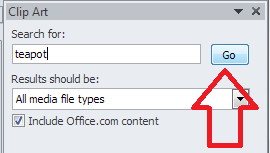
Leaving this on all media, let’s search for “teapot” – pop the word in the search box and click the Go button:

Word clip art search

You should then see a grid of clip art images:

clip art search results

Stop press – you might only find you have the option to search online now – as Microsoft have withdrawn the copyright-free clip art they had offered for so many years. I believe that if you have a standalone version of Word that doesn’t receive updates, the clip art will stay, otherwise you’ll just now have an option to search Bing. Very annoying!

clip art find more

Anyway, back to our 57 teapots (which is surely enough for anyone!). When you’ve found an image you want to insert, double-click on it and it will move into your document:

clip art insert image

You will also notice here that the image is selected and can be enlarged and reduced using the little blocks around the image outline. It can also be moved, if you hover inside the box until an arrow appears.

For more on placing images in text, please see this article.

How do I use clip art in Word 2013 and other Microsoft Office software?

For Office 2013, Microsoft went all online-based, and as a result, the way in which you access clip art changed. Note that these instructions work for both the standalone version of Word 2013 (and other software) if you bought it once, and the subscription version through Office 365 which downloads updates periodically.

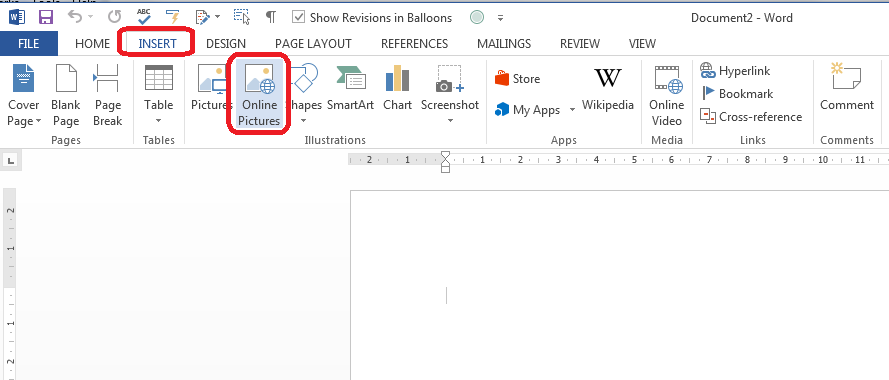
You access clip art from the same menu, on the Insert tab, in the Illustrations area, but it’s now called Online Pictures:

clip art office 2013

Making sure your cursor is in the place where you want your picture to be, click on Online Pictures:

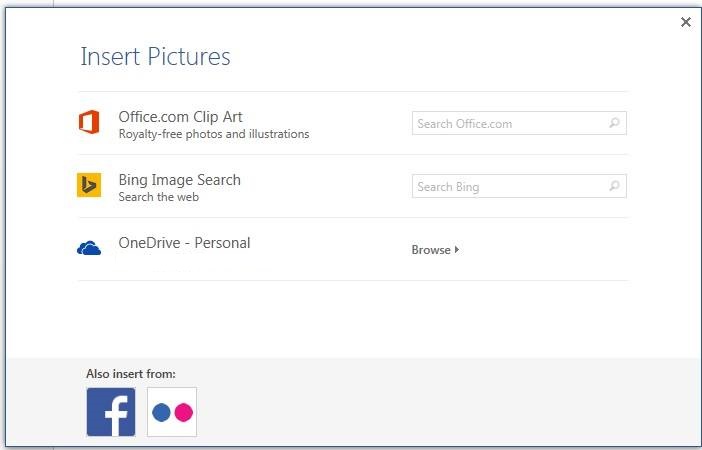
Word 2013 clip art search

You now have the option to search royalty-free illustrations on the office.com clip art website or do a Bing Image search for general images.

Note Unless you have a completely standalone and isolated version of Word 2013, you will not now have the option to use clip art based within Word itself – you will probably just see Bing search. If you don’t get updates on your version of Word, it’s likely you will still have them, because Word can’t update itself to make them go away. Grrr, frankly.

Because I’m not logged in at the moment, I have the option to sign in with my Microsoft office account. If you are logged in, or do subsequently log in, you will get these additional options – OneDrive, Facebook and Flickr:

Word 2013 image search options if logged in(thanks to Laura Ripper for this screen shot)

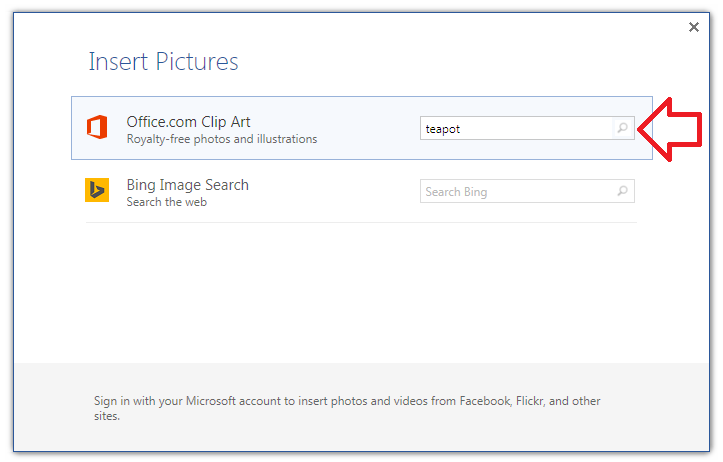
To search in clip art, enter the search term “teapot” into the first text box and click on the magnifying glass icon:

Word 2013 clip art search

This will bring up the same results as for Word 2007 and 2010 (interestingly, you can’t differentiate at this stage between different kinds of file to insert, as you can with earlier versions):

Word 2013 clip art resultsDouble-click on the image you want to insert, or single click and click on the Insert button

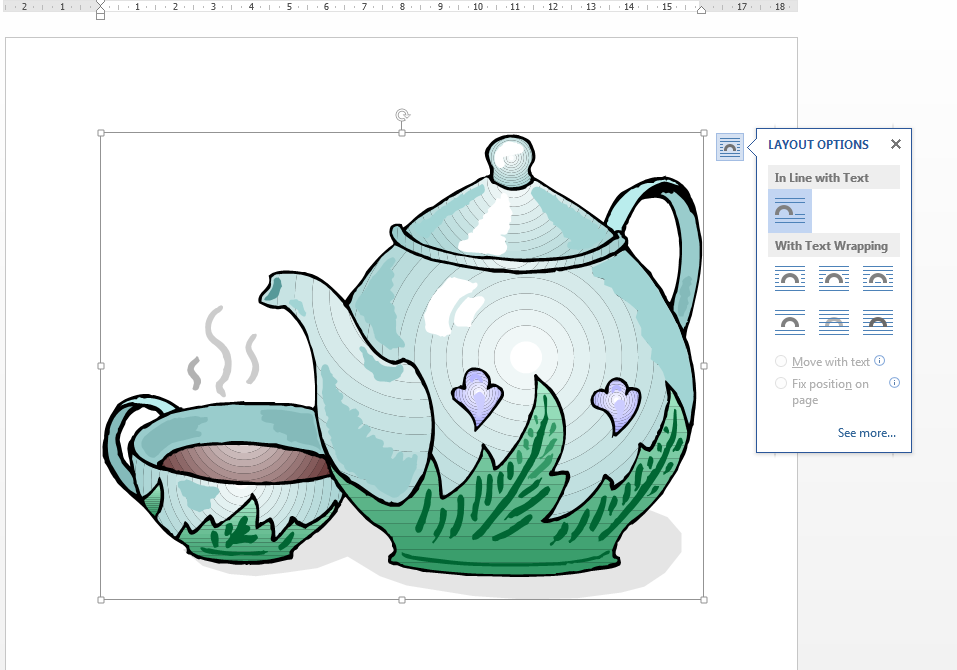
Word 2013 clip art inserted

Note that in Word 2013, not only do you get the frame which allows you to change the image size, but the Layout Options dialogue box also pops out, allowing you to choose where the image sits in any text you might have.

For more on placing images in text, please see this article.

Related posts on this blog

How do I make pictures go where I want them to in Word?

How do I stop the pictures jumping around when I edit a Word document?

———————

This is part of my series on how to avoid time-consuming “short cuts” and use Word in the right way to maximise your time and improve the look of your documents. If you’ve enjoyed the post or found it useful, please use the sharing buttons below to share it via your social media networks – thank you!

Please note, these hints work with versions of Microsoft Word currently in use – Word 2007, Word 2010 and Word 2013 and other Office software for PC. Mac compatible versions of Word should have similar options. Always save a copy of your document before manipulating it. I bear no responsibility for any pickles you might get yourself into!

Find all the short cuts here … and see the full resource guide here.

 
31 Comments

Posted by on November 12, 2014 in Errors, New skills, Short cuts, Word, Writing


Tags: , , , , , , , ,

How do I hide the toolbars and taskbars in Word 2007, 2010 and 2013 and other MS Office applications?

In this article we’re going to learn how to (temporarily) hide the toolbars, taskbars, rulers and whatnot in Word.  Note that these processes will also work for other Microsoft Office applications such as Excel, PowerPoint, etc.

Why would I want to hide the taskbars in Word?

There are various reasons why you might want to have just a blank white screen in front of you when using Word. If you’re trying to write, write, write, you might want to remove all distractions. If you’re displaying Word on a large screen using a projector, there are many reasons why a plain screen with no additional information might be useful.

In fact, the second reason, wishing to display just some text and images via an overhead projector, is why I was asked to write this article in the first place.

How to hide taskbars and toolbars in Word

This works for Word 2007, 2010 and 2013: I’ve used Word 2010 in the example because it’s what I use most of the time, but the principles remain the same.

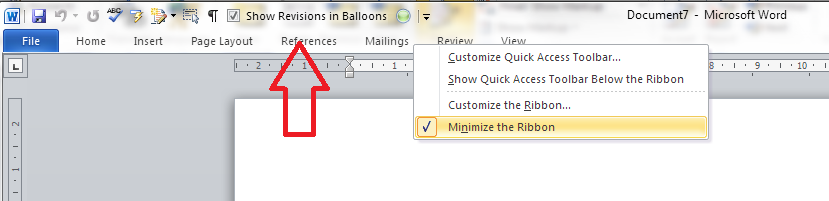
How to minimise the ribbon in Word

You might just want to minimise the ribbon. If this is the case, first right-click anywhere on the actual ribbon, then select Minimize the Ribbon from the menu that displays:

Word minimise ribbon

How do I reverse minimize ribbon?

To reverse the minimize ribbon action, you can either …

1. Right-click anywhere on the small ribbon headings that will appear and click again on Minimize the Ribbon: the tick will disappear and the ribbon will reappear:

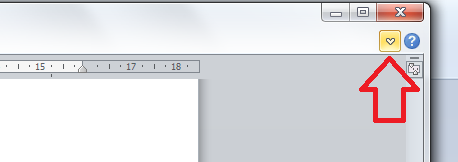
un-minimize ribbon2. Click on the small down arrow that appears at the top right of the screen when the ribbon is minimised:

reverse ribbon minimise

How do I remove wording and symbols from the lower task bar

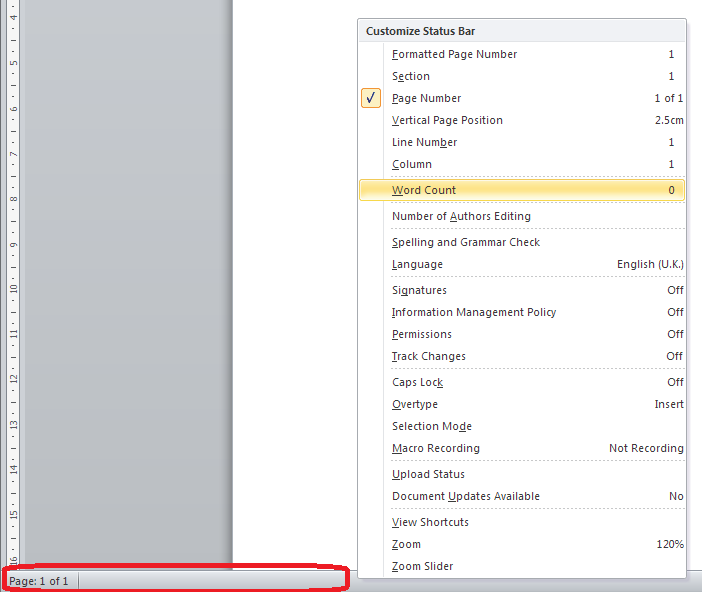
If you’re fed up of seeing your word count or document language in the lower task bar, you can right-click on the taskbar, at which point a list of all items you can display pops up, and you can untick the ones you don’t want:

remove items from lower task bar

You will see the displayed items at the bottom start to disappear until you’re left with just one:

remove from lower task bar

How do I reverse clearing the lower task bar?

To add items back on to the task bar, right-click on the taskbar and click on the features you want to see – the tick will reappear next to the items you select, and the information will display in the lower task bar.

How do I hide the rulers?

For instructions on hiding the rulers in Word, please see this article.

How do I hide all of the toolbars in Word and other Office applications?

If you want to go further and just have a blank screen, you can use the shortcut Alt+V, U

Note that you must follow this process to do this:

  • Press down the Alt key and keep it pressed down
  • Press the V key and release it (keeping Alt pressed down)
  • Press the U key and release it (you can then release the Alt key)

Pressing both letters together does not have the same effect. Once you’ve pressed this key combination, you will have just the document, no toolbars, taskbars, menus, etc. However, you are still likely to have the Windows taskbar showing.

Just a document, no toolbars

So you’re not quite there, but first …

How do I reverse Alt+VU?

The first time I did this, I got a bit panicky because I assumed that you needed to press AltVU again to get back to the menus, but that’s not what you do.

To reverse Alt+VU and get back to seeing your taskbars, hit the Escape key on your keyboard. Phew!

How do I hide the Windows taskbar?

You’ve got your lovely clean document showing but you want to get rid of that Windows taskbar at the bottom of the screen. Here’s what you do:

First, unlock the taskbar (if it is locked) by right-clicking on the lower task bar and seeing if Lock the taskbar is ticked. If it is, click on it to untick it.

unlock task bar windows

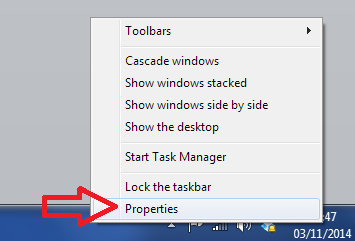
This dialogue box will disappear, so right-click on the taskbar again and this time choose Properties:

Windows taskbar properties

This will give you a new dialogue box:

Windows taskbar properties

Making sure that you’re in the Taskbar tab, click on the tickbox to Auto-hide thie taskbar.

The taskbar will now disappear, leaving you with a lovely clear screen containing only your document.

How do I reverse hiding the Windows taskbar?

To show the Windows taskbar, move the mouse to the bottom of the screen (assuming your Windows task bar is usually there), at which point it should appear. Then right-click at the bottom of the screen and select Properties, then untick Auto-hide the taskbar.

———————

This is part of my series on how to avoid time-consuming “short cuts” and use Word in the right way to maximise your time and improve the look of your documents. If you’ve enjoyed the post or found it useful, please use the sharing buttons below to share it via your social media networks – thank you!

Please note, these hints work with versions of Microsoft Word currently in use – Word 2007, Word 2010 and Word 2013 for PC. Mac compatible versions of Word should have similar options. Always save a copy of your document before manipulating it. I bear no responsibility for any pickles you might get yourself into!

Other useful posts on this blog

How to display and hide rulers in Word

How to add buttons to the Quick Access Toolbar

Find all the short cuts here … and see the full resource guide here.

 
8 Comments

Posted by on November 5, 2014 in Errors, New skills, Short cuts, Word, Writing


Tags: , , , , , , , ,

How to use spell check in Word 2007 and Word 2010

In this article we’re going to talk about using the spell checker function in Word, including how to find it, how to use it, and when not to believe it. This article works with Word 2007 and Word 2010 – screen shots are taken from Word 2010. I have written about Word 2013 separately as it’s a bit different.

What is Spell Check?

Spell check is a function in Word that will check both the spelling and appropriate word use in your document. It’s not perfect, but it will pick up all sorts of errors and typos that you might not realise you’ve made.

Spell Check will go through your document and highlight any words that it thinks are spelled incorrectly. If it can, it will offer alternative spellings for you to choose from. You can then choose to change the word to one of its suggestions, change all instances of that word to the suggestion, or ignore the “error” once or always.

We usually run a spell check after writing a document, although you can ask Word to check spellings as you go along (I personally find this distracting). It’s worth running it even if you think your writing is perfect and you’ve read through the document finding no mistakes – there’s always something, and that’s why, even though I’m an editor, I use spell check on my own posts and as a final check on documents I’ve edited, and why I have an editor for my books!

How do I start Spell Check?

We run Spell Check from the Review tab in Word:

How to start spell check

The eagle-eyed among you will have spotted the same icon in the Quick Access Toolbar at the very top of the document. I’ve added the Spell Check button there because I use it a lot. If you want to learn how to add buttons to the QAT, read this article.

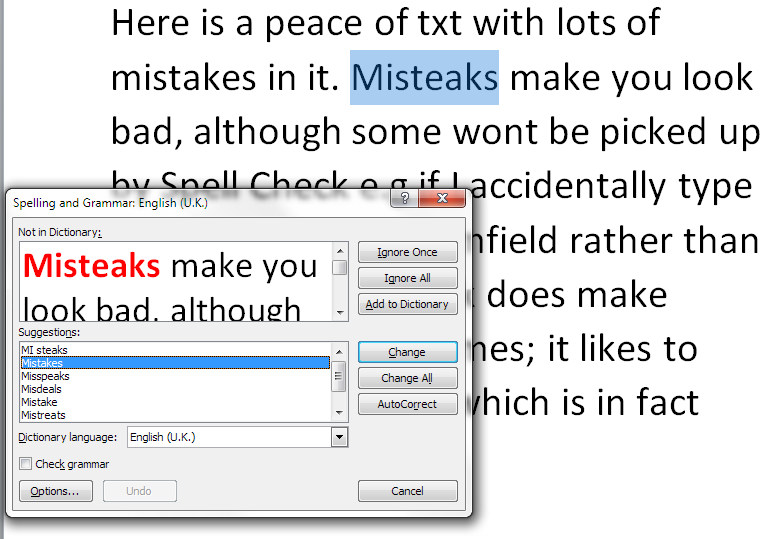
With your cursor at the beginning of the document, click on the Spelling and Grammar button. Word will highlight each word that it thinks is incorrect, starting with the first one:

spell check in action

Here, I started at the beginning of the text, but you’ll notice that it’s missed out “peace of txt” even though that is clearly wrong. We’ll look at that in a minute, but let’s concentrate on what happens when it gets it right.

What options does Spell Check give you?

Spell Check has highlighted “misteaks” and you can see in the Suggestions box below that it’s suggested the closest word first, then a few other options. “Mistakes” is highlighted, but if I did mean “mistake” or “mistreats”, I can click on one of those.

To the right, we have some buttons – Ignore Once / Ignore All / Add to Dictionary are to be used when we know what we typed is correct and we want to keep it; Change / Change All / AutoCorrect will allow us to make that change:

  • Ignore Once will ignore just that instance of the word in question
  • Ignore All will ignore that exact word throughout the rest of the piece
  • Add to Dictionary will add that exact word to the Spell Check dictionary so it will never ask you ever again if you’ve miss-spelled it. I have used this for my name in the past, which is why this Spell Check process won’t pick up “Broomfield” or “Dexter”, and I also add in commonly used technical terms and jargon that comes up a lot in the texts I work with.
  • Change will change just that instance of “misteaks” to “mistakes”. Any other examples will stay as they are
  • Change All will change every instance of “misteaks” to “mistakes”.
  • AutoCorrect brings up the AutoCorrect screen (see this article for more on AutoCorrect) which allows you to set up an automatic correction for the future, so whenever you type “misteaks” it will change to “mistakes”. This is really useful if you notice that you’re mistyping a word regularly.

I’m going to click on Change All, and this will automatically change all examples of “misteaks” to “mistakes” in the text. Note, however, that it will not change “misteak” – it only looks for the exact same word. This includes capital letters, so it will now flag up “Misteaks” as a new error and make some new suggestions, the second of which is the correct one. I do tend to click on Change All, so that I save time and mouse clicks correcting the same form of the same word over and over again.

Now, let’s see what else Spell Check will look at.

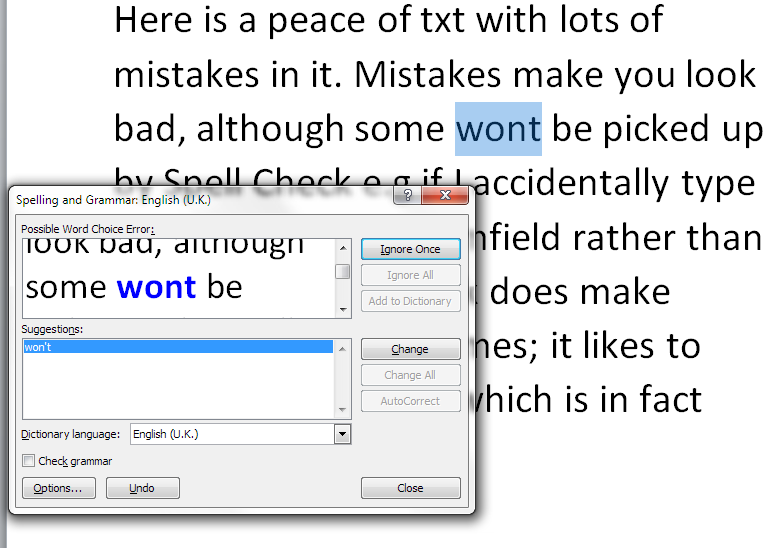
It will notice if you’ve missed out an apostrophe, even if the word “wont” is a word in itself:

spell check apostrophe

And it will check incorrect punctuation, too:

spell check punctuation

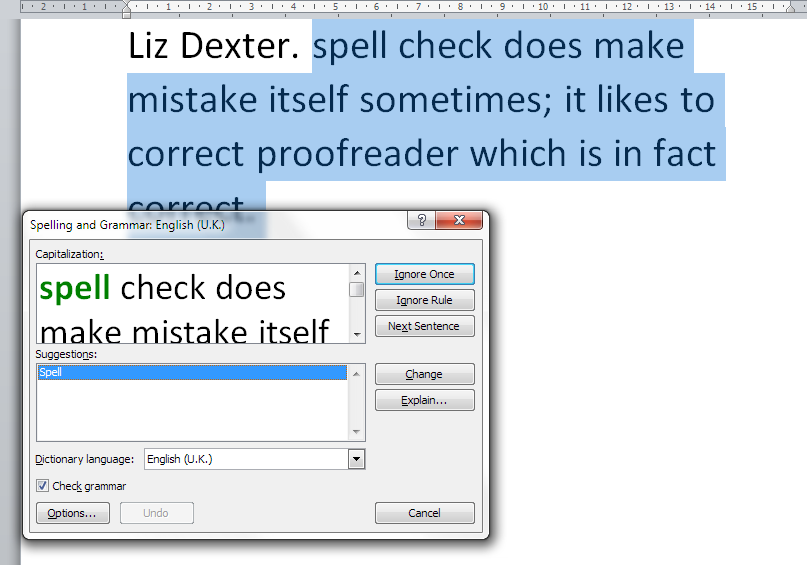
Finally. you can ask Spell Check to check your grammar, too. Here, it’s picked up that I started a sentence with a lower-case letter:

spell check grammar check

There’s a caveat here, though: I find the grammar checker to be quite rigid and a bit odd. The eagle-eyed among you may have spotted that I have Check grammar ticked in the above image but not in the others – this is because I tend to turn off the grammar checker when I’m working on my own texts and other people’s. It’s up to you whether you do that, and instructions for tweaking the Spell Checker will appear in a later article.

What if I change my mind or make a mistake?

If you make a misteak, oops, sorry, mistake when you’re changing words in Spell Check, there’s a handy button that will take you back.

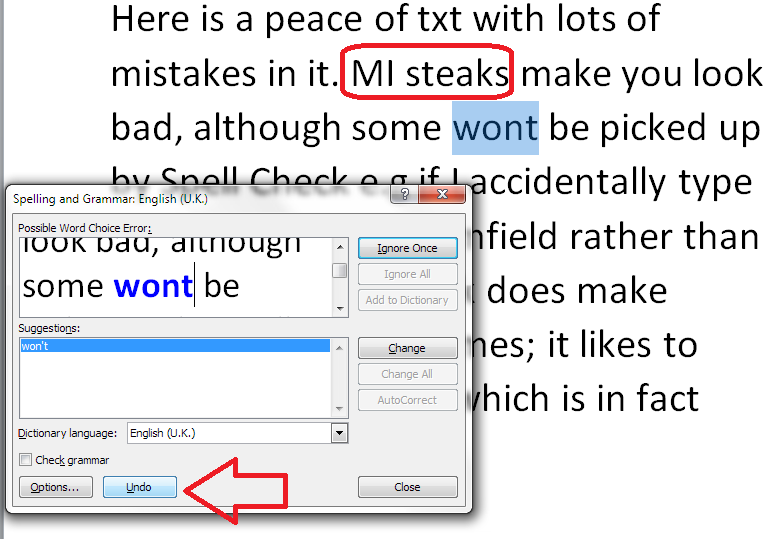
Here, I’ve clicked on the first suggestion for “Misteaks” which was “MI steaks”. Oops. I only see it when I’ve already hit Change All. But I can click the Undo button to take me back to that set of choices, and you can click the Undo button more than once.

undo spell check

Having pressed Undo, we’re back to looking at “Misteaks” instead:

spell check undone

Does Spell Check ever get it wrong?

In our example, Spell Check has missed the obviously incorrect phrase “peace of txt”:

spell check in action

It does sometimes notice when you use an incorrect but valid word (i.e. it is actually a word in itself), but not always. I’m guessing that it’s ignored “txt” because that’s a file extension (like .doc) which is used when saving documents. So Spell Check hasn’t picked that up, and you or your editor will have to notice it yourselves!

It also uses rules which don’t match standard common usage. Right up until Word 2013, it thinks that proofreader is two words, hyphenated:

Spell check getting it wrong

This makes it quite embarrassing when I’m checking a client’s acknowledgements, they thank me for proofreading, and then have spell-checked their work, so I have to change it back to proofreading.

Word is also not keen on swear words, and can give amusing alternatives if you try that …

Help – my Spell Check’s making everything go into American English!

Your Spell Checker will work with whatever variety of English (or any other language) that your text is set to. So if you have your text set to be in American English, that’s the language your Spell Check will use. Learn how to change the language of your document and your editing language  – and watch out, as your comment boxes might appear in another language, too, which will upset your Spell Checker – use this article to make sure your comment language matches the rest of the document.

Can I use spell check in other applications as well as Word?

Many applications have spell check functions. For example, the WordPress editor that I’m using to write this has a spell check button. so does my MailChimp newsletter editor, my email editor and Excel and PowerPoint. Wherever you see a button like this, you should find a spell check option:

spell check icon

In this article we’ve looked at what Spell Check is, how to access it, how to ignore and change words, and some things to watch out for. In future articles I’ll be sharing how to tweak your Spell Check settings, how to tell Spell Check NOT to look at particular text, and when to use Spell Check when you’re working with an editor. Oh, and there will be a parallel post on Spell Check in Word 2013, too!

———————

This is part of my series on how to avoid time-consuming “short cuts” and use Word in the right way to maximise your time and improve the look of your documents. If you’ve enjoyed the post or found it useful, please use the sharing buttons below to share it via your social media networks – thank you!

Please note, these hints work with versions of Microsoft Word currently in use – Word 2007 and Word 2010 for PC. Mac compatible versions of Word should have similar options. Always save a copy of your document before manipulating it. I bear no responsibility for any pickles you might get yourself into!

Other useful posts on this blog

Using Spell Check in Word 2013

How to change the language of your Word document

How to change your editing language

How to change the language of your comment boxes

How to use AutoCorrect

How to add buttons to the Quick Access Toolbar

Find all the short cuts here … and see the full resource guide here.

 
6 Comments

Posted by on October 15, 2014 in Errors, New skills, Short cuts, Word, Writing


Tags: , , , , , , , ,

How to use spell check in Word 2013

Because Spell Check looks different in Word 2013, here is a special article just on that version of Word. It should be read alongside the more detailed post on Spell Check for Word 2007 and Word 2010 which you can find here.

What is Spell Check?

Spell Check in Word checks  the spelling and grammar in your document, highlighting any words that it thinks are spelled incorrectly and offering alternatives.

It’s always worth using Spell Check, even if you’re an accomplished writer or feel you can edit your own work – we all make mistakes, and this will catch many of them.

How do I start Spell Check?

We run Spell Check from the Review tab in Word:

Word 2013 spell check

Note: I’ve added the Spell Check button there because I use it a lot. If you want to learn how to add buttons to the QAT, read this article.

With your cursor at the beginning of the document, click on the Spelling and Grammar button. Word will highlight each word that it thinks is incorrect, starting with the first one:

Word 2013 spell check

Here, I started at the beginning of the text, but you’ll notice that it’s missed out “peace of txt” – see more detail in the main article on this.

What options does Spell Check give you?

  • Ignore Once ignores that instance of the word in question
  • Ignore All ignores that exact word throughout the rest of the piece
  • If you own a copy of Word 2013 outright or have a subscription and are logged in, Add to Dictionary will add that exact word to the Spell Check dictionary so it will never ask you ever again if you’ve miss-spelled it. I have used this for my name in the past, which is why this Spell Check process won’t pick up “Broomfield” or “Dexter”, and I also add in commonly used technical terms and jargon that comes up a lot in the texts I work with.
  • Change changes that instance of “misteaks” to “mistakes”. Any other examples will stay as they are
  • Change All changes every instance of “misteaks” to “mistakes”.
  • If you own a copy of Word 2013 outright or have a subscription and are logged into your Microsoft Office account, AutoCorrect is available and brings up the AutoCorrect screen (see this article for more on AutoCorrect) which allows you to set up an automatic correction for the future, so whenever you type “misteaks” it will change to “mistakes”. This is really useful if you notice that you’re mistyping a word regularly.

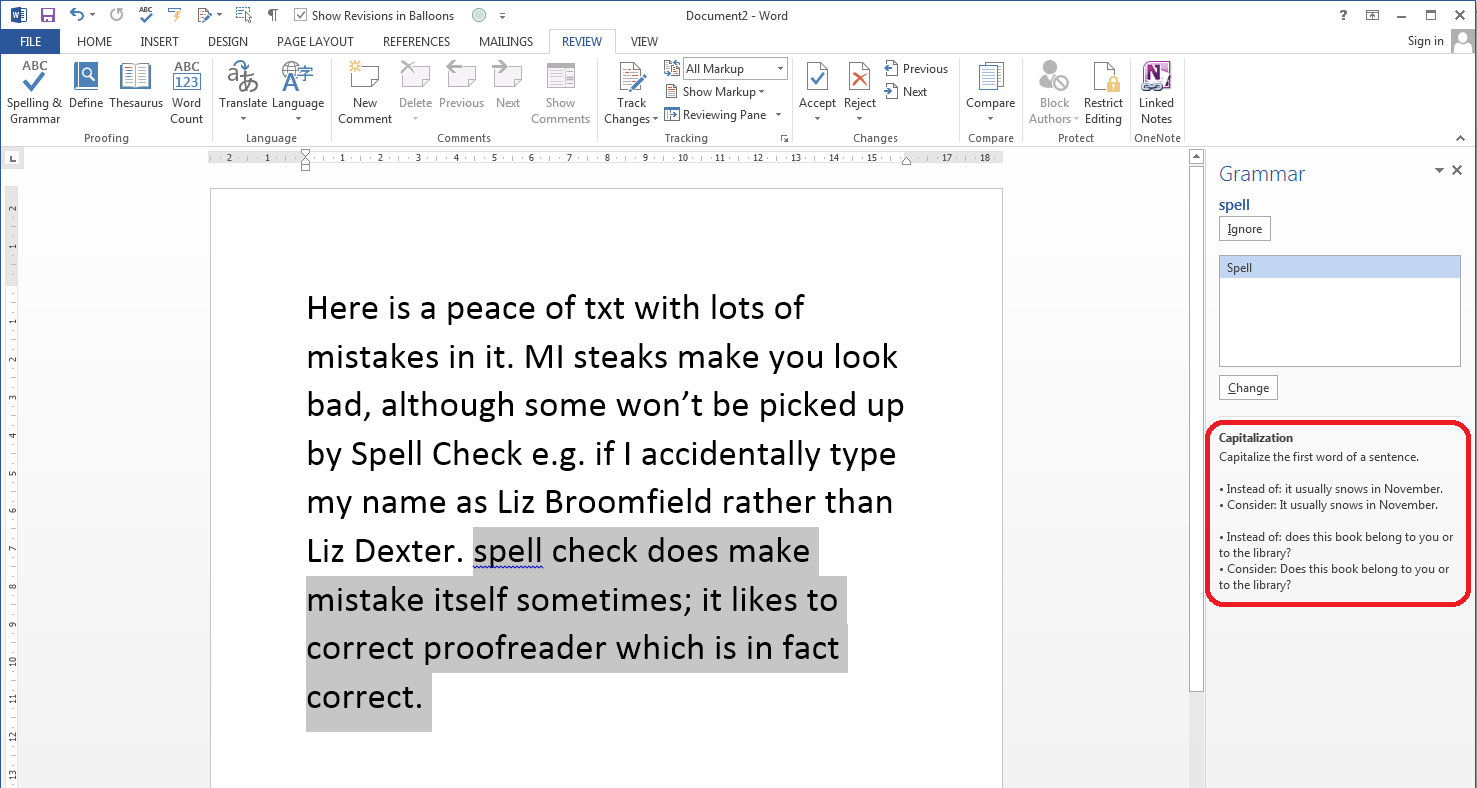
Grammar check in Word 2013

Grammar check not only highlights where you’ve gone wrong, but gives you a little lesson in the Spell Check panel, too:

Word 2013 spell check grammar check

I find the grammar checker to be quite rigid and a bit odd. It’s up to you whether you allow grammar checking, and instructions for tweaking the Spell Checker will appear in a later article.

What if I change my mind or make a mistake?

In Word 2007 and 2010 there was a handy button in the Spell Check dialogue box that allowed you to undo previous changes. This has gone in Word 2013, so if you realise you’ve made a mistake, you will need to use the Undo button (or press Control-Z) to go back to correct your mistake.

Does Spell Check ever get it wrong?

In short – yes. See the main article for more explanation and examples.

Help – my Spell Check’s making everything go into American English!

Your Spell Checker will work with whatever variety of English (or any other language) that your text is set to. So if you have your text set to be in American English, that’s the language your Spell Check will use. Learn how to change the language of your document and your editing language  – and watch out, as your comment boxes might appear in another language, too, which will upset your Spell Checker – use this article to make sure your comment language matches the rest of the document.

Can I use spell check in other applications ?

Wherever you see a button like this, you should find a spell check option:

spell check icon

In this article we’ve looked at Spell Check in Word 2013 and how it differs from previous versions. In future articles I’ll be sharing how to tweak your Spell Check settings, how to tell Spell Check NOT to look at particular text, and when to use Spell Check when you’re working with an editor. Oh, and there will be a parallel post on Spell Check in Word 2013, too!

———————

This is part of my series on how to avoid time-consuming “short cuts” and use Word in the right way to maximise your time and improve the look of your documents. If you’ve enjoyed the post or found it useful, please use the sharing buttons below to share it via your social media networks – thank you!

Please note, these hints work with versions of Microsoft Word currently in use – Word 2007 and Word 2010 for PC. Mac compatible versions of Word should have similar options. Always save a copy of your document before manipulating it. I bear no responsibility for any pickles you might get yourself into!

Other useful posts on this blog

Spell Check in Word 2007 and Word 2010

How to change the language of your Word document

How to change your editing language

How to change the language of your comment boxes

How to use AutoCorrect

How to add buttons to the Quick Access Toolbar

Find all the short cuts here … and see the full resource guide here.

 
3 Comments

Posted by on October 15, 2014 in Errors, New skills, Short cuts, Word, Writing


Tags: , , , , , , ,

How Video Can Help Your Blog or Website

Today we have a guest blog post from Markus Wilson of Phink Video Productions, who talks about the added value that video can bring to your blog or website. A lot of people do have video content on their blogs now, and it’s something I’ve been considering doing myself for a while – maybe this will be the impetus that I need to look at it in a bit more detail …

This article is about how you can use video content to help your website or blog as part of a digital marketing strategy. No matter how big or small your websites audience maybe, video is a powerful tool to up your profile and reach a wider fanbase.

It’s a fact that our brains respond more effectively to communication that combines visual and audio stimuli. Therefore improving the retention of information we are trying to divulge. While it’s interesting to know that YouTube is the world’s second largest search engine online. It has been found that 60% of online users prefer video than text, and having video content on your website or blog increases the likelihood of first page Google ranking by 53%. Not only that, but people that reach your site are likely to spend at least two minutes longer browsing a site with video on it.

As we know today more and more people are using online video to learn about products, services, and tutorials. What’s great about online videos is that so many people are creating and watching them nowadays. Whether they are evaluating products, showing us how Coca-Cola can clean the rust off your car or just checking out the best supplier for a job. Video really is a great way to engage your audience. Another great feature about online video is that it can help you stand out in the search results! As long as your video listed is marked up with the appropriate title, tags and descriptions Google will always value video content over written.

One of the best ways to utilise online video for your website or blog is to create an explainer video. Explainer videos are great if you have something very complicated to get across, as you always have to fight for every second of your web users attention.

Another great use of video for businesses or service providers is to incorporate Testimonials from your former or current clients. Testimonials direct from the horse’s mouth and not just a quotation at the bottom of a webpage are a great way to gain that much needed social proof about you and your service.

A third good use of video for your website or blog is to create a ‘Frequently Asked Questions’ piece. This can be yourself presenting to camera or just something simple involving text and music. If you always come up against the same questions from your potential customers, by you anticipating the question, its an efficient and easy way for them to be reassured that your are the right person for the job!

Online video use continues to grow with 81% of marketers using video in their digital marketing activity and 76% planning to increase online video spend. At the current rate 69% of all internet traffic will be purely video by 2017.

So what will your story be?

Markus Wilson is Co-Founder of London-based video production company Phink TV. Markus has been in marketing for the past 8 years, first with data processing company Pumasource and starting up Phink TV in 2009. Since then he has produced video content for the likes of Coca-Cola, Unilever and Sony Music.

 
1 Comment

Posted by on October 1, 2014 in Business, Guest posts, Skillset


Tags: , ,

How do I view two sheets of an Excel workbook at the same time?

You’re looking at an Excel spreadsheet workbook which has more than one individual sheet, accessible via clicking on tabs at the bottom of the workbook. This article shows you how to view two different sheets in the same workbook side by side on the page. This article is valid for Excel 2007, Excel 2010 and Excel 2013. It follows on from my article on different ways to view multiple spreadsheets at the same time, and you may wish to refer to that article for further details on the options.

How do I view multiple Excel workbook sheets side by side?

First of all, open up your workbook. You can view different sheets of the workbook by clicking on the tabs at the bottom:

Excel tab to view sheets

However, when you do this, the new sheet is displayed in the window, and you can’t see Sheet1 any more. To be able to view both (or more) at the same time, you will need to create a new window containing the second sheet, and then display them next to each other.

How do I create a new duplicate window in Excel?

First, create a new window. Go into the View tab then click on the New Window button:

Excel new window

This will generate a new window, on top of the first one and identical to it (you can check that you have two open by clicking on the Excel button at the bottom of the screen:

Excel check two files are open

Now, in the window you have just created, click on the tab for the second sheet that you wish to view (in this case, Sheet2):

Excel tab to view sheets

This will display Sheet2 in the new window:

Excel view sheet2

If you want to view more than two sheets, follow this process for each additional sheet that you wish to view.

What are my options for viewing multiple sheets of one workbook in Excel?

Once you’ve got two windows, one displaying the first sheet and one displaying the second, you can view them side by side, or in tiles, or however you choose. In the View tab, click on either View Side by Side or Arrange All to select your options (see this previous article for details on all of the options):

Excel choose options for displaying multiple sheets

Note that if you choose Arrange All, you must make sure that you tick Windows of active workbook:

Excel view multiple sheets active workbook

In this case, I’ve chosen Arrange All – Vertical, and here are my two sheets of my workbook, displayed next to each other:

17 view multiple sheets in a workbook

For details of all of these options and what they do, please see my post on viewing multiple spreadsheets at the same time.

How do I get back to viewing only one sheet at a time?

If you want to return to a full-screen view of a particular spreadsheet, simply double-click on the title bar of your spreadsheet (by its name) and it will expand and be the only one visible:

return to single sheet view

In this article, we’ve learned how to view two or more sheets belonging to one Excel workbook on the screen at the same time, and how to return to a single sheet view.

If you’ve enjoyed this article and found it useful, please take a moment to share it using the buttons below!

Please note, these hints work with versions of Microsoft Excel currently in use – Excel 2007, Excel 2010 and Excel 2013, all for PC. Mac compatible versions of Excel should have similar options. Always save a copy of your document before manipulating it. I bear no responsibility for any pickles you might get yourself into!

Find all the short cuts here … and view the blog resource guide here.

Other useful posts on this blog:

How do I view two Excel spreadsheets at a time?

 
50 Comments

Posted by on September 24, 2014 in Excel, New skills, Short cuts


Tags: , , , , , ,

How do I view two Excel spreadsheets at a time?

You’re looking at a spreadsheet and you want to compare it to another one. In Word, it’s easy to line up two separate documents side by side to look at them both. In Excel – not so easy. This article explains how you can view two Excel spreadsheets next to each other on your screen and compare the two spreadsheets easily (or more, if you want!). Next week, we’re looking at how to view two sheets from the same workbook side by side, too! This article is valid for Excel 2007, Excel 2010 and Excel 2013 to some extent. The problem doesn’t exist in Excel 2013 as you can move spreadsheets around just like you can in Word, however the options still exist for arranging your multiple views (thanks to Alison Lees for pointing out the resolution of the problem).

Why can’t I view two Excel files on the same screen?

If you’re used to working with Word, you’ll know that if you have two Word documents open in any version of Word, you can pick them both up by the top bar (I usually do it near to the name of the document), slide them across to the left and right until they ping back and fill half of the screen …

Two Word documents on one screen

… and end up with two documents next to each other (you can, of course, move the boundary between them to make one bigger and one smaller):

Two Word documents showing side by side

But, if you’ve ever tried to do this with two Excel spreadsheets, you’ll have found that you move one over …

Moving an excel spreadsheet

… and the other one moves to sit underneath it, inaccessible and impossible to view at the same time as, say, Spreadsheet 1:

Second spreadsheet hidden

Move Spreadsheet 2 across to the right and Spreadsheet 1 will follow it. Grrr!

I’m going to show you how you can view both (or even lots of) spreadsheets on the same screen, in various arrangements, and then return to viewing only one. And next week I’ll show you how you can view two sheets from one workbook side by side.

The quick way to view two spreadsheets side by side

We’re going to look at the View tab here. In the View tab, you’ll find a button labelled View Side by Side.

view side by side excel

If you have two spreadsheets open in, say, Excel 2010 (from which these screenshots are taken, but the process is the same for Excel 2007, 2010 and 2013), pressing this button will show you both spreadsheets, one above the other (this always reminds me of playing competitive driving games on the games console):

View side by side - result excel

You can see that the Synchronous Scrolling button is highlighted in the image above. This is a really useful function – if you have both spreadsheets lined up to start with (i.e. you can see Column A and Line 1 at the top left of both), if this button is showing in yellow, scrolling in one spreadsheet (the active one has the scroll bar) will move the other spreadsheet up and down or left and right at the same time:

view side by side synchronous scrolling

However, if you don’t want to use this feature, you can click on the Synchronous Scrolling button to turn it white, and then your two spreadsheets can be scrolled independently (the scroll bar still displays on the active spreadsheet, i.e. the one you’ve clicked on):

view side by side remove synchronous scrolling

Note that synchronous scrolling only works in this View Side by Side option, so if that’s important to you, choose this option.

But what if you want to view the sheets side by side, or more than two in a tiled layout (I’ve got a widescreen monitor so I always want to view side by side)? Read on for that option  …

How do I view two spreadsheets next to each other or in a tiled layout?

To view your multiple spreadsheets arranged next to each other, to swap to the horizontal view we just looked at, or to use the cascade option, stay in the View tab and the same area but click on the Arrange All button:

excel arrange all button

This will give you a range of options for displaying the spreadsheets that you currently have open:

excel arrange all button options

Let’s look at these in turn …

Arrange all – Tiled

If you have two spreadsheets open, the Tiled option in Arrange All will simply show them arranged vertically, i.e. next to each other. All of my other examples feature two spreadsheets, but to demonstrate the Tiled option, here are four spreadsheets:

excel arrange all Tiled option

Note that the spreadsheets arrange themselves in the order in which you have them open, so if Spreadsheet 4 is the last one you looked at, that will appear top left. You can expand and move the individual spreadsheets, then return to Arrange All – Tiled to click them back into position again.

Arrange all – Horizontal

If you choose the Horizontal option in Arrange All, your spreadsheets will appear on top of each other, with the split between them horizontal:

12 arrange all horizontal

Note here that I had Spreadsheet 2 active (visible) when I chose this option, so it appears at the top. To choose which one appears at the top, have that particular spreadsheet visible and active when you click on the Arrange All button.

Arrange All – Vertical

Choosing the Vertical option in Arrange All gives you the two (or more) spreadsheets arranged next to each other, with the split between them vertical:

excel arrange all vertical option

This is how I prefer to view them.

Arrange All – Cascade

I find this one a bit odd. When you choose the Cascade option in Arrange All, the windows containing the individual spreadsheets all appear on top of each other, with a little bit of one poking out from underneath the active one. Here, Spreadsheet 1 is just showing at the top, but if I click on Spreadsheet 1, Spreadsheet 2 will be sticking out at the bottom. It’s odd, but there must be a reason for it, or Excel wouldn’t offer it:

excel arrange all cascade option

How do I get back to viewing only one spreadsheet at a time?

If you want to return to a full-screen view of a particular spreadsheet, simply double-click on the title bar of your spreadsheet (by its name) and it will expand and be the only one visible:

excel return to single sheet view

In this article, we’ve learned how to view two or more Excel spreadsheets on the screen at the same time, and how to return to a single spreadsheet view.

If you’ve enjoyed this article and found it useful, please take a moment to share it using the buttons below!

Please note, these hints work with versions of Microsoft Excel currently in use – Excel 2007, Excel 2010 and Excel 2013, all for PC. Mac compatible versions of Excel should have similar options. Always save a copy of your document before manipulating it. I bear no responsibility for any pickles you might get yourself into!

Find all the short cuts here … and view the blog resource guide here.

 
35 Comments

Posted by on September 17, 2014 in Excel, New skills, Short cuts


Tags: , , , , , ,

How do I display the top and side rulers in Word?

The top and side rulers in Word are used to set your margins, and also any Indents you might require for your paragraphs. They should display by default. If they don’t, here are instructions on how to make them display.

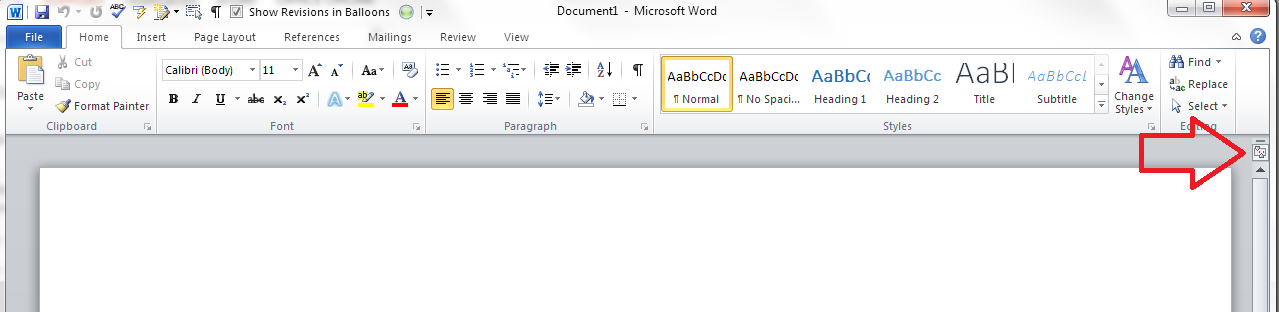
If you can’t see the rulers, click on the View Ruler button at the top of your right-hand scroll bar:

view ruler in word

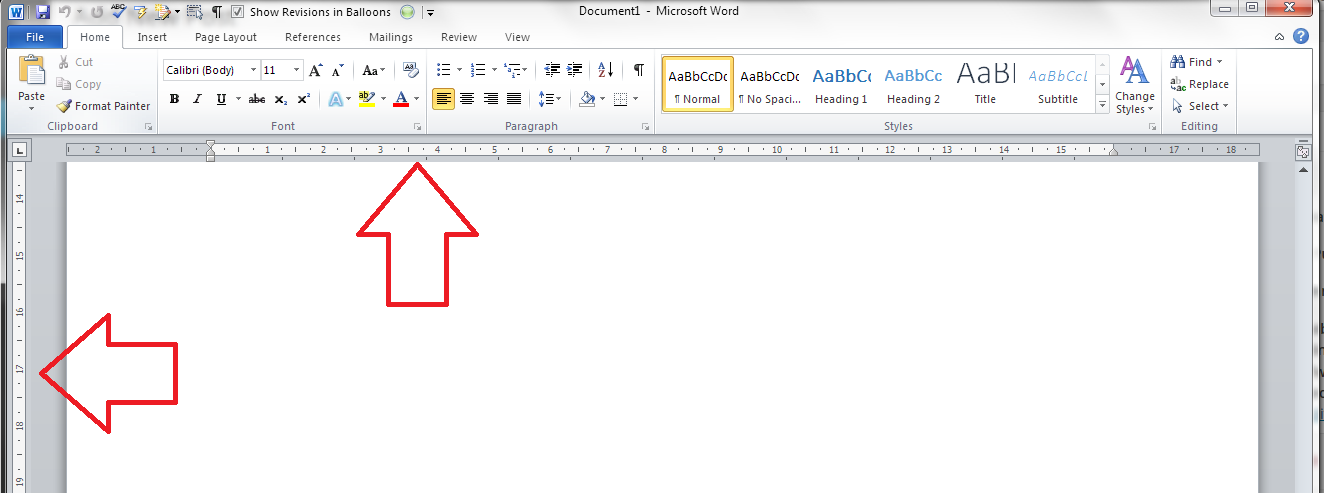
This will display both of your rulers, and you can use the sliders to adjust your margins:

Rulers display in word

To turn off the rulers, simply press that button again, and they will disappear!

Other relevant articles on this blog:

Indents and Margins.

I hope you’ve found these hints helpful! Do share or pop a comment on this post if I’ve helped you learn something new or solved a tricky problem for you, and do explore the rest of my blog if this is your first visit!

Please note, these hints work with versions of Microsoft Word currently in use – Word 2007, Word 2010 and Word 2013 all for PC. Mac compatible versions of Word should have similar options. Always save a copy of your document before manipulating it. I bear no responsibility for any pickles you might get yourself into!

This is part of my series on how to avoid time-consuming “short cuts” and use Word in the right way to maximise your time and improve the look of your documents. Find all the short cuts here


Tags: , , , ,

How do I change from having a gap between paragraphs to indenting them?

I’ve written this post because one of my clients just asked me how to do exactly this. She had a document where the paragraphs had an automatic line space between them, and no indent (because I’d produced the document and that’s how I like to lay out paragraphs), and she wanted to change it to have no line space between paragraphs, and the first line of the paragraph indented.

This article draws on two that I’ve already published, so for more detail, you might want to look at my posts on The Line Space Button and Indents and Margins. But what you’ll find here is a quick guide to changing your paragraph format from spaces between paragraphs to indented paragraphs (and vice versa). Note that although they all look a little different, this works for Word 2007, Word 2010 and Word 2013 for PC.

How to remove automatic spacing between paragraphs

There are many reasons to remove automatic spacing between paragraphs. To mention a rather obscure reason, I produce transcriptions to accompany a client’s YouTube videos. The formatting for these requires that a manual line space is added between paragraphs, but my version of Word adds these automatic spaces as a default, so I have to take them out.

Here’s what a document with automatic line spacing between paragraphs looks like:

Paragraphs with automatic spacing

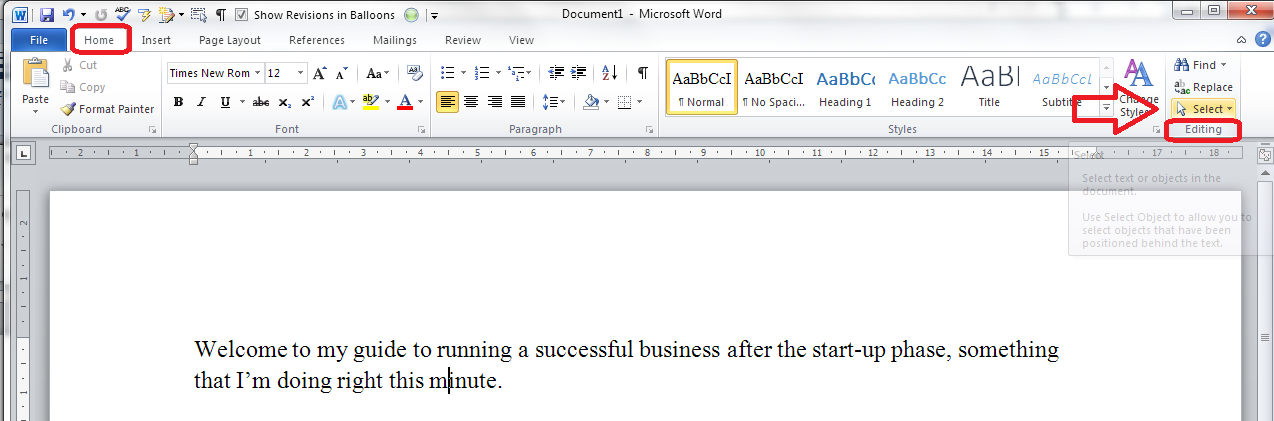
To remove the spaces, first of all you need to highlight all of the text where you’re going to change the format. This is best done by going to the Home tab, then going to the Edit area on the right and clicking on Select:

select all text in word

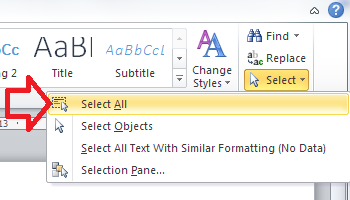
Once you’ve clicked on Select, you will get a choice of options which includes Select All. Click on this and your whole text will be highlighted:

option for select allOnce the text is all highlighted, making sure you don’t click on the text (which will deselect it), staying in the Home tab, go to the Paragraph section in the middle of the ribbon and click on the Line Spacing button, which looks like this:

line space button

remove space after paragraph

If you have automatic spaces between paragraphs, one of the two bottom options will read Remove Space Before/After Paragraph. In this case it’s after. Click on that option (and it will change to Add Space After Paragraph).

This will have the effect of removing the line spaces between your paragraphs:

paragraphs with no line space in between

How do I indent my paragraphs?

Keeping the text highlighted (or re-selecting All if you’ve accidentally clicked and lost the selection), move below the Ribbon to look at the rulers in your top margin.

(If you can’t see the rulers, click on the View Ruler button at the top of your right-hand scroll bar:)

view ruler in word

Once you can see your rulers, move only the top half of the left-hand margin marker rightwards across the page until you reach the indent position that you want:

setting indent in word

This will give you indented paragraphs with no line spaces between them!

indented paragraphs

Done! To get from indented paragraphs to paragraphs with gaps between them, you just need to reverse this process …

Other relevant articles on this blog:

The Line Space Button

Indents and Margins.

I hope you’ve found these hints helpful! Do share or pop a comment on this post if I’ve helped you learn something new or solved a tricky problem for you, and do explore the rest of my blog if this is your first visit!

Please note, these hints work with versions of Microsoft Word currently in use – Word 2007, Word 2010 and Word 2013 all for PC. Mac compatible versions of Word should have similar options. Always save a copy of your document before manipulating it. I bear no responsibility for any pickles you might get yourself into!

This is part of my series on how to avoid time-consuming “short cuts” and use Word in the right way to maximise your time and improve the look of your documents. Find all the short cuts here


Tags: , , , ,