RSS

Tag Archives: writing

How do you create a two-line figure caption and a one-line entry in your Table of Figures? Word 2010, 2013, 2016

This one was suggested by a regular reader of this blog in a comment, and I promise to write about it quite a long time ago.

This is a very specific situation where the style guide for your organisation or publisher demands that you have Figure and Table captions set out over two lines, but you want the Table of Figures to have one line including both Figure label and caption, so it looks something like this:

caption with two lines table of figures with one

How not to create a two-line figure caption

The natural inclination is to use the Return key to split the Figure label and caption, either by entering it all in one line in Insert Caption then splitting it up or using Insert Caption to add the title, hitting Enter then adding the caption. However, when you create your Table of Figures, it either won’t pick up the second line at all or will create two entries in the Table of Figures:

incorrect two line caption and table of figures

How to create a two-line figure caption so the Table of Figures only has one line per figure

This is how you do it correctly. The key is to use the soft line return (Shift+Enter) rather than a hard, paragraph return (Enter).

Place the cursor where you want to insert your caption and go to the References tab, Insert Caption:

Insert caption

Make sure the figure label reads as you want it to (adjust the label to Table, etc.) and then hit OK

Insert caption word

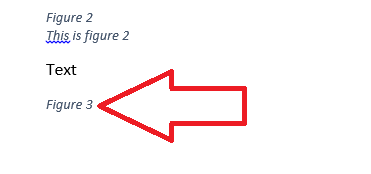
Place the cursor at the end of the figure label and hit Shift+Enter to start a new line:
Adding a new line to your caption word

Type in your caption:

word second line of caption

ALTERNATIVELY

Type the whole caption into the Insert Caption box and press OK:

word insert whole caption before splitting

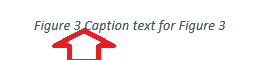
Place the cursor at the start of the caption and press Shift+Enter to move it down to the next line:
4b-split-whole-caption

Now create your Table of Figures using References, Insert Table of Figures and you should have one entry per Figure:

caption with two lines table of figures with one

This article has taught you how to create two-line figure captions which show on one line in your Table of Figures.

If you have found this useful, please comment using the comment box below and/or share using the social media sharing buttons. Thank you!

Other useful posts on this blog

How to create a Table of Contents

Table of Figures and Table of Tables

How to update your Table of Contents, Table of Tables or Table of Figures

Editing and the Table of Contents

 
12 Comments

Posted by on October 26, 2016 in Copyediting, Short cuts, Students, Word, Writing


Tags: , , ,

What questions should I ask my beta readers? #amwriting

Using beta readers is vital for any book, fiction or non-fiction. But you have to use them well and in a focused way, so that you can work with their feedback and make sure your book is the best it can be. Here are some questions you can ask your beta readers (these are based on questions I’ve been asked and questions I’ve asked people about my non-fiction books)

What is a beta reader?

A beta reader is someone you get to test-read your book before it goes through the final stages towards publication. You can have several rounds of beta readers, of course, but they generally come somewhere before your final rewrite and edit:

  1. Plan
  2. First draft
  3. Second draft
  4. BETA READERS
  5. Third draft
  6. Edit
  7. Fourth draft and preparation for publishing (layout artist)
  8. Proofread
  9. Publish

Note: You might have a substantive edit before or just after the beta readers; if you have one after that stage, it’s an idea to add another beta read in afterwards, which would give you this:

  1. Plan
  2. First draft
  3. Second draft
  4. BETA READERS
  5. Third draft
  6. Substantive edit
  7. Fourth draft
  8. BETA READERS
  9. Fifth draft
  10. Edit
  11. Sixth draft and preparation for publishing (layout artist)
  12. Proofread
  13. Publish

Questions for fiction books

Questions for fiction readers will revolve around plot, character and setting:

What is your very first thought upon reading the first paragraph?

Do the characters seem realistic / attractive / interesting to you?

Did you spot any plot holes or huge errors? (I would ask the beta reader to mark up any small issues along the way)

Did you enjoy the story?

Did the pace of the story flag or go too fast at any point?

What made you want to keep reading?

What did you think of the ending?

What did you think of the setting? Would you have liked more or less description?

Did the characters speak naturally? If not, what could I do to improve this?

What was your favourite bit of the book?

What was your least favourite bit of the book?

If it’s a book in a genre: did this fit the way this genre works? Was there anything that jarred with the usual way this genre works?

Questions for non-fiction books

These questions will be slightly different and will relate to the audience for the book and the information it provides.

What do you think about the way this book is arranged?

What did you think the aim of the book was?  Do you think it achieves that aim? What could help it to achieve that aim (even) better?

Who did you feel the book was aimed at?

Was the book personally useful to you? Can you think of people it would be useful to?

Were any sections unclear or confusing? What could I do to make them better?

Were any sections particularly good? Why do you think that is?

Questions for all beta readers

Some questions are universal:

Would you recommend this book to a friend or contact?

Who do you think this book was written for?

What kind of person would most enjoy this book?

I hope you’ve found this post interesting and/or helpful. Maybe you’re a beta reader and this has helped you to do that job! Do share any other questions you ask or have been asked in the comments so this can build into the most useful resource possible – and please share using the buttons below, too! Thank you!

 
10 Comments

Posted by on October 19, 2016 in Reading, Writing


Tags:

How do I include quotations in my document? Should I change their language and spelling?

How do I include quotations in my document? Should I change their language and spelling?

Thank you to Vedrana Vojkvić for suggesting this topic to me via Twitter. She asked me for my input on a question she was discussing: what do we do if we are following UK spelling conventions and there’s a direct quotation that follows US spelling conventions? She also introduced the idea of [sic], asking to clarify that that is used only for actual errors in quotations, not just to highlight use of a different variety of English.

How do I include quotations in American English in my British English document?

This, of course, works both ways. If you are following US spelling and grammar conventions in your document and you need to quote something from a British English source, or you’re writing UK English and want to quote from an American source, should you change the spelling in your quotation to match the standard you are using in your main text?

Short answer: no.

Quotations are quotations from the original text. They should be quoted as they are, in the original.

When can I change a quotation?

There are a few occasions when you can and should change a quotation.

Note: every change you make to a quotation should be placed in [square brackets] to make sure it is clear that you have made the change.

  1. To make the grammar match the sentence in which the quotation is included. For example, you might write this: “Smith (2013) instructs the runner to ‘[go] with the flow, not setting off too fast’ (33), which is good advice,” where the original quotation ran, “A good runner goes with the flow, not setting off too fast”.
  2. When you need to explain something: “Smith (2013: 43) further states, ‘Those people [the running club members] can be very supportive’ in her seminal work.”
  3. When you need to cut text from the original quotation: “In this long passage, Smith (2012: 33) tells us to, ‘Watch out for your own over-excitement […] you must rein things in’.”
  4. If the quotations are in very archaic English and you have updated them into modern English OR the person you are quoting had a very individual use of punctuation or spelling and you have regularised it – in this case, you MUST state that you have done this in your introduction or a “Note about the quotations” at the beginning of your document. I would prefer to add modern English versions after the original in the first example and leave the quotations in the original in the second example.
  5. If you have translated the quotations out of their original language yourself – in this case, make sure to make a note of this in your introduction or a “Note about the quotations,” and if you have only translated some of the quotations, put a note [translated by the researcher] after those you have translated.

If you choose to emphasise something in the quotation that was not emphasised in the original, you must say that you have done this: “Smith says, ‘Everyone can run at their own speed and should not be pushed too far’ [emphasis added by the researcher].” (If the emphasis appears in the original, it’s good practice to add [emphasis in the original] after the quotation instead, to make that clear.)

When can I use [sic] in a quotation?

Almost never! I think that’s one for another article … However, to answer the original question, you would not need to use [sic] when quoting in one language (variety) in a text that is in another language (variety).

The golden rule of including quotations in your text

Always, always, always reference them fully so the reader can go and find them in the original!

This article has discussed how to insert quotations into a text, including what to do if they are in a different variety of English, whether you should change the spellings of quotations and when it is acceptable to change a quotation.

If you have enjoyed this article and/or found it useful, please do add a comment and/or share using the buttons below. Thank you!


Tags: , , ,

How do I highlight the text related to my comment balloon in Word 2013 and 2016?

I have already published a range of posts on issues with comment boxes or comment balloons, including ones on comment boxes suddenly going tiny, or comment box text running in the wrong direction, changing the language in your comment balloons. This article covers how to highlight the text that a comment balloon relates to.

Why can’t I see which bit of text this comment balloon is about?

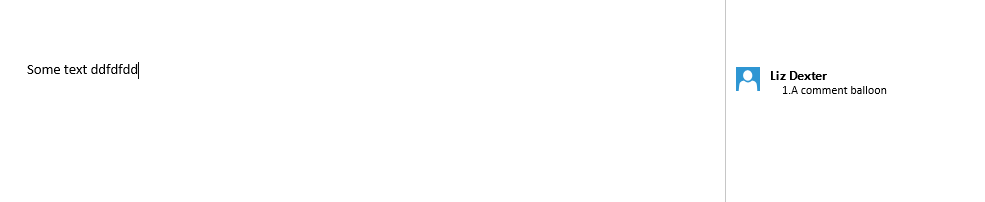
As a default in Word 2013 and Word 2016, you can see your text and you can see your comments, but you can’t see which bit of text the comment refers to. Why? I have no idea. Microsoft tends to try to make things look simpler, but personally, I don’t find it helpful. It looks like this …

1-default

… and what we want to see is this:

3-result

How do I highlight the text that’s being commented on?

You can change the settings to do this by going to the Review Tab and the Track Changes area. You will see a box marked Simple Markup. Click on the down arrow to the left to access the dropdown menu:

2-comments

Select All Markup.

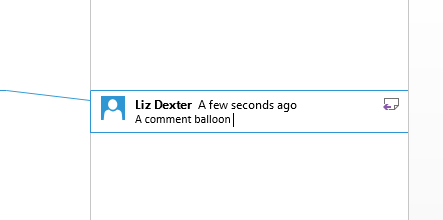
Now the text that the comment is about will be highlighted when you’re looking at the document:

3-result

Don’t forget …

This only applies to your individual view of the document on your particular computer / screen. If your editor, client or co-writer wants to change this view, they’ll have to change it themselves. Send them here to see how it’s done!

If you have found this article helpful, please add a comment and/or share it using the buttons below. Thank you!

Other related posts on this blog

What to do if your comment boxes go tiny in Word

What to do if your comment boxes start running from right to left

Changing the language in your comment balloons

Customising your comment boxes – everything you need to know

Customising Track Changes

 
1 Comment

Posted by on September 28, 2016 in proofreading, Short cuts, Word, Writing


Tags: , , ,

How do I add comment balloon numbering in Word 2013 and Word 2016?

I have already published a range of posts on issues with comment boxes or comment balloons, including ones on comment boxes suddenly going tiny, or comment box text running in the wrong direction, changing the language in your comment balloons. This article covers what to do to add comment balloon numbering back in Word 2013 and 2016. Incidentally, this also signposts you to how to change the style of your comment balloon in general.

Where have the comment balloon numbers gone in Word?

In Word 2013 and 2016, the default setting is for comment balloons not to have numbers. Why? I honestly don’t know. Microsoft does have a habit of “simplifying” its Office interfaces, and the numbers do change with context (if you remove Comment 2, Comment 3 will be labelled Comment 2, etc.) but I have always found it useful to have numbers in my comment balloons.

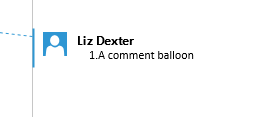
Here’s what the default looks like:

comment balloon Word 2013 no number

and this is what I’m aiming for:

Word 2013 2016 comment balloon with number

How do I change the comment balloon style and numbering?

We need to change the style of the comment balloons in order to add a number.

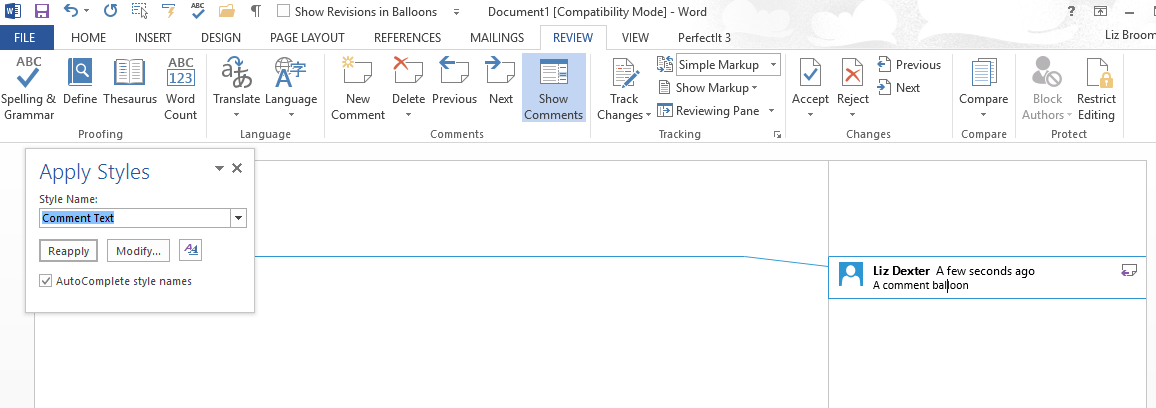
Click inside a comment balloon and press Ctrl+Shift+S (all at the same time, in that order) to display the Apply Styles pane:

Word 2013 2016 balloon style

This should be context-specific, but just check the style name is “Comment Text”.

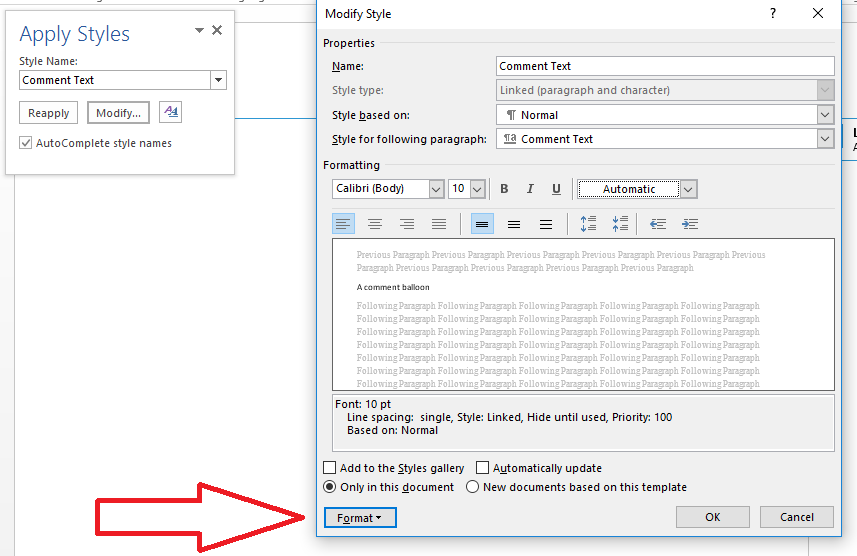
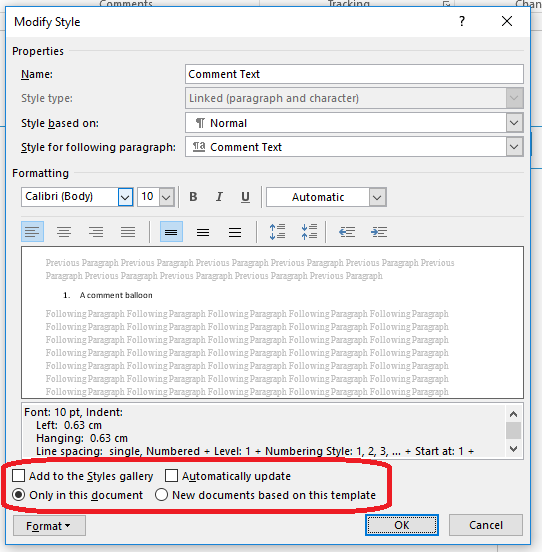
Click the Modify button  to access the Modify Style pane:

Word 2013 2016 modify style
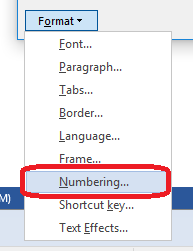
Look at the bottom of the dialogue box and click the Format button, which will give you a dropdown menu:

Word 2013 2016 numbering comments boxes

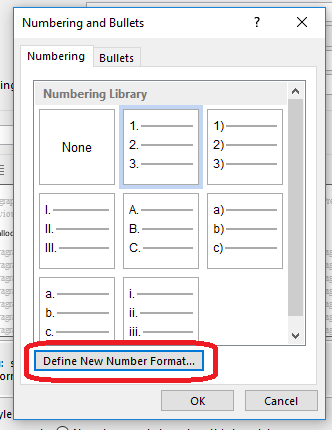
Click Numbering, which will allow you to select a numbering scheme:

Word 2013 2016 choose numbering scheme for comments

Click on the numbering scheme you want to use so that it’s highlighted with a line, and then click OK.

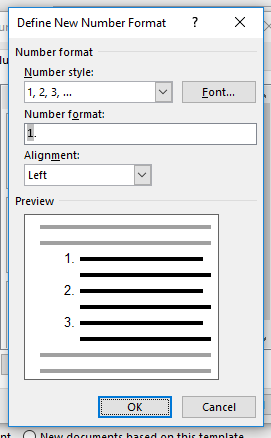
If you want to use a numbering scheme that’s not on this screen, click on Define New Number Format instead:

Word 2013 2016 define new numbering format

Once you’ve clicked this, you will see some new options:

7-format-choose-new-numbering

Click on OK here, which will take you back to the previous screen, OR click OK on the number format screen, then choose if you want Word to update this document (Automatically update) and to apply this default to all new documents from now on (New documents based on this template):

Word 2013 2016 apply new style

Click OK and your comment boxes will have numbers!

Word 2013 2016 comment balloon with number

This article has shown you how to add numbers to your comment balloons / boxes / text in MS Word 2013 and 2016 for PC. You can use it to modify this setting in earlier versions of Word, but they will default to having numbers.

If you have found this article helpful, please add a comment and/or share it using the buttons below. Thank you!

Other related posts on this blog

What to do if your comment boxes go tiny in Word

What to do if your comment boxes start running from right to left

Changing the language in your comment balloons

Customising your comment boxes – everything you need to know

Customising Track Changes


33 Comments

Posted by on September 21, 2016 in Copyediting, New skills, Students, Word, Writing


Tags: , , , ,

Checking your grammar and writing style using Word 2007, 2010, 2013, 2016

As well as checking your spelling, Word can check your grammar. This is an automated option, so it’s not for everyone, and can be a bit of a blunt instrument, but if you know you have a weakness in a particular area, it can be really helpful.

Why does Word check grammar?

One of the options Word offers is to check your spelling for you, and lots of people are familiar with that option. However, you can also ask Word to check your grammar. Here’s how.

How do I tell Word what grammar options to check?

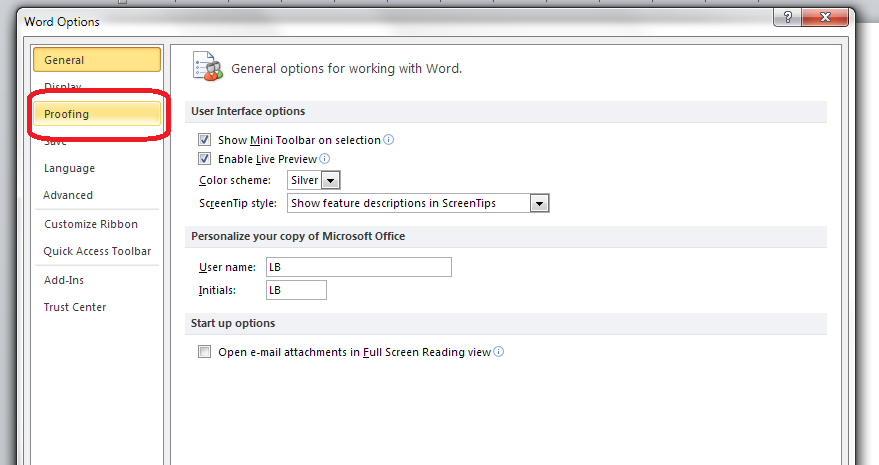
We can set up different options for the Grammar checker to check in the Options menu:

1 options

Once you are in the Options menus, choose Proofing:

2 proofing

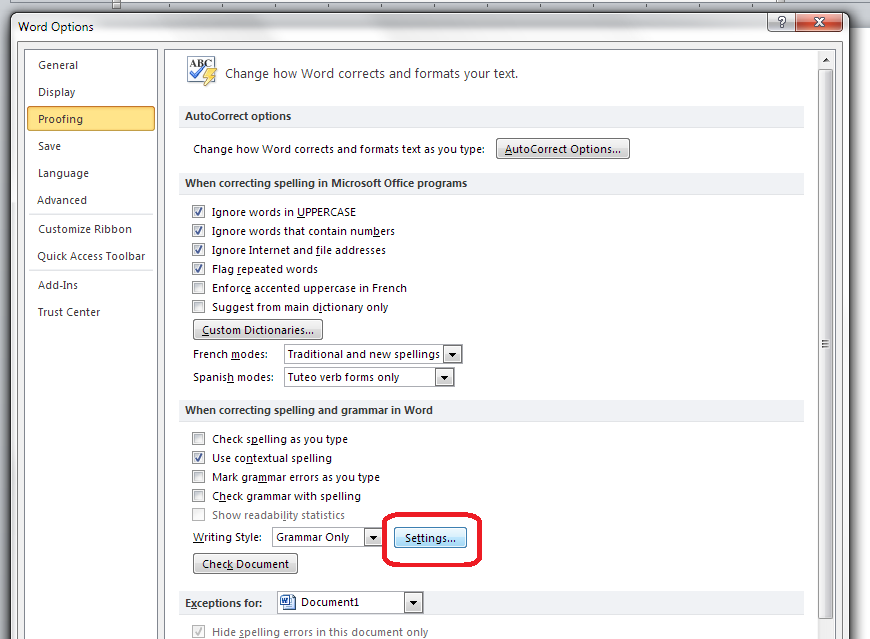
The Proofing menu is quite long, so look half-way down to the section When correcting spelling and grammar in Word and then, to get the options, click the Settings button:

3 style settings

What grammar and style issues can Word check for me?

And now you can see the whole range of options that Word can check for you:

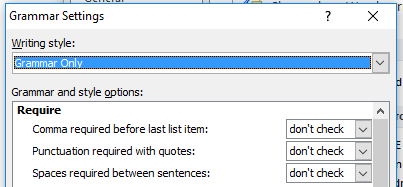
At the top of the list, you can ask Word to make sure that you include or don’t allow Oxford Commas, put the punctuation inside or outside quotations (American or British style, vaguely) or make sure there are one (now preferred) or two (now not preferred) spaces after a full stop:

word grammar checker

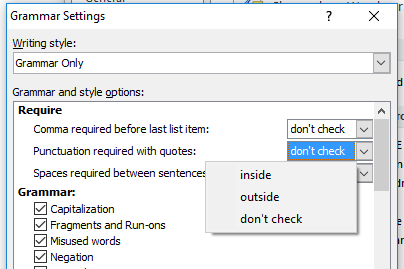
Each of those don’t check dropdowns offers the relevant options, for example, for the punctuation one:

word grammar punctuation quotes

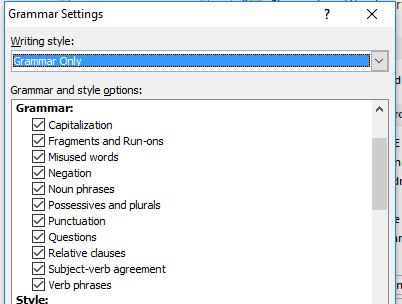
Moving down the list, we then have the Grammar options that you can ask Word to check. Do remember that this is a program and thus it will highlight every instance, even if you know the rules and you’re trying to be creative, but it can be useful for catching things:

word grammar check

If you have Grammar only clicked, these will all automatically be ticked, and you can untick individual ones if you want to (note that it won’t check anything until you ask it to – see the next section).

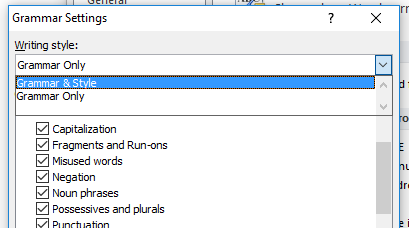
Word will also check style issues; you can ask it to check everything in your Grammar & Style automatically by changing the top box to using the drop-down arrow to the right, or you can leave it on Grammar Only and tick just the areas you want Word to check:

word check grammar and style

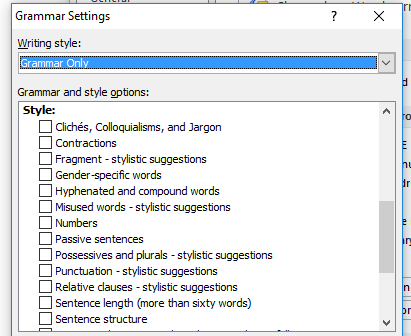
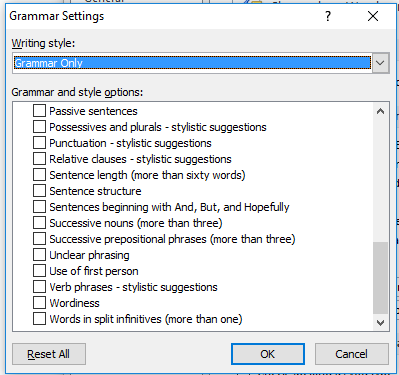
In terms of style, here are the options Word can look out for and alert you to (again, remembering that this is only what it’s been told are clichés, etc.):

4-style-1… and scrolling down:

word check grammar and style

Once you’ve decided what you want Word to check in your grammar and style, press the OK button.

How do I ask Word to check my grammar (and style)?

In order for Word to check which areas you have asked it to check, make sure that Check grammar with spelling is ticked:

5.5 checkingClick OK until you are back at the original screen.

Back in your Word document, Word will highlight in GREEN (as opposed to the red that it uses for spelling issues) any grammar mistakes it thinks you’ve made. Here’s an example where it has checked for gender-related language:

6 checking

This article has described how to ask Word 2007, 2010, 2013 or 2016 to check the grammar and style in your documents.

If you have found this article useful, please share using one of the buttons below. I always welcome comments, too!

Related posts on this blog

Medalling, podiuming and singular they

Asking Word to check for gender-specific language

Using Spell Check in Word 2013

 
8 Comments

Posted by on September 14, 2016 in Word, Writing


Tags: , , , ,

Did you know Word can check for gender-specific language? Word 2007, 2010, 2013, 2016

Following on from my discussion of “singular they” removing gender-specific / binary gender pronouns from your text, did you know that you can ask Word to keep an eye out for gender-specific terms in your document? Here’s how to do it.

We set up different things for the Grammar checker to check in the Options menu:

1 options

In Options, choose Proofing:

2 proofing

Scroll down to the section headed When correcting spelling and grammar in Word and click on the Settings button:

3 style settings

Make sure the writing style is set to Grammar Only:

4 style settings

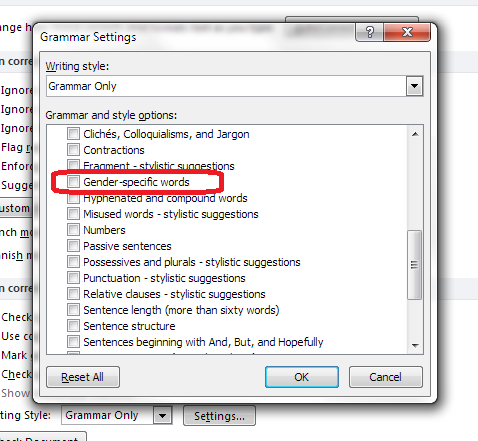
Tick Gender-specific words (and notice there are all sorts of other grammar and style aspects you can ask Word to highlight for you):

5 gender-specific words

In order for Word to actually use this feature, make sure that Check grammar with spelling is ticked:

5.5 checkingClick OK until you are back at the original screen.

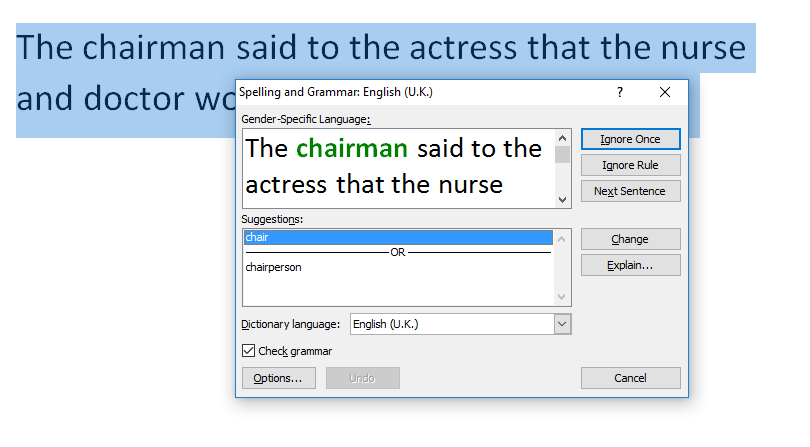
Back in your Word document, if you use a gender-specific term such as “chairman” or “actress”, when you run a spell (and grammar) check, Word will highlight those terms and offer alternatives:

6 checking

This article has described how to ask Word 2007, 2010, 2013 or 2016 to highlight gender-specific terms in your documents.

If you have found this article useful, please share using one of the buttons below. I always welcome comments, too!

Related posts on this blog

Medalling, podiuming and singular they

 
10 Comments

Posted by on August 31, 2016 in Word


Tags: , , , ,

Medalling, podiuming and singular they

Of course this isn't exactly what "medalling" means

Of course this isn’t exactly what “medalling” means

Languages change. If languages didn’t change, we’d be speaking like Chaucer, British and American English would be identical, or we’d still be using words like “chairman”, “crippled”, “omnibus” and all sorts. We also wouldn’t have a way to describe “selfies”, “Brexit” or “omnishambles”.

The verbs formed from nouns, “medalling” and “podiuming” have been heard again recently, as they are every four years in an event whose name is controlled so closely you’re not supposed to go around mentioning it in blog posts. Lots of people have been complaining about these, saying it’s an erosion of the English language, etc., etc.

Now, I’m one for making sure we retain two words with a close but not identical meaning in order to be able to distinguish between different concepts or things. But in this case, it’s not taking away the distinction between two different things, it’s just adding another word to say the same thing. And we form words in all sorts of ways – by blending, shortening, lengthening them and shifting the part of speech they belong to. Once, we weren’t even allowed to start sentences with and or but …

The other wordy thing I wanted to mention briefly was singular they. This is something editors and other wordy people are still arguing – quite bitterly – about. “They” used to be used just as a plural. But, just as we’ve removed words like chairman and dustman from the language to cover the fact that different genders of people do different jobs, over recent years there’s been an acceptance that binary genders – the idea that everyone is either “he” or “she”, has joined up with a common dislike of the clumsiness of using “he” and “she” in alternate chapters or “he/she”, “s/he”, etc. to promote the use of singular “they”, i.e. the use of “they” to refer to one person in the singular. An example would be, “When someone gets to the front of the queue, they should go to the first available window”.

Now, some people rail against this change, but I think that it can be made to work grammatically, it gets rid of clumsiness and it doesn’t exclude people to whom, for whatever reason, it’s not appropriate to refer using binary gender wording. This is standard in my editing, although I’d never make this kind of change without consultation if it appeared more than very sporadically.

I’m not expecting to change anyone’s mind here; I’m just setting out my stall. These are my personal opinions, but these are interesting topics to think about and they’ve been at the front of my mind recently. Thank you for reading!

I generally talk about word stuff in my Troublesome Pairs posts which do distinguish meanings between pairs or triplets of words. Have a look at the index here!

 
19 Comments

Posted by on August 17, 2016 in Be careful, Errors, Ethics, Writing


Tags:

How do I count the number of times a word appears in my document?

I was asked this question during the week, so here’s how to count how many times a particular word appears in a document (or spreadsheet or anything).

The easiest way to count the number of instances of a word is to use the Find function.

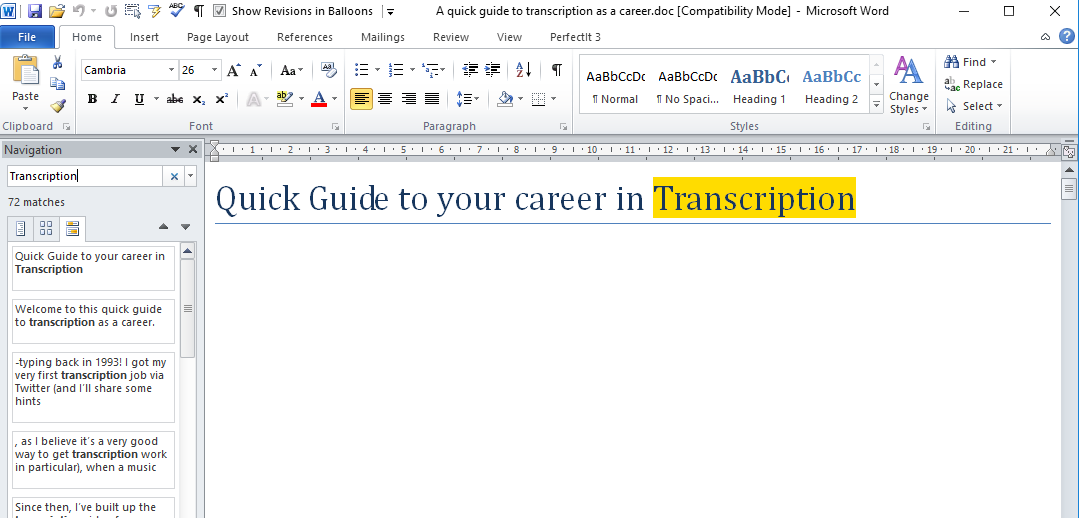
Access Find using Control-F (press the control key and F at the same time).

Type in the word you want to search for.

Word will find and highlight all instances of the word and highlight them for you – and will tell you how many times it appears!

Count instances of a word

Note: this search for transcription will find that word buried in other words, too – so TRANSCRIPTIONs and TRANSCRIPTIONist.

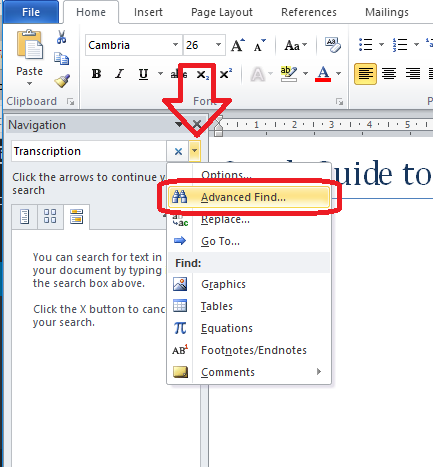
To find just the single word transcription, you need to use Advanced Find.

Click on the down arrow next to the search box and then choose Advanced Find:

2 Count instances of a word

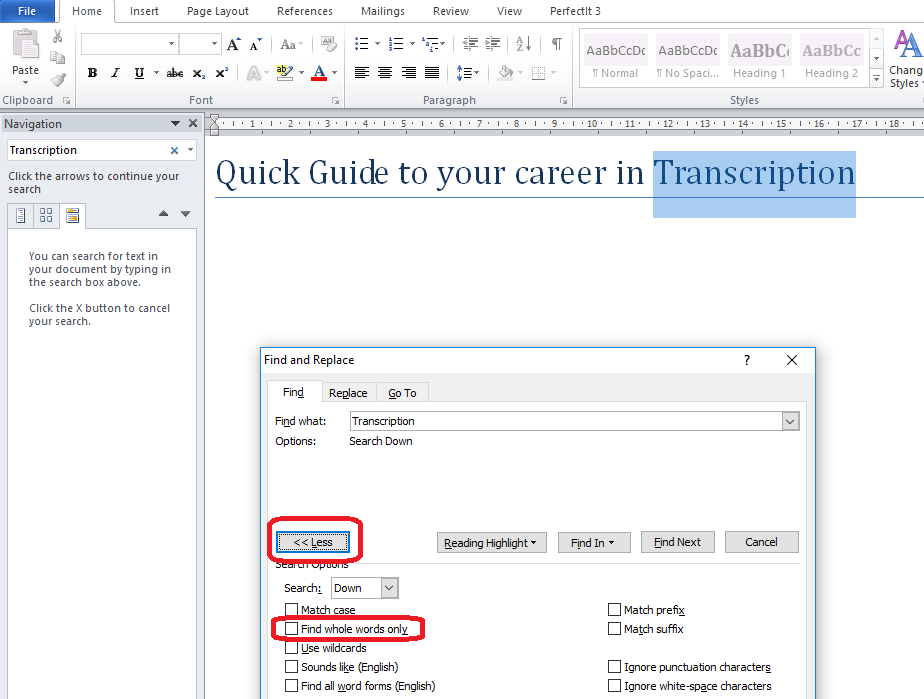
Click the More button (which appears where Less is showing here) and then tick the box marked Find Whole Words Only:

3 Count instances of a word

Now Word will count and highlight just the instances of this exact word.

This article has taught you how to count how many times a particular word appears in your document. You can use this method in Excel and PowerPoint, etc. too.

If you’ve found it useful, please click like and share it. Thank you!

Other useful posts on this blog

How to search for anything using Control-F

How to count the words in your Word document

How to count the words in your PowerPoint presentation

Find and Replace

Advanced Find and Replace

 
2 Comments

Posted by on August 3, 2016 in Excel, PowerPoint, Word, Writing


Tags: , , , , ,

Adapt or adopt? Adaptation or adoption?

This is a Troublesome Pair that I find very commonly in academic writing, across a whole range of writers. It would be expected in people whose native language doesn’t use vowels (I had a very interesting conversation about Arabic-speakers having trouble with vowels in English) but I also find it in native English-speakers (it’s actually fairly uncommon to find both groups making the same errors)

To adopt something means to take it on as it is. For example, Laura might adopt my process of editing a text, then doing a spell check, then using software to check consistency. If the UN adopts a resolution, it means it takes it into its procedures as it is, with no changes. If you adopt a dog from a shelter, you take it as it is.

To adapt something means to change it according to specific circumstances. For example, Laura might adapt my process by choosing to edit the text, then run the consistency software, then run a spell check. The UN might adapt a resolution to take into account a new world order or the creation of a new country. You might try to adapt your adopted dog’s behaviour if you don’t want it to sit on the sofa.

Adoption therefore means the act of taking on something as it is, while adaptation involves you changing, or you changing something else, to fit the circumstances.

In academic writing, a researcher might well adopt a questionnaire method, but they might adapt someone else’s questionnaire if it needs more questions on widgets and fewer on bath mats, for example.

You can find more troublesome pairs here, and here’s the index to them all!


Tags: , , ,